
FM Stereo FM-AM Receiver
|
|
|
- Randall Freeman
- 9 years ago
- Views:
Transcription
1 (1) FM Stereo FM-AM eceiver Operating Instructions GB Owner s ecord The model and serial numbers are located on the rear panel. ecord the serial number in the space provided below. efer to them whenever you call upon your Sony dealer regarding this product. Model No. ST-DE685 Serial No. ST-DE Sony Corporation

2 WANG To prevent fire or shock hazard, do not expose the unit to rain or moisture. To prevent fire, do not cover the ventilation of the apparatus with newspapers, table-cloths, curtains, etc. And don t place lighted candles on the apparatus. To prevent fire or shock hazard, do not place objects filled with liquids, such as vases, on the apparatus. Don t throw away the battery with general house waste, dispose of it correctly as chemical waste. Do not install the appliance in a confined space, such as a bookcase or built-in cabinet. For customers in the United States eorient or relocate the receiving antenna. Increase the separation between the equipment and receiver. Connect the equipment into an outlet on a circuit different from that to which the receiver is connected. Consult the dealer or an experienced radio/tv technician for help. CAUTION You are cautioned that any changes or modification not expressly approved in this manual could void your authority to operate this equipment. Note to CATV system installer: This reminder is provided to call CATV system installer s attention to Article of the NEC that provides guidelines for proper grounding and, in particular, specifies that the cable ground shall be connected to the grounding system of the building, as close to the point of cable entry as practical. 2 GB This symbol is intended to alert the user to the presence of uninsulated dangerous voltage within the product s enclosure that may be of sufficient magnitude to constitute a risk of electric shock to persons. This symbol is intended to alert the user to the presence of important operating and maintenance (servicing) instructions in the literature accompanying the appliance. WANG This equipment has been tested and found to comply with the limits for a Class B digital device, pursuant to Part 15 of the FCC ules. These limits are designed to provide reasonable protection against harmful interference in a residential installation. This equipment generates, uses, and can radiate radio frequency energy and, if not installed and used in accordance with the instructions, may cause harmful interference to radio communications. However, there is no guarantee that interference will not occur in a particular installation. If this equipment does cause harmful interference to radio or television reception, which can be determined by turning the equipment off and on, the user is encouraged to try to correct the interference by one or more of the following measures: For customers in Canada CAUTION TO PEVENT EECTIC SHOCK, DO NOT USE THIS POAIZED AC PUG WITH AN EXTENSION COD, ECEPTACE O OTHE ET UNESS THE BADES CAN BE FUY SETED TO PEVENT BADE EXPOSUE. ENEGY STA is a U.S. registered mark. As an ENEGY STA partner, Sony Corporation has determined that this product meets the ENEGY STA guidelines for energy efficiency. This receiver incorporates Dolby* Digital and Pro ogic Surround and the DTS** Digital Surround System. * Manufactured under license from Dolby aboratories. Dolby, Pro ogic and the double-d symbol are trademarks of Dolby aboratories. ** DTS and DTS Digital Surround are registered trademarks of Digital Theater Systems, Inc.

3 Table of Contents ist of Button ocations and eference Pages Main unit... 5 Hooking Up the Components equired cords... 6 Antenna hookups... 7 Audio component hookups... 8 Video component hookups... 9 Digital component hookups Multi channel input hookups Other hookups Hooking Up and Setting Up the Speaker System Speaker system hookups Performing initial setup operations Multi channel surround setup Checking the connections Basic Operations Selecting the component Changing the display Enjoying Surround Sound Automatically decoding the input audio signal Selecting a sound field Using only the front speakers (2 Channel Stereo) Enjoying stereo sound in multi channel (Dolby Pro ogic ) Understanding the multi channel surround displays Customizing sound fields eceiving Broadcasts Storing FM stations automatically (AUTOBETICA) 1) Direct tuning Automatic tuning Preset tuning Using the adio Data System (DS) 1) Other Operations Naming preset stations and program sources ecording Using the Sleep Timer Adjustments using the SET UP button CONTO A1 control system Operations Using the emote M-PP411 2) Before you use your remote emote button description Selecting the mode of the remote Programming the remote Operations Using the emote M-U305C 3) Before you use your remote emote button description Changing the factory setting of a function button Additional Information Precautions Troubleshooting Specifications Tables of settings using SU, EVE, EQ, and SET UP buttons Adjustable parameters for each sound field... Back page GB 1) Models of area code CE, CEK only. 2) Models of area code U, CA only. 3) Except for models of area code U, CA. 3 GB

4 NITO Y PB B-Y P -Y CENTE FONT A FONT B About This Manual Note for the supplied remote The instructions in this manual are for model ST-DE685. Check your model number by looking at the lower right corner of the front panel. About area codes The area code of the receiver you purchased is shown on the lower portion of the rear panel (see the illustration below). VIDEO SPEAKES IMPEDANCE USE 8 16Ω For M-PP411 (Models of area code U, CA only) The TV/SAT, PHONO, SOUCE, MPX/ DUA, ANAOG DIECT, 12 and ON SCEEN buttons on the remote are not available. For M-U305C (Except for models of area code U, CA) The TV/SAT and PHONO buttons on the remote are not available. AC ET EAKES IMPEDANCE USE 8 16Ω 4-XXX-XXX-XX AA Demonstration Mode Area code Any differences in operation, according to the area code, are clearly indicated in the text, for example, Models of area code AA only. Tip The instructions in this manual describe the controls on the receiver. You can also use the controls on the supplied remote if they have the same or similar names as those on the receiver. For details on the use of your remote, see pages for M PP411 (models of area code U, CA only). pages for M U305C (except for models of area code U, CA) The demonstration will activate the first time you turn on the power. When the demonstration starts, the following message appears in the display: NOW DEMONSTATION MODE IF YOU FISH DEMONSTATION PEASE PESS POWE KEY WHIE THIS MESSAGE APPEAS THE DISPAY THANK YOU To cancel the demonstration Press?/1 to turn the receiver off while the above message is being displayed. The next time you turn the receiver on, the demonstration will not appear. To view the demonstration Hold down SET UP and press?/1 to turn on the power. Notes unning the demonstration will clear the receiver s memory. For details on what will be cleared, see Clearing the receiver's memory on page 17. There will be no sound when the demonstration mode is activated. You cannot cancel demonstration if you did not press?/1 while the above message is being displayed. To cancel demonstration after the above message appears, press?/1 twice to activate the demonstration again. Then, press?/1 while the above message is being displayed. 4 GB

5 ist of Button ocations and eference Pages ist of Button ocations and eference Pages How to use this page Use this page to find the location of buttons that are mentioned in the text. Illustration number r NAME qf (37) Name of button/part eference page Main unit APHABETICA ODE CH ea (27) A D A.DEC ed (25, 27) AM (Except for models of area code CE, CEK) ej (32, 33) AUX wj (23) CD/SACD wd (23) CEMA STUDIO EX A,B,C qh (26) Digital Cinema Sound (indicator) qj (25) DIMME 5 (24) DISPAY 4 (24, 35, 55) Display qg (24) DVD/D wh (23) E K ENTE ef (37) EQ 9 (31, 59) EQUAIZE qk (31) FM (Except for models of area code CE, CEK) ek (32, 33) FM/AM (Models of area code CE, CEK only) ej (32, 33) FM MODE (Models of area code CE, CEK only) ek, (Except for models of area code CE, CEK) el (33) PUT MODE ql (23) I (receptor) 6 (42, 49, 55) Jog dial eh (18, 29, 31, 37, 38) O EVE qs (18, 22, 29, 59) MASTE VOUME wk (22, 53) MD/TAPE wa (23) MEMOY ra (32, 34) MODE es (26, 31, 54) MUTI CHANNE DECODG (indicator) qa (23) MUTI CH e; (23) MUTG wl (24, 53) NAME qf (37) P S PHONES (jack) 3 (24, 54) PESET/PTY SEECT +/ (Models of area code CE, CEK only) 7 (34, 35) PESET TUNG +/ (Except for models of area code CE, CEK) 7 (34, 57) PTY (Models of area code CE, CEK only) el (35) SET UP qd (4, 18, 38, 59) SHIFT r; (34) SPEAKES A/B 2 (24, 29, 53) SU 0 (29, 59) T Z TUNE wg (23, 33, 34, 37) TUNG +/ 8 (33) VIDEO 1 w; (23) VIDEO 2 ws (23) VIDEO 3 wf (23) VIDEO 3 PUT (jacks) rs (9) BUTTON DESCIPTIONS `/1 (power) 1 (4, 17, 22, 31, 32, 57) </> eg (18, 29, 31, 37, 38) wa wd wg wj qa qsqdqf qg qhqj qk ql w; ws wf wh rs ra r; el ek ej eh eg ef ed es ea e; wl wk 5 GB

6 Hooking Up the Components equired cords A Audio cord (not supplied) White () ed () White () ed () B Audio/video cord (not supplied) Yellow (video) White (/audio) ed (/audio) Yellow (video) White (/audio) ed (/audio) C Video cord (not supplied) Yellow (video) Yellow (video) D Optical digital cord (not supplied) Black Black E Coaxial digital cord (not supplied) Orange Orange F Monaural audio cord (not supplied) Black Black G Monaural mini-plug cord (not supplied) Black Black Before you get started Turn off the power to all components before making any connections. Do not connect the AC power cord until all of the connections are completed. Be sure to make connections firmly to avoid hum and noise. When connecting an audio/video cord, be sure to match the color-coded pins to the appropriate jacks on the components: yellow (video) to yellow; white (left, audio) to white; and red (right, audio) to red. When you connect optical digital cords, insert the cord plugs straight in until they click into place. Do not bend or tie the optical digital cord. 6 GB

7 Hooking Up the Components Antenna hookups AM loop antenna (supplied) FM wire antenna* (supplied) DIGITA OPTICA VIDEO 2 ANTENNA MD/ TAPE AM MONITO MD/ TAPE CD/ SACD CT A1 VIDEO VIDEO VIDEO VIDEO VIDEO DVD/D FM 75Ω COAXIA COAXIA AUDIO CENTE SUB FONT SUOUND WOOFE MUTI CH AUX CD/SACD AUDIO AUDIO MD/TAPE DVD/D VIDEO 2 AUDIO AUDIO SUB VIDEO 1 WOOFE * The shape of the connector varies depending on the area code. Notes on antenna hookups To prevent noise pickup, keep the AM loop antenna away from the receiver and other components. Be sure to fully extend the FM wire antenna. After connecting the FM wire antenna, keep it as horizontal as possible. 7 GB

8 Audio component hookups MD or Tape deck PUT PUT E E A A ç ç DIGITA OPTICA VIDEO 2 ANTENNA MD/ TAPE AM MONITO MD/ TAPE CD/ SACD CT A1 VIDEO VIDEO VIDEO VIDEO VIDEO DVD/D FM 75Ω COAXIA COAXIA AUDIO CENTE SUB FONT SUOUND WOOFE MUTI CH AUX CD/SACD AUDIO AUDIO MD/TAPE DVD/D VIDEO 2 AUDIO AUDIO SUB VIDEO 1 WOOFE A PUT E CD or SACD player 8 GB

9 Hooking Up the Components Video component hookups DVD or D player AUDIO PUT VIDEO B COMPONENT VIDEO* ENNA Y PB B-Y AM MONITO P -Y CT A1 VIDEO VIDEO VIDEO VIDEO VIDEO DVD/D VIDEO 2 MONITO COMPONENT VIDEO FONT B SPEAKES IMPEDANCE USE 8 16Ω FM 75Ω COAXIA AUDIO AC ET To the front panel AUX CD/SACD AUDIO AUDIO MD/TAPE DVD/D VIDEO 2 AUDIO AUDIO SUB VIDEO 1 WOOFE SUOUND CENTE FONT A SPEAKES IMPEDANCE USE 8 16Ω Ç B B B B Ç Ç C PUT VIDEO PUT PUT VIDEO VIDEO PUT VIDEO Camcorder or video game AUDIO TV tuner, satellite tuner or VC AUDIO AUDIO VC TV monitor * Except for models of area code CE, CEK. Note on video component hookups You can connect your TV s audio output jacks to the VIDEO 2 AUDIO jacks on the receiver and apply sound effects to the audio from the TV. In this case, do not connect the TV s video output jack to the VIDEO 2 VIDEO jack on the receiver. If you are connecting a separate TV tuner (or satellite tuner), connect both the audio and video output jacks to the receiver as shown above. If you have a DVD player, TV, satellite tuner or D player with COMPONENT VIDEO (Y, B-Y, -Y) output jacks and a monitor with COMPONENT VIDEO input jacks, use a video cord (not supplied) to connect to the receiver. Tip When using the S-video jacks instead of the video jacks, your monitor must also be connected via an S-video jack. S-video signals are on a separate bus from the video signals and will not be output through the video jacks. Note On this receiver, the component video signals are not compatible with S-video signals or video signals. 9 GB

10 Digital component hookups Connect the digital output jacks of your DVD player and satellite tuner (etc.) to the receiver s digital input jacks to bring the multi channel surround sound of a movie theater into your home. To fully enjoy multi channel surround sound, five speakers (two front speakers, two surround speakers, and a center speaker) and a sub woofer are required. You can also connect an D player with an F jack via an F demodulator, like the Sony MOD-F1 (not supplied). Note You cannot connect an D player s DOBY DIGITA F jack directly to this unit s digital input jacks. You must first convert the F signal to either an optical or coaxial digital signal. For details, see Troubleshooting on page 53. TV tuner, satellite tuner or DVD player* PUT VIDEO AUDIO PUT DIGITA OPTICA D B DIGITA OPTICA VIDEO 2 ANTENNA MD/ TAPE AM MONITO MD/ TAPE CD/ SACD CT A1 VIDEO VIDEO VIDEO VIDEO VIDEO DVD/D FM 75Ω COAXIA COAXIA AUDIO CENTE FONT SUOUND SUB WOOFE MUTI CH AUX CD/SACD AUDIO AUDIO MD/TAPE DVD/D VIDEO 2 AUDIO AUDIO SUB VIDEO 1 WOOFE E B PUT DIGITA COAXIA PUT VIDEO AUDIO DVD or D player (etc.)* * Make either coaxial or optical connections. We recommend making coaxial connections instead of optical connections. 10 GB

11 Hooking Up the Components Connect the digital output jacks of your MD or tape deck to the receiver s digital input jack and connect the digital input jacks of your MD or tape deck to the receiver s digital output jack. These connections allow you to make digital recordings of TV broadcasts, etc. DIGITA OPTICA MD or tape deck PUT PUT E E D ç D A A ç ç ç DIGITA OPTICA VIDEO 2 ANTENNA MD/ TAPE AM MONITO MD/ TAPE CD/ SACD CT A1 VIDEO VIDEO VIDEO VIDEO VIDEO DVD/D FM 75Ω COAXIA COAXIA AUDIO CENTE SUB FONT SUOUND WOOFE MUTI CH AUX CD/SACD AUDIO AUDIO MD/TAPE DVD/D VIDEO 2 AUDIO AUDIO SUB VIDEO 1 WOOFE Notes You cannot make digital recordings when the source is a multi channel digital source. All the OPTICA and COAXIA jacks are compatible with 96 khz, 48 khz, 44.1 khz and 32 khz sampling frequencies. It is not possible to record analog signals to the components connected to MD/TAPE and VIDEO jacks with only digital connections. To record analog signals, make analog connections. To record digital signals, make digital connections. The sound is not output when you play a SACD disc on the SACD player connected to the CD/SACD OPTICA jack on this unit. Connect to the analog input jacks (CD/SACD jacks). efer to the operating instructions supplied with the SACD player. 11 GB

12 Multi channel input hookups Although this receiver incorporates a multi channel decoder, it is also equipped with multi channel input jacks. These connections allow you to enjoy multi channel software encoded in formats other than Dolby Digital and DTS. If your DVD player is equipped with multi channel output jacks, you can connect them directly to the receiver to enjoy the sound of the DVD player s multi channel decoder. Alternatively, the multi channel input jacks can be used to connect an external multi channel decoder. To fully enjoy multi channel surround sound, five speakers (two front speakers, two surround speakers, and a center speaker) and a sub woofer are required. efer to the operating instructions supplied with your DVD player, multi channel decoder, etc., for details on the multi channel hookups. Notes When using the connections described below, adjust the level of the surround speakers and sub woofer from the DVD player or multi channel decoder. See page 15 for details on speaker system hookup. DIGITA OPTICA VIDEO 2 ANTENNA MD/ TAPE AM MONITO MD/ TAPE CD/ SACD CT A1 VIDEO VIDEO VIDEO VIDEO VIDEO DVD/D FM 75Ω COAXIA COAXIA AUDIO CENTE SUB FONT SUOUND WOOFE MUTI CH AUX CD/SACD AUDIO AUDIO MD/TAPE DVD/D VIDEO 2 AUDIO AUDIO SUB VIDEO 1 WOOFE A A F F CENTE SUB FONT SUOUND WOOFE MUTI CH DVD player, Multichannel decoder, etc. 12 GB

13 ç Hooking Up the Components Other hookups CONTO A1 G DIGITA OPTICA VIDEO 2 ANTENNA MD/ TAPE AM MONITO MD/ TAPE CD/ SACD CT A1 VIDEO VIDEO VIDEO VIDEO VIDEO DVD/D FM 75Ω COAXIA COAXIA AUDIO CENTE SUB FONT SUOUND WOOFE MUTI CH AUX CD/SACD AUDIO AUDIO MD/TAPE DVD/D VIDEO 2 AUDIO AUDIO SUB VIDEO 1 WOOFE A PUT E CD player, tape deck, MD deck, etc. CONTO A1 hookup If you have a CONTO A1 compatible Sony CD player, SACD player, tape deck, or MD deck Use a monaural mini-plug cord (not supplied) to connect the CONTO A1 jack on the CD player, SACD player, tape deck, or MD deck to the CT A1 jack on the receiver. efer to CONTO A1 control system on page 39 and the operating instructions supplied with your CD player, SACD player, tape deck, or MD deck for details. Note If you make CONTO A1 connections from the receiver to an MD deck that is also connected to a computer, do not operate the receiver while using the Sony MD Editor software. This may cause a malfunction. If you have a Sony CD changer with a COMMAND MODE selector If your CD changer s COMMAND MODE selector can be set to CD 1, CD 2, or CD 3, be sure to set the command mode to CD 1 and connect the changer to the CD jacks on the receiver. However, if you have a Sony CD changer with VIDEO jacks, set the command mode to CD 2 and connect the changer to the VIDEO 2 jacks on the receiver. continued 13 GB

14 Other hookups (continued) AUX AUDIO In hookup If you have an individual audio component (except PHONO) Use the audio cords to connect the E jacks on the CD player, tape deck or MD deck to the AUX jacks on the receiver so that you can listen to stereo sources in surround sound. Setting the voltage selector Connecting the AC power cord FONT B SPEAKES IMPEDANCE USE 8 16Ω AC ET* AC power cord If your receiver has a voltage selector on the rear panel, check that the voltage selector is set to the local power supply voltage. If not, use a screwdriver to set the selector to the correct position before connecting the AC power cord to a wall outlet. VOTAGE SEECTO FONT A MPEDANCE USE 8 16Ω AC ET To a wall outlet b 120V 240V 220V * Except for models of area code A The configuration, shape, and number of AC outlets vary according to the model and country to which the receiver is shipped. Before connecting the AC power cord of this receiver to a wall outlet, connect the speaker system to the receiver (page 15). Connect the AC power cord(s) of your audio/ video components to a wall outlet. If you connect other audio/video components to the AC ET(s) on the receiver, the receiver will supply power to the connected component(s), allowing you to turn the whole system on or off when you turn the receiver on or off. Caution Make sure that the total power consumption of the component(s) connected to the receiver s AC ET(s) does not exceed the wattage stated on the rear panel. Do not connect high-wattage electrical home appliances such as electric irons, fans, or TVs to this outlet. 14 GB

15 e E e E e E e e E e E E e Hooking Up and Setting Up the Speaker System Hooking Up and Setting Up the Speaker System Speaker system hookups equired cords A Speaker cords (not supplied) (+) (+) ( ) ( ) B Monaural audio cord (not supplied) Black Black Active sub woofer Front speaker B* () Front speaker B* () PUT AUDIO B A A Y PB B-Y MONITO P -Y VIDEO VIDEO VIDEO DVD/D VIDEO 2 MONITO COMPONENT VIDEO FONT B SPEAKES IMPEDANCE USE 8 16Ω AUDIO AC ET AUDIO AUDIO VIDEO 1 SUB WOOFE SUOUND CENTE FONT A SPEAKES IMPEDANCE USE 8 16Ω A A A A A E Surround speaker () Surround speaker () Center speaker Front speaker A () Front speaker A () * If you have an additional front speaker system, connect them to the SPEAKES FONT B terminals. continued 15 GB

16 Speaker system hookups (continued) Notes Twist the stripped ends of the speaker cords about 10 mm (2/3 inch). Be sure to match the speaker cord to the appropriate terminal on the components: + to + and to. If the cords are reversed, the sound will be distorted and will lack bass. If you use speakers with low maximum input rating, adjust the volume carefully to avoid excessive output on the speakers. To avoid short-circuiting the speakers Short-circuiting of the speakers may damage the receiver. To prevent this, make sure to take the following precautions when connecting the speakers. Make sure the stripped ends of each speaker cord does not touch another speaker terminal, the stripped end of another speaker cord, or the metal parts of the receiver. Examples of poor conditions of the speaker cord Stripped cords are touching each other due to excessive removal of insulation. After connecting all the components, speakers, and AC power cord, output a test tone to check that all the speakers are connected correctly. For details on outputting a test tone, see page 22. If no sound is heard from a speaker while outputting a test tone or a test tone is output from a speaker other than the one whose name is currently displayed on the receiver, the speaker may be short-circuited. If this happens, check the speaker connection again. To avoid damaging your speakers Make sure that you turn down the volume before you turn off the receiver. When you turn on the receiver, the volume remains at the level you turn off the receiver. Stripped speaker cord is touching another speaker terminal. 16 GB

17 Hooking Up and Setting Up the Speaker System Performing initial setup operations Once you have hooked up the speakers and turned on the power, clear the receiver s memory. Then specify the speaker parameters (size, position, etc.) and perform any other initial setup operations necessary for your system. Tip To check the audio output during settings (to set up while outputting the sound), check the connection (page 22). Clearing the receiver s memory Before using your receiver for the first time, or when you want to clear the receiver s memory, do the following. This procedure is not necessary if the demonstration activates when you turn on the power. 1 Turn off the receiver. 2 Hold down?/1 for 5 seconds. The demonstration starts (page 4) and all of the following items are reset or cleared: All preset stations are reset or cleared. All sound field parameters are reset to their factory settings. All index names (of preset stations and program sources) are cleared. All SET UP parameters are reset to their factory settings. The sound field memorized for each program source and preset stations are cleared. The master volume is set to VO M. Performing initial setup operations Before using your receiver for the first time, adjust SET UP parameters so that the receiver correspond to your system. For the adjustable parameters, see the table on page 59. See pages for speaker settings and pages for other settings. Multi channel surround setup For the best possible surround sound, all speakers should be the same distance from the listening position (A). However, the receiver lets you place the center speaker up to 1.5 meters (5 feet) closer (B) and the surround speakers up to 4.5 meters (15 feet) closer (C) to the listening position. The front speakers can be placed from 1.0 to 12.0 meters (3 to 40 feet) from the listening position (A). You can place the surround speakers either behind you or to the side, depending on the shape of your room (etc.). When placing surround speakers to your side C A B A 90 C continued 17 GB

18 Multi channel surround setup (continued) When placing surround speakers behind you Tip The setting for Micro Satellite Speaker (MICO SP.) has been programmed to optimize the sound balance. If you use Sony s Micro Satellite Speakers, select MICO SP. B C A 45 A C Caution When you use Micro Satellite Speakers and the speaker size is set to AGE, you may not obtain the correct soundstage. The speaker may also be damaged at high volume position. Note Do not place the center speaker farther away from the listening position than the front speakers. Normal Speaker and Micro Satellite Speaker If you are using Normal Speakers Micro Satellite Speakers Select NOM. SP. MICO SP. The speaker size and the sub woofer selection has been preset to NOM. SP. You can adjust the speaker size and sub woofer selection when you select NOM. SP. (pages 18 19) To select MICO SP., turn off the power, then turn on again while pressing EVE. (To reset to NOM. SP., do the same procedure.) When you select MICO SP., the speaker size and sub woofer selection has been configurated as follows: Speaker FONT CENTE SUOUND SUB WOOFE Settings SMA SMA SMA YES Specifying the speaker parameters 1 Press SET UP. 2 Press or to select the parameter you want to adjust. 3 Turn the jog dial to select the setting you want. The setting is entered automatically. 4 epeat steps 2 and 3 until you have set all of the parameters that follow. Initial settings Parameter Initial setting (FONT) AGE* C (CENTE) AGE* S S (SUOUND) AGE* SW (SUB WOOFE) S.W. XXX YES* DIST. XX.X m (ft.)** 5.0 m (16 ft.)** C DIST. XX.X m (ft.)** 5.0 m (16 ft.)** S S DIST. XX.X m (ft.)** 3.5 m (11 ft.)** S S P. XXX BEHD. S S HGT. XXX OW * You can set this parameter only when you select NOM. SP. ** Models of area code U, CA only. You cannot change the configuration if you select MICO SP. 18 GB

19 Hooking Up and Setting Up the Speaker System x Front speaker size ( ) If you connect large speakers that will effectively reproduce bass frequencies, select AGE. Normally, select AGE. If the sound is distorted, or you feel a lack of surround effects when using multi channel surround sound, select SMA to activate the bass redirection circuitry and output the front channel bass frequencies from the sub woofer. When the front speakers are set to SMA, the center and surround speakers are also automatically set to SMA (unless previously set to NO ). x Center speaker size ( C ) If you connect a large speaker that will effectively reproduce bass frequencies, select AGE. Normally, select AGE. However, if the front speakers are set to SMA, you cannot set the center speaker to AGE. If the sound is distorted, or you feel a lack of surround effects when using multi channel surround sound, select SMA to activate the bass redirection circuitry and output the center channel bass frequencies from the front speakers (if set to AGE ) or sub woofer.* 1 If you do not connect a center speaker, select NO. The sound of the center channel will be output from the front speakers.* 2 x Surround speaker size ( S S ) If you connect large speakers that will effectively reproduce bass frequencies, select AGE. Normally, select AGE. However, if the front speakers are set to SMA, you cannot set the surround speakers to AGE. If the sound is distorted, or you feel a lack of surround effects when using multi channel surround sound, select SMA to activate the bass redirection circuitry and output the surround channel bass frequencies from the sub woofer or other AGE speakers. If you do not connect surround speakers, select NO.* 3 Tip *1 *3 correspond to the following Dolby Pro ogic modes *1 NOMA *2 PHANTOM *3 3 STEEO Tip Internally, the AGE and SMA settings for each speaker determine whether or not the internal sound processor will cut the bass signal from that channel. When the bass is cut from a channel, the bass redirection circuitry sends the corresponding bass frequencies to the sub woofer or other AGE speakers. However, since bass sounds have a certain amount of directionality, it is best not to cut them, if possible. Therefore, even when using small speakers, you can set them to AGE if you want to output the bass frequencies from that speaker. On the other hand, if you are using a large speaker, but prefer not to have bass frequencies output from that speaker, set it to SMA. If the overall sound level is lower than you prefer, set all speakers to AGE. If there is not enough bass, you can use the equalizer to boost the bass levels. To adjust the equalizer, see page 31. continued 19 GB

20 Multi channel surround setup (continued) x Sub woofer selection ( SW S.W. XXX) If you connect a sub woofer, select YES. If you do not connect a sub woofer, select NO. This activates the bass redirection circuitry and outputs the FE signals from other speakers. In order to take full advantage of the Dolby Digital bass redirection circuitry, we recommend setting the sub woofer s cut off frequency as high as possible. x Front speaker distance ( DIST. XX.X m (ft.)) Set the distance from your listening position to the front speakers (A on page 17). x Center speaker distance ( C DIST. XX.X m (ft.)) Set the distance from your listening position to the center speaker. Center speaker distance should be set from a distance equal to the front speaker distance (A on page 17) to a distance 1.5 meters (5 feet) closer to your listening position (B on page 17). Tip The receiver allows you to input the speaker position in terms of distance. However, it is not possible to set the center speaker further than the front speakers. Also, the center speaker cannot be set more than 1.5 meters (5 feet) closer than the front speakers. ikewise, the surround speakers can not be set farther away from the listening position than the front speakers. And they can be no more than 4.5 meters (15 feet) closer. This is because incorrect speaker placement is not conducive to enjoy surround sound. Please note that, setting the speaker distance closer than the actual location of the speakers will cause a delay in the output of the sound from that speaker. In other words, the speaker will sound like it is farther away. For example, setting the center speaker distance 1~2 m (3~6 feet) closer than the actual speaker position will create a fairly realistic sensation of being inside the screen. If you cannot obtain a satisfactory surround effect because the surround speakers are too close, setting the surround speaker distance closer (shorter) than the actual distance will create a larger sound stage. Adjusting these parameter while listening to the sound often results in much better surround sound. Give it a try! x Surround speaker distance ( S S DIST. XX.X m (ft.)) Set the distance from your listening position to the surround speakers. Surround speaker distance should be set from a distance equal to the front speaker distance (A on page 17) to a distance 4.5 meters (15 feet) closer to your listening position (C on page 17). 20 GB

21 Hooking Up and Setting Up the Speaker System x Surround speaker position ( S S P. XXX)* This parameter lets you specify the location of your surround speakers for proper implementation of the Digital Cinema Sound surround modes. efer to the illustration below. Select SIDE if the location of your surround speakers corresponds to section A. Select MID if the location of your surround speaker corresponds to section B. Select BEHD. if the location of your surround speakers corresponds to section C. A B C C x Surround speaker height ( S S HGT. XXX)* This parameter lets you specify the height of your surround speakers for proper implementation of the Digital Cinema Sound surround modes. efer to the illustration below. Select OW if the location of your surround speakers corresponds to section A. Select HIGH if the location of your surround speakers corresponds to section B. 20 B A Tip The surround speaker position parameter is designed specifically for implementation of the Digital Cinema Sound modes with virtual elements. With the Digital Cinema Sound modes, speaker position is not as critical as other modes. All modes with virtual elements were designed under the premise that the surround speaker would be located behind the listening position, but presentation remains fairly consistent even with the surround speakers positioned at a rather wide angle. However, if the speakers are pointing towards the listener from the immediate left and right of the listening position, the sound fields with virtual elements will not be effective unless the surround speaker position parameter is set to P. SIDE. Nevertheless, each listening environment has many variables, like wall reflections, and you may obtain better results using P. MID. and P. BEHD. if your speakers are located high above the listening position, even if they are to the immediate left and right. Therefore, although it may result in a setting contrary to the Surround speaker position explanation, we recommend that you playback multi channel surround encoded software and listen to the effect each setting has on your listening environment. Choose the setting that provides a good sense of spaciousness and that best succeeds in forming a cohesive space between the surround sound from the surround speakers and the sound of the front speakers. If you are not sure which sounds best, select P. BEHD. and then use the speaker distance parameter and speaker level adjustments to obtain proper balance. continued B A B 60 A 30 * These parameters are not available when Surround speaker size ( S S ) is set to NO. 21 GB
22 Multi channel surround setup (continued) Adjusting the speaker level Use the remote while seated in your listening position to adjust the level of each speaker. Note The receiver incorporates a new test tone with a frequency centered at 800 Hz for easier speaker level adjustment. 1 Press?/1 to turn on the receiver. 2 Press TEST TONE on the remote. T. TONE appears in the display and you will hear the test tone from each speaker in sequence. 3 Adjust the EVE parameters so that the level of the test tone from each speaker sounds the same when you are in your main listening position. Press EVE to adjust the balance and level of speakers. For details on the EVE menu, see page 29. While adjusting, the test tone is output from the speaker whose adjustment is performed. 4 Press TEST TONE again to turn off the test tone. Tip You can adjust the level of all speakers at the same time. Turn MASTE VOUME on the main unit or press MASTE VO +/ on the remote. Notes The test tone cannot be output when the receiver is set to MUTI CH. The adjusted value are shown in the display during adjustment. Although these adjustments can also be made via the front panel using the EVE menu (when the test tone is output, the receiver switches to the EVE menu automatically), we recommend you follow the procedure described above and adjust the speaker levels from your listening position using the remote. Checking the connections After connecting all of your components to the receiver, do the following to verify that the connections were made correctly. 1 Press?/1 to turn on the receiver. 2 Turn on the component that you connected (e.g., CD player or tape deck). 3 Press the function button to select the component (program source). 4 Start playing. If you do not obtain normal sound output after performing this procedure, see Troubleshooting on page 53 and take the appropriate measures to correct the problem. 22 GB
23 Basic Operations Basic Operations Selecting the component Function buttons Press the function button to select the component you want to use. To select Press VC VIDEO 1 or VIDEO 2 TV or satellite tuner VIDEO 2 Camcorder or VIDEO 3 video game DVD or D player DVD/D MD or Tape deck MD/TAPE CD or SACD player CD/SACD Built in tuner TUNE An audio component AUX After turning on the component you selected, select the component and play the program source. After selecting VC, camcorder, video game, DVD player, or D player, turn on the TV and set the TV s video input to match the component you selected. PUT MODE Press PUT MODE to select the input mode for your digital components. Each time you press the button, the input mode of the currently selected component switches. Select AUTO COAX OPT ANAOG To Give priority to digital signals when there are both digital and analog connections. If there are no digital signals, analog is selected. Specify the digital audio signals input to the DIGITA COAXIA input jacks. Specify the digital audio signals input to the DIGITA OPTICA input jacks. Specify the analog audio signals input to the AUDIO (/) jacks. Note When the 96 khz digital signal is input, the equalizer and surround effects are turned off. MUTI CH Press MUTI CH to enjoy the audio source connected to the MUTI CH jacks. You can adjust balance and level of all the speakers. When this function is on, the equalizer and surround effects are turned off. MUTI CHANNE DECODG indicator This indicator lights up when the unit is decoding signals recorded in a multi channel format. continued 23 GB
24 Selecting the component (continued) SPEAKES A/B Press SPEAKES A/B button to output the sound from the speakers connected to the SPEAKES FONT terminals. Each time you press the button, the display changes cyclically as follows: SP. A t SP. B t SP. OFF To drive Speaker System A (Connected to the SPEAKES FONT A terminals) Speaker System B (Connected to the SPEAKES FONT B terminals) Select SP. A SP. B When you select SP. OFF, no sound will be output from your speakers and SP. OFF lights up in the display. MUTG Press MUTG to mute the sound. The muting function is canceled when you turn the power on or turn the MASTE VOUME clockwise to turn the volume up. Changing the display DISPAY Each time you press DISPAY, the display changes cyclically as follows: Index name of the component* t Selected component t Sound field applied to the program source When the tuner is selected Index name of the preset station* or program station name** t Frequency t Program type indication** t adio text** t Current time** t Sound field applied to the band or the preset station * Index name appears only when you have assigned one to the component or preset station (page 37). Index name does not appear when only blank spaces have been entered, or it is the same as the function. ** During DS reception only. (Models of area code CE, CEK only. See page 35). DIMME Press DIMME repeatedly to adjust the brightness of the display (3 steps). However, when you press any button, the display becomes the brightest setting temporary. PHONES Use to connect headphones. When the headphones are connected, speaker output is automatically canceled and SP. OFF lights up in the display. 24 GB
25 Enjoying Surround Sound Enjoying Surround Sound You can take advantage of surround sound simply by selecting one of the receiver s preprogrammed sound fields. They bring the exciting and powerful sound of movie theaters and concert halls into your home. You can also customize the sound fields to obtain the sound you want by changing the surround parameter. To fully enjoy surround sound, you must register the number and location of you speakers. See Multi channel surround setup starting from page 17 to set the speaker parameters before enjoying surround sound. Automatically decoding the input audio signal Selecting a sound field You can enjoy surround sound simply by selecting one of the pre-programmed sound fields according to the program you want to listen to. Sound field Normal Surround Cinema Studio EX A Cinema Studio EX B Cinema Studio EX C Hall Jazz Club ive Concert Game Display NOM.SU. C.ST.EX A DCS C.ST.EX B DCS C.ST.EX C DCS HA JAZZ CONCET GAME Press A.DEC. AUTO DEC. appears in the display. This mode automatically detects the type of audio signal being input (Dolby Digital, DTS, or standard 2 channel stereo) and performs the proper decoding if necessary. This mode presents the sound as it was recorded/encoded, without adding any effects (e.g. reverberation). However, if there are no low frequency signals (Dolby Digital FE, etc.) it will generate a low frequency signal for output to the sub woofer. About DCS (Digital Cinema Sound) The sound fields with DCS mark use DCS technology. When these sound fields are selected, Digital Cinema Sound indicator in the display lights up. In collaboration with Sony Pictures Entertainment, Sony measured the sound environment of their studios and integrated the data of the measurement and Sony s own DSP (Digital Signal Processor) technology to develop Digital Cinema Sound. In a home theater, Digital Cinema Sound simulates an ideal movie theater sound environment based on the preference of the movie director. Enjoying movies with Cinema Studio EX Cinema Studio EX is ideal for enjoying the movie software encoded with multi channel format, such as the Dolby Digital DVD. This mode reproduces the sound characteristics of Sony Pictures Entertainment s studios. continued 25 GB
26 Selecting a sound field (continued) Press CEMA STUDIO EX A, B or C. The selected sound field is indicated in the display. x C.ST.EX A (Cinema Studio EX A) eproduces the sound characteristics of the Sony Pictures Entertainment Cary Grant Theater cinema production studio. This is a standard mode, great for watching most any type of movie. x C.ST.EX B (Cinema Studio EX B) eproduces the sound characteristics of the Sony Pictures Entertainment Kim Novak Theater cinema production studio. This mode is ideal for watching science-fiction or action movies with lots of sound effects. x C.ST.EX C (Cinema Studio EX C) eproduces the sound characteristics of the Sony Pictures Entertainment scoring stage. This mode is ideal for watching musicals or classic films where music is featured in the soundtrack. About Cinema Studio EX Cinema Studio EX consists of the following three elements. Virtual Multi Dimension Creates 5 sets of virtual speakers surrounding the listener from a single pair of actual surround speakers. Screen Depth Matching In a movie theater, sound seems to come from inside the image reflected on the movie screen. This element creates the same sensation in your listening room by shifting the sound of the front speakers into the screen. Cinema Studio everberation eproduces the reverberations peculiar to a movie theater. Cinema Studio EX is the integrated mode which operates these elements simultaneously. Tip You can select Cinema Studio EX by pressing MODE repeatedly. Notes The effects provided by the virtual speakers may cause increased noise in the playback signal. When listening with sound fields that employ the virtual speakers, you will not be able to hear any sound coming directly from the surround speakers. Selecting other sound fields Press MODE repeatedly to select the sound field you want. The current sound field is indicated in the display. x NOM.SU. (Normal Surround) Software with multi channel surround audio signals is played back according to the way it was recorded. Software with 2 channel audio signals is decoded with Dolby Pro ogic to create surround effects. x HA eproduces the acoustics of a rectangular concert hall. x JAZZ (Jazz Club) eproduces the acoustics of a jazz club. x CONCET (ive Concert) eproduces the acoustics of a 300-seat live concert. x GAME Obtains maximum audio impact from video game software. To turn the surround effect off Press A.DEC or 2CH. 26 GB
27 Enjoying Surround Sound Tips The receiver lets you apply the last selected sound field to a program source whenever it is selected (Sound Field ink). For example, if you listen to CD with JAZZ as the sound field, change to a different program source, then return to CD, JAZZ will be applied again. You can identify the encoding format of program sofware by looking at its packaging. Dolby Digital discs are labeled with the logo, and Dolby Surround encoded programs are labeled with the logo. When sound signals with a sampling frequency of 96 khz are input, the sound signals are output in stereo automatically, and the sound field is turned off. Enjoying stereo sound in multi channel (Dolby Pro ogic ) The receiver can reproduce the stereo sound in multi channel through Dolby Pro ogic. You can activate the decoder using the SET UP menu. For details, see page 38. Using only the front speakers (2 Channel Stereo) Press 2CH. 2CH ST. appears in the display. This mode outputs the sound from the front left and right speakers only. Standard 2 channel (stereo) sources completely bypass the sound field processing. Multi channel surround formats are downmixed to 2 channel. Notes No sound is output from the sub woofer when 2CH ST. is selected. To listen to 2 channel (stereo) sources using the front left and right speakers and a sub woofer, press A.DEC to select AUTO DEC. When you select Micro Satellite Speaker (page 18), internal sound processor will automatically redirect bass sound to sub woofer. If you want to listen to two channel (stereo) sources under this setting, we recommend that you choose AUTO DEC. mode so that you can take advantage of your sub woofer to obtain the correct bass signal. 27 GB
28 Understanding the multi channel surround displays qs qd SW SP. OFF C F E S S S a DIGITA OPT COAX 9 8 PO OGIC DTS MPEG STEEO MONO DS D.ANGE EQ 7 6 MEMOY qa 0 1 ; DIGITA: ights up when the receiver is decoding signals recorded in the Dolby Digital format. 2 PO OGIC: ights up when the receiver applies Pro ogic processing to 2 channel signals in order to output the center and surround channel signals. However, this indicator does not light if the center and surround speakers are set to NO, and AUTO DEC. or NOM.SU. is selected. Note Pro ogic decoding does not function for MPEG format signals. 3 DTS: ights up when DTS signals are input. Note When playing a DTS format disc, be sure that you have made digital connections and that PUT MODE is NOT set to ANAOG (page 23). 4 MPEG: ights up when MPEG signals are input. Note Only the front 2 channels are compatible with MPEG format. Multi channel surround sound is downmixed and output from the front 2 channels. 5 Tuner indicators: ights up when using the receiver to tune in radio stations, etc. See pages for tuner operations. 6 EQ: ights up when the equalizer functions. 7 D.ANGE: ights up when dynamic range compression is activated. See page 30 to adjust the dynamic range compression. 8 COAX: ights up when the source signal is a digital signal being input through the COAXIA terminal. 9 OPT: ights up when the source signal is a digital signal being input through the OPTICA terminal. q; Playback channel indicators: The letters (, C,, etc.) indicate the channels being played back. The boxes around the letters vary to show how the receiver downmixes the source sound (based on the speakers settings). When using sound fields like C.ST.EX, the receiver adds reverberation based on the source sound. (Front eft), (Front ight), C (Center (monaural)), S (Surround eft), S (Surround ight), S (Surround (monaural or the surround components obtained by Pro ogic processing)) Example: ecording format (Front /Surround): 3/2 Output channel: Surround speakers absent Sound Field: AUTO DEC. C Note DS only appears for models of area code CE, CEK only. S S 28 GB
29 Enjoying Surround Sound qa F E : ights up when the disc being played back contains the FE (ow Frequency Effect) channel and when the sound of the FE channel signal is actually being reproduced. qs SW: ights up when sub woofer selection is set to YES (page 20) and the audio signal is output from the SUB WOOFE jacks. qd SP. OFF: ights up when headphones are inserted or the SPEAKES A/B button is set to SP. OFF. Customizing sound fields By adjusting the surround parameters and the equalization of the front speakers, you can customize the sound fields to suit your particular listening situation. Once you customize a sound field, the changes are stored in the memory indefinitely. You can change a customized sound field any time by making new adjustments to the parameters. See the tables on back page for the parameters available in each sound field. To get the most from multi channel surround sound Position your speakers and do the procedures described in Multi channel surround setup starting from page 17 before you customize a sound field. Adjusting the surround parameter The SU menu contains parameter that let you customize various aspects of the current sound field. The settings are stored individually for each sound field. 1 Start playing a program source encoded with multi channel surround sound. 2 Press SU. The button lights up and the first parameter is displayed. 3 Turn the jog dial to select the setting you want. The setting is entered automatically. Initial settings Parameter EFFECT Initial setting (depends on the sound field) Effect level (EFFECT) ets you adjust the presence of the current surround effect. Adjusting the level parameters The EVE menu contains parameters that let you adjust the balance and volumes of each speaker. The settings are applied to all sound fields. 1 Start playing a program source encoded with multi channel surround sound. 2 Press EVE. The button lights up and the first parameter is displayed. 3 Press or to select the parameter you want to adjust. 4 Turn the jog dial to select the setting you want. The setting is entered automatically. continued 29 GB
30 Customizing sound fields (continued) Initial settings Parameter Initial setting BA. / XXX* BAANCE CT XXX db* SU.. XXX db* SU.. XXX db* S.W. XXX db*.f.e. XXX db 0 db 0 db 0 db 0 db 0 db D. ANGE COMP. XXX OFF * The parameters can be adjusted separately for MUTI CH. Front balance ( BA. / XXX) ets you adjust the balance between front left and right speakers. Center level (CT XXX db) ets you adjust the level of the center speaker. Surround left level (SU.. XXX db) ets you adjust the level of the surround left speaker. Surround right level (SU.. XXX db) ets you adjust the level of the surround right speaker. Sub woofer level (S.W. XXX db) ets you adjust the level of the sub woofer. FE (ow Frequency Effect) mix level (.F.E. XXX db) ets you attenuate the level of the FE (ow Frequency Effect) channel output from the sub woofer without effecting the level of the bass frequencies sent to the sub woofer from the front, center or surround channels via the Dolby Digital or DTS bass redirection circuitry. For FE mix level, 0 db outputs the full FE signal at the mix level determined by the recording engineer. To mute the sound of the FE channel from the sub woofer, select OFF. However, the low frequency sounds of the front, center, or surround speakers are output from the sub woofer according to the settings made for each speaker in the speaker setup (pages 17 21). Dynamic range compressor ( D. ANGE COMP. XXX) ets you compress the dynamic range of the sound track. This may be useful when you want to watch movies at low volumes late at night. We recommend using the MAX setting. To reproduce the sound track with no compression, select OFF. To reproduce the sound track with the dynamic range intended by the recording engineer, select STD. To compress the dynamic range in small steps to achieve the sound you desire, select To reproduce a dramatic compression of the dynamic range, select MAX. Note Dynamic range compression is possible with Dolby Digital sources only. 30 GB
31 Enjoying Surround Sound Adjusting the equalizer The EQ menu lets you adjust the equalization of the front speakers. The settings are stored individually for each sound field. 1 Start playing a program source encoded with multi channel surround sound. 2 Press EQ. The button lights up and the first parameter is displayed. 3 Press or to select the parameter (gain (db)) you want to adjust. 4 Turn the jog dial to select the setting you want. The setting is entered automatically. esetting customized sound fields to the factory settings 1 If the power is on, press?/1 to turn off the power. 2 Hold down MODE and press?/1. SF. C. appears in the display and all sound fields are reset at once. Gain (db) To turn on/off the equalizer Press EQUAIZE. The EQ indicator in the display lights up when the equalizer is turned on. When you adjust the equalizer using the EQ parameters, the settings are stored separately for each sound field and can be reproduced whenever you turn on the equalizer. Front speaker bass adjustment (Gain) ets you adjust the gain of bass. Front speaker treble adjustment (Gain) ets you adjust the gain of treble. 31 GB
32 eceiving Broadcasts Before receiving broadcasts, make sure you have connected FM and AM antennas to the receiver (page 7). Storing FM stations automatically (AUTOBETICA) (Models of area code CE, CEK only) This function lets you store up to 30 FM and FM DS stations in alphabetical order without redundancy. Additionally, it only stores the stations with the clearest signals. If you want to store FM or AM stations one by one, see Presetting radio stations on page Press?/1 to turn off the receiver. 2 Hold down MEMOY and press?/1 to turn the receiver back on. AUTO-BETICA SEECT appears in the display and the receiver scans and stores all the FM and FM DS stations in the broadcast area. For DS stations, the tuner first checks for stations broadcasting the same program, then stores only the one with the clearest signal. The selected DS stations are sorted alphabetically by their Program Service name, then assigned a 2-character preset code. For more details on DS, see page 35. egular FM stations are assigned 2-character preset codes and stored after the DS station. When done, FISH appears in the display momentarily and the receiver returns to the normal operation. Notes Do not press any button on the receiver or supplied remote during autobetical operation. If you move to another area, repeat this procedure to store stations in your new area. For details on tuning the stored stations, see page 34. If you move the antenna after storing stations with this procedure, the stored settings may no longer be valid. If this happens, repeat this procedure to store the stations again. Direct tuning You can enter a frequency of the station you want directly by using the numeric buttons on the supplied remote. For details on the buttons used in this section, see pages for remote M-PP411 and pages for remote M-U305C. 1 Press TUNE on the remote. The last received station is tuned in. 2 Press FM* or AM* to select the FM or AM band. 3 Press D. TUNG on the remote. 4 Press the numeric buttons to enter the frequency. Example 1: FM MHz 1 b 0 b 2 b 5 b 0 Example 2: AM 1350 khz (You don t have to enter the last 0 when the tuning scale is set to 10 khz.) 1 b 3 b 5 b 0 If you cannot tune in a station and the entered numbers flash Make sure you ve entered the right frequency. If not, repeat steps 3 and 4. If the entered numbers still flash, the frequency is not used in your area. * For models of area code CE, CEK: FM/AM. 32 GB
33 eceiving Broadcasts 5 If you ve tuned in an AM station, adjust the direction of the AM loop antenna for optimum reception. 6 epeat steps 2 to 5 to receive another station. Tips If you do not remember the precise frequency, press TUNG + or TUNG after entering the value close to the frequency you want. The receiver automatically tunes in the station you want. If the frequency seems to be higher than the entered value, press TUNG +, and if the frequency seems to be lower than the entered value, press TUNG. If STEEO flashes in the display and the FM stereo reception is poor, press FM MODE to change to monaural (MONO). You will not be able to enjoy the stereo effect, but the sound will be less distorted. To return to stereo mode, press FM MODE again. The tuning scale differs depending on the area code as shown in the following table. For details on area codes, see page 4. Automatic tuning If you don t know the frequency of the station you want, you can let the receiver scan all available stations in your area. 1 Press TUNE. The last received station is tuned in. 2 Press FM** or AM** to select the FM or AM band. 3 Press TUNG + or TUNG. Press TUNG + to scan from low to high; press TUNG to scan from high to low. The receiver stops scanning whenever a station is received. When the receiver reaches either end of the band Scanning is repeated in the same direction. 4 To continue scanning, press TUNG + or TUNG again. Area code FM AM U, CA 100 khz 10 khz* AU, SP, CE, 50 khz 9 khz CEK, TW E2/E3, A, MX 50 khz 9 khz* * The AM tuning scale can be changed (page 57). ** For models of area code CE, CEK: FM/AM. Preset tuning After you have tuned in stations using Direct Tuning or Automatic Tuning, you can preset them to the receiver. Then you can tune in any of the stations directly by entering its 2-character preset code using the supplied remote. Up to 30 FM or AM stations can be preset. The receiver will also scan all the stations that you have preset. Before tuning to preset stations, be sure to preset them by performing steps on Presetting radio stations (page 34). continued 33 GB
34 Preset tuning (continued) Presetting radio stations 1 Press TUNE. The last received station is tuned in. 2 Tune in the station that you want to preset using Direct Tuning (page 32) or Automatic Tuning (page 33). 3 Press MEMOY. MEMOY appears in the display for a few seconds. Do steps 4 to 6 before MEMOY goes out. 4 Press SHIFT to select a memory page (A, B or C). Each time you press SHIFT, the letter A, B, or C appears in the display. 5 Press PESET TUNG +* or PESET TUNG * to select a preset number. If MEMOY goes out before you press the preset number, start again from step 3. 6 Press MEMOY again to store the station. If MEMOY goes out before you can store the station, start again from step 3. 7 epeat steps 2 to 6 to preset another station. * For models of area code CE, CEK: PESET/PTY SEECT + or PESET/PTY SEECT. To change a preset number to another station Do steps 1 to 6 to preset a new station to the number. Tuning to preset stations You can tune the preset stations by either of the following two ways. Scanning the preset stations 1 Press TUNE. The last received station is tuned in. 2 Press PESET TUNG +* or PESET TUNG * repeatedly to select the preset station you want. Each time you press the button, the receiver tunes in one preset station at a time, in the corresponding order and direction as follows: na1 A2... A0 B1 B2... B0N nc0...c2 C1N * For models of area code CE, CEK: PESET/PTY SEECT + or PESET/PTY SEECT. Using the preset codes Use the supplied remote to perform the following operations. For details on the buttons used in this section, see pages for remote M-PP411 and pages for remote M-U305C. 1 Press TUNE on the remote. The last received station is tuned in. 2 Press SHIFT to select a memory page (A, B, or C), then press the preset number of the station you want using the numeric buttons. 34 GB
35 eceiving Broadcasts Using the adio Data System (DS) (Models of area code CE, CEK only) This receiver also allows you to use DS (adio Data System), which enables radio stations to send additional information along with the regular program signal. You can use the following convenient DS features: Displaying DS information Scanning preset stations by program type Note that DS is operable only for FM stations.* * Not all FM stations provide DS service, nor do they provide the same types of services. If you are not familiar with the DS services in your area, check with your local radio stations for details. eceiving DS broadcasts Simply select a station on the FM band using direct tuning (page 32), automatic tuning (page 33), or preset tuning (page 33). When you tune in a station that provides DS services, the DS indicator lights up and the program station name normally appears in the display. Note DS may not work properly if the station you tuned to is not transmitting the DS signal properly or if the signal strength is weak. Displaying DS information While receiving an DS station, press DISPAY. Each time you press the button, DS information on the display changes cyclically as follows: Program Station name t Frequency t Program Type indication a) t adio Text indication b) t Current Time indication (in 24-hour system) t Sound field currectly applied a) Type of program being broadcast (page 36). b) Text messages sent by the DS station. Notes If there is an emergency announcement by government authorities, AAM flashes in the display. When the message consists of 9 characters or more, the message scrolls across the display. If a station does not provide a particular DS service, NO XXX (such as NO PTY ) appears in the display. Scanning preset stations by program type You can tune in preset stations according to a program type that you specify. The receiver scans for stations in its preset memory currently broadcasting the specified program type. 1 Press PTY. 2 Press PESET/PTY SEECT + or PESET/PTY SEECT to select the program type. See the table below for the information on each program type. 3 Press PTY. While the receiver is scanning stations, SEACH and the programme type are displayed alternately. When the receiver finds a station, the receiver stops scanning. When the receiver could not find any preset stations currently broadcasting the specified program type, NO PTY appears in the display. continued 35 GB
36 Preset tuning (continued) Program type Description indication Description of program types Program type indication NEWS AFFAIS FO SPOT EDUCATE DAMA CUTUE SCIENCE VAIED POP M OCK M EASY M IGHT M CASSICS OTHE M WEATHE FANCE CHIDEN SOCIA EIGION PHONE Description News programs Topical programs that expand on current news Programs offering information on a wide spectrum of subjects, including consumer affairs and medical advice Sports programs Educational programs, such as how-to and advice programs adio plays and serials Programs about national or regional culture, such as language and social concerns Programs about the natural sciences and technology Other types of programs such as celebrity interviews, panel games, and comedy Popular music programs ock music programs Easy istening Instrumental, vocal, and choral music Performances of major orchestras, chamber music, opera, etc. Music that does not fit into any categories above, such as hythm & Blues and eggae Weather information Stock market reports and trading, etc. Programs for children Programs about people and the things that affect them Programs of religious content Programs where members of the public express their views by phone or in a public forum TAVE EISUE JAZZ COUNTY NATION M ODIES FOK M DOCUMENT NONE Programs about travel. Not for announcements that are located by TP/TA Programs on recreational activities such as gardening, fishing, cooking, etc. Jazz programs Country music programs Programs featuring the popular music of the country or region Programs featuring oldies music Folk music programs Investigative features Any programs not defined above 36 GB
37 Other Operations Other Operations Naming preset stations and program sources You can enter a name (index name) of up to 8 characters for preset stations and program sources. These names (for example, VHS ) appear in the receiver s display when a station or program source is selected. Note that no more than one name can be entered for each preset station or program source. This function is useful for distinguishing components of the same kind. For example, two VCs can be specified as VHS and 8MM, respectively. It is also handy for identifying components connected to jacks meant for another type of component, for example, a second CD player connected to the MD/TAPE jacks. 1 To name a preset station Press TUNE, then tune in the preset station you want to create an index name for. The last station you received is tuned in. If you are not familiar with how to tune in preset stations, see Tuning to preset stations on page 34. To name a program source Select the program source (component) to be named. 2 Press NAME. 3 Create an index name by using the jog dial and or : Turn the jog dial to select a character, then press to move the cursor to the next position. To insert a space Turn the jog dial until a blank space appears in the display. If you ve made a mistake Press or repeatedly until the character to be changed flashes, then turn the jog dial to select the right character. 4 Press ENTE. 5 epeat steps 2 to 4 to assign index name for another station or program source. Note (Models of area code CE, CEK only) You cannot change the name of an DS station. ecording Before you begin, make sure you ve connected all components properly. ecording on an audio tape or MiniDisc You can record on a cassette tape or MiniDisc using the receiver. See the operating instructions of your cassette deck or MD deck if you need help. 1 Select the component to be recorded. 2 Prepare the component for playing. For example, insert a CD into the CD player. 3 Insert a blank tape or MD into the recording deck and adjust the recording level, if necessary. 4 Start recording on the recording deck, then start playback on the playback component. Notes Sound adjustments do not affect the signal output from the MD/TAPE jacks. The analog audio signals of the current function is output from the EC jacks. When MUTI CH is selected, the analog audio signals of the current function is output from the EC jacks. You cannot record a digital audio signal using a component connected to the analog MD/TAPE jacks. To record a digital audio signal, connect a digital component to the DIGITA MD/ TAPE jacks. continued 37 GB
38 ecording (continued) Some sources contain copy guards to prevent recording. In this case, you may not be able to record from the sources. When MUTI CH is selected, no signals are output from DIGITA jacks (MD/TAPE OPTICA ). ecording on a video tape You can record from a VC, a TV, a DVD player or an D player using the receiver. You can also add audio from a variety of audio sources when editing a video tape. See the operating instructions of your VC or D player if you need help. 1 Select the program source to be recorded. 2 Prepare the component for playing. For example, insert the laser disc you want to record into the D player. 3 Insert a blank video tape into the VC (VIDEO 1) for recording. 4 Start recording on the recording VC, then start playing the video tape or laser disc you want to record. Tip You can record the sound from any audio source onto a video tape while copying from a video tape or laser disc. ocate the point where you want to start recording from another audio source, select the program source, then start playback. The audio from that source will be recorded onto the audio track of the video tape instead of the audio from the original medium. To resume audio recording from the original medium, select the video source again. Notes Make sure to make both digital and analog connections to the VIDEO 2 and DVD/D inputs. Analog recording is not possible if you make only digital connections. When MUTI CH is selected, the analog audio signals of the current function is output from the EC jacks. Using the Sleep Timer You can set the receiver to turn off automatically at a specified time. Press SEEP on the remote while the power is on. Each time you press the button, the display changes cyclically as follows: t t t t OFF The display dims after you have specified the time. Tips You can freely specify the time. After pressing SEEP, specify the time you want using the jog dial and / on the receiver. The sleep time changes in 1 minute intervals. You can specify up to 5 hours. To check the remaining time before the receiver turns off, press SEEP. The remaining time appears in the display. Adjustments using the SET UP button The SET UP button allows you to make the following adjustments. 1 Press SET UP. 2 Press or to select the parameter you want to adjust. 3 Turn the jog dial to select the setting you want. The setting is entered automatically. 4 epeat steps 2 and 3 until you have set all of the parameters that follow. Initial settings Parameter Initial setting C.MODE.AVX AV2 PO OGIC MOVIE A.PW XXX YES 38 GB
39 Other Operations x CONTO A1 auto power on (A.PW XXX) ets you turn on the receiver automatically when the component connected via monaural miniplug cord (see page 13) is turned on and the playback is started. When set to NO, you can save the power consumption of the receiver during standby mode. x Selecting the command mode of the remote (C.MODE.AVX) ets you select the command mode of the remote. Change the command mode when you use 2 Sony receivers in the same room. x 2ch decode mode ( PO OGIC ) ets you specify the type of decoding for the 2 channel source. This receiver incorporates with Dolby Pro ogic II which has movie mode and music mode, and the receiver can reproduce the 2 channel sound in 5.1 channel through Dolby Pro ogic II. When set to DOBY P, the receiver performs the Pro ogic decoding. The source recorded in 2 channel is decoded into 4 channels. When set to II MOVIE, the receiver performs the Pro ogic II movie mode decoding. This setting is ideal for the movies encoded in Dolby Surround. Besides, this mode can reproduce the sound in 5.1 channel when watching the videos of old movies or in the dubbed language. When set to II MUSIC, the receiver performs the Pro ogic II music mode decoding. This setting is ideal for the normal stereo sources, such as CDs. Note Dolby Pro ogic II does not function for DTS or MPEG format signals. CONTO A1 control system Getting Started This section explains the basic functions of the CONTO A1 Control System. Certain components have special functions, such as CD Synchro Dubbing on cassette decks, that require CONTO A1 connections. For detailed information regarding specific operations, be sure to also refer to the Operating Instructions supplied with your component(s). The CONTO A1 Control System was designed to simplify the operation of audio systems composed of separate Sony components. CONTO A1 connections provide a path for the transmission of control signals which enable automatic operation and control features usually associated with integrated systems. Currently, CONTO A1 connections between a Sony CD player, amplifier (receiver), MD deck and cassette deck provide automatic function selection and synchronized recording. In the future, the CONTO A1 connection will work as a multifunction bus allowing you to control various functions for each component. Notes The CONTO A1 Control System is designed to maintain upward compatibility as the Control System is upgraded to handle new functions. In this case, however, older components will not be compatible with the new functions. Do not operate a 2 way remote control unit when the CONTO A1 jacks are connected via a PC interface kit to a personal computer running MD Editor or similar application. Also, do not operate the connected component in a manner contrary to the functions of the application, as this may cause the application to operate incorrectly. continued 39 GB
40 CONTO A1 control system (continued) CONTO A1 and CONTO A1 compatibility The CONTO A1 control system has been updated to the CONTO A1 which is the standard system in the Sony 300 disc CD changer and other recent Sony components. Components with CONTO A1 jacks are compatible with components with CONTO A1, and can be connected to each other. Basically, the majority of the functions available with the CONTO A1 control system will be available with the CONTO A1 control system. However, when making connections between components with CONTO A1 jacks and components with CONTO A1 jacks, the number of functions that can be controlled may be limited depending on the component. For detailed information, refer to the operating instructions supplied with the component(s). Connections Connect monaural mini-plug cords in series to the CONTO A1 jacks on the back of each component. You can connect up to 10 CONTO A1 compatible components in any order. However, you can connect only one of each type of component (i.e., 1 CD player, 1 MD deck, 1 tape deck and 1 receiver). (You may be able to connect more than one CD player or MD deck, depending on the model. efer to the operating instructions supplied with the respective component for details.) Example In the CONTO A1 control system, the control signals flow both ways, so there is no distinction of and jacks. If a component has more than one CONTO A1 jack, you can use either one, or connect different components to each jack. Jacks and connection examples CONTO A1 CONTO A1 CD player MD deck On CONTO A1 jacks and connections It is possible to make connections between CONTO A1 and CONTO A1 jacks. For details regarding particular connections or set up options, refer to the operating instructions supplied with the component(s). About the connecting cord Some CONTO A1 compatible components are supplied with a connecting cord as an accessory. In this case, use the connecting cord for your connection. When using a commercially available cord, use a monaural mini-plug cord less than 2 meters long, with no resistance (such as the Sony K-G69HG). Basic Functions Amplifier (eceiver) CD player MD deck Tape deck Other component The CONTO A1 functions will operate as long as the component you want to operate is turned on, even if all of the other connected components are not turned on. 40 GB
41 Other Operations Automatic function selection When you connect a CONTO A1 compatible Sony amplifier (or receiver) to other Sony components using monaural miniplug cords, the function selector on the amplifier (or receiver) automatically switches to the correct input when you press the play button on one of the connected components. Notes Do not set more than one component to the pause mode. Certain recorder components may be equipped with a special synchronized recording function that uses the CONTO A1 Control System, such as CD Synchro Dubbing. In this case, refer to the operating instructions supplied with the recorder component. Notes You must connect a CONTO A1 compatible amplifier (receiver) using a monaural mini-plug cord in order to take advantage of the automatic function selection feature. This function only works when the components are connected to the amplifier (or receiver) inputs according to the names on the function buttons. Certain receivers allow you to switch the names of the function buttons. In this case, refer to the operating instructions supplied with the receiver. When recording, do not play any components other than the recording source. It will cause the automatic function selection to operate. Synchronized recording This function lets you conduct synchronized recording between the selected source and recorder components. 1 Set the function selector on the amplifier (or receiver) to the source component. 2 Set the source component to pause mode (make sure both the N and X indicators light together). 3 Set the recorder component to the EC-PAUSE mode. 4 Press PAUSE on the recorder component. The source component is released from the pause mode, and recording begins shortly thereafter. When playback ends from the source component, recording stops. 41 GB
42 Operations Using the emote M-PP411 For models of area code U, CA only You can use the remote M-PP411 to operate the components in your system. Before you use your remote Inserting batteries into the remote Insert 6 (size-aa) batteries with the + and properly oriented in the battery compartment. When using the remote, point it at the remote sensor g on the receiver. emote button description TV?/1 AV?/1 USE MODE P VIDEO1 VIDEO2 SUBTITE. > SYSTEM STANDBY VIDEO3 SEEP DVD/D AV1 AV2 TV/SAT MD/TAPE CD/SACD TUNE PHONO AUX MUTI CH SOUCE TEST SOUND FIED TONE PESET AUTO DEC MPX/ DUA AUDIO ANAOG DIECT 2CH ENTE 0/10 >10/11 12 SHIFT D.TUNG DISC AT m M - ANT CEA SEACH MODE?/1 MODE SWAP/ JUMP/ PESET/ ANGE TIME CH/D.SKIP N X x TOP MENU/ GUIDE AV MENU MUTG ENTE/ EXECUTE G F f g O MASTE VO DISPAY ETUN/EXIT TV/ MA TV VO TV CH VIDEO MENU Tip Under normal conditions, the batteries should last for about 6 months. When the remote no longer operates the receiver, replace all batteries with new ones. Notes Do not leave the remote in an extremely hot or humid place. Do not use a new battery with an old one. Do not expose the remote sensor to direct sunlight or lighting apparatuses. Doing so may cause a malfunction. If you don t use the remote for an extended period of time, remove the batteries to avoid possible damage from battery leakage and corrosion. WIDE ON SCEEN The tables below show the settings of each button. emote Operations Function Button?/1 eceiver Turns the receiver on or off. SEEP eceiver Activates the sleep function and the duration which the receiver turns off automatically. VIDEO 1 eceiver To watch VC. (VT mode 3) VIDEO 2 eceiver To watch VC. (VT mode 1) 42 GB
43 Operations Using the emote M-PP411 emote Operations Function Button VIDEO 3 eceiver To watch VC. (VT mode 2) DVD/D eceiver To watch DVD or laser disc. TV/SAT eceiver To watch TV programs or satellite receiver. MD/TAPE eceiver To listen to Minidisc or audio tape. CD/SACD eceiver To listen to compact disc. TUNE eceiver To listen to radio programs. PHONO eceiver To listen to turntable. AUX eceiver To listen to an audio equipment. MUTI CH eceiver Selects MUTI CH source. TEST eceiver Press to output test tone. TONE PESET eceiver Selects preset sound field (e.g. Cinema Studio EX A, B, C). AUTO DEC eceiver Selects AUTO DECODG mode. MPX/DUA eceiver Select Dual Mono or Bilingual sound of Dolby Digital, DTS or AAC, etc. ANAOG eceiver Selects 2CH ANAOG DIECT DIECT. 2CH eceiver Selects 2CH mode. MODE +/ eceiver Selects sound field mode. SHIFT eceiver Press repeatedly to select a memory page for presetting radio stations or tuning to preset stations. D.TUNG eceiver Tuner station direct keyin-mode. MUTG eceiver Mutes the sound from the receiver. emote Operations Function Button V/v eceiver Select a menu item. B/b eceiver Makes adjustment or change the setting. MASTE eceiver Adjusts the master VO +/ volume of the receiver. MA eceiver Press this button MENU repeatedly to select one of the five cursor modes: EQ, SU, EVE, SET UP and NAME. ON eceiver To display the menus of SCEEN the receiver on the TV screen. AV?/1 TV/VC/ Turns the audio and CD player/ video components on or VCD player/ off. D player/ DVD player/ MD deck/ DAT deck SYSTEM eceiver/tv/ Turns off the receiver and STANDBY VC/Satellite other Sony audio/video (Press tuner/cd components. AV?/1 player/vcd and?/1 player/d player/ at the DVD player/ same time) MD deck/dat deck/tape deck 1 9 and eceiver Use with SHIFT button 0/10 to select tuner preset station numeric input during DIECT TUNG or MEMOY mode. CD player/ Select track numbers. 0 VCD player/ selects track 10. D player/ MD deck/ DAT deck TV/VC/ Select channel numbers. Satellite tuner >10/11 CD player/ Select track numbers VCD player/ over 10. D player/md deck/tape deck continued 43 GB
44 emote Button Description (continued) emote Operations Function Button AUDIO TV/ VC/ Changes the sound to DVD player Multiplex, Bilingual or Multi channel TV Sound. SWAP*/ TV Swaps the small and ANGE large picture. DVD player To select viewing angle or changes the angles. JUMP/ TV Toggles between the TIME previous and the current channels. CD player/ Shows the time or VCD player/ displays the playing time DVD player of disc, etc. PESET/ eceiver Scans and selects preset CH/ stations. D.SKIP +/ TV/VC/ Selects preset channels. satellite tuner CD player/ Skips discs (multi-disc VCD player/ changer only). DVD player/ MD deck ENTE TV/VC/ After selecting a channel, satellite tuner/ disc or track using the D player/ numeric buttons, press to MD deck/ enter the value. DAT deck/ Tape deck DISC CD player/ Selects a disc directly VCD player (multi-disc changer only). ANT VC Selects output signal from aerial terminal: TV signal or VC program../> VC/ Skips tracks. CD player/ VCD player/ D player/ DVD player/ MD deck/ DAT deck/ Tape deck emote Operations Function Button m/m CD player/ Searches tracks VCD player/ (forward or backward). DVD player/ D player/ MD deck VC/ Fastforwards or DAT deck/ rewinds. Tape deck N VC/ Starts play. CD player/ VCD player/ D player/ DVD player/ MD deck/ DAT deck/ Tape deck X VC/ Pauses play or record. CD player/ (Also starts recording VCD player/ with components in D player/ record standby.) DVD player/ MD deck/ DAT deck/ Tape deck x VC/ Stops play. CD player/ VCD player/ D player/ DVD player/ MD deck/ DAT deck/ Tape deck DISPAY TV/VC/ Selects information VCD player/ displayed on the TV D player/ screen. DVD player ETUN/ VCD player/ eturns to the previous EXIT D player/ menu. DVD player Satellite Exits the menu. tuner SUBTITE DVD player Changes the subtitles. * Only for Sony TVs with the picture-in-picture function. 44 GB
45 Operations Using the emote M-PP411 emote Operations Function Button CEA DVD player Press if you made a mistake when you press the number button or press to return to the continuous play etc. SEACH DVD player Select searching mode. MODE Press to select the unit for search (track, index, etc.) TOP MENU DVD player Displays DVD title. /GUIDE AV MENU VC/Satellite/ Displays menu. tuner/ DVD player O VCD player/ eturns to the previous D player/ menu or exits the menu. DVD player V/v/B/b VC/Satellite Selects a menu item. tuner/ DVD player ENTE/ VC/satellite Press to enter the EXECUTE tuner/ selection. DVD player TV?/1 TV Turns the TV on or off. -/-- TV Selects the channel entry mode, either one or two digit. TV VO TV Adjust the volume of the +/ TV. TV CH +/ TV Select preset TV channels. TV/ TV Selects input signal: TV VIDEO input or video input. WIDE TV Selects the wide picture mode. USE MODE emote To set up the remote. AV1 and emote Select the command AV2 mode of the remote. SOUCE emote Selects 2ND AV output. AT emote Change remote key function to activate those buttons with orange printing. Notes Some functions explained in this section may not work depending on the model of the receiver. The above explanation is intended to serve as an example only. Therefore, depending on the component the above operation may not be possible or may operate differently than described. The TV/SAT, PHONO, SOUCE, MPX/DUA, ANAOG DIECT, 12 and ON SCEEN functions are not available for set operation. Selecting the mode of the remote Set the remote mode using the USE MODE button and the remote mode buttons. Selecting the command mode You can switch the command mode (AV1 or AV2) of the remote. If the command mode of the receiver and the remote is different, you cannot use the remote to operate the receiver. Press 1 (AV1) (or 2 (AV2)) while pressing down USE MODE. The indicator lights once (twice for AV2), then the command mode switches. To check the mode of the remote Press USE MODE. You can check the remote by the indicator. Mode AV1 AV2 Indicator lights once twice To reset the remote to factory settings Press =/1, AV =/1, and MASTE VO at the same time. The indicator lights 3 times, then goes off. 45 GB
46 Programming the remote You can program the remote to control non- Sony components by changing the code. Once the control signals have been memorized, you can use those components as part of your system. Furthermore, you can also program the remote for Sony components that the remote is unable to control. Note that the remote can only control components that accept infrared wireless control signals. 1 Press AV?/1 while pressing down USE MODE. The indicator lights. 2 Press the function button (including TV?/1) for the component you want to control. For example, if you are going to control a CD player, press CD/SACD. 3 Press the numeric buttons to enter the numeric code (or one of the codes if more than one code exists) corresponding to the component and the maker of the component you want to control. See the tables on pages 47 and 48 for information on the numeric code(s) corresponding to the component and the maker of the component (the first digit and the last two digits of the numeric code correspond to the category and the maker s code respectively.) 4 Press ENTE. Once the numeric code has been verified, the indicator slowly flashes twice and the remote automatically exits the programming mode. 5 epeat steps 1 to 4 to control other components. To cancel programming Press USE MODE during any step. The remote automatically exits the programming mode. To activate the function after programming. Press the programmed button to activate the function you want. If programming is unsuccessful, check the following: If the indicator does not light up in step 1, the batteries are weak. eplace both batteries. If the indicator flashes 4 times in quick succession while entering the numeric code, an error has occurred. Start again from step 1. Notes The indicator turns off while a valid button is pressed. In step 2, if several function buttons are pressed, only the last pressed button is valid. In step 2, if you press TV?/1, only TV VO +/, TV CH +/, TV/VIDEO and WIDE buttons are reprogrammed. In step 3, if a function button is pressed, the new function is selected and the programming procedure returns to the beginning of step 3. For the numeric codes, only the first three numbers entered are valid. To clear the memory of the remote To clear all programmed and learned signals, do the following to reset the remote to factory settings. Press?/1, AV?/1 and MASTE VO at the same time. The indicator flashes 3 times, then goes off. 46 GB
47 Operations Using the emote M-PP411 The numeric codes corresponding to the component and the maker of the component Use the numeric codes in the tables below to control non-sony components and also Sony components that the remote is normally unable to control. Since the remote signal that a component accepts differs depending on the model and year of the component, more than one numeric code may be assigned to a component. If you fail to program your remote using one of the codes, try using other codes. Notes The numeric codes are based on the latest information available for each brand. There is a chance, however, that your component will not respond to some or all of the codes. All of the functions on this remote may not be available when used with your particular component. To control a CD player Maker Code(s) SONY 101, 102, 103 DENON 104, 123 JVC 105, 106, 107 KENWOOD 108, 109, 110 MAGNAVOX 111, 116 MAANTZ 116 ONKYO 112, 113, 114 PANASONIC 115 PHIIPS 116 PIONEE 117 TECHNICS 115, 118, 119 YAMAHA 120, 121, 122 To control a DAT deck Maker Code(s) SONY 203 PIONEE 219 To control an MD deck Maker Code(s) SONY 301 DENON 302 JVC 303 KENWOOD 304 To control a tape deck Maker Code(s) SONY 201, 202 DENON 204, 205 KENWOOD 206, 207, 208, 209 NAKAMICHI 210 PANASONIC 216 PHIIPS 211, 212 PIONEE 213, 214 TECHNICS 215, 216 YAMAHA 217, 218 To control an D player Maker Code(s) SONY 601, 602, 603 PIONEE 606 To control a video CD player Maker Code(s) SONY 605 continued 47 GB
48 Programming the remote (continued) To control a VC Maker Code(s) SONY 701, 702, 703, 704, 705, 706 AIWA 710, 750, 757, 758 AKAI 707, 708, 709, 759 BAUPUNKT 740 EMESON 711, 712, 713, 714, 715, 716, 750 FISHE 717, 718, 719, 720 GENEA EECTIC 721, 722, 730 GODSTA 723, 753 GUNDIG 724 HITACHI 722, 725, 729, 741 ITT/NOKIA 717 JVC 726, 727, 728, 736 MAGNAVOX 730, 731, 738 MITSUBISHI/MGA 732, 733, 734, 735 NEC 736 PANASONIC 729, 730, 737, 738, 739, 740 PHIIPS 729, 730, 731 PIONEE 729 CA/POSCAN 722, 729, 730, 731, 741, 747 SAMSUNG 742, 743, 744, 745 SANYO 717, 720, 746 SHAP 748, 749 TEEFUNKEN 751, 752 TOSHIBA 747, 755, 756 ZENITH 754 To control a DVD player Maker Code(s) SONY 401, 402, 403 PANASONIC 406, 408 PHIIPS 407 PIONEE 409 TOSHIBA 404 DENON 405 To control a TV Maker Code(s) SONY 501 DAEWOO 504, 505, 506, 507, 515, 544 FISHE 508 GODSTA 503, 511, 512, 515, 534, 544 GUNDIG 517, 534 HITACHI 513, 514, 515, 544 ITT/NOKIA 521, 522 JVC 516 MAGNAVOX 503, 518, 544 MITSUBISHI/MGA 503, 519, 544 NEC 503, 520, 544 PANASONIC 509, 524 PHIIPS 515, 518 PIONEE 509, 525, 526, 540 CA/POSCAN 510, 527, 528, 529, 544 SAMSUNG 503, 515, 531, 532, 533, 534, 544 SANYO 508, 545 SHAP 535 TEEFUNKEN 523, 536, 537, 538 THOMSON 530, 537, 539 TOSHIBA 535, 540, 541 ZENITH 542, 543 To control a satellite tuner or cable box Maker Code(s) SONY 801, 802 JEOD/G.I. 806, 807, 808, 809, 810, 811, 812, 813, 814 PANASONIC 818 CA 805, 819 S. ATANTA 815, 816, GB
49 Operations Using the emote M-U305C Operations Using the emote M-U305C Except for models of area code U, CA You can use the remote M-U305C to operate the components in your system. Before you use your remote Inserting batteries into the remote Insert 6 (size-aa) batteries with the + and properly oriented in the battery compartment. When using the remote, point it at the remote sensor g on the receiver. } ] ] } emote button description SEEP FUNCTION VIDEO 2 VIDEO 1 VIDEO 3 VIDEO DVD/D TV/SAT PHONO AUX SHIFT >10 0 / POSITION SWAP = + SUB CH + 0 ) DISPAY P P 9 ( JUMP P MENU G TITE AV?/1 SYSTEM STANDBY MD/TAPE CD/SACD WIDE p SOUND FIED A.DEC 2CH/OFF F ENTE f?/1 FN SHIFT TUNE g ETUN ENTE D.TUNG D.SKIP/ CH/PESET ANT TV/VT DISC TV/ VIDEO MUTI/2CH A. DIECT MODE + MUTG TEST TONE MA MENU MASTE VO Tip Under normal conditions, the batteries should last for about 6 months. When the remote no longer operates the receiver, replace all batteries with new ones. Notes Do not leave the remote in an extremely hot or humid place. Do not use a new battery with an old one. Do not expose the remote sensor to direct sunlight or lighting apparatuses. Doing so may cause a malfunction. If you don t use the remote for an extended period of time, remove the batteries to avoid possible damage from battery leakage and corrosion. MENU The tables below show the settings of each button. emote Operations Function Button SEEP eceiver Activates the sleep function and the duration which the receiver turns off automatically.?/1 eceiver Turns the receiver on or off. continued 49 GB
50 emote button description (continued) emote Operations Function Button VIDEO/ eceiver To watch VC. VIDEO 1* (VT mode 3) VIDEO 2* eceiver To watch VC. (VT mode 1) VIDEO 3* eceiver To watch VC. (VT mode 2) DVD/D eceiver To watch DVD or laser disc. TV/SAT eceiver To watch TV programs or satellite receiver. PHONO* eceiver To listen to turntable. MD/TAPE*eceiver To listen to Minidisc or audio tape. AUX eceiver To listen to an audio equipment. CD/SACD eceiver To listen to compact disc. TUNE eceiver To listen to radio programs. SHIFT eceiver Press repeatedly to select a memory page for presetting radio stations or tuning to preset stations. D.TUNG eceiver Tuner station direct keyin-mode. A.DEC eceiver Select AUTO DECODG mode. MODE+/ eceiver Selects sound field mode. 2CH/OFF eceiver Turns off sound field or select 2CH mode. MUTI/ 2CH eceiver Selects MUTI CH A. DIECT source. MUTG eceiver Mutes the sound from the receiver * VIDEO 1, VIDEO 2, VIDEO 3, PHONO and MD/TAPE function is a 2-key operation. To select the above function, press FN SHIFT (function shift) and the function key you want simultaneously. For example, press FN SHIFT and CD/SACD to select MD/TAPE function. emote Operations Function Button TEST eceiver Press to output test tone. TONE MA eceiver Press this button MENU repeatedly to select one of the five cursor modes: EQ, SU, EVE, SET UP and NAME. MENU </> eceiver Selects a menu item. MENU +/ eceiver Makes adjustment or change the setting. MASTE eceiver Adjusts the master VO +/ volume of the receiver. AV?/1 TV/VC/ Turns the audio and CD player/ video components on or VCD player/ off. D player/ DVD player MD deck/ DAT deck/ SYSTEM eceiver/tv/ Turns off the receiver and STANDBY VC/Satellite other Sony audio/video (Press AV tuner/ components?/1 and CD player/?/1 at VCD player/ the same D player/ time) DVD player/ MD deck/ DAT deck/ TAPE deck. 0-9 eceiver Use with SHIFT button to select tuner preset station numeric input during DIECT TUNG or MEMOY mode. CD player/ Selects track numbers. VCD player/ 0 selects track 10. D player/ MD deck/ DAT deck TV/VC/ Selects channel numbers. satellite tuner >10 CD player/ Selects tracks numbers VCD player/ over 10. D player/ MD deck/ Tape deck 50 GB
51 Operations Using the emote M-U305C emote Operations Function Button ENTE TV/VC/ After selecting a channel, satellite tuner/ disc or track using the D player/ numeric buttons, press to MD deck/ enter the value. DAT deck/ Tape deck D. SKIP/ eceiver Scans and selects preset CH/PESET stations. +/- TV/VC/ Selects preset channel. satellite tuner CD player/ Skips discs (multi-disc VCD player/ changer only). DVD player/ MD deck./> VC/ Skip tracks. CD player/ VCD player/ D player/ DVD player/ MD deck/ DAT deck/ Tape deck m/m CD player/ Search tracks (forward or VCD player/ backward) DVD player VC/ Fastforwards or rewinds. D player/ MD deck/ DAT deck/ Tape deck n Tape deck Starts play on the reverse side. N VC/ Starts play. CD player/ VCD player/ D player/ DVD player/ MD deck/ DAT deck/ Tape deck emote Operations Function Button X VC/ Pauses play or record. CD player/ (Also start recording VCD player/ with components in D player/ record standby.) DVD player/ MD deck/ DAT deck/ Tape deck x VC/ Stops play. CD player/ VCD player/ D player/ DVD player/ MD deck/ DAT deck/ Tape deck DISPAY TV/VC, Selects information VCD player/ displayed on the TV D player/ screen. DVD player ANT VC Selects output signal TV/VT from the aerial terminal: TV signal or VC program. DISC CD player Select discs (multi-disc changer only). TOP DVD player Displays DVD title. MENU DVD DVD player Displays DVD menu. MENU ENTE DVD player Enters the selection. ETUN DVD player eturns to previous menu or exits the menu. V/v/B/b DVD player Selects a menu item. TV Selects the channel entry mode, either one or two digit continued 51 GB
52 emote button description (continued) emote Operations Function Button POSITION**TV Changes the position of the small picture. SWAP** TV Swaps the small and the large picture. SUB CH TV Selects the preset +/ ** channels for the small picture. P P** TV Activates the picture-inpicture function. JUMP TV Toggles between the previous and the current channels. WIDE TV Selects the wide picture mode. TV/VIDEO TV Selects input signal: TV input or video input. ** Only for Sony TVs with the picture-in-picture function. Notes When you press the function buttons (VIDEO 1, VIDEO 2, VIDEO 3, DVD/D), the input mode of the TV might not switch to the corresponding input mode that you want. In this case, press the TV/ VIDEO button to switch the input mode of the TV. Some functions explained in this section may not work depending on the model of the receiver. The above explanation is intended to serve as an example only. Therefore, depending on the component the above operation may not be possible or may operate differently than described. The TV/SAT and PHONO functions are not available for set operation. Changing the factory setting of a function button If the factory settings of the FUNCTION buttons do not match your system components, you can change them. For example, if you have an MD player and a tape deck and you don t have a CD player, you can assign the CD/SACD button to your tape deck. Note that the settings of the TUNE and FN SHIFT functions (VIDEO 1, VIDEO 2, VIDEO 3, PHONO and MD/TAPE) button cannot be changed. 1 Hold down the Function button whose function you want to change (for example, CD/SACD). 2 Press the corresponding button of the component you want to assign to the Function button (for example, 4 Tape deck). The following buttons are assigned to select the functions: To operate Press CD player 1 DAT deck 2 MD deck 3 Tape deck A 4 Tape deck B 5 D player 6 VC (command mode VT 1*) 7 VC (command mode VT 2*) 8 VC (command mode VT 3*) 9 TV 0 DSS (Digital Satellite eceiver) >10 DVD ENTE VCD player. * Sony VCs are operated with a VT 1, 2 or 3 setting. These correspond to Beta, 8mm and VHS respectively. Now you can use the CD/SACD button to control the tape deck. To reset a button to its factory setting epeat the above procedure. To reset all the function buttons to their factory setting Press?/1, AV?/1 and MASTE VO at the same time. 52 GB
53 Additional Information Additional Information Precautions On safety Should any solid object or liquid fall into the cabinet, unplug the receiver and have it checked by qualified personnel before operating it any further. On power sources Before operating the unit, check that the operating voltage is identical with your local power supply. The operating voltage is indicated on the nameplate at the rear of the receiver. The unit is not disconnected from the AC power source (mains) as long as it is connected to the wall outlet, even if the receiver itself has been turned off. If you are not going to use the receiver for a long time, be sure to disconnect the receiver from the wall outlet. To disconnect the AC power cord, grasp the plug itself; never pull the cord. (Models of area code U, CA only) One blade of the plug is wider than the other for the purpose of safety and will fit into the wall outlet only one way. If you are unable to insert the plug fully into the outlet, contact your dealer. AC power cord must be changed only at the qualified service shop. On heat buildup Although the unit heats up during operation, this is not a malfunction. If you continuously use this unit at a large volume, the cabinet temperature of the top, side and bottom rises considerably. To avoid burning yourself, do not touch the cabinet. On placement Place the receiver in a location with adequate ventilation to prevent heat buildup and prolong the life of the receiver. Do not place the receiver near heat sources, or in a place subject to direct sunlight, excessive dust or mechanical shock. Do not place anything on top of the cabinet that might block the ventilation holes and cause malfunctions. On operation Before connecting other components, be sure to turn off and unplug the receiver. On cleaning Clean the cabinet, panel and controls with a soft cloth slightly moistened with a mild detergent solution. Do not use any type of abrasive pad, scouring powder or solvent such as alcohol or benzine. If you have any question or problem concerning your receiver, please consult your nearest Sony dealer. Troubleshooting If you experience any of the following difficulties while using the receiver, use this troubleshooting guide to help you remedy the problem. Also, see Checking the connections on page 22 to verify that the connections are correct. Should any problem persist, consult your nearest Sony dealer. There is no sound or only a very low-level sound no matter which component is selected. Check that the speakers and components are connected securely and correctly. Check that both the receiver and all the components are turned on. Check that the MASTE VOUME control is not set at VO M. Check that the SPEAKES A/B button is not set to SP. OFF and is set accordingly to your SPEAKES FONT system (page 24). Press MUTG to cancel the muting function. Check that the headphones are not connected. The protective device on the receiver has been activated because of a short circuit ( POTECT flashes). Turn off the receiver, eliminate the short-circuit problem and turn on the power again. There is no sound from a specific component. Check that the component is connected correctly to the audio input jacks for that component. Check that the cord(s) used for the connection is (are) fully inserted into the jacks on both the receiver and the component. Check that you have selected the correct component on the receiver. continued 53 GB
54 Troubleshooting (continued) There is no sound from one of the front speakers. Connect a pair of headphones to the PHONES jack to verify that sound is output from the headphones (page 24). If only one channel is output from the headphones, the component may not be connected to the receiver correctly. Check that all the cords are fully inserted into the jacks on both the receiver and the component. If both channels are output from the headphones, the front speaker may not be connected to the receiver correctly. Check the connection of the front speaker which is not outputting any sound. The left and right sounds are unbalanced or reversed. Check that the speakers and components are connected correctly and securely. Adjust balance parameters in the EVE menu. There is severe hum or noise. Check that the speakers and components are connected securely. Check that the connecting cords are away from a transformer or motor, and at least 3 meters away from a TV set or fluorescent light. Move your TV away from the audio components. The plugs and jacks are dirty. Wipe them with a cloth slightly moistened with alcohol. There is no sound or only a very low-level sound is heard from the center or/and surround speakers. Make sure the sound field function is on (press MODE). Select a sound field containing the word C.ST.EX (pages 25 26). Adjust the speaker level (page 22). Make sure the center or/and surround speaker size parameter is set to either SMA or AGE (page 19). There is no sound from the active sub woofer. There is no sound output from the SUB WOOFE terminal depending on the sound field (back page). The surround effect cannot be obtained. Make sure the sound field function is on (press MODE). Dolby Digital or DTS multi channel sound is not reproduced. Check that the playing DVD, etc. is recorded in Dolby Digital or DTS format. When connecting the DVD player, etc. to the digital input jacks of this receiver, check the audio setting (settings for the audio output) of the connected component. ecording cannot be done. Check that the components are connected correctly. Select the source component with function buttons. Make sure that PUT MODE is set to ANAOG before recording from a digital component connected to the analog MD/TAPE terminals. Make sure that PUT MODE is set to COAX or OPT (page 23) before recording from a digital component connected to the DIGITA MD/TAPE terminals. To connect an D player via an F demodulator. Connect the D player to the F demodulator, then connect the F demodulator s optical or coaxial digital output to the receiver s jack. When making this connection, be sure to set PUT MODE manually (page 23). The receiver may not operate correctly if PUT MODE is set to AUTO. For details on DOBY DIGITA F hookups, see the operating instructions supplied with your F demodulator. 54 GB
55 Additional Information The FM reception is poor. Use a 75-ohm coaxial cable (not supplied) to connect the receiver to an outdoor FM antenna as shown below. If you connect the receiver to an outdoor antenna, ground it against lightning. To prevent a gas explosion, do not connect the ground wire to a gas pipe. Outdoor FM antenna eceiver ANTENNA AM FM 75Ω COAXIA To ground Ground wire (not supplied) adio stations cannot be tuned in. Check that the antennas are connected securely. Adjust the antennas and connect an external antenna if necessary. The signal strength of the stations is too weak (when tuning in with automatic tuning). Use direct tuning. Make sure you set the tuning interval correctly (when tuning in AM stations with direct tuning). No stations have been preset or the preset stations have been cleared (when tuning by scanning preset stations). Preset the stations (page 34). Press DISPAY so that the frequency appears in the display. DS does not work.* Make sure that you re tuned to an FM DS station. Select a stronger FM station. The DS information that you want does not appear.* Contact the radio station and find out whether they actually provide the service in question. If so, the service may be temporarily out of order. There is no picture or an unclear picture appears on the TV screen or monitor. Select the appropriate function on the receiver. Set your TV to the appropriate input mode. Move your TV away from the audio components. The remote does not function. The TV/SAT, PHONO, SOUCE, MPX/DUA, ANAOG DIECT, 12 and ON SCEEN buttons on the remote are not available. (M-PP411 only) The TV/SAT and PHONO buttons on the remote are not available. (M-U305C only) Point the remote at the remote sensor g on the receiver. Check that the mode of the remote corresponds to that of the receiver (pages 38 and 45) (M-PP411 only). Check that you select AV1 as the command mode of the receiver (page 38) (M-U305C only). emove any obstacles in the path between the remote and the receiver. eplace both batteries in the remote with new ones, if they are weak. Make sure you select the correct function on the remote. If the remote is set to operate the TV only, use the remote to select a source or component other than TV before operating the receiver or other component. Press MA MENU on the remote before you use the V/v/B/b buttons for receiver operation (M-PP411 only). * Models of area code CE, CEK only. Clearing the receiver s memory To clear See All memorized settings page 17 Customized sound fields page GB
56 Specifications AUDIO POWE SPECIFICATIONS POWE PUT AND TOTA HAMONIC DISTOTION: With 8 ohm loads, both channels driven, from 20 20,000 Hz; rated 100 watts per channel minimum MS power, with no more than 0.09 % total harmonic distortion from 250 milliwatts to rated output (Models of area code U only). Amplifier section POWE PUT Models of area code U, CA ated Power Output at Stereo Mode (8 ohms 20 Hz 20 khz, THD 0.09 %) 100 W W eference Power Output (8 ohms 1 khz, THD 0.7 %) FONT 1) : 100 W/ch CENTE 1) : 100 W SU 1) : 100 W/ch Models of area code CE, CEK ated Power Output at Stereo Mode (8 ohms 1 khz, THD 0.7 %) 100 W W 2) eference Power Output 2) (8 ohms 1 khz, THD 0.7 %) FONT 1) : 100 W/ch CENTE 1) : 100 W SU 1) : 100 W/ch Models of other area code ated Power Output at Stereo Mode (8 ohms 1 khz, THD 0.7 %) 100 W W 2) eference Power Output 2) (8 ohms 1 khz, THD 10 %) FONT 1) : 120 W/ch CENTE 1) : 120 W SU 1) : 120 W/ch 1) Depending on the sound field settings and the source, there may be no sound output. 2) Measured under the following conditions: Area code E2/E3, AU SP, CE, CEK, A TW MX Frequency response MUTI CH, CD/SACD, AUX, MD/TAPE, DVD/D, VIDEO 1, 2, 3 Inputs (Analog) MUTI CH, CD/SACD, AUX, MD/TAPE, DVD/D, VIDEO 1, 2, 3 Power requirements 240 V AC, 50 Hz 230 V AC, 50 Hz 110 V AC, 60 Hz 120 V AC, 60 Hz 3) PUT SHOT (with sound field, equalizer and bass boost bypassed). 4) Weighted network, input level. Inputs (Digital) DVD/D (Coaxial) Sensitivity: Impedance: 75 ohms S/N: 100 db (A, 20 khz PF) VIDEO 2, CD/SACD, Sensitivity: MD/TAPE (Optical) Impedance: S/N: 100 db (A, 20 khz PF) Outputs (Analog) MD/TAPE (), Voltage: 250 mv VIDEO 1 (AUDIO ) Impedance: 10 kilohms SUB WOOFE Voltage: 2 V Impedance: 1 kilohms Outputs (Digital) MD/TAPE (Optical) Sensitivity: EQ Gain levels: 10 Hz 70 khz +0.5/ 2 db (with sound field, equalizer, and bass boost bypassed) Sensitivity: 250 mv Impedance: 50 kilohms S/N 3) : 96 db (A, 250 mv 4) ) ±6 db, 1 db step 56 GB
57 Additional Information FM tuner section Tuning range Antenna terminals MHz 75 ohms, unbalanced Intermediate frequency 10.7 MHz Sensitivity Mono: Stereo: Usable sensitivity S/N Mono: Stereo: 18.3 dbf, 2.2 µv/75 ohms 38.3 dbf, 22.5 µv/75 ohms 11.2 dbf, 1 µv/75 ohms 76 db 70 db Harmonic distortion at 1 khz Mono: 0.3% Stereo: 0.5% Separation Frequency response Selectivity AM tuner section 45 db at 1 khz 30 Hz 15 khz, +0.5/ 2 db 60 db at 400 khz Tuning range Models of area code U, CA With 10-kHz tuning scale: khz 5) With 9-kHz tuning scale: khz 5) Models of area code E2/E3, A, MX With 10-kHz tuning scale: khz 5) With 9-kHz tuning scale: khz 5) Models of area code SP, CE, CEK, TW, AU With 9-kHz tuning scale: khz 5) You can change the AM tuning scale to 9 khz or 10 khz. After tuning in any AM station, turn off the receiver. Hold down PESET TUNG + and press?/1. All preset stations will be erased when you change the tuning scale. To reset the scale to 10 khz (or 9 khz), repeat the procedure. Video section Inputs Video: S-video: Component Video: Outputs Video: S-video: Component Video: 1 Vp-p, 75 ohms Y: 1 Vp-p, 75 ohms C: Vp-p, 75 ohms Y: 1 Vp-p, 75 ohms PB B-Y: 0.7 Vp-p, 75 ohms P -Y: 0.7 Vp-p, 75 ohms 1 Vp-p, 75 ohms Y: 1 Vp-p, 75 ohms C: Vp-p, 75 ohms Y: 1 Vp-p, 75 ohms PB B-Y: 0.7 Vp-p, 75 ohms P -Y: 0.7 Vp-p, 75 ohms General Power requirements Area code Power requirements U, CA, MX 120 V AC, 60 Hz CE, CEK 230 V AC, 50/60 Hz SP, A V AC, 50/60 Hz E2/E3 120/220/240 V AC, 50/60 Hz TW 110 V AC, 50/60 Hz AU 240 V AC, 50 Hz Antenna oop antenna Intermediate frequency 450 khz Usable sensitivity S/N Harmonic distortion Selectivity At 9 khz: At 10 khz: 50 db/m (at 1,000 khz or 999 khz) 54 db (at 50 mv/m) 0.5 % (50 mv/m, 400 Hz) 35 db 40 db Power consumption Area code Power consumption U, MX 210 W CA 300 VA CE, CEK, AU, 180 W E2/E3, SP, A TW 450 W Power consumption (during standby mode) 0.5 W (when A.PW in the SET UP menu is set to NO ) (page 38). continued 57 GB
58 Specifications (continued) AC outlets Area code AC outlets U, CA 1 switched, 120 W/1A MAX SP, CE, CEK, E2/E3, TW, AU, MX 1 switched, 100 W MAX Dimensions Mass (Approx.) mm (16 7/8 6 2/8 12 1/8 inches) including projecting parts and controls 7.5 kg (16 lb 9 oz) Supplied accessories FM wire antenna (1) AM loop antenna (1) emote commander (1) M-PP411 (models of area code U, CA only) M-U305C (except for models of area code U, CA) 6 (size-aa) batteries (2) For details on the area code of the component you are using, see page 4. Design and specifications are subject to change without notice. 58 GB
59 Additional Information Tables of settings using SU, EVE, EQ, and SET UP buttons You can make various settings using the EVE, SU, EQ, SET UP buttons, jog dial, and / buttons. The tables below show each of the settings that these buttons can make. Press Press or to select Turn jog dial to select Page SU EFFECT depends on the sound field (15 steps) 29 EVE BA. / XXX +8 to +8 (1 steps) 29 CT XXX db SU..XXX db SU..XXX db S.W. XXX db.f.e. XXX db 10 db to +10 db (1 db steps) 10 db to +10 db (1 db steps) 10 db to +10 db (1 db steps) 10 db to +10 db (1 db steps) OFF, 20 db to 0 db (1 db steps) D. ANGE COMP. XXX OFF, 0.1 to 0.9 (0.1 steps), STD, MAX EQ FONT BASS GA 6 db to +6 db (1 db steps) 31 FONT TEBE GA 6 db to +6 db (1 db steps) SET UP (FONT) AGE, SMA 18 C (CENTE) AGE, SMA, NO S S (SUOUND) SW (SUB WOOFE) S.W. XXX AGE, SMA, NO YES, NO DIST. XX.X m between 1.0 meters and 12.0 meters (0.1 meters steps) 1) C DIST. XX.X m between DIST. and 1.5 meters (0.1 meters steps) 2) S S DIST. XX.X m between DIST. and 4.5 meters (0.1 meters steps) 3) S S P. XXX SIDE, MID, BEHD. S S HGT. XXX OW, HIGH C.MODE.AVX AV1, AV2 38 DOBY P, II MOVIE, II MUSIC PO OGIC A.PW XXX YES, NO 1) For models of area code U, CA: between 3 feet and 40 feet (1 foot steps) 2) For models of area code U, CA: between DIST. and 5 feet (1 foot steps) 3) For models of area code U, CA: between DIST. and 15 feet (1 foot steps) 59 GB
60 Adjustable parameters for each sound field The adjusted SU and EQ parameters are stored in each sound field. < SU > < EQ > < FONT > EFFECT BASS TEBE EVE GA GA 2CH ST. z z AUTO DEC. z z NOM.SU. z z C.ST.EX A z z z C.ST.EX B z z z C.ST.EX C z z z HA z z z JAZZ z z z CONCET z z z GAME z z z MUTI CH PCM96K The adjusted EVE parameters are applied to all the sound fields. < EVE > FONT CENTE SU.. SU.. S. WOOFE FE D.ANGE BA EVE EVE EVE EVE MIX 1) COMP 1) 2CH ST. z z z AUTO DEC. z z z z z z z NOM.SU. z z z z z z z C.ST.EX A z z z z z z z C.ST.EX B z z z z z z z C.ST.EX C z z z z z z z HA z z z z z 2) z z JAZZ z z z z z 2) z z CONCET z z z z z 2) z z GAME z z z z z z z MUTI CH z z z z z PCM96K z 1) These parameters may not operate depending on the source or adjustments. For details, see each item in Adjusting the level parameters (page 29). 2) When these sound fields are selected, there is no sound output from the sub woofer if the front speaker size is set to AGE. However, sound will be output from the sub woofer if the digital input signal contains.f.e. signals. Sony Corporation Printed in Malaysia
FM Stereo FM-AM Receiver
 4-238-375-13(1) FM Stereo FM-AM Receiver Operating Instructions GB Owner s Record The model and serial numbers are located on the rear panel. Record the serial number in the space provided below. Refer
FM Stereo FM-AM Receiver
 4-235-739-11(1) FM Stereo FM-AM eceiver Operating Instructions ST-DE575 ST-K502 2001 Sony orporation WANG Precautions To prevent fire or shock hazard, do not expose the unit to rain or moisture. This symbol
Home Theater System HT-DDW650. Operating Instructions. Owner s Record 4-244-183-71(1) 2003 Sony Corporation
 4-244-183-71(1) Home Theater System Operating Instructions Owner s Record The model and serial numbers are located at the rear of the unit. Record the serial number in the space provided below. Refer to
Home Theatre System HT-DDW870. Operating Instructions
 2-549-734-14(1) Home Theatre System Operating Instructions Owner s ecord The model and serial numbers are located on the rear of the unit. ecord the serial number in the space provided below. efer to them
FM Stereo FM-AM Receiver
 Getting Started 3-866-247-12 (1) FM Stereo FM-AM Receiver Operating Instructions STR-DE535 STR-DE435 STR-SE491 1999 by Sony Corporation 1 Getting Started 2 WARNING To prevent fire or shock hazard, do not
AUDIO/VIDEO MULTI-CHANNEL RECEIVER VSX-D411 VSX-D511
 AUDIO/VIDEO MULTI-CHANNEL RECEIVER VSX-D411 VSX-D511 Operating Instructions Thank you for buying this Pioneer product. Please read through these operating instructions so you will know how to operate your
KRF-V4060D KRF-V5060D KRF-V5560D VR-605 / VR-615
 AUDIO VIDEO SUOUND ECEIVE KF-V4060D KF-V5060D KF-V5560D V-605 / V-615 STUCTION MANUA KENWOOD COPOATION This instruction manual is for some models. Model availability and features (functions) may differ
AVR 158. Audio/video receiver. Quick-Start Guide ENGLISH
 158 Audio/video receiver ENGLISH Quick-Start Guide 158 Introduction, Speaker Placement and Connection Introduction Thank you for choosing a harman kardon product! This quick-start guide contains all the
About the supplied remote control
 AUDIO VIDEO SUOUND ECEIVE VS-5100 STUCTION MANUA KENWOOD COPOATION About the supplied remote control Compared to standard remote controls, the remote control supplied with this receiver has several operation
Explorer Digital Set-Top User s Guide
 Explorer Digital Set-Top User s Guide Models 4240C and 4250C with Multi-Stream CableCAD Interface POWE VO- CH+ CH- VO+ SEECT GUIDE FO EXIT SETTGS EXPOE 4250C 1 What s on the Front Panel? POWE VO- CH+ CH-
4-132-320-13(1) Home Theatre System. Operating Instructions HT-DDW5500. 2009 Sony Corporation
 4-132-320-13(1) Home Theatre System Operating Instructions HT-DDW5500 2009 Sony Corporation WARNG To reduce the risk of fire or electric shock, do not expose this apparatus to rain or moisture. To reduce
AUDIO VIDEO SURROUND RECEIVER KRF-V8010D INSTRUCTION MANUAL KENWOOD CORPORATION. About the supplied remote control...
 AUDIO VIDEO SUOUND ECEIVE KF-V8010D INSTUCTION MANUA KENWOOD COPOATION About the supplied remote control... Compared to standard remote controls, the remote control supplied with this receiver has several
RX-6010RBK / RX-6012RSL
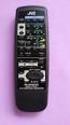 SLEEP TEST SUBWOOFER + MODE EFFECT CENTER + SOUND TV/VIDEO CD-DISC DVD CD TV VOL TV CH TV VCR AUDIO VCR CH + TV SOUND TAPE/CDR VOLUME REMOTE REAR L + MENU REAR R + ENTER VCR /DIGITAL FM/AM MUTING STANDBY
Easy Setup Guide. 1 Preparation. English. AV Receiver. Accessories. Cables required for connections
 UAB 1 Preparation AV eceiver Accessories heck that the following accessories are supplied with the product. emote control Batteries (AAA, 0, UM-4) (x2) Easy Setup Guide English Insert the batteries the
Mini Hi-Fi Component System
 3-867-107-14(1) Mini Hi-Fi Component System Operating Instructions Owner s Record The model and serial numbers are located on the rear panel. Record the serial number in the space provided below. Refer
PORTABLE ALARM CLOCK. Dual Alarm. FM Radio. Wake-up Sounds. USB Phone Charger G-1CR
 G-BUZZ PORTABLE ALARM CLOCK Dual Alarm FM Radio Wake-up Sounds USB Phone Charger G-1CR Welcome Alarm clocks can be boring. Get ready to shake things up with your new G-BUZZ. Slap the snooze for more ZZZ
Evolution Digital HD Set-Top Box Important Safety Instructions
 Evolution Digital HD Set-Top Box Important Safety Instructions 1. Read these instructions. 2. Keep these instructions. 3. Heed all warnings. 4. Follow all instructions. 5. Do not use this apparatus near
CAUTION RISK OF ELECTRIC SHOCK NO NOT OPEN
 Evolution Digital HD Set-Top Box Important Safety Instructions 1. Read these instructions. 2. Keep these instructions. 3. Heed all warnings. 4. Follow all instructions. 5. Do not use this apparatus near
2-319-196-11(1) Home Theatre System. Operating Instructions HT-SF1100 HT-SS1100. 2007 Sony Corporation
 2-319-196-11(1) Home Theatre System Operating Instructions HT-SF1100 HT-SS1100 2007 Sony Corporation WARNING To reduce the risk of fire or electric shock, do not expose this apparatus to rain or moisture.
AUDIO/VIDEO CONTROL RECEIVER DVD CDR/VCR 2 THEATER LIVE CLUB DANCE CLUB HALL PAVILION MULTI JOG SOUND SELECT BASS BOOST ONE TOUCH OPERATION
 MENU ENTER THEATER LIVE CLUB DANCE CLUB HALL PAVILION TUNER/SEA MEMORY SOUND SELECT INPUT ATT. FM MODE BASS BOOST ONE TOUCH OPERATION SOURCE NAME DVD TV SOUND/DBS VCR 1 CDR/VCR 2 VIDEO D I G I T A L CD
CINEMATE 1 SR DIGITAL HOME THEATER SPEAKER SYSTEM. Operating Guide Guía del usuario Guide d utilisation
 CINEMATE 1 SR DIGITAL HOME THEATER SPEAKER SYSTEM Operating Guide Guía del usuario Guide d utilisation Notice This equipment has been tested and found to comply with the limits for a Class B digital device,
HD udta Quick-Start Guide
 HD udta Quick-Start Guide Vyve Broadband HD Set-Top Box Important Safety Instructions 1. Read these instructions. 2. Keep these instructions. 3. Heed all warnings. 4. Follow all instructions. 5. Do not
AV Receiver. Owner s Manual. Read the supplied booklet Safety Brochure before using the unit. English
 AV Receiver Owner s Manual Read the supplied booklet Safety Brochure before using the unit. English CONTENTS Accessories...................................................... 5 FEATURES 6 What you can
Digital Satellite Receiver
 USER GUIDE Digital Satellite Receiver Models DSR207, DSR317, DSR505, and DSR530 CONTENTS IMPORTANT SAFETY INSTRUCTIONS...1 DSR BASICS SYMBOLS/ICONS...6 Front Panel...6 Back Panel...7 CONNECTING YOUR DSR...10
2-898-426-71(1) Home Theatre System. Operating Instructions HT-DDW790. 2007 Sony Corporation
 2-898-426-71(1) Home Theatre System Operating Instructions HT-DDW790 2007 Sony Corporation WARNING To reduce the risk of fire or electric shock, do not expose this apparatus to rain or moisture. To prevent
VIP1200 & VIP1216 Wireless IPTV Receivers
 VIP1200 & VIP1216 Wireless IPTV eceivers THIS IS AN EDITED VESION OF THE OIGINA DOCUMENT CONTENTS Intro duction...1 Your Set-top Boxes...1 Front Panel...2 ear Panel...3 Video Connectio n Opt ions...4 Audio
CAUTION RISK OF ELECTRIC SHOCK DO NOT OPEN
 BeoLab 4 Guide CAUTION RISK OF ELECTRIC SHOCK DO NOT OPEN CAUTION: To reduce the risk of electric shock, do not remove cover (or back). No User-serviceable parts inside. Refer servicing to qualified service
Video Cassette Player
 3-862-516-11 (1) Video Cassette Player Operating Instructions Owner s record The model and serial numbers are located at the rear of the unit. Record these numbers in the spaces provided below. Refer to
IMPORTANT SAFETY INSTRUCTIONS
 IMPORTANT SAFETY INSTRUCTIONS Before you install or use the apparatus, you must read and understand these Important Safety Instructions. At all times when using the apparatus you must follow these Important
When you switch off your system, or mute the sound, the red indicator light appears immediately, indicating that the subwoofer is not in use.
 BeoLab 11 Guide WARNING: To reduce the risk of fire or electric shock, do not expose this appliance to rain or moisture. Do not expose this equip ment to dripping or splashing and ensure that no objects
Connecting the. Explorer 1850 TM Digital Home Communications Terminal
 Connecting the Explorer 1850 TM Digital Home Communications Terminal Notice for CATV Installers Notice for CATV Installers: If you are a CATV installer, read the information in the box below. Note to CATV
Multi Channel AV Receiver
 3-289-450-45(1) Multi Channel AV eceiver Operating Instructions ST-DG820 2008 Sony Corporation WANG To reduce the risk of fire or electric shock, do not expose this apparatus to rain or moisture. To reduce
HOME THEATER SYSTEM. Instruction Manual. Model ASR150. Please read the instruction manual carefully before using your unit.
 SURROUND SOUND HOME THEATER SYSTEM Instruction Manual Model ASR150 Please read the instruction manual carefully before using your unit. For support visit : www.1800customersupport.com GENERAL TABLE OF
SP1790JK 900MHz Wireless Indoor/Outdoor Speakers. User Manual INTRODUCTION FEATURES IMPORTANT SAFETY INFORMATION
 SP1790JK 900MHz Wireless Indoor/Outdoor Speakers INTRODUCTION This 900 MHz digital hybrid wireless speaker system uses the latest wireless technology that enables you to enjoy music and TV sound anywhere
Daily use. Never use alcohol or other solvents to clean any part of the loudspeakers!
 BeoLab 6002 Guide WARNING: To reduce the risk of fire or electric shock, do not expose this appliance to rain or moisture. Do not expose this equip ment to dripping or splashing and ensure that no objects
VSX-421-K AUDIO/VIDEO MULTI-CHANNEL RECEIVER. Operating Instructions
 VSX-421-K AUDIO/VIDEO MUTI-CHANNE ECEIVE Discover the benefits of registering your product online at http://www.pioneer.co.uk (or http://www.pioneer.eu). Operating Instructions IMPOTANT The lightning flash
Kinivo 301BN HDMI Switch
 Kinivo 301BN HDMI Switch User Manual 2012 Kinivo LLC. All rights reserved. Kinivo is a trademark of Kinivo LLC. Bluetooth word mark and the Bluetooth logo are registered trademarks of Bluetooth SIG. All
AV Receiver. Owner s Manual. Read the supplied booklet Safety Brochure before using the unit. English
 AV Receiver Owner s Manual Read the supplied booklet Safety Brochure before using the unit. English CONTENTS Accessories...................................................... FEATURES 6 What you can do
JBL CINEMA BASE. Home Cinema 2.2 all-in-one soundbase for television OWNER S MANUAL
 JBL CINEMA BASE Home Cinema 2.2 all-in-one soundbase for television OWNER S MANUAL JBL CINEMA BASE TABLE OF CONTENTS INTRODUCTION 1 DESCRIPTION AND FEATURES 1 JBL CINEMA BASE TOP PANEL CONTROLS 2 JBL CINEMA
AV Receiver. Owner s Manual. Read the supplied booklet Safety Brochure before using the unit. English
 AV Receiver Owner s Manual Read the supplied booklet Safety Brochure before using the unit. English CONTENTS Accessories...................................................... 4 FEATURES 5 What you can
CINEMA SB100 powered soundbar speaker
 CINEMA SB100 powered soundbar speaker quick-start guide Thank You For Choosing This JBL Product The JBL Cinema SB100 powered soundbar speaker is a complete, integrated sound system that will dramatically
COMPANION 20 MULTIMEDIA SPEAKER SYSTEM. Owner s Guide Guía de usuario Notice d utilisation
 COMPANION 20 MULTIMEDIA SPEAKER SYSTEM Owner s Guide Guía de usuario Notice d utilisation Safety and Regulatory Information Please read this owner s guide Please take the time to follow the instructions
KRF-V6050D KRF-V5050D
 AUDIO VIDEO SUOUND ECEIVE KF-V6050D KF-V5050D INSTUCTION MANUAL KENWOOD COPOATION This instruction manual is used to describe multiple models listed above. Model availability and features (functions) may
INSTRUCTION MANUAL AUDIO VIDEO SURROUND RECEIVER KRF-V6100D KRF-V5100D. About the supplied remote control B60-5632-00 00 MA (E, X) AP 0602
 AUDIO VIDEO SURROUND RECEIVER KRF-V6100D KRF-V5100D INSTRUCTION MANUAL This instruction manual is for some models. Model availability and features (functions) may differ depending on the country and sales
DAB+ / FM Tuner Model: TU-201
 DAB+ / FM Tuner Model: TU-201 Instruction Manual www.pulse-audio.co.uk 1 Safety Information The lightning bolt within a triangle is intended to alert the user to the presence of dangerous voltage levels
Owner s Manual AWM910 JENSEN AWM910 COMPACT DISC PLAYER RADIO CD COMPACT MUSIC SYSTEM MUTE AUX BAND AUX IN PUSH PUSH PWR VOL ALARM T/F AUD SPK A SPK B
 AWM910 Owner s Manual COMPACT DISC PLAYER PUSH 1 2 3 4 5 6 RPT SCAN RDM H M PUSH PWR VOL ALARM SET ON/OFF EQ T/F AUD RADIO CD COMPACT MUSIC SYSTEM MUTE AUX BAND CD AUX IN A B A+B JENSEN AWM910 Thank You!
THE NEW GENERATION IN TECHNOLOGY. NI-3103A Alarm Clock w/fm Radio ipod & iphone Docking. Operating Instructions
 THE NEW GENERATION IN TECHNOLOGY NI-3103A Alarm Clock w/fm Radio ipod & iphone Docking Operating Instructions Table of Contents Important Safeguards... 3 Parts... 6 Controls... 6 To Set Up... 7 ipod/iphone
e-4 AWT07MLED 7 Q TFT LCD MONITOR (LED Backlighted) USER MANUAL
 Thank you for purchasing our product. Please read this User s Manual before using the product. Change without Notice AWT07MLED 7 Q TFT LCD MONITOR (LED Backlighted) USER MANUAL e-4 SAFETY PRECAUTIONS Federal
Bluetooth Wireless Audio Adapter
 2-689-456-13(1) Bluetooth Wireless Audio Adapter (Transmitter / Receiver) Operating Instructions HWS-BTA2W 2006 Sony Corporation WARNING To reduce the risk of fire or electric shock, do not expose this
Digital Radio/DAB+/FM RDS digital clock radio with dual alarm Operating instruction
 381SE1D-A Digital Radio/DAB+/FM RDS digital clock radio with dual alarm Operating instruction GB Contents Controls... 2-3 Using the clock radio for the first time... 4 Operating your clock radio... 5 Selecting
Mini Hi-Fi Component System
 3-860-707-14(1) Mini Hi-Fi Component System Operating Instructions Owner s Record The model and serial numbers are located on the rear panel. Record the serial number in the space provided below. Refer
INSTRUCTION MANUAL PLEASE READ ALL THE INSTRUCTIONS COMPLETELY BEFORE USE AND SAVE THIS MANUAL FOR FUTURE REFERENCE
 INSTRUCTION MANUAL PLEASE READ ALL THE INSTRUCTIONS COMPLETELY BEFORE USE AND SAVE THIS MANUAL FOR FUTURE REFERENCE m Before Use Please read IMPORTANT SAFETY INSTRUCTIONS on page 10 before use. It is important
Contents Connections Playback Settings Tips Appendix AVR-S510BT AV SURROUND RECEIVER. Owner s Manual. Front panel Display Rear panel Remote Index
 . Contents Connections Playback Settings Tips Appendix AVR-S510BT AV SURROUND RECEIVER Owner s Manual 1 Accessories 5 Inserting the batteries 6 Operating range of the remote control unit 6 Features 7 High
Surround Sound System
 Surround Sound System Instruction Manual CECH-ZVS1A / CECH-ZVS1B / CECH-ZVS1E WARNING This system is not disconnected from the AC power source as long as it is connected to the wall outlet, even if the
R-325 AUDIO/VIDEO RECEIVER AUDIO/VIDEO RECEIVER R-325 MASTER VOLUME 45 POWERT SLEEP PHONES INPUT SELECTOR DOLBY DOLBY OFF PRO-LOGIC 3 STEREO
 O P E R A T I N G I N S T R U C T I O N S AUDIO/VIDEO RECEIVER R-325 INPUT SELECTOR MASTER VOLUME 45 50 55 40 60 35 65 POWERT STANDBY MULTI ROOM REMOTE SENSOR ST TUNED AUTO VCR12 TAPE M PRESET MEM db khz
BOSE. Link AL8 HOMEWIDE WIRELESS AUDIO LINK
 BOSE Link AL8 HOMEWIDE WIRELESS AUDIO LINK Français English SAFETY INFORMATION Please read this owner s guide Please take the time to follow the instructions in this owner s guide carefully. It will help
Controls (front) 1. Loudspeaker 2. Light button 3. Band button 4. Auto tune button 5. Alarm button 6. LCD display
 GB Contents Controls... 2-4 Mains operation... 5 Operating your radio... 6 Selecting a station DAB... 7 Display modes DAB... 8 Finding new stations - DAB... 9 Secondary services DAB... 9 Manual tuning
Instruction Manual. 5.1 Power Amplified Home Theatre Speaker System w/ Remote Control DSS-200
 R Instruction Manual DSS-200 R 5.1 Power Amplified Home Theatre Speaker System w/ Remote Control Read this manual carefully to get the excellent acoustics from this unit. SPECIFICATIONS SAFETY INFORMATION
High Power Receiver CR-W400U Operating Instructions
 High Power Receiver CR-W400U Operating Instructions Please read these instructions carefully before using this product and save this manual for future use. Panasonic welcomes you to our ever growing family
Contents Connections Playback Settings Tips Appendix AVR-S500BT AV SURROUND RECEIVER. Owner s Manual. Front panel Display Rear panel Remote Index
 . Contents Connections Playback Settings Tips Appendix AVR-S500BT AV SURROUND RECEIVER Owner s Manual 1 Accessories 5 Inserting the batteries 6 Operating range of the remote control unit 6 Features 7 High
Operation Manual for Users
 Operation Manual for Users Model No.: FLTAMFMRCD!!!!!!!!!! ATTENTION!!!!!!!!!! THE RESET BUTTON MUST BE PRESSED TO ENSURE PROPER OPERATION. SEE INSTRUCTION MANUAL Table of Contents Table of Contents ---------------------------------------------------------------------------------------------
3-070-605-11(1) SACD/DVD Player. Operating Instructions DVP-NS500V. 2001 Sony Corporation
 3-070-605-11(1) SACD/DVD Player Operating Instructions DVP-NS500V 2001 Sony Corporation WARNING Welcome! To prevent fire or shock hazard, do not expose the unit to rain or moisture. To avoid electrical
/&' 79 7; /% ) &RORU 7HOHYLVLRQ (QJOLVK
 245U Using the On Screen Displays Many features available on this TV can be accessed via the On Screen Display menu system. Use the remote control as shown below to access and adjust features as desired.
BeoLab 1. User s guide
 BeoLab 1 User s guide Legal notice: CAUTION RISK OF ELECTRIC SHOCK DO NOT OPEN CAUTION: To reduce the risk of electric shock, do not remove cover (or back). No User-serviceable parts inside. Refer servicing
PolyTune USER S MANUAL
 PolyTune USER S MANUAL Important Safety Instructions 1 Read these instructions. 2 Keep these instructions. 3 Heed all warnings. 4 Follow all instructions. 5 Do not use this apparatus near water. 6 Clean
DSB-100 Portable Premium Bluetooth Speaker Owner s Manual
 . DSB-100 Portable Premium Bluetooth Speaker Owner s Manual You can print more than one page of a PDF onto a single sheet of paper. 1 Index Preparation Unpacking 3 Overview 4 Sound Quality 4 Design 4 Operation
InFocus Projector Setup Guide for Digital Cable TV How to connect digital cable TV to an InFocus projector
 InFocus ojector Setup Guide for Digital Cable TV How to connect digital cable TV to an InFocus projector Digital Cable Box Coax Outlet S-232 Table of Contents Good Better - For the quickest setup using
VoiceTone T1 USER S MANUAL
 VoiceTone T1 USER S MANUAL Important Safety Instructions 1 Read these instructions. 2 Keep these instructions. 3 Heed all warnings. 4 Follow all instructions. 5 Do not use this apparatus near water. 6
Compact Hi-Fi Stereo System
 4-238-809-11 (4) Compact Hi-Fi Stereo System Operating Instructions Owner s Record The model and serial numbers are located on the rear panel of the unit. Record the serial number in the space provided
LF-IRX. Limited Warranty LF-IRX. Remote Control Extender OWNER S MANUAL
 Limited Warranty OWNER S MANUAL Audiovox Corporation (Audiovox) warrants this product against defects in materials or workmanship for one (1) year from the date of purchase. During this period, this product
Owner s Manual. RSX-1055 Surround Sound Receiver VOLUME SURROUND SOUND RECEIVER RSX-1055 POWER BAND 1 2 3 4 5 TUNING CD TUNER TAPE
 POWE 1 2 3 4 5 TUNING BAND 6 7 8 9 0 DIECT MONO MEMOY SUOUND SOUND ECEIVE SX-1055 CD TUNE TAPE 2CH DOBY PII/3ST DTS NEO 6 VIDEO1 VIDEO2 VIDEO3 VIDEO4 VIDEO5 DSP MUTI INPUT DYNAMIC ANGE ZONE EC Owner s
JBL CINEMA SB350. Home Cinema 2.1 soundbar with wireless subwoofer
 JBL CINEMA SB350 Home Cinema 2.1 soundbar with wireless subwoofer Owner s Manual BASS English JBL CINEMA SB350 JBL CINEMA SB350 Optical cable Table of Contents INTRODUCTION 5 ITEMS INCLUDED 5 JBL CINEMA
SURROUND MASTER. User Manual 1.0. English. Copyright 2012 Involve Audio
 SURROUND MASTER SM-465 User Manual 1.0 English Copyright 2012 Involve Audio This manual is available in multiple languages on our web site. www.involveaudio.com Welcome to a whole new world of sound! KEY
ReSound Unite TV FREQUENTLY ASKED QUESTIONS. Setup & Configuration. Use & Operation. Troubleshooting
 Tip for use of FAQ: Click on questions to go to answer. Setup & Configuration How do I pair the hearing aids to the Unite TV?... 2 What is the latency of the streamed signal?... 2 Does the Unite TV use
Business Audio System: Music & Messaging MP3 Player. by Grace Digital Audio. User Guide. Model No. GDI-USBM10
 Business Audio System: Music & Messaging MP3 Player by Grace Digital Audio User Guide Model No. GDI-USBM10 User Guide Contents Introduction 2 Safety & General Use Information 2 Features 3 Set Up & Operation
Wireless Audio Video Sender
 SV-1710 702363 UK D F E P I NL SF S DK N Wireless Audio Video Sender 1 2 Aligned A B 3 IR-receiver WWW.EFORALL.COM 3 UK Table of Contents UK The Product.......................................................
Custom Integrated AV System
 4-253-728-11(2) Custom Integrated AV System Installation Manual Owner s ecord The model and serial numbers are located on the rear panel. ecord the model and serial numbers in the spaces provided below.
5.1 Heimkinosystem mit Funk - Rücklautsprechern LS 255
 5.1 Heimkinosystem mit Funk - Rücklautsprechern LS 255 2 3 4 5 6 7 8 9 10 11 Virtua12.1ch Virtua15.1ch Volume Level 12 13 10 11 12 13 16 14 AC 250 V 10A 15 ON OFF POWER AC230V ~ 50Hz 17 Wireless-Rear Speaker
INSTALLATION GUIDE ConnectLine TV Adapter Getting started
 INSTALLATION GUIDE ConnectLine TV Adapter Getting started PURPOSE OF THIS GUIDE READ THIS FIRST Before your hearing instruments can receive sound from the TV, the adapter must be connected to the TV and
Bluetooth Stereo Headphone. User Guide. Hive
 Bluetooth Stereo Headphone User Guide Hive 1. Product Description Avantree Hive is a Bluetooth stereo headphone with MIC from the Avantree family. It delivers clear voice transmission and high quality
Hooking Up Home Theater
 Home Support Technical Articles Hooking Up Home Theatre What is Home Theater? Hooking Up Home Theater Since the mid- to late-1990s, home theater systems have rapidly grown in popularity, as consumers have
Digital FM/AM Receiver
 Digital FM/AM Receiver Model RM-350D User s Guide 54-5021-01 9609 Printed in USA Specifications Band Coverage............ AM.....................530-1620KHz FM......................87.5-107.9MHz Tuning....................PLL
External TV Tuner TV Tuner for LCD Monitors with Remote
 External TV Tuner TV Tuner for LCD Monitors with Remote COMP2VGATV2 Actual product may vary from photo FCC Compliance Statement This equipment has been tested and found to comply with the limits for a
AM/FM ALARM CLOCK RADIO
 AM/FM ALARM CLOCK RADIO Instruction Manual JL-206 Please read this manual carefully before operating and save it for future reference. Have a question? Please visit http:// INTRODUCTION Thank you for purchasing
EC4.8. BalancedReferencePreamplifier. Owner smanual ENG
 EC4.8 BalancedReferencePreamplifier Owner smanual ENG Unpacking the EC 4.8 Immediately upon receipt of the EC 4.8, inspect the carton for possible damage during shipment. The carton and packaging have
EXPLORER 2100 or 3100 Digital Home Communications Terminals. User s Installation Guide
 EXPOE 2100 or 3100 Digital Home Communications Terminals User s Installation Guide IMPOTANT UES FO SAFE OPEATION Note to the Installer Note to CATV System Installer This reminder is provided to call the
User Manual DIGITAL MONITOR SPEAKERS MS /MS. 24-Bit/192 khz Digital 40/20-Watt Stereo Near Field Monitors
 User Manual DIGITAL MONITOR SPEAKERS MS /MS 24-Bit/192 khz Digital 40/20-Watt Stereo Near Field Monitors 2 DIGITAL MONITOR SPEAKERS /MS20 User Manual User Manual Table of Contents Thank you... 2 Important
Perseus. Owner s Manual. Vacuum Tube Preamplifier. Rogue Audio, Inc. 3 Marian Lane Brodheadsville, PA 18322. Issue date: 02/01/06
 Perseus Vacuum Tube Preamplifier Owner s Manual Rogue Audio, Inc. 3 Marian Lane Brodheadsville, PA 18322 Issue date: 02/01/06 TABLE OF CONTENTS 1) Introduction 2 2) Unpacking the Perseus Preamplifier 2
QLINK User Manual Stereo Audio Transmitter
 QLINK User Manual Stereo Audio Transmitter ClearSounds QLINK Bluetooth Stereo Transmitter Contents Before use.1 1. About the QLINK... 1 2. Overview..2 Getting started. 1 1. Parts Checklist. 1 2. Charging
Important HP Media Center PC Updates
 Important HP Media Center PC Updates Your system uses Microsoft Windows XP Media Center Edition 2005. Before starting the system and using the Media Center setup wizard, please read this updated information
AV Receiver. Owner s Manual. Read the supplied booklet Safety Brochure before using the unit. English
 AV Receiver Owner s Manual Read the supplied booklet Safety Brochure before using the unit. English CONTENTS Accessories...................................................... 4 FEATURES 5 What you can
STEREO PREAMPLIFIER INSTRUCTIONS FOR USE
 XX STEREO PREAMPLIFIER INSTRUCTIONS FOR USE Thank you for purchasing the Musical Fidelity A5 CR Preamplifier. Used properly and carefully, it should give many years of outstanding musical reproduction.
User Manual CABLE TESTER CT100. Professional 6-in-1 Cable Tester
 User Manual CABLE TESTER CT100 Professional 6-in-1 Cable Tester 2 CABLE TESTER CT100 User Manual 1. Introduction Congratulations! With the CT100, you have purchased an indispensable tool that enables you
9A10505400 AG-D8850. AV Digital Home Theater Receiver OWNER S MANUAL
 Z 9A10505400 AG-D8850 AV Digital Home Theater Receiver OWNER S MANUAL CAUTION: TO REDUCE THE RISK OF ELECTRIC SHOCK, DO NOT REMOVE COVER (OR BACK). NO USER- SERVICEABLE PARTS INSIDE. REFER SERVICING TO
LOXONE 12 Channel Amplifier
 LOXONE 12 Channel Amplifier Item no.: 200110 Thank you for purchasing the Loxone Twelve Channel Amplifier. The versatility of the Amplifier makes it the perfect choice for almost every type of custom multi-room
CAUTION RISK OF ELECTRIC SHOCK DO NOT OPEN
 BeoLab 7-6 Guide CAUTION RISK OF ELECTRIC SHOCK DO NOT OPEN CAUTION: To reduce the risk of electric shock, do not remove cover (or back). No User-serviceable parts inside. Refer servicing to qualified
Portable Multiband Radio (120-0456A) Features Faxback Doc. # 56400
 (120-0456A) Features Faxback Doc. # 56400 Your RadioShack Portable Multiband Radio is an all-in-one radio system designed to provide high-quality sound. the multi-band tuner lets you listen to the radio,