
INSTRUCTION MANUAL AUDIO-VIDEO CONTROL CENTER KRF-V9300D KRF-V8300D KRF-V7300D
|
|
|
- Shon Jefferson
- 10 years ago
- Views:
Transcription
1 AUDIO-VIDEO CONTO CENTE KF-V9300D KF-V8300D KF-V7300D INSTUCTION MANUA Declaration of Conformity with regard to the EMC Directive 2004/108/EC Manufacturer: Kenwood Corporation Ishikawa-machi, Hachioji-shi, Tokyo, Japan EU epresentative's: Kenwood Electronics Europe BV Amsterdamseweg 37, 1422 AC UITHOON, The Netherlands B /00 (EW/XW)

2 Safety precautions Unpacking Before use Caution : ead this page carefully to ensure safe operation. Units are designed for operation as follows. Australia...AC 240 V only Europe...AC 230 V only WANING : TO PEVENT FIE O EECTIC SHOCK, DO NOT EXPOSE THIS APPIANCE TO AIN O MOISTUE. Unpack the unit carefully and make sure that all the accessories are present. FM indoor antenna (1) AM loop antenna (1) CAUTION ISK OF EECTIC SHOCK DO NOT OPEN CAUTION: TO EDUCE THE ISK OF EECTIC SHOCK, DO NOT EMOVE COVE (O BACK). NO USE-SEVICEABE PATS INSIDE. EFE SEVICING TO QUAIFIED SEVICE PESONNE. emote control unit (1) KF-V9300D : C-0923 KF-V8300D : C-0831 KF-V7300D : C-0733 THE IGHTNING FASH WITH AOWHEAD SYMBO, WITHIN AN EQUIATEA TIANGE, IS INTENDED TO AET THE USE TO THE PESENCE OF UNINSUATED "DANGEOUS VOTAGE" WITHIN THE PODUCT S ENCOSUE THAT MAY BE OF SUFFICIENT MAGNITUDE TO CONSTITUTE A ISK OF EECTIC SHOCK TO PESONS. THE EXCAMATION POINT WITHIN AN EQUIATEA TIANGE IS INTENDED TO AET THE USE TO THE PESENCE OF IMPOTANT OPEATING AND MAINTENANCE (SEVICING) INSTUCTIONS IN THE ITEATUE ACCOMPANYING THE APPIANCE. Batteries* (03) (2) * Batteries are attached to the packing material. KF-V9300D/KF-V8300D only Setup microphone (Cord length : About 5m) (1) Information on Disposal of Old Electrical and Electronic Equipment and Batteries (applicable for EU countries that have adopted separate waste collection systems) Products and batteries with the symbol (crossedout wheeled bin) cannot be disposed as household waste. Old electrical and electronic equipment and batteries should be recycled at a facility capable of handling these items and their waste byproducts. Contact your local authority for details in locating a recycle facility nearest to you. Proper recycling and waste disposal will help conserve resources whilst preventing detrimental effects on our health and the environment. Notice: The sign "Pb" below the symbol for batteries indicates that this battery contains lead. If any accessories are missing, or if the unit is damaged or fails to operate, notify your dealer immediately. If the unit was shipped to you directly, notify your shipper immediately. Kenwood recommends that you retain the original carton and packing materials in case you need to move or ship the unit in the future. Keep this manual handy for future reference. 2 KF-V9300D/KF-V8300D/KF-V7300D

3 IMPOTANT SAFETY INSTUCTIONS Caution : ead this page carefully to ensure safe operation. ead Instructions All the safety and operating instructions should be read before the product is operated. etain Instructions The safety and operating instructions should be retained for future reference. Heed Warnings All warnings on the product and in the operating instructions should be adhered to. Follow Instructions All operating and use instructions should be followed. 1. Cleaning Unplug this product from the wall outlet before cleaning. Do not use liquid cleaners or aerosol cleaners. Use a damp cloth for cleaning. 2. Attachments Do not use attachments not recommended by the product manufacturer as they may cause hazards. 3. Water and Moisture This product shall not be exposed to dripping and splashing for example, near a bath tub, wash bowl, kitchen sink, or laundry tub; in a wet basement; or near a swimming pool; and the like. Do not place an object containing liquid, such as a flower vase, on the appliance. 4. Accessories Do not place this product on an unstable cart, stand, tripod, bracket, or table. The product may fall, causing serious injury to a child or adult, and serious damage to the product. Use only with a cart, stand, tripod, bracket, or table recommended by the manufacturer. Any mounting of the product should follow the manufacturer s instructions, and should use a mounting accessory recommended by the manufacturer. A product and cart combination should be moved with care. Quick stops, excessive force, and uneven surfaces may cause the product and cart combination to overturn. 5. Ventilation Slots and openings in the cabinet are provided for ventilation and to ensure reliable operation of the product and to protect it from overheating, and these openings must not be blocked or covered. The openings should never be blocked by placing the product on a bed, sofa, rug, or other similar surface. This product should not be placed in a built-in installation such as a bookcase or rack unless proper ventilation is provided or the manufacturer s instructions have been adhered to. 6. Power Sources This product should be operated only from the type of power source indicated on the product. If you are not sure of the type of power supply to your home, consult your product dealer or local power company. 7. CAUTION Polarization This product may be equipped with a polarized alternating-current line plug (a plug having one blade wider than the other). This plug will fit into the power outlet only one way. This is a safety feature. If you are unable to insert the plug fully into the outlet, try reversing the plug. If the plug should still fail to fit, contact your electrician to replace your obsolete outlet. Do not defeat the safety purpose of the polarized plug. 8. Power Cord Protection Power-supply cords should be routed so that they are not likely to be walked on or pinched by items placed upon or against them, paying particular attention to cords at plugs, convenience receptacles, and the point where they exit from the product. 9. ightning For added protection for this product during a lightning storm, or when it is left unattended and unused for long periods of time, unplug it from the wall outlet and disconnect the antenna or cable system. This will prevent damage to the product due to lightning and power-line surges. 10. Overloading Do not overload wall outlets, extension cords, or integral convenience receptacles as this can result in a risk of fire or electric shock. 11. Object and iquid Entry Never push objects of any kind into this product through openings as they may touch dangerous voltage points or short-out parts that could result in a fire or electric shock. Never spill liquid of any kind on the product. 12. Servicing Do not attempt to service this product yourself as opening or removing covers may expose you to dangerous voltage or other hazards. efer all servicing to qualified service personnel. 13. Damage equiring Service Unplug this product from the wall outlet and refer servicing to qualified service personnel under the following conditions: a) When the power-supply cord or plug is damaged, b) If liquid has been spilled, or objects have fallen into the product, c) If the product has been exposed to rain or water, d) If the product does not operate normally by following the operating instructions. e) If the product has been dropped or damaged in any way, and f) When the product exhibits a distinct change in performance this indicates a need for service. g) If an abnormal smell or smoke is detected. 14. eplacement Parts When replacement parts are required, be sure the service technician has used replacement parts specified by the manufacturer or have the same characteristics as the original part. Unauthorized substitutions may result in fire, electric shock, or other hazards. 15. Safety Check Upon completion of any service or repairs to this product, ask the service technician to perform safety checks to determine that the product is in proper operating condition. 16. Wall or Ceiling Mounting This product should be mounted to a wall or ceiling only as recommended by the manufacturer. 17. Heat This product should be situated away from heat sources such as radiators, heat registers, stoves, or other products that produce heat. Do not place a flaming object, such as a candle or lantern, or near the product. 18. Power ines An outside antenna system should not be located in the vicinity of overhead power lines or other electric light or power circuits, or where it can fall into such power lines or circuits. When installing an outside antenna system, extreme care should be taken to keep from touching such power lines or circuits as contact with them might be fatal. 19. Outdoor Antenna Grounding If an outside antenna or cable system is connected to the product, be sure the antenna or cable system is grounded so as to provide some protection against voltage surges and built-up static charges. Article 810 of the National Electrical Code, ANSI/NFPA 70, provides information with regard to proper grounding of the mast and supporting structure, grounding of the lead-in wire to an antenna discharge unit, size of grounding conductors, location of antenna-discharge unit, connection to grounding electrodes, and requirements for the grounding electrode. EXAMPE OF ANTENNA GOUNDING AS PE NATIONA EECTICA CODE GOUND CAMPS EECTIC SEVICE EQUIPMENT NEC NATIONA EECTICA CODE ANTENNA EAD IN WIE ANTENNA DISCHAGE UNIT (NEC SECTION ) GOUNDING CONDUCTOS (NEC SECTION ) GOUND CAMP POWE SEVICE GOUNDING EECTODE SYSTEM (NEC AT 250, PAT H) Before use Notes: 1. Item 7 is not required except for grounded or polarized equipment. 2. Item 19 complies with U in the U.S.A. English 3

4 Contents Before use To ensure safety, read the items carrying this marking carefully. Before use Safety precautions... 2 Unpacking... 2 IMPOTANT SAFETY INSTUCTIONS... 3 Special Features... 5 How to read this manual... 6 ipod models usable with this unit... 7 Names and functions of parts... 8 Connections Setup Setup menu and its operations KF-V7300D Speaker setup "Easy Setup" KF-V9300D and KF-V8300D Speaker setup "Auto Setup"(Auto oom EQ) If a message is displayed Setting oom EQ Speaker setup "Manual Setup" Speaker configuration "SP Setup" Speaker level "SP evel" Speaker Distance "SP Distance" Other setups Subwoofer emix "Subw e-mix" Crossover "Crossover" FE (ow Frequency Effect) level "FE evel" Input assignment "Assignment" Audio delay "Audio Delay" HDMI setup HDMI input setup "HDMI Input" HDMI setup "HDMI Setup" Audio Out Audio Delay (ip Sync) HDMI ink Power Control TV Control TV AUDIO IN "TV Audio In" ocking the setups "Setting ock" Confirming the HDMI function Before operation Confirming the basic HDMI operations Confirming the HDMI control functions Playing music or movie Preparation for playing music or movie Turning on the power Setting the speaker system Selecting the input mode Playback Monitoring the input source in the original sound (STAIGHT DECODE mode) istening to music with PUE AUDIO MODE KF-V9300D Switching the video resolution Checking the HDMI audio input signal which output from the connected component ipod control Using the menus ipod operation Play and pause File skip Fast forward and backward epeat play Shuffle play Switching the display Switching the time information Surround effects isten mode About indicators Surround play using the listen mode Input signals and corresponding listen modes.. 53 KF-V9300D/KF-V8300D Virtual mode DVD 6 channel analog input istening to radio broadcasts Tuning into a radio station Using DS (adio Data System) DS Auto Memory Presetting radio stations manually eceiving preset stations eceiving preset stations in order (P.CA) Tuning by program type (PTY search) Using the DISPAY key ecording ecording mode setting in digital audio source recording ecording audio (analog sources) ecording video Sound adjustment Adjusting the sound ACTIVE EQ mode Adjusting the Tone Bass Boost Adjustments according to the playing source.. 62 Speaker level adjustment Input level adjustment Panorama mode Dimension Center width Center image Midnight mode Switching the main and sub audio Convenient functions Convenient functions Display dimmer adjustment istening with headphones Muting the sound emote control operations for Kenwood DVD players Troubleshooting Troubleshooting esetting the Microcomputer Glossary Specifications KF-V9300D/KF-V8300D/KF-V7300D

5 Special Features \ HDMI (High-Definition Multimedia Interface) repeater function Compatibility with the HDMI interface can transfer HDTV video and latest high-quality audio. It makes possible entertainment of high-quality video recorded on Blu-ay discs as well as high-quality audio including Dolby TrueHD, DTS-HD Master Audio and multichannel PCM audio. \ Video up-conversion KF-V9300D This function converts the analog video signal into a signal that can be output at the HDMI terminal. Any video signal can be converted into HDMI video signal by simply connecting this unit to a TV through a commercially available HDMI cable (provided that your TV has an HDMI terminal). In addition, this unit also incorporates the upscaler function, which converts the analog video signal into an HDTV signal for enjoying high-quality video. KF-V8300D This function converts the video signal output at the VIDEO and S-VIDEO terminal into a signal that can be output at the COMPONENT VIDEO terminal. Before use \ High-quality music playback in Pure Audio Mode This function reproduces music signals in high quality with high fidelity to original sound. In this mode, the display and the analog video circuitry are turned off to eliminate their effects on the audio circuitry. In addition, the optimum listen mode is selected according to the input music signal. \ ipod control This unit can control an ipod connected to it using the PNC-iP120 ipod connection cable (optional). The music can be reproduced from the speakers connected to this unit, and the video can be reproduced on the TV connected to this unit. \ Auto oom EQ (KF-V9300D and KF-V8300D) A setup microphone is provided to measure the properties of the listening room and automatically set up the speakers accordingly. The automatic setup also includes the tone compensation according to the speaker characteristics and the listening room environment. \ Audio Delay (ip Sync) function This function corrects deviation between the video and audio. Automatic correction is also available provided that all of the playback component, this unit and the TV are connected through HDMI. Manufactured under license from Dolby aboratories. Dolby and the double-d symbol are trademarks of Dolby aboratories. ipod is a trademark of Apple Inc. in the United States and other countries. Manufactured under license under U.S. Patent # s: 5,451,942; 5,956,674; 5,974,380; 5,978,762; 6,226,616; 6,487,535 & other U.S. and worldwide patents issued & pending. DTS is a registered trademark and the DTS logos, Symbol, DTS-HD and DTS-HD Master Audio are trademarks of DTS, Inc DTS, Inc. All ights eserved. HDMI, the HDMI logo and High-Definition Multimedia Interface are trademarks or registered trademarks of HDMI icensing, C. English 5

6 How to read this manual The operating instructions given in this manual assume that the user mainly operates the receiver using the remote control unit. When the same operation is also available on the main unit, the operating method is indicated in illustrations. The [VOUME CONTO], [MUTI CONTO] and [INPUT SEECTO] knobs on the main unit are operated by turning the knobs clockwise or counterclockwise. Before use Speaker setup "Manual Setup" Manual Setup is used to set up the speakers manually or to modify the setups made with Auto Setup. The knob on the main unit is pointed with an arrow to indicate that it can be turned in either direction. Playback VOUME CONTO SETUP ENTE MUTI CONTO /// The keys and controls used in the operations described in each section are indicated with their names. INPUT SEECTO AV AUX/iPod Speaker configuration "SP Setup" Select the use of each speaker and its size. 1 Enter the Manual Setup mode. [SETUP] The descriptions of the functions available only on the remote control unit are accompanied only with the illustration of the remote control unit. The descriptions of the functions available only on the main unit are accompanied only with the illustration of the main unit. VOUME / Input source keys Use [MUTI CONTO 2/3] to select "Manual Setup". [ENTE] 2 Select ect "SP Setup". [MUTI CONTO 2/3] [ENTE] 3 Select the use and size of each speaker. Use [MUTI CONTO 2/3] to select the speaker. Use [MUTI CONTO 5/ ] to set its use or size. epeat the above operations until all of the speakers have been set up. Speaker Display Setting Subwoofer Front speaker "SUBW On" "SUBW Off" "FNT arge" "FNT Normal" Subwoofer is connected. Subwoofer is not connected. arge size front speaker Average size front speaker The names of the operated keys are enclosed inside brackets. This icon indicates supplementary information, restrictions in operation or tips on operation. When a key is used to select an option, the list of options is shown in the form of a table. 1 Select the source. Use the Input source keys on the remote control unit to select a source. Or use [INPUT SEECTO] knob or [AV AUX/iPod] key on the main unit. 2 Start playback from the selected source. The ipod can be controlled from this unit. (See <ipod control> i.) 3 Use [VOUME %/fi] to adjust the volume. 4 Enjoy various surround effects. You can enjoy a variety of listen modes. (See <Surround play using the listen mode> Q.) The surround effects can be fine tuned according to the selected input source. (See <Adjustments according to the playing source>.) The AV AUX and ipod inputs cannot be selected with the [INPUT SEECTO] knob of this unit. These inputs should be selected using the [AV AUX/iPod] on this unit or the [AV AUX] or [ipod] key on the remote control unit. Continued This icon indicates that the description continues on the next page. In this manual, KF-V9300D is used for the illustrations of front panel and rear panel. The illustrations of the main unit display panel and the examples of operations are shown for the purpose of explanation and may differ from the actual view or operation. 6 KF-V9300D/KF-V8300D/KF-V7300D
![The [VOUME CONTO], [MUTI CONTO] and [INPUT SEECTO] knobs on the main unit are operated by turning the knobs clockwise or counterclockwise.](/docs-images/40/2468235/images/page_6.jpg "Before use Speaker setup \"Manual Setup\" Manual Setup is used to set up the speakers manually or to modify the setups made with Auto Setup.")
7 ipod models usable with this unit To connect an ipod, you will need the ipod connection cable PNC-iP120 (optional accessory). This unit does not come with an ipod. It is up to you to purchase an ipod separately. Controllable ipod (As of July 2008) Controllable ipod ipod 4th Generation (Click wheel) ipod mini ipod 4th Generation (Color display) ipod nano 1st Generation ipod nano 2nd Generation ipod video (ipod 5th Generation) ipod photo ipod nano 3rd Generation ipod classic ipod touch* * With ipod touch, only the "Music" is compatible. Before use Update the software of your ipod to the latest version. Some functions of ipod may not work properly depending on the ipod models and the software version. This unit supplies power to your ipod, which means you can enjoy listening to music while charging your ipod. To do this, the unit must be turned on. Video output setting of ipod such as "TV OUT" and "TV Signal" needs to be set on your ipod. Handling precautions Be sure to read the instruction manual that comes with the ipod you are using. Certain conditions while using an ipod can cause contents stored on the ipod to be lost. Note that Kenwood will not be held liable for any losses arising out of loss of stored contests. Displayble characters This unit can display alphanumeric and some symbol characters. It displays accented characters after converting them into ordinary alphabet characters. The non-displayable characters are displayed as "*". Maintenance of the unit When the front panel or case becomes dirty, wipe with a soft, dry cloth. Do not use thinner, benzine, alcohol, etc. for these agents may cause discoloration. In regard to contact cleaner Do not use contact cleaners because it could cause a malfunction. Be specially careful not to use contact cleaners containing oil, for they may deform the plastic component. English 7

8 Names and functions of parts Main unit Before use VOUME CONTO HDMI INK EADY DOBY DIGITA DTS HIGH DEFINITION STAIGHT DECODE SPEAKES A/B/OFF ISTEN MODE MUTI CONTO SETUP DOBY VITUA BAND INPUT MODE INPUT SEECTO PUE AUDIO MODE AV AUX/iPod PHONES ENTE STAIGHT DECODE AUTO/MONO ACTIVE EQ VIDEO -AUDIO- KF-V7300D DIMME 1 (Power) key Standby indicator Press to switch this unit ON or to put it to standby. The standby indicator lights in the standby mode. 2 Display 3 Indicators HDMI Indicator ights blue when the HDMI link is on. DOBY DIGITA indicator ights up when the DOBY DIGITA signal is input. DTS indicator ights up when the DTS signal is input. HIGH DEFINITION indicator ights up when one of the following signals is input through HDMI. Dolby Digital Plus Dolby True HD DTS Master Audio DTS High esolution Audio STAIGHT DECODE indicator ights up when STAIGHT DECODE mode is on. 4 emote sensor 5 VOUME CONTO knob 6 PHONES jack 8 KF-V9300D/KF-V8300D/KF-V7300D 7 SPEAKES A/B/OFF key r Press to select the speakers to be used. 8 ISTEN MODE knob Q Turn to select the listen mode. 9 MUTI CONTO knob Turn to select a setting item. 4/ knob Turn to skip an ipod track. o Also used to recall a preset radio station. I MUTI CONTO ( /5) keys Press to select a setting item. Also used to select a radio station. Y 0 SETUP key º Press to set up this unit.! ENTE key Press to enter the selected KF-V9300D/KF-V8300D: DOBY VITUA key Press to switch the Dolby Virtual Speaker function or Dolby Headphones function ON/OFF. T KF-V7300D: DIMME key ˇ Press to switch the brightness of the display and indicators. # STAIGHT DECODE key t Press to switch the STAIGHT DECODE mode ON/OFF. $ BAND key Y Press to select the broadcasting band. 6 key o Press to play/pause the music/video playback of ipod. % AUTO/MONO key Press to switch the radio tuning mode between auto tuning and manual tuning. Y Also used to select the recording mode. P ^ INPUT MODE key r Press to select the input mode. & ACTIVE EQ key Œ Press to switch the ACTIVE EQ function ON/OFF. * INPUT SEECTO knob Turn to select the input source. ( PUE AUDIO MODE key y Press to switch the PUE AUDIO MODE ON/OFF. ) AV AUX/iPod key Press to switch the input source between AV AUX and ipod. AV AUX jacks Connect a video camera, videogame machine, etc. Standby mode While the standby indicator is lit, a small amount of power is supplied to the system to back up the memory. This is called standby mode. Under the condition, the system can be turned ON by the remote control unit.

9 Display lights up during playback and 8 lights up during playpause of the ipod. SP(speaker) A/B The indicator(s) corresponding to the front speakers in use lights up. KF-V9300D/ KF-V8300D: AUTO OOM EQ ights up during measurement by Auto oom EQ or when oom EQ is on. ipod ights up when an ipod is connected. AUTO DETECT ights up when the input mode is set to "Auto". HDMI ights up when the components connected with HDMI are recognized. isten mode/input signal format indicators ACTIVE EQ ights up when ACTIVE EQ is on. TONE ights up when the tone setting is on. MUTE Blinks when muting is on. CIP ights up when the input level is too high. Before use Input channel indicators The indicators corresponding to the input channels (audio signal) used in the currently played music/video light up. DUA MONO ights up when the dual mono audio signal is input. Character display PTY ights up when searching a radio station by program type. DS ights up when receiving an DS station. TUNED ights up when a radio station is tuned. STEEO ights up when stereo broadcasting is tuned. AUTO ights up when the tuning mode is "Auto". English 9

10 Names and functions of parts emote control unit Before use KF-V7300D PTY ECEIVE ON STANDBY DOBY VITUA STAIGHT DECODE DVD PUE AUDIO MODE ISTEN MODE AUTO OOM EQ KF-V7300D EASY SETUP SETUP ENTE MUTI CONTO TONE SOUND TOP MENU MENU DVD ENTE ETUN MEMOY BAND ON SCEEN AUTO MEMOY MUTE TUNE CD MD/TAPE AV AUX VIDEO 1 VIDEO 2 DVD KF-V8300D KF-V7300D SUBTITE KF-V7300D AUDIO ipod DIMME DISPAY TIME ACTIVE EQ BASS BOOST ipod VIDEO MUSIC ESOUTION AUDIO PTY EPEAT ANDOM SHUFFE 10 KF-V9300D/KF-V8300D/KF-V7300D

11 1 ECEIVE ON key Press to turn this unit ON. ECEIVE STANDBY key Press to put this unit to standby. 2 KF-V9300D/KF-V8300D: DOBY VITUA key T Press to switch the Dolby Virtual Speaker function or Dolby Headphone function ON/OFF. KF-V7300D: PTY key I Press to search a radio station by program type. 3 STAIGHT DECODE key t Press to switch the STAIGHT DECODE mode ON/OFF. 4 Numeric keys Also used to recall a preset radio station. I Use to operate the Kenwood DVD player.* 5 MUTI CONTO 2/3/ /5 keys Press to select a setting item. 6 TOP MENU key Press to open the ipod menu. i Use to operate the Kenwood DVD player.* 7 %/fi/@/# keys DVD ENTE key Use to operate the Kenwood DVD player.* 8 ETUN key Press during the ipod menu operation. i Use to operate the Kenwood DVD player.* 9 MEMOY key U Press to preset radio stations in memory. 8 key Use to operate the Kenwood DVD player.* BAND key Y Press to select the broadcasting band. 6 key Press to play/pause the music/video playback of ipod. o Use to operate the Kenwood DVD player.* AUTO/MONO key Y Press to switch the radio tuning mode between auto tuning and manual tuning. 7 key Use to operate the Kenwood DVD player.* 0 P.CA 4/ keys Press to recall a preset radio station. I Also press to skip an ipod track. o Use to operate the Kenwood DVD player.*! Input source keys Press to select the input ACTIVE EQ key Œ Press to switch the ACTIVE EQ function ON/OFF. BASS BOOST key Press to enhance bass sound. Œ # KF-V9300D: ESOUTION key u Press to switch the resolution of the HDMI video output as a result of conversion of an analog video signal. KF-V8300D/KF-V7300D: SUBTITE key Use to operate the Kenwood DVD player.* $ AUDIO key Use to operate the Kenwood DVD player.* KF-V9300D/KF-V8300D: PTY key I Press to search a radio station by program type. % DVD key Á Press to switch the Kenwood DVD player ON/OFF. ^ PUE AUDIO MODE key y Press to switch the PUE AUDIO MODE function ON/OFF. & ISTEN MODE 2/3 keys Q Press to switch the listen mode. * KF-V9300D/KF-V8300D: AUTO OOM EQ key Press to perform auto setup of the speakers. KF-V7300D: EASY SETUP key Press to perform easy setup of the speakers. ( SETUP key º Press to set up this unit. ) TONE key Œ Press to adjust the tone. SOUND key Press to adjust sound quality and acoustic field. ENTE key Press to enter the selected setting. MENU key Use to operate the Kenwood DVD player.* VOUME %/fi keys ON SCEEN key Use to operate the Kenwood DVD player.* AUTO MEMOY key Press to start auto memory of DS and FM radio stations. U MUTE key ˇ Press to mute the sound temporarily. TUNING 1/ keys Press to select a radio station. Y Press to fast forward/fast backward the tracks in the ipod. o Use to operate the Kenwood DVD player.* Before use Continued English 11

12 Names and functions of parts Before use DIMME key ˇ Press to switch the brightness of the display and indicators. DISPAY key Press to display the type and number of channels of the signal input at the HDMI input. (When the HDMI input is enabled) u Press to display the information of the tracks in the ipod. o Press to display DS information. O TIME key o Press to display the time information of the tracks in the ipod. ª ipod VIDEO key i Press to select video menu of the ipod. ipod MUSIC key i Press to select music menu of the ipod. º ANDOM / SHUFFE key Press to switch the shuffle play of the ipod. o Use to operate the Kenwood DVD player.* EPEAT key Press to switch the repeat play of the ipod. o Use to operate the Kenwood DVD player.* oading batteries 1 emove the cover. 2 Insert batteries. Insert two (03) batteries following the polarity indications. 3 Close the cover. * For how to be able to use the keys to operate the Kenwood DVD player, see <emote control operations for Kenwood DVD players>. Á The supplied batteries may have shorter lives than ordinary batteries due to use during operation checks. When the remote-controllable distance gets shorter than before, replace both batteries with new ones. CAUTION Do not leave the battery near fire or under direct sunlight. A fire, explosion or excessive heat generation may result. 12 KF-V9300D/KF-V8300D/KF-V7300D

13 Operation Operate the remote control unit by pointing it to the remote sensor of this unit. When this unit is in standby mode (which is indicated by lighting of the standby indicator), pressing the [ON] key turns this unit ON. Pressing the [STANDBY] key turns this unit OFF (standby mode). When operating the connected components, always press the input source key of the component you need to operate first to swith the remote control unit to the selected input source mode, and then press the keys of the corresponding operation. Before use Operating range (Approx.) Standby indicator emote sensor ON STANDBY English 13
![Pressing the [STANDBY] key turns this unit OFF (standby mode).](/docs-images/40/2468235/images/page_13.jpg "When operating the connected components, always press the input source key of the component you need to operate first to swith the remote control unit to")
14 Notes on connections Speaker placement CAUTION Do not connect the power cord to a wall outlet until all connections are completed. Front speaker Front speaker Connections When connecting the related system components, be sure to refer to the instruction manuals supplied with the components you are connecting. Be sure to remove the power cord from the AC outlet before plugging or unplugging any connection cords. Plugging/ unplugging connection cords without disconnecting the power cord can cause malfunctions and may damage the unit. Be sure to insert all connection cords securely. If their connections are imperfect, the sound and video may not be produced or there will be noise interference. If this unit is installed in the proximity of a source of magnetism such as a magnet, color irregularities due to interference with the speakers may be observed on the TV monitor screen. Be careful in the installation. Microcomputer malfunction If operation is not possible or an erroneous display appears, even though all connections have been made properly, reset the microcomputer by referring to <esetting the microcomputer>. ˆ CAUTION The power of this equipment will not be completely cut off from the wall outlet when the power switch is turned off. Install the equipment so that the wall outlet is easily accessible and, in case of emergency, immediately unplug the power cord from the wall outlet. CAUTION Be sure to adhere to the following, or proper ventilation will be blocked causing damage or fire hazard. Do not install the unit on the rear, side or top panel. Do not cover the unit with a cloth or install the unit on a carpet or mattress. Do not install the unit in a poorly ventilated place. This unit is using the cooling fan. Do not place the unit onto a bed, a sofa, a carpet, or similar. Sucked-in dust can cause fire. eave some space around the unit (from the largest outside dimension including projection) equal to or greater than, shown below. Side panel : 10 cm Back panel : 10 cm Front speakers Install in the front left and right positions. Symmetrical installation is ideal. The front speakers are always used regardless of the listen mode. Center speaker Install in the front center position. This speaker improves the acoustic image positioning and reproduction of sound movement. Surround speakers Install straight on or slightly behind the left and right of the listening position, at in an as high as possible height (ideally one meter above the height of the listener s ears). Symmetrical installation is ideal. The surround speakers reproduce the feeling of movement and presence of sound. Subwoofer Subwoofer Surround speaker Surround Back speaker (6.1ch) In general, install on the front center position near the front speakers. The subwoofer reproduces the powerful bass effects. As it is less directional to other speakers, it can be installed so that the bass can be reproduced best according to the listening room layout. Surround Back speakers Center speaker Surround Back speaker (7.1ch) istening position Surround speaker Install on the rear of the listening position, at the same height as the surround speakers. When only one surround back speaker is installed, the system becomes a 6.1-channel surround system. When two surround back speakers are installed, it becomes a 7.1-channel surround system. Ideal surround play is possible when all of the speakers above are installed. If the center speaker and/or the subwoofer is not installed, the system optimizes playback according to the current system by assigning the sound of absent channels to other speakers. 14 KF-V9300D/KF-V8300D/KF-V7300D

15 Connecting components equipped with HDMI terminals The HDMI connection can transfer both the video and audio signals through a single HDMI cable. It makes possible entertainment of highquality video recorded on Blu-ray discs as well as high-quality audio including Dolby TrueHD, DTS-HD Master Audio and multi-channel PCM audio. The HDMI connection also enables interlocking of the power of the TV with that of this unit and adjustment of the volume of this unit from the TV. (See <HDMI setup>.) 1 Using an HDMI cable, connect the HDMI input terminal ([DVD IN] or [VIDEO2 IN] terminal) of this unit to the HDMI output terminal of a playback component such as a DVD player. 2 Using another HDMI cable, connect the [HDMI MONITO OUT] terminal of this unit to the HDMI input terminal of the TV monitor. od EO1 IN 500mA DVD IN OPTICA OPTICA COAXIA CD(ASSIGNABE) VIDEO2 DVD DVD IN DIGITA IN VIDEO COMPONENT VIDEO VIDEO2 IN MONITO OUT VIDEO1 IN VIDEO2 IN Y CB C Y CB C VIDEO2 IN HDMI MONITO OUT Connections O1 OUT S-VIDEO DVD IN MONITO OUT GEEN GAY BUE TAN BOWN CENTE SUOUND SUOUND BACK SUOUND SPEAKES (6 16 ) DVD IN VIDEO2 IN MONITO OUT HDMI HDMI MONITO IN HDMI OUT HDMI OUT Video Player TV Monitor DVD Player Using the HDMI function The HDMI setup is required to use the HDMI function. First enable the HDMI input as described in <HDMI input setup - "HDMI Input">. Flow of video signal The digital video signal input from the HDMI input terminal is output only at the HDMI monitor output terminal. KF-V9300D only : The video up-conversion function can output the video signal input from the VIDEO, S-VIDEO and COMPONENT VIDEO terminals at the HDMI output terminal. (See <Video up-conversion function> *.) Flow of audio signal The digital audio signal input from the HDMI input terminal is output at the speakers connected to this unit. It can also be output at the TV monitor connected to this unit according to the HDMI setup. (See <HDMI setup>.) An HDMI/DVI converter cable is necessary to connect a TV monitor with a DVI input terminal. The TV monitor also needs to be compatible with HDCP (High-bandwidth Digital Contents Protection). Note that the video may be unable to be monitored depending on the combined components. Use an HDMI-certified category 2 cable (High Speed HDMI Cable) for the connection. When components are connected through the HDMI connection, it takes a certain period before the video/audio are output because they need mutual authentication. If the video and/or audio are not output normally, turn all of the connected components off then on, and try again. English 15

16 Connecting a TV Monitor 1 Connect the TV monitor by selecting one of the desired method from connections B, C, D and E shown on the right page. Connections For the video and audio connections of the connected component, see the description on the page for the connected components. KF-V9300D and KF-V8300D: This unit is capable of up-conversion of video signals. For KF-V9300D, when the TV monitor is connected to this unit through HDMI connection (connection B), any video signal input to this unit can be output at the HDMI monitor output terminal. For KF-V8300D, VIDEO and S-VIDEO signal can be converted to COMPONENT VIDEO signal (connection C). For details, see <Video up-conversion function> *. 2 To output the audio of the TV monitor from the speakers connected to this unit: Use connection A (digital) or F (analog). Use the digital connection (connection A) to enjoy digital surround broadcasting, etc. in a surround system environment. The HDMI video cannot be viewed unless the TV monitor is equipped with the HDMI terminal. 16 KF-V9300D/KF-V8300D/KF-V7300D

17 AUDIO PAY IN PAY IN EC OUT PAY IN EC OUT PAY IN PAY IN FONT SUOUND SUB WOOFE AUX CD MD/TAPE VIDEO1 VIDEO2 DVD/6CH IN ANTENNA CENTE SUB WOOFE PE OUT AUTO OOM EQ MIC IN ipod 5V VIDEO1 IN 500mA DVD IN OPTICA OPTICA COAXIA CD(ASSIGNABE) VIDEO2 DVD DIGITA IN OPTICA OPTICA COAXIA CD(ASSIGNABE) VIDEO2 DVD DVD IN DIGITA IN VIDEO COMPONENT VIDEO VIDEO2 IN MONITO OUT VIDEO1 IN VIDEO2 IN Y CB C Y CB C VIDEO2 IN HDMI MONITO OUT DVD IN VIDEO2 IN MONITO OUT HDMI Connections AM GND FM 75 VIDEO1 OUT S-VIDEO DVD IN MONITO OUT ED WHITE GEEN GAY BUE TAN BOWN SPEAKE A SPEAKE B CENTE SUOUND SUOUND BACK FONT SPEAKES (6 16 ) SUOUND SPEAKES (6 16 ) VIDEO1 IN DVD IN VIDEO VIDEO2 IN MONITO OUT COMPONENT VIDEO VIDEO1 IN VIDEO2 IN Y CB C Y CB C PAY IN PAY IN EC OUT PAY IN AUX CD MD/TAPE VIDEO1 OUT S-VIDEO DVD IN MONITO OUT F E D C B A AUDIO OUT (Analog) S-VIDEO IN VIDEO IN COMPONENT VIDEO IN HDMI MONITO IN OPTICA DIGITA OUT (AUDIO) TV Monitor English 17

18 Video up-conversion function (KF-V9300D and KF-V8300D) This function converts and outputs the analog video signal input to this unit to the HDMI or other video signal format according to the connected monitor. This unit is compatible with the following video signal formats. Digital video signal: HDMI Analog video signals: COMPONENT VIDEO, S-VIDEO, VIDEO 7 KF-V9300D Connections Video player component Output HDMI Input HDMI This Unit AV Control Center Output (Monitor output) HDMI TV Monitor Input (Symbol used in <Connecting a TV Monitor> ^) HDMI (Connection B) COMPONENT COMPONENT COMPONENT COMPONENT (Connection C) S-VIDEO S-VIDEO S-VIDEO S-VIDEO (Connection E) VIDEO VIDEO VIDEO VIDEO (Connection D) 7 KF-V8300D Video player component This Unit AV Control Center TV Monitor Output Input Output (Monitor output) Input (Symbol used in <Connecting a TV Monitor> ^) HDMI HDMI HDMI HDMI (Connection B) COMPONENT COMPONENT COMPONENT COMPONENT (Connection C) S-VIDEO S-VIDEO S-VIDEO S-VIDEO (Connection E) VIDEO VIDEO VIDEO VIDEO (Connection D) To output the video signal from the HDMI monitor output, enable the video input in the HDMI setup. (See <HDMI input setup "HDMI Input" >.) When the video signal input from the VIDEO or S-VIDEO terminal is output at the COMPONENT VIDEO terminal, the video resolution becomes 576i (or 480i). The video signal from a VC may be disturbed or non-displayable in certain cases. The picture quality of the converted video may be degraded (for examlple, the screen is flickered, the text is not displayed clearly, and etc.) In this case, output the video signal from the TV monitor output terminal for the same format as the video input terminal used. This unit is compatible with the PA and NTSC TV formats. KF-V9300D only: When the video signal input from the VIDEO, S-VIDEO or COMPONENT VIDEO terminal is converted and output at the HDMI output, the resolution of the video signal can be selected. (See <Switching the video resolution> u.) 18 KF-V9300D/KF-V8300D/KF-V7300D

19 Connecting a CD player 1 Connect the audio line: Connection A (digital) or B (analog). AUDIO PAY IN PAY IN EC OUT PAY IN EC OUT PAY IN PAY IN FONT SUOUND SUB WOOFE AUX CD MD/TAPE VIDEO1 VIDEO2 DVD/6CH IN ANTENNA CENTE SUB WOOFE PE OUT AUTO OOM EQ MIC IN ipod 5V VIDEO1 IN 500mA DVD IN OPTICA OPTICA COAXIA CD(ASSIGNABE) VIDEO2 DVD DVD IN DIGITA IN VIDEO COMPONENT VIDEO VIDEO2 IN MONITO OUT VIDEO1 IN VIDEO2 IN Y CB C Y CB C VIDEO2 IN HDMI MONITO OUT Connections AM GND FM 75 VIDEO1 OUT S-VIDEO DVD IN MONITO OUT ED WHITE GEEN GAY BUE TAN BOWN SPEAKE A SPEAKE B CENTE SUOUND SUOUND BACK FONT SPEAKES (6 16 ) SUOUND SPEAKES (6 16 ) PAY IN PAY IN EC OUT PAY IN AUX CD MD/TAPE OPTICA OPTICA COAXIA CD(ASSIGNABE) VIDEO2 DVD DIGITA IN B A AUDIO OUT OPTICA OUT CD player If connection A is used, assign the input source to "CD". (See <Input Assignment "Assignment">.) English 19

20 Connecting a DVD player 1 Connect the audio line: Connection A (digital) or E (analog). 2 Connect the video line: Connection B, C or D. 3 Connect the TV monitor. Connect as shown in <Connecting a TV Monitor> ^. Connections OPTICA OPTICA COAXIA CD(ASSIGNABE) VIDEO2 DVD DIGITA IN AUDIO PAY IN PAY IN EC OUT PAY IN EC OUT PAY IN PAY IN FONT SUOUND SUB WOOFE AUX CD MD/TAPE VIDEO1 VIDEO2 DVD/6CH IN ANTENNA CENTE SUB WOOFE PE OUT AUTO OOM EQ MIC IN ipod 5V VIDEO1 IN 500mA DVD IN OPTICA OPTICA COAXIA CD(ASSIGNABE) VIDEO2 DVD DVD IN DIGITA IN VIDEO COMPONENT VIDEO VIDEO2 IN MONITO OUT VIDEO1 IN VIDEO2 IN Y CB C Y CB C VIDEO2 IN HDMI MONITO OUT AM GND FM 75 VIDEO1 OUT S-VIDEO DVD IN MONITO OUT ED WHITE GEEN GAY BUE TAN BOWN SPEAKE A SPEAKE B CENTE SUOUND SUOUND BACK FONT SPEAKES (6 16 ) SUOUND SPEAKES (6 16 ) CENTE VIDEO1 IN DVD IN VIDEO VIDEO2 IN MONITO OUT COMPONENT VIDEO VIDEO1 IN VIDEO2 IN Y CB C Y CB C FONT SUOUND SUB WOOFE DVD/6CH IN VIDEO1 OUT S-VIDEO DVD IN MONITO OUT E D C B A AUDIO OUT (Analog) VIDEO OUT S-VIDEO OUT COMPONENT VIDEO OUT COAXIA DIGITA OUT (AUDIO) DVD player Disable the HDMI input if making the connection above. (See <HDMI input setup -"HDMI Input"->.) When the connected DVD player and/or TV monitor have the HDMI terminals, it is recommended to use the HDMI connection. (See <Connecting components equipped with HDMI terminals> %.) 20 KF-V9300D/KF-V8300D/KF-V7300D

21 ED WHITE Connecting a DVD player with multi-channel audio output terminal AUDIO CENTE AUTO MIC IN CENTE PAY IN PAY IN EC OUT PAY IN EC OUT PAY IN PAY IN FONT SUOUND SUB WOOFE SUB WOOFE AUX CD MD/TAPE VIDEO1 VIDEO2 DVD/6CH IN PE OUT ANTENNA AM GND FM 75 SPEAKE A SPEAKE B FONT SPEAKES (6 16 ) FONT SUOUND SUB WOOFE DVD/6CH IN Connections FONT OUT SUOUND OUT SUBWOOFE OUT CENTE OUT Disable the HDMI input if making the connection above. (See <HDMI input setup -"HDMI Input"->.) For the VIDEO line connection, see <Connecting a DVD player> ). English 21
22 Connecting the video player component 1 Connect the audio line: Connection A (digital) or E (analog). 2 Connect the video line: Connection B, C or D. 3 Connect the TV monitor. Connect as shown in <Connecting a TV Monitor> ^. Connections OPTICA OPTICA COAXIA CD(ASSIGNABE) VIDEO2 DVD DIGITA IN AUDIO PAY IN PAY IN EC OUT PAY IN EC OUT PAY IN PAY IN FONT SUOUND SUB WOOFE AUX CD MD/TAPE VIDEO1 VIDEO2 DVD/6CH IN ANTENNA CENTE SUB WOOFE PE OUT AUTO OOM EQ MIC IN ipod 5V VIDEO1 IN 500mA DVD IN OPTICA OPTICA COAXIA CD(ASSIGNABE) VIDEO2 DVD DVD IN DIGITA IN VIDEO COMPONENT VIDEO VIDEO2 IN MONITO OUT VIDEO1 IN VIDEO2 IN Y CB C Y CB C VIDEO2 IN HDMI MONITO OUT AM GND FM 75 VIDEO1 OUT S-VIDEO DVD IN MONITO OUT ED WHITE GEEN GAY BUE TAN BOWN SPEAKE A SPEAKE B CENTE SUOUND SUOUND BACK FONT SPEAKES (6 16 ) SUOUND SPEAKES (6 16 ) AUDIO VIDEO1 IN DVD IN VIDEO VIDEO2 IN MONITO OUT COMPONENT VIDEO VIDEO1 IN VIDEO2 IN Y CB C Y CB C EC OUT PAY IN PAY IN VIDEO1 VIDEO2 VIDEO1 OUT S-VIDEO DVD IN MONITO OUT E D C B A AUDIO OUT (Analog) VIDEO OUT S-VIDEO OUT COMPONENT VIDEO OUT OPTICA DIGITA OUT (AUDIO) DVD player, etc. Disable the HDMI input if making the connection above. (See <HDMI input setup -"HDMI Input"->.) When the connected Video player and/or TV monitor have the HDMI terminals, it is recommended to use the HDMI connection. (See <Connecting components equipped with HDMI terminals> %.) 22 KF-V9300D/KF-V8300D/KF-V7300D
23 Connecting the video recorder component 1 Connect the audio line: Connection B. 2 Connect the video line: Connection A. 3 Connect the TV monitor. Connect as shown in <Connecting a TV Monitor> ^. AUDIO PAY IN PAY IN EC OUT PAY IN EC OUT PAY IN PAY IN FONT SUOUND SUB WOOFE AUX CD MD/TAPE VIDEO1 VIDEO2 DVD/6CH IN CENTE SUB WOOFE PE OUT AUTO OOM EQ MIC IN ipod 5V VIDEO1 IN 500mA DVD IN OPTICA OPTICA COAXIA CD(ASSIGNABE) VIDEO2 DVD DVD IN DIGITA IN VIDEO COMPONENT VIDEO VIDEO2 IN MONITO OUT VIDEO1 IN VIDEO2 IN Y CB C Y CB C VIDEO2 IN HDMI MONITO OUT Connections ANTENNA AM GND FM 75 VIDEO1 OUT S-VIDEO DVD IN MONITO OUT ED WHITE GEEN GAY BUE TAN BOWN SPEAKE A SPEAKE B CENTE SUOUND SUOUND BACK FONT SPEAKES (6 16 ) SUOUND SPEAKES (6 16 ) AUDIO VIDEO1 IN DVD IN VIDEO VIDEO2 IN MONITO OUT COMPONENT VIDEO VIDEO1 IN VIDEO2 IN Y CB C Y CB C EC OUT PAY IN PAY IN VIDEO1 VIDEO2 VIDEO1 OUT S-VIDEO DVD IN MONITO OUT B B A A AUDIO IN AUDIO OUT VIDEO OUT VIDEO IN VC, DVD recorder, etc. English 23
24 Connecting an ipod The PNC-iP120 (optional) is necessary to connect an ipod to this unit. For the usable ipod models, see < ipod models usable with this unit> 7. AUDIO CENTE AUTO OOM EQ MIC IN ipod 5V 500mA C V PAY IN PAY IN EC OUT PAY IN EC OUT PAY IN PAY IN FONT SUOUND SUB WOOFE SUB WOOFE VIDEO1 IN DVD IN VIDEO AUX CD MD/TAPE VIDEO1 VIDEO2 DVD/6CH IN PE OUT ANTENNA Connections AM GND FM 75 VIDEO1 OUT S-VIDE ED WHITE GEEN SPEAKE A SPEAKE B CENTE FONT SPEAKES (6 16 ) SU ipod 5V 500mA elease buttons PNC-iP120 (optional) Display when an ipod is connected When an ipod is connected and the ipod input source is selected, the display shows the connection status of the ipod. "eading" (Blinking): ipod is being recognized. "Connected" : ipod has been recognized. Now this unit can control the ipod. "Connect Error" : The connection is erroneous. Disconnect the ipod and connect it again. The ipod in use is not compatible with this unit. Connect an ipod compatible with this unit by referring to < ipod models usable with this unit> 7. The software version of the ipod may be obsolete. Update the software version of the ipod by referring to < ipod models usable with this unit> 7. The battery is low. Wait until the battery is charged. Turn this unit OFF (standby mode) before connecting the ipod. Insert the ipod connection cable all the way, until it clicks. To disconnect the ipod, hold the release buttons on both sides of the connector of the ipod connection cable and pull the connector. To prevent damage, do not pull the connector with an excessive force. While the ipod is connected to this unit, the ipod can be controlled from this unit or the remote control unit provided with it. When the ipod is connected to this unit, it cannot be used to control its operations. "Disconnect" : The ipod is disconnected. 24 KF-V9300D/KF-V8300D/KF-V7300D
25 Connecting an MD recorder / a cassette deck 1 Connect the audio line: Connection A and B. AUDIO CENTE AUTO OO MIC IN PAY IN PAY IN EC OUT PAY IN AUX CD MD/TAPE PAY IN PAY IN EC OUT PAY IN EC OUT PAY IN PAY IN FONT SUOUND SUB WOOFE SUB WOOFE AUX CD MD/TAPE VIDEO1 VIDEO2 DVD/6CH IN PE OUT ANTENNA AM GND FM 75 B A ED WHITE SPEAKE A SPEAKE B FONT SPEAKES (6 16 ) Connections AUDIO IN AUDIO OUT MD recorder or cassette deck Connection B is not necessary if the connected component is not used for recording. Connecting to the [AV AUX] jacks A component that is usually not connected to this unit, such as a portable video camera, can be connected to the [AV AUX] jacks on the front panel of this unit. VOUME CONTO PUE AUDIO MODE AV AUX/iPod VIDEO -AUDIO- VIDEO -AUDIO- VIDEO OUT AUDIO OUT Portable video camera, game player and etc. English 25
26 Connecting speakers Powered Subwoofer CENTE AUTO OOM EQ MIC IN Connections AUDIO PAY IN PAY IN EC OUT PAY IN EC OUT PAY IN PAY IN FONT SUOUND SUB WOOFE AUX CD MD/TAPE VIDEO1 VIDEO2 DVD/6CH IN ANTENNA CENTE SUB WOOFE SUB WOOFE PE OUT AUTO OOM EQ MIC IN SUB WOOFE PE OUT ipod 5V VIDEO1 IN 500mA DVD IN OPTICA OPTICA COAXIA CD(ASSIGNABE) VIDEO2 DVD DVD IN DIGITA IN VIDEO COMPONENT VIDEO VIDEO2 IN MONITO OUT VIDEO1 IN VIDEO2 IN Y CB C Y CB C VIDEO2 IN HDMI MONITO OUT AM GND FM 75 VIDEO1 OUT S-VIDEO DVD IN MONITO OUT ED WHITE GEEN GAY BUE TAN BOWN SPEAKE A SPEAKE B CENTE SUOUND SUOUND BACK FONT SPEAKES (6 16 ) SUOUND SPEAKES (6 16 ) ED WHITE SPEAKE A SPEAKE B FONT SPEAKES (6 16 ) GAY BUE TAN BOWN GEEN CENTE SUOUND SUOUND BACK SUOUND SPEAKES (6 16 ) ight eft Front speakers A Center speaker ight eft Surround Back speakers ight eft Front speakers B ight eft Surround speakers Speaker impedance : 6 16Ω Never short circuit the + and speaker cords. If the left and right speakers are connected inversely or the speaker cords are connected with reversed polarity, the sound will be unnatural with ambiguous acoustic imaging. Be sure to connect the speakers correctly. When only one surround back speaker is used, connect it to the [SUOUND BACK ] terminal. When connecting the second set of front speakers or a set of speakers installed in another room, connect them to the [SPEAKE B] terminals. 26 KF-V9300D/KF-V8300D/KF-V7300D
27 How to connect the wire to terminals 1 Strip the vinyl coating of the wire by a length of about 1 cm. 2 oosen the knob. 3 Insert the wire. Connections Insert until the metallic conductor becomes invisible. 4 Tighten the knob. English 27
28 Connecting antennas The broadcast reception cannot be made unless the antennas are connected. Connect the antennas correctly as instructed below. AM loop antenna Install in a position as apart as possible from this unit, the TV monitor, personal computer, speaker cords and power cord, and place in an orientation that can offer the best reception condition. Connections AUDIO FM indoor antenna Fix on a wall, etc. with a good reception condition. The provided antenna is intended for temporary use in indoors. To obtain stable FM reception, it is recommended to use an outdoor antenna. Be sure to disconnect the indoor antenna when an outdoor antenna is installed. PAY IN PAY IN EC OUT PAY IN EC OUT PAY IN PAY IN AUX CD MD/TAPE VIDEO1 VIDEO2 ANTENNA FO AM GND FM 75 AM GND FM 75 ED WHITE SPEAKE A SPEAKE B FONT SPEAKES (6 16 ) FM outdoor antenna (commercially available) Twist the conductors into a single bundle before connection. FM antenna adapter (commercially available) AM loop antenna 1 Attach to the stand. FM indoor antenna 1 Insert the antenna cord. Insert into the groove. 2 Push the lever. FM outdoor antenna ead the 75Ω coaxial cable connected to the FM outdoor antenna into the room and connect it to the FM 75Ω terminal. 3 Insert the antenna cord. Insert until the metallic conductor becomes invisible. 4 elease the lever. 28 KF-V9300D/KF-V8300D/KF-V7300D
29 Turning this unit ON DVD IN VIDEO2 IN MONITO OUT HDMI IN NITO OUT WN K Do not remove this part for your safety. ON STANDBY Connections 1 After completing all of the necessary connections, connect the power cord to a wall power outlet. The standby indicator on the front panel lights red to indicate the standby mode. 2 Press the [ (Power)] key of this unit or the [ON] key of the remote control unit to turn this unit ON. The standby indicator on the front panel goes out and the display panel lights up. To turn this unit OFF (standby mode) Press the [ (Power)] key of this unit or the [STANDBY] key of the remote control unit. English 29
30 Setup menu and its operations KF-V9300D/KF-V8300D: AUTO OOM EQ KF-V7300D: EASY SETUP SETUP ENTE MUTI CONTO / 1 Press [SETUP] to enter the setup mode. KF-V9300D and KF-V8300D : The "Auto Setup" mode can also be initiated by pressing the [AUTO OOM EQ] key. KF-V7300D : For Easy Setup mode, press the [EASY SETUP] key. 2 Use [MUTI CONTO 2/3] to select an item and press [ENTE]. If a submenu is opened, select one of its items with the same procedure. 3 Perform setup by referring to the page describing the selected item. Setup KF-V7300D only KF-V9300D and KF-V8300D only Common for all models Setup Menu Submenu Setting details page "Easy Setup"* The speaker setup is possible by simply selecting the listening room size and the listening position. If a finer setup is required, please use "Manual Setup". "Auto Setup" "oom EQ" Sets whether or not the equalizer curve obtained with "Auto Setup" is used. fi "Calibrate" Measures and analyzes the properties of the speakers and listening room. "Confirm" Confirms the results of Auto Setup. "eturn" eturns to the setup menu. "Manual Setup" "SP Setup" Selects the use of each speaker and its size. fl "SP evel" Adjusts the speaker output levels. "SP Distance" Sets the distance between each speaker and the listening position. "eturn" eturns to the setup menu. "Subw e-mix" Mixes the bass tone of other channels to the subwoofer channel. "Crossover" Sets the lower limit of the bass frequencies reproduced from the speakers set to "Normal" in the "SP Setup". The frequencies below the frequency set here are distributed to other speakers (those set to "arge" and the subwoofer). "FE evel" Adjusts the bass tone in reproduction of Dolby Digital and DTS sources. "Assignment" Assigns the input source to the signal output at the CD (ASSIGNABE) terminal on the rear panel. "Audio Delay" Adjusts the deviation in time between the video and audio. "HDMI Input" Enables or disables the HDMI input. Enabling the HDMI input makes it possible to use the variety of HDMI functions. "HDMI Setup" "Audio Out" Sets whether the HDMI audio input is output from the speakers connected to this unit or from the TV. "TV Audio In" q "Audio Delay" Adjusts the deviation in time between the HDMI video and audio. q "HDMI ink" "eturn" Switches the HDMI control functions ON/OFF. Setting this item to ON makes it possible to interlock the power of the TV and this unit (Power Control) and to control the volume of this unit from the TV (TV Control). eturns to the setup menu. Setting this item to ON makes it possible to enjoy digital surround broadcasting, etc. in the surround environment. When this is set to ON, the input selector of this unit is automatically switched to "OPT 1" when the input of the TV is switched. "Setting ock" ocks the setups of this unit. w "Exit" Exits the setup menu. q w * The Easy Setup mode cannot be initiated with the [SETUP] key. Use [EASY SETUP] key. To exit the setup menu Select "Exit" in the setup menu or press [SETUP] while in the setup mode. 30 KF-V9300D/KF-V8300D/KF-V7300D
31 KF-V7300D Speaker setup "Easy Setup" The speaker settings can be completed by simply selecting the room type and listening position. The audio will be corrected automatically according to the characteristics of the speaker system in use. If more detailed speaker settings are required, use the procedure in <Speaker setup "Manual Setup" > fl. 3 Select the listening position. Use [MUTI CONTO /5] to select your listening position. [ENTE] EASY SETUP eference for listening position ENTE MUTI CONTO / Front Center Setup 1 Press [EASY SETUP] to enter the easy setup mode. 2 Set the listening room size. Use [MUTI CONTO /5] to select your room type. ear [ENTE] eference for listening room size 5m (16'5-3/8") 4m (13'1-7/8") 3m (9'10-3/8") 6m (19'8-7/8") 4m (13'1-7/8") 12m 2 24m 2 35m 2 Small Medium arge 7m (23'3/8") The speakers are set up as shown below. Subwoofer : \ ON Front speaker: \ "FNT Normal" in <Speaker configuration "SP Setup" > of manual setup Center speaker: \ "CNT Normal" in <Speaker configuration "SP Setup" > of manual setup Surround speaker: \ "SU Normalx2" in <Speaker configuration "SP Setup" > of manual setup Surround Back speaker: \ "SB Normal" in <Speaker configuration "SP Setup" > of manual setup Subwoofer e-mix : \ ON For details on the setting contents, see <Speaker setup "Manual Setup" > fl. Easy setup with may not be appropriate with certain speaker systems or listening environment. In this case, go through <Speaker setup "Manual Setup" > fl. Easy setup can set only the 7.1 channel system. If the setup for the 5.1-channel or 6.1-channel system is required, go through <Speaker setup "Manual Setup" > fl. English 31
32 PAY IN PAY IN EC OUT PAY IN EC OUT PAY IN PAY IN FONT SUOUND SUB WOOFE CENTE SUB WOOFE PE OUT VIDEO1 IN VIDEO1 OUT DVD IN VIDEO2 IN CD(ASSIGNABE) MONITO OUT VIDEO1 IN Y CB C DVD IN VIDEO2 IN Y CB C ED WHITE GEEN GAY BUE TAN BOWN MONITO OUT KF-V9300D and KF-V8300D Speaker setup "Auto Setup"(Auto oom EQ) Setup The Auto oom EQ function sets up the optimum home theater environment by automatically measuring and analyzing the following properties. Connected speakers Distance from each speaker to the listening position Size of each speaker Polarity of each speaker eproduce frequency characteristic of each speaker Volume level of each speaker This function uses the setup microphone provided with this unit. The speakers output high-level test tones during measurement. Take special care for the neighborhood and sleeping children when using this function particularly in the nighttime. 2 Place the microphone in the listening position. AUTO OOM EQ ENTE MUTI CONTO /// Place the microphone at the height of the listener s ears. Do not place any obstacle between the microphone and the speakers. 3 Enter the Auto Setup mode and start measurement. [AUTO OOM EQ] Use [MUTI CONTO 2/3] to select "Calibrate". 1 Connect the microphone to this unit. CENTE [ENTE] AUTO OOM EQ MIC IN SUB WOOFE SUB WOOFE PE OUT Use [MUTI CONTO 2/3] to select "Start". AUX CD MD/TAPE VIDEO1 ANTENNA AUDIO VIDEO2 DVD/6CH IN AUTO OOM EQ MIC IN ipod 5V 500mA OPTICA OPTICA COAXIA VIDEO2 DVD DVD DIGITA IN VIDEO COMPONENT VIDEO VIDEO2 IN HDMI MONITO OUT [ENTE] AM GND FM 75 S-VIDEO SPEAKE A SPEAKE B CENTE SUOUND SUOUND BACK FONT SPEAKES (6 16 ) SUOUND SPEAKES (6 16 ) If headphones are plugged in, unplug them. It takes about 2 minutes before the measurement completes. The display changes from "Calibrating 1" to "Calibrating 2". When the measurement completes, the display changes to "Analyzing", indicating that the measurement results are being analyzed. In this case, go to step 6. If the measurement stopped in the middle and a message is displayed, go to step 4. 4 Check the message and take an action against the message. See <If a message is displayed> and check the content of the message and follow the instructions. 32 KF-V9300D/KF-V8300D/KF-V7300D
33 5 Continue the measurement. 7 If a confirmation message (fi) is displayed: Use [MUTI CONTO 3] to select "Continue". [ENTE] To confirm the measurement data 1 Select "Confirm" and press [ENTE] in step 3. 2 Use [MUTI CONTO 2/3] to select the item to be confirmed and press [ENTE]. And then use [MUTI CONTO 2/3] to confirm its data. 7 If an error message ( ) is displayed: Use [MUTI CONTO 3] to select "etry". [ENTE] The measurement starts again. 6 Auto Setup completes. The display changes from "Analyzing" to "Complete" when Auto Setup completes. The following setting data can be confirmed. Speaker configuration ("SP Setup") Speaker levels ("SP evel") Speaker distances ("SP Distance") Crossover frequency ("Crossover") For details on the setting items, see <Speaker setup "Manual Setup" > fl. To cancel measurement in the middle Any of the following operations will stop the measurement in the middle and returns the display to the normal input display. Power ON/OFF Pressing the [AUTO OOM EQ] key Press the [SETUP] key Pressing the [INPUT SEECTO] key Setup When "Confirm" is displayed, pressing the [ENTE] key makes it possible to confirm the measurement data. (See <To confirm the measurement data>.) Use [MUTI CONTO 2/3] to select "eturn". [ENTE] Certain listening room properties may cause errors in the results of measurements of the speaker levels and distances. In this case, set up the unit again using "Manual Setup". (See <Speaker setup "Manual Setup" > fl.) If the speakers or speaker placement have changed after auto setup, perform the auto setup again. English 33
34 KF-V9300D and KF-V8300D Speaker setup "Auto Setup"(Auto oom EQ) If a message is displayed If an error or a confirmation message is displayed and measurement is stopped in the middle, a trouble may be detected during the measurement. ead the message and take the proper measure before retrying measurement. Error message: Take the measure according to the message and retry measurement. Confirmation message: Check the message content. The operation can be continued without retrying measurement. Error messages "E1 : No Mic" : The setup microphone is not connected. Connect the provided setup microphone to the [AUTO OOM EQ MIC IN] jack. "E2 : Phones" : Headphones are connected. Unplug the headphones. Setup "E3 : No Sp /" / "E3 : No Sp " : One or both of the front speakers are not connected. Connect the front speakers properly. "E3 : No Sp S" / "E3 : No Sp S" : One of the surround speakers is not connected. Connect the surround speakers properly. "E3 : No Sp SB" : One of the surround back speakers is not connected. If the system is a 7.1-channel system, connect both the surround back left and right speakers. If it is a 6.1-channel system, connect the surround back speaker to the [SUOUND BACK ] terminal. "E3 : SB w/o S" : The surround left and right speakers are not connected. Connect the surround left and right speakers properly. "E4 : Noisy" : The measurement environment is too noisy. emove the cause of noise before retrying measurement. "E5 : Bad S/N" : The measurement environment is too noisy. etry measurement. Do not control the speaker volume during measurement. "E6 : Far SP" : The speaker is installed too apart. einstall the speaker. "E7 : DSP" : A communication error occurred inside the unit. etry measurement. If the same error message reappears, contact your nearest Kenwood service counter. "E8 : Time Out" : The measurement took too long time due to a certain cause. etry measurement. If the same error message reappears, contact your nearest Kenwood service counter. 34 KF-V9300D/KF-V8300D/KF-V7300D
35 Setting oom EQ Confirmation messages "C1 : Phase " / "C1 : Phase " : The +/- connection polarity of the front left or right speaker is inverted. Ensure that the front left or right speaker is connected with correct +/- polarity. In addition to setting up the speakers, Auto Setup also measures the acoustic characteristics of the listening room and creates an equalizer curve matching them. "oom EQ" is used to select whether or not the equalizer curve is used. 1 Select "oom EQ". [AUTO OOM EQ] "C1 : Phase S" / "C1 : Phase S" : The +/- connection polarity of the surround left or right speaker is inverted. Ensure that the surround left or right speaker is connected with correct +/- polarity. "C1 : Phase SB" / "C1 : Phase SB" : The +/- connection polarity of the surround back left or right speaker is inverted. Ensure that the surround back left or right speaker is connected with correct +/- polarity. Use [MUTI CONTO 2/3] to select "oom EQ". [ENTE] 2 Select whether the oom EQ curve is used or not. Use [MUTI CONTO /5] to select whether or not oom EQ is used. Setup "C1 : Phase C" : The +/- connection polarity of the center speaker is inverted. Ensure that the center speaker is connected with correct +/- polarity. "C2 : No Sp C" : The center speaker is not connected. Connect the center speaker if one is available. If it is not available, this message can be ignored. "C2 : No Sp SW" : The subwoofer is not connected. Connect the subwoofer if one is available. If it is not available, this message can be ignored. "C2 : No Sp S" : The surround speakers are not connected. Connect the surround speakers if they are available. If it is not available, this message can be ignored. "C2 : No Sp SB" : The surround back speakers are not connected. Connect the surround back speakers if they are available. If it is not available, this message can be ignored. "C2 : No Sp SB" : The surround back right speaker is not connected. Connect the surround back right speaker if one is available. If it is not available, this message can be ignored. [ENTE] Display "oom EQ On" "oom EQ Off" Setting The equalizer curve obtained with "Auto Setup" is used. The equalizer curve obtained with "Auto Setup" is not used. The speaker setups made with Auto Setup are still active even after "oom EQ Off" is selected. English 35
36 Speaker setup "Manual Setup" Manual Setup is used to set up the speakers manually or to modify the setups made with Auto Setup. SETUP ENTE MUTI CONTO /// Surround Back speaker "SB argex2" "SB argex1" "SB Normalx2" "SB Normalx1" "SB Off" "eturn" arge size surround back speakers (left and right) are connected. (7.1ch) arge size surround back speaker (left only) is connected. (6.1ch) Average size surround back speakers (left and right) are connected. (7.1ch) Average size surround back speaker (left only) is connected. (6.1ch) Surround back speakers are not connected. eturns to Setup Menu. Setup Speaker configuration "SP Setup" Select the use of each speaker and its size. 1 Enter the Manual Setup mode. [SETUP] Use [MUTI CONTO 2/3] to select "Manual Setup". [ENTE] 2 Select "SP Setup". [MUTI CONTO 2/3] [ENTE] 3 Select the use and size of each speaker. Use [MUTI CONTO 2/3] to select the speaker. 4 Press [ENTE] to enter the setting. eference for speaker size "arge" : A speaker with a sufficient bass reproduction capability (a speaker with a large woofer or a large cabinet size). "Normal" : A speaker with a lower bass reproduction capability than the "arge" speakers (the bass frequencies will be output from the speakers set to "arge" and the subwoofer). If you cannot identify the size of a speaker, it is recommended to set it to "Normal". When "SUBW Off" is selected, the front speakers are automatically set to "FNT arge". For "FNT arge" selection, no sound will be heard from subwoofer even it is set to ON. If you set the Subwoofer emix to "On", you will be able to hear sound from the subwoofer. (See <Subwoofer emix "Subw e-mix" > ) If "FNT Normal" is selected, "arge" cannot be selected for the other speakers. If "SU Off" is selected, no surround back speaker can be selected. If "SU Normal" is selected for surround speakers, "SB arge" cannot be selected for the surround back speakers. Use [MUTI CONTO /5] to set its use or size. epeat the above operations until all of the speakers have been set up. Speaker Display Setting Subwoofer "SUBW On" Subwoofer is connected. "SUBW Off" Subwoofer is not connected. Front speaker "FNT arge" arge size front speaker "FNT Normal" Average size front speaker "CNT arge" arge size center speaker Center speaker "CNT Normal" Average size center speaker "CNT Off" Center speaker is not connected. "SU arge" arge size surround speaker Surround speaker "SU Normal" Average size surround speaker "SU Off" Surround speakers are not connected. 36 KF-V9300D/KF-V8300D/KF-V7300D
37 Speaker level "SP evel" Speaker Distance "SP Distance" Adjust the volume levels of the speakers so that all of them are approximately identical. 1 Select "SP evel". [SETUP] [MUTI CONTO 2/3] [ENTE] 2 Select the test tone output method. [MUTI CONTO 2/3] Sets the distance between each speaker and the listening position. The actual distances should be measured before starting this setup. Distances of speakers Speaker Input channel indicator Distance from the listening position Front speaker (left) "" meters (feet) Center speaker "C" meters (feet) Front speaker (right) "" meters (feet) Surround speaker (right) "S" meters (feet) Surround Back speaker "SB" meters (feet) Surround Back speaker (right) "SB" meters (feet) Surround Back speaker (left) "SB" meters (feet) Surround speaker (left) "S" meters (feet) Subwoofer "SW" meters (feet) Setup [ENTE] Display "T.TONE Auto" "T.TONE Manu" "T.TONE Off" "eturn" Setting The test tone is heard from the speakers one after another with 2 seconds each. You can select the speaker channel from which the test tone is output. The speaker levels can be adjusted using the sound being played. eturns to Setup Menu. 3 Adjust the volume level of each speaker. If you select "T.TONE Auto" : When you hear the test tone from the speaker which you wish to adjust, use [MUTI CONTO /5] and adjust the volume of the test tone. When you finish adjusting, press [ENTE]. If you select "T.TONE Manu" or "T.TONE Off" : Use [MUTI CONTO 2/3] to select the speaker channel to be adjusted, and then use [MUTI CONTO /5] to adjust its volume level. After adjusting the levels of all the speaker channels, press [ENTE] to enter the settings. If you have a commercially available acoustic pressure meter, set the meter-reading unit to "C" and adjust the speaker channel levels so that the noise level is 75 db. The adjustment should be performed in the listening position. 1 Select "SP Distance". [SETUP] [MUTI CONTO 2/3] [ENTE] 2 Select the unit of distance. [MUTI CONTO 2/3] [ENTE] Display "UNIT Meters" "UNIT Feet" "eturn" Setting Measurement in meters. Measurement in feet. eturns to Setup Menu. 3 Set the distance. efer to the table above for the distance from each speaker to this unit. Use [MUTI CONTO 2/3] to select the speaker. Use [MUTI CONTO /5] to set the distance. The distance can be set in the range of 0.03 to 9.0 meters (0.1 to 30.0 ft) in 0.03-meter (0.1-feet) increments. 4 epeat step 3 for each speaker until the distances of all speakers are set. 5 Press [ENTE] to enter the setting. English 37
38 Other setups Subwoofer emix "Subw e-mix" Mixes the bass tone of other channels to the subwoofer channel. 1 Select "Subw e-mix". [SETUP] [MUTI CONTO 2/3] Crossover "Crossover" The crossover frequency is the lower limit of the bass frequencies reproduced from the speakers set to "Normal" in the <Speaker configuration "SP Setup" >. The frequencies below the set crossover frequency are output from other speakers (those set to "arge" and the subwoofer). 1 Select "Crossover". [SETUP] [ENTE] [MUTI CONTO 2/3] Setup 2 Set the Subwoofer emix. Use [MUTI CONTO /5] to select whether or not Subwoofer emix is used. [ENTE] [ENTE] 2 Set the crossover frequency. Use [MUTI CONTO /5] to select crossover frequency. Display "SW E-MIX On" "SW E-MIX Off" Setting Sets Subwoofer emix to ON. Sets Subwoofer emix to OFF. In this case, the bass frequencies are output only from the front speakers. [ENTE] The frequency is selected from 40Hz to 200Hz in10hz step. FE (ow Frequency Effect) level "FE evel" Subwoofer emix cannot be setup if the Subwoofer is set to "SUBW Off" or the Front speakers are set to "FNT Normal". ow frequency effect signal is used exclusively for giving the field effect of bass tone in the Dolby Digital and DTS signal. 1 Select "FE evel". [SETUP] [MUTI CONTO 2/3] [ENTE] 2 Set the FE level. Use [MUTI CONTO /5] to select the FE level. [ENTE] The level is adjusted from 0dB to -10dB in1db step decrements. 38 KF-V9300D/KF-V8300D/KF-V7300D
39 Input assignment "Assignment" The input source for the signal output at the CD (ASSIGNABE) terminal can be assigned: CD, VIDEO1 or AUX. 1 Select "Assignment". [SETUP] [MUTI CONTO 2/3] [ENTE] 2 Select the input source to be assigned. Use [MUTI CONTO /5] to select the input. Setup [ENTE] Display "OPT1 CD" "OPT1 VIDEO1" "OPT1 AUX" Setting Assign CD as the input source Assign VIDEO1 as the input source Assign AUX as the input source Audio delay "Audio Delay" If the monitored video is delayed in time with respect to the audio from the speakers, the audio output timing can be delayed. 1 Select "Audio Delay". [SETUP] [MUTI CONTO 2/3] [ENTE] 2 Set the delay time. Use [MUTI CONTO /5] to select the delay time. [ENTE] The delay time is adjusted from 0ms to 300ms in 10ms step. English 39
40 HDMI setup The HDMI setup is required to use the component connected to the HDMI terminal or to use the HDMI control functions. If you do not use the HDMI connection, disable the HDMI input setup. (See <HDMI input setup "HDMI Input" >.) HDMI setup "HDMI Setup" The HDMI control functions can be set. 1 Enter the HDMI Setup mode. [SETUP] SETUP Use [MUTI CONTO 2/3] to select "HDMI Setup". Setup ENTE MUTI CONTO /// [ENTE] 2 Select an item to set. [MUTI CONTO 2/3] HDMI input setup "HDMI Input" The HDMI inputs can be enable or disabled individually. Enabling an HDMI input makes it possible to set the HDMI function and use the HDMI control functions. 1 Select "HDMI Input". [SETUP] [MUTI CONTO 2/3] [ENTE] 2 Select an HDMI input source (DVD or VIDEO2) and its HDMI audio and video inputs. Use [MUTI CONTO 2/3] to select the input source (DVD or VIDEO2). [ENTE] Display "Audio Out" "Audio Delay" "HDMI ink" "eturn" "Power CT"* 1 "TV CT"* 2 Setting Sets the HDMI audio output destination. Adjusts the deviation in time between the output audio and video. Sets whether or not the HDMI control functions are used. Interlocks power ON-OFF of components by means of HDMI control. Allows the TV to control this unit including the volume levels from the speakers. eturns to Setup Menu. * 1 This item can be set when "HDMI ink" is set to "On". * 2 This item can be set when "Power CT" is set to "On". 3 Set each item. See next page for each HDMI control item. Use [MUTI CONTO /5] to set the HDMI audio and video inputs. [ENTE] Display (When in DVD input source/ When in VIDEO2 source) "DVD A/V" "VIDEO2 A/V" "DVD Video" "VIDEO2 Video" "DVD Off" "VIDEO2 Off" Setting Enables the HDMI inputs for both audio and video. Usually select this setting. Enables HDMI input only for video. The audio input becomes the digital (optical or coaxial) or analog audio input. The video input becomes the analog video input (VIDEO, S-VIDEO or COMPONENT VIDEO terminal) and the audio input becomes the digital (optical or coaxial) or analog audio input. 40 KF-V9300D/KF-V8300D/KF-V7300D
41 Audio Out This function selects whether the output destination of the audio input is the TV or this unit. 1 Select "Audio Out" in <HDMI setup "HDMI Setup" >. 2 Set the HDMI audio output destination. [MUTI CONTO /5] HDMI ink This function selects whether or not the volume control and input selection of this unit are interlocked with the operations of the connected components. 1 Select "HDMI ink" in <HDMI setup "HDMI Setup" >. 2 Set the HDMI link on or off. [MUTI CONTO /5] [ENTE] Display "AUDIO OUT AMP" "AUDIO OUT TV" Setting Outputs the audio from the speakers connected to this unit. Outputs the audio from the TV connected to this unit. [ENTE] Display "HDMI INK On" "HDMI INK Off" Setting The HDMI control functions are used. The HDMI control functions are not used. Setup Audio Out can be set when TV Control is set to off. If "AUDIO OUT TV" is selected and the audio is not output or is interfered with by noise, set the audio output of the player component to PCM. If "AUDIO OUT TV" is selected, adjust the volume on TV. Audio Delay (ip Sync) If the monitored video is delayed in time with respect to the audio from the speakers, the audio output timing can be delayed. 1 Select "Audio Delay" in <HDMI setup "HDMI Setup" >. 2 Set the HDMI audio delay. [MUTI CONTO /5] When "HDMI INK On" is selected, the HDMI indicator on the front panel lights blue. If "HDMI INK On" is set, proceed to the <Power Control> setup. Power Control This function selects whether or not the power status of this unit is interlocked with the power ON/OFF and start of playback of the connected components. 1 Set the HDMI power control on or off. [MUTI CONTO /5] [ENTE] [ENTE] Display "DEAY Auto" "DEAY Manual" "DEAY Off" Setting Corrects the deviation in time between the output audio and video automatically. Allows the user to correct the deviation in time between the output audio and video manually. The deviation in time between the output audio and video is not corrected. Display "POWE CT On" "POWE CT Off" Setting Turning the TV ON/OFF also turns this unit ON/OFF with an interlocked operation. The power ON/OFF status of this unit is not interlocked with the power ON/OFF status of the TV. If "POWE CT On" is set, proceed to the <TV Control> setup. When "DEAY Manual" is selected, use [MUTI CONTO /5] to select the audio delay time and press [ENTE] to enter the setting. The delay time is adjusted from 0ms to 300ms in 10ms step. If the TV in use is not compatible with "DEAY Auto", select "DEAY Manual". English 41
42 HDMI setup TV Control When this setup is "On", the TV can be used to control the functions (including the volume adjustment) of this unit. 1 Set the HDMI TV control on or off. [MUTI CONTO /5] ocking the setups "Setting ock" The setups of this unit can be locked so that they will not be altered by accidental press of keys. SETUP [ENTE] ENTE Setup Display "TV CT On" "TV CT Off" Setting The TV can be used to control this unit. This unit cannot be controlled from the TV. MUTI CONTO /// The functions controllable from the TV are variable depending on the TV model. efer to the instruction manual for your TV. 1 Select "Setting ock". [SETUP] TV AUDIO IN "TV Audio In" When the audio input of the TV is switched from the HDMI input (the signal from the HDMI monitor output of this unit) to the digital broadcasting (the built-in tuner of the TV) or other external input, this setup switches the input source of this unit to "OPT1" ([OPTICA CD (ASSIGNABE)] terminal) and allows the TV audio to be reproduced from the speakers connected to this unit. This makes it possible to enjoy digital surround audio broadcasting, etc. in the surround environment set with this unit. 1 Select "TV Audio In". [SETUP] [MUTI CONTO 2/3] [ENTE] 2 ock the setup contents. Use [MUTI CONTO /5] to select "SETUP ocked". [ENTE] [MUTI CONTO 2/3] Display "SETUP ocked" "SETUP Unlocked" Setting ock the setup contents. Unlock the setup contents. [ENTE] 2 Select an item to set. [MUTI CONTO /5] [ENTE] Display "TV AUDIO On" "TV AUDIO Off" Setting The audio input can be switched automatically to output the TV audio from the speakers connected to this unit. (The input selector of this unit is also switched automatically to "OPT1"). The audio is not switched automatically (the input selector of this unit does not change). "TV Audio In" can be set when "HDMI ink" is on. 42 KF-V9300D/KF-V8300D/KF-V7300D
43 Confirming the HDMI function Note that some HDMI control functions may not work with certain components and TV that are not compatible with them. To use the HDMI control functions properly, it is recommended to confirm the HDMI control functions usable with each connected component by performing the steps described below. If a function that is not available with a connected component is found, the related setup should be set to off before using this unit. Before operation Check that this unit, the TV and the HDMI connection capable components are connected through HDMI cables. Check that the HDMI control of the TV and the HDMIconnectable components are enabled. (For the setups of the TV and player components, refer to their instruction manuals.) Enable the HDMI control of this unit HDMI INK: On, POWE CT: On, TV CT: On, TV AUDIO IN: On Confirming the basic HDMI operations 1 Turn all of the HDMI-connected components ON. 2 Switch the TV input to an input source connected through HDMI connection to this unit. 3 Set the input selector of this unit to select the HDMI-connected input source and confirm that its video is displayed and the audio is output from the speakers properly. Confirming the HDMI control functions 1 Turn all of the HDMI-connected components ON. 2 Adjusts the volume with the remote control unit of the TV. Is the volume of this unit adjusted accordingly? (HDMI Control confirmation) 3 Turn the TV OFF (standby) with its remote control unit. Are all of the components turned OFF? (Power Control confirmation) 4 With all of the HDMI-connected components OFF, start playing a player component. Are all of the components turned ON and the inputs of this unit and the TV switched automatically? (HDMI ink and Power Control confirmations) 5 If the TV has the audio output selector, switch the input selection and confirm that the appropriate audio is output. Is the appropriate audio output from this unit or the TV according to the audio input selection of the TV? (TV Control confirmation) If the TV does not have the audio output selector, set "TV CT" in the HDMI setup of this unit to "Off" and select the audio output destination in "Audio Out". If noise interferes with TV, set "Audio Out" to this unit or set the audio output of the TV and recorder/player component to PCM by referring to their instruction manuals. 6 Switch the TV input to the built-in tuner. Is the input to this unit switched automatically to "OPT1"? (TV Audio In confirmation) Setup The HDMI control functions are not available during the following operations. During speaker setup using test tone During auto setup (KF-V9300D and KF-V8300D) While the recording mode is set to on During auto memory of radio stations English 43
44 Preparation for playing music or movie INPUT SEECTO Selecting the input mode ISTEN MODE SPEAKES A/B/OFF ECEIVE ON INPUT MODE ISTEN MODE Operation available only on the main unit of this unit. When playing a component connected to the digital input terminal (CD(ASSIGNABE), VIDEO2 or DVD) or the HDMI input terminal (DVD IN or VIDEO2 IN), set the input mode to match the type of the audio input. 1 Use [INPUT SEECTO] to select "CD" (or "VIDEO 1" or "AUX" which you assigned to CD(ASSIGNABE) terminal), "VIDEO2" or "DVD" input source. 2 Press [INPUT MODE] to select the input mode. Playing music or movie Turning on the power 1 Turn the connected monitor and player component ON. 2 Press [ECEIVE ON] (remote control unit) or [ ] (main unit) to turn on the unit. Setting the speaker system Input source keys Operation available only on the main unit of this unit. Each press switches the mode as follows. When the HDMI input is disabled: Display Setting "Full Auto" "Digital Manual" "6ch Input"* 1 * 2 "Analog"* 2 The digital and analog inputs are switched automatically according to the input signal. When a digital input is detected, the decode mode is also switched according to the signal type (PCM/Dolby Digital/DTS). The input mode is fixed at digital to accelerate the input signal processing and eliminate lack of audio at the beginning of playback. The decode mode is also fixed according to the type of the signal to be played. The analog 6-channel input mode to be selected when playing the DVD player connected to the DVD/6CH IN terminal. The input mode is fixed at analog. This is selected for playback of analog player components. * 1 "6ch Input" setting can be selected only when the input selector is set to "DVD (6ch In)". * 2 This cannot be selected when in DTS play mode. When the HDMI input is enabled: (Input source is set to "DVD" or "VIDEO2" only) Display Setting "Signal Auto" "Signal Manual" The decode mode is switched automatically according to the digital signal type (PCM/Dolby Digital/DTS). The decode mode is fixed according to the type of the digital signal to be played. Press [SPEAKES A/B/OFF] to select the speaker system(s) to be used. The speaker system(s) to be used light up. The AUTO DETECT indicator lights when "Full Auto" or "Signal Auto" is selected. Speaker system B cannot be selected when the input mode is "6ch Input". If the audio is lost as a result of change in the input signal while "Digital Manual" is selected, press [ISTEN MODE]. 44 KF-V9300D/KF-V8300D/KF-V7300D
45 Playback VOUME CONTO Monitoring the input source in the original sound (STAIGHT DECODE mode) The signal input from a source can be output directly without any sound field effect added to it. INPUT SEECTO AV AUX/iPod STAIGHT DECODE 1 Select the source. VOUME / Input source keys Use the Input source keys on the remote control unit to select a source. Or use [INPUT SEECTO] knob or [AV AUX/iPod] key on the main unit. 2 Start playback from the selected source. The ipod can be controlled from this unit. (See <ipod control> i.) 3 Use [VOUME %/fi] to adjust the volume. 4 Enjoy various surround effects. You can enjoy a variety of listen modes. (See <Surround play using the listen mode> Q.) The surround effects can be fine tuned according to the selected input source. (See <Adjustments according to the playing source>.) The AV AUX and ipod inputs cannot be selected with the [INPUT SEECTO] knob of this unit. These inputs should be selected using the [AV AUX/iPod] on this unit or the [AV AUX] or [ipod] key on the remote control unit. STAIGHT DECODE 1 Select the source. 2 Start playback from the selected source. 3 Press [STAIGHT DECODE]. When STAIGHT DECODE mode is enabled, the listen mode is selected automatically according to the input signal. (See <Input signals and corresponding listen modes> W.) "STAIGHT" indicator lights up. To cancel Press [STAIGHT DECODE]. STAIGHT DECODE mode is also canceled when [ISTEN MODE] is operated. When the input mode is "6ch Input", the listen mode does not change. (<Selecting the input mode> r) If the input signal uses a number of channels larger than the number of speakers in use, the signals are distributed automatically according to the available speakers. Playing music or movie English 45
46 istening to music with PUE AUDIO MODE PUE AUDIO MODE turns the display and analog video circuitry (other than HDMI) off to eliminate their effects on the audio circuitry. This mode thereby makes it possible to enjoy audio with higher quality and higher fidelity to the original sound. When the input mode is "6ch Input", the listen mode does not change. (<Selecting the input mode> r) The video other than the HDMI input video cannot be monitored when PUE AUDIO MODE is selected. KF-V9300D only The video from the VIDEO, S-VIDEO or COMPONENT VIDEO signal input cannot be monitored even if it is converted for the HDMI output. PUE AUDIO MODE PUE AUDIO MODE Playing music or movie 1 Select the music source you want to listen to. 2 Start playback from the selected source. 3 Press [PUE AUDIO MODE]. When PUE AUDIO MODE is enabled, the listen mode is selected automatically according to the input signal. (See <Input signals and corresponding listen modes> W.) "PUE AUDIO MODE" indicator lights up, the display will be turned off, and no video signal is output to the TV monitor. No video signal to the TV monitor. (Except the HDMI video signal) "PUE AUDIO MODE" indicator lights up. The display is turned off. To cancel Press [PUE AUDIO MODE]. PUE AUDIO MODE is also canceled when the [ISTEN MODE] or [STAIGHT DECODE] key is operated. 46 KF-V9300D/KF-V8300D/KF-V7300D
47 KF-V9300D Switching the video resolution Operation available only on the remote control unit. Press to select the resolution of the HDMI video output as a result of conversion of an analog video signal. Checking the HDMI audio input signal which output from the connected component Operation available only on the remote control unit. The type and number of channels of the audio signal input at the HDMI input can be checked. ESOUTION DISPAY 1 Press [ESOUTION] to select the resolution. Each press switches the setting as follows. Display "ES Auto" "ES 1080p" "ES 720p" "ES 1080i" "ES 480p/576p" Setting The resolution is set automatically according to the connected TV monitor x 1080p 1280 x 720p 1920 x 1080i 720 x 480p, 720 x 576p The available resolution values vary depending on the connected TV monitor. 1 Press [DISPAY]. The type and number of channels of the HDMI input signal are displayed for a few seconds. Example: Display with DTS-HD Master Audio 5.1-channel input There are some video contents which have more audio signals recoreded than the input channel indicator on this unit are shown. This is because at the recording studio the audio sometime is produced with a different speaker configuration from the standard speaker configuration. In this case, the input channel indicator only shows the channels which are the same as the standard speaker configuration, and display shows the total number of channels recored in the video contents. Example: Total number of channels is 7.1ch and the input channel indicator is showing 5.1ch Playing music or movie Input channel indicator Total number of channels Even in the case above, the optimum playback is perfomed according to the speaker setup (speaker re-mapping function). English 47
48 ipod control Playing music or movie When an ipod is connected to the ipod terminal of this unit using PNC-iP120 (optional), the ipod can be controlled from this unit. Preparations Video compatible ipod only Set the "TV OUT" of the ipod to "ON". Set the "TV Signal" of the ipod to "PA". Using the PNC-iP120 (optional), connect the ipod to the ipod terminal on the rear panel of this unit. Be sure to turn this unit OFF (standby) before proceeding to the connection. Turn this unit ON. Using the menus +10 TOP MENU ETUN ipod ENTE MUTI CONTO / VIDEO MUSIC To select a menu in a different category (Video compatible ipod only) Press [MUSIC] or [VIDEO] on the remote control unit. To return to the higher level in the hierarchy Press [ETUN] on the remote control unit. Pressing the [6] key after selecting a playlist, an album, an artist or a genre, etc. will play all the tracks in the selected item. For the ipod models usable with this unit, see <ipod models usable with this unit> 7. "No Data" is displayed if there is no data in the selected menu item. While the ipod is connected to this unit, the ipod can be controlled from this unit or the remote control unit provided with it. When the ipod is connected to this unit, it cannot be used to control its operations. The items in the menu and its order may vary depending on the ipod models. Menu example [TOP MENU] : Keys on the remote control unit : Use [MUTI CONTO /5] to select. : Press [ENTE] to enter the setting. [ENTE] 1 Press [ipod] to set the input source to ipod. 2 Press [TOP MENU] to enter the menu mode. If the ipod in use is not video compatible, go to step 5 now. 3 Video compatible ipod only Use [MUTI CONTO /5] to select menu category ("VIDEO" or "MUSIC"). [MUTI CONTO] MUSIC Playlist Artist Album Genre Track Composer Audiobook ist* ist* ist* ist* Track ist* Track Album Track Artist Album Track Album Track 4 Press [ENTE]. 5 Use [MUTI CONTO /5] to select an item. 6 Press [ENTE]. 7 epeat the step 5 and 6 until you reach the track (file) you want to play. If a menu in level 3 or below has a large number of items, pressing the [+10] key makes it possible to skip 10 items at a time. After selecting the track, press [ENTE] or [6] key to start its playback. Podcast VIDEO Movies Track Music Videos Track TV Shows Artist Album Video Podcasts Track Artist Album Track evel 1 evel 2 evel 3 evel 4 evel 5 * ist : ist of selected items 48 KF-V9300D/KF-V8300D/KF-V7300D
49 ipod operation epeat play Operation available only on the remote control unit. Press [EPEAT]. Each press switches the mode as follows: / ipod Display "epeat One" "epeat All" "epeat Off" Mode Single track (file) repeat All tracks (files) repeat epeat play is cancelled. Shuffle play Operation available only on the remote control unit. / ipod Play and pause Press [6]. / DISPAY TIME SHUFFE EPEAT Pressing [6] during play will pause the play. Pressing it again will cancel pausing. The name of the currently playing file is displayed. Press [SHUFFE]. Each press switches the mode as follows: Display "Shuffle Track" "Shuffle Album" "Shuffle Off" Switching the display Mode Plays tracks (files) in a random order. Plays albums in a random order. Disables the shuffle play. Operation available only on the remote control unit. The displayed text information can be switched as follows. Press [DISPAY] during play or pause. Each press switches the information as follows: Playing music or movie File skip Press [4] or [ ]. If [4] is pressed in the middle of playback, the playing file will be replayed from the beginning. Fast forward and backward Operation available only on the remote control unit. Press [1] or [ ]. Keep pressing the key until you reach the desired point. Play starts when the key is released. The information selected in <Switching the time information> is displayed. Information Track name (file name) Album name Artist name The selected information is scrolled on the display. For the displayable characters on this unit, see <ipod models usable with this unit> 7. Switching the time information Operation available only on the remote control unit. The displayed time information can be switched as follows. Press [TIME] during play or pause. Each press switches the information as follows: Information File number and elapsed time of the current file File number and remaining time of the current file File number of the current file / Total file number of the selected item English 49
50 isten mode The listen modes provided with this unit allow you to enjoy various surround effects with various video software. To enjoy the surround audio in the best condition, it is required to set up the speakers in advance. 5.1ch surround sound system TV / SCEEN 7.1ch surround sound system TV / SCEEN SW C SW C S S S S SB SB Surround effects 6.1ch surround sound system TV / SCEEN SW C S S : Front eft speaker SW : Subwoofer C : Center speaker : Front ight speaker S : Surround eft speaker S : Surround ight speaker SB : Surround Back speaker SB : Surround Back eft speaker SB : Surround Back ight speaker SB About indicators isten mode/input signal format indicators The indicator for the selected listen mode lights up. The "DIGITA" indicator also lights up when the input is a digital signal. Input channel indicators These indicators show the input channels used with the playing music and video. These indicators do not show the channels selected in the current listen mode. The "FE" indicator lights when the FE channel signal is input. The FE level can be adjusted. (See <FE (ow Frequency Effect) level "FE evel" >.) The "S" indicator lights when the surround signal consists of a single channel. 50 KF-V9300D/KF-V8300D/KF-V7300D
51 Surround play using the listen mode Select the listen mode according to the source being played back. ISTEN MODE ISTEN MODE Preparations Turn the components to be used ON. Complete <Speaker setup>. Select the source you wish to play back with surround sound. Select the input mode r. (When the input mode is set to "Full Auto" or "Signal Auto" (i.e. when the "AUTO DETECT" indicator is lit), the listen mode matching the input signal type and speaker setups is selected automatically. Noise may be produced when a DTS source is played by selecting the analog input.) 1 Start playing the selected source. 2 Use [ISTEN MODE] to select the listen mode. Surround effects Each press switches the listen mode. For the types of listen modes, see <Input signals and corresponding listen modes> W. English 51
52 Input signals and corresponding listen modes Surround effects Dolby Digital, Dolby Digital EX, Dolby Digital Plus and Dolby TrueHD source Connected audio input jack HDMI, OPTICA, COAXIA HDMI Input signal Dolby Digital / Dolby Digital EX Dolby Digital Plus Dolby TrueHD (96kHz and lower) isten mode Dolby Digital Dolby Digital + Pro ogic IIx Movie* 1 Dolby Digital + Pro ogic IIx Music* 3 Dolby Digital EX* 3 Dolby Digital Plus Dolby Digital Plus + Pro ogic IIx Movie* 1 Dolby Digital Plus + Pro ogic IIx Music* 3 Dolby Digital Plus + Dolby EX* 3 Dolby TrueHD Dolby TrueHD + Pro ogic IIx Movie* 1 Dolby TrueHD + Pro ogic IIx Music* 3 Dolby TrueHD + Dolby EX* 3 Pro ogic IIx Movie/ Pro ogic II Movie* 2 Pro ogic IIx Music/ Pro ogic II Music* 2 Pro ogic IIx Game/ Pro ogic II Game* 2 Pro ogic Stereo * /2 2ch Others * /2 * /3 * /4 2ch Others * /2 * /3 * /4 2ch Others Dolby TrueHD (176.4kHz/ 192kHz) * 1 Can be selected only when both the surround back left and right speakers are connected (7.1-channels). * 2 Pro ogic II is selected if no surround back speakers are connected. * 3 Can be selected when one or more surround back speakers are connected. Certain listen modes may not be selected depending on the input signal type and speaker setup. If the surround effect cannot be obtained or the desirable listen mode cannot be selected, check the following setups. Speaker setup Input mode setup Audio setup of the player component When a digital signal with a number of channels exceeding the current speaker setup is input, the input signal is downmixed automatically according to the current speaker setup. Note on input signals " * /2" or " */3", etc, in the table under <Input signals and corresponding listen modes> indicate the channels encoded in the input signal. When an encoded signal is input, the input channel indicators on the display panel light as follows. * /2 :,,,, or,,, * /3 :,,,,, or,,,, * /4 :,,,,,, or,,,,, 2ch :, Others : Dual Mono (, ), 3/0 (,, ), 3/1 (,,, ) For "FE" and "S" input channel indicators, see <About indicators> p. 52 KF-V9300D/KF-V8300D/KF-V7300D
53 DTS, DTS 96/24 and DTS-ES source Connected audio input jack Input signal isten mode DTS DTS DTS 96/24 HDMI, OPTICA, COAXIA DTS 96/24 ES Matrix DTS-ES Discrete DTS-ES Matrix * /2 2ch Others * /2 2ch Others * /2 * /3 * /2 DTS + Neo:6* 3 DTS-ES Discrete* 3 DTS-ES Matrix* 3 DTS 96/24 DTS 96/24 + Neo:6* 3 DTS 96/24 ES Matrix* 3 Neo:6 Cinema Neo:6 Music Stereo * 3 Can be selected when one or more surround back speakers are connected. DTS-HD Master Audio, DTS-HD High esolution Audio and DTS-HD ow Bit ate Audio source Connected audio input jack isten mode DTS-HD Master Audio Input signal DTS-HD Master Audio (96kHz and lower) DTS-HD Master Audio (176.4kHz/ 192kHz) HDMI DTS-HD High esolution Audio DTS-HD ow Bit ate Audio * /2 * /3 * /4 2ch Others * /2 * /3 * /4 2ch Others * /2 * /3 * /4 2ch Others Surround effects DTS-HD Maser Audio + Neo:6* 3 DTS-HD High esolution Audio DTS-HD High esolution Audio + Neo:6* 3 DTS-HD ow Bit ate DTS-HD ow Bit ate + Neo:6* 3 Neo:6 Cinema Neo:6 Music Stereo * 3 Can be selected when one or more surround back speakers are connected. English 53
54 Input signals and corresponding listen modes PCM and analog source Connected audio input jack HDMI HDMI, OPTICA, COAXIA HDMI AUDIO PAY IN isten mode Pro ogic IIx Movie/ Pro ogic II Movie* 2 Input signal * /2 * /3 * /4 PCM 96kHz and lower 2ch Over 96kHz Analog Pro ogic IIx Music/ Pro ogic II Music* 2 Pro ogic IIx Game/ Pro ogic II Game* 2 Pro ogic Neo:6 Cinema Neo:6 Music PCM Stereo * 4 * 4 Surround effects * 2 Pro ogic II is selected if no surround back speakers are connected. * 4 Cannot be selected depending on the DVD-Audio content. 54 KF-V9300D/KF-V8300D/KF-V7300D
55 KF-V9300D and KF-V8300D Virtual mode These modes allow you to enjoy surround sound even when you use headphones or you connect only the front speakers. DVD 6 channel analog input Surround play is possible if you use a DVD player with 6- (5.1-) channel output. DOBY VITUA INPUT MODE INPUT SEECTO DOBY VITUA 1 Press [DOBY VITUA]. Each press switches the setting as follows: Dolby Virtual Speaker mode (When not using headphones) Display "Dolby VS Wide" "Dolby VS ef"* "Dolby VS Off" Setting Provides the virtual surround effect with a wider expansion and spatial feeling. Provides the virtual surround effect. This is the standard setting. Sets the Dolby Virtual Speaker mode to off. * This can be selected when the surround speaker setup is set to off. Dolby Headphone mode (When using headphones) Display "Dolby H On" "Dolby H Off" Setting Sets the Dolby Headphone mode to on. Provides the virtual surround effect. Sets the Dolby Headphone mode to off. In the virtual modes, certain listen modes cannot be selected depending on the reproduced signal. The virtual modes are set to off when the sampling frequency is either khz or 196 khz. DVD Preparations Connect your DVD player to the [DVD/6CH IN] terminals of this unit. Turn the components to be used ON. 1 Set the input source to "DVD". 2 Press [INPUT MODE] and select "DVD (6ch IN)" input mode. 3 Play the DVD. It is not possible to adjust the speaker level or sound effect of the channels separately when this unit is in the 6ch Input mode. ([EASY SETUP] (KF-V7300D), [SETUP], [SOUND], [ISTEN MODE], [ACTIVE EQ] and [TONE] will not be functional.) Adjust the speaker level with the controls of the DVD player. efer to the Instruction manual of the DVD players for the detailed operating instructions. DVD 6-channel play is not available when "DVD A/V" is selected in the HDMI input setup. (See <HDMI input setup "HDMI Input" >.) Surround effects English 55
56 Tuning into a radio station This unit can store up to 40 stations in the memory and recall them by one-touch operation. adio stations can be classified into DS (adio Data System) stations and other stations. To listen to or store DS stations in the preset memory see <Using DS (adio Data System)>. Be sure to connect antennas to receive radio broadcasts. (See <Connecting antennas>.) MUTI CONTO / BAND 4 Use [TUNING 1/ ] to select the station. "TUNED" lights when a broadcast is being received. "STEEO" lights when a broadcast is being received in stereo. [MUTI CONTO /5] can also be use to select a station. AUTO/MONO INPUT SEECTO Using DS (adio Data System) DS is a system that transmits useful information (in the form of digital data) for FM broadcasts along with the broadcast signal. Tuners and receivers designed for DS reception can extract the information from the broadcast signal for use with various functions, such as automatic display of the station name. Before using a function utilizing the DS, be sure to perform the DS Auto Memory operation by referring to the description in <DS Auto Memory> U. istening to radio broadcasts BAND TUNE MUTI CONTO / AUTO/MONO TUNING / 1 Set the input source to TUNE. 2 Use [BAND] to select the broadcast band. Each press switches the band as follows: 1 FM 2 AM DS functions: DS AUTO MEMOY function Automatically selects and stores up to 40 DS stations in the preset memory. If fewer than 40 DS stations have been stored in the preset memory, regular FM stations will be stored in the remaining places. PS (Program Service) Name Display Automatically displays the station name transmitted by the DS station. PTY (Program TYpe) identification Search Automatically tunes to a station that is currently broadcasting the specified program type (genre). 3 Use [AUTO/MONO] to select the tuning method. Each press switches the tuning method as follows: Setting Operation Indicator Auto tuning The next station is tuned automatically. "AUTO" lit Manual tuning Select a station manually. "AUTO" not lit T (adio Text) function Displays the radio text data transmitted by some DS stations when you press [DISPAY]. There is "No T" or "T ----" display if no text data is transmitted. The "DS" indicator lights up when an DS broadcast (signal) is received. Normally, set to "AUTO" (auto tuning). If the radio waves are weak and there is a lot of interference, switch to manual tuning. (With manual tuning, stereo broadcasts will be received in monaural.) Some functions and function names may differ for certain countries and areas. 56 KF-V9300D/KF-V8300D/KF-V7300D
57 DS Auto Memory This function automatically stores up to 40 DS stations in the preset memory. In order to use the PTY function, the DS stations must be stored in the preset memory using the DS AUTO MEMOY function. BAND AUTO MEMOY Presetting radio stations manually The DS auto memory function assigns preset numbers to DS stations starting from preset number "1". Therefore, be sure to execute the DS auto memory function before using the following operations to manually store AM stations and other FM stations, and DS stations. See <DS Auto Memory>. TUNE ENTE MUTI CONTO / 1 Press [TUNE] to select the tuner. 2 Press [BAND] to set the broadcast band to "FM". 3 Press [AUTO MEMOY] to start auto memory. MEMOY After a few minutes, up to 40 DS stations are preset in order from channel "01". Stations already stored in the preset memory may be replaced by DS stations. (i.e., If the DS AUTO MEMOY function detects 15 DS stations, the stations currently preset at numbers will be replaced by the DS stations.) 1 Tune in the station you want to store. 2 Press [MEMOY] while receiving the station. Proceed to step 3 within 20 seconds. If more than 20 seconds elapse, press [MEMOY] again. 3 Use [MUTI CONTO 2/3] to select one of the station presets (1 40). 4 Press [ENTE] to confirm the setting. epeat steps 1 to 4 to store as many stations as necessary. If you store a station at a previously used preset, the previous station will be replaced by the new one. istening to radio broadcasts English 57
58 eceiving preset stations Numeric keys 2 Use [P.CA 4/ ] to select the desired station. Each time you press the key, another preset station is received in order. Holding down the [P.CA 4/ ] lets you skip through the presets, receiving each preset station at 0.5 second intervals. [MUTI CONTO 2/3] can also be used to select the preset station. Tuning by program type (PTY search) TUNE 1 Press [TUNE] to select tuner as the source. 2 Enter the number of the preset station you want to receive (up to "40" preset numbers). This function lets you set the tuner to automatically search for stations which are currently broadcasting the type of program (genre) you want to listen to. Under certain receiving conditions, it may take more than 1 minute to complete the search. KF-V7300D PTY Press the Numeric keys in the following order: For preset No.15: [+10] and [5] istening to radio broadcasts For preset No.20: [+10], [+10] and [0] Preset number If you make a mistake entering a two digit number, press [+10] repeatedly to return to the original display and start again. eceiving preset stations in order (P.CA) MUTI CONTO / P.CA / KF-V9300D KF-V8300D PTY ENTE MUTI CONTO / Preparations Execute the DS auto memory procedure. Set the broadcast band to FM. Tune to an DS station. 1 Press [PTY] to activate the PTY search mode. P.CA / When an DS broadcast is received, the program type is shown on the display. If no PTY data is available, or if the station is not an DS station, "None" is displayed. TUNE 1 Press [TUNE] to select tuner as the source. Continued 58 KF-V9300D/KF-V8300D/KF-V7300D
59 2 While the "PTY" indicator is lit, use [P.CA 4/ ] to select the program type of your choice. Program type Display Program type Display Pop Music "Pop M" Weather "Weather" ock Music "ock M" Finance "Finance" Easy Music "Easy M" Children's Program "Children" ight Classical Music "ight M" Social Affairs "Social" Serious Classical Music "Classics" eligion "eligion" Other Music "Other M" Phone In "Phone In" News "News" Travel "Travel" Current Affairs "Affairs" eisure "eisure" Information "Info" Jazz Music "Jazz" Sport "Sport" Country Music "Country" Education "Educate" National Music "Nation M" Drama "Drama" Oldies Music "Oldies" Culture "Culture" Folk Music "Folk M" Science "Science" Documentary "Document" Varied Speech "Varied" 3 Press [ENTE] to start searching. Example: Searching for a ock Music broadcast. Display while searching. Blinks Using the DISPAY key Operation available only on the remote control unit. DISPAY Pressing [DISPAY] changes the contents of the display. Each press switches the display mode as follows: 1 PS (Program Service) name display 2 T (adio Text) display 3 Frequency display 1 PS (Program Service) name display: The station name is displayed automatically when an DS broadcast is received. If no PS data was sent, "No PS" is displayed. Program type name display Display when a station is received. Station name display Goes out No sound is heard while "PTY" is blinking. If the desired program type cannot be found, "No Program" is displayed, then after several seconds the display returns to the original display. To select another program type epeat steps 1, 2 and 3. 2 T (adio Text) display: Text data accompanying the DS broadcast scrolls across the display. "No T" or "T----" is displayed if the current DS station does not provide T data. 3 Frequency display: Displays the frequency of the current station. istening to radio broadcasts [MUTI CONTO 2/3] can also be use to select a station. English 59
60 ecording mode setting in digital audio source recording Operation available only on the main unit of this unit. For "M-EC" mode: When recording a multi-channel digital audio source, it is recommended to set up the recording mode properly to convert the digital input into the 2-channel analog output. Usually use the "A-EC" (Auto record) mode. However, some discs often produce sound skipping. The "M-EC" (Manual record) mode should be used with such a disc. 4 Start playback, then start recording. If the audio reproduction stops in the middle due to change in the input signals, etc., press [AUTO/MONO]. AUTO/MONO INPUT SEECTO ecording mode cannot be set when HDMI is enabled. (See <HDMI input setup "HDMI Input" >.) ecording 1 Use [INPUT SEECTO] to select the digital input source you want to record. The digital input source refers to the source input into the digital input terminals (optical and coaxial) on the rear panel. The input at the CD (ASSIGNABE) terminal follows the input assignment setup. (See <Input assignment "Assignment" >.) 2 Set the MD or TAPE recorder to record. 3 Press and hold [AUTO/MONO] for more than 2 seconds to select a recording mode. ecording mode Display Operation ecording mode off Auto record mode Manual record mode "ecmode Off" "ecmode Auto" "ecmode Manual" The digital input record mode is switched off. The digital input signals (DTS, Dolby Digital, or PCM) are identified automatically and converted into stereo signals that are ready for recording. The digital input signal type at the moment this mode is selected is held throughout this mode, and the signal is converted into stereo signals. But once the digital signal is changed to other signal, no signal is output. When the "A-EC" mode is selected, the digital input signal is converted to stereo signals even if the digital signal is changed. When the digital mode changes during recording in the "A-EC" mode, the audio input source may be interrupted momentarily. ecording audio (analog sources) 1 Use [INPUT SEECTO] to select the source (other than "MD/TAPE") you want to record. 2 Set the MD or TAPE recorder to record. 3 Start playback, then start recording. ecording video 1 Use [INPUT SEECTO] to select the video source (other than "VIDEO1") you want to record. 2 Set the video recorder component connected to VIDEO 1 to record. Select the recording mode to record a digital input source. See <ecording mode setting in digital audio source recording>. 3 Start playback, then start recording. ecording may not be normal for some video software. This is due to the copy guard condition. For "A-EC" mode: 60 KF-V9300D/KF-V8300D/KF-V7300D
61 Adjusting the sound MUTI CONTO / ENTE ACTIVE EQ TONE ENTE MUTI CONTO / Adjusting the Tone Operation available only on the remote control unit. The tone level can be adjusted when the input signal is a PCM or analog signal and the listen mode of this unit is set to "Stereo", and also ACTIVE EQ mode is set to "Off". 1 Press [TONE]. 2 Select whether or not the tone level is to be adjusted. Use [MUTI CONTO /5] to select "Tone On" or "Tone Off". [ENTE] Display "Tone On" "Tone Off" Setting The tone level can be adjusted. Go to step 3 after setting. The tone level is not adjusted. BASS BOOST ACTIVE EQ 3 Adjust the level of "Bass" (low frequencies). Use [MUTI CONTO /5] to adjust the level. ACTIVE EQ mode The optimum acoustic field effect can be selected according to the purpose of playback. Press [ACTIVE EQ]. Each press switches the mode as follows: Display "Active EQ Music" "Active EQ Cinema" "Active EQ Game" "Active EQ Off" ACTIVE EQ indicator lights up. Setting Effective when listening to music. Effective when watching a movie. Effective when playing a game. Active EQ function is off. [ENTE] The level is adjusted from 10 to Adjust the level of "Treble" (high frequencies). Use [MUTI CONTO /5] to adjust the level. [ENTE] The level is adjusted from 10 to +10. Bass Boost Operation available only on the remote control unit. The Bass Boost can be adjusted when the input signal is a PCM or analog signal and the listen mode of this unit is set to "Stereo", and also ACTIVE EQ mode is set to "Off". Sound adjustment Press [BASS BOOST]. Press the key once to select the maximum (+10) low frequency emphasis setting. TONE will automatically be turned ON. To cancel Press [BASS BOOST] again. English 61
62 Adjustments according to the playing source The audio can be adjusted as desired according to the source being played. ENTE SOUND MUTI CONTO /// Speaker level adjustment The output level from the desired speaker channels can be fine adjusted according to the properties of each source. The adjustment is only temporary for the current input selection. The value will return automatically to the original setup value when the power is turned on/off or when the input selection is changed. 1 Use [MUTI CONTO 2/3] to select the speaker to adjust ("CNT", "S", "SB", "SB", "SB", "S" or "SUBW"). Sound adjustment 1 Press [SOUND] to enter the surround adjustment mode. 2 Use [MUTI CONTO 2/3] to select the item to adjust. Display Setting item ange "CNT" Center speaker level dB "S" Surround ight speaker level dB "SB" Surround Back ight speaker level dB "SB" Surround Back speaker level dB *1 "SB" Surround Back eft speaker level dB "S" Surround eft speaker level dB "SUBW" Subwoofer level dB "INPUT" Input level -6, -3, 0 *2 "PANOAMA" Panorama mode "On", "Off" "Dimension" Dimension *3 "Center Width" Center Width "Center Image" Center Image *4 "Midnight" "Dual Mono" Midnight mode Dual mono audio selection "Auto", "1", "2", "Off" "Main", "Sub" "Main+Sub", "Stereo" * 1 The adjustment is only temporary for the current input selection. The value will return automatically to the original setup value when the power is turned on/off or when the input selection is changed. * 2 Analog source only * 3 Pro ogic II Music mode and Pro ogic IIx Music mode only * 4 Neo:6 Music mode only * 5 For "Auto": Dolby TrueHD source only 3 Use [MUTI CONTO /5] to adjust the desired item. *5 2 Use [MUTI CONTO /5] to adjust the level. 3 epeat steps 1 and 2 to adjust the level of other speakers. Input level adjustment Analog source only If the input level of an analog source signal is too high, the CIP indicator will light to indicate. Adjust the input level. 1 Use [MUTI CONTO 2/3] to select "INPUT". 2 [MUTI CONTO /5] to adjust the input level. For detailed adjustment method, see the explanation of each item. To exit the sound adjustment mode Press [SOUND]. 62 KF-V9300D/KF-V8300D/KF-V7300D
63 Panorama mode Pro ogic IIx Music and Pro ogic II Music mode only The acoustic field of the front channels can be expanded till the field of surround channels, which makes it possible to create sound expansion in the front of the listener. 1 Use [MUTI CONTO 2/3] to select "PANOAMA". Center width Pro ogic IIx Music and Pro ogic II Music mode only The center channel audio can be distributed to the front left and right speakers to enhance the width of the sound in front of the listener. 1 Use [MUTI CONTO 2/3] to select "Center Width". 2 Use [MUTI CONTO /5] to select "On" or "Off". Display Setting "PANOAMA On" PANOAMA mode is on. "PANOAMA Off" PANOAMA mode is off. 2 Press [ENTE]. 3 Use [MUTI CONTO /5] to move the acoustic field to the left or right. Center width indicator Dimension Pro ogic IIx Music and Pro ogic II Music mode only The center of the acoustic field can be moved toward the front or rear. 1 Use [MUTI CONTO 2/3] to select "Dimension". When the indicator extends to the left and right wider, more part of the center channel audio is distributed to the front left and right speakers. This setup is not available when the center speaker setup is "Off". Center image DTS Neo:6 Music mode only 2 Press [ENTE]. 3 Use [MUTI CONTO /5] to move the acoustic field to the front or rear. Sound center moved toward the rear Dimension indicator Sound center moved toward the front The output level of the center speaker can be adjusted. 1 Use [MUTI CONTO 2/3] to select "Center Image". 2 Press [ENTE]. 3 Use [MUTI CONTO /5] to adjust the center speaker output. Center image indicator Sound adjustment When the indicator extends to the left and right wider, more part of the center channel audio is distributed to the front left and right speakers. This setup is not available when the center speaker setup is "Off". English 63
64 Adjustments according to the playing source Midnight mode Dolby TrueHD, Dolby Digital and DTS mode only When watching movies at night, you might not be able to raise the volume as loud as normal. Midnight mode compresses the dynamic range of previously specified heavy sound passage of the Dolby TrueHD, Dolby Digital and DTS mode sound track (like scenes with sudden increases in volume) to minimize the difference in volume between the scenes with heavy sound passage and scenes with normal sound passage. This makes it easy to hear all of the sound track, even when listening at low volumes. 1 Use [MUTI CONTO 2/3] to select "Midnight". Switching the main and sub audio Dolby Digital and DTS mode only When playing a 2-language digital broadcast, multiplexed audio broadcast or Dolby Digital multiplexed audio, the main audio and sub audio can be switched. 1 Use [MUTI CONTO 2/3] to select "Dual Mono". 2 Press [ENTE]. 3 Use [MUTI CONTO /5] to select audio. 2 Press [ENTE]. 3 Use [MUTI CONTO /5] to select "ŸTrueHD" or "ŸD/DTS". Display "ŸTrueHD" "ŸD/DTS" Setting Select it when in Dolby True HD mode. Select it when in Dolby Digital or DTS mode. Display "Main" "Sub" "Main+Sub" "Stereo" Setting Main audio Sub audio Main audio + Sub audio Main audio on the channel, Sub audio on the channel 4 Press [ENTE]. 5 Use [MUTI CONTO /5] to select the level. The non-monaural multiplexed audio cannot be switched with this unit. Try switching on the source component. Sound adjustment Display Setting "NIGHT Auto"* Midnight mode auto "NIGHT 1" Midnight mode level 1 "NIGHT 2" Midnight mode level 2 "NIGHT Off" Midnight mode off * "NIGHT Auto" can be selected only when "TrueHD" is selected in step 3. Some Dolby Digital or DTS software may not be compatible with the Midnight mode. 64 KF-V9300D/KF-V8300D/KF-V7300D
65 Convenient functions VOUME CONTO istening with headphones 1 Connect headphones to the [PHONES] jack. DIMME (KF-V7300D) PHONES VOUME / 2 Adjust volume. MUTE DIMME The speaker system will be turned off as the headphones are connected. (No sound is output from the speakers connected to this unit.) Muting the sound Operation available only on the remote control unit. Display dimmer adjustment KF-V9300D and KF-V8300D: Operation available only on the remote control unit. Press [MUTE]. "MUTE" indicator blinks. The dimmer function lets you select the brightness of the display and indicators of this unit. You might find this useful if you darken your room to watch movies or listen to music. Press [DIMME]. The brightness of the display changes among the three available settings. Select the brightness level you find most pleasing. 1 Slightly dark 2 Dark 3 Normal The brightness of the ED indicators changes in 2 levels. To cancel Press [MUTE] again so that the "MUTE" indicator goes off. MUTE can also be deactivated by adjusting volume. Convenient functions English 65
66 emote control operations for Kenwood DVD players The remote control of this unit can control Kenwood DVD players directly without using the remote control supplied with the DVD player. Compatible DVD player models DV-4900, DV-4070B, DV-2070, DV-203, DVF-9010, DVF-K7010, DVF-5010, DVF-9030, DVF-7030, DVF-3530, DV-402, DV-5900, DV-5700, DVF-9050, DVF-J6050, DV-505, DV-503, DV-502, DVF-3550, DVF-3050, DVF-4050, DVF-605, DV-6050, DVF-5060, DVF-3060, DVF-3060K, DV-705, DVF-5070, DVF-3070, DVF-3080, DVF-N7080, DVF-8100, DVF-3200, DVF-3250, DVF-3300, DVF-3400, DVF-5400, DVF-3500 and DVF How to operate the DVD player with the remote control 1 Press [ DVD] to turn the DVD player on. 2 Press [DVD] to operate the functions of the DVD player. Pressing [DVD] allows you to control the connected Kenwood DVD player with this remote control unit. 3 Press each key for DVD player operation. efer to the operation manual of the DVD players for the detailed operating instructions. (To return to the receiver operation mode, press other Input source key.) DVD player operation keys DVD (Step 1) ECEIVE ON STANDBY DVD PUE AUDIO MODE DOBY VITUA STAIGHT DECODE ISTEN MODE AUTO OOM EQ SETUP Numeric keys TONE ENTE SOUND MUTI CONTO Convenient functions TOP MENU ENTE (Cursor ) (Cursor ) (Cursor ) (Cursor ) ETUN (Pause) ( Play) (Stop) (Skip) (Skip) TOP MENU ETUN MEMOY DVD ENTE BAND MENU ON SCEEN AUTO MEMOY MUTE TUNE CD MD/TAPE AV AUX MENU ON SCEEN (Search) (Search) VIDEO 1 VIDEO 2 DVD SUBTITE KF-V8300D KF-V7300D SUBTITE ipod DIMME DISPAY TIME ipod ACTIVE EQ BASS BOOST VIDEO MUSIC DVD (Step 2) AUDIO ESOUTION AUDIO PTY EPEAT ANDOM SHUFFE ANDOM EPEAT 66 KF-V9300D/KF-V8300D/KF-V7300D
67 Troubleshooting Amplifier Symptom Cause emedy No sound from the speakers. The speaker cords are disconnected. Connect it properly referring to <Connecting speakers>. VOUME is set to the minimum position. Adjust the volume to a proper level. MUTE is ON. Turn OFF the MUTE. ˇ The SPEAKES switches are set to OFF. Set the SPEAKES switch to ON. r The headphones are connected. Disconnect the headphones. The input source selection is incorrect. Select the input source you want to play. The HDMI setup is disabled. Confirm the HDMI input by referring to <HDMI input setup "HDMI Input" > and HDMI audio output by referring to <Audio Out>. q The input mode is not set properly. Select the optimum input mode by referring to <Selecting the input mode>. r Audio signal may not be output depending on the connecting method and connected components. efer to the instruction manuals that come with the connected components. The standby indicator blinks and sound is not output. Speaker cords are short-circuited. Turn the power off, eliminate the short-circuiting, then turn on the power again. If the standby indicator still blinks after eliminating the short-circuiting, there may be an internal defect. Switch it off, unplug the power cord and call for service. Sound is not output from one of the speakers. The speaker cord is disconnected. Connect it properly referring to <Connecting speakers>. The speaker is not set up correctly. Set it up properly referring to <Speaker setup>. After setting, confirm that the test tone is output. fl Some speakers do not output audio depending on the listen mode. Sound is not output from the surround speakers and/or the center speaker, or their sound is very soft. The audio cannot be played in the desired signal format (Dolby Digital or DTS). When playing a Dolby Digital or DTS source, the sound is cut off soon after it starts. The surround speaker cords and/or the center speaker cord is disconnected. Digital connection is necessary to play the Dolby Digital, or DTS input signal in the input signal format. The player component is not set for digital output. There are many possible causes for this problem, depending on the player used. Connect it properly referring to <Connecting speakers>. Confirm that the input signal is connected to the digital input or HDMI input terminal by referring to <Connections>. $ ª Confirm the audio output setup of the player component by referring to its instruction manual. Set the input mode to "Digital Manual" ("Signal Manual") before starting playback of the Dolby Digital or DTS source. r No sound is produced during playback from a DVD player. The input mode is set to digital manual. Press the [INPUT MODE] key to select to "Full Auto" ("Signal Auto"). r A video source cannot be recorded normally. The software is copy-guarded. Copy-guarded video software cannot be recorded. The audio of a digital broadcast cannot be switched. The audio of certain broadcasts cannot be switched with this unit. Switch the audio on the digital tuner. A message such as "Ex: XXX" or "Cx: XXX" is displayed. A certain trouble is detected during the measurement for Auto Setup. efer to <Error messages> and <Confirmation messages>. fi Troubleshooting Continued English 67
68 Troubleshooting Symptom Cause emedy The video is not output or is disturbed. The video component is not connected properly. Connect it properly by referring to <Connections>. $ ª If the video component is connected to this unit through HDMI connection, the digital video signal input from the HDMI input terminals is output only at the HDMI monitor output terminal. Video signal may not be output depending on the connecting method and connected components. The input of the TV monitor is not set properly. A non NTSC/PA video signal is input. The HDMI video input is set to "Off" in the HDMI setup. PUE AUDIO MODE is set to "ON". efer to the instruction manuals that come with the connected components. Confirm the input setup of the TV monitor. Set the video setup of the video player component to NTSC/PA. efer to the instruction manual of the video player component. Perform the HDMI setup again by referring to <HDMI input setup "HDMI Input" >. If PUE AUDIO MODE is set to "ON", the video circuitry is switched off and only the input HDMI video can be output. Set PUE AUDIO MODE to "OFF". y Display is turned off. PUE AUDIO MODE is on. While the PUE AUDIO MODE is on, the display is turned off. Turn off the PUE AUDIO MODE. y Tuner Symptom Cause emedy adio stations cannot be received. No antenna is connected. Connect an antenna. The broadcast band is not set properly. Set the broadcast band properly. Y The frequency of the desired station is not tuned. Tune in the frequency of the desired station. Y Interference Noise due to ignition of an automobile. Install the outdoor antenna away from the road. Noise due to interference from an electric appliance. Turn off the power to the appliance. Noise due to a nearby TV set. Install the unit farther away from the TV. Troubleshooting emote control unit Symptom Cause emedy emote control operation is not possible. The remote control is not set to the source operation mode you wish to control. Press the appropriate Input Source key to select the source you wish to control. The remote control has not been changed to the operation mode for the Kenwood DVD player you wish to control. Press the [DVD] key to activate the operation mode for the component you want to control before operation. Á Batteries are exhausted. eplace with new The remote control unit is too far away from the main system, controlling angle is too large, or there is an obstacle between this unit and the remote. There is an obstacle between this unit and the remote control unit. Operation is attempted while recording mode is set to on. Operate the remote control unit within the controllable range. # emove the obstacle. Some funcions cannot control while the recording mode is set to on. When not recording, set the recording mode to off. P esetting the Microcomputer If the unit is completely inoperable, the display is not normal or a problem cannot be solved even after checking the list in <Troubleshooting>, it is required to reset the microcomputer in the unit. While holding down [ ] key on the unit, unplug the power cord and plug it back in. Please note that resetting the microcomputer will clear the contents of the memory and return the unit to the state it was in when it left the factory. 68 KF-V9300D/KF-V8300D/KF-V7300D
69 Glossary Dolby Digital Digital multi-channel audio standard developed by Dolby aboratories. It supports transmission and recording of highquality digital audio signals from monaural up to 5.1 channels using an amount of data that is a fraction of the PCM audio format. The main features of Dolby Digital include: Downmixing optimized for monaural, stereo and Pro ogic configurations as well as for playback of 6.1-channel audio. Transfer of information related to the dynamic range and the conversation level adjustment. Wide range of operating bit rates. Dolby Digital EX/Dolby EX These extensions of Dolby Digital add the surround back channel to the Dolby Digital channels to deliver a surround effect with enhanced presence and listener envelopment. Dolby Pro ogic II This is a matrix decoding technology developed by Dolby aboratories. It generates 5-channel surround audio with rich feeling of presence from any stereo source, delivering an excellent multidimensional sound field effect even from an ordinary stereo music content including CD music. It offers three modes including the Movie mode optimized for movie playback, the Music mode for music playback and the Game mode for game play. Dolby Pro ogic IIx Matrix decoding technology developed by improving Dolby Pro ogic II. It accepts any stereo or 5.1-channel audio input and generates 7.1-channel surround audio with a more natural, smoother surround sound field. It also offers three modes optimized for each source content, including the Movie mode for movie playback, the Music mode for music playback and the Game mode for game play. Dolby Headphone This stereo audio technology has been developed by Dolby aboratories and ake DSP (presently Dolby Australia) and features reproduction of surround audio through stereo headphones. Dolby Virtual Speaker This is a speaker virtual technology that can generate an ideal 5.1- channel home theater environment using only a pair of speakers. DTS Digital Surround Digital surround format developed by DTS Corporation. It features low compression rate and high sound quality, and is capable of reproducing max. 5.1 channels. DTS-ES This is a 6.1-channel audio technology developed by adding the surround back channel to DTS Digital Surround. The signal of this format can also be played on existing DTS 5.1- channeel components. DTS-ES consists of two types, which are DTS ES Matrix and DTS-ES Discrete 6.1. DTS-ES Matrix With this format, the audio for the surround back channel added to the DTS 5.1-channel audio is allocated to the two surround channels during recording. When the signal is decoded, the audio for the surround back channel is restored from the surround channels to deliver the 6.1-channel audio. DTS-ES Discrete With this format, the audio for the surround back channel added to the DTS 5.1-channel audio is recorded in an independent channel. Dolby Digital Plus This is an audio technology developed based on Dolby Digital by improving both the sound quality and functions. It delivers multichannel surround audio with completely discrete channels. The compatible bit rates have been expanded to between 32 kbps and 6 Mbps from between 96 and 640 kbps with Dolby Digital. The excellent coding efficiency makes this technology capable of delivering quality audio in max. 7.1 channels without affecting the bit rates assigned for the video and other services. Compatibility with existing home theater systems incorporating the Dolby Digital technology is also secured. Dolby True HD This loss-less (reversible) audio technology has been developed by Dolby aboratories and reproduces high-quality studiomastered audio data perfectly with bit-order accuracy. It is compatible with up to 7.1 channels when the sampling frequency is 95 khz and up to 5.1 channels when the sampling frequency is 192 khz. DTS Neo:6 This is a matrix decoding technology developed by DTS Corporation, capable of delivering max. 6.1 channels from any 2-channel source. It includes two modes, including the DTS Neo 6 CINEMA mode optimized for movie playback and the DTS Neo 6 MUSIC mode optimized for music playback. DTS 96/ channel digital audio format developed as an evolution of the DTS 5.1-channel format. It enables high-quality playback with 96 khz sampling frequency and 24-bit quantization (the signal of this format can also be reproduced on existing DTS 5.1-channel player components). Troubleshooting English 69
70 Glossary DTS HD Master Audio This loss-less (reversible) audio technology has been developed by DTS Corporation and reproduces audio in the same high quality as the studio-mastered audio data. With 96 khz sampling frequency and 24-bit quantization, it is compatible with max. 7.1 channels. This technology can be played with any of seven speaker layout patterns, making the content producer capable of delivering the intended sound effects in a variety of audio reproduction environments of users. DTS-HD High esolution Audio This is an extension of the previous DTS audio format and can record 7.1-chanenl audio with 96 khz sampling frequency and 24 quantization bits. The multi-channel sound recorded with DTS- HD High esolution Audio can reproduce details more clearly and realistically than the audio of DVD-Video. This technology can also be played with any of seven speaker layout patterns, making the content producer capable of delivering the intended sound effects in a variety of audio reproduction environments of users. DTS-HD ow Bit ate One of the DTS-HD audio formats. It is the low bit rate for use in communications including the Internet communications. Troubleshooting HDMI HDMI (High-Definition Multimedia Interface) is a standard developed based on DVI (Digital Visual Interface) and features the capability of transferring both non-compressed digital video and multi-channel digital audio through a single cable. This unit is compatible with the HDMI optional functions listed below. Deep Color Video signals with a larger number of bits per color component than ordinary 8 bits, such as the 10-bit and 12-bit signals can be transferred to achieve richer expression of gradations. x.v.color A larger variety of colors, or about 180% more colors than the number of colors of sgb color space, can be reproduced. ip Sync The video and audio are synchronized in the monitor by detecting the delay of monitored video automatically. DVI DVI (Digital Visual Interface) is the standard for connection between PC and display. HDCP HDCP (High-bandwidth Digital Contents Protection) is copyright protection technology for prevention of illegal duplication of video contents. It is used in encryption of digital interfaces such as DVI and HDMI. "x.v.color" and "x.v.color" logo are trademarks of Sony Corporation. 70 KF-V9300D/KF-V8300D/KF-V7300D
71 Specifications AUDIO section ated output power during STEEO operation (63 Hz 20 khz, 0.7% T.H.D., at 6 Ω) W W Effective output power during STEEO operation MS (1 khz, 10% T.H.D., at 6 Ω) W W Effective power output during SUOUND operation FONT (1 khz, 0.7 % T.H.D. at 6 Ω one channel driven) W W (1 khz, 10 % T.H.D. at 6 Ω one channel driven) W W CENTE (1 khz, 0.7 % T.H.D. at 6 Ω one channel driven) W (1 khz, 10 % T.H.D. at 6 Ω one channel driven) W SUOUND (1 khz, 0.7 % T.H.D. at 6 Ω one channel driven) W W (1 khz, 10 % T.H.D. at 6 Ω one channel driven) W W SUOUND BACK (1 khz, 0.7 % T.H.D. at 6 Ω one channel driven) W W (1 khz, 10 % T.H.D. at 6 Ω one channel driven) W W Total harmonic distortion % (1 khz, 50 W, 6 Ω) Frequency response (IHF 66) CD...10 Hz 100 khz, +0 db 3.0 db Signal to noise ratio (IHF 66) CD db Input sensitivity / impedance CD, AUX, MD/TAPE, VIDEO 1, VIDEO mv / 25 kω AV AUX mv / 25 kω DVD/6CH INPUT mv / 25 kω Output level / impedance EC OUT (MD/TAPE, VIDEO 1) mv / 1 kω PE OUT (SUBWOOFE) V / 2.2 kω Tone control BASS... ±9 db (at 100 Hz) TEBE...±9 db (at 10 khz) DIGITA AUDIO section Input terminal Optical...CD, VIDEO 2 Coaxial... DVD HDMI section HDMI input terminal... DVD, VIDEO 2 HDMI output terminal... MONITO FM tuner section Tuning frequency range MHz MHz AM tuner section Tuning frequency range khz 1,602 khz ipod section Maxmum current drain ma General Power consumption KF-V9300D W KF-V8300D/KF-V7300D W Standby power consumption (HDMI ink :Off)...less than 0.4 W Dimensions (KF-V9300D)... W: 440 mm (17-5/16")... H: 166 mm (6-9/16")... D: 394 mm (15-1/2") Dimensions (KF-V8300D/KF-V7300D)... W: 440 mm (17-5/16")... H: 159 mm (6-1/4")... D: 394 mm (15-1/2") Weight (net) KF-V9300D kg (24.3 lb) KF-V8300D/KF-V7300D kg (24.0 lb) 1. Kenwood follows a policy of continuous advancements in development. For this reason specifications may be changed without notice. 2. The full performance may not be exhibited in an extremely cold location (under a water-freezing temperature). VIDEO section Video format (Video Conversion)... PA / NTSC (KF-V9300D/KF-V8300D only) VIDEO input sensitivity / impedance (DVD, VIDEO 1, VIDEO 2, AV AUX) Composite... 1 Vp-p / 75 Ω VIDEO output level / impedance (VIDEO 1, MONITO) Composite... 1 Vp-p / 75 Ω S-VIDEO input sensitivity / impedance (DVD, VIDEO 2) Y-singal... 1 Vp-p / 75 Ω C-singal Vp-p / 75 Ω S-VIDEO output level / impedance (MONITO) Y-singal... 1 Vp-p / 75 Ω C-singal Vp-p / 75 Ω COMPONENT VIDEO input sensitivity / impedance (DVD, VIDEO 1, VIDEO 2) Y-signal... 1 Vp-p / 75 Ω CB/ C-signal Vp-p / 75 Ω COMPONENT VIDEO output level / impedance (MONITO) Y-signal... 1 Vp-p / 75 Ω CB/ C-signal Vp-p / 75 Ω Troubleshooting English 71
72 For your records ecord the serial number, found on the back of the unit, in the spaces designated on the warranty card, and in the space provided below. efer to the model and serial numbers whenever you call upon your dealer for information or service on this product. Model Serial Number
ANI-9005. Instruction Manual DIGITAL INDOOR/OUTDOOR TV ANTENNA OMNI-DIRECTIONAL WITH AMPLIFIER INTRODUCTION:
 INTRODUCTION: This is a specially designed new concept antenna for digital indoor, outdoor analogue, and terrestrial HDTV broadcasting reception. It is the best solution for home reception and digital
KRF-V4060D KRF-V5060D KRF-V5560D VR-605 / VR-615
 AUDIO VIDEO SUOUND ECEIVE KF-V4060D KF-V5060D KF-V5560D V-605 / V-615 STUCTION MANUA KENWOOD COPOATION This instruction manual is for some models. Model availability and features (functions) may differ
Connecting the. Explorer 1850 TM Digital Home Communications Terminal
 Connecting the Explorer 1850 TM Digital Home Communications Terminal Notice for CATV Installers Notice for CATV Installers: If you are a CATV installer, read the information in the box below. Note to CATV
About the supplied remote control
 AUDIO VIDEO SUOUND ECEIVE VS-5100 STUCTION MANUA KENWOOD COPOATION About the supplied remote control Compared to standard remote controls, the remote control supplied with this receiver has several operation
AUDIO VIDEO SURROUND RECEIVER KRF-V8010D INSTRUCTION MANUAL KENWOOD CORPORATION. About the supplied remote control...
 AUDIO VIDEO SUOUND ECEIVE KF-V8010D INSTUCTION MANUA KENWOOD COPOATION About the supplied remote control... Compared to standard remote controls, the remote control supplied with this receiver has several
Evolution Digital HD Set-Top Box Important Safety Instructions
 Evolution Digital HD Set-Top Box Important Safety Instructions 1. Read these instructions. 2. Keep these instructions. 3. Heed all warnings. 4. Follow all instructions. 5. Do not use this apparatus near
CAUTION RISK OF ELECTRIC SHOCK NO NOT OPEN
 Evolution Digital HD Set-Top Box Important Safety Instructions 1. Read these instructions. 2. Keep these instructions. 3. Heed all warnings. 4. Follow all instructions. 5. Do not use this apparatus near
AVR 158. Audio/video receiver. Quick-Start Guide ENGLISH
 158 Audio/video receiver ENGLISH Quick-Start Guide 158 Introduction, Speaker Placement and Connection Introduction Thank you for choosing a harman kardon product! This quick-start guide contains all the
HOME THEATER SYSTEM. Instruction Manual. Model ASR150. Please read the instruction manual carefully before using your unit.
 SURROUND SOUND HOME THEATER SYSTEM Instruction Manual Model ASR150 Please read the instruction manual carefully before using your unit. For support visit : www.1800customersupport.com GENERAL TABLE OF
Home Gateway. User s Installation Guide. In This Guide
 Explorer 4250 Home Gateway User s Installation Guide In This Guide Safety Information... 2 Safety First... 6 Explorer eclub... 6 Explorer 4250 Home Gateway Serial Number... 6 What s On the Front Panel?...
IMPORTANT SAFETY INSTRUCTIONS
 IMPORTANT SAFETY INSTRUCTIONS Before you install or use the apparatus, you must read and understand these Important Safety Instructions. At all times when using the apparatus you must follow these Important
XPanel V2. Remote Control Panel. User Manual. XILICA Audio Design
 XPanel V2 Remote Control Panel User Manual XILICA Audio Design Important Safety Instructions 1. READ THESE INSTRUCTIONS All the safety and operating instructions should be read before the product is operated.
Doorbell Intercom Security System
 Doorbell Intercom Security System POWER IN USE OFF A B C LOCK CALL TALK Installation Guide Model WHDB-301 EXPLANATION OF GRAPHIC WARNING SYMBOLS This symbol is intended to alert the user to the presence
AM/FM ALARM CLOCK RADIO
 AM/FM ALARM CLOCK RADIO Instruction Manual JL-206 Please read this manual carefully before operating and save it for future reference. Have a question? Please visit http:// INTRODUCTION Thank you for purchasing
Digital Satellite Receiver
 USER GUIDE Digital Satellite Receiver Models DSR207, DSR317, DSR505, and DSR530 CONTENTS IMPORTANT SAFETY INSTRUCTIONS...1 DSR BASICS SYMBOLS/ICONS...6 Front Panel...6 Back Panel...7 CONNECTING YOUR DSR...10
Single Day Alarm Clock with. Bluetooth and USB Play-through
 Single Day Alarm Clock with Bluetooth and USB Play-through MODEL : BSC 200 READ THIS INSTRUCTION MANUAL BEFORE OPERATING THE APPLIANCE. SAVE THIS MANUAL FOR FUTURE REFERENCE. TABLE OF CONTENTS IMPORTANT
THE NEW GENERATION IN TECHNOLOGY. NI-3103A Alarm Clock w/fm Radio ipod & iphone Docking. Operating Instructions
 THE NEW GENERATION IN TECHNOLOGY NI-3103A Alarm Clock w/fm Radio ipod & iphone Docking Operating Instructions Table of Contents Important Safeguards... 3 Parts... 6 Controls... 6 To Set Up... 7 ipod/iphone
RCR-22 AM/MW 2 bands Digital Clock Radio instruction manual
 RCR-22 AM/MW 2 bands Digital Clock Radio instruction manual Important safety instructions 1. Read and understand all safety and operating instructions before the radio is operated. 2. Retain instruction:
The Bouncer Bluetooth Stereo Speaker
 The Bouncer Bluetooth Stereo Speaker 1 Welcome to JLab! Thank you for purchasing The Bouncer Bluetooth Speaker! Enjoy your music wirelessly from any smartphone, tablet, laptop, or other Bluetooth enabled
Movie Cube N150H. User s Manual
 Movie Cube N150H User s Manual (v1.0) TABLE OF CONTENTS 1. Main Features... 4 1.1 Front panel... 4 1.2 Back panel... 4 2. Remote Control... 5 3. Welcome Page... 6 4. Installation Guide... 6 5. Program...
Panasonic. Proprietary Telephone for Electronic Modular Switching System MODEL NO. KX-17030. Illustrated Model: White 1
 Panasonic Proprietary Telephone for Electronic Modular Switching System MODEL NO. KX-17030 Illustrated Model: White 1 KX-T7030 is compatible with all of the Panasonic Electronic Modular Switching Systems
PR-D9W. GB Version 1
 PR-D9W Version 1 Table of contents Important safety instructions... 2-3 Introduction... 4 Controls... 5-8 Using your weather alert radio for the first time... 9 Operating your radio Search tuning AM/FM...
Albrecht DR314. DAB/DAB+/FM Radio 1.) User Manual
 Albrecht DR314 DAB/DAB+/FM Radio 1.) User Manual -1- Important Safety Notes TO PREVENT FIRE OR SHOCK HAZARD, DO NOT USE THIS PLUG WITH AN EXTENSION CORD, RECEPTACLE OR OTHER OUTLET UNLESS THE BLADES CAN
HD udta Quick-Start Guide
 HD udta Quick-Start Guide Vyve Broadband HD Set-Top Box Important Safety Instructions 1. Read these instructions. 2. Keep these instructions. 3. Heed all warnings. 4. Follow all instructions. 5. Do not
User Guide. CR-111IP Clock radio with dock for ipod
 User Guide CR-111IP Clock radio with dock for ipod IMPORTANT SAFETY INFORMATION CAUTION! RISK OF ELECTRIC SHOCK DO NOT OPEN TO REDUCE THE RISK OF ELECTRIC SHOCK DO NOT REMOVE COVER (OR BACK) This symbol
COMPANION 2 Series II MULTIMEDIA SPEAKERS
 COMPANION 2 Series II MULTIMEDIA SPEAKERS Owner s Guide Guia del usuario Notice d utilisation Français English SAFETY INFORMATION Please read this owner s guide Please take the time to follow the instructions
Instruction Manual. 5.1 Power Amplified Home Theatre Speaker System w/ Remote Control DSS-200
 R Instruction Manual DSS-200 R 5.1 Power Amplified Home Theatre Speaker System w/ Remote Control Read this manual carefully to get the excellent acoustics from this unit. SPECIFICATIONS SAFETY INFORMATION
Setup Guide. www.audioengineusa.com D1. Premium 24-bit DAC
 Setup Guide www.audioengineusa.com D1 24-bit DAC Premium 24-bit DAC Contents Introduction Package Contents Cleaning Features Overview Quick Setup Troubleshooting Specifications Contact Us About Audioengine
DAR-101. GB Version 1
 DAR-101 Version 1 Table of contents Important security notice... 2-3 Introduction... 4 Controls and connections... 5-9 Battery operation... 10 Using the AC adaptor / Charging the batteries... 11 Setting
Connecting the TM. Explorer 8300 Digital Video Recorder
 Connecting the TM Explorer 8300 Digital Video Recorder Notice for CATV Installers CATV Installers Notice If you are a CATV installer, read the information in the box below. Note to CATV System Installer
VSX-421-K AUDIO/VIDEO MULTI-CHANNEL RECEIVER. Operating Instructions
 VSX-421-K AUDIO/VIDEO MUTI-CHANNE ECEIVE Discover the benefits of registering your product online at http://www.pioneer.co.uk (or http://www.pioneer.eu). Operating Instructions IMPOTANT The lightning flash
Prescott. CD Alarm Clock Radio INSTRUCTION MANUAL
 1215205 Prescott CD Alarm Clock Radio INSTRUCTION MANUAL Important Safety Instructions CAUTION RISK OF ELECTRIC SHOCK DO NOT OPEN The lightning flash with arrowhead symbol, within an equilateral triangle
SOUNDDOCK DIGITAL MUSIC SYSTEM. Owner s Guide Guía de usuario Notice d utilisation
 SOUNDDOCK DIGITAL MUSIC SYSTEM Owner s Guide Guía de usuario Notice d utilisation TAB 8 TAB 7 TAB 6 TAB 5 TAB 4 TAB 3 TAB 2 English IMPORTANT SAFETY INSTRUCTIONS Please read this owner s guide Please take
Register your product and get support at. www.philips.com/welcome AS111. User manual
 Register your product and get support at www.philips.com/welcome AS111 User manual Contents 1 Important 4 Safety 4 English 2 Your docking speaker for AndroidTM 5 Introduction 5 What's in the box 5 Overview
24 Wide Screen LED Monitor with HDMI
 24 Wide Screen LED Monitor with HDMI USER MANUAL L24LE11B_MANUAL_EN_R1 Please read this manual carefully before using, and keep it for future reference. TABLE OF CONTENTS GETTING STARTED Monitor Stand
2 series II COMPANION MULTIMEDIA SPEAKERS
 COMPANION MULTIMEDIA SPEAKERS Quick Setup Guide and Safety Information GuÍa rápida de instalación y información de seguridad Notice de montage et informations relatives à la sécurité 2 series II For additional
Digital Photo Picture Frame. Operation Manual
 Digital Photo Picture Frame Operation Manual 20070309 CONGRATULATIONS on your purchase of a Polaroid 7 LCD Digital Photo Picture Frame. Please read carefully and follow all warnings and instructions in
When you switch off your system, or mute the sound, the red indicator light appears immediately, indicating that the subwoofer is not in use.
 BeoLab 11 Guide WARNING: To reduce the risk of fire or electric shock, do not expose this appliance to rain or moisture. Do not expose this equip ment to dripping or splashing and ensure that no objects
PORTABLE ALARM CLOCK. Dual Alarm. FM Radio. Wake-up Sounds. USB Phone Charger G-1CR
 G-BUZZ PORTABLE ALARM CLOCK Dual Alarm FM Radio Wake-up Sounds USB Phone Charger G-1CR Welcome Alarm clocks can be boring. Get ready to shake things up with your new G-BUZZ. Slap the snooze for more ZZZ
Installation and Operation Guide
 Video Intercom System Door Station Installation and Operation Guide Model No. VL-GC002A Thank you for purchasing a Panasonic Door Station. Please read this Installation and Operation Guide before using
DAB2+ Dear Customer, Congratulations with your new Argon DAB2+
 Dear Customer, Quality has always been our driving force and founding Argon Audio is a natural extension of this philosophy. We have 20 years' experience in creating and specifying high quality products,
User Guide 40" LED TV
 User Guide 40" LED TV NS-40D40SNA14 Before using your new product, please read these instructions to prevent any damage. Contents CHILD SAFETY...............................................................
IMPORTANT SAFETY INSTRUCTIONS
 Contents Important Safety Instructions.. 1 Location of Controls 4 Remote Control Unit 5 Connections... 7 Install Guide. 9 Basic Functions 10 Volume Control 10 Select Channel. 10 Signal Strength.... 11
User Guide 32" LED TV
 User Guide 32" LED TV NS-32D200NA14 Before using your new product, please read these instructions to prevent any damage. Contents CHILD SAFETY...............................................................
User Guide. BlackBerry Remote Stereo Gateway
 User Guide BlackBerry Remote Stereo Gateway MAT-17698-001 PRINTSPEC-021 SWD-324580-0416090732-001 Contents Basics...3 About the BlackBerry Remote Stereo Gateway...3 Components...4 LED notification...5
MPA-101. WARNING: Improper installation could result in damage to the amplifier and/or speakers. Read all instructions before installation.
 MPA-101 WARNING: Improper installation could result in damage to the amplifier and/or speakers. Read all instructions before installation. The lightning flash with arrowhead, within an equilateral triangle,
User Guide. MT-91 / MT-90 / MT-92 Interlinking Transmitter Module MT-90/MT-92 MT-91
 User Guide MT-9 / MT-90 / MT-9 MT-90/MT-9 All rights reserved. MN 04/08 Do not copy or forward without prior approvals MIPRO. Specifications and design subject to change without notice. CE5 0 4 A MT-9
CMP30. User Manual. www.audac.eu
 CMP30 User Manual www.audac.eu 2 Index Introduction 4 Precautions 5 Safety requirements 5 Caution servicing 5 EC Declaration of Conformity 5 Waste of Electrical and Electronic Equipment (WEEE) 6 Caution
USER GUIDE 32" 50" CLASS. Full HD LED 1080p TV LC-32LB370U/LC-50LB370U. (31.5" Diagonal) (49.7" Diagonal) 1080p
 LC-32LB370U/LC-50LB370U Full HD LED 1080p TV USER GUIDE 32" 50" CLASS (31.5" Diagonal) (49.7" Diagonal) 1080p Before using your new product, please read these instructions to prevent any damage. Contents
RX-6010RBK / RX-6012RSL
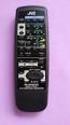 SLEEP TEST SUBWOOFER + MODE EFFECT CENTER + SOUND TV/VIDEO CD-DISC DVD CD TV VOL TV CH TV VCR AUDIO VCR CH + TV SOUND TAPE/CDR VOLUME REMOTE REAR L + MENU REAR R + ENTER VCR /DIGITAL FM/AM MUTING STANDBY
Explorer Digital Set-Top User s Guide
 Explorer Digital Set-Top User s Guide Models 4240C and 4250C with Multi-Stream CableCAD Interface POWE VO- CH+ CH- VO+ SEECT GUIDE FO EXIT SETTGS EXPOE 4250C 1 What s on the Front Panel? POWE VO- CH+ CH-
Business Audio System: Music & Messaging MP3 Player. by Grace Digital Audio. User Guide. Model No. GDI-USBM10
 Business Audio System: Music & Messaging MP3 Player by Grace Digital Audio User Guide Model No. GDI-USBM10 User Guide Contents Introduction 2 Safety & General Use Information 2 Features 3 Set Up & Operation
KRF-V6050D KRF-V5050D
 AUDIO VIDEO SUOUND ECEIVE KF-V6050D KF-V5050D INSTUCTION MANUAL KENWOOD COPOATION This instruction manual is used to describe multiple models listed above. Model availability and features (functions) may
OWNER S MANUAL. Model One
 OWNER S MANUAL Model One 1 Important Safety Instructions 1. Read these instructions. 2. Keep these instructions. 3. Heed all warnings. 4. Follow all instructions. 5. WARNING To reduce the risk of fire
12-Volt 10-Amp Regulated Power Supply
 22-506.fm Page 1 Friday, August 6, 1999 12:55 PM Cat. No. 22-506 OWNER S MANUAL Please read before using this equipment. 12-Volt 10-Amp Regulated Power Supply 22-506.fm Page 2 Friday, August 6, 1999 12:55
DCT 2000. User Guide CURSOR CHANNEL POWER GUIDE INFO MENU A/B SELECT
 POWER DCT 2000 User Guide CURSOR MESSAGES REMOTE CHANNEL A/B POWER GUIDE FO MENU SELECT A/B CAUTION RISK OF ELECTRIC SHOCK DO NOT OPEN CAUTION: TO REDUCE THE RISK OF ELECTRIC SHOCK, DO NOT REMOVE COVER
FUTURE CALL PICTURE CARE PHONE MODEL: FC-1007 USER MANUAL
 FUTURE CALL PICTURE CARE PHONE MODEL: FC-1007 USER MANUAL Please follow instructions for repairing if any otherwise do not alter or repair any parts of device except specified. IMPORTANT SAFETY INSTRUCTIONS
Spider IV 15. Pilot s Handbook Manuel de pilotage Pilotenhandbuch Pilotenhandboek Manual del Piloto 取 扱 説 明 書
 Spider IV 15 Pilot s Handbook Manuel de pilotage Pilotenhandbuch Pilotenhandboek Manual del Piloto 取 扱 説 明 書 40-00-0187 Pilot s Handbook available @ www.line6.com/manuals Rev D Important Safety Instructions
VIP1200 & VIP1216 Wireless IPTV Receivers
 VIP1200 & VIP1216 Wireless IPTV eceivers THIS IS AN EDITED VESION OF THE OIGINA DOCUMENT CONTENTS Intro duction...1 Your Set-top Boxes...1 Front Panel...2 ear Panel...3 Video Connectio n Opt ions...4 Audio
MODEL NPB-252 PORTABLE CD MP3 RADIO PLAYER
 MODEL NPB-252 PORTABLE CD MP3 RADIO PLAYER PLEASE READ THIS USER MANUAL COMPLETELY BEFORE OPERATING THIS UNIT AND RETAIN THIS BOOKLET FOR FUTURE REFERENCE. WARNING TO PREVENT FIRE OR SHOCK HAZARD, DO NOT
HANTZ + PARTNER The Upgrade Company! www.hantz.com
 Quick Start Guide X3000 HD Network Media Player X3000 HD NETWORK MEDIA PLAYER POWER HANTZ + PARTNER The Upgrade Company! www.hantz.com A Get to know your HELIOS X3000 Thank you for purchasing the HELIOS
Important Safety Instructions
 PR-D7 GB Revision 1 Important Safety Instructions 1. Read these instructions. 2. Keep these instructions. 3. Heed all warnings. 4. Follow all instructions. 5. Do not use this apparatus near water. 6. Clean
LC-50LB261U 50" LED TV USER GUIDE. Before using your new product, please read these instructions to prevent any damage.
 LC-50LB261U 50" LED TV USER GUIDE Before using your new product, please read these instructions to prevent any damage. Contents CHILD SAFETY...............................................................
B100. single-line business telephone
 users guide B100 single-line business telephone B100 TELEPHONE DIAGRAM TABLE OF CONTENTS 1) FEATURES......2 1.1 FLASH 1.2 LAST NUMBER REDIAL 1.3 MUTE 1.4 HANDSET VOLUME CONTROL 1.5 DATA PORT 1.6 HEARING
Daily use. Never use alcohol or other solvents to clean any part of the loudspeakers!
 BeoLab 6002 Guide WARNING: To reduce the risk of fire or electric shock, do not expose this appliance to rain or moisture. Do not expose this equip ment to dripping or splashing and ensure that no objects
Easy Setup Guide. 1 Preparation. English. AV Receiver. Accessories. Cables required for connections
 UAB 1 Preparation AV eceiver Accessories heck that the following accessories are supplied with the product. emote control Batteries (AAA, 0, UM-4) (x2) Easy Setup Guide English Insert the batteries the
TABLE OF CONTENTS QUICK START... 1 DIAGRAM OF THE DIGITAL PHOTO FRAME... 2 KEYPAD BUTTON FUNCTIONS... 3 REMOTE CONTROL FUNCTIONS..
 TABLE OF CONTENTS QUICK START........ 1 DIAGRAM OF THE DIGITAL PHOTO FRAME... 2 KEYPAD BUTTON FUNCTIONS..... 3 REMOTE CONTROL FUNCTIONS..4 DIGITAL PHOTO FRAME NAVIGATION........5 OSD MENU FUNCTIONS..6
ZaapTV HD509N. User s Guide. How to use the HD509N set-top box
 ZaapTV HD509N User s Guide How to use the HD509N set-top box Contents 1. Safety... 1 2. Appearance... 4 3. Rear Panel Connection... 5 4. Remote... 7 5 First Time Set-Up... 9 6. Network Settings... 10 6.1
AUDIO/VIDEO MULTI-CHANNEL RECEIVER VSX-D411 VSX-D511
 AUDIO/VIDEO MULTI-CHANNEL RECEIVER VSX-D411 VSX-D511 Operating Instructions Thank you for buying this Pioneer product. Please read through these operating instructions so you will know how to operate your
Conference Phone UserÕs Manual. Part No. 54-2070-01R1 Printed in Korea. 2002 Bogen Communications, Inc.
 Part No. 54-2070-01R1 Printed in Korea. 2002 Bogen Communications, Inc. UserÕs Manual Notice Every effort was made to ensure that the information in this guide was complete and accurate at the time of
esata External Storage
 esata External Storage Operation Manual DA-ES110 Before reading this manual This operation manual contains basic instruction on installing and using esata External Storage, an IDIS product. Users who are
BOSE. Link AL8 HOMEWIDE WIRELESS AUDIO LINK
 BOSE Link AL8 HOMEWIDE WIRELESS AUDIO LINK Français English SAFETY INFORMATION Please read this owner s guide Please take the time to follow the instructions in this owner s guide carefully. It will help
AV Receiver. Owner s Manual. Read the supplied booklet Safety Brochure before using the unit. English
 AV Receiver Owner s Manual Read the supplied booklet Safety Brochure before using the unit. English CONTENTS Accessories...................................................... 5 FEATURES 6 What you can
USER GUIDE MANUAL DCT700. One-way Application
 USER GUIDE MANUAL DCT700 One-way Application CAUTION: CAUTION RISK OF ELECTRIC SHOCK TO REDUCE THE RISK OF ELECTRIC SHOCK, DO NOT REMOVE COVER (OR BACK). NO USER-SERVICEABLE PARTS INSIDE. REFER SERVICING
IMPORTANT INSTRUCTIONS & OPERATING MANUAL. Houston 50 Inch Electric Wall Mounted Fireplace Black / White
 IMPORTANT INSTRUCTIONS & OPERATING MANUAL Houston 50 Inch Electric Wall Mounted Fireplace Black / White Model Number:MFE5050BK Model Number:MFE5050WH Read these instructions carefully before attempting
CINEMATE 1 SR DIGITAL HOME THEATER SPEAKER SYSTEM. Operating Guide Guía del usuario Guide d utilisation
 CINEMATE 1 SR DIGITAL HOME THEATER SPEAKER SYSTEM Operating Guide Guía del usuario Guide d utilisation Notice This equipment has been tested and found to comply with the limits for a Class B digital device,
CAUTION RISK OF ELECTRIC SHOCK CAUTION: TO REDUCE THE RISK OF ELECTRIC SHOCK, DO NOT REMOVE COVER (OR BACK). NO USER-SERVICEABLE PARTS INSIDE.
 DCT700 User Guide CAUTION ISK OF EECTIC SHOCK CAUTION: TO EDUCE THE ISK OF EECTIC SHOCK, DO NOT EMOVE COVE (O BACK). NO USE-SEVICEABE PATS SIDE. EFE SEVICG TO QUAIFIED SEVICE PESONNE. EPAIS If you find
USER MANUAL Stand Alone Power Supply PSQ 2909 / PSQ 3909 / PSQ 4909 PSQ 2920 / PSQ 3920 / PSQ 4920
 USER MANUAL Stand Alone Power Supply PSQ 2909 / PSQ 3909 / PSQ 4909 PSQ 2920 / PSQ 3920 / PSQ 4920 [This page intentionally left blank] Warning for Your Protection 1. Read these instructions. 2. Keep these
DIGITAL CABLE TV RECEIVER OPERATION MANUAL DVB-C8080AL DIGITAL CABLE RECEIVER DEAR CONSUMER
 DIGITAL CABLE TV RECEIVER OPERATION MANUAL DVB-C8080AL DIGITAL CABLE RECEIVER DEAR CONSUMER GREAT APPRECIATION FOR PURCHASING OUR PRODUCT TO ENSURE THE BEST PERFORMANCE AND THE HIGHEST SAFETY, PLEASE READ
DS-A1XP. Contents. Remote Interactive Dock. Instruction Manual. Important Safety Instructions... 2. Precautions... 3
 Remote Interactive Dock DS-A1XP Instruction Manual Contents Important Safety Instructions........ 2 Precautions......................... 3 Getting Started..................... 4 About the RI Dock....................
Kinivo 301BN HDMI Switch
 Kinivo 301BN HDMI Switch User Manual 2012 Kinivo LLC. All rights reserved. Kinivo is a trademark of Kinivo LLC. Bluetooth word mark and the Bluetooth logo are registered trademarks of Bluetooth SIG. All
Altec Lansing Computer Speaker System
 Altec Lansing Computer Speaker System User Guide ACS45.1 IMPORTANT If you experience any difficulties with your computer speaker system, please call us. It may be a simple problem that we can help you
15-INCH TFT-LCD MONITOR
 15-INCH TFT-LCD MONITOR 15RTV INSTRUCTION MANUAL Please read this manual thoroughly before use, and keep it handy for future reference. SAFETY INSTRUCTION.2-3 CAUTIONS....4 FCC RF INTERFERENCE STATEMENT.5
AV Receiver. Owner s Manual. Read the supplied booklet Safety Brochure before using the unit. English
 AV Receiver Owner s Manual Read the supplied booklet Safety Brochure before using the unit. English CONTENTS Accessories...................................................... 4 FEATURES 5 What you can
AV Receiver. Owner s Manual. Read the supplied booklet Safety Brochure before using the unit. English
 AV Receiver Owner s Manual Read the supplied booklet Safety Brochure before using the unit. English CONTENTS Accessories...................................................... FEATURES 6 What you can do
LF-IRX. Limited Warranty LF-IRX. Remote Control Extender OWNER S MANUAL
 Limited Warranty OWNER S MANUAL Audiovox Corporation (Audiovox) warrants this product against defects in materials or workmanship for one (1) year from the date of purchase. During this period, this product
VIEW. SLX300 SpeakerLinX IP Zone. Amplifier Installation and Setup Guide. AVoIP
 VIEW SLX300 SpeakerLinX IP Zone Amplifier Installation and Setup Guide TM AVoIP ClearOne 5225 Wiley Post Way Suite 500 Salt Lake City, UT 84116 Telephone 1.800.283.5936 1.801.974.3760 Tech Sales 1.800.705.2103
DSB-100 Portable Premium Bluetooth Speaker Owner s Manual
 . DSB-100 Portable Premium Bluetooth Speaker Owner s Manual You can print more than one page of a PDF onto a single sheet of paper. 1 Index Preparation Unpacking 3 Overview 4 Sound Quality 4 Design 4 Operation
Big Button Plus 20200
 Big Button Plus 20200 Congratulations on your selection of the Big Button Plus 20200 from Northwestern Bell Phones. This quality telephone, like all Genuine BELL products, has been designed to give you
Charter Digital Cable and Charter HD Easy Install Guide
 Charter Digital and Charter HD Easy Install Guide Your guide to installing and setting up your Charter HD and Digital Charter Digital and Charter HD Easy Install Guide -888-GET CHARTER (-888-8-7) charter.com
Tone Hammer 500. Owners Manual. Manual Version 1.0
 Tone Hammer 500 Owners Manual Manual Version 1.0 1. Incorporating the preamp from the popular Tone Hammer preamp/di pedal this superlight bass head combines three bands of flexible EQ, a colorful "Drive"
Product Overview. Product Interface
 mobile speaker Product Overview Thank you for purchasing the bēm wireless Mobile Speaker. Our speaker will bring you a new found freedom from wires while delivering an incredible sound. The Mobile Speaker
PAR Tablet 10 Quick Start Guide
 ParTech, Inc. 8383 Seneca Turnpike New Hartford, NY 13413 p.800.458.6898 www.partech.com PAR Tablet 10 Quick Start Guide PN 770505503 This material has been created in order to accommodate a wide range
User Manual DIGITAL MONITOR SPEAKERS MS /MS. 24-Bit/192 khz Digital 40/20-Watt Stereo Near Field Monitors
 User Manual DIGITAL MONITOR SPEAKERS MS /MS 24-Bit/192 khz Digital 40/20-Watt Stereo Near Field Monitors 2 DIGITAL MONITOR SPEAKERS /MS20 User Manual User Manual Table of Contents Thank you... 2 Important
EXPLORER 2100 or 3100 Digital Home Communications Terminals. User s Installation Guide
 EXPOE 2100 or 3100 Digital Home Communications Terminals User s Installation Guide IMPOTANT UES FO SAFE OPEATION Note to the Installer Note to CATV System Installer This reminder is provided to call the
user s manual Battery Case model #: SPB3200 Battery Case Charger for Samsung Galaxy S 4
 user s manual model #: SPB3200 Charger for Samsung Galaxy S 4 What s Included Unpack the battery case and make sure all accessories are put aside so they will not be lost. hello. USB to Micro USB Cable
5.1 Heimkinosystem mit Funk - Rücklautsprechern LS 255
 5.1 Heimkinosystem mit Funk - Rücklautsprechern LS 255 2 3 4 5 6 7 8 9 10 11 Virtua12.1ch Virtua15.1ch Volume Level 12 13 10 11 12 13 16 14 AC 250 V 10A 15 ON OFF POWER AC230V ~ 50Hz 17 Wireless-Rear Speaker
User Guide 32" LED TV
 User Guide 32" LED TV LC-32LB150U Before using your new product, please read these instructions to prevent any damage. Contents CHILD SAFETY...............................................................
Fig 1. Fig 3 Fig 4a. Fig 2. Fig 4c. Fig 4b. a b c de fgh i 1) a b. Cyrus CD Player. X Power. Cyrus FM tuner. Cyrus Preamplifier.
 a b c de fgh i 1) X Power 1$ 1# 1@ 1! Fig 1 a b X Power c BIAMPING Cyrus CD Player Cyrus FM tuner Cyrus Preamplifier Cyrus Power amplifier Fig 2 Fig 3 Fig 4a Fig 4c Fig 4b BIWIRING MONO BIWIRING IMPORTANT!