
Step 1: Go to Choose
|
|
|
- Thomas Miller
- 9 years ago
- Views:
Transcription
1 Step 1: Go to Choose


2 When you click a new window will pop up which will ask you whether or not you have a Danish CPR number Choose NEJ = NO, and then click on NÆSTE = NEXT

3 The next window that opens will ask you to type in your address When you have given your address you should click Ok. You will then receive a message that your application process has been registered at Optagelse.dk, and a link will be sent to your address. You will now only be al-lowed to access your application via the link in this


4 An in Danish, containing a link has been send to your , confirming the registration of your address. Translation of the text in the It can take up to 30 minutes to receive the from Optagelse.dk with the link. If you cannot find the after this period of time, then you should check your spam filter. Step 2: Log on The first time you click on the link, you will come to a window where you will need to give your name, date of birth and sex. When you have given this information, click Ok. You will only need to fill out this information the first time you enter using on the link from your . Next time you click on the link you will be directed straight to your application.

5 Step 3: Oplysninger om dig = Information about you. You have now logged on to Optagelse.dk and you are ready to begin your application. The first time you log on, you will come to the page called Oplysninger om dig = Information about you. Please make sure to type correct postal address, and phone number.


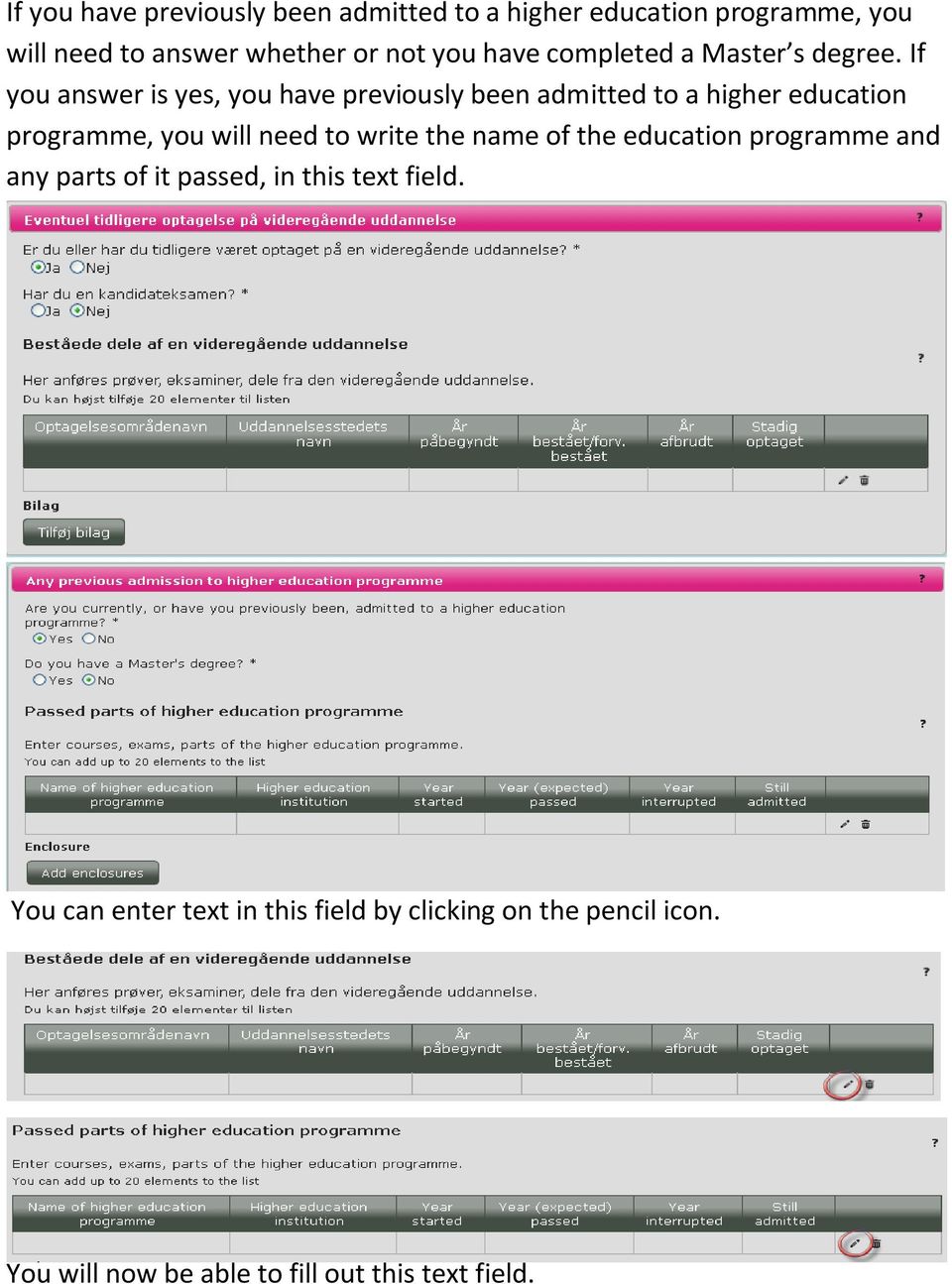
6 The information you have given has been used to create an identification number instead of a CPR number. You cannot change this identification number. Your name is also given, however you may change this, if you can see that there is a mistake. You will need to choose which country you are a citizen of. Denmark is automatically chosen when you come to this part, so if you are not a Danish citizen, you will need to change the country here. You will need to answer whether or not you have previously been admitted to a higher education programme. If you have not previously been admitted to a higher education programme and therefore say no, then you do not need to fill out anything further for this question.


7 If you have previously been admitted to a higher education programme, you will need to answer whether or not you have completed a Master s degree. If you answer is yes, you have previously been admitted to a higher education programme, you will need to write the name of the education programme and any parts of it passed, in this text field. You can enter text in this field by clicking on the pencil icon. You will now be able to fill out this text field.

8 When you have filled in this information, you can add it to your application by ticking the box at the end of the line. Finally, you will need to click gem = save, in order to save all the information you have given.


9 Step 4 Entry qualifications You should first switch to the tab Adgangsgrundlag (Entry qualifications). You will now come to the page where you will need to give your Entry qualification = Adgangsgrundlag Click vælg to choose which type of entry qualifying exam you have as the basis for applying for higher education.


10 For this example, we have chosen Danish upper secondary education. If your entry qualifications are non-danish you must choose Non Danish Exam. Choose your concrete entry qualifications.


11 International Baccalaureate (IB) You will need to give the exam year and the Total Points. Upload a copy of your diploma before the deadline (15 March, 12 noon). Non Danish exam Choose Other as your entry qualification and enter which exam you have. You will also need to give the exam year before the deadline (15 March, 12 noon). Vocational Training Exam (EUD) You will need to give the Exam year. Upload a copy of your diploma before the deadline (15 March, 12 noon). Other entry qualifications Is for example a combination of specific courses at upper secondary education level. Upload documentation before the deadline (15 March, 12 noon). Next choose the scale of marks (grading scale).


12 If you are expecting to pass your final exams this year, you can leave the text box concerning your exam result empty. Remember to upload your diploma and documentation as soon as you receive it. Bonus for an early start to higher education If your entry qualifying exam is 2 years old or less, then your grade point average (GPA) will be adjusted. You must not make this adjustment yourself.

13 If you wish to apply for dispensation from the two-year rule, you should tick the relevant box. Remember to upload documentation for the dispensation. Supplementary courses If you need to supplement your entry qualifications with extra courses, and you have not yet completed this courses, then you need to tick the relevant box(es) here. Remember to inform whether you will complete these courses before or after 5 July. Remember to upload relevant documentation.

14 To save your information click gem Step 5: Choice of education programme Switch to the tab Uddannelsesvalg = Choice of education programme


15 Add your choices of education programmes. Click Tilføj uddannelsesvalg = add education programme.


16 You will now come to the page where you can search through your options. T


17 To apply for the International Teacher Education choose: Vis flere muligheder = show more options Then click on the box Søg efter and write admission area number Push enter and the programme is now shown in the button.


18 To get more information on the specific programme, click on the arrow to the left. You will see all the information about the programme. If this is the right programme then click Vælg (Choose). You will now be able to see the programme with a series of text fields. Choices that are marked with an asterisk (*) are things which you must fill out. You can fill out the rest if it is relevant for your application.


19


20


21 Field of study If possible click Studieretning. Standby Choose whether or not you wish to apply for standby. Standby is a waiting list system. Winter study start If the programme has this icon in the overview, then you will need to consider if you want to start during the winter. This is NOT an option for The international teacher education, so kindly say Nej = No

22 Pre-approval If you have pre-approval from the previous year, then you should note this here. Choose Vedlæg documentation (attach documentation) to upload documentation. Entry qualifying exam You should mention whether or not you expect to have an entry qualifying exam be-fore 5 July.

23 If you answer Nej (no), you will need to say whether you are applying for a special per-mission to apply for the programme, or whether you have previously been granted a special permission to apply for this programme. If you have previously been granted a special permission to apply, you will need to give the journal nummer (reference number) and dato (the date). You can choose the date by clicking on the icon.

24 If you do not have a journal number you can give your CPR number or identification number instead.

25 Add activities When you have clicked on the pencil, you will be able to type in the text fields. When you have finished, you need to tick the box. If you wish to edit the information, you should click on the pencil icon; or to delete the information, you should click on the rubbish bin icon; or to add a new line, you should click on the plus icon. Add at the bottom of the page. Click Tilføj and then your choice of programme has been added. You can now add more choices of education programmes.

26 If you need do edit any information then click on the name of the programme. Step 6 Changing priorities Click the Choice of education programme tab, to see a list of your priorities

27 Changing the priority of education programmes. Use the arrows on the left-hand side to change the priority of your study programmes.

28 If you click on you move the preference down on the list. If you click on you move the preference up. Cancelling study programmes. If you click on the waste bin to the right, you remove the preference from your list. If you have cancelled an approved study programme, Annullerede ansøgninger (cancelled applications) will be displayed as a link in the top right corner. Click the link to view a list of your cancelled applications.

29 If you change or delete an education programme before you have approved any of your education programmes, you will not be notified of the change. If you have approved one of your education programmes you will be notified every time you make a change, irrespective of whether you change the priority or cancel a study programme, and irrespective of whether the approved education programme is impacted. Step 7 Approve aducation programmes and the signature page You can view your education programmes under the Choice of education programme tab. This is also where you approve your education programmes and print the signature page which you must send to each of the educational institutions before they can view your application.
30

31 Select the education programme you wish to approve and print the signature page for. Click on the Godkend (Approve) button to confirm your choice and generate the signature page. Once you have clicked on the Approve button, a message will be displayed contain-ing a link to the signature page (in the PDF file format). Click on the link to generate the signature page You must print the page, sign it, and send it to the address at the top of the page:
32
33 The documents you need to upload will also be listed on the signature page, as marked by a red hand on the above screenshot. After signing this følgeskrivelse - signature page you MUST send it to: [email protected]. You application is only submitted, when received by the admission office.
34 When an education programme has been approved it will be marked with an envelope icon indicating that you are ready to send the signature page to the receiving institution. Once the educational institution has received your signature page and has downloaded your application from Optagelse.dk, the sealed envelope will change to an open envelope with a green check mark: Step 8: Bilag = Enclosures Click on the tab Bilag (Enclosures).

35 You can click Tilføj bilag (Add enclosures) here. Note that you can see your choices of programmes and their priority numbers in your application on the right-hand side. You can also see the status of your application here, as well as approve the pro-grammes that have not yet been approved. When you click on Tilføj Bilag (Add enclosures) a pop-up box will appear. Click on Tilføj (Browse).

36 You should now be able to find the document on your computer. Double-click on the file which needs to be uploaded. Give the enclosure a recognizable name. And click OK A message will now appear telling you when the document has been successfully up-loaded.

37 If you upload enclosures from the tab Oplysninger om dig (Information about you), you will need to save any changes before the enclosures are uploaded. If you upload enclosures from the tab Uddannelsesønsker (Choice of education programme), you will need to add the choice of programme before the enclosure is uploaded. The enclosure is now uploaded to Optagelse.dk, but has not yet been added to a specific choice of education programme, if you have attached it under the tab Bilag. You will now need to tick for which choices of programme your enclosure is rele-vant. You should tick the box next to the relevant programme for attaching the en-closure.

38 If you have added enclosures to the tab Oplysninger om dig (Information about you), it will be automatically attached to all your programme choices. You can untick the box if the enclosure should not be attached to a specific programme choice. If you add the enclosure directly to a programme, the document will automatically be attached to that choice only. You can add further choices if it is relevant.

39 You can add all the enclosures you wish and you can add different documents to different programmes. You can also delete the enclosures from the overview, if you click on the red cross.
Applicants without a Danish CPR number applying for admission to higher education. User guide optagelse.dk
 Applicants without a Danish CPR number applying for admission to higher education User guide optagelse.dk Applicants without a Danish CPR number applying for admission to higher education User guide optagelse.dk
Applicants with a Danish CPR number applying for higher education. User guide Optagelse.dk
 Applicants with a Danish CPR number applying for higher education User guide Optagelse.dk Applicants with a Danish CPR number applying for higher education User guide Optagelse.dk Author: Tine Kanne Sørensen
Applicants without a Danish CPR number applying for admission to higher education. User guide Optagelse.dk
 Applicants without a Danish CPR number applying for admission to higher education User guide Optagelse.dk Applicants without a Danish CPR number applying for admission to higher education User guide Optagelse.dk
Applicants with a Danish CPR number applying for higher education. User guide Optagelse.dk
 Applicants with a Danish CPR number applying for higher education User guide Optagelse.dk Applicants with a Danish CPR number applying for higher education User guide Optagelse.dk Author: Tine Kanne Sørensen,
How to complete an application for a Master s degree programme
 How to complete an application for a Master s degree programme Welcome to the digital application system! Following your login to the application system you will be directed to the tab called See status
Navigating the Online Application
 Navigating the Online Application I. Logging on to the Online Application To log on to the online application follow the instructions in Accessing the Online Application II. Main Menu On first logging
Database Program Instructions
 Database Program Instructions 1) Start your Comparative Rating software by double-clicking the icon on your desktop. 2) Click on the button on the Comparative Rating Software Main Menu. 3) A message Loading
User guide for the application process of the online application portal
 U N I V E R S I T Y O F C O P E N H A G E N User guide for the application process of the online application portal Applying through the online application portal This document is a user guide for how
(GXFDWLRQ Backpack Manual 2007 LearningStation. All rights reserved. 9/21/2007
 Backpack Manual 2007 LearningStation. All rights reserved. 9/21/2007 LearningStation, Inc. 8008 Corporate Center Drive Suite 210 Charlotte, NC 28226 704-926-5400 888-679-7058 [email protected]
Schools CPD Online General User Guide Contents
 Schools CPD Online General User Guide Contents New user?...2 Access the Site...6 Managing your account in My CPD...8 Searching for events...14 Making a Booking on an Event...20 Tracking events you are
AULA-MANUAL FOR STUDENTS AULA MANUAL FOR STUDENTS AND COURSE PARTICIPANTS
 1 AULA MANUAL FOR STUDENTS AND COURSE PARTICIPANTS 2 AULA... 4 TOOLS IN AULA... 4 NAVIGATION... 5 LANGUAGE CHOICE... 5 ONLINE IN AULA... 5 VIEW ONLINE PROFILES... 6 REGISTRATION, MODIFYING PROFILE AND
Step-by-Step Guide Procurement Card & Travel Reconciliation Expense Reports: Step 4c Attaching Documents by Receipt Store to Individual Expenses
 There are three ways to attach documents to an expense report in the Concur Travel & Expense System: scanning, faxing, or using the Receipt Store to attach to individual expenses. Note: Approvers have
Common Application Guide for Students
 Common Application Guide for Students What is the Common Application? The Common Application is used by over 450 American universities. It is somewhat akin to UCAS, in that you will save time by being
User guide for the Cskills Awards Awards Online system
 User guide for the Cskills Awards Awards Online system Published by Cskills Awards, CITB, Bircham Newton, King s Lynn, Norfolk PE31 6RH First published 2008 Revised July 2013, January 2014, April 2014,
Working with H-drive, I-drive, and DropBox Files Online
 Working with H-drive, I-drive, and DropBox Files Online Preamble: Students and Staff have both individual networked storage space (referenced on-campus as the H-drive) and shared storage space (referenced
525 South 29 th Street. Harrisburg, PA 17104. Learning Management System User s Guide
 525 South 29 th Street Harrisburg, PA 17104 Learning Management System User s Guide July 2015 1 Table of Contents User Accounts Overview 3 Changing your Email address 3 Changing your Password 3 Changing
Questions and Answers for using MyCareCouncil
 Questions and Answers for using MyCareCouncil Below you will find questions and answers about using MyCareCouncil. The questions have been grouped by topic. Please scroll to the appropriate topic. Topic
How to Complete the Online Application
 How to Complete the Online Application Application deadlines: Students from EU/EEA countries / ERASMUS+: The Online Application will be closed on 1 June, 11:59pm (for the winter semester / whole academic
Mail Chimp Basics. Glossary
 Mail Chimp Basics Mail Chimp is a web-based application that allows you to create newsletters and send them to others via email. While there are higher-level versions of Mail Chimp, the basic application
LEARNING RESOURCE CENTRE. Guide to Microsoft Office Online and One Drive
 LEARNING RESOURCE CENTRE Guide to Microsoft Office Online and One Drive LEARNING RESOURCE CENTRE JULY 2015 Table of Contents Microsoft Office Online... 3 How to create folders... 6 How to change the document
L T A O N L I N E R E C R U I T M E N T
 L T A O N L I N E R E C R U I T M E N T When you click on this webpath - http://recruitment.lta.com.fj/linkrm, the following screen will appear: You will have to click on Register, as circled red so that
Introduction to ilab Solutions for Core Directors and Staff
 Introduction to ilab Solutions for Core Directors and Staff Table of Contents Account Access & Login Credentials... 2 Account Registration for First-time Users... 2 Accessing Vanderbilt Cores... 3 Center
Microsoft Outlook Web Access Overview
 Microsoft Outlook Web Access Overview Table of contents Logging on to Outlook Web Access... 3 The sections of Outlook Web Access... 4 The Inbox Toolbar... 4 How to sections... 5 Email Basics... 5 Use the
INTEGRATED BUDGET INFORMATION SYSTEM (IBIS) USER GUIDE FORM WORKFLOW AND PDF OVERVIEW
 INTEGRATED BUDGET INFORMATION SYSTEM (IBIS) USER GUIDE FORM WORKFLOW AND PDF OVERVIEW Page 1 TABLE OF CONTENTS 1. Generating PDF 2. Saving a Draft 3. Saving and Closing a Form 4. Deleting a Request 5.
Self-Generation Incentive Program. Online Application Database Tutorial
 Self-Generation Incentive Program Online Application Database Tutorial New Applicant Registration If you haven t already registered with the site, you will need to request an account by filling out the
DIRECT ADMISSIONS SYSTEM
 1/24/2013 UNIVERSITY OF GLASGOW DIRECT ADMISSIONS SYSTEM Postgraduate Taught Application User Guide Online Application Guide Table of Contents Introduction... 1 Technical support... 1 1. Creating your
Guide for Instructors A how-to guide on managing accommodation information for students with disabilities.
 Guide for Instructors A how-to guide on managing accommodation information for students with disabilities. Contents Clockwork Guide for Instructors... 1 Instructor Portal... 2 Accessing Accommodation Letters...
Guidelines for online application procedure
 Guidelines for online application procedure Step 1 Go to www.funding guide.de Step 2 Fill up the details indicated by the orange coloured arrows below (Status: Undergraduates, your Country of Origin: India,
eportal External Part
 eportal External Part Version 2.1 1. About the Application... 1 1.1 Abbreviations Used... 1 1.2 Access to the Application... 2 1.3 Main Menu... 2 1.4. English... 2 2. Supplier Registration... 2 2.1 How
Applicants: How to apply for a Commonwealth PhD Scholarship
 Applicants: How to apply for a Commonwealth PhD Scholarship Log On/Register Apply for a Scholarship A. Application Details B. Personal Information C. Career To Date D. References E. Endorsement F. Proposed
PLEASE NOTE: Please contact your government to get more information about the citizen card in your country.
 How to Complete the Online Application ATTENTION: Please read the following instructions thoroughly before you start working on the online application. (Note: The screenshots show samples only!) For detailed
Excel Reports and Macros
 Excel Reports and Macros Within Microsoft Excel it is possible to create a macro. This is a set of commands that Excel follows to automatically make certain changes to data in a spreadsheet. By adding
Creating A Drip Campaign
 Downloading and Uploading the ecards 1. Login to Elevated Network at elevatednetwork.com 2. Click on the My Rancon from Dashboard Creating A Drip Campaign 3. Login to My Rancon and click on Marketing ->
Signing Documents with Requests for Attachments
 DocuSign Quick Start Signer Guide Signing Documents with Requests for Attachments There may be times when you need to provide supporting documentation to the sender. This guide provides information about
City of De Pere. Halogen How To Guide
 City of De Pere Halogen How To Guide Page1 (revised 12/14/2015) Halogen Performance Management website address: https://global.hgncloud.com/cityofdepere/welcome.jsp The following steps take place to complete
Online Application - Step by Step. Dear applicant,
 Online Application - Step by Step Dear applicant, We have prepared these instructions to assist you with your application at Schaeffler Group. Step by step, we will show you how to store your data and
Virtual Career Fair (VCF) Employer Guide Quick Start
 Virtual Career Fair (VCF) Employer Guide Quick Start Employers By clicking on Employers on the VCF home page, you will be taken to the event Directory. From here you will find logos for the various Featured
GRS Advantage Website User Reference Guide
 GRS Advantage Website User Reference Guide This document describes how to use the GRS Advantage Website. Table of Contents GRS Advantage Website... 2 Accessing the Website... 2 Requesting Access to the
Searching and Applying for Positions
 Searching and Applying for Positions The purpose of this procedure is to provide assistance in the process of searching and applying for open positions through the NEATS online recruitment system. Once
Introduction 2. Creating an Invoice 3. How quickly will I receive payments once I have submitted an invoice? 6. Previous Payments 6
 Introduction 2 Invoicing using MultiTrans. 2 Accessing the Invoices Module 2 Creating an Invoice 3 How quickly will I receive payments once I have submitted an invoice? 6 Previous Payments 6 Deduction
2013 EDITION. V-Camp Student. Guide. INTERACTIVE GUIDE Use the buttons shown below to navigate throughout this interactive PDF BACK
 V-Camp Student Guide INTERACTIVE GUIDE Use the buttons shown below to navigate throughout this interactive PDF BACK 03 EDITION V-Camp Student Guide Table of Contents Unit : Table of Contents...iii How
VOICE MAIL TO EMAIL - MY SERVICES MANAGEMENT
 Included with your subscription to Voice Mail to Email VOICE MAIL MANAGEMENT INTERNET ACCESS My Services web access allows you to administer your Voice Mail account settings and to play, delete and save
Navigating Your SIS Home Page
 AS&E Registering for Classes Use this registration guide to navigate your SIS student Homepage, search the Schedule of Classes, manage your Shopping Cart, Add, Swap, Edit, and Drop Classes, and plan out
FirstClass for Mobile - Email
 FirstClass for Mobile - Email There is a FirstClass app that is available for iphone, ipad, and ipod Touch. WiFi or 3G connectivity is required to use the FirstClass app. NOTE: FirstClass email is not
Event Management System (EMS) Room Scheduling Guide
 Event Management System (EMS) Room Scheduling Guide Tables of Contents How to Request a reservations using EMS... 1 View My Request... 8 Browse Events... 10 Browse Facilities... 14 Browse Spaces... 16
UC Learning Center: Learner Guide
 UC Learning Center: Learner Guide Updated 2/5/15 Introduction The UC Learning Center is the web based learning management system (LMS) used across the University of California for managing training and
DATA COLLECTION GUIDANCE
 COMPLETING THE EARLY YEARS FOUNDATION STAGE PROFILE 2016 DATA COLLECTION GUIDANCE Please ensure you have completed the Import Routine for all Key Stages prior to starting the following processes 1 2 CONTENTS
Table of Contents. Manual for Core Staff - Equipment/Scheduling Core Facilities
 Table of Contents 1. Overview 2. How do I manage my account? 3. Equipment Scheduling Workflow Overview 4. Equipment Scheduling Walk Through a. How do I access the list of calendars available for scheduling?
Using Word 2007 For Mail Merge
 Using Word 2007 For Mail Merge Introduction This document assumes that you are familiar with using Word for word processing, with the use of a computer keyboard and mouse and you have a working knowledge
Integrated Accounting System for Mac OS X
 Integrated Accounting System for Mac OS X Program version: 6.3 110401 2011 HansaWorld Ireland Limited, Dublin, Ireland Preface Standard Accounts is a powerful accounting system for Mac OS X. Text in square
NHSP:Online. Uploading Agency Rates. NHSP:Online. Agency Rates Admin V2.2 Issued December 2012 Page 1 of 31
 Uploading Agency Rates Page 1 of 31 Contents Page 1.0 Getting Started...3 2.0 Notifications...6 3.0 Downloading a Blank Template...7 4.0 Filling out your rates template...8 5.0 Uploading your completed
Parchment Guide to High School Transcripts
 Parchment Guide to High School Transcripts www. 2 Contents OVERVIEW 4 REGISTER FOR A PARCHMENT.COM ACCOUNT 5 I have a registration code 5 I do not have a registration code 5 Opt-in to share your information
Lesson Planner. Lesson Planner from Pearson provides an online tool that makes planning lessons easier and allows teachers to adjust lesson plans.
 Lesson Planner Introduction Lesson Planner from Pearson provides an online tool that makes planning lessons easier and allows teachers to adjust lesson plans. This guide explains step by step how to do
TWO WAYS TO SCHEDULE A SCOPIA VIDEO CONFERENCE BASED MEETING. 1- SCOPIA USER PORTAL 2- OUTLOOK SCOPIA MEETING PLUG-IN
 TWO WAYS TO SCHEDULE A SCOPIA VIDEO CONFERENCE BASED MEETING. 1- SCOPIA USER PORTAL 2- OUTLOOK SCOPIA MEETING PLUG-IN USING IVIEW SCOPIA USER PORTAL TO SCHEDULE A MEETING: GO TO: http://iview.utoledo.edu:8080/
BulkSMS Text Messenger Product Manual
 BulkSMS Text Messenger Product Manual 1. Installing the software 1.1. Download the BulkSMS Text Messenger Go to www.bulksms.com and choose your country. process. Click on products on the top menu and select
http://www.ashrae.org/standards-research--technology/public-review-drafts
 October 2012 Online Comment Database 1. To access the online comment database go to the ASHRAE website at: http://www.ashrae.org/standards-research--technology/public-review-drafts 2. Click on the button
Lotus Notes Traveler User and Troubleshooting Guide for ios Devices. Manage the Settings for your Mail, Calendar, and Contacts Apps
 Traveler User Tips 1. All email is accessed through the Mail app, while calendar entries are accessed through the Calendar app, and contacts can be located in the Contacts app on an ios device. 2. Your
The Cancer Institute NSW Grants Management System User Guide
 The Cancer Institute NSW Grants Management User Guide Version 1.1 12 February 2016 Contents 1. Registration 2 2. Login to the Institute s GMS 3 3. Forgot password 3 4. The home page 4 5. Creating a profile
User Guide Setup, sales, purchase and support information for your Clear Books account
 User Guide Setup, sales, purchase and support information for your Clear Books account Digital Edition Contents 4 Chapter 1: Customising your Dashboard 7 Chapter 2: Setting up a Bank Account 12 Chapter
You can attach email accounts to this domain name (eg. [email protected] or [email protected]) which also increases your corporate branding.
 EMAIL SET UP 1 Your website is placed on the Internet using a domain name (eg. www.acme.com.au). This is your virtual address and it allows people to find your website amongst the millions of websites
Application Guide for External Applicants through Candidate Space
 Application Guide for External Applicants through Candidate Space This guide provides instructions to help you register, create a profile and apply for job opportunities with North East Independent School
Securexam Registration Site Registration Information for CA Students and UFE Candidates
 Registration Information for CA Students and UFE Candidates Contents Page Registering to use Securexam and installing the software 1 Uploading your required Qualification Exam 6 About your Account Home
Social Work Portfolio Help Guide. Table of Contents. (click anything from the list below to skip to the correct information)
 Social Work Portfolio Help Guide Table of Contents (click anything from the list below to skip to the correct information) Steps to creating your Social Work portfolio Security settings for your portfolio
Sendspace Wizard Desktop Tool Step-By-Step Guide
 Sendspace Wizard Desktop Tool Step-By-Step Guide Copyright 2007 by sendspace.com This publication is designed to provide accurate and authoritative information for users of sendspace, the easy big file
HOW TO BURN A CD/DVD IN WINDOWS XP. Data Projects
 Page 1 HOW TO BURN A CD/DVD IN WINDOWS XP There are two ways to burn files to a CD or DVD using Windows XP: 1. Using Sonic RecordNow! Plus or 2. Using the Windows Explorer CD Burning with Sonic Recordnow!
Online Sharing User Manual
 Online Sharing User Manual June 13, 2007 If discrepancies between this document and Online Sharing are discovered, please contact [email protected]. Copyrights and Proprietary Notices The information
Nurse and Midwifery Career Long eportfolio summary guides: 1) Key functions: Getting started, logging on and moving around
 Nurse and Midwifery Career Long eportfolio summary guides: 1) Key functions: Getting started, logging on and moving around Getting started In order to log on to the eportfolio you will need your username
CDOT Workflow ProjectWise Web Access Operations
 CDOT Workflow ProjectWise Web Access Operations ProjectWise offers a Web-based method for accessing project data from existing CDOT datasources. This document includes instructions for configuring Internet
How to Add Users 1. 2.
 Administrator Guide Contents How to Add Users... 2 How to Delete a User... 9 How to Create Sub-groups... 12 How to Edit the Email Sent Out to New Users... 14 How to Edit and Add a Logo to Your Group's
User Guide Manufacturer
 User Guide Manufacturer Page 1 of 18 Document control Change control table: Version Description Release date Reason for change Reviewer 2.6 Manufacturer User Guide 2.6.1 Manufacturer User Guide 2.7 Manufacturer
Sensi TM. Wi-Fi Programmable Thermostat SCHEDULING GUIDE. Version: March 2016 2016 Emerson Electric Co. All rights reserved.
 Sensi TM Wi-Fi Programmable Thermostat SCHEDULING GUIDE Version: March 2016 2016 Emerson Electric Co. All rights reserved. Contents SCHEDULING GUIDE Accessing Schedules 3 Creating, Editing and Deleting
www.etenders.gov.ie Electronic Tender Management System Quick User Guide Supplier
 Electronic Tender Management System Quick User Guide Supplier Page 1 Contents 1. Using the system 1.1 1.2 Supplier registration Finding published tenders 2. Responding to a public advertisement / notice
JROTC Unit Management System (JUMS) User s Guide
 JROTC Unit Management System (JUMS) User s Guide 1 March 2016 Summary of Changes JUMS User Guide This revision, dated 1 March 2016 o Updates Chapter 3, paragraph 3-2, Import New Cadets from a File into
FTP Over SSL (FTPS) Core FTP LE. Installing Core FTP LE"
 FTP Over SSL (FTPS) Gordon State College has setup FTP Over SSL (also known as FTPS ) to allow students, faculty, and staff to access resources from our Servers from off-campus using an encrypted connection.
How Do I Upload Multiple Trucks?
 How Do I Upload Multiple Trucks? 1. Log into account. Please see the How Do I Log into My Account? document (DOC-0125) for additional assistance with logging into PrePass.com. 2. On the Admin Home tab,
INTERCALL ONLINE Administrator Invoices User Guide
 INTERCALL ONLINE Administrator Invoices User Guide Access your invoices online, set up new billing accounts and view or edit existing billing accounts. With InterCall Online, also monitor and analyze your
LEARNING RESOURCE CENTRE GUIDE TO OFFICE 365
 LEARNING RESOURCE CENTRE GUIDE TO OFFICE 365 LEARNING RESOURCE CENTRE OCTOBER 2014/2015 Table of Contents Explanation of One Drive and Microsoft Office Online... 3 How to create a document and folder...
ONLINE APPLICATION GUIDE
 Contents Getting Started... 2 Section 1 - Account Details... 4 Section 2 - Your Application... 5 Section 3 - Your Details... 7 Section 4 Your Qualifications... 8 Section 4: For Universities in Pakistan,
Grant Management System State Administrators Manual
 Grant Management System State Administrators Manual About the new Grants Management System The Propane Education & Research Council s Grant Management System (GMS) is based on a commercial product, EzGrants,
CONTRACT MANAGEMENT SYSTEM USER S GUIDE VERSION 2.7 (REVISED JULY 2012)
 CONTRACT MANAGEMENT SYSTEM USER S GUIDE VERSION 2.7 (REVISED JULY 2012) VERSION 2.6 (REVISED APRIL 2012)... I INTRODUCTION... 5 Helpful Hints... 5 Pop-Up Blockers... 5 Users... 6 CPUC Staff Administrator...
Online Test Monitor Certification Course 2014-2015 Transcript
 Online Test Monitor Certification Course 2014-2015 Transcript Slide # Slide 1 Slide 2 Slide 3 Slide 4 Slide 5 Slide 6 Slide 7 Minnesota Assessments Test Security Training for Districts and Schools Welcome
2. Signer Authentication
 DocuSign Quick Start Signer Guide Receiving a Document for Guided Signing This guide provides information about how to electronically sign a document using the DocuSign Service. Electronic signing provides
Online Application via C@MPUS
 Master of Science Program Air Quality Control, Solid Waste and Waste Water Process Engineering (WASTE) Online Application via C@MPUS Winter Semester 2016/17 Version No.: Final Version date: 07.12.2015
Integrated Invoicing and Debt Management System for Mac OS X
 Integrated Invoicing and Debt Management System for Mac OS X Program version: 6.3 110401 2011 HansaWorld Ireland Limited, Dublin, Ireland Preface Standard Invoicing is a powerful invoicing and debt management
FACULTY & STAFF RESOURCES
 CLASS ROSTERS and GRADES 8/23/10 This document provides information related to on-line services for faculty. Many, but not all, functions can now be done on-line instead of by using paper forms. You will
Using an Edline Gradebook. EGP Teacher Guide
 Using an Edline Gradebook EGP Teacher Guide Table of Contents Introduction...3 Setup...3 Get the Gradebook Web Plugin... 3 Using Your Web Gradebook... 4 Using the Web Gradebook on a Shared Computer...
Passport installation Windows 8 + Firefox
 Passport installation Windows 8 + Firefox OS Version Windows 8 System Type 32-bit and 64-bit Browser name & version Firefox 23 Before you begin Check you have Anti Virus software installed on your computer
Online Application Instruction Document
 Online Application Instruction Document This document is intended to provide guidance to applicants who are applying for the MSc in Healthcare Ethics and Law. It is recommended that applicants read through
www.shopmainstreet.com 855-733-SHOP (7467) [email protected]
 www.shopmainstreet.com 855-733-SHOP (7467) [email protected] TABLE OF CONTENTS Getting Started...3 Business Address & Categories.......... 4 Payment Method...6 Merchant Profile...7 Everyday Offers...9
Are you a broker or carrier and have registered? Click the Log In link from the top of the page and enter your User Name and Password.
 Welcome to DAT Onboarding Are you a broker or carrier and have registered? Click the Log In link from the top of the page and enter your User Name and Password. Are you a carrier and need to create a profile?
Prairie View College Process Step-By-Step Please read all directions carefully so that your admissions will not be delayed.
 Prairie View College Process Step-By-Step Please read all directions carefully so that your admissions will not be delayed. Naviance Family Connection Naviance is an electronic platform where you can store
Resource database input tool: Create new resource or a new event process
 Financial Consumer Agency of Canada Agence de la consommation en matière financière du Canada Resource database input tool: Create new resource or a new event process The Financial Consumer Agency of Canada
SYSTEM REQUIREMENTS... 5 FREE RESOURCES... 6 GETTING STARTED...
 Table of Contents ABOUT... 4 Authorized Use... 4 Questions and Contact Information... 4 SYSTEM REQUIREMENTS... 5 FREE RESOURCES... 6 GETTING STARTED... 7 Account Creation Overview and Types of Accounts...
eschoolplus Users Guide Teacher Access Center 2.1
 eschoolplus Users Guide Teacher Access Center 2.1. i Table of Contents Introduction to Teacher Access Center... 1 Logging in to Teacher Access Center (TAC)...1 Your My Home Page... 2 My Classes...3 News...4
If you have any questions about the suitability of a programme, please contact the Admissions Team by emailing [email protected].
 Guide to completing the Online Application Form Welcome to The Courtauld Institute of Art! This guide is intended to provide help with completing the Online Application Form. However, it does not contain
Client Marketing: Sets
 Client Marketing Client Marketing: Sets Purpose Client Marketing Sets are used for selecting clients from the client records based on certain criteria you designate. Once the clients are selected, you
Ford Module Programming (FMP) Purchase and Installation Guide
 CREATE A NEW ACCOUNT Ford Module Programming (FMP) Purchase and Installation Guide NOTE: For first time users of FMP, you must create an account prior to purchasing any services from this web-site. Process