
Microsoft Picture Manager. Picture Manager
|
|
|
- Curtis Black
- 9 years ago
- Views:
Transcription
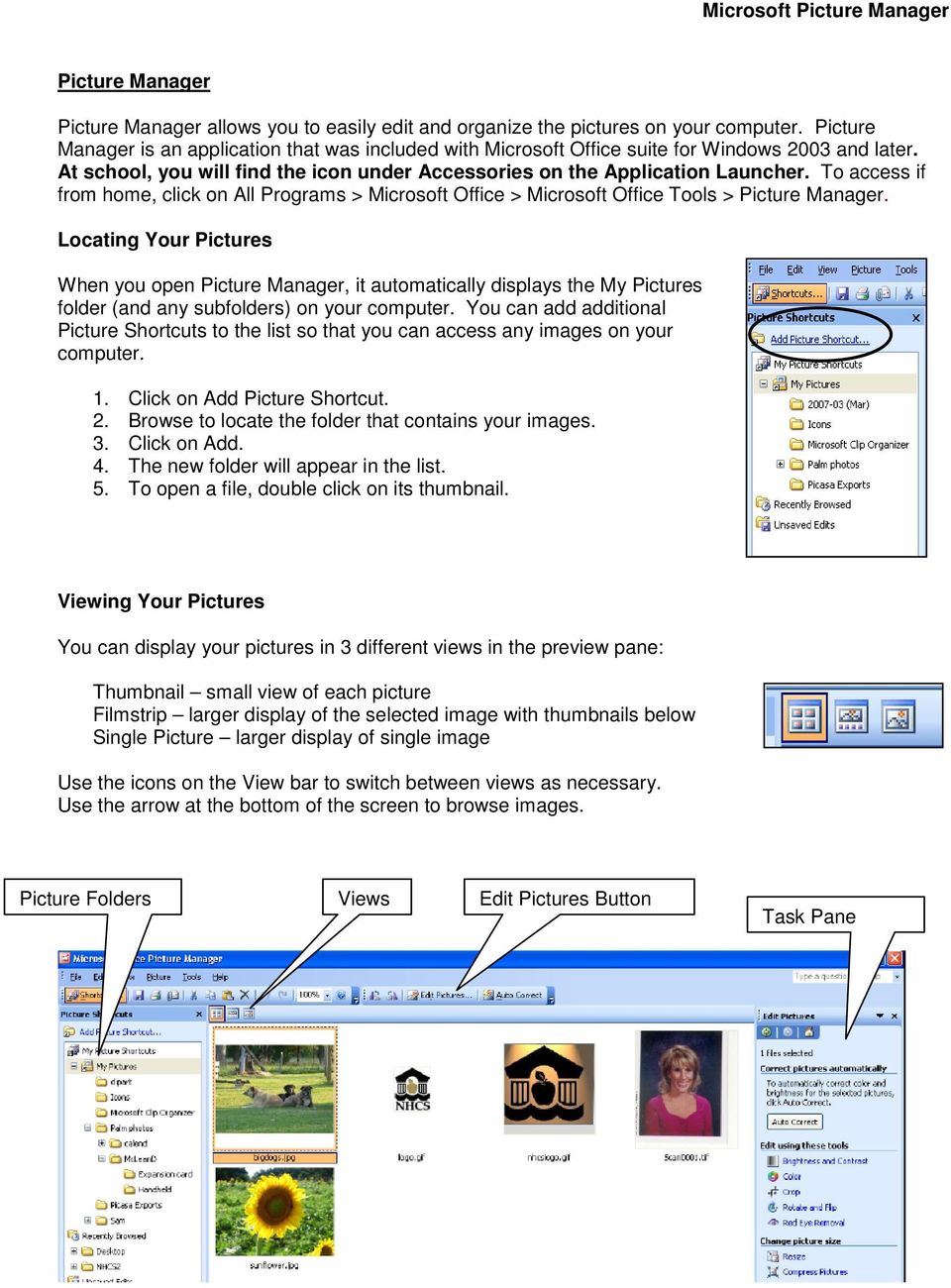
1 Picture Manager Picture Manager allows you to easily edit and organize the pictures on your computer. Picture Manager is an application that was included with Microsoft Office suite for Windows 2003 and later. At school, you will find the icon under Accessories on the Application Launcher. To access if from home, click on All Programs > Microsoft Office > Microsoft Office Tools > Picture Manager. Locating Your Pictures When you open Picture Manager, it automatically displays the My Pictures folder (and any subfolders) on your computer. You can add additional Picture Shortcuts to the list so that you can access any images on your computer. 1. Click on Add Picture Shortcut. 2. Browse to locate the folder that contains your images. 3. Click on Add. 4. The new folder will appear in the list. 5. To open a file, double click on its thumbnail. Viewing Your Pictures You can display your pictures in 3 different views in the preview pane: Thumbnail small view of each picture Filmstrip larger display of the selected image with thumbnails below Single Picture larger display of single image Use the icons on the View bar to switch between views as necessary. Use the arrow at the bottom of the screen to browse images. Picture Folders Views Edit Pictures Button Task Pane
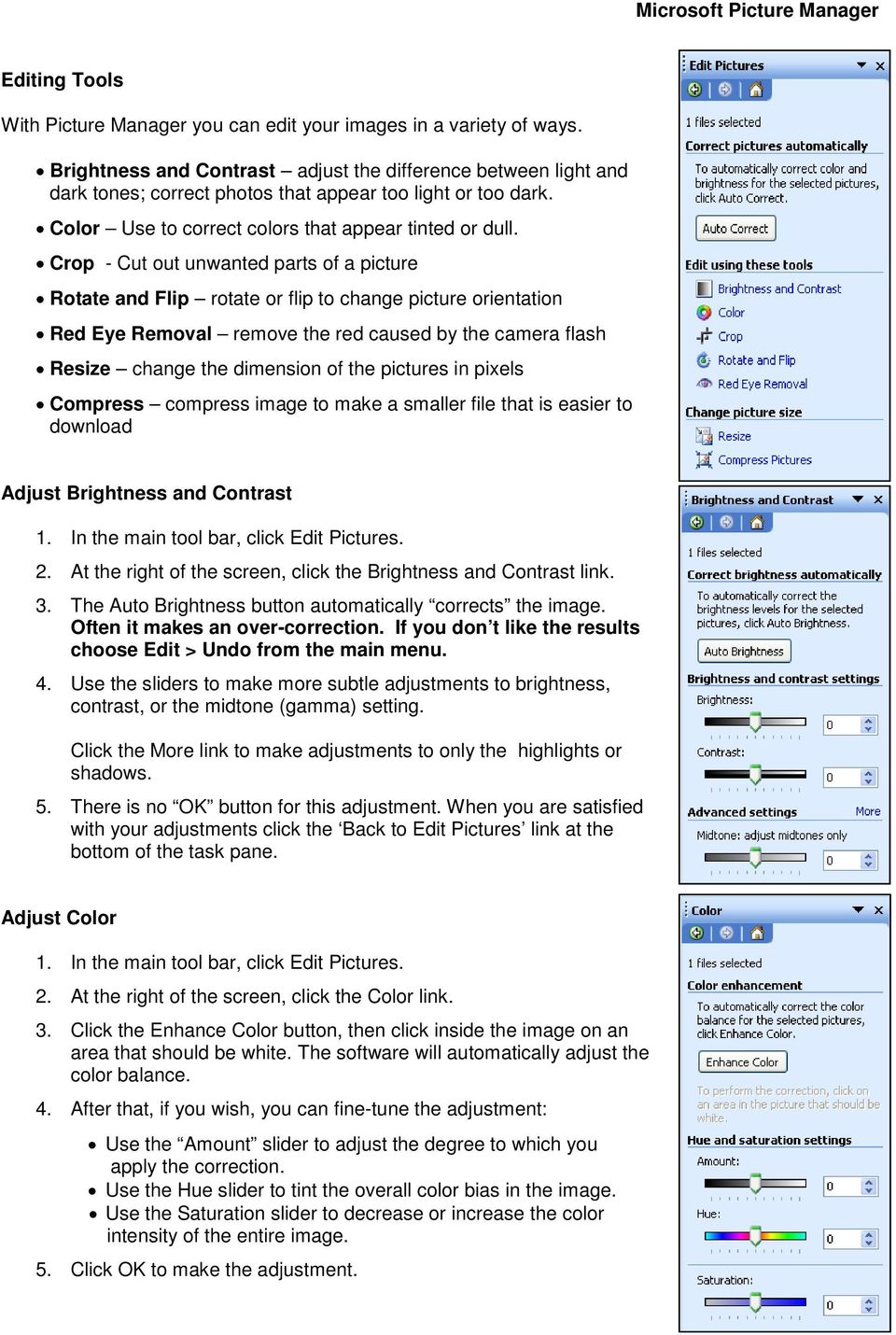
2 Editing Tools With Picture Manager you can edit your images in a variety of ways. Brightness and Contrast adjust the difference between light and dark tones; correct photos that appear too light or too dark. Color Use to correct colors that appear tinted or dull. Crop - Cut out unwanted parts of a picture Rotate and Flip rotate or flip to change picture orientation Red Eye Removal remove the red caused by the camera flash Resize change the dimension of the pictures in pixels Compress compress image to make a smaller file that is easier to download Adjust Brightness and Contrast 2. At the right of the screen, click the Brightness and Contrast link. 3. The Auto Brightness button automatically corrects the image. Often it makes an over-correction. If you don t like the results choose Edit > Undo from the main menu. 4. Use the sliders to make more subtle adjustments to brightness, contrast, or the midtone (gamma) setting. Click the More link to make adjustments to only the highlights or shadows. 5. There is no OK button for this adjustment. When you are satisfied with your adjustments click the Back to Edit Pictures link at the bottom of the task pane. Adjust Color 2. At the right of the screen, click the Color link. 3. Click the Enhance Color button, then click inside the image on an area that should be white. The software will automatically adjust the color balance. 4. After that, if you wish, you can fine-tune the adjustment: Use the Amount slider to adjust the degree to which you apply the correction. Use the Hue slider to tint the overall color bias in the image. Use the Saturation slider to decrease or increase the color intensity of the entire image. 5. Click OK to make the adjustment.
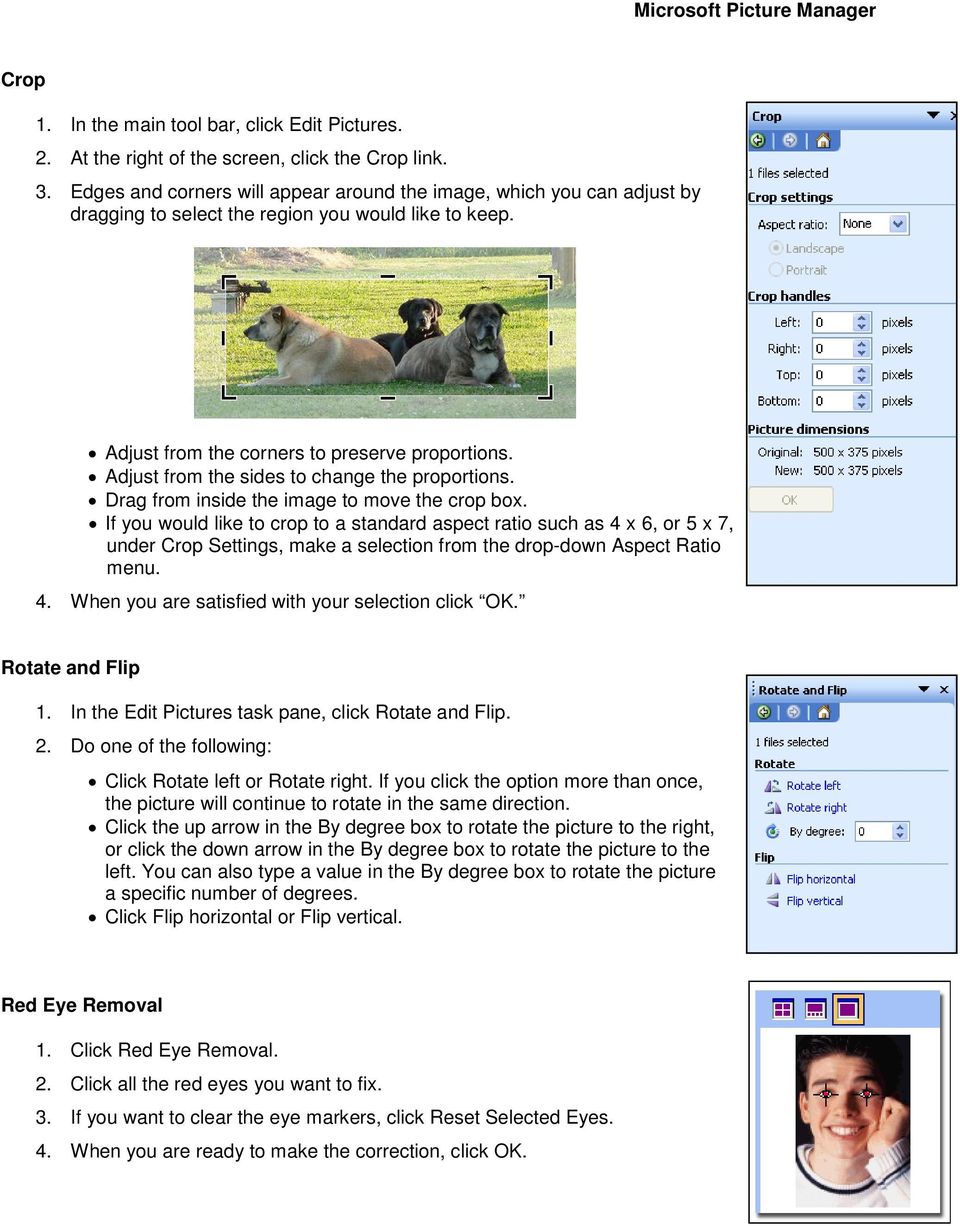
3 Crop 2. At the right of the screen, click the Crop link. 3. Edges and corners will appear around the image, which you can adjust by dragging to select the region you would like to keep. Adjust from the corners to preserve proportions. Adjust from the sides to change the proportions. Drag from inside the image to move the crop box. If you would like to crop to a standard aspect ratio such as 4 x 6, or 5 x 7, under Crop Settings, make a selection from the drop-down Aspect Ratio menu. 4. When you are satisfied with your selection click OK. Rotate and Flip 1. In the Edit Pictures task pane, click Rotate and Flip. 2. Do one of the following: Click Rotate left or Rotate right. If you click the option more than once, the picture will continue to rotate in the same direction. Click the up arrow in the By degree box to rotate the picture to the right, or click the down arrow in the By degree box to rotate the picture to the left. You can also type a value in the By degree box to rotate the picture a specific number of degrees. Click Flip horizontal or Flip vertical. Red Eye Removal 1. Click Red Eye Removal. 2. Click all the red eyes you want to fix. 3. If you want to clear the eye markers, click Reset Selected Eyes. 4. When you are ready to make the correction, click OK.
4 Compress Pictures The Compress pictures command simultaneously resizes the image using standard preset sizes, and compresses the image data so that take up less disk space. This command is convenient but offers less control than combining Resize and Export (see below). Compression values are equivalent the Pre-defined width and height settings in the Resize task pane: Documents: Fits within 1024 x 768 pixels Best for placing an image in a Word doc or PPT presentation. (Not photo quality.) Web Pages: Fits within 448 x 336 pixels For on-screen display on Web Pages or in s. Compressed to load quickly. messages: Fits within 160 x 160 pixels For thumbnail display, faster loading, small file size. Resizing Your Image One problem you will face when using images from your digital camera is the size of the image. The dimensions are often too large, and the physical size is too large to use in presentations and documents. You can resize and compress your images so that the overall size of your presentations and documents is manageable. Several approaches to sizing a picture are available. You can adjust by pixel height, using predefined widths & heights, or as a percentage of the original. 1. Click Edit Pictures. 2. At the right of the screen, under Change Picture Size, click Resize. Note: The Size setting summary at the bottom of the Resize task pane lets you compare the original and new size. 3. Choose a method (other than original size) and make settings: The Predefined width x height menu provides typical sizes as may be found on the web or in documents for print. Documents: Fits within 1024 x 768 pixels Best for placing an image in a Word doc or PPT presentation. (Not photo quality.) Web Pages: Fits within 448 x 336 pixels For on-screen display on Web Pages or in s. Compressed to load quickly. messages: Fits within 160 x 160 pixels For thumbnail display, faster loading, small file size.
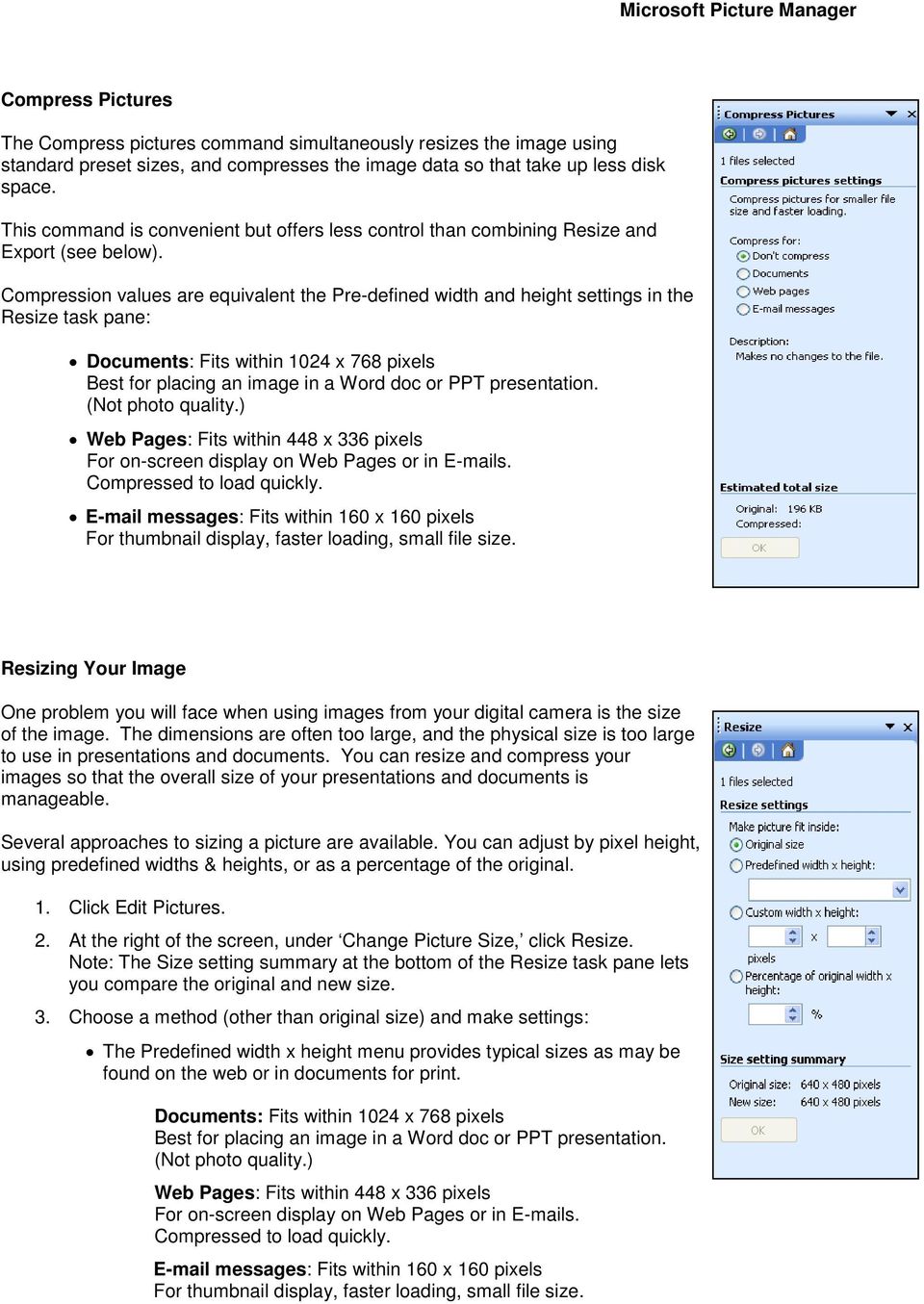
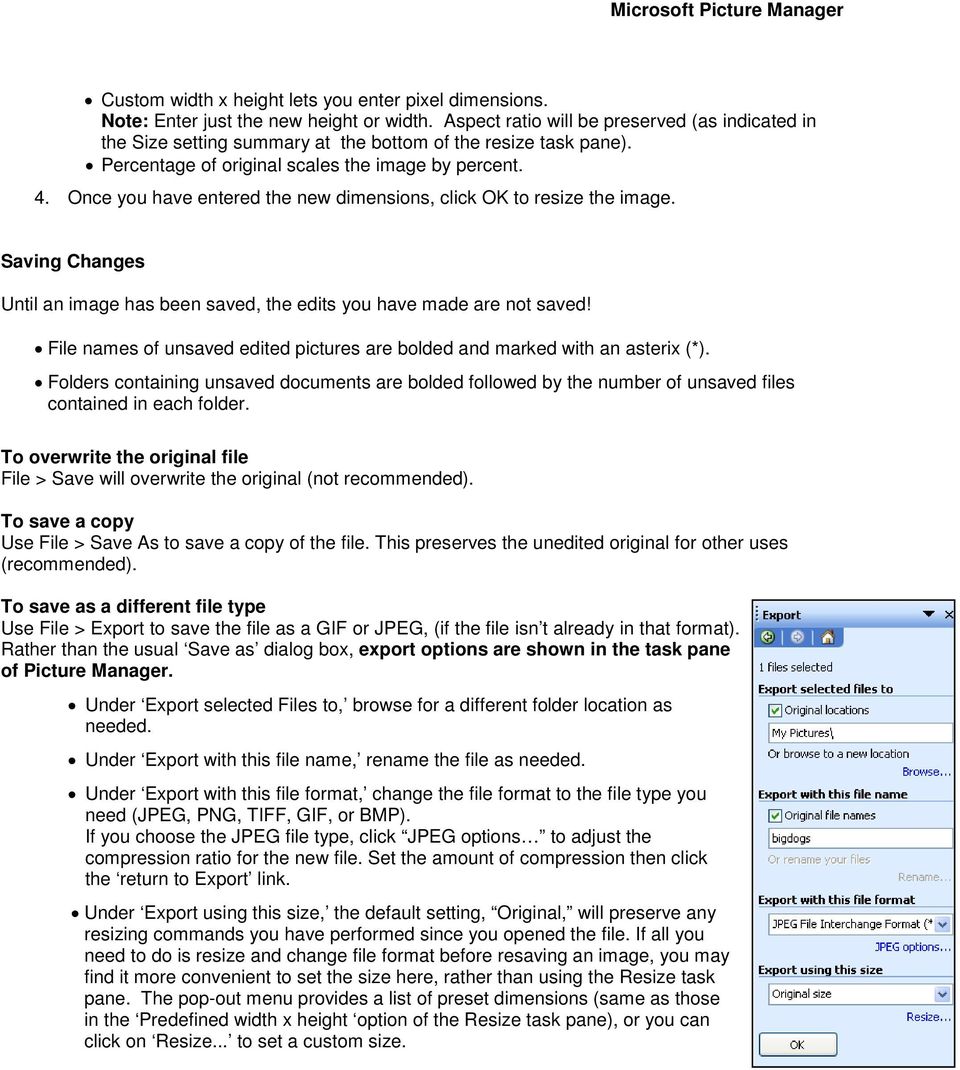
5 Custom width x height lets you enter pixel dimensions. Note: Enter just the new height or width. Aspect ratio will be preserved (as indicated in the Size setting summary at the bottom of the resize task pane). Percentage of original scales the image by percent. 4. Once you have entered the new dimensions, click OK to resize the image. Saving Changes Until an image has been saved, the edits you have made are not saved! File names of unsaved edited pictures are bolded and marked with an asterix (*). Folders containing unsaved documents are bolded followed by the number of unsaved files contained in each folder. To overwrite the original file File > Save will overwrite the original (not recommended). To save a copy Use File > Save As to save a copy of the file. This preserves the unedited original for other uses (recommended). To save as a different file type Use File > Export to save the file as a GIF or JPEG, (if the file isn t already in that format). Rather than the usual Save as dialog box, export options are shown in the task pane of Picture Manager. Under Export selected Files to, browse for a different folder location as needed. Under Export with this file name, rename the file as needed. Under Export with this file format, change the file format to the file type you need (JPEG, PNG, TIFF, GIF, or BMP). If you choose the JPEG file type, click JPEG options to adjust the compression ratio for the new file. Set the amount of compression then click the return to Export link. Under Export using this size, the default setting, Original, will preserve any resizing commands you have performed since you opened the file. If all you need to do is resize and change file format before resaving an image, you may find it more convenient to set the size here, rather than using the Resize task pane. The pop-out menu provides a list of preset dimensions (same as those in the Predefined width x height option of the Resize task pane), or you can click on Resize... to set a custom size.
oit How to Make Basic Image Adjustments using Microsoft Office Picture Manager (Windows) Open a Picture in Picture Manager
 oit UMass Office of Information Technologies How to Make Basic Image Adjustments using Microsoft Office Picture Manager (Windows) The Microsoft Picture Manager application is included in recent versions
Using Microsoft Picture Manager
 Using Microsoft Picture Manager Storing Your Photos It is suggested that a county store all photos for use in the County CMS program in the same folder for easy access. For the County CMS Web Project it
NVCC Alexandria Campus
 1 NVCC Alexandria Campus Editing Photographs Using Microsoft Picture Manager Introduction Microsoft Picture Manager is an image editing program that allows you to browse/organize your photos, resize and
Quick Guide to IrfanView
 Quick Guide to IrfanView The goal of any good web designer is to keep the size of any given web page under 50K in order to assure quick loading of the page. One or more improperly saved photos or graphics
PowerPoint 2007 Basics Website: http://etc.usf.edu/te/
 Website: http://etc.usf.edu/te/ PowerPoint is the presentation program included in the Microsoft Office suite. With PowerPoint, you can create engaging presentations that can be presented in person, online,
Microsoft PowerPoint Tutorial
 Microsoft PowerPoint Tutorial Contents Starting MS PowerPoint... 1 The MS PowerPoint Window... 2 Title Bar...2 Office Button...3 Saving Your Work... 3 For the first time... 3 While you work... 3 Backing
PowerPoint Interface Menu Bars Work Area Slide and Outline View TASK PANE Drawing Tools
 Microsoft PowerPoint is used for creating slide presentations to be used on a PC or even printed out as overheads and handouts. You can combine text, graphics, even audio and video to create exciting and
HOW TO VIEW AND EDIT PICTURES
 Get started Shutterfly can help you make your pictures look their best. We re going to show you the different ways to view and edit your pictures using our easy-to-use tools. To begin, sign in to your
Creating Web Pages with Microsoft FrontPage
 Creating Web Pages with Microsoft FrontPage 1. Page Properties 1.1 Basic page information Choose File Properties. Type the name of the Title of the page, for example Template. And then click OK. Short
1 ImageBrowser Software Guide
 1 ImageBrowser Software Guide Table of Contents (1/2) Chapter 1 Try It! ImageBrowser Starting ImageBrowser -------------------------------------------------- 4 Importing Images to Your Computer ---------------------------------
Sample Table. Columns. Column 1 Column 2 Column 3 Row 1 Cell 1 Cell 2 Cell 3 Row 2 Cell 4 Cell 5 Cell 6 Row 3 Cell 7 Cell 8 Cell 9.
 Working with Tables in Microsoft Word The purpose of this document is to lead you through the steps of creating, editing and deleting tables and parts of tables. This document follows a tutorial format
Create a Poster Using Publisher
 Contents 1. Introduction 1. Starting Publisher 2. Create a Poster Template 5. Aligning your images and text 7. Apply a background 12. Add text to your poster 14. Add pictures to your poster 17. Add graphs
Easy Photo Editing with Windows Vista s Photo Gallery
 Easy Photo Editing with Windows Vista s Photo Gallery By Mark Edward Soper Introducing Windows Photo Gallery Windows Vista brings the best set of photo-editing tools ever built into Windows in its brand-new
NDSU Technology Learning & Media Center
 1 NDSU Technology Learning & Media Center QBB 150C 231-5130 www.ndsu.edu/its/tlmc Creating a Large Format Poster (Plot) Using PowerPoint 2013 Posters should be designed and created in a manner that best
How to resize, rotate, and crop images
 How to resize, rotate, and crop images You will frequently want to resize and crop an image after opening it in Photoshop from a digital camera or scanner. Cropping means cutting some parts of the image
USING WINDOWS MOVIE MAKER TO CREATE THE MOMENT BEHIND THE PHOTO STORY PART 1
 PART 1 Windows Movie Maker lets you assemble a range of video, pictures, and sound elements to create a story. It is an application that comes with most PC computers. This tip sheet was created using Windows
Sharing Files and Whiteboards
 Your user role in a meeting determines your level of file sharing. The type of files you can share include documents, presentations, and videos. About Sharing Files, page 1 Changing Views in a File or
1 ImageBrowser Software User Guide
 1 ImageBrowser Software User Guide Table of Contents (1/2) Chapter 1 Try It! ImageBrowser Chapter 2 What is ImageBrowser? Chapter 3 Starting ImageBrowser... 4 Downloading Images to Your Computer... 9 Printing
Making a Poster Using PowerPoint 2007
 Making a Poster Using PowerPoint 2007 1. Start PowerPoint: A Blank presentation appears as a Content Layout, a blank one one without anything not even a title. 2. Choose the size of your poster: Click
Using Microsoft Word. Working With Objects
 Using Microsoft Word Many Word documents will require elements that were created in programs other than Word, such as the picture to the right. Nontext elements in a document are referred to as Objects
Create Charts in Excel
 Create Charts in Excel Table of Contents OVERVIEW OF CHARTING... 1 AVAILABLE CHART TYPES... 2 PIE CHARTS... 2 BAR CHARTS... 3 CREATING CHARTS IN EXCEL... 3 CREATE A CHART... 3 HOW TO CHANGE THE LOCATION
MULTIMEDIA INSTALLING THE MULTIMEDIA UPGRADE
 26 MULTIMEDIA With the PastPerfect MultiMedia Upgrade, you will be able to attach digital images and link multimedia files to your catalog records. This is an optional feature and may be purchased for
The main imovie window is divided into six major parts.
 The main imovie window is divided into six major parts. 1. Project Drag clips to the project area to create a timeline 2. Preview Window Displays a preview of your video 3. Toolbar Contains a variety of
Microsoft Access 2010 Part 1: Introduction to Access
 CALIFORNIA STATE UNIVERSITY, LOS ANGELES INFORMATION TECHNOLOGY SERVICES Microsoft Access 2010 Part 1: Introduction to Access Fall 2014, Version 1.2 Table of Contents Introduction...3 Starting Access...3
Florence School District #1
 Florence School District #1 Module 2: SMART Board Basics and Beyond 1 SMART Board Software and Beyond In SMART Notebook software, you can create or open SMART Notebook software (.notebook) files. After
Maximizing the Use of Slide Masters to Make Global Changes in PowerPoint
 Maximizing the Use of Slide Masters to Make Global Changes in PowerPoint This document provides instructions for using slide masters in Microsoft PowerPoint. Slide masters allow you to make a change just
Photoshop- Image Editing
 Photoshop- Image Editing Opening a file: File Menu > Open Photoshop Workspace A: Menus B: Application Bar- view options, etc. C: Options bar- controls specific to the tool you are using at the time. D:
Photo Album // Getting Started Guide. Getting Started Guide. Photo Album. Manage Your Media Online. AKJZNAzsqknsxxkjnsjx Getting Started Guide Page 1
 Getting Started Guide Photo Album Manage Your Media Online Getting Started Guide Page 1 Getting Started Guide: Photo Album Version 1.2 (11.08.11) Copyright 2011 GoDaddy.com, Inc. All rights reserved. Trademarks
Adobe Illustrator CS5 Part 1: Introduction to Illustrator
 CALIFORNIA STATE UNIVERSITY, LOS ANGELES INFORMATION TECHNOLOGY SERVICES Adobe Illustrator CS5 Part 1: Introduction to Illustrator Summer 2011, Version 1.0 Table of Contents Introduction...2 Downloading
WHAT S NEW IN WORD 2010 & HOW TO CUSTOMIZE IT
 WHAT S NEW IN WORD 2010 & HOW TO CUSTOMIZE IT The Ribbon... 2 Default Tabs... 2 Contextual Tabs... 2 Minimizing and Restoring the Ribbon... 3 Customizing the Ribbon... 3 A New Graphic Interface... 5 Live
Optimizing your image with Pixlr on-line photo editor
 Optimizing your image with Pixlr on-line photo editor Nick Dvoracek [email protected] In a web browser, go to http://pixlr.com/editor/ Click Open image from computer That will open a standard file dialogue
Quick Start Guide Simple steps for editing and manipulating your photo.
 PhotoPlus Quick Start Guide Simple steps for editing and manipulating your photo. In this guide, we will refer to specific tools, toolbars, tabs, or menus. Use this visual reference to help locate them
Microsoft Word 2010. Quick Reference Guide. Union Institute & University
 Microsoft Word 2010 Quick Reference Guide Union Institute & University Contents Using Word Help (F1)... 4 Window Contents:... 4 File tab... 4 Quick Access Toolbar... 5 Backstage View... 5 The Ribbon...
Microsoft Word 2010 Tutorial
 1 Microsoft Word 2010 Tutorial Microsoft Word 2010 is a word-processing program, designed to help you create professional-quality documents. With the finest documentformatting tools, Word helps you organize
Microsoft Office 2010: Introductory Q&As PowerPoint Chapter 3
 Microsoft Office 2010: Introductory Q&As PowerPoint Chapter 3 How do I resize the picture so that it maintains its proportions? (PPT 141) Press and hold the shift key while dragging a sizing handle away
ADMINISTRATORS GUIDE EPISUITE 6
 ADMINISTRATORS GUIDE EPISUITE 6 A quick tutorial on how to set up and implement Episuite Software created by IDentiphoto Specialists in IDentification 1810 Joseph Lloyd Pkwy. Willoughby, OH 44094 Phone:
Create A Collage Of Warped Photos
 Create A Collage Of Warped Photos In this Adobe Photoshop tutorial, we re going to learn how to create a collage of warped photos. Now, don t go letting your imagination run wild here. When I say warped,
Instructions for Creating a Poster for Arts and Humanities Research Day Using PowerPoint
 Instructions for Creating a Poster for Arts and Humanities Research Day Using PowerPoint While it is, of course, possible to create a Research Day poster using a graphics editing programme such as Adobe
PowerPoint 2013: Basic Skills
 PowerPoint 2013: Basic Skills Information Technology September 1, 2014 1 P a g e Getting Started There are a variety of ways to start using PowerPoint software. You can click on a shortcut on your desktop
Scanning Scanning images. cover
 Return to cover 3 Scanning Scanning images Scanning with the [Scan] key...2 Setting the scanning method for the [Scan] key...3 Scanning with the MP Toolbox...5 MP Toolbox settings...7 Scanning an image
Microsoft PowerPoint 2010 Templates and Slide Masters (Level 3)
 IT Services Microsoft PowerPoint 2010 Templates and Slide Masters (Level 3) Contents Introduction... 1 Installed Templates and Themes... 2 University of Reading Templates... 3 Further Templates and Presentations...
Creating Fill-able Forms using Acrobat 8.0: Part 1
 Creating Fill-able Forms using Acrobat 8.0: Part 1 The first step in creating a fill-able form in Adobe Acrobat is to generate the form with all its formatting in a program such as Microsoft Word. Then
Internet Explorer 7. Getting Started The Internet Explorer Window. Tabs NEW! Working with the Tab Row. Microsoft QUICK Source
 Microsoft QUICK Source Internet Explorer 7 Getting Started The Internet Explorer Window u v w x y { Using the Command Bar The Command Bar contains shortcut buttons for Internet Explorer tools. To expand
Presentations and PowerPoint
 V-1.1 PART V Presentations and PowerPoint V-1.2 Computer Fundamentals V-1.3 LESSON 1 Creating a Presentation After completing this lesson, you will be able to: Start Microsoft PowerPoint. Explore the PowerPoint
OPERATION MANUAL. MV-410RGB Layout Editor. Version 2.1- higher
 OPERATION MANUAL MV-410RGB Layout Editor Version 2.1- higher Table of Contents 1. Setup... 1 1-1. Overview... 1 1-2. System Requirements... 1 1-3. Operation Flow... 1 1-4. Installing MV-410RGB Layout
Create an Art Collage
 Create an Art Collage Anyone with children knows how much art they bring home from school everyday, those backpacks full of art add up fast. Now, you don t have to part with a single precious piece or
Task Card #2 SMART Board: Notebook
 Task Card #2 SMART Board: Notebook Objectives: Participants will learn how to utilize the SMART Notebook. Table of Contents: Launching The SMART Notebook Page 1 Entering Text Page 1 Top Toolbar Page 2
Excel 2007 Basic knowledge
 Ribbon menu The Ribbon menu system with tabs for various Excel commands. This Ribbon system replaces the traditional menus used with Excel 2003. Above the Ribbon in the upper-left corner is the Microsoft
Printing to the Poster Printer
 Printing to the Poster Printer Document size The HP Design Jet Z3100ps uses a roll of paper that is 36 wide, however it does not print all the way to the edge of the paper (known as a bleed ). One dimension
Procedure for Creating ID Photo Badges Using Paint and Microsoft Word
 Procedure for Creating ID Photo Badges Using Paint and Microsoft Word For Use of The Atlanta Day Shelter for Women and Children By Stephen G. Nowell Georgia Tech Senior Design Team Fall 2008 Photo ID Badge
Graphic Design Basics Tutorial
 Graphic Design Basics Tutorial This tutorial will guide you through the basic tasks of designing graphics with Macromedia Fireworks MX 2004. You ll get hands-on experience using the industry s leading
Fireworks CS4 Tutorial Part 1: Intro
 Fireworks CS4 Tutorial Part 1: Intro This Adobe Fireworks CS4 Tutorial will help you familiarize yourself with this image editing software and help you create a layout for a website. Fireworks CS4 is the
PaperPort Getting Started Guide
 PaperPort Getting Started Guide This guide shows you how to use some of PaperPort s main features, including viewing items, creating stacks, sending an item electronically to a PaperPort Link, adding an
Verizon Cloud Desktop Application Help Guide Version 4.1 72
 Verizon Cloud Desktop Application Help Guide Version 4.1 72 CONTENTS I. Getting started... 4 A. Verizon Cloud... 4 B. Main navigation... 5 C. System requirements... 5 D. Installing the application... 6
Resizing Photos on Windows computers By John Allen
 Resizing Photos on Windows computers By John Allen This document explains how to resize digital photos and store them so you can attach them to an email, or upload them to the Cloud, or to websites such
Pictorial User s Guide
 S-T IMAGING Pictorial User s Guide Copyright 2008 ST Imaging, Inc. a division of Digital Check Corp. All Rights Reserved. Table of Contents Getting Started... 1 Adjust for Viewing...1 Loading Microfilm...2
Introduction to Microsoft Word 2008
 1. Launch Microsoft Word icon in Applications > Microsoft Office 2008 (or on the Dock). 2. When the Project Gallery opens, view some of the available Word templates by clicking to expand the Groups, and
Get To Know Paint Shop Pro: Layers
 Get To Know Paint Shop Pro: Layers Layers are the building blocks of most images from photo collages to digital scrapbook layouts. Once you harness this powerful tool, you ll be able to easily create stunning
How to create pop-up menus
 How to create pop-up menus Pop-up menus are menus that are displayed in a browser when a site visitor moves the pointer over or clicks a trigger image. Items in a pop-up menu can have URL links attached
Chapter 23: Drafting in Worksheet View
 Chapter 23: Drafting in Worksheet View Worksheet View is a powerful, 2D production drafting module. Here you can find all of the drawing and editing tools needed to create fast, accurate, detailed working
Sage Accountants Business Cloud EasyEditor Quick Start Guide
 Sage Accountants Business Cloud EasyEditor Quick Start Guide VERSION 1.0 September 2013 Contents Introduction 3 Overview of the interface 4 Working with elements 6 Adding and moving elements 7 Resizing
Windows XP File Management
 Windows XP File Management As you work with a computer creating more and more documents, you need to find a way to keep this information organized. Without a good organizational method, all your files
To Begin Customize Office
 To Begin Customize Office Each of us needs to set up a work environment that is comfortable and meets our individual needs. As you work with Office 2007, you may choose to modify the options that are available.
PowerPoint: Design Themes and Slide Layouts Contents
 PowerPoint: Design Themes and Slide Layouts Contents Design Themes... 1 Apply a theme to your presentation... 1 Theme colors... 1 Theme fonts... 3 Theme effects... 3 Quick Styles... 4 Customize a theme...
Crop and Frame Your Photos
 Crop and Frame Your Photos Paint Shop Pro s crop tool gives you total control over your photo compositions. Cropping allows you to turn busy portraits into professional prints. And when you have a nicely
SnagIt Add-Ins User Guide
 Version 8.1 User Guide By TechSmith Corp. User Guide User Guide Contents User s Guide 1 Overview...1 Word, PowerPoint, and Excel Add-Ins...2 Outlook Add-In...2 Internet Explorer / Windows Explorer Add-In...2
Take Pictures on your Android Tablet or Phone
 Take Pictures on your Android Tablet or Phone Google Camera App Free app you can install from the Play store Take a photo Tap here to take a photo Zoom out: Pinch two fingers together on the screen. Zoom
Figure 3.5: Exporting SWF Files
 Li kewhatyou see? Buyt hebookat t hefocalbookst or e Fl ash + Af t eref f ect s Chr i sjackson ISBN 9780240810317 Flash Video (FLV) contains only rasterized images, not vector art. FLV files can be output
In this session, we will explain some of the basics of word processing. 1. Start Microsoft Word 11. Edit the Document cut & move
 WORD PROCESSING In this session, we will explain some of the basics of word processing. The following are the outlines: 1. Start Microsoft Word 11. Edit the Document cut & move 2. Describe the Word Screen
CORSAIR GAMING KEYBOARD SOFTWARE USER MANUAL
 CORSAIR GAMING KEYBOARD SOFTWARE USER MANUAL TABLE OF CONTENTS CORSAIR UTILITY ENGINE OVERVIEW PROFILES 1 9 Introduction 2 Starting the Corsair Utility Engine 2 Profiles: Settings for a Specific Program
SMART Board Training Outline Trainer: Basel Badran
 Sharjah Higher Colleges of Technology SMART Board Training Outline Trainer: Basel Badran What is a SMART Board? o Concept & Technology SMART Board Components: o Smart Tools Start Center Recorder Keyboard
Microsoft Access 2010 handout
 Microsoft Access 2010 handout Access 2010 is a relational database program you can use to create and manage large quantities of data. You can use Access to manage anything from a home inventory to a giant
PowerPoint 2013 Basics for Windows Training Objective
 PowerPoint 2013 Basics for Windows PowerPoint 2013 Basics for Windows Training Objective To learn the tools and features to get started using PowerPoint more efficiently and effectively. What you can expect
Computer Training Centre University College Cork. Excel 2013 Level 1
 Computer Training Centre University College Cork Excel 2013 Level 1 Table of Contents Introduction... 1 Opening Excel... 1 Using Windows 7... 1 Using Windows 8... 1 Getting Started with Excel 2013... 2
Epson Brightlink Interactive Board and Pen Training. Step One: Install the Brightlink Easy Interactive Driver
 California State University, Fullerton Campus Information Technology Division Documentation and Training Services Handout Epson Brightlink Interactive Board and Pen Training Downloading Brightlink Drivers
Creating Personal Web Sites Using SharePoint Designer 2007
 Creating Personal Web Sites Using SharePoint Designer 2007 Faculty Workshop May 12 th & 13 th, 2009 Overview Create Pictures Home Page: INDEX.htm Other Pages Links from Home Page to Other Pages Prepare
Basic Excel Handbook
 2 5 2 7 1 1 0 4 3 9 8 1 Basic Excel Handbook Version 3.6 May 6, 2008 Contents Contents... 1 Part I: Background Information...3 About This Handbook... 4 Excel Terminology... 5 Excel Terminology (cont.)...
Copyright 2006 TechSmith Corporation. All Rights Reserved.
 TechSmith Corporation provides this manual as is, makes no representations or warranties with respect to its contents or use, and specifically disclaims any expressed or implied warranties or merchantability
Contents. Launching FrontPage... 3. Working with the FrontPage Interface... 3 View Options... 4 The Folders List... 5 The Page View Frame...
 Using Microsoft Office 2003 Introduction to FrontPage Handout INFORMATION TECHNOLOGY SERVICES California State University, Los Angeles Version 1.0 Fall 2005 Contents Launching FrontPage... 3 Working with
Operating Instructions (For Document Manager and Document Viewer)
 Operating Instructions (For Document Manager and Document Viewer) Software Model No. DP-C262/C322 Editing Documents General Description System Requirements Document Management Menus Explanation Basic Operations
How To Use Microsoft Word 2003
 Microsoft Word 2003 Module 2 Microsoft Word 2003: Module 2 August, 2006 2006 Hillsborough Community College - Professional Development Services Hillsborough Community College - Professional Development
Sweet Home 3D user's guide
 1 de 14 08/01/2013 13:08 Features Download Online Gallery Blog Documentation FAQ User's guide Video tutorial Developer's guides History Reviews Support 3D models Textures Translations Forum Report a bug
Snagit 10. Getting Started Guide. March 2010. 2010 TechSmith Corporation. All rights reserved.
 Snagit 10 Getting Started Guide March 2010 2010 TechSmith Corporation. All rights reserved. Introduction If you have just a few minutes or want to know just the basics, this is the place to start. This
Creating a Digital Signature for Fillable PDF Forms
 Creating a Digital Signature for Fillable PDF Forms If you have a smart-phone or another way to get a digital image of your signature on your computer, such as a scanner or emailing from a copier, and
Creating a Poster Presentation using PowerPoint
 Creating a Poster Presentation using PowerPoint Course Description: This course is designed to assist you in creating eye-catching effective posters for presentation of research findings at scientific
Sharing Presentations, Documents, and Whiteboards
 Chapter 19 19 Sharing Presentations, Documents, and Whiteboards Your user role in an event determines your level of sharing. Whichever role you take, the following table describes the basic tasks associated
Microsoft Word 2013 Tutorial
 Microsoft Word 2013 Tutorial GETTING STARTED Microsoft Word is one of the most popular word processing programs supported by both Mac and PC platforms. Microsoft Word can be used to create documents, brochures,
User Manual. LG EzSign TV Editor. Version 1.0 - Nov. 10, 2010. www.lge.co.kr
 User Manual LG EzSign TV Editor Version 1.0 - Nov. 10, 2010 www.lge.co.kr 2 Contents Contents 3 Before Using 3 What is LG EzSign TV Editor? 3 Installing LG EzSign TV Editor 3 System Requirements 4 Installing
Continue reading to learn how to submit your customs documents electronically using FedEx Electronic Trade Documents.
 Welcome to FedEx Instructional Help Guides. Continue reading to learn how to submit your customs documents electronically using FedEx Electronic Trade Documents. First we will show you how to enable and
MS Word 2007 practical notes
 MS Word 2007 practical notes Contents Opening Microsoft Word 2007 in the practical room... 4 Screen Layout... 4 The Microsoft Office Button... 4 The Ribbon... 5 Quick Access Toolbar... 5 Moving in the
Handout: Word 2010 Tips and Shortcuts
 Word 2010: Tips and Shortcuts Table of Contents EXPORT A CUSTOMIZED QUICK ACCESS TOOLBAR... 2 IMPORT A CUSTOMIZED QUICK ACCESS TOOLBAR... 2 USE THE FORMAT PAINTER... 3 REPEAT THE LAST ACTION... 3 SHOW