
Chapter 23: Drafting in Worksheet View
|
|
|
- Marybeth Gallagher
- 9 years ago
- Views:
Transcription
1 Chapter 23: Drafting in Worksheet View Worksheet View is a powerful, 2D production drafting module. Here you can find all of the drawing and editing tools needed to create fast, accurate, detailed working drawings. Selecting a Worksheet View tab below the drawing area takes you directly into Worksheet View. There are a number of predefined Worksheet View windows available, and you can create more if needed. The pre-defined Worksheet View windows contain a generic border and title block. You can delete the border/title block if you do not want to use it, or customize it to suit your needs. You can also use the Import CAD File tool to insert one of the pre-defined title blocks in the program s Drafting Objects folder, or your own title block in DWG or DXF format. You can also use the Import Image tool to insert a BMP, JPG or TGA image, such as a company logo. Once your drawing border is in place, you can use the Define SmartView tool to insert a view of your model onto the worksheet. You can insert 2D Plan Views, 3D Camera Views, 3D QuickViews, Elevations and Sections. Once you have inserted a view you can begin annotating it. You can add text, dimensions, lines, shapes, hatching, details (such as insulation) and symbols. If your worksheet has content that you want to reuse in other projects, you can capture it in a block using the Define Block tool. You can even attach user-defined attributes to blocks for maximum versatility and control. All objects drawn in Worksheet View are drawn on layers. This provides you with control over line types, line weights and colors, and whether or not objects can be seen, selected or plotted. Tip: There are three powerful dimensioning tools available in Model View that you may want to use before inserting 2D plan views in Worksheet View. These are Auto Exterior Dimensions, Auto Interior Dimensions, and Room Dimensions. Worksheet View When you open a new project, a Model View window is displayed. This is where you build, edit and view your 3D model. When you switch to a Worksheet View window, you go directly into 2D drafting mode. The Worksheet View interface is different than the Model View interface. It offers a number of different drafting tools that help you create professionallooking working drawings. You can start by inserting a view of your model with the Define SmartView tool, such as a floor plan or elevation. You can then edit and annotate the drawing to suit your documentation needs. Switching to Worksheet View Once you have created your model you can begin creating your construction documents. Envisioneer offers a complete 2D drafting mode called Worksheet View. To enter Worksheet View you need to open a Worksheet view window using the view tabs or the Window menu. You can also open Worksheet View windows from the View Manager. If you are using Envisioneer Construction Suite or Envisioneer Professional, a number of Worksheet view windows have been pre-defined for you, such as Floor Plan, Elevations and Details. To switch to Worksheet View: 1. Select a view tab below the drawing area that represents a Worksheet View window, or click on the Window menu and select the desired view. You can also access a Worksheet View window through the View Manager. The Worksheet View Environment The layout of Worksheet View is similar to the layout you see in Model View. There is a title bar, menu bar and toolbar area at the top of the screen
2 Chapter 23: Drafting in Worksheet View Below the drawing area you will see the view tabs that let you switch between view windows, the View toolbar, and the Commander. At the bottom of the screen you can see the same status bar available in Model View. In Worksheet View, the information panel on the right side of the screen displays Object Properties. Insert Toolbar The Insert toolbar provides access to a number of powerful, automated tools that will help you get your worksheet started. Use the SmartView tools to define and insert a view of your 3D model, whether it be a 2D plan, elevation, section, or 3D view. If your model changes you can instantly update the views on your worksheets to reflect the changes. Using the Import CAD File tool you can insert title blocks, details and symbols that are in DWG or DXF format. Use the Import PDF tool to bring in a PDF file, scaled and rotated as desired. With the Import Image tool you can bring in any image in JPG, BMP or TGA format, such as a company logo. To save time you can use the Define Block tool to capture a group of objects in a block that can be saved and then inserted on other worksheets. Draw Toolbar The Draw toolbar contains a number of drafting tools: Line, Polyline, Circle, Arc, Polygon, Boundary Hatch, Rigid Insulation, Batt Insulation, Wood Section, Masonry Section and Cut Line. Modify Toolbar The Modify toolbar contains a wide variety of tools for editing objects in your drawing: Delete, Move, Rotate, Duplicate, Array, Offset, Stretch, Scale, Mirror, Break, Extend, Trim, Fillet, Join Polyline, and Explode

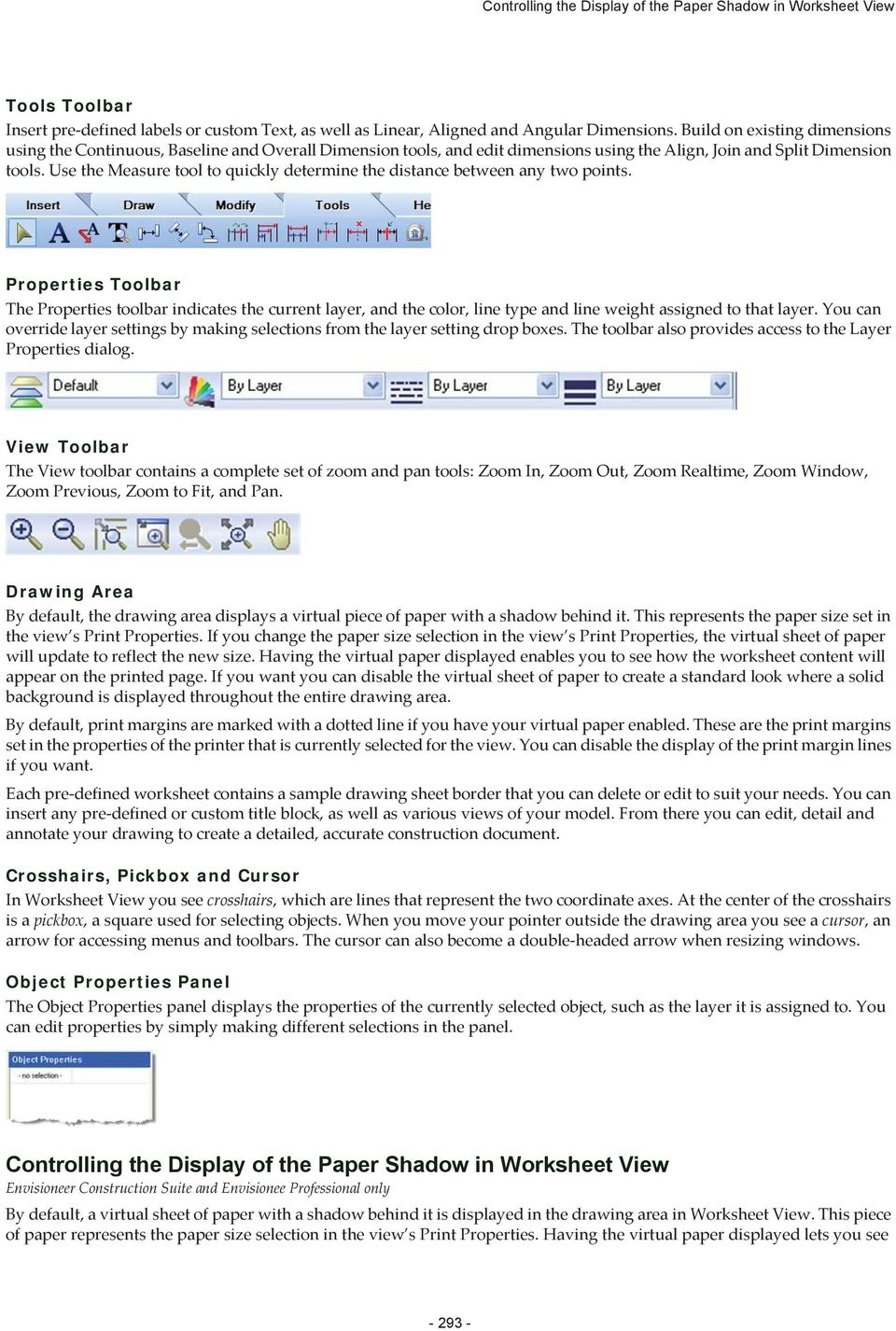
3 Controlling the Display of the Paper Shadow in Worksheet View Tools Toolbar Insert pre-defined labels or custom Text, as well as Linear, Aligned and Angular Dimensions. Build on existing dimensions using the Continuous, Baseline and Overall Dimension tools, and edit dimensions using the Align, Join and Split Dimension tools. Use the Measure tool to quickly determine the distance between any two points. Properties Toolbar The Properties toolbar indicates the current layer, and the color, line type and line weight assigned to that layer. You can override layer settings by making selections from the layer setting drop boxes. The toolbar also provides access to the Layer Properties dialog. View Toolbar The View toolbar contains a complete set of zoom and pan tools: Zoom In, Zoom Out, Zoom Realtime, Zoom Window, Zoom Previous, Zoom to Fit, and Pan. Drawing Area By default, the drawing area displays a virtual piece of paper with a shadow behind it. This represents the paper size set in the view s Print Properties. If you change the paper size selection in the view s Print Properties, the virtual sheet of paper will update to reflect the new size. Having the virtual paper displayed enables you to see how the worksheet content will appear on the printed page. If you want you can disable the virtual sheet of paper to create a standard look where a solid background is displayed throughout the entire drawing area. By default, print margins are marked with a dotted line if you have your virtual paper enabled. These are the print margins set in the properties of the printer that is currently selected for the view. You can disable the display of the print margin lines if you want. Each pre-defined worksheet contains a sample drawing sheet border that you can delete or edit to suit your needs. You can insert any pre-defined or custom title block, as well as various views of your model. From there you can edit, detail and annotate your drawing to create a detailed, accurate construction document. Crosshairs, Pickbox and Cursor In Worksheet View you see crosshairs, which are lines that represent the two coordinate axes. At the center of the crosshairs is a pickbox, a square used for selecting objects. When you move your pointer outside the drawing area you see a cursor, an arrow for accessing menus and toolbars. The cursor can also become a double-headed arrow when resizing windows. Object Properties Panel The Object Properties panel displays the properties of the currently selected object, such as the layer it is assigned to. You can edit properties by simply making different selections in the panel. Controlling the Display of the Paper Shadow in Worksheet View By default, a virtual sheet of paper with a shadow behind it is displayed in the drawing area in Worksheet View. This piece of paper represents the paper size selection in the view s Print Properties. Having the virtual paper displayed lets you see
4 Chapter 23: Drafting in Worksheet View how the worksheet content will fit and appear on the printed page. You can disable the virtual paper display if you want to create a standard look where a solid background is displayed throughout the entire drawing area. To control the display of the paper shadow: 1. Select Settings > Program Settings or click on the Settings toolbar. 2. In the Program Settings dialog, click Workspace in the left column. 3. In the Worksheet View Behavior area, check or uncheck the Enable Paper Shadow check box. 4. Click OK. Controlling the Display of Page Margin Lines in Worksheet View By default, dashed lines are displayed on the virtual paper in Worksheet View to show you where the page margins are. Page margins denote the areas of the paper (along the borders) in which the printer will not print any content (i.e. the nonprintable areas). Page margins are set in the properties of the printer that is selected for each view. To control the display of page margin lines: 1. Select Settings > Program Settings or click on the Settings toolbar. 2. In the Program Settings dialog, click Workspace in the left column. 3. In the Worksheet View Behavior area, check or uncheck the Enable Page Margin Lines check box. 4. Click OK. Note: Page margin lines can only be displayed if your paper shadow is enabled. Layer Control Layers are like the overlays used in paper-based drafting. They are used to organize the content of a drawing and group information by function. For example, you may have a layer dedicated to text and dimensions, and another specifically for your title block. All objects in Worksheet View are drawn on layers. As you draw, new objects are placed on the current layer. There are several pre-defined layers available in Worksheet View that you can use. You can edit the properties of these layers, or create new ones. By placing objects on layers you can determine the following: Whether objects on a layer are visible Whether objects on a layer can be selected for editing What color, line type and line weight is assigned to objects on a layer Whether objects are plotted Selecting a Layer to Draw On Before you draw or insert an object in Worksheet View, you should select a layer to put it on. To quickly select a layer: 1. Click the layer drop box on the Properties toolbar and select the layer you want. To make a layer current in the Layer Properties dialog: 1. Select View > Layer Properties, or click on the Properties toolbar. 2. Select the layer that you want to make current. 3. Click, or right-click and select Set Current, or or click and choose Set Current
5 Creating a New Layer for the Current Project Creating a New Layer for the Current Project You can easily create your own layers for the current project and define their name, color, line type and line weight. You can also control whether or not objects on the layer are visible, selectable or plottable. Layers created in Worksheet View are specific to the current project, and will be available in all Worksheet Views in the current project. If you want to create a layer that can be used in other projects, add it to the Layers Library instead. To create a new layer for the current project: 1. In Worksheet View, select View > Layer Properties, or click on the Properties toolbar. 2. In the Layer Properties dialog, click, or right-click in the layer list and select Add. You can also click and select Add. A new layer called Layer 1 is added below the currently selected layer. 3. To edit the name of the layer, click the current name, then type the desired name and press Enter. Or click and then type the desired name. 4. To control the visibility of objects on the layer, click the eye icon in the Display column. 5. To control the selectability of objects on the layer, click the layer s filter icon in the Selectable column. 6. To control whether or not objects on the layer will be plotted, click the layer s printer icon in the Plot column to toggle plotting on and off. 7. To edit the default color assigned to the layer, click inside the Color field, then make a selection from the list of colors. Or, select Other to access the Colors dialog. 8. To edit the layer s default line type assignment, click inside the Line Type field, then make a selection from the list of line types. Or, select Other to access the Line Types dialog. 9. To edit the layer s default line weight assignment, click inside the Line Weight field, then make a selection from the list of line weights. Or, select Other to access the Line Weights dialog. 10. Click OK. Editing Layers in the Current Project You can add, edit, rename and delete layers in the current project. Layer properties include the layer name, color, line type and line weight. You can also specify whether or not a layer is visible, whether or not it can be selected, and whether or not it plots. You can edit the settings for single layers or for multiple layers simultaneously. Layers defined in Worksheet View are specific to the current project, and any changes you make will apply to all Worksheet Views in the current project. If you want to define layers that can be used in other projects, edit your Layers Library instead. To edit layer properties in the current project: 1. In Worksheet View, select View > Layer Properties, or click on the Properties toolbar

6 Chapter 23: Drafting in Worksheet View 2. To rename a layer, select the layer in the list and then click, or right-click and select Rename. Type the new name, then press Enter. 3. To add a layer, click, or right-click and select Add. A layer named Layer 1 is added to the list. You can edit the properties of the layer to suit your needs. 4. To delete a layer, select the layer in the list and then click, or right-click and select Delete. You cannot a delete a layer that currently has objects on it. 5. To edit a layer s properties, select the layer that you want to edit. If you want to edit multiple layers simultaneously, select the layers that you want to edit using one of the following methods: To select a group of sequential layers, click on the first layer in the group, then holding down the Shift key select the last layer in the group. To select multiple layers one at a time, hold down the CTRL key while selecting layers. To select all layers, right-click in the layer list and choose Select All, or click and choose Select All. To deselect all layers, right-click in the layer list and choose Deselect All, or click and choose Deselect All. If you have some layers selected and want to invert the selection so they are not selected and all other layers are selected, right-click in the layer list and select Invert Selection, or click and select Invert Selection. 6. Edit the settings as desired. You can simply click inside a field to edit it, or if multiple layers are selected, use options such as Display, Selectable, Plot, Set Color, Set Line Type and Set Line Weight on the right-click menu or the menu. If multiple layers are selected, the same change will apply to all selected layers. Settings are described below. Display. Controls whether or not objects on the layer are visible. Click the eye icon to toggle visibility on or off. Layer is visible Layer is invisible

7 Deleting a Layer Selectable. Controls whether or not objects on the layer can be selected. Click the filter icon to toggle selectability on or off. Objects on layer are selectable Objects on layer are not selectable Plot. Controls whether or not objects on the layer will be plotted. Click the printer icon to toggle the plot state on or off. Objects on layer will plot Objects on layer will not plot Color. The color of objects on the layer. Click the box to display a list of colors. Select the desired color, or select Other to access the Color dialog. Line Type. The style of line used to display objects on the layer. Click the box to display a list of line types. Select the desired line type, or select Other to access the Line Types dialog. Line Weight. The weight of the line used to display objects on the layer. Click the box to display a list of line weights. Select the desired line weight, or select Other to access the Line Weights dialog. 7. Click OK. Deleting a Layer You can delete unused layers from the layer list if you like. To delete a layer: 1. Select View > Layer Properties, or click on the Properties toolbar. 2. In the Layer Properties dialog, click on the layer that you want to delete. 3. Click, or right-click and select Delete, or click and select Delete. The layer is deleted. Transferring an Object to Another Layer You can transfer an object that you have drawn to another layer by making a layer selection on the Properties toolbar or in the Object Properties panel. To transfer an object to another layer: 1. Select the object. 2. In the Object Properties panel, select the layer that you want to transfer the object to from the Layer drop box. Or, select a layer from the layer drop box on the Properties toolbar. Note: Transferring an object to another layer does not make that layer current. Overriding Color, Line Type and Line Weight By default, the color, line type and line weight settings on the Properties toolbar are set to BYLAYER, which means the color, line type and line weight of new objects are determined by the settings of the layer they are drawn on. For example, if a layer s color setting is red, objects drawn on that layer will be red. If you select a specific color on the Properties toolbar, however, that color is used for all new objects, overriding the default color for the current layer. The same applies to line types and line weights. To override a layer setting before drawing an object, make the desired color, line type or line weight selection on the Properties toolbar. To edit an object s color, line type or line weight after it has been drawn, select the object, then make the desired changes in the Object Properties panel. Controlling the Visibility of Layers

8 Chapter 23: Drafting in Worksheet View You can make a layer visible or invisible by editing its properties. Hiding layers can reduce the complexity of a drawing by removing unnecessary objects from view, without removing them from the drawing. You may, for example, want to hide a layer containing construction lines. To control the visibility of layers: 1. Select View > Layer Properties, or click on the Properties toolbar. 2. In the Layer Properties dialog, click the layer s eye icon in the Display column to toggle visibility on and off. Layer is visible Layer is invisible To toggle the visibility for multiple layers simultaneously, select the layers and then right-click and select Display, or click and select Display. To select multiple layers, hold down the CTRL key while selecting layers. If you want to select a group of sequential layers, select the first layer in the group, then holding down the Shift key, select the last layer in the group. To select all layers, right-click in the layer list and choose Select All, or click To deselect all layers, right-click in the layer list and choose Deselect All, or click All. 3. Click OK. and choose Select All. and choose Deselect Note: Changes to layer visibility are per worksheet. Controlling the Ability to Select and Edit Objects on Layers You may have specific layers containing objects that you do not want anyone to be able to edit. You can determine whether or not objects on a layer are selectable by editing the layer s properties. This may be particularly useful if the drawing is being shared with other people. To control the selectability of objects on a layer: 1. Select View > Layer Properties, or click on the Properties toolbar. 2. In the Layer Properties dialog, click the layer s filter icon in the Selectable column to toggle selectability on and off. Objects on layer are selectable Objects on layer are not selectable To toggle the selectability of multiple layers simultaneously, select the layers and then right-click and select Selectable, or click and select Selectable. To select multiple layers, hold down the CTRL key while selecting layers. If you want to select a group of sequential layers, select the first layer in the group, then holding down the Shift key, select the last layer in the group. To select all layers, right-click in the layer list and choose Select All, or click To deselect all layers, right-click in the layer list and choose Deselect All, or click All. 3. Click OK. and choose Select All. and choose Deselect Controlling Whether or Not a Layer is Plotted
9 Using Object Snaps in Worksheet View You can determine whether or not a layer is plotted by editing the layer s properties. If you turn off plotting for a layer, the objects on that layer are still displayed. However, if a layer is set to plot but is currently turned off (invisible), the layer will not be plotted. To control a layer s plot setting: 1. Select View > Layer Properties, or click on the Properties toolbar. 2. In the Layer Properties dialog, click the layer s printer icon in the Plot column to toggle plotting on and off. Objects on layer will plot Objects on layer will not plot To toggle the plot setting for multiple layers simultaneously, select the layers and then right-click and select Plot, or click and select Plot. To select multiple layers, hold down the CTRL key while selecting layers. If you want to select a group of sequential layers, select the first layer in the group, then holding down the Shift key, select the last layer in the group. To select all layers, right-click in the layer list and choose Select All, or click To deselect all layers, right-click in the layer list and choose Deselect All, or click All. 3. Click OK. and choose Select All. and choose Deselect Using Object Snaps in Worksheet View Object snaps help you locate precise points on objects when drawing and editing in Worksheet View, without having to know their coordinates or draw construction lines. For example, if you hover your pickbox along a line, the pickbox will automatically snap to the precise endpoints and midpoint of that line as the pickbox nears those points. Envisioneer displays a special marker whenever your pickbox comes close to a snap point. Worksheet View offers nine object snaps for accurately locating precise points. Endpoint. Snaps to the endpoint of an existing line or arc. Midpoint. Snaps to the midpoint of a line or arc. Center. Snaps to the center point of an arc or circle. Nearest. Snaps to a point on a line, circle, arc or other object that is nearest to the center of the pickbox (where the crosshairs intersect). Intersection. Snaps to the point where objects cross each other. Insertion. Snaps to the insertion point of text, blocks, imported model views, and imported CAD objects. Perpendicular. Snaps to a point on a line, arc or circle that forms a perpendicular from the current point to the selected object. Tangent. Snaps to a point on an object that forms a tangent between the object and another point. Quadrant. A quadrant is a section of an arc or circle. This snaps to the 0-, 90-, 180- and 270-degree positions on a circle or arc. Selecting the Objects Snaps You Want to Use By default, all nine object snaps are active while you are drawing and editing in Worksheet View. You can disable selected object snaps if you want. To select object snaps to use: 1. In Worksheet View, select Settings > Object Snap Settings. 2. Uncheck the boxes of object snaps that you do not want to use. Any that you want to use should be checked. Endpoint. Snaps to the endpoint of an existing line or arc. Midpoint. Snaps to the midpoint of a line or arc

10 Chapter 23: Drafting in Worksheet View Center. Snaps to the center point of an arc or circle. Nearest. Snaps to a point on a line, circle, arc or other object that is nearest to the center of the pickbox (where the crosshairs intersect). Intersection. Snaps to the point where objects cross each other. Insertion. Snaps to the insertion point of text, blocks, imported model views, and imported CAD objects. Perpendicular. Snaps to a point on a line, arc or circle that forms a perpendicular from the current point to the selected object. Tangent. Snaps to a point on an object that forms a tangent between the object and another point. Quadrant. A quadrant is a section of an arc or circle. This snaps to the 0-, 90-, 180- and 270-degree positions on a circle or arc. 3. Click OK. Using a Specific Object Snap (Snap Override) If while drawing or editing in Worksheet View you want to use a specific object snap, you can temporarily disable all active object snaps and select the specific one that you want to use. To use a specific object snap: 1. When you are ready to select a point, right-click and select Snap Overrides, then select the specific object snap that you want to use. 2. Select the point using the object snap. Once you ve used a snap override, all enabled objects snaps become active again. Turning Object Snaps On and Off If you do not want object snaps to be active while you are drawing and editing, you can disable them. To turn object snaps on and off: Press F5 on your keyboard, or Click the OBJSNAP button on the Status bar, or Select Settings > Program Settings, then on the Drawing Aids pane, check or uncheck the Enable (F5) check box in the Object Snap area Inserting a SmartView of your Model in Worksheet View Using the Define SmartView tool you can quickly insert any view of the model you created in Model View, including 2D Plan views, elevations, sections, 3D Camera views and 3D QuickViews. When you insert a SmartView onto a worksheet the SmartView and its settings are saved in memory so that you can quickly insert the same view again onto other sheets using the Insert SmartView tool. If you make changes to your 3D model in Model View, you can choose to instantly update your inserted SmartViews to reflect the changes. To insert a SmartView: 1. In Worksheet View, select Insert > SmartViews > Define SmartView. 2. In the Define SmartView dialog, select the tab containing the type of view you want to insert (2D, 3D, elevation, etc.). 3. Select the specific view you would like to insert (e.g. Front Elevation). 4. For all view types except 3D Camera views you can specify a scale for the inserted view in the Properties area. The scale is the ratio of units on paper to real-world units. For example, a 1/4" = 1-0" scale means that every foot of your actual is represented by 1/4" on paper. When setting a scale for the SmartView, consider the scale of the worksheet on which you are inserting the SmartView. 5. In the Insertion area, select the format in which you want the view to be inserted. The Image option inserts a raster image, or bitmap, which can be resized once inserted, but cannot be updated. The Drawing option inserts a vector image that can be updated with changes to your model. Vector data provides useful information about the geometry in a

11 Inserting a Saved SmartView drawing, such as endpoints, curves and polygons. Vector images are displayed in wireframe or hidden line display mode. 6. To filter elements from the view that you are inserting, click below the preview window. 7. To change the display mode of the view, click, then selected the desired display mode. Choices are Wireframe, Hidden Line, Rendered, Rendered Outline and Patterned. Note that the display mode tool is not available for 2D plan views. Also, if the Drawing option is selected in the Insertion area, the image will only appear in wireframe or hidden line display mode when inserted. 8. To zoom or pan the view in the preview window, use the zoom/pan tools below the preview window. Note: If you have inserted an elevation or section and it appears as though some lines or faces are missing, try disabling polygon consolidation in your program settings and then insert the SmartView again. See Enabling/Disabling Polygon Consolidation When Inserting a SmartView on page 301. Inserting a Saved SmartView Every time you use the Define SmartView tool to insert a SmartView of your model, the SmartView is saved in memory so that you can quickly insert the same view again onto other sheets using the Insert SmartView tool. To insert a saved SmartView: 1. In Worksheet View, select Insert > SmartViews > Insert SmartView. 2. In the Insert SmartView dialog, select the SmartView that you want to insert from the top drop box. 3. Click OK. 4. Position the SmartView where you want it, then click to insert it. Note: If you are inserting the saved SmartView on a worksheet that has a different scale than the worksheet on which you originally inserted the SmartView, the SmartView will appear to be different in size than it did on the original worksheet. Enabling/Disabling Polygon Consolidation When Inserting a SmartView Polygon consolidation combines individual polygons and/or objects into a single object. By default, polygon consolidation is enabled in your program settings. If you insert a SmartView that is an elevation or section view onto a worksheet and discover that certain lines or faces are missing in the inserted view, disabling polygon consolidation prior to inserting the SmartView may resolve this issue. To enable or disable polygon consolidation: 1. Select Settings > Program Settings or click on the Settings toolbar. 2. In the Program Settings dialog, select Workspace in the left pane. 3. In the Worksheet View Behavior area, check or uncheck the Enable Polygon Consolidation check box. 4. Click OK. Note: Disabling polygon consolidation may cause extraneous lines to be displayed in inserted SmartViews. For example, you may see a line on the exterior wall face where an interior wall intersects it. Editing a SmartView If you have inserted a SmartView on your worksheet, you can edit the contents of the SmartView if needed. You can edit its individual components (for example move or delete lines or other objects), or add objects to it. Any changes or additions you make are automatically saved to the SmartView s definition, so any future insertions of the SmartView will contain your changes. To edit a SmartView: 1. Double-click the inserted SmartView, or select the SmartView and then click the Edit button in the Definition field in the Object Properties panel. Everything except the SmartView is dimmed, indicating that you are now in SmartView editing mode

12 Chapter 23: Drafting in Worksheet View 2. Make the desired changes or additions. 3. Press ESC to return to your worksheet. Note: If you inserted your SmartView using the Image option instead of the Drawing option, in-place editing is not available. However, you can replace the image with another saved on your computer. To do so, click the browse button in the Object Properties panel. Note: If you want your changes to apply to the selected instance of the SmartView only and not future insertions of the SmartView, explode the SmartView and then make your edits. This leaves its original definition intact. Note, however, that the SmartView will no longer be linked to the 3D model and can no longer be updated with changes you make to the model. Redefining a SmartView s Settings If you have inserted a SmartView on a worksheet you can change its settings using the Redefine SmartView tool. You can change the scale of the SmartView, change what is visible in the SmartView, or select different content to display, such as a different location in a 2D plan or a different view in an elevation. To redefine a SmartView s settings: 1. Select Insert > SmartViews > Redefine SmartView. 2. Click on the edge of the inserted SmartView to select it. 3. Define the desired settings for the SmartView in the Redefine SmartView dialog. 4. Click Update to apply the new settings to the inserted SmartView. Updating a SmartView with Changes to your Model If you make changes to your model in Model View after you have inserted SmartViews of the model in Worksheet View, you can use the Update SmartView tool to instantly update a selected SmartView with the changes. For example, if you add a window to the model and then update a SmartView, the window will then appear in the SmartView. To update a SmartView: 1. In Worksheet View, select Insert > SmartViews > Update SmartView. 2. Click on the edge of the SmartView to select it. The SmartView is instantly updated. Note: Currently you cannot update 3D views of your model or any view that was inserted using the Image option instead of the Drawing option. Note: When you update a SmartView, you are changing its definition. This means that all inserted instances of the SmartView will update on all worksheets. Tip: If you have several different SmartViews that you want to update with changes to your model, use the Update SmartView (Global) tool, which lets you update multiple SmartViews simultaneously. Updating SmartViews Globally If you make changes to your model in Model View after you have inserted SmartViews of the model in Worksheet View, you can use the Update SmartViews (Global) tool to instantly and simultaneously update multiple inserted SmartViews with the changes you made. When using this tool and can choose which SmartViews you want to update. To update SmartViews globally: 1. In Worksheet View, select Insert > SmartViews > Update SmartViews (Global). 2. In the Update SmartViews dialog, check the boxes of the SmartViews that you want to update. Note that all inserted instances of a selected SmartView will update on all worksheets. 3. Click Update. Note: Currently you cannot update 3D views of your model or any view that was inserted using the Image option instead of the Drawing option

13 Deleting Unreferenced SmartViews from Memory Deleting Unreferenced SmartViews from Memory When you insert a SmartView in your drawing, a block of that SmartView is stored in memory, and the inserted SmartView references that stored block. If you delete an inserted SmartView from your drawing, the block that it references remains in memory. Having too many unreferenced SmartViews in your project can increase drawing file size. You can alleviate this problem by deleting unreferenced SmartViews from memory. To delete unreferenced SmartViews: 1. In Worksheet View, select Insert > SmartViews > Delete Unreferenced SmartViews. 2. If there are any unreferenced SmartViews in memory, they are listed in the Delete Unreferenced SmartViews dialog. Check the ones that you want to delete. You can select all SmartViews simultaneously by clicking the top check box beside the SmartView Namelabel. 3. Click. A dialog warns you that you will not be able to undo changes to your drawing since your last save if you proceed with deleting unreferenced items. 4. Click OK in the dialog to proceed with the deletion. Customizing the Default Title Block When you open one of the pre-defined Worksheet View windows, a generic drawing sheet border and title block are displayed. You can edit the border or title block to suit your needs. To customize the default title block: 1. Click on the border to select the border and title block. 2. In the Object Properties panel, click the Edit button in the Definition field. You can now select individual parts of the border or title block to edit them, or add objects to the title block. Changes are saved automatically to the block definition. Deleting the Default Drawing Border and Title Block If you do not want to use the default drawing sheet border and title block, you can delete them. To delete the default drawing border and title block: 1. Click on the border to select it. 2. Press the Delete key on your keyboard, or select Modify > Delete. Importing CAD Files in Worksheet View The Import CAD File tool lets you insert any AutoCAD DWG or DXF file into your worksheet view window. You may, for example, want to bring in a drawing sheet border, title block, detail or drafting symbol. You specify the scale of the drawing prior to insertion. To import a CAD file: 1. In Worksheet View, select Insert > Import CAD File, or click on the Insert toolbar. You can also select File > Import > Import CAD File. 2. In the Open dialog, select the type of file you want to import from the Files of type drop box. 3. Select the file you want to import, then click Open. 4. Click OK. The image is displayed in the Import dialog. You can zoom and pan in the preview pane using the zoom/pan controls below the pane. Note that changing the zoom level inside the preview pane has no effect on the image when it is imported

14 Chapter 23: Drafting in Worksheet View 5. If the document has more than one page, navigate to the page that you want to import by clicking the buttons in the Page area of the Import dialog. 6. Before importing the image you will need to define the size or scale of the imported image. Initially the size of the image is the same as the size in the CAD file. You can set a custom size by editing the values in the Width and Height edit boxes. When you do so, the Scale values adjust accordingly. If you are importing a floor plan and you know the scale at which it was drawn originally, you can enter that value in the Scale edit boxes. For example, if the plan was drawn at a 1/4" = 1-0" (1:48) scale, you would enter 48 in the Scale (X) or Scale (Y) edit box. There are separate X and Y (horizontal and vertical) scale settings. By default, whatever you enter in one edit box will automatically be displayed in the other edit box, maintaining the same scale in both directions. If you want the X scale to be different than the Y scale, you need to click the lock icon beside the Scale (X) and Scale (Y) edit boxes. With the lock unlocked you can enter a different value in each edit box. Another way of specifying the scale is to draw a reference line along an existing object in the CAD image and specify the length of that object in real-world units. To do this, click the Pick Scale button next to the Scale (X)or Scale (Y) edit box, then pick two points along an object in the CAD image to define a reference line. (If the X scale and Y scale will differ, you should pick points along a horizontal object for the X scale, and pick points along a vertical object for the Y scale.) Then in the Scale by Reference dialog, enter the length of the reference line and click OK. For example, if you know that a particular wall in your plan is 12 long, draw a line along that wall and then enter 12 in the Scale by Reference dialog. The Scale values in the Import dialog will then adjust to reflect the scale you defined
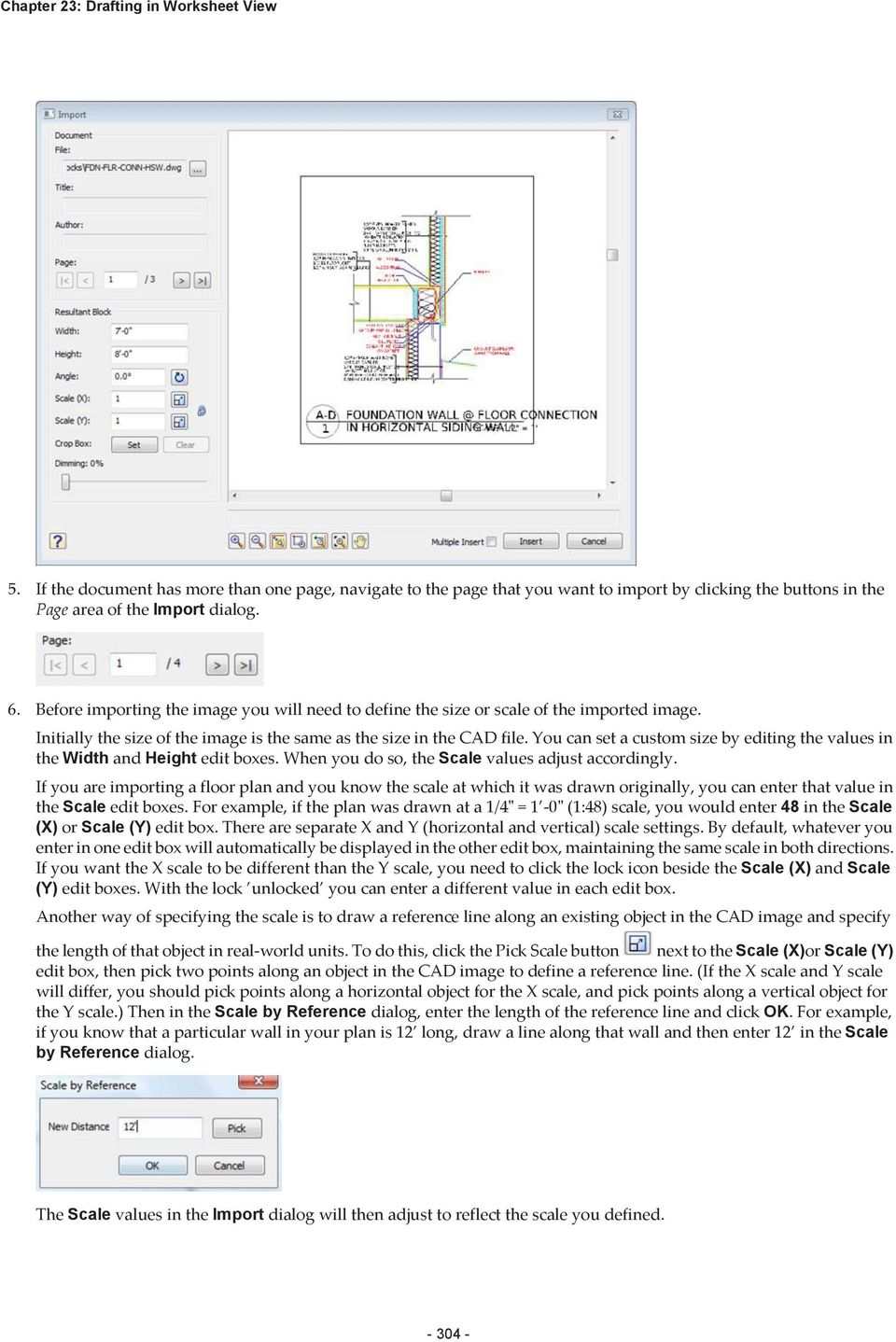
15 Importing a PDF File in Worksheet View 7. To specify the angle of the imported image, enter a value in the Angle edit box, or click Pick Angle button next to the Angle edit box and pick two points along an object in the CAD image to define the angle. If you are picking points to define the angle, the Angle by Reference dialog appears and reports the angle that you defined. You can edit the angle here if you want. 8. If you want to import only a portion of the image, click next to the Crop Box item, then click two points diagonally in the preview window to define a box around the portion that you want to import. A blue box is displayed around the selected portion. To remove the crop box, click, then click OK to confirm that you want to clear the crop box. 9. To dim the imported image, slide the Dimming slider to the desired dim level. The higher the percentage, the more dim the image will be. 10. If you want the Import dialog to appear again after you insert the image so that you can insert another image, enable the Multiple Insert check box. 11. To import the image into the current view window, click Insert. The image is attached to your cursor. 12. Position the image where you want it, then click to insert it. Tip: For your convenience, there are also a number of pre-defined drafting symbols, details and title blocks in DWG format available in the program s Drafting Objects directory. Importing a PDF File in Worksheet View You can use the Import PDF File to import the contents of any PDF file into your Envisioneer project. You can define the size and angle of the imported block prior to importing it. You can also choose to import a portion of the image if needed. To import a PDF file in Worksheet View: 1. Select File > Import > Import PDF File, or Insert > Import PDF File, or click on the Insert toolbar. 2. In the Open dialog, locate and select the PDF file that you want to import, and then click Open. (If the Font Support Issue dialog appears, see the note below.) The PDF file is displayed in the Import PDF dialog. You can zoom and pan in the PDF preview pane using the zoom/ pan controls below the pane. Note that changing the zoom level inside the preview pane has no effect on the image when it is imported

16 Chapter 23: Drafting in Worksheet View 3. If the PDF has more than one page, navigate to the page that you want to import by clicking the buttons in the Page area of the Import PDF dialog. 4. Before importing the PDF you will need to define the size or scale of the imported image. Initially the size of the image is the same as the page size in the PDF file. You can set a custom size by editing the values in the Width and Height edit boxes. When you do so, the Scale values adjust accordingly. If you are importing a floor plan and you know the scale at which it was drawn originally, you can enter that value in the Scale edit box. For example, if the plan was drawn at a 1/4" = 1-0" (1:48) scale, you would enter 48 in the Scale (X) or Scale (Y) edit box. There are separate X and Y (horizontal and vertical) scale settings. By default, whatever you enter in one edit box will automatically be displayed in the other edit box, maintaining the same scale in both directions. If you want the X scale to be different than the Y scale, you need to click the lock icon beside the Scale (X) and Scale (Y) edit boxes. With the lock unlocked you can enter a different value in each edit box. Another way of specifying the scale is to draw a reference line along an existing object in the PDF image and specify the length of that object in real-world units. To do this, click the Pick Scale button next to the Scale (X)or Scale (Y) edit box, then pick two points along an object in the PDF image to define a reference line. (If the X scale and Y scale will differ, you should pick points along a horizontal object for the X scale, and pick points along a vertical object for the Y scale.) Then in the Scale by Reference dialog, enter the length of the reference line and click OK. For example, if you know that a particular wall in your plan is 12 long, draw a line along that wall and then enter 12 in the Scale by Reference dialog
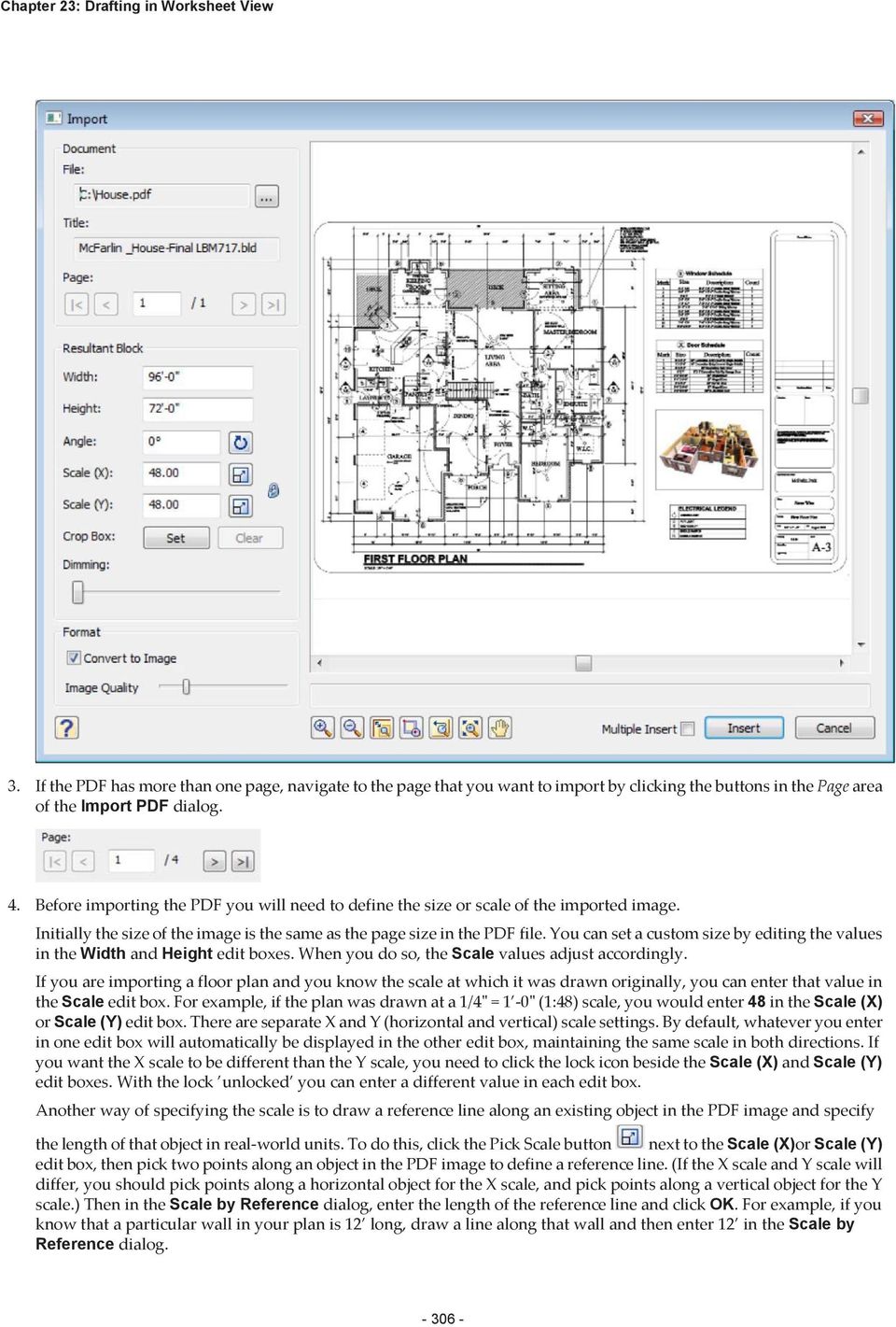
17 Importing an Image in Worksheet View The Scale values in the Import PDF dialog will then adjust to reflect the scale you defined. 5. To specify the angle of the imported image, enter a value in the Angle edit box, or click the Pick Angle button next to the Angle edit box and pick two points along an object in the PDF image to define the angle. If you are picking points to define the angle, the Angle by Reference dialog appears and reports the angle that you defined. You can edit the angle here if you want. 6. If you want to import only a portion of the image, click next to the Crop Box item, then click two points diagonally in the PDF window to define a box around the portion that you want to import. A blue box is displayed around the selected portion. To remove the crop box, click, then click OK to confirm that you want to clear the crop box. 7. To dim the imported image, slide the Dimming slider to the desired dim level. The higher the percentage, the more dim the image will be. 8. If you want the Import dialog to appear again after you insert the PDF so that you can insert another PDF, enable the Multiple Insert check box. 9. To import the image into the current view window, click Insert. The image is attached to your cursor. 10. Position the image where you want it, then click to insert it. Note: If the PDF file that you are importing contains fonts that are not available on your computer, the Font Support Issue dialog will appear. Before importing the PDF, you need to specify how you want to handle this issue. You can choose to rasterize the text by selecting the Raster Format option. This maintains the display of the text, but you will not be able to snap to linework once the PDF is inserted in your project. If you choose the Vector Format option, all vector geometry will remain intact so that you can snap to linework once the PDF is inserted, but the text may not display properly. Importing an Image in Worksheet View

18 Chapter 23: Drafting in Worksheet View Using the Import Image tool you can import a BMP, JPG or TGA file onto your worksheet, such as a floor plan or your company logo. You can scale or crop the image prior to import. To import an image: 1. In Worksheet View, select Insert > Import Image, or click on the Insert toolbar. You can also select File > Import > Import Image. 2. In the Open dialog, select the file type you are importing from the File type drop box. You can import BMP, JPG or TGA files. 3. Locate the file to import, then click Open. 4. The image is displayed in the Import dialog. You can zoom and pan in the preview pane using the zoom/pan controls below the pane. Note that changing the zoom level inside the preview pane has no effect on the image when it is imported. 5. Before importing the file you will need to define the size or scale of the imported image. You can set a custom size by editing the values in the Width and Height edit boxes. When you do so, the Scale values adjust accordingly. If you are importing a floor plan and you know the scale at which it was drawn originally, you can enter that value in the Scale edit boxes. For example, if the plan was drawn at a 1/4" = 1-0" (1:48) scale, you would enter 48 in the Scale (X) or Scale (Y) edit box. There are separate X and Y (horizontal and vertical) scale settings. By default, whatever you enter in one edit box will automatically be displayed in the other edit box, maintaining the same scale in both directions. If you want the X scale to be different than the Y scale, you need to click the lock icon beside the Scale (X) and Scale (Y) edit boxes. With the lock unlocked you can enter a different value in each edit box

19 Scaling an Inserted Image Another way of specifying the scale is to draw a reference line along an existing object in the image and specify the length of that object in real-world units. To do this, click the Pick Scale button next to the Scale (X)or Scale (Y) edit box, then pick two points in the image to define a reference line. (If the X scale and Y scale will differ, you should pick points along a horizontal object for the X scale, and pick points along a vertical object for the Y scale.) Then in the Scale by Reference dialog, enter the length of the reference line and click OK. For example, if you know that a particular wall in your plan is 12 long, draw a line along that wall and then enter 12 in the Scale by Reference dialog. The Scale values in the Import dialog will then adjust to reflect the scale you defined. 6. To specify the angle of the imported image, enter a value in the Angle edit box, or click the Pick Angle button next to the Angle edit box and pick two points along an object in the image to define the angle. If you are picking points to define the angle, the Angle by Reference dialog appears and reports the angle that you defined. You can edit the angle here if you want. 7. If you want to import only a portion of the image, click next to the Crop Box item, then click two points diagonally in the preview window to define a box around the portion that you want to import. A blue box is displayed around the selected portion. To remove the crop box, click, then click OK to confirm that you want to clear the crop box. 8. To dim the imported image, slide the Dimming slider to the desired dim level. The higher the percentage, the more dim the image will be. 9. If you want the Import dialog to appear again after you insert the image so that you can insert another image, enable the Multiple Insert check box. 10. To import the image onto the current worksheet, click Insert. The image is attached to your cursor. 11. Position the image on the sheet, then click to insert it. Scaling an Inserted Image If you have used the Import Image tool in Worksheet View to insert an image in your drawing, you may need to scale it to make it the correct size. To scale an inserted image: 1. Select the image. 2. Select Modify > Scale, or click on the Modify toolbar. 3. Select a base point to scale from. Typically this is a point on the image. 4. Enter the desired scale factor in the Scale edit box. For example, to double the size of the image, type 2. To reduce the size by half, type Click OK. Adding Text in Worksheet View You can add custom text to your worksheet using the Text tool. You can control the style and color of the text, and even apply different styles or colors to individual characters. To add text in Worksheet View: 1. In Worksheet View, click the layer drop box and select the layer you would like to insert the text on

20 Chapter 23: Drafting in Worksheet View 2. Select Tools > Text > Text, or click on the Tools toolbar. 3. In the Text dialog, select the text style you would like to apply to the text from the text style drop box. 4. If you would like to add or edit a text style, click to access the Text Styles library. 5. To make the text bold, click. 6. To italicize the text, click. 7. To underline the text, click. 8. To change the justification of the text, click the appropriate justification Justification refers to the way lines of text "line up" in relation to the window that contains them. A "left" justification lines the left side of the text up with the left side of the window, leaving the right side ragged. button. Left Justify Center Justify Right Justify 9. Type the desired text in the text preview window. Or, to import a text (*.txt) file, click, then select the file to import. 10. To insert a pre-defined label, select the label you want in the Pre-defined Labels list on the right side of the dialog, then drag it into the editing window. You can also double-click the label or click to add the label to the editing window. To access the Labels library, where you can add and edit labels, click. 11. To change the zoom level inside the editing window, select a value from the Zoom drop box. 12. To edit the style, color or justification of the text in the preview window, or parts of the text, highlight the text that you want to change, then make your new selections above the preview window. 13. If you want to automatically return to the Text dialog after you have inserted the current text, enable the Multiple text insert check box. Otherwise, the Text command is finished once you insert the text. 14. When you are ready to insert the text in your drawing, click OK. The text is attached to your crosshairs. 15. Position the text where you would like it, then click to insert it. Note: If you select part of the text in the editing window and try to resize it, the selected characters cannot be 8 times larger or 4 times smaller than any unselected text in the editing window. If all text is selected, however, you can resize without limits. Editing Text in Worksheet View You can edit the font, height, color and content of text after it has been inserted. To edit text in Worksheet View: 1. Select the text. 2. Make the desired changes in the Object Properties panel. Tip: To quickly display the Text dialog where you can edit all text properties, just double-click the text. Finding and Replacing Text in Worksheet View You can use the Find and Replace tool to find a specific word or phrase in your project. You can also replace it instantly with another word or phrase of your choice

21 Controlling the Quality of Text Through Antialiasing To find and replace text: 1. Select Tools > Text > Find and Replace, or click the down arrow next to the Text button on the Tools toolbar and select Find and Replace. 2. In the Find and Replace Text dialog, type the word or phrase that you want to find in the Find what edit box. 3. If you want to replace the text with something else, enter the replacement text in the Replace with edit box. 4. From the Search In drop box, select the area of your project that you want to search. Options are Current Worksheet and Current Selection. If nothing was selected before you chose the Find and Replace tool, the only option is Current Worksheet. 5. Select any options you want to use to control the search. These are described below. Match case. Find text with the same capitalization as the search text. For example, if you enter "Bedroom" as your search text, the text "bedroom" would not be returned as a match because the first character is not uppercase. Match whole word. Find only whole words, not parts of words. For example, if you enter the word "day" as your search text, the words "Monday" or "daytime" would not be returned as matches. Search up. Search backward from the current search position. 6. Click Find Next. If the text is found, the first instance is displayed in the lower pane of the Find and Replace Text dialog, and the text is highlighted in the drawing area. 7. To replace the text with the text in the Replace with edit box, click Replace. To instantly replace all instances of the search text, click Replace All. 8. To search for the next instance of the text, click Find Next again. When the search is complete, the End of Search dialog will appear notifying you that all text has been searched. 9. When you are finished searching for text, close the Find and Replace Text dialog. Controlling the Quality of Text Through Antialiasing By default, antialiasing is used in the display of text in Worksheet View. Antialiasing smooths jagged edges by changing the color or intensity of pixels at object edges. If you find that text in Worksheet View looks too fuzzy, you can try disabling antialiasing. To enable or disable antialiasing in Worksheet View: 1. Select Settings > Program Settings or click the Program Settings button on the Settings toolbar. 2. In the Program Settings dialog, select Workspace in the left pane. 3. Check or uncheck the Enable Antialiased Text check box. 4. Click OK
22 Chapter 23: Drafting in Worksheet View Adding Text with a Leader in Worksheet View Using the Text with Leader tool you can insert text with a leader line attached to it. The leader has an arrow at one end, and two segments that can be oriented in any fashion. To add text with a leader: 1. Select Tools > Text > Text with Leader, or click the down arrow next to the Text button on the Tools toolbar and select Text with Leader. 2. In the Text dialog, select the text style you would like to apply to the text from the text style drop box. 3. If you would like to add or edit a text style, click to access the Text Styles library. 4. To make the text bold, click. 5. To italicize the text, click. 6. To underline the text, click. 7. Type the desired text in the text preview window. Or, to import a text (*.txt) file, click, then select the file to import. 8. To insert a pre-defined label, select the label you want in the Pre-defined Labels list on the right side of the dialog, then drag it into the editing window. You can also double-click the label or click to add the label to the editing window. To access the Labels library, where you can add and edit labels, click. 9. To change the zoom level inside the text preview window, select a value from the zoom drop box. 10. To edit the style, color or justification of the text in the preview window, or parts of the text, highlight the text that you want to change, then make your new selections above the preview window. 11. Click OK. 12. In the drawing area, select the point where you want the arrowhead to appear. Typically this is next to or on an object. 13. Select the next point of the leader. If you only want a two-point leader, right-click and select Finish at this point. Otherwise, you can select a third point for the leader if you want. Editing the Style or Content of Leader Text in Worksheet View Once you have inserted text with a leader, you can access and edit the text properties through the Object Properties panel. To edit leader text: 1. Select the text. 2. In the Object Properties panel, click next to the Contents item. 3. Make the desired changes in the Text dialog, then click OK. Tip: To quickly launch the Text dialog where you can edit all text properties, just double-click the text. Moving Leader Text in Worksheet View If you have inserted text with a leader, you can move the text independently of the leader. To move leader text: 1. Select the text with leader. 2. Click and drag the grip that appears on the text to move the text, then release your mouse button
23 Changing the Style of a Leader in Worksheet View Changing the Style of a Leader in Worksheet View When you use the Text with Leader tool, the style of the leader (i.e. arrowhead) is determined by the current dimension style. You can change the leader style by selecting a dimension style with the desired style settings. To select a different style for a leader: 1. Click on the text with leader to select it. 2. In the Object Properties panel, select the desired dimension style from the Style drop box. Scaling Leader Arrows in Worksheet View If you have inserted text with a leader, you can edit the scale of the leader arrowhead. To scale a leader arrow: 1. Select the text with leader. 2. In the Object Properties panel, enter the desired scale for the leader arrow in the Scale edit box. For example, to double the size, enter 2. To reduce the size by half, enter 0.5. Setting the Current Dimension Style in Worksheet View When you add dimensions to your drawing, they use the current dimension style, which by default is the Standard dimension style. You can select a different dimension style to be the current one if you want. To set the current dimension style: 1. Select Settings > Current Dimension Style. 2. In the Current Dimension Style dialog, click the Select button. 3. In the Dimension Styles dialog, select the style you want to set as current. 4. Click OK in the Dimension Styles dialog. 5. Click OK in the Current Dimension Style dialog. Creating Linear Dimensions in Worksheet View A linear dimension is a horizontal or vertical dimension with extension lines going vertically (for a horizontal linear dimension) or horizontally (for a vertical linear dimension) to the origins of the extension lines, which define the endpoint of the dimension. To create linear dimensions: 1. Select Tools > Dimensions > Linear Dimensions, or click on the Tools toolbar. 2. Click a point in your drawing to begin the dimension line. 3. Move your mouse (you do not have to hold the mouse button down) to a second point and click. A dimension line including offsets, arrows and a numerical value is added to your drawing. 4. Move your mouse away from the dimension line to stretch your extension lines. When the extension lines are the desired length, click to finish the dimension. Creating Aligned Dimensions in Worksheet View
24 Chapter 23: Drafting in Worksheet View An aligned dimension is similar to a linear dimension, except it tilts to the same angle as the object you are dimensioning, making it the ideal choice for elements that are not horizontal or vertical. To create aligned dimensions in Worksheet View: 1. Select Tools > Dimensions > Aligned Dimensions, or click the down arrow next to the Dimensions button on the Tools toolbar and select Aligned Dimensions. 2. Click a point in your drawing to begin the dimension line. 3. Move your mouse (you do not have to hold the mouse button down) to a second point and click. A dimension line including offsets, arrows and a numerical value is added to your drawing. 4. Move your mouse away from the dimension line to stretch your extension lines. When the extension lines are the desired length, click to finish the dimension. Creating Angular Dimensions in Worksheet View You can use the Angular Dimensions tool to insert a dimension that measures an angle rather than a distance. This is particularly useful where objects are not rectangular, or are not perpendicular to one another. To create an angular dimension, you select three points that will be used to create the dimension, then select a location for the dimension line. To create an angular dimension: 1. Select Tools > Dimensions > Angular Dimensions, or click the down arrow next to the Dimensions button on the Tools toolbar and select Angular Dimensions. 2. Select the angle s vertex point. 3. Select the first endpoint of the angle. 4. Select the second endpoint of the angle. 5. With the dimension attached to your crosshairs, position the dimension where you would like it, and then click to insert it. Creating Continuous Dimensions in Worksheet View You can easily add more segments to an existing linear or aligned dimension using the Continuous Dimension tool. Simply pick points where you want each endpoint to be, and the dimension line will automatically extend with each point picked. This creates a series of dimensions that are end to end
25 Creating Baseline Dimensions in Worksheet View To create continuous dimensions: 1. Select Tools > Dimensions > Continuous Dimension or click the down arrow next to the Dimensions button on the Tools toolbar and select Continuous Dimension. 2. If it is not currently selected, click on the linear or aligned dimension that you would like to continue. 3. Move your cursor in the direction in which you would like to continue the dimension. You can continue a dimension from either endpoint. The dimension line extends as you move your cursor. 4. Click to select the next extension line point. This creates a new dimension. 5. Continue adding more dimensions as needed. 6. When you are finished adding dimensions, right-click and select Finish. Creating Baseline Dimensions in Worksheet View You can use the Baseline Dimension tool to create multiple dimensions along the same baseline. Baseline dimensions are built from an existing linear or aligned dimension in your drawing. Simply pick points where you want each extension line to be, and new dimensions will be created with each point picked
26 Chapter 23: Drafting in Worksheet View To create baseline dimensions: 1. Select Tools > Dimensions > Baseline Dimension or click the down arrow next to the Dimensions button on the Tools toolbar and select Baseline Dimension. 2. If not already selected, click on the dimension that you would like to continue, clicking near the extension line that you would like to use as the first extension line (baseline) for each new dimension. 3. Move your cursor in the direction in which you would like to continue the dimension, then select a point for the second extension line. A new dimension is created. 4. Continue to select extension line points to add more dimensions. 5. When you are finished adding dimensions, right-click and select Finish. Tip: To change the spacing between baseline dimensions, edit the Baseline Offset value in your dimension style properties. See Changing the Style of a Dimension in Worksheet View on page 318. Creating Overall Dimensions in Worksheet View You can use the Overall Dimension tool to create one overall dimension from two or more existing dimensions in your drawing. The overall dimension extends from the first extension line of the first dimension picked to the second extension line of the last dimension picked
27 Moving Dimension Text in Worksheet View To create an overall dimension: 1. Select Tools > Dimensions > Overall Dimension or click the down arrow next to the Dimensions button on the Tools toolbar and select Overall Dimension. 2. Click where you would like the dimension line to be placed. 3. Click on the first dimension from which you would like to create an overall dimension. 4. Click on the second dimension from which you would like to create an overall dimension. An overall dimension is created. You can select more dimensions to add if you want. 5. Right-click and select Finish. Moving Dimension Text in Worksheet View You can move a dimension s text without affecting the dimension line. To move dimension text: 1. Click on the dimension to select it. 2. Position your crosshairs over the solid blue grip that is on the text, then click and drag to move the text. Resetting the Dimension Text Position in Worksheet View If you have moved a dimension s text, you can use the Reset tool to move it back to its original position if needed. To reset the dimension text position: 1. Click on the dimension to select it. 2. In the Object Properties panel, click the Reset button in the Text Position field. Moving a Dimension Line in Worksheet View You can move a dimension line by clicking and dragging it. When you move a dimension line, the extension lines stretch. To move a dimension line: 1. Select the dimension. 2. Click and drag one of the dimension line s end grips, then release your mouse button. Stretching Dimensions in Worksheet View You can make a dimension longer or shorter, or stretch either of its extension lines. When you stretch the length of a dimension, the dimension value updates automatically to reflect the new length
28 Chapter 23: Drafting in Worksheet View To adjust the length of a dimension: 1. Select the dimension. 2. Click on one of the lower extension grips, then drag the dimension to stretch it. Note that it is possible to stretch the extension line at the same time. 3. Release your mouse button. To adjust the length of extension lines: 1. Select the dimension. 2. Click the grip at the end of the extension line, then drag to stretch the extension line. 3. Release your mouse button. Aligning Dimensions in Worksheet View You can use the Align Dimension tool to align an existing dimension with another. To align dimensions: 1. Select Tools > Dimensions > Align Dimension, or click the down arrow next to the Dimensions button on the Tools toolbar and select Align Dimension. 2. Click on the dimension that you want to align another dimension to. 3. Click on the dimension that you want to align with the first dimension. The second dimension adjusts to align with the first dimension. Joining Dimensions in Worksheet View You can join two existing linear or aligned dimensions using the Join Dimension tool. Joining two dimensions turns two dimensions into one, and the dimension value updates automatically to display the new length. To join dimensions: 1. Select Tools > Dimensions > Join Dimension, or click the down arrow next to the Dimensions button on the Tools toolbar and select Join Dimension. 2. Click on one of the dimensions that you want to join with another. 3. Click on the dimension that you want to join with the first. The two dimensions are joined into one. Splitting Dimensions in Worksheet View You can split a dimension into two dimensions at a selected point using the Split Dimension tool. To split a dimension: 1. Select Tools > Dimensions > Split Dimension, or click the down arrow next to the Dimensions button on the Tools toolbar and select Split Dimension. 2. Click on the dimension that you would like to split. 3. Click on the dimension line where you would like to split the dimension. The dimension is split at the selected point. Changing the Style of a Dimension in Worksheet View You can apply a different dimension style to a dimension in Worksheet View by simply making a style selection in the Object Properties panel. To change the style of a dimension: 1. Select the dimension. You can select multiple dimensions using Shift+click. 2. In the Object Properties panel, select the desired dimension style from the Style drop box. To access the Dimension Styles library, where you can add and edit dimension styles, select Other from the Style drop box
29 Overriding Dimension Text in Worksheet View Overriding Dimension Text in Worksheet View In Worksheet View it is possible to edit a dimension s calculated numerical value to suit your needs, or add information to the value. You can even change the value to text, such as Varies. To override dimension text: 1. Select the dimension. 2. If you want to replace the current dimension value with something else, type the desired text in the Override edit box in the Object Properties panel. You can type any numerals or characters you want. If you want to keep the current value but add information before or after the value, use a pair of angle brackets <> before or after the additional text. For example, if you wanted to add the words Final Dimension after the dimension value, you would type <> Final Dimension in the edit box. For a 12-0" dimension, the dimension would then look like this: If you want to add text below the dimension value (on the other side of the dimension line), type \X where you want to drop down to a new line. For example, if you wanted to add the Final Dimension text below the current dimension value instead of beside it, you would type <> \X Final Dimension in the edit box. The dimension would then read: The line break option can be used with the current dimension value (as shown in the example above), or with custom text that you type in the edit box. Note that you can only use the line break option once when overriding a dimension. You cannot keep adding more lines of text. 3. Press Enter or click in the drawing area to update the dimension. Scaling a Dimension in Worksheet View Dimension scale affects the size of the dimension geometry: text, ticks and offsets. It does not affect the measured length shown in a dimension. You may need to scale dimensions in Worksheet View if you are importing a view whose scale is different than the scale of the worksheet, or scaling a block that contains dimensions. To scale a dimension: 1. Select the dimension. 2. In the Object Properties panel, edit the value in the Scale edit box. For example, to double the dimension sizing, enter 2. To reduce the sizing to half, enter 0.5. Scaling Dimension Values in Worksheet View In Worksheet View you can scale the measured length shown in a dimension by editing the dimension s Value Scale property. You may need to scale dimension values if you are importing a view whose scale is different than the scale of the worksheet, or scaling a block that contains dimensions. To scale a dimension value: 1. Select the dimension. 2. In the Object Properties panel, edit the value in the Value Scale edit box. For example, to double the value, enter 2. To reduce the value by half, enter
30 Chapter 23: Drafting in Worksheet View Note: You cannot scale a value that has been overridden. Drawing Lines in Worksheet View You can draw a line with one or more segments by simply picking points. To draw a line in Worksheet View: 1. Select Draw > Line, or click on the Draw toolbar. 2. Select a start point for the line. 3. Select the end point for the line. If you want you can continue adding segments to the line. The line will snap to common points on objects provided those snaps are enabled in your Object Snap settings. 4. When you are finished drawing the line, right-click and select Finish. Note: If a line has multiple segments, each segment is considered a separate entity. Drawing Polylines in Worksheet View A polyline is a continuous line composed of one or more line segments. To create a polyline, you select the endpoints of each line segment. When you select a polyline, grips are displayed at each segment endpoint. You can move these grips to effectively stretch the polyline in different directions. To draw a polyline: 1. Select Draw > Polyline, or click on the Draw toolbar. 2. Select a start point for the polyline. 3. Select the end point of the first line segment. 4. Move your mouse in the direction you want the next segment to run. When the segment is the correct length, click to define its endpoint. 5. Continue adding segments as desired. 6. Right-click and select Finish. Joining Objects to a Polyline You can join an existing line, arc or other polyline to a polyline using the Join Polyline tool provided the end of the object is currently connected to the end of the polyline. Together the object and the polyline form one continuous polyline. If the object you initially choose is not a polyline, you will be prompted to turn it into one. To join an object to a polyline: 1. Select Modify > Join Polyline or click the Join Polyline button on the Modify toolbar. 2. Click on the polyline to which you want to join objects. A dialog confirms your selection. Click OK. If the object is not a polyline, you will be asked if you want to convert it to one. Click Yes to convert the object to a polyline, or click No to select a different object. 3. Click on the line, arc or polyline that you want to join to the polyline, then press Enter or right-click and select Enter. The object is joined to the polyline
31 Curving a Polyline (Worksheet View) Curving a Polyline (Worksheet View) You can curve a polyline by simply making a selection from the Curve Type drop box in the Object Properties panel. There are three different curve types available: Curve Fit, Quadratic, and Cubic. Each creates a different degree of curvature. To curve a polyline: 1. Click on the polyline to select it. 2. In the Object Properties panel, make a selection from the Curve Type drop box. These are described below. Curve Fit. Creates a smooth curve with high curvature, passing through all of the vertices. Quadratic. Creates a smooth curve that is pulled toward the vertices but passes through only the first and last vertices. Cubic. Creates a smooth curve that is pulled toward the vertices but passes through only the first and last vertices. Cubic curving creates the smoothest curve with the lowest curvature. Tip: To remove the curve from a polyline, just select None from the Curve Type drop box. Decurving a Polyline If you have fit a polyline with a curve in Worksheet View, you can remove the curve by editing the polyline s properties. To decurve a polyline: 1. Click on the polyline to select it. 2. In the Object Properties panel, select None from the Curve Type drop box. Drawing Arcs in Worksheet View There are three tools available for drawing arcs in Worksheet View. Start, Center, End. When you specify the start and center points, you define the arc s radius. The end point establishes the arc s length. 3 Points. Select a start point for the arc, a second point along the arc, then drag the arc into position as you specify the end point. Start, End, Radius. Select the start and end point of the arc to define its length, then select a third point to define the arc s radius (curve). To draw an arc with the Start, Center, End tool: 1. Select Draw > Arc > Arc - Start, Center, End, or click the down arrow next to the Arc button on the Draw toolbar and select Arc - Start, Center, End. 2. Select a start point for the arc. 3. Select the arc s center point. The radius is now defined. 4. Select the arc s end point to define the arc s length
32 Chapter 23: Drafting in Worksheet View To draw an arc with the 3 Points tool: 1. Select Draw > Arc > Arc 3 Points, or click the down arrow next to the Arc button on the Draw toolbar and select Arc - 3 Points. 2. Select the start point of the arc. 3. Select a second point on the arc. 4. Drag the arc to stretch it to the desired length and position, then select the end point of the arc. To draw an arc with the Start, End, Radius tool: 1. Select Draw > Arc > Arc Start, End, Radius, or click the down arrow next to the Arc button on the Draw toolbar and select Arc - Start, End, Radius. 2. Select the start point of the arc. 3. Select the end point of the arc to define its length. 4. Move your pointer to curve the arc, then select a third point to define the arc s radius. Editing the Curve of an Arc in Worksheet View You can change how much an arc curves by clicking and dragging its midpoint grip. Alternatively you can edit the Radius in the Object Properties panel. To edit the curve of an arc: 1. Click on the arc to select it. 2. Hover your pickbox over the hollow midpoint grip, then click and drag to change the arc s curve. To edit the radius of an arc: 1. Select the arc. 2. In the Object Properties panel, enter the desired radius in the Radius edit box. 3. Click in the drawing area to update the arc. Drawing Circles in Worksheet View There are two ways to draw a circle. With the Circle - Center, Radius tool you draw the circle from the center out, by picking two points to define its radius. With the Circle - 2 Point tool, you draw the circle outward from a selected point, essentially defining the circle s diameter. To draw a circle by specifying its radius: 1. Select Draw > Circle > Circle - Center, Radius, or click the down arrow next to the Circle button on the Draw toolbar and select Circle - Center, Radius. 2. Click the point that is to be the center of the circle. 3. Move your pointer away from the center point. The circle grows as you move farther away from the center
33 Drawing an Ellipse in Worksheet View 4. When the circle is the desired size, click to finish. To draw a circle by specifying its diameter: 1. Select Draw > Circle > Circle - 2 Point, or click the down arrow next to the Circle button on the Draw toolbar and select Circle - 2 Point. 2. Click a point in the drawing. The circle will grow from this point. 3. Move your pointer away from the selected point. The farther you move away from this point, the larger the circle becomes. 4. When the circle is the desired size, click to finish. Drawing an Ellipse in Worksheet View To draw an ellipse in Worksheet View, select Draw > Ellipse, or click the down arrow next to the Ellipse button the Draw toolbar, then select either Ellipse - Axis or Ellipse - Center. To use the Ellipse - Axis tool: 1. Select two points to define the major axis of the ellipse. 2. Select a third point away from the axis to define the minor radius. on To use the Ellipse - Center tool: 1. Select the midpoint of the ellipse, then select a second point to define the major radius of the ellipse. 2. Select a third point to define the minor radius
34 Chapter 23: Drafting in Worksheet View Drawing Elliptical Arcs in Worksheet View To draw an elliptical arc in Worksheet View, select Draw > Ellipse, or click the down arrow next to the Ellipse button on the Draw toolbar, then select either Elliptical Arc - Axis or Elliptical Arc - Center. To use the Elliptical Arc - Axis tool: 1. Select two points to define the major axis of the ellipse. 2. Select a third point away from the axis to define the minor radius. 3. Select two points to define the end points of the arc. The section between the two points will form the arc: To use the Elliptical Arc - Center tool: 1. Select the midpoint of the ellipse, then select a second point to define the major radius of the ellipse. 2. Select a third point to define the minor radius
35 Drawing Polygons in Worksheet View 3. Select two points to define the end points of the arc. The section between the two points will form the arc: Drawing Polygons in Worksheet View A polygon is a closed, multi-sided object. You can use the Polygon tool to quickly create a polygon with three or more equal sides (such as a triangle, square or hexagon) without having to draw each side. Just specify the number of sides you want, select a center point, then select a point to define the size of the polygon. You can choose to inscribe the polygon inside an imaginary circle, or circumscribe it about an imaginary circle. To draw a polygon: 1. In Worksheet View, select Draw > Polygon or click on the Draw toolbar. 2. In the Polygon dialog, enter the number of sides you want the polygon to have in the Number of Sides edit box. The minimum number of sides is 3 and the maximum is From the drop box select either Inscribed in Circle or Circumscribed about Circle. Use the Inscribed in Circle option when you want to specify the distance between the center of the polygon and each vertex. That is, the corners of the polygon will touch the circumference of an imaginary circle. Use the Circumscribed about Circle option when you want to specify the distance between the center of the polygon and the midpoint of each side. That is, the polygon s sides will be tangent to the circle
36 Chapter 23: Drafting in Worksheet View 4. Click OK. 5. In the drawing area, select a center point for the polygon. The polygon will be created outward from this point. 6. Move your pointer away from the center to stretch the polygon to the desired size. Note that the direction in which you move determines the rotation of the polygon. 7. When the polygon is the desired size, click to finish. Drawing Hatched Polygons in Worksheet View A polygon is a closed object consisting of three or more line segments. You can use the Polygon Hatch tool to draw a freeform polygon of any shape with hatching of your choice instantly applied (or no hatching if you prefer). You can edit the shape, line style and hatch pattern of the polygon after it has been inserted. To draw a hatched polygon: 1. Select Draw > Polygon Hatch, or click on the Draw toolbar. 2. In the Polygon Hatch dialog, select the appearance properties that you would like the polygon to have. If you would like it to have a boundary line, enable the Include check box in the Boundary Line area. If you would like the polygon to be hatched, enable the Include check box in the Pattern area, then click Select to select a hatch pattern from the Patterns library. 3. Select a start point for the polygon, then continue selecting points to define its shape. Note that you do not have to select the start point again, as the polygon always remains closed as you draw it. Be careful not to cross any lines, or the polygon will not be created. 4. Once you ve selected the last point of the polygon, right-click and select Finish. Note: The color, line type and line weight of the boundary line is determined by the properties of the layer that the polygon is drawn on. Editing a Polygon s Hatch Pattern Line Properties in Worksheet View If you have created a polygon using the Polygon Hatch tool, you can change the color, line type and line weight of the polygon s hatch pattern after it has been inserted. To edit a polygon s hatch pattern: 1. Click on the polygon to select it. 2. In the Object Properties panel, select the desired settings from the Color, Line Type and Line Weight drop boxes. Editing a Polygon s Hatch Pattern in Worksheet View Once you have created a polygon, you can replace its hatch pattern with a different one, or edit the properties of the existing one. To edit a polygon s hatch pattern: 1. Click on the polygon to select it. 2. In the Object Properties panel, make your desired changes. To hide the hatch pattern s boundary line, disable the Boundary/Include check box. To hide the hatch pattern, disable the Pattern/Include check box. To replace the hatch pattern with a different one, click the Style drop box and select the pattern you want
37 Drawing Rectangles in Worksheet View To edit the scale of the hatch pattern, enter the desired scale in the Scale edit box. To edit the angle of the hatch pattern, enter the desired angle in the Angle edit box. To edit the start point of the hatch pattern in relation to the polygon, click the browse button in the Specify Origin field, then select the desired start point in your drawing. Drawing Rectangles in Worksheet View You can draw a rectangle easily by just picking two points on the screen. To draw a rectangle: 1. Turn your Ortho off. 2. Select Draw > Rectangle, or click on the Draw toolbar. 3. Click a point on the screen. This will be one of the rectangle s corners. 4. Move your pointer away from the current point. The rectangle grows as you move farther away. 5. When the rectangle is the desired size, click to finish it. Drawing Revision Clouds in Worksheet View Revision clouds call attention to areas of change in your drawing. You can quickly draw a revision cloud around any portion of your drawing by simply clicking a few points. To draw a revision cloud: 1. Select Draw > Revision Cloud > Revision Cloud, or click on the Draw toolbar. 2. Pick points to form the outline of the cloud, then hover your cursor over the start point to close the shape. When picking points, be careful not cross over any segments that you have already drawn. Defining Revision Cloud Settings in Worksheet View You can define the settings that you would like your revision clouds to have prior to drawing them. To define revision cloud settings: 1. Select Draw > Revision Cloud > Revision Cloud Settings
38 Chapter 23: Drafting in Worksheet View 2. To define the size of the arcs in the revision cloud, enter values in the Minimum Arc Length and Maximum Arc Length edit boxes. 3. To apply a pattern to revision clouds, enable the Include check box in the Pattern area. Click Select in the Pattern area to select a pattern from the Patterns library. 4. Click OK. Note: The line style of a revision cloud is determined by the layer on which the cloud is drawn. You can edit the line style after it has been drawn. Creating Hatching Using Boundary Hatch Hatch patterns represent actual materials, such as shingles and brick. You can apply a hatch pattern to any closed area in a 2D view using the Boundary Hatch tool. For example, you may want to apply a shingle pattern to the roof in an elevation. You can choose an angle and scale for the pattern, and specify how you want the hatching applied. When you apply hatching, the hatch pattern becomes an object that you can edit to suit your needs. To apply hatching: 1. In Worksheet View, make sure your 2D view is displayed (plan or elevation). 2. Select Draw > Boundary Hatch, or click on the Draw toolbar. 3. In the Boundary Hatch dialog, click the Style drop box and select the pattern that you would like to apply. 4. Click Select Boundaries. This takes you back out to your drawing. 5. Position your crosshairs inside the area that you want to hatch. The area s boundary becomes highlighted. Click inside the area to select it. You can select multiple areas if you want. When you are finished selecting areas to hatch, right-click and select Enter. 6. By default, if a boundary contains another closed boundary, the inner boundary will not be hatched. If you want to hatch the inner boundary as well, enable the Ignore radio button in the Hatching dialog. Otherwise, enable the Outer radio button to hatch only the outer boundary. 7. To deselect an area that you have selected, click Remove Boundaries, click inside the area, then right-click and select Enter. 8. By default, patterns are applied horizontally (0 degrees). If you want to rotate the pattern, enter the desired angle in the Angle edit box. 9. To change the size of the pattern, enter a value in the Scale edit box. A value of 2 doubles the size, while a value of.5 reduces the size by half
39 Editing Hatch Pattern Line Properties in Worksheet View 10. By default, the pattern is created from the 0,0 origin (the Use Default radio button is selected). If you want the pattern to be created from a different point, enable the Specify Origin radio button, then click. Select the desired origin point in the drawing. For example, if you were applying a brick pattern to a wall and wanted full bricks along the bottom of the wall, you would select one of the wall s bottom corners as the origin. 11. If you want the boundary to be part of the hatch pattern (i.e. have the same color and line weight applied), enable the Include Boundary check box. Otherwise, the boundary line will remain the way it was before hatching, and will not be part of the hatch object. 12. By default, if more than one boundary is selected for hatching, only one hatch object is created. If you want to create a separate hatch object for each boundary, enable the Create Separate Hatches check box. This is important if you want to edit the hatching later. 13. Once you have selected your boundary and specified your options, click Preview to see how the hatching will look. When you are finished previewing the hatching, press ESC, or right-click and select Cancel. 14. To apply the hatching, click OK. Note: If the Boundary Hatch tool is not successful in detecting the boundary, use the Polygon Hatch tool instead. Note: The color and weight of the pattern s lines are determined by the layer that the pattern is on. Tip: You can insert elevations that are already hatched by setting the display mode to Patterned in the Insert View dialog when inserting the elevations onto your worksheet. The patterns applied depend on the material settings in each element s properties. Editing Hatch Pattern Line Properties in Worksheet View You can change the color, line type and line weight of a hatch pattern (created with the Boundary Hatch tool) after it has been inserted in Worksheet View. To edit hatch pattern properties: 1. Click on the hatching to select it. 2. In the Object Properties panel, select the desired settings from the Color, Line Type and Line Weight drop boxes. Editing an Object s Hatch Pattern in Worksheet View Once you have created hatching using the Boundary Hatch tool, you can replace the hatch pattern with a different one, edit the properties of the existing one, or add or remove boundaries. To edit an object s hatch pattern: 1. Click on the hatching to select it. 2. In the Object Properties panel, make your desired changes. 3. To hide the hatch object s boundary line, disable the Boundary/Include check box. 4. To hide the hatch pattern, disable the Pattern/Include check box. 5. To replace the hatch pattern with a different one, click the Style drop box and select the pattern you want. 6. To edit the scale of the hatch pattern, enter the desired scale in the Scale edit box. 7. To edit the angle of the hatch pattern, enter the desired angle in the Angle edit box. 8. To edit the start point of the hatch pattern in relation to the hatch object, click the browse button in the Specify Origin field, then select the desired start point in your drawing. Drawing Batt Insulation in Worksheet View Batt insulation is pre-cut, flexible insulation that fits inside wall cavities between the studs. You can add sections of batt insulation to your Worksheet View drawing by picking points to define the length and width of the insulation detail
40 Chapter 23: Drafting in Worksheet View To draw batt insulation: 1. In Worksheet View, select Draw > Details > Batt Insulation, or click the down arrow next to the Details button on the Draw toolbar and select Batt Insulation. 2. Click two points to define the length of the insulation section, then move your pointer away from the base line and click a third point to define the width of the section. Drawing Rigid Insulation in Worksheet View Rigid insulation takes the form of non-flexible panels and is often used on roofs and walls to provide thermal insulation. You can add sections of rigid insulation to a Worksheet View drawing by picking points to define the length and width of the insulation detail. To draw rigid insulation: 1. In Worksheet View, select Draw > Details > Rigid Insulation, or click on the Draw toolbar. 2. Click two points to define the length of the insulation section, then move your pointer away from the base line and click a third point to define the width of the section. Drawing a Wood Section in Worksheet View Wood sections can be used to represent blocking, wood posts or other wood elements in a 2D drawing. You can add a custom-sized wood section to a worksheet by picking points to define its length and width. To draw a wood section: 1. In Worksheet View, select Draw > Details > Wood Section, or click the down arrow next to the Details button on the Draw toolbar and select Wood Section. 2. Click two points to define the length of the wood section, then move your pointer away from the base line and click a third point to define the width of the section
41 Drawing a Masonry Section in Worksheet View Drawing a Masonry Section in Worksheet View You can add a masonry section to a 2D worksheet to represent an area where brick, stones or concrete blocks are used. You create a masonry section by specifying the dimensions of one masonry unit and joint, and then picking points to define the length and direction of the section. To draw a masonry section: 1. Select Draw > Details > Masonry Section, or click the down arrow next to the Details button on the Draw toolbar and select Masonry Section. 2. In the Masonry Section dialog, select either Brick or Block to define how you want the masonry to be represented graphically in the section. 3. Specify the following: Masonry Height. The height of one masonry unit (e.g. brick) in the section. Masonry Width. The width of each masonry unit in the section. Joint Height. The distance between masonry units. Joint Width. The offset of the mortar from the face of the masonry units. 4. Click OK. 5. In your drawing, click two points to define the length of the masonry section, keeping in mind that the line you are defining will represent the exterior face of the masonry. Then, move your pointer away from the base line and click a third point to define the direction of the section relative to the base line. Editing Masonry Section Properties in Worksheet View Once you have created a masonry section, you can edit the dimensions of the masonry units and joints by accessing the masonry section properties. To edit masonry section properties: 1. Click on the masonry section to select it. 2. Right-click and select Masonry Section Properties. 3. In the Masonry Section Properties dialog, edit the values as desired. Masonry Height. The height of one masonry unit (e.g. brick) in the section. Masonry Width. The width of each masonry unit in the section. Joint Height. The distance between masonry units. Joint Width. The offset of the mortar from the face of the masonry units. 4. Click OK. Drawing a Cut Line in Worksheet View
42 Chapter 23: Drafting in Worksheet View A cut line is a standard drafting symbol used to represent a break in the drawing. It indicates that the object continues in the same manner after or between the break lines. You can add a cut line to a 2D view by picking points to define the length and extent of the cut line. To draw a cut line: 1. In Worksheet View, select Draw > Details > Cut Line, or click the down arrow next to the Details button on the Draw toolbar and select Cut Line. 2. Click two points to define the length of the cut line, then move your pointer away from the base line and click a third point to define the extent of the break symbol s sharpness. Creating a Block A block is a single object that is composed of many other objects. A block can be a symbol, detail, note or entire drawing that you need to use more than once. You can use the Define Block tool to capture a group of objects in a block. To create the block you specify a block insertion point, then select the objects that you want to capture in the block. To create a block: 1. In Worksheet View, select Insert > Blocks > Define Block, or click on the Insert toolbar. 2. In the Block Name edit box, type a name for the block. 3. Click (the Pick Point button) in the Define Block dialog. You are taken out to your drawing. 4. Select a point to serve as the block s insertion point. This is the point that will be attached to your crosshairs when you insert the block later. The Define Block dialog reappears. If an insertion point was successfully selected, the message base point defined is displayed in the Base point area of the dialog. 5. Click (the Select Objects button) in the Define Block dialog. You are taken out to your drawing again. 6. Select the objects that you want to capture in the block, then press Enter (or right-click and select Enter). The Define Block dialog reappears and displays the number of objects selected in the Objects area of the dialog. 7. To leave the original objects in the drawing in their original state, enable the Retain radio button. 8. To convert the objects you selected to a block, enable the Convert to block radio button. 9. To remove the objects you selected from the drawing, enable the Delete radio button. 10. Click OK. The block is now created and saved. Inserting a Block If you have used the Define Block tool to capture objects in a block, you can use the Insert Block tool to insert the block at any time, on any worksheet, in any project. To insert a block: 1. In Worksheet View, select Insert > Blocks > Insert Block, or click the down arrow next to the Blocks button on the Insert toolbar and select Insert Block. 2. From the Block Name drop box, select the block that you would like to insert. 3. Click OK. The block is attached to your crosshairs
43 Inserting a Block from Another Project 4. Click to insert the block where you want it. Note: If you want to insert a block created in another project, use the Insert Block from File tool on the Blocks menu. If you want to insert a block created in another program (DWG or DXF file), use the Import CAD File tool on the Insert menu. Inserting a Block from Another Project If you have created blocks in another Envisioneer project, you can import them into the current project using the Insert Block from File tool. To insert a block from another project: 1. In Worksheet View, select Insert > Blocks > Insert Block from File. Or, click the down arrow next to the Blocks button on the Insert toolbar and select Insert Block from File. 2. In the Open dialog, locate and select the Envisioneer project (*.bld file) containing the block that you want to import, then click Open. 3. In the Block Selection dialog, select the block that you want to import, then click OK. The block is attached to your crosshairs. 4. Click to insert the block in your drawing area. Note: If a block by the same name already exists in the current project, you will have the option of replacing it with the incoming block, or renaming the incoming block. Note: If you want to insert a block created in another program (DWG or DXF file), use the Import CAD File tool on the Insert menu. Scaling a Block You can use the Scale tool to increase or decrease the size of a block to suit your drawing needs. To scale a block: 1. Select the block. 2. Select Modify > Scale, or click on the Modify toolbar. 3. Select a base point to scale from. Typically this is a point on the block. 4. Enter the desired scale factor in the Scale edit box. For example, to double the size of the block, type 2. To reduce the size by half, type Click OK. Note: If the block contains a dimension, the dimension value does not scale. If you need to scale the dimension value, double-click the block, select the dimension, then edit the Value Scale in the Object Properties panel. Editing a Block If you have inserted a block on your worksheet, whether it be with one of the Blocks tools or the Import CAD File tool, you can edit the contents of the block if needed. You can edit its individual components or add objects to it. Any changes or additions you make are automatically saved to the block s definition, and any instances of the block in your project are automatically updated. To edit a block: 1. Double-click the block, or select the block and then click Edit in the Definition field of the Object Properties panel. Everything except the block is dimmed, indicating that you are now in block editing mode. 2. Make the desired changes to the block. 3. Press ESC on your keyboard to return to your worksheet
44 Chapter 23: Drafting in Worksheet View Deleting Unreferenced Blocks When you insert a block in your drawing, a copy of the block is stored in memory, and the inserted block references that stored block. If you delete a block from your drawing, the block that it references remains in memory. Having too many unreferenced blocks in your project can increase drawing file size. You can alleviate this problem by deleting unreferenced blocks from memory. To delete unreferenced blocks: 1. Select Insert > Blocks > Delete Unreferenced Blocks, or click the down arrow next to the Blocks button on the Insert toolbar and select Delete Unreferenced Blocks. 2. The Delete Unreferenced Blocks dialog lists all of the blocks that are not being used by the drawing. Enable the check boxes beside the blocks that you want to delete. You can select all blocks simultaneously by clicking the top check box beside the Block Namelabel. 3. Click. A dialog warns you that you will not be able to undo changes to your drawing since your last save if you proceed with deleting unreferenced items. 4. Click OK to proceed with the deletion. Defining Attributes Attributes allow you to attach textual information to blocks. They are useful for entering text that changes with each insertion of a particular block. For example, you can add attributes to a title block that prompt for the designer s name, current date or drawing sheet number each time someone inserts the title block into a drawing. Once you ve defined the attribute, you insert it in the drawing (for example, on your title block), then capture the object and attribute in a block. To create an attribute: 1. In Worksheet View, select Insert > Blocks > Insert Attribute, or click the down arrow next to the Blocks button on the Insert toolbar and select Insert Attribute. 2. In the Tag edit box, type the name of the attribute as you would like to appear when inserted. For example, if the attribute is for a person s name, type Name. 3. In the Prompt edit box, type a prompt that asks what value you want the attribute to have when it is inserted. (For example, Enter your name.) 4. Select a style for the text from the text styles drop box. If you would like to add or edit a text style, click to access the Text Styles library. 5. To make text bold, select the text that you want to make bold in the editing window, then click. 6. To italicize text, click. 7. To underline the text, click. 8. To change the justification of the text, click the appropriate justification Justification refers to the way lines of text "line up" in relation to the window that contains them. A "left" justification lines the left side of the text up with the left side of the window, leaving the right side ragged. button. Left Justify Center Justify Right Justify 9. If you want the attribute to have a pre-defined (default) value when you insert the block that contains it, enter the desired text in the editing window. The value will be displayed after you have captured in the attribute in a block, and then insert the block. At that time you can accept or overwrite the default value that you have assigned. If you do not want the attribute to have a pre-defined value, leave the editing window blank
45 Editing an Attribute Before it is Captured in a Block 10. Click OK. The text is attached to your crosshairs. 11. Insert the text attribute in your drawing. You can now go ahead and create a block containing the attribute. Editing an Attribute Before it is Captured in a Block After you have used the Insert Attribute tool to define and insert an attribute, you can edit the attribute before it is captured in a block. For example, you can move and rotate it, change the text style, or change the tag name. Simply click on the attribute, and then edit it just as you would any other type of text. If you want to edit attribute properties, double-click the attribute to access the Edit Attribute dialog. If the attribute is already selected, clicking the browse button in the Contents field of the Object Properties panel displays the Edit Attribute dialog. Creating a Block with Attributes Once you have defined and inserted an attribute using the Insert Attribute tool, you can capture it in a block. To create a block with attributes: 1. In Worksheet View, select Insert > Blocks > Define Block, or click on the Insert toolbar. 2. Define the block just as would any other block, making sure that you select the attributes as well any other objects that you want to include in the block. For example, if you added attributes to a title block, select the entire title block including the attributes, then press Enter. 3. Click OK in the Define Block dialog. Inserting a Block with Attributes Once you have created a block containing attributes you can use the Insert Block tool to insert the block and define the attribute values. To insert a block with attributes: 1. In Worksheet View, select Insert > Blocks > Insert Block, click the down arrow next to the Blocks button on the Insert toolbar and select Insert Block. 2. In the Insert Block dialog, select the block to insert, then click OK. 3. To define a value for an attribute, click on the attribute name in the Value column, type the desired value, then press Enter. 4. Click OK. The block is attached to your crosshairs. 5. Insert the block in your drawing. Editing Block Attribute Values If a block with attributes is present in your drawing, you can use the Edit Block Attributes tool to edit the attribute values that have been specified. To edit attribute values: 1. In Worksheet View, select Insert > Blocks > Edit Block Attributes, or click the down arrow next to the Blocks button on the Insert toolbar and select Edit Block Attributes. 2. Click on the block containing the attributes, then press Enter. 3. Edit the values in the Edit Block Attributes dialog, then click OK. Editing Objects in Worksheet View Worksheet View offers a full suite of editing tools, located on the Modify menu: Delete, Move, Rotate, Duplicate, Array, Offset, Stretch, Scale, Mirror, Break, Extend, Trim, Fillet, and Explode. Many of these tools are available in Model View, and generally work in the same way
46 Chapter 23: Drafting in Worksheet View A unique feature of Worksheet View is that you can select an editing tool before selecting the object to edit, or vice versa. (In Model View, you always select the object first.) If you select the tool first, you need to select the object by clicking, windowing or crossing it, then press Enter (or right-click and select Enter) to complete the selection. You can then proceed with the editing function. For example, if you want to break a line, select Modify > Break, select the line and press Enter, then select the break point. Note: Throughout the online help, the procedures for editing objects in Worksheet View describe the method where the object is picked first. Selecting Objects in Worksheet View There are three ways to select objects in Worksheet View: by clicking, by windowing, and by crossing. The simplest way to select an object is to just click on it. If you want to select a number of objects, click on the first one, then Shift+click the rest of the objects that you want to select. Objects that are defined through dialogs, such as text and attributes, can be double-clicked to display their property dialogs. If you are trying to select multiple objects, you may find it easier to window or cross the objects. To select objects by windowing: 1. Starting to the left of the objects, click and drag a selection window around the objects. All objects that you want to select must be totally enclosed by the selection window. To select objects by crossing: 1. Starting to the right of the objects, click and drag a selection window through the objects that you want to select. The objects do not need to be totally enclosed in the window. As long as they are inside or touching the selection window, they will be selected. To select all objects on the current worksheet: 1. Select Edit > Select All. To re-select the objects you last selected: 1. Select Edit > Select Previous. To deselect individual objects: 1. Hold down your Shift key. 2. Click the object that you want to deselect. To deselect everything in your selection set: 1. Select Edit > Deselect All, or simply click in a blank spot somewhere else in the drawing area. Moving Objects in Worksheet View With the exception of polygons and dimensions, objects in Worksheet View can be moved by simply clicking and dragging. If you have your Commander turned on and would like to be able to enter precise values for the move, you need to select the Move tool instead of doing a straight drag-and-drop
47 Rotating Objects in Worksheet View To move an object using drag-and-drop: 1. Select the object. 2. Hover your pickbox over the object s square blue grip at the center of the object. 3. Click and drag to move the object. 4. When the object is where you want it, release the mouse button. To move an object using the Move tool: 1. Select the object. 2. Select Modify > Move, or click on the Modify toolbar. 3. Select a base point for the move. The move distance and direction will be measured from this point. 4. Without holding your mouse button down, move your mouse to move the element. Select the point you want to move the object to, or enter a distance and direction in the Commander. Rotating Objects in Worksheet View Objects that were inserted with a single click can be rotated by clicking and dragging their rotation grip, which is triangular in shape. Such objects include text, blocks, inserted views, inserted images, and inserted CAD files. For most other objects, you need to use the Rotate tool. You also need to use the Rotate tool if you want to be able to enter a precise rotation angle in the Commander, or you want to rotate the object about a point other than the center point of the object. If your Angle Snap is on, the object will rotate in increments of whatever angle is set for the Angle Snap. If you are using the Commander, you can override the Angle Snap by entering the desired angle in the Commander. If the Angle Snap is off, the object will rotate in increments of 1º provided Ortho is turned off. To rotate an object by clicking and dragging: 1. Select the single-click object that you want to rotate. 2. Hover your pickbox over the object s triangular grip. 3. Click and drag to rotate the object. 4. When the object is at the desired rotation, release your mouse button. To rotate an object using the Rotate tool: 1. Select the object. 2. Select Modify > Rotate, or click on the Modify toolbar. 3. Select a base point for the rotation. The base point can be any point on the object (e.g. center point or corner point), or any point in the drawing area. The point you pick establishes an automatic baseline that runs through the point at 180. You can rotate full-circle around this baseline. 4. Without holding your mouse button down, move your mouse to rotate the object. The object will rotate from the defined base point in the direction you move the mouse. If the Commander is turned on, you can view the angle of rotation as you rotate, or enter a precise angle. Positive angle values are read in a counter-clockwise direction, while negative values are read in a clockwise direction. Copying Objects in Worksheet View The Duplicate tool creates a copy of a selected object that you can then position where you like in the drawing. To duplicate an object: 1. Select the object to copy. 2. Select Modify > Duplicate, or click on the Modify toolbar. 3. Select a base point for the copy movement. Typically you would select one of the object s grips, but you can click anywhere in the drawing. The base point is simply a reference point used to define the move distance
48 Chapter 23: Drafting in Worksheet View 4. Select the point you are copying the object to. You can do this by moving your mouse and then clicking to insert the copy, or by typing a distance and direction in the Commander. Arraying Objects in Worksheet View You can create copies of objects in a rectangular or polar (circular) pattern called an array. When you create a rectangular array, objects are arranged in a pattern of rows and columns. You can control the number of rows and columns, the spacing between the rows and columns, and the array s rotation angle. When you create a polar array, objects are arranged in a circular pattern about a selected center point. You can specify criteria such as the total number of objects you want to include in the array, the angle to fill, or the angle between objects. To create a rectangular array: 1. Select the object that you want to array. 2. Select Modify > Array, or click on the Modify toolbar. 3. In the Array dialog, enable the Rectangular radio button. 4. In the Number of Rows box, type the number of horizontal rows you want or use the arrows to select a value. 5. In the Number of Columns box, type the number of vertical columns you want. 6. In the Distance Between Rows box, type the spacing you want between rows. This determines the distance between objects appearing in columns (vertical spacing). 7. In the Distance Between Columns box, type the spacing you want between columns. This determines the distance between objects appearing in rows (horizontal spacing). 8. In the Array Rotation Angle box, type the degree of rotation for the array. 9. Click OK. The array is created. To create a polar array: 1. Select the object that you want to array. 2. Select Modify > Array, or click on the Modify toolbar. 3. In the Array dialog, enable the Polar radio button. 4. Click, and then select the point in your drawing area that will serve as the center of the array. 5. To rotate the items as they are arrayed, enable the Rotate Items check box. If you disable this check box, each item in the array will have the same orientation as the selected object
49 Offsetting Objects in Worksheet View 6. From the Method drop box, select the criteria that you want to use to create the array. Total Number of Items & Angle to Fill Total Number of Items & Angle Between Items Angle to Fill & Angle Between Items 7. Enter values for the two parameters that support the method you selected. Total number of items. The total number of items in the array, including the selected object. Angle to fill. The distance to fill around the circumference of the array. Angle between items. The distance between each item. Arrays are generated counterclockwise from the selected object. To produce a clockwise array, enter a negative value in the Angle to fill edit box. 8. To preview the array, click Preview. The array is displayed in your drawing area. If you are satisfied with the array, click Yes in the dialog to create it. Otherwise, click No to return to the Array dialog. If you do not want to preview the array, just click OK in the Array dialog to create the array. Offsetting Objects in Worksheet View Offsetting creates a new object whose shape is the same as the shape of a selected object. Offsetting a circle, for example, creates a larger or smaller circle, depending on which side you specify for the offset. You can offset lines, polylines, circles, arcs and polygons. To offset an object: 1. Select the object to offset. 2. Select Modify > Offset, or click on the Modify toolbar. 3. In the Offset dialog, enter the distance that you would like to offset the object, then click OK. 4. In the drawing, click on the side that you would like to offset to. Stretching Objects in Worksheet View Any object that can be stretched manually (by editing grips) can also be stretched using the Stretch tool. With this method you can specify a stretch distance and direction with the Commander. To stretch an object: 1. Select Modify > Stretch, or click on the Modify toolbar. 2. Click and drag a crossing selection window (from right to left) around the line end or corner that you want to stretch. 3. Press Enter, or right-click and select Enter. 4. Select a base point to stretch from. This can be any point in the drawing. 5. Move your crosshairs in the direction that you want to stretch, then either click when the object is the desired length, or enter a stretch distance in the Commander
50 Chapter 23: Drafting in Worksheet View Scaling Objects in Worksheet View You can use the Scale tool to increase or reduce the size of an object. To scale an object: 1. Select the object. 2. Select Modify > Scale, or click on the Modify toolbar. 3. Select a base point to scale from. Typically this is a point on the object. 4. Enter the desired scale factor in the Scale edit box. For example, to double the size of the object, type 2. To reduce the size by half, type Click OK. Note: If you are scaling a block, and the block contains a dimension, the dimension value does not scale. If you need to scale the dimension value, double-click the block, select the dimension, then edit the Value Scale in the Object Properties panel. Mirroring Objects in Worksheet View You can create a mirror image of a selected object using the Mirror tool. You mirror the object by specifying a mirror line an imaginary line about which the object is flipped. Once the object has been mirrored, you can choose whether or not you want to delete the original object. To mirror an object: 1. Select the object that you want to mirror. 2. Select Modify > Mirror, or click on the Modify toolbar. 3. Click two points to define a mirror line. The element is mirrored. 4. When prompted to choose whether or not you want to delete the original object, click Yes to delete the original object, or click No to leave the original intact. Breaking Objects in Worksheet View You can use the Break tool to create a break in a line, polyline, arc, or polygon. This divides the object into segments which can be edited individually, and adds a grip at the break point. To break a line, polyline, arc or polygon: 1. Select the object. 2. Select Modify > Break, or click on the Modify toolbar. 3. Select the point where you want to break the object. Extending Objects in Worksheet View You can use the Extend tool to extend one object to another. To extend an object to another: 1. Select Modify > Extend, or click on the Modify toolbar. 2. Select the object you want to extend to, then press Enter (or right-click and select Enter). The object must be in the path of the object that you want to extend
51 Trimming Objects to Other Objects (Worksheet View) 3. Select the object that you want to extend. The object is extended to the first object you selected. Trimming Objects to Other Objects (Worksheet View) When two drafting objects cross each other, you can use the Trim tool to trim one object to the other. To trim an object to another object: 1. In Worksheet View, select Modify > Trim, or click on the Modify toolbar. 2. Select the object that you want to trim to, then press Enter (or right-click and select Enter). In the following example, you would select the circle as the object to trim to. 2. Select the object that you want to trim, clicking near the end you want to trim. The line is trimmed automatically to the nearest border. In the above example, if you clicked on the center of the line, the portion inside the circle would be trimmed: Filleting Objects in Worksheet View Filleting connects two lines together at a point where they would naturally meet if both were extended. If the objects already intersect, one object is trimmed to the other. The Fillet tool can be used on lines, polylines, arcs, and circles
52 Chapter 23: Drafting in Worksheet View There are two fillet options available. The Fillet - Join tool performs a straight connection, causing the lines to meet at a single point, while the Fillet - Radius tool connects two lines with a curve. To join objects at a single point: 1. Select Modify > Fillet > Fillet - Join, or click the arrow next to on the Modify toolbar and select Fillet - Join. 2. Select the first object that you want to join. If the object is a line or arc, click near the specific end that you want to extend. 3. Select the second object that you want to join. The objects are connected. To join objects with a curve: 1. Select Modify > Fillet > Fillet - Radius, or click the arrow next to on the Modify toolbar and select Fillet - Radius. 2. In the Radius dialog box, specify the desired radius for the curve, then press Enter or click OK. 3. Select the first object that you want to fillet. 4. Select the second object that you want to fillet. The objects are connected with a curve. Exploding Objects in Worksheet View You can use the Explode tool to blow up an object into its component parts. You could use this on objects such as blocks, inserted model views and inserted CAD files (such as a detail or title block). Once an object has been exploded you are free to edit its individual components. To explode an object: 1. Select the object. 2. Select Modify > Explode, or click on the Modify toolbar. Deleting Objects in Worksheet View You can delete an object from your drawing in two quick steps. To delete an object: 1. Select the object. 2. Press the Delete key on your keyboard, select Modify > Delete, or click on the Modify toolbar. Editing the Line Style of Lines, Shapes and Details in Worksheet View By default, lines, shapes and details are drawn using the color, line type and line weight assigned to the layer that the line is drawn on. You can easily change the line style of an object after you have inserted it. To change the line style of a line object: 1. Click on the line, shape or detail to select it. 2. In the Object Properties panel, select the desired settings from the Color, Line Pattern and Line Weight drop boxes. Measuring Distance and Angle in Worksheet View Using the handy Measure tool you can measure the distance and angle between any two points in your drawing. To measure in Worksheet View: 1. Select Tools > Measure, or click on the Tools toolbar. 2. Click the first point that you want to measure from. As you move your crosshairs away from this point, distance and angle information is reported on the status bar: 3. Click the second point that you want to measure to. All calculations, including the distance along the X axis and Y axis, are reported in the Measure dialog
53 Drafting Settings Drafting Settings In your Drafting Settings you can select a default line style to be used for drafting objects (lines, circles, arcs, rectangles) when they are drawn. You can also set a default line style for revision clouds, hatched polygons, and details. You can also assign a layer to objects created in Model View that are not building elements. These include lines and shapes, revision clouds, hatched polygons, details, room division lines, CAD blocks, text, dimensions, schedules, room regions, site boundaries, terrain lines, and wall panel components. When these objects are imported into Worksheet View, they will reside on the layer assigned to them if you explode the block that they are part of. Selecting a Default Line Style for Drafting Objects You can select a default line style to use when drawing lines, arcs, circles and rectangles in Model View. To select a default line style for drafting objects: 1. Select Settings > Drafting Settings, or click on the Settings toolbar. 2. In the Drafting Settings dialog, select the Drafting Objects item. 3. Click Settings, and then select the desired line style in the Line Styles dialog. 4. Click OK in the Drafting Settings dialog. Note: You can edit the line style of a drafting object after it has been drawn. Selecting a Default Line Style for Revision Clouds You can select a default line style to use when drawing revision clouds in Model View. To select a default line style for revision clouds: 1. Select Settings > Drafting Settings, or click on the Settings toolbar. 2. In the Drafting Settings dialog, select the Revision Cloud item. 3. Click Settings, and then select the desired line style in the Line Styles dialog. 4. Click OK in the Drafting Settings dialog. Note: You can edit the line style of a revision cloud after it has been drawn. Specifying a Default Line Style and Pattern for Hatched Polygons You can select a default line style, pattern and color to use when drawing hatched polygons in Model View. To specify default settings for hatched polygons: 1. Select Settings > Drafting Settings, or click on the Settings toolbar. 2. In the Drafting Settings dialog, select the Polygon Hatch item. 3. Click Settings. 4. In the Polygon Hatch dialog, select the desired line style, pattern and color. 5. Click OK in the Drafting Settings dialog. Note: You can edit the properties of a hatched polygon after it has been drawn. Selecting a Default Layer and Line Style for Details You can select a default line style to use when drawing batt insulation, rigid insulation, wood sections, masonry sections and cut lines in Model View. To specify default settings for details: 1. Select Settings > Drafting Settings, or click on the Settings toolbar. 2. In the Drafting Settings dialog, select the Details item
54 Chapter 23: Drafting in Worksheet View 3. Click Settings. 4. In the Line Styles dialog, select the desired line style and click OK. 5. Click OK in the Drafting Settings dialog. Note: You can edit the properties of a hatched polygon after it has been drawn. Assigning Layers to Objects in Model View You can assign a layer to objects created in Model View that are not building elements. These include lines and shapes, revision clouds, hatched polygons, details, room division lines, CAD blocks, text, dimensions, schedules, room regions, site boundaries, terrain lines, and wall panel components. When these objects are imported into Worksheet View, they will reside on the layer assigned to them if you explode the block that they are part of. A layer definition includes settings for an object s line style, line weight and color. To assign layers to objects in Model View: 1. Select Settings > Drafting Settings. 2. In the Drafting Settings dialog, select the object to which you want to assign a layer. 3. Click the drop box in the Layer column, and then select the desired layer from the drop list. 4. Click OK. Note: Building elements have a layer assignment on their Appearance property page
TABLE OF CONTENTS. INTRODUCTION... 5 Advance Concrete... 5 Where to find information?... 6 INSTALLATION... 7 STARTING ADVANCE CONCRETE...
 Starting Guide TABLE OF CONTENTS INTRODUCTION... 5 Advance Concrete... 5 Where to find information?... 6 INSTALLATION... 7 STARTING ADVANCE CONCRETE... 7 ADVANCE CONCRETE USER INTERFACE... 7 Other important
Envisioneer Technical Note
 Title Blocks By default there are four pre-defined Worksheet view windows available (Floor Plan, Elevations, Details, and Site Plan). Each one contains a generic border and title block supplied by Cadsoft.
Basic AutoSketch Manual
 Basic AutoSketch Manual Instruction for students Skf-Manual.doc of 3 Contents BASIC AUTOSKETCH MANUAL... INSTRUCTION FOR STUDENTS... BASIC AUTOSKETCH INSTRUCTION... 3 SCREEN LAYOUT... 3 MENU BAR... 3 FILE
Chapter 1. Creating Sketches in. the Sketch Mode-I. Evaluation chapter. Logon to www.cadcim.com for more details. Learning Objectives
 Chapter 1 Creating Sketches in Learning Objectives the Sketch Mode-I After completing this chapter you will be able to: Use various tools to create a geometry. Dimension a sketch. Apply constraints to
Excel 2007 Basic knowledge
 Ribbon menu The Ribbon menu system with tabs for various Excel commands. This Ribbon system replaces the traditional menus used with Excel 2003. Above the Ribbon in the upper-left corner is the Microsoft
House Design Tutorial
 Chapter 2: House Design Tutorial This House Design Tutorial shows you how to get started on a design project. The tutorials that follow continue with the same plan. When we are finished, we will have created
Handout: Word 2010 Tips and Shortcuts
 Word 2010: Tips and Shortcuts Table of Contents EXPORT A CUSTOMIZED QUICK ACCESS TOOLBAR... 2 IMPORT A CUSTOMIZED QUICK ACCESS TOOLBAR... 2 USE THE FORMAT PAINTER... 3 REPEAT THE LAST ACTION... 3 SHOW
Layout Tutorial. Getting Started
 Getting Started Layout Tutorial This tutorial will explain how create a layout template, send views to a layout page, then save the document in PDF format. In this tutorial you will learn about: Creating
WHAT S NEW IN WORD 2010 & HOW TO CUSTOMIZE IT
 WHAT S NEW IN WORD 2010 & HOW TO CUSTOMIZE IT The Ribbon... 2 Default Tabs... 2 Contextual Tabs... 2 Minimizing and Restoring the Ribbon... 3 Customizing the Ribbon... 3 A New Graphic Interface... 5 Live
2013 Getting Started Guide
 2013 Getting Started Guide The contents of this guide and accompanying exercises were originally created by Nemetschek Vectorworks, Inc. Vectorworks Fundamentals Getting Started Guide Created using: Vectorworks
AutoDWG DWGSee DWG Viewer. DWGSee User Guide
 DWGSee User Guide DWGSee is comprehensive software for viewing, printing, marking and sharing DWG files. It is fast, powerful and easy-to-use for every expert and beginners. Starting DWGSee After you install
DWGSee Professional User Guide
 DWGSee Professional User Guide DWGSee is comprehensive software for viewing, printing, marking and sharing DWG files. It is fast, powerful and easy-to-use for every expert and beginners. Starting DWGSee
What s New V 11. Preferences: Parameters: Layout/ Modifications: Reverse mouse scroll wheel zoom direction
 What s New V 11 Preferences: Reverse mouse scroll wheel zoom direction Assign mouse scroll wheel Middle Button as Fine tune Pricing Method (Manufacturing/Design) Display- Display Long Name Parameters:
PowerPoint 2007 Basics Website: http://etc.usf.edu/te/
 Website: http://etc.usf.edu/te/ PowerPoint is the presentation program included in the Microsoft Office suite. With PowerPoint, you can create engaging presentations that can be presented in person, online,
Basic Microsoft Excel 2007
 Basic Microsoft Excel 2007 The biggest difference between Excel 2007 and its predecessors is the new layout. All of the old functions are still there (with some new additions), but they are now located
MS Word 2007 practical notes
 MS Word 2007 practical notes Contents Opening Microsoft Word 2007 in the practical room... 4 Screen Layout... 4 The Microsoft Office Button... 4 The Ribbon... 5 Quick Access Toolbar... 5 Moving in the
Introduction to Autodesk Inventor for F1 in Schools
 F1 in Schools race car Introduction to Autodesk Inventor for F1 in Schools In this course you will be introduced to Autodesk Inventor, which is the centerpiece of Autodesk s Digital Prototyping strategy
Pro/ENGINEER Wildfire 4.0 Basic Design
 Introduction Datum features are non-solid features used during the construction of other features. The most common datum features include planes, axes, coordinate systems, and curves. Datum features do
Getting Started With DraftSight A Guide For AEC Users
 Getting Started With DraftSight A Guide For AEC Users DraftSight.com Facebook.com/DraftSight Welcome to DraftSight a valuable tool for any AEC professional! DraftSight is more than a free, professional-grade
Introduction to Autodesk Inventor for F1 in Schools
 Introduction to Autodesk Inventor for F1 in Schools F1 in Schools Race Car In this course you will be introduced to Autodesk Inventor, which is the centerpiece of Autodesk s digital prototyping strategy
AutoCAD 2009. New Icon Quick Reference
 AutoCAD 2009 New Quick Reference Contents Chapter 1 New Quick Reference..................... 1 Toolbars................................... 1 3D Navigation Toolbar........................ 1 CAD Standards
Microsoft Excel 2010 Tutorial
 1 Microsoft Excel 2010 Tutorial Excel is a spreadsheet program in the Microsoft Office system. You can use Excel to create and format workbooks (a collection of spreadsheets) in order to analyze data and
Create a Poster Using Publisher
 Contents 1. Introduction 1. Starting Publisher 2. Create a Poster Template 5. Aligning your images and text 7. Apply a background 12. Add text to your poster 14. Add pictures to your poster 17. Add graphs
Microsoft Excel 2010 Charts and Graphs
 Microsoft Excel 2010 Charts and Graphs Email: [email protected] Web Page: http://training.health.ufl.edu Microsoft Excel 2010: Charts and Graphs 2.0 hours Topics include data groupings; creating
In this session, we will explain some of the basics of word processing. 1. Start Microsoft Word 11. Edit the Document cut & move
 WORD PROCESSING In this session, we will explain some of the basics of word processing. The following are the outlines: 1. Start Microsoft Word 11. Edit the Document cut & move 2. Describe the Word Screen
Microsoft Office Excel 2007 Key Features. Office of Enterprise Development and Support Applications Support Group
 Microsoft Office Excel 2007 Key Features Office of Enterprise Development and Support Applications Support Group 2011 TABLE OF CONTENTS Office of Enterprise Development & Support Acknowledgment. 3 Introduction.
Microsoft Word 2010. Quick Reference Guide. Union Institute & University
 Microsoft Word 2010 Quick Reference Guide Union Institute & University Contents Using Word Help (F1)... 4 Window Contents:... 4 File tab... 4 Quick Access Toolbar... 5 Backstage View... 5 The Ribbon...
PowerPoint: Graphics and SmartArt
 PowerPoint: Graphics and SmartArt Contents Inserting Objects... 2 Picture from File... 2 Clip Art... 2 Shapes... 3 SmartArt... 3 WordArt... 3 Formatting Objects... 4 Move a picture, shape, text box, or
Microsoft Word 2010 Prepared by Computing Services at the Eastman School of Music July 2010
 Microsoft Word 2010 Prepared by Computing Services at the Eastman School of Music July 2010 Contents Microsoft Office Interface... 4 File Ribbon Tab... 5 Microsoft Office Quick Access Toolbar... 6 Appearance
PowerPoint 2013: Basic Skills
 PowerPoint 2013: Basic Skills Information Technology September 1, 2014 1 P a g e Getting Started There are a variety of ways to start using PowerPoint software. You can click on a shortcut on your desktop
PowerPoint 2007: Basics Learning Guide
 PowerPoint 2007: Basics Learning Guide What s a PowerPoint Slide? PowerPoint presentations are composed of slides, just like conventional presentations. Like a 35mm film-based slide, each PowerPoint slide
SpaceClaim Introduction Training Session. A SpaceClaim Support Document
 SpaceClaim Introduction Training Session A SpaceClaim Support Document In this class we will walk through the basic tools used to create and modify models in SpaceClaim. Introduction We will focus on:
Linkage 3.2. User s Guide
 Linkage 3.2 User s Guide David Rector Wednesday, April 06, 2016 Table of Contents Table of Contents... 2 Installation... 3 Running the Linkage Program... 3 Simple Mechanism Tutorial... 5 Mouse Operations...
Microsoft Publisher 2010 What s New!
 Microsoft Publisher 2010 What s New! INTRODUCTION Microsoft Publisher 2010 is a desktop publishing program used to create professional looking publications and communication materials for print. A new
Layout Tutorial. Chapter 10: Getting Started
 Chapter 10: Layout Tutorial In this tutorial we will create a layout template, send a few views to a layout page, then save this document in PDF format. In this tutorial you will learn about: Creating
Kitchen and Bath Design Tutorial
 Adding Cabinets Chapter 5: Kitchen and Bath Design Tutorial This tutorial continues where the Materials Tutorial left off. You should save this tutorial using a new name to archive your previous work.
ADMINISTRATORS GUIDE EPISUITE 6
 ADMINISTRATORS GUIDE EPISUITE 6 A quick tutorial on how to set up and implement Episuite Software created by IDentiphoto Specialists in IDentification 1810 Joseph Lloyd Pkwy. Willoughby, OH 44094 Phone:
Introduction to the TI-Nspire CX
 Introduction to the TI-Nspire CX Activity Overview: In this activity, you will become familiar with the layout of the TI-Nspire CX. Step 1: Locate the Touchpad. The Touchpad is used to navigate the cursor
Embroidery Fonts Plus ( EFP ) Tutorial Guide Version 1.0505
 Embroidery Fonts Plus ( EFP ) Tutorial Guide Version 1.0505 1 Contents Chapter 1 System Requirements.................. 3 Chapter 2 Quick Start Installation.................. 4 System Requirements................
Microsoft Access 2010 handout
 Microsoft Access 2010 handout Access 2010 is a relational database program you can use to create and manage large quantities of data. You can use Access to manage anything from a home inventory to a giant
Kitchen and Bath Design Tutorial
 Chapter 5: Kitchen and Bath Design Tutorial This tutorial continues where the Materials Tutorial left off. You should save this tutorial using a new name to archive your previous work. The tools and techniques
Merging Labels, Letters, and Envelopes Word 2013
 Merging Labels, Letters, and Envelopes Word 2013 Merging... 1 Types of Merges... 1 The Merging Process... 2 Labels - A Page of the Same... 2 Labels - A Blank Page... 3 Creating Custom Labels... 3 Merged
Plotting: Customizing the Graph
 Plotting: Customizing the Graph Data Plots: General Tips Making a Data Plot Active Within a graph layer, only one data plot can be active. A data plot must be set active before you can use the Data Selector
Getting Started Guide
 3D Architect Home Designer Getting Started Guide Produced and published in the UK by Eleco Software Limited 2014 Eleco plc. All rights reserved. The software and hardware names and labels used in this
Kitchen and Bath Design Tutorial
 Adding Cabinets Kitchen and Bath Design Tutorial This tutorial continues where the Interior Design Tutorial left off. You should save this tutorial using a new name to archive your previous work. The tools
Introduction to Word 2007
 Introduction to Word 2007 You will notice some obvious changes immediately after starting Word 2007. For starters, the top bar has a completely new look, consisting of new features, buttons and naming
Layout Tutorial. Chapter 10: Getting Started
 Chapter 10: Layout Tutorial In this tutorial we will create a layout template, send a few views to a layout page, then save this document in PDF format. In this tutorial you will learn about: Creating
Introduction to Microsoft Word 2008
 1. Launch Microsoft Word icon in Applications > Microsoft Office 2008 (or on the Dock). 2. When the Project Gallery opens, view some of the available Word templates by clicking to expand the Groups, and
Creating Drawings in Pro/ENGINEER
 6 Creating Drawings in Pro/ENGINEER This chapter shows you how to bring the cell phone models and the assembly you ve created into the Pro/ENGINEER Drawing mode to create a drawing. A mechanical drawing
Windows XP Pro: Basics 1
 NORTHWEST MISSOURI STATE UNIVERSITY ONLINE USER S GUIDE 2004 Windows XP Pro: Basics 1 Getting on the Northwest Network Getting on the Northwest network is easy with a university-provided PC, which has
ACS Version 10.6 - Check Layout Design
 ACS Version 10.6 - Check Layout Design Table Of Contents 1. Check Designer... 1 About the Check Design Feature... 1 Selecting a Check Template... 2 Adding a Check Template... 2 Modify a Check Template...
If you know exactly how you want your business forms to look and don t mind
 appendix e Advanced Form Customization If you know exactly how you want your business forms to look and don t mind detail work, you can configure QuickBooks forms however you want. With QuickBooks Layout
The following is an overview of lessons included in the tutorial.
 Chapter 2 Tutorial Tutorial Introduction This tutorial is designed to introduce you to some of Surfer's basic features. After you have completed the tutorial, you should be able to begin creating your
SketchUp Instructions
 SketchUp Instructions Every architect needs to know how to use SketchUp! SketchUp is free from Google just Google it and download to your computer. You can do just about anything with it, but it is especially
Scientific Graphing in Excel 2010
 Scientific Graphing in Excel 2010 When you start Excel, you will see the screen below. Various parts of the display are labelled in red, with arrows, to define the terms used in the remainder of this overview.
This is a preview of the book "QCAD - An Introduction to Computer-Aided Design (CAD)" QCAD. An Introduction to ComputerAided Design (CAD)
 QCAD An Introduction to ComputerAided Design (CAD) Andrew Mustun Table of Contents Introduction Part I: First Steps with QCAD Introducing the QCAD Application 8 15 16 The First Start 16 The Application
Understand the Sketcher workbench of CATIA V5.
 Chapter 1 Drawing Sketches in Learning Objectives the Sketcher Workbench-I After completing this chapter you will be able to: Understand the Sketcher workbench of CATIA V5. Start a new file in the Part
NDSU Technology Learning & Media Center
 1 NDSU Technology Learning & Media Center QBB 150C 231-5130 www.ndsu.edu/its/tlmc Creating a Large Format Poster (Plot) Using PowerPoint 2013 Posters should be designed and created in a manner that best
Microsoft Picture Manager. Picture Manager
 Picture Manager Picture Manager allows you to easily edit and organize the pictures on your computer. Picture Manager is an application that was included with Microsoft Office suite for Windows 2003 and
Generative Drafting. Page 1 1997 2001 DASSAULT SYSTEMES. IBM Product Lifecycle Management Solutions / Dassault Systemes
 Generative Drafting Page 1 Tutorial Objectives Description This Tutorial is an introduction to Generative Drafting. Message To show how CATIA V5 allows the user to automatically generate associative drafting
Excel -- Creating Charts
 Excel -- Creating Charts The saying goes, A picture is worth a thousand words, and so true. Professional looking charts give visual enhancement to your statistics, fiscal reports or presentation. Excel
Quick Start Tutorial Metric version
 Quick Start Tutorial Metric version 1996-2009 Cadsoft Corporation. No part of this guide or the accompanying software may be reproduced or transmitted, electronically or mechanically, without written permission
Word 2010: The Basics Table of Contents THE WORD 2010 WINDOW... 2 SET UP A DOCUMENT... 3 INTRODUCING BACKSTAGE... 3 CREATE A NEW DOCUMENT...
 Word 2010: The Basics Table of Contents THE WORD 2010 WINDOW... 2 SET UP A DOCUMENT... 3 INTRODUCING BACKSTAGE... 3 CREATE A NEW DOCUMENT... 4 Open a blank document... 4 Start a document from a template...
Formatting & Styles Word 2010
 Formatting & Styles Word 2010 Produced by Flinders University Centre for Educational ICT CONTENTS Layout... 1 Using the Ribbon Bar... 2 Minimising the Ribbon Bar... 2 The File Tab... 3 What the Commands
There are two distinct working environments, or spaces, in which you can create objects in a drawing.
 That CAD Girl J ennifer dib ona Website: www.thatcadgirl.com Email: [email protected] Phone: (919) 417-8351 Fax: (919) 573-0351 Autocad Model Space and Paper Space Model Space vs. Paper Space Initial
Layouts, Plotting, Printing
 Layouts, Plotting, Printing Sacramento City College Engineering Design Technology Layouts, Plotting, Printing 1 Objectives Print and plot a drawing. Set up layouts using title blocks and viewports. Create
House Design Tutorial
 Chapter 2: House Design Tutorial This House Design Tutorial shows you how to get started on a design project. The tutorials that follow continue with the same plan. When you are finished, you will have
Quick Start Tutorial Imperial version
 Quick Start Tutorial Imperial version 1996-2006 Cadsoft Corporation. No part of this guide or the accompanying software may be reproduced or transmitted, electronically or mechanically, without written
Torchmate CAD User s Guide
 Torchmate CAD User s Guide Revised May 2011 Table of Contents: Overview of the Manual Installation and Setup Important Configuration Changes Overview of Menus Navigation and Selection Methods Basic CAD
Using Microsoft Word. Working With Objects
 Using Microsoft Word Many Word documents will require elements that were created in programs other than Word, such as the picture to the right. Nontext elements in a document are referred to as Objects
Create Charts in Excel
 Create Charts in Excel Table of Contents OVERVIEW OF CHARTING... 1 AVAILABLE CHART TYPES... 2 PIE CHARTS... 2 BAR CHARTS... 3 CREATING CHARTS IN EXCEL... 3 CREATE A CHART... 3 HOW TO CHANGE THE LOCATION
Intro to Excel spreadsheets
 Intro to Excel spreadsheets What are the objectives of this document? The objectives of document are: 1. Familiarize you with what a spreadsheet is, how it works, and what its capabilities are; 2. Using
Communicate: In Print
 Communicate: In Print A simple guide Work areas Communicate: In Print has two different modes in which to edit your documents: Create and Adjust modes. These are easily interchangeable and the toolbars
TurboCAD Architectural
 TurboCAD Architectural Version 15 Getting Started Guide IMSI/Design LLC, US 100 Rowland Blvd. Novato. CA 94945, USA Tel: +1-415-878-4000 Fax: +1-415-897-2544 Web Site www.imsisoft.com www.turbocad.com
Snap to It with CorelDRAW 12! By Steve Bain
 Snap to It with CorelDRAW 12! By Steve Bain If you've ever fumbled around trying to align your cursor to something, you can bid this frustrating task farewell. CorelDRAW 12 object snapping has been re-designed
Adobe Illustrator CS5 Part 1: Introduction to Illustrator
 CALIFORNIA STATE UNIVERSITY, LOS ANGELES INFORMATION TECHNOLOGY SERVICES Adobe Illustrator CS5 Part 1: Introduction to Illustrator Summer 2011, Version 1.0 Table of Contents Introduction...2 Downloading
Creating a Poster in PowerPoint 2010. A. Set Up Your Poster
 View the Best Practices in Poster Design located at http://www.emich.edu/training/poster before you begin creating a poster. Then in PowerPoint: (A) set up the poster size and orientation, (B) add and
Excel 2003 Tutorial I
 This tutorial was adapted from a tutorial by see its complete version at http://www.fgcu.edu/support/office2000/excel/index.html Excel 2003 Tutorial I Spreadsheet Basics Screen Layout Title bar Menu bar
SDC. Schroff Development Corporation WWW.SDCACAD.COM PUBLICATIONS. MultiMedia CD by Jack Zecher
 MultiMedia CD by Jack Zecher An audioi/visual presentation of the tutorial exercises SDC PUBLICATIONS Schroff Development Corporation WWW.SDCACAD.COM AutoCAD 2002 Tutorial 2-1 Lesson 2 Geometric Construction
Autodesk Fusion 360: Assemblies. Overview
 Overview In this module you will learn how different components can be put together to create an assembly. We will use several tools in Fusion 360 to make sure that these assemblies are constrained appropriately
Sample Table. Columns. Column 1 Column 2 Column 3 Row 1 Cell 1 Cell 2 Cell 3 Row 2 Cell 4 Cell 5 Cell 6 Row 3 Cell 7 Cell 8 Cell 9.
 Working with Tables in Microsoft Word The purpose of this document is to lead you through the steps of creating, editing and deleting tables and parts of tables. This document follows a tutorial format
An introduction to 3D draughting & solid modelling using AutoCAD
 An introduction to 3D draughting & solid modelling using AutoCAD Faculty of Technology University of Plymouth Drake Circus Plymouth PL4 8AA These notes are to be used in conjunction with the AutoCAD software
Microsoft Excel 2010. Understanding the Basics
 Microsoft Excel 2010 Understanding the Basics Table of Contents Opening Excel 2010 2 Components of Excel 2 The Ribbon 3 o Contextual Tabs 3 o Dialog Box Launcher 4 o Quick Access Toolbar 4 Key Tips 5 The
Excel. Microsoft Office s spreadsheet application can be used to track. and analyze numerical data for display on screen or in printed
 Excel Microsoft Office s spreadsheet application can be used to track and analyze numerical data for display on screen or in printed format. Excel is designed to help you record and calculate data, and
DOING MORE WITH WORD: MICROSOFT OFFICE 2010
 University of North Carolina at Chapel Hill Libraries Carrboro Cybrary Chapel Hill Public Library Durham County Public Library DOING MORE WITH WORD: MICROSOFT OFFICE 2010 GETTING STARTED PAGE 02 Prerequisites
11 Printing Designs. When you have completed this chapter, you will be able to:
 11 Printing Designs Creating printed documents is the end we have worked towards from the beginning of this course. We have already been introduced to it very briefly with Printing - A First Look on page
Creating a Poster Presentation using PowerPoint
 Creating a Poster Presentation using PowerPoint Course Description: This course is designed to assist you in creating eye-catching effective posters for presentation of research findings at scientific
SAVEAS Saves the current drawing using a new file name, opens the newly named file and closes the drawing with the old name.
 That CAD Girl J ennifer dib ona Website: www.thatcadgirl.com Email: [email protected] Phone: (919) 417-8351 Fax: (919) 573-0351 Introduction to Autocad and IntelliCAD Command List This document
Handout: How to Use Excel 2010
 How to Use Excel 2010 Table of Contents THE EXCEL ENVIRONMENT... 4 MOVE OR SCROLL THROUGH A WORKSHEET... 5 USE THE SCROLL BARS TO MOVE THROUGH A WORKSHEET... 5 USE THE ARROW KEYS TO MOVE THROUGH A WORKSHEET...
Excel Project Creating a Stock Portfolio Simulation
 Background Vocabulary Excel Project Creating a Stock Portfolio Simulation 1. What is a stock? A stock is a share in the ownership of a corporation, a large business organization. A stock, also, represents
Introduction to CATIA V5
 Introduction to CATIA V5 Release 16 (A Hands-On Tutorial Approach) Kirstie Plantenberg University of Detroit Mercy SDC PUBLICATIONS Schroff Development Corporation www.schroff.com www.schroff-europe.com
If you know exactly how you want your business forms to look and don t mind detail
 Advanced Form Customization APPENDIX E If you know exactly how you want your business forms to look and don t mind detail work, you can customize QuickBooks forms however you want. With QuickBooks Layout
Tutorial - First Level: 2D Fundamentals
 AutoCAD 2013 Prepares you for the Autodesk Certified Associate Exam Tutorial - First Level: 2D Fundamentals Randy H. Shih Multimedia DVD SDC PUBLICATIONS Schroff Development Corporation Better Textbooks.
Content Author's Reference and Cookbook
 Sitecore CMS 6.5 Content Author's Reference and Cookbook Rev. 110621 Sitecore CMS 6.5 Content Author's Reference and Cookbook A Conceptual Overview and Practical Guide to Using Sitecore Table of Contents
ArcGIS. Tips and Shortcuts. for Desktop
 ArcGIS Tips and Shortcuts for Desktop Map Navigation Refresh and redraw the display. F5 Suspend the map s drawing. F9 Zoom in and out. Center map. Roll the mouse wheel backward and forward. Hold down Ctrl
Microsoft PowerPoint 2010 Handout
 Microsoft PowerPoint 2010 Handout PowerPoint is a presentation software program that is part of the Microsoft Office package. This program helps you to enhance your oral presentation and keep the audience
6. If you want to enter specific formats, click the Format Tab to auto format the information that is entered into the field.
 Adobe Acrobat Professional X Part 3 - Creating Fillable Forms Preparing the Form Create the form in Word, including underlines, images and any other text you would like showing on the form. Convert the
Microsoft Office PowerPoint 2013
 Microsoft Office PowerPoint 2013 Navigating the PowerPoint 2013 Environment The Ribbon: The ribbon is where you will access a majority of the commands you will use to create and develop your presentation.
PowerPoint 2013: Absolute Beginners. Workbook
 PowerPoint 2013: Absolute Beginners Workbook Edition 1 August 2014 Document Reference: 3809-2014 PowerPoint 2013: Absolute Beginners Contents Introduction Getting started with PowerPoint... 1 After the
Introduction to dobe Acrobat XI Pro
 Introduction to dobe Acrobat XI Pro Introduction to Adobe Acrobat XI Pro is licensed under the Creative Commons Attribution-NonCommercial-NoDerivatives 4.0 International License. To view a copy of this