
Maximizing the Use of Slide Masters to Make Global Changes in PowerPoint
|
|
|
- Andrew Dennis
- 10 years ago
- Views:
Transcription
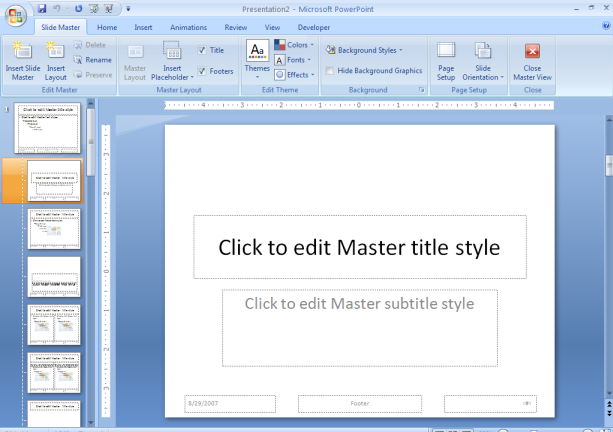
1 Maximizing the Use of Slide Masters to Make Global Changes in PowerPoint This document provides instructions for using slide masters in Microsoft PowerPoint. Slide masters allow you to make a change just once and apply it to every slide in your presentation, including slides that have yet to be added. Content can be placed on the slide master (like a company name or logo) as well as formatting (like making every title bold and size 44 pt) and even animation (like making every bulleted list fly in from the bottom one line at a time). Working in Master View 1. It is a good idea to create a slide master before you start to build individual slides, rather than after. a. When you create the slide master first, all of the slides that you add to your presentation are based on that slide master. b. However, if you create a slide master after you start to build individual slides, some of the items on the slides may not conform to the slide master design. 2. To work with slide masters, go to the View tab and choose Slide Master. a. A shortcut for getting to the Slide Master view is to hold the Shift key while clicking the Normal View button in the status bar in the lower right corner of the window. 3. What you now see is not the content of the slides, but rather the layout of the slides. The slide thumbnails that appear on the left side of the window are slide masters for each of the different layouts available. Information Technology Services, UIS 1
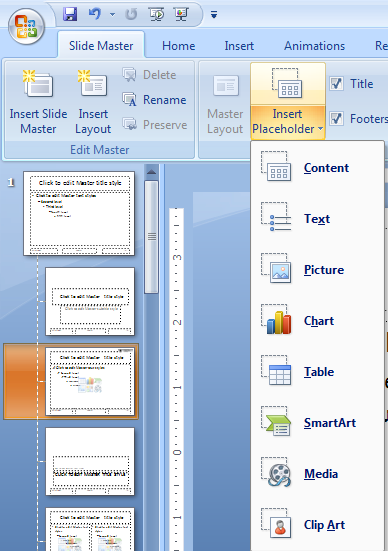
2 4. Changes made to any of the slide masters will apply to all slides of that layout (both those that are already created as well as any future slides). This logo will appear at the top of each slide that uses this layout. Instead of the standard bullets, this presentation will use musical notes. 5. You can also remove, add, move, and resize placeholders. a. To remove a placeholder, click on its border to select it and then press Delete on your keyboard. b. To add a placeholder, click the Insert Placeholder button on the Slide Master tab. Select the type of placeholder you would like to insert, and then draw the placeholder on the slide in the desired location. Information Technology Services, UIS 2

3 c. To move a placeholder, click on its border to select it and then drag it to the desired location. Your pointer will look like a 4-headed arrow. d. To resize a placeholder, click on its border to select it and using the border handles, adjust it to the desired size. Your pointer will look like a 2-headed arrow. 6. You can adjust the font, size, color, and other formatting characteristics of the content of a placeholder by selecting the border of the placeholder. Then adjust the formatting as desired. 7. You can rename a layout by selecting it and clicking the Rename button in the Slide Master tab. 8. To close the Slide Master view, click Close Master View on the Slide Master tab. 9. Header and footer information (for slides as well as notes and handouts) can be added by going to the Insert tab and choosing Header & Footer. Information Technology Services, UIS 3
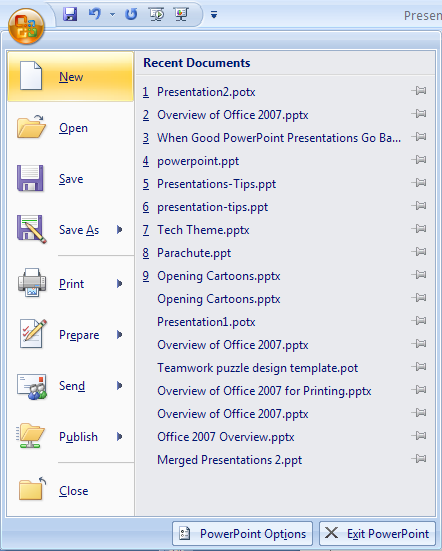
4 Saving a Slide Master for Use in New Presentations 1. To use the slide master in other presentations, you need to save it as a PowerPoint template. a. If Slide Master View is still open, on the Slide Master tab, click Close Master View. b. Click the Microsoft Office button, and then click Save As. c. In the File name box, type a file name. d. In the Save as type list, choose PowerPoint Template, and then click Save. 2. To use your customized Slide Master for new presentations, a. Click on the Microsoft Office button and choose New. Information Technology Services, UIS 4

5 b. Choose My Templates. c. Then browse for your template and click OK. d. Your customized slide masters will now be available for use in this new presentation. Copying a Slide Master for Use in Existing Presentations 1. Open both the presentation that contains the slide master that you want to copy and the presentation that you will paste the slide master to. 2. In the presentation that contains the slide master that you want to copy, click the Slide Master button on the View tab. 3. In the slide thumbnail pane, right-click the slide master that you want to copy, and then click Copy. 4. On the View tab, click Switch Windows, and then select the presentation that you want to paste the slide master to. 5. In the presentation that you want to paste the slide master to, click the Slide Master button on the View tab. 6. In the slide thumbnail pane, click the location where you want the slide master to reside, and then do one of the following: a. If the destination presentation contains a blank slide master, select the blank slide master. Information Technology Services, UIS 5
6 b. If the destination presentation contains one or more customized slide masters, scroll to the bottom where the last layout resides, click below it, and then paste the slide master. 7. Right-click the slide master, and then click Paste on the shortcut menu. 8. To apply additional slide masters, follow steps 1 through When finished, click Close Master View on the Slide Master tab. Reusing Slides from Existing Presentations There may be times when you want to insert an entire slide (including its content) into your presentation. 1. Open the presentation that you want to add a slide to. 2. In the pane that contains the Outline and Slides tabs, click Slides, and then click where you want to add a slide. 3. On the Home tab, click New Slide, and then click Reuse Slides. 4. In the Reuse Slides pane, click Open a PowerPoint File. 5. In the Browse dialog box, locate and click the presentation file that contains the slide that you want, and then click Open. a. In the Reuse Slides pane, PowerPoint displays thumbnails of the slides from the presentation that you selected. Rest the pointer on a thumbnail to see a larger version of the slide's contents. 4. In the Reuse Slides pane, do one of the following: b. To add a single slide, click the slide. c. To add all of the slides, right-click any slide, and then click Insert All Slides on the shortcut menu. d. If you want the slide that you are adding to the destination presentation to maintain the formatting of the original presentation, select the Keep source formatting check box before you add the slide to the destination presentation. Information Technology Services, UIS 6
Microsoft PowerPoint 2010 Handout
 Microsoft PowerPoint 2010 Handout PowerPoint is a presentation software program that is part of the Microsoft Office package. This program helps you to enhance your oral presentation and keep the audience
Microsoft Office PowerPoint 2003. Creating a new presentation from a design template. Creating a new presentation from a design template
 Microsoft Office PowerPoint 2003 Tutorial 2 Applying and Modifying Text and Graphic Objects 1 Creating a new presentation from a design template Click File on the menu bar, and then click New Click the
PowerPoint 2013: Basic Skills
 PowerPoint 2013: Basic Skills Information Technology September 1, 2014 1 P a g e Getting Started There are a variety of ways to start using PowerPoint software. You can click on a shortcut on your desktop
Microsoft PowerPoint 2008
 Microsoft PowerPoint 2008 Starting PowerPoint... 2 Creating Slides in Your Presentation... 3 Beginning with the Title Slide... 3 Inserting a New Slide... 3 Slide Layouts... 3 Adding an Image to a Slide...
PowerPoint: Design Themes and Slide Layouts Contents
 PowerPoint: Design Themes and Slide Layouts Contents Design Themes... 1 Apply a theme to your presentation... 1 Theme colors... 1 Theme fonts... 3 Theme effects... 3 Quick Styles... 4 Customize a theme...
Design with Themes - Part 2: Advanced Custom Themes
 Design with Themes - Part 2: Advanced Custom Themes In Design with Themes - Part 1, you learned how in a few steps, you can customize any built-in theme and then apply your theme to a new presentation.
Page 1. 1.0 Create and Manage a Presentation 1.1 Create a Presentation Pages Where Covered
 Page 1 Study Guide for MOS Objectives in Microsoft PowerPoint 2013 Illustrated 1.0 Create and Manage a Presentation 1.1 Create a Presentation creating blank presentations 6 creating presentations using
Advanced Presentation Features and Animation
 There are three features that you should remember as you work within PowerPoint 2007: the Microsoft Office Button, the Quick Access Toolbar, and the Ribbon. The function of these features will be more
Microsoft PowerPoint 2010 Computer Jeopardy Tutorial
 Microsoft PowerPoint 2010 Computer Jeopardy Tutorial 1. Open up Microsoft PowerPoint 2010. 2. Before you begin, save your file to your H drive. Click File > Save As. Under the header that says Organize
Microsoft Office PowerPoint 2003. Identify components of the PowerPoint window. Tutorial 1 Creating a Presentation
 Microsoft Office PowerPoint 2003 Tutorial 1 Creating a Presentation 1 Identify components of the PowerPoint window You will recognize some of the features of the PowerPoint window that are common to Windows
Beginning PowerPoint: Hands-On Exercise (Windows XP) Regent University
 Beginning PowerPoint: Hands-On Exercise (Windows XP) 10/1/02 (Creation Date) 01/08/2004 Regent University The Center for Teaching & Learning 1 Beginning PowerPoint: Hands-On Exercise (Windows XP) 1. Open
What is Microsoft PowerPoint?
 What is Microsoft PowerPoint? Microsoft PowerPoint is a powerful presentation builder. In PowerPoint, you can create slides for a slide-show with dynamic effects that will keep any audience s attention.
Introduction to Microsoft PowerPoint
 Introduction to Microsoft PowerPoint By the end of class, students should be able to: Identify parts of the work area. Create a new presentation using PowerPoint s design templates. Navigate around a presentation.
Presentations and PowerPoint
 V-1.1 PART V Presentations and PowerPoint V-1.2 Computer Fundamentals V-1.3 LESSON 1 Creating a Presentation After completing this lesson, you will be able to: Start Microsoft PowerPoint. Explore the PowerPoint
I ntroduction. Accessing Microsoft PowerPoint. Anatomy of a PowerPoint Window
 Accessing Microsoft PowerPoint To access Microsoft PowerPoint from your home computer, you will probably either use the Start menu to select the program or double-click on an icon on the Desktop. To open
MICROSOFT OUTLOOK 2010 READ, ORGANIZE, SEND AND RESPONSE E-MAILS
 MICROSOFT OUTLOOK 2010 READ, ORGANIZE, SEND AND RESPONSE E-MAILS Last Edited: 2012-07-09 1 Read Emails... 4 Find the inbox... 4 Change new incoming e-mail notification options... 5 Read email... 6 Change
Microsoft PowerPoint 2010
 Microsoft PowerPoint 2010 Starting PowerPoint... 2 PowerPoint Window Properties... 2 The Ribbon... 3 Default Tabs... 3 Contextual Tabs... 3 Minimizing and Restoring the Ribbon... 4 The Backstage View...
MICROSOFT OUTLOOK 2010 WORK WITH CONTACTS
 MICROSOFT OUTLOOK 2010 WORK WITH CONTACTS Last Edited: 2012-07-09 1 Access to Outlook contacts area... 4 Manage Outlook contacts view... 5 Change the view of Contacts area... 5 Business Cards view... 6
Publisher 2010 Create an Event Flyer
 Open Microsoft Publisher 2010 and Create an Event Flyer: On the File tab New below More Templates, click Flyers Below Event, click the Bounce template In the right hand pane, below Customize Select the
Microsoft Office PowerPoint 2013
 Microsoft Office PowerPoint 2013 Navigating the PowerPoint 2013 Environment The Ribbon: The ribbon is where you will access a majority of the commands you will use to create and develop your presentation.
Handout: Word 2010 Tips and Shortcuts
 Word 2010: Tips and Shortcuts Table of Contents EXPORT A CUSTOMIZED QUICK ACCESS TOOLBAR... 2 IMPORT A CUSTOMIZED QUICK ACCESS TOOLBAR... 2 USE THE FORMAT PAINTER... 3 REPEAT THE LAST ACTION... 3 SHOW
The very basic basics of PowerPoint XP
 The very basic basics of PowerPoint XP TO START The above window automatically shows when you first start PowerPoint. At this point, there are several options to consider when you start: 1) Do you want
Microsoft Office 2010: Introductory Q&As PowerPoint Chapter 1
 Microsoft Office 2010: Introductory Q&As PowerPoint Chapter 1 Are the themes displayed in a specific order? (PPT 6) Yes. They are arranged in alphabetical order running from left to right. If you point
MICROSOFT ACCESS 2007 BOOK 2
 MICROSOFT ACCESS 2007 BOOK 2 4.1 INTRODUCTION TO ACCESS FIRST ENCOUNTER WITH ACCESS 2007 P 205 Access is activated by means of Start, Programs, Microsoft Access or clicking on the icon. The window opened
Microsoft PowerPoint 2010 Templates and Slide Masters (Level 3)
 IT Services Microsoft PowerPoint 2010 Templates and Slide Masters (Level 3) Contents Introduction... 1 Installed Templates and Themes... 2 University of Reading Templates... 3 Further Templates and Presentations...
PowerPoint. Basics. Project
 PowerPoint 2010 Basics Project PRESENTED BY THE TECHNOLOGY TRAINERS OF THE MONROE COUNTY LIBRARY SYSTEM EMAIL: [email protected] MONROE COUNTY LIBRARY SYSTEM 734-241-5770 840 SOUTH ROESSLER
PowerPoint 2007 Basics Website: http://etc.usf.edu/te/
 Website: http://etc.usf.edu/te/ PowerPoint is the presentation program included in the Microsoft Office suite. With PowerPoint, you can create engaging presentations that can be presented in person, online,
Add a custom a color scheme
 The Page Design Ribbon About color schemes and font schemes Color schemes are sets of colors designed to look complement one another. Similarly, font schemes are sets of complementary fonts that are used
Introduction to Microsoft PowerPoint
 Introduction to Microsoft PowerPoint School of Medicine Library University of South Carolina WHAT IS POWERPOINT? PowerPoint (PPT) is a powerful, easy-to-use presentation graphics software program which
INTRODUCTION TO COMPUTER CONCEPTS CSIT 100 LAB: MICROSOFT POWERPOINT
 INTRODUCTION TO COMPUTER CONCEPTS CSIT 100 LAB: MICROSOFT POWERPOINT Starting PowerPoint 1. Click the Start button 2. Click on Microsoft Office PowerPoint on the Programs menu. If you don t see it there,
How to Build a SharePoint Website
 How to Build a SharePoint Website Beginners Guide to SharePoint Overview: 1. Introduction 2. Access your SharePoint Site 3. Edit Your Home Page 4. Working With Text 5. Inserting Pictures 6. Making Tables
Search help. More on Office.com: images templates
 Page 1 of 7 PowerPoint 2010 Home > PowerPoint 2010 Help and How-to > Getting started with PowerPoint Search help More on Office.com: images templates Basic tasks in PowerPoint 2010 Here are some basic
How to Create a Newsletter Using Common Sense Software - Custom Design
 Create a Newsletter in Publishing Layout View Overview You have text and pictures, and now you want to make them look great together. The new publishing layout view in Word offers a simple interface and
HOW TO PAGE A DOCUMENT IN MICROSOFT WORD
 1 HOW TO PAGE A DOCUMENT IN MICROSOFT WORD 1 PAGING A WHOLE DOCUMENT FROM 1 TO Z (Including the first page) 1.1 Arabic Numbers (a) Click the Insert tab. (b) Go to the Header & Footer Section and click
Microsoft Office PowerPoint 2007. Lyon County Schools
 Microsoft Office PowerPoint 2007 Lyon County Schools Accessing 2007 Programs Button When you open any of the 2007 Microsoft Office programs, you ll notice THE button (with the Microsoft logo on it). The
Instructions for Formatting APA Style Papers in Microsoft Word 2010
 Instructions for Formatting APA Style Papers in Microsoft Word 2010 To begin a Microsoft Word 2010 project, click on the Start bar in the lower left corner of the screen. Select All Programs and then find
Google Sites. How to create a site using Google Sites
 Contents How to create a site using Google Sites... 2 Creating a Google Site... 2 Choose a Template... 2 Name Your Site... 3 Choose A Theme... 3 Add Site Categories and Descriptions... 3 Launch Your Google
Text Basics. Introduction
 Text Basics Introduction PowerPoint includes all the features you need to produce professionallooking presentations. When you create a PowerPoint presentation, it is made up of a series of slides. The
Introduction to Microsoft Word 2003
 Introduction to Microsoft Word 2003 Sabeera Kulkarni Information Technology Lab School of Information University of Texas at Austin Fall 2004 1. Objective This tutorial is designed for users who are new
Microsoft Access 2010 handout
 Microsoft Access 2010 handout Access 2010 is a relational database program you can use to create and manage large quantities of data. You can use Access to manage anything from a home inventory to a giant
Using PowerPoint Short Course
 Using PowerPoint Short Course PowerPoint is a software package that enables you to create presentation slides. Your presentation can include Text and Bulleted points, Tables, Graphs even Flow charts. To
Microsoft Office 2010: Introductory Q&As PowerPoint Chapter 3
 Microsoft Office 2010: Introductory Q&As PowerPoint Chapter 3 How do I resize the picture so that it maintains its proportions? (PPT 141) Press and hold the shift key while dragging a sizing handle away
Introduction To Microsoft Office PowerPoint 2007. Bob Booth July 2008 AP-PPT5
 Introduction To Microsoft Office PowerPoint 2007. Bob Booth July 2008 AP-PPT5 University of Sheffield Contents 1. INTRODUCTION... 3 2. GETTING STARTED... 4 2.1 STARTING POWERPOINT... 4 3. THE USER INTERFACE...
PowerPoint 2013 Basics of Creating a PowerPoint Presentation
 Revision 4 (01-31-2014) PowerPoint 2013 Basics of Creating a PowerPoint Presentation MICROSOFT POWERPOINT PowerPoint is software that lets you create visual presentations. PowerPoint presentations are
PowerPoint 2007: Basics Learning Guide
 PowerPoint 2007: Basics Learning Guide What s a PowerPoint Slide? PowerPoint presentations are composed of slides, just like conventional presentations. Like a 35mm film-based slide, each PowerPoint slide
PEMBINA TRAILS SCHOOL DIVISION. Information Technology Department
 Information Technology Department Intro to Microsoft PowerPoint 2003 INFORMATION TECHNOLOGY DEPT. Introduction to Microsoft PowerPoint 2003 Ivone B. Kordic Instructional Technology Assistant Information
Microsoft PowerPoint 2011
 Microsoft PowerPoint 2011 Starting PowerPoint... 2 Creating Slides in Your Presentation... 3 Beginning with the Title Slide... 3 Inserting a New Slide... 3 Adding an Image to a Slide... 4 Downloading Images
Instructions for Formatting MLA Style Papers in Microsoft Word 2010
 Instructions for Formatting MLA Style Papers in Microsoft Word 2010 To begin a Microsoft Word 2010 project, click on the Start bar in the lower left corner of the screen. Select All Programs and then find
Managing Contacts in Outlook
 Managing Contacts in Outlook This document provides instructions for creating contacts and distribution lists in Microsoft Outlook 2007. In addition, instructions for using contacts in a Microsoft Word
A Beginner s Guide to PowerPoint 2010
 A Beginner s Guide to PowerPoint 2010 I. The Opening Screen You will see the default opening screen is actually composed of three parts: 1. The Slides/Outline tabs on the left which displays thumbnails
Personal Portfolios on Blackboard
 Personal Portfolios on Blackboard This handout has four parts: 1. Creating Personal Portfolios p. 2-11 2. Creating Personal Artifacts p. 12-17 3. Sharing Personal Portfolios p. 18-22 4. Downloading Personal
Basics of Microsoft Outlook/Email. Microsoft Outlook
 Basics of Microsoft Outlook/Email Microsoft Outlook Workshop Outline for Improve Your Outlook Microsoft Outlook Contents Starting the application... 3 The Outlook 2010 window... 3 Expanding and minimizing
Excel 2003 Tutorial I
 This tutorial was adapted from a tutorial by see its complete version at http://www.fgcu.edu/support/office2000/excel/index.html Excel 2003 Tutorial I Spreadsheet Basics Screen Layout Title bar Menu bar
In this session, we will explain some of the basics of word processing. 1. Start Microsoft Word 11. Edit the Document cut & move
 WORD PROCESSING In this session, we will explain some of the basics of word processing. The following are the outlines: 1. Start Microsoft Word 11. Edit the Document cut & move 2. Describe the Word Screen
New Features in Microsoft Office 2007
 New Features in Microsoft Office 2007 TABLE OF CONTENTS The Microsoft Office Button... 2 The Quick Access Toolbar... 2 Adding buttons to the Quick Access Toolbar... 2 Removing buttons from the Quick Access
Installing Lync. Configuring and Signing into Lync
 Microsoft Lync 2013 Contents Installing Lync... 1 Configuring and Signing into Lync... 1 Changing your Picture... 2 Adding and Managing Contacts... 2 Create and Manage Contact Groups... 3 Start an Instant
Microsoft Office PowerPoint 2007 Basics Workshop
 Microsoft Office PowerPoint 2007 Basics Workshop Created & Hosted by: Hagop (Jack) Hadjinian I.A., Information Technology Course Contents Overview: Get set with the basics Lesson 1: Create your slides
Sharing Files and Whiteboards
 Your user role in a meeting determines your level of file sharing. The type of files you can share include documents, presentations, and videos. About Sharing Files, page 1 Changing Views in a File or
Microsoft Office Access 2007 Basics
 Access(ing) A Database Project PRESENTED BY THE TECHNOLOGY TRAINERS OF THE MONROE COUNTY LIBRARY SYSTEM EMAIL: [email protected] MONROE COUNTY LIBRARY SYSTEM 734-241-5770 1 840 SOUTH ROESSLER
MS Publisher 2010 Creating a newsletter
 MS Publisher 2010 Creating a newsletter Course Content This session is a brief introduction to creating a newsletter using Microsoft Publisher 2010 in the Waikato Management School student computer labs.
How to Edit an Email. Here are some of the things you can do to customize your email:
 How to Edit an Email Editing a new email created during the Create an Email wizard or editing an existing email in the Edit Email section of the Manage Emails tab is easy, using editing tools you re probably
Creating a PowerPoint Poster using Windows
 Creating a PowerPoint Poster using Windows Copyright 2001 Michael Dougherty ([email protected]) Purpose The purpose of this tutorial is to illustrate how to create a 3 x 4 ft. poster using PowerPoint. This
Outlook Email. User Guide IS TRAINING CENTER. 833 Chestnut St, Suite 600. Philadelphia, PA 19107 215-503-7500
 Outlook Email User Guide IS TRAINING CENTER 833 Chestnut St, Suite 600 Philadelphia, PA 19107 215-503-7500 This page intentionally left blank. TABLE OF CONTENTS Getting Started... 3 Opening Outlook...
MS Word 2007 practical notes
 MS Word 2007 practical notes Contents Opening Microsoft Word 2007 in the practical room... 4 Screen Layout... 4 The Microsoft Office Button... 4 The Ribbon... 5 Quick Access Toolbar... 5 Moving in the
Microsoft Word 2010 Tutorial
 1 Microsoft Word 2010 Tutorial Microsoft Word 2010 is a word-processing program, designed to help you create professional-quality documents. With the finest documentformatting tools, Word helps you organize
SiteBuilder 2.1 Manual
 SiteBuilder 2.1 Manual Copyright 2004 Yahoo! Inc. All rights reserved. Yahoo! SiteBuilder About This Guide With Yahoo! SiteBuilder, you can build a great web site without even knowing HTML. If you can
Styles, Tables of Contents, and Tables of Authorities in Microsoft Word 2010
 Styles, Tables of Contents, and Tables of Authorities in Microsoft Word 2010 TABLE OF CONTENTS WHAT IS A STYLE?... 2 VIEWING AVAILABLE STYLES IN THE STYLES GROUP... 2 APPLYING STYLES FROM THE STYLES GROUP...
Macros in Word & Excel
 Macros in Word & Excel Description: If you perform a task repeatedly in Word or Excel, you can automate the task by using a macro. A macro is a series of steps that is grouped together as a single step
WHAT S NEW IN WORD 2010 & HOW TO CUSTOMIZE IT
 WHAT S NEW IN WORD 2010 & HOW TO CUSTOMIZE IT The Ribbon... 2 Default Tabs... 2 Contextual Tabs... 2 Minimizing and Restoring the Ribbon... 3 Customizing the Ribbon... 3 A New Graphic Interface... 5 Live
PowerPoint 2013: Absolute Beginners. Workbook
 PowerPoint 2013: Absolute Beginners Workbook Edition 1 August 2014 Document Reference: 3809-2014 PowerPoint 2013: Absolute Beginners Contents Introduction Getting started with PowerPoint... 1 After the
Microsoft Power Point 2007 Study Guide PowerPoint The Microsoft Office Button The Quick Access Toolbar The Title Bar
 Microsoft Power Point 2007 Study Guide PowerPoint is a presentation software package. With PowerPoint, you can easily create slide shows. Trainers and other presenters use slide shows to illustrate their
Microsoft Excel 2013: Headers and Footers
 Microsoft Excel 2013: Headers and Footers You can add headers or footers at the top or bottom of a printed worksheet. For example, you might create a footer that has page numbers, along with the date and
Microsoft Office Excel 2007 Key Features. Office of Enterprise Development and Support Applications Support Group
 Microsoft Office Excel 2007 Key Features Office of Enterprise Development and Support Applications Support Group 2011 TABLE OF CONTENTS Office of Enterprise Development & Support Acknowledgment. 3 Introduction.
Microsoft Access 2007 Introduction
 Microsoft Access 2007 Introduction Access is the database management system in Microsoft Office. A database is an organized collection of facts about a particular subject. Examples of databases are an
Title bar Help Ribbon Display (appear only when needed)
 Microsoft Office 2013 Quick Reference Card Office 2013 is very much like Office 2010 in its basic functionality. It uses a tabbed Ribbon across the top and employs dialog boxes and a Quick Access Toolbar.
How To Insert Hyperlinks In Powerpoint Powerpoint
 Lesson 5 Inserting Hyperlinks & Action Buttons Introduction A hyperlink is a graphic or piece of text that links to another web page, document, or slide. By clicking on the hyperlink will activate it and
Crystal Reports Payroll Exercise
 Crystal Reports Payroll Exercise Objective This document provides step-by-step instructions on how to build a basic report on Crystal Reports XI on the MUNIS System supported by MAISD. The exercise will
Windows XP File Management
 Windows XP File Management As you work with a computer creating more and more documents, you need to find a way to keep this information organized. Without a good organizational method, all your files
Check out our website!
 Check out our website! www.nvcc.edu/woodbr idge/computer-lab Contact Us Location: Open Computer Lab Seefeldt Building #336 NOVA Woodbridge Campus Hussna Azamy (OCL Supervisor) Phone: 703-878-5714 E-mail:
NDSU Technology Learning & Media Center
 1 NDSU Technology Learning & Media Center QBB 150C 231-5130 www.ndsu.edu/its/tlmc Creating a Large Format Poster (Plot) Using PowerPoint 2013 Posters should be designed and created in a manner that best
Word 2007 WOWS of Word Office 2007 brings a whole new basket of bells and whistles for our enjoyment. The whistles turn to wows.
 WOWS of Word Office brings a whole new basket of bells and whistles for our enjoyment. The whistles turn to wows. [email protected] Templates Click on the Office Button PDF and select New. You can now change
Google Docs Basics Website: http://etc.usf.edu/te/
 Website: http://etc.usf.edu/te/ Google Docs is a free web-based office suite that allows you to store documents online so you can access them from any computer with an internet connection. With Google
Microsoft Access 2010 Part 1: Introduction to Access
 CALIFORNIA STATE UNIVERSITY, LOS ANGELES INFORMATION TECHNOLOGY SERVICES Microsoft Access 2010 Part 1: Introduction to Access Fall 2014, Version 1.2 Table of Contents Introduction...3 Starting Access...3
PowerPoint 2013 Basics for Windows Training Objective
 PowerPoint 2013 Basics for Windows PowerPoint 2013 Basics for Windows Training Objective To learn the tools and features to get started using PowerPoint more efficiently and effectively. What you can expect
Use e-mail signatures in Outlook 2010
 Use e-mail signatures in Outlook 2010 Quick Reference Card Download and use a signature template Note This procedure will take you away from this page. If necessary, print this page before you follow these
Introduction. Inserting Hyperlinks. PowerPoint 2010 Hyperlinks and Action Buttons. About Hyperlinks. Page 1
 PowerPoint 2010 Hyperlinks and Action Buttons Introduction Page 1 Whenever you use the Web, you are using hyperlinks to navigate from one web page to another. If you want to include a web address or email
Creating a Poster in PowerPoint 2010. A. Set Up Your Poster
 View the Best Practices in Poster Design located at http://www.emich.edu/training/poster before you begin creating a poster. Then in PowerPoint: (A) set up the poster size and orientation, (B) add and
Using PowerPoint s Advanced Features. What Are Advanced Features? Basic Skills:
 Using PowerPoint s Advanced Features September, 2003 Suzanne Czurylo [email protected] For questions about using PowerPoint, please contact Software Support at [email protected] What Are Advanced
MS WORD 2007 (PC) Macros and Track Changes Please note the latest Macintosh version of MS Word does not have Macros.
 MS WORD 2007 (PC) Macros and Track Changes Please note the latest Macintosh version of MS Word does not have Macros. Record a macro 1. On the Developer tab, in the Code group, click Record Macro. 2. In
Importing Contacts to Outlook
 Importing Contacts to Outlook 1. The first step is to create a file of your contacts from the National Chapter Database. 2. You create this file under Reporting, Multiple. You will follow steps 1 and 2
Creating forms in Microsoft Access 2007
 Platform: Windows PC Ref no: USER 166 Date: 14 th January 2008 Version: 1 Authors: Derek Sheward, Claire Napier Creating forms in Microsoft Access 2007 This is the fourth document in a series of five on
Microsoft PowerPoint Exercises 4
 Microsoft PowerPoint Exercises 4 In these exercises, you will be working with your Music Presentation file used in part 1 and 2. Open that file if you haven t already done so. Exercise 1. Slide Sorter
Creating a Newsletter with Microsoft Word
 Creating a Newsletter with Microsoft Word Frank Schneemann In this assignment we are going to use Microsoft Word to create a newsletter that can be used in your classroom instruction. If you already know
Introduction to Microsoft Word 2008
 1. Launch Microsoft Word icon in Applications > Microsoft Office 2008 (or on the Dock). 2. When the Project Gallery opens, view some of the available Word templates by clicking to expand the Groups, and
IT Services IT Training
 IT Services IT Training PowerPoint In this workbook you will learn to: use PowerPoint to create a range of visual aids enter the content of your presentation, edit and save it improve the design of your
Florence School District #1
 Florence School District #1 Training Module 2 Designing Lessons Designing Interactive SMART Board Lessons- Revised June 2009 1 Designing Interactive SMART Board Lessons Lesson activities need to be designed
Sample Table. Columns. Column 1 Column 2 Column 3 Row 1 Cell 1 Cell 2 Cell 3 Row 2 Cell 4 Cell 5 Cell 6 Row 3 Cell 7 Cell 8 Cell 9.
 Working with Tables in Microsoft Word The purpose of this document is to lead you through the steps of creating, editing and deleting tables and parts of tables. This document follows a tutorial format
Templates and Slide Masters in PowerPoint 2003
 Templates and Slide Masters in PowerPoint 2003 Introduction The layout of any PowerPoint presentation is set by the template used. Every presentation is based on a template; if a specific one is not chosen
Creating Personal Web Sites Using SharePoint Designer 2007
 Creating Personal Web Sites Using SharePoint Designer 2007 Faculty Workshop May 12 th & 13 th, 2009 Overview Create Pictures Home Page: INDEX.htm Other Pages Links from Home Page to Other Pages Prepare