
HOW TO VIEW AND EDIT PICTURES
|
|
|
- Maurice Hill
- 9 years ago
- Views:
Transcription
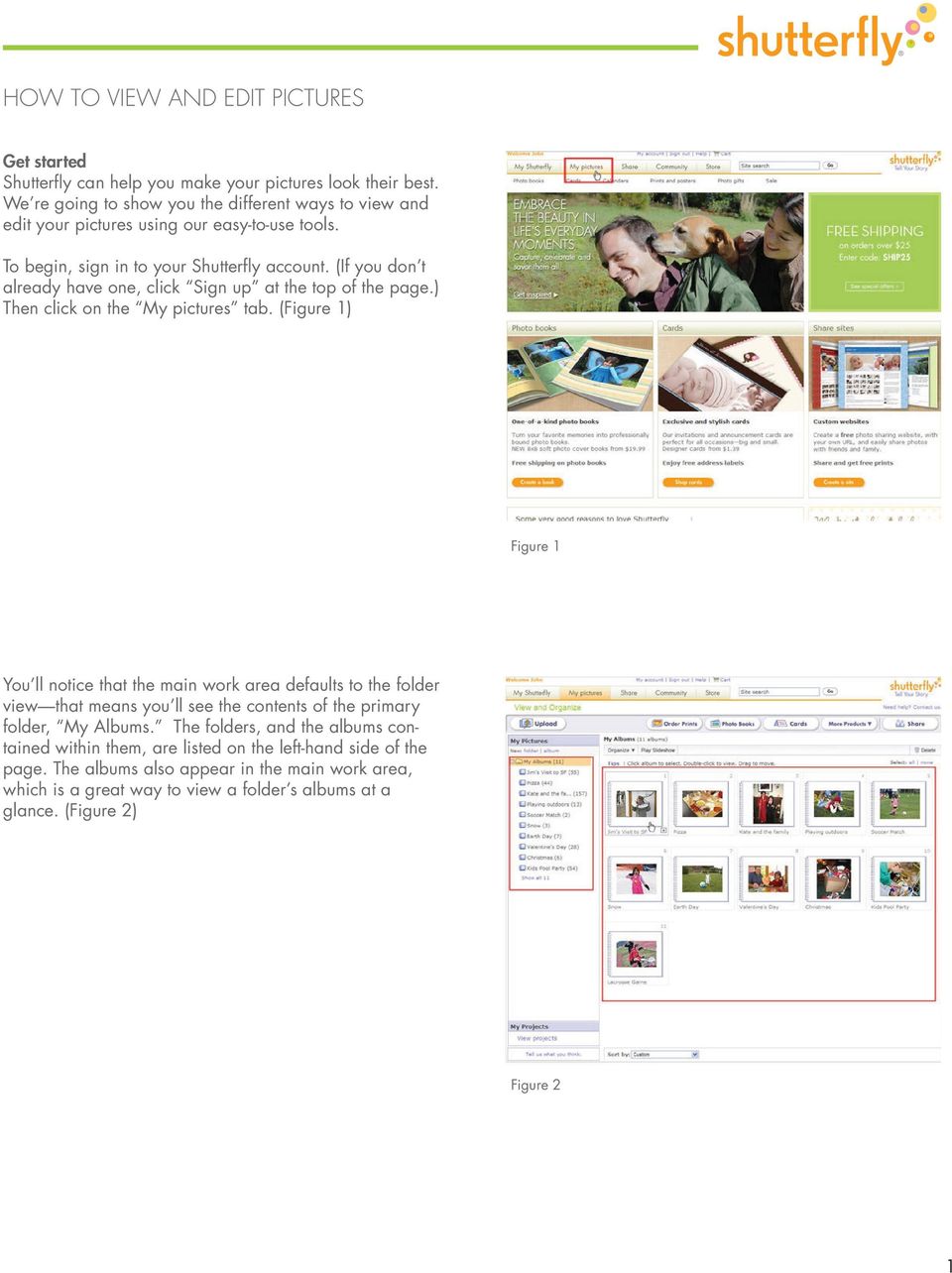
1 Get started Shutterfly can help you make your pictures look their best. We re going to show you the different ways to view and edit your pictures using our easy-to-use tools. To begin, sign in to your Shutterfly account. (If you don t already have one, click Sign up at the top of the page.) Then click on the My pictures tab. (Figure 1) Figure 1 You ll notice that the main work area defaults to the folder view that means you ll see the contents of the primary folder, My Albums. The folders, and the albums contained within them, are listed on the left-hand side of the page. The albums also appear in the main work area, which is a great way to view a folder s albums at a glance. (Figure 2) Figure 2 1
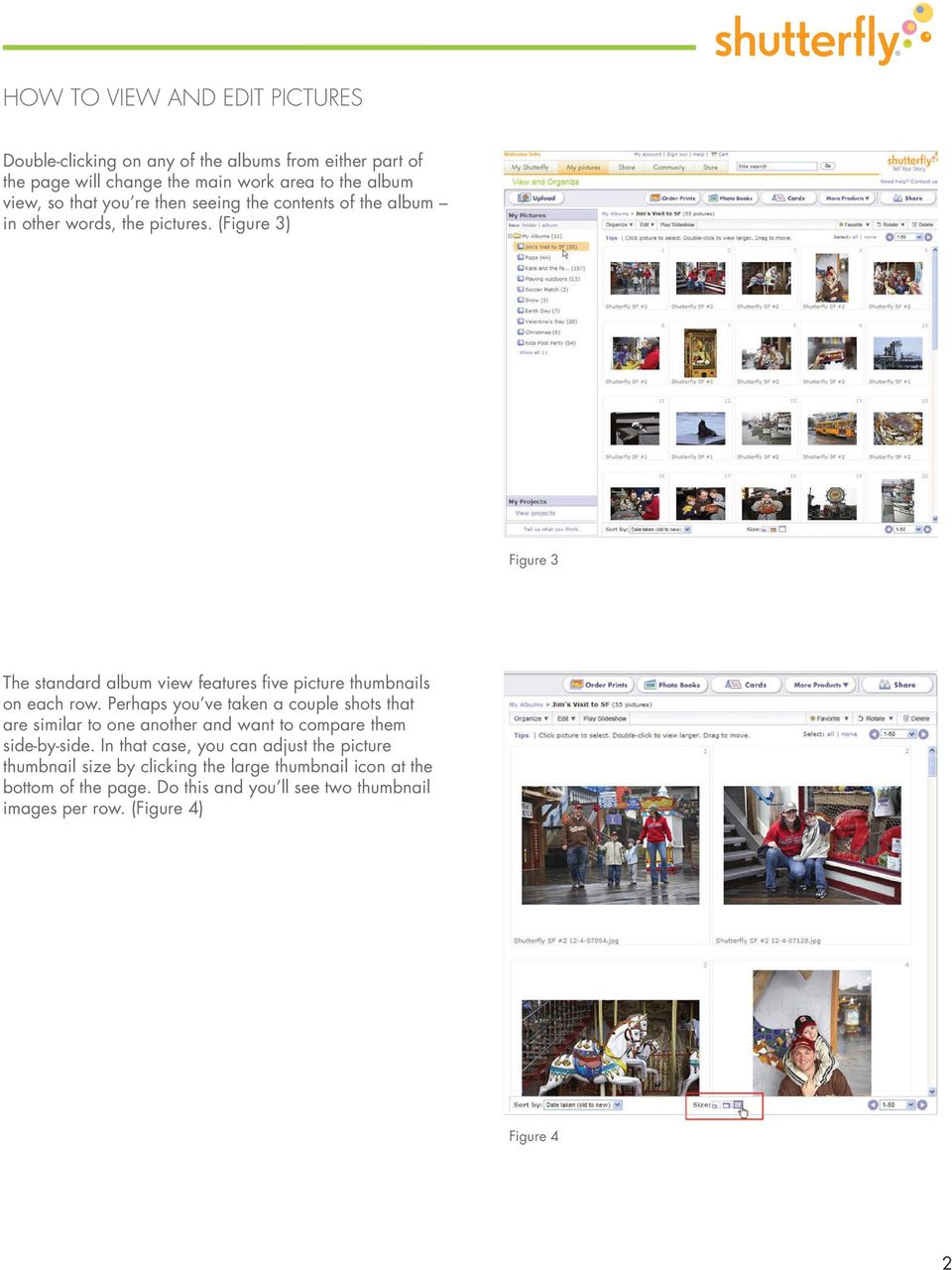
2 Double-clicking on any of the albums from either part of the page will change the main work area to the album view, so that you re then seeing the contents of the album in other words, the pictures. (Figure 3) Figure 3 The standard album view features five picture thumbnails on each row. Perhaps you ve taken a couple shots that are similar to one another and want to compare them side-by-side. In that case, you can adjust the picture thumbnail size by clicking the large thumbnail icon at the bottom of the page. Do this and you ll see two thumbnail images per row. (Figure 4) Figure 4 2
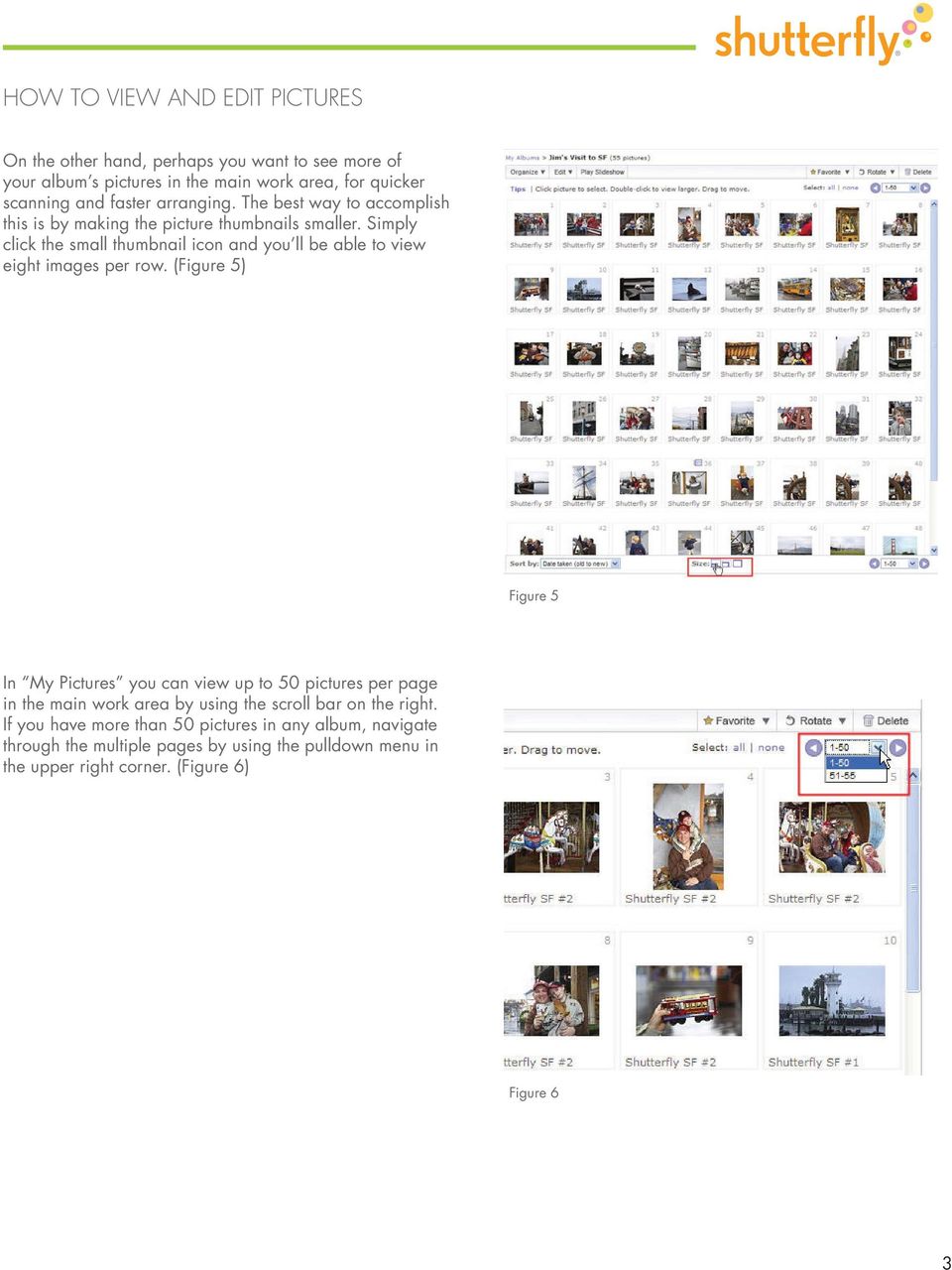
3 On the other hand, perhaps you want to see more of your album s pictures in the main work area, for quicker scanning and faster arranging. The best way to accomplish this is by making the picture thumbnails smaller. Simply click the small thumbnail icon and you ll be able to view eight images per row. (Figure 5) Figure 5 In My Pictures you can view up to 50 pictures per page in the main work area by using the scroll bar on the right. If you have more than 50 pictures in any album, navigate through the multiple pages by using the pulldown menu in the upper right corner. (Figure 6) Figure 6 3
4 In addition to folder view and album view, you can doubleclick on any picture thumbnail to get a close-up look at that single image. All the other pictures in the album are still accessible they re in the strip that appears at the bottom of the page. Double-click any of those thumbnails and you ll see them in picture view. (Figure 7) Figure 7 If you d like to see how your pictures look when displayed at full-size on your monitor, click the Play Slideshow button at the top of the page. You ll be able to view all the selected pictures in your album. Move your mouse to the top-center of the page to control the slideshow click the center button to play and pause, click the left button to view the previous image and click the right button to view the next image. (Figures 8 & 9) Figure 8 Figure 9 4

5 View your projects You can view more than pictures and albums. If you have created projects such as calendars or photo books, you can navigate to those as well. Select the View projects link located at the bottom of the left-side column. The main work area will then fill with a list of all existing product types you ve created and saved. Select one of those links to access your projects and edit, share or order them. (Figure 10) Figure 10 Edit pictures When you get a closer look at your pictures, what sort of fixes and enhancements need to be made? Perhaps some were taken using a flash, and the subjects have a case of red eye. Maybe a few of them could use cropping to remove some distracting objects in the background. Others might benefit from a soft-focus effect, or you may wish to add a border to make your prints look more stylish. Select the pictures you d like to edit by clicking on a thumbnail until an orange box appears around it. To de-select, click the check mark in the upper-left of the thumbnail. (Figure 11) Figure 11 5

6 If you d like to make enhancements to every picture in the album, select all at the top of the main work area. Select none to remove checks from every image. (Figure 12) Figure 12 Next, go to the Edit pulldown menu in the upper-left corner of the workspace and select one of the bottom four options. You ll notice there are two arrows on the right side of the page. Click on these to scroll forwards and backwards through the series of selected pictures. (Figure 13) Figure 13 6

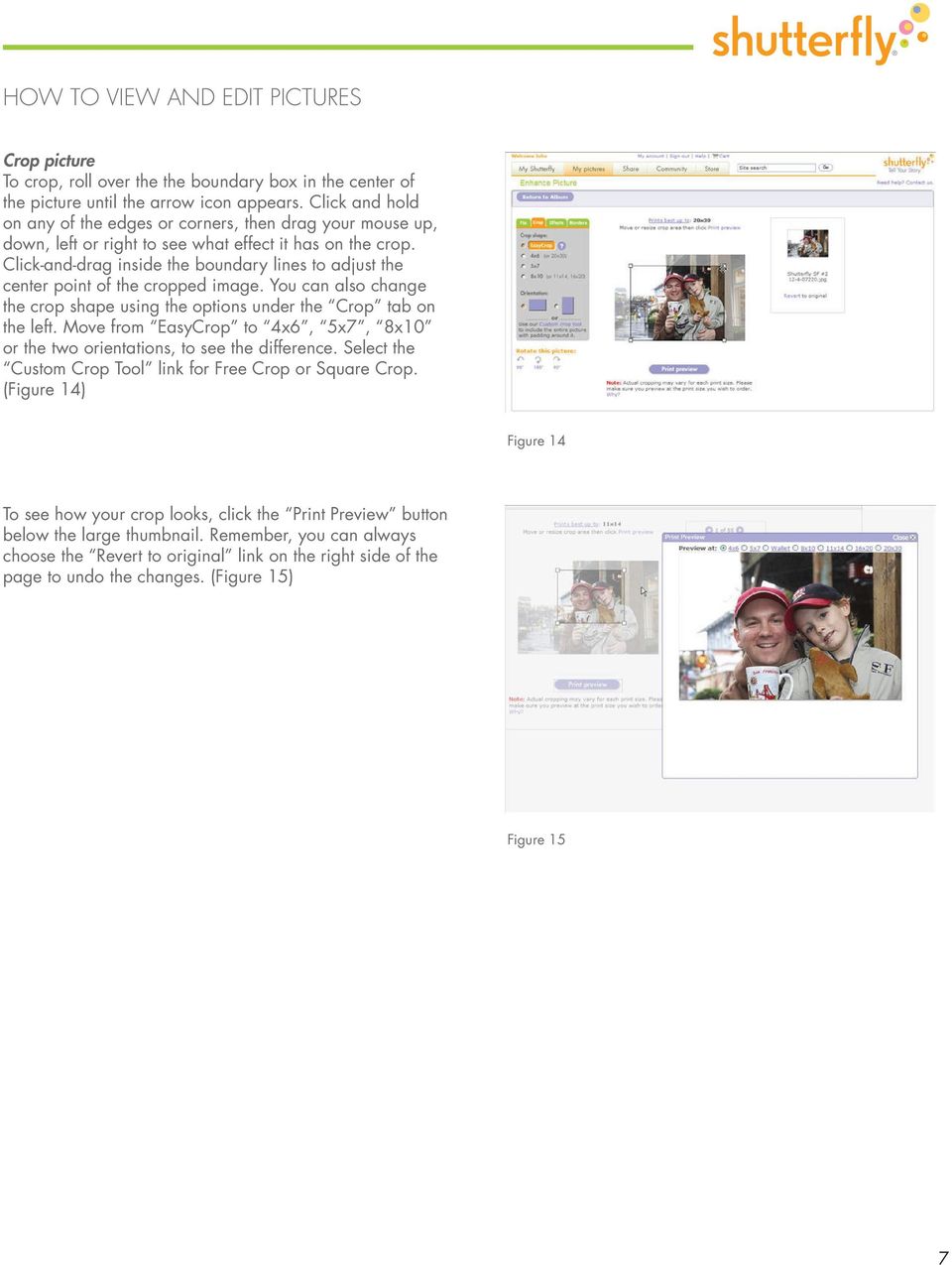
7 Crop picture To crop, roll over the the boundary box in the center of the picture until the arrow icon appears. Click and hold on any of the edges or corners, then drag your mouse up, down, left or right to see what effect it has on the crop. Click-and-drag inside the boundary lines to adjust the center point of the cropped image. You can also change the crop shape using the options under the Crop tab on the left. Move from EasyCrop to 4x6, 5x7, 8x10 or the two orientations, to see the difference. Select the Custom Crop Tool link for Free Crop or Square Crop. (Figure 14) Figure 14 To see how your crop looks, click the Print Preview button below the large thumbnail. Remember, you can always choose the Revert to original link on the right side of the page to undo the changes. (Figure 15) Figure 15 7
8 Apply borders You can add any of more than 500 borders to your pictures, including ones specifically created for baby, birthday and wedding images. Click Apply borders from the Edit pulldown menu. The tab on the left will default to Simple style. Choose from white, black line, black, shadow box and blur borders, or choose a different style from the tab pulldown menu. (Figures 16 & 17) Figure 16 Figure 17 With Simple style, you can adjust the width of the borders and trim your picture to make the border an even width. With other styles selected, use the buttons at the bottom of the tab to zoom in and out on your picture, and use the arrows to place the image the way you want it. (Figure 18) Figure 18 Click the Return to Album button in the upper-left to lock in your border. If you d like to apply the border you ve chosen on any picture to other selected pictures in your album, click Apply this border to this set of pictures on the right. Undo any border by selecting Revert to original. 8

9 Apply effects To add effects to your pictures, click Apply effect from the Edit pulldown menu. Your picture will be displayed in the default No Effect mode. Add an effect by clicking one from the tab Black & White, Color tone (similar to sepiatone), Saturate (which deepens the colors) or Soft Focus. Both Saturate and Soft Focus feature a control bar at the bottom of the tab which adjusts the intensity of the selected effect. (Figures 19 & 20) Figure 19 Figure 20 NOTE: Shutterfly uses exclusive VIVIDPICS technology to improve color and sharpness automatically. If you ve used photo editing software such as Photoshop on your pictures before uploading them to Shutterfly, be sure to check the box that says Don t apply automatic corrections to picture. 9

10 Fix red-eye To fix red-eye on your pictures, click Fix red-eye from the Edit pulldown menu. Move your cursor over the picture until you re directly over the eye. Click once and you ll notice a preview thumbnail of the eye in the Fix tab. Click directly over the red-eye in the preview and the red-eye should disappear. Select the Save Fix button right below the preview thumbnail to save the fix, or select Cancel Fix to undo it. (Figures 21 & 22) Figure 21 Figure 22 Rotate pictures Sometimes you ll notice that the orientation of a picture isn t the way you d like it to appear. To rotate a picture, mouse over the Rotate pulldown menu in the upper-right, and choose Rotate left (counterclockwise), Rotate right (clockwise) or Rotate 180 (to flip). The picture is rotated automatically. (Figure 23) Figure 23 10

11 Change names and descriptions To help keep track of your folders, albums and pictures, it s important to give them the proper names and descriptions, so you can find them quickly, regardless of what view mode you re in. To rename folders, mouse over and then click on the arrow next to the folder name on the left. Type the new name in the dialog box, then click OK. (Figure 24) Figure 24 To rename albums, mouse over and then click on the arrow next to the album name on the left. You can also click on the album name in the main work area. As with folders, type the new name in the dialog box, then click OK. (Figure 25) Figure 25 11

12 To rename pictures, click on the picture name right below its thumbnail in the main work area. Enter the new name in the dialog box, and add a picture description if you d like. You may also access this dialog box from the picture view by clicking the picture name and description. If you ve selected more than one picture, you have the option of applying one name and description to all the selected images. Just enter the information in the Apply to all pictures box at the top of the dialog box, then click Apply. (Figures 26 & 27) Figure 26 Figure 27 12

13 Mark favorites and album covers Perhaps you ve just uploaded an album full of pictures and want to make a note of which ones you like the best. The Favorite pulldown menu at the top of the main work area allows you to do just that. First, click on the pictures you d like to mark as favorites. Then click the arrow next to the pulldown menu and select Mark. You ll notice that a star appears next to the thumbnails of the selected pictures. To undo this action, return to the pulldown menu and select Unmark. To show all the items that have been marked as favorites, select Show all from the Favorite pulldown menu. (Figures 28 & 29) Figure 28 Figure 29 13
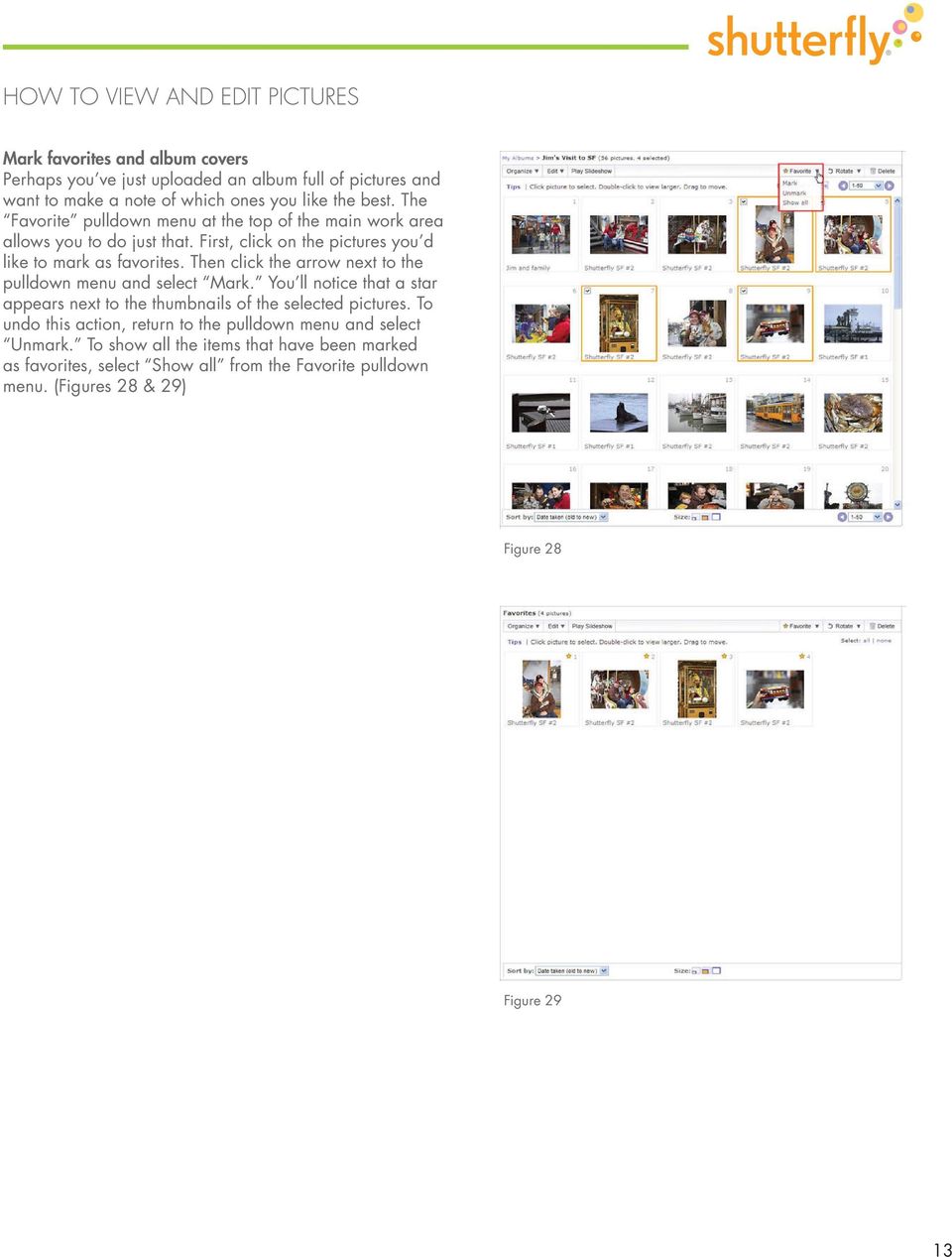
14 When viewing albums, you ll want to select a picture to use as the cover that will differentiate it from other albums. There are two ways to choose an album cover. The first way is to select a picture and click on the small arrow in the lower-right of the box. From the pulldown menu, select Use for album cover. (Figure 30) Figure 30 If you re in picture view, select the Use as album cover link in the top-right. The cover icon will then appear on the picture thumbnail. To change the album cover, simply double-click on another picture thumbnail and repeat the process. (Figure 31) Figure 31 14
HOW TO ORGANIZE PICTURES
 Get started When you upload your pictures to Shutterfly, you can do much more than view them. Our workspace offers tools that let you quickly and easily organize your photos as well. We re going to show
We re going to show you how to make a Share site. It takes just a few minutes to set one up. Here s how it s done.
 Get started Sharing your pictures is a great way to keep in touch with friends and family. Now, you can connect and communicate with everyone, all in one place, by creating a Shutterfly Share site secure,
Microsoft PowerPoint 2010 Handout
 Microsoft PowerPoint 2010 Handout PowerPoint is a presentation software program that is part of the Microsoft Office package. This program helps you to enhance your oral presentation and keep the audience
Using Microsoft Picture Manager
 Using Microsoft Picture Manager Storing Your Photos It is suggested that a county store all photos for use in the County CMS program in the same folder for easy access. For the County CMS Web Project it
Crop and Frame Your Photos
 Crop and Frame Your Photos Paint Shop Pro s crop tool gives you total control over your photo compositions. Cropping allows you to turn busy portraits into professional prints. And when you have a nicely
Microsoft Picture Manager. Picture Manager
 Picture Manager Picture Manager allows you to easily edit and organize the pictures on your computer. Picture Manager is an application that was included with Microsoft Office suite for Windows 2003 and
PowerPoint 2007 Basics Website: http://etc.usf.edu/te/
 Website: http://etc.usf.edu/te/ PowerPoint is the presentation program included in the Microsoft Office suite. With PowerPoint, you can create engaging presentations that can be presented in person, online,
Using Microsoft Word. Working With Objects
 Using Microsoft Word Many Word documents will require elements that were created in programs other than Word, such as the picture to the right. Nontext elements in a document are referred to as Objects
Internet Explorer 7. Getting Started The Internet Explorer Window. Tabs NEW! Working with the Tab Row. Microsoft QUICK Source
 Microsoft QUICK Source Internet Explorer 7 Getting Started The Internet Explorer Window u v w x y { Using the Command Bar The Command Bar contains shortcut buttons for Internet Explorer tools. To expand
SMART Notebook: Basics and Application
 SMART Notebook: Basics and Application Table of Contents TESS Connection... 3 Version Number... 3 Tour of the Window... 5 The Main Toolbar... 5 The Sidebar... 18 Page Sorter... 19 The Gallery... 23 Searching...
Sample Table. Columns. Column 1 Column 2 Column 3 Row 1 Cell 1 Cell 2 Cell 3 Row 2 Cell 4 Cell 5 Cell 6 Row 3 Cell 7 Cell 8 Cell 9.
 Working with Tables in Microsoft Word The purpose of this document is to lead you through the steps of creating, editing and deleting tables and parts of tables. This document follows a tutorial format
Microsoft PowerPoint 2010
 Microsoft PowerPoint 2010 Starting PowerPoint... 2 PowerPoint Window Properties... 2 The Ribbon... 3 Default Tabs... 3 Contextual Tabs... 3 Minimizing and Restoring the Ribbon... 4 The Backstage View...
itunes Basics Website: http://etc.usf.edu/te/
 Website: http://etc.usf.edu/te/ itunes is the digital media management program included in ilife. With itunes you can easily import songs from your favorite CDs or purchase them from the itunes Store.
Done. Click Done to close the Capture Preview window.
 The Capture Preview window allows you to preview, edit, and customize a screen capture before it is saved to a file, inserted into your document, attached to an e-mail, or sent to a variety of other Output
Google Sites. How to create a site using Google Sites
 Contents How to create a site using Google Sites... 2 Creating a Google Site... 2 Choose a Template... 2 Name Your Site... 3 Choose A Theme... 3 Add Site Categories and Descriptions... 3 Launch Your Google
HOW TO USE SHUTTERFLY GALLERY
 Get started We re going to show you all the different ways you can use Shutterfly Gallery, the place where members of the Shutterfly community just like you share the beautiful and inspiring projects they
Help. Contents Back >>
 Contents Back >> Customizing Opening the Control Panel Control Panel Features Tabs Control Panel Lists Control Panel Buttons Customizing Your Tools Pen and Airbrush Tabs 2D Mouse and 4D Mouse Tabs Customizing
A Quick Start Guide to Using PowerPoint For Image-based Presentations
 A Quick Start Guide to Using PowerPoint For Image-based Presentations By Susan Jane Williams & William Staffeld, Knight Visual Resources Facility College of Architecture, Art and Planning Cornell University.
Microsoft PowerPoint 2011
 Microsoft PowerPoint 2011 Starting PowerPoint... 2 Creating Slides in Your Presentation... 3 Beginning with the Title Slide... 3 Inserting a New Slide... 3 Adding an Image to a Slide... 4 Downloading Images
Outlook Web App (formerly known as Outlook Web Access)
 Outlook Web App (formerly known as Outlook Web Access) December 2013 Update to Email Beginning December 5 th, Microsoft will commence an upgrade of our email system. No action is required on the part of
PowerPoint 2013: Basic Skills
 PowerPoint 2013: Basic Skills Information Technology September 1, 2014 1 P a g e Getting Started There are a variety of ways to start using PowerPoint software. You can click on a shortcut on your desktop
WHAT S NEW IN WORD 2010 & HOW TO CUSTOMIZE IT
 WHAT S NEW IN WORD 2010 & HOW TO CUSTOMIZE IT The Ribbon... 2 Default Tabs... 2 Contextual Tabs... 2 Minimizing and Restoring the Ribbon... 3 Customizing the Ribbon... 3 A New Graphic Interface... 5 Live
Creating Hyperlinks & Buttons InDesign CS6
 Creating Hyperlinks & Buttons Adobe DPS, InDesign CS6 1 Creating Hyperlinks & Buttons InDesign CS6 Hyperlinks panel overview You can create hyperlinks so that when you export to Adobe PDF or SWF in InDesign,
Adobe Illustrator CS5 Part 1: Introduction to Illustrator
 CALIFORNIA STATE UNIVERSITY, LOS ANGELES INFORMATION TECHNOLOGY SERVICES Adobe Illustrator CS5 Part 1: Introduction to Illustrator Summer 2011, Version 1.0 Table of Contents Introduction...2 Downloading
About SharePoint Server 2007 My Sites
 SharePoint How To s / My Sites of 6 About SharePoint Server 007 My Sites Use your My Site to store files and collaborate with your co-workers online. My Sites have public and private pages. Use your public
Updox, LLC [email protected] 614-547-9635
 Set Up and User Guide Version 3.2.2 Updox, LLC [email protected] 614-547-9635 Table of Contents Creating and Managing Internal Updox Users... 3 How to Send and Receive Faxes... 4 How to Import Files into
Adobe InDesign Creative Cloud
 Adobe InDesign Creative Cloud Beginning Layout and Design November, 2013 1 General guidelines InDesign creates links to media rather than copies so -Keep all text and graphics in one folder -Save the InDesign
Introduction to dobe Acrobat XI Pro
 Introduction to dobe Acrobat XI Pro Introduction to Adobe Acrobat XI Pro is licensed under the Creative Commons Attribution-NonCommercial-NoDerivatives 4.0 International License. To view a copy of this
Microsoft PowerPoint Exercises 4
 Microsoft PowerPoint Exercises 4 In these exercises, you will be working with your Music Presentation file used in part 1 and 2. Open that file if you haven t already done so. Exercise 1. Slide Sorter
Create A Collage Of Warped Photos
 Create A Collage Of Warped Photos In this Adobe Photoshop tutorial, we re going to learn how to create a collage of warped photos. Now, don t go letting your imagination run wild here. When I say warped,
Sharing Presentations, Documents, and Whiteboards
 Chapter 19 19 Sharing Presentations, Documents, and Whiteboards Your user role in an event determines your level of sharing. Whichever role you take, the following table describes the basic tasks associated
Snagit 10. Getting Started Guide. March 2010. 2010 TechSmith Corporation. All rights reserved.
 Snagit 10 Getting Started Guide March 2010 2010 TechSmith Corporation. All rights reserved. Introduction If you have just a few minutes or want to know just the basics, this is the place to start. This
Online Sharing User Manual
 Online Sharing User Manual June 13, 2007 If discrepancies between this document and Online Sharing are discovered, please contact [email protected]. Copyrights and Proprietary Notices The information
Basic Microsoft Excel 2007
 Basic Microsoft Excel 2007 The biggest difference between Excel 2007 and its predecessors is the new layout. All of the old functions are still there (with some new additions), but they are now located
Verizon Cloud Desktop Application Help Guide Version 4.1 72
 Verizon Cloud Desktop Application Help Guide Version 4.1 72 CONTENTS I. Getting started... 4 A. Verizon Cloud... 4 B. Main navigation... 5 C. System requirements... 5 D. Installing the application... 6
A Beginner s Guide to PowerPoint 2010
 A Beginner s Guide to PowerPoint 2010 I. The Opening Screen You will see the default opening screen is actually composed of three parts: 1. The Slides/Outline tabs on the left which displays thumbnails
Merging Labels, Letters, and Envelopes Word 2013
 Merging Labels, Letters, and Envelopes Word 2013 Merging... 1 Types of Merges... 1 The Merging Process... 2 Labels - A Page of the Same... 2 Labels - A Blank Page... 3 Creating Custom Labels... 3 Merged
Microsoft Office Word 2007 Training
 Microsoft Office Word 2007 Training Created & Hosted by: Hagop (Jack) Hadjinian I.A., Information Technology Course Contents: Lesson 1: Get to know the Ribbon Lesson 2: Find everyday commands The lesson
Microsoft PowerPoint 2007
 Microsoft PowerPoint 2007 PowerPoint is currently the most common software used for making visual aids for presentations. It has been redesigned for the 2007 release with a much more user-friendly and
NVCC Alexandria Campus
 1 NVCC Alexandria Campus Editing Photographs Using Microsoft Picture Manager Introduction Microsoft Picture Manager is an image editing program that allows you to browse/organize your photos, resize and
Take Pictures on your Android Tablet or Phone
 Take Pictures on your Android Tablet or Phone Google Camera App Free app you can install from the Play store Take a photo Tap here to take a photo Zoom out: Pinch two fingers together on the screen. Zoom
Manual. OIRE Escuela de Profesiones de la Salud. Power Point 2007
 Power Point 2007 Manual OIRE Escuela de Profesiones de la Salud Power Point 2007 2008 The New Power Point Interface PowerPoint is currently the most common software used for making visual aids for presentations.
User Guide Version 8.7
 User Guide Version 8.7 EasySiteWizard Professional 8.7 Chapter 1 2 Table of Contents 1 INTRODUCTION... 1 3 2 NAVIGATING EASYSITEWIZARD... 2 4 2.1 USING MENU TABS... 2 4 2.2 USING SUPPORTING LINKS... 2
2012 Ward s Natural Science
 2012 Ward s Natural Science Contents Recommended System Requirements...3 Additional Assistance...3 QUICK START GUIDE Installation Instructions...4 How It Works...5 Your First View...6 Navigating the Library...7
Figure 3.5: Exporting SWF Files
 Li kewhatyou see? Buyt hebookat t hefocalbookst or e Fl ash + Af t eref f ect s Chr i sjackson ISBN 9780240810317 Flash Video (FLV) contains only rasterized images, not vector art. FLV files can be output
Digital Marketing EasyEditor Guide Dynamic
 Surveys ipad Segmentation Reporting Email Sign up Email marketing that works for you Landing Pages Results Digital Marketing EasyEditor Guide Dynamic Questionnaires QR Codes SMS 43 North View, Westbury
Microsoft PowerPoint Tutorial
 Microsoft PowerPoint Tutorial Contents Starting MS PowerPoint... 1 The MS PowerPoint Window... 2 Title Bar...2 Office Button...3 Saving Your Work... 3 For the first time... 3 While you work... 3 Backing
Image Editing Helper User s Guide
 Image Editing Helper User s Guide Manual-en-250-0842-E-Image Editing Helper-V100 Copyright Copyright 2014 Avision Inc. All rights reserved. Information in this document is subject to change without notice.
User's Manual. http://www.nerophotoshow.com
 User's Manual http://www.nerophotoshow.com WELCOME! Welcome to your Nero PhotoShow Express! We are confident you will enjoy using this software to create lasting memories for generations to come. This
CATIA Basic Concepts TABLE OF CONTENTS
 TABLE OF CONTENTS Introduction...1 Manual Format...2 Log on/off procedures for Windows...3 To log on...3 To logoff...7 Assembly Design Screen...8 Part Design Screen...9 Pull-down Menus...10 Start...10
Easy Calculations in Excel
 Easy Calculations in Excel (2007 and newer) Any time you have a list of numbers that require some sort of calculation like percent change from one year to the next, percent of total, average or just a
Get To Know Paint Shop Pro: Layers
 Get To Know Paint Shop Pro: Layers Layers are the building blocks of most images from photo collages to digital scrapbook layouts. Once you harness this powerful tool, you ll be able to easily create stunning
ADOBE CONNECT 8 USER GUIDE. Colorado Department of Labor & Employment
 ADOBE CONNECT 8 USER GUIDE Colorado Department of Labor & Employment Enter a Meeting Room Getting Started - Enter a Meeting Room DO ONE OF THE FOLLOWING: 1. From the Home Page in Adobe Connect Central,
Google Drive Create, Share and Edit Documents Online
 Revision 3 (1-31-2014) Google Drive Create, Share and Edit Documents Online With Google Drive, you can easily create, share, and edit documents online. Here are a few specific things you can do: Convert
Microsoft Word 2010 Prepared by Computing Services at the Eastman School of Music July 2010
 Microsoft Word 2010 Prepared by Computing Services at the Eastman School of Music July 2010 Contents Microsoft Office Interface... 4 File Ribbon Tab... 5 Microsoft Office Quick Access Toolbar... 6 Appearance
Data Visualization. Prepared by Francisco Olivera, Ph.D., Srikanth Koka Department of Civil Engineering Texas A&M University February 2004
 Data Visualization Prepared by Francisco Olivera, Ph.D., Srikanth Koka Department of Civil Engineering Texas A&M University February 2004 Contents Brief Overview of ArcMap Goals of the Exercise Computer
Introduction to Word 2007
 Introduction to Word 2007 You will notice some obvious changes immediately after starting Word 2007. For starters, the top bar has a completely new look, consisting of new features, buttons and naming
Lesson 7 - Creating Animation II
 Lesson 7 - Creating Animation II A. Motion-Tweened Animation With motion tweening, you can easily create motion effects for the objects in your Flash movies. Kites flying, balls bouncing, rocks rolling
PowerPoint 2013 Basics of Creating a PowerPoint Presentation
 Revision 4 (01-31-2014) PowerPoint 2013 Basics of Creating a PowerPoint Presentation MICROSOFT POWERPOINT PowerPoint is software that lets you create visual presentations. PowerPoint presentations are
All V7 registers support barcode printing, except the Sharp 410/420 1A ROM and that limitation is based upon the register.
 Tools Section Barcode Printing These are basic instructions for Version 7 Polling barcode printing. Users will need to have a PLU/UPC file containing either UPC-A, UPC-E, EAN 13 or EAN 8 numbers, label
Copyright 2006 TechSmith Corporation. All Rights Reserved.
 TechSmith Corporation provides this manual as is, makes no representations or warranties with respect to its contents or use, and specifically disclaims any expressed or implied warranties or merchantability
Creating a Poster Presentation using PowerPoint
 Creating a Poster Presentation using PowerPoint Course Description: This course is designed to assist you in creating eye-catching effective posters for presentation of research findings at scientific
PaperPort Getting Started Guide
 PaperPort Getting Started Guide This guide shows you how to use some of PaperPort s main features, including viewing items, creating stacks, sending an item electronically to a PaperPort Link, adding an
Module One: Getting Started... 6. Opening Outlook... 6. Setting Up Outlook for the First Time... 7. Understanding the Interface...
 2 CONTENTS Module One: Getting Started... 6 Opening Outlook... 6 Setting Up Outlook for the First Time... 7 Understanding the Interface...12 Using Backstage View...14 Viewing Your Inbox...15 Closing Outlook...17
Handout: Word 2010 Tips and Shortcuts
 Word 2010: Tips and Shortcuts Table of Contents EXPORT A CUSTOMIZED QUICK ACCESS TOOLBAR... 2 IMPORT A CUSTOMIZED QUICK ACCESS TOOLBAR... 2 USE THE FORMAT PAINTER... 3 REPEAT THE LAST ACTION... 3 SHOW
Data Visualization. Brief Overview of ArcMap
 Data Visualization Prepared by Francisco Olivera, Ph.D., P.E., Srikanth Koka and Lauren Walker Department of Civil Engineering September 13, 2006 Contents: Brief Overview of ArcMap Goals of the Exercise
Create an Art Collage
 Create an Art Collage Anyone with children knows how much art they bring home from school everyday, those backpacks full of art add up fast. Now, you don t have to part with a single precious piece or
Welcome! Nice to see you.
 Welcome! Nice to see you. Blurb s new bookmaking tool, BookWright, was designed to be as intuitive to use as possible but no two minds think alike. And everyone can use a little guidance along the way.
New Features in Microsoft Office 2007
 New Features in Microsoft Office 2007 TABLE OF CONTENTS The Microsoft Office Button... 2 The Quick Access Toolbar... 2 Adding buttons to the Quick Access Toolbar... 2 Removing buttons from the Quick Access
Microsoft Office 2010: Introductory Q&As PowerPoint Chapter 1
 Microsoft Office 2010: Introductory Q&As PowerPoint Chapter 1 Are the themes displayed in a specific order? (PPT 6) Yes. They are arranged in alphabetical order running from left to right. If you point
WIX: Building a Website with a Template. Choosing a Template First you will need to choose a template from the Create section of the Wix website.
 WIX: Building a Website with a Template Choosing a Template First you will need to choose a template from the Create section of the Wix website. To choose a template: 1. Go to wix.com. 2. From the top
DESIGN A WEB SITE USING PUBLISHER Before you begin, plan your Web site
 Page 1 of 22 DESIGN A WEB SITE USING PUBLISHER Before you begin, plan your Web site Before you create your Web site, ask yourself these questions: What do I want the site to do? Whom do I want to visit
Computer Training Centre University College Cork. Excel 2013 Level 1
 Computer Training Centre University College Cork Excel 2013 Level 1 Table of Contents Introduction... 1 Opening Excel... 1 Using Windows 7... 1 Using Windows 8... 1 Getting Started with Excel 2013... 2
SnagIt Add-Ins User Guide
 Version 8.1 User Guide By TechSmith Corp. User Guide User Guide Contents User s Guide 1 Overview...1 Word, PowerPoint, and Excel Add-Ins...2 Outlook Add-In...2 Internet Explorer / Windows Explorer Add-In...2
Create a Poster Using Publisher
 Contents 1. Introduction 1. Starting Publisher 2. Create a Poster Template 5. Aligning your images and text 7. Apply a background 12. Add text to your poster 14. Add pictures to your poster 17. Add graphs
Getting Started With DraftSight A Guide For AEC Users
 Getting Started With DraftSight A Guide For AEC Users DraftSight.com Facebook.com/DraftSight Welcome to DraftSight a valuable tool for any AEC professional! DraftSight is more than a free, professional-grade
Creating Interactive PDF Forms
 Creating Interactive PDF Forms Using Adobe Acrobat X Pro Information Technology Services Outreach and Distance Learning Technologies Copyright 2012 KSU Department of Information Technology Services This
Google Docs Basics Website: http://etc.usf.edu/te/
 Website: http://etc.usf.edu/te/ Google Docs is a free web-based office suite that allows you to store documents online so you can access them from any computer with an internet connection. With Google
Microsoft Word 2010 Tutorial
 1 Microsoft Word 2010 Tutorial Microsoft Word 2010 is a word-processing program, designed to help you create professional-quality documents. With the finest documentformatting tools, Word helps you organize
Microsoft Office 2010: Introductory Q&As PowerPoint Chapter 3
 Microsoft Office 2010: Introductory Q&As PowerPoint Chapter 3 How do I resize the picture so that it maintains its proportions? (PPT 141) Press and hold the shift key while dragging a sizing handle away
Microsoft PowerPoint 2008
 Microsoft PowerPoint 2008 Starting PowerPoint... 2 Creating Slides in Your Presentation... 3 Beginning with the Title Slide... 3 Inserting a New Slide... 3 Slide Layouts... 3 Adding an Image to a Slide...
Making Your Computer Work for You Tips for Windows 7, Laptops, Internet Explorer, MS Office and Adobe Acrobat
 Making Your Computer Work for You Tips for Windows 7, Laptops, Internet Explorer, MS Office and Adobe Acrobat By Drew Kottke Bureau of Technical Services Division of Transportation Systems Development
DOING MORE WITH WORD: MICROSOFT OFFICE 2010
 University of North Carolina at Chapel Hill Libraries Carrboro Cybrary Chapel Hill Public Library Durham County Public Library DOING MORE WITH WORD: MICROSOFT OFFICE 2010 GETTING STARTED PAGE 02 Prerequisites
USING WINDOWS MOVIE MAKER TO CREATE THE MOMENT BEHIND THE PHOTO STORY PART 1
 PART 1 Windows Movie Maker lets you assemble a range of video, pictures, and sound elements to create a story. It is an application that comes with most PC computers. This tip sheet was created using Windows
If you know exactly how you want your business forms to look and don t mind
 appendix e Advanced Form Customization If you know exactly how you want your business forms to look and don t mind detail work, you can configure QuickBooks forms however you want. With QuickBooks Layout
Introduction to Microsoft Word 2008
 1. Launch Microsoft Word icon in Applications > Microsoft Office 2008 (or on the Dock). 2. When the Project Gallery opens, view some of the available Word templates by clicking to expand the Groups, and
1 ImageBrowser Software Guide
 1 ImageBrowser Software Guide Table of Contents (1/2) Chapter 1 Try It! ImageBrowser Starting ImageBrowser -------------------------------------------------- 4 Importing Images to Your Computer ---------------------------------
Using SSH Secure File Transfer to Upload Files to Banner
 Using SSH Secure File Transfer to Upload Files to Banner Several Banner processes, including GLP2LMP (Create PopSelect Using File), require you to upload files from your own computer to the computer system
Microsoft Word 2010. Quick Reference Guide. Union Institute & University
 Microsoft Word 2010 Quick Reference Guide Union Institute & University Contents Using Word Help (F1)... 4 Window Contents:... 4 File tab... 4 Quick Access Toolbar... 5 Backstage View... 5 The Ribbon...
PowerPoint 2013 Basics for Windows Training Objective
 PowerPoint 2013 Basics for Windows PowerPoint 2013 Basics for Windows Training Objective To learn the tools and features to get started using PowerPoint more efficiently and effectively. What you can expect
Printing to the Poster Printer
 Printing to the Poster Printer Document size The HP Design Jet Z3100ps uses a roll of paper that is 36 wide, however it does not print all the way to the edge of the paper (known as a bleed ). One dimension
Joomla Article Advanced Topics: Table Layouts
 Joomla Article Advanced Topics: Table Layouts An HTML Table allows you to arrange data text, images, links, etc., into rows and columns of cells. If you are familiar with spreadsheets, you will understand
Google Drive: Access and organize your files
 Google Drive: Access and organize your files Use Google Drive to store and access your files, folders, and Google Docs, Sheets, and Slides anywhere. Change a file on the web, your computer, tablet, or
7.0 BW Budget Formulation Report Tips and Tricks
 7.0 BW Budget Formulation Report Tips and Tricks Sections: A. Variables Entry Options for Entering Selections B. Variables Entry Screen Personalization and Screen Variants C. Bookmarks D. Print in PDF
Working with Video in PowerPoint 2010
 518 442-3608 Working with Video in PowerPoint 2010 Adding video to a PowerPoint presentation can be very useful. In this handout we will explore many of the program s video options. When you start PowerPoint
UF Health SharePoint 2010 Introduction to Content Administration
 UF Health SharePoint 2010 Introduction to Content Administration Email: [email protected] Web Page: http://training.health.ufl.edu Last Updated 2/7/2014 Introduction to SharePoint 2010 2.0 Hours
Using Microsoft Access
 Using Microsoft Access Relational Queries Creating a query can be a little different when there is more than one table involved. First of all, if you want to create a query that makes use of more than
Organizing & Editing Digital Photos
 P a g e 1 Organizing & Editing Digital Photos ABOUT THIS CLASS This class is designed to show you how to transfer your photos from your digital camera to your computer, organize them for easy access in