
Mini VStabi. Manual V4.03
|
|
|
- Brittney Underwood
- 9 years ago
- Views:
Transcription
1 Mini VStabi Manual V4.03

2 This manual must be read in its entirety before installing and operating the Mini VBar System! CONTENTS 1. General Information Mounting the VBar on your Heli How to program your VBar Installation of the PC Software Wiring the VBar to the Receiver Pre-defined Set-ups (Presets) Checking Travel Directions Trim Flight Flight Settings Tail Settings Bank Switching Optimization Control Panel Important Safety Guidelines Rotorhead Set-up Additional Components Technical Data Warranty, Sending back a VBar...31 Questions / Help Mini VBar is an innovative technology developed and produced in Germany. Its applications are diverse. When installing or operating Mini VBar, you may have questions which are not answered by this manual. Purchase of this Mini VBar System entitles you to technical support by the manufacturer. If you have any questions or comments, please go to the V-Bar Forum on the following website: (Questions can be asked in English!) or use the following contact: phone: +49 (0) [email protected] 2

3 1. General Information VBar stands for Virtual Flybar. (In German we have called it "VStabi, from Virtual Stablizer Bar). The VBar and the Mini VBar simulate the behavior of the flybar and all its associated mechanical parts, so that these parts can be entirely be dispensed with. The Mini VBar is not an autopilot! An autopilot can steer or hold the heli in a given position. This is not what the Mini VBar does. Rather, the Mini VBar simulates the expected behavior of a conventional rotorhead (which includes a flybar). With the Mini VBar, control of the helicopter s movements remains fully with the pilot. Errors in controlling the helicopter will inevitably lead to crashes. There are several advantages of the Mini VBar, compared to a conventional rotor head. We will mention just a few of the important ones here. Firstly, as the digitally controlled rotor head has fewer mechanical components, weight and air drag are reduced. Secondly, by changing the settings in the Mini VBar System, it is much easier to adjust the heli s performance to the pilot s individual requirements. In a multiblade helicopter, a mechanical flybar cannot be used at all, so that the digital rotor head can supply all the advantages of a flybar head. How does the Mini V-Bar work? Mini VBar is an electronic unit which is placed between the receiver and the servos. It reads and analyzes the receiver signals. In addition it registers the helicopter s yaw rates along all three axes (elevator, aileron, and rudder) by MEMS sensors. All measurements are entered into a mathematical algorithm, which outputs the desired values to be transferred to the servos. 3

4 Which helicopters are suitable for the Mini VBar System? The Mini VBar System can be used in smaller model helicopters with a rotor diameter of up to 100 cm. A prerequisite is that the use of the V-Bar must not lead to any restrictions concerning the safe operation of the model. You must refer to the safety recommendations included in section 14 of this manual. 2. Installation The Mini VBar System includes the following components: Central Unit Bluetooth Module (optional) Control Panel (optional) Control Panel (optional) Central Unit The Mini VBar must be installed in the helicopter in a place with few vibrations. For mounting, please use the adhesive tape which comes in the package. In its position the Mini VBar must stand clear from all other surfaces of the frame. The stip of connectors must face to the front or the back of the helicopter. 4

5 You may attach the Mini VBar upside down, so that the label faces to the ground (e.g. in the TRex 250). Do NOT mount the VBar sideways or standing up. The wires must be placed correctly. For one, the receiver must be connected without pulling or bending the wires. At the same time, the Mini VBar must be connected to the swashplate servos. Note also that wires which are hanging lose can cause disturbances during flight. Lose wires interfere with the controlling function of the Mini VBar. - Mini VBar power supply Important note: With 4 digital servos and the Mini VBar, the current consumption of the receiver unit will be at least 50% more than when using a conventional flybar rotor head. You need to adjust power supply for your receiver accordingly! The central unit houses the microprocessor and the power/voltage supply for the V-Bar. The supply voltage is 3.5 to 9 V. Sufficient power must be available to the central unit at all times during operation, also during peaks. The three swasplate servos alone may jointly draw up to 20A during peaks. You must use wires which are suitably dimensioned. (Two leads are recommended to connect to the receiver.) You must ensure that the power supply used has sufficient capacity. - Receiver There are two ways for the Mini VBars to receive the radio signal: 1) Transmission by a standard receiver: In this case, the Mini VBar is connected between the receiver and the servos. Each channel to the Mini VBar is connected via a separate patch wire. 2) Single Line Connection: In this case, a special satellite receiver transmits all data to the MiniVBar with a single wire. A satelllite receiver takes up very little space and makes several extra wires obsolete. You may obtain satellite receivers for use with Mini VBar from Spektrum, Jeti, and Fasst. 5

6 3. How to program your Mini VBar Before you can use the Mini VBar in your helicopter it needs to be programmed. There are several different means for carrying out the programming: Programming VBar Bluetooth Module USB/ Bluetooth Module Control Panel Mobile PC/Laptop Every Mini VBar unit comes with a USB cable and software which allows for programming it via a PC or laptop. You can also use a mobile phone, blue-tooth module (Mikado item no. 4056) or the special VBar control panel (Mikado item no. 4152).You can switch among these options at any time, so you can program your Mini VBar at home, at the flying field, or anywhere you choose. 6

7 4. Installation of the PC-Software To install the Software, insert the CD into the CD drive and follow the onscreen instructions. The installation process automatically takes care of the installation of the drivers. The VBar software is fully compatible with the most common Windows operation systems. There is one exception, namely the 64 bit version of Windows Vista. If you are using Windows Vista 64 bit, or an Apple, MAC or Linux System, please refer to the our VBar support page on where you will find the relevant instructions. After successful installation, go to the Start menu where you will find 3 different links: - The Program for standard USB connection - The Program for the Bluetooth connection - A simulation, which allows you to view VBar parameters, but without the need to overwrite your currently set parameters. The following series of images leads you through the installation software step by step. On opening the software, you will see a screen as shown below. This is the page for using the pre-installed model set-ups. 7

8 Transmitter Settings It is sufficient to use a simple 4- channel transmitter with no active mixing. This is because flight control and swash plate mixing will be controlled entirely by the VBar. The only exception to this would be cyclic to throttle in a nitro heli. Select a model on your transmitter and set it to mechanical swash mixing (no ccpm). In this way, we have one receiver where one channel is dedicated to each control function of elevator, aileron, pitch and tail. In addition, the pitch curve needs to be linear from 0 to 100%. Servo travels must be set to 100%, and servo centers at mid position. Also, make sure all subtrims are set to zero, and all servo directions to normal. Reset dual rate to 100% and expo to linear, Turn off any tail mixers that apply to your radio. Bear in mind that some of these settings change with flight modes, so you might need to reset them in all flight modes or copy one setting to all the others. 5. Connecting the Mini VBar to the Reciever A) With a standard receiver (see video 4a on Turn on the MiniVBar and connect it to the PC via the USB cable. On first connection the PC will ask for installation of the drivers. (Should the drivers not be found automatically, search for them manually on the VBar installation CD which is still in the CD drive of your PC.) Once the drivers are installed and the Mini VBar is recognized, yoou can start the PC Softwarei in USB mode. The green bar in the upper left corner of the screen shows you the connection status. Hook up the input connectors of the Mini VBar with the output connectors of your receiver. Please refer to your radio manual for the appropriate channel function assignments, in order to assign the connections for Pitch, Elevator, Aileron and Tail correctly. A 3-way adaptor wire is used for the control functions collective, aileron, elevator and tail. The collective channels is connected via a standard 3-pole patch wire which is also the power supply for the Mini VBar. 8

9 You must make sure the polarity is correct. The ground connection, usually brown or black, has to face upwards (as is indicated on the printed label on the VBar central unit.) The factory preset is for standard conncection with a receiver and four patch wires B. Connecting the Mini VBar with a Satellite Reciever There are two types of Satellite Receivers:. -Spektrum Satellites: These are connected on the side of the Mini VBar to RX1 und RX2. Smaller models need only one satellite, larger models need two. -Satellites made by Fasst and Jeti: These are connected to the plug labelled RX C in the strip of conncetors at the front of the Mini Vbar. 9

10 Spektrum Satellites (see also Video 4b on Mini VBar can be operated with one or two Spektrum satellites. To initiate operation (binding) and for programming, please connect the satellites to the Mini VBar and supply power to the Mini VBar, using a receiver battery. Then conncet the Mini VBar with your PC via the USB cable. On first connection the PC will ask for installation of the drivers. (These are automatically loaded onto your PC when installing the Mini VBar PC software.) Now you must select the use of the satellites and their type in the PC software and activate their use as receivers. To do so, go to the Setup Menue and to auf TX Calibration. By clicking the doctor s hat you get to receiver adjustments. Here you select the applicable receiver. For Spektrum the default is set for DX7, so that the correct channels are automatically assigned. To finish, click on prepare binding. 10

11 Now disconnect the Mini VBar from the power source for a very brief momentl, no more than two seconds. Then start the binding procedure on your radio. During binding the LEDs in your satellites will flicker. Once the binding process is completed, the LED lights will remain on without flickering. If you need to repeat the binding process at any point, you must check the box prepare binding in the set-up menu first. Note: Each time you change the receiver settings, you must do a cold start of the Mini VBar (on/off switch), so that it can initialize again. Connection Mini VBar - receiver (via 3 way adaptor wire): Mini VBar with two receiver satellites: 11

12 6. Pre-defined Set-ups (Presets) This section explains how you will achieve a completely finished setup in just a few steps. You may start with this section if and only if you have installed and opened the PC software sucessfully on your computer. Once you have connected the Mini VBar with the receiver, you can begin. Only if your model is not included as one of the pre-defined set-up options here, you need to carry out a few extra steps. Then, in each section, click on the little blue doctors hat (where applicable) for additional set-up options. By clicking the smiley you can return to the previous screen. In this manual we will present all information on these additonal options in blue font. The Mini VBar software has two different user interfaces, or programming pages: the one you see right after start-up shows the Flight Parameters, and the other one is for set-up on the bench. To set up your heli, press Setup in the upper right corner. 12

13 On the left you will find the serial number of your Mini V-Bar and the date it was manufactured. If you wish to update the software at a later point in time, you will need this serial number. The dialogue leads you through the necessary steps for the basic set-up. In Step 1, choose a pre-defined setup - we call this a Preset - and load it into the Mini VBar. The components shown in each preset are intended as recommendations only. You can choose other appropriate equipment. What s important later is the correct alignment of the sensor and the direction of the swash plate movement. Otherwise the preset will not function correctly. If there is no Preset for your heli brand, please select a universal preset and read the hints in the pop-up tutorials carefully. After loading a preset into the Mini VBar, the diagram at the bottom of the screen indicates the current assignment of swash plate servos.now switch off the helicopter, disconnect the USB cable and plug in the servo wires as shown in the diagram. If your helicopter does not appear among the listed models, select the heli symbol at the very top. You will be able to choose among several different swashplate set-ups. Choose an appropriate set-up for your helicopter. 13

14 Step 2 Calibration of your Radio Now turn on your radio and the receiver and connect the VBar with your PC. The software will now be in set-up mode for making further adjustments: To ensure correct and troublefree operation of the entire system, the transmitter needs to be calibrated. The stick inputs must match certain directions, center positions and overall throws in the Mini VBar. There is no real standard for radio equipment, so we will have to deal with various different signal ranges, depending on the equipment used. 14

15 First, if necessary, please match the direction by using servo reverse in your radio. Then adjust the servo center positions using sub trim. Finally, adjust the maximum servo travel using the servo throws in your radio. The goal is to achieve on all 4 functions travels of 100% as well as the correct servo travel direction. Step 3: Tail Rotor Settings In Step 3 of the setup procedure you can carry out the necessary tail adjustments for the tail assembly. This includes choosing the correct servo type. If your specific servo is not listed, please contact our support team on the online VBar site ( to obtain the appropriate setting. In your Mini VBar software, you can adjust the servo direction and the limits for both directions. With no stick input, the tail servo is in neutral position in setup mode. This helps to mount the servo arm at the best angle possible. Then adjust the length of the tail rod in such a way that the tail blades show 2-3 pitch. This is for torque compensation. Now double-check the direction of the tail pitch. The nose of your heli must move into the direction of stick input. If this is not correct, checkmark the reverse box in your Mini VBar software. Check the mechanical limit sof the tail assembly carefully. 15

16 If your helicopter does not appear among the listed models in hte presets, you will need to program Piro Optimization and Torque Compensation for the tail. The following text shows you how. a) Piro Optimization As you may know, one great advantage of the Mini VBar is its integrated tail gyro. This makes it a 3-axis system, which is able to compute simultaneously the movements of the heli and the pilot s inputs. It is this feature which allows for automatic piro optimization. The goal in piro optimization is to be able to fly a pirouette without cyclic input. The piro optimization function ensures that during the movement through the pirouette, the elevator input is corrected in such a way that the swashplate s tilt is kept constant in relation to the direction of motion. It is easy to see that for this to happen correctly, the system must recognize stick input correctly. To check this, go to rudder adjustments in the set-up menu and click on the little blue doctors hat. The red ball in the diagram represents the nose of the helicopter. Turn the heli around its vertical axis by 90 degrees. The ball must move in the same direction. 16

17 b) Torque compensation for the tail One great advantage of the Mini VBar is its integrated tail gyro. This makes it a 3-axis system, which is able to compute simultaneously the movements of the heli and the pilot s inputs. It is this feature which allows for automatic torque compensation. This compensation process has several advantages. For instance, it optimizes the movements of the helicopter and it saves extra power. Automatic torque compensation will require that the system recognizes stick input correctly. To check this go to the expert tail menu, note the original torque compensation value, then set it to 100. On pitch stick input, starting from center, and regardless of positive or negative pitch input, the tail pitch angle must now increase to counter the expected increased torque. For clockwise main blade rotation, the compensation moves the tail boom to the left, and the nose will be moved to the right. And for counterclockwise main blade rotation, the model's nose will be moved to the left, while the tail moves to the right. If the travel direction for torque compensation is incorrect, all three tail travel directions must be reversed in your Mini V Stabi PC software. These are: tail servo, tail gyro and RC input. You must reverse directions of the tail servo, tail gyro and the tail channel input. Once this check is done, return the torque compensation value to its orignal setting. If your model is not equipped with asymmetrical main blades, for example if you have a scale model with -5 to +12 degrees of pitch, the point of the least expected torque needs to be programmed for the static mixer function. To do this, go to the advanced menu which is hidden behind the little blue doctors cap. Move the transmitter s pitch control to the zero pitch position and click the zero pitch button to set it to zero pitch. 17

18 Step 4: Settting up the Swashplate In setup mode all servos are decoupled from control. This enables mechanical adjustments because the control loop is rendered inactive. Now set all sticks to center position. Mount the servo arms as close to a 90 angle to the casing or control rods. The direction of the servo s collective pitch movement is set using servo reverse in step 4 on your screen. After the direction of collective pitch has been set correctly, the directions of elevator and aileron should also be correct. If this is not the case, please re-check the servo assignments on your VBar. Now fine-adjust the servo arms to an exact 90-degree angle using the control buttons in Step 5 on your screen. If you are using a model without presets, you need to set the direction of swashplate travel in the servos. The swashplate in a model helicopters normally moves upward on pitch positive. The same has been implemented in the universal presets of the Mini VBar. It is also possible for you to choose the direction of swashplate travel. If it is necessary that your swashplate moves downward on positive pitch, simply set the check-mark at the box of for collective reverse. You can do so by clicking on the little blue doctors hat in step 4 of the set up menu. 18

19 Step 5: Adjust the Swashplate To achieve a geometrically correct mechanical setup of the swash plate with perfectly aligned servo arms, it is necessary to adjust the push rods. The swash plate needs to be centered and level within the pitch travel range. Fine-tuning can be done with the collective buttons in step 5, located below the cyclic buttons. Then ensure that the swash driver is in mid position of its travel range and level with the axis of the spindle shaft. Now that the swash plate is exactly centered and level, you can adjust the control rods to the blade holders. The rods need to be of equal length and the blade grips need to be exactly at 0 position. Now double-check the collective travel. If the direction is is incorrect, the reason may be that the bladeholders are not properly installed and need to be turned by 180. Check back with the assembly manual, if nessecary. Maximum and minimum collective pitch needs to be measured by using a pitch gauge. The pitch maximum and pitch minimum values need to be obtained in setup mode. 19

20 To set the desired maximum for collective pitch, click Back and return to the menu for the flight parameters. There, move the bar for collective until you read the desired maximum collective pitch. Bear in mind that the actual maximum value can only be checked by returning to the Setup mode, so you may have to switch back and forth between the two menus several times. You can determine pitch maximum by using a pitch gauge. For entering the desired vallues, leave the Setup menu and use the bar for collective. For checking the values using the pitch gauge you must return to the Setup-Menu. 8. Checking Travel Directions Prior to your maiden flight, you need to re-check all travel directions on your transmitter and on the VBar set-up menu. During power-on, which initializes the VBar, do not move sticks or the helicopter. After you see a brief twitch of the swash plate, you must check both positive and negative Collective pitch, Elevator up and down, and Aileron right and left.you must also check the sensors are moving the swash plate in the right direction. Elevator To do so, move the heli nose-down. The swash has to tilt to the back. Move the heli tail-down. The swash has to tilt to the front. The compensation movements of the swash plate are rather small, so take a close look. You can also check the servo arms. 20

21 Aileron Now roll the heli to the left. The swash plate has to tilt to the right. Roll the heli to the right, and the swash plate moves to the left. Tail And lastly, the tail: the compensation always occurs against the actual movement. 8. Trim Flight To achieve perfect flight performance, you will need to trim your heli. This will not take much time, if you have done your assembly work properly. The center of gravity should coincide with the center axis of the main rotor shaft, and the mechanics of your machine must be set up properly as described earlier. On IC powered helis, make the trim flight with the fuel tank half full. This is the best compromise to compensate for the shifting center of gravity on most IC powered helis. Autotrim is activated in your VBar software by checking the appropriate box. At the flight line, turn on your heli with the collective stick at full positive. Use throttle hold to prevent the motor from starting, until you are ready to fly. Wait until you see a double twitch. The first twitch confirms successful initialization; the second acknowledges activation of the Autotrim mode. Make your trim flight in calm conditions. The less wind, the more spot-on your trims will be. Autotrim is active while positive collective is input, even on the ground. This is why we suggest the following procedure: 21
22 Turn on your heli with the collective pitch at full positive at the takeoffpoint at your field. Move the pitch lever to zero collective after you see the double twitch, and start the motor. Take off as soon as you can, without rushing. The Autotrim flight should last about one minute. Let the heli drift without moving the sticks for some seconds - recover and repeat. Autotrim works best if not disturbed by any inputs. After landing and turning off the motor, move your collective stick to negative to prevent the Mini VBar from continuing it s trim measurements.the Autotrim flight can now be evaluated using the Mini VBar software. When the lights show green, uncheck the box to avoid further unwanted changes. A yellow or a red light indicates that you should do the trim flight again. 10. Flight Parameters First lets look at the bar Agility. This bar adjusts the maximum agility of the heli on both the elevator and aileron axis. If your heli reacts to fast, reduce the value. If your heli reacts to sluggishly, increase the value. The bar Gyro Gain controls how crisp the heli reacts to environmental disturbances, for instance to wind. It also controls how much force the control system uses to translate a stick input into a flight maneuver. The higher the value, the crisper and more defined your heli will perform. If you recognize repeated control system bouncing, especially on short elevator inputs, reduce this value by a few percentage points, until the bouncing stops. By selecting Stick Response, you can determine how directly the VBar responds to Stick inputs depending on the speed the stick is moved. Adjust this to your style of flying. 22
23 10. Tail Settings Adjust the maximum tail yaw rate using the Yaw Rate bar. 100 % translates to an approximate yaw rate of 1 pirouette per second at full stick input. Adjust the tail gyro gain using the Gyro Gain bar. It is possible to set Gain to a maximum, but it should not be so high that the tail starts wagging. But with Mini VBar, a much lower value can translate into an excellent tail performance. 11. Bank Switching If you want to compare different setups, or you want to the fly your heli with variable rpm and the resulting different Autotrim and Optimization set-ups, use bank switching. You can control bank switching from your transmitter, using a spare channel and an additional patch cable. 23
24 To activate bank switching, choose Bank Selection Bank 0/1/2/3 in the Mini VBar software. Please do not forget to copy your current setup to all the other banks so you have a basic setup on all of them. The status bar AUX in the live display shows the currently active bank. During a trim flight, you can do Autotrim on all banks available. Let the heli perform a 1-to-2-minute hover in each bank. Then land, move the collective stick to zero pitch and turn off autotrim. 12. Parameter Optimization Different flight parameters, such as choice of main rotor blades, rpm, Agility-Setting, style of flying require different reactions of the control loop. (Mini) VBar Software 4.0 adapts to these flight parameters continuously. Control loop optimization runs as a background task on Mini VBar, continuously optimizing the parameters on the cyclic axis. The system needs a few flights to adapt to these parameters. When you feel the flight behavior is just right, you can disable optimize by unchecking the box to preserve the current state. 13. Control Panel The VBar Control Panel contains the set-up menu for the pre-installed setups as well as for the Expert software. It can also be used with Mini VBar. The menus are structured very similar to how it is done in the PC software. An exact description of the menu structure is included with the control panel. 24
25 14. Important Safety Guidelines - Initializing After connecting the Mini VBar, it initializes. This can take a few seconds. The completion of the initialization is indicated by a twitch of the swashplate. The heli must not be moved during the intialization process. You must have seen this brief twitch of the swashplate before you start operating the helicotper in flight. - General Guidelines A radio-controlled model helicopter is not a toy. Absolutely every step in connection with building and operating the helicopter must be carried out with utmost care. It is essential that you are aware of the function of every step which you are performing. If there is the slightest unclarity about what you are doing, you must stop immediately, you must have that question completely resolved first. You must also stop building or operating the model, if you find that the manual is unclear to you. Be aware that any improper handling can cause the helicopter to crash. Such crashes may lead to total loss of the helicopter and it can severely damage things or persons. Any model helicopter, and in particular a model helicopter with an installed Mini VBar System, may not be operated in such a way that any things or persons are in danger of being damaged. The Mini VBar System may be installed and operated only in helicopter systems, which are designed to be operated with a flybarless rotor head. - Settings The Mini VBar is a system placed between the receiver and the controlling units of the helicopter. Thus the Mini VBar is one of the actively controlling elements of the helicopter. 25
26 If any parameter is set incorrectly, it is possible that this setting can no longer be overridden via a radio signal. This may lead to an incontrollable crash of the helicopter. Even when overriding is possible, it is usually the case that the pilot cannot react fast enough to make the appropriate correction. For this reason you must procede carefully when adjusting any settings. Of all the parameters, the following are the most critical: polarity of the sensors, all swashplate parameters, the Hiller ratio of the control loop. -Pre-flight check Prior to each flight, you must double-check the active direction of the sensors and the setting of the swashplate parameters. You can do this without using the software, simply by lifting up the helicopter at its rotor head, after it has been turned on and initialized. To test effective direction, simply move the heli in your hand along all axes. The direction of swashplate movement always needs to be the opposite of the direction of motion. In multi-blade rotor heads there can be a timelag. In this case you may take the rotor blades as a point of reference. To check the swashplate settings you need to give stick input to all functions prior to start. Check that cyclic and collective are responding in the right directions. The Hiller ratio is checked by brief consecutive inputs to elevator and aileron. After each input the swashplate must move back approx. 30% of the way immediately. Subsequently the swashplate moves back slowly the rest of the way.. New or Adjusted Parameters Special care must be taken after changing a parameter value or entering a new parameter value. You cannot predict excatly how the helicopter will behave. For this reason it is essential that you operate the helicopter such that no person or thing will be damaged, even if the heli becomes incontrollable. Let there be enough distance betweenthe heli and you/other persons/surrounding items. 26
27 - Flying The default settings in the Mini V-Bar System are such that it the model with will behave much similar to a model with a flybar and paddles. If you do not modify the settings for elevator, aileron or rudder, you should not expect any surprises. We call this setting a "balanced system setting. Sometimes it may appear that on lift-off the heli "overreacts". This is due to the fact that the control functions are not working for als long as the heli is not up in the air. 15. Rotorhead Set-up If you do not want to use a Mikado rotor head in your helicopter, you need to check a few mechanical points in the rotor head, before using the Mini VBar. 1) The blade holders must be installed such that the likages run exactly parallel to the center axis of the rotor shaft. (See picture below.) If the arms of the blade holders are not long enough, you can make them longer using distance bolts or washers. The distance between the center of the main rotor shaft and the ball at the bladeholder should be 30 mm. 2) The dampening in the rotor head has a great effect on the flight properties of a VBar rotor head. It is advisable that the rotor head dampening is adjustable, should this become necessary. 27
28 3) It is necessary to install a swashplate driver. Mikado offers a swashplate driver for 10 mm main rotor shafts. It has eight ball bearings: item no You will find more information on the mechanical prerequisites for using the VBar in the VBar Wiki on Additional Components VBar rotorhead w. 14mm blade holders (LOGO 14/600), item no VBar rotorhead upgrade for LOGO 14/20/24/600, item no VBar rotorhead w. 12mm blade holders (LOGO 10/500) item no V-Bar rotorhead upgrade for LOGO 10/500, item no Wire set Mini VBar 80 mm, item no Wire set Mini VBar 120 mm, item no Wire set Mini VBar 180 mm, item no Blue-tooth module, item no Control Panel for VBar, item no
29 29
30 17. Technical Data Supply Voltage...3,5-9 V (1) Current Consumption...max. 150mA Operating temperature to 60 Celsius Processors... 2*DSP 32/60 Mhz (1) Absulute limit. Exceeding these values may cause damage. Mikado Modellhubschrauber, Friedrich-Klausing-Str. 2, Potsdam Telefon +49 (0) , FAX +49 (0) , [email protected] 30
31 Returning a VBar: Checklist If you have reason to return your VBar to Mikado, you must complete the list below and send it along with the unit. This information is essential for us - without it we cannot carry out any necessary checking routines or sucessfuly repair the unit. Faulty behavior of the VBar is not necessarily due to a defect. Some problems are caused by incorrect operation. Please go to the forum on to exclude that the problem's origin is easy to fix. This saves you time and cost. If you do need to send in the VBar for check-up or repair, please send both the main unit and the gyro. Please include a phone number and/or address, so we may contact you. Name:... Address:... / phone V-Bar - Software Version Mainboard... - Software Version PC Software... Model Helicopter: brand and type... Rotorhead Mikado V Bar Rotorhead upgrade?... yes...no... Own head upgrade?...yes...no... If you have made your own head upgrade, please describe brand, type, and attach pictures Radio: brand and type... 2,4 Gh...O... PCM/PPM...O... Receiver brand and type... Servo swashplate brand and type... Tail rotor servo brand and type... 31
32 Power supply for receiver? (BEC/Regulator brand and type)... Receiver battery NiCd / Lipo / capacity Motor and Speed Controler Gyro sensor mounting (soft or hard, how many pads?) Damage report Which unit is defect? -Mainboard...O... -Gyro Sensor...O... How did the defect occur? Please describe the malfunction. If you crashed also describe the crash. - defect occurred once...o... - defect occurred sporadically...o
VBAR NEO. Quick Start Guide Express-Firmware
 VBAR NEO Quick Start Guide Express-Firmware Welcome to VBar NEO! VBar NEO is an innovative product setting new standards for model helicopters in terms of flight performance and programming capacity. Features:
Manual LOGO 400 SE. www.mikado-heli.de
 Manual www.mikado-heli.de LOGO 400 SE Mikado Model Helicopters GmbH Friedrich-Klausing-Straße 2 14469 Potsdam Germany Phone +49 (0)331 23749-0 Fax +49 (0)331 23749-11 www.mikado-heli.de Mikado Model Helicopters
Welcome to FBL Gyro Configuration software
 Welcome to FBL Gyro Configuration software If you have gone flybarless and are using the ALZRC 3GYS, CopterX 3X1000, Helicox TG-1, Hobby King ZYX or Tarot ZYX then this software may be useful to you. Based
Manual LOGO 500 DX LOGO 500 3D LOGO 600 DX LOGO 600 3D. www.mikado-heli.de
 Manual LOGO 500 DX LOGO 500 3D LOGO 600 DX LOGO 600 3D www.mikado-heli.de Mikado Modellhubschrauber Friedrich-Klausing-Straße 2 14469 Potsdam Germany phone +49 (0)331 23749-0 fax +49 (0)331 23749-11 www.mikado-heli.de
Electric Landing Gear controllers and sequencer LGC12 / LGC 13C
 Electric Landing Gear controllers and sequencer LGC12 / LGC 13C Users Guide. Torrent d en Puig, 31. 08358, Arenys de Munt, Barcelona,Catalonia,Spain E-mail: [email protected]. Fax: +34 933 969 743 web: www.xicoy.com
INSTRUCTION MANUAL. Black Angel. www.copterx.com. Features. Kit Helicopter. Copyright 2009 KY MODEL Company Limited.
 INSTRUCTION MANUAL Features - Carbon fiber main blade, tail blade, fly paddle, tail fin for extra weight saving and durability. - CNC machined high grade aluminum rotor head and tail gear box to ensure
Instruction Manual Bedienungsanleitung Manuel d utilisation Manuale di Istruzioni
 Instruction Manual Bedienungsanleitung Manuel d utilisation Manuale di Istruzioni EN Getting Started To get more information, including details on downloading the Spektrum AS3X Mobile Programming Application,
INSTRUCTION MANUAL. Specification: collective pitch 3D quadcopter. TYPE: Collective Pitch Electric 3D Quadcopter. Rotor Diameter: 118MM.
 collective pitch 3D quadcopter INSTRUCTION MANUAL Specification: TYPE: Collective Pitch Electric 3D Quadcopter Rotor Diameter: 118MM Length:635 MM Width: 365 MM Weight: 986g w/out battery Flying weight
SL720 GYRO/PC INTERFACE MANUAL
 SL720 GYRO/PC INTERFACE MANUAL INTRODUCTION The SL720 gyro has a 'PC' port that allows the internal settings of the gyro to be examined and adjusted to users' requirements. For most users the pre-loaded
WWW.KDSMODEL.COM. Flymentor 3D. User Manual SHENZHEN KDS MODEL TECHNOLOGIES CO.,LTD
 WWW.KDSMODEL.COM User Manual SHENZHEN KDS MODEL TECHNOLOGIES CO.,LTD Flymentor 3D Foreward Caution 1. Summary 1.1 Introducing 1.2 Specification 1.3 Attentions 1.4 LED status 1.5 Using flow 2. Connect to
How To Control Gimbal
 Tarot 2-Axis Brushless Gimbal for Gopro User Manual V1.0 1. Introduction Tarot T-2D gimbal is designed for the Gopro Hero3, which is widely used in film, television productions, advertising aerial photography,
AR7210BX User Guide 1
 AR7210BX User Guide 1 NOTICE All instructions, warranties and other collateral documents are subject to change at the sole discretion of Horizon Hobby, LLC. For up-to-date product literature, visit horizonhobby.com
RC HELICOPTER INSTRUCTION MANUAL
 AGE 14+ RC HELICOPTER INSTRUCTION MANUAL 1. Smart R/C system 2. Full scale remote control 3. Omnidirectional flight 4. Smooth hover performance 5. Newly designed electricity saving functionality 6. Longer
DIY QUAD. Build Manual V.A 2014
 DIY QUAD Build Manual V.A 2014 1 Contents Thanks for purchasing a DIY Quad! These instructions will show you how to assemble a Quad using the Pixhawk autopilot system and ArduCopter/APM:Copter firmware.
AEO Head Movement Tracker X-GYRO 1000 USER MANUAL(V1.1bata 20091019)
 AEO Head Movement Tracker X-GYRO 1000 USER MANUAL(V1.1bata 20091019) Introduction: X-GYRO 1000 is a two axis head tracking system, based on G sensor technique, designed for tracking complicated three-dimensional
Quadcopter. Radio Controlled CHARGING FLYING CONTROLLER SETUP LINKING FLYING BASICS
 Vista UAV Quadcopter Spare Blades ( black, color) AAA Batteries () Radio Controlled Quadcopter Radio CHARGING FLYING USB Charger Flight Battery Screwdriver Plug the charger into a USB to AC adapter (DIDP
Phoenixtech Brushless Motor Speed Controller Programming Guide
 Congratulations on the purchase of your new Phoenixtech Brushless Motor Speed Controller. This latest series of controllers is unique in that it is equipped with a robust internal switching Battery Eliminator
Bluetooth + USB 16 Servo Controller [RKI-1005 & RKI-1205]
![Bluetooth + USB 16 Servo Controller [RKI-1005 & RKI-1205]](/thumbs/40/21161302.jpg "Bluetooth + USB 16 Servo Controller [RKI-1005 & RKI-1205]") Bluetooth + USB 16 Servo Controller [RKI-1005 & RKI-1205] Users Manual Robokits India [email protected] http://www.robokitsworld.com Page 1 Bluetooth + USB 16 Servo Controller is used to control up to
Bluetooth + USB 16 Servo Controller [RKI-1005 & RKI-1205] Users Manual Robokits India [email protected] http://www.robokitsworld.com Page 1 Bluetooth + USB 16 Servo Controller is used to control up to
Heli Radio Optimization (Dual Rates and Exponential)
 EFL R S75 EFL R S75 Heli Radio Optimization (Dual Rates and Exponential) Nearly all transmitters today come with dual rates or multiple flight modes that allow the pilot of a fixed pitch heli to switch
Assembly and Operating Manual Nano warbirds FW 190 Specification: *Length: 18 1/2"(470mm) *Wing Span: 21 7/10"(550mm)
 Assembly and Operating Manual Nano warbirds FW 190 Specification: *Length: 18 1/2"(470mm) *Wing Span: 21 7/10"(550mm) *Flying Weight: 6 1/2 oz (185g) Dear customer, Congratulations on your choice of a
MANUAL FOR RX700 LR and NR
 MANUAL FOR RX700 LR and NR 2013, November 11 Revision/ updates Date, updates, and person Revision 1.2 03-12-2013, By Patrick M Affected pages, ETC ALL Content Revision/ updates... 1 Preface... 2 Technical
Servo Motors (SensorDAQ only) Evaluation copy. Vernier Digital Control Unit (DCU) LabQuest or LabPro power supply
 Servo Motors (SensorDAQ only) Project 7 Servos are small, relatively inexpensive motors known for their ability to provide a large torque or turning force. They draw current proportional to the mechanical
The Quadcopter Controller
 The Quadcopter Controller Table of Contents Introduction to the Quadcopter controller...2 Flight Configurations...2 Updating the Firmware...3 Mounting the Quadcopter controller in your Quadcopter...8 Quadcopter
You motor now is ready to run. Wires Connection: Installing the Controller: Normal start up:
 Dear customer, Thanks for purchase of our Brushless Motor Controller. This is a new generation of sensorless speed controllers, with latest humanize software design, especially for ALL types of brushless
Configuration Software User Instruction
 Configuration Software User Instruction V1.0 Index Index... 1 Configuration Software... 1 1 Install Driver...1 2 Install Configuration Software...1 How to use Baseflight Configurator...1 Flight Controller
Brief introduction----------------------------------------------------------------------------03
 A-1 skyraider Brief introduction----------------------------------------------------------------------------03 Specification----------------------------------------------------------------------------------03
AutoGlow Installation and User s Manual. Installation and User s Manual. OSA AutoGlow. Figure 1. AutoGlow Introduction
 AutoGlow TM Installation and User s Manual Automatic Mode Velocity Sensing EEPROM OSA AutoGlow Thank you for purchasing the AutoGlow automatic glow plug control system. AutoGlow allows the model aviation
USER MANUAL. EZRUN Series Brushless Speed Controller EZRUN-150A-PRO
 USER MANUAL EZRUN Series Brushless Speed Controller EZRUN-150A-PRO User Manual of EZRUN-150A-PRO Brushless ESC HW-SM405ENG-20130809 Page - 1 - Declaration Thanks for purchasing our Electronic Speed Controller
KRC-3AD Wireless Controller Instruction Manual. Translated By:
 KRC-3AD Wireless Controller Instruction Manual Translated By: About this Product This product utilizes both the KRC-3AD transmitter and KRR-1 receiver, and is only intended for use as a robot remote controller.
0 28 November 2011 N/A First Release of Manual 1 24 February 2012 Page 21 Error in FY31AP connection diagram corrected.
 Rev 1: 24 February 2012 FEIYU TECH FY31AP Autopilot System Installation & Operation Guide Guilin Feiyu Electronic Technology Co., Ltd Rm. B305, Innovation Building, Information Industry Park, Chaoyang
Compressor Supreme Force Feedback User Manual
 1. Setting up Compressor Supreme 1. Connect the gear shifter to the back panel of the steering wheel column. 2. Connect the foot pedals to the back panel of the steering wheel column. 3. Connect the A.C.
5. Tutorial. Starting FlashCut CNC
 FlashCut CNC Section 5 Tutorial 259 5. Tutorial Starting FlashCut CNC To start FlashCut CNC, click on the Start button, select Programs, select FlashCut CNC 4, then select the FlashCut CNC 4 icon. A dialog
SE05: Getting Started with Cognex DataMan Bar Code Readers - Hands On Lab Werner Solution Expo April 8 & 9
 SE05: Getting Started with Cognex DataMan Bar Code Readers - Hands On Lab Werner Solution Expo April 8 & 9 Learning Goals: At the end of this lab, the student should have basic familiarity with the DataMan
RC Helicopter Instruction Manual. Features gyroscopic stabilization technology for smooth, easy-tocontrol flight.
 AGES 4+.4G RC Helicopter Instruction Manual Main Features: Single blade for more flexible, fast flight and better wind resistance, fly outdoor or indoor. Features gyroscopic stabilization technology for
Scorpion User Guide for Commander V 59V 160A ESC (OPTO/SBEC)
 Scorpion User Guide for Commander V 59V 160A ESC (OPTO/) v1.0 Scorpion User guide for Commander V 59V 160A ESC (OPTO/) SAFETY 4. 5. Additional Commander V Link cable for upgrading ESC firmware (sold separately).
The purposes of this experiment are to test Faraday's Law qualitatively and to test Lenz's Law.
 260 17-1 I. THEORY EXPERIMENT 17 QUALITATIVE STUDY OF INDUCED EMF Along the extended central axis of a bar magnet, the magnetic field vector B r, on the side nearer the North pole, points away from this
DIY Y6. Build Manual V.A 2014
 DIY Y6 Build Manual V.A 2014 1 Contents Thanks for purchasing a DIY Y6! These instructions will show you how to assemble a Y6 using the Pixhawk autopilot system and ArduCopter/APM:Copter firmware. If you
OWNER S MANUAL MANUEL DU PROPRIÉTAIRE MANUAL DEL USUARIO BEDIENUNGSANLEITUNG MODEL 6608 KC1829-R01 130916
 OWNER S MANUAL MANUEL DU PROPRIÉTAIRE MANUAL DEL USUARIO BEDIENUNGSANLEITUNG MODEL 6608 KC1829-R01 130916 SAFETY PRECAUTIONS Never fly the helicopter with low batteries. Low battery indicators include:
Manual of RC Timer ESC 30A Brushless Motor Speed Controller
 Manual of RC Timer ESC 30A Brushless Motor Speed Controller Thanks for purchasing RC Timer Electronic Speed Controller (ESC). High power system for RC model can be very dangerous, so we strongly suggest
Flight Controller. Mini Fun Fly
 Flight Controller Mini Fun Fly Create by AbuseMarK 0 Mini FunFly Flight Controller Naze ( Introduction 6x6mm. 6 grams (no headers, 8 grams with). 000 degrees/second -axis MEMS gyro. auto-level capable
CYCLOPS OSD USER MANUAL 5.0
 CYCLOPS OSD USER MANUAL 5.0 Thank you for choosing CYCLOPS OSD V5.0 New features: CYCLOPS OSD V5.0 is incorporated with Autopilot function and infrared attitude sensor capable of controlling aircraft's
Servo Info and Centering
 Info and Centering A servo is a mechanical motorized device that can be instructed to move the output shaft attached to a servo wheel or arm to a specified position. Inside the servo box is a DC motor
CelluLine CGW-TS GSM Cellular Gateway. Installation and Programming Manual
 CelluLine CGW-TS GSM Cellular Gateway Installation and Programming Manual CelluLine CGW-TS GSM Cellular Gateway Installation and Programming Manual CGWTS-M001A Version 1, Release 1, December 2004 NOTICE
INFRARED REMOTE CONTROL HELICOPTER
 3 CHANNEL GYROSCOPIC STABILIZATION TECHNOLOGY FOR SMOOTH HANDLING INFRARED REMOTE CONTROL HELICOPTER Please read these instructions carefully before using the helicopter Safety Instructions 1. Please keep
harbor cub Electric Remote Control Airplane Model 92906 assembly & Operating Instructions
 harbor cub Electric Remote Control Airplane Model 92906 assembly & Operating Instructions IMPORTANT: If damage is caused due to a crash, your warranty is void. Visit our website at: http://www.harborfreight.com
QUEEN HOBBY FLIP32+ MANUAL
 QUEEN HOBBY FLIP32+ MANUAL PURPOSE: This user manual covers topics needed to setup your Flip 32+ flight controller from ReadyToFlyQuads.com. All the pictures contained in this user manual, except for company
ATL Fuel Level Sender Probes
 T E C H N I C A L S P E C I F I C A T I O N The ATL EL-AD-151 (Resistance Output) and EL-AD-152 (Voltage Output) Fuel Level Senders are highly advanced sensors for continuously measuring the contents of
LUCCI AIRFUSION QUEST II CEILING FAN
 LUCCI AIRFUSION QUEST II CEILING FAN WITH IR REMOTE INSTALLATION OPERATION MAINTENANCE WARRANTY INFORMATION CAUTION READ INSTRUCTIONS CAREFULLY FOR SAFE INSTALLATION AND FAN OPERATION. V1.0 QUEST II IR
Transmitter Interface Program
 Transmitter Interface Program Operational Manual Version 3.0.4 1 Overview The transmitter interface software allows you to adjust configuration settings of your Max solid state transmitters. The following
Remote Head REMO ONE. Code 5750. Manual
 Remote Head REMO ONE Code 5750 Manual by sachtler. All rights reserved Version: 1.2/09/05 Issue date: September 2005 Order no.: srh20t010a We want you to receive Sachtler products that are always state
HD Wing Camera II Short manual for use in R/C planes English version Dan Dolata Ad Astra on RCGroups.com
 HD Wing Camera II Short manual for use in R/C planes English version Dan Dolata Ad Astra on RCGroups.com This is the back end of the camera. The top slot is the one for the micro SD card. Use at least
computer radio control system
 extended serie Receivers 1 Introduction GLISH FW. ver. 3.10 Jeti DUPLEX Receivers are designated for use with the DC/DS transmitters or the JETI transmitter modules in the 2,4 GHz frequency band. DUPLEX
4.3-inch Back-Up Camera
 TM 4.-inch Back-Up Camera Model No.: PKC0BU4 Owner s Manual and Warranty Information Read these instructions completely before using this product. Retain this Owner s Manual for future reference. INTRODUCTION
Series 6000 Torque measured metal bellow coupling
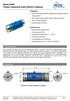 Properties Free of float metal bellow coupling with integrated torque measurement Non-contact measurement system, high robustness High torsional stiffness Limited torque of inertia Performance Measurement
DragonLink User Guide
 DragonLink User Guide Chris Seto, 2012 R5 8/24/2012 This document is in beta status. 1 P a g e Table of Contents 1) Quick Start checklist 2) DragonLink Versions 3) Getting to know the DragonLink hardware
PRODUCT MANUAL SPECIFICATIONS SAFETY PRECAUTIONS. 1460mm/57.48in 1112mm/43.78in 27.74dm²/429.96in² 1600g/56.50oz 57.68g/dm²
 SPECIFICATIONS SAFETY PRECAUTIONS PRODUCT MANUAL Wing span: Length: Wing area: Flying weight: Wing loading: 1460mm/57.48in 1112mm/43.78in 27.74dm²/429.96in² 1600g/56.50oz 57.68g/dm² This electric R/C model
Six-servo Robot Arm. DAGU Hi-Tech Electronic Co., LTD www.arexx.com.cn. Six-servo Robot Arm
 Six-servo Robot Arm 1 1, Introduction 1.1, Function Briefing Servo robot, as the name suggests, is the six servo motor-driven robot arm. Since the arm has a few joints, we can imagine, our human arm, in
Multi-Protocol decoder 76 200 with Load regulation
 Multi-Protocol decoder 76 2 with Load regulation For locomotives with universal motors on digital layouts operating in the DCC and Motorola data format. Features 76 2 Load regulated multi-protocol decoder
HYDRA HV OPERATION MANUAL. 2.0 Making Connections on your HYDRA speed control. Rosin core electrical solder
 HYDRA HV OPERATION MANUAL Starting Power Safe power on arming program helps prevent motor from accidentally turning on. Always use extreme care with high power systems. Auto shut down when signal is lost
Getting to Know Xsight... 3. Home Screen and Everyday Use... 9. Settings... 11. PC Setup... 17. 2 www.oneforall.com
 User Manual English English Getting to Know Xsight........................................ 3 Unpacking and Setting Up Xsight............................................................. 3 Using Xsight
STIM202 Evaluation Kit
 Table of contents: 1 FEATURES... 2 2 GENERAL DESCRIPTIONS AND SYSTEM CONTENTS... 2 3 SYSTEM REQUIREMENTS... 2 4 GETTING STARTED... 3 4.1 INSTALLATION OF NI-SERIAL CABLE ASSEMBLY DRIVER... 3 4.2 INSTALLATION
How To Use A Power Supply On A Powerline 2.2 (Ai)
 KNX/EIB Product documentation Issue: 05.08.2010 629x1220 Push button sensor 3 comfort 1-gang Push button sensor 3 comfort 2-gang (1+1) Push button sensor 3 comfort 3-gang Push button sensor 3 comfort 4-gang
Series 7500 Torque Sensor
 Properties PTO (Power Take-Off) shaft with integrated torque and angle measurement Non-contact measurement system, high robustness Plug & Play solution, no additional electronics required Performance Measurement
3.5 Dual Bay USB 3.0 RAID HDD Enclosure
 3.5 Dual Bay USB 3.0 RAID HDD Enclosure User Manual August 11, 2011 v1.1 MFG Part # MT2U3-MP BARCODE Introduction 1 Introduction 1.1 System Requirements 1.1.1 PC Requirements Minimum Intel Pentium III
PRODUCTIVITY THROUGH INNOVATION 600 CONTROL DIRECT DRIVE TECHNICAL/OPERATION MANUAL
 Rev. D PRODUCTIVITY THROUGH INNOVATION 600 CONTROL DIRECT DRIVE TECHNICAL/OPERATION MANUAL 10 BORIGHT AVENUE, KENILWORTH NEW JERSEY 07033 TELEPHONE: 800-524-0273 FAX: 908-686-9317 TABLE OF CONTENTS Page
INSTALLATION INSTRUCTIONS
 INSTALLATION INSTRUCTIONS Accessory Application Publications No. AII23628 2003 PILOT Issue Date MAY 2002 PARTS LIST Security System Kit (sold separately): P/N 08E51-S84-100 2 Remote controls Attachment
English version. LW320/LW321 Sweex Wireless 300N Router. Package Contents. Terminology list
 LW320/LW321 Sweex Wireless 300N Router Do not expose the Sweex Wireless 300N Router to extreme temperatures. Do not place the device in direct sunlight or in the direct vicinity of heating elements. Do
Instruction Manual. This Manual covers the use of: SmartSwitch Servo Kit. DCC Stationary Decoder PLEASE READ THESE INSTRUCTIONS FULLY BEFORE USE
 built by Instruction Manual This Manual covers the use of: PLS-125 PLS-130 PLS-135 SmartSwitch Servo Kit SmartFrog DCC Stationary Decoder PLEASE READ THESE INSTRUCTIONS FULLY BEFORE USE Contents Introduction
Naza for Multi-Rotor User Manual
 Naza for Multi-Rotor User Manual V 2.3 2012.08.30 Revision www.dji-innovations.com 2012 DJI Innovations. All Rights Reserved. Warning & Disclaimer Naza is an excellent autopilot system offering tremendous
product. Please read this instruction before setup your VenomXTM.
 Tuact Corp. Ltd. TM Venom X mouse controller combo Setup Software Instruction Thank you for purchasing our VenomXTM product. Please read this instruction before setup your VenomXTM. Introduction Venom
Mini Effect Gizmo. User s Manual. RJM Music Technology, Inc.
 Mini Effect Gizmo User s Manual RJM Music Technology, Inc. Mini Effect Gizmo User s Manual Version 1.3 September 26, 2013 RJM Music Technology, Inc. 2525 Pioneer Ave #1 Vista, CA 92081 E-mail: [email protected]
PHD User Manual. Table of Contents
 Table of Contents Overview...2 Install PHD Software...3 Connect PHD Equipment...5 Connect Sensor to the PHD Programmer...6 Run PHD Application...7 Verify Parameters and Program Sensor...10 View Output
Hydra esata. 4-Bay RAID Storage Enclosure. User Manual January 16, 2009 - v1.0
 4-Bay RAID Storage Enclosure User Manual January 16, 2009 - v1.0 EN Table of Contents 1 Introduction... 1 1.1 System Requirements... 1 1.1.1 PC Requirements... 1 1.1.2 Mac Requirements... 1 1.1.3 Supported
EVBIKE LCD Display Control User Guide. EVBIKE LCD Display Control User Guide WWW.EVBIKE.CZ - 1 -
 EVBIKE LCD Display Control User Guide WWW.EVBIKE.CZ - 1 - Table of Contents: 1) Description of the individual components and installation 2) Description of the measured quantities and user control display
INTRODUCTION TO SERIAL ARM
 INTRODUCTION TO SERIAL ARM A robot manipulator consists of links connected by joints. The links of the manipulator can be considered to form a kinematic chain. The business end of the kinematic chain of
Multi-function Front Panel USB2.0/Firewire 400/eSATA
 Multi-function Front Panel USB2.0/Firewire 400/eSATA Model No.: UGT-IH100 Installation Guide v1.01 1 Prescribed Use The UGT-IH100 is designed to be installed into the 3.5 or 5.25 plug-in unit of a computer
MGL Avionics Compass operation and calibration
 MGL Avionics Compass operation and calibration Page 1 Table of Contents General...3 Inside a MGL SP-6 compass...3 Compass modes...4 Compass mode 2 (3D accel)...4 Compass mode 4 (3D EFIS)...4 Other compass
How to read this guide
 How to read this guide The following shows the symbols used in this Quick start guide with descriptions and examples. Symbol Description Example P oint Reference Caution [ ] This symbol explains information
SYSTEM 4C. C R H Electronics Design
 SYSTEM 4C C R H Electronics Design SYSTEM 4C All in one modular 4 axis CNC drive board By C R Harding Specifications Main PCB & Input PCB Available with up to 4 Axis X, Y, Z, A outputs. Independent 25
Targus Wireless RF Mouse USER S GUIDE. Making Your Mobile Life Easier.
 Targus Wireless RF Mouse Visit our Web site at: www.targus.com Features and specifications are subject to change without notice. 2004 Targus Group International and Targus, Inc.. 400-0111-001B USER S GUIDE
SECTION G2: CABLE PROCESSOR MODULE MAINTENANCE
 SECTION G2: CABLE PROCESSOR MODULE MAINTENANCE Cable Processor Module overview WARNING! When tipping the Cable Processor Module back, (after removing the toggle arm pin), use extreme caution not to drop
CG02 GB 3-Axis Brushless Camera/ Gimbal Instruction Manual Bedienungsanleitung Manuel d utilisation Manuale di Istruzioni
 CG02 GB 3-Axis Brushless Camera/ Gimbal Instruction Manual Bedienungsanleitung Manuel d utilisation Manuale di Istruzioni 1 NOTICE All instructions, warranties and other collateral documents are subject
Table of Contents. Use. Troubleshooting. Setup. Welcome. 11 How to arm/disarm system/camera(s) 19 Sync Module setup issues. 3 Installing the Blink app
 User Guide Table of Contents Welcome Setup Use Troubleshooting 2 What s in the box 2 What you need 3 Installing the Blink app 4 Setting up the Sync Module 5 Connecting the Sync Module to Your Wi-Fi 7 Adding
SENSORED BRUSHLESS MOTOR & SPEED CONTROLLER COMBOS
 SENSORED BRUSHLESS MOTOR & SPEED CONTROLLER COMBOS OPERATING INSTRUCTIONS Please keep for future reference Thank you for purchasing this Exceed brushless motor and speed controller combo. We are sure you
Table of Contents Getting Started... 3 The Motors... 4 The Control Board... 5 Setting up the Computer with Mach3... 6 Starting up the Equipment...
 User Manual Table of Contents Getting Started... 3 The Motors... 4 The Control Board... 5 Setting up the Computer with Mach3... 6 Starting up the Equipment... 12 G-Code Example... 13 2 Getting Started
CurveMaker v2.1 DYNAFS programmable ignition software
 CurveMaker v2.1 DYNAFS programmable ignition software Dynatek 164 S Valencia St. Glendora CA 91741 phone (626)963-1669 fax (626)963-7399 Contents 1) Installation...1 2) Overview...1 3) Programming a Curve...4
DAS202Tools v1.0.0 for DAS202 Operating Manual
 DAS202Tools v1.0.0 for DAS202 Operating Manual DAT102Tools 1.0.0 Manual Table of context 2 Table of Contents 1 General Information... 3 2 PC... Configuration Requirements 3 3 Software Installation... 3
2.4G Bluetooth Datalink & ipad Ground Station User Guide V1.12
 2.4G Bluetooth Datalink & ipad Ground Station User Guide V1.12 Thank you for purchasing DJI products. Please strictly follow this user guide to mount and connect the 2.4G Bluetooth Datalink, install the
Before installation it is important to know what parts you have and what the capabilities of these parts are.
 INSTALLATION GUIDE Before installation it is important to know what parts you have and what the capabilities of these parts are. The Recon XZT is the smallest and most powerful gauge of its kind. With
FPV MONITOR. User Manual
 FPV MONITOR User Manual Important Safety Instructions: Please read User Guide before using this product. Please keep User Guide for future reference. Please read the cautions to prevent possible danger
=============================== WARNING
 =============================== WARNING EXPLANATION OF GRAPHICAL SYMBOLS This symbol is intended to alert the user to the presence of unprotected dangerous voltage" within the product's enclosure that
Renewable Energy Monitor User Manual And Software Reference Guide. [email protected] (979) 703-1925
 Renewable Energy Monitor User Manual And Software Reference Guide [email protected] (979) 703-1925 1 Introducing the Horizon Renewable Energy Monitor The Renewable Energy Monitor is an educational
Introduction. Drenth Motorsport Gearboxes Fleuweweg 10 7468 AG Enter The Netherlands Phone: +31 (0)547 38 26 96 Fax: +31 (0)547 38 20 65
 25.03.0023 Introduction The display comes with a software application. With the software application information shown on the display can be adjusted. There are different modes to adjust: the shape of
TOYOTA TECHNICAL. An example of a tire pressure monitor valve sub-assembly. This mounts to a drop area in the wheel.
 TOYOTA TIRE PRESSURE WARNING SYSTEM Toyota uses various tire pressure warning systems. Here, we ll discuss the system featured on the 2006 Land Cruiser. Combination meter warning reset switch warning reset
The Case for Mode 4 Transmitters, or, "How North America Got It Wrong", or, "How Most of the Planet Got It Wrong"
 The Case for Mode 4 Transmitters, or, "How North America Got It Wrong", or, "How Most of the Planet Got It Wrong" Martin Newell October 2009 Updated October 2010 The great majority of RC pilots in North
GEARBOX MONITOR MODEL NR. 1.1203 USER MANUAL
 GEARBOX MONITOR MODEL NR. 1.1203 USER MANUAL USER SAFETY Before starting to drive with a mounted gearbox monitor you need to make sure that: the monitor does not limit field of vision of the driver; monitor
PS3/PS2/PC 3IN1 Wired Racing Wheel. User Manual
 PS3/PS2/PC 3IN1 Wired Racing Wheel User Manual 1. Introduction Thank you for purchasing 3IN1 wired wheel designed for PS3, PS2, and PC consoles, which is compatible with all of the PS/PS1/PS2/PS3 and PC
tornado rotorz safety notice
 TORNADO ROTORZ tornado rotorz safety notice This product uses substantial battery power and can reach considerable speed. May present danger if operated incorrectly; please read and digest instructions
Modular I/O System Analog and Digital Interface Modules
 OPERATING INSTRUCTIONS Modular I/O System Analog and Digital Interface Modules Installation Operation Maintenance Document Information Document ID Title: Operating Instructions Modular I/O System Part