
Contents For your safety Welcome to digital satellite TV!
|
|
|
- Gilbert Gilmore
- 9 years ago
- Views:
Transcription
1 Contents For your safety Welcome to digital satellite TV! Updates to your box Inserting the batteries in your remote control... 3 Your remote control Your Viasat Box Front panel Rear panel connectors overview Installation The supplied equipment Where to place your box What else do I need? Smart card Satellite dish Optional audio connections Connecting to the telephone line Connecting a magic eye Connecting to the mains supply Switching on for the first time RF Tuning Making the installation settings Switching on and off Getting Started Using the Viasat Guide Changing channel Unlocking a locked channel Changing the volume on your TV Using the channel banner Displaying the channel banner Watching a programme Instantly recording a programme Setting a reminder Displaying extra programme information.. 19 Symbols in the channel banner and extra information screens Using Live Pause Using Instant Rewind On-screen symbols Viasat EPG Finding a programme Choosing a programme to watch or set a reminder for Choosing a programme to record Viasat Ticket Purchasing a Ticket programme Planner Your box s disk space Schedule changes Using Series Link Deleting a programme from your Planner Watching a programme when you see the reminder Reminder clashes Recording Programmes Recording programmes Using your box while you are recording a programme Recording clashes Disk space warning Manual recording Watching Recordings Watching recordings Playback symbol During playback Watching recordings of restricted programmes or locked channels Using Bookmarks Active Interactive TV Playing games Setup Using the Setup menus Using the Parental Control menu Locking Channels Setting viewing restrictions Setting purchase restrictions Changing your PIN code Changing your Planner settings Changing your PVR recording settings Using the System Settings Changing the Picture settings Changing the Sound settings Changing the Language & Subtitles settings. 50 Viewing the box information Viewing the Signal Test screen Installation Setup Changing the LNB Setup Setting the Default Transponder Changing the Modem Settings Setting the RF output channel Setting up your remote control for your TV Extra Information Recording a digital satellite programme Switching between digital satellite TV and terrestrial TV Error messages Solving Problems On-screen messages General Problems Specification End User Licence Terms ENGLISH 1

2 For your safety Your set-top box has been manufactured to meet international safety standards, but you must take care if you want to obtain the best results and operate it safely. It is important that you read this booklet completely, especially the safety instructions below. If you have any doubts about the installation, operation or safety of your set-top box, please consult your dealer. WARNING! Remember that contact with 230 V AC mains can be lethal or can cause a severe electric shock. To avoid this risk: Never remove the top cover from your set-top box. There are no userserviceable parts inside it, but there are some high-voltage live parts. Make sure that all electrical connections are properly made. Do not connect any of your equipment (set-top box, TV, video recorder etc.) to the mains supply until you have properly connected all the other leads. Disconnect your set-top box from the mains supply (by disconnecting its mains lead from the mains wall socket) before you disconnect any other equipment from its rear panel. Never push anything into the holes, slots or other openings of the set-top box case (except a smart card into its correct slot). CAUTION! In order to ensure a free flow of air around the set-top box, allow at least 5cm of space above and around the set-top box. Never stand your set-top box on soft furnishings or carpets. Do not cover any ventilation slots. Do not place your set-top box in an unventilated cabinet or on top of a unit which emits heat (e.g. a TV or VCR). Do not place your set-top box in a cabinet with more than one other piece of audio/video equipment, for example, VCR or DVD. Do not use or store your set-top box in hot, cold, damp or dusty places. Do not put anything on your set-top box which might drip or spill into it. Never stand objects filled with liquids, such as vases, on top of your set-top box. Never place naked flame sources, such as lighted candles, on top of your set-top box. To avoid possible damage to the internal hard disk, do not pick up or otherwise move your settop box while it is connected to the mains supply. If you want to move your set-top box, first disconnect it, then wait at least 30 seconds before continuing. 2 Using your Viasat box

3 Welcome to digital satellite TV! Thank you for choosing the Pace PVR box for viewing your Viasat channel packages. Please follow the instructions in this User Guide carefully to enjoy all the advantages of digital satellite TV. We advise following the user instructions and recommendations supplied with your box, especially for first-time use. Your box fully complies with international DVB (Digital Video Broadcasting) standards. Updates to your box From time to time, your box may be updated. These updates provide enhanced features; new screens and menus may become available. Although any new screens and menus may look a little different from those described in this User Guide, you should be able to use the same techniques (e.g. highlight and select) with them. Updates will usually happen in the middle of the night. Your box needs to be in standby to receive updates. Inserting the batteries in your remote control Before you can use your remote control, you must insert the two supplied AA batteries as follows: 1. Push the catch at the bottom of the remote control battery cover up, then lift off the cover. 2. Insert the batteries as shown below. Be sure to match the + and marks on the batteries to their respective marks inside the battery compartment. 3. Replace the battery cover, by inserting the tab at the top of the cover first, then pushing the cover into place. ENGLISH Don t leave flat batteries in your remote control. Replace both batteries at the same time. Dispose of flat batteries in an environmentally-friendly way. 3

4 Your remote control VIASAT Takes you from the EPG to the last channel you were watching Takes you back to Normal mode after you have been using 'TV-only mode' TV Switches to ëtv-o nly mode, to use your VCR or other item connected through your box TICKET Displays the Ticket screen to order movies and events EPG Displays the electronic programme guide (EPG) i Displays more information about a programme vol + and Changes the volume of your TV up or down* rewind Rewinds the programme pause Pauses the programme or starts a Live Pause recording play Plays a recorded programme fast forward Fast forwards the programme stop Stops playback of the programme record Records the programme or sets a reminder for a future recording SETUP Displays the Setup screen to alter your box s settings itv Displays the menu for Viasat s range of interactive services S Puts your box into or out of standby PLANNER Displays your Planner EXIT Takes you from the EPG to the last channel you were watching Takes you back to Normal mode after you have been using 'TV-only mode' ch + and Changes channel and pages up and down through listings in the EPG and Planner arrow buttons U, D, L, R Moves the highlight around the screen OK Confirms a choice or makes a selection BACK Jumps back to the previous screen HELP Displays help information mute Turns the sound of your TV on or off* colour buttons Use to select the matching colour option shown on screen, or as explained in this User Guide. Also, the red button launches an interactive service when you see the red button on your TV screen number buttons (0-9) Use to change channel, enter numbers and select on-screen options *For information on setting up your remote control to operate your TV, see page Using your Viasat box

5 Your Viasat Box Front panel Back button To remove a menu and go back to the previous screen EPG button To display the on-screen Viasat EPG (electronic programme guide) smart card slot To insert your smart card S button To switch your box into or out of standby indicator light Lights up red when your box is in standby Lights up green when your box is active Lights up orange when your box is receiving a signal from your remote control record EPG Back OK PVR Digital Satellite Receiver play LED display Shows the current time when your box is in standby Shows the channel number when tuned to a TV or radio channel; Shows the current playback function, for example PLAY, PAUS, FF 2, RW 4 etc. record and play indicators Lights up red when your box is recording to the hard disk Lights up green when your box is playing back from the hard disk U D (arrow buttons) To highlight the previous or next item in a list or on-screen menu L R (arrow buttons) To move to the left and the right through on-screen menus, lists or items To change settings on the screens OK button To confirm a choice or save a setting ENGLISH 5

6 OF Your Viasat Box Rear panel connectors overview Full details about connecting up and installing your box begin on page 7. TELEPHONE LINE To connect the telephone lead Mains input Do not connect the mains plug to the wall socket until you have made ALL the other connections S-VIDEO OUT To connect an S-Video lead (not supplied) to the S-Video connector on your TV AUDIO L + R (Left and right stereo audio) To connect phono leads (not supplied) to a TV, VCR or hi-fi amplifier OPTICAL AUDIO OUT To connect an optical digital-audio lead (not supplied) to a home cinema system CAUTION RISK ELECTRIC SHOCK DO NOT OPEN 230V 50Hz VCR SCART (in/out) To connect to the SCART connector on your VCR or to connect to another item of equipment with a SCART output TV SCART (out) To connect to the SCART connector on your TV AERIAL IN To connect the lead from your TV aerial RF OUT - 1 To connect an RF lead to your TV (or video recorder) RF OUT - 2 To connect an RF lead to a second TV or magic eye INPUT 1 and INPUT 2 To connect the satellite signal inputs from the Quad LNB WARNING Always disconnect your box from the mains supply before you connect it to (or disconnect it from) any other equipment. 6 Using your Viasat box

7 Installation To install your box, follow the instructions from this page up to page 16. The supplied equipment If you have not already done so, remove all the packaging. You should have the following items: Viasat PVR box (see page 6) Remote control and batteries (see page 4) User Guide in five languages (Swedish, Norwegian, Danish, Finnish and English) Mains lead - with 2-way connector and 2-pin mains plug (see right) SCART lead (see right) RF lead (see right) Telephone lead - RJ11 to RJ11 (see right) Telephone line (RJ11) adapter suitable for your location (see page 12) Quad LNB and 2 x 25m coaxial cables (please ensure your LNB is set up correctly before you begin installing your box - see below) Mains lead SCART lead RF lead Where to place your box Before you start, make sure that your TV, VCR and box will be placed in a location that is conveniently located: near an easily-accessible mains wall socket; Telephone lead within reach of your TV-antenna and satellite-dish leads; within 10 metres of a telephone point. (If not, you will need an extension telephone lead.) WARNING Before you connect your box to any other equipment, you must disconnect ALL the equipment from the mains supply. ENGLISH What else do I need? Smart card To get access to the channels to which you have subscribed, you will need a smart card. If you are an existing Viasat customer... Please remove your smart card from your old box and insert it into your new box. If you are a new Viasat customer... The smart card is not included in the package, but will arrive in a separate delivery within a week. In the meantime you can use your box to watch non-encrypted channels. 7

8 Installation Inserting your smart card 1. Take your smart card from its packaging (if you have not already done so) and hold it so that the picture is facing upwards, and the smart patch is facing downwards and at the end away from you. 2. Insert the smart card into the smart card slot of the front panel of your box. Insert it as far as it will go, without forcing it. PVR Digital Satellite Receiver Taking care of your smart card Do not remove and re-insert your smart card unnecessarily. Do not bend your smart card; keep it away from children and pets. Do not put your smart card in liquids or use cleaning fluids on it. Activating your subscription When you have completed the installation (see page 15), a Subscription Activation screen will be displayed. Please follow the instructions that are given on the screen to get access to your Viasat channel package. Satellite dish You will need a correctly-installed satellite dish, pointing at the correct satellite(s). If you have a satellite dish but it is not pointing at the correct satellite(s), you will need to make adjustments. Please see the information supplied with your dish/lnb for details on how to do this, or seek professional advice. If you do not have a satellite dish installed, please ask your dealer to recommend a local dishinstallation engineer. Quad LNB set-up Since the PVR has two tuner inputs you need to duplicate the incoming signal. This is done by replacing your existing Sirius Universal Single LNB with a Universal Quad LNB and install an extra cable to the PVR, or, if you are a new customer, installing two cables to the PVR. One Universal Quad LNB and 2 x 25 m coaxial cables are included in this package by Viasat. Your choice of setup depends on the number of LNB:s in your antenna: One LNB - Your antenna is equipped with only one LNB. The antenna must be aligned towards Sirius 5 East Two or more LNBs - If you are using a DiSEqC unit* with two or more LNBs/satellite dishes, to ensure a simpler installation, and for the best Viasat channel line-up, you should connect up 8 Using your Viasat box

9 Installation the LNBs to the DiSEqC ports as shown in the LNB positions table below. You must then connect your DiSEqC unit to the satellite input on your box (see also pages 9 to 11). The Quad LNB setup requires that two DiSEqC switches are installed, one for each tuner input. If you have more than one LNB in your antenna, it is recommended, for full PVR functionality, that you exchange the LNBs for the other satellites also. Universal Quad LNBs are available at your local installer. With a Universal Quad LNB there will be two spare signal outputs, where it is possible to connect an extra box, for example in your bedroom. LNB positions table Satellite Position Recommended DiSEqC port (for multiple LNB set-ups) Thor 1 West 1 Sirius 5 East 2 Hotbird 13 East 3 Astra 19 East 4 If you change your satellite dish installation, you may need to change your settings so that your box can tune to all the satellites available - See Changing the LNB Setup on page 52. Note Initially, only a two-way LNB set-up is supported, on DiSEqC ports 1 and 2. A three- or four-way LNB set-up using DiSEqC ports 3 and 4 (i.e. for Hotbird and Astra) will be supported after your box has collected an automatic software update from Viasat. ENGLISH Connection method 1: To TV and VCR (without SCART) If wish to connect your box to a TV (with or without a SCART connector) and a VCR (without SCART connectors), connect up as shown in the diagram on page 10. *DiSEqC is a trademark of Eutelsat. 9

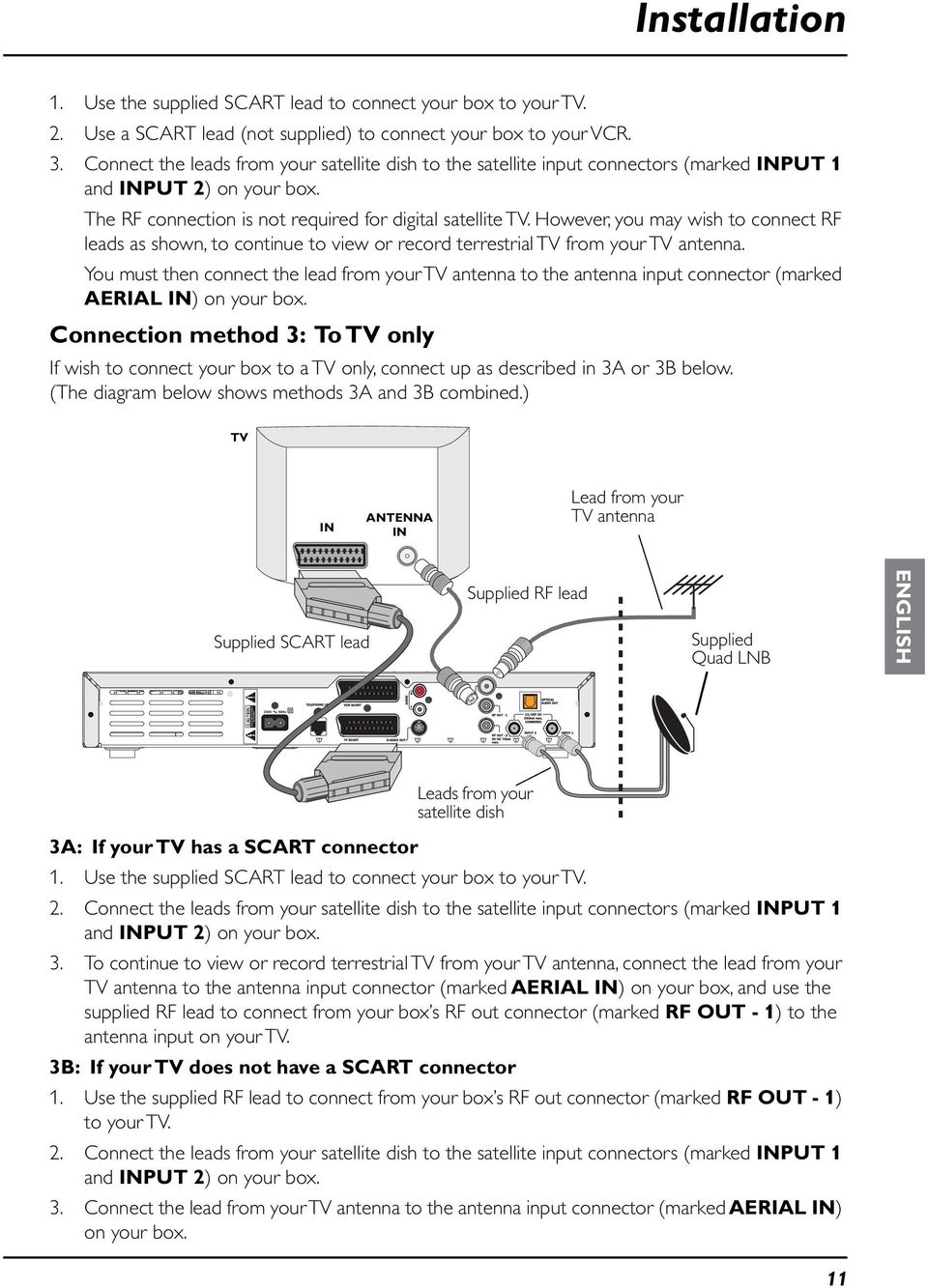
10 RISK OF 230V RISK OF 50Hz Installation TV RF lead (not supplied) IN ANTENNA IN TV OUT ANTENNA IN VCR Lead from your TV antenna Supplied RF lead Supplied SCART lead Supplied Quad LNB CAUTION ELECTRIC SHOCK DO NOT OPEN Leads from your satellite dish 1. If your TV has a SCART connector, use the supplied SCART lead to connect your box to your TV, for improved quality picture and sound. 2. Use the supplied RF lead to connect from your box s RF out connector (marked RF OUT - 1) to the antenna input on your VCR. 3. Use an RF lead (not supplied) to connect your VCR to your TV as shown. 4. Connect the lead from your TV antenna to the antenna input connector (marked AERIAL IN) on your box. 5. Connect the leads from your satellite dish to the satellite input connectors (marked INPUT 1 and INPUT 2) on your box. Connection method 2: To TV and VCR If you have a VCR with a SCART connector and a TV with a SCART connector, you can connect up as shown in the diagram below. TV IN ANTENNA IN Supplied SCART lead IN TV OUT ANTENNA IN SCART lead (not supplied) Supplied RF lead VCR RF lead (not supplied) Lead from your TV antenna Supplied Quad LNB CAUTION ELECTRIC SHOCK DO NOT OPEN 230V 50Hz Leads from your satellite dish 10 Using your Viasat box

11 RISK OF 230V 50Hz Installation 1. Use the supplied SCART lead to connect your box to your TV. 2. Use a SCART lead (not supplied) to connect your box to your VCR. 3. Connect the leads from your satellite dish to the satellite input connectors (marked INPUT 1 and INPUT 2) on your box. The RF connection is not required for digital satellite TV. However, you may wish to connect RF leads as shown, to continue to view or record terrestrial TV from your TV antenna. You must then connect the lead from your TV antenna to the antenna input connector (marked AERIAL IN) on your box. Connection method 3: To TV only If wish to connect your box to a TV only, connect up as described in 3A or 3B below. (The diagram below shows methods 3A and 3B combined.) TV IN ANTENNA IN Lead from your TV antenna Supplied SCART lead Supplied RF lead ENGLISH CAUTION ELECTRIC SHOCK DO NOT OPEN Supplied Quad LNB Leads from your satellite dish 3A: If your TV has a SCART connector 1. Use the supplied SCART lead to connect your box to your TV. 2. Connect the leads from your satellite dish to the satellite input connectors (marked INPUT 1 and INPUT 2) on your box. 3. To continue to view or record terrestrial TV from your TV antenna, connect the lead from your TV antenna to the antenna input connector (marked AERIAL IN) on your box, and use the supplied RF lead to connect from your box s RF out connector (marked RF OUT - 1) to the antenna input on your TV. 3B: If your TV does not have a SCART connector 1. Use the supplied RF lead to connect from your box s RF out connector (marked RF OUT - 1) to your TV. 2. Connect the leads from your satellite dish to the satellite input connectors (marked INPUT 1 and INPUT 2) on your box. 3. Connect the lead from your TV antenna to the antenna input connector (marked AERIAL IN) on your box. 11
12 OF OF Installation Optional audio connections This diagram shows the optional audio connections you can make to obtain improved quality sound. You can connect to stereo audio equipment as shown, or alternatively, if your TV and/or video recorder has the correct input connectors, you can connect to these as required. CAUTION RISK ELECTRIC SHOCK DO NOT OPEN 230V 50Hz Note If you connect to your TV, video recorder or other equipment via the S-VIDEO OUT connector, you must also use an audio connection, in order to hear/record sound. Connecting to the telephone line Telephone socket Supplied telephone adapter CAUTION RISK ELECTRIC SHOCK DO NOT OPEN 230V 50Hz 3 Telephone line wall-socket 1 Supplied telephone lead 2 Notes If your telephone wall socket is not an RJ11 socket (see RJ11 socket right), you will need to use one of the supplied adapters, shown on page 13. If your telephone wall socket is an RJ11 socket, you may need a splitter (not supplied) so that you can plug in both your box and your telephone. 12 Using your Viasat box
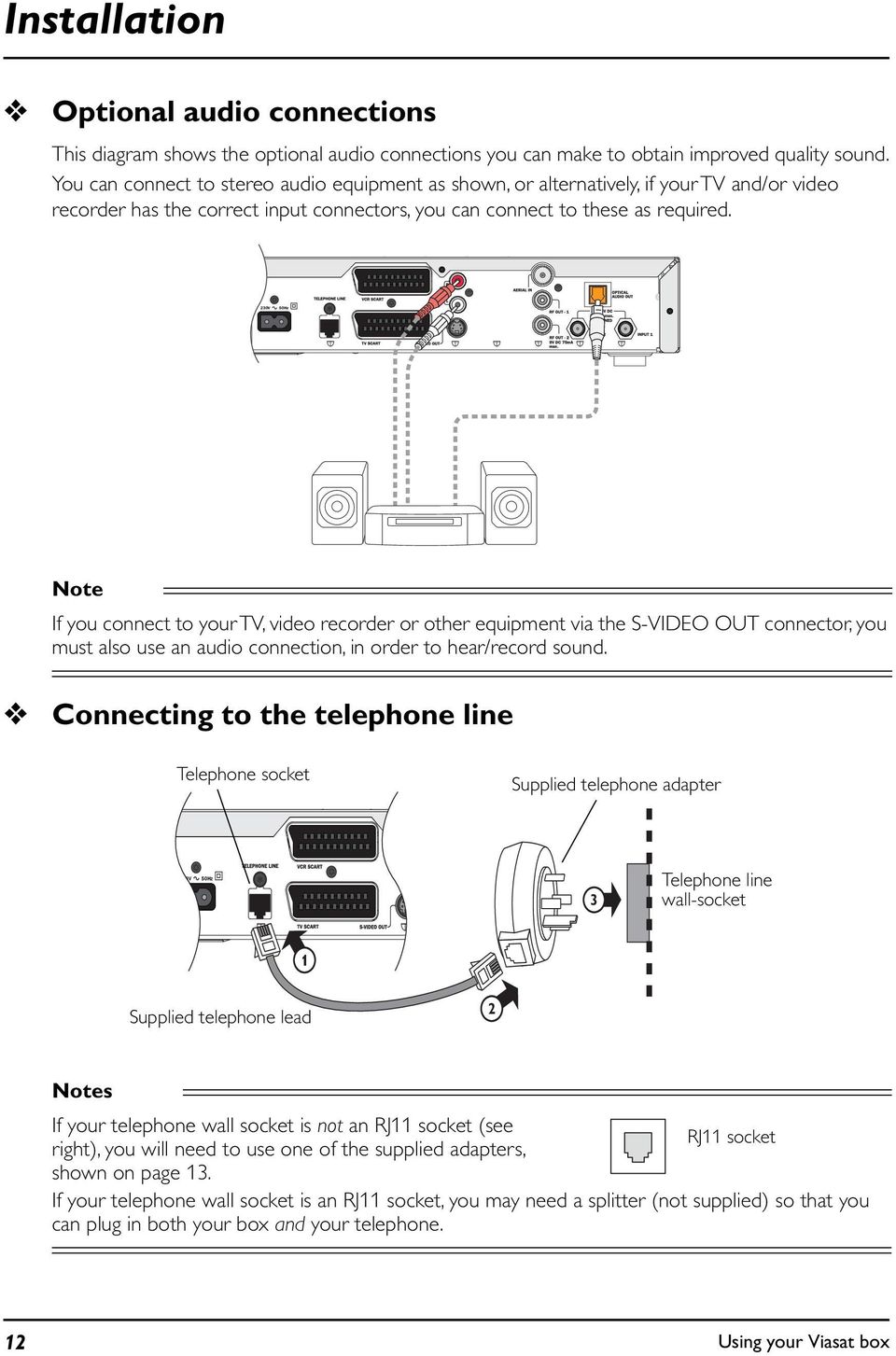
13 OF Installation 1. Insert one end of the supplied telephone lead into the telephone socket (marked TELEPHONE LINE) on the rear panel of your box, as shown in the diagram at the top of the page. 2. If you need to use an adapter, choose the correct adapter for your location. If you are not sure which one to use, compare with your telephone connector. Insert the free end of your supplied telephone lead into the RJ11 socket on the adapter. 3. Remove your telephone connector from your telephone wall socket. Insert your telephone connector into the correct socket on your adapter. Insert the adapter into your telephone wall socket. Connecting a magic eye You can connect a magic eye (not supplied) to the secondary RF output (marked RF OUT - 2) on the rear panel of your box, so that you can operate your box from a different room. To connect the magic eye, consult the instructions that came with it. Connecting to the mains supply Adapter for Sweden Adapter for Denmark Adapter for Norway and Finland Once you have safely made all the other connections, you can connect your box to the mains supply. 1. Using the supplied mains lead, insert the box mains connector into the mains input (marked 230V 50Hz) on your box, as shown in the diagram below. 2. Connect the mains plug to the mains wall socket as shown in the diagram below. 3. If there is a switch by the mains wall socket, switch it on. 4. Connect your other equipment to the mains supply. WARNING DO NOT connect the mains plug to the wall socket until you have made ALL the other connections. ENGLISH CAUTION RISK ELECTRIC SHOCK DO NOT OPEN 230V 50Hz Wall socket Mains connector 1 2 Mains input Mains plug 13

14 Installation Caution Your box operates with 230V AC, 50Hz mains supplies. Do not connect it to a DC power supply. The supplied mains lead has a 2-way connector at one end and a mains plug at the other. You should always insert the 2-way connector into your box before you insert the plug into the mains supply. The only way to disconnect your box from the mains is to remove the mains lead. Your box must therefore be installed near to the mains socket-outlet, which should be easily accessible. If you are in any doubt about the mains lead, its plug or its connection, consult a competent electrician. Switching on for the first time When you connect your box to the mains, your box s front panel lights go through a start-up sequence. After about 20 seconds, your box is switched on and out of standby, and the standby light is green. Make sure your TV is switched on. If the Welcome screen below displays, your TV is ready for digital satellite channels. You can now continue the installation by turning to the section Making the installation settings on page 15. Note If you have a VCR connected to your box via an RF lead (as in connection method 1), to be able to record satellite programmes, you may need to perform RF tuning for your VCR - see page 15. If the Welcome screen does not display... If you have connected your box to your TV (and VCR) via SCART leads, try selecting your TV s AV input. If you have connected your box to your TV (and VCR) via RF leads only, you need to tune a channel for satellite TV (see RF Tuning on page 15). 14 Using your Viasat box

15 Installation RF Tuning If you have connected up your equipment via RF leads, you may need to perform RF tuning before you can watch digital satellite TV. Note If you have previously had an analogue satellite receiver connected to your TV (and/or VCR), you may find that your channel for satellite TV still works for your new digital channels. Try it to see - if it works you do not need to perform RF tuning. RF tuning your TV (and VCR) to your box 1. Make sure your box is active (the standby light on the front panel should be green). 2. Consulting your TV s user guide if necessary, tune the TV until you can see the Welcome screen (see page 14) on your TV screen. 3. Store your new channel for digital satellite TV on a TV channel number of your choice. For example, if your terrestrial channels are channels 1 to 5, and your VCR channel is channel 8, you may wish to use TV channel 9 as your channel for digital satellite TV. 4. If you have a VCR, set your TV to its VCR channel, then tune your VCR until you can again see the Welcome screen. If you cannot RF tune your TV (or VCR) to your box... Your box s factory preset RF output channel is channel 38. (This is not the same as a TV channel). If channel 38 is not compatible with your TV, for example if it is already being used as your VCR s output channel, or for a terrestrial channel, you may find you cannot tune your TV to your box because of interference. Changing the RF output channel is covered in the setup section (see page 54). RF channels may also be known as UHF channels. ENGLISH Making the installation settings Choosing your country If you have completed the installation instructions up to this point, the Welcome screen is displayed on your TV screen. (See page 14 for a picture of the Welcome screen.) 1. Take your remote control. If you have not already inserted the batteries, do so now (see page 3). 2. Press U or D until the country you want is highlighted, then press OK. 15

16 Installation Checking the signal The Signal Test screen is now displayed. You use this screen to confirm that your box is receiving a satellite signal. The details on the screen show the satellite input numbers, together with a bar showing the strength and quality of the signal being received from the satellite. Your box must receive a signal strength between dbuv, preferably above 64 dbuv. If the signal strength is lower the picture quality is more easily affected by bad weather, such as rain, thunder storms, etc. The signal quality should be 1.0E-7BER and the Lock Indicator should display OK in order to successfully find channels. If there is no signal, check your installation. Check all the connections are properly made. See also the section Solving problems on page 61. If the signal strength or quality is poor, adjust your dish/lnb as required, referring to the information provided with the equipment. When you are satisfied that there is an adequate signal, press OK. When you have completed the installation, a Subscription Activation screen is displayed. See Activating your subscription on page 8. Switching on and off Whenever you are not using your box you should put it into standby. You should not unplug it at the mains socket. To put your box into standby, press S. To make your box active, press S. 16 Using your Viasat box

17 Getting Started Using the Viasat Guide Your box has an on-screen digital guide to your digital satellite services. It is designed to help you get the most out of your box. You use it to: watch programmes and at the same time find out what is showing on other channels, both now and later on; see on-screen TV programme listings seven days ahead via the EPG; order movies, sports and events using Ticket; set reminders for programmes you want to watch using the Planner; set your box to record programmes on now or showing in the future; watch programmes you have recorded; access a range of interactive services, such as games you can play using your remote control; change settings on your box, including the Parental Control settings, to make sure your box works how you want it to. Changing channel You can change channel by using: the number buttons; the ch + and buttons; or one of the on-screen methods described in the following sections. Unlocking a locked channel If you have used Parental Control to lock any channels (see page 42), these channels will not be available to view without being unlocked first. In addition, if you have used Parental Control to set viewing restrictions based on age category ratings (see page 43), then programmes broadcast with an age rating at the same level or above will be locked. If you have used Parental Control to lock any channels (see page 42), these channels will not be available to view without at first unlocking them. If you want to watch a locked channel or programme, you will need to enter your PIN code (see page 41). If the message Please enter PIN code to unlock channel appears when you change channel: 1. Use the number buttons to enter the correct PIN code. 2. If you make a mistake, press BACK to delete the numbers you have entered. If the PIN code is correct, the programme you want to watch displays. If the PIN code is not correct, you will see a message to tell you. You can either try again, or change channel to a channel that is not locked. Note When you unlock a channel using this method, the channel remains unlocked for as long as you are viewing it. The channel is relocked when you change to a different channel, put your box into standby, or turn off your box. ENGLISH 17

18 Getting Started Changing the volume on your TV To change the volume on your TV set, press vol + or vol -. To turn your TV s sound on or off, press mute. Using the channel banner You can display the channel banner to find out: what is showing on any channel, now and later on; more about a programme you are interested in. You can then use the channel banner to: tune to a programme you want to watch; record the programme you are watching, or a programme on a different channel; set a reminder for a future programme; set your box to record a future programme. While the channel banner is displayed, you can continue to watch the current channel. Displaying the channel banner To display the banner, press OK. Information about the programme on now displays. To display information about the programme on next, press R. To redisplay information about the programme on now, press L. To display extra programme information (see page 19), press i. To change which channel is highlighted by the channel banner, press U or D. To remove the banner, press BACK. Note This banner also displays briefly when you change channel. To set the length of time that the channel banner displays on-screen, see page Using your Viasat box

19 Getting Started Watching a programme If you see a programme you want to watch, press OK. If the programme is on now, your box tunes to it automatically; if it is on at a later time, a reminder will be set. Instantly recording a programme If you see a programme in the channel banner that you want to record, press R to record it. If the programme is on now, your box starts recording instantly. If it is on at a later time, your box will record the programme when it starts. An R symbol (see page 20) displays on the channel banner, next to the programme, to show you the programme is selected for recording. The programme is also added to your Planner (see page 30). For more information about recording programmes and using your Planner, see Planner on page 30 and Recording Programmes on page 34. Note If you are using Instant Rewind (see page 22) when you press R, the recording will start from the earliest point in the programme that you could rewind to. Depending on your settings, this may be up to 60 minutes before live TV (see Review buffer on page 47). Setting a reminder If you see a programme in the channel banner that you want to watch, but it is on at a later time, press OK. Your box sets a reminder for you. This means, the programme is added to your Planner (see page 30) and a clock symbol (see page 20) displays on the channel banner, next to the programme, to show you the programme has been added to your Planner. When the programme is about to start, a reminder message displays to let you know. Displaying extra programme information While the channel banner is on screen, you can display extra information about the programme listed in the banner. While the channel banner is on screen (see page 18), to display extra programme information, press i. ENGLISH 19

20 Getting Started The extra information includes a programme summary and codes and symbols which provide you with additional information about the programme. These are explained below. To remove the extra programme information, press i again. Symbols in the channel banner and extra information screens The channel banner and extra information screens may include symbols giving particular information about programmes. Symbols Explanations The 7 or under age category rating for this programme. The 11 or under age category rating for this programme. The 15 or under age category rating for this programme. The 18 or under age category rating for this programme. The programme is a radio broadcast. A reminder is set for the programme. R The programme is selected for recording. 20 Using your Viasat box

21 Getting Started Using Live Pause While you are watching a TV programme, you can pause it at any moment you want - just press pause on your remote control. The TV picture and sound freeze, and your box starts recording the programme. When you want to continue watching the programme from the Live Pause point, press pause again, or press play. A symbol briefly displays on-screen (see page 23). This shows the number of minutes you are behind the actual live TV programme. While you are watching the Live Pause recording, you can use pause, play, fast forward and rewind to move through the recording. Symbols display on your TV screen to show you what is happening (see page 23). If you rewind back to the start of the recording, the picture freezes. If you fast forward to the end of the recording, your box takes you back to normal TV viewing. While you are watching the Live Pause recording, your box continues recording the programme until it finishes. However, you can press VIASAT at any point to stop Live Pause and resume normal TV viewing. When you stop Live Pause, the recording is deleted. If you change channel, or launch an interactive application, this will also stop and delete the Live Pause recording. Note When you use Live Pause your box records the programme, but it is not added to your Planner. This means, once you return to normal TV, or launch an interactive application, the Live Pause recording is deleted. To record the programme to your Planner, to watch it in the future, press the record button (see page 19). ENGLISH Using other VIASAT on-screen features while you are using Live Pause While you are using Live Pause, you can use the channel banner (see page 18) to find out what is showing now and later. However, you cannot display extra information (see page 19) about other programmes - you can only display information for the Live Pause programme. While you are using Live Pause, you cannot use the EPG, Ticket, itv or your Planner. If you want to use these you must stop (exit) Live Pause. 21
22 Getting Started If you select one of these options while you are using Live Pause, a message displays. To continue Live Pause, press BACK. To stop Live Pause (and delete your Live Pause recording) press OK. The screen for EPG, Ticket, itv or your Planner displays. Using Instant Rewind If the Instant Rewind feature is turned on (see page 47), at any moment while you are watching TV, you can rewind the programme you are watching to catch something you missed. To start Instant Rewind, press rewind on your VIASAT remote control. Depending on your settings, you can rewind up to 60 minutes before live TV. You can increase the rewind speed by pressing rewind again. (To slow down the rewind speed, press fast forward.) When you reach the point you want to watch from, press play. A symbol briefly displays onscreen (see On-screen symbols on page 23). This shows the number of minutes you are behind the actual live TV programme. You can continue watching the entire programme from that point - your box will continue recording until the end of the programme. Or, you can press fast forward to catch up with normal TV again. While you are watching an Instant Rewind recording, symbols display on your TV screen to show you what is happening (see On-screen symbols on page 23). You can press VIASAT at any point to stop Instant Rewind and resume normal TV viewing. When you stop Instant Rewind, the recording is deleted. If you change channel, or select EPG, Ticket, itv or your Planner, this will also stop and delete the Instant Rewind recording. Subtitles are not available whilst you are using Instant Rewind. Note The Instant Rewind feature is set to 60 minutes by default. To change the maximum amount of time that you can rewind, or to turn off the Instant Rewind feature, see page Using your Viasat box
23 Getting Started On-screen symbols The following symbols appear on your TV screen while you are using your box. They are referred to throughout this User Guide, but here is a handy reference of what each symbol means. +10Min -10Min +23Min Play (during playback from your Planner) The blue ring rotates clockwise. The number, shown with a plus sign, is the number of minutes since the start of the recording. Slow-motion play The blue ring rotates clockwise at half the speed of normal play. Play (during Live Pause or Instant Rewind) The blue ring rotates clockwise. The number, shown with a minus sign, is the number of minutes before live TV. Slow-motion play The blue ring rotates clockwise at half the speed of normal play. Pause (during playback from your Planner) The blue ring does not move. The number, shown with a plus sign, is the number of minutes since the start of the recording. Bookmarked (during Pause of playback from your Planner) Shows you have just selected that point to be a Bookmark. ENGLISH Bookmarked -10Min Pause (during Live Pause or Instant Rewind) The blue ring does not move. The number, shown with a minus sign, is the number of minutes before live TV. x6 +12Min x12 +35Min Fast forward (during playback from your Planner) The blue ring rotates clockwise at double-speed, containing the selected fastforward speed (x2, x6, x12 or x30). If the number is a minus number, fast forward is taking place in Live Pause or Instant Rewind. Rewind (during playback from your Planner) The blue ring rotates anti-clockwise at double-speed, containing the selected rewind speed (x2, x6, x12 or x30). If the number is a minus number, rewind is taking place in Live Pause or Instant Rewind. 23
24 Getting Started +7Min +28Min Skip forward The blue ring does not move. The number shows the number of minutes since the start of the recording. Skip back The blue ring does not move. The number shows the number of minutes since the start of the recording. Note No playback symbols appear on-screen while the channel banner or extra programme information is displayed. 24 Using your Viasat box
25 Viasat EPG EPG The EPG (Electronic Programme Guide) provides you with a listing of all programmes available on all channels for the next seven days. To see your EPG, press EPG on your Viasat remote control. TV listings are displayed as follows: All Channel Listings - all programmes on all channels for today and the week ahead, listed by channel number. Channels by Genre Listings - programmes for the next seven days, in the channel genres shown, listed by channel number. The channel genres are: Movies & Series, News & Documentaries, Entertainment, Sports, Children, Music and Science & Culture. Programs Listed by Time - programmes on all channels, sorted into the programme genres, listed by start time. ENGLISH Note Occasionally, for example if you are recording two programmes at the same time, you will not be able to use the EPG to see listings for a full seven days. However, you can still display information about the current programme. Finding a programme There are a number of ways to search for a programme. You can search by full listings, channel genre by channel, or programme genre by time. 25
26 Viasat EPG Searching by All Channels To choose a programme from the full listings, press EPG on your Viasat remote control, highlight All Channel Listings then press OK. The All Channels screen displays. The start times and the day are shown at the top of the listings. To see what programmes are on at different times, press R or L. To move through the list of channels, press U or D. You can use the red (page up) and green (page down) buttons on your remote control to see the previous or next section of the channel listing. Use the yellow (+24 hours) and blue (-24 hours) buttons on your remote control to move forward and backwards by 24 hours through the listings. To display extra programme information (see page 19), press i. To remove the All Channels listing, press BACK or VIASAT. Searching by Channel Genre If you know what type of channel you want to watch, you can search by channel genre, such as Sports. 1. To choose a programme by channel genre, press EPG on your Viasat remote control, highlight Channels by Genre Listings then press OK. The Genre Listings screen displays. 2. Highlight a channel genre then press OK. The listings screen for that channel genre displays. You use this screen in the same way as the All Channels screen. 26 Using your Viasat box
27 Viasat EPG Searching by Time If you want to see a list of all the programmes showing at a particular time, you can search by programme time. To choose a programme by time, press EPG, highlight Programs Listed by Time then press OK. The Programs by Time screen displays. Highlight one of the programme genres listed, then press OK. The listings screen for that programme genre displays, with the programmes listed in the order they are showing. ENGLISH To move through the list of programmes, press U or D. On some screens you can choose to view by sub-genre. Press a colour button (shown below the listings) to choose the sub-genre you want. Different sub-genres may be available. Press L or R to view all the available sub-genres. Choosing a programme to watch or set a reminder for When you see a programme you want to watch, highlight it then press OK. If the programme is on now, your box tunes to it immediately. 27
28 Viasat Ticket If the programme is on later, your box sets a reminder for you. Your Planner displays, showing the programme you have just added, together with a reminder symbol next to it (see page 31). For more information about your Planner, see page 30. If a programme you have selected for a reminder is on at the same time as another reminder you have previously selected, a message will appear asking you what you want to do - See Reminder clashes on page 34. Choosing a programme to record When you see a programme you want to record, highlight it then press R. If the programme is on now, your box starts recording instantly. If it is on at a later time, your box will record the programme when it starts. Your Planner displays, showing the programme you have just added, together with an R symbol next to it (see page 31). For more information about your Planner, see page 30. For more information about recording programmes, see page 34. To redisplay the EPG, press EPG. Notes Some programmes may be Ticket programmes, which means you need to purchase the programme before you can watch or record it. If this is the case, you will see a message with the programme details and purchase price. For more information, see Ticket, below. Ticket You can use your remote control to order movies, sports, events and adult programmes through Ticket. When ordering, you must specify the Ticket programme you want to view. Currently, after you have ordered the programme, you can access the Ticket channel at any time from 10am on the day the programme is broadcast until 10am the following day. To view the Ticket screen, press TICKET. You may select from: Now Showing - movies on now or starting within the next 24 hours; Session Times - movies showing over the next three days. 28 Using your Viasat box
29 Viasat Ticket Purchasing a Ticket programme You can order a Ticket programme to watch or record as follows: 1. From the Ticket screen, choose a Ticket listings screen, (highlight your choice then press OK). 2. Use the arrows to highlight a programme. 3. If you want to display extra programme information (see page 19), press i. To remove the extra programme information, press i again. 4. If you want to watch the programme, press OK. (If the programme is starting later, your box will set a reminder for it.) If you want to record the programme, press R. Information about the Ticket programme you have selected will then be displayed, including the start time and purchase price. 5. Press OK. If you have used Parental Control (see page 41) to set viewing or purchase restrictions, you may need to enter your PIN. 6. If you need to enter your PIN, use the number buttons to enter it. Watching a Ticket programme If you pressed OK, and the Ticket programme is about to start, your box tunes to it. If the programme is on at a later time, it is added to your Planner. A reminder will appear when the programme is about to start. Press OK to watch the programme. (If you prefer, you can press R to record the programme instead - see the next section.) Recording a Ticket programme If you pressed R, and the Ticket programme is about to start, your box starts recording. If the programme is on at a later time, it is added to your Planner. Your box then records it at the chosen time. For full information about recording programmes, see page 34. Watching recordings of Ticket programmes If you have recorded a Ticket programme, but not yet watched it, it remains in your Planner for a fixed amount of time before it is deleted. Some programmes may remain in your Planner for up to seven days if you do not view them. ENGLISH Note If you do not watch the programme, your box will automatically delete the recorded programme at the specified time. You will be charged for the programme when you begin playing back the recording. After you start playing back a Ticket recording, you will have a period of time in which you can watch it as many times as you like, at no extra charge. When this time period is up, your box will automatically delete the recording. 29
30 Planner The amount of time you have left to watch, or begin watching a recording is shown on the programme s extra information box. Notes As an alternative to using the Ticket listings, you can use the EPG (see page 25) or channel banner (see page 18) to choose a Ticket programme. Press OK to choose the programme and then follow the instructions above starting from step 3. To order Ticket programmes with your remote control, your box must be connected to your telephone line (see page 12). Planner Your Planner helps you plan all your TV viewing. It shows: all the programmes you have recorded, and tells you whether or not you have watched them; all the programmes you have set your box to record in the future; all the programmes for which you have set a reminder. It also allows you to select programmes to Keep. You need to enter your PIN code before you can delete a Kept programme. Whenever you record a programme, choose a programme to record later, or set a reminder, it is automatically added to your Planner (unless there is a clash - see pages 34 and 35). To view your Planner, press PLANNER on your remote control. Your Planner provides the following information about the listed programmes: The name of the programme and the channel it is on; The day and start time for future programmes; If the programme has been recorded, information about the recording is shown, as follows: Recording - the programme is currently being recorded. Recorded - the programme has been recorded in full (but has not yet been watched). Part recorded - part of the programme was recorded (but has not yet been watched). To find out why only part of the programme was recorded, highlight the programme, then press i. Viewed - you have watched all or part of a programme. This may be a fully-recorded or partrecorded programme, or even one that is still recording. 30 Using your Viasat box
31 Planner Failed - you selected the programme for recording, but the programme did not record. To find out why, highlight the programme, then press i. Clashed - you selected the programme for recording, but it did not record because it clashed with another recording. For more information about recording clashes, see page 35. You can display extra information about a highlighted programme: Press i. More details about extra programme information are on page 19. In addition to the standard information, the extra information for a recorded programme shows information about the status of the recording, the time the recording was made, and the disk space used by the recording. To remove the extra information, press i again. Note The maximum number of reminders you can set is 50; the number of recordings is limited only by the disk space available. Symbols in your Planner The following symbols may appear next to items in your Planner: Symbols R Explanations Reminder symbol - shows that a reminder has been set for the programme. Record symbol - shows that the programme has been selected for recording. ENGLISH R Keep symbol - shows that a recorded programme or a programme selected for future recording has been marked to Keep. This means that the programme will not be automatically deleted, for example when your box s disk is nearly full. Series Link symbol - shows that the programme is one of a series and you have selected it for Series Link. For more information, see page 32. Series Link Record symbol - shows that the programme currently being recorded is one of a series and you have selected it for Series Link. Series Link Keep symbol - shows that a recorded programme or a programme selected for future recording is one of a series and has been marked to Keep. This means that the recordings of programmes in the series will not be automatically deleted, for example when your box s disk is nearly full. Series Link Reminder symbol - shows that the programme is one of a series and you have selected it for Series Link, and you have also set for a reminder for it. Using your Viasat remote control s colour buttons Depending on the programme that is highlighted in your Planner, you may be able to use the colour buttons on your remote control to select one or more of the following. If a colour button is available, the option is shown at the bottom of the screen. If the programme is part of a series, you can press the green Series Link button to make sure the following episodes are automatically added to your Planner (see page 32). 31
32 Planner You can press the yellow Delete button to remove any programme from your Planner (see below). You can press the record button to change a programme reminder into a future recording or a future recording into a reminder. If the highlighted programme is a recorded programme, or has been selected for future recording, you can press the blue Keep button to mark it to Keep. This means that the programme will not be automatically deleted, for example when your box s disk is nearly full. You can also press the blue button to remove the Keep setting, but note that Kept programmes are PIN-protected - you must enter your PIN to delete them. Your box s disk space At the top of your Planner there is disk space indicator (a yellow line). The length of the line shows you the total amount of space that is already used, and the number above tells you the percentage of disk space that is still available. To find out exactly how much space each programme takes up (or an estimate of how much space it will take up, if it is a programme selected for future recording), press i. For more information about disk space, see page 36. Schedule changes If the start time of a programme changes by up to 6 hours, your Planner is automatically updated. So, if you have set a reminder for a programme, you still see the reminder when the programme is about to start; or if you have selected a programme to record, your box will still start recording at the correct time. However, if the programme start time changes by more than six hours, the programme will be removed from your Planner and you will need to set a new reminder, or set the programme to record again. See also Recording Clashes on page 35. Using Series Link If the green Series Link colour button option appears on-screen when you highlight a programme in your Planner, this means the programme is one episode of a series, on that channel. If you want to watch or record future episodes in the series, press the green Series Link button. The Series Link symbol (see page 31) is then shown next to the programme, indicating that the link is set. If you selected the programme for future recording, the future episodes in the series will also be set for recording. Deleting a programme from your Planner If you wish to remove a programme from your Planner, you can do so as follows: Highlight the programme, then press the yellow button. To remove a series link, highlight an unrecorded episode in the Planner that is part of the Series Link and press the green button: the series link icon will be removed. Deleting the last episode in the Planner that is part of a series link also removes the series link If the programme is one that has been selected for a reminder, or for future recording, it is deleted immediately. 32 Using your Viasat box
33 Planner If the programme is a recorded programme, it is deleted immediately. For some programmes, for example those which have been marked for Keep, a message appears asking you to confirm the deletion. To cancel the deletion and redisplay your Planner, press BACK. Note To confirm the deletion, use the number buttons to enter your PIN code. After you have deleted a recorded programme from your Planner, you cannot recover it. Watching a programme when you see the reminder One minute before a programme for which you have set a reminder is due to start, your Planner displays a reminder message on your TV screen. ENGLISH To watch the programme, press OK. To record the programme, press R. To carry on watching the programme you are already watching, without changing channel or recording the programme, press BACK. Notes In order for reminders to be displayed, your box must be switched on and you must be watching Viasat. You can change the settings for when the reminder displays (see page 45). 33
34 Recording Programmes Reminder clashes If a programme you have selected for a reminder is on at the same time as another reminder you have previously set, a message will appear asking you what you want to do. To keep all the programmes in your Planner, press OK. To cancel the programme you have just selected, but keep the previously-set reminder(s), press BACK. Recording programmes As explained in other sections in this User Guide, recording a programme is usually as simple as pressing R on your remote control. Note While you are watching TV, to record the programme you are watching, press R once to display the channel banner, then press R again to start the recording. Your box starts recording. Also, a Record symbol (see page 23) displays next to the programme and your box adds the programme to your Planner (although your Planner does not display). If you are using Instant Rewind (see page 22) when you press R, the recording will start from the earliest point in the programme. Depending on your settings, this may be up to 60 minutes before live TV. While you are looking at the channel banner, highlight a programme then press R. A Record symbol (see page 20) displays next to the programme and your box adds the programme to your Planner (although your Planner does not display). If the programme is on now, your box starts recording. While you are looking at the EPG or Ticket, highlight a programme then press R. Your Planner displays, with the programme added to it. (For more information about recording Ticket programmes, see page 29.) While you are looking at your Planner, if you decide to record a programme for which you have set a reminder, highlight the programme and press R. 34 Using your Viasat box
35 Recording Programmes Note You cannot record itv applications; however, you can record subtitles if these are displayed. Cancelling a recording To cancel recording the programme you are watching, press R twice. To cancel a recording in the channel banner, highlight the programme then press R. Note While you are looking at your Planner, if you decide to set a reminder for a programme which you have set to record, highlight the programme and press R. If you want to remove the recording completely, highlight the programme then press the yellow Delete button. If you cancel a current recording, the programme remains listed in your Planner, but it is marked as Part recorded. Using your box while you are recording a programme Your box is very versatile! All the following combinations are possible. You can: record one programme, and at the same time watch a different programme. record one programme, watch a different programme, and use Live Pause or Instant Rewind, if you wish to. record one programme and at the same time use an itv interactive application, such as playing a game. record two programmes at the same time, and watch one of the programmes that is recording. record two programmes, and at the same time, watch any recorded programme. However, if you are recording two programmes at the same time, you cannot change to a different channel other than those two recording, view Ticket listings or use an interactive application. Recording clashes When you select a programme to record, your box checks whether it is on at the same time as any other programmes you have previously selected for recording. If more than two selected programmes are on at the same time, this creates a clash. Your box lets you know about the clash and suggests which previous selections you should cancel in order to record your new selection. ENGLISH 35
36 Recording Programmes Note If you want to cancel the suggested recordings, so that you can record your new selection, press OK. If you would prefer to keep your previous selections, and cancel the new selection, press BACK. Sometimes a recording clash may occur when the programme is about to be recorded, for example if you are using Live Pause or Instant Rewind. If this happens, a message displays to inform you about the clash, and to ask you what you want to do. You can then either cancel or confirm the recording. Recording clashes caused by changes to the schedule If a programme s start time changes, your Planner is automatically updated. If the new time(s) cause a recording clash, your box automatically records in full whichever programme starts earlier, then it will part-record any other programme(s) if they are still showing. If you want to make sure a particular programme will be recorded in full, even if there are recording clashes, you can do so by selecting the programme to Keep in your Planner (see page 31). Disk space warning When you select a programme to record, your box checks whether there is enough disk space to record it. If the disk is nearly full, your box may need to delete some programmes to make space for the new programme. Depending on your settings (see page 46), your box may do this automatically. However, if you have set Disk Space Management (see page 47) to Manual, then you will see the message shown overleaf: Press BACK to remove the message, then use your Planner to delete some recorded programmes (see page 32). Note As explained on page 32, you can use the disk space indicator to find out how much of your box s disk space is being used. 36 Using your Viasat box
37 Recording Programmes Manual recording Some channels, for example radio channels, do not provide programme listings in the channel banner or EPG. However, you can still use your box to record these channels, by using the Setup screens to set up the recording. Press the SETUP button on your remote control. The System Setup screen displays (see also page 41). Press D to highlight Manual Recording then press OK. The Manual Recording screen displays. You set up the recording as follows: 1. Select the channel to record by using L or R to look through the channel names. 2. Press D to highlight Day, then use L or R to select the day on which you want to record the channel you have chosen. 3. Press D to highlight Start Time, then use the number buttons to enter the time you want the recording to start using the 24-hour clock. While Start Time is highlighted, if you make a mistake, you can press BACK to delete the numbers you have entered and start again. 4. Press D to highlight End Time, then, in the same way as you entered the Start Time, use your remote control to enter the time you want the recording to finish. 5. Press D to highlight Frequency, then use L or R to choose how often you want to record this channel at the time you have chosen. You can choose from Once, Daily (every day starting from the day you chose in step 2), Mon-Fri (every weekday) or Weekly (once a week on the same day). 6. Press D to highlight Add Manual Recording then press OK. Your Planner displays, with the new Manual Recording added to it. If you want to set up any more recordings, redisplay the Manual Recording screen then start again from step 1. Note If you selected Daily, Mon-Fri or Weekly in step 5, the Series Link symbol (see page 20) displays next to the Record symbol to show that the recording will take place more than once. You can press i to check details of when the recordings will take place. ENGLISH 37
38 Watching Recordings Watching recordings You use your Planner (see page 30) to choose recorded programmes you want to watch. 1. Press PLANNER. 2. Use U and D to choose a recorded or recording programme. Note that these may be marked as Recorded, Part recorded, Recording or Viewed (see page 30). 3. Press play or OK. The Playback screen displays. This shows you extra information about the programme, including when the programme was recorded and how much disk space it uses. This screen also allows you to choose the Start Position - the point from which you want to start watching the recorded programme. You can choose from: Start - to begin playback from the start of the recording. Last Viewed - to continue playback from the point where you last stopped it. Viewer Define - to start playback from any point in the programme. You use the number buttons to enter a time, in minutes, from the start of the recording. Viewer Bookmark - to start playback from a bookmark (marker point) that you have previously set (see Using Bookmarks on page 40). End - to start playback a few moments before the end of the recording, for example if you want to rewind to a particular point. 4. When you have chosen your start position, press play or OK. The programme starts playing back. Playback symbol When you first start watching a recorded programme, the playback symbol (see page 23) displays briefly on your TV screen. The number shows how many minutes have passed since the start of the recording. You can display the playback symbol at any moment by pressing play. To remove it press BACK. On-screen symbols also display whenever you fast forward, pause, rewind or stop playback - for more information, see page Using your Viasat box
39 Watching Recordings During playback During playback, (or fast forward or rewind) your box s front panel lights up to show you what is happening. For more information about the front panel, see page 5. Showing information While you are watching a recording, you can press OK to display the channel banner to find out what is showing on other channels. (Note that if you change channel, playback of your recording will stop.) You cannot display extra information for programmes on other channels - you can only display extra information for the recording you are watching. If you want to see extra information for the programme you are watching, press i. Pausing and stopping If you change channel, playback of your recording will stop. To pause playback at any moment, press pause. To start playback again, press pause again, or press play. To stop playback at any moment, and return to normal TV, press stop or VIASAT. To stop playback at any moment, and return to your Planner, press BACK. When the recorded programme ends, a message displays to tell you. To return to your Planner, press BACK, or to return to digital TV, press VIASAT. Fast forward and rewind Whenever a programme is playing back or is paused, you can fast forward and rewind at any of four different speeds. To rewind, press the rewind button on your Viasat remote control (see page 4). The rewind x2 symbol displays on the front panel of the box. The number shows you the speed (number of times faster than normal playback) the programme is rewinding, and the direction (anticlockwise) that the symbol is spinning shows you that it is rewinding. To increase the speed, press rewind again, up to 3 times (x6, x12, x30). To decrease the speed, press the fast forward button. To return to normal playback, press play. You can fast forward in the same way as you rewind, just use the fast forward button to increase the fast forward speed, and the rewind button to decrease the fast forward speed. If you reach the end of the recording, the playback pauses at that point. You can then either rewind or stop the recording. Slow motion playback You can play back a programme in slow motion, by pressing and holding down the play button for at least 2 seconds. While the programme is showing in slow motion, the playback symbol displays, spinning in slow motion. To return to the normal speed, press play again. ENGLISH 39
40 Active Watching recordings of restricted programmes or locked channels If you choose a recording to watch that: was broadcast on a channel that is currently locked, or is subject to a viewing restriction, you will need to enter your PIN in order to watch it. For more information see Using the Parental Control menu on page 41. Using Bookmarks Bookmarks are points, within a recorded programme, to which you can quickly return. While you are watching a recorded programme, to set a bookmark, press pause, then press the red Bookmark button. The pause symbol is displayed with the message Bookmarked underneath - See On-screen symbols on page 23. To skip forward to the next bookmark, and then continue watching the programme from that point, press and hold fast forward for at least three seconds. To skip backward to the previous bookmark, press and hold rewind for at least three seconds. Interactive TV Viasat itv (Interactive TV) allows you to: play games; use additional interactive services, when these are available; display the Setup screens. The Setup screens are described in the next section - see page 41. Playing games You can use your Viasat remote control to play games provided by Viasat. 1. To play games, press itv. The itv screen displays. 2. Highlight Games, then press OK. 3. Follow the on-screen instructions. 4. When you have finished playing games, press Viasat to return to watching digital TV. 40 Using your Viasat box
41 Setup Using the Setup menus You use the Setup menus to: control who can watch or purchase certain programmes; change your Planner settings; change your PVR recording settings; change the language and subtitle settings; change the TV settings; look at on-screen help on using your Viasat digital guide; view information about your box. To display the System Setup menu: 1. Press itv, then press D to highlight System Setup, and then press OK. ENGLISH 2. Press D or U to highlight the item you want, then press OK. While you are using any of the setup menus, you can press BACK to cancel any changes and return to the previous menu. To cancel changes and redisplay digital satellite TV, press VIASAT. On some menus you can press the red button to reset all settings on that menu to their factory defaults. To save changes, highlight Save New Settings and then press OK. Using the Parental Control menu You use the Parental Control menu to: lock channels; set viewing restrictions based on a programme s age rating; set purchase restrictions, to control whether your PIN is needed to purchase Ticket channels; change your PIN code. Note If you do not have a smart card inserted in your box, you cannot use the Parental Control menu. 41
42 Setup About your PIN code To use the Parental Control menu, you need to enter your PIN code. When you first use your box, your PIN code is In order to make your PIN code secret, you should change it to another number that you find easy to remember (see below). To display the Parental Control menu: 1. On the Setup menu, highlight Parental Control, then press OK. You will see a message asking you to enter your PIN code. 2. Use the number buttons to enter your PIN. If you enter the correct PIN, the Parental Control screen displays. Note If you enter an incorrect PIN three times in a row, your PIN will be blocked for 10 minutes. You will not be able to use any feature requiring PIN entry during that time. Locking Channels The Locked Channel screen lets you lock certain channels. Whenever you are watching digital TV, in order to view a locked channel, you must enter your PIN. You must also use your PIN to watch a recording of a programme on a locked channel. 1. From the Parental Control screen, highlight Locked Channel, then press OK. The Locked Channel screen displays. 42 Using your Viasat box
43 Setup A symbol next to the channel name indicates that the channel is not locked. A symbol next to the channel name indicates that it is locked. 2. From the list of channels, use U or D to highlight a channel you want to lock or unlock, then press L or R to select the setting you want. 3. Repeat step 2 to lock or unlock all the channels you want. 4. You can also unlock all the channels at once by pressing the yellow button. Or, you can lock all the channels at once by pressing the blue button. When you have finished selecting channels to lock or unlock, press BACK. Setting viewing restrictions The Viewing Restrictions screen lets you set an age limit, so that people who do not know the PIN code (for example young children) cannot watch programmes that have an age category rating that is older than the age lock level you have set. For example, if you set this to 11+, then programmes rated for viewers 11 years old or older will be locked, and you will need to enter your PIN code to watch them. Age lock only works if the broadcaster provides rating category information. For more information on age rating category symbols see Symbols in the channel banner and extra information screens on page 20. To set viewing restrictions: 1. On the Parental Control menu, highlight Viewing Restrictions, then press OK. The Viewing Restrictions screen is displayed. ENGLISH A symbol next to the age rating category indicates that it is not restricted. A symbol next to the age rating category indicates that it is restricted. If you restrict an age rating category, this means that whenever a programme is broadcast with that age rating, you must enter your PIN before you can watch it. You must also use your PIN to watch a recording of a programme with a restricted age rating category. When you restrict an age rating category, all the age rating categories below it are automatically restricted. 43
44 Setup 2. To restrict an age rating category, use U and D to highlight it, then press L or R to select the symbol. To remove the restriction, press L or R to select the symbol. 3. Repeat step 2 to make all the changes you want. 4. To save your changes, highlight Save New Settings then press OK, or to cancel, press BACK. Notes If you press the red button to reset all the settings, the settings will change to the standard settings. The standard setting is that any programme broadcast with an age rating of any sort will be restricted, but you can remove this restriction if you wish by following the steps above. Viewing restrictions work only if the broadcaster provides classification category information. Viasat is not responsible for channels providing incorrect age rating information. Setting purchase restrictions The Purchase Restriction screen lets you choose whether or not you need to enter your PIN code to purchase a Ticket programme. To set purchase restrictions: 1. From the Parental Control screen, highlight Purchase Restriction, and then press OK. The Purchase Restriction screen displays. 2. On the Purchase by PIN Code item, press L or R to select the setting you want - On or Off. If you select On, you must enter your PIN code to purchase a Ticket programme. 3. To save your changes, highlight Save New Settings then press OK, or to cancel, press BACK. Changing your PIN code You can change your PIN code to another number which you find easy to remember. Please make sure you do not forget your PIN code. To change your PIN code: 1. From the Parental Control screen, highlight Change PIN Code then press OK. 44 Using your Viasat box
45 Setup The Change PIN Code screen displays. 2. Use the number buttons to enter a new 4-digit PIN code of your choice. As you enter numbers, the dashes change to asterisks. You can press BACK once to cancel your changes. If you press BACK a second time, the Parental Control screen redisplays. When you have entered your new 4-digit PIN code once, the Change PIN Code screen displays again, so you can enter it a second time to confirm the change. 3. Enter your new 4-digit PIN code again. A message displays to confirm that your new PIN code is valid. Changing your Planner settings You use this screen to change the display of your reminders for programmes in your Planner (see page 30). Reminder Advanced Time is the length of time before a programme starts that its reminder appears. Reminder Timeout is the length of time a reminder will display on screen before it disappears automatically. You can change your Planner settings as follows: 1. On the System Setup screen, highlight Planner Settings and then press OK. ENGLISH 45
46 Setup 2. Press D or U to highlight the item you want. 3. Use L or R to select the setting you want: 30, 60 or 90 seconds. 4. To save your changes, highlight Save New Settings then press OK, or to cancel, press BACK. Changing your PVR recording settings You use this screen to change various settings relating to how your box records programmes, to: change the way in which your box manages your recordings, when disk space is running low; change the length of time of the Instant Rewind recording; add extra time to the start and end of recordings. The items on the Recordings Settings menu are explained in more detail in the following sections, starting with Disk Space Management on page 47. Notes Setting up recordings for channels without programme listings is described in the Manual Recording section, on page 37. You can change your PVR settings as follows: 1. Press itv on your remote control. 2. On the itv screen, highlight System Setup and then press OK. 3. On the System Setup screen, highlight Recording Settings and then press OK. 4. Use U or D to highlight the item you want to change. 5. Use L or R to select the setting you want. 6. Repeat steps 4 and 5 until you have made all the changes you want to make. 7. To save your changes, highlight Save New Settings then press OK, or to cancel, press BACK. 46 Using your Viasat box
47 Setup Disk Space Management You use this item to change the way in which your box manages your recordings when disk space is running low. You can choose one of two settings: Automatic recorded programmes will be deleted automatically when there is not enough space to record new programmes. Your box will first delete recorded programmes you have previously watched, then recorded programmes that you have not watched. Your box will not delete recorded programmes marked as Keep or any Ticket programmes. Manual recorded programmes will never be deleted automatically. Shortly before your box runs out of disk space, a message displays to let you know. To continue the new recording and delete the old recording(s), press OK. Or, to keep the old recording(s), press BACK - the new recording will stop when there is no more disk space. Note If you do not press any button, the old recording(s) are not deleted and the new recording will stop when there is no more disk space. If, even after deleting previous recordings, there is still not enough disk space available for a new recording, your box will only record part of your selected programme. Review buffer This is the length of time of the recording your box automatically makes of the channel you are currently viewing. For more information, see Using Instant Rewind on page 22. You can choose one of five settings: Off, 5, 15, 30 or 60 minutes. Add to Start of Recording / Add to End of Recording If you wish, you can add extra time to the start and/or end of recordings. The same six settings are available for both of these items: Automatic 2 minutes extra recording time will be added to the scheduled start or end time of recordings; 0, 1, 2, 5 or 10 minutes the extra recording time that will be added to the scheduled start or end time of recordings. Note If one recording immediately follows another, any extra time added to the start and/or end of recordings may be dropped in favour of the next recording. ENGLISH Using the System Settings Use the System Settings menu to change the TV settings and view information about your box. 1. To use the System Settings screens, press itv on your remote control. 2. Highlight System Setup, then press OK. 3. Highlight System Settings, then press OK. 47
48 Setup The System Settings screen displays on your TV. 4. To display one of the Settings screens, highlight it and press OK. The details of each screen are described in the following sections. Changing the Picture settings You use the Picture Settings menu to change the following settings, to control how your box works with your other equipment: Picture Format; Presentation Mode; Video Output; Contrast; Banner Timeout; Closed Captions. To change the Picture Settings: 1. Press U or D to highlight the setting you want to change (for more information on the settings, see the table overleaf). 2. Press L or R to change the setting. 3. To save your changes, highlight Save New Settings then press OK, or to cancel, press BACK. 48 Using your Viasat box
49 Setup Make your choice according to the following table. Item Settings Comments Picture Format 4:3 Setting for standard (4:3) TVs. 16:9 Setting for widescreen (16:9) TVs. Presentation Mode (Setting for how widescreen (16:9) programmes display on a standard (4:3) TV - This setting is only available if the picture format has been set to 4:3) Pan & Scan The centre portion only of any widescreen (16:9) transmissions will display on a standard (4:3) TV. Letterbox The whole of any widescreen transmissions will display on a standard (4:3) TV, but the picture does not fill the screen. Video Output PAL If your system is connected via RF leads, you should select this setting. Contrast RGB Low, Medium, High If your system is connected via SCART to SCART leads, you should select this setting for a better quality picture. Select your preferred setting for the contrast of your TV display. ENGLISH Banner Timeout Off, 5 secs, 10 secs Select your preferred setting for the length of time that the channel banner displays on-screen when you change channel. Closed Captions On, Off Select whether or not you want Closed Captions to be displayed when they are available. Changing the Sound settings You use the Sound Settings menu to change the following settings: Audio Output; Audio Format; Volume; Background Music. 49
50 Setup To change the Sound Settings: 1. Press U or D to highlight the setting you want to change (for more information on the settings, see the table below). 2. Press L or R to change the setting. 3. To save your changes, highlight Save New Settings then press OK, or to cancel, press BACK. Make your choice according to the following table. Item Settings Comments Audio Output Stereo, Mono Controls the audio output on the SCART lead. Audio Format AC3, MPEG Controls the digital audio output from the connector marked OPTICAL AUDIO OUT. Select AC3 if your equipment has Dolby Digital decoding capabilities. The setting MPEG is for digital stereo sound. Note: Dolby Digital is only available on some programmes. If Dolby Digital is not available, the audio output will be digital stereo. Volume - Controls your box s default volume level. Background Music On, Off Controls whether or not music will play while you look at your Viasat Digital Guide. Changing the Language & Subtitles settings You use the Language & Subtitles menu to change the following settings: Audio Language - your first choice of language for programmes which are broadcast with more than one audio soundtrack; Subtitles - your first choice of language for subtitles, when programmes are broadcast with subtitles in more than one language. 50 Using your Viasat box
51 Setup To change the Language and Subtitle Settings: 1. Press U or D to highlight the setting you want to change. 2. Press L or R to change the setting. 3. To save your changes, highlight Save New Settings then press OK, or to cancel, press BACK. Viewing the box information You can view technical information about your box. To display the information: 1. On the System Settings menu, highlight System Details, then press OK. 2. To redisplay the System Settings menu, press BACK. Viewing the Signal Test screen You use the Signal Test screen to check that your box is receiving satellite signals, and check the strength and quality of the signals. To display the Signal Test screen: 1. On the System Settings menu, highlight Signal Test, then press OK. ENGLISH The Signal Test screen displays: The screen shows bars indicating the strength and quality of the signal being received at each satellite input. 51
52 Setup Your box must receive a signal strength between dbuv, preferably above 64 dbuv. If the signal strength is lower the picture quality is more easily affected by bad weather, such as rain, thunder storms, etc. The signal quality should be 1.0E-7BER and the Lock Indicator should display OK in order to successfully find channels. See Checking the signal on page When you have finished viewing the Signal Test screen, press BACK to redisplay the System Settings menu. Installation Setup You use the Installation Setup menu to change the following settings: LNB setup; Default transponder; Modem setting; RF output. The items on the Installation Setup menu are explained in more detail in the following sections. To access the Installation Setup menu: 1. Press itv on your remote control. 2. Highlight System Setup, then press OK. 3. Highlight System Settings, then press OK. 4. Highlight Installation Setup, then press OK. The Installation Setup menu displays: Changing the LNB Setup This is the number of LNBs available in your dish installation. Default values (shown on the image on page 53) are already entered for this setting; under normal circumstances you do not need to change these. If you change your satellite dish installation, you may need to change this setting so that your box can tune to all the satellites available. To change the LNB Setup: 1. On the Installation Setup menu, highlight LNB Setup, then press OK. 52 Using your Viasat box
53 Setup The LNB Setup menu displays. 2. Highlight Number of LNBs, then press L or R to select the number of LNBs you have in your set-up. 3. Highlight Low Band LO Frequency (GHz), then use the number buttons to enter the appropriate frequency. If the number is below , add a leading zero (for example, ). 4. Highlight High Band LO Frequency (GHz), then use the number buttons to enter the appropriate frequency. If the number is below , add a leading zero (for example, ). 5. Highlight LNB is powered by STB, then press L or R to select either On or Off. The default setting is On. 6. If you selected 2 LNBs in step 2, highlight DiSEqC port A is connected to then press L or R to select the correct satellite for the LNB connected to DiSEqC port A, either Sirius or Thor.* 7. DiSEqC port B is connected to is set to whichever satellite was not selected in step 5 8. To save your changes, highlight Save New Settings then press OK, or to cancel, press BACK. 9. If you have changed your LNB setup configuration must then check the signal quality (see page 51). You can press the red button to reset all settings on the LNB setup menu to their factory defaults. The default values are shown on the image above. Setting the Default Transponder Default values (shown on the image on page 54) are already entered for this setting; under normal circumstances you do not need to change these. If you change your satellite dish installation, you may need to change this setting so that your box can tune to all the satellites available. To change the Default Transponder settings: 1. On the Installation Setup menu, highlight Default Transponder, then press OK. ENGLISH *DiSEqC is a trademark of Eutelsat. 53
54 Setup The Default Transponder menu displays. 2. Highlight Frequency (GHz), then use the number buttons to enter the appropriate frequency. 3. Highlight Polarization, then press L or R to select the either H (Horizontal) or V (Vertical). 4. Highlight Symbol Rate (Kbaud), then use the number buttons to enter the appropriate value. 5. Highlight FEC, then press L or R to select the correct type: 1/2, 2/3, 3/4 or 5/6. 6. To save your changes, highlight Save New Settings then press OK, or to cancel, press BACK. 7. If you have changed your Default Transponder settings you must then check the signal quality (see page 51). The default values for the Default Transponder menu are shown on the image above. Changing the Modem Settings The Modem Settings control how your box connects to Viasat via the telephone line. These settings are made automatically when you select your country during the installation process; under normal circumstances you do not need to change them. To change the Modem Settings: 1. On the Installation Setup menu, highlight Modem Settings, then press OK. The Modem menu displays. 2. Highlight Telephone Dial Type, then press L or R to select either Tone or Pulse. 3. Highlight Dialing Prefix, then use the number buttons to enter the dialling prefix. 4. To save your changes, highlight Save New Settings then press OK, or to cancel, press BACK. Setting the RF output channel The RF Output screen lets you select the RF output channel for your box. The factory preset RF output channel is channel 38. If channel 38 is not compatible with your TV or VCR, for example if it is already being used as your VCR s output channel, or for a terrestrial channel, you may find you cannot tune your equipment to your box because of interference. You can therefore use this setting to enter a different number. You may find this easier if you disconnect your external antenna and/or your VCR from your system while you make the changes, but if you do so, make sure you follow all the safety advice on pages 7 to 13. You will then need to tune any equipment that is connected to your box via an RF lead to this new channel number - see the section on RF tuning on page Using your Viasat box
55 Setup RF channels may also be known as UHF channels. To change the RF output channel: 1. From the Installation Setup menu, highlight RF Output, and then press OK. The RF Outlets screen displays. 2. On the RF Channel Number item, press L or R to select the channel you want. To save your changes, highlight Save New Settings then press OK, or to cancel, press BACK. Setting up your remote control for your TV You can set up your remote control to operate the basic features of your TV. This enables you to control your TV and your box with just one remote control. Code search To program your remote control to operate your television, you must first use the remote control to find the four-digit code the corresponds to your television brand. During this code search you will run through every available code in the remote control s library. To search for your television code: 1. Make sure that you television is switched on. 2. Press the TV button on your remote control and release it. 3. Press and hold down SETUP, until the red LED under the TV button blinks twice. 4. Use the number buttons to enter The red LED under the TV button blinks twice. 5. Aim the remote control at your television and press S. 6. Aim the remote control at your television, and press ch + repeatedly, until your television turns off (each time you press ch + the remote control sends a POWER (TV off) signal using the next TV code contained in the remote control s library). ENGLISH You may have to press ch + many times (up to 150 times). The code search can take up to 15 minutes. If you skip a code, you can search through the previous code(s) by pressing ch -. Remember to keep pointing the remote control at your television during the code search. 7. As soon as the television switches off, press SETUP to store this code. The red LED under the TV button blinks twice. 55
56 Setup 8. Once it is set up, you can switch the remote control to operate your TV by first pressing the TV button. To switch back to operating your box, press the VIASAT button. Code blink out Once you have found the correct code, you can use your remote control to perform a code blink out to determine what this code is. 1. Press the TV button on your remote control and release it. 2. Press and hold down SETUP, until the red LED under the TV button blinks twice. 3. Use the number buttons to enter The red LED under the TV button blinks twice. 4. Press 1 and count the LED blinks. 5. Press 2 and count the LED blinks. 6. Press 3 and count the LED blinks. 7. Press 4 and count the LED blinks. Now you have found the 4-digit code. If, during step 4, 5, 6 or 7, the LED does not blink at all, the code digit is For future reference, write down the code in the space provided in the remote control battery compartment. Using the TV code table If, after performing a code search, your remote control still does not operate your television, you may be using the wrong code. Try repeating the search again to locate the correct code. If this fails, you can use the TV code table available for download from the Viasat website. 1. Download the TV code table from the Viasat website ( find the brand of your television in the TV code table and select the first 4 digit code in the list. 2. Make sure your television is fully on (not in standby), and then press the TV button on your remote control and release it. 3. Press and hold down SETUP, until the red LED under the TV button blinks twice. 4. Use the number buttons to enter the 4-digit code for your television (the TV button will blink twice after you have entered the fourth digit). 5. Press S to see if you are able to switch off your television. If your television does not respond, repeat steps 1 to 5 with each code listed for your brand. If none of the codes operate your television, or if your brand is not listed, retry the code search described on page Switch your television back on by pressing a number button (or ch +) and check if all the functions are working correctly. 7. For future reference, write down the code in the space provided in the remote control battery compartment. Resetting your remote control To clear all the settings you have made to your remote control and apply the factory defaults: 1. Press and hold down SETUP, until the red LED under the TV button blinks twice. 2. Use the number buttons to enter The red LED under the TV button blinks twice. The factory default values are applied to your remote control. 56 Using your Viasat box
57 Extra Information Recording a digital satellite programme If you have a VCR you can use it to record satellite programmes from your box. To record a satellite programme: 1. Make sure your box is switched on and tuned to the channel you wish to record. 2. Set your VCR correctly to record at the appropriate time, making sure that your VCR is set to record its channel for digital satellite TV, or if your box is connected to your VCR via a SCART lead, making sure your VCR is set to record its appropriate AV channel. For further information about your VCR, refer to your VCR s user guide. Notes Your VCR must be correctly connected to your box. For further information, see pages 9 and 10. Some programmes are copy-protected and may not play back correctly if you record them. While you are setting the recording up, you may wish to make sure your TV is switched to its VCR channel or the AV channel that you use when you are watching videos, so you can check that the VCR is showing what you want to record. Watching other channels while you are recording a digital satellite programme If your equipment is connected using RF leads, as in connection methods 1 or 2, you can watch any terrestrial channel while you record digital satellite TV, by changing channel with your TV s remote control. You can also watch any digital channel while you record a terrestrial channel. However, you cannot watch one digital channel while you record a different digital channel. If you use your box s remote control to change channel while you are recording, your VCR will record the channel change. ENGLISH Switching between digital satellite TV and terrestrial TV If your TV automatically shows digital satellite TV whenever your box is switched on, you can use your remote control to switch between digital satellite TV and terrestrial TV. This is also useful if you are using your VCR, for example to record a digital channel, but you want to watch a terrestrial channel. To switch between digital satellite TV and terrestrial TV, press the TV button on your remote control. (Please do not press the S button - this will switch your box off.) Note In order for this feature to work, your digital box must be connected to your TV via a SCART lead, and your TV must also be receiving the terrestrial channels from your TV aerial. For information about connecting up, see pages 9 to 11. Some TVs may not allow you to use this feature. Error messages If there is a temporary problem with a channel you are watching, you may see an error message on your TV screen. If this happens, you can still change channel, in the usual way, to a channel that is not experiencing problems. 57
58 Solving problems On-screen messages If one of the following messages appears on your TV screen, make a note of the number that appears with the message (for example, 01). If you need to call customer service for assistance, please have the number handy so they can help you as quickly as possible. Message Possible cause Suggested solution Please insert your Viasat viewing card in the smart card slot. For instructions please refer to your user manual. Your viewing card is invalid or inserted in the wrong direction. For instructions on how to insert you Viasat card please refer to your user manual. This service is not included in your subscription. Please call customer service to purchase. Transmission error in your smart card. Please call customer service to purchase. Welcome to Viasat. You need to activate your subscription to get access to your channels. Please call customer service to activate. Your card ID is [...] Your STB ID is [...] You also need your Agreement number available. There is no Viasat viewing card in the smart card slot in your box. Your box cannot recognise your Viasat viewing card. You may need to update your subscription, or there may be an unexpected problem with your subscription. Your smart card has developed a problem. This is normal prior to the smart card s first authorization. Insert your Viasat viewing card in the smart card slot. Check it is the correct Viasat viewing card. Check it is in the right way up. Check that your card is not damaged. If the problem continues, call customer service for assistance. Please call customer service to upgrade your subscription. Call customer service for assistance. To activate your subscription, call Viasat s interactive telephone service using the number appropriate for your country: Sweden Norway Denmark Finland Using your Viasat box
59 Solving problems Message Possible cause Suggested solution This service is not available in your region. The channel is not available in your region. You cannot watch this channel. Select a different channel to watch. You have insufficient credit on your smart card. Please connect your receiver to the telephone line to update your credit. It is done automatically at the next purchase of a PPV event. There is not enough credit left on your smart card to buy this programme, or you telephone line is not correctly connected to your box. Check that the telephone lead between your box and the telephone point is properly plugged in (see page 12). Always switch your box off at the power supply before plugging or unplugging any other equipment. Your credit is updated automatically at the next purchase of a PPV event. If the problem continues, call customer service. You have insufficient credit on your smart card. Please connect your receiver to the telephone line to update your credit. It is done automatically. You are not authorized to watch this channel on this receiver. Wrong smart card for this receiver. Your card ID is [...] Your STB ID is [...] There is not enough credit left on your smart card to buy this programme, or you telephone line is not correctly connected to your box. You have more than one Viasat box and have inserted the wrong smart card for this box. Check that the telephone lead between your box and the telephone point is properly plugged in (see page 12). Always switch your box off at the power supply before plugging or unplugging any other equipment. If the problem continues, call customer service. Insert the right smart card for this box. If the problem continues, call Viasat s interactive telephone service using the number appropriate for your country: Sweden Norway Denmark Finland ENGLISH You cannot purchase this event using your receiver. Please call customer service to purchase this event. A problem occurred while you were trying to purchase the programme. Please call customer service for assistance. This card is not valid any more. Please use you new Viasat viewing card. You have inserted an old or invalid smart card. Insert the your new Viasat smart card. If the problem continues, call customer service. It is not possible to purchase this event. For more info tune to the Viasat Guide. You cannot purchase Ticket channels between Please try again later. 59
60 Solving problems Message Possible cause Suggested solution Purchase not possible. Preparation of the new card - please wait. Inserted card is being initialised - please wait. Unviewable service - waiting for approval. Please call customer service. A problem occurred while you were trying to purchase the programme. You have only just inserted your new Viasat smart card into your box and your card is still being checked. You have only just inserted your new Viasat smart card into your box and your card is still being authorised. Your box is attempting to gain approval for the selected service. An unknown error has occurred. Please call customer service for assistance. Initialisation and authorisation may take up to 5 minutes. Please wait. If the problem continues, call customer service. Initialisation and authorisation may take up to 5 minutes. Please wait. If the problem continues, call customer service. Wait for your box to resolve the problem; if it is not resolved call customer service for assistance. Please call customer service. 60 Using your Viasat box
61 General Problems Problem Possible cause Suggested solution Solving problems f you are experiencing difficulty with your box, check the troubleshooting table below this may provide the answer you are looking for. *Before you check connections between your equipment, make sure you disconnect all your equipment from the mains supply. When you have finished checking and making connections, safely reconnect all the equipment to the mains supply (see page 13). Your box doesn t seem to be working, and there are no lights on the front panel. Your box doesn t seem to be working, and the front-panel standby light is red. Your box is not receiving power. Make sure that the mains lead is properly plugged in and that the mains supply is switched on. Check that the mains wall socket has power (try plugging in a lamp). Your box is switched off. Press standby on the front panel, or S on your remote control. Your box doesn t seem to be working, and the front-panel standby light is green. Your box is not correctly connected to your other equipment, or your other equipment is not correctly set up. Check that all the connections are properly made.* Check that your TV is plugged into the mains and that it is switched on. ENGLISH Your TV is not switched to show digital satellite channels. If your box is connected to your TV via a SCART lead, try selecting the appropriate AV channel on your TV. If your box is connected to your TV via an RF lead only, try selecting the appropriate channel for digital satellite TV. If you do not have a channel for digital satellite TV, you need to perform RF tuning (see page 15). Your box doesn t seem to be working, and the front-panel standby light is orange. There is a problem with the satellite signal. Check that the lead from your satellite dish is correctly connected to your box.* Check that your satellite dish and LNB(s) are correctly set up and directed towards the correct satellite(s) (see page 8). Check that nothing is blocking your satellite dish, for example a tree or high building. There may be a temporary problem with the reception, caused, for example, by bad weather; try again later. If adverse weather conditions cause your dish and/or LNB(s) to move, you may need to readjust them (see the information supplied with this equipment). 61
62 Solving problems Problem Possible cause Suggested solution You can see onscreen interference Your remote control isn t working. You ve forgotten your PIN. You have received a new smart card but you don t know how to activate it. Your TV or VCR is not correctly tuned. Something is between the remote control and your box. The batteries are flat or inserted the wrong way round. Check that your TV and VCR are correctly tuned to your box. For further information, refer to your TV and VCR instruction books. In some cases your box may need RF tuning. See page 15 or call customer service for further advice. Make sure you point your remote control directly at your box and that nothing is between it and your box. The indicator light on your box s front panel should flash each time you press a remote control button. Check the batteries and replace them if necessary. Call customer service for advice. Follow the instructions on Inserting your smart card on page 8. The Subscription Activation screen should appear - see the instructions on page Using your Viasat box
63 Specification Due to continued product improvement, this specification may change without notice. General Operating voltage: Power consumption: Weight: Dimensions (W x H x D): UHF modulator: Operating temperature range: Storage temperature range: Rear panel connectors MAINS INPUT: TELEPHONE LINE: TV SCART: VCR SCART: AUDIO L + R: S-VIDEO: ANTENNA IN: RF-1 OUT: RF-2 OUT: OPTICAL AUDIO OUT: INPUT 1 and 2: 230V AC ± 15%; 50Hz 30W (max.) 1.35kg 390mm x 62 mm x 265mm CCIR PAL System B/G; Ch 21 to 69 (factory setting is 38) 0 C to +40 C 20 C to +60 C IEC pin reversible RJ11 female SCART (composite video out; RGB out) SCART (composite video in/out; RGB in) Phono (RCA) audio out 4-way mini-din IEC female IEC male IEC male Optical S/PDIF digital-audio out 2 x IEC F-type female ENGLISH 63
64 End User Licence Terms The Product to which this documentation relates (the Product ) incorporates software which is owned by Pace Micro Technology plc (or its licensors). Before using the Product please read the End-User Licence Conditions detailed below. If you do not agree to the terms and conditions of the End-User Licence please do not proceed to use the Product repack the Product unused and return it to your supplier who will refund the amount you paid for it to you. 1. Definitions The following expressions have the meanings given here: Pace means Pace Micro Technology plc, being either owner of all intellectual property rights in the Software, or having the right to grant licences for the use of the Software. Software means the software applications, utilities and modules embedded within the Product. Product means the equipment or appliance to which this documentation relates and which incorporates the Software. Viasat means Viasat AB, being the commercial broadcaster whose broadcasts this product has been designed to receive. 2. Licence Grant, Conditions and Restrictions (a) Pace grants you a non-exclusive, world-wide (subject to export controls), non-transferable (except as permitted by 2(b) below), royalty free licence to use the Software upon and with the Product. (b) You may not transfer any of your licence rights in the Software without the written consent of Pace and if consent is provided then the Software shall only be transferred in conjunction with the transfer of the Product AND provided that the transferee has read and agreed to accept the terms and conditions of this licence. (c) You must ensure that the copyright, trademark and other protective notices contained in the Software are maintained and not altered or removed and that all such notices are reproduced and included in any copy of the Software. (d) The Software provided hereunder is copyrighted and licensed (not sold). Pace especially does not transfer title or any ownership rights in the Software to you. The Software provided hereunder may contain or be derived from portions of materials provided to Pace under licence by a third party supplier. (e) Except as authorised above or expressly permitted by statute you may not: use the Software in conjunction with any other computer hardware other than the Product; copy all or part of the Software; incorporate all (or any of) the Software into other programs developed by (or on behalf of) you and/or used by you; reverse engineer, decompile or disassemble the Software; make the Software available, or permit its redistribution, for use with any other computer hardware than the Product; rent, lease, gift, loan, sell, distribute or transfer possession of the Software in whole or in part. (f) You will grant to Pace and/or Viasat, access to your Pace/Viasat digital decoder product, to enable Pace and/or Viasat to upgrade, service and otherwise adapt the Software in such decoder, by (for example) remote downloading of updated Software. 3. Termination This licence is effective until terminated. You may terminate the licence by destroying the Software (and all copies thereof). This licence will terminate automatically without notice if you fail to comply with any of its provisions. Upon termination you must destroy the Software (and all copies thereof). 4. Disclaimer (a) The Software is (to the extent permitted by law) supplied as is and Pace and its suppliers expressly exclude all warranties, express or implied, including (but not limited to) warranties of satisfactory quality, fitness for purpose and non-infringement (save to the extent that the same are not capable of exclusion at law). (b) In no circumstances will Pace be liable for any direct, indirect, consequential, or incidental damage (including loss of profits, business interruption, loss of data or the cost of procurement of substitute goods, technology or services) arising out of the use or the inability to use the Software (save to the extent that such liability is not capable of exclusion at law). 5. General (a) This End User Licence will be governed by the laws of Sweden and the User may only bring claims in the Swedish Courts and Pace shall be entitled to bring a claim in the courts of any jurisdiction. (b) The above terms and conditions supersede any prior agreement, oral or written, between you and Pace relating to the Software. 64 Using your Viasat box
Welcome to FOXTEL Digital!... 1 Your FOXTEL Digital set-top unit... 1 Updates to your digital set-top unit... 1 Getting in touch with FOXTEL...
 Welcome to FOXTEL Digital!......... 1 Your FOXTEL Digital set-top unit...... 1 Updates to your digital set-top unit..... 1 Getting in touch with FOXTEL........ 1 For your safety.................... 2 Getting
1. The FOXTEL iq remote control
 Quickstart Guide 1. The FOXTEL iq remote control FOXTEL Takes you from the TV Guide (or any FOXTEL screen) to the last channel you were watching. Takes you back to FOXTEL after you have been using AV mode
High-Definition Personal Digital Recorder. user guide
 High-Definition Personal Digital Recorder user guide Contents Welcome to MY SKY HDi................... 1 MY SKY HDi................................... 1 Updates to MY SKY HDi......................... 1
(2012 10 24) manual_tocomsat duo LITE.indd 20-1 2012-10-24 7:44:57
 (2012 10 24) manual_tocomsat duo LITE.indd 20-1 2012-10-24 7:44:57 TABLE OF CONTENTS Table of Contents Table of Contents Safety Warning General Information Package Contents & Features Front Panel Rear
ABOUT YOUR SATELLITE RECEIVER
 2 Satellite Receiver ABOUT YOUR SATELLITE RECEIVER This chapter gives you an overview and a description of your satellite receiver. SATELLITE RECEIVER OVERVIEW SINGLE AND DUAL MODES REMOTE CONTROL SATELLITE
Using your Sky digibox
 Using your Sky digibox Your Sky remote control Sets your remote control to control your digibox tv Sets your remote control to control your TV box office Shows the Box Office screen tv guide Shows the
The Parts of the System
 2 The Parts of the System THE RECEIVER THE RECEIVER FRONT PANEL Power Light This green light on the receiver front panel lights up when the receiver is turned ON. This light flashes when the receiver memory
Digital Cable TV. User Guide
 Digital Cable TV User Guide T a b l e o f C o n T e n T s DVR and Set-Top Box Basics............... 2 Remote Playback Controls................ 4 What s on TV.......................... 6 Using the OK Button..................
Getting Started With the Multi-Room DVR System
 CH+ CH + GUIDE POWER VOL Ñ VOL + INFO CH Ñ EXIT LIST L AUDIO R VIDEO SELECT Getting Started With the Multi-Room DVR System Multi-Room Digital Video Recording (MR-DVR) System Record all of your favorite
Your Sky+ remote control Sky set your remote to control your Sky+ box
 USING YOUR SKY + Your Sky+ remote control Sky set your remote to control your Sky+ box tv set your remote to control your TV box office show Box Office programmes tv guide check out TV listings mute turn
User Guide. Plaza HDR S freesat digital HD TV recorder
 User Guide Plaza HDR S freesat digital HD TV recorder CONGRATULATIONS on buying a Manhattan Plaza HDR S freesat receiver. This high performance unit lets you record and watch the best of digital TV and
DVR GUIDE. Using your DVR/Multi-Room DVR. 1-866-WAVE-123 wavebroadband.com
 DVR GUIDE Using your DVR/Multi-Room DVR 1-866-WAVE-123 wavebroadband.com Table of Contents Control Live TV... 4 Playback Controls... 5 Remote Control Arrow Buttons... 5 Status Bar... 5 Pause... 6 Rewind...
TechniSat HDFV Freesat HD Digital Receiver. Owner s Manual
 TechniSat HDFV Freesat HD Digital Receiver Owner s Manual Dear Customer, Welcome and thank you for choosing TechniSat Digital s HDFV Digital Freeview HD Receiver for your TV entertainment. This product
Movie Cube N150H. User s Manual
 Movie Cube N150H User s Manual (v1.0) TABLE OF CONTENTS 1. Main Features... 4 1.1 Front panel... 4 1.2 Back panel... 4 2. Remote Control... 5 3. Welcome Page... 6 4. Installation Guide... 6 5. Program...
Welcome to your new Sky±HD box
 Sky±HD User Guide Welcome to our handy guide designed to help you get the most from your Sky±HD box. Whether you need to make sure you re set up correctly, or simply want to learn more about all the great
Evolution Digital HD Set-Top Box Important Safety Instructions
 Evolution Digital HD Set-Top Box Important Safety Instructions 1. Read these instructions. 2. Keep these instructions. 3. Heed all warnings. 4. Follow all instructions. 5. Do not use this apparatus near
CAUTION RISK OF ELECTRIC SHOCK NO NOT OPEN
 Evolution Digital HD Set-Top Box Important Safety Instructions 1. Read these instructions. 2. Keep these instructions. 3. Heed all warnings. 4. Follow all instructions. 5. Do not use this apparatus near
DVB-T2 DIGITAL TV BOX
 DVB-T2 DIGITAL TV BOX QUALITY OF DIGITAL TELEVISION MT4159 User Manual EN 2 Index Index...2 Introduction...3 Front panel...3 Rear panel...3 Remote control...4 Hardware configuration...5 Connecting tuner
Welcome to the world of Sky±HD
 Using Sky±HD Welcome to the world of Sky±HD This is your essential guide to using your Sky±HD box What do you want to do? Learn about HD page 6 Get started page 10 See what s on page 16 Use your Planner
Remember that contact with 230V AC power can be lethal or can cause a severe electric shock. To avoid this risk:
 User Guide DT840INZ FOR YOUR SAFETY Your IGLOO has been manufactured to meet international safety standards. To obtain the best results and operate safely it is important that you read the safety instructions
Notice. Reverse engineering and disassembly are prohibited.
 Notice The information in this document is subject to change without notice. Every effort has been made in the preparation of this document to ensure accuracy of the contents, but all statements, information,
/&' 79 7; /% ) &RORU 7HOHYLVLRQ (QJOLVK
 245U Using the On Screen Displays Many features available on this TV can be accessed via the On Screen Display menu system. Use the remote control as shown below to access and adjust features as desired.
Welcome to your new Sky±HD box
 Sky±HD User Guide Welcome to our handy guide designed to help you get the most from your Sky+HD box. Whether you need to make sure you re set up correctly, or simply want to learn more about all the great
Hello Look inside to see how to set up your new Wireless Connector
 Hello Look inside to see how to set up your new Wireless Connector Set Up Guide Contents Get connected Check what s in the box 5 your internet connection 6 Plug in your Wireless Connector 7 Connect your
Big Sandy Broadband DVR Guide
 Big Sandy Broadband DVR Guide Contents Big Sandy Broadband DVR Don t Miss a Thing 3 Control Live TV 3 Playback Controls Using the Video Control Buttons 4 Playback Controls Using the Remote Control Arrow
TechniSat HDFS Satellite HD Digital Receiver. USB Recorder Instructions
 TechniSat HDFS Satellite HD Digital Receiver USB Recorder Instructions 1 Contents 1 Contents...2 2 Introduction...3 3 Getting Started...4 3.1 Formatting...4 4 Scheduled Recording...6 4.1 Manual Timer...6
CABLE ONE ALL DIGITAL
 CABLE ONE ALL DIGITAL The world is going All Digital and so is Cable ONE. With the switch from analog to digital technology, Cable ONE will be able to add new channels, especially more HD channels, and
DSTV DECODER SETUP MANUAL July 2013
 DSTV DECODER SETUP MANUAL July 2013 DSTV SINGLE VIEW AND SD PVR DECODER SETUP How to program your Single View and SD PVR DSTV Decoders STEP 1 Ensure that the DSTV decoder is connected correctly to the
Digital Television User Guide
 Digital Television User Guide Table of Contents THE HURONTEL HOME BUNDLE >> Finally you can receive Home Phone (with Calling Features), High Speed Fibre Optic Internet and 100% Digital TV including 1 Digital
Digital Satellite Receiver
 USER GUIDE Digital Satellite Receiver Models DSR207, DSR317, DSR505, and DSR530 CONTENTS IMPORTANT SAFETY INSTRUCTIONS...1 DSR BASICS SYMBOLS/ICONS...6 Front Panel...6 Back Panel...7 CONNECTING YOUR DSR...10
IMPORTANT SAFETY INSTRUCTIONS
 IMPORTANT SAFETY INSTRUCTIONS Before you install or use the apparatus, you must read and understand these Important Safety Instructions. At all times when using the apparatus you must follow these Important
RCN DIGITAL CABLE USERS GUIDE
 RCN DIGITAL CABLE USERS GUIDE WELCOME Congratulations! Thanks to your new Digital Cable Service, you now have access to the most cutting-edge cable television services available, only from RCN. At RCN,
HOW TO USE YOUR. Important STUFF. Keep these details safe. Calling us. 4-digit PIN. Your Customer Account Number. Smart Card Serial Number
 Important STUFF Keep these details safe. 4-digit PIN Your Customer Account Number Smart Card Serial Number Calling us If you have any questions, just give us a call free from a Virgin Media phone on 150.
CINEMATE 1 SR DIGITAL HOME THEATER SPEAKER SYSTEM. Operating Guide Guía del usuario Guide d utilisation
 CINEMATE 1 SR DIGITAL HOME THEATER SPEAKER SYSTEM Operating Guide Guía del usuario Guide d utilisation Notice This equipment has been tested and found to comply with the limits for a Class B digital device,
Using the System ORDER YOUR BELL EXPRESSVU PROGRAMMING. Page 3-1
 Using the System ORDER YOUR BELL EXPRESSVU PROGRAMMING This procedure notifies the Bell ExpressVu Customer Service Call Centre that your system is on-line and installed. You need to have your services
IPTV STB QUICK GUIDE. Detailed user manual download from www.my-home-television.com
 IPTV STB QUICK GUIDE Detailed user manual download from www.my-home-television.com Dolby Digital: Manufactured under license from Dolby Laboratories. Dolby and the double-d symbol are trademarks of Dolby
01 PLUG IT IN. Connect one end of the UHF aerial cable into your UHF Aerial wall point and the other into the TV AERIAL IN slot on IGLOO s back.
 START ME UP 01 PLUG IT IN Bring life to IGLOO. You ve only got 3 cables to plug in, easy! STEP 1 Connect one end of the UHF aerial cable into your UHF Aerial wall point and the other into the TV AERIAL
19 LCD TV + DVD. User Guide 1923DT. After Sales Support
 19 LCD TV + DVD User Guide 1923DT After Sales Support Now that you have purchased a quality Tevion product you can rest assured in the knowledge that as well as your 3 year parts and labour warranty you
HD udta Quick-Start Guide
 HD udta Quick-Start Guide Vyve Broadband HD Set-Top Box Important Safety Instructions 1. Read these instructions. 2. Keep these instructions. 3. Heed all warnings. 4. Follow all instructions. 5. Do not
Receiver and Remote Controls
 9242_4_Ch2_eng 6/11/07 9:29 AM Page 1 2 Receiver and Remote Controls ABOUT YOUR SATELLITE RECEIVER This chapter helps you get to know your remote control, which lets you use all the functions of your receiver.
Instruction Manual. High Definition Personal Video Recorder Digital Satellite Receiver
 Instruction Manual High Definition Personal Video Recorder Digital Satellite Receiver The XPEED LX1digital receiver is fully compliant with the international Digital Video Broad-casting (DVB) standard,
DVB-T 730. User s Manual
 EPG Program Reservation There are 10 program timers to bring up reminder for a reserved program. 20 seconds before the start of the reserved program, a pop-up window will remind viewer. If no further instruction,
Connections and Setup
 12 Connections and Setup HOW TO CONNECT YOUR SATELLITE RECEIVER Use the information in this chapter to connect your receiver to other equipment. CONNECTING TO THE NEARBY HDTV (TV1) CONNECTING TO THE REMOTE
Swisscom TV Setup. Swisscom TV box and cables
 Swisscom TV Setup Swisscom TV box and cables BACK OK MENU Pack contents Swisscom TV box and power cable One 15 m Ethernet cable (white) SCART cable HDMI cable Swisscom TV remote control and batteries Swisscom
TRIAX ST-HD527 CI. Digital Combo set-top box 305013 / 305014
 TRIAX ST-HD527 CI Digital Combo set-top box 305013 / 305014 Copyright Not to be copied, used or translated in part or whole without prior consent in writing except approval of ownership of copyright and
DVR Guide. Dual Tuner HD-Capable DVR. You go get the popcorn. Your show waits for you.
 DVR Guide Dual Tuner HD-Capable DVR You go get the popcorn. Your show waits for you. USING YOUR REMOTE CONTROL TV: When programmed, enables control of your TV. Cable: Enables control of your digital cable
THIS IS GOING TO BE EXCITING. AND EASY.
 FiOS TV USER GUIDE 2015 WELCOME TO FiOS TV. NOW YOU CAN Record More Shows. Watch In More Places. Store More Recordings. THIS IS GOING TO BE EXCITING. AND EASY. 1 ALL YOU NEED TO KNOW ABOUT FiOS TV Your
Fi TV Gold Quick Start Guide
 Quick Start Guide Fi TV Gold Quick Start Guide Welcome to Fi TV! We re happy that you chose EPB Fiber Optics to bring the best movies, sports, news and television programming into your business and we
AUSTAR User Manual. AUS3685_User_Manual Update_2.1.indd 1
 AUSTAR User Manual AUS3685_User_Manual Update_2.1.indd 1 Important Tuning Information The various channel numbers which apply to your system are: The TV s AUSTAR channel is: AV or Channel The video recorder
Contents of the Guide
 BeoCenter 1 Guide Contents of the Guide 3 The following is an index to the contents of the separate Reference book with page references: How to set up BeoCenter 1, 4 Connect your TV cables, 5 Connect
LINE IN, LINE OUT TO TV, VIDEO IN, VIDEO OUT
 1 Based on the information you provided we are unable to match you with a specific hookup recommendation. For your convenience this document provides the four most common hookup configurations for the
Connections and Setup
 9242_14_Ch12_eng 6/11/07 9:36 AM Page 1 Connections and Setup HOW TO CONNECT YOUR SATELLITE RECEIVER Do you have a handful of cables and a head full of questions? This chapter is the perfect place to find
Satellite HD Digital Television Recorder. User s Manual FOXSAT-HDR. The default password is 0000.
 Satellite HD Digital Television Recorder FOXSAT-HDR The default password is 0000. Notice Thank you for purchasing a Humax Foxsat-HDR (Digital Television Recorder) Your Foxsat-HDR supports freesat+ provided
HD Digital Receiver. User s Manual. HD-5400S HD-5600S TivuMax Pro. The default password is 0000.
 HD Digital Receiver User s Manual HD-5400S HD-5600S TivuMax Pro The default password is 0000. Contents & Accessories Contents Contents & Accessories...2 Contents Accessories Quick Start Guide...3 Front
Ref. 717501 SATELLITE. User Manual. High Definition TV Satellite Receiver. w w w. t e l e v e s. c o m
 SATELLITE High Definition TV Satellite Receiver Ref. 717501 User Manual w w w. t e l e v e s. c o m Index SATELLITE 1. Safety recommendations............................................................
HubStation HD DCI82SHB. User Guide
 HubStation HD DCI82SHB User Guide Contents 1 Getting Started HubStation HD / 1 StarHub Universal Remote Control / 2 Smart Card / 3 2 Guide To High Definition TV Applications HDTV / 4 Resolution / 5 Surround
DIGITAL / HD GUIDE. Using Your Interactive Digital / HD Guide. 1-866-WAVE-123 wavebroadband.com
 DIGITAL / HD GUIDE Using Your Interactive Digital / HD Guide 1-866-WAVE-123 wavebroadband.com Using Your Interactive Digital/HD Guide Wave s Digital/HD Guide unlocks a world of greater choice, convenience
It s here a New Breed of TV entertainment.
 Quick Start Guide 1 2 It s here a New Breed of TV entertainment. Welcome to Fetch TV an exciting new television experience that puts you in control of the best TV, great movies, and popular interactive
Hi! Let s get started.
 Hi! Let s get started. What s in the Box Roku player Remote control 2 x AAA batteries for remote A/V cable RCA Power adapter Get to know your roku A Front view B C F Back view D E A B C D E F Status light
Transparent Video System. User s s Manual TVS-3000 TCC-6000 HD DVR
 Transparent Video System User s s Manual TVS-3000 TCC-6000 HD DVR CONTENTS Safety Instructions 1 Appearance 2 Remote Control Unit 4 How to Format the Hard Disk Drive 6 Inserting Smartcard 6 Receiver Connections
Watching and Recording TV. User Guide
 Watching and Recording TV User Guide The only warranties for Hewlett-Packard products and services are set forth in the express statements accompanying such products and services. Nothing herein should
Important HP Media Center PC Updates
 Important HP Media Center PC Updates Your system uses Microsoft Windows XP Media Center Edition 2005. Before starting the system and using the Media Center setup wizard, please read this updated information
REV3-16.11.19.03 TV Guide Interactive. We Make TV Better SM i
 REV3-16.11.19.03 TV Guide Interactive. We Make TV Better SM i TV Guide Interactive Reference Manual Revision Date: November 19, 2003 TV Guide Interactive, Inc. 7140 South Lewis Tulsa, Oklahoma 74136 CONFIDENTIAL
DIGITAL CABLE & DVR QUICK GUIDE. cable television made simple
 DIGITAL CABLE & DVR QUICK GUIDE Grande Communications cable television made simple Table of Contents TABLE OF CONTENTS Using Your Remote remote Control 1 programming the Remote 2 Interactive Program Guide
DVB-T VERTO. User Manual HD TERRESTRIAL DIGITAL TV STB & PLAYER MT4162
 DVB-T VERTO HD TERRESTRIAL DIGITAL TV STB & PLAYER MT4162 User Manual EN 2 Index Index...2 Overview...2 Remote Control...3 Battery installation in remote control...4 Using remote control...4 Connections...4
DAR-101. GB Version 1
 DAR-101 Version 1 Table of contents Important security notice... 2-3 Introduction... 4 Controls and connections... 5-9 Battery operation... 10 Using the AC adaptor / Charging the batteries... 11 Setting
PERSONAL music center II
 PERSONAL music center II Owner s Guide Guía de usario Notice d utilisation Français English INTRODUCTION Thank you By choosing a Bose PERSONAL music center II, you have opened the door to a variety of
Hello Look inside to see how to set up your new Sky Hub
 Hello Look inside to see how to set up your new Sky Hub Set Up Guide 2 Contents Get connected Check your activation date 5 what s in the box 6 Find your master phone socket 8 Unplug everything from your
Welcome. Sit back, and enjoy Tata Sky. Now, entertainment will never be the same again!
 Welcome Enjoy DVD quality picture, where every detail is crystal clear. CD quality sound, where each roar and whisper comes through in perfect clarity. And best of all Interactive services that let you
Welcome to XFINITY TV
 Welcome to XFINITY TV XFINITY on the X1 Entertainment Operating System delivers the simplest, fastest and most complete way to access all your entertainment on all your screens. This guide will help you
SET-TOP USER GUIDE SET-TOP USER GUIDE
 SET-TOP USER GUIDE SET-TOP USER GUIDE If you have more questions about your service, go to ArmstrongOneWire.com or call Customer Support at 1.877.277.5711. Table of contents WELCOME TO ARMSTRONG TELEVISION
VAST TV. Enjoy watching the channels you love.
 VAST TV Vast is committed to providing you with quality advanced broadband services at a great value. Choose from a variety of TV packages and enjoy more entertainment with Vast OnDemand, digital music
Wireless Audio Video Sender
 SV-1710 702363 UK D F E P I NL SF S DK N Wireless Audio Video Sender 1 2 Aligned A B 3 IR-receiver WWW.EFORALL.COM 3 UK Table of Contents UK The Product.......................................................
Welcome to your new Sky±HD box
 Sky±HD User Guide Welcome to our handy guide designed to help you get the most from your Sky±HD box. Whether you need to make sure you re set up correctly, or simply want to learn more about all the great
UNIVERSAL REMOTE CONTROL GUIDE
 UNIVERSAL REMOTE CONTROL GUIDE Service provided by We Keep You Connected Your new AT6400 AllTouch Infrared (IR) Universal Remote Control (remote) is a true universal remote, functioning as four remotes
Manhattan Model: Plaza HD S2 LET S GET STARTED YOUR USER GUIDE
 Manhattan Model: Plaza HD S2 LET S GET STARTED YOUR USER GUIDE WELCOME TO FREESAT We are so pleased you bought this Manhattan Plaza HD S2 Freesat receiver. Now you can enjoy: Quality state-of-the-art satellite
HP USB Digital/Analog TV Tuner. User Guide
 HP USB Digital/Analog TV Tuner User Guide Copyright 2008 Hewlett-Packard Development Company, L.P. Windows and Windows Vista are U.S. registered trademarks of Microsoft Corporation. The information contained
Hello! Let s get started.
 Hello! Let s get started. What s in the Box Roku player Enhanced remote control 2 x AA batteries for remote A/V Cable Power adapter Get to know your roku B A Front view C D G Back view E F H A B C D E
Getting to Know Xsight... 3. Home Screen and Everyday Use... 9. Settings... 11. PC Setup... 17. 2 www.oneforall.com
 User Manual English English Getting to Know Xsight........................................ 3 Unpacking and Setting Up Xsight............................................................. 3 Using Xsight
User s Reference Manual
 A23 User s Reference Manual The Power of i. 1 5 6 6 6 7 9 11 11 12 12 12 12 12 14 14 15 15 15 15 16 17 18 18 18 19 19 19 20 21 21 Table of Contents Welcome Motorola DCT6412 (Set-Top Box) Recording Capacity
Set Top Box User Guide. Global Reach with a Local Touch
 Set Top Box User Guide Global Reach with a Local Touch Table of Contents REMOTE SET UP 3 SET TOP BOX DIAGRAM 4 SET TOP BOX SETTINGS 5 TURN ON/OFF 5 TV INPUT SETTINGS 5 ADJUSTING THE VOLUME 5 RESETTING
To reduce the risk of fire or electric shock, do not expose this appliance to rain or moisture.
 Attention Symbols, Warning Symbols, and Gray Boxes You must be aware of safety when you install and use this system. This User Guide provides various procedures. If you do some of these procedures carelessly,
Introducing the hard disc recorder and Beo4, Daily use, Advanced operation, Preference settings, Set up the hard disc recorder, On-screen menus,
 HDR 2 Guide Contents 3 Introducing the hard disc recorder and Beo4, 4 Find out how to operate the hard disc recorder with the Beo4 remote control and bring up the menus on your television screen. Daily
GUFSAT02SD SD digital box. Instruction Manual. IMPORTANT: Please read all instructions carefully before use and keep for future reference.
 GUFSAT02SD SD digital box Instruction Manual IMPORTANT: Please read all instructions carefully before use and keep for future reference. Welcome Thank you for choosing this Grundig digital box. Not only
Recorder. Controlling Live TV. Control a Live Program You Are Watching
 PVR Personal Video Recorder Green Area of Bar Indicates Stored or Recorded Programming Triangle Indicates Your Current Position in Program Red Area of Bar Indicates Missed Programming T11170 "Paused" Status
let us guide you Your Interactive Program Guide (IPG) will help you get the most out of all CentraCom Digital Cable has to offer.
 let us guide you Your Interactive Program Guide (IPG) will help you get the most out of all CentraCom Digital Cable has to offer. Using Your Remote Using Your Cable Set-Top Box Accessing Your IPG Menus
User Guide. freesat HD Receiver with On Demand TV
 User Guide freesat HD Receiver with On Demand TV CONGRATULATIONS on buying a Manhattan Plaza HD S2 freesat receiver. This high performance unit is designed to provide you with the best of digital TV and
Hargray s. Digital Television. powered by Ericsson Mediaroom
 Hargray s Digital Television powered by Ericsson Mediaroom Hargray Digital Television powered by Ericsson Mediaroom Watch What Hargray Digital Television Service Can Do For Your Home Entertainment. Welcome
Moxi Whole Home HD DVR QUICK REFERENCE GUIDE
 Moxi Whole Home HD DVR QUICK REFERENCE GUIDE Let s get started with learning more about what your Moxi System can do. This is a quick reference guide to get you up and running. Contents: Menu Quick Look
Safety Instructions...iii. Introduction...1
 Contents Safety Instructions...iii Introduction...1 Welcome to DISH... 1 About this Receiver... 1 Overview... 2 Getting Started... 4 Quick Tour of Basic Features... 5 Quick Tour of the Menus... 7 About
HD Digital Recorder. User s Manual HDR-FOX T2. The default password is 0000.
 HD Digital Recorder User s Manual HDR-FOX T2 The default password is 0000. Notice Thank you for purchasing a Humax HDR-FOX T2 Freeview+ HD product. Freeview+ HD explained: Accurate recording The start
A25/CND. User s Reference Manual
 A25/CND. User s Reference Manual Welcome to i-guide. Introducing the new interactive program guide from Prevue and your cable system. i-guide TM is intuitive, intelligent and inspiring. It unlocks a world
DTVS-T1 User Guide. Digital Terrestrial Receiver
 DTVS-T1 User Guide Digital Terrestrial Receiver Contents Safety Instructions...4 Warning... 4 Copyright Statement... 4 Disclaimer... 4 About the Set Top Box...5 Main Features... 5 Package Contents... 5
Digital Radio/DAB+/FM RDS digital clock radio with dual alarm Operating instruction
 381SE1D-A Digital Radio/DAB+/FM RDS digital clock radio with dual alarm Operating instruction GB Contents Controls... 2-3 Using the clock radio for the first time... 4 Operating your clock radio... 5 Selecting
 Contents GENERAL INFORMATION Main Features For your Safety Unpacking General Operation RCU P1 P2 P3 P3 P4 P1 INSTALLATION P5 WELCOME PAGE P7 MAIN MENU 1. Edit Channel 2. Installation 3. System Setup 4.
HOME THEATER SYSTEM. Instruction Manual. Model ASR150. Please read the instruction manual carefully before using your unit.
 SURROUND SOUND HOME THEATER SYSTEM Instruction Manual Model ASR150 Please read the instruction manual carefully before using your unit. For support visit : www.1800customersupport.com GENERAL TABLE OF
19 HD Ready Digital LCD TV. Instruction Manual L19DIGB10
 19 HD Ready Digital LCD TV Instruction Manual L19DIGB10 Contents Preparation... 4 Unpacking the TV...4 Installing / Removing the Base Stand...5 Front / Top / Side View and Controls...6 Rear View and Sockets...7
User s Reference Manual
 User s Reference Manual 1 5 6 6 6 7 9 9 10 11 11 11 13 14 14 15 16 17 17 19 21 21 21 21 21 21 21 21 23 23 24 24 24 24 Table of Contents Welcome Digital Cable Box (Set-Top Box) Motorola DCT6412 Recording