
Intel Server Board S875WP1-E
|
|
|
- Paula Roberts
- 9 years ago
- Views:
Transcription
1 Intel Server Board S875WP1-E Technical Product Specification Intel order number C November 2003 Enterprise Platforms and Services Marketing

2 Revision History S875WP1-E TPS Date Revision Number May Initial Release. Revision History Modifications June Updated mechanical drawing and I/O shield drawing. June November 2003 Added correct calculated MTBF numbers and additional notes about ATX12V power supply support. 4.0 Additional notes regarding Serial ATA controller for S875WP1LX sku This product specification applies to the Intel Server Board S875WP1-E with BIOS identifier WP87510A.86B. Changes to this specification will be published in the Intel Server Board S875WP1-E Specification Update before being incorporated into a revision of this document. ii

3 S875WP1-E TPS Disclaimers Disclaimers Information in this document is provided in connection with Intel products. No license, express or implied, by estoppel or otherwise, to any intellectual property rights is granted by this document. Except as provided in Intel's Terms and Conditions of Sale for such products, Intel assumes no liability whatsoever, and Intel disclaims any express or implied warranty, relating to sale and/or use of Intel products including liability or warranties relating to fitness for a particular purpose, merchantability, or infringement of any patent, copyright or other intellectual property right. Intel products are not intended for use in medical, life saving, or life sustaining applications. Intel may make changes to specifications and product descriptions at any time, without notice. The S875WP1-E may contain design defects or errors known as errata which may cause the product to deviate from published specifications. Current characterized errata are available on request. Intel, Pentium, Itanium, and Xeon are trademarks or registered trademarks of Intel Corporation. *Other brands and names may be claimed as the property of others. Copyright Intel Corporation iii

4 Table of Contents S875WP1-E TPS Table of Contents 1. Introduction Server Board Overview S875WP1-E Feature Set Functional Architecture Processor and Memory Subsystem Processor Support Memory Subsystem Memory Configurations Intel 875P Chipset AGP USB IDE Interfaces Real-Time Clock, CMOS SRAM, and Battery Intel 82802AC 8 Megabit Firmware Hub (FWH) Serial ATA (SATA) Support SATA Interfaces SATA RAID with ICH5-R Controller SATA RAID with Promise Technology * PDC I/O Controller Serial Ports Parallel Port Diskette Drive Controller Keyboard and Mouse Interface Hardware Management Subsystem Hardware Monitoring and Fan Control ASIC Fan Monitoring Chassis Intrusion and Detection Power Management Advanced Configuration and Power Interface (ACPI) Hardware Support Standby Power (+5 V) Indicator LED...28 iv

5 S875WP1-E TPS Table of Contents 3.7 Clock Generation and Distribution PCI I/O Subsystem bit, 33-MHz PCI Subsystem Video Controller Network Interface Controller (NIC) Subsystem RJ-45 LAN Connectors with Integrated LEDs Maps and Interrupts Memory Map I/O Map DMA Channels PCI Configuration Space Map Interrupts PCI Interrupt Routing Map Connectors and Jumper Blocks Power Connectors PCI Bus Connectors AGP Connector Front Panel Connector VGA Connector NIC /USB Connector SATA/SATA RAID Connectors ICH5-R IDE Connectors Front Panel USB Header Floppy Connector Serial Port Connector Keyboard and Mouse Connector Miscellaneous Headers Fan Headers System Recovery and Update Jumper Clear CMOS Jumper BIOS Features BIOS Flash Memory Organization Resource Configuration PCI Autoconfiguration...51 v

6 Table of Contents S875WP1-E TPS PCI IDE Support System Management BIOS (SMBIOS) Legacy USB Support BIOS Updates Language Support Custom Splash Screen Recovering BIOS Data Boot Options CD-ROM and Network Boot Booting Without Attached Devices Fast Booting Systems with Intel Rapid BIOS Boot Intel Rapid BIOS Boot BIOS Security Features BIOS Setup Program Maintenance Menu Main Menu Advanced Menu Security Menu Power Menu Boot Menu Exit Menu Error Reporting and Handling Error Sources and Types PCI Bus Errors Processor Bus Errors Single-Bit ECC Error Throttling Prevention Memory Bus Errors BIOS Error Messages, POST Codes, and BIOS Beep Codes BIOS Error Messages Port 80h POST Codes Bus Initialization Checkpoints General Specifications Absolute Maximum Ratings S875WP1-E Power Budget...95 vi

7 S875WP1-E TPS Table of Contents 9.3 Product Regulatory Compliance Product Safety Compliance Product EMC Compliance Product Regulatory Compliance Markings Electromagnetic Compatibility Notices FCC (USA) INDUSTRY CANADA (ICES-003) Europe (CE Declaration of Conformity) Taiwan Declaration of Conformity Korean RRL Compliance Australia / New Zealand Replacing the Back-Up Battery Calculated Mean Time Between Failures (MTBF) Mechanical Specifications Glossary...I vii

8 List of Figures S875WP1-E TPS List of Figures Figure 1. Intel Server Board S875WP1-E Diagram...4 Figure 2. Examples of Dual Channel Configuration with Dynamic Mode...9 Figure 3. Example of Dual Channel Configuration without Dynamic Mode...10 Figure 4. Examples of Single Channel Configuration with Dynamic Mode...11 Figure 5. Examples of Single Channel Configuration without Dynamic Mode...12 Figure 6. Intel 875P Chipset Block Diagram...13 Figure 7. USB Port Configuration...15 Figure 8. Location of the Standby Power Indicator LED (CR7J1)...29 Figure 9. LAN Connector LED Locations...34 Figure 10. S875WP1-E Server Board Mechanical Drawing Figure 11. Intel Server Board S875WP1-E I/O Shield Drawing viii

9 S875WP1-E TPS List of Tables List of Tables Table 1. Processor Support Matrix...5 Table 2. Supported Memory Configurations...6 Table 3. Supported System Bus Frequency and Memory Speed Combinations...7 Table 4. Characteristics of Dual/Single Channel Configuration with/without Dynamic Mode...8 Table 5. Effects of Pressing the Power Switch...24 Table 6. Power States and Targeted System Power...24 Table 7. Wake-up Devices and Events...25 Table 8. Fan Connector Function/Operation...27 Table 9. PCI Bus Characteristics...30 Table 10. PCI Bus Configuration IDs...31 Table 11. Video Modes...32 Table /100 Ethernet LAN Connector LEDs...34 Table /100/1000 LAN Connector LED States...34 Table 14. System Memory Map...35 Table 15. I/O Map...35 Table 16. DMA Channels...36 Table 17. PCI Configuration Space Map...37 Table 18. Interrupts...38 Table 19. PCI Interrupt Routing Map...39 Table 20. Power Connector Pin-out (J2J2)...40 Table V CPU Power Connector (J4C1)...40 Table 22. Auxiliary Power Connector (J4J1)...41 Table 23. PCI Bus Connectors...41 Table 24. AGP Connector...42 Table 25. High-Density Front Panel 34-Pin Header Pin Out (J7J1)...43 Table 26. VGA Connector Pin-out (J3A1)...44 Table 27. Magjack3 Connector (dual USB + RJ45, Gbe) Pin Out (JA4A1)...44 Table 28. Magjack3 Connector (dual USB + RJ45, 10/100) Pin Out (JA5A1)...45 Table 29. SATA 7-pin Connectors Pin Out (J9E1, J9F1, J9G1, J9H1, J9H2, J9J2)...45 Table 30. ICH5-R IDE 40-pin Connector Pin Out (J5J1, J6J1)...46 Table 31. Front Panel USB Connector Pin-out (J7E1)...46 ix

10 List of Tables S875WP1-E TPS Table pin Floppy Connector Pin Out (J3J1)...47 Table pin Serial A Port Pin Out (J2A1)...47 Table pin Header Serial B Port Pin Out (J6J4)...48 Table 35. Keyboard /Mouse PS/2 Connector Pin Out (J1A1)...48 Table 36. Three-Pin Fan Headers Pin-Out...49 Table 37. BIOS Setup Configuration Jumper Settings (J8J2)...49 Table 38. Clear CMOS Jumper Settings (J8G1)...50 Table 39. Supervisor and User Password Functions...58 Table 40. BIOS Setup Program Menu Bar...59 Table 41. BIOS Setup Program Function Keys...59 Table 42. Maintenance Menu...60 Table 43. Main Menu...60 Table 44. Advanced Menu...62 Table 45. PCI Configuration Submenu...63 Table 46. Boot Configuration Submenu...64 Table 47. Peripheral Configuration Submenu...65 Table 48. Drive Configuration Submenu...67 Table 49. Primary/Secondary Master/Slave Submenus...68 Table 50. Floppy Configuration Submenu...70 Table 51. Event Log Configuration Submenu...71 Table 52. Video Configuration Submenu...72 Table 53. USB Configuration Submenu...73 Table 54. Chipset Configuration Submenu...74 Table 55. Fan Control Configuration Submenu...76 Table 56. Hardware Monitoring Submenu...77 Table 57. Remote Access Configuration Submenu...78 Table 58. Security Menu...79 Table 59. Power Menu...80 Table 60. ACPI Submenu...80 Table 61. Boot Menu...81 Table 62. Boot Device Priority Submenu...82 Table 63. Hard Disk Drives Submenu...83 Table 64. Removable Devices Submenu...84 Table 65. ATAPI CDROM Drives Submenu...85 x
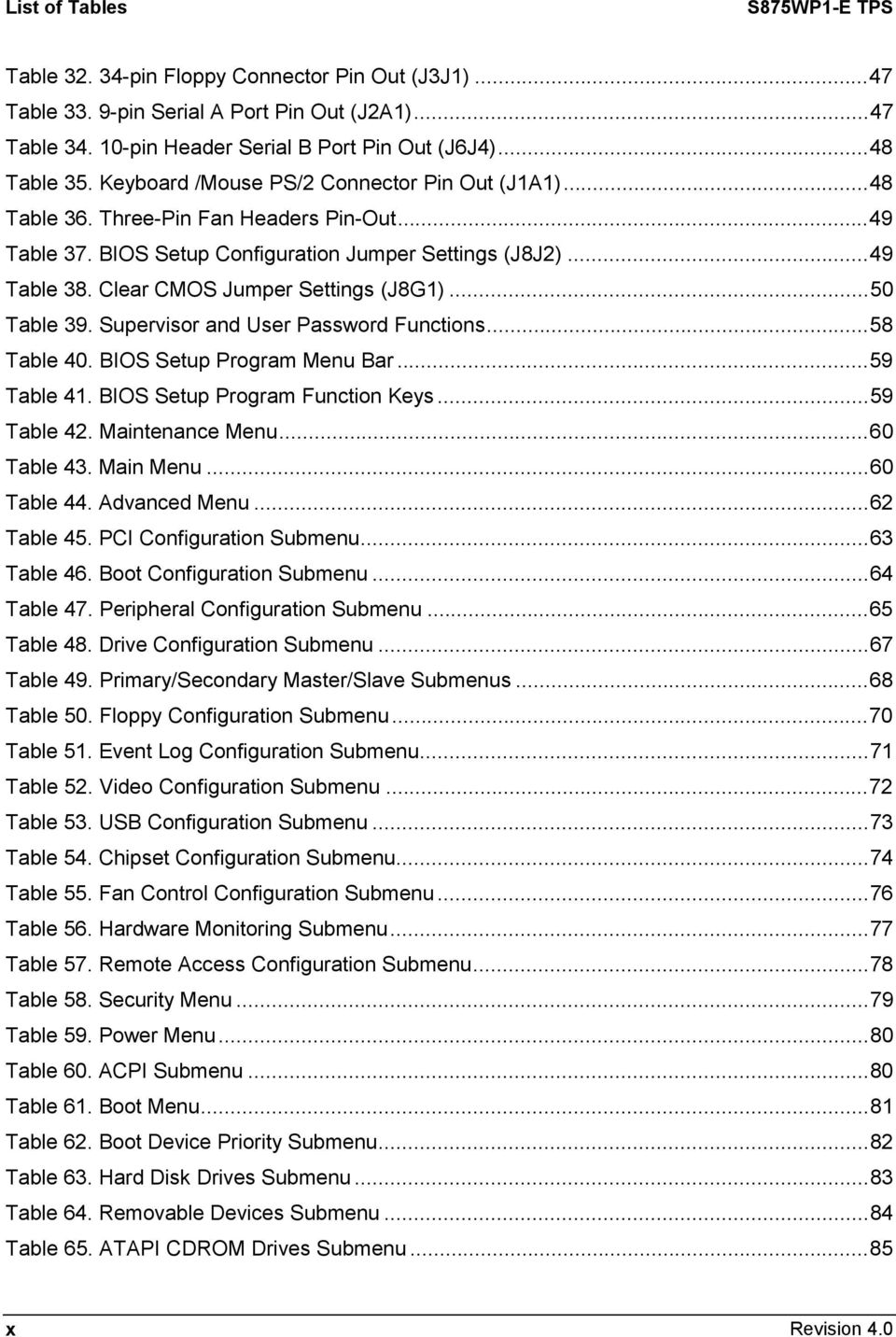
11 S875WP1-E TPS List of Tables Table 66. Exit Menu...85 Table 67. BIOS Error Messages...88 Table 68. Uncompressed INIT Code Checkpoints...89 Table 69 Boot Block Recovery Code Checkpoints...90 Table 70. Runtime Code Uncompressed in F000 Shadow RAM...90 Table 71. BIOS Beep Codes...93 Table 72. Bus Initialization Checkpoints...94 Table 73. Upper Nibble High Byte Functions...94 Table 74. Lower Nibble High Byte Functions...94 Table 75. Absolute Maximum Ratings...95 Table 76. S875WP1-E Power Budget...95 xi

12 List of Tables S875WP1-E TPS This page intentionally left blank xii

13 S875WP1-E Introduction 1. Introduction The S875WP1-E Technical Product Specification (TPS) provides a high-level technical description for the Intel Server Board S875WP1-E. It details the architecture and feature set for all functional sub-systems that make up the server board. This TPS covers both versions of the Intel Server Board S875WP1-E, which includes product codes: S875WP1 and S875WP1LX. When appropriate, the specific product code is used to relay information that pertains only to a specific version of the Intel Server Board S875WP1-E. This document is divided into the following main categories: Chapter 2: Server Board Overview Chapter 3: Functional Architecture Chapter 4: Technical Reference Chapter 5: Connectors and Jumper Blocks Chapter 6: Overview of BIOS Features Chapter 7: BIOS Setup Program Chapter 8: Error Reporting and Handling Chapter 9: General Specifications 1

14 Server Board Overview S875WP1-E 2. Server Board Overview 2.1 S875WP1-E Feature Set The Intel Server Board S875WP1-E provides the following feature set: Support for an Intel Pentium 4 processor with hyper-threading technology in a µpga478 socket. 400/533/800 MHz System Bus Intel 875P chipset - Intel 82875P Memory Controller Hub (MCH) - Intel 82801ER I/O Controller Hub (ICH5-R) - Intel 82802AC 8 Megabit Firmware Hub (FWH) Support for single-sided or double-sided dual inline memory module (DIMM) double-data rate (DDR) memory providing up to 4 GB of system memory with four 184-pin DIMM sockets. - PC3200 (400 MHz): to run 400 MHz memory at full speed requires an Intel Pentium 4 processor with 800 MHz system bus frequency. - PC2700 (333 MHz): to run 333 MHz memory at full speed requires an Intel Pentium 4 processor with 533 MHz system bus frequency. Note: PC2700 (333 MHZ) memory will run at 320 MHz frequency when using an Intel Pentium 4 processor with 800 MHz system bus frequency. - PC2100 (266 MHZ): PC2100 (266 MHZ) memory may only be used with an Intel Pentium 4 processor with 400 MHz or 533 MHz system bus frequency only. One AGP bus with AGP connector, supporting 1.5 V and 0.8V AGP cards at 4X and 8X. One independent PCI bus (32-bit, 33 MHz, 5 V) with three PCI connectors and two embedded devices: - Integrated 2D/3D graphics controller: ATI Rage* XL Video Controller with 8 MB of SDRAM - Optional 4-port Serial ATA (SATA) controller (on S875WP1LX): Promise Technology* PDC20319 LPC (Low Pin Count) bus segment with one embedded device: SMSC LPC47M172 LPC Bus I/O controller controller chip providing all PC-compatible I/O (floppy, serial, keyboard, mouse) Four external USB 2.0 ports on the back panel with an additional internal header, which provides support for an additional two USB ports for front panel support (six total possible USB 2.0 ports) One serial port and one serial port header One parallel port Two IDE interfaces with UDMA 33, ATA-66/100 support Support for up to four system fans and one processor fan Server System Infrastructure (SSI)-compliant connectors for SSI interface support: front panel, power connector 2

15 S875WP1-E Server Board Overview Hardware Monitor Subsystem: - Voltage sense to detect out of range power supply voltages - Thermal sense to detect out of range thermal values - Four fan sense inputs used to monitor fan activity 3

16 Server Board Overview S875WP1-E The figure below shows the functional blocks of the server board and the plug-in modules that it supports. A B C D E F G CC BB AA Z Y X W V H I J K L M N O U P A. System Fan 4 Header B. +12V CPU Power Connector C. Processor Socket D. CPU Fan E. DIMM Sockets F. Main Power Connector G. Floppy Drive Connector H. Auxiliary Power Connector I. Primary IDE Connector J. Secondary IDE Connector K. Serial B Header L. System Fan 1 Header M. System Fan 2 Header N. Front Panel Connector O. BIOS Configuration Jumper (J8J2) P. SCSI LED Header Q. Hot Swap Backplane Header T S R Q TP00182 R. Battery S. SATA-A1 through SATA-A4 Connector (S875WP1LX only, slots numbered from left to right) T. Chassis Intrusion Header U. PCI 32/33 Slots 1 3 (slots numbered from top to bottom) V. System Fan 3 Header W. Front Panel USB Header X. Clear CMOS Jumper J8G1 Y. SATA-B1 and SATA-B2 Connectors (slots numbered from left to right) Z. AGP Connector AA. NIC2 (10/100 Mb), USB BB. NIC1 (1 Gb), USB CC. Back Panel I/O Ports Figure 1. Intel Server Board S875WP1-E Diagram 4

17 S875WP1-E TPS Functional Architecture 3. Functional Architecture This chapter provides a high-level description of the functionality distributed between the architectural blocks of the Intel Server Board S875WP1-E. 3.1 Processor and Memory Subsystem The Intel 82875P Memory Controller Hub (MCH) is one component of the Intel 875P chipset. The MCH is a centralized controller for the system bus, the memory bus, the AGP bus, and the accelerated hub architecture interface Processor Support The Intel Server Board S875WP1-E supports a single Pentium 4 processor (in a µpga478 socket) with a system bus of 400 /533 /800 MHz. The server board supports the processors listed in Table 1. Table 1. Processor Support Matrix Type Designation System Bus L2 Cache Size Pentium 4 processor with 2.40, 2.60, 2.80, and 3.0 GHz 800 MHz 512 KB Hyperthreading (HT) Technology Pentium 4 processor with Hyperthreading Technology 3.06 GHz 533 MHz 512 KB Pentium 4 processor 2.0, 2.26, 2.4, 2.53, 2.6, 2.66, and 2.8 GHz 400 / 533 MHz 512 KB CAUTION Use only the processors listed above. Use of unsupported processors can damage the board, the processor, and the power supply. See the Intel Server Board S875WP1-E Specification Update or go to for the current list of supported processors for this board. NOTE Use only ATX12V or EPS12V compliant power supplies with the server board S875WP1-E. ATX12V and EPS12V power supplies have an additional power lead that provides required supplemental power for the Intel Pentium 4 processor. The board will not boot if you do not connect the 20-pin (or 24-pin) and 4-pin (or 8-pin) leads of ATX12V or EPS12V power supplies to the corresponding connectors. Do not use a standard ATX power supply. The board will not boot with a standard ATX power supply. 5

18 Functional Architecture S875WP1-E TPS Reset Configuration Logic The BIOS determines the processor stepping, cache size, and other processor information through the CPUID instruction. The requirement is for the processor to run at a fixed speed. The processor cannot be programmed to operate at a lower or higher speed. On the S875WP1-E platform, the BIOS is responsible for configuring the processor speed. The BIOS uses CMOS settings to determine which speed to program into the speed setting device. The processor information is read at every system power-on Memory Subsystem The server board S875WP1-E provides four DIMM slots and supports a maximum memory capacity of 4 GB. The DIMM organization is x72, which includes eight ECC check bits. ECC from the DIMMs are passed through to the processor s system bus. Memory scrubbing, single-bit error correction and multiple-bit error detection is supported. Memory can be implemented with either single-sided (one row) or double-sided (two row) DIMMs. DIMM Capacity Configuration DDR SDRAM Density Table 2. Supported Memory Configurations DDR SDRAM Organization Front-side/Back-side Number of DDR SDRAM Devices 64 MB SS 64 Mbit 8 M x 8/empty 8 64 MB SS 128 Mbit 8 M x 16/empty MB DS 64 Mbit 8 M x 8/8 M x MB SS 128 Mbit 16 M x 8/empty MB SS 256 Mbit 16 M x 16/empty MB DS 128 Mbit 16 M x 8/16 M x MB SS 256 Mbit 32 M x 8/empty MB SS 512 Mbit 32 M x 16/empty MB DS 256 Mbit 32 M x 8/32 M x MB SS 512 Mbit 64 M x 8/empty MB DS 512 Mbit 64 M x 8/64 M x 8 16 Note: In the second column, DS refers to double-sided memory modules (containing two rows of DDR SDRAM) and SS refers to single-sided memory modules (containing one row of DDR SDRAM). DIMM and memory configurations must adhere to the following: 2.5 V (only) 184-pin DDR SDRAM DIMMs with gold-plated contacts Unbuffered, single-sided or double-sided DIMMs with the following restriction: Double-sided DIMMS with x16 organization are not supported. Maximum total system memory: 4 GB Minimum total system memory: 128 MB ECC and non-ecc DIMMs supported Serial Presence Detect PC3200 (400 MHZ), PC2700 (333 MHZ), and PC2100 (266 MHZ) SDRAM DIMMs 6

19 S875WP1-E TPS Functional Architecture Table 3 lists the supported system bus frequency and memory speed combinations. Table 3. Supported System Bus Frequency and Memory Speed Combinations To use this type of DIMM PC3200 (400 MHZ) PC2700 (333 MHZ) PC2100 (266 MHZ) The processor's system bus frequency must be 800 MHz 800 or 533 MHz (Note) 800, 533, or 400 MHz Note: When using PC2700 (333 MHZ) memory with an 800 MHz system bus frequency processor, the memory channel will be set to 320 MHz. Only DIMMs tested and qualified by Intel or a designated memory test vendor will be supported on the Intel Server Board S875WP1-E. A list of qualified DIMMs will be made available through Note that all DIMMs are supported by design, but only fully qualified DIMMs will be supported. NOTES Remove the AGP video card while installing or upgrading memory to avoid interference with the memory retention mechanism. To be fully compliant with all applicable DDR SDRAM memory specifications, the board should be populated with DIMMs that support the Serial Presence Detect (SPD) data structure. This allows the BIOS to read the SPD data and program the chipset to accurately configure memory settings for optimum performance. If non-spd memory is installed, the BIOS will attempt to correctly configure the memory settings, but performance and reliability may be impacted or the DIMMs may not function under the determined frequency. For ECC functionality, all installed DIMMs must be ECC. If both ECC and non-ecc DIMMs are used, ECC will be disabled and will not function. Only low profile DIMMs can be supported in a 1U server chassis Memory Configurations The Intel 82875P MCH component provides two features for enhancing memory throughput: Dual Channel memory interface. The board has two memory channels, each with two DIMM sockets. Dynamic Addressing Mode. Dynamic mode minimizes overhead by reducing memory accesses. 7

20 Functional Architecture S875WP1-E TPS Table 4 summarizes the characteristics of dual and single channel configurations with and without the use of Dynamic Mode. Table 4. Characteristics of Dual/Single Channel Configuration with/without Dynamic Mode Throughput Configuration Characteristics Level Highest Dual Channel with Dynamic Mode All DIMMs matched (Example configurations are shown in Figure 2) Dual Channel without Dynamic Mode DIMMs matched from Channel A to Channel B DIMMs not matched within channels (Example configuration is shown in Figure 3) Single Channel with Dynamic Mode Single DIMM or DIMMs matched with a channel (Example configurations are shown in Figure 4) Lowest Single Channel without Dynamic Mode DIMMs not matched (Example configurations are shown in Figure 5) 8

21 S875WP1-E TPS Functional Architecture Dual Channel Configuration with Dynamic Mode (All DIMMs matched) Channel A - DIMM 0 Channel B - DIMM 0 Example 1 Intel Channel A - DIMM P Channel B - DIMM 1 MCH Channel A - DIMM 0 Channel B - DIMM 0 Example 2 Intel Channel A - DIMM P Channel B - DIMM 1 MCH OM15978 Figure 2. Examples of Dual Channel Configuration with Dynamic Mode 9
22 Functional Architecture S875WP1-E TPS Dual Channel Configuration without Dynamic Mode - DIMMs not matched within channel - DIMMs match Channel A to Channel B Channel A - DIMM 0 Channel B - DIMM 0 Intel Channel A - DIMM P Channel B - DIMM 1 MCH OM15979 Figure 3. Example of Dual Channel Configuration without Dynamic Mode 10
23 S875WP1-E TPS Functional Architecture Single Channel Configuration with Dynamic Mode (Single DIMM or DIMMs matched within Channel) Channel A - DIMM 0 Channel B - DIMM 0 Example 1 Intel Channel A - DIMM P Channel B - DIMM 1 MCH Channel A - DIMM 0 Channel B - DIMM 0 Example 2 Intel Channel A - DIMM P Channel B - DIMM 1 MCH OM15980 Figure 4. Examples of Single Channel Configuration with Dynamic Mode 11
24 Functional Architecture S875WP1-E TPS Single Channel Configuration without Dynamic Mode (DIMMs not matched) Channel A - DIMM 0 Channel B - DIMM 0 Example 1 Intel Channel A - DIMM P Channel B - DIMM 1 MCH Channel A - DIMM 0 Channel B - DIMM 0 Example 2 Intel Channel A - DIMM P Channel B - DIMM 1 MCH OM15981 Figure 5. Examples of Single Channel Configuration without Dynamic Mode 12
25 S875WP1-E TPS Functional Architecture 3.2 Intel 875P Chipset The Intel 875P chipset consists of the following devices: Intel 82875P Memory Controller Hub (MCH) with Accelerated Hub Architecture (AHA) bus Intel 82801ER I/O Controller Hub (ICH5-R) with AHA bus Intel 82802AC (8 Mbit) Firmware Hub (FWH) The MCH is a centralized controller for the system bus, the memory bus, the AGP bus, and the Accelerated Hub Architecture interface. The ICH5-R is a centralized controller for the Server Board S875WP1-E s I/O paths. The FWH provides the nonvolatile storage of the BIOS. The component combination provides the chipset interfaces as shown in Figure 6. System Bus UDMA 33 ATA-66/100 Network USB 875P Chipset 82875P Memory Controller Hub (MCH) AHA Bus 82801ER I/O Controller Hub (ICH5-R) 82802AC 8 Mbit Firmware Hub (FWH) AGP Interface Dual-Channel DDR SDRAM Bus SATA Ports SMBus PCI Bus AC Link LPC Bus OM15967 Figure 6. Intel 875P Chipset Block Diagram For information about The Intel 875P chipset Refer to 13
26 Functional Architecture S875WP1-E TPS AGP The AGP connector supports the following: 4x, 8x AGP 3.0 add-in cards with 0.8 V I/O 1x, 4x AGP 2.0 add-in cards with 1.5 V I/O AGP is a high-performance interface for graphics-intensive applications, such as 3D applications. While based on the PCI Local Bus Specification, Rev. 2.2, AGP is independent of the PCI bus and is intended for exclusive use with graphical display devices. AGP overcomes certain limitations of the PCI bus related to handling large amounts of graphics data with the following features: Pipelined memory read and write operations that hide memory access latency Demultiplexing of address and data on the bus for nearly 100 percent efficiency NOTES AGP 2x operation is not supported. Install memory in the DIMM sockets prior to installing the AGP video card to avoid interference with the memory retention mechanism. The AGP connector is keyed for Universal 0.8 V AGP 3.0 cards or 1.5 V AGP 2.0 cards only. Do not attempt to install a legacy 3.3 V AGP card. The AGP connector is not mechanically compatible with legacy 3.3 V AGP cards. For information about Refer to The AGP connector Section USB The Intel Server Board S875WP1-E supports up to six USB 2.0 ports, supports Universal Host Controller Interface (UHCI) and Enhanced Host Controller Interface (EHCI), and uses UHCIand EHCI-compatible drivers. The ICH5-R provides the USB controller for all ports, as shown in Figure 7. The port arrangement is as follows: Two ports are implemented with stacked back panel connectors, above NIC1 Two ports are implemented with stacked back panel connectors, above NIC2 Two ports are routed to the front panel USB header 14
27 S875WP1-E TPS Functional Architecture USB USB ports [2] Back panel USB connectors above NIC ER I/O Controller Hub (ICH5-R) USB USB ports [2] Back panel USB connectors above NIC2 USB USB ports [2] Front panel USB header Providing up to 2 USB ports OM16101 Figure 7. USB Port Configuration NOTES Computer systems that have an unshielded cable attached to a USB port may not meet FCC Class B requirements, even if no device is attached to the cable. Use shielded cable that meets the requirements for full-speed devices. Native USB 2.0 support has been tested with Windows* 2000 and Windows XP drivers and is not currently supported by any other operating system. See the Intel server board support website at for possible driver updates for other operating systems. For information about Refer to The location of the USB connectors on the back panel Figure 1 The location of the front panel USB connector Figure 1 The signal names of the front panel USB header Section 5.9 Legacy USB support Section 6.4 Wake from USB Section IDE Interfaces The ICH5-R IDE controller has two independent bus-mastering IDE interfaces that can be independently enabled. The IDE interfaces support the following modes: Programmed I/O (PIO): processor controls data transfer style DMA: DMA offloads the processor, supporting transfer rates of up to 16 MB/sec. Ultra DMA: DMA protocol on IDE bus supporting host and target throttling and transfer rates of up to 33 MB/sec. ATA-66: DMA protocol on IDE bus supporting host and target throttling and transfer rates of up to 66 MB/sec. The ATA-66 protocol is similar to Ultra DMA and is device driver compatible. 15
28 Functional Architecture S875WP1-E TPS ATA-100: DMA protocol on IDE bus allows host and target throttling. The ICH5-R ATA- 100 logic can achieve read transfer rates up to 100 MB/sec and write transfer rates up to 88 MB/sec. NOTE ATA-66 and ATA-100 are faster timings and require a specialized 40-pin, 80-wire cable to reduce reflections, noise, and inductive coupling. The IDE interfaces also support ATAPI devices (such as CD-ROM drives) and ATA devices using the transfer modes. The BIOS supports Logical Block Addressing (LBA) and Extended Cylinder Head Sector (ECHS) translation modes. The drive reports the transfer rate and translation mode to the BIOS. The Server Board S875WP1-E supports Laser Servo (LS-120) diskette technology through the IDE interfaces. The BIOS supports booting from an LS-120 drive. NOTE The BIOS will always recognize an LS-120 drive as an ATAPI floppy drive. To ensure correct operation, do not configure the drive as a hard disk drive. For information about Refer to The location of the IDE connectors Figure 1 The signal names of the IDE connectors Table 30 BIOS Setup program s Boot Configuration menu Section Drive Configuration Submenu Section SCSI Hard Drive Activity LED Connector The SCSI hard drive activity LED connector is a 1 x 2-pin connector that allows an add-in SCSI controller to use the same LED as the on-board IDE controller. For proper operation, this connector should be wired to the LED output of the add-in SCSI controller. The LED indicates when data is being read from, or written to, both the add-in SCSI controller and the IDE controller. For information about Refer to The location of the SCSI hard drive activity LED connector Figure 1 16
29 S875WP1-E TPS Functional Architecture Real-Time Clock, CMOS SRAM, and Battery The real-time clock provides a time-of-day clock and a multi-century calendar with alarm features. The real-time clock supports 256 bytes of battery-backed CMOS SRAM in two banks that are reserved for BIOS use. A coin-cell battery (CR2032) powers the real-time clock and CMOS memory. When the computer is not plugged into a wall socket, the battery has an estimated life of three years. When the computer is plugged in, the standby current from the power supply extends the life of the battery. The clock is accurate to ± 13 minutes/year at 25 ºC with 3.3 VSB applied. The time, date, and CMOS values can be specified in the BIOS Setup program. The CMOS values can be returned to their defaults by using the BIOS Setup program. NOTE If the battery and AC power fail, custom defaults, if previously saved, will be loaded into CMOS RAM at power-on Intel 82802AC 8 Megabit Firmware Hub (FWH) The FWH provides the following: System BIOS program Logic that enables protection for storing and updating of platform information 17
30 Functional Architecture S875WP1-E TPS 3.3 Serial ATA (SATA) Support SATA Interfaces The Serial ATA controller provided by the ICH5-R offers two independent SATA ports with a theoretical maximum transfer rate of 150MB/s per port. One device can be installed on each port for a maximum of two SATA devices when using ICH5-R. Server board with order code of S875WP1 includes only two SATA ports through the ICH5-R. Server board with order code S875WP1LX includes an additional four SATA ports using an onboard Promise* Serial ATA controller, for a maximum of six SATA drives. A point-to-point interface is used for host to device connections, unlike IDE which supports a master/slave configuration and two devices per channel. For compatibility, the underlying SATA functionality is transparent to the operating system. The SATA controller can operate in both legacy and native modes. In legacy mode, standard IDE I/O and IRQ resources are assigned (IRQ 14 and 15). In native mode, standard PCI resource steering is used. Native mode is the preferred mode for configurations using the Windows XP and Windows 2000 operating systems. Key features include: Two SATA ports Maximum throughput of 150MB/s Smaller cable NOTE Many SATA drives use new low-voltage power connectors and require adaptors or power supplies equipped with low-voltage power connectors. For more information, see: ATA and SATA add-in controllers may experience resource conflicts IRQ 14 and 15. Refer to the tested hardware and operating system list at (URL). In some instances, onboard SATA controller may need to be disable to use those add-in controllers SATA RAID with ICH5-R Controller Support for RAID (Redundant Array of Independent Disks) on the two SATA ports from the ICH5-R controller is planned for a future date. See for the availability information. 18
31 S875WP1-E TPS Functional Architecture SATA RAID with Promise Technology * PDC20319 The Intel Server Board S875WP1LX provides additional four port Serial ATA through the use of the Promise* Technology PDC20319 ASIC. The PDC20319 SATA-150 controller contains four independent SATA channels that share a single 32-bit, 33-MHz PCI bus master interface as a multifunction device, packaged in a 144-pin LQFP. The PDC controller supports the following features: Burst bus mastering and advanced packet command based scatter/gather engine to enhance overall system performance Built in 4 channels SATA PHY, which meets the SATA 1.0 specification and can transfer data with 1.5GHz speed Capable to support multiple arrays and quad master mode for dedicated SATA channel, up to four physical drive can operated at master mode. Quad independent data paths with read ahead and write posting supported for quad IDE channels to have high performance PCI interface that complies with PCI Local Bus Specification Revision 2.3 and PCI power management 1.1 Support 48-bit LBA format for drives larger than 128GB 32-bit, 33-MHz bus speed and 150 MB/sec sustained transfer rate. The Promise* PDC20319 supports SATA RAID through four SATA Channels. The RAID Engine supports advance chained packet commands for XOR and four independent ATA operations improving performance for all RAID levels. In a RAID configuration, multiple SATA hard drives are placed into one or more arrays of disks. Each array is seen as an independent disk, though the array may include upwards of two, three, or four drives. The SATA RAID can be configured as follows: RAID 0: Striping one to four drives. RAID 1: Mirroring two drives. RAID 10: Striping and mirroring of data concurrently (requires 4 drives) RAID 0 configurations are used for high-performance applications, as it doubles the sustained transfer rate of its drives. RAID 1 configurations are primarily used for data protection. It creates an identical drive backup to a secondary drive. Whenever a disk write is performed, the controller sends data simultaneously to a second drive located on a different data channel. With four drives attached to four SATA channels, one pair of striped drives can mirror themselves to another pair (RAID 10) for storage capacity and data redundancy. 19
32 Functional Architecture S875WP1-E TPS 3.4 I/O Controller The SMSC* LPC47M102 I/O Controller provides the following features: One serial port One parallel port with Extended Capabilities Port (ECP) and Enhanced Parallel Port (EPP) support Serial IRQ interface compatible with serialized IRQ support for PCI systems PS/2-style mouse and keyboard interfaces Interface for one 1.44 MB diskette drive Intelligent power management, including a programmable wake-up event interface PCI power management support The BIOS Setup program provides configuration options for the I/O controller. For information about SMSC LPC47M172 I/O controller Refer to Serial Ports The Intel Server Board S875WP1-E has one 9-pin D-sub serial port connector and one 2 x 5 serial port header. The serial port A connector is located in the rear I/O area. The serial port B header is located near the main power connector. The serial ports NS16C550-compatible UART supports data transfers at speeds up to kbits/sec with BIOS support. The serial ports can be assigned as COM1 (3F8h), COM2 (2F8h), COM3 (3E8h), or COM4 (2E8h). For information about Refer to The signal names of the serial port A connector Table 33 The location of the serial port B header Figure 1 The signal names of the serial port B header Table 34 20
33 S875WP1-E TPS Functional Architecture Parallel Port The 25-pin D-Sub parallel port connector is located in the rear I/O area. In the BIOS Setup program, the parallel port can be set to the following modes: Output only (PC AT-compatible mode) Bi-directional (PS/2 compatible) EPP ECP For information about Refer to The location of the parallel port connector Figure 1 Setting the parallel port s mode Table Diskette Drive Controller The I/O controller supports one diskette drive that is compatible with the diskette drive controller and supports both PC-AT and PS/2 modes. For information about Refer to The location of the diskette drive connector Figure 1 The signal names of the diskette drive connector Section 5.10 The supported diskette drive capacities and sizes Table Keyboard and Mouse Interface PS/2 keyboard and mouse connectors are located on the back panel. The +5 V lines to these connectors are protected with a PolySwitch* fuse circuit that, like a self-healing fuse, reestablishes the connection after an overcurrent condition is removed. NOTE The keyboard is supported in the bottom PS/2 connector and the mouse is supported in the top PS/2 connector. Power to the computer should be turned off before a keyboard or mouse is connected or disconnected. The keyboard controller contains the American MegaTrends* (AMI) keyboard and mouse controller code, provides the keyboard and mouse control functions, and supports password protection for power-on/reset. A power-on/reset password can be specified in the BIOS Setup program. For information about Refer to The location of the keyboard and mouse connectors Section The signal names of the keyboard and mouse connectors Table 35 21
34 Functional Architecture S875WP1-E TPS 3.5 Hardware Management Subsystem The hardware management features enable the Intel Server Board S875WP1-E to be compatible with the Wired for Management (WfM) specification 2.0. The server board complies with DMI specification 2.0 and has several hardware management features, including the following: Fan monitoring Thermal and voltage monitoring Chassis intrusion detection Hardware Monitoring and Fan Control ASIC The features of the hardware monitoring and fan control ASIC (Standard Microsystems SMSC EMC6D101 or equivalent) include: Internal ambient temperature sensor Two remote thermal diode sensors for direct monitoring of processor temperature and ambient temperature sensing Power supply monitoring of five voltages (+5 V, +12 V, +3.3 V Standby, +1.5 V, and +VCCP) to detect levels above or below acceptable values Thermally monitored closed-loop fan control, for four fans, that can adjust the fan speed or switch the fans on or off as needed SMBus interface For information about The Standard Microsystems SMSC EMC6D101 Refer to Fan Monitoring The Hardware Management ASIC provides four fan tachometer inputs. Monitoring can be implemented using LANDesk* Client Manager or third-party software. For information about Refer to The location of the fan connectors Figure 1 The signal names of the fan connectors Section
35 S875WP1-E TPS Functional Architecture Chassis Intrusion and Detection The Intel Server Board S875WP1-E supports a chassis security feature that detects if the chassis cover is removed. For the chassis intrusion circuit to function, the chassis power supply must be connected to AC power. The security feature uses a mechanical switch on the chassis that attaches to the chassis intrusion connector. When the chassis cover is removed the mechanical switch is in the closed position. For information about Refer to The location of the chassis intrusion connector Figure 1 NOTE Chassis intrusion detection may be implemented using LANDesk* Client Manager or other third-party software. 3.6 Power Management Power management is implemented at several levels, including: Software support through Advanced Configuration and Power Interface (ACPI) Hardware support: - Power connector - Fan connectors - LAN wake capabilities - Instantly Available PC technology - Wake from USB - Wake from PS/2 devices - Power Management Event (PME#) wake-up support Advanced Configuration and Power Interface (ACPI) ACPI gives the operating system direct control over the power management and Plug and Play functions of a computer. The use of ACPI with the Intel Server Board S875WP1-E requires an operating system that provides full ACPI support. ACPI features include: Plug and Play (including bus and device enumeration) Power management control of individual devices, add-in boards (some add-in boards may require an ACPI-aware driver), video displays, and hard disk drives Methods for achieving less than 15-watt system operation in the standby or sleeping state A Soft-off feature that enables the operating system to power-off the computer Support for multiple wake-up events (see Table 7) Support for a front panel power and sleep mode switch 23
36 Functional Architecture S875WP1-E TPS Table 5 lists the system states based on how long the power switch is pressed, depending on how ACPI is configured with an ACPI-aware operating system. Table 5. Effects of Pressing the Power Switch If the system is in this state Off (ACPI S5 Soft off) On (ACPI S0 working state) On (ACPI S0 working state) Sleep (ACPI S1 or S3 sleeping state) Sleep (ACPI S1 or S3 sleeping state) and the power switch is pressed for Less than four seconds Less than four seconds More than four seconds Less than four seconds More than four seconds the system enters this state Power-on (ACPI S0 working state) Soft-off/Standby (ACPI S1 or S3 sleeping state) Fail safe power-off (ACPI S5 Soft off) Wake-up (ACPI S0 working state) Power-off (ACPI S5 Soft off) System States and Power States Under ACPI, the operating system directs all system and device power state transitions. The operating system puts devices in and out of low-power states based on user preferences and knowledge of how devices are being used by applications. Devices that are not being used can be turned off. The operating system uses information from applications and user settings to put the system as a whole into a low-power state. Table 6 lists the power states supported by the Server Board S875WP1-E along with the associated system power targets. See the ACPI specification for a complete description of the various system and power states. Table 6. Power States and Targeted System Power Global States G0 working state G1 sleeping state G1 sleeping state G1 sleeping state G2/G5 Processor Targeted System Sleeping States States Device States Power (Note 1) S0 working C0 working D0 working state. Full power > 30 W S1 Processor stopped S3 Suspend to RAM. Context saved to RAM. S4 Suspend to disk. Context saved to disk. S5 Soft off. Context not saved. Cold boot is required. C1 stop grant No power No power No power D1, D2, D3 device specification specific. D3 no power except for wake-up logic. D3 no power except for wake-up logic. D3 no power except for wake-up logic. 5 W < power < 52.5 W Power < 5 W (Note 2) Power < 5 W (Note 2) Power < 5 W (Note 2) 24
37 S875WP1-E TPS Functional Architecture Global States G3 mechanical off AC power is disconnected from the computer. Notes: Sleeping States No power to the system. Processor States No power Device States D3 no power for wake-up logic, except when provided by battery or external source. Targeted System Power (Note 1) No power to the system. Service can be performed safely. 1. Total system power is dependent on the system configuration, including add-in boards and peripherals powered by the system chassis power supply. 2. Dependent on the standby power consumption of wake-up devices used in the system Wake-up Devices and Events Table 7 lists the devices or specific events that can wake the computer from specific states. Table 7. Wake-up Devices and Events These devices/events can wake up the computer LAN Modem (back panel Serial Port A) PME# Power switch PS/2 devices RTC alarm USB from this state S1, S3, S4, S5 (Note) S1, S3 S1, S3, S4, S5 (Note) S1, S3, S4, S5 S1, S3 S1, S3, S4, S5 S1, S3 NOTE For LAN and PME#, S5 is disabled by default in the BIOS Setup program. Setting this option to Power On will enable a wake-up event from LAN in the S5 state. The use of these wake-up events from an ACPI state requires an operating system that provides full ACPI support. In addition, software, drivers, and peripherals must fully support ACPI wake events Plug and Play In addition to power management, ACPI provides control information so that operating systems can facilitate Plug and Play. ACPI is used only to configure devices that do not use other hardware configuration standards. PCI devices for example, are not configured by ACPI. 25
38 Functional Architecture S875WP1-E TPS Hardware Support CAUTION Ensure that the power supply provides adequate +5 V standby current if LAN wake capabilities and Instantly Available PC technology features are used. Failure to do so can damage the power supply. The total amount of standby current required depends on the wake devices supported and manufacturing options. The Server Board S875WP1-E provides power management hardware features, including: Power connector Fan connectors LAN wake capabilities Instantly Available PC technology Wake from USB Wake from PS/2 keyboard PME# wake-up support LAN wake capabilities and Instantly Available PC technology require power from the +5 V standby line. The sections discussing these features describe the incremental standby power requirements for each Power Connector ATX12V or EPS12V compliant power supplies and the Intel Server Board S875WP1-E can turn off the system power through software control. When the system receives the correct command from the operating system, the power supply removes non-standby voltages from the system. When power to the computer is interrupted by a power outage or a disconnected power cord, when power resumes, the computer returns to the power state it was in before power was interrupted (on or off). The computer s response can be set using the After Power Failure in the BIOS Setup program s Boot menu. For information about Refer to The location of the power connectors Figure 1 The signal names of the power connector Section 5.1 The BIOS Setup program s Boot menu Section
39 S875WP1-E TPS Functional Architecture Fan Connectors CAUTION The processor fan must be connected to the processor fan connector, not to a chassis fan connector. Connecting the processor fan to a chassis fan connector may result in onboard component damage that will halt fan operation. Table 8 summarizes the fan connector function/operation. Table 8. Fan Connector Function/Operation Connector Processor fan System fans Description +12 V DC connection for a processor fan or active fan heatsink. Fan is on in the S0 or S1 state. Fan is off when the system is off or in the S3, S4, or S5 state. Wired to a fan tachometer input of the hardware monitoring and fan control ASIC. Closed-loop fan control that can adjust the fan speed or switch the fan on or off as needed. +12 V DC connection for a system or chassis fan. Fan is on in the S0 or S1 state. Fan is off when the system is off or in the S3, S4, or S5 state. Wired to a fan tachometer input of the hardware monitoring and fan control ASIC. Closed-loop fan control that can adjust the fan speed or switch the fan on or off as needed. For information about: Refer to: The location of the fan connectors Figure 1 The signal names of the fan connectors Section LAN Wake Capabilities CAUTION For LAN wake capabilities, the +5 V standby from the power supply must be capable of providing adequate +5 V standby current. Failure to provide adequate standby current when implementing LAN wake capabilities can damage the power supply. LAN wake capabilities enable remote wake-up of the computer through a network. The LAN subsystem PCI bus network adapter monitors network traffic at the Media Independent Interface. Upon detecting a Magic Packet* frame, the LAN subsystem asserts a wake-up signal that powers up the computer. Depending on the LAN implementation, the server board S875WP1-E supports LAN wake capabilities with ACPI in the following ways: PCI bus PME# signal for PCI 2.2 compliant LAN designs Onboard LAN subsystem 27
40 Functional Architecture S875WP1-E TPS Instantly Available PC Technology CAUTION For Instantly Available* PC technology, the +5 V standby from the power supply must be capable of providing adequate +5 V standby current. Failure to provide adequate standby current when implementing Instantly Available PC technology can damage the power supply. Instantly Available PC technology enables the server board S875WP1-E to enter the ACPI S3 (Suspend-to-RAM) sleep-state. While in the S3 sleep-state, the server will appear to be off (the power supply is off, and the front panel LED is amber if dual colored, or off if single colored.) When signaled by a wake-up device or event, the system quickly returns to its last known wake state. Table 7 lists the devices and events that can wake the computer from the S3 state. The server board supports the PCI Bus Power Management Interface Specification. Add-in boards that also support this specification can participate in power management and can be used to wake the computer. The use of Instantly Available PC technology requires operating system support and PCI 2.2 compliant add-in cards and drivers Standby Power (+5 V) Indicator LED The standby power indicator LED (CR7J1) shows that power is still present even when the computer appears to be off. Figure 8 shows the location of the standby power indicator LED. CAUTION If AC power has been switched off and the standby power indicator is still lit, disconnect the power cord before installing or removing any devices connected to the board. Failure to do so could damage the board and any attached devices. 28
41 S875WP1-E TPS Functional Architecture CR7J1 TP00185 Figure 8. Location of the Standby Power Indicator LED (CR7J1) Wake from USB USB bus activity wakes the computer from an ACPI S1 or S3 state. NOTE Wake from USB requires the use of a USB peripheral that supports it Wake from PS/2 Devices PS/2 device activity wakes the computer from an ACPI S1 or S3 state PME# Wake-up Support When the PME# signal on the PCI bus is asserted, the computer wakes from an ACPI S1, S3, S4, or S5 state (with Wake on PME enabled in BIOS). 29
42 Functional Architecture S875WP1-E TPS 3.7 Clock Generation and Distribution All buses on the S875WP1-E baseboard operate using synchronous clocks. Clock synthesizer/driver circuitry on the baseboard generates clock frequencies and voltage levels as required, including the following: 100/133-MHz at 2.5 V & 3.3 V logic levels: For the mpga478 socket, the MCH, and the ITP port. 66 MHz at 3.3 V logic levels: For the MCH and the AGP clocks MHz at 3.3 V logic levels: For the PCI slots and devices MHz at 3.3V logic levels: ICH5-R and Super I/O clocks. The synchronous clock sources on the S875WP1-E baseboard are: 100/133-MHz host clock generator for processor, MCH, Memory DIMMs, and the ITP. 66-MHz clock for MCH and the AGP clocks. 48-MHz clock for USB MHz PCI reference clock MHz ICH5-R and Super I/O clocks. The S875WP1-E baseboard also provides asynchronous clock generators: 25-MHz clocks for the embedded network interface controllers MHz clock for the embedded video controller. 20-MHz clock for the Promise PDC20319 controller. 32-KHz clock for the RTC. 3.8 PCI I/O Subsystem The primary I/O bus for the Intel Server Board S875WP1-E is PCI, with one independent PCI bus. The PCI bus complies with the PCI Local Bus Specification, Rev 2.2. The PCI bus is directed through the Intel 82801ER I/O Controller Hub (ICH5-R). The table below lists the characteristics of the PCI bus. Table 9. PCI Bus Characteristics Voltage Width Speed Type Comments 5 V 32-bits 33 MHz Independent Bus Supports full-length cards 30
43 S875WP1-E TPS Functional Architecture bit, 33-MHz PCI Subsystem All 32-bit, 33-MHz PCI I/O for the Intel Server Board S875WP1-E is directed through the Intel 82801ER I/O Controller Hub (ICH5-R). The PCI bus supports the following embedded devices and connectors: 2D/3D Graphics Accelerator: ATI Rage XL Video Controller SATA controller: Promise Technology PDC20319 Three PCI Slots Each of the embedded devices listed above will be allocated a GPIO to disable the device Device IDs (IDSEL) Each device under the PCI hub bridge has its IDSEL signal connected to one bit of AD[31:16], which acts as a chip select on the PCI bus segment in configuration cycles. This determines a unique PCI device ID value for use in configuration cycles. The following table shows each IDSEL value for the PCI bus devices and the corresponding device description. Table 10. PCI Bus Configuration IDs IDSEL Value Device 16 PCI slot 1 (closest to AGP connector) 17 PCI slot 2 (middle slot) 18 PCI slot 3 (closest to left edge of board) 22 ATI Rage XL Video Controller 23 ATA-100 controller Promise Technology PDC Video Controller The Intel Server Board S875WP1-E provides an ATI Rage XL PCI graphics accelerator, along with 8 MB of video SDRAM and support circuitry for an embedded SVGA video subsystem. The ATI Rage XL chip contains a SVGA video controller, clock generator, 2D and 3D engine, and RAMDAC in a 272-pin PBGA. The SVGA subsystem supports a variety of modes, up to 1600 x 1200 resolution in 8/16/24/32 bpp modes under 2D, and up to 1024 x 768 resolution in 8/16/24/32 bpp modes under 3D. It also supports both CRT and LCD monitors up to 100 Hz vertical refresh rate. The server board provides a standard 15-pin VGA connector and supports disabling of the onboard video through the BIOS Setup menu or when a plug-in video card is installed in the AGP slot or any of the PCI slots. 31
44 Functional Architecture S875WP1-E TPS Video Modes The Rage XL chip supports all standard IBM VGA modes. The following table shows the 2D/3D modes supported for both CRT and LCD, as well as various display resolution, refresh rates, and color depths. 2D Mode Refresh Rate (Hz) Table 11. Video Modes S875WP1-E 2D Video Mode Support 8 bpp 16 bpp 24 bpp 32 bpp 640x480 60, 72, 75, 90, 100 Supported Supported Supported Supported 800x600 60, 70, 75, 90, 100 Supported Supported Supported Supported 1024x768 60, 72, 75, 90, 100 Supported Supported Supported Supported 1280x , 60 Supported Supported Supported Supported 1280x , 72 Supported Supported Supported 1600x , 66 Supported Supported Supported Supported 1600x , 85 Supported Supported Supported 3D Mode Refresh Rate (Hz) S875WP1-E 3D Video Mode Support with Z Buffer Enabled 640x480 60,72,75,90,100 Supported Supported Supported Supported 800x600 60,70,75,90,100 Supported Supported Supported Supported 1024x768 60,72,75,90,100 Supported Supported Supported Supported 1280x ,60,70,72 Supported Supported 1600x ,66,76,85 Supported 3D Mode Refresh Rate (Hz) S875WP1-E 3D Video Mode Support with Z Buffer Disabled 640x480 60,72,75,90,100 Supported Supported Supported Supported 800x600 60,70,75,90,100 Supported Supported Supported Supported 1024x768 60,72,75,90,100 Supported Supported Supported Supported 1280x ,60,70,72 Supported Supported Supported 1600x ,66,76,85 Supported Supported Video Memory Interface The memory controller subsystem of the Rage XL arbitrates requests from direct memory interface, the VGA graphics controller, the drawing coprocessor, the display controller, the video scalar, and hardware cursor. Requests are serviced in a manner that ensures display integrity and maximum CPU/coprocessor drawing performance. The S875WP1-E supports an 8 MB SDRAM device for video memory. 32
45 S875WP1-E TPS Functional Architecture 3.9 Network Interface Controller (NIC) Subsystem The Intel Server Board S875WP1-E supports two Network Interface Controllers (NICs), one that runs at 10/100Mb and is based on the Intel 82562ET NIC and the other that runs at one gigabit and is based on the Intel 82547EI NIC. When looking at the rear of the chassis, the gigabit NIC is at the left (closest to the video port) and the 10/100Mb NIC is at the right. The Intel Server Board S875WP1-E supports independent disabling of the two NIC controllers using the BIOS Setup menu. The NIC subsystem consists of the following: Intel 82801ER ICH5-R device with an integrated LAN Media Access Controller (MAC) Intel 82547EI Platform LAN Connect (PLC) device for 10/100/1000 Mbits/sec Ethernet LAN connectivity RJ-45 LAN connector with integrated status LEDs The 82562ET is controlled by the ICH5 and supports the following features: Integrated IEEE Base-T and 100Base-TX compatible PHY IEEE 802.3u auto-negotiation support Full duplex support at both 10 Mbps and 100 Mbps operation Low power +3.3 V device with reduced power in unplugged mode and automatic detection of unplugged mode 3-port LED support The 82547EI is controlled by the CSA interface off of the MCH and supports the following features: Basic 10/100/1000 Ethernet LAN connectivity Integrated Gigabit Ethernet Media Access Control (MAC) and physical layer (PHY) IEEE BASE-T/100BASE-TX/1000BASE-T compliant physical layer interface IEEE 802.3ab Auto-Negotiation support Low power (less than 350mW in active transmit mode) Reduced power in unplugged mode (less than 50mW) Automatic detection of unplugged mode Communication Streaming Architecture (CSA) port provides higher throughput and lower latencies resulting in up to 30% higher bus throughput (up to wire speed) Full device driver compatibility Programmable transit threshold Configuration EEPROM that contains the MAC address Teaming and Fail over support 33
46 Functional Architecture S875WP1-E TPS Additional features of the NIC subsystem include: PCI bus master interface CSMA/CD protocol engine PCI power management - Supports ACPI technology - Supports LAN wake capabilities RJ-45 LAN Connectors with Integrated LEDs Two LEDs are built into each RJ-45 LAN connector (as shown in Figure 9). For the 82562ET NIC, the yellow LED indicates a link to the LAN and the green LED indicates the connection speed. Table 12 describes the LED states when the board is powered up and the 82562ET 10/100 Ethernet LAN subsystem is operating. Table /100 Ethernet LAN Connector LEDs LED Color LED State Indicates Green (left Off 10 Mbit/sec data rate is selected. LED) On 100 Mbit/sec data rate is selected. Yellow (right LED) Off On (steady state) On (brighter and pulsing) LAN link is not established. LAN link is established. The computer is communicating with another computer on the LAN. Table 13 describes the LED states when the board is powered up and the 10/100/1000 Mbits/sec LAN subsystem is operating. Green LED Green/Orange LED OM15977 Figure 9. LAN Connector LED Locations Table /100/1000 LAN Connector LED States LED Color LED State Condition Off LAN link is not established. Left Right Green On (steady state) LAN link is established. On (brighter and pulsing) The computer is communicating with another computer on the LAN. Green Off 10 Mbit/sec data rate is selected. On 100 Mbit/sec data rate is selected. Orange On 1000 Mbit/sec data rate is selected. 34
47 S875WP1-E TPS Maps and Interrupts 4. Maps and Interrupts In this section, Table 14 describes the system memory map, Table 15 shows the I/O map, Table 16 lists the DMA channels, Table 17 defines the PCI configuration space map, and Table 18 describes the interrupts. 4.1 Memory Map Table 14. System Memory Map Address Range Address Range Size Description (decimal) (hex) 1024 K K FFFFFFFF 4095 MB Extended memory 960 K K F FFFFF 64 KB Runtime BIOS 896 K K E EFFFF 64 KB Reserved 800 K K C DFFFF 96 KB Available high DOS memory (open to the PCI bus) 640 K K A C7FFF 160 KB Video memory and BIOS 639 K K 9FC00-9FFFF 1 KB Extended BIOS data (movable by memory manager software) 512 K K FBFF 127 KB Extended conventional memory 0 K K FFFF 512 KB Conventional memory 4.2 I/O Map Table 15. I/O Map Address (hex) Size Description FF 256 bytes Used by the Server Board S875WP1-E. Refer to the ICH5-R data sheet for dynamic addressing information bytes Secondary IDE channel 01F0-01F7 8 bytes Primary IDE channel F (Note 1) 8 bytes LPT F (Note 1) 8 bytes LPT2 02E8-02EF (Note 1) 8 bytes COM4/video (8514A) 02F8-02FF (Note 1) 8 bytes COM byte Secondary IDE channel command port 0377, bits 6:0 7 bits Secondary IDE channel status port F 8 bytes LPT1 03B0-03BB 12 bytes Intel 82875P MCH 03C0-03DF 32 bytes Intel 82875P MCH 03E8-03EF 8 bytes COM3 03F0-03F5 6 bytes Diskette channel 1 03F6 1 byte Primary IDE channel command port 03F8-03FF 8 bytes COM1 35
48 Maps and Interrupts S875WP1-E TPS Address (hex) Size Description 04D0-04D1 2 bytes Edge/level triggered PIC LPTn bytes ECP port, LPTn base address + 400h 0CF8-0CFB (Note 2) 4 bytes PCI configuration address register 0CF9 (Note 3) 1 byte Reset control register 0CFC - 0CFF 4 bytes PCI configuration data register FFA0 - FFA7 8 bytes Primary bus master IDE registers FFA8 - FFAF 8 bytes Secondary bus master IDE registers Notes: 1. Default, but can be changed to another address range 2. Dword access only 3. Byte access only 4.3 DMA Channels Table 16. DMA Channels DMA Channel Data Width System Resource Number 0 8 or 16 bits Open 1 8 or 16 bits Parallel port 2 8 or 16 bits Diskette drive 3 8 or 16 bits Parallel port (for ECP or EPP) 4 8 or 16 bits DMA controller 5 16 bits Open 6 16 bits Open 7 16 bits Open 36
49 S875WP1-E TPS Maps and Interrupts 4.4 PCI Configuration Space Map Table 17. PCI Configuration Space Map Bus Number (hex) Device Number (hex) Function Number (hex) Description Memory controller of Intel 82875P component Host to AGP bridge (virtual P2P) 00 1E 00 Hub link to PCI bridge 00 1F 00 Intel 82801ER ICH5-R PCI-to-LPC bridge 00 1F 01 IDE controller 00 1F 03 SMBus controller 00 1F 05 AC 97 audio controller 00 1F 06 AC 97 modem controller (optional) 00 1D 00 USB UHCI controller D 01 USB UHCI controller D 02 USB UHCI controller D 07 EHCI controller AGP add-in card LAN controller PCI bus connector PCI bus connector PCI bus connector PCI bus connector PCI bus connector SATA/SATA RAID 37
50 Maps and Interrupts S875WP1-E TPS 4.5 Interrupts The interrupts can be routed through the Advanced Programmable Interrupt Controller (APIC) portion of the ICH5-R component. The APIC is supported in Windows 2000 Server and Windows XP and supports a total of 24 interrupts. Table 18. Interrupts IRQ System Resource NMI I/O channel check 0 Reserved, interval timer 1 Reserved, keyboard buffer full 2 Reserved, cascade interrupt from slave PIC 3 COM2 4 COM1 (Note 1) (Note 1) 5 LPT2 (Plug and Play option)/user available 6 Diskette drive 7 LPT1 (Note 1) 8 Real-time clock 9 Reserved for ICH5-R system management bus 10 User available 11 User available 12 Onboard mouse port (if present, else user available) 13 Reserved, math coprocessor 14 Primary IDE (if present, else user available) 15 Secondary IDE (if present, else user available) 16 USB UHCI controller 1 (through PIRQA) 17 User available (through PIRQB) 18 ICH5-R USB controller 3 (through PIRQC) 19 ICH5-R USB controller 2 (through PIRQD) 20 ICH5-R LAN (through PIRQE) 21 User available (through PIRQF) 22 User available (through PIRQG) 23 ICH5-R USB 2.0 EHCI controller/user available (through PIRQH) Notes: 1. Default, but can be changed to another IRQ. 38
51 S875WP1-E TPS Maps and Interrupts 4.6 PCI Interrupt Routing Map This section describes interrupt sharing and how the interrupt signals are connected between the PCI bus connectors and onboard PCI devices. The PCI specification specifies how interrupts can be shared between devices attached to the PCI bus. In most cases, the small amount of latency added by interrupt sharing does not affect the operation or throughput of the devices. In some special cases where maximum performance is needed from a device, a PCI device should not share an interrupt with other PCI devices. Use the following information to avoid sharing an interrupt with a PCI add-in card. PCI devices are categorized as follows to specify their interrupt grouping: INTA: By default, all add-in cards that require only one interrupt are in this category. For almost all cards that require more than one interrupt, the first interrupt on the card is also classified as INTA. INTB: Generally, the second interrupt on add-in cards that require two or more interrupts is classified as INTB. (This is not an absolute requirement.) INTC and INTD: Generally, a third interrupt on add-in cards is classified as INTC and a fourth interrupt is classified as INTD. The ICH5-R has eight programmable interrupt request (PIRQ) input signals. All PCI interrupt sources either onboard or from a PCI add-in card connect to one of these PIRQ signals. Some PCI interrupt sources are electrically tied together on the Server Board S875WP1-E and therefore share the same interrupt. Table 19 shows an example of how the PIRQ signals are routed. For example, using Table 19 as a reference, assume an add-in card using INTB is plugged into PCI bus connector 3. In PCI bus connector 3, INTB is connected to PIRQA, which is already connected to the Promise PDC20319 Controller. The add-in card in PCI bus connector 3 now shares an interrupt with the onboard interrupt source. Table 19. PCI Interrupt Routing Map PCI Interrupt Source ICH5-R PIRQ Signal Name PIRQA PIRQB PIRQC PIRQD PIRQE PIRQF PIRQG PIRQH AGP connector INTA INTB PCI bus connector 1 INTF INTG INTH INTE PCI bus connector 2 INTG INTF INTE INTH PCI bus connector 3 INTB INTC INTD INTA LAN_10/100 INTE ATI Rage XL INTE Promise PD20319 Controller INTB NOTE In PIC mode, the ICH5-R can connect each PIRQ line internally to one of the IRQ signals (3, 4, 5, 6, 7, 9, 10, 11, 12, 14, and 15). Typically, a device that does not share a PIRQ line will have a unique interrupt. However, in certain interrupt-constrained situations, it is possible for two or more of the PIRQ lines to be connected to the same IRQ signal. See Table 18 for the allocation of PIRQ lines to IRQ signals in APIC mode. 39
52 Connectors and Jumper Blocks S875WP1-E TPS 5. Connectors and Jumper Blocks 5.1 Power Connectors The main power supply connection is obtained using either the 20-pin connector from an ATX12V power supply, or the 24-pin connector from an EPS12V power supply. The following table defines the pin-outs of the connector (For a 20-pin connector, the first 20 pins apply). Table 20. Power Connector Pin-out (J2J2) Pin Signal Color Pin Signal Color Vdc Orange Vdc Orange Vdc Orange 14-12Vdc Blue 3 COM Black 15 COM Black 4 +5Vdc Red 16 PS_ON# Green 5 COM Black 17 COM Black 6 +5Vdc Red 18 COM Black 7 COM Black 19 COM Black 8 PWR_OK Gray 20 RSVD_(-5V) White 9 5VSB Purple 21 +5Vdc Red Vdc Yellow 22 +5Vdc Red Vdc Yellow 23 +5Vdc Red Vdc Orange 24 COM Black Table V CPU Power Connector (J4C1) Pin Signal 1 Ground 2 Ground 3 Ground 4 Ground 5 +12V 6 +12V 7 +12V 8 +12V NOTE The board will not boot if the 12V CPU power connector is not attached to the board. The 12V CPU power from an ATX12V power supply will only have 4 pins. 40
53 S875WP1-E TPS Connectors and Jumper Blocks Table 22. Auxiliary Power Connector (J4J1) Pin Signal 1 SMB_CLK_MAIN_CON 2 SMB_DATA_MAIN_CON 3 PS_ALERT# 4 GND 5 3.3V 5.2 PCI Bus Connectors Table 23. PCI Bus Connectors Pin Signal Name Pin Signal Name Pin Signal Name Pin Signal Name A1 Ground (TRST#) B1-12 V A32 AD16 B32 AD17 (See Note) A2 +12 V B2 Ground (TCK) (See Note) A3 A4 +5 V (TMS) (See Note) +5 V (TDI) (See Note) A V B33 C/BE2# B3 Ground A34 FRAME# B34 Ground B4 Not connected (TDO)* A35 Ground B35 IRDY# A5 +5 V B5 +5 V A36 TRDY# B V A6 INTA# B6 +5 V A37 Ground B37 DEVSEL# A7 INTC# B7 INTB# A38 STOP# B38 Ground A8 +5 V B8 INTD# A V B39 LOCK# A9 2 Reserved B9 Not connected (PRSNT1#) (See Note) A40 SMBus Clock Line A10 +5 V (I/O) B10 Reserved 3 A41 SMBus Data Line A11 Reserved B11 Not connected (PRSNT2#) (See Note) B40 B41 PERR# +3.3 V A42 Ground B42 SERR# A12 Ground B12 Ground A43 PAR B V A13 Ground B13 Ground A44 AD15 B44 C/BE1# A V aux B14 Reserved 4 A V B45 AD14 A15 RST# B15 Ground A46 AD13 B46 Ground A16 +5 V (I/O) B16 CLK A47 AD11 B47 AD12 A17 GNT# B17 Ground A48 Ground B48 AD10 A18 Ground B18 REQ# A49 AD09 B49 Ground A19 PME# B19 +5 V (I/O) A50 Key B50 Key A20 AD30 B20 AD31 A51 Key B51 Key A V B21 AD29 A52 C/BE0# B52 AD08 A22 AD28 B22 Ground A V B53 AD07 A23 AD26 B23 AD27 A54 AD06 B V A24 Ground B24 AD25 A55 AD04 B55 AD05 41
54 Connectors and Jumper Blocks S875WP1-E TPS Pin Signal Name Pin Signal Name Pin Signal Name Pin Signal Name A25 AD24 B V A56 Ground B56 AD03 A26 IDSEL B26 C/BE3# A57 AD02 B57 Ground A V B27 AD23 A58 AD00 B58 AD01 A28 AD22 B28 Ground A59 +5 V (I/O) B59 +5 V (I/O) A29 AD20 B29 AD21 A60 REQ64# B60 ACK64# A30 Ground B30 AD19 A61 +5 V B61 +5 V A31 AD18 B V A62 +5 V B62 +5 V Note: 1. The signals (in parentheses) are optional in the PCI specification and are not currently implemented. 2. On PCI Slot 3, A9 becomes P_REQ5# 3. On PCI Slot 3, B10 becomes P_GNT5# 4. On PCI Slot 3, B14 becomes CK_P_33M_S3_RISER 5.3 AGP Connector Table 24. AGP Connector Pin Signal Name Pin Signal Name Pin Signal Name Pin Signal Name A1 +12 V B1 Not connected A34 Vddq B34 Vddq A2 TYPEDET# B2 +5 V A35 AD22 B35 AD21 A3 Reserved B3 +5 V A36 AD20 B36 AD19 A4 Not connected B4 Not connected A37 Ground B37 Ground A5 Ground B5 Ground A38 AD18 B38 AD17 A6 INTA# B6 INTB# A39 AD16 B39 C/BE2# A7 RST# B7 CLK A40 Vddq B40 Vddq A8 GNT1# B8 REQ# A41 FRAME# B41 IRDY# A9 Vcc3.3 B9 Vcc3.3 A42 Reserved B V (aux) A10 ST1 B10 ST0 A43 Ground B43 Ground A11 Reserved B11 ST2 A44 Reserved B44 Reserved A12 PIPE# B12 RBF# A45 Vcc3.3 B45 Vcc3.3 A13 Ground B13 Ground A46 TRDY# B46 DEVSEL# A14 WBF# B14 Reserved A47 STOP# B47 Vddq A15 SBA1 B15 SBA0 A48 PME# B48 PERR# A16 Vcc3.3 B16 Vcc3.3 A49 Ground B49 Ground A17 SBA3 B17 SBA2 A50 PAR B50 SERR# A18 SBSTB# B18 SB_STB A51 AD15 B51 C/BE1# A19 Ground B19 Ground A52 Vddq B52 Vddq A20 SBA5 B20 SBA4 A53 AD13 B53 AD14 A21 SBA7 B21 SBA6 A54 AD11 B54 AD12 A22 Reserved B22 Reserved A55 Ground B55 Ground A23 Ground B23 Ground A56 AD9 B56 AD10 A24 Reserved B V (aux) A57 C/BE0# B57 AD8 A25 Vcc3.3 B25 Vcc3.3 A58 Vddq B58 Vddq A26 AD30 B26 AD31 A59 AD_STB0# B59 AD_STB0 42
55 S875WP1-E TPS Connectors and Jumper Blocks Pin Signal Name Pin Signal Name Pin Signal Name Pin Signal Name A27 AD28 B27 AD29 A60 AD6 B60 AD7 A28 Vcc3.3 B28 Vcc3.3 A61 Ground B61 Ground A29 AD26 B29 AD27 A62 AD4 B62 AD5 A30 AD24 B30 AD25 A63 AD2 B63 AD3 A31 Ground B31 Ground A64 Vddq B64 Vddq A32 AD_STB1# B32 AD_STB1 A65 AD0 B65 AD1 A33 C/BE3# B33 AD23 A66 VRREFG_C B66 VREFC_G NOTE The AGP connector is keyed for 1.5 V AGP cards only. Do not attempt to install a legacy 3.3 V AGP card. The AGP connector is not mechanically compatible with legacy 3.3 V AGP cards. 5.4 Front Panel Connector A high density, 34-pin SSI header is provided to support a system front panel. The header contains reset, NMI, power control buttons, and LED indicators. The following table details the pin out of the header. Table 25. High-Density Front Panel 34-Pin Header Pin Out (J7J1) Pin Signal Name Pin(s) Function 1 Power LED Anode 2 5VSB 3 Key 4 Unused 5 GND 6 Unused 7 HDD Activity LED Anode 8 Unused 9 HDD Activity LED Cathode 10 Unused 11 Power Switch 12 NIC#1 Activity LED Anode 13 GND (Power Switch) 14 NIC#1 Activity LED Cathode 15 FP_RST* 16 I1C SDA 17 GND (Reset Switch) 18 I2C SDA 19 ACPI Sleep Switch 20 Chassis Intrusion 21 GND (ACPI Sleep Switch 22 NIC#2 Activity LED Anode 23 Unused 24 NIC#2 Activity LED Cathode 25 Key 26 Key 27 Unused 28 Unused 29 Unused 30 Unused 31 Unused 32 Unused 33 Unused 34 Unused 43
56 Connectors and Jumper Blocks S875WP1-E TPS 5.5 VGA Connector The following table details the pin out of the VGA connector. Table 26. VGA Connector Pin-out (J3A1) Pin Signal Name 1 Red (analog color signal R) 2 Green (analog color signal G) 3 Blue (analog color signal B) 4 No connection 5 GND 6 GND 7 GND 8 GND 9 Fused VCC(+5V) 10 GND 11 No connection 12 V_MONID1 13 HSYNC (horizontal sync) 14 VSYNC (vertical sync) 15 V_MONID2 5.6 NIC /USB Connector The Intel Server Board S875WP1-E supports two Magjack3* connectors (dual USB + RJ45). The following table details the pin out of the connector. Table 27. Magjack3 Connector (dual USB + RJ45, Gbe) Pin Out (JA4A1) Pin Signal Name Pin Signal Name 1 VREG_USB_BP_RIGHT 16 LAN_MDI_3 2 USB_BACK1_R# 17 LAN_MDI_3# 3 USB_BACK1_R 18 GND 4 GND 19 LAN_LINK_UP# 5 VREG_USB_BP_RIGHT 20 LAN_ACTLED# 6 USB_BACK2_R# 21 LAN_LINK_100# 7 USB_BACK2_R 22 LAN_LINK 8 GND 23 GND 9 LAN_VCT 24 GND 10 LAN_MDI_0 25 GND 11 LAN_MDI_0# 26 GND 12 LAN_MDI_1 27 GND 13 LAN_MDI_1# 28 GND 14 LAN_MDI_2 29 GND 15 LAN_MDI_2# 30 GND 44
57 S875WP1-E TPS Connectors and Jumper Blocks Table 28. Magjack3 Connector (dual USB + RJ45, 10/100) Pin Out (JA5A1) Pin Signal Name Pin Signal Name 1 VREG_USB_BP_LEFT 16 NC 2 USB_BACK5_R# 17 NC 3 USB_BACK5_R 18 GND 4 GND 19 LAN_SPEEDLED# 5 VREG_USB_BP_LEFT V Stdby 6 USB_BACK6_R# 21 LAN_LILED# 7 USB_BACK6_R 22 LAN_ACT_LED# 8 GND 23 GND 9 NC 24 GND 10 LAN_TDP 25 GND 11 LAN_TDN 26 GND 12 LAN_RDP 27 GND 13 LAN_RDN 28 GND 14 NC 29 GND 15 NC 30 GND 5.7 SATA/SATA RAID Connectors The S875WP1-E board provides two (S875WP1) or six (S875WP1LX) SATA/SATA RAID connectors. The pin out for all connectors is identical and is listed in the following table. Table 29. SATA 7-pin Connectors Pin Out (J9E1, J9F1, J9G1, J9H1, J9H2, J9J2) Pin Signal Name 1 Ground 2 TXP 3 TXN 4 Ground 5 RXN 6 RXP 7 Ground 45
58 Connectors and Jumper Blocks S875WP1-E TPS 5.8 ICH5-R IDE Connectors The S875WP1-E board provides two 40-pin, low-density ICH5-R IDE connectors. The pin out for both connectors is identical and is listed in the following table. Table 30. ICH5-R IDE 40-pin Connector Pin Out (J5J1, J6J1) Pin Signal Name Pin Signal Name 1 Reset IDE 2 Ground 3 Data 7 4 Data 8 5 Data 6 6 Data 9 7 Data 5 8 Data 10 9 Data 4 10 Data Data 3 12 Data Data 2 14 Data Data 1 16 Data Data 0 18 Data Ground 20 Key 21 DDRQ0 [DDRQ1] 22 Ground 23 I/O Write# 24 Ground 25 I/O Read# 26 Ground 27 IOCHRDY 28 Ground 29 DDACK0# [DDACK1#] 30 Ground 31 IRQ 14 [IRQ 15] 32 Not connected 33 PDA1 (Address 1) 34 GPIO_DMA66_Detect_Pri (GPIO_DMA66_Detect_Sec) 35 PDA0 (Address 0) 36 PDA2 (Address 2) 37 Chip Select 1P# [Chip Select 1S#] 38 Chip Select 3P# [Chip Select 3S#] 39 Activity# 40 Ground 5.9 Front Panel USB Header A header on the server board provides an option to support two additional USB connectors. The pin out of the header is detailed in the following table. Table 31. Front Panel USB Connector Pin-out (J7E1) Pin Signal Name Pin Signal Name 1 USB_FNT1_PWR 2 USB_FNT1_PWR 3 USB_FRONT1_L# 4 USB_FRONT2_L# 5 USB_ FRONT1_L 6 USB_FRONT2_L 7 Ground 8 Ground 9 Key 10 USB_ OC_FNT_R1 Note: USB ports may be assigned as needed. 46
59 S875WP1-E TPS Connectors and Jumper Blocks 5.10 Floppy Connector The Intel Server Board S875WP1-E provides a 34-pin connector interface to the floppy drive controller. The following table details the pin out of the 34-pin floppy connector. Table pin Floppy Connector Pin Out (J3J1) Pin Signal Name Pin Signal Name 1 GND 2 DENSEL 3 Key 4 NC 5 Key 6 DRVDEN1 7 GND 8 FDINDX# 9 GND 10 MTR0# (Motor Enable A) 11 GND 12 NC 13 GND 14 DS0# (Drive Select A) 15 GND 16 NC 17 NC 18 DIR# (Stepper Motor Direction) 19 GND 20 STEP# (Step Pulse) 21 GND 22 WDATA# (Write Data) 23 GND 24 WGATE# (Write Enable) 25 GND 26 TRK0# (Track 0) 27 NC 28 WRTPRT# (Write Protect) 29 GND 30 RDATA# (Read Data) 31 GND 32 HDSEL# (Side 1 Select) 33 GND 34 DSKCHG# (Diskette Change) 5.11 Serial Port Connector The Intel Server Board S875WP1-E has one 9-pin D-sub serial port connector and one 2 x 5 serial port connector. The following tables detail the pin outs of these two ports. Table pin Serial A Port Pin Out (J2A1) Pin Signal Name 1 DCD (Data Carrier Detect) 2 RXD (Receive Data) 3 TXD (Transmit Data) 4 DTR (Data Terminal Ready) 5 GND 6 DSR (Data Set Ready) 7 RTS (Request to Send) 8 CTS (Clear to Send) 9 RI (Ring Indicator) 47
60 Connectors and Jumper Blocks S875WP1-E TPS Table pin Header Serial B Port Pin Out (J6J4) Pin Signal Name 1 DCD (Data Carrier Detect) 2 RXD (Receive Data) 3 TXD (Transmit Data) 4 DTR (Data Terminal Ready) 5 GND 6 DSR (Data Set Ready) 7 RTS (Request to Send) 8 CTS (Clear to Send) 9 RI (Ring Indicator) 10 Key 5.12 Keyboard and Mouse Connector PS/2 keyboard and mouse connectors are located on the back panel. The +5 V lines to these connectors are protected with a PolySwitch* circuit that, like a self-healing fuse, reestablishes the connection after an overcurrent condition is removed. NOTE The keyboard is supported in the bottom PS/2 connector and the mouse is supported in the top PS/2 connector. Power to the computer should be turned off before a keyboard or mouse is connected or disconnected. The keyboard controller contains the AMI keyboard and mouse controller code, provides the keyboard and mouse control functions, and supports password protection for power-on/reset. A power-on/reset password can be specified in the BIOS Setup program. Table 35. Keyboard /Mouse PS/2 Connector Pin Out (J1A1) Pin Signal Name 1 Data 2 NC 3 GND 4 +5 V (Fused) 5 Clock 6 NC 48
61 S875WP1-E TPS Connectors and Jumper Blocks 5.13 Miscellaneous Headers Fan Headers The Intel Server Board S875WP1-E provides four 3-pin fan headers. All fans use direct 12 volts. Four of the five fans, labeled CPU_FAN, SYSFAN1, SYSFAN2 and SYSFAN4 are wired to a fan tachometer input of the Hardware Management ASIC. The third system fan, labeled SYSFAN3 is not wired to the input of the Hardware Management ASIC and therefore is not monitored by any server management software. Table 36. Three-Pin Fan Headers Pin-Out Pin Signal Name Type Description 1 CNTL Power GROUND is the power supply ground 2 VREG_12V_POWER Power 12 V 3 Fan Tach Out FAN_TACH signal is connected to the Hardware Management ASIC to monitor the fan speed 5.14 System Recovery and Update Jumper CAUTION Do not move any jumpers with the power on. Always turn off the power and unplug the power cord from the computer before changing a jumper setting. Otherwise, the board could be damaged. This 3-pin jumper block determines the BIOS Setup program mode. Table 37 describes the jumper settings for the three modes: normal, configure, and recovery. When the jumper is set to configuration mode and the computer is powered-up, the BIOS compares the CPU version and the microcode version in the BIOS and reports if the two match. Table 37. BIOS Setup Configuration Jumper Settings (J8J2) Function/Mode Jumper Setting Configuration Normal 3 The BIOS uses current configuration information and passwords for 1-2 booting. 1 Configure Recovery 2-3 None 3 After the POST runs, Setup runs automatically. The maintenance menu is displayed. 1 3 The BIOS attempts to recover the BIOS configuration. A recovery diskette is required. 1 49
62 Connectors and Jumper Blocks S875WP1-E TPS For information about Refer to How to access the BIOS Setup program Section 7 BIOS recovery Section Clear CMOS Jumper CAUTION Do not move any jumpers with the power on. Always turn off the power and unplug the power cord from the computer before changing a jumper setting. Otherwise, the board could be damaged. This 3-pin jumper block allows the user to clear CMOS. Table 38 describes the jumper settings for the two modes: normal and clear CMOS. When the jumper is set to Clear CMOS mode and the computer is powered-up, the contents of the CMOS are cleared. Table 38. Clear CMOS Jumper Settings (J8G1) Function/Mode Jumper Setting Configuration Normal 3 Normal Operation Clear CMOS Clears contents of CMOS area. 1 50
63 S875WP1-E TPS BIOS Features 6. BIOS Features The Intel Server Board S875WP1-E uses an Intel/AMI* BIOS that is stored in the Firmware Hub (FWH) and can be updated using a disk-based program. The FWH contains the BIOS Setup program, POST, the PCI auto-configuration utility, and Plug and Play support. The Intel Server Board S875WP1-E supports system BIOS shadowing, allowing the BIOS to execute from 64-bit on-board write-protected system memory. The BIOS displays a message during POST identifying the type of BIOS and a revision code. The initial production BIOS is identified as WP87510A.86B. When the Intel Server Board S875WP1-E s jumper is set to configuration mode and the server is powered-up, the BIOS compares the processor version and the microcode version in the BIOS and reports if the two match. For information about Refer to The Intel Server Board S875WP1-E s compliance level with Plug and Play Section BIOS Flash Memory Organization The Intel 82802AC Firmware Hub (FWH) includes an 8 megabit symmetrical flash memory device. Internally, the device is grouped into eight 64-KB blocks that are individually erasable, lockable, and unlockable. 6.2 Resource Configuration PCI Autoconfiguration The BIOS can automatically configure PCI devices. PCI devices may be on-board or add-in cards. Autoconfiguration lets a user insert or remove PCI cards without having to configure the system. When a user turns on the system after adding a PCI card, the BIOS automatically configures interrupts, the I/O space, and other system resources. Any interrupts set to Available in Setup are considered to be available for use by the add-in card. Autoconfiguration information is stored in ESCD format. 51
64 BIOS Features S875WP1-E TPS PCI IDE Support If Auto is selected from the BIOS Setup program, the BIOS automatically sets up the two PCI IDE connectors with independent I/O channel support. The IDE interface supports hard drives up to ATA-66/100 and recognizes any ATAPI compliant devices, including CD-ROM drives, tape drives, and Ultra DMA drives (see Section 3.2.3). The BIOS determines the capabilities of each drive and configures them to optimize capacity and performance. To take advantage of the high capacities typically available today, hard drives are automatically configured for Logical Block Addressing (LBA) and to PIO Mode 3 or 4, depending on the capability of the drive. The user can override the auto-configuration options by specifying manual configuration in the BIOS Setup program. To use ATA-66/100 features the following items are required: An ATA-66/100 peripheral device An ATA-66/100 compatible cable ATA-66/100 operating system device drivers NOTES ATA-66/100 compatible cables are backward compatible with drives using slower IDE transfer protocols. If an ATA-66/100 disk drive and a disk drive using any other IDE transfer protocol are attached to the same cable, the maximum transfer rate between the drives is reduced to that of the slowest device. Do not connect an ATA device as a slave on the same IDE cable as an ATAPI master device. For example, do not connect an ATA hard drive as a slave to an ATAPI CD- ROM drive. 6.3 System Management BIOS (SMBIOS) SMBIOS is a Server Management Interface (DMI) compliant method for managing computers in a managed network. The main component of SMBIOS is the Management Information Format (MIF) database, which contains information about the computing system and its components. Using SMBIOS, a system administrator can obtain the system types, capabilities, operational status, and installation dates for system components. The MIF database defines the data and provides the method for accessing this information. The BIOS enables applications such as third-party management software to use SMBIOS. The BIOS stores and reports the following SMBIOS information: BIOS data, such as the BIOS revision level Fixed-system data, such as peripherals, serial numbers, and asset tags Resource data, such as memory size, cache size, and processor speed Dynamic data, such as event detection and error logging 52
65 S875WP1-E TPS BIOS Features Non-Plug and Play operating systems, such as Windows NT, require an additional interface for obtaining the SMBIOS information. The BIOS supports an SMBIOS table interface for such operating systems. Using this support, an SMBIOS service-level application running on a non-plug and Play operating system can obtain the SMBIOS information. 6.4 Legacy USB Support Legacy USB support enables USB devices such as keyboard, mice, and hubs to be used even when the operating system s USB drivers are not yet available. Legacy USB support is used to access the BIOS Setup program, and to install an operating system that supports USB. By default, Legacy USB support is set to Enabled. Legacy USB support operates as follows: 1. When the user applies power to the computer, legacy support is disabled. 2. POST begins. 3. Legacy USB support is enabled by the BIOS allowing the user to use a USB keyboard to enter and configure the BIOS Setup program and the maintenance menu. 4. POST completes. 5. The operating system loads. While the operating system is loading, USB keyboard and mice are recognized and may be used to configure the operating system. (Keyboard and mice are not recognized during this period if Legacy USB support was set to disabled in the BIOS Setup program.) 6. After the operating system loads the USB drivers, all legacy and non-legacy USB devices are recognized by the operating system, and Legacy USB support from the BIOS is no longer used. To install an operating system that supports USB, verify that Legacy USB support in the BIOS Setup program is set to Enabled and follow the operating system s installation instructions. NOTE Legacy USB support is for keyboard, mice, and hubs only. Other USB devices are not supported in legacy mode. 53
66 BIOS Features S875WP1-E TPS 6.5 BIOS Updates The BIOS can be updated using either of the following utilities, which are available on the Intel World Wide Web site: Intel Express BIOS update utility, which enables automated updating while in the Windows environment. Using this utility, the BIOS can be updated from a file on a hard disk, a 1.44 MB diskette, a CD-ROM, or from the file location on the Web. Intel Flash Memory Update Utility, which requires creation of a boot diskette and manual rebooting of the system. Using this utility, the BIOS can be updated from a file on a 1.44 MB diskette (from a legacy diskette drive or an LS-120 diskette drive) or a CD-ROM. Both utilities support the following BIOS maintenance functions: Verifying that the updated BIOS matches the target system to prevent accidentally installing an incompatible BIOS. Updating both the BIOS boot block and the main BIOS. This process is fault tolerant to prevent boot block corruption. Updating the BIOS boot block separately. Changing the language section of the BIOS. Updating replaceable BIOS modules, such as the video BIOS module. Inserting a custom splash screen. NOTE Review the instructions distributed with the upgrade utility before attempting a BIOS update Language Support The BIOS Setup program and help messages are supported in two languages: US English and Spanish. Additional languages may be flashed in if desired (German, Italian and French available). The default language is US English, which is present unless another language is selected in the BIOS Setup program Custom Splash Screen During POST, an Intel splash screen is displayed by default. This splash screen can be replaced with a custom splash screen. A utility is available from Intel to assist with creating a custom splash screen. The custom splash screen can be programmed into the flash memory using the BIOS upgrade utility. Information about this capability is available on the Intel Support World Wide Web site. 54
67 S875WP1-E TPS BIOS Features 6.6 Recovering BIOS Data Some types of failure can destroy the BIOS. For example, the data can be lost if a power outage occurs while the BIOS is being updated in flash memory. The BIOS can be recovered from a diskette using the BIOS recovery mode. When recovering the BIOS, be aware of the following: Because of the small amount of code available in the non-erasable boot block area, there is no video support. The user can only monitor this procedure by listening to the speaker or looking at the diskette drive LED. The recovery process may take several minutes; larger BIOS flash memory devices require more time. Two beeps and the end of activity in the diskette drive indicate successful BIOS recovery. A series of continuous beeps indicates a failed BIOS recovery. To create a BIOS recovery diskette, a bootable diskette must be created and the BIOS update files copied to it. BIOS upgrades and the Intel Flash Memory Update Utility are available from Intel Customer Support through the Intel World Wide Web site. NOTE Even if the computer is configured to boot from an LS-120 diskette (in the Setup program s Removable Devices submenu), the BIOS recovery diskette must be a standard 1.44 MB diskette not a 120 MB diskette. For information about Refer to The BIOS recovery mode jumper settings Section 5.14 The Boot Device Priority menu in the BIOS Setup program Section Boot Options In the BIOS Setup program, the user can choose to boot from a diskette drive, hard drives, CD-ROM, or the network. The default setting is for the diskette drive to be the first boot device, the hard drive second, the ATAPI CD-ROM third, and the network fourth. The fifth device is disabled CD-ROM and Network Boot Booting from CD-ROM is supported in compliance to the El Torito bootable CD-ROM format specification. Under the Boot menu in the BIOS Setup program, ATAPI CD-ROM is listed as a boot device. Boot devices are defined in priority order. Accordingly, if there is not a bootable CD in the CD-ROM drive, the system will attempt to boot from the next defined drive. The network can be selected as a boot device. This selection allows booting from the on-board NIC or a network add-in card with a remote boot ROM installed. 55
68 BIOS Features S875WP1-E TPS Booting Without Attached Devices For use in embedded applications, the BIOS has been designed so that after passing the POST, the operating system loader is invoked even if the following devices are not present: Video adapter Keyboard Mouse 56
69 S875WP1-E TPS BIOS Features 6.8 Fast Booting Systems with Intel Rapid BIOS Boot These factors affect system boot speed: Selecting and configuring peripherals properly Using an optimized BIOS, such as the Intel Rapid BIOS Intel Rapid BIOS Boot Using the following BIOS Setup program settings reduces the POST execution time. In the Boot Menu: Set the hard disk drive as the first boot device. As a result, the POST does not first seek a diskette drive, which saves about one second from the POST execution time. Disable Quiet Boot, which eliminates display of the logo splash screen. This could save several seconds of painting complex graphic images and changing video modes. Enabled Intel Rapid BIOS Boot. This feature bypasses memory count and the search for a diskette drive. NOTES It is possible to optimize the boot process to the point where the system boots so quickly that the Intel logo screen (or a custom logo splash screen) will not be seen. Monitors and hard disk drives with minimum initialization times can also contribute to a boot time that might be so fast that necessary logo screens and POST messages cannot be seen. This boot time may be so fast that some drives might be not be initialized at all. If this condition should occur, it is possible to introduce a programmable delay ranging from three to 30 seconds (using the Hard Disk Pre-Delay feature of the Advanced Menu in the Drive Configuration Submenu of the BIOS Setup program). For information about Refer to Drive Configuration Submenu in the BIOS Setup program Section BIOS Security Features The BIOS includes security features that restrict access to the BIOS Setup program and who can boot the computer. A supervisor password and a user password can be set for the BIOS Setup program and for booting the computer, with the following restrictions: The supervisor password gives unrestricted access to view and change all the Setup options in the BIOS Setup program. This is the supervisor mode. The user password gives restricted access to view and change Setup options in the BIOS Setup program. This is the user mode. 57
70 BIOS Features S875WP1-E TPS If only the supervisor password is set, pressing the <Enter> key at the password prompt of the BIOS Setup program allows the user restricted access to Setup. If both the supervisor and user passwords are set, users can enter either the supervisor password or the user password to access Setup. Users have access to Setup respective to which password is entered. Setting the user password restricts who can boot the computer. The password prompt will be displayed before the computer is booted. If only the supervisor password is set, the computer boots without asking for a password. If both passwords are set, the user can enter either password to boot the computer. Table 39 shows the effects of setting the supervisor password and user password. This table is for reference only and is not displayed on the screen. Password Set Neither Supervisor only Supervisor Mode Can change all options (Note) Can change all options Table 39. Supervisor and User Password Functions User Mode Setup Options Password to Enter Setup Password During Boot Can change all None None None options (See Note) Can change a limited number of options User only N/A Can change all options Supervisor and user set Can change all options Can change a limited number of options Supervisor Password Supervisor None Enter Password Clear User Password Supervisor Password Enter Password Note: If no password is set, any user can change all Setup options. User Supervisor or user User Supervisor or user For information about Refer to Setting user and supervisor passwords Section
71 S875WP1-E TPS BIOS Setup Program 7. BIOS Setup Program The BIOS Setup program can be used to view and change the BIOS settings for the computer. The BIOS Setup program is accessed by pressing the <F2> key after the Power-On Self-Test (POST) memory test begins and before the operating system boot begins. The menu bar is shown below. Maintenance Main Advanced Security Power Boot Exit Table 40 lists the BIOS Setup program menu features. Table 40. BIOS Setup Program Menu Bar Maintenance Main Advanced Security Power Boot Exit Clears passwords and BIS credentials and enables extended configuration mode Allocates resources for hardware components Configures advanced features available through the chipset Sets passwords and security features Configures power management features Selects boot options and power supply controls Saves or discards changes to Setup program options NOTE In this chapter, all examples of the BIOS Setup program menu bar include the maintenance menu; however, the maintenance menu is displayed only when the board is in configuration mode. Section 5.14 shows how to put the board into configuration mode. Table 41 lists the function keys available for menu screens. Table 41. BIOS Setup Program Function Keys BIOS Setup Program Function Key < > or < > < > or < > <Tab> <Enter> <F9> <F10> <Esc> Description Selects a different menu screen (Moves the cursor left or right) Selects an item (Moves the cursor up or down) Selects a field (Not implemented) Executes command or selects the submenu Load the default configuration values for the current menu Save the current values and exits the BIOS Setup program Exits the menu 59
72 BIOS Setup Program S875WP1-E TPS Maintenance Menu This menu is used to clear passwords and to access processor information. Setup only displays this menu when the BIOS Configuration jumper is in the configure mode. See page Error! Bookmark not defined. for information about setting the configure mode. To access this menu, select Maintenance on the menu bar at the top of the screen. Maintenance Main Advanced Security Power Boot Exit Table 42. Maintenance Menu Feature Options Description CPU Frequency 8 to 1 ratio (default) 12 to 1 ratio through 26 to 1 ratio Clear All Passwords Ok (default) No Clears the user and administrative passwords. Clear BIS Credentials Ok (default) No Clears the Wired for Management Boot Integrity Service (BIS) credentials. CPU Stepping Signature No options Displays CPU s Stepping Signature. CPU Microcode Update Revision No options Displays CPU s Microcode Update Revision Main Menu To access this menu, select Main on the menu bar at the top of the screen. Maintenance Main Advanced Security Power Boot Exit Table 43 describes the Main Menu. This menu reports processor and memory information and is for configuring the system date and system time. Table 43. Main Menu Feature Options Description BIOS Version No options Displays the version of the BIOS. Processor Type No options Displays processor type. Processor Speed No options Displays processor speed. System Bus Speed No options Displays the system bus speed. System Memory Speed No options Displays the memory speed. Cache RAM No options Displays the size of second-level cache. Total Memory No options Displays the total amount of RAM. 60
73 S875WP1-E TPS BIOS Setup Program Feature Options Description Memory Mode No options Displays whether interleaved or single-channel memory mode is in place. DIMM Slot 1A DIMM Slot 2A DIMM Slot 1B DIMM Slot 2B No options Displays the amount and type of DIMMs in the memory banks. Memory Configuration Language System Time System Date Non-ECC ECC English (default) Español Hour, minute, and second Day of week Month/day/year Allows the user to enable error reporting in the system and all installed memory supported ECC. If non-ecc memory is installed, BIOS will detect and change the setting to non-ecc. Selects the current default language used by the BIOS (Deutsch, Italiano, and Français available via.lng files). Set current time. Use the Tab key to navigate fields Set current date. Use the Tab key to navigate fields. NOTE Additional language support is available. For more information visit Intel s support web site at: 61
74 BIOS Setup Program S875WP1-E TPS Advanced Menu To access this menu, select Advanced on the menu bar at the top of the screen. Maintenance Main Advanced Security Power Boot Exit PCI Configuration Boot Configuration Peripheral Configuration Drive Configuration Floppy Configuration Event Log Configuration Video Configuration USB Configuration Chipset Configuration Fan Control Configuration Hardware Monitoring Remote Access Configuration Table 44 describes the Advanced Menu. This menu is used for setting advanced features that are available through the chipset. Table 44. Advanced Menu Feature Options Description PCI Configuration Select to display Displays the PCI Configuration submenu. submenu Boot Configuration Peripheral Configuration Drive Configuration Floppy Configuration Event Log Configuration Video Configuration USB Configuration Chipset Configuration Fan Control Configuration Hardware Monitoring Remote Access Configuration Select to display submenu Select to display submenu Select to display submenu Select to display submenu Select to display submenu Select to display submenu Select to display submenu Select to display submenu Select to display submenu Select to display submenu Select to display submenu Displays the Boot Configuration submenu. Displays the Peripheral Configuration submenu. Displays the Drive Configuration submenu. Displays the Floppy Configuration submenu. Displays the Event Log Configuration submenu. Displays the Video Configuration submenu Displays the USB Configuration submenu Displays the Chipset Configuration submenu Displays the Fan Control Configuration submenu Displays the Hardware Monitoring submenu. Displays the Remote Access Configuration submenu. 62
75 S875WP1-E TPS BIOS Setup Program PCI Configuration Submenu To access this submenu, select Advanced on the menu bar, then PCI Configuration. Maintenance Main Advanced Security Power Boot Exit PCI Configuration Boot Configuration Peripheral Configuration Drive Configuration Floppy Configuration Event Log Configuration Video Configuration USB Configuration Chipset Configuration Fan Control Configuration Hardware Monitoring Remote Access Configuration The submenu represented by Table 45 is for configuring the IRQ priority of PCI slots individually. Table 45. PCI Configuration Submenu Feature Options Description PCI Slot 1 IRQ Priority Auto (default) Allows selection of IRQ priority. PCI Slot 2 IRQ Priority (Note 1) Auto (default) Allows selection of IRQ priority. PCI Slot 3 IRQ Priority Auto (default) Allows selection of IRQ priority. (Note 1) Notes: 1. Additional interrupts may be available if certain on-board devices (such as the serial and parallel ports) are disabled. 63
76 BIOS Setup Program S875WP1-E TPS Boot Configuration Submenu To access this submenu, select Advanced on the menu bar, then Boot Configuration. Maintenance Main Advanced Security Power Boot Exit PCI Configuration Boot Configuration Peripheral Configuration Drive Configuration Floppy Configuration Event Log Configuration Video Configuration USB Configuration Chipset Configuration Fan Control Configuration Hardware Monitoring Remote Access Configuration The submenu represented by Table 46 is for setting Plug and Play (PnP) options, resetting configuration data, and the power-on state of the Numlock key. Table 46. Boot Configuration Submenu Feature Options Description Plug and Play O/S No (default) Yes Specifies if manual configuration is desired. No lets the BIOS configure all devices. This setting is appropriate when using a Plug and Play operating system. Yes lets the operating system configure Plug and Play devices not required to boot the system. This option is available for use during lab testing. Numlock Off On (default) Specifies the power-on state of the Numlock feature on the numeric keypad of the keyboard. 64
77 S875WP1-E TPS BIOS Setup Program Peripheral Configuration Submenu To access this submenu, select Advanced on the menu bar, then Peripheral Configuration. Maintenance Main Advanced Security Power Boot Exit PCI Configuration Boot Configuration Peripheral Configuration Drive Configuration Floppy Configuration Event Log Configuration Video Configuration USB Configuration Chipset Configuration Fan Control Configuration Hardware Monitoring Remote Access Configuration The submenu represented in Table 47 is used for configuring server peripherals. Table 47. Peripheral Configuration Submenu Feature Options Description Serial Port A Disabled Enabled Auto (default) Configures serial port A. Auto assigns the first free COM port, normally COM1, the address 3F8h, and the interrupt IRQ4. An * (asterisk) displayed next to an address indicates a conflict with another device. Base I/O Address 3F8 (default) 2F8 3E8 2E8 Interrupt IRQ 3 IRQ 4 (default) Serial Port B Disabled Enabled Auto (default) Mode Normal IrDA SIR-A ASK_IR This option is available only when Serial Port A is set to Enabled. Specifies the base I/O address for serial port A. This option is available only when Serial Port A is set to Enabled. Specifies the interrupt for serial port A. Configures serial port B. Auto assigns the first free COM port, normally COM 2, the address 3F8h, and the interrupt IRQ4. An * (asterisk) displayed next to an address indicates a conflict with another device. This option is available to set Serial Port B Mode. This includes Normal and Infared Modes. 65
78 BIOS Setup Program S875WP1-E TPS Feature Options Description Base I/O address Interrupt Parallel Port Mode 3F8 2F8 (default) 3E8 2E8 IRQ 3 (default) IRQ 4 Disabled Enabled Auto (default) Output Only Bi-directional (default) EPP ECP Base I/O Address 378 (default) 278 Interrupt IRQ 5 IRQ 7 (default) DMA 1 3 (default) 10/100 NIC Disabled Enabled (default) This option is displayed only if Serial Port B is set to Enabled. Specifies the base I/O address for serial port B. This option is displayed only if Serial Port B is set to Enabled Specifies the interrupt for serial port B. Configures the parallel port. Auto assigns LPT1 the address 378h and the interrupt IRQ7. An * (asterisk) displayed next to an address indicates a conflict with another device. Selects the mode for the parallel port. Not available if the parallel port is disabled. Output Only operates in AT-compatible mode. Bi-directional operates in PS/2-compatible mode. EPP is Extended Parallel Port mode, a high-speed bi-directional mode. ECP is Enhanced Capabilities Port mode, a high-speed bi-directional mode. This feature is present only when Parallel Port is set to Enabled Specifies the base I/O address for the parallel port. This feature is present only when Parallel Port is set to Enabled Specifies the interrupt for the parallel port. This feature is present only when Parallel Port Mode is set to ECP Specifies the DMA channel. Enables or disables the on-board LAN#1 device. Gigabit NIC ATI Rage XL Video Promise PDC20319 S150 TX4 Disabled Enabled (default) Disabled Enabled (default) Disabled Enabled (default) Enables or disables the on-board LAN#2 device. Enables or disables the on-board ATI* Rage XL video controller. Enables or disables RAID support. 66
79 S875WP1-E TPS BIOS Setup Program Drive Configuration Submenu To access this submenu, select Advanced on the menu bar, then Drive Configuration. Maintenance Main Advanced Security Power Boot Exit PCI Configuration Boot Configuration Peripheral Configuration Drive Configuration Floppy Configuration Event Log Configuration Video Configuration USB Configuration Chipset Configuration Fan Control Configuration Hardware Monitoring Remote Access Configuration The menu represented in Table 48 is used to configure drive device options. Table 48. Drive Configuration Submenu Feature Options Description ATA / Drive Configuration Legacy IDE Channels PCI IDE Bus Master Hard Disk Pre-Delay Disabled Legacy Enhanced (default) PATA Pri Only PATA Sec Only PATA Pri and Sec (default) P0 / P1 Only SATA P0 / P1, PATA Sec SATA P0 / P1, PATA Pri Enabled (default) Disabled Disabled (default) 3 Seconds 6 Seconds 9 Seconds 12 Seconds 15 Seconds 21 Seconds 30 Seconds Selects the mode for the integrated IDE controller. When Legacy is selected, a maximum of 4 drives can be installed. When Enhanced is selected, a maximum of 6 drives can be installed. This option is available only when Legacy is selected as the IDE Mode. Specifies the hard disk drive pre-delay. 67
80 BIOS Setup Program S875WP1-E TPS Feature Options Description Intel (R) RAID Technology Disabled (default) Enabled SATA Port -0 Select to display submenu SATA Port -1 Select to display sub-menu PATA Primary Master Select to display sub-menu PATA Primary Slave Select to display sub-menu PATA Secondary Master PATA Secondary Slave Select to display sub-menu Select to display sub-menu Reports type of connected SATA device. When selected, displays SATA Port-0 submenu. Reports type of connected SATA device. When selected, displays SATA Port-1 submenu. Reports type of connected IDE device. When selected, displays the Primary IDE Master submenu. Reports type of connected IDE device. When selected, displays the Primary IDE Slave submenu. Reports type of connected IDE device. When selected, displays the Secondary IDE Master submenu. Reports type of connected IDE device. When selected, displays the Secondary IDE Slave submenu Primary/Secondary/Third/Fourth Master/Slave Submenus To access these submenus, select Advanced on the menu bar, then Drive Configuration, and then the master or slave to be configured. Maintenance Main Advanced Security Power Boot Exit PCI Configuration Boot Configuration Peripheral Configuration Drive Configuration Floppy Configuration Event Log Configuration Video Configuration USB Configuration Chipset Configuration Fan Control Configuration Hardware Monitoring Remote Access Configuration There are four IDE submenus: primary master, primary slave, secondary master, and secondary slave. Table 49 shows the format of the IDE submenus. For brevity, only one example is shown. Table 49. Primary/Secondary Master/Slave Submenus Feature Options Description Drive Installed No options Displays the type of drive installed. 68
81 S875WP1-E TPS BIOS Setup Program Type User Auto (default) Specifies the drive configuration. User allows capabilities to be changed. Auto fills-in capabilities from the device. Maximum Capacity No options Displays the capacity of the drive. (SATA only) LBA / Large Mode Block Mode PIO Mode DMA Mode Disabled Auto (default) Disabled Auto (default) Auto (default) Auto (default) SWDMA 0, 1, or 2 MWDMA 0, 1, or 2 UDMA 0, 1, 2, 3, 4, 5 This option can be changed only if User is selected as the type. This option can be changed only if User is selected as the type. This option can be changed only if User is selected as the type. This option can be changed only if User is selected as the type. SWDMA = Single Word DMA MWDMA = Multi Word DMA UDMA = Ultra DMA Feature Options Description S.M.A.R.T Auto (default) Disabled Enabled This option can be changed only if User is selected as the type. If Auto is selected, this option is not displayed. Enables or disables Self-monitoring, Analysis, and Reporting Technology. Cable Detected (Note) No options Displays the type of cable connected to the IDE interface: 40- conductor or 80-conductor (for ATA-66/100 devices). Note: These configuration options appear only if an IDE device is installed. 69
82 BIOS Setup Program S875WP1-E TPS Floppy Configuration Submenu To access this menu, select Advanced on the menu bar, then Floppy Configuration. Maintenance Main Advanced Security Power Boot Exit PCI Configuration Boot Configuration Peripheral Configuration Drive Configuration Floppy Configuration Event Log Configuration Video Configuration USB Configuration Chipset Configuration Fan Control Configuration Hardware Monitoring Remote Access Configuration The submenu represented by Table 50 is used for configuring the diskette drive. Table 50. Floppy Configuration Submenu Feature Options Description Diskette Controller Disabled Disables or enables the integrated diskette Enabled (default) controller. Floppy A Diskette Write-Protect Disabled 360 KB 5¼ inch 1.2 MB 5¼ inch 720 KB 3½ inch 1.44 MB 3½ inch (default) 2.88 MB 3½ inch Disabled (default) Enabled Specifies the capacity and physical size of diskette drive A. Disables or enables write-protect for the diskette drive. 70
83 S875WP1-E TPS BIOS Setup Program Event Log Configuration Submenu To access this menu, select Advanced on the menu bar, then Event Log Configuration. Maintenance Main Advanced Security Power Boot Exit PCI Configuration Boot Configuration Peripheral Configuration Drive Configuration Floppy Configuration Event Log Configuration Video Configuration USB Configuration Chipset Configuration Fan Control Configuration Hardware Monitoring Remote Access Configuration The submenu represented by Table 51 is used to configure the event logging features. Table 51. Event Log Configuration Submenu Feature Options Description Event Log No options Indicates if there is space available in the event log. View Event Log [Enter] Displays the event log. Clear Event Log OK (default) Clears the event log after rebooting. Cancel Event Logging Disabled Enables logging of events. Enabled (default) ECC Event Logging Disabled Enables logging of ECC events. Enabled (default) Mark Events As Read OK (default) Cancel Marks all events as read. 71
84 BIOS Setup Program S875WP1-E TPS Video Configuration Submenu To access this menu, select Advanced on the menu bar, then Video Configuration. Maintenance Main Advanced Security Power Boot Exit PCI Configuration Boot Configuration Peripheral Configuration Drive Configuration Floppy Configuration Event Log Configuration Video Configuration USB Configuration Chipset Configuration Fan Control Configuration Hardware Monitoring Remote Access Configuration The submenu represented by Table 52 is used to configure the video features. Table 52. Video Configuration Submenu Feature Options Description AGP Aperture Size Primary Video Adapter 4MB 8MB 16MB 32MB 64MB (default) 128MB 256MB AGP PCI (default) Sets the aperture size for the AGP video controller. Allows selecting an AGP or PCI video controller as the display device that will be active when the system boots. If using an AGP card and multi-monitor support is required, leave PCI as the default. 72
85 S875WP1-E TPS BIOS Setup Program USB Configuration Submenu To access this menu, select Advanced on the menu bar, then USB Configuration. Maintenance Main Advanced Security Power Boot Exit PCI Configuration Boot Configuration Peripheral Configuration Drive Configuration Floppy Configuration Event Log Configuration Video Configuration USB Configuration Chipset Configuration Fan Control Configuration Hardware Monitoring Remote Access Configuration The submenu represented by Table 52 is used to configure the USB features. Table 53. USB Configuration Submenu Feature Options Description High-Speed USB Legacy USB support Enabled (default) Disabled Disabled Enabled (default) USB 2.0 Legacy Support FullSpeed (default) USB Data Area Relocation HiSpeed Disabled (default) Enabled Enables or disables the USB 2.0 driver. Disable this option if the driver is not available. Allows the use of legacy USB accessories. FullSpeed = 480 Mbps HiSpeed = 12 Mbps 73
86 BIOS Setup Program S875WP1-E TPS Chipset Configuration Submenu To access this menu, select Advanced on the menu bar, then Chipset Configuration. Maintenance Main Advanced Security Power Boot Exit PCI Configuration Boot Configuration Peripheral Configuration Drive Configuration Floppy Configuration Event Log Configuration Video Configuration USB Configuration Chipset Configuration Fan Control Configuration Hardware Monitoring Remote Access Configuration The submenu represented by Table 52 is used to configure the chipset features. Table 54. Chipset Configuration Submenu Feature Options Description ISA Enable Bit Disabled Enabled (default) PCI Latency Timer Extended Configuration Default (default) User Defined SDRAM Frequency Auto (default) This option is required by some IDE expansion devices. This option is available only if User Defined is selected as the Extended Configuration option. It allows the user to override the detected memory frequency value. 74
87 S875WP1-E TPS BIOS Setup Program Feature Options Description SDRAM Timing Control CPC Override SDRAM RAS Act. To Pre. SDRAM CAS# Latency SDRAM RAS# to CAS delay SDRAM RAS# Precharge Auto (default) Manual Aggressive Manual User Defined Auto (default) Enable Disable No options No options No options No options This option is available only if User Defined is selected as the Extended Configuration option. Auto: Timings are programmed according to the memory detected. Manual Aggressive: Selects the most aggressive userdefined timings. Manual User Defined: Allows manual override of detected SDRAM settings. Command Per Clock. When enabled, it allows the DRAM controller to attempt chip select assertions in two consecutive common clocks. 75
88 BIOS Setup Program S875WP1-E TPS Fan Control Configuration Submenu To access this menu, select Advanced on the menu bar, then Fan Control Configuration. Maintenance Main Advanced Security Power Boot Exit PCI Configuration Boot Configuration Peripheral Configuration Drive Configuration Floppy Configuration Event Log Configuration Video Configuration USB Configuration Chipset Configuration Fan Control Configuration Hardware Monitoring Remote Access Configuration The submenu represented by Table 52 is used to configure the fan control features. Table 55. Fan Control Configuration Submenu Feature Options Description Fan Control Lowest Fan Speed Disabled Enabled (default) Slow (default) Off This option is available only if Enabled is selected as the Fan Control. Slow: At low system temperatures, the fans will continue to run at a slow speed. Off: At low system temperatures, the fans will turn off. 76
89 S875WP1-E TPS BIOS Setup Program Hardware Monitoring Submenu To access this menu, select Advanced on the menu bar, then Hardware Monitoring. Maintenance Main Advanced Security Power Boot Exit PCI Configuration Boot Configuration Peripheral Configuration Drive Configuration Floppy Configuration Event Log Configuration Video Configuration USB Configuration Chipset Configuration Fan Control Configuration Hardware Monitoring Remote Access Configuration The submenu represented by Table 52 is used to view the hardware that is monitored. These options can be viewed only, not changed. Table 56. Hardware Monitoring Submenu Feature Options Description Processor Zone No options Displays processor zone temperature. Temperature System Zone 1 Temperature System Zone 2 Temperature No options No options Displays system zone 1 temperature. Displays system zone 2 temperature. Processor Fan Speed No options Displays the speed at which the processor fan is running. VReg Fan Speed No options Displays the speed for the rear fan. Front Fan Speed No options Displays the speed for the front fan. +1.5Vin No options Displays voltage level. Vccp No options Displays voltage level. +3.3Vin No options Displays voltage level. +5Vin No options Displays voltage level. +12Vin No options Displays voltage level. 77
90 BIOS Setup Program S875WP1-E TPS Remote Access Configuration Submenu To access this menu, select Advanced on the menu bar, then Remote Access Configuration. Maintenance Main Advanced Security Power Boot Exit PCI Configuration Boot Configuration Peripheral Configuration Drive Configuration Floppy Configuration Event Log Configuration Video Configuration USB Configuration Chipset Configuration Fan Control Configuration Hardware Monitoring Remote Access Configuration The submenu represented by Table 52 is used to configure the remote access features. Table 57. Remote Access Configuration Submenu Feature Options Description Remote Access Disabled (default) Permits or denies the ability to remotely manage the system. Enabled Serial Port Number Serial Port Mode COM1 (default) COM ,n, ,n,1 (default) ,n,1 This option is available only if Enabled is set for the Remote Access option. Specifies the serial port to use for console redirection. In addition to selecting the port number in BIOS setup, make sure the selected port is enabled for use. This option is available only if Enabled is set for the Remote Access option. Specifies the modem parameters for the selected Com port. Terminal Type VT100 This option is available only if Enabled is set for the Remote Access option. Post Boot Support Disabled (default) Enabled This option is available only if Enabled is set for the Remote Access option. Specifies whether redirection should remain active after booting to DOS. When enabled, redirection remains active. When disabled, redirection is disabled upon booting to DOS. 78
91 S875WP1-E TPS BIOS Setup Program Security Menu To access this menu, select Security from the menu bar at the top of the screen. Maintenance Main Advanced Security Power Boot Exit The menu represented by Table 58 is for setting passwords and security features. Table 58. Security Menu If no password entered previously: Feature Options Description Supervisor Password Is No options Reports if there is a supervisor password set. User Password Is No options Reports if there is a user password set. Set Supervisor Password Password can be up to seven Specifies the supervisor password. alphanumeric characters. Set User Password Password can be up to seven Specifies the user password. alphanumeric characters. Clear User Password (Note 1) Ok (default) Clears the user password. No User Access Level (Note 2) No Access View Only Limited Full (default) Sets BIOS Setup Utility access rights for user level. No Access: User cannot access BIOS Setup. View Only: User can view BIOS Setup, but cannot make any changes. Limited: User can make limited changes in BIOS Setup. Full: User can change any field in BIOS Setup, except for the Supervisor Password. Chassis Intrusion Disabled (default) Log Log, notify once Determines whether the chassis will be monitored for intrusions and how intrusion logging should be handled. Log, notify till cleared Notes: 1. This feature appears only if a user password has been set. 2. This feature appears only if both a user password and a supervisor password have been set. 79
92 BIOS Setup Program S875WP1-E TPS Power Menu To access this menu, select Power from the menu bar at the top of the screen. Maintenance Main Advanced Security Power Boot Exit ACPI The menu represented in Table 59 is for setting the power management features. Table 59. Power Menu Feature Options Description ACPI No Options When selected, displays the ACPI submenu. After Power Failure Stays Off Wake on PCI PME Last State (default) Power On Stay Off (default) Power On Specifies the mode of operation if an AC power loss occurs. Power On restores power to the server. Stay Off keeps the power off until the power button is pressed. Last State restores the previous power state before power loss occurred. Specifies how the computer responds to a PCI power management event ACPI Submenu To access this menu, select Power on the menu bar, then ACPI. Maintenance Main Advanced Security Power Boot Exit ACPI The submenu represented in Table 60 is for setting the ACPI features. Table 60. ACPI Submenu Feature Options Description ACPI Suspend State S1 State Specifies the ACPI sleep state. S3 State (default) Wake on LAN from S5 Stay Off (default) Power On In ACPI soft-off mode only, determines how the system responds to a LAN wake-up event. 80
93 S875WP1-E TPS BIOS Setup Program Boot Menu To access this menu, select Boot from the menu bar at the top of the screen. Maintenance Main Advanced Security Power Boot Exit The menu represented in Table 61 is used to set the boot features and the boot sequence. Table 61. Boot Menu Feature Options Description Silent Boot Disabled (default) Enabled Disabled displays normal POST messages. Enabled displays OEM graphic instead of POST messages. AddOn ROM Display Mode Enabled (default) Disabled Intel Rapid BIOS Boot Scan User Flash Area PXE Boot to LAN USB Boot Boot Device Priority Removable Devices ATAPI CD-ROM Drives Disabled Enabled (default) Disabled Enabled (default) Disabled (default) Enabled Disabled Enabled (default) Select to display submenu Select to display submenu Select to display submenu Enables the computer to boot without running certain POST tests. Enables the BIOS to scan the flash memory for user binary files that are executed at boot time. Enables PXE boot. Enables the computer to boot from USB boot devices. Specifies the boot sequence from the available types of boot devices. Specifies the boot sequence from the available removable devices. Specifies the boot sequence from the available ATAPI CD-ROM drives. 81
94 BIOS Setup Program S875WP1-E TPS Boot Device Priority Submenu To access this menu, select Boot on the menu bar, then Boot Devices Priority. Maintenance Main Advanced Security Power Boot Exit Boot Device Priority Hard Disk Drives Removable Devices ATAPI CDROM Drives The submenu represented in Table 62 is for setting boot devices priority. Table 62. Boot Device Priority Submenu Feature Options Description 1 st Boot Device 2 nd Boot Device 3 rd Boot Device 4 th Boot Device (Note 1) Removable Dev. Hard Drive ATAPI CD-ROM Intel UNDI, PXE Disabled Specifies the boot sequence from the available types of boot devices. To specify boot sequence: 1. Select the boot device with < > or < >. 2. Press <Enter> to set the selection as the intended boot device. The default settings for the first through fourth boot devices are, respectively: Removable Dev. Hard Drive ATAPI CD-ROM Intel UNDI, PXE
95 S875WP1-E TPS BIOS Setup Program Hard Disk Drives Submenu To access this menu, select Boot on the menu bar, then Hard Disk Drives. Maintenance Main Advanced Security Power Boot Exit Boot Device Priority Hard Disk Drives Removable Devices ATAPI CDROM Drives The submenu represented in Table 63 is for setting hard disk drive priority. Table 63. Hard Disk Drives Submenu Feature Options Description 1 st Hard Disk Drive (Note) Dependent on installed hard drives Specifies the boot sequence from the available hard disk drives. To specify boot sequence: 1. Select the boot device with < > or < >. 2. Press <Enter> to set the selection as the intended boot device. Note: This boot device submenu appears only if at least one boot device of this type is installed. This list will display up to twelve hard disk drives, the maximum number of hard disk drives supported by the BIOS. 83
96 BIOS Setup Program S875WP1-E TPS Removable Devices Submenu To access this menu, select Boot on the menu bar, then Removable Devices. Maintenance Main Advanced Security Power Boot Exit Boot Device Priority Hard Disk Drives Removable Devices ATAPI CDROM Drives The submenu represented in Table 64 is for setting removable device priority. Table 64. Removable Devices Submenu Feature Options Description 1 st Removable Device (Note) Dependent on installed removable devices Specifies the boot sequence from the available removable devices. To specify boot sequence: 1. Select the boot device with < > or < >. 2. Press <Enter> to set the selection as the intended boot device. Note: This boot device submenu appears only if at least one boot device of this type is installed. This list will display up to four removable devices, the maximum number of removable devices supported by the BIOS. 84
97 S875WP1-E TPS BIOS Setup Program ATAPI CDROM Drives Submenu To access this menu, select Boot on the menu bar, then ATAPI CDROM Drives. Maintenance Main Advanced Security Power Boot Exit Boot Device Priority Hard Disk Drives Removable Devices ATAPI CDROM Drives The submenu represented in Table 65 is for setting ATAPI CDROM drive priority. Table 65. ATAPI CDROM Drives Submenu Feature Options Description 1 st ATAPI CDROM Drive (Note) Dependent on installed ATAPI CDROM drives Specifies the boot sequence from the available ATAPI CDROM drives. To specify boot sequence: 1. Select the boot device with < > or < >. 2. Press <Enter> to set the selection as the intended boot device. Note: This boot device submenu appears only if at least one boot device of this type is installed. This list will display up to four ATAPI CDROM drives, the maximum number of ATAPI CDROM drives supported by the BIOS Exit Menu To access this menu, select Exit from the menu bar at the top of the screen. Maintenance Main Advanced Security Power Boot Exit The menu represented in Table 66 is for exiting the BIOS Setup program, saving changes, and loading and saving defaults. Table 66. Exit Menu Feature Description Exit Saving Changes Exits and saves the changes in CMOS SRAM. Exit Discarding Changes Exits without saving any changes made in the BIOS Setup program. Load Setup Defaults Loads the factory default values for all the Setup options. Load Custom Defaults Loads the custom defaults for Setup options. Save Custom Defaults Saves the current values as custom defaults. Normally, the BIOS reads the Setup values from flash memory. If this memory is corrupted, the BIOS reads the custom defaults. If no custom defaults are set, the BIOS reads the factory defaults. Discard Changes Discards changes without exiting Setup. The option values present when the server was turned on are used. 85
98 Error Reporting and Handling S875WP1-E TPS 8. Error Reporting and Handling This section documents the types of system bus error conditions monitored by the Intel Server Board S875WP1-E. 8.1 Error Sources and Types One of the major requirements of server management is to correctly and consistently handle system errors. System errors, which can be disabled and enabled individually or as a group, can be categorized as follows: PCI bus Memory single- and multi-bit errors Sensors Processor internal errors, bus/address errors, thermal trip errors, temperatures and voltages, and GTL voltage levels Errors detected during POST, logged as POST errors On the S875WP1-E platform, the Heceta chip manages general hardware monitoring sensors on a hardware level; however action is only taken by software (i.e., an application such as LANDesk Client Manager) PCI Bus Errors The PCI bus defines two error pins, PERR# and SERR#, for reporting PCI parity errors and system errors, respectively. In the case of PERR#, the PCI bus master has the option to retry the offending transaction, or to report it using SERR#. All other PCI-related errors are reported by SERR#. SERR# is routed to NMI if enabled by BIOS Processor Bus Errors The MCH supports the data integrity features supported by the Pentium Pro bus, including address, request, and response parity. The 875P chipset always generates ECC data while it is driving the processor data bus, although the data bus ECC can be disabled or enabled by BIOS. It is enabled by default. 86
99 S875WP1-E TPS Error Reporting and Handling Single-Bit ECC Error Throttling Prevention The system detects, corrects, and logs correctable errors as long as these errors occur infrequently, the system should continue to operate without a problem. Occasionally, correctable errors are caused by a persistent failure of a single component. Although these errors are correctable, continual calls to the error logger can throttle the system, preventing further useful work. For this reason, the system counts certain types of correctable errors and disables reporting if errors occur too frequently. Error correction remains enabled, but calls to the error handler are disabled. This allows the system to continue running, despite a persistent correctable failure. The BIOS adds an entry to the event log to indicate that logging for that type of error has been disabled. This entry indicates a serious hardware problem that must be repaired at the earliest possible time. The system BIOS implements this feature for correctable bus errors. If ten errors occur within 30 minutes, the corresponding error handler disables further reporting of that type of error. The BIOS re-enables logging and SMIs the next time the system is rebooted Memory Bus Errors The MCH is programmed to flag and log single-bit errors (SBEs) and multi-bit errors (MBEs). The MCH then triggers an SMI to the ICH5-R and the ICH5-R asserts the SMI# signal. BIOS then logs the errors in the event log. 8.2 BIOS Error Messages, POST Codes, and BIOS Beep Codes The BIOS indicates the current testing phase during POST by writing a hex code to I/O location 80h. If errors are encountered, error messages or codes will either be displayed to the video screen, or if an error has occurred prior to video initialization, errors will be reported through a series of audio beep codes. POST errors are logged in to the SEL. The error codes are defined by Intel and, whenever possible, are backward compatible with error codes used on earlier platforms. 87
100 Error Reporting and Handling S875WP1-E TPS BIOS Error Messages During POST, if an error is detected, the BIOS will display an error code and message to the screen. The following table defines POST error codes and their associated messages. The BIOS prompts the user to press a key in case of serious errors. Some of the error messages are preceded by the string "Error to highlight the fact that the system may be malfunctioning. All POST errors and warnings are logged in the SEL. GA20 Error Error Message Pri Master HDD Error Pri Slave HDD Error Sec Master HDD Error Sec Slave HDD Error Pri Master Drive - ATAPI Incompatible Pri Slave Drive - ATAPI Incompatible Sec Master Drive - ATAPI Incompatible Sec Slave Drive - ATAPI Incompatible Table 67. BIOS Error Messages Explanation An error occurred with Gate A20 when switching to protected mode during the memory test. Could not read sector from corresponding drive. Corresponding drive in not an ATAPI device. Run Setup to make sure device is selected correctly. A: Drive Error No response from diskette drive A. B: Drive Error No response from diskette drive B. Cache Memory Bad An error occurred when testing L2 cache. Cache memory may be bad. CMOS Battery Low The battery may be losing power. Replace the battery soon. CMOS Display Type Wrong The display type is different than what has been stored in CMOS. Check Setup to make sure type is correct. CMOS Checksum Bad The CMOS checksum is incorrect. CMOS memory may have been corrupted. Run Setup to reset values. CMOS Settings Wrong CMOS values are not the same as the last boot. These values have either been corrupted or the battery has failed. CMOS Date/Time Not Set The time and/or date values stored in CMOS are invalid. Run Setup to set correct values. DMA Error Error during read/write test of DMA controller. FDC Failure Error occurred trying to access diskette drive controller. HDC Failure Error occurred trying to access hard disk controller. Checking NVRAM... NVRAM is being checked to see if it is valid. Update OK! NVRAM was invalid and has been updated. Updated Failed NVRAM was invalid but was unable to be updated. Keyboard Error Error in the keyboard connection. Make sure keyboard is connected properly. KB/Interface Error Keyboard interface test failed. Memory Size Decreased Memory size has decreased since the last boot. If no memory was removed then memory may be bad. Memory Size Increased Memory size has increased since the last boot. If no memory was added there may be a problem with the system. Memory Size Changed Memory size has changed since the last boot. If no memory was added or removed then memory may be bad. No Boot Device Available System did not find a device to boot. 88
101 S875WP1-E TPS Error Reporting and Handling Error Message Off Board Parity Error On Board Parity Error Parity Error NVRAM/CMOS/PASSWORD cleared by Jumper <CTRL_N> Pressed Explanation A parity error occurred on an off-board card. This error is followed by an address. A parity error occurred in on-board memory. This error is followed by an address. A parity error occurred in on-board memory at an unknown address. NVRAM, CMOS, and passwords have been cleared. The system should be powered down and the jumper removed. CMOS is ignored and NVRAM is cleared. User must enter Setup Port 80h POST Codes During the POST, the BIOS generates diagnostic progress codes (POST codes) to I/O port 80h. If the POST fails, execution stops and the last POST code generated is left at port 80h. This code is useful for determining the point where an error occurred. Displaying the POST codes requires a PCI bus add-in card, often called a POST card. The POST card can decode the port and display the contents on a medium such as a sevensegment display. The tables below offer descriptions of the POST codes generated by the BIOS. Table 68 defines the uncompressed INIT code checkpoints, Table 69 describes the boot block recovery code checkpoints, and Table 70 lists the runtime code uncompressed in F000 shadow RAM. Some codes are repeated in the tables because that code applies to more than one operation. Table 68. Uncompressed INIT Code Checkpoints Code Description of POST Operation D0 NMI is Disabled. Onboard KBC, RTC enabled (if present). Init code Checksum verification starting. D1 Keyboard controller BAT test, CPU ID saved, and going to 4 GB flat mode. D3 Do necessary chipset initialization, start memory refresh, and do memory sizing. D4 Verify base memory. D5 Init code to be copied to segment 0 and control to be transferred to segment 0. D6 Control is in segment 0. To check recovery mode and verify main BIOS checksum. If either it is recovery mode or main BIOS checksum is bad, go to check point E0 for recovery else go to check point D7 for giving control to main BIOS. D7 Find Main BIOS module in ROM image. D8 Uncompress the main BIOS module. D9 Copy main BIOS image to F000 shadow RAM and give control to main BIOS in F000 shadow RAM. 89
102 Error Reporting and Handling S875WP1-E TPS Table 69 Boot Block Recovery Code Checkpoints Code Description of POST Operation E0 Onboard Floppy Controller (if any) is initialized. Compressed recovery code is uncompressed in F000:0000 in Shadow RAM and give control to recovery code in F000 Shadow RAM. Initialize interrupt vector tables, initialize system timer, initialize DMA controller and interrupt controller. E8 Initialize extra (Intel Recovery) Module. E9 Initialize floppy drive. EA Try to boot from floppy. If reading of boot sector is successful, give control to boot sector code. EB Booting from floppy failed, look for ATAPI (LS-120, Zip) devices. EC Try to boot from ATAPI. If reading of boot sector is successful, give control to boot sector code. EF Booting from floppy and ATAPI device failed. Give two beeps. Retry the booting procedure again (go to check point E9). Table 70. Runtime Code Uncompressed in F000 Shadow RAM Code Description of POST Operation 03 NMI is Disabled. To check soft reset/power-on. 05 BIOS stack set. Going to disable cache if any. 06 POST code to be uncompressed. 07 CPU init and CPU data area init to be done. 08 CMOS checksum calculation to be done next. 0B Any initialization before keyboard BAT to be done next. 0C KB controller I/B free. To issue the BAT command to keyboard controller. 0E Any initialization after KB controller BAT to be done next. 0F Keyboard command byte to be written. 10 Going to issue Pin-23,24 blocking/unblocking command. 11 Going to check pressing of <INS>, <END> key during power-on. 12 To init CMOS if "Init CMOS in every boot" is set or <END> key is pressed. Going to disable DMA and Interrupt controllers. 13 Video display is disabled and port-b is initialized. Chipset init about to begin timer test about to start. 19 About to start memory refresh test. 1A Memory Refresh line is toggling. Going to check 15 µs ON/OFF time. 23 To read 8042 input port and disable Megakey GreenPC feature. Make BIOS code segment writeable. 24 To do any setup before Int vector init. 25 Interrupt vector initialization to begin. To clear password if necessary. 27 Any initialization before setting video mode to be done. 28 Going for monochrome mode and color mode setting. 2A Different buses init (system, static, output devices) to start if present. 2B To give control for any setup required before optional video ROM check. 2C To look for optional video ROM and give control. 2D To give control to do any processing after video ROM returns control. 2E If EGA/VGA not found then do display memory R/W test. 2F EGA/VGA not found. Display memory R/W test about to begin. 90
103 S875WP1-E TPS Error Reporting and Handling Code Description of POST Operation 30 Display memory R/W test passed. About to look for the retrace checking. 31 Display memory R/W test or retrace checking failed. To do alternate Display memory R/W test. 32 Alternate Display memory R/W test passed. To look for the alternate display retrace checking. 34 Video display checking over. Display mode to be set next. 37 Display mode set. Going to display the power-on message. 38 Different buses init (input, IPL, general devices) to start if present. 39 Display different buses initialization error messages. 3A New cursor position read and saved. To display the Hit <DEL> message. 40 To prepare the descriptor tables. 42 To enter in virtual mode for memory test. 43 To enable interrupts for diagnostics mode. 44 To initialize data to check memory wrap around at 0:0. 45 Data initialized. Going to check for memory wrap around at 0:0 and finding the total system memory size. 46 Memory wrap around test done. Memory size calculation over. About to go for writing patterns to test memory. 47 Pattern to be tested written in extended memory. Going to write patterns in base 640k memory. 48 Patterns written in base memory. Going to find out amount of memory below 1M memory. 49 Amount of memory below 1M found and verified. Going to find out amount of memory above 1M memory. 4B Amount of memory above 1M found and verified. Check for soft reset and going to clear memory below 1M for soft reset. (If power on, go to check point # 4Eh). 4C Memory below 1M cleared. (SOFT RESET) Going to clear memory above 1M. 4D Memory above 1M cleared. (SOFT RESET) Going to save the memory size. (Go to check point # 52h). 4E Memory test started. (NOT SOFT RESET) About to display the first 64k memory size. 4F Memory size display started. This will be updated during memory test. Going for sequential and random memory test. 50 Memory testing/initialization below 1M complete. Going to adjust displayed memory size for relocation/shadow. 51 Memory size display adjusted due to relocation/ shadow. Memory test above 1M to follow. 52 Memory testing/initialization above 1M complete. Going to save memory size information. 53 Memory size information is saved. CPU registers are saved. Going to enter in real mode. 54 Shutdown successful, CPU in real mode. Going to disable gate A20 line and disable parity/nmi. 57 A20 address line, parity/nmi disable successful. Going to adjust memory size depending on relocation/shadow. 58 Memory size adjusted for relocation/shadow. Going to clear Hit <DEL> message. 59 Hit <DEL> message cleared. <WAIT...> message displayed. About to start DMA and interrupt controller test. 60 DMA page register test passed. To do DMA#1 base register test. 62 DMA#1 base register test passed. To do DMA#2 base register test. 65 DMA#2 base register test passed. To program DMA unit 1 and DMA unit 1 and 2 programming over. To initialize 8259 interrupt controller. 7F Extended NMI sources enabling is in progress. 80 Keyboard test started. Clearing output buffer, checking for stuck key, to issue keyboard reset command. 81 Keyboard reset error/stuck key found. To issue keyboard controller interface test command. 82 Keyboard controller interface test over. To write command byte and init circular buffer. 83 Command byte written, global data init done. To check for lock-key. 84 Lock-key checking over. To check for memory size mismatch with CMOS. 91
104 Error Reporting and Handling S875WP1-E TPS Code Description of POST Operation 85 Memory size check done. To display soft error and check for password or bypass setup. 86 Password checked. About to do programming before setup. 87 Programming before setup complete. To uncompress SETUP code and execute CMOS setup. 88 Returned from CMOS setup program and screen is cleared. About to do programming after setup. 89 Programming after setup complete. Going to display power-on screen message. 8B First screen message displayed. <WAIT...> message displayed. PS/2 Mouse check and extended BIOS data area allocation to be done. 8C Setup options programming after CMOS setup about to start. 8D Going for hard disk controller reset. 8F Hard disk controller reset done. Floppy setup to be done next. 91 Floppy setup complete. Hard disk setup to be done next. 95 Init of different buses optional ROMs from C800 to start. 96 Going to do any init before C800 optional ROM control. 97 Any init before C800 optional ROM control is over. Optional ROM check and control will be done next. 98 Optional ROM control is done. About to give control to do any required processing after optional ROM returns control and enable external cache. 99 Any initialization required after optional ROM test over. Going to setup timer data area and printer base address. 9A Return after setting timer and printer base address. Going to set the RS-232 base address. 9B Returned after RS-232 base address. Going to do any initialization before Coprocessor test. 9C Required initialization before Coprocessor is over. Going to initialize the Coprocessor next. 9D Coprocessor initialized. Going to do any initialization after Coprocessor test. 9E Initialization after Coprocessor test is complete. Going to check extended keyboard, keyboard ID and numlock. A2 Going to display any soft errors. A3 Soft error display complete. Going to set keyboard typematic rate. A4 Keyboard typematic rate set. To program memory wait states. A5 Going to enable parity/nmi. A7 NMI and parity enabled. Going to do any initialization required before giving control to optional ROM at E000. A8 Initialization before E000 ROM control over. E000 ROM to get control next. A9 Returned from E000 ROM control. Going to do any initialization required after E000 optional ROM control. AA Initialization after E000 optional ROM control is over. Going to display the system configuration. AB Put INT13 module runtime image to shadow. AC Generate MP for multiprocessor support (if present). AD Put CGA INT10 module (if present) in Shadow. AE Uncompress SMBIOS module and init SMBIOS code and form the runtime SMBIOS image in shadow. B1 Going to copy any code to specific area. 00 Copying of code to specific area done. Going to give control to INT-19 boot loader BIOS Beep Codes Whenever a recoverable error occurs during POST, the BIOS displays an error message describing the problem (see Table 67). The BIOS also issues a beep code (one long tone followed by two short tones) during POST if the video configuration fails (a faulty video card or no card installed) or if an external ROM module does not properly checksum to zero. 92
105 S875WP1-E TPS Error Reporting and Handling An external ROM module (for example, a video BIOS) can also issue audible errors, usually consisting of one long tone followed by a series of short tones. For more information on the beep codes issued, check the documentation for that external device. There are several POST routines that issue a POST terminal error and shut down the system if they fail. Before shutting down the system, the terminal-error handler issues a beep code signifying the test point error, writes the error to I/O port 80h, attempts to initialize the video and writes the error in the upper left corner of the screen (using both monochrome and color adapters). If POST completes normally, the BIOS issues one short beep before passing control to the operating system. Table 71. BIOS Beep Codes Beep Description 1 Refresh failure 2 Parity cannot be reset 3 First 64 KB memory failure 4 Timer not operational 5 Not used GateA20 cannot be toggled 7 Exception interrupt error 8 Display memory R/W error 9 Not used 10 CMOS Shutdown register test error 11 Invalid BIOS (e.g. POST module not found, etc.) 93
106 Error Reporting and Handling S875WP1-E TPS 8.3 Bus Initialization Checkpoints The system BIOS gives control to the different buses at several checkpoints to do various tasks. Table 72 describes the bus initialization checkpoints. Table 72. Bus Initialization Checkpoints Checkpoint Description 2A Different buses init (system, static, and output devices) to start if present. 38 Different buses init (input, IPL, and general devices) to start if present. 39 Display different buses initialization error messages. 95 Init of different buses optional ROMs from C800 to start. While control is inside the different bus routines, additional checkpoints are output to port 80h as WORD to identify the routines under execution. In these WORD checkpoints, the low byte of the checkpoint is the system BIOS checkpoint from which the control is passed to the different bus routines. The high byte of the checkpoint is the indication of which routine is being executed in the different buses. Table 73 describes the upper nibble of the high byte and indicates the function that is being executed. Table 73. Upper Nibble High Byte Functions Value Description 0 func#0, disable all devices on the bus concerned. 1 func#1, static devices init on the bus concerned. 2 func#2, output device init on the bus concerned. 3 func#3, input device init on the bus concerned. 4 func#4, IPL device init on the bus concerned. 5 func#5, general device init on the bus concerned. 6 func#6, error reporting for the bus concerned. 7 func#7, add-on ROM init for all buses. Table 74 describes the lower nibble of the high byte and indicates the bus on which the routines are being executed. Table 74. Lower Nibble High Byte Functions Value Description 0 Generic DIM (Device Initialization Manager) 1 On-board System devices 2 ISA devices 3 EISA devices 4 ISA PnP devices 5 PCI devices 94
107 S875WP1-E TPS General Specifications 9. General Specifications 9.1 Absolute Maximum Ratings Operating an S875WP1-E baseboard at conditions, beyond those shown in the following table, may cause permanent damage to the system. The table is provided for stress testing purposes only. Exposure to absolute maximum rating conditions for extended periods may affect system reliability. Table 75. Absolute Maximum Ratings Operating Temperature 5 degrees C to 50 degrees C 1 Storage Temperature -55 degrees C to +150 degrees C Voltage on any signal with respect to ground -0.3 V to Vdd + 0.3V V Supply Voltage with Respect to ground -0.3 V to 3.63 V 5 V Supply Voltage with Respect to ground -0.3 V to 5.5 V Notes: 1. Chassis design must provide proper airflow to avoid exceeding the Intel Pentium III processor Coppermine-T or Tualatin maximum case temperature. 2. VDD means supply voltage for the device. 9.2 S875WP1-E Power Budget The following table shows the power consumed on each supply line for a Intel Server Board S875WP1-E that is configured with one Intel Pentium 4 processor (pulling max current), all PCI slots full and pulling max amount of current, memory completely full, AGP card installed, 4 SATA drives on Promise PDC20319 controller actively running, 2 SATA drives hooked up to ICH5-R controller, USB pulling max current, and fans assuming max current draw X 5. The numbers provided in the table should be used for reference purposes only. Different hardware configurations will produce different numbers. The numbers in the table reflect a common usage model operating at higher-than-average stress levels. Table 76. S875WP1-E Power Budget Device(s) 3.3V +5V +12V -12V 5V Standby Processors Memory DIMMs Server board Fans Keyboard/Mouse PCI slots Peripheral Total Current Total Total Power
108 General Specifications S875WP1-E TPS 9.3 Product Regulatory Compliance Product Safety Compliance The S875WP1-E complies with the following safety requirements: UL CSA 950 (US/Canada) EN (European Union) IEC (International) CE Low Voltage Directive (73/23/EEC) (European Union) EMKO-TSE (74-SEC) 207/94 (Nordics) GOST R (Russia) Product EMC Compliance The S875WP1-E has been has been tested and verified to comply with the following electromagnetic compatibility (EMC) regulations when installed in a compatible Intel host system. For information on compatible host system(s), contact your local Intel representative. FCC (Class A Verification) Radiated & Conducted Emissions (USA) ICES-003 (Class A) Radiated & Conducted Emissions (Canada) CISPR 22, 3 rd Edition (Class A) Radiated & Conducted Emissions (International) EN55022 (Class A) Radiated & Conducted Emissions (European Union) EN55024 (Immunity) (European Union) CE EMC Directive (89/336/EEC) (European Union) VCCI (Class A) Radiated & Conducted Emissions (Japan) AS/NZS 3548 (Class A) Radiated & Conducted Emissions (Australia / New Zealand) RRL (Class A) Radiated & Conducted Emissions (Korea) BSMI CNS13438 (Class A) Radiated & Conducted Emissions (Taiwan) GOST R (Class A) Radiated & Conducted Emissions (Russia) GOST R (Immunity) (Russia) 96
109 S875WP1-E TPS General Specifications Product Regulatory Compliance Markings This product is provided with the following product certification markings: Product Certification Markings UL Recognition Mark CE Mark Russian GOST Mark Australian C-Tick Mark BSMI DOC Marking BSMI EMC Warning RRL MIC Mark 9.4 Electromagnetic Compatibility Notices FCC (USA) This device complies with Part 15 of the FCC Rules. Operation is subject to the following two conditions: (1) this device may not cause harmful interference, and (2) this device must accept any interference received, including interference that may cause undesired operation. For questions related to the EMC performance of this product, contact: Intel Corporation 5200 N.E. Elam Young Parkway Hillsboro, OR
110 General Specifications S875WP1-E TPS This equipment has been tested and found to comply with the limits for a Class A digital device, pursuant to Part 15 of the FCC Rules. These limits are designed to provide reasonable protection against harmful interference in a residential installation. This equipment generates, uses, and can radiate radio frequency energy and, if not installed and used in accordance with the instructions, may cause harmful interference to radio communications. However, there is no guarantee that interference will not occur in a particular installation. If this equipment does cause harmful interference to radio or television reception, which can be determined by turning the equipment off and on, the user is encouraged to try to correct the interference by one or more of the following measures: Reorient or relocate the receiving antenna. Increase the separation between the equipment and the receiver. Connect the equipment to an outlet on a circuit other than the one to which the receiver is connected. Consult the dealer or an experienced radio/tv technician for help. Any changes or modifications not expressly approved by the grantee of this device could void the user s authority to operate the equipment. The customer is responsible for ensuring compliance of the modified product. Only peripherals (computer input/output devices, terminals, printers, etc.) that comply with FCC Class A or B limits may be attached to this computer product. Operation with noncompliant peripherals is likely to result in interference to radio and TV reception. All cables used to connect to peripherals must be shielded and grounded. Operation with cables, connected to peripherals, that are not shielded and grounded may result in interference to radio and TV reception INDUSTRY CANADA (ICES-003) This digital apparatus does not exceed the Class A limits for radio noise emissions from digital apparatus set out in the interference-causing equipment standard entitled: Digital Apparatus, ICES-003 of the Canadian Department of Communications. Cet appareil numérique respecte les limites bruits radioélectriques applicables aux appareils numériques de Classe A prescrites dans la norme sur le matériel brouilleur: Apparelis Numériques, NMB-003 édictee par le Ministre Canadian des Communications Europe (CE Declaration of Conformity) This product has been tested in accordance to, and complies with the Low Voltage Directive (73/23/EEC) and EMC Directive (89/336/EEC). The product has been marked with the CE Mark to illustrate its compliance Taiwan Declaration of Conformity This product has been tested and complies with CNS The product has been marked with the BSMI DOC mark to illustrate compliance. 98
111 S875WP1-E TPS General Specifications Korean RRL Compliance This product has been tested and complies with MIC Notices No and The product has been marked with the MIC logo to illustrate compliance. The English translation for the above is as follows: 1. Type of Equipment (Model Name): S875WP1-E 2. Certification No.: Contact Intel Representative 3. Name of Certification Recipient: Intel 4. Date of Manufacturer: Marked on Product 5. Manufacturer / Nation : Intel Australia / New Zealand This product has been tested and complies with AS/NZS The product has been marked with the C-Tick mark to illustrate compliance. 9.5 Replacing the Back-Up Battery The lithium battery on the server board powers the RTC for up to 10 years in the absence of power. When the battery starts to weaken, it loses voltage, and the server settings stored in CMOS RAM in the RTC (for example, the date and time) may be wrong. Contact your customer service representative or dealer for a list of approved devices. WARNING Danger of explosion if battery is incorrectly replaced. Replace only with the same or equivalent type recommended by the equipment manufacturer. Discard used batteries according to manufacturer s instructions. ADVARSEL! Lithiumbatteri - Eksplosionsfare ved fejlagtig håndtering. Udskiftning må kun ske med batteri af samme fabrikat og type. Levér det brugte batteri tilbage til leverandøren. ADVARSEL Lithiumbatteri - Eksplosjonsfare. Ved utskifting benyttes kun batteri som anbefalt av apparatfabrikanten. Brukt batteri returneres apparatleverandøren. VARNING Explosionsfara vid felaktigt batteribyte. Använd samma batterityp eller en ekvivalent typ som rekommenderas av apparattillverkaren. Kassera använt batteri enligt fabrikantens instruktion. 99
112 General Specifications S875WP1-E TPS VAROITUS Paristo voi räjähtää, jos se on virheellisesti asennettu. Vaihda paristo ainoastaan laitevalmistajan suosittelemaan tyyppiin. Hävitä käytetty paristo valmistajan ohjeiden mukaisesti. 9.6 Calculated Mean Time Between Failures (MTBF) The MTBF (Mean Time Between Failures) for the Intel Server Board S875WP1-E as configured from the factory is shown in the table below. Product Code Calculated MTBF Operating Temperature S745WP1 216,388 hours 35 degrees C S745WP1LX 203,312 hours 35 degrees C 9.7 Mechanical Specifications The following figure shows the Intel Server Board S875WP1-E mechanical drawing. 100
113 S875WP1-E TPS General Specifications Figure 10. S875WP1-E Server Board Mechanical Drawing 101
114 General Specifications S875WP1-E TPS The following figure shows the Intel Server Board S875WP1-E general-purpose chassis I/O shield mechanical drawing. If the Intel Server Board S875WP1-E is used in a 1U chassis, the user will need to obtain the I/O shield directly from the chassis vendor. Figure 11. Intel Server Board S875WP1-E I/O Shield Drawing 102
115 S875WP1-E TPS Glossary Glossary This appendix contains important terms used in the preceding chapters. For ease of use, numeric entries are listed first (e.g., 82460GX ) with alpha entries following (e.g., AGP 4x ). Acronyms are then entered in their respective place, with non-acronyms following. Term Definition ACPI Advanced Configuration and Power Interface ANSI American National Standards Institute AP Application Processor ASIC Application Specific Integrated Circuit ASR Asynchronous Reset BGA Ball-grid Array BIOS Basic input/output system Byte 8-bit quantity. CMOS In terms of this specification, this describes the PC-AT compatible region of battery-backed 128 bytes of memory, which normally resides on the server board. DCD Data Carrier Detect DMA Direct Memory Access DMTF Distributed Management Task Force ECC Error Correcting Code EMC Electromagnetic Compatibility EPS External Product Specification ESCD Extended System Configuration Data FDC Floppy Disk Controller FIFO First-In, First-Out FRU Field replaceable unit GB 1024 MB. GPIO General purpose I/O GUID Globally Unique ID Hz Hertz (1 cycle/second) HDG Hardware Design Guide I 2 C IA ICMB IERR IMB IP IRQ ITP KB KCS LAN LBA LCD LPC Inter-integrated circuit bus Intel architecture Intelligent Chassis Management Bus Internal error Inter Module Bus Internet Protocol Interrupt Request In-target probe 1024 bytes Keyboard Controller Style Local area network Logical Block Address Liquid crystal display Low pin count I
116 Glossary S875WP1-E TPS Term LSB MB MBE Ms MSB MTBF Mux NIC NMI OEM Ohm PBGA PERR PIO PMB PMC PME PnP POST PWM RAIDIOS RAM RI RISC RMCP ROM RTC SBE SCI SDR SDRAM SEL SERIRQ SERR SM SMI SMM SMS SNMP SPD SSI TPS UART USB VGA Definition Least Significant Bit 1024 KB Multi-Bit Error milliseconds Most Significant Bit Mean Time Between Failures multiplexor Network Interface Card Non-maskable Interrupt Original equipment manufacturer Unit of electrical resistance Pin Ball Grid Array Parity Error Programmable I/O Private Management Bus Platform Management Controller Power Management Event Plug and Play Power-on Self Test Pulse-Width Modulator RAID I/O Steering Random Access Memory Ring Indicate Reduced instruction set computing Remote Management Control Protocol Read Only Memory Real Time Clock Single-Bit Error System Configuration Interrupt Sensor Data Record Synchronous Dynamic RAM System event log Serialized Interrupt Requests System Error Server Management Server management interrupt. SMI is the highest priority nonmaskable interrupt System Management Mode System Management Software Simple Network Management Protocol Serial Presence Detect Server Standards Infrastructure Technical Product Specification Universal asynchronous receiver and transmitter Universal Serial Bus Video Graphic Adapter II
117 S875WP1-E TPS Glossary Term VID VRM Word ZCR Voltage Identification Voltage Regulator Module 16-bit quantity Zero Channel RAID Definition III
Intel Desktop Board D925XECV2 Specification Update
 Intel Desktop Board D925XECV2 Specification Update Release Date: July 2006 Order Number: C94210-005US The Intel Desktop Board D925XECV2 may contain design defects or errors known as errata, which may cause
Intel Desktop Board DP965LT
 Intel Desktop Board DP965LT Technical Product Specification September 2006 Order Number: D56017-002US The Intel Desktop Board DP965LT may contain design defects or errors known as errata that may cause
Intel Desktop Board D815EEA2/D815EPEA2 Technical Product Specification
 Intel Desktop Board D815EEA2/D815EPEA2 Technical Product Specification May 2001 Order Number A46399-002 The Intel Desktop Boards D815EEA2 and D815EPEA2 may contain design defects or errors known as errata
Intel Desktop Boards D925XECV2/D925XEBC2 Technical Product Specification
 Intel Desktop Boards D925XECV2/D925XEBC2 Technical Product Specification October 2004 Order Number: C90152-001 The Intel Desktop Boards D925XECV2/D925XEBC2 may contain design defects or errors known as
Intel Desktop Board DG31PR
 Intel Desktop Board DG31PR Technical Product Specification July 2007 Order Number: E14051-001US The Intel Desktop Board DG31PR may contain design defects or errors known as errata that may cause the product
Intel Desktop Board D945GCPE
 Intel Desktop Board D945GCPE Technical Product Specification July 2007 Order Number: D98324-001US The Intel Desktop Board D945GCPE may contain design defects or errors known as errata that may cause the
85MIV2 / 85MIV2-L -- Components Locations
 Chapter Specification 85MIV2 / 85MIV2-L -- Components Locations RJ45 LAN Connector for 85MIV2-L only PS/2 Peripheral Mouse (on top) Power PS/2 K/B(underside) RJ45 (on top) +2V Power USB0 (middle) USB(underside)
Intel Desktop Board DG43NB
 Intel Desktop Board DG43NB Technical Product Specification July 2008 Order Number: E41953-001US The Intel Desktop Board DG43NB may contain design defects or errors known as errata that may cause the product
Chapter 5 Cubix XP4 Blade Server
 Chapter 5 Cubix XP4 Blade Server Introduction Cubix designed the XP4 Blade Server to fit inside a BladeStation enclosure. The Blade Server features one or two Intel Pentium 4 Xeon processors, the Intel
BIOS Update Release Notes
 BIOS Update Release Notes PRODUCTS: DH61BE, DH61CR, DH61DL, DH61WW, DH61SA, DH61ZE (Standard BIOS) BIOS Version 0120 - BEH6110H.86A.0120.2013.1112.1412 Date: November 12, 2013 ME Firmware: Ignition SKU
Intel RAID Controller Troubleshooting Guide
 Intel RAID Controller Troubleshooting Guide A Guide for Technically Qualified Assemblers of Intel Identified Subassemblies/Products Intel order number C18781-001 September 2, 2002 Revision History Troubleshooting
Intel Desktop Board D101GGC Technical Product Specification
 Intel Desktop Board D101GGC Technical Product Specification November 2005 Order Number: D36105-002US The Intel Desktop Board D101GGC may contain design defects or errors known as errata that may cause
Intel Desktop Board DG45FC
 Intel Desktop Board DG45FC Specification Update July 2010 Order Number: E46340-007US The Intel Desktop Board DG45FC may contain design defects or errors known as errata, which may cause the product to
Intel Desktop Board DQ45CB
 Intel Desktop Board DQ45CB Specification Update July 2010 Order Number: E53961-007US The Intel Desktop Board DQ45CB may contain design defects or errors known as errata, which may cause the product to
Executive Series. Intel Desktop Board DB75EN Executive Series MicroATX Form Factor
 Intel Desktop Board DB75EN MicroATX Form Factor product brief Built for Business: Intel Desktop Board DB75EN maximizes employee productivity, PC performance, and data security with Intel Small Business
Intel Desktop Board DG965RY
 Intel Desktop Board DG965RY Technical Product Specification August 2006 Order Number: D56011-001US The Intel Desktop Board DG965RY may contain design defects or errors known as errata that may cause the
Intel architecture. Platform Basics. White Paper Todd Langley Systems Engineer/ Architect Intel Corporation. September 2010
 White Paper Todd Langley Systems Engineer/ Architect Intel Corporation Intel architecture Platform Basics September 2010 324377 Executive Summary Creating an Intel architecture design encompasses some
How To Write An Infelt Server Board S1200Kp (I2) (I3) (Ii2) And I3 (I4) (Io2)
 Intel Server Board S1200KP Technical Product Specification April, 2012 Enterprise Platforms and Services Division Marketing Revision History Error! No text of specified style in document. TPS Revision
A+ Guide to Managing and Maintaining Your PC, 7e. Chapter 1 Introducing Hardware
 A+ Guide to Managing and Maintaining Your PC, 7e Chapter 1 Introducing Hardware Objectives Learn that a computer requires both hardware and software to work Learn about the many different hardware components
Intel Desktop Board DX79TO
 Intel Desktop Board DX79TO Technical Product Specification November 2013 Order Number: G44010-005 The Intel Desktop Board DX79TO may contain design defects or errors known as errata that may cause the
Intel Desktop Board D865GBF/D865GLC Product Guide. Order Number: C24485-002
 Intel Desktop Board D865GBF/D865GLC Product Guide Order Number: C24485-002 Revision History Revision Revision History Date -001 First release of the Intel Desktop Board D865GBF/D865GLC Product Guide. March
Intel Desktop Board DP35DP Product Guide. Order Number: D87462-003
 Intel Desktop Board DP35DP Product Guide Order Number: D87462-003 Revision History Revision Revision History Date -001 First release of the Intel Desktop Board DP35DP Product Guide April 2007-002 Second
Intel Server S3200SHL
 Server WHQL Testing Services Enterprise Platforms and Services Division Intel Server S3200SHL Server Test Submission (STS) Report For the Microsoft Windows Logo Program (WLP) Rev 1.0 October 16, 2006 This
Computer Setup (F10) Utility Guide Evo Desktop Family Evo Workstation Family
 b Computer Setup (F10) Utility Guide Evo Desktop Family Evo Workstation Family Document Part Number: 215867-004 May 2002 This guide provides instructions on how to use Computer Setup. This tool is used
BIOS Update Release Notes
 BIOS Update Release Notes PRODUCTS: DH55TC, DH55HC, DH55PJ (Standard BIOS) BIOS Version 0040 - TCIBX10H.86A.0040.2010.1018.1100 October 18, 2010 Integrated Graphics Option ROM Revision on HC/TC: 2017 PC
AwardBIOS Setup Utility
 AwardBIOS Setup Utility Modifications to the BIOS Setup settings should be performed by advanced users only. Setting items to incorrect values may cause your system to malfunction. Introducing BIOS Setup...2
Intel Desktop Board D945GNT/D945GTP Product Guide. Order Number: D10471-003
 Intel Desktop Board D945GNT/D945GTP Product Guide Order Number: D10471-003 Revision History Revision Revision History Date -001 First release of the Intel Desktop Board D945GNT/D945GTP Product Guide March
Intel Desktop Board D865PERL Product Guide. Order Number: C24490-003
 Intel Desktop Board D865PERL Product Guide Order Number: C24490-003 Revision History Revision Revision History Date -001 First release of the Intel Desktop Board D865PERL Product Guide. March 2003-002
Mother Board Component
 Mother Board Component Explain Introduction Mother Board Component 1.Clock Generator 2. CPU socket 3. Memory Socket Memory error checking 4. ROM Bios 5. CMOS Ram 6. Battery 7. Chipset 8. Expansion Slot
H ARDWARE C ONSIDERATIONS
 H ARDWARE C ONSIDERATIONS for Sidewinder 5 firewall software Dell Precision 530 This document provides information on specific system hardware required for running Sidewinder firewall software on a Dell
Intel Desktop Board DP55WB
 Intel Desktop Board DP55WB Technical Product Specification September 2009 Order Number: E70716-001US The Intel Desktop Board DP55WB may contain design defects or errors known as errata that may cause the
Intel Desktop Board DG31PR Product Guide. Order Number: D99182-001
 Intel Desktop Board DG31PR Product Guide Order Number: D99182-001 Revision History Revision Revision History Date -001 First release of the Intel Desktop Board DG31PR Product Guide June 2007 If an FCC
Phoenix SecureCore TM Setup Utility
 Phoenix SecureCore TM Setup Utility Important information: We continually strive to bring you the latest and proven features and technologies. As part of our drive to continually improve our products modifications
Computer Setup (F10) Utility Guide HP Compaq dx2200 Microtower Business PC
 Guide HP Compaq dx2200 Microtower Business PC Document Part Number: 413759-001 January 2006 This guide provides instructions on how to use Computer Setup. This tool is used to reconfigure and modify computer
Intel Desktop Board DP67BA Product Guide. Order Number: G14707-001
 Intel Desktop Board DP67BA Product Guide Order Number: G14707-001 Revision History Revision Revision History Date -001 First release of the Intel Desktop Board DP67BA Product Guide October 2010 Disclaimer
C440GX+ System Event Log (SEL) Messages
 C440GX+ System Event Log (SEL) Messages Revision 0.40 4/15/99 Revision Information Revision Date Change 0.40 4/15/99 Changed BIOS Events 0C EF E7 20, 0C EF E7 21 to 0C EF E7 40, 0C EF E7 41 Disclaimers
TS500-E5. Configuration Guide
 TS500-E5 Configuration Guide E4631 Second Edition V2 March 2009 Copyright 2009 ASUSTeK COMPUTER INC. All Rights Reserved. No part of this manual, including the products and software described in it, may
H ARDWARE C ONSIDERATIONS
 H ARDWARE C ONSIDERATIONS for Sidewinder 5 firewall software Compaq ProLiant ML370 G2 This document provides information on specific system hardware required for running Sidewinder firewall software on
EVGA Z97 Classified Specs and Initial Installation (Part 1)
 User Guide EVGA Z97 Classified Specs and Initial Installation (Part 1) - 1 - Table of Contents Before you Begin 3 Parts Not in the kit.4 Intentions of the kit 4 Motherboard Specifications 5 Unpacking and
Intel N440BX Server System Event Log (SEL) Error Messages
 Intel N440BX Server System Event Log (SEL) Error Messages Revision 1.00 5/11/98 Copyright 1998 Intel Corporation DISCLAIMERS Information in this document is provided in connection with Intel products.
Intel X58 Express Chipset
 Product Brief Intel X58 Express Chipset Highest performing desktop platform for extreme gamers and demanding enthusiasts Desktop PC platforms based on the Intel X58 Express Chipset and Intel Core i7 processor
EUCIP - IT Administrator. Module 1 - PC Hardware. Version 2.0
 EUCIP - IT Administrator Module 1 - PC Hardware Version 2.0 Module 1 Goals Module 1 The PC Hardware module requires the candidate to know and recognise the basic physical make-up of a personal computer
BIOS Update Release Notes
 BIOS Update Release Notes PRODUCTS: DG31PR, DG31PRBR (Standard BIOS) BIOS Version 0070 About This Release: February 8, 2010 Integrated Graphics Option ROM Revision: PXE LAN Option ROM Revision: Improved
Intel Desktop Board D101GGC Specification Update
 Intel Desktop Board D101GGC Specification Update Release Date: November 2006 Order Number: D38925-003US The Intel Desktop Board D101GGC may contain design defects or errors known as errata, which may cause
Cisco MCS 7825-H3 Unified Communications Manager Appliance
 Cisco MCS 7825-H3 Unified Communications Manager Appliance Cisco Unified Communications is a comprehensive IP communications system of voice, video, data, and mobility products and applications. It enables
Intel 965 Express Chipset Family Memory Technology and Configuration Guide
 Intel 965 Express Chipset Family Memory Technology and Configuration Guide White Paper - For the Intel 82Q965, 82Q963, 82G965 Graphics and Memory Controller Hub (GMCH) and Intel 82P965 Memory Controller
Intel Desktop Board D915GEV/D915GUX/ D915GAV/D915GAG Product Guide. Order Number: C64136-002
 Intel Desktop Board D915GEV/D915GUX/ D915GAV/D915GAG Product Guide Order Number: C64136-002 Revision History Revision Revision History Date -001 First release of the Intel Desktop Board D915GEV/D915GUX/
Intel Desktop Board DH61WW Product Guide. Order Number: G23562-003
 Intel Desktop Board DH61WW Product Guide Order Number: G23562-003 Revision History Revision Revision History Date -001 First release of the Intel Desktop Board DH61WW Product Guide February 2011-002 Second
Computer Setup (F10) Utility Guide Business Desktops
 Guide Business Desktops Document Part Number: 361206-002 September 2004 This guide provides instructions on how to use Computer Setup. This tool is used to reconfigure and modify computer default settings
IBM Europe Announcement ZG08-0232, dated March 11, 2008
 IBM Europe Announcement ZG08-0232, dated March 11, 2008 IBM System x3450 servers feature fast Intel Xeon 2.80 GHz/1600 MHz, 3.0 GHz/1600 MHz, both with 12 MB L2, and 3.4 GHz/1600 MHz, with 6 MB L2 processors,
Intel Desktop Board DP67BG Product Guide. Order Number: G13846-001
 Intel Desktop Board DP67BG Product Guide Order Number: G13846-001 Revision History Revision Revision History Date -001 First release of the Intel Desktop Board DP67BG Product Guide November 2010 Disclaimer
BIOS Award v6.00pg BIOS setup guidelines
 BIOS The BIOS setup, also called CMOS setup, is a crucial part of the proper setting up of a PC the BIOS (Basic Input Output System) tells the operating system the characteristics of the main basic components
Intel Server Board Platform Confidence Test Installation and Operating Instructions
 Intel Server Board Platform Confidence Test Installation and Operating Instructions i Intel Corporation 2002-2009 Information in this document is provided in connection with Intel products. No license,
Intel Server Board S5000PALR Intel Server System SR1500ALR
 Server WHQL Testing Services Enterprise Platforms and Services Division Intel Server Board S5000PALR Intel Server System SR1500ALR Intel Server System SR2500ALBRPR Server Test Submission (STS) Report For
Intel Desktop Board DP43BF
 Intel Desktop Board DP43BF Specification Update September 2010 Order Number: E92423-004US The Intel Desktop Board DP43BF may contain design defects or errors known as errata, which may cause the product
Intel Desktop Board D865GVHZ
 Intel Desktop Board D865GVHZ Technical Product Specification November 2003 Order Number: C53955-001 The Intel Desktop Board D865GVHZ may contain design defects or errors known as errata that may cause
Cisco MCS 7816-I3 Unified Communications Manager Appliance
 Cisco MCS 7816-I3 Unified Communications Manager Appliance Cisco Unified Communications is a comprehensive IP communications system of voice, video, data, and mobility products and applications. It enables
Intel Desktop Board DZ77SL-50K
 Intel Desktop Board DZ77SL-50K Technical Product Specification October 2012 Part Number: G58188-002 The Intel Desktop Board DZ77SL-50K may contain design defects or errors known as errata that may cause
Cisco MCS 7825-H2 Unified CallManager Appliance
 Cisco MCS 7825-H2 Unified CallManager Appliance This product is no longer being sold and might not be supported. Read the End-of-Life Notice to learn about potential replacement products and information
P4SD-LA (Yale) User Guide. Motherboard
 (Yale) User Guide Motherboard Checklist Contents specifications summary... iii 1. Motherboard layout... 1 2. Central Processing Unit (CPU)... 2 3. System memory... 3 Memory configurations... 3 Installing
BIOS Update Release Notes
 PRODUCTS: D975XBX (Standard BIOS) BIOS Update Release Notes BIOS Version 1351 August 21, 2006 BX97510J.86A.1351.2006.0821.1744 Fixed issue where operating system CD installation caused blue screen. Resolved
Electronic Emission Notices
 1 Electronic Emission Notices Federal Communications Commission (FCC) Statement This equipment has been tested and found to comply with the limits for a Class B digital device, pursuant to Part 15 of FCC
Monthly Specification Update
 Intel Server Board S1200BTLR Intel Server Board S1200BTSR Intel Server Board S1200BTLRM Intel Server System R1304BTLSFANR Intel Server System R1304BTSSFANR Intel Server System R1304BTLSHBNR Intel Server
Intel Desktop Board DG43NB
 Intel Desktop Board DG43NB Specification Update August 2010 Order Number: E49122-009US The Intel Desktop Board DG43NB may contain design defects or errors known as errata, which may cause the product to
Intel X38 Express Chipset Memory Technology and Configuration Guide
 Intel X38 Express Chipset Memory Technology and Configuration Guide White Paper January 2008 Document Number: 318469-002 INFORMATION IN THIS DOCUMENT IS PROVIDED IN CONNECTION WITH INTEL PRODUCTS. NO LICENSE,
EUCIP IT Administrator - Module 1 PC Hardware Syllabus Version 3.0
 EUCIP IT Administrator - Module 1 PC Hardware Syllabus Version 3.0 Copyright 2011 ECDL Foundation All rights reserved. No part of this publication may be reproduced in any form except as permitted by ECDL
If any problems occur after making BIOS settings changes (poor performance, intermittent issues, etc.), reset the desktop board to default values:
 Intel Desktop Boards BIOS Settings Dictionary By Menu The BIOS Setup program can be used to view and change the BIOS settings for the computer. The BIOS Setup program is accessed by pressing the key
Motherboard Specifications, A8M2N-LA (Naos)
 HP Customer Care > Compaq Presario SR2010NX Desktop PC Motherboard Specifications, A8M2N-LA (Naos) Support details» Motherboard specifications table» Motherboard layout and photos» Clearing the BIOS settings»
M266A. User Manual. Version 3.0 Published July 2003 Copyright 2003 ASRock INC. All rights reserved.
 M266A User Manual Version 3.0 Published July 2003 Copyright 2003 ASRock INC. All rights reserved. 1 Copyright Notice: No part of this manual may be reproduced, transcribed, transmitted, or translated in
Intel Server Board S3420GPRX Intel Server System SR1630GPRX Intel Server System SR1630HGPRX
 Server WHQL Testing Services Enterprise Platforms and Services Division Intel Server Board S3420GPRX Intel Server System SR1630GPRX Intel Server System SR1630HGPRX Rev 1.0 Server Test Submission (STS)
System Configuration and Order-information Guide ECONEL 100 S2. March 2009
 System Configuration and Orderinformation Guide ECONEL 100 S2 March 2009 Front View DVDROM Drive 5 inch Bay Floppy Disk Drive Back View Mouse Keyboard Serial Port Display 10/100/1000BASET Connector Inside
DD670, DD860, and DD890 Hardware Overview
 DD670, DD860, and DD890 Hardware Overview Data Domain, Inc. 2421 Mission College Boulevard, Santa Clara, CA 95054 866-WE-DDUPE; 408-980-4800 775-0186-0001 Revision A July 14, 2010 Copyright 2010 EMC Corporation.
IPN73-BA Motherboard layout reference Contents
 IPN73-BA Motherboard layout reference Contents Specifications summary Motherboard layout Rear panel connectors Function selectors Status indicators Internal connectors February 2008 Specifications summary
Motherboard P4SD-LA. ( Oxford ) User Guide
 ( Oxford ) User Guide Motherboard Checklist Contents specifications summary... iii 1. Motherboard layout... 1 2. Central Processing Unit (CPU)... 2 3. System memory... 3 Memory configurations... 3 Installing
Computer Setup User Guide
 Computer Setup User Guide Copyright 2008 Hewlett-Packard Development Company, L.P. Bluetooth is a trademark owned by its proprietor and used by Hewlett-Packard Company under license. Intel is a trademark
Intel Desktop Board DH55TC Product Guide. Order Number: E78882-001
 Intel Desktop Board DH55TC Product Guide Order Number: E78882-001 Revision History Revision Revision History Date -001 First release of the Intel Desktop Board DH55TC Product Guide October 2009 If an FCC
Practice Test for the 220-801 Domain 1 - PC Hardware (Brought to you by RMRoberts.com)
 Practice Test for the 220-801 Domain 1 - PC Hardware (Brought to you by RMRoberts.com) This is a practice test designed to determine if you are ready to take the CompTIA 220-801 certification test. Only
Intel Desktop Board DQ965GF
 Intel Desktop Board DQ965GF Technical Product Specification September 2006 Order Number: D56021-001US The Intel Desktop Board DQ965GF may contain design defects or errors known as errata that may cause
Intel Desktop Board D410PT
 Intel Desktop Board D410PT Technical Product Specification October 2011 Order Number: E81941-002 The Intel Desktop Board D410PT may contain design defects or errors known as errata that may cause the product
Intel RAID Software v6.x (and newer) Upgrade/Installation Procedures
 Intel RAID Software v6.x (and newer) Upgrade/Installation Procedures For Intel Server RAID Controller U3-1 and Intel Server RAID Controller U3-1L Revision 1.1 12/21/01 Date Rev Modifications 12/21/01 1.1
21152 PCI-to-PCI Bridge
 Product Features Brief Datasheet Intel s second-generation 21152 PCI-to-PCI Bridge is fully compliant with PCI Local Bus Specification, Revision 2.1. The 21152 is pin-to-pin compatible with Intel s 21052,
Computer Setup (F10) Utility Guide Business PCs
 Computer Setup (F10) Utility Guide Business PCs Copyright 2007 Hewlett-Packard Development Company, L.P. The information contained herein is subject to change without notice. Microsoft, Windows, and Windows
IDE/ATA Interface. Objectives. IDE Interface. IDE Interface
 Objectives IDE/ATA Interface In this part, you will -Learn about each of the ATA standards -Identify the ATA connector and cable -Learn how to set jumpers for master, slave and cable select configurations
Intel Server Board S3420GPV
 Server WHQL Testing Services Enterprise Platforms and Services Division Intel Server Board S3420GPV Rev 1.0 Server Test Submission (STS) Report For the Microsoft Windows Logo Program (WLP) Dec. 30 th,
H97M-E/CSM. Chipset. Memory. Graphic. Expansion Slots. Storage
 H97M-E/CSM Intel Socket 1150 for the 5 th /New 4 th /4 th Generation Core i7/core i5/core i3/pentium /Celeron Processors Supports Intel 22 nm CPU Supports Intel Turbo Boost Technology 2.0 * The Intel Turbo
Intel Desktop Board DQ67OW Product Guide. Order Number: G15481-001
 Intel Desktop Board DQ67OW Product Guide Order Number: G15481-001 Revision History Revision Revision History Date -001 First release of the Intel Desktop Board DQ67OW Product Guide December 2010 Disclaimer
Configuring Memory on the HP Business Desktop dx5150
 Configuring Memory on the HP Business Desktop dx5150 Abstract... 2 Glossary of Terms... 2 Introduction... 2 Main Memory Configuration... 3 Single-channel vs. Dual-channel... 3 Memory Type and Speed...
DigiPoS Store Solutions: Retail Blade
 DigiPoS Store Solutions: Retail Blade Retail Blade: The facts The DigiPoS Store Solutions Group is a global business operating exclusively in the field of Retail Technology, Software and Support Services.
Tipos de Máquinas. 1. Overview - 7946 x3550 M2. Features X550M2
 Tipos de Máquinas X550M2 1. Overview - 7946 x3550 M2 IBM System x3550 M2 Machine Type 7946 is a follow on to the IBM System x3550 M/T 7978. The x3550 M2 is a self-contained, high performance, rack-optimized,
How To Configure Your Computer With A Microsoft X86 V3.2 (X86) And X86 (Xo) (Xos) (Powerbook) (For Microsoft) (Microsoft) And Zilog (X
 System Configuration and Order-information Guide RX00 S4 February 008 Front View CD-ROM Drive (Optional) Hard Disk Bay Back View PCI Slot 0/00/000BASE-T connector Serial Port Display Mouse Keyboard Inside
Intel Server Board S5520HC
 Server WHQL Testing Services Enterprise Platforms and Services Division Intel Server Board S5520HC Rev 1.1 Server Test Submission (STS) Report For the Microsoft Windows Logo Program (WLP) April 28th, 2009
v1 System Requirements 7/11/07
 v1 System Requirements 7/11/07 Core System Core-001: Windows Home Server must not exceed specified sound pressure level Overall Sound Pressure level (noise emissions) must not exceed 33 db (A) SPL at ambient
2001 Acer Incorporation. All rights reserved. This paper is for informational purposes only. ACER MAKES NO WARRANTIES, EXPRESS OR IMPLIED, IN THIS
 Acer Altos Server Installation and Configuration Guide for Microsoft Server Clustering on Acer Altos Servers, Altos RS710, Altos S300, and LSI MegaRAID Elite/Enterprise 1600 Controllers This installation
Intel Desktop Board DP55WB
 Intel Desktop Board DP55WB Specification Update July 2010 Order Number: E80453-004US The Intel Desktop Board DP55WB may contain design defects or errors known as errata, which may cause the product to
System x3650 Type 7979
 System x3650 Type 7979 User s Guide Table 1. Features and specifications Microprocessor: v Intel Xeon FC-LGA 771 dual-core with 4 MB Level-2 cache or quad-core with 8 MB (2x4 MB) Level-2 cache v Support
BIOS Update Release Notes
 PRODUCTS: D945GCCR (Standard BIOS) BIOS Update Release Notes BIOS Version 0060 August 8, 2008 CR94510J.86A.0060.2008.0807.1918 Fixed issue where new BIOS SETUP settings may contain random data when using
Fujitsu LifeBook S Series
 Fujitsu LifeBook S Series BIOS Guide LifeBook S Series Model: S7220 Document Date: 07/08/2008 Document Part Number: FPC58-1920-01 FUJITSU COMPUTER SYSTEMS CORPORATION 1 LifeBook S Series BIOS S Series
Communicating with devices
 Introduction to I/O Where does the data for our CPU and memory come from or go to? Computers communicate with the outside world via I/O devices. Input devices supply computers with data to operate on.
Monthly Specification Update
 Monthly Specification Update Intel Server Board S1400FP Family August, 2013 Enterprise Platforms and Services Marketing Enterprise Platforms and Services Marketing Monthly Specification Update Revision
BIOS Update Release Notes
 BIOS Update Release Notes PRODUCTS: DG31PR, DG31PRBR (Standard BIOS) BIOS Version 0059 October 24, 2008 PRG3110H.86A.0059.2008.1024.1834 Added Fixed Disk Boot Sector option under Maintenance Mode. Fixed