
Computer Setup User Guide
|
|
|
- Dora Maxwell
- 9 years ago
- Views:
Transcription
1 Computer Setup User Guide

2 Copyright 2008 Hewlett-Packard Development Company, L.P. Bluetooth is a trademark owned by its proprietor and used by Hewlett-Packard Company under license. Intel is a trademark of Intel Corporation in the U.S. and other countries. Windows is a U.S. registered trademark of Microsoft Corporation. Product notice This user guide describes features that are common to most models. Some features may not be available on your computer. The information contained herein is subject to change without notice. The only warranties for HP products and services are set forth in the express warranty statements accompanying such products and services. Nothing herein should be construed as constituting an additional warranty. HP shall not be liable for technical or editorial errors or omissions contained herein. Fourth Edition: September 2008 First Edition: June 2008 Document Part Number:

3 Table of contents 1 Starting Computer Setup 2 Using Computer Setup Navigating and selecting in Computer Setup... 3 Restoring factory settings in Computer Setup Computer Setup menus File menu... 6 Security menu... 7 Diagnostics menu... 8 System Configuration menu... 9 Index iii
4 iv

5 1 Starting Computer Setup Computer Setup is a preinstalled, ROM-based utility that can be used even when the operating system is not working or will not load. NOTE: Some of the Computer Setup menu items listed in this guide may not be supported by your computer. NOTE: An external keyboard or mouse connected to a USB port can be used with Computer Setup only if USB legacy support is enabled. To start Computer Setup, follow these steps: 1. Turn on or restart the computer, and then press esc while the Press the ESC key for Startup Menu message is displayed at the bottom of the screen. 2. Press f10 to enter BIOS Setup. 1
6 2 Using Computer Setup 2 Chapter 2 Using Computer Setup
7 Navigating and selecting in Computer Setup The information and settings in Computer Setup are accessed from the File, Security, Diagnostics, and System Configuration menus. To navigate and select in Computer Setup, follow these steps: 1. Turn on or restart the computer, and then press esc while the Press the ESC key for Startup Menu message is displayed at the bottom of the screen. To select a menu or a menu item, use the tab key and the keyboard arrow keys and then press enter, or use a pointing device to click the item. To scroll up and down, click the up arrow or the down arrow in the upper-right corner of the screen, or use the up arrow key or the down arrow key. To close open dialog boxes and return to the main Computer Setup screen, press esc, and then follow the on-screen instructions. NOTE: You can use either a pointing device (TouchPad, pointing stick, or USB mouse) or the keyboard to navigate and make selections in Computer Setup. 2. Press f10 to enter BIOS Setup. 3. Select the File, Security, Diagnostics, or System Configuration menu. To exit Computer Setup menus, choose one of the following methods: To exit Computer Setup menus without saving your changes, click the Exit icon in the lower-left corner of the screen, and then follow the on-screen instructions. or Use the tab key and the arrow keys to select File > Ignore changes and exit, and then press enter. or To save your changes and exit Computer Setup menus, click the Save icon in the lower-left corner of the screen, and then follow the on-screen instructions. or Use the tab key and the arrow keys to select File > Save changes and exit, and then press enter. Your changes go into effect when the computer restarts. Navigating and selecting in Computer Setup 3
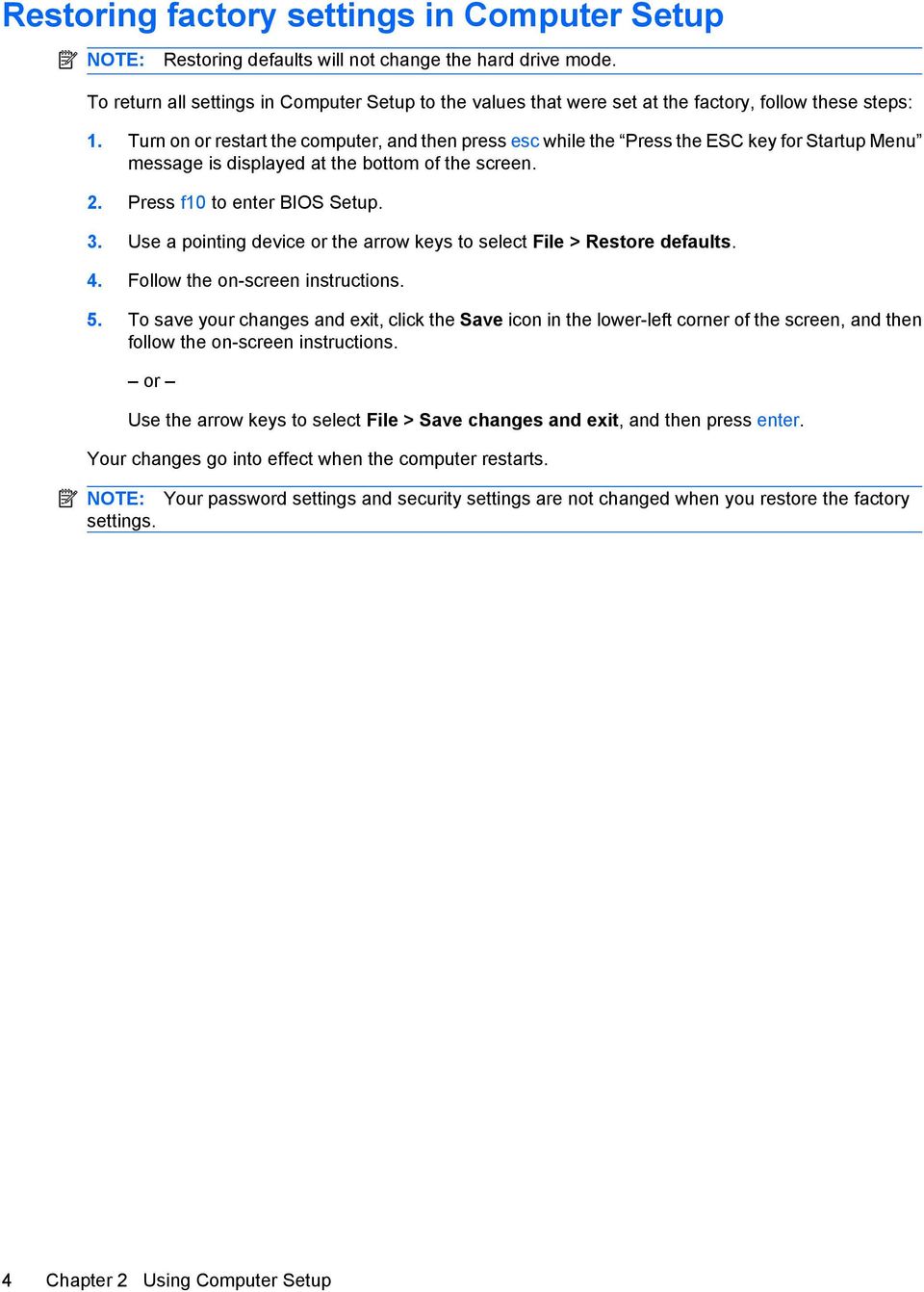
8 Restoring factory settings in Computer Setup NOTE: Restoring defaults will not change the hard drive mode. To return all settings in Computer Setup to the values that were set at the factory, follow these steps: 1. Turn on or restart the computer, and then press esc while the Press the ESC key for Startup Menu message is displayed at the bottom of the screen. 2. Press f10 to enter BIOS Setup. 3. Use a pointing device or the arrow keys to select File > Restore defaults. 4. Follow the on-screen instructions. 5. To save your changes and exit, click the Save icon in the lower-left corner of the screen, and then follow the on-screen instructions. or Use the arrow keys to select File > Save changes and exit, and then press enter. Your changes go into effect when the computer restarts. NOTE: Your password settings and security settings are not changed when you restore the factory settings. 4 Chapter 2 Using Computer Setup
9 3 Computer Setup menus The menu tables in this section provide an overview of Computer Setup options. NOTE: Some of the Computer Setup menu items listed in this chapter may not be supported by your computer. 5

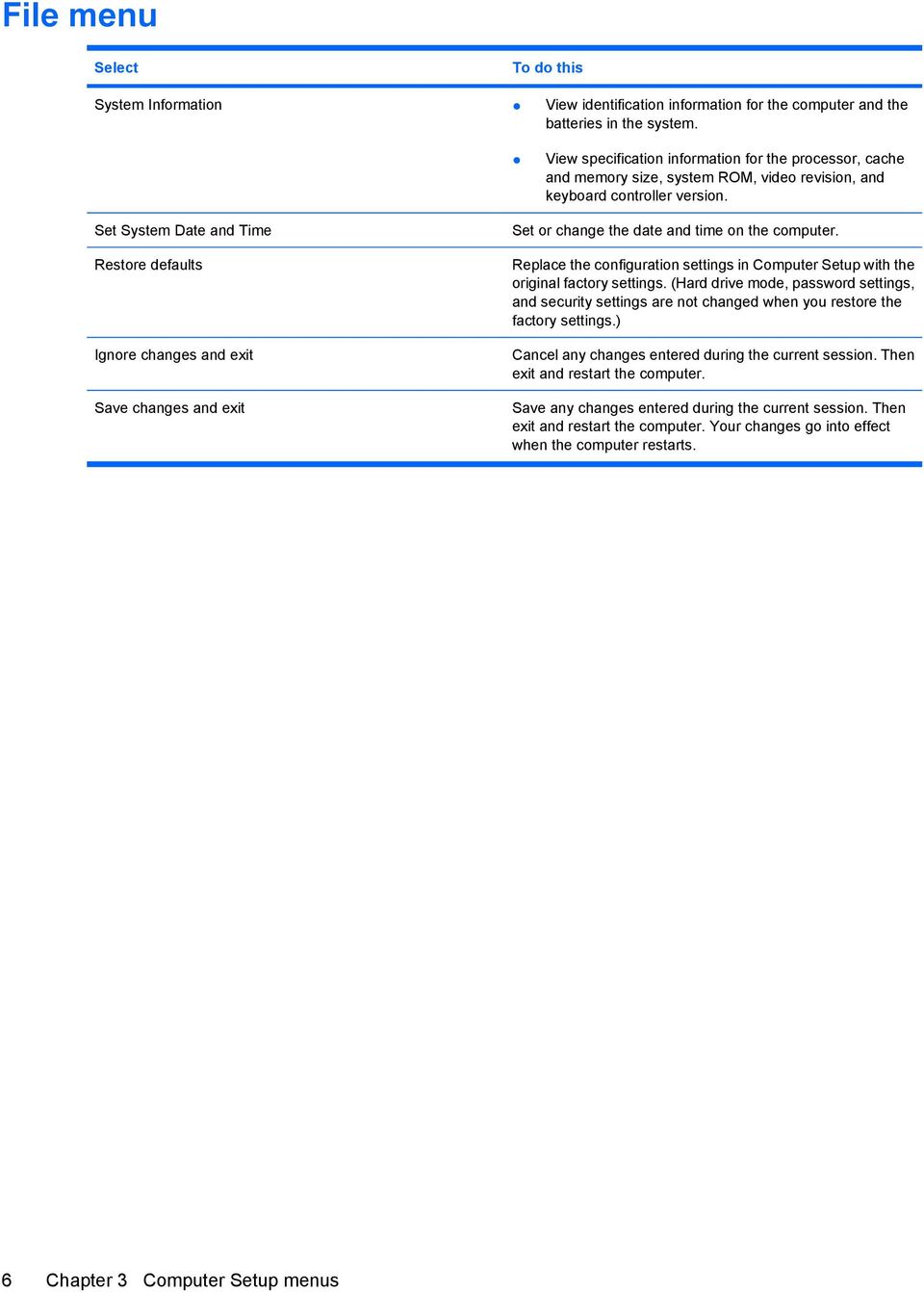
10 File menu Select To do this System Information View identification information for the computer and the batteries in the system. View specification information for the processor, cache and memory size, system ROM, video revision, and keyboard controller version. Set System Date and Time Restore defaults Ignore changes and exit Save changes and exit Set or change the date and time on the computer. Replace the configuration settings in Computer Setup with the original factory settings. (Hard drive mode, password settings, and security settings are not changed when you restore the factory settings.) Cancel any changes entered during the current session. Then exit and restart the computer. Save any changes entered during the current session. Then exit and restart the computer. Your changes go into effect when the computer restarts. 6 Chapter 3 Computer Setup menus
11 Security menu NOTE: Some of the menu items listed in this section may not be supported by your computer. Select To do this Setup BIOS Administrator Password Set up a BIOS administrator password. User Management (requires a BIOS administrator password) Create a new BIOS user account. View a list of ProtectTools users. Password Policy (requires a BIOS administrator password) HP SpareKey Always Prompt for HP SpareKey Enrollment Fingerprint Reset on Reboot (If Present) Allow Reset of HP ProtectTools security keys Change Password HP SpareKey Enrollment Revise password policy criteria. Enable/disable HP SpareKey (enabled by default). Enable/disable HP SpareKey enrollment (enabled by default). Reset/clear the fingerprint reader ownership (select models only; disabled by default). Enable/disable reset of HP ProtectTools security keys. Enter, change, or delete a BIOS administrator password. Enroll or reset HP SpareKey, which is a set of security questions and answers used if you forget your password. DriveLock Passwords Enable/disable DriveLock on any computer hard drive (enabled by default). Change a DriveLock user password or master password. NOTE: DriveLock settings are accessible only when you enter Computer Setup by turning on (not restarting) the computer. TPM Embedded Security Enable/disable support for Trusted Platform Module (TPM) Embedded Security, which protects the computer from unauthorized access to owner functions available in Embedded Security for ProtectTools. For more information, refer to the ProtectTools software Help. NOTE: setting. You must have a setup password to change this Automatic DriveLock Disk Sanitizer Enable/disable Automatic DriveLock support. Run Disk Sanitizer to destroy all existing data on the primary hard drive or the drive in the upgrade bay. CAUTION: If you run Disk Sanitizer, the data on the selected drive is destroyed permanently. System IDs Enter a user-defined computer asset tracking number and ownership tag. Security menu 7

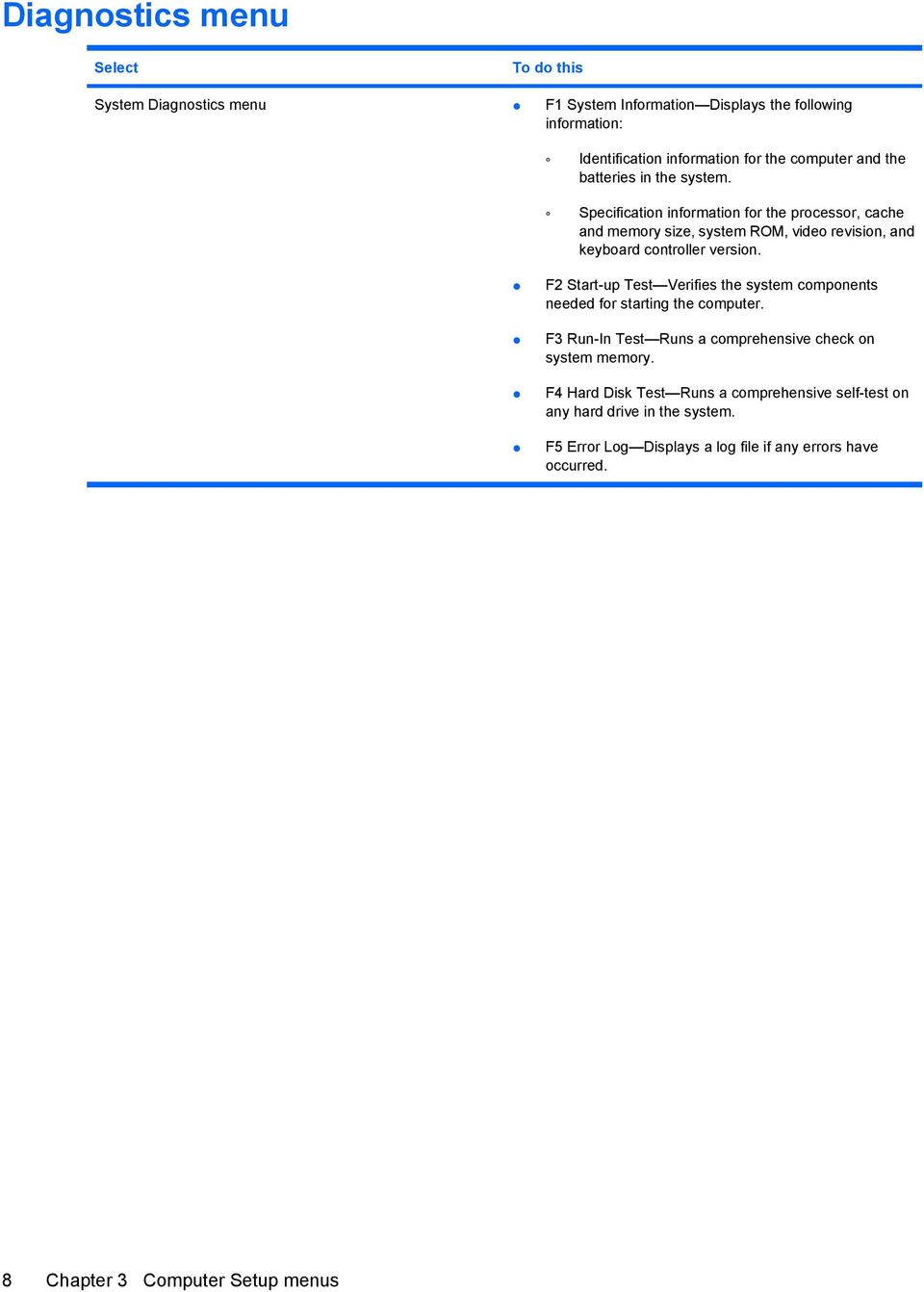
12 Diagnostics menu Select To do this System Diagnostics menu F1 System Information Displays the following information: Identification information for the computer and the batteries in the system. Specification information for the processor, cache and memory size, system ROM, video revision, and keyboard controller version. F2 Start-up Test Verifies the system components needed for starting the computer. F3 Run-In Test Runs a comprehensive check on system memory. F4 Hard Disk Test Runs a comprehensive self-test on any hard drive in the system. F5 Error Log Displays a log file if any errors have occurred. 8 Chapter 3 Computer Setup menus
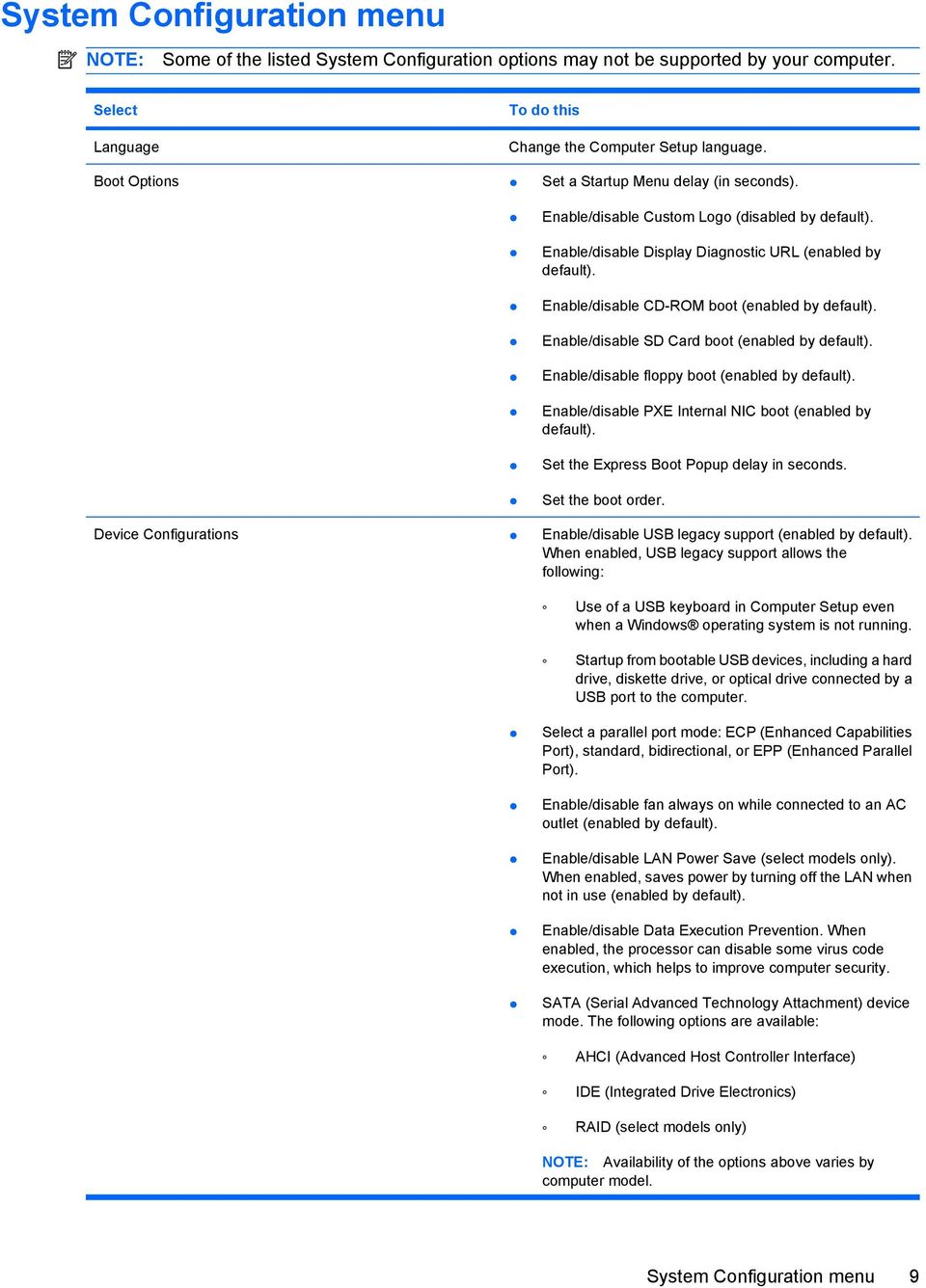
13 System Configuration menu NOTE: Some of the listed System Configuration options may not be supported by your computer. Select Language To do this Change the Computer Setup language. Boot Options Set a Startup Menu delay (in seconds). Enable/disable Custom Logo (disabled by default). Enable/disable Display Diagnostic URL (enabled by default). Enable/disable CD-ROM boot (enabled by default). Enable/disable SD Card boot (enabled by default). Enable/disable floppy boot (enabled by default). Enable/disable PXE Internal NIC boot (enabled by default). Set the Express Boot Popup delay in seconds. Set the boot order. Device Configurations Enable/disable USB legacy support (enabled by default). When enabled, USB legacy support allows the following: Use of a USB keyboard in Computer Setup even when a Windows operating system is not running. Startup from bootable USB devices, including a hard drive, diskette drive, or optical drive connected by a USB port to the computer. Select a parallel port mode: ECP (Enhanced Capabilities Port), standard, bidirectional, or EPP (Enhanced Parallel Port). Enable/disable fan always on while connected to an AC outlet (enabled by default). Enable/disable LAN Power Save (select models only). When enabled, saves power by turning off the LAN when not in use (enabled by default). Enable/disable Data Execution Prevention. When enabled, the processor can disable some virus code execution, which helps to improve computer security. SATA (Serial Advanced Technology Attachment) device mode. The following options are available: AHCI (Advanced Host Controller Interface) IDE (Integrated Drive Electronics) RAID (select models only) NOTE: Availability of the options above varies by computer model. System Configuration menu 9
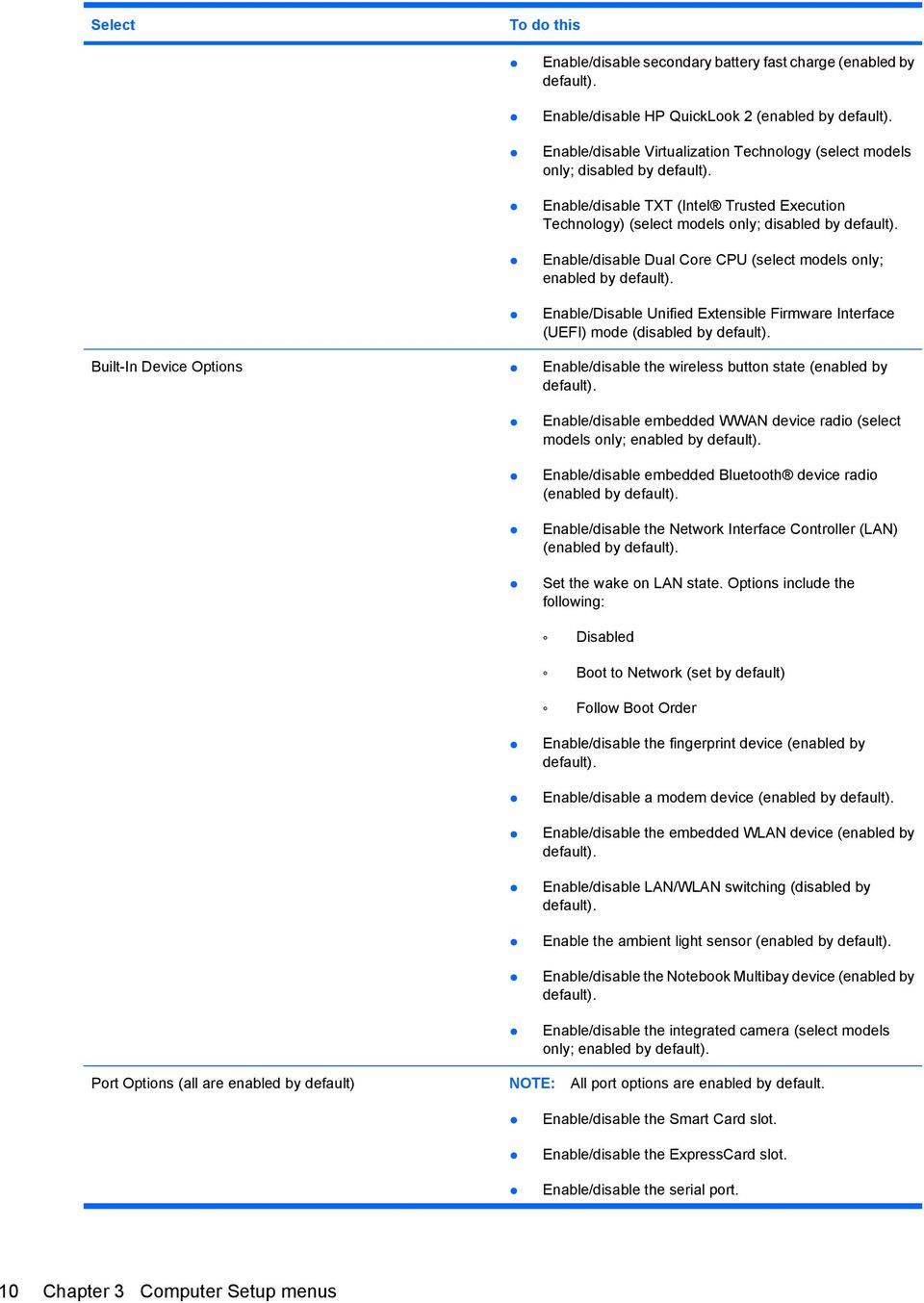
14 Select To do this Enable/disable secondary battery fast charge (enabled by default). Enable/disable HP QuickLook 2 (enabled by default). Enable/disable Virtualization Technology (select models only; disabled by default). Enable/disable TXT (Intel Trusted Execution Technology) (select models only; disabled by default). Enable/disable Dual Core CPU (select models only; enabled by default). Enable/Disable Unified Extensible Firmware Interface (UEFI) mode (disabled by default). Built-In Device Options Enable/disable the wireless button state (enabled by default). Enable/disable embedded WWAN device radio (select models only; enabled by default). Enable/disable embedded Bluetooth device radio (enabled by default). Enable/disable the Network Interface Controller (LAN) (enabled by default). Set the wake on LAN state. Options include the following: Disabled Boot to Network (set by default) Follow Boot Order Enable/disable the fingerprint device (enabled by default). Enable/disable a modem device (enabled by default). Enable/disable the embedded WLAN device (enabled by default). Enable/disable LAN/WLAN switching (disabled by default). Enable the ambient light sensor (enabled by default). Enable/disable the Notebook Multibay device (enabled by default). Enable/disable the integrated camera (select models only; enabled by default). Port Options (all are enabled by default) NOTE: All port options are enabled by default. Enable/disable the Smart Card slot. Enable/disable the ExpressCard slot. Enable/disable the serial port. 10 Chapter 3 Computer Setup menus
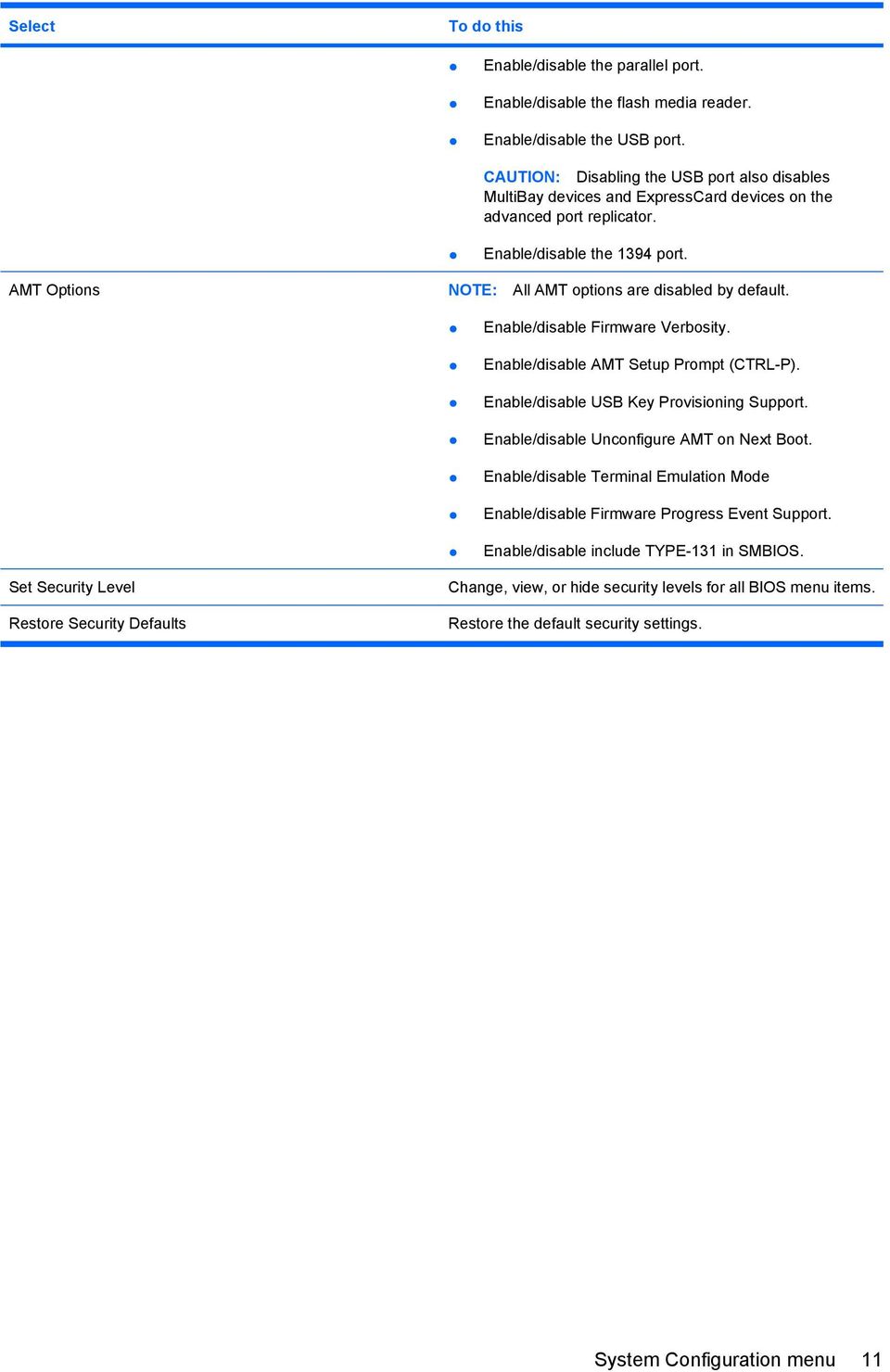
15 Select To do this Enable/disable the parallel port. Enable/disable the flash media reader. Enable/disable the USB port. CAUTION: Disabling the USB port also disables MultiBay devices and ExpressCard devices on the advanced port replicator. Enable/disable the 1394 port. AMT Options NOTE: All AMT options are disabled by default. Enable/disable Firmware Verbosity. Enable/disable AMT Setup Prompt (CTRL-P). Enable/disable USB Key Provisioning Support. Enable/disable Unconfigure AMT on Next Boot. Enable/disable Terminal Emulation Mode Enable/disable Firmware Progress Event Support. Enable/disable include TYPE-131 in SMBIOS. Set Security Level Restore Security Defaults Change, view, or hide security levels for all BIOS menu items. Restore the default security settings. System Configuration menu 11
16 Index A AMT options AMT setup prompt (CTRL-P) 11 firmware progress event support 11 firmware verbosity 11 terminal emulation mode 11 TYPE-131 in SMBIOS 11 unconfigure AMT on next boot 11 USB key provisioning support 11 B BIOS administrator password 7 boot options 9 boot order 9 built-in device ambient light sensor 10 Bluetooth device radio 10 embedded WLAN 10 fingerprint reader 10 integrated camera 10 LAN/WLAN switching 10 modem 10 Network Interface Controller (LAN) 10 Notebook Multibay 10 Wake on LAN 10 wireless button 10 WWAN device radio 10 built-in device options 10 C Computer Setup accessing 1 Diagnostics menu 8 File menu 6 navigating and selecting 3 restoring factory settings 4 Security menu 7 System Configuration menu 9 using 2 D device configurations 9 Diagnostics menu 8 Disk Sanitizer 7 DriveLock password 7 DriveLock, automatic 7 drives, boot order 9 Dual Core CPU 10 E error log 8 Execution Disable 9 F File menu 6 H hard disk test 8 HP QuickLook 2 10 HP SpareKey enrollment 7 L LAN Power Save 9 language, changing in Computer Setup 9 legacy support, USB 1, 9 P parallel port mode 9 passwords 7 port options 1394 port 11 ExpressCard slot 10 flash media reader 11 parallel port 11 serial port 10 Smart Card slot 10 USB port 11 R RAID (Redundant Array of Independent Disks) devices 9 restore security defaults 11 restore the factory settings 6 run-in test 8 S SATA (Serial Advanced Technology Attachment) devices AHCI (Advanced Host Controller Interface) 9 IDE (Integrated Drive Electronics) 9 Secondary Battery Fast Charge 10 Security menu allow reset of HP ProtectTools security keys 7 always prompt for HP SpareKey enrollment 7 Automatic DriveLock 7 change password 7 Disk Sanitizer 7 DriveLock 7 fingerprint reader reset 7 HP Sparekey 7 HP Sparekey enrollment 7 password policy 7 set up BIOS administrator password 7 System IDs 7 user management 7 set security level 11 setup utility accessing 1 12 Index
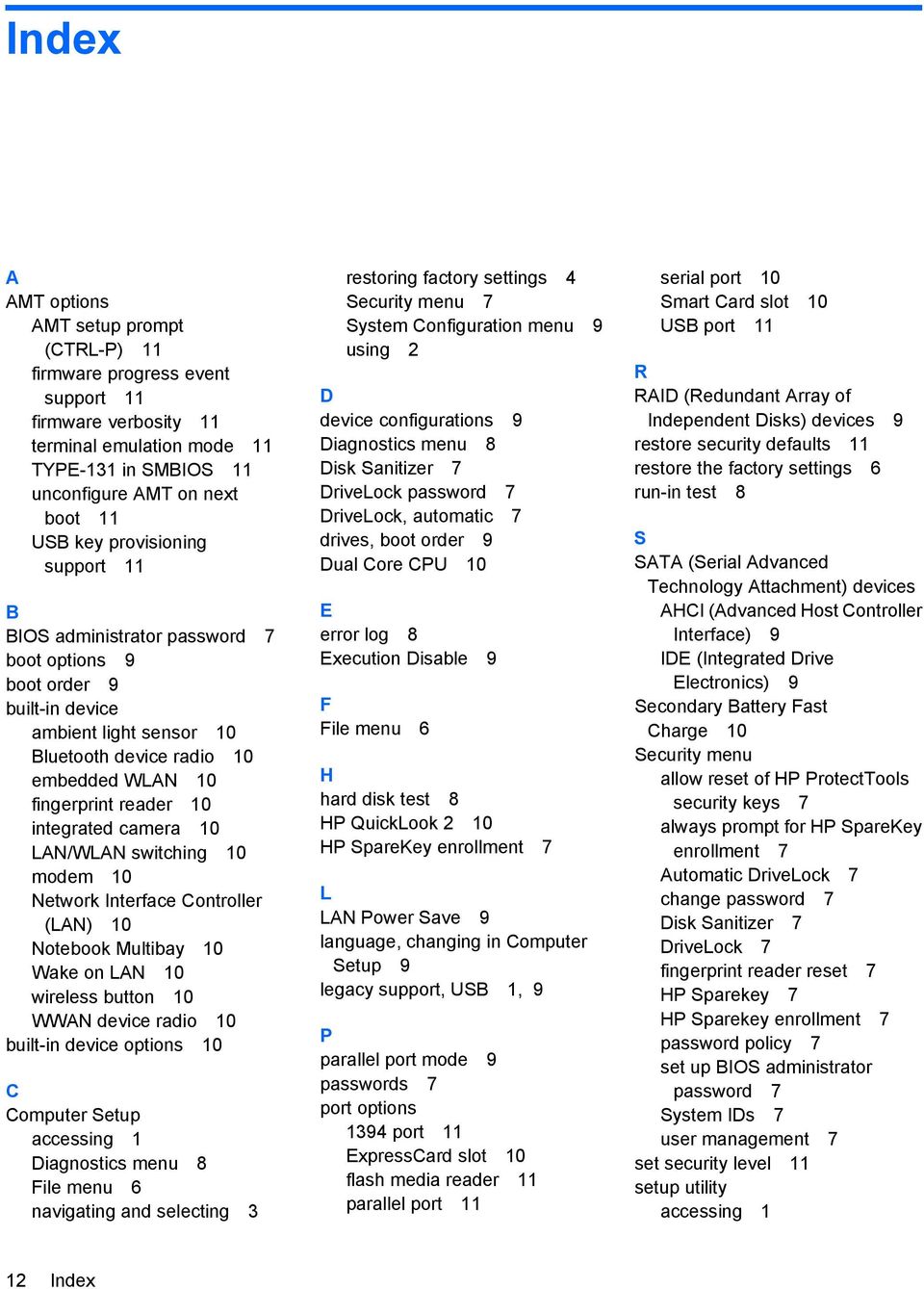
17 Diagnostics menu 8 File menu 6 navigating and selecting 3 restoring factory settings 4 Security menu 7 System Configuration menu 9 using 2 start-up test 8 System Configuration menu 9 system date and time 6 System Diagnostics menu 8 system fan 9 system IDs 7 system information 6 T TPM Embedded Security 7 TXT (Intel Trusted Execution Technology) 10 U Unified Extensible Firmware Interface (UEFI) mode 10 USB legacy support 1, 9 V Virtualization Technology 10 Index 13

18

HP BUSINESS NOTEBOOK PC F10 SETUP OVERVIEW
 HP BUSINESS NOTEBOOK PC F10 SETUP OVERVIEW 2011 Business Notebook Models Technical white paper Table of contents Executive summary... 2 System requirements... 2 Supported models... 2 Enhancements... 2
Intel Rapid Start Technology (FFS) Guide
 Intel Rapid Start Technology (FFS) Guide Technical white paper Table of contents Intel Rapid Start Technology (FFS) Guide... 2 Product Definition... 2 Requirements... 2 Enabling Intel Rapid Start Technology...
Using GIGABYTE Notebook for the First Time
 P34 V6.0 Congratulations on your purchase of the GIGABYTE Notebook. This manual will help you to get started with setting up your notebook. The final product configuration depends on the model at the point
Computer Setup (F10) Utility Guide Evo Desktop Family Evo Workstation Family
 b Computer Setup (F10) Utility Guide Evo Desktop Family Evo Workstation Family Document Part Number: 215867-004 May 2002 This guide provides instructions on how to use Computer Setup. This tool is used
Computer Setup (F10) Utility Guide Business PCs
 Computer Setup (F10) Utility Guide Business PCs Copyright 2007 Hewlett-Packard Development Company, L.P. The information contained herein is subject to change without notice. Microsoft, Windows, and Windows
Computer Setup (F10) Utility Guide Business Desktops
 Guide Business Desktops Document Part Number: 361206-002 September 2004 This guide provides instructions on how to use Computer Setup. This tool is used to reconfigure and modify computer default settings
Notebook Tour User Guide
 Notebook Tour User Guide Copyright 2007 Hewlett-Packard Development Company, L.P. Microsoft and Windows are U.S. registered trademarks of Microsoft Corporation. Bluetooth is a trademark owned by its proprietor
Installing Microsoft Windows on HP Compaq and EliteBook Notebook PCs
 Installing Microsoft Windows on HP Compaq and EliteBook Notebook PCs Executive summary... 2 Purpose... 2 Audience... 2 System requirements and prerequisites... 2 Installing the operating system and system
HP ProtectTools User Guide
 HP ProtectTools User Guide Copyright 2007 Hewlett-Packard Development Company, L.P. Microsoft and Windows are U.S. registered trademarks of Microsoft Corporation. Intel is a trademark or registered trademark
Computer Setup (F10) Utility Guide HP Compaq dx2200 Microtower Business PC
 Guide HP Compaq dx2200 Microtower Business PC Document Part Number: 413759-001 January 2006 This guide provides instructions on how to use Computer Setup. This tool is used to reconfigure and modify computer
HP Compaq notebook common image white paper
 HP Compaq notebook common image white paper Introduction... 2 System requirements and prerequisites... 2 Common image preparation using factory preinstalled Windows Vista images... 4 Configuring the Windows
Fujitsu LIFEBOOK T Series
 Fujitsu LIFEBOOK T Series BIOS Guide LIFEBOOK T Series Model: T731 Document Date: 6/23/2011 Document Part Number: FPC58-2898-01 FUJITSU AMERICA, INC. 1 LIFEBOOK T731 BIOS T Series BIOS BIOS SETUP UTILITY
Using GIGABYTE Notebook for the First Time
 Congratulations on your purchase of the GIGABYTE Notebook. This manual will help you to get started with setting up your notebook. The final product configuration depends on the model at the point of your
HP Commercial Notebook BIOS Password Setup
 HP Commercial Notebook BIOS Password Setup Table of Contents: Introduction... 1 Preboot Passwords... 2 Multiple User Architecture in BIOS... 2 Preboot Password Setup... 3 Password Change... 4 Forgotten
This user guide describes features that are common to most models. Some features may not be available on your computer.
 RAID User Guide Copyright 2011 Hewlett-Packard Development Company, L.P. Intel is a trademark of Intel Corporation in the U.S. and other countries. Microsoft and Windows are U.S. registered trademarks
Firmware security features in HP Compaq business notebooks
 HP ProtectTools Firmware security features in HP Compaq business notebooks Embedded security overview... 2 Basics of protection... 2 Protecting against unauthorized access user authentication... 3 Pre-boot
Installing the Operating System or Hypervisor
 Installing the Operating System or Hypervisor If you purchased E-Series Server Option 1 (E-Series Server without preinstalled operating system or hypervisor), you must install an operating system or hypervisor.
HP VMware ESXi 5.0 and Updates Getting Started Guide
 HP VMware ESXi 5.0 and Updates Getting Started Guide Abstract This guide is intended to provide setup information for HP VMware ESXi. HP Part Number: 616896-002 Published: August 2011 Edition: 1 Copyright
Windows 7 XP Mode for HP Business PCs
 Windows 7 XP Mode for HP Business PCs Table of Contents: Introduction...1 Disclaimer...1 Main features and benefits... 2 Hardware Requirements...2 Minimum Hardware Requirements... 3 Recommended Hardware
Fujitsu LifeBook S Series
 Fujitsu LifeBook S Series BIOS Guide LifeBook S Series Model: S7220 Document Date: 07/08/2008 Document Part Number: FPC58-1920-01 FUJITSU COMPUTER SYSTEMS CORPORATION 1 LifeBook S Series BIOS S Series
Using GIGABYTE Notebook for the First Time
 Congratulations on your purchase of the GIGABYTE Notebook. This manual will help you to get started with setting up your notebook. The final product configuration depends on the model at the point of your
Configuring and Using AMT on TS140 and TS440
 Configuring and Using AMT on TS140 and TS440 Lenovo ThinkServer TS Series Servers Lenovo Enterprise Product Group Version 1.0 September 17, 2013 2013 Lenovo. All rights reserved. LENOVO PROVIDES THIS PUBLICATION
Backup and Recovery User Guide
 Backup and Recovery User Guide Copyright 2009 Hewlett-Packard Development Company, L.P. Windows is a U.S. registered trademark of Microsoft Corporation. Product notice This user guide describes features
HP Compaq Business Notebook nc6400 software overview
 Business Notebook nc6400 software overview Abstract... 2 Highlights... 2 Operating systems... 2 Microsoft Windows 2000... 2 Software delivery... 5 HP worldwide website and Download Facility... 5 Software
WHITE PAPER. Installing Microsoft Windows 98 on Compaq Armada E, M, and V Portable Products CONTENTS
 WHITE PAPER March 2001 Prepared By CPCG Software Product Management Compaq Computer Corporation CONTENTS INTRODUCTION3 CLEAN INSTALLING WINDOWS 983 PREPARING FOR INSTALLATION3 MODIFYING A MICROSOFT DOS
Computer Setup (F10) Utility Guide HP Compaq 6005 Pro Business PCs
 Computer Setup (F10) Utility Guide HP Compaq 6005 Pro Business PCs Copyright 2009 Hewlett-Packard Development Company, L.P. The information contained herein is subject to change without notice. Microsoft,
Using AORUS Notebook for the First Time
 V2.0 Congratulations on your purchase of the AORUS Notebook! This Manual will help you to get started with setting up your notebook. For more detailed information, please visit our website at http://www.aorus.com.
Computer Setup (F10) Utility Guide HP Compaq 6000 Pro Business PCs
 Computer Setup (F10) Utility Guide HP Compaq 6000 Pro Business PCs Copyright 2009 Hewlett-Packard Development Company, L.P. The information contained herein is subject to change without notice. Microsoft,
Using GIGABYTE Notebook for the First Time
 Congratulations on your purchase of the GIGABYTE Notebook P7! This Manual will help you to get started with setting up your notebook. For more detailed information, please visit our website at http://www.gigabyte.com.
Getting Started. HP Retail Systems
 Getting Started HP Retail Systems Copyright 2012, 2013 Hewlett-Packard Development Company, L.P. The information contained herein is subject to change without notice. Microsoft and Windows are U.S. registered
Getting Started. rp5800, rp5700 and rp3000 Models
 Getting Started rp5800, rp5700 and rp3000 Models Copyright 2011 Hewlett-Packard Development Company, L.P. The information contained herein is subject to change without notice. Microsoft, Windows, and Windows
Software Update, Backup, and Recovery
 Software Update, Backup, and Recovery User Guide Copyright 2007 Hewlett-Packard Development Company, L.P. Windows is a U.S. registered trademark of Microsoft Corporation. The information contained herein
Fujitsu LifeBook A Series
 Fujitsu LifeBook A Series BIOS Guide LifeBook A Series Model: A6110 Document Date: 10/05/2007 Document Part Number: FPC58-1808-01 FUJITSU COMPUTER SYSTEMS CORPORATION 1 LifeBook A Series BIOS A Series
Using GIGABYTE Notebook for the First Time
 Congratulations on your purchase of the GIGABYTE Notebook! This Manual will help you to get started with setting up your notebook. For more detailed information, please visit our website at http://www.gigabyte.com.
TouchPad and Keyboard
 TouchPad and Keyboard Document Part Number: 393522-001 October 2005 This guide explains the TouchPad and keyboard. Contents 1 TouchPad Identifying the Touchpad........................... 1 Using the TouchPad...............................
Lenovo IdeaPad U510. User Guide V1.0. Read the safety notices and important tips in the included manuals before using your computer.
 Lenovo IdeaPad U510 User Guide V1.0 Read the safety notices and important tips in the included manuals before using your computer. Note Before using the product, be sure to read Lenovo Safety and General
Bluetooth for Windows
 Bluetooth for Windows Getting Started Copyright 2006 Hewlett-Packard Development Company, L.P. Microsoft and Windows are U.S. registered trademarks of Microsoft Corporation. Bluetooth is a trademark owned
HP Thin Client Imaging Tool
 HP Thin Client Imaging Tool Table of Contents: Abstract... 1 Introduction... 1 System Requirements... 1 Software... 1 Hardware... 1 Getting Started... 2 Formatting a USB Flash Device... 3 Unpacking the
HP Embedded SATA RAID Controller
 HP Embedded SATA RAID Controller User Guide Part number: 391679-002 Second Edition: August 2005 Legal notices Copyright 2005 Hewlett-Packard Development Company, L.P. The information contained herein is
HP Z220, Z420, Z620, and Z820 Workstations Microsoft Windows XP Installation Reference Guide
 HP Z220, Z420, Z620, and Z820 Workstations Microsoft Windows XP Installation Reference Guide Important information on installing the Windows XP Operating System on HP Z220, Z420, Z620 and Z820 Workstations.
Notebook Tour User Guide
 Notebook Tour User Guide Copyright 2009 Hewlett-Packard Development Company, L.P. Bluetooth is a trademark owned by its proprietor and used by Hewlett-Packard Company under license. Microsoft and Windows
This user guide describes features that are common to most models. Some features may not be available on your computer.
 RAID User Guide Copyright 2009 Hewlett-Packard Development Company, L.P. Intel is a trademark of Intel Corporation in the U.S. and other countries. Microsoft, Windows, and Windows Vista are U.S. registered
HP ProtectTools User Guide
 HP ProtectTools User Guide Copyright 2009 Hewlett-Packard Development Company, L.P. Bluetooth is a trademark owned by its proprietor and used by Hewlett-Packard Company under license. Java is a US trademark
HP BIOS Configuration Utility (BCU) User Guide
 HP BIOS Configuration Utility (BCU) User Guide Copyright 2012 2015 Hewlett-Packard Development Company, L.P. Intel and Intel Core are trademarks of Intel Corporation in the U.S. and other countries. Microsoft,
Using GIGABYTE Notebook for the First Time
 Congratulations on your purchase of the GIGABYTE Notebook. This manual will help you to get started with setting up your notebook. The final product configuration depends on the model at the point of your
Configuring HP Elite, EliteBook, and Z220 systems for Intel Smart Response Technology
 Technical white paper Configuring HP Elite, EliteBook, and Z220 systems for Intel Smart Response Technology Table of contents Overview 2 System requirements 3 How to enable Intel Smart Response Technology
WHITE PAPER. HP Guide to System Recovery and Restore
 WHITE PAPER January 2003 Prepared By PSG Product Software Engineering Hewlett-Packard Company CONTENTS Purpose3 Using Safe Mode To Diagnose And Correct Problems 4 Using the Recovery Console To Repair Damaged
Q2000 Series BIOS BIOS SETUP UTILITY
 BIOS SECTION Q2010 LifeBook Q2000 Series BIOS Q2000 Series BIOS BIOS SETUP UTILITY The BIOS Setup Utility is a program that sets up the operating environment for your notebook. Your BIOS is set at the
TouchPad and Keyboard
 TouchPad and Keyboard Document Part Number: 430242-001 January 2007 This guide explains the touchpad and keyboard. Contents 1 TouchPad Using the TouchPad............................. 1 1 Using an external
Bluetooth Pairing. User Guide
 Bluetooth Pairing User Guide Copyright 2012 Hewlett-Packard Development Company, L.P. Microsoft, Windows, and Windows Vista are U.S. registered trademarks of Microsoft Corporation. Bluetooth is a trademark
This guide describes features that are common to most models. Some features may not be available on your tablet.
 User Guide Copyright 2013 Hewlett-Packard Development Company, L.P. Bluetooth is a trademark owned by its proprietor and used by Hewlett-Packard Company under license. Google, Android, AdWords, Gmail,
This guide describes features that are common to most models. Some features may not be available on your tablet.
 User Guide Copyright 2014 Hewlett-Packard Development Company, L.P. Bluetooth is a trademark owned by its proprietor and used by Hewlett-Packard Company under license. SD Logo is a trademark of its proprietor.
User Guide Software Version 2.1.0
 Intel Solid State Drive Firmware Update Tool User Guide Software Version 2.1.0 Order Number: 322570-007US Intel disclaims all express and implied warranties, including without limitation, the implied warranties
Backup and Recovery User Guide
 Backup and Recovery User Guide Copyright 2009 Hewlett-Packard Development Company, L.P. Windows is a U.S. registered trademark of Microsoft Corporation. Product notice This user guide describes features
BIOS Update Release Notes
 PRODUCTS: D975XBX (Standard BIOS) BIOS Update Release Notes BIOS Version 1351 August 21, 2006 BX97510J.86A.1351.2006.0821.1744 Fixed issue where operating system CD installation caused blue screen. Resolved
Quick start to evaluating HP Windows Embedded Standard 2009 Thin Clients. HP t5630w, HP t5730w, HP t5740, HP gt7720
 Get your thin client running Right out of the box Quick start to evaluating HP Windows Embedded Standard 2009 Thin Clients HP t5630w, HP t5730w, HP t5740, HP gt7720 Get your new thin client system up and
Dell Precision Mobile Workstation M6700 Owner's Manual
 Dell Precision Mobile Workstation M6700 Owner's Manual Regulatory Model: P22F Regulatory Type: P22F001 Notes, Cautions, and Warnings NOTE: A NOTE indicates important information that helps you make better
Using GIGABYTE Notebook for the First Time
 Congratulations on your purchase of the GIGABYTE Notebook. This Manual will help you to get started with setting up your notebook. For more detailed information, please visit our website at http://www.gigabyte.com.
HP Point of Sale (POS) Peripherals Configuration Guide ap5000 VFD Windows (non-opos)
 HP Point of Sale (POS) Peripherals Configuration Guide ap5000 VFD Windows (non-opos) Document Version 3.23 November 2010 1 Copyright 2007-2010 Hewlett-Packard Development Company, L.P. The information
HP ProtectTools Embedded Security Guide
 HP ProtectTools Embedded Security Guide Document Part Number: 364876-001 May 2004 This guide provides instructions for using the software that allows you to configure settings for the HP ProtectTools Embedded
HP ProtectTools. Getting Started
 HP ProtectTools Getting Started Copyright 2012 Hewlett-Packard Development Company, L.P. Bluetooth is a trademark owned by its proprietor and used by Hewlett-Packard Company under license. Intel is a trademark
This guide describes features that are common to most models. Some features may not be available on your tablet.
 User Guide Copyright 2013 Hewlett-Packard Development Company, L.P. Bluetooth is a trademark owned by its proprietor and used by Hewlett-Packard Company under license. Google is a trademark of Google Inc.
Using GIGABYTE Notebook for the First Time
 Congratulations on your purchase of the GIGABYTE Notebook. This manual will help you to get started with setting up your notebook. The final product configuration depends on the model at the point of your
C Series BIOS BIOS SETUP UTILITY. Navigating through the Setup Utility. Entering the BIOS Setup Utility. Using the TrustedCore Menu
 BIOS SECTION C1410 LifeBook C Series BIOS C Series BIOS BIOS SETUP UTILITY The BIOS Setup Utility is a program that sets up the operating environment for your notebook. Your BIOS is set at the factory
HP ProtectTools for Small Business Security Software, Version 5.10. User Guide
 HP ProtectTools for Small Business Security Software, Version 5.10 User Guide Copyright 2010 Hewlett-Packard Development Company, L.P. The information contained herein is subject to change without notice.
Lenovo IdeaPad. User Guide. Read the safety notices and important tips in the included manuals before using your computer.
 Lenovo IdeaPad User Guide Read the safety notices and important tips in the included manuals before using your computer. Notes Before using the product, be sure to read Lenovo Safety and General Information
Using GIGABYTE Notebook for the First Time
 P55 V3.0 Congratulations on your purchase of the GIGABYTE Notebook. This manual will help you to get started with setting up your notebook. The final product configuration depends on the model at the point
XPC BIOS User Guide. For the : DS437T
 XPC BIOS User Guide For the : DS437T Shuttle XPC Installation Guide 2014 by Shuttle Inc. All Rights Reserved. Copyright No part of this publication may be reproduced, transcribed, stored in a retrieval
User Guide for Windows 10
 User Guide for Windows 10 System requirements E10684 First Edition July 2015 To facilitate a smoother transition from your previous operating system, read the system requirements below before upgrading
HP Advanced Wireless Docking Station. User Guide
 HP Advanced Wireless Docking Station User Guide Copyright 2014, 2015 Hewlett-Packard Development Company, L.P. Intel is a trademark of Intel Corporation in the U.S. and other countries. Windows and Windows
Getting to Know the New Lenovo Safety and General Information Guide
 Lenovo IdeaPad Yoga 13 User Guide V1.0 Read the safety notices and important tips in the included manuals before using your computer. Note Before using the product, be sure to read Lenovo Safety and General
Dell Latitude 12 Rugged Extreme 7204 Owner's Manual
 Dell Latitude 12 Rugged Extreme 7204 Owner's Manual Regulatory Model: P18T Regulatory Type: P18T001 Notes, Cautions, and Warnings NOTE: A NOTE indicates important information that helps you make better
Quick Start to Evaluating. HP t5630w, HP t5730w, HP gt7720
 Get your thin client Get your running thin client running Right out Right out of of the box the box Quick Start to Evaluating HP Windows Embedded Standard Thin Clients HP t5630w, HP t5730w, HP gt7720 Get
HP Notebook Hard Drives & Solid State Drives. Identifying, Preventing, Diagnosing and Recovering from Drive Failures. Care and Maintenance Measures
 HP Notebook Hard Drives & Solid State Drives Identifying, Preventing, Diagnosing and Recovering from Drive Failures Care and Maintenance Measures Technical White Paper Table of contents Identifying, Preventing,
HP dx5150 RAID Installation and Setup Guide Version 1.10. Document Part Number: 403571-001
 HP dx5150 RAID Installation and Setup Guide Version 1.10 Document Part Number: 403571-001 July 2005 Copyright 2005 Hewlett-Packard Development Company, L.P. The information contained herein is subject
QuickSpecs. Overview. Compaq Remote Insight Lights-Out Edition
 Overview M ODELS Remote Insight Lights-Out Edition 157866-001 New Remote Insight Lights-Out Edition provides virtual graphical control using any standard browser to your remote or data centre server, giving
HP Quality Center. Software Version: 10.00. Microsoft Word Add-in Guide
 HP Quality Center Software Version: 10.00 Microsoft Word Add-in Guide Document Release Date: February 2012 Software Release Date: January 2009 Legal Notices Warranty The only warranties for HP products
Notebook Tour User Guide
 Notebook Tour User Guide Copyright 2008 Hewlett-Packard Development Company, L.P. Microsoft and Windows are U.S. registered trademarks of Microsoft Corporation. Bluetooth is a trademark owned by its proprietor
This user guide describes features that are common to most models. Some features may not be available on your computer.
 RAID User Guide Copyright 2011 Hewlett-Packard Development Company, L.P. Intel is a trademark of Intel Corporation in the U.S. and other countries. Microsoft, Windows, and Windows Vista are U.S. registered
HP LaserJet MFP Analog Fax Accessory 300 Send Fax Driver Guide
 HP LaserJet MFP Analog Fax Accessory 300 Send Fax Driver Guide Copyright and License 2008 Copyright Hewlett-Packard Development Company, L.P. Reproduction, adaptation, or translation without prior written
Phoenix SecureCore TM Setup Utility
 Phoenix SecureCore TM Setup Utility Important information: We continually strive to bring you the latest and proven features and technologies. As part of our drive to continually improve our products modifications
Instructions for installing Microsoft Windows Small Business Server 2003 R2 on HP ProLiant servers
 Instructions for installing Microsoft Windows Small Business Server 2003 R2 on HP ProLiant servers integration note Abstract... 2 Installation requirements checklists... 3 HP ProLiant server checklist...
installing UEFi-based Microsoft Windows Vista SP1 (x64) on HP EliteBook and Compaq Notebook PCs
 installing UEFi-based Microsoft Windows Vista SP1 (x64) on HP EliteBook and Compaq Notebook PCs Table of Contents: Introduction... 1 Step 1... 2 Step 2... 3 Step 3... 5 Step 4... 6 For more information...
HP Mobile Remote Control (Select Models Only) User Guide
 HP Mobile Remote Control (Select Models Only) User Guide Copyright 2008 Hewlett-Packard Development Company, L.P. Windows and Windows Vista are either trademarks or registered trademarks of Microsoft Corporation
Using ATI Array Management Software (WebPAM)
 Redundant Array of Independent Disks (RAID) on HP Compaq dc5750 Business PCs Using ATI Array Management Software (WebPAM) Introduction............................................................ 2 Mirroring
HP ProLiant DL380 G5 High Availability Storage Server
 HP ProLiant DL380 G5 High Availability Storage Server installation instructions *5697-7748* Part number: 5697 7748 First edition: November 2008 Legal and notice information Copyright 1999, 2008 Hewlett-Packard
Apple Server Diagnostics User Guide. For Version 3X10⁶
 Apple Server Diagnostics User Guide For Version 3X10⁶ KKApple Inc. 2009 Apple Inc. All rights reserved. Under the copyright laws, this manual may not be copied, in whole or in part, without the written
HP EliteBook and ProBook Notebook PCs - Upgrading from Windows 7 to Windows 8
 HP EliteBook and ProBook Notebook PCs - Upgrading from Windows 7 to Windows 8 This document pertains to HP business notebook computers to be upgraded from Windows 7 using a digital copy of Windows 8. You
Lenovo IdeaPad Z500/P500
 Lenovo IdeaPad Z500/P500 User Guide V1.0 Read the safety notices and important tips in the included manuals before using your computer. Notes Before using the product, be sure to read Lenovo Safety and
Installing Microsoft Windows on an HP ProBook or EliteBook Notebook PC and creating an image
 Installing Microsoft Windows on an HP ProBook or EliteBook Notebook PC and creating an image 2011 Business Notebook Models Technical white paper Table of contents Executive summary... 2 System requirements
HP LASER GAMING MOUSE USER MANUAL
 HP LASER GAMING MOUSE USER MANUAL v1.0.en Part number: 513192-001 Contents Selecting a User Profile... 1 Customizing a User Profile... 2 Customizing DPI Profiles... 3 Selecting a DPI Profile... 3 Changing
HP ilo mobile app for Android
 HP ilo mobile app for Android User Guide Abstract The HP ilo mobile app provides access to the remote console and scripting features of HP ProLiant servers. HP Part Number: 690350-003 Published: March
H ARDWARE C ONSIDERATIONS
 H ARDWARE C ONSIDERATIONS for Sidewinder 5 firewall software Dell Precision 530 This document provides information on specific system hardware required for running Sidewinder firewall software on a Dell
Installing Windows XP Professional x64 on the HP Compaq 8510w and 8710w Mobile Workstation
 Installing Windows XP Professional x64 on the HP Compaq 8510w and 8710w Mobile Workstation Introduction... 2 System Requirements and Prerequisites... 2 Installing the operating system and system hardware...
Dell PowerEdge T130 Owner's Manual
 Dell PowerEdge T130 Owner's Manual Regulatory Model: E36S Series Regulatory Type: E36S001 Notes, cautions, and warnings NOTE: A NOTE indicates important information that helps you make better use of your
AMT Implementation on a UTC RETAIL 3170 POS
 AMT Implementation on a UTC RETAIL 3170 POS Controlling POS systems using Intel AMT Features UTC RETAIL 1 November 19, 2012 Scope The document was written for use by UTC RETAIL 3170 POS customers to enable
Lenovo Miix 2 8. User Guide. Read the safety notices and important tips in the included manuals before using your computer.
 Lenovo Miix 2 8 User Guide Read the safety notices and important tips in the included manuals before using your computer. Notes Before using the product, be sure to read Lenovo Safety and General Information
Using Integrated and Discrete Graphics Simultaneously
 Using Integrated and Discrete Graphics Simultaneously For HP Compaq 8200 Elite and 6200 Pro Series desktop models Table of contents Introduction... 2 System requirements... 2 Configuring the system...