
CADA-SA2 2-BAY RAID EXTERNAL
|
|
|
- Mercy Cole
- 10 years ago
- Views:
Transcription
1 Instruction Manual CADA-SA -BAY RAID EXTERNAL Cavalry, the names of series and the Cavalry logo are registered trademarks of Cavalry Storage. All other trademarks or registered trademarks are the property of their respective owners. When referring to hard drive capacity, one gigabyte, or GB, equals one billion bytes, and one terabyte, or TB, equals one trillion bytes. Your computer s operating system may use a different standard of measurement and report a lower capacity. In addition, some of the listed capacity is used for formatting and other functions, and thus will not be available for data storage. Actual quantities will vary based on various factors, including: file size, file format, features and application software. Cavalry reserves the right to change, without notice, product offerings or specifications. Cavalry Storage, Inc., 555 East Easy St., Simi Valley, CA 9065, (805)
2 Table of Contents Chapter. Getting Started... Features and Applications... Specifications... System Requirements... Package Content... Product Part Identification... Drive Installation... Description of RAID-Modes... Chapter. SETTING YOUR RAID MODE... 4 RAID Switch Setup your DISK MANAGEMENT UTILITY Initializing and Formatting Your New Array... 5 chapter 5. support... 6 After the Storm: Rebuilding a Damaged Array...6 LED Light Status Codes... 7 Troubleshooting... 7 Warranty Information... 8 Contact Information... 8
3 GETTING STARTED FEATURES Thank you for purchasing the Cavalry -bay USB.0 RAID enclosure. The CADA-SA was designed to deliver affordable RAID security and speed using the minimum amount of required setup. The multiple RAID modes allow users to choose between the most popular RAID formats with minimum RAID experience required. The hi-speed USB.0 interface allows users to unleash the full power of their -disk RAID array. Up to 0MB/S Maximum Transfer Speed USB.0/.0 Backwards-Compatibility Up to 6 TB Total Capacity (Depending on Your OS) RAID 0, RAID, Spanning, and JBOD Modes x.5 Drive-Bays.5 SATA II HDD and SSD support Model #: SPECIFICATIONS EN-CADAB-ZB0 CADA - SA-B Interfaces: USB.0/USB.0 Power Supply: Output: V / A Configurations: RAID 0, RAID, Spanning, JBOD Dimensions: 8 x 5.5 x 4.5 (0mm x mm x 08mm) Weight: Weight: 7.lbs (.kg) APPLICATIONS For customers with large media-collections, space is at a premium. Low-speed drives can cause frustrating hiccups during high-throughput applications like movie editing and viewing. Modern computer-users need a way to securely store large amounts of data and retrieve it at high-speeds it with ease. Having the option to automatically backup critical files is invaluable for the dedicated media and data collector. Only RAID can bridge the gap between size and speed as well as offer true automatic backups of your most valuable data. The CADA-SA puts RAID 0 and RAID within the reach of the average computer user with a simple set-and-forget interface. SYSTEM REQUIREMENTS OS Compatibility: Windows XP / Vista / 7 + (-bit & 64-bit) Mac OS X (requires reformatting) Hardware Requirements: Available USB.0 port or USB.0 ports (at reduced speed) Hard Drive Requirements:.5 Desktop Internal Hard Drive with ssata II Interface Operating Environment: Temperature Operating: 4 o - o F PACKAGE CONTENTS CADA-SA Enclosure.5 Internal Hard Disks (dependent on bundle purchased) v/a DC Power Supply Relative Humidity Non-Operating: 40 o - 49 o F Operating: 8% - 90% RH non-condensing Non-Operating:5% - 95% RH non-condensing * Note: Hard drives are not included with Enclosure-Only Models. Package contents may vary depending on Bundle purchased. CADA-SA
4 GETTING STARTED PRODUCT PART IDENTIFICATION POWER HDD I HDD II Power LED. Hard Drive LEDs. RAID Update Button 4. RAID Mode Switches 5. esata Port 6. USB.0/.0 Port 7. Power Port and Switch 8. Replaceable External Fan DRIVE INSTALLATION This CADA unit will also be sold as an enclosure only model. This allows customers to use whichever brand of.5 internal drive they prefer or are able to get a good discount on. The CADA is compatible with any SATA II drives on the market, although you should always use two drives of identical make and model.. First, unscrew all-four screws from both sides of the enclosure sleeve.. Next, slide the sleeve towards the rear of the unit until it clears the chassis completely.. Now, unscrew all four front faceplate screws. This will allow you to access the drive-bays. CADA-SA
5 GETTING STARTED 4. Remove the faceplate and insert each drive into the logic board. Make sure each drive is resting securely on the chassis rails. Next, verify that each drive s SATA port is fully engaged to the logic-board. 5. Insert all 8 drive-retainer screws to secure your drives to the chassis. 6. Carefully re-mount the front faceplate and enclosure-sleeve. 7. Your CADA is now ready to be RAIDed, initialized, and formatted. DESCRIPTION OF RAID-MODES RAID modes and terminology can be a little confusing to the un-initiated. Rather than try to explain the exact mechanisms that underlie each mode, we will describe each one in terms of what they can do for you. Then, you can carefully choose the appropriate mode for your application. Normal JBOD Mode (Just a Bunch Of Disks) This really isn t a RAID mode at all. JBOD simply allows you to see and use each drive separately within its bay. There is no performance advantage to JBOD. But, it is very useful when transferring data from one drive to the next; or when you need to error-check individual drives within your Disk Management Utility. Plus, JBOD does not change the file system the way the other modes do. This makes it a safe bet if you are unsure of what mode you should use. RAID 0 Mode (Striped Drives) This is only recommended for those people who absolutely must have the absolute maximum in transfer speed and storage capacity. This mode is easily capable of maxing the speed limit of USB.0 (roughly 60 MB/s). That is because RAID 0 combines the speeds of both drives in tandem. Since the average hard drive can output around 60MB/s on its own, RAID 0 would then create one super-drive with a maximum of 0 MB/s read -speeds! Consequently, the only way that the user will ever be able to experience that ultra-high throughput speed is through a next-generation interface like USB.0. The problem is this: if one drive dies, all of your data will be lost. In order to safely use RAID 0, you ll need a third separate drive in which to backup your critical data. You will also need to verify that each disk you intend to use in this array is the exact same make and model. RAID Mode (Mirrored Drives) This mode continuously duplicates all of the data from one drive onto a target drive of equal-size. In other words, it mirrors the source drive. This is by far the preferred mode for a small RAID array. It provides security for all of your source-drive s data in the form of a true automatic backup. The catch is that your storage capacity is limited to that of the source drive. You will also need to verify that each disk you intend to use in this array is the exact same make and model. Spanning Mode This mode is very similar to RAID 0. It combines or concatenates two drives into one large and seamless volume. The benefit of Spanning mode is that you can use completely different SATA II disks of different capacity and speeds. But, there is no performance advantage in Spanning mode. Likewise, Spanning mode is just as dangerous as RAID 0. If one drive dies, the whole array is dead! In order to safely use Spanning mode, you ll need a third separate drive in which to backup your critical data. CADA-SA
6 SETTING YOUR RAID MODE RAID SWITCH SETUP (MAC Users or PC Users) Most users will select their RAID-mode during the initial setup only. After that, they will usually forget about the other RAID functions; which is probably for the best. RAID is a very powerful tool but can also easily erase all of your data! There is one mode which is always a safe bet and with which you can routinely check the status of each drive in your array: JBOD. Just remember that RAID 0, and Spanning modes all possess the ability to erase your drives. So, backup your data to a separate location before you attempt any mode other than JBOD!. Turn the CADA enclosure off, if it is not already.. Turn your CADA enclosure backwards, and rotate it so that it matches the layout shown in your Quick Start Guide. This will ensure that you use the correct switch settings.. Select your RAID mode using the switch settings below; depending on the OS you are using. 4. Verify that you are using the correct switch settings and hold the Reset button for 5 seconds to complete the modechange. 5. Power your enclosure on and make sure it is securely connected to your PC. 6. Use the Disk Management Utility of your OS to initialize and format the new volume(s).* *If you skip this step, your computer won t see your new array! Windows Vista/7 Mac OS X 0.4+ JBOD RAID 0 RAID SPANNING Windows XP* JBOD RAID 0 RAID SPANNING *Due to operating system limitations, Windows XP can only access up to TB, even if the actual total capacity is greater. These switch congurations will allow the computer to access up to TB on drives or combinations of drives with a usable capacity greater than TB. DO NOT insert hard drives if the existing data totals more than TB as Windows XP might overwrite or delete it. Initializing Your New Array Once you have created your new array, you will need to Initialize it before it will be accessible to your OS. This involves partitioning and formatting your new RAID volume. This can be done using the Disk Management Utility of your OS. CADA-SA 4
7 YOUR DISK MANAGEMENT UTILITY YOUR DISK MANAGEMENT UTILITY In Windows, they call it Disk Management. In Mac, they call it Disk Utility. Despite having different names and appearances, both Windows Disk Management and Mac Disk Utility do basically the same thing: they allow you to create, modify and delete any storage volume connected to your computer. In order to get the most out of your CADA-SA, you will need to become intimately familiar with your disk management utility. Please refer to a detailed glossary on our website of the terms and explanations of the functions and procedures you will need to understand [ It s generally a good idea to keep your disk management utility continuously open while you are setting up your CADA-SA and the disks within it. How to Find Your Disk Management Utility Windows: Navigate to Disk Management: Start Menu>right-click (My) Computer>select Manage >select Disk Management. Mac: Click an empty space on your Desktop. Then select (from the top of the screen) Go>Utilities>Disk Utility. Seeing Your New Disk in the Disk Management Utility In Mac, this is a pretty straight-forward affair. Just look at the left-hand column, and search for a newly added disk with the term DMI or USB in it s title. Windows arbitrarily assigns a Disk Number to every new disk that is connected; even if the disk does NOT show up in (My) Computer. Disk 0 is always your system or C: drive. Your Cavalry drive will appear somewhere beneath Disk 0. It will be given a number, like Disk et al. You will probably only be able to recognize it by its size, which will be a little bit less than the quoted drive size. If a connected disk does not appear here, the disk is probably defective. See the troubleshooting FAQ for details. 4 Initializing and Formatting Your New Array Windows: A) Navigate to Disk Management: Start Menu>right-click (My) Computer>select Manage >select Disk Management. B) Once in Disk Management, look for your drives in the bottom-right window. You may have to scroll down to find it. The disk(s) will most easily be recognized by their size. Ex.: If you are initializing a TB drive, look for a drive that is close to the same size; like 9.5 GB. Once you ve found it, take note of the disk number. C) If the Initialization Wizard does not appear, right-click the disk number, and then select the Initialize option. If this option is not available, click the white box immediately to the right and select New Partition for XP and New Simple Volume for Vista/ 7. D) Select MBR/Primary Partition and NTFS for XP, or for drives that are smaller than TB. For later versions of Windows (7 and Vista), select GPT/GUID and NTFS, or for drives that are larger than TB. Caution! GPT/GUID is not compatible with Windows XP! CADA-SA 5
8 Initializing and Formatting Your New Array Windows Cont d: E) Let Windows select a drive letter, as well as the rest of the options. Then press Finish. Double-check that Windows assigned a drive-letter to your new drive(s). Otherwise, you will not see the drive(s) in (My) Computer. F) Now, look for your drive-letter(s) in (My) Computer and enjoy your new drive! 4 Mac OS X : A) Look for the drive in Disk Utility: Click an empty space on your Desktop. Then select (from the top of the screen) Go>Utilities>Disk Utility. B) Once in Disk Utility, look for your drive in the left-hand column. It should be easily identified as a USB or DMI drive of a size close to it s stated size. Ex.: If you are Initializing a TB drive, look for a drive that is close to the same size; like 9.5 GB. C) Click on the first entry for your Cavalry drive; the one closest to the top. D) On the right, there will be a row listing operations you can perform on your drive. Select Partition. E) Now select Volume Format>Mac OS Extended (Journaled). F) Click Options, and select Apple Partition Map. G) Click Partition. H) Check for your drive in Computer and/or the Desktop and enjoy your new drive! 5 SUPPORT AFTER THE STORM: REBUILDING A DAMAGED ARRAY One of the best reasons to use a RAID array is that it automatically rebuilds after a drive-crash. The only thing the user will need to do is identify and replace the malfunctioning drive. The on-board circuitry will rebuild your RAID array silently in the background while you are able to continue using your drive as normal. If you need to double-check* a faulty drive, simply remove it from the case and connect it directly to the motherboard of a desktop computer. Again, you will use your Disk Management Utility to identify any file-system errors. If the drive fails to register within your disk management utility at all, then you can be sure it is time to replace it. Luckily, many modern Tera-Bytes sized drives come with a or year warranty from their respective manufacturers. Warranty-service should be a primary concern when selecting what HDDs you want to use with your CADA-SA. *Refer to our Tech Guides online for information about how to error-check a drive: It is important to beware of the fault-tolerances of your RAID configuration. RAID is the only mode on the CADA SA that provides fault-tolerance. But if both drives die before you can replace either one, then your data may well be lost. This is why it is vital that you be in the habit of checking the LED status of your drives from time-to-time! CADA-SA 6
9 SUPPORT HDD LED STATUS CODES Solid Green: A healthy, functioning HDD. Flashing Green/Red: The connected HDD is writing or formatting. Solid or Flashing Orange: The connected HDD is attempting to access the host PC. Solid or Flashing Red: The connected HDD is unhealthy or offline. No LED: No HDD is connected, or the HDD is in-operational. 5 WARNING! Always switch USB cables as your first troubleshooting step for all of the situations below. We suggest that you simply unplug your USB printer cable and plug it straight into your -bay, putting your original cable aside. That allows you to use a knownworking cable and a known-working USB port on your computer and eliminate those possibilities before you even begin! TROUBLE SHOOTING I can t see my drive(s)! If you have followed all of the above steps, and your drive is operational, you should see it in your Disk Management Utility. If you can t, then check the bay itself using a known-working drive in the same slot. If that drive appears when inserted into the same slot, the previous drive may be defective. If you don t have another drive, plug the drive in question into your desktop-computer s motherboard. Look for it in your disk manager application. If you still can t find it after this, you probably have a malfunctioning drive. I can see my drive on my motherboard, but not in the CADA-SA. If this is the case, there may be a problem with the USB port on your computer. Try connecting the CADA-SA to a different computer. If it shows up there, you probably have a bad port on the original computer. If it doesn t you may have a faulty enclosure. In that case, please contact Customer Support by or phone in the Contact Us section on the proceeding pages. I see the drive in my disk management application, but not on (My) Computer/Desktop. This is usually because the drive was not initialized using the procedure described in Initializing and Formatting Your New Array. Windows users may need to change or assign a new drive letter. It may also mean that the drive is recognized by your computer but uses a different file system from another OS. You would then need to remove all the data from it and format it as described in Initializing and Formatting Your New Array. How do I assign a drive-letter (Windows only)? Go to Disk Management and right-click the white box next to your drive #. Select Change Drive Letter or Path. Take note of the assigned drive-letter and look for that letter in (My) Computer. I see my drive but it s Offline? Just right-click the disk number and select Online. My drive doesn t seem to fit. This is probably because you are using an obsolete IDE drive. Our authorized parts retailer sells an enclosure made especially for IDE. Please us at [email protected] for more information. How do I create a drive that can be used on both Mac and Windows? You need to format a drive specifically with the FAT file system. This can most easily be done on a Mac, in Disk Utility. Just select the drive you want to use. Then select Erase>MS Dos (Fat)> Erase Once created, this disk will be usable by both operating systems! But I can see my Windows disk on my Mac (or vice versa)! Yes, you can often see a Windows disk on a Mac or a Mac disk on Windows. You may even be able to pull files off of it. But, you WON T be able write to that disk unless it is formatted to FAT. This goes both ways. How do I check the health of my slow or unresponsive disk(s)? In Windows, you right-click the rectangle next to your disk number and select Properties>Tools>Check Now. This will also give you the option of repairing any corrupted data automatically. Also within the same window, you can select Defragment Now. This can make a HUGE improvement with older drives! In Mac, select your disk from the left-hand column. Then, choose First Aid>Repair Disk Permissions. This may take some time. Once it s finished, it will tell you the status of the repair. Your disk should be a lot faster and more stable now! CADA-SA 7
10 SUPPORT WARRANTY INFORMATION 5 Cavalry Storage Inc. ( Cavalry Storage ) warrants all new equipment manufactured by Cavalry Storage (including any accessories included with its products) and sold by an authorized distributor or authorized reseller against defects in material or workmanship for one () year from the product s original date of purchase as follows: Damaged Goods or Non-functional Products: Upon receipt of Cavalry Storage product, if product is shown to be defective by no fault of the customer, Cavalry Storage will replace or repair the product at no cost to the customer Freight Costs: Customers are responsible for all freight costs to Cavalry Storage s service centers. Cavalry Storage and its service centers are not responsible for products lost during shipping to its facilities. Data Recovery: Data recovery, defined as the retrieval of data from a damaged or corrupted drive, is not included in Cavalry Storage s warranty. Should customers need data recovery, please consult an independent service provider. Warranty Disclaimer: This warranty covers only hardware. This warranty does not cover damage due to accident, misuse, abuse, negligence or modification to any part and/or accessory of Cavalry Storage products. This warranty does not cover damage due to improper operation or maintenance, connection to improper power supply, or attempted repair by person(s) or facilities unauthorized by Cavalry Storage to service or upgrade the product. This warranty does not cover consumables. Cavalry Storage makes no expressed or implied warranty of any kind for products with regard to performance, merchantability, or fitness for any particular purpose. Further, Cavalry Storage is not responsible for any defects in products, loss or inaccuracy of data of any kind, or for any direct, indirect, incidental, or consequential damages resulting there from. Packing and Shipping: Any product sent to Cavalry Storage, Inc. for service or repair must be packed and shipped according to the Cavalry Storage standards and guidelines. Please note that packages received which deviate from Cavalry Storage packing and shipping standards may be rejected. Failure to comply with any of the above will result in delays and will ultimately result in a voided warranty. Please contact [email protected] if you have any questions. REPAIR OR REPLACEMENT AS PROVIDED UNDER THIS WARRANTY IS THE EXCLUSIVE REMEDY OF THE CONSUMER. CAVALRY STORAGE SHALL NOT BE LIABLE FOR ANY INCIDENTAL OR CONSEQUENTIAL DAMAGES FOR BREACH OF ANY EXPRESS OR IMPLIED WARRANTY ON THIS LIBRARY. EXCEPT TO THE EXTENT PROHIBITED BY APPLICABLE LAW, ANY IMPLIED WARRANTY OF MERCHANTABILITY OR FITNESS FOR A PARTICULAR PURPOSE ON THIS LIBRARY IS LIM- ITED IN DURATION TO THE DURATION OF THIS WARRANTY. Some states do not allow the exclusion or limitation of incidental or consequential damages, or allow limitations on how long an implied warranty lasts, therefore, the above limitation or exclusions may not apply. In addition, extended service contracts with Cavalry Storage, or an authorized Cavalry Storage service facility, will affect the limitation on an implied warranty accordingly. This warranty gives you specific legal rights, and you may have other rights that vary from state to state. Please go to for more warranty details. CONTACT INFORMATION Phone: (toll-free, USA only) [email protected] Website: CADA-SA 8
EN-CAHDD2B-D. Instruction Manual. Dual-Bay USB 2.0 RAID Dock
 Instruction Manual Dual-Bay USB.0 RAID Dock Cavalry, the names of series and the Cavalry logo are registered trademarks of Cavalry Storage. All other trademarks or registered trademarks are the property
EN-CAHDD2BU3C-ZB. Instruction Manual. USB 3.0 Duplicator Dock
 Instruction Manual USB 3.0 Duplicator Dock Cavalry, the names of series and the Cavalry logo are registered trademarks of Cavalry Storage. All other trademarks or registered trademarks are the property
FUSION R400 RAID USB 3.0
 FUSION R400 RAID USB 3.0 1U Rackmount 4-Drive Hardware RAID 5 SATA Storage System with USB 3.0 Interface User s Guide For Windows Contents 1 Fusion R400 RAID USB 3.0 Features 1 2 Drive Installation and
USER S MANUAL. www.vantecusa.com
 USER S MANUAL www.vantecusa.com Package Contents: Dual 3.5 RAID Enclosure w/fan USB 3.0 & esata Interface 1 NexStar MX 2 USB 3.0 Cable 3 esata Cable 4 Power Adapter 5 User s Manual 6 Enclosure Stand 7
Manual IB-3620 Series
 IB-RD3620SU3 1 IB-3620U3 CONTENT 1. Introduction... 3 1.1 General Information... 3 2. Hardware IB-3620 Series... 4 2.1 LED Indication / Button Front Panel... 4 2.2 Rear View... 5 3. HDD Installation...
Taurus Super-S3 LCM. Dual-Bay RAID Storage Enclosure for two 3.5-inch Serial ATA Hard Drives. User Manual March 31, 2014 v1.2 www.akitio.
 Dual-Bay RAID Storage Enclosure for two 3.5-inch Serial ATA Hard Drives User Manual March 31, 2014 v1.2 www.akitio.com EN Table of Contents Table of Contents 1 Introduction... 1 1.1 Technical Specifications...
How To Set Up A Hard Drive With A Harddrive With A 2Gb Hard Drive (I386) And 2Gb Drive (Amd64) On A Hardrive (I219) (Iee) (Amd66) (Ai219
 1 Package Contents Device User manual Power adapter Power cord USB 2.0 Cable FireWire 800 Cable (IEEE1394.B) esata cable 2 Front View of the Device A Drive eject button B LED indicator C Front door panel
is605 Dual-Bay Storage Enclosure for 3.5 Serial ATA Hard Drives FW400 + FW800 + USB2.0 Combo External RAID 0, 1 Subsystem User Manual
 is605 Dual-Bay Storage Enclosure for 3.5 Serial ATA Hard Drives FW400 + FW800 + USB2.0 Combo External RAID 0, 1 Subsystem User Manual (English/Deutsch/ 中 文 ) v1.0 August 23, 2007 Table of Contents CHAPTER
Taurus - RAID. Dual-Bay Storage Enclosure for 3.5 Serial ATA Hard Drives. User Manual
 Dual-Bay Storage Enclosure for 3.5 Serial ATA Hard Drives User Manual v1.0 August 23, 2007 EN Table of Contents CHAPTER 1 - INTRODUCTION 1 CHAPTER 3 - SYSTEM SET UP 9 ICON KEY 1 THE TAURUS RAID 1 AVAILABLE
2 Bay USB 3.0 RAID 3.5in HDD Enclosure
 2 Bay USB 3.0 RAID 3.5in HDD Enclosure SAT3520U3SR *actual product may vary from photos DE: Bedienungsanleitung - de.startech.com FR: Guide de l'utilisateur - fr.startech.com ES: Guía del usuario - es.startech.com
Dual/Quad 3.5 SATA to USB 3.0 & esata External Hard Drive RAID/Non-RAID Enclosure w/fan. User s Manual
 Dual/Quad 3.5 SATA to USB 3.0 & esata External Hard Drive RAID/Non-RAID Enclosure w/fan User s Manual Package Contents: NextStar HX4/HX4R NextStar HX2R 1 2 1 2 3 4 3 4 5 6 5 6 7 1 NexStar HX4R/HX4 2 USB
User s Manual. Home CR-H212. 2.5 2-BAY RAID Storage Enclosure
 User s Manual Home CR-H212 2.5 2-BAY RAID Storage Enclosure 1 Introduction 1.1 Features - 2-Bay Bus Powered Portable RAID Enclosure -Works with SATA HDD or SSD -Supports Big (JBOD), RAID0, RAID1, and Normal
GENERAL INFORMATION COPYRIGHT... 3 NOTICES... 3 XD5 PRECAUTIONS... 3 INTRODUCTION... 4 FEATURES... 4 SYSTEM REQUIREMENT... 4
 1 Table of Contents GENERAL INFORMATION COPYRIGHT... 3 NOTICES... 3 XD5 PRECAUTIONS... 3 INTRODUCTION... 4 FEATURES... 4 SYSTEM REQUIREMENT... 4 XD5 FAMILULARIZATION... 5 PACKAGE CONTENTS... 5 HARDWARE
**Please read this manual carefully before you use the product**
 -1- **Please read this manual carefully before you use the product** Description: The CEB-2355S is a multifunction storage device designed in a special body structure, which can be simply connected to
FANTEC MR-35DU3-6G USER MANUAL
 FANTEC MR-35DU3-6G USER MANUAL Menu Menu... 1 1. Product Introduction... 2 2. Operation... 3 2.1 RAID mode setup... 4 2.1.1 JBOD Modus... 5 2.1.2 BIG Modus... 6 2.1.3 RAID0... 7 2.1.4 RAID1... 8 2.1.5
User Manual. For more information visit www.caldigit.com
 User Manual For more information visit www.caldigit.com Contents 1. Introduction 03 Package Contents 06 T3 Diagram 07 2. Using the T3 08 Connecting the T3 08 How to create a RAID 09 - Mac OS X 09 - Windows
Verbatim PowerBay 4-Bay RAID Multi-Interface Drive Version 1.00
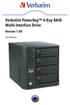 Verbatim PowerBay 4-Bay RAID Multi-Interface Drive Version 1.00 User Manual Table of Contents Introduction... 2 Package Contents... 2 Controls, Connectors and Indicators... 2 About the Hard Drive... 4
Hydra Super-S Combo. 4-Bay RAID Storage Enclosure (3.5 SATA HDD) User Manual July 29, 2009 - v1.3
 4-Bay RAID Storage Enclosure (3.5 SATA HDD) User Manual July 29, 2009 - v1.3 EN Introduction 1 Introduction 1.1 System Requirements 1.1.1 PC Requirements Minimum Intel Pentium III CPU 500MHz, 128MB RAM
Access G-RAID mini by its high-speed Interface esata, FireWire 800 (FireWire 400 via included cable) or USB 2.0 ports.
 Table of Contents Introduction Safety Precautions System Requirements What s in the Box G-RAID mini Overview Installing G-RAID mini G-RAID mini Warning LED Operation RAID Levels Explained Configuring G-RAID
5-Bay Raid Sub-System Smart Removable 3.5" SATA Multiple Bay Data Storage Device User's Manual
 5-Bay Raid Sub-System Smart Removable 3.5" SATA Multiple Bay Data Storage Device User's Manual www.vipower.com Table of Contents 1. How the SteelVine (VPMP-75511R/VPMA-75511R) Operates... 1 1-1 SteelVine
5-BAY RAID STATION. Manual
 5-BAY RAID STATION Manual Content 1. Features 3 1.1 Overview 3 1.2 SATA features 3 1.3 USB features 4 2. Specifications 4 3. System requirements 4 4. The device at a glance 4 4.1 Rear panel 5 4.2 The LED
XL-RAID-SATA2-USB. User Manual. v.1.2 (January, 2010)
 XL-RAID-SATA2-USB User Manual v.1.2 (January, 2010) With regard to this manual Thank you for using the product of Xtendlan Technology Inc. This manual will introduce XTENDLAN XL-RAID-SATA2-USB. Before
3.5in esata USB Dual Removable SATA RAID External Hard Drive Enclosure StarTech ID: S352U2RER
 3.5in esata USB Dual Removable SATA RAID External Hard Drive Enclosure StarTech ID: S352U2RER This esata/usb External Dual SATA Hot-swap Hard Drive Enclosure lets you install two 3.5in SATA (SATA, SATA
PRODUCT MANUAL. Professional High-Performance Dual-Drive Storage System. g-technology.com
 PRODUCT MANUAL Professional High-Performance Dual-Drive Storage System g-technology.com Table Table of Contents Welcome to G-RAID Table of Contents Safety & General Use Safety Precautions... 4 Backup Your
2-Disk RAID USB and esata External Hard Drive. User Guide English
 2-Disk RAID USB and esata External Hard Drive User Guide English 1 Contents Introduction 3 Drive Contents: IMPORTANT Notice 3 Nero BACKITUP 2 Software 3 Controls, Connectors and Indicators 4 Front Panel
3.5 Dual Bay USB 3.0 RAID HDD Enclosure
 3.5 Dual Bay USB 3.0 RAID HDD Enclosure User Manual August 11, 2011 v1.1 MFG Part # MT2U3-MP BARCODE Introduction 1 Introduction 1.1 System Requirements 1.1.1 PC Requirements Minimum Intel Pentium III
2 Bay FireWire 800/400/USB RAID Solution RAID 0, RAID 1, & JBOD. User Manual
 2 Bay FireWire 800/400/USB RAID Solution RAID 0, RAID 1, & JBOD User Manual CalDigit, Inc. 1941 Miraloma Ave, Unit B Placentia, CA 92870 USA www.caldigit.com The information of the products in this manual
User Guide HD-WLU3R1 DriveStation Duo
 User Guide HD-WLU3R1 DriveStation Duo EN 35011790 ver.01 Front Panel Layout Power LED Power On: blue RAID Maintenance: purple Power Off: off Access LEDs Access: blinking green Failure: red Rebuild: blinking
2-Bay Raid Sub-System Smart Removable 3.5" SATA Multiple Bay Data Storage Device User's Manual
 2-Bay Raid Sub-System Smart Removable 3.5" SATA Multiple Bay Data Storage Device User's Manual www.vipower.com Table of Contents 1. How the SteelVine (VPMP-75211R/VPMA-75211R) Operates... 1 1-1 SteelVine
PRODUCT MANUAL. High-Performance Removable Drive Storage System. g-technology.com
 PRODUCT MANUAL High-Performance Removable Drive Storage System g-technology.com Table of Contents Table of Contents Safety & General Use Safety Precautions...4 Backup Your Data...5 About Your G-RAID Introduction...7
Verbatim PowerBay Single USB and esata External Hard Drive Version 1.00
 Verbatim PowerBay Single USB and esata External Hard Drive Version 1.00 User Manual Table of Contents Introduction... 2 Controls, Connectors and Indicators... 2 About the Hard Drive... 2 Locating the Drive
USB to IDE SATA Standalone Hard Drive Duplicator Dock StarTech ID: UNIDUPDOCK
 USB to IDE SATA Standalone Hard Drive Duplicator Dock StarTech ID: UNIDUPDOCK The UNIDUPDOCK Universal SATA/IDE Dual Drive Hard Drive Duplicator functions as both a convenient hard drive copying/imaging
Removable 2.5 SATA HDD Backup System
 Removable 2.5 SATA HDD Backup System SAT2510U3REM SAT2510U3S *actual product may vary from photos DE: Bedienungsanleitung - de.startech.com FR: Guide de l'utilisateur - fr.startech.com ES: Guía del usuario
Cool USB 2.0/eSATA to SATA Docking Duplicator Quick Installation Guide
 Cool USB 2.0/eSATA to SATA Docking Duplicator Quick Installation Guide Introducing the SATA Docking Duplicator The Cool USB 2.0/eSATA to SATA Docking Duplicator adds extra storage space to your computer
We reserve the right to make technical changes.
 User Guide External Hard Disk with USB 1.1/2.0 and IEEE 1394 connection Copyright 2003 All rights reserved. This manual is protected by Copyright. The Copyright is owned by Medion. Trademarks: MS-DOS and
G DRIVE Portable USB Drive
 PRODUCT MANUAL Portable Drive g-technology.com Table of Contents Welcome to G-DRIVE mobile Table of Contents Safety & General Use Safety Precautions... 4 Backup Your Data... 5 About Your G-DRIVE mobile
NVIDIA RAID Installation Guide
 NVIDIA RAID Installation Guide 1. NVIDIA BIOS RAID Installation Guide.. 2 1.1 Introduction to RAID. 2 1.2 RAID Configurations Precautions.. 3 1.3 Create Disk Array. 4 2. NVIDIA Windows RAID Installation
USER MANUAL TOUGH DRIVE CUSTOM EXTERNAL MOBILE HARD DRIVE / 2.5" / USB 2.0. Rev. 848
 USER MANUAL TOUGH DRIVE CUSTOM EXTERNAL MOBILE HARD DRIVE / 2.5" / USB 2.0 WIN & Mac Rev. 848 Freecom ToughDrive Custom Dear user! Thank you for choosing the Freecom ToughDrive Custom as an external hard
RAID. User Manual. For more information visit www.caldigit.com
 RAID User Manual For more information visit www.caldigit.com Contents 1. Introduction 03 Package Contents 06 T4 Diagram 07 2. Using the T4 08 Installing the Software 08 Connecting the T4 09 Create a RAID
G SPEED High-Speed, RAID Protected Storage System
 PRODUCT MANUAL G SPEED High-Speed, RAID Protected Storage System g-technology.com G SPEED Table Table of Contents Welcome to G-SPEED Table of Contents Safety & General Use Safety Precautions...4 Backup
Your Data Security Guardian. SafeTANK GR5630-WSB3+ User Manual. v.1.0 (Oct, 2012) www.raidon.com.tw
 SafeTANK GR5630-WSB3+ User Manual v..0 (Oct, 202) Introduction Thank you for purchasing RAIDON products. This manual will introduce the GR5630-WSB3+. Before using your GR5630-WSB3+, please read this manual
User Guide. The Leader in Personal Storage
 User Guide The Leader in Personal Storage Copyright Apricorn, Inc. 2006. All rights reserved. Windows and MS-DOS are registered trademarks of Microsoft Corporation. All other trademarks and copyrights
USB 3.0 to 2.5" SATA HDD/SSD Mini Docking Quick Installation Guide
 Introduction USB 3.0 to 2.5" SATA HDD/SSD Mini Docking Quick Installation Guide The USB 3.0 to 2.5" SATA HDD/SDD Mini Docking quickly adds more storage space to your USB-enabled computer. Key Features
USB 3.0 to SATA 3.5" Enclosure Installation Guide
 USB 3.0 to SATA 3.5" Enclosure Installation Guide Introduction The USB 3.0 to SATA 3.5" Enclosure is designed to support USB equipped computers. This enclosure provides large capacity mobile storage using
USB to IDE SATA Standalone HDD Hard Drive Duplicator Dock. StarTech ID: UNIDUPDOCK
 USB to IDE SATA Standalone HDD Hard Drive Duplicator Dock StarTech ID: UNIDUPDOCK The UNIDUPDOCK Universal SATA/IDE Dual Hard Drive Duplicator functions as both a convenient solid state (SSD) or hard drive
USER MANUAL MOBILE HARD DRIVES DESKTOP HARD DRIVES. Rev. 034/Mac
 USER MANUAL MOBILE HARD DRIVES DESKTOP HARD DRIVES Rev. 034/Mac Dear user! Thank you for selecting the Freecom Mobile Hard Drive / Desktop Hard Drive as your external data storage device. For optimal use
VIA / JMicron RAID Installation Guide
 VIA / JMicron RAID Installation Guide 1. Introduction to VIA / JMicron RAID Installation Guide. 3 2. VIA RAID Installation Guide. 3 2.1 VIA BIOS RAID Installation Guide.. 3 2.1.1 Introduction of RAID.
RAID Utility User Guide. Instructions for setting up RAID volumes on a computer with a Mac Pro RAID Card or Xserve RAID Card
 RAID Utility User Guide Instructions for setting up RAID volumes on a computer with a Mac Pro RAID Card or Xserve RAID Card Contents 3 RAID Utility User Guide 3 The RAID Utility Window 4 Running RAID Utility
Open Source and License Source Information
 BlackArmor NAS 220 BlackArmor NAS 220 User Guide 2010 Seagate Technology LLC. All rights reserved. Seagate, Seagate Technology, the Wave logo, and FreeAgent are trademarks or registered trademarks of Seagate
4 Bay External Hard Drive Array RAID Tower esata USB 3.0 Enclosure. StarTech ID: SAT3540U3ER
 4 Bay External Hard Drive Array RAID Tower esata USB 3.0 Enclosure StarTech ID: SAT3540U3ER The SAT3540U3ER 4-Drive USB 3.0/eSATA to 3.5" SATA RAID Enclosure is a high-performance external RAID storage
ToughTech Duo Users Manual
 ToughTech Duo Users Manual Models Covered: ToughTech Duo-QR ToughTech Duo-3SR RAID, RAID 0 and Single Drive operation modes. Default RAID Mirroring to assure data integrity and protection on the road.
Guardian MAXimus ASSEMBLY MANUAL & USER GUIDE
 Guardian MAXimus ASSEMBLY MANUAL & USER GUIDE TABLE OF CONTENTS 1. INTRODUCTION...1 1.1 MINIMUM SYSTEM REQUIREMENTS 1.1.1 Apple Mac Requirements 1.1.2 PC Requirements 1.1.3 Supported Drives 1.2 PACKAGE
ZOTAC RAIDbox User s Manual
 ZOTAC RAIDbox User s Manual No part of this manual, including the products and software described in it, may be reproduced, transmitted, transcribed, stored in a retrieval system, or translated into any
RAID OPTION ROM USER MANUAL. Version 1.6
 RAID OPTION ROM USER MANUAL Version 1.6 RAID Option ROM User Manual Copyright 2008 Advanced Micro Devices, Inc. All Rights Reserved. Copyright by Advanced Micro Devices, Inc. (AMD). No part of this manual
Hydra esata. 4-Bay RAID Storage Enclosure. User Manual January 16, 2009 - v1.0
 4-Bay RAID Storage Enclosure User Manual January 16, 2009 - v1.0 EN Table of Contents 1 Introduction... 1 1.1 System Requirements... 1 1.1.1 PC Requirements... 1 1.1.2 Mac Requirements... 1 1.1.3 Supported
4 Channel 6-Port SATA 6Gb/s PCIe RAID Host Card
 4 Channel 6-Port SATA 6Gb/s PCIe RAID Host Card User Manual Model: UGT-ST644R All brand names and trademarks are properties of their respective owners www.vantecusa.com Contents: Chapter 1: Introduction...
MaxAttach NAS 4000 Series OS 2.2 Hard Disk Drive Replacement
 MaxAttach NAS 4000 Series MaxAttach NAS 4000 Series OS 2.2 Hard Disk Drive Replacement DOCUMENT OVERVIEW Who Should Use This Instruction Set This MaxAttach NAS 4000 Series by Maxtor HDD Replacement Instruction
3.5'' SATA to USB 3.0 & esata External Hard Drive Enclosure U SER S MANUA L
 3.5'' SATA to USB 3.0 & esata External Hard Drive Enclosure U SER S MANUA L Package Contents: 3.5'' SATA to USB 3.0 & esata External Hard Drive Enclosure 1 3.5" HDD Enclosure 2 Power Adapter 3 USB 3.0
PCI Express 2.0 SATA III RAID Controller Card with Internal Mini-SAS SFF-8087 Connector
 PCI Express 2.0 SATA III RAID Controller Card with Internal Mini-SAS SFF-8087 Connector StarTech ID: PEXSAT34SFF The PEXSAT34SFF PCI Express SATA Controller Card enables 4 AHCI SATA III connections to
VIA RAID Installation Guide
 VIA RAID Installation Guide 1 VIA BIOS RAID Installation Guide.... 3 1.1 Introduction of RAID... 3 1.2 RAID Configuration Precautions... 3 1.3 BIOS Configuration Utility.. 4 1.3.1 Enter BIOS Configuration
Intel Rapid Storage Technology
 Intel Rapid Storage Technology User Guide August 2011 Revision 1.0 1 Document Number: XXXXXX INFORMATION IN THIS DOCUMENT IS PROVIDED IN CONNECTION WITH INTEL PRODUCTS. NO LICENSE, EXPRESS OR IMPLIED,
Version : 1.1. SR2760-2S-S2 User Manual. SOHORAID Series
 Version : 1.1 SR2760-2S-S2 User Manual SOHORAID Series Forewords About this manual Thank you for using products from Raidon Technology Inc. This manual will introduce the STARDOM SR2760-2S-S2 product.
P O W E R S U P P L Y M A N U A L
 POWER SUPPLY MANUAL Congratulations on the purchase of your new Corsair power supply. This User Agreement (the Agreement ) is a legal agreement between you ( You ), and Corsair Memory, Inc. ( Corsair ).
2» 10» 18» 26» PD3 34 00 42»
 » STARDOM Safe Capsule Series User Manual... 2» STARDOM Safe Capsule Serie Bedienungsanleitung... 10» Série STARDOM Safe Capsule Manuel de l utilisateur... 18 26 PD3500 34» Manual de usuario de STARDOM
4 Bay External Hard Drive Array RAID Tower esata USB 3.0 Enclosure. StarTech ID: SAT3540U3ER
 4 Bay External Hard Drive Array RAID Tower esata USB 3.0 Enclosure StarTech ID: SAT3540U3ER The SAT3540U3ER 4-Drive USB 3.0/eSATA to 3.5" SATA RAID Enclosure is a high-performance external RAID storage
How To Use An Esata External Hard Drive Enclosure (I386) With A Usb 2.0 And Usb 2/1.1 Hard Drive (I219) On A 2.5\" Hard Drive On A Mini Hard Drive Or An Ip
 HDD external enclosure for data-storage mobility with USB 2.0 and esata interface USER Manual English AKASA Company notices The information contained in this document is subject to change without notice.
USB to IDE SATA Standalone HDD Hard Drive Duplicator Dock. StarTech ID: UNIDUPDOCK
 USB to IDE SATA Standalone HDD Hard Drive Duplicator Dock StarTech ID: UNIDUPDOCK The UNIDUPDOCK Universal SATA/IDE Dual Hard Drive Duplicator functions as both a convenient solid state (SSD) or hard drive
Table of Contents. What is Brute Force Attack? 13 How does the diskashur protect against brute force attack? 13
 User s Manual Table of Contents About the istorage diskashur Secure Hard Drive 4 Package contents 4 istorage diskashur button panel 5 istorage diskashur - Getting Started 6 Before you begin 6 Connecting
PRODUCT MANUAL. Portable Dual-Drive Storage System. g-technology.com
 PRODUCT MANUAL Portable Dual-Drive Storage System g-technology.com Table Table of Contents Welcome to G-RAID mini Table of Contents Safety & General Use Safety Precautions...4 Backup Your Data...5 About
StudioRAID mini. Production-Quality Portable RAID USB 3.0, FireWire 800, esata host connectivity
 StudioRAID mini Production-Quality Portable RAID USB 3.0, FireWire 800, esata host connectivity Proprietary Notice and Disclaimer Unless noted otherwise, this document and the information herein disclosed
LG External HDD Hard Disk Drive XG1
 LG External HDD Hard Disk Drive XG1 - Thank you for purchasing this product. - This user manual contains instructions on how to use the product properly. - Please read this manual carefully. - Be sure
OWC Mercury Elite Pro Dual ASSEMBLY MANUAL & USER GUIDE
 OWC Mercury Elite Pro Dual ASSEMBLY MANUAL & USER GUIDE TABLE OF CONTENTS 1. INTRODUCTION...1 1.1 MINIMUM SYSTEM REQUIREMENTS 1.1.1 Apple Mac Requirements 1.1.2 PC Requirements 1.1.3 Supported Drives 1.2
USB 3.0/eSATA Dual 3.5 SATA HDD Enclosure
 USB 3.0/eSATA Dual 3.5 SATA HDD Enclosure S3520BU33ER / S3520WU33ER *actual product may vary from photos DE: Bedienungsanleitung - de.startech.com FR: Guide de l'utilisateur - fr.startech.com ES: Guía
Seagate Business Storage 1-Bay, 2-Bay, and 4-Bay NAS User Guide
 Seagate Business Storage 1-Bay, 2-Bay, and 4-Bay NAS User Guide Seagate Business Storage NAS User Guide 2013 Seagate Technology LLC. All rights reserved. Seagate, Seagate Technology, the Wave logo, and
ITE RAID Controller USER MANUAL
 ITE RAID Controller USER MANUAL 120410096E1N Copyright Copyright 2004. All rights reserved. No part of this publication may be reproduced, transmitted, transcribed, stored in a retrieval system or translated
JTAGjet. series SIGNUM SYSTEMS CORPORATION. USB 2.0 Driver for JTAGjet and ADM51. Installation Instructions
 JTAGjet series SIGNUM SYSTEMS CORPORATION USB 2.0 Driver for JTAGjet and ADM51 Installation Instructions COPYRIGHT NOTICE Copyright (c) 2011 by Signum Systems Corporation. All rights are reserved worldwide.
User s Manual For Windows XP, Vista, 7 For MAC OS X 10.2.8 or higher
 USB Cipher Shield Hard Drive Series with AES USB Hi-Speed Encrypted Hard Drive User s Manual For Windows XP, Vista, 7 For MAC OS X 10.2.8 or higher Revision 3.3 Welcome to BUSlink USB Hi-Speed Cipher Shield
DF-7506 1-to-2 SATA II RAID Box
 DF-7506 1-to-2 SATA II RAID Box Version 1.0 Table of Contents Chapter 1 Product Introduction...3 1.1 Features...3 1.1.1 Shipping Package Content...3 1.2 Front View...4 1.3 Rear View...6 1.4 Disk Drive
User Guide Replica Automatic Backup System
 User Guide Replica Automatic Backup System 2009 Seagate Technology Contents 1 Getting Started with the Seagate Replica Automatic Backup System...4 Replica s First Steps...4 Safely Disconnect...4 Using
RAID Utility User s Guide Instructions for setting up RAID volumes on a computer with a MacPro RAID Card or Xserve RAID Card.
 RAID Utility User s Guide Instructions for setting up RAID volumes on a computer with a MacPro RAID Card or Xserve RAID Card. 1 Contents 3 RAID Utility User s Guide 3 Installing the RAID Software 4 Running
Owner s Manual. www.vantecusa.com. Model:NST-285U2-BK(Onyx Black) Model:NST-285U2-SL(Metallic Silver)
 Owner s Manual www.vantecusa.com Model:NST-285U2-BK(Onyx Black) Model:NST-285U2-SL(Metallic Silver) All Registered Trademarks Belong To Their Respected Companies. Copyright 2007 Vantec Thermal Technologies.
Portable 1:5 USB Flash Drive Duplicator and Eraser
 Portable 1:5 USB Flash Drive Duplicator and Eraser USBDUP15 *actual product may vary from photos DE: Bedienungsanleitung - de.startech.com FR: Guide de l'utilisateur - fr.startech.com ES: Guía del usuario
SiS S-ATA User s Manual. Quick User s Guide. Version 0.1
 SiS S-ATA User s Manual Quick User s Guide Version 0.1 Edition April 2003 Copyright Trademarks SiS is a registered trademark of Silicon Integrated Systems Corp. All brand or product names mentioned are
DESKTOP. Internal Drive Installation Guide
 DESKTOP Internal Drive Installation Guide Seagate Desktop Installation Guide 2013 Seagate Technology LLC. All rights reserved. Seagate, Seagate Technology, the Wave logo, and FreeAgent are trademarks or
2-Bay NAS Media Server Enclosure (1 x 1 TB) TN-200T1 (v1.0r)
 2-Bay NAS Media Server Enclosure (1 x 1 TB) TRENDnet s 2-Bay NAS Media Server Enclosure (1 x 1 TB), model, is the entertainment and storage hub of a digital network. DLNA certified Smart TVs, media players,
RocketStor SMART RAID
 RocketStor SMART RAID User Guide v1.0 1 Copyright HighPoint Technologies Inc., 1995-2012. All rights reserved. OS X and Macintosh are registered trademarks of Apple Corporation. All other trademarks and
KVM - DVI, USB 2.0, Cat 5 Extender
 KVM - DVI, USB 2.0, Cat 5 Extender 330 feet (100 meters) EL5100 User Guide Powered by Thank you for purchasing the KVM - DVI, USB 2.0, Cat 5 Extender 330 feet (100 meters) Please read this guide thoroughly.
Ultra ATA 133 RAID PCI Pro
 Ultra ATA 133 RAID PCI Pro 1-1 Introduction Quick Installation Guide This ultra high-speed dual channel Ultra ATA/133 RAID controller is designed to support RAID 0, 1, 0+1 and JBOD. RAID configurations
AMD RAID Installation Guide
 AMD RAID Installation Guide 1. AMD BIOS RAID Installation Guide.. 2 1.1 Introduction to RAID.. 2 1.2 RAID Configurations Precautions 3 1.3 Installing Windows XP / XP 64-bit / Vista / Vista 64-bit With
Version : 1.0. SR3620-2S-SB2 User Manual. SOHORAID Series
 Version : 1.0 SR3620-2S-SB2 User Manual SOHORAID Series Introduction About this Manual Thank you for using the product of RAIDON Technology Inc. This user manual will introduce the STARDOM SR3620-2S-SB2
SiS 180 S-ATA User s Manual. Quick User s Guide. Version 0.1
 SiS 180 S-ATA User s Manual Quick User s Guide Version 0.1 Edition April 2003 Copyright Trademarks SiS is a registered trademark of Silicon Integrated Systems Corp. All brand or product names mentioned
USB3.0 Docking Station. User Manual (DA-70546)
 USB3.0 Docking Station User Manual (DA-70546) Foreword Congratulations on your purchase of our product! We will show you a new storage concept with safety and convenience It is our pleasure to give you
Refer to the Troubleshooting section first if you experience a problem with the product.
 D3 Station Your product comes with a quick start guide and a user s manual. Following the instructions and precautions of this manual will ensure easier and more enjoyable use of your D3 Station External
3 Port PCI Express 2.0 SATA III 6 Gbps RAID Controller Card w/ msata Slot and HyperDuo SSD Tiering
 3 Port PCI Express 2.0 SATA III 6 Gbps RAID Controller Card w/ msata Slot and HyperDuo SSD Tiering StarTech ID: PEXMSATA343 The PEXMSATA343 3-Port PCI Express 2.0 SATA Card with HyperDuo adds an internal
FANTEC MR-35HDC HARD DISK COPYSTATION
 FANTEC MR-35HDC HARD DISK COPYSTATION POWER Red= Blue=Dup 0 Copy Start 1 Compare Mute BIG Prescan JBOG Erase Reset USER MANUAL MENU MENU... 1 1. Product Introduction... 2 2. Operation in function... 3
ImageMate USB 2.0 Reader/Writer User Guide
 English ImageMate USB 2.0 Reader/Writer User Guide The Multi-Function Hi-Speed USB 2.0 Reader/Writer for: SDDR-189 All-in-One Reader/Writer: CompactFlash, SD, SDHC, minisd, minisdhc, microsd, microsdhc,
G DRIVE slim Ultra-Slim Portable USB Drive
 PRODUCT MANUAL Ultra-Slim Portable USB Drive g-technology.com Table of Contents Welcome to G-DRIVE slim Table of Contents Safety & General Use Safety Precautions... 4 Backup Your Data... 5 About Your G-DRIVE