
Gateway DC-T23 digital camera. user'sguide. Troubleshooting. Customizing
|
|
|
- Sabrina Sims
- 9 years ago
- Views:
Transcription

1 Gateway DC-T23 digital camera user'sguide Customizing Troubleshooting
2
3 Contents Using the Gateway DC-T Warnings and precautions Getting started Identifying camera components Loading the batteries Inserting and removing the SD/MMC card (Optional) Attaching the strap (optional) Using a tripod (optional) Basic operation Powering on and off Setting the Mode switch Taking still pictures Recording movies Viewing your images on the LCD Viewing pictures and movies Deleting pictures and movies Advanced Operations and Settings Using the MENU button Configuring settings Viewing images on your computer Installing the camera software Connecting the camera to your computer Copying pictures and movies to your computer Viewing pictures and movies on your computer Using PC Camera or Web Cam Format settings Video settings Troubleshooting Using the camera Connecting the camera to your computer Getting Help Appendix Battery life LED indicator events Storage capacity Specifications Regulatory compliance statements Notices i
4 ii
5 Using the Gateway DC-T23 Thank you for purchasing the Gateway DC-T23 digital camera. Your camera features: Effective sensor resolution of 2 Megapixels 16 MB internal memory Support for SD/MMC (Secure Digital/MultiMedia Card) memory up to 512 MB 4 digital zoom Video mode 1
6 Using the Gateway DC-T23 Warnings and precautions Do not drop, puncture or disassemble the camera. Avoid all contact with water. Be sure to have dry hands before using. Do not expose the camera to high temperature or leave it in direct sunlight. Use the camera with care. Avoid pressing hard on the camera body. For your own safety, avoid using the camera when there is a storm or lightning. Avoid using batteries of different brands or types at the same time. Remove batteries during long periods between usage, as deteriorated batteries may affect the functionality of the camera. Remove batteries if they show signs of leaking or distortion. We suggest using only the accessories supplied by Gateway. 2
7 Getting started Getting started Identifying camera components Shutter/Quick Exit button 2 Lens cover 3 Power button 4 Mode switch 5 Microphone 6 Flash 7 USB port 8 Focus switch 9 Lens 10 Self-timer LED indicator 11 LCD display 12 Up control button (Zoom in) 13 Down control button (Zoom out) 14 MENU/OK button 15 LED indicator 16 Strap holder 17 Battery/SD/MMC card cover 18 Tripod port 19 SD/MMC card slot 20 Battery section 3
8 Using the Gateway DC-T23 Loading the batteries Use two AAA 1.5V alkaline batteries. To load the batteries: 1 Slide the battery/card cover down, then rotate it outward. 2 Load two AAA alkaline batteries, taking care to match the + and symbols on the batteries. 3 Rotate the battery/card inward, then slide it upward to lock it. For information on battery life, see Battery life on page 35. 4
9 MENU/OK Getting started Inserting and removing the SD/MMC card (Optional) Caution Never eject the SD/MMC card while the LED indicator is red (the camera is processing data). For more information on the LED messages, see LED indicator events on page 35. To insert the SD/MMC card: 1 Open the battery/card cover. 2 Insert the card in the direction indicated, then push it in. 3 Close the battery/card cover. To remove the card: Push the card in, then release the card. 5
10 Using the Gateway DC-T23 Tips & Tricks The camera comes with 16 MB internal Flash memory for storage. If you do not insert a SD/MMC card, data is saved in the built-in Flash memory. For details on the storage capacity of the SD/MMC card and internal memory (16 MB Flash memory), see Storage capacity on page 36. Attaching the strap (optional) For convenience and safety, attach the carrying strap. To attach the strap: 1 Thread the strap loop through the holder in the direction indicated. 2 Fasten the strap as indicated. 6
11 Getting started Using a tripod (optional) You can use a tripod to minimize camera movement and ensure optimal image quality, particularly while taking self-portraits, longer movies or in macro mode. Tripod heads (the part that attaches to the camera) vary. See your tripod user s guide for detailed information on attaching your tripod to the Gateway DC-T23 digital camera. To use a tripod: 1 Attach the tripod to the port on the bottom of the camera and rotate the wheel to lock it. Tight Wheel Loose 2 Unfold the legs to set up. 3 Adjust the alignment to the desired position. 7
12 Using the Gateway DC-T23 Basic operation Powering on and off Slide the Lens cover or press the Power button to power the camera on or off. To use the lens cover: Slide the Lens cover in the direction of the arrow to turn the power on or off. ON OFF Tips & Tricks While the Lens cover is open, you can also press the Power button to turn off your camera. To use the power button: Press the Power button to turn the power on or off. 8
13 Basic operation If the camera is idle for over 60 seconds, the LCD display turns off to conserve battery power. Press any key to wake up the camera. If the camera is idle for over 3 minutes, the camera automatically powers down. Setting the Mode switch This camera operates in three modes. Push the Mode switch to select the mode that you want to use. Movie mode Still Picture mode Playback mode 9
14 Using the Gateway DC-T23 Taking still pictures Follow these steps to take still pictures. For best results, use the Focus switch to set the focus and use the up and down Control buttons to zoom in and out. Taking a still picture To take a still picture: 1 Set the Mode switch to. 2 Press the Shutter button to take pictures. Tips & Tricks While the LED indicator is flashing red, the image is being captured. When the LED turns green, the picture processing is done and ready to take another picture. For more information on LED messages, see LED indicator events on page 35 10
15 Basic operation Adjusting the focus To adjust the focus: Push the Focus switch, then select the best mode for your picture. USB The following table tells you which focus mode you may choose based on the distance to your subject. Macro 12 inches ~ 24 inches (30 cm ~ 60 cm) Micro 24 inches ~ (60 inches ~ ) Using Zoom To Zoom in and out: Press the up Control button to zoom in or the down Control button to zoom out. 11
16 Using the Gateway DC-T23 Using the flash and self-timer The flash and self-timer are convenient utilities you can use when taking still image pictures. Use the flash if lighting is not adequate and the self-timer function for taking self-portrait photos. There are other settings in the MENU under mode that also affect your images, including size, exposure, white balance, and effect. For details on operation and information, see Using the MENU button on page 18. Using the LCD under mode Zoom 1.0X 20 Number of pictures and movies taken Still pictures mode Life of battery Focus mode Storage mode: Resolution - SD/MMC card: Flash status - Internal Flash memory: no icon Recording movies You can use your camera to record movies at a resolution of pixels. To record movies: 1 Set the Mode switch to. 12
17 Basic operation 2 Press the Shutter button to start recording. 3 Press the Shutter button again to stop the recording. Tips & Tricks You can also adjust the Focus switch under mode. For more information on the Focus switch, see Adjusting the focus on page 11. Using the LCD under mode 20 Number of pictures and movies taken Movie mode Focus mode Life of battery Storage mode: - SD/MMC card: - Internal Flash memory: no icon 13
18 Using the Gateway DC-T23 Viewing your images on the LCD Viewing pictures and movies To view pictures and movies: 1 Set the Mode switch to. 2 The last image taken is displayed on the LCD. 3 Press the up and down Control buttons to select the previous or the next image and view it on the LCD display. Control buttons While playing a movie on the camera, sound playback is not available. To view the movie with sound, copy the movie to your computer (for details, see Viewing images on your computer on page 24). 14
19 Viewing your images on the LCD Using the LCD under mode The type you are viewing: - Picture: - Movie: Playback mode 1/20 Picture and movie number Number of pictures and movies taken Life of battery Storage mode: - SD/MMC card: - Internal Flash memory: no icon 15
20 Using the Gateway DC-T23 Deleting pictures and movies Follow these steps if you want to delete a picture or movie. To delete pictures and movies: 1 Push the Mode switch to, then press the up and down Control buttons to pick the image you want to delete. 2 Press the MENU/OK button to enter the Menu. 3 Press the up and down Control buttons to choose Delete One, then press the MENU/OK button. 16
21 Viewing your images on the LCD 4 Use the up and down Control buttons to select Yes, then press the MENU/OK button to complete the deletion. Tips & Tricks You can press the Shutter/Quick Exit button at anytime to exit the Menu. 17
22 Using the Gateway DC-T23 Advanced Operations and Settings Using the MENU button You can fine-tune the camera using advanced features in the Menu. Use the MENU/OK button to enter the Menu. Press the up and down Control buttons ( ) to highlight the item. Use the MENU/OK button to confirm. To exit, use the Shutter/Quick Exit button. Menu under ( ) mode The MENU/OK button is used to enter the Menu or execute an action. Select the icon or press the Shutter/Quick Exit button to exit. Item Option Icon Description Menu LCD Display 1. Size Size lets you change the resolution of the picture. Select or when you want to print 4 6 photos; select when you want to print 3 5 photos Flash Auto Off Flash lets you set the flash. When you are not sure if the light is adequate, select the Auto mode. The flash will fire automatically if more light is needed. If you have problems when using the flash, see Troubleshooting on page
23 Advanced Operations and Settings Item Option Icon Description Menu LCD Display 3. Self- Timer On Off N/A Self-Timer lets you specify a delay of 10 seconds before the shutter fires. If you want to use the self-timer, set the On mode, press the Shutter button, then wait for 10 seconds with Self-Timer LED indicator flashing red. 4. Exposure Auto Back Light N/A Exposure lets you set the exposure- metering mode. When you are not sure about your light source or when your subject is facing the light, select Auto. When your subject is against the light, select the Back Light mode. 5. White Balance (WB) Auto Sunny Cloudy Fluorescent N/A White Balance lets you set the camera s color temperature based on your lighting environment. If you know the color conditions of your shooting environment, such as the Sunny (bright), Cloudy (dim), Fluorescent (high color condition) and Tungsten (low color condition) situations, select the mode you consider most appropriate. Select the Auto mode if you are not sure about the color condition of your environment. Tungsten 19
24 Using the Gateway DC-T23 Menu under ( ) mode Item Option Icon Description Menu LCD Display 1. Effect Normal B&W N/A Effect lets you set the effect of the image, such as Normal (no effect) and B&W (black and white) effects. 2. Setting See Configuring settings on page 22 for details. 20
25 Advanced Operations and Settings Menu under ( ) mode Item Option Icon Description Menu LCD Display 1. Delete One Yes No N/A Delete One deletes a picture or a movie stored in your built-in Flash memory or SD/MMC card. 2. Delete All Yes No N/A Delete All deletes all files stored in your built-in Flash memory or SD/MMC card. 3. Format Yes No N/A Format deletes all files stored in your internal Flash memory or SD/MMC card and the memory is formatted. All stored files will be deleted and cannot be restored. 4. Setting See Configuring settings on page 22 for details. 21
26 Using the Gateway DC-T23 Configuring settings Highlight the icon with the up and down Control buttons ( ) in the Menu to configure settings. The following illustrations are the Setting displays under the three modes. Setting under ( ) mode Setting under ( ) mode Setting under ( ) mode The following table describes all items in the Setting menu: Item Option Icon Function 1. Time Year Month Day Hour Minute 2. Beep On Off N/A Time lets you set the time of the camera. Use the up and down Control buttons ( ) to change the number of settings. Press the MENU/OK button to confirm. Beep determines whether the beep is active when operating the camera. 3. Display On Display determines if the small icons appear on the LCD screen. Off 4. Date Stamp On Off Date stamp determines if a date stamp appears on the pictures taken. 22
27 Advanced Operations and Settings Item Option Icon Function 5. Flicker 50 HZ 60 HZ Flicker lets you set the flicker to prevent noise and get the best image. The default flicker value of 60 HZ is best for most lighting conditions. If you experience issues, try another setting. 6. Language English Language lets you set the camera s displayed language. German 7. Default Yes No Default lets you set the camera settings back to the original factory default. 23
28 Using the Gateway DC-T23 Viewing images on your computer Install the camera software before connecting the camera to your computer for the first time. Use the following steps to complete the installation. Installing the camera software To install the camera software: 1 Turn on your computer. Important Do not connect the USB cable to your computer. Close other applications that are running on your computer. 2 Place the camera software CD into the CD or DVD drive. If the program starts automatically, go to Step 4. - OR - If the program does not start automatically, go to Step 3. 3 Click Start, My Computer (or double-click the My Computer icon on your desktop), then double-click your CD or DVD drive letter. 4 Click USB Driver. The driver installation begins. 5 Complete the driver installation by following the on-screen instructions. 24
29 Viewing images on your computer Connecting the camera to your computer To connect the camera to your computer: 1 Turn on your computer. 2 Set the Mode switch on the camera to or. 3 Insert the USB cable to the USB port on your computer. 4 Insert the other end of the USB cable to the USB port on your camera. Important Disconnecting the camera from the computer in Windows 2000 or Windows ME To disconnect the camera from the computer, double-click the icon on the Task Bar, click (USB Disk), then click Stop. Follow the on-screen instructions. 25
30 Using the Gateway DC-T23 Copying pictures and movies to your computer To copy pictures and movies to your computer: 1 If you are using Windows XP, after you connect your camera to the computer, the Removable Disk window opens. Click Open folder to view files using Windows Explorer, click OK, then go to Step 3. - OR - If you are using Windows 2000 or Windows ME, go to the next step. 2 Double-click My Computer, then double-click the Removable Disk icon. 3 Double-click the DCIM folder. 26
31 Viewing images on your computer 4 Double-click the 100MEDIA folder. 5 To copy the pictures or movies from your camera, drag the files from the camera s folder to the My Documents folder on your computer. Tips & Tricks The following illustration shows the storage position of your camera s pictures and movies. 27
32 Using the Gateway DC-T23 Viewing pictures and movies on your computer To view pictures and movies on your computer: 1 Double-click the My Documents folder. 2 Double-click the file you want to view. Tips & Tricks You must have DirectX 8.0 or higher to view movies. 28
33 Using PC Camera or Web Cam Using PC Camera or Web Cam The PC Camera or Web Cam software lets you record still images and video while the camera is connected to the computer. When using your camera in this mode the camera receives power from your computer and will not consume battery life. You can also use your camera with other video conferencing applications, such as Microsoft Messenger with video chat, or Netmeeting. Important You need to install the DC-T23 camera software before you can use PC Camera. For instructions on installing your camera software, see Installing the camera software on page 24. To use PC Camera: 1 Set the Mode switch on your camera to and slide the lens cover open. 2 Connect the camera to your computer. For instructions on connecting your camera, see Connecting the camera to your computer on page Click Start, All Programs, DC-T23, then click DC-T23. The PC Camera window opens. 29
34 Using the Gateway DC-T23 4 Click the icons at the bottom of the PC Camera window to use the functions. Preview Window Record Stop Recording Snapshot Format settings* Video settings* Preview or Stop Preview Open Album Video Source * For detailed information on the Format and Video settings, see Format settings on page 31 or Video settings on page 32. Tips & Tricks To view your pictures and movies using the PC Camera interface, click Open Album, then browse to the following folder: C:\Program Files\DC-T23\Work Temp 30
35 Using PC Camera or Web Cam Format settings Click the Format settings icon on the PC Camera window to bring up advanced settings. Color Space/Compression Select one of the following settings: RGB 24 Lower compression with better image quality. Files are larger and take longer to send to others. I420 Higher compression with lower image quality. Files are smaller and can be sent to others much more quickly. Output size Set the output size to change the size of the preview window. The default size is Select larger pixels when you need a larger preview window. 31
36 Using the Gateway DC-T23 Video settings Click the Video settings icon on the PC Camera window to bring up advanced settings. Banding Filter If your computer screen flickers when using the PC Camera function, change the Banding Filter item on the Video Setting tab. Select 50 Hz or 60 Hz until the screen stops flickering. If you want to restore the default setting, select Normal AE. Bandwidth If the controller does not have enough bandwidth available for the camera, set the Bandwidth item on the Video Setting tab. The camera uses less bandwidth as you decrease the bandwidth value. Custom settings You can use the default settings or change the settings for brightness, contrast, saturation, sharpness, and hue manually. 32
37 Troubleshooting Troubleshooting Using the camera Problem The camera has no power. Cannot power on my camera even though batteries are installed. Cannot take pictures and movies when pressing the Shutter button. I did not delete the picture and movie, but cannot find the data in the SD/MMC card. Cannot set the flash to the On mode. The image is too blurred. The image is too dark. Solution 1 The batteries may be out of power. Replace the batteries. 2 Make sure that the batteries are installed correctly. 1 Make sure that the batteries are installed correctly. 2 After 3 minutes of camera idle, the camera shuts down automatically. Press the Power button or slide the Lens cover to power on the camera. 1 Make sure that the Lens cover is open. 2 The storage is full. Free some space of the SD/MMC card or internal Flash memory. 3 Check the write-protect switch on the SD/MMC card and make sure it is not set to LOCK. 4 If the MEMORY ERROR message shows on the LCD display, format the card. Check if your files are stored in the camera s internal Flash memory. If there is a icon at the right bottom section on the LCD display, you are using the camera with a SD/MMC card. Remove the card to find the data in the internal Flash memory. For details, see Inserting and removing the SD/MMC card (Optional) on page 5. Charging the flash requires more battery power. When the batteries are low, the flash cannot be set to On. Change the batteries. Adjust the focus. See Adjusting the focus on page 11. You may need to take pictures or movies in a place with adequate light or use the flash. 33
38 Using the Gateway DC-T23 Problem Sound playback is not available when viewing the movie on the LCD display. Noise occurs on my camera when viewing the image on the LCD display or on the computer. Solution This situation is normal. If you want to view the movie with sound, copy the movie to your computer, then view it on the computer. Change the Flicker setting. See Configuring settings on page 22. Connecting the camera to your computer Problem The driver installation failed. A conflict with another installed camera or capture device. The movie cannot be played on my computer. Noise occurs on my computer when using Video Conferencing. Solution 1 Remove the driver and other related programs. Follow the installation steps in this manual to reinstall. 2 Install the driver before inserting the USB cable. If you have another camera or capture device installed, completely remove the camera and its driver form the computer to avoid a driver conflict. Install DirectX 8.0 or higher. Adjust the Banding Filter. See Banding Filter on page 32. Getting Help To get support for your camera: Visit /support for online and chat support Call Monday-Friday 7 a.m. to 9 p.m. (CST) for telephone support 34
39 Appendix Appendix Battery life Condition Number of Images Battery life (minutes) Taking still pictures (without flash) * *Using alkaline batteries in 25 C, with pictures taken every four seconds. Battery life is shortened when taking snapshots at low temperatures, or turning the power on and off repeatedly. This table is for reference only. Using the flash decreases the number of pictures you can take. LED indicator events Condition LED color Status Status (LED indicator) Flash (LED indicator) Data transformation (LED indicator) Self-Timer (Self-Timer indicator) Red Green Red Green Red Green Red (regularly) Red (rapidly) Busy (mode change, storage, or capture) Ready (waiting for command) Charging flash Ready (waiting for command) Data transformation Ready (waiting for command) Counting Capturing the picture Caution Never eject the memory card or remove the batteries while the LED indicator is red. 35
40 Using the Gateway DC-T23 Storage capacity Memory Still picture Movie This table is for reference only. The actual number of pictures stored may vary up to 30% depending on their resolution and color saturation. Specifications Maximum recording time Internal Flash memory (16 MB) SD/MMC card (32 MB) SD/MMC card (64 MB) SD/MMC card (128 MB) SD/MMC card (256 MB) SD/MMC card (512 MB) Sensor effective resolution Internal memory External memory Digital still camera Digital video camcorder Video conferencing LCD Display Digital zoom Exposure (2 Megapixels) Built-in 16 MB SDRAM (buffer) 16 MB Flash memory (storage) Built-in SD/MMC slot (maximum: 512 MB) JPEG Format (hardware enhanced), , or Motion JPEG (AVI) Format QVGA ( pixels) / up to 20 fps VGA ( pixels) / up to 10 fps QVGA ( pixels) / up to 20 fps 1.5 in. Color TFT LCD 4 (for still pictures only) Auto/Back light 36
41 Appendix White balance Image effect Lens Self Timer Interface Power saving Built-in microphone Built-in speakers Built-in flash Battery Dimensions Auto/Sunny/Cloudy/Fluorescent/Tungsten 4 modes for still pictures 2 modes for videos F=3.5, 8.5mm 10 seconds USB 1.1 (USB 2.0 compatible) Auto power-off if idle for over 3 minutes Yes No Yes 2 AAA (alkaline recommended) in. ( mm) Supported Operating Systems Windows XP, Windows ME, Windows 2000 (Windows 98SE driver supplied but not supported.) 37
42 Using the Gateway DC-T23 Regulatory compliance statements United States of America Unintentional emitter per FCC Part 15 This device has been tested and found to comply with the limits for a Class B digital device, pursuant to Part 15 of the FCC rules. These limits are designed to provide reasonable protection against harmful interference in a residential installation. This equipment generates, uses, and can radiate radio frequency energy and, if not installed and used in accordance with the instructions, may cause harmful interference to radio or television reception. However, there is no guarantee that interference will not occur in a particular installation. If this equipment does cause interference to radio and television reception, which can be determined by turning the equipment off and on, the user is encouraged to try to correct the interference by one or more of the following measures: Reorient or relocate the receiving antenna Increase the separation between the equipment and receiver Connect the equipment to an outlet on a different circuit from that to which the receiver is connected Consult the dealer or an experienced radio/tv technician for help. Compliance Accessories: The accessories associated with this equipment are: shielded interface cables that came with your camera or equivalent to those that came with your camera. These accessories are required to be used in order to ensure compliance with FCC rules. FCC declaration of conformity Responsible party: Gateway Companies, Inc. 610 Gateway Drive, North Sioux City, SD (605) Fax: (605) Product: Gateway DC-T23 This device complies with Part 15 of the FCC Rules. Operation of this product is subject to the following two conditions: (1) this device may not cause harmful interference, and (2) this device must accept any interference received, including interference that may cause undesired operation. Caution Changes or modifications not expressly approved by Gateway could void the FCC compliance and negate your authority to operate the product. 38
43 Appendix Canada Mexico Industry Canada (IC) Unintentional emitter per ICES-003 This digital apparatus does not exceed the Class B limits for radio noise emissions from digital apparatus as set out in the radio interference regulations of Industry Canada. Le présent appareil numérique n émet pas de bruits radioélectriques dépassant les limites applicables aux appareils numériques de Classe B prescrites dans le règlement sur le brouillage radioélectrique édicté par Industrie Canada. Unintentional emitter At this time there are no mandatory requirements for Unintentional Emitters. However, this device does comply with multiple requirements for other countries and regions as listed on the system label and in the user s manual. California Proposition 65 Warning Warning This product contains chemicals, including lead, known to the State of California to cause cancer and/or birth defects or reproductive harm. 39
44 Using the Gateway DC-T23 Notices Copyright 2003 Gateway, Inc. All Rights Reserved Gateway Place Poway, CA USA All Rights Reserved This publication is protected by copyright and all rights are reserved. No part of it may be reproduced or transmitted by any means or in any form, without prior consent in writing from Gateway. The information in this manual has been carefully checked and is believed to be accurate. However, changes are made periodically. These changes are incorporated in newer publication editions. Gateway may improve and/or change products described in this publication at any time. Due to continuing system improvements, Gateway is not responsible for inaccurate information which may appear in this manual. For the latest product updates, consult the Gateway Web site at. In no event will Gateway be liable for direct, indirect, special, exemplary, incidental, or consequential damages resulting from any defect or omission in this manual, even if advised of the possibility of such damages. In the interest of continued product development, Gateway reserves the right to make improvements in this manual and the products it describes at any time, without notices or obligation. Trademark Acknowledgments GATEWAY, ActiveCPR, ALR, AnyKey, black-and-white spot design, CrystalScan, Destination, DestiVu, EZ Pad, EZ Point, Field Mouse, Gateway 2000, Gateway Country, gateway.net, Gateway stylized logo, Perfect Scholar, Solo, TelePath, Vivitron, stylized G design, and You ve got a friend in the business slogan are registered trademarks and black-and-white spotted box logo, GATEWAY, Gateway Astro, Gateway@Work, Gateway Connected touch pad, Gateway Connected music player, Gateway Cyber:)Ware, Gateway Education:)Ware, Gateway Flex Case, Gateway Gaming:)Ware, Gateway GoBack, Gateway Gold, Gateway Learning:)Ware, Gateway Magazine, Gateway Micro Server, Gateway Money:)Ware, Gateway Music:)Ware, Gateway Networking Solutions, Gateway Online Network (O.N.) solution, Gateway Photo:)Ware, Gateway Professional PCs, Gateway Profile, Gateway Solo, green stylized GATEWAY, green stylized Gateway logo, Gateway Teacher:)Ware, Gateway Video:)Ware, HelpSpot, InforManager, Just click it!, Learn@Gateway, Kids BackPack, SERVE-TO-ORDER, Server Watchdog, the Spotted G Gateway Logo and the Spotted G Logo, SpotShop, Spotshop.com, and Your:)Ware are trademarks of Gateway, Inc. Intel, Intel Inside logo, and Pentium are registered trademarks and MMX is a trademark of Intel Corporation. Microsoft, MS, MS-DOS, and Windows are trademarks or registered trademarks of Microsoft Corporation. All other product names mentioned herein are used for identification purposes only, and may be the trademarks or registered trademarks of their respective companies. 40
45
46 MAN DC-T23 DIG CAM GDE R0 10/03
3-IN-1 DIGITAL MUSIC PLAYER
 3-IN-1 DIGITAL MUSIC PLAYER 1 Gateway digital music player 3-IN-1 DIGITAL MUSIC PLAYER Contents Preparing to Use Features 6 Package content 6 Product overview 7 LCD Panel 7 Button function table 8 Using
ViviCam 25 Digital Camera User s Manual
 ViviCam 25 Digital Camera User s Manual 2010 Sakar International, Inc. All rights reserved. Windows and the Windows logo are registered trademarks of Microsoft Corporation. All other trademarks are the
Installing Your 960 or 980 Server into a Rackmount Cabinet
 Installing Your 960 or 980 Server into a Rackmount Cabinet 1 2 Contents Installing Your Gateway Server into a Rackmount Cabinet...1 Identifyingpartsintheaccessorykit...2 Rackmounthandlekit... 2 Rackmountrailkit...
Fit Clip Plus Portable Media Player
 Fit Clip Plus Portable Media Player User Guide BL 8GB Thank you for purchasing a Fit Clip Plus Portable Media Player! To get the most out of your Fit Clip Plus, please read this entire user guide carefully.
ViviCam 5022 Digital Camera
 ViviCam 5022 Digital Camera User s Manual 2009 Sakar International, Inc. All rights reserved. Windows and the Windows logo are registered trademarks of Microsoft Corporation. All other trademarks are the
Installation Guide. Wyse VX0L and VX0LE Thin Clients 1-GB RAM Upgrade Option Kit. Issue: 022808 PN: 883884-07L Rev. A
 Installation Guide Wyse VX0L and VX0LE Thin Clients 1-GB RAM Upgrade Option Kit Issue: 022808 PN: 883884-07L Rev. A ii Copyright Notice 2008, Wyse Technology Inc. All rights reserved. This manual and the
In-Site Motion Webcam
 In-Site Motion Webcam User s Manual Model IC825C FCC STATEMENT IC825C This device complies with part 15 of FCC Rules. Operation is subject to the following two conditions: (1) this device may not cause
Gateway Port Replicator User Guide
 Gateway Port Replicator User Guide Using the Port Replicator Identifying features Connecting and disconnecting the port replicator 1 Using the Port Replicator Top Power button Component Icon Description
DVR 410 Digital Video Camera User s Manual
 DVR 410 Digital Video Camera User s Manual 2009 Sakar International, Inc. All rights reserved. Windows and the Windows logo are registered trademarks of Microsoft Corporation. All other trademarks are
ViviCam 5024 Digital Camera
 ViviCam 5024 Digital Camera Owner Manual 2009 Sakar International, Inc. All rights reserved. Windows and the Windows logo are registered trademarks of Microsoft Corporation. All other trademarks are the
EPSON USB/Parallel Adapter User s Guide
 EPSON USB/Parallel Adapter User s Guide EPSON Stylus COLOR 440 EPSON Stylus COLOR 800 EPSON Stylus COLOR 600 EPSON Stylus COLOR 850 EPSON Stylus COLOR 640 EPSON Stylus COLOR 1520 EPSON Stylus Photo EX
ViviCam F127 Digital Camera
 ViviCam F127 Digital Camera User Manual 2009-2012 Sakar International, Inc. All rights reserved. Windows and the Windows logo are registered trademarks of Microsoft Corporation. All other trademarks are
300K Pixels Digital Camera
 300K Pixels Digital Camera Owner s Manual v2.0 Warning: 1. Do not connect the camera to the computer before the driver and software is installed. 2. Download images from the camera before the battery runs
ViviCam X018 Digital Camera
 ViviCam X018 Digital Camera User Manual 2010 Sakar International, Inc. All rights reserved. Windows and the Windows logo are registered trademarks of Microsoft Corporation. All other trademarks are the
VIV-CV-530V. Digital Binocular Camera. User Manual
 VIV-CV-530V Digital Binocular Camera User Manual 2011 Sakar International, Inc. All rights reserved. Windows and the Windows logo are registered trademarks of Microsoft Corporation. All other trademarks
EPSON USB/Parallel Adapter User s Guide
 EPSON USB/Parallel Adapter User s Guide EPSON Stylus COLOR 440 EPSON Stylus COLOR 1520 EPSON Stylus COLOR 600 EPSON Stylus COLOR 3000 EPSON Stylus COLOR 640 EPSON Stylus Photo 700 EPSON Stylus COLOR 660
ASUS GX900 Gaming Mouse
 ASUS GX900 Gaming Mouse User Manual 15G06S002000 E5887 First Edition (V1) July 20 Copyright 20 ASUSTeK Computer Inc. All Rights Reserved. No part of this manual, including the products and software described
Quick 1.3MP WebCam with Night Vision
 Quick 1.3MP WebCam with Night Vision Model #: WC1100BLU, WC1200RED WC1300BLK, WC1400YLW User s Manual PID # 031362/3/4/5-109281 Rev. 100524 All brand name and trademarks are the property of their respective
DVR 940HD Digital Video Camera
 DVR 940HD Digital Video Camera User Manual 2010 Sakar International, Inc. All rights reserved. Windows and the Windows logo are registered trademarks of Microsoft Corporation. All other trademarks are
user manual IH-W350DB IH-W351DW MyLife webcam pro 5.0 megapixel max resolution
 IH-W350DB IH-W351DW MyLife webcam pro 5.0 megapixel max resolution Congratulations on the purchase of your new MyLife webcam pro. This product comes with a limited lifetime warranty. Before using your
ViviCam 7028 Digital Camera
 ViviCam 7028 Digital Camera User Manual 2010 Sakar International, Inc. All rights reserved. Windows and the Windows logo are registered trademarks of Microsoft Corporation. All other trademarks are the
620HD DVR. User Manual
 620HD DVR User Manual 2010 Sakar International, Inc. All rights reserved. Windows and the Windows logo are registered trademarks of Microsoft Corporation. All other trademarks are the property of their
USB2VGA. Instruction Manual. USB to VGA Adapter. USB 2.0 to VGA External Multi Monitor Video Adapter
 USB to VGA Adapter USB2VGA Instruction Manual USB 2.0 to VGA External Multi Monitor Video Adapter FCC Compliance Statement This equipment has been tested and found to comply with the limits for a Class
Wireless Optical Mouse
 Wireless Optical Mouse User s Manual Model PD950P FCC STATEMENT PD950P This device complies with part 15 of FCC Rules. Operation is subject to the following two conditions: (1) this device may not cause
2GB MP3 Player USER GUIDE
 DO NOT FORMAT UNIT under FAT. 2GB MP3 Player USER GUIDE Jazwares, Inc. 2010 CONTENTS Please read the instructions along with the MP3 Player carefully before you use it, so that you can operate it conveniently.
Eclipse 180 User s Manual
 Eclipse 180 User s Manual Congratulations on purchasing your Eclipse Personal Media Player! To get the most out of your purchase, please take the time to carefully read through this manual. Foreword If
Regulatory Compliance. IC Certification. FCC Certification. Declaration of Conformity
 VP6495 Regulatory Compliance This device complies with Part 15 of the FCC Rules. Operation is subject to the following two conditions: (1) This device may not cause harmful interference, and (2) This device
Getting Started. Table of Contents. Quick User Guide - English
 Getting Started This Quick User Guide helps you get started with the IRIScan TM Anywhere Wifi. Please read this guide before operating this scanner and its software. All information is subject to change
Wireless Travel Mouse with 5-Buttons User Manual
 Wireless Travel Mouse with 5-Buttons User Manual Product Features 1. Radio frequency 27MHz wireless transmission 2. Use of 256 ID codes to prevent interference between several wireless mice being used
FB-500A User s Manual
 Megapixel Day & Night Fixed Box Network Camera FB-500A User s Manual Quality Service Group Product name: Network Camera (FB-500A Series) Release Date: 2011/7 Manual Revision: V1.0 Web site: Email: www.brickcom.com
User s Manual. Bluetooth Calculator Keypad. Page
 User s Manual Bluetooth Calculator Keypad Page Regulatory Compliance This device complies with Part 15 of the FCC Rules. Operation is subject to the following two conditions: (1) This device may not cause
user manual MyLife webcam 1.3 megapixel max resolution
 IH-W301DW IH-W303DN IH-W302DP IH-W304DR MyLife webcam 1.3 megapixel max resolution Congratulations on the purchase of your new MyLife webcam. This product comes with a limited lifetime warranty. Before
Wireless Optical Travel Mouse
 Wireless Optical Travel Mouse User s Manual PLEASE READ THESE INSTRUCTIONS CAREFULLY BEFORE INSTALLING THIS DEVICE. Table of Contents FCC Statement Page 3 Introduction.. Page 6 Package Contents.. Page
Wolverine 35mm Film to Digital Converter. Model F2D USER MANUAL
 Wolverine 35mm Film to Digital Converter Model F2D USER MANUAL Version 1.01 December 2008 TABLE OF CONTENTS DESCRIPTION PAGE Table of Contents 1 Before Using the F2D Converter 3 FCC Certifications 3 Warning
User guide. Stereo Bluetooth Headset SBH80
 User guide Stereo Bluetooth Headset SBH80 Contents Introduction...3 Function overview...3 Hardware overview...3 Basics...5 Charging the battery...5 Battery status...5 Turning the headset on and off...5
User Guide USB 2.0 LAPTOP DOCKING STATION WITH VIDEO N2953
 USB 2.0 LAPTOP DOCKING STATION WITH VIDEO 410-1864-001B / ACP51US 1 YEAR LIMITED WARRANTY: We pride ourselves on the quality of our products. For complete warranty details and a list of our worldwide offices,
Action Camcorder Rollei Youngstar USER MANUAL
 Action Camcorder Rollei Youngstar USER MANUAL Mounting Accessories 1 Functions This user's manual has referred to the latest information we had when this user s manual was made. The screen display and
15 Digital Photo Frame Instructional Manual
 15 Digital Photo Frame Instructional Manual aluratek.com mnl M10054 ADMPF315F Copyright 2011 Aluratek, Inc. All Rights Reserved. Table of Contents Frame Close-up... Remote Control Close-up... Package Contents...
Motion Activated Camera User Manual
 Brinno MAC200 User Manual Last Modified on 12/23/2015 7:51 pm EST Motion Activated Camera User Manual www.brinno.com Register@online http://www.brinno.com/support/register.html contact us: [email protected]
User s Manual Model KB990W
 Wireless Internet Keyboard & Optical Mouse User s Manual Model KB990W FCC Statement This device complies with part 15 of FCC Rules. Operation is subject to the following two conditions: (1) this device
DVR 508 Digital Video Camcorder User s Manual
 DVR 508 Digital Video Camcorder User s Manual 2010 Sakar International, Inc. All rights reserved. Windows and the Windows logo are registered trademarks of Microsoft Corporation. All other trademarks are
USB PC Camera User s Guide
 USB PC Camera User s Guide For VGA 300K Pixels D-PCV-1.1 Table of Contents 1.Basic Computer Requirement............02 2. USB PC Camera.....02 2.1 USB PC Camera Package......02 2.2 How to Adjust the Focus......02
TL-PS310U Single USB 2.0 Port MFP and Storage Server
 TL-PS310U Single USB 2.0 Port MFP and Storage Server Rev: 2.0.0 1910010313 Contents Chapter 1 Introduction... 1 1.1 Product Overview...1 1.2 Network Management...1 1.3 Components and Features...1 1.4 Hardware
ViviCam 46 Digital Camera
 ViviCam 46 Digital Camera User Manual 2009-2012 Sakar International, Inc. All rights reserved. Windows and the Windows logo are registered trademarks of Microsoft Corporation. All other trademarks are
USB Mini Print Server PS121. Installation Guide
 USB Mini Print Server PS121 Installation Guide Introduction Thank you for purchasing a NETGEAR PS121 USB Mini Print Server. With this print server you can share your printer with all the computers in your
WARNING. Getting to know your camera
 Thank you for purchasing this Kogan HD sports action camera. You should read these instructions thorough before use. The camera has no internal memory, so prior to taking photographs or footage, you should
Point of View Mobii 10 Tegra Tablet. Notice... 2
 TABLE OF CONTENTS Notice... 2 1.0 Preface... 2 2.0 Getting to know the basics... 4 3.0 How to Start... 7 3.1 Home Shell... 7 3.1.1 Home Shell > Widgets (Search RSS Weather)... 8 3.1.2 Home Shell > Widgets,
Universal Push2TV HD Adapter PTVU1000 Installation Guide
 Universal Push2TV HD Adapter PTVU1000 Installation Guide 2011 NETGEAR, Inc. All rights reserved. No part of this publication may be reproduced, transmitted, transcribed, stored in a retrieval system, or
Instructions for A-5 Digital Game Camera
 I CAMERA OVERVIEW Instructions for A-5 Digital Game Camera THANK YOU for your purchase of. Please read this booklet before using unit. If you should have any questions about this product or any or Moultrie
Laser Wireless Rechargeable Mouse. User s Manual
 Laser Wireless Rechargeable Mouse Model #: LM8000WR User s Manual Rev. 060801 User s Record: To provide quality customer service and technical support, it is suggested that you keep the following information
File Share Cable USER GUIDE. for Mac. www.targus.com/us/formac ONE YEAR LIMITED WARRANTY N2953
 N2953 USER GUIDE ACC9602US / 410-1486-001A www.targus.com/us/formac 2008 Manufactured or imported by Targus Group International, Inc. (for U.S. sales: 1211 North Miller Street, Anaheim, CA 92806 USA, for
56-K61A-15000. Plantronics Calisto Headset with Bluetooth USB Adapter. User Guide
 56-K61A-15000 Plantronics Calisto Headset with Bluetooth USB Adapter User Guide Table of Contents Package Contents... 1 Product Features... 2 Wearing Your Headset... 3 Powering... 4 Charging... 5 Indicator
Android Dongle. User Manual TL869
 Android Dongle User Manual TL869 2 User Manual Android TV Dongle Before using the product, please read this manual thoroughly. The specifications and software in this manual are subject to change without
HP-1000E v2. User s Manual. Powerline Ethernet Adapter. HP1000E v2 User s Manual
 HP-1000E v2 Powerline Ethernet Adapter User s Manual HP1000E v2 User s Manual Table of Contents Chapter 1: Introduction...1 Chapter 2: Planning your Powerline Network...1 Network Topology...1 Chapter 3:
USER GUIDE. USB 2.0 DVD/CD-ROM Slim External Drive
 USB 2.0 DVD/CD-ROM Slim External Drive USER GUIDE Visit our Website at www.targus.com Features and specifications subject to change without notice. 2007 Targus Group International, Inc. and Targus, Inc.
56-A11A-10511. Plantronics Calisto Headset with Bluetooth USB Adapter. User Guide
 56-A11A-10511 Plantronics Calisto Headset with Bluetooth USB Adapter User Guide Table of Contents Package Contents... 1 Product Features... 2 Wearing Your Headset... 3 Powering... 4 Charging... 5 Indicator
10x25 Digital Camera Binoculars INSTRUCTION MANUAL
 10x25 Digital Camera Binoculars INSTRUCTION MANUAL -1- Limited One Year Warranty Vivitar warrants this quality product to be free of defects in material and workmanship for a period of one year from the
Lenovo Miix 2 8. User Guide. Read the safety notices and important tips in the included manuals before using your computer.
 Lenovo Miix 2 8 User Guide Read the safety notices and important tips in the included manuals before using your computer. Notes Before using the product, be sure to read Lenovo Safety and General Information
BTX180 Wireless Bluetooth Speaker
 BTX180 Wireless Bluetooth Speaker User Manual 2012 Kinivo LLC. All rights reserved. Kinivo is a trademark of Kinivo LLC. Bluetooth word mark and the Bluetooth logo are registered trademarks of Bluetooth
Wireless Stow-N-Go Keypad USER GUIDE
 Wireless Stow-N-Go Keypad USER GUIDE Table of Contents Introduction...3 System Requirements...3 Installing the Battery...4 Connecting the Receiver and Installing the Default Drivers...5 Turning the Keypad
Creatix 802.11g Adapter CTX405 V.1/V.2 User Manual
 Creatix 802.11g Adapter CTX405 V.1/V.2 User Manual 1 Safety instructions for Creatix 802.11g Adapter This equipment has been designed and tested in accordance with the requirements of Standard EN60950.
User Guide. Soft-Touch TM Bluetooth Laser Mouse N2953
 Soft-Touch TM Bluetooth Laser Mouse 410-XXXXXXXXXXX 1 YEAR LIMITED WARRANTY: We pride ourselves on the quality of our products. For complete warranty details and a list of our worldwide offices, please
Digital Video Camera User Manual
 Digital Video Camera User Manual Content Section 1 Getting to Know Your Camera... 2 Section 2 Getting Up and Running... 5 Section 3 Record Mode... 7 Section 4 Playback Mode... 34 Section 5 Listening to
Plantronics Calisto Headset with Bluetooth USB Adapter User Guide 56-K61A-23010
 56-K61A-23010 Plantronics Calisto Headset with Bluetooth USB Adapter User Guide Contents Package Contents... 1 Product Features... 2 Wearing Your Headset... 3 Powering Your Headset and USB Bluetooth Adapter...
Point of view HDMI Smart TV dongle Mini RF Keyboard
 Point of view HDMI Smart TV dongle Mini RF Keyboard English Contents Contents... 1 General notices for use... 2 Disclaimer... 2 Box Contents... 2 1. HDMI TV dongle... 3 1.1. Product display... 3 1.2. Instructions
Caplio Utility for Windows
 Caplio Utility for Windows Operation Manual English To ensure correct use of the product, read this manual carefully before use. Keep the manual handy for future use. Introduction Thank you for purchasing
4-Port Pocket. USB KVM Switch with USB 2.0 Hub
 4-Port Pocket USB KVM Switch with USB 2.0 Hub Manual - 1 - Index 1. INTRODUCTION... 3 1.1 FEATURES... 3 1.2 PHYSICAL DIAGRAM... 4 1.3 PACKAGE CONTENTS... 4 2. SPECIFICATIONS... 5 2.1 ERAL... 5 2.2 LED
USB 2.0 Peripheral Switch USER MANUAL US221A / US421A
 USB 2.0 Peripheral Switch USER MANUAL US221A / US421A FCC Information This equipment has been tested and found to comply with the limits for a Class B digital device, pursuant to Part 15 of the FCC Rules.
HP Personal Media Drive User s Guide
 HP Personal Media Drive User s Guide The only warranties for HP products and services are set forth in the express warranty statements accompanying such products and services. Nothing herein should be
Targus Wireless Remote Presenter USER S GUIDE. Making Your Mobile Life Easier. Making Your Mobile Life Easier.
 Targus Wireless Remote Presenter Making Your Mobile Life Easier. Visit our Web site at: www.targus.com Features and specifications are subject to change without notice. 2003 Targus Corp. 400-0110-001B
Targus Wireless RF Mouse USER S GUIDE. Making Your Mobile Life Easier.
 Targus Wireless RF Mouse Visit our Web site at: www.targus.com Features and specifications are subject to change without notice. 2004 Targus Group International and Targus, Inc.. 400-0111-001B USER S GUIDE
SOFTWARE INSTALLATION AND USB/i.LINK CONNECTION GUIDE
 SOFTWARE INSTALLATION AND USB/i.LINK CONNECTION GUIDE ENGLISH LYT1155-001A COPYRIGHT 2003 VICTOR COMPANY OF JAPAN, LTD. M3D8 Printed in Japan 0403-FO-ID-VP This document explains the basic information
User Guide. BLUETOOTH WIRELESS KEYBOARD for ipad
 BLUETOOTH WIRELESS KEYBOARD for ipad 410-2119-001A / AKB32US 1 YEAR LIMITED WARRANTY: We pride ourselves on the quality of our products. For complete warranty details and a list of our worldwide offices,
Wireless Keyboard and Optical Mouse Bundle
 Wireless Keyboard and Optical Mouse Bundle Enjoy the freedom of wireless optical precision User Manual F8E832-BNDL TABLE OF CONTENTS Introduction....................................1 Compatible Equipment............................2
e-4 AWT07MLED 7 Q TFT LCD MONITOR (LED Backlighted) USER MANUAL
 Thank you for purchasing our product. Please read this User s Manual before using the product. Change without Notice AWT07MLED 7 Q TFT LCD MONITOR (LED Backlighted) USER MANUAL e-4 SAFETY PRECAUTIONS Federal
Wireless Mouse USER GUIDE. for Mac. www.targus.com/us/formac ONE YEAR LIMITED WARRANTY N2953
 AMW43US / 410-1514-001C N2953 www.targus.com/us/formac 2008 Manufactured or imported by Targus Group International, Inc. (for U.S. sales: 1211 North Miller Street, Anaheim, CA 92806 USA, for Australia
WUA-0605 300Mbps Wireless USB Network Adapter
 WUA-0605 300Mbps Wireless USB Network Adapter User Manual V1.0 Certification FCC CE FCC Statement This equipment has been tested and found to comply with the limits for a Class B digital device, pursuant
HDMI or Component Standalone Capture Device 1080p
 HDMI or Component Standalone Capture Device 1080p USB2HDCAPS *actual product may vary from photos DE: Bedienungsanleitung - de.startech.com FR: Guide de l'utilisateur - fr.startech.com ES: Guía del usuario
Appearance and Buttons
 User Manual Thank you for buying the GoXtreme WiFi action camera. Before start using this product, please read this manual carefully to maximize its performance and extend the life of the product. Appearance
DVR 480 Digital Helmet Camcorder
 DVR 480 Digital Helmet Camcorder User Manual 2009-2011 Sakar International, Inc. All rights reserved. Windows and the Windows logo are registered trademarks of Microsoft Corporation. All other trademarks
Quick Start Guide. Getting to know your AIR PRO WIFI camera EN-1
 Quick Start Guide Quick Start Guide Thank you for purchasing the ion AIR PRO WiFi HD sports video camera. The ion AIR PRO with WiFi PODZ allows you to connect to your PCs and smart devices without using
HP Webcam User s Guide
 HP Webcam User s Guide Version 2.0 Copyright 2006 2007 Hewlett-Packard Development Company, L.P. The information contained herein is subject to change without notice. The only warranties for HP products
Jabra BIZ 2400 USB USER MANUAL
 Jabra BIZ 2400 USB USER MANUAL 1 2011 GN Netcom A/S. All Rights Reserved. This user guide is published by GN Netcom A/S. The information in this user guide is furnished for informational use only, is subject
reflecta Super 8 Scanner
 reflecta Super 8 Scanner User Manual 1 FEDERAL COMMUNICATIONS COMMISSION (FCC) STATEMENT This Equipment has been tested and found to comply with the limits for a class B digital device, pursuant to Part
SSDNow For Desktops. Installation Guide
 Installation Guide Your purchase of the SSDNow with Accessory Kit will allow you to enjoy the benefits of increased system performance and reliability. All hardware and software necessary to replace your
iosafe Solo External Hard Drive
 Users Manual & Limited Warranty iosafe Solo External Hard Drive USB 2.0 Fireproof Waterproof FloSafe Cooling Technology Data Recovery Service 910-10841-00 REV 7.1 2 COPYRIGHTS Copyright iosafe, Inc. 2009.
User Manual USB Laptop KVM Switch. GCS661U Part No. M1069
 User Manual USB Laptop KVM Switch 1 GCS661U Part No. M1069 2 Table of Contents User Notice 4 A Note About Terminology 5 Overview 6 Features 7 Package Contents 8 Requirements 9 Operating System Support
Video Capture Cable with Composite and S-Video Input
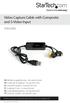 Video Capture Cable with Composite and S-Video Input SVID2USB2 DE: Bedienungsanleitung - de.startech.com FR: Guide de l'utilisateur - fr.startech.com ES: Guía del usuario - es.startech.com IT: Guida per
Wireless Bluetooth Mouse User s Guide
 Wireless Bluetooth Mouse User s Guide Thanks for purchasing this 1000dpi Bluetooth Optical Mouse. This creative and easy-to-use Bluetooth Mouse will bring you a whole new wireless life experience. System
G1W-C Dash Camera User Manual
 G1W-C Dash Camera User Manual Spy Tec www.spytecinc.com GETTING STARTED Components Features Powering Up the Device Micro SD Memory Card for Data Storage Attaching the Device to Tilting Suction Mount Menu
USB to DVI Video Adapter
 USB2DVI Instruction Manual USB to DVI Video Adapter USB 2.0 to DVI External Multi Monitor Video Adapter FCC Compliance Statement This equipment has been tested and found to comply with the limits for a
SoftRAID 5 QUICK START GUIDE. for OWC ThunderBay
 SoftRAID 5 QUICK START GUIDE for OWC ThunderBay TABLE OF CONTENTS INTRODUCTION...1 1.1 MINIMUM SYSTEM REQUIREMENTS 1.2 FEATURES 1.3 ABOUT THIS MANUAL SYSTEM SETUP...2 2.1 GETTING STARTED 2.2 INITIALIZING,
7 High-Resolution Digital Photo Frame
 TM 16-1003 User s Guide 7 High-Resolution Digital Photo Frame One demo photo included, as illustrated Please read this user s guide before using your new photo frame. Package contents Photo Frame AC Adapter
USB to VGA Adapter USB2VGAE2. Instruction Manual. USB 2.0 to VGA Multi Monitor External Video Adapter
 USB to VGA Adapter USB2VGAE2 Instruction Manual USB 2.0 to VGA Multi Monitor External Video Adapter *Please ensure that the driver installation is complete prior to the physical installation of the USB
Oscar Mouse Editor Software. User s Guide
 Oscar Mouse Editor Software (Tailor-made to Simplify the Work) User s Guide www.a4tech.com Connecting the mouse Step 1: Insert the USB mouse connector into the USB port of your computer. Step 2: Your computer
HP SuperSpeed USB 3.0 PCIe x1 Card. User Guide
 HP SuperSpeed USB 3.0 PCIe x1 Card User Guide Copyright 2010 Hewlett-Packard Development Company, L.P. The information contained herein is subject to change without notice. Microsoft, Windows, and Windows