
NetVault : Backup File System Plugin
|
|
|
- Caren York
- 10 years ago
- Views:
Transcription
1 NetVault : Backup File System Plugin Version: 7.5Product Number: NVG EN-02 version User s Guide NVG EN-02 08/23/10
2 Copyrights NetVault: Backup File System Plugin User s Guide Software Copyright 2010 BakBone Software Documentation Copyright 2010 BakBone Software This software product is copyrighted and all rights are reserved. The distribution and sale of this product are intended for the use of the original purchaser only per the terms of the License Agreement. All other product trademarks are the property of their respective owners. The NetVault: Backup File System Plugin User s Guide documentation is copyrighted and all rights are reserved. This document may not, in whole or part, be copied, photocopied, reproduced, translated, reduced or transferred to any electronic medium or machine-readable form without prior consent in writing from BakBone Software. THIS PUBLICATION IS PROVIDED AS IS WITHOUT WARRANTY OF ANY KIND, EITHER EXPRESS OR IMPLIED, INCLUDING, BUT NOT LIMITED TO, THE IMPLIED WARRANTIES OF MERCHANTABILITY, FITNESS FOR A PARTICULAR PURPOSE, OR NON- INFRINGEMENT. THIS PUBLICATION COULD INCLUDE TECHNICAL INACCURACIES OR TYPOGRAPHICAL ERRORS. CHANGES ARE PERIODICALLY ADDED TO THE INFORMATION HEREIN; THESE CHANGES WILL BE INCORPORATED INTO NEW EDITIONS OF THE PUBLICATION. BAKBONE SOFTWARE MAY MAKE IMPROVEMENTS AND/OR CHANGES IN THE PRODUCT(S) AND/OR THE PROGRAM(S) DESCRIBED IN THIS PUBLICATION AT ANY TIME BakBone, BakBone Software, NetVault, Application Plugin Module, BakBone logo, Integrated Data Protection, SmartDisk, Asempra, and FASTRecover are all trademarks or registered trademarks of BakBone Software, Inc., in the United States and/or in other countries. All other brands, products or service names are or may be trademarks, registered trademarks or service marks of, and used to identify, products or services of their respective owners. BakBone Software 9540 Towne Centre Drive, Suite 100 San Diego, California

3 Table of Contents Chapter 1: Introducing NetVault: Backup File System Plugin 7 NetVault: Backup File System Plugin At a Glance... 7 Key Benefits... 7 Feature Summary... 8 Target Audience... 8 Recommended Additional Reading... 9 Technical Support...9 Documentation Updates... 9 Chapter 2: Installing and Removing File System Plugin 11 Installing File System Plugin Installing File System Plugin on Windows and Linux/UNIX Installing File System Plugin on Mac OS X...12 Removing File System Plugin Removing File System Plugin From Windows and Linux/UNIX 13 - Removing File System Plugin From Mac OS X Chapter 3: Configuring File System Plugin 15 Configuring Default Settings Using Exclusion Lists Exclusion List Types Exclusion List Considerations Adding an Exclusion List Removing an Exclusion List Chapter 4: Backing Up Data with File System Plugin 23 Available Backup Methods Available Backup Types System State Backup... 25

4 4 Table of Contents Defining a Backup Strategy...25 Performing Full Backups Selecting Data for a Backup Setting Backup Options Finalizing and Submitting a Job Performing Incremental and Differential Backups...34 Backing up Network Shares Configuring a Network Share Configuring a Login Account for Network Share Backing up Data Performing System State Backups System State Backup Considerations...39 Stopping and Restarting a Job...40 Additional Considerations General Considerations Backing up Distributed File System (DFS) Paths Backing up Extended Attributes on NSS Volumes...44 Chapter 5: Restoring Data with File System Plugin 45 Available Restore Types...46 Restoring from a Selected Backup Selecting Data for a Restore Setting Restore Options Selecting the Restore Type Finalizing and Submitting a Job Restoring from the Latest Backup...51 Renaming or Relocating Data During Restore...52 Restoring Data to an Alternate Server Prerequisites Restore Procedure Restoring Windows System State Data System State Restore An Overview Supported Restore Methods for Active Directory Supported Restore Methods for SYSVOL Directory Prerequisites Procedure for Restoring the System State Data Restoring Cluster Database on Windows Additional Considerations for Domain Controllers...60
5 NetVault: Backup File System Plugin User s Guide 5 Additional Features Available on the Selections Tab Additional Considerations... 62
6 6 Table of Contents

7 NetVault: Backup File System Plugin User s Guide 7 Chapter 1: INTRODUCING NETVAULT: BACKUP FILE SYSTEM PLUGIN This chapter provides an overview of the NetVault: Backup File System Plugin. The information in this chapter is organized into the following topics: NetVault: Backup File System Plugin At a Glance Key Benefits Feature Summary Target Audience Recommended Additional Reading Technical Support Documentation Updates NetVault: Backup File System Plugin At a Glance Available with a standard installation of NetVault: Backup (NVBU), the File System Plugin increases confidence in the recoverability of critical file system data, and eliminates the need of writing complex backup and recovery scripts. The plugin offers a centralized console to set up, configure and create flexible backup policies that account for multiple recovery scenarios. Support for Full, Incremental and Differential Backup Types allows you to choose a preferred strategy, while the use of Volume Shadow Copy Services (VSS) guarantees consistent backups. Granular control over restores reduces downtime and increases business continuity, allowing you to recover data quickly and reliably with minimal interaction Key Benefits Increases Confidence and Reduces Risks for Critical Data The File System Plugin provides total protection to your NVBU Servers and Heterogeneous Clients without requiring you to write complex backup scripts. It offers you the flexibility to perform Full, Incremental or Differential Backups using the Standard backup method, or the Volume Shadow Copy Service (VSS) backup method on Windows. Support for System State backups on Windows makes it possible to recover an entire system in the event of a disaster. By relying on the File System Plugin to implement your backup
8 8 Chapter 1 Introducing NetVault: Backup File System Plugin policies, you can be confident that your data will be protected, and you will be able to recover exactly what is needed in the unfortunate event of a failure. Speeds up Restores and Reduces Downtime With the File System Plugin, Backup Administrators are no longer required to write scripts or execute restore commands in order to recover lost data. The point-and-click feature reduces manual steps and errors during data recovery. To maximize availability, the File System Plugin is designed for granular recoveries, allowing you to recover volumes, directories, and files at a granular level. Ensure Business Continuity with Automatic Integration of Backup Devices The File System Plugin takes advantage of NVBU's fundamental integration with disk-based devices such as NetVault: SmartDisk (NVSD) Devices, tapebased devices such as Virtual Tape Libraries (VTLs) and Shared Virtual Tape Libraries (SVTLs), and physical libraries and standalone drives. Offsite storage to tapes and disks gives you the confidence that your data is protected for disaster recovery purposes. With the File System Plugin, the administrators need not be present 24x7. Even less experienced administrators can initiate restores with the certainty that they will be performed correctly and quickly, thereby reducing downtime and improving business continuity Feature Summary Protection for Servers and Clients Standard and VSS backup methods Full, Incremental and Differential Backups while data is online and accessible Restores of volumes, partitions and files at a granular level Rename of files and directories during restores Restores to alternate location Restores to alternate NVBU Client System State backup and restore on Windows Target Audience This guide is intended for Backup Administrators and other technical personnel who are responsible for designing and implementing a backup strategy for the organization. A good understanding of the operating systems under which the NetVault: Backup Server and Clients are running is assumed.

9 NetVault: Backup File System Plugin User s Guide Recommended Additional Reading NetVault: Backup Installation Guide This guide provides complete details on installing the NVBU Server and Client software. NetVault: Backup Administrator s Guide This guide describes how to use NVBU and provides comprehensive information on all NVBU features and functionality. NetVault: Backup Configuration Guide This guide explains how to change the preferences and default settings for NVBU. NetVault: Backup Command Line Interface Reference Guide This guide provides detailed description of the command line utilities. You can download these guides from the BakBone website at the following address: Technical Support BakBone Software is dedicated to providing friendly, expert advice to NetVault customers. Our highly trained professionals are available to answer your questions, offer solutions to your problems and generally help you make the most of your NetVault purchase. Log on to our web site for more information: Documentation Updates For the latest documentation updates, refer to the BakBone Software Knowledge Base. BakBone's Knowledge Base article for File System Plugin v can be found at the following link:
10 10 Chapter 1 Introducing NetVault: Backup File System Plugin

11 NetVault: Backup File System Plugin User s Guide 11 Chapter 2: INSTALLING AND REMOVING FILE SYSTEM PLUGIN This chapter describes the procedures for installing and removing the File System Plugin. The information in this chapter is organized into the following topics: Installing File System Plugin Installing File System Plugin on Windows and Linux/UNIX Installing File System Plugin on Mac OS X Removing File System Plugin Removing File System Plugin From Windows and Linux/UNIX Removing File System Plugin From Mac OS X Installing File System Plugin Typically, the File System Plugin does not require a separate installation procedure. It gets installed on the NVBU Server and Client during a standard NVBU installation or upgrade procedure. A standalone installation might be required in the following situations: To reinstall the plugin if it was inadvertently removed. To upgrade the plugin if BakBone distributes a standalone patch for it. Note: Before performing an upgrade, ensure that there are no active jobs using the File System Plugin, including file-level jobs for the NetVault: Backup VMware and Hyper-V Plugins. The following sections describe the procedures for performing a standalone reinstallation or upgrade of the File System Plugin.

12 12 Chapter 2 Installing and Removing File System Plugin Installing File System Plugin on Windows and Linux/ UNIX To reinstall or upgrade the File System Plugin on Windows and Linux/UNIX platforms, perform the following steps: 1. Start NVBU Console. 2. Click Client Management on the toolbar or Large Buttons panel. Alternatively, on the Administration menu, click Client Management. 3. Right-click the Server or Client under Clients, and select Install Software. 4. In the browse window, navigate to the location of the.npk installation file for the File System Plugin (on the installation CD or the directory to which the file was downloaded from BakBone Software's web site). The plugin version shipped with NVBU resides in the.../packages/standard directory (where... represents the NVBU installation directory). 5. Select the file named win-x-x-x-x.npk on Windows and nvf-x-x-x-x.npk on UNIX/Linux (where x-x-x-x represents the version and build number), and click Open to begin the plugin installation. Upon completion, a message will be displayed Installing File System Plugin on Mac OS X To reinstall or upgrade the File System Plugin on Mac OS X, perform the following steps: 1. Start NVBU Administrator. 2. On the NVBU Servers pane, click Client Management. 3. Right-click the Server or Client under Current Client Set, and select Install Software. 4. In the browse window, navigate to the location of the.npk installation file for the File System Plugin (on the installation CD or the directory to which the file was downloaded from BakBone Software's web site). The plugin version shipped with NVBU resides in the.../packages/standard directory (where... represents the NVBU installation directory). 5. Select the file named nvf-x-x-x-x.npk (where x-x-x-x represents the version and build number), and click Install to begin the plugin installation. Upon completion, a message will be displayed.

13 2.2.0 Removing File System Plugin NetVault: Backup File System Plugin User s Guide 13 The following sections describe the procedures for removing the File System Plugin. Important: BakBone recommends that you do not remove the File System Plugin unless instructed by BakBone Technical Support Removing File System Plugin From Windows and Linux/UNIX To remove the File System Plugin from Windows and Linux/UNIX platforms, perform the following steps: 1. Start NVBU Console. 2. Click Client Management on the toolbar or Large Buttons panel. Alternatively, on the Administration menu, click Client Management. 3. Right-click the Server or Client under Clients, and select Remove Software. 4. In the Remove Software window, select File System Plugin in the list of plugins and click Remove. 5. In the confirmation dialog, click OK Removing File System Plugin From Mac OS X To remove the File System Plugin from Mac OS X, perform the following steps: 1. Start NVBU Administrator. 2. On the NVBU Servers pane, click Client Management. 3. Right-click the Server or Client under Current Client Set, and then select Remove Software. 4. In the Remove Software window, select File System Plugin in the list of plugins and click Remove. 5. In the confirmation dialog, click OK.

14 14 Chapter 2 Installing and Removing File System Plugin

15 NetVault: Backup File System Plugin User s Guide 15 Chapter 3: CONFIGURING FILE SYSTEM PLUGIN This chapter describes how to configure the default settings for File System Plugin. The information in this chapter is organized into the following topics: Configuring Default Settings Using Exclusion Lists Exclusion List Types Exclusion List Considerations Adding an Exclusion List Removing an Exclusion List Configuring Default Settings To configure the default settings for the File System Plugin, perform the following steps: 1. Open the configuration window as described below: Windows and Linux/UNIX Using NVBU Configurator Start NVBU Configurator. Click the Plugin Options tab, and then click the File System Plugin sub-tab. Using Remote Configurator Open the NVBU Client Management window. Right-click the NVBU Server under Clients, and select Configure. On the Remote Configurator, click the Plugin Options tab, and then click the File System Plugin sub-tab. Using NVBU Console Open the NVBU Backup window. On the Selections tab open the NVBU Server or Client node. Right-click File System, and select Configure to open the Configure window. Mac OS X Using NVBU Settings Start NVBU Administrator, and load the NVBU Settings pane. Click Plugin Options, and then click the File System Plugin tab. Using NVBU Administrator Start NVBU Administrator, and load the Backup Job pane. On the Selections tab open the NVBU Server or Client node. Right-click File System, and select Configure to open the Configure window.

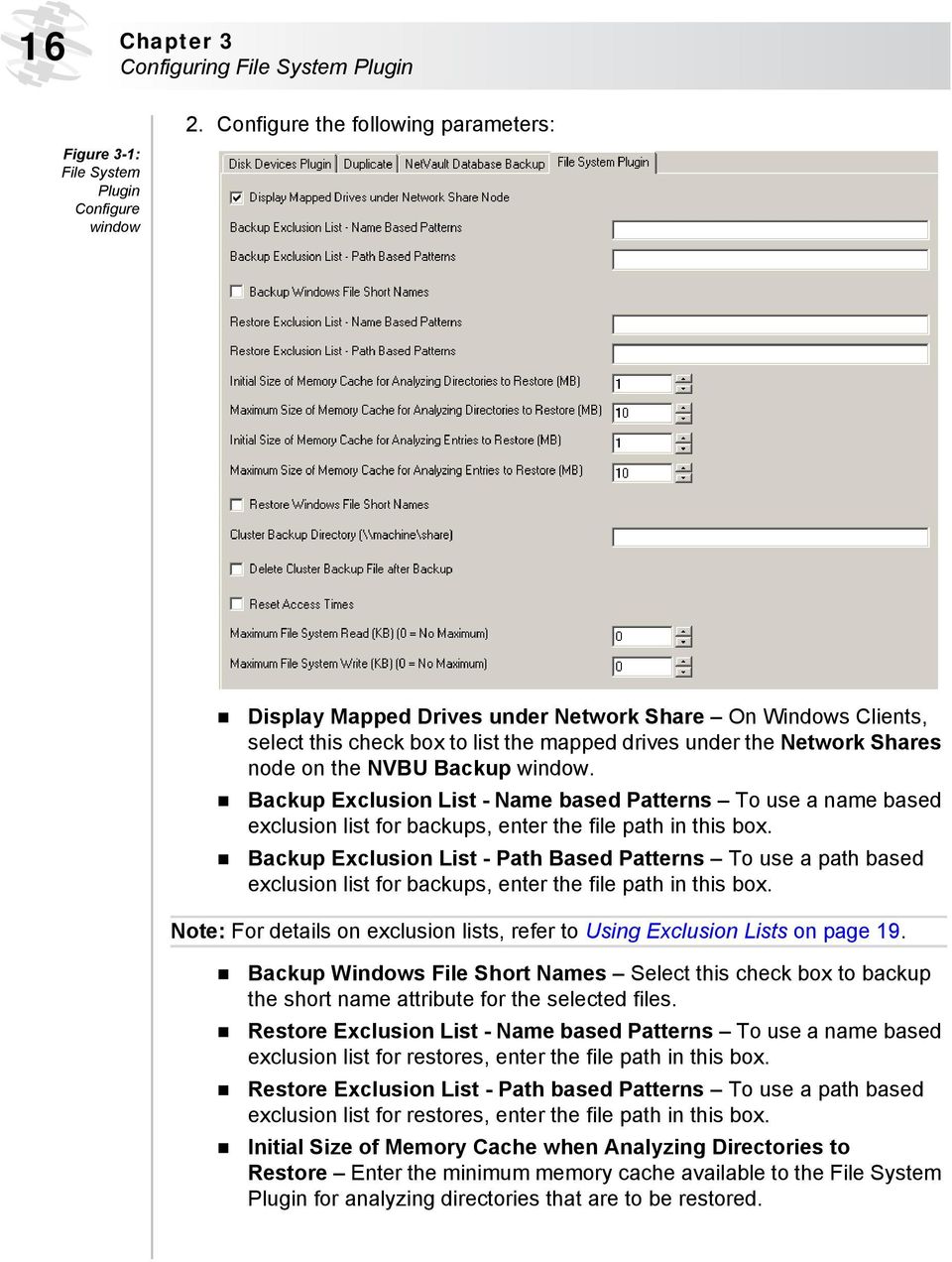
16 16 Chapter 3 Configuring File System Plugin Figure 3-1: File System Plugin Configure window 2. Configure the following parameters: Display Mapped Drives under Network Share On Windows Clients, select this check box to list the mapped drives under the Network Shares node on the NVBU Backup window. Backup Exclusion List - Name based Patterns To use a name based exclusion list for backups, enter the file path in this box. Backup Exclusion List - Path Based Patterns To use a path based exclusion list for backups, enter the file path in this box. Note: For details on exclusion lists, refer to Using Exclusion Lists on page 19. Backup Windows File Short Names Select this check box to backup the short name attribute for the selected files. Restore Exclusion List - Name based Patterns To use a name based exclusion list for restores, enter the file path in this box. Restore Exclusion List - Path based Patterns To use a path based exclusion list for restores, enter the file path in this box. Initial Size of Memory Cache when Analyzing Directories to Restore Enter the minimum memory cache available to the File System Plugin for analyzing directories that are to be restored.
17 NetVault: Backup File System Plugin User s Guide 17 Maximum Size of Memory Cache when Analyzing Directories to Restore Enter the maximum memory cache available to the File System Plugin for analyzing directories that are to be restored. Initial Size of Memory Cache when Analyzing Entries to Restore Enter the minimum memory cache available to the File System Plugin for analyzing entities that are to be restored. Maximum Size of Memory Cache when Analyzing Entries to Restore Enter the maximum memory cache available to the File System Plugin for analyzing entities that are to be restored. Restore Windows File Short Names Select this check box on Windows Clients to restore the short name attributes for a file. To use this option, you must backup the short name attributes by selecting Backup Windows File Short Names attributes configuration parameter. Cluster Backup Directory In a Windows cluster set up, enter the share location to store the cluster database backup file. Use the format \\<machine name>\<share name>. Delete Cluster Backup File From Disk after Backup During a cluster-based backup, the File System Plugin copies a backup file of the cluster database to the specified share directory. Leave this check box selected to delete this copy when the backup completes. Clear the check box if you want to retain the copy. Reset Access Times By default, the File System Plugin does the following during backups: Update the Access Time for files that are backed up Use the Change Time to select files and directories for Incremental and Differential Backups When the Reset Access Times check box is selected, this behavior changes and the File System Plugin does the following: Reset the Access Time for files included in the backup after the file is accessed Use the Modify Time to select files and directories for Incremental and Differential backups Note: On Linux/Unix, resetting the Access Time will cause the Change Time to be updated. Therefore, the File System Plugin uses the Modify Time for Incremental and Differential Backups instead of Change Time.
18 18 Chapter 3 Configuring File System Plugin As a result of using Modify Time, the files or directories with attributeonly changes are not selected for Incremental or Differential Backups on Linux/UNIX. Examples of attributes-only changes include the following: Changing file mode/permissions Changing file owner Changing file group Hard-linking to the file Changing the file ACL Changing the extended attributes These changes update the Change Time (inode ctime) and would have been included in a backup if the Reset Access Times check box is not selected. Note: Currently, the File System Plugin cannot reset the Access Time on file systems that save file times in sub-second form. These file systems include NTFS, ext4, ZFS, and HFS (Mac OS X 10.6). However, the plugin will continue to use the Modify Time instead of the Change Time for Incremental and Differential Backups. Maximum File System Read This parameter can be used to limit the maximum amount of data that can be read at a time. The maximum value is specified in KB. Retain the default value (zero) if you do not want to set any maximum read limit. Maximum File System Write This parameter can be used to limit the maximum amount for data that can be written at a time. The maximum value is specified in KB. Retain the default value (zero) if you do not want to set any maximum write limit. Important: Changing the default values for the Maximum File System Read/ Write parameters could result in a performance degradation. The backup and restore speeds may slow considerably. BakBone recommends that you change these settings only when network constraints demand. 3. Click OK to save the settings.
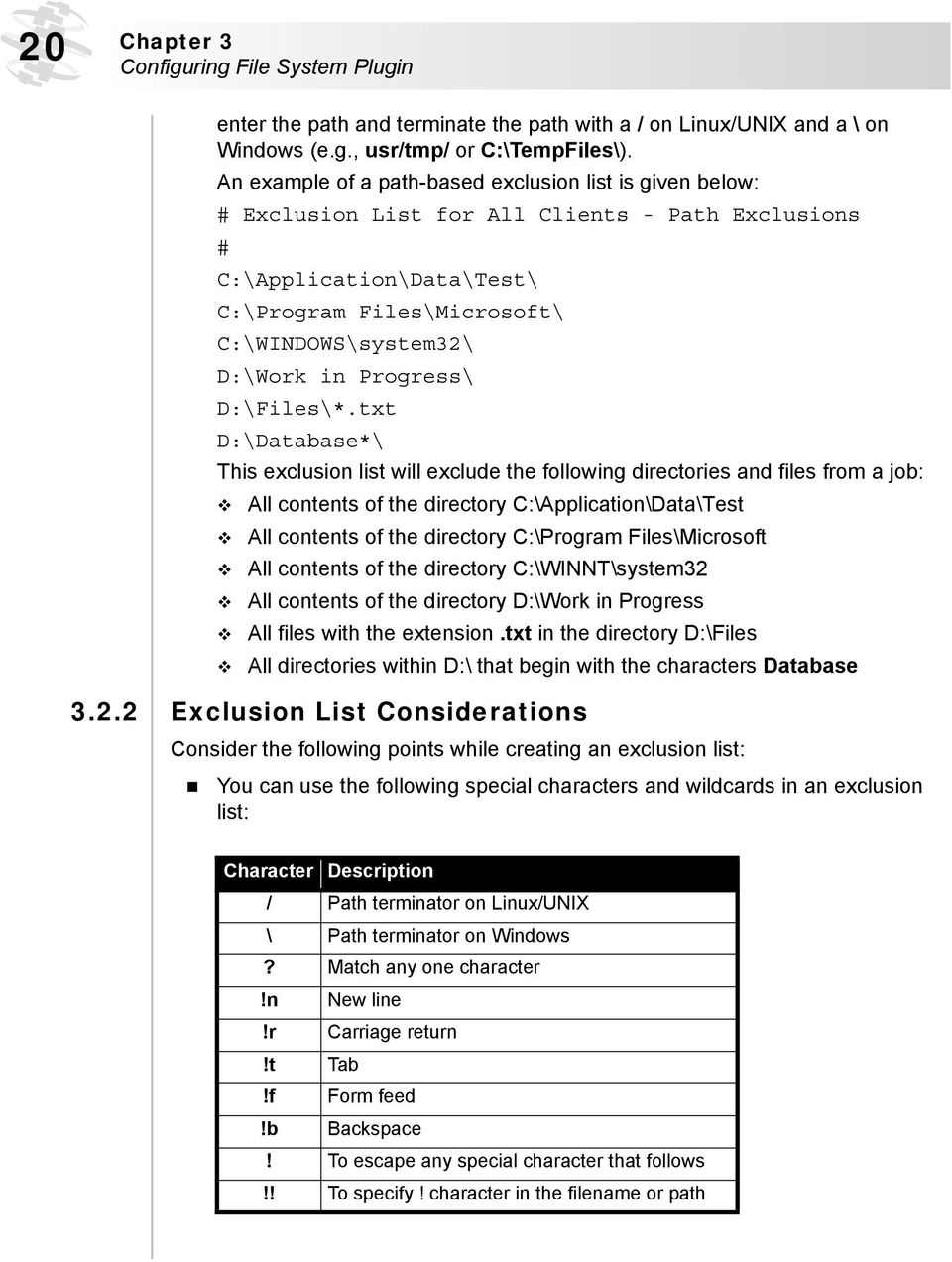
19 3.2.0 Using Exclusion Lists NetVault: Backup File System Plugin User s Guide 19 Exclusion Lists are basically text files that contain the list of files and directories to be excluded during a job. You can use any text editor to create this list. The file must be saved on the target Heterogeneous Client to which it is applied. The exclusion lists must be saved in the following formats: Linux/UNIX Multi-byte text format Windows Unicode text format Exclusion List Types The File System Plugin supports the following types of Exclusion Lists: Name-Based Exclusion List Use this exclusion list to omit particular files that match the name pattern. For example, if you add *.tmp in an exclusion list, all files with extension.tmp are omitted during backup. To exclude directory paths, terminate the path with a / on Linux/UNIX and a \ on Windows. For example, if you add usr/tmp/ or C:\TempFiles\ in the list, these directories and their contents are excluded. An example of a name-based exclusion list is given below: # Name-Based Exclusion List # *.htm tmp/ mp3_player.exe *.mp3 install?.exe test*.* This exclusion list will exclude the following directories and files from a job: All files with the extension.htm Any directory named tmp A specific file named mp3_player.exe Any file with the extension.mp3 Any file named install?.exe, where? is any single character All files that begin with the characters test (e.g., testdata.doc; however, a file named atest1.txt will not be excluded) Path-Based Exclusion List Use this list to omit specific files and directories. Enter the file paths to omit files in the specified path. For example, usr/backup.tar or C:\MyFiles\*.tmp. To exclude a directory and its contents,

20 20 Chapter 3 Configuring File System Plugin enter the path and terminate the path with a / on Linux/UNIX and a \ on Windows (e.g., usr/tmp/ or C:\TempFiles\). An example of a path-based exclusion list is given below: # Exclusion List for All Clients - Path Exclusions # C:\Application\Data\Test\ C:\Program Files\Microsoft\ C:\WINDOWS\system32\ D:\Work in Progress\ D:\Files\*.txt D:\Database*\ This exclusion list will exclude the following directories and files from a job: All contents of the directory C:\Application\Data\Test All contents of the directory C:\Program Files\Microsoft All contents of the directory C:\WINNT\system32 All contents of the directory D:\Work in Progress All files with the extension.txt in the directory D:\Files All directories within D:\ that begin with the characters Database Exclusion List Considerations Consider the following points while creating an exclusion list: You can use the following special characters and wildcards in an exclusion list: Character Description / Path terminator on Linux/UNIX \ Path terminator on Windows? Match any one character!n New line!r Carriage return!t Tab!f Form feed!b Backspace! To escape any special character that follows!! To specify! character in the filename or path
21 NetVault: Backup File System Plugin User s Guide 21 Spaces are not ignored. Names are case-sensitive on Linux/UNIX but not on Windows. To insert comments use # at the beginning of the each line. BakBone recommends that you do not include any System State components on Windows, especially Windows File Protection and SYSVOL files on a Domain Controller. Exclusion lists cannot contain files or paths with Non-ASCII characters. If you include such entities, the backups might fail Adding an Exclusion List Exclusion lists are added globally for all backup and restore jobs on the target Heterogeneous Client. To configure an exclusion list on a Client, perform the following steps: 1. Open the backup window as described below: NVBU Console Start NVBU Console. Click Backup on the toolbar or Large Buttons panel to open the NVBU Backup window. Alternatively, on the Operations menu, click Backup. NVBU Administrator on Mac OS X Start NVBU Administrator. On the NVBU Operations pane, click Jobs. Then, click New Backup Job to load the Backup Job pane. 2. On the Selections tab, open the target Client node. 3. Right-click the File System node in the list of plugins and select Configure. 4. In the Configure window, configure the following parameters: File Containing a List of Name-Only Patterns to Exclude from Backups To use a name based exclusion for backups, enter the file path in this box. File Containing a List of Name-Only Patterns to Exclude from Restores To use a name based exclusion list for restores, enter the file path in this box. File Containing a List of Path Based Patterns to Exclude from Backups To use a path based exclusion list for backups, enter the file path in this box. File Containing a List of Path Based Patterns to Exclude from Restores To use a path based exclusion list for restores, enter the file path in this box. 5. Click OK to apply the settings.
22 22 Chapter 3 Configuring File System Plugin Note the following: The File System Plugin ignores invalid entries in an exclusion list and generates a log message for such entries. The File System Plugin excludes the file or directory named in an exclusion list, even if it is present in an inclusion list or selected explicitly on the Selections tab. The plugin logs warning messages for such entries and the resultant job status is Completed with Warnings. However, if the excluded files or directories are child nodes of parent nodes that are explicitly included, then the plugin only generates standard log messages Removing an Exclusion List To remove an exclusion list for a Client, perform the following steps: 1. Open the backup window as described below: NVBU Console Start NVBU Console, and open the NVBU Backup window. NVBU Administrator on Mac OS X Start NVBU Administrator, and load the Backup Job pane. 2. On the Selections tab, open the target Client node. 3. Right-click the File System node in the list of plugins and select Configure. 4. In the Configure window, configure the following parameters: Backup Exclusion List - Name based Patterns To remove a name based exclusion list for backups, clear this box. Backup Exclusion List - Path Based Patterns To remove a path based exclusion list for backups, clear this box. Restore Exclusion List - Name based Patterns To remove a name based exclusion list for restores, clear this box. Restore Exclusion List - Path based Patterns To remove a path based exclusion list for restores, clear this box. 5. Click OK to apply the settings.
23 NetVault: Backup File System Plugin User s Guide 23 Chapter 4: BACKING UP DATA WITH FILE SYSTEM PLUGIN This chapter describes how to use the File System Plugin to perform backups. The information in this chapter is organized into the following topics: Available Backup Methods Available Backup Types System State Backup Defining a Backup Strategy Performing Full Backups Selecting Data for a Backup Using Inclusion Lists Setting Backup Options Selecting the Backup Method Selecting the Backup Type Configuring File System Plugin Backup Options Finalizing and Submitting a Job Submitting a Job from NVBU Console Submitting a Job from NVBU Administrator on Mac OS X Performing Incremental and Differential Backups Backing up Network Shares Configuring a Network Share Configuring a Login Account for Network Share Backing up Data Performing System State Backups System State Backup Considerations Stopping and Restarting a Job Additional Considerations General Considerations Backing up Distributed File System (DFS) Paths Backing up Extended Attributes on NSS Volumes
24 24 Chapter 4 Backing Up Data with File System Plugin Available Backup Methods The File System Plugin supports the following backup methods: Standard Backup Method The Standard Backup method can be used for native file system backups. This method is supported on all operating systems, and is the only available method on Linux/UNIX platforms. Volume Shadow Copy Service (VSS) Backup Method The VSS Backup method is supported on Windows versions that support VSS. It uses the VSS technology to create consistent point-in-time copies of data known as shadow copies. The shadow copies have two primary advantages: They allow the creation of consistent backups of a volume, ensuring that the contents cannot change while the backup is being made. They avoid problems of file locking. By creating a read-only copy of the volume, backup programs are able to access every file while minimizing interruption to other applications writing to those same files Available Backup Types The File System Plugin provides the following backup types to backup individual files and directories: Full Backup This method backs up all the selected files and folders. Full Backups take longer to complete and consume more backup media. However, Full Restores are faster since the plugin only requires to restore a single saveset. A Full Backup serves as the base for the future Incremental and Differential Backups. Incremental Backup This method backs up files that were created or modified since the last Full, Incremental or Differential Backup. Incremental backups consume minimum storage space and are quicker to perform. However, data recovery takes longer and may require the plugin to access several savesets depending on the number of Incremental savesets that must be restored. Differential Backup This method backs up files that were created or modified since the last Full Backup. Differential Backups speed up recovery since the plugin is only required to restore two savesets. However, they consume more storage space and take longer than the Incremental Backups. The Differential Backups duplicate the data backed up by previous Incremental or Differential Backups.
25 4.3.0 System State Backup NetVault: Backup File System Plugin User s Guide 25 System State Backup is only supported on Windows. It backs up critical system data which is essential to recover a functional system in the event of a system failure. Components that comprise the system state include the following: Registry COM+ Class Registration Database Boot files, including the system files System files that are under Windows File Protection Certificate Services Database (on a Certification Services Server) Active Directory (on a Domain Controller) SYSVOL (on a Domain Controller) Cluster Service Information (in a cluster setup) IIS Metadirectory (if it is installed) The VSS backup method is recommended for a consistent backup of the System State data. Regardless of the backup type selected, certain System State components are always backed up in full. BakBone recommends that you back up and restore system state components together. Note: In a cluster environment, you may require the Disk Signature information during a System State restore if the shared cluster disks are changed after a backup. The Disk Signature information can be obtained using Microsoft's dumpcfg.exe tool. Consult the relevant Microsoft documentation for more information on dumpcfg.exe Defining a Backup Strategy A well-designed backup strategy helps you recover from the damages caused by failure, and resume normal operations as quickly as possible. Before you start backing up your data, ensure that a good strategy is in place that safeguards your data against various failure modes, such as media failure, data corruption, user error, and complete loss of a data centre. Some backup sequences are described below to offer you guidelines. Full Backups Only A strategy comprising Full Backups only can only be considered if one or more of the following conditions is true: The amount of data to be backed up is small Backup window is not an issue Storage media is not a constraint
26 26 Chapter 4 Backing Up Data with File System Plugin You can schedule Full Backups every night, or every <n> hours depending on the frequency of updates. In the event of a failure, the File System Plugin only requires to restore a single saveset. Full + Incremental Backups For quicker backups and minimum use of storage media, choose a Full + Incremental backups strategy. For example, schedule Full Backups every Sunday and Incremental Backups every day or every <n> hours depending on the frequency of updates. In the event of a failure, the plugin must restore data from the recent Full Backup and each Incremental in the sequence. The restore might take longer if several Incremental savesets have to be restored. For example, if the failure occurs on Saturday, the restore procedure would include restoration of Full Backup taken on Sunday and Incremental Backups taken from Monday through Friday. Full + Differential Backups For quicker restores and reduced media usage, choose Full + Differential Backup strategy. For example, schedule Full Backups every Sunday and Differential Backups every day or every <n> hours depending on the frequency of updates. In the event of a failure, restore will be a two-step process consisting of restoration of the savesets for the Full Backup and the recent Differential Backup. Windows System State Backup For System State backup on Windows, you can choose either of the following strategies: Backup only System State Backup C Drive + System State Backing up the System State with C drive has the following advantages: It eliminates duplication of the system files in a saveset. If you run two separate jobs, the system files will be included in both savesets. You can use this backup to perform a disaster recovery. The VSS method is recommended for a consistent backup of the System State data. Policy-based Backups At enterprise-level, you can define a policy to backup the root directory on Linux/UNIX platforms, or the Fixed Drives + System State on Windows and schedule the job on multiple clients. For details on Policy Management refer to the NetVault: Backup Administrator s Guide.
27 4.5.0 Performing Full Backups NetVault: Backup File System Plugin User s Guide 27 The procedure for performing Full Backups with the File System Plugin can be divided into the following steps: Selecting Data for a Backup Setting Backup Options Finalizing and Submitting a Job These steps are described in the following sections Selecting Data for a Backup To select the data for a backup, perform the following steps: 1. Open the backup window as described below: NVBU Console Start NVBU Console. Click Backup on the toolbar or Large Buttons panel to open the NVBU Backup window. Alternatively, on the Operations menu, click Backup. NVBU Administrator on Mac OS X Start NVBU Administrator. On the NVBU Operations pane, click Jobs. Then, click New Backup Job to load the Backup Job pane. 2. On the Selections tab, open the NVBU Server or Heterogeneous Client node. To open a node on the Selections tab, you can select any of the following methods: NVBU Console Double-click the node Right-click the node, and select Open NVBU Administrator on Mac OS X Double-click the node Click the associated disclosure triangle Right-click or Ctrl-click the node, and select Open 3. Locate File System in the list of plugins. Open this node to display the following nodes: Linux/UNIX (including Mac OS X) / (the root node)
28 28 Chapter 4 Backing Up Data with File System Plugin Figure 4-1: Selections tab for Windows version Windows Fixed Drives Removable Drives Network Shares For details, refer to Backing up Network Shares on page 36. System State For details, refer to Performing System State Backups on page Select the required data as described in the following steps: a. Depending on the Client O/S, do the following: Linux/UNIX To backup the entire system, select the root node. Windows To backup the entire system, select the Fixed Drives node. To backup data on one or more removable drives, select the Removable Drives node. b. For selective backup, open the parent nodes to display the directory tree. Browse through the directory tree, and locate the files you want to backup. To include a file or a directory, select the corresponding check box. Selecting a parent node automatically selects all the files and folders within. c. To exclude a file or folder within a selected parent node, click the corresponding check box to replace the check mark with a cross. Note: The Novell Storage Service (NSS) volumes are mounted to the /media/nss/ directory. To select the files and directories on NSS volumes, navigate to the /media/nss/ directory. 5. To implement an Incremental or a Differential Backup strategy, save the selected data into a Backup Selection Set. For details on creating a selection set, refer to the NetVault: Backup Administrator s Guide.
29 NetVault: Backup File System Plugin User s Guide a Using Inclusion Lists Inclusion Lists are basically text files that contain the list of files and directories to be included in a job. You can use any text editor to create this list. The file must be saved on the target client to which it is applied. An inclusion list must be saved in the following formats: Linux/UNIX Multi-byte text format Windows Unicode text format Inclusion List Considerations When generating an inclusion list, consider the following points: The maximum size of an inclusion list depends on how much memory is available to the backup process while it is running; it depends on the system load at the time of backup. The list can still contain tens of thousands of entries on a small system to hundreds of thousands of entries on a 64-bit system with large memory configuration. Enter the file paths for the file or directory that is to be included in a backup. The inclusion list does not support wildcards. Enter one inclusion per line. Inclusion lists cannot contain files or paths with Non-ASCII characters. If you include such entities, the backups might fail. Adding an Inclusion List Inclusion lists are added on a per-job basis. To add an inclusion list for a job, perform the following steps: 1. Open the backup window as described below: NVBU Console Start NVBU Console, and open the NVBU Backup window. NVBU Administrator on Mac OS X Start NVBU Administrator, and load the Backup Job pane. 2. On the Selections tab, open the target Client node. 3. Open the File System node. 4. Right-click the File System node in the list of plugins and select Show Inclusion Lists. 5. Open the newly added Inclusion List node.
30 30 Chapter 4 Backing Up Data with File System Plugin Figure 4-2: Inclusion List for a backup 6. Choose one of the following methods to add the inclusion list: a. Select the File From the Directory Tree 1. Open the Browse for Inclusion List node. 2. Open the root node or the Fixed Drives node, and then the relevant drive node. Open the nodes further to display the directory that contains the inclusion list. 3. Select the check box corresponding to the inclusion list. b. Specify the File Path 1. Right-click the Specify Inclusion Files node, and select Add Inclusion Lists. 2. In the Enter Path to Inclusion File window, configure the following parameter: Path In the Path box, enter the file path for the inclusion file. 3. Click OK. Removing an Inclusion List To remove an inclusion list added to a job, perform the following steps: 1. Open the backup window as described below: NVBU Console Start NVBU Console, and open the NVBU Backup window. NVBU Administrator on Mac OS X Start NVBU Administrator, and load the Backup Job pane. 2. On the Selections tab, open the target Client node. 3. Open the File System node. 4. Open the Inclusion List node. 5. Right-click the Specify Inclusion Files node, and select Show Inclusion Files. 6. Clear the check box for the inclusion file.
31 4.5.2 Setting Backup Options This step includes the following tasks: Selecting the Backup Method Selecting the Backup Type Configuring File System Plugin Backup Options NetVault: Backup File System Plugin User s Guide a Selecting the Backup Method Click the Backup Options tab, and configure the following parameter: Figure 4-3: Backup Options tab Backup Method Under Backup Method, select one of the following options: Standard For native file system backups, select Standard. This is the only supported method on Linux/UNIX platforms. Volume Shadow Copy Service (VSS) On Windows versions that support VSS, select this option for a VSS based backup b Selecting the Backup Type Under Backup Type, configure the following parameter: Full Select the Full option.
32 32 Chapter 4 Backing Up Data with File System Plugin c Configuring File System Plugin Backup Options Under Backup Options, configure the following parameters: Check For Files Being Modified During Backup To mark files modified during backup as in flux, leave this check box selected. During restore the files in flux state are not restored by default. You can override the default action by selecting the Restore Files Modified During Backup option on the Restore Options tab. Backup through Mount Points (Windows) / Backup through Remote Mounts (Linux/UNIX) On Windows, select the Backup through Mount Points check box to backup data on volumes mounted on an NTFS folder. On Linux/UNIX, select the Backup through Remote Mounts check box to backup the data on the mounted file systems. Check for and Skip Locked Mandatory Locking Files (Linux/UNIX) On Linux/UNIX systems, select the Check for and Skip Locked Mandatory Locking Files check box to check whether mandatory locking is enabled on the system or not. If mandatory locking is enabled, the File System Plugin tries to lock the file before backing it up. A file which cannot be locked is not backed up. For example, the File System Plugin will not be able to lock a file which is locked by another application. As a result, this file will not be backed up. Enable Restartable Backup The File System Plugin provides the ability to stop a running job and resume it any time later from the point the backup was stopped. To use this feature, you must configure a job as restartable. When you stop the job, the plugin generates an index for the files backed up and writes it to the backup media and the NVDB. When you restart the job later, the plugin runs an Incremental job to backup the remaining files and folders. A backup can be stopped and resumed from the NVBU Jobs window. For details on stopping and resuming a backup job, refer to Stopping and Restarting a Job on page 40. To configure a job as restartable, select the Enable Restartable Backup check box. Only jobs that are defined using a backup selection set can be configured as restartable. Path to Backup Log To generate a Backup Log file, enter the filename in the Path to Backup Log box. The log contains the list of all files selected for a backup. The files that are backed up successfully are marked with an o while the others are marked with an x. You can use this option with an Incremental Backup to find out which new/changed files have been actually backed up. If you specify an existing filename, the File System Plugin will overwrite the file. The Backup Log is a CSV file with column headers. The columns include file details, such as file size, date/time modified, and file type.
33 NetVault: Backup File System Plugin User s Guide 33 Note: The File System plugin contains certain platform-specific backup options. Do not apply a Backup Options Set created for a Windows Client to a Linux/UNIX Client Finalizing and Submitting a Job This section describes the procedures for finalizing and submitting a job from NVBU Console and NVBU Administrator on Mac OS X a Submitting a Job from NVBU Console To finalize and submit a backup job from NVBU Console, perform the following steps. 1. Click the Schedule, Target and Advanced Options tabs, and configure the required options. These options are common to all NVBU plugins. For details on configuring these options, refer to the NetVault: Backup Administrator s Guide. 2. Enter a title for the job in the Job Title box at the top right corner of the NVBU Backup window. Specify a detailed title that allows you to easily identify the job for monitoring its progress or restoring data. 3. Click Submit on the toolbar. Alternatively, on the Accept menu, click Submit Backup. To monitor the job progress and view the logs, open the NVBU Jobs and the NVBU Logs windows, respectively. For details on these functions, refer to the NetVault: Backup Administrator s Guide. Note: If a target file is open, the backup may Complete with Warnings. In such cases, the following message will appear in the logs The process cannot access the file because it is being used by another process. This problem often occurs when the system files are selected on Windows. It can be avoided by choosing the VSS backup method on Windows platforms b Submitting a Job from NVBU Administrator on Mac OS X To finalize and submit a backup job from NVBU Administrator on Mac Os X, perform the following steps: 1. Click the Schedule, Target and Advanced Options tabs, and configure the required options. These options are common to all NVBU plugins. For details on configuring these options, refer to the NetVault: Backup Administrator s Guide for Mac OS X. 2. Click Submit at the bottom-right corner of the Backup Job pane.
34 34 Chapter 4 Backing Up Data with File System Plugin 3. In the job list dialog, configure the following parameters: Job Name Enter a title for the job in the Job Name box. Specify a detailed title that allows you to easily identify the job for monitoring its progress or restoring data. Submit for Scheduling Ensure this check box is selected. 4. Click OK. A message along with the Job ID will be displayed. Click OK to close this dialog. To monitor the job progress and view the logs, load the Jobs and the Logs panes, respectively. For details on these functions, refer to the NetVault: Backup Administrator s Guide for Mac OS X Performing Incremental and Differential Backups To create an Incremental or a Differential Backup, perform the following steps: 1. Open the backup window as described below: NVBU Console Start NVBU Console. Click Backup on the toolbar or Large Buttons panel to open the NVBU Backup window. Alternatively, on the Operations menu, click Backup. NVBU Administrator on Mac OS X Start NVBU Administrator. On the NVBU Operations pane, click Jobs. Then, click New Backup Job to load the Backup Job pane. 2. On the Selections tab, open the NVBU Server or Client node. 3. Locate File System in the list of plugins and open this node. 4. Load the Backup Selection Set as described in the following steps: a. Click Load under Backup Selection Set at the bottom of the tab. b. Select the required set in the Load Backup Selection Set list. c. Click OK to apply the selections to the current job. 5. Click the Backup Options tab, and configure the following parameters: Backup Method Under Backup Method, select the Standard or Volume Shadow Copy Service (VSS) backup method that was used for the original Full Backup. The File System Plugin does not allow you to combine Standard and VSS backup methods in a single backup sequence. Backup Type Under Backup Type, select one of the following options: Incremental Select this option to back up files that were created or modified since the last Full, Incremental or Differential Backup. Differential Select this option to back up files that were created or modified since the last Full Backup.
35 NetVault: Backup File System Plugin User s Guide 35 Ignore Archive Bit On Windows, the archive bit helps determine whether or not a file has been modified since the last backup. The archive bit is set to 1 if the file has changed, and it is set to 0 if the file has not changed. By default, the File System Plugin includes files for which the archive bit is set to 1, and clears the bit after backup. Regardless of the state of the archive bit, the File System Plugin backs up a file if certain information has changed, such as the file size or last modified time, since the previous backup. Note: The archive bit is not a clear indication that a file has changed, only that the bit has been set. Some applications intentionally modify the archive bit in a way that is not consistent with changes to the file. To ignore the archive bit settings and use only the file size, last update date, etc., for selecting files, select the Ignore Archive Bit check box. BakBone recommends that you only select this option under the following conditions: Another program is changing the state of the archive bit causing the File System Plugin to backup unnecessary files or folders. NVBU can only access the files for a backup and cannot clear the archive bit settings after backup because of access rights violation. Note: If the Ignore Archive Bit check box is selected, files and directories with only Discretionary Access Control List (DACL), System Access Control List (SACL) or Owner Attribute changes are not included in the backup. Do not select this option if you want to backup files with such attribute-only changes. 6. Configure the remaining backup options. For details, refer to Configuring File System Plugin Backup Options on page Complete and submit the job. For details, refer to Finalizing and Submitting a Job on page 33.
36 36 Chapter 4 Backing Up Data with File System Plugin Backing up Network Shares This section describes the procedure for network share backups. Currently the network share backup support is limited to only Windows network shares. Problems might be encountered if you use this feature to backup CIFS-compatible shares such as Samba, Snap Appliance Filers or Mac OS X Shares. This includes the inability to backup files with certain filename encoding or lengths, changing the filename while backing them up, or not restoring the permissions correctly. The procedure for backing up a network share on a non-nvbu Client can be divided into the following steps: Configuring a Network Share Configuring a Login Account for Network Share Backing up Data These steps are described in the following sections. Note: When running Incremental Backups of network shares using the File System Plugin, the user that has been configured to connect to a particular share must be given Change privileges to the shared folder. Failure to so will cause Incremental Backup job instances to repeatedly backup modified files, as the File System Plugin will be unable to update the necessary file attribute to indicate that the backup read the file successfully. Potentially, Incremental Backups will backup all share files repeatedly Configuring a Network Share Figure 4-4: Add New Network Share window To backup a shared folder on a non-nvbu Client, you must first configure a network share on an NVBU Client from which the data is to be backed up. To accomplish this, perform the following steps: 1. Open the Backup window. 2. Open the Client from which you want to backup the shared network drives. 3. Locate File System in the list of plugins and open this node. 4. Right-click the Network Shares node and select Add Network Share. 5. In the Add New Network Share window, configure the following parameter: Share Name Enter the file path for the shared drive in the following format: \\<IP Address or Resolvable Network Name>\<Share Name>\
37 NetVault: Backup File System Plugin User s Guide Click Add to add the shared folder to the Network Shares node Configuring a Login Account for Network Share Figure 4-5: Connection Details window To configure a login account in order to access a network share, perform the following steps: 1. On the NVBU Backup window, right-click the shared folder and select Connect As. 2. In the Connection Details window, configure the login details: Domain Enter the Windows Domain for the system that contains the shared folders. Username Enter a user name with necessary privileges to perform backups and restores. Password Enter the password associated with the user specified in the box above. 3. Click OK Backing up Data Figure 4-6: Network Shares node on NVBU Backup window To backup data on a network share, perform the following steps: 1. Select the required data as described in the following steps: a. To backup all network shares, select the Network Shares node. b. For selective backup, open a network share to display the directory tree. Browse through the directory tree, and locate the files you want to backup. To include a file or a directory, select the corresponding check box. Selecting a parent node automatically selects all the files and folders within.
38 38 Chapter 4 Backing Up Data with File System Plugin c. To exclude a file or folder within a selected parent node, click the corresponding check box to replace the check mark with a cross. 2. To implement an Incremental or a Differential Backup strategy, save the selected data into a Backup Selection Set. For details on creating a selection set, refer to the NetVault: Backup Administrator s Guide. 3. Configure the backup options. For details, refer to Setting Backup Options on page Complete and submit the job. For details, refer to Finalizing and Submitting a Job on page Performing System State Backups Figure 4-7: System State components on a Domain Controller To backup the System State data on a Windows machine, perform the following steps: 1. Open the NVBU Backup window. 2. On the Selections tab, open the NVBU Server or Client node. 3. Locate File System in the list of plugins and open this node. 4. Select the System State node. System State Node For only System State backups. Fixed Drive or C Drive + System State Nodes To use the backup for disaster recovery. Note: Although the File System Plugin allows you to select individual components, BakBone recommends that you backup all the System State components together.
39 NetVault: Backup File System Plugin User s Guide Click the Backup Options tab, and configure the following parameters: Backup Method Under Backup Method, select Volume Shadow Copy Service (VSS). If the VSS backup method is not supported, select Standard. Backup Type Under Backup Type, select one of the following options: Full Select Full to perform a Full Backup of the System State data. Incremental Select Incremental to perform an Incremental Backup of the System State data. Differential Select Differential to perform a Differential Backup of the System State data. Note: Only the SYSVOL and System Files components are capable of truly being included in an Incremental or a Differential Backup. The remaining components are always backed up in full regardless of the backup type you select. Similarly, when you perform a backup consolidation using the NVBU Consolidate Incremental Backups Plugin, the new reference point only applies to the SYSVOL and System Files components. Ignore Archive Bit To ignore the archive bit settings and use only the file size, last update date, etc., for selecting files, select the Ignore Archive Bit check box. For details on this option, refer to Performing Incremental and Differential Backups on page Configure the remaining backup options. For details, refer to Configuring File System Plugin Backup Options on page Complete and submit the job. For details, refer to Finalizing and Submitting a Job on page System State Backup Considerations In Windows Server 2008/2008 R2, a fault in the VSS can cause the File System Plugin to randomly omit files from a System State Backup. This occurs when the ImagePath property for a service entry in the Windows Registry uses a forward slash ( / ) character or relative path in the file path. This issue may also be observed in Windows 7 and Windows Vista. To resolve this issue, it is necessary to identify and correct the invalid entries in the Windows Registry. You can use the Microsoft System Information (Msinfo32.exe) Tool and Windows Registry Editor (regedit.exe) for this purpose: 1. Start Microsoft System Information using one of the following methods: Click Start on the taskbar. Point to Programs, point to Accessories, point to System Tools, and then click System Information. Click Start on the taskbar, and select Run. In the Run window, type msinfo32, and then click OK.
40 40 Chapter 4 Backing Up Data with File System Plugin 2. Under System Summary, click Software Environment, and then select Services. 3. Examine the Path on the right-hand pane. 4. After identifying the invalid entries, start the Windows Registry Editor (regedit.exe) to edit the ImagePath. Click Start on the taskbar, and select Run. In the Run window, type regedit, and then click OK. 5. In the Registry Editor window, locate the invalid entries. These can usually be located under the following key: HKEY_LOCAL_MACHINE\SYSTEM\CurrentControlSet\Services Note: The ImagePath property stores the path to the executable program for a service. The path to the executable program can also be viewed on the General tab of the Services console which can be accessed from Control Panel -> Administrative Tools -> Services. 6. Replace forward slash ( / ) with backslash ( \ ) and change any relative paths to absolute paths Stopping and Restarting a Job A job that is configured as restartable can be stopped while it is running and resumed any time later from the point it was stopped. When you stop the job, the File System Plugin generates an index for the files that have been processed up to the point the backup is stopped and writes the index to the media and the NVDB. When you restart the job later, the File System Plugin runs the job as a new instance and performs an Incremental Backup of the remaining files and folders. To stop an active job, perform the following steps: 1. Click Job Management on the toolbar or Large Buttons panel to open the NVBU Jobs window. Alternatively, on the Operations menu, click Job Management. 2. On the Status tab, right-click the job and select Stop. The File System Plugin will generate the saveset index and stop the job. The status for the job will change to Job Stopped. If the plugin is writing a very large backup index, the jobs status will continue to display Writing to Media: Storing Backup Index until the index is written. 3. To restart the stopped job, right-click it and select Restart Job. Note: This feature will not work if you select multiple job instances simultaneously.
41 Additional Considerations NetVault: Backup File System Plugin User s Guide 41 Consider the following while backing up data with the File System Plugin General Considerations Backup File Path Length Limitations The maximum length of a backup file path depends on the operating system and the file system the data resides on. Windows, by default, supports a maximum path length of 260 characters (format: D:\<256 chars>nul). Longer path names up to 32,000 characters are supported with components of maximum length of 255 characters. On Linux/UNIX systems, consider the following limitations: A backup file path can consist of a maximum of 1024 characters, including the target filename and path. A backup path can consist of a maximum of 255 elements. An element here refers to individual directory named in the path as well as the target filename. Restores of data to platforms or file systems with different namespace support may result in truncation of some path elements. These limitations do not apply to all UNIX file systems, particularly ZFS. NVBU uses cpio tape format for Linux/UNIX backups, which does not impose these limitations. However, O/S imposed limitations do apply. For details on O/S imposed limitations, refer to the relevant O/S documentation. Hard Links on Linux/UNIX Systems Various instances of the hard-linked files on Linux/UNIX systems are considered separate entities.the File System Plugin backs up the complete file and the link information for each selected hard-linked file. To backup all the instances of a hard-linked file, include each instance in the selection. For example, if a file /usr/data1/a.txt is hard-linked to the file /usr/data2/b.txt, then selecting /usr/data1/a.txt will backup only this file (with the link information). To backup /usr/data2/b.txt you must include this file in the backup. Note: To maintain synchronization between the files, BakBone recommends that you backup and restore all instances of hard-linked files together. Symbolic Links on Linux/UNIX Systems When a symbolic link is explicitly selected for a backup, only the link information is backed up and not the file or directory the link points to.
42 42 Chapter 4 Backing Up Data with File System Plugin Solaris Zones Partitioning On systems utilizing the Solaris Zones Partitioning technology, the Non-Global Zones share files with the Global Zone through the use of loopback file system read-only mounts, usually /usr, /lib, /sbin, and /platform. When the Global Zone (i.e., /) is selected for a file system backup, these directories are backed up for the Global Zone and for each Zone configured on the system. For example, if four Zones are configured on the system and root is selected for a file system backup, then five copies of these Global Zone directories are backed up. To avoid multiple backups of these directories during the Global Zone backup, de-selected them individually, or create an exclusion list Special Mount Points The File System Plugin treats certain file system types as special mount points and does recurse into these mount points. However, the mount point itself, which is a directory is backed up. For example, on a Linux system if the proc file system is mounted as follows: none on /proc type proc (rw) none on /var/chroot/named/proc type proc (rw) When you perform a backup of the entire system, the directories /proc and /var/chroot/named/proc will be included in the backup. However, the pseudo-files under /proc or /var/chroot/named/proc will not be backed up as these mount points are not traversed. The special mount points on various operating systems are listed in the table below: Operating System File System Types Linux, HP-UX and IRIX proc swap sysfs FreeBSD and Mac OS X procfs kernfs swap devfs fdesc volfs NCR proc stats OSF procfs
43 NetVault: Backup File System Plugin User s Guide 43 Operating System File System Types Solaris proc In addition, the following file systems are also treated as special mount points: bind rbind Doors on Solaris and Sockets on Linux/UNIX are not backed up. On Windows, the files listed under the following registry keys are not backed up: HKLM\SYSTEM\CurrentControlSet\Control\BackupRestore\FilesNotToBac kup HKLM\SYSTEM\CurrentControlSet\Control\hivelist If a directory included in the selection set is changed to a mount point, then any future Incremental Backups performed using the selection set will be performed as Full Backups. This will occur even if an intervening Full Backup is performed using the selection set. To correct this problem, you must recreate/manually edit the selection set Backing up Distributed File System (DFS) Paths stats mntfs If a user account configured to access the root node in the DFS tree does not have access to the shared folders, a symbolic link icon accompanies the shares instead of a folder icon. If the user does not have necessary privileges, the backup will Complete with Warnings. The File System Plugin only backs up the DFS files and directories and not the DFS tree. If the tree structure does not exist during restore, the data is restored to the local file system. To backup the DFS tree, run a backup pre-script on the client that contains the DFS root to write the tree structure to a file that is included in the backup. Alternatively, you can backup the DFS structure external to NVBU. For example, the DFS structure can be written to a.bat file using dfscmd Windows tool with the /batch option: dfscmd /view \\rootservername\namespace /batch > <path\filename.bat>
44 44 Chapter 4 Backing Up Data with File System Plugin Backing up Extended Attributes on NSS Volumes To backup and restore the novell.metadata extended attributes on NSS volumes, install the attr package and enable ListXattrNWMetadata and CtimeIsMetadataModTime switches. The following example illustrates how to enable these switches from NSSCON: 1. Start a terminal session. 2. Log in as root. 3. Issue the following commands: nss /ListXattrNWMetadata nss /CtimeIsMetadataModTime These settings are temporary and will be lost after a system reboot. To set these switches permanently across reboots, add the following lines to the /etc/opt/novell/nss/nssstart.cfg file: /ListXattrNWMetadata /CtimeIsMetadataModTime Ensure the switches are spelled correctly, and do not have any spaces after the forward slash (/). If the switch names are entered incorrectly in the nssstart.cfg file, parsing errors can prevent the NSS pool from mounting.
45 NetVault: Backup File System Plugin User s Guide 45 Chapter 5: RESTORING DATA WITH FILE SYSTEM PLUGIN This chapter describes how to use the File System Plugin to restore data. The information in this chapter is organized into the following topics: Available Restore Types Restoring from a Selected Backup Selecting Data for a Restore Setting Restore Options Setting Metadata Restore Options on Mac OS X Selecting the Restore Type Finalizing and Submitting a Job Submitting a Job from NVBU Console Submitting a Job from NVBU Administrator on Mac OS X Restoring from the Latest Backup Renaming or Relocating Data During Restore Restoring Data to an Alternate Server Prerequisites Restore Procedure Restoring Windows System State Data System State Restore An Overview Supported Restore Methods for Active Directory Performing an Authoritative Restore of Active Directory Objects Supported Restore Methods for SYSVOL Directory Prerequisites Procedure for Restoring the System State Data Restoring Cluster Database on Windows 2008 Additional Considerations for Domain Controllers Additional Features Available on the Selections Tab Additional Considerations
46 46 Chapter 5 Restoring Data with File System Plugin Available Restore Types The File System Plugin supports two types of restore: Restore from Selected Backup This restore type allows you to restore all the data up to a specific Incremental or Differential saveset. Only a single restore job is required to restore an Incremental or a Differential Backup sequence. For example, if some critical data was inadvertently deleted or some data was corrupted on Wednesday, you can select the Tuesday s saveset to restore Sunday s Full Backup, Monday s Incremental and Tuesday s Incremental in a single job. Restore from Latest Backup This restore type allows you to restore all the data up to the last available saveset. Only a single restore job is required to restore an Incremental or a Differential Backup sequence. For example, you can select any saveset in the sequence to restore all the data up to Tuesday s Incremental Backup in a single job Restoring from a Selected Backup The procedure for restoring a selected backup can be divided into the following steps: Selecting Data for a Restore Setting Restore Options Selecting the Restore Type Finalizing and Submitting a Job These steps are described in the following sections Selecting Data for a Restore To select the data for restore, perform the following steps: 1. Open the restore window as described below: NVBU Console Start NVBU Console. Click Restore on the toolbar or Large Buttons panel to open the NVBU Restore window. Alternatively, on the Operations menu, click Restore. NVBU Administrator on Mac OS X Start NVBU Administrator. On the NVBU Operations pane, click Jobs. Then, click New Restore Job to load the Restore Job pane. 2. On the Selections tab, open the NVBU Server or Heterogeneous Client node. To open a node on the Selections tab, you can select any of the following methods:
47 NetVault: Backup File System Plugin User s Guide 47 Figure 5-1: NVBU Restore window NVBU Console Double-click the node Right-click the node, and select Open NVBU Administrator on Mac OS X Double-click the node Click the associated disclosure triangle Right-click or Ctrl-click the node, and select Open 3. Open the File System node to display all savesets generated using the plugin. 4. In the saveset list open the target saveset. 5. Select the required data as described in the following steps: a. To restore the entire saveset, select the primary or the root node. b. For selective restore, open the parent nodes to display the directory tree. Browse through the directory tree, and locate the files you want to restore. To include a file or a directory, select the corresponding check box. Selecting a parent node automatically selects all the files and folders within. c. To exclude a file or folder within a selected parent node, click the corresponding check box to replace the check mark with a cross.
48 48 Chapter 5 Restoring Data with File System Plugin Setting Restore Options Figure 5-2: File System Restore Options Click the Restore Options tab, and configure the following parameters: Overwrite Newer Files To overwrite the files on the restore destination with the version in the saveset, leave the Overwrite Newer Files check box selected. Clear the check box if you do not want to overwrite the files that are present on the restore destination. Reset File Timestamps To reset the timestamps for the restored files to what is recorded in the backup, leave the Reset File Timestamps check box selected. Clear the check box if you want to restore the files with current timestamp. Reset Directory Timestamps By default, the directory time stamps will be set to the time of the restore job. To reset the timestamp to what is recorded in the saveset, select the Reset Directory Timestamps check box. You must also select the Reset File Timestamps check box to reset the timestamps for the restored directories to what is recorded in the backup. Restore Files Modified During Backup Select the Restore Files Modified during Backup check box to restore the files that were marked as in flux state during backup. Path to Restore Log To generate a Restore Log file, enter the filename in the Path to Restore Log box. The log file contains the list of all files selected for a restore. The files that are restored successfully are marked with an o while the others are marked with an x. If you specify an existing filename, the File System Plugin will overwrite the file. The Restore Log is a CSV file with column headers. The columns include file details, such as file size, date/time modified, and file type. Exclusion List Path To use an exclusion list, enter the file path in the Exclusion List Path box. For details on creating exclusion lists refer to Using Exclusion Lists on page 19.
49 NetVault: Backup File System Plugin User s Guide a Setting Metadata Restore Options on Mac OS X For metadata restore on Mac OS X, select one of the following options: Figure 5-3: File System Restore Options for Mac OS X Compatible Select this option if either of the following is true: The backup source and the restore target run Mac OS X or later The backup source and the restore target run the same major version of Mac OS. For example, backups from Mac OS can be restored to This option is selected by default. Force Select this option when the following are true: The backup is from a Mac system The backup is not very old. Discard Select this option if you do not want to restore the metadata. Important: Due to Mac OS X operating system limitations, some metadata may not be restorable between PowerPC and Intel platforms.
50 50 Chapter 5 Restoring Data with File System Plugin Selecting the Restore Type Figure 5-4: Restore Types on Advanced Options tab Click the Advanced Options tab. Under Restore Type, configure the following parameter: Restore from Selected Backup Ensure that the Restore from Selected Backup option is selected. It is selected by default Finalizing and Submitting a Job This section describes the procedures for finalizing and submitting a job from NVBU Console and NVBU Administrator on Mac OS X a Submitting a Job from NVBU Console To finalize and submit a restore job from NVBU Console, perform the following steps: 1. Click the Source, Schedule and Advanced Options tabs, and configure the required options. These options are common to all NVBU plugins. For details on configuring these options, refer to the NetVault: Backup Administrator s Guide. 2. Enter a title for the job in the Job Title box at the top right corner of the Restore window. Specify a detailed title that allows you to easily identify the job for monitoring its progress. 3. Click Submit on the toolbar. Alternatively, on the Accept menu, click Submit Restore. To monitor the job progress and view the logs, open the NVBU Jobs and the NVBU Logs windows, respectively. For details on these functions, refer to the NetVault: Backup Administrator s Guide.
51 NetVault: Backup File System Plugin User s Guide b Submitting a Job from NVBU Administrator on Mac OS X To finalize and submit a restore job from NVBU Administrator on Mac Os X, perform the following steps: 1. Click the Schedule and Advanced Options tabs, and configure the required options. These options are common to all NVBU plugins. For details on configuring these options, refer to the NetVault: Backup Administrator s Guide for Mac OS X. Note: NVBU Administrator does not provide the Source tab on the Restore Job pane. 2. Click Submit at the bottom-right corner of the Restore Job pane. 3. In the job list dialog, configure the following parameters: Job Name Enter a title for the job in the Job Name box. Specify a detailed title that allows you to easily identify the job for monitoring its progress. Submit for Scheduling Ensure this check box is selected. 4. Click OK. A message along with the Job ID will be displayed. Click OK to close this dialog. To monitor the job progress and view the logs, load the Jobs and the Logs panes, respectively. For details on these functions, refer to the NetVault: Backup Administrator s Guide for Mac OS X Restoring from the Latest Backup To restore the latest saveset in an Incremental or a Differential Backup series, perform the following steps: 1. Open the restore window as described below: NVBU Console Start NVBU Console. Click Restore on the toolbar or Large Buttons panel to open the NVBU Restore window. Alternatively, on the Operations menu, click Restore. NVBU Administrator on Mac OS X Start NVBU Administrator. On the NVBU Operations pane, click Jobs. Then, click New Restore Job to load the Restore Job pane. 2. On the Selections tab, open the Client that was the backup target. 3. Open the File System node to display all savesets generated using the plugin. 4. In the saveset list open any saveset in the backup series.
52 52 Chapter 5 Restoring Data with File System Plugin 5. Select the required data as described in the following steps: a. To restore the entire saveset, select the primary or the root node. b. For selective restore, open the parent nodes to display the directory tree. Browse through the directory tree, and locate the files you want to restore. To include a file or a directory, select the corresponding check box. Selecting a parent node automatically selects all the files and folders within. c. To exclude a file or folder within a selected parent node, click the corresponding check box to replace the check mark with a cross. 6. Configure the restore options. For details, refer to Setting Restore Options on page Click the Advanced Options tab. Under Restore Type, configure the following parameter: Restore from Latest Backup Select the Restore from Latest Backup option. 8. Complete and submit the job. For details, refer to Finalizing and Submitting a Job on page Renaming or Relocating Data During Restore Figure 5-5: Restore Rename window With the File System Plugin, you can rename or relocate data using either the Selected Backup or the Latest Backup restore types. This feature can be used to create a copy of a file or a directory in the original location, or move it to an alternate location with the same or a new name. To rename or relocate data during restore, perform the following steps: 1. Select the required data. For details, refer to Selecting Data for a Restore on page Right-click the entity that you want to rename or relocate, and select Rename. 3. In the Restore Rename window, configure the following parameters:
53 NetVault: Backup File System Plugin User s Guide 53 Rename To To rename a file or directory, select the Rename to check box. In the box next to the check box, enter the new name for the entity. Relocate To To relocate a file or directory, select the Relocate to check box. In the box next to the check box, enter the new file path. To rename and relocate a file or directory, configure both parameters. 4. Click OK. 5. Configure the restore options. For details, refer to Setting Restore Options on page Click the Advanced Options tab. Under Restore Type, configure the following parameter: Restore from Selected Backup To restore from the selected backup, ensure that the Restore from Selected Backup option is selected. It is selected by default. Restore from Latest Backup To restore from the latest backup, select the Restore from Latest Backup option. 7. Complete and submit the job. For details, refer to Finalizing and Submitting a Job on page Restoring Data to an Alternate Server With the File System Plugin, you can restore data to an alternate NVBU Client using either the Selected Backup or the Latest Backup restore types. This feature can be used while migrating a server or performing a disaster recovery operation. The procedure for restoring data to an alternate NVBU Client can be divided into the following steps: Prerequisites Restore Procedure Prerequisites Before proceeding complete the following tasks: Install the NVBU Server or Client software on the target client. The NVBU Server or Client must be the same version or newer than the Client originally used to backup the files. Add the target Client to the NVBU Server.
54 54 Chapter 5 Restoring Data with File System Plugin Restore Procedure Figure 5-6: Target Client tab on NVBU Restore window To restore the data to an alternate client, perform the following steps: 1. Select the required data. For details, refer to Selecting Data for a Restore on page To rename or relocate data to a different directory, refer to Renaming or Relocating Data During Restore on page Configure the restore options. For details, refer to Setting Restore Options on page Click the Target Client tab. 5. Select the target machine in the Client list. 6. Click the Advanced Options tab. Under Restore Type, configure the following parameter: Restore from Selected Backup To restore from the selected backup, ensure that the Restore from Selected Backup option is selected. It is selected by default. Restore from Latest Backup To restore from the latest backup, select the Restore from Latest Backup option. 7. Complete and submit the job. For details, refer to Finalizing and Submitting a Job on page 50.
55 NetVault: Backup File System Plugin User s Guide Restoring Windows System State Data This section describes how to restore the System State data using the File System Plugin. The information in this section is organized as follows: System State Restore An Overview Supported Restore Methods for Active Directory Supported Restore Methods for SYSVOL Directory Prerequisites Procedure for Restoring the System State Data Restoring Cluster Database on Windows 2008 Performing an Authoritative Restore of Active Directory Objects Additional Considerations for Domain Controllers System State Restore An Overview System State restore allows you to recover a functional system without reinstalling the Windows operating system. It is useful in the following situations: Perform a Rollback (e.g., overwrite the corrupted system data) Perform a Disaster Recovery Typically, when you perform a System State restore, all the components are restored to their original location. However, the File System Plugin also allows you to restore the System State data to an alternate directory without affecting the active system. Restoring System State in a situation other than system recovery is not recommended. While restoring the System State data on a Domain Controller, you need to select the method for restoring distributed services like Active Directory and SYSVOL. The restore method determines whether the restored data gets replicated to other servers or not. The method you choose is dictated by the number and configuration of Domain Controllers in your environment Supported Restore Methods for Active Directory Microsoft supports the following methods for restoring the Active Directory on a Domain Controller: Primary Restore Authoritative Restore Non-Authoritative Restore During non-authoritative restore, the distributed services on a Domain Controller are restored from backup media and the restored data is then updated through normal replication. Non-authoritative restore is typically performed when a Domain Controller has completely failed due to hardware or software problems. During
56 56 Chapter 5 Restoring Data with File System Plugin authoritative restore, an entire directory, a subtree, or individual objects can be designated to take precedence over any other instances of those objects on Domain Controllers. Through normal replication, the restored Domain Controller becomes authoritative in relation to its replication partners. Authoritative restore is typically used to restore a system to a previously known state, for example, if one or more Active Directory objects were erroneously deleted. Primary restore is used when the server you are trying to restore is the only running server of a replicated data set (for example, the SYSVOL and FRS). Important: The File System Plugin only supports the non-authoritative restore of the Active Directory. To authoritatively restore Active Directory data, you need to run the ntdsutil utility after you have restored the System State data but before you restart the server. For details on the ntdsutil utility, refer to the relevant Microsoft documentation a Performing an Authoritative Restore of Active Directory Objects The File System Plugin only supports the Non-Authoritative restore method. When you restore the Active Directory using the File System Plugin, the objects will have their original update sequence number. The Active Directory replication system uses this number to detect and propagate Active Directory changes among the other servers. The data that is restored non-authoritatively appears as old data and does not get replicated to the other servers. Instead, the Active Directory replication system updates the restored data with the newer data available on the other servers. To authoritatively restore Active Directory data, you must run the ntdsutil utility after you have restored the System State data but before you restart the server. The ntdsutil utility lets you mark Active Directory objects for authoritative restore. When an object is marked for authoritative restore its update sequence number is changed so that it is higher than any other update sequence number in the Active Directory replication system. This ensures that any replicated or distributed data that you restore is properly replicated or distributed to all servers. For details on using ntdsutil, refer to the relevant Microsoft documentation Supported Restore Methods for SYSVOL Directory SYSVOL (System Volume) is a collection of folders and reparse points in the file systems that exist on each Domain Controller in a Domain. SYSVOL provides a standard location to store important elements of Group Policy objects (GPOs) and scripts so that the File Replication Service (FRS) can distribute them to other Domain Controllers within that Domain. FRS monitors SYSVOL and, if a change occurs to any file stored on SYSVOL, then FRS automatically replicates the changed file to the SYSVOL folders on the other Domain Controllers in the Domain.
57 NetVault: Backup File System Plugin User s Guide 57 The File System Plugin supports the following restore methods for the SYSVOL directory: Primary Restore Use this restore type only when restoring SYSVOL on a standalone Domain Controller, or on the first of several Domain Controllers. Typically, a primary restore is only required when all the Domain Controllers in the Domain are lost, and you are trying to rebuild the Domain from backup. Select Primary only for the first server. Do not use this restore type if you have already restored SYSVOL on one or more servers. Authoritative Restore Use this restore type when you have more than one Domain Controller in order to roll back the SYSVOL changes, and replicate the restored data the to all the other servers. Non-Authoritative Restore Use this restore type when you want to restore the data on a single Domain Controller in a replicated environment, and the restored data does not have to be replicated to the other servers Prerequisites Before proceeding, refer to the following notes and complete the required tasks: Ensure that there are no Automatic Updates which will be applied on reboot. If necessary, disable Automatic Updates and reboot the machine. After restoring the system state, reboot the machine and then enable Automatic Updates. If the Automatic Updates that are installed during reboot are inconsistent with restored data, it may cause system failure. For a disaster recovery, ensure that the following requirements are met: The operating system on the target server must match the original server. the target server must run the same version of the operating system. All the patches, hotfixes and updates installed on the original server must also be installed on the target server. The number and size of drives on the target server must match the original server. The file system format on the target server must match the original server. The NVBU version on the target server must match the original server. If the destination server is a Windows Domain Controller, start it in the Directory Services Restore Mode (press F8 during boot and select Directory Services Restore Mode in the list of boot methods).
58 58 Chapter 5 Restoring Data with File System Plugin Procedure for Restoring the System State Data Figure 5-7: System State Restore Options for Windows 2008 Domain Controller 1. Open the NVBU Restore window. 2. On the Selections tab, open the NVBU Client that was the backup target. 3. Open the File System node to list all the savesets generated using the plugin. 4. Open the latest saveset. 5. Select the required data as described below: Perform a Rollback To restore only the System State data from a saveset, select the System State node. Perform a Disaster Recovery To perform a disaster recovery, select the C drive or Fixed Drives node, and the System State node. 6. Click the Restore Options tab, and configure the standard restore options. For details, refer to Setting Restore Options on page Under System State ensure that the Live Restore option is selected. This option is selected by default. Note: To create a copy of the System State data without affecting the active system, select the Restore to a File option. In the box to the right, enter the full file path to the alternate location where you want to restore the data. This option is intended for advanced users. BakBone Software offers no support or instructions on how to use the data restored in this manner.
59 NetVault: Backup File System Plugin User s Guide 59 Figure 5-8: System State Restore Options for Windows 2003 Domain Controller 8. On a Domain Controller, select the method for restoring the SYSVOL directory: Primary SYSVOL Restore Select the Primary SYSVOL Restore check box only when you are rebuilding the Domain. Use it to restore a standalone Domain Controller, or to restore the first of several Domain Controllers. Authoritative SYSVOL Restore Select the Authoritative SYSVOL Restore check box to restore the system to a previously known state, and replicate the restored data to all the other servers. Non-Authoritative SYSVOL Restore Select the Non-Authoritative SYSVOL Restore check box to restore a single Domain Controller and update the restored data through normal replication process. 9. In a Windows 2000 and 2003 cluster environment, configure the following parameters: Force Cluster Database Restore Select the Force Cluster Database Restore check box to complete the restore operation if either of the following conditions is true: Other cluster nodes are currently active. The partition layout of the current quorum resource is not identical to the partition layout of the quorum resource that was in place when the backup was made.
60 60 Chapter 5 Restoring Data with File System Plugin Note: The term partition layout refers to the number of partitions on the disk and the offsets to each partition. The disk signature and drive letter assignments do not have to be identical. Without this option the cluster database can only be restored if no other cluster nodes are available except the target Client, and the Quorum drive letter has not changed after backup. Use Original Cluster Database Location This check box is selected by default. Clear it in order to restore the cluster database to an alternate location, which might be required if the quorum resource was replaced after backup. In conjunction, configure the Cluster Quorum Drive Letter parameter below. Cluster Quorum Drive Letter In the Cluster Quorum Drive Letter box, enter the new drive for the quorum resource. 10.Complete and submit the job. For details, refer to Submitting a Job from NVBU Console on page Restoring Cluster Database on Windows 2008 On Windows 2008, the File System Plugin uses VSS for backing up and restoring the cluster database. The Windows Cluster Service must be running to use this feature. The File system Plugin only supports the authoritative restore schema. In an Active-Active cluster, VSS will stop other nodes when you perform a restore operation. These nodes must be manually restarted after restore. Note that the Restore Options tab will not include the following options: Force Cluster Database Restore Use Original Cluster Database Location Cluster Quorum Drive Letter Additional Considerations for Domain Controllers Note the following: A Domain Controller in a non-authoritative state will not function as a Domain Controller until it has synchronized with active Domain Controller. The synchronization is implemented using Microsoft File Replication Service and SYSVOL. If the SYSVOL data on a target Client has been restored nonauthoritatively, then the File Replication Service must successfully replicate the data to the active controller with Authoritative version of the SYSVOL data before the machine functions as a Domain Controller. If a restored Domain Controller owns the Flexible Single Master Operations (FSMO) roles, it will not start performing these roles until it has synchronized with the active Domain Controller. It may take some time before the restored Domain Controller starts performing the FMSO roles.
61 NetVault: Backup File System Plugin User s Guide Additional Features Available on the Selections Tab This section provides a brief description of the additional features present on the Selections tab of the NVBU Restore window. These features are common to all NVBU plugins. For details on their use, refer to the NetVault: Backup Administrator s Guide. Sorting the Savesets To sort the savesets listed on the Selections tab, select one of the following methods in the Selection Method list: Plugin This is the default method. The savesets are ordered according to the plugin used to generate them. Backup Set To sort the savesets by the Selection Set used for the backup, select Backup Set in the Selection Method list. Job To sort the savesets by the Job Title, select Job in the Selection Method list. Filtering the Savesets To filter the savesets displayed on the Selections tab, configure the following parameters under Filter Options: By Date Range Select the By Date Range check box, and enter or select the From and To dates in the boxes provided to list the savesets generated during a given period. Show On-line Status Select the Show On-line Status check box to list the savesets stored on the currently online media. Click Apply Filter to set the filter. Searching for Data Items To find a data item inside a saveset, right-click it and select Search. Enter the item name in the Search String box and click Search. Viewing Media List To view the media list for a saveset, right-click it and select Media List. Compressing Indexes To compress the online indexes in order to reduce the space used by the NVDB, right-click the target Client or the saveset, and select Compress. The index is automatically de-compressed when you open a saveset to browse or restore the data.
62 62 Chapter 5 Restoring Data with File System Plugin Additional Considerations Consider the following during restores using the File System Plugin: The savesets generated using the older versions of the File System Plugin (v6.0.2 and earlier) cannot be restored using File System Plugin v6.17 or later. The job will fail if you attempt this and a message will be logged. The version of the File System Plugin that was used to create a saveset is required to restore the data. An attempt to overwrite a file that is marked as read-only may not always be successful. The File System Plugin will attempt to remove the read-only before restoring the file. However, success is not guaranteed because the SetFileAttributes call is not sensitive to the elevated privileges of the plugin. It is not possible to restore a non-encrypted file over an encrypted file.
Dell NetVault Backup Plug-in for FileSystem 10.0.1. User s Guide
 Dell NetVault Backup Plug-in for FileSystem 10.0.1 2015 Dell Inc. ALL RIGHTS RESERVED. This guide contains proprietary information protected by copyright. The software described in this guide is furnished
Built-in Plug-ins User s Guide
 Quest NetVault Backup version 9.1 Built-in Plug-ins User s Guide Version: Product Number: NVG-129-9.1-EN-01 NVG-129-9.1-EN-01 05/10/13 2013 Quest Software, Inc. ALL RIGHTS RESERVED. This guide contains
NetVault : Backup. for Exchange Server. User s Guide. Application Plugin Module (APM) version 4.1 MEG-101-4.1-EN-01 10/29/09
 NetVault : Backup Application Plugin Module (APM) for Exchange Server version 4.1 User s Guide MEG-101-4.1-EN-01 10/29/09 Copyrights NetVault: Backup APM for Exchange Server User s Guide Software Copyright
NetVault : Backup. for Exchange Server. Recovery Manager Integration Guide. Application Plugin Module (APM) version 4.5 MEG-103-4.
 NetVault : Backup Application Plugin Module (APM) for Exchange Server version 4.5 Recovery Manager Integration Guide MEG-103-4.5-EN-01 03/31/11 Copyrights NetVault: Backup APM for Exchange Server Recovery
Dell NetVault Backup Plug-in for SharePoint 1.3. User s Guide
 Dell NetVault Backup Plug-in for 1.3 2014 Dell Inc. ALL RIGHTS RESERVED. This guide contains proprietary information protected by copyright. The software described in this guide is furnished under a software
NetVault : Backup. for Exchange Server. User s Guide. Application Plugin Module (APM) version 4.5 MEG-101-4.5-EN-01 06/28/10
 NetVault : Backup Application Plugin Module (APM) for Exchange Server version 4.5 User s Guide MEG-101-4.5-EN-01 06/28/10 Copyrights NetVault: Backup APM for Exchange Server User s Guide Software Copyright
for the VaultDR Online Plugin for Linux-based Operating Systems
 Redefining Data Protection Title Page User s Guide for the VaultDR Online Plugin for Linux-based Operating Systems NVE 7009-36B 01/19-07 Copyrights NetVault:Backup - User s Guide for the VaultDR Online
Quest NetVault Backup Plug-in for Hyper-V
 Quest NetVault Backup Plug-in for Hyper-V version 1.5 User s Guide HYV-101-1.5-EN-01 11/16/12 2012 Quest Software, Inc. ALL RIGHTS RESERVED. This guide contains proprietary information protected by copyright.
User Guide. CTERA Agent. August 2011 Version 3.0
 User Guide CTERA Agent August 2011 Version 3.0 Copyright 2009-2011 CTERA Networks Ltd. All rights reserved. No part of this document may be reproduced in any form or by any means without written permission
Dell NetVault Backup Plug-in for Hyper-V 10.0.1. User s Guide
 Dell NetVault Backup Plug-in for Hyper-V 10.0.1 2015 Dell Inc. ALL RIGHTS RESERVED. This guide contains proprietary information protected by copyright. The software described in this guide is furnished
NetVault : Backup. User s Guide for the VaultDR System Plugins
 NetVault : Backup User s Guide for the VaultDR System Plugins VaultDR Offline Plugin ver. 5.6 (VaultOS) VaultDR Online Plugin for Windows ver. 3.5 VaultDR Online Plugin for Linux ver. 3.1 VaultDR Server
NovaBACKUP. User Manual. NovaStor / November 2011
 NovaBACKUP User Manual NovaStor / November 2011 2011 NovaStor, all rights reserved. All trademarks are the property of their respective owners. Features and specifications are subject to change without
CA ARCserve Backup for Windows
 CA ARCserve Backup for Windows Agent for Microsoft SharePoint Server Guide r15 This documentation and any related computer software help programs (hereinafter referred to as the "Documentation") are for
SonicWALL CDP 5.0 Microsoft Exchange InfoStore Backup and Restore
 SonicWALL CDP 5.0 Microsoft Exchange InfoStore Backup and Restore Document Scope This solutions document describes how to configure and use the Microsoft Exchange InfoStore Backup and Restore feature in
How To Backup And Restore A Database With A Powervault Backup And Powervaults Backup Software On A Poweredge Powervalt Backup On A Netvault 2.5 (Powervault) Powervast Backup On An Uniden Power
 Database Backup and Recovery using NetVault Backup and PowerVault MD3260 A Dell Technical White Paper Database Solutions Engineering Dell Product Group Umesh Sunnapu Mayura Deshmukh Robert Pound This document
Moving the TRITON Reporting Databases
 Moving the TRITON Reporting Databases Topic 50530 Web, Data, and Email Security Versions 7.7.x, 7.8.x Updated 06-Nov-2013 If you need to move your Microsoft SQL Server database to a new location (directory,
BackupAssist v6 quickstart guide
 Using the new features in BackupAssist v6... 2 VSS application backup (Exchange, SQL, SharePoint)... 2 Backing up VSS applications... 2 Restoring VSS applications... 3 System State backup and restore...
Moving the Web Security Log Database
 Moving the Web Security Log Database Topic 50530 Web Security Solutions Version 7.7.x, 7.8.x Updated 22-Oct-2013 Version 7.8 introduces support for the Web Security Log Database on Microsoft SQL Server
VMware/Hyper-V Backup Plug-in User Guide
 VMware/Hyper-V Backup Plug-in User Guide COPYRIGHT No part of this publication may be reproduced, stored in a retrieval system, or transmitted in any form or by any means, electronic, mechanical, photocopying,
Administration GUIDE. Exchange Database idataagent. Published On: 11/19/2013 V10 Service Pack 4A Page 1 of 233
 Administration GUIDE Exchange Database idataagent Published On: 11/19/2013 V10 Service Pack 4A Page 1 of 233 User Guide - Exchange Database idataagent Table of Contents Overview Introduction Key Features
Dell NetVault Backup Plug-in for SQL Server 6.1. User s Guide
 Dell NetVault Backup Plug-in for SQL Server 6.1 2014 Dell Inc. ALL RIGHTS RESERVED. This guide contains proprietary information protected by copyright. The software described in this guide is furnished
Dell NetVault Backup Plug-in for Advanced Encryption 2.2. User s Guide
 Dell Backup Plug-in for Advanced Encryption 2.2 2014 Dell Inc. ALL RIGHTS RESERVED. This guide contains proprietary information protected by copyright. The software described in this guide is furnished
BackupAssist v6 quickstart guide
 New features in BackupAssist v6... 2 VSS application backup (Exchange, SQL, SharePoint)... 3 System State backup... 3 Restore files, applications, System State and mailboxes... 4 Fully cloud ready Internet
StarWind iscsi SAN Software: Implementation of Enhanced Data Protection Using StarWind Continuous Data Protection
 StarWind iscsi SAN Software: Implementation of Enhanced Data Protection Using StarWind Continuous Data Protection www.starwindsoftware.com Copyright 2008-2011. All rights reserved. COPYRIGHT Copyright
Technical Notes. EMC NetWorker Performing Backup and Recovery of SharePoint Server by using NetWorker Module for Microsoft SQL VDI Solution
 EMC NetWorker Performing Backup and Recovery of SharePoint Server by using NetWorker Module for Microsoft SQL VDI Solution Release number 9.0 TECHNICAL NOTES 302-001-760 REV 01 September, 2015 These technical
Dell NetVault Backup Plug-in for SQL Server 10.0.1
 Dell NetVault Backup Plug-in for SQL Server 10.0.1, Revision 1 February 2015 These release notes provide information about the Dell NetVault Backup Plug-in for SQL Server release. About Dell NetVault Backup
Attix5 Pro Server Edition
 Attix5 Pro Server Edition V7.0.3 User Manual for Linux and Unix operating systems Your guide to protecting data with Attix5 Pro Server Edition. Copyright notice and proprietary information All rights reserved.
CTERA Agent for Windows
 User Guide CTERA Agent for Windows May 2012 Version 3.1 Copyright 2009-2012 CTERA Networks Ltd. All rights reserved. No part of this document may be reproduced in any form or by any means without written
Acronis Backup & Recovery 11.5
 Acronis Backup & Recovery 11.5 Update 2 Backing Up Microsoft Exchange Server Data Copyright Statement Copyright Acronis International GmbH, 2002-2013. All rights reserved. Acronis and Acronis Secure Zone
Setting Up the Device and Domain Administration
 Setting Up the Device and Domain Administration Install a Host Support Program on your Computer A NetVault7.1 program must be installed on the computer(s) used by the administrator(s) of your backup service.
Acronis Backup & Recovery 11.5. Backing Up Microsoft Exchange Server Data
 Acronis Backup & Recovery 11.5 Backing Up Microsoft Exchange Server Data Copyright Statement Copyright Acronis International GmbH, 2002-2012. All rights reserved. Acronis and Acronis Secure Zone are registered
NetVault : Backup. Administrator s Guide. version 8.5.2. Version: Product Number: NVG-101-8.5.2-EN-02 NVG-101-8.5.2-EN-02 08/23/10
 NetVault : Backup version 8.5.2 Administrator s Guide Version: Product Number: NVG-101-8.5.2-EN-02 NVG-101-8.5.2-EN-02 08/23/10 Copyrights NetVault: Backup Administrator s Guide Software Copyright 2010
Exchange Server Backup and Restore
 WHITEPAPER BackupAssist Version 6 www.backupassist.com Cortex I.T. 2001-2007 2 Contents 1. Introduction... 3 1.1 Overview... 3 1.2 Requirements... 3 1.3 Requirements for remote backup of Exchange 2007...
BrightStor ARCserve Backup for Windows
 BrightStor ARCserve Backup for Windows Serverless Backup Option Guide r11.5 D01182-2E This documentation and related computer software program (hereinafter referred to as the "Documentation") is for the
Lenovo Online Data Backup User Guide Version 1.8.14
 Lenovo Online Data Backup User Guide Version 1.8.14 Contents Chapter 1: Installing Lenovo Online Data Backup...5 Downloading the Lenovo Online Data Backup Client...5 Installing the Lenovo Online Data
NetVault : Backup. Administrator s Guide. version 8.2.2. Version: Product Number: NVG-101-8.2.2-EN-01 NVG-101-8.2.2-EN-01 04/24/09
 NetVault : Backup version 8.2.2 Administrator s Guide Version: Product Number: NVG-101-8.2.2-EN-01 NVG-101-8.2.2-EN-01 04/24/09 Copyrights NetVault: Backup v8.2.2 - Administrator s Guide Software Copyright
Symantec AntiVirus Corporate Edition Patch Update
 Symantec AntiVirus Corporate Edition Patch Update Symantec AntiVirus Corporate Edition Update Documentation version 10.0.1.1007 Copyright 2005 Symantec Corporation. All rights reserved. Symantec, the Symantec
Dell NetVault Backup Plug-in for SQL Server 6.1
 Dell NetVault Backup Plug-in for SQL Server 6.1 April 2014 These release notes provide information about the Dell NetVault Backup Plug-in for SQL Server release. About Enhancements Resolved issues Known
WINDOWS SERVER 2008 OFFLINE SYSTEM RECOVERY USING WINDOWS SERVER BACKUP WITH NETWORKER
 TECHNICAL NOTES WINDOWS SERVER 2008 OFFLINE SYSTEM RECOVERY USING WINDOWS SERVER BACKUP WITH NETWORKER NETWORKER RELEASE 7.4 SERVICE PACK 2 AND LATER TECHNICAL NOTE P/N 300-010-339 REV A02 Table of Contents
CA XOsoft Replication for Windows
 CA XOsoft Replication for Windows Microsoft SQL Server Operation Guide r12.5 This documentation and any related computer software help programs (hereinafter referred to as the Documentation ) is for the
Using Symantec NetBackup with VSS Snapshot to Perform a Backup of SAN LUNs in the Oracle ZFS Storage Appliance
 An Oracle Technical White Paper March 2014 Using Symantec NetBackup with VSS Snapshot to Perform a Backup of SAN LUNs in the Oracle ZFS Storage Appliance Introduction... 2 Overview... 3 Oracle ZFS Storage
NetBackup Backup, Archive, and Restore Getting Started Guide
 NetBackup Backup, Archive, and Restore Getting Started Guide UNIX, Windows, and Linux Release 6.5 Veritas NetBackup Backup, Archive, and Restore Getting Started Guide Copyright 2007 Symantec Corporation.
RecoveryVault Express Client User Manual
 For Linux distributions Software version 4.1.7 Version 2.0 Disclaimer This document is compiled with the greatest possible care. However, errors might have been introduced caused by human mistakes or by
EMC NetWorker Module for Microsoft for Windows Bare Metal Recovery Solution
 EMC NetWorker Module for Microsoft for Windows Bare Metal Recovery Solution Release 3.0 User Guide P/N 300-999-671 REV 02 Copyright 2007-2013 EMC Corporation. All rights reserved. Published in the USA.
MOUNT10 Plug-ins. V7 Sailfish R2 User Manual. for Microsoft Windows. Your guide to installing and using MOUNT10 plug-ins.
 MOUNT10 Plug-ins V7 Sailfish R2 User Manual for Microsoft Windows Your guide to installing and using MOUNT10 plug-ins. Copyright notice and proprietary information All rights reserved. Attix5, 2014 Trademarks
Attix5 Pro Server Edition
 Attix5 Pro Server Edition V7.0.2 User Manual for Mac OS X Your guide to protecting data with Attix5 Pro Server Edition. Copyright notice and proprietary information All rights reserved. Attix5, 2013 Trademarks
VMware Data Recovery. Administrator's Guide EN-000193-00
 Administrator's Guide EN-000193-00 You can find the most up-to-date technical documentation on the VMware Web site at: http://www.vmware.com/support/ The VMware Web site also provides the latest product
EMC Celerra Network Server
 EMC Celerra Network Server Release 5.6.47 Using Windows Administrative Tools with Celerra P/N 300-004-139 REV A02 EMC Corporation Corporate Headquarters: Hopkintons, MA 01748-9103 1-508-435-1000 www.emc.com
Online Backup Linux Client User Manual
 Online Backup Linux Client User Manual Software version 4.0.x For Linux distributions August 2011 Version 1.0 Disclaimer This document is compiled with the greatest possible care. However, errors might
Online Backup Client User Manual
 For Linux distributions Software version 4.1.7 Version 2.0 Disclaimer This document is compiled with the greatest possible care. However, errors might have been introduced caused by human mistakes or by
CTERA Agent for Windows
 User Guide CTERA Agent for Windows September 2013 Version 4.0 Copyright 2009-2013 CTERA Networks Ltd. All rights reserved. No part of this document may be reproduced in any form or by any means without
Disaster Recovery. Websense Web Security Web Security Gateway. v7.6
 Disaster Recovery Websense Web Security Web Security Gateway v7.6 1996 2011, Websense, Inc. All rights reserved. 10240 Sorrento Valley Rd., San Diego, CA 92121, USA Published 2011 The products and/or methods
1. Product Information
 ORIXCLOUD BACKUP CLIENT USER MANUAL LINUX 1. Product Information Product: Orixcloud Backup Client for Linux Version: 4.1.7 1.1 System Requirements Linux (RedHat, SuSE, Debian and Debian based systems such
13.1 Backup virtual machines running on VMware ESXi / ESX Server
 13 Backup / Restore VMware Virtual Machines Tomahawk Pro This chapter describes how to backup and restore virtual machines running on VMware ESX, ESXi Server or VMware Server 2.0. 13.1 Backup virtual machines
Online Backup Client User Manual Linux
 Online Backup Client User Manual Linux 1. Product Information Product: Online Backup Client for Linux Version: 4.1.7 1.1 System Requirements Operating System Linux (RedHat, SuSE, Debian and Debian based
Using Windows Administrative Tools on VNX
 EMC VNX Series Release 7.0 Using Windows Administrative Tools on VNX P/N 300-011-833 REV A01 EMC Corporation Corporate Headquarters: Hopkinton, MA 01748-9103 1-508-435-1000 www.emc.com Copyright 2011 -
Online Backup Client User Manual
 Online Backup Client User Manual Software version 3.21 For Linux distributions January 2011 Version 2.0 Disclaimer This document is compiled with the greatest possible care. However, errors might have
Acronis Backup & Recovery 11.5 Quick Start Guide
 Acronis Backup & Recovery 11.5 Quick Start Guide Applies to the following editions: Advanced Server for Windows Virtual Edition Advanced Server SBS Edition Advanced Workstation Server for Linux Server
Support Document: Microsoft SQL Server - LiveVault 7.6X
 Contents Preparing to create a Microsoft SQL backup policy... 2 Adjusting the SQL max worker threads option... 2 Preparing for Log truncation... 3 Best Practices... 3 Microsoft SQL Server 2005, 2008, or
For Active Directory Installation Guide
 For Active Directory Installation Guide Version 2.5.2 April 2010 Copyright 2010 Legal Notices makes no representations or warranties with respect to the contents or use of this documentation, and specifically
WhatsUp Gold v16.3 Installation and Configuration Guide
 WhatsUp Gold v16.3 Installation and Configuration Guide Contents Installing and Configuring WhatsUp Gold using WhatsUp Setup Installation Overview... 1 Overview... 1 Security considerations... 2 Standard
Dell NetVault Bare Metal Recovery for Dell NetVault Backup Server 10.5. User s Guide
 Dell NetVault Bare Metal Recovery for Dell NetVault Backup Server 10.5 User s Guide Copyright 2015 Dell Inc. All rights reserved. This product is protected by U.S. and international copyright and intellectual
VERITAS Backup Exec TM 10.0 for Windows Servers
 VERITAS Backup Exec TM 10.0 for Windows Servers Quick Installation Guide N134418 July 2004 Disclaimer The information contained in this publication is subject to change without notice. VERITAS Software
WhatsUp Gold v16.2 Installation and Configuration Guide
 WhatsUp Gold v16.2 Installation and Configuration Guide Contents Installing and Configuring Ipswitch WhatsUp Gold v16.2 using WhatsUp Setup Installing WhatsUp Gold using WhatsUp Setup... 1 Security guidelines
WANSync SQL Server. Operations Guide
 WANSync SQL Server Operations Guide This documentation and any related computer software help programs (hereinafter referred to as the Documentation ) is for the end user s informational purposes only
Archive Attender Version 3.5
 Archive Attender Version 3.5 Getting Started Guide Sherpa Software (800) 255-5155 www.sherpasoftware.com Page 1 Under the copyright laws, neither the documentation nor the software can be copied, photocopied,
SafeGuard Enterprise Web Helpdesk. Product version: 6.1
 SafeGuard Enterprise Web Helpdesk Product version: 6.1 Document date: February 2014 Contents 1 SafeGuard web-based Challenge/Response...3 2 Scope of Web Helpdesk...4 3 Installation...5 4 Allow Web Helpdesk
Migrating MSDE to Microsoft SQL 2008 R2 Express
 How To Updated: 11/11/2011 2011 Shelby Systems, Inc. All Rights Reserved Other brand and product names are trademarks or registered trademarks of the respective holders. If you are still on MSDE 2000,
EMC NetWorker Module for Microsoft for Windows Bare Metal Recovery Solution
 EMC NetWorker Module for Microsoft for Windows Bare Metal Recovery Solution Version 9.0 User Guide 302-001-755 REV 01 Copyright 2007-2015 EMC Corporation. All rights reserved. Published in USA. Published
2.6.1 Creating an Acronis account... 11 2.6.2 Subscription to Acronis Cloud... 11. 3 Creating bootable rescue media... 12
 USER'S GUIDE Table of contents 1 Introduction...3 1.1 What is Acronis True Image 2015?... 3 1.2 New in this version... 3 1.3 System requirements... 4 1.4 Install, update or remove Acronis True Image 2015...
Features - Microsoft Data Protection Manager
 Page 1 of 63 Features - Microsoft Data Protection Manager TABLE OF CONTENTS OVERVIEW SYSTEM REQUIREMENTS - MICROSOFT DATA PROTECTION MANAGER INSTALLATION Install the Microsoft Data Protection Manager BACKUP
Acronis Backup & Recovery 10 Advanced Server Virtual Edition. Quick Start Guide
 Acronis Backup & Recovery 10 Advanced Server Virtual Edition Quick Start Guide Table of contents 1 Main components...3 2 License server...3 3 Supported operating systems...3 3.1 Agents... 3 3.2 License
Backup Assistant. User Guide. NEC NEC Unified Solutions, Inc. March 2008 NDA-30282, Revision 6
 Backup Assistant User Guide NEC NEC Unified Solutions, Inc. March 2008 NDA-30282, Revision 6 Liability Disclaimer NEC Unified Solutions, Inc. reserves the right to change the specifications, functions,
Installation and User Guide for Partners and Businesses
 Installation and User Guide for Partners and Businesses Copyright 2013 SOS Online Backup Table of Contents Page Getting Ready 3 Choosing Components 4 Installing and Configuring ShadowProtect 5 Setting
TABLE OF CONTENTS. User Guide - Windows File System idataagent. Page 1 of 379 OVERVIEW SYSTEM REQUIREMENTS DEPLOYMENT
 Page 1 of 379 User Guide - Windows File System idataagent TABLE OF CONTENTS OVERVIEW Introduction Key Features Simplified Data Management Point-In-Time Recovery System State SnapProtect Backup Office Communications
Acronis Backup Advanced for Exchange. Version 11.5 Update 3. Backing Up Microsoft Exchange Server Data
 Acronis Backup Advanced for Exchange Version 11.5 Update 3 Backing Up Microsoft Exchange Server Data Copyright Statement Copyright Acronis International GmbH, 2002-2014. All rights reserved. Acronis and
CA Nimsoft Monitor Snap
 CA Nimsoft Monitor Snap Configuration Guide for IIS Server Monitoring iis v1.5 series Legal Notices This online help system (the "System") is for your informational purposes only and is subject to change
Arcserve Backup for Windows
 Arcserve Backup for Windows Agent for Microsoft SharePoint Server Guide r16 Pre-release Document, only for reference This Documentation, which includes embedded help systems and electronically distributed
SafeNet Authentication Manager Express. Upgrade Instructions All versions
 SafeNet Authentication Manager Express Upgrade Instructions All versions www.safenet-inc.com 4690 Millennium Drive, Belcamp, Maryland 21017 USA Telephone: +1 410 931 7500 or 1 800 533 3958 www.safenet-inc.com
Symantec NetBackup Backup, Archive, and Restore Getting Started Guide. Release 7.5
 Symantec NetBackup Backup, Archive, and Restore Getting Started Guide Release 7.5 Symantec NetBackup Backup, Archive, and Restore Getting Started Guide The software described in this book is furnished
BrightStor ARCserve Backup for Windows
 BrightStor ARCserve Backup for Windows Agent for Microsoft SQL Server r11.5 D01173-2E This documentation and related computer software program (hereinafter referred to as the "Documentation") is for the
Acronis SharePoint Explorer. User Guide
 Acronis SharePoint Explorer User Guide Table of contents 1 Introducing Acronis SharePoint Explorer... 3 1.1 Supported Microsoft SharePoint versions... 3 1.2 Supported backup locations... 3 1.3 Licensing...
Installation Guide. Novell Storage Manager 3.1.1 for Active Directory. Novell Storage Manager 3.1.1 for Active Directory Installation Guide
 Novell Storage Manager 3.1.1 for Active Directory Installation Guide www.novell.com/documentation Installation Guide Novell Storage Manager 3.1.1 for Active Directory October 17, 2013 Legal Notices Condrey
CA ARCserve Backup for Windows
 CA ARCserve Backup for Windows Agent for Sybase Guide r16 This Documentation, which includes embedded help systems and electronically distributed materials, (hereinafter referred to as the Documentation
Acronis Backup & Recovery 11. Backing Up Microsoft Exchange Server Data
 Acronis Backup & Recovery 11 Backing Up Microsoft Exchange Server Data Copyright Acronis, Inc., 2000-2012. All rights reserved. Acronis and Acronis Secure Zone are registered trademarks of Acronis, Inc.
EMC Data Domain Management Center
 EMC Data Domain Management Center Version 1.1 Initial Configuration Guide 302-000-071 REV 04 Copyright 2012-2015 EMC Corporation. All rights reserved. Published in USA. Published June, 2015 EMC believes
Direct Storage Access Using NetApp SnapDrive. Installation & Administration Guide
 Direct Storage Access Using NetApp SnapDrive Installation & Administration Guide SnapDrive overview... 3 What SnapDrive does... 3 What SnapDrive does not do... 3 Recommendations for using SnapDrive...
Virtual Machine Backup User's Guide Version 5.3
 Virtual Machine Backup User's Guide Version 5.3 Last Revised: January 04, 2016 STORServer, Incorporated 485-B Elkton Drive Colorado Springs, CO 80907 1-800-550-5121 January 2016 2016 STORServer, Incorporated
Acronis Backup & Recovery for Mac. Acronis Backup & Recovery & Acronis ExtremeZ-IP REFERENCE ARCHITECTURE
 Acronis Backup & Recovery for Mac Acronis Backup & Recovery & Acronis ExtremeZ-IP This document describes the technical requirements and best practices for implementation of a disaster recovery solution
Networking Best Practices Guide. Version 6.5
 Networking Best Practices Guide Version 6.5 Summer 2010 Copyright: 2010, CCH, a Wolters Kluwer business. All rights reserved. Material in this publication may not be reproduced or transmitted in any form
Hyper-V Protection. User guide
 Hyper-V Protection User guide Contents 1. Hyper-V overview... 2 Documentation... 2 Licensing... 2 Hyper-V requirements... 2 2. Hyper-V protection features... 3 Windows 2012 R1/R2 Hyper-V support... 3 Custom
Dell NetVault Backup Plug-in for VMware 10.0.1. User s Guide
 Dell NetVault Backup Plug-in for VMware 10.0.1 2014 Dell Inc. ALL RIGHTS RESERVED. This guide contains proprietary information protected by copyright. The software described in this guide is furnished
User Manual. Onsight Management Suite Version 5.1. Another Innovation by Librestream
 User Manual Onsight Management Suite Version 5.1 Another Innovation by Librestream Doc #: 400075-06 May 2012 Information in this document is subject to change without notice. Reproduction in any manner
VERITAS NetBackup 6.0
 VERITAS NetBackup 6.0 Backup, Archive, and Restore Getting Started Guide for UNIX, Windows, and Linux N15278C September 2005 Disclaimer The information contained in this publication is subject to change
Quick Start - Virtual Server idataagent (Microsoft/Hyper-V)
 Page 1 of 19 Quick Start - Virtual Server idataagent (Microsoft/Hyper-V) TABLE OF CONTENTS OVERVIEW Introduction Key Features Complete Virtual Machine Protection Granular Recovery of Virtual Machine Data
Attix5 Pro. Your guide to protecting data with Attix5 Pro Desktop & Laptop Edition. V6.0 User Manual for Mac OS X
 Attix5 Pro Your guide to protecting data with Attix5 Pro Desktop & Laptop Edition V6.0 User Manual for Mac OS X Copyright Notice and Proprietary Information All rights reserved. Attix5, 2011 Trademarks
Integrated Citrix Servers
 Installation Guide Supplement for use with Integrated Citrix Servers Websense Web Security Websense Web Filter v7.5 1996-2010, Websense, Inc. 10240 Sorrento Valley Rd., San Diego, CA 92121, USA All rights
WhatsUp Gold v16.1 Installation and Configuration Guide
 WhatsUp Gold v16.1 Installation and Configuration Guide Contents Installing and Configuring Ipswitch WhatsUp Gold v16.1 using WhatsUp Setup Installing WhatsUp Gold using WhatsUp Setup... 1 Security guidelines
Acronis Backup & Recovery 11.5
 Acronis Backup & Recovery 11.5 Installation Guide Applies to the following editions: Advanced Server Virtual Edition Advanced Server SBS Edition Advanced Workstation Server for Linux Server for Windows
Sophos Anti-Virus for NetApp Storage Systems startup guide. Runs on Windows 2000 and later
 Sophos Anti-Virus for NetApp Storage Systems startup guide Runs on Windows 2000 and later Document date: July 2007 Contents About this guide...4 About Sophos Anti-Virus for NetApp Storage Systems...5