
CA ARCserve Backup for Windows
|
|
|
- Eric Freeman
- 10 years ago
- Views:
Transcription
1 CA ARCserve Backup for Windows Agent for Microsoft SharePoint Server Guide r15
2 This documentation and any related computer software help programs (hereinafter referred to as the "Documentation") are for your informational purposes only and are subject to change or withdrawal by CA at any time. This Documentation may not be copied, transferred, reproduced, disclosed, modified or duplicated, in whole or in part, without the prior written consent of CA. This Documentation is confidential and proprietary information of CA and may not be used or disclosed by you except as may be permitted in a separate confidentiality agreement between you and CA. Notwithstanding the foregoing, if you are a licensed user of the software product(s) addressed in the Documentation, you may print a reasonable number of copies of the Documentation for internal use by you and your employees in connection with that software, provided that all CA copyright notices and legends are affixed to each reproduced copy. The right to print copies of the Documentation is limited to the period during which the applicable license for such software remains in full force and effect. Should the license terminate for any reason, it is your responsibility to certify in writing to CA that all copies and partial copies of the Documentation have been returned to CA or destroyed. TO THE EXTENT PERMITTED BY APPLICABLE LAW, CA PROVIDES THIS DOCUMENTATION "AS IS" WITHOUT WARRANTY OF ANY KIND, INCLUDING WITHOUT LIMITATION, ANY IMPLIED WARRANTIES OF MERCHANTABILITY, FITNESS FOR A PARTICULAR PURPOSE, OR NONINFRINGEMENT. IN NO EVENT WILL CA BE LIABLE TO THE END USER OR ANY THIRD PARTY FOR ANY LOSS OR DAMAGE, DIRECT OR INDIRECT, FROM THE USE OF THIS DOCUMENTATION, INCLUDING WITHOUT LIMITATION, LOST PROFITS, LOST INVESTMENT, BUSINESS INTERRUPTION, GOODWILL, OR LOST DATA, EVEN IF CA IS EXPRESSLY ADVISED IN ADVANCE OF THE POSSIBILITY OF SUCH LOSS OR DAMAGE. The use of any software product referenced in the Documentation is governed by the applicable license agreement and is not modified in any way by the terms of this notice. The manufacturer of this Documentation is CA. Provided with "Restricted Rights." Use, duplication or disclosure by the United States Government is subject to the restrictions set forth in FAR Sections , , and (c)(1) - (2) and DFARS Section (b)(3), as applicable, or their successors. Copyright 2010 CA. All rights reserved. All trademarks, trade names, service marks, and logos referenced herein belong to their respective companies.

3 CA Product References This documentation set references the following CA products: BrightStor Enterprise Backup CA Antivirus CA ARCserve Assured Recovery CA ARCserve Backup Agent for Advantage Ingres CA ARCserve Backup Agent for Novell Open Enterprise Server for Linux CA ARCserve Backup Agent for Open Files on NetWare CA ARCserve Backup Agent for Open Files on Windows CA ARCserve Backup Client Agent for FreeBSD CA ARCserve Backup Client Agent for Linux CA ARCserve Backup Client Agent for Mainframe Linux CA ARCserve Backup Client Agent for NetWare CA ARCserve Backup Client Agent for UNIX CA ARCserve Backup Client Agent for Windows CA ARCserve Backup Enterprise Option for AS/400 CA ARCserve Backup Enterprise Option for Open VMS CA ARCserve Backup for Microsoft Windows Essential Business Server CA ARCserve Backup for Windows CA ARCserve Backup for Windows Agent for IBM Informix CA ARCserve Backup for Windows Agent for Lotus Domino CA ARCserve Backup for Windows Agent for Microsoft Exchange Server CA ARCserve Backup for Windows Agent for Microsoft SharePoint Server CA ARCserve Backup for Windows Agent for Microsoft SQL Server CA ARCserve Backup for Windows Agent for Oracle CA ARCserve Backup for Windows Agent for Sybase CA ARCserve Backup for Windows Agent for Virtual Machines CA ARCserve Backup for Windows Disaster Recovery Option CA ARCserve Backup for Windows Enterprise Module
4 CA ARCserve Backup for Windows Enterprise Option for IBM 3494 CA ARCserve Backup for Windows Enterprise Option for SAP R/3 for Oracle CA ARCserve Backup for Windows Enterprise Option for StorageTek ACSLS CA ARCserve Backup for Windows Image Option CA ARCserve Backup for Windows Microsoft Volume Shadow Copy Service CA ARCserve Backup for Windows NDMP NAS Option CA ARCserve Backup for Windows Serverless Backup Option CA ARCserve Backup for Windows Storage Area Network (SAN) Option CA ARCserve Backup for Windows Tape Library Option CA ARCserve Backup Patch Manager CA ARCserve Backup UNIX and Linux Data Mover CA ARCserve D2D CA ARCserve High Availability CA ARCserve Replication CA VM:Tape for z/vm CA 1 Tape Management Common Services etrust Firewall Unicenter Network and Systems Management Unicenter Software Delivery Unicenter VM:Operator
5 Contact CA Contact Technical Support For your convenience, CA provides one site where you can access the information you need for your Home Office, Small Business, and Enterprise CA products. At CA ARCserve Backup Support, you can access the following: Online and telephone contact information for technical assistance and customer services Information about user communities and forums Product and documentation downloads CA Support policies and guidelines Other helpful resources appropriate for your product Provide Feedback If you have comments or questions about CA product documentation, you can send a message to [email protected]. If you would like to provide feedback about CA product documentation, complete our short customer survey, which is also available on the CA Support website, found at

6 Documentation Changes The following documentation updates have been made since the last release of this documentation: Support for SharePoint 2003 Agent is dropped. Added Agent for MS SharePoint Configuration Dialog (see page 20) and its features to describe about the new Agent for Microsoft SharePoint Server. Added Backing Up SharePoint 2010 Systems chapter. Added Backup Options Dialog in SharePoint Server 2010 (see page 29) and procedure on how to configure and perform backup operations using the dialog. Updated Backup Options Dialog in SharePoint Server 2007 (see page 38) and procedure on how to configure and perform backup operations using the dialog. Added Restoring SharePoint 2010 Systems chapter. Added Restore Options Dialog in SharePoint Server 2010 (see page 45) and procedure on how to configure and perform restore operations using the database level restore dialog. Updated Restore Options Dialog in SharePoint Server 2007 (see page 65) and procedure on how to configure and perform restore operations using the database-level restore dialog. Added Document-Level Restore Option Dialog in SharePoint 2010 (see page 54) and described the configuration options in the dialog. Added Document-Level Restore Option Dialog in SharePoint 2007 (see page 74) and described the configuration options in the dialog. Added Perform a Document-Level Restore in SharePoint 2010 (see page 58) to describe how to perform granular restore using the Document-Level Restore Option Dialog and the Agent for Microsoft SharePoint Server. Added Perform a Document-Level Restore in SharePoint 2007 (see page 78) to describe how to perform granular restore using the Document-Level Restore Option Dialog and the Agent for Microsoft SharePoint Server. Added Agent for Microsoft SharePoint Server Limitations (see page 82) to list the Agent restore limitations. Added Appendix Microsoft SharePoint Server 2010 (see page 86) Features to list the SharePoint Server 2010 features supported by the Agent. Added Appendix Microsoft SharePoint 2010 Data (see page 87) to list the SharePoint Server 2010 data supported by the Agent. Added Appendix Microsoft SharePoint Server 2007 Features (see page 89) to list the SharePoint Server 2007 features supported by the Agent.

7 Added Appendix Microsoft SharePoint 2007 Data (see page 89) to list the SharePoint Server 2007 data supported by the Agent.

8

9 Contents Chapter 1: Introducing the Agent 13 Agent Features SharePoint Server 2010 Features SharePoint Server 2007 Features Microsoft SharePoint Server Support Matrix How the Agent Works on SharePoint Server Systems Chapter 2: Installing the Agent 17 Environmental Considerations Installation Prerequisites Installation Considerations for Agent for Microsoft SharePoint Server Install the Agent Agent for Microsoft SharePoint Configuration Dialog Configure the Agent on SharePoint Systems Chapter 3: Backing Up SharePoint 2010 Systems 27 SharePoint 2010 Backup Overview Database-Level Backup Prerequisites in How to Perform a Full Backup in SharePoint Backup Considerations in Backup Options Dialog in SharePoint Server Perform a Database-Level Backup in SharePoint Server Chapter 4: Backing Up SharePoint 2007 Systems 35 SharePoint 2007 Backup Overview Database-Level Backup Prerequisites How to Perform a Full Backup Backup Considerations Database-Level Agent Backup Option Dialog Perform a Database-Level Backup in SharePoint Server Chapter 5: Restoring SharePoint 2010 Systems 43 Restore Overview in SharePoint Server Database-Level Restore Sets in SharePoint Server Database-Level Restore Option Dialog in SharePoint Server Contents 9
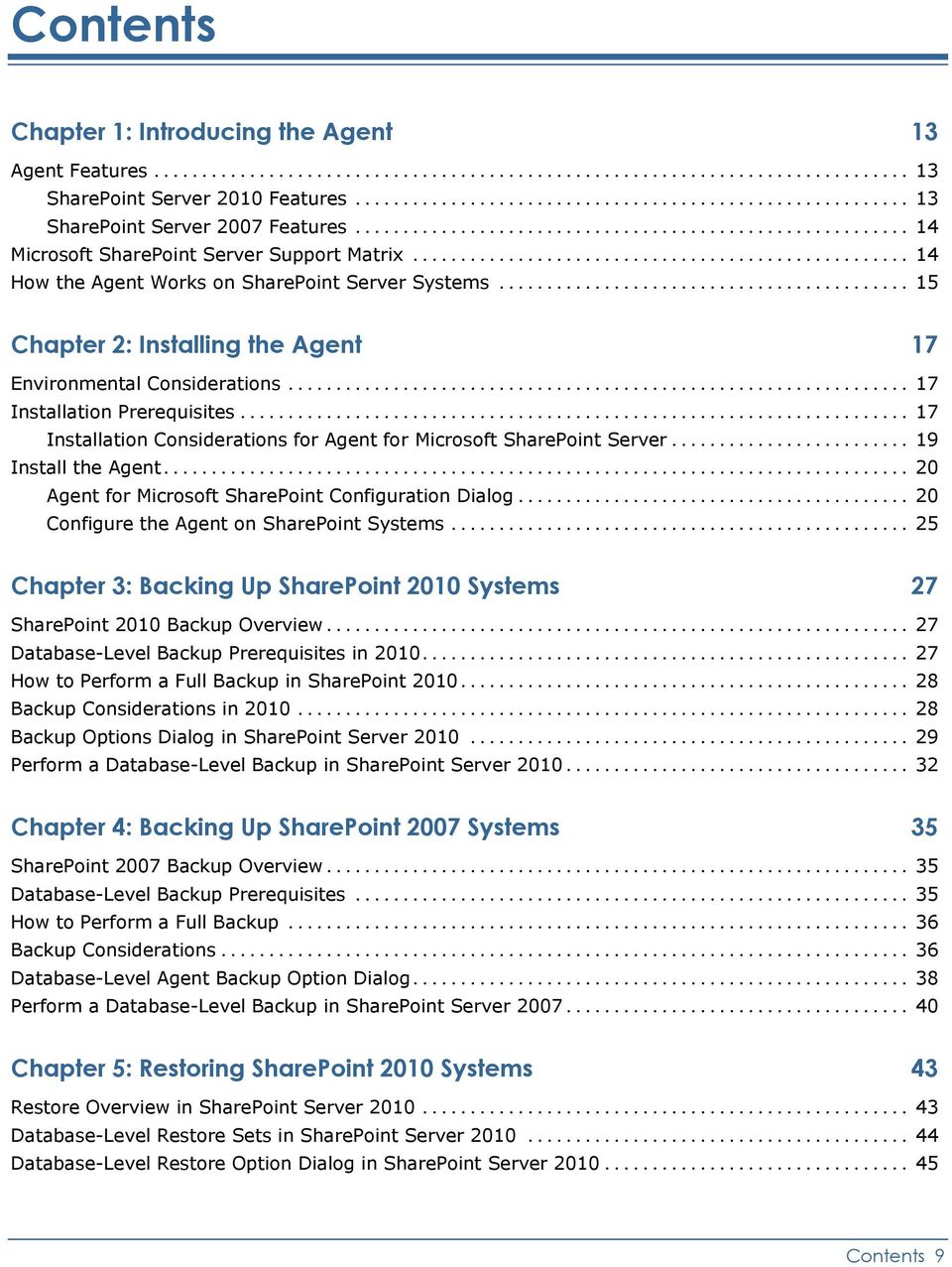
10 Restore Configuration Settings in SharePoint Server Database-Level Restore Prerequisites SharePoint Server Perform a Database-Level Restore on SharePoint Server Document-Level Restore Option Dialog in SharePoint SharePoint 2010 Agent Restore Configuration Dialog Destination folders for Document-level Restores Perform a Document-Level Restore to the Original Location in SharePoint Perform a Document-Level Restore to the Alternate Location in SharePoint Chapter 6: Restoring SharePoint 2007 Systems 63 Restore Overview Database-Level Restore Sets Database-Level Restore Option Dialog SharePoint Restore Configuration Settings Database-Level Restore Prerequisites Perform a Database-Level Data Restore Document-Level Restore Option Dialog in SharePoint SharePoint 2007 agent restore configuration dialog Perform a Document-Level Restore in SharePoint Perform a Document-Level Restore to Alternate Location in SharePoint Agent for Microsoft SharePoint Server Limitations Chapter 7: Using Best Practices 83 How to Select the Proper Location Set Access Permission on Dump Location Appendix A: Microsoft SharePoint Server Features used by the Agent 85 Microsoft SharePoint Server 2010 Features Microsoft SharePoint 2010 Data Microsoft SharePoint Server 2007 Features Microsoft SharePoint 2007 Data Appendix B: Disaster Recovery 91 How to Perform a Database-Level Disaster Recovery on SharePoint 2010 Systems How to Perform a Database-Level Disaster Recovery on SharePoint 2007 Systems Appendix C: Configuring Microsoft SQL Server Security Settings 93 Types of Microsoft SQL Authentication Authentication Requirements Agent for Microsoft SharePoint Server Guide
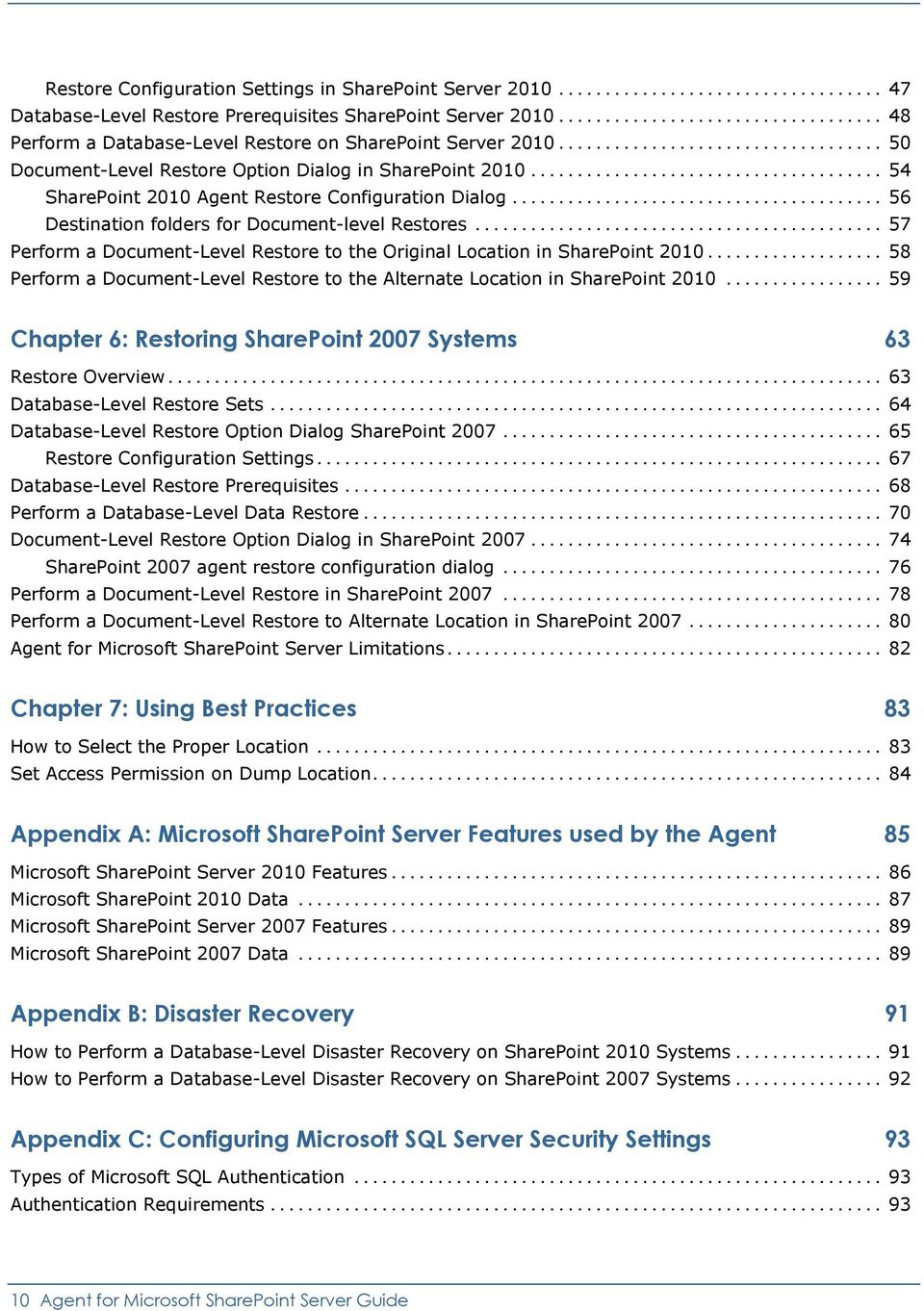
11 Check or Change the Microsoft SQL Server Authentication Method Appendix D: Troubleshooting 95 AE Unable to restore a site collection to its original location Index 97 Contents 11
12

13 Chapter 1: Introducing the Agent CA ARCserve Backup is a comprehensive, distributed storage solution for applications, databases, distributed servers, and file systems. It provides backup and restore capabilities for databases, business-critical applications, and network clients. Among the agents CA ARCserve Backup offers is the CA ARCserve Backup Agent for Microsoft SharePoint Server. This agent let you back up and restore Microsoft SharePoint Server 2010, Microsoft Office SharePoint Server 2007, Microsoft SharePoint Foundation 2010, and Microsoft SharePoint Service 3.0 data. Although SharePoint environments can be complex and distributed across a number of machines, the agent provides full protection of SharePoint installations by consolidating all SharePoint data into a single node in the interface on the CA ARCserve Backup server. SharePoint content consists of distributed SharePoint databases, Single Sign-On (SSO), and search indexes. The agent lets you use the features of CA ARCserve Backup to easily manage the backup and restore of all SharePoint data on your network. This section contains the following topics: Agent Features (see page 13) Microsoft SharePoint Server Support Matrix (see page 14) How the Agent Works on SharePoint Server Systems (see page 15) Agent Features The Agent for Microsoft SharePoint Server offers a number of features to facilitate your backup and restore operations. It provides backup and restore capabilities for Microsoft SharePoint Server 2010, Microsoft Office SharePoint Server 2007, Microsoft SharePoint Foundation 2010, and Microsoft SharePoint Service 3.0 installations. SharePoint Server 2010 Features The agent supports the following features for SharePoint Server 2010: Backup and restore of the SharePoint Server 2010 farm and farm components. Note: For more information about the various farm components, see section Microsoft SharePoint Server 2010 Features (see page 86). Chapter 1: Introducing the Agent 13

14 Microsoft SharePoint Server Support Matrix Enables SharePoint data to be restored to its original location or to an alternate destination. Supports backup to a wide array of storage devices. Supports Configuration Settings Only Backup and Content and Configuration Settings Backup options. Supports Restore Configuration Settings only and Restore Content and Configuration Settings options. Supports database-level backup and database-level and document-level restore for the failover database server. Supports document-level or granular restores. SharePoint Server 2007 Features The agent supports the following features for SharePoint Server 2007: Backup and restore of the SharePoint Server 2007 Farm and Farm components. For more information about the supported farm components, see section Microsoft SharePoint Server 2007 Features (see page 89). Enables SharePoint data to be restored to its original location or to an alternate destination. Supports backup to a wide array of storage devices. Supports document-level or granular restores. Microsoft SharePoint Server Support Matrix The following table lists the different versions of Microsoft SharePoint Server and the supporting Windows operating systems that work with the Agent for Microsoft SharePoint Server: Microsoft SharePoint Server 2007 Microsoft SharePoint Server 2007(SP1) Microsoft SharePoin t Server 2007 (SP2) Microsoft SharePoint Server Agent for Microsoft SharePoint Server Guide
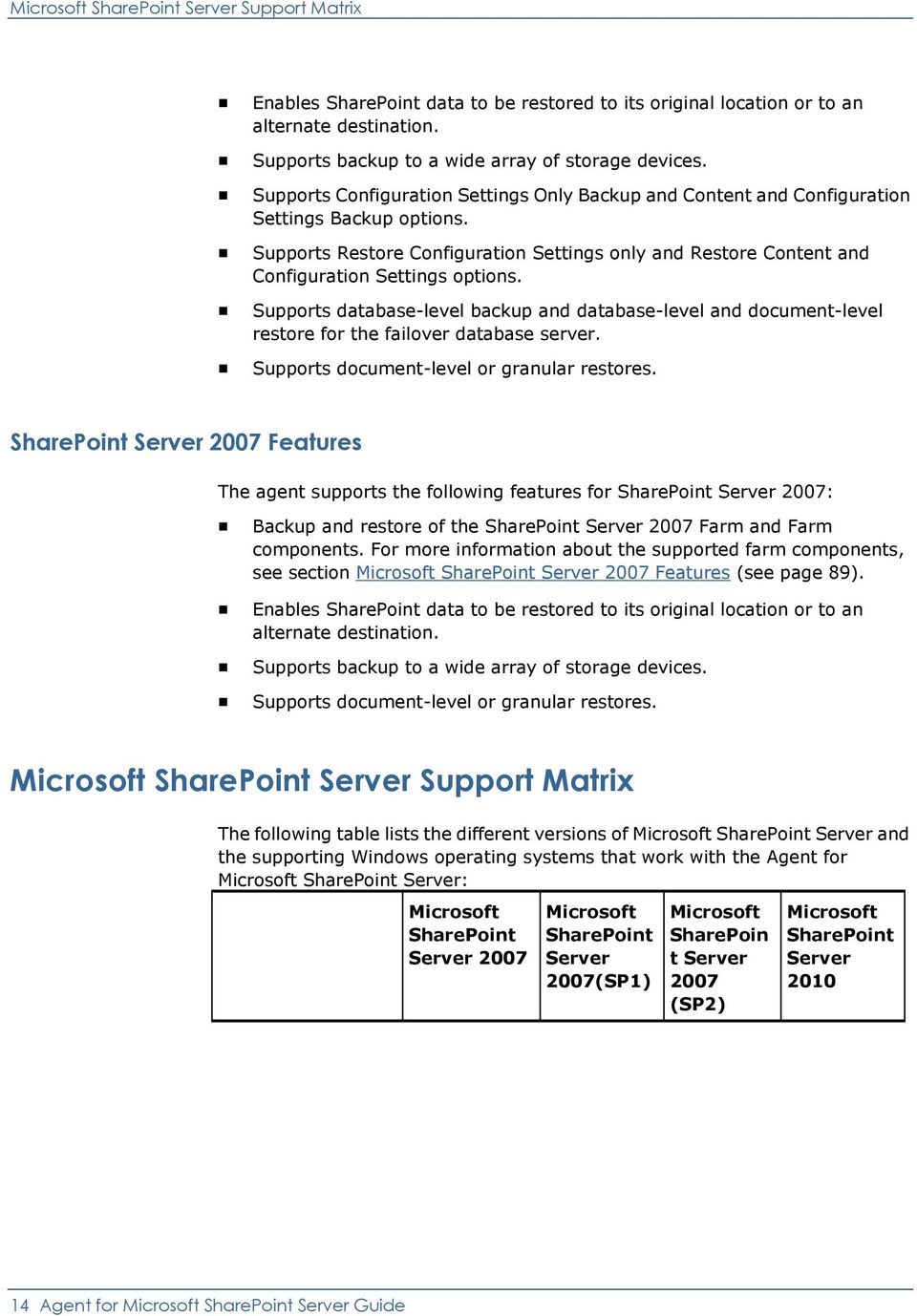
15 How the Agent Works on SharePoint Server Systems Microsoft SharePoint Server 2007 Microsoft SharePoint Server 2007(SP1) Microsoft SharePoin t Server 2007 (SP2) Microsoft SharePoint Server 2010 Windows Server 2003 (x86) Windows Server 2003 (x64) Windows Server 2008 (x86) Windows Server 2008 (x64) Windows Server 2008 R2 (x64) yes yes yes no yes yes yes no no yes yes no no yes yes yes no no yes yes How the Agent Works on SharePoint Server Systems CA ARCserve Backup and the Agent for Microsoft SharePoint Server work together to back up and restore SharePoint Server data. When CA ARCserve Backup backs up data, the server connects to the agent and sends a request. The agent retrieves the data from the SharePoint Server and exports the data to a dump folder on the disk and then sends it to CA ARCserve Backup, where the data is backed up to media. During a restore operation, the agent functions in a similar way and helps transfer the backed up data from CA ARCserve Backup to the server. Chapter 1: Introducing the Agent 15
16

17 Chapter 2: Installing the Agent This chapter provides the information you need to install and configure the Agent for Microsoft SharePoint Server on SharePoint 2010 and SharePoint 2007 systems. The information in this section assumes you are familiar with the characteristics and requirements of your Microsoft SharePoint server farm. This section contains the following topics: Environmental Considerations (see page 17) Installation Prerequisites (see page 17) Install the Agent (see page 20) Environmental Considerations SharePoint environments can be complex and distributed across a number of machines. The server farm configuration must be supported by Microsoft. As an example, a distributed SharePoint environment could contain the following components: One or more Web-Front-End Servers. One or more Application servers with Windows SharePoint Service Help Search service enabled. One or more Indexer Server with Office SharePoint Server Search service enabled. One or more Database Servers used by SharePoint Server Farm. Installation Prerequisites Before installing the agent on SharePoint Server systems, you must satisfy the following prerequisites: Verify that your system meets the minimum requirements needed to install the Agent for Microsoft SharePoint Server. For a list of requirements, see Readme. Ensure that you have administrator privileges or the proper authority to install software on the computers where you will be installing the product. The user name entered in the Agent for Microsoft SharePoint Server Configuration wizard must have administrative access to all machines in the SharePoint Server farm. Chapter 2: Installing the Agent 17

18 Installation Prerequisites Ensure that you are aware of the account which belongs to the Microsoft SharePoint Server farm administrator group. Verify that you have installed Microsoft SharePoint Server products or Microsoft SharePoint Service 3.0 or later. You must install the Agent for Microsoft SharePoint Server on the same system on which the farm was originally created and ensure that the central administration is running, or the backup and restore jobs might fail. 18 Agent for Microsoft SharePoint Server Guide

19 Installation Prerequisites Installation Considerations for Agent for Microsoft SharePoint Server Consider the following when you install the agent: Microsoft SharePoint Server products or Microsoft SharePoint Service 3.0 or later must be installed before you install the Agent for Microsoft SharePoint Server. The agent is supported on all operating systems on which Microsoft Office SharePoint Server is supported. The CA ARCserve Backup server must be able to ping all machines in the SharePoint environment by name. If you do not use DNS (Domain Name System) in your SharePoint environment, you must add all the machines in the SharePoint environment into the hosts file on the CA ARCserve Backup server. You must run the Microsoft SQL Server Windows service as a domain account or a local system account. You must install the Agent for Microsoft SharePoint Server on the same machine on which the farm was originally created and the Windows SharePoint Service Administration service is running or your backup or restore job might fail. Jobs may not complete successfully when the CA ARCserve Backup server and the agent server reside in different time zones. To ensure that jobs complete successfully, you must synchronize the time zone on the agent server with the CA ARCserve Backup server. There is a known Microsoft issue that could lead to SharePoint 2007 behaving differently depending on how you deployed Windows SharePoint Services 3.0 and Microsoft Office SharePoint Server 2007 on Windows Server 2008 systems. If you upgrade Windows SharePoint Services 3.0 or Microsoft Office SharePoint Server 2007 with Service Pack 1, you must install the CA ARCserve Backup Agent for SharePoint Server on machines on which the farm was originally created and the Central Administration Service is running. Before you submit a backup or restore job, you must ensure this service is running on the target machine or the jobs may fail. If you install Windows SharePoint Services 3.0 or Microsoft Office SharePoint Server 2007 including Service Pack 1, you can install the CA ARCserve Backup Agent for SharePoint Server on any machine on which the farm was originally created and the Central Administration Service is running. It is not a prerequisite to have Central Administration Service running on the target machine for backup and restore jobs in this situation. Chapter 2: Installing the Agent 19

20 Install the Agent If you choose Server Farm Installation when upgrading the CA ARCserve Backup Agent for Microsoft SharePoint Server to r15, you must use the same Farm Administrator used to create the Farm, or you will need to launch the Agent for Microsoft SharePoint Server configuration and configure again. This restriction affects Server Farm Installations (Complete and Web Front End) only. It does not affect SharePoint Single Server (standalone) installations. Install the Agent The Agent for Microsoft SharePoint Server follows the standard installation procedure for the system components, agents, and options of CA ARCserve Backup. For detailed procedures about installing CA ARCserve Backup, see the Implementation Guide. More information: Agent for Microsoft SharePoint Configuration Dialog (see page 20) Configure the Agent on SharePoint Systems (see page 25) Agent for Microsoft SharePoint Configuration Dialog You can open the Agent dialog and configure the options using the following procedure: To open the Agent for Microsoft SharePoint Configuration Dialog 1. From the Windows Start menu, select All Programs, CA, ARCserve Backup, and Backup Agent Admin. The ARCserve Backup Agent Admin dialog opens. 2. From the drop-down list, select CA ARCserve Backup Agent for Microsoft SharePoint Server and click Configuration. The Agent for Microsoft SharePoint Configuration dialog opens. The DB level Configuration tab appears, by default. 20 Agent for Microsoft SharePoint Server Guide
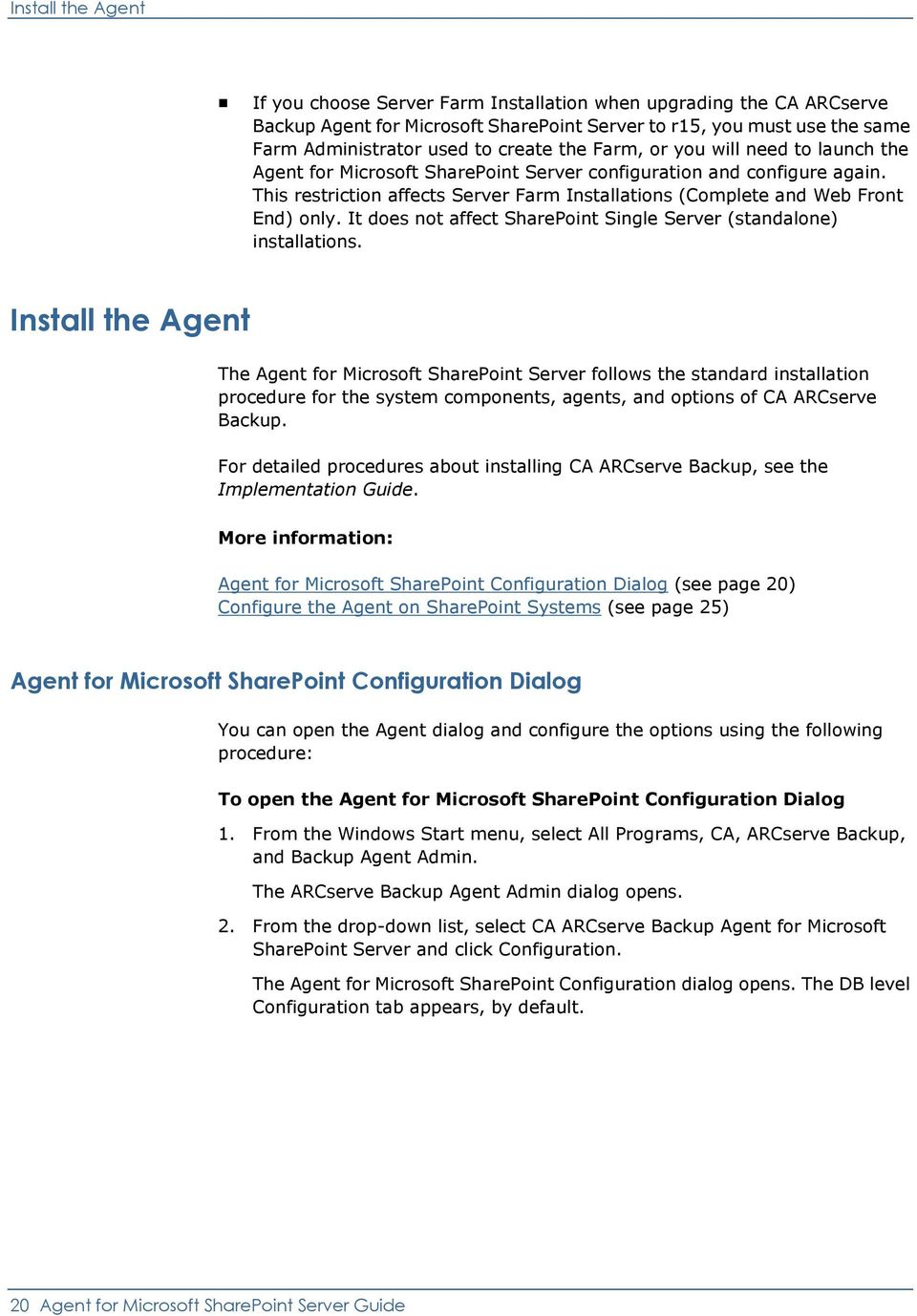
21 Install the Agent Agent for Microsoft SharePoint Database-level Configuration tab The Agent for Microsoft SharePoint Database-level Configuration tab includes options for storing SharePoint data to a shared folder where the Agent is installed. Options on the Database-level Configuration tab include: Default Backup or Restore Dump Location The default backup dump location under Default Backup / Restore Dump Location has the following options: Note: The same location will be used when you submit a restore job. CA ARCserve Backup Server Exports SharePoint data to a shared folder on the ARCserve server before it is saved to a tape. CA ARCserve Backup Agent for Microsoft SharePoint Server (Local Machine) Exports SharePoint data to a shared folder on a local computer where the Agent is installed. The data is then saved on a tape through the network. Chapter 2: Installing the Agent 21
22 Install the Agent Other (NAS, File) Server Name Exports SharePoint data to a NAS device or a public shared folder. You need to specify the server name, if you select this option. Note: You must specify the host name instead of an IP address. Backup / Restore Dump Path Specify the Share name and Physical Path under the Backup / Restore Dump Path as follows: Share Name Specifies the shared folder where the data must be backed up, if you selected the Other (NAS, File) Server Name as the backup/restore dump location. You must grant the necessary permissions to the folder. Note: The name should not contain the special character $ at the end. Physical Path Specifies the path where you want the data to be backed up, if you select the CA ARCserve Backup Server or CA ARCserve Agent for SharePoint Server as the backup or restore dump location. Backup or Restore Account Credentials Specify the User name and password under the Backup/Restore Account Credentials to install the COM+ components. Note: The Reset Credentials option is enabled, if the COM+ component is not installed. You must enter the user details to install these components. User Name Defines the farm administrator user details. Password Defines the farm administrator password details. 22 Agent for Microsoft SharePoint Server Guide
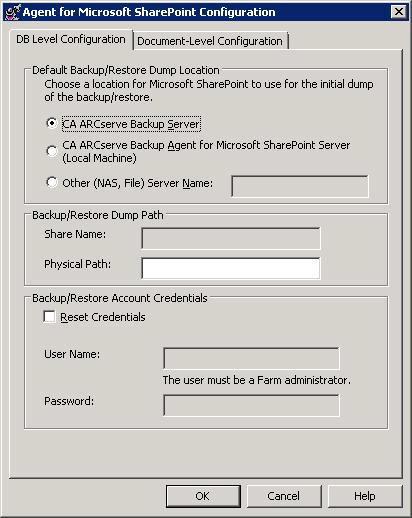
23 Install the Agent Agent for Microsoft SharePoint Document-Level Configuration tab You must configure the Agent for Microsoft SharePoint Document-level Configuration tab to perform granular level restores. Options on the Document-level Configuration tab include: Enable Document-Level Option Enables the document-level restore operation. The Enable Document-Level Option is checked by default. Note: You can perform a document-level object restore operation, only if you select Use Agent Default Configuration Settings in the backup options dialog along with the Enable Document-Level Option. Include Version Specifies what content will be restored based on document version. Last Major Version Includes the last major version content. Last Major and Minor Versions Includes the last major and minor version content. Chapter 2: Installing the Agent 23
24 Install the Agent Current Version Includes content about the latest version. All Versions (default) Includes content of all versions. Include Security Specifies whether user and security group information will be restored. All (default) Includes user memberships and role assignments such as out of the box roles like Web Designer, or any custom roles that extend from the out of the box roles. The ACL for each object is migrated. Also, user information defined in the DAP or LDAP servers is included. WssOnly Includes user memberships and role assignments such as out of the box roles like Web Designer, or any custom roles that extend from the out of the box roles. The ACL for each object is migrated. No user information defined in the DAP or LDAP servers is included. None No user or group information is migrated. Update Versions Specifies how versioning is managed in the destination location when restore. Append(default) Appends the versions to the destination. Ignore Ignores versioning and imports the updated file. Overwrite Deletes existing version and imports as new versions. SQL Server instance details for temporary use Connects the agent to a SQL server instance. Server name The SQL Server host name and instance name. Data File Location This location is used to store the database file when restore database backup dump to SQL Instance. This must be a local path on the server which hosts the SQL Instance and the path should exist. Note: The SQL Server instance must have permissions to access the Data File Location. Authentication The authentication type for this SQL Instance. Select the type of authentication to connect to the SQL server. Windows Authentication (default) You can enter the user name and password details to connect. SQL Server Authentication This is the SQL Server authentication mode. You must enter the login and password details. Note: The version of the temporary SQL Server must be same as the version of Microsoft SharePoint database Server. 24 Agent for Microsoft SharePoint Server Guide
25 Install the Agent Configure the Agent on SharePoint Systems After you have installed the Agent for Microsoft SharePoint Server, the agent installs SPSO12, an agent COM+ component on Microsoft SharePoint Server 2007 and SPSO14 agent COM+ component on the Microsoft SharePoint Server These components interact with the SharePoint Server to backup and restore data. Important! When configuring the Agent for Microsoft SharePoint Server, make sure the Pagefile usage size does not exceed the physical memory, or configuration will fail. To configure the Agent on SharePoint systems 1. From the Windows Start menu, select All Programs, CA, ARCserve Backup, and Backup Agent Admin. The ARCserve Backup Agent Admin dialog opens. 2. From the drop-down list, select CA ARCserve Backup Agent for Microsoft SharePoint Server and click Configuration. The Agent for Microsoft SharePoint Configuration dialog opens.the DB level Configuration tab appears, by default. 3. Select the database-level options in the DB level Configuration tab to configure the Agent for database level backup and restore operations. For more information about the database-level tab options, see Agent for Microsoft SharePoint Database-level Configuration tab (see page 21). The database-level configuration is complete. 4. Select the Document-Level Configuration tab. The document-level configuration options appear. 5. Configure the Agent for document-level restores by selecting the options in the tab. For more information about the document-level agent options, see Agent for Microsoft SharePoint Server Document-level Configuration tab (see page 23). 6. The document-level configuration is complete. 7. Click OK. The Agent for Microsoft SharePoint Server is configured. Chapter 2: Installing the Agent 25
26
27 Chapter 3: Backing Up SharePoint 2010 Systems This chapter provides information for backing up data on SharePoint 2010 systems. This section contains the following topics: SharePoint 2010 Backup Overview (see page 27) Database-Level Backup Prerequisites in 2010 (see page 27) How to Perform a Full Backup in SharePoint 2010 (see page 28) Backup Considerations in 2010 (see page 28) Backup Options Dialog in SharePoint Server 2010 (see page 29) Perform a Database-Level Backup in SharePoint Server 2010 (see page 32) SharePoint 2010 Backup Overview Database-level backup protects the SharePoint Server 2010 database files. It is the fundamental backup for your SharePoint Server, and you should always use it if you use one of the other granular backup types. You can use database-level backups to restore SharePoint Server in the event of a system failure, database corruption, or a disaster recovery scenario. Database-Level Backup Prerequisites in 2010 Before performing a database-level backup on SharePoint Server 2010, you must satisfy the following requirements: Ensure that the Windows SharePoint Services Administrative service is running on the front-end web server and the Application Server. Ensure that Microsoft SQL Server is running. Chapter 3: Backing Up SharePoint 2010 Systems 27
28 How to Perform a Full Backup in SharePoint 2010 How to Perform a Full Backup in SharePoint 2010 If you want to take a full backup of the database you need to ensure certain Farm management actions. If you perform one of these actions and then perform a differential backup, you may not be able to successfully restore the database that you backed up fully, earlier. To avoid this problem, always perform a full database backup immediately after you have performed any change in the topology of SharePoint 2010 farm or Windows SharePoint Farm such as the following: Adding a new web application, a new database into a normal web application or SharePoint Service Provider Administration web application. Canceling a full backup job while it is running. Restoring the database from any backup. Note: Ensure you restart the CA ARCserve SharePoint Agent Service under Windows Services after updating the farm topology. Backup Considerations in 2010 To run successful backups, consider the following: If you perform a full backup of component A, and then a full backup of A s child component B, the differential backup of component A would fail. In other words, a Farm-level full backup can be followed by a Farm-level differential. However, you cannot do a Farm-level full backup followed by a Web Application full backup, and then a Farm Differential backup. In this case, the differential job would fail with an error message. You cannot perform a backup by using both SharePoint Server 2010 and tools such as Microsoft SQL Server tools, Central Administration website, and so on. For example, if you perform a full backup using these tools, you may not be able to restore the differential backup job. If you try to protect SharePoint Server 2010 using the Agent for Microsoft SharePoint Server and other agents, such as Client Agent and Agent for SQL server, the SharePoint 2010 data may be backed up more than once. To avoid this situation, you should exclude the SharePoint 2010 database and files from the Client Agent and Agent for SQL Server backup job. SharePoint Server 2010 does not support the following: Data encryption and compression at the agent side under the Global Options. Multiplexing and Multistreaming backup jobs using single instance. Backup agent data on two different machines that are in different CA ARCserve Backup domain. 28 Agent for Microsoft SharePoint Server Guide

29 Backup Options Dialog in SharePoint Server 2010 Backup Options Dialog in SharePoint Server 2010 The following sections describe the options that the CA ARCserve Backup Agent for Microsoft SharePoint Server offers when performing database-level backups. To configure the database-level backup options, right-click on a Farm object and click Agent Option. The Backup Options for Agent for Microsoft SharePoint 2010 dialog opens. The Backup Options for Agent for Microsoft SharePoint 2010 dialog has: Default Backup Dump Location The backup dump location tells CA ARCserve Backup where you want your data to be stored temporarily before saving it to a tape. Chapter 3: Backing Up SharePoint 2010 Systems 29
30 Backup Options Dialog in SharePoint Server 2010 You can select from the following backup dump locations: Use Agent default configuration setting Enabled by default. This option makes use of the backup dump location that you selected while configuring the agent. CA ARCserve Backup Server Exports the SharePoint data to a shared folder on CA ARCserve Backup. CA ARCserve Agent for Microsoft SharePoint Server Exports the SharePoint data to a shared folder where the SharePoint Agent is installed. Other (NAS, File) Server Name Exports the SharePoint data to a specified shared folder on the NAS server or File server. Note: You must specify the host name instead of an IP address. Backup Dump Path You need to specify the share name and physical path. Share Name If you select the Other (NAS, File) Server Name as the backup dump location, you need to specify the share name where the data must be exported. You must grant the necessary permissions to the folder. Note: The share name should not contain the special character $ at the end. Physical Path If you select the CA ARCserve Server or Agent as the backup dump location, you need to specify the path where you want the data to be exported. Backup Configuration Settings You need to select a configuration setting. Backup only Configuration Settings Select this option to backup only configuration settings of the SharePoint server. Backup Content and Configuration Settings Select this option to backup both content and configuration settings of the SharePoint Server. This option is selected by default. Preserve the dump data on the disk after backup This option is enabled by default. You can preserve the data on the disk after performing the backup operation. Note: The preserved data is usually the last full backup or the latest full backup along with the last differential backup of the dumped data. Enable Document-Level Restore You can perform the document-level restore operation. This option is enabled by default. Backup Methods 30 Agent for Microsoft SharePoint Server Guide
31 Backup Options Dialog in SharePoint Server 2010 When you submit a backup job, you must select a backup method. The backup method tells CA ARCserve Backup how you want your data to be backed up. You can select from the following backup methods: Use Global or Rotation setting Enabled by default. If you do not disable this, you must select a backup method on the Schedule tab. Full It backs up the entire database and marks all of the files that have been backed up in preparation for a subsequent incremental or differential backup. Note: Always perform a full backup when running the agent for the first time, after upgrading to a Service Pack, and after performing a restore. Differential Backup Backs up the files that have changed since the last backup. Note: The Backup Method options on the Schedule tab do not apply, if you select the Full or Differential backup methods. Microsoft SharePoint 2010 does not support the Incremental Backup method. If you select Incremental Backup on the Schedule tab, it will still consider it as Differential Backup. Chapter 3: Backing Up SharePoint 2010 Systems 31
32 Perform a Database-Level Backup in SharePoint Server 2010 Perform a Database-Level Backup in SharePoint Server 2010 Use the Backup Manager in CA ARCserve Backup to perform database-level backup on SharePoint 2010 systems. To perform a Database-level backup on SharePoint 2010 Systems 1. From the CA ARCserve Backup Home Page, select Backup from the Quick Start menu. The Backup Manager window opens. 2. From the Backup Manager window, select the Database-Level objects you want to back up (Microsoft SharePoint Database level). If you want to back up only certain components in the farm, expand the farm and select the components. 3. Right-click the Farm object you are including in this job and select Agent Option to select a backup method to use and click OK. Note: Always perform a full backup when running the agent for the first time so that you can store a complete set of SharePoint Server databases. 4. Click the Destination tab and select a backup destination. 32 Agent for Microsoft SharePoint Server Guide
33 Perform a Database-Level Backup in SharePoint Server Click the Schedule tab. If you want to use a Custom Schedule, select a Repeat Method. If you want to use a rotation scheme, select the Use Rotation Scheme option and set up your scheme. For more information on scheduling jobs and rotation schemes, see the online help or the Administration Guide. 6. Click Submit on the toolbar. The Security and Agent Information dialog opens. 7. From the Security and Agent Information dialog, ensure that the correct user name and password are filled in for each object. If you need to enter or modify a user name or password, click the Security button, make your changes, and then click OK. 8. Click OK. The Submit Job dialog opens. 9. From the Submit Job dialog, select Run Now to run the job immediately, or select Run On and select a future date and time when you want the job to run. 10. Enter a description for your job. If you selected multiple sources to back up and want to set the priority in which the job sessions initiate, click Source Priority. Use the Top, Up, Down, and Bottom buttons to change the order in which the jobs are processed. When you finish setting priorities, click OK. 11. Click OK. The backup job is submitted. Chapter 3: Backing Up SharePoint 2010 Systems 33
34
35 Chapter 4: Backing Up SharePoint 2007 Systems This chapter provides information for backing up data on SharePoint 2007 systems. This section contains the following topics: SharePoint 2007 Backup Overview (see page 35) Database-Level Backup Prerequisites (see page 35) How to Perform a Full Backup (see page 36) Backup Considerations (see page 36) Database-Level Agent Backup Option Dialog (see page 38) Perform a Database-Level Backup in SharePoint Server 2007 (see page 40) SharePoint 2007 Backup Overview Database-level backup protects the SharePoint Server 2007 database files. It is the fundamental backup for your SharePoint Server, and you should always use it if you use one of the other granular backup types. You can use database-level backups to restore SharePoint Server in the event of a system failure, database corruption, or a disaster recovery scenario. Database-Level Backup Prerequisites Before performing a database-level backup on SharePoint Server 2007, you must satisfy the following requirements: Ensure that the Windows SharePoint Services Administrative service is running on the front-end web server and the Application Server. Ensure that Microsoft SQL Server is running. Chapter 4: Backing Up SharePoint 2007 Systems 35
36 How to Perform a Full Backup How to Perform a Full Backup If you want to take a full backup of the database you need to ensure certain Farm management actions. If you perform one of these actions and then perform a differential backup, you may not be able to successfully restore the database that you backed up fully, earlier. To avoid this problem, always perform a full database backup immediately after you have performed any change in the topology of SharePoint 2007 Farm or Windows SharePoint 3.0 Farm such as the following: Adding a new web application, a new SharePoint Service Provider, a new database into a normal web application or SharePoint Service Provider Administration web application. Renaming the SharePoint Service Provider. Deleting the SharePoint Service Provider so that its Administration web application is detached from the SharePoint Service Provider. Canceling a full backup job while it is running. Restoring the database from any backup. Backup Considerations To run successful backups consider the following: If you perform a full backup of component A, and then a full backup of A s child component B, the differential backup of component A would fail. In other words, a Farm-level full backup can be followed by a Farm-level differential. However, you cannot do a Farm-level full backup followed by a SharePoint Provider Service full backup, and then a Farm Differential backup. In this case, the differential job would fail with an error message. You cannot perform a backup by using both SharePoint Server 2007 and tools such as Microsoft SQL Server tools, Central Administration website, and so on. For example, if you perform a full backup using these tools, you may not be able to restore the differential backup job. If you try to protect SharePoint Server 2007 using the Agent for SharePoint and other agents, such as Client Agent and Agent for SQL server, the SharePoint 2007 data may be backed up more than once. To avoid this situation, you should exclude the SharePoint 2007 database and files from the Client Agent and Agent for SQL Server backup job. 36 Agent for Microsoft SharePoint Server Guide
37 Backup Considerations SharePoint Server 2007 does not support the following: Data encryption and compression at the agent side under the Global Options. Multiplexing and Multistreaming backup jobs. Backup agent data on two different machines that are in different CA ARCserve Backup domain. Chapter 4: Backing Up SharePoint 2007 Systems 37
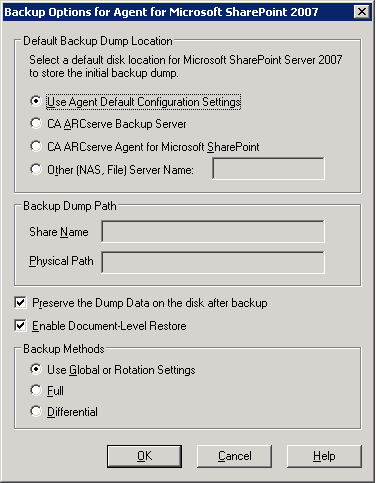
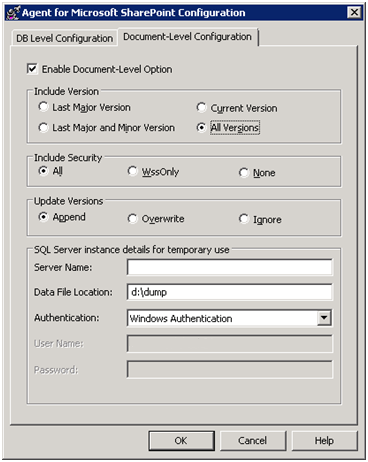
38 Database-Level Agent Backup Option Dialog Database-Level Agent Backup Option Dialog The following sections describe the options that the CA ARCserve Backup Agent for Microsoft SharePoint Server offers when performing database-level backups. To configure the database-level backup options, right-click on a Farm object and click Agent Option. The Backup Options for Agent for Microsoft SharePoint 2007 dialog appears. Note: You must select the Enable Document-Level Option in the Agent for Microsoft SharePoint Server Document-level Configuration dialog manually, if you are performing a backup job after upgrading to r15. Also, ensure that the Enable Document-Level Restore option is enabled in the Backup Options Dialog in SharePoint Server 2007 to perform document-level restores. The Backup Options for Agent for Microsoft SharePoint 2007 dialog has: Default Backup Dump Location The backup dump location tells CA ARCserve Backup where you want your data to be stored temporarily before saving it to a tape. You can select from the following backup dump locations: Use Agent default configuration setting Enabled by default. This option makes use of the backup dump location that you selected while configuring the agent. 38 Agent for Microsoft SharePoint Server Guide
39 Database-Level Agent Backup Option Dialog CA ARCserve Backup Server Exports the SharePoint data to a shared folder on CA ARCserve Backup. CA ARCserve Agent for Microsoft SharePoint Server Exports the SharePoint data to a shared folder where the SharePoint Agent is installed. Other (NAS, File) Server Name Exports the SharePoint data to a specified shared folder on the NAS server or File server. Note: You must specify the host name instead of an IP address. Backup Dump Path You need to specify the share name and physical path. Share Name If you select the Other (NAS, File) Server Name as the backup dump location, you need to specify the share name where the data must be exported. You must grant the necessary permissions to the folder. Note: The share name should not contain the special character $ at the end. Physical Path If you select the CA ARCserve Server or Agent as the backup dump location, you need to specify the path where you want the data to be exported. Preserve the dump data on the disk after backup This option is enabled by default. You can preserve the data on the disk after performing the backup operation. Note: The preserved data is usually the last full backup or the latest full backup along with the last differential backup of the dumped data. Enable Document-Level Restore You can perform the document-level restore operation. This option is enabled by default. Backup Methods When you submit a backup job, you must select a backup method. The backup method tells CA ARCserve Backup how you want your data to be backed up. You can select from the following backup methods: Use Global or Rotation setting Enabled by default. If you do not disable this, you must select a backup method on the Schedule tab. Full It backs up the entire database and marks all of the files that have been backed up in preparation for a subsequent incremental or differential backup. Note: Always perform a full backup when running the agent for the first time, after upgrading to a Service Pack, and after performing a restore. Chapter 4: Backing Up SharePoint 2007 Systems 39
40 Perform a Database-Level Backup in SharePoint Server 2007 Differential Backup Backs up the files that have changed since the last backup. Note: The Backup Method options on the Schedule tab do not apply, if you select the Full or Differential backup methods. SharePoint 2007 does not support the Incremental Backup method. If you select Incremental Backup on the Schedule tab, it will still consider it as Differential Backup. Perform a Database-Level Backup in SharePoint Server 2007 Use the Backup Manager in CA ARCserve Backup to perform database-level backup on SharePoint 2007 systems. To perform a Database-level backup on SharePoint 2007 Systems 1. From the CA ARCserve Backup Home Page, select Backup from the Quick Start menu. The Backup Manager window opens. 2. From the Backup Manager window, select the Database-Level objects you want to back up (Microsoft SharePoint Database level). If you want to back up only certain components in the farm, expand the farm and select the components. 3. Right-click the Farm object you are including in this job and select Agent Option to select a backup method to use and click OK. Note: Always perform a full backup when running the agent for the first time so that you can store a complete set of SharePoint Server databases. 4. Click the Destination tab and select a backup destination. 40 Agent for Microsoft SharePoint Server Guide
41 Perform a Database-Level Backup in SharePoint Server Click the Schedule tab. If you want to use a Custom Schedule, select a Repeat Method. If you want to use a rotation scheme, select the Use Rotation Scheme option and set up your scheme. For more information on scheduling jobs and rotation schemes, see the online help or the Administration Guide. 6. Click Submit on the toolbar. The Security and Agent Information dialog opens. 7. From the Security and Agent Information dialog, ensure that the correct user name and password are filled in for each object. If you need to enter or modify a user name or password, click the Security button, make your changes, and then click OK. 8. Click OK. The Submit Job dialog opens. 9. From the Submit Job dialog, select Run Now to run the job immediately, or select Run On and select a future date and time when you want the job to run. 10. Enter a description for your job. If you selected multiple sources to back up and want to set the priority in which the job sessions initiate, click Source Priority. Use the Top, Up, Down, and Bottom buttons to change the order in which the jobs are processed. When you finish setting priorities, click OK. 11. Click OK. The backup job is submitted. Chapter 4: Backing Up SharePoint 2007 Systems 41
42
43 Chapter 5: Restoring SharePoint 2010 Systems This chapter provides information for restoring data on SharePoint 2010 systems. This section contains the following topics: Restore Overview in SharePoint Server 2010 (see page 43) Database-Level Restore Sets in SharePoint Server 2010 (see page 44) Database-Level Restore Option Dialog in SharePoint Server 2010 (see page 45) Database-Level Restore Prerequisites SharePoint Server 2010 (see page 48) Perform a Database-Level Restore on SharePoint Server 2010 (see page 50) Document-Level Restore Option Dialog in SharePoint 2010 (see page 54) Perform a Document-Level Restore to the Original Location in SharePoint 2010 (see page 58) Perform a Document-Level Restore to the Alternate Location in SharePoint 2010 (see page 59) Restore Overview in SharePoint Server 2010 The following sections include information on the prerequisites you must meet before you perform a restore, the features that the CA ARCserve Backup Agent for Microsoft SharePoint Server offers when restoring, and the procedure for how to perform a database-level and document-level restore in SharePoint 2010 Systems. Chapter 5: Restoring SharePoint 2010 Systems 43
44 Database-Level Restore Sets in SharePoint Server 2010 Database-Level Restore Sets in SharePoint Server 2010 To restore a SharePoint Server, you must restore all of the sessions that, when combined, completely restore the data. These sessions are called your restore set, and it includes the following sessions: If you backed up using only the full backup method, your restore set includes only this full session. If you backed up using both full and differential backups, your restore set includes your full session and one differential session. For example, in the following backup scenario, your restore set can be full and differential 1, full and differential 2, full and differential 3, or full and differential 4: If you want to restore from a differential backup, you need to select only that differential backup session. CA ARCserve Backup will find the previous full backup automatically, and then both the full and selected differential backup sessions. 44 Agent for Microsoft SharePoint Server Guide
45 Database-Level Restore Option Dialog in SharePoint Server 2010 Database-Level Restore Option Dialog in SharePoint Server 2010 When you create a restore job, you can specify restore options to customize the job. To configure the database-level restore options, right-click on a Farm object and click Agent Option. The Restore Options for Agent for Microsoft SharePoint 2010 dialog opens. The Restore Options for Agent for Microsoft SharePoint 2010 dialog has: Default Restore Dump Location Before you restore data, you must select a restore dump location. The restore location tells CA ARCserve Backup where you want your data to be stored temporarily before restoring it to the SharePoint server. Note: If you configure the restore location using the restore option, the location configured using Agent Configuration option does not apply. You can select the following restore dump locations: Use Agent default configuration setting Enabled by default, this option makes use of the location that you selected while configuring the agent. CA ARCserve Backup Server Restores the SharePoint data to a shared folder on CA ARCserve Backup. Chapter 5: Restoring SharePoint 2010 Systems 45
46 Database-Level Restore Option Dialog in SharePoint Server 2010 CA ARCserve Agent for Microsoft SharePoint Server Restores the SharePoint data to a shared folder where the SharePoint Agent is installed. Other (NAS, File) Server Name Restores the SharePoint data to a specified shared folder on the NAS server or File server. Note: You must specify the host name instead of an IP address. Restore Configuration Settings Restore only configuration settings Restores the configuration settings while performing the database-level restore. Restore content and configuration settings Restores the content and configuration settings while performing the database-level restore. To know more about the configuration settings options, see Restore Configuration Settings in SharePoint Server 2010 (see page 47). Restore Dump Path Share Name If you select the Other (NAS, File) Server Name as the default restore dump location, you need to specify the Server name where the data must be restored. You must grant the necessary permissions to the folder. Note: The share name should not contain the special character $ at the end. Physical Path If you select the CA ARCserve Server or Agent as the restore dump location, you need to specify the path where you want the data to be restored. For more information on these options and how you can configure them, see Configure the Agent on SharePoint Systems (see page 25). 46 Agent for Microsoft SharePoint Server Guide

47 Database-Level Restore Option Dialog in SharePoint Server 2010 Restore Configuration Settings in SharePoint Server 2010 You can configure the restore settings using the Submit button on the Restore Manager. The dialog SharePoint 2010 agent restore configuration dialog appears.. Type of restore Lets you to keep the same restore Name and Location after restore or a different one. Login names and passwords Lets you to configure who can login to the Farm, Web Application, and SharePoint Service Provider. This credential information is always required to restore the data. Name and Location Chapter 5: Restoring SharePoint 2010 Systems 47
48 Database-Level Restore Prerequisites SharePoint Server 2010 Lets you configure so that the name or location or both so that of one or more components will have new name or location after a backup job has been restored Different components have different configuration items for name and location. The following table lists the components and their configuration items: Component Type Database UserProfileAppli cation Shared Search Index Configuration Item New database Server Name New directory name New database name New server name New server name New directory name Comment The SQL database server you want to restore the database to. It could be an alias name. The new physical path that stores the SQL database files. The new name of the database after restore. The new My Site address of UserProfileApplication after restore. The computer name where the Office Search Index service is running. The new physical path where the index files are stored. Web Application New web application URL New web application Name The URL of the Web Application website The new name of the web application that is displayed in IIS. Database-Level Restore Prerequisites SharePoint Server 2010 Before performing a database-level restore on SharePoint Server 2010, you must satisfy the following requirements: Ensure that the Windows SharePoint Services Administrative service and Windows SharePoint Services Timer service are running on all the Front-End Web servers and Application servers. Ensure to restart the Timer service on stand-alone installations. 48 Agent for Microsoft SharePoint Server Guide
49 Database-Level Restore Prerequisites SharePoint Server 2010 If you are restoring search services and indexes to a new location, ensure that the search service is running before you start the restore. Ensure that all web application content databases have unique names. If a database with the same name is used by two web applications and then restored, data in the second database is overwritten with data from the first database. Ensure that you do not perform more than one restore at the same time. Ensure that all servers in Farm have the same time zone and daylight savings time settings. For stand alone installations, add the following accounts into the Local Administrators Group before performing a restore job. Once the restore job is completed, delete the accounts: NT AUTHORITY\LOCAL SERVICE NT AUTHORITY\NETWORK SERVICE To add accounts to the Local Administrators Group 1. Open Control Panel and expand Administration Tools, Computer Management, System Tools, Local Users and Groups, Groups, Administrators. 2. Click Add. 3. Enter NETWORK SERVICE and LOCAL SERVICE. 4. Click OK. Chapter 5: Restoring SharePoint 2010 Systems 49
50 Perform a Database-Level Restore on SharePoint Server 2010 Perform a Database-Level Restore on SharePoint Server 2010 Use the Backup Manager in CA ARCserve Backup to perform a Database-level data restore. Important! Treat all content database names as unique. Before you restore a content database, make sure the name of the database does not exist in any other web application. If you restore a content database whose name is used by two different applications using the Restore by Session method, the database restore job is listed as 'successful', but occurs under the second application, overwriting whatever content existed in that database. To restore a SharePoint Server 2010 database 1. From the CA ARCserve Backup Home Page, select Restore from the Quick Start menu. The Restore Manager window opens. 2. From the Restore Manager window, select Restore by Tree in the drop-down list below the Source tab. Note: Both Restore by Tree and Restore by Session are supported for Database-Level restore. Under the Microsoft SharePoint 2010 Agent - Database Level node there may be more than one Farm object. If you select multiple components under a Farm for a single backup job, you see multiple Farm objects. Each node is associated with a component selected to backup. For example, if you select a Web Application and a shared service, two Farm objects are generated. One Farm object has the Web Application and the other Farm object has the shared service. If you back up the same Farm or component several times, you see only one Farm object which displays the latest backup of this component. 3. From the directory tree, expand the Windows Systems object, expand the farm containing the database that you backed up, and select the farm object. 50 Agent for Microsoft SharePoint Server Guide
51 Perform a Database-Level Restore on SharePoint Server If the most recent backup is not the backup you want to restore, click Version History as shown in the following graphic, select the version you want to restore, and click Select. Note: Version History is enabled for SharePoint 2010 Database-Level objects and Farm objects and displays the backup history of the selected components. Microsoft SharePoint 2010 identifies the Farm component based on its ID, which is unique. This ID does not change even if the component is renamed. 5. Right-click each farm object you are including in this job and select Agent Option to select restore options. For more information about restore options, see Database-Level Restore Option Dialog in SharePoint Server 2010 (see page 45). 6. Click the Destination tab. You can restore the database objects to their original location (the default) or you can restore the database objects to an alternative location. Note: If you are using Windows SharePoint 2010 and if you want to restore an entire farm to an alternate farm, upgrade the Microsoft SharePoint RC build to version or higher. According to a known Microsoft issue, the new location of the Web Analytics Service Application Reporting Database does not work. Ensure that the original location directory of that database exists on the destination farm before restore. Chapter 5: Restoring SharePoint 2010 Systems 51
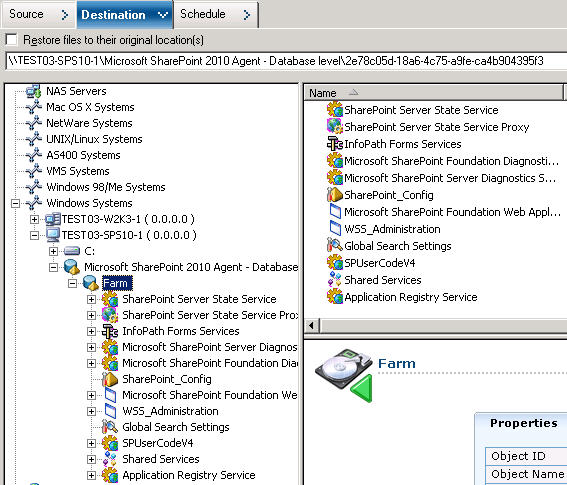
52 Perform a Database-Level Restore on SharePoint Server If you want to restore to an alternative location, clear the check mark from the Restore files to their original locations check box, expand the Windows Systems object, expand the server you want to restore to, and select the Microsoft SharePoint 2010 Database Level object. Note: If you want to restore to an alternative location, you must select the Farm object as the destination Click Submit on the toolbar. Enter the required information in the Restore Configuration dialog. If you are restoring to an alternative location, when the Security dialog appears, enter the user name and password for the destination server and click OK. 52 Agent for Microsoft SharePoint Server Guide
53 Perform a Database-Level Restore on SharePoint Server When the Session User Name and Password dialog opens, verify or change the user name and password for the destination server. To change the user name or password, select the session, click Edit, make your changes, and then click OK. Note: You must enter the user name in the following format: DOMAIN\USERNAME 10. Click OK. 11. When the Submit Job dialog opens, select Run Now to run the job immediately, or select Run On and select a future date and time when you want the job to run. 12. Enter a description for your job and click OK. Important! After you perform a restore, you must restart the Internet Information Services (IIS). Chapter 5: Restoring SharePoint 2010 Systems 53
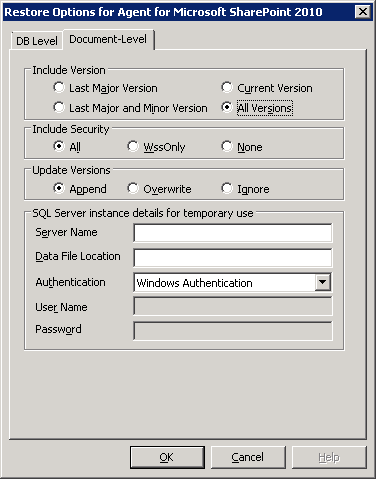
54 Document-Level Restore Option Dialog in SharePoint 2010 Document-Level Restore Option Dialog in SharePoint 2010 When you create a document-level restore job, you can specify restore options to customize the job using the document-level tab. Select the source and click Agent Options. The Restore Options for Agent for Microsoft SharePoint 2010 dialog opens. Select the Document-Level tab and configure the options to perfomr the restore operation. Document-Level Restore Option Dialog options in SharePoint 2010 include: Include Version Specifies what content will be restored based on document version. Last Major Version Includes the last major version content. Last Major and Minor Versions Includes the last major and minor version content. Current Version Includes content about the latest version. All Versions (default) Includes content of all versions. 54 Agent for Microsoft SharePoint Server Guide
55 Document-Level Restore Option Dialog in SharePoint 2010 Include Security Specifies whether user and security group information will be restored. All (default) Includes user memberships and role assignments such as out of the box roles like Web Designer, or any custom roles that extend from the out of the box roles. The ACL for each object is migrated. Also, user information defined in the DAP or LDAP servers is included. WssOnly Includes user memberships and role assignments such as out of the box roles like Web Designer, or any custom roles that extend from the out of the box roles. The ACL for each object is migrated. No user information defined in the DAP or LDAP servers is included. None No user or group information is migrated. Update Versions Specifies how versioning is managed in the destination location when restore. Append(default) Appends the versions to the destination. Ignore Ignores versioning and imports the updated file. Overwrite Deletes existing version and imports as new versions. SQL Server instance details for temporary use Connects the agent to a SQL server instance. Server name The SQL Server host name and instance name. Data File Location This location is used to store the database file when restore database backup dump to SQL Instance. This must be a local path on the server which hosts the SQL Instance and the path must exists. Note: The SQL Server instance must have permissions to access the Data File Location. Authentication The authentication type for this SQL Instance. Select the type of authentication to connect to the SQL server. Windows Authentication (default) You can enter the user name and password details to connect. SQL Server Authentication This is the SQL Server authentication mode. You must enter the login and password details. Note: The version of the temporary SQL Server must be same as the version of Microsoft SharePoint database Server. Chapter 5: Restoring SharePoint 2010 Systems 55
56 Document-Level Restore Option Dialog in SharePoint 2010 SharePoint 2010 Agent Restore Configuration Dialog You must configure the SharePoint 2010 agent restore configuration dialog while performing document-level restores to alternate locations. After selecting the destination tab on the Restore manager, you must click Submit on the toolbar. The SharePoint 2010 agent restore configuration dialog opens. You must enter the information for the following parameters: Destination Site full URL Specifies the destination to which the site collection should be restored. Owner Login Specifies the new site collection owner details. If the destination site collection doesn t exist, you can use this user account to create the destination site collection. Owner Specifies the new site collection owner details. If the destination site collection doesn t exist, you can use this user account to create the destination site collection. 56 Agent for Microsoft SharePoint Server Guide
57 Document-Level Restore Option Dialog in SharePoint 2010 Destination folders for Document-level Restores All components under the Content Database nodes are considered to be document-level components. and can be expanded. The restore destination also shows the document-level components as they are used by the Restore to Alternate Location functionalities. You can select a suitable destination based on the source type. See the table for more information: Source Site Collection Site List Folder File File Version Destination Web Application Site Collection Site List, Folder List, Folder List, Folder Chapter 5: Restoring SharePoint 2010 Systems 57
58 Perform a Document-Level Restore to the Original Location in SharePoint 2010 Perform a Document-Level Restore to the Original Location in SharePoint 2010 Use the Restore Manager in CA ARCserve Backup to perform a Document-level data restore. To restore a site collection to original location 1. From the CA ARCserve Backup Home Page, select Restore from the Quick Start menu. The Restore Manager window opens. 2. From the Restore Manager window, select Restore by Tree in the drop-down list below the Source tab. 3. From the directory tree, expand the Windows Systems object, expand the farm containing the Site Collection, Site, List and List Item under the Database Node and select the farm object. 4. Right-click each farm object you are including in this job and select Agent Option to select restore options. 5. Click the Destination tab. You can restore the database objects to their original location (the default location). 6. Click Submit on the toolbar. 7. When the Session User Name and Password dialog opens, verify or change the user name and password for the destination server. To change the user name or password, select the session, click Edit, make your changes, and then click OK. 58 Agent for Microsoft SharePoint Server Guide
59 Perform a Document-Level Restore to the Alternate Location in SharePoint Click OK. 9. When the Submit Job dialog opens, select Run Now to run the job immediately, or select Run On and select a future date and time when you want the job to run. 10. Enter a description for your job and click OK. The site collections are restored. Perform a Document-Level Restore to the Alternate Location in SharePoint 2010 Use the Restore Manager in CA ARCserve Backup to perform a Document-level data restore. To restore a site collection to alternate location 1. From the CA ARCserve Backup Home Page, select Restore from the Quick Start menu. The Restore Manager window opens. 2. From the Restore Manager window, select Restore by Tree in the drop-down list below the Source tab. Chapter 5: Restoring SharePoint 2010 Systems 59
60 Perform a Document-Level Restore to the Alternate Location in SharePoint From the directory tree, expand the Windows Systems object, expand the farm containing the Site Collection, Site, List and List Item under the Database Node and select the farm object. 4. Right-click each farm object you are including in this job and select Agent Option to select restore options. 5. Click the Destination tab. You can restore the database objects to their alternate location. For more information about alternate locations, see Destination folders for Document-level Restores (see page 57). 60 Agent for Microsoft SharePoint Server Guide
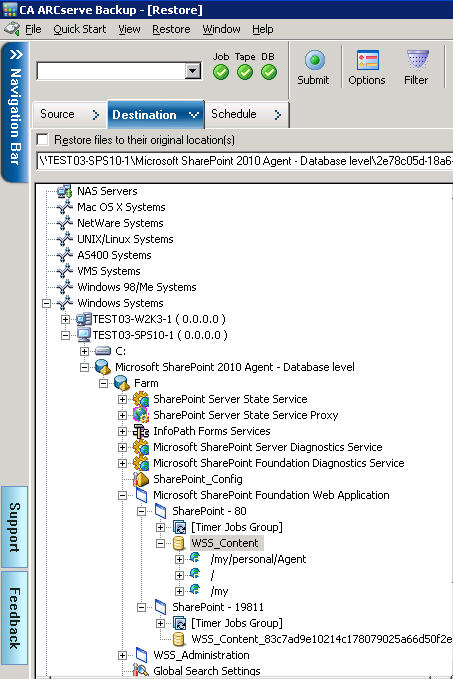
61 Perform a Document-Level Restore to the Alternate Location in SharePoint Click Submit on the toolbar. The SharePoint 2010 agent restore configuration dialog opens. Chapter 5: Restoring SharePoint 2010 Systems 61

62 Perform a Document-Level Restore to the Alternate Location in SharePoint Enter the required information in the SharePoint 2010 agent restore configuration dialog for document-level restore. 8. When the Session User Name and Password dialog opens, verify or change the user name and password for the destination server. To change the user name or password, select the session, click Edit, make your changes, and then click OK. 9. Click OK. 10. When the Submit Job dialog opens, select Run Now to run the job immediately, or select Run On and select a future date and time when you want the job to run. 11. Enter a description for your job and click OK. The site collections are restored. 62 Agent for Microsoft SharePoint Server Guide
63 Chapter 6: Restoring SharePoint 2007 Systems This chapter provides information for restoring data on SharePoint 2007 systems. This section contains the following topics: Restore Overview (see page 63) Database-Level Restore Sets (see page 64) Database-Level Restore Option Dialog SharePoint 2007 (see page 65) Database-Level Restore Prerequisites (see page 68) Perform a Database-Level Data Restore (see page 70) Document-Level Restore Option Dialog in SharePoint 2007 (see page 74) Perform a Document-Level Restore in SharePoint 2007 (see page 78) Perform a Document-Level Restore to Alternate Location in SharePoint 2007 (see page 80) Agent for Microsoft SharePoint Server Limitations (see page 82) Restore Overview The following sections include information on the prerequisites you must meet before you perform a restore, the features that the CA ARCserve Backup Agent for Microsoft SharePoint Server, and the procedure for how to perform a database-level and document-level restore. Chapter 6: Restoring SharePoint 2007 Systems 63
64 Database-Level Restore Sets Database-Level Restore Sets To restore a SharePoint Server, you must restore all of the sessions that, when combined, completely restore the data. These sessions are called your restore set, and it includes the following sessions: If you backed up using only the full backup method, your restore set includes only this full session. If you backed up using both full and differential backups, your restore set includes your full session and one differential session. For example, in the following backup scenario, your restore set can be full and differential 1, full and differential 2, full and differential 3, or full and differential 4: If you want to restore from a differential backup, you need to select only that differential backup session. CA ARCserve Backup will find the previous full backup automatically, and then both the full and selected differential backup sessions. 64 Agent for Microsoft SharePoint Server Guide

65 Database-Level Restore Option Dialog SharePoint 2007 Database-Level Restore Option Dialog SharePoint 2007 When you create a restore job, you can specify restore options to customize the job. To configure the database-level restore options, right-click on a Farm object and click Agent Option. The Restore Options for Agent for Microsoft SharePoint 2007 dialog opens. Restore Options for Agent for Microsoft SharePoint 2007 tab has the following options: Default Restore Dump Location The restore location tells CA ARCserve Backup where you want your data to be stored temporarily before restoring it to the SharePoint server. Note: If you configure the restore location using the restore option, the location configured using Agent Configuration option does not apply. You can select the following restore dump locations: Use Agent Default Configuration Setting Enabled by default, this option makes use of the location that you selected while configuring the agent. Chapter 6: Restoring SharePoint 2007 Systems 65
66 Database-Level Restore Option Dialog SharePoint 2007 CA ARCserve Backup Server Restores the SharePoint data to a shared folder on CA ARCserve Backup. CA ARCserve Agent for Microsoft SharePoint Restores the SharePoint data to a shared folder where the SharePoint Agent is installed. Other (NAS, File) Server Name Restores the SharePoint data to a specified shared folder on the NAS server or File server. Note: You must specify the host name instead of an IP address. Restore Dump Path Share Name If you select the Other (NAS, File) Server Name as the default restore dump location, you need to specify the Server name where the data must be restored. You must grant the necessary permissions to the folder. Note: The share name should not contain the special character $ at the end. Physical Path If you select the CA ARCserve Server or Agent as the restore dump location, you need to specify the path where you want the data to be restored. For more information on these options and how you can configure them, see Configure the Agent on SharePoint Systems (see page 25). 66 Agent for Microsoft SharePoint Server Guide
67 Database-Level Restore Option Dialog SharePoint 2007 Restore Configuration Settings You can configure the restore settings using the Submit button on the Restore Manager. The dialog contains the following information: Type of restore Lets you to keep the same restore Name and Location after restore or a different one. Login names and passwords Lets you to configure who can login to the Farm, Web Application, and SharePoint Service Provider. This credential information is always required to restore the data. Name and Location Lets you configure so that the name or location or both so that of one or more components will have new name or location after a backup job has been restored Different components have different configuration items for name and location. The following table lists the components and their configuration items: Component Type Configuration Item Comment Database New database Server The SQL database server Chapter 6: Restoring SharePoint 2007 Systems 67
68 Database-Level Restore Prerequisites Component Type UserProfileApplica tion Configuration Item Name New directory name New database name New server name Comment you want to restore the database to. It could be an alias name. The new physical path that stores the SQL database files. The new name of the database after restore. The new My Site address of UserProfileApplication after restore. Shared Search Index New server name New directory name The computer name where the Office Search Index service is running. The new physical path where the index files are stored. Web Application New web application URL The URL of the Web Application website New web application Name The new name of the web application that is displayed in IIS. Database-Level Restore Prerequisites Before performing a database-level restore on SharePoint Server 2007, you must satisfy the following requirements: Ensure that the Windows SharePoint Services Administrative service and Windows SharePoint Services Timer service are running on all the Front-End Web servers and Application servers. Ensure to restart the Timer service on stand-alone installations. If you are restoring search services and indexes to a new location, ensure that the search service is running before you start the restore. Ensure that all web application content databases have unique names. If a database with the same name is used by two web applications and then restored, data in the second database is overwritten with data from the first database. 68 Agent for Microsoft SharePoint Server Guide
69 Database-Level Restore Prerequisites Ensure that you do not perform more than one restore at the same time. Ensure that all servers in Farm have the same time zone and daylight savings time settings. For stand-alone installations, please add the following accounts into the Local Administrators Group before performing a restore job. Once the restore job is completed, delete the accounts: NT AUTHORITY\LOCAL SERVICE NT AUTHORITY\NETWORK SERVICE To add accounts to the Local Administrators Group 1. Open Control Panel and expand Administration Tools, Computer Management, System Tools, Local Users and Groups, Groups, Administrators. 2. Click Add. 3. Enter NETWORK SERVICE and LOCAL SERVICE. 4. Click OK. Chapter 6: Restoring SharePoint 2007 Systems 69
70 Perform a Database-Level Data Restore Perform a Database-Level Data Restore Use the Backup Manager in CA ARCserve Backup to perform a Database-level data restore. Important! Treat all content database names as unique. Before you restore a content database, make sure the name of the database does not exist in any other web application. If you restore a content database whose name is used by two different applications using the Restore by Session method, the database restore job is listed as 'successful', but occurs under the second application, overwriting whatever content existed in that database. To restore a SharePoint Server 2007 database 1. From the CA ARCserve Backup Home Page, select Restore from the Quick Start menu. The Restore Manager window opens. 2. From the Restore Manager window, select Restore by Tree in the drop-down list below the Source tab. Note: Both Restore by Tree and Restore by Session are supported for Database-Level restore. Under the Microsoft SharePoint 2007 Agent - Database Level node there may be more than one Farm object. If you select multiple components under a Farm for a single backup job, you see multiple Farm objects. Each node is associated with a component selected to backup. For example, if you select a Web Application and a SharePoint Provider service, two Farm objects are generated. One Farm object has the Web Application and the other Farm object has the SharePoint Provider service. If you back up the same Farm or component several times, you see only one Farm object which displays the latest backup of this component. 70 Agent for Microsoft SharePoint Server Guide

71 Perform a Database-Level Data Restore 3. From the directory tree, expand the Windows Systems object, expand the farm containing the database that you backed up, and select the farm object. 4. If the most recent backup is not the backup you want to restore, click Version History as shown in the following graphic, select the version you want to restore, and click Select. Note: Version History is enabled for SharePoint 2007 Database-Level objects and Farm objects and displays the backup history of the selected components. SharePoint 2007 identifies the Farm component based on its ID, which is unique. This ID does not change even if the component is renamed. 5. Right-click each farm object you are including in this job and select Agent Option to select restore options. For more information about restore options, see Database-Level Restore Option Dialog SharePoint 2007 (see page 65). 6. Click the Destination tab. You can restore the database objects to their original location (the default) or you can restore the database objects to an alternative location. Chapter 6: Restoring SharePoint 2007 Systems 71
72 Perform a Database-Level Data Restore 7. If you want to restore to an alternative location, clear the check mark from the Restore files to their original locations check box, expand the Windows Systems object, expand the server you want to restore to, and select the Microsoft SharePoint 2007 Database Level object. Note: If you want to restore to an alternative location, you must select the Farm object as the destination. 8. Click Submit on the toolbar. Enter the required information in the Restore Configuration dialog. If you are restoring to an alternative location, when the Security dialog appears, enter the user name and password for the destination server and click OK. 72 Agent for Microsoft SharePoint Server Guide
73 Perform a Database-Level Data Restore 9. When the Session User Name and Password dialog opens, verify or change the user name and password for the destination server. To change the user name or password, select the session, click Edit, make your changes, and then click OK. Note: You must enter the user name in the following format: DOMAIN\USERNAME 10. Click OK. 11. When the Submit Job dialog opens, select Run Now to run the job immediately, or select Run On and select a future date and time when you want the job to run. 12. Enter a description for your job and click OK. Important! After you perform a restore, you must restart the Internet Information Services (IIS). Chapter 6: Restoring SharePoint 2007 Systems 73
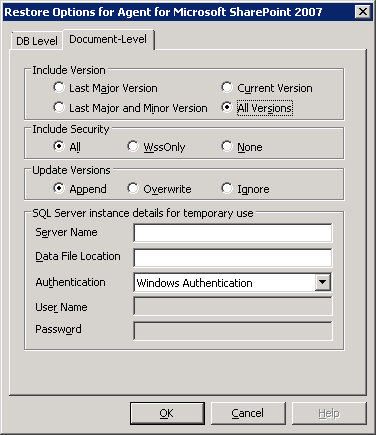
74 Document-Level Restore Option Dialog in SharePoint 2007 Document-Level Restore Option Dialog in SharePoint 2007 When you create a document-level restore job, you can specify restore options to customize the job using the document level tab. Select the source and click Agent Options. The Restore Options for Agent for Microsoft SharePoint 2007 dialog opens. Select the Document-level tab and configure the dialog. The Restore Options for Agent for Microsoft SharePoint 2007 dialog includes the following options: Include Version Specifies what content will be restored based on document version. Last Major Version Includes the last major version content. Last Major and Minor Versions Includes the last major and minor version content. Current Version Includes content about the latest version. All Versions (default) Includes content of all versions. Include Security Specifies whether user and security group information will be restored. All (default) Includes user memberships and role assignments such as out of the box roles like Web Designer, or any custom roles that extend from the out of the box roles. The ACL for each object is migrated. 74 Agent for Microsoft SharePoint Server Guide
75 Document-Level Restore Option Dialog in SharePoint 2007 Also, user information defined in the DAP or LDAP servers is included. WssOnly Includes user memberships and role assignments such as out of the box roles like Web Designer, or any custom roles that extend from the out of the box roles. The ACL for each object is migrated. No user information defined in the DAP or LDAP servers is included. None No user or group information is migrated. Update Versions Specifies how versioning is managed in the destination location when restore. Append(default) Appends the versions to the destination. Ignore Ignores versioning and imports the updated file. Overwrite Deletes existing version and imports as new versions. SQL Server instance details for temporary use Connects the agent to a SQL server instance. Server name The SQL Server host name and instance name. Data File Location This location is used to store the database file when restore database backup dump to SQL Instance. This must be a local path on the server which hosts the SQL Instance and the path must exists. Note: The SQL Server instance must have permissions to access the Data File Location. Authentication The authentication type for this SQL Instance. Select the type of authentication to connect to the SQL server. Windows Authentication (default) You can enter the user name and password details to connect. SQL Server Authentication This is the SQL Server authentication mode. You must enter the login and password details. Note: The version of the temporary SQL Server must be same as the version of Microsoft SharePoint database Server. Chapter 6: Restoring SharePoint 2007 Systems 75
76 Document-Level Restore Option Dialog in SharePoint 2007 SharePoint 2007 agent restore configuration dialog You must configure the SharePoint 2007 agent restore configuration dialog while performing document-level restores to alternate locations. After selecting the destination tab on the Restore manager, you must click Submit on the toolbar. The SharePoint 2007 agent restore configuration dialog opens. You must enter the information for the following parameters: Destination Site full URL Specifies the destination to which the site collection should be restored. Owner Login Specifies the new site collection owner details. If the destination site collection doesn t exist, you can use this user account to create the destination site collection. Owner Specifies the new site collection owner details. 76 Agent for Microsoft SharePoint Server Guide
77 Document-Level Restore Option Dialog in SharePoint 2007 If the destination site collection doesn t exist, you can use this user account to create the destination site collection. Chapter 6: Restoring SharePoint 2007 Systems 77
78 Perform a Document-Level Restore in SharePoint 2007 Perform a Document-Level Restore in SharePoint 2007 Use the Restore Manager in CA ARCserve Backup to perform a Document-level data restore. To restore a site collection to original location 1. From the CA ARCserve Backup Home Page, select Restore from the Quick Start menu. The Restore Manager window opens. 2. From the Restore Manager window, select Restore by Tree in the drop-down list below the Source tab. 3. From the directory tree, expand the Windows Systems object, expand the farm containing the Site Collection, Site, List and List Item under the Database Node and select the farm object. 4. Right-click each farm object you are including in this job and select Agent Option to select restore options. 5. Click the Destination tab. You can restore the database objects to their original (default) location. 6. Click Submit on the toolbar. 7. When the Session User Name and Password dialog opens, verify or change the user name and password for the destination server. To change the user name or password, select the session, click Edit, make your changes, and then click OK. Click OK. 78 Agent for Microsoft SharePoint Server Guide
79 Perform a Document-Level Restore in SharePoint When the Submit Job dialog opens, select Run Now to run the job immediately, or select Run On and select a future date and time when you want the job to run. 9. Enter a description for your job and click OK. The site collections are restored. Chapter 6: Restoring SharePoint 2007 Systems 79
80 Perform a Document-Level Restore to Alternate Location in SharePoint 2007 Perform a Document-Level Restore to Alternate Location in SharePoint 2007 Use the Restore Manager in CA ARCserve Backup to perform a Document-level data restore. To restore a site collection to original or alternate location 1. From the CA ARCserve Backup Home Page, select Restore from the Quick Start menu. The Restore Manager window opens. 2. From the Restore Manager window, select Restore by Tree in the drop-down list below the Source tab. 3. From the directory tree, expand the Windows Systems object, expand the farm containing the Site Collection, Site, List and List Item under the Database Node and select the farm object. 4. Right-click each farm object you are including in this job and select Agent Option to select restore options. 5. Click the Destination tab and select the Farm object as the destination. For more information about alternate locations, see Destination folders for Document-level Restores (see page 57). Note: If you want to restore to an alternative location, you must select the Farm object as the destination. 6. Click Submit on the toolbar. Enter the required information in the Restore Configuration dialog. 80 Agent for Microsoft SharePoint Server Guide
81 Perform a Document-Level Restore to Alternate Location in SharePoint When the Session User Name and Password dialog opens, verify or change the user name and password for the destination server. To change the user name or password, select the session, click Edit, make your changes, and then click OK. Click OK. 8. When the Submit Job dialog opens, select Run Now to run the job immediately, or select Run On and select a future date and time when you want the job to run. 9. Enter a description for your job and click OK. The site collections are restored. Chapter 6: Restoring SharePoint 2007 Systems 81
82 Agent for Microsoft SharePoint Server Limitations Agent for Microsoft SharePoint Server Limitations The Agent for Microsoft SharePoint Server cannot perform some of the document-level or granular restore operations for the SharePoint Systems. The agent cannot restore: configuration or application data. So, any binaries developed for web applications or application pages will not be restored. customized site definitions, list definitions, content type definitions, filed definitions. alerts, audit trail, change log history, items in check-in/check-out state, recycle bin items, recycle bin state, security state, workflow tasks and workflow states. external blob store (EBS). list items such as Survey list to alternative location. You can restore only complete surveys. root web site. item versions such as team discussion and PKI list. Other limitations: If a file has only one version, and it is in the check-out state, then the agent cannot restore this file. Restore operation on list/site/site collection to original location will not restore list items from the Recycle Bin. However, you can perform these steps and try to restore: a. Clear the Recycle Bin, both at site-level and site-collection level b. Restore those list items separately. Note: The list does not include document library. It is not recommended to restore from one domain to another domain as the security settings are not compatible between two different domain. Important! If you are restoring an object, list item or folder, list or web to an original location then you must ensure the object s parent location exists. 82 Agent for Microsoft SharePoint Server Guide
83 Chapter 7: Using Best Practices This section recommends best practices for using CA ARCserve Backup Agent for Microsoft SharePoint Server on SharePoint 2007 systems. This section contains the following topics: How to Select the Proper Location (see page 83) Set Access Permission on Dump Location (see page 84) How to Select the Proper Location You must select a proper location both for backup as well as restore. The following considerations apply: Available disk size The Agent for SharePoint 2007 stores some data in a dump location during backup and restore. You should ensure that there is enough disk space to hold all the components that will be backed up. If you want to know how much disk space is required for the backup job, open the Backup Manager, select the component to be backed up, and then check the disk space required. Available Network Band-You must select an available network band for the differential dump location depending on your network traffic and costs involved. Consider the following: CA ARCserve Server costs less because the data is transferred once. CA ARCserve SharePoint Agent (Local Machine) and Other (NAS, File) Server Name cost more as the data maybe transferred twice. ARCserve Server and SharePoint 2007 Agent Location-CA ARCserve SharePoint Agent (Local Machine) and Other (NAS, File) Server Name support all of the following four scenarios: Agent and server are installed in a single windows domain. Agent and server are installed in two different domains and one domain trusts another. Agent and server are installed in different Windows domains, and there is no trust relationship. Either the agent or the server is installed in a workgroup and the other is installed in a domain. Note: CA ARCserve Server supports only the first two scenarios mentioned above. Chapter 7: Using Best Practices 83
84 Set Access Permission on Dump Location Set Access Permission on Dump Location The accounts in the following table can access the shared folder: Account Database server's SQL Account The Timer service account Central Administrator pool account Dump Location Access Permission for Backup All permissions except Full Control All permissions except Full Control All permissions except Full Control Dump Location Access Permission for Restore Read permission Read permission All permissions except Full Control If the database server's SQL account is on a Local system, you must grant the required permission to the SQL server computer. If you want to know who has been assigned permissions to the shared folder, open the Backup Manager, select the account, and then check the list of users who have permission to the shared folder. 84 Agent for Microsoft SharePoint Server Guide
85 Appendix A: Microsoft SharePoint Server Features used by the Agent This section contains the following topics: Microsoft SharePoint Server 2010 Features (see page 86) Microsoft SharePoint 2010 Data (see page 87) Microsoft SharePoint Server 2007 Features (see page 89) Microsoft SharePoint 2007 Data (see page 89) Appendix A: Microsoft SharePoint Server Features used by the Agent 85
86 Microsoft SharePoint Server 2010 Features Microsoft SharePoint Server 2010 Features The SharePoint Server 2010 farm components supported by the agent: Web Application Single Sign-On (SSO) databases Windows SharePoint Services Help Search Global Search settings Secure Stored services Office SharePoint Server State Service Managed Metadata Web Service Web Analytics Web Service People Microsoft.SharePoint.BusinessData.SharedService.BdcService Excel Calculation Service Word Conversion Service Access Service Microsoft.Office.Server.Administration.UserProfileServiceProxy Microsoft.Office.SecureStoreService.Server.SecureStoreServiceProxy Managed Metadata Web Service Proxy Microsoft.Office.Server.WebAnalytics.Administration.WebAnalyticsServiceP roxy Word Conversion Service Search Service Application Proxy Collection Microsoft.SharePoint.BusinessData.SharedService.BdcServiceProxy Office SharePoint Server State Service Proxy InfoPath Forms Services Visio Graphics Service Search Service Application 86 Agent for Microsoft SharePoint Server Guide
87 Microsoft SharePoint 2010 Data Microsoft SharePoint 2010 Data The Agent for Microsoft SharePoint Server supports the backup of the following SharePoint data: SharePoint server farm Web Applications Web Application content database Single Sign-On database Windows SharePoint Services Help Search Global Search Settings Secure Stored services Secure Store Service Application Office SharePoint Server State Service Managed Metadata Web Service Managed Metadata Service Application Web Analytics Web Service Web Analytics Service Application Web Analytics Stager Database Web Analytics Warehouse Database People Microsoft.Office.Server.Administration.UserProfileApplication Microsoft.SharePoint.BusinessData.SharedService.BdcService Business Data Catalog Service Application Excel Calculation Service Excel Services Web Service Application Word Conversion Service Word Conversion Service Application Access Service Access Services Application Microsoft.Office.Server.Administration.UserProfileServiceProxy Microsoft.Office.Server.Administration.UserProfileApplicationProxy Microsoft.Office.SecureStoreService.Server.SecureStoreServiceProxy Secure Store Service Application Proxy Managed Metadata Web Service Proxy Appendix A: Microsoft SharePoint Server Features used by the Agent 87
88 Microsoft SharePoint 2010 Data Managed Metadata Web Service Application Proxy Microsoft.Office.Server.WebAnalytics.Administration.WebAnalyticsServiceP roxy Microsoft.Office.Server.WebAnalytics.Administration.WebAnalyticsServiceA pplicationproxy Word Conversion Service Word Conversion Service Application Search Service Application Proxy Collection Search Service Application Proxy Microsoft.SharePoint.BusinessData.SharedService.BdcServiceProxy Business Data Catalog Service Application Proxy Office SharePoint Server State Service Proxy State Service Application Proxy InfoPath Forms Services InfoPath Forms Services Settings Data Connections Form Templates Exempt User Agents Visio Graphics Service Graphics Service Application Search Service Application Administration Database Property Database Crawl Database Note: Throughout this guide, backward-compatible document libraries, Single Sign-On (encryption key component only), and search indexes are referred to as non-database data to distinguish this type of data from SharePoint database data. You must protect customized template and configuration files stored on front-end web servers with a file system backup. The agent does not provide support for these files: IIS (Internet Information Server) metabase SharePoint extended virtual server root directories Custom web part assemblies Custom SharePoint templates and configuration files 88 Agent for Microsoft SharePoint Server Guide
89 Microsoft SharePoint Server 2007 Features Any add-on software used by the SharePoint sites You can fully protect this information by using the CA ARCserve Backup Client Agent for Windows. For more information about using this agent, see the Client Agents Guide. Microsoft SharePoint Server 2007 Features The SharePoint Server 2007 farm components supported by the agent: Web Application SharePoint Services Provider with associated search indexes Single Sign-On (SSO) databases Windows SharePoint Services Help Search Global Search settings Microsoft SharePoint 2007 Data The Agent for Microsoft SharePoint Server requires Windows systems and supports the backup of the following SharePoint data: SharePoint server farm Web Applications Web Application content database Single Sign-On database Windows SharePoint Services Help Search Shared Services Provider Shared Services Provider content database Global Search Settings Note: Throughout this guide, backward-compatible document libraries, Single Sign-On (encryption key component only), and search indexes are referred to as non-database data to distinguish this type of data from SharePoint database data. Appendix A: Microsoft SharePoint Server Features used by the Agent 89
90
91 Appendix B: Disaster Recovery This section contains the following topics: How to Perform a Database-Level Disaster Recovery on SharePoint 2010 Systems (see page 91) How to Perform a Database-Level Disaster Recovery on SharePoint 2007 Systems (see page 92) How to Perform a Database-Level Disaster Recovery on SharePoint 2010 Systems If one or more computers in a farm crash, it can corrupt the entire farm or a few components. If a disaster occurs, you must follow this process to restore the SharePoint data: 1. Restore the operating system on your computer. The CA ARCserve Backup Disaster Recovery Option provides an automated and efficient way for you to complete these tasks. For more information, see the CA ARCserve Backup Disaster Recovery Option Guide. 2. Ensure that the required applications are operational. SQL Server should be running on the computer where Microsoft SQL Server is installed. The front-end web server and Application server require SharePoint Some of the considerations include: Stand-alone server Microsoft SQL Server 2008 Express Database server for a single-server farm SQL Server If you want to recover the entire farm, you must create the new farm using Microsoft SharePoint products and the technologies configuration wizard. To know more about SharePoint Products and the Technologies, see Microsoft Documentation. 5. After creating the new Farm, ensure all backup operation services, are still running on the SharePoint 2010 Central Admin before you start the backup operation. Appendix B: Disaster Recovery 91
92 How to Perform a Database-Level Disaster Recovery on SharePoint 2007 Systems How to Perform a Database-Level Disaster Recovery on SharePoint 2007 Systems If one or more computers in a farm crash, it can corrupt the entire farm or a few components. If a disaster occurs, you must follow this process to restore the SharePoint 2007 data: 1. Restore the operating system on your computer. The CA ARCserve Backup Disaster Recovery Option provides an automated and efficient way for you to complete these tasks. For more information, see the Disaster Recovery Option Guide. 2. Ensure that the required applications are operational. SQL Server should be running on the computer where Microsoft SQL Server is installed. The front-end web server and Application server require SharePoint If you want to recover the entire farm, you must create the new farm using SharePoint Products and the Technologies Configuration wizard. To know more about SharePoint Products and the Technologies, see Microsoft Documentation. 4. After creating the new Farm, make sure that the following services in the SharePoint 2007 Central Admin are running: Windows SharePoint Services Help Search, Office SharePoint Server Search, and Excel Calculation Services for SharePoint 2007 Farm Windows SharePoint Services Search for Windows SharePoint Services 3.0 Farm 5. If the new Farm is a stand-alone setup, you must rename the default Shared Service Provider (SharedService1) to a new name that does not exist in the original Farm. After you perform the restore, you can delete the Shared Service Provider. 6. Restore the Farm or its components. For instructions on how to restore the databases to SharePoint 2007, see Perform a Database-Level Data Restore (see page 70). 92 Agent for Microsoft SharePoint Server Guide
93 Appendix C: Configuring Microsoft SQL Server Security Settings This appendix explains how to configure Microsoft SQL Server security settings for CA ARCserve Backup. This section contains the following topics: Types of Microsoft SQL Authentication (see page 93) Authentication Requirements (see page 93) Check or Change the Microsoft SQL Server Authentication Method (see page 94) Types of Microsoft SQL Authentication Microsoft SQL Server provides the following two types of user authentication: Apply the Windows login identification Use separate user credentials specific to Microsoft SQL Server Although Microsoft recommends using only Windows authentication wherever possible, in certain instances it is appropriate, or even necessary, to enable Microsoft SQL Server-based authentication. For example, you must use Microsoft SQL Server authentication for Microsoft SQL Server 2000 or 2005 when the database is running in a cluster. For more information on clusters, see Microsoft documentation. Authentication Requirements For Microsoft SQL Server authentication, you must specify a user account with system administrator access privileges. By default, Microsoft SQL Server creates an account with this level of access, called sa, but the Agent for Microsoft SharePoint Server can use any account with equivalent privileges. For Windows authentication, any account with administrator equivalency for the machine on which the database is running typically has system administrator access privileges for the database. Note: A Windows or domain administrator does not automatically have system administrator access privileges for the database if the BUILTIN\Administrators login entry in Microsoft SQL Server has been removed or does not have this role, or if a separate login entry for this user in Microsoft SQL Server does not have this role. Appendix C: Configuring Microsoft SQL Server Security Settings 93
94 Check or Change the Microsoft SQL Server Authentication Method Check or Change the Microsoft SQL Server Authentication Method You can check or change the Microsoft SQL Server authentication method using CA ARCserve Backup. To check or change the Microsoft SQL Server authentication method 1. On the system where Microsoft SQL Server is running, open the SQL Server Enterprise Manager. 2. In the Tree pane, expand the entries below Console Root until you reach the database server. 3. Right-click the server name, and select Properties from the drop-down list. The Properties dialog opens. 4. In the Properties dialog, click the Security tab. 5. Under Authentication, select one of the following options: Microsoft SQL Server and Windows Enables Microsoft SQL server-based authentication. Windows Only 6. Click OK. Enables only Windows user names and passwords. The user authentication process is now set. 94 Agent for Microsoft SharePoint Server Guide
95 Appendix D: Troubleshooting The following information is provided for troubleshooting backup and restore issues using the CA ARCserve Backup Agent for Microsoft SharePoint Server: This section contains the following topics: AE9972 (see page 95) Unable to restore a site collection to its original location (see page 95) AE9972 If you receive an AE9972 Object <Component Name> failed error in event OnRestore, perform the following tasks: 1. Start the SPAdmin Windows Service, displayed as Windows SharePoint Services Administration. 2. Go the SharePoint 3.0 Central Administration website and select Operations, Topology and Services, Services on Server. 3. Choose the agent machine server and select the Custom radio box. 4. Click Central Administration. 5. Click Start. 6. Run the job that previously failed, again. Unable to restore a site collection to its original location Restoring a site collection to its original location that has been deleted will fail, when you delete the site collection URL. You can perform the folowwing steps: 1. Perform restore to an alternative location. 2. Select the original SharePoint Server. 3. Enter the new URL parameter in the agent restore configuration dialog and complete the restore process. Appendix D: Troubleshooting 95
96 Unable to restore a site collection to its original location More information: Perform a Document-Level Restore to the Alternate Location in SharePoint 2010 (see page 59) Perform a Document-Level Restore to Alternate Location in SharePoint 2007 (see page 80) 96 Agent for Microsoft SharePoint Server Guide
97 Index A agent configuration 20, 21, 23, 25 features 13 B Backup Options Dialog in SharePoint Server C configure the agent 25 D database-level agent backup option dialog 38 database-level configuration tab 21 database-level restore option dialog in SharePoint Server disaster recovery 91 document-level configuration tab 23 document-level restore option dialog in SharePoint E encryption encryption, support 36 S Single Sign-on Single Sign-on, configuration 17 Single Sign-on, database 14, 17 SQL Server, authentication 93 Index 97
Arcserve Backup for Windows
 Arcserve Backup for Windows Agent for Microsoft SharePoint Server Guide r16 Pre-release Document, only for reference This Documentation, which includes embedded help systems and electronically distributed
CA ARCserve Backup for Windows
 CA ARCserve Backup for Windows Agent for Sybase Guide r16 This Documentation, which includes embedded help systems and electronically distributed materials, (hereinafter referred to as the Documentation
CA ARCserve Backup for Windows
 CA ARCserve Backup for Windows Agent for Sybase Guide r16.5 This Documentation, which includes embedded help systems and electronically distributed materials, (hereinafter referred to as the Documentation
CA ARCserve Backup for Windows
 CA ARCserve Backup for Windows NDMP NAS Option Guide r16 This Documentation, which includes embedded help systems and electronically distributed materials, (hereinafter referred to as the Documentation
CA ARCserve Backup. UNIX and Linux Data Mover Guide. r16
 CA ARCserve Backup UNIX and Linux Data Mover Guide r16 This Documentation, which includes embedded help systems and electronically distributed materials, (hereinafter referred to as the Documentation )
CA ARCserve Backup. UNIX and Linux Data Mover Guide. r15
 CA ARCserve Backup UNIX and Linux Data Mover Guide r15 This documentation and any related computer software help programs (hereinafter referred to as the "Documentation") are for your informational purposes
CA ARCserve Backup for Windows
 CA ARCserve Backup for Windows Enterprise Option for SAP R/3 for Oracle Guide r15 This documentation and any related computer software help programs (hereinafter referred to as the "Documentation") are
How To Use An Npm Npm Option 17.3.3 (Npm) On A Network With A Npm And Npm On A Npa Server
 CA ARCserve Backup for Windows NDMP NAS Option Guide r16.5 This Documentation, which includes embedded help systems and electronically distributed materials, (hereinafter referred to as the Documentation
How To Backup An Org Database On An Org Server On A Pc Oracle Server On Anorora (Orora) With A Backup And Restore Option On A Windows 7.5.2 (Ororora).Org (Orroboron
 CA ARCserve Backup for Windows Enterprise Option for SAP R/3 for Oracle Guide r16 This Documentation, which includes embedded help systems and electronically distributed materials, (hereinafter referred
BrightStor ARCserve Backup for Windows
 BrightStor ARCserve Backup for Windows Serverless Backup Option Guide r11.5 D01182-2E This documentation and related computer software program (hereinafter referred to as the "Documentation") is for the
CA ARCserve Backup for Windows
 CA ARCserve Backup for Windows Agent for Microsoft Exchange Server Guide r15 This documentation and any related computer software help programs (hereinafter referred to as the "Documentation") are for
Arcserve Backup for Windows
 Arcserve Backup for Windows Agent for Microsoft Exchange Server Guide r16.5 This Documentation, which includes embedded help systems and electronically distributed materials (hereinafter referred to as
CA ARCserve Backup for Windows
 CA ARCserve Backup for Windows NDMP NAS Option Guide r15 This documentation and any related computer software help programs (hereinafter referred to as the "Documentation") are for your informational purposes
Upgrade Guide. CA Application Delivery Analysis 10.1
 Upgrade Guide CA Application Delivery Analysis 10.1 This Documentation, which includes embedded help systems and electronically distributed materials, (hereinafter referred to as the Documentation ) is
CA Technologies SiteMinder
 CA Technologies SiteMinder Agent for Microsoft SharePoint r12.0 Second Edition This Documentation, which includes embedded help systems and electronically distributed materials, (hereinafter referred to
CA ARCserve Backup for Windows
 CA ARCserve Backup for Windows Agent for Microsoft Exchange Server Guide r15 This documentation and any related computer software help programs (hereinafter referred to as the "Documentation") are for
CA ARCserve Backup for Windows
 CA ARCserve Backup for Windows Agent for Microsoft Exchange Server Guide r16 This Documentation, which includes embedded help systems and electronically distributed materials, (hereinafter referred to
CA ARCserve Backup for Windows
 CA ARCserve Backup for Windows Release Summary r15 This documentation and any related computer software help programs (hereinafter referred to as the "Documentation") are for your informational purposes
CA ARCserve Backup for Windows
 CA ARCserve Backup for Windows Agent for VMware Guide r12 This documentation and any related computer software help programs (hereinafter referred to as the Documentation ) is for the end user s informational
How To Install Caarcserve Backup Patch Manager 27.3.2.2 (Carcserver) On A Pc Or Mac Or Mac (Or Mac)
 CA ARCserve Backup Patch Manager for Windows User Guide r16 This Documentation, which includes embedded help systems and electronically distributed materials, (hereinafter referred to as the Documentation
CA ARCserve Backup for Windows
 CA ARCserve Backup for Windows Disaster Recovery Option Guide r15 This documentation and any related computer software help programs (hereinafter referred to as the "Documentation") are for your informational
CA Cloud Service Delivery Platform
 CA Cloud Service Delivery Platform Customer Onboarding Version 01.0.00 This Documentation, which includes embedded help systems and electronically distributed materials, (hereinafter referred to as the
CA ARCserve Backup for Windows
 CA ARCserve Backup for Windows Agent for Microsoft Exchange Guide r12.5 This documentation and any related computer software help programs (hereinafter referred to as the Documentation ) is for the end
CA ARCserve Backup for Windows
 CA ARCserve Backup for Windows Agent for Microsoft SQL Server Guide r15 This documentation and any related computer software help programs (hereinafter referred to as the "Documentation") are for your
BrightStor ARCserve Backup for Windows
 BrightStor ARCserve Backup for Windows Agent for Microsoft SQL Server r11.5 D01173-2E This documentation and related computer software program (hereinafter referred to as the "Documentation") is for the
CA ARCserve Backup for Windows
 CA ARCserve Backup for Windows Agent for Open Files Guide r15 This documentation and any related computer software help programs (hereinafter referred to as the "Documentation") are for your informational
CA ARCserve Backup for Windows
 CA ARCserve Backup for Windows Disaster Recovery Option Guide r16 This Documentation, which includes embedded help systems and electronically distributed materials, (hereinafter referred to as the Documentation
CA ARCserve Backup for Windows
 CA ARCserve Backup for Windows Disaster Recovery Option Guide r12.5 This documentation and any related computer software help programs (hereinafter referred to as the Documentation ) is for the end user
BrightStor ARCserve Backup for Windows
 BrightStor ARCserve Backup for Windows Tape RAID Option Guide r11.5 D01183-1E This documentation and related computer software program (hereinafter referred to as the "Documentation") is for the end user's
BrightStor ARCserve Backup for Linux
 BrightStor ARCserve Backup for Linux Agent for MySQL Guide r11.5 D01213-2E This documentation and related computer software program (hereinafter referred to as the "Documentation") is for the end user's
CA ARCserve Backup for Windows
 CA ARCserve Backup for Windows Agent for Microsoft SQL Server Guide r16 This Documentation, which includes embedded help systems and electronically distributed materials, (hereinafter referred to as the
CA XOsoft Replication for Windows
 CA XOsoft Replication for Windows Microsoft SQL Server Operation Guide r12.5 This documentation and any related computer software help programs (hereinafter referred to as the Documentation ) is for the
CA Spectrum and CA Embedded Entitlements Manager
 CA Spectrum and CA Embedded Entitlements Manager Integration Guide CA Spectrum Release 9.4 - CA Embedded Entitlements Manager This Documentation, which includes embedded help systems and electronically
CA NetQoS Performance Center
 CA NetQoS Performance Center Install and Configure SSL for Windows Server 2008 Release 6.1 (and service packs) This Documentation, which includes embedded help systems and electronically distributed materials,
CA ARCserve Backup for Windows
 CA ARCserve Backup for Windows Agent for Microsoft SQL Server Guide r15 This documentation and any related computer software help programs (hereinafter referred to as the "Documentation") are for your
CA ARCserve Backup for Windows
 CA ARCserve Backup for Windows Agent for Open Files Guide r16 This Documentation, which includes embedded help systems and electronically distributed materials, (hereinafter referred to as the Documentation
Arcserve Cloud. Arcserve Cloud Getting Started Guide
 Arcserve Cloud Arcserve Cloud Getting Started Guide This Documentation, which includes embedded help systems and electronically distributed materials, (hereinafter referred to as the Documentation ) is
Unicenter NSM Integration for BMC Remedy. User Guide
 Unicenter NSM Integration for BMC Remedy User Guide This documentation and any related computer software help programs (hereinafter referred to as the Documentation ) is for the end user s informational
CA ARCserve Backup for Windows
 CA ARCserve Backup for Windows Agent for Virtual Machines Guide r16.5 This Documentation, which includes embedded help systems and electronically distributed materials, (hereinafter referred to as the
CA Change Manager Enterprise Workbench r12
 CA Change Manager Enterprise Workbench r12 Database Support for Microsoft SQL Server 2008 This documentation and any related computer software help programs (hereinafter referred to as the "Documentation")
CA ARCserve Backup for Windows
 CA ARCserve Backup for Windows Agent for Virtual Machines Guide r16 This Documentation, which includes embedded help systems and electronically distributed materials, (hereinafter referred to as the Documentation
CA VPN Client. User Guide for Windows 1.0.2.2
 CA VPN Client User Guide for Windows 1.0.2.2 This Documentation, which includes embedded help systems and electronically distributed materials, (hereinafter referred to as the Documentation ) is for your
CA ARCserve Replication and High Availability for Windows
 CA ARCserve Replication and High Availability for Windows Microsoft SQL Server Operation Guide r15 This documentation and any related computer software help programs (hereinafter referred to as the "Documentation")
CA ARCserve Replication and High Availability
 CA ARCserve Replication and High Availability Microsoft SharePoint Server Operation Guide r16.5 This Documentation, which includes embedded help systems and electronically distributed materials, (hereinafter
CA ARCserve Backup r16.x Professional Exam (CAT-360) Study Guide Version 1.1
 (CAT-360) Version 1.1 - PROPRIETARY AND CONFIDENTIAL INFORMATION - These educational materials (hereinafter referred to as the Materials ) are for the end user s educational purposes only and are subject
CA Nimsoft Service Desk
 CA Nimsoft Service Desk Single Sign-On Configuration Guide 6.2.6 This Documentation, which includes embedded help systems and electronically distributed materials, (hereinafter referred to as the Documentation
CA SiteMinder. Web Agent Installation Guide for IIS 12.51
 CA SiteMinder Web Agent Installation Guide for IIS 12.51 This Documentation, which includes embedded help systems and electronically distributed materials (hereinafter referred to as the Documentation
BrightStor ARCserve Backup for UNIX
 BrightStor ARCserve Backup for UNIX Disaster Recovery Option Guide r11.5 D01200-1E This documentation and related computer software program (hereinafter referred to as the "Documentation") is for the end
CA Nimsoft Monitor. Probe Guide for CA ServiceDesk Gateway. casdgtw v2.4 series
 CA Nimsoft Monitor Probe Guide for CA ServiceDesk Gateway casdgtw v2.4 series Copyright Notice This online help system (the "System") is for your informational purposes only and is subject to change or
CA Unified Infrastructure Management Server
 CA Unified Infrastructure Management Server CA UIM Server Configuration Guide 8.0 Document Revision History Version Date Changes 8.0 September 2014 Rebranded for UIM 8.0. 7.6 June 2014 No revisions for
CA ARCserve Backup for UNIX and Linux
 CA ARCserve Backup for UNIX and Linux Enterprise Option for SAP R/3 for Oracle Guide r16.5 This Documentation, which includes embedded help systems and electronically distributed materials, (hereinafter
CA SiteMinder. Web Agent Installation Guide for IIS. r12.5
 CA SiteMinder Web Agent Installation Guide for IIS r12.5 This Documentation, which includes embedded help systems and electronically distributed materials, (hereinafter referred to as the Documentation
Chapter 1: How to Register a UNIX Host in a One-Way Trust Domain Environment 3
 Contents Chapter 1: How to Register a UNIX Host in a One-Way Trust Domain Environment 3 Introduction... 3 How to Register a UNIX Host in a One-Way Trust Domain Environment... 4 Creating a Windows Agentless
CA Nimsoft Monitor. Probe Guide for Active Directory Response. ad_response v1.6 series
 CA Nimsoft Monitor Probe Guide for Active Directory Response ad_response v1.6 series Legal Notices This online help system (the "System") is for your informational purposes only and is subject to change
CA Nimsoft Monitor. Probe Guide for Performance Collector. perfmon v1.5 series
 CA Nimsoft Monitor Probe Guide for Performance Collector perfmon v1.5 series CA Nimsoft Monitor Copyright Notice This online help system (the "System") is for your informational purposes only and is subject
CA Workload Automation Agent for Microsoft SQL Server
 CA Workload Automation Agent for Microsoft SQL Server Release Notes r11.3.1, Second Edition This Documentation, which includes embedded help systems and electronically distributed materials, (hereinafter
CA Clarity PPM. Connector for Microsoft SharePoint Release Notes. v2.0.00
 CA Clarity PPM Connector for Microsoft SharePoint Release Notes v2.0.00 This documentation, which includes embedded help systems and electronically distributed materials, (hereinafter referred to as the
BrightStor ARCserve Backup for Windows
 BrightStor ARCserve Backup for Windows NDMP NAS Option Guide r11.5 D01180-2E This documentation and related computer software program (hereinafter referred to as the "Documentation") is for the end user's
CA ARCserve Replication and High Availability
 CA ARCserve Replication and High Availability Installation Guide r16 This documentation, which includes embedded help systems and electronically distributed materials, (hereinafter referred to as the Documentation
CA Spectrum. Microsoft MOM and SCOM Integration Guide. Release 9.4
 CA Spectrum Microsoft MOM and SCOM Integration Guide Release 9.4 This Documentation, which includes embedded help systems and electronically distributed materials, (hereinafter referred to as the Documentation
Nimsoft Monitor. dns_response Guide. v1.6 series
 Nimsoft Monitor dns_response Guide v1.6 series CA Nimsoft Monitor Copyright Notice This online help system (the "System") is for your informational purposes only and is subject to change or withdrawal
etrust Audit Using the Recorder for Check Point FireWall-1 1.5
 etrust Audit Using the Recorder for Check Point FireWall-1 1.5 This documentation and related computer software program (hereinafter referred to as the Documentation ) is for the end user s informational
CA Cloud Service Delivery Platform
 CA Cloud Service Delivery Platform Service Level Manager Version 01.0.00 This Documentation, which includes embedded help systems and electronically distributed materials, (hereinafter referred to as the
CA Clarity PPM. Connector for Microsoft SharePoint Product Guide. Service Pack 02.0.01
 CA Clarity PPM Connector for Microsoft SharePoint Product Guide Service Pack 02.0.01 This Documentation, which includes embedded help systems and electronically distributed materials, (hereinafter referred
CA Clarity Project & Portfolio Manager
 CA Clarity Project & Portfolio Manager Connector for CA Unicenter Service Desk & CA Software Change Manager for Distributed Product Guide v2.0.00 This documentation, which includes embedded help systems
CA SiteMinder. Agent for IIS Installation Guide. r12.0 SP3
 CA SiteMinder Agent for IIS Installation Guide r12.0 SP3 This documentation, which includes embedded help systems and electronically distributed materials, (hereinafter referred to as the Documentation
CA Performance Center
 CA Performance Center Release Notes Release 2.3.3 This Documentation, which includes embedded help systems and electronically distributed materials, (hereinafter referred to as the Documentation ) is for
CA XOsoft High Availability for Windows
 CA XOsoft High Availability for Windows Microsoft File Server Operation Guide r12.5 This documentation and any related computer software help programs (hereinafter referred to as the Documentation ) is
CA Nimsoft Monitor. Probe Guide for Lotus Notes Server Monitoring. notes_server v1.5 series
 CA Nimsoft Monitor Probe Guide for Lotus Notes Server Monitoring notes_server v1.5 series Legal Notices This online help system (the "System") is for your informational purposes only and is subject to
BrightStor ARCserve Backup for Linux
 BrightStor ARCserve Backup for Linux Enterprise Option for Advantage Ingres Guide r11.5 D01220-1E This documentation and related computer software program (hereinafter referred to as the "Documentation")
CA ARCserve Replication and High Availability
 CA ARCserve Replication and High Availability Installation Guide r15 This documentation and any related computer software help programs (hereinafter referred to as the "Documentation") are for your informational
CA Nimsoft Monitor. Probe Guide for Microsoft Exchange Server Response Monitoring. ews_response v1.1 series
 CA Nimsoft Monitor Probe Guide for Microsoft Exchange Server Response Monitoring ews_response v1.1 series CA Nimsoft Monitor Copyright Notice This online help system (the "System") is for your informational
BrightStor ARCserve Backup for Windows
 BrightStor ARCserve Backup for Windows Enterprise Option for Microsoft SQL Using HP-XP Snap-Shot Guide r11.5 D01190-2E This documentation and related computer software program (hereinafter referred to
CA APM Cloud Monitor. Scripting Guide. Release 8.2
 CA APM Cloud Monitor Scripting Guide Release 8.2 This Documentation, which includes embedded help systems and electronically distributed materials, (hereinafter referred to as the Documentation ) is for
CA Performance Center
 CA Performance Center Single Sign-On User Guide 2.4 This Documentation, which includes embedded help systems and electronically distributed materials, (hereinafter referred to as the Documentation ) is
CA Nimsoft Monitor. Probe Guide for E2E Application Response Monitoring. e2e_appmon v2.2 series
 CA Nimsoft Monitor Probe Guide for E2E Application Response Monitoring e2e_appmon v2.2 series Copyright Notice This online help system (the "System") is for your informational purposes only and is subject
CA SMF Director. Release Notes. Release 12.6.00
 CA SMF Director Release Notes Release 12.6.00 This documentation, which includes embedded help systems and electronically distributed materials, (hereinafter referred to as the Documentation ) is for your
CA ARCserve Replication and High Availability
 CA ARCserve Replication and High Availability Installation Guide r16 This Documentation, which includes embedded help systems and electronically distributed materials, (hereinafter referred to as the Documentation
Unicenter Patch Management
 Unicenter Patch Management Best Practices for Managing Security Updates R11 This documentation (the Documentation ) and related computer software program (the Software ) (hereinafter collectively referred
CA SiteMinder. Upgrade Guide. r12.0 SP2
 CA SiteMinder Upgrade Guide r12.0 SP2 This documentation and any related computer software help programs (hereinafter referred to as the "Documentation") are for your informational purposes only and are
CA Nimsoft Service Desk. Compatibility Matrix
 CA Nimsoft Service Desk Compatibility Matrix Last Updated On: December 6, 2013 This Documentation, which includes embedded help systems and electronically distributed materials, (hereinafter referred to
CA Unified Infrastructure Management
 CA Unified Infrastructure Management Probe Guide for IIS Server Monitoring iis v1.7 series Copyright Notice This online help system (the "System") is for your informational purposes only and is subject
CA ARCserve Replication and High Availability for Windows
 CA ARCserve Replication and High Availability for Windows Microsoft Exchange Server Operation Guide r15 This documentation and any related computer software help programs (hereinafter referred to as the
CA Spectrum and CA Service Desk
 CA Spectrum and CA Service Desk Integration Guide CA Spectrum 9.4 / CA Service Desk r12 and later This Documentation, which includes embedded help systems and electronically distributed materials, (hereinafter
CA Nimsoft Unified Management Portal
 CA Nimsoft Unified Management Portal HTTPS Implementation Guide 7.6 Document Revision History Document Version Date Changes 1.0 June 2014 Initial version for UMP 7.6. CA Nimsoft Monitor Copyright Notice
CA Workload Automation Agent for Remote Execution
 CA Workload Automation Agent for Remote Execution Release Notes r11.3.1 This Documentation, which includes embedded help systems and electronically distributed materials, (hereinafter referred to as the
WANSync SQL Server. Operations Guide
 WANSync SQL Server Operations Guide This documentation and any related computer software help programs (hereinafter referred to as the Documentation ) is for the end user s informational purposes only
CA SiteMinder. Directory Configuration - OpenLDAP. r6.0 SP6
 CA SiteMinder Directory Configuration - OpenLDAP r6.0 SP6 This documentation, which includes embedded help systems and electronically distributed materials, (hereinafter referred to as the Documentation
CA Clarity Project & Portfolio Manager
 CA Clarity Project & Portfolio Manager Using CA Clarity PPM with Open Workbench and Microsoft Project v12.1.0 This documentation and any related computer software help programs (hereinafter referred to
CA Spectrum and CA Performance Center
 CA Spectrum and CA Performance Center Integration Guide CA Spectrum Release 9.3 - CA Performance Center r2.3.00 This Documentation, which includes embedded help systems and electronically distributed materials,
CA Nimsoft Monitor. Probe Guide for Cloud Monitoring Gateway. cuegtw v1.0 series
 CA Nimsoft Monitor Probe Guide for Cloud Monitoring Gateway cuegtw v1.0 series Legal Notices This online help system (the "System") is for your informational purposes only and is subject to change or withdrawal
BrightStor ARCserve Backup for Laptops & Desktops
 BrightStor ARCserve Backup for Laptops & Desktops Server Administrator and Expert User Guide 11.0 C00027-1E This documentation and related computer software program (hereinafter referred to as the Documentation
CA Nimsoft Monitor. Probe Guide for Internet Control Message Protocol Ping. icmp v1.1 series
 CA Nimsoft Monitor Probe Guide for Internet Control Message Protocol Ping icmp v1.1 series CA Nimsoft Monitor Copyright Notice This online help system (the "System") is for your informational purposes
CA arcserve Unified Data Protection Agent for Linux
 CA arcserve Unified Data Protection Agent for Linux User Guide Version 5.0 This Documentation, which includes embedded help systems and electronically distributed materials, (hereinafter referred to as
Arcserve Replication and High Availability for Windows
 Arcserve Replication and High Availability for Windows Microsoft Exchange Server Operation Guide r16.5 Pre-release Document, only for reference This Documentation, which includes embedded help systems
CA Unified Infrastructure Management
 CA Unified Infrastructure Management Probe Guide for iseries Journal Message Monitoring journal v1.0 series Contact CA Contact CA Support For your convenience, CA Technologies provides one site where you
CA ARCserve Backup for Windows
 CA ARCserve Backup for Windows Disaster Recovery Option Guide r16.5 This Documentation, which includes embedded help systems and electronically distributed materials, (hereinafter referred to as the Documentation