
USER MANUAL Version 4
|
|
|
- Hector Dalton
- 9 years ago
- Views:
Transcription
1 Workstation Options ("Options For this Computer Only") USER MANUAL Version 4 Information in this document is subject to change without notice. Companies, names and data used in examples herein are fictitious unless otherwise noted. No part of this document may be reproduced or transmitted in any form or by any means, electronic or mechanical, for any purpose, without the express written permission of Run.IT Systems and Goldman Marcus, Inc.. Goldman Marcus, Inc. All rights reserved, 2001 Run...It! is a trademark of Goldman Marcus, Inc. Run.It! Retail Software Company Information & Settings 1

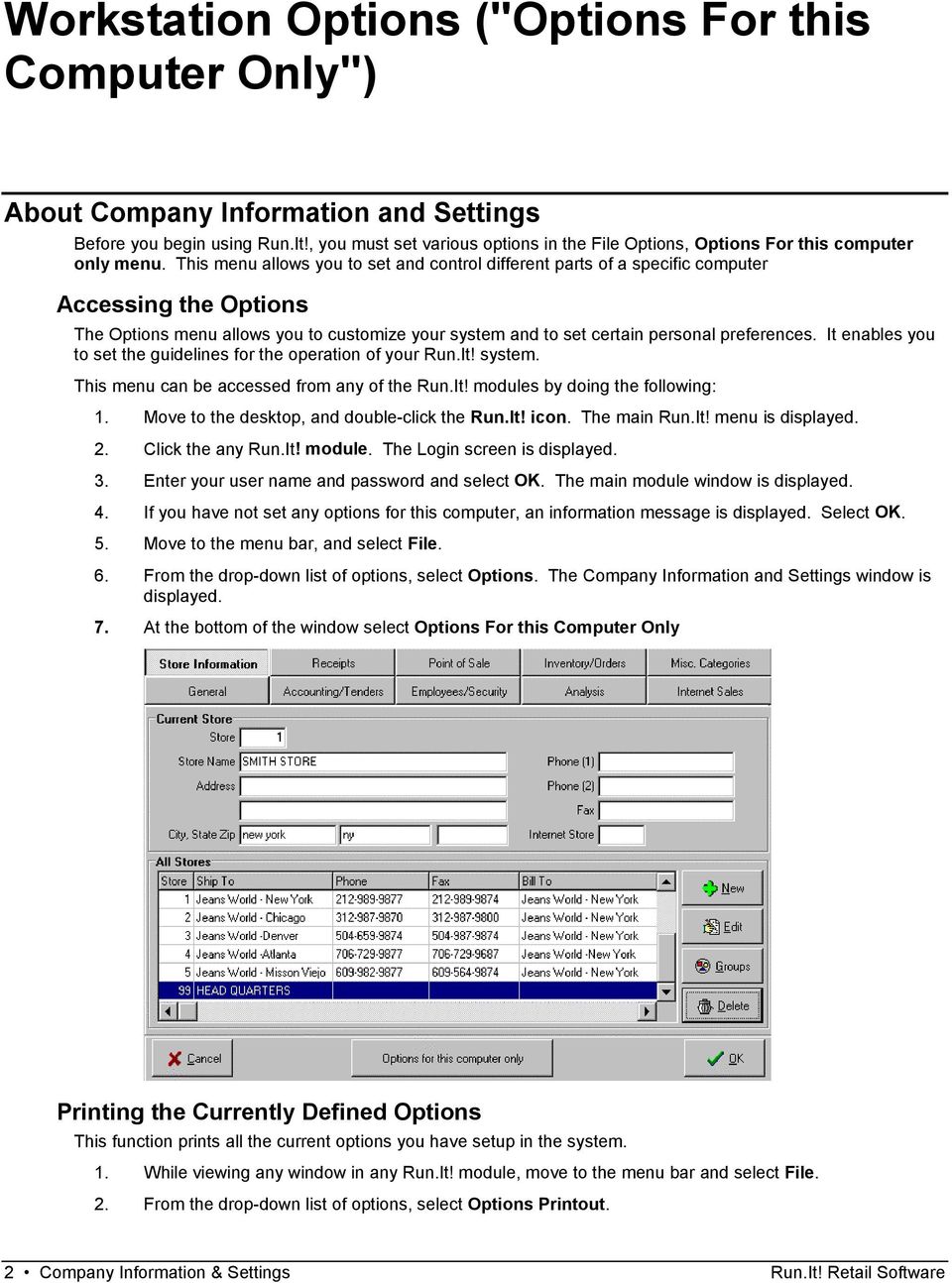
2 Workstation Options ("Options For this Computer Only") About Company Information and Settings Before you begin using Run.It!, you must set various options in the File Options, Options For this computer only menu. This menu allows you to set and control different parts of a specific computer Accessing the Options The Options menu allows you to customize your system and to set certain personal preferences. It enables you to set the guidelines for the operation of your Run.It! system. This menu can be accessed from any of the Run.It! modules by doing the following: 1. Move to the desktop, and double-click the Run.It! icon. The main Run.It! menu is displayed. 2. Click the any Run.It! module. The Login screen is displayed. 3. Enter your user name and password and select OK. The main module window is displayed. 4. If you have not set any options for this computer, an information message is displayed. Select OK. 5. Move to the menu bar, and select File. 6. From the drop-down list of options, select Options. The Company Information and Settings window is displayed. 7. At the bottom of the window select Options For this Computer Only Printing the Currently Defined Options This function prints all the current options you have setup in the system. 1. While viewing any window in any Run.It! module, move to the menu bar and select File. 2. From the drop-down list of options, select Options Printout. 2 Company Information & Settings Run.It! Retail Software
3 3. In the Print Set Up Options dialog box, select one of the following: Print to Report Printer or Print to Receipt Printer. 4. When printing is complete, select Exit to close this dialog box. General 1. From the menu, select File, Options. Options For this Computer Only, select General tab. Merchandise Type Show Advanced List Tax on Freight Tax on Alterations Select the default for either Sized or Non-Sized merchandise. When creating New styles, Purchase Orders, Transfers, Kits and Reports Run.It! will to permit only that merchandise type. Merchandise type can be changed in either Order.It! or Move.It! using task menu and selecting Edit, Sized or Non-Sized. Displays by inventory information in the advanced list mode. To see markdown list information in advanced list mode this button must be selected to Yes Add the selected tax amount to freight (shipping) charges on the sales receipt. Add the selected tax amount to alterations charges on the sales receipt Run.It! Retail Software Company Information & Settings 3

4 Add POS Devices From the menu, select File, Options and select the Point of Sale tab Receipt Printer Cash Drawer Pole Display Mag strip Select the port and the available receipt printer for this computer. Select the port and the available cash draw for this computer Select the port and the available Pole display for this computer Select the port and the available Pole display for this computer Adding a Printer From the menu, select File, Options and select the Point of Sale tab 4 Company Information & Settings Run.It! Retail Software

5 Receipts Settings From the menu, select File, Options and select the Point of Sale tab Receipt Starting Point Receipt Paper Used Standard Transaction Type Close Outs Select where you want the receipt starting point will default to for each sales transaction Select the receipt paper that fits the format and printer you are printing receipts. Select the default transaction type for each sales transaction. Select the method of closeout for the cash draw. Signature Lines Select whether the Layaway and Special Order pickups will print a field for signatures on the receipt. Select whether Returns will print a field for signatures on the receipt. Select whether receipts will print a field for signatures for credit card transactions. Visual (On Screen) Select whether you want the screen to display more merchandise lines. If selected the other button will be not be displayed for example other transaction types other than receipt. Actions Select Pause and Show Change Due if you want display the exact change amount after done button is selected. Select Draw Opens on Charges if you want draw to be open on charge card transactions - Select Ask to Print Receipt Every Time if you want to be asked after the done button is selected Select Print Totals at Bottom of Receipt if you want total details to printed at bottom of receipt Select Packing list with All Shipping if you want an additional shipping receipt to print for each shipping transaction. Run.It! Retail Software Company Information & Settings 5

6 Printing Options Select Skip lines between lines to add space between items placed on the receipt Select Printing Comment on Receipt if you want to have receipt comments to be printed. If selected notes for individual items will not be printed. Select Print Description on Receipt if you want to have the item description printed Select Print Store Name and Titles if you want that information to print on each Select Barcode on Receipt if you want a barcode to printed at bottom of receipt. The barcode can be scanned to bring up receipts for Layaways. Special Orders and Returns. 6 Company Information & Settings Run.It! Retail Software

7 Receipt Printer From the menu, select File, Options and select the Point of Sale tab. FIELD LOGO Receipt Printer Auto Cutter Font Code-Store Name (On) Font Code (Off) Start at Receipt Code Top of Receipt (Lines) Left Receipt Margin (Columns) Left Receipt Margin (Columns) Form Feed on Receipts Enter message to print for each receipt type. Download Logo to Print Codes Print Log Select Image Clear Image Run.It! Retail Software Company Information & Settings 7

8 IC Verify From the menu, select File, Options and select the Point of Sale tab. Use IC Verify for Credit Card Processing IC Verify Setup information IC Verify (exe) Select IC verify to indicate that IC Verify will be the credit card processor. IC Verify Request Directory Enter IC Verify request directory User (eg. 001,002, etc) Each computer must have a designated #. Check Processor If a check processor is used select the check processor. ATM with PinPad Future enhancement Select IC verify path. 8 Company Information & Settings Run.It! Retail Software

9 Sound and Color From the menu, select File, Options and select the Point of Sale tab. Sounds Select Sound On if you want sound to indicate the following messages: A. Announce Change B. Announce Thank you Cash Draw Open Sound Select cash draw open sound, select from Announce or Life like. Color2 for Advance list Select color 2 Background colors Colors for Standard Lists Select standard list colors Run.It! Retail Software Company Information & Settings 9

10 POS DEVICES From the menu, select File, Options and select the Point of Sale tab. Pole Display See specific Product manual Mag Strips See specific Product manual Pin Pad Future Enhancement Cash Draw See specific Product manual 10 Company Information & Settings Run.It! Retail Software

11 Printing Copies From the menu, select File, Options and select the Inventory/Orders tab. Receipts Barcode Tickets Transfer Orders Select # of tickets to be printed by default for each transaction type Select # of barcode tickets by default to printed when tickets are print in barcodes reprint, transfer and purchase orders Select # of copies of transfers to be printed by default. Run.It! Retail Software Company Information & Settings 11

12 Sell It From the menu, select File, Options and select the Inventory/Orders tab. Hide Tender Types on Pay Screen Select which tenders you want to be displayed on the Pay window. When tender is checked it will not be displayed. Quick Find If Quick find is used, select Start at Quick find not scanning, to begin transactions at the Quick find window. Select Skip Quantity on Quick Find if the quantity window is to be skipped in the Quick Find window. 12 Company Information & Settings Run.It! Retail Software

13 Inventory From the menu, select File, Options and select the Inventory/Orders tab. Download Barcodes When using a data collector select whether quantity # will be included when downloading barcodes. Barcode Tickets Select the ticket printer to used for printing tickets on both A & B. Barcode Tickets Select Gap if ticket printer will be reading gaps between when tickets are printed Select Bar if ticket printer will be reading the black bar between when tickets are printed Select batch when testing Monarch tickets Select the Ticket Type to be used for both A & B ticket printers. Run.It! Retail Software Company Information & Settings 13

14 Move It From the menu, select File, Options and select the Inventory/Orders tab. Move.It Select Print Transfer Orders and choose either Ask, Never or Always to indicate whether a transfer order will be printed Select Printer for Transfer to indicate which printer will be used for printing a Transfer Order. Order.It Choose either Ask, Never, or Always to indicate whether a payable will be made from Receiving. Select whether you want merchandise to alphabetized on a purchase order. 14 Company Information & Settings Run.It! Retail Software

15 Pay. It From the menu, select File, Options and select the Inventory/Orders tab. Choose Check Type Select the check format you want to use for payables. In addition, indicate whether the check stub will print with or without discounts. Run.It! Retail Software Company Information & Settings 15

16 Communications From the menu, select File, Options and select the Inventory/Orders tab. Remote Support Program Internet Browser Back ground page Back ground Page Type Select the path to initiate PC Anywhere from the Main Run.It window. Select the path to initiate internet Browser where from the Main Run.It window Future Enhancement Future Enhancement 16 Company Information & Settings Run.It! Retail Software

MOVE.IT USER MANUAL VERSION 4
 MOVE.IT USER MANUAL VERSION 4 Information in this document is subject to change without notice. Companies, names and data used in examples herein are fictitious unless otherwise noted. No part of this
Retail POS User s Guide. Microsoft Dynamics AX for Retail
 Retail POS User s Guide Microsoft Dynamics AX for Retail January 2011 Microsoft Dynamics is a line of integrated, adaptable business management solutions that enables you and your people to make business
Copyright 2009. Wolf Track Software
 Copyright 2009. Wolf Track Software No part of this publication may be reproduced in any form, by Photostat, Microfilm, xerography, or any other means, which are now known, or to be invented, or incorporated
Copyright 2009. Wolf Track Software
 Copyright 2009. Wolf Track Software No part of this publication may be reproduced in any form, by Photostat, Microfilm, xerography, or any other means, which are now known, or to be invented, or incorporated
ONE POS User Manual. A brief hand guide for ONE ERP POS SYSTEM MYIT SOLUTION. Latest update on: 03/09/12
 ONE POS User Manual A brief hand guide for ONE ERP POS SYSTEM MYIT SOLUTION Latest update on: 03/09/12 TABLE OF CONTENTS CHAPTER 1 - SETTINGS Database Setup... 3 Printer Configuration... 5 Cash Drawer
Getting Started with POS. Omni POS Getting Started Manual. switched on accounting
 Omni POS Getting Started Manual switched on accounting i i Getting Started with Omni POS Table Of Contents Overview...1 Setting up POS...2 Initial Steps...2 Tellers...2 POS Clearing Account...3 Printing...4
Using SSH Secure Shell Client for FTP
 Using SSH Secure Shell Client for FTP The SSH Secure Shell for Workstations Windows client application features this secure file transfer protocol that s easy to use. Access the SSH Secure FTP by double-clicking
Octopus and the Octopus Logo are trademarks of ELEOS WEB PTE LTD, registered in Singapore and other countries
 Octopus and the Octopus Logo are trademarks of ELEOS WEB PTE LTD, registered in Singapore and other countries 1 1. Introducing the Octopus Point-of-Sale (POS) System The Octopus Point-of-Sale System, unlike
Virtual Office Remote Installation Guide
 Virtual Office Remote Installation Guide Table of Contents VIRTUAL OFFICE REMOTE INSTALLATION GUIDE... 3 UNIVERSAL PRINTER CONFIGURATION INSTRUCTIONS... 12 CHANGING DEFAULT PRINTERS ON LOCAL SYSTEM...
How do I Sell A Used Item? How do I Close a Repair with Inventory Used? How do I Reprint Barcode Label? How do I edit Clock In/Out entries?
 1 How do I Sell A Used Item? Mouse over the List tab on the Dashboard. Click on Used Phone. Scroll through the list or enter item name or IMEI number in the search bar. Once item is found, click on the
OVERVIEW SALES END OF DAY TIMECLOCK LOGIN PRACTICE. QuickBooks Point Of Sale User Manual
 OVERVIEW SALES END OF DAY TIMECLOCK LOGIN PRACTICE QuickBooks Point Of Sale User Manual Overview QuickBooks Point of Sale (POS) is used to ring up sales, manage customers, provide inventory control, and
Gift Card Guide GIFT CARDS...1
 Gift Card Guide 110911 2011 Blackbaud, Inc. This publication, or any part thereof, may not be reproduced or transmitted in any form or by any means, electronic, or mechanical, including photocopying, recording,
AccuPOS to MAS90/200 Integration Guide
 AccuPOS to MAS90/200 Integration Guide Part I - MAS90 Company Setup In order to use AccuPOS Point of Sale and have it integrate with MAS90/200 for inventory and accounting purposes, we ask that you setup
Chapter 28. Poi nt of Sale But. FrontDesk v4.1.25. Point of Sale Menus. Voiding Invoices. Redeeming Gift Certificates. Revised on: 06/10/2009
 Chapter 28 Point of Sale FrontDesk v4.1.25 Point of Sale Poi nt of Sale But tons Point of Sale Menus Opening and Closing Register Drawers Making a Sale Voiding Invoices Reprinting Receipts Selling Gift
Web Account & E-commerce Quick Reference Guide
 We just made your life easier. Web Account & E-commerce Quick Reference Guide THE COLOR PRINTER, INC. 200 W. Taylor St. Hobbs, NM 88240 (575) 393-8188 (866) 800-8188 [email protected] www.thecolorprinter.com
Table of Contents. www.scholastic.com/bookfairs/easyscan
 Quick Start Guide Table of Contents Equipment Setup and Break-Down 1-2 Processing a Sale 3 Payment Types 3 Tax Change 3 Scanning Items 4 Price Checks 4 Voids 4 Returns 4 Reprints 4 Gift Certificates 5
Version 6.0 USER MANUAL
 X-Charge Version 6.0 USER MANUAL X-Charge Version 6.0 10/10/2005 User Manual 4 Copyright 2005 by CAM Commerce Solutions, Inc. All rights reserved worldwide. This manual, as well as the software described
User Guide. UPS Billing Center
 User Guide UPS Billing Center 2014 United Parcel Service of America, Inc. UPS, the UPS brandmark and the color brown are trademarks of United Parcel Service of America, Inc. All rights reserved. us_en
Table of Contents. www.scholastic.com/bookfairs/easyscan
 Quick Start Guide Table of Contents Equipment Setup and Break-Down 1-2 Processing a Sale 3 Payment Types 3 Tax Change 3 Scanning Items 4 Price Checks 4 Voids 4 Returns 4 Reprints 4 Gift Certificates 5
Setting up VMware ESXi for 2X VirtualDesktopServer Manual
 Setting up VMware ESXi for 2X VirtualDesktopServer Manual URL: www.2x.com E-mail: [email protected] Information in this document is subject to change without notice. Companies, names, and data used in examples
RP Pocket PC Scanner Reference Manual For PPT8800
 RP Pocket PC Scanner Reference Manual For PPT8800 Table of Contents Overview...2 Installation...2 Setting up your Pocket PC...3 Terminal Services Client...6 Scanning Barcodes...8 Loading Scanner Sessions
WELCOME TO REVEL SYSTEMS RETAIL SERVICE... 5 STARTING YOUR WORK... 6. Logging In to Your POS... 7. Refreshing the POS Settings...
 Retail Service User Guide. Page 2 of 81 Table of Contents WELCOME TO REVEL SYSTEMS RETAIL SERVICE... 5 STARTING YOUR WORK... 6 Logging In to Your POS... 7 Refreshing the POS Settings... 8 Clocking In and
TOPS v3.2.1 Calendar/Scheduler User Guide. By TOPS Software, LLC Clearwater, Florida
 TOPS v3.2.1 Calendar/Scheduler User Guide By TOPS Software, LLC Clearwater, Florida Document History Version Edition Date Document Software Trademark Copyright First Edition Second Edition 02 2007 09-2007
Point of Sale Setting up Point of Sale User Guide (POS)
 Point of Sale Setting up Point of Sale User Guide (POS) Page 1 of 11 Table of Contents Setting up Point of Sale for the first time... 4 Point of Sale Activation... 4 Point of Sale Security Settings...
EPOS Manual. Version 5.0.54. Produced by: Merlin Software Ltd B.B.I.C. Innovation Way BARNSLEY, S75 1JL
 EPOS Manual Version 5.0.54 Produced by: Merlin Software Ltd B.B.I.C. Innovation Way BARNSLEY, S75 1JL Telephone: (01226) 321213 Fax: (01226) 321284 Web: http://www.merlinsoft.co.uk E-Mail: [email protected]
Contents PAYMENTS...1 PAYMENT TABLES...67
 Payments Guide 062212 2012 Blackbaud, Inc. This publication, or any part thereof, may not be reproduced or transmitted in any form or by any means, electronic, or mechanical, including photocopying, recording,
PCLaw Administration Guide. Version 13.0
 PCLaw Administration Guide Version 13.0. Copyright and Trademark LexisNexis, Lexis, and the Knowledge Burst logo are registered trademarks of Reed Elsevier Properties Inc., used under license. PCLaw is
[ Learning Outcomes ] [ Learning Objectives ]
![[ Learning Outcomes ] [ Learning Objectives ]](/thumbs/27/9494072.jpg "[ Learning Outcomes ] [ Learning Objectives ]") S A G E P A S T E L P A R T N E R V 1 2 P o i n t o f S a l e [ Point of Sale ] [ Learning Outcomes ] In this module, you are going to explore the Sage Pastel V12 Point of Sale add-on module. You will
S A G E P A S T E L P A R T N E R V 1 2 P o i n t o f S a l e [ Point of Sale ] [ Learning Outcomes ] In this module, you are going to explore the Sage Pastel V12 Point of Sale add-on module. You will
The POS system can track sales by various payment methods like cash, checks, credit cards, coupons, and gift certificates.
 Point-Of-Sale Overview You can use the Point-of-Sale module (POS) to create Cash Receipts, Invoices, and receive A/R Payments. In addition, you can create returns for Receipts and Invoices. The POS system
Inventek Point of Sale 7.0. Quick Start. Sigma Software Solutions, Inc. Manual
 Inventek Point of Sale 7.0 Quick Start Sigma Software Solutions, Inc. Manual Inventek POS Quick Start Login Procedure You are now ready to begin using the Inventek Point of Sale program. To open the software,
USER GUIDE. Ethernet Configuration Guide (Lantronix) P/N: 2900-300321 Rev 6
 KRAMER ELECTRONICS LTD. USER GUIDE Ethernet Configuration Guide (Lantronix) P/N: 2900-300321 Rev 6 Contents 1 Connecting to the Kramer Device via the Ethernet Port 1 1.1 Connecting the Ethernet Port Directly
How to use SURA in three simple steps:
 How to use SURA in three simple steps: Most of SURA s functionality can be accessed through these three steps. 1) Download SURA to your computer Go to the SU Downloads page to obtain the SURA utility.
PCLaw 11.0. Administration Guide
 PCLaw 11.0 Administration Guide About this guide This guide provides a list of tasks for installing PCLaw Practice Management Software. If you need additional information, refer to the PCLaw Support Center.
Offline Remittance Processing Standalone, Service-Based, Multi-Client, Attorney Options
 Offline Remittance Processing Standalone, Service-Based, Multi-Client, Attorney Options User Manual 911 Central Parkway North, Suite 200 San Antonio, Texas 78232 (210) 403-8670 www.acttax.com Contents
ParishSOFT Remote Installation
 Table of Contents Setting up Remote Solution Windows 7 or Vista... 1 Connecting to ParishSOFT... 1 Accessing Your database... 3 Switching to your parish database... 4 Setting up Accounts for users... 5
020112 2008 Blackbaud, Inc. This publication, or any part thereof, may not be reproduced or transmitted in any form or by any means, electronic, or
 Point of Sale Guide 020112 2008 Blackbaud, Inc. This publication, or any part thereof, may not be reproduced or transmitted in any form or by any means, electronic, or mechanical, including photocopying,
QuickBooks 2016 Getting Started Guide for Financial Institutions. Financial Institution Support OFX Connectivity Group
 QuickBooks 2016 Getting Started Guide for Financial Institutions Financial Institution Support OFX Connectivity Group Table of Contents QUICKBOOKS 2016 FOR WINDOWS GETTING STARTED GUIDE... 3 ABOUT THIS
2009-2013 Autosoft, Inc. All rights reserved.
 Copyright 2009-2013 Autosoft, Inc. All rights reserved. The information in this document is subject to change without notice. No part of this document may be reproduced, stored in a retrieval system, or
Overview - ecommerce Integration 2. How it Works 2. CHECKLIST: Before Beginning 2. ecommerce Integration Frequently Asked Questions 3
 Table of Contents: Overview - ecommerce Integration 2 How it Works 2 CHECKLIST: Before Beginning 2 ecommerce Integration Frequently Asked Questions 3 Stock Export for ecommerce 5 Configure Ascend Products
FrontDesk Installation And Configuration
 Chapter 2 FrontDesk Installation And Configuration FrontDesk v4.1.25 FrontDesk Software Install Online Software Activation Installing State Related Databases Setting up a Workstation Internet Transfer
How to install and use the File Sharing Outlook Plugin
 How to install and use the File Sharing Outlook Plugin Thank you for purchasing Green House Data File Sharing. This guide will show you how to install and configure the Outlook Plugin on your desktop.
RETAILvantage 2.1 RELEASE NOTES
 RETAILvantage 2.1 RELEASE NOTES INTRODUCTION The following topics represent modifications to the current modules to enhance the application based on feedback from both the customer base and our own internal
CHARGE Anywhere. Mobile POS. User s Guide
 CHARGE Anywhere Palm Treo Mobile POS User s Guide 1 PURPOSE... 4 2 SCOPE... 4 3 DEFINITIONS... 4 3.1 Quick Sale... 4 3.2 Sale... 4 3.3 Auth Only... 4 3.4 Force... 4 3.5 Void... 4 3.6 Retry... 4 3.7 Return...
Loyalty Program Guide
 Loyalty Program Guide 110911 2011 Blackbaud, Inc. This publication, or any part thereof, may not be reproduced or transmitted in any form or by any means, electronic, or mechanical, including photocopying,
User Manual Version 15.1
 Users Manual Version 15.1 Table of Contents 1. Getting Started... 1-1 Ordering Copies of the iq software... 1-1 Installing the iq software... 1-1 Getting Support... 1-1 Contact the iq Help Line......1-1
LP 2844 Thermal Printer
 Quick Installation Guide FedEx Ship Manager Software FedEx Ship Manager at fedex.com LP 2844 Thermal Printer Step 1: Confirm Printer Kit Contents Your printer kit contains: 1. Thermal Printer 4. Serial
OnDemand. Getting Started Guide
 OnDemand Getting Started Guide Copyright Copyright 2009 ACS Technologies Group, Inc. All rights reserved. Reproduction of any part of this publication by mechanical or electronic means, including facsimile
Using Remote Web Workplace Version 1.01
 Using Remote Web Workplace Version 1.01 Remote web workplace allows you to access your Windows XP desktop through Small Business Server 2003 from a web browser. 1. Connect to the Internet in your remote
Get to know PayAnywhere.
 Get to know PayAnywhere. Hello there! Applying for PayAnywhere How do I get $5,000 free in transactions? PayAnywhere will waive processing fees up to $5000 for the first six months after account approval
User Manual. CashFootprint Retail Point-of-Sale, Professional Edition. Copyright 2011-2013, LotHill Solutions, LLC. All rights reserved.
 CashFootprint Retail Point-of-Sale, Professional Edition User Manual Copyright 2011-2013, LotHill Solutions, LLC. All rights reserved. LotHill Solutions, LLC 8616 Kell Ave. S. Minneapolis, MN 55437 Toll:
SalesPad InventoryControl InventoryControl User s Manual A software product created by SalesPad Solutions, LLC Copyright 2004-2012 www.salespad.
 SalesPad InventoryControl InventoryControl User s Manual A software product created by SalesPad Solutions, LLC Copyright 2004-2012 www.salespad.net Contact Information SalesPad Solutions, LLC. 3200 Eagle
Using Microsoft Dynamics AX 2012
 Exercise Guide Andreas Luszczak Using Microsoft Dynamics AX 2012 Springer Vieweg, 2nd Edition 2012 ISBN 978-3-8348-1742-6 September 2012 VI Exercise Guide Registered and/or industrial names, trade names,
Status Monitoring. Using Drivers by Seagull to Display Printer Status Information WHITE PAPER
 Status Monitoring Using Drivers by Seagull to Display Printer Status Information WHITE PAPER Contents Printer Communications 3 Drivers by Seagull 3 The Seagull Status Monitor 4 Important Benefits 4 Viewing
Installing TestNav Mac with Apple Remote Desktop
 Installing TestNav Mac with Apple Remote Desktop 1 2 3 Getting TestNav Installation from Servicedesk 1.1 Connect to Servicedesk 4 1.2 Download Package to Desktop 7 Installing TestNav 2.1 Add Computers
Microsoft Dynamics GP. Sales Order Processing
 Microsoft Dynamics GP Sales Order Processing Copyright Copyright 2007 Microsoft Corporation. All rights reserved. Complying with all applicable copyright laws is the responsibility of the user. Without
Download and Installation Instructions. Java JDK Software for Windows
 Download and Installation Instructions for Java JDK Software for Windows Updated January, 2012 The TeenCoder TM : Java Programming and TeenCoder TM : Android Programming courses use the Java Development
Retail epay User Manual
 Retail epay User Manual USAEPAY RETAIL EPAY CHARGE Whether you are a Windows, Mac OS or Linux/Unix user, USA epay's epay Charge Retail Software is your number one solution for processing retail sales using
Configuring Microsoft Dynamics RMS for a Star Micronics Single Station Printer
 Created March 2009 This application note shows how to configure a Star Micronics printer for Microsoft Dynamics Retail Management System (RMS) software to print receipts. While this document was developed
MULTIFUNCTIONAL DIGITAL SYSTEMS. Network Fax Guide
 MULTIFUNCTIONAL DIGITAL SYSTEMS Network Fax Guide 2009 KYOCERA MITA Corporation All rights reserved Preface Thank you for purchasing Multifunctional Digital Color Systems. This manual explains the instructions
atbusiness Deposit Installation Guide Table of Contents
 Installation Guide atbusiness Deposit Installation Guide Table of Contents Merchant Installation Technical Requirements...3 Overview...4 Setup CAR...6 Download Device Driver...9 Merchant Capture Merchant
Comparison of Alteris BMS and SBE
 General Multi User Capable 1 or 3 No Limit Additional Licenses Required Barcode Scanners Select Models Cash Drawers Select Models Customer Pole Displays Select Models 40 Column Receipt Printers Select
Job Streaming User Guide
 Job Streaming User Guide By TOPS Software, LLC Clearwater, Florida Document History Version Edition Date Document Software Trademark Copyright First Edition 08 2006 TOPS JS AA 3.2.1 The names of actual
MOBILE INVENTORY MANAGER USERS GUIDE
 MOBILE INVENTORY MANAGER USERS GUIDE MOBILE INVENTORY MANAGER All rights res erved. No part of the contents of this work may be reproduced or trans mitted in any form without the written permis s ion of
Profit Developers, Inc. (PDI) 2015 SAXTAX Software Installation Guide
 2015 SAXTAX Software Installation Guide 1. Installation: Installing from a Link: Please click on the link provided in the setup email received. Some email accounts will not allow access to executable links
epnjpos Detailed Install Guide
 epnjpos Detailed Install Guide 1 Installation and Activation of Terminal... 2 1.1 Download... 2 1.2 Install... 4 1.3 Activation Wizard With Terminal key... 7 1.4 Activation Wizard No Terminal key... 9
How To Set Up Total Recall Web On A Microsoft Memorybook 2.5.2.2 (For A Microtron)
 Total Recall Web Web Module Manual and Customer Quick Reference Guides COPYRIGHT NOTICE Copyright 1994-2009 by DHS Associates, Inc. All Rights Reserved. All TOTAL RECALL, TOTAL RECALL SQL, TOTAL RECALL
MLM1000 Multi-Layer Monitoring Software 061-4281-00
 MLM1000 Multi-Layer Monitoring Software 061-4281-00 Test Equipment Depot - 800.517.8431-99 Washington Street Melrose, MA 02176 - FAX 781.665.0780 - TestEquipmentDepot.com Read This First contains release
WA2262 Applied Data Science and Big Data Analytics Boot Camp for Business Analysts. Classroom Setup Guide. Web Age Solutions Inc.
 WA2262 Applied Data Science and Big Data Analytics Boot Camp for Business Analysts Classroom Setup Guide Web Age Solutions Inc. Copyright Web Age Solutions Inc. 1 Table of Contents Part 1 - Minimum Software
Pendragon Forms Industrial
 Pendragon Forms Industrial Version 7 Installation & Reference Guide for Android Devices Contents What Is Pendragon Forms Industrial?... 2 Installing Pendragon Forms Industrial... 2 Installing Pendragon
Webmail Instruction Guide
 Webmail Instruction Guide This document is setup to guide your through the use of the many features of our Webmail system. You may either visit www.safeaccess.com or webmail.safeaccess.com to login with
Wasp QuickStore Multi-Store Setup Guide
 Wasp QuickStore Multi-Store Setup Guide 2008 Wasp Barcode Technologies Table of Contents Introduction...1 What you ll find in this guide...1 Where to find additional information...1 Multi-Store Features...1
The Retail Solution. User s Guide
 The Retail Solution User s Guide The Retail Solution 12.0 Copyright 2014 Northwest Network Solutions, Inc. All Rights Reserved Reproduction or use of any portion of this manual without express written
Manager s Guide. power, speed, and flexibility for retailers
 Manager s Guide power, speed, and flexibility for retailers Information in this document, including URL and other Internet Web site references, is subject to change without notice. Unless otherwise noted,
Addendum Advanced POS Printer Drivers
 Addendum Advanced POS Printer Drivers Overview With the introduction of version 4.0, The General Store now supports the use of advanced, manufacturer s printer drivers for certain point of sale printers.
Pipeliner CRM Phaenomena Guide Add-In for MS Outlook. 2015 Pipelinersales Inc. www.pipelinersales.com
 Add-In for MS Outlook 205 Pipelinersales Inc. www.pipelinersales.com Add-In for MS Outlook Learn how to use sales lead management with Pipeliner MS Outlook Add-In. CONTENT. Setting up Pipeliner Add-In
Guide to Installing BBL Crystal MIND on Windows 7
 Guide to Installing BBL Crystal MIND on Windows 7 Introduction The BBL Crystal MIND software can not be directly installed on the Microsoft Windows 7 platform, however it can be installed and run via XP
Novell ZENworks Asset Management 7.5
 Novell ZENworks Asset Management 7.5 w w w. n o v e l l. c o m October 2006 USING THE WEB CONSOLE Table Of Contents Getting Started with ZENworks Asset Management Web Console... 1 How to Get Started...
University of Minnesota Voucher and Journal Imaging Guide for ImageNow 6.2
 University of Minnesota Voucher and Journal Imaging Guide for ImageNow 6.2 INTRODUCTION... 2 LAUNCHING IMAGENOW AND LOGGING IN... 2 IMAGENOW TOOLBAR... 3 VENDOR PAYMENT OR JOURNAL ENTRY WORKFLOW... 3 OPENING
TRIMS Cloud Computing
 TRIMS Cloud Computing www.trims.com/cloud TRIMS Workstation iphone, ipad, Android TRIMS Cloud computing lets you access your TRIMS Grounds Management Software data from any iphone, ipad, Android Device
Visual Aids. Release 2.4 Version 1.1
 Visual Aids Release. Version. Getting Started/Data Driver Table of Contents GETTING STARTED -9 Login Page Alternate Login Page Existing/First-time users Home page All Users Search Feature 8 NAVIGATION
Central and Remote Users Guide
 Central and Remote Users Guide Proprietary Rights Notice 1985-2006 IDEXX Laboratories, Inc. All rights reserved. Information in this document is subject to change without notice. Practice names, doctors,
Point Of Sale Payment Processing
 Point Of Sale Payment Processing TechStorm http://www.gotechstorm.com/howto/pos.pdf Contents Point of Sale Payment Processing... 3 Transaction Flow for processing sales... 3 Barcode Scan an Item... 3 Choose
Extension Manual. User portal, Dial codes & Voice mail for 3CX Phone System Version 7.0
 Extension Manual User portal, Dial codes & Voice mail for 3CX Phone System Version 7.0 Copyright 2006-2008, 3CX ltd. http:// E-mail: [email protected] Information in this document is subject to change without
IIS, FTP Server and Windows
 IIS, FTP Server and Windows The Objective: To setup, configure and test FTP server. Requirement: Any version of the Windows 2000 Server. FTP Windows s component. Internet Information Services, IIS. Steps:
READ ME FIRST. Installation Instructions for TROY Font DIMM Printer and Font DIMM Kit
 READ ME FIRST Installation Instructions for TROY Font DIMM Printer and Font DIMM Kit (For use with Hewlett-Packard LaserJet 1300, 1320, 2300, 4100, 4200, 4300, 8100, 8150, and 9000 Printers) Introduction
User Manual. 3CX VOIP client / Soft phone Version 6.0
 User Manual 3CX VOIP client / Soft phone Version 6.0 Copyright 2006-2008, 3CX ltd. http:// E-mail: [email protected] Information in this document is subject to change without notice. Companies names and data
Setting up Citrix XenServer for 2X VirtualDesktopServer Manual
 Setting up Citrix XenServer for 2X VirtualDesktopServer Manual URL: www.2x.com E-mail: [email protected] Information in this document is subject to change without notice. Companies, names, and data used in examples
Recurring Contract Billing 10.0 SP6
 Recurring Contract Billing 10.0 SP6 An application for Microsoft Dynamics ΤΜ GP 10.0 Furthering your success through innovative business solutions Copyright Manual copyright 2011 Encore Business Solutions,
Point-of-Sale Quick Start User Guide
 Point-of-Sale Quick Start User Guide A guide for winery staff to learn and understand the operations of the POS service. This guide complements the POS Installation Guide and the online help text. Revised
County Accounting Manual. Accounts Receivables and Sales Receipts - Deposits
 County Accounting Manual Accounts Receivables and Sales Receipts - Deposits Contents: Preferences Create Item Create Invoice Customize Invoice Template Customer Payments Apply Customer Discount Add Payment
Appendix A. CMS(Client Management Software)
 Appendix A. CMS(Client Management Software) A-1. Install CMS for Windows PC CMS is a program for communication between DVR and PC to control signal and video. Insert the enclosed CD, and go to CD-ROM Drive
ShoreTel Enterprise Contact Center Using Agent Toolbar
 ShoreTel Enterprise Contact Center Using Agent Toolbar USER GUIDES RELEASE 7 Document and Software Copyrights Copyright 1998 2011 ShoreTel, Inc. All rights reserved. Printed in the United States of America.
Aventail Connect Client with Smart Tunneling
 Aventail Connect Client with Smart Tunneling User s Guide Windows v8.7.0 1996-2006 Aventail Corporation. All rights reserved. Aventail, Aventail Cache Control, Aventail Connect, Aventail Connect Mobile,
WHAT YOU OWN HOME INVENTORY SOFTWARE
 WHAT YOU OWN HOME INVENTORY Version 4.19 Copyright 2013 M- One Studio, LLC www.m-onestudio.com Contents Getting Started... 1 About WHAT YOU OWN HOME INVENTORY SOFTWARE... 1 Download and Install the Software...
Keeper Care System Data Manager Version 1.0
 Automated Inventory Solutions, Inc. User Manual Keeper Care System Data Manager Version 1.0 Automated Inventory Solutions Phone: (304)725-4801 Fax: (304)725-6983 www.aisvendors.com Email: [email protected]
Sample Table. Columns. Column 1 Column 2 Column 3 Row 1 Cell 1 Cell 2 Cell 3 Row 2 Cell 4 Cell 5 Cell 6 Row 3 Cell 7 Cell 8 Cell 9.
 Working with Tables in Microsoft Word The purpose of this document is to lead you through the steps of creating, editing and deleting tables and parts of tables. This document follows a tutorial format
How To Use Senior Systems Cloud Services
 Senior Systems Cloud Services In this guide... Senior Systems Cloud Services 1 Cloud Services User Guide 2 Working In Your Cloud Environment 3 Cloud Profile Management Tool 6 How To Save Files 8 How To
The United States Office Of Personnel Management eopf Human Resources Specialist Training Manual for eopf Version 4.0.
 The United States Office Of Personnel Management eopf Human Resources Specialist Training Manual for eopf Version 4.0. Copyright 1994-2007 by Northrop Grumman. All rights reserved. Northrop Grumman, the
Troubleshooting File and Printer Sharing in Microsoft Windows XP
 Operating System Troubleshooting File and Printer Sharing in Microsoft Windows XP Microsoft Corporation Published: November 2003 Updated: August 2004 Abstract File and printer sharing for Microsoft Windows