
PCLaw Administration Guide
|
|
|
- Franklin Jefferson
- 10 years ago
- Views:
Transcription
1 PCLaw 11.0 Administration Guide

2 About this guide This guide provides a list of tasks for installing PCLaw Practice Management Software. If you need additional information, refer to the PCLaw Support Center. Copyright and Trademark LexisNexis, Lexis, and the Knowledge Burst logo are registered trademarks of Reed Elsevier Properties Inc., used under license. PCLaw is a registered trademark of LexisNexis Practice Management Systems Inc. Other products and services may be trademarks or registered trademarks of their respective companies. Copyright 2012 LexisNexis. All rights reserved. Version LexisNexis Practice Management Systems, Inc. 123 Commerce Valley Drive East Suite 310 Markham, On L3T 7W8 Canada North America: Outside North America: Fax:
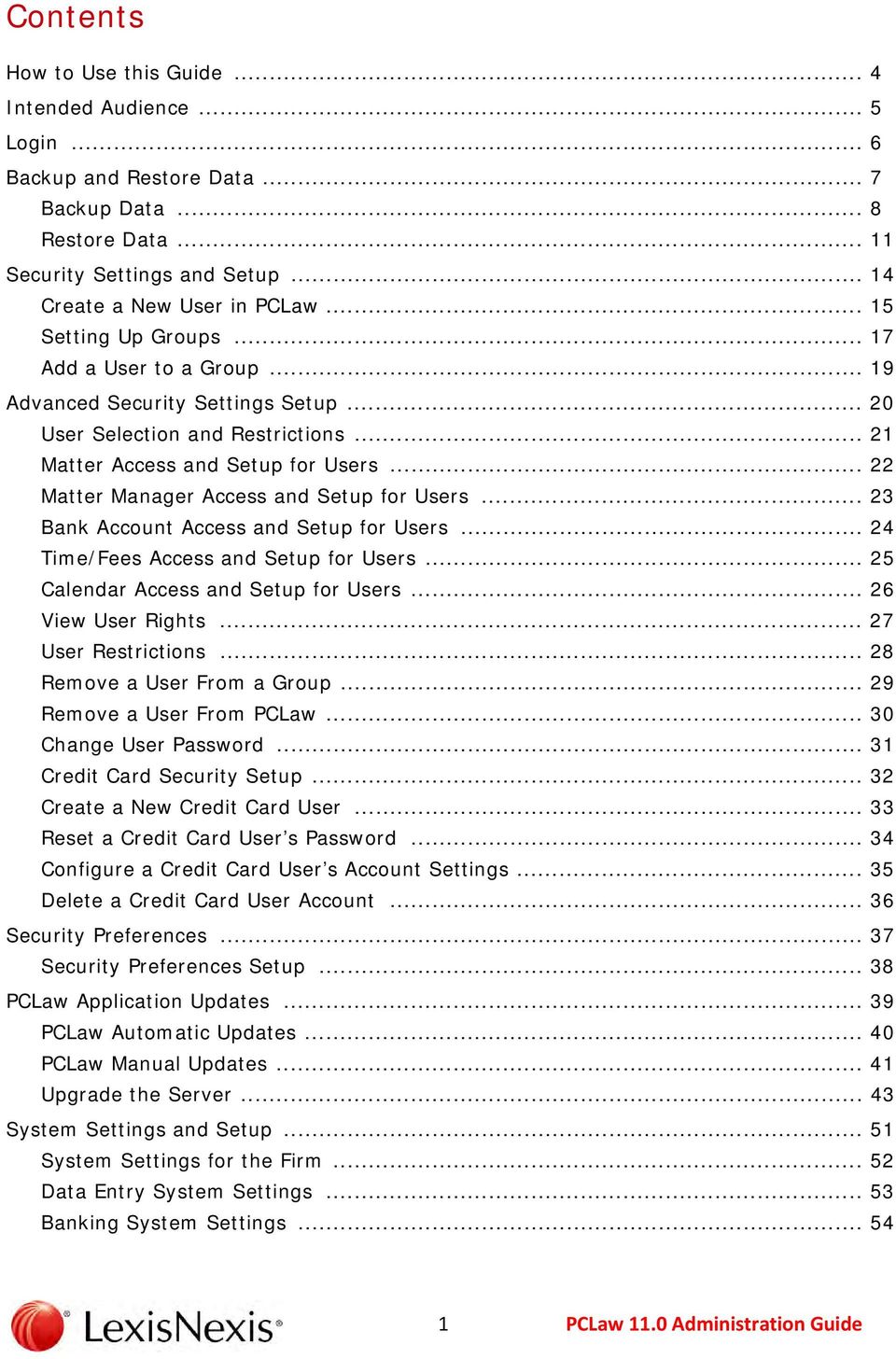
3 Contents How to Use this Guide... 4 Intended Audience... 5 Login... 6 Backup and Restore Data... 7 Backup Data... 8 Restore Data Security Settings and Setup Create a New User in PCLaw Setting Up Groups Add a User to a Group Advanced Security Settings Setup User Selection and Restrictions Matter Access and Setup for Users Matter Manager Access and Setup for Users Bank Account Access and Setup for Users Time/Fees Access and Setup for Users Calendar Access and Setup for Users View User Rights User Restrictions Remove a User From a Group Remove a User From PCLaw Change User Password Credit Card Security Setup Create a New Credit Card User Reset a Credit Card User s Password Configure a Credit Card User s Account Settings Delete a Credit Card User Account Security Preferences Security Preferences Setup PCLaw Application Updates PCLaw Automatic Updates PCLaw Manual Updates Upgrade the Server System Settings and Setup System Settings for the Firm Data Entry System Settings Banking System Settings
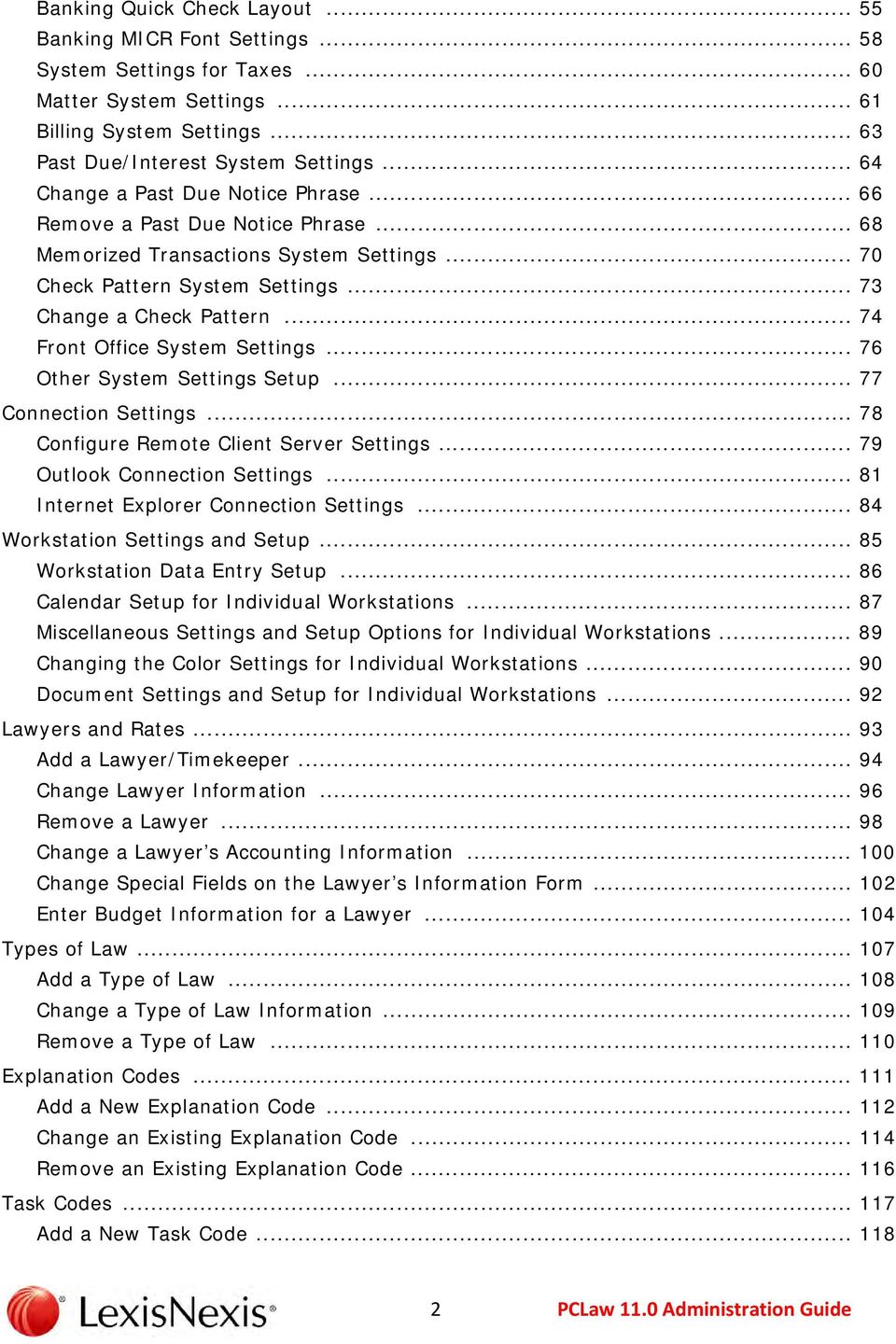
4 Banking Quick Check Layout Banking MICR Font Settings System Settings for Taxes Matter System Settings Billing System Settings Past Due/Interest System Settings Change a Past Due Notice Phrase Remove a Past Due Notice Phrase Memorized Transactions System Settings Check Pattern System Settings Change a Check Pattern Front Office System Settings Other System Settings Setup Connection Settings Configure Remote Client Server Settings Outlook Connection Settings Internet Explorer Connection Settings Workstation Settings and Setup Workstation Data Entry Setup Calendar Setup for Individual Workstations Miscellaneous Settings and Setup Options for Individual Workstations Changing the Color Settings for Individual Workstations Document Settings and Setup for Individual Workstations Lawyers and Rates Add a Lawyer/Timekeeper Change Lawyer Information Remove a Lawyer Change a Lawyer s Accounting Information Change Special Fields on the Lawyer s Information Form Enter Budget Information for a Lawyer Types of Law Add a Type of Law Change a Type of Law Information Remove a Type of Law Explanation Codes Add a New Explanation Code Change an Existing Explanation Code Remove an Existing Explanation Code Task Codes Add a New Task Code
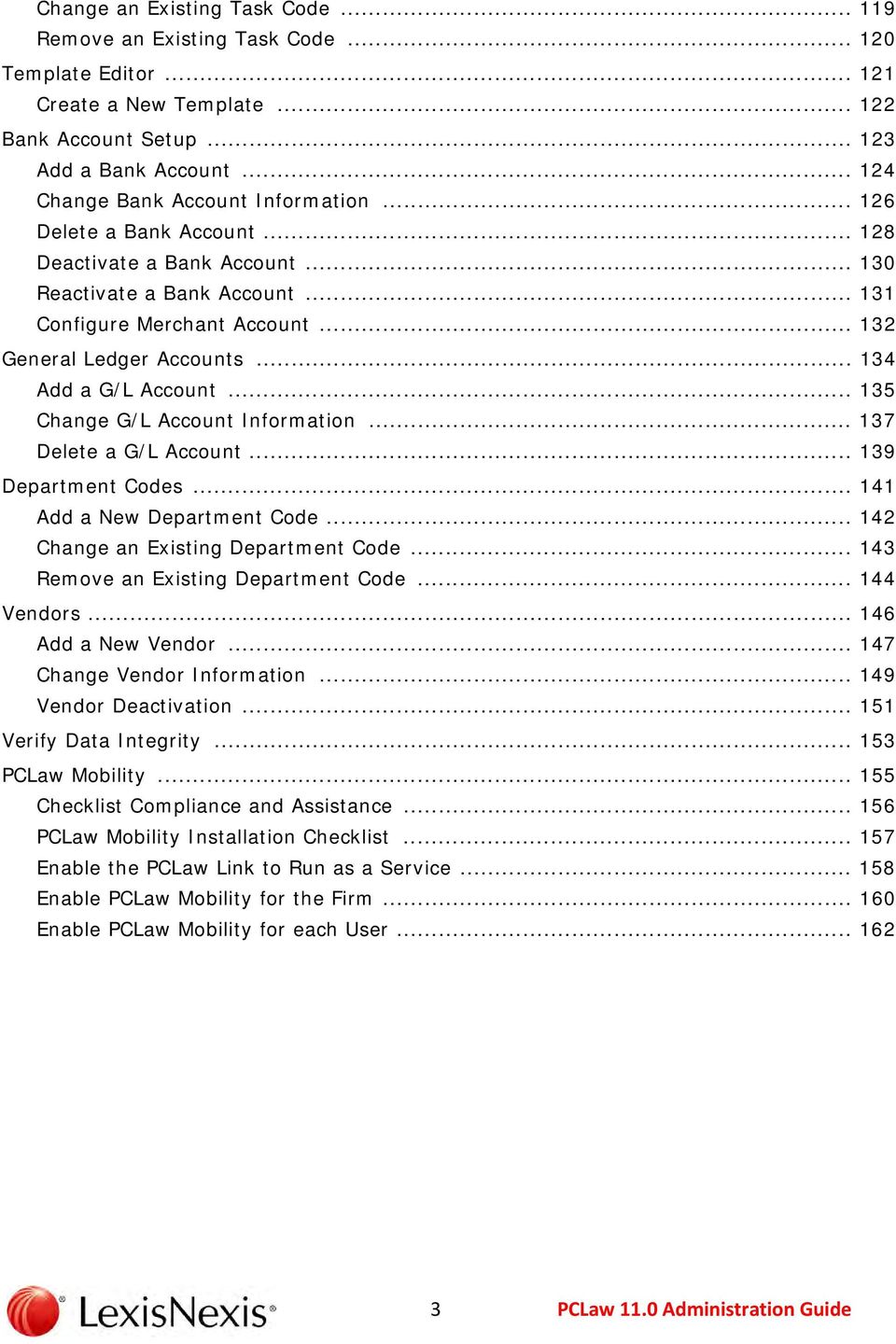
5 Change an Existing Task Code Remove an Existing Task Code Template Editor Create a New Template Bank Account Setup Add a Bank Account Change Bank Account Information Delete a Bank Account Deactivate a Bank Account Reactivate a Bank Account Configure Merchant Account General Ledger Accounts Add a G/L Account Change G/L Account Information Delete a G/L Account Department Codes Add a New Department Code Change an Existing Department Code Remove an Existing Department Code Vendors Add a New Vendor Change Vendor Information Vendor Deactivation Verify Data Integrity PCLaw Mobility Checklist Compliance and Assistance PCLaw Mobility Installation Checklist Enable the PCLaw Link to Run as a Service Enable PCLaw Mobility for the Firm Enable PCLaw Mobility for each User
6 How to Use this Guide Use the basic procedures covered in this document to perform the following administrative tasks: Backup and Restore Security Setup Setting Security Preferences PCLaw Application Updates System Settings and Setup Connection Settings and Setup Workstation Settings and Setup Lawyer and Rates Setup Identifying the Types of Law Setting up Explanation, Task, and Department Codes Setting up Templates Establishing Bank and General Ledger Accounts Vendor Setup PCLaw Mobility Setup For additional information and/or details, including interface elements and more advanced tasks/ procedures, refer to the PCLaw online help and/or the PCLaw Support Center. 4

7 Intended Audience This guide is intended for persons performing basic PCLaw administrative tasks used to set up and/or maintain the PCLaw software. It also provides PCLaw administrative personnel with procedures and other information used to setup and maintain the PCLaw Mobility service. NOTE: This guide is limited to performing the basic setup and commonly performed maintenance tasks for the PCLaw application. For additional details, including interface elements and more advanced tasks, please refer to the PCLaw online help and/or the PCLaw Support Center. 5
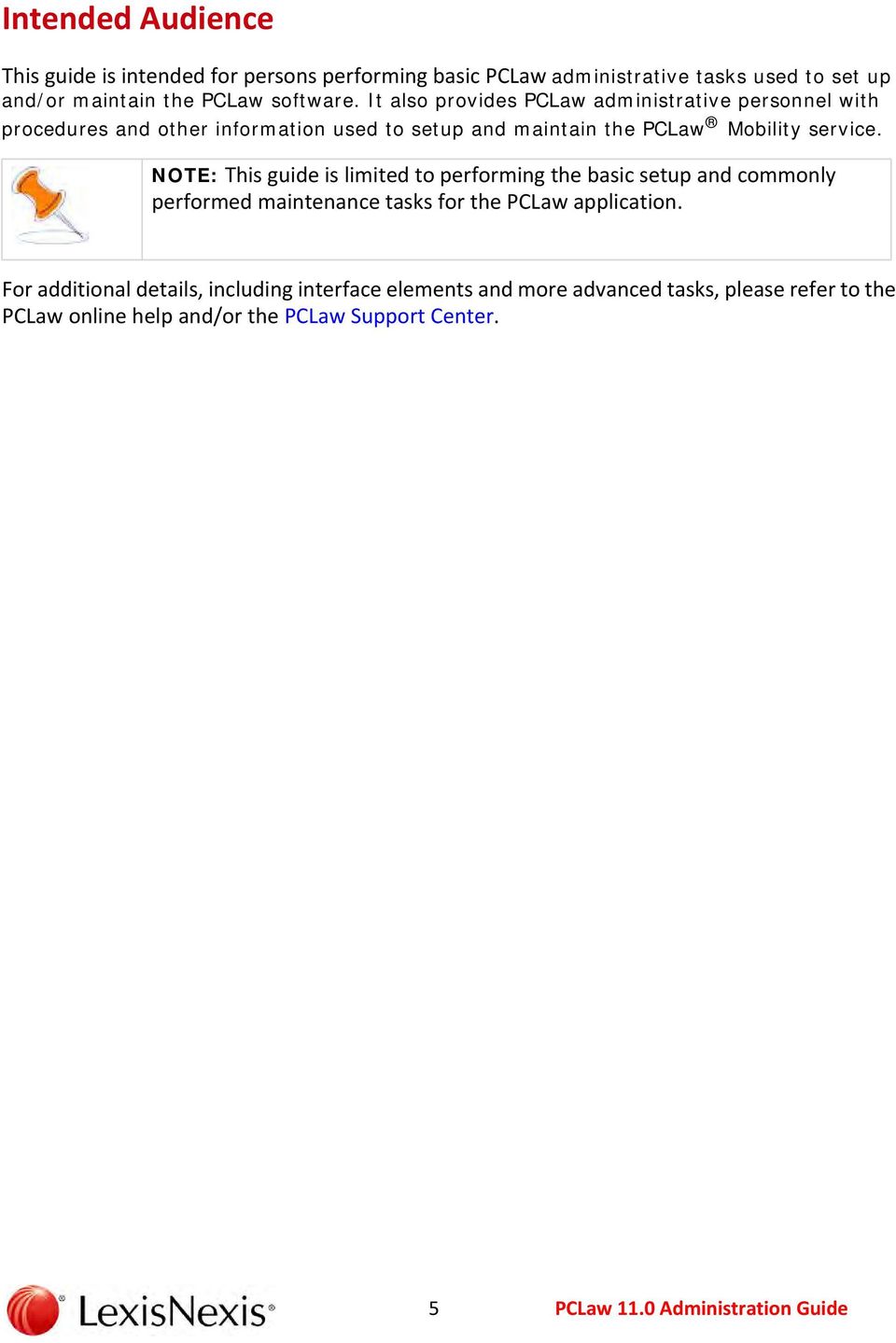
8 Login Use the following procedure to access the PCLaw application. 1. Launch the PCLaw application. The PCLaw login screen opens. 2. Verify and/or enter an appropriate User Name. 3. Enter your password in the Password field and click OK. The Welcome to PCLaw screen opens. 4. Click Close to close the Welcome to PCLaw screen. The PCLaw Navigator screen opens. 6
9 Backup and Restore Data PCLaw allows administrative personnel to backup and restore data. The Backup Data feature stores accounting and calendar information within a single file in a location specified by the user. The Restore Data feature is used to restore a PCLaw backup onto a current set of PCLaw books. Refer to the PCLaw Software Support Center for additional information. 7

10 Backup Data 1. Open the PCLaw application. The PCLaw Login screen opens. NOTE: If you are not the only user in PCLaw, all other users must exit PCLaw before you can backup your data. 2. Go to Options > Administrator > Lock System. The Lock PCLaw System window opens. 3. Click Lock. A PCLaw priority message is sent to all users to exit the application. 4. Go to File > Backup/Restore > Backup Data. A PCLaw advisory screen is displayed. 5. Click Yes to continue. A PCLaw message screen opens. 8

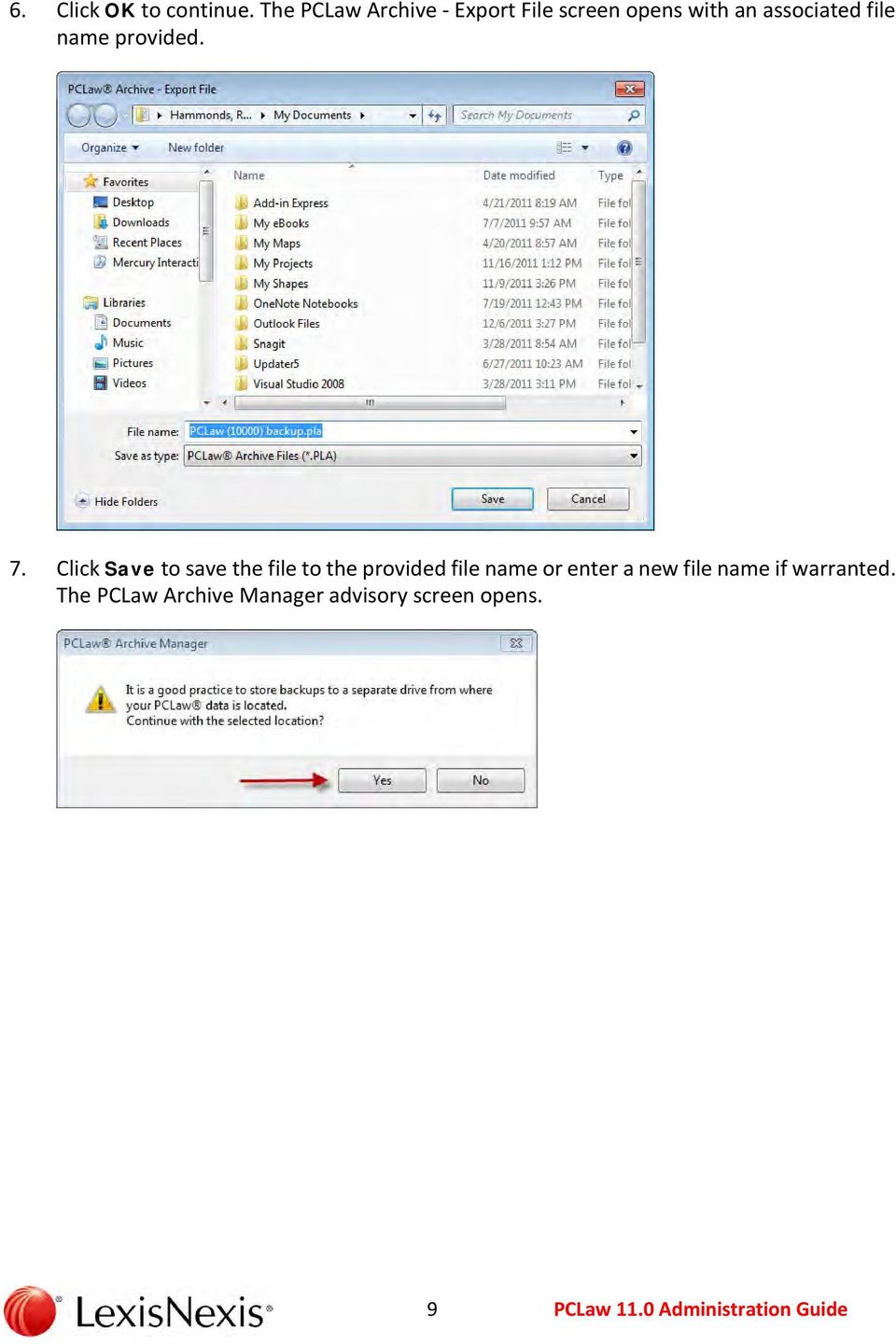
11 6. Click OK to continue. The PCLaw Archive Export File screen opens with an associated file name provided. 7. Click Save to save the file to the provided file name or enter a new file name if warranted. The PCLaw Archive Manager advisory screen opens. 9
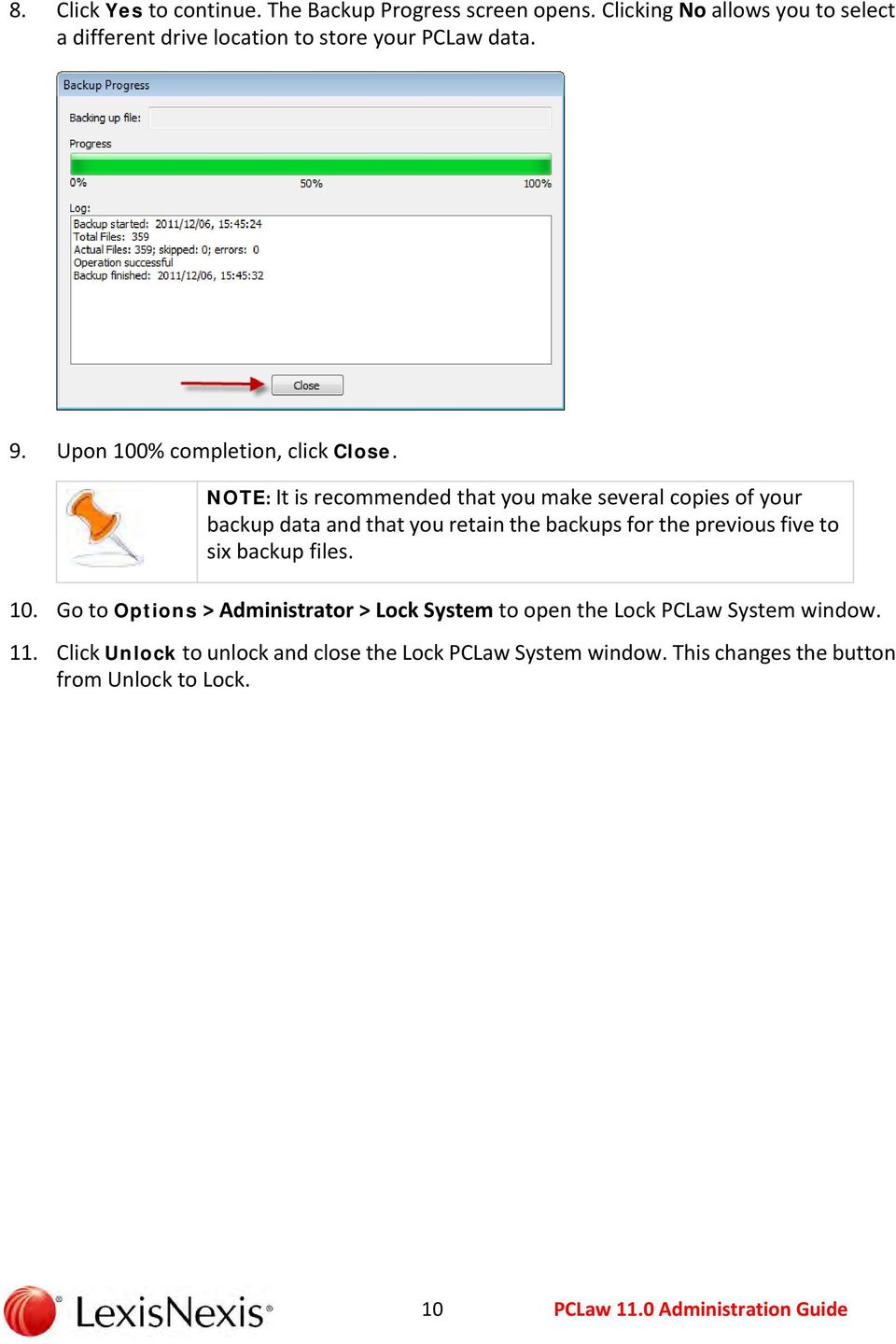
12 8. Click Yes to continue. The Backup Progress screen opens. Clicking No allows you to select a different drive location to store your PCLaw data. 9. Upon 100% completion, click Close. NOTE: It is recommended that you make several copies of your backup data and that you retain the backups for the previous five to six backup files. 10. Go to Options > Administrator > Lock System to open the Lock PCLaw System window. 11. Click Unlock to unlock and close the Lock PCLaw System window. This changes the button from Unlock to Lock. 10
13 Restore Data 1. Open the PCLaw application. The PCLaw Login screen opens. NOTE: If you are not the only user in PCLaw, all other users must exit PCLaw before you can backup your data. 2. Go to Options > Administrator > Lock System. The Lock PCLaw System window opens. 3. Click Lock. 4. Go to File > Backup/Restore > Restore Data. A PCLaw advisory screen is displayed. 11

14 5. Click Yes to continue. A PCLaw application closure advisory screen opens. 6. Click OK to continue. The PCLaw application closes and the PCLaw Archive Manager screen opens. 7. Use the File Name box drop down arrow to enter the name of the backup file and click Open. The PCLaw Archive Manager screen opens. 8. Click Yes to continue. The restore confirmation screen opens. 12
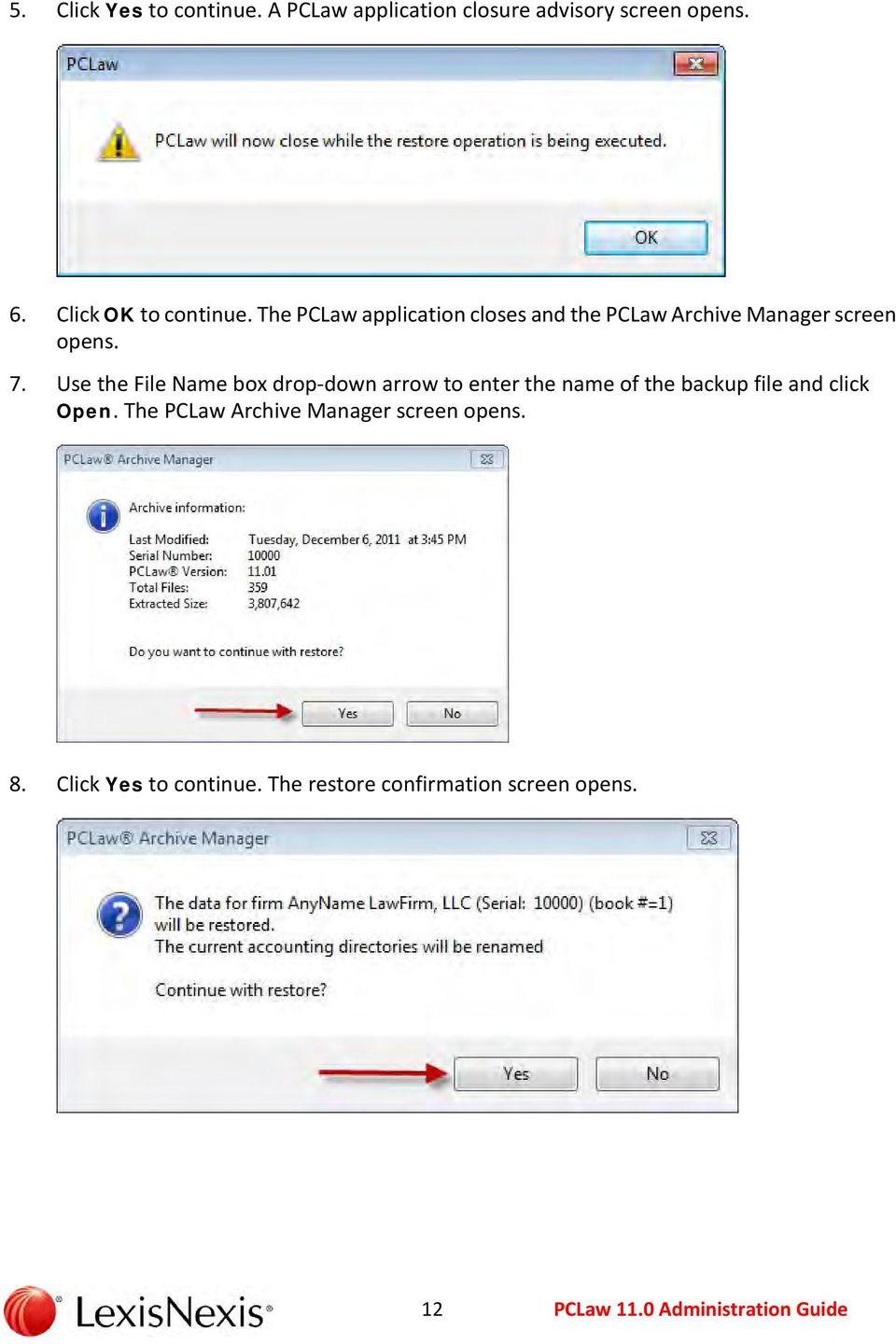
15 9. Click Yes. The Import Progress screen opens, followed by the PCLaw Archive Manager screen display. 10. Click Yes to continue. The Import Progress screen displays. 11. After the import process is complete, the PCLaw application opens. 12. Enter your login and password accordingly. 13. If PCLaw message files are displayed, click OK to continue. 13

16 Security Settings and Setup Security settings are used to determine what features within the PCLaw application users have access to. Additionally, security settings are used to: create users add users to a group grant and/or restrict user rights to matters, accounts, time and fees, calendar functions, and other PCLaw application features See the PCLaw Support Center for additional PCLaw security functions. 14
17 Create a New User in PCLaw 1. Open the PCLaw application. The PCLaw Login screen opens. 2. Go to Options > Administrator > Security. The PCLaw Security Setup screen opens. 3. Click the New button on the Users tab. The User Detail window opens. 15
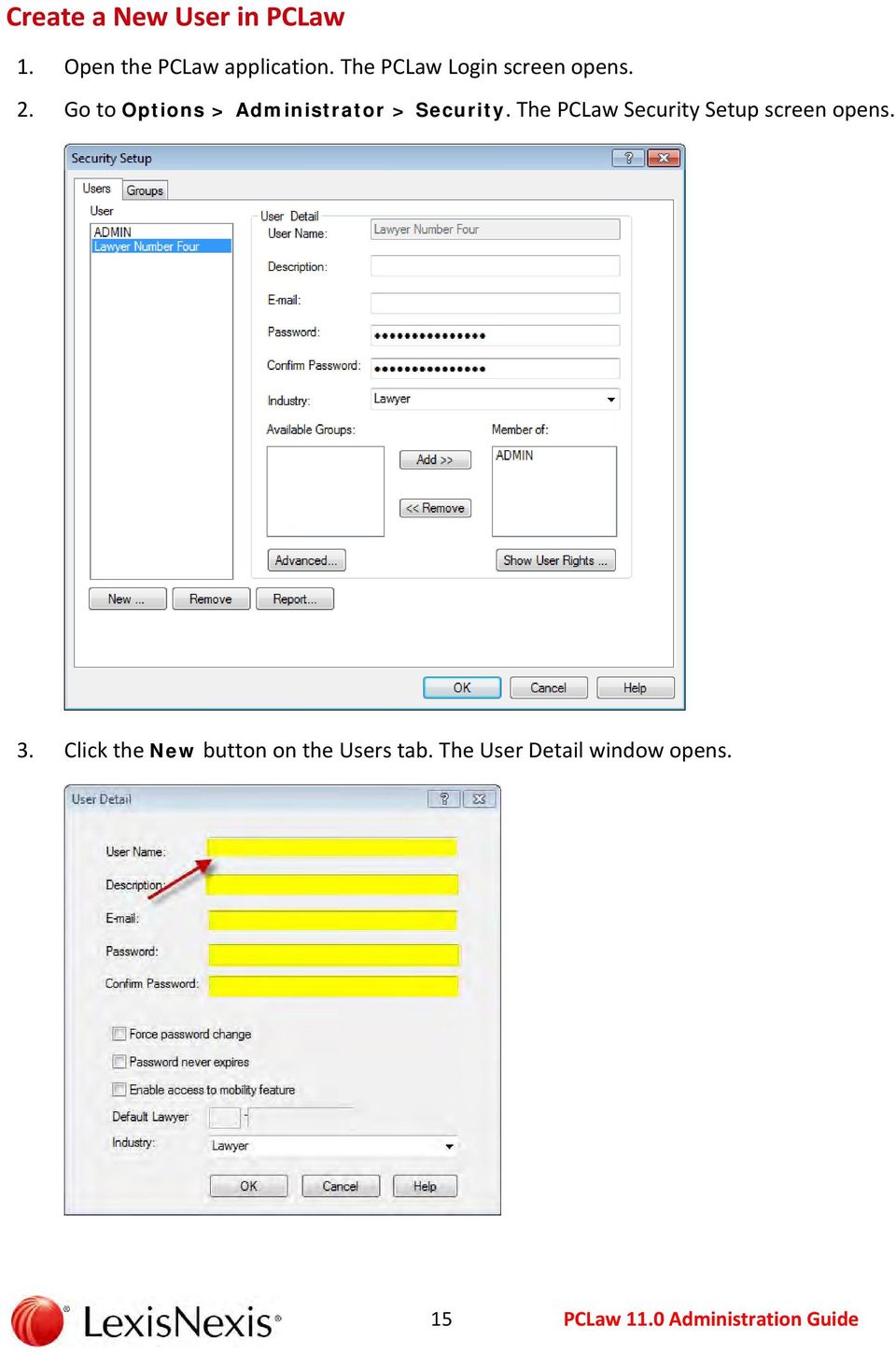
18 4. Enter the user s login name in the User Name box. 5. Enter the user description in the Description box (optional). 6. Enter the user s address in the box. This is a required field if PCLaw Mobility is to be enabled for the user. 7. Enter a password for the user in the Password box. This is a required field if PCLaw Mobility is to be enabled for the user and must meet the strong password guidelines. 8. Enter the same password in the Confirm Password box. 9. Click OK to add the user and return to the Security Setup window. NOTE: All new users added must be a member of a group. 16
19 Setting Up Groups All users in PCLaw must be assigned to a group. Therefore, a group must be created before adding users. A group can have any number of users. To create a new group, complete the following procedure. 1. Go to Options > Administrator > Security. The PCLaw Security Setup screen opens. 2. Click the Groups tab. 3. Click New. The Group Detail screen opens. 17
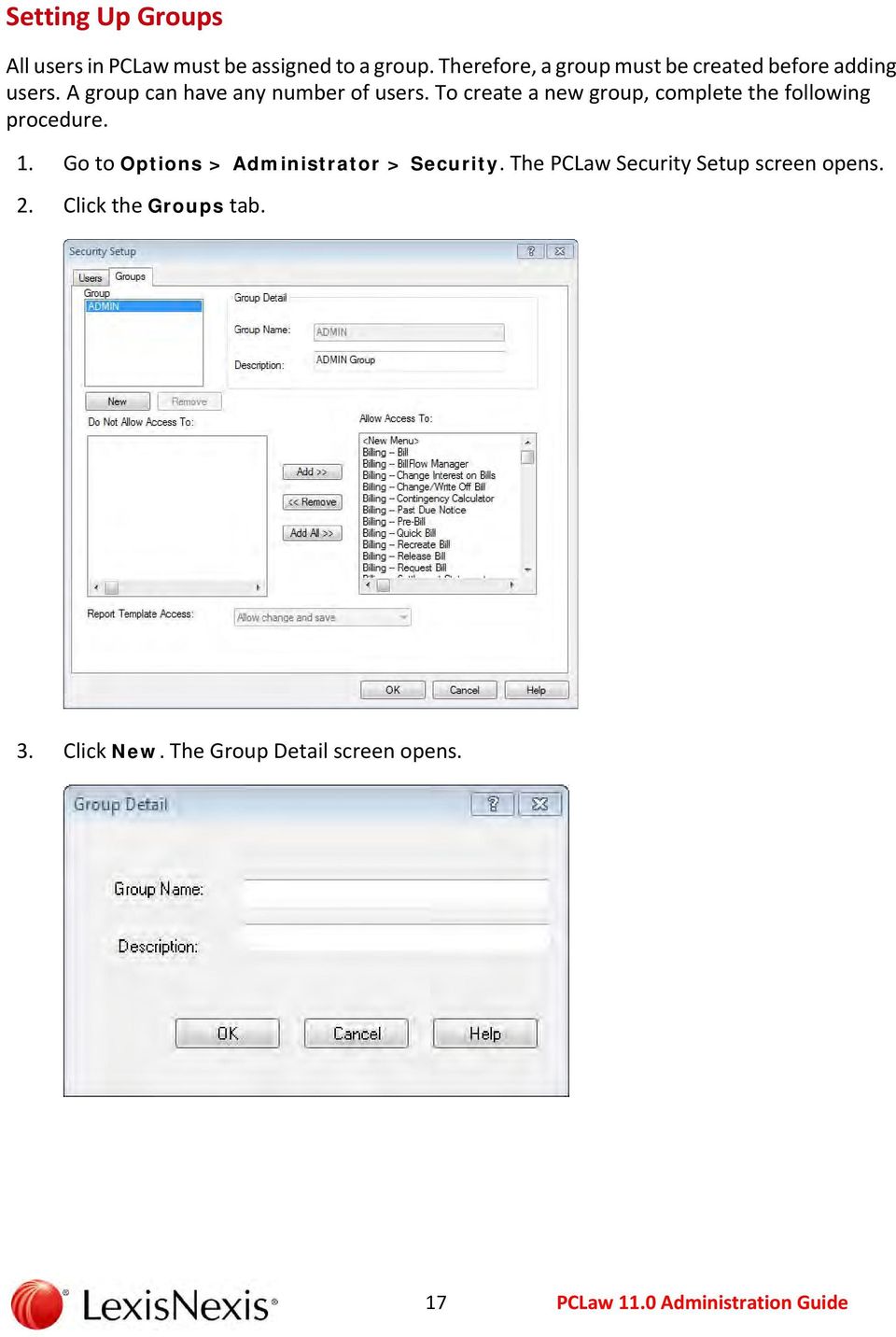
20 4. Enter a name in the Group Name field. 5. Enter a description of the group in the Description field. 6. Click OK. The Security Setup window opens and displays the new group. 7. Click OK to close the Security Setup window. 18
21 Add a User to a Group 1. Go to Options > Administrator > Security. The PCLaw Security Setup screen opens. 2. Select the user to add to a group from the User list. 3. Select the group you want to add the user to in the Available Groups box. 4. Click Add to move the group to the Member of box. 5. Click OK to save the changes. 19
22 Advanced Security Settings Setup PCLaw advanced security settings can be used to add and/or restrict a user s access to PCLaw functions such as: Matter Access and Setup for Users on page 22 Matter Manager Access and Setup for Users on page 23 Bank Account Access and Setup for Users on page 24 Time/Fees Access and Setup for Users on page 25 Calendar Access and Setup for Users on page 26 User Restrictions on page
23 User Selection and Restrictions 1. Go to Options > Administrator > Security. The PCLaw Security Setup screen opens. 2. Select the user to add to a group from the User list. 3. Click the Advanced button. The Advanced Security Settings screen opens. 4. Click the appropriate security settings tab (i.e., Matters, Matter Manager, etc.). 5. Select all applicable access and/or restrictions to be applied to the user and click OK. The Security Setup screen is displayed. 6. Click OK to save all user changes. 21
24 Matter Access and Setup for Users To allow a user to access Matter information: 1. Go to Options > Administrator > Security. The PCLaw Security Setup screen opens. 2. Select the user from the User list. 3. Click the Advanced button. The Advanced Security Settings screen opens. 4. Click the Matters security settings tab. 5. Select all applicable access and/or restrictions to be applied to the user and click OK. The Security Setup screen is displayed. 6. If there are no other security setup changes that need to be made, click OK to close the window. 22
25 Matter Manager Access and Setup for Users To allow and/or restrict a user s access to the Matter Manager: 1. Go to Options > Administrator > Security. The PCLaw Security Setup screen opens. 2. Select the user from the User list. 3. Click the Advanced button. The Advanced Security Settings screen opens. 4. Click the Matter Manager security settings tab. 5. Use the drop down menu arrows to select all applicable access and/or restrictions to be applied to the user and click OK. The Security Setup screen is displayed. 6. If there are no other security setup changes that need to be made, click OK to close the window. 23
26 Bank Account Access and Setup for Users To allow and/or restrict user s access to bank accounts and account information: 1. Go to Options > Administrator > Security. The PCLaw Security Setup screen opens. 2. Select the user from the User list. 3. Click the Advanced button. The Advanced Security Settings screen opens. 4. Click the Bank Accounts security settings tab. 5. Select the appropriate checkbox(es) to allow and/or restrict the user s access to the firm s bank/trust accounts and click OK. The Security Setup screen is displayed. 6. If there are no other security setup changes that need to be made, click OK to close the window. 24
27 Time/Fees Access and Setup for Users To allow a user to make and/or restrict a userfrom making Time/Fees entries: 1. Go to Options > Administrator > Security. The PCLaw Security Setup screen opens. 2. Select the user from the User list. 3. Click the Advanced button. The Advanced Security Settings screen opens. 4. Click the Time/Fees security settings tab. 5. Select the Restrict Access to checkbox to restrict access to lawyer/other time and fee data entry information as applicable. 6. Use the drop down menu arrows to select all applicable access and/or restrictions, and select the Required checkboxes where appropriate. 7. Click OK. The Security Setup screen is displayed. 8. If there are no other security setup changes that need to be made, click OK to close the window. 25
28 Calendar Access and Setup for Users To allow and/or restrict a user s access to certain calendars/calendar functions: 1. Go to Options > Administrator > Security. The PCLaw Security Setup screen opens. 2. Select the user from the User list. 3. Click the Advanced button. The Advanced Security Settings screen opens. 4. Click the Calendar security settings tab. 5. Enter the appropriate timekeeper(s) in each of the access boxes (View, Modify, Private) to identify who has access to who s Calendar and information. 6. If Calendars for inactive lawyers will be maintained, select the Include Inactive Lawyers checkbox. 7. Click OK. The Security Setup screen is displayed. 8. If there are no other security setup changes that need to be made, click OK to close the window. 26
29 View User Rights To determine the rights and privileges that a user has access to/restricted from accessing: 1. Go to Options > Administrator > Security. The PCLaw Security Setup screen opens. 2. Select the user from the User list. 3. Click Show User Rights. The PCLaw Menu Maintenance screen opens. 4. Select each menu item on the screen to see the options that the user has access to or has been restricted from accessing. 5. Close the PCLaw Menu Maintenance window. 6. Click OK to close the Security Setup screen. 27
30 User Restrictions Certain restrictions can be applied to each user with access to the PCLaw application. User restrictions can be applied to areas of the application such as allowing users to access certain aspects of the Matter Manager, bank accounts, performing Time/Fee entries, and some Calendar functions. To restrict users to these and other functions within the PCLaw application: 1. Go to Options > Administrator > Security. The PCLaw Security Setup screen opens. 2. Select the user from the User list. 3. Click the Advanced button. The Advanced Security Settings screen opens. 4. Click the appropriate security settings tab (i.e., Matter Manager, Bank Accounts, etc.). 5. Use the drop down arrows and/or checkboxes to apply restrictions to the user as applicable and click OK. The Security Setup screen is displayed. 6. Click OK to save all user changes. 28
31 Remove a User From a Group To remove a user from a group within the PCLaw application: 1. Go to Options > Administrator > Security. The PCLaw Security Setup screen opens. 2. Select the user from the User list. 3. Select the group from the Member of: box. 4. Click Remove to move the group to the Available Groups box. 5. Click OK to save the changes. A PCLaw advisory message is displayed stating that all users must be a member of a group. 6. Click OK to continue. Since all users must be a member of a group, either add the user to another group or remove that user from the PCLaw application. 29
32 Remove a User From PCLaw To remove a user from the PCLaw application: 1. Go to Options > Administrator > Security. The PCLaw Security Setup screen opens. 2. Select the user from the User list. 3. Click the Remove button. The user is deleted. 30
33 Change User Password To change a password: 1. Go to Options > Administrator > Security. The PCLaw Security Setup screen opens. 2. Select the user from the User list. 3. Remove the user s password from the Password box. 4. Remove the user s password from the Confirm Password box. 5. Enter a new password for the user in the Password box. 6. Enter the same password in the Confirm Password box. 7. Click OK to save the changes. 31
34 Credit Card Security Setup PCLaw allows you to receive payments from clients using their credit card. The LexisNexis Credit Card Processing Application (LexisNexis CCPA) security module is a requirement in configuring user Credit Card security. 1. Open the PCLaw application. 2. Go to Options > Administrator > Credit Card Security to open the PCLaw Credit Card Login window. 3. If the LexisNexis Credit Card Processing application program is not installed, an advisory message is displayed. 4. Click Yes to install the program. 5. Complete the steps required to create a Credit Card administrative user account. 6. Enter your LexisNexis CCPA Admin User ID in the User Name field. 7. Enter your LexisNexis CCPA Admin Password in the Password field. NOTE: Contact PCLaw Support if you do not know your LexisNexis CCPA password at Click OK to open the PCLaw Credit Card User List window. 9. Click one of the following: New User - Creates new users for the LexisNexis CCPA (see Create a New Credit Card User on page 33.) Set Password - Resets the user s LexisNexis CCPA password (see Reset a Credit Card User s Password on page 34.) Properties - Configures additional options for LexisNexis CCPA users (see Configure a Credit Card User s Account Settings on page 35.) Delete User - Removes a user from the LexisNexis CCPA (see Delete a Credit Card User Account on page 36.) 10. Click Close after completing your task. 32
35 Create a New Credit Card User To create a new user for the LexisNexis Credit Card Processing Application program: 1. Open the PCLaw application. 2. Go to Options > Administrator > Credit Card Security to open the PCLaw Credit Card Login window. 3. Enter your LexisNexis CCPA Admin User ID in the User Name field. 4. Enter your LexisNexis CCPA Admin Password in the Password field. NOTE: Contact PCLaw Support if you do not know your LexisNexis CCPA password at Click OK to open the PCLaw Credit Card User List window. 6. Click the New User button. The PCLaw Add Credit Card User window opens. 7. Enter the user s name in the User Name field. 8. Enter a description in the Description field. 9. Enter a password that meets the strong password requirements in the Password field. See Reset a Credit Card User s Password on page Retype the password in the Retype Password field. 11. Click OK. The PCLaw Credit Card User List window is displayed 12. Click Close after completing your task. 33
36 Reset a Credit Card User s Password To reset/change a user s password for the LexisNexis Credit Card Processing Application program: 1. Open the PCLaw application. 2. Go to Options > Administrator > Credit Card Security to open the PCLaw Credit Card Login window. 3. Enter your LexisNexis CCPA Admin User ID in the User Name field. 4. Enter your LexisNexis CCPA Admin Password in the Password field. NOTE: Contact PCLaw Support if you do not know your LexisNexis CCPA password at Click OK to open the PCLaw Credit Card User List window. 6. Select the user in the list who s password will be reset. 7. Click the Set Password button. The PCLaw Set Password for Credit Card User window opens. 8. Enter the new password that meets the strong password requirements in the New Password field. 9. Re enter the new password in the Retype New field. 10. Click OK. The PCLaw Credit Card User List window is displayed. 11. Click Close after completing your task. 34
37 Configure a Credit Card User s Account Settings To configure a user s account for the LexisNexis Credit Card Processing Application program: 1. Open the PCLaw application. 2. Go to Options > Administrator > Credit Card Security to open the PCLaw Credit Card Login window. 3. Enter your LexisNexis CCPA Admin User ID in the User Name field. 4. Enter your LexisNexis CCPA Admin Password in the Password field. NOTE: Contact PCLaw Support if you do not know your LexisNexis CCPA password at Click OK to open the PCLaw Credit Card User List window. 6. Select the user in the list who s account settings will be configured. 7. Click the Properties button. The PCLaw Credit Card User Properties window opens. 8. Select the appropriate checkboxes that apply to the user. 9. Click OK. The PCLaw Credit Card User List window is displayed. 10. Click Close after completing your task. 35
38 Delete a Credit Card User Account To delete a user s account from the LexisNexis Credit Card Processing Application program: 1. Open the PCLaw application. 2. Go to Options > Administrator > Credit Card Security to open the PCLaw Credit Card Login window. 3. Enter your LexisNexis CCPA Admin User ID in the User Name field. 4. Enter your LexisNexis CCPA Admin Password in the Password field. NOTE: Contact PCLaw Support if you do not know your LexisNexis CCPA password at Click OK to open the PCLaw Credit Card User List window. 6. Select the user in the list who s account will be deleted. 7. Click the Delete User button. The Delete Confirmation screen opens. 8. Click Yes to delete the user. 9. Click Close after completing your task. 36
39 Security Preferences Enabling Advanced Security via the Security Preferences screen allows the system administrators to: set the number of days after which passwords expire users after setting their password disable a user and to force a user to change their password lock out users after a set number of failed logins disable user accounts 37
40 Security Preferences Setup To enable the PCLaw Advanced Security feature: 1. Open the PCLaw application. 2. Go to Options > Administrator > Security Preferences. The PCLaw Security Preferences screen opens. 3. Select the Enable Advanced Security checkbox. 4. Accept or enter the number of days for password expiration. 5. Click OK. 38
41 PCLaw Application Updates The PCLaw application can be updated manually or on an automatic basis. 39
42 PCLaw Automatic Updates Complete the following procedure to setup PCLaw for automatic updates. 1. Open the PCLaw application and go to Options > Administrator > Update Settings. The Update Settings screen opens. 2. Select a preference from the list to identify the PCLaw frequency at which the application should check for updates. 3. Click OK. 40
43 PCLaw Manual Updates PCLaw software manual updates are version specific. If a user is on PCLaw version 9.31 and an update is available, it will be denoted that the update is available for PCLaw version 9. With a valid Annual Maintenance Plan (AMP), the user in this case is entitled to the update, but if there is a later version of the PCLaw software (i.e., version 11.10) also available and the customer is on version 9, then they would only be entitled to the 9.31 update. To perform a PCLaw software manual update: 1. Open the PCLaw application. 2. Go to Help > Live Update From Web. The PCLaw Live Update screen opens. 3. Click the Start Check for Updates link. NOTE: Your browser may need to install an Active X control to allow the update engine to search your version of PCLaw. At the top of the web page will be installation instructions. 41
44 4. The web based update engine will check your currently installed version of PCLaw. 5. Perform one of the following: a. If there are updates available, follow the instructions provided on the PCLaw Live Update screen. or b. If there are no updates (No updates available at this time), the web page will state there are none to download. Close the web browser to finish. 42
45 Upgrade the Server Take the following steps to upgrade the firm s server to a newer version. NOTE: Only the administrator can be logged in to the PCLaw application when performing this task. 1. Simultaneously depress the CTRL, ALT, Delete keys. Click Start Task Manager on the Windows Task Manager screen. 2. Click the Processes tab to ensure the following processes are not running: PCLAW32.EXE PLDOCLNK.EXE PLIDXR32.EXE PLOUTL32.EXE PLREGOLE.EXE PLREMOTE.EXE PLSVCLNK.EXE PLSVCLOG.EXE PLSVCTM.EXE NOTE: If any of the above processes are running, left click to highlight the process, and then click End Process on the bottom right corner of the Task Manager window. 43
46 3. Open PCLaw on one computer and sign in as the Admin. NOTE: We recommend running the initial upgrade on the server first. 4. Click Tools on the menu bar and select User Monitor to open the User Monitor window. 5. Verify that only the 1 - ADMIN user appears in the User Monitor window. NOTE: If User Monitor shows more than 1 ADMIN being signed in, repeat Step 2 on each individual workstation until only the 1 ADMIN remains. Contact LexisNexis Customer Support at if the problem persists. 44
47 6. Click OK to close the User Monitor window. 7. Go to Options >Administrator > Lock System to open the Lock PCLaw System window and click Lock. NOTE: This changes the button from Lock to Unlock. You need to unlock the system by clicking Unlock after the upgrade completes. 8. Create a Backup in the program and save it to a local destination. See instructions on how to back up data: 45
48 9. Run Verify Data Integrity on the entire database. See instructions on how to verify data integrity: NOTE: If you receive any error messages, please contact LexisNexis Customer Support at Close the PCLaw application. 11. Open a web browser and go to Select the version you want to upgrade to from the Select Product Area drop down list, or have the application scan your system to check for updates. 46
49 13. Click Go for either option, to open the LexisNexis PCLaw Software License Agreement page. 14. Enter all required information (* = required information) and submit the page by selecting the I have read and agree to the terms and conditions of the End-User License Agreement button. 15. Verify the Description field for the Full Install, and then select the Download link on the right to download the PCLaw installer. 16. Double-click the install file on your desktop and click Run to run the installer and open the Welcome Screen window. 47
50 17. Click Accept to accept the License agreement. 18. Click Continue. 19. Enter the Product Key, if prompted, and click Next. NOTE: If you are upgrading from one full version to another full version (such as 8.03a to 9.31d or 9.31d to 10.0 SP5) then you need to enter the product key. If you are upgrading within a version (such as 10.01b to 10.0SP5) then you do not need to enter the product key. 20. Click Start to begin the installation. SKIP TO STEP 28 if you do not receive the Data Set Create/Attach screen. 21. Select the radio button next to Attach to an existing data set and click Next.This is only presented if PCLaw is not installed on the computer. A similar screen is presented if the installer you are running is the same version already installed, which also adds the option to reinstall program file. NOTE: The next screen has two sections, Data FULL ACCESS and Program READ ONLY ACCESS. Unless necessary you may leave the Program READ ONLY ACCESS alone and click Browse next to Data FULL ACCESS to locate your books. Your books should follow a path similar to "C:\PCLaw Data\Data" or "C:\ACG\PCLaw32\Data". The drive letter may vary by system, typically if you store the books locally (on your PC) you search the C drive. Otherwise you may have to look on a network drive (such as a P drive or a drive such as \\SERVERNAME\PCLaw_DATA. Contact your IT staff if you cannot locate your data. 48
51 22. Locate your Data folder and click Start to begin the installation. NOTE: The installation process might take several minutes. 23. Click Next on the Additional Stations screen. 49
52 24. Click Finish to close the installation wizard. 25. Click OK if the program prompts you to reboot your computer. 26. Double-click the PCLaw icon on the desktop to open the program and begin the conversion. If you created a backup during Step 8, click No and skip to Step 30. If no conversion is necessary, the software opens your books. Click Yes to create a backup. 27. Select a Backup location and click OK. 28. Click Yes to start the data conversion. The PCLaw software opens once the data conversion process is complete. 29. Go to Options > Administrator > Lock System to open the Lock PCLaw System window. 30. Click Unlock to close the Lock PCLaw System window. This changes the button from Unlock to Lock. 50
53 System Settings and Setup It is important to ensure that the system settings for your firm are established and initially configured. System settings must be established for: the firm data entry banking taxes matters billing past due/interest memorized transactions check patterns front office other Additional information pertaining to system settings is available in the PCLaw User Guide and on the PCLaw Support Center website. 51
54 System Settings for the Firm To enter the system settings data for your firm: 1. Open the PCLaw application. 2. Go to Options > System Settings. The System Settings screen opens. 3. Click the Firm tab. 4. Enter the firm s data in all fields (i.e., Firm Name, Address, City, etc.) as appropriate. 5. Click OK. The System Settings screen closes. 52
55 Data Entry System Settings To complete the Data Entry system settings data for your firm: 1. Open the PCLaw application. 2. Go to Options > System Settings. The System Settings screen opens. 3. Select the Data Entry tab. The Data Entry tab displays. 4. Select all checkboxes that will apply to your firm s data entry process. 5. Click OK. The System Settings screen closes. 53
56 Banking System Settings To complete the Banking system settings for your firm: 1. Open the PCLaw application. 2. Go to Options > System Settings. The System Settings screen opens. 3. Select the Banking tab. The Data Entry tab displays. 4. Select all checkboxes that will apply to your firm s banking process. 5. If necessary, see the Banking Quick Check Layout and/or the Banking MICR Font Settings procedure(s) to complete that portion of the Bank system setting setup procedure. 6. Click OK. The System Settings screen closes. 54
57 Banking Quick Check Layout To setup the Banking Quick Check layout for your firm: 1. Open the PCLaw application. 2. Go to Options > System Settings. The System Settings screen opens. 3. Select the Banking tab. The Data Entry tab displays. 4. Click the Quick Check Layout button. The Check Layout window opens. 55
58 5. Click the Top button. The Check Layout Top Stub screen opens. 6. Enter the appropriate data for each field/category on the Check Layout Top Stub screen. 7. Click Close when done. 8. Click the Body button. The Check Layout Body screen opens. 56
59 9. Enter the appropriate data for each field/category on the Check Layout Body screen. 10. Click Close. 11. Click the Bottom button. The Check Layout Bottom Stub screen opens. 12. Enter the appropriate data for each field/category on the Check Layout Bottom screen. 13. Click Close when done. 14. Click OK. The Check Layout screen closes. 15. Click OK to close the System Settings screen. 57
60 Banking MICR Font Settings To establish the initial Banking MICR font settings for your firm: 1. Open the PCLaw application. 2. Go to Options > System Settings. The System Settings screen opens. 3. Select the Banking tab. The Data Entry tab displays. 4. Select the MICR Font Setting button. The MICR Font Settings window opens. 58
61 5. Enter settings as appropriate for your firm. 6. Click OK to close the MICR Font Settings window. 7. The System Settings window is displayed. 8. Click OK to close the System Settings window. 59
62 System Settings for Taxes To complete the setup for taxes associated with your firm: 1. Open the PCLaw application. 2. Go to Options > System Settings. The System Settings screen opens. 3. Select the Tax tab. The Tax tab displays. 4. Enter the appropriate data for each field/category on the Tax screen. 5. Click OK. The Tax screen closes. 6. Click OK to close the System Settings screen. 60
63 Matter System Settings To establish the initial Matter settings for your firm: 1. Open the PCLaw application. 2. Go to Options > System Settings. The System Settings screen opens. 3. Select the Matter tab. The Matter tab displays. 61
64 4. Enter and/or select the appropriate data for each field/category on the Matter screen. 5. Click the New Matter Settings button. The New Matter Display screen opens. 6. Select the fields from the Hidden or Shown columns. 7. Use the Add or Remove button to move fields between the columns and click OK when done. The New Matter Display Fields screen closes. 9. Click OK to close the System Settings screen. 62
65 Billing System Settings To enter the initial Billing system settings for your firm: 1. Open the PCLaw application. 2. Go to Options > System Settings. The System Settings screen opens. 3. Select the Billing tab. The Billing tab displays. 4. Enter and/or select the appropriate data and/or checkboxes for each field/category on the Billing screen. 5. Click the Browsebutton to enter an appropriate output path if an alternate location is desired. 6. Click OK when done. The System Settings screen opens. 7. Click OK to close the System Settings screen. 63
66 Past Due/Interest System Settings To complete and setup the Past Due/Interest settings for your firm: 1. Open the PCLaw application. 2. Go to Options > System Settings. The System Settings screen opens. 3. Select the Past Due/Interest tab. The Past Due/Interest tab displays. 4. Enter and/or select the appropriate data and/or checkboxes for each field/category on the Past Due/Interest screen. 5. Click the Customize button. The Set Phrases screen opens. 64
67 6. Select a phrase from the list or click the Add button. The Add New Phrase screen opens. 7. Enter an appropriate past due phrase and a description of the phrase that will be used for desired past due notices. 8. Click OK when done. The Set Phrases screen re opens. 9. Click OK to close the Set Phrases screen. The System Settings screens is displayed. 10. Click OK to close the System Settings screen. 65
68 Change a Past Due Notice Phrase To change a phrase used by the firm to reflect past due notices: 1. Open the PCLaw application. 2. Go to Options > System Settings. The System Settings screen opens. 3. Select the Past Due/Interest tab. The Past Due/Interest tab displays. 4. Click the Customize button. The Set Phrases screen opens. 66
69 5. Select a phrase from the list and click the Change button. The Change Phrase screen opens. 6. Change the phrase as warranted and enter a description in the Description field that will be used for desired past due notices. 7. Click OK when done. 8. Click OK to close the Set Phrases screen. The System Settings screen is displayed. 9. Click OK to close the System Settings screen. 67
70 Remove a Past Due Notice Phrase To change a phrase used by the firm to reflect past due notices: 1. Open the PCLaw application. 2. Go to Options > System Settings. The System Settings screen opens. 3. Select the Past Due/Interest tab. The Past Due/Interest tab displays. 4. Click the Customize button. The Set Phrases screen opens. 5. Select a phrase from the list and click the Remove button. The Remove Phrase confirmation message screen opens. 68
71 6. Click Yes to confirm the deletion of the selected phrase. The Set Phrase screen is displayed. 7. Click OK to close the Set Phrases screen. The System Settings screens is displayed. 8. Click OK to close the System Settings screen. 69
72 Memorized Transactions System Settings To complete the settings for Memorized Transactions settings in the firm: 1. Open the PCLaw application. 2. Go to Options > System Settings. The System Settings screen opens. 3. Select the Memorized Transactions tab. The Memorized Transactions tab displays. 70
73 4. Select the appropriate checkboxes for each field/category on the Memorized Transactions screen. 5. Click the General button under the Edit Payee box to enter, change, or remove a selected payee from the Memorized Payees list. The General Bank Memorized Payees screen opens. 6. Close the window when done using the Close box in the upper right hand corner of the screen. The System Settings screen is re opened. 7. Click the Trust button under the Edit Payee box to enter, change, or remove a selected payee from the Trust Bank Memorized Payees list. The Trust Bank Memorized Payees screen opens. 71
74 8. Close the window when done using the Close box in the upper right hand corner of the screen. 9. Click OK when done. The System Settings screen opens. 10. Click OK to close the System Settings screen. 72
75 Check Pattern System Settings To establish and setup the check pattern to be used by your firm: 1. Open the PCLaw application. 2. Go to Options > System Settings. The System Settings screen opens. 3. Select the Check Pattern tab. The Check Pattern tab displays. 4. Click the Defaults button to accept the current check patterns, or click Change for each applicable check type to change the pattern. 5. Click OK when done. The System Settings screen closes. 73
76 Change a Check Pattern To change a Check Pattern used by the firm: 1. Open the PCLaw application. 2. Go to Options > System Settings. The System Settings screen opens. 3. Select the Check Pattern tab. The Check Pattern tab displays. 74
77 4. Click the Change button for the check type (i.e., General Check, Trust Receipt, other) to change the pattern. The Pattern Change screen opens. 5. Click the Foreground or Background Colour Change button to change that associated colour. The selected color is displayed in the Pattern Selections and the Preview areas of the Pattern Change screen. 6. Click OK when done. The System Settings screen displays. 7. Click OK. The System Settings screen closes. 75
78 Front Office System Settings To establish the Front Office settings for your firm: 1. Open the PCLaw application. 2. Go to Options > System Settings. The System Settings screen opens. 3. Select the Front Office tab. The Front Office tab displays. 4. Select the appropriate checkboxes for your firm s Front Office settings. 5. Click the Browse button for the Matter/Clients and Contact boxes to select the appropriate default letter documents. 6. Click OK when done. The System Settings screen closes. 76
79 Other System Settings Setup To establish miscellaneous system settings for the firm: 1. Open the PCLaw application. 2. Go to Options > System Settings. The System Settings screen opens. 3. Select the Other tab. The Front Office tab displays. 4. Select the appropriate checkboxes and/or fields to complete the Other tab settings for your firm. 5. Use the appropriate drop down menu arrows to enter data into all applicable fields. 6. Click OK when done. The System Settings screen closes. 77
80 Connection Settings Connection settings are used to control connections to software such as Windows Explorer, Internet Explorer, Microsoft Word, and/or Microsoft Outlook. 78
81 Configure Remote Client Server Settings For users that may not have direct access to the PCLaw application, remote client server settings are used by PCLaw client workstations to access basic PCLaw functions via the PCLaw Remote Client server set up for your firm. To configure the Remote Client server: 1. Open the PCLaw application. 2. Go to Options > Connection Settings. The Connection Settings screen opens. 79
82 3. Select Use This set of Books when Connecting with Other Programs. 4. Select the Store Password checkbox and enter your administrative password. 5. Select all other applicable checkboxes. 6. Click Configure Remote Client Server Settings and click OK. The PCLaw Remote Client Server Configuration Utility screen opens. 5. Enter and complete the directory information as applicable and click Next to continue. 80
83 Outlook Connection Settings Via the Outlook tab, users are able to: establish the method of information exchange between PCLaw and Outlook enable the exchange of appointments and contacts track e mails Use the following procedure to establish the Outlook connection settings. 1. Open the PCLaw application. 2. Go to Options > Connection Settings. The Connection Settings screen opens. 3. Click the Outlook tab. The Outlook Connection Settings screen opens. NOTE: The Use This Set of Books when Connecting with Other Programs checkbox must be selected on the Connections tab in order to select items on the Outlook tab. 81
84 4. Select the appropriate checkboxes and click OK. 5. If Outlook has not been previously started, click OK on the Start Outlook message screen. The Login screen displays. NOTE: The Login to PCLaw screen will open with a request to enter the administrative password if the Store Password checkbox on the Connection Settings screen was not checked. 6. Enter the Administrative password and click OK. The PCLaw Outlook Connection screen displays. 7. Click OK to continue. The Lawyer Selection screen opens. 82
85 8. Select a timekeeper from the list and click OK. A PCLaw advisory screen opens. 9. Click OK. The Select Folder screen opens. 10. Select the folder that will be used to exchange Contact information and click OK. 11. Select the folder that will be used to exchange Task information and click OK. 12. Restart the Microsoft Outlook application. 83
86 Internet Explorer Connection Settings Via the Internet Explorer tab, users are able to: establish the method of information exchange enable the exchange of appointments and contacts track e mails Use the following procedure to establish the Internet Explorer connection settings. 1. Open the PCLaw application. 2. Go to Options > Connection Settings. The Connection Settings screen opens. 3. Click the Internet Explorer tab. The Internet Explorer Connection Settings screen opens. NOTE: The Use This Set of Books when Connecting with Other Programs checkbox must be selected on the Connections tab in order to select items on the Internet Explorer tab. 4. Complete all fields as applicable and click OK. NOTE: The Login to PCLaw screen will open with a request to enter the administrative password if the Store Password checkbox on the Connection Settings screen was not checked. 84
87 Workstation Settings and Setup Workstation setup is used to control PCLaw s data entry, calendar, color, and miscellaneous settings on a particular workstation. The procedure to setup each setting is described in the following procedures. 85
88 Workstation Data Entry Setup To setup how data is entered for an individual workstation: 1. Open the PCLaw application. 2. Go to Options > Workstation Settings. The Workstation Settings window opens with the Data Entry tab selected by default. 3. Select the checkboxes for the data entry functions applicable for your firm and click OK. The Workstation Settings window closes. 86
89 Calendar Setup for Individual Workstations To setup the Calendar for an individual workstation: 1. Open the PCLaw application. 2. Go to Options > Workstation Settings. The Workstation Settings window opens. 3. Click the Calendar tab. The Calendar window is displayed. 87
90 4. Use the Create Calendar Items For drop down arrow to select the lawyer that the Calendar items will be created for. 5. Click the Appt Display button. The Appointment Display Fields screen opens. 6. Select the fields in the Hidden column that the be moved to the Shown column for display on the Calendar and click OK. 7. Select the checkboxes for the options to be used by your firm and click OK. The Workstation Settings window closes. 88
91 Miscellaneous Settings and Setup Options for Individual Workstations To complete the setup for the miscellaneous settings on an individual workstation: 1. Open the PCLaw application. 2. Go to Options > Workstation Settings. The Workstation Settings window opens. 3. Click the Other tab. The Other tab window is displayed. 4. Select the checkboxes for the options to be used by your firm and click OK. The Workstation Settings window closes. 89
92 Changing the Color Settings for Individual Workstations To complete the setup for the miscellaneous settings on an individual workstation using the Color tab, complete the following procedure. 1. Open the PCLaw application. 2. Go to Options > Workstation Settings. The Workstation Settings window opens. 3. Click the Color tab. The Color tab window is displayed. 90
93 4. Click the associated Change button to change an item (i.e., Matter Manager) on the screen. The Color screen opens. 5. Select the applicable color and click OK. The Color tab screen re opens. 6. (Optional): To reset default colors, click the Defaults button. 7. Click OK. The Workstation Settings window closes. 91
94 Document Settings and Setup for Individual Workstations To complete the setup for the miscellaneous settings on an individual workstation using the Documents tab, complete the following procedure. 1. Open the PCLaw application. 2. Go to Options > Workstation Settings. The Workstation Settings window opens. 3. Click the Documents tab. The Documents tab window is displayed. 4. Select the checkboxes for the options to be used by your firm. 5. (Optional): Click the Start button then start the Documents Indexer. 6. Click OK. The Workstation Settings window closes. 92
95 Lawyers and Rates To track the time for each timekeeper in your firm using the Lawyers and Rates function, complete the following procedure: 93
96 Add a Lawyer/Timekeeper 1. Open the PCLaw application. 2. Go to Options > Lists > Lawyers and Rates. The Lawyers and Rates screen opens. 3. Click the Add button. The Add New Lawyer window opens with the General tab selected by default. 94
97 4. Enter the new lawyer s nickname, initials, and name in the corresponding fields. 5. Complete all remaining/applicable fields in the window and select the date the rates will take effect for the firm/new lawyer. 6. Select the Rate that will be used for the new lawyer and enter it in the Amount column. 7. Click OK. The Lawyers and Rates window re opens. 8. Click OK to close the Lawyers and Rates window. 95
98 Change Lawyer Information To change information for a lawyer in the firm: 1. Open the PCLaw application. 2. Go to Options > Lists > Lawyers and Rates. The Lawyers and Rates screen opens. 3. Select the lawyer from the list whose information must be changed and click Change. The Change Lawyer Information screen opens. 96
99 4. Change the lawyer information as applicable and click OK. The Lawyers and Rates screen re opens. 5. Click OK to close the Lawyers and Rates window. 97
100 Remove a Lawyer To remove/delete a lawyer in the firm from the database: 1. Open the PCLaw application. 2. Go to Options > Lists > Lawyers and Rates. The Lawyers and Rates screen opens. 3. Select the lawyer from the list whose information will be removed/deleted and click Remove. A deletion warning message is displayed. 98
101 4. Click the Yes button to continue. The Global Cjange Lawyers on Matters screen opens. NOTE: Removing a lawyer that has associated Matters will require those Matters to be reassigned before removing the lawyer from the firm s database. 5. Type the name of the responsible lawyer that the Matters will be reassigned to in the Responsible Lawyer field using the drop down arrow. The Lawyer and Rates screen opens. 6. Click OK to accept the reassigned lawyer. The Global Change Lawyers on Matters screen is re displayed. 7. Type the name of the lawyer that the Matters will be reassigned to in the Assigned Lawyer field using the drop down arrow. The Lawyer and Rates screen opens. 8. Click OK to accept the assigned lawyer. The Global Change Lawyers on Matters screen closes. 99
102 Change a Lawyer s Accounting Information To change the accounting information for a lawyer in the firm: 1. Open the PCLaw application. 2. Go to Options > Lists > Lawyers and Rates. The Lawyers and Rates screen opens. 3. Select the lawyer from the list whose accounting information must be changed and click Change. The Change Lawyer Information screen opens. 100
103 4. Click the Accounting tab. The Change Lawyer Information Accounting tab window opens. 5. Change the lawyer s accounting information as applicable and click OK. The Lawyers and Rates screen re opens. 6. Click OK to close the Lawyers and Rates window. 101
104 Change Special Fields on the Lawyer s Information Form To change fields on the lawyer s information form: 1. Open the PCLaw application. 2. Go to Options > Lists > Lawyers and Rates. The Lawyers and Rates screen opens. 3. Select the lawyer from the list whose information form must be changed/updated and click Change. The Change Lawyer Information screen opens. 102
105 4. Click the Special Fields tab. The Change Lawyer Information Special Fields tab window opens. 5. Enter the field information associated with the lawyer s information form as applicable and click OK. The Lawyers and Rates screen re opens. 6. Click OK to close the Lawyers and Rates window. 103
106 Enter Budget Information for a Lawyer To enter budget information for a lawyer in the firm: 1. Open the PCLaw application. 2. Go to Options > Lists > Lawyers and Rates. The Lawyers and Rates screen opens. 3. Select the lawyer from the list to be associated with the budgeting information and click Change. The Change Lawyer Information screen opens. 104
107 4. Click the Budget Figures tab. The Change Lawyer Information Budget Figures tab window opens. 5. Select a Start Month and End Month using the associated drop down arrows. 6. Enter the associated hours and values for the budgeted period in the corresponding fields and click OK. 7. If the budgeted figures can be loaded from another location, click the Load From button. The Load Budget Figures From window opens. 105
108 8. Select the applicable information from the Load Budget Figures From window and click OK. The Change Lawyer Information screen re opens. 9. Click OK to close the Change Lawyer Information screen. 10. Click OK to close the Lawyers and Rates window. 106
109 Types of Law To classify Matters, add, change, and/or remove a type of law for your firm, complete the associated procedure. 107
110 Add a Type of Law To add a type of law for your firm: 1. Open the PCLaw application. 2. Go to Options > Lists > Types of Law. The Types of Law window opens. 3. Click the Add button. The Add Types of Law window opens. 4. Enter the information in the Nickname, Type of Law, and Use Bill Settings fields as applicable and click OK. The Types of Law window re opens. 5. Click OK to close the Types of Law window. 108
111 Change a Type of Law Information To change the information for a specific type of law for your firm: 1. Open the PCLaw application. 2. Go to Options > Lists > Types of Law. The Types of Law window opens. 3. Select the Type of Law to be changed from the list and click OK. The Change Type of Law window opens. 4. Change the information as applicable and click OK. The Types of Law window re opens. 5. Click OK to close the Types of Law window. 109
112 Remove a Type of Law To remove/delete a type of law currently used by your firm: 1. Open the PCLaw application. 2. Go to Options > Lists > Types of Law. The Types of Law window opens. 3. Select the type of law to be removed/deleted from the list and click Remove. A deletion warning message is displayed. 4. Click Yes to continue. 5. The Types of Law window re opens. 6. Click OK to close the Types of Law window. 110
113 Explanation Codes Explanation codes can be used by your firm to identify commonly performed activities. To add, change, and/or remove an Explanation code, perform the applicable procedure listed in this section. 111
114 Add a New Explanation Code To add a new Explanation Code for your firm: 1. Open the PCLaw application. 2. Go to Options > Lists > Explanation Codes. The Explanation Codes screen opens. 3. Click the Add button. The Add Explanation Code screen opens. 112
115 4. Enter a nickname for the code in the Nickname field. 5. Select the Use with Task Based Billing checkbox if applicable to your firm. 6. Enter a brief description of the code in the Explanation field. 7. Select all other checkboxes applicable for use by your firm and click OK. The Explanation Codes screen is re opened with a display of the added code. 8. Click OK to close the Explanation Codes screen. 113
116 Change an Existing Explanation Code To change an Explanation Code used by your firm: 1. Open the PCLaw application. 2. Go to Options > Lists > Explanation Codes. The Explanation Codes screen opens. 3. Select the code from the list you wish to change. 4. Click the Change button. The Change Explanation Code screen opens. 114
117 5. Select the fields to change and update accordingly. 6. Click OK to close the Change Explanation Codes screen. The Explanation Codes screen is reopened with a display of the changed code. 115
118 Remove an Existing Explanation Code To remove/delete an Explanation Code used by your firm: 1. Open the PCLaw application. 2. Go to Options > Lists > Explanation Codes. The Explanation Codes screen opens. 3. Select the code from the list you wish to change. 4. Click the Remove button. A deletion warning message is displayed. 5. Click Yes to continue. The Explanation Codes screen re opens. 6. Click OK to close the Explanation Codes screen. 116
119 Task Codes Task codes can be used by your firm to classify tasked based billing activities and the work completed relative to time and fee entries. To add, change, and/or remove a Task code, perform the applicable procedure listed in this section. 117
120 Add a New Task Code To add a new Task Code for your firm: 1. Open the PCLaw application. 2. Go to Options > Lists > Task Codes. The Task Codes screen opens. 3. Click the Add button. The Add Task Code screen opens. 4. Enter a descriptive nickname and explanation of the task code in the Nickname, Task Name, and Explanation fields. 5. Select all other options that will be used by your firm for the new task code. 6. Click OK to close the Add Task Code window. The Task Codes window displays highlighting the added Task Code. 7. Click OK to close the Task Codes window. 118
121 Change an Existing Task Code To change an existing Task Code for your firm: 1. Open the PCLaw application. 2. Go to Options > Lists > Task Codes. The Task Codes screen opens. 3. Highlight the Task Code to be changed and click the Change button. The Change Task Code screen opens. 4. Change the information on the screen as applicable and click OK.The Task Codes screen reopens. 5. Click OK to close the Task Codes window. 119
122 Remove an Existing Task Code To remove/delete an existing Task Code used by your firm: 1. Open the PCLaw application. 2. Go to Options > Lists > Task Codes. The Task Codes screen opens. 3. Highlight the Task Code to be removed/deleted and click the Remove button. A deletion warning message is displayed. 4. Click Yes to continue. 5. The selected code is deleted from the list of current Task Codes. 6. Click OK to close the Task Codes window. 120
123 Template Editor To modify the appearance of PCLaw printed material, use the Template Editor. 121
124 Create a New Template To create a new template that can be used by the various staff in the firm: 1. Open the PCLaw application. 2. Go to Tools > Template Editor. The PCLaw Template Editor window opens. 3. Click File > New. The New Template window opens. 4. Select the type of template from the list of templates and click OK. An untitled template for the selected template type opens. 5. Select the applicable options/elements to complete the template design. 6. Save and close the template. 122
125 Bank Account Setup The default bank accounts provided with PCLaw includes one General bank account, one Trust bank account, and one Petty Cash account, although other accounts may be added. NOTE: Default bank accounts (G/L 1000 and 1100) supplied with the PCLaw application cannot be removed, deactivated or deleted. 123
126 Add a Bank Account Use the following procedure to add additional accounts for your firm. 1. Open the PCLaw application. 2. Go to Options > Lists > Bank Accounts. The Bank Accounts window opens. 3. Click the Add button. The Add Bank Account window opens. 124
127 4. Select the account type to be added using the Bank Type drop down arrow. 5. Enter the PCLaw account number. 6. Enter General Ledger information as applicable using the General ledger drop down arrow. 7. Complete all other fields as applicable for the bank account and click OK. The Bank Accounts window opens displaying the added bank account information. 8. Click OK to close the Bank Accounts window. 125
128 Change Bank Account Information To change information for an existing bank account used by your firm: 1. Open the PCLaw application. 2. Go to Options > Lists > Bank Accounts. The Bank Accounts window opens. 3. Select the bank account from the list to be changed and click Change. The Change Bank Account window opens. 126
129 4. Change the information in the fields as applicable and click OK when done. The Bank Account window opens displaying the changed account at the top of the list. 5. Click OK to close the Bank Accounts window. 127
130 Delete a Bank Account When a bank account is removed or deleted from the firm s database, it can no longer be accessed and will be completely removed from the firm s database. It is also important to note that when an account is deleted or removed from the firm s database, it will no longer be displayed in the list of availale accounts when the Include Inactive Accounts checkbox is selected on the Bank Accounts screen. To remove or delete an existing bank account used by your firm: NOTE: Default bank accounts (G/L 1000 and 1100) supplied with the PCLaw application cannot be removed, deactivated or deleted. 1. Open the PCLaw application. 2. Go to Options > Lists > Bank Accounts. The Bank Accounts window opens. 3. Select the bank account from the list to be removed/deleted and click Remove. The delete warning message window opens. 128
131 4. Click Yes to continue. The Bank Accounts window opens. 5. Click OK to close the Bank Accounts window. 129
132 Deactivate a Bank Account When a bank account is deactivated, it is no longer accessable for general use. It is also important to note that when an account has been deactivated, it will no longer be displayed in the list of availale accounts when the Include Inactive Accounts checkbox is selected on the Bank Accounts screen. To deactivate an existing bank account used by your firm, use the following procedure. NOTE: Default bank accounts (G/L 1000 and 1100) supplied with the PCLaw application cannot be removed, deactivated or deleted. 1. Open the PCLaw application. 2. Go to Options > Lists > Bank Accounts. The Bank Accounts window opens. 3. Select the bank account from the list to be deactivated and click Deactivate. The Bank Accounts window opens. 4. To show/display the deactivated account in the list, select the Include Inactive Accounts checkbox. 5. Click OK to close the Bank Accounts window. 130
133 Reactivate a Bank Account To reactivate a bank account currently not being used by your firm: 1. Open the PCLaw application. 2. Go to Options > Lists > Bank Accounts. The Bank Accounts window opens. 3. Select the Include Inactive Accounts checkbox. Inactive bank accounts are displayed in the list. 4. Select the bank account from the list to be reactivated and click Reactivate. The Reactivate button changes to Deactivate indicating that the account has been restored. 5. Click OK to close the Bank Accounts window. 131
134 Configure Merchant Account To configure a merchant account, prior to performing the following procedure, complete the steps outlined in Credit Card Security Setup on page Open the PCLaw application. 2. Go to Options > Lists > Bank Accounts. The Bank Accounts window opens. 3. Select the bank account from the list to be associated with the Merchant Account and click Change. The Change Bank Account window opens. 132
135 4. Click the Configure Merchant Account button. You may be asked at this time to enter your Credit Card login information. 5. Enter your Credit Card login information and click OK. The PPI Account Information window opens. 6. Enter the PPI account information and click OK when done. The Change Bank Account window re opens. 7. Click OK to close the Change Bank Account window. 8. Click OK to close the Bank Accounts window. 133
136 General Ledger Accounts General Ledger (G/L) accounts are used by the firm to produce income statements and balance sheets. Some of these accounts can be added, changed, and/or deleted. 134
137 Add a G/L Account Use the following procedure to add a G/L account for your firm. 1. Open the PCLaw application. 2. Go to Options > Lists > G/L Accounts. The G/L Accounts window opens. 3. Click the Add Item icon on the task bar. The New G/L Account window opens. 135
138 4. Enter the G/L account nickname and G/L type/name in the corresponding fields. 5. Complete all other information in the window as applicable and click OK. The G/L Accounts windows opens displaying the added account information. 6. Close the G/L Accounts window. 136
139 Change G/L Account Information Use the following procedure to change the information for a G/L account currently being used by your firm. NOTE: Not all information for the G/L 1000 and G/L 1100 default (control) accounts can be changed. 1. Open the PCLaw application. 2. Go to Options > Lists > G/L Accounts. The G/L Accounts window opens. 3. Select/highlight the account in the list to be changed. 137
140 4. Click the Change Item icon on the task bar. The Change G/L Account window opens. 5. Change/update the information in the window as applicable and click OK. The G/L Accounts windows opens displaying the changed/updated account information. 6. Close the G/L Accounts window. 138
141 Delete a G/L Account Use the following procedure to delete a G/L account currently being used by your firm. NOTE: The G/L 1000 and G/L 1100 default (control) accounts can not be deleted. 1. Open the PCLaw application. 2. Go to Options > Lists > G/L Accounts. The G/L Accounts window opens. 3. Select/highlight the account in the list to be deleted. 4. Click the Delete Item icon on the task bar. The delete warning message opens. 139
142 5. Click Yes to continue. The G/L Accounts windows opens. 6. Close the G/L Accounts window. 140
143 Department Codes Department codes can be used by your firm to group lawyers, bank accounts, and G/L accounts. By grouping accounts, general ledger statements for the firm or a specific department can be created. To add, change, and/or remove a Department code, perform the applicable procedure listed in this section. 141
144 Add a New Department Code To add a new Department Code for your firm: 1. Open the PCLaw application. 2. Go to Options > Lists > Department Codes. The Department Codes screen opens. 3. Click the Add button. The Add Department Code screen opens. 4. Enter a descriptive nickname and name for the department code in the Nickname and Name fields and click OK. The Department Code window opens displaying the added code. 5. Click OK to close the Department Codes window. 142
145 Change an Existing Department Code To change an existing Department Code for your firm: 1. Open the PCLaw application. 2. Go to Options > Lists > Department Codes. The Department Codes screen opens. 3. Highlight the Department Code to be changed and click the Change button. The Change Department Code screen opens. 4. Change the information on the screen as applicable and click OK.The Department Codes screen re opens. 5. Click OK to close the Department Codes window. 143
146 Remove an Existing Department Code To remove/delete an existing Department Code used by your firm, complete the following procedure. 1. Open the PCLaw application. 2. Go to Options > Lists > Department Codes. The Department Codes screen opens. 3. Highlight the Department Code to be removed/deleted and click the Remove button. A deletion warning message is displayed. 144
147 4. Highlight the Department Code to be removed/deleted and click the Remove button. A deletion warning message is displayed. 5. Click Yes to continue.the selected code is deleted from the list of current Department Codes. 6. Click OK to close the Department Codes window. 145
148 Vendors Vendor information can be added, changed, and/or deleted. 146
149 Add a New Vendor Use the following procedure to add a new vendor that will be utilized by your firm. 1. Open the PCLaw application. 2. Go to File > Vendor > New Vendor. The New Vendor window opens with the Vendor tab selected by default. 147
150 3. Enter the vendor s nickname and/or number in the Vendor field. 4. Complete all other vendor information on the form as applicable. 5. Click the Opening Balances tab to enter opening balance information for this vendor. The Opening Balances window opens. 6. Select the appropriate date and enter all other opening balance information as applicable. NOTE: Select applicable data ebtries and click the Remove button to remove unacceptable data entries from the Opening Balances form. 7. Click OK when done. 148
151 Change Vendor Information Use the following procedure to change information for a vendor that is being utilized by your firm. 1. Open the PCLaw application. 2. Go to File > Vendor > Open Vendor. The Select Vendor window opens. 3. Use the drop down arrow to select a vendor. The Vendors window opens. 149
152 4. Select the vendor from the list and click OK. The Change Vendor window opens. 5. Click OK. The Change Vendor window opens. 6. Change and/or update the vendor s information as applicable and click OK. 150
153 Vendor Deactivation Use the following procedure to deactivate a vendor that is not being utilized by your firm. 1. Open the PCLaw application. 2. Go to File > Vendor > New Vendor. The Select Vendor window opens. 3. Use the drop down arrow to select a vendor. The Vendors window opens. 151
154 4. Select the vendor from the list and click OK. The Change Vendor window opens. 5. Click on the Active checkbox to deactivate the vendor and click OK. NOTE: If there are outstanding balances for the vendor, a warning message is displayed. 6. Click OK to continue. 152
155 Verify Data Integrity Data integrity verification is a maintenance process used by the PCLaw application to ensure that there is no data corruption. NOTE: Only the administrator can be logged in to the PCLaw application when performing this task. To perform a data integrity verification check, complete the following steps. 1. Open the PCLaw application. 2. Ask all users to exit the application. 3. Go to Options > Administrator > Lock System to lock users out of the program. 4. Go to Tools > Verify Data Integrity. The Verify Data Integrity window opens. 5. Select the data area from the list to be verified. 6. To view the verification log, if one was created, click View DB Log. To clear the verification log, click Reset DB Log. 7. To recalculate Matter totals based on the contents of the Client Ledger, click Reset Matter Bals. 8. To analyze the speed at which PCLaw operates on a network, click Network Analyzer. For assistance in using the Network Analyzer, contact LexisNexis Customer Support at
156 9. Click OK to start the verification process. If the verification process completes successfully, a PCLaw prompt appears. Click OK to continue. If the verification does not complete successfully, contact LexisNexis Customer Support at Go to Options > Administrator > Lock System to open the Lock PCLaw System window. 11. Click Unlock to unlock the system and to allow users to regain access to the PCLaw application. NOTE: If the message An Index File needs to be rebuilt is displayed, no user action is required. Additional messages of this type may be displayed. Again, no user action is required. 154
157 PCLaw Mobility PCLaw Mobility is a service provided by the PCLaw application that enable users to view and add information using mobile devices. This document describes how to configure and setup the PCLaw Mobility service, also referred to as the Mobility Access Manager. Before installing and configuring the Mobility Access Manager: 1. Read this information thoroughly 2. Review and/or print the checklist provided to assist you in successfully completing the installation and/or setup 3. Check each item off the list as it is completed. 155
158 Checklist Compliance and Assistance It is pertinent that each item in the checklist be reviewed and completed prior to attempting to install and/or configure the PCLaw Mobility service. If further assistance is needed to ensure that items on the checklist are successfully completed, please follow the links and/or instructions provided. Annual Maintenance Plan: For assistance on obtaining an Annual Maintenance Plan (AMP), please contact the LexisNexis Practice Management Sales department at Requirements: To ensure your firm s system meets and/or exceeds the minimum set of requirements, see PCLaw setup file: To download and run the PCLaw setup file, refer to the PCLaw Installation guide and complete the steps in the Download and Run the Installer topic. PCLaw initial setup: To complete the initial PCLaw setup, refer to the PCLaw Installation guide and complete the steps in the Initializing PCLaw Data topic. PCLaw Mobility: If PCLaw Mobility will be used by your firm, follow the steps provided in PCLaw Mobility Setup portion of this document. If additional assistance is required, please contact LexisNexis Customer Support at
159 PCLaw Mobility Installation Checklist This checklist is intended for use by PCLaw administrators who s preparing to install the PCLaw Mobility service on one or more computers in their firm. NOTE: The computer where you want to install the Mobility Access Manager must meet the requirements listed in the PCLaw Mobility Pre Installation checklist. PCLaw Mobility Installation Checklist Does your firm have an active Annual Maintenance Plan (AMP) with a Product Key? Each computer should continually be available to all PCLaw users in your firm. In a multi-user environment, will the computer being used for the PCLaw Mobility installation be onnected to your network? Does each computer have network access to the server(s) running your PCLaw database? (You can install the Mobility Access Manager on the database server itself.) Does your system meet the minimum/recommended set of requirements? Has the PCLaw application been installed for the firm? Has the PCLaw Link as a Service been installed? Has the Mobility Access Manager been enabled for the entire firm? Has the Mobility Access Manager been enabled for each Mobility user in the firm? 157
160 Enable the PCLaw Link to Run as a Service After the PCLaw application has been successfully installed and setup for your firm, perform the following steps to enable the PCLaw Link to run as a service for your firm. 1. Install the PCLaw Link as a Windows service. Go to All Programs > LexisNexis > PCLaw > Utilities > Configure Link to Run as Windows Services. NOTE: If the PCLaw database is not on the same machine where the Mobility Access Manager is being installed, PCLaw must be configured to access its database using a Universal Naming Convention (UNC) path. Please refer to the PCLaw installation instructions for additional information. 2. On the Install PCLaw Link as Windows Services screen, enter your administrative computer\user name and password in the following format: Computername\Username. 158
161 3. Click Configure to continue. The Install PCLaw Link as Windows Services window is opened indicating that the PCLaw Link has been configured. 4. Click Done when the process is complete. 159
162 Enable PCLaw Mobility for the Firm To enable PCLaw Mobility for the firm: 1. Log in to PCLaw as an administrative user. 2. Click Options > Administrator > Security Preferences. The Security Preferences screen opens. 3. On the Security Preferences screen, select Enable Advanced Security and click OK. 4. Click Options > Connection Settings. The Connection Settings window opens. 160
163 5. On the Connections Settings tab, select the Use This Set of Books When Connecting with Other Programs check box. 6. Type the user name of your Administrator account in the Login As field. Then select the following check boxes: Store Password type the password for the Administrator user Use Mobility Feature 7. Click OK. 8. If you are asked if you want to allow PCLaw to make changes, click Yes. 161
164 Enable PCLaw Mobility for each User To enable PCLaw Mobility for each user in the firm that will use it: 1. Log in to PCLaw as an administrative user. 2. Click Options > Administrator > Security. The Security Setup screen opens. 162
165 3. On the Users tab, select a user other than the administrator in the list box on the left. 4. In the field, type an address for the user. The user will have to type this address when signing in to PCLaw Mobility. NOTE: Each Mobility user must have an address and a strong password. If a user does not have a strong password, you must provide one when you enable Mobility for the user. 5. In the Industry field, use the drop down arrow to select the applicable industry type for the user. NOTE: If Password Never Expires is selected prior to selecting the Enable Access to Mobility Feature checkbox, it will have to be changed. Both checkboxes can not be checked at the same time. 6. Select the Enable access to mobility feature check box. NOTE: If Password Never Expires is selected after selecting the Enable Access to Mobility Feature checkbox, the Password Never Expires checkbox will automatically be deselected by the PCLaw application without notifying the user. The user will then be locked out of the application once the password expires. 7. In the Default Lawyer field, select a lawyer to associate with the user. 8. Use the Add button to add the user to an assigned Group. 9. Repeat Step 3 through Step 8 for each user for whom you want to enable PCLaw Mobility access. 10. Click OK to close the Security Setup screen. 11. Distribute the PCLaw Mobility web site URL to each Mobility user. The URL is pclawmobility.lexisnexis.com. 163
PCLaw Administration Guide. Version 13.0
 PCLaw Administration Guide Version 13.0. Copyright and Trademark LexisNexis, Lexis, and the Knowledge Burst logo are registered trademarks of Reed Elsevier Properties Inc., used under license. PCLaw is
Exporting Client Information
 Contents About Exporting Client Information Selecting Layouts Creating/Changing Layouts Removing Layouts Exporting Client Information Exporting Client Information About Exporting Client Information Selected
Moving PCLaw Data to Another Location (For LexisNexis PCLaw TM version 8.20 and higher)
 Moving PCLaw Data to Another Location (For LexisNexis PCLaw TM version 8.20 and higher) Contents About Moving PCLaw Data Locating the Data, Common, and PCLaw Docs Folders Transferring the Data, Common,
QUANTIFY INSTALLATION GUIDE
 QUANTIFY INSTALLATION GUIDE Thank you for putting your trust in Avontus! This guide reviews the process of installing Quantify software. For Quantify system requirement information, please refer to the
PCLaw Data Import Module
 Contents PCLaw Data Import Module About the Data Import Module Before You Begin Starting the Data Import Module Importing Clients and Matters Importing Contacts Importing Calendar and Telephone Events
WorldShip Install on a Single or Workgroup Workstation
 PRE-INSTALLATION INSTRUCTIONS: This document discusses using the WorldShip DVD to install WorldShip. You can also install WorldShip from the web. Go to the following web page and click on the appropriate
2. PMP New Computer Installation. & Networking Instructions
 ONTARIO CHIROPRACTIC ASSOCIATION PATIENT MANAGEMENT PROGRAM PUTTING EXPERIENCE INTO PRACTICE PMP New Computer Installation & Networking Instructions This document provides installation instructions for
TSM for Windows Installation Instructions: Download the latest TSM Client Using the following link:
 TSM for Windows Installation Instructions: Download the latest TSM Client Using the following link: ftp://ftp.software.ibm.com/storage/tivoli-storagemanagement/maintenance/client/v6r2/windows/x32/v623/
Intel Unite Solution. Standalone User Guide
 Intel Unite Solution Standalone User Guide Legal Disclaimers & Copyrights All information provided here is subject to change without notice. Contact your Intel representative to obtain the latest Intel
UPS WorldShip Install on a Workgroup Remote
 PRE-INSTALLATION INSTRUCTIONS: Install UPS WorldShip on the Workgroup Admin. Temporarily disable any virus scan software that you may have installed. Request access to the network share drive created by
Abila Grant Management. Document Management
 Abila Grant Management This is a publication of Abila, Inc. Version 2014 2014 Abila, Inc. and its affiliated entities. All rights reserved. Abila, the Abila logos, and the Abila product and service names
INSTALL/UPGRADE GUIDE: Amicus Small Firm Accounting
 INSTALL/UPGRADE GUIDE: Amicus Small Firm Accounting Contents Basics...2 Single-User Install...4 Multi-User Network Install...5 Getting Started (first time install)...7 Updating Templates (if upgrading)...9
PCLaw Front Office. PCLaw 12 New Certification Training Virtual Training - Lesson 5. Notes. Business of Law Software Solutions Practice Management
 PCLaw Front Office PCLaw 12 New Certification Training Virtual Training - Lesson 5 Business of Law Software Solutions Practice Management Copyright 2012 LexisNexis, a division of Reed Elsevier Inc. All
Exporting Contact Information
 Contents About Exporting Contact Information Selecting Layouts Creating/Changing Layouts Removing Layouts Exporting Contact Information Exporting Contact Information About Exporting Contact Information
Install Guide for Time Matters and Billing Matters 11.0
 Install Guide for Time Matters and Billing Matters 11.0 Copyright and Trademark Notice LexisNexis, the Knowledge Burst logo, Lexis, lexis.com, Shepard's, Shepardize, martindale.com and Martindale-Hubbell
Cornerstone* New Activation Key Instructions Cornerstone Module Change Using Files on the Server to Reinstall the Software
 Cornerstone* New Activation Key Instructions Cornerstone Module Change Using Files on the Server to Reinstall the Software Document Purpose The following instructions guide you through updating your IDEXX
Using Remote Web Workplace Version 1.01
 Using Remote Web Workplace Version 1.01 Remote web workplace allows you to access your Windows XP desktop through Small Business Server 2003 from a web browser. 1. Connect to the Internet in your remote
Backing Up, Restoring, & Transferring PCLaw Data
 Contents Closing All Applications Creating PCLaw Backups Transferring Data to Another Location Restoring Data Transferring Data from Another Location PCLaw Data Export Modules About Backing Up, Restoring,
Juris Installation & Upgrade Guide. Version 2.6.1
 Juris Installation & Upgrade Guide Version 2.6.1 Copyright 2014 LexisNexis. All rights reserved. Copyright and Trademark LexisNexis, Lexis, and the Knowledge Burst logo are registered trademarks of Reed
Setting Up Monthly Reporter
 Setting Up Monthly Reporter April 11, 2014 I. HOW IT WORKS A QUICK OVERVIEW A. AuditWare Development Company maintains a powerful, sophisticated server on which a portion of memory is assigned to each
Upgrading to Document Manager 2.7
 Upgrading to Document Manager 2.7 22 July 2013 Trademarks Document Manager and Document Manager Administration are trademarks of Document Logistix Ltd. TokOpen, TokAdmin, TokImport and TokExRef are registered
NAS 253 Introduction to Backup Plan
 NAS 253 Introduction to Backup Plan Create backup jobs using Backup Plan in Windows A S U S T O R C O L L E G E COURSE OBJECTIVES Upon completion of this course you should be able to: 1. Create backup
ProjectWise Explorer V8i User Manual for Subconsultants & Team Members
 ProjectWise Explorer V8i User Manual for Subconsultants & Team Members submitted to Michael Baker International Subconsultants & Team Members submitted by Michael Baker International ProjectWise Support
Outlook Hosted Exchange Account Configuration
 Outlook Hosted Exchange Account Configuration Thank you for choosing Erado for your Exchange hosting needs. This document is designed to assist you in exporting your existing exchange or email account
Reduce the number of years of general ledger transactions and balances to save
 MINIMIZING DISK SPACE USAGE IN VIRTUAL OFFICE CS OR SAAS In General... 1 Creative Solutions Accounting... 1 Engagement CS... 4 FileCabinet CS... 4 Fixed Assets CS... 6 Practice CS... 8 UltraTax CS... 8
Charter Business Desktop Security Administrator's Guide
 Charter Business Desktop Security Administrator's Guide Table of Contents Chapter 1: Introduction... 4 Chapter 2: Getting Started... 5 Creating a new user... 6 Recovering and changing your password...
Juris Installation / Upgrade Guide
 Juris Installation / Upgrade Guide Version 2.7 2015 LexisNexis. All rights reserved. Copyright and Trademark LexisNexis, Lexis, and the Knowledge Burst logo are registered trademarks of Reed Elsevier Properties
Amicus Attorney - PCLaw Link Guide
 Amicus Attorney - PCLaw Link Guide Applies to: Amicus Attorney Small Firm Edition 2012/2011/2010/2009/2008 (or Amicus Small Firm) Contents About the Link... 2 What you need... 2 What is Exchanged in the
Time Matters and Billing Matters 12 SP2. Release Notes. What's new in this release. Obtaining the software. Before you install. Time Matters 12 SP2
 Time Matters and Billing Matters 12 SP2 Obtaining the software Time Matters is available via the download link that appears in your product key email. For assistance, please visit the Time Matters Support
INSTALLATION GUIDE. Trimble AutoBid Mechanical Software
 INSTALLATION GUIDE Trimble AutoBid Mechanical Software Revision A April 2014 F Englewood Office Trimble Navigation Limited 116 Inverness Drive East, Suite 210 Englewood, Colorado 80112 (800) 234-3758 Copyright
How To Restore Your Data On A Backup By Mozy (Windows) On A Pc Or Macbook Or Macintosh (Windows 2) On Your Computer Or Mac) On An Pc Or Ipad (Windows 3) On Pc Or Pc Or Micro
 Online Backup by Mozy Restore Common Questions Document Revision Date: June 29, 2012 Online Backup by Mozy Common Questions 1 How do I restore my data? There are five ways of restoring your data: 1) Performing
To successfully initialize Microsoft Outlook (Outlook) the first time, email settings need to be verified.
 TO: UAN CLIENTS FROM: UAN STAFF DATE: OCTOBER 8, 2008 SUBJECT: Steps for Initial Setup of Microsoft Outlook To successfully initialize Microsoft Outlook (Outlook) the first time, email settings need to
IIS, FTP Server and Windows
 IIS, FTP Server and Windows The Objective: To setup, configure and test FTP server. Requirement: Any version of the Windows 2000 Server. FTP Windows s component. Internet Information Services, IIS. Steps:
Launch Create Store. Import Orders Enter Orders Manually Process Orders. Note: Ctrl+click on a number to jump to that topic.
 Order Manager Version 5 QUICK START GUIDE Updated 1/6/11 About the Quick Start Guide This Quick Start Guide is designed to help users get started with the Order Manager as rapidly as possible. Although
Cox Business Premium Online Backup USER'S GUIDE. Cox Business VERSION 1.0
 Cox Business Premium Online Backup USER'S GUIDE Cox Business VERSION 1.0 Table of Contents ABOUT THIS GUIDE... 4 DOWNLOADING COX BUSINESS PREMIUM ONLINE BACKUP... 5 INSTALLING COX BUSINESS PREMIUM ONLINE
INSTALLING MÜSE UPDATES FOR ISTAN
 INSTALLING MÜSE UPDATES FOR ISTAN System updates are available periodically and can be downloaded using any computer with an Internet connection. CAE Healthcare Instructor Workstations should NOT be connected
User guide. Business Email
 User guide Business Email June 2013 Contents Introduction 3 Logging on to the UC Management Centre User Interface 3 Exchange User Summary 4 Downloading Outlook 5 Outlook Configuration 6 Configuring Outlook
MAS 90. Installation and System Administrator's Guide 4WIN1010-02/04
 MAS 90 Installation and System Administrator's Guide 4WIN1010-02/04 Copyright 1998-2004 Best Software, Inc. All rights reserved. Rev 02 Contents Chapter 1 Introduction 1 How to Use This Manual 1 Graphic
Fundraising 50. Installation Guide
 This is a publication of Abila, Inc. Version 2014 2013 Abila, Inc. and its affiliated entities. All rights reserved. Abila, the Abila logos, and the Abila product and service names mentioned herein are
Abila MIP. Installation Guide
 This is a publication of Abila, Inc. Version 2015.x Copyright 2014 Abila, Inc. All rights reserved. Abila, the Abila logos, and the Abila product and service names mentioned herein are registered trademarks
Getting Started with Microsoft Outlook with Exchange Online Software from Time Warner Cable Business Class
 Getting Started with Microsoft Outlook with Exchange Online Software from Time Warner Cable Business Class A Guide for Administrators Table of Contents Requirements... 3 1. Activate & Setup Online Software
BSDI Advanced Fitness & Wellness Software
 BSDI Advanced Fitness & Wellness Software 6 Kellie Ct. Califon, NJ 07830 http://www.bsdi.cc SOFTWARE BACKUP/RESTORE INSTRUCTION SHEET This document will outline the steps necessary to take configure the
Introduction. Before you begin. Installing efax from our CD-ROM. Installing efax after downloading from the internet
 Introduction Before you begin Before you begin installing efax, please check the following: You have received confirmation that your application for the efax service has been processed. The confirmation
SOS SO S O n O lin n e lin e Bac Ba kup cku ck p u USER MANUAL
 SOS Online Backup USER MANUAL HOW TO INSTALL THE SOFTWARE 1. Download the software from the website: http://www.sosonlinebackup.com/download_the_software.htm 2. Click Run to install when promoted, or alternatively,
Lotus Notes Client Version 8.5 Reference Guide
 Lotus Notes Client Version 8.5 Reference Guide rev. 11/19/2009 1 Lotus Notes Client Version 8.5 Reference Guide Accessing the Lotus Notes Client From your desktop, double click the Lotus Notes icon. Logging
Setting up Sharp MX-Color Imagers for Inbound Fax Routing to Email or Network Folder
 Setting up Sharp MX-Color Imagers for Inbound Fax Routing to Email or Network Folder MX-2300, MX-2600, MX-2700, MX-3100, MX-3501, MX-4501, MX-5500, MX-6200, MX-6201, MX-7000, MX-7001, *MX-M850, *MX-M950,
Figure 1: Restore Tab
 Apptix Online Backup by Mozy Restore How do I restore my data? There are five ways of restoring your data: 1) Performing a Restore Using the Restore Tab You can restore files from the Apptix Online Backup
Amicus Link Guide: PCLaw
 Amicus Link Guide: PCLaw Applies to: Amicus Attorney Premium 2015 Synchronize your Amicus and PCLaw matters and clients, and dynamically exchange your Amicus time entries and expenses to PCLaw. About the
SingTel PowerON Desktop Backup
 SingTel PowerON Desktop Backup User Manual Copyright 2011 F-Secure Corporation. All rights reserved. SingTel PowerON Desktop Backup Table of Contents 1. SingTel PowerON Desktop Backup Help... 1 1.1. What
Offline Remittance Processing Standalone, Service-Based, Multi-Client, Attorney Options
 Offline Remittance Processing Standalone, Service-Based, Multi-Client, Attorney Options User Manual 911 Central Parkway North, Suite 200 San Antonio, Texas 78232 (210) 403-8670 www.acttax.com Contents
Avaya Network Configuration Manager User Guide
 Avaya Network Configuration Manager User Guide May 2004 Avaya Network Configuration Manager User Guide Copyright Avaya Inc. 2004 ALL RIGHTS RESERVED The products, specifications, and other technical information
WatchDox Administrator's Guide. Application Version 3.7.5
 Application Version 3.7.5 Confidentiality This document contains confidential material that is proprietary WatchDox. The information and ideas herein may not be disclosed to any unauthorized individuals
Installation / Migration Guide for Windows 2000/2003 Servers
 PSQL v9 SP1 (9.1) & Installation / Migration Guide for Windows 2000/2003 Servers Ebix, Inc. Corporate Headquarters Concourse Parkway, Suite 3200 Atlanta, GA 30328 USA Phone: 678-281-2020 Fax: 678-281-2019
Contents. VPN Instructions. VPN Instructions... 1
 VPN Instructions Contents VPN Instructions... 1 Download & Install Check Point VPN Software... 2 Connect to FPUA by VPN... 6 Connect to Your Computer... 8 Determine Your Machine Type... 10 Identify 32-bit
OUTLOOK ANYWHERE CONNECTION GUIDE FOR USERS OF OUTLOOK 2010
 OUTLOOK ANYWHERE CONNECTION GUIDE FOR USERS OF OUTLOOK 2010 CONTENTS What is Outlook Anywhere? Before you begin How do I configure Outlook Anywhere with Outlook 2010? How do I use Outlook Anywhere? I already
User Manual. Onsight Management Suite Version 5.1. Another Innovation by Librestream
 User Manual Onsight Management Suite Version 5.1 Another Innovation by Librestream Doc #: 400075-06 May 2012 Information in this document is subject to change without notice. Reproduction in any manner
Installation Manual Version 8.5 (w/sql Server 2005)
 C ase Manag e m e n t by C l i e n t P rofiles Installation Manual Version 8.5 (w/sql Server 2005) T E C H N O L O G Y F O R T H E B U S I N E S S O F L A W Table of Contents - 2 - Table of Contents SERVER
TANDBERG MANAGEMENT SUITE 10.0
 TANDBERG MANAGEMENT SUITE 10.0 Installation Manual Getting Started D12786 Rev.16 This document is not to be reproduced in whole or in part without permission in writing from: Contents INTRODUCTION 3 REQUIREMENTS
GUARD1 PLUS SE Administrator's Manual
 GUARD1 PLUS SE Administrator's Manual Version 4.4 30700 Bainbridge Road Solon, Ohio 44139 Phone 216-595-0890 Fax 216-595-0991 [email protected] www.guard1.com i 2010 TimeKeeping Systems, Inc. GUARD1 PLUS
Drake Hosted User Guide
 Drake Hosted User Guide Last Revision Date: 11/23/2015 Support.DrakeSoftware.com (828) 524-8020 Drake Hosted User Guide Copyright The Drake Hosted User Guide, Drake Tax Software, and any other related
Juris User Guide. Version 2.7. 2015 LexisNexis. All rights reserved.
 Juris User Guide Version 2.7 2015 LexisNexis. All rights reserved. Copyright and Trademark LexisNexis, Lexis, and the Knowledge Burst logo are registered trademarks of Reed Elsevier Properties Inc., used
Version 4.61 or Later. Copyright 2013 Interactive Financial Solutions, Inc. All Rights Reserved. ProviderPro Network Administration Guide.
 Version 4.61 or Later Copyright 2013 Interactive Financial Solutions, Inc. All Rights Reserved. ProviderPro Network Administration Guide. This manual, as well as the software described in it, is furnished
Abila MIP. Installation User's Guide
 This is a publication of Abila, Inc. Version 2014.x Copyright 2013 Abila, Inc. All rights reserved. Abila, the Abila logos, and the Abila product and service names mentioned herein are registered trademarks
Quadro Configuration Console User's Guide. Table of Contents. Table of Contents
 Epygi Technologies Table of Contents Table of Contents About This User s Guide... 3 Introducing the Quadro Configuration Console... 4 Technical Specification... 6 Requirements... 6 System Requirements...
How To Configure CU*BASE Encryption
 How To Configure CU*BASE Encryption Configuring encryption on an existing CU*BASE installation INTRODUCTION This booklet was created to assist CU*Answers clients with the configuration of encrypted CU*BASE
Transitioning from TurningPoint 5 to TurningPoint Cloud - LMS 1
 Transitioning from TurningPoint 5 to TurningPoint Cloud - LMS 1 A Turning Account is a unique identifier that is used to tie together all software accounts and response devices. A Turning Account is required
Virtual CD v10. Network Management Server Manual. H+H Software GmbH
 Virtual CD v10 Network Management Server Manual H+H Software GmbH Table of Contents Table of Contents Introduction 1 Legal Notices... 2 What Virtual CD NMS can do for you... 3 New Features in Virtual
How to remotely access your Virtual Desktop from outside the college using VMware View Client. How to guide
 How to remotely access your Virtual Desktop from outside the college using VMware View Client How to guide Author: ICT Services Version: 1.0 Date: November 2015 Contents What is the VMware View Client?...
Batch Eligibility Long Term Care claims
 Hewlett Packard Enterprise Provider Electronic Solutions software lets Connecticut Medical Assistance Program providers verify patient s eligibility and submit and correct claims for services all electronically.
WorldShip PRE-INSTALLATION INSTRUCTIONS: Step. Window (if available) Upgrade on a Single or Workgroup Workstation
 PRE-INSTALLATION INSTRUCTIONS: This document discusses using the WorldShip DVD to upgrade WorldShip. You can also install WorldShip from the Web. Go to the following Web page and click the appropriate
Lotus Notes 6.x Client Installation Guide for Windows. Information Technology Services. CSULB
 The goal of this document This document was created by the Information Technology Services department to assist the Lotus Notes Coordinators in the successful installation of Lotus Notes release 6 (R6)
CHARTER BUSINESS custom hosting faqs 2010 INTERNET. Q. How do I access my email? Q. How do I change or reset a password for an email account?
 Contents Page Q. How do I access my email? Q. How do I change or reset a password for an email account? Q. How do I forward or redirect my messages to a different email address? Q. How do I set up an auto-reply
GP REPORTS VIEWER USER GUIDE
 GP Reports Viewer Dynamics GP Reporting Made Easy GP REPORTS VIEWER USER GUIDE For Dynamics GP Version 2015 (Build 5) Dynamics GP Version 2013 (Build 14) Dynamics GP Version 2010 (Build 65) Last updated
Installation instructions for MERLIN Dashboard
 Installation instructions for MERLIN Dashboard Contents Installation Prerequisites:... 2 Procedure to manually backup and restore Views and Settings in AxOEE Manager... 3 For XP users go to:... 3 For Vista
Inpatient Rehabilitation Assessment Validation and Entry Systems (jirven) Installation Guide. In support of Software Version 1.2.
 Inpatient Rehabilitation Assessment Validation and Entry Systems (jirven) Installation Guide In support of Software Version 1.2.0 October 01, 2015 Page 2 of 28 Table of Content QUICK ACCESS TIP: To navigate
Adding Outlook to a Blackberry, Downloading, Installing and Configuring Blackberry Desktop Manager
 Adding Outlook to a Blackberry, Downloading, Installing and Configuring Blackberry Desktop Manager The following instructions work for the District provided Blackberrys from Sprint, but I think it should
Migrating From Bobcat Mail To Google Apps (Using Microsoft Outlook and Google Apps Sync)
 Migrating From Bobcat Mail To Google Apps (Using Microsoft Outlook and Google Apps Sync) This document is intended for those users moving from WVWC s Bobcat Mail system to the new Google Apps mail system
STATISTICA VERSION 9 STATISTICA ENTERPRISE INSTALLATION INSTRUCTIONS FOR USE WITH TERMINAL SERVER
 Notes: STATISTICA VERSION 9 STATISTICA ENTERPRISE INSTALLATION INSTRUCTIONS FOR USE WITH TERMINAL SERVER 1. These instructions focus on installation on Windows Terminal Server (WTS), but are applicable
SWCS 4.2 Client Configuration Users Guide Revision 49. 11/26/2012 Solatech, Inc.
 SWCS 4.2 Client Configuration Users Guide Revision 49 11/26/2012 Solatech, Inc. Contents Introduction... 4 Installation... 4 Running the Utility... 4 Company Database Tasks... 4 Verifying a Company...
Report Designer and Report Designer Add-In Installation Guide Version 1.0
 Table of Contents Report Designer and Report Designer Add-In Installation Guide Version 1.0 Table of Contents The software described in this document is protected by copyright, and may not be copied on
ProSystem fx Engagement
 ProSystem fx Engagement Admin Guide October 2009 Copyright 2009 CCH INCORPORATED. A Wolters Kluwer business. All Rights Reserved. Material in this publication may not be reproduced or transmitted, in any
Time Matters and Billing Matters 11.1. User Guide
 Time Matters and Billing Matters 11.1 User Guide About this guide This guide provides steps to achieve basic, commonly performed tasks. For additional details, including interface elements and advanced
Allworx OfficeSafe Operations Guide Release 6.0
 Allworx OfficeSafe Operations Guide Release 6.0 No part of this publication may be reproduced, stored in a retrieval system, or transmitted, in any form or by any means, electronic, mechanical, photocopy,
Law School Computing Services User Memo
 Law School Computing Services User Memo Accessing and Using Shared No. 37 7/28/2015 Email Accounts in Outlook Overview: Many Law School departments and organizations use shared email accounts. Shared email
Driver Updater Manual
 Driver Updater Manual Keep your drivers up-to-date! Improve your system performance and stability by keeping your drivers updated. Automatically find, update and fix the drivers on your computer and turn
MGC WebCommander Web Server Manager
 MGC WebCommander Web Server Manager Installation and Configuration Guide Version 8.0 Copyright 2006 Polycom, Inc. All Rights Reserved Catalog No. DOC2138B Version 8.0 Proprietary and Confidential The information
Install SQL Server 2014 Express Edition
 How To Install SQL Server 2014 Express Edition Updated: 2/4/2016 2016 Shelby Systems, Inc. All Rights Reserved Other brand and product names are trademarks or registered trademarks of the respective holders.
Linko Software Express Edition Typical Installation Guide
 Linko Software Express Edition Typical Installation Guide Install Database Service Components and Database...1 Install Workstation Components...4 Install DB Administration Tool...6 Office 2003 Security
WHAT IS VIRTUAL DESKTOP? WHAT YOU NEED LOG IN TO VIRTUAL DESKTOP SET UP CITRIX RECEIVER REMOTE ACCESS GUIDE
 WHAT IS VIRTUAL DESKTOP? Virtual Desktop is an online environment that allows you to access NSF applications and a virtual desktop that mimics a Windows 7 environment. You can use Virtual Desktop to use
How To Backup Your Computer With A Remote Drive Client On A Pc Or Macbook Or Macintosh (For Macintosh) On A Macbook (For Pc Or Ipa) On An Uniden (For Ipa Or Mac Macbook) On
 Remote Drive PC Client software User Guide -Page 1 of 27- PRIVACY, SECURITY AND PROPRIETARY RIGHTS NOTICE: The Remote Drive PC Client software is third party software that you can use to upload your files
How To Install Database Oasis On A Computer Or Computer (For Free)
 INSTALLATION INSTRUCTIONS Table of Contents Installation Instructions 1 Table of Contents 1 System Requirements 2 Installation 3 Selecting where to Install the Professional Server 3 Installing Prerequisites
File Management Utility User Guide
 File Management Utility User Guide Legal Notes Unauthorized reproduction of all or part of this guide is prohibited. The information in this guide is subject to change without notice. We cannot be held
Getting Started - The Control Panel
 Table of Contents 1. Getting Started - the Control Panel Login Navigation Bar Domain Limits Domain User Account Properties Session Management 2. FTP Management Creating and Editing Users Accessing FTP
User Manual for Web. Help Desk Authority 9.0
 User Manual for Web Help Desk Authority 9.0 2011ScriptLogic Corporation ALL RIGHTS RESERVED. ScriptLogic, the ScriptLogic logo and Point,Click,Done! are trademarks and registered trademarks of ScriptLogic
Does the GC have an online document management solution?
 This FAQ contains: Web File Services definition Access web file services Create a WFS folder Upload a document Email a link to a document folder Create WFS subscription Cancel existing subscription Create
Configuration Guide. Remote Backups How-To Guide. Overview
 Configuration Guide Remote Backups How-To Guide Overview Remote Backups allow you to back-up your data from 1) a ShareCenter TM to either a Remote ShareCenter or Linux Server and 2) Remote ShareCenter
Guide to Installing BBL Crystal MIND on Windows 7
 Guide to Installing BBL Crystal MIND on Windows 7 Introduction The BBL Crystal MIND software can not be directly installed on the Microsoft Windows 7 platform, however it can be installed and run via XP
Partner. Sage Pastel. Accounting. Installation Guide
 Sage Pastel Accounting Partner Installation Guide Sage Pastel: +27 11 304 3000 Sage Pastel Intl: +27 11 304 3400 www.pastel.co.za www.sagepastel.com [email protected] [email protected] Sage Pastel Accounting
This Deployment Guide is intended for administrators in charge of planning, implementing and
 YOUR AUTOMATED EMPLOYEE Foxtrot Deployment Guide Enterprise Edition Introduction This Deployment Guide is intended for administrators in charge of planning, implementing and maintaining the deployment
Getting Started with MozyPro Online Backup Online Software from Time Warner Cable Business Class
 Getting Started with MozyPro Online Backup Online Software from Time Warner Cable Business Class A Guide for Users MozyPro is an online backup service with an easy to use interface so you can start backing