
HP 9200c Digital Sender Support Guide
|
|
|
- Jack Cannon
- 9 years ago
- Views:
Transcription
1 HP 9200c Digital Sender Support Guide

2

3 HP 9200C Digital Sender Support Guide

4 Copyright and License 2004 Copyright Hewlett-Packard Development Company, LP Reproduction, adaptation, or translation without prior written permission is prohibited, except as allowed under the copyright laws. The information contained in this document is subject to change without notice. The only warranties for HP products and services are set forth in the express warranty statements accompanying such products and services. Nothing herein should be construed as constituting an additional warranty. HP shall not be liable for technical or editorial errors or omissions contained herein. Part number Q Edition 1, 11/2004 Trademark Credits Microsoft and Windows are U.S. registered trademarks of Microsoft Corporation. Adobe and Acrobat are trademarks of Adobe Systems Incorporated.

5 Table of contents 1 About the digital sender Features...2 Specifications...2 Paper handling...2 Performance...3 Parts of the digital sender...4 Environment and network...6 Environmental ranges...6 Network components used for digital-sending...6 Novell NetWare support...7 Space requirements Configuring HP DSS Using the Digital Sending Software...9 General tab...9 tab...10 Secondary tab...13 Authentication tab...14 Fax tab...16 Folders tab...19 Workflows tab...21 Addressing tab...28 Preferences tab...31 MFP Configuration tab...32 Log tab...35 About tab...35 Testing the configuration...35 Uninstalling the software...35 To uninstall the software with the uninstall program...35 To uninstall the software with Add or Remove Programs Administering the digital sender Using the embedded Web server and HP Web Jetadmin...37 The embedded Web server...37 HP Web Jetadmin...40 Using the control-panel menus...41 Information menu...41 Configure Device menu...41 Diagnostics menu...53 Service menu...54 Controlling security...55 ENWW Table of contents iii

6 To restrict software access...55 Security lock...55 Working with address books...56 Clearing HP DSS Address Books...56 Authentication and address book availability...56 Using the activity log...58 Upgrading the firmware...60 Determining the current level of firmware...60 Downloading the new firmware from the HP Web site...60 Using FTP to upgrade the firmware on a direct network connection...60 Using HP Web Jetadmin to upgrade the firmware...62 Upgrading the HP Jetdirect Inside firmware...62 Maintaining the hardware...63 Cleaning the digital sender...63 Replacing the mylar sheet...66 Diagnostics...67 Calibrating the scanner...68 The ADF Maintenance Kit Troubleshooting Sources for information about problems...71 Jams...72 Avoiding jams...72 Clearing jams...73 Operational issues...74 Control-panel error messages...79 HP MFP DSS Configuration Utility error messages...86 Digital-sender event log messages...89 Windows event log error messages...91 Troubleshooting SMTP and LDAP servers...93 Finding the LDAP server address...93 Verifying an LDAP address...94 Troubleshooting the LDAP Find Settings process...94 Finding an SMTP server address...95 Verifying an SMTP address...95 LED indications...96 Appendix A Service and support Hewlett-Packard limited warranty statement for hardware...97 Hewlett-Packard limited warranty statement for software...98 Availability of support and service...99 HP maintenance agreements...99 Next-Day Onsite Service...99 Appendix B Specifications Digital Sender specifications Appendix C Regulatory information Introduction FCC regulations iv ENWW

7 Environmental Product Stewardship program Protecting the environment Power consumption Plastics Materials and recycling information Declaration of conformity Country-/region-specific safety statements Canadian DOC statement EMI statement (Korea) VCCI statement (Japan) Index ENWW Table of contents v

8 vi ENWW

9 1 About the digital sender The HP 9200C Digital Sender connects directly to your network and uses the included HP Digital Sending Software (HP DSS) program to convert black-and-white and color documents, drawings, and photographs into an electronic form and then distribute them directly to several kinds of destinations. Scan a document and send it to one or more recipients in the form of a.pdf,.jpeg,.tiff, or.mtiff file. Secondary (secure) Send a document by using a secure third-party solution. Fax Scan a document and send it to a local area network (LAN) fax, Internet fax, or Windows 2000 fax destination. (The device does not have analog fax capability.) Workflow Scan a document and save it to a network folder or file transfer protocol (FTP) site along with additional information about the document. A third-party software program can then retrieve and decipher the information, and perform the appropriate operation on the scanned image. A printer can also be set up as a workflow destination, allowing scanned documents to be printed. Network Folder Scan a document and send it to a folder on the network. The digital sender includes a flatbed scanner as well as an automatic document feeder (ADF) that can accept up to 50 pages. The digital sender supports network authentication, allowing you to require users to log in before they can use the digital-sending options. It can also make use of Lightweight Directory Access Protocol (LDAP) to find and use addresses on directory servers that are located elsewhere on a network. Installing the device is simply a matter of connecting it to your network, installing the HP DSS program that comes with the device, and configuring the digital-sending features. The digital sender operates as a standalone unit on the network and does not require network privileges for administration. ENWW 1

10 Features The digital sender includes the following features: Digital sending Send scanned files to addresses, fax destinations, network folders, and workflow folders. Digital-sending functions are carried out by the HP Digital Sending Software (HP DSS), which is included with the device. ADF The legal-size ADF accepts up to 50 pages, and includes built-in duplexing for scanning both sides of a double-sided document. Interactive touchscreen control panel Intuitive onscreen menus and wizards help you to complete digital-sending tasks. Flatbed scanner The letter/a4-size scanner can scan in both black-and-white and color, with the ability to scan up to 1 mm (0.04 inch) from the paper edge. Memory The device comes standard with 128 megabytes (MB) of random access memory (RAM). Hard disk The device includes a 20-gigabyte (GB) internal hard drive for storing documents and settings. Connectivity The device provides a 10/100Base-T port and an enhanced input/output (EIO) expansion slot for connectivity. HP Jetdirect Inside An HP Jetdirect embedded print server is integrated into the device for reliable network connectivity. Specifications The following are the digital sender specifications. Paper handling The HP 9200C Digital Sender supports the following standard paper sizes: Letter: x 279 mm (8.5 x 11 inches) Executive: 190 x 254 mm (7.5 x 10 inches) A4: 210 x 297 mm (8.3 x 11.7 inches) A5: 148 x 210 mm (5.83 x 8.27 inches) B5: 176 x 250 mm (6.9 x 9.8 inches) Legal (from the ADF only): x mm (8.5 x 14 inches) Paper weight: 60 to 120 g/m2 (16 to 32 lb) Up to 50 sheets of paper can be stacked in the ADF, with a maximum height of 5 mm (0.2 inch). 2 Chapter 1 About the digital sender ENWW

11 Performance The following sections give specific performance statistics for the digital sender. ADF performance The following table shows the page per minute (ppm) speed of the digital sender ADF. Mode Dots per inch (dpi) Speed (ppm), A4 Speed (ppm), Letter Simplex Mono Mode 600 x Simplex Mono Mode 600 x Simplex Color Mode 600 x Duplex Mono Mode 600 x Duplex Mono Mode 600 x Duplex Color Mode 600 x Flatbed performance The following table shows the seconds per scan cycle for scanning on the flatbed. NOTE These performance numbers are for scanning only. They do not include the time that it takes the digital sender to process and send the scanned file. Mode dpi Speed (seconds), A4 Speed (seconds), Letter Black and White 600 x Black and White 600 x Color 600 x Duty cycle The maximum duty cycle is 60,000 total images scanned per month. The average duty cycle is 3,600 total images scanned per month. ENWW Specifications 3

12 Parts of the digital sender The following figures illustrate the digital sender parts. 1 Jam release button 2 Control panel 3 On/off switch 4 Output bin 5 ADF input bin 6 ADF cable 7 Control-panel cable 8 10/100Base-T network port 9 EIO port 10 Power connector 4 Chapter 1 About the digital sender ENWW

13 11 Scanner lock 12 Serial number The following figure shows the features of the digital sender control panel Touchscreen graphical display 2 Numeric keypad 3 RESET button 4 MENU button 5 SLEEP button and LED 6 STATUS button 7 STOP button 8 START button and LED 9 Attention LED 10 Data LED 11 Ready LED 12 Contrast control wheel ENWW Specifications 5

14 Environment and network The following are environment and network considerations for the product. Environmental ranges Install the device in an area that is within the following temperature and humidity ranges. CAUTION The operating environment should be stable, with no abrupt changes in temperature or humidity that might damage the device. If you move the device from a cold environment to a warm one, wait about two hours before using it. Temperature Operating Storage 0 to 40 C (32 to 104 F) -40 to 60 C (-40 to 140 F) Humidity Operating Storage 15 to 80% noncondensing (up to 40 C [104 F]) 15 to 90% (up to 60 C [140 F]) Network components used for digital-sending The following table describes the network components used for digital sending. Component Network server running Windows 2000 Professional, Server, or Advanced Server; Windows XP Professional; or Windows Server 2003 Standard or Enterprise Server Network Description The server contains the following components: HP DSS HP MFP DSS Configuration Utility used to configure and monitor digital-sending features after the HP DSS program has been installed Windows 2000 Fax service required only when the Windows 2000 Fax service is the method of fax transport Fast Ethernet 100Base-TX or Ethernet 10Base-T 6 Chapter 1 About the digital sender ENWW

15 Component Digital senders or HP multi-function peripheral (MFP) products Description An HP DSS server can support up to 250 HP 9200C Digital Senders or MFP products on the same network. Each device can be individually configured to support any or all of the digitalsending options. NOTE HP DSS does not support the HP 9100C or 8100C Digital Senders. Web browser SMTP gateway LAN fax server LDAP server FTP server Domain controller/novell directory server Network printer Users can use a Web browser from any computer on the network to configure and monitor the digital sender by using HP Web Jetadmin, or the digital sender's embedded Web server. This gateway facilitates the and Internet fax digital-sending options. A LAN fax server is a network device that centrally handles the sending and receiving of large numbers of fax jobs. HP DSS can be used to configure the digital sender to route outgoing faxes to a LAN fax server. An LDAP server is a directory server that contains recipients' names and addresses and supports Lightweight Directory Access Protocol (LDAP). HP DSS uses the LDAP server to obtain addresses for the digital-sender address book. A file transfer protocol (FTP) server can be used as a destination for documents scanned by the digital sender. In order to support user authentication, the digital sender must have access to a domain controller or Novell directory server in order to validate the user's login information. A network printer can be set up as a destination for documents scanned by the digital sender. Novell NetWare support If Novell file servers are used on the network, HP DSS can write files into network folders and support network fax folders that reside on Novell servers. The Novell client software must be installed on the network and be configured correctly before Novell-specific attributes can be configured in HP DSS. ENWW Environment and network 7

16 In order to support Novell NetWare authentication and Novell digital sending destinations, HP DSS requires both of the following components: Novell NetWare version 3.12, 3.2, 4.11, 4.2, 5, or 6 running on the Novell NetWare server -AND- Novell NetWare Client version 4.6 (or later) installed on the Windows computer that runs HP DSS Space requirements The following figures illustrate the space requirements for the HP 9200C Digital Sender. NOTE The digital sender requires 90 mm (3.5 inches) of free space behind the device in order to fully open the top. 8 Chapter 1 About the digital sender ENWW

17 2 Configuring HP DSS Without using the HP DSS service, the digital sender can only scan documents and send them as attachments to . If you prefer, the digital sender can be used in this way, without installing the HP DSS service. The settings can be configured by using the control-panel menus. However, to enable all of the other digital-sending features, including send-to-folder, send-to-fax, and send-to-workflow, the HP DSS service must be installed. The digital-sending features must be configured within the HP DSS service before they can be made available on the device. This section explains how to configure these digitalsending features. Using the Digital Sending Software NOTE See the HP 9200C Digital Sender Getting Started Guide for instructions about unpacking the digital sender, installing the software, and setting up the initial configuration. The following instructions cover the configuration options in more detail. Use the HP MFP Digital Sending Software Configuration Utility to configure all of the digitalsender features. Each feature that is enabled appears on the digital-sender control-panel display as an option. Use the following instructions to open the program. 1. On the server where HP DSS was installed, click Start, click Programs, click Hewlett- Packard, click HP MFP Digital Sending Software, and then click Configuration Utility. 2. In the HP Digital Sending Software Configuration dialog box, select This computer and click OK. General tab The General tab contains HP DSS license and administrator contact information. When the HP Digital Sending Software is installed for the first time, the software is fully functional in trial mode for a set period of time. The Licenses section of the General tab displays a Trial License entry. The remaining trial period is displayed in this entry. When the trial period expires, the software becomes inactive until a valid license is installed. The digital sender comes with a one-seat license. Additional licenses can be purchased in 1, 5, 10, and 50 seat varieties. Each seat enables digital sending features on one digital sender or MFP. You can install as many licenses as you like in order to accumulate seats, but 250 is the maximum number of devices that can be supported by a server. ENWW Using the Digital Sending Software 9

18 Click the Add button to type in the license key code for the HP Digital Sending Software. Fill in the administrator contact information in the Administrator Information section of this tab. Select the Notify administrator of critical errors check box if you would like to be notified by about errors that require administrative assistance. NOTE Click the Help button to get more information about this tab. tab The device can send SMTP messages to Internet addresses. It uses SMTP-MIME to deliver these messages. It is highly recommended that the SMTP gateway be located on your own local area network. However, you can also configure your product for functionality even if your mail services are provided by an outside Internet service provider (ISP) over a digital subscription line (DSL). If your server supports it, ESMTP (Extended SMTP) can be used to send . This capability is automatically detected and no specific configuration steps are necessary. The service is also compatible with the DSN (Delivery Status Notification) standard. The document that you scan at the device becomes an attachment to your message. The portable document format (.PDF) file format is most often used for the attachments, which gives recipients the ability to both view and print them. Users can obtain a free copy of the Adobe Acrobat Reader for viewing.pdfs from the Adobe Systems Incorporated Web site ( Use the tab of the configuration program to configure and organize the SMTP servers that HP DSS uses to send messages. 10 Chapter 2 Configuring HP DSS ENWW

19 To add SMTP servers 1. Click Find Servers to find all of the SMTP servers on the network. 2. A list of SMTP servers appears. Select one or more and click OK. The selected servers are loaded into the SMTP Gateway Server list. NOTE If the discovery process does not find any SMTP servers, use the Add button on the tab to add the SMTP server manually by typing in the host name or IP address of the SMTP server. ENWW Using the Digital Sending Software 11

20 3. Select each server and click the Edit... button. The Edit SMTP Gateway dialog box appears. 4. If you want to set a maximum file size for the specified SMTP gateway, select it in the Maximum File Size drop-down list. If an attachment is larger than this file size, the attachment will be divided into two or more smaller attachments. 5. Click Test to verify the presence of the SMTP gateway. NOTE If the test fails, double-check the gateway address and then contact your network administrator to see if the SMTP server is functioning. 6. Click OK to save the SMTP settings. 12 Chapter 2 Configuring HP DSS ENWW

21 7. Add more SMTP servers as needed, and use the Move arrow buttons to change the priority order. 8. Click Apply to save the settings. NOTE Click the Help button to get more information about this tab. Secondary tab A number of third-party software vendors offer services for secure delivery. For example, Omtool offers a secure solution that encrypts messages and requires authentication for recipients before the message can be delivered. These programs help organizations comply with new laws being enacted such as the E-sign act and the HIPAA requirements for electronic delivery of confidential documents. The Secondary feature is designed to work with one of these third-party software programs for users that require an extra measure of data security. It differs from the regular feature in that the data between the device and the HP DSS server is encrypted. An rfc822-compliant message that includes the scanned data as a MIME attachment is created in the folder \HP 2 in the HP DSS program directory on the HP DSS server. The third-party software program, which is monitoring this folder, processes the message and sends it out in a secure manner. ENWW Using the Digital Sending Software 13
22 The Secondary tab contains settings for the secure option. 1. To enable the Secondary option, select the Enable Send to Secondary check box. 2. The name of this feature can be altered to more closely reflect the third-party program's functionality (such as Secure or Encrypted ). The name provided here will be displayed on the digital sender's control panel home screen. Use the Home Screen Display Name field to specify the display name. Type a custom display name into the Home Screen Display Name box or select from one of the following options: Secondary Secure Specialized 3. Click the Advanced... button on this tab to specify any X-Headers that you want to include in the s. X-Headers provide the administrator with the capability of providing a user-defined header that will be inserted in the rfc822 file for each Secondary message sent by the digital sender. The third-party software program can then perform actions based on this header information. NOTE Click the Help button to get more information about this tab. Authentication tab Use the Authentication tab to control how users are authenticated when using the digitalsending features. Authentication is an important security feature of the digital sender. It is highly recommended that you enable authentication on the digital sender in order to prevent unauthorized use. 14 Chapter 2 Configuring HP DSS ENWW
23 Authentication consists of two interdependent parts. First, the device verifies the user s credentials by using the selected authentication method. Then, the device attempts to find the user s address in the database of an LDAP server by using settings specific to your LDAP server. If either step fails, the user is denied access to the digital-sending features. These two steps utilize two distinct technologies (an authentication server and an LDAP server), except in the case of the LDAP server method, where both steps are accomplished by using the LDAP server. To enable authentication, start by selecting an option from the Authentication Method dropdown list. The following options are available. None Microsoft Windows LDAP server Novell NDS (if Novell client software is present) Novell Bindery (if Novell client software is present) LDAP Configuration After you select the authentication method on the Authentication tab, the LDAP configuration settings appear. The device uses LDAP to retrieve the address for the authenticated user. After the user has provided valid credentials, the software uses this information to match an attribute in the LDAP database. After the match is made, and the user is identified in the database, the user s address is retrieved by using another database attribute. The LDAP settings include the following options. Options for configuring HP DSS to gain access to the LDAP server Options for searching the database to obtain user addresses ENWW Using the Digital Sending Software 15
24 To configure the LDAP server Click the Find Servers button. The program searches the network for LDAP servers, and might also prompt you for your network username and password, depending on your network configuration. Next, the Select LDAP Server dialog box appears, containing a list of LDAP servers on the network. 2. Select the LDAP server that you want to use. The information about the selected server appears. 3. Click OK to accept the selected server. The server information is filled in on the Authentication tab. 4. Click Find Settings. The server settings appear in a dialog box. Click Yes to accept the settings. 5. Click the Test button on the Authentication tab to test the settings. In the Test User Authentication dialog box, type in the network logon credentials of a user in order to test wether LDAP can successfully retrieve an address. NOTE NOTE If the Find Servers process fails to find any LDAP server, you can type the host name or IP address of the LDAP server directly into the LDAP Server text box, and then use the Find Settings button to retrieve the server's settings. See Troubleshooting SMTP and LDAP servers for more information, and if you are unable to communicate with the LDAP server, contact your network administrator for help with troubleshooting. Click the Help button to get more information about this tab. Fax tab If this feature is enabled, users can send faxes directly from the device. They can select destinations from an address book if one is loaded, or type fax numbers in at the control panel. The same document can be sent to multiple fax numbers. 16 Chapter 2 Configuring HP DSS ENWW
25 The configuration program Fax tab controls all of the HP DSS fax settings. To configure the fax option, first select the fax delivery method from the Faxing Method drop-down list. The following options are available. None LAN Fax Internet Fax MS Windows 2000 Fax Depending on which method is selected, the applicable settings appear on the Fax tab. Fill in these settings to complete the fax configuration process. To set up a LAN fax service Follow these instructions to set up faxing from the digital sender by using your network's LAN fax service. 1. Select LanFax from the drop-down list on the Fax tab. 2. Select your LAN fax software product name from the Product Name drop-down box. 3. Click the Advanced button to set up input and output settings for your LAN fax product. 4. Use the Browse button to select the network folder that your fax software uses. 5. Fill in the Credentials to Access Folder section, if required. Use the Verify Folder Access button to test the credentials and make sure that you have access to the folder. 6. Click Apply to save the LAN fax settings. ENWW Using the Digital Sending Software 17
26 To set up an Internet fax service With an Internet fax service, faxes are sent by . When using HP DSS, the user specifies a fax number at the device, and then the software creates and sends the behind the scenes. 1. Select Internet Fax from the drop-down list on the Fax tab. 2. Type the domain name for your Internet fax provider into the Fax Provider Domain text box, for example, efax.com. HP DSS takes the phone number that is typed at the device and then uses this domain name to create the , for example, [phone number]@efax.com. 3. Type a valid address into the Default Fax Account address text box. The fax service uses this address for billing purposes and for any returned or failed Internet fax Select the check box if you want HP DSS to use the authenticated user's address as the return address. 5. Click Apply to save the Internet fax settings. To set up a Windows 2000 fax service In order to use the Windows 2000 fax service, you must have a fax modem installed on the HP DSS server. 1. Select MS Windows 2000 Fax from the drop-down list on the Fax tab. 2. Click the Fax Properties button. The Windows Fax Console dialog box appears. Use the Tools menu to configure any settings, if needed. 3. Click Apply to save the Windows 2000 fax settings. NOTE Click the Help button to get more information about the Fax tab. 18 Chapter 2 Configuring HP DSS ENWW
27 Folders tab Use the Folders tab to set up the send-to-folder feature. To enable this option, select the Enable Send to Folder check box. ENWW Using the Digital Sending Software 19
28 To add folders to the Folders list 1. Click Add to add a new folder. The Add Predefined Folder dialog box appears. 2. Type a name for the folder into the Alias Name text box. This name appears in the device control-panel interface. 20 Chapter 2 Configuring HP DSS ENWW
29 3. Click Browse to browse to a folder location, and then click OK to accept it. NOTE Supported operating systems for folder destinations are Windows 98, Windows NT, Windows 2000, Windows XP, Windows Server 2003, and Novell NetWare. 4. Select the credentials that you want to use for access to the folder from the Access Credentials drop-down list. If Public is selected, the program uses the Credentials to Access Public Folders from the Folders tab. If MFP User is selected, the program uses the credentials with which the user has logged into the device. 5. Click OK to save the settings. The new folder is added to the list. 6. Repeat steps 1 through 5 to add more folders. 7. Type in the public access credentials that are required for access to folders in the Credentials to Access Public Folders area of the Folders tab. This information is required before you can save the folder list. 8. Click Apply to save the new folders. NOTE Click the Help button to get more information about this tab. Workflows tab With workflows, users can scan a document and send it to a custom workflow destination. The workflow feature gives users the ability to send additional information in the form of a file that is saved with the scanned document in a specified network or FTP location. Prompts at the control panel are used to collect specific information. A third-party software program monitoring the network folder or FTP site can then retrieve and decipher the information, performing the specified operation on the scanned image. You can also set up a printer as a workflow destination, which allows users to scan a document and then send it directly to a network printer to be printed. ENWW Using the Digital Sending Software 21
30 Use the Workflows tab to set up workflow processes for use with third-party software programs. To enable this feature, first select the Enable Workflows check box at the top of the tab. Creating a workflow process consists of three parts: The workflow group, which defines which workflow menus and forms will be available on the control panel of the digital sender. The workflow menu, which creates logical groups of workflow forms. The workflow form, which collects information entered by the user at the control panel before initiating a send-to-workflow job. To create a workflow group 1. Click the Add Group button. The Workflow Group dialog box appears. 2. Type the name of the new group. The name must be unique. 3. Click OK to save the new group. 22 Chapter 2 Configuring HP DSS ENWW
31 To create a workflow menu 1. In the workflow tree, select the group that you just created. 2. Click the Add Menu button. The Workflow Menu dialog box appears. 3. Type the name of the new menu. This name must be unique within the workflow group. ENWW Using the Digital Sending Software 23
32 4. Select the style of the workflow menu. The style determines which options are available for workflow forms within this workflow menu. The only available choice is Enhanced. 5. Click OK to save the new workflow menu. To create a workflow form 1. Select the workflow menu that you just created. 2. Click the Add Form button. The Workflow Form dialog box appears. 24 Chapter 2 Configuring HP DSS ENWW
33 3. Type a name for the new form into the Form Name text box. 4. Select the destination type from the Destination Type drop-down list. The options are Folder, FTP Site, and Printer. NOTE Based on the option that you select, the options on the Workflow Form dialog box change. The remainder of this procedure applies to the Folder option. See the following sections, To create a workflow form for an FTP site and To create a workflow for a printer, for instructions for creating a workflow form for an FTP site or a printer. 5. Type the path for the destination folder in the Folder Path text box, or use the browse button to select a path. 6. Select the access method for the folder from the Access Credentials drop-down list. The choices are "Public" and "MFP User." If MFP User is selected, HP DSS uses the credentials of the user that is logged in to the device. If Public is selected, HP DSS uses the Credentials to Access Public Folders that are specified on the main Workflows tab. 7. Under Image File Settings, select the settings for the scanned file. These should be the settings that are required by the third-party software program that processes the file. 8. Select the file type for the metadata file from the File Format drop-down list. The options are None,.HPS, or.xml. This is the file that contains the data that the workflow prompts collect. If you are not creating any prompts, you can select None. 9. Select the Generate OCR File check box under OCR Settings if the processing software program needs an OCR (optical character recognition) file. Click the Settings button to specify the OCR settings for language and output file format. 10. In the Prompts area, you can define prompts and expected responses for the user of the workflow form. The prompts appear on the device control panel. The responses to the prompts are saved in the metadata file, which is stored with the document image for use by the third-party workflow software program. ENWW Using the Digital Sending Software 25
34 Follow these instructions to add prompts. a. Click the Add button to add prompts. b. In the Add Prompts dialog box, click the New button to create a new prompt. This opens the Workflow Prompt dialog box. c. Under Prompt Settings in the Workflow Prompt dialog box, type the Prompt Name, the Prompt Text, and any Help Text for the prompt. The Help text appears if the user touches the HELP button on the digital-sender control panel while the prompt is on the screen. d. Under Response Settings, select the Response Format. The Response Format options are String, Numeric, Date, Time, or Privacy. NOTE The Privacy response format uses asterisks (*) to hide what the user types in on the control panel. This response type can be used for private information such as a password or an employee number. e. Under Response Type, select User Editable or Selection List. If User Editable is selected, you can select the User must supply a response check box to require a response. f. If applicable, type a default response in the Default Response text box. The program uses the default response if the user does not provide a response to the prompt. g. Click OK to save the prompt settings. The new prompt is added to the Prompts List in the Add Prompts dialog box. h. Repeat steps b through g as needed to create more prompts. i. After creating all of the required prompts, you can use the Move buttons at the bottom of the list to adjust the order of the prompts. j. Click OK to accept the new set of prompts. The new prompts appear in the Prompts area of the Workflow Form dialog box. 11. Click OK to accept all of the settings on the Workflow Form dialog box. The new form appears in the workflows list on the Workflows tab. NOTE A workflow form can be edited at any time by selecting it and then clicking the Properties button. 12. Type the public access credentials for access to workflow folders in the Credentials to Access Public Folders area of the Workflow tab. This information is required before you can save the workflow settings. 13. Click Apply to save the new workflow settings. 26 Chapter 2 Configuring HP DSS ENWW
35 To create a workflow form for an FTP site 1. In the Workflow Form dialog box, select FTP Site in the Destination Type drop-down box. 2. Type the host name or IP address of the FTP server into the FTP Server text box. 3. Click the Credentials button, and then type in the user name and password that are required for the FTP server. Click OK to save the credentials. 4. In the FTP Path text box, type in the path to the directory on the FTP server that you want to use for the scanned documents. 5. Follow Steps 7 through 11 in the previous procedure to complete the remainder of the workflow form settings and add any prompts. ENWW Using the Digital Sending Software 27
36 To create a workflow for a printer You can use a workflow form to send a scanned document to a network printer to be printed. 1. In the Workflow Form dialog box, select Printer in the Destination Type drop-down box. 2. Select a printer from the Select Printer drop-down box, which lists the available network printers. 3. Select one of the radio buttons to use the default or custom printer preferences. If you select custom printer preferences, click the Preferences button to set them up. 4. Click OK to save the workflow form. 5. Click Apply to save the settings on the Workflow tab. NOTE Click the Help button on the Workflows tab or any of the workflow dialog boxes to get more information. Addressing tab Use the Addressing tab to configure HP DSS to make centralized address books available to digital-sender users. 28 Chapter 2 Configuring HP DSS ENWW
37 LDAP directory replication An address book is available on the digital sender to speed up the process of selecting and fax destinations from the control panel. The addresses and fax numbers in the address book come from several sources: The LDAP server on the network Destinations previously specified by users at the control panel and fax address books created with the HP Address Book Manager You can use one of two methods to synchronize the digital-sender address books with the LDAP server. Method Description Effect at the control panel Using a replicated LDAP address book Using an LDAP address book directly HP DSS takes a snapshot of the LDAP server s database and populates the digital sender's address book with the addresses that it finds. The HP MFP DSS Configuration Utility can be used to either manually initiate the task or schedule it to run automatically at a certain time. Firmware in the digital sender initiates and resolves name queries directly with the LDAP server. You do not have to synchronize the address book with the LDAP server, either manually or according to a schedule. As you type the initial characters in a name, the digital sender attempts to complete the name from the names in the address book. You type more characters until a match is found. When you select a name, the associated address is automatically selected. You type a partial name. The digital sender displays the list of resulting names from the LDAP server. When you select a name, the associated address is automatically selected. NOTE If the digital sender is configured to use an LDAP address book directly, it cannot access the replicated address book. If replication is enabled, only the display names and addresses are replicated. ENWW Using the Digital Sending Software 29
38 To set up automatic replication of the LDAP address book 1. Click the Settings... button. The Replicating LDAP Address Book dialog box appears. 2. Select the Enable LDAP Directory Replication check box. 3. On the LDAP Settings tab, set up the necessary parameters for logging into the LDAP server and searching the LDAP database. See LDAP Configuration for more information. After setting up the LDAP parameters, you can also click the Advanced button to set up more advanced LDAP search options. 4. On the Replication tab, select the schedule for replicating the LDAP database. If you select Daily, Weekly, or Monthly, you can set a specific time and day of the week for the replication process. Personal address books Select the Enable PABs check box to enable users to use their personal address books to address on the digital sender. Personal address book support is only available if authentication is enabled and the authentication method is set to Microsoft Windows (see Authentication tab). The Microsoft Messaging API (MAPI) is also required to interface with a user's personal address book. Make sure that the Windows Messaging Component is installed. If you have a MAPI client software program installed (such as Microsoft Outlook), this component should already be in place. 30 Chapter 2 Configuring HP DSS ENWW
39 DSS address books HP DSS uses address books to store addresses that a user types at the device. If user authentication is enabled on the device, addresses are stored in a user's individual HP DSS address book. Otherwise, the addresses are stored in a public HP DSS address book. HP DSS address books are available to every digital sender or MFP that HP DSS supports. If the addresses that are contained in these address books are no longer needed, you can clear out any or all of the HP DSS address books by clicking the Clear button in the DSS Address Books section of the Addressing tab. This displays a list of any existing address books. See Working with address books for more details on address books. NOTE Click the Help button to get more information about the Addressing tab. Preferences tab The Preferences tab specifies the path for the HP DSS temporary files. These files can be very large, so you should select a location that has sufficient disk space. Click the Browse... button to select a location. Click Apply to save the new folder path if you change it. NOTE Click the Help button to get more information about this tab. ENWW Using the Digital Sending Software 31
40 MFP Configuration tab The MFP Configuration tab specifies which digital senders and MFPs are using the HP DSS service, and also provides an interface for customizing HP DSS features for specific digital-sending devices. MFP Configuration tab 1 MFP list 2 Configure MFP button 3 Add button 32 Chapter 2 Configuring HP DSS ENWW
41 To add a new digital sender or MFP 1. Click the Add... button near the bottom of the tab. The Add MFPs dialog box appears. 2. Click the Find MFPs button to find all of the MFPs and digital senders on the network. Select the device you want to add from the list that appears. NOTE If you know the hostname or IP address of the device, you can type it in the Hostname or IP Address text box under Manually enter an MFP's network name rather than using the Find MFPs button. 3. If you want the device that you are adding to use the same settings as a previously configured device, select the previously configured device from the When adding new MFPs copy settings from drop-down list. 4. Click the Add--> button to add the device to the MFP List. NOTE You can only add as many digital senders or MFPs as you have "seats" available in your HP DSS license. Near the top of the Add MFPs dialog box you can see how many seats you have available. 5. Click Close to close the Add MFPs window. ENWW Using the Digital Sending Software 33
42 To configure an individual digital sender or MFP 1. Select the digital sender or MFP from the list on the MFP Configuration tab. 2. Click the Configure MFP... button. The dialog box that appears looks similar to the main Configuration program interface. Use this interface to customize the specific digital-send settings for this device. Settings that are specified on these tabs override the settings that are made on the general HP DSS Configuration program tabs. NOTE You must use this interface to enable the digital sending features for the individual devices. Even if a feature is enabled on the HP DSS configuration tabs, it is not enabled on the device until it has been enabled in the Configure MFPs interface. 3. On the Authentication tab, select the Enable Authentication check box to enable authentication for the selected device. Select the check boxes next to the features that you are enabling. This requires the user to log in before using that feature. Select the network domain from the Default Domain drop-down box. 4. On the Send to tab, select the Enable Send to check box, and select via the Digital Sender service in the Send s drop-down list. 5. If you would like the users to be able to add their own message when sending , click the Advanced button and select the Editable by user check box. 6. On the Addressing tab, select the Allow MFP to directly access an LDAP Address Book check box if you want HP DSS to retrieve addresses directly from an LDAP server. Select the previously-configured LDAP server in the LDAP Server drop-down list. 7. On the Send to (2) tab, select the Enable Send to Secondary check box if you are using the secondary feature. Select the display name for the secondary service from the Home Screen Display Name drop-down list. 8. On the Send to Fax tab, select the Enable Send to Fax check box if you are using the fax feature. Make sure that via the Digital Sending service is selected in the Send Faxes drop-down list. 9. On the Send to Folder tab, select the Enable Send to Folder check box if you are using this feature. 10. On the Send to Workflows tab, select the Enable Send to Workflows check box if you are using workflows. In the Workflow Group drop-down box, select the group that contains the workflow menu and form that you want to use for this device. 11. Click OK to save all of the changes. 12. Click Apply to update the MFP Configuration settings. NOTE The settings are not propagated to the digital sender until you click the Apply button. To configure a group of digital senders or MFPs If you need to configure a group of digital senders or MFPs, you can configure them all at one time rather than one by one. To do this, hold down the Shift key or Ctrl key on your keyboard and then click on the devices you want to configure on the MFP Configuration tab. Then click Configure MFP to configure the entire group. NOTE The devices you select must all be of the same type. For example, they must be all digital senders, or all MFPs of a specific model type. 34 Chapter 2 Configuring HP DSS ENWW
43 NOTE Click the Help button to get more information about the MFP Configuration tab. Log tab The Log tab shows the HP DSS activity log. This log contains all of the activities that the HP DSS service performs. The following information is included in the list for each log entry: Severity Event Date and Time Click the Details button to open a Details dialog box that provides additional information about the selected log event. NOTE Click the Help button to get more information about this tab. About tab The About tab provides HP DSS version information. NOTE Click the Help button to get more information about this tab. Testing the configuration After configuring all of the digital-sending features, you should test them on the digital sender. Verify that all of the enabled options appear on the digital-sender control-panel display. Then try each option to make sure that the document is successfully delivered to the correct location. Uninstalling the software Uninstall the HP DSS service software by using one of the following procedures. To uninstall the software with the uninstall program NOTE To uninstall the software from Windows 2000 or XP, you must log on with administrator privileges. 1. Close all of the open programs. 2. On the Start menu, point to Programs, point to Hewlett-Packard, point to HP MFP Digital Sending Software, and then click Uninstall. ENWW Uninstalling the software 35
44 3. In the Confirm Uninstall dialog box, click OK. 4. The uninstall process removes the program from your computer. At the end of the process, you might have to restart your computer. To uninstall the software with Add or Remove Programs An alternate method for uninstalling the digital sender software is to use the Windows Add or Remove Programs method. 1. Click Start, point to Settings, and then click Control Panel. 2. Click Add or Remove Programs. 3. Scroll through the list of software programs and click HP MFP Digital Sending Software. 4. Click Remove. 36 Chapter 2 Configuring HP DSS ENWW
45 3 Administering the digital sender This section provides information about the tools that you can use to administer the digital sender. Using the embedded Web server and HP Web Jetadmin The embedded Web server (EWS) and HP Web Jetadmin are two online tools that can be used to remotely administer the device. The embedded Web server This digital sender is equipped with an embedded Web server, which provides access to information about digital sending and network activities. When a Web server is "embedded," that means that it resides on a hardware device (such as a digital sender) in the firmware, rather than as software that is loaded on a network server. The advantage of an embedded Web server is that it provides an interface to the device that anyone who has a networkconnected computer and a standard Web browser can use. You do not need to install or configure any special software. Features Use the EWS to view the digital sender and network status and to manage digital sending functions from your computer. With the EWS, you can complete the following tasks: View digital-sender status information Determine the remaining life on the ADF Maintenance Kit View the control-panel menu configuration View device configuration reports Receive notification of digital-sender events Add or customize links to other Web sites Select the language in which to show the embedded Web server pages View and change network configuration ENWW Using the embedded Web server and HP Web Jetadmin 37
46 To view the EWS Web pages To view the EWS Web pages, you need to have the device's IP address. You can find the IP address in one of the two following ways: Go to the digital sender and look at the upper-left corner of the touchscreen. Next to the word Ready the IP address should appear. If the IP address does not appear on the touchscreen, press the MENU button on the control panel. Touch the INFORMATION menu, and then touch CONFIGURATION. The digital-sender configuration information appears on the touchscreen. Touch the OK button to see the Jetdirect data. Scroll through the information until you find the IP address. Open a Web browser and type the digital sender's IP address into the Address box to open the EWS Web page. NOTE You can gain access to the embedded Web server from any operating system that supports the TCP/IP protocol and a Web browser, preferably either Netscape Navigator 4.7x or Microsoft Internet Explorer 5.0x or later. You cannot view the embedded Web server pages from outside a firewall. Information pages The pages on the Information tab of the embedded Web server provide status information for the digital sender. Device Status page This page shows the status message that currently appears on the device control panel. Configuration page The digital-sender Configuration page lists device information that includes the serial number, and other information about the device. It also has an Options list that lists options that are installed in each DIMM slot, CompactFlash slot, and EIO slot. The Memory section of the page lists the digital-sender memory (RAM) information, and the Security section lists the status of the security features. Supplies Status page This page shows the status of the ADF Maintenance Kit, and indicates how soon it needs to be replaced. Usage page This page shows how many pages have been scanned by the device and how many pages have been scanned with the ADF and the flatbed. Device Information page This page lists the device name for network management needs, and shows the IP address for the device. NOTE The device name can be edited on the Settings tab. Control Panel page The Control Panel page shows a snapshot of the current state of the control panel. Click the Refresh Image button to refresh the snapshot. 38 Chapter 3 Administering the digital sender ENWW
47 Settings pages The pages on the Settings tab of the EWS contain a variety of digital-sender settings. Configure Device page The options on this page are the same as some of the menus on the device control panel. Use this page to configure some of the digital-sending options. Server page Use this page to set up the SMTP server that should be used to send digital sender alerts (set up on the Alerts page). Alerts page Use this page to set up alerts for many digital-sender events. These alerts can be sent to a list of up to 20 , mobile device, or Web site destinations. AutoSend page Use the AutoSend screen to send product-configuration and usage information periodically to your service provider. This feature establishes a relationship with Hewlett-Packard Company or another service provider to provide you with services that include support agreements and usage tracking. Security page Use the Security page to set up a password to prevent unauthorized users from gaining access to device configuration settings. After a password has been set, any user opening the EWS Web page only sees the Information tab. To view the other tabs, you must click the Log In link in the upper right corner of the screen and log in using the password. NOTE For security reasons, it is strongly recommended that you set up a password to protect the digital sender EWS. This prevents unauthorized users from making configuration changes. See Controlling security for more information about security. Edit Other Links page Use this page to add links to the Other Links box, which appears in the lower-left corner of the EWS Web pages. Device Information page Use this page to change the device name, asset number, and company contact information. Language page Use this page to specify the language that the EWS Web pages use. Date and Time page Use this page to set the correct date and time for the device. Wake Time page Wake Time can be set to wake the product up at a certain time on a daily basis. There can only be one wakeup setting per day; however, each day can have a different wakeup time. The sleep mode delay can also be set on this page. Digital sending pages The pages on the Digital Sending tab of the EWS control configuration of the digitalsending features. Because the digital sender uses the HP DSS service to carry out its digital sending tasks, it must be configured by using the HP MFP DSS Configuration Utility. This centralizes configuration tasks and helps control security. Therefore, you do not have access to any of the configuration settings on the Digital Sending tab as long as the digital sender is using the HP DSS service. ENWW Using the embedded Web server and HP Web Jetadmin 39
48 Networking pages The pages on the Networking tab of the EWS provide information about the digital sender HP Jetdirect Inside embedded network connection and contain tools that you can use to configure some specific network settings. HP Web Jetadmin HP Web Jetadmin is a server-based online tool that system administrators can use to configure all of the printers and digital senders on their network. If you have a number of HP digital senders and printers, this is a useful tool for controlling and configuring them as a group rather than one by one. For supported host systems and available languages, and to download the software, go to 40 Chapter 3 Administering the digital sender ENWW
49 Using the control-panel menus The control-panel menus provide access to a wide variety of digital-sender settings. Some configuration settings can only be changed by using the control-panel menus. To view the control-panel menus, push the MENU button on the control panel. Information menu Use the Information menu to view some digital-sender configuration and statistical information. Item SHOW CONFIGURATION SUPPLIES STATUS SHOW USAGE Explanation Shows the configuration information for the device. Click OK at the bottom of this screen to see the EIO/HP Jetdirect information. Shows the remaining life for the ADF Maintenance Kit. See The ADF Maintenance Kit. Shows usage statistics for the number of pages that have passed through the ADF and the number of scans that have been done. NOTE To view these reports in a printable format, open them by using the EWS Web pages. See Information pages in the EWS section. Configure Device menu The administrator can use the control-panel Configure Device menu to configure the device directly from the control panel. This menu contains the following submenus: Originals Enhancement Sending System Setup I/O Resets Security Originals submenu These settings control the default settings that describe the original document. The user can change any of these settings at the time of scanning by using the control-panel interface. ENWW Using the control-panel menus 41
50 Item Values Explanation PAPER SIZE EXECUTIVE LETTER A4 A5 LEGAL B5 (JIS) Sets the paper size of the original document. The default setting is LETTER. NUMBER OF SIDES 1 2 Indicates whether one side or both sides of the original document are scanned. If 2 is selected, the ADF duplexer scans both sides. Or, if the original is placed on the glass, the device prompts the user to turn the page over after the first side is scanned. The default setting is 1. ORIENTATION CONTENT PORTRAIT LANDSCAPE TEXT PHOTO MIXED Indicates whether the default orientation of the content on the original is portrait (short edge at top) or landscape (long edge at top). The default is PORTRAIT Describes the default content type of the original. Select Photo if the original consists of graphic images, or Text if the image consists of text only. Select Mixed if the original contains both graphics and text. The default setting is MIXED. DENSITY 0 through 8 Specifies the default contrast and brightness of the scanned image. You can select from nine increments: 0=lightest 8=darkest The default setting is 4. Enhancement submenu These settings control the default settings for the enhancement options. The user can change these settings at the time of scanning by using the control-panel interface. 42 Chapter 3 Administering the digital sender ENWW
51 Item Values Explanation SHARPNESS 0 through 4 Specifies the default sharpness of the scanned image. 0=minimum sharpness 4=maximum sharpness The default setting is 2. BACKGROUND REMOVAL 0 through 8 Controls the default amount of background material from the original that is eliminated in the scanned image. Background removal is useful when you scan both sides and do not want the material on the first side to be visible on the second side. 0=minimum background removal (more background is visible) 8=maximum background removal (less background is visible) The default setting is 2. Sending submenu These settings control the default settings for sending the scanned image. The user can change the first four of these settings at the time of scanning by using the control-panel interface. The remainder of these settings are for setting the SMTP and LDAP gateways used by the device. It is recommended that these be set up with the HP MFP DSS Configuration Utility rather than at the control panel. Item Values or submenu items Explanation SCAN PREFERENCE Determines whether the document is scanned in color or black and white. The default setting is COLOR. ENWW Using the control-panel menus 43
52 Item Values or submenu items Explanation (cont.) FILE TYPE Specifies the default file format of the attachment..pdf.tiff.mtiff.jpeg The default setting is PDF. FILE SIZE RESOLUTION ADDRESS VALIDATION FIND SEND GATEWAYS SMTP GATEWAY LDAP GATEWAY TEST SEND GATEWAYS Specifies the default compression of the file, which determines the file size. SMALL STANDARD LARGE The default setting is STANDARD. Specifies the default resolution of the scanned image. A lower dpi results in a smaller file size, but image quality is affected. 75 DPI 150 DPI 200 DPI 300 DPI The default setting is 150 DPI Enables the device to validate syntax. Valid addresses require sign and a period ("."). The default setting is ON. The device searches the network for SMTP and LDAP gateways that it can use to send . The IP address of the SMTP server used to send . The IP address of the LDAP gateway that is being used for looking up address information. Tests the configured gateways to see if they are functional. 44 Chapter 3 Administering the digital sender ENWW
53 Item Values or submenu items Explanation (cont.) LDAP SETTINGS These are the settings that are necessary for contacting the LDAP server. The settings include the following items: LDAP Search Root LDAP Logon Method LDAP Username LDAP Password REPLICATE MFP None This item copies the local Send settings from one MFP or digital sender to another. This menu item only appears if the digital sender is not connected to the HP DSS service. Send settings can also only be copied to devices that are not using the HP DSS service. NOTE Gateway and LDAP settings are generally set up by using the HP DSS Configuration software rather than at the control panel. See Configuring HP DSS. System setup submenu These settings control the digital-sender system configuration. Item Values or submenu items Explanation DATE/TIME SHOW ADDRESS DATE FORMAT DATE TIME FORMAT TIME AUTO OFF Sets the format of the date and time and presents a wizard interface to set the current date and time. Controls whether or not the device IP address appears on the home screen (next to "Ready"). The default setting is AUTO. ENWW Using the control-panel menus 45
54 Item Values or submenu items Explanation SLEEP DELAY 1 MINUTE 15 MINUTES 30 MINUTES 45 MINUTES 60 MINUTES 90 MINUTES 2 HOURS 4 HOURS Sets how long the device remains idle before it enters Sleep mode. Sleep mode minimizes the amount of power that the device consumes when it is idle, and reduces wear on the digital-sender electronic components (by turning off the display backlight). The default setting is 60 MINUTES. SEND SETTINGS INACTIVITY TIME OUT This is the amount of time before the device resets to default settings after a period of inactivity on the control panel. It is a range from 10 to 300 seconds. The default setting is 60. AUTO SETTINGS RESET TIMEOUT AFTER SEND SCAN AHEAD AUDIBLE FEEDBACK Controls whether or not the device automatically resets to default settings as soon as the user initiates a job. The default setting is OFF. This is the length of time after the user initiates a send job that the device waits before it returns to its default settings. It is a range from 10 to 300 seconds. The default setting is 10. A send job can be scanned even if the device is busy sending another job. The job is scanned and held until it can be sent. The default setting is ON. Controls whether or not the control panel provides a sound when the user selects an item. The default setting is ON. 46 Chapter 3 Administering the digital sender ENWW
55 Item Values or submenu items Explanation WAKE TIME LANGUAGE MONDAY TUESDAY WEDNESDAY THURSDAY FRIDAY SATURDAY SUNDAY A list of the available controlpanel languages appears. Sets the time that the device automatically comes out of Sleep mode. This feature can be set for a different time for each day of the week. This setting is off by default. Sets the language of the control panel. The default setting is ENGLISH. I/O submenu These settings control the input and output port configuration. Item Values or submenu items Explanation I/O TIMEOUT 5 to 300 Use this to select the Input/ Output (I/O) timeout period in seconds. The I/O timeout refers to the time that the device waits before ending a job. The default setting is 15. FIND SEND GATEWAYS None Initiates a search to find a valid SMTP server and a valid LDAP server on the network. SMTP GATEWAY IP address The IP address of the SMTP server that processes the sent by the digital sender. LDAP GATEWAY IP address The IP address of the LDAP server that provides the address book for the service. EMBEDDED JETDIRECT MENU EIO 1 ENU See the following table. NOVELL DLC/LLC IPX/SPX TCP/IP ETALK This submenu contains all of the device network settings. This menu does not appear unless you have a card installed in the EIO slot. This menu controls the communication protocols for the EIO card. The actual content of the EIO menu depends on the card that is installed. ENWW Using the control-panel menus 47
56 Item Values or submenu items Explanation TEST SEND GATEWAYS None This tests the configured SMTP and LDAP gateways to see if they are functional. Embedded Jetdirect submenu The Embedded Jetdirect submenu under the I/O menu contains all of the digital-sender network settings. Item Options Values Explanation TCP/IP ENABLE ON OFF Use this item to enable or disable the TCP/IP protocol. HOST NAME None This is an alphanumeric string, up to 32 characters, that identifies the device. This name is listed on the Jetdirect configuration page. The default host name is NPIxxxxxx, where xxxxxx is the last six digits of the LAN hardware (MAC) address. 48 Chapter 3 Administering the digital sender ENWW
57 Item Options Values Explanation TCP/IP (cont.) CONFIG METHOD BOOTP DHCP AUTO IP MANUAL Use BOOTP (Bootstrap Protocol) for automatic configuration from a BootP server. Use DHCP (dynamic host configuration protocol) for automatic configuration from a DHCP server. If this option is selected and a DHCP lease exists, the DHCP RELEASE and DHCP RENEW menu items are available to set DHCP lease options. Select AUTO IP to use automatic link-local IP addressing. An address in the form x.x is automatically assigned. If you select Manual, use the MANUAL SETTINGS menu to configure the TCP/IP parameters. DHCP RELEASE DHCP RENEW MANUAL SETTINGS NO (default) YES NO (default) YES IP ADDRESS SUBNET MASK SYSLOG SERVER DEFAULT GATEWAY IDLE TIMEOUT If you select NO, the current DHCP lease is saved. If you select YES, the current DHCP lease along with the leased IP address are released. If you select NO, the device does not request to renew the DHCP lease. If you select YES, the device requests to renew the current DHCP license. Fill in the network settings for the device. The IDLE TIMEOUT is the time period, in seconds, after which an idle TCP connection is closed. The default is 270 seconds. ENWW Using the control-panel menus 49
58 Item Options Values Explanation TCP/IP (cont.) DEFAULT IP AUTO IP LEGACY If AUTO IP is selected, a linklocal IP address x.x is set. If LEGACY is selected, the address is set, consistent with older HP Jetdirect products. PRIMARY DNS None Specify the IP address of the primary Domain Name System (DNS) server. SECONDARY DNS None Specify the IP address of the secondary DNS server. IPX/SPX ENABLE ON OFF Enables or disables the IPX/ SPX protocol. FRAME TYPE AUTO EN_8023 EN_11 EN_8022 EN_SNAP The AUTO selection automatically sets and limits the frame type to the first one that is detected. Select AUTO or one of the other frame type selections for Ethernet networks. APPLETALK ENABLE ON OFF DLC/LLC ENABLE ON OFF Enables or disables the Appletalk protocol. Enables or disables the DLC/ LLC protocol. SECURE WEB HTTPS REQUIRED HTTPS OPTIONAL None The HTTPS REQUIRED setting requires secure HTTPS access to the embedded Web server. HTTPS OPTIONAL allows either HTTP or HTTPS access to the embedded Web server. 50 Chapter 3 Administering the digital sender ENWW
59 Item Options Values Explanation DIAGNOSTICS LOOPBACK TEST CAUTION This test erases your TCP/IP configuration. YES NO Select YES to initiate the loopback test. Loopback verifies that TCP/IP is installed and correctly configured on the local device. If a reply is returned then you know that the TCP/ IP stack is functioning correctly. PING TEST DEST IP PACKET SIZE TIMEOUT COUNT PRINT RESULTS EXECUTE Fill in each of the settings before performing the ping test. The ping test verifies end-to-end connectivity by sending an Internet Control Message Protocol packet to see if a destination host is responding. DEST IP specifies the IP address of the remote host. PACKET SIZE specifies the size of each packet, in bytes, to be sent to the remote host. The minimum (and default) is 64 and the maximum is TIMEOUT specifies the length of time, in seconds, to wait for a response from the remote host. The default is 1 and the maximum is 100. COUNT specifies the number of test packets to send for this test. Select a value from 1 to 100. To configure the test to run continuously, select 0. The PRINT RESULTS option does not apply to the digital sender. Select EXECUTE and then select YES to initiate the ping test. ENWW Using the control-panel menus 51
60 Item Options Values Explanation DIAGNOSTICS (cont.) PING RESULTS PACKETS SENT PACKETS RECEIVED PERCENT LOST RTT MIN RTT MAX RTT AVE PING IN PROCESS REFRESH These menu items show the results of the ping test. PACKETS SENT and PACKETS RECEIVED show the number of packets sent to and received from the remote host since the most recent test was initiated or completed. PERCENT LOST shows the percent of ping test packets that were sent with no response from the remote host. RTT MIN, MAX and AVE list the minimum, maximum and average round-trip-time (RTT), from 0 to 4096 milliseconds, for packet transmission and response. PING IN PROGRESS indicates whether or not a ping test is in progress. Select REFRESH to update the ping test data with current results. RESET SECURITY NO YES None Sets the current security settings back to the factory defaults. Select YES to reset the security settings. LINK SPEED AUTO 10T HALF 10 T FULL 100TX HALF 100TX FULL None Select AUTO to automatically configure the device to match the network's link speed. If the Auto setting fails, it is set to 100TX Half. If you would rather select the link speed manually, select one of the four options. Resets submenu This menu contains reset commands for some digital-sender settings. 52 Chapter 3 Administering the digital sender ENWW
61 Item Values Explanation RESTORE FACTORY SETTINGS SLEEP MODE None OFF ON This item resets the parameters and the user-set defaults to their factory defaults. It also clears the input buffer for the active I/O. This reset should be used with caution. Use this setting to turn Sleep Mode on and off. If Sleep Mode is off the device never enters power save mode. The default setting is ON. LOCK CARRIAGE None The Lock Carriage menu item moves the carriage into a position where it can be locked. Select this menu item if you are unable to engage the Scanner Lock. See Parts of the digital sender for the location of the Scanner Lock. CLEAR ADDRESS BOOK None This removes all addresses from the local Address Book. CLEAR DOCUMENT FEEDER MESSAGE RESET SUPPLIES NO YES NEW DOCUMENT FEEDER KIT Use this menu item to clear the Order Document Feeder Kit and Replace Document Feeder Kit warning messages. The Order Document Feeder Kit message appears approximately one month before the ADF kit needs to be replaced. The Replace Document Feeder Kit appears at end of life (maintenance interval). This menu item only appears when one of the messages has appeared on the control panel. Set it to YES to hide the warning message. This menu item resets the Document Feeder Kit maintenance interval after a new kit has been installed. Set this menu item to YES after installing a new kit. Diagnostics menu The Diagnostics menu contains the following items. ENWW Using the control-panel menus 53
62 Item Values or submenu items Explanation SHOW EVENT LOG None Selecting this item shows the most recent events first, up to the last 50 occurrences. The log appears in the control-panel display. CALIBRATE SCANNER None Select this item to begin the scanner calibration process. See Calibrating the scanner for instructions. SCANNER TESTS LOWER LAMP SENSORS UPPER LAMP SHUTTER SOLENOID WEIGHT SOLENOID ADF OUTPUT MOTOR ADF INPUT MOTOR ADF INPUT REVERSE FLATBED MOTOR ADF READ MOTOR ADF READ MOTOR REVERSE ADF DUPLEX SOLENOID ADF LED INDICATOR These are tests to make sure that the scanner components are functioning correctly. In most cases, the test turns on the selected scanner component and then asks the user to verify that it is on. CONTROL PANEL LED'S This test turns each LED on and off in order to verify functionality. DISPLAY BUTTONS TOUCHSCREEN Shows test patterns on the display. Instructs you to press each control-panel button and verify its functionality. Divides the display into squares of a grid. You are then instructed to touch each square and see if the touch was detected. Service menu The Service menu is locked and can only be opened by a service technician. 54 Chapter 3 Administering the digital sender ENWW
63 Controlling security The most basic security feature of the digital sender is its ability to require a network login before a user can gain access to digital sending functions. This prevents unauthorized users from walking up to the device and sending documents. It is highly recommended that you enable authentication when configuring the digital sender. See Authentication tab. For users who are concerned about security, the digital sender comes with a secure option. A number of third-party software vendors offer services for secure delivery. The Secondary feature is designed to work with one of these third-party software programs for users who require an extra measure of data security. It differs from the regular feature in that the data between the device and the HP DSS server is encrypted. An rfc822-compliant message that includes the scanned data as an attachment is created in a folder on the HP DSS server. The third-party software program, which is monitoring this folder, processes the message and sends it out in a secure manner. To restrict software access In order to keep the digital sender secure, you must also restrict access to the software programs that can be used to configure the device. By default, the digital-sending configuration options in the embedded Web server (EWS) are disabled when the digital sender begins using the HP DSS service. The digital sender can then only be configured by using the HP MFP DSS Configuration Utility. This centralizes configuration tasks and helps control security. You should make sure that the HP DSS is installed on a secure server and that the HP MFP DSS Configuration Utility cannot be used by unauthorized users. In addition, you can also set a password in EWS to prevent access to the device-settings tabs. After the password has been set, users can only see the EWS Information tab. See the information about the Security page in the EWS Settings pages section. The final software program that can be used to control the digital sender is the HP Web Jetadmin program. This program can also be configured to require a password before any changes can be made. It should also be installed on a secure server and should be protected from unauthorized use. Security lock The security lock is a mechanical lock that prevents the removal of internal device components. The lock used is a third-party computer lock such as the ones that are used to secure laptop computers. Purchase the lock separately, and then install it on the product in the location shown in this figure. ENWW Controlling security 55
64 Working with address books One of the roles of the digital-sender administrator is to maintain the public and private address books on the device. Clearing HP DSS Address Books HP DSS uses address books to store addresses that a user types at the device. If user authentication is enabled on the device, addresses are stored in a user's individual HP DSS address book. Otherwise, the addresses are stored in a public HP DSS address book. HP DSS address books are available to every digital sender or MFP that the HP DSS server supports. If the addresses contained in these address books are no longer needed, you can clear any or all of the HP DSS address books by clicking the Clear button on the Addressing tab in the HP MFP DSS Configuration utility. Authentication and address book availability Addresses entered directly by the user are saved differently depending on whether the user has been authenticated at the control panel. Authenticated: Saved to a Personal address book. Not Authenticated: Saved to a Guest address book. All non-authenticated users will see the contents of the Guest address book. addresses stored in Outlook contacts are available to the authenticated user. addresses typed directly at the control panel are cached in a private address book. Personal address books HP DSS accesses an authenticated user s personal addresses stored in their Outlook contacts folder. The digital sender displays a list of personal addresses combined with addresses from other available public address books. NOTE Personal address book availability has the following requirements: Windows authentication must be enabled on the digital sender (Novell is not supported), and the HP DSS server must have an MAPI-compliant client installed. Local address book preservation addresses typed directly at the control panel of a digital sender that is not connected to HP DSS are stored in a local address book. When the digital sender is added to HP DSS, the local address book is imported into a Guest address book stored on the HP DSS server. This address book combines all of the address books of the digital senders and MFPs that have been added, making previously cached addresses available from any digital sender or MFP. 56 Chapter 3 Administering the digital sender ENWW
65 The digital sender control panel provides the user with a choice between two views of the address book: All and Personal. The Personal view is provided when the user has been authenticated. Each view presents to the user a single sorted list of addresses merged from all address books currently active in that view. The following table shows which of the address books are merged in each view. Dynamic LDAP Enabled Authentication Enabled View Local View Personal No No Guest, Global (Replicated LDAP/ ABM), Public Distribution List No Yes Private, Personal, Personal Distribution List, Guest, Global (Replicated LDAP/ ABM), Public Distribution List Guest Private, Personal, Personal Distribution List, Guest Yes No Guest, Dynamic LDAP Guest Yes Yes Private, Personal, Personal Distribution List, Guest, Dynamic LDAP Private, Personal, Personal Distribution List, Guest Private The Private address book is unique to each authenticated user and provides the user a place to store (add and delete) addresses entered from the digital sender control panel. The Private address book is accessible by the user from any digital sender or MFP that is configured to use authentication for send-to- . Personal The Personal address book is unique to each authenticated user and is a copy of the user s Microsoft Exchange Contact database. The addresses from the user s contact list are loaded into the Personal address book and the contact lists are loaded into the Personal distribution list. The loading of these addresses and lists are initiated when the user becomes authenticated. Personal distribution list Personal distribution lists are named lists of addresses obtained from the Microsoft Exchange Server as Contact Lists and maintained in the Personal address book. Guest The Guest address book provides unauthenticated users a place to store (add and delete) addresses entered from the digital sender control panel. The Guest address book is accessible by all users from any digital sender or MFP that is configured to use the Digital Send Service. ENWW Working with address books 57
66 Global (Replicated LDAP/ABM) The digital sender can be configured to import address book records from an LDAP server. The Global address book populated from LDAP is commonly referred to as Replicated LDAP. The HP Address Book Manager software provides functionality to populate the Global address book directly from user input or from files generated from other databases. See the Address Book Manager section below. Public distribution list A Public distribution list is a named list of addresses created or imported by the Address Book Manager and maintained in the Global address book. Address Book Manager The main purpose of the Address Book Manager is to give the administrator a way to create and change the address books stored in the HP Digital Sending Software. You must be an administrator to use the Address Book Manager. Specifically, you can use the Address Book Manager to accomplish the following tasks: View, add, change, and delete information in the public address books View, add, change, and delete information in the private address books of authenticated users NOTE Address Book Manager must be installed separately. Insert the HP DSS program CD, browse to the ABM folder and run SETUP.EXE. Follow these instructions to open the Address Book Manager: 1. From your computer, click Start, and then point to Programs. Point to Hewlett- Packard, and then click HP Address Book Manager. The Address Book Manager window appears. 2. In the Digital Sender name field, type the DNS name or IP address for the HP DSS server, or choose a previously entered DNS name or IP address from the drop-down list. 3. In the User name field, type ADMINISTRATOR. 4. In the User password field, type your password (if one is required) and click OK. If all of the information is valid, the ABM main window appears. Using the activity log The device keeps a record of all digital-sending events in an activity log. Up to 1,024 entries are stored in the activity log. New events overwrite the oldest events. Icons appear in the activity log to identify the type of message: Information No action required 58 Chapter 3 Administering the digital sender ENWW
67 Warning Indicates a failure of some kind that might require action. Error Indicates a problem that requires administrator intervention and possibly a call to an HP-authorized dealer. The following events are recorded in the device activity log: Each digital sending job (for all types of destinations) Success or failure of an activity Shutdown and restart Deletion of address book contents System errors The following information is recorded about each event: User Date and time Time Supplementary details (such as list of destinations, size and number of pages, and format) Description of event Severity of event (information, warning, error) Three different activity logs can be viewed: The HP DSS server log Open the HP MFP DSS Configuration program and click the Log tab to see the HP DSS server log. This shows the activity log for the HP DSS service. Clicking the Details button opens a Details dialog box that provides additional information about the selected log event. Clicking the Clear button clears the log. Digital-sender activity log Open the HP MFP DSS Configuration program and click the MFP Configuration tab. Select the digital sender in the MFP list, and then click Configure MFP. Click the Log tab to see the activity log for the selected device. You can click the Clear button on the Log tab to clear the device activity log. See Digitalsender event log messages for an explanation of event log messages. Control-panel event log Press the MENU button on the control panel and then touch the DIAGNOSTICS menu. Touch SHOW EVENT LOG. This shows the 50 most recent events for this device. Clearing the log is useful if you are troubleshooting problems. After you clear the log, entries reflect only current conditions. Clearing the log is also useful when you have made major configuration changes. ENWW Using the activity log 59
68 Upgrading the firmware The HP 9200C Digital Sender features remote firmware update (RFU) capability. Use the following steps for remotely upgrading digital-sender firmware. These steps are explained in more detail in the following sections. 1. Determine the current level of firmware installed on the device. 2. Go to the Web site and find out whether a new version is available. If it is, download the latest firmware to your computer. 3. Download the new firmware to the device. Determining the current level of firmware To determine the current level of firmware, view the configuration page on the digital-sender control panel. To view the configuration page, follow these instructions. 1. On the control panel, press the MENU button to open the menus. 2. Select the INFORMATION menu. 3. Select VIEW CONFIGURATION. 4. Scroll to the configuration section marked Device Information to find the firmware date code. The firmware date code looks something like this: Downloading the new firmware from the HP Web site To find the most recent firmware upgrade for the digital sender, go to go/9200c_firmware. This page also contains instructions for how to download the new firmware version. Download the new firmware version from the web site and then use one of the following methods to update the digital sender firmware. Using FTP to upgrade the firmware on a direct network connection The device must be in a "ready" state to receive an.rfu file update. Any jobs that are ahead of the RFU job in the queue are completed before the update is processed. The elapsed time for an update depends on the I/O transfer time, as well as the time that it takes for the device to reinitialize. The I/O transfer time depends on a number of things, including the speed of the host computer that is sending the update. If the remote firmware update process is interrupted before the firmware is downloaded (while Receiving Upgrade appears on the control-panel display), the firmware file must be sent again. If power is lost during the flash DIMM update (while the Performing Upgrade message appears on the control-panel display), the update is interrupted and the message Resend Upgrade appears (in English only) on the control-panel display. Follow these instructions to perform the upgrade by using FTP. 60 Chapter 3 Administering the digital sender ENWW
69 NOTE The firmware update involves a change in the format of nonvolatile random-access memory (NVRAM). Any menu settings that are changed from the default settings might return to default settings and must be changed again if you want settings that are different from the defaults. 1. If you do not already have it, get the TCP/IP address of the digital sender from the EIO Jetdirect page. The HP Jetdirect page is the second page that you see when viewing the configuration page on the control panel. NOTE Before connecting to the digital sender, make sure that it is not in Sleep mode. Also make sure that any error messages are cleared from the control-panel display. 2. Open a command window on your computer. 3. Type: ftp <TCP/IP ADDRESS>. For example, if the TCP/IP address is , type ftp Press Enter on the keyboard. 5. When prompted for the user name, press Enter. 6. When prompted for the password, press Enter. 7. Type bin at the command prompt. 8. Press Enter. The message 200 Types set to I, Using binary mode to transfer files appears in the command window. 9. Type put <FILENAME>, where <FILENAME> is the path to the.rfu file that was downloaded from the Web. For example, type put C:\LJ\3500FW.RFU, and then press Enter. NOTE If the file name or path includes a space, you must enclose the file name or path in quotation marks. For example, type put "C:\MY DOCUMENTS\LJ\3500FW.RFU" The following series of messages appears in the command window: 200 PORT command successful 150 Opening BINARY mode data connection 226 Ready 226 Processing Job 226 Transfer complete Then, a message containing transfer-speed information appears. 10. The download process begins and the firmware is updated on the device. This can take about five minutes. Let the process finish without further interaction with the device or computer. NOTE The digital sender automatically restarts the firmware after processing the upgrade. 11. At the command prompt, type bye to exit the ftp command. 12. At the command prompt, type exit to return to the Windows interface. ENWW Upgrading the firmware 61
70 Using HP Web Jetadmin to upgrade the firmware This procedure requires that you have HP Web Jetadmin Version 7.0 or later installed (see HP Web Jetadmin). Complete the following steps to update a single device through HP Web Jetadmin after downloading the.rfu file from the HP Web site. 1. Start HP Web Jetadmin. 2. Open the Device Management folder in the drop-down list in the Navigation panel. Navigate to the Device Lists folder. 3. Expand the Device Lists folder and select All Devices. Locate the digital sender that you want to update in the list of devices, and then click to select it. 4. Locate the drop-down box for Device Tools in the upper-right corner of the window. Select Update Printer Firmware from the action list. 5. Click Browse under Upload New Firmware Image and navigate to the location of the.rfu file that you downloaded from the Web at the start of this procedure. Select the file. 6. Click Upload to move the.rfu file to the correct location on the HP Web Jetadmin server. After the upload is complete, the browser window refreshes. 7. Select the new.rfu date code from the Select New Firmware Version drop-down menu. 8. Click Update Firmware Now. HP Web Jetadmin sends the selected.rfu file to the device. The digital-sender control panel shows messages that indicate the progress of the upgrade. At the end of the upgrade process, the digital sender restarts the firmware. Upgrading the HP Jetdirect Inside firmware The HP Jetdirect Inside network interface in the device has firmware that can be upgraded separately from the digital-sender firmware. This procedure requires that you have HP Web Jetadmin Version 6.2 or greater installed (see HP Web Jetadmin). Complete the following steps to update the HP Jetdirect firmware with HP Web Jetadmin. 1. Open the Web Jetadmin program. 2. Open the Device Management folder in the drop-down list in the Navigation panel. Navigate to the Device Lists folder. 3. Select the device that you want to update. 4. In the Device Tools drop-down list, select Jetdirect Firmware Update. 5. Under Jetdirect firmware version the Jetdirect model number and current firmware version are listed. Make a note of these. 6. Go to 7. Scroll down to the list of Jetdirect model numbers and find the model number that you wrote down. 8. Look at the current firmware version for the model, and see if it is later than the version that you wrote down. If it is, right-click on the firmware link, following the instructions on the Web page to download the new firmware file. The file must be saved into <drive>: \PROGRAM FILES\HP WEB JETADMIN\DOC\PLUGINS\HPWJA\FIRMWARE \JETDIRECT on the computer that is running the HP Web Jetadmin software. 62 Chapter 3 Administering the digital sender ENWW
71 9. In Web Jetadmin, return to the main device list and select the digital sender again. 10. In the Device Tools drop-down list, select Jetdirect Firmware Update again. 11. On the Jetdirect firmware page, the new firmware version appears under Jetdirect Firmware Available on HP Web Jetadmin. Click the Update Firmware Now button to update the Jetdirect firmware. Maintaining the hardware Maintaining the digital sender can include cleaning, replacing parts, and calibrating the digital-sender scanner. Cleaning the digital sender To maintain the scan quality, clean the device only if the ADF or glass is visibly marked or dirty, or if you are experiencing a decrease in the scan quality (such as streaking). Clean the outside of the device with a water-dampened cloth. Clean the inside with only a dry, lint-free cloth. Observe all warnings and cautions in the following cleaning tasks. To clean the glass Clean the glass only if dirt is visible, or if you see poor scan quality (such as streaking). Clean the glass surface by wiping it gently with a clean, damp, lint-free cloth. Use an ammonia-based surface cleaner to dampen the cloth. CAUTION Do not pour or spray liquids directly onto the glass. Do not press hard on the glass surface, as this could break the glass. To clean the touchscreen Clean the touchscreen when needed to clear away fingerprints or dust build-up. To clean it, wipe the touchscreen gently with a clean, water-dampened, lint-free cloth. CAUTION Use water only. Solvents or cleaners can damage the touchscreen. Do not pour or spray water directly onto the touchscreen. ENWW Maintaining the hardware 63
72 To clean the ADF delivery system 1. Lift the top part of the digital sender. 2. Locate the white, vinyl ADF backing. 3. Locate the white, vinyl calibration strips. 4. Clean the ADF backing and the calibration strips by wiping them with a clean, damp, lintfree cloth. Use an ammonia-based surface cleaner to dampen the cloth. 5. Close the top of the digital sender. 64 Chapter 3 Administering the digital sender ENWW
73 To clean the ADF rollers You should clean the rollers in the ADF if you are experiencing misfeeds or if your originals show marks as they exit the ADF. CAUTION Cleaning the rollers too frequently could introduce dust into the device. 1. Open the ADF. 2. Locate the rollers near the vinyl calibration strips. 3. Wipe the rollers gently with a clean, water-dampened, lint-free cloth. CAUTION Do not pour water directly onto the rollers. Doing so might damage the device. 4. Close the ADF. 5. Push the release button to open the ADF cover. ENWW Maintaining the hardware 65
74 6. Locate the rollers. 7. Wipe the rollers with a clean, water-dampened, lint-free cloth. CAUTION Do not pour water directly onto the rollers. Doing so might damage the device. 8. Locate the separation pad. 9. Wipe the pad with a clean, water-dampened, lint-free cloth. 10. Close the ADF cover. Replacing the mylar sheet If you start to see vertical streaks on the scanned images, as shown in the figure below, you might need to replace the mylar sheet at the base of the ADF. The device ships with an envelope containing three extra mylar sheets and installation instructions. The envelope is in a pocket behind the ADF vinyl backing, as shown in the following figure. 66 Chapter 3 Administering the digital sender ENWW
75 AaBbCc AaBbCc AaBbCc AaBbCc AaBbCc Follow the instructions that come in the envelope to replace the mylar sheet. NOTE If necessary, you can order extra mylar sheet replacement kits from you HP sales representative. The HP part number is Q6496A. Diagnostics Diagnostic tests can be run from the control panel to validate the hardware operation. LED test Follow these instructions to test the functionality of the control-panel LEDs. 1. Press the MENU button on the control panel and select the DIAGNOSTICS menu. 2. Select CONTROL PANEL, and then select the LEDs test. The LEDs test turns each LED on and off in order to verify its functionality. Display test Follow these instructions to test the functionality of the control-panel display. 1. Press the MENU button on the control panel and select the DIAGNOSTICS menu. 2. Select CONTROL PANEL, and then select the DISPLAY test. The display test shows test patterns on the control-panel display. Buttons test Follow these instructions to test the functionality of the control-panel buttons. 1. Press the MENU button on the control panel and select the DIAGNOSTICS menu. 2. Select CONTROL PANEL, and then select the BUTTONS test. The buttons test asks you to press each control-panel button to test its functionality. ENWW Maintaining the hardware 67
76 Touchscreen test Follow these instructions to test the functionality of the control-panel touchscreen. 1. Press the MENU button on the control panel and touch the DIAGNOSTICS menu. 2. Touch CONTROL PANEL, and then touch TOUCHSCREEN. The touchscreen test divides the screen into a grid and then asks you to touch each section of the grid to test its functionality. Calibrating the scanner The purpose of the scanner calibration process is to compensate for offsets in the scanner imaging system (carriage head) for ADF and flatbed scans. Because of mechanical tolerances, the scanner carriage head might not read the position of the image accurately. During the calibration procedure, scanner offset values are calculated and stored. The offset values are subsequently used when producing scans so that the correct portion of the scanned image is obtained by either adding or subtracting the number of pixels that are indicated in the offset from the lines or rows of the image. Scanner calibration should only be carried out if you notice offset problems with the scanned images. The scanner is calibrated before it leaves the factory and normally should not need to be calibrated again. Before calibrating the scanner, you must print the calibration target on a printer. To print the calibration target 1. Go to the Web page and follow the instructions to download the calibration target. The calibration target file is also available on the documentation CD-ROM that came with the device. The file name is CALIBRATION.PDF. 2. Print the target on any HP LaserJet printer or another available, laser-quality printer. a. Place letter or A4 paper in tray 1 (or the multipurpose tray) and adjust the side guides. b. Print the first pass of the calibration target. c. Return the first pass of the calibration target to tray 1 so that the arrows are facing into the printer. 68 Chapter 3 Administering the digital sender ENWW
77 d. Print the second pass. The final calibration target must look like the following figure. CAUTION If the calibration target does not look like the figure shown here, the calibration process will fail and the quality of the digital-sender scans will be degraded. The black areas must extend completely to the edges of the page. If they do not, use a black magic marker to extend the black areas to the edges of the page. If you have problems printing the calibration target, try using a different printer. To calibrate the scanner 1. Take the calibration target to the digital sender. 2. Place it into the scanner ADF face-up and adjust the side guides. 3. Press the MENU button and touch DIAGNOSTICS, and then touch CALIBRATE SCANNER. 4. After the calibration target has passed through the ADF once, reposition it in the ADF in the opposite direction. After the second pass, the calibration is complete. The ADF Maintenance Kit The device notifies you when it is time to replace the ADF Maintenance Kit by showing a message on the control-panel display. You can view the remaining life of the Maintenance Kit at any time by pressing the STATUS button on the control panel or visiting the EWS Supplies Status page (see Information pages). Order Part Number Q5997A when you need to install a new ADF Maintenance Kit. The ADF Maintenance Kit includes the following items: One pick-up roller assembly One separation pad One mylar sheet kit An instruction booklet Follow the instructions that come with the kit to install it. After replacing the kit, set the NEW DOCUMENT FEEDER KIT setting in the control-panel RESETS menu to YES. ENWW Maintaining the hardware 69
78 70 Chapter 3 Administering the digital sender ENWW
79 4 Troubleshooting Use the information in the following sections to troubleshoot specific problems with the digital sender. Sources for information about problems Source Description Control-panel lights Start LED The Start LED is green when the device is ready to scan, and amber if an error exists. Ready LED The green Ready LED is on when the device is online and ready to scan. It flashes when a job is paused. It is off if the device is paused or unable to send data. Data LED The green Data LED is on when the device is processing a job but has been paused. It is off when no job is available to be processed. It flashes when the device is transmitting data. Attention LED If the red Attention LED is on, the device has encountered a critical error. If it flashes, the device has encountered an error that requires user attention. If it is off, the device is operating normally. See Parts of the digital sender for the location of these LEDs. Control-panel messages Messages appear on the control-panel display when problems exist. See Control-panel error messages for a list of messages and recommended actions. ENWW Sources for information about problems 71
80 Source Activity log HP Web Jetadmin software Embedded Web server (EWS) HP MFP DSS Configuration Utility or Windows event log error messages Description The activity log is a record of digital sender use, and is probably your best tool for troubleshooting. It contains messages (information, warning, or error) that can help you resolve problems. See Using the activity log for information about how to view the activity log and Digital-sender event log messages for information about activity log messages. This tool can be used to monitor and troubleshoot the digital sender. See HP Web Jetadmin for more information. You can also see the diagnostics and troubleshooting topics in the HP Web Jetadmin software online help for details. Use the EWS to view digital-sender status information, determine the remaining life on the ADF Maintenance Kit, view and print internal pages, receive notification of digital-sender events, and view and change the network configuration. See The embedded Web server for more information. If an error occurs with the HP DSS software you might see an error message appear in the HP MFP DSS Configuration Utility or in the Windows event log. See HP MFP DSS Configuration Utility error messages or Windows event log error messages for information on these error messages. Jams To avoid jams in the ADF, use the following instructions. Avoiding jams Use the following information to avoid jams when using the ADF. When loading paper into the ADF, ensure that the paper stack is square and straight and the paper guides are adjusted to the width of the page to be scanned Do not overload the ADF. The ADF was designed to hold 50 sheets of 75 g/m 2 (20 lb) bond paper. If the paper to be scanned using the ADF was previously folded, flatten it to the best of your ability. Try to remove all wrinkles and folds from the paper. If the paper to be scanned using the ADF was previously stapled, it might be necessary to fan the corner of the page where the staple was inserted. Often, the hole that the staple created makes the pages stick together (that is, interlocks the pages). 72 Chapter 4 Troubleshooting ENWW
81 Remove any stick-on notes or labels that are affixed to the pages being scanned. If the labels have deposited excessive residual adhesive to the paper, you might have to clean it off the paper before it is sent through the ADF. Paper that has been three-hole punched, been removed from a wire-comb or plastic comb binding, or has perforations might be difficult to send through the ADF. If the leading edge of the page to be scanned is excessively worn or frayed, try rotating the paper before scanning. Paper can acclimatize to the environment around it. If the operating environment is excessively dry, the paper might become dry and subject to static electricity. Excessively dry sheets of paper tend to stick together, which might lead to difficulty when feeding through the ADF. Clearing jams Follow these instructions to clear paper jams in the digital-sender ADF. 1. Press the release button to open the ADF cover. 2. Remove any jammed media from this area. 3. Make sure that you have removed all of the pieces of torn media. 4. Close the ADF cover. ENWW Jams 73
82 Operational issues Problem Action to take The digital sender is not working. Make sure that the power cord is securely connected to the device and that it is plugged into the power outlet. The digital sender does not accept your password. Make sure that the digital sender is turned on. Verify that the network cable is securely connected to the device. Clear any error messages on the controlpanel display. If the digital sender has successfully powered up and completed all of its internal diagnostics, the formatter LED will flash on and off approximately once every second. Verify that the formatter LED and Jetdirect LED appear to be functioning normally. See LED indications. Verify that you are using the correct password. Passwords are case-sensitive. Make sure that you type your password with the correct combination of uppercase and lowercase letters. Verify that the settings on the Authentication tab of the HP MFP DSS Configuration Utility are correct for your network. Scanned pages are blank or have repeated patterns when using the ADF. Make sure that a page is not already on the glass. 74 Chapter 4 Troubleshooting ENWW
83 Problem Vertical streaks appear on the scanned image. Action to take Clean the ADF and glass. See Cleaning the digital sender. If that does not solve the problem, replace the mylar sheet. See Replacing the mylar sheet. Placement of the scanned image appears to be wrong,. Make sure that the document you are trying to send is placed correctly in the ADF or on the glass. The scanner might need to be recalibrated. See Calibrating the scanner for instructions. The image quality is poor. Make sure that the document you are trying to send is placed correctly in the ADF or on the glass. Make sure that the glass is clean. If the glass is dirty, clean it with a dry, soft cloth. If you are scanning from the ADF, try scanning from the glass. If the image that was scanned from the glass is better, clean the ADF. See Cleaning the digital sender for complete cleaning procedures. If possible, try changing some of the scan settings, such as resolution or file type, to improve the image quality. ENWW Operational issues 75
84 Problem Action to take The ADF feeds multiple sheets, skews papers, or jams frequently. The "Find Servers" process in the HP MFP DSS Configuration Utility was not able to find an SMTP server. The "Find Servers" process in the HP MFP DSS Configuration Utility was not able to find an LDAP server. Adjust the guides so that they are snug against the stack but do not bend the stack. See Jams for ADF loading instructions. The maximum number of pages the ADF can hold is 50 or fewer, depending on the type of media that is being loaded. The maximum number of pages the output tray can hold is 50 or fewer. Make sure that more pages are not stacking up in the output tray. The type of media that is being loaded might not meet the required specifications. See Paper handling for media specifications. Clean the separation pad and the rollers. See Cleaning the digital sender. If the mylar sheet has recently been replaced, verify that it was correctly installed. See the documentation that came with the mylar sheets. If the roller assembly or separation pad has recently been replaced, verify that it is correctly installed. See the documentation that came with the replacement part. If users have been feeding unsupported items through the ADF (for example, carboncopy forms), the rollers might have accumulated a residue or been damaged. You might need to clean the rollers (see Cleaning the digital sender) or replace the rollers (see The ADF Maintenance Kit). Verify that there is an active SMTP server on the network. Click Add on the tab, and then type in the host name or IP address of the SMTP server. After typing in the address, click the Test button to verify that the software can contact the server. If testing the server is unsuccessful, see Troubleshooting SMTP and LDAP servers. Verify that you have a functioning LDAP server on the network. Type the host name or IP address of the LDAP server into the LDAP Server text box on the Authentication tab. After typing in the address, click the Test button to verify that the software can contact the server. If testing the server is unsuccessful, see Troubleshooting SMTP and LDAP servers. 76 Chapter 4 Troubleshooting ENWW
85 Problem Action to take An transmission did not arrive at the destination address. A fax transmission did not arrive at the destination fax machine. A document sent to a folder did not arrive at the destination folder. If you typed the address at the control panel, resend the message, making sure that you type the address correctly and that it is in the correct format (has no spaces, contains the sign, and contains the required period). Resend the . Make sure that you type the name in the correct format in the From: field so that the message is not rejected and so that you receive a message back if the transmission fails. Check the activity log to see if it reflects a problem. See Using the activity log. If you typed the fax number at the control panel, resend the document, making sure that you type the fax number correctly. The receiving fax machine might be turned off or experiencing an error condition (such as out of paper or toner). Contact the recipient. The system might be busy sending other digital send jobs. The system might also have reached its maximum limit of pending jobs. Wait and then try again. For information about the transmission, check any fax notifications that might have been returned (for example, notifications in your inbox, if these reports are available with your fax service). Resend the fax. If the problem persists, check the log for the fax transport that is being used. Logs often contain information about why a fax transmission was unsuccessful. Resend the document. See if the file name was modified to resolve a duplicate-file-name error. Check the activity log for error messages. See Using the activity log. The bottom of a page that you sent is cut off. If the document was sent from the glass, the document page might be too long. The maximum length for documents scanned from the glass is A4, or 210 x 297 mm (8.27 x inches). ENWW Operational issues 77
86 Problem The control panel is using the wrong language. Action to take Use the control-panel menu to set the correct language. 1. Push the MENU button. 2. Select CONFIGURE DEVICE on the controlpanel display (the third menu item). 3. Touch SYSTEM SETUP (the fourth menu item). 4. Scroll down and touch LANGUAGE (the last menu item). 5. Touch the correct language. 78 Chapter 4 Troubleshooting ENWW
87 Control-panel error messages These error messages can appear on the digital-sender control-panel display. Use the instructions to clear the error message, if necessary. Error message Address book is full. To add an address, you must first delete an address. Access denied ADF COVER OPEN ADF Empty ADF Overfill ADF Paper Jam ADF Pick Error ADF Skew Error Authentication information is incorrect. Please re-enter information. Authentication Required Explanation or action needed You cannot add another address to the address book because it is full. The address book is limited to 200,000 entries. You can delete addresses by touching the Edit button on the control-panel Address Book screen and then selecting the Delete option. You are trying to use a feature or access a folder that you do not have authorization to use. If you are trying to access a folder, verify that the folder is set up to be shared. Close the ADF cover. You must have a document in the ADF or on the glass before you can begin a digital-send operation. Too many sheets have been put into the ADF. Remove some of the sheets. Up to 50 sheets of paper can be put into the ADF, with a maximum height of 5 mm (0.2 inch). A jam has occurred in the ADF. See the Jams section at the beginning of this chapter. Make sure that your original contains no more than 50 pages. See the Jams section at the beginning of this chapter. Check on the status of the rollers and clean them if necessary. See To clean the ADF rollers. Make sure that the paper guides are aligned on the sides of the originals, and that all of the originals are the same size. Follow the instructions in the onscreen dialog box. See the Jams section at the beginning of this chapter. The user name or password that you used is incorrect. Type the information again. Verify that the settings on the Authentication tab of the HP MFP DSS Configuration Utility are correct for your network. A username and password are required in order to gain access to the feature you selected. ENWW Control-panel error messages 79
88 Error message Canceling send job CHECK CABLES. CHECK SCANNER LOCK. Check the glass and remove any paper, then press "Start" Clearing event log Digital Send server is not responding alternates with Contact administrator Gateway did not accept the job because the attachment was too large Gateway did not respond Gateway rejected the job because of the addressing information. alternates with Job failed Error executing digital send job. Job failed Event Log Empty Flash File System is Full Explanation or action needed The device is canceling a send job. The message continues while the job is stopped and any remaining data is discarded. A problem exists with the scanner. Make sure that the scanner lock is in the unlocked position. (See Parts of the digital sender for the location of the scanner lock.) Turn the device off and then on again. A document needs to be removed from the scanner glass. The device is clearing the event log. The digital sender cannot communicate with the HP DSS server. Check the network connection. Verify that the HP DSS server is running. The scanned documents have exceeded the size limit of the server. The system administrator sets the size limit. Resend the job with a lower resolution setting, smaller file size setting, or fewer pages. An gateway has exceeded the timeout value. Try resending. If the problem persists, verify that the SMTP server is functional. See Troubleshooting SMTP and LDAP servers. One or more of the addresses is incorrect. Double check the addresses and send the job again. An error occurred during an send job. Verify that you have typed the correct recipient addresses and try sending again. If this error persists, verify that the SMTP server is functioning correctly. See Troubleshooting SMTP and LDAP servers. The user is attempting to view an empty event log by selecting Show Event Log from the control panel. The flash disk or file system has reached maximum capacity. Wait for all pending jobs to be sent and then try again. 80 Chapter 4 Troubleshooting ENWW
89 Error message Flash is Write Protected Folder list is full. To add a folder you must first delete a folder Found LDAP Gateway:... Found SMTP Gateway:... Gateways failed Gateways OK HP Digital Sending: Delivery Error Initializing permanent storage Internal disk not functional LDAP failed LDAP Gateway OK Explanation or action needed The flash file is protected, and no new files can be written to it. To enable writing to the flash memory, use HP Web Jetadmin to turn off write protection. To remove this message from the display, turn the device off and then on. The digital sender limits the number of folders that can be established to 512. Delete an unused folder by using the Remove button on the Folders tab in the HP MFP DSS Configuration Utility. This message appears in response to the FIND SEND GATEWAYS menu command. This message appears in response to the FIND SEND GATEWAYS menu command. This message appears if you execute the TEST SEND GATEWAYS menu item and the test fails. Check the network connection and contact the network administrator. See Troubleshooting SMTP and LDAP servers This message appears if you execute the TEST SEND GATEWAYS menu item and the test is successful. Try sending the job again. If you continue to experience problems, check the network connection and contact the network administrator. This message appears momentarily during power-up when the device hard disk is initializing. The internal hard disk has failed. Turn the device off and then on. If this message persists, contact an HP-authorized service or support provider. (See the HP support flyer or go to This message appears if you execute the TEST LDAP GATEWAYS menu item and the test fails. Verify that the network connection is functioning and that the LDAP gateway information is correct. See Troubleshooting SMTP and LDAP servers. This message appears if you execute the TEST LDAP GATEWAYS menu item and the test is successful. ENWW Control-panel error messages 81
90 Error message LDAP Server is not responding. Contact Administrator. Name is already added to list Network connection required for Digital Sending. Contact administrator. Novell Login Required Password or name is incorrect. Please enter correct login. Phone book is full. To add a phone number you must first delete a phone number. Please refine your search Replace Document Feeder Kit Scan carriage locked Sleep mode on SMTP Failed SMTP Gateway Not Responding SMTP Gateway OK The Digital Sender is currently processing the maximum number of active jobs allowed. Please try to send your job later. Explanation or action needed The device is unable to communicate with the LDAP server. Verify that the LDAP server is functioning. See Troubleshooting SMTP and LDAP servers. You have tried to add a duplicate name in one of the digital-sender address books. The device is unable to establish a connection with the network. Contact the network administrator. The device has been configured to require a Novell login in order to use the selected feature. The user name or password is incorrect or was mistyped. Retype the user name and password. Verify that the settings on the Authentication tab of the HP MFP DSS Configuration Utility are correct for your network. You cannot add another phone number to the phone book because it is full. Your search has returned more results than the device can show. Try to narrow your search. The scan count indicates that it is time to replace the ADF Maintenance Kit. See The ADF Maintenance Kit. Make sure that the scanner lock is in the unlocked position. (See Parts of the digital sender for the location of the scanner lock.) The device is in sleep mode. Press any controlpanel key to bring it out of sleep mode. This message appears if you execute the TEST SMTP GATEWAY menu item and the test fails. Verify that the network connection is functioning and that the SMTP gateway information is correct. See Troubleshooting SMTP and LDAP servers. The SMTP gateway has exceeded a timeout value. Try sending again. Verify that the SMTP server is functional. See Troubleshooting SMTP and LDAP servers. This message appears if you execute the TEST SMTP GATEWAY menu item and the test is successful. The digital sender is busy sending other jobs. Wait and try your job in a few minutes. 82 Chapter 4 Troubleshooting ENWW
91 Error message The folder you have entered is not a valid folder. Too many addresses were found to display. Please refine your search. Username or password is incorrect. Please re-enter. Windows Login Required to use this feature 11.xx Internal Clock Error Explanation or action needed The device was unable to validate the path you typed in for the send-to-folder feature. Verify that you have typed the correct path. Your search has returned more results than the device can show. Try to narrow your search. The user name or password is incorrect or was mistyped. Retype the user name and password. Verify that the settings on the Authentication tab of the HP MFP DSS Configuration Utility are correct for your network. Provide your Windows network credentials to use the digital-sending feature. The internal clock is not working. The digital sender can still send, but you are prompted to set the date and time whenever the device is turned off and then turned on. Time stamping for documents and events might be affected. To resolve this issue, contact an HP-authorized service or support provider. (See the HP support flyer, or go to 20 Insufficient Memory The the scanned document contains more data than can fit in the device's available memory. Press START to send the available data (some data might be lost), and then try to make the scan job smaller. 22 EIO Buffer Overflow Too much data was sent to the EIO card in the specified slot. An incorrect communications protocol might be in use. Turn the device off and then on. If this message persists, contact an HPauthorized service or support provider. (See the HP support flyer or go to support/9200c.) 22 Embedded I/O Buffer Overflow Too much data was sent to the embedded HP Jetdirect network interface. Turn the device off and then on. If this message persists, contact an HP-authorized service or support provider. (See the HP support flyer or go to ENWW Control-panel error messages 83
92 Error message 30.1.yy Scanner Failure Explanation or action needed An error exists with the flatbed scanner. Turn the device off and then on. If this message persists, contact an HP-authorized service or support provider. (See the HP support flyer or go to A Scan Failure message might indicate that the scanner head is locked. Verify that the scanner lock is in the unlocked position. (See Parts of the digital sender for the location of the scanner lock.) 40 EIO Bad Transmission The connection between the device and the EIO card has failed. Press START to clear the error and continue sending. 40 Embedded I/O Bad Transmission The connection with the embedded HP Jetdirect network interface has failed. Turn the device off and then on. 52.xy Error 57.xx Error 64 ERROR alternates with To continue turn off then on The scanner has encountered an error. Turn the device off and then on. If this message persists, contact an HP-authorized service or support provider. (See the HP support flyer or go to The fan motor has encountered an error. Turn the device off and then on. If this message persists, contact an HP-authorized service or support provider. (See the HP support flyer or go to A scan buffer error occurred. Turn the device off and then on. If this message persists, contact an HP-authorized service or support provider. (See the HP support flyer or go to support/9200c.) 68.x Storage Error Settings Changed An error occurred in the device nonvolatile memory (NVRAM), and one or more device settings have been reset to their factory default. Sending can continue, but some unexpected functions might result because the error occurred in permanent storage. Pressing START should clear the message. If this message persists, contact an HP-authorized service or support provider. (See the HP support flyer or go to 84 Chapter 4 Troubleshooting ENWW
93 Error message Explanation or action needed 68.x Permanent Storage Full The device NVRAM is full. Some settings saved in the NVRAM might have been reset to the factory defaults. Sending can continue, but some unexpected functions might result because the error occurred in permanent storage. Pressing START should clear the message. If this message persists, contact an HP-authorized service or support provider. (See the HP support flyer or go to 68.x Permanent Storage Write Fail The device NVRAM is failing to write. Sending can continue, but there might be some unexpected functions because the error occurred in permanent storage. Pressing START should clear the message. If this message persists, contact an HP-authorized service or support provider. (See the HP support flyer or go to ENWW Control-panel error messages 85
94 HP MFP DSS Configuration Utility error messages The following table lists and explains messages that might appear on the screen while you are using the HP MFP DSS Configuration Utility. If the problem persists, contact an authorized HP dealer. Message <computer network name> is not responding or is not a valid SMTP gateway server. Access violation. Read access is denied. Access violation. Unable to log off from the file server. Access violation. Unable to log on to the file server. Access violation. Write access is denied. Description and actions The named computer is either not currently running, not available through the network, or not running as an SMTP gateway. Make sure the computer is turned on, available through the network, and running as an SMTP gateway. The HP MFP DSS Configuration Utility could not read from the specified folder on the specified file server. Make sure the folder exists. Make sure you have read permission for the folder. The HP MFP DSS Configuration Utility could not logoff from the specified file server. Try testing the file server again to make sure that it is still running and available through the network. The HP MFP DSS Configuration Utility could not logon to the specified file server. Make sure you entered valid logon credentials to gain access to the file server. Make sure the file server is running (if not the local computer). Make sure the file server is available through the network (if not the local computer). The HP MFP DSS Configuration Utility could not write to the specified folder on the specified file server. Make sure the folder exists. Make sure you have write permission for the folder. 86 Chapter 4 Troubleshooting ENWW
95 Message The account for user <user name> is currently inaccessible. The domain <domain name> is unknown. The HP Configuration Utility is already being run on <computer network name>. The LDAP server is currently too busy to handle your request. The LDAP server or the connection has failed. The license <license number> is for a previous version of this product and is not supported in the current version. The specified LDAP server is invalid or is not running LDAP. Description and actions The named user does not currently have logon privileges either because the account is locked or the user password has expired. Unlock the user account. Update the user password. The named domain is not recognized as valid. Make sure the named domain is correct. Make sure your computer can gain access to the named domain. The HP MFP DSS Configuration Utility is already running remotely on the named computer. More than one instance of the HP MFP DSS Configuration Utility cannot run at the same time. This eliminates the possibility of configuration conflicts. Wait until the HP MFP DSS Configuration Utility that is running remotely is closed. The LDAP server ended the connection with the HP MFP DSS Configuration Utility because resources were insufficient. Test the LDAP settings again later. The HP MFP DSS Configuration Utility lost its connection with the LDAP server. Make sure the LDAP server is working properly. Test the LDAP settings again later. You entered a license number that enables the send to feature. However, that feature is now free in your version of the product. An LDAP connection could not be established with the specified server. Make sure the specified server is functioning and that it is running the LDAP server. Make sure the correct TCP/IP port is specified in Advanced Settings. Make sure the specified server is available through the network. ENWW HP MFP DSS Configuration Utility error messages 87
96 Message Unable to start DSS service. You may need to reinstall the software. Unexpected failure. User has no address in the LDAP database. User not found in the LDAP database. Description and actions HP DSS must be running before you can start the HP MFP DSS Configuration Utility. However, an attempt to start HP DSS was unsuccessful. Manually start the HP DSS service by means of the Windows Control Panel. Restart the computer on which HP DSS is installed. Uninstall and reinstall HP DSS. An unspecified error occurred while the connection with the LDAP server was being tested. Make sure the LDAP settings are correct. Restart HP DSS. Restart the computer on which HP DSS is installed. The user record that was located did not contain an address. Make sure that the Obtain address from setting is correct. Make sure that the user s LDAP record contains an address. No user record matched the search criteria that was entered. Make sure the user has a record in the LDAP database. Make sure the Find addresses in address book using setting is correct. Make sure the Search Root information is correct. Make sure the logon credentials are correct. 88 Chapter 4 Troubleshooting ENWW
97 Digital-sender event log messages The following messages are those that you might see in the digital-sender event log. To view the digital-sender event log, open the HP MFP DSS Configuration program and click the MFP Configuration tab. Select the digital sender in the MFP list, and then click Configure MFP. Click the Log tab to see the activity log for the selected device. Event Description Action to take Address Book Check Address Book Clear Event Address Book Export Address Book Import The address book database was checked for corruption. An address book has been cleared using the Address Book Manager (ABM). An address book was exported using the ABM. An address book was imported using the ABM. None None None None Authentication Failure A user was unable to authenticate at the device. The user should attempt to log in again. If the login still fails, verify the settings on the Authentication tab of the HP MFP DSS Configuration Utility. Use the Test button to test the settings. Turn the digital-sending device off and then back on. Restart the HP DSS service. Communication Protocol Error Protocol Version Error An error occurred while communicating with the digital sender. Turn the device off and then back on. Verify that you have the latest version of the HP DSS service installed. See support/dss If the problem persists, contact an HP authorized service representative. ENWW Digital-sender event log messages 89
98 Event Description Action to take Database Access Error A database corruption error has occurred. Check the Windows system log for disk errors. Restart the HP DSS service. Delete the database directory (the \DB directory within the HP DSS program directory) and restart the HP DSS service. Protocol Error Communication Error Server Unavailable Error Job Tracking Failure Cannot connect to the SMTP server A digital-send job could not be processed due to a Job Recovery Failure. An message could not be sent due to network or server problems. Verify that the server is running. Test the settings on the tab of the HP MFP DSS Configuration Utility. Verify that the correct "From" address is being used in the . Restart the HP DSS service. Check the SMTP server logs for errors. If the problem persists, contact an HP authorized service provider. An error occurred while retrying a previously uncompleted job. Check to see if there have been any disk errors. Verify that the disk containing the HP DSS service is not full. Restart the HP DSS service. If the problem persists, contact an HP authorized dealer. 90 Chapter 4 Troubleshooting ENWW
99 Event Description Action to take Startup Failure A digital-sending subsystem did not start successfully. Restart the HP DSS service. Verify that the HP DSS server has enough memory and disk space. Check the Windows event log for disk errors. Check the security settings of the temporary files folder. (The temporary files folder is shown on the HP MFP DSS Configuration Utility Preferences tab.) Reinstall the HP DSS program. Verify that you have the latest version of the HP DSS service installed. See support/dss If the latest version is not installed, upgrade to the latest version. If the problem persists, contact an HP authorized service provider. Windows event log error messages The following table lists and explains the Windows event log messages generated by HP DSS running on the Windows server computer. If the problem persists, contact an authorized HP dealer. The event log, available through Microsoft s Event Viewer, lets you monitor events in the Windows operating system that are related to digital sending. The event log service starts automatically when you start the HP DSS server computer. Follow these instructions to reach the event log. 1. From the HP DSS server, click Start and then point to Settings. 2. Click Control Panel, click Administrative Tools. 3. Click Event Viewer, then view the system log. ENWW Windows event log error messages 91
100 Message DSS v. x.x - Started with Warnings DSS v. x.x - Aborted DSS v. x.x - Internal Initialization Failed DSS v. x.x - TCP/IP Initialization Failed DSS v. x.x - IMSP Server Initialization Failed DSS v. x.x - Server Initialization Failed DSS v. x.x - Log Server Initialization Failed DSS v. x.x - Downloader Initialization Failed DSS v. x.x - Job Manager Initialization Failed DSS v. x.x - JetSend Initialization Failed DSS v. x.x - Timer Initialization Failed DSS v. x.x - Error Server Initialization Failed DSS v. x.x - Pipe Server Initialization Failed DSS v. x.x - Unknown Error X, Internal (X, X,X) Mode X, Job ID X, Gravity X DSS v. x.x - Internal Error IMSP Server,0 DSS v. x.x - Internal Error IMSP Server,50 through IMSP Server,56 DSS v. x.x - Internal Error IMSP Server,57 DSS v. x.x - Internal Error IMSP Server,58 through IMSP Server,59 DSS v. x.x - Internal Error IMSP Server,60 DSS v. x.x - Internal Error IMSP Server,100 through IMSP Server,206 Description and actions HP DSS was unable to start because of missing files or memory limitations. Restart HP DSS. Restart the computer on which HP DSS is installed. Uninstall and reinstall HP DSS. Add more memory to the computer. HP DSS was unable to start because of missing files or memory limitations. Restart HP DSS. Restart the computer on which HP DSS is installed. Uninstall and reinstall HP DSS. Add more memory to the computer. Failure initializing address books. Restart HP DSS. Reset the address books. Failure initializing address books. Restart HP DSS. Internal error in managing address books. Restart HP DSS. Unrecoverable problem with address books. Contact an authorized HP dealer. Address book contents lost. Restart HP DSS. Re-import the addresses into the address books. Failure loading address books. Restart HP DSS. 92 Chapter 4 Troubleshooting ENWW
101 Message DSS v. x.x - Internal Error IMSP Server,300 through IMSP Server,304 DSS v. x.x - Internal Error IMSP Server,400 through IMSP Server,403 DSS v. x.x - Address Book Error Description and actions The network link to the address book is missing. This indicates a possible problem with the network connection. Make sure all cabling is securely connected. Restart HP DSS. A problem exists in the address book hard drive (computer), or another internal problem exists. Restart HP DSS. An internal problem gaining access to address books has occurred. Restart HP DSS. Troubleshooting SMTP and LDAP servers During the configuration of the HP DSS program, you must locate the SMTP server and LDAP server on your network and test them to make sure they are functional. On most standard networks, using the Find Servers and Test buttons in the HP MFP DSS Configuration Utility will successfully find and test the servers. (See To add SMTP servers and LDAP Configuration.) However, in some cases, the discovery process might fail to find the SMTP or LDAP server. If this is the case, use the instructions in the following sections to find and test the server. Finding the LDAP server address The LDAP "Find Servers" function searches the network by querying DNS servers and MFPs that have been configured for LDAP. Servers that can provide LDAP functionality include servers and directory servers such as the following: Microsoft Exchange 5.5 and Exchange 2000 servers Microsoft Active Directory servers Novell Directory Services servers. If you have one of these types of servers on your network and know the address, try typing it into the LDAP Server text box on the Authentication tab. Then click the Find Settings button to retrieve the settings. ENWW Troubleshooting SMTP and LDAP servers 93
102 Verifying an LDAP address Use this procedure to verify that the LDAP server address you are using is valid. 1. Open a Web browser. 2. Type LDAP://[hostname or IP address of LDAP server] into the browser address box, using the host name or IP address of the LDAP server you are using for digital sending. 3. Press Enter. If the Find People dialog box appears, the LDAP server address is valid. If the dialog box does not appear, contact your network administrator to verify that the server is functioning. Troubleshooting the LDAP Find Settings process When you click the Find Settings button on the Authentication tab, the program uses the entries in the Accessing the LDAP Server and Searching the Database sections of the tab to find the correct settings for your LDAP server. Setting or changing these entries can affect the success of the Find Settings process. Try the following settings: 1. Select Anonymous from the LDAP Server Bind Method drop-down list, and then delete any data from the Search Root text box so that it is blank. 2. Click Find Settings. 3. Click Test and type a user name and password to test the software's ability to retrieve an address. If the test succeeds, your LDAP configuration is complete. If the test fails, continue on to Step Select Simple or Windows Negotiated (SPNEGO) from the LDAP Server Bind Method drop-down list. Select Use MFP user's credentials. NOTE If you are troubleshooting LDAP settings on the Addressing tab, or in the Configure MFP Addressing settings, the options displayed are slightly different. If you use the Simple or Windows Negotiated bind method, you must specify a username and password. 5. Click Find Settings. 6. Click Test and type a user name and password to test the software's ability to retrieve an address. If the test succeeds, your LDAP configuration is complete. If the test fails, consult with your network administrator. NOTE The attributes in the Find MFP user in database section of the Authentication tab match what the user types in at the device control panel to a unique user record in the LDAP database. You can select Exchange 5.5 Defaults or Active Directory Defaults from the MFP user information retrieval drop-down list to use the default settings for these server types. You must have some knowledge of the LDAP database structure in order to use the Custom option. If the Custom option is selected, you can either type in or select an entry in the Using the LDAP attribute of... field. This must correspond to what is selected in the match the MFP user login ID... field below it. 94 Chapter 4 Troubleshooting ENWW
103 Finding an SMTP server address The SMTP "Find Servers" function queries the DNS server for the "Mail Exchanger (MX)" record. If the Find Servers process fails, try the following: 1. Verify that the HP DSS server has obtained valid DNS settings by typing ipconfig / all at a command prompt. 2. If the ipconfig command returns valid DNS settings, ping the DNS server address to verify communication with the server. For example, type ping at a command prompt, where is the IP address of the DNS server. If these two tests succeed, you should have a valid SMTP server. Use the Add button on the tab to specify the host name or IP address of the SMTP server, then use the Test button to test the server. If the Test process fails, verify that you have specified the correct SMTP server address. If you have specified the correct address, use a ping command to verify communication with the server. For example, type ping at a command prompt, where is the IP address of the SMTP server. If the ping command fails, contact your network or mail administrator to verify network and SMTP server functionality. Verifying an SMTP address Use this procedure to verify that the SMTP server address you are using is valid. 1. Click Start and then Run and then type CMD into the Open text box to open a command prompt. 2. Type Telnet [hostname or IP address of SMTP server] 25, using the hostname or IP address of the SMTP server you are using for digital sending. 3. Press Enter. You should see something similar to the following: 220 sampl .hp.com ESMTP Server <Microsoft Exchange Internet Mail Service 5.5> ready. If you see this, the SMTP server address is valid. If you do not see this message, contact your network or mail administrator to verify that the server is functioning. ENWW Troubleshooting SMTP and LDAP servers 95
104 LED indications The LEDs on the digital-sender formatter board and on the HP Jetdirect network port can help troubleshoot problems. 1 Network port LEDs 2 Formatter LED Use the green LEDs on the network interface card to confirm that the interface card is correctly connected to the network and that the network connection is active. Either the 10 Mbps or 100 Mbps LED should be on. The formatter LED should blink at a steady rate of one blink per second. If it is not blinking, this indicates a serious error. Turn the device off and then back on again, and look for error messages on the control-panel display. If the problem persists, contact an HP-authorized service or support provider. (See the HP support flyer or go to support/9200c.) 96 Chapter 4 Troubleshooting ENWW
105 A Service and support Hewlett-Packard limited warranty statement for hardware HP PRODUCT HP 9200C Digital Sender DURATION OF LIMITED WARRANTY 1 year, Onsite service HP warrants to you, the end-user customer, that HP hardware and accessories will be free from defects in materials and workmanship after the date of purchase, for the period specified above. If HP receives notice of such defects during the warranty period, HP will, at its option, either repair or replace products which prove to be defective. Replacement products might be either new or equivalent in performance to new. HP warrants to you that HP software will not fail to execute its programming instructions after the date of purchase, for the period specified above, due to defects in material and workmanship when properly installed and used. If HP receives notice of such defects during the warranty period, HP will replace software which does not execute its programming instructions due to such defects. HP does not warrant that the operation of HP products will be uninterrupted or error free. If HP is unable, within a reasonable time, to repair or replace any product to a condition as warranted, you will be entitled to a refund of the purchase price upon prompt return of the product. HP products might contain remanufactured parts equivalent to new in performance or might have been subject to incidental use. Warranty does not apply to defects resulting from (a) improper or inadequate maintenance or calibration, (b) software, interfacing, parts or supplies not supplied by HP, (c) unauthorized modification or misuse, (d) operation outside of the published environmental specifications for the product, or (e) improper site preparation or maintenance. TO THE EXTENT ALLOWED BY LOCAL LAW, THE ABOVE WARRANTIES ARE EXCLUSIVE AND NO OTHER WARRANTY OR CONDITION, WHETHER WRITTEN OR ORAL, IS EXPRESSED OR IMPLIED AND HP SPECIFICALLY DISCLAIMS ANY IMPLIED WARRANTIES OR CONDITIONS OF MERCHANTABILITY, SATISFACTORY QUALITY, AND FITNESS FOR A PARTICULAR PURPOSE. Some countries/regions, states or provinces do not allow limitations on the duration of an implied warranty, so the above limitation or exclusion might not apply to you. This warranty gives you specific legal rights and you might also have other rights that vary from country/region to country/region, state to state, or province to province. HP's limited warranty is valid in any country/region or locality where HP has a support presence for this product and where HP has marketed this product. The level of warranty service you receive might vary according to local standards. HP will not alter form, fit or function of the product to make it operate in a country/region for which it was never intended to function for legal or regulatory reasons. ENWW Hewlett-Packard limited warranty statement for hardware 97
106 TO THE EXTENT ALLOWED BY LOCAL LAW, THE REMEDIES IN THIS WARRANTY STATEMENT ARE YOUR SOLE AND EXCLUSIVE REMEDIES. EXCEPT AS INDICATED ABOVE, IN NO EVENT WILL HP OR ITS SUPPLIERS BE LIABLE FOR LOSS OF DATA OR FOR DIRECT, SPECIAL, INCIDENTAL, CONSEQUENTIAL (INCLUDING LOST PROFIT OR DATA), OR OTHER DAMAGE, WHETHER BASED IN CONTRACT, TORT, OR OTHERWISE. Some countries/regions, states or provinces do not allow the exclusion or limitation of incidental or consequential damages, so the above limitation or exclusion might not apply to you. THE WARRANTY TERMS CONTAINED IN THIS STATEMENT, EXCEPT TO THE EXTENT LAWFULLY PERMITTED, DO NOT EXCLUDE, RESTRICT OR MODIFY AND ARE IN ADDITION TO THE MANDATORY STATUTORY RIGHTS APPLICABLE TO THE SALE OF THIS PRODUCT TO YOU. Hewlett-Packard limited warranty statement for software HP PRODUCT HP MFP DIGITAL SENDING SOFTWARE v. 4.0 DURATION OF WARRANTY 90 days 1. HP warrants to you that the HP SOFTWARE PRODUCT will not fail to execute its programming instructions for 90 days after the date of purchase due to defects in material and workmanship when properly installed and used. If HP receives notice of such defects during the warranty period, HP will replace SOFTWARE PRODUCT media, which does not execute its programming instructions due to such defects. 2. HP does not warrant that the operation of HP products will be uninterrupted or error free. If HP is unable, within a reasonable time, to replace the SOFTWARE PRODUCT to a condition as warranted, HP may request that you uninstall the SOFTWARE PRODUCT and return it to HP for a refund. 3. ANY IMPLIED WARRANTY OF MERCHANTABILITY OR FITNESS FOR A PARTICULAR PURPOSE IS LIMITED TO THE DURATION OF THE EXPRESS WARRANTY SET FORTH ABOVE. Some states or provinces do not allow limitations on the duration of an implied warranty, so the above limitation or exclusion might not apply to you. This warranty gives you specific legal rights and you might also have other rights that vary from state to state, or province to province. 4. THE REMEDIES IN THIS WARRANTY STATEMENT ARE YOUR SOLE AND EXCLUSIVE REMEDIES. EXCEPT AS INDICATED ABOVE, IN NO EVENT WILL HP BE LIABLE FOR LOSS OF DATA OR FOR DIRECT, SPECIAL, INCIDENTAL, CONSEQUENTIAL (INCLUDING LOST PROFIT), OR OTHER DAMAGE, WHETHER BASED IN CONTRACT, TORT, OR OTHERWISE. Some states or provinces do not allow the exclusion or limitation of incidental or consequential damages, so the above limitation or exclusion may not apply to you. Note: The limited warranty for this product and accompanying software is located in the product documentation that you received with this product. Please review it at this time. ATTENTION: USE OF THE SOFTWARE IS SUBJECT TO THE HP SOFTWARE LICENSE TERMS SET FORTH BELOW. USING THE SOFTWARE INDICATES YOUR ACCEPTANCE OF THESE LICENSE TERMS. IF YOU DO NOT ACCEPT THESE LICENSE TERMS, YOU MUST RETURN THE SOFTWARE FOR A FULL REFUND. IF THE SOFTWARE IS SUPPLIED WITH ANOTHER PRODUCT, YOU MAY RETURN THE ENTIRE UNUSED PRODUCT FOR A FULL REFUND. 98 Appendix A Service and support ENWW
107 Availability of support and service Around the world, HP provides a variety of service and support options for purchase. Availability of these programs will vary depending upon your location. HP maintenance agreements HP has several types of maintenance agreements that meet a wide range of support needs. Maintenance agreements are not part of the standard warranty. Support services vary by location. Contact HP Customer Care to determine the services available to you and for more information about maintenance agreements. In general, the digital sender will have the following maintenance agreement: Next-Day Onsite Service This agreement provides support by the next working day following a service request. Extended coverage hours and extended travel beyond HP s designated service zones are available on most on-site agreements (for additional charges). ENWW HP maintenance agreements 99
108 100 Appendix A Service and support ENWW
109 B Specifications Digital Sender specifications Physical specifications Height Depth Width Weight mm mm mm 22.7 kg (13.40 inches) (22.51 inches) (17.82 inches) (50 lbs) Electrical specifications Power requirements V (±10%) 50/60 Hz (±2 Hz) Minimum recommended circuit capacity 1.0 Amp WARNING! Power requirements are based on the country/region where the device is sold. Do not convert operating voltages. This will damage the digital sender and void the product warranty. Power consumption (average, in watts) 1 Product Model Scanning (47 PPM) 2 Ready Sleep Off HP 9200C Digital Sender 95 W 36 W 13 W 0 W 1 Values current as of June 22, Values subject to change. See support/9200c for current information. 2 Power reported is highest value measured for color and monochrome scanning using all standard voltages. 3 Default time from Ready Mode to Sleep = 60 minutes. 5 Heat dissipation in Ready Mode = 123 BTU/Hour. ENWW Digital Sender specifications 101
110 Environmental specifications Recommended 1 Operating 1 Storage 1 Temperature 20 to 27 C (68 to 81 F) 0 to 40 C (32 to 104 F) -40 to 60 C (-40 to 140 F) Relative humidity 20 to 70 percent 15 to 80 percent 15 to 90 percent 1 Values are subject to change. See for current information. Acoustic emissions (HP 9200C Digital Sender) 1 Sound Power Level Declared per ISO Scanning (47 PPM) Ready L WAd = 6.6 Bels (A) [66 db (A)] L WAd = 5.4 Bels (A) [54 db (A)] Sound Pressure Level - Bystander Position Declared per ISO Scanning (47 PPM) L pam = 51 db(a) Ready L pam = 39 db(a) 1 Values current as of April 26, Values are subject to change. See support/9200c for current information. 2 Configuration tested: Scanning simplex monochrome using ADF at 47 ppm and letter paper. 102 Appendix B Specifications ENWW
111 C Regulatory information Introduction This section contains the following regulatory information: FCC regulations Environmental Product Stewardship program Declaration of conformity Canadian DOC statement EMI statement (Korea) ENWW Introduction 103
112 FCC regulations This equipment has been tested and found to comply with the limits for a Class B digital device, pursuant to Part 15 of the FCC rules. These limits are designed to provide reasonable protection against harmful interference in a residential installation. This equipment generates, uses, and can radiate radio frequency energy. If this equipment is not installed and used in accordance with the instructions, it can cause harmful interference to radio communications. However, there is no guarantee that interference will not occur in a particular installation; the presence of interference can be determined by turning the equipment off and on. If this equipment does cause harmful interference to radio or television communications, the user is encouraged to try to correct the interference by one or more of the following measures: Reorient or relocate the receiving antenna. Increase distance between equipment and receiver. Connect equipment to an outlet on a circuit different from that to which the receiver is located. Consult your dealer or an experienced radio/television technician. NOTE Any changes or modifications to the device that are not expressly approved by HP could void the user s authority to operate this equipment. 104 Appendix C Regulatory information ENWW
113 Environmental Product Stewardship program Protecting the environment Hewlett-Packard Company is committed to providing quality products in an environmentally sound manner. This product has been designed with several attributes to minimize impacts on our environment. Power consumption Power usage drops significantly while in Sleep mode, which saves natural resources and saves money without affecting the high performance of this product. Plastics Plastic parts over 25 grams are marked according to international standards that enhance the ability to identify plastics for recycling purposes at the end of the product's life. Materials and recycling information Material restrictions This HP product contains mercury in the fluorescent lamp of the control-panel liquid crystal display that can require special handling at end-of-life. This HP product contains a lithium battery on the formatter board that can require special handling at end-of-life. For recycling information, you can contact or contact your local authorities or the Electronics Industry Alliance: For more information To obtain information about environmental topics, including: the product environmental profile sheet for this and many related HP products HP's commitment to the environment HP's environmental management system HP's end-of-life product return and recycling program ENWW Environmental Product Stewardship program 105
114 visit productinfo/safety, or Appendix C Regulatory information ENWW
115 Declaration of conformity Declaration of Conformity according to ISO/IEC Guide 22 and EN Manufacturer's Name: Manufacturer's Address: Hewlett-Packard Company Chinden Boulevard Boise, Idaho , USA declares, that the product Product Name: Regulatory Model Number 3) : Product Options: HP Digital Sender 9200C BOISB ALL conforms to the following Product Specifications: Safety: IEC :2001 / EN : 2001 IEC : A1 + A2 / EN : A2 (Class 1 Laser/LED Product) GB EMC: CISPR 22:1997 / EN 55022:1998 Class B 1) EN :2000 EN :1995/ A1 EN 55024:1998 FCC Title 47 CFR, Part 15 Class B 2), ICES-003, Issue 4 GB , GB Supplementary Information: The product herewith complies with the requirements of the EMC Directive 89/336/EEC and the Low Voltage Directive 73/23/EEC, and carries the CE-Marking accordingly. 1) The product was tested in a typical configuration with Hewlett-Packard Personal Computer Systems. Compliance testing of product to standard with exception of Clause 9.5, which is not yet in effect. 2) This Device complies with Part 15 of the FCC Rules. Operation is subject to the following two conditions: (1) this device can not cause harmful interference, and (2) this device must accept any interference received, including interference that can cause undesired operation. 3) For regulatory purposes, this product is assigned a Regulatory model number. This number should not be confused with the product name or the product number(s). For regulatory topics only: Boise, Idaho, USA June 16, 2004 Australia Contact: European Contact: Product Regulations Manager, Hewlett-Packard Australia Ltd., Joseph Street Blackburn, Victoria 3130, Australia Your Local Hewlett-Packard Sales and Service Office or Hewlett-Packard GmbH, Department HQ-TRE / Standards Europe, Herrenberger Strasse 140, D-71034, Böblingen (FAX: ) USA Contact: Product Regulations Manager, Hewlett-Packard Company, PO Box 15, Mail Stop 160 Boise, Idaho , (Phone: ) ENWW Declaration of conformity 107
116 Country-/region-specific safety statements Canadian DOC statement Complies with Canadian EMC Class B requirements. «Conforme à la classe B des normes canadiennes de compatibilité électromagnétique (CEM).» EMI statement (Korea) VCCI statement (Japan) 108 Appendix C Regulatory information ENWW
117 Index A ABM (Address Book Manager) 58 About tab, HP DSS 35 access denied 79 acoustic emissions 102 activity log 35, 58 Address Book Manager 58 address books clearing 52, 56 error messages 79 LDAP replication 28 personal 30 Addressing tab, HP DSS 28 ADF bins, locating 4 calibration 68 cleaning 63 error messages 79 jams, clearing 73 jams, preventing 72 maintenance kit, replacing 69 mylar sheet, replacing 66 paper specifications 2 replace document feeder kit messages, clearing 52 speed 3 administrator contact information 9 administrator privileges 1 agreements, maintenance 99 alerts 39 AppleTalk settings 48 Authentication tab, HP DSS 14 AutoSend page 39 B background removal setting 42 battery specifications 105 bins, ADF 4 blank pages 74 buffer overflow errors 83 buttons, control panel locating 5 testing 67 C calibration 68 Canadian DOC statement 108 check scanner lock 80 cleaning 63 clock, troubleshooting 83 Configuration page 38, 41 Configure Device menu, control panel 41 Configure Device page 39 contracts, maintenance 99 control panel Configure Device menu 41 Diagnostics menu 53 Embedded Jetdirect menu 48 Enhancement menu 42 error messages 79 I/O menu 47 Information menu 41 language, setting 45 lights and buttons 5 locating 4 locking menus 55 menus, viewing 41 Originals menu 41 Resets menu 52 Sending menu 43 Service menu 54 System setup menu 45 testing 67 viewing with embedded Web server 38 custom workflow destinations 21 customer support 99 cut-off pages 77 D date settings 39, 45 troubleshooting 83 declaration of conformity 107 default settings, restoring 52 Device Information page 38 Device Status page 38 diagnostics 67 Diagnostics menu, control panel 53 diagnostics, network 47 Digital Sending Software. See DSS Digital Sending tab, embedded Web server 39 display test 67 DLC/LLC settings 48 downloading firmware 60 ENWW Index 109
118 DSS About tab 35 Addressing tab 28 configuring 9 tab 10 Fax tab 16 Folder tab 19 General tab 9 Log tab 35 MFP Configuration tab 32 opening 9 Preferences 31 Secondary tab 13 testing 35 uninstalling 35 version information 35 Workflow tab 21 duty cycle 3 E address books 28 alerts 39 configuring 10 control panel settings 43 embedded Web server settings 39 Internet fax service 18 secondary 13 security 13 troubleshooting 77, 80 tab, HP DSS 10 electrical specifications 101 Embedded Jetdirect menu, control panel 48 embedded Web server Digital Sending tab 39 features 37 Information tab 38 Networking tab 40 Settings tab 39 viewing 38 Enhancement menu, control panel 42 environment specifications 6, 102 environmental product stewardship 105 error messages 79 Event log 53 extended warranty 99 F factory defaults, restoring 52 Fax tab, HP DSS 16 faxing settings 16 troubleshooting 77 FCC statements 104 features 1, 2 Fin Servers, troubleshooting 76 firmware, upgrading 60 flash disk, troubleshooting 80 flatbed calibrating 68 speed 3 Folder tab, HP DSS 19 folders, troubleshooting 77, 81 formatter LED 96 FTP firmware updates 60 workflow forms 27 G gateways IP addresses, setting 47 LDAP configuration 15 SMTP configuration 10 troubleshooting 76, 80 General tab, HP DSS 9 glass, cleaning 63 H hardware warranty 97 HP DSS About tab 35 Addressing tab 28 configuring 9 tab 10 Fax tab 16 Folder tab 19 General tab 9 Log tab 35 MFP Configuration tab 32 opening 9 Preferences tab 31 Secondary tab 13 testing 35 uninstalling 35 version information 35 Workflow tab 21 HP Jetdirect firmware upgrades 62 HP Jetdirect Inside 2 HP Web Jetadmin 40, 62 HTTPS settings 47 humidity specifications 6, 102 I I/O menu, control panel 47 image quality, troubleshooting 75 Information menu, control panel 41 information pages, embedded Web server 38 input bin 4 interface ports 4 internal clock, troubleshooting 83 Internet fax service 18 IP address gateway settings 47 showing device Index ENWW
119 IPX/SPX settings 48 J jams clearing 73 frequent, troubleshooting 76 preventing 72 release button, locating 4 Jetadmin, HP Web 40, 62 Jetdirect firmware upgrades 62 Jetdirect Inside 2 K keys, control panel locating 5 testing 67 Korean EMI statement 108 L LAN fax service 17 language control panel 45 embedded Web server 39 LDAP servers address books, replicating 29 configuration 15 IP address, setting 47 troubleshooting 76, 93 LEDs, control panel locating 5 testing 67 troubleshooting 71 LEDs, formatter and network port 96 licenses, HP DSS 9 lights, control panel locating 5 testing 67 troubleshooting 71 lights, formatter and network port 96 link speed 47 lock, device 55 lock, scanner 4, 52 locking control panel menus 55 Log tab, HP DSS 35 log, activity 35, 58 logging in 14 long pages 77 M maintenance agreements 99 maintenance kit, ADF message, clearing 52 replacing 69 media jams clearing 73 preventing 72 troubleshooting frequent 76 media specifications 2 memory included 2 troubleshooting 83 menus, control panel Configure Device 41 Diagnostics 53 Embedded Jetdirect 48 Enhancement 42 I/O 47 Information 41 locking 55 Originals 41 Resets 52 Sending 43 Service 54 system setup 45 viewing 41 mercury specifications 105 messages, error 79 MFP Configuration tab 32 multifeeds, troubleshooting 76 mylar sheet, replacing 66 N network port LED 96 Networking tab, embedded Web server 40 networks administrator contact information 9 administrator privileges 1 HP Jetdirect Inside 2 protocol settings 48 requirements 6 settings, changing with embedded Web server 40 Next-Day Onsite Service 99 noise specifications 102 Novell NetWare support 7 NVRAM errors 84 O on/off switch 4 onsite service 99 operating environment specifications 6, 102 operating system requirements 6 Originals menu, control panel 41 output bin 4 P packets 47 pages per minute 3 paper jams clearing 73 preventing 72 troubleshooting frequent 76 paper specifications 2 passwords 74 permanent storage errors 84 ENWW Index 111
120 personal address books 30 physical specifications 8, 101 ports 4 power specifications 101 power switch 4 Preferences tab, HP DSS 31 printer workflow forms 28 privileges, administrator 1 protocols, network 48 Q quality, troubleshooting 75 R recycling 105 regulatory statements Canadian DOC 108 declaration of conformity 107 FCC 104 Korean EMI 108 release button, jams 4 remote firmware update (RFU) 60 removing HP DSS 35 Replace Document Feeder Kit message, clearing 52 replacing ADF Maintenance Kit 69 mylar sheet 66 replicating address books 29 Resets menu, control panel 52 restoring default settings 52 rollers, cleaning 65 S scanner 2 scanner calibration 68 scanner head lock 4, 52 Secondary tab, HP DSS 13 security authentication settings embedded Web server settings 39 lock, device 55 locking control panel menus 55 network settings 48 software access 55 Sending menu, control panel 43 serial number, locating 4 servers address books, replicating 29 LDAP configuration 15 settings 47 SMTP configuration 10 troubleshooting 76, 93 service agreements 99 Service menu, control panel 54 Settings tab, embedded Web server 39 settings, restoring defaults 52 sharpness setting 42 skewed pages, troubleshooting 76 Sleep mode settings 45, 52 SMTP servers configuring 10 IP address, setting 47 troubleshooting 76, 93 software embedded Web server 37 HP DSS, opening 9 HP Web Jetadmin 40 licenses 9 restricting access 55 uninstalling 35 warranty 98 space requirements 8 specifications acoustic emissions 102 duty cycle 3 electrical 101 environment 6, 102 features 2 network requirements 6 paper 2 physical 101 space requirements 8 speed 3 speed specifications 3 status pages 38, 41 Supplies Status page 38, 41 support 99 system requirements 6 System setup menu, control panel 45 T TCP/IP settings 48 technical support 99 temperature specifications 6, 102 temporary files 31 testing features 35 tests, diagnostic 53, 67 time settings 39, 45 troubleshooting 83 touch screen cleaning 63 testing 68 troubleshooting about 71 ADF feeding 76 blank pages 74 buffer overflow errors 83 cut-off pages 77 digital sending , 80 error messages 79 faxing Index ENWW
121 flash disk 80 folders 77, 81 image quality 75 internal clock 83 jams 72, 73 LDAP servers 93 LEDs, formatter and network port 96 memory 83 passwords 74 permanent storage errors 84 servers 76 SMTP servers 93 U uninstalling HP DSS 35 upgrading firmware 60 Usage page 38 usage page 41 V version information, HP DSS 35 voltage specifications 101 W Wake Time settings 39, 45 warranty extended 99 hardware 97 software 98 Web Jetadmin 40, 62 Web sites firmware, downloading 60 HP Web Jetadmin 40 recycling information 105 Windows 2000 fax service 18 Workflow tab, HP DSS 21 ENWW Index 113
122 114 Index ENWW
123
124 2004 Hewlett-Packard Development Company, L.P. *Q * *Q * Q
HP Digital Sending Software V4. Software Technical Reference (Public)
 HP Digital Sending Software V4 Software Technical Reference (Public) HP Digital Sending Software V4 Software Technical Reference Copyright and License 2005 Copyright Hewlett-Packard Development Company,
hp embedded web server for hp LaserJet printers
 hp embedded web server for hp LaserJet printers user guide Trademark Credits Microsoft is a U.S. registered trademark of Microsoft Corporation. Netscape is a U.S. trademark of Netscape Communications Corporation.
HP LaserJet MFP Analog Fax Accessory 300 Send Fax Driver Guide
 HP LaserJet MFP Analog Fax Accessory 300 Send Fax Driver Guide Copyright and License 2008 Copyright Hewlett-Packard Development Company, L.P. Reproduction, adaptation, or translation without prior written
Send to Network Folder. Embedded Digital Sending
 Send to Network Folder Embedded Digital Sending Embedded Digital Sending Legal Notice Copyright 2005 Hewlett-Packard Development Company, L.P. The information contained herein is subject to change without
use hp embedded web server HP 9200C Digital Sender
 use hp embedded web server HP 900C Digital Sender HP Embedded Web Server User Guide Copyright 00 Copyright Hewlett-Packard Development Company, L.P. Reproduction, adaptation or translation without prior
use hp color LaserJet 5500 hp LaserJet 4100mfp hp embedded web server hp color LaserJet 4600 hp LaserJet 4300 hp LaserJet 9000mfp
 use hp embedded web server hp LaserJet 00 hp color LaserJet 500 hp LaserJet 400mfp hp LaserJet 400 hp LaserJet 400 hp color LaserJet 4600 hp color LaserJet 5500 hp LaserJet 9000mfp hp embedded web server
HP Color LaserJet CM6040/CM6030 MFP Series Analog Fax Accessory 300 Fax Guide
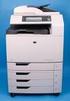 HP Color LaserJet CM6040/CM6030 MFP Series Analog Fax Accessory 300 Fax Guide Copyright and License 2008 Copyright Hewlett-Packard Development Company, L.P. Reproduction, adaptation, or translation without
use hp embedded web server hp LaserJet 4345mfp
 use hp embedded web server hp LaserJet 5mfp HP Embedded Web Server User Guide Copyright 00 Copyright Hewlett-Packard Development Company, L.P. Reproduction, adaptation or translation without prior written
HP Web Jetadmin Database Connector Plug-in reference manual
 HP Web Jetadmin Database Connector Plug-in reference manual Copyright notice 2004 Copyright Hewlett-Packard Development Company, L.P. Reproduction, adaptation or translation without prior written permission
HP LaserJet P3005 Series printers HP Embedded Web Server User Guide
 HP LaserJet P005 Series printers HP Embedded Web Server User Guide HP Embedded Web Server User Guide Copyright 005 Copyright Hewlett-Packard Development Company, L.P. Reproduction, adaptation or translation
eprint SOFTWARE User Guide
 eprint SOFTWARE User Guide HP eprint software User Guide Copyright and License 2012 Copyright Hewlett-Packard Development Company, L.P. Reproduction, adaptation, or translation without prior written permission
Quick Scan Features Setup Guide. Scan to E-mail Setup. See also: System Administration Guide: Contains details about E-mail setup.
 Quick Scan Features Setup Guide XE3024EN0-2 This guide includes instructions for: Scan to E-mail Setup on page 1 Scan to Mailbox Setup on page 6 Network Scanning Setup on page 9 Scan to PC Setup on page
Legal Notes. Regarding Trademarks. 2012 KYOCERA Document Solutions Inc.
 Legal Notes Unauthorized reproduction of all or part of this guide is prohibited. The information in this guide is subject to change without notice. We cannot be held liable for any problems arising from
Bluetooth for Windows
 Bluetooth for Windows Getting Started Copyright 2006 Hewlett-Packard Development Company, L.P. Microsoft and Windows are U.S. registered trademarks of Microsoft Corporation. Bluetooth is a trademark owned
HP Accessibility Guide
 HP Accessibility Guide At HP, we re committed to improving our customers experience with products, information and services that are easier to access and simpler to use. We consider the needs of all our
SMTP PROXY SERVER INSTALLATION FOR HP QUICKPAGE
 SMTP PROXY SERVER INSTALLATION FOR HP QUICKPAGE INTRODUCTION To ensure accurate billing, the HP QuickPage program requires collection of the metered information from the printers and multifunction products
technical brief browsing to an installation of HP Web Jetadmin. Internal Access HTTP Port Access List User Profiles HTTP Port
 technical brief in HP Overview HP is a powerful webbased software utility for installing, configuring, and managing networkconnected devices. Since it can install and configure devices, it must be able
HP 9250C Digital Sender
 HP 9250C Digital Sender User Guide Copyright information 2007 Copyright Hewlett-Packard Development Company, L.P. Reproduction, adaptation, or translation without prior written permission is prohibited,
NETWORK PRINT MONITOR User Guide
 NETWORK PRINT MONITOR User Guide Legal Notes Unauthorized reproduction of all or part of this guide is prohibited. The information in this guide is subject to change without notice. We cannot be held liable
Administration guide. Océ LF Systems. Connectivity information for Scan-to-File
 Administration guide Océ LF Systems Connectivity information for Scan-to-File Copyright 2014, Océ All rights reserved. No part of this work may be reproduced, copied, adapted, or transmitted in any form
Scan to Network and Scan to Network Premium
 Scan to Network and Scan to Network Premium Administrator's Guide Important: This guide is intended for MX6500e. March 2013 www.lexmark.com Contents 2 Contents Overview...3 Configuring Scan to Network...4
File Management Utility User Guide
 File Management Utility User Guide Legal Notes Unauthorized reproduction of all or part of this guide is prohibited. The information in this guide is subject to change without notice. We cannot be held
HP Color LaserJet 4700 HP Embedded Web Server User Guide
 HP Color LaserJet 4700 HP Embedded Web Server User Guide HP Embedded Web Server User Guide Copyright and Warranty 2005 Copyright Hewlett-Packard Development Company, L.P. Reproduction, adaptation or translation
HP BladeSystem Management Pack version 1.0 for Microsoft System Center Essentials Troubleshooting Assistant
 HP BladeSystem Management Pack version 1.0 for Microsoft System Center Essentials Troubleshooting Assistant Part Number 465399-001 November 2007 (First Edition) Copyright 2007 Hewlett-Packard Development
HP Color LaserJet 3000/3800 Series printers HP Embedded Web Server User Guide
 HP Color LaserJet 3000/3800 Series printers HP Embedded Web Server User Guide HP Embedded Web Server User Guide Copyright and Warranty 2005 Copyright Hewlett-Packard Development Company, L.P. Reproduction,
HP ProtectTools Embedded Security Guide
 HP ProtectTools Embedded Security Guide Document Part Number: 364876-001 May 2004 This guide provides instructions for using the software that allows you to configure settings for the HP ProtectTools Embedded
Legal Notes. Regarding Trademarks. 2011 KYOCERA MITA Corporation
 Legal Notes Unauthorized reproduction of all or part of this guide is prohibited. The information in this guide is subject to change without notice. We cannot be held liable for any problems arising from
AR-NB2 A NETWORK EXPANSION KIT. OPERATION MANUAL (for network scanner) SCANNER FUNCTION 17 USING THE NETWORK
 MODEL AR-NB A NETWORK EXPANSION KIT OPERATION MANUAL (for network scanner) Page INTRODUCTION BEFORE USING THE NETWORK SCANNER FUNCTION USING THE NETWORK SCANNER FUNCTION 7 TROUBLESHOOTING SHARPDESK CD-ROM
Cloud Portal for imagerunner ADVANCE
 Cloud Portal for imagerunner ADVANCE User's Guide Please read this guide before operating this product. After you finish reading this guide, store it in a safe place for future reference. ENG How This
HP LaserJet P3010 Series Printers HP Embedded Web Server User Guide
 HP LaserJet P3010 Series Printers HP Embedded Web Server User Guide www.hp.com/support/ljp3010series HP LaserJet P3010 Embedded Web Server User Guide Copyright and Warranty 2008 Copyright Hewlett-Packard
TOSHIBA GA-1310. Printing from Windows
 TOSHIBA GA-1310 Printing from Windows 2009 Electronics for Imaging, Inc. The information in this publication is covered under Legal Notices for this product. 45081979 04 February 2009 CONTENTS 3 CONTENTS
Network Scanner Tool R3.1. User s Guide Version 3.0.04
 Network Scanner Tool R3.1 User s Guide Version 3.0.04 Copyright 2000-2004 by Sharp Corporation. All rights reserved. Reproduction, adaptation or translation without prior written permission is prohibited,
HP Device Manager 4.6
 Technical white paper HP Device Manager 4.6 LDAP Troubleshooting Guide Table of contents Introduction... 2 HPDM LDAP-related context and background... 2 LDAP in HPDM... 2 Configuring User Authentication...
HP eprint Enterprise. Installation Checklist. Release 4.2
 HP eprint Enterprise Installation Checklist Release 4.2 Copyright and License Copyright 2015 HP Development Company, L.P. Reproduction, adaptation, or translation without prior written permission is prohibited,
HP A-IMC Firewall Manager
 HP A-IMC Firewall Manager Configuration Guide Part number: 5998-2267 Document version: 6PW101-20110805 Legal and notice information Copyright 2011 Hewlett-Packard Development Company, L.P. No part of this
HP ProLiant DL380 G5 High Availability Storage Server
 HP ProLiant DL380 G5 High Availability Storage Server installation instructions *5697-7748* Part number: 5697 7748 First edition: November 2008 Legal and notice information Copyright 1999, 2008 Hewlett-Packard
Scan to Network and Scan to Network Premium. Administrator's Guide
 Scan to Network and Scan to Network Premium Administrator's Guide March 2015 www.lexmark.com Contents 2 Contents Overview...3 Configuring the application...4 Configuring a destination...4 Configuring destination
HP Access Control Smartcard Solution
 HP Access Control Smartcard for U. S. Government Administrator s Guide HP Access Control Smartcard for U.S. Government Administrator's Guide Copyright information 2009 Copyright Hewlett-Packard Development
KM-1820 FS-1118MFP. Network Scanner Setup Guide
 KM-1820 FS-1118MFP Network Scanner Setup Guide The KM-1820 model is applicable to USA, Canada, and the Asia Pacific region. The FS-1118MFP model is applicable to Europe and Australasia. Introduction About
Router Setup Manual. NETGEAR, Inc. 4500 Great America Parkway Santa Clara, CA 95054 USA 208-10060-01 2006-03-17
 NETGEAR, Inc. 4500 Great America Parkway Santa Clara, CA 95054 USA 208-10060-01 2006-03-17 2006 by NETGEAR, Inc. All rights reserved. Trademarks NETGEAR is a trademark of Netgear, Inc. Microsoft, Windows,
Legal Notes. Regarding Trademarks. Models supported by the KX printer driver. 2011 KYOCERA MITA Corporation
 Legal Notes Unauthorized reproduction of all or part of this guide is prohibited. The information in this guide is subject to change without notice. We cannot be held liable for any problems arising from
HP IMC User Behavior Auditor
 HP IMC User Behavior Auditor Administrator Guide Abstract This guide describes the User Behavior Auditor (UBA), an add-on service module of the HP Intelligent Management Center. UBA is designed for IMC
Xerox EX Print Server, Powered by Fiery, for the Xerox 700 Digital Color Press. Printing from Windows
 Xerox EX Print Server, Powered by Fiery, for the Xerox 700 Digital Color Press Printing from Windows 2008 Electronics for Imaging, Inc. The information in this publication is covered under Legal Notices
Novell ZENworks Asset Management 7.5
 Novell ZENworks Asset Management 7.5 w w w. n o v e l l. c o m October 2006 USING THE WEB CONSOLE Table Of Contents Getting Started with ZENworks Asset Management Web Console... 1 How to Get Started...
HP Device Manager 4.6
 Technical white paper HP Device Manager 4.6 Installation and Update Guide Table of contents Overview... 3 HPDM Server preparation... 3 FTP server configuration... 3 Windows Firewall settings... 3 Firewall
HP LaserJet 1010 series printer. Software Technical Reference
 HP LaserJet 1010 series printer Software Technical Reference ii ENWW Contents 1 Purpose 2 Software overview Printer configurations........................................................ 9 HP LaserJet
Print/Scan System (U)
 Print/Scan System (U) KM-3035/4035/5035 Network Scanner Operation Guide ALWAYS read this Operation Guide thoroughly before use. After reading, maintain it in good condition and keep it
Embedded Document Accounting Solution (edas) for Cost Recovery. Administrator's Guide
 Embedded Document Accounting Solution (edas) for Cost Recovery Administrator's Guide September 2013 www.lexmark.com Contents 2 Contents Overview...4 Getting started...5 Understanding installation requirements...5
CentreWare Internet Services Setup and User Guide. Version 2.0
 CentreWare Internet Services Setup and User Guide Version 2.0 Xerox Corporation Copyright 1999 by Xerox Corporation. All rights reserved. XEROX, The Document Company, the digital X logo, CentreWare, and
Installing GFI FAXmaker
 UTH Installing GFI FAXmaker System Requirements Before you install GFI FAXmaker, please ensure that you meet all the following requirements. GFI FAXmaker FAX Server: A Windows 2000 or 2003 server machine
HP LaserJet MFP Analog Fax Accessory 300 Fax Guide
 HP LaserJet MFP Analog Fax Accessory 300 Fax Guide Copyright and License 2008 Copyright Hewlett-Packard Development Company, L.P. Reproduction, adaptation, or translation without prior written permission
Exchange 2003 Standard Journaling Guide
 Exchange 2003 Standard Journaling Guide Websense Email Security Solutions v7.3 Websense Advanced Email Encryption Copyright 1996-2011 Websense, Inc. All rights reserved. This document contains proprietary
Version 6.x Generic. KYOCERA KX DRIVER 6.x USER GUIDE
 Version 6.x Generic KYOCERA KX DRIVER 6.x USER GUIDE Legal Notes Unauthorized reproduction of all or part of this guide is prohibited. The information in this guide is subject to change without notice.
HP Device Manager 4.7
 Technical white paper HP Device Manager 4.7 LDAP Troubleshooting Guide Table of contents Introduction... 2 HPDM LDAP-related context and background... 2 LDAP in HPDM... 2 Full domain account name login...
Network FAX Driver. Operation Guide
 Network FAX Driver Operation Guide About this Operation Guide This Operation Guide explains the settings for the Network FAX driver as well as the procedures that are required in order to use the Network
http://docs.trendmicro.com
 Trend Micro Incorporated reserves the right to make changes to this document and to the products described herein without notice. Before installing and using the product, please review the readme files,
MULTIFUNCTIONAL DIGITAL SYSTEMS. Network Fax Guide
 MULTIFUNCTIONAL DIGITAL SYSTEMS Network Fax Guide 2009 KYOCERA MITA Corporation All rights reserved Preface Thank you for purchasing Multifunctional Digital Color Systems. This manual explains the instructions
Smart Card Authentication. Administrator's Guide
 Smart Card Authentication Administrator's Guide October 2012 www.lexmark.com Contents 2 Contents Overview...4 Configuring the applications...5 Configuring printer settings for use with the applications...5
HP LeftHand SAN Solutions
 HP LeftHand SAN Solutions Support Document Applications Notes Best Practices for Using SolarWinds' ORION to Monitor SANiQ Performance Legal Notices Warranty The only warranties for HP products and services
Instructions for installing Microsoft Windows Small Business Server 2003 R2 on HP ProLiant servers
 Instructions for installing Microsoft Windows Small Business Server 2003 R2 on HP ProLiant servers integration note Abstract... 2 Installation requirements checklists... 3 HP ProLiant server checklist...
Print Management version 2.3.15. Administrator's Guide
 Print Management version 2.3.15 Administrator's Guide November 2014 www.lexmark.com Contents 2 Contents Overview...4 Supported printers...5 Using Lexmark Management Console...6 Accessing Lexmark Management
Xerox WorkCentre 6655 Color Multifunction Printer Control Panel
 Control Panel Available services can vary on your printer setup. For details about services and settings, see the User Guide. 3 4 5 Touch screen Menus 6 6 Alphanumeric keypad 7 Job controls 7 Services
Setting up Sharp MX-Color Imagers for Inbound Fax Routing to Email or Network Folder
 Setting up Sharp MX-Color Imagers for Inbound Fax Routing to Email or Network Folder MX-2300, MX-2600, MX-2700, MX-3100, MX-3501, MX-4501, MX-5500, MX-6200, MX-6201, MX-7000, MX-7001, *MX-M850, *MX-M950,
KM-1820 FS-1118MFP. Network Scanner Setup Guide
 KM-180 FS-1118MFP Network Scanner Setup Guide Introduction Trademark Information About this Guide Important Microsoft, Windows, Windows NT and Internet Explorer are registered trademarks of Microsoft
HP Digital Sender Module
 HP Digital Sender Module Administrator s Guide English HP Digital Sender Module Administrator s Guide Copyright Information Copyright Hewlett-Packard Company 2000 All rights reserved. Reproduction, adaptation,
SOFTWARE SETUP GUIDE DIGITAL MULTIFUNCTIONAL SYSTEM
 SOFTWARE SETUP GUIDE DIGITAL MULTIFUNCTIONAL SYSTEM INTRODUCTION CONTENTS INSTALLING THE SOFTWARE (THAT ACCOMPANIES THE MACHINE) INSTALLING THE SOFTWARE (FOR OPTIONS) TROUBLESHOOTING AND USEFUL INFORMATION
HP IMC Firewall Manager
 HP IMC Firewall Manager Configuration Guide Part number: 5998-2267 Document version: 6PW102-20120420 Legal and notice information Copyright 2012 Hewlett-Packard Development Company, L.P. No part of this
Sharpdesk V3.5. Push Installation Guide for system administrator Version 3.5.01
 Sharpdesk V3.5 Push Installation Guide for system administrator Version 3.5.01 Copyright 2000-2015 by SHARP CORPORATION. All rights reserved. Reproduction, adaptation or translation without prior written
Metalogix SharePoint Backup. Advanced Installation Guide. Publication Date: August 24, 2015
 Metalogix SharePoint Backup Publication Date: August 24, 2015 All Rights Reserved. This software is protected by copyright law and international treaties. Unauthorized reproduction or distribution of this
SOFTWARE SETUP GUIDE DIGITAL MULTIFUNCTIONAL SYSTEM
 SOFTWARE SETUP GUIDE DIGITAL MULTIFUNCTIONAL SYSTEM INTRODUCTION CONTENTS INSTALLING THE SOFTWARE (THAT ACCOMPANIES THE MACHINE) INSTALLING THE SOFTWARE (FOR OPTIONS) TROUBLESHOOTING AND USEFUL INFORMATION
VERITAS Backup Exec 9.1 for Windows Servers Quick Installation Guide
 VERITAS Backup Exec 9.1 for Windows Servers Quick Installation Guide N109548 Disclaimer The information contained in this publication is subject to change without notice. VERITAS Software Corporation makes
QuickSpecs. HP Compaq t5525 Thin Client. Overview
 Overview 1. 10/100 RJ-45 6. PS/2 Connector 2. Security lock 7. DC Power Input 3. Parallel Connector 8. Video Connector 4. USB Connectors 9. Serial Connector 5. Audio connector (mic in/line out) DA - 12265
Step-by-Step Configuration
 Step-by-Step Configuration Kerio Technologies C 2001-2003 Kerio Technologies. All Rights Reserved. Printing Date: December 17, 2003 This guide provides detailed description on configuration of the local
HYPERION SYSTEM 9 N-TIER INSTALLATION GUIDE MASTER DATA MANAGEMENT RELEASE 9.2
 HYPERION SYSTEM 9 MASTER DATA MANAGEMENT RELEASE 9.2 N-TIER INSTALLATION GUIDE P/N: DM90192000 Copyright 2005-2006 Hyperion Solutions Corporation. All rights reserved. Hyperion, the Hyperion logo, and
Quick Scan Features Setup Guide
 Xerox WorkCentre 7132 Quick Scan Features Setup Guide 701P45042 This guide includes instructions for: Scan to Email on page 1 Scan to Mailbox Setup (Optional) on page 5 Network Scanning Setup (Optional)
WebSpy Vantage Ultimate 2.2 Web Module Administrators Guide
 WebSpy Vantage Ultimate 2.2 Web Module Administrators Guide This document is intended to help you get started using WebSpy Vantage Ultimate and the Web Module. For more detailed information, please see
Barracuda Link Balancer Administrator s Guide
 Barracuda Link Balancer Administrator s Guide Version 1.0 Barracuda Networks Inc. 3175 S. Winchester Blvd. Campbell, CA 95008 http://www.barracuda.com Copyright Notice Copyright 2008, Barracuda Networks
Network Scanner Tool V3.5. User s Guide Version 3.5.01
 Network Scanner Tool V3.5 User s Guide Version 3.5.01 Copyright 2000-2016 by SHARP CORPORATION. All rights reserved. Reproduction, adaptation or translation without prior written permission is prohibited,
VERITAS Backup Exec TM 10.0 for Windows Servers
 VERITAS Backup Exec TM 10.0 for Windows Servers Quick Installation Guide N134418 July 2004 Disclaimer The information contained in this publication is subject to change without notice. VERITAS Software
Server Installation Guide ZENworks Patch Management 6.4 SP2
 Server Installation Guide ZENworks Patch Management 6.4 SP2 02_016N 6.4SP2 Server Installation Guide - 2 - Notices Version Information ZENworks Patch Management Server Installation Guide - ZENworks Patch
technical brief Multiple Print Queues
 technical brief in HP Overview HP has the ability to create shared printer queues on a remote machine to help ease the task that administrators face on a regular basis. Print queue creation of the following
WatchDox for Windows. User Guide. Version 3.9.5
 WatchDox for Windows User Guide Version 3.9.5 Notice Confidentiality This document contains confidential material that is proprietary WatchDox. The information and ideas herein may not be disclosed to
VeriSign PKI Client Government Edition v 1.5. VeriSign PKI Client Government. VeriSign PKI Client VeriSign, Inc. Government.
 END USER S GUIDE VeriSign PKI Client Government Edition v 1.5 End User s Guide VeriSign PKI Client Government Version 1.5 Administrator s Guide VeriSign PKI Client VeriSign, Inc. Government Copyright 2010
ES3452 MFP, ES5462 MFP,
 Configuration Guide This guide supports the following models: MC332dn, MC342dn, MC342dw, MC352dn, MC362dn, MC362dw, MC562dn, MC562dw, ES3452 MFP, ES5462 MFP, MPS2731mc PREFACE Every effort has been made
Steps for Basic Configuration
 1. This guide describes how to use the Unified Threat Management appliance (UTM) Basic Setup Wizard to configure the UTM for connection to your network. It also describes how to register the UTM with NETGEAR.
DocuPrint C3290 FS Features Setup Guide
 DocuPrint C3290 FS Features Setup Guide Adobe and PostScript are trademarks of Adobe Systems Incorporated in the United States and/or other countries. Apple, Bonjour, ColorSync, EtherTalk, Macintosh, and
WatchDox for Windows User Guide. Version 3.9.0
 Version 3.9.0 Notice Confidentiality This document contains confidential material that is proprietary WatchDox. The information and ideas herein may not be disclosed to any unauthorized individuals or
HP Quality Center. Software Version: 10.00. Microsoft Word Add-in Guide
 HP Quality Center Software Version: 10.00 Microsoft Word Add-in Guide Document Release Date: February 2012 Software Release Date: January 2009 Legal Notices Warranty The only warranties for HP products
Avaya Video Conferencing Manager Deployment Guide
 Avaya Video Conferencing Manager Deployment Guide August 2011 Avaya Video Conferencing Manager Deployment Guide 2 Avaya Video Conferencing Manager This guide is for network administrators who use Avaya
Wireless Router Setup Manual
 Wireless Router Setup Manual NETGEAR, Inc. 4500 Great America Parkway Santa Clara, CA 95054 USA 208-10082-02 2006-04 2006 by NETGEAR, Inc. All rights reserved. Trademarks NETGEAR is a trademark of Netgear,
HP Intelligent Management Center v7.1 Virtualization Monitor Administrator Guide
 HP Intelligent Management Center v7.1 Virtualization Monitor Administrator Guide Abstract This guide describes the Virtualization Monitor (vmon), an add-on service module of the HP Intelligent Management
Important. Please read this User s Manual carefully to familiarize yourself with safe and effective usage.
 Important Please read this User s Manual carefully to familiarize yourself with safe and effective usage. About This Manual This manual describes how to install and configure RadiNET Pro Gateway and RadiCS
ATX Document Manager. User Guide
 ATX Document Manager User Guide ATX DOCUMENT MANAGER User Guide 2010 CCH Small Firm Services. All rights reserved. 6 Mathis Drive NW Rome, GA 30165 No part of this manuscript may be copied, photocopied,
Administrators Help Manual
 Administrators Help Manual Lepide Active Directory Self Service Lepide Software Private Limited Page 1 Administrators Help Manual for Active Directory Self-Service Lepide Active Directory Self Service
How To Use Gfi Mailarchiver On A Pc Or Macbook With Gfi Email From A Windows 7.5 (Windows 7) On A Microsoft Mail Server On A Gfi Server On An Ipod Or Gfi.Org (
 GFI MailArchiver for Exchange 4 Manual By GFI Software http://www.gfi.com Email: [email protected] Information in this document is subject to change without notice. Companies, names, and data used in examples
NovaBACKUP. Storage Server. NovaStor / May 2011
 NovaBACKUP Storage Server NovaStor / May 2011 2011 NovaStor, all rights reserved. All trademarks are the property of their respective owners. Features and specifications are subject to change without notice.
Fiery EX4112/4127. Printing from Windows
 Fiery EX4112/4127 Printing from Windows 2008 Electronics for Imaging, Inc. The information in this publication is covered under Legal Notices for this product. 45083884 01 April 2009 CONTENTS 3 CONTENTS
Simple Scan to Email Setup Guide
 Simple Scan to Email Setup Guide Document Centre 555/545/535 Dc04cc0336 Scan to Email Scanning to email from a Xerox DC 555/545/535 requires the support of external email services on a network. These services