
User Guide for Patients
|
|
|
- Brooke McBride
- 9 years ago
- Views:
Transcription
1 User Guide for Patients Creating a My Health Online Account Before you can create a My Health Online account you must register for this service at your GP practice. Your practice will provide you with a registration letter that will contain the following information. Web Address Practice ID Patient ID (NHS number) The Registration Token Note : You cannot create an account without a registration letter. 1. In your internet browser, type or copy and paste, the following web address: 2. Select your preferred language English / Cymraeg 3. Click on the My Account tab 4. You will need to scroll to the bottom of this page to Register Click on the Register button

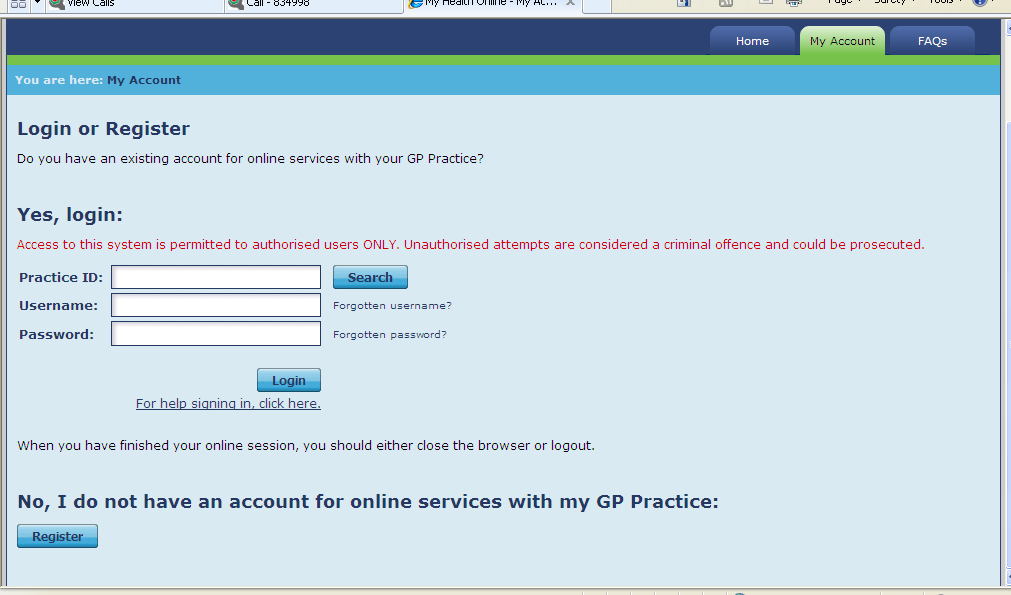
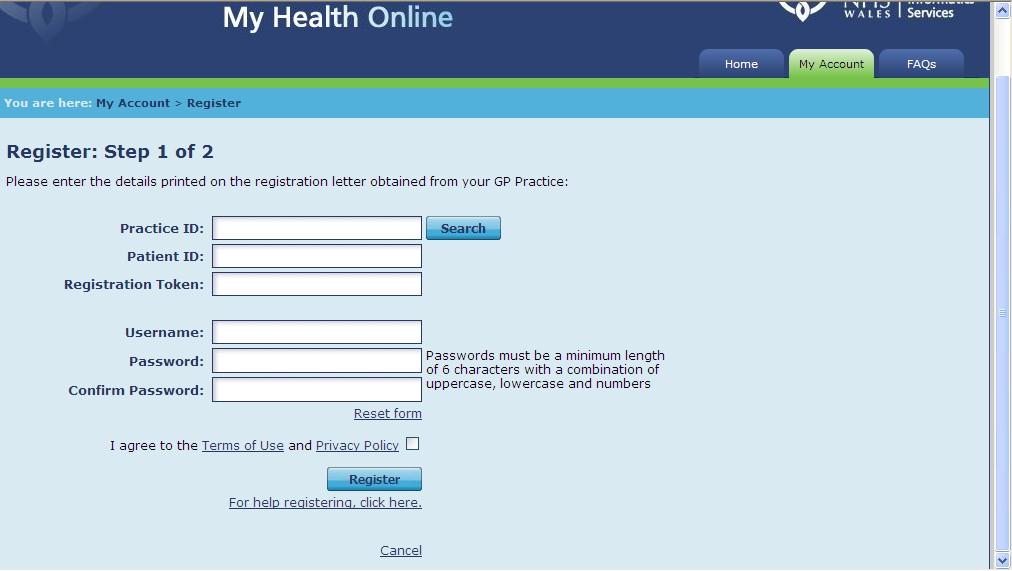
2 5. Using the information on your registration letter complete the required fields and click register 6. You will receive an message sent to the account that you supplied at the GP Practice, the will contain an activation code and a link to complete your registration. Follow the link and type in your activation code. 7. You re my Health Online account is now active. You can now sign in and proceed to: a. Book or cancel appointments. b. Order repeat prescriptions.

3 Signing in & Using My Health Online 1. In your internet browser, type or copy and paste, the following web address: 2. Select your preferred language English / Cymraeg 3. Click on the My Account tab and complete the login details 4. You wil l now see your home page for on-line services, from here you can a. View / book / cancel appointments b. Order repeat prescriptions c. Change your address / password


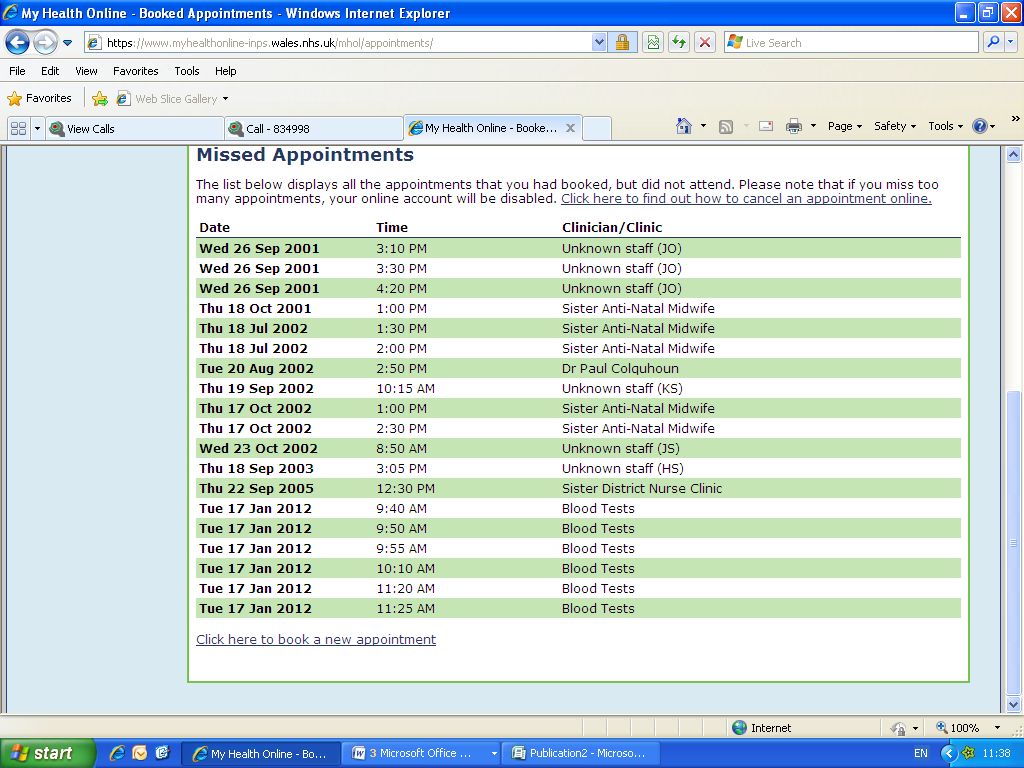
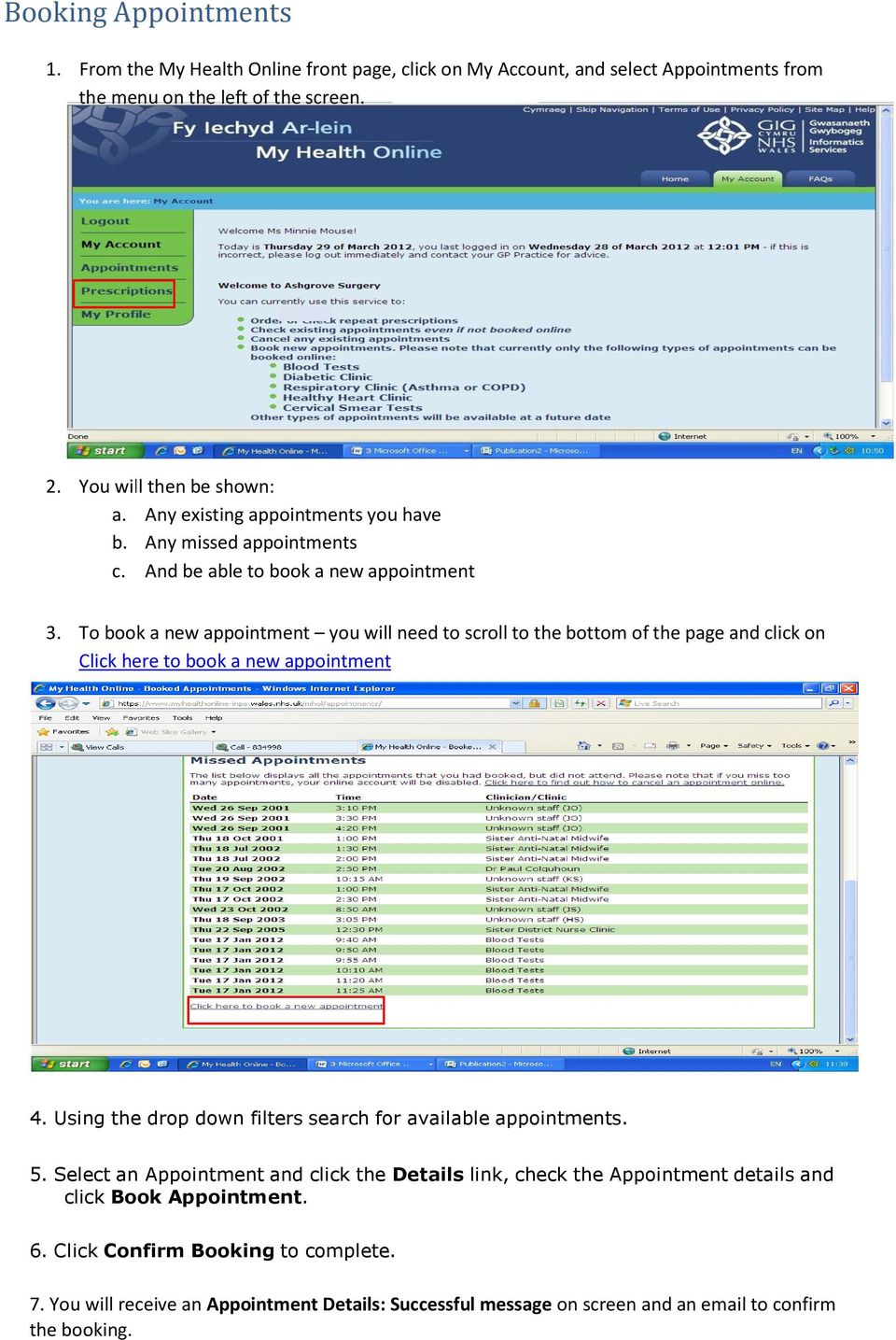
4 Booking Appointments 1. From the My Health Online front page, click on My Account, and select Appointments from the menu on the left of the screen. 2. You wil l then be shown: a. Any existing appointments you have b. Any missed appointments c. And be able to book a new appointment 3. To book a new appointment you will need to scroll to the bottom of the page and click on Click here to book a new appointment 4. Using the drop down filters search for available appointments. 5. Select an Appointment and click the Details link, check the Appointment details and click Book Appointment. 6. Click Confirm Booking to complete. 7. You will receive an Appointment Details: Successful message on screen and an to confirm the booking.


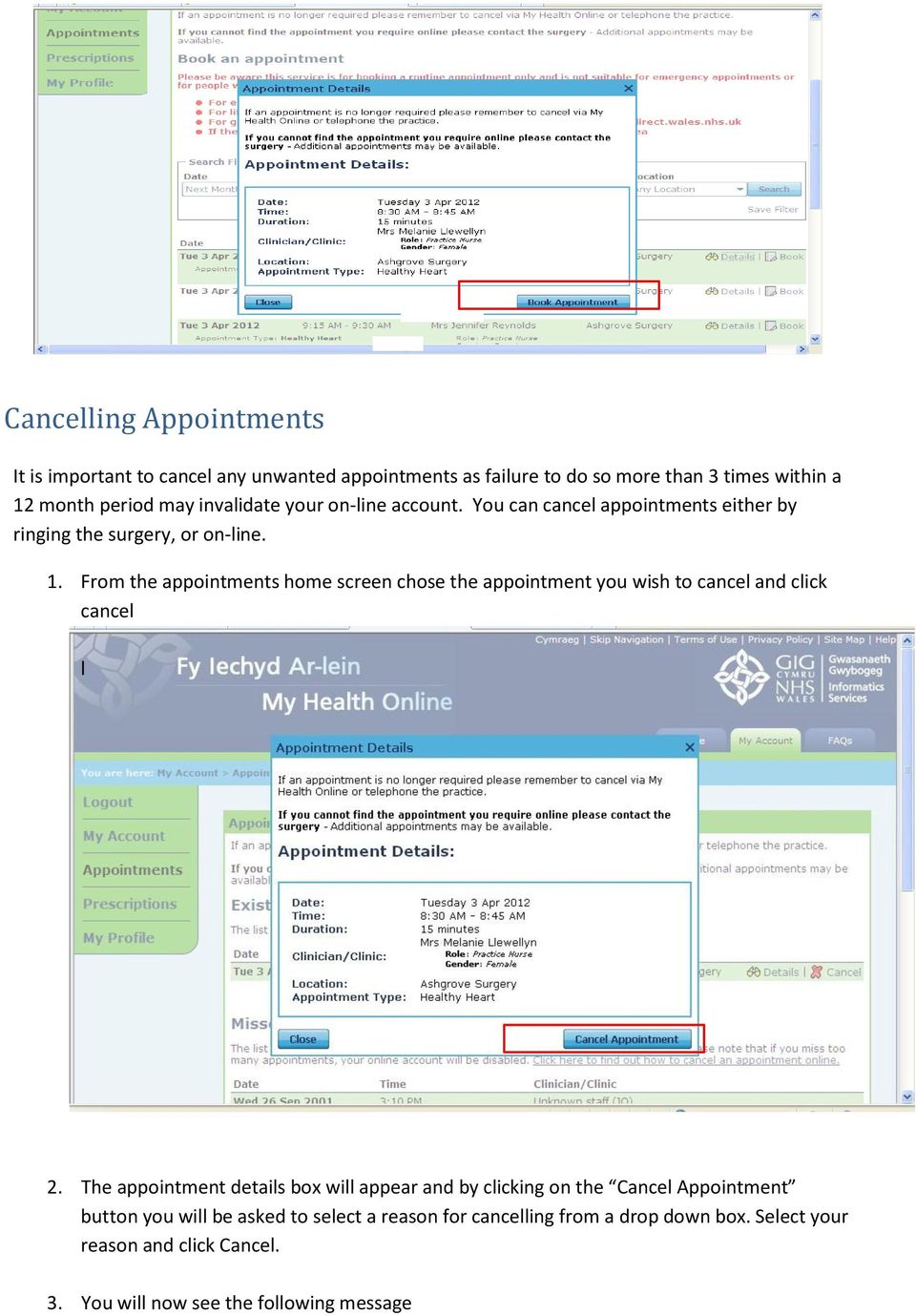
5 Cancelling Appointments It is important to cancel any unwanted appointments as failure to do so more than 3 times within a 12 month period may invalidate your on-line account. You can cancel appointments either by ringing the surgery, or on-line. 1. From the appointments home screen chose the appointment you wish to cancel and click cancel l 2. The appointment details box will appear and by clicking on the Cancel Appointment button you will be asked to select a reason for cancelling from a drop down box. Select your reason and click Cancel. 3. You will now see the following message

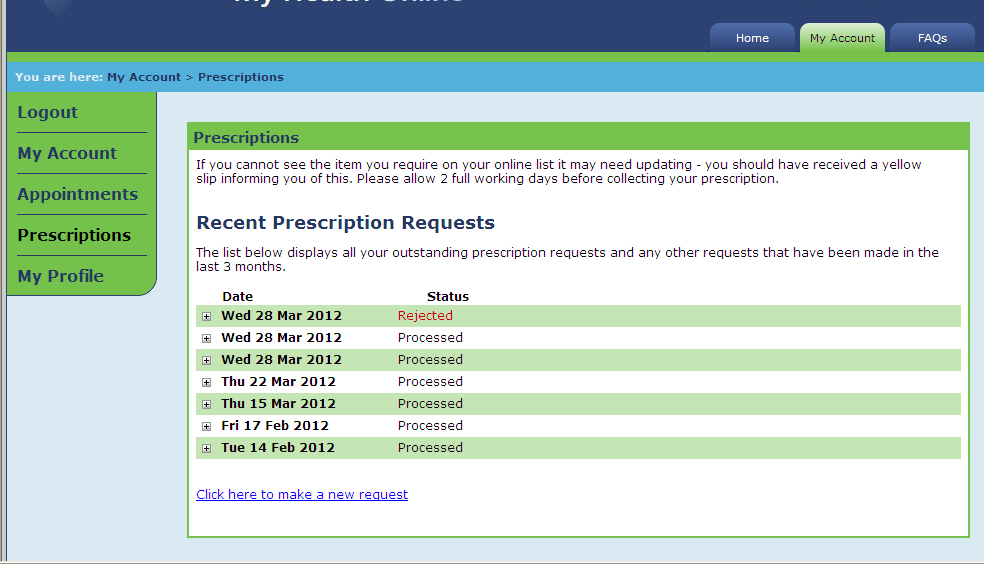
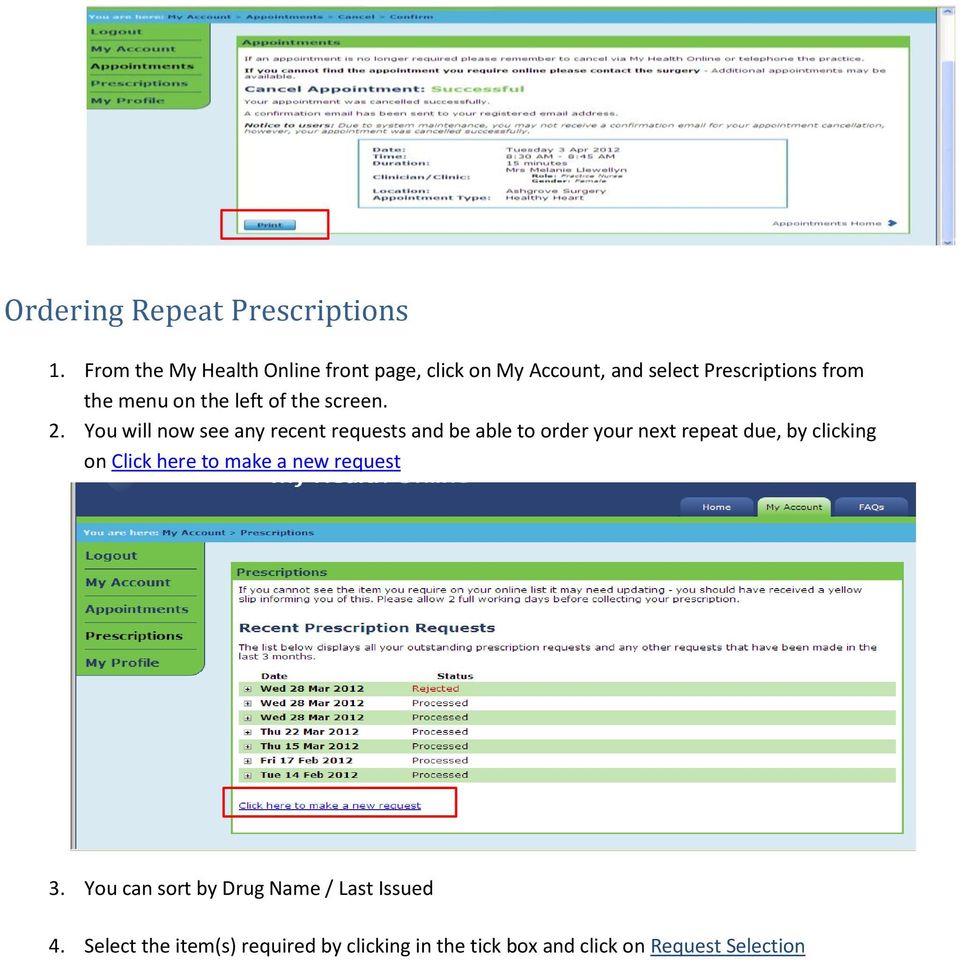
6 Ordering Repeat Prescriptions 1. From the My Health Online front page, click on My Account, and select Prescriptions from the menu on the left of the screen. 2. You will now see any recent requests and be able to order your next repeat due, by clicking on Click here to make a new request 3. You can sort by Drug Name / Last Issued 4. Select the item(s) required by clicking in the tick box and click on Request Selection
7 5. You will need to click on Submit Request to send it to the Practice 6. A message appears on line stating your prescription has been delivered, also an confirming this will be sent to your address you supplied to the Practice. 7. As your prescription is being dealt with you will see the following progress markers within the prescriptions screen a. In Progress This means that the Practice has received your request b. Processed This means that the Practice has authorised your request and printed your prescription. Please note: This does not indicate that the prescription is ready to be picked up, the process still requires 2 working days before you are able to collect your prescription. c. Rejected This means that your request has been denied. Further information will be available when you click on the + box


8 My Profile Tab 1. Within the my profile tab you can: a. Change your address b. Change your username / password Troubleshooting 1. No confirmation code received after 24 hours please contact your GP Practice and ask reception to verify the address held within the clinical system is the one you supplied for your account. If the address is incorrect then you will require another registration letter and start the process again. 2. If your address has been confirmed as correct then please inform us at [email protected] with the following information the Practice ID and your full name to enable us to investigate 2. Practice unavailable message when accessing the site please [email protected] with the following information The Practice ID and your full name and the time you tried accessing the site. 4. There are no appointments or items are not available on your prescription please contact your practice to enquire.

User Guide for Patients
 User Guide for Patients Creating a My Health Online Account Before you can create a My Health Online account you must register for this service at your GP practice. Your practice will provide you with
Online Statements. About this guide. Important information
 Online Statements About this guide This guide shows you how to: View online statements, including CommBiz Activity Statements (Billing summaries) and online statements for Transaction Accounts, Credit
Schools CPD Online General User Guide Contents
 Schools CPD Online General User Guide Contents New user?...2 Access the Site...6 Managing your account in My CPD...8 Searching for events...14 Making a Booking on an Event...20 Tracking events you are
DEBT HELP SYSTEM USER GUIDE
 DEBT HELP SYSTEM USER GUIDE Author: NATIONAL CREDIT REGULATOR Date: 31 July 2011 Version: 2.2.5 CONTENTS 1. WELCOME 3 2. HOW TO LOGIN TO THE DEBT HELP SYSTEM 4 3. HOW TO ADD A DEBT CONSUMER 8 4. HOW TO
!"#$ Stonington Public Schools Parents Guide for InfoSnap Online Enrollment. for Returning. Students. August. Online Enrollment.
 Stonington Public Schools Parents Guide for InfoSnap Online Enrollment for Returning Students August!"#$ Explains how to complete Returning Student Enrollment forms Online through the PowerSchool Parent
Log-in to the patient booking website
 Log-in to the patient booking website From the HealthSpace home page you can select Choose and Book from the menu or by clicking on the Choose and Book image both shown on the left side of the screen.
Online Appointments (Patients)
 Online Appointments (Patients) Overview Once the patient has registered and activated their account they can use the modules available at the practice. This section of the user guide details how the patient
Blackburn Road Medical Centre Blackburn Road Birstall WF17 9PL. SystmOnline
 Blackburn Road Medical Centre Blackburn Road Birstall WF17 9PL T: 01924 478265 (switchboard) W: www.blackburnroadmedical.co.uk SystmOnline Patient User Guide to: Booking Appointments and Ordering Repeat
records in the RIBI Template Website system.
 District 1050 A Step-by-Step Guide for Club Administrators on how to enter club membership records in the RIBI Template Website system For District 1285 to function properly, all clubs that will be in
Broward College Dual Enrollment Ordering and Returning Textbooks
 Ordering Books Textbooks for Dual Enrollment courses should be ordered online and picked up at the Broward College Bookstore. When books are ordered, students will be emailed an order number. The order
ACT State Testing Online Services Tutorial
 ACT State Testing Online Services Tutorial Back-up Test Supervisor Version Released July, 2009 2009 by ACT, Inc., All rights reserved. Back-up Test Supervisor Online Profile Form Introduction The Back-up
User Guide. Voice Services Self Care Portal. Logging In. Welcome to the Self Care Portal
 Logging In 1. From your Internet browser, enter the following URL: http://selfcare.ucc.ny.gov 2. Choose End User Self Care. 3. Enter your username and password: a. Username: Enter your LDAP user ID. (same
I Expense Online Expense Approvals
 I Expense Online Expense Approvals Page 1 Contents Approving Expense Reports... 3 Viewing Expense Reports Receipts... 7 Alternative Actions... 9 Page 2 Approving Expense Reports Approving Expense Reports
Guide to Training Teachers on the Co-op Dashboard
 Guide to Training Teachers on the Co-op Dashboard https://www.hourrepublic.com Hour Republic is a tool used by (i) students to track co-op hours, activities, skills and more, and (ii) teachers to monitor
open windows Open Windows Logging Open Windows Product Support Issues Open Windows Australia Pty Ltd ABN 64007086348
 open windows Open Windows Logging Open Windows Product Support Issues Open Windows Australia Pty Ltd ABN 64007086348 635 Glenferrie Road, Hawthorn VIC 3122, Australia ph: +61 398195088 fax: +61 398195151
The Institute of Education Spam filter service allows you to take control of your spam filtering.
 CUSTOMISING THE IOE SPAM FILTER The Institute of Education Spam filter service allows you to take control of your spam filtering. The interface is very simple to access and use. Through a secure web page
Sign in. Select Search Committee View
 Applicant Tracking for Search Committees Thank you for agreeing to serve on a search committee at Youngstown State University. The following information will enable you to utilize our online applicant
Setting up CU@Round On line Account
 Setting up CU@Round On line Account Created Date: October 6, 2009 Purpose: This document is a step by step process on how to set up a member s CU@Round online account. Note: The member will need the following
Online Scheduling Instructions
 Online Scheduling Instructions 1. First, you will need to create a user account. Go to: https://emsweb.ad.siu.edu/virtualems/ a. Click on My Account, then scroll down to create an account. b. Fill out
Free Medical Billing. Insurance Payment Posting: The following instructions will help guide you through Insurance Payment Posting Procedures.
 : The following instructions will help guide you through Procedures. Click Windows Start Button Click Open Internet Browser Enter Https://www.FreeMedicalBilling.net Click Login to Your Account Enter Username:
Setting up an account and logging in using Design & Print Online. Opening a saved project
 Setting up an account and logging in using Design & Print Online Opening a saved project 1 of 7 Account Set-Up & Login 1. On the Design and Print Online home page click on the Click to start Design & Print
FLX VoIP Registering with Avaya IP Office 500
 FLX VoIP Registering with Avaya IP Office 500 Date: April 5 th, 2012 This technical note gives a detailed description on how to register a Revolabs FLX conference phone with Avaya IP Office 500 PBX. On
Business Mobile Deposit User Guide. 1.0 Registration
 1.0 Registration To register for Republic Bank s Business Mobile Deposit Service, visit the app store and download the FREE* Republic Bank Business Mobile Deposit application onto a smartphone (IPhone
Configuring an IP (SIP) Polycom Soundstation on the Avaya IP Office
 Hardware used for this documentation Polycom Soundstation IP 6000 Avaya IP500V2 firmware 7.0.23 Set the Polycom with an IP Address Step 1: Initial setup If your Soundstation does not automatically register
Online Employment Application Guide: Seattle Public Schools
 This guide describes how to apply for jobs using the Seattle Public Schools NEOGOV job application system. The process consists of the following steps: Create an Account Find Jobs Apply for a Job CREATE
MC3WAVES Wireless Connection Wizard
 MC3WAVES Wireless Connection Wizard When viewing available wireless networks on either MCCC campus you will see a network named public. Connection to public is open to all. Upon connecting to the network
Table of Contents 1. Contents...1
 Table of Contents 1. Contents...1 1.1 Introduction/Getting Started...1 1.1.1 Creating an Account...1 1.1.2 Logging In...2 1.1.3 Forgotten Password...2 1.1.4 Creating a New Project...3 1.2 My Projects...3
Online Timesheets Guide for Contractors
 Online Timesheets Guide for Contractors Table Of Contents 1. Welcome To Online Timesheets Page 2 2. Email Activation Page 2 3. Logging Onto The Online Timesheet Portal Page 2 4. Online Timesheet Portal
A Guide for Patients of Abington Park Surgery
 A Guide for Patients of Abington Park Surgery This guide covers the following topics: About SystmOnline Logging in to SystmOnline Changing/Resetting Your Password Logging Out of SystmOnline Managing Appointments
Software Support Registration
 Software Support Registration Purpose This document is to show the multiple workflows for registering for online access to the Software Support site for Schlumberger. Contents Software Support Registration...
User Manual 03/12/2014. A collaborative effort by
 User Manual 03/12/2014 A USER GUIDE DESIGNED TO HELP CREATE AND MAINTAIN PERSONAL ACCOUNTS IN mynhdoe, THE NH DEPARTMENT OF EDUCATION SINGLE SIGN-ON SYSTEM FOR ACCESSING SECURE APPLICATIONS A collaborative
CSSEA Helpdesk User Guide
 CSSEA Helpdesk User Guide Contents I. Creating tickets... 3 1. Creating a New Ticket via Email... 3 a. Email format... 3 b. New ticket reply... 3 2. Creating a New ticket via the Website... 4 a. Browse
FSA ORS Reports & Files Quick Guide 2015 2016
 ORS The Online Reporting System (ORS) provides participation reports for students taking the Florida Standards Assessments (FSA) tests. Logging in to ORS (DAC, CBT, SA) ORS Login 1. On the FSA portal (www.fsassessments.org),
WEB-BASED CLAIMS REPORTING AN OVERVIEW OF THE ONLINE FIRST NOTICE OF LOSS TOOL
 WEB-BASED CLAIMS REPORTING AN OVERVIEW OF THE ONLINE FIRST NOTICE OF LOSS TOOL CONTENTS Overview... 3 How to submit a claim online Step 1: Access the application - POLICY HOLDERS... 4 Step 1A: Access the
Personalizing Your Individual Phone Line Setup For assistance, please call 1-800-453-2251 ext. 102.
 Personalizing Your Individual Phone Line Setup For assistance, please call 1-800-453-2251 ext. 102. With these instructions, you will: 1. Record your greeting. 2. Configure your 911 setting. 3. Learn how
ONSITE TRACK EASY Campbell Arnott s Contractor Management Portal Portal User Guide: Employee Registration & Induction Bookings
 ONSITE TRACK EASY Campbell Arnott s Contractor Management Portal Portal User Guide: Employee Registration & Induction Bookings http://campbellsarnottscontractor.com.au 1300 305 072 CONTENTS Overview...
The Peer Reviewer s Guide to Editorial Manager
 The Peer Reviewer s Guide to Editorial Manager Registering with EM The Register option is found in the main toolbar. New users simply click on REGISTER. [Note: You may have been proxy registered as a review
FILING REPRESENTATIVES TRAINING ONLINE COURSE SCHEDULING USER GUIDE
 FILING REPRESENTATIVES TRAINING ONLINE COURSE SCHEDULING USER GUIDE October 18, 2013 Online Course Scheduling User Guide Page 1 of 28 TABLE OF CONTENT 1 ABOUT THIS DOCUMENT... 3 2 REGISTRATION... 4 2.1
Personalizing Your Individual Phone Line Setup
 Personalizing Your Individual Phone Line Setup For assistance, please call 1-800-453-2251 With these instruction, you will: 1. Record your greeting. 2. Configure your 911 settings. 3. Learn how to use
Introducing Improved Access to Your Patient Web Results
 To: Your Veterinary Hospital Your Client ID: 1234 Your Password: XZY000 Introducing Improved Access to Your Patient Web Results For samples sent on October 1, 2013 or later, access to your patient results
FREQUENTLY ASKED QUESTIONS TOPIC LIST INSTRUCTIONS FOLLOW BELOW
 FREQUENTLY ASKED QUESTIONS TOPIC LIST INSTRUCTIONS FOLLOW BELOW Step-By-Step Instructions Before you apply Page/s 2 How to register for irecruitment Page/s 2-3 How to apply for a position Page/s 2-3 Tips
Guidelines for new users of the Union Registry ECAS account, registration and enrolment
 Guidelines for new users of the Union Registry ECAS account, registration and enrolment An ECAS account and registration are required for a new user to be added as an account representative Before a new
How Board Members and State Employees Utilize the Security Portal to Access PDMP. July 30, 2014 Version 2 Software Release Version 3.4.
 How Board Members and State Employees Utilize the Security Portal to Access PDMP July 30, 2014 Version 2 Software Release Version 3.4.11 Table of Contents How to Access PDMP via the ADPH Security Portal...
Welcome to the Opus Bank Mobile Banking App User Guide
 Welcome to the Opus Bank Mobile Banking App User Guide 1.855.678.7226 [email protected] www.opusbank.com Table of Contents Enroll in Mobile Banking & Install App... 3 Login to Personal Online
STEPS TO REGISTER YOUR PROFILE AND BOOK THE COUPON
 STEPS TO REGISTER YOUR PROFILE AND BOOK THE COUPON 1. Registering with Sabarimala Virtual Q Portal A user can register into the site after a few easy steps. A user needs to register with the site to be
OLIVIA123 FOR ADMINISTRATORS. User Guide
 OLIVIA123 FOR ADMINISTRATORS User Guide August 2014 OLIVIA123 for Administrators Contents OLIVIA123 Basic Functions... 1 Registration... 1 New Users... 1 Login... 1 Update Details... 1 Change Password...
Google Trusted Stores Setup in Magento
 Google Trusted Stores Setup in Magento Google Trusted Stores is a free badging program that can improve your conversion rate and average order size by reassuring potential customers you offer a great shopping
How to access Administration Page for an End-of-Grade or End-of-Course Assessment
 NC Education Student Enrollment Guide There is Enrolled Students Page for each online assessment at a school (e.g., Demo High Biology Spring 2015) located within NC Education. Schools are expected to verify
UTRADE Online Trading Platform Demo
 UTRADE Online Trading Platform Demo 1 Contents Page 3 Login 8 Input Order 14 Program Trade 16 Update Order 20 Cancel Order 23 Order Information Enquiry 27 Trades 28 Client Portfolio Enquiry 29 Change Password
Online Job Search Employ Florida Marketplace. Section 1: How To Conduct A Job Search
 Section 1: How To Conduct A Job Search Follow these steps to conduct a job search. 1. Sign in with your username and password into your (EFM) account at www.employflorida.com a. If you have not registered
HOW TO MAKE CREDIT CARD PAYMENTS THROUGH INTERNET BANKING 1. Apply for internet banking facility through our e-banking (CBS) branch, where you are
 HOW TO MAKE CREDIT CARD PAYMENTS THROUGH INTERNET BANKING 1. Apply for internet banking facility through our e-banking (CBS) branch, where you are maintaining your account, in case you are not enjoying
Wealth and Investment Management Intermediaries. Online Banking. Bulk Payments User guide
 Wealth and Investment Management Intermediaries Online Banking Bulk Payments User guide Contents Contents 1. Introduction 3 2. Log in steps 4 3. Make BACS payments 5 3.1 Select BACS from account 6 3.2
Fax User Guide 07/31/2014 USER GUIDE
 Fax User Guide 07/31/2014 USER GUIDE Contents: Access Fusion Fax Service 3 Search Tab 3 View Tab 5 To E-mail From View Page 5 Send Tab 7 Recipient Info Section 7 Attachments Section 7 Preview Fax Section
91.527 - Human Computer Interaction Final Project Tutorial. Hardware Inventory Management System (HIMS) By M. Michael Nourai
 91.527 - Human Computer Interaction Final Project Tutorial Hardware Inventory Management System (HIMS) By Table of Contents Introduction... 3 Running HIMS... 3 Successful Login to HIMS... 4 HIMS Main Screen...
NEW USER REGISTRATION AND EMAIL VERIFICATION
 NEW USER REGISTRATION AND EMAIL VERIFICATION The Children s Treatment (CT) or Residential Treatment (RT) organization must have an assigned Departmental Vendor Number (DVN), a PIN number issued to the
Preparing your Domain to transfer from Go Daddy
 Preparing your Domain to transfer from Go Daddy Before you can transfer a domain: Getting Started Disable domain privacy. If the privacy service forwards incoming email, check the ʻforward toʼ contact
Department of Defense Travel Card Citibank Electronic Access System. APC Setup Guide
 Department of Defense Travel Card Citibank Electronic Access System APC Setup Guide Version 6.0 18 December 2008 Introduction This guide was developed to allow you to effectively use Citi s EAS. You will
Banner Self-Service Direct Deposit Instructions Table of Contents
 Banner Self-Service Direct Deposit Instructions Table of Contents Accessing the Online Form... 2 Primary Accounts... 3 Adding Primary Accounts... 3 Allocation Accounts... 4 Adding Allocation Accounts...
Online Railway Reservation. Intel Easy Steps 1 2012 Intel Corporation All rights reserved.
 Online Railway Reservation Intel Easy Steps 1 2012 Intel Corporation Online Railway Reservation Introducing Online Railway Reservation System Technology has transformed many aspects of life in the 21st
My LMS. Learning Management System Guide for Students
 My LMS Learning Management System Guide for Students Revision Date: October 17, 2014 Table of Contents Learning Management System (LMS) Overview... 2 Accessing My LMS... 2 General Navigation... 5 Your
Tully-Wihr Online User Guide
 Tully-Wihr Online User Guide Version 2.1 Revised 7/06/2011 Questions: [email protected] Contents Tully-Wihr s Web Page / Login...3 New User Registration...4 Shipping Specifications...5 Search Features...6-7
UniFLOW Print and Copy Instructions for Students
 UniFLOW Print and Copy Instructions for Students Getting Started, Setting up your PIN Page 2 Purchasing Credits for printing and Photocopying Page 4 How to use the MFD Page 8 Photocopying Page 10 Printing
VoIP Intercom and Elastix Server
 VoIP Intercom and Elastix Server Setup Guide http://www.elastix.org 1.0 Setup Diagram Figure 1-1 is a setup diagram for a single VoIP Intercom configuration. In this configuration, the VoIP Intercom acts
NEWPORT CITY COUNCIL EMPLOYEE SELF SERVICE (ESS) USER GUIDE VERSION 2.0 (APRIL 2015)
 NEWPORT CITY COUNCIL EMPLOYEE SELF SERVICE (ESS) USER GUIDE VERSION 2.0 (APRIL 2015) INTRODUCTION Employee Self Service (ESS) is a module of the itrent integrated HR and Payroll system that is managed
Student Service Learning Hours
 Student Service Learning Hours SchoolMAX Version 1.7 Updated 2/17/2010 Contents Getting Started... 3 Verify Service Hours... 4 Add Service Hours... 7 Service Hours Correction... 11 Service Hours by Category...
TRIM: Web Tool. Web Address The TRIM web tool can be accessed at:
 TRIM: Web Tool Accessing TRIM Records through the Web The TRIM web tool is primarily aimed at providing access to records in the TRIM system. While it is possible to place records into TRIM or amend records
Get Started MyLab and Mastering for Blackboard Learn Students
 Get Started MyLab and Mastering for Blackboard Learn Students March 21, 2013 Copyright Notice Copyright 2013 by Pearson Education. All rights reserved. No part of the contents of this book may be reproduced
Citrix Client Install Instructions
 Citrix Client Install Instructions If you are using Citrix remotely, Information Technology Services recommends updating Citrix client to the newest version available online. You must be an administrator
Quick Reference Guide PAYMENT GATEWAY (Virtual Terminal)
 PAYMENT GATEWAY (Virtual Terminal) Document Version 131227 Copyright 2013 epaymentamerica, Inc. All Rights Reserved Logging in to the Virtual Terminal 1. Open your internet browser; We strongly recommend
1 Introduction. 2.1 Logging In 1. Visit our website http://www.bocionline.com and click Futures A/C Login button. 2 Login
 1 Introduction BOCI Securities Limited X5 Futures and Options Trading System provides a platform for customers to place orders, review portfolio and acquire market data information. This document demonstrates
E-Control Medicine Prescription Manual
 E-Control Medicine Prescription Manual 1 P a g e Contents 1. Introduction... 3 1.1 Purpose & Objective... 3 1.2 Assumptions... 3 2. Login to the System... 3 3. Account Registration... 5 3.1 Register a
IntelliPay Billpay Application Documentation
 IntelliPay Billpay Application Documentation Contents Billpay Introduction First Time Payment (With username and password) First Time Payment (Without username and password) Returning Customer Introduction:
Ships & Offshore Structures
 Ships & Offshore Structures And Tutorial for Reviewers Table of Contents Registering 3 Logging In 3 4 Changing your password 4 Software requirements 5 New Reviewer Invitations 5 Submitting your review
POINT OF SALES SYSTEM (POSS) USER MANUAL
 Page 1 of 24 POINT OF SALES SYSTEM (POSS) USER MANUAL System Name : POSI-RAD System Release Version No. : V4.0 Total pages including this covering : 23 Page 2 of 24 Table of Contents 1 INTRODUCTION...
Business Mobile Banking
 Business Mobile Banking Union Bank & Trust Business Mobile Application User Guide Contents Overview... 2 Security... 2 Requirements... 3 Downloading the App... 3 Logging In... 4 One-time Passcode Entry...
NHS Mail User Guide Guidance on the use of NHSmail for new users AJ O'connell (Sussex HIS) 05/11/2012 V1_4
 NHS Mail User Guide Guidance on the use of NHSmail for new users AJ O'connell (Sussex HIS) 05/11/2012 V1_4 NHS Mail User Guide Information Link: www.nhs.net NHS mail is an Encrypted Email system used by
Customer Portal User Guide: Transition to Delegation
 NEW GTLD PROGRAM Customer Portal User Guide: Transition to Delegation Version 0.8 Table of Contents About this User Guide... 2 Introduction to the Customer Portal... 3 Logging in with your User Name and
Registration Instructions. Visual Basic 2010 Express Software
 Registration Instructions for Visual Basic 2010 Express Software Updated January, 2011 Registration of the Visual Basic 2010 Express software is required by Microsoft within 30 days of installation. Registration
Using the City of Stamford / Stamford Public Schools. Web Email System
 Using the City of Stamford / Stamford Public Schools Web Email System Open the Login Screen: Go to the following site: www.stamfordct.gov/mail and choose the login link. The login screen will look like
Central Commissioning Facility Research Management Systems (RMS): User Guidance
 Central Commissioning Facility Research Management Systems (RMS): User Guidance Contents 1. How to login and register a new account... 2 2. How to accept an invitation to review... 8 3. How to submit a
Health Indicators Advancing Healthy Aging in Your Community. Database Instructions for Managers
 Health Indicators Advancing Healthy Aging in Your Community Database Instructions for Managers Getting to the Database Website You can access the Health Indicators online database in two different ways.
Patient Portal. Accessing the Patient Portal. How to Begin: Enter first and last name, date of birth and create a user name and password.
 Patient Portal How to Begin: If you provided an email address when you registered as a patient, you can expect an email after your discharge that will be sent directly from CPSI, our Electronic Health
SARS Anywhere Student Appointment and Scheduling System
 SARS Anywhere Student Appointment and Scheduling System Contents Accessing SARS Anywhere... 2 Password... 2 Supported Browsers and Devices... 3 Dashboard... 3 Quick Links... 4 User Preferences... 5 Master
This document shows new Citrix users how to set up and log in to their Citrix account.
 Citrix Set up Set up and Log in to Citrix Objective: This document shows new Citrix users how to set up and log in to their Citrix account. Procedure This document shows you how to set up and log in to
How to use the Online Module Enrolment Application
 How to use the Online Module Enrolment Application Introduction This guide will take you through how to select your preferred optional modules for the new academic year using Online Module Enrolment. Note:
account multiple solutions
 Quick Start Guide 1 Our easy to use guide will get you up and running in no time! The guide will assist you to: Validate bank numbers Validate ID numbers Access number tips Release funds to your bank Transfer
Elastix Server VoIP Intercom Setup Guide
 The IP Endpoint Company Elastix Server VoIP Intercom Setup Guide CyberData Corporation 2555 Garden Road Monterey, CA 93940 T:831-373-2601 F: 831-373-4193 www.cyberdata.net 2 1.0 Setup Diagram Figure 1
IN THE PORTAL GET ACCESS TO THE FOLLOWING
 IN THE PORTAL GET ACCESS TO THE FOLLOWING Class Schedule Attendance Class Assignments w/ Grades Report Card Email Teacher Table of Contents Page New User Registration for the Student or Parent Portal 2
How To Use Syntheticys User Management On A Pc Or Mac Or Macbook Powerbook (For Mac) On A Computer Or Mac (For Pc Or Pc) On Your Computer Or Ipa (For Ipa) On An Pc Or Ipad
 SYNTHESYS MANAGEMENT User Management Synthesys.Net User Management 1 SYNTHESYS.NET USER MANAGEMENT INTRODUCTION...3 STARTING SYNTHESYS USER MANAGEMENT...4 Viewing User Details... 5 Locating individual
NSU Bursar Services Instructions
 1 NSU Bursar Services Instructions Contents Log In to Bursar Services... 2 Make a Payment... 4 Create Saved Payment Methods... 8 Create an erefund Account... 10 Set Up Authorized Users... 12 goplan Payment
Trainer's guide to the PTS e-learning system
 Trainer's guide to the PTS e-learning system Overview of process As a trainer, you will be able to log in to the e-learning system and check your learners' progress through the PTS course. You will need
Access and Login. Single Sign On Reference. Signoff
 Access and Login To access single sign on, here are the steps: Step 1: type in the URL: postone.onelogin.com Step 2: Enter your Post student email in the username field Step 3: Enter your Post student
Order Tracking Tips and Techniques
 You can track the status of your orders on the Customer Care Online Service Center website at: http://customercare.hmhco.com/. You can search for orders by: Order Number Invoice Number PO Number Product
How to Register for an Event Using Cheer America s New Online Registration System
 Step 1: Go to our website (www.cachampionships.com). Click on the Registration Button. Step 2: On the Registration Page, click on the blue button Click HERE to REGISTER. Step 3: Welcome to our Registration
Bahamas Tax Information Exchange Portal Documentation
 Bahamas Tax Information Exchange Portal Documentation This sub section of the Portal Documentation covers the following Topics: Portal Overview Portal Login Account Status Reportable Account File Processing