
SteelEye Protection Suite for Linux v8.2.0 WebSphere MQ / MQSeries Recovery Kit. Administration Guide
|
|
|
- Mercy Evans
- 9 years ago
- Views:
Transcription
1 SteelEye Protection Suite for Linux v8.2.0 WebSphere MQ / MQSeries Recovery Kit Administration Guide October 2013

2 This document and the information herein is the property of SIOS Technology Corp. (previously known as SteelEye Technology, Inc.) and all unauthorized use and reproduction is prohibited. SIOS Technology Corp. makes no warranties with respect to the contents of this document and reserves the right to revise this publication and make changes to the products described herein without prior notification. It is the policy of SIOS Technology Corp. to improve products as new technology, components and software become available. SIOS Technology Corp., therefore, reserves the right to change specifications without prior notice. LifeKeeper, SteelEye and SteelEye DataKeeper are registered trademarks of SIOS Technology Corp. Other brand and product names used herein are for identification purposes only and may be trademarks of their respective companies. To maintain the quality of our publications, we welcome your comments on the accuracy, clarity, organization, and value of this document. Address correspondence to: Copyright 2013 By SIOS Technology Corp. San Mateo, CA U.S.A. All rights reserved

3 Table of Contents Chapter 1: Introduction 1 MQ Recovery Kit Technical Documentation 1 Document Contents 1 SPS Documentation 2 Reference Documents 2 Abbreviations 2 Chapter 2: Requirements 4 Hardware Requirements 4 Software Requirements 4 Recovery Kit Installation 5 Upgrading a LifeKeeper Cluster to IBM WebSphere MQ V7 5 Chapter 3: WebSphere MQ Recovery Kit Overview 7 WebSphere MQ Resource Hierarchies 7 Recovery Kit Features 8 Chapter 4: WebSphere MQ Configuration Considerations 9 Configuration Requirements 9 Supported File System Layouts 11 Configuration 1 /var/mqm on Shared Storage 11 Configuration 2 Direct Mounts 12 Configuration 3 Symbolic Links 13 Configuration 4 -- Multi-Instance Queue Managers 14 Configuring WebSphere MQ for Use with LifeKeeper 15 Configuration Changes After Resource Creation 19 Relocating QMDIR and QMLOGDIR 19 Changing the Listener Port 20 Page i

4 Changing the IP for the Queue Manager 20 WebSphere MQ Configuration Examples 20 Active/Standby Configuration with /var/mqm on Shared Storage 21 Configuration Notes 21 Active/Standby Configuration with NAS Storage 22 Configuration Notes 23 Active/Active Configuration with Local Storage 23 Configuration Notes 24 Active/Active Configuration with NAS Storage 24 Configuration Notes 25 Chapter 5: LifeKeeper Configuration Tasks 27 Overview 27 Creating a WebSphere MQ Resource Hierarchy 28 Extending a WebSphere MQ Hierarchy 29 Unextending a WebSphere MQ Hierarchy 30 Deleting a WebSphere MQ Hierarchy 31 Testing a WebSphere MQ Resource Hierarchy 31 Testing Shared Storage Configuration 32 Testing Client Connectivity 33 Testing If PUT/GET Tests are Performed 34 Viewing Resource Properties 34 Editing Configuration Resource Properties 35 Enable/Disable Listener Protection 40 GUI 40 Command Line 40 Changing the LifeKeeper Test Queue Name 41 GUI 41 Command Line 41 Changing the Log Level 42 GUI 42 Page ii

5 Command Line 42 Changing Shutdown Timeout Values 43 GUI 43 Command Line 44 Changing the Server Connection Channel 45 GUI 45 Command Line 45 Changing the Command Server Protection Configuration 46 GUI 46 Command Line 47 Changing LifeKeeper WebSphere MQ Recovery Kit Defaults 47 Chapter 6: WebSphere MQ Troubleshooting 49 WebSphere MQ Log Locations 49 Error Messages 49 Common Error Messages 49 Create 52 Extend 53 Remove 54 Resource Monitoring 54 Warning Messages 55 Appendix A: Sample mqs.ini Configuration File 58 Appendix B: Sample qm.ini Configuration File 60 Appendix C: WebSphere MQ Configuration Sheet 61 Page iii

6 MQ Recovery Kit Technical Documentation Chapter 1: Introduction The SteelEye Protection Suite for Linux WebSphere MQ Recovery Kit provides fault resilient protection for WebSphere MQ queue managers and queue manager storage locations. This kit enables a failure on a primary WebSphere MQ server or queue manager to be recovered on the primary server or a designated backup server without significant lost time or human intervention. Document Contents This guide contains the following topics: SteelEye Protection Suite Documentation. Provides a list of SPS for Linux documentation and where to find it. Abbreviations. Contains a list of abbreviations that are used throughout this document along with their meaning. Requirements. Describes the hardware and software necessary to properly set up, install and operate the WebSphere MQ Recovery Kit. Refer to the SteelEye Protection Suite Installation Guide for specific instructions on how to install or remove SPS for Linux software. WebSphere MQ Recovery Kit Overview. Provides a brief description of the WebSphere MQ Recovery Kit s features and functionality as well as lists the versions of the WebSphere MQ software supported by this Recovery Kit. WebSphere MQ Configuration Considerations. Provides a general description of configuration issues and shows file system layouts supported by the WebSphere MQ Recovery Kit. Configuring WebSphere MQ for Use with LifeKeeper. Provides a step-by-step guide of how to install and configure WebSphere MQ for use with LifeKeeper. Configuration Changes Post Resource Creation. Provides information on how WebSphere MQ configuration changes affect LifeKeeper WebSphere MQ resource hierarchies. WebSphere MQ Configuration Examples. Provides examples of typical WebSphere MQ configurations and the steps to configure your WebSphere MQ resources. LifeKeeper Configuration Tasks. Describes the tasks for creating and managing your WebSphere MQ resource hierarchies using the LifeKeeper GUI. WebSphere MQ Troubleshooting. Provides a list of informational and error messages with recommended solutions. Page 1

7 SPS Documentation Appendices. Provide sample configuration files for WebSphere MQ and a configuration sheet that can be used to plan your WebSphere MQ installation. SPS Documentation The following is a list of SPS related information available from SIOS Technology Corp.: SPS for Linux Release Notes SPS for Linux Technical Documentation SteelEye Protection Suite Installation Guide Optional Recovery Kit Documentation SPS for Linux IP Recovery Kit Administration Guide This documentation, along with documentation associated with other SPS Recovery Kits, is available online at: Reference Documents The following are documents associated with WebSphere MQ referenced throughout this guide: WebSphere MQ for LinuxV6.0 Quick Beginnings (GC ) WebSphere MQ for Linux V7.0 Quick Beginnings (GC ) WebSphere MQ System Administration Guide (SC ) WebSphere MQ - Detailed System Requirements ( WebSphere MQ manual pages (/usr/man) This documentation is available at the WebSphere MQ Library available at: Abbreviations The following abbreviations are used throughout this document: Abbreviation HA QMDIR Highly Available, High Availability Meaning WebSphere MQ queue manager directory. This directory holds the queue manager persistent queue data and is typically located in /var/mqm/qmgrs with the name of the queue manager as subdirectory name. The exact location of this directory is specified in the global mqs.ini configuration file. Page 2
8 Abbreviations Abbreviation QMLOGDIR MQUSER MQGROUP UID GID Meaning WebSphere MQ queue manager log directory. This directory holds the queue manager log data and is typically located in /var/mqm/log with the queue manager name as subdirectory. The exact location of this directory is specified in the queue manager configuration file (QMDIR/qm.ini). The operating system user running all WebSphere MQ commands. This user is the owner of the QMDIR. The user must be a member of the MQGROUP administrative group mqm (see below). The operating system user group that the MQUSER must be part of. This group must be named mqm. Numeric user id of an operating system user. Numeric group id of an operating system user group. Page 3

9 Chapter 2: Requirements Your SPS configuration must meet the following requirements prior to the installation of the WebSphere MQ Recovery Kit. Please see the SteelEye Protection Suite Installation Guide for specific instructions regarding the configuration of your SPS hardware and software. Hardware Requirements Servers. The Recovery Kit requires two or more servers configured in accordance with the requirements described in the SteelEye Protection Suite Installation Guide. See the Linux Configuration Table for supported Linux distributions. Data Storage. The WebSphere MQ Recovery Kit can be used in conjunction both with shared storage and with replicated storage provided by the DataKeeper product. It can also be used with networkattached storage (NAS). Software Requirements SPS Software. You must install the same version of SPS software and any patches on each server. LifeKeeper WebSphere MQ Recovery Kit. Version or later of the WebSphere MQ Recovery Kit is required for systems running WebSphere MQ v7.1 or later. LifeKeeper IP Recovery Kit. You must have the same version of the LifeKeeper IP Recovery Kit on each server. IP Network Interface. Each server requires at least one Ethernet TCP/IP-supported network interface. In order for IP switchover to work properly, user systems connected to the local network should conform to standard TCP/IP specifications. Note: Even though each server requires only a single network interface, you should use multiple interfaces for a number of reasons: heterogeneous media requirements, throughput requirements, elimination of single points of failure, network segmentation and so forth. TCP/IP Software. Each server also requires the TCP/IP software. WebSphere MQ Software. IBM WebSphere MQ must be ordered separately from IBM. See the SPS Release Notes for supported WebSphere MQ versions. The WebSphere MQ Software must be installed on each server of the cluster prior to installing the WebSphere MQ Recovery Kit. The following WebSphere MQ packages must be installed to successfully install the WebSphere MQ Recovery Kit: MQSeriesServer, MQSeriesSamples, MQSeriesClient, MQSeriesRuntime, MQSeriesSDK Page 4

10 Recovery Kit Installation Beginning with IBM WebSphere MQ Version Fix Pack 6, a new feature was introduced allowing multiple versions of WebSphere MQ to be installed and run on the same server (e.g. MQ Versions Fix Pack 6 and 7.1). This feature, known as multi-instance support, is not currently supported by the WebSphere MQ Recovery Kit. Protecting multiple queue managers within a single IBM WebSphere MQ installation version as well as the use of the DataPath parameter in the mqs.ini introduced as part of the multi-instance feature set are supported in this version of the recovery kit. Optional C Compiler. The WebSphere MQ Recovery Kit contains a modified amqsget0.c sample program from the WebSphere MQ samples package. This program has been modified to work with a timeout of 0 seconds instead of the default 15 seconds. It is used to perform PUT/GET tests for the queue manager. This program is compiled during RPM installation and therefore a C compiler must be installed and must be located in the PATH of the root user. Syslog.pm. If you want to use syslog logging for WebSphere MQ resources, the Syslog.pm PERL module must be installed. This module is part of the standard PERL distribution and is not required to be installed separately. Recovery Kit Installation Please refer to the SteelEye Protection Suite Installation Guide for specific instructions on the installation and removal of the SPS for Linux software. Upgrading a LifeKeeper Cluster to IBM WebSphere MQ V7 1. Upgrade SPS on all nodes in the cluster including the WebSphere MQ Recovery Kit following the instructions documented in the Upgrading SPS section of the SteelEye Protection Suite Installation Guide. 2. Unextend each IBM WebSphere MQ resource hierarchy from all its standby nodes in the cluster (nodes where the Queue Manager is not currently running). This step will leave each IBM WebSphere MQ resource running on only its primary node (there will be no LifeKeeper protection from failures at this point until completing Step 5). 3. Upgrade IBM WebSphere MQ software on each node in the cluster using the following steps: a. If one or more LifeKeeper IBM WebSphere MQ resource hierarchies are in service on the node, they must be taken out of service before the upgrade of the IBM WebSphere MQ software. b. Follow the IBM WebSphere MQ V7 upgrade instructions. This includes, but is not limited to, the following steps at a minimum: i. Ensure no queue managers or listeners are running ii. Uninstall all IBM WebSphere MQ v6 upgrades/updates/patches iii. Uninstall all IBM WebSphere MQ v6 base packages using the rpm "-- nodeps" option to avoid the LifeKeeper MQ Recovery Kit dependency Page 5
11 Upgrading a LifeKeeper Cluster to IBM WebSphere MQ V7 iv. Install IBM WebSphere MQ V7 (including all upgrades/updates/patches) 4. Once the IBM WebSphere MQ V7 software has been installed on each node in the cluster, bring the LifeKeeper IBM WebSphere MQ resource hierarchies in service (restore) and verify operation of each Queue Manager. 5. Re-extend each IBM WebSphere MQ resource hierarchy to its standby nodes. Page 6

12 Chapter 3: WebSphere MQ Recovery Kit Overview WebSphere MQ (formerly known as MQSeries) is an IBM software product that provides reliable and guaranteed one time only delivery of messages. The core element of WebSphere MQ is the queue manager which handles a number of queues that are used to put messages into and receive messages from. Once a message is put into a queue, it is guaranteed that this message is persistent and will be delivered only once. The WebSphere MQ Recovery Kit enables LifeKeeper to protect WebSphere MQ queue managers including the command server, the listener and the persistent queue manager data. Protection of the queue manager listener can be optionally disabled on a per queue manager basis to support configurations that do not handle client connects or to enable the administrator to shut down the listener without causing LifeKeeper recovery. The WebSphere MQ Recovery Kit provides a mechanism to recover protected WebSphere MQ queue managers from a failed primary server onto a backup server. LifeKeeper can detect failures either at the server level (via a heartbeat) or resource level (by monitoring the WebSphere MQ daemons) so that control of the protected WebSphere MQ services are transferred to a backup server. WebSphere MQ Resource Hierarchies A typical WebSphere MQ hierarchy will be comprised of a WebSphere MQ queue manager resource. It also contains one or more file system resources, depending on the file system layout and zero or more IP resources. The exact makeup of the hierarchy depends on what is being protected. If the administrator chooses to include an IP resource in the WebSphere MQ resource hierarchy, that IP must be created prior to creating the WebSphere MQ queue manager resource and that IP resource must be active on the primary server. The file system hierarchies are created automatically during the creation of the WebSphere MQ queue manager resource. Figure 1 Typical WebSphere MQ hierarchy - symbolic links Page 7


13 Recovery Kit Features Figure 2 Typical WebSphere MQ hierarchy - LVM configuration Recovery Kit Features The WebSphere MQ Recovery Kit provides the following features: Supports Active/Active configurations Supports LINEAR and CIRCULAR logging (detected automatically) Supports end to end application health check via server connect and client connect Supports optional PUT/GET tests (with definable test queue via GUI and command line) Supports customizable logging levels Supports all LifeKeeper supported storage types Supports optional listener protection (default: enabled) Supports additional syslog message logging (log facility local7) Supports multiple levels of Command Server protection (default: full) Page 8

14 Chapter 4: WebSphere MQ Configuration Considerations This section contains information that should be considered before beginning to configure WebSphere MQ. It also contains a step-by-step process for configuring and protecting a WebSphere MQ queue manager with LifeKeeper. For instructions on installing WebSphere MQ on Linux distributions supported by SPS, please see WebSphere MQ for Linux VX Quick Beginnings, with X reflecting your version of WebSphere MQ (6.0, 7.0 or 7.1). Configuration Requirements The section Configuring WebSphere MQ for Use with LifeKeeper contains a process for protecting a queue manager with LifeKeeper. In general, the following requirements must be met to successfully configure a WebSphere MQ queue manager with LifeKeeper: 1. Configure Kernel Parameters. Please refer to the WebSphere MQ configuration for information on how Linux kernel parameters such as shared memory and other kernel resources should be configured. 2. MQUSER and MQGROUP. The MQGROUP and the MQUSER must exist on all servers of the cluster. Use the operating system commands adduser and groupadd to create the MQUSER and the MQGROUP. Additionally, the MQUSER profile must be updated to append the MQ install location to the PATH environment variable. It must include the location of the WebSphere MQ executables which is typically /opt/mqm/bin and must be placed before /usr/bin. This is necessary for LifeKeeper to be able to run WebSphere MQ commands while running as the MQUSER. 3. MQUSER UID and MQGROUP GID. Each WebSphere MQ queue manager must run as MQUSER and the MQUSER UID and MQGROUP GID must be the same on all servers of the cluster (e.g., username: mqm, UID 10000). The recovery kit tests if the MQUSER has the same UID on all servers and that the MQUSER is part of the MQGROUP group. 4. Manual command server startup. If you want to have LifeKeeper start the command server, disable the automatic command server startup using the following command on the primary server. Otherwise, the startup of the command server will be performed automatically when the Queue Manager is started: runmqsc QUEUE.MANAGER.NAME ALTER QMGR SCMDSERV(MANUAL) 5. QMDIR and QMLOGDIR must be located on shared storage. The queue manager directory QMDIR and the queue manager log directory QMLOGDIR must be located on LifeKeeper-supported shared storage to let the WebSphere MQ on the backup server access the data. See Supported File System Layouts for further details. Page 9

15 Configuration Requirements 6. QMDIR and QMLOGDIR permissions. The QMDIR and QMLOGDIR directories must be owned by MQUSER and the group MQGROUP. The ARK dynamically determines the MQUSER by looking at the owner of this directory. It also detects symbolic links and follows them to the final targets. Use the system command chown to change the owner of these directories if required. 7. Disable Automatic Startup of Queue Manager. If you are using an init script to start and stop WebSphere MQ, disable it for the queue manager(s) protected by LifeKeeper. To disable the init script, use the operating system provided functions like insserv on SuSE or chkconfig on Red Hat. 8. Create Server Connection Channel. Beginning with MQ Version 7.1, changes in MQ's Channel Authentication require that a channel other than the defaults SYSTEM.DEF.SVRCONN and SYSTEM.AUTO.SVRCONN be used and that the MQADMIN user be enabled for the specified channel. See the WebSphere MQ documentation for details on how to create channels. 9. MQSeriesSamples, MQSeriesSDK and MQSeriesClient Package. LifeKeeper uses a client connection to WebSphere MQ to verify that the listener and the channel initiator are fully functional. This is a requirement for remote queue managers and clients to connect to the queue manager. Therefore, the MQSeriesClient package must be installed on all LifeKeeper cluster nodes running WebSphere MQ. Also, the MQSeriesSDK and MQSeriesSamples packages must be installed to perform client connect tests and PUT/GET tests. 10. Optional C Compiler. For the optional PUT/GET tests to take place, a C compiler must be installed on the machine. If not, a warning is issued during the installation. 11. LifeKeeper Test Queue. The WebSphere MQ Recovery Kit optionally performs a PUT/GET test to verify queue manager operation. A dedicated test queue has to be created because the recovery kit retrieves all messages from this queue and discards them. This queue should have set the default persistency setting to yes (DEFPSIST=yes). When you protect a queue manager in LifeKeeper, a test queue named LIFEKEEPER.TESTQUEUE will be automatically created. You can also use the following command to create the test queue manually before protecting the queue manager: su - MQUSER runmqsc QUEUE.MANAGER.NAME define qlocal(lifekeeper.testqueue) DEFPSIST(YES) DESCR ( LifeKeeper test queue ) Note: If you want to use a name for the LifeKeeper test queue other than the default LIFEKEEPER.TESTQUEUE, the name of this test queue must be configured. See Editing Configuration Resource Properties for details. 12. TCP Port for Listener Object. For WebSphere MQ v6 or later, alter the Listener object via runmqsc to reflect the TCP port in use. Use the following command to change the TCP port of the default Listener: su - MQUSER runmqsc QUEUE.MANAGER.NAME alter LISTENER(SYSTEM.DEFAULT.LISTENER.TCP) TRPTYPE(TCP) PORT(1414) IPADDR( ) Page 10
16 Supported File System Layouts Note: The listener object must be altered even if using the default MQ listener TCP port 1414, but it is not necessary to set a specific IP address (IPADDR). If you skip the IPADDR setting, the listener will bind to all interfaces on the server. If you do set IPADDR, it is strongly recommended that a virtual IP resource be created in LifeKeeper using the IPADDR defined address. This ensures the IP address is available when the MQ listener is started. 13. TCP Port Number. Each WebSphere MQ listener must use a different port (default 1414) or bind to a different virtual IP with no listener binding to all interfaces. This includes protected and unprotected queue managers within the cluster. 14. Queue Manager configured in mqs.ini. In Active/Active configurations, each server holds its own copy of the global queue manager configuration file mqs.ini. In order to run the protected queue manager on all servers in the cluster, the queue manager must be configured in the mqs.ini configuration file of all servers in the cluster. Copy the appropriate QueueManager: stanza from the primary server and add it to the mqs.ini configuration files on all backup servers. Supported File System Layouts Depending on your shared storage system and the file system layout, there are three different supported configurations. They differ in the file system layout. The following section describes the supported file system layouts. Configuration 1 /var/mqm on Shared Storage In this configuration, the whole /var/mqm directory is mounted on LifeKeeper supported shared storage (SCSI, SAN, NAS or replicated). Note: This only works for Active/Passive configurations. Page 11

17 Configuration 2 Direct Mounts Figure 3 - File System Layout 1 - /var/mqm on Shared Storage Configuration 2 Direct Mounts In this configuration, the QMDIR and the QMLOGDIR directories are located on shared storage. This requires two dedicated LUNS or partitions or the use of LVM for each queue manager. If LVM is used, two logical volumes from the same LUN can be created and separately mounted on the two directories. Page 12

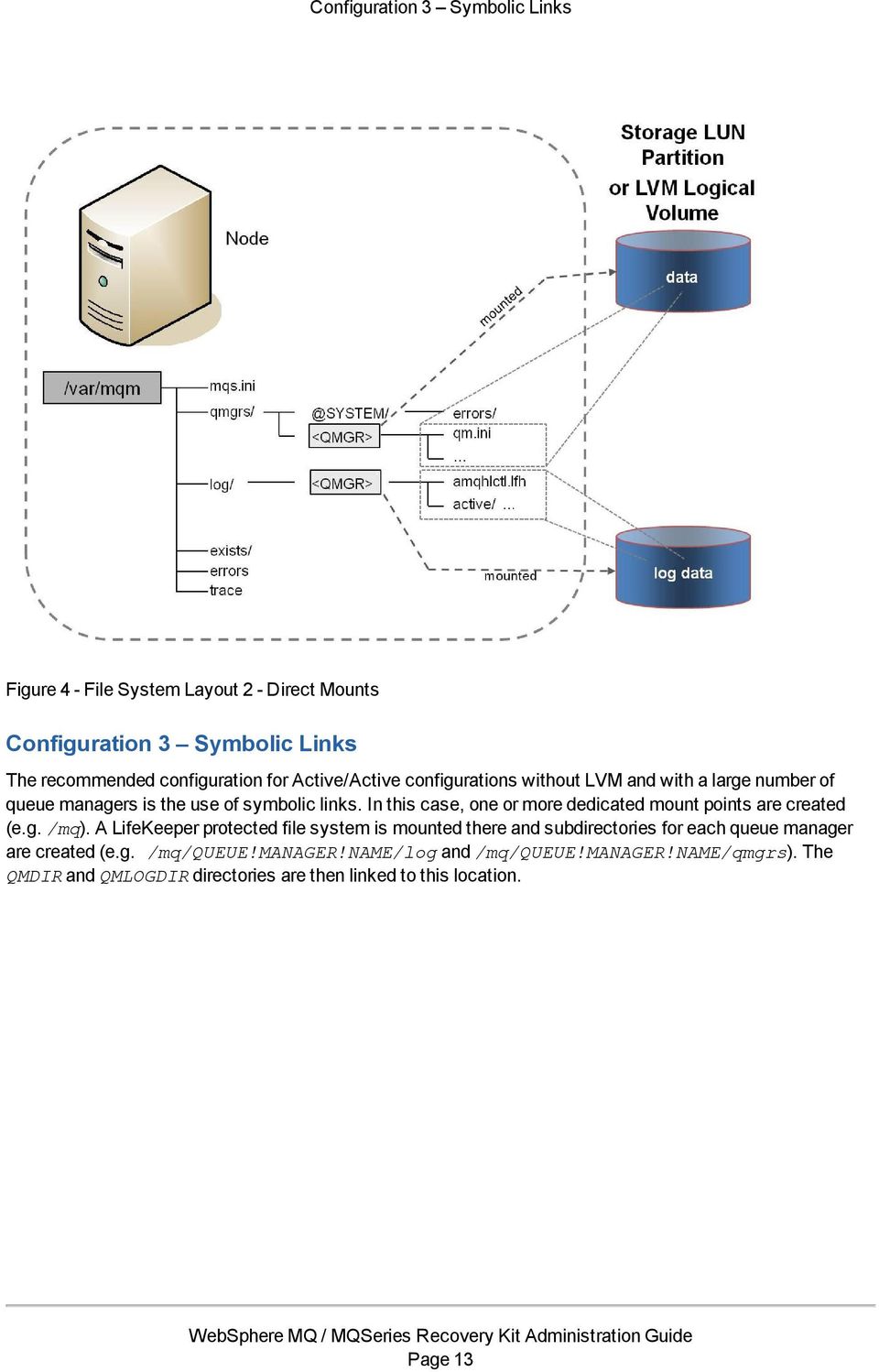
18 Configuration 3 Symbolic Links Figure 4 - File System Layout 2 - Direct Mounts Configuration 3 Symbolic Links The recommended configuration for Active/Active configurations without LVM and with a large number of queue managers is the use of symbolic links. In this case, one or more dedicated mount points are created (e.g. /mq). A LifeKeeper protected file system is mounted there and subdirectories for each queue manager are created (e.g. /mq/queue!manager!name/log and /mq/queue!manager!name/qmgrs). The QMDIR and QMLOGDIR directories are then linked to this location. Page 13
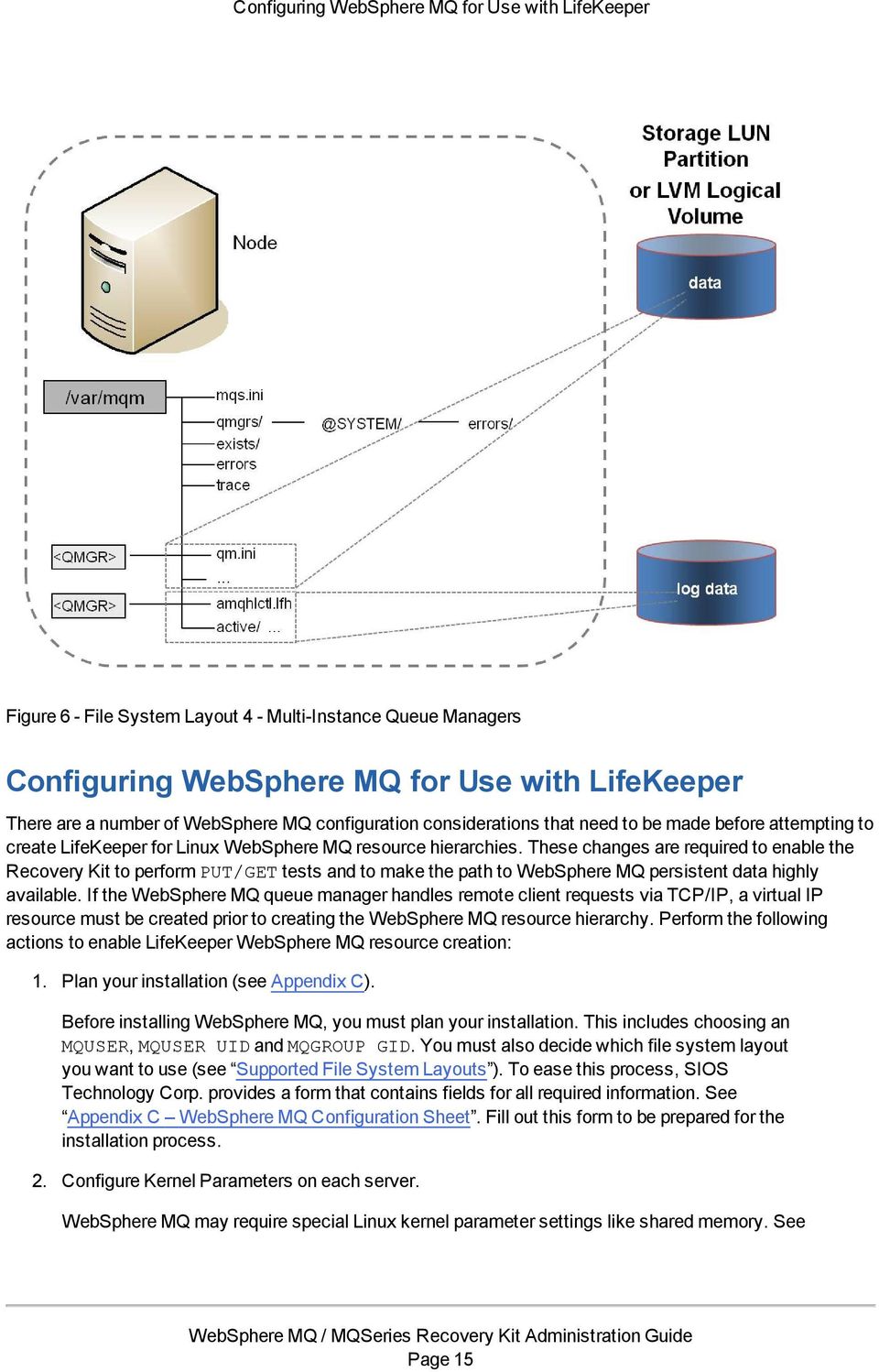
19 Configuration 4 -- Multi-Instance Queue Managers Figure 5 - File System Layout 3 - Symbolic Links Configuration 4 -- Multi-Instance Queue Managers Recommended for Active/Standby or Active/Active configurations that specify the data file directory location during queue manager creation (crtmqm -md DataPath) to be something other than the default of /var/mqm/qmgrs. This feature is available in WebSphere MQ Version starting with fix pack 6. This WebSphere MQ feature allows multiple installations of MQ on a single server (e.g. WebSphere MQ 7.0 with MQ 7.1). Currently, the Recovery Kit only supports a single WebSphere MQ installation version on the server (e.g. 7.0 or 7.1 but not both); however, it does support the DataPath parameter in the mqs.ini file available in WebSphere MQ releases with multi-instance support. With this configuration, the mqs.ini file must be synchronized between the nodes in the cluster. Each Queue Manager data directory and its associated log directory reside on a shared LUN (one LUN for the data and one LUN for the log or both directories reside on the same LUN) based on the Queue Manager DataPath directive information found in the mqs.ini file. It is similar to Configuration 2 with the difference being that the direct mounts for Configuration 4 do not reside under /var/mqm. Page 14

20 Configuring WebSphere MQ for Use with LifeKeeper Figure 6 - File System Layout 4 - Multi-Instance Queue Managers Configuring WebSphere MQ for Use with LifeKeeper There are a number of WebSphere MQ configuration considerations that need to be made before attempting to create LifeKeeper for Linux WebSphere MQ resource hierarchies. These changes are required to enable the Recovery Kit to perform PUT/GET tests and to make the path to WebSphere MQ persistent data highly available. If the WebSphere MQ queue manager handles remote client requests via TCP/IP, a virtual IP resource must be created prior to creating the WebSphere MQ resource hierarchy. Perform the following actions to enable LifeKeeper WebSphere MQ resource creation: 1. Plan your installation (see Appendix C). Before installing WebSphere MQ, you must plan your installation. This includes choosing an MQUSER, MQUSER UID and MQGROUP GID. You must also decide which file system layout you want to use (see Supported File System Layouts ). To ease this process, SIOS Technology Corp. provides a form that contains fields for all required information. See Appendix C WebSphere MQ Configuration Sheet. Fill out this form to be prepared for the installation process. 2. Configure Kernel Parameters on each server. WebSphere MQ may require special Linux kernel parameter settings like shared memory. See Page 15
21 Configuring WebSphere MQ for Use with LifeKeeper the WebSphere MQ Quick Beginnings Guide for your release of WebSphere MQ for the minimum requirements to run WebSphere MQ. To make kernel parameter changes persistent across reboots, you can use the /etc/sysctl.conf configuration file. It may be necessary to add the command sysctl -p to your startup scripts (boot.local). On SuSE, you can run insserv boot.sysctl to enable the automatic setting of the parameters in the sysctl.conf file. 3. Create the MQUSER and MQGROUP on each server. Use the operating system commands groupadd and adduser to create the MQUSER and MQGROUP with the UID and GID from the WebSphere MQ Configuration Sheet you used in Step 1. If the MQUSER you have chosen is named mqm and has UID 1002 and the MQGROUP GID is 1000, you can run the following command on each server of the cluster (change the MQUSER, UID and GID values to reflect your settings): groupadd -g 1000 mqm useradd -m -u g mqm mqm Note: If you are running NIS or LDAP, create the user and group only once. You may need to create home directories if you have no central home directory server. 4. Configure the PATH environment variable. Set the PATH environment variable to include the WebSphere MQ binary directory. This is necessary for LifeKeeper to be able to run WebSphere MQ commands while running as the MQUSER. export PATH=/opt/mqm/bin:$PATH: 5. Install required packages to install WebSphere MQ on each server. MQSeries installation requires the installation of X11 libraries and Java for license activation (mqlicense_lnx.sh). Install the required software packages. 6. Install WebSphere MQ software and WebSphere MQ fix packs on each server. Follow the steps described in the "WebSphere MQ for Linux Quick Beginnings Guide" for your release of WebSphere MQ. 7. Create a Server Connection Channel via the MQ GUI. If using MQ Version 7.1 or later, the default server connection channels (SYSTEM.DEF.SVRCONN and SYSTEM.AUTO.SVRCONN) can no longer be used. See the WebSphere MQ documentation for details on how to create channels. 8. If using MQ Version 7.1 or later, enable the MQADMIN user for the specified channel within MQ. 9. Install LifeKeeper and the WebSphere MQ Recovery Kit on each server. See the SteelEye Protection Suite Installation Guide for details on how to install SPS. 10. Prepare the shared storage and mount the shared storage. Page 16
22 Configuring WebSphere MQ for Use with LifeKeeper See section Supported File System Layouts for file system layouts supported. Depending on the file system layout and the storage type, this involves creating volume groups, logical volumes, creating file systems or mounting NFS shares. Here is an example of file system layout 2 with NAS storage: node1:/var/mqm/qmgrs # mkdir TEST\!QM node1:/var/mqm/qmgrs # mkdir../log/test\!qm node1:/var/mqm/qmgrs # mount :/raid5/vmware/shared_NFS/TEST.QM/qmgrs./TEST\!QM/ node1:/var/mqm/qmgrs # mount :/raid5/vmware/shared_NFS/TEST.QM/log../log/TEST\!QM/ 11. Set the owner and group of QMDIR and QMLOGDIR to MQUSER and MQGROUP. The QMDIR and QMLOGDIR must be owned by MQUSER and MQGROUP. Use the following commands to set the file system rights accordingly: chown MQUSER QMDIR chgrp mqm QMDIR chown MQUSER QMLOGDIR chgrp mqm QMLOGDIR The values of MQUSER, QMDIR and QMLOGDIR depend on your file system layout and the user name of your MQUSER. Use the sheet from Step 1 to determine the correct values for the fields. Here is an example for MQUSER mqm and queue managertest.qm with default QMDIR and QMLOGDIR destinations: node1:/var/mqm/qmgrs # chown mqm TEST\!QM/ node1:/var/mqm/qmgrs # chgrp mqm TEST\!QM/ node1:/var/mqm/qmgrs # chown mqm../log/test\!qm/ node1:/var/mqm/qmgrs # chgrp mqm../log/test\!qm/ 12. Create the queue manager on the primary server. Follow the steps described in the WebSphere MQ System Administration Guide and "WebSphere MQ for Linux VX Quick Beginnings" documents for how to create a queue manager, X being 6.0 or later, depending on your version of WebSphere MQ. Here is an example for MQUSER mqm and queue manager TEST.QM. node1:/var/mqm/qmgrs # su - mqm mqm@node1:~> crtmqm TEST.QM WebSphere MQ queue manager created. Creating or replacing default objects for TEST.QM. Default objects statistics : 31 created. 0 replaced. 0 failed. Completing setup. Page 17
23 Configuring WebSphere MQ for Use with LifeKeeper Setup completed. Note: If you want to protect an already existing queue manager, use the following steps to move the queue manager data to the shared storage: a. Stop the queue manager (endmqm -i QUEUE.MGR.NAME). b. Copy the content of the queue manager directory and the queue manager log directory to the shared storage created in Step 9. c. Change the global configuration file (mqs.ini) and queue manager configuration file (qm.ini) as required to reflect the new location of the QMDIR and the QMLOGDIR. d. Start the queue manager to verify its function (strmqm QUEUE.MGR.NAME). e. Stop the queue manager (endmqm -i QUEUE.MGR.NAME). 11. Optional: Configure a virtual IP resource in LifeKeeper on the primary server. Follow the steps and guidelines described in the SPS for Linux IP Recovery Kit Administration Guide and the SteelEye Protection Suite Installation Guide. Note: If your queue manager is only accessed by server connects, you do not have to configure the LifeKeeper virtual IP. 12. For WebSphere MQ v6 or later: Modify the listener object to reflect your TCP port: su MQUSER runmqsc QUEUE.MANAGER.NAME alter LISTENER(SYSTEM.DEFAULT.LISTENER.TCP) TRPTYPE(TCP) PORT(1414) IPADDR( ) Note: Use the same IP address used in the Step 13 to set the value for IPADDR. Do not set IPADDR to have WebSphere MQ bind to all addresses. 13. Start the queue manager on the primary server. On the primary server, start the queue manager, the command server if it is configured to be started manually and the listener: su MQUSER strmqm QUEUE.MANAGER.NAME strmqcsv QUEUE.MANAGER.NAME runmqlsr m QUEUE.MANAGER.NAME t TCP & 14. Verify that the queue manager has been started successfully: su MQUSER echo display qlocal(*) runmqsc QUEUE.MANAGER.NAME 15. Add the queue manager stanza to the global queue manager configuration file mqs.ini on the backup server. Page 18
24 Configuration Changes After Resource Creation Note: This step is required for file system layouts 2 and Optional: Create the LifeKeeper test queue on the primary server. runmqsc TEST.QM 5724-B41 (C) Copyright IBM Corp. 1994, ALL RIGHTS RESERVED. Starting MQSC for queue manager TEST.QM. define qlocal(lifekeeper.testqueue) defpsist(yes) descr ('LifeKeeper test queue') 1 : define qlocal(lifekeeper.testqueue) defpsist(yes) descr('lifekeeper test queue') AMQ8006: WebSphere MQ queue created. 17. If you want to have LifeKeeper start the command server, disable the automatic command server startup using the following command on the primary server. Otherwise, the startup of the command server will be performed automatically when the Queue Manager is started: su MQUSER runmqsc TEST.QM ALTER QMGR SCMDSERV(MANUAL) 18. Create queue manager resource hierarchy on the primary server. See section LifeKeeper Configuration Tasks for details. 19. Extend queue manager resource hierarchy to the backup system. See section LifeKeeper Configuration Tasks for details. 20. Test your configuration. To test your HA WebSphere MQ installation, follow the steps described in Testing a WebSphere MQ Resource Hierarchy. Configuration Changes After Resource Creation The SPS WebSphere MQ Recovery Kit uses WebSphere MQ commands to start and stop the queue manager. Some exceptions to this rule follow. Relocating QMDIR and QMLOGDIR If the location of the QMDIR and QMLOGDIR are changed, the LifeKeeper configuration must be modified. You have the following options to do so: 1. Recreate the queue manager resource hierarchies. This involves deletion of the queue manager hierarchy and creation of the queue manager hierarchy. See sections Deleting a WebSphere MQ Hierarchy and Creating a WebSphere MQ Resource Hierarchy for details. Page 19
25 Changing the Listener Port 2. Create the new file system hierarchies manually and add the new file system hierarchies to the WebSphere MQ hierarchy. Remove the old file system hierarchies from the WebSphere MQ hierarchy and remove the old file system hierarchies. See the SteelEye Protection Suite Installation Guide for details on how to create and remove file system hierarchies. Changing the Listener Port To change the listener port of a queue manager, follow these steps: Alter the listener object in runmqsc, then stop and start the listener: su MQUSER runmqsc QUEUE.MANAGER.NAME alter LISTENER(SYSTEM.DEFAULT.LISTENER.TCP) TRPTYPE(TCP) PORT(1415) stop LISTENER(SYSTEM.DEFAULT.LISTENER.TCP) start LISTENER(SYSTEM.DEFAULT.LISTENER.TCP) See the section Editing Configuration Resource Properties for details. Changing the IP for the Queue Manager To change the LifeKeeper protected IP associated with the WebSphere MQ queue manager, follow these steps: 1. Create a new LifeKeeper virtual IP in the LifeKeeper GUI. 2. Add the new virtual IP to the WebSphere MQ hierarchy. 3. Remove the old virtual IP from the WebSphere MQ hierarchy. 4. Delete the old virtual IP resource. 5. If needed, modify your listener object in runmqsc and restart the listener: su MQUSER runmqsc QUEUE.MANAGER.NAME alter LISTENER(SYSTEM.DEFAULT.LISTENER.TCP) TRPTYPE(TCP) PORT(1414) IPADDR( ) stop LISTENER(SYSTEM.DEFAULT.LISTENER.TCP) start LISTENER(SYSTEM.DEFAULT.LISTENER.TCP) As an alternative, you can use the LifeKeeper lk_chg_value facility to change the IP. See the lk_chg_value(8) man page for details. WebSphere MQ Configuration Examples This section contains definitions and examples of typical WebSphere MQ configurations. Each example includes the configuration file entries that apply to LifeKeeper. Page 20
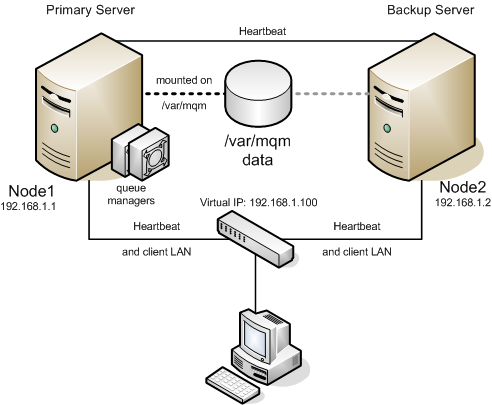
26 Active/Standby Configuration with /var/mqm on Shared Storage Active/Standby Configuration with /var/mqm on Shared Storage In the Active/Standby configuration, Node1 is the primary LifeKeeper server. It protects the WebSphere MQ queue managers. All storage resides on a shared array between the cluster servers. While Node2 may be handling other applications/services, it acts only as a backup for the WebSphere MQ resources in LifeKeeper s context. The directory /var/mqm is located on shared storage. The primary server can run as many queue managers as it can handle. Figure 6 Active/Standby Configuration with Local Storage Configuration Notes The clients connect to the WebSphere MQ servers using the LifeKeeper protected IP designated to float between the servers in the cluster. The directory /var/mqm is located on shared storage. Each queue manager has modified the listener object to contain a unique port number. Page 21
27 Active/Standby Configuration with NAS Storage Active/Standby Configuration with NAS Storage In the Active/Standby configuration, Node1 is the primary LifeKeeper server. It protects the WebSphere MQ queue managers. All storage resides on a NAS server with the IP While Node2 may be handling other applications/services, it acts only as a backup for the WebSphere MQ resources in LifeKeeper s context. The directory /var/mqm is located from the NAS server s IP and mounted on the active node only. The primary server can run as many queue managers as it can handle Figure 7 Active/Standby Configuration with NFS Storage Page 22
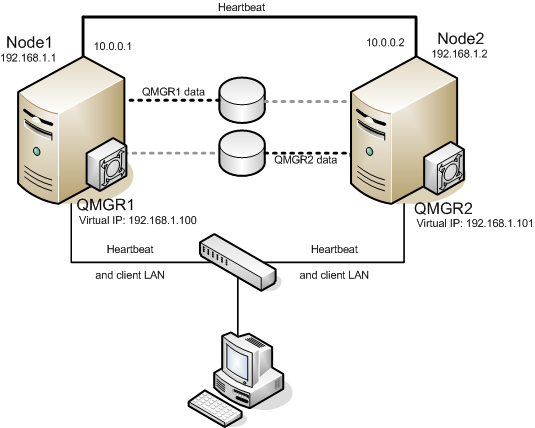
28 Configuration Notes Configuration Notes The clients connect to the WebSphere MQ servers using the LifeKeeper protected IP designated to float between the servers in the cluster. The directory /var/mqm is located on the NAS server. The active server mounts the directory /var/mqm from the NAS server with IP using a dedicated network interface. There are heartbeats configured on each network interface. Each queue manager has modified the listener object to contain a unique port number. Active/Active Configuration with Local Storage In the Active/Active configuration below, both Node1 and Node2 are primary LifeKeeper servers for WebSphere MQ resources. Each server is also the backup server for the other. In this example, Node1 protects the shared storage array for queue manager QMGR1. Node2 protects the shared storage array for queue manager QMGR2 as the primary server. Additionally, each server acts as the backup for the other, which in this example means that Node2 is the backup for the queue manager QMGR1 on Node1, and Node1 is the backup for the queue manager QMGR2 on Node2. Page 23
29 Configuration Notes Figure 8 Active/Active Configuration with Local Storage Configuration Notes The clients connect to the queue manager QMGR1 using the LifeKeeper floating IP The clients connect to the queue manager QMGR2 using the LifeKeeper floating IP There are heartbeats configured on each network interface. Each queue manager has modified the listener object to contain a unique port number. QMGR1 data is located on a volume group on the shared storage with two logical volumes configured. Each logical volume contains a file system that is mounted on QMDIR or QMLOGDIR. QMGR2 data is located on a secondary volume group on the shared storage with two logical volumes configured. Each logical volume contains a file system that is mounted on QMDIR or QMLOGDIR. Active/Active Configuration with NAS Storage In the Active/Active configuration below, both Node1 and Node2 are primary LifeKeeper servers for WebSphere MQ resources. Each server is also the backup server for the other. In this example, Node1 protects the NFS mount for queue manager QMGR1. Node2 protects the NFS mount for queue manager QMGR2 as the primary server. Additionally, each server acts as the backup for the other, which in this example means that Node2 is the backup for the queue manager QMGR1 on Node1, and Node1 is the backup for the queue manager QMGR2 on Node2. Page 24
30 Configuration Notes Figure 9 Active/Active Configuration with NFS Storage Configuration Notes The clients connect to the queue manager QMGR1 using the LifeKeeper floating IP The clients connect to the queue manager QMGR2 using the LifeKeeper floating IP Each server has a dedicated network interface to access the NAS server. There are heartbeats configured on each network interface. Page 25
31 Configuration Notes Each queue manager has modified the listener object to contain a unique port number. QMGR1 data is located on two NFS exports on the NAS server. The exports are mounted on QMDIR or QMLOGDIR. The NAS server IP is QMGR2 data is located on two NFS exports on the NAS server. The exports are mounted on QMDIR or QMLOGDIR. The NAS server IP is Page 26
32 Chapter 5: LifeKeeper Configuration Tasks All SPS for Linux WebSphere MQ Recovery Kit administrative tasks can be performed via the LifeKeeper Graphical User Interface (GUI). The LifeKeeper GUI provides a guided interface to configure, administer and monitor WebSphere resources. Overview The following tasks are described in this guide, as they are unique to a WebSphere MQ resource instance and different for each Recovery Kit. Create a Resource Hierarchy - Creates a WebSphere MQ resource hierarchy. Delete a Resource Hierarchy - Deletes a WebSphere MQ resource hierarchy. Extend a Resource Hierarchy - Extends a WebSphere MQ resource hierarchy from the primary server to a backup server. Unextend a Resource Hierarchy - Unextends (removes) a WebSphere MQ resource hierarchy from a single server in the LifeKeeper cluster. Editing Configuration Resource Properties Reconfigures WebSphere MQ resource parameters including LifeKeeper test queue, listener management and stop timeouts after creation of the WebSphere MQ resource hierarchy. The following tasks are described in the Administration section within the SPS for Linux Technical Documentation because they are common tasks with steps that are identical across all Recovery Kits. Create a Resource Dependency. Creates a parent/child dependency between an existing resource hierarchy and another resource instance and propagates the dependency changes to all applicable servers in the cluster. Delete a Resource Dependency. Deletes a resource dependency and propagates the dependency changes to all applicable servers in the cluster. In Service. Brings a resource hierarchy into service on a specific server. Out of Service. Takes a resource hierarchy out of service on a specific server. View/Edit Properties. View or edit the properties of a resource hierarchy on a specific server. Note: Throughout the rest of this section, configuration tasks are performed using the Edit menu. You can also perform most of these tasks: From the toolbar By right-clicking on a global resource in the left pane of the status display Page 27
33 Creating a WebSphere MQ Resource Hierarchy By right-clicking on a resource instance in the right pane of the status display Using the right-click method allows you to avoid entering information that is required when using the Edit menu. Creating a WebSphere MQ Resource Hierarchy After completing the necessary setup tasks, use the following steps to define the WebSphere MQ resource hierarchy. 1. From the LifeKeeper GUI menu, select Edit, then Server. From here, select Create Resource Hierarchy. The Create Resource Wizard dialog box will appear with a drop-down list box displaying all recognized Recovery Kits installed within the cluster. 2. Select IBM WebSphereMQ and click Next. 3. You will be prompted to enter the following information. When the Back button is active in any of the dialog boxes, you can go back to the previous dialog box. This is helpful should you encounter an error requiring you to correct previously entered information. You may click Cancel at any time to cancel the entire creation process. Field Switchback Type Tips Choose either Intelligent or Automatic. This dictates how the WebSphere MQ instance will be switched back to this server when the server comes back up after a failover. The switchback type can be changed later from the General tab of the Resource Properties dialog box. Note: The switchback strategy should match that of the IP or File System resource to be used by the WebSphere MQ resource. If they do not match the WebSphere MQ resource, creation will attempt to reset them to match the setting selected for the WebSphere MQ resource. Server Queue Manager Name Manage Listener Select the Server on which you want to create the hierarchy. Select the WebSphere MQ queue manager you want to protect. The queue manager must be created prior to creating the resource hierarchy. Queue managers already under LifeKeeper protection are excluded from this list. The queue managers are taken from the global mqs.ini configuration file. Select YES to protect and manage the WebSphere MQ queue manager listener. Select NO if LifeKeeper should not manage the WebSphere MQ listener. Note: You can change this setting later. See Editing Configuration Resource Properties for details. Page 28
34 Extending a WebSphere MQ Hierarchy Field Server Connection Channel Tips Select the server connection channel to use for connection tests. By default, the channel SYSTEM.DEF.SVRCONN will be used; however, beginning with MQ Version 7.1, changes in MQ's Channel Authentication require that a channel other than the default be used and that the MQADMIN user be enabled for the specified channel. Note: Make sure the Server Connection Channel has been created PRIOR to creating your resource. For more information, see Configuring WebSphere MQ for Use with LifeKeeper. Note: This setting can be changed later. See Editing Configuration Resource Properties for details. Virtual IP IBM WebSphere MQ Resource Tag Select the LifeKeeper virtual IP resource to include in the hierarchy. Select None if you do not want to include a LifeKeeper virtual IP in the WebSphere MQ hierarchy. Note: The virtual IP must be ISP (active) on the primary node to appear in the selection list. Either select the default root tag offered by LifeKeepe, or enter a unique name for the resource instance on this server. The default is the queue manager name. Letters, numbers and the following special characters may be used: - _. / 4. Click Create. The Create Resource Wizard will then create your WebSphere MQ resource hierarchy. LifeKeeper will validate the data entered. If LifeKeeper detects a problem, an error message will appear in the information box. 5. An information box will appear indicating that you have successfully created a WebSphere MQ resource hierarchy and that hierarchy must be extended to another server in your cluster in order to achieve failover protection. Click Next. 6. Click Continue. LifeKeeper will then launch the Pre-Extend Wizard. Refer to Step 2 under Extending a WebSphere MQ Hierarchy for details on how to extend your resource hierarchy to another server. Extending a WebSphere MQ Hierarchy This operation can be started from the Edit menu or initiated automatically upon completing the Create Resource Hierarchy option, in which case you should refer to Step 2 below. 1. On the Edit menu, select Resource, then Extend Resource Hierarchy. The Pre-Extend Wizard appears. If you are unfamiliar with the Extend operation, click Next. If you are familiar with the LifeKeeper Extend Resource Hierarchy defaults and want to bypass the prompts for input/- confirmation, click Accept Defaults. 2. The Pre-Extend Wizard will prompt you to enter the following information. Note: The first two fields appear only if you initiated the Extend from the Edit menu. Page 29
35 Unextending a WebSphere MQ Hierarchy Field Template Server Tag to Extend Target Server Switchback Type Template Priority Tips Enter the server where your WebSphere MQ resource is currently in service. Select the WebSphere MQ resource you wish to extend. Enter or select the server you are extending to. Select either Intelligent or Automatic. The switchback type can be changed later, if desired, from the General tab of the Resource Properties dialog box. Note: Remember that the switchback strategy must match that of the dependent resources to be used by the WebSphere MQ resource. Select or enter a priority for the template hierarchy. Any unused priority value from 1 to 999 is valid, where a lower number means a higher priority (the number 1 indicates the highest priority). The extend process will reject any priority for this hierarchy that is already in use by another system. The default value is recommended. Target Priority Queue Manager Name Root Tag Note: This selection will appear only for the initial extend of the hierarchy. Either select or enter the priority of the hierarchy for the target server. This informational field shows the queue manager name you are about to extend. You cannot change this value. LifeKeeper will provide a default tag name for the new WebSphere MQ resource instance on the target server. The default tag name is the same as the tag name for this resource on the template server. If you enter a new name, be sure it is unique on the target server. Letters, numbers and the following special characters may be used: - _. / Note: All configurable queue manager parameters like listener management, the name of the LifeKeeper test queue and the shutdown timeout values are taken from the template server. 3. After receiving the message that the pre-extend checks were successful, click Next. 4. Depending upon the hierarchy being extended, LifeKeeper will display a series of information boxes showing the Resource Tags to be extended which cannot be edited. Click Extend. 5. After receiving the message "Hierarchy extend operations completed", click Next Server to extend the hierarchy to another server or click Finish if there are no other extend operations to perform. 6. After receiving the message "Hierarchy Verification Finished", click Done. Unextending a WebSphere MQ Hierarchy To remove a resource hierarchy from a single server in the LifeKeeper cluster, do the following: 1. On the Edit menu, select Resource, then Unextend Resource Hierarchy. 2. Select the Target Server where you want to unextend the WebSphere MQ resource. It cannot be the server where the WebSphere MQ resource is currently in service. (This dialog box will not appear if you selected the Unextend task by right-clicking on a resource instance in the right pane.) Click Next. Page 30
36 Deleting a WebSphere MQ Hierarchy 3. Select the WebSphere MQ hierarchy to unextend and click Next. (This dialog will not appear if you selected the Unextend task by right-clicking on a resource instance in either pane.) 4. An information box appears confirming the target server and the WebSphere MQ resource hierarchy you have chosen to unextend. Click Unextend. 5. Another information box appears confirming that the WebSphere MQ resource was unextended successfully. Click Done to exit the Unextend Resource Hierarchy menu selection. Deleting a WebSphere MQ Hierarchy It is important to understand what happens to dependencies and protected services when a WebSphere hierarchy is deleted. Dependencies: Before removing a resource hierarchy, you may wish to remove the dependencies. Dependent file systems will be removed. Dependent non-file system resources like IP or Generic Application will not be removed as long as the delete is done via the LifeKeeper GUI or the WebSphere MQ delete script. For LifeKeeper to not delete the dependent file systems of the WebSphere MQ queue manager, manually remove the dependencies prior to deleting the WebSphere MQ hierarchy. Protected Services: If the WebSphere resource hierarchy is taken out of service before being deleted, the WebSphere daemons for this queue manager will be stopped. If a hierarchy is deleted while it is in service, the WebSphere MQ daemons will continue running and offering services (without LifeKeeper protection) after the hierarchy is deleted. To delete a resource hierarchy from all the servers in your LifeKeeper environment, complete the following steps: 1. On the Edit menu, select Resource, then Delete Resource Hierarchy. 2. Select the Target Server where you will be deleting your WebSphere MQ resource hierarchy and click Next. (This dialog will not appear if you selected the Delete Resource task by right-clicking on a resource instance in either pane.) 3. Select the Hierarchy to Delete. (This dialog will not appear if you selected the Delete Resource task by right-clicking on a resource instance in the left or right pane.) Click Next. 4. An information box appears confirming your selection of the target server and the hierarchy you have selected to delete. Click Delete. 5. Another information box appears confirming that the WebSphere resource was deleted successfully. 6. Click Done to exit. Testing a WebSphere MQ Resource Hierarchy You can test your WebSphere MQ resource hierarchy by initiating a manual switchover. This will simulate a failover of a resource instance from the primary server to the backup server. On the Edit menu, select Resource, then In Service. For example, an In Service request executed on a backup server causes the application hierarchy to be taken out of service on the primary server and placed in Page 31
37 Testing Shared Storage Configuration service on the backup server. At this point, the original backup server is now the primary server and original primary server has now become the backup server. If you execute the Out of Service request, the application is taken out of service without bringing it in service on the other server. Testing Shared Storage Configuration To test WebSphere MQ shared storage operations, perform the following steps: 1. Create a temporary test queue on the primary server with the default persistency of yes mqm@node1:/opt/mqm/samp/bin> runmqsc TEST.QM 5724-B41 (C) Copyright IBM Corp. 1994, ALL RIGHTS RESERVED. Starting MQSC for queue manager TEST.QM. define qlocal(test) defpsist(yes) 1 : define qlocal(test) defpsist(yes) AMQ8006: WebSphere MQ queue created. end 2 : end One MQSC command read. No commands have a syntax error. All valid MQSC commands were processed. 2. Put a message into the test queue created on the primary node: mqm@node1:/opt/mqm/samp/bin> echo "HELLO WORLD on NODE1"./amqsput TEST TEST.QM Sample AMQSPUT0 start target queue is TEST Sample AMQSPUT0 end 3. Browse the test queue to see if the message has been stored: mqm@node1:/opt/mqm/samp/bin>./amqsbcg TEST TEST.QM You should see a message with the content HELLO WORLD on NODE1 and some additional output. Look for the following line and verify that the persistency is 1: [...] Priority : 0 Persistence : 1 [...] 4. Switch the resource hierarchy to the standby node. 5. On the standby server where the queue manager is now active, repeat Step 3. The message should be accessible on the standby server. If not, check your storage configuration. 6. On the standby server where the queue manager is now active, get the message from the test queue: Page 32
38 Testing Client Connectivity TEST TEST.QM Sample AMQSGET0 start message <HELLO WORLD on NODE1> <now wait 15 seconds> no more messages Sample AMQSGET0 end 7. Delete the test queue created in Step 1. runmqsc TEST.QM 5724-B41 (C) Copyright IBM Corp. 1994, ALL RIGHTS RESERVED. Starting MQSC for queue manager TEST.QM. delete qlocal(test) 1 : delete qlocal(test) AMQ8007: WebSphere MQ queue deleted. end 2 : end One MQSC command read. No commands have a syntax error. All valid MQSC commands were processed. Testing Client Connectivity To test client connectivity, perform the following steps: 1. On the primary server, use the amqsbcgc command to connect to the queue manager: export MQSERVER='SYSTEM.DEF.SVRCONN/TCP/ (1414) ' Note: Replace the IP with the LifeKeeper protected virtual IP of the queue manager. If your queue manager uses a different port other than 1414, then replace the port number 1414 with the one being used. If the server connection channel being used is not the default SYSTEM.DEF.SVRCONN channel, then replace the server connection channel SYSTEM.DEF.SVRCONN with the one being used. You should see the following output: mqm@node1:/opt/mqm/samp/bin>./amqsbcgc LIFEKEEPER.TESTQUEUE TEST.QM AMQSBCG0 - starts here ********************** MQOPEN - 'LIFEKEEPER.TESTQUEUE' No more messages MQCLOSE Page 33
39 Testing If PUT/GET Tests are Performed If you get a message like the following, then the test queue LIFEKEEPER.TESTQUEUE is not configured. Create the test queue as described in section Configuring WebSphere MQ for Use with LifeKeeper and repeat the test. AMQSBCG0 - starts here ********************** MQOPEN - 'LIFEKEEPER.TESTQUEUE' MQOPEN failed with CompCode:2, Reason: Perform a switchover of the resource hierarchy. 3. Repeat Step 1 on the same server as before which is now the standby server after the switchover. Testing If PUT/GET Tests are Performed To test if the WebSphere MQ Recovery kit performs all checks including the PUT/GET test, perform the following: 1. Make sure the queue manager is in service (ISP) on any server. 2. Increase the logging level of the queue manager as described in Changing the Log Level to FINE. 3. Open the log dialog on the machine where the queue manager is active and wait for the next check to happen (max. two minutes). 4. Analyze the log and verify that all checks are performed and none of the tests is skipped. The PUT/GET could be skipped for the following reasons: a. No LifeKeeper test queue is configured (in this case, configure the test queue as described in Changing the LifeKeeper Test Queue Name ). b. LifeKeeper test queue does not exist (in this case, create the test queue as described in Configuring WebSphere MQ for Use with LifeKeeper ). c. The modified amqsget(c) executables are not available (in this case, install a C compiler and rerun the script /opt/lifekeeper/lkadm/subsys/appsuite/mqseries/bin/compilesamples). 5. Set the debug level to INFORMATIONAL again. Viewing Resource Properties To view the IBM WebSphere MQ resource properties, right-click on the icon for the resource/server combination for which you want to view the properties. When the resource context menu appears, click Properties. The following dialog will appear. Page 34
40 Editing Configuration Resource Properties Resource properties will be displayed in the properties panel if it is enabled. You can also right-click on the icon for the global resource for which you want to view the properties. When the Resource Context Menu appears, click Properties. When the dialog comes up, select the server for which you want to view that resource from the Server list. Editing Configuration Resource Properties The WebSphere MQ Properties page allows you to view and modify the configuration details for a specific WebSphere MQ resource via the properties panel if it is enabled. Specific WebSphere MQ resource configuration properties can also be modified via the Resource Context Menu. To edit configuration details via the WebSphere MQ Configuration Properties page from the LifeKeeper GUI Properties Panel, you must first ensure the GUI Properties Panel is enabled. To enable the GUI Properties Panel, select View, then Properties Panel (must have a check mark to indicate it is enabled). Once enabled, left-click on the WebSphere MQ resource to display its configuration details in the LifeKeeper GUI Properties Panel. Below is an example of the properties page that will appear in the LifeKeeper GUI Properties Panel for a WebSphere MQ resource. Page 35

41 Editing Configuration Resource Properties The properties page contains four tabs. The first tab, labeled IBM WebSphere MQ Recovery Kit Configuration, contains configuration information that is specific to WebSphere MQ resources and allows modification via the resource specific icons. The remaining three tabs are available for all LifeKeeper resource types and their content is described in the topic Resource Properties Dialog in the SPS for Linux Technical Documentation. The following table displays the WebSphere MQ resource specific icons and the configuration component that can be modified when clicking on the icon. Listener Protection Configuration PUT/GET Test Queue Configuration Logging Level Configuration Shutdown Timeout Configuration Allows you to specify whether protection of the IBM WebSphere MQ listener is included with the other IBM WebSphere MQ queue manager components being protected. Allows you to change the name of the queue that the IBM WebSphere MQ Recovery Kit will use to perform PUT/GET tests for the queue manager being protected. Allows you to modify the log level that the IBM WebSphere MQ Recovery Kit will use for the queue manager being protected. Allows you to modify the timeout in seconds for the immediate shutdown and preemptive shutdown timers for the IBM WebSphere MQ queue manager being protected. Page 36
42 Editing Configuration Resource Properties Server Connection Channel Configuration Command Server Protection Configuration Allows you to modify the server connection channel that is used for client connection and the PUT/GET testing for the IBM WebSphere MQ queue manager being protected. Allows you to specify the protection/recovery level for command server component of the IBM WebSphere MQ queue manager being protected. More details on each of these configuration options can be found below. Listener Management Specifies whether you want LifeKeeper to protect the listener for the queue manager or not. If listener management is disabled (value of NO), LifeKeeper will not monitor the listener and you can stop the listener without causing LifeKeeper recovery actions. If listener management is enabled (value of YES), LifeKeeper will monitor the listener and restart the listener if the listener is not running. If the recovery fails, a failover of the WebSphere MQ hierarchy to the backup server is initiated. LifeKeeper Test Queue LifeKeeper performs PUT/GET test to monitor queue manager operations. The WebSphere MQ Recovery Kit uses a dedicated test queue to put messages in and retrieve messages again. In case a failure is detected, no recovery or failover is performed. Instead, the Recovery Kit sends an event that you can register to receive. The events are called putgetfail and putgetcfail. You can add a notification script to the directories /opt/lifekeeper/events/mqseries/putgetfail and /opt/lifekeeper/events/mqseries/putgetcfail to react to those events. Note 1: If the LifeKeeper test queue is not configured in the queue manager, the PUT/GET test is skipped. No recovery or failover takes place. Note 2: If the listener is protected, a second client connect check will be done. If this check fails, a recovery or failover of the queue manager is attempted. Page 37
43 Editing Configuration Resource Properties You can set the logging level of the WebSphere MQ Recovery Kit to four presets: ERROR In this log level, only errors are logged. No informational messages are logged. INFORMATIONAL (default) In this log level, LifeKeeper informational messages about start, stop and recovery of resources are logged. DEBUG Logging Level In this log level, the informational LifeKeeper messages and the command outputs from all WebSphere MQ commands in the restore, remove and recovery scripts are logged. FINE In this log level, all command outputs from WebSphere MQ commands issued in start, stop, recovery and quickcheck scripts are logged. Additional debug messages are also logged. It is recommended to set this debug level only for debugging purpose. As quickcheck actions are also logged, this fills up the log files each time a quickcheck for the WebSphere MQ queue manager runs. The default is INFORMATIONAL. This is equivalent to normal LifeKeeper logging of other recovery kits. Note: Independent of the logging level setting, WebSphere MQ errors during start, stop, recovery or during the check routine are always logged with the complete command output of the last command run. The WebSphere MQ Recovery Kit stops the queue manager in 3 steps: 1. immediate stop Stop Timeout Values Server Connection Channel 2. preemptive stop 3. kill all queue manager processes The timeout values specified determine the time the Recovery Kit waits in Steps 1 and 2 for a successful completion. If this timeout is reached, the next step in the shutdown process is issued. The default for the immediate and preemptive shutdown timeouts is 20 seconds. The WebSphere MQ Recovery Kit allows the specification of the server connection channel. By default, the kit will use the channel SYSTEM.DEF.SVRCONN, but an alternate channel can be specified during resource creation or at any time after resource creation. Page 38

44 Editing Configuration Resource Properties The WebSphere MQ Recovery Kit allows two levels of protection and recovery for the command server component for the protected queue manager. The levels are Full and Minimal. With Full protection, the command server will be started, stopped, monitored and recovered or failed over if recovery is unsuccessful. The recovery steps with Full protection are: Attempt to restart just the command server process. Command Server If that fails, attempt a full restart of the queue manager including the command server process. If both attempts are unsuccessful at restarting the command server, then initiate a failover to the standby node. With Minimal protection, the command server will only be started during restore or stopped during remove. No monitoring or recovery of the command server will be performed. NOTE: Starting the command server will only be performed by the Recovery Kit during restore if the queue manager SCMDSERV parameter is set for manual startup. During a recovery, a failed command server restart will always be attempted regardless of the SCMDSERV setting unless the Command Server Protection Level is set to Minimal. As previously noted, these WebSphere MQ resource configuration components can be modified using the resource specific icons in the properties panel or via the Resource Context Menu. The parameters above can be set for each queue manager separately either via the LifeKeeper GUI or via a command line utility. To set the parameters via the command line, use the script: $LKROOT/lkadm/subsys/appsuite/mqseries/bin/mq_modqmgrparam Page 39
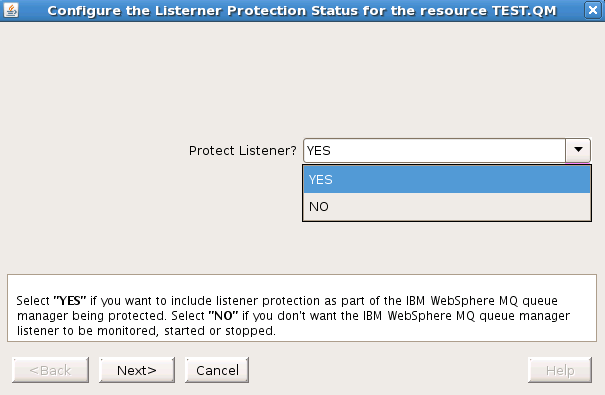
45 Enable/Disable Listener Protection Enable/Disable Listener Protection GUI First navigate to the WebSphere MQ Resource Properties Panel or the Resource Context Menu described above. The resource must be in service to modify the Listener Protection value. Then click on Listener Protection Configuration icon or menu item. The following dialog will appear: Now select YES if you want LifeKeeper to start, stop and monitor the WebSphere MQ listener. Select NO if LifeKeeper should not start, stop and monitor the WebSphere MQ listener. Click Next. You will be asked if you want to enable or disable listener protection; click Continue. If you have chosen to enable listener management, the LifeKeeper GUI checks if the listener is already running. If it is not already running, it will try to start the listener. If the listener start was successful, the LifeKeeper GUI will enable listener management on each server in the cluster. If the listener is not running and could not be started, the LifeKeeper GUI will not enable listener management on the servers in the cluster. Command Line To set the LifeKeeper listener management via command line, use the following command: /opt/lifekeeper/lkadm/subsys/appsuite/mqseries/bin/mq_modqmgrparam - c -s -i TEST.QM -p LISTENERPROTECTION -v YES Page 40

46 Changing the LifeKeeper Test Queue Name This will set (-s) the LifeKeeper listener management (-p) on each node of the cluster (-c) to YES (-v) (enable listener management) for queue manager TEST.QM (-i). Note: You can either use the queue manager name (-i) or the LifeKeeper TAG (-t) name. Changing the LifeKeeper Test Queue Name GUI First navigate to the WebSphere MQ Resource Properties Panel or the Resource Context Menu described above. Then click on PUT/GET TESTQUEUE Configuration icon or menu item. The following dialog will appear: Now enter the name of the LifeKeeper test queue and click Next. You will be asked if you want to set the new LifeKeeper test queue; click Continue. Next, the LifeKeeper GUI will set the LifeKeeper test queue on each server in the cluster. If you set the test queue to an empty value, no PUT/GET tests are performed. Command Line To set the LifeKeeper test queue via command line, use the following command: /opt/lifekeeper/lkadm/subsys/appsuite/mqseries/bin/mq_modqmgrparam - Page 41

47 Changing the Log Level c -s -i TEST.QM -p TESTQUEUE -v "LIFEKEEPER.TESTQUEUE" This will set (-s) the LifeKeeper test queue (-p) on each node of the cluster (-c) to LIFEKEEPER.TESTQUEUE (-v) for queue manager TEST.QM (-i). Note: You can either use the queue manager name (-i) or the LifeKeeper TAG (-t) name. Changing the Log Level GUI First navigate to the WebSphere MQ Resource Properties Panel or the Resource Context Menu described above. Then click on Logging Level Configuration icon or menu item. The following dialog will appear: Now select the Logging Level and click Next. You will be asked if you want to set the new LifeKeeper logging level; click Continue. Next, the LifeKeeper GUI will set the LifeKeeper logging level for the selected queue manager on each server in the cluster. Command Line To set the LifeKeeper logging level via command line, use the following command: Page 42
48 Changing Shutdown Timeout Values /opt/lifekeeper/lkadm/subsys/appsuite/mqseries/bin/mq_modqmgrparam - c -s -i TEST.QM -p DEBUG -v DEBUG This will set (-s) the LifeKeeper logging level (-p) on each node of the cluster (-c) to DEBUG (-v) for queue manager TEST.QM (-i). Note: You can either use the queue manager name (-i) or the LifeKeeper TAG (-t) name. Changing Shutdown Timeout Values GUI First, navigate to the WebSphere MQ resource properties panel or the resource context menu described above. Then click on Shutdown Timeout Configuration icon or menu item. The following dialog will appear: Now enter the immediate shutdown timeout value in seconds and click Next. If you want to disable the immediate shutdown timeout, enter 0. Now the following dialog will appear: Page 43
49 Command Line Now enter the preemptive shutdown timeout value in seconds and click Next. If you want to disable the preemptive shutdown timeout enter 0. You will be asked if you want to set the new LifeKeeper timeout parameters, click Continue. Next, the LifeKeeper GUI will set the LifeKeeper immediate and preemptive timeout values on each server in the cluster. Command Line To set the preemptive shutdown timeout values via command line, use the following command: /opt/lifekeeper/lkadm/subsys/appsuite/mqseries/bin/mq_modqmgrparam - c -s -i TEST.QM -p PREEMPTIVE_TIMEOUT -v 20 This will set (-s) the LifeKeeper preemptive shutdown timeout (-p) on each node of the cluster (-c) to 20 seconds (-v) for queue manager TEST.QM (-i). To set the immediate shutdown timeout values via command line, use the following command: /opt/lifekeeper/lkadm/subsys/appsuite/mqseries/bin/mq_modqmgrparam - c -s -i TEST.QM -p IMMEDIATE_TIMEOUT -v 20 This will set (-s) the LifeKeeper immediate shutdown timeout (-p) on each node of the cluster (-c) to 20 seconds (-v) for queue manager TEST.QM (-i). Note: You can either use the queue manager name (-i) or the LifeKeeper TAG (-t) name. Page 44

50 Changing the Server Connection Channel Changing the Server Connection Channel GUI First navigate to the WebSphere MQ resource properties panel or the resource context menu described above. The resource must be in service to modify the Server Connection Channel value. Then click on Server Connection Channel Configuration icon or menu item. The following dialog will appear: Now select the Server Connection Channel to use and click Next. You will be asked if you want to change to the new Server Connection Channel, click Continue. Next, the LifeKeeper GUI will set the Server Connection Channel for the selected queue manager on each server in the cluster. Command Line To set the Server Connection Channel via command line use the following command: /opt/lifekeeper/lkadm/subsys/appsuite/mqseries/bin/mq_modqmgrparam - c -s -i TEST.QM -p CHANNEL -v LK.TEST.SVRCONN This will set (-s) the Server Connection Channel (-p) on each node of the cluster (-c) to LK.TEST.SVRCONN (-v) for queue manager TEST.QM (-i). Note: You can either use the queue manager name (-i) or the LifeKeeper TAG (-t) name. Page 45

51 Changing the Command Server Protection Configuration Changing the Command Server Protection Configuration GUI First navigate to the WebSphere MQ Resource Properties Panel or the Resource Context Menu described above. Then click on Command Server Protection Configuration icon or menu item. The following dialog will appear: Select Full Control of the command server component of the WebSphere MQ queue manager to have LifeKeeper start, stop, monitor and attempt to recover and to then fail over if the recovery attempt is unsuccessful. Select Minimal Control of the command server component of the WebSphere MQ queue manager to have LifeKeeper only start and stop but not monitor or attempt any recovery. See above table for more details. Once the protection control is selected, click Next. You will be asked if you want to change the setting of the command server protection from its current setting to the new setting; click Continue to make the change on all nodes in the cluster. Page 46
52 Command Line Command Line To set the LifeKeeper Command Server Protection Configuration via the command line, use the following command: /opt/lifekeeper/lkadm/subsys/appsuite/mqseries/bin/mq_modqmgrparam - c -s -i TEST.QM -p CMDSERVERPROTECTION -v LEVEL where LEVEL is Full or Minimal. This will set (-s) the LifeKeeper Command Server Protection Configuration (-p) on each node in the cluster (-c) to LEVEL (-v) for queue manager TEST.QM (-i). Note: You can use either the queue manager name (-i) or the LifeKeeper TAG (-t) name. Changing LifeKeeper WebSphere MQ Recovery Kit Defaults The IBM WebSphere MQ Recovery Kit uses a number of default values which can be tuned and modified if you have problems with the default settings. The default settings should be sufficient for most environments. If you have problems with timeouts you can use the following table to identify tunable parameters. It is recommended that you do not change the parameters until you have problems with your WebSphere MQ resource hierarchies. Variable Name in /etc/default/lifekeeper Default Value Description MQS_QUICKCHECK_TIMEOUT_SC 10 (seconds) Timeout for the server connect check. MQS_QUICKCHECK_TIMEOUT_CC 10 (seconds) Timeout for the client connect check. MQS_QUICKCHECK_TIMEOUT_ PUTGET MQS_QUICKCHECK_TIMEOUT_PS MQS_QUICKCHECK_TIMEOUT_ CLUSTER MQS_QUICKCHECK_TIMEOUT MQS_QMGR_START_TIMEOUT MQS_CMDS_START_TIMEOUT MQS_LISTENER_START_TIMEOUT MQS_LISTENER_LIST_TIMEOUT 10 (seconds) Timeout for the PUT/GET check 5 (seconds) 5 (seconds) 40 (seconds) 60 (seconds) 30 (seconds) 30 (seconds) 10 (seconds) Timeout for the check whether publish/subscribe is in use or not Timeout for the check whether this queue manager is part of an WebSphere MQ cluster Timeout for the quickcheck script (must be at least 10 seconds). Timeout for the queue manager start command to complete. Timeout for the command server start command to complete. Timeout for the listener start command to complete. Timeout for the listener list command to complete Page 47
53 Changing LifeKeeper WebSphere MQ Recovery Kit Defaults Variable Name in /etc/default/lifekeeper MQS_CHECK_TIMEOUT_ACTION MQS_LISTENER_CHECK_DELAY NO_AUTO_STORAGE_DEPS 0 MQS_DSPMQVER_TIMEOUT MQS_SKIP_CRT_MISSING_Q 0 MQS_FORCE_CLEANIPC 0 MQS_IGNORE_CLEANIPC_ EXITCODE Default Value ignore 2 (seconds) 5 (seconds) 0 Description The action in case a server connect check or client connect check times out. The default of ignore means that a message about the timeout is logged, but no recovery is initiated. If you set this variable to sendevent local recovery is initiated in case a server connect check timed out. The time in seconds between the start of the listener and the check for the successful listener start. The default of 2 seconds should be sufficient to detect port in use conditions. If you set the variable to 1 the recovery kit does not check if the queue manager and log directory are located in shared storage. If set to 1 the recovery kit does not create file system hierarchies upon resource configuration too. Timeout for the dspmqver command (needed to find out the version of WebSphere MQ), must be at least 2 seconds. Set to 1 to not automatically create a missing test queue. WebSphere MQ IPC clean up action on stop. Default action is to skip the clean up. WebSphere MQ IPC clean exit code action. Default action is to honor the exit code. To change the parameters add the appropriate variable in the table above to /etc/default/lifekeeper. The line should have the following syntax: [...] MQS_CHECK_TIMEOUT_ACTION=sendevent [...] To disable a custom setting and fall back to the default value, just remove the line from /etc/default/lifekeeper or comment out the corresponding line. Page 48
54 Chapter 6: WebSphere MQ Troubleshooting WebSphere MQ Log Locations If the queue manager name is known and the queue manager is available, WebSphere MQ error logs are located in the directory specified by the LogPath parameter defined in the queue manager configuration file qm.ini. If the queue manager is not available, error logs are located in: If an error has occurred with a client application, error logs are located on the client s root drive in: /var/mqm/errors. If your application gets a return code indicating that a Message Queue Interface (MQI) call has failed, refer to the WebSphere MQ Application Programming Reference Manual for a description of that return code. Error Messages This section provides a list of messages that you may encounter with the use of the SPS MQ Recovery Kit. Where appropriate, it provides an additional explanation of the cause of an error and necessary action to resolve the error condition. Because the MQ Recovery Kit relies on other SPS components to drive the creation and extension of hierarchies, messages from these other components are also possible. In these cases, please refer to the Message Catalog (located on our Technical Documentation site under Search for an Error Code ) which provides a listing of all error codes, including operational, administrative and GUI, that may be encountered while using SteelEye Protection Suite for Linux and, where appropriate, provides additional explanation of the cause of the error code and necessary action to resolve the issue. This full listing may be searched for any error code received, or you may go directly to one of the individual Message Catalogs for the appropriate SPS component. Common Error Messages Error Number Error Message Queue manager with TAG "TAG" failed to start on server "SERVER" with return code "Code" Action The start command was successful, but the check after the start failed. Check the IBM WebSphere MQ alert log on SERVER for possible errors and correct them. Page 49
55 Common Error Messages Error Number Error Message Queue manager with TAG "TAG" start command failed on server "SERVER" with return code "Code". Action The start command for the queue manager TAG returned with non zero value. Check the IBM WebSphere MQ alert log on SERVER for possible errors and correct them. The return code Code is the return code of the strmqm command. The start command for the command server returned with none zero value Command server start command for queue manager "TAG" failed on server "SERVER" with return code "Code". Listener for queue manager "TAG" failed to start on server "SERVER". Listener start command for queue manager with TAG "TAG" failed on server "SERVER" with return code "CODE". Could not create queue manager object for queue manager QMGR with TAG TAG. Could not create listener object for queue manager QMGR with TAG TAG No value forthe PARAMETER specified Instance with ID ID does not exist on server SERVER. Instance with TAG TAG does not exist on server SERVER. Check the IBM WebSphere MQ alert log on SERVER for possible errors and correct them. The return code Code is the return code of the runmqsc command. For WebSphere MQ v6.0, verify that the command server startup type is MANUAL. See section Configuration Requirements for details. Check the IBM WebSphere MQ alert log on SERVER for possible errors and correct them. Check the IBM WebSphere MQalert log on SERVER for possible errors and correct them. Check the LifeKeeper and WebSphere MQ error logs. Check the LifeKeeper and WebSphere MQ error logs. Run the LifeKeeper MQ Recovery Kit script with the correct arguments. Check the resource hierarchy. Check the resource hierarchy. Page 50
56 Common Error Messages Error Number Error Message Action Invalid parameters specified Too few parameters specified Failed to set VALUE for resource instance TAG on server SERVER. Failed to update instance info for queue manager with TAG TAG on server SERVER. The following program required does not exist or is not executable: "EXECUTABLE". Check failed Script: usage error (error message) Script: error parsing config file "ConfigFile" CHECKTYPE check for queue manager with TAG "TAG" failed on server "SERVER" because the MQUSER could not be determined. This is probably because of a removed configuration file - ignoring. CHECKTYPE check for queue manager with TAG "TAG" failed on server "SERVER" because no TCP PORT directive found in config file "CONFIGFILE" - ignoring. CHECKTYPE check for queue manager with TAG TAG failed on server SERVER because no TCP PORT information was found via runmqsc. Run the script with the correct options. Run the script with the correct options. Check the LifeKeeper log for possible errors setting the value. When the server is up and running again, retry the operation to synchronize the settings. The program EXECUTABLE cannot be found. Verify all installation requirements are met and install all required packages. See section Configuration Requirements for details. Start the script Script with the correct arguments Make sure ConfigFile exists and is readable. The CHECKTYPE check for queue manager with tag TAG failed. Make sure the global configuration file (mqs.ini) exists and is readable. If it is removed, recreate the mqs.ini configuration file. Make sure the queue manager configuration file (qm.ini) exists and contains a TCP section as required during installation. Add the TCP section to the queue manager configuration file. Verify that the port information for the listener objects has been defined and is accessible via runmqsc. Page 51
57 Create Error Number Error Message TCP Listener configuration could not be read, reason: REASON. No TCP Listener configured, no TCP PORT information was found via runmqsc: MESSAGE. Action Verify that MQ is running and the port information for the listener objects has been defined and is accessible via runmqsc. Verify that the port information for the listener objects has been defined and is accessible via runmqsc. Create Error Number Error Message Action END failed hierarchy CREATE of resource TAG on server SERVER with return value of VALUE. Create MQSeries queue manager resource with TAG TAG for queue manager QMGR failed. Failed to create dependency between PARENT and CHILD. Creating the filesystem hierarchies for queue manager with TAG TAG failed. File systems: Filesystems. No TCP section configured in "CONFIGFILE" on server "SERVER". Queue manager "DIRTYPE" directory ("DIRECTORY") not on shared storage. Creation of queue manager resource with TAG "TAG" failed on server "SERVER". Check the LifeKeeper log on server SERVER for possible errors creating the resource hierarchy. The failure is probably associated with the queue manager not starting. Check the LifeKeeper log for possible errors creating the resource. The failure is probably associated with the queue manager not starting. Check the LifeKeeper log for possible errors creating the dependency. Check the LifeKeeper log for possible errors creating the filesystem hierarchies. Add the TCP section to the queue manager configuration file on server SERVER. See section Configuration Requirements for details. Move the directory DIRECTORY to shared storage and retry the operation. Check the LifeKeeper log on server SERVER for possible errors, correct them and retry the operation. Page 52
58 Extend Error Number Error Message Action TCP section in configuration file "FILE" on line "LINE1" is located before LOG section on line "LINE2" on server "SERVER". Creation of MQSeries queue manager resource by create_ins was successful but no resource with TAG TAG exists on server SERVER. Sanity check failed. Creation of MQSeries queue manager resource was successful but no resource with TAG TAG exists on server SERVER. Final sanity check failed. It s recommended for the TCP section to be located after the LOG: section in the queue manager configuration file. Move the TCP section to the end of the queue manager configuration file and retry the operation. Check the LifeKeeper log for possible errors during resource creation. Check the LifeKeeper log for possible errors during resource creation. Extend Error Number Error Message Instance "TAG" can not be extended from "TEMPLATESYS" to "TARGETSYS". Reason:REASON The user "USER" does not exist on server "SERVER". The user "USER" has a different numeric UID on server "SERVER1" (SERVER1UID) then it should be (SERVER2UID). No TCP section configured in "CONFIGFILE" on server "SERVER". Queue manager "QMGR" not configured in "CONFIGFILE" on server "SERVER". Action Correct the failure described in REASON and retry the operation. Create the user USER on SERVER with the same UID as on the primary server and retry the operation. Change the UID so that USER has the same UID on all servers and reinstall WebSphere MQ on the server where you have changed the UID and retry the operation. Add the TCP section to the queue manager configuration file on server SERVER. See section Configuration Requirements for details. The queue manager QMGR you are trying to extend is not configured in the global configuration file on the target server SERVER. Add the queue manager stanza to the config file CONFIGFILE on server SERVER and retry the operation. Page 53
59 Remove Error Number Error Message Link "LINK" points to "LINKTARGET" but should point to "REALTARGET" on server "SERVER". Link "LINK" that should point to "REALTARGET" does not exist on system "SERVER". Action For file system layout 3 symbolic links must point to the same location on the template and target server SERVER. Correct the link LINK on server SERVER to point to REALTARGET and retry the operation. For file system layout 3 symbolic links must also exist on the target server. Create the required link LINK to REALTARGET on server SERVER and retry the operation. Remove Error Number Error Message Action Failed to stop queue manager with TAG TAG on server SERVER". Some orphans of queue manager with TAG TAG could not be stopped on server "SERVER". Tried it tries times. Listener for queue manager with TAG "TAG" failed to stop on server "SERVER". The queue manager TAG on server SERVER could not be stopped through the Recovery Kit. For further information and investigation, change the logging level to DEBUG. Depending on the machine load the shutdown timeout values possibly have to be increased. Try killing the orphans manually and restart the Queue Manager again. For further information change the logging level to DEBUG. This message will only appear if the monitoring for the listener is enabled. For further information change the logging level to DEBUG. Resource Monitoring Error Number Error Message Queue manager with TAG TAG on server "SERVER" failed. Action Check the IBM WebSphere MQ alert log on SERVER for possible errors. This message indicates a queue manager crash Listener for queue manager with TAG TAG failed on server "SERVER". This message will only appear if monitoring of the listener is enabled. For further information change the logging level to FINE. Page 54
60 Warning Messages Error Number Error Message CHECKTYPE" PUT/GET Test for queue manager with TAG "TAG" failed on server "SERVER" with return code "Code" Action This message will only appear if the PUT/GET Test is enabled and the test queue exists. For further information change the logging level to FINE and check theibm WebSphere queue manager error log (/var/mqm/errors) on SERVER for possible errors and correct them. Verify that the file systems are not full. This message will only appear if Listener management is enabled Client connect test for queue manager with TAG "TAG" on server "SERVER" failed with return code "Code". This message indicates a problem with the listener or the queue manager. Check the log for possible errors and correct them. The return code Code is the return code of the amqscnxc command. Warning Messages Error Number Error Message Listener for queue manager with TAG "TAG" is NOT monitored on server "SERVER". Queue manager with TAG TAG is not running on server SERVER but some orphans are still active. This is attempt number ATTEMPT at stopping all orphans processes. Another instance of recover is running, exiting EXITCODE. Queue manager server connect check for queue manager with TAG "TAG%" timed out after "SECONDS" seconds on server "SERVER". Action This is a warning that listener management is not enabled. This is a warning that MQ was not stopped properly. Recovery was started, but another recovery process was already running, so this process will not continue. If you see this message regulary increase the value of MQS_QUICKCHECK_TIMEOUT_SC in /etc/defaul/lifekeeper. See section Changing the Server Connection Channel for details. Page 55
61 Warning Messages Error Number Error Message Queue manager client connect check for queue manager with TAG "TAG" timed out after "SECONDS" seconds on server "SERVER". Server "SERVER" is not available, skipping. "CHECKTYPE" PUT/GET test for queue manager with TAG "TAG" failed because test queue "QUEUE" does not exist (reason code "REASONCODE") - ignoring. Channel "CHANNEL" does not exist for queue manager with TAG "TAG" (reason code "REASONCODE") - ignoring. PUT/GET test for queue manager with TAG "TAG" skipped because no test queue is defined. The following program required to perform the PUT/GET test does not exist or is not executable: "EXECUTBALE". Test skipped. Queue manager "CHECKTYPE" PUT/GET test for queue manager with TAG "TAG" timed out after "SECONDS" seconds on server "SERVER". QuickCheck for queue manager with TAG TAG timed out after SECONDS seconds on server SERVER. Action If you see this message regulary increase the value of MQS_QUICKCHECK_TIMEOUT_CC in /etc/defaul/lifekeeper. See section Changing the Server Connection Channel for details. A server was not online while updating a queue manager configuration setting. Wait for the server to be online again and repeat the configuration step. Create the test queue QUEUE configured or reconfigure the test queue to an existing queue. See section Configuration Requirements for details on creating the test queue. Create the channel CHANNEL which does not appear to exist. By default the channel SYSTEM.DEF.SVRCONN is used. See the WebSphere MQ documentation for details on how to create channels. Configure a LifeKeeper test queue for queue manager TAG, Install a C compiler on the system and make sure it is in the root users PATH environment variable. Run the script LKROOT/lkadm/subsys/appsuite/mqseries/bin/compile samples to compile the modified sample amqsget and amqsgetc programs. If you see this message regulary increase the value of MQS_QUICKCHECK_TIMEOUT_PUTGET in /etc/default/lifekeeper. See section Changing the Server Connection Channel for details. If you get this message regularly increase the value of MQS_QUICKCHECK_TIMEOUT in /etc/default/lifekeeper Page 56
62 Warning Messages Error Number Error Message mqseriesqueuemanager::getmqver sion:: ERROR unexpected dspmqver output (OUTPUT) reading cached value instead (Queue QUEUE, Queuemanager QMGR). mqseriesqueuemanager::getmqver sion:: ERROR reading cache file output (OUTPUT) Unable to determine WebSphere MQ Version (Queue QUEUE, Queuemanager QMGR), Action Reading the MQ version failed via runmqsc. If you get this message regularly, increase the value of MQS_ DSPMQVER_TIMEOUT in /etc/default/lifekeeper. Check if the following command yields some output as mqm user: dspmqver b p1 f2 Page 57
63 Appendix A: Sample mqs.ini Configuration File #********************************************************************# #* *# #* <START_COPYRIGHT> *# #* Licensed Materials - Property of IBM *# #* 63H9336 *# #* (C) Copyright IBM Corporation 1994, 2000 *# #* *# #* <END_COPYRIGHT> *# #********************************************************************# #* Module Name: mqs.ini *# #* Type : WebSphere MQ Machine-wide Configuration File *# #* Function : Define WebSphere MQ resources for an entire machine *# #***********************************************************************# #* Notes : *# #* 1) This is the installation time default configuration *# #* *# #***********************************************************************# AllQueueManagers: #********************************************************************# #* The path to the qmgrs directory, below which queue manager data *# #* is stored *# #********************************************************************# DefaultPrefix=/var/mqm ClientExitPath: ExitsDefaultPath=/var/mqm/exits LogDefaults: LogPrimaryFiles=3 LogSecondaryFiles=2 LogFilePages=1024 LogType=CIRCULAR LogBufferPages=0 LogDefaultPath=/var/mqm/log QueueManager: Name=TEST.DE.QM Prefix=/haqm Directory=TEST!DE!QM QueueManager: Name=TEST.QM Prefix=/var/mqm Directory=TEST!QM Page 58
64 Appendix A: Sample mqs.ini Configuration File DefaultQueueManager: Name=TEST.QM QueueManager: Name=TEST.QM.NEW Prefix=/var/mqm Directory=TEST!QM!NEW QueueManager: Name=TEST.QM2 Prefix=/var/mqm Directory=TEST!QM2 QueueManager: Name=MULTIINS_1 Prefix=/var/mqm Directory=MULTIINS_1 DataPath=/opt/webmq/MULTIINS_1/data Page 59
65 Appendix B: Sample qm.ini Configuration File #*******************************************************************# #* Module Name: qm.ini *# #* Type : WebSphere MQ queue manager configuration file *# # Function : Define the configuration of a single queue manager *# #* *# #*******************************************************************# #* Notes : *# #* 1) This file defines the configuration of the queue manager *# #* *# #*******************************************************************# ExitPath: ExitsDefaultPath=/var/mqm/exits/ #* *# #* *# Log: LogPrimaryFiles=3 LogSecondaryFiles=2 LogFilePages=1024 LogType=LINEAR LogBufferPages=0 LogPath=/var/mqm/log/TEST!QM/ LogWriteIntegrity=TripleWrite Service: Name=AuthorizationService EntryPoints=10 ServiceComponent: Service=AuthorizationService Name=MQSeries.UNIX.auth.service Module=/opt/mqm/lib/amqzfu ComponentDataSize=0 Page 60
66 Appendix C: WebSphere MQ Configuration Sheet Cluster name Contact information ( or telephone number of person responsible for the cluster) LifeKeeper version Operating system Cluster nodes name public IP / netmask Queue manager name Listener management by LifeKeeper [ ] YES [ ] NO WebSphere MQ operating system user user (e.g. mqm/1002) group (e.g. mqm/200) name numeric (UID/GID) Page 61
67 Appendix C: WebSphere MQ Configuration Sheet Virtual IP / netmask / network device (eg /24/eth0) Filesystem layout Shared storage type Configuration 1 - /var/mqm on Shared Storage Configuration 2 - Direct Mounts Configuration 3 - Symbolic Links Configuration 4 - Multi-Instance Queue Managers other NAS (IP: ) SCSI/FC (Type: ) SDR Queue manager /var/mqm/qmgrs/qm.name physical location (device, mount point or logical volume) (e.g. LVM /dev/mqm_test_qm/qmgrs) Queue manager /var/mqm/log/qm.name physical location (device, mount point or logical volume) (e.g. LVM /dev/mqm_test_qm/log) Page 62
SteelEye Protection Suite for Linux v8.2.0. Network Attached Storage Recovery Kit Administration Guide
 SteelEye Protection Suite for Linux v8.2.0 Network Attached Storage Recovery Kit Administration Guide October 2013 This document and the information herein is the property of SIOS Technology Corp. (previously
SIOS Protection Suite for Linux v8.3.0. Postfix Recovery Kit Administration Guide
 SIOS Protection Suite for Linux v8.3.0 Postfix Recovery Kit Administration Guide July 2014 This document and the information herein is the property of SIOS Technology Corp. (previously known as SteelEye
SteelEye Protection Suite for Windows Microsoft Internet Information Services Recovery Kit. Administration Guide
 SteelEye Protection Suite for Windows Microsoft Internet Information Services Recovery Kit Administration Guide October 2013 This document and the information herein is the property of SIOS Technology
LifeKeeper for Linux. Network Attached Storage Recovery Kit v5.0 Administration Guide
 LifeKeeper for Linux Network Attached Storage Recovery Kit v5.0 Administration Guide February 2011 SteelEye and LifeKeeper are registered trademarks. Adobe Acrobat is a registered trademark of Adobe Systems
LifeKeeper for Linux PostgreSQL Recovery Kit. Technical Documentation
 LifeKeeper for Linux PostgreSQL Recovery Kit Technical Documentation January 2012 This document and the information herein is the property of SIOS Technology Corp. (previously known as SteelEye Technology,
SteelEye Protection Suite for Windows Microsoft SQL Server Recovery Kit. Administration Guide
 SteelEye Protection Suite for Windows Microsoft SQL Server Recovery Kit Administration Guide June 2013 This document and the information herein is the property of SIOS Technology Corp. (previously known
DataKeeper Cloud Edition. v7.5. Installation Guide
 DataKeeper Cloud Edition v7.5 Installation Guide March 2013 This document and the information herein is the property of SIOS Technology Corp. (previously known as SteelEye Technology, Inc.) and all unauthorized
LifeKeeper for Linux. Software RAID (md) Recovery Kit v7.2 Administration Guide
 LifeKeeper for Linux Software RAID (md) Recovery Kit v7.2 Administration Guide February 2011 SteelEye and LifeKeeper are registered trademarks. Adobe Acrobat is a registered trademark of Adobe Systems,
CA ARCserve Replication and High Availability for Windows
 CA ARCserve Replication and High Availability for Windows Microsoft SQL Server Operation Guide r15 This documentation and any related computer software help programs (hereinafter referred to as the "Documentation")
Attix5 Pro Server Edition
 Attix5 Pro Server Edition V7.0.3 User Manual for Linux and Unix operating systems Your guide to protecting data with Attix5 Pro Server Edition. Copyright notice and proprietary information All rights reserved.
BrightStor ARCserve Backup for Linux
 BrightStor ARCserve Backup for Linux Agent for MySQL Guide r11.5 D01213-2E This documentation and related computer software program (hereinafter referred to as the "Documentation") is for the end user's
EXPRESSCLUSTER X for Windows Quick Start Guide for Microsoft SQL Server 2014. Version 1
 EXPRESSCLUSTER X for Windows Quick Start Guide for Microsoft SQL Server 2014 Version 1 NEC EXPRESSCLUSTER X 3.x for Windows SQL Server 2014 Quick Start Guide Document Number ECX-MSSQL2014-QSG, Version
SIOS Protection Suite for Linux: MySQL with Data Replication. Evaluation Guide
 : MySQL with Data Replication This document and the information herein is the property of SIOS Technology Corp. Any unauthorized use and reproduction is prohibited. SIOS Technology Corp. makes no warranties
CA arcserve Unified Data Protection Agent for Linux
 CA arcserve Unified Data Protection Agent for Linux User Guide Version 5.0 This Documentation, which includes embedded help systems and electronically distributed materials, (hereinafter referred to as
StarWind Virtual SAN Installing & Configuring a SQL Server 2012 Failover Cluster
 #1 HyperConverged Appliance for SMB and ROBO StarWind Virtual SAN Installing & Configuring a SQL Server 2012 Failover JANUARY 2015 TECHNICAL PAPER Trademarks StarWind, StarWind Software and the StarWind
CA ARCserve Backup for Windows
 CA ARCserve Backup for Windows Agent for Microsoft SharePoint Server Guide r15 This documentation and any related computer software help programs (hereinafter referred to as the "Documentation") are for
Metalogix SharePoint Backup. Advanced Installation Guide. Publication Date: August 24, 2015
 Metalogix SharePoint Backup Publication Date: August 24, 2015 All Rights Reserved. This software is protected by copyright law and international treaties. Unauthorized reproduction or distribution of this
Deploying IBM Lotus Domino on Red Hat Enterprise Linux 5. Version 1.0
 Deploying IBM Lotus Domino on Red Hat Enterprise Linux 5 Version 1.0 November 2008 Deploying IBM Lotus Domino on Red Hat Enterprise Linux 5 1801 Varsity Drive Raleigh NC 27606-2072 USA Phone: +1 919 754
Using Symantec NetBackup with Symantec Security Information Manager 4.5
 Using Symantec NetBackup with Symantec Security Information Manager 4.5 Using Symantec NetBackup with Symantec Security Information Manager Legal Notice Copyright 2007 Symantec Corporation. All rights
Setup for Failover Clustering and Microsoft Cluster Service
 Setup for Failover Clustering and Microsoft Cluster Service ESX 4.0 ESXi 4.0 vcenter Server 4.0 This document supports the version of each product listed and supports all subsequent versions until the
IBM FileNet Image Services
 IBM FileNet Image Services Version 4.1 Microsoft Cluster Server Installation and Upgrade Procedures for Windows Server GC31-5531-01 IBM FileNet Image Services Version 4.1 Microsoft Cluster Server Installation
Legal Notes. Regarding Trademarks. 2012 KYOCERA Document Solutions Inc.
 Legal Notes Unauthorized reproduction of all or part of this guide is prohibited. The information in this guide is subject to change without notice. We cannot be held liable for any problems arising from
Installing and Configuring a. SQL Server 2012 Failover Cluster
 Installing and Configuring a SQL Server 2012 Failover Cluster Edwin M Sarmiento Applies to: SQL Server 2012 SQL Server 2014 P a g e 1 Copyright This document is provided as-is. Information and views expressed
Enhanced Connector Applications SupportPac VP01 for IBM WebSphere Business Events 3.0.0
 Enhanced Connector Applications SupportPac VP01 for IBM WebSphere Business Events 3.0.0 Third edition (May 2012). Copyright International Business Machines Corporation 2012. US Government Users Restricted
Intellicus Cluster and Load Balancing (Windows) Version: 7.3
 Intellicus Cluster and Load Balancing (Windows) Version: 7.3 Copyright 2015 Intellicus Technologies This document and its content is copyrighted material of Intellicus Technologies. The content may not
CA XOsoft Replication for Windows
 CA XOsoft Replication for Windows Microsoft SQL Server Operation Guide r12.5 This documentation and any related computer software help programs (hereinafter referred to as the Documentation ) is for the
Veritas Cluster Server Database Agent for Microsoft SQL Configuration Guide
 Veritas Cluster Server Database Agent for Microsoft SQL Configuration Guide Windows 2000, Windows Server 2003 5.0 11293743 Veritas Cluster Server Database Agent for Microsoft SQL Configuration Guide Copyright
How To Set Up An Intellicus Cluster And Load Balancing On Ubuntu 8.1.2.2 (Windows) With A Cluster And Report Server (Windows And Ubuntu) On A Server (Amd64) On An Ubuntu Server
 Intellicus Cluster and Load Balancing (Windows) Intellicus Enterprise Reporting and BI Platform Intellicus Technologies [email protected] www.intellicus.com Copyright 2014 Intellicus Technologies This
Kaspersky Endpoint Security 8 for Linux INSTALLATION GUIDE
 Kaspersky Endpoint Security 8 for Linux INSTALLATION GUIDE A P P L I C A T I O N V E R S I O N : 8. 0 Dear User! Thank you for choosing our product. We hope that this documentation will help you in your
Attix5 Pro Server Edition
 Attix5 Pro Server Edition V7.0.2 User Manual for Mac OS X Your guide to protecting data with Attix5 Pro Server Edition. Copyright notice and proprietary information All rights reserved. Attix5, 2013 Trademarks
GlobalSCAPE DMZ Gateway, v1. User Guide
 GlobalSCAPE DMZ Gateway, v1 User Guide GlobalSCAPE, Inc. (GSB) Address: 4500 Lockhill-Selma Road, Suite 150 San Antonio, TX (USA) 78249 Sales: (210) 308-8267 Sales (Toll Free): (800) 290-5054 Technical
Xerox Secure Access Unified ID System 5.4 Administration Guide
 2014 Xerox Secure Access Unified ID System 5.4 Administration Guide Xerox Secure Access Unified ID System 5.4 Administration Guide Document Revision History Revision Date Revision List September 12, 2014
Oracle EXAM - 1Z0-102. Oracle Weblogic Server 11g: System Administration I. Buy Full Product. http://www.examskey.com/1z0-102.html
 Oracle EXAM - 1Z0-102 Oracle Weblogic Server 11g: System Administration I Buy Full Product http://www.examskey.com/1z0-102.html Examskey Oracle 1Z0-102 exam demo product is here for you to test the quality
CA ARCserve Replication and High Availability for Windows
 CA ARCserve Replication and High Availability for Windows Microsoft Exchange Server Operation Guide r15 This documentation and any related computer software help programs (hereinafter referred to as the
FactoryTalk View Site Edition V5.0 (CPR9) Server Redundancy Guidelines
 FactoryTalk View Site Edition V5.0 (CPR9) Server Redundancy Guidelines This page left intentionally blank. FTView SE 5.0 (CPR9) Server Redundancy Guidelines.doc 8/19/2008 Page 2 of 27 Table of Contents
SteelEye Protection Suite for Windows. v7.7. Release Notes
 SteelEye Protection Suite for Windows v7.7 Release Notes October 2013 This document and the information herein is the property of SIOS Technology Corp. (previously known as SteelEye Technology, Inc.) and
Moving the TRITON Reporting Databases
 Moving the TRITON Reporting Databases Topic 50530 Web, Data, and Email Security Versions 7.7.x, 7.8.x Updated 06-Nov-2013 If you need to move your Microsoft SQL Server database to a new location (directory,
Backup Assistant. User Guide. NEC NEC Unified Solutions, Inc. March 2008 NDA-30282, Revision 6
 Backup Assistant User Guide NEC NEC Unified Solutions, Inc. March 2008 NDA-30282, Revision 6 Liability Disclaimer NEC Unified Solutions, Inc. reserves the right to change the specifications, functions,
Parallels Virtuozzo Containers 4.7 for Linux
 Parallels Virtuozzo Containers 4.7 for Linux Deploying Clusters in Parallels-Based Systems Copyright 1999-2011 Parallels Holdings, Ltd. and its affiliates. All rights reserved. Parallels Holdings, Ltd.
Step-by-Step Guide to Open-E DSS V7 Active-Active Load Balanced iscsi HA Cluster
 www.open-e.com 1 Step-by-Step Guide to Open-E DSS V7 Active-Active Load Balanced iscsi HA Cluster (without bonding) Software Version: DSS ver. 7.00 up10 Presentation updated: May 2013 www.open-e.com 2
Synthetic Monitoring Scripting Framework. User Guide
 Synthetic Monitoring Scripting Framework User Guide Please direct questions about {Compuware Product} or comments on this document to: APM Customer Support FrontLine Support Login Page: http://go.compuware.com
IBM Sterling Control Center
 IBM Sterling Control Center System Administration Guide Version 5.3 This edition applies to the 5.3 Version of IBM Sterling Control Center and to all subsequent releases and modifications until otherwise
NETWORK PRINT MONITOR User Guide
 NETWORK PRINT MONITOR User Guide Legal Notes Unauthorized reproduction of all or part of this guide is prohibited. The information in this guide is subject to change without notice. We cannot be held liable
DS License Server. Installation and Configuration Guide. 3DEXPERIENCE R2014x
 DS License Server Installation and Configuration Guide 3DEXPERIENCE R2014x Contains JAVA SE RUNTIME ENVIRONMENT (JRE) VERSION 7 Contains IBM(R) 64-bit SDK for AIX(TM), Java(TM) Technology Edition, Version
Double-Take AVAILABILITY
 Double-Take AVAILABILITY Version 8.0.0 Double-Take Availability for Linux User's Guide Notices Double-Take Availability for Linux User's Guide Version 8.0, Monday, April 25, 2016 Check your service agreement
DataKeeper Cloud Edition. v7.6. Release Notes
 DataKeeper Cloud Edition v7.6 Release Notes June 2013 This document and the information herein is the property of SIOS Technology Corp. (previously known as SteelEye Technology, Inc.) and all unauthorized
Ahsay Replication Server v5.5. Administrator s Guide. Ahsay TM Online Backup - Development Department
 Ahsay Replication Server v5.5 Administrator s Guide Ahsay TM Online Backup - Development Department October 9, 2009 Copyright Notice Ahsay Systems Corporation Limited 2008. All rights reserved. Author:
1z0-102 Q&A. DEMO Version
 Oracle Weblogic Server 11g: System Administration Q&A DEMO Version Copyright (c) 2013 Chinatag LLC. All rights reserved. Important Note Please Read Carefully For demonstration purpose only, this free version
DS License Server V6R2013x
 DS License Server V6R2013x DS License Server V6R2013x Installation and Configuration Guide Contains JAVA SE RUNTIME ENVIRONMENT (JRE) VERSION 7 Contains IBM(R) 64-bit SDK for AIX(TM), Java(TM) Technology
vrealize Operations Manager Customization and Administration Guide
 vrealize Operations Manager Customization and Administration Guide vrealize Operations Manager 6.0.1 This document supports the version of each product listed and supports all subsequent versions until
Microsoft BackOffice Small Business Server 4.5 Installation Instructions for Compaq Prosignia and ProLiant Servers
 Integration Note October 2000 Prepared by OS Integration Engineering Compaq Computer Corporation Contents Introduction...3 Requirements...3 Minimum Requirements...4 Required Information...5 Additional
Installing and Configuring DB2 10, WebSphere Application Server v8 & Maximo Asset Management
 IBM Tivoli Software Maximo Asset Management Installing and Configuring DB2 10, WebSphere Application Server v8 & Maximo Asset Management Document version 1.0 Rick McGovern Staff Software Engineer IBM Maximo
HP Intelligent Management Center v7.1 Virtualization Monitor Administrator Guide
 HP Intelligent Management Center v7.1 Virtualization Monitor Administrator Guide Abstract This guide describes the Virtualization Monitor (vmon), an add-on service module of the HP Intelligent Management
Maintaining the Content Server
 CHAPTER 7 This chapter includes the following Content Server maintenance procedures: Backing Up the Content Server, page 7-1 Restoring Files, page 7-3 Upgrading the Content Server, page 7-5 Shutting Down
HP Enterprise Integration module for SAP applications
 HP Enterprise Integration module for SAP applications Software Version: 2.50 User Guide Document Release Date: May 2009 Software Release Date: May 2009 Legal Notices Warranty The only warranties for HP
BrightStor ARCserve Backup for Windows
 BrightStor ARCserve Backup for Windows Tape RAID Option Guide r11.5 D01183-1E This documentation and related computer software program (hereinafter referred to as the "Documentation") is for the end user's
Managing Multi-Hypervisor Environments with vcenter Server
 Managing Multi-Hypervisor Environments with vcenter Server vcenter Server 5.1 vcenter Multi-Hypervisor Manager 1.0 This document supports the version of each product listed and supports all subsequent
Availability Guide for Deploying SQL Server on VMware vsphere. August 2009
 Availability Guide for Deploying SQL Server on VMware vsphere August 2009 Contents Introduction...1 SQL Server 2008 with vsphere and VMware HA/DRS...2 Log Shipping Availability Option...4 Database Mirroring...
BrightStor ARCserve Backup for Windows
 BrightStor ARCserve Backup for Windows Serverless Backup Option Guide r11.5 D01182-2E This documentation and related computer software program (hereinafter referred to as the "Documentation") is for the
CA XOsoft High Availability for Windows
 CA XOsoft High Availability for Windows Microsoft File Server Operation Guide r12.5 This documentation and any related computer software help programs (hereinafter referred to as the Documentation ) is
SteelEye DataKeeper Cluster Edition. v7.5. Release Notes
 SteelEye DataKeeper Cluster Edition v7.5 Release Notes December 2012 This document and the information herein is the property of SIOS Technology Corp. (previously known as SteelEye Technology, Inc.) and
HP Data Protector Integration with Autonomy IDOL Server
 HP Data Protector Integration with Autonomy IDOL Server Introducing e-discovery for HP Data Protector environments Technical white paper Table of contents Summary... 2 Introduction... 2 Integration concepts...
Acronis Backup & Recovery 10 Server for Linux. Update 5. Installation Guide
 Acronis Backup & Recovery 10 Server for Linux Update 5 Installation Guide Table of contents 1 Before installation...3 1.1 Acronis Backup & Recovery 10 components... 3 1.1.1 Agent for Linux... 3 1.1.2 Management
12 NETWORK MANAGEMENT
 12 NETWORK MANAGEMENT PROJECTS Project 12.1 Project 12.2 Project 12.3 Project 12.4 Understanding Key Concepts Backing Up and Restoring Data Monitoring Computer Activity Configuring SNMP Support 276 Networking
Citrix Systems, Inc.
 Citrix Password Manager Quick Deployment Guide Install and Use Password Manager on Presentation Server in Under Two Hours Citrix Systems, Inc. Notice The information in this publication is subject to change
StarWind Virtual SAN Installation and Configuration of Hyper-Converged 2 Nodes with Hyper-V Cluster
 #1 HyperConverged Appliance for SMB and ROBO StarWind Virtual SAN Installation and Configuration of Hyper-Converged 2 Nodes with MARCH 2015 TECHNICAL PAPER Trademarks StarWind, StarWind Software and the
Overview of ServerView Windows Agent This chapter explains overview of ServerView Windows Agent, and system requirements.
 ServerView User s Guide (For Windows Agent) Areas Covered - Before Reading This Manual This section explains the notes for your safety and conventions used in this manual. Chapter 1 Overview of ServerView
USER GUIDE WEB-BASED SYSTEM CONTROL APPLICATION. www.pesa.com August 2014 Phone: 256.726.9200. Publication: 81-9059-0703-0, Rev. C
 USER GUIDE WEB-BASED SYSTEM CONTROL APPLICATION Publication: 81-9059-0703-0, Rev. C www.pesa.com Phone: 256.726.9200 Thank You for Choosing PESA!! We appreciate your confidence in our products. PESA produces
McAfee SMC Installation Guide 5.7. Security Management Center
 McAfee SMC Installation Guide 5.7 Security Management Center Legal Information The use of the products described in these materials is subject to the then current end-user license agreement, which can
s@lm@n Oracle Exam 1z0-102 Oracle Weblogic Server 11g: System Administration I Version: 9.0 [ Total Questions: 111 ]
![s@lm@n Oracle Exam 1z0-102 Oracle Weblogic Server 11g: System Administration I Version: 9.0 [ Total Questions: 111 ]](/thumbs/34/13135225.jpg "s@lm@n Oracle Exam 1z0-102 Oracle Weblogic Server 11g: System Administration I Version: 9.0 [ Total Questions: 111 ]") s@lm@n Oracle Exam 1z0-102 Oracle Weblogic Server 11g: System Administration I Version: 9.0 [ Total Questions: 111 ] Oracle 1z0-102 : Practice Test Question No : 1 Which two statements are true about java
s@lm@n Oracle Exam 1z0-102 Oracle Weblogic Server 11g: System Administration I Version: 9.0 [ Total Questions: 111 ] Oracle 1z0-102 : Practice Test Question No : 1 Which two statements are true about java
Clustering ExtremeZ-IP 4.1
 Clustering ExtremeZ-IP 4.1 Installing and Configuring ExtremeZ-IP 4.x on a Cluster Version: 1.3 Date: 10/11/05 Product Version: 4.1 Introduction This document provides instructions and background information
Deploying Windows Streaming Media Servers NLB Cluster and metasan
 Deploying Windows Streaming Media Servers NLB Cluster and metasan Introduction...................................................... 2 Objectives.......................................................
Novell PlateSpin Orchestrate
 High Availability Configuration Guide AUTHORIZED DOCUMENTATION Novell PlateSpin Orchestrate 2.6 December 8, 2010 www.novell.com PlateSpin Orchestrate 2.6 High Availability Configuration Guide Legal Notices
Installing and Configuring vcenter Multi-Hypervisor Manager
 Installing and Configuring vcenter Multi-Hypervisor Manager vcenter Server 5.1 vcenter Multi-Hypervisor Manager 1.1 This document supports the version of each product listed and supports all subsequent
RingStor User Manual. Version 2.1 Last Update on September 17th, 2015. RingStor, Inc. 197 Route 18 South, Ste 3000 East Brunswick, NJ 08816.
 RingStor User Manual Version 2.1 Last Update on September 17th, 2015 RingStor, Inc. 197 Route 18 South, Ste 3000 East Brunswick, NJ 08816 Page 1 Table of Contents 1 Overview... 5 1.1 RingStor Data Protection...
File Auditor for NAS, Net App Edition
 File Auditor for NAS, Net App Edition Installation Guide Revision 1.2 - July 2015 This guide provides a short introduction to the installation and initial configuration of NTP Software File Auditor for
MGC WebCommander Web Server Manager
 MGC WebCommander Web Server Manager Installation and Configuration Guide Version 8.0 Copyright 2006 Polycom, Inc. All Rights Reserved Catalog No. DOC2138B Version 8.0 Proprietary and Confidential The information
DEPLOYING EMC DOCUMENTUM BUSINESS ACTIVITY MONITOR SERVER ON IBM WEBSPHERE APPLICATION SERVER CLUSTER
 White Paper DEPLOYING EMC DOCUMENTUM BUSINESS ACTIVITY MONITOR SERVER ON IBM WEBSPHERE APPLICATION SERVER CLUSTER Abstract This white paper describes the process of deploying EMC Documentum Business Activity
SteelEye DataKeeper Cluster Edition. v7.6. Release Notes
 SteelEye DataKeeper Cluster Edition v7.6 Release Notes June 2013 This document and the information herein is the property of SIOS Technology Corp. (previously known as SteelEye Technology, Inc.) and all
NTP Software File Auditor for NAS, EMC Edition
 NTP Software File Auditor for NAS, EMC Edition Installation Guide June 2012 This guide provides a short introduction to the installation and initial configuration of NTP Software File Auditor for NAS,
Sophos Enterprise Console server to server migration guide. Product version: 5.1 Document date: June 2012
 Sophos Enterprise Console server to server migration guide Product : 5.1 Document date: June 2012 Contents 1 About this guide...3 2 Terminology...4 3 Assumptions...5 4 Prerequisite...6 5 What are the key
Intelligent Power Protector User manual extension for Microsoft Virtual architectures: Hyper-V 6.0 Manager Hyper-V Server (R1&R2)
 Intelligent Power Protector User manual extension for Microsoft Virtual architectures: Hyper-V 6.0 Manager Hyper-V Server (R1&R2) Hyper-V Manager Hyper-V Server R1, R2 Intelligent Power Protector Main
Step-by-Step Guide to Open-E DSS V7 Active-Active iscsi Failover
 www.open-e.com 1 Step-by-Step Guide to Software Version: DSS ver. 7.00 up10 Presentation updated: June 2013 www.open-e.com 2 TO SET UP ACTIVE-ACTIVE ISCSI FAILOVER, PERFORM THE FOLLOWING STEPS: 1. Hardware
Embarcadero Performance Center 2.7 Installation Guide
 Embarcadero Performance Center 2.7 Installation Guide Copyright 1994-2009 Embarcadero Technologies, Inc. Embarcadero Technologies, Inc. 100 California Street, 12th Floor San Francisco, CA 94111 U.S.A.
Tivoli Access Manager Agent for Windows Installation Guide
 IBM Tivoli Identity Manager Tivoli Access Manager Agent for Windows Installation Guide Version 4.5.0 SC32-1165-03 IBM Tivoli Identity Manager Tivoli Access Manager Agent for Windows Installation Guide
Sage 100 ERP. Installation and System Administrator s Guide
 Sage 100 ERP Installation and System Administrator s Guide This is a publication of Sage Software, Inc. Version 2014 Copyright 2013 Sage Software, Inc. All rights reserved. Sage, the Sage logos, and the
Dell PowerVault MD3400 and MD3420 Series Storage Arrays Deployment Guide
 Dell PowerVault MD3400 and MD3420 Series Storage Arrays Deployment Guide Notes, Cautions, and Warnings NOTE: A NOTE indicates important information that helps you make better use of your computer. CAUTION:
Zen Internet. Online Data Backup. Zen Vault Professional Plug-ins. Issue: 2.0.08
 Zen Internet Online Data Backup Zen Vault Professional Plug-ins Issue: 2.0.08 Contents 1 Plug-in Installer... 3 1.1 Installation and Configuration... 3 2 Plug-ins... 5 2.1 Email Notification... 5 2.1.1
StruxureWare Power Monitoring 7.0.1
 StruxureWare Power Monitoring 7.0.1 Installation Guide 7EN02-0308-01 07/2012 Contents Safety information 5 Introduction 7 Summary of topics in this guide 7 Supported operating systems and SQL Server editions
WhatsUp Gold v16.2 Installation and Configuration Guide
 WhatsUp Gold v16.2 Installation and Configuration Guide Contents Installing and Configuring Ipswitch WhatsUp Gold v16.2 using WhatsUp Setup Installing WhatsUp Gold using WhatsUp Setup... 1 Security guidelines
1.6 HOW-TO GUIDELINES
 Version 1.6 HOW-TO GUIDELINES Setting Up a RADIUS Server Stonesoft Corp. Itälahdenkatu 22A, FIN-00210 Helsinki Finland Tel. +358 (9) 4767 11 Fax. +358 (9) 4767 1234 email: [email protected] Copyright
Configuring and Managing a Red Hat Cluster. Red Hat Cluster for Red Hat Enterprise Linux 5
 Configuring and Managing a Red Hat Cluster Red Hat Cluster for Red Hat Enterprise Linux 5 Configuring and Managing a Red Hat Cluster: Red Hat Cluster for Red Hat Enterprise Linux 5 Copyright 2007 Red Hat,
WhatsUp Gold v16.1 Installation and Configuration Guide
 WhatsUp Gold v16.1 Installation and Configuration Guide Contents Installing and Configuring Ipswitch WhatsUp Gold v16.1 using WhatsUp Setup Installing WhatsUp Gold using WhatsUp Setup... 1 Security guidelines
Microsoft File and Print Service Failover Using Microsoft Cluster Server
 Microsoft File and Print Service Failover Using Microsoft Cluster Server TechNote First Edition (March 1998) Part Number 309826-001 Compaq Computer Corporation Notice The information in this publication
Windows Host Utilities 6.0 Installation and Setup Guide
 Windows Host Utilities 6.0 Installation and Setup Guide NetApp, Inc. 495 East Java Drive Sunnyvale, CA 94089 U.S.A. Telephone: +1 (408) 822-6000 Fax: +1 (408) 822-4501 Support telephone: +1 (888) 4-NETAPP
www.cristie.com CBMR for Linux v6.2.2 User Guide
 www.cristie.com CBMR for Linux v6.2.2 User Guide Contents CBMR for Linux User Guide - Version: 6.2.2 Section No. Section Title Page 1.0 Using this Guide 3 1.1 Version 3 1.2 Limitations 3 2.0 About CBMR
Windows Host Utilities 6.0.2 Installation and Setup Guide
 Windows Host Utilities 6.0.2 Installation and Setup Guide NetApp, Inc. 495 East Java Drive Sunnyvale, CA 94089 U.S.A. Telephone: +1 (408) 822-6000 Fax: +1 (408) 822-4501 Support telephone: +1 (888) 463-8277
Preface... 1. Introduction... 1 High Availability... 2 Users... 4 Other Resources... 5 Conventions... 5
 Table of Contents Preface.................................................... 1 Introduction............................................................. 1 High Availability.........................................................
istorage Server: High-Availability iscsi SAN for Windows Server 2008 & Hyper-V Clustering
 istorage Server: High-Availability iscsi SAN for Windows Server 2008 & Hyper-V Clustering Tuesday, Feb 21 st, 2012 KernSafe Technologies, Inc. www.kernsafe.com Copyright KernSafe Technologies 2006-2012.
NetApp OnCommand Plug-in for VMware Backup and Recovery Administration Guide. For Use with Host Package 1.0
 NetApp OnCommand Plug-in for VMware Backup and Recovery Administration Guide For Use with Host Package 1.0 NetApp, Inc. 495 East Java Drive Sunnyvale, CA 94089 USA Telephone: +1 (408) 822-6000 Fax: +1