
Volume AGKSOFT. Gilbarco Passport Back Office Software. Gilbarco Passport Guide
|
|
|
- Lillian Shaw
- 9 years ago
- Views:
Transcription
1 Volume P AGKSOFT Gilbarco Passport Back Office Software Gilbarco Passport Guide

2 Introduction T he Gilbarco Passport can be connected to your Windows PC using a straight CAT5/RJ45 cable connected to the Passport Router. Your Gilbarco Passport is a Point-of-sale system with the builtin ability to talk to your Back-Office Software. Your PC must have 2 network cards, one for the internet & the other one to connect to your Passport Router. Do not connect your 2 nd network card to the Passport until the Installation is finished. Gilbarco Passport Software Requirements You must be running version 3.05 or later. The version is displayed on the manager s workstation. Please contact Gilbarco if you are running an older version or if you are unsure about the version. AGKSoft supports XML 3.4 and XML 3.2, select XML 3.4 if possible, if not XML 3.2 should work. Note that features such as Mix/Match is only available when XML 3.4 is used. Gilbarco Passport Gateway Activation Complete the following steps to activate your Gateway: From the Manager s Workstation, select Set Up, then Store, Back Office and finally Back Office Interface. Note that you may have to scroll down to see the Back Office option. 1

3 Under Interface Format, select NACS XML v3.4. If NACS XML v3.4 is not present, you can select NACS XML v3.2 from the dropdown list and change the Process [1] item records then pause for [300] milliseconds to [25] milliseconds. Select the Document Generation tab, under either the Store Close (by Day) or Shift Close (by Shift), select all the following XML Documents: Fuel Grade Movement by Dispenser Item Sales Movement Merchandise Code Movement Miscellaneous Summary Movement Tax Level Movement Tank Product Movement No other XML Document should be selected under either heading. Under Generation Options check the following options ONLY: Generate Acknowledgement Files Generate Transaction Level Detail (PJR) (Make sure Calculate Net Sales for Merchandise Code Movement and Item Sales Movement is not checked) (Make sure Drop UPC Check Digit is not checked) Select the XML File Import Options tab and make sure 0 for the base item is selected. Also, make sure that no other options are selected and click Save. 2

4 Gilbarco Passport Configuration (OPTIONAL) From the Manager s Workstation, select Set Up, Store, Income/Expense Account Maintenance. Add your vendor accounts and be sure to select the Expense option for each account. Write down the account ID numbers you assigned to each account. You will need this information later when configuring your vendor accounts from the back office software. Click Exit once you are finished. Select Tax Maintenance from the Store options. Select the tab that reads Rates. add your tax rates one by one according to the following procedure: Click Add, enter the name, receipt description, and percentage of the tax in the appropriately labeled fields. (percentage can be 0 for tax free) Click Update List, then Activate. Repeat for the next tax rate. Click on the tab labeled Groups and for every tax rate you must now create a group to store it. Execute the following procedure for each tax rate you created: Click Add to create a new group. In the field labeled Name, enter a name that includes the tax rate the group will be used for. If this group will store a tax rate of 5%, then call it Tax5, or Tax500. Enter the same description in the field labeled POS Description. Click Update List. Select the tax group you just created from the list shown. Select only one tax rate from the list that appears under the title Tax Rates. The tax rate you select will be associated with this tax group. Click Activate When you have finished creating your last tax group, click Save and click Exit. Return to the Manager s Workstation and select Setup, then Register, and finally Department Key Maintenance. For each department that you want to be able to sell from directly, add keys as follows: Click Add Key. Enter the department number next to the Code field. Enter a caption for the key in the Caption field. If you d like, select an icon for the key and click Save Note: If there isn t enough space on the form for all of your keys, you can add an additional page of keys by selecting Add Menu Page. 3

5 Connecting your Windows PC to the Gilbarco Passport Router Connect a CAT5/RJ45 cable from your Windows PC s 2 nd Ethernet Port to the DMZ Port on the Passport Router. If you have a Passport Version 8.03 or later and you are using Conoco Phillips (CP) or HPS Dallas (ADS Dallas), see the last page titled Conoco Phillips and ADS Dallas Configuring Your Back Office PC The Back Office PC requires 2 network cards in order to connect to the Passport and the internet at the same time. On some PCs, the 2 network cards may conflict causing only one network connection to work and the other one not to. Please follow the steps below to fix this. *** If you have Windows 8, select [Windows Key + D] or click [Desktop] *** From your Windows PC, Right Click on the Network Icon shown on the right near the Date & Time. Select Open Network and Sharing Center. Select Change Adapter Settings and you will see all your network cards as follows. 4

6 If you do not recognize which card belongs to the Internet and which one belongs to the Cash Register, Double Click the 1 st Adapter, you will see the window shown below. Note that IPv4 Connectivity says Internet, so this is most likely used for the Internet. Select Details and you should now see the Window shown below. Look at the IPv4 Address. If it looks like x, then you know that this is the Adapter used for the Internet. So you should right click that Adapter, select Rename and type Internet. Double Click the 2 nd Adapter, you will see the window shown below. Note that IPv4 Connectivity says No Internet Access, so this is most likely used for the Cash Register. Select Details and you look at the IPv4 Address. If this is the proper card connected to your register, follow the next section to configure it properly. On the Internet s Network Card: 1. Right click Local Area Connection or Local Internet Connection for the 1 st network card and select Properties 2. Right click Internet Protocol Version 4 (TCP/IPv4), select Properties and click Advanced 3. Uncheck Automatic Metric and enter 1 next to Interface Metric and click OK 2 times and then close. On the Passport s Network Card: 1. Right click Local Area Connection for the 2 nd network card that you added & select Properties 2. Select Internet Protocol Version 4 (TCP/IPv4), click Properties and select Use the following IP address and enter the recommended IP Address IP Address: (For the old Passport router, use ) Subnet Mask: Default Gateway: (For the old Passport router, use ) Click Advanced, select Automatic Metric and enter 2 next to Interface Metric. Note that the Host or IP we use in the Cash Register Interface Setup must be set to (For the old Passport router, use ) The Gilbarco Tech needs to turn on the DMZ gate and check Third-party LAN, BOSShare and BOSFtp in the Third Party Access Rules in the Firewall VPN Router. If Test Connection only works using FTP, then ask the Gilbarco Tech to make sure the XMLGateway folder is shared with the UserName: BackOffice and password: BackOffice 5

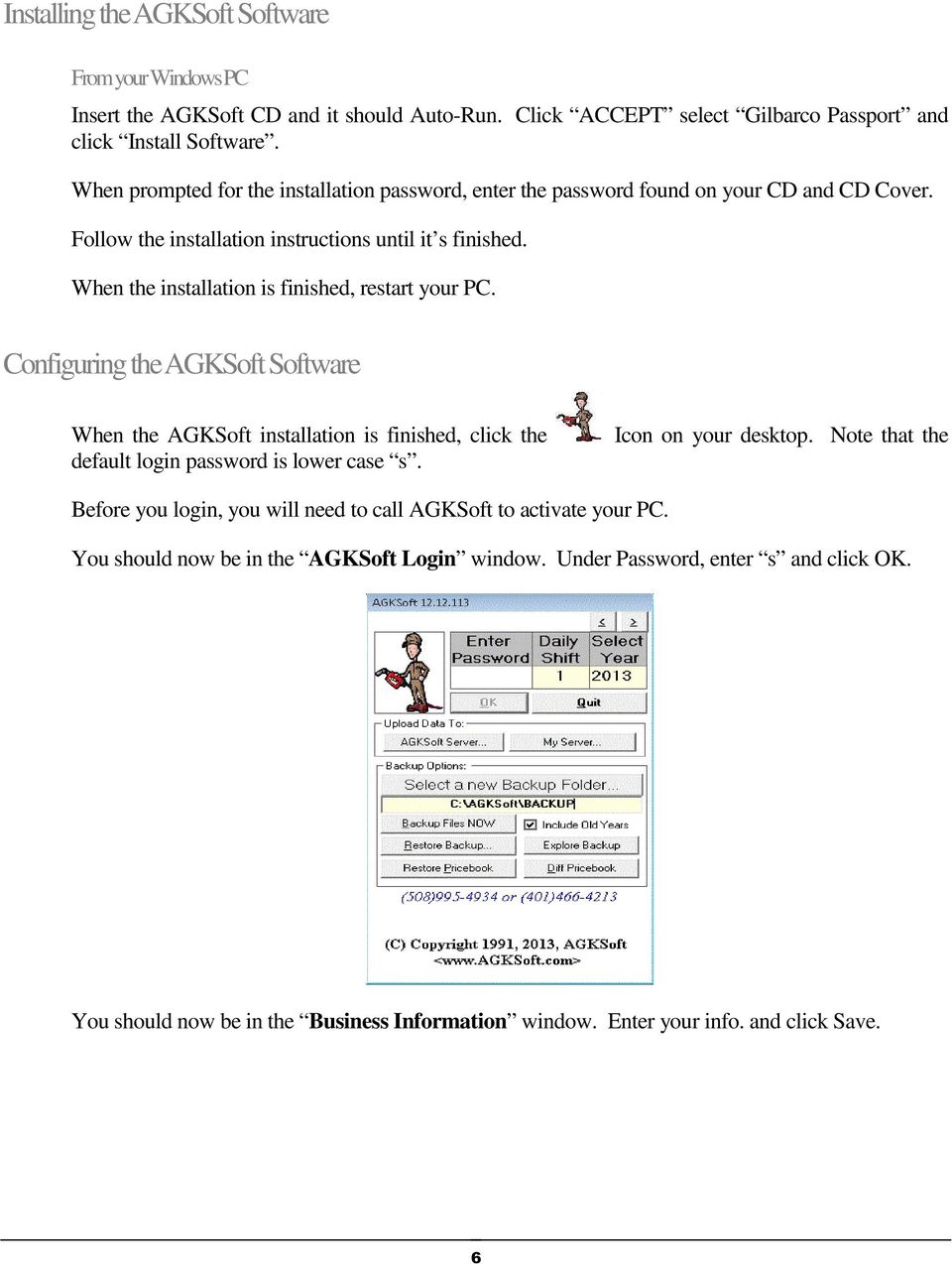
7 Installing the AGKSoft Software From your Windows PC Insert the AGKSoft CD and it should Auto-Run. Click ACCEPT select Gilbarco Passport and click Install Software. When prompted for the installation password, enter the password found on your CD and CD Cover. Follow the installation instructions until it s finished. When the installation is finished, restart your PC. Configuring the AGKSoft Software When the AGKSoft installation is finished, click the default login password is lower case s. Icon on your desktop. Note that the Before you login, you will need to call AGKSoft to activate your PC. You should now be in the AGKSoft Login window. Under Password, enter s and click OK. You should now be in the Business Information window. Enter your info. and click Save. 6
8 Select #1 Gilbarco Passport and click OK. Answer all other questions as best you can. You should now see the Cash Register Interface Setup window. Make sure XML 3.4 is checked, enter next to Host or IP and click Save. 7

9 Click Test Connection, this will test the connection between the Gilbarco Passport and the back office pc. If everything is configured properly you will see a message as shown below. If some settings are not configured properly you may see one of the error messages. If the connection fails and Test 1 is not passed, you will receive a message as shown below. This error typically means that there is a connection issue somewhere; a cable is not plugged in properly, the Passport is not powered on or the drive cannot be mapped for some unforeseen reason. Please double check all cables and connections. 8

10 Verify that the Passport is plugged into the DMZ Port on the Passport Router and make sure the DMZ port is activated and BOSShare is Allowed on the Router. For more information, see the Diagnostics section at the end of this document. If the connection fails and Test 2 is not passed, you will receive a message as shown below. This error typically means that drive P:\ is being used for something else and the back office cannot access it to map drive P:\ to the Passport. Verify this by going to My Computer to see if P is being used by something else. If it is, in the Cash Register Interface, Setup window change the drive letter from P: to something else that is NOT being used and test the connection again. If P: is not being used by something else, please restart your PC and try to test the connection again. If the connection fails and Test 3 is not passed, you will receive a message as shown below. Test 3 indicates whether the back office can upload information to the Passport or whether the back office can download information from the Passport. Test 3 fails if the phone line is not connected to the Edgeport. The error is typically caused by the XML version not being set at all or not being set properly on the Passport. Please see the Gilbarco Passport Gateway Activation in the above sections on how to set the XML Version. This can also be caused by some type of software issue on the Passport. Please contact AGKSoft to help diagnose this test failing. Configuring the AGKSoft Back Office Software While still in the Cash Register Interface, Setup some settings will have to be configured. Please see below to see what has to be setup. 9

11 If you selected XML v3.4 for your Passport Gateway, please be sure to check the check box where it says XML3.4. Under Station Configuration Choose the credit card network you are using (e.g. BuyPass, ADS- Chicago, Mobil, Shell, etc.) Under Download by: Choose how you would like to download. (This has to match the reports that were setup previously on the Passport, otherwise you will not get your data) Store Close = Day Shift Close = Shift Changes of: - Will allow the software to send you information of either or both Fuel prices if they have changed or shift information, if it hasn t downloaded, if prices were uploaded from an FTP server such as IIS used with the AGKSoft Home Office software, etc. Check the check boxes that you would like to receive information about. o Note: Please configure an address by going to the Setup Menu and selecting Business Info Tender Codes - Also known as Method of Payments, are the payment types that will be used on the cash register. These have to be filled in and have to match what was configured on your register or your shift will not balance. o Clicking on Configure will allow the software to automatically map the Tender Codes. 10

12 Cash Register Connection: Drive This is the drive we use to map to the Passport. By default we use drive P: but if you have a problem using drive P:, you can change it to Z: or any other available drive letter. XML 3.4 This should be checked unless you are using a very old Passport where only XML 3.2 is available. Limit Multi-Packs Specials to 2 When we upload products, we can limit to only 2 if this is checked. My Cash Register is connected to a Tank Monitor This should be checked if you have a Tank Monitor (Like a Veeder Root) connected to your Passport and your actual numbers do come in automatically. Gateway options: Folder This is where the files will be stored after being downloaded from the Passport Gateway. Store In - In some cases there could be multiple software vendors trying to obtain the files being downloaded from the Passport, enter the folder name here where you would like the files to be stored. A situation that may arise is the oil company may pull the information for the fuel sales as well as AGKSoft downloading the files for the shift or day. Host or IP This is the Passport s IP Address. Username and Password This is the Passport s username and password to log onto the Gateway or Drive P:\. With this filled in, AGKSoft will be able to automatically map the drive without being prompted. If you are unsure of this password please contact Gilbarco. Batch Options o Note: AGKSoft will use the default username and password. This is able to be changed if necessary. o Back up Batch to this is the folder where the software will automatically back up all the downloaded shifts or days in the event that one is needed to be restored. Department Mappings: This is used to map certain department sales amounts from the total sales room amount. o Example: If you have a car wash, the department number to enter is 88888; this will put the car wash amount separately in the Short / Over screen. Fuel Service: Un-checking which ever service type you do not have will allow the software to hide it where ever gas is shown. o Example: If you only have self Service gas un-check the Full Service check box. 11

13 Fuel Depts. From - To: This is the range of the department numbers for the gas, the Passport is typically o Note: If this is not mapped correctly the gas sales will be included in with the sales room totals. Test Connection: This will test the connection between the back office pc and the Gilbarco Passport. Diagnostics this will verify that the product code is set correctly for the products based upon the Station Configuration that was chosen. Save Saves any changes. Help Opens up a browser window with help information about this topic. Show Me Opens up a video tutorial on how to use this window. Quit Closes the current window. You should now see the First Time User Screen, if not Press Shift + F4 or open it from your AGKSoft desktop, select Inventory tab and click Gas Load. Click the left arrow [>] to hide any grade that you don t sell and click Save once finished. You should now see the Cash register Interface as shown below, if not please press F5 or open it from the AGKSoft desktop. 12

14 Click on Download Depts. / Store Setup to download the current list of departments from the Passport. To download your existing UPC-Codes and PLUs, see the last page about Downloading PLU File or contact Gilbarco to dial-in and you a PLU List Report in HTML format. Once you receive the HTML file, forward it to AGKSoft. Click the arrow > shown at the bottom right hand side of the window. The window will grow showing more advanced options. Double clicking on any of the grade names will bring up the Passport Fuel Grades Setup. Enter the number you see and Save Map o Example: For regular you would enter 1 under the # where it says Gas Map. Other Cash Register Interface Options: Upload Products to register: If you have changed a lot of items throughout the day and are ready to upload them you can use this option. This option can also be used if you want to upload all items in a selected dept as well as all PLU s. 13

15 Product Wizard: Allows you to do large quantity of price changes at one time, whether by name, price point or department as well as many other ways. Department Setup: can be used to edit / configure new departments and upload them to the Passport. Change Price Groups: Opens up a spreadsheet type window to allow changes to existing Price Groups names and ID s or to create new ones. Change Categories: Opens up a spreadsheet type window to allow changes to existing Category names and ID s or to create new ones. Change Sub Categories: Opens up a spreadsheet type window to allow changes to existing Sub Category names and ID s or to create new ones. View Products: Opens up a spread sheet type window which will show the entire Pricebook. Validate Products: This will generate a list of invalid products, invalid buying vs. selling and also invalid multipliers. It will also move item sales to the proper department in the event the items are moved from. Update Depts.: This should only be done the first time downloading from the Passport. This will update the current department setup from what was last downloaded from the Passport. o If you want control your price book from the back office you will never have to press this button after the first time. Create / Modify Products- Allows you to work with one item at a time changing pricing, editing the name etc Sales Download: downloads the most recently closed shift or day from the Passport. Last batch: This is the last batch that was downloaded or reprocessed from the Passport. Show Available Batches: click on this to restore any shifts / days that the software has automatically backed up. o Note: This is NOT what the Passport has available to download. Verify: allows you to see the batch number and open / closing time. Update Sales: posts the downloaded data into the software. View Sales Log: Allows you to restore the most recently downloaded shifts / day log. o Clicking on [ ] will bring you to all the saved logs that the software backs up automatically. 14

16 Auto: This will bring up the Automation window which can automatically download the shifts or days from the Passport. Setup: Opens the Cash Register Interface Setup window. Help: Brings up help topics about this window. Show Me: Brings up a video tutorial on how to use this window. Press Save or Quit once finished Open First Time User Screen by pressing Shift + F4 or opening it from your AGKSoft desktop and you should see the window shown below: The First Time User window is where you find everything you need to first configure vendors, Gas Volume, Taxes, Lottery, bank info and much more. Click on any of the buttons that pertain to your location and start configuring your software Start the GAS LOAD Window as shown below and do the following: 15

17 Find out how much Gas you had in your tank at the end of shift (The shift before the one you are about to download). You can get this information from your Tank Monitor or your shift printout. The numbers you enter should be the ones taken before the 1 st shift you are about to download. Enter your Tank readings under Volume Find out what you last paid for Gas and enter the Buying Price for each grade. Enter the taxes per gallon Select N-None next to Paid from Account, click Save and then Quit. Downloading your Shift/Day Hit F5 to start the Cash Register Interface. To download your shift or day, simply click Sales Download, Verify (Choose the correct date) and then Update sales. If for some reason, you get an error, look at the P:\BOOutBox folder, it should contain a bunch of XML files such as the following files: ISM xml MCM xml MSM xml FGM xml (Item Sales Movement) (Merchandise Code Movement) (Miscellaneous Summary Movement) (Fuel Grade Movement) 2005 is the year, 06 is the month, 21 is the day, translate into 23:04:03 (11:04pm). 16

18 When the download is finished, click Verify. This will let you confirm the Date, Open and Closed Time as well as the Batch #. We will use the Batch # as the Shift #. You can override the Batch # with any number that you want to use for your shift #. If you do not see the proper Gas Sale numbers, you need to look at the Gas Sale section in the Sales Log that was open in Notepad and enter the Grade Names that you see there in the Gas Map next to the numbers. You need to re-process your shift again by pressing R in your Cash Register Interface window. Now the Short/Over (End of Shift) window opens up for you to balance your shift. Go ahead and balance your shift by validating your Cash & Checks and Safe Drops. When you finish, click Close Shift/SAVE. If you need to make adjustments to the Sales Room, click the SALES ROOM button, select Find and make the adjustments you need to make. When you come back to the Short/Over, the amount gets adjusted automatically. You can make similar adjustments to most other fields. If you want to make quick adjustments, you can simply make your changes in the Short/Over form without going to the details. If you want to start all over and re-do everything since you started using the Gas Station Software, make sure you close all your open shifts, click Help and select First Time User. From the First Time User form, you can click Delete All Records. To see your Daily Books, start the Short/Over form and click the Report button. 17

19 Downloading Shifts Automatically If you want the batches to automatically download from your register, click the Auto button in the Cash Register Interface window and you should see the following window. 1. Select how often you want the software to look for a new shift to download (Example: 3 hrs) 2. You can choose the Real-time Interval to download transaction-by- transaction as soon as the transaction is done at the Cash Register. 3. The Export tab would be used if you want to automatically export your data to another PC running AGKSoft s POS Software, AGKSoft s Back Office Software or AGKSoft s Home Office Software. 4. The Import tab would be used if you want to automatically import price changes or data from another PC running AGKSoft s POS Software, AGKSoft s Back Office Software or AGKSoft s Home Office Software. 5. Click Start Automation and make sure you leave your PC on and the software running. 6. Clicking on the will open up a notepad with detail information about the automation process, if it stopped, if there were errors etc. How to Review the Downloaded Shifts 1. Click Stop Automation to stop the automation process and Click Quit to close the automation window 2. Open the Short/Over window 18

20 3. Click History, select a date range and hit OK, the numbers will fill in as shown below Miscellaneous How to re-poll a shift or day from the Passport: 1. Log into the Managers Work Station 2. Select Setup, Store, Back Office Interface and finally Re-poll XML Files. 3. Select the date that you would like exported 4. Select if you will be exporting by Shift or Day (Store Close) 5. Finally select Re-poll All configured Files and Press OK On some Passports you have to go to Store, Back Office, and you will see Re-poll Xml Files. 19

21 Troubleshooting If you are having problems connecting to your Register, please check the following: Make sure you have 2 network cards (NIC), let s assume NIC2 is connected to your internet router and NIC1 is connected to your cash register router. Open a command prompt (Click the Start menu, select Run, type CMD and hit Enter) Type IPCONFIG and hit Enter, you should now see the following: Ethernet adapter Local Area Connection 1 (NIC1): Cash Register Router IP Address : Subnet Mask : Default Gateway : Ethernet adapter Local Area Connection 2 (NIC2): Internet Router IP Address : xxx Subnet Mask : Default Gateway : If you have a yellow flag on the Network Connection (Limited Connectivity), you may want to set your IP Address manually rather than setting it to obtain automatically. 2. Click the Tools menu and select Map Network Drive. Select drive P: & next to Folder, enter \\ \XmlGateway, select different user name and enter BackOffice under Username and BackOffice under Password, click OK and then Finish. If that does not work, try drive Z:. If that does not work, disable the network connection, re-enable it back & try again. 3. To make sure you are connected to the proper router, open a command prompt and type FTP and hit enter, enter BackOffice when prompted for a Username and BackOffice when prompted for a Password. If you are able to log in, but still cannot map the drive, there is a problem with the Passport Router. You can type ls and hit enter and if you get no files, that means you lost the BOSShare, you need to ask the client to call Gilbarco to check Third-party LAN and BOSShare in the Third Party Access Rules in the Firewall VPN Router. 4. INVALID RESTRICTION CODE This is typically caused by setting the Minimum Age to a product, but the Dept. this product belongs to does not have the same Minimum Age. 5. INVALID QUALIFIER TYPE CODE 0 Starting with Passport version 5 and 6, there is a new setting in the Passport Manager's Workstation under Setup Store Back Office Back Office Interface. The 3rd tab says "XML File Import Options", click on it and you will see 2 options: The Back Office sends a value of 0 for the base item in the POS Code Modifier tag. The Back Office sends a value of 1 for the base item in the POS Code Modifier tag Make sure the 1 st option is selected. 20
22 Conoco Phillips and ADS Dallas (HPS Dallas) (Passport Version 8.03 or later) Plug a straight Cat-5 (RJ45) cable into the Fortigate DMZ port (Do not use a crossover cable) The Gilbarco Technician must call Conoco Phillips or HPS Dallas and get 2 things: 1 - Passport RV042 Firewall Router WAN IP Address (Example: ) 2 - FortiGate DMZ Port IP Address (Example: ) Open the Cash Register Interface, Setup and click Host or IP, you will get the following: Automatically configure the IP Address? Answer YES Enter your FortiGate DMZ Port IP Address (Example: ) Enter your Fortigate DMZ IP Enter your WAN IP Address of the RV042 (Example: ) Enter your WAN IP You should now see the following message: Set your Network as follows: IP Address: Subnet Mask: Default Gateway: empty You should set your 2 nd Network Card (The one you are using to connect to the Passport) as shown above and click OK and you should see the following message: AGKSoft - About to set your route command... Press any key to continue... Press any key and follow the instructions. 21
23 If for some reason the automatic setup does not work, follow the rest of this page. The FortiGate IP address you get is unique and is never the same for 2 customers. Add 1 to the last octet (Example: ). For the Network IP Address, set is as follows: IP Address: (Note that 65+1=66) Subnet Mask: Default Gateway: empty DNS: At this point, open a CMD prompt and type the following: Route -p add mask Note that uses the 1st 3 octets of the WAN IP Address of the RV042 with a the end. Note that is the exact IP Address of the Fortigate DMZ Port. Open AGKSoft and Login, open the Cash Register Interface, click Setup and make sure the Host or IP is set to: (This is the WAN IP Address of the RV042) Under Username, type: passport or BackOffice Under Password, type: pmcs or BackOffice To confirm the route, open a CMD prompt and type the following: Route print -4 Look under Persistent Routes and make sure what you entered is there. If you make a mistake and you need to delete the old entry, do the following: Click Start, type CMD, right click on the CMD.EXE and select Run as administrator If you want to delete the IP , type the following: Route delete
24 Downloading PLU file For Passport versions older than 9, you need to contact Gilbarco to dial-in and you a PLU List Report in HTML format. Once you receive the HTML file, forward it to AGKSoft. Newer versions of the Gilbarco Passport include an Extraction Tool that may allow you to download your PLU File to a Memory Stick (USB Drive). Plug your Memory Stick (USB Drive) into the back of the Passport Register From the Manager s Workstation, select Set Up, then Store, Extraction Tool. From the Extraction Tool window, make sure Export Data is selected and click Next. From the Export Data window, check Price Book and click Next. From the Export Data window, select the USB Drive (Memory Stick) and click Start. 23
Volume AGKSOFT. Wayne Nucleus Back Office Software. Nucleus Guide
 Volume N AGKSOFT Wayne Nucleus Back Office Software Nucleus Guide Configuring Your Back Office PC The Back Office PC requires 2 network cards to connect to the Nucleus & internet at the same time. On some
Volume AGKSOFT. Ruby VeriFone Back Office Software. Ruby VeriFone Guide
 Volume V AGKSOFT Ruby VeriFone Back Office Software Ruby VeriFone Guide Introduction T he Ruby VeriFone can be connected to your Windows PC using an RJ45 cable and a 9-pin connector included in your package.
ipad Installation and Setup
 ipad Installation and Setup INDEX ipad Features Page 2 Charging.. Page 2 User Guide... Page 3 Setup for ipad use in the office (Office wireless network) Setup Office computers Verify Remote Desktop is
Chapter 2 Preparing Your Network
 Chapter 2 Preparing Your Network This document describes how to prepare your network to connect to the Internet through a router and how to verify the readiness of your broadband Internet service from
Setting Up Your FTP Server
 Requirements:! A computer dedicated to FTP server only! Linksys router! TCP/IP internet connection Steps: Getting Started Configure Static IP on the FTP Server Computer: Setting Up Your FTP Server 1. This
Volume AIG. AGKSOFT ActiveSync Inventory Guide. ActiveSync Inventory Guide
 Volume AIG AGKSOFT ActiveSync Inventory Guide ActiveSync Inventory Guide Introduction T he Microsoft ActiveSync or Windows Mobile Device Center can be used to synchronize your Windows PC with your Portable
How To Connect A300 To A300 Time Clock On A Pc Or Mac Computer
 1 TABLE OF CONTENTS INTRODUCTION CHAPTER 1 ESTABLISHING A CONNECTION TO TIME CLOCK 1.1 INSTALLATION OF SOFTWARE 1.2 CONNECT TIME CLOCK TO PC 2 1.2.A..VIA USB CABLE CONNECTION 2-5 1.2.B... VIA TCP/IP NETWORK
V.I.P. Kit. Video Insight Pilot Kit. (Video Insight Pilot Kit).
 V.I.P. Kit (Video Insight Pilot Kit). Video Insight Pilot Kit Please follow these instructions and everything should go very smoothly. Before you begin, you will need to establish (or obtain from your
How To Remotely View Your Security Cameras Through An Ezwatch Pro Dvr/Camera Server On A Pc Or Ipod (For A Small Charge) On A Network (For An Extra $20) On Your Computer Or Ipo (For Free
 How to Remotely View Security Cameras Using the Internet Introduction: The ability to remotely view security cameras is one of the most useful features of your EZWatch Pro system. It provides the ability
1. Hardware Installation
 4 Port 10/100M Internet Broadband Router with USB Printer server Quick Installation Guide #4824904AXZZ0 1. Hardware Installation A. System Requirement Before you getting started, make sure that you meet
CS 326e F2002 Lab 1. Basic Network Setup & Ethereal Time: 2 hrs
 CS 326e F2002 Lab 1. Basic Network Setup & Ethereal Time: 2 hrs Tasks: 1 (10 min) Verify that TCP/IP is installed on each of the computers 2 (10 min) Connect the computers together via a switch 3 (10 min)
Steltronic Focus. Main Desk Internet connection
 Steltronic Focus Main Desk Steltronic S.p.A. Via Artigianale 34, 25082 Botticino Sera Brescia - Italy Tel: +39 030 2190811 fax: +39 030 2190798 Service: + 39 030 2190830 http: www.steltronic.com Service:
Volume. Instruction Manual
 Volume 1 Instruction Manual Networking EVERFOCUS ELECTRONICS CORPORATION Networking Instruction Guide 2004 Everfocus Electronics Corp 2445 Huntington Drive Phone 626.844.8888 Fax 626.844.8838 All rights
Ultra Thin Client TC-401 TC-402. Users s Guide
 Ultra Thin Client TC-401 TC-402 Users s Guide CONTENT 1. OVERVIEW... 3 1.1 HARDWARE SPECIFICATION... 3 1.2 SOFTWARE OVERVIEW... 4 1.3 HARDWARE OVERVIEW...5 1.4 NETWORK CONNECTION... 7 2. INSTALLING THE
Allworx Installation Course
 VPN Hello and welcome. In the VPN section we will cover the steps for enabling the VPN feature on the Allworx server and how to set up a VPN connection to the Allworx System from your PC. Page 1 VPN The
PC/POLL SYSTEMS Version 7 Polling SPS2000 Cash Register TCP/IP Communications
 PC/POLL SYSTEMS Version 7 Polling SPS2000 Cash Register TCP/IP Communications PC/POLL SYSTEMS supports native TCP/IP polling for the SPS2000 cash register. It is recommended users have the register updated
Configuring the WT-4 for ftp (Ad-hoc Mode)
 En Configuring the WT-4 for ftp (Ad-hoc Mode) Windows XP Introduction This document provides basic instructions on configuring the WT-4 wireless transmitter and a Windows XP Professional SP2 ftp server
FrontDesk Installation And Configuration
 Chapter 2 FrontDesk Installation And Configuration FrontDesk v4.1.25 FrontDesk Software Install Online Software Activation Installing State Related Databases Setting up a Workstation Internet Transfer
Enabling Internet Connection Sharing on Windows 2000 15. Enabling ICS On Windows XP As The Host 4 Enabling ICS On Windows XP As The Client 11
 Sharing an Internet Connection with SatDirect Plus Table of Contents Contents Section 1: Section 2: Section 3: Introduction... 1 Physical Setup......2 Enabling Internet Connection Sharing on Windows XP
Point to Point Broadband Internet Service Business
 Point to Point Broadband Internet Service Business [Type the company name] USER GUIDE VERSION 1.012010 [Type the document subtitle] Table of Contents Welcome to Point to Point Broadband!... 2 Disclaimer.
HL2170W Windows Network Connection Repair Instructions
 Difficulty printing from your PC can occur for various reasons. The most common reason a networked Brother machine may stop printing, is because the connection between the computer and the Brother machine
RADAR NETWORK SETUP WITH WINDOWS XP/VISTA
 RADAR NETWORK SETUP WITH WINDOWS XP/VISTA These instructions are for setting up a Network between RADAR and a PC. To use RADAR s FTP client a 3 rd party FTP Server is needed such as FileZilla Server. This
Use this guide if you are no longer able to scan to Sharpdesk. Begin with section 1 (easiest) and complete all sections only if necessary.
 Use this guide if you are no longer able to scan to Sharpdesk Instructions: Begin with section 1 (easiest) and complete all sections only if necessary. 1 Section 1 Complete pages 3-5. Scan to the desired
How to convert a wireless router to be a wireless. access point
 How to convert a wireless router to be a wireless access point Thanks for purchasing Edimax Wireless Router. This instruction can be applied if you want to keep your wired router and you need Edimax Wireless
Self Help Guide IMPORTANT! Configuring Your Router With Your Modem. Please read the following carefully; This Guide refers to the following Products:
 IMPORTANT! This Guide refers to the following Products: Configuring Your Router With Your Modem Please read the following carefully; Synopsis: A standard (Wireless) Router does not come equipped with the
SATO Network Interface Card Configuration Instructions
 SATO Network Interface Card Configuration Instructions Table of Contents 1. Reset of wired/wireless interface card... 3 2. Installing the All-In-One Utility (recommended)... 4 3. Configuring wired/wireless
Setting up and creating a Local Area Network (LAN) within Windows XP by Buzzons
 Setting up and creating a Local Area Network (LAN) within Windows XP by Buzzons Step 1) Open the start menu, navigate to control panel, and select your network card: Step 2) Click the network card, to
Networking your DVR Made Easy
 Networking your DVR Made Easy 1 Contents 1: DVR Networking...3 2: Setting up your PC and router...3 3: Setting up your DVR with a static IP address...4 4: Remote DVR Software...3 2 DVR NETWORKING 1. SETTING
Step-by-Step Setup Guide Wireless File Transmitter FTP Mode
 EOS Step-by-Step Setup Guide Wireless File Transmitter FTP Mode Infrastructure Setup Windows XP 2012 Canon U.S.A., Inc. All Rights Reserved. Reproduction in whole or in part without permission is prohibited.
DRO-210i LOAD BALANCING ROUTER. Review Package Contents
 DRO-210i LOAD BALANCING ROUTER Review Package Contents Make sure that the package contains the following items. DRO-210i Load Balancing Router 2 Straight Ethernet Cables 1 Cross Over Ethernet Cable 1 Power
(606) 785-3450 Knott County (606) 439-3167 Perry County (606) 633-0778 Letcher County. [email protected]
 TVS CableNet Technical Support Guide Effective August 15, 2006 All materials 2006 TV Service, Inc. This material may not be reproduced in any form except for personal private use by TV Service Cable Internet
How to Remotely View Security Cameras Using the Internet
 How to Remotely View Security Cameras Using the Internet Introduction: The ability to remotely view security cameras is one of the most useful features of your EZWatch Pro system. It provides the ability
SETTING UP REMOTE ACCESS FOR Q-SEE DVR SYSTEMS MODEL NUMBER: QC40198
 Accessing the DVR from a Computer Attached to the Same Router: If you are only going to access the DVR from a computer that is attached to the same router as the DVR you only need to setup the information
Configuring the WT-4 for ftp (Infrastructure Mode)
 Introduction En Configuring the WT-4 for ftp (Infrastructure Mode) This document provides basic instructions on configuring the WT-4 wireless transmitter and a ftp server for transmission over an infrastructure
NETWORK SET UP GUIDE FOR
 NETWORK SET UP GUIDE FOR USZ11ZS USX21ZS USX31ZAND DVRX16D DVRX32D HDDX13D SUPPORTING ROUTER D-Link Linksys NETGEAR BELKI IP Addresses on the Internet When you connect to the Internet, through dialup connection,
Device Installer User Guide
 Device Installer User Guide Part Number 900-325 Revision B 12/08 Table Of Contents 1. Overview... 1 2. Devices... 2 Choose the Network Adapter for Communication... 2 Search for All Devices on the Network...
Connecting the DG-102S VoIP Gateway to your network
 Contents of Package: DG-102S VoIP Station Gateway Power adapter CD-ROM, including User s Manual Quick Install Guide Requirements: RS-232 Console Cable Two RJ-45 CAT-5 Straight-Through Cables For more information
SOP085 - HELLER OVEN SOFTWARE INSTALLATION PROCEDURE. For version 6.2.x.x
 SOP085 - HELLER OVEN SOFTWARE INSTALLATION PROCEDURE For version 6.2.x.x DATE REV ECN - DESCRIPTION OF CHANGE Initials 02/20/2014 INT ECN 140003-001 TP For version 6.2.x.x Rev. INT Page 1 of 16 Basic PC
REMOTE DESKTOP SETUP INSTRUCTIONS
 REMOTE DESKTOP SETUP INSTRUCTIONS 1. Setting up your work desktop to allow Remote Desktop connectivity Windows does not have this feature enabled by default, so we will go through the steps on how to enable
Configuring the WT-4 for ftp (Ad-hoc Mode)
 En Configuring the WT-4 for ftp (Ad-hoc Mode) Mac OS X Introduction This document provides basic instructions on configuring the WT-4 wireless transmitter and a Mac OS X (10.5.2) ftp server for transmission
You may refer the Quick Installation Guide in the package box for more information.
 Hardware Installation: 1. Turn off your modem. 2. Use one Ethernet cable to connect your modem to WAN port (Blue) port of BR-6228nC. 3. Use another Ethernet cable to connect your PC to one LAN Port (Yellow)
Basics of Port Forwarding on a Router for Security DVR s
 Basics of Port Forwarding on a Router for Security DVR s The basic concept of setting up your router to allow for Off Site access to your DVR involves setting up the two necessary ports the Security DVR
HP-1000 Powerline USB Adapter
 HP-1000 Powerline USB Adapter User s manual BEFORE INSTALLATION Plan ahead the installation of your powerline network. Note: You will need at least two powerline adapters to create a powerline network.
Chapter 15: Advanced Networks
 Chapter 15: Advanced Networks IT Essentials: PC Hardware and Software v4.0 1 Determine a Network Topology A site survey is a physical inspection of the building that will help determine a basic logical
HP-1000 Powerline Ethernet Adapter
 HP-1000 Powerline Ethernet Adapter User s manual BEFORE INSTALLATION Plan ahead the installation of your powerline network. Note: You will need at least two powerline adapters to create a powerline network.
Network Scanner Tool R3.1. User s Guide Version 3.0.04
 Network Scanner Tool R3.1 User s Guide Version 3.0.04 Copyright 2000-2004 by Sharp Corporation. All rights reserved. Reproduction, adaptation or translation without prior written permission is prohibited,
by using the Setup Wizard in CD Disk
 How to configure Access Point as Wireless Bridge by using the Setup Wizard in CD Disk Thanks for purchasing Edimax Wireless Access Point. We hope this instruction can help you setup the Wireless Bridge
OPERATION MANUAL. MV-410RGB Layout Editor. Version 2.1- higher
 OPERATION MANUAL MV-410RGB Layout Editor Version 2.1- higher Table of Contents 1. Setup... 1 1-1. Overview... 1 1-2. System Requirements... 1 1-3. Operation Flow... 1 1-4. Installing MV-410RGB Layout
Actiontec GT784WN Router
 Table of Contents General Information...1 Verify Computer Settings...1 Router Installation...3 Configuring Your Router...3 Configuring Your Computer...7 Configuring Your Email...9 General Information Router
P-660R-TxC Series. ADSL2+ Access Router. Quick Start Guide
 P-660R-TxC Series ADSL2+ Access Router Quick Start Guide Version 3.40 Edition 1 2/2006 Overview The P-660R-TxC ADSL2+ access router is the ideal device for small networks connecting to the Internet via
How To Industrial Networking
 How To Industrial Networking Prepared by: Matt Crites Product: Date: April 2014 Any RAM or SN 6xxx series router Legacy firmware 3.14/4.14 or lower Subject: This document provides a step by step procedure
Exploring the world of Canon EOS photography. EOSmagazineQ. from July-September 2009. Wireless world Communication without cables
 Exploring the world of Canon EOS photography EOSmagazineQ from July-September 2009 Wireless world Communication without cables Technique Wireless Transmitters DIGITAL 00-00 Wireless world Canon s wireless
Send Video Recordings from the DVR to a FTP Server on your PC
 Send Video Recordings from the DVR to a FTP Server on your PC Introduction: The DVR has a useful feature that allows you to download recordings directly to a FTP server on your PC. This is just another
1 PC to WX64 direction connection with crossover cable or hub/switch
 1 PC to WX64 direction connection with crossover cable or hub/switch If a network is not available, or if it is desired to keep the WX64 and PC(s) completely separated from other computers, a simple network
c. Securely insert the Ethernet cable from your cable or DSL modem into the Internet port (B) on the WGT634U. Broadband modem
 Start Here Follow these instructions to set up your router. Verify That Basic Requirements Are Met Assure that the following requirements are met: You have your broadband Internet service settings handy.
STATIC IP SET UP GUIDE VERIZON 7500 WIRELESS ROUTER/MODEM
 STATIC IP SET UP GUIDE VERIZON 7500 WIRELESS ROUTER/MODEM Verizon High Speed Internet for Business Verizon High Speed Internet for Business SETTING UP YOUR NEW STATIC IP CONNECTION AND IP ADDRESS(ES) This
Enterprize Setup Checklist
 Enterprize Setup Checklist Corporate Server 1) Install Windows IIS and FTP 2) Install M$ MSDE Restart Windows 3) Install M$ Image Wizard 4) Install Enterprize Copy SQL databases into Microsoft SQL data
USER GUIDE. Ethernet Configuration Guide (Lantronix) P/N: 2900-300321 Rev 6
 KRAMER ELECTRONICS LTD. USER GUIDE Ethernet Configuration Guide (Lantronix) P/N: 2900-300321 Rev 6 Contents 1 Connecting to the Kramer Device via the Ethernet Port 1 1.1 Connecting the Ethernet Port Directly
Configuration and Access of FTP Server
 Configuration and Access of FTP Server TL-WR1042ND TL-WR1043ND TL-WR2543ND TL-WR842ND This guide applies to all the models above. Rev: 1.0.0 1910010521 CONTENTS Chapter 1. Topology and USB Device...2 1.1
Installation and Setup
 Installation and Setup Xoom INDEX Xoom Features/Pictures. Page 2 Accessories.. Page 2 Accessing Users Guides... Page 3 itap RDP mouse modes... Page 3 Setup for Xoom use in the office (Office wireless network)
Manual Wireless Extender Setup Instructions. Before you start, there are two things you will need. 1. Laptop computer 2. Router s security key
 1 Manual Wireless Extender Setup Instructions Before you start, there are two things you will need. 1. Laptop computer 2. Router s security key Setting up LAN Static IP on PC We need to set up a Static
Section 5: Installing the Print Driver
 Section 5: Installing the Print Driver In This Section Print Driver Installation for USB Connection Using the Ethernet Connection and a Crossover Cable Print Driver: The Epilog print driver is the software
MFC8890DW Vista Network Connection Repair Instructions
 Difficulty printing from your PC can occur for various reasons. The most common reason a networked Brother machine may stop printing, is because the connection between the computer and the Brother machine
Prestige 623R-T. Quick Start Guide. ADSL Dual-link Router. Version 3.40
 Prestige 623R-T ADSL Dual-link Router Quick Start Guide Version 3.40 February 2004 Introducing the Prestige The Prestige 623R-T ADSL Dual-link Router is the ideal all-in-one device for small networks connecting
StarMOBILE Network Configuration Guide. A guide to configuring your StarMOBILE system for networking
 StarMOBILE Network Configuration Guide A guide to configuring your StarMOBILE system for networking INTRODUCTION... 3 BEFORE YOU BEGIN... 3 1) CONFIRM YOU HAVE THE LATEST SOFTWARE... 3 2) INSTALL THE STARMOBILE
Prestige 202H Plus. Quick Start Guide. ISDN Internet Access Router. Version 3.40 12/2004
 Prestige 202H Plus ISDN Internet Access Router Quick Start Guide Version 3.40 12/2004 Table of Contents 1 Introducing the Prestige...3 2 Hardware Installation...4 2.1 Rear Panel...4 2.2 The Front Panel
FTP Server Application Guide REV: 1.1.0 1910010819
 FTP Server Application Guide REV: 1.1.0 1910010819 CONTENTS Chapter 1. Topology and USB Device... 1 1.1 Typical Topology... 1 1.2 Special Topology... 2 1.3 USB Device... 3 Chapter 2. Configuration of the
Network Setup Guide. 1 Glossary. 2 Operation. 1.1 Static IP. 1.2 Point-to-Point Protocol over Ethernet (PPPoE)
 Network Setup Guide 1 Glossary 1.1 Static IP Computers are communicated and recognized by their own unique IP addresses over the Internet. Static IP provided by your ISP (Internet Service Provider) means
If you never used nor intend to use the wired-connection, then please disregard the following info.
 Version date: 21/04/2015 Dear library users, In the library you can connect to the internet in two ways, using wireless or a wired-connection. The wired-connection is faster, allows you to connect to the
Additional Requirements for ARES-G2 / RSA-G2. One Ethernet 10 Base T/100 Base TX network card required for communication with the instrument.
 TA Instruments TRIOS Software Installation Instructions Installation Requirements Your TRIOS Instrument Control software includes all the components necessary to install or update the TRIOS software, as
Client and Server System Requirements
 Client and Server System Requirements M inimum Server Requirements Motherboard Asus P4P800, Intel 915G, Intel D865PERL CPU Processor Celeron 2.6/Intel P4 2.0 or greater for DVR s with 4-8 channels Intel
Step-by-Step Setup Guide Wireless File Transmitter FTP Mode
 EOS Step-by-Step Setup Guide Wireless File Transmitter FTP Mode Ad Hoc Setup Windows XP 2012 Canon U.S.A., Inc. All Rights Reserved. Reproduction in whole or in part without permission is prohibited. 1
Eclipse Palm Sales Force Automation. Release 8.6.2 (Eterm)
 Eclipse Palm Sales Force Automation Release 8.6.2 (Eterm) Legal Notices 2007 Activant Solutions Inc. All rights reserved. Unauthorized reproduction is a violation of applicable laws. Activant and the Activant
Quick-Start Guide. Remote Surveillance & Playback SUPER DVR MONITORING SOFTWARE. For use on Q-See s QSDT series of PC Securitiy Surveillance Cards
 Quick-Start Guide SUPER DVR MONITORING SOFTWARE Remote Surveillance & Playback For use on Q-See s QSDT series of PC Securitiy Surveillance Cards 2 CONFIGURING ROUTER FOR REMOTE ACCESS REMOTE SURVEILLANCE
Vantage RADIUS 50. Quick Start Guide Version 1.0 3/2005
 Vantage RADIUS 50 Quick Start Guide Version 1.0 3/2005 1 Introducing Vantage RADIUS 50 The Vantage RADIUS (Remote Authentication Dial-In User Service) 50 (referred to in this guide as Vantage RADIUS)
TE100-P21/TEW-P21G Windows 7 Installation Instruction
 Hardware Installation TE100-P21/TEW-P21G Windows 7 Installation Instruction 1. Go to http://www.trendnet.com/downloads/ to download the Windows 7 Utility. Save the file to your desktop. 2. Right click
Multi-Homing Security Gateway
 Multi-Homing Security Gateway MH-5000 Quick Installation Guide 1 Before You Begin It s best to use a computer with an Ethernet adapter for configuring the MH-5000. The default IP address for the MH-5000
1. Introduction 2. 2. What is Axis Camera Station? 3. 3. What is Viewer for Axis Camera Station? 4. 4. AXIS Camera Station Service Control 5
 Table of Contents 1. Introduction 2 2. What is Axis Camera Station? 3 3. What is Viewer for Axis Camera Station? 4 4. AXIS Camera Station Service Control 5 5. Configuring Ports 7 5.1 Creating New Inbound
STATIC IP SET UP GUIDE
 STATIC IP SET UP GUIDE VERIZON D-LINK 2750B & ACTIONTEC GT784 WNV WIRELESS GATEWAY Verizon High Speed Internet for Business Verizon High Speed Internet for Business YOUR NEW STATIC IP CONNECTION AND SET
Connecting to the Internet. LAN Hardware Requirements. Computer Requirements. LAN Configuration Requirements
 Connecting to the Internet LAN Hardware Requirements Computer Requirements LAN Configuration Requirements Installation Performed by Time Warner Cable Technician Connecting via Ethernet Connecting via USB
VinNOW-TSYS Integration Setup
 VinNOW-TSYS Integration Setup Once your account is established with TSYS, and installation appoint should have been arranged. If not, contact your sales representative as these steps should be done for
Mapping ITS s File Server Folder to Mosaic Windows to Publish a Website
 Mapping ITS s File Server Folder to Mosaic Windows to Publish a Website April 16 2012 The following instructions are to show you how to map your Home drive using ITS s Network in order to publish a website
HYPERLINK Internet PC setup guide. HYPERLINK Internet support helpdesk at 1-866-302-5525.
 HYPERLINK Internet support helpdesk at 1-866-302-5525. Congratulations on your new residence and welcome to HYPERLINK Internet service. In a few short moments you will be connected to one of the fastest
2 Setting Up the Hardware for a Wired Ethernet Network... 13. 3 Setting Up the Software for an Ethernet Network... 21
 Contents 1 Networking Basics............................................... 1 Selecting a network connection........................................ 2 Wired Ethernet network...........................................
***The configuration takes less than 5-10 minutes to complete, Technician or System Reboot not required***
 Manual Entry Setup of the Alternative ID on VeriFone Ruby Quick Installation Guide Revised February 17, 2014 Dear Wholesalers, We are introducing a new and exciting way for FRN Members to earn and redeem
C-more Remote Access with Apple ipad or iphone Tutorial
 C-more Remote Access with Apple ipad or iphone Tutorial P a g e 2 Introduction: This script will walk you through the basic process of setting up the remote access with an Apple ipad with the Remote Access
E-Mon Communication Gateway Utility Instructions for BACnet/mstp
 E-Mon Communication Gateway Utility Instructions for BACnet/mstp The E-Mon Communication Gateway utility will allow you to configure the Device Instance (Node ID) and other parameters needed for your BACnet/mstp
DSL- G604T Frequently asked Questions.
 DSL- G604T Frequently asked Questions. Cannot get connection to the router.... 2 Router is not communicating with the ISP... 6 Router shows connected but cannot browse the Internet.... 6 Part of the web
SETTING UP REMOTE ACCESS ON EYEMAX PC BASED DVR.
 SETTING UP REMOTE ACCESS ON EYEMAX PC BASED DVR. 1. Setting up your network to allow incoming connections on ports used by Eyemax system. Default ports used by Eyemax system are: range of ports 9091~9115
Internet for Everyone In-Room Instructions January 2011 Version 1.3
 Internet for Everyone In-Room Instructions January 2011 Version 1.3 Everywhere Internet 2006 Page 1 of 17 Connecting your computer to the Everywhere Internet network in your room 1. You need a network
Broadband Router ESG-103. User s Guide
 Broadband Router ESG-103 User s Guide FCC Warning This equipment has been tested and found to comply with the limits for Class A & Class B digital device, pursuant to Part 15 of the FCC rules. These limits
Software Installation Guide
 Software Installation Guide This manual explains how to install the software over a USB or network connection. Network connection is not available for models SP 200/200S/203S/203SF/204SF. Flowchart The
Equinox L5300 Installation and Configuration Guide Version 1.0 Innovative Payment Processing Solutions for Businesses
 January 2016 Equinox L5300 Installation and Configuration Guide Version 1.0 Innovative Payment Processing Solutions for Businesses Contents 1. Terminal Installation... 3 1.1 Terminal Installation Ethernet
Vulkano Remote Access Configuration. User guide
 Vulkano Remote Access Configuration User guide Table of Contents Vulkano Remote Access Configuration... 3 Do I really need to configure my router?... 5 Do I really need to set a static IP address for Vulkano?...
Quick Installation Guide Network Management Card
 Rev.1.1 www.cyberpowersystems.com Quick Installation Guide Network Management Card Intelligent Network Management Card allows UPS to be managed, monitored, and configured via SNMP Card Configuration Tool
If you are unable to set up your Linksys Router by using one of the above options, use the steps below to manually configure your router.
 This article describes how to manually configure a Linksys Router for broadband DSL that uses PPPoE (Point-to-Point Protocol over Ethernet) for authentication. For automatic configuration options, please
The FlexiSchools Online Order Management System Installation Guide
 The FlexiSchools Online Order Management System Installation Guide Installation Pack Welcome to the FlexiSchools system. You will have received a disc containing: Zebra Drivers FlexiSchools Online Order
Using TViX Network. NFS mode : You must install the TViX NetShare utility in to your PC, but you can play the TP or DVD jukebox without stutter.
 Using TViX Network There are two network mode. One is SAMBA mode another is NFS mode. SAMBA mode : You can play the file via network without special program, but the speed is lower than NFS mode. ( Currently,
This techno knowledge paper can help you if: You need to setup a WAN connection between a Patton Router and a NetGuardian.
 Problem: Patton / 240T WAN Setup Platform: NetGuardian 240T This TKP is a guide to setting up a PPP to T1 WAN connection between a Patton Model 2603 Router and a NetGuardian 240T. The example in this guide
CNW Re-Tooling Exercises
 CNW Re-Tooling Exercises I Exercise 1: VPN... 1 Scenario... 1 Detail Steps to perform exercise:... 1 Exercise 2: Install and Configure a Certificate to Web Server... 4 Scenario... 4 Detail Steps to perform