
proposalcentral Prepare and Submit a Proposal.
|
|
|
- Frederica Fowler
- 9 years ago
- Views:
Transcription
1 proposalcentral Prepare and Submit a Proposal. If you need assistance, contact Customer Service by at [email protected] or by phone at

2 Recommended Software proposalcentral Recommends Software for PDF Generators Many of the grantmakers in proposalcentral request or require that applicants submit their attachments as portable document format (.pdf). Some of the benefits of using the PDF format are listed below: 1) The files are smaller than a comparable MS Word file with many images. 2) Files in PDF format don t have compatibility problems between versions that files in MS Word or other software formats might have. 3) The file is in a non-revisable format that ensures the person receiving or reviewing the file sees the file exactly as it was submitted. In order to save your documents as PDFs, you will need to use PDF generator software. The National Endowment for Humanities website (neh.gov) provides a list of PDF generators, available for both PCs and Macs, along with websites that will do the conversion for you. Many are free or very low-cost. Click the link below for a list of available PDF generators: Prepare and Submit a Proposal. This tutorial will show you how to create and submit your Application. In this tutorial you will: Go to Grant Opportunities and Apply Now Prepare your Application Download and Attach Files Validate and Submit your Application 2

3 The proposalcentral Menus Once you have logged into proposalcentral and completed your professional profile, you will view the main page with 4 menu tabs at the top of page to navigate the main parts of the system. They include: Manage Proposals Professional Profile Institution Profile Grant Opportunities Under each tab is a blue color coded horizontal bar with menu items available for you to select. Each of the tabs has different sub menus. The default tab is Manage Proposals. The default sub menu is In Progress. Once your proposal has been submitted it will move to the Submitted sub menu section. All Proposals Lists all proposals from all menus. In Progress Lists only proposals that are being worked on and have not been submitted. Submitted Lists proposals that have been submitted and their critiques. Awarded Lists the results of submitted proposals. Archived Lists proposals that have been archived for storage. 3

4 Creating a Proposal You can create a proposal in two ways: the Create New Proposal button under the Manage Proposals tab; or, the Grant Opportunities tab. You can filter the list of grants in the list so that you can see the grants from the foundation you are interested in. Apply Click on the Apply Now link to create a proposal Grant Maker Links to the foundation web page Programs Opens a copy of the Policies and Procedures for applying (or links to grantmaker s website for information about the program) Deadlines The date the LOI or Proposal must be submitted Contact Information Opens an to the appropriate contact for the grant-maker. FAQ Answers to many questions provided by the foundations. 4

5 Naming your Proposal Each grant program may be configured differently, i.e., different data requirements and different application sections. The following examples are intended to illustrate the steps to completing an application. Be sure to click SAVE regularly. FIRST Enter a Project Title and click SAVE. This creates your application and stores it under your Manage Proposals tab, and allows you to navigate the other sections of the application. (You can edit this any time until you submit.) Fields with a red asterisk are required. 5

6 Working with your Proposal You can Save your application at any time. Later, when you log back in, you can find and edit your application from the Manage Proposals tab. Just click on the Edit link to open the application that you saved. 6

7 Working with your Proposal Click Next to go to the next section of the proposal (available at the top and bottom of the screen). Or, go directly to another section by clicking on the link to the section using the menu on the left hand side of the screen. Instructions specific to each section of the application are available on most pages. 7

8 Templates and Instructions Templates and instructions for their use are provided for you to download. It is recommended that you read the instructions before downloading the templates. You will normally need a PDF reader to read the instructions. Download each template to a location on your computer. You can complete these and then upload them back into the application when you are ready. Please note that most uploaded files will need to be in PDF format. The example provided above shows a list of files with their instructions. Some foundations will provide more or less files than in this example. The instructions provide guidelines for each template on how it should be formatted and what restrictions, if any, apply. 8

9 Enabling Other Users to Access your Proposal At times you may want to give access to other people such as collaborators, assistants or grant and contracts staff to your proposal. Enter a UserID or Address of the person you want to give access to here and click on the Find User button. This person must already be a registered user. 9
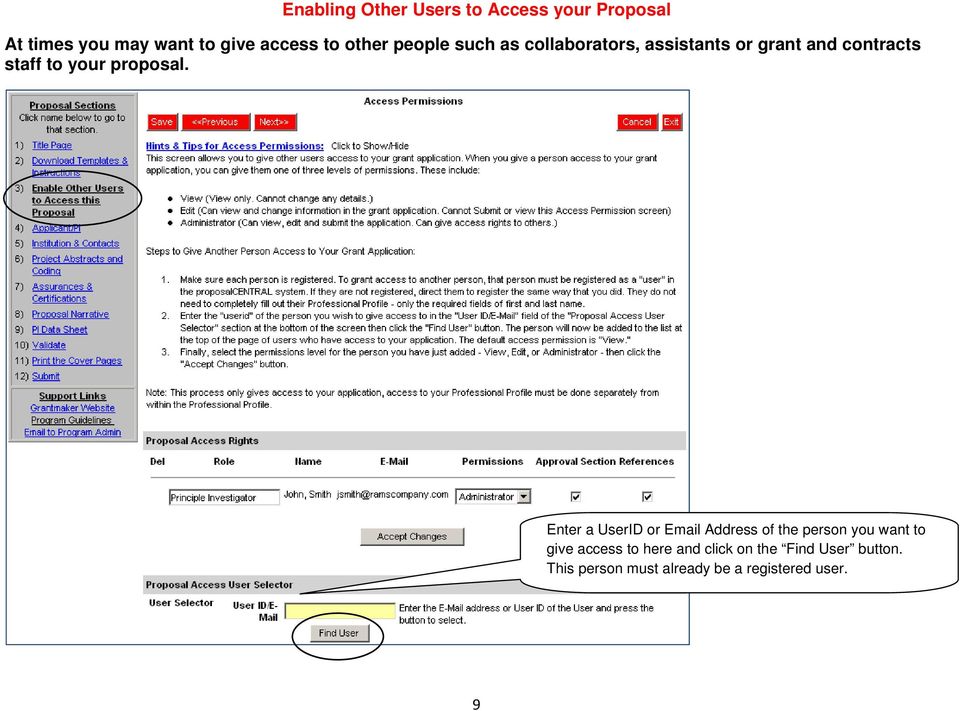
10 Enabling Other Users to Access your Proposal Now you can assign the level of access for this individual. There are 3 levels of permissions: view, edit and administrator. See below for descriptions of each level of permission. View means that the person can only view the information in the proposal. Edit means that the person can view and change the details in the proposal but cannot submit. Administrator means that the person can view, edit, and submit the proposal on the applicant s behalf. Once you have decided which of the access levels to assign to the person you are giving access, click on the Accept Changes button. 10

11 Changing the Applicant/PI Details Click the Edit Professional Profile button to make any changes to the Professional Profile. 11

12 Changing the Applicant/PI Details Click on the Return to LOI/Proposal link to move back to your application. 12

13 Entering your Institution Details The top section of the Institution and Contacts page will populate based on the information setup in your Institution Profile. You can search for and change the institution using the fields to the right of the page. Note: you will have to select this again if you created your application before selecting an institution profile in your professional profile. The Administrator of the Institution Profile you selected is displayed along with their contact information. 13

14 Working with Contacts Institution contacts names from the Institution Profile will display in the drop-down list for each row in the Contacts table. Details may appear differently dependent upon various proposal requirements. Use the drop down arrow next to the Signing Official to select from the list. Once the Official is select we will click on the red Add button to the right of the selected official. Required contacts, e.g., Signing Official, Financial Officer, etc., are noted with an asterisk. Information for other signatories, e.g., Department Head, Mentor, etc., may be added by clicking on the blue Enter Contact Information link. Note that the entry can be edited or removed. 14

15 Working with Abstracts and Keywords Add a text-only version of the abstract. HINT: Cut and paste the text from your word processor so you can check the spelling first. HINT: Check that Greek symbols have been spelled out correctly. HINT: If your abstract exceeds the specified limit, the text will be truncated. Select a keyword from the list on the left. Then click >> to add it to the selected keywords on the right. 15

16 Working with Abstracts and Keywords The % of project of the areas must total 100%. Click on the Save Weighting button to recalculate the total %. You can remove selected items by clicking on the Del link for the item. 16

17 Assurances and Certifications If the Pending Date is not known, it is okay to enter the next anticipated approved date or N/A. The Assurance numbers flow automatically from the Institution Profile. If the numbers are not present, the system will ask you to contact your grants and contracts office. 17

18 Uploading the Completed Templates Supply your own description of the attached file. Make certain the proper Attachment Type is selected. Browse for the file you wish to load. The path will appear in the window next to the Browse button. Click the Upload Attachment button to send the file from your computer to your proposal in proposalcentral. Optional attachments do not show in this list, but an additional option may appear in the Attachment Type dropdown list. 18

19 Uploading Attachments As with the abstract, a note appears at the top of the screen to let you know that the file was loaded successfully. In this example we are loading the Proposal Narrative. The file moves from the middle portion of the Current List of Uploaded Attachments to show that the file was successfully loaded. Repeat the process for the other completed template files. Eventually all the files from section 3 will be loaded to section 2. 19

20 Working with the PI Data Sheet The PI Data Sheet is a special section of the application for sensitive information about the PI that won t be shown to reviewers. This information is for internal use by the grant-maker. Most of the information in the PI Data Sheet is copied from the Professional Profile. The Edit Professional Profile button is available to edit the details in your Professional Profile, if necessary. The click the Return to LOI/Proposal button to return to the proposal. If your country does not have a Social Security Number, leave the field entry with N/A. Some fields that contain private or sensitive information have the option of being left as Not Provided. 20

21 Validating your Proposal The Validate section checks if all of the required fields are completed and all of the required files are uploaded. Clicking the Validate button generates a report showing that information is missing. 21
22 Validating your Proposal As an example, the Total amount requested in the Title Page, a required field, was left blank on purpose. Click a section heading to access and enter the missing information. 22
23 Validating your Proposal Enter the required data and click Validate again. 23
24 Validating your Proposal The proposal is now ready to submit. Entries are present for all required fields and all required files have been uploaded. 24
25 Printing the Cover/Signature Pages Once you have completed all the proposal sections and validated the required data, you can print the signature page for your proposal. Refer to the program guidelines for the appropriate procedures. (Note: You can print the signature page if you are missing attachments.) 25
26 Submitting your Proposal Now that everything has been completed, you will need to submit your application. Click on the submit link number 12, and then the submit button. You will get an with a confirmation of the submission. 26
27 Submitting your Proposal Once you have submitted you proposal a confirmation message will appear. Congratulations on submitting a proposal using proposalcentral!! If you need assistance, contact Customer Service by at [email protected] or by phone at
External Account Creation and Upload Instructions for the Local Government (LG) Audit Report Collection System
 External Account Creation and Upload Instructions for the Local Government (LG) Audit Report Collection System In order to submit data for any Department of Audits and Accounts (DOAA) web application,
Managing Documents in the Citrix XenApp Remote Desktop
 Introduction Managing Documents in the Citrix XenApp Remote Desktop What is a Citrix XenApp Remote Desktop? It is a virtualized instance of MS Windows with only enough software to run TAS in a controlled
USER GUIDE - May 2010
 USER GUIDE - May 2010 Login...2 Browse.................................................................. 3 By Product Type By Manufacturer Search....4 By Keyword Via Quick Find Via Quick Order Search Results
VALUE LINE INVESTMENT SURVEY ONLINE USER S GUIDE VALUE LINE INVESTMENT SURVEY ONLINE. User s Guide
 VALUE LINE INVESTMENT SURVEY ONLINE User s Guide Welcome to Value Line Investment Survey Online. This user guide will show you everything you need to know to access and utilize the wealth of information
Your Archiving Service
 It s as simple as 1, 2, 3 This email archiving setup guide provides you with easy to follow instructions on how to setup your new archiving service as well as how to create archiving users and assign archiving
Working with the new enudge responsive email styles
 Working with the new enudge responsive email styles This tutorial assumes that you have added one of the mobile responsive colour styles to your email campaign contents. To add an enudge email style to
BEST / Act 230 Funding
 BEST / Act 230 Funding GRANTIUM APPLICATION INSTRUCTIONS FOR FY 16 (2015 2016 Academic Year) Table of Contents Logging into Grantium and Changing Your Password... 3 Forgot Your Password?... 4 How to Get
Content Management System QUICK START GUIDE
 Content Management System QUICK START GUIDE Revised 03/10/11 TABLE OF CONTENTS Pg. 1... Logging In Pg. 2... Navigating to your site folder Pg. 2... The Folder Tree, Site Structure and Wire Frames Explained.
Process Document Campus Community: Create Communication Template. Document Generation Date 7/8/2009 Last Changed by Status
 Document Generation Date 7/8/2009 Last Changed by Status Final System Office Create Communication Template Concept If you frequently send the same Message Center communication to selected students, you
Intellect Platform - Tables and Templates Basic Document Management System - A101
 Intellect Platform - Tables and Templates Basic Document Management System - A101 Interneer, Inc. 4/12/2010 Created by Erika Keresztyen 2 Tables and Templates - A101 - Basic Document Management System
ManageEngine ServiceDesk Plus. The new Copper Mountain College Helpdesk System
 ManageEngine ServiceDesk Plus The new Copper Mountain College Helpdesk System Why do we have it? To make repair and service requests with the I.S. Department. To keep a history of all of your requests.
Transaction Management
 Access Online Transaction Management User Guide Version 3.6 Cardholder and Program Administrator Contents Introduction... 2 Transaction Management Variables by Organization... 2 Procedures in This Guide...
Accessing the Professional Development Plan (PDP) Evaluation Process Staff Evaluations Edit Professional Development Plan.
 1 NC Educator Effectiveness System Evaluator s Guide Professional Development Plan This guide outlines the steps that Evaluators must complete for the Professional Development Plan in the North Carolina
QT9 Quality Management Software
 QT9 Supplier Portal Support is Free. Please contact us via the Contact Support help icon on the top of the screen or at our contact information below: QT9 Software Toll Free: (866) 913-5022 Email: [email protected]
T Analyst User Guide 1
 T Analyst User Guide 1 Contents Contents...2 Getting Started...3 Navigation...4 Logging Out of T Analyst...4 View bills...4 Bill columns and definitions...4 Viewing a PDF bill...5 Comparing bills...5 Requesting
History Explorer. View and Export Logged Print Job Information WHITE PAPER
 History Explorer View and Export Logged Print Job Information WHITE PAPER Contents Overview 3 Logging Information to the System Database 4 Logging Print Job Information from BarTender Designer 4 Logging
Washington State Educator Electronic Certificate System (E-Certification) Educator User Guide
 Washington State Educator Electronic Certificate System (E-Certification) Educator User Guide October 13, 2015 Table of Contents 1.0 Welcome Log In Instructions... 3 1.1 Home Page... 4 1.2 Welcome Educator...
Perform this procedure when you need to add a recurring payment option, or when you need to change or withdraw it.
 Purpose Use this procedure to add, change, or remove recurring payments. Trigger Perform this procedure when you need to add a recurring payment option, or when you need to change or withdraw it. Prerequisites
Submitting an application
 Submitting an application Procedure 1. If you would like to submit an application via the DAAD Portal, please start by selecting your chosen programme in our database for scholarship holders or academic
QUICK START GUIDE. Draft twice the documents in half the time starting now.
 QUICK START GUIDE Draft twice the documents in half the time starting now. WELCOME TO PRODOC Thank you for choosing ProDoc, your forms solution to save time and money, reduce errors, and better serve your
DarwiNet Client Level
 DarwiNet Client Level Table Of Contents Welcome to the Help area for your online payroll system.... 1 Getting Started... 3 Welcome to the Help area for your online payroll system.... 3 Logging In... 4
How to File the FBAR Electronically. The following steps describe the process of filing an FBAR electronically with our system.
 Prerequisite How to File the FBAR Electronically The following steps describe the process of filing an FBAR electronically with our system. Our site requires use of the free Adobe Reader product to properly
End User Training Guide
 End User Training Guide October 2013 2005-2013 ExpenseWire LLC. All rights reserved. 1 expensewire.com Use of this user documentation is subject to the terms and conditions of the applicable End- User
Faculty Tutorial: Upload a Syllabus and Course Schedule
 Faculty Tutorial: Upload a Syllabus and Course Schedule Purpose: To show faculty how to download, update, and then re upload a Syllabus in courses developed by the Office of Online Learning and Web Marketing.
Document Services Online Customer Guide
 Document Services Online Customer Guide Logging in... 3 Registering an Account... 3 Navigating DSO... 4 Basic Orders... 5 Getting Started... 5 Attaching Files & Print Options... 7 Advanced Print Options
Chapter A5: Creating client files and attaching bank accounts
 Chapter A5: Creating client files and attaching bank accounts This chapter is aimed at BankLink Administrators It covers the set up of your BankLink Practice clients. A BankLink Practice user needs BankLink
FAST Travel System. Guide: Creating Expense Reports
 FAST Travel System Guide: Creating Expense Reports Purpose: To provide instructions on how to create an Expense Report (ER) in FAST 9.2 Travel module. Definition: Expense Report submission entered into
1 P a g e. User Guide. 0845 456 3103 support.keytime.co.uk
 1 P a g e User Guide 2 P a g e Contents Introduction to Client Manager... 4 Configuring Client Manager... 4 Register your Software... 4 Manage Software Updates... 5 Maintain Staff Grades and Charge-out
How to Edit an Email. Here are some of the things you can do to customize your email:
 How to Edit an Email Editing a new email created during the Create an Email wizard or editing an existing email in the Edit Email section of the Manage Emails tab is easy, using editing tools you re probably
Western Kentucky University s Promotional Product Web Store. User Guide
 Western Kentucky University s Promotional Product Web Store User Guide e0001df 07/01/2010 Guy Brown Promotional s Web Store User Guide This user guide was created to help make your web store experience
`````````````````SIRE USER GUIDE
 `````````````````SIRE USER GUIDE Table of Contents INTRODUCTION 3 SYSTEM REQUIREMENTS 4 RUNNING SANDISK BACKUP 5 Setup Your First Backup 6 Create Your Backup 7 Custom Backup 8 Dmailer Online 10 Launch
Welcome to PowerClaim Net Services!
 Welcome to PowerClaim Net Services! PowerClaim Net Services provides a convenient means to manage your claims over the internet and provides detailed reporting services. You can access PowerClaim Net Services
Creating Codes with Spreadsheet Upload
 Creating Codes with Spreadsheet Upload Ad-ID codes are created at www.ad-id.org. In order to create a code, you must first have a group, prefix and account set up and associated to each other. This document
Introduction to Drupal
 Introduction to Drupal Login 2 Create a Page 2 Title 2 Body 2 Editor 2 Menu Settings 5 Attached Images 5 Authoring Information 6 Revision Information 6 Publishing Options 6 File Attachments 6 URL Path
Rochester Institute of Technology. Finance and Administration. Drupal 7 Training Documentation
 Rochester Institute of Technology Finance and Administration Drupal 7 Training Documentation Written by: Enterprise Web Applications Team CONTENTS Workflow... 4 Example of how the workflow works... 4 Login
Florida Department of Environmental Protection Office of Technology and Information Services
 Florida Department of Environmental Protection Office of Technology and Information Services Industrial and Domestic Wastewater EzDMR (Discharge Monitoring Reporting) External User s Guide Prepared by:
PCORI Online User Manual: Submitting a Letter of Intent
 PCORI Online User Manual: Submitting a Letter of Intent Revised 7/10/2015 Table of Contents 1. About PCORI Online... 3 2. Register... 4 3. Create an Account... 5 4. Start Your LOI... 6 5. Pre Screen Questionnaire...
Appendix A How to create a data-sharing lab
 Appendix A How to create a data-sharing lab Creating a lab involves completing five major steps: creating lists, then graphs, then the page for lab instructions, then adding forms to the lab instructions,
CDMRP ereceipt System User Guide
 CDMRP ereceipt System User Guide Congressionally Directed Medical Research Programs (CDMRP) Last Updated: January 2011 Table of Contents Overview... 3 Purpose... 3 Help Desk Contact Information... 3 System
Online Financial Statement Guide
 Contents Life Sciences Policies... 2 Online Grant Management... 2 Financial Statement Submission Deadlines... 2 Financial Policy Highlights... 2 proposalcentral Login... 6 Accessing Awards and Budget Section...
Student Manager s Guide to the Talent Management System
 Department of Human Resources 50 Student Manager s Guide to the Talent Management System 1 Table of Contents Topic Page SYSTEM INTRODUCTION... 3 GETTING STARTED... 4 NAVIGATION WITHIN THE TALENT MANAGEMENT
Council of Ontario Universities. COFO Online Reporting System. User Manual
 Council of Ontario Universities COFO Online Reporting System User Manual Updated September 2014 Page 1 Updated September 2014 Page 2 Table of Contents 1. Security... 5 Security Roles Defined in the Application...
imanage V2.0 Overview
 imanage V2.0 Overview What is imanage? 4 Signing up for your free 30 day trial 4 What to do after signing up 4 The Dashboard 5 Customers 6 Customer Profiles 6 Profile Tab 7 Addresses Tab 7 Job Sheets Tab
JOOMLA 2.5 MANUAL WEBSITEDESIGN.CO.ZA
 JOOMLA 2.5 MANUAL WEBSITEDESIGN.CO.ZA All information presented in the document has been acquired from http://docs.joomla.org to assist you with your website 1 JOOMLA 2.5 MANUAL WEBSITEDESIGN.CO.ZA BACK
Electronic Signature and Approval Process
 Howard University Electronic Signature and Approval Process Submitting a Proposal Package Electronically version 3 created: 05/2013 R e s e a r c h A d m i n i s t r a t i v e S e r v i c e s CONTENTS
Scheduling/ Calendar Software Training Manual
 In order to enter the Scheduling Software, click on Appointment button on the home page in Clinician Gateway. Once you click on the Appointment button an additional browser page called the Physician s
Social Work Portfolio Help Guide. Table of Contents. (click anything from the list below to skip to the correct information)
 Social Work Portfolio Help Guide Table of Contents (click anything from the list below to skip to the correct information) Steps to creating your Social Work portfolio Security settings for your portfolio
Section 2.5.05 Documents. Contents
 Section 2.5.05 Documents Contents Documents... 2 Practice Documents Tab... 3 Unsigned Documents Tab... 7 Uninitialed Documents Tab... 9 Document Sessions Tab... 10 Print Days Documents Tab... 12 Save Templated
USER GUIDE. FileLineACCESS.com Revision 04.07.14. Information Protected. InformationProtected.com 1 877 FileLine
 USER GUIDE FileLineACCESS.com Revision 04.07.14 Information Protected. InformationProtected.com 1 877 FileLine 2 Table of Contents SECTION TITLE PAGE NUMBER Revised 4.4.2014 1 Introduction 3 2 Login Instructions
Implementing Mission Control in Microsoft Outlook 2010
 Implementing Mission Control in Microsoft Outlook 2010 How to Setup the Calendar of Occasions, Not Doing Now List, Never Doing Now List, Agendas and the Vivid Display In Outlook 2010 Handout Version 3
ICP Data Entry Module Training document. HHC Data Entry Module Training Document
 HHC Data Entry Module Training Document Contents 1. Introduction... 4 1.1 About this Guide... 4 1.2 Scope... 4 2. Step for testing HHC Data Entry Module.. Error! Bookmark not defined. STEP 1 : ICP HHC
CMS Training Manual. A brief overview of your website s content management system (CMS) with screenshots. CMS Manual
 Training A brief overview of your website s content management system () with screenshots. 1 Contents Logging In:...3 Dashboard:...4 Page List / Search Filter:...5 Common Icons:...6 Adding a New Page:...7
Recruiter s Resource Guide
 Recruiter s Resource Guide First Edition 1.29.2015 Contents Section One Recruiting... 3 Accessing Team Georgia Careers... 4 My Setup Preferences... 5 Creating a Requisition... 6 Approving a Requisition...
MS Excel Template Building and Mapping for Neat 5
 MS Excel Template Building and Mapping for Neat 5 Neat 5 provides the opportunity to export data directly from the Neat 5 program to an Excel template, entering in column information using receipts saved
DataDirector Getting Started
 DataDirector Getting Started LOGIN Log into the DataDirector website: https://www.achievedata.com/yourdistrictname User Name: New Password: Enter your User Name and Password o After login, you may need
Web Content Management Training Manualv3
 City & County of San Francisco Powered by Innovation DT City & County of Sa Departme Techno Powered by Innova DEPARTMENT OF TECHNOLOGYDT Web Content Management Training Manualv3 Department of Technology
Bulk Email. What s Inside this Guide. Bulk Email and How To Get There 2. Bulk Email Setup 4. Bulk Email Details 7
 Bulk Email What s Inside this Guide Bulk Email and How To Get There 2 Bulk Email Setup 4 Bulk Email Details 7 Bulk Email and How To Get There Bulk Email allows you to send a mass email to the records on
How to Attach the Syllabus and Course Schedule to a Content Item
 How to Attach the Syllabus and Course Schedule to a Content Item Getting Started Part of preparing your course for delivery to students includes uploading your syllabus and course schedule to your online
The LSUHSC N.O. Email Archive
 The LSUHSC N.O. Email Archive Introduction The LSUHSC N.O. email archive permanently retains a copy of all email items sent and received by LSUHSC N.O. Academic email users. Email items will be accessible
A guide to bulk deposit submissions
 A guide to bulk deposit submissions What is a bulk deposit submission? The Bulk Deposit Submission process is used for agents/landlords who have a large amount of deposits to submit at the same time, reducing
ClicktoFax Service Usage Manual
 ClicktoFax Service Usage Manual 1. Log in to Fax Service 2. Configure your account 3. Send a fax 4. Receive a fax/search for Faxes/View Faxes 5. Logout 6. Additional Support 1. Log into fax service: a.
Providers can access the precertification tool by logging in to the Amerigroup provider self service website or the Availity Web Portal.
 Precertification Status and Appeals Use the Amerigroup Provider self service website to check the status of a precertification request, submit a request for Amerigroup to change a decision we made on a
ITCS QUICK REFERENCE GUIDE: EXPRESSION WEB SITE
 Create a One-Page Website Using Microsoft Expression Web This tutorial uses Microsoft Expression Web 3 Part 1. Create the Site on your computer Create a folder in My Documents to house the Web files. Save
Content Management System (CMS) Training
 Content Management System (CMS) Training System Requirements Operating System: Mac, PC, Linux and most Internet connected devices Browser: Recent version of Firefox as you cannot use Chrome or Safari Recent
Creating and Using Links and Bookmarks in PDF Documents
 Creating and Using Links and Bookmarks in PDF Documents After making a document into a PDF, there may be times when you will need to make links or bookmarks within that PDF to aid navigation through the
IT Service Manager Agent Guide
 IT Service Manager Agent Guide Issue Training - Online Tutorials & Guides http://www.it.northwestern.edu/service-manager/ IT Service Manager Login Page https://itsm-fp.northwestern.edu/footprints/ Contents
Teacher References archived classes and resources
 Archived Classes At the end of each school year, the past year s academic classes are archived, meaning they re still kept in finalsite, but are put in an inactive state and are not accessible by students.
Macs are not directly compatible with Noetix.
 Those that use Macintosh computers to access Noetix cannot directly access Noetix through http://www.sandiego.edu/noetix. If one is on a Mac and goes to Noetix directly in a web browser, the page is likely
INTERCALL ONLINE Administrator Invoices User Guide
 INTERCALL ONLINE Administrator Invoices User Guide Access your invoices online, set up new billing accounts and view or edit existing billing accounts. With InterCall Online, also monitor and analyze your
SiteBuilder E-Shop User Guide
 SiteBuilder E-Shop User Guide Contents What is eshop?... 3 Setting up eshop for the first time... 4 Setting up your ordering information... 4 Deciding how to process orders... 5 Setting your general configuration
Excel Reports User Guide
 Excel Reports User Guide Copyright 2000-2006, E-Z Data, Inc. All Rights Reserved. No part of this documentation may be copied, reproduced, or translated in any form without the prior written consent of
ecall Help Table of contents Status: July 2013
 ecall Help Status: July 2013 Table of contents 1. The structure and navigation elements of ecall... 2 1.1 Main Navigation... 2 1.2 The Menu... 2 1.3 Menu sub-items... 3 1.4 Help... 3 1.5 Mandatory fields...
Creating and Managing Online Surveys LEVEL 2
 Creating and Managing Online Surveys LEVEL 2 Accessing your online survey account 1. If you are logged into UNF s network, go to https://survey. You will automatically be logged in. 2. If you are not logged
CITY OF NAPLES VENDOR REGISTRATION TUTORIAL VENDOR SELF SERVICE (VSS) VENDOR REGISTATION TUTORIAL
 CITY OF NAPLES VENDOR REGISTRATION TUTORIAL VENDOR SELF SERVICE (VSS) 3/5/2015 VENDOR REGISTATION TUTORIAL Start Vendor Registration Process: Please start by going to the City of Naples website located
ewebextra OfficeMate Integration User s Guide
 ewebextra OfficeMate Integration User s Guide September 2013 2013 Eyefinity, Inc. All rights reserved. Eyefinity, OfficeMate, ewebextra, and ExamWRITER are registered trademarks of Eyefinity, Inc. All
Physician Quality Reporting System (PQRS) Physician Portal
 The American College of Radiology Physician Quality Reporting System (PQRS) Physician Portal User Guide January 29, 2016 American College of Radiology 1891 Preston White Drive Reston, VA 20191-4397 Copyright
Engaged Management ReView Reviewer Guidelines V.1.0. Friday, March 11, 2015
 Engaged Management ReView Reviewer Guidelines V.1.0 Friday, March 11, 2015 Table of Contents Engaged Management ReView (EMR) Reviewer Guidelines... 3 SECTION 1: Reviewer Receiving Invitation to Review
SharePoint 2010. Rollins College 2011
 SharePoint 2010 Rollins College 2011 1 2 Contents Overview... 5 Accessing SharePoint... 6 Departmental Site - User Interface... 7 Permissions... 8 Site Actions: Site Administrator... 8 Site Actions: General
ManageMyHealth SMS Text Message Service User Guide. Medtech32. Version 20.0 (March 2012)
 ManageMyHealth SMS Text Message Service User Guide Medtech32 Version 20.0 (March 2012) IMPORTANT NOTE Medtech recommends that all Medtech upgrades and database back-up and restore processes are performed
UH CMS Basics. Cascade CMS Basics Class. UH CMS Basics Updated: June,2011! Page 1
 UH CMS Basics Cascade CMS Basics Class UH CMS Basics Updated: June,2011! Page 1 Introduction I. What is a CMS?! A CMS or Content Management System is a web based piece of software used to create web content,
Email client configuration guide. Business Email
 Email client configuration guide Business Email August 2013 Contents 1. Mac Email Clients 1.1 Downloading Microsoft Outlook (Professional Plan Users) 1.2 Configuring Microsoft Outlook (Full Exchange Server
UW WEB CONTENT MANAGEMENT SYSTEM (CASCADE SERVER)
 UW WEB CONTENT MANAGEMENT SYSTEM (CASCADE SERVER) LEVEL 1 Information Technology Presented By: UW Institutional Marketing and IT Client Support Services University of Wyoming UW CONTENT MANAGEMENT SYSTEM
Using Microsoft Producer for PowerPoint to Record Accounting Lectures
 Using Microsoft Producer for PowerPoint to Record Accounting Lectures A presentation to the 2007 Conference of the Teachers of Accounting at Two-Year Colleges May 17-19, Indianapolis, IN Presenter: Lou
Note: With v3.2, the DocuSign Fetch application was renamed DocuSign Retrieve.
 Quick Start Guide DocuSign Retrieve 3.2.2 Published April 2015 Overview DocuSign Retrieve is a windows-based tool that "retrieves" envelopes, documents, and data from DocuSign for use in external systems.
ARCONICS CONTENT MANAGEMENT SYSTEM FOR UL
 ARCONICS CONTENT MANAGEMENT SYSTEM FOR UL MENU OPTION CLASSIFICATION MANAGER Creating a new classification / menu 1. Click Classification manager 2. Click on the plus sign beside WWW to expand the folders
Concur Expense Quick Reference Guide
 Content Section 1: Section 2: Section 3: Section 4: Section 4a: Section 4b: Section 4c: Getting Started, Login Explore My Concur tab Update Your Profile, Add an Expense Delegate Create a New Expense Report
user guide This user guide can be used as a whole manual, or sections, depending on the user s access permissions to AgendaOnline.
 user guide This user guide can be used as a whole manual, or sections, depending on the user s access permissions to AgendaOnline. home page...3 General Features... 3 Other Features... 4 navigating agendas...5
Cascade Server CMS Quick Start Guide
 Cascade Server CMS Quick Start Guide 1. How to log in 2. How to open page 3. How to edit a page 4. How to create a new page 5. How to publish a page 6. How to change settings to view publish status page
ewebextra OfficeMate Integration User s Guide
 ewebextra OfficeMate Integration User s Guide April 2014 2014 Eyefinity, Inc. All rights reserved. Eyefinity, OfficeMate, ewebextra, and ExamWRITER are registered trademarks of Eyefinity, Inc. All other
Logging in to Google Chrome
 Logging in to Google Chrome By logging in to Google Chrome, you will be able to quickly access any saved applications, bookmarks, and resources from any location. Please remember...if you are using a lab
Introduction to ilab Solutions for VUMC Users
 Introduction to ilab Solutions for VUMC Users (VUMC PIs, Lab Managers, and Lab Members) Table of Contents Account Access & Login Credentials... 2 Account Registration for First-time Users... 2 Accessing
Applicant User Guide. SaskPolytech Recruiting and Onboarding System (SROS) Version 2.0 (January 2015) Human Resources
 Applicant User Guide SaskPolytech Recruiting and Onboarding System (SROS) Version 2.0 (January 2015) Human Resources Table of Contents 1. Get ready... 2 1.1 Need to know information... 3 2. Access the
FY2016 Budget Collection. Software Instructions
 FY2016 Budget Collection Software Instructions Due Date: June 1, 2015 IT Team: Data Management & Analysis Phone: (802) 479-1044 Fax: (802) 479-4319 Table of Contents System Requirements... 1 Starting the
Business Online Banking ACH Reference Guide
 Business Online Banking ACH Reference Guide Creating an ACH Batch Select ACH Payments on the left-hand side of the screen. On the Database List screen, locate the Database to be processed, and place a
Streamline Paperwork with e-signatures
 presented by a la mode Course Highlights Create an electronic document using SureDocs Lite Upload existing documents to your XSite Prepare a PDF document for e-signature E-sign a document on your XSite
Online Application Help
 Online Application Help (Note that if you hold the Control button and click the underlined headers on the first page, the links will take you to the header-specific sections of the document. At the end
Tableau Quick Tips Guide November 2015
 Tableau Quick Tips Guide November 2015 Fannie Mae Connect uses Tableau software to enable data display and analysis. This document provides guidance on how to get the most out of Tableau reports. The reference