
Washington State Educator Electronic Certificate System (E-Certification) Educator User Guide
|
|
|
- Monica Parsons
- 9 years ago
- Views:
Transcription
1 Washington State Educator Electronic Certificate System (E-Certification) Educator User Guide October 13, 2015
2 Table of Contents 1.0 Welcome Log In Instructions Home Page Welcome Educator View Your Credentials Here Edit Educator Information Request Duplicate Certificate Apply for Your College Recommendation Apply for Your District Request Apply for a Washington Credential Apply to Reissue Your Washington Credentials Renew Your Credentials Here Educator Menu Applications Fees Print History History Communication Log Expertise Professional Development Add Professional Development HQT Education History Add Education History Work History Add Professional Education Experience Add Other Employment Experience
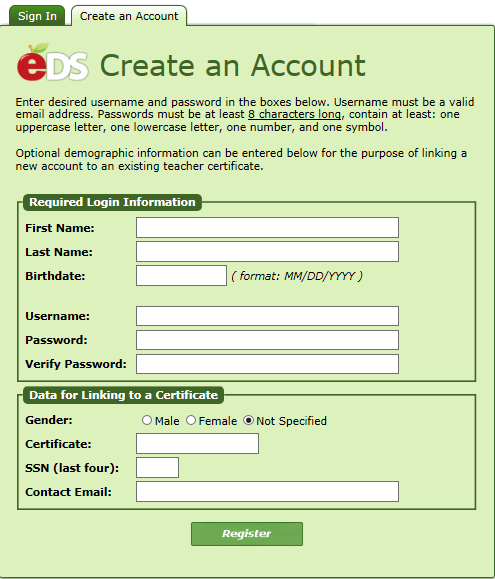
3 Welcome Welcome to the Washington State Educator Electronic Certification System (E-Certification). This user guide will help you navigate through E-Certification. Once logged into the system, you will be able to edit your profile, view your credentials, in addition to many other functions. To Begin - Log in to: Returning users click Sign In Tab First time user click Create an Account Tab 3
4 Home Page Once an educator has logged into E-Certification, their Home Page is launched. On the top of the home page are two tabs, Home and My Credentials. Home will navigate the educator to the home screen and My Credentials will take the educator to his or her credential screen. Welcome Educator Under the Welcome Educator heading, there may be system messages posted for the educator s view. View Your Credentials Here The educator will find this link on their home page and it will navigate the user to his or her credential screen, same function as the My Credentials tab. This will be shown in detail in the next few pages. 4
5 On the Educator s home page are links that are applicable to the educator s statuses. For example if it is time for an educator to renew their certificate, a notice will appear on their home page with a link navigating them to a wizard which will help complete the necessary process. While there are several different scenarios and a number of certificates, this user guide will focus on some of the primary ones. Each application corresponds with a wizard. A wizard is a step by step guide helping the educator through processing the application. The wizard is intuitive and the educator will notice some steps are the same in different wizards. Wizards throughout the system basically follow the same format. There are drop-down arrows in some fields, numeric answers only in some fields, while most fields are required. If any Educator does not fill out a required field (marked with a red asterisk), an error message will be displayed instructing the educator what is needed to complete the application. Wizards will direct the user if it is a multiple step wizard by showing buttons at the bottom, such as Next. Each wizard will also allow the educator to cancel the application process by clicking on the Cancel radio button at the bottom of the wizard. 5

6 View Your Credentials Here Washington State Office of Superintendent of Public Instruction By clicking on this link, the educator can view their current and prior certification information. Once the educator clicks on the View Your Credentials Here link, he or she is navigated to the Credentials screen. The top part of the screen houses the educator s primary, contact and miscellaneous information. The tabs in the heading across the top of Credentials will be addressed later in the user guide. 6
7 Edit Educator Information Washington State Office of Superintendent of Public Instruction An educator can change their information by clicking on the Click Here to Edit Educator link. A three step wizard is launched navigating the educator through each step. Step 1 allows the educator to change any profile information. For purposes of privacy, most information in the field boxes has been removed. Note the red asterisks on some of the fields. There are also drop-down arrows which when clicked on displays a list from which the educator can select the applicable answer. Once changes have been made, the educator clicks on Next. Fill out all required fields. Click on the drop-down arrows to select applicable answer. Follow date format when entering date. Click on checkbox to select applicable answer. 7

8 Step 2 allows the educator to make changes to their address if applicable. Once changes have been made, the educator clicks on Next. Fill out all required fields. Click on the drop-down arrows to select applicable answer. 8
9 Step 3 allows the educator to change any contact information. Once changes have been made, the educator clicks on Submit. Follow numeric format when entering phone numbers. process, click Cancel, Submit. To return to the previous screen, click Previous. Click Submit. 9

10 The second part of the Credentials screen shows the educator s Applications, Certificates and Endorsements for Selected Certificates. Note: By clicking on Select under Certificates, the associated endorsements will be displayed in the section, Endorsements for Selected Certificate. The Checklist link will show the educator all the information on file for the application process. This is a view only screen. 10
11 Request Duplicate Certificate Washington State Office of Superintendent of Public Instruction Housed in the Certificates table is a link to request a duplicate certificate. By clicking on the link, Request Duplicate, a 7 step wizard is launched. Step 1 of the Online Duplicate Request Application asks the educator to update their profile. Once that has been updated, if applicable, click Next. Fill out all required fields. Click on the drop-down arrows to select applicable answer. Follow date format when entering date. Click on checkbox to select applicable answer. 11

12 Step 2 and 3 asks the educator to update their address and contact information respectively. Once information has been updated, if applicable, click Next to continue. Fill out all required fields. Click on the drop-down arrows to select applicable answer. To return to the previous screen, click Previous. Follow numeric format when entering phone numbers. To return to the previous screen, click Previous. 12

13 Step 4 asks the educator to enter the number of duplicates he or she is requesting. Once that has been entered, click Next. Enter number of requested duplicates. To terminate the application process, click Cancel, Next. To return to the previous screen, click Previous. Click Next to continue. Step 5 requests payment information. The amount is displayed at the bottom of the wizard. The educator enters credit card information and clicks Next to continue. Fill out all required fields. Click on the drop-down arrows to select applicable answer. Follow numeric format for entered numbers. Follow date format when entering date. process, click Cancel, Next. To return to the previous screen, click Previous. 13

14 Step 6 requests the educator reviews information before applying with credit card. The Edit links to the right of each section allows the educator to make changes if necessary. When all information is reviewed, the educator clicks Apply. Step 8 will be launched verifying the transaction. If applicable, click on the edit link to make any changes to the information already entered. To return to the previous screen, click Previous. Click Apply to complete application. 14

15 Below are examples of links that could be found on an educator s home page. This user guide will take the educator through each link listed below to demonstrate how the application process works via wizards. These examples will show the educator how to go through any application process no matter what they are applying for. 15

16 Apply for Your College Recommendation If applicable, the following link will appear on the Educator s home page. To apply for college recommendation, the Educator clicks on the link, Click here to apply for your Washington college recommendation.. This action will launch the Educator Recommendation List table. By clicking on the link, Apply for Credential, the educator can proceed with application. Note if the Status is not in Completed Program, the educator should contact their institution. The Apply for Credential link will navigate the Educator to an 18-step wizard. The wizard is intuitive and the Educator needs to follow directions on each step. Depending on the data in the system, some steps may be skipped and the Educator will be navigated to the next applicable step. 16

17 Step 1 of the Educator Recommendation Application is an informational introduction to the application process. Carefully read the explanation provided in Step 1. 17

18 The next step asks the educator to update their personal information if necessary. If applicable: Enter information in required fields. Click on drop-down arrow and select answer. Use specific format for date. Click on one of the checkboxes. To return to the previous screen, click Previous. 18
19 Step 7 is part of the profile update. The educator can change any information if necessary. If applicable: Enter information in required fields. Click on drop-down arrow and select answer. To return to the previous screen, click Previous. The educator can change any contact information in Step 8. If applicable: Edit any information. Use numbers for numeric fields. To return to the previous screen, click Previous. 19

20 Step 9 is an affidavit. By clicking on the checkbox, the educator is electronically signing the affidavit. Click on the checkbox. To terminate the application process, click Cancel, Next. To return to the previous screen, click Previous. 20
21 Step 10 is a continuance of the affidavit. The educator must answer all the questions. Answer questions by clicking on the radio button for Yes or No. process, click Cancel, Next. To return to the previous screen, click Previous. 21
22 Step 11 pertains to the educator s Criminal History. The educator must answer the Yes or No questions by clicking on the radio buttons. Answer questions by clicking on the radio button for Yes or No. To terminate the application process, click Cancel, Next. To return to the previous screen, click Previous. 22
23 Step 12 requires the educator to answer fitness questions. The educator must answer each question. Answer questions by clicking on the radio button for Yes or No. 23
24 To return to the previous screen, click Previous. 24

25 In Step 14 the educator is asked to provide 3 references. Once the information is entered, the educator clicks on Next to continue. Enter data in required fields. Click on drop-down arrow to select answer for State. To return to the previous screen, click Previous. Click Next to Continue. 25

26 Step 15 is an affidavit. By clicking on the checkbox, the educator is signing the affidavit. Click on checkbox. To terminate the application process, click Cancel, Next. To return to the previous screen, click Previous. 26

27 Step 16 allows the Educator to pay by credit card for their application. The educator enters card information and clicks on Next to continue. Note the amount to be charged to the educator is shown in the Amount field box. This field is disabled so the amount does not change. Fill out all required fields. Click on the drop-down arrows to select applicable answer. Follow numeric format for entered numbers. Follow date format when entering date. To return to the previous screen, click Previous. 27

28 Step 17 allows the educator to edit any of the information he or she entered before applying for the application. There is an edit link for each section; therefore, if the user wishes to change address information, they click on the edit link directly across from the Address heading. If applicable, click on the edit link to make any changes to the information already entered. process, click Cancel, Next. To return to the previous screen, click Previous. Click Apply to complete application. 28

29 Step 18 completes the process by clicking on Submit. The educator will then be navigated to their credential screen. To terminate the application process, click Cancel, Next. To return to the previous screen, click Previous. Click on Submit to complete the application process. 29

30 Apply for Your District Request Here If a district electronically requests a teaching credential for an educator, a link will be displayed on the educator s home page. To start the process, the educator clicks on the link, Click here to apply for your Washington District Request. This action will launch the District Request Application List table. The educator clicks on the Begin link for the selected application. By clicking on the Begin link, an 18 step wizard is launched. The educator will go through each step for complete the application process. 30

31 Step 1 is both an informational and instructional explanation of the application process. Once the Educator has read the explanation, he or she clicks on Next to continue. Carefully read the explanation provided in Step 1. 31

32 Step 2 asks the educator to verify his or her Washington State Certificate number. Once verification is made, the educator clicks Next to continue. Verify certificate number. To terminate the application process, click Cancel, Next. To return to the previous screen, click Previous. Click Next to continue. 32

33 Step 3 display s the educator s Education Experience. If this is not correct, the educator clicks on No, the information is not correct and the educator will be directed to a screen that will allow him or her to update or edit their education experience. This will cause the educator to restart the application process. By clicking Yes, the educator is verifying their Education Experience. Once verified, the educator clicks on Next. If information is incorrect, click No. To terminate the application process, click Cancel, Next. To return to the previous screen, click Previous. If information is correct, click Yes, then click Next to continue. 33

34 Step 4 requires the educator to enter the school year and program area or courses. Once information has been entered, the educator clicks on Next to continue. Enter required information. To terminate the application process, click Cancel, Next. To return to the previous screen, click Previous. 34
35 Educators are asked to list all states in which they hold or have held an educational certificate in Step 5. If applicable, in the text box, list states. To return to the previous screen, click Previous. 35

36 In Step 6 the educator can change any profile information as necessary. Fill out all required fields. Click on the drop-down arrows to select applicable answer. Follow date format when entering date. Click on checkbox to select applicable answer. To return to the previous screen, click Previous. 36

37 Step 7 is part of the profile update. The educator can change any information if necessary. If applicable: Fill out all required fields. Click on the drop-down arrows to select applicable answer. To return to the previous screen, click Previous. The educator can change any contact information in Step 8. If applicable: Edit any information. Use numbers for numeric fields. To return to the previous screen, click Previous. 37

38 Step 9 is an affidavit. By clicking on the checkbox, the educator is electronically signing the affidavit. Click on the checkbox. To terminate the application process, click Cancel, Next. To return to the previous screen, click Previous. 38
39 Step 10 is a continuance of the affidavit. The educator must answer all the questions. Answer questions by clicking on the radio button for Yes or No. process, click Cancel, Next. To return to the previous screen, click Previous. 39
40 Step 11 pertains to the educator s Criminal History. The educator must answer the Yes or No questions by clicking on the radio buttons. Answer questions by clicking on the radio button for Yes or No. To terminate the application process, click Cancel, Next. To return to the previous screen, click Previous. 40

41 Step 12 requires the educator to answer fitness questions. The educator must answer each question. Answer questions by clicking on the radio button for Yes or No. 41
42 To return to the previous screen, click Previous. 42

43 In Step 14 the educator is asked to provide 3 references. Once the information is entered, the educator clicks on Next to continue. Enter data in required fields. Click on drop-down arrow to select answer for State. To return to the previous screen, click Previous. Click Next to Continue. 43

44 Step 15 is an affidavit. By clicking on the checkbox, the educator is signing the affidavit. Click on checkbox. To return to the previous screen, click Previous. 44

45 Step 16 allows the educator to pay by credit card for their application. The educator enters card information and clicks on Next to continue. Note the amount to be charged to the educator is shown in the Amount field box. This field is disabled so the amount does not change. Fill out all required fields. Click on the drop-down arrows to select applicable answer. Follow numeric format for entered numbers. Follow date format when entering date. To return to the previous screen, click Previous. 45
46 Step 17 allows the educator to edit any of the information he or she entered before applying for the application. There is an edit link for each section; therefore, if the user wishes to change address information, they click on the edit link directly across from the Address heading. If applicable, click on the edit link to make any changes to the information already entered. To return to the previous screen, click Previous. Click Apply to complete application. 46

47 Step 18 completes the process by clicking on Submit. The educator will then be navigated to their credential screen. To terminate the application process, click Cancel, Next. To return to the previous screen, click Previous. Click on Submit to complete the application process. 47
48 Apply for a Washington Credential This link will be displayed on the educator s home page when they are qualified to apply for a Washington Teacher Certificate. By clicking on the link, the educator will be navigated to the Educator Application List where available applications are displayed. To begin the process of applying for a Washington Credential, the educator clicks on the link, Apply for Credential. This particular credential the user guide is demonstrating is an administrative certificate. 48

49 Step 1 of the Administrative Certificate wizard is an informational introduction to the application process. Read carefully the explanation provided in Step 1. 49

50 Step 2 asks the educator to verify his or her Washington State Certificate number. Once verification is made, the educator clicks Next to continue. Verify certificate number. To return to the previous screen, click Previous. Step 3 display s the educator s Education Experience. If this is not correct, the educator clicks on No, the information is not correct and the educator will be directed to a screen that will allow him or her to update or edit their education experience. This will cause the educator to restart the application process. By clicking Yes, the educator is verifying their Education Experience. Once verified, the educator clicks on Next. If information is incorrect, click No. To return to the previous screen, click Previous. If information is correct, click Yes, then click Next to continue. 50
51 Step 4 requires the educator to enter the school year and program area or courses. Once information has been entered, the educator clicks on Next to continue. Enter required information. To return to the previous screen, click Previous. Educators are asked to list all states in which they hold or have held an educational certificate in Step 5. If applicable, in the text box, list states. To return to the previous screen, click Previous. 51

52 In Step 6, the educator is asked to select the certificate and the level of certificate he or she is requesting. In some cases not all choices may be available to the educator. If this is the case, the option will be disabled. Click on the checkbox to select the requested certificate. Click on the radio button to select level of certificate. To return to the previous screen, click Previous. Step 7 allows the educator to upload any applicable forms/documents. The documentation must be provided in PDF. There is a link, Add Attachment, to upload any information the educator wishes to submit. Provided on the wizard is OSPI s address in the event the educator is unable to upload documentation. Click on the link, Add Attachment. Select file. Click Open. To return to the previous screen, click Previous. 52
53 The Add Educator Image window is launched. The educator enters a description of the attached document. By clicking on the Browse button, the educator can attach the specific document. Once document is selected, click on Submit. 53

54 The next step asks the educator to update their personal information if necessary. If applicable: Enter information in required fields. Click on drop-down arrow and select answer. Use specific format for date. Click on one of the checkboxes. To return to the previous screen, click Previous. 54
55 Step 9 is part of the profile update. The educator can change any information if necessary. If applicable: Enter information in required fields. Click on drop-down arrow and select answer. To return to the previous screen, click Previous. The educator can change any contact information in Step 10. If applicable: Edit any information. Use numbers for numeric fields. To return to the previous screen, click Previous. 55

56 Step 11 is an affidavit. By clicking on the checkbox, the educator is electronically signing the affidavit. Click on the checkbox. To return to the previous screen, click Previous. 56
57 Step 12 is a continuance of the affidavit. The educator must answer all the questions. Answer questions by clicking on the radio button for Yes or No. process, click Cancel, Next. To return to the previous screen, click Previous. 57
58 Step 13 pertains to the educator s Criminal History. The educator must answer the Yes or No questions by clicking on the radio buttons. Answer questions by clicking on the radio button for Yes or No. To terminate the application process, click Cancel, Next. To return to the previous screen, click Previous. 58

59 Step 14 requires the educator to answer fitness questions. The educator must answer each question. Answer questions by clicking on the radio button for Yes or No. 59
60 To return to the previous screen, click Previous. 60

61 In Step 16 the educator is asked to provide 3 references. Once the information is entered, the educator clicks on Next to continue. Enter data in required fields. Click on drop-down arrow to select answer for State. To return to the previous screen, click Previous. Click Next to Continue. 61

62 Step 17 is an affidavit. By clicking on the checkbox, the educator is signing the affidavit. Click on checkbox. To return to the previous screen, click Previous. 62

63 Step 18 allows the Educator to pay by credit card for their application. The educator enters card information and clicks on Next to continue. Note the amount to be charged to the educator is shown in the Amount field box. This field is disabled so the amount does not change. Fill out all required fields. Click on the drop-down arrows to select applicable answer. Follow numeric format for entered numbers. Follow date format when entering date. To return to the previous screen, click Previous. 63
64 Step 19 allows the educator to edit any of the information he or she entered before applying for the application. There is an edit link for each section; therefore, if the user wishes to change address information, they click on the edit link directly across from the Address heading. If applicable, click on the edit link to make any changes to the information already entered. To return to the previous screen, click Previous. Click Apply to complete application. 64

65 Step 20 completes the process by clicking on Submit. The educator will then be navigated to their credential screen. To terminate the application process, click Cancel, Next. To return to the previous screen, click Previous. Click on Submit to complete the application process. 65

66 Reissue Credentials Washington State Office of Superintendent of Public Instruction An educator can apply to reissue their Washington Credential by clicking on the link displayed below. If applicable, this link will be displayed on the Educator s Home Page. By clicking on the link, Apply to Reissue Your Washington Credential Here, the user is navigated to the Educator Reissue List screen. The credential(s) available for reissue will be listed. The educator clicks on the link, Apply for Credential to begin the application process. Step 1 of the Reissue Certificate wizard is an informational introduction to the application process. Carefully read the explanation provided in Step 1. 66

67 Step 2 asks the educator to verify his or her Washington State Certificate number. Once verification is made, the educator clicks Next to continue. Verify certificate number. To terminate the application process, click Cancel, Next. To return to the previous screen, click Previous. Step 3 is an affidavit. Select the appropriate response. 67

68 Click the applicable checkbox. Enter answer in textbox. To return to the previous screen, click Previous. 68
69 Step 4 houses the educator s profile information. If any changes are applicable, the educator can make the changes and click Next to continue. If applicable: Enter information in required fields. Click on drop-down arrow and select answer. Use specific format for date. Click on one of the checkboxes. To return to the previous screen, click Previous. 69

70 Steps 5 and 6 contain address and contact information. The educator can make changes if necessary and then click Next to continue. If applicable: Enter information in required fields. Click on drop-down arrow and select answer. To return to the previous screen, click Previous. If applicable: Edit any information. Use numbers for numeric fields. To return to the previous screen, click Previous. 70

71 Step 7 is an affidavit. By clicking the checkbox the educator is electronically signing the affidavit. Once the educator has read the information, clicks on the checkbox, he or she can continue by clicking Next. Click on the checkbox. To return to the previous screen, click Previous. 71
72 Step 8 asks the educator to answer each question carefully before answering. Click Next to continue. Answer questions by clicking on the radio button for Yes or No. To return to the previous screen, click Previous. 72
73 Step 9 pertains to criminal history. If any question is answered with a yes, the educator must provide the information listed in blue print. Once all questions have been answered, click Next to continue. Answer questions by clicking on the radio button for Yes or No. To return to the previous screen, click Previous. 73
74 The first part of Step 10 asks questions in regards to the educator s conduct. Answer questions by clicking on the radio button for Yes or No. 74

75 The second part of pertains to abuse and financial responsibility. Please note the information requested if the educator answers yes to any of the questions To return to the previous screen, click Previous. 75

76 Step 11 provides the ability to add attached documents to the application. To add a document click on the link, Add Attachment. The Add Educator Image window is launched. The educator enters a description of the attached document. By clicking on the Browse button, the educator can attach the specific document. Once document is selected, click on Submit. 76
77 77
78 Step 12 requests 3 character references. Complete all required information and click Next to continue. Enter data in required fields. Click on drop-down arrow to select answer for State. To return to the previous screen, click Previous. Click Next to Continue. 78

79 Step 13 is an electronic signature. By clicking on the checkbox, you are signing the affidavit. Please read carefully. Once the checkbox is marked, click Next to continue. Click on checkbox. To terminate the application process, click Cancel, Next. To return to the previous screen, click Previous. 79

80 Step 14 allows the Educator to pay by credit card for their application. The educator enters card information and clicks on Next to continue. Note the amount to be charged to the educator is shown in the Amount field box. This field is disabled so the amount does not change. Fill out all required fields. Click on the drop-down arrows to select applicable answer. Follow numeric format for entered numbers. Follow date format when entering date. To return to the previous screen, click Previous. 80

81 Step 15 allows the educator to review his or her information. To make any changes, the educator clicks on the (edit) link located to the right. Once all information has been verified, click Apply. If applicable, click on the edit link to make any changes to the information already entered. To return to the previous screen, click Previous. Click Apply to complete application. 81

82 Step 16 confirms the application is pending review. Click Submit to complete the application process. To return to the previous screen, click Previous. Click on Submit to complete the application process. 82

83 Renew Credentials Washington State Office of Superintendent of Public Instruction An educator can apply to renew their Washington Credential by clicking on the link displayed below. If applicable, this link will be displayed on the Educator s Home Page. By clicking on the link, Renew Your Credentials Here, the user is navigated to the Educator Certificate Renewal List screen. The credential(s) available for renewal will be listed. The educator clicks on the link, Renew to begin the application process. 83

84 Step 1 of the Renew Educator Certificate Application is an informational introduction to the application process. Read carefully the explanation provided in Step 1. 84

85 Step 2 asks the educator to verify his or her Washington State Certificate number. Once verification is made, the educator clicks Next to continue. Verify certificate number. To return to the previous screen, click Previous. Step 3 display s the educator s Employment Experience. If this is not correct, the educator clicks on No, the information is not correct and the educator will be directed to a screen that will allow him or her to update or edit their employment experience. This will cause the educator to restart the application process. By clicking Yes, the educator is verifying their Employment Experience. Once verified, the educator clicks on Next. If information is incorrect, click No. process, click Cancel, Next. To return to the previous screen, click Previous. If information is correct, click Yes, then click Next to continue. 85

86 Step 4 display s the educator s Education Experience. If this is not correct, the educator clicks on No, the information is not correct and the educator will be directed to a screen that will allow him or her to update or edit their education experience. This will cause the educator to restart the application process. By clicking Yes, the educator is verifying their Education Experience. Once verified, the educator clicks on Next. If information is incorrect, click No. To return to the previous screen, click Previous. If information is correct, click Yes, then click Next to continue. 86

87 Step 7 instructs the educator to attest his or her intention to register for the ProTeach external assessment if they are applying for the 2 year residency renewal. If yes, click the checkbox and enter the date. Click the checkbox. Enter the date. To terminate the application process, click Cancel, Next. To return to the previous screen, click Previous. If information is correct, click Yes, then click Next to continue. 87
88 Step 8 houses the educator s profile information. If any changes are applicable, the educator can make the changes and click Next to continue. If applicable: Enter information in required fields. Click on drop-down arrow and select answer. Use specific format for date. Click on one of the checkboxes. To return to the previous screen, click Previous. 88

89 Steps 9 and 10 contain address and contact information. The educator can make changes if necessary and then click Next to continue. If applicable: Enter information in required fields. Click on drop-down arrow and select answer. To return to the previous screen, click Previous. If applicable: Edit any information. Use numbers for numeric fields. To return to the previous screen, click Previous. 89

90 Step 11 is an affidavit. By clicking the checkbox the educator is electronically signing the affidavit. Once the educator has read the information, clicks on the checkbox, he or she can continue by clicking Next. Click on the checkbox. To terminate the application process, click Cancel, Next. To return to the previous screen, click Previous. 90
91 Step 12 asks the educator to answer each question carefully before answering. Click Next to continue. Answer questions by clicking on the radio button for Yes or No. To return to the previous screen, click Previous. 91
92 Step 13 pertains to criminal history. If any question is answered with a yes, the educator must provide the information listed in blue print. Once all questions have been answered, click Next to continue. Answer questions by clicking on the radio button for Yes or No. To terminate the application process, click Cancel, Next. To return to the previous screen, click Previous. 92
93 The first part of Step 14 asks questions in regards to the educator s conduct. Answer questions by clicking on the radio button for Yes or No. 93

94 The second part of pertains to abuse and financial responsibility. Please note the information requested if the educator answers yes to any of the questions To return to the previous screen, click Previous. 94
95 Step 15 allows the educator to upload any applicable forms/documents. The documentation must be provided in PDF. There is a link, Add Attachment, to upload any information the educator wishes to submit Click on the link, Add Attachment. Select file. Click Open. To return to the previous screen, click Previous. The Add Educator Image window is launched. The educator enters a description of the attached document. By clicking on the Browse button, the educator can attach the specific document. Once document is selected, click on Submit. 95

96 Step 16 requests 3 character references. Complete all required information and click Next to continue. Enter data in required fields. Click on drop-down arrow to select answer for State. To return to the previous screen, click Previous. Click Next to Continue. 96
97 Step 17 is an electronic signature. By clicking on the checkbox, you are signing the affidavit. Please read carefully. Once the checkbox is marked, click Next to continue. Click on checkbox. To return to the previous screen, click Previous. 97

98 Step 18 allows the Educator to pay by credit card for their application. The educator enters card information and clicks on Next to continue. Note the amount to be charged to the educator is shown in the Amount field box. This field is disabled so the amount does not change. Fill out all required fields. Click on the drop-down arrows to select applicable answer. Follow numeric format for entered numbers. Follow date format when entering date. To return to the previous screen, click Previous. 98

99 Step 19 allows the educator to edit any of the information he or she entered before applying for the application. There is an edit link for each section; therefore, if the user wishes to change address information, they click on the edit link directly across from the Address heading. If applicable, click on the edit link to make any changes to the information already entered. To return to the previous screen, click Previous. Click Apply to complete application. 99

100 Step 20 confirms the application is pending review. Click Submit to complete the application process. To terminate the application process, click Cancel, Next. To return to the previous screen, click Previous. Click on Submit to complete the application process. 100

101 Educator Menu Washington State Office of Superintendent of Public Instruction On the Credentials screen, there are three tabs. Home will take the educator back to the home page, My Credentials will take the user to their Credentials screen and Educator will launch a menu with information pertinent to the educator s data. 101
102 Applications To view the educator s applications, the educator clicks on the link, Applications. This action will launch the Applications section from the Credentials screen. The educator can view the checklist for each applicable application. 102
103 Fees The educator can view fees for applications. By clicking on the Fees link, the Fees table is launched. The educator can view the fee information on this screen. The educator cannot edit or delete fees. This is a view only screen. 103

104 Print History By clicking on the link, Print History, the educator can view as well as print a non-official copy of their certificate or any letters pertaining to the certificate. This action will launch the Print History Information screen. The educator can view their information as see what has been printed. 104
105 By clicking on the View link, the educator can print a non-official copy. 105

106 History History houses the educator s personal information such as Name, Address and Contact Information. By clicking on the History link, the Educator History screen is launched. (Personal information has been removed for privacy purposes.) 106
107 Communication Log Washington State Office of Superintendent of Public Instruction Communication log table will display any notes made by OSPI. By clicking on the Comm Log link, the Communication Logs table is displayed. Any notes pertaining to the educator, if applicable, will be shown in this table. 107
108 Expertise This table documents the educator s area of expertise. By clicking on the Expertise link, the Expertise Information table is launched. 108

109 Professional Development Washington State Office of Superintendent of Public Instruction By clicking on the Professional Development link, the educator can view their professional development credits. In addition, the educator can add, edit and delete professional development information. Add Professional Development To add professional development hours, click the link, Click Here to Add Professional Development Hours. 109

110 This action will launch the Educator Professional Development Hours wizard. The educator will enter all required information. The required information is symbolized with a red asterisk. Once all information is entered, click Submit. Enter information in all required fields. Click on drop-down arrow to select applicable answer. Use the specified format for entering dates. process, click Cancel. To save Professional Development hours, click Submit. 110
111 To edit an existing entry, click the Edit link. Once information has been changed, click Submit. The educator can also delete an entry. By clicking on the Delete link, the entry will be removed from the system. Edit Educator Professional Development Hours By clicking on the Edit link, the Educator Professional Development Hours wizard is launched. If Applicable, Make changes to already entered data. process, click Cancel. To save Professional Development hours, click Submit. 111

112 Delete Educator Professional Development Hours By clicking on the Delete link, the Educator Professional Development Hours wizard is launched. Review information to verify deletion. process, click Cancel. To delete Professional Development Hours, click Submit. 112
113 HQT The HQT table shows the content area in which the educator is deemed highly qualified. By clicking on the link, HQT, the HQT Information table is launched. The first tab shows the Content Area, Route, Effective Date and Grade Levels. 113

114 The second tab, Washington Courses displays the courses taken by the educator to qualify them as highly qualified. 114
115 Education History The educator can view his or her education history E-Certification has documented in the system. The educator can view, add, edit or delete education information. By clicking on the Education History link, the Education History screen is launched. The educator can add, edit and delete history information on this table. 115
116 Add Education History Washington State Office of Superintendent of Public Instruction To add education information, click on the link, Click Here to Add Education History. To edit an existing education history, click on the Edit link. To delete an existing education history, click on the Delete link. The Edit and Delete wizards are similar to what has previously been demonstrated. Enter required information. Use specified format for dates. process, click Cancel. To add Education History, click Submit. 116

117 Work History Work History screen shows the educator s professional education experience and other employment experience documented in ecerts. The educator can view, add, edit and delete this information. By clicking on the Work History link, the Professional Education Experience screen and the Other Employment screen are launched. 117
118 Add Professional Education Experience To add Professional Education Experience, click on the link, Click Here to Add Professional Education Experience. The educator can also edit and delete the posted experience. The Edit and Delete wizards are similar to what has previously been demonstrated. By clicking on the Click Here to Add Professional Education Experience link, a wizard is launched allowing the educator enter the professional education experience. Once information is entered, click on Submit. 118

119 Enter required information. Use specified format for dates. Click on drop-down arrows to select applicable answer. process, click Cancel. To add Education Experience, click Submit. 119
120 Add Other Employment Experience Washington State Office of Superintendent of Public Instruction To add Other Employment Experience, click on the link, Click Here to Add Other Employment Experience. The educator can also edit and delete the posted experience. The Edit and Delete wizards are similar to what has previously been demonstrated. By clicking on the Click Here to Add Other Employment Experience link, a wizard is launched allowing the educator enter the employment experience. Once information is entered, click on Submit. Enter required information. Use specified format for dates. process, click Cancel. To add Employment Experience, click Submit. 120
MQA Online Services Portal
 MQA Online Services Portal Registration and Adding a License User Guide 1. Hello and welcome to the Division of Medical Quality Assurance s online help tutorials. The MQA Online Services Portal is the
As your financial institution completes its system conversion, you
 QuickBooks Business Accounting Software 2007 2009 for Windows Account Conversion Instructions Converting from Direct Connect to Web Connect As your financial institution completes its system conversion,
OLAS Applicant Process
 OLAS Home Page Enter https://olas.wi.gov in the browser location box to display the OLAS Home page. Click on the Create Account tab on the OLAS menu to display the DOA/Wisconsin Logon Management System
REPORTING CENTRAL EXTERNAL USER GUIDE FEDERAL RESERVE SYSTEM
 REPORTING CENTRAL EXTERNAL USER GUIDE FEDERAL RESERVE SYSTEM February 2016 Version 3.1 Table of Contents I. Overview.... Page 3 II. Accessing and Logging Into Reporting Central..... Pages 4-5 III. Reporting
A. BACK UP YOUR CURRENT DATA. QuickBooks Business Accounting Software 2006 2009 for Windows Account Conversion Instructions
 QuickBooks Business Accounting Software 2006 2009 for Windows Account Conversion Instructions As your financial institution completes its system conversion, you will need to modify your QuickBooks settings
Middletown Public Schools Technology Department
 Creating an IEP in TIENET How to log in Go to www.ri.net/middletown Click on the TIENET button to access the log-in page TIENET can also be accessed by going directly to http://www.tienet.ws/ Click Here
Oklahoma State Department of Education
 Oklahoma State Department of Education Oklahoma Educator Credentialing System Table of Contents Getting Started... 2 Creating a New User Account... 2 Logging into the system... 11 Home Single Sign On menu...
Connected Ohio Records for Educators (CORE)
 OHIO DEPARTMENT OF EDUCATION Connected Ohio Records for Educators (CORE) Online Applications User Manual CONNECTED OHIO RECORDS FOR EDUCATORS Online Applications User Manual October 2012 Ohio Department
Transitioning from TurningPoint 5 to TurningPoint Cloud - LMS 1
 Transitioning from TurningPoint 5 to TurningPoint Cloud - LMS 1 A Turning Account is a unique identifier that is used to tie together all software accounts and response devices. A Turning Account is required
BankNet Instructions for Large File Transfer. May 20, 2013 Version 1.1
 May 20, 2013 Version 1.1 Table of Contents 1 Introduction... 1 2 Accessing the Secure Large File Transfer Tool... 2 3 Setting Your Email Address for Confirmation Notifications.. 7 4 Uploading a File...
FILING REPRESENTATIVES TRAINING ONLINE COURSE SCHEDULING USER GUIDE
 FILING REPRESENTATIVES TRAINING ONLINE COURSE SCHEDULING USER GUIDE October 18, 2013 Online Course Scheduling User Guide Page 1 of 28 TABLE OF CONTENT 1 ABOUT THIS DOCUMENT... 3 2 REGISTRATION... 4 2.1
Banner Self-Service Direct Deposit Instructions Table of Contents
 Banner Self-Service Direct Deposit Instructions Table of Contents Accessing the Online Form... 2 Primary Accounts... 3 Adding Primary Accounts... 3 Allocation Accounts... 4 Adding Allocation Accounts...
Job Seeker Guide Step by Step
 Job Seeker Guide Step by Step EDJOIN is a free, web-based application for any person who wishes to apply for jobs posted on EDJOIN. To apply for a job on EDJOIN, you only need to follow the steps outlined
Updated 08/2015. Wire Transfer User Guide
 Updated 08/2015 Wire Transfer User Guide Wire Transfers The Wire section provides you with the ability to create one-time wires or set up template-based wires for ongoing use. Wiring Funds The tasks you
End User Training Guide
 End User Training Guide October 2013 2005-2013 ExpenseWire LLC. All rights reserved. 1 expensewire.com Use of this user documentation is subject to the terms and conditions of the applicable End- User
OHIO DEPARTMENT OF EDUCATION Connected Ohio Records for Educators (CORE) My Educator Profile User Manual
 OHIO DEPARTMENT OF EDUCATION Connected Ohio Records for Educators (CORE) My Educator Profile User Manual CON N E C T E D O H I O R E C O R D S F O R E D U C A T O R S My Educator Profile User Manual September
User Manual 03/12/2014. A collaborative effort by
 User Manual 03/12/2014 A USER GUIDE DESIGNED TO HELP CREATE AND MAINTAIN PERSONAL ACCOUNTS IN mynhdoe, THE NH DEPARTMENT OF EDUCATION SINGLE SIGN-ON SYSTEM FOR ACCESSING SECURE APPLICATIONS A collaborative
PreClose Monitoring (PCM)
 PreClose Monitoring (PCM) PreClose Monitoring Guide 13030 Euclid Street Garden Grove, CA 92843 T: 800-473-4633 F: 714-636-2510 www.informativeresearch.com Product Description PreClose Monitoring (PCM)
Submitting a Loan to DO through Point
 Submitting a Loan to DO through Point This document shows you how to work with a loan in Calyx Point and submit it to Fannie Mae Desktop Originator or Desktop Underwriter for underwriting. It is not intended
Welcome to the Florida On-line Application for Educator Certification!
 Welcome Page Submit Application The following is the text displayed for you to read and agree to: Welcome to the Florida On-line Application for Educator Certification! You may use this site to apply for:
KIPP Austin Public Schools Online Registration User Guide 4/16/15
 General Information: KIPP Austin Public Schools Below are step-by-step instructions for completing online registration forms. If you have more than one student to register, you will be required to complete
Your Archiving Service
 It s as simple as 1, 2, 3 This email archiving setup guide provides you with easy to follow instructions on how to setup your new archiving service as well as how to create archiving users and assign archiving
Data Tracking System (DTS) User Manual http://dts.fws.net https://dts.fws.gov
 Data Tracking System (DTS) User Manual http://dts.fws.net https://dts.fws.gov Correspondence Control Unit Telephone: 202-208-7535 April 2008 DTS User Manual i TABLE OF CONTENTS ACCESSING THE DTS SYSTEM...1
Onboarding User Manual Version 9-20159
 Contents Hire (Companies using Hiring Manager + Onboarding)... 4 Hire (Companies using Onboarding only)... 5 Starting the Onboarding Process... 6 Complete at Home... 6 What If the Employee Can t Locate
Educational Data System (EDS) Administration Manual and Policy
 Educational Data System (EDS) Administration Manual and Policy Randy Dorn State Superintendent of Public Instruction Prepared by OSPI Customer Support Greg Beck, Application Development Director Information
User Guide. A guide to online services available through Sircon for Education Providers. DOC CX 08/13/10 02/02 v5
 User Guide A guide to online services available through Sircon for Education Providers DOC CX 08/13/10 02/02 v5 Contents Contents Contents... 2 Introduction... 4 About this Guide... 4 Getting Started...
Register Manufacturer: Click on Register Manufacturer radio button, choose the State name and click on Login Button. The following screen appears:
 USER MANUAL Click on the Internet Explorer icon on the Computer. Type http://farmer.gov.in/dealers/login.aspx on the address bar of Internet Explorer Window. The following screen will appear. Choose the
MySQL Manager. User Guide. July 2012
 July 2012 MySQL Manager User Guide Welcome to AT&T Website Solutions SM We are focused on providing you the very best web hosting service including all the tools necessary to establish and maintain a successful
Medicaid Medical Management Services Independent Care Waiver Program
 Medicaid Medical Management Services Independent Care Waiver Program Provider End User Manual Version 1.7 Revision History Version Date Editor Description 1.0 6/1/2010 D. Barrett Initial Draft 1.1 7/14/2010
Delaware Insurance Plan
 Delaware Insurance Plan Web Application User s Guide Issued November 2012 Page 2 TABLE OF CONTENTS I. INTRODUCTION II. GETTING STARTED A. First Time User B. Forgot Password or User ID C. Welcome Screen
Adding a File Attachment to a CFS Requisition
 Adding a File Attachment to a CFS Requisition When creating a requisition, there are certain purchases that may require additional documentation. The Attachment feature is used to attach this documentation.
Chapter 3 Claims June 2012
 Chapter 3 Claims This Page Left Blank Intentionally CTAS User Manual 3-1 Claims: Introduction Checks All payments must be supported by an approved claim. Claims should be prepared for every check to be
How to create database in GlycomcsPortal?
 How to create database in GlycomcsPortal? 1. Log- in Log in through Log in 2. Submit Content Click Submit Content on the menu. 3. Choose Database Choose Database as a type of entry you desire to create.
New Hire Onboarding. Delivered by
 New Hire Onboarding Delivered by All ideas and information contained within these documents are the intellectual property rights of HKP. These documents are not for general distribution and are meant for
Indiana Department of Education. Licensing Verification and Information System (LVIS)
 Indiana Department of Education Licensing Verification and Information System (LVIS) How-to Guide for Applicants Indiana Department of Education Office of Education Licensing and Development (317) 232-9010
CAQH ProView. Practice Manager and Provider Frequently Asked Questions
 CAQH ProView Practice Manager and Provider Frequently Asked s *s related to the CAQH ProView Practice Manager Module begin on page 2. *s on the CAQH ProView system for providers begin on page 6. 1 P age
Wisconsin Medicaid Electronic Health Record Incentive Program for Eligible Hospitals
 P-00358D Wisconsin Medicaid Electronic Health Record Incentive Program for Eligible Hospitals User Guide i Table of Contents 1 Introduction... 1 2 Before You Begin... 2 2.1 Register with Centers for Medicare
Step-by-Step Instructions:
 Department of Business and Professional Regulation Division of Alcoholic Beverages and Tobacco Step-by-Step Instructions for Online Brand/Label Registration Contents Category Page FIRST TIME USERS OF ONLINE
SuccessFactors Onboarding Phase 1 Verification Team Reference Guide Last revised 12.8.15
 SuccessFactors Onboarding Phase 1 Verification Team Reference Guide Last revised 12.8.15 Table of Contents Overview... 2 The Onboarding Dashboard... 2 Locating the Hire in the Onboarding System... 5 Completing
ILLUMINATE ASSESSMENT REPORTS REFERENCE GUIDE
 ILLUMINATE ASSESSMENT REPORTS REFERENCE GUIDE What are you trying to find? How to find the data in Illuminate How my class answered each question (Response Frequency) 3. Under Reports, click Response Frequency
DIRECT DEPOSIT FOR STUDENT REFUNDS
 DIRECT DEPOSIT FOR STUDENT REFUNDS Direct deposit is the University s preferred method of processing student refunds. Through this method, we are able to provide you with a fast and more secure delivery
Creating Your PALS Online Account for New Teachers Navigate to the PALS Online homepage
 Creating Your PALS Online Account for New Teachers Navigate to the PALS Online homepage Type www.wi.palsk8.com into the address bar of your internet browser. New or Returning? To create a new teacher account,
Terminal Four. Content Management System. Moderator Access
 Terminal Four Content Management System Moderator Access Terminal Four is a content management system that will easily allow users to manage their college web pages at anytime, anywhere. The system is
Supply Chain Finance WinFinance
 Supply Chain Finance WinFinance Customer User Guide Westpac Banking Corporation 2009 This document is copyright protected. Apart from any fair dealing for the purpose of private study, research criticism
Submitting a Claim in New MIPS Sponsor of Day Care Homes (more detailed instructions found in back of document)
 Submitting a Claim in New MIPS Sponsor of Day Care Homes (more detailed instructions found in back of document) Log into MIPS (using same Authorization Number and Password as before). **Be sure to take
Quick Guide for Panels Application Website
 Welcome to the Panels Application website This quick guide will cover: v v v v v The login page The Dashboard and navigating your way around the website Completing and submitting an online panel application
TSI Support for Autodesk Fabrication Software on Zendesk Help Desk Platform
 TSI Support for Autodesk Fabrication Software on Zendesk Help Desk Platform Table of Contents 1 Introducing TSI Support for Autodesk Fabrication Software on Zendesk Platform... 2 2 Initial Zendesk Login...
ValueOptions Provider Guide to using Direct Claim Submission
 ValueOptions Provider Guide to using Direct Claim Submission www.valueoptions.com Table of Contents Introduction 1 Submitting a New Claim 3 Searching for Claims 9 Changing or Re-processing a claim 13 Submitting
BHW Program Portal for Site Points of Contact User Guide
 BHW Program Portal for Site Points of Contact User Guide Last Revised: June 6, 2015 1 Contents Part 1: Purpose of the BHW Program Portal for Site Points of Contact... 5 What is a Site Point of Contact?...
For further support information, refer to the Help Resources appendix. To comment on the documentation, send an email to [email protected].
 Technical Support and Product Information tk20.com Tk20 Corporate Headquarters 10801 MoPac Expressway, Suite 740, Austin, Texas 78759 USA Tel: 512-401-2000 For further support information, refer to the
Wisconsin Medicaid Electronic Health Record Incentive Program for Eligible Professionals
 P- Wisconsin Medicaid Electronic Health Record Incentive Program for Eligible Professionals June 15,2015 User Guide i Table of Contents 1 Introduction... 1 2 Before You Begin... 2 2.1 Register
Set Up Account. To set up Express Email Marketing:
 Express Email Marketing TM Express Email Marketing TM is an online service that helps you connect with your customers, members and contacts through permission-based email marketing. Express Email Marketing
ACHieve Access 4.3 User Guide for Corporate Customers
 ACHieve Access 4.3 User Guide for Corporate Customers January 2015 Citizens Bank 1 February 2015 Table of Contents SECTION 1: OVERVIEW... 4 Chapter 1: Introduction... 5 How to Use This Manual... 5 Overview
Checkbox 6 Email Invitation Guide
 Checkbox 6 Email Invitation Guide This guide will show you how to deploy a survey using Checkbox's Email Invitation Wizard. CONTENTS: Determine Users Create Invitation Invitation Wizard Modify Existing
Welcome to PowerClaim Net Services!
 Welcome to PowerClaim Net Services! PowerClaim Net Services provides a convenient means to manage your claims over the internet and provides detailed reporting services. You can access PowerClaim Net Services
Application Guide for External Applicants through Candidate Space
 Application Guide for External Applicants through Candidate Space This guide provides instructions to help you register, create a profile and apply for job opportunities with North East Independent School
Infinite Campus Online Registration Students Returning to CCSD
 USER SUPPORT SERVICES: EMPLOYEE BUSINESS TRAINING Infinite Campus Online Registration Students Returning to CCSD Revised: March 2015 TABLE OF CONTENTS ONLINE REGISTRATION... 3 ACCESSING ONLINE REGISTRATION...
INSTALLING MÜSE UPDATES FOR ISTAN
 INSTALLING MÜSE UPDATES FOR ISTAN System updates are available periodically and can be downloaded using any computer with an Internet connection. CAE Healthcare Instructor Workstations should NOT be connected
IMPORTANT: You must complete this step before you can install and activate SafeSend.
 Initial Setup Guide Welcome to SafeSend! This guide has been created to assist with your initial setup. Please follow the below steps to get started. If you are a Firm Administrator and are setting your
PISA 2015 MS Online School Questionnaire: User s Manual
 OECD Programme for International Student Assessment 2015 PISA 2015 MS Online School Questionnaire: User s Manual Doc: CY6_CBA_SCQ_MSPrincipalManual.docx September 2014 Produced by ETS, Core 2 Contractor
CERTIFICATION AND LICENSING (CLS) PROVIDER HANDBOOK APPLICATION PROCESS
 CERTIFICATION AND LICENSING (CLS) PROVIDER HANDBOOK APPLICATION PROCESS Every action that occurs in CLS is application based. The only exception to this is the closure of a location. Closures occur by
Aesop QuickStart Guide for Employees
 Aesop QuickStart Guide for Employees This guide will show you how to: -Log on to the Aesop system -Navigate your Aesop home page -Create an absence online -Assign a substitute to an absence* -Attach a
and forms from multiple folders simultaneously to send out for e signing as the system will automatically create a Queue as you select documents.
 This guide was prepared to show our members how to submit saved forms (and/or uploaded documents) out for e signature using our built in integration with Settleware s secure e signing services. Once you
Guide to the MFSP ebusiness Centre
 Guide to the MFSP ebusiness Centre Edition 2.0 September 2012 Contents What is the MFSP ebusiness Centre?...1 What does the ebusiness Centre look like?...1 How do I start using the ebusiness Centre?...2
Managing Payment Information
 Managing Payment Information Online Payment functionality allows the ability to register, modify and delete payment methods. These tools enable a transaction to occur and provide users with the ability
proposalcentral Prepare and Submit a Proposal.
 proposalcentral Prepare and Submit a Proposal. If you need assistance, contact Customer Service by email at [email protected] or by phone at 1-800-875-2562 1 Recommended Software proposalcentral Recommends
Application Notes for Configuring MUG Enterprise Interceptor with Avaya Proactive Contact - Issue 1.0
 Avaya Solution & Interoperability Test Lab Application Notes for Configuring MUG Enterprise Interceptor with Avaya Proactive Contact - Issue 1.0 Abstract These Application Notes describe the procedures
Online Scheduling Instructions
 Online Scheduling Instructions 1. First, you will need to create a user account. Go to: https://emsweb.ad.siu.edu/virtualems/ a. Click on My Account, then scroll down to create an account. b. Fill out
Check Writer Program
 Starting the Check Writer Program: Check Writer Program 1) You can start the Check Writer program from the main menu of your rating software by clicking on the button. 2) You should be prompted to enter
VA Funding Fee Payment System v2.5 User s Guide
 VA Funding Fee Payment System v2.5 User s Guide April 23, 2007 Financial Management Service Revision History Date Author Description February 27, 2007 D. Kirchgesler FRB Cleveland Initial version March
Quicken for Windows Conversion Instructions [Quicken for Windows 2010-2012 WC to WC]
![Quicken for Windows Conversion Instructions [Quicken for Windows 2010-2012 WC to WC]](/thumbs/28/12872479.jpg "Quicken for Windows Conversion Instructions [Quicken for Windows 2010-2012 WC to WC]") Quicken for Windows Conversion Instructions [Quicken for Windows 2010-2012 WC to WC] As Milford Federal Savings & Loan Association completes its system conversion, you will need to modify your Quicken
Quicken for Windows Conversion Instructions [Quicken for Windows 2010-2012 WC to WC] As Milford Federal Savings & Loan Association completes its system conversion, you will need to modify your Quicken
The Peer Reviewer s Guide to Editorial Manager
 The Peer Reviewer s Guide to Editorial Manager Registering with EM The Register option is found in the main toolbar. New users simply click on REGISTER. [Note: You may have been proxy registered as a review
Baylor Secure Messaging. For Non-Baylor Users
 Baylor Secure Messaging For Non-Baylor Users TABLE OF CONTENTS SECTION ONE: GETTING STARTED...4 Receiving a Secure Message for the First Time...4 Password Configuration...5 Logging into Baylor Secure Messaging...7
Licensure Management & Application Online System
 Licensure Management & Application Online System School System User Guide March/April 2015 Created by: Iron Data with NCDPI/Licensure Section March, 2015 1 School System User Guide NC DPI Online Licensure
Using STAGES. Logging into STAGES. Verifying your User Profile
 Using STAGES Logging into STAGES 1. You will receive an email letting you know that your evaluation has been started. 2. Click on the link provided in the email to access the STAGES Website. 3. Enter your
Wildcat Web Student Guide
 Wildcat Web Student Guide Section I: Access and login to Wildcat Web Account Following are the steps to log in to your Wildcat Web account. View your class schedule, set up meetings with your advisor,
Cascade Server CMS Quick Start Guide
 Cascade Server CMS Quick Start Guide 1. How to log in 2. How to open page 3. How to edit a page 4. How to create a new page 5. How to publish a page 6. How to change settings to view publish status page
How To Set Up Total Recall Web On A Microsoft Memorybook 2.5.2.2 (For A Microtron)
 Total Recall Web Web Module Manual and Customer Quick Reference Guides COPYRIGHT NOTICE Copyright 1994-2009 by DHS Associates, Inc. All Rights Reserved. All TOTAL RECALL, TOTAL RECALL SQL, TOTAL RECALL
KANSAS TRUCK ROUTING INTELLIGENT PERMITTING SYSTEM
 KANSAS TRUCK ROUTING INTELLIGENT PERMITTING SYSTEM KS Company User Guide This user guide describes the operational procedures for K-TRIPS and the screens encountered by users during those procedures. Motor
16.4.3 Lab: Data Backup and Recovery in Windows XP
 16.4.3 Lab: Data Backup and Recovery in Windows XP Introduction Print and complete this lab. In this lab, you will back up data. You will also perform a recovery of the data. Recommended Equipment The
Instructions for Uploading and Sending Transcripts to the CollegeforTN.org Transcript Exchange Chancery SMS IMPORTANT NOTES:
 Instructions for Uploading and Sending Transcripts to the CollegeforTN.org Transcript Exchange Chancery SMS IMPORTANT NOTES: START WITH STEP 1 ONLY IF YOU HAVE DOWNLOADED AND INSTALLED THE CHANCERY SMS
Desktop Fax. Administration and Fax Management User Guide
 Desktop Fax Administration and Fax Management User Guide Table of Contents Welcome to Desktop Fax... 0 Desktop Fax Management... 0 Login to Desktop Fax... 1 Navigation... 1 Getting Started with Desktop
REGISTER OF COMPANIES, ENTERPRISES AND BUSINESS
 RWANDA BUSINESS REGISTRY PROJECT REGISTER OF COMPANIES, ENTERPRISES AND BUSINESS NAMES USER MANUAL Online user Version: 1.0 March 9 th 2010 NORWAY REGISTERS DEVELOPMENT AS TABLE OF CONTENTS 1 INTRODUCTION...
www.shopmainstreet.com 855-733-SHOP (7467) [email protected]
 www.shopmainstreet.com 855-733-SHOP (7467) [email protected] TABLE OF CONTENTS Getting Started...3 Business Address & Categories.......... 4 Payment Method...6 Merchant Profile...7 Everyday Offers...9
Appendix E. Captioning Manager system requirements. Installing the Captioning Manager
 Appendix E Installing and configuring the Captioning Manager The Mediasite Captioning Manager, a separately sold EX Server add-on, allows users to submit and monitor captioning requests through Automatic
Perform this procedure when you need to add a recurring payment option, or when you need to change or withdraw it.
 Purpose Use this procedure to add, change, or remove recurring payments. Trigger Perform this procedure when you need to add a recurring payment option, or when you need to change or withdraw it. Prerequisites
Destination Learning Management User Guide v. 4.2
 Destination Learning Management User Guide v. 4.2 c. 2008 Houghton Mifflin Harcourt Publishing Company. All rights reserved. Destination Math, Destination Reading, Destination Teach, Destino Lectura, Destino
Online Statements. About this guide. Important information
 Online Statements About this guide This guide shows you how to: View online statements, including CommBiz Activity Statements (Billing summaries) and online statements for Transaction Accounts, Credit
Profile. 2 On the Expense Settings menu on the left
 Section 1: Getting Started Step 1: Log on to Concur Expense 1 In the User Name field, enter your user name. 2 In the Password field, enter your password. 3 Click Login. If you are not sure how to start
Abila Grant Management. Document Management
 Abila Grant Management This is a publication of Abila, Inc. Version 2014 2014 Abila, Inc. and its affiliated entities. All rights reserved. Abila, the Abila logos, and the Abila product and service names
Administrator Instructions for Link2CDMS Contractor Document Management System
 Table of Contents Administrator Instructions for Link2CDMS Contractor Document Management System Getting Started... 2 Viewing Your Approvals Dashboard... 2 Specifying Contractor Approval Status... 7 Adding
Electronic Signature Capture
 Electronic Signature Capture Contents Configuration Store... 1 Configuration Work Station... 2 Configuration Customized Workflow... 8 Customizing the Fill Regular Rx Workflow... 9 Capturing Electronic
Transaction Management
 Access Online Transaction Management User Guide Version 3.6 Cardholder and Program Administrator Contents Introduction... 2 Transaction Management Variables by Organization... 2 Procedures in This Guide...