
Accessing the Professional Development Plan (PDP) Evaluation Process Staff Evaluations Edit Professional Development Plan.
|
|
|
- Christian Logan
- 9 years ago
- Views:
Transcription
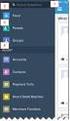
1 1 NC Educator Effectiveness System Evaluator s Guide Professional Development Plan This guide outlines the steps that Evaluators must complete for the Professional Development Plan in the North Carolina Educator Effectiveness System (NCEES). Accessing the Professional Development Plan ( PDP) Prior to an Evaluator being able to access the PDP, the teacher must click START on the PDP Plan on their My Evaluations tab. 6. To enter a teacher s PDP: Click on the Evaluation Process tab. 7. Click on the Staff Evaluations tab. 8. Select the Teacher you are evaluating by clicking the arrow next to their name and clicking Edit Professional Development Plan. 9. The following containers (or sections) display:

2 2 Completing the PDP Initial Review 1. Click on the + besidee the PDP Initial Review to expand the steps. The following steps appear: Step 1: Self Assessment The Teacher will complete the Self Assessment, and it is only viewable to the evaluator if it is shared. In compliance with NC policy,the teacher does NOT have to share their Self Assessment and the system defaults to NOT SHARED. Step 2: PDP Details For a teacher on an Individual PDP, the teacher and the evaluator are enabled to edit the PDP Details. If the teacher is on a Monitored PDP, both the teacher and evaluator have edit rights.. If the teacher is on a Directed PDP, only the Evaluator will complete the PDP Details as described below. Note: Evaluators are responsible for assigning the PDP Type and may change the type throughout the school year. All plans will default to Individual. To change the PDP Type: a) Click on the My Staff tab The following options are available on the left side navigation: All Staff Staff Details Evaluations b) Click Staff Details. c) Review your staff on the on the left Staff list and update the PDP Type to Individual, Monitored or Directed using the drop down menu. d) The system will auto save on this page. However, updates to the Teacher s PDP will be made nightly. Therefore, the edit rights will not be applied until the next school day. To complete Step 2: PDPP Details: 1. Click on the Actions button and select Edit for PDP Details. 2. Click the New button for Professional Development Plan.

3 3 3. Fill out the fields on the PDP form. Click Save when you are finished. 6. Note: The NC Professional Teacher Standards Ratings field will display the teacher s ratings 4. In the Teacher Strategies container, click New. 5. Fill out the fields on the form. Click Save when you have completed the first goal. 6. Click New to add a second goal. Repeat the above steps for as many goals as you would like to enter. 7. Once you have finished entering all goals and related information, select Mark Complete from the Actions dropdown at the top of the PDPP Details. Then click Ok. 8. From the PDP Details Actions Menu Click Send to complete the step.

4 4 Step 3: PDP Evaluator Signature 1. Click on the Actions button and select Edit for the PDP Evaluator Signature step. 2. Review the PDP Details with the Teacher by selecting View from the Actions drop down menu. 3. Once inside the PDP, click New to add Evaluator comments. 4. Once you have entered comments, click Save. 5. Click Acknowledge on the Signature form. 6. Click the Actions Menu at top of Professional Development Plan and Select Mark Complete. 6. Click Send in the Actions Menu for PDP Evaluator Signature to continue the process. Step 4: PDP Mentor Signature The teacher may or may not have a Mentor for the PDP. If the teacher has a Mentor, the Mentor will complete this step by adding any comments and signing the PDP. Step 5: PDP Teacher Signature The teacher will be able to view all comments from the Evaluator and Mentor, and sign the PDPP when they log into the system. See steps above for signature process.

5 5 Completing the PDP Mid Year Review Click on the + sign next to the Steps button of the PDP Initial Review container to expand the steps. The following steps are listed: Step 1: PDP Details Mid Year Review 1. From the Actions button next to PDP Details Mid Year Review, select Edit. 2. Click the New button in PDP Mid Year Review 3. Fill out the fields on the form. 4. Click Save. 5. Click New next to Teacher Strategies if you would like to add additional goal( (s) for the Mid Year Review. 6. Complete from the Actions dropdown in Once you have finished entering all goals and related information, select Mark PDP details and in the PDP Mid Year Review Step.

6 6 7. In the Actions Menu select Send to complete the step. Step 2: PDP Evaluator Signature Mid Year Review 1. Click Edit from the Actions dropdown on the PDPP Evaluator Signature Mid Year has a Mentor, the Mentor will complete this step by Review step. The teacher and evaluator should meet to discuss the PDP. (See Steps above) 2. Review Details, Add Comments. 3. Select Mark Complete and Send to continue the process. Step 3: PDP Mentor Signature Mid Year Review The teacher may or may not have a Mentor for the PDP. If the teacher adding any comments and signing the PDP Mid Year Review. Step 4: PDP Teacher Signature Mid Year Review The teacher will be able to view all comments from the Evaluator and Mentor, and sign the PDP. Completing the PDP End of Year Review Steps for completing the PDPP Mid Year review are repeated for the End of Year Review. Please follow directions above. PDP Record of Activities The PDP Record of Teacher Activities displays the signature details for the Teacher, Evaluator and Mentor for each step of the PDP. 1. On the Actions menu select Print Template PDP Initial, Mid Year, or End of Year Review to print each individual review with signature dates..

Accessing your Professional Development Plan (PDP) Evaluation Process Professional Development Plan Start New Start Edit
 1 NC Educator Effectiveness System Teacher s Guide Professional Development Plan (PDP) This guide outlines the steps that Teachers must complete for the Professional Development Plan in the North Carolina
Process Document Campus Community: Create Communication Template. Document Generation Date 7/8/2009 Last Changed by Status
 Document Generation Date 7/8/2009 Last Changed by Status Final System Office Create Communication Template Concept If you frequently send the same Message Center communication to selected students, you
Email Basics. a. Click the arrow to the right of the Options button, and then click Bcc.
 Email Basics Add CC or BCC You can display the Bcc box in all new messages that you compose. In a new message, do one of the following: 1. If Microsoft Word is your e-mail editor a. Click the arrow to
Perform this procedure when you need to add a recurring payment option, or when you need to change or withdraw it.
 Purpose Use this procedure to add, change, or remove recurring payments. Trigger Perform this procedure when you need to add a recurring payment option, or when you need to change or withdraw it. Prerequisites
Genesee Intermediate School District Technology & Media Services 2413 West Maple Avenue Flint, Michigan 48507. GenNET Self-Service Helpdesk Tipsheet
 Genesee Intermediate School District Technology & Media Services 2413 West Maple Avenue Flint, Michigan 48507 GenNET Self-Service Helpdesk Tipsheet The GenNET Self-Service Help Desk is an innovative, web-based
Academic Senate Data Management System
 Academic Senate Data Management System User s Guide for Committee Members 9/22/2015 The Academic Senate uses the Data Management System (DMS) for managing, sharing, and archiving council and committee
HireTouch Sending Applicant Correspondences (Emails)
 HireTouch Sending Applicant Correspondences (Emails) This document provides instructions for generating emails to applicants to your job posting. There are four correspondence templates currently available
Process Document Approve Payable Time
 Date Modified 4/17/2008 Last Changed by ASDS Concept On the Manage Search Options page, time approvers can set what search criteria fields appear on Time Management employee lookup pages, what default
Drip Marketing Campaign Manual
 Drip Marketing Campaign Manual Released May 2006 Manual for Drip Marketing Campaign: Getting Started 1. Log into www.graphicaldata.com. 2. Hold cursor over the Tools tab. 3. Click on Drip Marketing Campaign.
Creating a Digital Signature in Adobe Acrobat Created on 1/11/2013 2:48:00 PM
 Creating a Digital Signature in Adobe Acrobat Created on 1/11/2013 2:48:00 PM Table of Contents Creating a Digital Signature in Adobe Acrobat... 1 Page ii Creating a Digital Signature in Adobe Acrobat
Personalizing your Access Database with a Switchboard
 Personalizing your Access Database with a Switchboard This document provides basic techniques for creating a switchboard in Microsoft Access. A switchboard provides database users with a customized way
Online Statements. About this guide. Important information
 Online Statements About this guide This guide shows you how to: View online statements, including CommBiz Activity Statements (Billing summaries) and online statements for Transaction Accounts, Credit
Publishing with Adobe Presenter 10 (Detailed)
 Publishing with Adobe Presenter 10 (Detailed) Open PowerPoint Find PowerPoint and open it by clicking its icon. The PowerPoint icon may be found in one of the following locations: 1. Desktop 2. Start Menu
Business Process Document Financials 9.0: Creating a Control Group and Vouchers. Creating a Control Group and Vouchers
 Version 9.0 Document Generation Date 2/24/2009 Last Changed by Jeff Joy Status Final Navigation Creating a Control Group and Vouchers 1. Click the Control Groups link. 2. Click the Group Information link.
Electronic Signature Capture
 Electronic Signature Capture Contents Configuration Store... 1 Configuration Work Station... 2 Configuration Customized Workflow... 8 Customizing the Fill Regular Rx Workflow... 9 Capturing Electronic
Online Appointments (Patients)
 Online Appointments (Patients) Overview Once the patient has registered and activated their account they can use the modules available at the practice. This section of the user guide details how the patient
Student Manager s Guide to the Talent Management System
 Department of Human Resources 50 Student Manager s Guide to the Talent Management System 1 Table of Contents Topic Page SYSTEM INTRODUCTION... 3 GETTING STARTED... 4 NAVIGATION WITHIN THE TALENT MANAGEMENT
OUTLOOK 2013 - GETTING STARTED
 OUTLOOK 2013 - GETTING STARTED Information Technology September 1, 2014 1 GETTING STARTED IN OUTLOOK 2013 Backstage View Ribbon Navigation Pane View Pane Navigation Bar Reading Pane 2 Backstage View contains
FrontPage 2003: Forms
 FrontPage 2003: Forms Using the Form Page Wizard Open up your website. Use File>New Page and choose More Page Templates. In Page Templates>General, choose Front Page Wizard. Click OK. It is helpful if
ANYWHERE POLLING - POLLING WITH A QUESTION LIST
 Anywhere Polling - Polling with a Question List 1 ANYWHERE POLLING - POLLING WITH A QUESTION LIST Before Class This section covers question lists and participant lists. Question lists and participant lists
Managing Contacts in Outlook
 Managing Contacts in Outlook This document provides instructions for creating contacts and distribution lists in Microsoft Outlook 2007. In addition, instructions for using contacts in a Microsoft Word
Email Update Instructions
 1 Email Update Instructions Contents Email Client Settings The Basics... 3 Outlook 2013... 4 Outlook 2007... 6 Outlook Express... 7 Windows Mail... 8 Thunderbird 3... 9 Apple Mail... 10 2 Email Client
Implementing Mission Control in Microsoft Outlook 2010
 Implementing Mission Control in Microsoft Outlook 2010 How to Setup the Calendar of Occasions, Not Doing Now List, Never Doing Now List, Agendas and the Vivid Display In Outlook 2010 Handout Version 3
Setting Preferences in QuickBooks
 Setting Preferences in QuickBooks The following preferences should be set in Quickbooks: Setting QuickBooks to Display the Lowest Sub-Account Number The Default setting in QuickBooks for displaying Account
ecw Weekly Users Tip: My Settings: Template-Friendly Settings & My Favorites: Templates
 ecw Weekly Users Tip: My Settings: Template-Friendly Settings & My Favorites: Templates Templates, regardless of how basic or how comprehensive, can make your notes overwhelming and visually harder to
When you have decided what to include in your signature, you will need to open the signatures and stationery dialogue box:
 Signatures An email signature is a block of information which is added to the bottom of an email to give the recipient information about the sender. It functions in a similar way to using headed paper
SENDING EMAILS & MESSAGES TO GROUPS
 SENDING EMAILS & MESSAGES TO GROUPS Table of Contents What is the Difference between Emails and Selltis Messaging?... 3 Configuring your Email Settings... 4 Sending Emails to Groups Option A: Tasks...
Organizing and Managing Email
 Organizing and Managing Email Outlook provides several tools for managing email, including folders, rules, and categories. You can use these tools to help organize your email. Using folders Folders can
Email Update Instructions
 Email Update Instructions Table of Contents Email Client Settings The Basics... 2 Outlook 2013... 2 Outlook 2007... 4 Outlook Express... 6 Windows Mail... 7 Thunderbird 3... 9 Apple Mail... 11 1 Email
HDAccess Administrators User Manual. Help Desk Authority 9.0
 HDAccess Administrators User Manual Help Desk Authority 9.0 2011ScriptLogic Corporation ALL RIGHTS RESERVED. ScriptLogic, the ScriptLogic logo and Point,Click,Done! are trademarks and registered trademarks
Fax and SMS Quickguide
 INTRODUCTION U2 Fax and SMS allow faxes and SMS to be sent directly from a user s workstation via the Internet using U2 Webservices. This improves staff efficiency by removing the need to physically fax
Probationary Teacher... 2. Continuing Teacher... 2. Summary of Instrument changes from School Year 2012-2013... 2
 CONTENTS Evaluation Plan Overview 2013-2014... 2 Probationary Teacher... 2 Continuing Teacher... 2 Summary of Instrument changes from School Year 2012-2013... 2 Accessing the Performance Review System...
Skyward Creating and Administering Online Assignments
 Skyward Creating and Administering Online Assignments There are two ways to create online assignments in Skyward. The first we will discuss is applicable for a one-time use assignment. This way would be
16.4.3 Lab: Data Backup and Recovery in Windows XP
 16.4.3 Lab: Data Backup and Recovery in Windows XP Introduction Print and complete this lab. In this lab, you will back up data. You will also perform a recovery of the data. Recommended Equipment The
Creating Responsive Drip Campaigns
 Creating Responsive Drip Campaigns www.salesnexus.com Creating Responsive Drip Campaigns z 2 Sending a drip campaign to a prospect or a client is a great way to engage them without taking your staff s
Guidelines for Using the Web Help Desk
 Guidelines for Using the Web Help Desk Technology Department 7/15/2013 The purpose of this document is to provide guidance on how to navigate the School Association for Special Education in DuPage County
Auto Archiving Folders in Outlook XP
 Auto Archiving Folders in Outlook XP Your Outlook email account on the Exchange server is allotted 50 megabytes of storage space on the server. Items in the Inbox, Calendar, Sent Items, Deleted Items,
ServSafe California Food Handler: View Scores and Print Certificate of Achievement
 ServSafe California Food Handler: View Scores and Print Certificate of Achievement To print your certificate of achievement or view your score, begin from www.servsafe.com/foodhandler and log in. 1. To
Excel Reports User Guide
 Excel Reports User Guide Copyright 2000-2006, E-Z Data, Inc. All Rights Reserved. No part of this documentation may be copied, reproduced, or translated in any form without the prior written consent of
Email Update Instructions
 1 Email Update Instructions Contents Email Client Settings The Basics... 3 Outlook 2013... 4 Outlook 2007... 6 Outlook Express... 8 Windows Mail... 9 Thunderbird 3... 10 Apple Mail... 11 2 Email Client
ACT State Testing Online Services Tutorial
 ACT State Testing Online Services Tutorial Back-up Test Supervisor Version Released July, 2009 2009 by ACT, Inc., All rights reserved. Back-up Test Supervisor Online Profile Form Introduction The Back-up
What s New in Sysco Market
 Sysco Corporation 1390 Enclave Parkway Houston, TX 77077 What s New in Sysco Market Sysco Market is an online ordering solution for food service operators. Release 2.1 offers many new features, most notably
Guidelines for Using the Web Help Desk
 BURBANK SCHOOL DISTRICT 111 Guidelines for Using the Web Help Desk Technology Department 1/7/2013 The purpose of this document is to provide guidance on how to navigate the Burbank School District 111
AUTO ARCHIVING. December, 6 th 2005
 AUTO ARCHIVING December, 6 th 2005 What is Auto Archiving? Archiving allows the user to keep their emails but not count them towards the set quota. By keeping emails archived, the quota will never be met
Time Tracking for Employees
 Purpose and Overview The purpose of this quick guide is to help you enter time in Workday. This quick guide covers different time entry methods. Enter Time enter hours per individual day Auto-fill from
10.3.1.6 Lab - Data Backup and Recovery in Windows XP
 5.0 10.3.1.6 Lab - Data Backup and Recovery in Windows XP Introduction Print and complete this lab. In this lab, you will back up data. You will also perform a recovery of the data. Recommended Equipment
Selector, Multi Selector, and Item Display
 Selector, Multi Selector, and Item Display I want to reduce the number of sites so that performance and maintenance are better and it is easier for users to find their information. I also want an easy
ReviewSnap Quick Training Reference Creating a Self-Review
 ReviewSnap Quick Training Reference Creating a Self-Review The ReviewSnap system features a simple self-review form that is integrated with the employee s goal set and year-end performance review. The
GPC Online Directory Navigation (http://www.gpc.edu/directory)
 GPC Online Directory Navigation (http://www.gpc.edu/directory) Employee Search: Employee Name Format Options: o First name, Last name: ex: John Smith o Last name, First name: ex: Smith John o Last name
How To Connect Your Transactions To Quickbooks Online From Your Bank Or Credit Card Account On A Pc Or Mac Computer Or Ipa Device
 You can save time and reduce errors by downloading your transactions directly from your bank and credit card accounts from a secure online connection. QuickBooks Online allows you to set these transactions
account multiple solutions
 Quick Start Guide 1 Our easy to use guide will get you up and running in no time! The guide will assist you with: Generating your Sage Pay login Navigation Creating contacts Creating system users Setting
SUTUS Business Central 5800 ThinkTel Configuration
 SUTUS Business Central 5800 ThinkTel Configuration This document explains how to configure SUTUS Business Central 5800 to connect to the ThinkTel VoIP service. Configuring SUTUS Business Central 5800 to
Terminal Four. Content Management System. Moderator Access
 Terminal Four Content Management System Moderator Access Terminal Four is a content management system that will easily allow users to manage their college web pages at anytime, anywhere. The system is
QUICK REFERENCE GUIDE
 QUICK REFERENCE GUIDE Signing Contracts within SWIFT External Revised Apr. 26, 2013; Jan. 10, 2013 Introduction After a Contract Document is approved by the state, it is routed to the Vendor Contact for
ClassLink ClassMate. Introduction to: Discipline and Anecdotals A Teachers Guide
 ClassLink ClassMate Introduction to: Discipline and Anecdotals A Teachers Guide Teacher Discipline & Anecdotal Creating a Discipline Referral o Follow up actions Teacher Anecdotal Feature Putting it all
In this lab you will explore the Windows XP Firewall and configure some advanced settings.
 16.3.2 Lab: Configure Windows XP Firewall Print and complete this lab. In this lab you will explore the Windows XP Firewall and configure some advanced settings. Recommended Equipment Two computers directly
proposalcentral Prepare and Submit a Proposal.
 proposalcentral Prepare and Submit a Proposal. If you need assistance, contact Customer Service by email at [email protected] or by phone at 1-800-875-2562 1 Recommended Software proposalcentral Recommends
Outlook E-Mail. Step 1: Open and Configure Outlook
 Outlook E-Mail Step 1: Open and Configure Outlook 1. Click the Microsoft Button in the lower left task bar 2. Select All Programs 3. Select Microsoft Office 4. Select Microsoft Outlook 5. Follow the Start
Business Online Banking ACH Reference Guide
 Business Online Banking ACH Reference Guide Creating an ACH Batch Select ACH Payments on the left-hand side of the screen. On the Database List screen, locate the Database to be processed, and place a
HOW TO USE CAPTIVATE TO PUBLISH A SCORM COMPLIANT COURSE BJC HealthCare
 HOW TO USE CAPTIVATE TO PUBLISH A SCORM COMPLIANT COURSE BJC HealthCare How to Publish to SCORM from Captivate Overview This handout will briefly explain how to set up your Captivate module to be published
5.6.2 Optional Lab: Restore Points in Windows Vista
 5.6.2 Optional Lab: Restore Points in Windows Vista Introduction Print and complete this lab. In this lab, you will create a restore point and return your computer back to that point in time. Recommended
To create a new Campaign, click into the Marketing module. Then, click on Campaigns button.
 Marketing Campaigns Use campaigns to send an email blast out to a list of contacts in the system. Create a new Campaign To create a new Campaign, click into the Marketing module. Then, click on Campaigns
4H Online Re-Enrollment
 4H Online Re-Enrollment This instruction sheet if for returning 4H members only! 1. Navigate to the site ne.4honline.com. You will see changes have been made to the site since last time you logged in.
How to Change Your Schedule for Holidays
 How to Change Your Schedule for Holidays Note: All of these functions are accomplished in the GuestBridge Administrator Application. Closing the Restaurant If you are closing the restaurant for an entire
Rational Quality Manager. Quick Start Tutorial
 Rational Quality Manager Quick Start Tutorial 1 Contents 1. Introduction... 2 2. Terminology... 3 3. Project Area Preparation... 4 3.1 Adding Users and specifying Roles... 4 3.2 Managing Tool Associations...
UW- Green Bay QuickBooks Accounts Receivable User Manual
 UW- Green Bay QuickBooks Accounts Receivable User Manual Table of Contents Topic Page Number Logging into QuickBooks 2 Changing your password. 3 Creating Invoices. 4 Customer Entry/Search. 5-7 Entering
ebilling and epayment for Fully Insured Groups
 ebilling and epayment for Fully Insured Groups This document walks you through the basics of registering for, and using, ebilling and epayment Services. Topics covered are: Setting up Roles in BlueConnection
10.3.1.10 Lab - Configure a Windows XP Firewall
 5.0 10.3.1.10 Lab - Configure a Windows XP Firewall Print and complete this lab. In this lab, you will explore the Windows XP Firewall and configure some advanced settings. Recommended Equipment Step 1
Kuali Requisition Training
 Kuali Requisition Training From the Kuali Main Menu, click Requisition to start the process of creating a requisition. This Guide covers the tabs that are needed to create a requisition. When creating
Salesforce Administrator s Installation Guide
 Salesforce Administrator s Installation Guide Welcome to sales emails done better. This guide will walk you through setting up ToutApp and Salesforce. Read on to learn how to connect the two, and what
Remedy ITSM Service Request Management Quick Start Guide
 Remedy ITSM Service Request Management Quick Start Guide Table of Contents 1.0 Getting Started With Remedy s Service Request Management. 3 2.0 Submitting a Service Request.7 3.0 Updating a Service Request
INTERCALL ONLINE Administrator Invoices User Guide
 INTERCALL ONLINE Administrator Invoices User Guide Access your invoices online, set up new billing accounts and view or edit existing billing accounts. With InterCall Online, also monitor and analyze your
Windows Firewall Configuration with Group Policy for SyAM System Client Installation
 with Group Policy for SyAM System Client Installation SyAM System Client can be deployed to systems on your network using SyAM Management Utilities. If Windows Firewall is enabled on target systems, it
AMIS Training Manual. AE102: CDE Certification Application Submission (for CDE Certification Applicants)
 AMIS Training Manual AE102: CDE Certification Application Submission (for CDE Certification Applicants) Table of Contents 1 Introduction... 6 2 Create/Select a CDE Certification Application... 6 2.1 CDE
Creating a New Digital ID or Signature for Adobe Acrobat
 Creating a New Digital ID or Signature for Adobe Acrobat If you are not using a third-party digital ID, you can create your own in Adobe Acrobat Professional or in Adobe Reader 9, 10 or X. Follow these
Email Update Instructions
 1 Email Update Instructions Contents Email Client Settings The Basics... 3 Outlook 2013... 4 Outlook 2007... 6 Outlook Express... 7 Windows Mail... 8 Thunderbird 3... 9 Apple Mail... 10 Apple Mail 8.2...
ITCS QUICK REFERENCE GUIDE: EXPRESSION WEB SITE
 Create a One-Page Website Using Microsoft Expression Web This tutorial uses Microsoft Expression Web 3 Part 1. Create the Site on your computer Create a folder in My Documents to house the Web files. Save
Blackboard Integration - Instructor Guide
 Blackboard Integration - Instructor Guide Instructors can create assignments in Blackboard that are integrated with portfolios and assignments in LiveText. This reduces the need to work in two separate
Customer ACH Guide. Creating an ACH File in Online Banking
 Customer ACH Guide Customer ACH Guide ACH transactions include payroll files, debiting single/multiple account(s) (Ex: A gym collecting money for a gym membership), and crediting single/multiple account(s)
Outlook Web App. in Office 365. The Outlook Window. Signing In. (Outlook Exchange Faculty & Staff) Getting Started
 Outlook Web App in Office 365 (Outlook Exchange Faculty & Staff) Getting Started The Outlook Window Navigation Bar Settings Navigation Pane View Pane Reading Pane Navigation Bar switch between Outlook,
Instructions for Microsoft Outlook 2003
 ElkhartNet, Inc. is dedicated to providing our email customers with excellent service and support. In a targeted effort to reduce SPAM and to provide more secure and faster email, we are changing our outgoing
Tyler Dashboard Overview/Navigation
 Tyler Dashboard Overview/Navigation The upgrade to MUNIS 9.3 provides users with a new and better approach for accessing and managing the MUNIS applications. The following provides an overview of the Tyler
New Hire Onboarding. Delivered by
 New Hire Onboarding Delivered by All ideas and information contained within these documents are the intellectual property rights of HKP. These documents are not for general distribution and are meant for
Creating a New Excel Survey
 The purpose of this guide is to give you an overview of the Microsoft Office 365 Excel web application. Creating a New Excel Survey Log in to Office 365 using your student ID and password in the usual
eprocurement Procedures
 eprocurement Procedures Table of Contents Sign in to PeopleSoft... 2 Create Requisition Special Item... 5 Create Requisition Fixed Cost Service... 19 Modify Line Information... 21 Favorites... 24 Receive
Yale Software Library. PGP 9.6 for Windows
 PGP 9.6 for Windows How to Add keys to the All Keys key ring: 1. Run the PGP application from Start->All Programs->PGP. 2. In the PGP main application window, click on Search for keys. 3. In the Search
The purpose of this User Guide is to provide users with guidance on the following:
 LEAD MANAGEMENT Introduction The purpose of this User Guide is to provide users with guidance on the following: Creating a Lead Importing Leads Managing Leads Completing a Lead Not Proceeding Re-opening
4myaccount! USER GUIDE
 4myaccount! USER GUIDE TABLE OF CONTENTS Logging in for the First Time or After PIN Reset 3 Viewing Account Information in the Account Info Tab 8 Viewing Market Data in the Quotes & Market Data Tab 9 Financial
Check Writer Program
 Starting the Check Writer Program: Check Writer Program 1) You can start the Check Writer program from the main menu of your rating software by clicking on the button. 2) You should be prompted to enter
This quick reference guide covers how CSUF students use Titan Online to register for classes.
 This quick reference guide covers how CSUF students use Titan Online to register for classes. Quick Reference Guide Registering for Classes Table of Contents Navigating to Registration Menu... 1 Adding
How To Write A Goal On A Computer On A Workstation
 ACCESSING ULEARN... 1 CREATING AND ASSIGNING GOALS... 1 COMPLETING A YEAR END REVIEW... 2 SIGNING OFF ON THE APPRAISAL... 3 APPROVING AN IDP... 5 APPROVING GOALS SUBMITTED BY EMPLOYEES... 5 REVIEWING OR
IMAP and SMTP Setup in Email Clients
 IMAP and SMTP Setup in Email Clients Configuring an Email Client for IMAP Configuring an Email Client for the SMTP Server Overview Internet Message Access Protocol (IMAP), or a remote connection through
BSDI Advanced Fitness & Wellness Software
 BSDI Advanced Fitness & Wellness Software 6 Kellie Ct. Califon, NJ 07830 http://www.bsdi.cc INSTRUCTION SHEET FOR MOVING YOUR DATABASE FROM ONE COMPUTER TO ANOTHER This document will outline the steps
1. Open Thunderbird. If the Import Wizard window opens, select Don t import anything and click Next and go to step 3.
 Thunderbird The changes that need to be made in the email programs will be the following: Incoming mail server: newmail.one-eleven.net Outgoing mail server (SMTP): newmail.one-eleven.net You will also
How to Attach the Syllabus and Course Schedule to a Content Item
 How to Attach the Syllabus and Course Schedule to a Content Item Getting Started Part of preparing your course for delivery to students includes uploading your syllabus and course schedule to your online