
ANZ HealthPoint. Merchant Operating Guide
|
|
|
- Calvin Kennedy
- 9 years ago
- Views:
Transcription
1 1 ANZ HealthPoint Merchant Operating Guide

2 Contents 2 1. Getting Started with ANZ HealthPoint Introduction ANZ HealthPoint Maintenance Everyday Procedures 5 2. Contact Details ANZ HealthPoint Support Contacts Merchant Enquiries Health Fund Contacts 7 3. ANZ HealthPoint Terminal The ANZ HealthPoint Screen The 'Idle' Screen 9 4. Symbols 9 5. Some Tips from the Health Funds ANZ HealthPoint Administration Menu Map Quick Reference Section Creating a HealthClaim against a Health Fund Cancelling a HealthClaim Printing a HealthClaims Reconciliation Report Printing a HealthClaims Activity Report Changing the Provider List Changing the Item List Provider-Merchant Association Detailed User Guide Creating an ANZ HealthPoint claim against a Health Fund Overview Step-by-Step Guide Claim Receipt Example Cancelling an ANZ HealthPoint Claim Overview Step-by-Step Guide Cancellation Receipt Example 35

3 3 8.3 Reporting Overview HealthClaims Shift Total Report HealthClaims Reconciliation Report HealthClaims Activity Reports Printing Reports Step-by-Step Guide Item Maintenance Overview List Maintenance Step-by-Step Guide Editing Item Details Step-by-Step Guide Practice Maintenance Overview Practice Maintenance Process Practice Maintenance Step-by-Step Guide Provider Merchant Association Overview Step-by-Step Guide 50 9 Reconciliation Guide Claims Settlement Solution (CSS) How to Reconcile your Accounts Easy as Training Mode Training Mode Overview Activating and Deactivating Training Mode Frequently Asked Questions ANZ HealthPoint claims ANZ HealthPoint Reconciliation ANZ HealthPoint Reporting ANZ HealthPoint Transaction ANZ HealthPoint Cost & Payments Health Funds ANZ HealthPoint Application ANZ HealthPoint Setup 61

4 12 Appendix A: Health Fund Responses Claim Responses Item Responses Cancellation or Rejection (void) Responses 69 4

5 1. Getting Started with ANZ HealthPoint 5 Welcome to ANZ HealthPoint, the complete health payments processing system. This user guide covers HealthClaims functionality, for making ancillary claims against private health funds. Other ANZ HealthPoint features supported on this device are EFTPOS, and Medicare Easyclaim. To help you find your way through this guide, you may like to use the following lists of topics. 1.1 Introduction For an introduction to ANZ HealthPoint and HealthClaims, read: 1. The ANZ HealthPoint keypad (page 8) 2. Some tips from the health funds (page 10) 3. The Quick Reference Section (page 12) 1.2 ANZ HealthPoint Maintenance For setup of items and practice maintenance covered in the ANZ HealthPoint training, see the following sections: Item Maintenance editing the standard list of items codes and pre-configuring fees for items (page 44) Practice Maintenance updating practice and provider details and linking providers to merchant accounts (page 47) 1.3 Everyday Procedures For the details of the everyday procedures covered in ANZ HealthPoint training, see the following sections: 1. The Quick Reference Section, (page 12), is a useful summary of procedures or daily use 2. Creating a HealthClaim and submitting it (page 17) 3. Cancelling a HealthClaim (page 31) 4. ANZ HealthPoint reporting (page 36)

6 2. Contact Details ANZ HealthPoint Support Contacts ANZ Technical Helpdesk For EFTPOS hardware and technical difficulties or merchant account enquiries call: Available: 24 hours, 7 days HealthPoint Website The HealthPoint website contains a variety of information including: item codes, health fund by modality flyers, user guides. HealthPoint Helpdesk For reporting of HealthPoint faults, instructions on how to process HealthPoint transactions and adding or deleting providers call: Available: Monday to Friday, 8.00am to 6.00pm AEST, Saturday, 8.00am to 2.00pm AEST Note. The training department operates Monday to Friday, 9.00am to 5.00pm AEST (except for public holidays). Please assist us by having your ANZ merchant number, ANZ terminal number (found on the HealthClaims receipt) available when contacting the above helpdesks. Your merchant Details: ANZ terminal ID ANZ HealthPoint ID A N Z 2.2 Merchant Enquiries ANZ Merchant Enquiries For general merchant enquires (account queries/changes) call: Available: 24 hours Manual Authorisation For Visa/MasterCard Credit Card call: Available: 24 hours For Debit Cards call: Available: 24 hours Please have the following information ready: Merchant number Card details - card number, expiry date Transaction amount.

7 2.3 Health Fund Contacts For enquiries about a fund member s entitlements or problems with their card, call the relevant fund s member services number. For enquiries about provider numbers, or any difficulties with provider payments, call the relevant fund s provider information number. 7 Health Fund Member Services Provider Information ACA Health ahm Australian Unity (03) (03) Budget Direct Health see GMHBA BUPA CBHS cua Health Defence Health Frank Health Insurance see GMHBA GMF GMHBA HBF HCF (02) HIF Latrobe Health Services Medibank Navy Health nib Onemedifund Peoplecare (02) Police Health Queensland Country Health (07) RACT Health Insurance see GMHBA rt health Teachers Health TUH (Teachers Union Health) Uni Health Insurance WESTFUND

8 3. ANZ HealthPoint Terminal 8 HealthPoint is available on the ANZ POS Turbo 2 terminal. More information on the HealthPoint terminal and detailed instructions on the HealthPoint terminal operating procedures can be found on anz.com under the heading Merchant Tools and Hot Topics The ANZ HealthPoint Screen Most HealthPoint screens have the following features: CSC MEMBER CARD NUMBER HBR PATIENTS: 1 SUBMIT FUNC KEY FOR ADD MORE OPTIONS Title - Most screens have a unique title. Screen titles highlighted at the top of the screen in black. White Key Labels - If the two outer white keys have a function on the screen, its label appears above the key. For example, submit a claim, the SUBMIT label appears above the left outer white key.

9 3.2 The 'Idle' Screen Most procedures in this user guide start from the HealthPoint terminal s 'Idle' screen. For example: 9 When the HealthPoint terminal is displaying this screen, you may swipe a health fund card, Medicare card, and insert or swipe a credit, debit, or charge card. READY 4. Symbols The following symbols are used in the procedures detailed in this guide. Start Each procedure starts with a description of what state HealthPoint should be in before you work through the procedure. Most procedures start from the 'Idle' screen. Finish The 'tick' indicates you ve completed the procedure. End The 'omega' symbol indicates that you ve reached an end point in the procedure. You will need to start again. Please Wait This symbol indicates that, at this point in the procedure, HealthPoint makes a telephone call to the HealthPoint systems to send and receive information. Tip This symbol indicates that there is a tip which may be of use.

10 5. Some Tips from the Health Funds 10 To help you avoid some common mistakes with on-line claiming, the health funds have provided the following tips: Every time you swipe a patient s card and submit a HealthClaim, HealthPoint connects to the relevant health fund and makes a live claim for your patient If a patient would like an estimate of the benefit they will receive for a particular service, call the patient s fund on their member services phone number. These numbers are listed on page 7 of this user guide If a patient disputes the amount of a rebate, cancel the claim and advise them to make a manual claim with the health fund. Cancellations must be made on the same day of service Whenever possible, make one claim for the whole consultation, including all the items covered. Separate claims for each individual item may mean your patient receives a reduced benefit If a patient is receiving a course of treatment, make claims on a consultation by consultation basis, rather than one big claim at the end of the course If you are unsure about which service item codes apply for a particular type of service, find them at or consult your professional association You must not make a claim for a service or appliance you have not supplied. For example, you cannot claim for a pair of glasses until the patient has actually received the glasses, even if you bill the patient in advance You must not make claims for deposits taken when ordering appliances (e.g. dental crowns, glasses), then claim for the remainder when the appliance is supplied. Make only one claim for each appliance when the appliance is supplied Review the HealthPoint Service Terms and Conditions to make sure you understand your legal obligations under your agreement with the health funds. If you need another copy of your terms and conditions, call the HealthPoint Help Desk on Remember that the health funds have the right to refuse to accept a claim that does not comply with their requirements. If in doubt, always consult the health fund in question.

11 6. ANZ HealthPoint Administration Menu Map 11 The diagram below illustrates the various options in the ANZ HealthPoint Menu SERVICE TYPE 1 DENTAL 2 OPTICAL 3 CHIROPRACTIC DENTAL 1 11 COMPREHE ORAL 2 12 PERIODIC ORAL 3 13 ORAL EXAML -LIM FUNC KEY FOR MORE OPTIONS FIND HEALTHPOINT ADMIN SERVICE ITEMS REPORTS UPDATE CONFIG PAYEE DETAILS CSC ID REPORTS 1 ACTIVITY REPORT 2 RECONCILIATION REPORT 3 SHIFT TOTAL 4 CURRENT SETTINGS UPDATE CONFIG 1 UPDATE ALL 2 PRACTICE DETAILS 3 HEALTH FUNDS 4 PROVIDER DETAILS 5 SERVICE ITEMS REPORTS 1 DEVICE DETAILS 2 PRACTICE DETAILS 3 HEALTH FUNDS 4 SERVICE ITEMS PROVIDER OF SERVICES 1 MR ABCD SMITH HIDDEN PASSWORD SERIAL:

12 7. Quick Reference Section 12 For more information on any step in the following quick reference procedure, please refer to Section 8 - Detailed User Guide. 7.1 Creating a HealthClaim against a Health Fund Start from the 'Idle' screen. 1. Swipe the patient s health fund card. 2. Enter the patient reference number, then press ENTER. 3. If HealthPoint displays the PROVIDER OF SERVICE screen, select the serving provider from the list by pressing the corresponding number key. 4. Select up to 16 service items from the list. 4a. Find the service item use the arrow keys to navigate to the item. 4b. Press the corresponding number key to select the item. 4c. Press 2 to edit the fee, enter the fee and press ENTER. 4d. Press ENTER to add the selected item to the claim. 4e. Either select ADD to add more items, or press ENTER to make the claim with the selected items. 5. To submit this HealthClaim to the appropriate health fund, select SUBMIT. 6. HealthPoint submits the claim and retrieves the health fund response, then prints a claim assessment for the patient to sign. 7. Advise the patient of the health fund s rebate of the claim and ask them if they accept it. 7a. Option 1: Patient Accepts Rebate Offered i. To accept the rebate offered, select ACCEPT. ii. Have the patient sign the health fund assessment. iii. Verify the patient s signature and write your initials on the assessment. iv. File the patient-signed and verified assessment. Retain for two years. 7b. Option 2: Patient Rejects Rebate Offered. i. To reject the rebate offered, select REJECT. ii. HealthPoint rejects the claim and retrieves the health fund response. The HealthPoint terminal will show VOID Approved, What would you like to do with the claim? 1 Select DISCARD, to discard the claim and return to the 'swipe' screen. 2 Select MANUAL, to produce a record of the claim for manual processing (go on to Step 8.)

13 8. If you have already received monies from the patient, enter that amount, then press ENTER. If not, leave the amount blank and press ENTER If there are monies owing, HealthPoint asks for the METHOD OF PAYMENT. Answer the question selecting EFTPOS, CASH or press FUNC, then select INVOICE and process accordingly. 10. If the receipt printed successfully, select YES, DONE. 10a. Give the receipt to the patient. 10b. HealthPoint returns to the 'swipe' screen. You have finished creating a HealthClaim. 7.2 Cancelling a HealthClaim Start from the 'Idle' screen. 1. Press ENTER. 2. Scroll down, and press the corresponding number for SERVICES. 3. Press 1 for HealthPoint. 4. Press 2 for CANCEL CLAIM. 5. Find the claim to be Cancelled. 5a. Option 1: Use claim receipt number. i. Enter the claim receipt number, which you can find on the top of the printed claim receipt, then press ENTER. ii. If you have entered the claim ID, the claim will be retrieved and presented on screen. Proceed to Step 6. 5b. Option 2: Swipe the health fund card used to generate the claim. i. If you have swiped the customer health fund card you will be presented with a list of possible claims to cancel. ii. To navigate through the possible claims use the arrow keys. 6. Once you have the claim you want to cancel, select PROCEED to cancel the claim. 6a. If you have not already done so, you will be prompted to swipe the patient s card to authorise the cancellation. 6b. HealthPoint cancels the claim, retrieves the health fund s response, and prints a cancelled receipt. i. Have the patient sign the cancellation receipt. ii. Verify the patient s signature and write your initials on the cancellation receipt. iii. File the patient-signed and verified cancellation receipt. Retain for two years. iv. HealthPoint displays the print confirmation screen. After the receipt prints correctly, select YES, DONE.

14 7. HealthPoint prints another copy of the receipt for the patient. 7a. If this copy has printed correctly, select YES, DONE Select OK to finish the cancellation and return to the 'Idle' screen. You have finished cancelling an HealthPoint claim. 7.3 Printing a HealthClaims Reconciliation Report Start from the 'Idle' screen. 1. Press ENTER. 2. Scroll down, and press the corresponding number for SERVICES. 3. Press 1 for HealthPoint. 4. Press 9 for HealthPoint ADMIN. 5. Press 2 for REPORTS. 6. Press 2 for RECONCILIATION. 7. Enter the date for reconciliation, then press ENTER. This should be entered as DDMMYYYY. 8. HealthPoint prints the reconciliation report. 9. Once printed, select YES, DONE to return to the HealthPoint Admin Menu. You have successfully retrieved and printed your report. 7.4 Printing a HealthClaims Activity Report Start from the 'Idle' screen. 1. Press ENTER. 2. Scroll down, and press the corresponding number for SERVICES. 3. Press 1 for HealthPoint. 4. Press 9 for HealthPoint ADMIN. 5. Press 2 for REPORTS. 6. Press 1 for ACTIVITY REPORT. 7. Enter the activity date, then press ENTER. This should be entered as DDMMYYYY. 8. HealthPoint prints the activity report. 9. Once printed, select YES, DONE to return to the HealthPoint Admin Menu. You have successfully retrieved and printed your reports.

15 7.5 Changing the Provider List To update your HealthPoint provider list you must call the HealthPoint Help Desk on Additional providers require registration with CSC and the health funds prior to claiming on the HealthPoint terminal. The provider application can be found on the CSC website. Once the providers are registered you can update your HealthPoint terminal to reflect the additional provider. Start from the 'Idle' screen. 1. Press ENTER. 2. Scroll down, and press the corresponding number for SERVICES. 3. Press 1 for HealthPoint. 4. Press 9 for HealthPoint ADMIN. 5. Press 3 for UPDATE CONFIG. HealthPoint will display the UPDATE CONFIG screen. 5a. Choose the details to be updated: i. Press 1 to UPDATE ALL details. ii. Press 2 to update PRACTICE DETAILS. iii. Press 3 to update HEALTH FUNDS details. iv. Press 4 to update PROVIDER DETAILS. v. Press 5 to update SERVICE ITEMS. 5b. HealthPoint will print out any applied changes. If there are no updates, ANZ HealthPoint will print 'No New Updates' on the print out. 6. HealthPoint will prompt you to confirm that the updates are correct. Select YES, DONE. You have successfully updated the providers on your HealthPoint terminal.

16 7.6 Changing the Item List Start from the 'Idle' screen Press ENTER. 2. Scroll down, and press the corresponding number for SERVICES. 3. Press 1 for HealthPoint. 4. Press 9 for HealthPoint ADMIN. 5. Press 1 for SERVICE ITEMS. 6. Select the SERVICE TYPE you want to modify by pressing the corresponding number key. Note: The HealthPoint terminal will show the modalities configured on your HealthPoint terminal. 7. Perform one or more of the following items: 7a. To add an item to the list, select FIND, enter the new item code then press ENTER, then select YES, edit the item details (1. name and 2. fee), press ENTER. 7b. To edit an item already on the list, select item, select EDIT, enter the details, press ENTER. 7c. To delete an item, select item, press FUNC then select DELETE, and then press ENTER. 8. Confirm the changes made by pressing ENTER 9. HealthPoint displays the SERVICE ITEMS SUCCESSFULLY UPDATED screen. To return to the HealthPoint ADMIN screen, press ENTER. You have successfully changed your item list. 7.7 Provider-Merchant Association Start from the 'Idle' screen. 1. Press ENTER. 2. Scroll down, and press the corresponding number for SERVICES. 3. Press 1 for HealthPoint. 4. Press 9 for HealthPoint ADMIN. 5. Press 4 for Payee Details. 6. Select provider of Service for association by pressing the corresponding number key. 7. Select the merchant for association by pressing the corresponding number key. 8. Confirm the changes made by pressing ENTER. 9. HealthPoint will prompt you to confirm that the association is correct. Select YES, DONE. You have successfully associated your provider-merchant.

17 8. Detailed User Guide Creating an ANZ HealthPoint claim against a Health Fund Overview Use this procedure to create a HealthClaim and submit it to a fund, on behalf of your patient. On conclusion, a HealthClaims Receipt is printed for both your practice records and your patient. The HealthClaims Receipt is a paper record of the claim sent to the health fund via HealthPoint. Note: The patient must have a valid health fund card and be present at the time of claim. For a brief summary of this procedure, see Quick Reference Section Creating a HealthClaim against a health fund Step-by-Step Guide Start from the 'Idle' screen. READY Step A. Swipe the patient s health fund card. A.1 If the swipe is successful, and HealthPoint displays the PATIENT REF NO screen proceed to Step B. A.2 If the card won t swipe, you cannot proceed with the claim. Please inform your patient that you are unable to process a HealthClaim on their behalf as their card is not registering.

18 PATIENT REF. NO 18 Step B. Enter the patient reference number (on their health fund card, to the left of their name), then press ENTER. B.1 If this is the first patient, go to Step C. B.2 If this is a subsequent patient, go to Step D. Note: You do not have to enter a 'leading' zero. For example, if the patient is numbered 01 on the card, just enter 1 into HealthPoint. If the patient reference number is not shown on the card (e.g. on some older Medibank Private cards), derive it from the patient s position in the list of patients on the card. Start with patient 1 at the top of the list. Count down the first column and then down the second column, until you reach the patient you are referring to. PROVIDER OF SERVICES 1 GEN DENTIST 2 OSTEO PROV 3 OPTICAL PROV Step C. Select the servicing provider. C.1 HealthPoint displays the PROVIDER OF SERVICE screen. C.2 Select the servicing provider from the list by pressing the corresponding number key. a) If the provider is not on the first screen, see more screens of providers, by pressing the white arrow keys. b) If the provider is not available on the HealthPoint terminal you will need to update your practice details. See Section Practice Maintenance.

19 C.3 HealthPoint displays a list of services applicable to the provider selected. For example, if you selected a provider who is a Dentist, the services displayed might look like this: 19 DENTAL 1 11 COMPREHE ORA 2 12 PERIODIC ORA 3 13 ORAL EXAM FUNC KEY FOR MORE OPTIONS FIND Step D. Add up to 16 service items to the health claim. D.1 Find a service item. a) Option 1: Navigate through the list using the white arrow keys to find the service item. When the item is displayed on the screen press the corresponding number key to select it. Go to Step D.2. b) Option 2: Search for the item, by selecting FIND. KEY SERVICE ITEM CODE b1. HealthPoint displays the KEY SERVICE screen. b2. Enter the item code and press ENTER. b3. If the item is not found, go to Step D.4. b4. If the item is found, HealthPoint displays the selected ITEM SUMMARY screen. Choose an option below: b4(1). To add the service item as is. Go to Step D.2. b4(2). To adjust the service item. Go to Step D.6.

20 SELECTION PATIENT COMPREHE ORAL E 20 FUNC KEY FOR MORE OPTIONS ADD D.2 Add service item. a) Press ENTER to add the item to the claim. b) HealthPoint displays the SELECTION PATIENT * screen. This screen shows the items you have added to the claim for the current patient. D.3 Add / edit items for the current patient. a) If nothing further is required press ENTER to make the claim, HealthPoint displays the HEALTH FUND SUMMARY screen. Go to Step E. b) If items need to be added / edited choose the relevant option below b1. To add another item select ADD. Go to Step D.1. b2. To edit an item, navigate to the item using the arrow keys and select the number key corresponding to the item. Go to Step D.6. ITEM NOT FOUND ADD ITEM? b3. To remove an item from your list. Go to Step D.7. b4. To check your current list of items, navigate up and down using the arrow keys. When finished, return to Step D.3. No FUNC KEY FOR ADD MORE OPTIONS D.4 If the Item is not found in your list, HealthPoint displays the ITEM NOT FOUND screen. a) To add an ad-hoc item to this claim, but not your regular list of items select ADHOC. Go to Step D.5. b) To add an item both to this claim and your regular list of items, press FUNC, then select YES. Go to Step D.5. All changes made to this item will be saved in your standard list. c) To return to the KEY SERVICE screen (without adding the item), select NO. Return to D1.b1.

21 COMPREHE ORAL EXAM 1 DATE: DD/MM/YYYY 2 FEE: $ TOOTH NUMBER: 21 COPY 1 DISCARD D.5 Add new service item to claim. a) To add the item as is, press ENTER. b) To make a copy of current item, select COPY *. b1. HealthPoint copies the item, as displayed on the screen, to your claim. b2. HealthPoint then displays the copy of the item on the screen as a new current item. HealthPoint displays the number of copies made next to the COPY key. b3. You can now make changes to this new copy of the item. To edit the item. Go to Step D.6. The copy function is particularly useful if the only changes made to the item are to enter a different body part or tooth number. c) To discard the item, select DISCARD. HealthPoint returns to the KEY SERVICE screen. Keep pressing the CLEAR button until you return to the SELECTION PATIENT screen. Return to Step D.3. D.6 Adjust service items. a) Choose the relevant option below: a1. To adjust the date of Service go to Step D.6.b). a2. To adjust the Fee for the Service go to Step D6.c). a3. To adjust the Description for the Service go to Step D6.d). a4. To adjust the Tooth Number for the Service go to Step D6.e). a5. To adjust the Body Part for the Service go to Step D6.f).
22 SERVICE DATE 1 TODAY 2 YESTERDAY 3 OTHER 22 b) Option 1: To adjust the date of service, press the number key next to DATE. b1. HealthPoint displays the SERVICE DATE screen. b2. Select the date of service from the list by pressing a number key. b2(1) Press 1 for Today. b2(2) Press 2 for Yesterday. b2(3) Press 3 for another day, then enter the date in the format DDMMYYYY (day month year, with no spaces in between), then press ENTER. Note: A claim cannot be made for a service to be delivered at a future date. b3. To continue adjusting the item, return to Step D.6.a), otherwise go to Step D.6.g). SERVICE FEE 11 COMPREHE ORAL EXAM $0.00 c) Option 2: To adjust the fee for this service, press the number key next to FEE. c1. HealthPoint displays the SERVICE FEE screen. c2. HealthPoint displays the fee stored in the item list. Enter the correct fee by typing over the fee displayed, and then press ENTER. Note: The fee entered must always be equal to the amount actually charged to the patient including discounted amounts. Adjusting the fee will only modify the fee for the current transaction. c3. To continue adjusting the item. Go to Step D.6.a) otherwise go to Step D.6.g). d) Option 3: To adjust the description, press the number key next to DESCRIPTION. d1. HealthPoint displays the SERVICE DESCRIPTION screen. d2. Enter the item s name and then press ENTER.
23 Press the key labelled with the letter one or more times, according to the letter s position. For example, the 2 key is labelled 'ABC'. To enter A, press 2 once, to enter B, press 2 twice, and to enter C, press 2 three times. 23 d3. To continue adjusting the item. Go to Step D.6.a), otherwise go to Step D.6.g). TOOTH NUMBER 11 COMPREHE ORAL EXAM e) Option 4: To adjust the tooth number (Dentists only), press the number key next to TOOTH NUMBER. e1. HealthPoint displays the TOOTH NUMBER screen. e2. Enter the two digit ADA (Australian Dental Association) standard tooth number, and then press ENTER. e3. To continue adjusting the item. Go to Step D.6.a), otherwise go to Step D.6.g). BODY PART 500 INITIAL CONSULT f) Option 5: To adjust the body part (Physiotherapists only), press the number key next to BODY PART. f1. HealthPoint displays the BODY PART screen. f2. Enter the body part for this item, and then press ENTER. f3. To continue adjusting the item. Go to Step D.6.a), otherwise go to Step D.6.g).
24 g) add adjusted item. g1. Choose an option below: g1(1) Option 1: To add the updated item to your claim, press ENTER. g1(2) Option 2: To discard the changes made, press DISCARD. g2. HealthPoint returns to the item list screen for the current patient go to Step D.3. D.7 Remove service item from claim. a) Find the service item you want to remove by using the arrow keys. b) Press the number next to the service item. HealthPoint displays the Item Summary screen. c) Select DISCARD. d) The item is removed from the screen. HealthPoint returns to the item list screen for the current patient go to Step D.3. Step E. Review claim E.1 To make the claim with the items displayed, go to Step F. E.2 To see a summary of the claim, use the arrow keys to navigate up and down. Return to the top of the screens to make your claim. Go to Step F. E.3 To add another patient, select ADD. Return to Step B. Step F. Submit your claim F.1 To submit this HealthClaim to the appropriate health fund, select SUBMIT 24 CSC MEMBER CARD NUMBER HBR PATIENTS: 1 SUBMIT FUNC KEY FOR ADD MORE OPTIONS F.2 HealthPoint terminal attempts to make a connection to the HealthPoint systems, and displays a message on the screen, which indicates what it is currently doing. These messages include: CONNECTING TO HOST SENDING PLEASE WAIT RECEIVING PLEASE WAIT PRINTING PLEASE WAIT
25 CSC CLAIM APPROVED REBATE $45.00 GAP $ ACCEPT FUNC KEY FOR REJECT MORE OPTIONS a) OUTCOME 1: Claim is successful. a1. If the claim submission is successful, the HealthPoint terminal prints a copy of the claim receipt (including the assessment) and displays the HEALTH FUND 'assessment' screen. Go to Step G. The printed assessment shows the health fund s responses to each item and to the claim as a whole. A response of '00' or '0000' means the claim or item has been approved. Explanations of the other responses are detailed in Appendix A: Health Fund Responses (see page 67). b) OUTCOME 2: Health fund rejects the claim. b1. If the health fund has rejected the claim, see page 67 for Health Fund Responses to HealthClaims for information on what to do next. END c) OUTCOME 3: Error occurs during transmission. c1. If an error occurs during the claim submission, HealthPoint displays the relevant error screen. For example: CSC CLAIM FAILED DUE TO RECEIVE ERROR HostMar: Dial(3) 18 DISCARD FUNC KEY FOR RETRY MORE OPTIONS Most errors that occur during a claim submission are one-offs. We recommend you try again (press RETRY). c2. Choose the appropriate option below: c2(1) c2(2) To resubmit the claim: i. Select RETRY, HealthPoint tries to send the claim again. ii. If the error occurs again, call the HealthPoint Help Desk on END To discard the claim completely:
26 c2(3) i ii Select DISCARD. HealthPoint discards the claim completely, and then returns to the 'Idle' screen. You will need to restart the claims process from Step 1). To process a manual claim: i. Select MANUAL. ii. HealthPoint will stop processing the health claim, and the patient will need to make a manual claim with their health fund to secure their rebate. Go to 8. Step G. Advise the patient of the health fund s rebate on the claim and ask them if they accept it. Note: If you press FUNC and select PRINT, HealthPoint prints another copy of the receipt. G.1 If the patient accepts it: a) Have the patient sign the health fund assessment. b) Verify the patient s signature and write your initials on the assessment. c) File the patient-signed and verified assessment. Retain for two years. d) Select ACCEPT, go to Step 8. G.2 If the patient rejects it: a) Select REJECT. b) HealthPoint terminal attempts to make a connection to the HealthPoint systems to send a claim rejection (similar process to the claim submission). b1. If successful, go to G2.c). b2. If an error occurs during the claim submission, HealthPoint displays the HEALTH FUND 'failed submission' screen, and will ask you if you want to print a manual receipt. Error messages include: Fund Busy Fund Unavailable System Problem B Link Down RDX Disconnect b2(1) Answer the question 'Do you wish to print a manual receipt?': i. Select DISCARD, HealthPoint discards the rejection, and then returns to the 'Idle' screen. END 26
27 As the claim submission process was not completed, there is no record of the claim. The entire transaction is cleared from the HealthPoint terminal. You may like to try again in a few minutes to see if the health fund becomes available. 27 ii. If you press RETRY, HealthPoint tries to REJECT the claim again. If this is unsuccessful, contact the health fund to confirm or log a request for the HealthPoint team to investigate. c) After HealthPoint has finished rejecting the claim and receiving the health fund s response, it prints a copy of the rejection receipt. c1. If the health fund does not accept the rejection, see Health Fund Responses to HealthClaims for information on what to do next. END CSC c2. If the health fund accepts the claim rejection, HealthPoint displays the VOID APPROVED screen. For example: VOID APPROVED WHAT DO YOU WANT TO DO WITH CLAIM? DISCARD FUNC KEY FOR MANUAL MORE OPTIONS c2(1) Answer the question on the VOID APPROVED screen i. To discard your claim select DISCARD, HealthPoint returns to the 'Idle' screen. You have discarded the claim you were submitting. END ii. To make a manual claim select MANUAL, the patient should make a manual claim with their health fund. Go to Step H. iii. To adjust your claim press FUNC, then select ADJUST, HealthPoint returns to the HEALTH FUND summary screen. Navigate to the items you wish to adjust and submit it again. Return to Step F. Submit your claim.
28 CURRENT GAP $20.00 ENTER DEPOSITS RECV 28 $0.00 Step H. HealthPoint displays the ENTER DEPOSITS RECEIVED screen. H.1 If you have already received monies from the patient, perhaps by way of a deposit or down payment, enter that amount, and then press ENTER. H.2 If there was no deposit paid, leave the amount as zero and press ENTER. H.3 HealthPoint adjusts the gap amount by the amount you just entered. Step I. Monies Owing I.1 Option 1: If there are monies owing to the service provider (because the rebate did not cover the fees for the services rendered), HealthPoint displays the METHOD OF PAYMENT screen. For Example: METHOD OF PAYMENT HOW DOES THE PATIENT WANT TO PAY THE GAP? $20.00 EFTPOS FUNC KEY FOR CASH MORE OPTIONS a) Select the payment method: a1. To allow the patient to pay by EFTPOS, select EFTPOS, and process the EFTPOS transaction according to the Merchant Operating Guide. If your HealthPoint terminal is multi merchant, you will be required to select the merchant for payment. Go to Step J. If you have your HealthPoint terminal connected via a phone line you will be required to swipe or insert card for the EFTPOS transaction. You will be unable to process tap cards in this mode. a2. To allow the patient to pay by cash, select CASH. Go to Step J. a3. To allow the patient to pay by invoice, press FUNC, then select INVOICE, HealthPoint will print accounts. Go to Step J. The receipt prints out the remaining gap. The practice will need to decide how they wish to process this remaining gap.
29 I.2 Option 2: If there are monies owing to the patient (for example, if the patient has overpaid), HealthPoint displays the METHOD OF PAYMENT screen. a) Select the payment method: a1. To refund the patient to via EFTPOS, select EFTPOS, and process the EFTPOS transaction according to the ANZ POS Turbo 2 Merchant Operating Guide. If your HealthPoint terminal is Multi merchant, you will be required to select the merchant for payment. Go to Step J. a2. To refund cash to the patient, select CASH. Go to Step J. 29 DID THE RECEIPT PRINT CORRECTLY? EFTPOS FUNC KEY FOR CASH MORE OPTIONS Step J. HealthPoint will print the relevant receipts, then ask if the receipt is printed correctly. J.1 If the receipt is correct, select Yes, Done. Give the receipt to the patient. ANZ HealthPoint returns to the 'Idle' screen. You have finished creating a HealthClaim. J.2 If the receipt did not print correctly, select No, Reprint. Return to Step J. J.3 If the receipt did not print correctly, and it is not required, press FUNC then select No, Skip. HealthPoint returns to the 'Idle' screen. You have finished creating a HealthClaim.
30 8.1.3 Claim Receipt Example 30 Name of health fund Your OPT number and claim reference number Fees charged, rebate the fund will pay, item response code Claim response gap Description of each response code is printed on the receipt Patient signs here Write your initials here
31 8.2 Cancelling an ANZ HealthPoint Claim Overview 31 HealthPoint allows you to cancel a HealthPoint claim on the same day that it was submitted. A HealthClaim can only be cancelled if: The patient is at your practice, and you have their health fund card. The claim was submitted earlier in the day. (Note: The day ends at midnight and is based on Sydney, Australia time) The HealthClaims service is available. (Note: This varies based on the health fund s agreed operating hours). Once you have printed a reconciliation report for a day, you can no longer cancel claims on that report through HealthPoint. For a brief summary of this procedure, please refer to Quick Reference Section Cancelling a HealthClaim Step-by-Step Guide Start from the 'Idle' screen. READY Step A. Press the ENTER. HealthPoint displays the EFTPOS menu. Step B. Scroll down, and press the corresponding number for SERVICES. Step C. Press 1 for HealthPoint. Step D. Press 2 for cancel claim. CANCEL CLAIM OPERATOR ID? D.1 If required, enter your four digit operator ID, then press ENTER.
32 Step E. Find the claim to cancel. KEY ID NUMBER ON 32 RECEIPT, OR SWIPE PATIENT CARD E.1 HealthPoint will display the find claim screen. To find a specific claim, you have two options. E.2 Option 1: Find using the claim receipt number. a) Enter the claim receipt number, which you can find on the top of the printed copy of the claim, and press ENTER. Key in this number Note: You only need the second part of the number after the space. Note: You do not need to key in all of the zeros at the front of the claim number. For example, to find claim , you only need to key in 20. b) HealthPoint retrieves the claim and displays it on the HealthPoint terminal. Go to Step F. E.3 Option 2: Find a claim associated with a membership. a) To find a claim associated with a membership, swipe the health fund card used to submit the claim. b) HealthPoint will connect to the HealthPoint claim server and find all the claims associated with the membership card, submitted on the current day. c) If more than one claim was submitted, press FUNC and select NEXT to navigate to through the claims, until the appropriate claim is reached. Go to Step F.
33 Step F. To cancel this HealthClaim with the appropriate health fund, select PROCEED. Note: If the patient is no longer at your practice and you do not have their card, you CANNOT cancel the claim. The health funds only permit cancellation if you use the health fund s card in the presence of the patient on the same day that the claim was submitted ITEMS:1 DR DENTIST ONE TOTAL $10.00 DD/MM/YYYY SUCCESS MORE PROCEED F.1 If you have already swiped the patient s card to find the claim. Go to Step G. F.2 If you have found the claim by entering the claim ID, HealthPoint displays the CANCEL FUND CLAIM screen. CANCEL FUND CLAIM CSC FUND BENEFIT $10.00 SWIPE MEMBER S CARD a) Swipe the patient s card. b) HealthPoint terminal attempts to make a connection to the HealthPoint systems. c) If successful, go to Step G. d) If an error occurs during the claim submission, HealthPoint displays the HEALTH FUND 'failed submission' screen. CSC CLAIM FAILED DUE TO RECEIVE ERROR HostMar: Dial(3) 18 DISCARD FUNC KEY FOR RETRY MORE OPTIONS d1. Answer the question by pressing the blue FUNCTION key for the slide out menu. d2. If you select RETRY, HealthPoint tries again to cancel the claim. d3. If you select DISCARD, HealthPoint discards the attempt to cancel the claim, and then returns to REVIEW CLAIM screen.
34 Step G. HealthPoint processes the cancellation and prints a copy of the cancellation receipt. The receipt shows the health fund s responses to the cancellation. A response of '00' means the cancellation has been accepted and approved. 34 Note: Explanations of the other responses are detailed in the Cancellation and Rejection Responses section of Appendix A: Health Fund Responses. G.1 HealthPoint displays the PRINT CONFIRMATION screen. DID THE RECEIPT PRINT CORRECTLY? YES FUNC KEY FOR NO, REPRINT MORE OPTIONS G.2 If it has printed incorrectly, select NO, REPRINT. G.3 Otherwise, select YES, DONE, another copy of the receipt will print. Step H. HealthPoint displays the PRINT CONFIRMATION screen. H.1 If it has printed incorrectly, select NO, REPRINT. H.2 Otherwise, select YES, DONE. HealthPoint displays the claim cancelled screen. CSC CLAIM CANCELLED ENTER TO CONTINUE H.3 Press ENTER to return to the 'Idle' screen. Step I. Sign Receipts. I.1 Have the patient sign the cancellation receipt. I.2 Verify the patient s signature and write your initials on the cancellation receipt. I.3 File the patient-signed and verified cancellation receipt. Retain for two years. You have finished cancelling a HealthClaim.
35 8.2.3 Cancellation Receipt Example 35 Name of health fund Items being cancelled Description of each response code is printed on the receipt Patient signs here Write your initials here
36 8.3 Reporting Overview 36 HealthPoint provides three types of reports in order to aid you with reconciliation at your practice. The available reports are: HealthClaims Shift Total Report HealthClaims Reconciliation Report HealthClaims Activity Report. For more information, see the corresponding sections below: HealthClaims Shift Total Report The HealthClaims Shift Total Report, allows you to break up your reporting throughout the day to allow for running totals. The Shift Total Report can be printed on the claim date to allow for reconciliation on the same day as claim submission. The HealthClaims Shift Total Report is HealthPoint s record of the claims sent through to each health fund during a shift. By executing the report: All the transactions from the shift are printed A new shift is started. A shift starts from the beginning of the day, until the first Shift Total Report is printed. Subsequent shifts are from the end of the previous shift, to the next Shift Report Multiple shift reports can be printed during the day. However, each claim will only appear on one Shift Total Report. If you print more than one Shift Report for a day, be sure to add the totals when reconciling with the Reconciliation and/or the Activity Report.
37 Shift Total Report 37 Time span of shift on the report Each health fund is listed for each provider One line for each claim. One line for each void or cancellation Total for this fund, for this provider, for this shift Total for all claims for this provider, for this shift These totals should reconcile with the activity report for the day
38 8.3.3 HealthClaims Reconciliation Report The HealthClaims Reconciliation report is HealthPoint s record of the claims sent through to each health fund during a particular day. Each provider is shown in a separate section. The Reconciliation Report can be printed once for any given day, and is available to be printed the following day. Once you have printed today s Reconciliation Report, you can no longer cancel claims on that report through HealthPoint. CSC recommend that you print this report at close of business. 38
39 Reconciliation Report 39 Date selected for the report Each health fund is listed for each provider One line for each claim. One line for each void or cancellation Total for this fund, for this provider, for this day Total for all claims for this provider, for this day These reconciliation totals should match those shown on the activity report for this day HealthClaims Activity Reports The HealthClaims Activity Report shows totals for the claims, voids (rejections), and cancellations made during a particular day. The report is created by the CSC Health Solutions at the end of each working day and will be available for you to retrieve on the next working day. You may retrieve reports at any time. If there are no reports waiting for you to retrieve, there is no harm done.
40 If you printed more than one SHIFT TOTAL report during a day (e.g. because you had a change in staff), add the totals of all the SHIFT reports before reconciling with the Activity Report. There is only ever one Activity Report per day. HealthPoint Activity Report 40 Date the claims included in the totals were processed and submitted These transaction totals should match those shown on the reconciliation report(s) for this day Printing Reports Step-by-Step Guide Start from the 'Idle' screen. READY Step A. Press ENTER. HealthPoint will show you the EFTPOS menu. ANZ EFTPOS MENU 1 PURCHASE 2 CASHOUT 3 REFUND Step B. Scroll down, and press the corresponding number for SERVICES. HealthPoint displays the SERVICES screen.
41 SERVICES 1 HEALTHPOINT 2 MEDICAR EASYCLAIM 9 ADMIN 41 Step C. Press 1 for HealthPoint. HealthPoint displays the HealthPoint screen. HEALTHPOINT 1 PATIENT CLAIM 2 CANCEL CLAIM 9 HEALTHPOINT ADMIN Step D. Press 9 for HealthPoint ADMIN. HealthPoint displays the HealthPoint ADMIN screen. HEALTHPOINT ADMIN 1 SERVICE ITEMS 2 REPORTS 3 UPDATE CONFIG 4 PAYEE DETAILS Step E. Press 2 for reports. HealthPoint displays the reports screen. HEALTHPOINT ADMIN 5 CSC ID REPORTS 1 ACTIVITY REPORT 2 RECONCILIATION 3 SHIFT TOTAL 4 CURRENT SETTINGS Step F. Choose the report you want to print. F.1 Press 1 for ACTIVITY REPORT. Go to Step G. F.2 Press 2 for RECONCILIATION. Go to Step H. F.3 Press 3 for SHIFT Reports. Go to Step I. Step G. Choose date for Activity Report.
42 ACTIVITY DATE 42 PLEASE ENTER DATE DD/MM/YYYY G.1 HealthPoint will prompt you for the ACTIVITY DATE for the report. G.2 Enter the date in the format DDMMYYYY (day month year, with no spaces in between), then press ENTER. G.3 HealthPoint retrieves and prints the report. Go to Step J. RECONCILIATION DATE PLEASE ENTER DATE DD/MM/YYYY Step H. Choose date for Reconciliation Report. H.1 HealthPoint will prompt you for the Reconciliation date. H.2 Enter the date in the format DDMMYYYY (day month year, with no spaces in between), then press ENTER. H.3 HealthPoint retrieves, and prints the report. Go to Step J. Step I. HealthPoint retrieves and prints the report. HealthPoint will print all the activities from the beginning of the day, or all activities since the last Shift Report was printed. Go to Step J. DID THE RECEIPT PRINT CORRECTLY? YES FUNC KEY FOR NO, REPRINT MORE OPTIONS Step J. The PRINT CONFIRMATION screen is displayed, with the question 'Did the receipt print correctly?' J.1 If a reprint is required, select NO, REPRINT. Return to Step J. J.2 If the print was not successful, but a reprint is not required, press FUNC, then select NO, SKIP. J.3 If the print was successful, select YES, DONE. You have successfully printed the HealthClaims Report.
43 8.4 Item Maintenance Overview 43 This procedure describes how you can maintain the list of items stored on your HealthPoint terminal. You will be able to add, edit and delete items in your list. This includes adding new services or adjusting the fees on existing items. Optometrists: This procedure can be used to edit your ancillary item codes. To edit your Medical Benefits Schedule (MBS) item codes for Medicare claiming, please refer to the Medicare section in the Health User Guide List Maintenance Step-by-Step Guide Start from the 'Idle' screen. READY Step A. Press ENTER. HealthPoint displays the EFTPOS menu. ANZ EFTPOS MENU 1 PURCHASE 2 CASHOUT 3 REFUND Step B. Scroll down, and press the corresponding number for SERVICES. HealthPoint displays the SERVICES screen. SERVICES 1 HEALTHPOINT 2 MEDICAR EASYCLAIM 9 ADMIN Step C. Press 1 for HealthPoint. HealthPoint displays the HealthPoint screen.
44 HEALTHPOINT 1 PATIENT CLAIM 2 CANCEL CLAIM 9 HEALTHPOINT ADMIN 44 Step D. Press 9 for HealthPoint ADMIN. HealthPoint displays the HealthPoint ADMIN screen. HEALTHPOINT ADMIN 1 SERVICE ITEMS 2 REPORTS 3 UPDATE CONFIG 4 PAYEE DETAILS Step E) Press 1 for SERVICE ITEMS. HealthPoint displays the SERVICE TYPE screen. This list of service types will depend on the service types (modalities) you have activated on your HealthPoint terminal. For example: HEALTHPOINT ADMIN 5 CSC ID Step F) Select the service type Step F.1) Select the service type you want to modify by pressing a number key. Step F.2) HealthPoint will retrieve a list of items known to the HealthPoint terminal. Step G) Perform one (or more) of the following actions: Step G.1) ACTION 1: View more items G1.a) Option 1: Use the arrow keys to navigate in the desired direction G1.b) Option 2: Press [FUNC], then Select [DOWN] Step G.2) ACTION 2: Edit an Item G2.a) Navigate to the item using the arrow keys G2.b) Select the item by pressing the corresponding number key G2.c) G.3) Edit the item details, as described in Section Editing Item Details Step by Step Guide. ACTION3: To add a new item (this will be displayed in numerical order): a) Press FIND. HealthPoint displays the FIND ITEM screen.
45 KEY SERVICE ITEM CODE 45 b) Enter the item code, and then press ENTER. c) Select the appropriate outcome below: c1. Outcome 1: Item is Not Found ITEM NOT FOUND ADD ITEM? NO FUNC KEY FOR MORE OPTIONS c1(1) c1(2) If the new item is not on the list, HealthPoint displays the ITEM NOT FOUND screen. To add the item, press FUNC then select YES. HealthPoint displays the EDIT SERVICE screen. c1(3) Edit the item details, as described in Section Editing Item Details Step-by-Step Guide. c2. Outcome 2: Item is Found. c2(1) c2(2) c2(3) HealthPoint displays the 'THIS ITEM ALREADY EXISTS' screen. It tells you to 'PRESS ENTER TO CONTINUE'. Press ENTER. The FIND ITEM screen is displayed. Return to Step G.3.a) to search for another item, otherwise press CLEAR until the SERVICE ITEM screen is displayed. G.4 ACTION 4: To delete an item from the list: a) Select the item to edit from the list, either by pressing the corresponding number or using the FIND key. b) Using the FUNCTION key to access the menu, press the bottom right key labelled DELETE. c) Press the ENTER to confirm you want to delete the item. HealthPoint deletes the item from the list.
46 Step H. Confirm Changes. H.1 Press ENTER. H.2 HealthPoint terminal contacts the HealthPoint systems to update the items. a) If successful, the SERVICE ITEMS SUCCESSFULLY UPDATED screen is displayed b) Press ENTER to continue c) HealthPoint returns you to the HealthPoint Admin screen. You have modified the item list Editing Item Details Step-by-Step Guide Note: MBS (Medicare Benefits Schedule) items require additional data. 46 EDIT SERVICE FEE: $0.00 OK DISCARD Step A. Choose the item detail that you wish to Edit. SERVICE DESCRIPTION SERVICE NUM:110 SPEC A.1 Option 1: To edit the name and / or description of the item, press 1 a) HealthPoint displays the SERVICE DESCRIPTION screen. b) Enter the item s name and then press ENTER. Note: HealthPoint will display this service description on the services item selection screen and on claim receipts. Press the key labelled with the letter one or more times, according to the letter s position. For example, the 2 key is labelled 'ABC'. To enter A, press 2 once, to enter B, press 2 twice, and to enter C, press 2 three times.
47 A.2 Option 2: To edit the fee, press 2 a) HealthPoint displays the SERVICE FEE screen. 47 SERVICE DESCRIPTION SERVICE NUM:110 $0.00 b) Enter the fee for the service, then press ENTER. HealthPoint allows you to edit this fee as you process the claim. For example, some practices offer concession rates for some patients. You would have to edit the fee when creating the claim. c) Select OK to save the changes you have just made. HealthPoint returns to the SERVICE ITEMS screen. You have edited the item details. To continue editing, go to Step G, or to finalise your changes, go to Step H. 8.5 Practice Maintenance Overview Practice maintenance describes the process by which you are able to update your practice details on your HealthPoint terminal. Details which can be updated include: The provider List (including their banking details) Practice Contact Details Practice Maintenance Process In order to reflect changes made to your practice on your HealthPoint terminal such as changing the provider list, or changing practice contact details - the provider form needs to be submitted to HealthPoint. The submitted form is processed by HealthPoint, and the system will be updated. Once the Updates are made, they will be made available for download on your HealthPoint terminal Practice Maintenance Step-by-Step Guide Step A. Obtain the provider form. A.1 Option 1: Contact the HealthPoint Helpdesk on to request a form. A.2 Option 2: Access the website and download the Change of Details form. Step B. Fill in the provider form with the relevant updated details.
48 Step C. Return the form to HealthPoint; C.1 Option 1: us on C.2 Option 2: Fax C.3 Option 3: Mail ANZ HealthPoint PO Box 148 North Ryde, NSW 1670 Step D. HealthPoint Helpdesk will process your application, and on completion, an update is sent directly to your HealthPoint terminal. Step E. Update your HealthPoint terminal. E.1 Option 1: Immediate update - As soon as the update is available, the Update Screen will pop up after you finish processing a claim. a) You can immediately update your HealthPoint terminal by clicking Yes. You have completed the Practice Maintenance process. E.2 Option 2: Manual Update Start from the 'Idle' screen. 48 READY a) Press the ENTER. HealthPoint displays the EFTPOS menu. ANZ EFTPOS MENU 1 PURCHASE 2 CASHOUT 3 REFUND b) Scroll down, and press the corresponding number for SERVICES. HealthPoint displays the SERVICES screen. SERVICES 1 HEALTHPOINT 2 MEDICAR EASYCLAIM 9 ADMIN c) Press 1 for HealthPoint. HealthPoint displays the HealthPoint screen.
49 HEALTHPOINT 1 PATIENT CLAIM 2 CANCEL CLAIM 9 HEALTHPOINT ADMIN 49 d) Press 9 for HealthPoint ADMIN. HealthPoint displays the HealthPoint ADMIN screen. HEALTHPOINT ADMIN 1 SERVICE ITEMS 2 REPORTS 3 UPDATE CONFIG 4 PAYEE DETAILS e) Press 3 for UPDATE CONFIG. HealthPoint will display the UPDATE CONFIG screen. HEALTHPOINT ADMIN 5 CSC ID UPDATE CONFIG 1 UPDATE ALL 2 PRACTICE DETAILS 3 HEALTH FUNDS 4 PROVIDER DETAILS
50 f) Choose the details to be updated: f1. Press 1 to UPDATE ALL DETAILS. 50 f2. Press 2 to update PRACTICE DETAILS. f3. Press 3 to update HEALTH FUNDS. f4. Press 4 to update PROVIDER DETAILS. f5. Press 5 to update SERVICE ITEMS. g) HealthPoint will retrieve the relevant updates and apply them to the HealthPoint terminal. h) HealthPoint will print out any applied changes. If there are no updates, HealthPoint will print 'No New Updates' on the print out. i) HealthPoint will prompt you to confirm that the updates are correct. i1. If they have printed correctly, select YES, DONE. i2. Otherwise select NO, SKIP. Please contact the HealthPoint Helpdesk to resolve the issue. You have completed the Practice Maintenance process. 8.6 Provider Merchant Association Overview If your practice has a multi-merchant set up, you can set up a default merchant to receive the rebate for each provider. By default, no merchants are set up, and at the time of payment the merchant to be paid must be selected each time Step-by-Step Guide Start from the 'Idle' screen. READY Step A. Press ENTER. HealthPoint displays the EFTPOS menu. ANZ EFTPOS MENU 1 PURCHASE 2 CASHOUT 3 REFUND
51 Step B. Scroll down, and press the corresponding number for SERVICES. HealthPoint displays the SERVICES screen. SERVICES 51 1 HEALTHPOINT 2 MEDICAR EASYCLAIM 9 ADMIN Step C. Press 1 for HealthPoint. HealthPoint displays the HealthPoint screen. HEALTHPOINT 1 PATIENT CLAIM 2 CANCEL CLAIM 9 HEALTHPOINT ADMIN Step D. Press 9 for HealthPoint ADMIN. HealthPoint displays the HealthPoint ADMIN screen. HEALTHPOINT ADMIN 1 SERVICE ITEMS 2 REPORTS 3 UPDATE CONFIG 4 PAYEE DETAILS Step E. Press 4 for PAYEE DETAILS. HealthPoint displays the PROVIDER OF SERVICES screen. PROVIDER OF SERVICES 1 GEN DENTIST 2 OSTEO PROV 3 OPTICAL PROV Step F. Press the corresponding number for the service provider you wish to link to a merchant. HealthPoint displays the SERVICE PROVIDER screen. (This is the list of merchants). SERVICE PROVIDER 1 N/A 2 GENERIC ACCOUNT 1 3 GENERIC ACCOUNT 2 4 GENERIC ACCOUNT 3 Step G. Press the corresponding number of the merchant who will receive the selected service provider s rebates. To unlink a service provider from a merchant, press 1 for N/A.
52 HEALTHPOINT ADMIN 1 GEN DENTIST 2 OSTEO PROV 3 OPTICAL PROV 52 Step H. HealthPoint displays the PROVIDER OF SERVICES screen. Press ENTER to confirm changes. Step I. HealthPoint will send the information to the server, and a receipt will print out the provider-merchant associations. This provider has been linked to a merchant These providers are not linked to a merchant Step J. The PRINT CONFIRMATION screen is displayed, with the question 'Did the receipt print correctly?' DID THE RECEIPT PRINT CORRECTLY? YES, DONE FUNC KEY FOR NO, REPRINT MORE OPTIONS J.1 If a reprint is required, select NO, REPRINT. J.2 If the print was successful, select YES, DONE. If the association is incorrect, repeat the process. If errors persist call ANZ to correct your merchant information.
53 9 Reconciliation Guide Claims Settlement Solution (CSS) The Claims Settlement Solution is an exciting new service that delivers benefits to your practice. Designed to save you time and money, claim settlement offers a quick and easy reconciliation process that will reduce: The number of deposits to your bank account which may help you save on bank fees. The number of statements you receive from health funds. Consolidated payment of claims Historically private health funds made individual deposits to your account which made the reconciliation process time consuming. The Claim Settlement System enables private health funds to send a consolidated payment to your account. This will occur each settlement day for the total amount of all the claims processed by you and any other providers sharing the same bank account. For claims processed on a Monday, these funds will generally be credited to your bank account on the Tuesday and will be available for use by you on Wednesday. Note: For some bank account holders the deposit may take up to a further two business days, and processing of payments will not occur on weekends and public holidays. Consolidated statement of health fund information HealthPoint will issue a monthly statement for each registered bank account detailing all payments made by participating health funds using the claim settlement system. Once you receive this you will be able to reconcile your activity in 3 easy steps. Just follow the simple instructions below to find out how. 9.2 How to Reconcile your Accounts Easy as Step 1 Print your HealthClaims Reconciliation Report. For step by step instructions, refer to Section Printing Reports Step-by-Step Guide. Step 2 Cross check the individual health fund amounts from the HealthClaims Reconciliation Report (Figure 1) to CSC Claim Settlement Solution payment statement (Figure 2). NB. To do this you will need reconciliation figure to and as a summary check, reconciliation : Check that reconciliation amounts,, and are reported on the HealthPoint Payment Statement. These can be found with the payment date as the business day following the claim date. Check the total for payment amount is equal to the total reconciliation for the practice. Remember this may include reconciliations printed from multiple HealthPoint terminals depending on your sites requirement.
54 Step 3 Cross check HealthPoint consolidated payment statement total against the amount on bank statement (Figure 3) credited by HealthPoint. Date of Claims: 25/5/2014 Customer id: OPTO5550 EXAMPLE OPTICAL 210 FIRST STREET Claims by Provider: 54 Figure 1: HealthClaims Reconciliation Report
55 PO Box 148 North Ryde NSW Second Street, For information on payment transactions Call Select 1 for Support and then 2 Electronic claiming or Fax: [email protected] 55 1-June-2014 To Account Owner Example Optical 210 First St Example NSW 2000 Account: Name: Example Optical Centre Period: May 2014 Total Payments: $ Private and Confidential Statement of payments made by CSC on behalf of Private Health Funds ***END OF REPORT*** Figure 2: CSC Claim Settlement Solution (CSS) Payment Statement Example Optical 210 First St Example NSW 2000 BSB: Account Number Sample Bank Statement TRANSACTION DETAILS Issue date: 01 June 2014 Figure 3: Example Bank Statement
56 10 Training Mode 56 Note: The ANZ HealthPoint terminal does not indicate when training mode is active. Please ensure you check the settings before training your staff and processing claims Training Mode Overview Your HealthPoint terminal can be used to provide training for new and existing staff, by activating training mode and using your HealthPoint test card. (By default, training mode is disabled 'OFF'). Once you are in training mode, your staff can follow the procedures in this user guide to teach / refresh themselves on various transactions. This is particularly useful for staff members who are new to the practice. When training mode is enabled: Dummy data is used for transactions and reports No data is being exchanged EFTPOS is not enabled Only CASH is enabled as a payment option It will only pretend to connect to the touch host Please note: Training mode is designed to support the HealthPoint transaction only Activating and Deactivating Training Mode Start from the 'Idle' screen. READY Step A. Press ENTER. HealthPoint displays the EFTPOS menu. ANZ EFTPOS MENU 1 PURCHASE 2 CASHOUT 3 REFUND Step B. Scroll down, and press the corresponding number for SERVICES. HealthPoint displays the SERVICES screen.
57 SERVICES 1 HEALTHPOINT 2 MEDICAR EASYCLAIM 9 ADMIN 57 Step C. Press 9 for Admin. ADMIN. 1 TEST FUNCTIONS 2 REPORTS 3 VOUCHER REPRINTS 4 TRAINING MODE Step D. Press 4 for training mode. TRAINING MODE 1 TRAINING MODE Step E. Press 1 for training mode. 1 ON 2 TRAINING MODE Step F. Activate or deactivate training mode. F.1 To activate training mode, press 1. F.2 To deactivate training mode, press 2. The status of training mode is highlighted on the screen. For example, in the above screen shot, training mode is on. Step G. HealthPoint displays the training mode screen. Click CANCEL to return to the 'Idle' screen.
58 11 Frequently Asked Questions Can I claim Medibank Private Member s bonuses through the ANZ HealthPoint terminal? Can I process DVA or Work Safe claims (Vic)? Which health funds can I claim with? How do I reconcile my ANZ HealthPoint account? What is CSS? Do the funds consolidate deposits and do I still receive statements from each health fund? How often should I retrieve reports? Can I do a health fund transaction without the card? How much does each health fund transaction cost me? What are my telephone call costs? When is the money from the health fund settled into my account? What funds can I do a quote on? Can you cancel or reverse a claim? What forms are required for ANZ HealthPoint? Why do you need my provider number? Why do you need a copy of my provider number letter? Which provider number do I use? What modalities (categories) can use ANZ HealthPoint? Can all modalities use Medicare? How many merchants can be added to an ANZ HealthPoint terminal? Do I have to change my Bank A/C? I have run out of paper, where do I get some more? 60
59 11.1 ANZ HealthPoint claims 1. Can I claim Medibank Private Member s bonuses through the ANZ HealthPoint terminal? 59 This functionality is not currently on ANZ HealthPoint. Our research has shown it is not a popular request by patients as they often prefer to save these bonuses to use if they require a hospital visit. 2. Can I process DVA or Work Safe claims (Vic)? DVA functionality is not available for either HICAPS or ANZ HealthPoint. Work Safe (Vic) is not available with ANZ HealthPoint. 3. Which Health Funds can I claim with? This depends on which modality the provider is. ANZ HealthPoint has health fund flyers for each modality. Please refer to these they can be found on they can be found on the CSC website ANZ HealthPoint Reconciliation 4. How do I reconcile my ANZ HealthPoint account? ANZ HealthPoint has a brochure to explain how to reconcile. This is included in your Welcome Kit and can also be found on the CSC website 5. What is CSS? Claims Settlement Service (CSS) is a service that collects the rebate amounts (on a daily basis) from the participating health funds (noted on the health fund flyer), consolidates the payments and deposits to a provider s bank account. Not all health funds are participating, however, CSC continues to work with these health funds to encourage and assist them to connect to this service. CSC has a brochure which is included in installation packs to explain How to reconcile. 6. Do the funds consolidate deposits and do I still receive statements from each health fund? Health funds participating with CSS will have their payments consolidated and you will receive a statement once a month listing all transactions. Health funds not participating in CSS will deposit separately to your account and provide individual statements ANZ HealthPoint Reporting 7. How often should I retrieve reports? CSC holds an electronic mailbox for you, which holds all of your reports from the health funds and CSC. If you submit claims frequently then you should also retrieve reports from your mailbox frequently (e.g. If you submit daily you should also retrieve daily). For practices submitting claims less frequently, we recommend that this mailbox is accessed at least once a week to avoid any communications error messages, and to ensure that you receive any CSC network bulletins or software change notifications.
60 11.4 ANZ HealthPoint Transaction 8. Can I do a health fund transaction without the card? 60 No, the card must be present and swiped. The ANZ HealthPoint terminal will not allow the card details to be entered manually. This is a requirement of the health funds ANZ HealthPoint Cost & Payments 9. How much does each health fund transaction cost me? There is no cost charged to you for health fund transactions. The cost of the transaction is covered by the health fund. 10. What are my telephone call costs? There will be no cost to you if you have an ANZ HealthPoint terminal plugged into your phone line, as the ANZ HealthPoint terminal dials a free call number for health fund transactions. 11. When is the money from the health fund settled into my account? With CSS health funds, for claims processed on that day, funds will be credited on the next business day. Health funds not participating in CSS vary, but generally pay the next business day. For EFTPOS settlement, refer to ANZ Merchant Operating Guide Health Funds 12. What funds can I do a quote on? The ANZ HealthPoint system is built so that you have the ability to reject every claim that is processed with every health fund. In contrast HICAPS requires a separate process to be undertaken for a limited number of health funds which allow quoting. 13. Can you cancel or reverse a claim? Yes, you can cancel a claim on the same day it has been submitted to the fund, provided the patient is present and has their health fund card. If you need to cancel a claim on a later day, you should call the health fund in question ANZ HealthPoint Application 14. What forms are required for ANZ HealthPoint? In addition to the normal ANZ merchant documentation, a practice is required to complete an ANZ HealthPoint application for each ANZ HealthPoint terminal requested at each site. This application should include details of ALL providers wishing to use the ANZ HealthPoint terminal, together with their provider number letters and their respective bank account details for settlement amounts. 15. Why do you need my provider number? We use this to register you with each of the participating health funds. A provider number is required for each provider using the ANZ HealthPoint terminal. Your provider Number must be the one that relates to the site where the ANZ HealthPoint terminal is to be installed.
61 16. Why do you need a copy of my provider number letter? The health funds require a copy of your provider Number letter and the data on your ANZ HealthPoint Application form must EXACTLY match that on your provider Number letter Which provider number do I use? The provider number required on your Application is your Medicare provider number. If you are a Naturopath, Remedial Massage Therapist, Myotherapist or Acupuncturist, then you should use your Medibank Private provider number. (This information is printed on p2 of the ANZ HealthPoint Application.) 18. What modalities (categories) can use ANZ HealthPoint? Dentists, Dental Prosthesists, Optometrists, Optical Dispensers, Physiotherapists, Chiropractors, Osteopaths, Podiatrists, Dietitians, Speech Pathologists, Occupational Therapists, Psychologists, Naturopaths, Acupuncturists, Remedial Massage Therapists, Exercise Physiologists, Myotherapists. 19. Can all modalities use Medicare? All modalities EXCEPT for Naturopaths, Acupuncturists, Remedial Massage Therapists and Myotherapists can use Medicare ANZ HealthPoint Setup 20. How many merchants can be added to an ANZ HealthPoint terminal? A total of 89 multi merchants per ANZ HealthPoint terminal. 21. Do I have to change my Bank A/C? No, your payments can be made to any bank account. 22. I have run out of paper, where do I get some more? To order more paper rolls call ANZ Merchant Services on
62 12 Appendix A: Health Fund Responses 62 The health funds provide a response for each claim and each item of a claim. Any response except '00' means the claim or item has been rejected by the health fund. Likewise, the health funds provide a response to rejections and cancellations made by the patient. Any response except '00' means the cancellation or rejection has not been processed, and the claim will stand. Look up the response code in the tables in the following sections. Note: Not all health funds use all of the responses listed in this table Claim Responses For each claim you submit with HealthPoint, the health fund sends a response, which HealthPoint displays and prints on the claim receipt. All responses except '00 - APPROVED' mean the claim has been rejected or revised. In general, if the health fund rejects the claim, the patient should settle their account in the usual manner and make a regular paper based claim with their health fund. If the response is not in the following table, please contact the relevant health fund for an explanation. Response Code Message Description 00 APPROVED The health fund has approved this claim. 01 PROVIDER NOT APPROVED The health fund has not approved the provider who performed the services for electronic claiming. Check the provider number in the HealthPoint provider table is correct. If it is, contact the health fund to clarify this provider s status. Some health funds (e.g. Medibank Private) will only permit providers to submit claims for items within their own modality (e.g. Physiotherapists may not be able to make claims using Chiropractic codes). Claims containing items from a modality other than the providers will get this response. Check the provider s modality with the health fund. 03 INVALID PROVIDER NO The provider number supplied is not valid. HealthPoint should have trapped this error before submitting the claim, so please report this to the CSC HealthClaims Help Desk immediately. 04 PLEASE RETAIN CARD The health fund has asked you to retain the patient s card, if possible. Call the relevant health fund for information on what to do next.
63 Response Message Description Code 10 REFER CLAIM TO FUND The health fund has requested that this claim be referred to them for manual assessment. Call the relevant health fund for information on what to do next. 12 TRANSACTION DECLINED The health fund has not approved the transaction. It has not given a specific reason. Call the relevant health fund for information on what to do next. 14 CARD NO IS NOT VALID The health fund does not recognise the card you swiped. Discard the claim, re-enter the claim, and re-submit it. If you get this message again, advise the patient to contact their fund and arrange for a new card. 19 NO ITEMS ENTERED No service items were entered for this claim. HealthPoint should have trapped this error before submitting the claim, so please report this to the HealthPoint Help Desk immediately. 21 CONTACT HELP DESK The system has taken no action for this claim. Please contact the HealthPoint Help Desk. 30 SYSTEM DATA ERROR Please contact the HealthPoint Help Desk immediately. 32 COMPLETED PARTIALLY Only part of the claim has been processed. The action required will depend on which part of the claim has been processed. Contact the HealthPoint Help Desk for advice on how to proceed. 40 MEMBERSHIP NOT COVERED 42 MEMBERSHIP CEASED/ SUSP 51 MEMBERSHIP UNFINANCIAL The patient s fund membership does not cover the services provided. Advise the patient to check their cover with their health fund. The patient s fund membership has either ceased or been suspended. Advise the patient to check with their health fund. The patient s health fund membership has not been paid. Advise the patient to check with their health fund. 54 CARD HAS EXPIRED The patient s health fund card has expired. You must have a valid card to claim via HealthPoint. Advise the patient to contact their fund and arrange for a new card. 63
64 Response Message Code 56 INVALID MEMBERSHIP NO Description The health fund does not recognise the card you swiped. Discard the claim, re-enter the claim, and re-submit it. If you get this message again, advise the patient to contact their fund and arrange for a new card. 57 NO ANCILLARY COVER The patient does not have ancillary cover. Advise the patient to check their cover with their health fund. 58 TRANS NOT PERMITTED The system cannot process this transaction. Please contact the HealthPoint Help Desk. 60 PROVIDER NOT KNOWN The health fund does not recognise this provider. Check the provider number in the HealthPoint provider table is correct. If it is, call the HealthPoint Help Desk and ask them to check the provider has been registered with the relevant health fund. 61 BENEFIT LIMIT EXCEEDED The patient s benefit limit has been exceeded for the period specified in their policy. Advise the patient to check their cover and the relevant limits with their health fund. 69 NO BENEFIT PAYABLE No benefit is payable on this claim. Advise the patient to check their cover with their health fund. 91 SYSTEM BUSY-TRY AGAIN The system cannot process your claim at the moment. Wait a few seconds and retry by pressing the RETRY key. Should this condition persist, please call the HealthPoint Help Desk. 92 SYSTEM UNAVAILABLE The system is temporarily unavailable. Call the HealthPoint Help Desk, who can investigate why the system is currently unavailable. 93 SYSTEM PROBLEM The system is experiencing a problem. Call the HealthPoint Help Desk, who can investigate what is occurring. 94 DUPLICATE TRANSACTION The system is reporting that this transmission has been submitted more than once. HealthPoint should not have attempted this, so please report this to the HealthPoint Help Desk immediately. 64
65 12.2 Item Responses Each claim is made up of one or more service items. When the claim is submitted, the health fund sends a response for each individual item (in addition to the response for the claim as a whole). HealthPoint prints these responses next to the item on the claim receipt. 65 Unless otherwise indicated, all responses except '00 - APPROVED' mean the item has been rejected. If the response is not in the following list, please contact the relevant health fund for an explanation. Response Code Message Description 00 APPROVED The health fund has approved this item. 01 BENEFIT NOT PAYABLE According to the rules for this health fund, no benefit is payable on this item. 02 RESTRICTED ITEM The rebate for this item is restricted by the patient s policy, and consequently no benefit is payable for this item. 03 RESTRICTED ITEM The rebate for this item is restricted by the patient s policy, and consequently only a reduced benefit is payable for this item. 04 PREVIOUSLY PAID A benefit has already been paid for this item. Advise the patient to check their cover with their health fund. 05 BENEFIT LIMIT REACHED 06 BENEFIT LIMIT REACHED 07 WITHIN WAITING PERIOD 08 PREREQ SRVCE REQUIRED The patient s benefit limit for this item has been exceeded for the period specified in their policy, so no benefit has been paid. Advise the patient to check their cover and the relevant limits with their health fund. The patient s benefit limit for this item has been exceeded for the period specified in their policy, so a reduced benefit has been paid. Advise the patient to check their cover and the relevant limits with their health fund. The patient does not qualify for this item because they have not completed the waiting period specified in their policy. Advise the patient to check their cover and the relevant waiting periods with their health fund. A pre-requisite service is required before benefits are payable on this item. Advise the patient to check with their health fund as to what is required to qualify for benefits on this particular item.
66 Response Message Code 09 PRE-EXISTING CONDITION Description No benefit is payable as this item applies to a pre-existing condition. Advise the patient to check with their health fund as to what benefit restrictions apply for treatment of their ailment. 10 ITEM NO. IS NOT VALID The health fund does not recognise this item number. You may not have an up-to-date list of the current items. If this is the case, please call the HealthPoint Help Desk and arrange for an up-to-date list to be sent to your HealthPoint terminal 11 ITEM NO. CEASED USE This item number is no longer in use as of the date the service was performed. You may not have an up-to-date list of the current items. If this is the case, please call the HealthPoint Help Desk and arrange for an up-to-date list to be sent to your HealthPoint terminal. 12 ITEM NOT FOR PROVIDER 13 ITEM NO. NOT APPROVED 14 ITEM MAX USE EXCEEDED The health fund will not pay benefits for this item when performed by this provider. Check with the health fund as to the status of the provider and what services the health fund will accept when performed by them. The health fund does not approve this item - no benefits have been paid. Check the item number is correct. If it is, contact the health fund for clarification. The health fund imposes a limit on the number of times this item may be used within a particular period, and this limit has been exceeded for this patient. Advise the patient to check with their health fund as to any restrictions it imposes on this item. 15 SERVICE FEE MISSING The health fund will not approve payment for this item unless you supply the service fee charged for this item. When you select an item, HealthPoint includes a standard fee which you can modify. Do not set this value to zero for this item. Modify the claim, and include the service fee. 66
67 Response Message Code 16 SERVCE DATE NOT VALID Description The service date supplied for this item is in the future. HealthPoint does not allow dates in the future to be entered, so please check the date and time on HealthPoint are correct. 17 SERVICE DATE TOO OLD The date of service for this item is too far in the past. Check the date and time on HealthPoint are correct. If it is, advise the patient to make a manual claim to their health fund. 18 BODY PART IS REQUIRED The health fund will not approve payment for this item unless you identify the body part to which the item applies. Modify the claim and identify the body part. 19 PATIENT NOT COVERED The patient was not covered for this type of service as at the date the service was performed. Advise the patient to check their cover with their health fund. 20 NO DEPENDENT STATUS The patient is no longer covered as their dependent status on the policy ceased as at the date the service was performed. Advise the patient to check their cover with their health fund. 21 INVALID PATIENT NO The patient reference number for the patient to whom this service was provided is not correct. Check the patient number on the health fund card. For some health fund cards, the first patient on the card is number 0. Correct the claim accordingly and re-submit it. 22 MEMBERSHIP NOT COVERED 23 MEMBERSHP CEASED/ SUSP 24 MEMBERSHP UNFINANCIAL The patient s health fund membership does not cover the services provided as at the date the service was performed. Advise the patient to check their cover with their health fund. The patient s health fund membership has either ceased or been suspended as at the date the service was performed. Advise the patient to check with their health fund. The patient s health fund membership has not been paid as at the date the service was performed. Advise the patient to check with their health fund. 67
68 Response Message Description Code 25 NO ANCILLARY COVER The patient did not have ancillary cover as at the date the service was performed. Advise the patient to check their cover with their health fund. 26 ITEM NOT COVERED The patient was not covered for this particular item as at the date the service was performed. Advise the patient to check their cover with their health fund. 27 POSSIBLE DUPLICATE Check with the health fund. 28 EXCESS APPLIED No benefit has been paid for this item because an excess applies. Advise the patient to check with their health fund. 29 EXCESS APPLIED A reduced benefit has been paid because an excess applies. Advise the patient to check with their health fund. 30 QUOTATION REQUIRED No benefit has been paid because a quotation must be supplied to the health fund prior to this item being claimed. Advise the patient to check with their health fund. 31 QUOTATION REQUIRED A reduced benefit has been paid because a quotation should be supplied to the health fund prior to this item being claimed. Advise the patient to check with their health fund. 32 EXCEEDS QUOTATION No benefit has been paid because the fee for this item exceeds the quotation given. Advise the patient to check with their health fund. 33 EXCEEDS QUOTATION A reduced benefit has been paid because the fee for this item exceeds the quotation given. Advise the patient to check with their health fund. 34 AGE RESTICTION No benefit has been paid because the health fund applies an age restriction to this item. Advise the patient to check with their health fund. 35 AGE RESTRICTION A reduced benefit has been paid because the health fund applies an age restriction to this item. Advise the patient to check with their health fund. 36 GENDER RESTRICTION No benefit has been paid because the health fund applies a gender restriction to this item. Advise the patient to check with their health fund. 68
69 Response Code Message Description GENDER RESTRICTION A reduced benefit has been paid because the health fund applies a gender restriction to this item. Advise the patient to check with their health fund. 38 INVALID CHARGE No benefit has been paid because the health fund deems the charge for this item invalid. Check with the health fund for an explanation. 39 NOTIONAL CHARGE No benefit has been paid. Check with the health fund for an explanation. 40 CONVERTED ITEM No benefit has been paid. Check with the health fund for an explanation. 41 REFER TO FUND No benefit has been paid. Check with the health fund for an explanation. 42 SYSTEM PROBLEM The system is experiencing a problem. Call the HealthPoint Help Desk, who can investigate what is occurring. 50 PROVIDER NOT KNOWN The health fund does not recognise this provider. Check the provider number in the HealthPoint provider table is correct. If it is, call the HealthPoint Help Desk and ask them to check the provider has been registered with the relevant health fund. 51 NOT ALLOWED FOR PROV. The health fund does not pay benefits when this service is performed by this provider. Advise the patient to check with their health fund Cancellation or Rejection (void) Responses When you attempt to cancel a claim, or when the patient rejects (voids) an assessment, the health fund sends a response, which HealthPoint displays and prints on the receipt. If the response is not in the following table, please contact the relevant health fund for an explanation. Response Code Message Description 00 APPROVED The health fund has approved this cancellation. 21 CONTACT HELP DESK The system has taken no action. Please contact the HealthPoint Help Desk. 25 UNABLE TO FIND CLAIM The system cannot find the claim you are trying to cancel. Please contact the HealthPoint Help Desk.
70 Response Message Description Code 30 SYSTEM DATA ERROR Please contact the HealthPoint Help Desk immediately. 58 TRANS NOT PERMITTED This system does not permit this type of transaction. HealthPoint should not have attempted this transaction, so please report this to the HealthPoint Help Desk immediately. 76 NOT SAME DAY AS CLAIM 91 SYSTEM BUSY-TRY AGAIN The claim you are attempting to cancel was not created today. You cannot cancel this claim. The system cannot process your cancellation or rejection at the moment. Wait a few seconds and retry by pressing the RETRY key. Should this condition persist, please call the HealthPoint Help Desk. 92 SYSTEM UNAVAILABLE The system is temporarily unavailable. Call the HealthPoint Help Desk, who can investigate why the system is currently unavailable. 93 SYSTEM PROBLEM The system is experiencing a problem. Call the HealthPoint Help Desk, who can investigate what is occurring. 94 DUPLICATE TRANSACTION The system is reporting that this transmission has been submitted more than once. HealthPoint should not have attempted this, so please report this to the HealthPoint Help Desk immediately. 70
71 71
72 72 Australia and New Zealand Banking Group Limited (ANZ) ABN ANZ s colour blue is a trade mark of ANZ W anz.com
HEALTHPOINT USER GUIDE.
 HEALTHPOINT USER GUIDE. CONTENTS 1. Getting Started with HealthPoint 5 1.1 Introduction 5 1.2 Everyday Procedures 5 1.3 HealthPoint Maintenance 5 2. Contact Details 6 2.1 HealthPoint Helpdesk Contacts
Suncorp Bank HealthPoint User Guide
 Suncorp Bank HealthPoint User Guide Contents 1 Getting Started with Suncorp Bank HealthPoint 1.1 Introduction...4 1.2 Everyday Procedures...4 1.3 HealthPoint Set-up...4 2 Contact Details...5 2.1 Suncorp
MediClear Operator Guide Version 3.0
 MediClear Operator Guide Version 3.0 Contents INTRODUCTION 2 A. GETTING STARTED 3 THE MEDICLEAR NETWORK 3 YOUR MEDICLEAR TERMINAL 4 IMPORTANT NOTES 5 Patient payments 5 Credit cards 5 Optional fields 5
EFTPOS Merchant Facilities Quick Reference Guide
 EFTPOS Merchant Facilities Quick Reference Guide How to Use this Guide This handy Quick Reference Guide has been designed to give you step-by-step, easy-to-follow instructions on how to correctly use your
hicaps Medicare Australia Easy Claim user guide for diagnostic service providers HICAPS Pty Ltd ABN 11 080 688 866 68550A1008
 hicaps Medicare Australia Easy Claim user guide for diagnostic service providers HICAPS Pty Ltd ABN 11 080 688 866 68550A1008 2 table of contents 1 Medicare Australia Easyclaim provider setup 3 1.1 adding
Quick IWL255 Merchant Operator Guide
 Quick IWL255 Merchant Operator Guide Easy loading printer IWL255 Terminal Features Integrated contactless reader USB connector Magnetic card reader Navigation keys Smart card reader Key Functions Power
Health Funds- Extras Cover, Singles From Choice Online Health Insurance Comparisons Review (30 Jun 2014)
 Health Funds- Cover, Singles Classification Budget Budget Type of cover Single Single Test results Bupa Australia Pty Ltd Bupa Australia Pty Ltd Bronze - Single Active Saver Monthly premium before $22.80
NAB EFTPOS User Guide. for Countertop & Mobile Terminals
 NAB EFTPOS User Guide for Countertop & Mobile Terminals About your NAB EFTPOS Terminal NAB EFTPOS Mobile NAB EFTPOS Countertoptop Table of Contents Getting to know your NAB EFTPOS VeriFone terminal...5
EFTPOS Merchant Facilities Quick Reference Guide (T4220/M4230)
 EFTPOS Merchant Facilities Quick Reference Guide (T4220/M4230) How to Use this Guide This handy Quick Reference Guide has been designed to give you step-by-step, easy-to-follow instructions on how to correctly
Medicare Easyclaim Training for Pracsoft
 Medicare Easyclaim Training for Pracsoft Health Communication Network Ltd Level 1, 40 Oxley Street, Crows Nest NSW, 2065 Tel: +61 2 9906 6633 Fax: +61 2 9906 8910 www.hcn.com.au A.B.N. 76 068 458 515 Copyright
Quick Merchant Operator Guide IPP350
 Quick Merchant Operator Guide IPP350 IPP350 Terminal Features USB PORT Location INTEGRATED CONTACTLESS reader MAGNETIC STRIP reader Yellow OPTION buttons ALPHANUMERIC keys MENU button Red CANCEL button
Commonwealth Bank. CommBank. Payment app User Guide. Including Split Bill app. Version 2.0
 Commonwealth Bank CommBank Payment app User Guide Including Split Bill app Version 2.0 Updated Wednesday, 11 March 2015 2 Contents 1. Getting started... 4 Getting to know the Payment app... 4 2. Customising
hicaps terminal user guide
 hicaps terminal user guide 1 This page has been left blank intentionally. contact phone numbers for HICAPS/EFTPOS HICAPS Help Desk 1300 650 852 your merchant details Merchant No. For Authorisations: Credit
User Guide: Apple devices
 1 User Guide: Apple devices Your details You may need these details from time to time. So it can be handy to have them here. But if you do record them, make sure you keep this guide somewhere safe. Your
How do I configure my Tyro terminal with Best Practice?
 How do I configure my Tyro terminal with Best Practice? Overview There are two features offered through the Best Practice and Tyro Partnership: Definitions Integrated EFTPOS (payment by EFTPOS and Credit
FrontDesk Installation And Configuration
 Chapter 2 FrontDesk Installation And Configuration FrontDesk v4.1.25 FrontDesk Software Install Online Software Activation Installing State Related Databases Setting up a Workstation Internet Transfer
EFTPOS Merchant Facilities Quick Reference Guide (VX520/VX680)
 EFTPOS Merchant Facilities Quick Reference Guide (VX520/VX680) How to Use this Guide This handy Quick Reference Guide has been designed to give you step-by-step, easy-to-follow instructions on how to correctly
EFTPOS 1. User guide
 EFTPOS 1 User guide Contact Details Westpac Merchant Helpdesk Service, Sales and Support Terminal Difficulties Stationary Orders Cardholder Behaving Suspiciously Note: If one of our operators asks you
PC-EFTPOS i3070 Merchant Operating Guide
 PC-EFTPOS i3070 Merchant Operating Guide Phone Numbers THE FOLLOWING HELP DESKS AND AUTHORISATION CENTRES ARE AVAILABLE TO YOU 24 HOURS A DAY, 7 DAYS A WEEK. Bank of Melbourne Electronic Banking Service
Leo (for any device) User Guide. 1. Important information to protect your business
 User Guide 1. Important information to protect your business The following steps should be followed at all times to protect you and your customers from fraud. You must ensure that the software application
QUICK REFERENCE GUIDE Electronic Gift Card
 Ingenico Telium2 Canada QUICK REFERENCE GUIDE Electronic Gift Card 2015 Elavon Inc. Elavon is a registered trademark in the United States and other countries. All rights reserved. Apple Pay and Touch ID
Quick Merchant Operator Guide Emmy
 Quick Merchant Operator Guide Emmy 1. Emmy Terminal Features ❶ ❶ Magnetic Strip Reader ❿ Bluetooth is not connected ❷ Integrated Contactless Reader ❷ ❿ Bluetooth is connected and ready ❸ Battery Indicator
Terminal Guide. Ingenico ICT220, ICT250, IWL220 & IWL250 Retail & Restaurant POS
 Terminal Guide Ingenico ICT220, ICT250, IWL220 & IWL250 Retail & Restaurant POS This Quick Reference Guide will guide you through understanding your terminal s functionality, for both countertop and wireless
Credit & Debit Application
 USER MANUAL ALL TERMINAL PRODUCTS Credit & Debit Application Magic Models: C5, X5, X8, M3, M8 V Series Models: V5, V8, V9, V8 Plus, V9 Plus 1 Dejavoo Systems Instruction Manual V429.12 Instruction Manual
WELCOME TO REVEL SYSTEMS RETAIL SERVICE... 5 STARTING YOUR WORK... 6. Logging In to Your POS... 7. Refreshing the POS Settings...
 Retail Service User Guide. Page 2 of 81 Table of Contents WELCOME TO REVEL SYSTEMS RETAIL SERVICE... 5 STARTING YOUR WORK... 6 Logging In to Your POS... 7 Refreshing the POS Settings... 8 Clocking In and
2 Scroll button 8 Power button
 PAX User Guide. 1 Table of contents. Keypad layout 3 Debit card purchase 4 Credit and charge card purchase 5 Processing a purchase when tipping is enabled 6 Processing a purchase with cash out when tipping
SEPTEMBER 2015. Copyright 2015 Genie Solutions Pty Ltd
 SEPTEMBER 2015 Copyright 2015 Genie Solutions Pty Ltd Table of Contents Table of Contents 1 Setup 1. Update Genie... 1 2. Registration... 1 3. Install/Update HIC Online... 1 4. Setting Up Health Funds
Integrated EFTPOS User Guide
 business Integrated EFTPOS User Guide www.bendigobank.com.au Table of contents Keypad layout....3 Debit card purchase...4 Credit and charge card purchase...5 Processing a tip (restaurants only)...6 Pre-authorisation
Shell Card Merchant Operating Guide ANZ SHELL POS Turbo TM 2
 Shell Acquiring Shell Card Merchant Operating Guide ANZ SHELL POS Turbo TM 2 Shell Helpdesk: 13 16 18 (For Shell Card queries) Release date: July 2013 Contents 1. Overview of Features... 3 1.1 Major Features...
ANZ Secure Gateway Virtual Terminal QUICK REFERENCE GUIDE NOVEMBER 2015
 ANZ Secure Gateway Virtual Terminal QUICK REFERENCE GUIDE NOVEMBER 2015 2 Contents Welcome 3 1. Getting Started 4 1.1 Virtual Terminal Activation 4 2. Configuring the Virtual Terminal 7 2.1 General Settings
Verifone User Guide. VX 820 VX 680.
 Verifone User Guide. VX 820 VX 680. Table of contents. Terminal layout 3 Purchase transactions 4 Purchase transactions Restaurants only. 5 Pre-authorisation 7 Processing a void transaction 8 Processing
QUICK REFERENCE GUIDE Retail Application
 Ingenico Telium2 Canada QUICK REFERENCE GUIDE Retail Application 2015 Elavon Inc. Elavon is a registered trademark in the United States and other countries. All rights reserved. Apple Pay and Touch ID
Merchant Operating Guide EFTPOS
 Merchant Operating Guide EFTPOS 5 June 2009 PHONE NUMBERS Merchant Help Desk Service and Support Terminal Difficulties KeyAuth - Manual Card Authorisations (Visa and MasterCard) 1800 068 427 1300 302 226
Introduction to Client Online. Factoring Guide
 Introduction to Client Online Factoring Guide Contents Introduction 3 Preparing for Go live 3 If you have any questions 4 Logging In 5 Welcome Screen 6 Navigation 7 Navigation continued 8 Viewing Your
Envision Credit Card Processing
 A Guide for Processing Transactions with Envision's Credit Card Module I Table of Contents Part I Credit Card Processing Setup 1 Part II Credit Card Processing 2 1 Entering Tips... 3 2 Processing the Credit
How To Become A Member Of Cmaasa
 Chinese Medicine & Acupuncture Society of Australia Ltd CMASA Membership Application Form [2014] Personal Details: Title Dr/Mr/Mrs/Ms/Miss Date of Birth DD/MM/YYYY First Name Family Name 中 文 姓 : 名 : Home
Gift Card Program Using Your Terminal for Gift Card
 Gift Card Program Using Your Terminal for Gift Card For Moneris Mobile 8200 Contents Gift card program.............................. 2 Gift card entry options......................... 3 Hints and shortcuts............................
VERIFONE VX QUICK REFERENCE GUIDE. Review this Quick Reference Guide to. learn how to run a sale, settle your batch
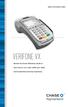 QUICK REFERENCE GUIDE VERIFONE VX Review this Quick Reference Guide to learn how to run a sale, settle your batch and troubleshoot terminal responses. INDUSTRY Retail and Restaurant APPLICATION Chase Paymentech
VeriFone Omni VeriFone V x
 QUICK REFERENCE GUIDE VeriFone Omni VeriFone V x This Quick Reference Guide will guide you through understanding your terminal s functionality and navigation, and will help you with troubleshooting. INDUSTRY
FUTURE PROOF TERMINAL QUICK REFERENCE GUIDE. Review this Quick Reference Guide to. learn how to run a sale, settle your batch
 QUICK REFERENCE GUIDE FUTURE PROOF TERMINAL Review this Quick Reference Guide to learn how to run a sale, settle your batch and troubleshoot terminal responses. INDUSTRY Retail and Restaurant APPLICATION
Moneris HiSpeed 6200 OPERATING MANUAL For Credit, Chip and Debit Card Processing
 Moneris HiSpeed 6200 OPERATING MANUAL For Credit, Chip and Debit Card Processing Software Version: 3.17 Documentation Version: 1.05a Documentation Date: October 31, 2005 Copyright Moneris Solutions, 2005.
YOUR GUIDE TO THE iphone MOBILE APP WITH 1st SOURCE
 YOUR GUIDE TO THE iphone MOBILE APP WITH 1st SOURCE Strong. Stable. Local. Personal. 10/12 Install, Sign On and View Account Balances 1. Visit the iphone App Store on your iphone and search for 1st Source
Pogo> User Guide. for iphone, ipad and ipod touch
 Pogo> User Guide for iphone, ipad and ipod touch Introduction to Pogo> This document provides detailed information on how best to use the Pogo> application to benefit your business. The intention is to
Credit & Debit Application
 USER MANUAL ALL TERMINAL PRODUCTS Credit & Debit Application Magic Models: C5, X5, X8, M3, M8 V Series Models: V5, V8, V9, V8 Plus, V9 Plus 1 Dejavoo Systems Instruction Manual V429.12 Instruction Manual
Ingenico QUICK REFERENCE GUIDE
 QUICK REFERENCE GUIDE Ingenico This Quick Reference Guide will guide you through understanding your terminal s functionality and navigation, and will help you with troubleshooting. INDUSTRY Retail and
LetMC.com Software Support. Part 2 Accounts
 LetMC.com Software Support Part 2 Accounts For use in Training only Not to be removed from Training Room (Tantum eruditi sunt liberi) Page 1 Client Manager Login... 5 Client Finance Login... 6 Client Administrator
Merchant Operating Guide
 PB 1 Merchant Operating Guide ANZ FastPay MOBILE PAYMENT SOLUTION Contents 1. Welcome 4 1.1 Merchant Agreement 4 1.2 Contact Details 4 1.3 How to get started 4 1.4 Authorisation 4 1.4.1 Authorisation Declined
Harcourts Sales and Trust Accounting User Manual June 2008
 Harcourts Sales and Trust Accounting User Manual June 2008 Table of Contents Harcourts Sales and Trust Accounting Manual Overview...1 Glossary of Terms and Acronyms...2 Help Desk Information...2 Trust
The easy way to accept EFTPOS, Visa and MasterCard payments on the spot. Mobile Users... 2. Charging your PayClip. 2. Downloading the PayClip app.
 PayClip User Guide The easy way to accept EFTPOS, Visa and MasterCard payments on the spot. Contents Getting started made easy 2 Information for Merchants....................................................2
Manual. Start accepting card payments with payleven
 Manual Start accepting card payments with payleven The Chip & PIN card reader Top Magnetic stripe card reader Front Bluetooth symbol Battery life 0-button (pairing button) Cancel Back Confirmation Bottom
Contents SECTION 1 5 SECTION 2 9
 Contents SECTION 1 5 INTRODUCTION 6 STARTING UP 7 Starting the Workstations 7 Running Onetap 7 Logging On 7 Using the On Screen Keyboard 7 Minimise Onetap 8 Restore Onetap 8 Exiting and Shutting Down 9
User Guide. for Card Reader and Payment Application
 User Guide for Card Reader and Payment Application Introduction to Pogo> This document provides detailed information on how best to use the Pogo> application to benefit your business. The intention is
[email protected] 866-269-8151 Greater Giving 2014 Cashiering Entering Payments Banking the Event During
 Please return this guide with the rest of the equipment. Before the Event During the Event After the Event Return Equipment Equipment Setup Training Check-in Cashiering Entering Payments Banking Posting
Contactless Card Reader Merchant Operating Guide. PC-EFTPOS i5100 Terminal
 Contactless Card Reader Merchant Operating Guide PC-EFTPOS i5100 Terminal Phone Numbers The following Help Desk s and authorisation centre s are available to you 24 hours a day, 7 days a week. Bank of
Using PAYD. Mobile app. For Android TM devices (05/13)
 Using PAYD TM Mobile app For Android TM devices TM (05/13) Contents Important: Read First........................... 2 TM Set up the app.................................. 3 Connect the card reader.........................
APPLICATION FOR CSC HEALTHCLAIMS WITH CBA HEALTHPOINT TERMINAL
 APPLICATION FOR CSC HEALTHCLAIMS WITH CBA HEALTHPOINT TERMINAL Do you have a broadband connection? (not Dial-Up, or Wireless) Yes If you have a Dial-Up connection, please call HealthPoint on 1300 301 692
Envision Credit Card Processing With EMV
 Envision Credit Card Processing With EMV A Guide for Processing Transactions with Envision's Integrated Credit Card Module and an EMV Device I Envision Credit Card Processing With EMV Table of Contents
Tabs3, PracticeMaster, and the pinwheel symbol ( trademarks of Software Technology, Inc. Portions copyright Microsoft Corporation
 Tabs3 Trust Accounting Software Reseller/User Tutorial Version 16 for November 2011 Sample Data Copyright 1983-2013 Software Technology, Inc. 1621 Cushman Drive Lincoln, NE 68512 (402) 423-1440 http://www.tabs3.com
EFTPOS 1i Terminal User Guide. Learn how to use your new terminal with this easy-to-follow guide.
 EFTPOS 1i Terminal User Guide Learn how to use your new terminal with this easy-to-follow guide. Get in touch Merchant Help Desk Service, Sales and Support Terminal Difficulties Stationery Orders 1300
Information about Health Funds
 Information about Health Funds association of massage therapists CONTENTS Getting started with health fund provider numbers 3 Keeping track of your provider numbers 4 Health fund provider arrangements
EFTPOS Professional Hypercom Mobile User Guide.
 EFTPOS Professional Hypercom Mobile User Guide. Phone Numbers Westpac Merchant Business Solutions Help Desk Service, Sales and Support Terminal Difficulties Stationery Orders Manual Credit Card Authorisations
EFTPOS PLUS & EFTPOS MOBILE
 INGENICO 5110 & 7910 TERMINAL SUPPLEMENTARY TERMINAL OPERATOR GUIDE v2.59 PLUS & MOBILE EPEMV2.59.0408 Commonwealth Bank of Australia ABN 48 123 123 124 Contents IMPORTANT NOTES...2 MOBILE USING THE TERMINAL...3
State of the Health Funds Report
 State of the Health Funds Report 2013 This work is copyright. Apart from any use permitted under the Copyright Act 1968, no part may be reproduced without written permission. Requests concerning reproduction
NURIT 8400 EASY USER GUIDE RETAIL AND RESTAURANT APPLICATION POS 11.30
 NURIT 8400 EASY USER GUIDE RETAIL AND RESTAURANT APPLICATION POS 11.30 Cards are swiped with magnetic stripe down and to the front. They can be swiped either top to bottom or bottom to top. CREDIT CARD
GLOBAL EXPRESS PAYMENT CENTER
 GLOBAL EXPRESS PAYMENT CENTER USER GUIDE V1.4 EFFECTIVE 05/14/15 TABLE OF CONTENTS 03 Get Started Set Up Terminal Required Step by Admin Set Up Users Required Step by Admin Set Up Receipt Explore Dashboard
ROAMpay powered by ROAM
 ROAMpay powered by ROAM Table of Contents 1. Introduction 2. Setting up Service 3. Supporting ROAMpay Customers 4. Helpful Links and Contacts 5. ROAMpay User s Guide Welcome to ROAMpay powered by ROAM!
VX 680 USER GUIDE. 001 Rev 1. VeriFone www.verifone.com
 VX 680 USER GUIDE 001 Rev 1. VeriFone www.verifone.com W2P VX 680 KEYPAD SIGNAL STRENGTH BATTERY STRENGTH MOVEABLE HIGHLIGHT TO SELECT OPTIONS UP AND DOWN ARROW BUTTONS DISPLAY ON MULTI- OPTION SELECTION
Getting Started Using CC Merchant for Trams Back Office
 Getting Started Using CC Merchant for Trams Back Office System Requirements Trams Back Office - Version 3.01 or higher Microsoft Internet Explorer 6.0 or higher Internet Connection The CC Merchant feature
ANZ Internet Banking for Business. Customer User Guide 03.13
 ANZ Internet Banking for Business Customer User Guide 03.13 Contents Viewing your accounts and activity 3 Logging on to ANZ Internet Banking for Business 3 Viewing account activity 3 Downloading account
Setting up Business Banking Online
 Setting up Business Banking Online Step-by-step Company Administrator Guide This guide will show you all the important tasks you need to complete as a Company Administrator before you can begin using Business
Customers can use debit cards for order payment. However, the implementation is significantly different for U.S. and Canadian shops.
 D Customers can use debit cards for order payment. However, the implementation is significantly different for U.S. and Canadian shops. in U.S. Shops In the United States, you can enter debit transactions
Using Your Terminal. Moneris Vx810 Duet
 Using Your Terminal Moneris Vx810 Duet Need help? Call 1-866-319-7450 Record your Moneris merchant number here: 2 Contents Moneris Vx810 Duet... 2 Optional devices............................... 4 Card
Ease-E-Club Client Management Software by Computerease
 Ease-E-Club Client Management Software by Computerease Bluefin Payment Setup and Processing The Bank Export, Point of Sale and Client file are integrated with Bluefin Payment Systems: http://bluefin.com/computerease.
Online Statements. About this guide. Important information
 Online Statements About this guide This guide shows you how to: View online statements, including CommBiz Activity Statements (Billing summaries) and online statements for Transaction Accounts, Credit
Oracle Internal Accounts Management System Manual
 Oracle Internal Accounts Management System Manual School Financial Services Phone: 773-553-2750 Fax: 773-553-2711 Email: [email protected] IAMS Website: https://dev.ocs.cps.k12.il.us/sites/finance/iams/
CANADA SAVINGS BONDS WEB TRANSMISSION GUIDE 2014. csb.gc.ca PAYROLL SAVINGS PROGRAM 20$ 40$ 80$ 50 $ 30$ WEBGUIDE-14
 7 WEB TRANSMISSION GUIDE 204 CANADA SAVINGS BONDS csb.gc.ca PAYROLL SAVINGS PROGRAM 40$ 5$ 30$ 0$ 20$ 80$ 70$ 0$ What are you saving for? 50 $ 40$ 20 0$ 80$ 4 20$ 7 7 $ $ $ $ $ $ $ $ $ $ $ $ WEBGUIDE-4
First Data Global Gateway iphone App User Manual
 January 2012 First Data Global Gateway iphone App User Manual Version 1.0 Table of Contents 1 GETTING STARTED... 4 2 PROCESSING TRANSACTIONS... 8 3 iphone APP AND FIRST DATA GLOBAL GATEWAY SETUP 8 3 CONTACT
Electronic Payment System User s Guide (EPS)
 Electronic Payment System User s Guide (EPS) Version 3.03 Questions or Comments? Please contact the OMC Support Center Page 1 of 46 CREDIT CARD TRANSACTIONS (OVERVIEW)...4 CUSTOMER PAYMENT PROCESS...5
VinNOW/TSYS Integration Setup. Overview
 Overview TSYS credit card processing communications to the gateway are all done via LAN internet linked PAX payment terminals. The terminals supplied by TSYS have the client s merchant account information
Amicus Small Firm Accounting: Frequently Asked Questions
 Amicus Small Firm Accounting: Frequently Asked Questions Questions Administration... 3 1 How do I add another user account? 3 2 How are passwords set up and how are they used? 3 3 What does "Reset User
OSHC Extras. Overseas Student Health Cover. Policy Document. Effective 1 April 2015
 OSHC Extras Policy Document Effective 1 April 2015 Overseas Student Health Cover OSHC Extras OSHC Extras is an affordable and tailored Extras cover designed for Overseas Students studying in Australia.
How To Use An Hicaps Terminal
 hicaps terminal user guide contact phone numbers for HICAPS/EFTPOS HICAPS Help Desk 1300 650 852 your merchant details Merchant No. Manual Merchant No. For Authorisations: Credit Card (Credit) Account
Easy-claim. + Oranges have long been. Operating guide for providers. September 2012
 Easy-claim Operating guide for providers + Oranges have long been popular as a rich source of vitamin C that can help ward off colds, assist healing and bolster the immune system. September 2012 Copyright
POS:201. Essential Managers Guide to Menumate Point of Sale
 POS:201 Essential Managers Guide to Menumate Point of Sale Contents Setting up staff... 3 Time Clock... 5 Setting up Discounts & Surcharges... 6 The Basics... 6 More Options... 7 Auto Times... 8 Happy
Wind River Financial iprocess Setup Guide for IOS Devices
 Wind River Financial iprocess Setup Guide for IOS Devices (Requires ios 4.3 or later. Compatible with iphone, ipad, and ipod touch. This app is optimized for iphone 5.) Table of Contents (Clickable Links):
Getting Started. Getting Started with Time Warner Cable Business Class. Voice Manager. A Guide for Administrators and Users
 Getting Started Getting Started with Time Warner Cable Business Class Voice Manager A Guide for Administrators and Users Table of Contents Table of Contents... 2 How to Use This Guide... 3 Administrators...
ETS. Major Field Tests. Proctor Administrator Manual
 ETS Major Field Tests Proctor Administrator Manual Updated: December 2010 Table of Contents Contents 1.0 WELCOME... 1 1.1 INTRODUCTION... 1 1.2 SYSTEM REQUIREMENTS AND SETTING-UP STUDENT WORKSTATIONS...
Colorado. Provider POS Device User Manual 1-877-779-1932. Where to call for POS device troubleshooting: Version: 2.0
 Colorado Provider POS Device User Manual Where to call for POS device troubleshooting: 1-877-779-1932 Version: 2.0 Provider POS Device User Manual Table of Contents Section Page 1.0 General Information
Processing and Settling Credit Cards
 13 Processing and Settling Credit Cards FTD Mercury provides the capability to process credit cards directly within the application. If you have a high-speed Internet connection (DSL, broadband, etc.),
Getting Started with POS. Omni POS Getting Started Manual. switched on accounting
 Omni POS Getting Started Manual switched on accounting i i Getting Started with Omni POS Table Of Contents Overview...1 Setting up POS...2 Initial Steps...2 Tellers...2 POS Clearing Account...3 Printing...4
How to use your terminal
 ict/iwl Terminal How to use your terminal The basics Chip and PIN cards Insert the card with the chip facing up and towards the terminal. If the card has been inserted the wrong way or there is a problem
Credit & Debit Application
 USER MANUAL ALL TERMINAL PRODUCTS Credit & Debit Application Instruction Manual V525.15 Dejavoo Systems Instruction Manual V525.15 1 ABOUT THIS MANUAL This manual provides basic instructions for user of
ANZ egate Merchant Administration. Quick Reference Guide
 ANZ egate Merchant Administration Quick Reference Guide Purpose The purpose of this Quick Reference Guide is to provide the user with a quick reference to using the ANZ egate Merchant Administration. We
Mobile credit & debit card acceptance for your Smart Phone or Tablet. MobilePAY Shuttle
 Mobile credit & debit card acceptance for your Smart Phone or Tablet MobilePAY Shuttle User Information Record your Merchant Account and other useful information here. From time to time, you may need quick
PC-EFTPOS i5100 Merchant Operating Guide
 PC-EFTPOS i5100 Merchant Operating Guide PHONE NUMBERS. THE FOLLOWING HELP DESK S AND AUTHORISATION CENTRE S ARE AVAILABLE TO YOU 24 HOURS A DAY, 7 DAYS A WEEK. ST.GEORGE ELECTRONIC BANKING SERVICE CENTRE