
How to Edit Your Website
|
|
|
- Bridget McDonald
- 10 years ago
- Views:
Transcription
1 How to Edit Your Website A guide to using your Content Management System Overview 2 Accessing the CMS 2 Choosing Your Language 2 Resetting Your Password 3 Sites 4 Favorites 4 Pages 5 Creating Pages 5 Managing Files 6 Viewing Analytics 8 Page Options 9 Editing 10 Editing Content 11 Editing Page Properties 15 Publishing Pages 16 Settings 18 Updating Your Personal Info 18 Help 19 Submitting a Help Request 19
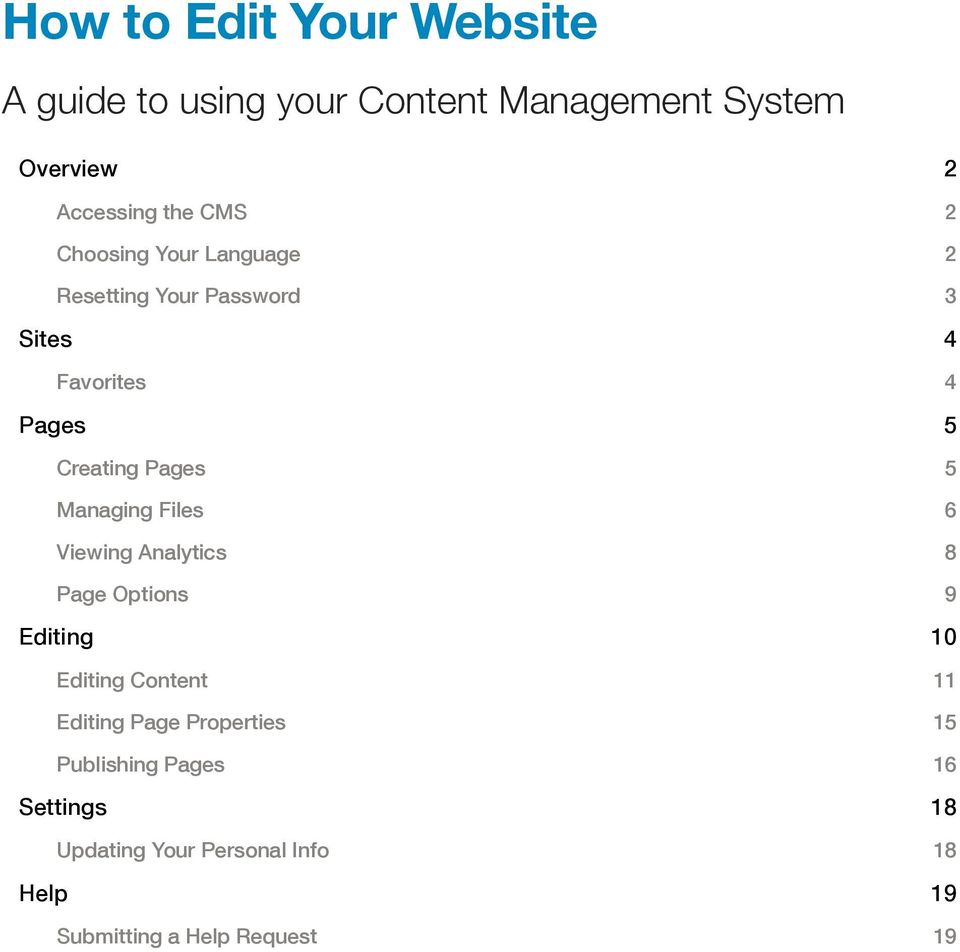
2 Overview This manual will help you edit your website using the Content Management System. A content management system, or CMS (pronounced C-M-S), is any software that gives you the ability to update content on your website. Accessing the CMS To access the CMS, you will need a web browser and an Internet connection. All modern browsers are supported, including: Google Chrome Firefox Internet Explorer 8+ (for a better experience, use Internet Explorer 10 or above) Opera Safari The login page will appear: To access the CMS, navigate to the following website in your browser: To login, use your address and password. You may have already received your password. If not, contact your designer. Choosing Your Language You can set your language preference from the login page and in the Settings > Account section. Your language preference will be saved in a cookie on your computer, so if you use another computer or clear your cookies, you will need to set it again.
3 Resetting Your Password If you forget your password, you can reset it by selecting Forgot your password? from the login page. The Reset Password page will appear: Enter your address and the security code shown on-screen and further instructions will be ed to you. If you don t receive an after a few minutes, please check your junk folder.

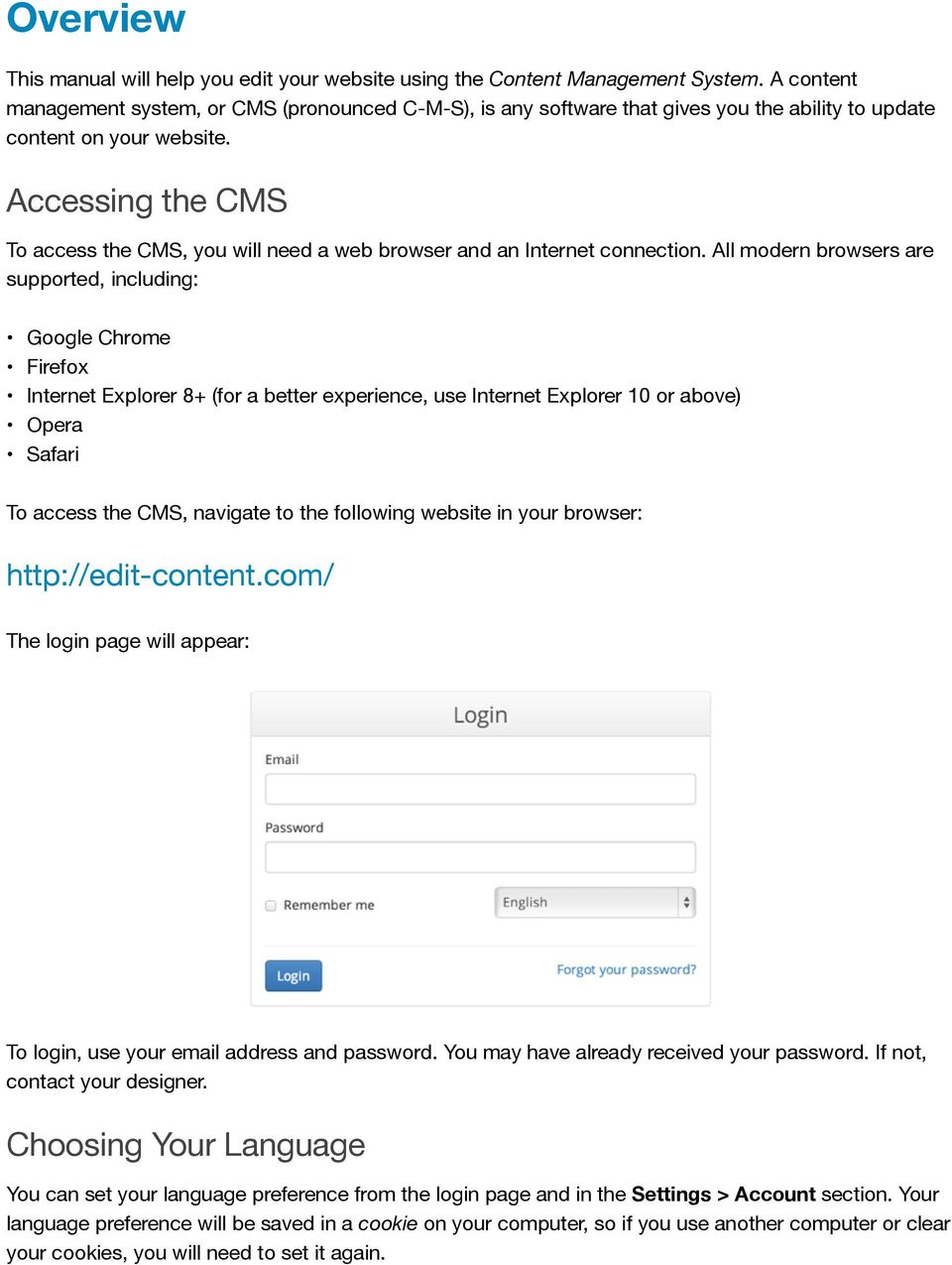
4 Sites The first page you will see when you login will be the Sites page. Since the CMS is capable of managing multiple websites, your list will contain all of the sites you have access to. At any time, you can select the Sites tab to come back to this list. To edit a site, select the appropriate one from the list. This will take you to the Pages page, where a list of pages you can edit will be shown. Favorites If you have access to more than one site, you may want to star the ones you ll be working with frequently for easier access. Sites in your Favorites list will appear on the left side of the Sites page: To remove a site from your Favorites, just unstar it. 4
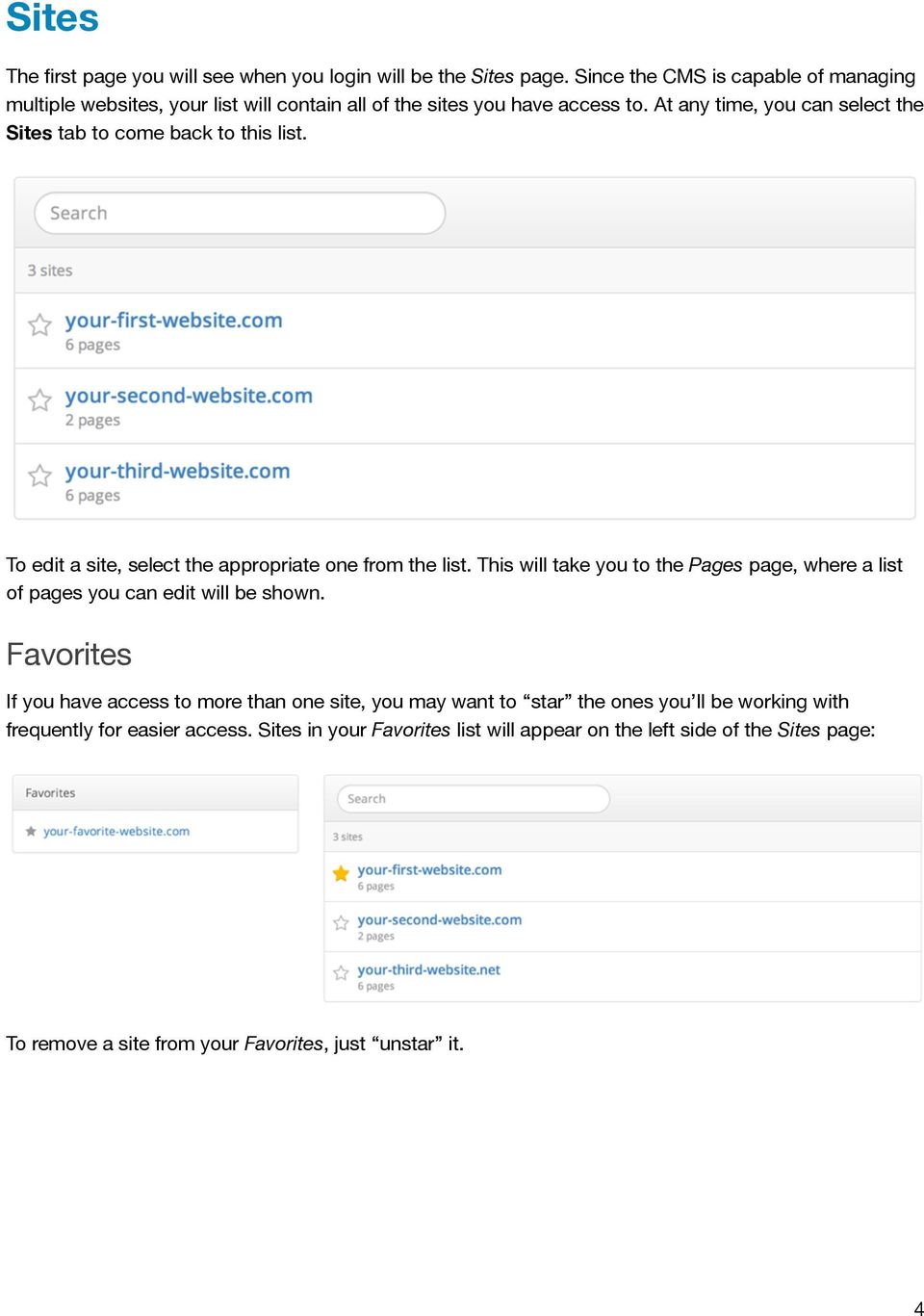
5 Pages Once you ve selected a site for editing, you will be taken to the Pages page. This section shows all the pages on your site that you are able to edit. To edit a page, select its label from the list. The sidebar on the left may have different options depending on how your designer setup your site. If you don t see an option mentioned here, it is not enabled for your site. Creating Pages To create a new page, select Create a New Page from the sidebar or select. This will bring up the Create a New Page dialog. The following information is needed to create a page: Label A short, descriptive name for the page that will only be used to reference it inside the CMS. Filename The name of the new page without an extension. By default, the name will be generated from the label you enter. Template Your designer has included one or more templates that you can use for creating pages. Select the one you want to use for your new page. Folder The location where the page will be created. This will be your home folder by default. 5
6 Managing Files If your designer has enabled this feature, a link will appear in the sidebar of the Pages page called Manage Files. Selecting this link will bring up the File Manager. The File Manager gives you direct access to your web server. You can upload, delete, and rename files. You can also create new folders. Shortcuts The File Manager features shortcuts that quickly link you to the folders where documents, images, and media are stored. Always try to use these folders to organize your files and refrain from uploading them to the home folder. Uploading 6
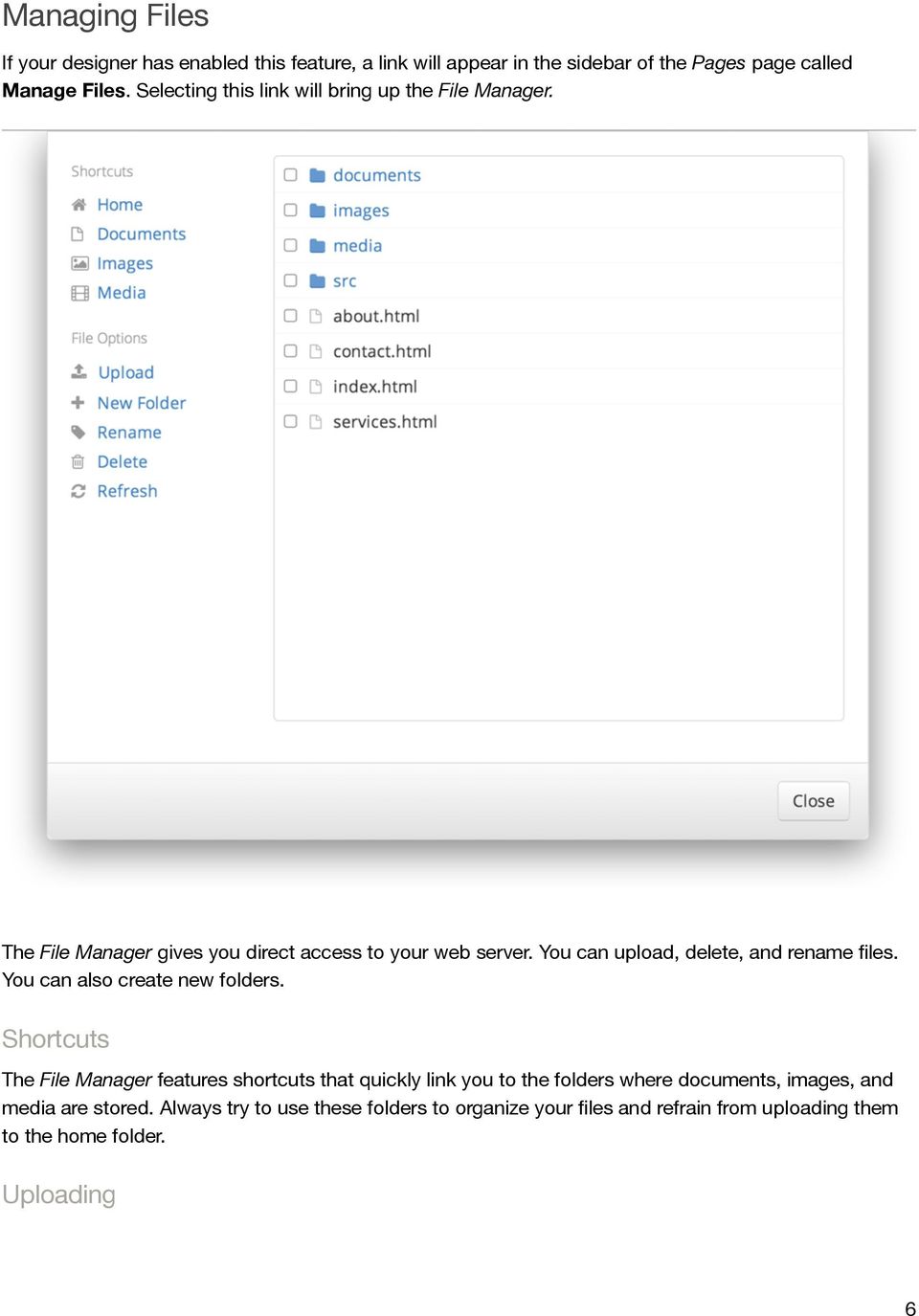
7 Before you can link to documents, images, and other files on your site, you need to upload them to your server. To upload a file, select the Upload link. A window will appear allowing you to browse your computer for files. Once you ve selected one or more files, they will begin uploading. Please allow sufficient time for uploading to complete, especially with larger files. Since files are uploaded to the CMS first and then to your website, this could take a bit longer than usual. The maximum combined file size for uploading is 50MB. Creating Folders You can create new folders to help organize files on your server. To create a new folder, select the New Folder link. The following form will appear: Enter a name for the folder and select Create. The new folder will then appear in the File Manager. Good folder names are short and descriptive. Try using all lowercase letters and use dashes or underscores instead of spaces. Renaming Files A file can be renamed by checking it off in the File Manager and selecting Rename. The following form will appear: Enter a name for the file and select Rename. Be careful to not remove the file extension Deleting Files Files can be deleted by checking them off in the File Manager and selecting Delete. The following confirmation will appear: 7

8 To delete the selected files, select Delete. Be careful when deleting files from your server this cannot be undone If you re not sure about deleting a file, ask your designer first Viewing Analytics If your designer has enabled this feature, a link will appear in the sidebar of the Pages page called View Analytics. Selecting this link will bring up the Analytics Dashboard: There are many reports available in the Analytics Dashboard: Overview Shows an at-a-glance view of your traffic for the specified date range Visitors Continent shows traffic by continent Country shows traffic by country City shows traffic by city Language shows what languages visitors use Length of Visit shows how long visitors stay on your site Depth of Visit shows how many pages visitors access while on your site Content Top Content by Path shows the path of the most popular pages on your site Top Content by Title shows the title of the most popular pages on your site 8
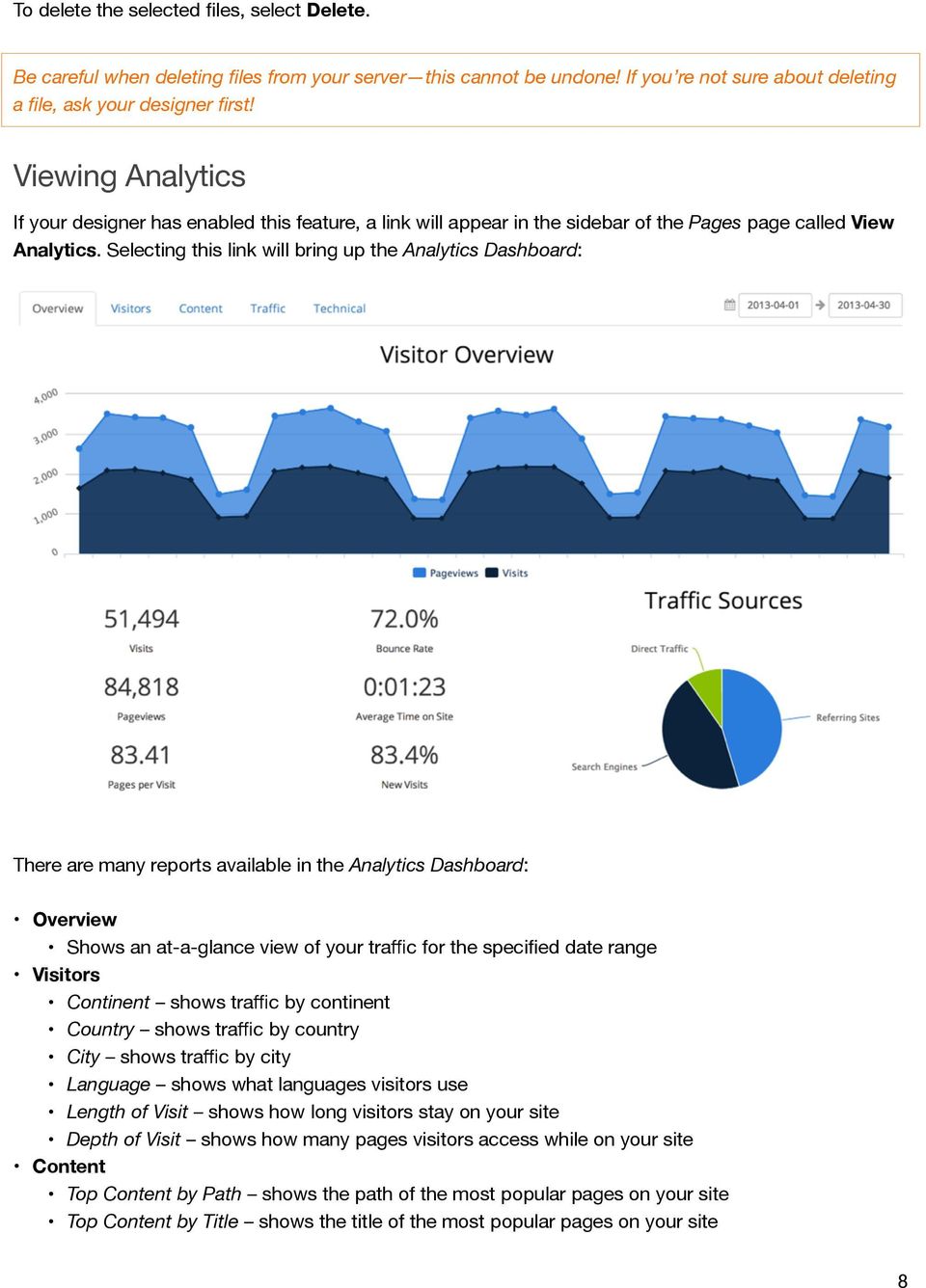
9 Top Landing Pages shows which pages users come to first on your site Top Exit Pages shows which pages users leave your site from Second Page Visited shows the second page that visitors go to on your site Traffic Keyword shows which keywords visitors used to find your site Traffic Source shows where the traffic to your site comes from Referring URLs shows other sites that referred visitors to your site Technical Browser shows which browsers your visitors use Browser Version same as Browser, but organized by versions Operating System shows which operating systems your visitors use Operating System Version same as Operating System, but organized by versions Screen Color shows the color depth of visitors devices Screen Resolution shows the screen size of visitors devices Page Options Each page has a dropdown menu with various options. To access the menu, select appropriate page. The Page Options menu will appear: next to the Relabel Page labels are used to identify pages inside the CMS. To change a page label, select the Relabel option and enter a new label for the page. Duplicate This option allows you to create a new page by duplicating an existing one. To duplicate a page, select the Duplicate option and enter a new page label and filename (see Creating Pages for more details). 9

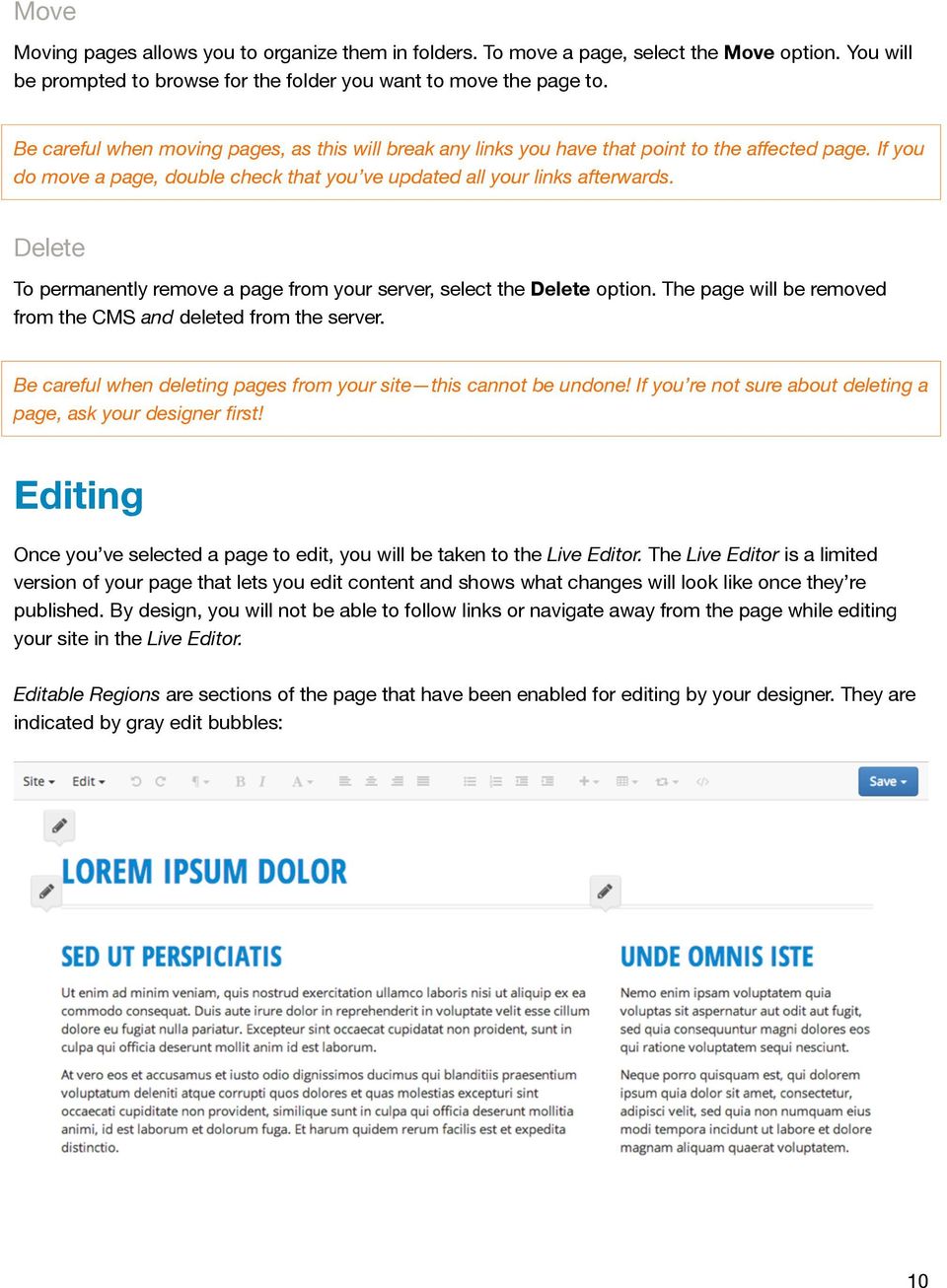
10 Move Moving pages allows you to organize them in folders. To move a page, select the Move option. You will be prompted to browse for the folder you want to move the page to. Be careful when moving pages, as this will break any links you have that point to the affected page. If you do move a page, double check that you ve updated all your links afterwards. Delete To permanently remove a page from your server, select the Delete option. The page will be removed from the CMS and deleted from the server. Be careful when deleting pages from your site this cannot be undone If you re not sure about deleting a page, ask your designer first Editing Once you ve selected a page to edit, you will be taken to the Live Editor. The Live Editor is a limited version of your page that lets you edit content and shows what changes will look like once they re published. By design, you will not be able to follow links or navigate away from the page while editing your site in the Live Editor. Editable Regions are sections of the page that have been enabled for editing by your designer. They are indicated by gray edit bubbles: 10
11 Editing Content To edit a region, select an edit bubble or place your cursor anywhere inside an editable region. Depending on the region, various features will be made available in the Live Editor s toolbar. Headings & Paragraphs The Paragraph menu lets you format entire blocks of text into headings, paragraphs, block quotes, or pre-formatted text. To create a heading, place your cursor inside an Editable Region and select. The Paragraph menu will appear. Select the desired heading level and the block your cursor is in will turn into a heading. You can also format a paragraph as a block quote or as pre-formatted text. To remove a block format, place your cursor in the desired block and select Paragraph from the Paragraph menu. You can use keyboard shortcuts to create headings quickly. Shortcuts appear to the right of each option in the menu. Text Formatting To apply formatting such as bold, italic, and underline to text, highlight the desired text and select. The Text Formatting menu will appear. Select the desired format and it will be applied to the highlighted text. To remove a format, select it again from the Text Formatting menu. To remove all formatting, select Remove Formatting. If your designer has enabled Font Styles, you can use this option to change the font, size, color, and background color of text. Similarly, you can use Custom Styles to select from a list of predefined styles that your designer has configured. On websites, underlining text is typically reserved for hyperlinks and may be considered bad usability. When you need to emphasize text, consider using bold or italic instead. Alignment Use the Alignment buttons in the Live Editor s toolbar to align text left, right, center, or justified. You can also use the alignment buttons to float an image left or right. 11

12 Lists Use the List buttons in the Live Editor s toolbar to create ordered and unordered lists. Make nested lists using the Indent and Outdent buttons. Links To insert a link to another page or file, highlight the desired text, go to, and select Link. This will bring up the Link dialog. Enter a URL or select to browse for a file on your server. If you d like the link to open in a new window, check the Open in a new window box. When you re finished, select Submit to create the link. To edit an existing link, place your cursor on it and select Insert > Link. You can save time and bypass the Insert menu by using CMD+K (Mac) or CTRL+K (Windows/Linux) to insert and edit links. Images To insert an image, place your cursor inside an Editable Region, go to, and select Image. This will bring up the Image dialog. Enter a URL or select to browse for a file on your server. After a URL has been entered, a preview of your image will appear on the right side of the dialog. Providing a Description is recommended, as this will aide users who have images disabled, users with text-based browsers, and users with disabilities that prevent them from seeing images. Once you ve entered a URL and a description, select Submit to insert the image into your page. To edit an existing image, place your cursor on it and select Insert > Image or double-click on it. 12

13 If desired, you can crop an image by dragging a selection over the preview in the Image dialog. When an image is cropped, the original file is left intact and a new one is created. By default, images will be physically resized when a smaller width or height is entered. This optimizes them so they load faster, but the option can be disabled by unchecking the Resize image for smaller file size box. When cropping or resizing an image, the original file will never be modified. Instead, a new file will be created with the dimensions appended to the filename. This lets you undo your changes anytime by reverting back to the original image. Media To insert a video or audio file into your page, place your cursor inside an Editable Region, go to, and select Media. This will bring up the Media dialog. The CMS supports HTML5 videos, YouTube videos, and Vimeo videos. To insert an HTML5 video or audio file, you will need to specify a Source, an Alternative Source (optional, but recommended), and a Poster Image (optional). To maximize browser compatibility for videos, use an MP4 format for your Source and a WEBM format for your Alternative Source. To insert a YouTube or Vimeo video, copy the full URL (from your browser s address bar) into the Source field. You can also paste the embed code into the Embed Code field under the Advanced tab. To edit an existing video or audio file, place your cursor on it and select Insert > Media or double-click on it. Anchors Anchors let you deep-link into a specific section of your page. To create an anchor, place your cursor in front of the heading you want to link to, go to, and select Anchor. This will bring up the Anchor dialog. 13

14 Enter a name for your anchor. Since anchors must follow a special naming convention, the CMS will automatically convert the value you enter into a compatible name. Anchors are normally not visible on webpages, so once an anchor has been inserted into your page it will appear as a on the live site. symbol. This allows you to identify and edit anchors, but the symbol will not appear To edit an existing anchor, place your cursor on it and select Insert > Anchor or double-click on it. Inserting Tables To insert a table into your page, place your cursor inside an Editable Region, go to, and select Insert Table. This will bring up the Insert Table dialog. Enter the number of columns and rows for your new table. If you want your table to have a header that spans across the first row of your table, check the Header on top box. If you want your table to have a header that spans across the first column of your table, check the Header on left box. To add a caption to your table, check the Caption box. Editing Tables Once you ve configured the table options, select Insert Table to insert the table into your page. You can edit existing tables using the Table menu. To open it, go to and select the appropriate option. You can add and remove rows and columns, merge and split cells, or delete the table entirely. Repeatable Regions Your designer may configure Repeatable Regions on one or more of your pages. These are useful for many things, as they allow you to add, remove, and reorder blocks of content very easily. Repeatable Regions are indicated by a thin, dashed border. When your cursor is inside a 14
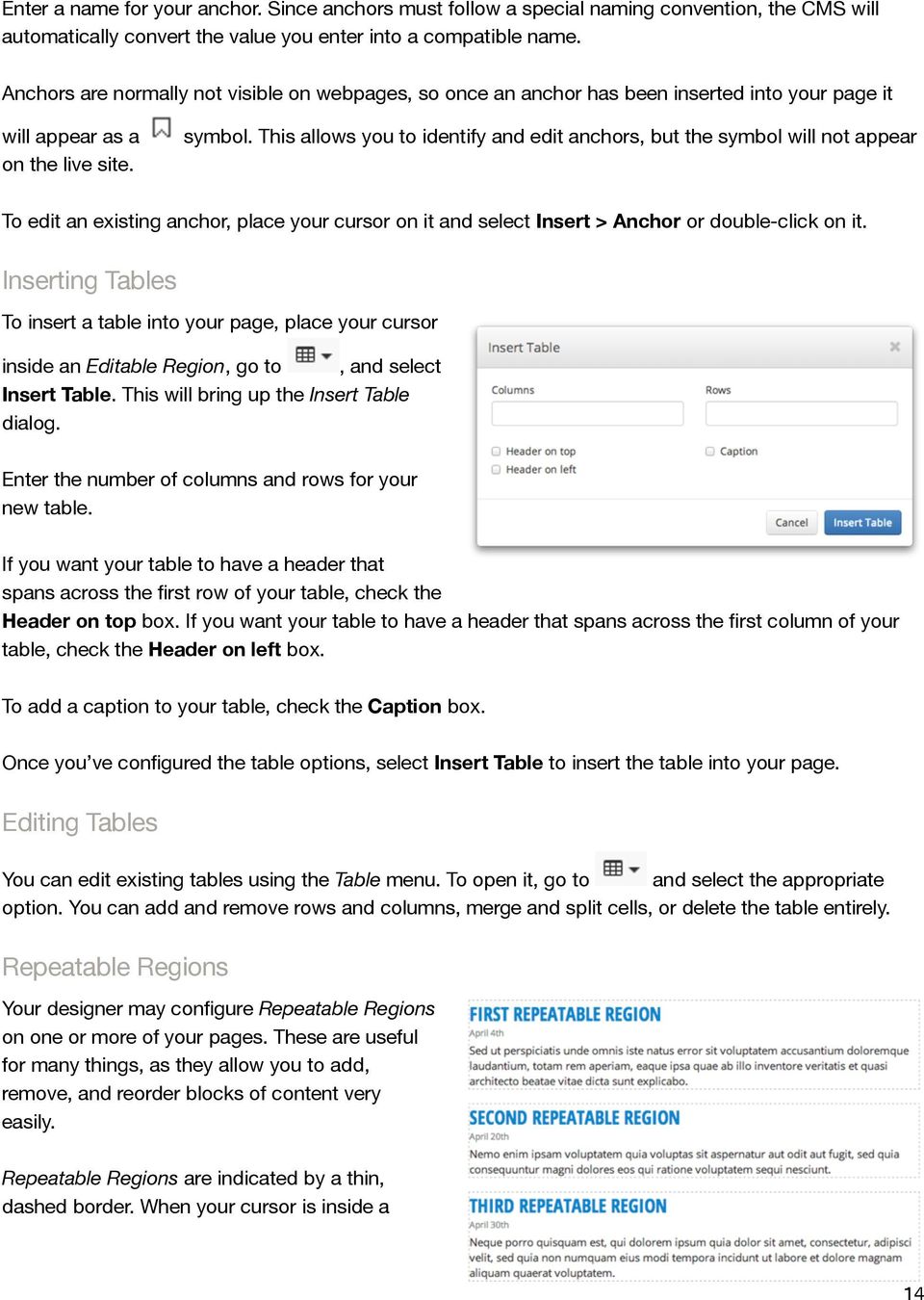
15 Repeatable Region, the button will become available in the Live Editor s toolbar. Selecting this button will bring up the Repeatable Regions menu which has options to add, remove, and reorder blocks of content. If you find yourself working with Repeatable Regions often, take note of the shortcut keys shown in the menu. They can save you quite a bit of time Editing Photo Galleries If your site has a photo gallery, your designer may have set it up to be editable in the CMS. To edit a photo gallery, select it by clicking or tapping on it. This will bring up the Gallery dialog. You can add photos by selecting the Add to Gallery link. To highlight a thumbnail, click or tap on it. To select more than one thumbnail at a time, press CMD or CTRL while clicking or tapping. You can also select a range of images by holding down SHIFT. When a thumbnail is selected, the Link and Description fields will become available. You can use these fields to customize where each photo links to (usually the full-size version of themselves) and the description that visitors will see for each photo. To reorder photos, highlight one or more thumbnails and select Move Up or Move Down. (You can also drag and drop on desktop devices.) To delete photos from the gallery, highlight one or more thumbnails and select Delete from Gallery. Note that this will not delete any files from your server. When you re done editing your gallery, select Submit to save your changes. Editing Page Properties Page Properties include the Title, Description, and Keywords that are used to tell search engines information about each page. If your designer has this feature enabled, you can change these values for each of your pages by going to Edit > Edit Page Properties. This will bring up the Edit 15

16 Page Properties dialog. Title This is usually the first thing people see when viewing your site in a search engine, so make it interesting but not too long. Description This typically appears under the Title in a search engine s results. Keep them short but relevant. Remember that you are limited to a varying number of characters depending on the search engine a potential visitor may be using. Keywords A list of comma-separated words and phrases that relate to the content of your page. You may add as many keywords as you like, but three to five are usually sufficient. Search Engine Preview This will show you what your page will look like in most major search engines. The maximum lengths for titles and descriptions will vary, but this will give you a good idea of how potential visitors will see your page when browsing a list of search results. Publishing Pages Publishing When you re finished editing a page, you ll need to publish your changes before they appear on the live version of your site. To publish a page, go to and select Publish. When you see the symbol appear in the center of your screen, your page has been published and you can safely exit the editor. Auto-publishing You can tell the CMS to publish your changes at a specific date and time. To Auto-publish a page, go to and select Auto-publish. This will bring up the Auto-publish dialog. Enter the date and time that you want your changes to be published and select Autopublish. When you see the symbol appear in the center of your screen, your changes have been scheduled for publishing and you can safely exit the editor. Saving Drafts If you want to save your changes but don t want to publish them to the live site yet, you can save a Draft. To save a draft, go to and select Save Draft. When you see the symbol appear in the center of your screen, your draft has been saved and you can safely exit the editor. 16

17 The next time you open the page for editing, you ll be asked if you want to resume editing the draft. You can also access it by going to Edit > View Revisions. Loading Revisions Every time a page is saved in the CMS, a Revision is created. You can view all the revisions of a page by going to Edit > View Revisions. This will bring up the View Revisions dialog. To open a revision for editing, simply select it from the list. You can also delete revisions you no longer need. Just remember that once a revision is deleted, there s absolutely no way to get it back 17
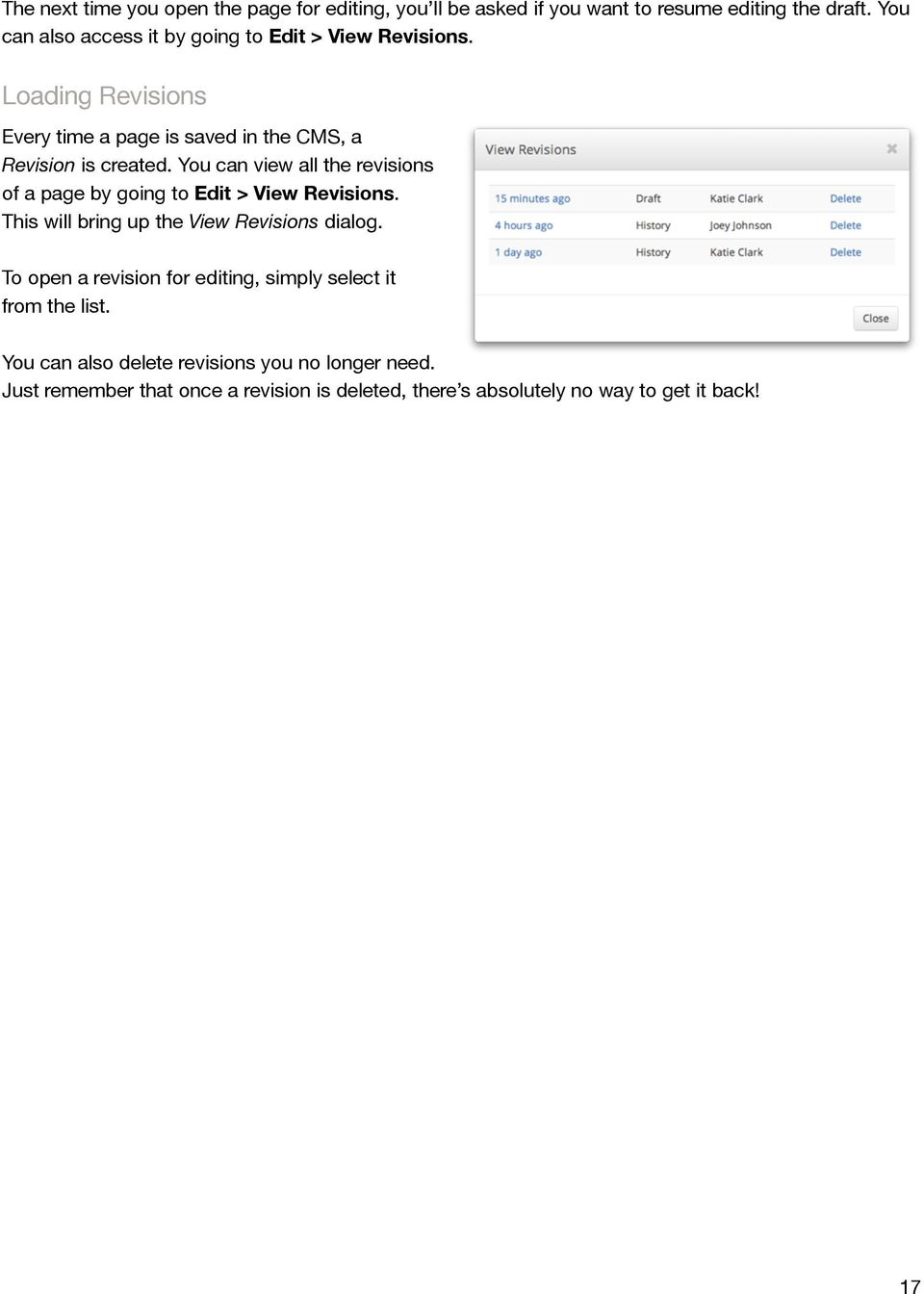
18 Settings Updating Your Personal Info You can manage your account settings by selecting Settings from the main menu. To make changes, simply update your name, and/or language and select Update. You can also change your password by selecting the Change button on the right side of the page. Your language preference will be saved in a cookie on your computer, so if you use another computer or clear your cookies, you will need to set it again. 18
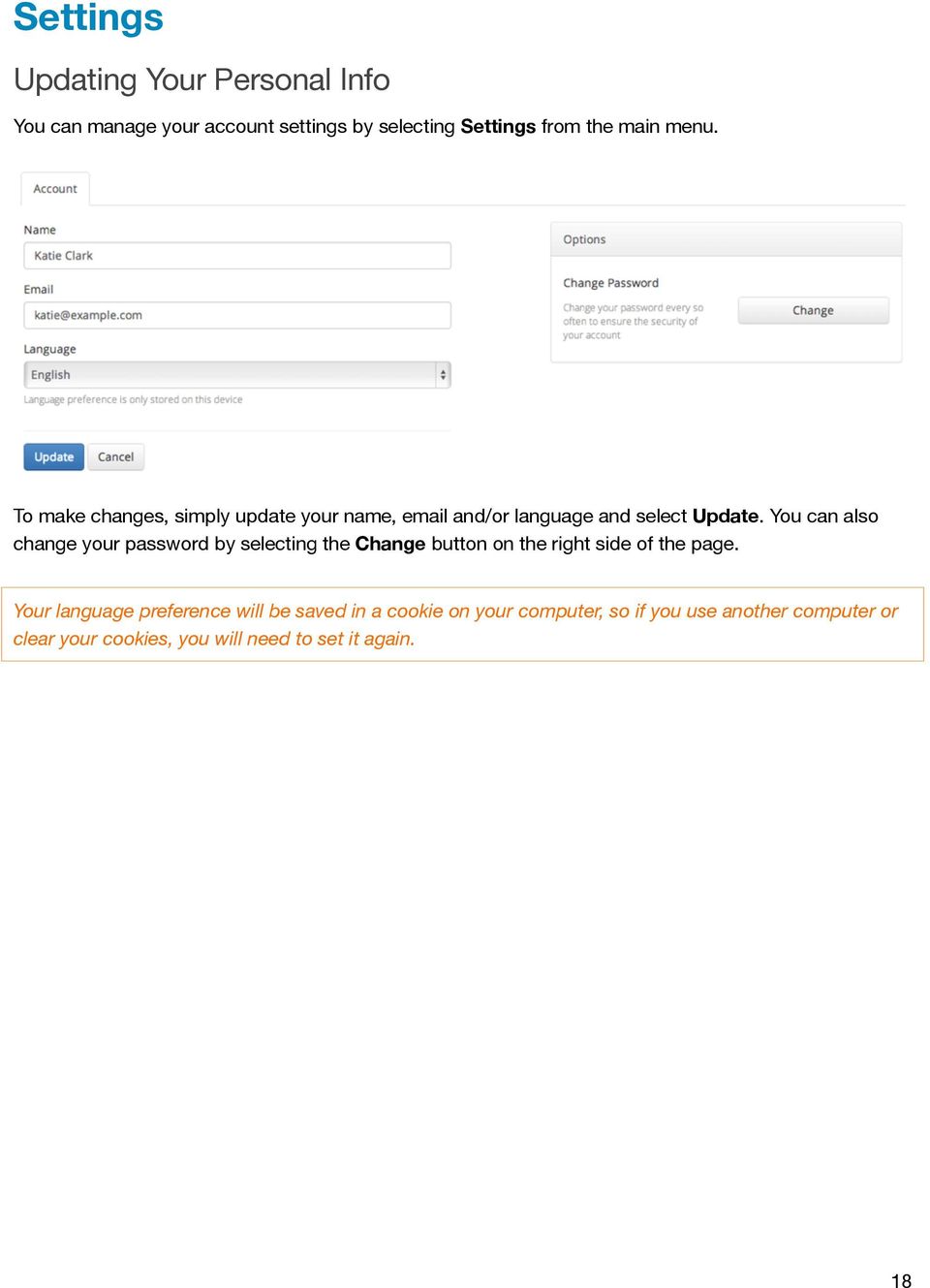
19 Help Submitting a Help Request The Help section is designed to expedite help requests to your designer. To submit a help request, select Help from the main menu. When submitting a request, please select the appropriate reason for the request and the affected site. Remember to provide as much information as possible to help troubleshoot your problem. If necessary, include details such as your operating system (e.g. Windows or Mac), your browser, browser version, and any steps they should take to reproduce the problem. If you d like to receive a copy of your request via , check the Send a copy of this request to your box. In most cases, your designer will respond to you via . Feel free to write them back by replying directly from your client. 19
Google Docs Basics Website: http://etc.usf.edu/te/
 Website: http://etc.usf.edu/te/ Google Docs is a free web-based office suite that allows you to store documents online so you can access them from any computer with an internet connection. With Google
Go Kiwi Internet Content Management System Version 5.0 (K5) TRAINING MANUAL
 Go Kiwi Internet Content Management System Version 5.0 (K5) TRAINING MANUAL K5 CMS The K5 Content Management System (CMS), previously known as Kwik-Az Updating, is a small downloadable program that permits
Web Ambassador Training on the CMS
 Web Ambassador Training on the CMS Learning Objectives Upon completion of this training, participants will be able to: Describe what is a CMS and how to login Upload files and images Organize content Create
Ingeniux 8 CMS Web Management System ICIT Technology Training and Advancement ([email protected])
 Ingeniux 8 CMS Web Management System ICIT Technology Training and Advancement ([email protected]) Updated on 10/17/2014 Table of Contents About... 4 Who Can Use It... 4 Log into Ingeniux... 4 Using Ingeniux
Using Adobe Dreamweaver CS4 (10.0)
 Getting Started Before you begin create a folder on your desktop called DreamweaverTraining This is where you will save your pages. Inside of the DreamweaverTraining folder, create another folder called
Adobe Dreamweaver CC 14 Tutorial
 Adobe Dreamweaver CC 14 Tutorial GETTING STARTED This tutorial focuses on the basic steps involved in creating an attractive, functional website. In using this tutorial you will learn to design a site
WEBSITE CONTENT MANAGEMENT SYSTEM USER MANUAL CMS Version 2.0 CMS Manual Version 1.0 2-25-13
 WEBSITE CONTENT MANAGEMENT SYSTEM USER MANUAL CMS Version 2.0 CMS Manual Version 1.0 2-25-13 CONTENTS Things to Remember... 2 Browser Requirements... 2 Why Some Areas of Your Website May Not Be CMS Enabled...
Where do I start? DIGICATION E-PORTFOLIO HELP GUIDE. Log in to Digication
 You will be directed to the "Portfolio Settings! page. On this page you will fill out basic DIGICATION E-PORTFOLIO HELP GUIDE Where do I start? Log in to Digication Go to your school!s Digication login
Module One: Getting Started... 6. Opening Outlook... 6. Setting Up Outlook for the First Time... 7. Understanding the Interface...
 2 CONTENTS Module One: Getting Started... 6 Opening Outlook... 6 Setting Up Outlook for the First Time... 7 Understanding the Interface...12 Using Backstage View...14 Viewing Your Inbox...15 Closing Outlook...17
Introduction to Drupal
 Introduction to Drupal Login 2 Create a Page 2 Title 2 Body 2 Editor 2 Menu Settings 5 Attached Images 5 Authoring Information 6 Revision Information 6 Publishing Options 6 File Attachments 6 URL Path
darlingharbour.com Content Management System Tenant User Guide
 darlingharbour.com Content Management System Tenant User Guide August 2014 Table of Contents 1 Introduction... 1 2 Getting started... 1 2.1 Requirements...1 2.2 Logging in...1 2.3 Change your Password...2
Site Maintenance. Table of Contents
 Site Maintenance Table of Contents Adobe Contribute How to Install... 1 Publisher and Editor Roles... 1 Editing a Page in Contribute... 2 Designing a Page... 4 Publishing a Draft... 7 Common Problems...
Joomla! 2.5.x Training Manual
 Joomla! 2.5.x Training Manual Joomla is an online content management system that keeps track of all content on your website including text, images, links, and documents. This manual includes several tutorials
Quick Guide to the Cascade Server Content Management System (CMS)
 Quick Guide to the Cascade Server Content Management System (CMS) Waubonsee Community College Cascade Server Content Administration January 2011 page 1 of 11 Table of Contents Requirements...3 Logging
Creating Personal Web Sites Using SharePoint Designer 2007
 Creating Personal Web Sites Using SharePoint Designer 2007 Faculty Workshop May 12 th & 13 th, 2009 Overview Create Pictures Home Page: INDEX.htm Other Pages Links from Home Page to Other Pages Prepare
Quick Reference Guide
 Simplified Web Interface for Teachers Quick Reference Guide Online Development Center Site Profile 5 These fields will be pre-populated with your information { 1 2 3 4 Key 1) Website Title: Enter the name
Drupal Training Guide
 Drupal Training Guide Getting Started Drupal Information page on the IT site: http://it.santarosa.edu/drupal On this page is information about Drupal sign up, what Drupal is, which is a content management
NDSU Technology Learning & Media Center. Introduction to Google Sites
 NDSU Technology Learning & Media Center QBB 150C 231-5130 www.ndsu.edu/its/tlmc Introduction to Google Sites Get Help at the TLMC 1. Get help with class projects on a walk-in basis; student learning assistants
Using the Content Management System 05-02-12
 Using the Content Management System 05-02-12 Using the Content Management System Introduction 2 Logging In 3 Using the Editor 4 Basic Text Editing 5 Pasting Text 7 Adding Hyperlinks 8 Adding Images 9 Style
HOW TO USE THIS GUIDE
 HOW TO USE THIS GUIDE This guide provides step-by-step instructions for each exercise. Anything that you are supposed to type or select is noted with various types and colors. WHEN YOU SEE THIS Click Help
CMS Training Manual. A brief overview of your website s content management system (CMS) with screenshots. CMS Manual
 Training A brief overview of your website s content management system () with screenshots. 1 Contents Logging In:...3 Dashboard:...4 Page List / Search Filter:...5 Common Icons:...6 Adding a New Page:...7
Outlook Email. User Guide IS TRAINING CENTER. 833 Chestnut St, Suite 600. Philadelphia, PA 19107 215-503-7500
 Outlook Email User Guide IS TRAINING CENTER 833 Chestnut St, Suite 600 Philadelphia, PA 19107 215-503-7500 This page intentionally left blank. TABLE OF CONTENTS Getting Started... 3 Opening Outlook...
Website Creation Service: User s Guide
 Service: User s Guide 1 Table of Contents 1) Connecting to Your Online Interface 2) Start Creating Your Website 3) Managing Website Pages 4) Managing Website Content 5) Integrating Widgets and Other Content
RADFORD UNIVERSITY. Radford.edu. Content Administrator s Guide
 RADFORD UNIVERSITY Radford.edu Content Administrator s Guide Contents Getting Started... 2 Accessing Content Administration Tools... 2 Logging In... 2... 2 Getting Around... 2 Logging Out... 3 Adding and
OU Campus Web Content Management
 DRAFT DRAFT DRAFT DRAFT DRAFT DRAFT DRAFT DRAFT DRAFT DRAFT DRAFT DRAFT DRAFT DRAFT DRAFT DRAFT DRAFT OU Campus Web Content Management Table of Contents OU Campus Web Content Management... 1 Introduction
Microsoft Word 2013 Tutorial
 Microsoft Word 2013 Tutorial GETTING STARTED Microsoft Word is one of the most popular word processing programs supported by both Mac and PC platforms. Microsoft Word can be used to create documents, brochures,
The Home link will bring you back to the Dashboard after. Workflows alert you to outstanding assets waiting for approval or review.
 Gonzaga University s content management system (CMS) is a software program that allows individuals to create and edit departmental websites. This tutorial demonstrates commonly used CMS functions. For
Ohio University Computer Services Center August, 2002 Crystal Reports Introduction Quick Reference Guide
 Open Crystal Reports From the Windows Start menu choose Programs and then Crystal Reports. Creating a Blank Report Ohio University Computer Services Center August, 2002 Crystal Reports Introduction Quick
Mura CMS. (Content Management System) Content Manager Guide
 Mura CMS (Content Management System) Content Manager Guide Table of Contents Table of Contents 1. LOGGING IN...1 2. SITE MANAGER...2 3. ADDING CONTENT (Pages, Folders, etc.)...6 4. WORKING WITH IMAGES...15
Table of Contents. Welcome... 2. Login... 3. Password Assistance... 4. Self Registration... 5. Secure Mail... 7. Compose... 8. Drafts...
 Table of Contents Welcome... 2 Login... 3 Password Assistance... 4 Self Registration... 5 Secure Mail... 7 Compose... 8 Drafts... 10 Outbox... 11 Sent Items... 12 View Package Details... 12 File Manager...
Chapter 14: Links. Types of Links. 1 Chapter 14: Links
 1 Unlike a word processor, the pages that you create for a website do not really have any order. You can create as many pages as you like, in any order that you like. The way your website is arranged and
SiteBuilder 2.1 Manual
 SiteBuilder 2.1 Manual Copyright 2004 Yahoo! Inc. All rights reserved. Yahoo! SiteBuilder About This Guide With Yahoo! SiteBuilder, you can build a great web site without even knowing HTML. If you can
Umbraco v4 Editors Manual
 Umbraco v4 Editors Manual Produced by the Umbraco Community Umbraco // The Friendly CMS Contents 1 Introduction... 3 2 Getting Started with Umbraco... 4 2.1 Logging On... 4 2.2 The Edit Mode Interface...
CONTENTM WEBSITE MANAGEMENT SYSTEM. Getting Started Guide
 CONTENTM WEBSITE MANAGEMENT SYSTEM Getting Started Guide Table of Contents CONTENTM WEBSITE MANAGEMENT SYSTEM... 1 GETTING TO KNOW YOUR SITE...5 PAGE STRUCTURE...5 Templates...5 Menus...5 Content Areas...5
User Guide. Chapter 6. Teacher Pages
 User Guide Chapter 6 s Table of Contents 1. Introduction... 4 I. Enhancements... 5 II. Tips... 6 2. Key Information... 7 3. How to Add a... 8 4. How to Edit... 10 I. SharpSchool s WYSIWYG Editor... 11
Word 2007: Basics Learning Guide
 Word 2007: Basics Learning Guide Exploring Word At first glance, the new Word 2007 interface may seem a bit unsettling, with fat bands called Ribbons replacing cascading text menus and task bars. This
Redback Solutions. Visionscape Manual
 Redback Solutions Visionscape Manual Updated 31/05/2013 1 Copyright 2013 Redback Solutions Pty Ltd. All rights reserved. The Visionscape Content Management System (CMS) may not be copied, reproduced or
JOOMLA 2.5 MANUAL WEBSITEDESIGN.CO.ZA
 JOOMLA 2.5 MANUAL WEBSITEDESIGN.CO.ZA All information presented in the document has been acquired from http://docs.joomla.org to assist you with your website 1 JOOMLA 2.5 MANUAL WEBSITEDESIGN.CO.ZA BACK
Content Management System Help. basic tutorial on Evergreen s CMS
 Content Management System Help cms.evergreen.edu Tips, tricks and basic tutorial on Evergreen s CMS Contents Vocabulary Login Opening a page Editing a page Creating a new page Inserting internal and external
NJCU WEBSITE TRAINING MANUAL
 NJCU WEBSITE TRAINING MANUAL Submit Support Requests to: http://web.njcu.edu/its/websupport/ (Login with your GothicNet Username and Password.) Table of Contents NJCU WEBSITE TRAINING: Content Contributors...
Your Blueprint websites Content Management System (CMS).
 Your Blueprint websites Content Management System (CMS). Your Blueprint website comes with its own content management system (CMS) so that you can make your site your own. It is simple to use and allows
GOOGLE DOCS APPLICATION WORK WITH GOOGLE DOCUMENTS
 GOOGLE DOCS APPLICATION WORK WITH GOOGLE DOCUMENTS Last Edited: 2012-07-09 1 Navigate the document interface... 4 Create and Name a new document... 5 Create a new Google document... 5 Name Google documents...
Microsoft Word 2010 Tutorial
 Microsoft Word 2010 Tutorial GETTING STARTED Microsoft Word is one of the most popular word processing programs supported by both Mac and PC platforms. Microsoft Word can be used to create documents, brochures,
Creating an Email with Constant Contact. A step-by-step guide
 Creating an Email with Constant Contact A step-by-step guide About this Manual Once your Constant Contact account is established, use this manual as a guide to help you create your email campaign Here
Creating Web Pages with Microsoft FrontPage
 Creating Web Pages with Microsoft FrontPage 1. Page Properties 1.1 Basic page information Choose File Properties. Type the name of the Title of the page, for example Template. And then click OK. Short
Sample Table. Columns. Column 1 Column 2 Column 3 Row 1 Cell 1 Cell 2 Cell 3 Row 2 Cell 4 Cell 5 Cell 6 Row 3 Cell 7 Cell 8 Cell 9.
 Working with Tables in Microsoft Word The purpose of this document is to lead you through the steps of creating, editing and deleting tables and parts of tables. This document follows a tutorial format
UH CMS Basics. Cascade CMS Basics Class. UH CMS Basics Updated: June,2011! Page 1
 UH CMS Basics Cascade CMS Basics Class UH CMS Basics Updated: June,2011! Page 1 Introduction I. What is a CMS?! A CMS or Content Management System is a web based piece of software used to create web content,
Content Management System
 OIT Training and Documentation Services Content Management System End User Training Guide OIT TRAINING AND DOCUMENTATION [email protected] http://www.uta.edu/oit/cs/training/index.php 2009 CONTENTS 1.
Terminal Four (T4) Site Manager
 Terminal Four (T4) Site Manager Contents Terminal Four (T4) Site Manager... 1 Contents... 1 Login... 2 The Toolbar... 3 An example of a University of Exeter page... 5 Add a section... 6 Add content to
Content Management System (CMS) Training Document for LexisNexis Web Visibility Websites. October 6, 2013
 Content Management System (CMS) Training Document for LexisNexis Web Visibility Websites October 6, 2013 1 Overview This document provides an overview of the process for editing your website and managing
Microsoft PowerPoint 2008
 Microsoft PowerPoint 2008 Starting PowerPoint... 2 Creating Slides in Your Presentation... 3 Beginning with the Title Slide... 3 Inserting a New Slide... 3 Slide Layouts... 3 Adding an Image to a Slide...
Index. Page 1. Index 1 2 2 3 4-5 6 6 7 7-8 8-9 9 10 10 11 12 12 13 14 14 15 16 16 16 17-18 18 19 20 20 21 21 21 21
 Index Index School Jotter Manual Logging in Getting the site looking how you want Managing your site, the menu and its pages Editing a page Managing Drafts Managing Media and Files User Accounts and Setting
CMS Basic Training. Getting Started
 The (Content Management System), was designed to allow most people in an organization to contribute to or edit their website(s). Utilizing a set of templates and stylesheets, users can add or edit information
PowerPoint 2007 Basics Website: http://etc.usf.edu/te/
 Website: http://etc.usf.edu/te/ PowerPoint is the presentation program included in the Microsoft Office suite. With PowerPoint, you can create engaging presentations that can be presented in person, online,
Sage Accountants Business Cloud EasyEditor Quick Start Guide
 Sage Accountants Business Cloud EasyEditor Quick Start Guide VERSION 1.0 September 2013 Contents Introduction 3 Overview of the interface 4 Working with elements 6 Adding and moving elements 7 Resizing
Creating an Email with Constant Contact. A step-by-step guide
 Creating an Email with Constant Contact A step-by-step guide About this Manual Once your Constant Contact account is established, use this manual as a guide to help you create your email campaign Here
Web Portal User Guide. Version 6.0
 Web Portal User Guide Version 6.0 2013 Pitney Bowes Software Inc. All rights reserved. This document may contain confidential and proprietary information belonging to Pitney Bowes Inc. and/or its subsidiaries
CWU Content Management System (CMS) User Guide
 CWU Content Management System (CMS) User Guide Last Revision: July 14, 2014 Version: 1.7 CWU Content management System (CMS) User Guide 2 Table of Contents NOTE: Copyright Guidelines... 4 What is a content
Jadu Content Management Systems Web Publishing Guide. Table of Contents (click on chapter titles to navigate to a specific chapter)
 Jadu Content Management Systems Web Publishing Guide Table of Contents (click on chapter titles to navigate to a specific chapter) Jadu Guidelines, Glossary, Tips, URL to Log In & How to Log Out... 2 Landing
collab.virginia.edu UVACOLLAB ECLPS: BUILDING COURSE PORTALS UVaCollab User Guide Series [email protected]
 UVACOLLAB ECLPS: BUILDING COURSE PORTALS UVaCollab User Guide Series [email protected] Revised 4/28/2014 CONTENTS The eclps Overview... 3 Objectives... 3 Adding the Syllabus or Lessons Tool to
Microsoft Expression Web
 Microsoft Expression Web Microsoft Expression Web is the new program from Microsoft to replace Frontpage as a website editing program. While the layout has changed, it still functions much the same as
SoftChalk. Level 1. University Information Technology Services. Training, SoftChalk Level Outreach, 1 Learning Technologies and Video Production
 SoftChalk Level 1 University Information Technology Services Training, SoftChalk Level Outreach, 1 Learning Technologies and Video Production Page 1 of 49 Copyright 2013 KSU Department of University Information
-SoftChalk LessonBuilder-
 -SoftChalk LessonBuilder- SoftChalk is a powerful web lesson editor that lets you easily create engaging, interactive web lessons for your e-learning classroom. It allows you to create and edit content
Virtual Exhibit 5.0 requires that you have PastPerfect version 5.0 or higher with the MultiMedia and Virtual Exhibit Upgrades.
 28 VIRTUAL EXHIBIT Virtual Exhibit (VE) is the instant Web exhibit creation tool for PastPerfect Museum Software. Virtual Exhibit converts selected collection records and images from PastPerfect to HTML
MS Word 2007 practical notes
 MS Word 2007 practical notes Contents Opening Microsoft Word 2007 in the practical room... 4 Screen Layout... 4 The Microsoft Office Button... 4 The Ribbon... 5 Quick Access Toolbar... 5 Moving in the
USER GUIDE. Unit 4: Schoolwires Editor. Chapter 1: Editor
 USER GUIDE Unit 4: Schoolwires Chapter 1: Schoolwires Centricity Version 4.2 TABLE OF CONTENTS Introduction... 1 Audience and Objectives... 1 Getting Started... 1 How the Works... 2 Technical Requirements...
Introduction 3. Getting Familiar With Presence Builder... 4. Creating and Editing Websites 6
 Contents Introduction 3 Getting Familiar With Presence Builder... 4 Creating and Editing Websites 6 Importing Sites from SiteBuilder 4.5... 7 Editing Websites... 9 Structure: Pages and Navigation... 9
Lions Clubs International e-district House Content Management System (CMS) Training Guide
 Lions Clubs International e-district House Content Management System (CMS) Training Guide All of the material contained in this guide is the exclusive property of Alkon Consulting Group, Inc. (Alkon).
Access Edit Menu... 2. Edit Existing Page... 3. Auto URL Aliases... 5. Page Content Editor... 7. Create a New Page... 17. Page Content List...
 DRUPAL EDITOR Content Management Instructions TABLE OF CONTENTS Access Edit Menu... 2 Edit Existing Page... 3 Auto URL Aliases... 5 Page Content Editor... 7 Create a New Page... 17 Page Content List...
Content Management System User Guide
 CWD Clark Web Development Ltd Content Management System User Guide Version 1.0 1 Introduction... 3 What is a content management system?... 3 Browser requirements... 3 Logging in... 3 Page module... 6 List
Umbraco Content Management System (CMS) User Guide
 Umbraco Content Management System (CMS) User Guide Content & media At the bottom-left of the screen you ll see 2 main sections of the CMS Content and Media. Content is the section that displays by default
WORDPRESS MANUAL WEBSITEDESIGN.CO.ZA
 WORDPRESS MANUAL WEBSITEDESIGN.CO.ZA All information presented in the document has been acquired from http://easywpguide.com/wordpress-manual/ to assist you with your website 1 WORDPRESS MANUAL WEBSITEDESIGN.CO.ZA
Cascade. Website Content Management for the Site Manager University of Missouri St. Louis
 Cascade Website Content Management for the Site Manager University of Missouri St. Louis Information Technology Services/Administrative Services January 2015 Contents Purpose & How to Use This Guide...
CMS Training. Prepared for the Nature Conservancy. March 2012
 CMS Training Prepared for the Nature Conservancy March 2012 Session Objectives... 3 Structure and General Functionality... 4 Section Objectives... 4 Six Advantages of using CMS... 4 Basic navigation...
WYSIWYG Editor in Detail
 WYSIWYG Editor in Detail 1. Print prints contents of the Content window 2. Find And Replace opens the Find and Replace dialogue box 3. Cut removes selected content to clipboard (requires a selection) 4.
Google Sites: Creating, editing, and sharing a site
 Google Sites: Creating, editing, and sharing a site Google Sites is an application that makes building a website for your organization as easy as editing a document. With Google Sites, teams can quickly
Create a Simple Website. Intel Easy Steps 1 2012 Intel Corporation All rights reserved.
 Create a Simple Website Intel Easy Steps 1 2012 Intel Corporation Website Creating a Simple Website As more and more people are using the Internet to get information, it has become very important for businesses
Content Author's Reference and Cookbook
 Sitecore CMS 6.2 Content Author's Reference and Cookbook Rev. 091019 Sitecore CMS 6.2 Content Author's Reference and Cookbook A Conceptual Overview and Practical Guide to Using Sitecore Table of Contents
Lotus Notes Client Version 8.5 Reference Guide
 Lotus Notes Client Version 8.5 Reference Guide rev. 11/19/2009 1 Lotus Notes Client Version 8.5 Reference Guide Accessing the Lotus Notes Client From your desktop, double click the Lotus Notes icon. Logging
MICROSOFT WORD TUTORIAL
 MICROSOFT WORD TUTORIAL G E T T I N G S T A R T E D Microsoft Word is one of the most popular word processing programs supported by both Mac and PC platforms. Microsoft Word can be used to create documents,
Windows 10: A Beginner s Guide
 Windows 10: A Beginner s Guide Copyright 2014 Conceptual Kings. All are rights reserved. This book or any portion thereof may not be reproduced or used in any manner whatsoever without the express written
USER GUIDE. Unit 2: Synergy. Chapter 2: Using Schoolwires Synergy
 USER GUIDE Unit 2: Synergy Chapter 2: Using Schoolwires Synergy Schoolwires Synergy & Assist Version 2.0 TABLE OF CONTENTS Introductions... 1 Audience... 1 Objectives... 1 Before You Begin... 1 Getting
One of the fundamental kinds of Web sites that SharePoint 2010 allows
 Chapter 1 Getting to Know Your Team Site In This Chapter Requesting a new team site and opening it in the browser Participating in a team site Changing your team site s home page One of the fundamental
Website Editor User Guide
 CONTENTS Minimum System Requirements... 3 Design Your Website... 3 Choosing your Theme... 4 Choosing your Header Style... 4-5 Website Content Editor... 6 Text Editor Toolbar features... 6 Main Menu Items...
Parallels Panel. User s Guide to Parallels Presence Builder 12.0. Revision 1.0
 Parallels Panel User s Guide to Parallels Presence Builder 12.0 Revision 1.0 Contents Introduction 3 Getting Familiar With Presence Builder... 4 Creating and Editing Websites 6 Importing Sites from SiteBuilder
Decision Support AITS University Administration. Web Intelligence Rich Client 4.1 User Guide
 Decision Support AITS University Administration Web Intelligence Rich Client 4.1 User Guide 2 P age Web Intelligence 4.1 User Guide Web Intelligence 4.1 User Guide Contents Getting Started in Web Intelligence
How To Write A Cq5 Authoring Manual On An Ubuntu Cq 5.2.2 (Windows) (Windows 5) (Mac) (Apple) (Amd) (Powerbook) (Html) (Web) (Font
 Adobe CQ5 Authoring Basics Print Manual SFU s Content Management System SFU IT Services CMS Team ABSTRACT A summary of CQ5 Authoring Basics including: Setup and Login, CQ Interface Tour, Versioning, Uploading
CMS Workbook Rev. 2.7 October 2014
 CMS Workbook Rev. 2.7 October 2014 Table of Contents Getting Started 3 Finding Your Website in the Content Explorer... 3 Logging In... 3 Changing Communities... 4 Logging Out... 4 Quick References Learning
Cascade Content Management System Training
 Cascade Content Management System Training 2 3 HOW TO LOGIN 1. Visit cms.unomaha.edu 2. Using your NetID and password, login in here. THE DASHBOARD Here is an example of the dashboard: CASCADE CONTENT
USC Aiken CMS Manual. A manual on using the basic functions of the dotcms system. Office of Marketing and Community Relations-USC Aiken
 USC Aiken CMS Manual A manual on using the basic functions of the dotcms system Office of Marketing and Community Relations-USC Aiken Table Of Contents Introduction/How to Use Manual... 2 Logging In...
Login: https://ipfw.edu/c Quick Guide for dotcms & Accessibility November 2014 Training: http://ipfw.edu/training
 dotcms & Accessibility Folders Creating a New Folder Note: All folders showing on menu must have an index page. 1. Right-click the parent folder in which the new folder will reside. 2. Click New > Folder.
Introducing our new Editor: Email Creator
 Introducing our new Editor: Email Creator To view a section click on any header below: Creating a Newsletter... 3 Create From Templates... 4 Use Current Templates... 6 Import from File... 7 Import via
Sitecore Author Training Manual
 Sitecore Author Training Manual Division of Strategic Communications Ball State University www.bsu.edu/cms Introduction Managing the Ball State Website The Division of Strategic Communications is responsible
Chapter 1 Kingsoft Office for Android: A Close Look. Compatible with Microsoft Office: With Kingsoft Office for Android, users are allowed to create,
 Introduction From the globally respected software company Kingsoft, comes an extraordinary new Office software for your Android mobile or tablet device. Utilizing decades of leading innovation, Kingsoft
Build a New Website Using the UB Content Management System (UBCMS)
 Build a New Website Using the UB Content Management System (UBCMS) Support Website Online training, help and support, UBCMS status and more. ubcms.buffalo.edu Training Feedback Survey https://www.surveymonkey.com/s/mm-dd-yyyy
Personal Portfolios on Blackboard
 Personal Portfolios on Blackboard This handout has four parts: 1. Creating Personal Portfolios p. 2-11 2. Creating Personal Artifacts p. 12-17 3. Sharing Personal Portfolios p. 18-22 4. Downloading Personal
How To Change Your Site On Drupal Cloud On A Pcode On A Microsoft Powerstone On A Macbook Or Ipad (For Free) On A Freebie (For A Free Download) On An Ipad Or Ipa (For
 How-to Guide: MIT DLC Drupal Cloud Theme This guide will show you how to take your initial Drupal Cloud site... and turn it into something more like this, using the MIT DLC Drupal Cloud theme. See this