
Deltek Performance Management Version 3.0 Costpoint 6 Series Portals, Reporting and Alerts Guide
|
|
|
- Nelson Small
- 10 years ago
- Views:
Transcription
1 Deltek Performance Management Version 3.0 Costpoint 6 Series Portals, Reporting and Alerts Guide
2

3 Deltek Performance Management Version 3.0 Costpoint 6 Series Portals, Reporting and Alerts Guide Dulles Corner Lane Herndon VA TEL: FAX:

4 While Deltek has attempted to verify that the information in this document is accurate and complete, some typographical or technical errors may exist. The recipient of this document is solely responsible for all decisions relating to or use of the information provided herein. The information contained in this publication is effective as of the publication date below and is subject to change without notice. This publication contains proprietary information that is protected by copyright. All rights are reserved. No part of this document may be reproduced or transmitted in any form or by any means, electronic or mechanical, or translated into another language, without the prior written consent of Deltek, Inc. This edition published June Deltek, Inc. Deltek s software is also protected by copyright law and constitutes valuable confidential and proprietary information of Deltek, Inc. and its licensors. The Deltek software, and all related documentation, is provided for use only in accordance with the terms of the license agreement. Unauthorized reproduction or distribution of the program or any portion thereof could result in severe civil or criminal penalties. All trademarks are the property of their respective owners. ii
5 Overview Overview... 3 For Additional Information... 5 Reports Included in this Release Portals and Alerts Before You Begin... 20

6 2

7 Chapter 1 - Overview Overview About Deltek Performance Management Previously called Deltek Business Performance Management or Deltek BPM, Deltek Performance Management refers to the suite of applications that address the performance management needs of clients who are using the Cognos 8 Business Intelligence platform with the Deltek Costpoint and Deltek Time & Expense products. Deltek Performance Management provides the capability to plan, monitor, analyze and understand how your business is performing and take appropriate actions to improve profitability and overall company value. About the Deltek Performance Management Version 3.0 Costpoint 6 Series Release The Deltek Performance Management Version 3.0 Costpoint 6 Series release is different from prior releases, because Deltek is productizing its performance management offering by providing more complete and robust data models and developed reports. The productized model will provide a path for upgrading to future versions and it will follow a standard software development lifecycle process, including tracking and updating customer-requested enhancements and fixes. This release delivers high out-of-the box value and can benefit your organization by: Reducing implementation costs for new Deltek customers and customers migrating from Impromptu. Speeding up implementation by standardizing the offering and reducing the amount of on-site model and report customization needed. Reducing the ongoing costs of administration by reducing the time spent changing the data models for new Deltek product versions. Reducing the overall number of reports needed by providing more flexible reports with drill through capabilities. See the Major New Features and Enhancements section of the Release notes for details about this release. About This Guide This document is written for the business users responsible for understanding, managing and running reports using Cognos 8, connecting to a Deltek Costpoint or Deltek Time and Expense database. Business users should refer particularly to Chapter 3 for sample screen shots and lists of prompts included for each report. This document is also written for the system administrator responsible for configuring the connections between Cognos 8 and Deltek Costpoint or Time and Expense data. System Administrators should refer particularly to the Appendix for information about tables and filters used for each report. Deltek Performance Management Version 3.0 Costpoint 6 Series Portals, Reporting and Alerts Guide 3

8 Overview Deltek Performance Management Version 3.0 Costpoint 6 Series includes 49 reports written directly off of Framework Manager models connecting directly to the Costpoint or Time and Expense database. 4

9 Chapter 1 - Overview For Additional Information In addition to the information and contacts contained in this guide, the following sources of information are available. About Documentation Documentation pertinent to installing and using Cognos 8 BI and Deltek Performance Management software can be found on the Deltek Performance Management Version 3.0 Costpoint 6 Series Documentation CD. All Deltek and Cognos documentation is provided in Portable Document Format (PDF) format. PDF files can be read using Adobe Acrobat Reader 7 or later. If you don't have Adobe Acrobat Reader 7.0 or later installed, you can download the latest version of Acrobat Reader from the Adobe web site ( The Deltek Performance Management Version 3.0 Costpoint 6 Series Documentation CD Because Deltek Performance Management leverages Cognos 8 BI software, to assist you in installing, configuring, and using Deltek Performance Management, Deltek provides both Cognos and Deltek-created documents on the Deltek Performance Management Version 3.0 Costpoint 6 Series Documentation CD. Deltek-created documentation is stored in the Deltek Documentation folder and Cognos documentation can be found in the Cognos Documentation folder. Deltek Documentation Following is a list of documents created by Deltek, in addition to this guide. These guides are intended to help you install and configure Cognos and Deltek software, implement security, and understand and manage the models and reports provided with the release. Deltek Performance Management Version 3.0 Costpoint 6 Series Upgrade and Change Management Guide This guide provides information about upgrading to Deltek Performance Management Version 3.0 and guidelines for making changes to the model to allow upgrades to future releases. Sample Change Tracking Template This document is provided as a template to use to help you track changes when you make changes to your model. Tracking changes is key to an easy upgrade to the next Deltek Performance Management Version release. Deltek Performance Management Version 3.0 Costpoint 6 Series Installation Guide This guide provides the information you need to install and configure all software required to use Deltek Performance Management Version 3.0 Costpoint 6 Series and to configure the Framework Manager Models for Deltek Costpoint and Time and Expense. PDF Report Samples A PDF sample of each report shipped with this release can be found in the Deltek Documentation/PDF Samples subdirectory on the Deltek Performance Management Version 3.0 Deltek Performance Management Version 3.0 Costpoint 6 Series Portals, Reporting and Alerts Guide 5

10 For Additional Information Costpoint 6 Series CD. You can view these samples by clicking the appropriate links in The Deltek Performance Management Version 3.0 Costpoint 6 Series Portals, Reporting and Alerts Guide, or by opening each sample directly from this PDF Samples folder. Deltek Performance Management Version 3.0 Costpoint 6 Series Framework Manager Model Overview Guide This guide contains information about the Cognos 8.3 BI Framework Manager model created by Deltek for use with Costpoint and Time and Expense. It includes information about the model architecture and overview information about the packages included in the model. Deltek Performance Management Version 3.0 Costpoint 6 Series Detailed Framework Manager Model Documentation (Spreadsheet) (DPM30 Model.xls) Details regarding the structure, table inclusion, and relationships (joins) for this Framework Manager model in spreadsheet format. Deltek Performance Management Version 3.0 Costpoint 6 Series Summary of Changes (DPM30 Changes.pdf) Contains a summary of the changes made to the model from the previous release to this Deltek Performance Management Version 3.0 Costpoint 6 Series release. Deltek Performance Management Version 3.0 Costpoint 6 Series Object Package Comparison (DPM30 Model Object Comparison.xls) Details comparing the objects in the previous release with this Deltek Performance Management Version 3.0 Costpoint 6 Series release, by package. Deltek Performance Management Version 3.0 Costpoint 6 Series Join Package Comparison (DPM30 Model Join Comparison.xls) Details comparing the joins in the previous release with this Deltek Performance Management Version 3.0 Costpoint 6 Series release, by package. Deltek Performance Management Version 3.0 Costpoint 6 Series Security Guide This guide provides information about setting up the Deltek Performance Management security using your existing security provider. Cognos Documentation The Cognos Documentation folder contains the installation guides, user manuals, general information, and maintenance documents for all Cognos 8 BI products in Portable Document Format (PDF) files. The PDF files are organized into a set of subdirectories to make direct access easier. In addition to accessing the documentation from this CD shipped with your Cognos 8 and Deltek Performance Management software, you can find the most current Cognos documentation from the Cognos Global Customer Services Web site ( Click the Documentation link to access product documentation. Click the Knowledge Base link to access all other documentation, technical papers, and multimedia materials. Productspecific documentation is available in online help from the Help menu or button in Cognos products. You can also download documentation in PDF format from the Cognos Global Customer Services Web site. 6
11 Chapter 1 - Overview IMPORTANT The only Cognos BI software necessary for installation, management and use of Deltek Performance Management Version 3.0 Costpoint 6 Series is the Cognos BI Server (Cognos Configuration, Report Studio, Query Studio, Cognos Connection) and Framework Manager. Following is a list of Cognos documentation that is relevant to the Cognos products mentioned previously. Each item in the list includes the document name, file name, folder location on the Deltek Performance Management Version 3.0 Costpoint 6 Series Documentation CD, and a short description. Note that some of these documents are also found in other locations on the CD. The folder locations listed here are just one location where you can find the document on the CD. Planning, Installation, and Configuration Cognos 8 readme (rdm_cr.pdf) Find this document in the root of the Cognos Documentation folder. This document provides late-breaking information about installation issues, limitations, and other known issues. New Features for Business Intelligence (Crn_nf.pdf) Find this document in the BI Server folder. This document describes features that are new in this release. Cognos 8 Architecture and Deployment Guide (Crn_arch.pdf) Find this guide in the BI Server folder. Use this guide to understand the Cognos 8 architecture, developing installation strategies, including security considerations, and optimizing performance. Quick Start Installation and Configuration Guide (qrc_inst.pdf) Find this document in the BI Server folder. Use this guide to install and configure Cognos 8 on a single computer using default settings for use in a test or small production environment. Installation and Configuration Guide (Inst_cr_winux.pdf) Find this document in the BI Server folder. Use this guide to install, upgrade, configure, and test Cognos 8. Also find instructions for changing application servers, and setting up samples. Cognos Configuration User Guide (Ug_inst_crn_cnfg.pdf) Find this guide in the BI Server folder. Use this guide for instructions on using Cognos Configuration to configure Cognos 8. User Guides Getting Started (wig_cr.pdf) Find this guide in the BI Server folder. This document introduces the Cognos 8 BI architecture and provides examples to illustrate key functionality. Query Studio User Guide (ug_cr_qstd.pdf) Find this guide in the BI Server folder. This guide contains procedures and background information to help you create simple Business Intelligence reports. Report Studio User Guide (ug_cr_rptstd.pdf) Find this guide in the BI Server folder. This guide contains step-by-step instructions for creating standard and complex reports. Deltek Performance Management Version 3.0 Costpoint 6 Series Portals, Reporting and Alerts Guide 7

12 For Additional Information Cognos Connection User Guide (ug_cc.pdf) Find this guide in the BI Server folder. Use this guide to view, edit, schedule and distribute standard and complex reports using Cognos Connection, the Cognos 8 Web portal. Framework Manager User Guide (Ug_fm.pdf) Find this guide in the BI Modeling folder. Use this guide to create and publish models using Framework Manager. Guidelines for Modeling Metadata (Ug_best.pdf) Find this guide in the BI Modeling folder. This guide contains recommendations for modeling metadata to use in business reporting and analysis. Administration and Development Administration and Security Guide (ug_cra.pdf) Find this guide in the BI Server folder. This guide contains procedures and background information to help you administer Congos 8. Troubleshooting Guide (ug_cr_trbls.pdf) Find this guide in the BI Server folder. This guide contains information to help you locate sources of information, such as log files, to help you troubleshoot problems, as well as information about troubleshooting specific issues. Framework Manager Developer Guide (dg_fm_sdk.pdf) Find this guide in the Software Developer Kit folder. This guide is for developers interested in using the collection of cross-platform Web services, libraries, and programming interfaces provided with the SDK API, to access the full functionality of Framework Manager. You can use the Framework Manager SDK to model metadata and publish packages without the use of the Framework Manager application.the document includes both task-oriented and reference information, to help you implement custom solutions for metadata modeling. Deltek Support Knowledge Center Deltek maintains a searchable knowledge center on the Deltek e-support site. After logging on to the e-support site at click the Knowledge Center tab. Use the Search by Product, Search by Category, and Search by Keyword fields on this tab to search for articles stored in the Knowledge Center. Please note that a password is required to access the e- Support site. If you forget your password, you can enter your User ID on the login page, and then click Me My Password to have your password sent to the address associated with your Deltek support account. Call Tracking System Can t find what you are looking for? You can add a support ticket right from the e-support site directly into our ticket tracking system. What s more, you can update or check the status of any open tickets. To add a support call: 1. Log on to the e-support site ( 2. From the e-support site main menu, click the Ask Support tab. 8

13 Chapter 1 - Overview 3. From the Product drop-down list, select the product for which you have a question/problem. 4. From the Severity Level drop-down list, select the severity level of your question/problem. 5. From the Issue Type drop-down list, select whether the question/problem is Technical or Application in nature. 6. Using 60 characters or less, type a brief explanation of your question/problem in the Subject field. 7. Enter specific details about your question/problem in the Question field. The information you enter here assists Deltek support in resolving your case. For example, if you are reporting a problem with an application, specify which operating system you are using and the steps you performed prior to the problem occurring. 8. Attach any pertinent documents using the Attach Documents to Case section of the form. 9. Click Continue. Related Questions appear. 10. Click a displayed question to view the related answer. Do this if you think it pertains to your question/problem and may help. 11. If your question/problem still exists, click Finish Submitting Question. My Answers/Case History You can also review your past support calls online. To view a previously initiated support call: 1. From the e-support site main menu, click the My Stuff tab. 2. Click Case History to view questions/problems you've submitted previously. Deltek Performance Management Version 3.0 Costpoint 6 Series Portals, Reporting and Alerts Guide 9
14 Reports Included in this Release Reports Included in this Release This table lists the reports included in this release, along with a short description of each report. The Deltek Performance Management Version 3.0 Costpoint 6 Seriesrelease also includes three sample alerts using Cognos 8 Alert Studio and four sample reporting portals using Cognos Connection. Report Name Subject Area Report Type Report 1099 Exceptions Check Detail Drill Thru Only Vendor Employee Vendor History by EEOC Classification A/P Compliance The 1099 Exceptions report provides a list of the 1099 vendors that have missing or incomplete Tax ID's. This report should be run before the 1099's are printed to identify potential errors. A/P Drill The Check Detail report provides the details of payments made by check for the accounts payable vouchers. It is used as a drill through target from other reports. This report serves as a drill through report for the Project Status Report. A/P List/ Master The Vendor Employee report provides a list of the vendor employees and related information stored in Costpoint. It can be used to validate vendor employee information and identify errors or obsolete vendor employees. A/P Compliance The Vendor History by EEOC Classification report provides a list of vendors and the classifications for those vendors who are designated as a Small Business (SB) in Costpoint. Amounts from the Accounts Payable area are spread across the classification columns to show activity. Federal Contractors can use this information to help complete forms SF 294 and SF 295. Vendor Master A/P List/ Master The Vendor Master report provides basic vendor master file information in a form view. This report shows general vendor information in the top half of the report and address information in the bottom half. This report can be used as a drill through report from reports with a customer field. 10

15 Chapter 1 - Overview Report Name Subject Area Report Type Report Voucher Detail Drill Thru Only A/P Drill The Voucher Detail report provides the details of the accounts payable vouchers. It is used as a drill through target from other reports. This report serves as a drill through report for the Project Status Report. A/R Charts A/R Management A/R Charts is a management report that graphically represents the Accounts Receivable Aging data with drill through to the detail Accounts Receivable information. Accounts Receivable Aging A/R Management The Accounts Receivable Aging report is a management report that provides a list of all unpaid or partially paid invoices; the report ages the amounts based on an option of invoice date or due date. The report contains drill through functionality that allows you to view more detailed information about the outstanding amounts. Customer List A/R List/ Master The Customer Master Information report provides a list of customers with the relevant master file information. This report can be used as a drill through report from reports with a customer field. Aged Open Billing Detail Milestone Invoice Billing Process The Aged Open Billing Detail report is used to age transaction detail items that have not been billed. This report identifies those projects that are not billing in a timely fashion and can help limit the amount of exposure for unbilled transactions. Aged Open Billing Detail is updated when transactions against billable projects are posted. The subperiod ending date is the basis for aging the unbilled transactions. Billing Process The Milestone Invoice report renders the milestone/percent complete invoice, which can be used as a template to create customized standard invoices. Pre-bill Report Billing Process The Pre-bill Report is used to review draft invoices and get a quick preview of the labor, non-labor, burdens, fees, Deltek Performance Management Version 3.0 Costpoint 6 Series Portals, Reporting and Alerts Guide 11

16 Reports Included in this Release Report Name Subject Area Report Type Report over ceiling amounts, and retainage that are ready to be invoiced. As part of the pre-bill review process, you will have the ability to view the data in summary or detail. Standard Invoice with Backup Zero Rate Billing Exception Report Billing Process The Standard Invoice with Backup report renders the standard invoice with current billable amounts, units, and ACRN data, including supporting schedules. This format can be used as a template to create customized standard invoices. Billing Compliance This report helps reduce the number of billing errors by providing a list of employees, grouped by project and labor category, with billing rates = $0. This information can help you determine if there is an error in the billing rate, before invoices are calculated. Account List G/L List/ Master The Account List report shows general ledger account master file information. It is one in a series of reports called master reports. This report provides a basic listing of the account structure. Balance Sheet G/L Management The Balance Sheet is a management report that shows the balance sheet financial statement. You can view this report for any financial statement format selected and you can drill through from a financial statement line item into transactional detail for the accounts that make up that line item. Cash Forecast G/L Management The Cash Forecast report provides a cash forecast for up to 6 months, based on the cash forecasting information calculated within Costpoint. This information can be helpful in forecasting future cash sources and needs. General Ledger Detail G/L Drill The General Ledger Detail report provides the details of the GL transaction information stored in Costpoint. It can be used as a standalone report, or as a drill through target from several other reports providing expense related information. 12
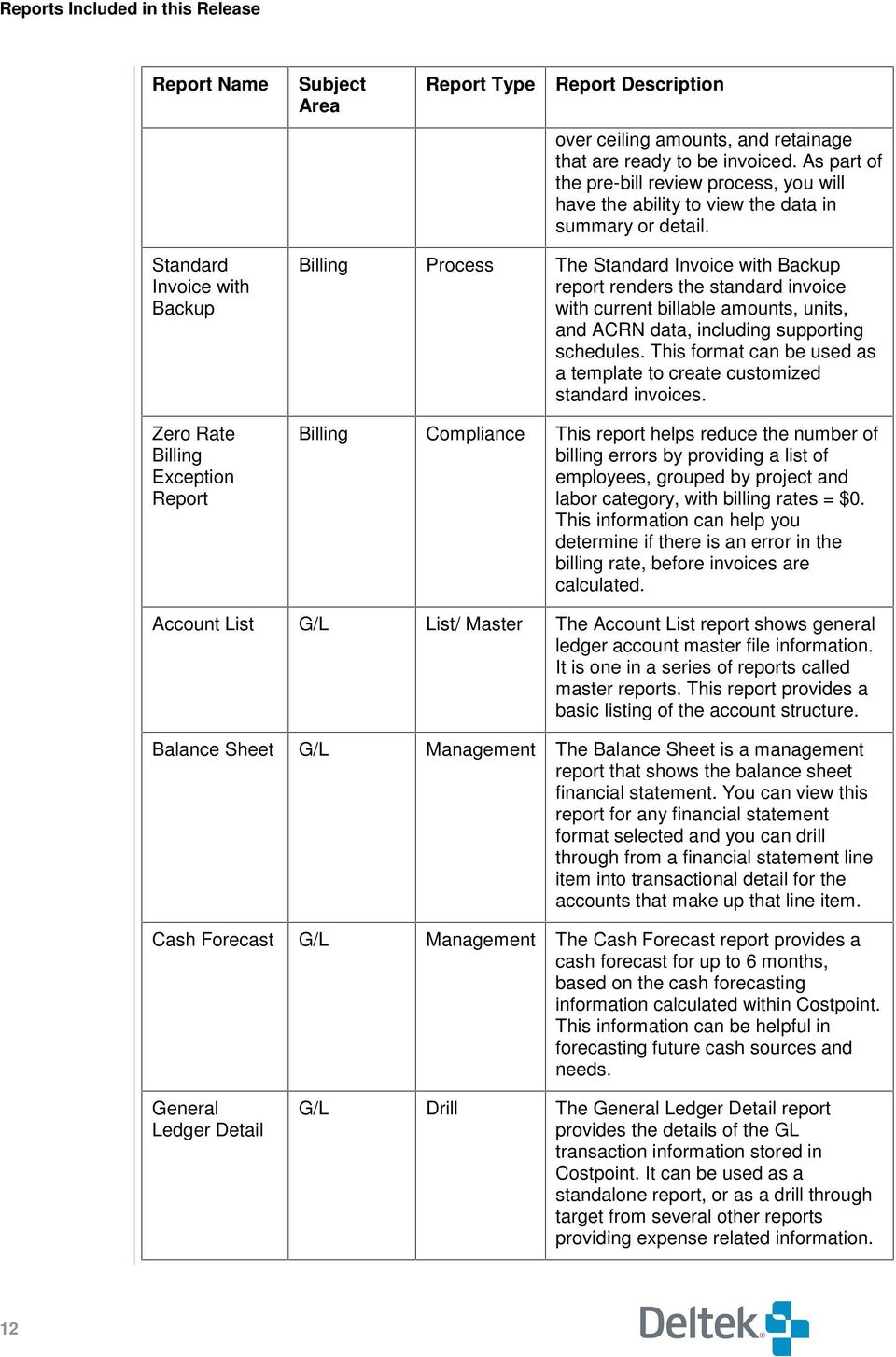
17 Chapter 1 - Overview Report Name Subject Area Report Type Report Income Statement Organization List Reorganization Structure G/L Management The Income Statement is a management report that shows profit and loss information by organization. You can view this report for any financial statement format needed and you can drill through from a financial statement line item into transactional detail for the accounts that make up that line item. G/L List/ Master The Organization List report shows organization setup information, which allows you to review the organization structure set up in Costpoint. This report can also be used as a drill through target from other reports. G/L List/ Master The Reorganization Structure report is a list report that shows reorganization setup information, which allows you to review the reorganization structure set up in Costpoint. This report can also be used as a drill through target from other reports. Employee List Labor List/ Master The Employee Basic Information report shows employee basic information (excluding salary related information). It is one in a series of master information reports. This report can also be used as a drill through target from other reports. Labor Detail Labor Drill The Labor Detail report provides a detailed look at the labor activity related to a project. It can be used as a standalone report or as a drill through target from other reports. This report serves as a drill through report for the Project Status Report. Labor Utilization Labor Management The Labor Utilization report is an analysis of the percentage of employee chargeable hours on direct projects compared to the total hours spent. Because the definition of "direct" can vary from company to company, the report provides the flexibility to determine which types of projects to include in the direct project classification. Deltek Performance Management Version 3.0 Costpoint 6 Series Portals, Reporting and Alerts Guide 13

18 Reports Included in this Release Report Name Subject Area Report Type Report Buyer Requisition Worksheet PO Commitments Detail Procurement Process The Buyer Requisition Worksheet provides buyers with the critical information needed to make buying decisions. The buyer will be able to see past purchasing activity and approved vendor information for items listed on open, approved requisitions. Procurement Drill The PO Commitments Detail report provides the details of the PO commitments that are shown on the Project Status Report and serves as a drill through report for that report. It can be used as a standalone report or as a drill through target from other reports. PO Header and Line Detail Drill Thru Only Posted PO Vouchers Drill Thru Only Purchase Order Requisition Detail Drill Thru Only Procurement Drill The PO Header and Line Detail report shows detailed information for a specific purchase order. Information from the PO header, PO line, and PO line account are displayed for a selected PO. This report is used as a drill through target from other reports, such as the Project Status Report. Procurement Drill The Posted PO Vouchers report lists all vouchers entered and posted against a PO from the PO Header and Line Detail Report. Voucher header, line, and line account information are displayed. This report serves as a drill through report for the Requisitions report. Procurement Process The Purchase Order report provides you with a basic PO format and the flexibility to customize the report by selecting the additional information you need at the header and line levels. Procurement Drill The Requisition Detail report shows detailed information for a specific purchase requisition. Information from the requisition header, requisition line, and requisition line account tables are displayed for a selected requisition or requisition line. This report is used as a drill through target from other reports, such as the Project Status Report. Requisitions Procurement Process The Requisitions report is one in a 14

19 Chapter 1 - Overview Report Name Subject Area Report Type Report series of reports that allow users to start with a requisition and see the related Purchase Order, Voucher, and Check information. Requisitions Pending Burdened Labor and ODC's Labor Summary with Posted and Unposted Hours PLC Exception Report for Missing Rates Procurement Process The Requisitions Pending report gives buyers and purchasing managers the ability to see requisitions for which purchase orders have not yet been generated. It includes requisitions that are in a pending, in-approval, approved, or rejected status. Projects Management The Burdened Labor and ODC report shows the burdened costs by resource for labor, and by account for non-labor, by project; information that was previously unavailable in Costpoint. This report utilizes specific tables, which need to be created by a specific process in Costpoint, relating to Deltek Cobra integration. Please refer to the user guide for more detail about specific setup instructions before running this report. Projects Management The Labor Summary with Posted and Unposted Hours extracts data from both Costpoint and Time Collection. This allows you to see an up-to-date view of a project, with one column showing the hours posted to date and another column showing the time that has been entered in Time Collection, but not yet posted. Projects Compliance The PLC Exception Report for Missing Rates provides a list of employees, grouped by project and PLC, with revenue rates of zero. This information can help you determine if there is an error in the revenue rate, before revenue and billing are computed. Project Master Projects List/ Master The Project Master is a one page form report that contains project master file information. Users can click links in this report to see more detailed information regarding the project. This report is used as a drill through for other reports and is intended to be a "snapshot" of a project. This report is divided into three sections - a section containing basic Deltek Performance Management Version 3.0 Costpoint 6 Series Portals, Reporting and Alerts Guide 15

20 Reports Included in this Release Report Name Subject Area Report Type Report project information, one containing charging information, and another containing billing and revenue information. The report also shows the project hierarchy for the whole project structure. Project Percent Complete Report Project Revenue Summary with Backlog Project Status Report Projects Management The Project Percent Complete report provides a list of projects whose revenue has reached a certain percentage of their contract or funded value. You can use this report to track how close a project is to reaching its value to ensure adequate funding is available to complete performance requirements or to prepare necessary documents for the government (for example, showing the contracting officer that 75% of funding has been reached). Projects Management The Project Revenue Summary with Backlog report provides revenue, cost, budget, and backlog information for an individual project or a group of projects. This information can help with the analysis of project results. Users can view information on the report at the organization level and select the levels for organization and project. This report provides drill through capability to the Project Status Report for more detail. Users can select the columns they want displayed out of the extensive list of project measures. Projects Management The Project Status Report shows revenue, direct costs (labor and nonlabor), indirect costs and profitability by project. This report allows the user to select any level of the project, account, and organization to be displayed. Drill through links provide more transactional detail for labor and nonlabor charges, including voucher, purchase order, and requisition information. Commitment detail can also be accessed from a drill through link in this report. Allowable Expense Detail Drill Thru Time/ Expense Drill The Allowable Expense Detail drill down report shows the expenses that make up the Allowable section of the pie chart in the Expense Analysis 16

21 Chapter 1 - Overview Report Name Subject Area Report Type Report Only report. It displays details regarding those expenses that have been deemed allowable by Deltek Expense. Billable Expense Detail Drill Thru Only Time/ Expense Drill The Billable Expense Detail drill down report shows the expenses that make up the Billable section of the pie chart in the Expense Analysis report. This report displays details regarding those expenses that have been deemed billable by Deltek Expense. Blanket Expense Authorization Time/ Expense Management The Blanket Expense Authorization report shows detailed information regarding blanket authorizations that have been entered in Deltek Expense. A blanket authorization is a single authorization amount on a project that can cover one or more expense reports. This report details the expense reports that are tied to each blanket expense authorization and shows the calculated amount remaining on the blanket authorization. Expense Analysis Time/ Expense Management The Expense Analysis report provides a high level graphical analysis of data in Deltek Expense. It shows Over and Under Ceiling, Billable and Non- Billable, and Allowable and Unallowable charges so that management can see the magnitude of these charges and take corrective action. From the charts provided, you can drill through to see a more detailed breakdown of the categories. Non-Billable Expense Detail Drill Thru Only Time/ Expense Drill The Non-Billable Detail drill down report shows the expenses that make up the Non-Billable section of the pie chart in the Expense Analysis report. It displays details regarding those expenses that have been deemed nonbillable by Deltek Expense. Over Ceiling Expense Detail Drill Thru Only Time/ Expense Drill The Over Ceiling Expense Detail drill down report shows the expenses that make up the Over Ceiling section of the pie chart in the Expense Analysis report. It displays details regarding those expenses that have been deemed over ceiling by Deltek Expense. Deltek Performance Management Version 3.0 Costpoint 6 Series Portals, Reporting and Alerts Guide 17
22 Reports Included in this Release Report Name Subject Area Report Type Report Time and Expense Charge Activity Report Time/ Expense Management The Time and Expense Activity report allows you to run a report that will show hours entered, expenses charged, and billable amounts for employees, by project. The information in this report is pulled from Deltek Time and Expense and includes information from both timesheets and expense reports. You have the option to include processed and/or unprocessed data in this report. Time and Expense Reconciliation Time/ Expense Compliance The Time and Expense Reconciliation report is an exception report that shows expenses charged to a project that do not have a corresponding labor charge, and therefore have been charged to the project in error. This report finds these errors prior to their inclusion on an invoice to a client, which helps to prevent erroneous billings that are very costly to fix. Unallowable Expense Detail Drill Thru Only Time/ Expense Drill The Unallowable Expense Detail drill down report shows the expenses that make up the Unallowable section of the pie chart in the Expense Analysis report. It displays details regarding those expenses that have been deemed unallowable by Deltek Expense. Under Ceiling Expense Detail Drill Thru Only Time/ Expense Drill The Under Ceiling Expense Detail drill down report shows the expenses that make up the Under Ceiling section of the pie chart in the Expense Analysis report. It displays details regarding those expenses that have been deemed under ceiling by Deltek Expense. 18
23 Chapter 1 - Overview Portals and Alerts The release contains four sample portal pages and three sample alerts. The portals are a way to navigate and view the value added reports organized by the following four roles: Management This portal provides a single location for an executive to access management reports, receive essential notifications, and view a graphical representation of a crucial management report, the A/R Aging report. Project Manager This portal provides a single location for a project manager to access project reports, receive essential notifications, and view a graphical representation of a crucial project report, the Project Revenue Summary report. Accounting This portal provides a single location for a Controller or accounting manager to access accounting reports, receive essential notifications, and view a graphical representation of a crucial accounting report, the A/R Aging report. Procurement This portal provides a single location for a procurement manager to access procurement reports, receive essential notifications, and view a graphical representation of a crucial report, the Requisitions Pending report. The three alerts provide samples of how to configure basic alerts. The alerts are: Purchase Requisition Alerts when a purchase requisition is approved or rejected. Funded Value Alerts when a project s revenue reaches 90% of its funded value. Accounts Receivable Alerts when A/R is past due more than a set number of days (default is 90 days) or is past due more than a set amount (default is $10,000). Deltek Performance Management Version 3.0 Costpoint 6 Series Portals, Reporting and Alerts Guide 19
24 Before You Begin Before You Begin To use the Deltek Performance Management reports discussed in this guide you must be running the following software: Costpoint 6.1 Cognos 8 Version 8.3 TESS 8.1 (if using the Time and Expense reports) Must own, at a minimum, a BI Administrator and Consumer licenses, typically the minimum requirement for an enhanced reporting bundle You must also be using the Framework Manager Model shipped with Deltek Performance Management Version 3.0 to access Costpoint data. This model is installed along with the reports when you install Deltek Performance Management Version 3.0 Costpoint 6 Series. For detailed information about installing and configuring the software necessary to use these reports, see the Deltek Performance Management Version 3.0 Costpoint 6 Series Installation Guide. 20
25 Portals Overview Setting Up Portals on Cognos Connection Saving Report Options for Proper Viewing of Reports from Portals Management Portal Project Management Portal Accounting Portal Procurement Portal... 38
26 22
27 Chapter 2 - Portals Overview Deltek provides four sample portal pages to allow you to review the reports included in this release right out of the box. You may want to use these samples to give you an idea of how to design your own portal pages, going forward. Deltek s sample portals are a way to navigate and view the Deltek Performance Management reports organized by the following four roles: Management Project Management Accounting Procurement Deltek Performance Management Version 3.0 Costpoint 6 Series Portals, Alerts and Reporting Guide 23
28 Setting Up Portals on Cognos Connection Setting Up Portals on Cognos Connection After installing Deltek Performance Management and importing the reporting packages, you must configure the sample portals before you can access the portals. To set up portals in Cognos Connection: 1. From Internet Explorer, enter the URL host server name>/cognos8 to open Cognos Connection. 2. Click the Tab Menu icon to the left of the Public Folders tab. 3. From the context menu, click Add Tabs. 4. From the Select portal tabs screen, click Public Folders and navigate to and then click the Deltek Performance Management public folder. 5. Click each check box next to each of the four portal names that display in the left hand side of the screen and click the right arrow to select the portals. The names are moved to the right-hand side of the screen. 6. Click OK to save changes. 24
29 Chapter 2 - Portals The four portal tabs display across the top of the screen, as shown here. Deltek Performance Management Version 3.0 Costpoint 6 Series Portals, Alerts and Reporting Guide 25
30 Saving Report Options for Proper Viewing of Reports from Portals Saving Report Options for Proper Viewing of Reports from Portals Each sample portal includes one report that is intended to display automatically when you access the portal. Because these reports are automatically rendered by Report Viewer when you browse to the portal s URL, the prompt values, or options, for these reports must be stored with the report, so it opens automatically without prompting the user to fill in the values. Following is a list of the reports that are automatically run when you open a particular portal: Management Portal A/R Chart Project Management Portal Project Revenue Summary with Backlog Accounting Portal A/R Chart Procurement Portal Requisitions Pending Deltek Performance Management reports are shipped without saved report options. You must pre-set the options you want to use when one of the previously listed reports is run. You do this from the Reports tab of the Set Properties page, accessible from Cognos Connection. This section provides: instructions for saving pre-set report options to allow a report to display automatically in a portal without prompting for values a table of sample prompt values for each of the three reports that can be set to display automatically from the Deltek sample portals To save a report with pre-set options: 1. From Cognos Connection, browse to the report whose options you want to save. For example, Public Folders» Deltek Performance Management» Reporting Packages» Costpoint» Accounts Receivable CP» A/R Chart. 2. Click the More option next to the report. 3. From the Perform an Action page, click Set Properties. 26
31 Chapter 2 - Portals 4. From the Set Properties page, click the Report tab. 5. From the Reports tab, do the following: Deltek Performance Management Version 3.0 Costpoint 6 Series Portals, Alerts and Reporting Guide 27
32 Saving Report Options for Proper Viewing of Reports from Portals In the Default Action field, select Run the Report. In the Prompt Values area, uncheck Prompt for values and click Set. The report prompt page displays. 6. From the report prompt page, select a value for each prompt. The following tables list sample prompt values, by report. Sample A/R Chart Prompts Prompt Message (on Prompt Screen) Sample Prompt Values Select the Company 1 Company 1 Select the Subperiod End Date Select the Primary Group Select to age by Invoice Date or Due Date Select the ending date to age by Enter the column range for aging Enter the column range for aging Enter the column range for aging Enter the largest number of days you entered in the previous column 3 March 15, 2008 Select any option from the list: Customer Type Project Type Project Manager Organization Reorganization Select Invoice Date. Enter or select December 31,
33 Chapter 2 - Portals Sample Requisitions Pending Report Prompts Prompt Message (on Prompt Screen) Sample Prompt Values Select the Company 1 Company 1 Check to include only those requisitions without an assigned buyer Check to include REQ status Select Requisitioner, Requisition, Approver, Buyer or Req Status No Multiple selections acceptable Buyer Approved In Approval Pending Sample Project Revenue Summary with Backlog Report Prompts Prompt Message (on Prompt Screen) Sample Prompt Values Select a Company 1 Company 1 Select the Fiscal year 2008 Select the Period 1 Select the Subperiod 1 Select the Major Grouping Rate Type Select the Columns to Display Project Actual % Complete Funding % Complete Value CTD Cost Variance CTD Funding Backlog CTD Profit Variance CTD Revenue Variance CTD Value Backlog Deltek Performance Management Version 3.0 Costpoint 6 Series Portals, Alerts and Reporting Guide 29
34 Saving Report Options for Proper Viewing of Reports from Portals Prompt Message (on Prompt Screen) Display project data at revenue level Include Project Page Break Sample Prompt Values Yes Yes 7. Click Run Report when finished entering values. 8. From the Set Properties page, click OK to save the prompt values and default action setting. Tip: To edit options in the future, from the Set Properties page in the Prompt Values area, click Edit. Then edit values from the prompts page. You can also click Clear to clear saved options. Configure Cognos viewer to Open the Report in the Portal You associate the report with the portal from the Cognos Viewer in Cognos Connection. To configure the report to display automatically in a portal: 1. From Cognos connection, open the report portal you want to associate with the report. For example, Public Folders» Deltek Performance Management» Portals» Accounting Portal. 2. From Cognos Viewer, click the edit button (in the upper right of the righthand frame labeled A/R Aging in this screen shot) to open the properties page. 3. From the Entry area of the Properties page click Select an entry. 30
35 Chapter 2 - Portals 4. In the Select an Entry dialog, navigate to the appropriate report. Requisitions Pending report Public Folders» Deltek Performance Management» Reporting Packages» Costpoint» Procurement CP» Requisitions Pending AR Chart report Public Folders» Deltek Performance Management» Reporting Packages» Costpoint» Accounts Receivable CP» A/R Charts Project Revenue Summary with Backlog report Public Folders» Deltek Performance Management» Reporting Packages» Costpoint» Projects CP» Project Revenue Summary with Backlog 5. When you have navigated to the report, click the radio button next to the report to select it and click Ok. 6. From the Set Properties page, click OK again to return to Cognos Viewer. Deltek Performance Management Version 3.0 Costpoint 6 Series Portals, Alerts and Reporting Guide 31
36 Management Portal Management Portal Overview This portal provides a single location for an executive to access management reports, receive essential notifications, and view a graphical representation of a crucial management report, the A/R Aging report. The Management Portal contains the following three sections: My Notifications Accounts Receivable alerts display in this area. Management Reports This area contains a list of management-related reports. Click on any item in the list to open that report in a new window. A/R Chart This area displays the A/R Chart report for immediate, graphical access to the information the executive needs. Reports The sample Executive Management portal page includes links to the following management related reports and alerts included in this Deltek Performance Management release. A/R Charts Accounts Receivable Aging Employee Basic Information Expense Analysis Report Labor Summary with Posted and Unposted Hours Labor Utilization 32
37 Chapter 2 - Portals Project Revenue Summary with Backlog Project Status Report Time and Expense Charge Activity Report Alerts The sample Management portal page displays Accounts Receivable alerts. For information about alerts, see Chapter 4. Deltek Performance Management Version 3.0 Costpoint 6 Series Portals, Alerts and Reporting Guide 33
38 Project Management Portal Project Management Portal Overview This portal provides a single location for a project manager to access project reports, receive essential notifications, and view a graphical representation of a crucial project report, the Project Revenue Summary report. The Project Management Portal contains the following three sections: My Notifications Funded Value alerts display in this area. Project Management Reports This area contains a list of projectrelated reports. Click on any item in the list to open that report in a new window. Project Revenue Summary This area displays the Project Revenue Summary report for immediate, graphical access to the information the project manager needs. Reports The sample Project Manager portal page includes links to the following projectrelated reports and alerts included in this Deltek Performance Management release. Blanket Authorization Burdened Labor and ODC s Customer Master Information Employee Basic Information Labor Summary with Posted and Unposted Hours 34
39 Chapter 2 - Portals Labor Utilization Milestone Invoice Project Master Project Percent Complete Report Project Revenue Summary with Backlog Project Status Report Purchase Order Requisitions Alerts The sample Project Manager portal page displays Funded Value alerts. For information about alerts, see Chapter 4. Deltek Performance Management Version 3.0 Costpoint 6 Series Portals, Alerts and Reporting Guide 35
40 Accounting Portal Accounting Portal Overview This portal provides a single location for a Controller or accounting manager to access accounting reports, receive essential notifications, and view a graphical representation of a crucial accounting report, the A/R Aging report. The Controller/Accounting Manager Portal contains the following three sections: My Notifications Accounts Receivable alerts display in this area. Accounting Reports This area contains a list of accounting-related reports. Click on any item in the list to open that report in a new window. A/R Chart This area displays the A/R Chart report for immediate, graphical access to the information the accounting executive needs. Reports The sample Controller/Accounting Manager portal page includes links to the following accounting-related reports and alerts included in this Deltek Performance Management release Exception Report A/R Aging Charts Account List Accounts Receivable Aging Aged Open Billing Detail Balance Sheet Burdened Labor and ODC s 36
41 Chapter 2 - Portals Cash Forecast Report Employee Basic Information Income Statement Organization List PLC Exception Report for Missing Rates Reorganization Structure Time and Expense charge Activity Report Alerts The sample Accounting portal page displays Accounts Receivable alerts. For information about alerts, see Chapter 4. Deltek Performance Management Version 3.0 Costpoint 6 Series Portals, Alerts and Reporting Guide 37
42 Procurement Portal Procurement Portal Overview This portal provides a single location for a procurement manager to access procurement reports, receive essential notifications, and view a graphical representation of a crucial report, the Requisitions Pending report. The Procurement Portal contains the following three sections: My Notifications Purchase Requisitions alerts display in this area. Procurement Reports This area contains a list of procurement-related reports. Click on any item in the list to open that report in a new window. Requisitions Pending This area displays the Requisitions Pending report for immediate, graphical access to the information the procurement manager needs. Reports The sample Procurement Management portal page includes links to the following procurement-related reports and alerts included in this Deltek Performance Management release. Buyer Requisition Worksheet Purchase Order Requisitions Pending Requisitions Vendor Master 38
43 Chapter 2 - Portals Alerts The sample Procurement Management portal page displays Purchase Requisition alerts. For information about alerts, see Chapter 4. Deltek Performance Management Version 3.0 Costpoint 6 Series Portals, Alerts and Reporting Guide 39
44 Procurement Portal 40
45 Reports Overview About Report Viewing and Internet Explorer Cache About Entering Keywords in Keywords Search Fields About Running Reports About Viewing PDFs of Report Samples How to Save and Schedule a Personal Copy of a Report Basic Information Reports Overview Account List Customer Master Information Report Employee Basic Information Report Organization List Report Reorganization Structure Vendor Employee Vendor Master Report Accounts Payable Report Overview Exceptions Report Vendor History by EEOC Classification Report Accounts Receivable Reports Overview Accounts Receivable Aging Report A/R Charts Report... 76
46 Billing Report Overview Standard Invoice with Backup Report Aged Open Billing Detail Report Milestone Invoice Report Pre-Bill Report Zero Rate Billing Exception Report General Ledger Reports Overview General Ledger Detail Report Balance Sheet Cash Forecast Income Statement Procurement Reports Overview Requisitions Pending Report Requisitions Report Buyer Requisition Worksheet Project Reports Overview Project Status Report Burdened Labor and ODC s Report Labor Detail Report Labor Utilization Report Labor Summary with Posted and Unposted Hours Report PLC Exception Report for Missing Rates Project Master Project Percent Complete Report Project Revenue Summary with Backlog Report Time and Expense Charge Activity Report Purchasing Reports Overview
47 Purchase Order Purchase Order Commitments Detail Report Time and Expense Reports Blanket Authorization Report Expense Analysis Report Time and Expense Reconciliation Report Drill-Thru Only Reports Overview Accounts Payable Procurement Purchasing Time and Expense
48 44
49 Chapter 3 - Reports Overview This chapter includes descriptions of reports included with the Deltek Performance Management Version 3.0 Costpoint 6 Series release, along with the reports prompts and a link to a sample of the report. For a full list of reports, see the Reports included in this Release table starting on page 9 in Chapter 1. For information about tables used and filters used in each report, please see Appendix A. About Report Viewing and Internet Explorer Cache When you view a report in the Cognos Viewer and select View in HTML Format as the display option, depending on your browser cache settings, you may not get minute to minute report updates of data that has changed in the Costpoint database. For example, your report may not include vouchers that have just been posted. If you need to access something that has just changed in the database, do one of the following: If viewing your data using the View in HTML Format option, empty all your temporary Internet files and then view the report again, selecting the View in HTML Format option. View the report selecting the View in PDF Format or View in Excel Format. When you view a report in Cognos Viewer in PDF for Excel format, the information included on the report is always the most up-to-date information available. About Entering Keywords in Keywords Search Fields Many reports in this report set include prompts that allow you to enter a keyword, partial keywords, or groups of keywords to search for results such as accounts, organizations, or projects to include on the report. This section explains in general terms how to use this Keywords field to return the results you are looking for. To search for a variable (such as an account ID) to include on a report using the Keywords field: 1. In the Keywords search field of the selected reports prompts page (for example the Select one or more Accounts field on the Account List prompt page), enter the entire ID or name, or a portion of one or more IDs or names. In this example, we have entered 45 in the Keywords field. Deltek Performance Management Version 3.0 Costpoint 6 Series Portals, Alerts, and Reporting Guide 45
50 Overview Sample Account List Prompt Page Showing Keywords Field 2. Click the Options link to display search options. If you do not display options and run the search without specifying an option, the default option is Starts with any of these Keywords. This means that the value or values entered in the Keywords field is interpreted as the beginning of the IDs or names that will be searched on. 3. Set search options by selecting one of the following: Starts with any of these keywords Starts with the first keyword and contains all of the remaining keywords Contains any of these keywords Contains all of these keywords In this example, we have selected Contains any of these keywords. Notice that in the list of results returned in the Results area, each listing contains the number 45 somewhere in the account ID or name. 46
51 Chapter 3 - Reports Sample Account List Prompt Page Showing Keywords Field and Options List 4. If you would like to search on more than one complete or partial keyword, separate each individual entry with a space. In this example we are searching for two complete Account IDs: and Each entry is typed into the Keywords field and separated by a space. Sample Account List Prompt Page Showing Keywords Field and Options List 5. Check the Case insensitive option if you want the search program to ignore case when performing the search. 6. Click the Search button to retrieve the IDs or names you are searching for. Deltek Performance Management Version 3.0 Costpoint 6 Series Portals, Alerts, and Reporting Guide 47
52 Overview Results display in the Results area. 7. Select the items to include from the list of returned items, and click Insert. 8. When you are finished setting all report prompts, click Run Report. About Running Reports From Cognos Connection, you can run reports in several ways. For example, if you click on the hyperlinked report link, you will either run the report new, if no pre-set options are saved for the report, or view the report with pre-set options. Although all Deltek reports are shipped without saved options, as you tailor reports to your needs, you may decide to save report options for some or all reports. For example, to use alerts you must pre-set report options for the Project Percent Complete or Accounts Receivable Aging reports. Also, to view a report automatically from a portal page you must pre-set report options. The Deltek recommended procedure for running reports is to click the Run with options icon for the selected report. Clicking this icon for a selected report ensures that you are running a new version of the report, rather than viewing a report with saved options. About Viewing PDFs of Report Samples Deltek has created a PDF sample of each report. A link to each sample can be found at the end of the report description. You must have the Adobe Reader to open this document. If you do not have the Adobe Reader, you can download it free from the Adobe website ( PDF samples are stored in the Deltek Documentation\PDF Samples folder on the Deltek Performance Management Version 3.0 Costpoint 6 Series CD. They are also copied to the Documentation\PDF Samples folder during installation. The link to each sample works only if these pdf samples remain in a subfolder relationship to this reporting document, in a subfolder named PDF Samples. If you have trouble opening the sample report, you can find the full set of sample report PDFs in the Deltek Documentation\PDF Samples folder on the Deltek Performance Management Version 3.0 Costpoint 6 Series CD. How to Save and Schedule a Personal Copy of a Report Your system administrator sets up access to reports via Cognos Connection, a Web page that provides a single access point to all corporate data available in the Cognos 8 Business Intelligence (BI) environment. From this web page business users can access reports, portals and alerts. You can do the following with reports from Cognos Connection: 48
53 Chapter 3 - Reports Schedule a report or a group of reports to run at a specific time. Distribute reports to other users. Print a report. Select the language used when a report is run. Set prompt values. Maintain the history of a report. Maintain different versions of a report. Create report views. For details about using Cognos Connection to manage reports, see the Cognos Connection User Guide available from the Cognos BI Documentation Version 8.3 CD. To copy and save reports to your local computer (instructions from Cognos documentation): 1. Obtain the LFA.dll from your Cognos 8 administrator. The DLL is located in the bin directory where Cognos 8 is installed. 2. Open a command prompt window. 3. Register the LFA.dll file by typing regsvr32 LFA.dll 4. In Internet Explorer, set your computer and the Cognos 8 server as trusted sites: From the Internet Explorer main menu, click Tools >> Internet Options >> Security tab, From the Security tab, click Trusted sites. Click the Sites button. In the Add this Web site to the zone box, type and click Add. Tip: If the Cognos 8 server is not on the same computer as the browser, type name> instead. In the Add this Web site to the zone box, type 8 servername>, and click Add. Clear the Require server verification ( for all sites in this zone check box. Click OK twice. 5. From Report Studio main menu click Tools >> Options. 6. Select the Allow local file access check box and click OK. 7. The menu items (Local) Open and (Local) Save As appear in the File menu. 8. Close and restart Report Studio. You can now open and save reports on your computer. The first time you try to open or save a report locally, Internet Explorer asks you whether you want to Deltek Performance Management Version 3.0 Costpoint 6 Series Portals, Alerts, and Reporting Guide 49
54 Overview allow an ActiveX control on the page to interact with other parts of the page. Click Yes to continue. 50
55 Chapter 3 - Reports Basic Information Reports Overview This section shows sample prompt screens and sample reports for the following reports: Account List Customer Master Information Employee Basic Information Organization List Reorganization Structure Vendor Employee Vendor Master For information about tables used and filters used in each report, please see Appendix A. Account List The Account List report shows general ledger account master file information. It is one in a series of reports called master reports. This report provides a basic listing of the account structure. It can be used as a stand-alone report, or as a drill-through target from other reports, like the Balance Sheet and Income Statement. This sample shows the prompts selected for an Account List report and provides a link to a report run with these selections. Prompts The following shows the prompts screen as it displays before you run the report. Deltek Performance Management Version 3.0 Costpoint 6 Series Portals, Alerts, and Reporting Guide 51
56 Basic Information Reports Prompt Screen: General Tab Prompt Screen: Advanced Tab 52
57 Chapter 3 - Reports Prompt Message Select Company Select one or more Accounts Choose the Account Level Account Status Project Required Select one company from the list. Enter a portion of one or more account IDs in the Keywords field and click Search to list accounts to include on the report. For details about using the Keywords field, see About Entering Keywords in Keywords Search Fields on page 45. Select the account level at which you want the report printed. All lower levels will be rolled up for the report. Select one of the following options: Active To include accounts currently in use on the report. Inactive To include accounts not currently used on the report. Select one of the following options: Yes include accounts with the Project Required flag checked, which indicates that whenever the account is used, a project must be charged. No include accounts with the Project Required option unchecked. Link to Sample Report Click the following link to open a sample of this report in Adobe PDF format. Account List.pdf Customer Master Information Report The Customer Master Information report provides a list of customers with the relevant master file information. This report can be used as a drill through report from reports with a customer field. This sample shows the prompts selected for a Customer Master Information report and provides a link to a report run with these selections. Deltek Performance Management Version 3.0 Costpoint 6 Series Portals, Alerts, and Reporting Guide 53
58 Basic Information Reports Prompts The following shows the prompts screen as it displays before you run the report. Prompt Screen: General Tab 54
59 Chapter 3 - Reports Prompt Screen: Advanced Tab Prompt Message Select Company Select one or more Customers Choose the Status Select one company from the list. Enter a portion of one or more customer IDs in the Keywords field and click Search to list customers to include on the report. For details about using the Keywords field, see About Entering Keywords in Keywords Search Fields on page 45. Select a customer status to filter the report results by one or more of the Deltek Performance Management Version 3.0 Costpoint 6 Series Portals, Alerts, and Reporting Guide 55
60 Basic Information Reports Prompt Message following statuses: Select the Customer Type Ok Include customers with credit in good standing. Warning Include customers whose sales orders are still being processed, but whose orders are marked with a warning message during sales order entry indicating the customer's credit status. Hold Include customers whose sales order processing has been suspended. Select one or more types of customers to include on the report. Select the Sales Territory Select the territory or territories of customers you want to include on the report. Territories are established in the Sales Territories table in Costpoint Accounts Receivable. Link to Sample Report Click the following link to open a sample of this report in Adobe PDF format. Customer Master Information.pdf Employee Basic Information Report The Employee Basic Information report shows employee basic information (excluding salary related information). It is one in a series of master information reports. This report can also be used as a drill through target from other reports. This sample shows the prompts selected for an Employee Basic Information report and provides a link to a report run with these selections. Prompts The following shows the prompts screen as it displays before you run the report. 56
61 Chapter 3 - Reports Prompt Screen General Tab Deltek Performance Management Version 3.0 Costpoint 6 Series Portals, Alerts, and Reporting Guide 57
62 Basic Information Reports Prompt Screen Advanced Tab Prompt Message Select Company Select Employee Status Select one company from the list. Select one or more of the following employee statuses to narrow the list of employees to include on the report: Active Family Medical Leave Inactive 58
63 Chapter 3 - Reports Prompt Message Select Employee Type Select one or more Organizations Select one or more Supervisors Select one or more Locator Codes Inactive Accruing Leave Select one or more of the following employee types to narrow the list of employees to include on the report: Regular Part Time Temporary Enter a portion of one or more organization IDs in the Keywords field and click Search to list organizations to include on the report. For details about using the Keywords field, see About Entering Keywords in Keywords Search Fields on page 45. Enter a portion of one or more supervisor names in the Keywords field and click Search to list supervisors to include on the report. For details about using the Keywords field, see About Entering Keywords in Keywords Search Fields on page 45. Enter a portion of one or more locator codes in the Keywords field and click Search to list codes to use as filters for employee s to include on the report. For details about using the Keywords field, see About Entering Keywords in Keywords Search Fields on page 45. A locator code is an optional field that can be defined for an employee. It is used only in the employee record and not maintained or validated anywhere else in Costpoint. It is used typically as a way to organize how checks or leave status is printed (set up locator codes and print checks or leave status in groups, sorted by locator code). Link to Sample Report Click the following link to open a sample of this report in Adobe PDF format. Employee Basic Information.pdf Deltek Performance Management Version 3.0 Costpoint 6 Series Portals, Alerts, and Reporting Guide 59
64 Basic Information Reports Organization List Report The Organization List report shows organization setup information, which allows you to review the organization structure set up in Costpoint. This report can be used as a stand-alone report and can also be used as a drill-through target from other reports, such as the Balance Sheet, Income Statement, Project Master Report, Project Status Report, and Aged Open Billing Detail report. This sample shows the prompts selected for an Organization List Report and provides a link to a report run with these selections.. Prompts The following shows the prompts screen as it displays before you run the report. Prompt Screen: General Tab 60
65 Chapter 3 - Reports Prompt Screen: Advanced Tab Prompt Message Select Company Select a range of Organization Choose the Organization Level Select Active/Inactive Select one company from the list. Enter a portion of one or more Organization IDs in the Keywords field and click Search to list organizations to include on the report. For details about using the Keywords field, see About Entering Keywords in Keywords Search Fields on page 45. Select the level of organization at which you want the report printed. All lower levels will be rolled up for the report. Select one of the following: Active Includes Deltek Performance Management Version 3.0 Costpoint 6 Series Portals, Alerts, and Reporting Guide 61
66 Basic Information Reports Prompt Message organizations that are active, meaning available to receive charges. Inactive Includes on the report organizations not available to receive charges. Link to Sample Report Click the following link to open a sample of this report in Adobe PDF format. Organization List.pdf Reorganization Structure The Reorganization Structure report is a list report that shows reorganization setup information, which allows you to review the reorganization structure set up in Costpoint. This report can be used as a stand-alone report. It can also be used as a drill through target from other reports, such as the Income Statement and Balance Sheet. This sample shows the prompts selected for a Reorganization Structure Report and provides a link to a report run with these selections. Prompts The following shows the prompts screen as it displays before you run the report. Prompt Screen: General Tab 62
67 Chapter 3 - Reports Prompt Screen: Advanced Tab Prompt Message Select Company Select one or more Reorganizations Choose the Reorganization Level Select one company from the list. Enter a portion of one or more Reorganization IDs in the Keywords field and click Search to list reorganizations to include on the report. For details about using the Keywords field, see About Entering Keywords in Keywords Search Fields on page 45. Select the level of reorganization at which you want the report printed. All lower levels will be rolled up for the report. Deltek Performance Management Version 3.0 Costpoint 6 Series Portals, Alerts, and Reporting Guide 63
68 Basic Information Reports Prompt Message Suppress Organization Details Select one of the following: Yes suppress all the organization information on the report, and just show the reorganization details. No Show both Organization and Reorganization information. Link to Sample Report Click the following link to open a sample of this report in Adobe PDF format. Reorganization Structure.pdf Vendor Employee The Vendor Employee report provides a list of the vendor employees and related information stored in Costpoint. It can be used to validate vendor employee information and identify errors or obsolete vendor employees. This sample shows the prompts selected for a Vendor Employee report and provides a link to a report run with these selections. Prompts The following shows the prompts screen as it displays before you run the report. 64
69 Chapter 3 - Reports Prompt Message Select Company Select one or more vendors Select one company from the list. Enter a portion of one or more vendor IDs in the Keywords field and click Search to list vendors to include on the report. For details about using the Keywords field, see About Entering Keywords in Keywords Search Fields on page 45. Link to Sample Report Click the following link to open a sample of this report in Adobe PDF format. Vendor Employee.pdf Vendor Master Report The Vendor Master report provides basic vendor master file information in a form view. This report shows general vendor information in the top half of the report and address information in the bottom half. This report can be used as a drill through report from reports with a customer field. Prompts The following shows the prompts screen as it displays before you run the report. Deltek Performance Management Version 3.0 Costpoint 6 Series Portals, Alerts, and Reporting Guide 65
70 Basic Information Reports Prompt Message Select a Company Select Vendor(s) Select one company from the list. Enter a portion of one or more vendor IDs in the Keywords field and click Search to list vendors to include on the report. For details about using the Keywords field, see About Entering Keywords in Keywords Search Fields on page 45. Link to Sample Report Click the following link to open a sample of this report in Adobe PDF format. Vendor Master.pdf 66
71 Chapter 3 - Reports Deltek Performance Management Version 3.0 Costpoint 6 Series Portals, Alerts, and Reporting Guide 67
72 Accounts Payable Report Accounts Payable Report Overview This section shows sample prompt screens and sample reports for the following reports: 1099 Exceptions Vendor History by EEOC Classification For information about tables used and filters used in each report, please see Appendix A. Certain accounts payable reports are drill-thru only, meaning that they are not intended to be run on their own, but accessed by clicking links from other, parent reports. For information on Accounts Payable drill-thru reports, see page Exceptions Report The 1099 Exceptions report provides a list of the 1099 vendors that have missing or incomplete Tax IDs. This report should be run before the 1099s are printed to identify potential errors. This sample shows the prompts selected for a 1099 Exception report and provides a link to a report run with these selections. Prompts The following shows the prompts screen as it displays before you run the report. Prompt Screen: General Tab 68
73 Chapter 3 - Reports Prompt Screen: Advanced Tab Prompt Message Select Company ID Enter Missing for missing IDs, or a portion of an ID and the 'contains' or starts with option to get IDs that start or contain those numbers Select AP 1099 Type Select one company from the list. Enter a portion of one or more Tax ID or the text Missing in the Keywords field to search for vendors with incomplete Tax IDs. For details about using the Keywords field, see About Entering Keywords in Keywords Search Fields on page 45. Select the AP type, for example: A Acquisition/Abandonment or FED Federal Income Tax Withheld. Deltek Performance Management Version 3.0 Costpoint 6 Series Portals, Alerts, and Reporting Guide 69
74 Accounts Payable Report Link to Sample Report Click the following link to open a sample of this report in Adobe PDF format Exceptions.pdf Vendor History by EEOC Classification Report The Vendor History by EEOC Classification Report provides a list of vendors and the classifications for those vendors who are designated as a Small Business (SB) in Costpoint. Amounts from the Accounts Payable area are spread across the classification columns to show activity. Federal Contractors can use this information to help complete forms SF 294 and SF 295. This sample shows the prompts selected for a Vendor History by EEOC Classification report and provides a link to a report run with these selections. Prompts The following shows the prompts screen as it displays before you run the report. Prompt Screen: General Tab 70
75 Chapter 3 - Reports Prompt Screen: Advanced Tab Prompt Message Select Company ID Select the Project or range of Projects Select an Agency or range of Agencies Enter the desired invoice start date Enter the desired invoice end Select one company from the list. Enter a portion of one or more project ID in the Keywords field to search for projects to include on the report. For details about using the Keywords field, see About Entering Keywords in Keywords Search Fields on page 45. Enter a portion of one or more government agency ID in the Keywords field to search for agencies to include on the report. For details about using the Keywords field, see About Entering Keywords in Keywords Search Fields on page 45. Enter the invoice start date to use or click the calendar icon to select the date. Enter the invoice end date to Deltek Performance Management Version 3.0 Costpoint 6 Series Portals, Alerts, and Reporting Guide 71
76 Accounts Payable Report Prompt Message date use or click the calendar icon to select a date. Link to Sample Report Click the following link to open a sample of this report in Adobe PDF format. Vendor History by EEOC Classification.pdf 72
77 Chapter 3 - Reports Accounts Receivable Reports Overview This section shows sample prompt screens and sample reports for the following reports: Accounts Receivable Aging A/R Charts For information about tables used and filters used in each report, please see Appendix A. Accounts Receivable Aging Report The Accounts Receivable Aging report is a management report that provides a list of all unpaid or partially paid invoices; the report ages the amounts based on an option of invoice date or due date. The report contains drill-through functionality that allows you to view more detailed information about the outstanding amounts. This report can be used as a drill-through report from the AR Charts report, or as a stand-alone report. This sample shows the prompts selected for an Accounts Receivable Aging report and provides a link to a report run with these selections. Prompts The following shows the prompts screen as it displays before you run the report. Deltek Performance Management Version 3.0 Costpoint 6 Series Portals, Alerts, and Reporting Guide 73
78 Accounts Receivable Reports Prompts Screen 74
79 Chapter 3 - Reports Prompt Message Select a Company Select the Subperiod End Date Select one company from the list. Enter or select the subperiod end date. Select the Primary Grouping Limit Primary Grouping to Select a Secondary Sort Select to age by Invoice Date or by Due Date Select the date from which to age your receivables Select any option from the list: Customer Type Project Type Project Manager Organization Reorganization Enter a portion of one or more names or IDs in the Keywords field to narrow the primary group you selected in the previous field. For details about using the Keywords field, see About Entering Keywords in Keywords Search Fields on page 45. Select any option from the list to use as the secondary sort on the report: Customer Type Project Type Project Manager Organization Reorganization Select one of the following options to age by: Invoice Date Due Date Enter or select the date to use when determining which aging column the receivable amount belongs in, based on the number of days before this date the invoice date or due date (selected in the previous prompt) falls. Deltek Performance Management Version 3.0 Costpoint 6 Series Portals, Alerts, and Reporting Guide 75
80 Accounts Receivable Reports Prompt Message Enter the column range for aging Enter the column range for aging Enter the column range for aging Enter the maximum # of days that were entered in column 3 for aging Enter a range to age by in the following three columns. You can edit the default ranges as necessary as long as date ranges do not overlap from column to column. Defaults from 0 up to 30 Defaults from 31 up to 60 Defaults from 61 up to 90 Enter the largest number entered in the previous field (for example 90). Link to Sample Report Click the following link to open a sample of this report in Adobe PDF format. Accounts Receivable Aging.pdf A/R Charts Report The Accounts Receivable (A/R) Charts report is a management report that graphically represents the Accounts Receivable Aging data with drill through to the detail Accounts Receivable information. 76
81 Chapter 3 - Reports Prompts The following shows the prompts screen as it displays before you run the report. Prompts Screen Deltek Performance Management Version 3.0 Costpoint 6 Series Portals, Alerts, and Reporting Guide 77
82 Accounts Receivable Reports Prompt Message Select the Company Select the Subperiod End Date Select the Primary Group Select to age by Invoice Date or by Due Date Select the date from which to age your receivables Enter the column range for aging Enter the column range for aging Enter the column range for aging Enter the largest number of days you entered in the previous column 3 Select one company from the list. Enter or select the subperiod end date. Select any option from the list: Customer Type Project Type Project Manager Organization Reorganization Select one of the following options to age by: Invoice Date Due Date Enter or select the date to use when determining which aging column the receivable amount belongs in, based on the number of days before this date the invoice date or due date (selected in the previous prompt) falls. Enter a range to age by in the following three columns. You can edit the default ranges as necessary as long as date ranges do not overlap from column to column. Defaults from 0 up to 30 Defaults from 31 up to 60 Defaults from 61 up to 90 Enter the largest number entered in the previous field (for example 90). 78
83 Chapter 3 - Reports Link to Sample Report Click the following link to open a sample of this report in Adobe PDF format. AR Charts.pdf Deltek Performance Management Version 3.0 Costpoint 6 Series Portals, Alerts, and Reporting Guide 79
84 Billing Report Billing Report Overview This section shows sample prompt screens and sample reports for the following reports: Standard Invoice with Backup Aged Open Billing Detail Milestone Invoice Pre-bill Report Zero Rate Billing Exception Report For information about tables used and filters used in each report, please see Appendix A. Standard Invoice with Backup Report The Standard Invoice with Backup report renders the standard invoice with current billable amounts, units, and ACRN data, including supporting schedules. This format can be used as a template to create customized standard invoices. This report is similar to the one that exists in Costpoint, with enhancements such as including any outstanding invoice amounts along with the current invoice transactions and amounts. This sample shows the prompts selected for a Standard Invoice with Backup report and provides a link to a report run with these selections. Before You Run This Report Deltek recommends that you perform the tasks on the following list in Costpoint before running the Standard Invoice with Backup report. Set up project data, including any ceilings, overrides, units data, PLC rates Set up cost pools and associated provisional rates Set up customer information Establish remit to and bill to addresses Set up generic billing formats Set up supporting schedule formats Set up project billing info Maintain ACRN bills, if project is subject to ACRN billing requirements Use Maintain Open Billing Detail to edit transaction records, if necessary Load labor rates, if necessary Update cash basis Information, if necessary 80
85 Chapter 3 - Reports Calculate billings Make necessary edits in Edit Standard Bills application Calculate ACRN billings Make necessary edits in the Maintain ACRN Bills application Prompts The following shows the prompts screen as it displays before you run the report. Prompts Screen: General Tab Prompts Screen: Advanced Tab Prompt Message Select Company ID Select Project, Customer, Deltek Performance Management Version 3.0 Costpoint 6 Series Portals, Alerts, and Reporting Guide Select one company from the list. Select an option to use as a primary grouping for 81
86 Billing Report Prompt Message Invoice, Billing Group, or Billing Cycle Select specific Project(s), Customer(s), Invoice(s), Billing Group(s) or Billing Cycle(s) Print Status Print Detail Invoice Print Supporting Schedules the report: Project Customer Invoice Billing Group Billing Cycle Billing group and Billing Cycle are optional in Costpoint. If you use these options and want to use them in your report, you must perform the following steps within Costpoint to populate the necessary data. Billing Cycle To use Billing Cycle on the report, you must first select Use Billing Cycles in the Billing Settings screen. Then establish the Billing Cycle in Projects» Billing» Controls» Billing Cycles. Then link the Billing Cycle to the project via the Project Billing Info screen. Billing Groups To use Billing Groups on the report, select the Assign Bills to User Groups option in the Billing Settings screen. Then establish the Billing Group in Projects» Billing» Controls» Billing User Groups. Then, link the Billing User Group to the Project via the Project Billing Info screen. Enter a portion of one or more IDs or billing cycles in the Keywords field to narrow the primary group you selected in the previous field. For details about using the Keywords field, see About Entering Keywords in Keywords Search Fields on page 45. Select the status of bills to include on the report: Selected Unselected Click this option to print the individual transactions lines that make up the overall bill. Click this option to print supporting schedules along with the bill. 82
87 Chapter 3 - Reports Link to Sample Report Click the following link to open a sample of this report in Adobe PDF format. Standard Invoice with Backup.pdf Aged Open Billing Detail Report The Aged Open Billing Detail report is used to age transaction detail items that have not been billed. This report identifies those projects that are not billing in a timely fashion and can help limit the amount of exposure for unbilled transactions. Aged Open Billing Detail is updated when transactions against billable projects are posted. The subperiod ending date is the basis for aging the unbilled transactions. This report enables you to link to the following information to drill-through to more detail, as indicated in this table. Name of Report That Opens (Drills Through) From The Aged Open Billing Detail Report Project Master Report Organization List Report How to Open this Report This report displays when you click a project. This report displays when you click an organization. This sample shows the prompts selected for an Aged Open Billing Detail report and provides a link to a report run with these selections. Prompts The following shows the prompts screen as it displays before you run the report. Deltek Performance Management Version 3.0 Costpoint 6 Series Portals, Alerts, and Reporting Guide 83
88 Billing Report Prompt Screen General Tab 84
89 Chapter 3 - Reports Prompt Screen Advanced Tab Deltek Performance Management Version 3.0 Costpoint 6 Series Portals, Alerts, and Reporting Guide 85
90 Billing Report Prompt Message Select a Company Select the Fiscal Year Select the Period Select the Sub Period Select the Major Grouping Project Level for Report Org Level for Report Limit Major Grouping to those items selected here Select a Secondary Sort Enter the date to age by Enter the column 1 range for Select the single company to use when running the report. Select the desired fiscal year. Select the period number. Select the sub period number. Select the primary grouping for the report: Project Project Manager Customer Organization Account Select the project level at which you want the report printed. All lower levels will be rolled up for the report. Select Level 0 to include all levels of detail. Select the organization level at which you want the report printed. All lower levels will be rolled up for the report. Select Level 0 to include all levels of detail. Enter a portion of one or more IDs or names in the Keywords field to narrow the primary group you selected in the previous field. For details about using the Keywords field, see About Entering Keywords in Keywords Search Fields on page 45. Select the a secondary sort option: Project Project Manager Customer Organization Account None Enter or select the date to age by. Enter a range to age by in the 86
91 Chapter 3 - Reports Prompt Message aging Enter the column 2 range for aging Enter the column 3 range for aging Enter the column 4 range for aging following three columns. You can edit the default ranges as necessary as long as date ranges do not overlap from column to column. Defaults from 0 up to 30 Defaults from 31 up to 60 Defaults from 61 up to 90 Enter the largest number entered in the previous field (for example 90). Link to Sample Report Click the following link to open a sample of this report in Adobe PDF format. Aged Open Billing Detail.pdf Milestone Invoice Report The Milestone Invoice report renders the milestone/percent complete invoice, which can be used as a template to create customized standard invoices. This sample shows the prompts selected for a Milestone Invoice report and provides a link to a report run with these selections. Before You Run This Report Deltek recommends that you perform the tasks on the following list in Costpoint before running the Standard Invoice with Backup report. Set up Project data, including any ceilings Set up Customer Information Establish Remit to and Bill to Addresses Maintain Sales/VAT Tax, if needed Set up Project Billing Info Maintain Project Sales Tax, if needed Set up Maintain/Percent Complete Bills with billing data If you want to use the optional Billing Cycle or Billing Group prompts, you must perform the following steps within Costpoint to populate the necessary data. These options are optional both in Costpoint and on the report. Deltek Performance Management Version 3.0 Costpoint 6 Series Portals, Alerts, and Reporting Guide 87
92 Billing Report Billing Cycle To use Billing Cycle on the report, you must first select Use Billing Cycles in the Billing Settings screen. Then establish the Billing Cycle in Projects» Billing» Controls» Billing Cycles. Then link the Billing Cycle to the project via the Project Billing Info screen. Billing Groups To use Billing Groups on the report, select the Assign Bills to User Groups option in the Billing Settings screen. Then establish the Billing Group in Projects» Billing» Controls» Billing User Groups. Then, link the Billing User Group to the Project via the Project Billing Info screen. Prompts The following shows the prompts screen as it displays before you run the report. Prompt Screen Prompt Message Select Company Select Project, Customer, Invoice, Billing Group, or Billing Cycle Select one company from the list. Select an option to use as a primary grouping for the report: Project Customer Invoice Billing Group Billing Cycle 88
93 Chapter 3 - Reports Prompt Message Select specific Project(s), Customer(s), Invoice(s), Billing Group(s) or Billing Cycle(s) Selected, Unselected Billing group and Billing Cycle are optional in Costpoint. If you use these options and want to use them in your report, you must perform the following steps within Costpoint to populate the necessary data. Billing Cycle To use Billing Cycle on the report, you must first select Use Billing Cycles in the Billing Settings screen. Then establish the Billing Cycle in Projects» Billing» Controls» Billing Cycles. Then link the Billing Cycle to the project via the Project Billing Info screen. Billing Groups To use Billing Groups on the report, select the Assign Bills to User Groups option in the Billing Settings screen. Then establish the Billing Group in Projects» Billing» Controls» Billing User Groups. Then, link the Billing User Group to the Project via the Project Billing Info screen. Enter a portion of one or more IDs or billing cycles in the Keywords field to narrow the primary group you selected in the previous field. For details about using the Keywords field, see About Entering Keywords in Keywords Search Fields on page 45. Select the status of bills to include on the report: Selected Unselected Link to Sample Report Click the following link to open a sample of this report in Adobe PDF format. Milestone Invoice.pdf Pre-Bill Report The Pre-bill Report is used to review draft invoices and get a quick preview of the labor, non-labor, burdens, fees, over ceiling amounts, and retainage that are ready to be invoiced. As part of the pre-bill review process, you will have the ability to view the data in summary or drill from the summary and view the detail. Only invoices with a status of Unselected are available to be printed on the report. Deltek Performance Management Version 3.0 Costpoint 6 Series Portals, Alerts, and Reporting Guide 89
94 Billing Report This sample shows the prompts selected for a Pre-bill report and provides a link to a report run with these selections. Prompts The following shows the prompts screen as it displays before you run the report. Prompt Screen: General Tab Prompt Screen: Advanced Tab Prompt Message Select Company Select the Major Grouping for Select one company from the list. Select the primary grouping for the 90
95 Chapter 3 - Reports Prompt Message the Report Limit Major Grouping to those items selected here report: Project Project Manager Customer Enter a portion of one or more IDs in the Keywords field to narrow the primary group you selected in the previous field. For details about using the Keywords field, see About Entering Keywords in Keywords Search Fields on page 45. Link to Sample Report Click the following link to open a sample of this report in Adobe PDF format. Pre-Bill Report.pdf Zero Rate Billing Exception Report This report helps reduce the number of billing errors by providing a list of employees, grouped by project and labor category, with billing rates = $0. This information can help you determine if there is an error in the billing rate, before invoices are calculated. This sample shows the prompts selected for a Zero Rate Billing Exception report and provides a link to a report run with these selections. Prompts The following shows the prompts screen as it displays before you run the report. Deltek Performance Management Version 3.0 Costpoint 6 Series Portals, Alerts, and Reporting Guide 91
96 Billing Report Prompt Screen: General Tab Prompt Screen: Advanced Tab Prompt Message Select a Company Select the Fiscal Year Select the single company to use when running the report. Select the desired fiscal year. 92
97 Chapter 3 - Reports Prompt Message Select the Period Select the Sub Period Select one or more Projects Select an ID Type Select the ID Select the period number. Select the sub period number. Enter a portion of one or more project IDs in the Keywords field to search for projects to include. For details about using the Keywords field, see About Entering Keywords in Keywords Search Fields on page 45. Select an ID type: ALL Employee Vendor Vendor Employee Select the ID from the list. Link to Sample Report Click the following link to open a sample of this report in Adobe PDF format. Zero Rate Billing Exception Report.pdf Deltek Performance Management Version 3.0 Costpoint 6 Series Portals, Alerts, and Reporting Guide 93
98 General Ledger Reports General Ledger Reports Overview This section shows sample prompt screens and sample reports for the following reports: General Ledger Detail Balance Sheet Cash Forecast Income Statement For information about tables used and filters used in each report, please see Appendix A. General Ledger Detail Report The General Ledger Detail report provides the details of the GL transaction information stored in Costpoint. It can be used as a stand-alone report, or as a drill-through target from several other reports, such as the Balance Sheet, Income Statement and Project Status Report, providing expense-related information. The General Ledger Detail report retrieves data from a database table designed to provide real-time, up to the minute results, while the Project Status Report, Balance Sheet and Income Statement reports retrieve data from a database table designed to provide a snapshot of results for a particular point in time. Because of this, when you drill-through from the Project Status Report, Income Statement or Balance Sheet to the General Ledger Detail report, some results may vary. This sample shows the prompts selected for a General Ledger Detail report and provides a link to a report run with these selections. Prompts The following shows the prompts screen as it displays before you run the report. 94
99 Chapter 3 - Reports Prompts Screen: General Tab Deltek Performance Management Version 3.0 Costpoint 6 Series Portals, Alerts, and Reporting Guide 95
100 General Ledger Reports Prompts Screen: Advanced Tab 96
101 Chapter 3 - Reports Prompt Message Select Company Select the fiscal year Select the starting period number Select the ending period number Select the starting Subperiod number Select the ending Subperiod number Select Organization or Reorganization Select specific organization or reorganization Select Account Select Project Select the single company to use when running the report Select the desired fiscal year Select the period to start the range Select the period to end the period range Select the subperiod to start the range Select the subperiod to end the period range Select an option to use for the report sort: Organization or Reorganization Enter or select one or more specific organizations or reorganizations to use based on your selection in the sort field on the General tab. Enter a portion of one or more account IDs in the Keywords field and click Search to list accounts to include on the report. For details about using the Keywords field, see About Entering Keywords in Keywords Search Fields on page 45. Enter a portion of one or more project IDs in the Keywords field and click Search to list projects to include on the report. For details about using the Keywords field, see About Entering Keywords in Keywords Search Fields on page 45. Deltek Performance Management Version 3.0 Costpoint 6 Series Portals, Alerts, and Reporting Guide 97
102 General Ledger Reports Link to Sample Report Click the following link to open a sample of this report in Adobe PDF format. General Ledger Detail.pdf Balance Sheet The Balance Sheet is a management report that shows the balance sheet financial statement. You can view this report for any financial statement format selected and, for the current period only, you can drill through from a financial statement line item into transactional detail for the accounts that make up that line item. This sample shows the prompts selected for a Balance Sheet and provides a link to a report run with these selections. The Balance Sheet retrieves data from a database table designed to provide a snapshot of results for a particular point in time, while the General Ledger Detail report retrieves data from a database table designed to provide real-time, up to the minute results. Because of this, when you drill-through from the Balance Sheet to the General Ledger Detail report, some results may vary. Prompts The following shows the prompts screen as it displays before you run the report. Prompt Screen General Tab 98
103 Chapter 3 - Reports Prompt Message Select Company Select a Financial Statement Code Select Fiscal Year Ending Select an Ending Period Major Group Hide or Show the Account ID information Select Information to Display Select the single company to use when running the report. Select a financial statement code. Select a fiscal year ending. Select an ending period. Select the primary group to sort on: Company Organization ID ReOrganization ID Select to Show or Hide the Account ID. Select information to display: Actual Amount Prior Year Amount PY Variance Budget Amount Budget Variance Link to Sample Report Click the following link to open a sample of this report in Adobe PDF format. Balance Sheet.pdf Cash Forecast The Cash Forecast report provides a forecast for up to 6 months, based on the cash forecasting information calculated within Costpoint. This information can be helpful in forecasting future cash sources and needs. This sample shows the prompts selected for a Cash Forecast and provides a link to a report run with these selections. Prompts The following shows the prompts screen as it displays before you run the report. Deltek Performance Management Version 3.0 Costpoint 6 Series Portals, Alerts, and Reporting Guide 99
104 General Ledger Reports Prompt Screen: General Tab Prompt Screen: Advanced Tab 100
105 Chapter 3 - Reports Prompt Message Select Company Select Cash Template Select Frequency Code Select one or more Organizations Select the single company to use when running the report. Select the cash template to use to display the report. Select a frequency code: Daily Monthly Weekly Enter a portion of one or more organization IDs in the Keywords field and click Search to list organizations to include on the report. For details about using the Keywords field, see About Entering Keywords in Keywords Search Fields on page 45. Link to Sample Report Click the following link to open a sample of this report in Adobe PDF format. Cash Forecast.pdf Income Statement The Income Statement is a management report that shows profit and loss information by organization. You can view this report for any financial statement format needed and, for the current period only, you can drill through from a financial statement line item into transactional detail for the accounts that make up that line item. For example, you can drill from the Income Statement to the General Ledger Detail report. This sample shows the prompts selected for an Income Statement and provides a link to a report run with these selections. The Income Statement report retrieves data from a database table designed to provide a snapshot of results for a particular point in time, while the General Ledger Detail report retrieves data from a database table designed to provide real-time, up to the minute results. Because of this, when you drill-through from the Income Statement to the General Ledger Detail report, some results may vary. Deltek Performance Management Version 3.0 Costpoint 6 Series Portals, Alerts, and Reporting Guide 101
106 General Ledger Reports Prompts The following shows the prompts screen as it displays before you run the report. Prompt Screen: General Tab 102
107 Chapter 3 - Reports Prompt Screen: Advanced Tab Prompt Message Select a Company Select a Financial Statement Code Select Fiscal Year Select Period Page Break Hide or Show the Acct ID Information Select the single company to use when running the report. Select a financial statement code. Select the fiscal year for the report. Select the period. Select to insert page breaks after: Company Organization Reorganization Select to Show or Hide the account ID. Deltek Performance Management Version 3.0 Costpoint 6 Series Portals, Alerts, and Reporting Guide 103
108 General Ledger Reports Prompt Message Select Information to Display What level of the Organization to report at Select one or more options to determine information to display on the report: Current Period Amount Prior Year Amount Current Period Variance YTD Amount Prior Year YTD Amount YTD Variance Current Period Budget Amount Current Period Budget Variance YTD Budget Amount YTD Budget Variance Select the organization level at which you want the report printed. All lower levels will be rolled up for the report. Link to Sample Report Click the following link to open a sample of this report in Adobe PDF format. Income Statement.pdf 104
109 Chapter 3 - Reports Procurement Reports Overview This section shows sample prompt screens and sample reports for the following reports: Requisitions Pending Requisitions Buyer Requisition Worksheet The Requisitions Detail report is drill-thru only, meaning it is not intended to be run on its own, but accessed by clicking links from other, parent reports. For information on this drill-thru report, see page 162. For information about tables used and filters used in each report, please see Appendix A. Deltek Performance Management Version 3.0 Costpoint 6 Series Portals, Alerts, and Reporting Guide 105
110 Procurement Reports Requisitions Pending Report The Requisitions Pending report gives buyers and purchasing managers the ability to see requisitions for which purchase orders have not yet been generated. It includes requisitions that are in a pending, in-approval, approved, or rejected status. This sample shows the prompts selected for a Requisitions Pending report and provides a link to a report run with these selections. Prompts The following shows the prompts screen as it displays before you run the report. Prompt Screen General Tab Prompt Screen Advanced Tab 106
111 Chapter 3 - Reports Prompt Message Select the Company Check to include only those requisitions without an assigned Buyer Check to include REQ Status Select Requisitioner, Requisition, Approver, Buyer or Req Status Select Requisitioner, Requisition, Approver, Buyer or Req Status based on Group 1 Select the single company to use when running the report. Check Yes to include only those requisitions without an assigned Buyer. Select the statuses of the requisitions to include: Approved In Approval Rejected Pending Select the primary grouping for the report: Requisitioner Requisition Approver Buyer Requisition Status Enter a portion of one or more IDs in the Keywords field and click Search to narrow the primary group you selected in the previous field. For details about using the Keywords field, see About Entering Keywords in Keywords Search Fields on page 45. Deltek Performance Management Version 3.0 Costpoint 6 Series Portals, Alerts, and Reporting Guide 107
112 Procurement Reports Link to Sample Report Click the following link to open a sample of this report in Adobe PDF format. Requisitions Pending.pdf Requisitions Report The Requisitions report is one in a series of reports that allow users to start with a requisition and see the related Purchase Order, Voucher, and Check information. Here is a visual of the drill-through path from the Requisitions report to the Check Detail. This sample shows the prompts selected for a Requisitions report and provides a link to a report run with these selections. Prompts The following shows the prompts screen as it displays before you run the report. 108
113 Chapter 3 - Reports Prompt Screen General Tab Deltek Performance Management Version 3.0 Costpoint 6 Series Portals, Alerts, and Reporting Guide 109
114 Procurement Reports Prompt Screen Advanced Tab 110
115 Chapter 3 - Reports Prompt Message Select Company Select Major Group Requisition Status Select Requistion ID Select Requistioner Select Requisitioner s Organization Select Project Deltek Performance Management Version 3.0 Costpoint 6 Series Portals, Alerts, and Reporting Guide Select the single company to use when running the report. Select the primary grouping for the report: Requisition Requisitioner Requisitioner Organization Select one or more requisition statuses to use as a filter to include on the report. Options are: Approved In-Approval PO Generated Pending Closed Rejected Voided Enter a portion of one or more Requistion IDs in the Keywords field to list requisitions to include on the report. For details about using the Keywords field, see About Entering Keywords in Keywords Search Fields on page 45. Enter a portion of one or more Requisitioner names in the Keywords field to list requisitioners to include on the report. For details about using the Keywords field, see About Entering Keywords in Keywords Search Fields on page 45. Enter a portion of one or more Organization IDs in the Keywords field to list requisitioner s organizations to include on the report. For details about using the Keywords field, see About Entering Keywords in Keywords Search Fields on page 45. Enter a portion of one or more IDs in the Keywords field to list projects to 111
116 Procurement Reports Prompt Message include on the report. For details about using the Keywords field, see About Entering Keywords in Keywords Search Fields on page 45. Link to Sample Report Click the following link to open a sample of this report in Adobe PDF format. Requisitions.pdf Buyer Requisition Worksheet The Buyer Requisition Worksheet provides buyers with the critical information needed to make buying decisions. The buyer will be able to see past purchasing activity and approved vendor information for items listed on open, approved requisitions. This sample shows the prompts selected for a Buyer Requisition Worksheet and provides a link to a report run with these selections. Prompts The following shows the prompts screen as it displays before you run the report. 112
117 Chapter 3 - Reports Prompt Screen General Tab Prompt Screen Advanced Tab Prompt Message Select Company Select Major Group Select the status of requisition Enter the number of PO Lines to display Select the single company to use when running the report. Select the primary group to sort on: Buyer Requisition Item Select the status of the requisitions to include on the report: Approved In Approval Pending Enter the number of purchase order lines to display. Deltek Performance Management Version 3.0 Costpoint 6 Series Portals, Alerts, and Reporting Guide 113
118 Procurement Reports Prompt Message Enter the number of Vendor Quote Lines to display Enter the number of RFQ Lines to display Enter the date to exclude older objects Select the Requisition ID(s) Select the Buyer ID(s) Include Requisition Lines with no items Enter the number of vendor quote lines to display. Enter the number of RFQ lines to display. Enter the date to exclude older objects. Enter a portion of one or more IDs in the Keywords field and click Search to return requisitions to include on the report. For details about using the Keywords field, see About Entering Keywords in Keywords Search Fields on page 45. Enter a portion of one or more Buyer IDs in the Keywords field and click Search to return buyers to include on the report. For details about using the Keywords field, see About Entering Keywords in Keywords Search Fields on page 45. Select whether or not to include requisition lines with no items. Link to Sample Report Click the following link to open a sample of this report in Adobe PDF format. Buyer Requisition Worksheet.pdf 114
119 Chapter 3 - Reports Project Reports Overview This section shows sample prompt screens and sample reports for the following reports: Project Status Report Burdened Labor and ODC's Labor Detail Labor Utilization Labor Summary with Posted and Unposted Hours PLC Exception Report for Missing Rates Project Master Project Percent Complete Report Project Revenue Summary with Backlog Time and Expense Charge Activity Report For information about tables used and filters used in each report, please see Appendix A. Project Status Report The Project Status Report shows revenue, direct costs (labor and non-labor), indirect costs and profitability by project. This report allows the user to select any level of the project, account, and organization to be displayed. Drill-through links provide more transactional detail for labor and non-labor charges, including voucher, purchase order, and requisition information. This drill-through to transactional detail applies to transactions in the current period only. Commitment detail can also be accessed from a drill through link in this report. This report enables you to link to the following information to drill-through to more detail, as indicated in this table. Name of Report That Opens (Drills Through) From The Project Status Report General Ledger Detail Voucher Detail How to Open this Report This report displays when you click the ODC account name. This will drill through to current period information only. This report displays when you click the voucher number from the General Ledger Detail report. Deltek Performance Management Version 3.0 Costpoint 6 Series Portals, Alerts, and Reporting Guide 115
120 Project Reports Name of Report That Opens (Drills Through) From The Project Status Report Check Detail Labor Detail Organization List Project Master Report Purchase Orders How to Open this Report This report displays when you click a voucher number from the General Ledger Detail report. This report displays when you click the labor account name. This report displays when you click the project s owning organization. This report displays when you click the project id or project name. This report displays when you click the total commitments column. This sample shows the prompts selected for a Project Status Report and provides a link to a report run with these selections. 116
121 Chapter 3 - Reports For those using the alternate project option in the Cognos reports, it is important to understand that the framework manager model and project status report were developed assuming that the option in Costpoint to include lower level projects is set to No. When this option is set to yes, amounts in Costpoint roll up from the child project up to the parent project that is linked to the alternate project before the amounts roll up again to the reporting level of the alternate project. Since the framework manager models and the project status report were developed with the assumption that this option is set to No, if you have linked projects, this double rollup of amounts does not pass through to the Project Status report. You determine whether or not to include lower-level projects from the Costpoint Link Projects screen, accessible from the Alternate Reporting screen. The Project Status Report retrieves data from a database table designed to provide a snapshot of results for a particular point in time, while the General Ledger Detail report retrieves data from a database table designed to provide real-time, up to the minute results. Because of this, when you drill-through from the Project Status Report to the General Ledger Detail report, some results may vary. Prompts The following shows the prompts screen as it displays before you run the report. Deltek Performance Management Version 3.0 Costpoint 6 Series Portals, Alerts, and Reporting Guide 117
122 Project Reports Prompt Screen: General Tab 118
123 Chapter 3 - Reports Prompt Screen: Advanced Tab Prompt Message Select a Company Select the Fiscal Year Select the Period Select the Subperiod Select the Major Grouping for the Report Project Deltek Performance Management Version 3.0 Costpoint 6 Series Portals, Alerts, and Reporting Guide Select the single company to use when running the report. Select the fiscal year. Select the period. Select the subperiod. Select the primary grouping for the report: Reorganization Organization Performing Organization Owning Organization Project Manager Customer ID Project Alternate Project Select the project level at which you want the report printed. All lower levels will be rolled up for 119
124 Project Reports Prompt Message Org Account Limit Major Grouping to those items selected here Profit Calculated as Percentage % of Rate Type Select the columns to display in the report the report. Select the organization level at which you want the report printed. All lower levels will be rolled up for the report. Select the account level at which you want the report printed. All lower levels will be rolled up for the report. Enter a portion of one or more IDs or names in the Keywords field to narrow the primary group you selected in the previous field. For details about using the Keywords field, see About Entering Keywords in Keywords Search Fields on page 45. Select whether to calculate profit as percent of: Costs Revenue Select the rate type to include: Actual print the report using actual burden rates from the tables. Target print the report using target burden rates from the tables. Select the columns to display in the report. Link to Sample Report Click the following link to open a sample of this report in Adobe PDF format. Project Status Report.pdf Burdened Labor and ODC s Report The Burdened Labor and ODC report shows the burdened costs by resource for labor, and by account for non-labor, by project; information that was previously unavailable in Costpoint. This report utilizes specific tables, which need to be created by a specific process in Costpoint, relating to Deltek Cobra integration. Please refer to the user guide for more detail about specific setup instructions before running this report. 120
125 Chapter 3 - Reports This sample shows the prompts selected for a Burdened Labor and ODC report and provides a link to a report run with these selections. Before you run this report, data that coincides with the prompts you select must exist in the CB_SUM and CB_BURD_SUM tables. These tables are populated during the Compute Cobra Burden Cost process, for projects that are identified as Cobra programs. This means that if you want to run a report that includes data for certain projects for Fiscal Year 2007, Period 10, Subperiod 1, you must first run the Compute Cobra Burden Cost process for these projects for Fiscal Year 2007, Period 10, Subperiod 1. A project is identified as a Cobra program by checking the Cobra Program option in the Project Master screen in Costpoint. This option can only be selected at the top level of the project and if selected, the entire project tree will be included in the Compute Cobra Burden Cost process. Prompts The following shows the prompts screen as it displays before you run the report. Prompt Screen General Tab Deltek Performance Management Version 3.0 Costpoint 6 Series Portals, Alerts, and Reporting Guide 121
126 Project Reports Prompt Screen Advanced Tab Prompt Message Select Company Select Fiscal Year Select Period Select Subperiod Select Rate Type Select Group Order by Select the company to use to run the report. Select the fiscal year. Select the period. Select the subperiod. Select the rate type to include: Actual print the report using actual burden rates from the tables. Target print the report using target burden rates from the tables. Select the primary grouping: Project 122
127 Chapter 3 - Reports Prompt Message Select Secondary Group Order by Select specific Projects Display Burden Costs Show the following details Choose Labor Category Project Manager Organization Select a secondary sort, different from the primary, if desired: Project Project Manager Organization Enter a portion of one or more project IDs or names in the Keywords field to narrow the primary group you selected in the previous field. For details about using the Keywords field, see About Entering Keywords in Keywords Search Fields on page 45. Select Yes to show detailed burden costs. Select No to hide this detail. Select one of these options to display detail: Account Labor Organization Select General Lab Cat or Project Lab Cat to add a column that displays the general labor or project labor category associated with the detail line. Select none to hide this detail. Link to Sample Report Click the following link to open a sample of this report in Adobe PDF format. Burdened Labor and ODCs.pdf Deltek Performance Management Version 3.0 Costpoint 6 Series Portals, Alerts, and Reporting Guide 123
128 Project Reports Labor Detail Report The Labor Detail report provides a detailed look at the labor activity related to a project. It can be used as a standalone report or as a drill-through target from other reports, like the Project Status report. The Labor Detail report retrieves data from one database table (Labor Summary) designed to provide a snapshot of results for a particular point in time, while the Project Status Report retrieves data from a different database table (PSR) also designed to provide a snapshot of results for a particular point in time. If the database tables were updated at different times, when you drill-through from the Project Status Report, some results may vary. To ensure that drill-through data is the same as the parent Project Status Report, update the PSR and Labor Summary tables on the same schedule. This sample shows the prompts selected for a Labor Detail report and provides a link to a report run with these selections. Prompts The following shows the prompts screen as it displays before you run the report. 124
129 Chapter 3 - Reports Prompt Message Select Company Select the Fiscal Year Select the starting Period Select the ending Period Primary Group Filter Select one company from the list. Select the fiscal year. Select the starting period to use on the report. Select the ending period. Select the primary grouping; Organization Project Project Manager Reorganization Enter a portion of one or more IDs or names in the Keywords field to narrow the primary group you selected in the previous field. For details about using the Keywords field, see About Entering Keywords in Keywords Search Fields on page 45. Link to Sample Report Click the following link to open a sample of this report in Adobe PDF format. Labor Detail.pdf Labor Utilization Report The Labor Utilization report is an analysis of the percentage of employee chargeable hours on direct projects compared to the total hours spent. Because the definition of "direct" can vary from company to company, the report provides the flexibility to determine which types of projects to include in the direct project classification. This sample shows the prompts selected for a Labor Utilization report and provides a link to a report run with these selections. Prompts The following shows the prompts screen as it displays before you run the report. Deltek Performance Management Version 3.0 Costpoint 6 Series Portals, Alerts, and Reporting Guide 125
130 Project Reports Prompt Screen Prompt Message Select Company Select Fiscal Year Select the company to use to run the report. Select the fiscal year. 126
131 Chapter 3 - Reports Prompt Message Select Period Select Subperiod Select the Major Grouping Limit Major Grouping to Select a Secondary Sort Include as Direct Hours Choose the report view Select the period. Select the subperiod. Select the primary grouping; Home Organization Employee Name Employee ID Enter a portion of one or more IDs or names in the Keywords field to narrow the primary group you selected in the previous field. For details about using the Keywords field, see About Entering Keywords in Keywords Search Fields on page 45. Select the secondary sort: Employee Name Employee ID None Select one or more options from the list. Click the Select all link to select all options. Select one of the options for the report view: Summary Report PTD with Project Classification YTD with Project Classification Link to Sample Report Click the following link to open a sample of this report in Adobe PDF format. Labor Utilization.pdf Labor Summary with Posted and Unposted Hours Report The Labor Summary with Posted and Unposted Hours report extracts data from both Costpoint and Time Collection. This allows you to see an up-to-date view of a project, with one column showing the hours posted to date and another column showing the time that has been entered in Time Collection, but not yet posted. Deltek Performance Management Version 3.0 Costpoint 6 Series Portals, Alerts, and Reporting Guide 127
132 Project Reports This sample shows the prompts selected for a Labor Summary with Posted and Unposted Hours report and provides a link to a report run with these selections. For this report to include the most up to date information from all processed timesheets, you must populate the RPT_PROJ_LAB_SUM table as part of the Create Project Report Tables process. Ideally you would do this via the process server. If you have processed timesheets that have not been updated in this RPT_PROJ_LAB_SUM table, those timesheets will be missing from this report. Prompts The following shows the prompts screen as it displays before you run the report. Prompt Screen Prompt Message Select a Company ID Select a Project ID Select the company to use to run the report. Enter a portion of one or more project IDs or names in the 128
133 Chapter 3 - Reports Prompt Message Select a Fiscal Year in which to run the report Keywords field to include on the report. For details about using the Keywords field, see About Entering Keywords in Keywords Search Fields on page 45. Select the fiscal year. Link to Sample Report Click the following link to open a sample of this report in Adobe PDF format. Labor Summary with Posted and Unposted Hours.pdf PLC Exception Report for Missing Rates The PLC Exception Report for Missing Rates report provides a list of employees, grouped by project and PLC, with revenue rates of zero. This information can help you determine if there is an error in the revenue rate, before revenue and billing are computed. This sample shows the prompts selected for a PLC Exception Report for Missing Rates report and provides a link to a report run with these selections. Prompts The following shows the prompts screen as it displays before you run the report. Prompt Screen General Tab Deltek Performance Management Version 3.0 Costpoint 6 Series Portals, Alerts, and Reporting Guide 129
134 Project Reports Prompt Screen Advanced Tab Prompt Message Select Company ID Select the fiscal year Select the period Select the sub period Select a range of project(s) Select the company to use to run the report. Select the fiscal year. Select the period. Select the subperiod. Enter a portion of one or more project IDs or names in the Keywords field to include on the report. For details about using the Keywords field, see About Entering Keywords in Keywords Search Fields on page
135 Chapter 3 - Reports Prompt Message Select the employee Enter a portion of one or more employee IDs or names in the Keywords field to include on the report. For details about using the Keywords field, see About Entering Keywords in Keywords Search Fields on page 45. Link to Sample Report Click the following link to open a sample of this report in Adobe PDF format. PLC Exception Report for Missing Rates.pdf Project Master The Project Master report is a one page form report that contains project master file information. Users can click links in this report to see more detailed information regarding the project. This report is used as a drill-through report from other reports, such as the Aged Open Billing Detail Report and the Project Status Report, and is intended to be a "snapshot" of a project. This report is divided into three sections - a section containing basic project information, one containing charging information, and another containing billing and revenue information. The report also shows the project hierarchy for the whole project structure. This sample shows the prompts selected for a Project Master report and provides a link to a report run with these selections. Prompts The following shows the prompts screen as it displays before you run the report. Deltek Performance Management Version 3.0 Costpoint 6 Series Portals, Alerts, and Reporting Guide 131
136 Project Reports Prompt Screen General Tab Prompt Screen Advanced Tab Prompt Message Company Select Project Level Select the company to use to run the report. Select the project level at which 132
137 Chapter 3 - Reports Prompt Message Select the Major Grouping for the Report Limit Major Grouping to those terms selected here you want the report printed. All lower levels will be rolled up for the report. Select the primary grouping: Project Project Manager Project Type Customer Project Classification Enter a portion of one or more IDs or names in the Keywords field to narrow the primary group you selected in the previous field. For details about using the Keywords field, see About Entering Keywords in Keywords Search Fields on page 45. Link to Sample Report Click the following link to open a sample of this report in Adobe PDF format. Project Master.pdf Project Percent Complete Report The Project Percent Complete report provides a list of projects whose revenue has reached a certain percentage of their contract or funded value. You can use this report to track how close a project is to reaching its value to ensure adequate funding is available to complete performance requirements or to prepare necessary documents for the government (for example, showing the contracting officer that 75% of funding has been reached). This report provides drill-down capability to a lower, summary level of the percent complete report. You can drill from one summary level to another summary level until the end of the project tree is reached. Note that this drill is only a reflection of what is stored at a particular level and below. If amounts are stored at a higher level they will not be reflected. This sample shows the prompts selected for a Project Percent Complete report and provides a link to a report run with these selections. Deltek Performance Management Version 3.0 Costpoint 6 Series Portals, Alerts, and Reporting Guide 133
138 Project Reports For those using the alternate project option in the Cognos reports, it is important to understand that the framework manager model and Project Percent Complete Report were developed assuming that the option in Costpoint to include lower level projects is set to No. When this option is set to yes, amounts in Costpoint roll up from the child project up to the parent project that is linked to the alternate project before the amounts roll up again to the reporting level of the alternate project. Since the framework manager models and the project status report were developed with the assumption that this option is set to No, if you have linked projects, this double rollup of amounts does not pass through to the Project Percent Complete Report. You determine whether or not to include lower-level projects from the Costpoint Link Projects screen, accessible from the Alternate Reporting screen. Before you Run the Report You must perform the following steps in Costpoint before running this report: Update the Project Report tables Compute Burden Compute Revenue Update Project Status Reports Create Project Report Tables (with the Revenue Summary check box selected) Prompts The following shows the prompts screen as it displays before you run the report. 134
139 Chapter 3 - Reports Prompt Screen General Tab Deltek Performance Management Version 3.0 Costpoint 6 Series Portals, Alerts, and Reporting Guide 135
140 Project Reports Prompt Screen Advanced Tab Prompt Message Select Company ID Select Top Level Group Select the company to use to run the report. Select the primary grouping for the report: Project Reorganization Organization - Performing Organization - Owning Project Manager Alternate Project Note: Reorganization, Alternate Project, and Project Manager are optional prompts that require some prior setup in Costpoint before you can use them. To use Reorganization, first establish Reorganization structure in Accounting» General Ledger» Reorganizations. 136
141 Chapter 3 - Reports Prompt Message Option to suppress projects whose POP has not yet started or has ended Select Fiscal Year Select Period Select Subperiod Select Rate Type Choose Contract Value or Funded Value Select desired relation Enter the desired Percent Complete value Display Project Data at Revenue Level Project Level Deltek Performance Management Version 3.0 Costpoint 6 Series Portals, Alerts, and Reporting Guide To use Alternate Project, first establish alternate project structure in Projects» Project Setup» Alternate Reporting. To use Project Managers, link project managers to projects in the Maintain Project Master or Basic Info screens in the Projects» Project Setup screen. Select Yes to disregard projects whose start and end date fall outside the reporting period. Select No to include these projects. Select the fiscal year. Select the period. Select the subperiod. Select the rate type to include: Actual print the report using actual burden rates from the tables. Target print the report using target burden rates from the tables. Choose one of the following Contract Value Select this option to include projects on the report that compute and post revenue based on the signed value of the project. Funded Value Select this option to include projects on the report that compute and post revenue based on the funded value of the project. Select one of the following to indicate the relation to the percent complete: Greater than or Equal Less than or Equal Equal to None (show all) Enter a value as a percentage of total project work completed. Select Yes to display project data at the revenue level. Select the project level at which you want the report printed. All lower levels will be rolled up for the report. 137
142 Project Reports Prompt Message Organization Level Select specific Project Select the organization level at which you want the report printed. All lower levels will be rolled up for the report. Enter a portion of one or more project IDs in the Keywords field and click Search to list projects to include on the report. For details about using the Keywords field, see About Entering Keywords in Keywords Search Fields on page 45. Link to Sample Report Click the following link to open a sample of this report in Adobe PDF format. Project Percent Complete.pdf Project Revenue Summary with Backlog Report The Project Revenue Summary with Backlog report provides revenue, cost, budget, and backlog information for an individual project or a group of projects. This information can help with the analysis of project results. Users can view information on the report at the organization level and select the levels for organization and project. This report provides drill-down capability to a lower, summary level of the Project Revenue Summary with Backlog report. You can drill from one summary level to another summary level until the end of the project tree is reached. Note that this drill is only a reflection of what is stored at a particular level and below. If amounts are stored at a higher level they will not be reflected. Users can select the columns they want displayed out of the extensive list of project measures. This sample shows the prompts selected for a Project Revenue Summary with Backlog report and provides a link to a report run with these selections. 138
143 Chapter 3 - Reports For those using the alternate project option in the Cognos reports, it is important to understand that the framework manager model and Project Revenue Summary with Backlog Report were developed assuming that the option in Costpoint to include lower level projects is set to No. When this option is set to yes, amounts in Costpoint roll up from the child project up to the parent project that is linked to the alternate project before the amounts roll up again to the reporting level of the alternate project. Since the framework manager models and the project status report were developed with the assumption that this option is set to No, if you have linked projects, this double rollup of amounts does not pass through to the Project Revenue Summary with Backlog Report. You determine whether or not to include lower-level projects from the Costpoint Link Projects screen, accessible from the Alternate Reporting screen. Before you Run the Report You must perform the following steps in Costpoint before running this report: Compute Burden Compute Revenue Update Project Status Reports Create Project Report Tables (with Revenue Summary check box selected) If you want to use Budget data on the report, the following setup screens and processes should be run prior to updating and creating the Project report tables: If using Standard Budgeting (Budgeting and ETC Module). Deltek Performance Management Version 3.0 Costpoint 6 Series Portals, Alerts, and Reporting Guide Setup Project Total Budget or Period Budgets 139
144 Project Reports Maintain Budget Report Tables If using Advance Budgeting (Advanced Project Budgeting) Maintain Project Budgets and ETC Create Project Status Report Budget Report Tables If you are reporting a Backlog, the Contract Value and/or Funded Value amounts must be entered in the Project Modifications screen prior to updating and creating the project report tables. Prompts The following shows the prompts screen as it displays before you run the report. 140
145 Chapter 3 - Reports Prompt Screen General Tab Deltek Performance Management Version 3.0 Costpoint 6 Series Portals, Alerts, and Reporting Guide 141
146 Project Reports Prompt Screen Advanced Tab Prompt Screen Other tab 142
147 Chapter 3 - Reports Prompt Message Select a Company Select Fiscal Year Select Period Select Subperiod Select the Major Grouping Rate Type Select the Columns to Display Display Project Data at Revenue Level Or Select Project Level Deltek Performance Management Version 3.0 Costpoint 6 Series Portals, Alerts, and Reporting Guide Select the company to use to run the report. Select the fiscal year. Select the period. Select the subperiod. Select the primary grouping for the report: Reorganization Organization - Performing Organization Owning Project Classification Project type Project Manager Project Alternate Project Note: Reorganization, Alternate Project, and Project Manager are optional prompts that require some prior setup in Costpoint before you can use them. To use Reorganization, first establish Reorganization structure in Accounting» General Ledger» Reorganizations. To use Alternate Project, first establish alternate project structure in Projects» Project Setup» Alternate Reporting. To use Project Managers, link project managers to projects in the Maintain Project Master or Basic Info screens in the Projects» Project Setup screen. Select the rate type to include: Actual print the report using actual burden rates from the tables. Target print the report using target burden rates from the tables. Select the data you want to display from the list of columns. Select Yes to display project data at revenue level. Select No and then select a project level in the next field to display data at project level. Select the project level at which you want the report printed. All lower levels will be rolled 143
148 Project Reports Prompt Message Select Organization Level Select Specific Projects Include up for the report. Select the organization level at which you want the report printed. All lower levels will be rolled up for the report. Enter a portion of one or more project IDs in the Keywords field and click Search to list projects to include on the report. For details about using the Keywords field, see About Entering Keywords in Keywords Search Fields on page 45. Select the types of projects to include: Active Projects Only Billable Projects Only Link to Sample Report Click the following link to open a sample of this report in Adobe PDF format. Project Revenue Summary with Backlog.pdf Time and Expense Charge Activity Report The Time and Expense Charge Activity report allows you to run a report that will show hours entered, expenses charged, and billable amounts for employees, by project. The information in this report is pulled from Deltek Time and Expense and includes information from both timesheets and expense reports. You have the option to include processed and/or unprocessed data in this report. This sample shows the prompts selected for a Time and Expense Charge Activity report and provides a link to a report run with these selections. Before You Run the Report Important Notes Because this report contains sensitive labor information, you may decide to restrict it to selected individuals. This report may contain Unposted (unprocessed) information, which may change any time new postings are made. Unprocessed Hours include both Open (O) and Sent (S) T&E.TS_CELL.S_CELL_STATUS_CD. Unprocessed Expenses include both Under Review (U) and Approved (A) T&E.EXP_RPT.S_EXP_RPT_STATUS_CD. 144
149 Chapter 3 - Reports Before you run the report, you must set up the following or run the following processes in Costpoint. You must be using both Time & Expense and Costpoint. The report is designed with the idea that the primary way to break out labor is PLC. However, the report will also function without PLC s. You should be using Billable Labor Rates. You must execute the Load Labor Rates process to populate the rates tables. You must also run the Retrieve Labor Rates process from Others» Product Interfaces» Project Planner. Prompts The following shows the prompts screen as it displays before you run the report. Prompt Screen General Tab Deltek Performance Management Version 3.0 Costpoint 6 Series Portals, Alerts, and Reporting Guide 145
150 Project Reports Prompt Screen Advanced Tab Prompt Message Select Costpoint Company Select a starting date for the report Select an ending date for the report Select Organization or Project Select the specific Project(s) or Organization (s) Select the company to use to run the report. Select a starting date. Select and ending date. Select Organization or Project to designate the major grouping for the report. Enter a portion of one or more project or organization IDs in the Keywords field and click Search to list the projects or organizations to include on the report. For details about using the Keywords field, see About Entering Keywords in Keywords Search Fields on page
151 Chapter 3 - Reports Prompt Message Select an Employee or range of Employees Select the columns to include in the report Select Labor Types to include Enter a portion of one or more employee IDs in the Keywords field and click Search to list employees to include on the report. For details about using the Keywords field, see About Entering Keywords in Keywords Search Fields on page 45. Select the columns to include in the report: Labor Hours Labor Amounts Billing Amounts Expense Amounts Select one or both options for the type of labor to include on the report: Processed Unproccesed Link to Sample Report Click the following link to open a sample of this report in Adobe PDF format. Time and Expense Charge Activity Report.pdf Deltek Performance Management Version 3.0 Costpoint 6 Series Portals, Alerts, and Reporting Guide 147
152 Purchasing Reports Purchasing Reports Overview This section shows sample prompt screens and sample reports for the following reports: Purchase Order PO Commitments Detail Certain purchasing reports are drill-thru only, meaning that they are not intended to be run on their own, but accessed by clicking links from other, parent reports. For information on Purchasing drill-thru reports, see page 162. Purchase Order The Purchase Order report provides you with a basic purchase order format and the flexibility to customize the report by selecting the additional information you need at the header and line levels. This report is written with US Dollars as the currency for this report. Prompts The following shows the prompts screen as it displays before you run the report. Prompt Screen General Tab 148
153 Chapter 3 - Reports Deltek Performance Management Version 3.0 Costpoint 6 Series Portals, Alerts, and Reporting Guide 149
154 Purchasing Reports Prompt Screen Advanced Tab Prompt Message Select the Company Check to include POs that have been printed before Check to include blanked POS Check to include subcontract POs Select the PO ID Select the PO Release Number Select the Buyer ID Select the return address branch location Select the transaction currency of Pos to include Select the company to use to run the report. Select this option to include POs that have been printed before Select this option to include blanket POs Select this option to include subcontract POs Enter a portion of one or more purchase IDs in the Keywords field and click Search to list purchase orders to include on the report. For details about using the Keywords field, see About Entering Keywords in Keywords Search Fields on page 45. Enter a portion of one or more po release numbers in the Keywords field and click Search to list PO release numbers to include on the report. For details about using the Keywords field, see About Entering Keywords in Keywords Search Fields on page 45. Enter a portion of one or more buyer IDs in the Keywords field and click Search to list buyers to include on the report. For details about using the Keywords field, see About Entering Keywords in Keywords Search Fields on page 45. Enter a portion of one or more address codes in the Keywords field and click Search to list addresses to include on the report. For details about using the Keywords field, see About Entering Keywords in Keywords Search Fields on page 45. Enter a portion of one or more purchase orders in the Keywords field and click Search to list purchase orders to include on the report. For details about using the Keywords field, see About Entering Keywords in Keywords Search Fields on page
155 Chapter 3 - Reports Link to Sample Report Click the following link to open a sample of this report in Adobe PDF format. Purchase Order.pdf Purchase Order Commitments Detail Report The Purchase Order (PO) Commitments Detail report provides the details of the Purchase Order commitments that are shown on the Project Status Report and serves as a drill-through report for that report. It can be used as a standalone report or as a drill through target from other reports. This sample shows the prompts selected for a Purchase Order Commitments Detail report and provides a link to a report run with these selections. Before You Run This Report You must establish how to calculate purchase order commitments from the Costpoint Project Settings screen before running the Purchase Order Commitments Detail Report. Options in the Calculate PO Commitments area are: Real Time If this option is selected, the commitments data is stored in the PO_RT_COMMIT_SUM and PO_RT_COMMIT_DETL tables. When this method is selected, the report includes all transactions regardless of the transaction dates, so you do not need to enter prompt information for fiscal year, period or subperiod. By Open Period If this option is selected, the commitments data is stored in the PO_COMMIT_SUM and PO_COMMIT_DETL tables. When this method is selected, the report calculates by fiscal year, period, and subperiod, and you must enter information for these prompts, which display when you select a company. Deltek Performance Management Version 3.0 Costpoint 6 Series Portals, Alerts, and Reporting Guide 151
156 Purchasing Reports Prompts The following shows the prompts screen as it displays before you run the report. 152
157 Chapter 3 - Reports Prompt Message Select Company Fiscal Year Period Select the company to include on the report. Enter the fiscal year to use for the report. This option displays only if By Open Period is selected in the Calculate PO Commitments area of the Costpoint Project Settings screen. Select the period to use for the report. This option displays only if By Open Period is selected in the Calculate PO Commitments area of the Costpoint Project Settings screen. Deltek Performance Management Version 3.0 Costpoint 6 Series Portals, Alerts, and Reporting Guide 153
158 Purchasing Reports Prompt Message Subperiod Select Project Select the subperiod to use. This option displays only if yo Enter a portion of one or more project IDs in the Keywords field and click Search to list projects to include on the report. For details about using the Keywords field, see About Entering Keywords in Keywords Search Fields on page 45. Link to Sample Report Click the following link to open a sample of this report in Adobe PDF format. PO Commitments Detail.pdf 154
159 Chapter 3 - Reports Time and Expense Reports This section shows sample prompt screens and sample reports for the following reports: Blanket Expense Authorization Expense Analysis Time and Expense Reconciliation Certain time and expense reports are drill-thru only, meaning that they are not intended to be run on their own, but accessed by clicking links from other, parent reports. For information on Accounts Payable drill-thru reports, see page 163. For information about tables used and filters used in each report, please see Appendix A. Blanket Authorization Report The Blanket Authorization report shows detailed information regarding blanket authorizations that have been entered in Deltek Expense. A blanket authorization is a single authorization amount on a project that can cover one or more expense reports. This report details the expense reports that are tied to each blanket expense authorization and shows the calculated amount remaining on the blanket authorization. This sample shows the prompts selected for a Blanket Authorization report and provides a link to a report run with these selections. Prompts The following shows the prompts screen as it displays before you run the report. Deltek Performance Management Version 3.0 Costpoint 6 Series Portals, Alerts, and Reporting Guide 155
160 Time and Expense Reports Prompt Screen General Tab Prompt Message Select one or more Projects Select Authorization ID Enter a portion of one or more project IDs in the Keywords field and click Search to list projects to include on the report. For details about using the Keywords field, see About Entering Keywords in Keywords Search Fields on page 45. Enter a portion of one or more authorization IDs in the Keywords field and click Search to list authorizations to include on the report. For details about using the Keywords field, see About Entering Keywords in Keywords Search Fields on page
161 Chapter 3 - Reports Link to Sample Report Click the following link to open a sample of this report in Adobe PDF format. Blanket Authorization.pdf Expense Analysis Report The Expense Analysis report provides a high level graphical analysis of data in Deltek Expense. It shows over and under ceiling, billable and non-billable, and allowable and unallowable charges so that management can see the magnitude of these charges and take corrective action. From the charts provided, you can drill through to see a more detailed breakdown of the categories. This report enables you to link to the following information to drill-through to more detail, as indicated in this table. For descriptions and samples of these drill-through target reports, see page 163. Name of Report That Opens (Drills Through) From The Expense Analysis Report Allowable Expense Detail Report Unallowable Expense Detail Report Billable Expense Detail Report Non-Billable Expense Detail Report Under Ceiling Expense Detail Report Over Ceiling Expense Detail Report How to Open this Report This report displays when you click a charge in the allowable section of the Expense Analysis Report pie chart. This report displays when you click a charge in the unallowable section of the This report displays when you click a charge in the billable section of the Expense Analysis Report pie chart. This report displays when you click a charge in the non-billable section of the Expense Analysis Report pie chart. This report displays when you click a charge in the under ceiling section of the Expense Analysis Report pie chart. This report displays when you click a charge in the over ceiling section of the Expense Analysis Report pie chart. This sample shows the prompts selected for an Expense Analysis report and provides a link to a report run with these selections. Deltek Performance Management Version 3.0 Costpoint 6 Series Portals, Alerts, and Reporting Guide 157
162 Time and Expense Reports Prompts The following shows the prompts screen as it displays before you run the report. Prompt Screen General Tab Prompt Message Select a Company Enter a Start Date Enter an End Date Expense report status to include on the report Select a company from the list. Enter or select a start date Enter or select an end date Select an expense report status: Approved Draft Under Review Processed Submitted Link to Sample Report Click the following link to open a sample of this report in Adobe PDF format. Expense Analysis.pdf 158
163 Chapter 3 - Reports Time and Expense Reconciliation Report The Time and Expense Reconciliation report is an exception report that shows expenses charged to a project that do not have a corresponding labor charge, and therefore have been charged to the project in error. This report finds these errors prior to their inclusion on an invoice to a client, which helps to prevent erroneous billings that are very costly to fix. This sample shows the prompts selected for a Time and Expense Reconciliation report and provides a link to a report run with these selections. Prompts The following shows the prompts screen as it displays before you run the report. Prompt Screen General Tab Prompt Message Enter a Project ID or part of a Project ID Enter an Organization or part of an Organization Enter a Starting Date Enter an Ending Date Enter and Employee ID Enter a Project ID or part of a Project ID Enter an Organization or part of an Organization Enter a Starting Date Enter an Ending Date Enter a portion of one or more employee IDs in the Keywords field and click Search to list IDs to include on the report. For details about using the Keywords field, see About Entering Keywords in Keywords Deltek Performance Management Version 3.0 Costpoint 6 Series Portals, Alerts, and Reporting Guide 159
164 Time and Expense Reports Prompt Message Search Fields on page 45. Link to Sample Report Click the following link to open a sample of this report in Adobe PDF format. Time Expense Reconciliation.pdf 160
165 Chapter 3 - Reports Drill-Thru Only Reports Overview Certain reports included in the Deltek Performance Management release are drill-thru only, meaning that these reports are not run on their own, but accessed by clicking on links from other, parent reports. This section is divided into three sections based on the areas that include drillthru reports (Costpoint: accounts payable, procurement, purchasing, and Time and Expense). Because drill-thru only reports are not run on their own, users do not need to enter prompt information for these reports. Information needed to run the report is retrieved based on the parent report, and no user input is required. This section provides descriptions of each of these reports, and indicates the parent reports from which these reports drill. For more information about tables used or filters used for these reports, see Appendix A in this guide. Accounts Payable This section provides a description and a link to a sample for the following reports: Check Detail Drill Thru Only Voucher Detail Drill Thru Only Check Detail Drill Thru Only The Check Detail report provides the details of payments made by check for the accounts payable vouchers. This report is not a stand-alone report. It can be used as a drill through target only. By clicking on a voucher number in the Voucher Detail report, you can view the Check Detail. Click the following link to open a sample of this report in Adobe PDF format. Check Detail.pdf Deltek Performance Management Version 3.0 Costpoint 6 Series Portals, Alerts, and Reporting Guide 161
166 Drill-Thru Only Reports Voucher Detail Report Drill Thru Only The Voucher Detail report provides the details of the accounts payable vouchers. It is used as a drill-through target from the Project Status Report. Click the following link to open a sample of this report in Adobe PDF format. Voucher Detail.pdf Procurement The procurement drill-through only report is the Requisition Detail Drill Thru Only. Requisition Detail Report Drill Thru Only The Requisition Detail report shows detailed information for a specific purchase requisition. Information from the requisition header, requisition line, and requisition line account tables are displayed for a selected requisition or requisition line. This report can be used as a drill-through target from other reports, such as the Requisitions report, PO Header and Line Detail report, and Requisitions Pending report, but not as a stand-alone report. Click the following link to open a sample of this report in Adobe PDF format. Requisition Detail.pdf Purchasing Posted PO Vouchers Drill Thru Only PO Header and Line Detail Drill Thru Only Posted PO Vouchers Drill Thru Only The Posted PO Vouchers report lists all vouchers entered and posted against a purchase order from the PO Header and Line Detail report. Voucher header, line, and line account information is displayed on this report. This report serves as a direct drill-through target from the PO Header and Line Detail report and several layers down from the Requisitions report. Click the following link to open a sample of this report in Adobe PDF format. Posted PO Vouchers.pdf Purchase Order Header and Line Detail Report Drill Thru Only The Purchase Order (PO) Header and Line Detail report shows detailed information for a specific purchaser order. Information from the Purchase Order header, Purchase Order line, and Purchase Order line account are displayed for a selected Purchase Order. You use this report as a drill-through target from other reports, such as the Requisition Detail report and the Project Status report. Click the following link to open a sample of this report in Adobe PDF format. PO Header and Line Detail.pdf 162
167 Chapter 3 - Reports Time and Expense This section provides descriptions of and links to samples of the following reports: Allowable Expense Detail Drill Thru Only Billable Expense Detail Drill Thru Only Non-Billable Expense Detail Drill Thru Only Over Ceiling Expense Detail Drill Thru Only Unallowable Expense Detail Drill Thru Only Under Ceiling Expense Detail Drill Thru Only Allowable Expense Detail Report Drill Thru Only The Allowable Expense Detail is drill-through target report from the Expense Analysis Report. This report shows the expenses that make up the Allowable section of the pie chart in the Expense Analysis report. This report displays details regarding those expenses that have been deemed allowable by Deltek Expense. Click the following link to open a sample of this report in Adobe PDF format. Allowable Expense Detail.pdf Unallowable Expense Detail Report Drill Thru Only The Unallowable Expense Detail report is a drill-through target report from the Expense Analysis Report. This report shows the expenses that make up the Unallowable section of the pie chart in the Expense Analysis report. This report displays details regarding those expenses that have been deemed unallowable by Deltek Expense. Click the following link to open a sample of this report in Adobe PDF format. Unallowable Expense Detail.pdf Billable Expense Detail Report Drill Thru Only The Billable Expense Detail is a drill-through target report from the Expense Analysis Report. This report shows the expenses that make up the Billable section of the pie chart in the Expense Analysis report. This report displays details regarding those expenses that have been deemed billable by Deltek Expense. Click the following link to open a sample of this report in Adobe PDF format. Billable Expense Detail.pdf Non-Billable Expense Detail Report Drill Thru Only The Non-Billable Expense Detail report is a drill-through target report from the Expense Analysis Report. This report shows the expenses that make up the Non-Billable section of the pie chart in the Expense Analysis report. It displays details regarding those expenses that have been deemed non-billable by Deltek Expense. Click the following link to open a sample of this report in Adobe PDF format. Deltek Performance Management Version 3.0 Costpoint 6 Series Portals, Alerts, and Reporting Guide 163
168 Drill-Thru Only Reports Non-Billable Expense Detail.pdf Under Ceiling Expense Detail Report Drill Thru Only The Under Ceiling Expense Detail is a drill-through target report from the Expense Analysis Report. This report shows the expenses that make up the Under Ceiling section of the pie chart in the Expense Analysis report. This report displays details regarding those expenses that have been deemed under ceiling by Deltek Expense. Click the following link to open a sample of this report in Adobe PDF format. Under Ceiling Expense Detail.pdf Over Ceiling Expense Detail Report Drill Thru Only The Over Ceiling Expense Detail report is a drill-through target report from the Expense Analysis Report. This report shows the expenses that make up the Over Ceiling section of the pie chart in the Expense Analysis report. It displays details regarding those expenses that have been deemed over ceiling by Deltek Expense. The calculation for the Over Ceiling amount removes any Personal, Unallowable, or Other Lodging amounts that the user may have entered. These amounts do not appear in this report. Click the following link to open a sample of this report in Adobe PDF format. Over Ceiling Expense Detail.pdf 164
169 Alerts Overview Configuring Alerts Saving Report Options for Reports Associated with Accounts Receivable and Funded Value Alerts This is a Notification that a Purchase Requisition Has Been Approved/Rejected Alert Projects Have Reached 90% of Funded Value Alert A/R Balances over 90 Days, in Excess of $10K Alert Setting Up The Default Action: View Most Recent Report
170 166
171 Chapter 4 - Alerts Overview Deltek Performance Management Version 3.0 Costpoint 6 Series release contains three sample alerts that provide you with a model for configuring basic alerts. This chapter provides details on the three alerts samples provided with this release, including: How to configure each alert How to subscribe to for each alert How to pre-set reporting options for reports associated with each alert. How to run alerts The alerts are: This is a Notification that a Purchase Requisition Has Been Approved/Rejected Alert Projects Have Reached 90% of Funded Value Alert A/R Balances over 90 Days, in Excess of $10K Alert Note: The tasks in these alerts are designed to send notifications for new events only. Event Studio compares event instances detected each time an agent runs with those detected in the previous run. Deltek Performance Management Version 3.0 Costpoint 6 Series Portals, Reporting, and Alerts Guide 167
172 Configuring Alerts Configuring Alerts After installing Deltek Performance Management and importing the reporting packages, you must configure the sample alerts before you can use them. To configure the sample alerts: 1. From the Windows Start menu select All Programs» Cognos 8» Cognos Configuration. 2. In the Explorer pane on the left-hand side of the screen, click the Notification resource, located under the Data Access group. 3. From the Component Properties area, (right-hand side of the screen), enter information in the Value fields for the following rows. If you do not know the following information, contact your mail server administrator. SMTP mail server Enter your SMTP mail server name. Default sender Enter the address of the default sender. Account name and password Enter your network login. 4. Right-Click Notification, and click Test from the context menu that displays. 5. Click Close when the test completes successfully. 6. Click the Save icon to save the alert configuration. 7. Restart Cognos Configuration. 168
173 Chapter 4 - Alerts Saving Report Options for Reports Associated with Accounts Receivable and Funded Value Alerts Before using the Accounts Receivable and Funded Value alerts, you must set prompt values for the reports associated with these alerts. You then save the output of the report run with these values. When the alert runs, it uses the report s saved output, rather than running the report again. You save report options from the Run with Options page, accessible from Cognos Connection. This section provides: instructions for saving report options for reports associated with alerts a table of sample prompt values for the reports associated with the alerts instructions for saving report output for use by each alert Alert Name Associated Report Name A/R Balances over 90 days, in excess of $10k This is a notification that a purchase requisition has been approved/rejected Projects have reached 90% of funded value Accounts Receivable Aging Report No associated report Project Percent Complete Report To save Accounts Receivable Aging or Project Percent Complete report options: 1. From Cognos Connection, browse to the Accounts Receivable Aging report or the Project Percent Complete report. For example: Public Folders» Deltek Performance Management» Reporting Packages» Costpoint» Accounts Receivable CP» Accounts Receivable Aging Public Folders» Deltek Performance Management» Reporting Packages» Costpoint» Projects CP» Project Percent Complete Report 2. From the list of Actions next to the alert whose options you want to save, click the Run with options icon. Deltek Performance Management Version 3.0 Costpoint 6 Series Portals, Reporting, and Alerts Guide 169
174 Saving Report Options for Reports Associated with Accounts Receivable and Funded Value Alerts 3. From the Run with options page, in the Delivery section, select Save the report. 4. Click Run. 5. If prompted to select a connection, from the Select a Connection screen, select the database to connect to and then click OK. 6. From the report prompt page, enter a value for each prompt. 170
175 Chapter 4 - Alerts The following tables list sample prompt values, by report. Sample Accounts Receivable Aging Prompts Prompt Message Select a Company 1 Company 1 Select the Subperiod End Date March 15, 2008 Select the Primary Grouping Customer Limit Primary Grouping to None Customer Type Project Project Type Project Manager Organization Reorganization Select a Secondary Sort Select to age by Invoice Date or by Due Date Select the date from which to age your receivables Enter the column range for aging Enter the column range for aging Enter the column range for aging Enter the maximum # of days that were entered in column 3 for aging Select a secondary sort from the list: Customer Customer Type Project Project Type Project Manager Organization Reorganization Invoice Date Enter the current date Deltek Performance Management Version 3.0 Costpoint 6 Series Portals, Reporting, and Alerts Guide 171
176 Saving Report Options for Reports Associated with Accounts Receivable and Funded Value Alerts Sample Project Percent Complete Prompts Prompt Message (on Prompt Screen) Prompt Values Select a Company 1 Company 1 Select Top level Group Option to suppress projects whose POP has not yet started or has ended Project No Select the Fiscal year 2008 Select the Period 1 Select the Subperiod 1 Rate Type Choose Contract Value or Funded Value: Select desired relation: Enter the desired Percent Complete value: Actual Contract Value Greater Than or Equal Click Run Report. This saves the report for future use by alerts. 8. Enter information in the alert-specific prompts. The following tables list sample prompt values, by report. Sample Accounts Receivable Aging Prompts Prompt Message Balance Due 10,000 Invoice Age 90 Sample Project Percent Complete Alert-Specific Prompts Prompt Name Prompt Values pcomplete
177 Chapter 4 - Alerts Prompt Name Prompt Values pprojenddate Current date pspecificdrill 1 pspecificgroup 1 9. Click OK. 10. Click OK again, on the summary page. Deltek Performance Management Version 3.0 Costpoint 6 Series Portals, Reporting, and Alerts Guide 173
178 This is a Notification that a Purchase Requisition Has Been Approved/Rejected Alert This is a Notification that a Purchase Requisition Has Been Approved/Rejected Alert The This is a notification that a purchase requisition has been approved/rejected alert tells the user when a purchase requisition is approved or rejected. This alert does not have an associated report. You do not need to save report options. When you run this alert, you must provide information about who to send the alert to. To Subscribe to The purchase requisition alert can be sent via . To send an alert as an , you must associate one or more recipient addresses with the alert. To specify addresses for alert recipients: 1. From Cognos Connection, navigate to the Deltek Performance Management procurement alert. (Public Folders» Deltek Performance Management» Alerts» Procurement Alerts). 1. From the Actions menu to the right of the This is a notification that a purchase requisition has been approved/rejected alert, click the Open with Event Studio icon. 2. On the right hand side of the screen, in the Tasks section, click the first task (Alert: Requisitions...) 3. Type the addresses of the individuals that will receive the alert in the TO field, separated by semi-colons. 174
179 Chapter 4 - Alerts To Run the Alert 1. From Cognos Connection, browse to the alert you want to run. For example Public Folders» Deltek Performance Management» Alerts» Procurement Alerts» This is a notification that a purchase requisition has been approved/rejected. 2. Click the Run with options icon next to the alert. Deltek Performance Management Version 3.0 Costpoint 6 Series Portals, Reporting, and Alerts Guide 175
180 Projects Have Reached 90% of Funded Value Alert Projects Have Reached 90% of Funded Value Alert The Projects have reached 90% of funded value alert tells the user when a project s revenue reaches 90% of its funded value. When the alert triggers are met, the alert is sent to the individual or individuals you specify (for example, the project manager) via an notification. The contains a link to the Project Percent Complete report, with the supporting details.. To Subscribe to This project alert can be sent via . To send an alert as an , you must associate one or more recipient addresses with the alert. To specify addresses for alert recipients: 3. From Cognos Connection, navigate to the Deltek Performance Management project management alert. (Public Folders» Deltek Performance Management» Alerts» Project Management Alerts). 4. From the Actions menu to the right of the Projects have reached 90% of funded value alert, click the Open with Event Studio icon. 5. On the right hand side of the screen, in the Tasks section, click the first task (Alert: 90% Complete...) 6. Type the addresses of the individuals that will receive the alert in the TO field, separated by semi-colons. To Run the Alert 1. From Cognos Connection, browse to the alert you want to run. For example Public Folders» Deltek Performance Management» Alerts» Project Management Alerts» Projects have reached 90% of funded value. 2. Click the Run with options icon next to the alert. 176
181 Chapter 4 - Alerts A/R Balances over 90 Days, in Excess of $10K Alert The A/R Balances over 90 days, in excess of $10k alert is generated when accounts receivable is past due by a certain amount of days or more than a specified amount of money. You specify both the amount of days past due and/or the amount of money owed when you set up the alert. The default is 90 days past due and an amount past due greater than $10,000. When the alert triggers are met, the alert is sent to the individual or individuals you specify (for example, the controller) via an notification. The contains a link to the Accounts Receivable Aging report, with the supporting details. A News Item is also added to the appropriate Portal page with a link to the report. To Subscribe to This accounting alert can be sent via and/or sent as News Items on the associated portal. To send an alert as an , you must associate one or more recipient addresses with the alert. To specify addresses for alert recipients: 1. From Cognos Connection, navigate to the Deltek Performance Management accounting alerts. (Public Folders» Deltek Performance Management» Alerts» Accounting Alerts). Note that this alert can be accessed from both the Accounting Alerts and Management Alerts folder. The alert object is stored in the Accounting Alerts folder, and a shortcut to this object exists in the Management Alerts folder. 2. From the Actions menu to the right of the A/R Balances over 90 days, in excess of $10K alert, click the Open with Event Studio icon. 3. On the right hand side of the screen, in the Tasks section, click the first task (Alert: 90 days past...) 4. Type the addresses of the individuals that will receive the alert in the TO field, separated by semi-colons. Deltek Performance Management Version 3.0 Costpoint 6 Series Portals, Reporting, and Alerts Guide 177
182 A/R Balances over 90 Days, in Excess of $10K Alert To Run the Alert 1. From Cognos Connection, browse to the alert you want to run. For example Public Folders» Deltek Performance Management» Alerts» Accounting Alerts» A/R balances over 90 days, in excess of $10K. 2. Click the Run with options icon next to the alert. 178
183 Chapter 4 - Alerts Setting Up The Default Action: View Most Recent Report You can specify one of several actions to occur when a report runs. For each report associated with an alert, you must set the Default Action to View most recent report. To set the Default Action: 1. From Cognos Connection, click the Set Properties option next to the report whose options you want to save. 2. From the Set Properties page, click the Report tab. 3. From the Report tab, In the Default Action field, select View most recent report. 4. Click OK. Deltek Performance Management Version 3.0 Costpoint 6 Series Portals, Reporting, and Alerts Guide 179
184 Setting Up The Default Action: View Most Recent Report 180
185 Appendix: Details for the System Administrator Overview Using Screen Tips in the Presentation Layer to Map Costpoint or Time and Expense Database Tables to the Model Understanding the All and Expenses Namespace for the Expense Analysis Report Basic Information Reports Accounts Payable Reports Accounts Receivable Reports Billing Reports General Ledger Reports Procurement Reports Project Reports Purchasing Reports Time and Expense Reports Drill-Thru Only Reports
186 182
187 Chapter A - Appendix: Details for the System Administrator Overview This appendix lists the following information for each of the reports included with this release. Tables Used Filters This appendix also includes information about the following topics useful to a system administrator: Using Screen Tips in the Presentation Layer to Map Costpoint or Time and Expense Database Tables to the Model Using the All vs. Expense Namespace For information about report prompts and links to PDF samples, see Chapter 3. Also note that PDF samples of each report can be found in the Deltek Documentation/PDF Samples subfolder of the Deltek Performance Management Version 3.0 Costpoint 6 Series Documentation CD. Deltek Performance Management Version 3.0 Costpoint 6 Series Portals, Alerts and Reporting Guide 183
188 Using Screen Tips in the Presentation Layer to Map Costpoint or Time and Expense Database Tables to the Model Using Screen Tips in the Presentation Layer to Map Costpoint or Time and Expense Database Tables to the Model In an attempt to help the system administrator or report writer map Costpoint or Time and Expense source information to the Deltek Performance Management model, from the Presentation Layer, Deltek provides a screen tip on fields that a user inserts into a query. This screen tip provides the database table and database field name in the format, database.table.database_field. This information can be used to locate the tables and fields used in the Costpoint Data Dictionary, and from there determine the Costpoint module associated with the tables (two letter designator, such as GL for General Ledger). You can then refer to the Entity Relationship Model (ERD) for further information. Following is a sample of a screen tip for a field that pulls the project name from the Costpoint projects table Project Name = CP.PROJ.PROJ_NAME This sample breaks down as follows: CP indicates that the database is Costpoint. PROJ indicates that the table the field derives from in the Project table. PROJ_NAME indicates that the field in the table is the project name field. You access the Data Dictionary from the Costpoint User Interface. Click Others»System Administration»System Utilities»Print Data Dictionary Report. Your company must sign a non-disclosure agreement and return to Deltek before gaining access to the ERD. Contact your Deltek representative for more information. 184
189 Chapter A - Appendix: Details for the System Administrator Understanding the All and Expenses Namespace for the Expense Analysis Report Deltek designed the Expense Analysis Report using two namespaces (Expense Report Transactions (Expenses) Namespace, and the Expense Report Transactions (All) Namespace), however Deltek recommends using the All namespace when modifying the Expense Report Analysis Report. The distinction between the namespaces is described here: Expense Report Transactions (Expenses) Namespace Deltek designed the Expenses namespace using a special technique to allow grouping on the detail table (Expense Distributions UDTs), and summarization on the summary table (Expense Report Transactions). The special technique merges query subjects, one for expense and one for authorization. Deltek recommends not using this namespace for reporting. Expense Report Transactions (All) Namespace Deltek designed the Expense Report Transactions (All) namespace to allow you to retrieve detail transactions. Deltek recommends using this namespace when modifying the Expense Analysis Report. Deltek Performance Management Version 3.0 Costpoint 6 Series Portals, Alerts and Reporting Guide 185
190 Basic Information Reports Basic Information Reports Overview This section shows sample prompt screens and sample reports for the following reports: Account List Customer Master Information Employee Basic Information Organization List Reorganization Structure Vendor Employee Vendor Master Account List The Account List report shows general ledger account master file information. It is one in a series of reports called master reports. This report provides a basic listing of the account structure. The following information provides details related to report that may be useful to you as a system administrator. Tables Used ACCT S_ACCT_TYPE ACCT_ENTR_GRP GL_CONFIG Filters Used Filter Definition ACCT_ENTR_GRP.COMPANY_ID =? Company? ACCT.ACCT ID in (?Account?) ACCT.LVL_NO =?Account Level? Filters the multi-company ACCT_ENTRY_GRP table down to a single company ID Optional filter to select range of accounts Optional filter to select single account level 186
191 Chapter A - Appendix: Details for the System Administrator Customer Master Information The Customer Master Information report provides a list of customers with the relevant master file information. This report can be used as a drill through report from reports with a customer field. The following information provides details related report that may be useful to you as a system administrator. Tables Used CUST AR_SALES_TERR CUST_TERMS GL_CONFIG Filters Used Filter Definition CUST.COMPANY_ID in?company? CUST.CUST_ID in?customer? CUST. S_CREDIT_STATUS in?customer Status? CUST.CUST_TYPE_DC in?customer Type? CUST.SALES_TERR_KEY In?Sales Territory? Filter the company Optional filter to select a range of customers Optional filter to select the Customer Status Optional filter to select Customer Type Optional filter to select Sales Territory Employee Basic Information The Employee Basic Information report shows employee basic information (excluding salary related information). It is one in a series of master information reports. This report can also be used as a drill through target from other reports. The following information provides details related to the report that may be useful to you as a system administrator. Tables Used EMPL EMPL_LAB_INFO ORG LAB_LOCATION GL_CONFIG Deltek Performance Management Version 3.0 Costpoint 6 Series Portals, Alerts and Reporting Guide 187
192 Basic Information Reports Filters Used Filter Definition EMPL.COMPANY_ID =?COMPANY? EMPL_LAB_INFO.LAB_LOC_CD in?locator? EMPL.SPVSR_NAME in?supervisor? S_EMPL_STATUS_CD in?status? EMPL_LAB_INFO.S_EMPL_TYPE_CD in?type? ORG.ORG_ID in?org? CURRENT RECORD (Y/N) = Y Filter the company Optional filter to select a locator code or range of codes Optional filter to select a supervisor or range of supervisors Optional filter to select the employee status Optional filter to select the employee type Optional filter to select a range of orgs Filter for the most current employee record. Organization List The Organization List report shows organization setup information, which allows you to review the organization structure set up in Costpoint. This report can also be used as a drill through target from other reports. The following information provides details related to report that may be useful to you as a system administrator. Tables Used ORG GL_CONFIG ORG_LVL Filters Used Filter Definition ORG.COMPANY_ID =?Company? ORG.ORG_ID in?organization? ORG.LVL_NO in?org Level? ORG.ACTIVE_FL =?Active/Inactive? Filter the company Optional filter to select a range of organizations Optional filter to select the organization level Optional filter to select active or inactive organizations 188
193 Chapter A - Appendix: Details for the System Administrator Reorganization Structure The Reorganization Structure report is a list report that shows reorganization setup information, which allows you to review the reorganization structure set up in Costpoint. This report can also be used as a drill through target from other reports. The following information provides details related to report that may be useful to you as a system administrator. Tables Used REORG_STRUC REORG_ORG_LINK REORG_LVL ORG GL_CONFIG Filters Used Filter Definition REORG_STRUC.COMPANY_ID =?Company? REORG_STRUC.REORG_ID in?reorg? REORG_STRUC.LVL_NO in?reorg level? Filter the company Optional filter to select a range of reorganization IDs Optional filter to select the level number Vendor Employee The Vendor Employee report provides a list of the vendor employees and related information stored in Costpoint. It can be used to validate vendor employee information and identify errors or obsolete vendor employees. The following information provides details related to the report that may be useful to you as a system administrator. Tables Used VEND_EMPL VEND BILL_LAB_CAT_CD GENL_LAB_CAT GL_CONFIG Deltek Performance Management Version 3.0 Costpoint 6 Series Portals, Alerts and Reporting Guide 189
194 Basic Information Reports Filters Used Filter Definition VEND.COMPANY_ID =?Company? VEND.VEND_ID in?vendor? Filter the company Filter for the vendor Vendor Master Report The Vendor Master report provides basic vendor master file information in a form view. This report shows general vendor information in the top half of the report and address information in the bottom half. This report can be used as a drill through report from reports with a customer field. The following information provides details related to the report that may be useful to you as a system administrator. Tables Used VEND VEND_ADDR GL_CONFIG Filters Used Filter Definition VEND.COMPANY_ID =?COMPANY? VEND.VEND_ID in?vend? Filter the company Optional filter to select one or more Vendors 190
195 Chapter A - Appendix: Details for the System Administrator Accounts Payable Reports This section shows tables used and filters used for the following reports: 1099 Exceptions Vendor History by EEOC Classification 1099 Exceptions The 1099 Exceptions report provides a list of the 1099 vendors that have missing or incomplete Tax IDs. This report should be run before the 1099s are printed to identify potential errors. The following information provides details related to the report that may be useful to you as a system administrator. Tables Used VEND GL_CONFIG S_AP_1099_TYPE Filters Used Filter Definition VEND.COMPANY_ID in?company? VEND.PRINT_1099_FL = Y VEND.S_AP_1099_TYPE_CD in?ap Type? VEND.AP_1099_TX_ID =?TAX_ID? Filter the company To filter only those vendors who require a Tax ID Filter for AP Type Filter for missing tax IDs Vendor History by EEOC Classification The Vendor History by EEOC Classification Report provides a list of vendors and the classifications for those vendors who are designated as a Small Business (SB) in Costpoint. Amounts from the Accounts Payable area are spread across the classification columns to show activity. Federal Contractors can use this information to help complete forms SF 294 and SF 295. The following information provides details related to the report that may be useful to you as a system administrator. Tables Used VEND VCHR_HDR_HS Deltek Performance Management Version 3.0 Costpoint 6 Series Portals, Alerts and Reporting Guide 191
196 Accounts Payable Reports VCHR_LN_ACCT_HS PROJ PROJ_GOVT_CONTR GL_CONFIG Filters Used Filter Definition VCHR_HDR_HS.COMPANY_ID =?Company? VEND.S_CL_SM_BUS_CD in ( L, S ) PROJ_GOVT_CONTR.AGENCY_ID in?agency? VCHR_LN_ACCT HS.PROJ_ID in?project? VCHR_HDR_HS.INVC_DT between?start Date? and?end Date? Filter the company To filter only Small businesses To filter for the correct government agency To filter for a project or range of projects To filter for a specific date range 192
197 Chapter A - Appendix: Details for the System Administrator Accounts Receivable Reports This section shows tables used and filters used for the following reports: Accounts Receivable Aging A/R Charts Accounts Receivable Aging The Accounts Receivable Aging report is a management report that provides a list of all unpaid or partially paid invoices; the report ages the amounts based on an option of invoice date or due date. The report contains drill through functionality that allows you to view more detailed information about the outstanding amounts. The following information provides details related report that may be useful to you as a system administrator. Tables Used AR_HDR_HS AR_DETL_HS ORG GL_CONFIG CUST PROJ REORG_ORG_LINK REORG_STRUC SUB_PD Filters Used Filter Definition AR_HDR_HS.COMPANY_ID =?Company? sub_pd.sub_pd_end_dt =?Sub Period Ending Date??pAsOfDate? >= [AgeDate] Filters the company Filter to make sure the records selected from the AR detail table are less than or equal to the fiscal year, period and sub period retrieved from the Sub Period table based on the date from which to age your receivables date selected by the user. Ensures that the as of date specified is greater than or equal to the age date. Deltek Performance Management Version 3.0 Costpoint 6 Series Portals, Alerts and Reporting Guide 193
198 Accounts Receivable Reports Filter Definition Balance Due <> 0?Primary Group? =?Filter? Excludes 0 amount invoices Selects primary grouping A/R Charts The Accounts Receivable (A/R) Charts report is a management report that graphically represents the Accounts Receivable Aging data with drill through to the detail Accounts Receivable information. The following information provides details related report that may be useful to you as a system administrator. Tables Used AR_HDR_HS AR_DETL_HS ORG GL_CONFIG CUST PROJ REORG_ORG_LINK REORG_STRUC SUB_PD Filters Used Filter Definition AR_HDR_HS.COMPANY_ID =?Company? sub_pd.sub_pd_end_dt =?Sub Period Ending Date??pAsOfDate? >= [AgeDate] Balance Due <> 0 Filters the company Filter to make sure the records selected from the AR detail table are less than or equal to the fiscal year, period and sub period retrieved from the Sub Period table based on the date from which to age your receivables date selected by the user. Ensures that the as of date specified is greater than or equal to the age date. Excludes 0 amount invoices 194
199 Chapter A - Appendix: Details for the System Administrator Billing Reports This section shows tables used and filters used for the following reports: Standard Invoice with Backup Aged Open Billing Detail Milestone Invoice Pre-bill Report Zero Rate Billing Exception Report Standard Invoice The Standard Invoice with Backup report renders the standard invoice with current billable amounts, units, and ACRN data, including supporting schedules. This format can be used as a template to create customized standard invoices. The following information provides details related to the report that may be useful to you as a system administrator. Tables Used BILL_EDIT_INVC_HDR Used for the Invoice ID, Invoice Amount, Invoice Date, Invoice Due Date, Bill To Address, Remit To Address, Project Number, Project Name, Project Billl Number and Other Charge amounts. BILL_EDIT_DETL Used to report the billable hours, amounts, unit quantities, PLC Rates, Unit Rates for the direct costs, burdens, fee, cost of money, sales tax, retainage, over ceiling and discount amounts. The labels applied to the billable amounts will also be derived from the BILL_EDIT_DETL table. The table will also be used for the Labor, Non- Labor and Units supporting schedules. PROJ_BILL_INFO Used to determine if a supporting schedule code exists for the Billing Level of the project. PROJ_BILL_INFO_SCH Used to determine if a supporting schedule code exists for summary or transactional level projects. PROJ_ACRN_DETL Used to report any ACRN data, including ACRN, Line Item and Allocation Amount for the project. AR_HDR_HS Used to report any outstanding invoice amounts for the project. GL_CONFIG Deltek Performance Management Version 3.0 Costpoint 6 Series Portals, Alerts and Reporting Guide 195
200 Billing Reports Filters Used Filter Definition BILL_EDIT_INVC_HDR.COMPANY_ID =?Company??Group1? =?Group2? BILL_EDIT_INVC_HDR. S_BILL_STATUS_CD =?Print Status? BILL_EDIT_DETL RPT_ONLY_FL = N AR_HDR_HS.BAL_DUE_AMT <> 0 PROJ_ACRN_DETL.ACRN_CUR_ALLOC_AMT <> 0 When printing Labor Supporting Schedule, filter BILL_EDIT_DETL lines Labor Transactions When printing Non-Labor Supporting Schedule, filter BILL_EDIT_DETL lines for Non-Labor Transactions When printing Units Supporting Schedule, filter BILL_EDIT_DETL lines for Units Transactions Filters the company Filters for selection Filters for Unselected Invoices Filters for current amounts only Filters for Accounts Receivable detail where amounts exist Filters ACRN detail where amounts exist Filters by criteria listed in the Labor Supporting Schedule section Filters by criteria listed in the Non-Labor Supporting Schedule section Filters by criteria listed in the Units Supporting Schedule section Aged Open Billing Detail The Aged Open Billing Detail report is used to age transaction detail items that have not been billed. This report identifies those projects that are not billing in a timely fashion and can help limit the amount of exposure for unbilled transactions. Aged Open Billing Detail is updated when transactions against billable projects are posted. The subperiod ending date is the basis for aging the unbilled transactions. The following information provides details related to the report that may be useful to you as a system administrator. 196
201 Chapter A - Appendix: Details for the System Administrator Tables Used GL_CONFIG OPEN_BILLING_DETL PROJ ACCT ORG SUB_PD CUST Filters Used Filter Definition OPEN_BILLING_DETL. COMPANY_ID =?Company? ((OPEN_BILLING_DETL. FY_CD =?FY? and OPEN_BILLING_DETL. PD_NO <=?Period?) or (OPEN_BILLING_DETL. FY_CD <?FY?))?Top Level Group? =?Group 2? Project Level Filter Account Level Filter Owning Org Level Filter Filter the company Filter the fiscal year and period Filter the project Filter for the project level Filter for the account level Filter for the owning org level Milestone Invoice The Milestone Invoice report renders the milestone/percent complete invoice, which can be used as a template to create customized standard invoices. The following information provides details related to the report that may be useful to you as a system administrator. Tables Used MILESTONE_INVC_HDR Used for the Invoice ID, Invoice Amount, Invoice Date, Invoice Due Date, Bill To Address, Remit To Address Code, Project Number, Project Billl Number, Other Charge amounts, and column labels. MILESTONE_INVC_LN Used to report the billable amounts and line descriptions. PROJ is joined to the MILESTONE_INVC_HDR Used to determine the Project Name. Deltek Performance Management Version 3.0 Costpoint 6 Series Portals, Alerts and Reporting Guide 197
202 Billing Reports CUST is joined to the MILESTONE_INVC_HDR Used to determine the Bill To Name. BILL_REMIT_ADDR is joined to MILESTONE_INVC_HDR Used to determine the Remit To Name and Address. COUNTRY is joined to MILESTONE_INVC_HDR and is used to determine the Bill To Country Name. COUNTRY is also joined to BILL_REMIT_ADDR and is used to determine the Remit To Country Name. BL_PROJ_TAX_CD Used to determine the Sales Tax line label. SALES_TAX Used to determine the Sales Tax line label if Sales Tax line label is not found in BL_PROJ_TAX_CD. AR_HDR_HS Used to report any outstanding invoice amounts for the project. PROJ_BILL_INFO Used to determine the Billing Cycle or Billing Group for the project. BILL_CYCLE_CD Used to display Billing Cycle Codes. BILL_GRP Used to display Billing Groups. GL_CONFIG Filters Used Filter Definition MILESTONE_INVC_HDR.COMPANY_ID =?Company??Group1? =?Group2? MILESTONE_INVC_LN.PRT_FL = Y MILESTONE_INVC_HDR.S_BILL_STATUS_CD in?print Status? AR_HDR_HS.TRN_BAL_AMT <> 0 Filter the company Filter for selection Filter for Print Lines Filter to print selected, unselected bills To filter for only outstanding invoices Pre-bill Report The Pre-bill Report is used to review draft invoices and get a quick preview of the labor, non-labor, burdens, fees, over ceiling amounts, and retainage that are ready to be invoiced. As part of the pre-bill review process, you will have the ability to view the data in summary or detail. The following information provides details related to the report that may be useful to you as a system administrator. 198
203 Chapter A - Appendix: Details for the System Administrator Tables Used BILL_EDIT_INVC_HDR BILL_EDIT _DETL PROJ ACCT_GRP_SETUP POOL_ALLOC ACCT BILL_LAB_CAT PROJ_BILL_INFO BILL_SETTINGS ORG Filters Used Filter Definition BILL_EDIT_INVC_HDR.COMPANY_ID =?Company? Filter the company?primary Group? =?Filter? BILL_EDIT_INVC_HDR.S_BILL_STATUS_CD = U Filter only unselected invoices Zero Rate Billing Exception Report This report helps reduce the number of billing errors by providing a list of employees, grouped by project and labor category, with billing rates = $0. This information can help you determine if there is an error in the billing rate, before invoices are calculated. The following information provides details related to the report that may be useful to you as a system administrator. Tables Used OPEN_BILLING_DETL PROJ_BILL_INFO GL_CONFIG Filters Used Filter Definition OPEN_BILLING_DETL.COMPANY_ID =?Company? Filter the company Deltek Performance Management Version 3.0 Costpoint 6 Series Portals, Alerts and Reporting Guide 199
204 Billing Reports Filter Definition OPEN_BILLING_DETL.FY_CD =?Fiscal Year? OPEN_BILLING_DETL.PD_NO =?Period? OPEN_BILLING_DETL.SUB_PD_NO =?Sub period? OPEN_BILLING_DETL.TRN_PROJ_ID in?project? OPEN_BILLING DETL.S_ID_TYPE =?ID Type? OPEN_BILLING_DETL.ID =?ID? PROJ_BILL_INFO.S_BILL_FORMULA_CD in (LLR, LLRCINBF, LLRCINLB, LLRCINL, LLRFNLBF, RSBFNLBF, RSMNLM, CIMR) Filter for the fiscal year Filter for the period Filter for the subperiod Filter for the desired Project(s) Filter the desired ID Type. Filter on OPEN_BILLING_DETL where S_ID_TYPE in( V, E, S ). The only report options should be Vendor V, Employee E, Vendor Employee S or All. All should be the default in which the report will contain records with zero billing rate for vendors, employees, and vendor employees. Filter for the desired ID Filter only projects with billing formulas that use loaded labor rates. OPEN_BILLING_DETL.BILL_RT_AMT = 0.00 Filter only those rates that are 0 200
205 Chapter A - Appendix: Details for the System Administrator General Ledger Reports This section shows tables used and filters used for the following reports: General Ledger Detail Balance Sheet Cash Forecast Income Statement General Ledger Detail Report The General Ledger Detail report provides the details of the GL transaction information stored in Costpoint. It can be used as a standalone report, or as a drill through target from several other reports providing expense related information. The following information provides details related to report that may be useful to you as a system administrator. Tables Used GL_POST_SUM GL_DETL ACCT ORG PROJ GL_CONFIG REORG_ORG_LINK REORG_STRUC SUB_PD Filters Used Filter Definition GL_POST SUM.COMPANY_ID =?Company? GL_POST_SUM.FY_CD =?FY? ((case character_length(cast([transaction Details].[GL Posting Summary].[Period],VARCHAR(3))) when 1 then '00'+cast([Transaction Details].[GL Posting Summary].[Period],VARCHAR(1)) when 2 then '0'+cast([Transaction Details].[GL Posting Summary].[Period],VARCHAR(2)) Filters the company Filters the fiscal year Filters for subperiod start and end date Deltek Performance Management Version 3.0 Costpoint 6 Series Portals, Alerts and Reporting Guide 201
206 General Ledger Reports Filter Definition else cast([transaction Details].[GL Posting Summary].[Period],VARCHAR(3)) end)+ (case character_length(cast([transaction Details].[GL Posting Summary].[Subperiod],VARCHAR(3))) when 1 then '00'+cast([Transaction Details].[GL Posting Summary].[Subperiod],VARCHAR(1)) when 2 then '0'+cast([Transaction Details].[GL Posting Summary].[Subperiod],VARCHAR(2)) else cast([transaction Details].[GL Posting Summary].[Subperiod],VARCHAR(3)) end) ) between ( (case character_length(cast(?periodstart?,varchar(3))) when 1 then when 2 then else cast(?periodstart?,varchar(3)) end) + '00'+cast(?PeriodStart?,VARCHAR(1)) '0'+cast(?PeriodStart?,VARCHAR(2)) (case character_length(cast(?subperiodstart?,varchar(3))) when 1 then '00'+cast(?SubPeriodStart?,VARCHAR(1)) when 2 then '0'+cast(?SubPeriodStart?,VARCHAR(2)) else cast(?subperiodstart?,varchar(3)) end)) and ( (case character_length(cast(?periodend?,varchar(3))) when 1 then when 2 then else cast(?periodend?,varchar(3)) end)+ '00'+cast(?PeriodEnd?,VARCHAR(1)) '0'+cast(?PeriodEnd?,VARCHAR(2)) (case character_length(cast(?subperiodend?,varchar(3))) when 1 then '00'+cast(?SubPeriodEnd?,VARCHAR(1)) when 2 then else cast(?subperiodend?,varchar(3)) end)) '0'+cast(?SubPeriodEnd?,VARCHAR(2)) 202
207 Chapter A - Appendix: Details for the System Administrator Filter Definition?Group1? =?Group2? GL_POST_SUM.ACCT_ID starts with?account? GL_POST_SUM.PROJ_ID starts with?project? Group 1 can be filtered using a search or select option (Group 2 = select option) Filters for account Filters for project Balance Sheet The Balance Sheet is a management report that shows the balance sheet financial statement. You can view this report for any financial statement format selected and you can drill through from a financial statement line item into transactional detail for the accounts that make up that line item. The following information provides details related to report that may be useful to you as a system administrator. Tables Used FS FS_LN FS_LN_ACCT RPT_FS_COMPARE ORG ACCT REORG_ORG_LINK REORG_STRUC GL_CONFIG ACCTG_PD Filters Used Filter Definition FS.COMPANY_ID =?Company? RPT_FS_COMPARE.ORG_ID in?org? REORG_ORG_LINK.REORG_ID in?reorg? FS.FS_CD =?FS Code? Filter for company Filter for Org Filter for Reorg Filter for balance sheet code Deltek Performance Management Version 3.0 Costpoint 6 Series Portals, Alerts and Reporting Guide 203
208 General Ledger Reports Filter Definition RPT_FS_COMPARE.FY_CD =?FY? and RPT_FS_COMPARE.PD_NO =?Period? If Page Break in ReOrganization ID then ([Financial Statement Compare].[Reorganization].[Level Number] in?level?) else ([Financial Statement Compare].[Organization - Performing].[Level Number] in?level?) Filter for Fiscal Year & Period Filter for Organization or ReOrganization Cash Forecast The Cash Forecast report provides a forecast for up to 6 months, based on the cash forecasting information calculated within Costpoint. This information can be helpful in forecasting future cash sources and needs. The following information provides details related to report that may be useful to you as a system administrator. Tables Used CFT_RPT_HDR CFT_RPT_DETL CFT_RPT_ADJ CFT_TMPLT_LN CFT_TMPLT ORG_ID GL_CONFIG Filters Used Filter Definition CFT_RPT_HDR.COMPANY_ID =?Company? CFT_RPT_HDR.TMPLT_CD =?Cash Template? CFT_RPT_HDR. CFT_FREQ_CD =? Frequency Code? CFT_RPT_HDR.ORG_ID in (?ORG?) Income Statement The Income Statement is a management report that shows profit and loss information by organization. You can view this report for any financial 204
209 Chapter A - Appendix: Details for the System Administrator statement format needed and you can drill through from a financial statement line item into transactional detail for the accounts that make up that line item. The following information provides details related to report that may be useful to you as a system administrator. Tables Used FS FS_LN FS_LN_ACCT RPT_FS_COMPARE ORG ACCT REORG_ORG_LINK REORG_STRUC GL_CONFIG ACCTG_PD Filters Used Filter Definition FS.COMPANY_ID =?Company? RPT_FS_COMPARE.ORG_ID in?org? REORG_ORG_LINK.REORG_ID in?reorg? FS.FS_CD =?FS Code? RPT_FS_COMPARE.FY_CD =?FY? and RPT_FS_COMPARE.PD_NO =?Period? Filter for company Filter for Org Filter for Reorg Filter for income statement code Filter for report time period. Deltek Performance Management Version 3.0 Costpoint 6 Series Portals, Alerts and Reporting Guide 205
210 Procurement Reports Procurement Reports This section shows tables used and filters used for the following reports: Requisitions Pending Requisitions Buyer Requisition Worksheet Requisitions Pending The Requisitions Pending report gives buyers and purchasing managers the ability to see requisitions for which purchase orders have not yet been generated. It includes requisitions that are in a pending, in-approval, approved, or rejected status. The following information provides details related to the report that may be useful to you as a system administrator. Tables Used RQ_HDR EMPL BUYER RQ_HDR_APPRVL RQ_APPR_TITLE_USER Filters Used Filter Definition RQ_HDR.COMPANY_ID =?Company??Group 1? =?Group 2??Approver? = Find RQ_APPR_TITLE_USER rows with EMPL_ID matching that of the approver. Use corresponding RQ_APPR_TITLE_DC to find matching RQ_HDR_APPRVL rows with S_RQ_APPRVL_CD = P and NEXT_SEQ_FL = Y. Use associated RQ_ID to find matching RQ_HDR rows with a status of In-Approval (RQ_HDR.S_RQ_STATUS_CD = I). Filter by company Filter Filter by Approver to show only rows that have not been Accepted or Rejected (that is, still pending approval action), and where the approver is the next pending approver for the requisition. Include only requisitions that have a status of In-Approval. Approver information will not be shown if approvals are at the requisition line 206
211 Chapter A - Appendix: Details for the System Administrator Filter Definition RQ_HDR.BUYER_ID = NULL if? Include only Reqs without Buyer? Is checked. RQ_HDR.S_RQ_STATUS_CD in?requisition Status? level (RQ_SETTINGS. S_APPRVL_LVL_CD = L). Include only Reqs without Buyer. If this option is not checked, requisitions with and without buyers will be included. Include Reqs with selected status Requisitions The Requisitions report is one in a series of reports that allow users to start with a requisition and see the related Purchase Order, Voucher, and Check information. The following information provides details related to the report that may be useful to you as a system administrator. Tables Used RQ_HDR EMPL Filters Used Filter Definition RQ_HDR.COMPANY_ID =?Company? RQ_HDR. RQ_ID =?Requisition? RQ_HDR. RQST_EMPL_ID =?Requisitioner? RQ_HDR. RQST_ORG_ID =?Requisitioner Org? Deltek Performance Management Version 3.0 Costpoint 6 Series Portals, Alerts and Reporting Guide Only select RQ_HDR records that share the same company ID If requisition is entered, only select the requisition record with the same RQ_ID If Requisitioner is entered, only select the requisition records linked to that employee If Requisitioner Org is entered, only select the 207
212 Procurement Reports Filter Definition requisition records linked to that organization. If it is empty, include requisitions that do not have an assigned org ID Buyer Requisition Worksheet The Buyer Requisition Worksheet provides buyers with the critical information needed to make buying decisions. The buyer will be able to see past purchasing activity and approved vendor information for items listed on open, approved requisitions. The following information provides details related to the report that may be useful to you as a system administrator. Tables Used RQ_HDR RQ_LN PO_HDR PO_LN QT_HDR QT_LN QT_LN_BRK RFQ_HDR RFQ_LN RFQ_LN_BRK ITEM_VEND VEND EMPL MANUF INVT_ABBRV_CD Filters Used Filter Definition RQ_HDR.COMPANY_ID =?Company? 208
213 Chapter A - Appendix: Details for the System Administrator Filter Definition RQ_HDR. RQ_ID in?requisition? RQ_HDR. BUYER_ID in?buyer? RQ_HDR. S_RQ_STATUS_CD = A If?Include Pending Reqs? Is checked then RQ_HDR. S_RQ_STATUS_CD in (A, P) If?Include In-Approval Reqs? Is checked then S_RQ_STATUS_CD in (A,P,I) PO_LN. ORD_DT =>?Date Cutoff? PO_LN. S_LN_STATUS_TYPE <> V QT_HDR. QT_DT =>?Date Cutoff? RFQ_HDR. RFQ_DT =>?Date Cutoff? PO_LN.PO_LN_NO <=? PO Quantity? (Select latest records bases on maximum(po_ln. ORD_DT)) QT_LN.QT_LN_NO <=? Quote Quantity? (Select latest records based on maximum (QT_HDR. QT_DT)) RFQ_LN.RFQ_LN_NO <=? RFQ Quantity? (Select latest records bases on maximum (RFQ_HDR. RFQ_DT)) ITEM_VEND.PREF_VEND_CD <> N Deltek Performance Management Version 3.0 Costpoint 6 Series Portals, Alerts and Reporting Guide 209
214 Project Reports Project Reports This section shows tables used and filters used for the following reports: Project Status Report Burdened Labor and ODC's Labor Detail Report Labor Utilization Report Labor Summary with Posted and Unposted Hours PLC Exception Report for Missing Rates Project Master Project Percent Complete Report Project Revenue Summary with Backlog Time and Expense Charge Activity Report Project Status Report The Project Status Report shows revenue, direct costs (labor and non-labor), indirect costs and profitability by project. This report allows the user to select any level of the project, account, and organization to be displayed. Drill - through links provide more transactional detail for labor and non-labor charges, including voucher, purchase order, and requisition information. Commitment detail can also be accessed from a drill through link in this report. The following information provides details related to the report that may be useful to you as a system administrator. Tables Used GL_CONFIG PSR_HDR PSR_FINAL_DATA PROJ ACCT ORG EMPL CUST REORG_ORG_LINK REORG_STRUC PROJ_RPT_PROJ PROJ_RPT_ID 210
215 Chapter A - Appendix: Details for the System Administrator The primary tables used are the PSR_HDR and PSR_FINAL_DATA tables. Optional prompts are used to allow the end user to select the columns that they would like to display on the report. Deltek recommends selecting eight columns or less. Any more than that may cause report performance to be less than optimal. Filters Used Filter Definition PSR_HDR.COMPANY_ID =?Company? PSR_HDR. FY_CD PSR_HDR. PD_NO PSR_HDR. SUB_PD_NO?Top Level Group? =?Group 2? PSR_FINAL_DATA. RATE_TYPE in (?Rate Type?,N) Project Level Filter Project Report Level Filter Performing Org Level Filter Owning Org Level Filter Reorg Level Filter Account Level Filter Filters the company Filters the fiscal year Filters the period Filters the subperiod Filters for the specific group, organization or reorg, for example Filters by the rate type selected Filters for desired project level Filters for desired alt project level Filters for desired performing org level Filters for desired owning org level Filters for desired performing reorg level Filters for desired performing reorg level Burdened Labor and ODC's The Burdened Labor and ODC report shows the burdened costs by resource for labor, and by account for non-labor, by project; information that was previously unavailable in Costpoint. This report utilizes specific tables, which need to be created by a specific process in Costpoint, relating to Deltek Cobra integration. Please refer to the user guide for more detail about specific setup instructions before running this report. The following information provides details related to the report that may be useful to you as a system administrator. Tables Used CB_SUM CB_BURD_SUM Deltek Performance Management Version 3.0 Costpoint 6 Series Portals, Alerts and Reporting Guide 211
216 Project Reports EMPL VEND VEND_EMPL PROJ ORG ACCT GL_CONFIG POOL_ALLOC POOL_RT_TABLE GENL_LAB_CAT PROJ_LAB_CAT Filters Used Filter Definition CB_SUM.COMPANY_ID =?COMPANY??Group1? =?Group2? ((CB_SUM.FY_CD =?FY? and CB_SUM.PD_NO =?Period? and CB_SUM.SUB_PD_NO =?Subperiod? and PY_FL = N) or (FY <?Fiscal Year? and PY_FL = Y)) RATE =?Rate Type? POOL_ALLOC.ALLOC_GRP_NO = 1 Filter the company Filter the selection made Filter for the time period Filter the rate type Filter for costs Labor Detail Report The Labor Detail report provides a detailed look at the labor activity related to a project. It can be used as a standalone report or as a drill through target from other reports. This report serves as a drill through report for the Project Status Report. The following information provides details related to the report that may be useful to you as a system administrator. Tables Used RPT_PROJ_LAB_SUM ACCT GL_CONFIG PROJ 212
217 Chapter A - Appendix: Details for the System Administrator ORG REORG_ORG_LINK REORG_STRUC Filters Used Filter Definition RPT_PROJ_LAB_SUM.REC_TYPE = A RPT_PROJ_LAB_SUM.COMPANY_ID =?Company? RPT_PROJ_LAB_SUM.FY_CD =?Fiscal Year? RPT_PROJ_LAB_SUM.PD_NO between?start Period? and?end Period??Primary Group =?Filter? If RPT_PROJ_LAB_SUM. REV_RT_AMT, PD_ACT_HRS, PD_ACT_AMT, PD_ALLOW_HRS, and PD_REVENUE = 0.00, suppress the line on the report Filter for only actual Period amounts Filter for the company Filter for the fiscal year Filter for the start and ending periods Optional filter for a specific org, reorg, proj, or proj manager Suppress the rows that contain all zeros on the line. Labor Utilization The Labor Utilization report is an analysis of the percentage of employee chargeable hours on direct projects compared to the total hours spent. Because the definition of "direct" can vary from company to company, the report provides the flexibility to determine which types of projects to include in the direct project classification. The following information provides details related to the report that may be useful to you as a system administrator. Tables Used GL_CONFIG LAB_HS EMPL EMPL_LAB_INFO PROJ ORG FY ACCTING_PD SUB_PD Deltek Performance Management Version 3.0 Costpoint 6 Series Portals, Alerts and Reporting Guide 213
218 Project Reports Filters Used Filter Definition LAB_HS.COMPANY_ID =?Company? LAB_HS. FY_CD =?FY? LAB_HS. PD_NO <=?Period? LAB_HS. SUB_PD_NO <=?Subperiod??Major Group? = Filter Current Record = Y Filter the company Filter the fiscal year Filter the period Filter the subperiod Filter by the major group selected on the screen ( Home Organization, Employee Name, or Employee ID). Filter for the current home org Labor Summary with Posted and Unposted Hours The Labor Summary with Posted and Unposted Hours report extracts data from both Costpoint and Time Collection. This allows you to see an up-to-date view of a project, with one column showing the hours posted to date and another column showing the time that has been entered in Time Collection, but not yet posted. The following information provides details related to the report that may be useful to you as a system administrator. For this report to include the most up to date information from all processed timesheets, you must populate the RPT_PROJ_LAB_SUM table as part of the Create Project Report Tables process. Ideally you would do this via the process server. If you have processed timesheets that have not been updated in this RPT_PROJ_LAB_SUM table, those timesheets will be missing from this report. Tables Used TS_CELL T&E table TS_LINE T&E table RPT_PROJ_LAB_SUM Costpoint table PROJ Costpoint table BILL_LAB_CAT Costpoint table EMPL Costpoint table 214
219 Chapter A - Appendix: Details for the System Administrator Filters Used Filter Definition COMPANY_ID =?Company? Filter the company. FY_CD =?FY? Filter the fiscal year PD_NO =?PD? Filter the period SUB_PD_NO =?SUB_PD? REC_TYPE = 'A' PROJ_ID starts with?project? UDT07_CP_COMPANY_CD =?Company? S_CELL_STATUS_CD in ('O','S') YEAR_NO_CD =?FY? UDT02_ID =?Project? Filter the subperiod Filters the record type Filters the project Filters the company Filters the timesheet status Filters the fiscal year Filters the project PLC Exception Report for Missing Rates The PLC Exception Report for Missing Rates report provides a list of employees, grouped by project and PLC, with revenue rates of zero. This information can help you determine if there is an error in the revenue rate, before revenue and billing are computed. The following information provides details related to the report that may be useful to you as a system administrator. Tables Used LAB_HS BILL_LAB_CAT PROJ_REV_SETUP PROJ EMPL GL_CONFIG Deltek Performance Management Version 3.0 Costpoint 6 Series Portals, Alerts and Reporting Guide 215
220 Project Reports Filters Used Filter Definition LAB_HS.COMPANY_ID =?Company? LAB_HS.FY_CD =?Fiscal Year? LAB_HS.PD_NO =?Period? LAB_HS.SUB_PD_NO =?Sub period? PROJ_REV_SETUP.S_REV_FORMULA_CD in ( CVPCVSE, LLR, LLRBFNBF, LLRCINBF, LLRCINL, LLRCINLB, LLRFNLBF, RSMNLM, CIMR) LAB_HS.PROJ_ID in?project? LAB_HS.EMPL_ID in?employee? LAB_HS.REV_RT_AMT = 0.00 Filter the company Filter for the fiscal year Filter for the period Filter for the sub period Filter only projects with revenue formulas that use loaded labor rates. Filter for the desired Project(s) Filter for the desired Employee Filter only those rates that are 0 Project Master The Project Master report is a one page form report that contains project master file information. Users can click links in this report to see more detailed information regarding the project. This report is used as a drill through for other reports and is intended to be a "snapshot" of a project. This report is divided into three sections - a section containing basic project information, one containing charging information, and another containing billing and revenue information. The report also shows the project hierarchy for the whole project structure. The following information provides details related to the report that may be useful to you as a system administrator. Tables Used PROJ VEND PROJ_BILL_INFO BILL_FORMULA_CD PROJ_CUST_SETUP CUST 216
221 Chapter A - Appendix: Details for the System Administrator PROJ_BILL_ACRN PROJ_WAWF_INFO PROJ_REV_SETUP REV_FORMULA_CD PROJ_COGS ORG GL_CONFIG Filters Used Filter Definition PROJ.COMPANY_ID =?Company? Filter the company Project Percent Complete Report The Project Percent Complete report provides a list of projects whose revenue has reached a certain percentage of their contract or funded value. You can use this report to track how close a project is to reaching its value to ensure adequate funding is available to complete performance requirements or to prepare necessary documents for the government (for example, showing the contracting officer that 75% of funding has been reached). The following information provides details related to the report that may be useful to you as a system administrator. Tables Used RPT_REV_SUM Used for the Contract to Date Revenue, Contract Value and Percent Complete. PROJ Used to join the Start and End Date to the project data in RPT_REV_SUM. Also referenced when running the report grouping on the Project Manager or Owning Organization. PROJ_REV_SETUP Used when the report is run at the Revenue level of the project. ORG REORG_ORG LINK REORG_STRUC PROJ_RPT_PROJ PROJ_RPT_ID SUB_PD Deltek Performance Management Version 3.0 Costpoint 6 Series Portals, Alerts and Reporting Guide 217
222 Project Reports GL_CONFIG Used to print the Company name. Filters Used Filter Definition RPT_REV_SUM.COMPANY_ID =?Company??Top Level Group? =?Group 2? RPT_REV_SUM.FY_CD =?FY? RPT_REV_SUM.PD_NO =?Period? RPT_REV_SUM.SUB_PD_NO =?Subperiod? Percent Complete?Relation??Percent Complete? If (?Limit Projects by POP? = Yes) then(proj.proj_start_dt <= SUB_PD.SUB_PD_END_DT and PROJ.PROJ_END_DT >?Project End Date?)else NULL Project Level Filter Org Level Filter Filter the company Filter for the specific group (organization, reorganization, or other group) Filter for Fiscal Year Filter for Period Filter for Subperiod Filter for the desired percent complete. Limit report to POP Filter for desired project level Filter for desired org level Project Revenue Summary with Backlog The Project Revenue Summary with Backlog report provides revenue, cost, budget, and backlog information for an individual project or a group of projects. This information can help with the analysis of project results. Users can view information on the report at the organization level and select the levels for organization and project. This report provides drill through capability to the Project Status Report for more detail. Users can select the columns they want displayed out of the extensive list of project measures. The following information provides details related to the report that may be useful to you as a system administrator. Tables Used GL_CONFIG Used to print the Company Name. RPT_REV_SUM Used for the Revenue, Costs, Budgets, Variance, Contract/Funded Value and Contract Backlog 218
223 Chapter A - Appendix: Details for the System Administrator PROJ Used when running the report using Project Manager, Project Type, Project Classification, or Owning Organization. Also used to determine the inactive and unbillable statuses for the project(s) and pick up the Project Name. PROJ_REV_SETUP Used when the report is run at the Revenue level of the project. ORG REORG_ORG_LINK REORG_STRUC PROJ_RPT_PROJ PROJ_RPT_ID Filters Used Filter Definition RPT_REV_SUM.COMPANY_ID =?Company? RPT_REV_SUM.FY_CD =?FY? RPT_REV_SUM.PD_NO =?Period? RPT_REV_SUM.SUB_PD_NO =?Subperiod??Primary Grouping? =?Filter? Project/Alt Project Level Filter Org/Reorg Level Filter?Revenue Level Only??active Projects??billable Projects? Filter the company Filter for Fiscal Year Filter for Period Filter for Subperiod Filter for the specifc, project, org, classification, etc Filter for desired project level Filter for the desired organization level Filter for revenue project level only Filter for active projects Filter for billable projects Deltek Performance Management Version 3.0 Costpoint 6 Series Portals, Alerts and Reporting Guide 219
224 Project Reports Time and Expense Charge Activity Report The Time and Expense Charge Activity report allows you to run a report that will show hours entered, expenses charged, and billable amounts for employees, by project. The information in this report is pulled from Deltek Time and Expense and includes information from both timesheets and expense reports. You have the option to include processed and/or unprocessed data in this report. The following information provides details related to the report that may be useful to you as a system administrator. Tables Used T&E.TS T&E.TS_LINE T&E.TS_CELL T&E.EXP_RPT_EXPENSE_CHARGE T&E.EXP_RPT_EXPENSE T&E.EXP_RPT COSTPOINT.PROJ COSTPOINT.EMPL_LAB_INFO COSTPOINT.EP_EVLAB_CAT_RATE COSTPOINT.EP_LAB_CAT_RATE Filters Used Filter Definition Current Record (Y/N) = Y?Major Group? =?Group 2??Status? Date between?date1? and?date2? Filter where ORG_ID in?organization? Filter where CP_COMPANY_CD =?Company? To filter for employees most current org and hourly amount Filter for specific org or project Filter for the posting status (open, sent, and processed records only). Filter for the date to run the report for. Filter for the organization. Filter for the company. Filter where S_EXP_RPT_STATUS_CD in ( P, U, A, S ) 220
225 Chapter A - Appendix: Details for the System Administrator Filter where T&E.EXP_RPT_EXP.EXP_DT between?date1? And?Date2? Filter where EMPL_ID in?employee? Filter for the employee Deltek Performance Management Version 3.0 Costpoint 6 Series Portals, Alerts and Reporting Guide 221
226 Purchasing Reports Purchasing Reports This section shows tables used and filters used for the following reports: Purchase Order PO Commitments Detail Purchase Order The Purchase Order report provides you with a basic purchase order format and the flexibility to customize the report by selecting the additional information you need at the header and line levels. The following information provides details related to the report that may be useful to you as a system administrator. Tables Used PO_HDR PO_LN TAXBLE_ENTITY BRNCH_LOC BRNCH_ADDR VEND VEND_ADDR VEND_ADDR_CNTACT SHIP_ID COUNTRY BUYER EMPL PO_HDR_NOTES PO_TEXT STD_TEXT PO_DOCUMENT PO_LN_DOCUMENT DOCUMENT PO_LN_CHG PROJ PO_LN_ACCT PART_DOCUMENT PO_PRNT_OPT SALES_TAX 222
227 Chapter A - Appendix: Details for the System Administrator MANUF PO_LN_NOTES PO_LN_TEXT Filters Used Filter Definition PO_HDR.COMPANY_ID =?Company? PO_HDR. PO_ID in?purchase Order? PO_HDR. PO_RLSE_NO in?po Release Number? PO_HDR. BUYER_ID in?buyer? PO_HDR. BRNCH_LOC_ID in?return Address Branch Location? PO_HDR. TRN_CRNCY_CD in?transaction Currency? PO_HDR. PO_PRNTD_FL = Y if?include Previously Printed POs? is checked. PO_HDR. S_PO_TYPE in (P, R). Include PO_HDR. S_PO_TYPE = B if?include Blanket POs? is checked. Include PO_HDR. S_PO_TYPE = S if?include Subcontract POs? is checked. PO Commitments Detail The Purchase Order (PO) Commitments Detail report provides the details of the Purchase Order commitments that are shown on the Project Status Report and serves as a drill through report for that report. It can be used as a standalone report or as a drill through target from other reports. The following information provides details related to the report that may be useful to you as a system administrator. Tables Used PO_COMMIT_DETL when PROJ_CNTL. S_CMMIT_AS_OF_CD = P for by open period GL_CONFIG PROJ_CNTL PO_RT_COMMIT_DETL when PROJ_CNTL. S_CMMIT_AS_OF_CD = C for real time Deltek Performance Management Version 3.0 Costpoint 6 Series Portals, Alerts and Reporting Guide 223
228 Purchasing Reports Important Information Users must establish how to calculate purchase order commitments from the Costpoint Project Settings screen before running the Purchase Order Commitments Detail Report. Options in the Calculate PO Commitments area are: Real Time If this option is selected, the commitments data is stored in the PO_RT_COMMIT_SUM and PO_RT_COMMIT_DETL tables. When this method is selected, the report includes all transactions regardless of the transaction dates, so you do not need to enter prompt information for fiscal year, period or subperiod. By Open Period If this option is selected, the commitments data is stored in the PO_COMMIT_SUM and PO_COMMIT_DETL tables. When this method is selected, the report calculates by fiscal year, period, and subperiod, and you must enter information for these prompts. Filters Used Filter Definition PO_COMMIT_DETL.COMPANY_ID =?Company? PO_COMMIT_DETL.FY_CD =?FY? PO_COMMIT_DETL.PD_NO =?Period? PO_COMMIT_DETL.SUB_PD_NO =?Subperiod? PO_COMMIT_DETL.PROJ.ID =?Account? PO_COMMIT_DETL.PROJ.ID =?Project? Filters for company Filters for fiscal year. This filter applies only if PO commitments are calculated By Open Period. Filters for period. This filter applies only if PO commitments are calculated By Open Period. Filters for subperiod. This filter applies only if PO commitments are calculated By Open Period. Filters for account. Filters for optional projects 224
229 Chapter A - Appendix: Details for the System Administrator Time and Expense Reports This section shows tables used and filters used for the following reports: Blanket Expense Authorization Expense Analysis Time and Expense Reconciliation Blanket Authorization Report The Blanket Authorization report shows detailed information regarding blanket authorizations that have been entered in Deltek Expense. A blanket authorization is a single authorization amount on a project that can cover one or more expense reports. This report details the expense reports that are tied to each blanket expense authorization and shows the calculated amount remaining on the blanket authorization. The following information provides details related to the report that may be useful to you as a system administrator. Tables Used EXP_AUTH EXP_AUTH_EXPENSE EXP_AUTH_CHARGE_ALLOCATIONS EXP_RPT EXP_RPT_EXPENSE EMPL Filters Used Filter Definition EXP_AUTH_CHARGE_ALLOCATIONS.udt_id in?proj? EXP_AUTH.exp_auth_id IN?EXP_AUTH? EXP_RPT.s_exp_rpt_status_cd <> V Filter to enter a project or part of a project ID Filter to enter an authorization ID Filters out any expense report that have a status of Voided Expense Analysis Report The Expense Analysis report provides a high level graphical analysis of data in Deltek Expense. It shows over and under ceiling, billable and non-billable, and allowable and unallowable charges so that management can see the Deltek Performance Management Version 3.0 Costpoint 6 Series Portals, Alerts and Reporting Guide 225
230 Time and Expense Reports magnitude of these charges and take corrective action. From the charts provided, you can drill through to see a more detailed breakdown of the categories. The following information provides details related to the report that may be useful to you as a system administrator. Tables Used EXP_RPT_EXPENSE EXP_RPT_EXPENSE_CHARGE EXP_RPT Filters Used Filter Definition EXR_RPT.CP_COMPANY_CD =?Company? EXP_RPT.exp_rpt_dt between?start Date? and?end Date? EXP_RPT.s_exp_rpt_status_cd in (?Expense Report Status?) Filter to select a company. Filter to select only those records that fall between the Start Date and End Date Filters only selected expense report statuses Time and Expense Reconciliation Report The Time and Expense Reconciliation report is an exception report that shows expenses charged to a project that do not have a corresponding labor charge, and therefore have been charged to the project in error. This report finds these errors prior to their inclusion on an invoice to a client, which helps to prevent erroneous billings that are very costly to fix. The following information provides details related to the report that may be useful to you as a system administrator. Tables Used EXP_RPT_EXPENSE_CHARGE EXP_RPT_EXPENSE EMPL TS_LINE EXP_RPT TS_CELL 226
231 Chapter A - Appendix: Details for the System Administrator Filters Used Filter Definition TS_LINE.udt02_id ONLY IF <> EXP_RPT_EXPENSE_CHARGE.udt02_id where EXP_RPT_EXPENSE.exp_dt = TS_CELL.hrs_dt If there is no row in TS_LINE where TS_CELL.hrs_dt = EXP_RPT_EXPENSE.expense_dt Where TS_CELL.ENTERED_HRS <> 0? Project ID? Starts with EXP_RPT_EXPENSE_CHARGE.UDT02 or? Organization ID? Starts with XP_RPT_EXPENSE_CHARGE.UDT09 Filter to display only those timesheet entries that are not charged to the same project as the expense entry Print No Project Entered We want to compare only those rows where there are actual charges, so if the row here is zero we should not display We want to pull in either by the specified project prompt or all projects that have the specified org ID Drill-Thru Only Reports Overview Certain reports included in the Deltek Performance Management release are drill-thru only, meaning that these reports are not run on their own, but accessed by clicking on links from other, parent reports. This section is divided into three sections based on the areas that include drillthru reports (Costpoint: accounts payable, procurement, purchasing, and Time and Expense). Because drill-thru only reports are not run on their own, users do not need to enter prompt information for these reports. Information needed to run the report is retrieved based on the parent report, and no user input is required. This section provides descriptions of each of these reports, and indicates the parent reports from which these reports drill. For more information about tables used or filters used for these reports, see Appendix A in this guide. Accounts Payable This section provides a description and a link to a sample for the following reports: Check Detail Drill Thru Only Voucher Detail Drill Thru Only Deltek Performance Management Version 3.0 Costpoint 6 Series Portals, Alerts and Reporting Guide 227
232 Drill-Thru Only Reports Check Detail Drill Thru Only The Check Detail report provides the details of payments made by check for the accounts payable vouchers. This report is not a stand-alone report. It can be used as a drill through target only. By clicking on a voucher number in the Voucher Detail report, you can view the Check Detail. The following information provides details related to the report that may be useful to you as a system administrator. Tables Used VEND_CHK_VCHR VCHR_HDR_HS VEND Filters The VCHR_KEY will be passed through from the Voucher Detail report and used to filter this target, Check Detail, report. Voucher Detail Report Drill Thru Only The Voucher Detail report provides the details of the accounts payable vouchers. It is used as a drill-through target from the Project Status Report. The following information provides details related to the report that may be useful to you as a system administrator. Tables Used VCHR_HDR_HS VCHR_LN_HS VCHR_LN_ACCT_HS GL_CONFIG ORG PROJECT ACCT Filters The VCHR_KEY is used to filter this target, Voucher Detail, report. Procurement The procurement drill-through only report is the Requisition Detail Drill Thru Only. Requisition Detail Drill Thru Only The Requisition Detail report shows detailed information for a specific purchase requisition. Information from the requisition header, requisition line, and requisition line account tables are displayed for a selected requisition or requisition line. This report can be used as a drill-through target from other 228
233 Chapter A - Appendix: Details for the System Administrator reports, such as the Requisitions report, PO Header and Line Detail report, and Requisitions Pending report, but not as a stand-alone report. The following information provides details related to the report that may be useful to you as a system administrator. Tables Used RQ_HDR RQ_LN RQ_LN_ACCT RQ_LN_NOTES RQ_LN_PO EMPL MANUF VEND PROJ ACCT ORG Filters Used Filter Definition RQ_HDR. RQ_ID = Requisition from calling report RQ_LN. RQ_ID= Requisition from calling report. If a specific requisition line is designated by the calling report, highlight the line, but display all other lines for that requisition. Purchasing Posted PO Vouchers Drill Thru Only PO Header and Line Detail Drill Thru Only Posted PO Vouchers Drill Thru Only The Posted PO Vouchers report lists all vouchers entered and posted against a purchase order from the PO Header and Line Detail report. Voucher header, line, and line account information is displayed on this report. This report serves as a direct drill-through target from the PO Header and Line Detail report and several layers down from the Requisitions report. The following information provides details related to the report that may be useful to you as a system administrator. Tables Used VCHR_HDR_HS Deltek Performance Management Version 3.0 Costpoint 6 Series Portals, Alerts and Reporting Guide 229
234 Drill-Thru Only Reports VCHR_LN_HS VCHR_LN_ACCT_HS PO_LN PROJ ACCT ORG Filters Used Filter Definition PO_HDR. PO_ID, PO_RLSE_NO = PO/Release from calling report Purchase Order Header and Line Detail Report Drill Thru Only The Purchase Order (PO) Header and Line Detail report shows detailed information for a specific purchaser order. Information from the Purchase Order header, Purchase Order line, and Purchase Order line account are displayed for a selected Purchase Order. You use this report as a drill-through target from other reports, such as the Requisition Detail report and the Project Status report. The following information provides details related to the report that may be useful to you as a system administrator. Tables Used PO_HDR PO_HDR_NOTES PO_LN PO_LN_ACCT PO_LN_NOTES VEND VEND_ADDR PROJ ACCT ORG Filters Used Filter Definition 230
235 Chapter A - Appendix: Details for the System Administrator PO_HDR. PO_ID, PO_RLSE_NO = PO/Release from calling report PO_LN. PO_ID, PO_RLSE_NO = PO/Release from calling report. If a specific PO line is designated by the calling report, highlight the line, but display all other lines for that PO/Release. Time and Expense This section shows tables used and filters used for the following reports: Allowable Expense Detail Drill Thru Only Billable Expense Detail Drill Thru Only Non-Billable Expense Detail Drill Thru Only Over Ceiling Expense Detail Drill Thru Only Unallowable Expense Detail Drill Thru Only Under Ceiling Expense Detail Drill Thru Only Allowable Expense Detail Report Drill Thru Only The Allowable Expense Detail drill-down report shows the expenses that make up the Allowable section of the pie chart in the Expense Analysis report. It displays details regarding those expenses that have been deemed allowable by Deltek Expense. The following information provides details related to the report that may be useful to you as a system administrator. Tables Used EXP_RPT_EXPENSE EXP_RPT_EXPENSE_CHARGE EXP_RPT EMPL EXP_TYPE Filters Used Filter Definition?Major Grouping? From calling report = (EXP_RPT_EXPENSE_CHARGE. UDT02_ID or Drill thru filter Deltek Performance Management Version 3.0 Costpoint 6 Series Portals, Alerts and Reporting Guide 231
236 Drill-Thru Only Reports EXP_RPT_EXPENSE_CHARGE. UDT09_ID) (EXP_RPT_EXPENSE.BASE_EXPENSE_AMT EXP_RPT_EXPENSE.BASE_UNALLOWABLE_AMT) <> 0 EXP_RPT.exp_rpt_dt between?start Date? and?end Date? EXP_RPT.s_exp_rpt_status_cd in (?Expense Report Status?) Filters out those expenses that are completed unallowable Filter to select only those records that fall between the Start Date and End Date of the calling report Filters only selected expense report statuses Billable Expense Detail Report Drill Thru Only The Billable Expense Detail drill down report shows the expenses that make up the Billable section of the pie chart in the Expense Analysis report. It displays details regarding those expenses that have been deemed billable by Deltek Expense. The following information provides details related to the report that may be useful to you as a system administrator. Tables Used EXP_RPT_EXPENSE EXP_RPT_EXPENSE_CHARGE EXP_RPT EMPL EXP_TYPE Filters Used Filter Definition?Major Grouping? From calling report = (EXP_RPT_EXPENSE_CHARGE. UDT02_ID or EXP_RPT_EXPENSE_CHARGE. UDT09_ID) EXP_RPT_EXPENSE.BASE_BILLABLE_AMT <> 0 EXP_RPT.exp_rpt_dt between?start Date? and?end Date? Drill thru filter Filters out those expenses that are completely Non Billable Filter to select only those records that fall between the Start Date and End Date of the calling report 232
237 Chapter A - Appendix: Details for the System Administrator Filter Definition EXP_RPT.s_exp_rpt_status_cd in (?Expense Report Status?) Filters only selected expense report statuses Unallowable Expense Detail Report Drill Thru Only The Unallowable Expense Detail drill down report shows the expenses that make up the Unallowable section of the pie chart in the Expense Analysis report. It displays details regarding those expenses that have been deemed unallowable by Deltek Expense. The following information provides details related to the report that may be useful to you as a system administrator. Tables Used EXP_RPT_EXPENSE EXP_RPT_EXPENSE_CHARGE EXP_RPT EMPL EXP_TYPE UDT02 UDT09 Filters Used Filter Definition?Major Grouping? From calling report = (EXP_RPT_EXPENSE_CHARGE. UDT02_ID or EXP_RPT_EXPENSE_CHARGE. UDT09_ID) EXP_RPT.exp_rpt_dt between?start Date? and?end Date? EXP_RPT.s_exp_rpt_status_cd in (?Expense Report Status?) Drill thru filter Filter to select only those records that fall between the Start Date and End Date of the calling report Filters only selected expense report statuses Deltek Performance Management Version 3.0 Costpoint 6 Series Portals, Alerts and Reporting Guide 233
238 Drill-Thru Only Reports Under Ceiling Expense Detail Report Drill Thru Only The Under Ceiling Expense Detail drill down report shows the expenses that make up the Under Ceiling section of the pie chart in the Expense Analysis report. It displays details regarding those expenses that have been deemed under ceiling by Deltek Expense. The following information provides details related to the report that may be useful to you as a system administrator. Tables Used EXP_RPT_EXPENSE EXP_RPT_EXPENSE_CHARGE EXP_RPT EMPL EXP_TYPE Filters Used Filter Definition?Major Grouping? From calling report = (EXP_RPT_EXPENSE_CHARGE. UDT02_ID or EXP_RPT_EXPENSE_CHARGE. UDT09_ID) EXP_RPT.exp_rpt_dt between?start Date? and?end Date? EXP_RPT.s_exp_rpt_status_cd in (?Expense Report Status?) Drill thru filter Filter to select only those records that fall between the Start Date and End Date of the calling report Filters only selected expense report statuses Non-Billable Expense Detail Report Drill Thru Only The Non-Billable Expense Detail drill down report shows the expenses that make up the Non-Billable section of the pie chart in the Expense Analysis report. It displays details regarding those expenses that have been deemed non-billable by the Expense system. The following information provides details related to the report that may be useful to you as a system administrator. Tables Used EXP_RPT_EXPENSE EXP_RPT_EXPENSE_CHARGE EXP_RPT 234
239 Chapter A - Appendix: Details for the System Administrator EMPL EXP_TYPE Filters Used Filter Definition?Major Grouping? From calling report = (EXP_RPT_EXPENSE_CHARGE. UDT02_ID or EXP_RPT_EXPENSE_CHARGE. UDT09_ID) EXP_RPT_EXPENSE.BASE_NON_BILLABLE_AMT <> 0 EXP_RPT.exp_rpt_dt between?start Date? and?end Date? EXP_RPT.s_exp_rpt_status_cd in (?Expense Report Status?) Drill thru filter Filters out those expenses that are completely Billable Filter to select only those records that fall between the Start Date and End Date of the calling report Filters only selected expense report statuses Over Ceiling Expense Detail Report Drill Thru Only The Over Ceiling Expense Detail drill down report shows the expenses that make up the Over Ceiling section of the pie chart in the Expense Analysis report. It displays details regarding those expenses that have been deemed over ceiling by Deltek Expense. The following information provides details related to the report that may be useful to you as a system administrator. Tables Used EXP_RPT_EXPENSE EXP_RPT_EXPENSE_CHARGE EXP_RPT EMPL EXP_TYPE Filters Used Filter Definition?Major Grouping? From calling report = (EXP_RPT_EXPENSE_CHARGE. UDT02_ID or EXP_RPT_EXPENSE_CHARGE. UDT09_ID) Drill thru filter Deltek Performance Management Version 3.0 Costpoint 6 Series Portals, Alerts and Reporting Guide 235
240 Drill-Thru Only Reports Filter Definition EXP_RPT.exp_rpt_dt between?start Date? and?end Date? EXP_RPT.s_exp_rpt_status_cd in (?Expense Report Status?) Filter to select only those records that fall between the Start Date and End Date of the calling report Filters only selected expense report statuses 236
Deltek Touch Time & Expense for Vision 1.3. Release Notes
 Deltek Touch Time & Expense for Vision 1.3 Release Notes June 25, 2014 While Deltek has attempted to verify that the information in this document is accurate and complete, some typographical or technical
Deltek Touch Time & Expense for GovCon. User Guide for Triumph
 Deltek Touch Time & Expense for GovCon User Guide for Triumph November 25, 2014 While Deltek has attempted to verify that the information in this document is accurate and complete, some typographical or
Deltek First GovCon Essentials
 Deltek First GovCon Essentials Time & Expense 9.0 Service Pack 1 for the Deltek First Cloud Release Notes February 4, 2013 While Deltek has attempted to verify that the information in this document is
Sage 300 ERP 2014. Tax Services User's Guide
 Sage 300 ERP 2014 Tax Services User's Guide This is a publication of Sage Software, Inc. Copyright 2014. Sage Software, Inc. All rights reserved. Sage, the Sage logos, and the Sage product and service
Deltek Expense Report User Instructions
 To access the Expense application, follow the steps below: 1. Bring up your web browser. 2. In the address (URL) enter in http://www.neosystems.net/attain/clienttools.html 3. After the application appears
Big Lots Vendor Compliance Web Portal User Guide - Vendor
 Big Lots Vendor Compliance Web Portal User Guide - Vendor https://visibility.inovis.com/dataquality/xclient/biglots 1. To login to the system for the first time: Open the New User Notification Invite e-mail
PRACTICE CS. Sample Reports. version 2012.x.x
 PRACTICE CS Sample Reports version 2012.x.x TL 25842 (10/24/12) Copyright Information Text copyright 2004 2012 by Thomson Reuters. All rights reserved. Video display images copyright 2004 2012 by Thomson
Projectmates User Guide for Montclair State University Facilities Construction Projects
 Projectmates User Guide for Montclair State University Facilities Construction Projects Systemates, Inc. Dallas, Texas 214.217.4100 www.montclair.edu/projectmates Copyright 2013 Systemates, Inc. Page 1
Accounts Payable Workflow Guide. Version 11.2
 Accounts Payable Workflow Guide Version 11.2 Copyright Information Copyright 2013 Informa Software. All Rights Reserved. No part of this publication may be reproduced, transmitted, transcribed, stored
MODULE 2: SMARTLIST, REPORTS AND INQUIRIES
 MODULE 2: SMARTLIST, REPORTS AND INQUIRIES Module Overview SmartLists are used to access accounting data. Information, such as customer and vendor records can be accessed from key tables. The SmartList
User Guide. Microsoft Dynamics GP 10 Upgrade. Understanding and using new features and functionality within Dynamics GP 10
 User Guide Microsoft Dynamics GP 10 Upgrade Understanding and using new features and functionality within Dynamics GP 10 Version 3.7 (Spring 2009) Microsoft Dynamics GP 10 Upgrade Copyright Copyright 1997-2009
INPEX CONTRACT MANAGEMENT SYSTEM
 INPEX CONTRACT MANAGEMENT SYSTEM Contractors Manual - Contract Management Document No.: PROCON-00276 Document no.: PROCON-00276 Page 1 NOTICE All information contained with this document has been classified
Online Requesting and Receiving. Training Manual
 Online Requesting and Receiving Training Manual 1 Table of Contents Introduction 3 Logging In.3 Creating a Profile...3 Modifying a Ship to Address...3 FOAPAL and Commodity Codes 3 Code Favorites...3 Understanding
New Features in Sage BusinessVision 2013 (version 7.6)
 New Features in Sage BusinessVision 2013 (version 7.6) 2012 Sage Software, Inc. All rights reserved. Sage Software, Sage Software logos, and the Sage Software product and service names mentioned herein
Recruiter s Resource Guide
 Recruiter s Resource Guide First Edition 1.29.2015 Contents Section One Recruiting... 3 Accessing Team Georgia Careers... 4 My Setup Preferences... 5 Creating a Requisition... 6 Approving a Requisition...
FOR WINDOWS FILE SERVERS
 Quest ChangeAuditor FOR WINDOWS FILE SERVERS 5.1 User Guide Copyright Quest Software, Inc. 2010. All rights reserved. This guide contains proprietary information protected by copyright. The software described
CaseWare Time. CaseWare Cloud Integration Guide. For Time 2015 and CaseWare Cloud
 CaseWare Time CaseWare Cloud Integration Guide For Time 2015 and CaseWare Cloud Copyright and Trademark Notice Copyright. 2015 CaseWare International Inc. ( CWI ). All Rights Reserved. Use, duplication,
Deltek Vision 7.0 LA. Technical Readiness Guide
 Deltek Vision 7.0 LA Technical Readiness Guide May 15, 2012 While Deltek has attempted to verify that the information in this document is accurate and complete, some typographical or technical errors may
ADP Workforce Now Security Guide. Version 2.0-1
 ADP Workforce Now Security Guide Version 2.0-1 ADP Trademarks The ADP logo, ADP, and ADP Workforce Now are registered trademarks of ADP, Inc. Third-Party Trademarks Microsoft, Windows, and Windows NT are
Studio Designer 80 Guide
 Table Of Contents Introduction... 1 Installation... 3 Installation... 3 Getting started... 5 Enter your company information... 5 Enter employees... 6 Enter clients... 7 Enter vendors... 8 Customize the
TheFinancialEdge. Reports Guide for General Ledger
 TheFinancialEdge Reports Guide for General Ledger 101514 2014 Blackbaud, Inc. This publication, or any part thereof, may not be reproduced or transmitted in any form or by any means, electronic, or mechanical,
Job Streaming User Guide
 Job Streaming User Guide By TOPS Software, LLC Clearwater, Florida Document History Version Edition Date Document Software Trademark Copyright First Edition 08 2006 TOPS JS AA 3.2.1 The names of actual
Novell ZENworks Asset Management 7.5
 Novell ZENworks Asset Management 7.5 w w w. n o v e l l. c o m October 2006 USING THE WEB CONSOLE Table Of Contents Getting Started with ZENworks Asset Management Web Console... 1 How to Get Started...
Open a PDF document using Adobe Reader, then click on the Tools menu on the upper left hand corner.
 This document illustrates how to digitally sign PDF documents using Acrobat Reader 11. The illustrations assume that the user already has a digital certificate. You will need the latest version of Adobe
Web Intelligence User Guide
 Web Intelligence User Guide Office of Financial Management - Enterprise Reporting Services 4/11/2011 Table of Contents Chapter 1 - Overview... 1 Purpose... 1 Chapter 2 Logon Procedure... 3 Web Intelligence
Last Updated on 11/06/2008. www.jobprotech.com
 Last Updated on 11/06/2008 www.jobprotech.com Copyright JobPro Technology, 2008 How to Use this Guide This manual is designed as a reference for JobPro customers. It is not intended to be a replacement
AvePoint Tags 1.1 for Microsoft Dynamics CRM. Installation and Configuration Guide
 AvePoint Tags 1.1 for Microsoft Dynamics CRM Installation and Configuration Guide Revision G Issued August 2014 Table of Contents About AvePoint Tags for Microsoft Dynamics CRM... 3 Required Permissions...
Installation and Program Essentials
 CS PROFESSIONAL SUITE ACCOUNTING PRODUCTS Installation and Program Essentials version 2015.x.x TL 28970 3/26/2015 Copyright Information Text copyright 1998 2015 by Thomson Reuters. All rights reserved.
NEWSTAR Training Guide. Banking, Consolidations and Tax Systems
 NEWSTAR Training Guide Banking, Consolidations and Tax Systems Document A11 / A12 / A19-0.1 November 2005 NEWSTAR Training Guide: Banking, Consolidations and Tax Systems 2005 Constellation HomeBuilder
Share Point Document Management For Sage 100 ERP
 Share Point Document Management For Sage 100 ERP 457 Palm Drive Glendale, CA 91202 818-956-3744 818-956-3746 [email protected] www.iigservices.com Share Point Document Management 2 Information in this
Table of Contents. 1. Content Approval...1 EVALUATION COPY
 Table of Contents Table of Contents 1. Content Approval...1 Enabling Content Approval...1 Content Approval Workflows...4 Exercise 1: Enabling and Using SharePoint Content Approval...9 Exercise 2: Enabling
ImproMed Triple Crown / IDEXX Laboratories Integration User Guide
 ImproMed Triple Crown / IDEXX Laboratories Integration User Guide Proprietary Information IDEXX, IDEXX InterLink, IDEXX SmartService, LabREXX, VetConnect, and IDEXX VetLab are trademarks or registered
Managing Software Updates with System Center 2012 R2 Configuration Manager
 Managing Software Updates with System Center 2012 R2 Configuration Manager Managing Microsoft Updates with Configuration Manager 2012 R2 This document is for informational purposes only. MICROSOFT MAKES
The End of Month Closing process cuts off all sub-journal postings for the month and should be performed at the conclusion of each month.
 End of Month Closing The End of Month Closing process cuts off all sub-journal postings for the month and should be performed at the conclusion of each month. Closing the month involves up to five steps:
State of Connecticut Core-CT Continuing Education Initiative. Introduction to eprocurement
 State of Connecticut Core-CT Continuing Education Initiative Introduction to eprocurement 1 Handout The handout has the same screen shots as the in-class presentation, but has been designed as a Step by
INSTALL/UPGRADE GUIDE: Amicus Small Firm Accounting
 INSTALL/UPGRADE GUIDE: Amicus Small Firm Accounting Contents Basics...2 Single-User Install...4 Multi-User Network Install...5 Getting Started (first time install)...7 Updating Templates (if upgrading)...9
DocAve 6 Service Pack 1 Job Monitor
 DocAve 6 Service Pack 1 Job Monitor Reference Guide Revision C Issued September 2012 1 Table of Contents About Job Monitor... 4 Submitting Documentation Feedback to AvePoint... 4 Before You Begin... 5
Processing Bills In Deltek GCS Premier
 Processing Bills In Deltek GCS Premier COPYRIGHT INFORMATION While NeoSystems has made every attempt to ensure the accuracy of these materials, some errors may exist. NeoSystems is not responsible for
Deltek Costpoint 7.1.1. Process Execution Modes
 Deltek Costpoint 7.1.1 Process Execution Modes October 24, 2014 While Deltek has attempted to verify that the information in this document is accurate and complete, some typographical or technical errors
INTERCALL ONLINE Administrator Invoices User Guide
 INTERCALL ONLINE Administrator Invoices User Guide Access your invoices online, set up new billing accounts and view or edit existing billing accounts. With InterCall Online, also monitor and analyze your
2002 Blackbaud, Inc. This publication, or any part thereof, may not be reproduced or transmitted in any form or by any means, electronic, or
 041902 2002 Blackbaud, Inc. This publication, or any part thereof, may not be reproduced or transmitted in any form or by any means, electronic, or mechanical, including photocopying, recording, storage
ADP Self Service Manager s Guide
 ADP Copyright Information Copyright 1993 2010 by ADP, Inc. Portions copyright 1988 1998 PeopleSoft, Inc. Third-Party Copyright Information For copyright information about the third-party software used
ArcMail Technology Defender Mail Server Configuration Guide for Microsoft Exchange Server 2003 / 2000
 ArcMail Technology Defender Mail Server Configuration Guide for Microsoft Exchange Server 2003 / 2000 Version 3.2 ArcMail Technology 401 Edwards Street, Suite 1601 Shreveport, LA 71101 Support: (888) 790-9252
Sales Person Commission
 Sales Person Commission Table of Contents INTRODUCTION...1 Technical Support...1 Overview...2 GETTING STARTED...3 Adding New Salespersons...3 Commission Rates...7 Viewing a Salesperson's Invoices or Proposals...11
State Analytical Reporting System (STARS)
 User Guide Financials - Accounts Payable Page 0 Financial Analytics Dashboards and Reports Table of Contents Financial Analytics Dashboards and Reports... 1 Accounts Payable Dashboards... 2 Voucher Details...
SAP BusinessObjects Financial Consolidation Web User Guide
 SAP BusinessObjects Financial Consolidation Document Version: 10.0 Support Package 18 2016-02-19 SAP BusinessObjects Financial Consolidation Web User Guide Content 1 General user functions....12 1.1 To
ThirtySix Software WRITE ONCE. APPROVE ONCE. USE EVERYWHERE. www.thirtysix.net SMARTDOCS 2014.1 SHAREPOINT CONFIGURATION GUIDE THIRTYSIX SOFTWARE
 ThirtySix Software WRITE ONCE. APPROVE ONCE. USE EVERYWHERE. www.thirtysix.net SMARTDOCS 2014.1 SHAREPOINT CONFIGURATION GUIDE THIRTYSIX SOFTWARE UPDATED MAY 2014 Table of Contents Table of Contents...
Training Guide. Accounts Payable Training. Mover s Suite users training on the Accounts Payable functionality within Microsoft Dynamics GP
 Training Guide Accounts Payable Training Mover s Suite users training on the Accounts Payable functionality within Microsoft Dynamics GP Version 3.7 (Fall 2008) Accounts Payable Training Copyright Copyright
Table of Contents. 4 Receivables Analytics for Oracle E-Business Suite
 IBM Cognos 8 Financial Performance Receivables Analytics for Oracle E-Business Suite USER GUIDE Product Information This document applies to IBM Cognos 8 Financial Performance Version 8.3 and may also
Synthetic Monitoring Scripting Framework. User Guide
 Synthetic Monitoring Scripting Framework User Guide Please direct questions about {Compuware Product} or comments on this document to: APM Customer Support FrontLine Support Login Page: http://go.compuware.com
PRACTICE CS. Billing WalkThrough. version 2014.x.x
 PRACTICE CS Billing WalkThrough version 2014.x.x TL 28049 5/30/14 Copyright Information Text copyright 2004 2014 by Thomson Reuters. All rights reserved. Video display images copyright 2004 2014 by Thomson
Sage 300 ERP 2012. S a g e CRM 7.1 Integration Upgrade Guide
 Sage 300 ERP 2012 S a g e CRM 7.1 Integration Upgrade Guide This is a publication of Sage Software, Inc. Version 2012 Copyright 2012. Sage Software, Inc. All rights reserved. Sage, the Sage logos, and
TheFinancialEdge. Records Guide for Accounts Payable
 TheFinancialEdge Records Guide for Accounts Payable 101212 2012 Blackbaud, Inc. This publication, or any part thereof, may not be reproduced or transmitted in any form or by any means, electronic, or mechanical,
Table of Contents. I. Approver Setup Process... 3. II. Client Login and Password Functions... 4. III. Setup Email Notification and Alternates...
 Table of Contents I. Approver Setup Process... 3 II. Client Login and Password Functions... 4 III. Setup Email Notification and Alternates... 6 IV. Email Notification for Approval... 9 V. Viewing/Approving
Taleo Enterprise. Taleo Reporting Getting Started with Business Objects XI3.1 - User Guide
 Taleo Enterprise Taleo Reporting XI3.1 - User Guide Feature Pack 12A January 27, 2012 Confidential Information and Notices Confidential Information The recipient of this document (hereafter referred to
VALUE LINE INVESTMENT SURVEY ONLINE USER S GUIDE VALUE LINE INVESTMENT SURVEY ONLINE. User s Guide
 VALUE LINE INVESTMENT SURVEY ONLINE User s Guide Welcome to Value Line Investment Survey Online. This user guide will show you everything you need to know to access and utilize the wealth of information
BEFORE YOU BEGIN You will need to know what you would like to order, the vendor, and the General Ledger (G/L) account to charge to.
 Shopping Cart: Create a BLPO Order Use this Job Aid to: Learn how to create a Blanket PO through SAP (i.e., setting up a PO for a standing order). BEFORE YOU BEGIN You will need to know what you would
Editor Manual for SharePoint Version 1. 21 December 2005
 Editor Manual for SharePoint Version 1 21 December 2005 ii Table of Contents PREFACE... 1 WORKFLOW... 2 USER ROLES... 3 MANAGING DOCUMENT... 4 UPLOADING DOCUMENTS... 4 NEW DOCUMENT... 6 EDIT IN DATASHEET...
IIT Cognos Financial Reporting Dashboard User Guide
 IIT Cognos Financial Reporting Dashboard User Guide Updated 12/17/09 Table of Contents 1. INTRODUCTION TO THE COGNOS FINANCIAL REPORTING DASHBOARD... 2 2. ABOUT COGNOS... 3 2.1. Logging Into Cognos...
SAS BI Dashboard 4.3. User's Guide. SAS Documentation
 SAS BI Dashboard 4.3 User's Guide SAS Documentation The correct bibliographic citation for this manual is as follows: SAS Institute Inc. 2010. SAS BI Dashboard 4.3: User s Guide. Cary, NC: SAS Institute
University of Minnesota Voucher and Journal Imaging Guide for ImageNow 6.2
 University of Minnesota Voucher and Journal Imaging Guide for ImageNow 6.2 INTRODUCTION... 2 LAUNCHING IMAGENOW AND LOGGING IN... 2 IMAGENOW TOOLBAR... 3 VENDOR PAYMENT OR JOURNAL ENTRY WORKFLOW... 3 OPENING
Business Objects InfoView Quick-start Guide
 Business Objects InfoView Quick-start Guide Last Modified: 10/28/2015 The latest PDF version of this document can be found at: http://www.calpolycorporation.com/docs/finance/boeinfoviewquickstart.pdf What
ER/Studio Enterprise Portal 1.0.2 User Guide
 ER/Studio Enterprise Portal 1.0.2 User Guide Copyright 1994-2008 Embarcadero Technologies, Inc. Embarcadero Technologies, Inc. 100 California Street, 12th Floor San Francisco, CA 94111 U.S.A. All rights
The United States Office Of Personnel Management eopf Human Resources Specialist Training Manual for eopf Version 4.0.
 The United States Office Of Personnel Management eopf Human Resources Specialist Training Manual for eopf Version 4.0. Copyright 1994-2007 by Northrop Grumman. All rights reserved. Northrop Grumman, the
MUNIS Instructions for Logging into SaaS (ASP) Dashboard
 MUNIS Instructions for Logging into SaaS (ASP) Dashboard Effective January 14, 2013 Step 1: Accessing MUNIS To access your Munis programs through Tyler Technologies cloud based servers (known as Software
Sage 300 ERP 2014. Sage CRM 7.2 Integration Upgrade Guide
 Sage 300 ERP 2014 Sage CRM 7.2 Integration Upgrade Guide This is a publication of Sage Software, Inc. Version 2014 Copyright 2013. Sage Software, Inc. All rights reserved. Sage, the Sage logos, and the
HDAccess Administrators User Manual. Help Desk Authority 9.0
 HDAccess Administrators User Manual Help Desk Authority 9.0 2011ScriptLogic Corporation ALL RIGHTS RESERVED. ScriptLogic, the ScriptLogic logo and Point,Click,Done! are trademarks and registered trademarks
COGNOS (R) 8 Business Intelligence
 COGNOS (R) 8 Business Intelligence QUERY STUDIO USER GUIDE Query Studio Quick Tour Cognos(R) 8 Business Intelligence Readme Query Studio User Guide USER GUIDE THE NEXT LEVEL OF PERFORMANCE TM Product Information
Amicus Small Firm Accounting: Frequently Asked Questions
 Amicus Small Firm Accounting: Frequently Asked Questions Questions Administration... 3 1 How do I add another user account? 3 2 How are passwords set up and how are they used? 3 3 What does "Reset User
User Manual for Web. Help Desk Authority 9.0
 User Manual for Web Help Desk Authority 9.0 2011ScriptLogic Corporation ALL RIGHTS RESERVED. ScriptLogic, the ScriptLogic logo and Point,Click,Done! are trademarks and registered trademarks of ScriptLogic
Table of Contents. 4 General Ledger Analytics for Oracle E-Business Suite
 IBM Cognos 8 Financial Performance General Ledger Analytics for Oracle E-Business Suite USER GUIDE Product Information This document applies to IBM Cognos 8 Financial Performance Version 8.3 and may also
Accounts Payable Expense Distribution Tables
 Accounts Payable Expense Distribution Tables Use Expense Distribution Table Maintenance to set up tables with general ledger accounts and distribution percentages. The tables can then be selected in Invoice
Adding a File Attachment to a CFS Requisition
 Adding a File Attachment to a CFS Requisition When creating a requisition, there are certain purchases that may require additional documentation. The Attachment feature is used to attach this documentation.
EMC Smarts Network Configuration Manager
 EMC Smarts Network Configuration Manager Version 9.4.1 Advisors User Guide P/N 302-002-279 REV 01 Copyright 2013-2015 EMC Corporation. All rights reserved. Published in the USA. Published October, 2015
BIG LOTS VENDOR COMPLIANCE WEB PORTAL USER GUIDE - VENDOR 300 PHILLIPI RD. COLUMBUS, OH 43228
 BIG LOTS VENDOR COMPLIANCE WEB PORTAL USER GUIDE - VENDOR 300 PHILLIPI RD. COLUMBUS, OH 43228 Contents Getting Started...4 Tips for Using Actionable Intelligence... 4 Logging into Actionable Intelligence...
Creating IBM Cognos Controller Databases using Microsoft SQL Server
 Guideline Creating IBM Cognos Controller Databases using Microsoft SQL Product(s): IBM Cognos Controller 8.1 or higher Area of Interest: Financial Management 2 Copyright Copyright 2008 Cognos ULC (formerly
Microsoft Project Server 2010 Project Manager s Guide for Project Web App
 Microsoft Project Server 2010 Project Manager s Guide for Project Web App Copyright This document is provided as-is. Information and views expressed in this document, including URL and other Internet Web
Transitioning from TurningPoint 5 to TurningPoint Cloud - LMS 1
 Transitioning from TurningPoint 5 to TurningPoint Cloud - LMS 1 A Turning Account is a unique identifier that is used to tie together all software accounts and response devices. A Turning Account is required
April 2010. 2007, 2008, 2009, 2010 GXS, Inc. All Rights Reserved.
 April 2010 2007, 2008, 2009, 2010 GXS, Inc. All Rights Reserved. Licenses and Trademarks All product names are copyrights and registered trademarks/tradenames of their respective owners. Information in
BW Reporting Rev. December, 2013
 BW Reporting 0 Rev. December, 2013 1 Logistics Course Length Breaks Restrooms Cell Phone Etiquette Emergency Evacuation Procedures 2 Course Contents Objectives Course Overview BW Reporting & Exercises
Orientation Course - Lab Manual
 Orientation Course - Lab Manual Using the Virtual Managed Workplace site for the lab exercises Your instructor will provide the following information before the first lab exercise begins: Your numerical
CRG Academy Course Descriptions. Corporate Renaissance Group 6 Antares Drive, Phase 1, Suite 200 Ottawa, ON K2E 8A9 www.crgroup.
 CRG Academy s Corporate Renaissance Group 6 Antares Drive, Phase 1, Suite 200 Ottawa, ON K2E 8A9 www.crgroup.com Updated February 2013 CRG Academy Courses Microsoft Dynamics GP... 3 Foundational Overview
Note: With v3.2, the DocuSign Fetch application was renamed DocuSign Retrieve.
 Quick Start Guide DocuSign Retrieve 3.2.2 Published April 2015 Overview DocuSign Retrieve is a windows-based tool that "retrieves" envelopes, documents, and data from DocuSign for use in external systems.
Business Portal for Microsoft Dynamics GP. Requisition Management User s Guide Release 10.0
 Business Portal for Microsoft Dynamics GP Requisition Management User s Guide Release 10.0 Copyright Copyright 2007 Microsoft Corporation. All rights reserved. Complying with all applicable copyright laws
Sage Accpac ERP 5.6A. SageCRM 6.2 I Integration Update Notice
 Sage Accpac ERP 5.6A SageCRM 6.2 I Integration Update Notice 2009 Sage Software, Inc. All rights reserved. Sage, the Sage logos, and all Sage Accpac product and service names mentioned herein are registered
DarwiNet Client Level
 DarwiNet Client Level Table Of Contents Welcome to the Help area for your online payroll system.... 1 Getting Started... 3 Welcome to the Help area for your online payroll system.... 3 Logging In... 4
Time & Expense Entry WalkThrough
 PRACTICE CS Time & Expense Entry WalkThrough Version 2014.x.x TL 27573a (01/16/2015) Copyright Information Text copyright 2004-2015 by Thomson Reuters. All rights reserved. Video display images copyright
How To Create A Report On A Pc Or Macbook
 TheFinancialEdge Reports Guide for Accounts Payable 041813 2013 Blackbaud, Inc. This publication, or any part thereof, may not be reproduced or transmitted in any form or by any means, electronic, or mechanical,
The QuickBooks Extension
 The QuickBooks Extension Updated 2/23/2015 2014 Autotask Corporation Table of Contents The Autotask QuickBooks Extension 4 Initial Setup 6 Enable Autotask Access to QuickBooks 7 Import QuickBooks Customer
Accounts Receivable: Importing Remittance Data
 Updated December 2015 Contents...3 Getting Started...3 Configuring the Excel Spreadsheet...3 Importing the Data...5 2015 ECi Software Solutions, Inc. This feature lets you import check remittance information
WatchDox for Windows User Guide. Version 3.9.0
 Version 3.9.0 Notice Confidentiality This document contains confidential material that is proprietary WatchDox. The information and ideas herein may not be disclosed to any unauthorized individuals or
Setting Up the Device and Domain Administration
 Setting Up the Device and Domain Administration Install a Host Support Program on your Computer A NetVault7.1 program must be installed on the computer(s) used by the administrator(s) of your backup service.
WatchDox for Windows. User Guide. Version 3.9.5
 WatchDox for Windows User Guide Version 3.9.5 Notice Confidentiality This document contains confidential material that is proprietary WatchDox. The information and ideas herein may not be disclosed to
Software Application Tutorial
 Software Application Tutorial Copyright 2005, Software Application Training Unit, West Chester University. No Portion of this document may be reproduced without the written permission of the authors. For
Getting Started with Mamut Online Desktop
 // Mamut Business Software Getting Started with Mamut Online Desktop Getting Started with Mamut Online Desktop Contents Welcome to Mamut Online Desktop... 3 Getting Started... 6 Status... 23 Contact...
Accounts Receivable Reference Guide
 Last Updated: March 7, 2009 About this Guide This Guide is for use by SedonaOffice customers only. This guide is not meant to serve as an operating or training manual, its purpose is to provide an overview
SAS. Cloud. Account Administrator s Guide. SAS Documentation
 SAS Cloud Account Administrator s Guide SAS Documentation The correct bibliographic citation for this manual is as follows: SAS Institute Inc. 2014. SAS Cloud: Account Administrator's Guide. Cary, NC:
Installation and Program Essentials
 CS PROFESSIONAL SUITE ACCOUNTING PRODUCTS Installation and Program Essentials version 2010.x.x TL 22538 (5/25/10) Copyright Information Text copyright 1998 2010 by Thomson Reuters/Tax & Accounting. All