
dlan WiFi ac The Network Innovation
|
|
|
- Coral Patrick
- 10 years ago
- Views:
Transcription
1 dlan WiFi ac The Network Innovation

2 devolo dlan WiFi ac

3 2014 devolo AG Aachen (Germany) While the information in this manual has been compiled with great care, it may not be deemed an assurance of product characteristics. devolo shall be liable only to the degree specified in the terms of sale and delivery. The reproduction and distribution of the documentation and software supplied with this product and the use of its contents is subject to written authorization from devolo. We reserve the right to make any alterations that arise as the result of technical development. Trademarks HomePlug is a registered trademark of HomePlug Powerline Alliance. Linux is a registered trademark of Linus Torvalds. Ubuntu is a registered trademark of Canonical Ltd. Mac and Mac OS X are registered trademarks of Apple Computer, Inc. Windows and Microsoft are registered trademarks of Microsoft, Corp. devolo, dlan, Vianect and the devolo logo are registered trademarks of devolo AG. All other names mentioned may be trademarks or registered trademarks of their respective owners. Subject to change without notice. No liability for technical errors or omissions. devolo AG Charlottenburger Allee Aachen Germany Aachen, November 2014

4 Contents 1 Preface About this manual Intended use CE conformity Safety notes devolo on the Internet Introduction What exactly is dlan? What is WLAN? Wi-Fi or WLAN? The dlan WiFi ac Encryption button WiFi button Network jacks Reset WiFi antennas Integrated electrical socket Initial use Package contents System requirements Connecting the dlan WiFi ac Single Kit Expanding an existing network Starter Kit and Single Kit Setting up a new dlan network Installation of devolo software Uninstallation devolo cockpit devolo Cockpit App Overview page
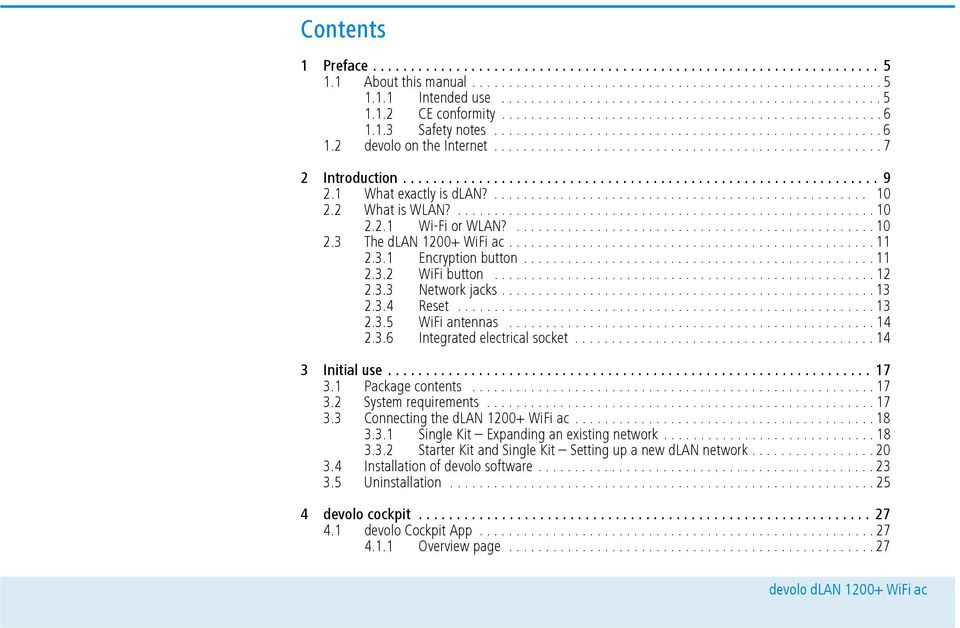
5 4.1.2 Settings menu Menu on the bottom edge of the screen devolo Cockpit software Encrypting a network with devolo Cockpit Network configuration Calling up the built-in configuration interface Menu description WiFi configuration Access point WLAN time control Guest account Parental controls WLAN filters WiFi Move Wi-Fi Protected Setup (WPS) Status overview Device configuration dlan settings dlan devices Add a dlan device Management Language selection Device security Network settings System Management Appendix Bandwidth optimization Disposal of old devices Warranty conditions

6 1Preface Thank you for placing your trust in this dlan WiFi ac. The dlan WiFi ac allows you to set up your own home network with almost no effort. Because the clever dlan technology transmits the data over the household electrical wiring, you do not have to lay any new cables. 1.1 About this manual Carefully read all instructions before setting up the device and store the manual and/or installation guide for later reference. After a brief introduction to "dlan" and "WLAN basics and the presentation of the dlan WiFi ac in Chapter 2, Chapter 3 will cover successfully setting up your dlan WiFi ac and integrate it in your network. How you can manage the dlan WiFi ac using the devolo Cockpit App or the dlan software is covered in Chapter 4. Tips for bandwidth optimization, information of environmental compatibility of the device and our warranty conditions can be found in Chapter 5 and conclude the manual. Preface 5 Description of the symbols Here we briefly describe the meaning of the symbols used in this manual. Very important note. Failure to observe this note may result in damage. Important note that should be observed. Additional information, background material and configuration tips for your device Intended use Use the adapter as described in these instructions to prevent damage and injuries. The device is designed for indoor use only.

7 6 Preface CE conformity This product complies with the technical requirements The product is class A equipment. Class A devices may cause interference when used in residential environmentsof the directive 1999/5/EC (R&TTE), the EMC directive 2004/108/EC and the other relevant provisions of the FTEG. This product is designed for use in the EU, Switzerland and Norway. "99/05/CE" (R&TTE directive) is a directive similar to the EMC directive. It applies to radio equipment and telecommunication terminal equipment.observance of these directives is verified by the use of harmonized European norms. The CE declaration of this product is separately included (in print) and can be found under Safety notes It is essential to have read and understood all safety and operating instructions before the devolo device is used for the first time; keep them safe for future reference. DANGER due to electricity Users should never open devolo devices. Opening the device poses a risk of electric shock! Users do not need to carry out any maintenance on devolo devices. In the event of damage, disconnect the devolo device from the mains supply by pulling it or its plug out of the power outlet. Then contact qualified specialist personnel (after-sales service) exclusively. Damage is deemed to have occurred, for example, if the power cable or plug is damaged if the devolo device has been showered with liquid (e.g. rain or water). if the devolo device is inoperable. if the housing of the devolo device is damaged. devolo devices may only be operated using a mains power supply, as described on the nameplate. To disconnect devolo devices from the mains supply, pull the device itself or its mains plug from the power outlet. The power outlet and all connected network devices should be easily accessible so that you can pull the mains plug quickly if needed. devolo devices are designed for indoor use only. Only use devolo devices at a dry location.

8 Disconnect devolo devices from the mains supply to clean! Avoid solvent cleaning agents since they can cause damage to the housing. Only use a dry towel for cleaning. DANGER due to overheating Batteries should never be exposed to large amounts of heat, such as direct sunlight, fire or other heat sources. Multiple devolo devices must not be interlocked. devolo devices should only be installed at locations that guarantee adequate ventilation. Slots and openings on the housing are used for ventilation: Do not cover devolo devices when operating. Do not place any objects on devolo devices. Do not insert any objects into the openings of devolo devices. devolo devices must not be placed directly next to an open flame (such as fire or candles). devolo devices must not be exposed to direct heat radiation (e.g. radiator, direct sunlight). 1.2 devolo on the Internet Preface 7 For detailed information on our products or "dlan", visit The Service Centre area contains downloadable product descriptions and documentation, as well as updates to devolo software and device firmware. If you have any further ideas or suggestions related to our products, we would be delighted to hear from you at [email protected]!

9 8 Preface

10 2Introduction Introduction 9 dlan is an intelligent, secure technology that lets you set up a home network easily, quickly and economically via your household electrical wiring, without the need for complex and expensive dedicated cabling. Fig. 1

11 10 Introduction 2.1 What exactly is dlan? dlan (direct Local Area Network) uses the household power grid to transfer data between computers equipped with suitable adapters and other network components. As a result, any power outlet can be used as a network access point. The data is modulated prior to transfer and sent as a signal via household power lines. State-of-the-art technology ensures that the power and data networks do not interfere with one another. Networking via dlan is fast and secure. The data is encrypted using a key to prevent interception by third parties. 2.2 What is WLAN? WLAN (Wireless Local Area Network) refers to the use of radio technology to network computers and other devices. While it is possible to wirelessly connect computers in pairs (peer-to-peer, p2p), a central access point is required to set up a network of multiple devices. Such access points are frequently combined in a single device with modems for Internet access and routers to manage network traffic. The wireless network established by an access point using a specific channel (from 1 to 13) and name (SSID) has a limited range. The range of the access point, which is also known as a "radio cell", is impeded by building walls. In some cases, stable connections are often only possible between WLAN devices within a single room. As it is not possible to rely on hardware such as network cables (in a LAN) or household wiring (in a dlan) to control access to a WLAN, wireless networking naturally presents special security challenges. WLANs therefore use a number of security measures, such as a concealed network name, data encryption and access control via the MAC addresses of the network adapters Wi-Fi or WLAN? Wi-Fi is an invented brand name of the Wi-Fi Alliance, a consortium that certifies devices with wireless interfaces. In many countries, Wi-Fi is also used synonymously with WLAN, which if taken strictly, is incorrect, because Wi-Fi designates the wireless standard and WLAN the wireless network.

12 2.3 The dlan WiFi ac The dlan WiFi ac is equipped with An encryption button (home icon) with LED status display, A WiFi button with LED status display, The LED status display can be deactivated on the configuration interface of the adapter (see 5.6 Management). Two network jacks One reset button Two internal WiFi antennas One integrated electrical socket Fig. 2 is country-specific Introduction Encryption button This button controls the following functions: Encrypting the dlan network To encrypt your dlan network individually, press each encryption button on the connected devices for approx. 1 second within 2 minutes. To remove a dlan device from your network, press the encryption button on the corresponding device for at least 10 seconds. For more information, refer to Chapter 3.3 Connecting the dlan WiFi ac. Indicator lights The integrated indicator lights (LEDs) show the dlan status for the dlan WiFi ac by illuminating and/or flashing: Check whether the adapter is connected to the mains supply correctly and whether the encryption process has been carried out successfully. For more information about this, refer to 3.3 Connecting the dlan WiFi ac. The LED flashes red quickly at regular intervals if the dlan WiFi ac is connected to the mains supply but there is no dlan connection.

13 12 Introduction The LED lights up white if the dlan WiFi ac is ready to operate and a dlan connection exists. The LED flashes white quickly at regular intervals if the encryption process (pairing) is being performed in the dlan network. The LED flashes white at irregular intervals if the dlan WiFi ac is in PowerSave mode. The LED flashes red at regular intervals if the transmission rate of the dlan WiFi ac is not in the optimum range. For information on improving the transmission rate, refer to Chapter 6.1 Bandwidth optimization. WiFi Move Technology WiFi Move Technology is a function for synchronising the WiFi settings of all WiFi adapters. Activate the synchronisation either using the functions on the configuration interface (see Chapter WiFi Move) or at the touch of a button on the adapter. First press the encryption button with the home icon (for about 1 second) on an existing dlan WiFi ac that has the entire WiFi configuration which is to be transferred to all other dlan WiFi ac adapters. Then, within 2 minutes, press each encryption button on the new dlan WiFi ac devices (for about 1 second). The WiFi adapters are now continuously connected to each other and, from now on, share changes to the WiFi configuration with each other automatically WiFi button The WiFi button controls the following WiFi functions: WiFi On/Off: In the factory default settings, the WiFi setting is already enabled and the WiFi encryption is set to WPA2. The default WiFi key for the initial installation of the dlan WiFi ac is the adapter's WiFi key. You will find the unique key on the label on the back of the housing. Fig. 3

14 Introduction 13 Note the WiFi key of the dlan WiFi ac before the networking procedure. You will find the adapter's unique key (WiFi key) on the label on the back of the housing. In order to connect the dlan WiFi ac to your laptop, tablet or smartphone later via WiFi, enter the noted WiFi key as the network security key. In order to switch WiFi off, press and hold the WiFi button longer than 3 seconds. In order to switch WiFi back on, tap the WiFi button. Connecting WiFi devices via WPS If the device is still on factory defaults, tap the WiFi button in order to activate WPS. If the WiFi connection was switched off and you would like to activate WPS, press the WiFi button twice; once to switch WiFi on, and again to activate WPS. WPS is one of the encryption standards developed by the WiFi Alliance for increasing security in a WiFi network. The objective of WPS is to make it easier to add devices to an existing network. For more detailed information, refer to Chapter Wi-Fi Protected Setup (WPS). Indicator lights The integrated indicator lights (LEDs) show the WiFi status for the dlan WiFi ac by illuminating and/or flashing: When the WiFi connection is switched off, the LED is also off. When a WiFi connection is switched on, the LED lights up white. White flashing and illumination behaviour The LED lights up when there is a connection to the WiFi network. The LED flashes briefly during WPS pairing Network jacks The two network jacks can be used to connect computers or other network devices to the dlan WiFi ac via commercially available network cables Reset The reset button (next to the network jacks) has two different functions: The device restarts if you press the Reset button for less than 10 seconds.

15 14 Introduction To change the configuration of the dlan WiFi ac back to the factory defaults, press the Reset button for more than 10 seconds. Keep in mind that all settings that have already been configured will be lost! You can use a pointed object (such as a paper clip) to press the reset button WiFi antennas The internal WiFi antennas are for connecting to other network devices wirelessly Integrated electrical socket If you connect additional network devices using a power strip, plug this power strip into the electrical socket of the dlan WiFi ac. The integrated mains filter eliminates any noise of connected devices and significantly improves data transmission in the network.

16 Introduction 15 Fig. 4

17 16 Introduction

18 3Initial use This chapter covers everything you need to know to set up your dlan WiFi ac. We provide a description of how the device is connected and briefly introduce the included devolo software. 3.1 Package contents Please ensure that the delivery is complete before beginning with the installation of your dlan WiFi ac. Single Kit: dlan WiFi ac Hard copy of installation guide/ce declaration Online documentation or Starter Kit: dlan WiFi ac dlan Network cable Hard copy of installation guide/ce declaration Online documentation devolo AG reserves the right to change the package contents without prior notice. 3.2 System requirements Initial use 17 Operating systems: Windows 7 Home Premium (32-bit/64-bit), Windows 8 (32-bit/64-bit), Windows 8 Pro (32-bit/64-bit), Linux (Ubuntu 12.4), Mac (OS X 10.6) and all operating systems with network support Network connection To set up a dlan network, you need at least two dlan devices (200 Mbps, 500 Mbps, 600 Mbps or 1200 Mbps).

19 18 Initial use 3.3 Connecting the dlan WiFi ac The device may be used only indoors. Note the WiFi key of the dlan WiFi ac before the networking procedure. You will find the adapter's unique key (WiFi key) on the label on the back of the housing. In order to connect the dlan WiFi ac to your laptop, tablet or smartphone later via WiFi, enter the noted WiFi key as the network security key. In the following sections we describe how to connect the dlan WiFi ac and integrate it into the network. We clarify the exact procedures based on potential network scenarios: Single Kit Expanding an existing network Plug the dlan WiFi ac into a wall socket. The adapter is ready to operate once the indicator light of the encryption button with the home icon turns white (after approx. 50 seconds). To disconnect the dlan WiFi ac from the mains supply, unplug the device. The power outlet and all connected network devices should be easily accessible so that you can pull the mains plug quickly if needed. Integrating the dlan WiFi ac into an existing dlan network Before you can use the dlan WiFi ac in your dlan network, first you have to connect it to your existing dlan devices as a network. This is accomplished by using a shared dlan password. This forms a delimited dlan network. Shared use of the dlan password is used both for access control for the dlan network and for encryption (and thus interception protection) of the transmitted data. The dlan password can be set in different ways: dlan network encryption at the touch of a button (home icon) First press the encryption button (for about 1 second) on an adapter in your existing network and then, within 2 minutes, press the encryption button with the home icon (for about 1 second) on the new dlan WiFi ac.

20 Initial use 19 The new dlan WiFi ac is now integrated into your existing dlan network. or dlan network encryption using devolo Cockpit App with your smartphone or tablet. For more information, refer to Chapters 3.4 Installation of devolo software and 4.1 devolo Cockpit App. or dlan network encryption using devolo Cockpit computer software. For more information, refer to Chapters 3.4 Installation of devolo software and 4.2 devolo Cockpit software or dlan network encryption by entering the dlan password in the configuration interface. More information can be found in Chapter 5.5 Device configuration. Fig. 5

21 20 Initial use Integrating the dlan WiFi ac into an existing WiFi network Establish the WiFi connection with your laptop, tablet or smartphone by entering the previously noted WiFi key as the network security key. For the dlan WiFi ac to show the same WiFi configuration as your WiFi router, you can apply the WiFi access data at the touch of a button. The WiFi Clone function can be enabled in different ways: Enabling WiFi Clone at the touch of a button First press the encryption button with the home icon on the front side of the dlan WiFi ac and then press the WPS button on the WiFi router with the access data you want to apply. or Enabling WiFi Clone via the configuration interface. For more information about this function, refer to Chapter 5 Network configuration WiFi Clone. To integrate the dlan WiFi ac into an existing WiFi network with devolo WiFi devices of the 500 series (e.g. dlan 500 WiFi or dlan 500 Wireless+), you have to transfer the settings of your existing WiFi configuration manually to the configuration interface of the dlan WiFi ac. For more information on the configuration interface, refer to Chapter 5 Network configuration Starter Kit and Single Kit Setting up a new dlan network Connect the dlan to your Internet access device's network jack. Plug the dlan WiFi ac into a wall socket. The adapter is ready to operate once the indicator light of the encryption button with the home icon turns white (after approx. 50 seconds). To disconnect the adapter from the mains supply, unplug the device. The power outlet and all connected network devices should be easily accessible so that you can pull the mains plug quickly if needed. Connecting a dlan and a dlan WiFi ac as a dlan network Before you can use the adapter in a dlan network, first you have to connect it as a network. This is accomplished by using a shared dlan password. This forms
22 Initial use 21 a delimited dlan network. Shared use of the dlan password is used both for access control for the dlan network and for encryption (and thus interception protection) of the transmitted data. The dlan password can be set in different ways: dlan network encryption at the touch of a button First press the encryption button (for about 1 second) of dlan and then, within 2 minutes, press the encryption button with the home icon (for about 1 second) of dlan WiFi ac. or Your dlan network is now set up and protected against unauthorised access. dlan network encryption using devolo Cockpit App with your smartphone or tablet. For more information, refer to Chapters 3.4 Installation of devolo software and 4.1 devolo Cockpit App. or dlan network encryption using devolo Cockpit computer software. For more information, refer to Chapters 3.4 Installation of devolo software and 4.2 devolo Cockpit software or dlan network encryption by entering the dlan password in the configuration interface. More information can be found in Chapter 5.5 Device configuration.
23 22 Initial use Fig. 6 Integrating additional dlan WiFi ac adapters into a WiFi network Establish the WiFi connection with your laptop, tablet or smartphone by entering the previously noted WiFi key as the network security key. For the dlan WiFi ac to show the same WiFi configuration as your WiFi router, you can apply the WiFi access data at the touch of a button. The WiFi Clone function can be enabled in different ways: Enabling WiFi Clone at the touch of a button or First press the encryption button with the home icon on the front side of dlan WiFi ac and then press the WPS button of the WiFi router with the access data you want to apply.
24 Enabling WiFi Clone via the configuration interface. For more information about this function, refer to Chapter 5 Network configuration WiFi Clone. To interconnect the dlan WiFi ac adapters via WiFi, first press the encryption button with the home icon (for about 1 second) on the existing WiFi adapter that has the entire WiFi configuration which is to be transferred to the new dlan WiFi ac adapter now, and then press the encryption button with the home icon on the new dlan WiFi ac (for about 1second). The existing WiFi adapter transmits both the dlan as well as the entire WiFi configuration to the new dlan WiFi ac adapter. To integrate additional dlan WiFi ac adapters into your WiFi-ac, repeat this step. The WiFi adapters are now continuously connected to each other and, from now on, share changes to the WiFi configuration with each other automatically. To customise your WiFi network security, install devolo Cockpit and proceed with configuring your network. To do so, read Chapters 3.4 Installation of devolo software and 5 Network configuration. Initial use Installation of devolo software Downloading devolo Cockpit App The devolo Cockpit App is devolo's free app also for checking and configuring WiFi, dlan and LAN connections for the dlan WiFi ac (via smartphone or tablet). The smartphone or tablet connects to the dlan WiFi ac at home via WiFi. Download the devolo Cockpit App to your smartphone or tablet from the corresponding store. The quickest way to find the app is by clicking the magnifying glass in the store and searching directly for devolo. devolo Cockpit is placed in the app list of your smartphone or tablet as usual. Tapping on the devolo Cockpit icon brings you to the start menu. You can find more information in Chapter 4.1 devolo Cockpit App. Installing devolo Cockpit software The devolo Cockpit computer program finds all accessible dlan adapters in your dlan network, displays information about these devices and encrypts your dlan
25 24 Initial use network individually. The software takes you to the configuration interface to configure your WiFi network on a computer. The devolo Cockpit software is available at After you have downloaded the installation file to your PC, start it by double-clicking on it. Use the installation wizard to install devolo Cockpit for using the adapter with the Windows operating system. You can find the installed application in the Start All Programs devolo program group. More information can be found in Chapter 4.1 devolo Cockpit App. Software for Mac (OS X) The devolo Cockpit software is available at After you have downloaded the installation file to your PC, start it by double-clicking on it. Software for Linux (Ubuntu) The devolo Cockpit software is available at After you have downloaded and installed the installation file to your PC, start the file.
26 3.5 Uninstallation Initial use 25 To remove a dlan WiFi ac adapter from an existing network, press this adapter's encryption button with the home icon for at least 10 seconds. The device will be assigned a new randomly generated password and will thus no longer be able to access the network. To integrate the device into a different network, follow the steps described above, depending on whether you are setting up a new network or adding the adapter to an existing one. Fig. 7
27 26 Initial use
28 4 devolo cockpit 4.1 devolo Cockpit App devolo Cockpit App is an app for monitoring and encryption, which you can use to search out all other accessible dlan devices in your home network and connect them together into a secure network using the dlan WiFi ac this could be considered the counterpart to the local devolo Cockpit software (see 4.2 devolo Cockpit software). In addition, you can also use devolo Cockpit App to access the configuration interface for the dlan WiFi ac and to change settings in the WLAN and dlan network (see 6 Network configuration). After you have integrated the dlan WiFi ac into your home network as described in Chapter 3.3 Connecting the dlan WiFi ac and have downloaded devolo Cockpit App, you can get to start menu just by tapping on devolo Cockpit. devolo cockpit 27 In order to connect the dlan WiFi ac to your smartphone or tablet PC, select My dlan. As soon as your smartphone or tablet is connected to the dlan WiFi ac, all of the adapters found in the network appear with a picture and corresponding name. The menu in devolo Cockpit App automatically adjusts to the orientation (horizontal/vertical) of the smartphone or tablet P. If your smartphone or tablet switches to power saving mode, the previously displayed view is shown again when you activate the screen again Overview page You can page through the list of adapters by swiping across the screen (left/right or up/down). The house icon displays the connection over dlan. The WLAN icon displays the connection over WLAN.
29 28 devolo cockpit The bar graph reflects the connection quality. The data rate is displayed in Mbps. Tapping on a respective adapter allows you to read the transfer rate for another device from the selected adapter's point of view. Tapping on the gear/arrow brings you to the configuration interface for the dlan WiFi ac. For more detailed information on the interface refer to Chapter 6 Network configuration. Tapping on the recycle bin removes the connected adapters Settings menu Tapping on the two gears brings you to the settings menu for the respective adapter. Here you have the option of assigning a unique new name for yourself and to reset the respective device to the factory default settings. In addition, you can learn about device information such as the firmware version in use and the individual MAC address Menu on the bottom edge of the screen The functions of the menu on the bottom edge of the screen are self-explanatory and can be operated intuitively. Depending on which submenu you are in, the following functions appear: Start: devolo Cockpit start menu You can always use the Refresh option to display the current status of devices that have been found (if this hasn't happened automatically). During the initial installation of the adapter, select the Add adapter option. The Troubleshooting guide contains additional installation aids. Security: Tapping on the key icon allows you to change the dlan password for either the entire dlan network or just for the respective adapter or to reset it to the factory defaults. The factory default password is HomePlugAV. For security reasons, we recommend setting an individualised dlan password. 4.2 devolo Cockpit software devolo Cockpit is a monitoring and encryption program that detects all reachable dlan devices in your home network and combines them in a secure network. Due to its logical graphic design, the
30 devolo cockpit 29 devolo Cockpit is easy and intuitive to operate. After installing the devolo software, it can be found in the Start Programs devolo program group. After starting the devolo Cockpit, all reachable dlan devices in your home network will appear. This may take a moment. All adapters found in the network appear with as adapter icon with a corresponding product name. The adapter in the middle of the dlan network identified
31 30 devolo cockpit with the symbol shown here symbolises your locally connected device. If you have multiple dlan devices connected locally, you can jump back and forth between them. Clicking an adapter icon with the mouse enables the corresponding dlan device and highlights it. The coloured connecting lines of the adapters illustrate the current transmission quality: Green: the network connection is suitable for HD video streaming. Orange: the network connection is suitable for SD video streaming and online gaming. Red: the network connection is suitable for simple data transfer and Internet access. If data transmission from one device to another is actually taking place, the data rate is displayed on the respectively highlighted adapter. Settings and functions You can configure settings for the respectively highlighted device or for the network via the buttons at the bottom edge of the screen or via tabs arranged at the side of each adapter. You can always use the Refresh button to display the current status of devices that have been found (if this hasn't happened automatically). By means of the Options button or the corresponding tabs of the respective adapter, you can learn device information such as the firmware version used and the individual MAC address. Options are given like assigning an additional name, resetting the respective device to the factory default settings or removing a device from the existing dlan network. The above-mentioned setting options vary depending on the function and features of your device. You can also specify whether information on the performance of your dlan adapters will be transferred to devolo. The data sent to devolo pertains only to the performance values of your dlan devices. The data is anonymised and will be used exclusively for statistical purposes. By providing it, you can help us improve our products. The Troubleshooting Guide includes installation instructions and information about how to connect your devices optimally with one another.
32 devolo cockpit 31 Via the Updates button you can carry out automatic firmware updates from our website, This procedure requires an active Internet connection Encrypting a network with devolo Cockpit If you use dlan devices without an encryption button, data can be encrypted only via devolo Cockpit. Before the networking procedure, note the security IDs of all dlan adapters. This unique identifier of each dlan device is located on the label on the housing. It consists of 4 x 4 letters separated by dashes (e.g. ANJR-KMOR-KSHT-QRUV). Ensure that all dlan adapters are connected to the power grid and computers or other network components as appropriate. Scan for local adapter After devolo Cockpit is started, it searches for the dlan adapter connected directly to your computer first. Adding an adapter Add all the dlan devices you want to your dlan network by selecting the Add adapter button. You will need the 16-character security IDs of the adapters from the label on the housing. Enter it now in the Security ID field and confirm with OK. If a security ID is correct and the device can be reached in the dlan network, it will be added to your network of configured adapters and also displayed in the program. Entering a network password After you have added all the dlan devices you want to your dlan network, select the Change password button to assign a shared network password that will apply for all registered adapters in your personal home network. You can choose between your own password, a random password and the default password. To define your own password with a length of at least eight characters, enter this into the Network password text field. Alternatively, you can have a randomly selected, highly secure password assigned using the Generate secure password button. Use the Factory default password button to reset the dlan adapter to the default password. Normally, the display of the password is hidden for security reasons. If you enable the option Show characters, the current password is displayed in legible form in the text field.
33 32 devolo cockpit The factory default password is HomePlugAV. Assigning a specific password to a single adapter will exclude it from the remaining dlan network. If devolo Cockpit is called up again later after a successful initial installation, for example to integrate a new adapter into a network, the application remembers the devices that were entered earlier. Enter the new device as described in the Adding an adapter section. The current network password is assigned automatically to the newly added device.
34 5 Network configuration The dlan WiFi ac has a built-in configuration interface that can be called up using a standard web browser. All settings for operating the device can be modified here. 5.1 Calling up the built-in configuration interface You can access the built-in online configuration interface for the dlan WiFi ac in different ways: Using the devolo Cockpit App on your smartphone or tablet, you can access the device's configuration interface by going to the devolo Cockpit App overview page and tapping on the gear/arrow. You can find more information on devolo Cockpit App in Chapter 4.1 devolo Cockpit App. Network configuration 33 Then the program determines the current IP address and starts the configuration in the web browser. By default, the configuration interface will open directly. However, if a login password was set via the option Device configuration Device security, you have to enter this first (refer to System). Using the devolo Cockpit software under Start All Programs devolo devolo Cockpit, you can get to the device's configuration interface by clicking on the corresponding tab for the dlan WiFi ac.
35 34 Network configuration 5.2 Menu description All menu functions are described in the corresponding interface as well as in the associated chapter in the manual. The sequence of the description in the manual follows the structure of the menu. Click OK to save the settings of the respective area of the configuration interface. Click Cancel to leave the respective area of the configuration interface. The four central areas of the configuration interface are displayed on the bottom edge of the screen. Click the button of an area to move directly into it. All of the device's WiFi functions are in the WiFi configuration area, where you can configure settings. In the Status overview area, you get general information about all connected dlan, WiFi and LAN devices. You can find all of the dlan functions in the Device configuration area. In addition to the language selection, the Management area includes configuration options for the network, device security and management, i.e. resetting, securing and restoring your individual configurations and updating firmware.
36 Network configuration WiFi configuration In the WiFi configuration area, configure settings for the WiFi network and its security: Access point WLAN time control Guest account Parental controls WLAN filters WiFi Move Wi-Fi Protected Setup (WPS) Click or tap the respective icon to go the corresponding area Access point WiFi on/off You can enable or disable the WiFi function of your dlan WiFi ac: To enable the device, press the WiFi button on the front side once briefly. To disable the device, press the WiFi button on the front side for 3 seconds until the LED goes out. or On the configuration interface under WiFi configuration Access Point, use the WiFi off/on button. or Enable the WLAN time control. For more information, refer to Chapter WLAN time control. The WiFi function of the dlan WiFi ac is enabled by default. If you want to operate the adapter exclusively as a simple dlan device via the built-in Ethernet connections you can completely shut off the WiFi function. For operation as a WiFi access point, configure the WiFi parameters for your wireless network as follows: WiFi frequency band You can use the frequency bands simultaneously with the dlan WiFi ac. There are 13 channels available in the standard 2.4 GHz frequency band and 140 channels available in the higher 5 GHz frequency band. If you select only the higher 5 GHz frequency band, make sure that all of your connected devices also support this band. Channel 52 and onward take you into the frequency band for aviation radar coverage. When access-
37 36 Network configuration ing the device for the first time, a radar detection phase starts automatically, during which the dlan WiFi ac cannot be accessed. In both cases, we recommend keeping the default setting Auto since the dlan WiFi ac selects the channel regularly and independently in this setting. In other words, if the last connected station logs out, a search for a suitable channel is carried out immediately. If no devices are connected, the device automatically selects a channel every 15 minutes. Network name The network name (SSID) determines the name of your wireless network. You can see this name when logging onto the WiFi, allowing you to identify the correct subnet. If you do not specify a network name, your wireless network remains hidden. In this case, potential network users must know the exact network name and enter it manually to be able to establish a connection. Some WiFi adapters have difficulty connecting to such hidden wireless networks. If the connection to a hidden name (SSID) poses problems, first try to establish the connection with a visible network name (SSID) and only then try to hide it. Encryption WPA2 is the WiFi encryption set by default for dlan WiFi ac. The default WiFi key is the WiFi key of the dlan WiFi ac. You will find the key on the label on the back of the housing. The WPA/WPA2 (WiFi Protected Access) security standard is available for securing data transmission in your wireless network. This method allows for individualised keys consisting of letters and numbers with a length of up to 63 characters. You can simply enter this using the keyboard, without having to convert it into hexadecimal format first. No encryption You should always encrypt the connections in your WiFi network. Otherwise anyone within range could penetrate into your network. Without encryption, not only are all data transmitted from client computers to the dlan WiFi ac in your wireless network without protection, but there is also no password prompt to establish the connection. If no other security measures are set up, such as a WiFi
38 Network configuration 37 filter (see Chapter WLAN filters), third parties could gain access to your network at any time and, for example, share your Internet connection. Each instance of access is visible to you in the WiFi monitor. Save all modified settings before leaving this configuration area again by pressing OK to confirm them. Keep in mind that after saving this setting, you will be disconnected from any existing wireless connection to the dlan WiFi ac. In this case, configure the device via Ethernet or dlan. When activating the encryption, also make sure that the WiFi settings (network name and key) of the access point always match the settings on the clients, as otherwise you will be (unintentionally) excluding devices from your network WLAN time control To be able to use the WLAN time control, enable the time control option. You can define multiple time periods during which your wireless network is to be enabled for each weekday. Then the time control automatically switches the wireless network on or off. If you enable the Automatic disconnection option, the wireless network is not switched off until the last station has logged off. Manually switching the access point on or off (i.e. using a button) always has priority over automatic time control. The configured time control would take effect automatically during the next defined time period Guest account If you have friends or acquaintances visiting and you want to provide them with Internet access but without giving away the password for your WiFi, you can set up a separate guest account in addition to the main Internet connection. The guest account can have its own SSID, time limit and WiFi password. This way your visitors can surf the Internet without having access to your local network. To set up a guest account, enable the Guest account option. You can also enable or disable the guest account in the devolo Cockpit App using the Guest account button. If you would like to restrict this to Internet use, enable the Only allow Internet use option as well.
39 38 Network configuration Define the name of the guest network in the Network name field. Automatic shutoff If you would like to set a time limit for the guest account, enable the option Automatically shut off guest account after... and enter the desired time limit. Note that the guest account depends on the device and can be active only as long as the device itself. Encryption You should also encrypt the guest account to prevent anyone in signal range from intruding into your network and, for example, sharing your Internet connection. The WPA/WPA2 (WiFi Protected Access) security standard is available for this. This method allows for individualised keys consisting of letters and numbers with a length of up to 63 characters. You can simply enter this using the keyboard, without having to convert it into hexadecimal format first Parental controls You can regulate Internet access for specific devices based on time using this function. For instance, to protect your children from excessive Internet use, you can define how long they may use the Internet per day. Synchronisation with an Internet time server is necessary to be able to use the parental controls. In this case, the time server (Management Management Date and time Retrieve date and time automatically) for the dlan WiFi ac has to be enabled and an active Internet connection is also required. The time server is enabled by default. If you would like to set up a daily time quota, enable the option Turn on parental controls. Now enter the MAC addresses for the devices for which you would like to set up a time quota. You can enter the MAC addresses manually or select them from the list of currently known devices (see Status overview WiFi monitor). Confirm each entry with OK. WiFi devices with a time limit Here you can find a list of all the WiFi devices for which the Internet access time is limited. Each device is displayed with its MAC address, name, time remaining and the specified time quota.
40 Network configuration 39 If you would like to delete a device from this list, highlight it and confirm this with Delete selected. Click or tap Edit to go to the settings menu for the time quota. If you would like the time quota to be monitored, enable the option The time limit will be monitored. The daily time quota can be specified in hours and minutes. A time quota can only be used if it matches the time periods defined in the WLAN time control and if the dlan WiFi ac is enabled and there is an Internet connection. (see WLAN time control). The time quotas for the parental controls are defined per day and the time periods for WLAN time control are defined per weekday. If you set a time quota, it will not be enabled until the next day (midnight) WLAN filters In addition to encryption (see Access point), you can secure your wireless network even more by using a WiFi filter to limit access to WiFi devices. Even if the encryption is switched off, the device will not establish a connection. The WiFi filter should be used only as an additional option for WiFi encryption. By using it you can limit access to your wireless network, but without encryption it is relatively easy for third parties to eavesdrop on all of your data transmissions. To use the WiFi filter, enable the filter. Now you can manually enter different network devices to provide access to your dlan WiFi ac using what is known as their MAC address, or you can take them from a list of known devices (see WiFi monitor WiFi monitor). Create new entries with. Save your entries with OK. Permitted WiFi devices Network devices connected to your dlan WiFi ac are automatically listed; that is, to enable an already connected device for the dlan WiFi ac, simply select the MAC address of this device and confirm it with the plus sign. This then appears under Permitted WiFi devices. To remove an approved device, select its MAC address and confirm it with Delete selected. The WiFi filter can only be set for devices connected directly to the access point (not the guest account).
41 40 Network configuration The MAC address designates the hardware interface of each individual network device uniquely (e.g. the WiFi adapter of a computer or the Ethernet port of a printer). It consists of six double-digit hexadecimal numbers, each separated by a colon (e.g. 00:0B:3B:37:9D:C4). You can easily determine the MAC address of a Windows computer by opening the window with the command prompt under Start All Programs Accessories Command Prompt. Enter the command IPCONFIG /ALL here. The MAC address is displayed under the designation Physical address. Keep in mind that you also have to enter the WiFi MAC address of your own computer if you are connected to the dlan WiFi ac not via the Ethernet port, but via WiFi. Otherwise you will block your own access to the device via WiFi by activating the WiFi filter. Save all modified settings before leaving this configuration area again by pressing OK to confirm them WiFi Move WiFi Move Technology is a function for synchronising the WiFi settings of all WiFi adapters connected to your network. The WiFi function and WiFi Move Technology of the dlan WiFi ac are enabled by default. You can enable synchronisation of the WiFi settings either by using the functions in this menu or by pressing the respective encryption button with the home icon on the corresponding adapters. To learn how to synchronise the WiFi settings at the touch of a button, refer to Chapters Encryption button and 3.3 Connecting the dlan WiFi ac. WiFi Move Technology support enabled Switch on WiFi Move Technology (if necessary) by clicking/tapping under WLAN configuration WiFi Move. All WiFi adapters are now continuously connected to each other and, from now on, share changes to the WiFi configuration with each other automatically. In addition, you can see when the last synchronisation took place and which devices are connected via WiFi Move Technology.
42 Network configuration 41 WiFi Clone WiFi Clone lets you apply the WiFi access data of an existing WiFi access point (such as your WiFi router) at the touch of a button. Start the procedure with the Start setup option and then press the WPS button of the device with the WiFi access data (SSID and WiFi password) to be applied Wi-Fi Protected Setup (WPS) WiFi Protected Setup (WPS) is one of the international encryption standards developed by the WiFi Alliance for easily and quickly setting up a secure wireless network. The encryption keys of the respective WiFi devices are transmitted automatically and continuously to the other WiFi device(s) in the wireless network. The dlan WiFi ac offers two different variants for transmitting these encryption keys: WPS via PBC (Push Button Configuration): Start the encryption process on the dlan WiFi ac either by pressing the WiFi button on the front panel of the device or by pressing the Start setup button on the user interface under WiFi configuration Wi-Fi Protected Setup (WPS). Then either press the WPS key of the WiFi device you are adding or enable the WPS mechanism in the WiFi settings of the WiFi device. Now the devices exchange their encryption keys and establish a secure WiFi connection. The WiFi LED on the front panel indicates the synchronisation process by flashing. WPS via PIN: To interconnect WiFi devices in your wireless network securely by means of PIN variants, enter an individualised key in the configuration interface under WLAN configuration Wi-Fi Protected Setup (WPS) PIN and start the encryption process by pressing the Start setup button. Open the configuration interface of the WiFi client to be added and transmit the PIN selected on the dlan WiFi ac. Confirm the encryption process as described there. Now the devices exchange their encryption keys and establish a secure WiFi connection. The WiFi LED on the front panel indicates the synchronisation process by flashing. Use of the WPS method implies the use of the WPA/ WPA2 encryption standard. Therefore take note of the following automatic settings:
43 42 Network configuration If WLAN configuration Access Point No encryption is selected in advance, WPA2 is set automatically. The newly generated password is displayed under WiFi configuration Access Point in the Key field. If WLAN configuration Access Point WPA/WPA2 is selected in advance, this setting remains with the previously assigned password. 5.4 Status overview In the Status overview area, you get general information about all connected dlan, WiFi and LAN devices. Information about the dlan WiFi ac is also displayed in this menu on the left next to the status of the connected WiFi, dlan and LAN devices. On the right in the menu you will find the corresponding link to go directly to the menu. WLAN status Here you can see whether the WiFi function of your dlan WiFi ac is switched on or off, as well as whether encryption is used and which frequency band has been configured. Clicking or tapping Access Point takes you directly to the WiFi settings. More information about WiFi network security can be found in Chapter Access point. Clicking or tapping Configure guest account takes you directly to the corresponding menu. More information about configuring the guest account can be found in Chapter Guest account. Click or tap WiFi monitor to display all of the known WiFi devices. If there is an Internet connection and a time server has been found, each WiFi device known since the last system start is displayed along with its name, MAC and IP address, the last login date and, if possible, the speed. dlan status The colour of the lock icon tells you whether an individualised dlan password or the default password is set (green = individualised password, red = default password). Click or tap dlan devices to display all of the connected dlan devices. For more information about this, refer to Chapters dlan devices and dlan devices. Clicking or tapping Configure dlan takes you to the dlan settings. For more information, refer to Chapter dlan settings.
44 Network configuration 43 Before the networking procedure, note the security IDs of all dlan adapters. This unique identifier of each dlan device is located on the label on the back of the housing. It consists of 4 x 4 letters separated by dashes (e.g. ANJR-KMOR-KSHT- QRUV). Ensure that all dlan adapters are connected to the mains supply and computers or other network components as appropriate. Ethernet status The status (red = not connected, green = connected) and connection speed of the network jacks are displayed here. Firmware version The firmware version is displayed here. Clicking or tapping Firmware update takes you directly to the corresponding menu. For more information about the firmware update, refer to Chapter System. Access password For security you can set a login password for access to the configuration interface. The colour of the lock icon tells you whether an individualised login password or no password at all is set (green = individualised password, red = no password). Clicking or tapping Set access password takes you directly to the corresponding menu. More information about creating an access password can be found in Chapter System. Network configuration Network settings such as the IP address and subnet mask of the dlan WiFi ac are displayed here. Clicking or tapping Configure network takes you directly to the network settings. For more information, refer to Chapter Network settings. 5.5 Device configuration You can find everything about your dlan in the Device configuration area. Click or tap the respective icon to go the corresponding area dlan settings In a dlan network, all connected components must use the same password. The dlan password can be defined in the devolo Cockpit App or the devolo Cockpit program by using the encryption button with the home icon or at this location in the configuration interface. You can configure the password for the entire network.
45 44 Network configuration The dlan default password is Home- PlugAV dlan devices Each connected dlan device, regardless of whether it is connected locally or remotely in the network, is displayed with its MAC address, name and type Add a dlan device You can add additional dlan devices to your dlan network. Via PBC (encryption button with home icon) First press the encryption button (for about 1 second) on an adapter in your existing network and then, within 2 minutes, press the option Start setup (for about 1 second) on the new dlan WiFi ac. Via security ID To do so, enter the security ID for the respective dlan adapter in the Security ID field and confirm it with Start setup. Before the networking procedure, note the security IDs of all dlan adapters. This unique identifier of each dlan device is located on the label on the back of the housing. It consists of 4 x 4 letters separated by dashes (e.g. ANJR-KMOR-KSHT- QRUV). Ensure that all dlan adapters are connected to the mains supply and computers or other network components as appropriate. 5.6 Management In addition to the language selection, the Management area includes configuration options for the network, device security and management, i.e. resetting, securing and restoring your individual configurations and updating firmware. Click or tap the respective icon to go the corresponding area Language selection Select your desired menu language here. Save your entry with OK.
46 5.6.2 Device security Here you can set a login password for access to the configuration interface. By default, the configuration interface of the dlan WiFi ac is not protected by a password. However, after installing the dlan WiFi ac, you should create a custom password to protect the configuration interface from being accessed by third parties. Network configuration 45 Call up the configuration interface again later; the following window appears first: To do so, first enter (if present) the current password and then enter the desired new password twice. Now the configuration interface is protected against unauthorised access with your custom password! Enter admin in the User name field and your custom password in the Password field. The admin user name cannot be changed Network settings As a component of your network, the dlan WiFi ac also communicates via the TCP/ IP protocol. The IP address required for this can either be entered manually or obtained automatically from a DHCP server. The option Network settings are automatically retrieved from a DHCP server is enabled by default.
47 46 Network configuration If a DHCP server is already present in the network for giving out IP addresses, have this option enabled so that the dlan WiFi ac automatically receives an address from it. This is usually the router. To assign a static IP address, first disable the option Network settings are automatically retrieved from a DHCP server and make your individual entries. Save your entries with OK. If you happen to forget the IP address of your dlan WiFi ac, proceed as described under 5.1 Calling up the built-in configuration interface System Here you can reset the current configuration to the factory defaults, save it to your computer as a file or restore it from there and update the firmware of the dlan WiFi ac. Ensure that the update procedure is not interrupted. To do so, it is best to connect your computer to the dlan WiFi ac via dlan or LAN rather than WiFi. Automatic firmware update The firmware of the dlan WiFi ac includes the software for operating the device. If necessary, devolo offers new versions on the Internet as a file download, for example to modify existing functions. If you would like the dlan WiFi ac to perform firmware updates automatically, enable the Automatic firmware update option and start the update procedure with Search for newer firmware and update now. The icon on the front side of the device flashes red during the update procedure. After a successful update, the dlan WiFi ac restarts automatically. Update firmware To bring the firmware up to the latest version manually, start by going to the devolo website, and downloading the appropriate file for the dlan WiFi ac to your computer. In the Management System area click File name and select the downloaded file. Then start the update procedure with Update firmware. After a successful update, the dlan WiFi ac restarts automatically.
48 Network configuration 47 Via the Updates button in devolo Cockpit, you can also carry out automatic firmware updates from our website, This procedure requires an active Internet connection. For more information, refer to Chapter 4.1 devolo Cockpit App. Saving the device configuration To save the enabled configuration to your computer as a file, select the corresponding button in the Management System Save device configuration area. Then enter a storage location and name for the settings file. Restoring the device configuration An existing configuration file can be sent to the dlan WiFi ac in the Management System area and enabled there. Select a suitable file via the File name button and start the operation by clicking the Restore device configuration button. Resetting the device configuration The dlan WiFi ac is reset to the original factory defaults in the Management System area with the Reset device configuration option. Doing so causes you to lose your personal WiFi and dlan settings. The last-assigned passwords for the dlan WiFi ac are also reset. For backup purposes, all active configuration settings can be transmitted to your computer, stored there as a file and reloaded into the dlan WiFi ac. This function can be useful for creating a variety of configurations that will let you quickly and easily set up the device for use in different network environments Management Date and time A time server is a server on the Internet whose task consists of providing the exact time. Most time servers are coupled with a radio clock. The option Retrieve date and time automatically is activated by default so that the dlan WiFi ac can automatically synchronise the date and time. Select your Time zone and the Time server. If you have enabled the option Adjust to daylight saving time automatically, the adapter automatically adjusts to daylight saving time.
49 48 Network configuration LED settings The LED status display can be disabled by enabling the option Device LEDs, such as for avoiding unwanted lighting in a bedroom. The LED status display is activated in the factory default state. License information You can find the license information about the dlan WiFi ac here.
50 6 Appendix 6.1 Bandwidth optimization To significantly improve the transmission capacity of the network, we recommend that you comply with the following "connection rules": Plug the device directly into a wall socket. Avoid multiple sockets. Fig. 9 Appendix 49 You should connect all additional network devices that are connected to a multiple socket to the mains power supply via the electrical socket integrated into the dlan WiFi ac. To take full advantage of the filter function of the dlan WiFi ac and to improve data transmission in the network, always plug the multiple socket into the electrical socket of the dlan WiFi ac. 6.2 Disposal of old devices To be used in the countries of the European Union and other European countries with a separate collecting system: The icon with crossed-out wastebasket on the device means that this adapter is an electrical or electronic device that falls within the scope of application of the European Community WEEE Directive. These types of devices may no longer be disposed of with household waste. Rather they can be given to a municipal collection point free of charge. Contact your municipal government to find out the address and hours of the nearest collection point.
51 50 Appendix 6.3 Warranty conditions The devolo AG warranty is given to purchasers of devolo products in addition to the warranty conditions provided by law and in accordance with the following conditions: 1 Warranty coverage a) The warranty covers the equipment delivered and all its parts. Parts will, at devolo's sole discretion, be replaced or repaired free of charge if, despite proven proper handling and adherence to the operating instructions, these parts became defective due to fabrication and/or material defects. Alternatively, devolo reserves the right to replace the defective product with a comparable product with the same specifications and features. Operating manuals and possibly supplied software are excluded from the warranty. b) Material and service charges shall be covered by devolo, but not shipping and handling costs involved in transport from the buyer to the service station and/or to devolo. c) Replaced parts become property of devolo. d) devolo is authorized to carry out technical changes (e.g. firmware updates) beyond repair and replacement of defective parts in order to bring the equipment up to the current technical state. This does not result in any additional charge for the customer. A legal claim to this service does not exist. 2 Warranty period The warranty period for this devolo product is three years. This period begins at the day of delivery from the devolo dealer. Warranty services carried out by devolo do not result in an extension of the warranty period nor do they initiate a new warranty period. The warranty period for installed replacement parts ends with the warranty period of the device as a whole. 3 Warranty procedure a) If defects appear during the warranty period, the warranty claims must be made immediately, at the latest within a period of 7 days. b) In the case of any externally visible damage arising from transport (e.g. damage to the housing), the person carrying out the transportation and the sender should be informed immediately. On discovery of damage which is not externally visible, the transport company and the sender are to be immediately informed in writing, at the latest within 3 days of delivery. c) Transport to and from the location where the warranty claim is accepted and/or the repaired device is exchanged, is at the purchaser's own risk and cost. d) Warranty claims are only valid if a copy of the original purchase receipt is returned with the device. devolo reserves the right to require the submission of the original purchase receipt. 4 Suspension of the warranty All warranty claims will be deemed invalid a) if the label with the serial number has been removed from the device, b) if the device is damaged or destroyed as a result of acts of nature or by environmental influences (moisture, electric shock, dust, etc.), c) if the device was stored or operated under conditions not in compliance with the technical specifications, d) if the damage occurred due to incorrect handling, especially to non-observance of the system description and the operating instructions, e) if the device was opened, repaired or modified by persons not contracted by devolo, f) if the device shows any kind of mechanical damage, or g) if the warranty claim has not been reported in accordance with 3a) or 3b).
52 Appendix 51 5 Operating mistakes If it becomes apparent that the reported malfunction of the device has been caused by unsuitable hardware, software, installation or operation, devolo reserves the right to charge the purchaser for the resulting testing costs. 6 Additional regulations The above conditions define the complete scope of devolo's legal liability. a) The warranty gives no entitlement to additional claims, such as any refund in full or in part. Compensation claims, regardless of the legal basis, are excluded. This does not apply if e.g. injury to persons or damage to private property are specifically covered by the product liability law, or in cases of intentional act or culpable negligence. b) Claims for compensation of lost profits, indirect or consequential detriments, are excluded. c) devolo is not liable for lost data or retrieval of lost data in cases of slight and ordinary negligence. d) In the case that the intentional or culpable negligence of devolo employees has caused a loss of data, devolo will be liable for those costs typical to the recovery of data where periodic security data back-ups have been made. e) The warranty is valid only for the first purchaser and is not transferable. f) The court of jurisdiction is located in Aachen, Germany in the case that the purchaser is a merchant. If the purchaser does not have a court of jurisdiction in the Federal Republic of Germany or if he moves his domicile out of Germany after conclusion of the contract, devolo's court of jurisdiction applies. This is also applicable if the purchaser's domicile is not known at the time of institution of proceedings. g) The law of the Federal Republic of Germany is applicable. The UN commercial law does not apply to dealings between devolo and the purchaser.
53 52 Appendix
54 Index B Bar graph 28 C CE declaration 6 D devolo Cockpit App 33 devolo Cockpit software 33 DHCP server 46 Disposal of old devices 49 dlan house symbol 27 dlan password 43 F Factory default password 31 Firmware update 46 G Gear/arrow 28 Generate secure password 31 I Integrated electrical socket 14 Integrating the new adapter into the network 32 IP address 45 K Key icon 28 L LAN (network connection) 13 LED status display 11, 48 License information 48 Linux 24 M Mac (OS X) 24 MAC address 40 N Network password 31 P Package contents 17 R Recycle bin 28 Reset 13 S Safety notes 6 Security ID 31, 43, 44 System requirements 17 T Time server 47 Troubleshooting guide 28 W Warranty 50 WiFi antenna 14 WiFi Clone 20, 41 WiFi filter 39 WiFi key 12, 36 WiFi Move Technology 40
55 WLAN icon 27 WLAN time control 37 WPA 38 WPA2 36, 38
devolo dlan 200 AV Wireless N
 devolo dlan 200 AV Wireless N 2011 devolo AG Aachen (Germany) While the information in this manual has been compiled with great care, it may not be deemed an assurance of product characteristics. devolo
dlan 500 AV Wireless+ The Network Innovation
 dlan 500 AV Wireless+ The Network Innovation devolo dlan 500 AV Wireless+ 2012 devolo AG Aachen (Germany) While the information in this manual has been compiled with great care, it may not be deemed an
dlan 500 duo The Network Innovation
 dlan 500 duo The Network Innovation devolo dlan 500 duo 2012 devolo AG Aachen (Germany) While the information in this manual has been compiled with great care, it may not be deemed an assurance of product
devolo dlan 200 AVsmart+
 2 3 4 devolo dlan 200 AVsmart+ 2011 devolo AG Aachen (Germany) While the information in this manual has been compiled with great care, it may not be deemed an assurance of product characteristics. devolo
dlan Wireless extender
 dlan Wireless extender 2009 devolo AG, Aachen (Germany) While the information in this manual has been compiled with great care, it may not be deemed an assurance of product characteristics. devolo shall
devolo AG Charlottenburger Allee 60 52068 Aachen Germany www.devolo.com Aachen, December 2009
 2009 devolo AG Aachen (Germany) While the information in this manual has been compiled with great care, it may not be deemed an assurance of product characteristics. devolo shall be liable only to the
Networking. General networking. Networking overview. Common home network configurations. Wired network example. Wireless network examples
 Networking General networking Networking overview A network is a collection of devices such as computers, printers, Ethernet hubs, wireless access points, and routers connected together for communication
AC750 WiFi Range Extender
 Model EX6100 User Manual April 2014 202-11307-03 350 East Plumeria Drive San Jose, CA 95134 USA Support Thank you for selecting NETGEAR products. After installing your device, locate the serial number
Nighthawk AC1900 WiF Range Extender
 Nighthawk AC1900 WiF Range Extender Model EX7000 User Manual December 2014 202-11469-01 350 East Plumeria Drive San Jose, CA 95134 USA Nighthawk AC1900 WiF Range Extender Support Thank you for selecting
SwannEye HD Security Camera Wi-Fi Connections Quick Setup Guide. Welcome! Lets get started.
 EN SwannEye HD Security Camera Wi-Fi Connections Quick Setup Guide Welcome! Lets get started. 1 1 Introduction 1 2 3 4 Congratulations on your purchase of this SwannEye HD Wi-Fi Security Camera from Swann!
N600 WiFi USB Adapter
 Model WNDA3100v3 User Manual December 2014 202-11470-01 350 East Plumeria Drive San Jose, CA 95134 USA Support Thank you for selecting NETGEAR products. After installing your device, locate the serial
Table of Contents. Hardware Installation...7 Push Button Security... 8. Using the Setup Wizard...10. Configuration...11 Main... 12 Security...
 Table of Contents Table of Contents Product Overview...3 Package Contents...3 System Requirements... 3 Introduction...4 Features... 4 Hardware Overview...5 LEDs... 5 Connection... 6 Hardware Installation...7
Linksys WAP300N. User Guide
 User Guide Contents Contents Overview Package contents 1 Back view 1 Bottom view 2 How to expand your home network 3 What is a network? 3 How to expand your home network 3 Where to find more help 3 Operating
N300 WiFi Range Extender
 Model EX2700 User Manual July 2014 202-11395-01 350 East Plumeria Drive San Jose, CA 95134 USA Support Thank you for selecting NETGEAR products. After installing your device, locate the serial number on
English version. LW320/LW321 Sweex Wireless 300N Router. Package Contents. Terminology list
 LW320/LW321 Sweex Wireless 300N Router Do not expose the Sweex Wireless 300N Router to extreme temperatures. Do not place the device in direct sunlight or in the direct vicinity of heating elements. Do
Diamante WiFi Wireless Communication User Guide. CradlePoint CTR35
 Diamante WiFi Wireless Communication User Guide CradlePoint CTR35 Release: July 2011; March 2011 Patent Pending. Copyright 2011, Stenograph, L.L.C. All Rights Reserved. Printed in U.S.A. Stenograph, L.L.C.
Powerline 500 WiFi Access Point XWN5001 Installation Guide
 Powerline 500 WiFi Access Point XWN5001 Installation Guide Technical Support Thank you for selecting NETGEAR products. After installing your device, locate the serial number on the label of your product
Quick Start. Nighthawk X8 AC5300 Tri-Band WiFi Router Model R8500. Package Contents. NETGEAR, Inc. 350 East Plumeria Drive San Jose, CA 95134 USA
 Support Thank you for purchasing this NETGEAR product. You can visit www.netgear.com/support to register your product, get help, access the latest downloads and user manuals, and join our community. We
Powerline 500 WiFi Access Point (XWNB5201) Installation Guide
 Powerline 500 WiFi Access Point (XWNB5201) Installation Guide Support Thank you for selecting NETGEAR products. After installing your device, locate the serial number on the label of your product and use
Powerline 500 WiFi Access Point (XWN5001) Installation Guide
 Powerline 500 WiFi Access Point (XWN5001) Installation Guide Support Thank you for selecting NETGEAR products. After installing your device, locate the serial number on the label of your product and use
Technical Support. Package Contents. CENTRIA WNDR4700/WNDR4720 Installation Guide
 Technical Support After installing your device, locate the serial number on the label of your product and use it to register your product at https://my.netgear.com. You must register your product before
A quick Guide to your Super Hub 2ac
 A quick Guide to your Super Hub 2ac HELLO. W el c o m e t o t h i s h a n d y g u i d e t o y o u r n ew v i r g i n m e d i a b u s i n e s s b r o a d b a n d. What s inside Getting to know your Super
Link Link sys E3000 sys RE1000
 User Guide High Performance Extender Wireless-N Router Linksys Linksys RE1000 E3000Wireless-N Table of Contents Contents Chapter 1: Product Overview 1 Front 1 Top 1 Bottom 1 Back 2 Chapter 2: Advanced
GETTING TO KNOW YOUR TELSTRA PRE-PAID 3G WI-FI
 GETTING TO KNOW YOUR TELSTRA PRE-PAID 3G WI-FI LET S GET THIS SHOW ON THE ROAD You must be excited about your brand new Telstra Pre-Paid 3G Wi-Fi. This guide will help you get connected as quickly and
Diamante WiFi Wireless Communication User Guide. Linksys E1200
 Diamante WiFi Wireless Communication User Guide Linksys E1200 Release: February 2012; August 2011; February 2011 Patent Pending. Copyright 2012, Stenograph, L.L.C. All Rights Reserved. Printed in U.S.A.
NetComm Wireless NP920 Dual Band WiFi USB Adapter. User Guide
 NetComm Wireless NP920 Dual Band WiFi USB Adapter User Guide Contents Preface... 3 Important Safety Instructions... 3 Introduction... 4 Overview... 4 Features... 4 Package Contents... 5 Minimum System
N300 WiFi Range Extender WN2000RPT User Manual
 N300 WiFi Range Extender WN2000RPT User Manual December 2013 202-11333-01 350 East Plumeria Drive San Jose, CA 95134 USA Support Thank you for selecting NETGEAR products. After installing your device,
Preface. Manual Revisions
 Preface D-Link reserves the right to revise this publication and to make changes in the content hereof without obligation to notify any person or organization of such revisions or changes. Manual Revisions
Fibe Internet Connection Hub Reference Guide
 Fibe Internet Connection Hub Reference Guide FibeInternet_ConnectionHub_ReferenceGuide_Eng_V7 1 Bell Internet Service Agreement Use of the Bell Internet service is subject to the terms and conditions of
A6210 WiFi USB Adapter 802.11ac USB 3.0 Dual Band User Manual
 802.11ac USB 3.0 Dual Band User Manual August 2014 202-11373-01 350 East Plumeria Drive San Jose, CA 95134 USA Support Thank you for selecting NETGEAR products. After installing your device, locate the
LET S GO. Get your Ultra Broadband ready Business gateway up and running
 LET S GO Get your Ultra Broadband ready Business gateway up and running CONTENTS BUSINESS GATEWAY ULTRA BROADBAND READY 1 2 3 4 5 6 7 8 9 10 11 12 13 14 15 Equipment Check 2 Getting Started 3 Setting Up
Installation Guide Wireless 4-Port USB Sharing Station. GUWIP204 Part No. M1172-a
 Installation Guide Wireless 4-Port USB Sharing Station 1 GUWIP204 Part No. M1172-a 2011 IOGEAR. All Rights Reserved. PKG-M1172-a IOGEAR, the IOGEAR logo, MiniView, VSE are trademarks or registered trademarks
Quick Reference Guide
 Welcome to BT Business Total Broadband Quick Reference Guide Follow the steps in this Quick Reference Guide to set up and start using your new BT Business Total Broadband service. The CD will help you
Home Wi-Fi Gateway Instructions
 Home Wi-Fi Gateway Instructions 1. Connect the gateway. Use the coaxial cable provided by BendBroadband to connect the cable port (A) to your cable outlet. 2. Connect your computer to the cable modem gateway
125 8880 telstra.com/ppmbb visit a telstra store or partner GETTING TO KNOW YOUR
 FOR MORE INFORMATIoN: 125 8880 telstra.com/ppmbb visit a telstra store or partner GETTING TO KNOW YOUR Telstra PRE-paid 4G wi-fi LET S GET THIS SHOW ON THE ROad WHAT S INSIDE Your Telstra Pre-Paid 4G Wi-Fi
LW310V2 Sweex Wireless 300N Router
 LW310V2 Sweex Wireless 300N Router Please notice! On the included CD-ROM you will find the Setup Wizard. This easy install procedure will show you how to setup the router step-by-step. Do not expose the
PLA4231. User s Guide. Quick Start Guide. 500 Mbps Powerline Wireless N Extender. Default Login Details. Version 1.00 Edition 1, 12/2012
 PLA4231 500 Mbps Powerline Wireless N Extender Version 1.00 Edition 1, 12/2012 Quick Start Guide User s Guide Default Login Details LAN IP Address http://192.168.1.2 Password 1234 www.zyxel.com Copyright
2 Setting Up the Hardware for a Wired Ethernet Network... 13. 3 Setting Up the Software for an Ethernet Network... 21
 Contents 1 Networking Basics............................................... 1 Selecting a network connection........................................ 2 Wired Ethernet network...........................................
Technical Support. Package Contents. D6300 WiFi ADSL Modem Router Installation Guide
 Technical Support Thank you for selecting NETGEAR products. After installing your device, locate the serial number on the label of your product and use it to register your product at NETGEAR.com/register.
Quick Reference Guide
 Welcome to BT Business Total Broadband Quick Reference Guide Read the information in this Quick Reference Guide to help you start using your new BT Business Total Broadband service powered by fibre. The
ALL0237R. Wireless N 300Mbit Access Point/Repeater. User s Manual
 ALL0237R Wireless N 300Mbit Access Point/Repeater User s Manual ALLNET ALL0237R User Manual Table of Contents About the Device... 3 Minimum System Requirements... 5 Package Contents... 5 Device Overview...
The range of Wi-Fi coverage and usage. Hub Computers which can
 300Mbps Wireless LAN Repeater Quick Start Guide Version:MZK-EX300N_QIG-A_V1.1 In order to guarantee the correct usage of our products, this guide gives instructions on how to set and use our products.
USER GUIDE AC2400. DUAL BAND GIGABIT Wi Fi ROUTER. Model# E8350
 USER GUIDE AC2400 DUAL BAND GIGABIT Wi Fi ROUTER Model# E8350 Table of Contents Product overview E8350..................................... 1 Setting Up Your E-Series Router Where to find more help.........................
Hello Modem. Today I would like
 Quick Setup Guide Hello Modem. Today I would like to Start from scratch 1 Plug Modem in 3 Connect a computer to Modem 7 Learn how to view Modem settings 21 Change my wireless network name 22 Change my
500Mbps Powerline Kit with Dual Band WiFi
 500Mbps Powerline Kit with Dual Band WiFi NP508 USER GUIDE Copyright Copyright 2014 NetComm Wireless Limited. All rights reserved. The information contained herein is proprietary to NetComm Wireless. No
Introduction. Overview. Contents. Linksys AC1200 Max Wi-Fi Range Extender. Front
 User Guide RE6500 Linksys AC1200 Max Wi-Fi Range Extender Introduction This User Guide can help you connect the extender to your network and solve common setup issues. You can find more help from our award-winning,
Experience Next-Generation WiFi
 Do More Experience Next-Generation WiFi Your new WiFi extender supports the 802.11ac networking standard. This new standard offers better speed, improved reliability, and more range than older WiFi networking
Getting Started. Linksys RE1000 Wireless-N Extender
 Getting Started Linksys RE1000 Wireless-N Extender Introduction This Getting Started guid e can help you connect the extend er to your network and solve common setup issues. You can find more help from
HP-1000 Powerline Ethernet Adapter
 HP-1000 Powerline Ethernet Adapter User s manual BEFORE INSTALLATION Plan ahead the installation of your powerline network. Note: You will need at least two powerline adapters to create a powerline network.
WiFi DSL Modem Router
 Support Thank you for purchasing this NETGEAR product. After installing your device, locate the serial number on the label of your product and use it to register your product at https://my.netgear.com.
HP-1000 Powerline USB Adapter
 HP-1000 Powerline USB Adapter User s manual BEFORE INSTALLATION Plan ahead the installation of your powerline network. Note: You will need at least two powerline adapters to create a powerline network.
PLA Series. User s Guide. Quick Start Guide. Powerline Ethernet Adapters. PLA4101, PLA4111, PLA4201, PLA4201 v2, PLA5205, PLA5215, PLA5206, PLA5405
 PLA Series Powerline Ethernet Adapters PLA4101, PLA4111, PLA4201, PLA4201 v2, PLA5205, PLA5215, PLA5206, PLA5405 Utility Version 7.0.1 Edition 1, 05/2014 Default Network Name: HomePlugAV Quick Start Guide
A Division of Cisco Systems, Inc. GHz 2.4 802.11g. Wireless-G. USB Network Adapter with RangeBooster. User Guide WIRELESS WUSB54GR. Model No.
 A Division of Cisco Systems, Inc. GHz 2.4 802.11g WIRELESS Wireless-G USB Network Adapter with RangeBooster User Guide Model No. WUSB54GR Copyright and Trademarks Specifications are subject to change without
Here s your guide to easy installation. Get the most out of Verizon High Speed Internet.
 Here s your guide to easy installation. Get the most out of Verizon High Speed Internet. Congratulations on choosing Verizon High Speed Internet. In this guide, you ll find everything you need to set up
NETGEAR genie Apps. User Manual. 350 East Plumeria Drive San Jose, CA 95134 USA. August 2012 202-10933-04 v1.0
 User Manual 350 East Plumeria Drive San Jose, CA 95134 USA August 2012 202-10933-04 v1.0 Support Thank you for choosing NETGEAR. To register your product, get the latest product updates, get support online,
How To Use A Modem On A Pc Or Mac Or Ipad (For A Laptop)
 CLEAR MODEM with Wi-Fi USER GUIDE GET TO KNOW YOUR CLEAR MODEM WITH WI-FI 3 WHAT S IN THE BOX? 3 INFORMATIVE LED INDICATORS 3 USE WITH CARE 3 SET UP THE MODEM 4 PLACE THE MODEM ON A FLAT, STABLE SURFACE
Get to Know Your Device 4G LTE BROADBAND ROUTER WITH VOICE
 Get to Know Your Device 4G LTE BROADBAND ROUTER WITH VOICE FRONT VIEW The Verizon 4G LTE Broadband Router with Voice is a wireless device that delivers Internet connectivity and telephone service. You
Wireless N 300 Mini USB Adapter. Model # AWLL6086 User s Manual. Rev. 1.0
 Wireless N 300 Mini USB Adapter Model # AWLL6086 User s Manual Rev. 1.0 Table of Contents 1. Introduction...2 1.1 Package Contents...2 1.2 Features...2 2. Install the Wireless Adapter...3 3. Install the
SPL 2-00/-01 OPERATION INSTRUCTIONS
 SPL 2-00/-01 OPERATION INSTRUCTIONS Powerline Ethernet Adapter 500 Mbps EN Read and keep Operation Instructions SPL 2-00/-01 Safety Notes Do NOT use this product near water, for example, in a wet basement
WELCOME. Thank you for choosing the Boost Mobile Wi-Fi. To get the most from your
 WELCOME Thank you for choosing the Boost Mobile Wi-Fi. To get the most from your device and to keep it in the best condition please read this manual thoroughly. The following parts are supplied in the
User Guide. E-Series Routers
 User Guide E-Series Routers Table of Contents Table of Contents Product overview E900/E1200/E1500/E2500/E3200 1 Back view 1 Bottom view 1 E4200 2 Top view 2 Back view 2 Setting Up Your E-Series Router
Error! Bookmark not defined. Error! Bookmark not defined. Error! Bookmark not defined.
 Remote Lighting Kit Table of Contents Lighting Kit Overview 2 System Requirements 3 Basic Concepts of Wireless Routers and Networks 4 Basic Concepts of Network Light Bulbs 8 Planning Your Lighting Network
How to setup EW-7438RPn with a Windows computer to extend an existing Wi-Fi network
 2 How to setup EW-7438RPn with a Windows computer to extend an existing Wi-Fi network Note: 1. This instruction use pictures from EW-7438RPn firmware v1.13. 2. If you need to restore to the default settings,
GETTING TO KNOW YOUR PRE-PAID TELSTRA WI-FI 4G
 GETTING TO KNOW YOUR PRE-PAID TELSTRA WI-FI 4G LET S GET THIS SHOW ON THE ROAD You must be excited about your brand new Pre-Paid Telstra Wi-Fi 4G. This guide will help you get connected as quickly and
TL-PA411 AV500 Powerline Adapter
 REV1.0.0 1910011029 COPYRIGHT & TRADEMARKS Specifications are subject to change without notice. is a registered trademark of TP-LINK TECHNOLOGIES CO., LTD. Other brands and product names are trademarks
AC1200 Smart WiFi Router
 Trademarks NETGEAR, the NETGEAR logo, and Connect with Innovation are trademarks and/or registered trademarks of NETGEAR, Inc. and/or its subsidiaries in the United States and/or other countries. Information
SAS-IPCAM115 MANUAL IP CAMERA
 SAS-IPCAM115 MANUAL IP CAMERA Table of contents Introduction: Safety precautions: Packaging content: System requirements: Product description: User instructions: Maintenance: Warranty: Disclaimer: Disposal:
FREQUENTLY ASKED QUESTIONS: HOMEPLUG
 FREQUENTLY ASKED QUESTIONS: HOMEPLUG 1. What is HomePlug / Powerline technology? Beginner 2. How do I set up a network with Aztech HomePlugs? Beginner 3. How will HomePlugs benefit me at home? Beginner
AC1900, N900, and N450 WiFi Cable Data Gateways
 AC1900, N900, and N450 WiFi Cable Data Gateways Models C6300BD, CG4500BD, and CG3000Dv2 User Manual March 2015 202-11434-03 350 East Plumeria Drive San Jose, CA 95134 USA Support Thank you for selecting
Contents. Section A Networking Basics... 1. 1 Learning the Basics... 3. Section B Wired Ethernet Networking... 17
 Contents Section A Networking Basics...................................... 1 1 Learning the Basics............................................. 3 Selecting a network connection........................................
NOTICE. All brand and product names are the trademarks of their respective owners. Copyright 2011 All rights reserved.
 X7N USER MANUAL NOTICE This document contains proprietary information protected by copyright, and this Manual and all the accompanying hardware, software, and documentation are copyrighted. No part of
Cable Modem/Router with Wireless-N
 Cable Modem/Router with Wireless-N U S E R M A N U A L NOTICE This document contains proprietary information protected by copyright, and this Manual and all the accompanying hardware, software, and documentation
User Guide Vodafone Pocket WiFi Pro. Designed by Vodafone
 User Guide Vodafone Pocket WiFi Pro Designed by Vodafone Welcome to the world of mobile communications 1 Welcome 2 Device overview 3 Getting started: setup 4 Getting started: use 5 Pocket WiFi online dashboard
USER GUIDE AC2600 MU-MIMO GIGABIT ROUTER. Model# EA8500
 USER GUIDE AC2600 MU-MIMO GIGABIT ROUTER Model# EA8500 Table of Contents Product overview EA8500.....................................1 Setting Up Your Router Where to find more help.........................
Frequently Asked Questions
 FAQs Frequently Asked Questions Connecting your Linksys router to the Internet 1 What computer operating systems does my Linksys router support? 1 Why can t I connect my computer or device to my router?
Frequently Asked Questions: Home Networking, Wireless Adapters, and Powerline Adapters for the BRAVIA Internet Video Link
 Frequently Asked Questions: Home Networking, Wireless Adapters, and Powerline Adapters for the BRAVIA Internet Video Link What is a home network? A home network is a way of connecting your BRAVIA Internet
Ethernet Adapter Owner's Manual
 Corinex Intelligent PowerNet Corinex Intelligent PowerNet Ethernet Adapter Owner's Manual This Owner s Manual, as well as the software described in it, is furnished under license and may be used or copied
Cable Modem/Router. Cable Modem plus Dual-band Wireless-AC Router
 Cable Modem/Router Cable Modem plus Dual-band Wireless-AC Router U S E R M A N U A L NOTICE This document contains proprietary information protected by copyright, and this Manual and all the accompanying
Chapter 1 Connecting the Router to the Internet
 Chapter 1 Connecting the Router to the Internet This chapter describes how to set up the router on your Local Area Network (LAN) and connect to the Internet. It describes how to set up your wireless ADSL
NETGEAR Trek N300 Travel Router and Range Extender
 NETGEAR Trek N300 Travel Router and Range Extender PR2000 Installation Guide NETGEAR Reset /LAN LAN Contents Get Started........................................... 3 Connect on the Go..................................
User Guide. Your first steps to smart monitoring
 User Guide Your first steps to smart monitoring 2 3 Important safety and legal Information We have taken all measures to ensure the BabyPing Video Monitor meets the highest safety standards but it must
Golden N Wireless Mini USB Adapter. Model # AWLL6075 User s Manual. Rev. 1.2
 Golden N Wireless Mini USB Adapter Model # AWLL6075 User s Manual Rev. 1.2 Table of Contents 1. Introduction...2 1.1 Package Contents...2 1.2 Features...2 2. Install the Wireless Adapter...3 3. Connect
What is Bitdefender BOX?
 Quick Setup Guide What is Bitdefender BOX? Think about Bitdefender BOX like an antivirus for your network. It s a hardware device that sits next to your Wi-Fi router and protects all Internet connected
Wireless Router Quick Start Guide Rev. 1.0a Model: WR300NQ
 Wireless Router Quick Start Guide Rev. 1.0a Model: WR300NQ 1 Step One: Hardware Connection 1. If you have xdsl Broadband internet access, connect your hardware as shown in the following diagram: 2. If
10/2011 - English Edition 1. Quick Start Guide. NWA1100N-CE CloudEnabled Business N Wireless Access Point
 10/2011 - English Edition 1 Quick Start Guide NWA1100N-CE CloudEnabled Business N Wireless Access Point Package Contents - 1 x ZyXEL NWA1100N-CE Access Point - 2 x Detachable Antennas - 1 x Power Adapter
Welcome to life on. Get started with this easy Self-Installation Guide.
 Welcome to life on Get started with this easy Self-Installation Guide. Welcome to a network that s light years ahead. Welcome to life on FiOS. Congratulations on choosing Verizon FiOS! You re just a few
SwannEye HD Plug & Play Wi-Fi Security Camera Quick Start Guide Welcome! Lets get started.
 EN SwannEye HD Plug & Play Wi-Fi Security Camera Quick Start Guide Welcome! Lets get started. QHADS453080414E Swann 2014 1 1 Introduction Congratulations on your purchase of this SwannEye HD Plug & Play
Wireless N 150 USB Adapter with 10dBi High Gain Antenna. Model # AWLL5055 User s Manual. Rev. 1.0
 Wireless N 150 USB Adapter with 10dBi High Gain Antenna Model # AWLL5055 User s Manual Rev. 1.0 Table of Contents 1. Introduction...2 1.1 Package Contents...2 1.2 Features...2 2. Install Wireless USB Adapter...3
DI-634M. Check Your Package Contents. This product can be set up using any current web browser, i.e., Internet Explorer 6 or Netscape Navigator 7.
 This product can be set up using any current web browser, i.e., Internet Explorer 6 or Netscape Navigator 7. DI-634M 108G MIMO Wireless Router Before You Begin 1. If you purchased this router to share
User Guide Vodafone Mobile Wi-Fi R206-Z. Designed by Vodafone
 User Guide Vodafone Mobile Wi-Fi R206-Z Designed by Vodafone Welcome to the world of mobile communications 1 Welcome 2 Device overview 3 Getting started: Step 1 4 Getting started: Step 2 5 Mobile Wi-Fi
MODEM INSTALLATION GUIDE
 AT AUSTRALIAN PHONE & INTERNET WE RE HAPPY WHEN YOU RE HAPPY MODEM INSTALLATION GUIDE 1300 137 768 1300 349 851 [email protected] australianphoneandinternet.com.au Box R1768 Royal Exchange PO
Easy Start Guide. Version 1.0 DSL8800GR(S) WIRELESS-N DUALBAND CONCURRENT GIGABIT ROUTER WITH BUILT-IN ADSL2+ MODEM
 Easy Start Guide Version 1.0 DSL8800GR(S) WIRELESS-N DUALBAND CONCURRENT GIGABIT ROUTER WITH BUILT-IN ADSL2+ MODEM Contents SECTION 1: Package Contents SECTION 2: Setting Up your Device Setup for ADSL
User Guide. Linksys PLWK400. Powerline AV Wireless Network Extender Kit
 User Guide Linksys PLWK400 Powerline AV Wireless Network Extender Kit Contents Contents Overview............... 3 Features..................... 3 PLE400 3 PLW400 4 How Powerline networking works...........
CM1-Mini Wi Drive. Setup Guide Ver 0.1
 CM1-Mini Wi Drive Setup Guide Ver 0.1 Please read the following safety information prior to using CM1. Only qualified personnel should service CM1. Faulty installation or service may invalidate any warranty
FRITZ!WLAN Repeater 1750E. Configuration and Operation
 FRITZ!WLAN Repeater 1750E Configuration and Operation Table of Contents Symbols and Highlighting........................ 4 1 FRITZ!WLAN Repeater 1750E...................... 5 1.1 Features................................................
Windows 10.1 Tablet (UB-15MS10 and UB-15MS10SA) FAQ December 2014
 Windows 10.1 Tablet (UB-15MS10 and UB-15MS10SA) FAQ December 2014 Navigation... 2 Question 1: What are charms used for?... 2 Question 2: How do I navigate while using a mouse or trackpad?... 3 Question
HNP6L-ET. 85 Mbps High Speed HomePlug Ethernet Embedded Transient Voltage Surge Suppressor. P/N: 92227001 Rev A 3/07
 HNP6L-ET 85 Mbps High Speed HomePlug Ethernet Embedded Transient Voltage Surge Suppressor 1 Table of Contents Table of Content 2 Safety Messages.3 Chapter1 Introduction.5 1.1 Networking Application Examples..6
INSTALLING YOUR MODEM
 1 INSTALLING YOUR NEW wireless MODEM Thank you for choosing Orcon In this box you ll find your new Orcon Wireless modem. Just follow the instructions below and you will soon be up and running with high
The Gigaset SX762 WLAN dsl... 7
 First steps Contents Contents The Gigaset SX762 WLAN dsl.................. 7 Do your part for the environment (ECO)................................. 8 Local area networks with Gigaset products..................................
HP-1000E v2. User s Manual. Powerline Ethernet Adapter. HP1000E v2 User s Manual
 HP-1000E v2 Powerline Ethernet Adapter User s Manual HP1000E v2 User s Manual Table of Contents Chapter 1: Introduction...1 Chapter 2: Planning your Powerline Network...1 Network Topology...1 Chapter 3: