
PenMount Touch Screen Controller Board Installation Guide
|
|
|
- Marian Morrison
- 10 years ago
- Views:
Transcription
1 PenMount Touch Screen Controller Board Installation Guide Salt International Corp. i

2 Preface Disclaimer The information in this document is subject to change without notice. The manufacturer makes no representations or warranties regarding the contents of this manual and specifically disclaims any implied warranties of merchantability or fitness for any particular purpose. Furthermore, the manufacturer reserves the right to revise this publication or make changes in the specifications of the product described within it at any time without notice and without obligation to notify any person of such revision. Trademarks PenMount is a registered trademark of Salt International Corp. Microsoft and Windows are registered trademarks of Microsoft Corp. Other product names used in this manual are the properties of their respective owners and are acknowledged. Copyright This publication, including all photographs, illustrations and software, is protected under international copyright laws, with all rights reserved. Neither this manual, nor any of the material contained herein, may be reproduced without the express written consent of the manufacturer. Copyright 2004 ii

3 Table of Contents Disclaimer... ii Trademarks... ii Copyright... ii Table of Contents...iii Chapter 1: Introduction...1 About this Manual...1 PenMount Control Boards...2 Drivers & Utilities...2 PenMount 9000 Series (RS-232 Interface)...2 PenMount 5000 Series (USB Interface)...2 After Sales Service...2 Chapter 2: Installing PenMount Control Boards...3 Installation Requirements...3 Computer...3 Touch Screen...3 Control Board...3 Connecting a 9000 Control Board (RS-232)...4 Connecting a 5000 Control Board (USB)...5 RS-232 Serial Boards (9000 Series)...6 PenMount PenMount 9026B...7 PenMount PenMount 90A4...9 USB Boards (5000 Series)...11 PenMount Setting the SW2 Dipswitch for Multiple Displays...12 PenMount 51A Setting the SW1 Dipswitch for Multiple Displays...14 PenMount Setting the SW1 Dipswitch for Multiple Displays...16 Chapter 3: Installing Software for 9000 Boards DOS Driver Installation for the 9000 Controller Board...17 PenMount DOS Driver Functions Windows 3.1 Driver Installation for 9000 Controller Boards...20 PenMount Windows 3.1 Driver Functions...21 PenMount Control Panel...21 Config...21 Calibrate...22 Setting...22 Draw...22 About...22 Uninstall...22 iii

4 Table of Contents 3-3. Windows 95 Driver Installation for 9000 Controller Boards...23 Configuring the Software...27 PenMount Windows 95 Driver Functions...29 PenMount Control Panel...29 Configure...29 Calibrate:...30 Setting...31 Draw...32 About...33 PenMount Monitor Menu Icon...34 PenMount Rotating Functions...35 Configuring the Rotate Function...35 Uninstall the PenMount Windows 95 driver Windows 98/Me Driver Installation for 9000 Controller Boards...37 Configuring the PenMount Windows 98/Me Driver...42 PenMount Control Panel...42 Calibrate...42 Draw...45 Option...47 About...48 PenMount Monitor Menu Icon...48 PenMount Rotating Functions...49 Configuring the Rotate Function...50 Uninstall the PenMount Windows 98/Me driver Windows 2000/XP Driver Installation for 9000 Controller Board...52 Configuring the PenMount Windows 2000/XP Driver...55 Configuring the PenMount Windows 2000/XP Driver...56 PenMount Control Panel...56 Calibrate...56 Draw...59 Multiple Monitors...60 Option...62 Tools...63 About...64 PenMount Monitor Menu Icon...64 PenMount Rotating Functions...65 Configuring the Rotate Function...65 Uninstall the PenMount Windows 2000/XP driver Windows NT Driver Installation for the 9000 Controller Board...67 PenMount Control Panel...73 Configure...73 Calibrate:...75 Setting...75 Draw & Statistics...76 About...77 PenMount Monitor Menu Icon...77 PenMount Rotating Functions...78 iv

5 v Table of Contents Configuring the Rotate Function...78 Uninstall the PenMount Windows NT driver Linux X Window Driver Installation for 9000 Boards...80 Driver Installation Procedures...80 Calibration Utilities...81 For Redhat 7.1/7.2/7.X.. & other Linux Distribution...81 For Redhat 6.X & 5.X & other older Linux Distribution Linux X Window Driver v2.1 Installation for 9000 Boards (supports XFree86 v4.x.x)...83 Driver Installation Procedures...83 Calibrating Utilities Win CE Driver Installation for 9000 Boards...86 Driver Installation Procedures...86 Chapter 4: Installing Software for 5000 Boards Windows 98 USB Driver Installation for 5000 Boards...89 Configuring the PenMount Windows 98 Driver...94 PenMount Control Panel...94 Calibrate...94 Draw...98 Option...99 About PenMount Monitor Menu Icon PenMount Rotating Functions Configuring the Rotate Function Uninstall the PenMount Windows 98 USB driver Windows Me/2000/XP USB Driver Installation for 5000 Boards Configuring the PenMount Windows Me/2000/XP USB Driver PenMount Control Panel Calibrate Draw Option About PenMount Monitor Menu Icon PenMount Rotating Functions Configuring the Rotate Function Uninstall the PenMount Windows Me/2000/XP USB driver Linux X Window USB drivers Version 1.01 for 5000 Boards (Supports XFree86 version 4.x.x only) Kernel Driver Module Installation Procedures XFree Driver Module Installation Procedures Calibrating Utilities Win CE USB Driver Installation for 5000 Boards Driver Installation Procedures Chapter 5: Software Functions Software Function Description Standard Calibration Advanced Calibration Multiple Monitors Requirements...124

6 Table of Contents Multiple Devices Comparing Functions Requirements Control Boards Control Boards Rotation Stream / Point Mode Drawing Mode Beep Sound Beep Sound Adjustable Wake Up Function Point Calibration Data Right Button Hide Cursor Cursor Offset Double Click Area and Speed About Appendix A: Board Descriptions & Specifications PenMount 9036 Control Board PenMount 9036 Features Connector Pin Definitions PenMount 9026B Control Board PenMount 9026B Features Connector Pin Definitions PenMount 9084 Control Board PenMount 9084 Features Connector Pin Definitions PenMount 90A4 Control Board PenMount 90A4 Features Connector Pin Definitions PenMount 5184 Control Board PenMount 5184 Features Connector Pin Definitions PenMount 51A5 Control Board PenMount 51A5 Features Connector Pin Definitions PenMount 5126 Control Board PenMount 5126 Features Connector Pin Definitions Appendix B: Controller IC Specifications PenMount DMC9000 Touch Screen Controller IC Electrical Specifications Driver Software PenMount DMC5100 and 5600 Touch Screen Controller ICs DMC5100 Electrical Specifications DMC5600 Electrical Specifications Driver Software vi

7 Chapter 1: Introduction The PenMount Touch Screen Controller Board is the most popular touch screen control board on the market. PenMount control boards, chipsets, and software support a wide range of configurations, applications, and operating systems. Designed for easy configuration and superior touch screen performance, the PenMount control boards are offered for both RS-232 and USB interfaces. The PenMount Touch Screen Controller Board is a circuit board that you install between a touch screen and a host computer. The control board converts touch input into digital data, which is then converted by software into data that emulates the input from a computer s mouse device. The control boards are comprised of an interface board for mounting on a host computer, a controller chip, other supporting components, and software drivers. The bundled software drivers offer unique functions and support the most popular hardware platforms and operating systems. The PenMount control boards are designed not only to be user-friendly, but also to support engineers. All PenMount control boards provide a diagnostic LED that allows both users and engineers to check the touch screen and the control board functions. About this Manual This manual describes the features of the PenMount Touch Screen Controller Board series, how to connect a controller board, and how to install and use the software drivers and utilities with your operating system. This manual is for users who are using the PenMount Touch Screen Controller Board and software, as well as for engineers who are integrating and customizing the control board for use with other products. 1

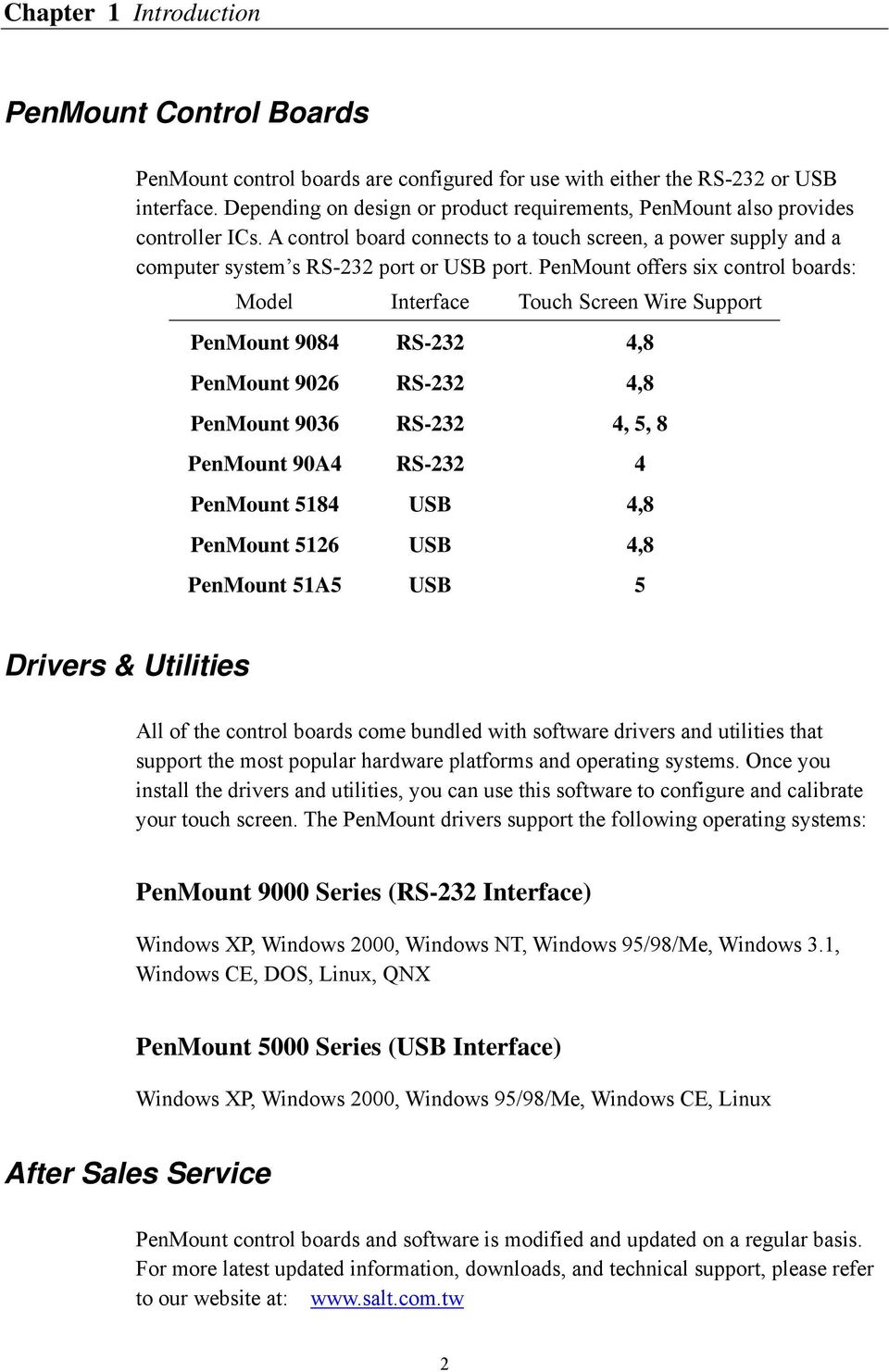
8 Chapter 1 Introduction PenMount Control Boards PenMount control boards are configured for use with either the RS-232 or USB interface. Depending on design or product requirements, PenMount also provides controller ICs. A control board connects to a touch screen, a power supply and a computer system s RS-232 port or USB port. PenMount offers six control boards: Model Interface Touch Screen Wire Support PenMount 9084 RS-232 4,8 PenMount 9026 RS-232 4,8 PenMount 9036 RS-232 4, 5, 8 PenMount 90A4 RS PenMount 5184 USB 4,8 PenMount 5126 USB 4,8 PenMount 51A5 USB 5 Drivers & Utilities All of the control boards come bundled with software drivers and utilities that support the most popular hardware platforms and operating systems. Once you install the drivers and utilities, you can use this software to configure and calibrate your touch screen. The PenMount drivers support the following operating systems: PenMount 9000 Series (RS-232 Interface) Windows XP, Windows 2000, Windows NT, Windows 95/98/Me, Windows 3.1, Windows CE, DOS, Linux, QNX PenMount 5000 Series (USB Interface) Windows XP, Windows 2000, Windows 95/98/Me, Windows CE, Linux After Sales Service PenMount control boards and software is modified and updated on a regular basis. For more latest updated information, downloads, and technical support, please refer to our website at: 2
9 Chapter 2: Installing PenMount Control Boards The procedures that follow describe how to install and configure the hardware for each of the PenMount Touch Screen Control Boards. Installation Requirements You need the following to install a touch screen using a PenMount Touch Screen Control Board: Computer An IBM-compatible host computer A communications port, either RS-232 or USB A Compact Disc drive One of the following operating systems installed on the computer: Windows XP, Windows 2000, Windows NT, Windows 95/98/Me, Windows 3.1, Windows CE, DOS, Linux, QNX Touch Screen A 4-wire tail analog resistive touch screen A 5-wire tail analog resistive touch screen A 8-wire tail analog resistive touch screen Control Board A PenMount Touch Screen Control Board Cables to connect the control board to the touch screen, the computer s communications port A cable to connect the power supply (This is only required for 9000 control boards using the RS-232 port) The PenMount Drivers & Utilities disk 3

10 Chapter 2 Installing PenMount Control Boards Connecting a 9000 Control Board (RS-232) Connecting a PenMount 9000 (RS-232) Control Board 4

11 Chapter 2 Installing PenMount Control Boards Connecting a 5000 Control Board (USB) Connecting a PenMount 5000 (USB) Control Board 5

12 Chapter 2 Installing PenMount Control Boards RS-232 Serial Boards (9000 Series) The PenMount 9000 control boards use the RS-232 serial interface. There are four models in the 9000 Series. The general procedure for board installation is similar, though hardware connection and configuration varies for each board. NOTE: PenMount 9036 The PenMount 9036 control board is an RS-232 interface touch screen control board that supports 4-wire, 5-wire, and 8-wire touch screens. The size of the board is 25 x 60mm and it has two connectors and one dipswitch on-board. Follow the steps below to install the 9036 control board. See Appendix A for the control board s connector pin definitions. 1. Power down your computer and display and open your display or system case. Find space on your system and attach the control board to your system with screws. The control board has industry standard 3φ screw holes. PenMount 9036 Touch Screen Control Board 2. Find the white 6-pin right angle connector (on the left in the photo above). The power cable is pin 1 and pin 2. Solder the power and ground wire to the system. The RS-232 cable is for pins 3 to 6. Attach the RS-232 cable s D-sub connector to a COM port at the back of the computer. 3. Find the white 9-pin right angle connector (on the right in the photo above). Attach the female end of the touch screen cable to this connector. If you have a 4-wire touch screen attach the cable to pins 1~5. If you have a 5-wire touch screen attach the cable to pins 1~6. If you have an 8-wire touch screen attach the cable to pins 1~9. Attach the male end of the cable to the touch screen tail. 4. Mount your touch screen to the display. 6

13 Chapter 2 Installing PenMount Control Boards 5. Find the on-board DIP switch (on the upper right of the photo above). This switch selects baud rate, PnP or non-pnp mode, and touch screen type. Set the DIP switch to configure your control board according to the definitions and settings of the table below. DIP Switch Settings Switch Definition ON OFF S1 Baud Rate Adjustment S2 PnP enable or disable Disable Enable S3 Touch screen type 5-wire 4-, 8-wire S4 Touch screen type 4-, 8-wire 5-wire 6. Turn on power to the computer and the display. 7. Install the software drivers and utilities and calibrate the touch screen. See Chapter 4. NOTE: PenMount 9026B The PenMount 9026B control board is an RS-232 interface touch screen control board that supports 4-wire and 8-wire touch screens. The size of the board is 20 x 60mm and it has two connectors on-board. Follow the steps below to install the 9026B control board. See Appendix A for the control board s connector pin definitions. 1. Power down your computer and display and open your display or system case. Find space on your system and attach the control board to your system with screws. The control board has industry standard 2φ screw holes. PenMount 9026B Touch Screen Control Board 2. Find the white 6-pin right angle connector (on the left in the photo above). The power cable is pin 1 and pin 2. Solder the power and ground wire to the system. 7

14 Chapter 2 Installing PenMount Control Boards The RS-232 cable is from pins 3 to 6. Attach the RS-232 cable s D-sub connector to a COM port at the back of the computer. 3. Find the white 9-pin right angle connector (on the right in the photo above). Attach the female end of the touch screen cable to this connector. If you have a 4-wire touch screen attach the cable to pins 1~5. If you have an 8-wire touch screen attach the cable to pins 1~9. Attach the male end of the cable to the touch screen tail. 4. Mount your touch screen to the display using tape or Velcro. 5. Turn on power to the computer and the display. 6. Install the software drivers and utilities and calibrate the touch screen. See Chapter 4. NOTE: PenMount 9084 The PenMount 9084 control board is an RS-232 interface touch screen control board that supports 4-wire and 8-wire touch screens. The size of the board is 40 x 80mm and it has three connectors on-board. Follow the steps below to install the 9084 control board. See Appendix A for the control board s connector pin definitions. 1. Power down your computer and display and open your display or system case. Find space on your system and attach the control board to your system with screws. The control board has industry standard 4φ screw holes. PenMount 9084 Touch Screen Control Board 2. Find the 2-pin and 4-pin white right angle connectors (on the left in the photo above). Attach the power cable to the 2-pin connector, then solder the power and ground wire to the system. Attach the RS-232 cable to the 4-pin connector, and then attach the RS-232 cable s D-sub connector to a COM port at the back of the computer. 3. Find the white 9-pin right angle connector (on the right in the photo above). 8

15 Chapter 2 Installing PenMount Control Boards Attach the female end of the touch screen cable to this connector. If you have a 4-wire touch screen attach the cable to pins 1~5. If you have an 8-wire touch screen attach the cable to pins 1~9. Attach the male end of the cable to the touch screen tail. 4. Mount your touch screen to the display using tape or Velcro. 5. Turn on power to the computer and the display. 6. Install the software drivers and utilities and calibrate the touch screen. See Chapter 4. NOTE: PenMount 90A4 The PenMount 90A4 control board is an RS-232 interface touch screen control board that only supports 4-wire touch screens. The size of the board is 20 x 50mm and it has three connectors on-board. Follow the steps below to install the 90A4 control board. The 90A4 control board features automatic adjustment of touch pin assignments, so there is no need to worry about touch pin definitions. After you plug the touch screen tail to the connector, the PenMount touch screen drivers adjust the pin assignment through calibration. 1. Power down your computer and display and open your display or system case. Find space on your system and attach the control board to your system with screws. The control board has industry standard 3φ screw holes. PenMount 90A4 Touch Screen Control Board 2. Find the white 6-pin right angle connector (on the left in the photo above). The power cable is pin 1 and pin 2. Solder the power and ground wire to the system. The RS-232 cable is for pins 3 to 6. Attach the RS-232 cable s D-sub connector to a COM port at the back of the computer. 3. Find the white 4-pin right angle connector (on the left in the photo above). This 9

16 Chapter 2 Installing PenMount Control Boards connector s pitch is 2.0mm. Attach the female end of the touch screen cable to this connector. There is also a ZIF connector with 1.0mm pitch for ZIF type touch screen tails (on the left in the photo above). The contact side is UP. Attach the touch screen tail to the ZIF connector. NOTE 1: If you need a 1.25mm pitch connector, the circuit is ready underneath the 4-pin white connector. Remove the 4-pin right angle connector and plug in a new 1.25mm pitch connector for use with this type of touch screen. NOTE 2: We welcome inquiries for OEM production of this board with different ZIF type connectors, or other connectors, or other board designs. Please contact us for details. 4. Mount your touch screen to the display using tape or Velcro. 5. Turn on power to the computer and the display. 6. Install the software drivers and utilities and calibrate the touch screen. See Chapter 4. 10

17 Chapter 2 Installing PenMount Control Boards USB Boards (5000 Series) The PenMount 5000 control boards use the USB interface. There are two models in the 5000 Series. The general procedure for board installation is similar, though hardware connection and configuration varies for each board. NOTE: PenMount 5184 The PenMount 5184 control board is a USB interface touch screen control board that supports 4-wire and 8-wire touch screens. The size of the board is 40 x 80mm and it has two connectors and two DIP switches on-board. This board can support up to 15 USB devices. Follow the steps below to install the 5184 control board. See Appendix A for the control board s connector pin definitions. 1. Power down your computer and display and open your display or system case. Find space on your system and attach the control board to your system with screws. The control board has industry standard 4φ screw holes. PenMount 5184 Touch Screen Control Board 2. Find the white 4-pin right angle connector (on the left in the photo above). Attach the USB cable to this connector and then fix the other end of the cable to the USB connector at the back of the display. 3. Find the white 9-pin right angle connector (on the right in the photo above). Attach the female end of the touch screen cable to this connector. If you have a 4-wire touch screen attach the cable to pins 1~5. If you have an 8-wire touch screen attach the cable to pins 1~9. Attach the male end of the cable to the touch screen tail. 4. Set the dipswitch SW2 if you are connecting multiple displays 5. Mount your touch screen to the display using tape or Velcro. 6. Turn on power to the computer and the display. 11

18 Chapter 2 Installing PenMount Control Boards 7. Install the software drivers and utilities and calibrate the touch screen. See Chapter 4. Setting the SW2 Dipswitch for Multiple Displays The dipswitch SW2 is for setting the control board for use with Multiple Displays. The PenMount 5184 control board supports up to 15 displays. Settings are described in the table below, where 0 means OFF and 1 means ON. For example, the setting the board for the fifth display is illustrated in the following diagram: Dipswitch SW2 SW2 Dipswitch Settings for Multiple Displays The 1 st display The 2 nd display The 3 rd display The 4 th display The 5 th display The 6 th display The 7 th display The 8 th display The 9 th display The 10 th display The 11 th display The 12 th display The 13 th display The 14 th display The 15 th display If the USB control board is connected to only one display there is no need to adjust the SW2 dipswitch, any setting is OK. If you connect several displays the sequence should be from small number to larger number, for example, if there are 3 PenMount USB control boards connected to a USB port, it will work in the sequence 1, 2, 3. It will not work if the sequence is 1, 3, 2 or 3, 2, 1. NOTE: The dipswitch SW1 on the PenMount 5184 USB board is set at ON. 12

19 Chapter 2 Installing PenMount Control Boards NOTE: PenMount 51A5 The PenMount 51A5 control board is a USB interface touch screen control board that supports only 5-wire touch screens. The size of the board is 25 x 60mm and it has two connectors and one DIP switch on-board. This board can support up to 15 USB devices. Follow the steps below to install the 51A5 control board. See Appendix A for the control board s connector pin definitions. 1. Power down your computer and display and open your display or system case. Find space on your system and attach the control board to your system with screws. The control board has industry standard 3φ screw holes. PenMount 51A5 Touch Screen Control Board 2. Find the white 4-pin right angle connector (on the left in the photo above). Attach the USB cable to this connector and then fix the other end of the cable to the USB connector at the back of the display. 3. Find the white 9-pin right angle connector (on the right in the photo above). Attach the female end of the touch screen cable to this connector. Attach the 5-wire touch screen cable to pins 1~5. Attach the male end of the cable to the touch screen tail. 4. Set the dipswitch SW1 if you are connecting multiple displays 5. Mount your touch screen to the display using tape or Velcro. 6. Turn on power to the computer and the display. 7. Install the software drivers and utilities and calibrate the touch screen. See Chapter 4. 13

20 Chapter 2 Installing PenMount Control Boards Setting the SW1 Dipswitch for Multiple Displays The dipswitch SW1 is for setting the control board for use with Multiple Displays. The PenMount 51A4 control board supports up to 15 displays. Settings are described in the table below, where 0 means OFF and 1 means ON. For example, the setting the board for the fifth display is illustrated in the following diagram: Dipswitch SW1 SW1 Dipswitch Settings for Multiple Displays The 1 st display The 2 nd display The 3 rd display The 4 th display The 5 th display The 6 th display The 7 th display The 8 th display The 9 th display The 10 th display The 11 th display The 12 th display The 13 th display The 14 th display The 15 th display If the USB control board is connected to only one display there is no need to adjust the SW1 dipswitch, any setting is OK. If you connect several displays the sequence should be from small number to larger number, for example, if there are 3 PenMount USB control boards connected to a USB port, it will work in the sequence 1, 2, 3. It will not work if the sequence is 1, 3, 2 or 3, 2, 1. 14

21 Chapter 2 Installing PenMount Control Boards NOTE: PenMount 5126 The PenMount 5126 control board is a USB interface touch screen control board that supports 4-wire and 8-wire touch screens. The size of the board is 25 x 60mm and it has two connectors and one DIP switch on-board. This board can support up to 15 USB devices. Follow the steps below to install the 5126 control board. See Appendix A for the control board s connector pin definitions. 8. Power down your computer and display and open your display or system case. Find space on your system and attach the control board to your system with screws. The control board has industry standard 3φ screw holes. PenMount 5126 Touch Screen Control Board 9. Find the white 4-pin right angle connector (on the left in the photo above). Attach the USB cable to this connector and then fix the other end of the cable to the USB connector at the back of the display. 10. Find the white 9-pin right angle connector (on the right in the photo above). Attach the female end of the touch screen cable to this connector. Attach the 4-wire touch screen cable to pins 1~5. If you have an 8-wire touch screen attach the cable to pins 1~9. Attach the male end of the cable to the touch screen tail. 11. Set the dipswitch SW1 if you are connecting multiple displays 12. Mount your touch screen to the display using tape or Velcro. 13. Turn on power to the computer and the display. 14. Install the software drivers and utilities and calibrate the touch screen. See Chapter 4. 15
22 Chapter 2 Installing PenMount Control Boards Setting the SW1 Dipswitch for Multiple Displays The dipswitch SW1 is for setting the control board for use with Multiple Displays. The PenMount 5126 control board supports up to 15 displays. Settings are described in the table below, where 0 means OFF and 1 means ON. For example, the setting the board for the fifth display is illustrated in the following diagram: Dipswitch SW1 SW1 Dipswitch Settings for Multiple Displays The 1 st display The 2 nd display The 3 rd display The 4 th display The 5 th display The 6 th display The 7 th display The 8 th display The 9 th display The 10 th display The 11 th display The 12 th display The 13 th display The 14 th display The 15 th display If the USB control board is connected to only one display there is no need to adjust the SW1 dipswitch, any setting is OK. If you connect several displays the sequence should be from small number to larger number, for example, if there are 3 PenMount USB control boards connected to a USB port, it will work in the sequence 1, 2, 3. It will not work if the sequence is 1, 3, 2 or 3, 2, 1. 16
23 Chapter 3: Installing Software for 9000 Boards This chapter describes how to install drivers and other software that will allow your PenMount 9000 Controller Boards (RS-232) work with various operating systems DOS Driver Installation for the 9000 Controller Board Before installing the DOS driver software, you must have the DOS system installed and running on your computer. You must also have one of the following PenMount Serial Interface controller boards installed: 90A4, 9026B, 9036 or Contents of the PenMount DOS driver folder are listed below. INSTALL.EXE general purpose installation utility PMTSR.COM README.TXT PMOUSE.EXE PMOUSE.CFG ICECREAM.EXE demo program PMDETECT.EXE identifies the communication port and IRQ number of the PenMount Touch Screen. Detected data is saved to the PMOUSE.CFG file. PMSET.EXE SWITCH.COM PM.BAT the PenMount Touch Screen driver functions PMINIT.BAT starts the PenMount driver in the system CALIBRAT.BAT the calibration utility SVGA256.BGI SVGA16.BGI EGAVGA.BGI ICECREAM.KEY PMGET.EXE retrieves touch data If you have an older version of the PenMount DOS driver installed in your system, please remove it first. Follow the steps below to install the PenMount DOS driver. Step 1: Use the "INSTALL.EXE" utility 1. Insert the driver CD-ROM and type "INSTALL". Salt International Corp. PenMount Install Utilities appears on the screen. 17
24 Chapter 3 Installing Software for 9000 Boards 2. Press the ENTER key to install the drivers to drive C or type the hard disc drive where you plan to install the drivers. 3. Do you want to modify your Autoexec.bat to initialize PenMount? (Y/N) appears. Choose Y to generate initialization instructions for the AUTOEXEC.BAT files. Follow the instructions to complete the installation. Step 2: Identify the communication port and IRQ number. 1. For first time installation, or changing the PenMount Touch Screen's COM port, use PMDETECT (e.g. C:\PENMOUNT\PMDETECT) to check the COM port and IRQ number. PMDETECT saves the correct data to PMOUSE.CFG file for further use. 2 The driver detects your communication COM port and IRQ number from COM1 IRQ4, COM2 IRQ3, COM3.to COM4 IRQ15. The PenMount driver finds the COM port and IRQ number automatically. The screen then shows: PenMount is initialized successfully!!! Create file "pmouse.cfg". Success. PenMount internal settings: Comm. Port: COM<n> IRQ<n> NOTE: If you do not need a specific IRQ number, the PMDETECT program allows you to skip that IRQ number detection. For example, if you do not need to detect IRQ5 the command is: C:\PENMOUNT\PMDETECT N5 If you do not need to detect IRQ5 and IRQ9, the command is: C:\PENMOUNT\PMDETECT N5 N9 Step 3: Calibration 1. Use PM.BAT (C:\PENMOUNT\PM) to properly adjust touch screen mapping to the display. 2. Choose "1" DO CALIBRATION (adjusts screen mapping). A screen message asks you to select a video mode number. 3. Use the keyboard to select a video mode number to start the calibration. 4. Touch the upper-center point, then right-center point, bottom-center point and left-center point in sequence. After calibration, the data is shown on the screen. Press any key to continue. 18
25 Chapter 3 Installing Software for 9000 Boards NOTE: If the initialization commands are not in AUTOEXEC.BAT, you must initialize the PenMount controller before using the PenMount Touch Screen. The initialization command is: C:\PENMOUNT\PMINIT The following initialization message should appear: Step 4: Demo PenMount V7.10 Copyright(c) SALT International Corp. Test:COM<n> IRQ<n> (<n> is the number after PMDETECT done) PenMount communication settings: COM<N> IRQ<n> Baud Rate: <xxxx> 1. To demo touch screen operation, select "3" DRAWING TEST in PM.BAT file of Utility Directory. 2. Draw on the screen to demo. 3. You can also use the "ICECREAM.EXE" demo program in the "PENMOUNT" directory. The PenMount DOS driver is now installed. PenMount DOS Driver Functions The PenMount DOS driver offers several functions. You can change the settings with the following utilities: Show Settings Beep On or Off Get Touch Data Hide Cursor Current setting data is found in the PM.BAT file. View the status with the command: C:\PENMOUNT\PM. Choose "2" SHOW CURRENT SETTINGS Enable Beep command is: C:\PENMOUNT\PMOUSE /S Disable Beep (Default) command is: C:\PENMOUNT\PMOUSE Get touch data with the "PMGET.EXE" utility. This utility is only available for COM 1 or COM 2 ports. C:\PENMOUNT\PMGET <COM port> <baud rate> Touch point addresses appear on the screen. To hide the cursor the command is: C:\PENMOUNT\PMOUSE /H 19
26 Chapter 3 Installing Software for 9000 Boards 3-2. Windows 3.1 Driver Installation for 9000 Controller Boards Before installing the Windows 3.1 driver software, you must have the Windows 3.1 system installed and running on your computer. You must also have one of the following PenMount Serial Interface controller boards installed: 90A4, 9026B, 9036 or Contents of the PenMount Windows 3.1 driver folder are listed below. COMPRESS.EXE CTRLPAL.EX$ DETCMD.DL_ DIALOGUE INSTALL.EXE Installation program for PenMount Windows 3.1 driver MPEN.38$ MPEN.DR$ SHOWCUR.EX$ STFSETUP.EX_ STFSETUP.IN_ UNINSTPM.EXE VER.DL_ If you have an older version of PenMount Windows 3.1 driver installed in your system, please remove it first. Follow the procedure below to install the PenMount Windows 3.1 driver. 1. Make sure the Windows 3.1 system is installed in your computer. The PenMount Windows 3.1 driver lets your touch screen coexist with a mouse. If you wish to use a mouse and touch screen at the same time, plug a mouse into one COM port and the PenMount touch screen to another COM port before installing the PenMount Windows 3.1 driver. 2. Open the FILE MANAGER and under the MAIN group, run the "Install.exe" software in the PenMount "WIN31" directory. The first display shows "Welcome to install the PenMouse Driver." Click "Continue" to begin installation. 3. Select the COM port you plugged the PenMount touch screen into, and click "Continue." 4. The next screen is "Set the PORT address for com<x>, select "...[default]" or choose "User define". Then "Set the IRQ Number", select "...[default]" or choose "User define." If you choose "User define," key in an IRQ number. Click "Continue". 5. The last screen shows Setup succeeded." Click EXIT to finish setup. A new PENMOUNT group is generated after installing the PenMount Windows
27 Chapter 3 Installing Software for 9000 Boards driver. Restart Windows 3.1. In the PenMount group, two icons appear, PenMount Control Panel and UNINSTALL, The PenMount Windows 3.1 driver is working concurrently with mouse. PenMount Windows 3.1 Driver Functions After installing PenMount the Windows 3.1 driver, the system generates a Group named "PenMount" with two icons in the Group. PenMount Control Panel The functions of the PenMount Control Panel are described as follows: Config This sets the COM port, IRQ number and base address. Select COM port and a default IRQ number appears. If the default IRQ number is not what you require, click USER DEFINE and key-in an IRQ number and base address. 21
28 Chapter 3 Installing Software for 9000 Boards Calibrate The two screen areas are Initial and Calibrate. Click Calibrate to map the touch screen. The display shows a circle in the screen s upper-center, touch it. The display then shows a circle in the right-center, bottom-center and left-center of the screen. Touch these circles to map the touch screen to the display. Press the Initial button to conveniently re-establish connection with the controller board if the RS-232 serial port becomes disconnected. Setting This sets mouse performance, double click area, speed and testing area. Draw This drawing function tests and demonstrates the touch screen. Menu items include CLEAR and EXIT. About This displays the PenMount controller information. Uninstall Click this icon and the system removes all utilities and the PenMount group automatically. 22
29 Chapter 3 Installing Software for 9000 Boards 3-3. Windows 95 Driver Installation for 9000 Controller Boards Before installing the Windows 95 driver software, you must have the Windows 95 system installed and running on your computer. You must also have one of the following PenMount Serial Interface controller boards installed: 90A4, 9026B, 9036 or Contents of the PenMount Windows 95 driver folder are listed below. _INST32I.EX _ISDEL.EXE LANG.DAT SETUP.INS SETUP.INI _SYS1.CAB _USER1.CAB SETUP.BMP DATA1.CAB CONFIG.INI _SETUP.EXE OS.DAT _SETUP.DLL DATA.TAG _SYS1.HDR _USER1.HDR SETUP.LID DATA1.HDR LAYOUT.BIN README.TXT If you have an older version of the PenMount Windows 95 driver installed in your system, please remove it first. Follow the steps below to install the PenMount Windows 95 driver. 1. When the system first detects the controller board, a screen appears that shows Unknown Device. Press Cancel. 2. From the "Start" menu select "Run". 23
30 Chapter 3 Installing Software for 9000 Boards 3. Find "setup.exe" in the Windows 95 driver folder. 4. The PenMount logo appears, then "Installation Wizard," PenMount Utilities and a "Welcome" message appear. Select Next. 24
31 Chapter 3 Installing Software for 9000 Boards 5. The Software License Agreement screen and Information screen appear. Select "Yes" and "Next." 6. The Choose Destination Location screen appears. The installs PenMount Utilities in the folder: C:\Program Files\PenMount\Win9x. Select "Next or modify the folder name to one you would like to use. 25
32 Chapter 3 Installing Software for 9000 Boards 7. The Select Program screen appears. The default is "PenMount Utilities." Select "Next or change it. 8. The Start Copying Files screen appears. Select "Next" to copy files to the system. 26
33 Chapter 3 Installing Software for 9000 Boards 9. The Setup Complete screen appears. Select "Finish." Configuring the Software After you install the software the PenMount Control Panel appears. In the Configure panel set the correct COM port, IRQ number and base address. Each of the functions in the PenMount Control Panel is explained in the following section. If your touch screen is connected to the COM1 or COM2 port, use the Detect button to auto-detect the COM port. If you do not know which COM port is connected, the Advance detect button helps you find the correct data. Before 27
34 Chapter 3 Installing Software for 9000 Boards selecting the Advance button you must close all other programs first, otherwise it may cause these programs to crash. A third way to define the COM port is to input the data directly by selecting User Define. After making selections click OK and the system asks to reboot. Once the system reboots, the PenMount touch screen should be working. You must perform a calibration after rebooting the system. Select PenMount Control Panel from PenMount Utilities that is in Programs, or select the PM Control Panel by clicking the PM icon in the menu bar. Refer to the PenMount Windows 95 Driver Functions below on how to perform a calibration. 28
35 Chapter 3 Installing Software for 9000 Boards PenMount Windows 95 Driver Functions The Windows 95 driver functions are described below. PenMount Control Panel Configure This item screen sets hardware connections, such as the RS-232 port, the IRQ number and the base address. Controller Type Baud Rate Detect Advance User Define This shows the PenMount controller type, which is DMC9000. Baud rate is fixed at for DMC9000. Detects the connected port only if it is COM1 or COM2. This detects COM1 to COM4 port, detecting the COM port and IRQ number in sequence. Note that you must close all other programs running before you select this function. Lets you input this data from your keyboard. 29
36 Chapter 3 Installing Software for 9000 Boards Calibrate: This item provides the Initial and Calibration functions. Initial Calibration This button conveniently re-establishes connection with the controller board if the RS-232 serial port becomes disconnected. This button maps the touch panel to the display. Click Calibration and touch the five points in sequence to calibrate. 30
37 Chapter 3 Installing Software for 9000 Boards Setting This item allows setting the mouse and other interface functions. Misc. Option Cursor Double Click Set the Right Click Button, Beep Sound and Long Beep Sound. Set Hide Cursor or Cursor Offset. Use the arrow keys to adjust cursor offset. Adjusts and tests double click area and speed. Double click in the test area and the tumbler swings back and forth. 31
38 Chapter 3 Installing Software for 9000 Boards Draw Tests or demos PenMount touch screen operation. The display shows touch location. Click Draw to start. Touch the screen with your finger or a stylus and the drawing screen registers touch activity such left, right, up, down, pen up, and pen down. 32
39 Click Clear Screen to clear the drawing. Chapter 3 Installing Software for 9000 Boards About This panel displays information about PenMount controller and this driver version. 33
40 Chapter 3 Installing Software for 9000 Boards PenMount Monitor Menu Icon The PenMount monitor icon (PM) appears in the menu bar of Windows 95 system when you turn on PenMount Monitor in PenMount Utilities. PenMount Monitor has the following functions. Initial Right Click Button This resets the PenMount controller chipset. Normally, you do not need to use this function. The Windows 95 driver checks the controller chipset automatically. When you select this function, a mouse icon appears in the right-bottom of the screen. Click this icon to switch between Right and Left Button functions. Hide Cursor Cursor Offset Beep Sound Exit Set to hide or show cursor. Adjust the cursor offset. See Setting of PenMount Control Panel. Turns beep on or off. Exits the PenMount Monitor function. 34
41 Chapter 3 Installing Software for 9000 Boards PenMount Rotating Functions The PenMount driver for Windows 95 supports several display rotating software packages. Please see Chapter 5 for more information. The PenMount drivers for Windows 95, Windows 98/Me, Windows 2000/XP, as well as Windows 98 USB and Windows Me/2000/XP support display rotating software packages such as: Portrait s Pivot Screen Rotation Software ATI Display Driver Rotate Function nvidia Display Driver Rotate Function SMI Display Driver Rotate Function Intel 845G/GE Display Driver Rotate Function Configuring the Rotate Function 1. Install the rotation software package. 2. Choose the rotate function (0, 90, 180, 270 ) in the 3 rd party software. The calibration screen appears automatically. Touch this point and rotation is mapped. NOTE: The Rotate function is disabled if you use Monitor Mapping. 35
42 Chapter 3 Installing Software for 9000 Boards Uninstall the PenMount Windows 95 driver 1. Exit the PenMount monitor (PM) in the menu bar. 2. From PenMount Utilities in Programs, select the Uninstall utility. 3. This message appears: Are you sure you want to completely remove PenMount Utilities and all its components? 4. Select Yes to remove the PenMount Windows 95 driver. 5. Reboot system and the PenMount Windows 95 driver is removed from system. 36
43 Chapter 3 Installing Software for 9000 Boards 3-4. Windows 98/Me Driver Installation for 9000 Controller Boards Before installing the Windows 98/Me driver software, you must have the Windows 98/Me system installed and running on your computer. You must also have one of the following PenMount Serial Interface controller boards installed: 90A4, 9026B, 9036 or Contents of the PenMount Windows 98/Me driver folder are listed below. SETUP.EXE DMC9000.INF DMC9000.VXD If you have an older version of the PenMount Windows 98/Me driver installed in your system, please remove it first. Follow the steps below to install the PenMount Windows 98/Me driver. 1. When the system first detects the controller board, a screen appears that shows Unknown Device. Do not use this hardware wizard. Press Cancel. 37
44 Chapter 3 Installing Software for 9000 Boards 2. Install PenMount Windows 98/Me driver to your system from the CD-ROM: 3. A welcome message for the PenMount utilities setup program appears. Select Next. 38
45 Chapter 3 Installing Software for 9000 Boards 4. The Software License Agreement screen appears. Select "Yes." 5. The Information screen appears. Select "Next." 39
46 Chapter 3 Installing Software for 9000 Boards 6. The Choose Destination Location screen appears. This installs PenMount Utilities in the folder: C:\Program Files\PenMount\Win9x. Select "Next or modify the folder name to one you would like to use. 7. The Select Program Folder screen appears. The default is "PenMount Utilities." Select "Next or change it. 40
47 Chapter 3 Installing Software for 9000 Boards 8. The Start Copying Files screen appears. Select "Next" to copy files to the system. 9. The Setup Complete screen appears. Select "Finish." 41
48 Chapter 3 Installing Software for 9000 Boards 10. The Restarting Windows screen appears, choose Yes, I want to restart my computer now, and OK. Configuring the PenMount Windows 98/Me Driver Upon restarting, the computer automatically finds the new 9000 controller board. The touch screen is connected but not calibrated. Follow the procedures below to carry out calibration. 1. After installation, click the PenMount Monitor icon PM in the menu bar. 2. When the PenMount Control Panel appears, click Calibrate. PenMount Control Panel The functions of the PenMount Control Panel are explained in the following sections. Calibrate This function offers two ways to calibrate your touch screen. Standard Calibration adjusts most touch screens. Advanced Calibration adjusts aging touch screens. Standard Calibration Click this button and arrows appear pointing to red squares. Use your finger or stylus to touch the red squares in sequence. After the fifth red point calibration is complete. To skip, press ESC. Advanced Calibration Advanced Calibration uses 4, 9, 16 or 25 points to effectively calibrate touch panel linearity of aged touch screens. Click this button and touch the red squares in sequence with a stylus. To skip, press ESC. 42
49 Chapter 3 Installing Software for 9000 Boards NOTE: The older the touch screen, the more Advanced Mode calibration points you need for an accurate calibration. Use a stylus during Advanced Calibration for greater accuracy. 43
50 Chapter 3 Installing Software for 9000 Boards Plot Calibration Data Check this function and a touch panel linearity comparison graph appears when you have finished Advanced Calibration. The blue lines show linearity before calibration and black lines show linearity after calibration. 44
51 Chapter 3 Installing Software for 9000 Boards Draw Tests or demonstrates the PenMount touch screen operation. The display shows touch location. Click Draw to start. 45
52 Chapter 3 Installing Software for 9000 Boards Touch the screen with your finger or a stylus and the drawing screen registers touch activity such left, right, up, down, pen up, and pen down. Click Clear Screen to clear the drawing. 46
53 Chapter 3 Installing Software for 9000 Boards Option This panel function supports two modes Operation Mode and Beep Sound Mode which allow configuration for specific touch screen applications, such as point-of-sales (POS) terminals. Operation Mode Beep Sound Mode This mode enables and disables the mouse s ability to drag on-screen icons useful for configuring POS terminals. Stream Mode Select this mode and the mouse functions as normal and allows dragging of icons. Point Mode Select this mode and the mouse only provides a click function, and dragging is disabled. Enable Beep Sound turns beep function on and off Beep on Pen Down beep occurs when pen comes down Beep on Pen Up beep occurs when pen is lifted up Beep on both of Pen Down/Up beep occurs on both Beep Frequency modifies sound frequency Beep Duration modifies sound duration ` 47
54 Chapter 3 Installing Software for 9000 Boards About This panel displays information about the PenMount controller and this driver version. PenMount Monitor Menu Icon The PenMount monitor icon (PM) appears in the menu bar of Windows 98/Me system when you turn on PenMount Monitor in PenMount Utilities. PenMount Monitor has the following functions. 48
55 Chapter 3 Installing Software for 9000 Boards Right Click Button When you select this function, a mouse icon appears in the right-bottom of the screen. Click this icon to switch between Right and Left Button functions. Beep Sound Enable PNP Exit Turns beep on or off. Turns PNP on or off. When this is unchecked PNP is off and the RS-232 transfer signal is continuous when unplugging and plugging the cable into the serial port. Exits the PenMount Monitor function. PenMount Rotating Functions The PenMount driver for Windows 98/Me supports several display rotating software packages. Please see Chapter 5 for more information. The PenMount drivers for Windows 95, Windows 98/Me, Windows 2000/XP, as well as Windows 98 USB and Windows Me/2000/XP support display rotating software packages such as: Portrait s Pivot Screen Rotation Software ATI Display Driver Rotate Function nvidia Display Driver Rotate Function SMI Display Driver Rotate Function Intel 845G/GE Display Driver Rotate Function 49
56 Chapter 3 Installing Software for 9000 Boards Configuring the Rotate Function 1. Install the rotation software package. 2. Choose the rotate function (0, 90, 180, 270 ) in the 3 rd party software. The calibration screen appears automatically. Touch this point and rotation is mapped. NOTE: The Rotate function is disabled if you use Monitor Mapping 50
57 Chapter 3 Installing Software for 9000 Boards Uninstall the PenMount Windows 98/Me driver 1. Exit the PenMount monitor (PM) in the menu bar. 2. From PenMount Utilities in Programs, select the Uninstall utility 3. This message appears: Are you sure you want to completely remove PenMount Utilities and all its components? 4. Select Yes to remove the PenMount Windows 98/Me driver. 5. Reboot system and the PenMount Windows 98/Me driver is removed from system. 51
58 Chapter 3 Installing Software for 9000 Boards 3-5. Windows 2000/XP Driver Installation for 9000 Controller Board Before installing the Windows 2000/XP driver software, you must have the Windows 2000/XP system installed and running on your computer. You must also have one of the following PenMount Serial Interface controller boards installed: 90A4, 9026B, 9036 or Contents of the PenMount Windows 2000/XP driver folder are listed below. (PenMount 9000 driver version 5.0 designed for Microsoft Windows XP ) DMC9000.inf DMC9000.sys DMC9000.cat SETUP.EXE If you have an older version of the PenMount Windows 2000/XP driver installed in your system, please remove it first. Follow the steps below to install the PenMount Windows 2000/XP driver. 1. When the system first detects the controller board, a screen appears that shows Unknown Device. Do not use this hardware wizard. Press Cancel. 52
59 Chapter 3 Installing Software for 9000 Boards 2. Insert the PenMount Driver CD-ROM. Go to the Windows 2000-XP Driver folder. Click setup.exe. 3. The screen displays the installation wizard for the PenMount software. Click Next. 53
60 Chapter 3 Installing Software for 9000 Boards 3. A License Agreement appears. Click I accept and Next 4. The Ready to Install the Program screen appears. Select Install. 54
61 Chapter 3 Installing Software for 9000 Boards 5. If next screen is Hardware Installation. Please Select Continue Anyway. 6. The InstallShield Wizard Completed appears. Click Finish. 55
62 Chapter 3 Installing Software for 9000 Boards Configuring the PenMount Windows 2000/XP Driver Upon rebooting, the computer automatically finds the new 9000 controller board. The touch screen is connected but not calibrated. Follow the procedures below to carry out calibration. 1. After installation, click the PenMount Monitor icon PM in the menu bar. 2. When the PenMount Control Panel appears, click Calibrate. PenMount Control Panel The functions of the PenMount Control Panel are Calibrate, Draw, Multiple Monitors, Option, Tools and About, which are explained in the following sections. Calibrate This function offers two ways to calibrate your touch screen. Standard Calibration adjusts most touch screens. Advanced Calibration adjusts aging touch screens. Standard Calibration Click this button and arrows appear pointing to red squares. Use your finger or stylus to touch the red squares in sequence. After the fifth red point calibration is complete. To skip, press ESC. Advanced Calibration Advanced Calibration uses 4, 9, 16 or 25 points to effectively calibrate touch panel linearity of aged touch screens. Click this button and touch the red squares in sequence with a stylus. To skip, press ESC. NOTE: The older the touch screen, the more Advanced Mode calibration points you need for an accurate calibration. Use a stylus during Advanced Calibration for greater accuracy. 56
63 Chapter 3 Installing Software for 9000 Boards 57
64 Chapter 3 Installing Software for 9000 Boards Plot Calibration Data Check this function and a touch panel linearity comparison graph appears when you have finished Advanced Calibration. The blue lines show linearity before calibration and black lines show linearity after calibration. Enable Save to EEPROM It is save calibration data into control board function, if was select this function that colluded. But need control board firmware version support. 58
65 Draw Chapter 3 Installing Software for 9000 Boards Tests or demonstrates the PenMount touch screen operation. The display shows touch location. Click Draw to start. Touch the screen with your finger or a stylus and the drawing screen registers touch activity such left, right, up, down, pen up, and pen down. Touch the screen with your finger or a stylus and the drawing screen registers touch activity such left, right, up, down, pen up, and pen down. Click Clear Screen to clear the drawing. 59
66 Chapter 3 Installing Software for 9000 Boards NOTE: Multiple Monitors Multiple Monitors supports from two to six touch screen displays for one system. The PenMount drivers for Windows 2000/XP support Multiple Monitors. This function supports from two to six touch screen displays for one system. Each monitor requires its own PenMount touch screen control board, either installed inside the display or in a central unit. The PenMount control boards must be connected to the computer COM ports via the RS-232 interface. Driver installation procedures are the same as for a single monitor. Multiple Monitors supports the following modes: Windows Extend Monitor Function Matrox DualHead Multi-Screen Function nvidia nview Function The Multiple Monitors function is for use with multiple displays only. Do not use this function if you have only one touch screen display. Please note once you turn on this function the Rotating function is disabled. Enable the multiple display function as follows: 1. Check the Enable Multiple Monitor Support box; then click Map Touch Screens to assign touch controllers to displays. 60
67 Chapter 3 Installing Software for 9000 Boards 2. When the mapping screen message appears, click OK. 3. Touch each screen as it displays Please touch this monitor. Following this sequence and touching each screen is called mapping the touch screens. 4. Touching all screens completes the mapping and the desktop reappears on the monitors. 5. Select a display and execute the Calibration function. A message to start calibration appears. Click OK. 6. Touch this screen to start its calibration appears on one of the screens. Touch the screen. 61
68 Chapter 3 Installing Software for 9000 Boards 7. Touch the red square messages appear. Touch the red squares in sequence. 8. Continue calibration for each monitor by clicking Standard Calibration and touching the red squares. NOTES: 1. If you used a single VGA output for multiple monitors, please do not use the Multiple Monitors function. Just follow the regular procedure for calibration on each of your desktop monitors. 2. The Rotating function is disabled if you use the Multiple Monitors function. 3. If you change the resolution of display or screen address, you have to redo Map Touch Screens so the system understands where the displays are. Option This panel function supports two modes Operation Mode and Beep Sound Mode which allow configuration for specific touch screen applications, such as point-of-sales (POS) terminals. Operation Mode Beep Sound Mode This mode enables and disables the mouse s ability to drag on-screen icons useful for configuring POS terminals. Stream Mode Select this mode and the mouse functions as normal and allows dragging of icons. Point Mode Select this mode and the mouse only provides a click function, and dragging is disabled. Enable Beep Sound turns beep function on and off Beep on Pen Down beep occurs when pen comes down Beep on Pen Up beep occurs when pen is lifted up Beep on both of Pen Down/Up beep occurs on both Beep Frequency modifies sound frequency Beep Duration modifies sound duration 62
69 Chapter 3 Installing Software for 9000 Boards Tools This panel displays have three functions --- Display Right Click Tool, Pen Stabilizer and Automatic Rotation Detection. Display Right Click Tool Enable right button function, and show right button area on desktop. Pen Stabilizer Enable the function support to prevent cursor shake. Automatic Rotation Detection The function support nvidia, Intel, SMI or ATI and software such as Portrait Pivot Pro rotation automatic detection. 63
70 Chapter 3 Installing Software for 9000 Boards About This panel displays information about the PenMount controller and driver version. PenMount Monitor Menu Icon The PenMount monitor icon (PM) appears in the menu bar of Windows 2000/XP system when you turn on PenMount Monitor in PenMount Utilities. PenMount Monitor has the following functions. Beep Right Button Turns beep on or off. When you select this function, a mouse icon appears in the right-bottom of the screen. Click this icon to switch between Right and Left Button functions. 64
71 Chapter 3 Installing Software for 9000 Boards Pen Stabilizer Exit Check this function to reduce cursor vibration for relatively unstable touch screens, or where there may be excess vibration. Normally this function is not checked. Exits the PenMount Monitor function. PenMount Rotating Functions The PenMount driver for Windows 2000/XP supports several display rotating software packages. Please see Chapter 5 for more information. The PenMount drivers for Windows 95, Windows 98/Me, Windows 2000/XP, as well as Windows 98 USB and Windows Me/2000/XP support display rotating software packages such as: Portrait s Pivot Screen Rotation Software ATI Display Driver Rotate Function nvidia Display Driver Rotate Function SMI Display Driver Rotate Function Intel 845G/GE Display Driver Rotate Function Configuring the Rotate Function 1. Install the rotation software package. 2. Choose the rotate function (0, 90, 180, 270 ) in the 3 rd party software. The calibration screen appears automatically. Touch this point and rotation is mapped. NOTE: The Rotate function is disabled if you use Monitor Mapping Uninstall the PenMount Windows 2000/XP driver 65
72 Chapter 3 Installing Software for 9000 Boards 1. Exit the PenMount monitor (PM) in the menu bar. 2. Go to Settings, then Control Panel, and then click Add/Remove program. Select PenMount DMC9000 and click the Add/Remove button. 3. Select PenMount DMC9000 and DMC9100. Click the Remove button. 4. Select Yes and Close to remove the PenMount Windows 2000/XP driver, and reboot the system. 66
73 Chapter 3 Installing Software for 9000 Boards 3-6. Windows NT Driver Installation for the 9000 Controller Board Before installing the Windows NT driver software, you must have the Windows NT system installed and running on your computer. You must also have one of the following PenMount Serial Interface controller boards installed: 90A4, 9026B, 9036 or Contents of the PenMount Windows NT driver folder are listed below. _USER1.HDR _SETUP.DLL _SYS1.HDR _INST32I.EX DATA.TAG DATA1.HDR LANG.DAT LICENSE.TXT README.TXT SETUP.INS SETUP.EXE _ISDEL.EXE _SYS1.CAB _USER1.CAB CONFIG.INI DATA1.CAB INFO.TXT LAYOUT.BIN OS.DAT SETUP.LID SETUP.INI SETUP.BMP If you have an older version of the PenMount Windows NT driver installed in your system, please remove it first. Follow the steps below to install the PenMount Windows NT driver. 1. Insert the PenMount Driver CD-ROM. Go to the Windows NT Driver folder. Click setup.exe. 67
74 Chapter 3 Installing Software for 9000 Boards 2. A welcome message for the PenMount setup program appears. Select Next. 3. The Software License Agreement screen appears. Select "Yes." 68
75 Chapter 3 Installing Software for 9000 Boards 5. The Choose Destination Location screen appears. The installs PenMount Utilities in the folder: C:\Program Files\PenMount\NT. Select "Next or modify the folder name to one you would like to use. 6. The Select Program Folder screen appears. The default is "PenMount Utilities." Select "Next or change it. 69
76 Chapter 3 Installing Software for 9000 Boards 7. The Start Copying Files screen appears. Select "Next" to copy files to the system. 8. The Setup Complete screen appears. Check I would like to view the README file. Select "Finish." 70
77 Chapter 3 Installing Software for 9000 Boards 9. The README file appears. After reading, cancel the window and press "Finish" again. 10. The PenMount Control Panel appears. In the configure panel press the Detect button to auto-detect the correct COM port. 71
78 Chapter 3 Installing Software for 9000 Boards 11. Reboot the system. 12. After rebooting go to Programs, PenMount Utilities, then PenMount Control Panel. The PenMount Control Panel appears. Select Calibrate and begin calibration to adjust the mapping of the touch screen and display. 72
79 Chapter 3 Installing Software for 9000 Boards PenMount Control Panel You can access the PenMount control panel from the PM menu bar icon. Functions of the PenMount Control Panel are explained in the following sections. Configure This item configures the driver for use with the hardware by setting COM port, IRQ number and I/O address. Controller Type Baud Rate Detect User Define This shows the PenMount controller type, which is DMC9000. Baud rate is fixed at for DMC9000. Click this button to auto-detect COM port, IRQ number, or base address. Lets you input this data from your keyboard. 73
80 Chapter 3 Installing Software for 9000 Boards 74
81 Chapter 3 Installing Software for 9000 Boards Calibrate: This item provides Initialize and Calibration functions. Initialize Calibration This button re-establishes connection with the controller board if the RS-232 serial port becomes disconnected. This button maps the touch panel to the display. Click Calibration and touch the five points in sequence to calibrate. Setting This item allows setting the mouse and other interface functions. 75
82 Chapter 3 Installing Software for 9000 Boards Misc. Option Cursor Double Click Sets the Right Click Button, Beep Sound Sets Hide Cursor or Cursor Offset. Press the four triangles with a stylus to adjust cursor offset. Adjusts and tests double click area and speed. Double click in the test area and the tumbler swings back and forth. Draw & Statistics Tests or demonstrates PenMount touch screen operation. The display also shows touch location. Click Draw & Statistics to start. 76
83 Chapter 3 Installing Software for 9000 Boards About This panel displays information about PenMount controller and this driver version. PenMount Monitor Menu Icon The PenMount monitor icon (PM) appears in the menu bar of Windows NT system when you turn on PenMount Monitor in PenMount Utilities. PenMount Monitor has the following functions. Initialize Right Click This resets the PenMount controller chipset. Normally, you do not need to use this function because the Windows NT driver checks the controller chipset automatically. When you select this function, a mouse icon appears in 77
84 Chapter 3 Installing Software for 9000 Boards the right-bottom of the screen. Click this icon to switch between Right and Left Button functions. Hide Cursor Cursor Offset Beep Sound Exit Set to hide or show cursor. Adjust the cursor offset. See Setting the PenMount Control Panel. Turns beep on or off. Exits the PenMount Monitor function. PenMount Rotating Functions The PenMount driver for Windows NT supports several display rotating software packages. Please see Chapter 5 for more information. The PenMount drivers for Windows 95, Windows 98/Me, Windows 2000/XP, as well as Windows 98 USB and Windows Me/2000/XP support display rotating software packages such as: Portrait s Pivot Screen Rotation Software ATI Display Driver Rotate Function nvidia Display Driver Rotate Function SMI Display Driver Rotate Function Intel 845G/GE Display Driver Rotate Function Configuring the Rotate Function 1. Install the rotation software package. 2. Choose the rotate function (0, 90, 180, 270 ) in the 3 rd party software. The calibration screen appears automatically. Touch this point and rotation is mapped. NOTE: The Rotate function is disabled if you use Monitor Mapping 78
85 Uninstall the PenMount Windows NT driver 1. Exit the PenMount monitor (PM) in the menu bar. Chapter 3 Installing Software for 9000 Boards 2. From PenMount Utilities in Programs, select the Uninstall utility 3. This message appears: Are you sure you want to completely remove PenMount Utilities and all its components? 4. Select PenMount Windows NT driver and click Remove. 5. Reboot system and the PenMount Windows NT driver is removed from system. 79
86 Chapter 3 Installing Software for 9000 Boards 3-7. Linux X Window Driver Installation for 9000 Boards Before installing the Linux X Window driver software, you must have the Linux X Window system installed and running on your computer. You must also have one of the following PenMount Serial Interface controller boards installed: 90A4, 9026B, 9036 or NOTE: This is one way to install the drivers, but you may be accustomed to other installation methods. Driver Installation Procedures 1. Login system with "root" 2. Check XFree86 version # X -version (If the screen shows "XFree86 Version / X Window System", then go to Next. If not, please use another driver that fits XFree86 driver.) 3. Copy PenMount driver "xf86penmount.so" to the directory "/usr/x11r6/lib/modules". # cp /mnt/cdrom/driver/linux\ XFree86\ 3.3.6\ V1.0/XWindow_336/xf86PenMount.so /usr/x11r6/lib/modules 4. Edit XF86Config "gedit /etc/x11/xf86config" (or use "vi" Editor)(You can use Copy & Paste) a. In the Section "Files", add a statement: ModulePath "/usr/x11r6/lib/modules" b. Add a Section "Module" Section "Module" Load "xf86penmount.so" EndSection c. Under the "Pointer Section"(after the "EndSection" of the "Pointer"), add another Section "XInput": (refer to the sample file XF86Config.sample) Here we assume Touch screen controller is connecting to COM1) Section "XInput" SubSection "PenMount" Port "/dev/ttys0" DeviceName "PenMount" PMode 1 MinX 10 #ttys0=com1 ttys1=com2 80
87 MaxX 1000 MinY 10 MaxY 1000 AlwaysCore EndSubSection SubSection "Mouse" Protocol "PS/2" Device "/dev/mouse" AlwaysCore EndSubSection EndSection Chapter 3 Installing Software for 9000 Boards Calibration Utilities For Redhat 7.1/7.2/7.X.. & other Linux Distribution 1. Copy the Calibrate file into the "/usr/local/pencal" directory. # mkdir /usr/local/pencal # cp /mnt/cdrom/driver/linux\ XFree86\ 3.3.6\ V1.0/Calibration/*.* /usr/local/pencal 2. Run X window and perform calibration. #startx # cd /usr/local/pencal #./pencal2 (pencal is for Redhat 6.X, pencal2 is for Redhat 7.x) For Redhat 6.X & 5.X & other older Linux Distribution 1. Copy the "libqt.tgz" file to the "/usr/lib" directory. 2. In the "/usr/lib" directory, input "tar zxvf libqt.tgz". 3. In the "/usr/lib" directory, input "ldconfig". 4. Copy the "bcircle.xpm" and "bcircle.xpm" file into the "/usr/local/pencal" directory. # mkdir /usr/local/pencal # cp /mnt/cdrom/driver/linux\ XFree86\ 3.3.6\ V1.0/Calibration/*.* /usr/local/pencal 5. Run X window and perform calibration. #startx #cd /usr/local/pencal #./pencal (pencal is for Redhat 6.X, pencal2 is for Redhat 7.x) 81
88 Chapter 3 Installing Software for 9000 Boards A PenCal window appears on the display. Follow the four red points to perform the calibration. When the PenCal window shows: Finished! Please restart X window, wait a moment until the PenCal window disappears, and then restart the X window system. 82
89 Chapter 3 Installing Software for 9000 Boards 3-8. Linux X Window Driver v2.1 Installation for 9000 Boards (supports XFree86 v4.x.x) Before installing the Linux X Window 4.x.x driver software, you must have the Linux X Window 4.x.x system installed and running on your computer. You must also have one of the following PenMount Serial Interface controller boards installed: 90A4, 9026B, 9036 or Contents of the PenMount driver folder are listed below. Driver/penmount_drv.o Driver/Source Calibration/pencal-2.00 Calibration/bcircle.xpm Calibration/rcircle.xpm XF86Config.sample -- Penmount driver -- Penmount driver source code -- Penmount calibration utility -- bitmap file, for Penmount calibration utility -- bitmap file, for Penmount calibration utility -- XF86Config sample Please check your X Window XFree86 version first and download the suitable PenMount driver, then follow the procedures below to install Linux driver and calibration utilities. NOTE: If your X window version is 3.3.x, please install the Penmount 3.3.x driver. Driver Installation Procedures 1. Login system with "root" 2. # cd /root 3. Copy penmount driver "penmount_drv.o" into the directory named "/usr/x11r6/lib/modules/input". #mount /dev/cdrom /mnt/cdrom #cp /mnt/cdrom/driver/linux\ XFree86\ 4.x.x\ V2.0/Driver/penmount_drv.o /usr/x11r6/lib/modules/input 4. Edit XF86Config file to load driver. You can refer to /mnt/cdrom/driver/linux\ XFree86\ 4.x.x\ V2.0/XF86Config.sample NOTE: Make sure your XFree86 server is using XF86Config or XF86Config-4 first. # X -version *(If the screen shows "XFree86 Version 4.x.x / X Window System", then go to Next, if it does not, you are using the XFree86 Version 3.x.x driver.) #cd /etc/x11 #ls -al 83
90 Chapter 3 Installing Software for 9000 Boards *(If your XFree86 is running the XFree86 4.x.x, and you do not find "XF86Config-4" files, please ignore the following step and go to 4.a directly for continued installation.) #rm X #ln -s /usr/x11r6/bin/xfree86 X #mv XF86Config XF86Config.old #mv XF86Config-4 XF86Config #ln -s XF86Config XF86Config-4 a. # gedit /etc/x11/xf86config (in Xwindow only, or you can use "vi" text mode editor) (use copy and paste to modify the following lines) b. In the Section "ServerLayout", add a statement: InputDevice "Penmount" "AlwaysCore" c. Add a Section "InputDevice" (Here we assume the touch screen controller is connected to COM1) Section "InputDevice" ndsection Identifier "PenMount" Driver "penmount" Option "Protocol" "Auto" Option "Device" "/dev/ttys0 #ttys0=com1,ttys1=com2 E " Option "PMode" "1" Option "MinX" "10" 5 Option "MinX" "1000" Option "MinY" "10". Option "MinY" "1000" Option "Beep" "1" # 0 = no beep, 1 = beep enabled Option # "PressVol" "100" # volume of beep (press event) Option "PressPitch" "880" # pitch of beep (press event) Option s "PressDur" "15" # length of beep in 10ms (press event) Option t "ReleaseVol" "0" # volume of beep (release event) Option "ReleasePitch" "1200" # pitch of beep (release event) a Option "ReleaseDur" "10" # length of beep in 10ms (release event) r tx NOTE: The touch cursor should be working now. If not, then please review the steps above. 6. Perform calibration for the first installation. 84
91 Chapter 3 Installing Software for 9000 Boards Calibrating Utilities 1. Copy the calibrate file into the "/usr/local/pencal" directory. # mkdir /usr/local/pencal # cp /mnt/cdrom/driver/linux\ XFree86\ 4.x.x\ V2.0/Calibration/*.* /usr/local/pencal 2. Input "startx" to start X window. # startx 3. In the X window system, open a terminal window and type # cd /usr/local/pencal #./pencal-2.00 A PenCal window appears on the display. Follow the four red points to perform the calibration. When the PenCal window shows: Finished! Please restart X window, wait a moment until the PenCal window disappears, and then restart the X window system. 4. For more information, type #./pencal help 85
92 Chapter 3 Installing Software for 9000 Boards 3-9. Win CE Driver Installation for 9000 Boards Before installing the Win CE driver software, you must have the Win CE system installed and running on your device. You must also have one of the following PenMount Serial Interface controller boards installed: 90A4, 9026B, 9036 or NOTE: Make sure you can move the Win CE cursor with a serial mouse attached to the target COM port (e.g. COM2) before connecting the 9000 controller board. Driver Installation Procedures 1. mkdir $(_WINCEROOT)\PUBLIC\PENMOUNT\ReleaseDisk\ Copy all files to this directory. 2. Run Platform Builder. From menu, select Tools -> CEC Editors 3. From CEC Editors menu, select File -> Open From the file dialog, select: $(_WINCEROOT)\PUBLIC\PENMOUNT\ReleaseDisk\penmount.cec and click Open. From CEC Editors menu, select Catalog -> Add to Catalog 4. Return to Platform Builder and right-click on the Catalog and select Refresh Catalog. A New item named "PenMount Products" should appear in your Catalog. 5. Expand it and select 'PenMount'. Then right-click and select 'Add to Platform'. 6. Edit PROJECT.BIB in the Parameter View of MS WinCE Platform Builder 4.0. Add these lines in MODULES: dmc9x00.dll $(_FLATRELEASEDIR)\dmc9x00.dll NK SH drawdemo.exe $(_FLATRELEASEDIR)\drawdemo.exe NK calibrate.exe $(_FLATRELEASEDIR)\calibrate.exe NK rbutton.exe $(_FLATRELEASEDIR)\rbutton.exe NK Add these lines in FILES: Calibration.lnk $(_FLATRELEASEDIR)\calibration.lnk NK SH DrawDemo.lnk $(_FLATRELEASEDIR)\DrawDemo.lnk NK SH RightButton.lnk $(_FLATRELEASEDIR)\RightButton.lnk NK SH 86
93 Chapter 3 Installing Software for 9000 Boards 7. Edit PROJECT.DAT in the Parameter View of MS WinCE Platform Builder 4.0. Add these lines: root:-directory("\windows") Directory("\Windows"):-Directory("LOC_DESKTOP_DIR") Directory("\Windows"):-Directory("LOC_PROGRAMS_DIR") Directory("\Windows\LOC_PROGRAMS_DIR"):-Directory("PenMount TouchPanel") Directory("\Windows\LOC_DESKTOP_DIR"):-File("Calibration.lnk","\Windows\Calibration.lnk") Directory("\Windows\LOC_PROGRAMS_DIR\PenMount TouchPanel"):-File("Calibration.lnk","\Windows\Calibration.ln k") Directory("\Windows\LOC_PROGRAMS_DIR\PenMount TouchPanel"):-File("Right Button.lnk","\Windows\RightButton.lnk") Directory("\Windows\LOC_PROGRAMS_DIR\PenMount TouchPanel"):-File("Draw Demo.lnk","\Windows\DrawDemo.lnk") 8. Edit PROJECT.REG in the Parameter View of MS WinCE Platform Builder 4.0. Add these lines: [HKEY_LOCAL_MACHINE\Drivers\BuiltIn\Dmc9x00] "Index"=dword:8 "Dll"="dmc9x00.dll" "Prefix"="SRM" "Order"=dword:3 "Port"=dword:1 "pmode"=dword:1 "cax1"=dword:1240 "cay1"=dword:2c50 "cax2"=dword:dab0 "cay2"=dword:e2a0 NOTE: You can change the "port" to the ComPort number which is connected to the 9000 controller board. "Port"=dword:1 means COM1 in the CEPC system, but that is COM2 for the Standard PC. COM1 of the Standard PC is for debugging in CEPC. Please refer to MS WinCE documents.) 9. Build your Platform (use "Build Platform", not "Rebuild"), and boot it. Execute Calibration and DrawDemo to test 9000 controller board. 10. If you want to keep the calibration data after WINCE reboot, please write "WINCE REGISTRY" to FLASH in your machine. 87
94
95 Chapter 4: Installing Software for 5000 Boards This chapter describes how to install drivers and other software that will allow your PenMount 5000 Controller Boards (USB) to work with different operating systems. NOTE: PenMount USB drivers support up to 15 USB controllers Windows 98 USB Driver Installation for 5000 Boards IMPORTANT! Before installing the Windows 98 USB driver software, you must have the Windows 98 system installed and running on your computer. You must also have one of the following PenMount USB controller boards installed: 5184 or 51A5. Follow the steps below to install the PenMount Windows 98 USB driver. 1. Plug the PenMount 5000 Series USB controller board s connector into a USB port. The screen displays Salt USB PenMount. Before installing the driver software you must plug the board into a USB port. 2. The Add New Hardware Wizard appears. Click Next. If this screen does not appear it means the USB Human Interface Device Driver is already installed and you can go directly to step 6. 89
96 Chapter 4 Installing Software for 5000 Boards 3. Select Search for the best driver for your device. Click Next. 4. Choose CD-ROM drive to assign the route for the Windows 98 CD. 5. Select Next and then Next. To update the new driver insert the Windows 98 system disk into the CD device if the system asks for it. 90
97 Chapter 4 Installing Software for 5000 Boards The system shows the new driver installed for the new hardware device, select Finish. 91
98 Chapter 4 Installing Software for 5000 Boards 6. Select CD-ROM PenMount USB\Driver\Setup to install the PenMount USB driver to the system. a. The screen shows InstallShield Wizard to install the Windows 98 driver b. Click Next to begin installing the PenMount USB driver to the system c. A License agreement appears. Click Next. 92
99 Chapter 4 Installing Software for 5000 Boards d. The next screen displays Ready to Install the Program. Click Install. e. The last screen shows InstallShield Wizard complete, select Yes to reboot the system. 7. After the system reboots perform touch screen Calibration as described below. 93
100 Chapter 4 Installing Software for 5000 Boards Configuring the PenMount Windows 98 Driver Upon restarting, the computer automatically finds the new 5000 controller board. The touch screen is connected but not calibrated. Follow the procedures below to carry out calibration. 1. After installation, click the PenMount Monitor icon PM in the menu bar. 2. When the PenMount Control Panel appears, click Calibrate. PenMount Control Panel The functions of the PenMount Control Panel are explained in the following sections. Calibrate This function offers two ways to calibrate your touch screen. Standard Calibration adjusts most touch screens. Advanced Calibration adjusts aging touch screens. Standard Calibration Click this button and arrows appear pointing to red squares. Use your finger or stylus to touch the red squares in sequence. After the fifth red point, calibration is complete. To skip, press ESC. Advanced Calibration Advanced Calibration uses 4, 9, 16 or 25 points to effectively calibrate the touch panel linearity of aged touch screens. Click this button and touch the red squares in sequence with a stylus. To skip, press ESC. 94
101 Chapter 4 Installing Software for 5000 Boards NOTE: The older the touch screen, the more Advanced Mode calibration points you need for an accurate calibration. Use a stylus during Advanced Calibration for greater accuracy. 95
102 Chapter 4 Installing Software for 5000 Boards Plot Calibration Data Check this function and a touch panel linearity comparison graph appears when you have finished Advanced Calibration. The blue lines show linearity before calibration and black lines show linearity after calibration. 96
103 Chapter 4 Installing Software for 5000 Boards 97
104 Chapter 4 Installing Software for 5000 Boards Draw Tests or demonstrates the PenMount touch screen operation. The display shows touch location. Click Draw to start. Touch the screen with your finger or a stylus and the drawing screen registers touch activity such left, right, up, down, pen up, and pen down. 98
105 Chapter 4 Installing Software for 5000 Boards Click Clear Screen to clear the drawing. Option This panel function supports two modes Operation Mode and Beep Sound Mode which allow configuration for specific touch screen applications, such as point-of-sales (POS) terminals. Operation Mode Beep Sound Mode This mode enables and disables the mouse s ability to drag on-screen icons useful for configuring POS terminals. Stream Mode Select this mode and the mouse functions as normal and allows dragging of icons. Point Mode Select this mode and the mouse only provides a click function, and dragging is disabled. Enable Beep Sound turns beep function on and off Beep on Pen Down beep occurs when pen comes down Beep on Pen Up beep occurs when pen is lifted up Beep on both of Pen Down/Up beep occurs on both Beep Frequency modifies sound frequency Beep Duration modifies sound duration 99
106 Chapter 4 Installing Software for 5000 Boards About This panel displays information about the PenMount controller and this driver version. 100
107 Chapter 4 Installing Software for 5000 Boards PenMount Monitor Menu Icon The PenMount monitor icon (PM) appears in the menu bar of the Windows 98 system after the Windows 98 USB driver is installed. PenMount Monitor has the following functions. Beep Right Button Turns touch screen beep on or off. When you select this function, a mouse icon appears in the right-bottom of the screen. Click this icon to switch between Right and Left Button functions. Exit Exits the PenMount Monitor function. 101
108 Chapter 4 Installing Software for 5000 Boards PenMount Rotating Functions The PenMount driver for Windows 98 USB supports several display rotating software packages. Please see Chapter 5 for more information. The PenMount drivers for Windows 95, Windows 98/Me, Windows 2000/XP, as well as Windows 98 USB and Windows Me/2000/XP support display rotating software packages such as: Portrait s Pivot Screen Rotation Software ATI Display Driver Rotate Function nvidia Display Driver Rotate Function SMI Display Driver Rotate Function Intel 845G/GE Display Driver Rotate Function Configuring the Rotate Function 1. Install the rotation software package. 2. Choose the rotate function (0, 90, 180, 270 ) in the 3 rd party software. The calibration screen appears automatically. Touch this point and rotation is mapped. NOTE: The Rotate function is disabled if you use Monitor Mapping 102
109 Chapter 4 Installing Software for 5000 Boards Uninstall the PenMount Windows 98 USB driver 1. Exit the PenMount monitor (PM) in the menu bar. 2. In the Device Manager select Human Device. Select PenMount USB and then Uninstall. 3. After removing the PenMount USB software from the Device Manager go to Control panel then Add/Delete program and select PenMount USB and click Remove. This removes all of the software. 4. Select Next to confirm removal of the driver. 5. Select Finish and the PenMount Windows 98 USB driver is completely removed. 103
110 Chapter 4 Installing Software for 5000 Boards 4-2. Windows Me/2000/XP USB Driver Installation for 5000 Boards Before installing the Windows Me/2000/XP USB driver software, you must have the Windows Me/2000/XP system installed and running on your computer. You must also have one of the following PenMount USB controller boards installed: 5184, 51A5 or Contents of the PenMount Windows Me/2000/XP USB driver folder are listed below.(penmount USB driver Version 4.0 designed for Microsoft Windows XP ) Setup.exe PenMount 98.inf PenMount.inf Pm_lower.sys Pm_upper.sys If you have an older version of the PenMount Windows Me/2000/XP USB driver installed in your system, please remove it first. Follow the steps below to install the PenMount Windows Me/2000/XP USB driver. 1. Insert and select the PenMount Driver CD-ROM to start installation. Find the PenMount Windows Me/2000/XP USB driver folder and select setup. 104
111 Chapter 4 Installing Software for 5000 Boards IMPORTANT! Before installing the driver software you must plug the board into a USB port. 2. The screen displays InstallShield Wizard to install the PenMount Windows Me/2000/XP driver. Click Next to begin installing the PenMount USB driver to system. 105
112 Chapter 4 Installing Software for 5000 Boards 3. The license agreement appears. Click Next. 4. The next screen shows Ready to Install the Program. Click Install. 106
113 Chapter 4 Installing Software for 5000 Boards 5. The InstallShield Wizard completed screen appears. Click Finish. 6. If show message box appears stating the driver does not have an MS Logo. Please select Continue Anyway to finish the installation. The PenMount USB driver is now completely installed. Configuring the PenMount Windows Me/2000/XP USB Driver Upon rebooting, the computer automatically finds the new 5000 USB controller board. The touch screen is connected but not calibrated. Follow the procedures below to carry out calibration. 1. After installation, click the PenMount Monitor icon PM in the menu bar. 2. When the PenMount Control Panel appears, click Calibrate. 107
114 Chapter 4 Installing Software for 5000 Boards PenMount Control Panel The functions of the PenMount Control Panel are Calibrate, Draw, and About, which are explained in the following sections. Calibrate This function offers two ways to calibrate your touch screen. Standard Calibration adjusts most touch screens. Advanced Calibration adjusts aging touch screens. Standard Calibration Click this button and arrows appear pointing to red squares. Use your finger or stylus to touch the red squares in sequence. After the fifth red point calibration is complete. To skip, press ESC. Advanced Calibration Advanced Calibration uses 4, 9, 16 or 25 points to effectively calibrate touch panel linearity of aged touch screens. Click this button and touch the red squares in sequence with a stylus. To skip, press ESC. NOTE: The older the touch screen, the more Advanced Mode calibration points you need for an accurate calibration. Use a stylus during Advanced Calibration for greater accuracy. 108
115 Chapter 4 Installing Software for 5000 Boards 109
116 Chapter 4 Installing Software for 5000 Boards Plot Calibration Data Check this function and a touch panel linearity comparison graph appears when you have finished Advanced Calibration. The blue lines show linearity before calibration and black lines show linearity after calibration. Draw Tests or demonstrates the PenMount touch screen operation. The display shows touch location. Click Draw to start. 110
117 Chapter 4 Installing Software for 5000 Boards Touch the screen with your finger or a stylus and the drawing screen registers touch activity such left, right, up, down, pen up, and pen down. Click Clear Screen to clear the drawing. 111
118 Chapter 4 Installing Software for 5000 Boards Option This panel function supports two modes Operation Mode and Beep Sound Mode which allow configuration for specific touch screen applications, such as point-of-sales (POS) terminals. Operation Mode Beep Sound Mode This mode enables and disables the mouse s ability to drag on-screen icons useful for configuring POS terminals. Stream Mode Select this mode and the mouse functions as normal and allows dragging of icons. Point Mode Select this mode and the mouse only provides a click function, and dragging is disabled. Enable Beep Sound turns beep function on and off Beep on Pen Down beep occurs when pen comes down Beep on Pen Up beep occurs when pen is lifted up Beep on both of Pen Down/Up beep occurs on both Beep Frequency modifies sound frequency Beep Duration modifies sound duration 112
119 Chapter 4 Installing Software for 5000 Boards About This panel displays information about the PenMount controller and driver version. PenMount Monitor Menu Icon The PenMount monitor icon (PM) appears in the menu bar of Windows Me/2000/XP system after the Windows Me/2000/XP USB driver is installed. PenMount Monitor has the following functions. 113
120 Chapter 4 Installing Software for 5000 Boards Beep Right Button Turns touch screen beep on or off. When you select this function, a mouse icon appears in the right-bottom of the screen. Click this icon to switch between Right and Left Button functions. Exit Exits the PenMount Monitor function. PenMount Rotating Functions The PenMount driver for Windows Me/2000/XP supports several display rotating software packages. Please see Chapter 5 for more information. The PenMount drivers for Windows 95, Windows 98/Me, Windows 2000/XP, as well as Windows 98 USB and Windows Me/2000/XP support display rotating software packages such as: Portrait s Pivot Screen Rotation Software ATI Display Driver Rotate Function nvidia Display Driver Rotate Function SMI Display Driver Rotate Function Intel 845G/GE Display Driver Rotate Function 114
121 Chapter 4 Installing Software for 5000 Boards Configuring the Rotate Function 1. Install the rotation software package. 2. Choose the rotate function (0, 90, 180, 270 ) in the 3 rd party software. The calibration screen appears automatically. Touch this point and rotation is mapped. NOTE: The Rotate function is disabled if you use Monitor Mapping. 115
122 Chapter 4 Installing Software for 5000 Boards Uninstall the PenMount Windows Me/2000/XP USB driver 1. Exit the PenMount monitor (PM) in the menu bar. 2. Remove the PenMount USB driver from Start/Control Panel/Add/Remove Programs. Select PenMount USB and click Remove. 3. Click Yes to confirm removal of the driver and the PenMount Windows 98 USB driver is completely removed from the system. 116
123 Chapter 4 Installing Software for 5000 Boards 4-3. Linux X Window USB drivers Version 1.01 for 5000 Boards (Supports XFree86 version 4.x.x only) Before installing the Linux X Window 4.x.x driver software, you must have the Linux X Window 4.x.x system installed and running on your computer. You must also have one of the following PenMount USB controller boards installed: 5134 or 51A5. Contents of the PenMount driver folder are listed below. Driver/penmount_drv.o -- Penmount XFree86 4.X driver Driver/RedHat7.1/ -- Penmount Linux 2.4 kernel module driver for RedHat 7.1 Driver/RedHat7.2/ -- Penmount Linux 2.4 kernel module driver for RedHat 7.2 Driver/RedHat7.3/ -- Penmount Linux 2.4 kernel module driver for RedHat 7.3 Driver/RedHat8/ -- Penmount Linux 2.4 kernel module driver for RedHat 8 Driver/RedHat9/ -- Penmount Linux 2.4 kernel module driver for RedHat 9 Driver/Module_src -- Penmount Linux 2.4 kernel module driver source code Calibration/pencal Penmount calibration utility Calibration/bcircle.xpm -- bitmap file, for Penmount calibration utility Calibration/rcircle.xpm -- bitmap file, for Penmount calibration utility XF86Config.sample -- XF86Config sample usb.handmap.sample -- usb.handmap sample NOTE: If "New Hardware Checking" finds a new "USB MOUSE" while booting Linux with the PenMount USB, please click Ignore. Kernel Driver Module Installation Procedures 1. Login system with "root", and check your XFree86 version # cd /root 2. Copy kernel module "penmountusb.o" to /lib/modules/<kernel version>/kernel/drivers/usb. **For Redhat 7.1, #cp Driver/RedHat7.1/penmountusb.o /lib/modules/ /kernel/drivers/usb #depmod a **For Redhat 7.2, #cp Driver/RedHat7.2/penmountusb.o/lib/modules/ /kernel/drivers/usb #depmod a 117
124 Chapter 4 Installing Software for 5000 Boards **For Redhat 7.3, #cp Driver/RedHat7.3/penmountusb.o /lib/modules/ /kernel/drivers/usb #depmod -a **For Redhat 8, #cp Driver/RedHat8/penmountusb.o /lib/modules/ /kernel/drivers/usb #depmod -a **For Redhat 9, #cp Driver/RedHat9/penmountusb.o /lib/modules/ /kernel/drivers/usb #depmod -a **For Other Distribution and Other Kernel Version, please rebuild the module source #cd Driver/Module_src/ #./build (Modify "build" for your "kernel version" first) #cp penmountusb.o /lib/modules/2.4.x-x/kernel/drivers/usb (2.4.x-x by your kernel version) #depmod -a 3. Edit /etc/hotplug/usb.handmap and copy&paste a new line for Penmount USB. #gedit usb.handmap (or you can use "vi" Text Editor) (Please refer to usb.handmap.sample) evdev 0x0003 0x1204 0x9998 0x0000 0x0000 0x00 0x00 0x00 0x00 0x00 0x00 0x Add the penmountusb module by executing the following script. #modprobe -r hid #modprobe -r usbmouse #modprobe evdev #modprobe penmountusb #modprobe hid XFree Driver Module Installation Procedures 1. Copy penmount driver "penmount_drv.o" to "/usr/x11r6/lib/modules/input". 118
125 Chapter 4 Installing Software for 5000 Boards # cp Driver/penmount_drv.o /usr/x11r6/lib/modules/input 2. Check your XFree86 Version # cd /etc/x11 # X -version (If the screen shows "XFree86 Version 4.x.x / X Window System", go to step 3. If not, you can not run the driver.) You must make sure 4.x.x supports your video card, and then re-link X file. #rm X #ln -s /usr/x11r6/bin/xfree86 X #mv XF86Config XF86Config.old #mv XF86Config-4 XF86Config #ln -s XF86Config XF86Config-4 3. Edit XF86Config file to load driver. You can refer to "XF86Config.sample". a. # gedit /etc/x11/xf86config (or you can use "vi" Text Editor) (Copy & Paste) b. In the Section "ServerLayout", add a statement : InputDevice c. Add a Section "InputDevice": Section "InputDevice" Identifier "PenMount" "Penmount" "AlwaysCore" Driver "penmount" Option "Protocol" "Auto" Option "Device" "/dev/input/event0" Option "PMode" "1" Option "MinX" "10" Option "MaxX" "1000" Option "MinY" "10" Option "MaxY" "1000" Option "Beep" "1" # 0 = no beep, 1 = beep enabled Option "PressVol" "100" # volume of beep (press event) Option "PressPitch" "880" # pitch of beep (press event) Option "PressDur" "15" # length of beep in 10ms (press event) Option "ReleaseVol" "0" # volume of beep (release event) Option "ReleasePitch" "1200" # pitch of beep (release event) Option "ReleaseDur" "10" # length of beep in 10ms (release event) EndSection 119
126 Chapter 4 Installing Software for 5000 Boards Calibrating Utilities 1. Copy the calibrate file into the "/usr/local/pencal" directory. # mkdir /usr/local/pencal # cp /mnt/cdrom/driver/linux\ XFree86\ 4.x.x\ V2.0/Calibration/*.* /usr/local/pencal 2. Input "startx" to start X window. # startx 3. In the X window system, open a terminal window and type # cd /usr/local/pencal #./pencal-2.00 A PenCal window appears on the display. Follow the four red points to perform the calibration. When the PenCal window shows: Finished! Please restart X window, wait a moment until the PenCal window disappears, and then restart the X window system. 4. For more information, type #./pencal help 120
127 Chapter 4 Installing Software for 5000 Boards 4-4. Win CE USB Driver Installation for 5000 Boards Before installing the Win CE driver software, you must have the Win CE system installed and running on your device. You must also have one of the following PenMount USB controller boards installed: 5184, or 51A5. NOTE 1: Before connecting USB PenMount (ex. to USB), you must add the UHCI or OHCI Host Control driver (USB Host) into the platform that is supported by computer. NOTE 2: Make sure your Win CE cursor is compatible with a USB mouse in the same port. Driver Installation Procedures 1. mkdir $(_WINCEROOT)\PUBLIC\PENMOUNT\ReleaseDisk\ Copy All files to this directory. 2. Run Platform Builder menu -> Tools -> CEC Editors 3. In the CEC Editors menu -> File -> Open $(_WINCEROOT)\PUBLIC\PENMOUNT\ReleaseDisk\penmount.cec In the CEC Editors menu -> Catalog -> Add to Catalog 4. Return Platform Builder and Refresh Catalog. In the Catalog Screen you can see the new item named "PenMount Products" to be added to your Catalog. 5. Open the PenMount product folder. Select 'PenMount' and right mouse click to execute 'Add to Platform'. 6. Go to Parameter View and open Project Specific Files folder. Double click on the PROJECT.BIB file Add the following lines under MODULES: usbpm.dll $(_FLATRELEASEDIR)\usbpm.dll NK SH drawdemo.exe $(_FLATRELEASEDIR)\drawdemo.exe NK calibrate.exe $(_FLATRELEASEDIR)\calibrate.exe NK rbutton.exe $(_FLATRELEASEDIR)\rbutton.exe NK Add these lines under FILES: Calibration.lnk $(_FLATRELEASEDIR)\calibration.lnk NK SH DrawDemo.lnk $(_FLATRELEASEDIR)\DrawDemo.lnk NK SH RightButton.lnk $(_FLATRELEASEDIR)\RightButton.lnk NK SH 121
128 Chapter 4 Installing Software for 5000 Boards 7. In PROJECT.DAT file in Parameter View of MS WinCE Platform Builder 4.0. Add these lines: root:-directory("\windows") Directory("\Windows"):-Directory("LOC_DESKTOP_DIR") Directory("\Windows"):-Directory("LOC_PROGRAMS_DIR") Directory("\Windows\LOC_PROGRAMS_DIR"):-Directory("PenMount TouchPanel") Directory("\Windows\LOC_DESKTOP_DIR"):-File("Calibration.lnk","\Windows\Calibration.lnk") Directory("\Windows\LOC_PROGRAMS_DIR\PenMount TouchPanel"):-File("Calibration.lnk","\Windows\Calibration.ln Directory("\Windows\LOC_PROGRAMS_DIR\PenMount TouchPanel"):-File("Right Button.lnk","\Windows\RightButton.lnk") Directory("\Windows\LOC_PROGRAMS_DIR\PenMount TouchPanel"):-File("Draw Demo.lnk","\Windows\DrawDemo.lnk") 8. Build your Platform (use "Build Platform", not "Rebuild"), and boot it. Execute Calibration and DrawDemo to test USB PenMount. 9. If you wish to keep the calibration data after WINCE reboots, please write "WINCE REGISTRY" to FLASH in your machine. 122
129 Chapter 5: Software Functions This chapter describes the special software functions that configure and adjust the PenMount controller boards and touch screen hardware. Please note that not all of the functions are available for every driver. Software functions and their availability for specific interface and systems are shown in the table below a description for each function follows. Software Function DOS Win /Me NT 2000/XP CE Linux QNX Standard Calibration Advanced Calibration Multiple Monitors Multi Device Rotation Stream/Point mode Drawing mode Beep Sound Beep sound adjustable Wake up function Showing linearity Right button Hide cursor Double click area and speed adjustable About RS-232 Interface (9000 series) USB Interface (5000 series) 123
130 Chapter 5 Software Functions Software Function Description Description for each of the software functions shown in the table above follows. Standard Calibration The Standard Calibration function lets you match the touch screen to your display so that the point you touch is accurately tracked on screen. Standard calibration only requires four points for calibration and one point for confirmation. Under normal circumstances Standard Calibration is all you need to perform an accurate calibration. Advanced Calibration The Advanced Calibration function improves the accuracy of calibration by using more involved engineering calculations. Use this function only if you have tried the Standard Calibration and there is still a discrepancy in the way the touch screen maps to the display. You can choose 4, 9, 16 or 25 points to calibrate, though we suggest that you first try 9 points, if it is still not tracking well then try 16 or 25 points. The more points you use for calibration, the greater the accuracy. Errors in calibration may occur due to viewing angle, or individual skill, and there may be little difference in using 16 or 25 points. Note that a stylus is recommended for the most accurate results. Multiple Monitors Until now most touch screen systems only support one monitor, and users of multiple monitors have not been able to use touch screen systems. This situation has inspired PenMount to design and develop Multiple Monitors support using PenMount 9000 control boards and Windows 2000/XP drivers. Our advanced design supports from 2 to 6 monitors that can be split horizontally or vertically. Requirements Before using the Multiple Monitors function you need the following: 1. A display card that supports multiple monitors such as the Matrox, nvidia, ATI, etc. (Two or more display cards supported by Windows are also ok.) 2. Two or more touch screens 3. Two or more Serial Ports 4. Two or more PenMount 9000 control boards such as the 9036, 9026, 9084, or 90A4 124
131 Chapter 5 Software Functions 5. The PenMount 9000 Windows 2000/XP v4.01 or greater software driver Before using Multiple Monitors you must have two or more monitors that are in extension mode. For display cards that support multiple monitors, we suggest you consider Matrox, nvidia, or ATI cards and inquire about operation and usability issues. Note: Before you can use multiple monitors you need to map each monitor. Multiple Devices The Multiple Devices function is designed to let you use two or more monitors to display the same image. Software that supports this function includes the PenMount /XP drivers and the PenMount /Me/2000/XP/CE drivers. The drivers for PenMount 9000 can support up to six control boards, and the drivers for PenMount 5000 support up to sixteen control boards. Comparing Functions The difference between the Multiple Monitors function and the Multiple Devices function are illustrated below. or The Multiple Monitors function shown above extends the screen into 2 or more monitors. 125
132 Chapter 5 Software Functions The Multiple Devices function displays the same image on two or more monitors. Requirements Before using the Multiple Monitors function you need the following: 1. A display card that supports Dual Monitors such as the Matrox, nvidia, ATI, etc., or that outputs into a 1-into-2 VGA signal box 2. Two or more touch screens 3. Two or more Serial Ports or USB Ports 4. Two or more PenMount 9000 control boards such as the 9036, 9026, 9084, or 90A4, or PenMount 5000 control boards such as the 5184 or 51A5 5. If using the PenMount 9000 control board the driver must be the PenMount 9000 Windows 2000/XP v4.01 or greater software driver 6. If using the PenMount 5000 control board the driver must be for Windows 98/Me/2000/XP/CE 9000 Control Boards To use multiple devices with 9000 Control Boards: 1. Configure your computer hardware 2. Attach each 9000 Control Board to a different computer s serial port 3. Install the appropriate PenMount software driver in each computer see Chapter 3 4. Use each driver s Calibration function to calibrate each computer s touch screen. You must calibrate each touch screen before configuration is complete 5000 Control Boards To use multiple devices with 5000 Control Boards: 1. Configure your computer hardware and the Control Board ID Dipswitch refer to your control board s hardware description in Chapter 2 2. Install the appropriate PenMount software driver in each computer see Chapter 4 3. Use each driver s Calibration function to calibrate each computer s touch 126
133 Chapter 5 Software Functions screen. You must calibrate each touch screen before configuration is complete Note: You must set the Control Board ID Dipswitches. Do not use the same setting on different control boards; otherwise the hardware will not operate correctly. Rotation There are currently a number of software packages on the market that support rotating monitors 0, 90, 180, and 270. However you will not be able to use a touch screen unless it is matched to the appropriate rotation. Our rotation configuration function allows you to easily match the touch screen when you rotate your monitor. If you use a rotating monitor you will need a display card such as from nvidia, Intel, SMI or ATI and software such as Portrait Pivot Pro. For software operation and features, please refer to your software manual. Configuring the rotation function is easy. Select this option and a point appears for you to touch. Once the point is touched the software driver understands which degree you plan to rotate your display. The rotation function supports 90, 180 and 270 degree rotation. 0 degrees 127
134 Chapter 5 Software Functions 90 degrees 180 degrees 270 degrees 128
135 Chapter 5 Software Functions Stream / Point Mode Stream and point modes control the touch and drag function of the touch screen. The point mode only allows touch interaction with the screen and does not allow the user to drag objects. The point mode is useful for maintaining the location of screen icons such on POS terminals. The stream mode allows a user to touch and drag icons and other items around on the screen, similar to using a mouse. Drawing Mode Drawing mode is a utility that lets the user draw on the screen using a finger or stylus. This allows the user to test the touch screen and touch controller to see if it is operational or is mapped correctly. The drawing mode can display either the matrix address of points touched or just show lines drawn. One of the PenMount driver s strengths is a special mathematical algorithm that minimizes the occurrence of noise and smoothes the drawing of lines. Beep Sound All of PenMount s drivers support the beep sound function; however some PC systems may only offer a fixed buzzer sound. Beep Sound Adjustable Software drivers for Windows systems let the user adjust the frequency and length of the beep sound. The drivers let the user adjust the desired touch screen sound, as well as turn the sound off. Wake Up Function The Wake Up function lets the user touch the screen and wake the system up from suspend mode. Point Calibration Data The Plot Calibration Data function displays the touch screen linearity map, which is available if the PenMount driver provides an Advance Calibration function. When touch screens age their touch linearity declines. This non-linearity is apparent when the touched point on the touch screen is not the same as the point on the display. The plot calibration data function shows the linearity status of the touch screen. This is only a support function for the user. The exact linearity of a touch screen requires a linearity test machine. 129
136 Chapter 5 Software Functions Right Button The Right Button function simulates the right button function of a mouse. Click the right button and the user can only touch the screen once and the driver changes the touch definition to the left button. Hide Cursor The Hide Cursor function keeps the cursor arrow and other cursor symbols from appearing when using the touch screen. The cursor appears when user turns this function off. Cursor Offset The Cursor Offset function lets the user adjust the position of the touch point to a desired location away from the real touch point. Double Click Area and Speed The Double Click Area and Speed function lets the user adjust the double click area and speed to their personal preference. About This option shows the exact version of the drivers and controller firmware. Updated drivers are available for download on the PenMount website. 130
137 Appendix A: Board Descriptions & Specifications This appendix provides information on controller board features and specifications. PenMount 9036 Control Board The PenMount 9036 control board is configured for the RS-232 interface and it supports 4-wire, 5-wire and 8-wire touch screens. PenMount 9036 Features DMC9000 touch controller Diagnostic LED on board Supports PnP and non-pnp mode Supports 4-wire, 5-wire and 8-wire touch screen Baud rate or 9600 bps selectable Automatic pin assignment adjustment Input voltage is 5V to 12V Bundled with PenMount drivers, which are also available for download from our website Connector Pin Definitions Pin definitions for the two connectors on the PenMount 9036 control board follow: Connector Pin Definitions for Touch Screen Pin definition / wires 4-wire touch screen 5-wire touch screen 8-wire touch screen PIN 9 N/A N/A Right Sense PIN 8 N/A N/A Left Sense PIN 7 N/A N/A Bottom Sense PIN 6 N/A Sense Top Sense PIN 5 Right LR Right PIN 4 Left LL Left PIN 3 Bottom UR Bottom PIN 2 Top UL Top PIN 1 Ground Ground Ground 131
138 Appendix B Controller IC Specifications Connector Pin Definitions for Power and RS-232 Power Lines RS-232 Interface Pin # PIN 1 PIN 2 PIN 3 PIN 4 PIN 5 PIN 6 Definition Ground 5V~12V power RTS TXD RXD Ground PenMount 9026B Control Board The PenMount 9026B control board is configured for the RS-232 interface and it supports 4-wire and 8-wire touch screens. PenMount 9026B Features DMC9000 touch controller Diagnostic LED on board Supports PnP mode Supports 4-wire and 8-wire touch screens Baud rate fixed Automatic pin assignment adjustment Input voltage is 5V to 12V Bundled with PenMount drivers, which are also available for download from our website Connector Pin Definitions Pin definitions for the two connectors on the PenMount 9026B control board follow: Connector Pin Definitions for Touch Screen Pin definition / wires 4-wire touch screen 8-wire touch screen PIN 9 N/A Right Sense PIN 8 N/A Left Sense PIN 7 N/A Bottom Sense PIN 6 N/A Top Sense PIN 5 Right Right PIN 4 Left Left PIN 3 Bottom Bottom PIN 2 Top Top PIN 1 Ground Ground 132
139 Appendix B Controller IC Specifications Connector Pin Definitions for Power and RS-232 Power Lines RS-232 Interface Pin # PIN 1 PIN 2 PIN 3 PIN 4 PIN 5 PIN 6 Definition Ground 5V~12V power RTS TXD RXD Ground PenMount 9084 Control Board The PenMount 9084 control board is configured for the RS-232 interface and it supports 4-wire and 8-wire touch screens. PenMount 9084 Features DMC9000 touch controller Diagnostic LED on board Supports PnP mode Supports 4-wire and 8-wire touch screens Baud rate fixed Automatic pin assignment adjustment Input voltage is 5V to 12V Bundled with PenMount drivers, which are also available for download from our website Connector Pin Definitions Pin definitions for the three connectors on the PenMount 9084 control board follow: Connector Pin Definitions for Touch Screen Pin definition / wires 4-wire touch screen 8-wire touch screen PIN 9 N/A Right Sense PIN 8 N/A Left Sense PIN 7 N/A Bottom Sense PIN 6 N/A Top Sense PIN 5 Right Right PIN 4 Left Left PIN 3 Bottom Bottom PIN 2 Top Top PIN 1 Ground Ground 133
140 Appendix B Controller IC Specifications Connector Pin Definitions for Power Power Lines Pin # PIN 1 PIN 2 Definition 5V~12V Groundr Connector Pin Definitions for RS-232 RS-232 Interface Pin # PIN 1 PIN 2 PIN 3 PIN 4 Definition RTS TXD RXD Ground PenMount 90A4 Control Board The PenMount 90A4 control board is configured for the RS-232 interface and it supports only 4-wire touch screens. PenMount 90A4 Features DMC9000 touch controller Diagnostic LED on board Supports PnP mode Supports 4-wire touch screens Baud rate fixed Input voltage is 5V Supports 1.0mm, 1.25mm, 2.0mm, and 2.54mm touch screen tail pitches Automatic pin assignment adjustment OEM board design inquiries welcome Bundled with PenMount drivers, which are also available for download from our website Connector Pin Definitions Pin definitions for the two connectors on the PenMount 90A4 control board follow: Connector Pin Definitions for Power and RS-232 Power Lines RS-232 Interface Pin # PIN 1 PIN 2 PIN 3 PIN 4 PIN 5 PIN 6 Definition Ground 5V~12V power RTS TXD RXD Ground 134
141 Appendix B Controller IC Specifications PenMount 5184 Control Board The PenMount 5184 control board is configured for the USB interface and it supports 4-wire and 8-wire touch screens. PenMount 5184 Features DMC5100 touch controller and DMC5600 USB controller Diagnostic LED on board Supports PnP mode Supports 4-wire and 8-wire touch screens Supports up to 15 USB devices Automatic pin assignment Input voltage is 5V to 12V Bundled with PenMount drivers, which are also available for download from our website Connector Pin Definitions Pin definitions for the two connectors on the PenMount 5184 control board follow: Connector Pin Definitions for Touch Screen Pin definition / wires 4-wire touch screen 8-wire touch screen PIN 9 N/A Right Sense PIN 8 N/A Left Sense PIN 7 N/A Bottom Sense PIN 6 N/A Top Sense PIN 5 Right Right PIN 4 Left Left PIN 3 Bottom Bottom PIN 2 Top Top PIN 1 Ground Ground Connector Pin Definitions for USB USB Interface Pin # PIN 1 PIN 2 PIN 3 PIN 4 Definition Vcc D- D+ Ground 135
142 Appendix B Controller IC Specifications PenMount 51A5 Control Board The PenMount 51A5 control board is configured for the USB interface and it supports 5-wire touch screens only. PenMount 51A5 Features DMC5100 touch controller and DMC5600 USB controller Diagnostic LED on board Supports PnP mode Supports 5-wire touch screens Supports up to 15 USB devices Bundled with PenMount drivers, which are also available for download from our website Connector Pin Definitions Pin definitions for the two connectors on the PenMount 51A5 control board follow: Connector Pin Definitions for Touch Screen Pin definition / wires 5-wire touch screen PIN 9 N/A PIN 8 N/A PIN 7 N/A PIN 6 Sense PIN 5 LR PIN 4 LL PIN 3 UR PIN 2 UL PIN 1 Ground Connector Pin Definitions for USB USB Interface Pin # PIN 4 PIN 3 PIN 2 PIN 1 Definition Vcc D- D+ Ground 136
143 PenMount 5126 Control Board Appendix B Controller IC Specifications The PenMount 5126 control board is configured for the USB interface and it supports 4-wire and 8-wire touch screens. PenMount 5126 Features DMC5100 touch controller and DMC5600 USB controller Diagnostic LED on board Supports PnP mode Supports 4-wire and 8-wire touch screens Supports up to 15 USB devices Bundled with PenMount drivers, which are also available for download from our website Connector Pin Definitions Pin definitions for the two connectors on the PenMount 5126 control board follow: Connector Pin Definitions for Touch Screen Pin definition / wires 4-wire touch screen 8-wire touch screen PIN 9 N/A Right Sense PIN 8 N/A Left Sense PIN 7 N/A Bottom Sense PIN 6 N/A Top Sense PIN 5 Right Right PIN 4 Left Left PIN 3 Bottom Bottom PIN 2 Top Top PIN 1 Ground Ground Connector Pin Definitions for USB USB Interface Pin # PIN 4 PIN 3 PIN 2 PIN 1 Definition Vcc D- D+ Ground 137
144 Appendix B Controller IC Specifications Appendix B: Controller IC Specifications This appendix offers information on touch screen controller IC features and specs. PenMount DMC9000 Touch Screen Controller IC The PenMount DMC9000 is the best performance touch screen controller from Salt. Designed with PnP features for new system trends, it offers RS-232 touch screen interface. The DMC9000 is designed for those who need an all-in-one solution with a built-in A/D converter for a denser total printed circuit board. Electrical Specifications Touch Screen: Package: Communications: Nature: 4, 5 & 8 wire 28-pin PDIP or 32-pin TQFP RS bit RISC microprocessor with built-in functions including 10-bit ADC, UART, Timer, Counter, Comparator, Watchdog, Memory, etc. Voltage Range: Power Consumption: (at 4 MHz, 3V) Operating Temperature: Storage Temperature: Volt. on RESET with respect to Ground: DC Current per I/O Pin: + 4.0V to +6.0V Active: 3.4 ma / Idle Mode: 1.4mA Power Down Mode: <1 µa -40 o C to +85 o C -65 o C to +150 o C -1.0V to +13.0V 40.0 ma DC Current Vcc and GND Pins: ma Driver Software DOS, Windows 3.11, Windows 95/98/Me, Windows NT/2000/XP, Linux, QNX, Windows CE (for both X86 and SA CPUs) 138
145 Appendix B Controller IC Specifications PenMount DMC5100 and 5600 Touch Screen Controller ICs The PenMount DMC5100 and DMC5600 are USB interface touch screen controllers. The function of the DMC5100 in a PenMount touch screen kit is to: read an analog signal from a touch screen and transform it into a digital signal by ADC construct a packet according to PenMount's protocol send a signal using the SPI interface to a USB microcontroller The DMC5600 function in a PenMount touch screen kit is to: act as the USB controller in 'device' mode receive the signal from the SPI interface to send to the PC Note: The DMC5100 is designed with an ATMEL AT90S4433 ASIC. The DMC5600 is designed with a CYPRESS CY7C63000A. DMC5100 Electrical Specifications Package: Process Nature: Voltage Range: Power Consumption: (at 4 MHz, 3V) Operating Temperature: Storage Temperature: Volt. on RESET with respect to Ground: DC Current per I/O Pin: DC Current Vcc and GND Pins: 28-pin PDIP or 32-pin TQFP for DMC5100 Low-power, High-speed CMOS 8-bit RISC microprocessor with built-in functions including 10-bit ADC, UART, Timer, Counter, Comparator, Watchdog, Memory, etc V to +6.0V Active: 3.4 ma / Idle Mode: 1.4mA Power Down Mode: <1 µa -40 C to +85 C -65 C to +150 C -1.0V to +13.0V 40.0 ma ma 139
146 Appendix B Controller IC Specifications DMC5600 Electrical Specifications Package: Process Nature: Voltage Range: Operating Temperature: Storage Temperature: 20-pin PDIP or 20-pin SOIC for DMC5600 Low-power, High-speed CMOS 8-bit RISC microprocessor -6 MHz external ceramic resonator or crystal -12 MHz internal operation -USB optimized instruction set + 4.0V to +5.25V DC 0o C to +70o C -65o C to +150o C Driver Software Windows 98/Me, Windows 2000/XP, Linux, Windows CE (for both X86 and SA CPUs) 140
PenMount Touchscreen 9000 Control Board Installation Guide. Revision 1.6 01/March/ 10
 PenMount Touchscreen 9000 Control Board Installation Guide Revision 1.6 01/March/ 10 Preface Disclaimer The information in this document is subject to change without notice. The manufacturer makes no representations
Touchscreen Driver Installation. Introduction Specification Installation - for Windows 95/98 - for Windows NT - for Windows 2000/XP - for DOS
 Touchscreen Driver Installation Introduction Specification Installation - for Windows 95/98 - for Windows NT - for Windows 2000/XP - for DOS A.1 Introduction The DMC-9000 Series optional touchscreen uses
Greenline Industrial Monitors IMD-C Series. User Manual
 Greenline Industrial Monitors IMD-C Series User Manual Warning! This equipment generates, uses and can radiate radio frequency energy and if not installed and used in accordance with the instructions manual
USB 2.0 VGA ADAPTER USER MANUAL
 USB 2.0 VGA ADAPTER USER MANUAL CONTENTS INTRODUCTION... 3 FEATURES... 3 SYSTEM REQUIREMENTS... 3 PACKAGE CONTENTS... 3 SUPPORTED COMMON DISPLAY RESOLUTION... 4 TECHNICAL SPECIFICATIONS... 4 INSTALLATION
How To Install Touchkit For Linux On Windows Xp (Windows) On A Windows Xp 2.2.2 (Windows Xp) On Windows 2.3.2 Or Windows 3.2 On A Microsoft Touchkit (Windows 2.5
 TouchKit TouchScreen Controller User Manual for Linux Version: 1.0.2 TouchKit Manual for Linux v1.0.2 0 CONTENT: CHAPTER 1. TOUCH PANEL CONTROLLER...2 1.1 CONTROLLER...2 1.2 SPECIFICATIONS AND FEATURES...3
Second Display Installation Guide Point-of-Sale Hardware System
 Second Display Installation Guide Point-of-Sale Hardware System 48200150 August 2002 V1.0 1. Accessory VGA Cable Serial Cable Warranty Card Drivers Bank The following drivers in the folders of Driver Bank
4 Wire / 5 Wire Resistive Touchscreen
 4 Wire / 5 Wire Resistive Touchscreen Table of Contents Chapter 1 Introduction. 3 1.1 4 Wire Resistive Touch Screen.. 3 1.1.1 4 Wire Resistive Touch Sensor.. 3 1.1.2 4 Wire Resistive Controller.. 4 1.2
Title Page. Installation Guide. PowerChute plus Version 5.0.1. for Windows 95
 Title Page PowerChute plus Version 5.0.1 for Windows 95 Notice Page : PowerChute plus for Windows 95 version 5.0.1 PowerChute plus License Statement This software is protected by both United States copyright
Business Plus Accounting Hardware Setup Guide For Windows XP
 Business Plus Accounting Hardware Setup Guide For Windows XP 1 Contents Chapter 1 - Description of Computer Ports...3 Chapter 2 - Connecting Your Touch Screen...4 Chapter 3 Setting Up Your Printers In
UFR II Driver Guide. UFR II Driver Ver. 2.20 ENG
 UFR II Driver Guide UFR II Driver Ver. 2.20 Please read this guide before operating this product. After you finish reading this guide, store it in a safe place for future reference. ENG 0 Ot UFR II Driver
TouchKit Software User manual for Windows 7 Version: 5.10.5
 TouchKit Software User manual for Windows 7 Version: 5.10.5 TouchKit V5.10.5 0 CONTENT CHAPTER 1. INSTALLING TOUCHKIT 2 CHAPTER 2. USING TOUCHKIT UTILITY...9 2.1 General...9 2.2 Tool...11 2.3 Setting...14
Config software for D2 systems USER S MANUAL
 DT-CONFIG SOFTWARE Config software for D2 systems USER S MANUAL CONTENTS 1. Introductions ------------------------------------------------------------------- 3 2. System Requirement and Connection ----------------------------------------
Chapter 3 Software Installation
 Software Installation Chapter 3 Software Installation This chapter provides information on how to install the CyberSerial PCI s drivers and utilities for the following operating systems: Windows 95/98
PN-L702B LCD MONITOR TOUCH PANEL DRIVER OPERATION MANUAL. Version 2.1
 PN-L702B LCD MONITOR TOUCH PANEL DRIVER OPERATION MANUAL Version 2.1 Contents Setting up the PC...3 Installing the touch panel driver...3 Touch Panel Settings...4 How to configure settings...4 Calibration...5
PCLinq2 Hi-Speed USB Bridge-Network Cable. Quick Network Setup Guide
 PCLinq2 Hi-Speed USB Bridge-Network Cable Congratulations! Quick Network Setup Guide For Windows 98/ME/2000/XP Congratulations for installing the PCLinq2 Hi-Speed USB Bridge-Network Cable. This Quick Network
hp digital home networking wireless USB network adapter hn210w quick start guide
 hp digital home networking wireless USB network adapter hn210w quick start guide Revision #: 15 Page: 1 of 11 Printed: 08/15/01 04:44 PM The Hewlett-Packard Company makes no warranty of any kind with regard
JEROME COMMUNICATIONS SOFTWARE (JCS) INSTALLATION and OPERATION MANUAL V1.02 for Windows XP
 AZI P/N 700-0042-B Last update May 2009 USER MANUAL JEROME COMMUNICATIONS SOFTWARE (JCS) INSTALLATION and OPERATION MANUAL V1.02 for Windows XP May 2009 ARIZONA INSTRUMENT LLC 3375 N Delaware Street Chandler,
Guide to Installing BBL Crystal MIND on Windows 7
 Guide to Installing BBL Crystal MIND on Windows 7 Introduction The BBL Crystal MIND software can not be directly installed on the Microsoft Windows 7 platform, however it can be installed and run via XP
Elo 1725L 17 Touch Screen Monitor Installation Guide. Product Name: Elo 1725L 17- inch Monitor
 Elo 1725L 17 Touch Screen Monitor Installation Guide Product Name: Elo 1725L 17- inch Monitor 0621407 Copyright 2007 McKesson Corporation. All rights reserved. This documentation is an unpublished work
History of Revisions. Ordering Information
 No part of this document may be reproduced in any form or by any means without the express written consent of II Morrow Inc. II Morrow, Apollo, and Precedus are trademarks of II Morrow Inc. Windows is
XTreme Files OS & Data Backup/Restore User Manual Please read the Instruction manual before using the XTreme Files (F Series) 1.
 XTreme Files OS & Data Backup/Restore User Manual Please read the Instruction manual before using the XTreme Files (F Series) 1. The suggested interface for your computer is USB2.0 to have better speed
PP8X Printer Driver Installation Instruction
 PP8X Printer Driver Installation Instruction Pinnacle Technology Corp. CONTENTS 1 BT Device Installation... 1 2 Printer Driver Installation... 6 3 How to Know the Connecting Port... 10 4 How to Configure
M5281/M5283. Serial ATA and Parallel ATA Host Controller. RAID BIOS/Driver/Utility Manual
 Serial ATA and Parallel ATA Host Controller Rev. 0.96 December 03, 2003 Copyright 2003 ULi Electronics Inc. All rights reserved. COPYRIGHT NOTICE All information in this document is considered ULi Electronics
Personal VoIP Gateway SKG-300 User Manual
 Personal VoIP Gateway SKG-300 User Manual 1 Copyright Copyright (C) 2005 PLANET Technology Corp. All rights reserved. The products and programs described in this User s Manual are licensed products of
Getting Started. rp5800, rp5700 and rp3000 Models
 Getting Started rp5800, rp5700 and rp3000 Models Copyright 2011 Hewlett-Packard Development Company, L.P. The information contained herein is subject to change without notice. Microsoft, Windows, and Windows
STIM202 Evaluation Kit
 Table of contents: 1 FEATURES... 2 2 GENERAL DESCRIPTIONS AND SYSTEM CONTENTS... 2 3 SYSTEM REQUIREMENTS... 2 4 GETTING STARTED... 3 4.1 INSTALLATION OF NI-SERIAL CABLE ASSEMBLY DRIVER... 3 4.2 INSTALLATION
Acer LCD Monitor Driver Installation Guide
 1 Contents 1 Contents... 1 2 Introduction... 2 3 Installation Guide... 2 3.1 PC requirements... 2 3.2 Installing the Acer LCD Monitor Driver on Windows Vista... 3 3.2.1 Hardware first install... 3 3.2.2
TouchScreen Controller. Installation Guide
 TouchScreen Controller Installation Guide VERSION : 2.5 DATE : 2005.12.09 1 Table of Content Chapter 1. TOUCH SCREEN CONTROLLER.. 3 About this Document 3 Touch Screen Controller Components.. 3 Hardware
MicroTouch TM Projected Capacitive Near Field Imaging TM ( NFI )
 MicroTouch TM Projected Capacitive Near Field Imaging TM ( NFI ) Software User s Guide for Windows NT 4.0, Windows 98, Windows 95, Windows 3.1, and MS-DOS Read and understand all safety information before
USB-to-Serial RS-232 Hub USB-to-Serial RS-422/485 Hub USER MANUAL UC2322 / UC2324 / UC4852 / UC4854
 USB-to-Serial RS-232 Hub USB-to-Serial RS-422/485 Hub USER MANUAL UC2322 / UC2324 / UC4852 / UC4854 FCC Information This equipment has been tested and found to comply with the limits for a Class B digital
PL-2303 (Chip Rev H, HX, X) USB to Serial Adapter Windows Driver Installer Manual
 PL-2303 (Chip Rev H, HX, X) USB to Serial Adapter Windows Driver Installer Manual For Windows 98/ME/2000/XP/Vista/7 Release Version 1.3 (2/4/2010) Contents Introduction Features & Specifications System
How to Download Images Using Olympus Auto-Connect USB Cameras and Olympus Master
 How to Download Images Using Olympus Auto-Connect USB Cameras and Olympus Master Introduction Auto-Connect USB is a feature that allows Olympus digital cameras to emulate a Hard disk drive when connected
USB Driver. Installation Guide for H5 Devices
 USB Driver Installation Guide for H5 Devices USB DRIVER INSTALLATION GUIDE USB Driver Installation Guide For the following devices: MTSMC-H5-U, MTD-H5, MTPCIE-H5, MT100UCC-H5, MTC-H5-B03, MTCBA-H5-U S000553,
2.5" XTreme Files OS & Data Backup/Restore User Manual Please read the Instruction manual before using the XTreme Files (X Series) 1.
 2.5" XTreme Files OS & Data Backup/Restore User Manual Please read the Instruction manual before using the XTreme Files (X Series) 1. The suggested interface for your computer is USB2.0 to have better
Addendum Advanced POS Printer Drivers
 Addendum Advanced POS Printer Drivers Overview With the introduction of version 4.0, The General Store now supports the use of advanced, manufacturer s printer drivers for certain point of sale printers.
End-User troubleshooting guide For Sentinel SuperPro/UltraPro and Sentinel Hardware Keys
 End-User troubleshooting guide For Sentinel SuperPro/UltraPro and Sentinel Hardware Keys Preface Welcome to Safenet End User Troubleshooting guide! This guide is intended to assist our Distributors, Customers
FileMover 1.2. Copyright Notice. Trademarks. Patents
 FileMover 1.2 Copyright Notice No part of this publication may be reproduced, transmitted, transcribed, stored in a retrieval system, or translated into any human or computer language, in any form or by
Installing USB Drivers With Microsoft Windows XP
 Installing USB Drivers With Microsoft Windows XP Legal Notice No part of this guide may be reproduced, transmitted, transcribed, stored in a retrieval system, or translated into any computer language,
Winlead Dialer Software Users Manual Addendum 3 Installing Winlead Dialer Software on the Windows 2000 System
 Winlead Dialer Software Users Manual Addendum 3 Installing Winlead Dialer Software on the Windows 2000 System Copyright 2002 by Winlead Dialer Software 1.0 - Install Guide for Winlead Dialer Software Software
Running the R4 Software on a USB Port
 Tech Note Running the R4 Software on a USB Port Like a lot of other engine management software programs that have been around for a while, the R4 program is designed to communicate through a 9-pin serial
HP Point of Sale (POS) Peripherals Configuration Guide 2D Imaging / Linear / Presentation Scanner
 HP Point of Sale (POS) Peripherals Configuration Guide 2D Imaging / Linear / Presentation Scanner Document Version 3.42 December 2011 1 Copyright 2007-2011 Hewlett-Packard Development Company, L.P. The
MSF/DCF PC CLOCK CARD INSTALLATION AND CONNECTION DETAILS
 MSF/DCF PC CLOCK CARD INSTALLATION AND CONNECTION DETAILS Sonifex Ltd, 1999. All Rights Reserved Revision 2.00c, MSFDCF08, February, 1999 Sonifex Ltd, 61, Station Road, Irthlingborough, Northants., NN9
ENLTV-FM3. PCI TV Tuner Adapter with FM Radio. User s Guide
 ENLTV-FM3 PCI TV Tuner Adapter with FM Radio User s Guide User s Notice No part of this manual, including the products and software described in it, may be reproduced, transmitted, transcribed, stored
CashFlow Programming Module CPM
 CashFlow Programming Module CPM Installation & User Guide GB REV G4 08/08/2006 Table of Content Table of Content... 2 CashFlow Programming Module (CPM)... 4 What is a CPM?... 4 CPM Identification... 4
How To Install The Safenet-Inc.Com Software On A Pc Or Mac Or Macintosh (For A Powerpoint) With A Powerline (For Windows) Or Ipad (For Mac) With The Safetime (For Pc
 End-User troubleshooting guide For Sentinel SuperPro/UltraPro and Sentinel Hardware Keys 1 Preface Welcome to Safenet End User Troubleshooting guide! This guide is intended to assist our Distributors,
Newton Backup Utility User s Guide. for the Windows Operating System
 Newton Backup Utility User s Guide for the Windows Operating System K Apple Computer, Inc. 1995 Apple Computer, Inc. All rights reserved. Under the copyright laws, this manual may not be copied, in whole
Keep it Simple Timing
 Keep it Simple Timing Support... 1 Introduction... 2 Turn On and Go... 3 Start Clock for Orienteering... 3 Pre Start Clock for Orienteering... 3 Real Time / Finish Clock... 3 Timer Clock... 4 Configuring
CANON FAX L360 SOFTWARE MANUAL
 CANON FAX L360 SOFTWARE MANUAL Before You Begin the Installation: a Checklist 2 To ensure a smooth and successful installation, take some time before you begin to plan and prepare for the installation
JVC Monitor Calibration 2 User's Guide
 JVC Monitor Calibration 2 User's Guide Table of Contents 1. What is JVC Monitor Calibration 2? 2. System Requirement 3. Installation (JVC Monitor Calibration 2) 4. Uninstall 5. Installation (EyeOne Display
Handheld LPC Utility Software for Windows. Operation Manual
 Handheld LPC Utility Software for Windows MODEL S388-70 Operation Manual Read this manual carefully and understand the warnings described in this manual before operating the product. Keep this manual handy
WINDOWS 7/8 instruction guide for your Printrbot printer and computer software
 Software To start printing with your Printrbot Simple 3d printer, you need to download 3 pieces of software and two digital models (STL files). 1. The teensy Serial Driver. This connects the printer to
e-dpp 4.0.2 May 2013 Quick Installation Guide Microsoft Windows 2003 Server, XP, Vista, 7 Access Database
 e-dpp 4.0.2 May 2013 Microsoft Windows 2003 Server, XP, Vista, 7 Access Database ELTECHS Engineering and Consulting Co., Ltd., Japan www.eltechs.co.jp Tel No. +81 (47) 490-1010 Fax No. +81 (47) 490-1011
DUKANE Intelligent Assembly Solutions
 PC Configuration Requirements: Configuration Requirements for ipc Operation The hardware and operating system of the PC must comply with a list of minimum requirements for proper operation with the ipc
USB Driver. Installation Manual
 USB Driver Installation Manual Issue 1.00 Detailed guide for the installation of Actisense USB Drivers under the following operating systems: Windows XP / 2000 Windows Vista USB Driver Installation Manual
User Manual. Thermo Scientific Orion
 User Manual Thermo Scientific Orion Orion Star Com Software Program 68X637901 Revision A April 2013 Contents Chapter 1... 4 Introduction... 4 Star Com Functions... 5 Chapter 2... 6 Software Installation
EPSON Stylus COLOR 740. USB Software Installation Guide (Windows 98/iMac ) USB Setup Guide (imac)
 EPSON Stylus COLOR 740 TM USB Software Installation Guide (Windows 98/iMac ) USB Setup Guide (imac) This guide includes USB setup instructions for your imac computer, as well as software installation instructions
Phone: 800.894.0412 - Fax: 888.723.4773 - Web: www.ctiautomation.net - Email: [email protected]
 Safety Precautions Read and understand this specifications, instruction manual, installation manual and catalog to make proper use of the product. WARNING If critical situations that could lead to user
Moxa Device Manager 2.0 User s Guide
 First Edition, March 2009 www.moxa.com/product 2009 Moxa Inc. All rights reserved. Reproduction without permission is prohibited. Moxa Device Manager 2.0 User Guide The software described in this manual
Centurion PLUS CPC4 Download Guide
 Centurion PLUS CPC4 Download Guide using C4 File Transfer Utility. 1010537 03 01 10 Section 50 1.0 Background: 1.1 The Centurion PLUS Control system consists of a Centurion PLUS Core (CPC4 1) and Color
SatTerm-G SOFTWARE MANUAL FOR A3LA-IG
 TN2004-70-V3.2 SatTerm-G SOFTWARE MANUAL FOR A3LA-IG Version 3.2 December 6, 2004 Copyright 2004 by NAL Research Corporation The specifications in this document are subject to change at NAL Research s
82341C HPIB Installation and Troubleshooting Windows 95 and Windows NT CE, GC, LC and A/D ChemStation, Version A.05.0x and A.06.0x
 82341C HPIB Installation and Troubleshooting Windows 95 and Windows NT CE, GC, LC and A/D ChemStation, Version A.05.0x and A.06.0x This document will give you the background information that you need in
Scan2CRM for ACT! User Guide
 Scan2CRM for ACT! User Guide APPENDIX Warranty... I Notice to user...ii Publication...III Trademarks...IV Version 9.50 - Supports ACT! by Sage for windows, ACT! 2007 (Version 9) and above. This publication
Data Management Software. CL-S10w. Installation Guide
 Data Management Software CL-S10w Installation Guide Safety Warning Please read this manual and the instrument and computer manual carefully beforehand and use the software properly and safely. Official
Driver Installation (USB 2.0) and Software configuration manuals for Sopro Imaging, EagleSoft, and Dentrix Image 4.5
 Driver Installation (USB 2.0) and Software configuration manuals for Sopro Imaging, EagleSoft, and Dentrix Image 4.5 124 Gaither Drive - Suite 140 - Mount Laurel, NJ 08054 USA Tel: 800-289-6367 Fax: 856-222-4726
File Management Utility. T u t o r i a l
 File Management Utility T u t o r i a l Contents System Requirements... 2 Preparing Files for Transfer to GlobalMark... 2 Application Launch... 2 Printer Setup... 2 Communication Status... 4 Communication
QUICK GUIDE FOR. Installing Nokia Connectivity Cable Drivers
 QUICK GUIDE FOR Installing Nokia Connectivity Cable Drivers Contents 1. Introduction...1 2. Must haves...1 3. Installing Nokia Connectivity Cable Drivers...1 3.1 Before installation...1 3.2 Installing
Chapter 2 Installation
 Installation Chapter 2 Installation This chapter will guide you through the installation of the Quartet Serial PCI. There are no jumpers or switches to set for this PCI Plug-n-Play board. 2-1 Hardware
USB DRIVER INSTALLATION GUIDE
 USB DRIVER INSTALLATION GUIDE Use these instructions to install the USB drivers and Microsoft synchronization software for your Pathfinder 6057 printer. You need these utilities for your printer and computer
Midland BT Updater BTUpdater Program Program file (x86) ), Midland
 Midland BT Updater After you downloaded the BT Updater setup application from the web site, double click on it and follow the installation procedure. The BTUpdater application is automatically installed
Maxtor OneTouch User's Guide
 EXTERNAL HARD DRIVE Maxtor OneTouch User's Guide TM II P/N:20259600 i Contents 1 Introduction................................................. 1 Maxtor OneTouch II Drive Components............................
Chapter 1 Downloading Images to Your Computer (Windows)
 Software User Guide For the safe use of your camera, be sure to read the Safety Precautions thoroughly before use. Types of software installed on your computer varies depending on the method of installation
Please read and understand this instruction manual thoroughly before using this product.
 Please read and understand this instruction manual thoroughly before using this product. For Mini-Z MR-03VE Series models VE Manager Software Manual Instruction Manual This product is used to connect Mini-Z
Application Note CTAN #374
 Application Note CTAN #374 The Application Note is specific to the CT software packages MentorSoft, UniSoft and SeSoft Windows 7 64-bit and the Older CT Software Scope Windows 7 64-bit Professional 64-bit
Installing the Gerber P2C Plotter USB Driver
 Installing the Gerber P2C Plotter USB Driver 1 You can install a Gerber P2C plotter using a USB connection and communicate with it using compatible design software. The following procedures describe installing
Modbus RTU (RS-485) TCP/IP (Ethernet)
 Eaton Innovative Technology PEM PC Software Installation and Operation Instruction Manual: IM01005006E Rev. 2 March 2007 Modbus RTU (RS-485) TCP/IP (Ethernet) Effective Date 3/2007 For more information
Contents. Hardware Configuration... 27 Uninstalling Shortcuts Black...29
 Contents Getting Started...1 Check your Computer meets the Minimum Requirements... 1 Ensure your Computer is Running in Normal Sized Fonts... 7 Ensure your Regional Settings are Correct... 9 Reboot your
USB Driver Installation for Windows XP
 USB Driver Installation for Windows XP USB Serial Converter Driver Installation for Windows XP CAUTION: You must use the drivers on the CD-ROM supplied with your USB Device. DO NOT download drivers from
VM-4 USB Desktop Audio Device Installation Guide
 VM-4 USB Desktop Audio Device Installation Guide THE POSSIBILITIES ARE ENDLESS. 9 Austin Drive, Marlborough, CT 06447 (860) 295-8100 www.essentialtel.com [email protected] Table of Contents Introduction...3
DCT-16 USB HD Audio Converter
 DCT-16 USB HD Audio Converter Operation Manual DISCLAIMERS The information in this manual has been carefully checked and is believed to be accurate. Cypress Technology assumes no responsibility for any
VM-8 USB Desktop Audio Device Installation Guide
 VM-8 USB Desktop Audio Device Installation Guide THE POSSIBILITIES ARE ENDLESS. 9 Austin Drive, Marlborough, CT 06447 (860) 295-8100 www.essentialtel.com [email protected] Table of Contents Introduction...3
USER MANUAL for USB to serial converter (PL2303)
 The USB to RS-232 Serial Adapter provides an external plug & play RS-232 serial connection with your computer, letting you free up your existing serial port. Users have the capability to utilize the adapter
MultiModem ZBA. Quick Start Guide. MT9234ZBA-Series MT9234ZBA MT9234ZBA-V
 MultiModem ZBA MT9234ZBA-Series MT9234ZBA MT9234ZBA-V Quick Start Guide MultiModem ZBA Quick Start Guide MT9234ZBA & MT9234ZBA-V 82100201L Rev. B Copyright This publication may not be reproduced, in whole
IP SERIAL DEVICE SERVER
 IP SERIAL DEVICE SERVER ( 1 / 2 / 4 serial port ) Installation guide And User manual Version 1.0 1Introduction... 5 1.1Direct IP mode...5 1.2Virtual COM mode...5 1.3Paired mode...6 1.4Heart beat... 6
VERITAS Backup Exec TM 10.0 for Windows Servers
 VERITAS Backup Exec TM 10.0 for Windows Servers Quick Installation Guide N134418 July 2004 Disclaimer The information contained in this publication is subject to change without notice. VERITAS Software
Getting Started with IntelleView POS Administrator Software
 Getting Started with IntelleView POS Administrator Software Administrator s Guide for Software Version 1.2 About this Guide This administrator s guide explains how to start using your IntelleView POS (IntelleView)
Software Migration Guide
 Software Migration Guide Metrics ICS Version 4.0.0 Copyright 1999-2012, Metrics Technology, Inc. All rights reserved. Software Migration Guide 1 Table of Contents Introduction... 3 Changes to Metrics ICS
 Control Technology Corporation CTC Monitor User Guide Doc. No. MAN-1030A Copyright 2001 Control Technology Corporation All Rights Reserved Printed in USA The information in this document is subject to
EPSON Stylus. Start Here
 EPSON Stylus C84 EPSON Stylus Start Here C84 CPD-16675R1 4043482-00 XXX 1 Unpack 1 Remove everything from the box. Paper support Printer Manual Power cord Ink cartridges CD-ROM 2 Remove all the blue tape
USB VoIP Phone Adapter. User s Manual
 USB VoIP Phone Adapter User s Manual FCC Certifications This Equipment has been tested and found to comply with the limits for a Class B digital device, pursuant to part 15 and part 68 of the FCC Rules.
Windows XP.. ELITE Firmware Update procedures.. v1.41
 Windows XP.. ELITE Firmware Update procedures.. v1.41 Download and Extract the ELITE update. Note.. Please ensure you are logged in to Windows as an Administrator before carrying out the instructions in
Using Windows CE Applications in the Pathfinder
 Using Windows CE Applications in the Pathfinder Prentke Romich Company 1022 Heyl Rd. Wooster, Ohio 44691 Phone: 1-800-262-1984 14002v1.02 PRC Service Disclaimer Prentke Romich Company is not responsible
HP MediaSmart Server Software Upgrade from v.2 to v.3
 HP MediaSmart Server Software Upgrade from v.2 to v.3 Table of Contents Table of Contents Upgrade Your Server Software to HP MediaSmart Server v.3 2 Before You Begin 3 What's New 3 Features That Will
SATA+Ultra ATA RAID CONTROLLER RC212. User Manual
 SATA+Ultra ATA RAID CONTROLLER RC212 Contents Feature and benefits Package contents System requirement Magic Switch introduction and jumper setting Hardware installation Important message for user RAID
SOFTWARE MANUAL. Please ensure that you read the instruction manual carefully before use. About software
 SOFTWARE MANUAL Please ensure that you read the instruction manual carefully before use Software Notes The attached software is a camera driver and image editing software tool for Windows. Under no circumstances
INSTALLING AND USING ENTEL PROGRAMMER IN WINDOWS 7 Technical Support Bulletin
 INSTALLING AND USING ENTEL PROGRAMMER IN WINDOWS 7 Rev 1.1 Technical Support Bulletin 1 GENERAL DESCRIPTION: Due to the structural changes in Windows 7 compared to previous Windows versions the following
Welch Allyn Vital Signs Monitor 300 Series
 Welch Allyn Vital Signs Monitor 300 Series Upgrade Installation Guide Vital Signs Monitor 300 Series Service Utility Tool Version 2.0.0 ii Welch Allyn Vital Signs Monitor 300 Series Copyright 2007, Welch
Installing the drivers for the Current Cost Data Cable
 Installing the drivers for the Current Cost Data Cable Contents Introduction... 3 About Current Cost Monitors... 3 About the XML... 3 The Historical XML Feed... 3 Forcing the History to Download... 3 About
KCU-02 Monitor. Software Installation User Manual. For Windows XP and Windows 7
 KCU-02 Monitor Software Installation User Manual For Windows XP and Windows 7 Headquarters : No.3, Lane 201, Chien Fu ST., Chyan Jenn Dist., Kaohsiung, TAIWAN Tel : + 886-7-8121771 Fax : + 886-7-8121775
Aquadyne TechTip TITLE: TROUBLESHOOTING PC COM PORT AND MODEM PRODUCTS AFFECTED SYMPTOMS POSSIBLE CAUSES
 Aquadyne TechTip TITLE: TROUBLESHOOTING PC COM PORT AND MODEM COMMUNICATIONS WITH AN OCTOPUS. Article # 072297-1 Last reviewed: 03/25/98 Keywords: Serial Port, Modem, Polling, AquaWeb, Node Not Responding
Test Center Enterprise. ios Device Onboarding Guide
 Test Center Enterprise ios Device Onboarding Guide Copyright Copyright 2012 Keynote DeviceAnywhere. All Rights Reserved. March 2012. Notice 2012 Keynote DeviceAnywhere. All rights reserved. THE INFORMATION