
Lesson 4. Temporal Management of Layers
|
|
|
- Blaise Hudson
- 10 years ago
- Views:
Transcription
1 Lesson 4 Temporal Management of Layers In lesson 3, we handled the layers using the timeline. However, the notion of time did not come up at all. This lesson deals with the notion of time. In this lesson you will: Study the concept of the animation layer. Work with brushes and animated brushes. Handle the commands for project viewing.

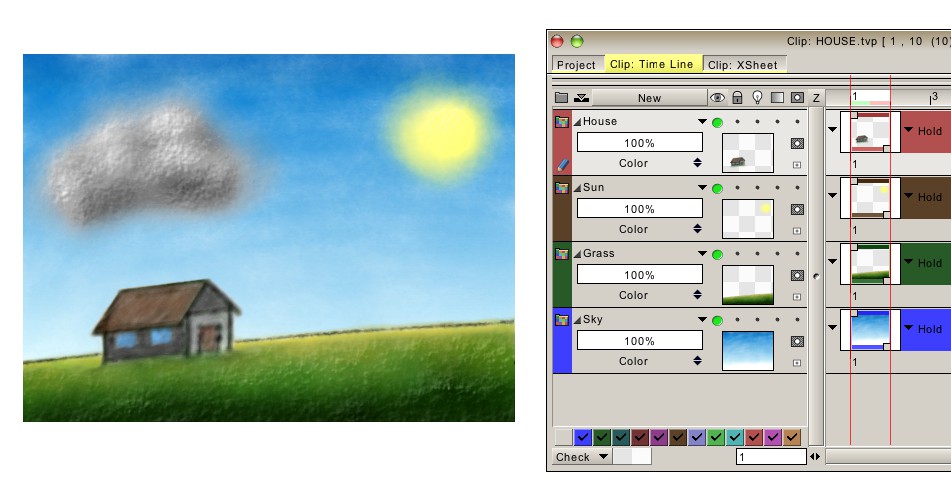
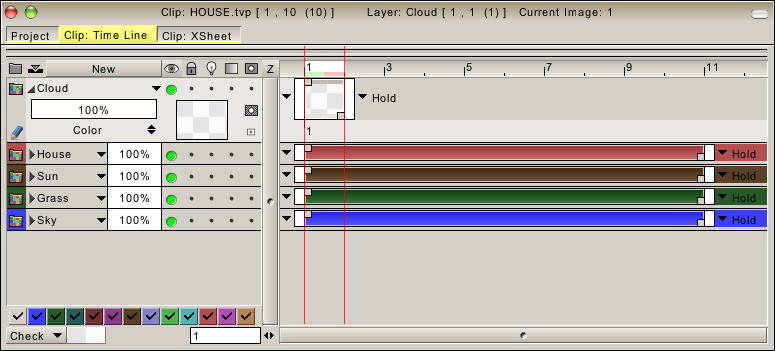
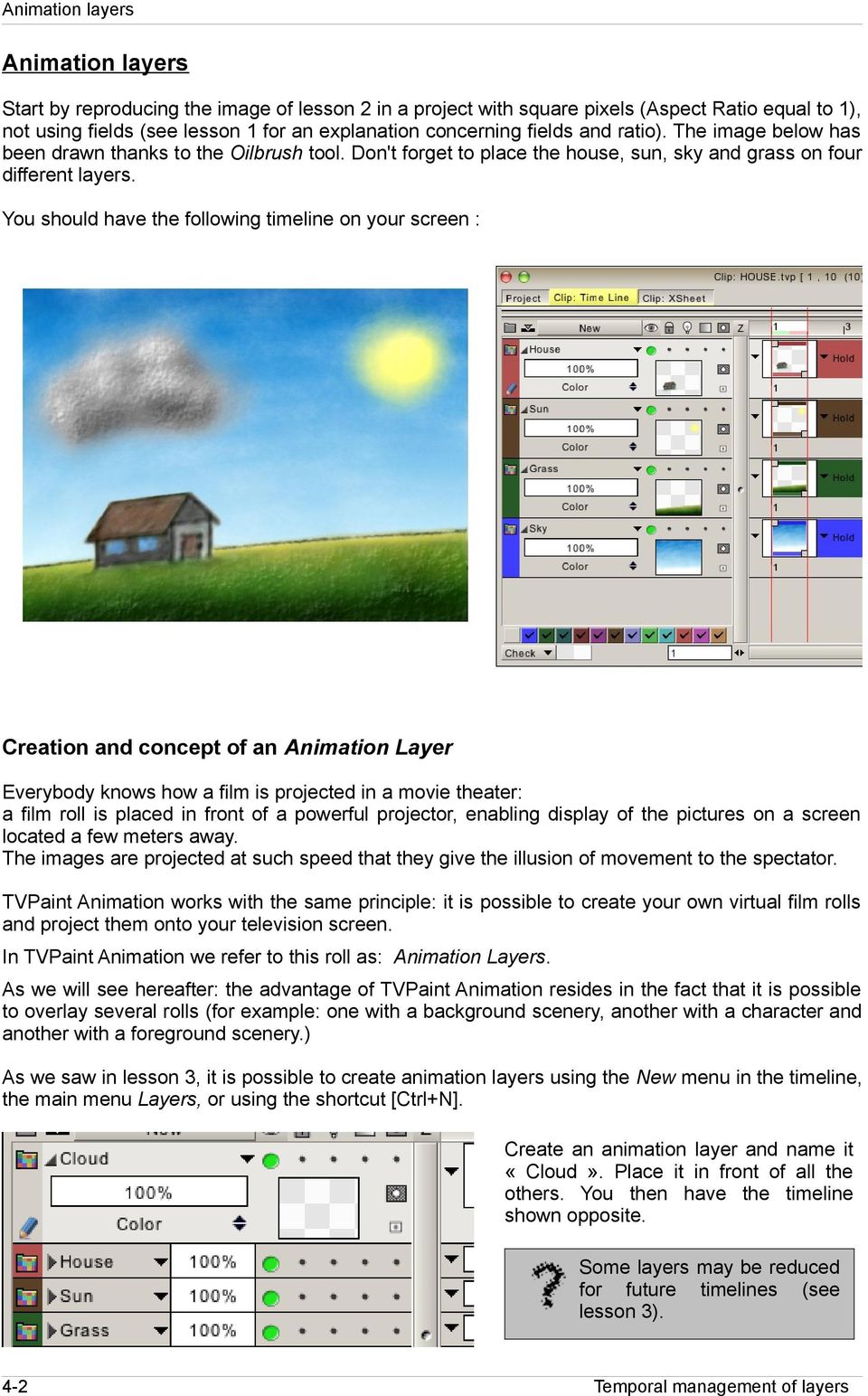
2 Start by reproducing the image of lesson 2 in a project with square pixels (Aspect Ratio equal to 1), not using fields (see lesson 1 for an explanation concerning fields and ratio). The image below has been drawn thanks to the Oilbrush tool. Don't forget to place the house, sun, sky and grass on four different layers. You should have the following timeline on your screen : Creation and concept of an Animation Layer Everybody knows how a film is projected in a movie theater: a film roll is placed in front of a powerful projector, enabling display of the pictures on a screen located a few meters away. The images are projected at such speed that they give the illusion of movement to the spectator. TVPaint Animation works with the same principle: it is possible to create your own virtual film rolls and project them onto your television screen. In TVPaint Animation we refer to this roll as: Animation Layers. As we will see hereafter: the advantage of TVPaint Animation resides in the fact that it is possible to overlay several rolls (for example: one with a background scenery, another with a character and another with a foreground scenery.) As we saw in lesson 3, it is possible to create animation layers using the New menu in the timeline, the main menu Layers, or using the shortcut [Ctrl+N]. Create an animation layer and name it «Cloud». Place it in front of all the others. You then have the timeline shown opposite. Some layers may be reduced for future timelines (see lesson 3). 4-2

3 If you know TVPaint Animation for a long time, you probably know the Image Layers. Those layers are still available in the software, in the menu Layer > New Image layer. But as they are very few used and less useful than the Animation layers, they will not be explained in the user guide. We remember you : if you want to turn an Image layer into an Animation layer, please right click on the the Image layer and Make anim. Add images We have just created a layer with a single image (empty ). To make our first film, we have to increase the number of images in our roll. To do this, several ways are available : * You can use that button in the Animator Panel (explained lesson 6). * You can also stretch the white band (at the end of your image) to the 10th image in your timeline : When you will drop your click on that window (see below) will appear. Click on Add empty instances, then press Apply. Movement and orientation within the timeline Use the [ ] and [ ] keys to change the current layer. When you are in an animation layer, you can move between the images of this animation using the [ ] and [ ] arrows on the keyboard. You may also use the mouse to move inside the timeline, by clicking on the space-time location of your choice. 4-3

4 The white square with two red bars enables you to identify the current image viewed in the window of the current project. The title bar contains several indications. From left to right : * The name of the project you are working on. * The time code of the first and last image of the project (TimeCode, or image number). * The total project duration. * The name of the current layer. * The time code of the first and last image of the current layer (TimeCode or image number). * The total duration of the layer. Create a brush Go to the first image of the animation layer named «cloud» and draw a gray cloud using the tools of your choice. Then limit viewing to the current layer (shortcut [=]). We will create an animation in which the cloud will move from left to right. To do this, we have to make our cloud into a brush. Select the icon shown below from the main panel. This option is used to carry out Rectangle CutBrush. But, what does this mean? Let's take an example: Draw a Rectangle around the previously drawn cloud. When this is done, you will note that your current brush is not one of the standard tools: the cloud itself has become your brush! Press the stylus on your tablet if you doubt it: the cloud has turned into a paintbrush. Don't forget to erase your tests before continuing! Several CutBrush tools are at your disposal in the main panel to simplify your task when creating a brush : Rectangle CutBrush, Polygonal, FreeHand and Magic Wand. See opposite: 4-4

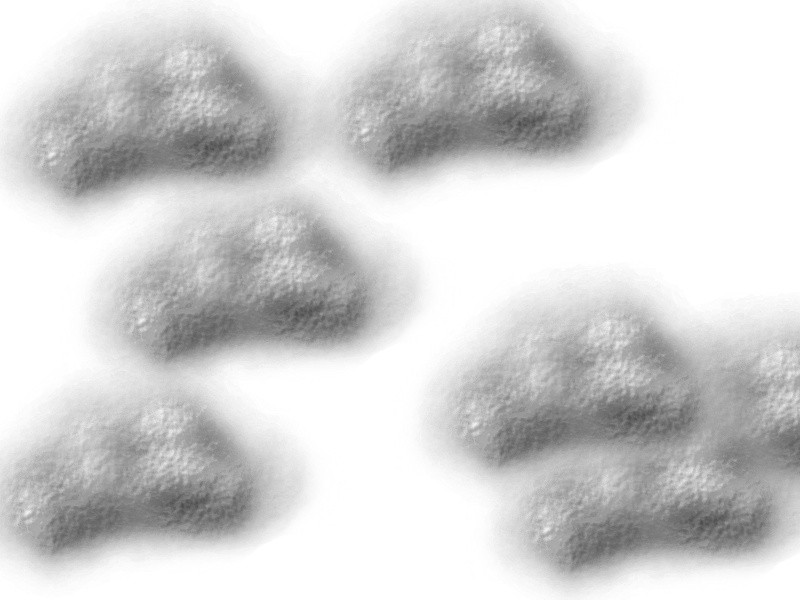
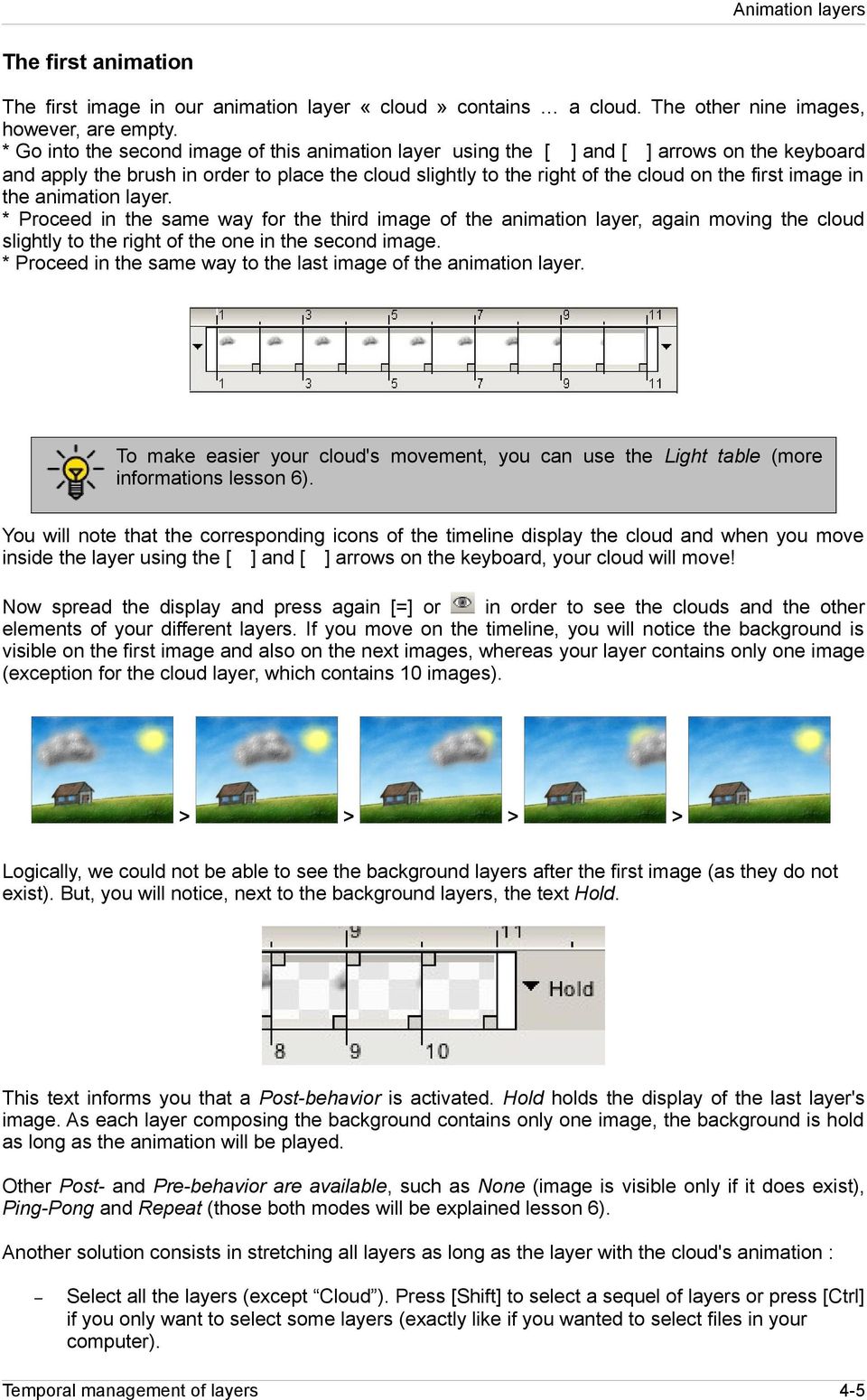
5 The first animation The first image in our animation layer «cloud» contains a cloud. The other nine images, however, are empty. * Go into the second image of this animation layer using the [ ] and [ ] arrows on the keyboard and apply the brush in order to place the cloud slightly to the right of the cloud on the first image in the animation layer. * Proceed in the same way for the third image of the animation layer, again moving the cloud slightly to the right of the one in the second image. * Proceed in the same way to the last image of the animation layer. To make easier your cloud's movement, you can use the Light table (more informations lesson 6). You will note that the corresponding icons of the timeline display the cloud and when you move inside the layer using the [ ] and [ ] arrows on the keyboard, your cloud will move! Now spread the display and press again [=] or in order to see the clouds and the other elements of your different layers. If you move on the timeline, you will notice the background is visible on the first image and also on the next images, whereas your layer contains only one image (exception for the cloud layer, which contains 10 images). > > > > Logically, we could not be able to see the background layers after the first image (as they do not exist). But, you will notice, next to the background layers, the text Hold. This text informs you that a Post-behavior is activated. Hold holds the display of the last layer's image. As each layer composing the background contains only one image, the background is hold as long as the animation will be played. Other Post- and Pre-behavior are available, such as None (image is visible only if it does exist), Ping-Pong and Repeat (those both modes will be explained lesson 6). Another solution consists in stretching all layers as long as the layer with the cloud's animation : Select all the layers (except Cloud ). Press [Shift] to select a sequel of layers or press [Ctrl] if you only want to select some layers (exactly like if you wanted to select files in your computer). 4-5

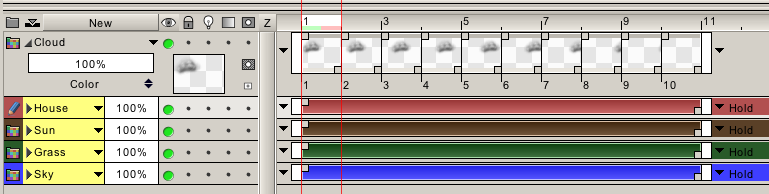
6 Selected layers will obtain a yellow aura (see next page). - Clic on the white band at the end of one selected layers (any layer, as you prefer), and stretch it as long as the Cloud's layer (10th image, so). - Drop the click : that window (already seen above) will appear again. - Choose Stretch and disable Interpolate. Then press Apply. Other modes available in that window will be explained lesson 6. Play an animation Using the keyboard arrows to play an animation is not very practical. You have certainly noticed already: the most suitable options are available in the current project window. Here are the functions of all buttons available : the traditional buttons Play and Stop as you will find on video recorders and camcorders, etc. [Space] makes a pause during the play. If you press that key again, the play will continue where you had stopped it. to advance or rewind one frame in the current layer. 4-6

7 to go to the first or last frame of the current layer. to go to the previous key or next key (the notion of keys will be explained in the following lessons). to modify the Frame rate when playing the animation. Note that this value is not necessarily used when exporting your sequences. This function only changes the display's frame rate when playing your animation. It does not modify your project and will not be save or exported with the project. If you want to definitively change the frame rate, please go to Project > Modify Project. Press this button to play the animation in a loop. If you have chosen a sound track to accompany your project (see lesson 8), press this button to play it with your project. Keyboard shortcut [W] allows you to play your animation starting a few frames before the current image and stopping a few frames after the current image. Then you come back to the image you were working on just before pressing the button. The framerate used is the one selected in the project window popup menu. The number of frames played on either side of the current image may also be set in the preview settings (see the Preview Settings section of this lesson). You can also use the shortcut [H] and [J] to flip your animation back and fro, respectively. Hold one of these two keys to move the cursor, than drop it to let it going back to its initial position. * The yellow rectangle located in the graduated line underneath the buttons indicates the image and the number of the image currently displayed on the screen. * The Mark in and Mark out buttons : These are numeric or time values indicating the frame from which the animation will start playing as well as the frame at which it will be stopped. In order for this function to be taken into account when playing your animation, you must enable the corresponding buttons. Two red and green markers enable identification of the mark in and mark out points. On the top of the Layers panel, four options are available with the RMB to easily set and toggle the Mark in and Mark out values. You may use the arrow buttons point to the current image. to assign your mark in or mark out The Remote Control 4-7
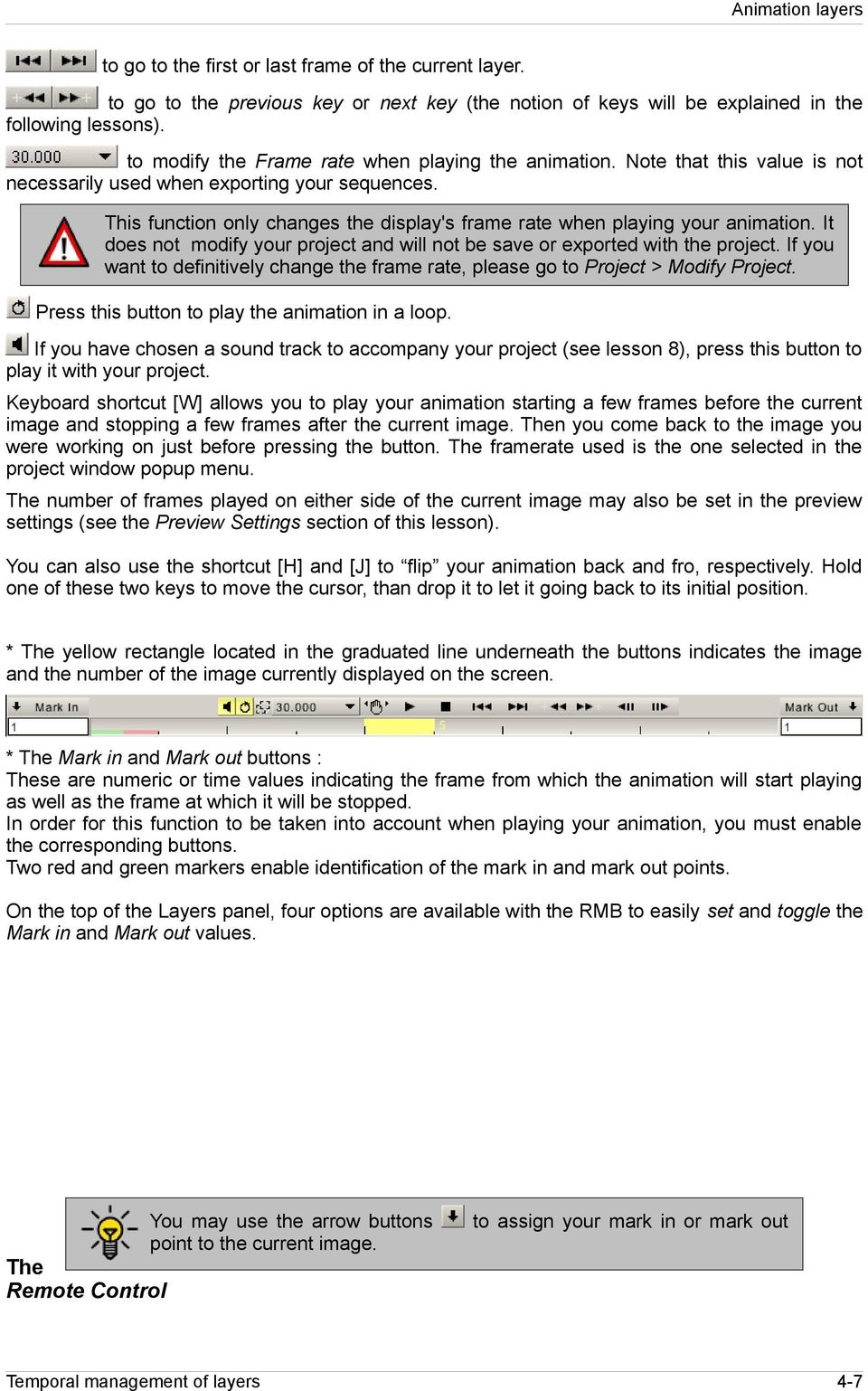

8 If required, it is possible to display some of these buttons in a separate window referred to as Remote control, which is accessible via the Windows > Tools main menu. The buttons containing numbers are used to define the play frame rate (in frames per second). Play an animation on fullscreen It's possible to play the animation in fullscreen, without any panels and menus. If the [F11] key is hit, the animation will be displayed on the full size of the screen. The Time Code is displayed if the option is activated. (See the Preview Setting section further to have more details) Other movement methods You may use the timeline or project window to move within the project. To do this, just click and slide on one of the rectangles shown below : If you use the left mouse button, you change the image. If you use the left mouse button, you change the image. If you use the right mouse button you return automatically to the original image when releasing the button. Fielded projects 4-8

9 Now let's move on to fielded projects and/or projects with a ratio other than 1 : The buttons B, 1 and 2 of the horizontal bar are only available when you are working with a project containing fields. * Button B enables display of both fields simultaneously when playing an animation or video. * Button 1 will display the field which you have defined as the first field. * Button 2 will display the second field of the current image. Note that the 1 and 2 buttons may only be used if your project is set to use fields. Furthermore, moving to the next image in a project containing fields will have the effect that the cursor of the current image does not move to the next image but to the next field (as an image is composed of two fields). Button A of the current project window is used to enable/disable pixel Aspect Ratio display. This does not modify the current project: only its aspect in the project window will be different. The Navigator The other buttons, specifically used for navigation on the project surface, are found in the Navigator window which is accessible in the Windows > Tools main menu. This panel also allows you to have a low quality preview of your sequence/animation which can be useful by pressing the button. * Button N shown above is used to open a new project window. * The red rectangle indicates the current display area in your window relative to the full image. * The Display popup menu is the same as the one described in lesson 3. Select and erase the contents of the images in an Animation Layer Now we will see how to erase the contents of the Cloud layer. This may be done with the button on the main panel for all images one after the other, but this may be too time-consuming when working on long animated sequences. The trick is to select all images of the layer using the option Select all in the contextual menu (keyboard shortcut [Ctrl+A]). Your timeline must be displayed as shown below: a light yellow rectangle is present underneath the selected images. 4-9
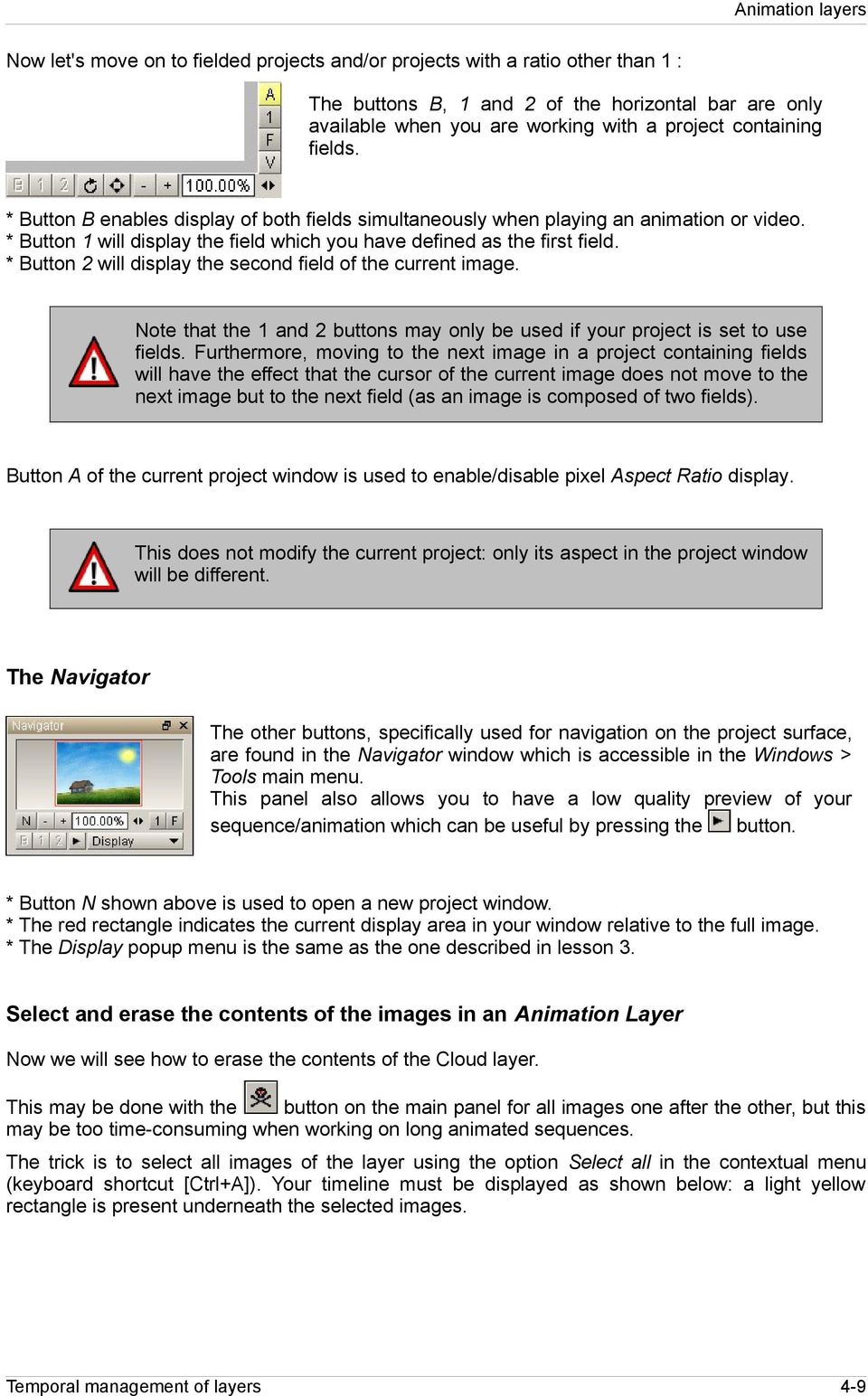
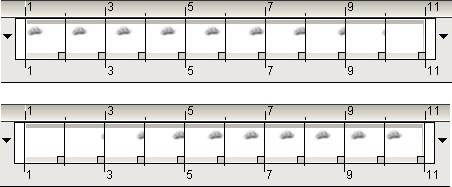
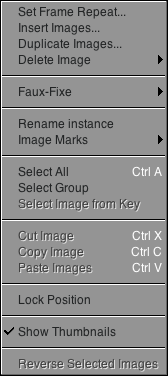
10 Pressing the button will erase the contents of all selected images in the layer. It is possible to only select a part of the layer by clicking on the first image to be selected and sliding from there to the last. Our sequence has been replaced by empty images. You may now make another cloud move with the cloud brush, as you did previously. Then, use all the knowledge you acquired thanks to this User guide to create a sun movement. > Reverse selected images of an Animation layer Some options may speed up your work considerably. The option named Reverse selected images is used to reverse the images of a layer in time. It is only available in the image menu (accessible with a right click) after having selected the images to be flipped in an animation layer of your choice. See below an example with our animated cloud whose the image have been reversed : 4-10

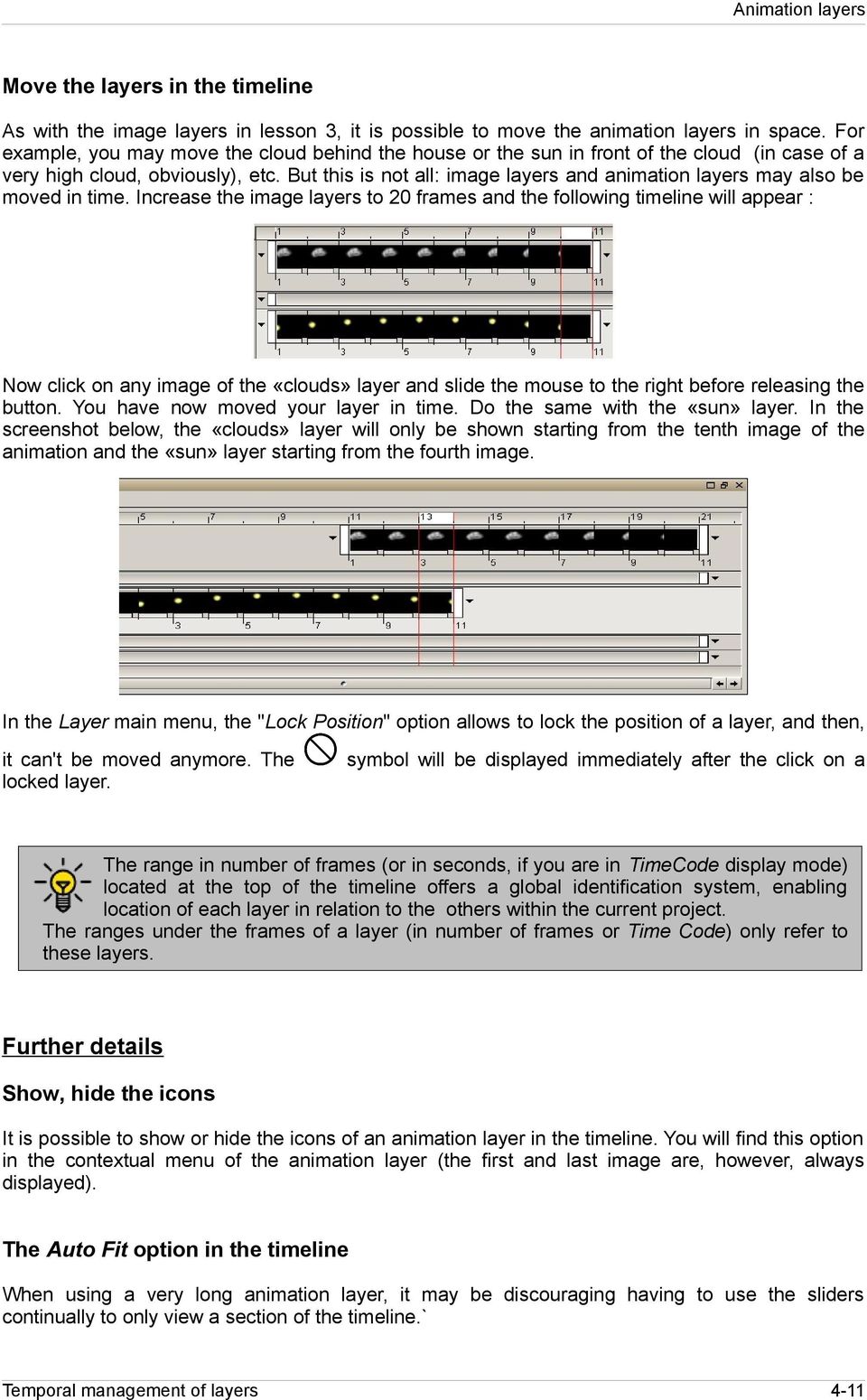
11 Move the layers in the timeline As with the image layers in lesson 3, it is possible to move the animation layers in space. For example, you may move the cloud behind the house or the sun in front of the cloud (in case of a very high cloud, obviously), etc. But this is not all: image layers and animation layers may also be moved in time. Increase the image layers to 20 frames and the following timeline will appear : Now click on any image of the «clouds» layer and slide the mouse to the right before releasing the button. You have now moved your layer in time. Do the same with the «sun» layer. In the screenshot below, the «clouds» layer will only be shown starting from the tenth image of the animation and the «sun» layer starting from the fourth image. In the Layer main menu, the "Lock Position" option allows to lock the position of a layer, and then, it can't be moved anymore. The locked layer. symbol will be displayed immediately after the click on a The range in number of frames (or in seconds, if you are in TimeCode display mode) located at the top of the timeline offers a global identification system, enabling location of each layer in relation to the others within the current project. The ranges under the frames of a layer (in number of frames or Time Code) only refer to these layers. Further details Show, hide the icons It is possible to show or hide the icons of an animation layer in the timeline. You will find this option in the contextual menu of the animation layer (the first and last image are, however, always displayed). The Auto Fit option in the timeline When using a very long animation layer, it may be discouraging having to use the sliders continually to only view a section of the timeline.` 4-11
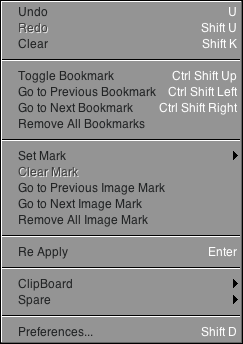
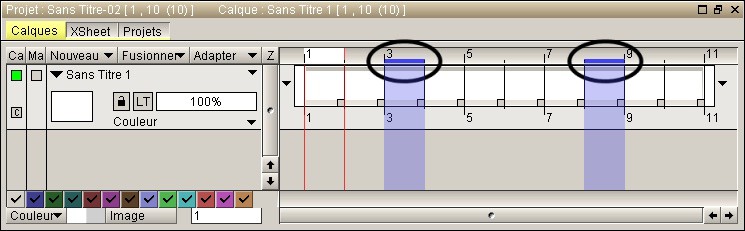
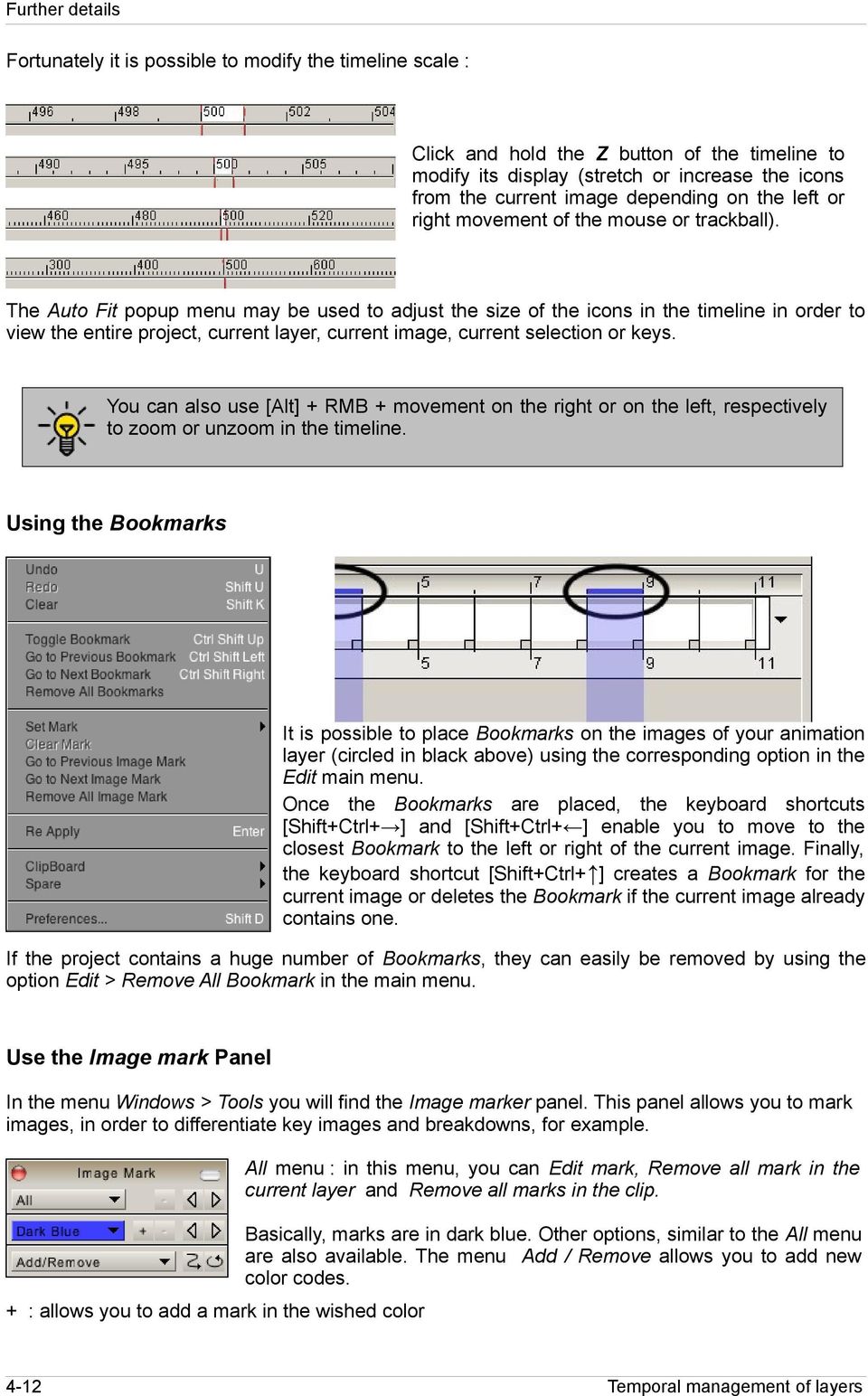
12 Further details Fortunately it is possible to modify the timeline scale : Click and hold the Z button of the timeline to modify its display (stretch or increase the icons from the current image depending on the left or right movement of the mouse or trackball). The Auto Fit popup menu may be used to adjust the size of the icons in the timeline in order to view the entire project, current layer, current image, current selection or keys. You can also use [Alt] + RMB + movement on the right or on the left, respectively to zoom or unzoom in the timeline. Using the Bookmarks It is possible to place Bookmarks on the images of your animation layer (circled in black above) using the corresponding option in the Edit main menu. Once the Bookmarks are placed, the keyboard shortcuts [Shift+Ctrl+ ] and [Shift+Ctrl+ ] enable you to move to the closest Bookmark to the left or right of the current image. Finally, the keyboard shortcut [Shift+Ctrl+ ] creates a Bookmark for the current image or deletes the Bookmark if the current image already contains one. If the project contains a huge number of Bookmarks, they can easily be removed by using the option Edit > Remove All Bookmark in the main menu. Use the Image mark Panel In the menu Windows > Tools you will find the Image marker panel. This panel allows you to mark images, in order to differentiate key images and breakdowns, for example. All menu : in this menu, you can Edit mark, Remove all mark in the current layer and Remove all marks in the clip. Basically, marks are in dark blue. Other options, similar to the All menu are also available. The menu Add / Remove allows you to add new color codes. + : allows you to add a mark in the wished color 4-12
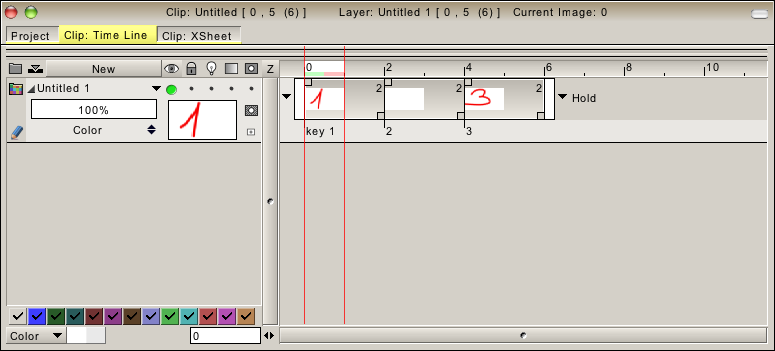
13 Further details - : remove the current mark of the current clip : allows to navigate to the previous or next mark (all colors or only the wished color). allows to navigate from marks to marks, from the current layer to the next below. allows to activate the loop mode. Name an instance The image-mark is not sufficient enough? Double click on an image (instance's head or exposure cell) and a windows will appear : enter the instance's name in order to identify it more easily. Double click on the instance of your choice $ This windows appears : enter the instance's name $ The new name appears below the instance More explanations about instances will be given in lesson 6. The Stroke Animator option This option is accessible in the Edit > Preference... panel directly under the General tab. Like it was said in Lesson 1, this option allow you to draw over several frames. With the [Ctrl] key pressed during the drawing, the current frame will change automatically. 4-13
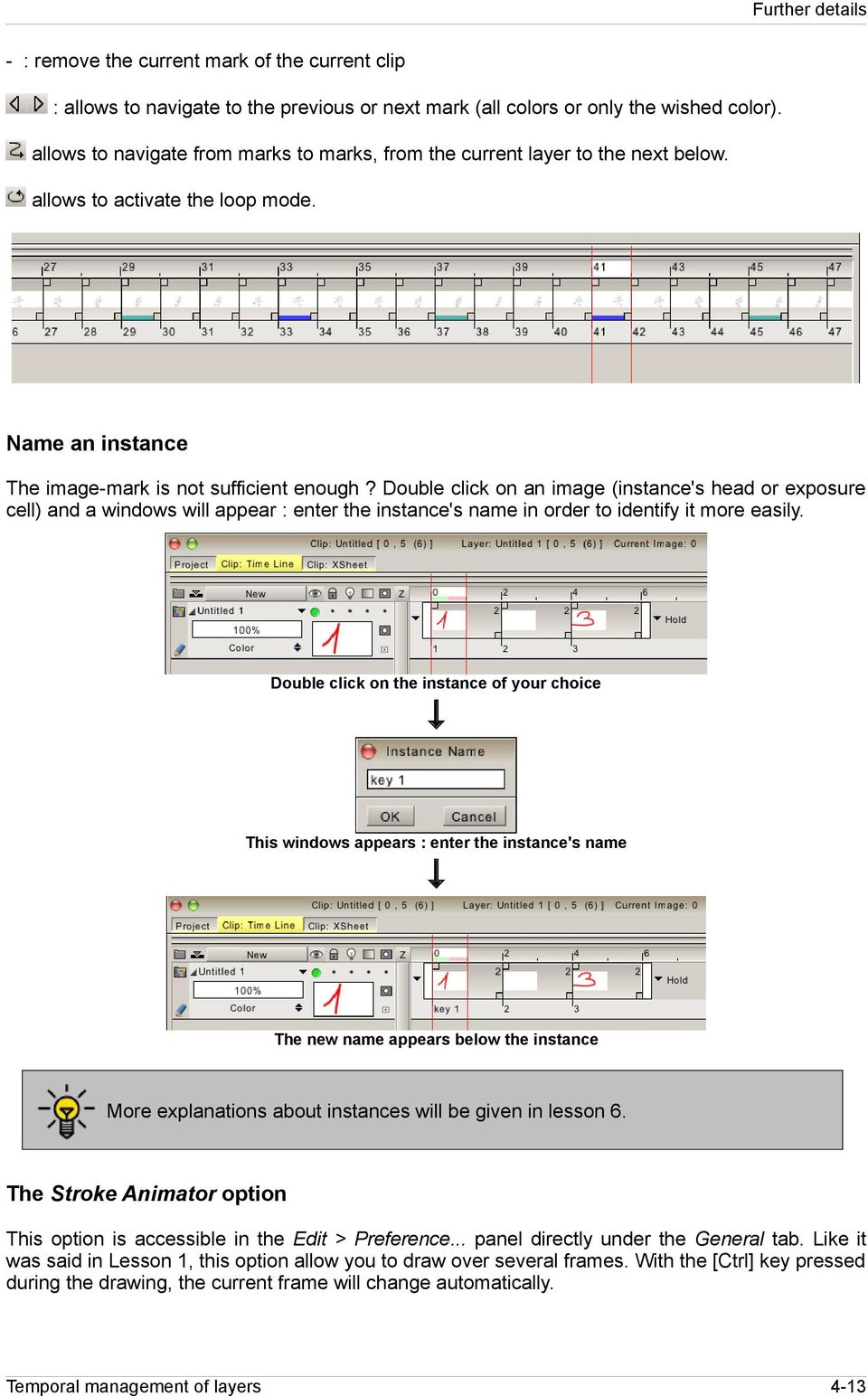

14 Further details Here is an example, choose the Free Hand Dot option with the Pen Brush tool. Create a layer which has around 30 frames and place the current frame to the first one. Now, press the [Ctrl] key and start to draw. The current frame changes during the drawing. And when the last frame becomes the current one, the drawing starts again on the first frame. And when you stop drawing, you will see one (or more if the animation has looped during the drawing) dot on each frame. This feature is really useful to animate decorative elements, fireflies flying in the night, annoying insects, water jet... The Preview settings panel The preview settings are used to configure the way your computer and program interact to play your animations. You may open the preview settings panel shown opposite via the Windows > Parameters main menu. The preview panel settings are also present in the info bar, at the bottom. Background proxy render : enable this option if you want the proxy calculates your animation when you're doing nothing. If you disable this option, the proxy won't calculate anything. >> Force proxy render : enable this option if you want read your animation after the proxy has totally calculate you animation. If you disable this option, the proxy will calculate your animation when playing it. In TVPaint Animation, when you play an animation, ratio's quality directly depends on the temp file, located in your hard drive. The best quality will be calculated following the transfer's speed of your hard drive. Proxy quality : indicate, with a numerical value, the images' quality when playing your animation. The more the percent is high, the more the quality is good. Check Full quality preview if you want to play your animation with the real image quality. Show TC : enable this option if you want to see the Time code (if your timeline uses the time code mode) or the FPS code (if your timeline uses the frame mode). Time Warning : this option allows you to display the proxy in red if your animation gets some lag when playing it. Play all : enable this option if you want the proxy calculate all images. If you disable this option, some images can be unread when playing the animation. Flip book : choose how many seconds the Flip book (shortcut [W]) will run. 4-14

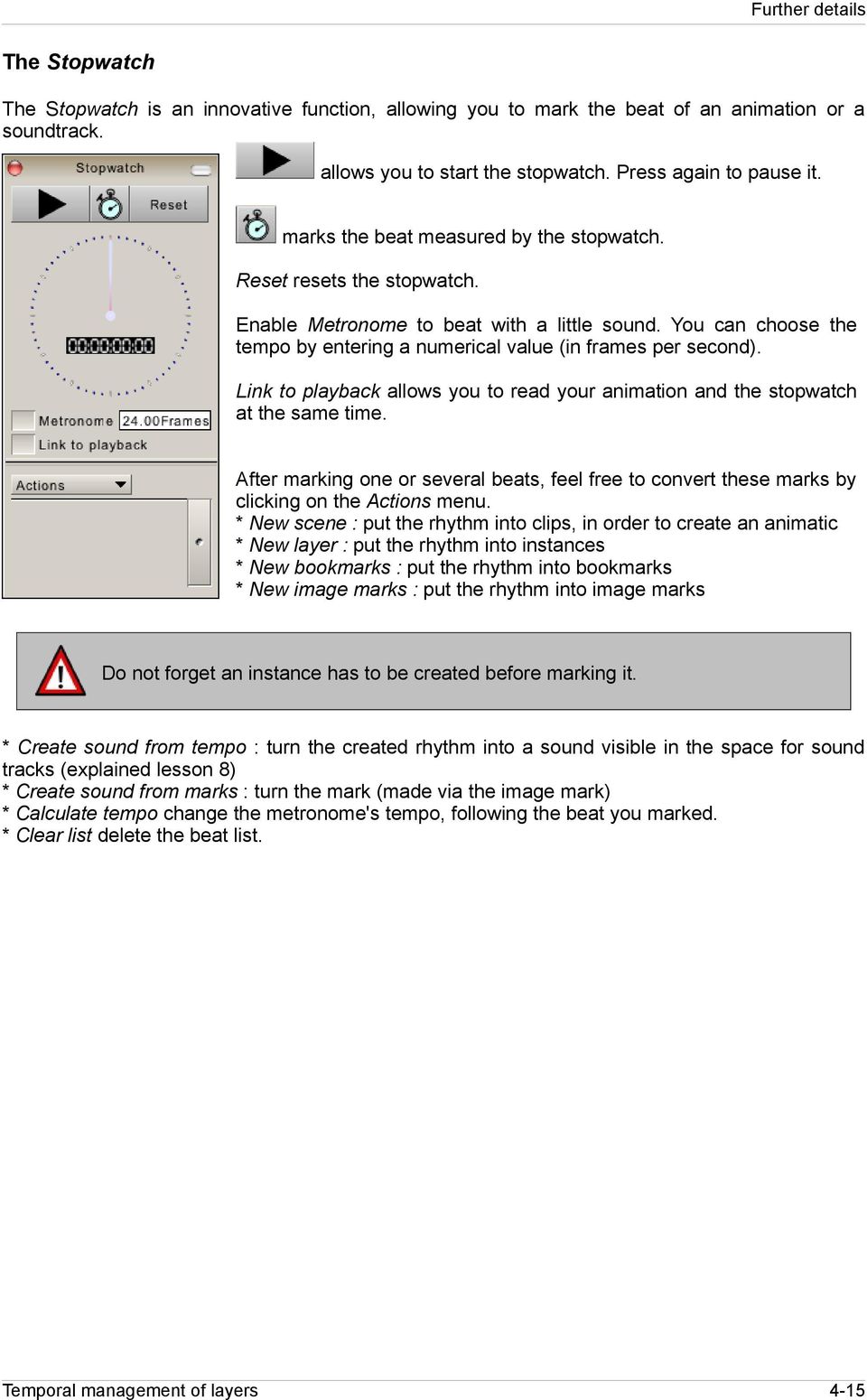
15 Further details The Stopwatch The Stopwatch is an innovative function, allowing you to mark the beat of an animation or a soundtrack. allows you to start the stopwatch. Press again to pause it. marks the beat measured by the stopwatch. Reset resets the stopwatch. Enable Metronome to beat with a little sound. You can choose the tempo by entering a numerical value (in frames per second). Link to playback allows you to read your animation and the stopwatch at the same time. After marking one or several beats, feel free to convert these marks by clicking on the Actions menu. * New scene : put the rhythm into clips, in order to create an animatic * New layer : put the rhythm into instances * New bookmarks : put the rhythm into bookmarks * New image marks : put the rhythm into image marks Do not forget an instance has to be created before marking it. * Create sound from tempo : turn the created rhythm into a sound visible in the space for sound tracks (explained lesson 8) * Create sound from marks : turn the mark (made via the image mark) * Calculate tempo change the metronome's tempo, following the beat you marked. * Clear list delete the beat list. 4-15
Lesson 6. The steps to create animations
 Lesson 6 The steps to create animations In this lesson you will : Learn, one by one, the various stages involved in the creation of an animation using this application (Scan cleaner, light table, rotative
Overview of the Adobe Flash Professional CS6 workspace
 Overview of the Adobe Flash Professional CS6 workspace In this guide, you learn how to do the following: Identify the elements of the Adobe Flash Professional CS6 workspace Customize the layout of the
Working With Animation: Introduction to Flash
 Working With Animation: Introduction to Flash With Adobe Flash, you can create artwork and animations that add motion and visual interest to your Web pages. Flash movies can be interactive users can click
m ac romed ia Fl a s h Curriculum Guide
 m ac romed ia Fl a s h Curriculum Guide 1997 1998 Macromedia, Inc. All rights reserved. Macromedia, the Macromedia logo, Dreamweaver, Director, Fireworks, Flash, Fontographer, FreeHand, and Xtra are trademarks
Windows Movie Maker 2012
 Windows Movie Maker 2012 Open Windows Movie Maker A shortcut for Movie Maker should be on the desktop, but if it is not, you can search for the program by touching the right edge of the screen and swiping
Lesson 7 - Creating Animation II
 Lesson 7 - Creating Animation II A. Motion-Tweened Animation With motion tweening, you can easily create motion effects for the objects in your Flash movies. Kites flying, balls bouncing, rocks rolling
FLASH. Mac versus PC. Pixels versus Vectors Two kinds of images are in the digital world: bitmaps and vectors:
 FLASH Macromedia Flash is a multimedia graphics program especially for creating moving images for use on the Web. Flash has opened up a whole new world for digital animators. You can rotoscope with it,
Chapter 9 Slide Shows
 Impress Guide Chapter 9 Slide Shows Transitions, animations, and more Copyright This document is Copyright 2007 2013 by its contributors as listed below. You may distribute it and/or modify it under the
Triggers & Actions 10
 Triggers & Actions 10 CHAPTER Introduction Triggers and actions are the building blocks that you can use to create interactivity and custom features. Once you understand how these building blocks work,
SMART Boards. If the board is connected to a different computer - Orientation is needed whenever you connect it to a new or different computer.
 SMART Boards What is a SMART Board? The SMART Board is an interactive whiteboard that converts a computer and date projector into a powerful tool for teaching and learning. With the computer image projected
Tutorial: Biped Character in 3D Studio Max 7, Easy Animation
 Tutorial: Biped Character in 3D Studio Max 7, Easy Animation Written by: Ricardo Tangali 1. Introduction:... 3 2. Basic control in 3D Studio Max... 3 2.1. Navigating a scene:... 3 2.2. Hide and Unhide
2. How to Use SMART Board as a Projector and Whiteboard
 Page 1 Smart Board Getting Started Smart Board is an interactive whiteboard developed by SMART Technologies that combines the capabilities of a data projector and a white board. Use the SMART Board to
Movie Maker 2 Beginning
 Movie Maker 2 Beginning Quick Overview...3 Preparing a Folder...3 Collecting Resources...3 Pictures...4 Screen Resolution...4 Starting Windows Movie Maker...4 Which Version?...4 Windows Movie Maker 2 Window...4
Lynda.com > InDesign CS5 Tutorials Interactive Documents & Presentations
 Creating Interactive Documents with PDFs and SWFs Adapted from Chris Converse, http://www.codifydesign.com/ Laurie Burruss [email protected] Pasadena City College Dec 9 3 pm Lynda.com > InDesign CS5 Tutorials
USING WINDOWS MOVIE MAKER TO CREATE THE MOMENT BEHIND THE PHOTO STORY PART 1
 PART 1 Windows Movie Maker lets you assemble a range of video, pictures, and sound elements to create a story. It is an application that comes with most PC computers. This tip sheet was created using Windows
Lesson 1. First approach of TVPaint Animation
 Lesson 1 In this lesson you will: Learn to open and close TVPaint Animation. Discover the various panels and windows. Start a project. Access InLine help. Set your preferences. After having followed the
SMART Ink 1.5. Windows operating systems. Scan the following QR code to view the SMART Ink Help on your smart phone or other mobile device.
 SMART Ink 1.5 Windows operating systems User s guide Scan the following QR code to view the SMART Ink Help on your smart phone or other mobile device. Trademark notice SMART Ink, SMART Notebook, SMART
Maya 2014 Basic Animation & The Graph Editor
 Maya 2014 Basic Animation & The Graph Editor When you set a Keyframe (or Key), you assign a value to an object s attribute (for example, translate, rotate, scale, color) at a specific time. Most animation
Basic video editing using imovie
 Apple Computer released imovie in October 1999. In April 2000 Apple made imovie available for free download on their Web site. With imovie 2 in July 2000 imovie is no longer free unless you purchase a
How to rotoscope in Adobe After Effects
 Adobe After Effects CS6 Project 6 guide How to rotoscope in Adobe After Effects Rotoscoping is an animation technique in which you draw, paint, or add other visual effects in a layer over live-action film
Smart Board Notebook Software A guide for new Smart Board users
 Smart Board Notebook Software A guide for new Smart Board users This guide will address the following tasks in Notebook: 1. Adding shapes, text, and pictures. 2. Searching the Gallery. 3. Arranging objects
Recipes4Success. Animate a Rocket Ship. Frames 6 - Drawing Tools
 Recipes4Success You can use the drawing tools and path animation tools in Frames to create illustrated cartoons. In this Recipe, you will draw and animate a rocket ship. 2014. All Rights Reserved. This
What is idvd? idvd is a software program used to create menus for DVD projects and to burn video to DVDs.
 RESEARCH AND INSTRUCTIONAL SUPPORT Revised: June 2007 What is idvd? idvd is a software program used to create menus for DVD projects and to burn video to DVDs. Starting a new idvd project You can open
Creating Hyperlinks & Buttons InDesign CS6
 Creating Hyperlinks & Buttons Adobe DPS, InDesign CS6 1 Creating Hyperlinks & Buttons InDesign CS6 Hyperlinks panel overview You can create hyperlinks so that when you export to Adobe PDF or SWF in InDesign,
The main imovie window is divided into six major parts.
 The main imovie window is divided into six major parts. 1. Project Drag clips to the project area to create a timeline 2. Preview Window Displays a preview of your video 3. Toolbar Contains a variety of
Smart Board Basics. December, 2009. Rebecca Clemente Department of Education
 Smart Board Basics December, 2009 Rebecca Clemente Department of Education Contents Obtaining the software... 3 What your students will need... 3 Writing in the Notebook... 4 Saving... 5 Change handwriting
PowerPoint 2007: Basics Learning Guide
 PowerPoint 2007: Basics Learning Guide What s a PowerPoint Slide? PowerPoint presentations are composed of slides, just like conventional presentations. Like a 35mm film-based slide, each PowerPoint slide
CAPITAL V8. Capital Business Software Tutorial Series. Introduction to Capital Business Manager V8 User Interface 1.2
 CAPITAL V8 Capital Business Software Tutorial Series Introduction to Capital Business Manager V8 User Interface 1.2 C A P I T A L O F F I C E B U S I N E S S S O F T W A R E Capital Business Software Tutorial
Adobe Illustrator CS5 Part 1: Introduction to Illustrator
 CALIFORNIA STATE UNIVERSITY, LOS ANGELES INFORMATION TECHNOLOGY SERVICES Adobe Illustrator CS5 Part 1: Introduction to Illustrator Summer 2011, Version 1.0 Table of Contents Introduction...2 Downloading
Collaborative Tools. Course groups can also use the Collaboration tools for private sessions open only to course group members.
 Collaborative Tools The Collaboration tools allow you to participate in real-time lessons and discussions. Examples of these sessions include real-time, online discussions, TA sessions, and live question
Help. Contents Back >>
 Contents Back >> Customizing Opening the Control Panel Control Panel Features Tabs Control Panel Lists Control Panel Buttons Customizing Your Tools Pen and Airbrush Tabs 2D Mouse and 4D Mouse Tabs Customizing
Linkage 3.2. User s Guide
 Linkage 3.2 User s Guide David Rector Wednesday, April 06, 2016 Table of Contents Table of Contents... 2 Installation... 3 Running the Linkage Program... 3 Simple Mechanism Tutorial... 5 Mouse Operations...
Figure 3.5: Exporting SWF Files
 Li kewhatyou see? Buyt hebookat t hefocalbookst or e Fl ash + Af t eref f ect s Chr i sjackson ISBN 9780240810317 Flash Video (FLV) contains only rasterized images, not vector art. FLV files can be output
Toolbars and Tabs in SMART Notebook Software
 Toolbars and Tabs in SMART Notebook Software This quick reference introduces you to the toolbar, full screen toolbar and side tabs in SMART Notebook collaborative learning software. Toolbar The SMART Notebook
Digital Video Capture and Edit with imovie HD 6.0.2
 RESEARCH AND INSTRUCTIONAL SUPPORT REVISED: AUGUST 2006 Project Management Digital Video Capture and Edit with imovie HD 6.0.2 Plan out your time and process before beginning the capture and edit. A few
Chapter 9- Animation Basics
 Basic Key-framing and Auto Key-framing Now that we know how to make stuff and make it look good, it s time to figure out how to move it around in your scene. If you're familiar with older versions of Blender,
User Guide. March 2015. Moovly.com. Discover all Moovly Features and learn how to create videos like a Pro!
 User Guide March 2015 Discover all Moovly Features and learn how to create videos like a Pro! Moovly.com 1. Getting Started... 4 1.1. Technical requirements... 4 1.2. Moovly Editor Overview... 4 1.3. Making
SketchUp Instructions
 SketchUp Instructions Every architect needs to know how to use SketchUp! SketchUp is free from Google just Google it and download to your computer. You can do just about anything with it, but it is especially
Intro to 3D Animation Using Blender
 Intro to 3D Animation Using Blender Class Instructor: Anthony Weathersby Class Objectives A primer in the areas of 3D modeling and materials An introduction to Blender and Blender s toolset Course Introduction
Flash MX 2004 Animation Lesson
 Flash MX 2004 Animation Lesson By Tonia Malone Technology & Learning Services 14-102 Lesson Opening a document To open an existing document: 1. Select File > Open. 2. In the Open dialog box, navigate to
HIT THE GROUND RUNNING MS WORD INTRODUCTION
 HIT THE GROUND RUNNING MS WORD INTRODUCTION MS Word is a word processing program. MS Word has many features and with it, a person can create reports, letters, faxes, memos, web pages, newsletters, and
White Noise Help Guide for iphone, ipad, and Mac
 White Noise Help Guide for iphone, ipad, and Mac Created by TMSOFT - www.tmsoft.com - 12/08/2011 White Noise allows you to create the perfect ambient sound environment for relaxation or sleep. This guide
OneNote 2013 Tutorial
 VIRGINIA TECH OneNote 2013 Tutorial Getting Started Guide Instructional Technology Team, College of Engineering Last Updated: Spring 2014 Email [email protected] if you need additional assistance after
SMART Board Interactive Whiteboard Setup with USB Cable
 SMART Board Interactive Whiteboard Setup with USB Cable The instructions below are for the SMART Board interactive whiteboard 500 series and apply to both desktop and laptop computers. Ready Light USB
Graphic Design. Background: The part of an artwork that appears to be farthest from the viewer, or in the distance of the scene.
 Graphic Design Active Layer- When you create multi layers for your images the active layer, or the only one that will be affected by your actions, is the one with a blue background in your layers palette.
The Dashboard. Change ActivInspire's Look And Feel. ActivInspire Primary. ActivInspire Studio. <- Primary. Studio -> page 1
 page 1 The Dashboard When ActivInspire opens, you are immediately greeted with the Dashboard. The Dashboard contains shortcuts to flipcharts and time-saving tools. The Dashboard remains open until it is
GoodReader User Guide. Version 1.0 GoodReader version 3.16.0
 GoodReader User Guide Version 1.0 GoodReader version 3.16.0 Contents Operating GoodReader 1 Send PDF files to Your ipad 2 Copy Files with itunes 2 Copy Files to a Cloud Service 5 Download Files from the
Table Of Contents. Table Of Contents
 Table Of Contents Table Of Contents Basics Calibration Function Buttons Mouse Operations Whiteboard Pen Variations Normal Pen Intelli-Pen Text Recognition Search text in Google Search text in Wikipedia
Intellect Platform - The Workflow Engine Basic HelpDesk Troubleticket System - A102
 Intellect Platform - The Workflow Engine Basic HelpDesk Troubleticket System - A102 Interneer, Inc. Updated on 2/22/2012 Created by Erika Keresztyen Fahey 2 Workflow - A102 - Basic HelpDesk Ticketing System
Lession: 2 Animation Tool: Synfig Card or Page based Icon and Event based Time based Pencil: Synfig Studio: Getting Started: Toolbox Canvas Panels
 Lession: 2 Animation Tool: Synfig In previous chapter we learn Multimedia and basic building block of multimedia. To create a multimedia presentation using these building blocks we need application programs
Word 2007 WOWS of Word Office 2007 brings a whole new basket of bells and whistles for our enjoyment. The whistles turn to wows.
 WOWS of Word Office brings a whole new basket of bells and whistles for our enjoyment. The whistles turn to wows. [email protected] Templates Click on the Office Button PDF and select New. You can now change
HOW TO LINK AND PRESENT A 4D MODEL USING NAVISWORKS. Timo Hartmann [email protected]
 Technical Paper #1 HOW TO LINK AND PRESENT A 4D MODEL USING NAVISWORKS Timo Hartmann [email protected] COPYRIGHT 2009 VISICO Center, University of Twente [email protected] How to link and present
Design document Goal Technology Description
 Design document Goal OpenOrienteering Mapper is a program to draw orienteering maps. It helps both in the surveying and the following final drawing task. Support for course setting is not a priority because
Understand the Sketcher workbench of CATIA V5.
 Chapter 1 Drawing Sketches in Learning Objectives the Sketcher Workbench-I After completing this chapter you will be able to: Understand the Sketcher workbench of CATIA V5. Start a new file in the Part
Microsoft Word Track Changes
 Microsoft Word Track Changes This document is provided for your information only. You SHOULD NOT upload a document into imedris that contains tracked changes. You can choose to use track changes for your
SMART Board User Guide for PC
 SMART Board User Guide for PC What is it? The SMART Board is an interactive whiteboard available in an increasing number of classrooms at the University of Tennessee. While your laptop image is projected
Sharing a Screen, Documents or Whiteboard in Cisco Unified MeetingPlace
 Sharing a Screen, Documents or Whiteboard in Cisco Unified MeetingPlace Release: 7.0 Revision Date: December 9, 2009 1:29 pm This section describes how to use the features in the Cisco Unified MeetingPlace
X-Trade Brokers Dom Maklerski S.A. XTB Expert Builder. Tutorial. Michał Zabielski 2010-08-05
 X-Trade Brokers Dom Maklerski S.A. XTB Expert Builder Tutorial Michał Zabielski 2010-08-05 Table of Contents Installation...3 Legal notification...7 Initial adjustments / Preferences...8 Language...8 Platform
NIS-Elements Viewer. User's Guide
 NIS-Elements Viewer User's Guide Publication date 10.09.2013 v. 4.20.00 Laboratory Imaging, s. r. o., Za Drahou 171/17, CZ - 102 00 Praha 10 No part of this publication may be reproduced or transmitted
LAMBDA CONSULTING GROUP Legendary Academy of Management & Business Development Advisories
 Curriculum # 05 Four Months Certification Program WEB DESIGNING & DEVELOPMENT LAMBDA CONSULTING GROUP Legendary Academy of Management & Business Development Advisories The duration of The Course is Four
Introduction to Microsoft Publisher : Tools You May Need
 Introduction to Microsoft Publisher : Tools You May Need 1. Why use Publisher instead of Word for creating fact sheets, brochures, posters, newsletters, etc.? While both Word and Publisher can create documents
Smartboard Tutorial. 1. Setting up the Smart Board and Presentation Cart. 2. Orienting the Board. 3. Smartboard Toolbars. 4. Inserting a New Slide
 Smartboard Tutorial 1. Setting up the Smart Board and Presentation Cart 2. Orienting the Board 3. Smartboard Toolbars 4. Inserting a New Slide 5. Inserting an Object 6. Setting a Picture Transparency 7.
Introduction to Final Cut Pro 7 - Editing Basics
 Workshop Objectives Become familiar with the Final Cut Pro workspace, basic editing, capturing footage, using tools, exporting to tape, or QuickTime. Learn effective workflow and file management strategies.
3D-GIS in the Cloud USER MANUAL. August, 2014
 3D-GIS in the Cloud USER MANUAL August, 2014 3D GIS in the Cloud User Manual August, 2014 Table of Contents 1. Quick Reference: Navigating and Exploring in the 3D GIS in the Cloud... 2 1.1 Using the Mouse...
Reviewer s Guide. Morpheus Photo Animation Suite. Screenshots. Tutorial. Included in the Reviewer s Guide:
 Morpheus Photo Animation Suite Reviewer s Guide The all-in-one animation suite includes Morpheus Photo Morpher, Morpheus Photo Warper, Morpheus Photo Mixer, as well as all 15 sample morphs, warps, and
NVMS-1200. User Manual
 NVMS-1200 User Manual Contents 1 Software Introduction... 1 1.1 Summary... 1 1.2 Install and Uninstall... 1 1.2.1 Install the Software... 1 2 Login Software... 3 2.1 Login... 3 2.2 Control Panel Instruction...
Banner Document Management Suite (BDMS) Web Access Help
 May 10 th, 2011 Banner Document Management Suite (BDMS) Web Access Help Division of Information Technology AppXtender Web Access Help: For questions regarding AppXtender Web Access, please contact the
Task Card #2 SMART Board: Notebook
 Task Card #2 SMART Board: Notebook Objectives: Participants will learn how to utilize the SMART Notebook. Table of Contents: Launching The SMART Notebook Page 1 Entering Text Page 1 Top Toolbar Page 2
Table of Contents Getting Started... Recording...11 Playing Back...14
 USER GUIDE Table of Contents Getting Started...4 Main Window Essentials...5 Operation Modes...7 Setup...8 Recording...11 Tracks... 11 > Track Names... 11 > Adding Tracks... 11 > Master Bus... 11 > Track
Project Management within ManagePro
 Project Management within ManagePro This document describes how to do the following common project management functions with ManagePro: set-up projects, define scope/requirements, assign resources, estimate
SMART Board Training Outline Trainer: Basel Badran
 Sharjah Higher Colleges of Technology SMART Board Training Outline Trainer: Basel Badran What is a SMART Board? o Concept & Technology SMART Board Components: o Smart Tools Start Center Recorder Keyboard
BeamYourScreen User Guide Mac Version
 BeamYourScreen User Guide Mac Version Table of Contents Registration 3 Download & Installation 4 Start a Session 5 Join a Session 6 Features 7 Participant List 7 Switch Presenter 8 Remote Control 8 Whiteboard
How To Run A Factory I/O On A Microsoft Gpu 2.5 (Sdk) On A Computer Or Microsoft Powerbook 2.3 (Powerpoint) On An Android Computer Or Macbook 2 (Powerstation) On
 User Guide November 19, 2014 Contents 3 Welcome 3 What Is FACTORY I/O 3 How Does It Work 4 I/O Drivers: Connecting To External Technologies 5 System Requirements 6 Run Mode And Edit Mode 7 Controls 8 Cameras
Before you can use the Duke Ambient environment to start working on your projects or
 Using Ambient by Duke Curious 2004 preparing the environment Before you can use the Duke Ambient environment to start working on your projects or labs, you need to make sure that all configuration settings
Blender Notes. Introduction to Digital Modelling and Animation in Design Blender Tutorial - week 9 The Game Engine
 Blender Notes Introduction to Digital Modelling and Animation in Design Blender Tutorial - week 9 The Game Engine The Blender Game Engine This week we will have an introduction to the Game Engine build
Dell SonicWALL SRA 7.5 Secure Virtual Meeting and Secure Virtual Assist
 Dell SonicWALL SRA 7.5 Secure Virtual Meeting and Secure Virtual Assist Document Scope This document describes how to configure and use the Dell SonicWALL SRA Secure Virtual Meeting feature and the Dell
Camtasia Recording Settings
 Camtasia Recording Settings To Capture Video Step 1: Resolution and Recording Area In the select area section, you can choose either to record the full screen or a custom screen size. Select the dropdown
How to make a line graph using Excel 2007
 How to make a line graph using Excel 2007 Format your data sheet Make sure you have a title and each column of data has a title. If you are entering data by hand, use time or the independent variable in
Adobe InDesign Creative Cloud
 Adobe InDesign Creative Cloud Beginning Layout and Design November, 2013 1 General guidelines InDesign creates links to media rather than copies so -Keep all text and graphics in one folder -Save the InDesign
Florence School District #1
 Florence School District #1 Training Module 2 Designing Lessons Designing Interactive SMART Board Lessons- Revised June 2009 1 Designing Interactive SMART Board Lessons Lesson activities need to be designed
PowerPoint 2007 Basics Website: http://etc.usf.edu/te/
 Website: http://etc.usf.edu/te/ PowerPoint is the presentation program included in the Microsoft Office suite. With PowerPoint, you can create engaging presentations that can be presented in person, online,
2013 Getting Started Guide
 2013 Getting Started Guide The contents of this guide and accompanying exercises were originally created by Nemetschek Vectorworks, Inc. Vectorworks Fundamentals Getting Started Guide Created using: Vectorworks
Mikogo Web Conferencing & Remote Support. User Guide (Windows Version)
 Mikogo Web Conferencing & Remote Support User Guide (Windows Version) Table of Contents Register an Account... 3 Download the Software... 3 Start a Session... 4 Informing your Participants to Join the
Using Kid Pix Deluxe 3 (Windows)
 Using Kid Pix Deluxe 3 (Windows) KidPix Deluxe 3 is a multimedia software program that is especially effective for use with primary level students. Teachers and students can create animated slide presentations
Character Creation You can customize a character s look using Mixamo Fuse:
 Using Mixamo Fuse, Mixamo, and 3ds Max, you can create animated characters for use with FlexSim. Character Creation You can customize a character s look using Mixamo Fuse: After creating the character,
Mikogo User Guide Windows Version
 Mikogo User Guide Windows Version Table of Contents Registration 3 Download & Installation 4 Start a Session 4 Join a Session 5 Features 6 Participant List 6 Switch Presenter 7 Remote Control 7 Whiteboard
Intellect Platform - Tables and Templates Basic Document Management System - A101
 Intellect Platform - Tables and Templates Basic Document Management System - A101 Interneer, Inc. 4/12/2010 Created by Erika Keresztyen 2 Tables and Templates - A101 - Basic Document Management System
This document is aimed at users of the Milestone XProtect Professional s Monitor application, including users of the Monitor application s Viewer.
 milestone XProtect Professional 4.6 Monitor & Viewer User s Manual Target Audience for this Document This document is aimed at users of the Milestone XProtect Professional s Monitor application, including
SMART BOARD USER GUIDE FOR PC TABLE OF CONTENTS I. BEFORE YOU USE THE SMART BOARD. What is it?
 SMART BOARD USER GUIDE FOR PC What is it? SMART Board is an interactive whiteboard available in an increasing number of classrooms at the University of Tennessee. While your laptop image is projected on
CATIA Basic Concepts TABLE OF CONTENTS
 TABLE OF CONTENTS Introduction...1 Manual Format...2 Log on/off procedures for Windows...3 To log on...3 To logoff...7 Assembly Design Screen...8 Part Design Screen...9 Pull-down Menus...10 Start...10
ClarisWorks 5.0. Graphics
 ClarisWorks 5.0 Graphics Level 1 Training Guide DRAFT Instructional Technology Page 1 Table of Contents Objectives... Page 3 Course Description and Organization... Page 4 Technology Requirements... Page
Solar-Generation Data Visualization Software Festa Operation Manual
 Solar-Generation Data Visualization Software Festa Operation Manual Please be advised that this operation manual is subject to change without notice. FL-003 CONTENTS INTRODUCTION Chapter1: Basic Operations
AODA Mouse Pointer Visibility
 AODA Mouse Pointer Visibility Mouse Pointer Visibility Helpful if you have trouble viewing the mouse pointer. Microsoft Windows based computers. Windows XP Find the pointer 1. Click the Start button or
Mikogo User Guide Mac Version
 Mikogo User Guide Mac Version Table of Contents Registration... 3 Download & Installation... 4 Start a Session... 5 Join a Session... 5 Features... 6 Participant List... 6 Switch Presenter... 7 Remote
LinQ Mobile Software User s Guide
 LinQ Mobile Software User s Guide Trademarks SMART Board, LinQ and the SMART logo are either registered trademarks or trademarks of SMART Technologies Inc. Windows is either a registered trademark or a
How To Set A Beat Grid in TRAKTOR
 How To Set A Beat Grid in TRAKTOR TRAKTOR DJ Studio 2.0 tutorial by Friedemann Becker Introduction When loading a track into Traktor, the automatic BPM detection analyzes the part of the track currently
Learning Activity Management System TEACHER S GUIDE. October 2006 LAMS V2.0 for The First International LAMS Conference 2006
 Learning Activity Management System TEACHER S GUIDE October 2006 LAMS V2.0 for The First International LAMS Conference 2006 James Dalziel (amended by Bronwen Dalziel) LAMS Teacher s Guide, October 2006,