
DCS KEYSET USER GU I D E. LCD 24B STD 24B LCD 24Bi LCD 12B STD 12B 6B EN H A N C E D. Australian version DIGITAL COMMUNICATIONS SYSTEM
|
|
|
- Alexander Gilbert Conley
- 10 years ago
- Views:
Transcription
1 DCS DIGITAL COMMUNICATIONS SYSTEM KEYSET USER GU I D E Australian version LCD 24B STD 24B LCD 24Bi LCD 12B STD 12B 6B EN H A N C E D

2 SYSTEM ACCESS CODES The DCS telephone system has the following pre-set (default) feature access codes. These codes can be used if a key is not available for the feature you want to use. Standard telephone users must always dial these codes. 9 Call attendant or system o p e r a t o r 10 + xxx Retrieve parked calls 11 Put calls on and take calls off h o l d 12 +xxx Retrieve calls on hold at another s t a t i o n 13 Door lock release 16 + xxx Make speed dial calls 17 Save number and redial it 18 Recall dial tone for new call 19 Last number redial 2 x x Extension numbers 3 x x Extension numbers 400 Cancel Do not Disturb 401 Set Do Not Disturb 41 Set Message No Ring 42 + xxx Cancel message 43 Set/return messages 44 Busy station/line callback 45 Busy station camp-on 46 Set up a conference 47 Enter account code 48 Set programmed station m e s s a g e 49 Send flash to outside line 500 Station hunt group t o 529 Station hunt group 53 + g r p + 0 Out of group 53 + g r p + 1 In group 54 + z o n e Meet Me Page Page all internal zones Page internal zone Page internal zone Page internal zone Page internal zone Page external zone Page external zone Page external zone Page external zone Page all external zones 55 + All Page 56 Meet Me Answer 57 Alarm sensor clear 58 DISA alarm clear 59 Walking class of service 600 Cancel all call forwarding xxx Set Forward All Calls xxx Set Forward Busy xxx Set Forward No Ans xxx Set Fwd Busy/No Ans xxx Set Fwd Follow m 65 Directed call pickup 66 Group call pickup 67 Universal Answer 681 Voice Dialler 682 Voice Dialler Record 7 x x Individual line numbers 8 x Line groups 0 Line group 0 (Local)

3 LCD 24B STD 24B LCD 24Bi LCD 12B STD 12B 6B ENHANCED KEYSET USER GUIDE S A M S U N G D I G I TAL COMMUNICATION SYSTEM JUNE 1998

4 SAMSUNG ELECTRONICS CO. LT D P u bl i c ation Info rm at i o n Samsung Electronics re s e rves the right without prior notice to revise info r- m ation in this publ i c ation for any re a s o n. Samsung Electronics re s e rves the right without prior notice to make ch a n ge s in design or components of equipment as engi n e e ring and manu fa c t u ri n g m ay wa rra n t. C o py right 1998 Samsung Electronics Co. Ltd All rights re s e rve d. No part of this manual may be rep roduced in any fo rm or by any means - grap h i c, e l e c t ronic or mechanical, including re c o rd i n g, t ap i n g, photocopying or info rm ation re t ri eval system - without ex p re s s w ritten permission of the publisher of this mat e ri a l. Ju n e / 9 8

5 TABLE OF CONTENTS THINGS YOU SHOULD KNOW USER ORIENTAT I O N CALL INDICAT I O N S P E A K E R P H O N E HOT KEYPA D VOLUME CONTROLS SYSTEM TO N E S LCD 24B or STD 12B KEYSET LAY O U T LABELLING PROGRAMMABLE KEYS LCD 12B or STD 12B KEYSET LAY O U T LABELLING PROGRAMMABLE KEYS LCD 24Bi KEYSET LAY O U T LABELLING PROGRAMMABLE KEYS B ENHANCED KEYSET LAY O U T LABELLING PROGRAMMABLE KEYS ADD-ON MODULE (AOM) LAY O U T LABELLING PROGRAMMABLE KEYS OUTSIDE CALLS MAKING AN OUTSIDE CALL ANSWERING AN OUTSIDE CALL UNIVERSAL ANSWER DEVICE RECALL DIAL TO N SENDING A FLASH BUSY LINE QUEUING WITH CALL-BACK i

6 INTERCOM CALLS MAKING A CALL ANSWERING INTERCOM CALLS VOICE ANNOUNCE MODE A U TO ANSWER MODE BUSY STATION CALLBACK BUSY STATION CAMP-ON CALLING YOUR SYSTEM OPERATO R CALL PROCESSING SYSTEM HOLD EXCLUSIVE HOLD HOLD RECALL C O N S U LTATION HOLD RETRIEVING CALLS HELD AT ANOTHER STAT I O N TRANSFERRING CALLS TRANSFER WITH CAMP-ON CALL WA I T I N G CONFERENCE CALLS F O RWARDING CALLS F O RWARD ALL CALLS F O RWARD BUSY F O RWARD NO ANSWER F O RWARD BUSY/NO ANSWER F O RWARD FOLLOW ME F O RWARD TO AN EXTERNAL NUMBER S TATION CALL PICKUP GROUP CALL PICKUP DIALLING FEAT U R E S SPEED DIALLING PROGRAMMING PERSONAL SPEED DIAL NUMBERS ONE TOUCH SPEED DIALLING LAST NUMBER REDIAL S AVE NUMBER WITH REDIAL ii

7 CHAIN DIALLING A U TO M ATIC REDIAL/RETRY PULSE TO TONE CHANGEOVER VOICE DIALLER RECORDING A VOICE DIAL NAME PLACING A VOICE DIAL CALL POSSIBLE CAUSES FOR VOICE DIALLER FA I L U R E PAGING AND MESSAGING MAKING AN INTERNAL PA G E MAKING AN EXTERNAL PA G E ALL PA G E MEET ME PA G E CALL PARK AND PA G E SETTING A MESSAGE INDICAT I O N CANCELING MESSAGES RETURNING MESSAGES PROGRAMMED MESSAGES CONVENIENCE FEAT U R E S DO NOT DISTURB ONE TIME DND M U T E BACKGROUND MUSIC APPOINTMENT REMINDER/ALARM CLOCK ANSWERING THE DOOR PHONE CALLING THE DOOR PHONE/ROOM MONITO R E X E C U T I V E / S E C R E TA RY HOT LINE GROUP LISTENING ACCOUNT CODES LOCKING YOUR KEYSET OFF-HOOK VOICE ANNOUNCING (OHVA) O H VA BLOCK O H VA REJECT IN GROUP/OUT OF GROUP iii

8 C U S TOMISING YOUR KEYSET SELECT RING TO N E CHANGE YOUR PA S S C O D E SET ANSWER MODE A U TO M ATIC HOLD HEADSET OPERAT I O N HOT KEYPA D KEY CONFIRMATION TO N E REJOINING A PA G E RING PREFERENCE D I S P L AY FEAT U R E S INTERACTIVE DISPLAY KEYS D I R E C TO RY INFORMAT I O N DIAL BY DIRECTO RY D I S P L AY NUMBER DIALLED CALL DURATION TIMER A U TO TIMER MANUAL TIMER CALL COST VIEWING MESSAGE INDICAT I O N S ALARM REMINDER MESSAGES PERSONAL SPEED DIAL NAMES S TATION NAMES MANAGING KEY ASSIGNMENTS SELECTING YOUR CLIP DISPLAY VIEWING THE NEXT CLIP CALL S AVING THE CLIP NUMBER REDIALLING A SAVED CLIP NUMBER S TORING A CLIP NUMBER INQUIRE CLIP PARK/HOLD INFO REVIEWING PAST CLIP CALLS LCR WITH CLEAR ADD-ON MODULE WITH KEYSET SYSTEM ACCESS CODES iv

9 THINGS YOU SHOULD KNOW USER ORIENTAT I O N DCS telephones are called "keysets." They contain buttons or "keys" that are used to access or activate the many features of your DCS system. The keys with paper designation strips are programmable keys which can be programmed for a specific functions on your keyset that you require. See your System Administrator to get your most frequently used features assigned to your programmable keys. Lines from the telephone company are "C.O. lines." Calls on these lines are referred to as "outside calls." Your system can have individual C.O. line keys or lines may be assigned to groups. When they are in a group, you access a line by dialling an access code or pressing a programmed button. For example: dial 0 or press the L O C A L key to get a local outside line. Each line in the system is numbered, beginning with 701, then 702, 703, etc. Direct Station Selection (D S S) keys are programmed to ring specific stations. You can press a D S S key instead of dialing the extension n u m b e r. A D S S key will light red when that station is busy (Busy Lamp Indication). Each extension in the system is numbered, beginning with 201, then 202, 203, etc DCS provides distinctive ring patterns to your keyset: Outside calls have a double ring tone repeated. Internal calls have a single ring tone repeated. Door phone calls and alarm/appointment reminders have a short ring tone repeated very quickly. CALL INDICAT I O N S The keys on your phone have light emitting diodes (LEDs). Some of these are tri-coloured LEDs that light green, red or amber. Some of the keys can only light red. See telephone layout for details. Intercom calls, also called internal calls, always appear on your C A L L buttons. They will always light green. You can have up to eight C A L L buttons, but two are recommended. Outside calls appear on individual line keys if they are assigned. When an individual line is not assigned to its own key, it will appear on a C A L L button. Your outside calls will light green on your keyset and 1

10 red on other keysets. You never lose sight of your calls while they are on hold. They stay right where you put them and are identified with a green flashing light. Some simple rules to remember: Any steady LED indicates the line or feature is in use. A fast flashing green LED indicates a new call incoming call. A slow flashing green or red LED indicates a call is on hold. A slow flashing amber LED indicates a recall to your keyset. S P E A K E R P H O N E Pressing the A N S / R L S key will answer or release a call on the speaker phone. Switching from the handset to the speaker phone is easy. Press the S P E A K E Rkey and hang up the handset. HOT KEYPA D On the DCS, your keysets keypad can be made "live" or "hot" so that it is not necessary to lift the handset or press S P E A K E R before you begin dialing. Calls can be made and features activated by simply dialing the outside line number, line access code, intercom number or feature access code. If the Hot Keypad feature has been turned off, you must first lift the handset or press S P E A K E Rbefore dialing. VOLUME CONTROLS DCS keysets use the U P & DOWN keys to adjust the ringer volume while the keyset is ringing, the speaker volume while the speakerphone is in use and the handset volume while you are listening. These three levels will be stored in memory until changed. If background music is turned on at your keyset, the volume keys will also control the level of music. The volume of pages heard through the speaker of keyset can be adjusted during a page announcement by using the volume keys. There are 16 levels for each volume setting. The volume of off-hook ring is controlled by a userprogrammable setting. SYSTEM TO N E S The system provides several tones to assist you. Some of these tones are already familiar to you. 2

11 3 WARNING The handset receiver on the Keyset may retain metallic objects. Care should be taken when using the handset in the vicinity of small metal objects.

12 LCD 24B or STD24B KEYSET LAY O U T LABELLING PROGRAMMABLE KEYS Insert the end of a paper clip into the notch of the clear cover. Push the cover sideways. Lift the cover and remove the designation strip. Label the designation strip. Replace the strip and cover. 32 CHARACTER DISPLAY Two lines with 16 character each. On LCD 24B only SOFT KEYS Used to activate feature via the display. - LCD 24B only S C R O L LK E Y Used to scroll through displays. 16 PROGRAMMABLE KEYS WITH TRI-COLORED LIGHTS Used for CALL buttons, intercom calls and many other system features. VOLUME CONTROL KEYS Used to set independent levels for handset, speaker, background music, ring and page volumes. LAST NUMBER REDIAL KEY MEMORY(SPEED DIAL) KEY DO NOT DISTURB KEY SPEAKER KEY Used to switch call to speakerphone. 8 PROGRAMMABLE KEYS WITH RED LIGHTS Used to call stations directly, for One- Touch dialling and many other system f e a t u r e s. TRUNK FLASH KEY TRANSFER KEY HOLD KEY ANSWER/RELEASE KEY PULLOUT DIRECTORY TRAY M I C R O P H O N E For handsfree operation. 4

13 LCD 12B or STD12B KEYSET LAY O U T LABELLING PROGRAMMABLE KEYS Insert the end of a paper clip into the notch of the clear cover. Push the cover sideways. Lift the cover and remove the designation strip. Label the designation strip. Replace the strip and cover. 32 CHARACTER DISPLAY Two lines with 16 character each. On LCD 12B only SOFTKEYS Used to activate feature via the display.- LCD 12B only S C R O L LK E Y Used to scroll through displays. 8 PROGRAMMABLE KEYS WITH TRI-COLORED LIGHTS Used for CALL buttons, intercom calls and many other system features. VOLUME CONTROL KEYS Used to set independent levels for handset, speaker, background music, ring and page volumes. LAST NUMBER REDIAL KEY MEMORY(SPEED DIAL) KEY DO NOT DISTURB KEY SPEAKER KEY Used to switch call to speakerphone. 4 PROGRAMMABLE KEYS WITH RED LIGHTS Used to call stations directly, for One- Touch dialling and many other system features. TRUNK FLASH KEY TRANSFER KEY HOLD KEY ANSWER/RELEASE KEY PULLOUT DIRECTORY TRAY M I C R O P H O N E For handsfree operation. 5

14 LCD 24Bi KEYSET LAY O U T LABELLING PROGRAMMABLE KEYS At the right edge lift up the plastic cover and remove the designation s t r i p. Label the designation strip and replace. Insert the plastic cover pressing firmly to click place. 32 CHARACTER DISPLAY Two lines with 16 character each. RING INDICATOR LAMP SOFTKEYS Used to activate feature via the display. S C R O L LK E Y Used to scroll through displays. 16 PROGRAMMABLE KEYS WITH TRI-COLORED LIGHTS Used for CALL buttons, intercom calls and many other system features. 8 PROGRAMMABLE KEYS WITH RED LIGHTS Used to call stations directly, for One- Touch dialling and many other system features. SPEAKER KEY Used to switch call to speakerphone. MEMORY(SPEED DIAL) KEY LAST NUMBER REDIAL KEY VOLUME CONTROL KEYS Used to set independent levels for handset, speaker, background music, ring and page volumes. HOLD KEY TRANSFER KEY ANSWER/RELEASE KEY M I C R O P H O N E For handsfree operation. 6

15 6B ENHANCED KEYSET LAY O U T LABELLING PROGRAMMABLE KEYS Insert the end of a paper clip into the notch of the clear cover. Push the cover sideways. Lift the cover and remove the designation strip. Label the designation strip. Replace the strip and cover. 6 PROGRAMMABLE KEYS WITH RED-COLORED LIGHTS Used for CALL buttons, intercom calls and many other system features. VOLUME CONTROL KEYS Used to set independent levels for handset, speaker, background music, ring and page volumes. TRANSFER KEY TRUNK FLASH KEY SPEAKER KEY Used to switch call to speakerphone HOLD KEY PULLOUT DIRECTORY TRAY MICROPHONE For handsfree operation. 7

16 ADD-ON MODULE(AOM) LAY O U T FLEXIBLE FEATURE CONTROL KEY RED LED INDICATOR 8

17 MAKING AN OUTSIDE CALL Lift the handset and press an idle outside line button or dial the outside line access code Dial the telephone number Finish the call by replacing the handset or pressing the A N S / R L Sk e y. If your system is programmed to require an authorization code before making a call, dial plus a valid code before selecting an outside line. If your system is programmed to require an account code before making a call, press A C C T button or dial 4 7 plus a valid account code. Press the A C C T button again and then select an outside line. For more information on authorization and account codes, see your System Administrator. ANSWERING AN OUTSIDE CALL Lift handset to answer the ringing call O R OUTSIDE CALLS Press the A N S / R L Skey to answer on the speakerphone. NOTE: If a call is flashing at your keyset but not ringing, you must press the flashing button to answer. 9

18 UNIVERSAL ANSWER DEVICE To answer calls ringing on a loud ringer dial 6 7 or press the U A k e y. RECALL DIAL TO N E Press the F L A S Hor N E W button to disconnect your existing call, wait for dial tone and then make a new call on the same line. SENDING A FLASH While on an outside call Press the R E C A L Lkey to send a flash. BUSY LINE QUEUING WITH C A L L - B A C K If you receive a busy signal on selecting an outside line. Press the C A L L B A C Kkey or dial 4 4. You will hear confirmation t o n e. When the line becomes free the system will call you back. Lift the handset or press the A N S / R L Skey to answer. NOTE: A callback will be canceled if not answered within 30 seconds. If you have set a call back, your C B K key will l i g h t. 10

19 INTERCOM CALLS MAKING A CALL Dial the extension number or group number or press a Direct Station Select D S S k e y. Wait for the party to answer. If you hear a brief tone burst instead of ringback tone, the station you called is set for Voice announce or Auto answer. Begin speaking immediately after the tone. Finish the call by replacing handset or press A N S / R L Sk e y. ANSWERING INTERCOM CALLS Lift the handset -O R- press the A N S / R L Sk e y. To finish the call replace the handset or press the A N S / R L S b u t t o n. VOICE ANNOUNCE MODE When another station calls you, your keyset will sound a brief attention tone and you will hear the caller's announcement. Press A N S / R L S to turn on microphone and speak handsfree - O R- lift the handset to reply. To finish the call, replace the handset or press the A N S / R L Sk e y. A U TO ANSWER MODE When another station calls you, your keyset will sound a brief attention tone and then automatically answer the call. Your microphone and speaker are turned on and you can speak handsfree. For privacy, use the handset. To finish the call, replace the handset or press the A N S / R L Sk e y. BUSY STATION CALLBACK When you call another station and receive a busy signal: Press the C B K key or dial 44. When the busy station becomes free, your keyset will ring. Lift the handset or press A N S / R L Sto call the now idle station. 11

20 NOTES: A callback will be canceled if not answered within 30 seconds. If you have set a callback, your C B K key will light. BUSY STATION CAMP-ON When you call another station and receive a busy signal but you do not want to wait for a callback: Press the C A M P key or dial 45 The called station will receive off-hook ring tone. Wait for the called party to answer. CALLING YOUR SYSTEM OPERATO R Dial 9 to call your system operator. 12

21 SYSTEM HOLD 13 CALL PROCESSING When you are connected to any call, press H O L D. The button associated with the call will flash green. To return to the caller, press the H O L D key and the green flashing light will go steady green again. EXCLUSIVE HOLD To place an outside call on hold at your phone so that other users cannot access it: Press the H O L D button twice. The button associated with the call will flash green. To retrieve the call, press the C A L L key with the flashing green l i g h t. NOTE: Intercom calls will always be placed on exclusive hold. HOLD RECALL If you leave a call on hold longer than the hold timer, it will recall your station. The button that the call appears on will have a slow flashing amber or red light. To answer Lift the handset or press the A N S / R L Sk e y. If you do not answer this recall within a pre-programmed period of time, it may go to the System Operator. C O N S U LTATION HOLD When you are talking on an outside line and it is necessary to consult with another extension: Press the T R S F key; receive transfer dial tone. Your call is placed on transfer hold. Dial the extension number. Consult with the internal party. Press T R S F to return to the outside party or hang up to transfer the call.
22 NOTE: Repeatedly pressing the T R S F key will toggle between the outside and inside party and internal extension. RETRIEVING CALLS HELD AT ANOTHER STAT I O N To retrieve a line is on hold that does not appear on your keyset, Dial 12 plus the line number or the extension number of the station that placed the call on hold. TRANSFERRING CALLS You may transfer a call to another extension in one of two ways:. A screened transfer allows you to inform the other party who is calling or you can do a blind transfer without notification. While on a call, press the T R S F key and dial an extension number or group number. O R Press a D S S key or station group key. Your call is automatically put on transfer hold. Hang up when you hear ringing (this is an unscreened or blind t r a n s f e r ). O R Wait for the called party to answer and then hang up. To return to outside party Press T R S F or the C A L L button or line key. NOTES: 1. After the inside party answers, you may alternate back and forth between the parties by pressing the T R S F k e y. 2. You cannot transfer an intercom call by pressing a D S S k e y. You must press the T R S F key and dial the destination extension number. 3. When you are transferring a call to a keyset set for Vo i c e Announce or Auto Answer, the transferred call will always r i n g. TRANSFER WITH CAMP-ON When you are transferring a call to another station and you receive a busy signal, you may camp the call on to this station. Simply hang up when you hear the busy signal. The called party will be alerted that a call is waiting for them. 14
23 CALL WA I T I N G If an outside call has been camped on to your phone or another station has camped on to you: You will hear off hook ring and the C A L L button will flash green. Press the flashing button to answer; your other call will go on hold automatically if your station has the Automatic Hold feature set. If not, you must press H O L D and then the flashing button. O R Finish the first call and hang up; the waiting call will ring. Lift handset or press A N S / R L Skey to answer. NOTE: Intercom calls will not go on Automatic Hold. CONFERENCE CALLS You may conference up to five parties (you and four others) with a maximum of 2 external parties (eg. outside lines or remote extensions) in any order. While engaged in a conversation, press the C O N F key (or dial TRSF 46) and receive conference tone. Make another call, either intercom or outside, press the C O N F key (or T R S F) and receive conference tone. Make another call or press the C O N F key (or T R S F) to join all p a r t i e s. Repeat last step until all parties are added. NOTE: When attempting to add another party to the conference and you are not able to reach the desired person, hang up and press the C O N F key again to return to your previous c o n v e r s a t i o n. To drop a party from your conference call: 1. Press C O N F and dial the extension or line number of the party to be dropped. 2. Press C O N F again to reestablish the conference. If you wish to leave outside lines connected together in a trunk to trunk conference. Press the C O N F key and dial your extension number. Press C O N F to rejoin a trunk to trunk conference. 15
24 F O RWARDING CALLS You may forward your calls to another station, group of stations or an external telephone number. If you have FWD ALL, FWD BUSY, and FWD NO ANSWER keys, a steady red light reminds you what forward condition is activated. To clear all call forwards: Dial F O RWARD ALL CALLS To forward all your calls to another station: Dial plus the extension or group number. Receive confirmation tone and hang up. The FWD ALL key or the T R S F key will light to indicate Forward All has been set NOTE: The station that receives a Forwarded call can transfer the call back to the forwarding station. F O RWARD BUSY To forward calls to another station when you are on the phone: D i a l plus the extension or group number. Receive confirmation tone and hang up. F O RWARD NO ANSWER To forward calls to another station when you do not answer: Dial plus the extension or group number. Receive confirmation tone and hang up. F O RWARD BUSY/NO ANSWER If you have both a Forward on Busy destination and a Forward No Answer destination programmed, you may set both of these at the s a m e : Dial Receive confirmation tone and hang up. 16
25 F O RWARD FOLLOW ME When you want all calls to your extension forwarded to the extension you are now at: 17 Dial plus your extension number. Receive confirmation tone and hang up. F O RWARD TO AN EXTERNAL N U M B E R To forward outside calls to a number outside of your business, you must have a FWD EXTERNAL button on your keyset. While on-hook, press T R S F and then dial Dial 5. Dial the outside line access code followed by the telephone number that you wish to forward your calls to. Press T R S F to store. Press FWD EXTERNAL to turn the feature on and press it again to turn the feature off. NOTE: External Call Forward will cancel all other call forwarding i n s t r u c t i o n s. S TATION CALL PICKUP To pick up (answer) a call ringing at another station: Lift your handset and dial 6 5 plus the extension number of the ringing phone. O R Press the flashing D S S k e y GROUP CALL PICKUP To pick up (answer) a call ringing in any pickup group, Lift your handset and dial 6 6 plus the desired group number O R Press the flashing GROUP PICKUP k e y. NOTE: A group pickup key can have an extender for a specific pickup group.
26 DIALLING FEAT U R E S SPEED DIALLING You can dial a preprogrammed telephone number stored in the system-wide speed dial list of numbers ( for the DCS or for the DCS Compact) or from your personal list of numbers : With handset on-hook, press S P D or dial 1 6. Dial the desired speed dial number location. O R Press the relevant S P D k e y The telephone number is automatically dialled for you. PROGRAMMING PERSONAL SPEED DIAL NUMBERS To store telephone numbers in your personal speed dial list. While on-hook, press T R S F and then dial Dial a speed dial number ( ). Dial a line or line group access code. Dial the telephone number to be stored (18 digits maximum). It can include #,, FLASH or PA U S E. Press T R S F to store number. NOTE: A station may be assigned up to fifty numbers, See your System Administrator to determine the number assigned to your station. For the purposes of programming speed dial numbers, the last 6 programmable keys of the right hand row are known as A, B, C, D, E and F and are defined below. The A key is not used. The B key inserts a flash. The C key inserts a pause. The D key is used change the dialling type from pulse to tone dialling. Pressing D will cause all subsequent digits to be dialled as DTMF tones. 18
27 19 The E key is used to hide digits. Press E and all subsequent digits will be hidden. Press E again to begin displaying digits. The F key is used to enter a name. See Personal Speed Dial Names under Display Features below. Use the H O L D key to clear a speed dial number. ONE TOUCH SPEED DIALLING You may assign any speed dial number to an already existing one touch speed dial button for quick and easy dialling of frequently used numbers. (See your System Administrator for details) While on-hook, press T R S F and then dial Press a One-touch speed dial button. Dial the speed dial number ( or or 6 9 9) that you want assigned to this button. Press T R S F to store your selection. To call this telephone number, just press the S P Db u t t o n. LAST NUMBER REDIAL To redial the last outside telephone number you dialled: Press the R E D I A Lkey or dial 1 9. NOTES: Redial does not apply to intercom calls. S AVE NUMBER WITH REDIAL To save the number you just dialled for later use: press the S N R key before hanging up. To redial this saved number at any time: press the S N R key or dial 1 7. NOTES: The saved telephone number is stored in memory until you save another number. CHAIN DIALLING You may manually dial additional digits following a speed dial number or chain as many speed dial numbers together as required: After the first speed dial number is dialled, Press another S P D key or M E M O RY and dial another speed
28 number location OR Manually dial additional digits after the speed dial number. A U TO M ATIC REDIAL/RETRY When you are making an outside call and you receive a busy signal, The system can automatically redial the number for you. It will automatically redial at a pre-programmed interval for up to 2 attempts or if connected to the ISDN network up to 9 attempts. On hearing a busy signal: press the R E T RY b u t t o n. The system will automatically redial the same number for you. You will hear the call being made through the keyset speaker. When the called party answers, you can lift the handset begin s p e a k i n g. NOTES: 1. If you make another call, auto-redial is canceled. 2. To cancel a auto-redial, lift and replace the handset. PULSE TO TONE CHANGEOVER When making an outside call on a pulse (decadic) line: Press # and all subsequent digits dialled will be sent as tones. VOICE DIALLER Voice Dialler gives you the ability to record a voice pattern into a digital format and store it to an addressable location. It allows the calling party to speak a name into the handset and have the system automatically place a call. Before using the Voice Dial feature: Change your station passcode (see below). Ensure your System Administrator has assigned you a voice dial channel. Assign personal speed dial numbers. 20
29 RECORDING A VOICE DIAL NAME Lift the handset. Press the V R E C key or dial Enter your station passcode. Enter the personal speed dial bin number, eg. 0 5 After the short tone burst, clearly speak the name into the mouthpiece of the handset. NOTE: The name should be spoken as one word (eg. John Citizen, pronounced Johncitizen). Avoid like names such as Ted and F r e d. If you are successful, you will hear a short tone burst confirming the name recording. If you hear error tone, record the name again following the above procedure. PLACING A VOICE DIAL CALL Lift the handset. Press the V D I A Lkey or dial Speak the desired name into mouthpiece of the handset. If you are successful, the call will be placed. If you hear error tone, repeat the procedure. POSSIBLE CAUSES FOR VOICE DIALLER FA I L U R E The desired name is not recorded. The personal speed dial bin you have selected is empty. All outside lines are busy. You are denied access to the Voice Dialler feature.(see your System Administrator) Background noise interfered when the name was recorded or when the name was spoken to place the call. 21
30 PAGING AND MESSAGING MAKING AN INTERNAL PA G E To make an announcement through the keyset speakers: Lift the handset. Press PA G E key or dial 5 5. Dial the desired zone number 1, 2, 3 o r 4. O R Dial 0 to page all internal zones. After the attention tone, make your announcement. MAKING AN EXTERNAL PA G E To make an announcement through connected external paging s p e a k e r s : Lift the handset. Press PA G E key or dial 5 5. Dial the desired zone number 5, 6, 7 or 8. O R Dial 9 to page all external zones. After the attention tone, make your announcement. ALL PA G E To page all designated keysets and external speakers at the same t i m e : Lift the handset. Press the PA G E key or dial 5 5. Dial or press the ALL PAGE k e y. After the attention tone, make your announcement. NOTES: 1. If you have a dedicated PA G E key programmed you don't need to press PA G E or dial the desired zone. 2. The LED on the PA G E key will only light when an All Page is in progress. 22
31 MEET ME PA G E Lift the handset. Press the MEET ME PAGE (MMPG) key or dial 5 4. Dial the desired zone number. After the attention tone, instruct the paged person to dial 5 6. Press WAIT or T R S F. Remain off-hook until the person dials 5 6 from any phone. The paged person will be automatically connected with you. CALL PARK AND PA G E When you have a call for someone who is not at their desk, you can park the call and page the required party: While in conversation, press the PA G E button. the call is automatically parked at your station. Dial the desired page zone and announce "park" and your extension number or the line number. Hang up. To retrieve a parked call: Press a PA R K key or dial 1 0 plus the line or extension number a n n o u n c e d. You will be connected to the parked call. NOTES: 1. If the parked call is not received within a pre-programmed period of time, it will recall your keyset and have a slow flashing amber light. 2. You cannot park and page intercom calls. SETTING A MESSAGE INDICAT I O N To leave a message at another station or station when no one answers or you receive a busy signal: Press the M S G key or dial 4 3 and receive confirmation tone. Hang up. (The M S G key on the called station or on all of the stations in the group will light. Standard telephones receive special dial tone as a message indication.) NOTE: A station can have up to five message indications. 23
32 CANCELLING MESSAGES To cancel a message indication that you left at another station: Dial 4 2 plus the extension number of the station at which you left a message. To cancel all message indications left at your keyset: Dial 4 2 plus your extension. Your M S G light will go out. RETURNING MESSAGES Press the M S G key or dial 4 3. The first station that left you a message will be called automatically. Repeat until all messages have been returned in the order r e c e i v e d. Your M S G button light will turn off when all messages have been returned. NOTES: 1. Display keyset users can view message indications and return them in any order. See Viewing Message Indications under Display Features. 2. f a message has been left at your keyset by a keyset in Auto Answer mode, you must manually cancel the message light after the message has been returned. 24
33 PROGRAMMED MESSAGES When you will be away from your phone for any length of time, you may leave a programmed station message. Display stations calling you will see this message and be informed of your status or follow your instructions. Dial 4 8 plus any of the message codes listed below. To cancel this message, dial 4 8 plus 0 0. PROGRAMMED MESSAGES No. Messages No. M e s s a g e s 01 In a meeting Out on a call Out to lunch Leave a message Page me Out of town In tomorrow Return afternoon On Vacation Gone home 20 25
34 CONVENIENCE FEAT U R E S DO NOT DISTURB Use this feature when you want to block calls to your keyset. While on-hook, press the D N D key or dial The D N D k e y flashed to remind you of this mode. To cancel D N D: Press the D N D key again or dial The D N D light turns off. You can make calls while in the DND mode. NOTES: 1. If you place your keyset in DND mode and you do not have a D N D k e y, your A N S / R L Skey will flash to indicate DND status. 2. The system can be programmed so that direct in dial calls will override DND (See you Service Company) ONE TIME DND If you are on a call and you do not wish to be interrupted while on that call, you can press the D N D key and place your station in DND. When you end the call the DND will be automatically cancelled. M U T E You can mute the handset transmitter or the microphone during any c o n v e r s a t i o n : Press M U T E k e y. It will light red. To resume speaking, press the M U T E button again. The light turns off. BACKGROUND MUSIC When a music source is supplied, you may listen to music through the speaker in your keyset: While on-hook, press the H O L D button to hear music. Press the H O L D button again to turn music off. 26
35 APPOINTMENT REMINDER/ALARM C L O C K Two types are available TO D AY ONLY or DAILY. You can set up to three alarms for each type. When the alarm rings, you will hear three short rings repeated three times. Lift the handset to answer the alarm. If you do not, the alarm will alert you two more times at five minute intervals. To set alarms: Dial TRSF Dial the alarm number 1, 2 or 3. Dial the time you want the alarm to sound. Enter the time as HHMM (hours & minutes) using a 24 hour clock. Dial 1 ( TO D AY ONLY) or 2 ( D A I LY) to select alarm type. Press T R S F to save. Repeat for each alarm as needed. To cancel individual alarms: Press TRSF Dial alarm number 1, 2 or 3. Press the H O L D k e y. NOTE: Display keysets can have a reminder message. See A l a r m Reminder Messages u n d e r Display Features. ANSWERING THE DOOR PHONE When you are programmed to receive calls from a door phone: Lift the handset or press A N S / R L Sand you will be connected to the door phone. If an electric door lock release is installed, dial 1 3 to unlock the d o o r. 27
36 CALLING THE DOOR PHONE/ROOM M O N I TO R You may call the door phone and listen to what may be happening outside or in another room. Dial the extension number of the door phone You will be connected to the door phone and you can listen or have a conversation. E X E C U T I V E / S E C R E TA RY HOT LINE If programmed, an executive and a secretary can have a hot line between them. When the executive station is in the DND mode, all of its calls will ring the secretary station. Either person can press the HOT LINE key to make a voice call to the other station. Using the hot line will override DND at the other station. This key will light red when the other station is in use. GROUP LISTENING When engaged on a call and using the handset, you may want other people to hear the distant party's voice over the speaker: Press the L I S T E Nkey to turn on the speaker. Press L I S T E N again to turn the speaker off and resume private c o n v e r s a t i o n. ACCOUNT CODES When equipped with optional Call Management software your SAMSUNG DCS system will allow calls to be charged to a specific a c c o u n t : During any outside call, press the account ( A C C T )k e y. Enter the account code (maximum 12 characters including and #). Press the A C C T key again. Your conversation will not be i n t e r r u p t e d. NOTE: If you make an error before you complete the account code, press the A C C T key twice and redial the correct code. Only the last account code dialed will be printed. 28
37 LOCKING YOUR KEYSET You can allow/disallow incoming/outgoing calls from your keyset using this option. There are three possible levelst: 1. Unlocked - you can use your keyset without restriction, 2. Locked all - prevents anyone from making or receiving calls from your keyset. 3. Locked out - prevents anyone from making an external call but allows incoming calls as normal. While on-hook, press T R S F and then dial 100. Dial your four digit station passcode. Dial 0 for Unlock, 1 for Locked out. 2 for Locked all, Press T R S F to store your selection. NOTE: According to the status of your keyset, the following visual indication will be provided: U n l o c k as normal Locked out the HOLD key light will flash slowly. Locked all the HOLD key light will be on steady OFF-HOOK VOICE ANNOUNCING ( O H VA ) Keysets may receive a voice announcement while on another call. The calling station must be a display Keyset or have an O H VA k e y. The O H VA feature will work with all types of call. To make an off-hook voice announcement: Dial the extension number or press the D S S k e y. When you receive a busy signal, press the O H VA k e y. After the attention tone, begin speaking. Finish the call by replacing handset or pressing the A N S / R L S k e y. NOTES: 1. When you are voice announcing to a station close to you, use the handset to avoid an echo eff e c t. 2. You cannot off-hook voice announce to single line telephones or Keysets in DND. 29
38 When you receive an off-hook voice announcement, you will hear the announcement in the handset receiver or over the keyset speaker while continuing to speak to the original party. To answer the OHVA : Press the flashing C A L L button on your keyset. The original party is placed on hold allowing you to talk to the announcing p a r t y. To return to your first party, press the key corresponding to your original call. This will disconnect the O H VA c a l l. O H VA BLOCK Your keyset can be programmed with an OHVA Block (O H B L K) key. Pressing this key will prevent anyone from making and OHVA to you until you press the button again and cancel the blocking. O H VA REJECT Your keyset can be programmed with an OHVA Reject (R E J E C T) k e y. Pressing this key while receiving an OHVA call will disconnect the voice announcement and return you to your original call. IN GROUP/OUT OF GROUP If your keyset is assigned to a station ring group, you can temporarily remove your keyset from the group. While you are out of the group, you can receive calls to your extension number but not calls to the group number. Press the I N / O U Tk e y. It will light red when your keyset is in the g r o u p. Press the I N / O U T key again to exit the group and turn the light o ff. Repeat as necessary. If you do not have an I N / O U Tk e y : Dial 5 3 plus the group number, e.g., 503, followed by 0 to exit the group or 1 to enter the group. Repeat as necessary. 30
39 C U S TOMISING YOUR KEYSET SELECT RING TO N E Each keyset user can select any one of eight ring frequencies: 31 While on-hook, press T R S F followed by 111. Dial 1-8 or press the U P and D O W N keys to hear each tone. When you hear the tone that you prefer, press T R S F to save it. CHANGE YOUR PA S S C O D E At installation, your station passcode is You can change your station passcode whenever you desire. While on-hook, press T R S F followed by Dial your old passcode. Dial a new passcode (must be four characters). You can use 0-9, and #. Dial your new passcode to verify. If successful, you will hear two beeps. Four beeps indicate an incorrect code. (enter the code a g a i n. ) Press T R S F to store new passcode. SET ANSWER MODE You can receive internal calls in one of three modes (see A n s w e r i n g Intercom Calls under Intercom Calls for descriptions): While on-hook, press T R S F followed by Dial 0 for Ringing, 1 for Auto Answer or 2 for Voice Announce. Press T R S F to store your selection. A U TO M ATIC HOLD While on a outside call, pressing a line key, route key or a flashing C A L L button will automatically put your call on hold and connect you to the next call. This feature can be turned on or off at your keyset. While on hook, press T R S F followed by Dial 0 1 to turn Automatic Hold on or 0 0 to turn it off. Press T R S F to store your selection.
40 HEADSET OPERAT I O N Keyset users can switch between headset mode and handset mode. When using headset mode, press the A N S / R L S key to answer and release calls. While on-hook, press T R S F followed by Dial 2 1 to use the headset or 2 0 to use the handset. Press T R S F to store your selection. NOTES: 1. When you are in headset mode, your speakerphone is d i s a b l e d. 2. When you place your keyset in headset mode, the A N S / R L Skey will light steady to indicate headset mode. HOT KEYPA D Hot Keypad allows the user to activate features without the need to lift the handset or press S P E A K E Rf i r s t To activate this feature. While on-hook, press T R S F followed by Dial 3 1 to turn the Hot Keypad on or 3 0 to turn it off. Press T R S F to store your selection. KEY CONFIRMATION TO N E A short beep (confirmation tone) each time you press a button on the dial pad. This tone can be turned on or off. While on-hook, press T R S F followed by Dial 4 0 to turn tones off or 4 1 to turn tones on. Press T R S F to store your selection. REJOINING A PA G E Allows keyset users to hear the remaining portion of an ongoing internal page after completing a call. To enable this feature: While on-hook, press T R S F followed by Dial 5 1 to turn this feature on or 50 to turn it off. Press T R S F to store your selection. 32
41 RING PREFERENCE This feature sets the keyset to automatically answer ringing calls by lifting the handset or pressing the A N S / R L Sk e y. Calls will always be answered in the order they arrived at your keyset. The alternative is to press the flashing button to answer a call allowing you to answer calls in the order you choose. While on-hook, press T R S F followed by Dial 6 1 to turn ring preference on or 6 0 to turn it off. Press T R S F to store your selection. 33
42 D I S P L AY FEAT U R E S INTERACTIVE DISPLAY KEYS The three keys below the display are substitutes for dedicated feature keys and access codes. Pressing one of these keys has the same e ffect as pressing a programmed key. These "soft" keys are context sensitive and their functions change to present you with the best options for a particular call condition. The S C R O L Lkey is used to display options available to the user at a particular time or during a specific procedure. Press this key once while in the idle state to view the three main categories available. 201: STN NAME CALL OTHER ANS A N S W E R : Guides you through the options to answer calls. OTHER : Guides you through features other than making or answering calls. CALL : Guides you through the options to make a call. Select one of the main categories: C A L L, O T H E R or A N S ( A N S W E R ). Press the S C R O L L key to display additional options available under each of the three main categories. The symbol -> displayed as the last character on the lower line of the display indicated that there are additional options. Press the S C R O L L key to display these additional options. User instructions will be displayed in lower case letters. Options assigned to soft keys are in upper case letters. D I R E C TO RY INFORMAT I O N An 11 character name can be assigned to each extension number. Display keysets can view the name of the called or calling station before answering. The Display will be: Call from XXX NAME where XXX is the extension no. the calling extensions name Each outside line can have an 11 character name. Incoming calls can be easily identified and answered with different greetings. 34
43 Each station group can have an 11 character name Outside and internal calls ringing to a station group will display [CALL N A M E]. This allows you to answer calls directed to you differently than calls directed to your station group. DIAL BY DIRECTO RY Each station or speed dial number can have an associated directory name and can be selected by scrolling alphabetically through the directory name list. This on-line "phone book" allows the user to look up and dial any station or speed dial number in seconds. To dial by directory: 35 Press the D I R key (DIRECTO RY ). Select the directory you wish to use: P E R S (personal speed dial numbers), S Y S (system speed dial numbers) or S T N ( s t a t i o n n a m e s ). Press the dial key to select the first letter of the name you wish to search for. Use the U P and D O W N arrows to scroll through the names. Press the D I A L soft key to dial number. D I S P L AY NUMBER DIALLED Display keysets begin showing digits as they are dialled. They will stay in the display until the call duration timer comes on automatically or the T I M E R button is pressed. If the call duration timer is not used, the number dialled is displayed until the call is released, transferred or put on hold. CALL DURATION TIMER The system can time outside calls either automatically or manually. Call duration times are displayed in minutes and seconds. A U TO TIMER Display keyset users may have the timer automatically start when they answer incoming calls or after a short delay on an outgoing call. While on-hook, press T R S F followed by Dial 11 to turn the auto timer on or 1 0 to turn it off. Press T R S F to store your selection.
44 MANUAL TIMER Display phone users may use this feature to time an incoming or outgoing call or as a simple stopwatch. Press the T I M E Rbutton to start timing. Press the T I M E Rbutton again to stop timing. Read the elapsed time in the display. Lift the handset and replace it to idle. CALL COST Display keyset users may have the call charge automatically displayed if metering is available. While on-hook, press T R S F followed by Dial 7 1 to turn the call cost on or 7 0 to turn it off. Press T R S F to store your selection. VIEWING MESSAGE INDICAT I O N S You can view all your message indications before you return them: While on-hook, press the flashing M S G k e y. The first station that left a message indication is displayed. Press the U P and D O W N arrows to scroll through the stations that left message indications. Use the soft keys to reply, clear or advance to the next message. Press the A N S / R L Skey to return to the idle condition. ALARM REMINDER MESSAGES When you use the alarm/appointment reminder feature, you can create a 16 character reminder message. When the alarm rings, The message will appear when the alarm rings. To program reminder messages: Press TRSF followed by Dial the alarm number 1, 2 or 3. Dial the time you want the alarm to go off. Enter the time as HHMM (hours & minutes) using the 24 hour clock. Dial 0 (NOT SET), 1 ( TO D AY) or 2 ( D A I LY) to select alarm type. Write your message using the dial pad keys. Each press of a 36
45 37 key selects a character. Pressing the next key moves the cursor to the next position. For example: if your message is TAKE M E D I C ATION, press 8 once to get the letter T. Press 2 once to get the letter A. Press 5 twice to get K. Continue selecting characters from the folllowing table to complete your message. Press the T R S F key to store the alarm and reminder message. Repeat for each alarm if needed. C O U N T DIAL 0 ( ). & 0 DIAL 1 s p a c e?,! 1 DIAL 2 A B 2 DIAL 3 D E F # 3 DIAL 4 G H I $ 4 DIAL 5 J K L % 5 DIAL 6 M N O ^ 6 DIAL 7 P Q R S 7 DIAL 8 T U V 8 DIAL 9 W X Y Z 9 DIAL * : = [ ] The # key can be used for the following special characters: #, space, &,!, :,?,., %, $, -, /, [, ^,, ), _, +, {, }, ;,, and ~. NOTE: When the character you want appears on the same dial pad key as the previous character, press U P to move the cursor one space to the right. To cancel an individual alarm and reminder message: Press T R S F and then dial Dial alarm number 1, 2 or 3. Press the H O L D k e y. Press the T R S F key to storey. PERSONAL SPEED DIAL NAMES Each personal speed dial number can have a ten character name assigned to it. This name is used to select the speed dial bin when you are dialling by directory. To program speed dial names: While on hook, press T R S F followed by Dial the speed dial bin number Write your name using the procedure described in A l a r m
46 Reminder Messages. Press the T R S F key to store the speed dial name. Repeat for each speed dial bin if needed. S TATION NAMES You can assign an 11 character name to your keyset. This allow other display keyset users to call you using the directory dial feature. To program a station name While on hook, press T R S F followed by Enter the 11 character name using the procedure described in alarm reminder messages. Press T R S F to store the name. MANAGING KEY ASSIGNMENTS You can view your key assignments and add extenders to some of your programmed keys for easy one touch operation of frequently used features. While on-hook, press T R S F and then dial Use the V O L keys to scroll through all of your programmable k e y s. O R Press the programmable key to which you want to add the e x t e n d e r.(see below) Dial the corresponding extender. Press T R S F to store. K E Y E X T E N D E R B O S S.... Boss... and Secretary (1-4) D P.... Direct... Pickup (extension or station group n u m b e r ) D S.... Any... extension or station group number F W R D.... Call... Forward (0-5) G P I K.... Group... Pick-up (01-20) I G.... In/Out... of Group ( ) M M P G.... Meet... Me Page (0-9, ) PA G E.... Page... (0-9, ) S P D.... Speed... Dial (00-49, ) F S M G.... Programmable... Message (01-20) D I R... SYS... (0), PERS (1) or STN (2) S P.... UCD... supervise ( UCD group number) 38
47 NOTE: Confirm that the cursor is placed correctly before you enter the e x t e n d e r. SELECTING YOUR CLIP DISPLAY You can decide if you want to see the CLIP name or CLIP number in the display. Regardless of which one is selected, you can press the N N D key to view the other pieces of CLIP information. To select the CLIP information: While on-hook, press T R S F followed by Dial 0 if you do not wish to view CLIP information, 1 to view the NUMBER first or 2 to view the NAME first. Press T R S F to store your selection. VIEWING THE NEXT CLIP CALL If you have a call waiting or a camped-on call at your keyset, you can press the N E X T key to display the CLIP information associated with the next call. To view CLIP information: Press the N E X T k e y. If your keyset does not have a N E X T k e y, press the C L I P key and then the N E X T soft key. S AVING THE CLIP NUMBER At any time during an incoming call that provides CLIP information, you may press the S AV Ekey to save the CLIP number. If your keyset does not have a S AV Ek e y, press the C L I P k e y, the S C R O L Lkey and then the S AV Esoft key. REDIALLING A SAVED CLIP NUMBER To redial a number that has been saved: Press the S AV Ekey or dial 19. S TORING A CLIP NUMBER At any time during an incoming call that provides CLIP information, you may save the CLIP number as a speed dial number in your personal speed dial list. 39
48 To store a CLIP number: Press the S TO R E k e y. The system displays the speed dial bin in which the number was stored. O R Press the C L I P key and then press S C R O L Lk e y. Press the S TO R Esoft key. The system displays the speed dial bin in which the number was s t o r e d. INQUIRE CLIP PARK/HOLD INFO If you are informed that an incoming call is on hold or has been parked for you, you may view the CLIP information before you retrieve the call. From an idle keyset: Press the I N Q U I R Ek e y. O R Press the C L I P key and then dial the I N Q U I R Esoft key. Dial the trunk number. Answer the call by pressing A N S or use N N D to view more information about this call. O R Return to the idle condition by pressing I G N O R E. If you are on a call: Press the I N Q U I R Ek e y. Your existing call will go on hold. O R Press the C L I P key and then the I N Q U I R Esoft key to place the first call on hold. Dial the trunk number. You may now answer the call by pressing A N S or use N N D t o view more information about this call. O R You can return to the idle condition by pressing I G N O R E. NOTES: 1. If you are on an intercom call or you have Automatic Hold turned off, you must finish the existing call or place it on hold before inquiring. 2. If you are inquire about an outgoing call, you will receive a [call no longer available] display. 40
49 REVIEWING PAST CLIP CALLS Allows you to review CLIP information for calls in a first-in, firstout basis. The list includes calls that you answered and calls that rang your keyset but that you did not answer. When reviewing this list, you can press one button to dial the person back. To access the CLIP information stored in your REVIEW list: Press the R E V I E Wk e y. O R Press the C L I P key and then dial the R E V I E Wsoft key. If you have entries in your review list, the oldest call will be shown first. You can now C L E A Rthis entry. O R Use N N D to view more information about this call. O R Press D I A L to call this person back. O R Press S C R O L L and then press S TO R E to save this number in a personal speed dial bin. NOTES: Each keyset defaults with 10 review bins. Please see your System Administrator to determine the number of bins assigned to your keyset. LCR WITH CLEAR When you are making an outside call using LCR and dial an incorrect digit, you can press the CLEAR soft key to cancel the digit and continue dialling the telephone number. This feature does not operate if you have ISDN connected to your s y s t e m.. 41
50 » «USER- ª πæ :52 PM Ã ˆ42 ADD-ON MODULE WITH KEYSET The add-on module (AOM) is used when you need more programmable keys. The extra programmable keys are used exactly as are the ones on your keyset. Make them DSS/BLF keys, line keys, One Touch Speed Dial buttons or any combination of these and other feature keys. A maximum of two AOMs can be added to any keyset. 42
51 PERSONAL SPEED DIAL NUMBERS C O D E NAME TELEPHONE NUMBER
52 PERSONAL SPEED DIAL NUMBERS C O D E NAME TELEPHONE NUMBER
53 45 M E M O
KEYSET (DIGITAL) TELEPHONE USER GUIDE FOR SAMSUNG DIGITAL COMMUNICATION SYSTEMS
 KEYSET (DIGITAL) TELEPHONE USER GUIDE FOR SAMSUNG DIGITAL COMMUNICATION SYSTEMS Phone: (07) 4931 0333 Fax: (07) 4922 5647 Email: [email protected] TABLE OF CONTENTS ABOUT THIS BOOK... 1 THINGS YOU
Part No.: GA68-00120A Printed in Korea
 Part No.: GA68-00120A Printed in Korea DS 24D/DS 24S KEYSET USER GUIDE SAMSUNG DCS SYSTEM AUGUST 2001 TABLE OF CONTENTS ABOUT THIS BOOK...1 THINGS YOU SHOULD KNOW...2 6 ASSEMBLING YOUR KEYSET...7 OUTSIDE
DS 24D KEYSET USER GUIDE
 DS 24D KEYSET USER GUIDE SAMSUNG idcs 16 SYSTEM March 2005 Samsung Telecommunications America reserves the right without prior notice to revise information in this guide for any reason. Samsung Telecommunications
TABLE OF CONTENTS 816 AND 800 KEYSET USER GUIDE. GENERAL INFORMATION About This Book... 1 Keyset Diagrams... 2 3 Things You Should Know...
 TABLE OF CONTENTS 816 AND 800 KEYSET USER GUIDE PROSTAR 816 PLUS September 1996 GENERAL INFORMATION About This Book... 1 Keyset Diagrams... 2 3 Things You Should Know... 4 5 OUTSIDE CALLS Making a Call...
DCS KEYSET USER GUIDE
 SAMSUNG DCS KEYSET USER GUIDE Publication Information Samsung Telecoms reserves the right without prior notice to revise information in this publication for any reason. Samsung Telecoms also reserves the
Standard Telephone User Guide
 Standard Telephone User Guide STANDARD TELEPHONE USER GUIDE for OfficeServ 100, OfficeServ 500 and OfficeServ 7000 Series May 2009 Samsung Telecommunications America reserves the right without prior notice
SAMSUNG HANDSET USER GUIDE FOR DS-5007S / DS-5014S / DS-5038S / DS-5014D / DS-5021D ITP-5107 / ITP-5114D / ITP5121D
 SAMSUNG HANDSET USER GUIDE FOR DS-5007S / DS-5014S / DS-5038S / DS-5014D / DS-5021D ITP-5107 / ITP-5114D / ITP5121D FOR TECHNICAL TIPS PLEASE VISIT OUR WEBSITE www.prptelecom.co.uk 2 Table of Contents
SAMSUNG DCS KEYSET USER GUIDE LCD 24B LCD 12B STD 24B BASIC 12B 7B. System Software Release 1, 2, 3, 4 DIGITAL COMMUNICATIONS SYSTEM
 SAMSUNG DCS DIGITAL COMMUNICATIONS SYSTEM LCD 24B LCD 12B STD 24B BASIC 12B 7B KEYSET USER GUIDE System Software Release 1, 2, 3, 4 November 1999 TABLE OF CONTENTS ABOUT THIS BOOK...1 THINGS YOU SHOULD
idcs KEYSET USER GUIDE
 idcs KEYSET USER GUIDE SAMSUNG idcs 500 SYSTEM November 2001 Samsung Telecommunications America reserves the right without prior notice to revise information in this guide for any reason. Samsung Telecommunications
DS-2100B KEYSET QUICK REFERENCE GUIDE
 SAMSUNG DS-2100B KEYSET QUICK REFERENCE GUIDE DS-2100B Keyset Speaker For hands-free operation and ringing Volume Control Keys Used to set independent levels for handset, speaker, ring and page volume
How To Use A Cell Phone On A Cell (Cell Phone) On A Landline Phone On An Iphone Or Ipad Or Ipa (Cellphone)
 STANDARD TELEPHONE USER GUIDE idcs 500 DIGITAL COMMUNICATIONS SYSTEM November 2001 Samsung Telecommunications America reserves the right without prior notice to revise information in this guide for any
DS-5000 Series. Keyset User Guide
 DS-5000 Series Keyset User Guide DS 5000 Series User Guide For OfficeServ 100, OfficeServ 500, and OfficeServ 7000 Series 05/2006 Copyright 2006 Samsung Telecommunications America. All rights reserved.
STANDARD TELEPHONE USER GUIDE
 STANDARD TELEPHONE USER GUIDE for OfficeServ 100, OfficeServ 500 and OfficeServ 7000 Series September 2005 Samsung Telecommunications America reserves the right without prior notice to revise information
idcs Keyset User Guide
 idcs Keyset User Guide idcs KEYSET USER GUIDE for OfficeServ 100, OfficeServ 500 and OfficeServ 7000 Series April 2007 Samsung Telecommunications America reserves the right without prior notice to revise
idcs KEYSET USER GUIDE
 idcs KEYSET USER GUIDE for OfficeServ 100, OfficeServ 500 and OfficeServ 7000 Series September 2005 Samsung Telecommunications America reserves the right without prior notice to revise information in this
DS-5000 Series. Keysets. Quick Reference Guide
 DS-5000 Series Keysets Quick Reference Guide This QUICK REFERENCE GUIDE provides the basic operation of your Samsung DS 5021D, DS 5014D and DS 5007S telephones.the DS 5007S operates the same as the DS
idcs Keyset User Guide
 idcs Keyset User Guide idcs KEYSET USER GUIDE for OfficeServ 100, OfficeServ 500 and OfficeServ 7000 Series December 2009 Samsung Telecommunications America reserves the right without prior notice to revise
SAMSUNG DIGITAL COMMUNICATION SYSTEM. DCS (Euro) Keyset User Guide
 SAMSUNG idcs500 DIGITAL COMMUNICATION SYSTEM DCS (Euro) Keyset User Guide Publication Information Samsung Telecoms reserves the right without prior notice to revise information in this publication for
DCS SYSTEM ADMINISTRATION AND SPECIAL FEATURES GUIDE. Page 1 DIGITAL COMMUNICATION SYSTEM
 DCS DIGITAL COMMUNICATION SYSTEM SYSTEM ADMINISTRATION AND SPECIAL FEATURES GUIDE Page 1 Page 2 ABOUT THIS DOCUMENT This book contains instructions for special features that every telephone user may not
TABLE OF CONTENTS SYSTEM ADMINISTRATION AND SPECIAL FEATURES GUIDE. idcs 16 DIGITAL COMMUNICATIONS SYSTEM. March 2005 ABOUT THIS BOOK...
 TABLE OF CONTENTS SYSTEM ADMINISTRATION AND SPECIAL FEATURES GUIDE idcs 16 DIGITAL COMMUNICATIONS SYSTEM ABOUT THIS BOOK... 1 SPECIAL FEATURES Night Service Operation... 2 Automatic Night Service... 2
SYSTEM ADMINISTRATION AND SPECIAL FEATURES GUIDE
 SYSTEM ADMINISTRATION AND SPECIAL FEATURES GUIDE SAMSUNG DCS DIGITAL COMMUNICATIONS SYSTEM System Software Release 1, 2, 3, 4 March 2000 TABLE OF CONTENTS ABOUT THIS BOOK... 1 SPECIAL FEATURES Automatic
Multiline Telephone User Guide
 NOTICE Note that when converting this document from its original format to a.pdf file, some minor font and format changes may occur causing slight variations from the original printed document. When viewing
Release Date Version Supersedes Description. June 2006 Initial Release Initial Release
 45p SLT User Guide Record of Revision Release Date Version Supersedes Description June 2006 Initial Release Initial Release Copyright XBLUE Networks, LLC 2006 XBLUE Networks reserves the right to make
Multiline Telephone User Guide
 NOTICE Note that when converting this document from its original format to a.pdf file, some minor font and format changes may occur. When viewing and printing this document, we cannot guarantee that your
ITP-5121D. IP Keyset User Guide
 ITP-5121D IP Keyset User Guide ITP-5121D User Guide For OfficeServ 100, OfficeServ 500, OfficeServ 7000 Series 05/2006 Copyright 2006 Samsung Telecommunications America. All rights reserved. No part of
Multiline Telephone User Guide
 Notice Note that when converting this document from its original format to a.pdf file, some minor font and format changes may occur causing slight variations from the original printed document. When viewing
Single Line Telephone User Guide
 Record of Revision Release Date Version Supersedes Description March 2008 Initial Release Initial Release Copyright 2006 We reserves the right to make changes in specifications at any time without notice.
Introducing your Meridian Digital Telephone 1
 Contents Introducing your Meridian Digital Telephone 1 Meridian Digital Telephones 1 M3820 1 M3310 2 M3110 3 Selecting a position for your Meridian Digital Telephone 4 Parts of your Meridian Digital Telephone
NEC SV-8100 Multiline Telephone User Guide All Digital and IP Phones w/inmail Voice Mail
 Version 2.50G NEC SV-8100 Multiline Telephone User Guide All Digital and IP Phones w/inmail Voice Mail NEC SV-8100 - User Introduction for Display Phone TO TRANSFER A CALL DIRECTLY TO A MAILBOX: Press
di git al u se r guide
 di git al t e le ph o n e u se r guide Xen Digital Telephones 1 9 6 10 2 5 3 4 1 9 7 6 Xen Talk 8 line non display 10 11 2 5 10 1 9 11 7 6 3 4 Xen Exec 16 line display 2 3 5 Xen Professional 16 line display
NEC SV-8100. Multiline Telephone User Guide All Digital and IP Phones w/um-8000 Voice Mail
 NEC SV-8100 Multiline Telephone User Guide All Digital and IP Phones w/um-8000 Voice Mail NEC SV-8100 - User Introduction for Display Phone TO TRANSFER A CALL DIRECTLY TO A MAILBOX: Press Transfer Dial
Dialog 4220 Lite/Dialog 4222 Office
 Dialog 4220 Lite/Dialog 4222 Office System telephones for MD110 Communication System User Guide Flinders University Table of Contents Description 2 Incoming Calls... 10 Outgoing Calls... 12 During Calls
ISDN 970 Telephone USER MANUAL. Copyright 1999 Lucent Technologies Inc. All rights reserved. Printed in Mexico. Issue L3 847937794
 ISDN 970 Telephone USER MANUAL Copyright 1999 Lucent Technologies Inc. All rights reserved. Printed in Mexico. Issue L3 847937794 Table of Contents ABOUT ISDN... 3 ISDN TERMS... 3 A GUIDE TO THIS MANUAL...
Inter-Tel Eclipse 2. Associate Display and Basic Digital Phone. User s Guide
 Associate Display Phone 560.4200 Basic Digital Phone 560.4100 Inter-Tel Eclipse 2 Associate Display and Basic Digital Phone User s Guide Page 1 of 23 Feature Key Functions Press IC or CALL OUTGOING Unlit
NITSUKO DS01 TELEPHONE USER S GUIDE
 NITSUKO DS01 TELEPHONE USER S GUIDE 2003-2004 Version 1.1 TABLE OF CONTENTS PAGES INTRODUCTION TELEPHONE FEATURES. TELEPHONE SERVICES.. VOICE MAIL. TELEPHONE FREQUENTLY ASKED QUESTIONS (FAQs) ADVANCED
NEAX 2000 IPS. D term SERIES I IP USER GUIDE
 NEAX 2000 IPS D term SERIES I D term IP USER GUIDE DIRECTORY EXIT LCD SOFT KEYS (4) CALL INDICATION LAMP DTR-16LD-1 (BK) TEL ITR-16LD-3 (BK) TEL FEATURE RECALL CONFERENCE REDIAL ANSWER HELP PROGRAMMABLE
32 Switchboard User Guide
 Speed Dial Numbers # Telephone Number Telephone Destination Hymax Service Information When you require service from any Hymax Service Centre, please ensure that you supply as much information as possible
ABOUT YOUR PHONE... 1 TIPS FOR YOUR COMFORT AND SAFETY... 2. Don't cradle the handset!... 2 Protect your hearing... 2 Adjusting the viewing angle...
 USER GUIDE Contents ABOUT YOUR PHONE... 1 TIPS FOR YOUR COMFORT AND SAFETY... 2 Don't cradle the handset!... 2 Protect your hearing... 2 Adjusting the viewing angle... 2 CUSTOMIZING YOUR PHONE... 4 Ringer
2 Session buttons. 1 Phone Screen
 1 Phone Screen 2 Session buttons Shows information about your phone, including directory number (extension), call information (for example caller ID, icons for an active call or call on hold) and available
SYSTEM ADMINISTRATION AND SPECIAL FEATURES GUIDE
 SYSTEM ADMINISTRATION AND SPECIAL FEATURES GUIDE idcs SYSTEMS DIGITAL COMMUNICATIONS SYSTEM June 2002 Samsung Telecommunications America reserves the right without prior notice to revise information in
AT&T MERLIN COMMUNICATIONS SYSTEM USER S GUIDE MODELS 206, 410 AND 820 WITH FEATURE PACKAGE 2
 AT&T MERLIN COMMUNICATIONS SYSTEM USER S GUIDE MODELS 206, 410 AND 820 WITH FEATURE PACKAGE 2 Table of Contents Page Page Available Features Key to Symbols Placing and Answering Calls Line Buttons and
M6320 Featurephone. User Guide
 M6320 Featurephone User Guide Introduction The M6320 Featurephone is a practical and convenient way to use a wide range of business telephone features, including Call Forward, Conference Calling, and Speed
Mitel 5000 Telephone System
 Mitel 5000 Telephone System Phone Keys & Key Descriptions The following telephone feature descriptions identify the keys on the key panel of your 8528 phone. Handset If you are using a headset or if you
ultiline Telephone y User Guide NEC LEVEL II
 ultiline Telephone @ y User Guide NEC LEVEL II ELECTRA PROFESSIONAL TELEPHONES 8 Line Non Display 16 Line Display 16 Line Non Display with 20 DSS/BLF One Touch Keys 24 Line Display with 12 DSS/BLF One
Cisco Unified IP Phone 6945 User Guide for Cisco Unified Communications Manager Express Version 8.8 (SCCP)
 Cisco Unified IP Phone 6945 User Guide for Cisco Unified Communications Manager Express Version 8.8 (SCCP) First Published: July 22, 2011 Last Modified: July 22, 2011 Americas Headquarters Cisco Systems,
About Your Telephone. Call appearances/feature buttons
 About Your Telephone Your 8410B is a multi-appearance digital telephone. To familiarize yourself with your telephone, refer to the figure below and then read the following explanations. Call appearances/feature
Telephone Features User Guide. BCM50 2.0 Business Communications Manager
 Telephone Features User Guide BCM50 2.0 Business Communications Manager Document Status: Standard Document Version: 01.01 Part Code: NN40020-100 Date: September 2006 Telephone button icons Use this guide
GENERAL INFORMATION ANSWERING CALLS PLACING CALLS
 GENERAL INFORMATION THE FOLLOWING SHOULD BE CONSIDERED WHEN REVIEWING THIS User Guide: Instructions are provided for Electra Professional and Electra Elite telephones. When using an Electra Professional
D-Term ACD-IP User Guide
 D-Term ACD-IP User Guide Table of Contents Keys and Lamps... 2 Tones... 3 Making and Receiving Calls... 4 Hold... 5 Transfer... 6 Conference Calls... 6 ACD Functions... 7 Logon... 7 Work... 7 Call Recover...
eircom advantage IP Professional phone user guide
 eircom advantage IP Professional phone user guide DM Specifications subject to change without notice. Facilities described may or may not be supported by your network. eircom advantage is the registered
Business Communications Manager Telephone Feature Card
 Business Communications Manager Telephone Feature Card 2002 Nortel Networks P0993297 Issue 01 Buttons The Business Series Terminal (T-series) Feature button is a small globe icon. The M-series Feature
TABLE: The 2420 Telephone Components
 2420 Telephone TABLE: The 2420 Telephone Components 1. Display, Call Appearance and Feature buttons: Call Appearance Keys allow the user to handle multiple calls and the display shows call information.
NEC Dterm Series E - 16 Line Display
 NEC Dterm Series E - 16 Line Display The smart, sensible model for those who need information displayed at the desktop perfect for administrative use, general tasks or Automatic Call Distribution (ACD)
DIGITAL TELEPHONE USER GUIDE
 DIGITAL TELEPHONE USER GUIDE Xen IPK II DIGITAL TELEPHONE User Guide Table of Contents Xen IPK II Digital Telephones............................2 Key Descriptions......................................3
User s Guide EKT-824
 User s Guide EKT-824 The Communiqué Telephone Station Table of Contents Introduction 3 About This Guide 3 The Basics Answering and Making Calls 4 Answering an External Call 4 Answering an Internal Call
NEC SV8100 Telephone System User Guide (for SV8100 12-button and 24-button phones with CAP/PARK keys)
 NEC SV8100 Telephone System User Guide (for SV8100 12-button and 24-button phones with CAP/PARK keys) KEYS AND BUTTONS ON YOUR PHONE Incoming Call/Message Waiting indicator light Flashes red quickly when
NEC SV8100 Telephone System User Guide (for SV8100 12-button and 24-button phones)
 NEC SV8100 Telephone System User Guide (for SV8100 12-button and 24-button phones) KEYS AND BUTTONS ON YOUR PHONE Incoming Call/Message Waiting indicator light Flashes red quickly when a call is ringing
Operating Instructions KX-TA308
 Panasonic Telephone Systems Panasonic KX-TA308 Panasonic KX-TA616 www.voicesonic.com Phone: 877-289-2829 Panasonic KX-TA308, KXTA308, KX TA308, TA308, KX-TA616, KXTA616, KX TA616, TA616 Advanced Hybrid
Digital Business System 44-Series Key Telephones Please read these instructions completely before using this unit.
 STATION USER GUIDE Panasonic Digital Business System 44-Series Key Telephones Please read these instructions completely before using this unit. (Supports DBS 40/72/96 and 824 Systems) Section 755 Issued
Quick reference guide. 1070 4-Line small business system with caller ID/ call waiting and speakerphone
 Quick reference guide 1070 4-Line small business system with caller ID/ call waiting and speakerphone 7 This quick reference guide provides basic instructions For additional installation options and complete
TABLE OF CONTENTS TABLE OF CONTENTS. 1. Introduction:
 TABLE OF CONTENTS TABLE OF CONTENTS 1. Introduction: General... 4 Telephone Layout... 4 Key Definitions... 5 IP Telephone Log In/Out Hot Desking... 16 Speed Dial Programming Personal or Station... 17 Speed
Quick reference guide. 1040 4-Line small business system with speakerphone
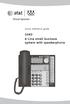 Quick reference guide 1040 4-Line small business system with speakerphone This quick reference guide provides basic instructions For additional installation options and complete instructions that enable
D-Term Series E User Guide
 D-Term Series E User Guide Table of Contents Keys and Lamps... 2 Tones... 3 Making and Receiving Calls... 4 Hold... 5 Transfer... 6 Conference Calls... 6 Soft Keys... 7 Feature Keys... 8 Speed Dial Keys...
DIGITAL TELEPHONE USER GUIDE
 DIGITAL TELEPHONE USER GUIDE Release 3 and 4 COPYRIGHT 1992 TOSHIBA AMERICA INFORMATION SYSTEMS, INC. All rights reserved. No part of this manual may be reproduced in any form or by any means graphic,
1. Primary Phone Line 2. Programmable Button Indicators 3. Soft Key Labels 4. Status Line 5. Call Activity Area 6. Phone Tab 7.
 CISCO IP 7975 Series QUICK REFRENCE 1. Programmable Buttons 2. Foot stand Button 3. Display Button 4. Messages Button 5. Directies Button 6. Help Button 7. Settings Button 8. Services Button 9. Volume
CONVERSip EP100 Digital Endpoint. User Guide
 CONVERSip EP100 Digital Endpoint User Guide TABLE OF CONTENTS OVERVIEW...15 1.2 Positioning Your EP100...22 1.3 Setting Display Contrast...23 1.4 Setting a Personal Ringing Tone...24 1.5 Setting Volume
Ipiphony Phone System. User Manual. 1 P a g e
 Ipiphony Phone System User Manual 1 P a g e About this Guide This guide explains how to use the basic features of your new Aastra phones. Not all features listed are available by default. Contact your
Vertical 4-Line Desk Phone Quick Reference Guide ACC-1145 PUG
 ACC-1145 PUG Vertical 4-Line Desk Phone Quick Reference Guide Table of Contents INTRODUCTION TO YOUR XCELERATOR DESK PHONE... 2 WELCOME... 2 DESK PHONE... 2 HOW TO USE YOUR XCELERATOR DESK PHONE... 3 Answering
About Your Telephone. Call appearances/feature buttons
 About Your Telephone Your 8410D is a multi-appearance digital telephone. The display, along with the softkeys and display control buttons, offers valuable added functionality. To familiarize yourself with
AT&T. DEFINITY Communications. and System 85 8102 and 8110 Telephone User's Guide. System Generic 2
 AT&T DEFINITY Communications System Generic and System 85 810 and 8110 Telephone User's Guide NOTICE While reasonable efforts were made to ensure that the information in this document was complete and
Hicom 300 optiset E standard optiset E advance / advance plus optiset E memory
 s Hicom 300 optiset E standard optiset E advance / advance plus optiset E memory 2 User Guide Introduction... 5 Executive / Secretary Features... 7 Dial Executive / Dial Secretary... 7 Answering Calls
D-Term ACD-E User Guide
 D-Term ACD-E User Guide Table of Contents Keys and Lamps... 2 Tones... 3 Making and Receiving Calls... 4 Hold... 5 Transfer... 6 Conference Calls... 6 ACD Functions... 7 Logon... 7 Work... 7 Call Recover...
Telephone User Guide NEC SV8100. Phone: 07 5478 2000 Fax: 07 5478 2611 172 Brisbane Road, Mooloolaba, Qld 4557 V5 19/10/10.
 Telephone User Guide NEC SV8100 Phone: 07 5478 2000 Fax: 07 5478 2611 172 Brisbane Road, Mooloolaba, Qld 4557 V5 19/10/10. Quick Reference Guide NEC SV8100 Function GREEN LED RED LED SOLID RED GREEN SLOW
Four-Line Intercom Speakerphone 944
 1 USER S MANUAL Part 2 Four-Line Intercom Speakerphone 944 Please also read Part 1 Important Product Information AT&T and the globe symbol are registered trademarks of AT&T Corp. licensed to Advanced American
Aristel. DV Series Key Phone Operation Manual 1 GENERAL DESCRIPTION... 1 2 KEY PHONE SPECIFICATION... 1 2.1 KEY PHONE LAYOUT... 1
 1 GENERAL DESCRIPTION... 1 2 KEY PHONE SPECIFICATION... 1 2.1 KEY PHONE LAYOUT... 1 2.2 KEY PHONE MODEL COMPARE HAVE;- HAVEN T... 2 2.3 KEY PHONE LED... 2 2.3.1 CO Line LED(Dual Color, Tri Status)...2
4406D+, 4412D+. 4424D+, and 4424LD+ Telephones User s Guide
 4406D+, 4412D+. 4424D+, and 4424LD+ Telephones User s Guide Back Panels: Programming and Feature Codes Displays Front Panels: Your Telephone Call Handling Using Features Programming and Feature Codes 555-710-127
Quick reference guide. 1080 4-Line small business system with digital answering system and caller ID/call waiting
 Quick reference guide 1080 4-Line small business system with digital answering system and caller ID/call waiting This quick reference guide provides basic instructions. For additional installation options
Cisco IP Phone Models 7941 and 7945 Quick Reference Guide December 23, 2011
 Emergency Calls Dial 911 or 3 911 Cisco IP Phone Models 7941 and 7945 Quick Reference Guide December 23, 2011 Place a Call Lift handset (or press the Speaker button, the line button, or New Call soft key)
INT-2064 (UNIV) ISSUE 1.0. Single Line Telephone User Guide
 Notice Note that when converting this document from its original format to a.pdf file, some minor font and format changes may occur. When viewing and printing this document, we cannot guarantee that your
SAMSUNG DCS Auto Attendant & ACD User Guide
 SAMSUNG DCS Auto Attendant & ACD User Guide November 1996 Revision 2.1 1. Introduction This document details the information required to record messages and to successfully operate the Automated Attendant
Featuring the Vertical Xcelerator IP Phone System DESK PHONE USER GUIDE V1.5
 Featuring the Vertical Xcelerator IP Phone System DESK PHONE USER GUIDE V1.5 For Service Purchased After May 1 st 2009 Table of Contents INTRODUCTION TO YOUR XCELERATOR DESK PHONE... 2 WELCOME... 2 XCELERATOR
Welcome to BT Inspiration An introduction to your new BT Inspiration System and its documentation 6 Featurephone basics 7
 Contents PAGE Welcome to BT Inspiration An introduction to your new BT Inspiration System and its documentation 6 Featurephone basics 7 Your BT Inspiration Featurephone 7 Facility menus and scroll keys
Your Phones Display and Buttons. Using Your Phone. Personalising Your Phone. Call Handling Features
 Your Phones Display and Buttons Using Your Phone Using Line Keys Using Busy Lamp Fields Handling Missed Calls Do Not Disturb Making Calls Taking Calls Taking Multiple Calls Accessing Voicemail Personalising
DKT / IPT Telephone Quick Reference Guide STRATA. Business Telephones Helping You Communicate Better CIX/CTX
 DKT / IPT Telephone Quick Reference Guide STRATA CIX/CTX Business Telephones Helping You Communicate Better Introduction This quick reference guide applies to Toshiba DKT3200-series digital telephones
Telephone User Guide (3-digit Extensions) (337) 234-2828. Business phones that build business
 Telephone User Guide (3-digit Extensions) (337) 234-2828 Business phones that build business Volume Control To adjust Handset Volume During a call, press down Vol or Vol. When you hang up, volume returns
Polycom Conference Phone Quick Reference Guide ACC-1144 PUG
 ACC-1144 PUG Polycom Conference Phone Quick Reference Guide Table of Contents INTRODUCTION TO YOUR POLYCOM CONFERENCE PHONE... 2 WELCOME... 2 CONFERENCE PHONE... 2 HOW TO USE YOUR POLYCOM CONFERENCE PHONE...
AASTRA 9110 User Guide
 AASTRA 9110 User Guide Key Descriptions Redial Save Flash Mute Handset Ringer Switch Set Indicator Light Volume Bar Dial Pad Handsfree/Mute 7 Memory Keys Making and Answering Calls Making a call With your
CISCO IP 7962 Series QUICK REFRENCE
 CISCO IP 7962 Series QUICK REFRENCE 1. Programmable Buttons 2. Phone Screen 3. Foot stand Button 4. Messages Button 5. Directies Button 6. Help Button 7. Settings Button 8. Services Button 9. Volume Button
Enterprise Edge Feature Programming Telephone Guide
 Enterprise Edge Feature Programming Telephone Guide 1999 Nortel Networks P0908510 Issue 02 Contents Chapter 1 Getting Started 11 Using this guide 11 Before you start 11 What you ll need to do programming
Panasonic DECT KX-TGP600 User Guide for 8x8 PBX Service
 Panasonic DECT KX-TGP600 User Guide for 8x8 PBX Service August, 2015 Contents Basic Calling... 4 Calling by Dialing...4 Making an Intercom Call...4 Easy Dialing... 5 Making a Call Using the Redial List...5
Meridian Digital Telephones
 Nortel Knowledge Network Meridian Digital Telephones M2006 M2008/M2008HF M2616 User Guide Enterprise Solutions Documentation While you are away from your desk: Call Forward 38 Contents Contents Introducing
Polycom 2-Line Desk Phone Quick Reference Guide
 Polycom 2-Line Desk Phone Quick Reference Guide ACC-1142 PUG Table of Contents INTRODUCTION TO YOUR POLYCOM 2-LINE DESK PHONE... 2 WELCOME... 2 DESK PHONE... 2 HOW TO USE YOUR POLYCOM 2-LINE DESK PHONE...
managedip Hosted TDS Table of Contents Calling Features User Guide
 Table of Contents Anonymous Call Rejection... 2 Automatic Callback... 2 Call Forwarding... 3 Call Park/Directed Call Park... 7 Call Park Retrieve... 8 Call Pickup... 8 Call Retrieve... 8 Call Return...
How To Use A Mitel 5340 Ip Phone
 silhouette Mitel IP Phone User Reference Guide Release 4.0 Final Contents Introduction...1 Setting your language...1 Setting your language for the web interface...1 Setting your language for the phone
DEFINITY Enterprise Communications 6408D Plus Telephone User s Guide
 DEFINITY Enterprise Communications 6408D Plus Telephone User s Guide 1 About Your Telephone The 6408D Plus is a multi-line telephone with conventional touch-tone dialing, a 2-line by 24-character display,
OfficeSuite Mitel IP Phone User Reference Guide Release 4.1
 OfficeSuite Mitel IP Phone User Reference Guide Release 4.1 2004-2009 Broadview Networks & Natural Convergence Inc. All rights reserved. Table of Contents TABLE OF CONTENTS...I INTRODUCTION...4 WHAT'S
AT&T. DEFINITY Communications. 7410 Plus Voice Terminal User's Guide. and System 85. System Generic 2
 AT&T DEFINITY Communications System Generic 2 and System 85 7410 Plus Voice Terminal User's Guide NOTICE While reasonable efforts were made to ensure that the information in this document was complete