
ultiline Telephone y User Guide NEC LEVEL II
|
|
|
- Cameron Evans
- 10 years ago
- Views:
Transcription
1 ultiline y User Guide NEC LEVEL II

2 ELECTRA PROFESSIONAL TELEPHONES 8 Line Non Display 16 Line Display 16 Line Non Display with 20 DSS/BLF One Touch Keys 24 Line Display with 12 DSS/BLF One Touch Keys 1. Speaker 2. Line Keys/Feature Access Keys 3. Dialpad/Dedicated Function Keys 4. Microphone 5. Volume Control 6. Large LED 7. Alphanumeric Display 8. One Touch Keys 9. Hookswitch
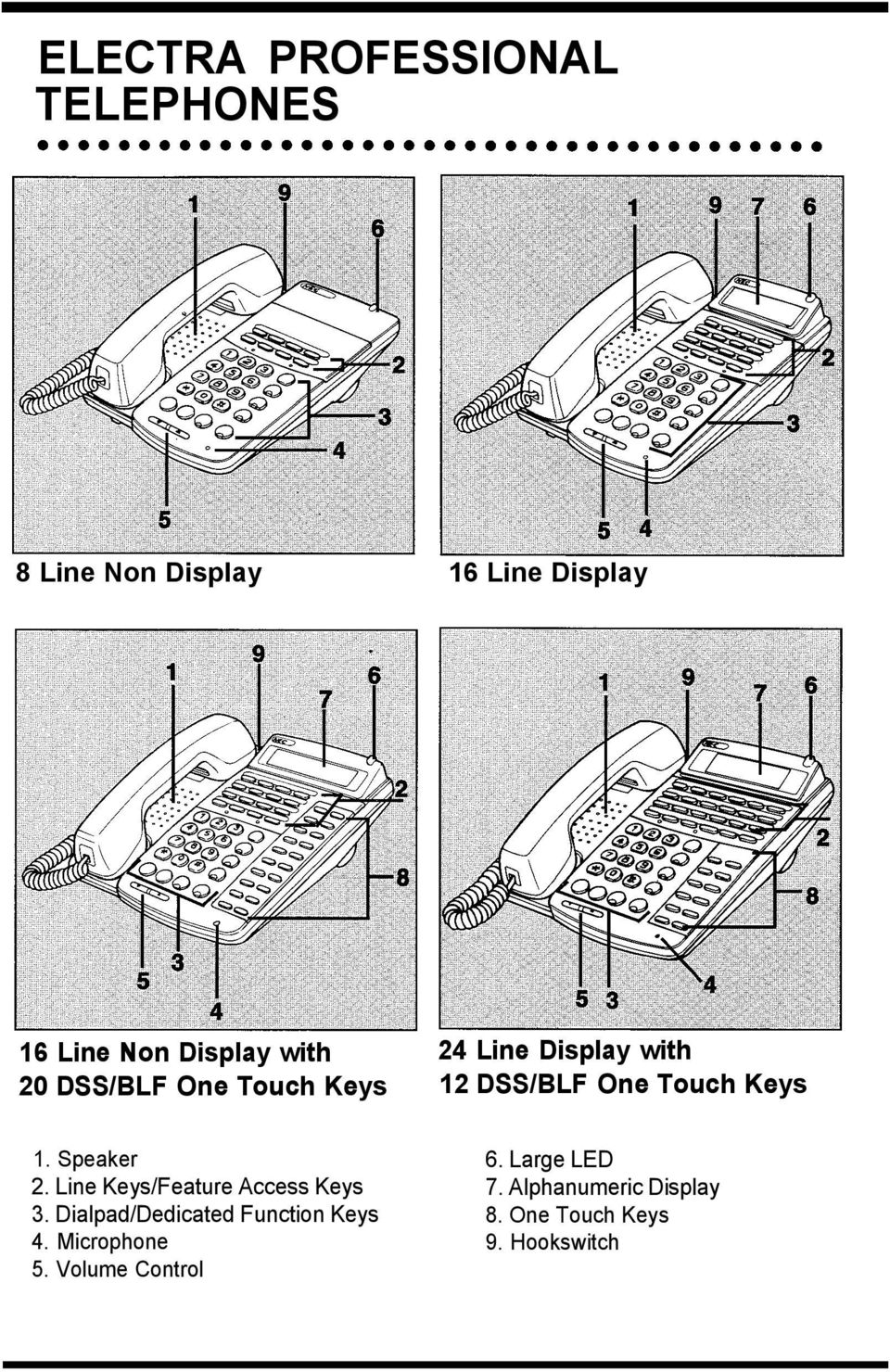
3 8 Line Non Display 16 Line Non Display 16 Line Display
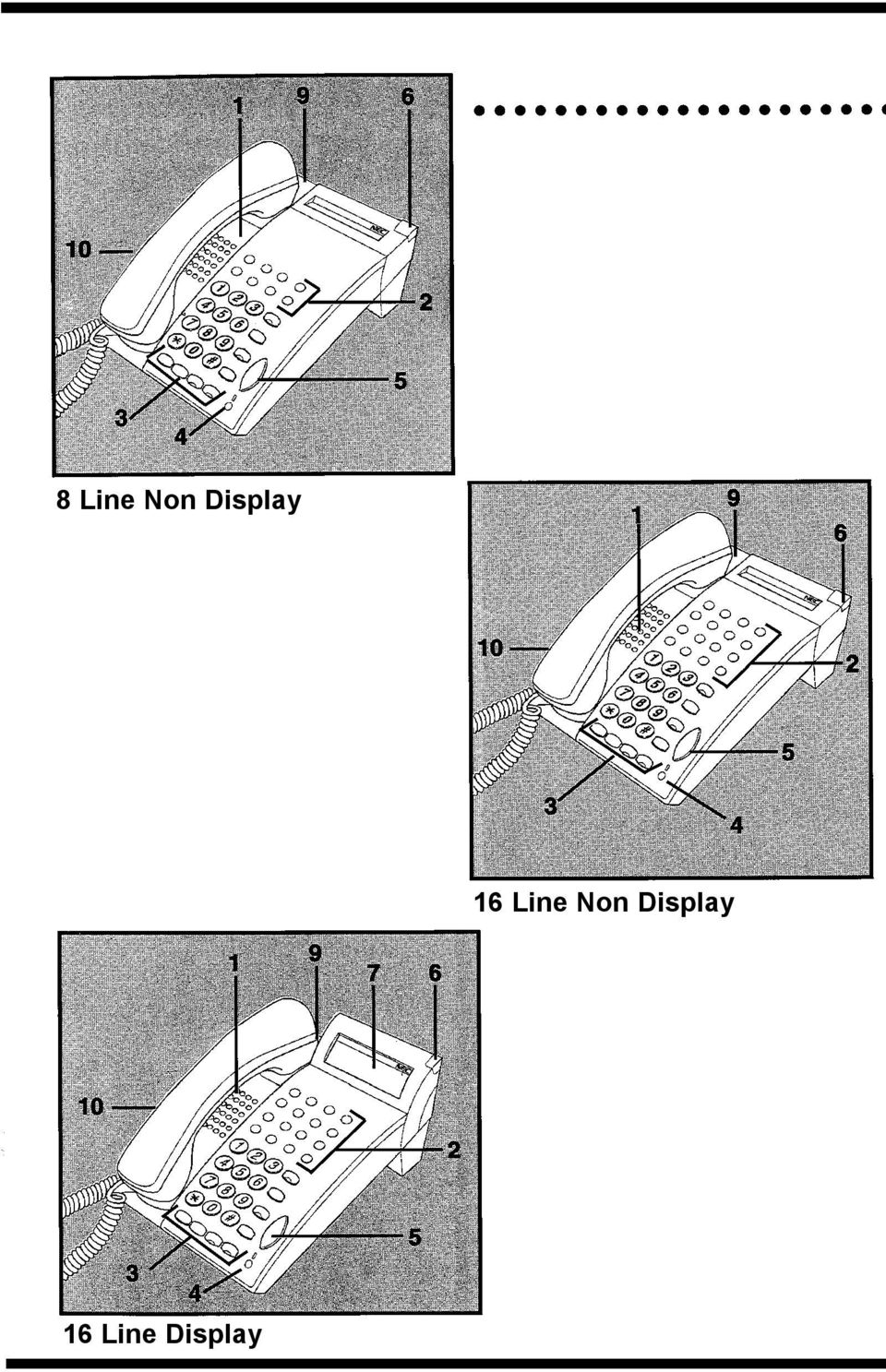
4 16 Line Non Display with 16 DSS/BLF One Touch Keys 16 Line Display with 16 DSS/BLF One Touch Keys 1. Speaker 2. Line Keys/Feature Access Keys 3. Dialpad/Dedicated Function Keys 4. Microphone 5. Volume Control 6. Large LED 7. Alphanumeric Display 8. One Touch Keys 9. Hookswitch 10. Built-in Headset Jack

5 Table of Contents Placing Calls Microphone Control Speakerphone Calls Holding Calls b Transferring Calls Conference Call Park - System. Station Busy/No Answer Options b CO/PBX Dialing Options PageslO&ll eeeeeeeeeeeeeeeeeeeeeeeeeeeeee Call Pickup Paging Background Music Call Forwarding Pages12&13 eeeeeeeeeeeeeeeeeeeeeeeeeeeeee Customized Message Station Outgoing Lockout Account Code Entry Account Code Forced/Verified DISA Password b b b Pages14&15 eeeeeeeeeeeeeeeeeeeeeeeeeeeeee ACD/UCD Volume Control Programming Character Entry Codes and Quick Reference Guide

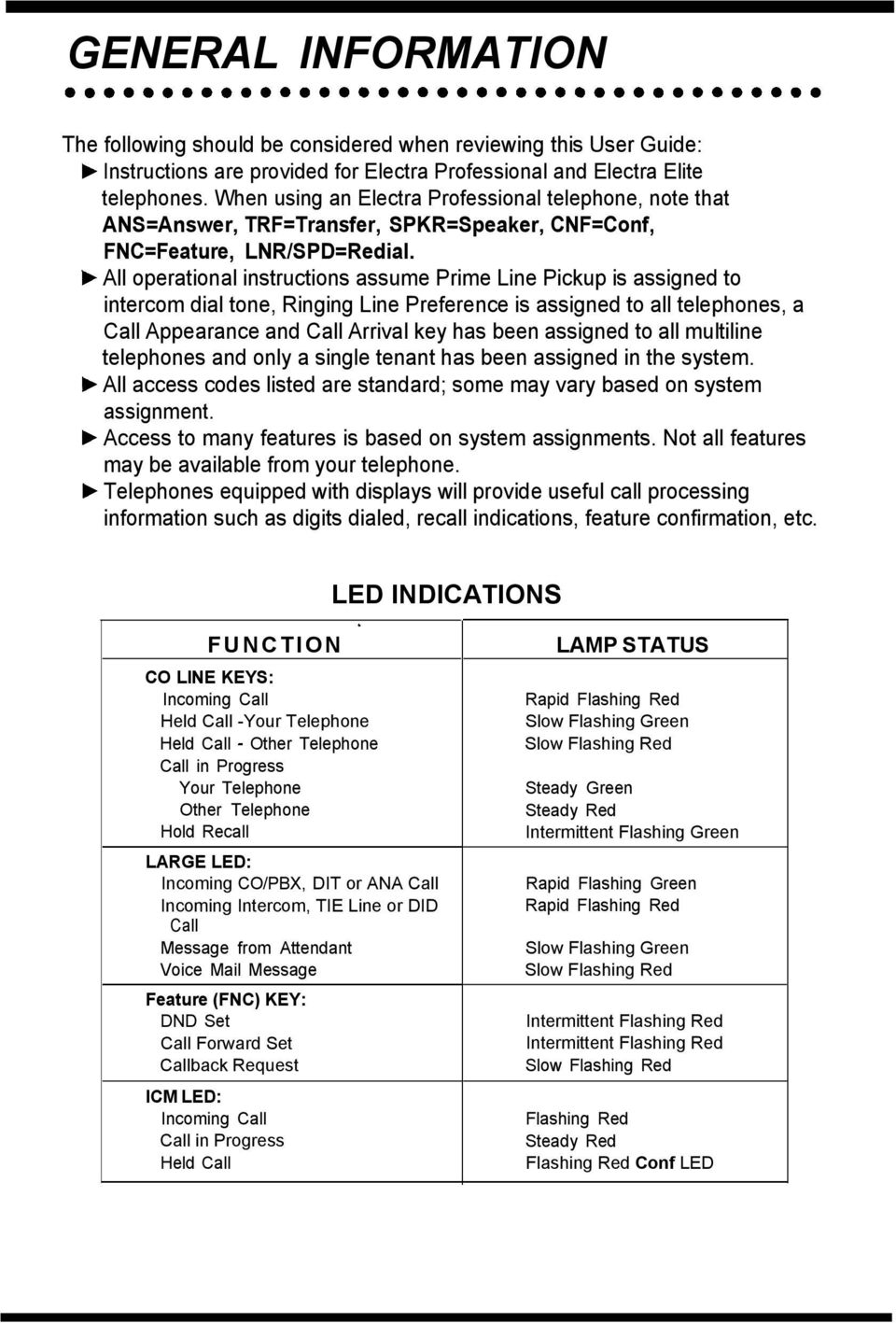
6 GENERAL INFORMATION The following should be considered when reviewing this User Guide: b Instructions are provided for Electra Professional and Electra Elite telephones. When using an Electra Professional telephone, note that ANS=Answer, TRF=Transfer, SPKR=Speaker, CNF=Conf, FNC=Feature, LNR/SPD=Redial. F All operational instructions assume Prime Line Pickup is assigned to intercom dial tone, Ringing Line Preference is assigned to all telephones, a Call Appearance and Call Arrival key has been assigned to all multiline telephones and only a single tenant has been assigned in the system. F All access codes listed are standard; some may vary based on system assignment. b Access to many features is based on system assignments. Not all features may be available from your telephone. b Telephones equipped with displays will provide useful call processing information such as digits dialed, recall indications, feature confirmation, etc. LED INDICATIONS FUNCTION CO LINE KEYS: Incoming Call Held Call -Your Telephone Held Call - Other Telephone Call in Progress Your Telephone Other Telephone Hold Recall LARGE LED: Incoming CO/PBX, DIT or ANA Call Incoming Intercom, TIE Line or DID Call Message from Attendant Voice Mail Message Feature (FNC) KEY: DND Set Call Forward Set Callback Request ICM LED: Incoming Call Call in Progress Held Call LAMP STATUS Rapid Flashing Red Slow Flashing Green Slow Flashing Red Steady Green Steady Red Intermittent Flashing Green Rapid Flashing Green Rapid Flashing Red Slow Flashing Green Slow Flashing Red Intermittent Flashing Red Intermittent Flashing Red Slow Flashing Red Flashing Red Steady Red Flashing Red Conf LED
7 ANSWERING CALLS RINGING CALLS b Lift handset b Converse NOTE : When assigned the Delayed Ringing feature, incoming calls will first ring at a primary station. If the call is unanswered after a preprogrammed time interval, calls will also ring at the assigned secondary station. RINGING CALLS TO A CALL ARRIVAL KEY b Lift handset b Converse NOTE 1 : A Call Arrival key must be assigned to appear and ring at a Line Key/Feature Access Key. NOTE 2 : A Call Appearance key must be available to answer an incoming outside call VOICEANNOUNCE CALLS b Ensure MIC LED is lit b Adjust Speaker volume (V or A) as needed b Respond handsfree NOTE: The handset may be used at any time during the conversation. CAMP-ON (CALL WAITING) Receive camp-on tone while on another call: F Replace handset to disconnect present call OR Press Hold and press the Hookswitch to converse with second party CALL ALERT NOTIFICATION With a call in progress: b Receive Call Alert Notification b Press Hold, converse with second party NOTE 1 : The second call may be placed on Hold if the CO Line appearance is assigned or if a Call Appearance key is available. NOTE 2 : Press flashing Line Key, Call Appearance key or Conf key to return to the first call.

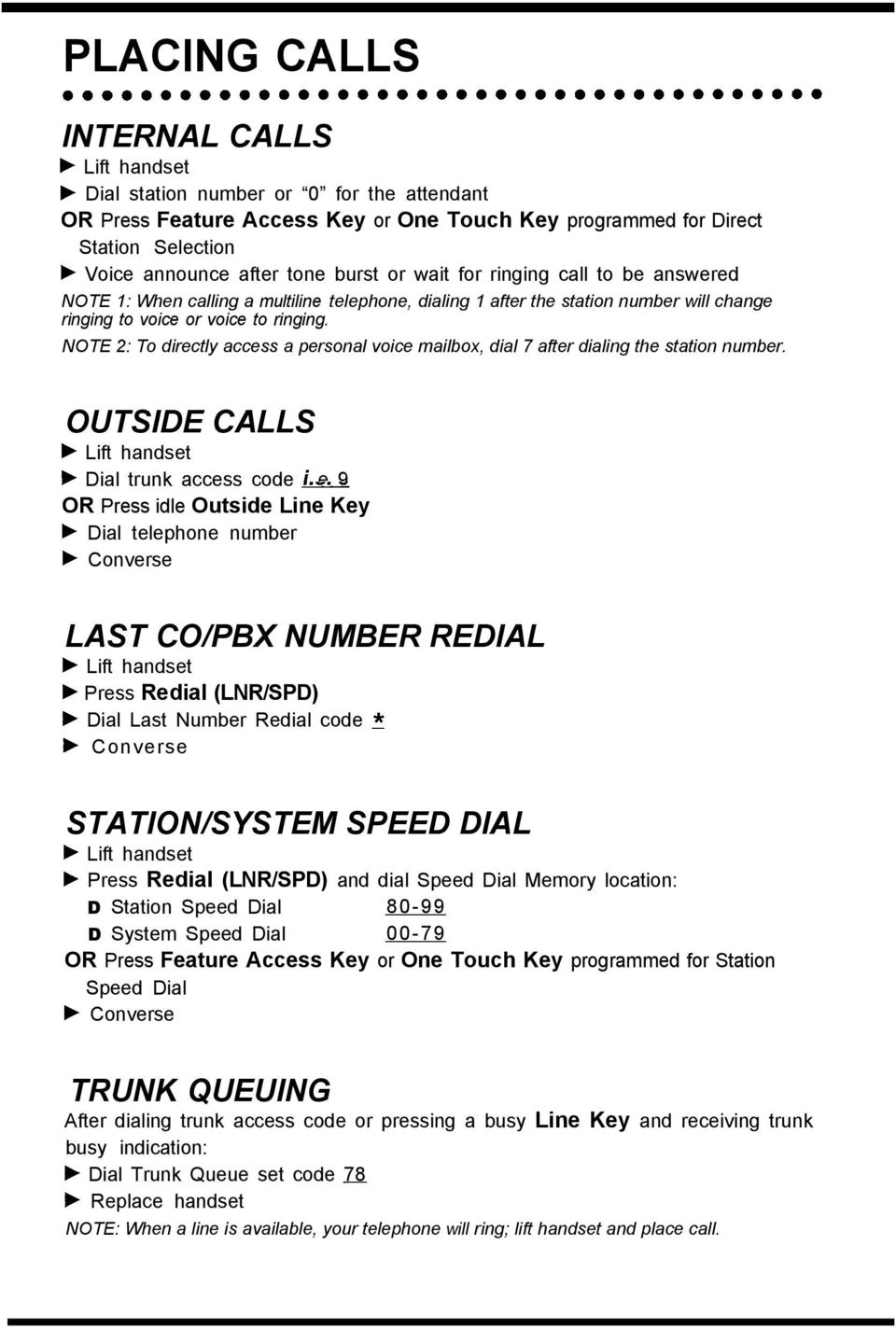
8 PLACING CALLS INTERNAL CALLS F Lift handset F Dial station number or 0 for the attendant OR Press Feature Access Key or One Touch Key programmed for Direct Station Selection F Voice announce after tone burst or wait for ringing call to be answered NOTE 1: When calling a multiline telephone, dialing 1 after the station number will change ringing to voice or voice to ringing. NOTE 2: To directly access a personal voice mailbox, dial 7 after dialing the station number. OUTSIDE CALLS F Lift handset F Dial trunk access code i e 9 - OR Press idle Outside Line Key F Dial telephone number b Converse LAST CO/PBX NUMBER REDIAL F Lift handset b Press Redial (LNR/SPD) F Dial Last Number Redial code 5 b Converse STATION/SYSTEM SPEED DIAL F Lift handset b Press Redial (LNR/SPD) and dial Speed Dial Memory location: D Station Speed Dial D System Speed Dial OR Press Feature Access Key or One Touch Key programmed for Station Speed Dial F Converse TRUNK QUEUING After dialing trunk access code or pressing a busy Line Key and receiving trunk busy indication: F Dial Trunk Queue set code 78- b Replace handset NOTE: When a line is available, your telephone will ring; lift handset and place call.
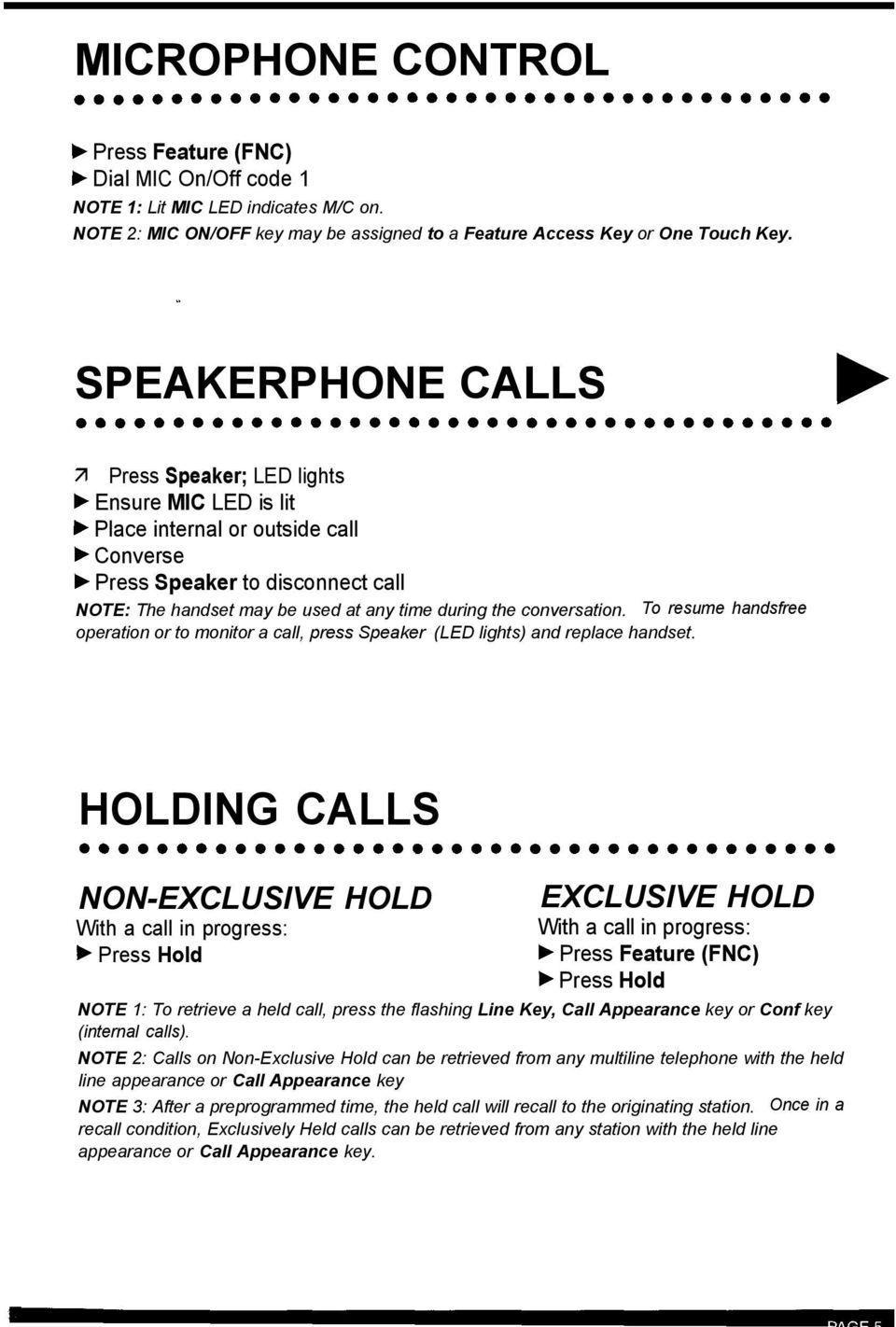
9 MICROPHONE CONTROL b Dial MIC On/Off code 1 NOTE 1: Lit MIC LED indicates M/C on. NOTE 2: MIC ON/OFF key may be assigned to a Feature Access Key or One Touch Key. SPEAKERPHONE CALLS Press Speaker; LED lights F Ensure MIC LED is lit b Place internal or outside call b Converse to disconnect call NOTE: The handset may be used at any time during the conversation. To resume handsfree operation or to monitor a call, press Speaker (LED lights) and replace handset. HOLDING CALLS NON-EXCLUSIVE HOLD With a call in progress: b Press Hold EXCLUSIVE HOLD With a call in progress: b Press Hold NOTE 1: To retrieve a held call, press the flashing Line Key, Call Appearance key or Conf key (internal calls). NOTE 2: Calls on Non-Exclusive Hold can be retrieved from any multiline telephone with the held line appearance or Call Appearance key NOTE 3: After a preprogrammed time, the held call will recall to the originating station. Once in a recall condition, Exclusively Held calls can be retrieved from any station with the held line appearance or Call Appearance key.
10 TRANSFERRING CALLS USING MANUA,L DIAL With a call in progress: b Press Transfer b Dial station number b Announce call (optional) b Replace handset USING DIRECT STATION SELECTION (DSS) With a call in progress: b Press Transfer b Press programmed DSS b Announce call (optional) b Replace handset NOTE 1: If the called station is busy replace handset to initiate a camp-on. Unanswered campons and unscreened transfers will recall to the attendant telephone. After answering the recall, pressing Feature (FNC) 86 will transfer the call to the personal voice mailbox of the station number dialed. NOTE 2: To return to the original party, press flashing Line Key, Call Appearance key or Conf key. NOTE 3: A Feature Access Key or One Touch Key may be assigned for DSS. NOTE 4: Jo transfer a call directly to a personal voice mailbox, dial 7 after dialing the station number. CONFERENCE ❻ With a call in progress: b Press Conf b Place second call (internal or external) b Announce conference b Press Conf to establish conference NOTE 1: Repeat above procedure to add an additional party. (Maximum 2 outside parties.) NOTE 2: An unsupervised conference may be established by pressing the Conf key again, after the conference has been established. The parties may continue to converse in private. Press the flashing Conf key to return to the conversation. CALL PARK - SYSTEM SET With a call in progress: b Press Transfer b Dial Call Park Set code 4* b Dial Call Park location O-9 b Replace handset RETRIEVE From any station: b Lift handset b Dial Call Park Retrieval code 4# b Dial Call Park location 0-9 b Converse NOTE: If the dialed Call Park location is busy, dial another Call Park location (O-9).

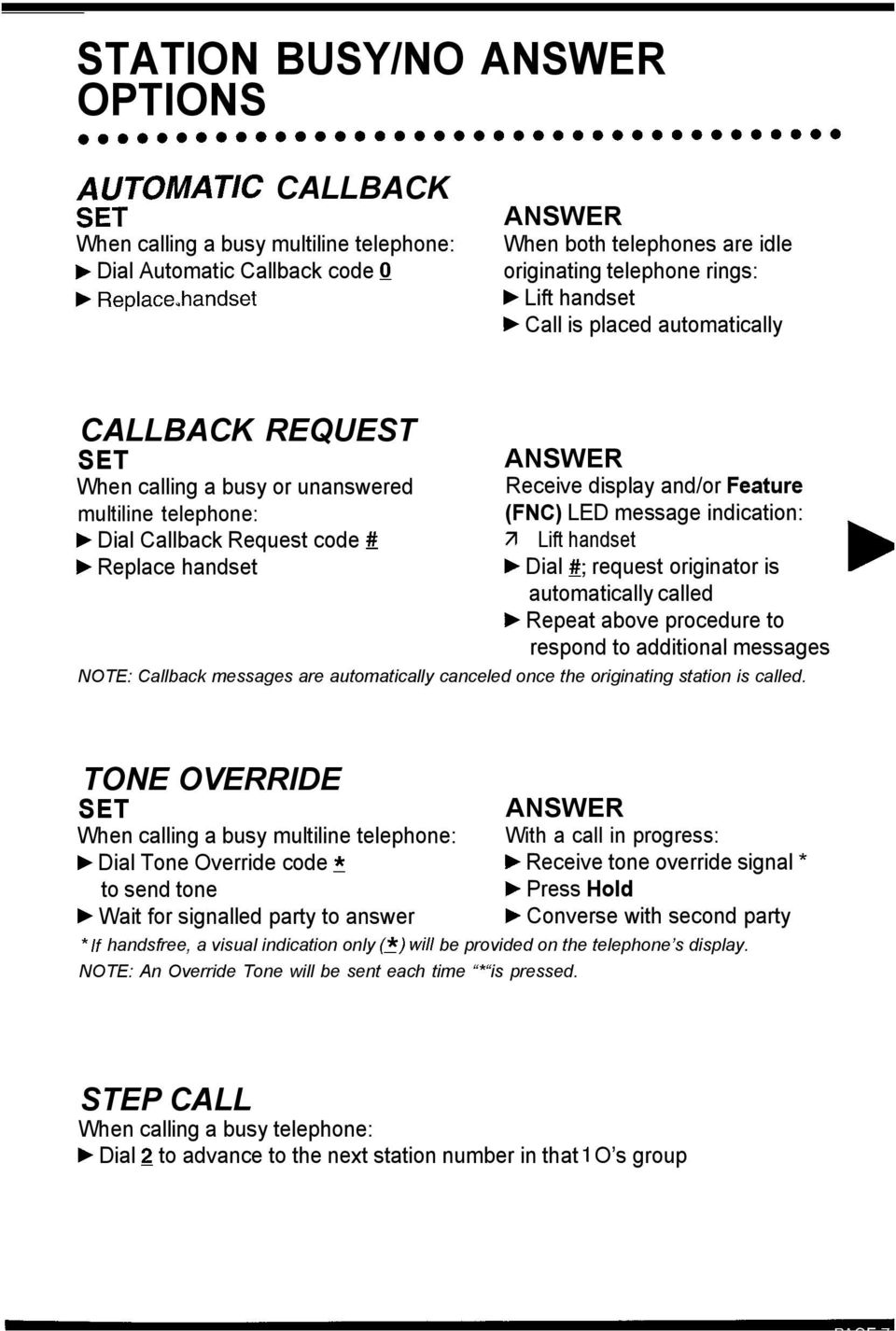
11 STATION BUSY/NO ANSWER OPTIONS $TOMATIC CALLBACK When calling a busy multiline telephone: b Dial Automatic Callback code Q F Replace,handset ANSWER When both telephones are idle originating telephone rings: b Lift handset F Call is placed automatically CALLBACK REQUEST SET When calling a busy or unanswered multiline telephone: F Dial Callback Request code # F Replace handset ANSWER Receive display and/or Feature (FNC) LED message indication: Lift handset b Dial #; request originator is automatically called b Repeat above procedure to respond to additional messages NOTE: Callback messages are automatically canceled once the originating station is called. TONE OVERRIDE SET ANSWER When calling a busy multiline telephone: With a call in progress: F Dial Tone Override code 5 b Receive tone override signal * to send tone b Press Hold b Wait for signalled party to answer F Converse with second party * If handsfree, a visual indication only (2) will be provided on the telephone s display. NOTE: An Override Tone will be sent each time * is pressed. STEP CALL When calling a busy telephone: F Dial 2 to advance to the next station number in that 1 O s group
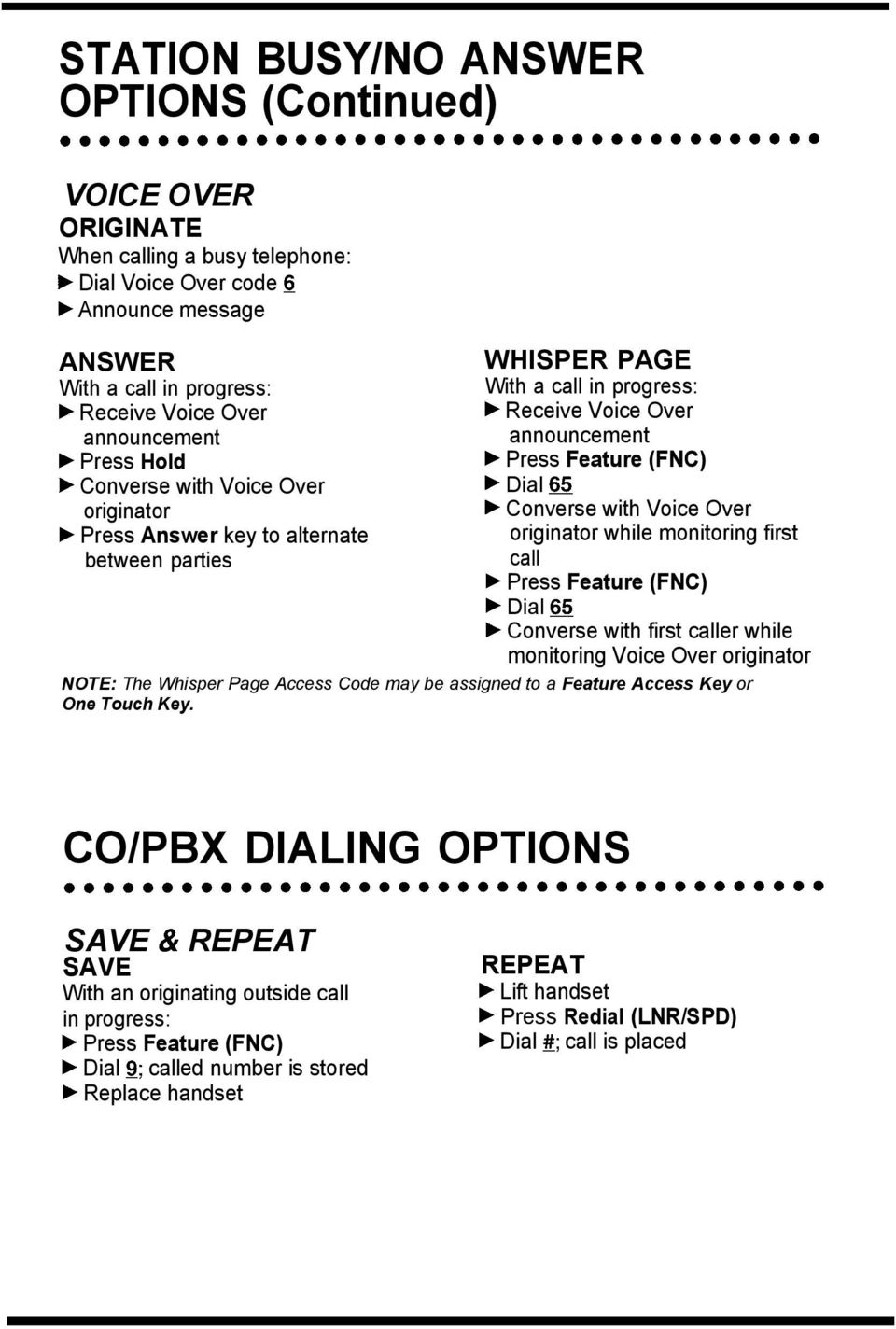
12 STATION BUSY/NO ANSWER OPTIONS (Continued) VOICE OVER ORIGINATE When calling a busy telephone: F Dial Voice Over code S F Announce message ANSWER With a call in progress: b Receive Voice Over announcement b Press Hold F Converse with Voice Over originator b Press Answer key to alternate between parties WHISPER PAGE With a call in progress: b Receive Voice Over announcement b Dial 65 b Converse with Voice Over originator while monitoring first call F Dial Ss F Converse with first caller while monitoring Voice Over originator NOTE: The Whisper Page Access Code may be assigned to a Feature Access Key or One Touch Key. CO/PBX DIALING OPTIONS SAVE & REPEAT SAVE With an originating outside call in progress: F Dial 9; called number is stored F Replace handset REPEAT F Lift handset b Press Redial (LNR/SPD) F Dial I#; call is placed
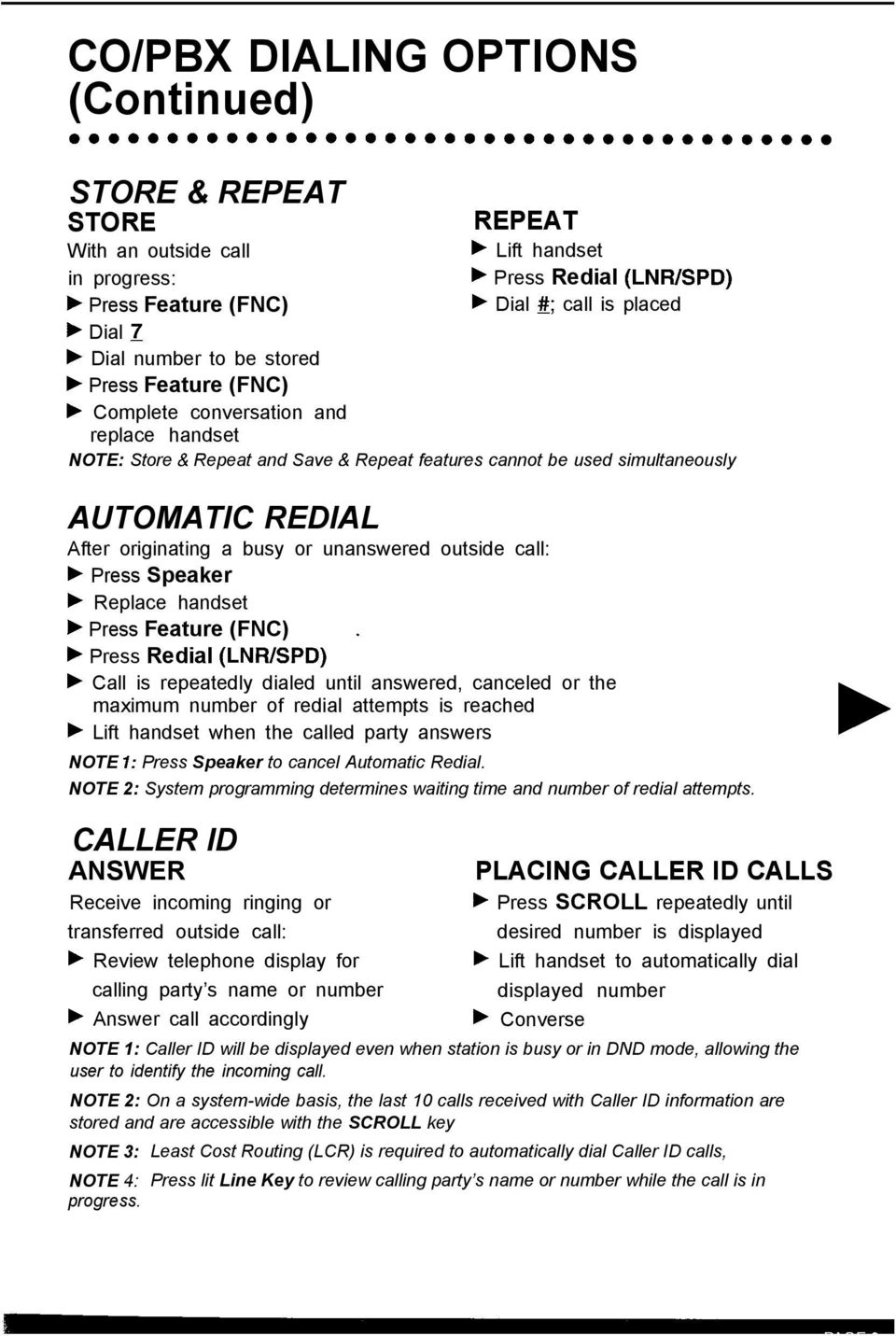
13 CO/PBX DIALING OPTIONS (Continued) STORE & REPEAT STORE With an outside call in progress: REPEAT b Lift handset b Press Redial (LNR/SPD) b Dial #I; call is placed k Dial 7 b Dial number to be stored b Complete conversation and replace handset NOTE: Store & Repeat and Save & Repeat features cannot be used simultaneously AUTOMATIC REDIAL After originating a busy or unanswered outside call: F Replace handset b Press Redial (LNR/SPD) F Call is repeatedly dialed until answered, canceled or the maximum number of redial attempts is reached F Lift handset when the called party answers NOTE 1: Press Speaker to cancel Automatic Redial. NOTE 2: System programming determines waiting time and number of redial attempts. CALLER ID ANSWER Receive incoming ringing or transferred outside call: F Review telephone display for calling party s name or number F Answer call accordingly PLACING CALLER ID CALLS b Press SCROLL repeatedly until desired number is displayed b Lift handset to automatically dial displayed number b Converse NOTE 1: Caller ID will be displayed even when station is busy or in DND mode, allowing the user to identify the incoming call. NOTE 2: On a system-wide basis, the last 10 calls received with Caller ID information are stored and are accessible with the SCROLL key NOTE 3: Least Cost Routing (LCR) is required to automatically dial Caller ID calls, NOTE 4: Press lit Line Key to review calling party s name or number while the call is in progress.
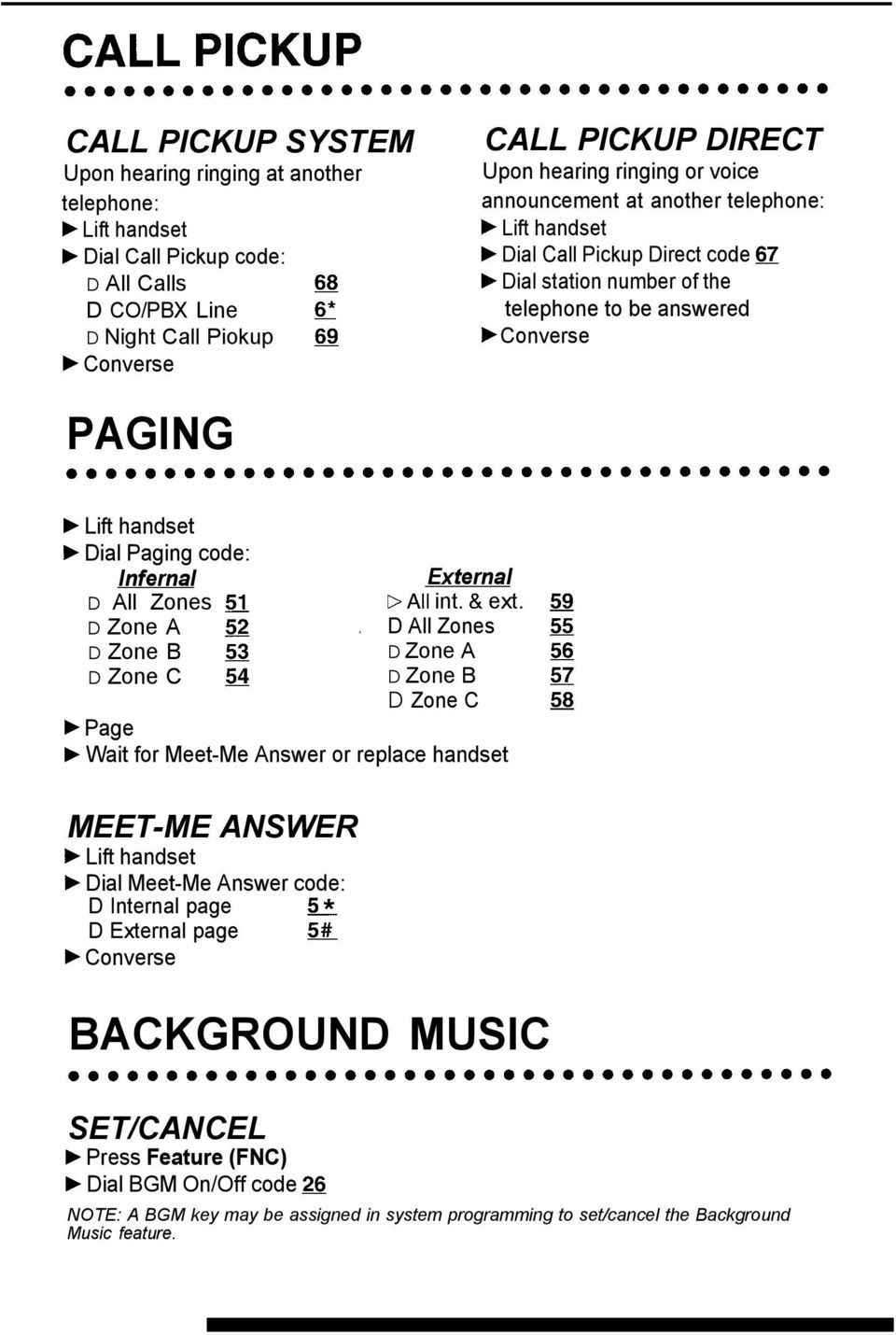
14 CALL PICKUP SYSTEM Upon hearing ringing at another telephone: F Lift handset F Dial Call Pickup code: D All Calls m D CO/PBX Line s* D Night Call Piokup ss b Converse CALL PICKUP DIRECT Upon hearing ringing or voice announcement at another telephone: F Lift handset b Dial Call Pickup Direct code 67 b Dial station number of the telephone to be answered b Converse PAGING b Lift handset b Dial Paging code: Infernal External D All Zones 51 DAII int. & ext. 59 D Zone A 52. D All Zones 55 D Zone B 53 D Zone A 35 D Zone C 54 D Zone B 57 D Zone C 58 b Page F Wait for Meet-Me Answer or replace handset MEET-ME ANSWER b Lift handset b Dial Meet-Me Answer code: D Internal page 5* D External page 5# b Converse BACKGROUND MUSIC SET/CANCEL b Dial BGM On/Off code 26 NOTE: A BGM key may be assigned in system programming to set/cancel the Background Music feature.
15 CALL FORWARD ALL CALLS (CF/A) DO NOT DISTURB (DND) SET b Dial Call Forward All/DND set code 60 b Select operation: D DND: Press Feature (FNC) D Call Forward All: Dial destination station number or voice mail and press Feature (FNC) CANCEL b Dial Call Forward AIl/DND cancel code Ss NOTE 1: The Feature (FNC) LED will flash intermittently when your telephone is in Call Forward/DND. NOTE 2: While set, Call Forward All will override Call Forward Busy/No Answer setting. NOTE 3: If Call Forward All and Do Not Disturb are both set, the feature set last is activated. NOTE 4: A CFA/DND key may be assigned in system programming to set/cancel this feature. When setting Call Forward All, a destination station must be entered. A lit LED indicates that Call ForwardAII/Do Not Disturb is set. CALL FORWARD BUSY/ NO ANSWER (B/NA) SET b Dial Call Forward B/NA set code 43 b Dial destination station number or voice mail CANCEL b Dial Call Forward cancel code 44 NOTE 1: The Feature (FNC) LED will flash intermittently when your telephone is in Call Forward. NOTE 2: While set, Call Forward All will override Call Forward Busy/No Answer setting. NOTE 3: A CF B/NA key may be assigned in system programming to set/cancel this feature. When setting Call Forward Busy/No Answer, a destination station must be entered. A lit LED indicates that CF B/NA is set. CALL FORWARD DESTINATION FROM DESTINATION STATION SET CANCEL b Dial Call Forward All Destination b Dial Call Forward All Destination set code 47 cancel code 48 b Dial your station number b Dial your station number b Dial destination station number or voice mail

16 CUSTOMIZED MESSAGE From a display telephone: b Dial Customized Message code 73 b Dial 5 to scroll through messages b Dial # to select message b Dial return date and time if required (Month/Day, Hour/Minute, using 4-digit, 24-hour clock) NOTE: When your telephone is set for Do Not Disturb, other display telephones will receive your message upon calling your station. STATION OUTGOING LOCKOUT CHANGING LOCKOUT CODE b Dial Lockout Change access code _ b Dial current Lockout code b Dial new Lockout code NOTE I: By default, Lockout code is set at (10 zeros). NOTE 2: When Lockout code is set for the first time, station is automatically restricted. NOTE 3: Lockout code may be a maximum of 10 digits. If the new Lockout code is less than 10 digits, press the Speaker to enter. NOTE 4: When set, Station Outgoing Lockout restricts a// outgoing calls. SET/CANCEL STATION OUTGOING LOCKOUT b Dial Station Lockout D Set code D Cancel code 1 b Dial Lockout code

17 ACCOUNT CODE ENTRY With an outside call in progress: With an outside call on hold: b Dial Account Code Entry Code - b Dial 66 b Dial Account Code (16 digits maximum) b Dial Account Code (16 digits maximum) b Retrieve held call NOTE 1: The outside party will not hear digits being dialed. NOTE 2: The Account Code Entry Code may be assigned to a. Feature Access Key or One Touch Key. ACCOUNT CODE FORCED/VERIFIED To place an outside call: b Lift handset b Dial Forced Account access code b Dial Forced Account Code (up to 13 digits) b Dial trunk access code i e 9 and outside number L NOTE: When calling from a station that is assigned the Account Code Forced/Verified feature, outgoing calls will only be processed after the dialed Account Code is verified. DISA PASSWORD SETTING YOUR DISA PASSWORD b Lift handset b Dial DISA Password set access code ~ b Dial your DISA ID code ~ b Dial your current DISA password ~ Default (10 zeros) b Dial your new DISA password j b Replace handset NOTE 1: Password may be a maximum of 10 digits. If the new password is less than 10 digits, replace the handset to enter. NOTE 2: It is recommended that your DISA password be 10 digits and be changed frequently to prevent unauthorized use.

18 ACD/UCD LOG ON LOG OFF b Dial access code - b Dial access code ~ b Dial 1 b Dial 2 NOTE : A LOG key may be assigned in system programming to Log On/Off from the ACD/UCD group. A lit LED indicates that the station is logged-on. BREAK MODE SET CANCEL b Dial 40 F Dial 42 NOTE 1: Break Mode is only available while an agent is logged-on. NOTE 2: A Break key may be assigned in system programming to set/cancel Break Mode. A lit LED indicates that the station is in Break Mode. ANSWERING CALL USING A HEADSET b Press HEADSET to answer b Converse b Press HEADSET to hang up VOLUME CONTROL OFF-HOOK RINGING VOLUME b Lift handset b Dial So b Dial Off-Hook Ringing Volume code 1 b Press V or A to set level b Replace handset RINGING VOLUME b Dial 60 b Dial Ringing Volume code 1 b Press v or A to set level NOTE 1: Press 7 or A during audible telephone activity to adjust handset or speaker volume NOTE 2: When the telephone is idle, 7 or A is used to adjust display contrast.

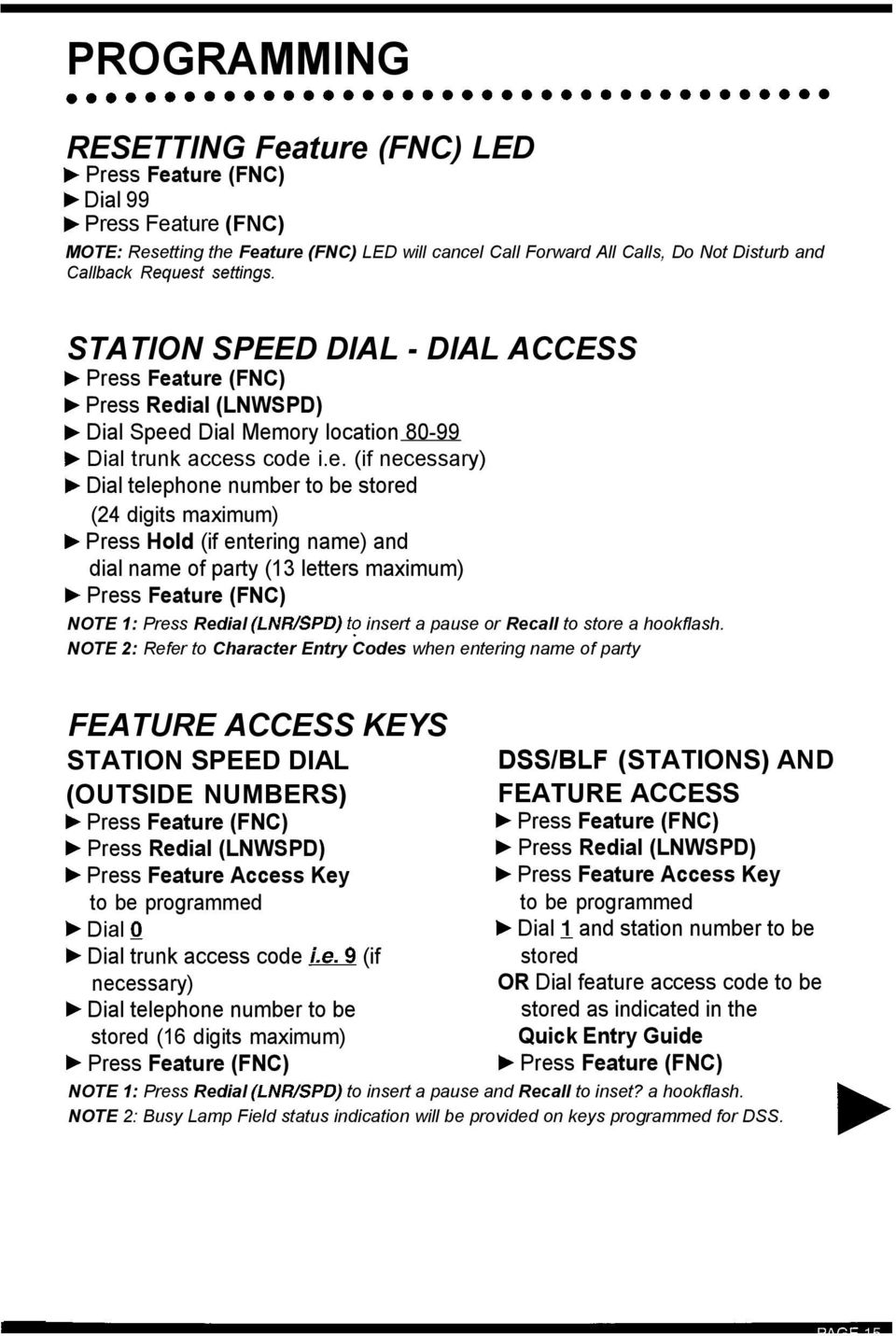
19 PROGRAMMING RESETTING Feature (FNC) LED F Dial 99 F Press Feature (FNC) MOTE: Resetting the Feature (FNC) LED will cancel Call Forward All Calls, Do Not Disturb and Callback Request settings. STATION SPEED DIAL - DIAL ACCESS b Press Redial (LNWSPD) b Dial Speed Dial Memory location F Dial trunk access code i.e. (if necessary) F Dial telephone number to be stored (24 digits maximum) b Press Hold (if entering name) and dial name of party (13 letters maximum) NOTE 1: Press Redial (LNR/SPD) t? insert a pause or Recall to store a hookflash. NOTE 2: Refer to Character Entry Codes when entering name of party FEATURE ACCESS KEYS STATION SPEED DIAL (OUTSIDE NUMBERS) b Press Redial (LNWSPD) b Press Feature Access Key to be programmed F Dial 0 F Dial trunk access code i.e. (if necessary) b Dial telephone number to be stored (16 digits maximum) DSS/BLF (STATIONS) AND FEATURE ACCESS b Press Redial (LNWSPD) b Press Feature Access Key to be programmed F Dial 1 and station number to be stored OR Dial feature access code to be stored as indicated in the Quick Entry Guide NOTE 1: Press Redial (LNRKPD) to insert a pause and Recall to inset? a hookflash. NOTE 2: Busy Lamp Field status indication will be provided on keys programmed for DSS.
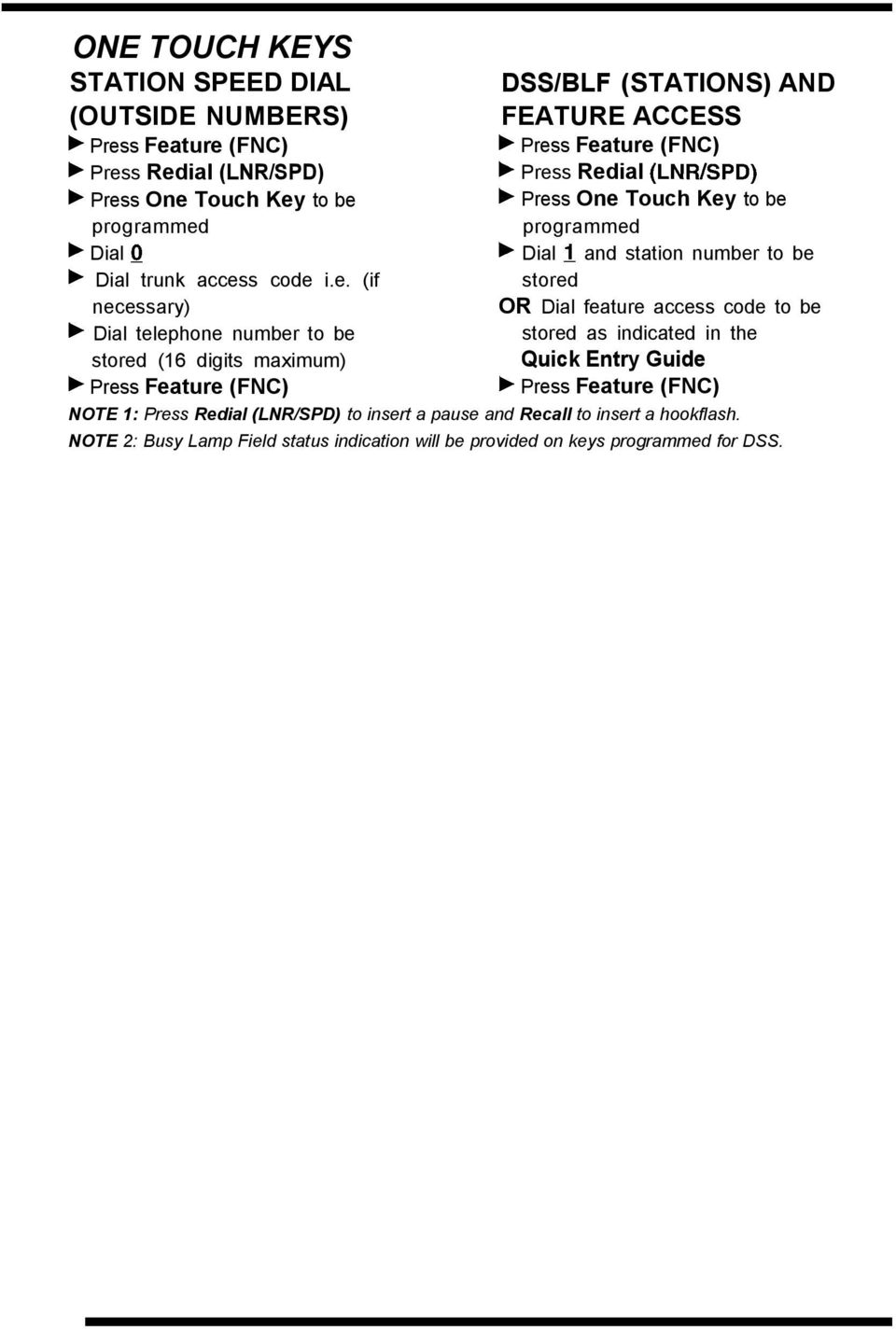
20 ONE TOUCH KEYS STATION SPEED DIAL (OUTSIDE NUMBERS) b Press Redial (LNR/SPD) b Press One Touch Key to be DSS/BLF (STATIONS) AND FEATURE ACCESS b Press Redial (LNR/SPD) b Press One Touch Key to be programmed programmed b Dial Q b Dial 1 and station number to be b Dial trunk access code i.e. (if stored necessary) OR Dial feature access code to be b Dial telephone number to be stored as indicated in the stored (16 digits maximum) Quick Entry Guide NOTE 1: Press Redial (LNR/SPD) to insert a pause and Recall to insert a hookflash. NOTE 2: Busy Lamp Field status indication will be provided on keys programmed for DSS.
21 QUICK REFERENCE GUIDE OUTSIDE CALLING Outside Call Dial 9 Dial Telephone Number Last CO/PBX Number Redial Redial (LNWSPD) Dial * Speed Dial Redial (LNWSPD) ) Dial Save/Store & Repeat -Access Redial (LNWSPD) Dial # Trunk Queue Receive Trunk Busy Indication ) Dial 78 Automatic Redial Receive Busy + Speaker ) Replace Handset ) Feature (FNC) Redial (LNR/SPD) INTERNAL CALLING Station Call Dial Station Number or DSS key Automatic Callback Reach Busy Station Dial 0 Callback Request Reach Busy/No Answer Station ) Dial # Tone Override Reach Busy Station Dial * Voice Over Originate Reach Busy Station ) Dial 6 Quick Transfer to Voice Mail Dial station number or DSS key Dial 7 WITH A CALL IN PROGRESS Hold Exclusive Hold Transfer Hold Feature (FNC) Hold Transfer* Dial Station Number Quick Transfer to Voice Mail Transfer ) Dial station number or DSS key Dial 7 Conference Conf ) Place 2nd Call ) Conf Call Park System SET: Transfer Dial 4 * ) Dial O-9 Save & Repeat - Save Store & Repeat - Store RETRIEVE: Dial 4 # ) Dial O-9 Feature (FNC) ) Dial 9 Feature (FNC) Dial 7 Dial Number to Store w Feature (FNC) Whisper Page Receive Voice Over Feature (FNC) ) Dial 65 FROM THE INTERCOM Internal Paging External Paging Call Pickup All Calls Dial 68 Call Pickup Direct FROM AN IDLE TELEPHONE Dial ) Page Dial ) Page Dial 67 Dial Station Number Microphone Control Feature (FNC) Dial 1 Call Forward AII/DND Call Forward Busy/No Answer FNC LED Reset SET Feature (FNC) ) Dial 60 Dial Destination Station (CF/A only) + Feature (FNC) CANCEL: Feature (FNC) ) Dial 69 Feature (FNC) SET Speaker ) Dial 43 N Dial Dest. Station ) Speaker CANCEL: Speaker Dial 44 ) Speaker Feature (FNC) Dial 99 ) Feature (FNC)
22 CHARACTER ENTRY CODES Character Code Character Code Character Code I I I I Blank 064 \! 033 A 065 a II 034 B 066 b # 035 C 067 C $ 036 D 068 d % 037 E 069 e & F 070 f W 087 W I 119
23 QUICK ENTRY GUIDE FOR PROGRAMMING FEATURE ACCESS KEYS AND ONE TOUCH KEYS FEATURE Microphone On/Off #&I PRESS Call Forward AlI Set Do Not Disturb - Set Call Forward AII/DND - Cancel Save & Repeat - Set # 60 Dial Destination b Answer + Feature (FNC) Feature (FNC) # 60 Answer Feature (FNC) Feature (FNC) # 69 Answer Feature (FNC) Feature (FNC) i#*9 Store & Repeat - Set #*7 Whisper Page # k 65 Quick Transfer to Voice Mail 86 Background Music # N 26 Voice Over Originate. I>6 Call Forward Busy/No Answer - Set 1 43 Dial Destination Answer Speaker Feature (FNC) Internal Paging All Zone Internal Paging Meet-Me 1 5* External Paging All Zone 1 55 External Paging Meet-Me 1 5# Call Pickup All Calls 1 68 Call Pickup Direct 1 67 NOTE 1: When pressed, the Answer key will not appear in the display. This is normal operation. NOTE 2: Other features may be programmed in addition to those listed above. Refer to the Electra Mail User Guide for features related to Voice Mail.
24 The material contained herein is subject to change without prior notice at the sole discretion of NEC America, Inc. NEC NEC America, Inc. 1800TEAM NEC NEC America, Inc. 8-97
di git al u se r guide
 di git al t e le ph o n e u se r guide Xen Digital Telephones 1 9 6 10 2 5 3 4 1 9 7 6 Xen Talk 8 line non display 10 11 2 5 10 1 9 11 7 6 3 4 Xen Exec 16 line display 2 3 5 Xen Professional 16 line display
Multiline Telephone User Guide
 Notice Note that when converting this document from its original format to a.pdf file, some minor font and format changes may occur causing slight variations from the original printed document. When viewing
Electra Elite. Multiline Telephone User Guide
 Electra Elite Multiline Telephone User Guide Electra Elite Telephones 1 9 6 1 9 7 6 10 10 11 2 2 3 4 5 3 4 5 8 Button Non Display 16 Button Display 1 9 7 6 1 9 2 6 10 2 11 10 8 3 4 5 3 4 5 8 Button Display
GENERAL INFORMATION ANSWERING CALLS PLACING CALLS
 GENERAL INFORMATION THE FOLLOWING SHOULD BE CONSIDERED WHEN REVIEWING THIS User Guide: Instructions are provided for Electra Professional and Electra Elite telephones. When using an Electra Professional
Single Line Telephone User Guide
 Notice Note that when converting this document from its original format to a.pdf file, some minor font and format changes may occur causing slight variations from the original printed document. When viewing
Multiline Telephone User Guide
 NOTICE Note that when converting this document from its original format to a.pdf file, some minor font and format changes may occur. When viewing and printing this document, we cannot guarantee that your
Multiline Telephone User Guide
 NOTICE Note that when converting this document from its original format to a.pdf file, some minor font and format changes may occur causing slight variations from the original printed document. When viewing
DIGITAL TELEPHONE USER GUIDE
 DIGITAL TELEPHONE USER GUIDE Xen IPK II DIGITAL TELEPHONE User Guide Table of Contents Xen IPK II Digital Telephones............................2 Key Descriptions......................................3
Single Line Telephone User Guide
 NOTICE Note that when converting this document from its original format to a.pdf file, some minor font and format changes may occur. When viewing and printing this document, we cannot guarantee that your
NEC SV-8100. Multiline Telephone User Guide All Digital and IP Phones w/um-8000 Voice Mail
 NEC SV-8100 Multiline Telephone User Guide All Digital and IP Phones w/um-8000 Voice Mail NEC SV-8100 - User Introduction for Display Phone TO TRANSFER A CALL DIRECTLY TO A MAILBOX: Press Transfer Dial
INT-2064 (UNIV) ISSUE 1.0. Single Line Telephone User Guide
 Notice Note that when converting this document from its original format to a.pdf file, some minor font and format changes may occur. When viewing and printing this document, we cannot guarantee that your
NEC SV-8100 Multiline Telephone User Guide All Digital and IP Phones w/inmail Voice Mail
 Version 2.50G NEC SV-8100 Multiline Telephone User Guide All Digital and IP Phones w/inmail Voice Mail NEC SV-8100 - User Introduction for Display Phone TO TRANSFER A CALL DIRECTLY TO A MAILBOX: Press
TABLE OF CONTENTS 816 AND 800 KEYSET USER GUIDE. GENERAL INFORMATION About This Book... 1 Keyset Diagrams... 2 3 Things You Should Know...
 TABLE OF CONTENTS 816 AND 800 KEYSET USER GUIDE PROSTAR 816 PLUS September 1996 GENERAL INFORMATION About This Book... 1 Keyset Diagrams... 2 3 Things You Should Know... 4 5 OUTSIDE CALLS Making a Call...
Telephone Attributes (Characteristics) All Call Page Alphanumeric Display Attendant Positions
 User Telephone Features are features that the user must initiate and complete an action to activate or complete the feature. Examples of user actions include dialing an access code or pressing a button
DS-5000 Series. Keysets. Quick Reference Guide
 DS-5000 Series Keysets Quick Reference Guide This QUICK REFERENCE GUIDE provides the basic operation of your Samsung DS 5021D, DS 5014D and DS 5007S telephones.the DS 5007S operates the same as the DS
Digital / IP Phone DT3XX/7XX & Inmail Users Guide
 Digital / IP Phone DT3XX/7XX & Inmail Users Guide NEC SV-8100 - User Introduction for Display Phone HOLD. The red HOLD button at the bottom of the phone is used to put calls on hold. TRANSFER. The TRANSFER
DS 24D KEYSET USER GUIDE
 DS 24D KEYSET USER GUIDE SAMSUNG idcs 16 SYSTEM March 2005 Samsung Telecommunications America reserves the right without prior notice to revise information in this guide for any reason. Samsung Telecommunications
STANDARD TELEPHONE USER GUIDE
 STANDARD TELEPHONE USER GUIDE Release 1 COPYRIGHT 1993 TOSHIBA AMERICA INFORMATION SYSTEMS, INC. All rights reserved. No part of this manual may be reproduced in any form or by any means graphic, electronic,
How To Use A Cell Phone On A Cell (Cell Phone) On A Landline Phone On An Iphone Or Ipad Or Ipa (Cellphone)
 STANDARD TELEPHONE USER GUIDE idcs 500 DIGITAL COMMUNICATIONS SYSTEM November 2001 Samsung Telecommunications America reserves the right without prior notice to revise information in this guide for any
Release Date Version Supersedes Description. June 2006 Initial Release Initial Release
 45p SLT User Guide Record of Revision Release Date Version Supersedes Description June 2006 Initial Release Initial Release Copyright XBLUE Networks, LLC 2006 XBLUE Networks reserves the right to make
Panasonic Business Telephone and Voice Mail Systems. User Guide
 Panasonic Business Telephone and Voice Mail Systems User Guide Location of Controls Panasonic Telephone System Telephone Set 2 Explanation of Controls PAUSE: Used to insert a pause when storing a telephone
Part No.: GA68-00120A Printed in Korea
 Part No.: GA68-00120A Printed in Korea DS 24D/DS 24S KEYSET USER GUIDE SAMSUNG DCS SYSTEM AUGUST 2001 TABLE OF CONTENTS ABOUT THIS BOOK...1 THINGS YOU SHOULD KNOW...2 6 ASSEMBLING YOUR KEYSET...7 OUTSIDE
Station User Guide Including Attendant Features
 Station User Guide Including Attendant Features STARPLUS STS Telephone Systems Station User Guide December, 2002 - Issue 1.0 P/N: 3552-00 I Issue Release Date Changes 1.0 12-02 Initial Release LIFE SUPPORT
3 = Current Menu * = Return to Main Menu # = Step Back to Previous Menu
 Main Menu Check New Messages 4 Leave Messages 5 Review Old Messages 6 Change Setup Options 7 Greetings Hear Current Greeting 4 Switch Greetings 5 Edit Standard Greeting 6 Edit Alternate Greeting 7 Edit
STANDARD TELEPHONE USER GUIDE
 STANDARD TELEPHONE USER GUIDE for OfficeServ 100, OfficeServ 500 and OfficeServ 7000 Series September 2005 Samsung Telecommunications America reserves the right without prior notice to revise information
KEYSET (DIGITAL) TELEPHONE USER GUIDE FOR SAMSUNG DIGITAL COMMUNICATION SYSTEMS
 KEYSET (DIGITAL) TELEPHONE USER GUIDE FOR SAMSUNG DIGITAL COMMUNICATION SYSTEMS Phone: (07) 4931 0333 Fax: (07) 4922 5647 Email: [email protected] TABLE OF CONTENTS ABOUT THIS BOOK... 1 THINGS YOU
Standard Telephone User Guide
 Standard Telephone User Guide STANDARD TELEPHONE USER GUIDE for OfficeServ 100, OfficeServ 500 and OfficeServ 7000 Series May 2009 Samsung Telecommunications America reserves the right without prior notice
Single Line Telephone User Guide
 Record of Revision Release Date Version Supersedes Description March 2008 Initial Release Initial Release Copyright 2006 We reserves the right to make changes in specifications at any time without notice.
ABOUT YOUR PHONE... 1 TIPS FOR YOUR COMFORT AND SAFETY... 2. Don't cradle the handset!... 2 Protect your hearing... 2 Adjusting the viewing angle...
 USER GUIDE Contents ABOUT YOUR PHONE... 1 TIPS FOR YOUR COMFORT AND SAFETY... 2 Don't cradle the handset!... 2 Protect your hearing... 2 Adjusting the viewing angle... 2 CUSTOMIZING YOUR PHONE... 4 Ringer
NEAX 2000 IPS. D term SERIES I IP USER GUIDE
 NEAX 2000 IPS D term SERIES I D term IP USER GUIDE DIRECTORY EXIT LCD SOFT KEYS (4) CALL INDICATION LAMP DTR-16LD-1 (BK) TEL ITR-16LD-3 (BK) TEL FEATURE RECALL CONFERENCE REDIAL ANSWER HELP PROGRAMMABLE
NEC SL1100 Telephone System. Quick Reference Guide. For: Certified Customers Only! Notes: IP4WW-12/24 Series Desktop Digital Terminals with Voicemail
 Notes: For Questions or Service Contact: Certified Alarm Co. of Alabama Inc. 2904 Jackson Hwy Sheffield Al. 35660 (256) 383-1225 www.certified-alarm.com www.necsl1100.com NEC SL1100 Telephone System IP4WW-12/24
DS-2100B KEYSET QUICK REFERENCE GUIDE
 SAMSUNG DS-2100B KEYSET QUICK REFERENCE GUIDE DS-2100B Keyset Speaker For hands-free operation and ringing Volume Control Keys Used to set independent levels for handset, speaker, ring and page volume
NDA-31586 ISSUE 1.0 SV9100 DT310/DT330/DT710/DT730 USER GUIDE
 NDA-31586 ISSUE 1.0 SV9100 DT310/DT330/DT710/DT730 USER GUIDE NEC Corporation of America September, 2014 NEC Corporation of America reserves the right to change the specifications, functions, or features
NEC Dterm Series E - 16 Line Display
 NEC Dterm Series E - 16 Line Display The smart, sensible model for those who need information displayed at the desktop perfect for administrative use, general tasks or Automatic Call Distribution (ACD)
idcs KEYSET USER GUIDE
 idcs KEYSET USER GUIDE SAMSUNG idcs 500 SYSTEM November 2001 Samsung Telecommunications America reserves the right without prior notice to revise information in this guide for any reason. Samsung Telecommunications
DIGITAL TELEPHONE USER GUIDE
 DIGITAL TELEPHONE USER GUIDE Release 3 and 4 COPYRIGHT 1992 TOSHIBA AMERICA INFORMATION SYSTEMS, INC. All rights reserved. No part of this manual may be reproduced in any form or by any means graphic,
NEC SV8100 Telephone System User Guide (for SV8100 12-button and 24-button phones)
 NEC SV8100 Telephone System User Guide (for SV8100 12-button and 24-button phones) KEYS AND BUTTONS ON YOUR PHONE Incoming Call/Message Waiting indicator light Flashes red quickly when a call is ringing
Inter-Tel Eclipse 2. Associate Display and Basic Digital Phone. User s Guide
 Associate Display Phone 560.4200 Basic Digital Phone 560.4100 Inter-Tel Eclipse 2 Associate Display and Basic Digital Phone User s Guide Page 1 of 23 Feature Key Functions Press IC or CALL OUTGOING Unlit
DIGITAL TELEPHONE STATION USER QUICK REFERENCE GUIDE
 DIGITAL TELEPHONE STATION USER QUICK REFERENCE GUIDE INTRODUCTION HOLD/DND (Hold/Do Not Disturb) - This button is used to put a call on Hold to set the Do Not Disturb function to prevent any calls from
STARPLUS STS Telephone Systems
 STARPLUS STS Telephone Systems Station User Guide February 2003 - Issue 1.1 P/N: 3552-00 I Issue Release Date Changes 1.0 12-02 Initial Release 1.1 2-03 Minor revisions for correctness & clarity. LIFE
NITSUKO DS01 TELEPHONE USER S GUIDE
 NITSUKO DS01 TELEPHONE USER S GUIDE 2003-2004 Version 1.1 TABLE OF CONTENTS PAGES INTRODUCTION TELEPHONE FEATURES. TELEPHONE SERVICES.. VOICE MAIL. TELEPHONE FREQUENTLY ASKED QUESTIONS (FAQs) ADVANCED
Comdial Impact and Impact SCS LCD Speakerphone User s Guide (Not all phones or systems support all features)
 Comdial Impact and Impact SCS LCD Speakerphone User s Guide (Not all phones or systems support all features) Setting Up Your Phone Set Display Contrast Customize Your Ring Tone Adjust Volume Ringer volume
NEC SV8100 Telephone System User Guide (for SV8100 12-button and 24-button phones with CAP/PARK keys)
 NEC SV8100 Telephone System User Guide (for SV8100 12-button and 24-button phones with CAP/PARK keys) KEYS AND BUTTONS ON YOUR PHONE Incoming Call/Message Waiting indicator light Flashes red quickly when
Station User Guide. August 2008 - Issue 2.1 P/N: 3551-00
 Station User Guide August 2008 - Issue 2.1 P/N: 3551-00 WARNING: Handling the cord on this product will expose you to lead, a chemical known to the State of California to cause [cancer, and] birth defects
NEC SV8100 Telephone System. Quick Reference Guide. For: Certified Customers Only! Notes: DT330 Series Desktop Digital Terminals with Voicemail
 Notes: For Questions or Service Contact: Certified Alarm Co. of Alabama Inc. 2904 Jackson Hwy Sheffield Al. 35660 (256) 383-1225 www.certified-alarm.com www.necunifiedsolutions.com NEC SV8100 Telephone
Digital Multiline Telephone User Guide
 Digital Multiline Telephone User Guide WIN Digital Multiline Telephone User Guide 5 6 10 4 3 2 32 Line Display The 32 Line Display Telephone offers maximum use of digital telephone features including 32
Mitel 5000 Telephone System
 Mitel 5000 Telephone System Phone Keys & Key Descriptions The following telephone feature descriptions identify the keys on the key panel of your 8528 phone. Handset If you are using a headset or if you
DT310/DT330/DT710/DT730
 Doc. No. 10596 ISSUE 1.1 DT310/DT330/DT710/DT730 USER GUIDE NEC Infrontia Corporation October, 2008 LIABILITY DISCLAIMER NEC shall not be liable for any direct, indirect, consequential or incidental damages
NEAX 2400IPX. Internet Protocol exchange DTERM. SERIES i USER GUIDE
 NEAX 2400IPX Internet Protocol exchange DTERM SERIES i DTERM IP USER GUIDE LIABILITY DISCLAIMER NEC AMERICA, INC. RESERVES THE RIGHT TO CHANGE THE SPECIFICATIONS, FUNCTIONS, OR FEATURES, AT ANY TIME, WITHOUT
32 Switchboard User Guide
 Speed Dial Numbers # Telephone Number Telephone Destination Hymax Service Information When you require service from any Hymax Service Centre, please ensure that you supply as much information as possible
idcs KEYSET USER GUIDE
 idcs KEYSET USER GUIDE for OfficeServ 100, OfficeServ 500 and OfficeServ 7000 Series September 2005 Samsung Telecommunications America reserves the right without prior notice to revise information in this
SAMSUNG HANDSET USER GUIDE FOR DS-5007S / DS-5014S / DS-5038S / DS-5014D / DS-5021D ITP-5107 / ITP-5114D / ITP5121D
 SAMSUNG HANDSET USER GUIDE FOR DS-5007S / DS-5014S / DS-5038S / DS-5014D / DS-5021D ITP-5107 / ITP-5114D / ITP5121D FOR TECHNICAL TIPS PLEASE VISIT OUR WEBSITE www.prptelecom.co.uk 2 Table of Contents
DT310/DT330/DT710/DT730
 NECIC-AP-101 ISSUE 1.0 DT310/DT330/DT710/DT730 USER GUIDE NEC Infrontia Corporation September, 2008 LIABILITY DISCLAIMER NEC Infrontia Corporation reserves the right to change the specifications, functions,
IP Office 9608 Telephone Quick Reference Guide
 9608 Telephone Quick Reference Guide Your 9608 Telephone The supports the 9608 telephone. The phone supports 24 programmable call appearance/feature buttons. The labels for these are displayed in the main
idcs Keyset User Guide
 idcs Keyset User Guide idcs KEYSET USER GUIDE for OfficeServ 100, OfficeServ 500 and OfficeServ 7000 Series April 2007 Samsung Telecommunications America reserves the right without prior notice to revise
idcs Keyset User Guide
 idcs Keyset User Guide idcs KEYSET USER GUIDE for OfficeServ 100, OfficeServ 500 and OfficeServ 7000 Series December 2009 Samsung Telecommunications America reserves the right without prior notice to revise
Telephone User Guide (3-digit Extensions) (337) 234-2828. Business phones that build business
 Telephone User Guide (3-digit Extensions) (337) 234-2828 Business phones that build business Volume Control To adjust Handset Volume During a call, press down Vol or Vol. When you hang up, volume returns
ELECTRONIC TELEPHONE USER GUIDE
 ELECTRONIC TELEPHONE USER GUIDE Release 1, 2, 3, and 4 COPYRIGHT 1992 TOSHIBA AMERICA INFORMATION SYSTEMS, INC. All rights reserved. No part of this manual may be reproduced in any form or by any means
DS-5000 Series. Keyset User Guide
 DS-5000 Series Keyset User Guide DS 5000 Series User Guide For OfficeServ 100, OfficeServ 500, and OfficeServ 7000 Series 05/2006 Copyright 2006 Samsung Telecommunications America. All rights reserved.
Multibutton Terminal User Guide
 Using Your Voice Mail Features to Make You More Productive Answering and Placing Calls A Quick Tour of Your Terminal Setting Up Your Terminal Empowered by Innovation Multibutton Terminal User Guide 0913401
D-Term Series E User Guide
 D-Term Series E User Guide Table of Contents Keys and Lamps... 2 Tones... 3 Making and Receiving Calls... 4 Hold... 5 Transfer... 6 Conference Calls... 6 Soft Keys... 7 Feature Keys... 8 Speed Dial Keys...
Standard Telephone User Guide
 Telecommunication Systems Division Digital Business Telephone Systems Standard Telephone User Guide May 1999 Publication Information Toshiba America Information Systems, Inc., Telecommunication Systems
User Guide. Digital Proprietary Telephone. Model No. KX-T7667. Please read this guide before using and save for future reference.
 Digital Proprietary Telephone User Guide Model No. KX-T7667 Please read this guide before using and save for future reference. Document Version: 6- Features List (ICD Group) Outside Line button Off-hook
Telephone User Guide NEC SV8100. Phone: 07 5478 2000 Fax: 07 5478 2611 172 Brisbane Road, Mooloolaba, Qld 4557 V5 19/10/10.
 Telephone User Guide NEC SV8100 Phone: 07 5478 2000 Fax: 07 5478 2611 172 Brisbane Road, Mooloolaba, Qld 4557 V5 19/10/10. Quick Reference Guide NEC SV8100 Function GREEN LED RED LED SOLID RED GREEN SLOW
UX5000 Mobile Extension User Instructions
 UX5000 Mobile User Instructions A mobile extension is an external telephone (preferably a mobile phone) linked to the UX5000 via a Proxy Port in order to operate as an internal SLT extension. The features
System Telephone Quick Reference Guide. Version 1.2
 System Telephone Quick Reference Guide Version 1.2 Using Your Telephone Example layout displayed Due to the flexibility built into the system, your Dialling Codes and Feature Capacities may differ from
IP Office 9508 Telephone Quick Guide
 9508 Telephone Quick Guide Your 9508 Telephone The supports the 9408 and 9508 telephones. The phone supports 24 programmable call appearance/feature buttons. The labels for these are displayed in the main
TABLE: The 2420 Telephone Components
 2420 Telephone TABLE: The 2420 Telephone Components 1. Display, Call Appearance and Feature buttons: Call Appearance Keys allow the user to handle multiple calls and the display shows call information.
D-Term ACD-E User Guide
 D-Term ACD-E User Guide Table of Contents Keys and Lamps... 2 Tones... 3 Making and Receiving Calls... 4 Hold... 5 Transfer... 6 Conference Calls... 6 ACD Functions... 7 Logon... 7 Work... 7 Call Recover...
Quick reference guide. 1070 4-Line small business system with caller ID/ call waiting and speakerphone
 Quick reference guide 1070 4-Line small business system with caller ID/ call waiting and speakerphone 7 This quick reference guide provides basic instructions For additional installation options and complete
Personal Speed Dial Numbers
 Personal Speed Dial Numbers To dial a Personal Speed Dial number: Press [ Feature ] followed by the Dial Code. See panel 4 for programming instructions. Your system may also be programmed with System Speed
DSX Telephone Feature Handbook. Empowered by Innovation. P/N 1093099 Rev 2, June 2006 Printed in U.S.A. 01.00.00. Introduction Telephone Features
 Empowered by Innovation Introduction Telephone Features Features DSX Telephone Feature Handbook P/N 1093099 Rev 2, June 2006 Printed in U.S.A. 01.00.00 This manual has been developed by NEC Unified Solutions,
Axxess. Executone Phone User Guide
 Axxess Executone Phone User Guide QUICK REFERENCE GUIDE TO FREQUENTLY USED FEATURES These are the basic instructions for the most frequently used telephone system and voice mail features. For detailed
AT&T. PARTNER Plus/PARTNER II. Quick Reference for Use with MLS-Series Telephones. Communications System
 AT&T PARTNER Plus/PARTNER II Communications System Quick Reference for Use with MLS-Series Telephones Copyright 1994 AT&T All Rights Reserved Printed in U.S.A. 518-455-327 Issue 1 August 1994 MLS-34D,
Multibutton Telephone User Guide
 Setting Up Your Telephone Page 1 A Quick Tour of Your Telephone Empowered by Innovation Multibutton Telephone User Guide 1093057 A50-003177-002 Rev 1, July 31, 2009 Printed in Thailand This guide is for
4406D+, 4412D+. 4424D+, and 4424LD+ Telephones User s Guide
 4406D+, 4412D+. 4424D+, and 4424LD+ Telephones User s Guide Back Panels: Programming and Feature Codes Displays Front Panels: Your Telephone Call Handling Using Features Programming and Feature Codes 555-710-127
System Phone User Guide
 Conferencing Establishing a Conference Call Repeat for additional parties (Talk) Intelligent Hybrid System You can repeat this operation to add additional parties. You may be able to have
Multibutton Telephone User Guide
 A Quick Tour of Your Telephone Setting Up Your Telephone Empowered by Innovation Multibutton Telephone User Guide Rev 1, May 2006 Printed in U.S.A. 1093095 Answering and Placing Calls 8:33 AM Features
Voice Response System (VRS)
 Voice Response System (VRS) Feature Availability Available (requires IntraMail license) - 16 Channels (shared with voice mail). Description The IntraMail daughter board provides the option for Voice Response
KX-TD816. Digital Super Hybrid System. Model KX-TD1232. Please read this manual before using the Digital Super Hybrid System. D816 Features Guide
 D1232 DIGITAL SUPER HYBRID SYSTEM Digital Super Hybrid System D816 DIGITAL SUPER HYBRID SYSTEM Features Guide Panasonic Panasonic Please read this manual before using the Digital Super Hybrid System. KX-TD816
Operating Instructions KX-TA308
 Panasonic Telephone Systems Panasonic KX-TA308 Panasonic KX-TA616 www.voicesonic.com Phone: 877-289-2829 Panasonic KX-TA308, KXTA308, KX TA308, TA308, KX-TA616, KXTA616, KX TA616, TA616 Advanced Hybrid
NEC Dterm Series I 16-Button Telephone QUICK REFERENCE GUIDE
 NEC Dterm Series I 16-Button Telephone QUICK REFERENCE GUIDE (These instructions apply to all NEC Dterm Series I users) Amarillo College Faculty and Staff The Dterm Series I 16-Button Phone Set Answer
User Guide. Model 8560 Display Phone Model 8660 IP Phone
 User Guide Model 8560 Display Phone Model 8660 IP Phone AXXESS MODEL 8000 SERIES QUICK REFERENCE GUIDE TO FREQUENTLY USED FEATURES These are the basic instructions for the most frequently used telephone
Features and Specifications Manual
 Features and Specifications Manual NEC Business Solutions Ltd. Document No.:8802 Release 2.0 April, 2005 NEC Business Solutions Ltd THIS PAGE INTENTIONALLY LEFT BLANK Doc. No. 8802 - Release 2.0 ii Table
Digital Business System 44-Series Key Telephones Please read these instructions completely before using this unit.
 STATION USER GUIDE Panasonic Digital Business System 44-Series Key Telephones Please read these instructions completely before using this unit. (Supports DBS 40/72/96 and 824 Systems) Section 755 Issued
D-Term ACD-IP User Guide
 D-Term ACD-IP User Guide Table of Contents Keys and Lamps... 2 Tones... 3 Making and Receiving Calls... 4 Hold... 5 Transfer... 6 Conference Calls... 6 ACD Functions... 7 Logon... 7 Work... 7 Call Recover...
Quick Reference Book. Cisco 7940 & 7960 Series IP Phones. Business Feature Set T6000 Release 6.0 SCCP Protocol
 Quick Reference Book Cisco 7940 & 7960 Series IP Phones Business Feature Set T6000 Release 6.0 SCCP Protocol 2007 Red Gap Communications, Inc. All rights reserved. Revision 20070309 Important Phone Numbers
SAMSUNG DCS KEYSET USER GUIDE LCD 24B LCD 12B STD 24B BASIC 12B 7B. System Software Release 1, 2, 3, 4 DIGITAL COMMUNICATIONS SYSTEM
 SAMSUNG DCS DIGITAL COMMUNICATIONS SYSTEM LCD 24B LCD 12B STD 24B BASIC 12B 7B KEYSET USER GUIDE System Software Release 1, 2, 3, 4 November 1999 TABLE OF CONTENTS ABOUT THIS BOOK...1 THINGS YOU SHOULD
DKT / IPT Telephone Quick Reference Guide STRATA. Business Telephones Helping You Communicate Better CIX/CTX
 DKT / IPT Telephone Quick Reference Guide STRATA CIX/CTX Business Telephones Helping You Communicate Better Introduction This quick reference guide applies to Toshiba DKT3200-series digital telephones
Using the 5215 IP Phone in Remote Mode 3 About Feature Access Codes 3 For Users on Resilient 3300 ICP Systems 3
 USER GUIDE 3300 ICP - 7.0 Contents ABOUT YOUR PHONE 1 Using the 5215 IP Phone in Remote Mode 3 About Feature Access Codes 3 For Users on Resilient 3300 ICP Systems 3 TIPS FOR YOUR COMFORT AND SAFETY 3
XN120 Vision and XN120 Talk Telephone User Guide
 Hard of Hearing Options Volume Controls You can increase the volume of the ringing by pressing the VOL. button while your phone is ringing or when the phone is idle by pressing and dialling. Ensure your
Introduction Telephone Features. Features DSX. Telephone Feature Handbook 00.01.13
 Introduction Telephone Features Features DSX Telephone Feature Handbook 00.01.13 This manual has been developed by NEC Unified Solutions, Inc. It is intended for the use of its customers and service personnel,
ND-91712(E) ISSUE 1. D term Seriesi/D term IP USER S GUIDE
 ND-91712(E) ISSUE 1 D term Seriesi/D term IP USER S GUIDE SEPTEMBER, 2002 LIABILITY DISCLAIMER NEC Corporation reserves the right to change the specifications, functions, or features, at any time, without
eircom advantage IP Professional phone user guide
 eircom advantage IP Professional phone user guide DM Specifications subject to change without notice. Facilities described may or may not be supported by your network. eircom advantage is the registered
CONVERSip EP100 Digital Endpoint. User Guide
 CONVERSip EP100 Digital Endpoint User Guide TABLE OF CONTENTS OVERVIEW...15 1.2 Positioning Your EP100...22 1.3 Setting Display Contrast...23 1.4 Setting a Personal Ringing Tone...24 1.5 Setting Volume
Advanced Hybrid System. User Manual KX-TA308. Model No. Please read this manual before connecting the Advanced Hybrid System.
 Advanced Hybrid System User Manual Model No. Please read this manual before connecting the Advanced Hybrid System. KX-TA308 Thank you for purchasing this Panasonic Telephone System. System Components Service