
Merchant Administration
|
|
|
- Gordon Mason
- 10 years ago
- Views:
Transcription
1 Merchant Administration User Guide Version For TNSPay 4.2

2 Disclaimer Copyright 2010 TNS Payment Technologies Pty Ltd ("TNS"). All rights reserved. This document is provided by TNS on the basis that you will treat it as confidential. No part of this document may be reproduced or copied in any form by any means without the written permission of TNS. Unless otherwise expressly agreed in writing, the information contained in this document is subject to change without notice and TNS assumes no responsibility for any alteration to, or any error or other deficiency, in this document. All intellectual property rights in the Document and in all extracts and things derived from any part of the Document are owned by TNS and will be assigned to TNS on their creation. You will protect all the intellectual property rights relating to the Document in a manner that is equal to the protection you provide your own intellectual property. You will notify TNS immediately, and in writing where you become aware of a breach of TNS' intellectual property rights in relation to the Document. The names TNS, any product names of TNS including Dialect and QSI Payments and all similar words are trademarks of TNS and you must not use that name or any similar name. TNS may at its sole discretion terminate the rights granted in this document with immediate effect by notifying you in writing and you will thereupon return (or destroy and certify that destruction to TNS) all copies and extracts of the Document in your possession or control. TNS does not warrant the accuracy or completeness of the Document or its content or its usefulness to you or your merchant cardholders. To the extent permitted by law, all conditions and warranties implied by law (whether as to fitness for any particular purpose or otherwise) are excluded. Where the exclusion is not effective, TNS limits its liability to $100 or the resupply of the Document (at TNS' option). Data used in examples and sample data files are intended to be fictional and any resemblance to real persons or companies is entirely coincidental. TNS does not indemnify you or any third party in relation to the content or any use of the content as contemplated in these terms and conditions. Mention of any product not owned by TNS does not constitute an endorsement of that product. This document is governed by the laws of New South Wales, Australia and is intended to be legally binding.
3 Contents Preface 5 Welcome to TNS... 5 Who Should Read This Guide... 5 Where to Get Help... 5 Introduction 7 Requirements... 7 Types of Merchant Profiles... 7 About the Payment Server... 7 Managing Your Transactions with Payment Server... 8 Types of Orders... 8 Getting Started... 9 Logging in to Merchant Administration Working with Orders 13 Creating an Order The Create Order Entry Page The Create Order Response Page Creating a Capture Only Entry Order Searching for Orders Order Search Page Viewing Orders - The Order List Page Viewing an Individual Order - The Order Detail Page Address Verification Details Card Details Action History Performing Actions on Orders Capturing an Order Amount Completing an Order Refunding a Transaction Settling Orders 31 Dealing with Unsettled Transactions Unsettled Transactions Summary Page Transactions by Currency Batch Closure Receipt Page Searching for Settlements Settlement Search Page Settlement List - Settled Batches Settlement Details Page Financial Transactions 37 Searching for Financial Transactions Financial Transactions Search Page Viewing the Financial Transactions List Viewing an Individual Financial Transaction Downloading the Transactions File Downloading Transaction Files Payment Authentications 43 Page iii of 64
4 iv Contents Payment Authentication Information Flow Payment Authentications Status Searching for Payment Authentications Payment Authentications Search Page Viewing the Payment Authentications List Viewing an Individual Payment Authentication Downloading Payment Authentication Information Downloading Transaction Files Reports 51 Gateway Reports Gateway Report Search Page Viewing a Gateway Report Admin 53 Configuring Your Settings Configuration Details Editing Your Configuration Settings Downloading Software and Documentation Managing Merchant Administration Operators Types of Operators Creating a New Merchant Administration Operator Editing Operators Reactivating an Operator When Locked Out Changing your Password Changing an Operator's Password Index 63 Page iv of 64
5 5 Merchant Administration User's Guide C HAPTER 1 Preface Welcome to TNS TNS Payment Technologies Pty Ltd. ("TNS") is a global provider of payment solutions, connecting merchants and retailers to the world's leading banks, acquirers, and processors, to enable secure, efficient and cost-effective delivery and processing of payments. TNS' payments division provides a wide array of pre-packaged, end-to-end managed solutions designed specifically for the payments industry, enabling customers to focus on their core businesses. TNS Payment Gateway, TNSPay Gateway, is a managed gateway service offering, enabling merchants to authorize and settle card transactions securely, reliably and economically, while ensuring full card data security. TNSPay Gateway is designed to meet the demanding needs of MOTO (mail order/telephone order) merchants and web/ecommerce retailers. Today, TNSPay Gateway represents the platform of choice for over 30,000 merchants, two global card associations, and over 70 banks worldwide. In addition, the solution utilizes our resilient, state-of-the-art global network that transports billions of transactions each year. For more information on how TNS can help you with your payment processing needs, visit our website at Who Should Read This Guide This guide is specifically aimed at merchants and operations personnel using Merchant Administration, and assumes knowledge of the following: Web applications Commercial practices The card processor s merchant operational procedures Transaction systems operations. Where to Get Help If you need assistance with the Merchant Administration, please contact TNS. Page 5 of 64
6

7 7 Merchant Administration User's Guide C HAPTER 2 Introduction Merchant Administration allows you to monitor and manage your electronic orders through a series of easy to use screens. Requirements To use Merchant Administration, you need: Access to the Internet through Internet Explorer versions 6 or 7 Your Merchant ID Your Operator ID and the corresponding password Types of Merchant Profiles Two types of merchant profiles are created for you by Transaction Network Services' registration process: Test merchant profile Use this to perform test transactions against an emulator of the transaction processing system. The test merchant profile always has TEST prefixed to the production Merchant ID. Using the test profile is an ideal way to become familiar with Merchant Administration as it allows you to create orders, test transactions and use other areas of the system without affecting your production system. Production merchant profile Use this to perform transactions directly against the live transaction processing system when you are satisfied with your test transactions. Be aware that funds will be transferred from the cardholders' accounts. About the Payment Server The Payment Server processes merchant transaction requests in real time. The Payment Client sends the transaction requests to the Payment Server. Transaction requests provide the cardholder's information to the Payment Server enabling it to process the transaction. After the transaction has been processed, the Payment Server sends a transaction response to the Payment Client, indicating whether the transaction was successful. Page 7 of 64
8 8 Merchant Administration User's Guide Managing Your Transactions with Payment Server You can use one of two methods to manage your transactions: Merchant Administration uses a browser interface to interactively perform various types of transactions, and to perform set up activities. These functions are described in this guide. Advanced Merchant Administration allows you to use the Payment Client to directly access the Payment Server to perform all transaction-related actions integrated with a merchant s own payment software interfaces. Information on how to integrate Advanced Merchant Administration with your software application is provided in the Payment Client Integration Guide. Note: For the purposes of this guide, a financial transaction, or sometimes just transaction, will refer to an individually executed action, such as a capture, performed against an order. This should not be confused with the term shopping transaction, which is sometimes used to describe the order itself. Types of Orders There a four types of orders available to choose from when creating an order: Auth and Capture Purchase Pre-Authorisation/Purchase Verify Only Auth and Capture Requires two transactions to debit the funds from a cardholder s account. First, an authorization(auth) transaction is used to reserve the funds on the cardholder s card, followed separately by a capture transaction to actually debit the funds from the cardholder s card when the goods or services have been shipped. The full amount of the goods or service is used to verify that the funds are available in the cardholder s card account. The funds are reserved until captured by you and transferred to your account. The Auth transaction reserves the funds for a predetermined period of time as determined by the acquirer. If the cardholder performs another transaction, the current authorization transaction is taken into account and reduces the cardholder s available funds as though the transaction had taken place. Purchase A single transaction is used to authorise the payment and initiate the debiting of funds from a cardholder s credit card account. Usually the order is completed and the goods are shipped immediately. Page 8 of 64
9 Merchant Administration User's Guide 9 Pre-Authorisation/Purchase Pre-authorisation is the full or partial amount of the order which is used to verify the validity of the card and determine if the funds are available. Before the pre-authorisation expires, a purchase transaction is used to debit the funds from a cardholder s credit card account. Where the acquiring institution checks with the issuing card institution if the card details are correct, and if the transaction were carried out at this point in time the transaction would complete satisfactorily. The full or partial amount of the order is used to verify the validity of the card at this point in time. This amount then expires after a specified period of time and no funds are transferred from your cardholder s account to your account. If the cardholder were to make another transaction between the Pre-Authorisation transaction and the Purchase transaction, that used up all the available funds on the card, then the Purchase transaction may fail due to lack of funds. You take the risk that the funds may no longer be available when you perform the purchase transaction. The amount used for the pre-authorisation and expiration period is determined by your Payments Service Provider. Note: A pre-authorisation displays in the Order List page as a zero in the Amount column. Verify Only A Verify Only is used to verify the authenticity of a credit card. Address details and the cardholder name are matched to ensure the credit card is valid. Getting Started Merchant Administration allows you, as an authorized Operator, to monitor and manage your electronic orders. Authorized Operators can log in from the Login screen and use the various features of Merchant Administration. Authorized merchant personnel must be set up as Operators before they can log in. For more information see Managing Operators. Page 9 of 64
10 10 Merchant Administration User's Guide Logging in to Merchant Administration To log in, from the Merchant Administration Login on page 10 page: 1 Enter your Merchant ID. 2 Enter your Operator ID. 3 Enter your Password. 4 Click the [LOG IN] button. The Merchant Administrator Main Menu page displays. Note: To log in to Merchant Administration for the first time after your merchant profile has been created and approved, you must use the default account username "Administrator". The Merchant Administration Main menu allows you to choose various options relating to transactions, and Merchant Administration Operator records. These options are described in detail in the sections that follow. Note: The options that are displayed on the Merchant Administration Main menu depend on your user privileges. For more information on user privileges, see Merchant Administration Operator Details page Your merchant profile is set up to allow you to first process transactions in Test mode. When you are satisfied that testing is complete, you can request Transaction Network Services' to have Production mode enabled so that you can process transactions in real time. Login Definitions The Merchant Administration Login screen requires the following information. Login Definitions Merchant ID Operator ID Password The merchant s unique alphanumeric identifier. There is a unique Merchant ID for each merchant account/profile. The operator ID. The password must be at least eight characters long and contain at least one alphabetical character and numeric character. The password is case sensitive. Note: Your password should have been provided to you by your Merchant Services Organization (MSO). Changing Your Password at Login During the log in process you may be prompted to change your password. This could be because you are logging in for the first time as the "Administrator" or your password has expired. Note: You cannot use the Administrator Operator ID to process transactions. If you wish to process transactions, you must log in with an Operator ID. See Creating a New Operator. Page 10 of 64
11 Merchant Administration User's Guide 11 Selecting Merchant Administration Menu Options The following menu administration options are available in Merchant Administration. Menu Option Search Orders Reports Admin Translation Portal Logout Access orders, financial transactions, and payment authentications Create an initial order manually, or perform an address verification. Select and view reports. Create new Operators, change and delete existing Operator records and privileges, change passwords and edit merchant configuration details. Translate screen labels. Note: This menu is only available if the merchant profile has the Enable Translation Portal privilege. Log out and return to the login page. The administration options available to you depend on the features provided by Transaction Network Services' and/or the features that you requested. The options available to you will also depend on your Operator privileges. For more information, please refer to Privileges on page 57. Note: You may not see all of the options described. 1 Select a menu option to display the submenu for that menu option. For example, if you click Search, the Search home page displays and the submenu is visible on the left hand side of the page. 2 Select an option from the submenu. The selected page displays. Logging Out You can log out of Merchant Administration at any stage. If you do not log out, you will be logged out automatically after 15 minutes of inactivity. How to Logout 1 Click the Logout link in the top right corner of the screen. 2 The login screen is displayed when you have successfully logged out. Page 11 of 64

12

13 13 Merchant Administration User's Guide C HAPTER 3 Working with Orders Merchant Administration allows you to create, process, save and review orders or lists of orders. In its most simple form of an "order" the card holder provides their card details to a merchant, via mail order or by telephone (including Interactive Voice Response (IVR) systems) to make immediate or later payment for goods or services. An order can also include a range of other actions, depending on your privileges, and the acquirer that you are authorised to use. Note: To create orders you must have the user privilege MOTO. See Merchant Administration Operator Details page on page 58. Once orders are created they are available for further processing, for example, if a refund has to be made. Existing orders can be located by order, or financial transaction details. They can also be viewed under the View Orders option of the Orders menu. Page 13 of 64

14 14 Merchant Administration User's Guide Creating an Order Cardholders can provide card and transaction information to a merchant by a variety of means. These include telephone, fax, or IVR. The merchant can use this information to process an order. Note: You may see fewer or more fields than shown in the sample pages, depending on your privileges and the country of use. All sample pages are illustrative only, and do not necessarily represent what you will actually see on your system. To create an order: 1 On the main menu, click Orders > Create Order. 2 The Create Order Entry page displays. 3 There are at least three required fields on this page; Amount, Card Number, and Card Expiry. Complete these and others as required. 4 Click the Submit button. If you selected an installment plan in the Order Entry page, an Payment Plan Confirmation page appears, that enables you to view details and confirm the payment plan. Click Submit. Note: This page only appears in countries where this is a mandatory requirement. 5 The Create Order Response on page 19 page displays showing whether or not the transaction has been approved. Note: You may see fewer or more fields than shown in the sample pages, depending on your privileges and the country of use. All sample pages are illustrative only, and do not necessarily represent what you will actually see on your system. 6 You can proceed in one of the following ways: Click New transaction with Current Data to return to perform another order for the same cardholder. This will redisplay the page, enabling you to enter further orders for the same cardholder, with the same data. Click the New Transaction with Default Data to create a new order. This will redisplay the page, with all fields cleared, enabling you to enter a new order. Click Capture Now to capture the order. 7 The Order Details on page 24 page appears, with all the details of the order as entered. You can now Capture the full or part amount of the order. Note: You may see fewer or more fields than shown in the sample pages, depending on your privileges and the country of use. All sample pages are illustrative only, and do not necessarily represent what you will actually see on your system. 8 In the Action section, enter the Capture Amount. 9 Click the [Capture] button if this is a part or full amount or click the [Complete] button if no further amounts will be captured for this order. 10 The Order Details Response page displays showing whether or not the transaction has been approved. It also displays the History section containing the financial transaction details of the order. Page 14 of 64

15 Merchant Administration User's Guide In case you have wrongly entered the order as Complete (capture), you can click the [Incomplete] button to indicate that the transaction has not been completely captured. If you performed a capture or complete capture, a refund button appears, allowing you to perform a refund if necessary. 12 Select any option from the menu or navigation menu to continue. Page 15 of 64
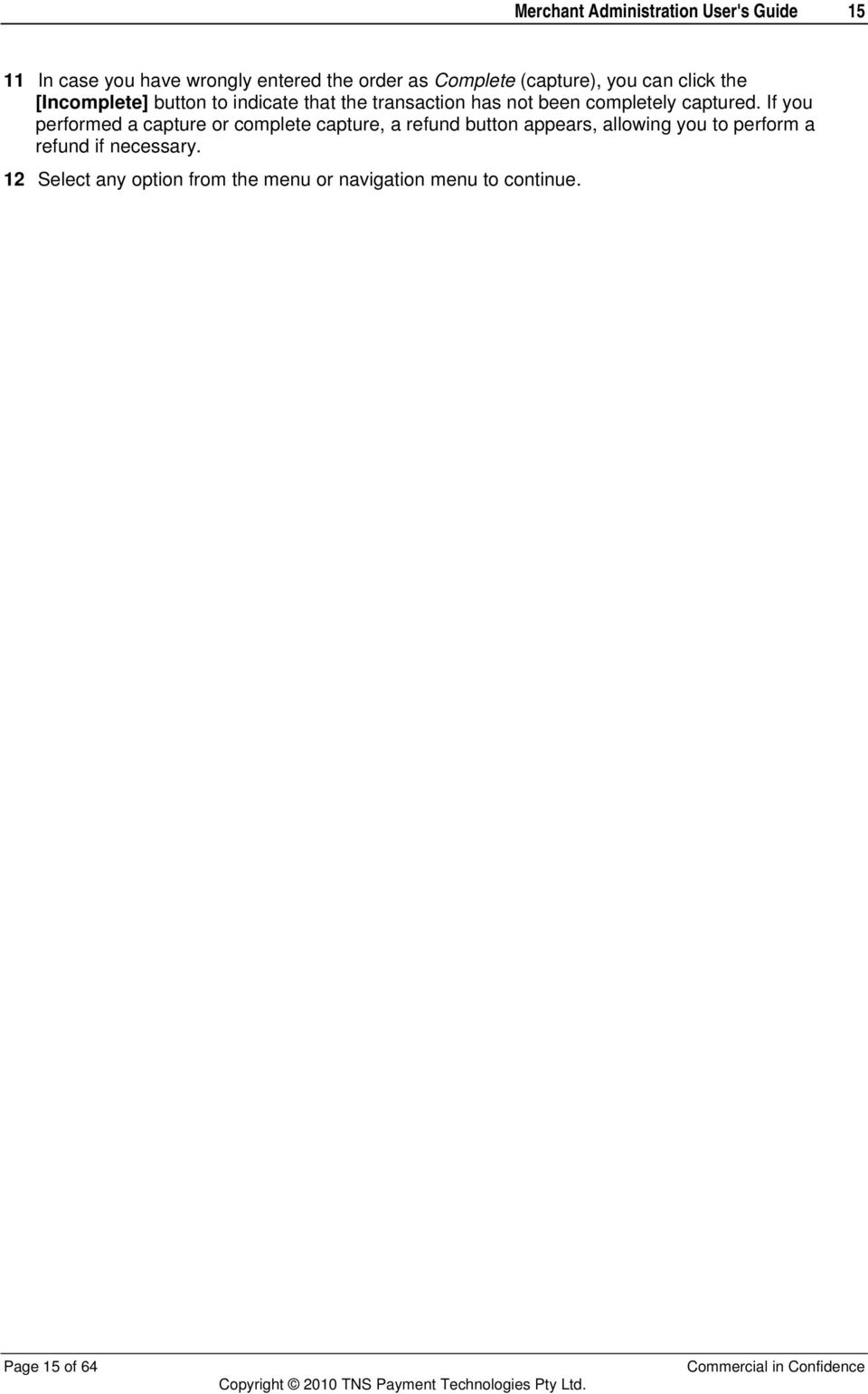
16 16 Merchant Administration User's Guide The Create Order Entry Page Complete all mandatory fields, and others as required. Note: You may not see all the fields listed here, depending on your privileges and the country of use. Order Reference Amount Currency A merchant-supplied identifier for the order. This will typically be used by the customer to identify their order (for example, a booking reference number). The total amount of the order in the transaction currency. For example, AUD $ The currencies supported by the merchant acquirer relationships, displayed with the currency code and the full name. Examples include: AUD - Australian Dollar USD - US Dollar EUR - Euro GBP - UK Pound Sterling Note: If the merchant supports only one currency across all acquirer relationships then only the currency code and name is displayed instead of the currency selection drop-down list. Card Holder Name Card Number Card Expiry Card Security Code No CSC Printed on Card Airline Ticket Number Address City/Town State/Province Zip/Postal Code Country The name of the cardholder. The card number used in the order. Depending on your profile, the format used for displaying card numbers is one of the following: 0.4 Format, for example (xxxxxxxxxxxx1234) 6.3 Format, for example (654321xxxxxxx123) The full card number is displayed The card number is not displayed The expiry date of the card, in mm/yy format. This is a security feature used for card not present transactions. For example: on Visa and MasterCard credit cards, it is the three digit value printed on the signature panel on the back, following the credit card account number. on American Express credit cards, the number is the four digit value printed on the front, above the credit card account number. Indicates that although Card Security Codes are being used, no such code is available on the card being processed. Originally aimed at the airline industry, this is an optional field where extra information about the transaction can be stored. The street details of the cardholder's billing address. The city or town of the cardholder's billing address. The state or province of the cardholder's billing address. The zip or postal code of the cardholder's billing address. The country of the cardholder's billing address. Page 16 of 64
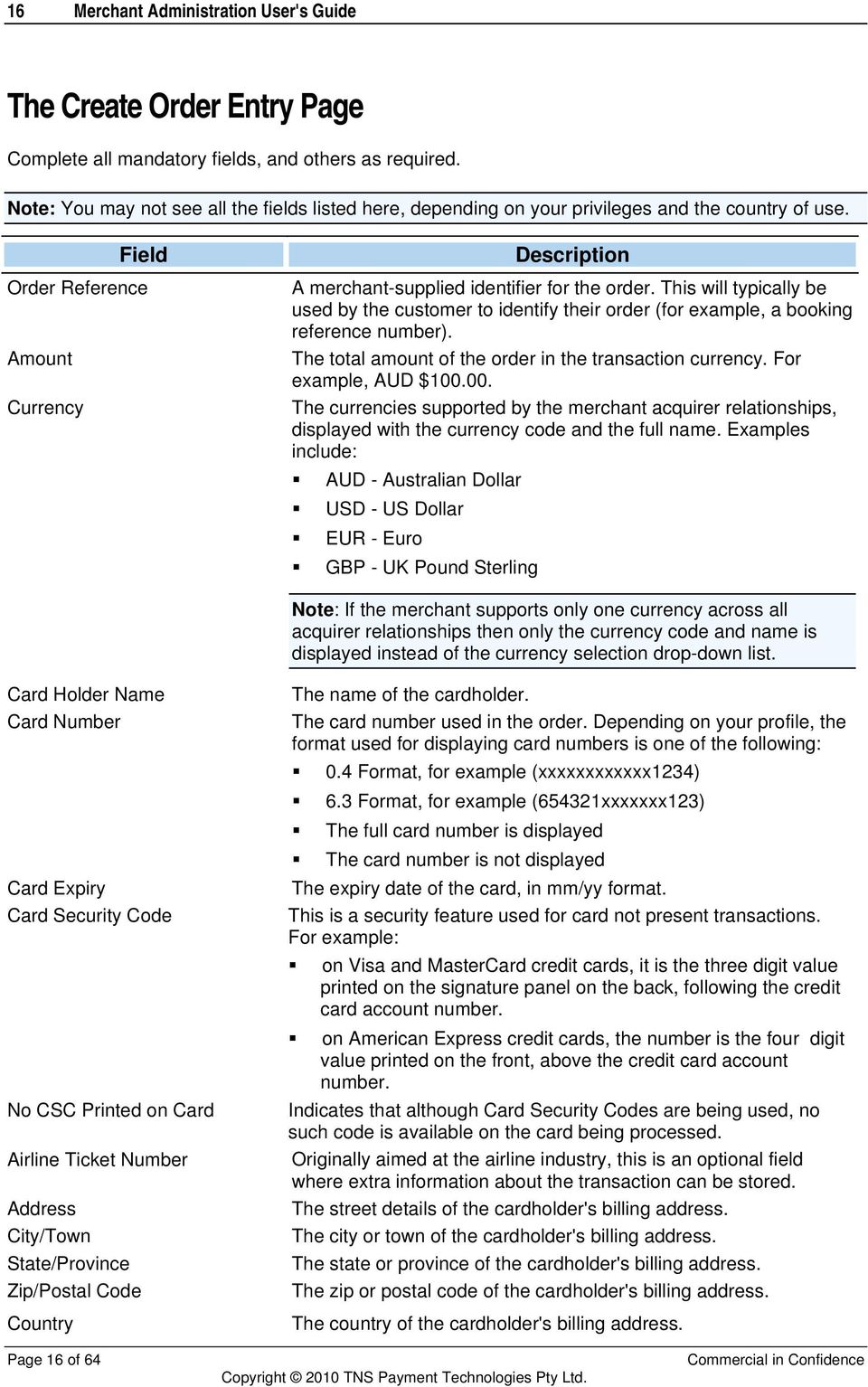
17 Merchant Administration User's Guide 17 Merchant Transaction Source Merchant Transaction Frequency The method by which the merchant received the order. Typical transaction sources include: MOTO Telephone Order Mail Order Voice Response Auto (Risk) - indicates that the system initiated the transaction due to risk assessment. Orders rejected due to risk assessment after the financial transaction are automatically reversed by the system. Specifies the payment scheme used to process the order. Depending on your configuration, the available frequencies can include: Single Transaction This indicates to the acquirer that a single payment is used to complete the cardholders order. Recurring Transaction This indicates to the acquirer that the payment is a recurring bill payment under the card scheme rules. Recurring payments are those originating from automated billing applications for ongoing goods/services (for example to automatically pay a telephone bill each month) with cardholders authorising the merchant to automatically debit their accounts for bill or invoice payments. Installment Transaction This indicates to the acquirer that the payment is an installment payment under the card scheme rules. Installment payments are those where the cardholder authorises the merchant to deduct multiple payments over an agreed period of time for a single purchase. Default The Payment Server will use the Default Transaction Frequency specified in the merchant profile, for the acquirer processing the order. Note: The following fields are displayed only if the card used is a Corporate Purchase Card and you have "Allow Level 2 Order Creation" privilege enabled for your merchant profile. Charge 1-4 are displayed for an American Express Corporate Purchase Card only. Customer Reference Number Tax Exempt Tax Amount Tax Reference Number Commodity Code Purchase Identifier Customer Order Date Charge 1 The cardholder s reference number, for example their purchase order number. Indicates if the purchase transaction you wish to process is exempt from tax. Selecting this check box disables the Tax Amount field. The local tax amount in base currency units. It must not be greater than the total authorised amount. It is provided by the merchant. If applicable, a tax reference value associated with the transaction. The commodity code that is required for a purchasing card transaction. An example of a commodity code is a department name or number. The identifier for the purchase order. The date the cardholder placed the order. Optional free form text field used to describe the nature of the charge associated with the order. Page 17 of 64
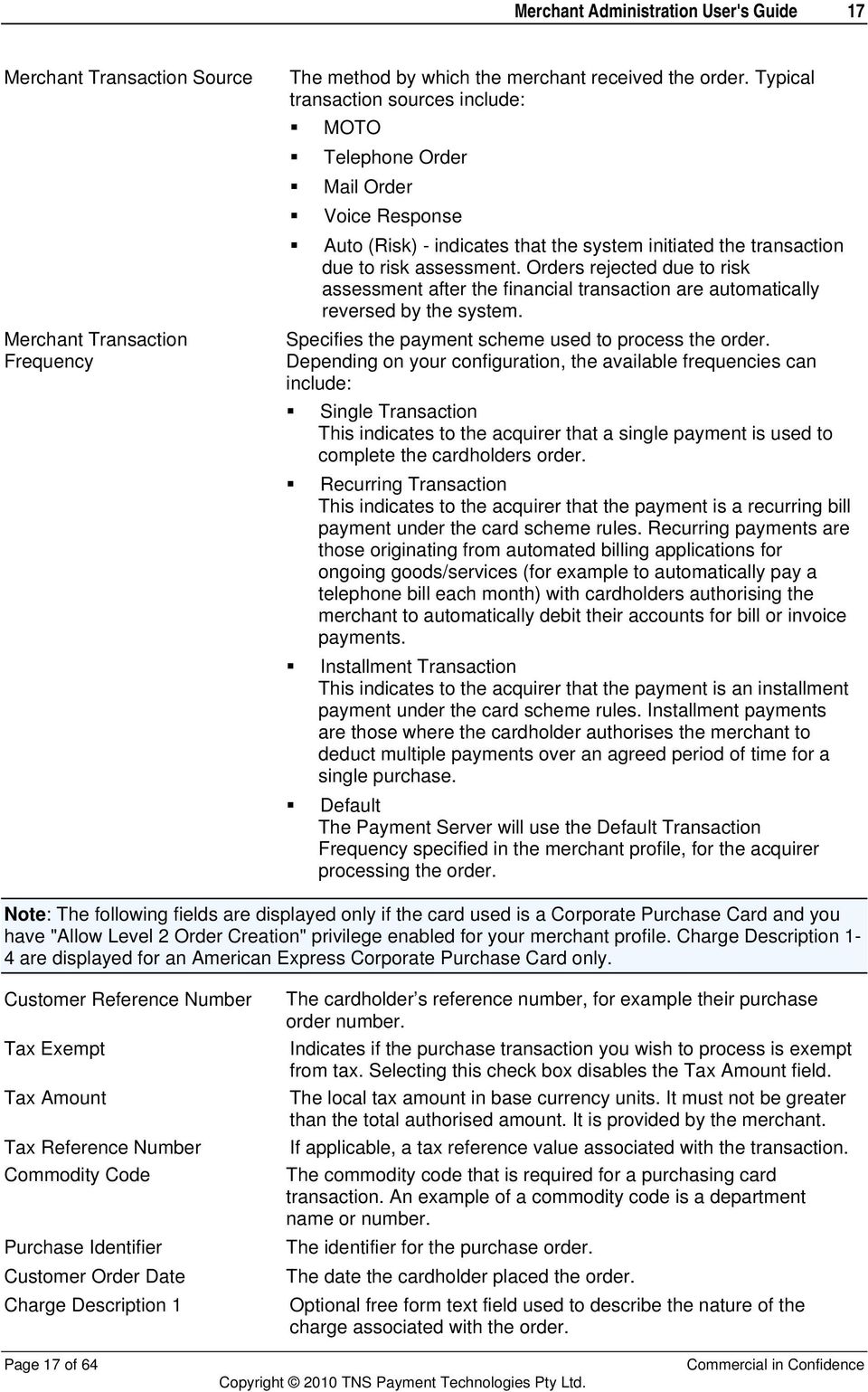
18 18 Merchant Administration User's Guide Charge 2 Charge 3 Charge 4 Optional free form text field used to provide further information about the charge associated with the order. Optional free form text field. Optional free form text field. Note: An error is returned if the combination of currency and card type is not supported by any of the merchant's acquirer links. Page 18 of 64

19 Merchant Administration User's Guide 19 The Create Order Response Page Note: You may not see all the fields described here, depending on your merchant configuration and area of operation. Order ID A unique number used to identify an order. Transaction Number Date Order Reference Amount Card Type Card Holder Name Card Number Card Expiry Authorisation Code Acquirer Response Code Response Code RRN Acquirer AVS Result Dialect AVS Result Country Merchant Transaction Source An automatically generated number uniquely identifying the transaction. This identifier is unique within the merchant. The user-locale date and time at which the order was created. A merchant-supplied identifier for the order. This will typically be used by the customer to identify their order (for example, a booking reference number). The total amount of the order in the transaction currency. For example, AUD $ The card brand used for the transaction. The name of the cardholder. The card number used in the order. Depending on your profile, the format used for displaying card numbers is one of the following: 0.4 Format, for example (xxxxxxxxxxxx1234) 6.3 Format, for example (654321xxxxxxx123) The full card number is displayed The card number is not displayed The expiry date of the card, in mm/yy format. An identifier returned by the card-issuer indicating the result of the authorisation component of the order. The response code from the acquirer indicating success or otherwise of the transaction. A code and brief description summarizing the result of attempting to process the order. Example response codes are: '0 - Approved' '3 - Timed Out' The Retrieval Reference Number, which helps the Acquirer to identify a transaction that occurred on a particular day. Address verification result as provided from the acquirer. Address verification result in standard payment server result format. The country of the cardholder's billing address. The method by which the merchant received the order. Typical transaction sources include: Call Centre Mail Order MOTO Telephone Order Page 19 of 64

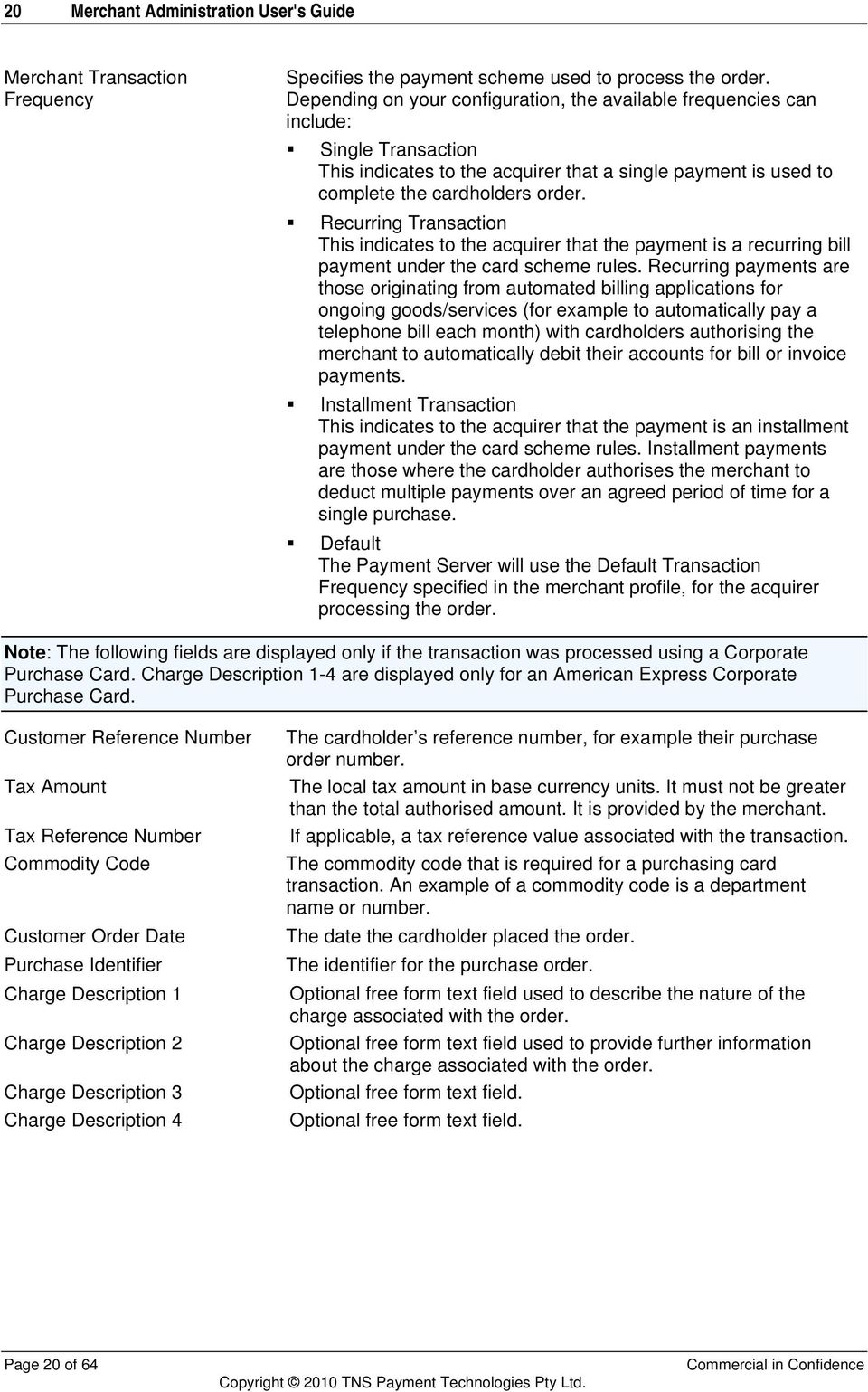
20 20 Merchant Administration User's Guide Merchant Transaction Frequency Specifies the payment scheme used to process the order. Depending on your configuration, the available frequencies can include: Single Transaction This indicates to the acquirer that a single payment is used to complete the cardholders order. Recurring Transaction This indicates to the acquirer that the payment is a recurring bill payment under the card scheme rules. Recurring payments are those originating from automated billing applications for ongoing goods/services (for example to automatically pay a telephone bill each month) with cardholders authorising the merchant to automatically debit their accounts for bill or invoice payments. Installment Transaction This indicates to the acquirer that the payment is an installment payment under the card scheme rules. Installment payments are those where the cardholder authorises the merchant to deduct multiple payments over an agreed period of time for a single purchase. Default The Payment Server will use the Default Transaction Frequency specified in the merchant profile, for the acquirer processing the order. Note: The following fields are displayed only if the transaction was processed using a Corporate Purchase Card. Charge 1-4 are displayed only for an American Express Corporate Purchase Card. Customer Reference Number Tax Amount Tax Reference Number Commodity Code Customer Order Date Purchase Identifier Charge 1 Charge 2 Charge 3 Charge 4 The cardholder s reference number, for example their purchase order number. The local tax amount in base currency units. It must not be greater than the total authorised amount. It is provided by the merchant. If applicable, a tax reference value associated with the transaction. The commodity code that is required for a purchasing card transaction. An example of a commodity code is a department name or number. The date the cardholder placed the order. The identifier for the purchase order. Optional free form text field used to describe the nature of the charge associated with the order. Optional free form text field used to provide further information about the charge associated with the order. Optional free form text field. Optional free form text field. Page 20 of 64
21 Merchant Administration User's Guide 21 Creating a Capture Only Entry Order A Capture Only order is used to capture an amount for an order which was authorised manually, or in an external system. Note: In order to create a Capture Only order, both the operator and the merchant must have the Stand Alone Capture privilege enabled. This privilege is applicable to EMEA and GNS regions only. To create a capture only entry: 1 On the Main menu, click Orders > Capture Only. 2 The Capture Only Entry page is displayed. See The Create Order Entry Page. The Capture Only Entry page includes an additional field, Authorisation Code, which uniquely identifies the authorisation performed outside Merchant Administration. 3 Enter the details of the order, ensuring that all mandatory fields are completed (these are indicated with an asterisk). 4 Click the [Submit] button. The Capture Only Response page displays showing whether or not the transaction has been approved. 5 You can proceed in one of the following ways: Click New transaction with Current Data to perform another capture against the same cardholder. Click New Transaction with Default Data to create another capture against a new cardholder. Note: The fields displayed on the Capture Only Entry page include all those displayed on the Create Order Entry page, and one additional field called 'Authorisation Code'. The Authorisation Code is a mandatory field which identifies the authorisation for the order made in an external system. Searching for Orders To locate an order, use the search options of Merchant Administration. To search for an order: 1 From the Main menu, select Search > Order Search. The Merchant Administration Order Search on page 22 page displays. 2 Enter the search parameters. If you enter multiple search parameters, the records returned will match all the search criteria. 3 Click the [Submit] button. The Order List page on page 23 displays. The Order List page details information for each transaction. 4 Click on an individual Transaction No. to view its details. The Order Details on page 24 page displays. Page 21 of 64
22 22 Merchant Administration User's Guide Order Search Page Identify the orders you wish to retrieve on the Merchant Administration Order Search page, by populating the relevant search criteria. Click the [Submit] button to start the search. The available search fields are: From/To Order ID Order Reference Card Number Authorisations Pending Capture Search for orders within a date range. If you clear the From field, all transactions up to the current date are displayed. The default From and To Dates are at the date of the users local time zone. Search for a specific order by its unique Order ID. Search for orders created with specific Order Reference text. Search for orders made against a specific credit card. Search for orders that have authorised amounts against them which have not yet been captured. Note: The orders returned will exclude outstanding authorisations marked as complete. Outstanding Verifications Search for orders that have credit cards verified but the order amount is not yet captured. Note: The orders returned will exclude outstanding verifications marked as complete. Acquirer ID Currency Card Type Merchant Transaction Source Transaction Success Number of Results to Display on Each Result Page Search for orders processed by a particular acquirer (for example, Mastercard NAB). Search for orders processed by a particular currency or all currencies. Search for orders processed by a particular card type or all card types. Search for orders created using a specific facility (for example, Telephone Order). Search for orders having a specific success status (for example, successful, failed, or referred). Enter the number of rows of search results that you wish to see on a single page. Leave this field blank for the default number of search results to be displayed. Page 22 of 64
23 Merchant Administration User's Guide 23 Viewing Orders - The Order List Page The Order List page displays all the orders that match the criteria of the Order Search on page 22. Acquirer ID Order ID Order Reference Amount Date Response Code Status Capture The unique identifier of the card-processor to which the order was directed for processing. A unique number used to identify an order. A merchant-supplied identifier for the order. This will typically be used by the customer to identify their order (for example, a booking reference number). The total amount of the order in the transaction currency. For example, AUD $ The user-locale date and time at which the order was created. A code and brief description summarizing the result of attempting to process the order. Example response codes are: '0 - Approved' '3 - Timed Out' The result of the most recent action performed on the order (for example, 'Authorised' or 'Captured'.) A check box enabling the operator to select orders against which funds are to be captured. Select an Order ID to see the details of that order. The Order Details page displays. Use the [Select All] button if you wish to capture all the orders. Click the [Capture] button to perform a capture on any orders that have been selected for capture in the Order List. Note 1: These buttons display only if you have the Perform Bulk Captures privilege. Note 2: You can bulk capture orders with Level 2 data only if your merchant profile has "Allow Level 2 Order Creation" privilege enabled. Page 23 of 64
24 24 Merchant Administration User's Guide Viewing an Individual Order - The Order Detail Page The Order Detail page lists the following information for an order: Order Details Address Verification Details Card Details Action History Order Details Acquirer ID Order ID The unique identifier of the card-processor to which the order was directed for processing. Note: If an acquirer link is configured to have multiple acquirer relationships, then the acquirer link is suffixed with the Bank Merchant ID following a hyphen. For example, ANZ via FDRA where "ANZ via FDRA" is the acquirer link and "12345" is the Bank Merchant ID. A unique number used to identify an order. Date Order Reference Airline Ticket Number Amount Authorised Amount Captured Amount Refunded Amount Authorisation Code The user-locale date and time at which the order was created. A merchant-supplied identifier for the order. This will typically be used by the customer to identify their order (for example, a booking reference number). Originally aimed at the airline industry, this is an optional field where extra information about the transaction can be stored. The total amount of the order in the transaction currency. For example, AUD $ The amount of the order that has been successfully authorised by the issuer, displayed with the currency code and the currency symbol. For example, AUD $ The amount of the order that has been successfully captured by the merchant, displayed with the currency code and the currency symbol. For example, AUD $ The amount of the order that has been successfully refunded by the merchant, displayed with the currency code and the currency symbol. For example, AUD $ An identifier returned by the card-issuer indicating the result of the authorisation component of the order. Page 24 of 64
25 Merchant Administration User's Guide 25 Merchant Transaction Source Merchant Transaction Frequency Response Code The method by which the merchant received the order. Typical transaction sources include: MOTO Telephone Order Mail Order Voice Response Auto (Risk) - indicates that the system initiated the transaction due to risk assessment. Orders rejected due to risk assessment after the financial transaction are automatically reversed by the system. Indicates whether the transaction was a single, recurring or part of an installment payment. Depending on your configuration the available frequencies can include: Single Transaction This indicates to the acquirer that a single payment is used to complete the cardholders order. Recurring Transaction This indicates to the acquirer that the payment is a recurring bill payment under the card scheme rules. Recurring payments are those originating from automated billing applications for ongoing goods/services (for example to automatically pay a telephone bill each month) with cardholders authorising the merchant to automatically debit their accounts for bill or invoice payments. Installment Transaction This indicates to the acquirer that the payment is an installment payment under the card scheme rules. Installment payments are those where the cardholder authorises the merchant to deduct multiple payments over an agreed period of time for a single purchase. A code and brief description summarizing the result of attempting to process the order. Example response codes are: '0 - Approved' '3 - Timed Out' Address Verification Details Address City/Town State/Province Zip/Postal Code Country Dialect AVS Result Code AVS Result Code The street details of the cardholder's billing address. The city or town of the cardholder's billing address. The state or province of the cardholder's billing address. The zip or postal code of the cardholder's billing address. The country of the cardholder's billing address. Code and description summarising the outcome of the address verification attempt. For example: 'X (Exact match, 9-digit zip)'. Code and description returned by the AVS server. Page 25 of 64
26 26 Merchant Administration User's Guide Card Details Card Type Card Number Card Expiry Card Start Date Issue Number Acquirer CSC Result Code Dialect CSC Result Code The card brand used for the transaction. The card number used in the order. Depending on your profile, the format used for displaying card numbers is one of the following: 0.4 Format, for example (xxxxxxxxxxxx1234) 6.3 Format, for example (654321xxxxxxx123) The full card number is displayed The card number is not displayed The expiry date of the card, in mm/yy format. The start date of the card, if provided. The issue number, if provided. Card security code validation result code as provided from the acquirer. Card security code validation result code in standard payment server result format. Action This section will contain only those actions that are applicable to the order. Note: You may see none or more of the following fields. For the steps required to use these field correctly, see Performing Actions on Orders. Capture Amount Refund Amount Enter the amount to be captured in this transaction. Enter the amount to be refunded to the cardholder. Note: The following fields are displayed only if the transaction was processed using a Corporate Purchase Card. Charge 1-4 are displayed only for an American Express Corporate Purchase Card. Tax Amount Tax Reference Number Customer Reference Number Charge 1 Charge 2 Charge 3 Charge 4 The local tax amount in base currency units. It must not be greater than the total authorised amount. It is provided by the merchant. If applicable, a tax reference value associated with the transaction. The cardholder s reference number, for example their purchase order number. Optional free form text field used to describe the nature of the charge associated with the order. Optional free form text field used to provide further information about the charge associated with the order. Optional free form text field. Optional free form text field. Page 26 of 64
27 Merchant Administration User's Guide 27 History Response Code Date Transaction Type Amount Operator ID Transaction ID Merchant Transaction Reference Transaction Source A code and brief description summarizing the result of attempting to process the order. Example response codes are: '0 - Approved' '3 - Timed Out' The user-locale date and time at which the order was created. The type of transaction performed. An example may be: Authorisation Capture Refund. The total amount of the order in the transaction currency. For example, AUD $ The identifier of the merchant operator that performed the action. A merchant generated unique identifier for the financial transaction (or system generated if one is not provided). This identifier is unique within the order. A unique merchant specific identifier used in Payment Client transactions. Indicates the source of the transaction. Typical transaction sources include: PC MOTO Direct Auto (Risk) Note: Auto (Risk) indicates that the system initiated the transaction due to risk assessment. Orders rejected due to risk assessment after the financial transaction are automatically attempted for a reversal by the system. Performing Actions on Orders The Action section on the Orders Details on page 24 page allows the operator to perform actions upon a Order. These actions will vary according to the payment type, and to the stage of the payment cycle. For example, an order which has authorised amount and awaiting capture may display as shown in the example. Page 27 of 64
28 28 Merchant Administration User's Guide Actions which may be available for a transaction are: Capture Complete (Capture) Incomplete (Capture) Refund Note: To perform any action you must have the required user privilege, for example, Refunds or Captures. Capturing an Order Amount You may capture some or all of the authorised amount of a transaction. To capture funds for an authorised transaction: 1 Enter the amount in the Capture Amount field. 2 Click the [Capture] button. Completing an Order In several situations, it is useful to consider an order to be complete, even though only a portion of the authorised amount of the order has been captured. Consider, for example, a book-supplier who authorises an order for three books, but then discovers that only two of the ordered books can be found on their shelves. The supplier may want to capture the portion of the authorised amount corresponding to the value of the two books they can find, and then tag the order as complete to indicate that no more funds will be charged to the customer's card for this order. Similarly, when a guest books a hotel room, the hotel may authorise an amount which is intended to cover both room rental and any anticipated room-service charges. If, on checking out of the hotel, the guest has incurred no room-service charges, the hotel will only capture the portion of the authorised amount corresponding to rental of the room, and will then consider the order to be complete. Whenever the authorised amount of an order has not been completely captured, it is possible to mark the order as complete, so that no further captures may be made against it. To tag a partially captured order as complete: Click the [Complete] button. The refreshed order details page displays. The Amount field is now appended with the word 'Completed', and the only actions now available for the order are [Refund] and [Incomplete]. Note: Complete orders will not be retrieved by an order search specifying Outstanding Authorisations. If you decide that a further capture is required against a complete order (if the book-seller finds the missing book at the last minute, for example), it is possible to re-tag the order as incomplete, so that a further capture can be made. To tag a complete order as incomplete: Click the [Incomplete] button. The refreshed order details page displays. The word 'Completed' is now removed from the Amount field, and the actions now available for this order are [Refund], [Complete], and [Capture]. Page 28 of 64
29 Merchant Administration User's Guide 29 Refunding a Transaction A refund is cancelling any purchases performed on a pre-authorised amount. Note: Refunding a transaction is not supported by all card types. Refunds are performed for many reasons, for example, the return of unwanted, incorrect or faulty goods. To refund an OrderID (shopping transaction) : 1 Enter the Amount to be refunded in the Refund box. 2 Click the Refund button. The refreshed Orders Details page displays and includes the new transaction. Page 29 of 64
30
31 31 Merchant Administration User's Guide C HAPTER 4 Settling Orders Merchant Administration allows you to settle your customer's orders automatically or manually with your acquirer. Settlement allows you to view the set of orders that have been billed to the customer but still have to be settled with the acquirer. Note: To perform a manual Settlement you require Merchant and User privileges to View Settlement pages and Initiate Manual Batch Closure. User privileges are found in the Operator Detail page under the Admin menu. Settlements are balance operations between a merchant s accounts and an acquirer s records. Depending on how your merchant profile is set up, settlement can be done automatically (the time is set when creating your merchant profile) or manually (you can settle your orders yourself). Settlement is divided into two sections: Settlement - Display the orders in the current settlement that are to be settled. Settlement History Selections - Allows you to search for and view orders that have already been settled. Dealing with Unsettled Transactions To view the current orders awaiting settlement: 1 Select Settlement > Pre-settlement Summary. If you have multiple acquirer links, the Settlement Acquirer Link Selection page displays. Note that the card types and currencies configured for the acquirer link are also displayed. Select the Acquirer ID and click the [Submit] button. The Unsettled Transactions Summary on page 32 page displays. 2 The Settlement page shows the current orders awaiting settlement. It details a settlement by Currency. Each row for a currency provides details for transactions processed by a specific card type. 3 If you have the Initiate Manual Batch Closure privilege, a [Settle Now] button displays. Click this to settle the batch. The Batch Closure Receipt on page 33 page displays. Page 31 of 64
32 32 Merchant Administration User's Guide Unsettled Transactions Summary Page The Unsettled Transactions Summary page displays lists of transactions by currency, and provides a [Settle Now] button that allows you to settle all pending orders. The fields are as follows: Number of Batch Currently Open Merchant ID Acquirer ID The number of the batch that is currently open. The merchant s unique alphanumeric identifier. There is a unique Merchant ID for each merchant account/profile. The unique identifier of the card-processor to which the order was directed for processing. Transactions by Currency The transactions are grouped into sections by the transaction currency. Card Types Debits Count Total Debits or Debits Amount Number Credits Total Credits The card types in this summary, for example: JCB Visa MasterCard American Express Diners Bankcard JCB Discover The number of debits in the settlement batch. The total debit amount in the settlement batch. The number of credits in the settlement batch. The total credit amount in the settlement batch. Page 32 of 64
33 Merchant Administration User's Guide 33 Batch Closure Receipt Page The Batch Closure receipt page contains the following details about the batch that was settled using the Settle Now button on the Unsettled Transactions Summary on page 32 page. No. of Batch being Closed Merchant ID Acquirer ID The number of the batch that is being closed in this transaction. The merchant s unique alphanumeric identifier. There is a unique Merchant ID for each merchant account/profile. The unique identifier of the card-processor to which the order was directed for processing. Note: If an acquirer link is configured to have multiple acquirer relationships, then the acquirer link is suffixed with the Bank Merchant ID following a hyphen. For example, ANZ via FDRA where "ANZ via FDRA" is the acquirer link and "12345" is the Bank Merchant ID. Status The batch status. Searching for Settlements To view current or completed settlements: 1 Click Settlement > Settlement Search. The Settlement Search on page 34 page displays. 2 Enter the search criteria for the type of settlements to locate. 3 Click the [Submit] button. The Settlement List on page 34 page displays. 4 To view a particular batch, select the batch number. The Settlement Details on page 35 page displays the details of the settlement. Page 33 of 64
34 34 Merchant Administration User's Guide Settlement Search Page Specify your search by using the fields to enter the search parameters. Click [Submit] to start the search. The available search parameters are: From/To Batch Number Settlement Result Acquirer ID Search for orders within a date range. If you clear the From field, all transactions up to the current date are displayed. The default From and To Dates are at the date of the users local time zone. Select settlements belonging to a particular batch. Select settlements according to result: All Settlement responses Successful Settlements Pending Settlements Failed Settlements Search for orders processed by a particular acquirer (for example, Mastercard NAB). Settlement List - Settled Batches This page lists the details of the settled batches. Acquirer ID Batch Number Settlement Date and time Debits Count Credits Count The unique identifier of the card-processor to which the order was directed for processing. The identifier for the batch to which the transactions belongs. The date on which the batch was settled. or The date and time on which the batch was settled. The number of debits in the settled batch. The number of credits in the settled batch. Page 34 of 64
35 Merchant Administration User's Guide 35 Settlement Details Page The Settlement Details page consists of two sections, Merchant and Acquirer Details and Merchant and Acquirer Details Comparison. The transactions in the Merchant and Acquirer Details Comparison section are grouped by currencies. Merchant and Acquirer Settlement Details Merchant ID Acquirer ID The merchant s unique alphanumeric identifier. There is a unique Merchant ID for each merchant account/profile. The unique identifier of the card-processor to which the order was directed for processing. Note: If an acquirer link is configured to have multiple acquirer relationships, then the acquirer link is suffixed with the Bank Merchant ID following a hyphen. For example, ANZ via FDRA where "ANZ via FDRA" is the acquirer link and "12345" is the Bank Merchant ID. Batch Number Submission Date Settlement Response Payment Method The identifier for the batch to which the transactions belongs. The date on which the settlement occurred. The response received back from the acquirer. The method of funds transfer used for the transaction. For example, Credit. Merchant and Acquirer Settlement Details Comparison Currency Debits Count Total Debits or Debits Amount Number Credits Total Credits The currency used for the transaction. The number of debits in the settlement batch. The total debit amount in the settlement batch. The number of credits in the settlement batch. The total credit amount in the settlement batch. Page 35 of 64
36
37 37 Merchant Administration User's Guide C HAPTER 5 Financial Transactions Financial Transactions represent the flow of information between the cardholder, the merchant and the acquirer when purchasing goods and services. They include transactions for purchasing goods immediately, authorizing and billing goods on order, and performing refunds when necessary. Searching for Financial Transactions To locate a financial transaction, use the search options of Merchant Administration. To search for a financial transaction: 1 From the Main menu, select Search > Financial Transaction Search. The Merchant Administration Financial Transaction Search page displays. 2 Enter the search parameters. If you enter multiple search parameters, the records returned will match all the search criteria. 3 Click the [Submit] button. The Financial Transactions List on page 39 page displays. 4 Select an individual Transaction ID to view its details. The Financial Transaction Details page on page 40 displays. Page 37 of 64
38 38 Merchant Administration User's Guide Financial Transactions Search Page Use the fields on the Financial Transaction Search page to enter the search parameters. The search parameters are as follows: From/To Transaction Number Batch Number RRN Merchant Transaction Reference Transaction Type Payment Method Acquirer ID Currency Transaction Success Authentication Type Search for orders within a date range. If you clear the From field, all transactions up to the current date are displayed. The default From and To Dates are at the date of the users local time zone. Select a transaction by its system generated unique identifier for the financial transaction. This identifier is unique within the merchant. Select transactions belonging to a particular batch. The RRN (Reference Retrieval Number) allows the Acquirer to uniquely identify a transaction. A unique merchant specific identifier used in Payment Client transactions. Search for transactions of a particular type, for example: All Authorisation Capture Refund Void Refund Void Capture Search for transactions according to the payment method. Valid values are: Credit PayPal Search for orders processed by a particular acquirer (for example, Mastercard NAB). Search for orders processed by a particular currency or all currencies. Search for orders having a specific success status (for example, successful, failed, or referred). Search for a particular type of 3DS authentication. Click the drop down arrow and select an authentication type from the list, or leave the default entry to display all authentication types. The available types of authentication are: IGNORE All Authenticated Transactions All Non-Authenticated Transactions Verified by Visa MasterCard SecureCode JCB J/Secure Amex SafeKey Page 38 of 64
39 Merchant Administration User's Guide 39 Authentication State Search for transactions with a particular authentication status. Click the drop down arrow and select an authentication status from the list, or leave the default entry to display all authentication status. The available types of authentication status are: IGNORE All Authenticated Transactions All Non-Authenticated Transactions Authenticated Transactions Successful Authenticated Transactions Failed Authenticated Transactions Undetermined Authenticated Transactions Not Enrolled Number of Results to Display on Each Result Page Enter the number of rows of search results that you wish to see on a single page. Leave this field blank for the default number of search results to be displayed. Click [Submit] to start the search. The Financial Transactions List page displays. Viewing the Financial Transactions List To view financial transactions, use the search methods described in Searching for Financial Transactions. The Financial Transaction List page details the following information for each transaction: Acquirer ID Transaction Number Merchant Transaction Reference Transaction Type Amount Date Response Code The unique identifier of the card-processor to which the order was directed for processing. An automatically generated number uniquely identifying the transaction. This identifier is unique within the merchant. A unique merchant specific identifier used in Payment Client transactions. The type of transaction performed. An example may be: Authorisation Capture Refund. The total amount of the order in the transaction currency. For example, AUD $ The user-locale date and time at which the order was created. A code and brief description summarizing the result of attempting to process the order. Example response codes are: '0 - Approved' '3 - Timed Out' Click an individual Financial Transaction ID to view its details. The Financial Transaction Details on page 40 page displays. Page 39 of 64
40 40 Merchant Administration User's Guide Viewing an Individual Financial Transaction After the list of financial transactions on page 39 displays, you can click an individual Financial Transaction ID to view its details. The Financial Transaction Details page displays all the details of an individual financial transaction. The fields displayed are as follows: Acquirer ID The unique identifier of the card-processor to which the order was directed for processing. Note: If an acquirer link is configured to have multiple acquirer relationships, then the acquirer link is suffixed with the Bank Merchant ID following a hyphen. For example, ANZ via FDRA where "ANZ via FDRA" is the acquirer link and "12345" is the Bank Merchant ID. Transaction Number Merchant Transaction Reference Date Transaction Type Payment Method or Payment Types Amount Order ID Batch Number RRN Response Code Acquirer Response Code Authorisation Code Integration Type An automatically generated number uniquely identifying the transaction. This identifier is unique within the merchant. A unique merchant specific identifier used in Payment Client transactions. The user-locale date and time at which the order was created. The type of transaction performed. An example may be: Authorisation Capture Refund. The account type: Credit Card. The total amount of the order in the transaction currency. For example, AUD $ A unique number used to identify an order. The identifier for the batch to which the transactions belongs. The Retrieval Reference Number, which helps the Acquirer to identify a transaction that occurred on a particular day. A code and brief description summarizing the result of attempting to process the order. Example response codes are: '0 - Approved' '3 - Timed Out' The response code from the acquirer indicating success or otherwise of the transaction. An identifier returned by the card-issuer indicating the result of the authorisation component of the order. The means by which the merchant accesses the Payment Server. The available integration types are: PC (Payment Client) VPC (Virtual Payment Client) MA (Merchant Administration) API:REST (JSON) API:NVP Page 40 of 64
41 Merchant Administration User's Guide 41 Integration Type Version The version of the software used to integrate to the Payment Server. Note: This field is displayed only if the Integration Type is PC or VPC. Transaction Source Indicates the source of the transaction. Typical transaction sources include: PC MOTO Direct Auto (Risk) Note: Auto (Risk) indicates that the system initiated the transaction due to risk assessment. Orders rejected due to risk assessment after the financial transaction are automatically attempted for a reversal by the system. Note: The following fields are displayed only if the transaction was processed using a Corporate Purchase Card. Charge 1-4 are displayed for an American Express Corporate Purchase Card only. Tax Amount Tax Reference Number Customer Reference Number Charge 1 Charge 2 Charge 3 Charge 4 The local tax amount in base currency units. It must not be greater than the total authorised amount. It is provided by the merchant. If applicable, a tax reference value associated with the transaction. The cardholder s reference number, for example their purchase order number. Optional free form text field used to describe the nature of the charge associated with the order. Optional free form text field used to provide further information about the charge associated with the order. Optional free form text field. Optional free form text field. Page 41 of 64
42 42 Merchant Administration User's Guide Downloading the Transactions File To use the download transaction information functionality, you must have been set up to do so by Transaction Network Services'. The [Download] button on Financial Transactions Search, or Download Search Results link on the Financial Transaction List on page 39, allows you to download transaction information in a text or csv file. The file contains the orders with all the associated Financial Transaction data for the search criteria entered. The format of the file is a Comma Separated Value file and ends with the extension.csv. This format is used to transfer data from one application to another. Most database systems can import and export comma-separated value files, which can be used in any spreadsheet program. To download transaction information you must first enter your search criteria in the Financial Transaction Search page. Note: If you are configured to download financial transactions in the multi-currency format, the Currency column is replaced by the Currency Code column, which displays the currency code instead of the currency symbol. An additional column for Bank Merchant ID/ SE Number is also displayed. Downloading Transaction Files 1 From the Financial Transactions Search page, after you have entered the search criteria, click the [Download] button. 2 A dialog box displays, prompting you to choose whether you would like to open or save the file. 3 Click the required button and follow the prompts. 4 If you choose to Save to Disk, you can change the file name and select a location to save the file. 5 Or, if you choose to Open the file, for example, using Excel (the default option), the file opens in Excel. Note: Ensure that you take necessary security measures to protect the data downloaded on to your computer. Page 42 of 64
43 43 Merchant Administration User's Guide C HAPTER 6 Payment Authentications 3-D Secure Schemes, are Payment Authentications designed to stop credit card fraud by authenticating cardholders when performing transactions over the Internet. Merchant Administration allows you to search for payment authentications and view the results. Payment Authentication Information Flow A payment authentication is performed immediately before a merchant performs an authorisation or purchase. Authenticating ensures that the card is being used by its legitimate owner. During a transaction, authentication allows a merchant to confirm the identity of the cardholder by redirecting them to their card-issuer where they enter a password that they had previously registered with their card issuer. The cardholder must have registered their card and password with the issuing bank before they can use the authentication scheme. The cardholder s browser acts as a path to transport messages between the web application, the Payment Server and the card-issuing bank s Access Control Server (ACS). The following is the flow of information between all the parties in a payment authentication. 1 If the merchant collects the cardholder's details, the cardholder enters their card details into the merchant application payment page and submits the order, and their browser is redirected to the Payment Server. If the Payment Server collects the cardholder s card details, the cardholder will now enter their card details on the payments page provided by the Payment Server. 2 The Payment Server determines if the card is enrolled in the Payment Authentications scheme by checking the card scheme database. If the cardholder s card is registered in the scheme, the Payment Server redirects the cardholder s browser to the ACS site for authentication. If the card is not enrolled, steps 3, 4 and 5 (below) are skipped, and the Payment Server continues processing the transaction. 3 The ACS displays the cardholder s secret message and the cardholder enters their response (password), which is checked with the Card Issuer database. 4 The cardholder is redirected back to the Payment Server and the card issuer sends an authentication message indicating whether or not the cardholder s password matched the message in the database. 5 The Payment Server continues processing the transaction. Note: If the merchant profile has 3DS Blocking enabled, and the transaction fails authentication, the Payment Server will not continue to process the transaction, and the details of the transaction will not be saved. 6 The cardholder is redirected to the merchant, where the receipt is passed back to the cardholder. Page 43 of 64
44 44 Merchant Administration User's Guide Payment Authentications Status Merchant Administration provides you with a record of every attempt at authentication by your cardholders. The status of payment authentications are the values returned for every attempted authentication, showing, for example, whether the authentication passed or failed. During the authentication process, while a cardholder is being authenticated, the merchant will see a status value of T. This changes to a value of Y-Success if the authentication is successful. The cardholder is then redirected to the payment section of the transaction. If however, the cardholder cancelled the transaction in the authentication stage, then the value T is displayed in the merchant s records. If the cardholder is enrolled but is not authenticated correctly, for example, because the customer may have entered their password incorrectly 3 times, then the value F is displayed to indicate that the cardholder failed the authentication process. If the cardholder is not enrolled, the transaction is processed without the cardholder being redirected to be authenticated, but a value is returned to show that the cardholder was not enrolled. Searching for Payment Authentications The Payment authentication search page provides ways to select a single or set of payment authentications to view the results of the authentication. To search for a payment authentication: 1 Select Search from the Main menu. 2 Select Payment Authentications Selection from the submenu. The Merchant Administration Payment Authentication Search page displays. 3 Enter your search parameters. If you enter multiple search parameters, the records returned will match all the search criteria. 4 After you have entered your search criteria you can view the results of your search on the next page. Page 44 of 64
45 Merchant Administration User's Guide 45 Payment Authentications Search Page Use the fields on the Payment Authentications Search page to find the required payment authentications. The search parameters are as follows: Merchant ID From/To Authentication ID Order Reference Currency Authentication Type Authentication State Number of Results to Display on Each Result Page Enter a Merchant ID or click the [Search] link to use the Merchant Search page. Search for orders within a date range. If you clear the From field, all transactions up to the current date are displayed. The default From and To Dates are at the date of the users local time zone. Search for an order with a particular authentication ID. Search for orders created with specific Order Reference text. Search for orders processed by a particular currency or all currencies. Search for a particular type of 3DS authentication. Click the drop down arrow and select an authentication type from the list, or leave the default entry to display all authentication types. The options may include: IGNORE All Authenticated Transactions All Non-Authenticated Transactions MasterCard SecureCode Verified By Visa JCB J/Secure Amex SafeKey Search for transactions with a particular authentication status. Click the drop down arrow and select an authentication status from the list, or leave the default entry to display all authentication status. The available types of authentication status are: IGNORE All Authenticated Transactions All Non-Authenticated Transactions Authenticated Transactions Successful Authenticated Transactions Failed Authenticated Transactions Undetermined Authenticated Transactions Not Enrolled Enter the number of rows of search results that you wish to see on a single page. Leave this field blank for the default number of search results to be displayed. Click the [Submit] button to start the search. The Payment Authentication List page displays. Page 45 of 64
46 46 Merchant Administration User's Guide Viewing the Payment Authentications List To view the results of your search, click the [Search] button on the Payment Authentication on page 44 page. The results display on the Payment Authentication List page. The Payment Authentication List page details the following information for each authentication: Authentication ID Authentication Type Order Reference Amount Date Response Code The unique payment authentication ID. Click on the ID to view the authentication details. The type of 3DS authentication. The available types of 3DS authentication are: All Authenticated Transactions All Non-Authenticated Transactions Verified by Visa MasterCard SecureCode JCB J/Secure Amex SafeKey A merchant-supplied identifier for the order. This will typically be used by the customer to identify their order (for example, a booking reference number). The total amount of the order in the transaction currency. For example, AUD $ The user-locale date and time at which the order was created. A code and brief description summarizing the result of attempting to process the order. Example response codes are: '0 - Approved' '3 - Timed Out' Page 46 of 64
47 Merchant Administration User's Guide 47 Viewing an Individual Payment Authentication To view the details of an individual payment authentication, click an authentication number displayed after a search on the Payment Authentication on page 44 page. The Payment Authentication Details page displays. The Payment Authentication Details page displays the following information for a specific payment authentication. Note: You may not see all the fields listed here. Depending on prior selections, your privileges and the country of use, some fields may be enabled or disabled. Authentication ID Date Order Reference Card Number Amount Authentication Type The unique payment authentication ID. Click on the ID to view the authentication details. The user-locale date and time at which the order was created. This is also known as the Session ID. It is the merchant s unique identifier for each transaction. For example, the order number attached to the Digital Order from the Payment Client. The card number used in the order. Depending on your profile, the format used for displaying card numbers is one of the following: 0.4 Format, for example (xxxxxxxxxxxx1234) 6.3 Format, for example (654321xxxxxxx123) The full card number is displayed The card number is not displayed The total amount of the order in the transaction currency. For example, AUD $ The type of payment authentication, for example: Verified by Visa (Visa 3-D Secure) MasterCard SecureCode 3-D Secure JCB J-Secure Amex SafeKey Page 47 of 64
48 48 Merchant Administration User's Guide Authentication State A payment authentication specific field that indicates the status of the payment authentication, for example: Y Success - The cardholder was successfully authenticated. M Success - The cardholder is not enrolled, but their card issuer attempted processing. E Not Enrolled - The cardholder is not enrolled. F Failed - An error exists in the request format from the Merchant. N Failed - Verification Failed. U Undetermined - The verification was unable to be completed. This can be caused by network or system failures. T Undetermined - The cardholder session timed out and the cardholder s browser never returned from the Issuer site. A Undetermined - Authentication of Merchant ID and Password to the Directory Failed. D Undetermined - Error communicating with the Directory Server. C Undetermined - Card brand not supported. S Failed - The signature on the response received from the Issuer could not be validated. This should be considered a failure. P Failed - Error receiving input from Issuer. I Failed - Internal Error. Note: New authentication codes are returned if "Use new 3DS response codes for VPC/PC" privilege is enabled for your merchant profile. Verification Security Level Verification Token (CAVV) Verification Token (UCAF) Verification Token (AEVV) The Verification Security Level field shows the VISA ECI or MasterCard SLI or J/Secure value sent in the authorisation message. It is generated either by the Payment Server or your online store depending on your chosen implementation model. It is shown for all transactions except those with authentication status Failure. These values are: 05 - Fully Authenticated 06 - Not authenticated (cardholder not participating) 07 - Not authenticated (usually due to a system problem or invalid password) The actual value used may differ for some banks. The Verification Token (CAVV = Cardholder Authentication Verification Value) is a Visa token generated at the card issuer to prove that the Visa cardholder authenticated satisfactorily. The Verification Token (UCAF =Universal Cardholder Authentication Verification Value) is a MasterCard token generated at the card issuer to prove that the MasterCard cardholder authenticated satisfactorily. The Verification Token (AEVV = American Express Verification Value) is a American Express token generated at the card issuer to prove that the American Express cardholder authenticated satisfactorily. Page 48 of 64
49 Merchant Administration User's Guide 49 3-D Secure VERes.enrolled This value indicates whether or not the card used was enrolled for 3-D Secure at the time of the transaction. The available values are: Y - Yes N - No U - Undetermined. For example, the payment authentications system was unavailable at the time of the authentication. 3-D Secure XID The unique identifier returned by the issuer for a successful authentication. 3-D Secure ECI The 3-D Secure Electronic Commerce Indicator (ECI), as returned from the issuer in response to an authentication request. 3-D Secure PARes.status Indicates the result of the cardholder authentication. The available values are: Y Yes N No A Attempted Authentication but failed. For example the cardholder failed to enter their password after three attempts. U Undetermined. The payment authentications system was unavailable at the time of the authentication. Time taken (milliseconds) A payment authentication specific field which indicates the time taken (in milliseconds) for the payment authentication. Transaction Number An automatically generated number uniquely identifying the transaction. This identifier is unique within the merchant. Note: The following extended response fields are displayed only if an error message is returned from the Directory Server (DS) or Access Control Server (ACS). Source Message Type Error Message Version Error Code Error Detail Vendor Code Error The source of the following fields. For example, ACS, DS. IREQ (Invalid Request Response) or Error The version of the message as returned by the ACS/DS The error code as returned by the ACS/DS Detail message as returned by the ACS/DS Vendor code for the ACS/DS. of the error, as returned by the ACS/DS. Page 49 of 64
50 50 Merchant Administration User's Guide Downloading Payment Authentication Information To use the download transaction information functionality, you must have been set up to do so by Transaction Network Services'. The [Download] button on Payment Authentications Search on page 45, or Download Search Results link on the Payment Authentications List on page 46, allows you to download transaction information in a text or csv file. The file contains the orders with all the associated Payment Authentication data for the search criteria entered. The format of the file is a Comma Separated Value file and ends with the extension.csv. This format is used to transfer data from one application to another. Most database systems can import and export comma-separated value files, which can be used in any spreadsheet program. To download transaction information you must first enter your search criteria in the Payment Authentications Search on page 45 page. Note: If you choose to download payment authentication information in the multi-currency format, the Currency column displays the currency code instead of the currency symbol. An additional column for Bank Merchant ID/ SE Number is also displayed. Downloading Transaction Files 1 From the Financial Transactions Search page, after you have entered the search criteria, click the [Download] button. 2 A dialog box displays, prompting you to choose whether you would like to open or save the file. 3 Click the required button and follow the prompts. 4 If you choose to Save to Disk, you can change the file name and select a location to save the file. 5 Or, if you choose to Open the file, for example, using Excel (the default option), the file opens in Excel. Note: Ensure that you take necessary security measures to protect the data downloaded on to your computer. Page 50 of 64
51 51 Merchant Administration User's Guide C HAPTER 7 Reports A range of reports are available depending on the merchant operator's privileges. Gateway Reports Gateway reports display the details of all merchant s transactions that have been processed by the Payment Server. It allows you to search for and list the transaction details by date, transaction mode (test or production), time interval (daily, weekly, monthly) and currency. To search for a Gateway report: 1 From the Main menu, select Reports > Gateway Reports. The Gateway Reports display. 2 Enter your search parameters. If you enter more than one parameter the records returned match all your search criteria. 3 Click the [Submit] button. The Gateway Report Details page displays. Gateway Report Search Page Use the fields on the Gateway Report page to enter the search parameters for your order search. The search parameters are as follows: From/To Time Interval Acquirer ID Currency Search for orders within a date range. If you clear the From field, all transactions up to the current date are displayed. The default From and To Dates are at the date of the users local time zone. The time span that the transactions occurred for example: Daily Weekly Monthly Yearly. If a two week period is entered with a daily time interval, 14 daily report totals are displayed. Search for orders processed by a particular acquirer (for example, Mastercard NAB). Search for orders processed by a particular currency or all currencies. Page 51 of 64
52 52 Merchant Administration User's Guide Viewing a Gateway Report A Gateway Report is grouped into sections by transaction currency and the payment method. Each row of the list provides aggregated details for transactions processed by a specific acquirer, using a specific currency, and occurring in a specific period. The size of the period is determined by the Time Interval selected on the Gateway Report Search page. Note: A merchant may have multiple merchant acquirer relationships with the same acquirer. Each row of the list specifies the details described in the following table. Date Acquirer Merchant ID No. Transactions No. Settlements Total Authorisations Total Captures Total Purchases Total Refunds The start date of the period for which transactions are aggregated. The name of the acquirer who processed the transactions. The merchant s unique alphanumeric identifier. There is a unique Merchant ID for each merchant account/profile. The number of transactions processed by the acquirer, in a given currency, during the reporting period. The number of transactions that were settled during the reporting period. The total amount (specified using the currency and the currency symbol) of authorisations, less any voids or refunds in, the reported transactions. The total amount (specified using the currency and the currency symbol) of captures, less any voids or refunds, in the reported transactions. The total amount (specified using the currency and the currency symbol) of purchases, less any voids or refunds, in the reported transactions. The total amount (specified using the currency and the currency symbol) of refunds in the reported transactions Page 52 of 64
53 53 Merchant Administration User's Guide C HAPTER 8 Admin The Admin option allows you to: Modify your configuration settings. Create, modify, and delete Operator details. Change your password. Download software. Configuring Your Settings How to configure your merchant settings 1 Select 'Admin' from the Main menu. 2 Select 'Configuration Details' from the submenu. 3 Click the [Edit] button. 4 Make changes as required and click the [Submit] button. 5 The message 'Configuration Changes Saved' is displayed on the Configuration Details screen and details redisplayed with changed information. Configuration Details The Configuration Details page allows you to view or edit some details of your configuration. Configuration Details Definitions Merchant Name Merchant ID The merchant s registered business, trading or organization name. The merchant s unique alphanumeric identifier. There is a unique Merchant ID for each merchant account/profile. Note: You cannot change the Merchant Name and Merchant ID. Should you require any changes to these fields, please contact your MSO. Page 53 of 64
54 54 Merchant Administration User's Guide International Definitions The Internationalization section on the Configuration Details screen contains the following information: Locale Time Zone The default language displayed in Merchant Administration unless overridden by the Operator. The user's Time Zone. This is the local time on all merchant transactions unless overridden by the Operator. Note: You cannot change these fields. Should you require any changes to these fields, please contact your MSO. Configuration Details - Virtual Payment Client Access Code Secure Hash Secret 3-Party Return URL The access code is an identifier that is used to authenticate the merchant for Virtual Payment Client transactions. The access code is generated automatically when the merchant is granted the privilege to use the Virtual Payment Client. The secure hash is generated automatically and assigned to you when you were granted the Virtual Payment Client privilege. It is unique for each merchant and you must always have at least one secure hash secret but may have up to two secure hash secrets. The secure hash is only relevant to 3-party Virtual Payment Client transactions, as the transaction is sent to the Payment Server using the cardholder s browser and the response is returned to your website using the cardholder s browser, the Secure Hash Secret is used to prevent a cardholder from trying to change the transaction details. The Secure Hash Secret is made up of alphanumeric characters which are appended to the transaction. The default return web address when using the Virtual Payment Client interface. The cardholder is returned to this URL at the completion of the transaction, where the merchant initiated the payment via the Virtual Payment Client without specifying a return URL. The Return URL must start with either or may be up to 255 characters. Page 54 of 64
55 Merchant Administration User's Guide 55 Configuration Details - Payment Client The Payment Client section on the Configuration Details page displays and allows you to edit configuration information associated with the use of the Payment Client interface. Client 3-Party Return URL The default return web address for the Payment Client interface. The cardholder is returned to this URL at the completion of the transaction when the merchant initiated the payment using the Payment Client without specifying a return URL. It can be a complete URL that defines the exact location of the receipt page, or it can be a partial URL that starts with HTTP or HTTPS and defines the machine where the receipt file is located. The complete URL for defining the receipt page can be a combination of both components, the Merchant Administration component and the ReturnURL component in the digital order. When setting the web return address you can either: Enter the complete URL in Merchant Administration. Enter the complete URL in the digital order. Enter part of the URL in Merchant Administration and the remaining part in the Digital Order. Note: If the ReturnURL in the Digital Order starts with either HTTP or HTTPS, it overwrites any return URL that you enter in Merchant Administration. If you use the ReturnURL in the Digital Order, you do not need to provide a ReturnURL in Merchant Administration. Editing Your Configuration Settings How to edit your configuration settings 1 Select 'Admin' from the Main menu. 2 Select 'Configuration Details' from the submenu. 3 Click the [Edit] button. 4 Some of the fields can be changed. Enter changes in the fields that permit changes and click the [Submit] button. 5 The Configuration Details on page 53 screen re-displays with the changed information. Editing Merchant Configuration - Virtual Payment Client On the Configuration Editor page, you can edit the following for the Virtual Payment Client: Secure Hash Secret on page Party Return URL on page 56 Note: Only the Secure Hash Secret and return URL can be edited. The Access Code cannot be edited. You can have a maximum of two secrets and a minimum of one. Page 55 of 64
56 56 Merchant Administration User's Guide To Add a Secure Hash Secret To add a secure hash secret on the Configuration Editor page: 1 Click the [Add] button. The page refreshes and a second secure hash secret is added. There are now two secure hash secrets displayed on the page with a delete button next to each secret. 2 Click the [Submit] button. The Configuration Details page re-displays, with the updated information. To Delete a Secure Secret Hash On the Configuration Editor on page 56 page: 1 Click the [Delete] button to the right of the Secure Secret Hash that you want to permanently remove. 2 The page refreshes and the Secure Hash Secret is deleted to display the remaining secret with an add button next to it. If the first secret is deleted then what was previously the second secret becomes secret one. 3 Click the [Submit] button. The Configuration Details page re-displays, with the updated information. To Edit ReturnURL On the Configuration Editor on page 56 page: 1 Enter a URL in the Return URL field. 2 Click the [Cancel] button to undo any changes that you have just made, otherwise click the [Submit] button. The Configuration Details page re-displays, with the updated information. Editing the Payment Client On the Configuration Editor page: 1 Enter a URL in the Client 3- Party Return URL field. 2 Click the [Submit] button. The Configuration Details page displays with the changed information. Downloading Software and Documentation To download software and documentation you must have the Allow Merchant Administration Documentation Download privilege set. How to download software and documentation 1 Select 'Admin' from the Main menu. 2 Select 'Software and Documentation' from the submenu. 3 Click the appropriate link and follow the prompts to download the required file. Page 56 of 64
57 Merchant Administration User's Guide 57 Managing Merchant Administration Operators Merchant Administration allows you to create, modify, enable, and delete an Operator s details. Before you can perform these functions you must have the user privilege Perform Operator Administration. This is done in the Operator Details page from the Admin menu. You can create and edit Merchant Administration Operators. To manage Operators: 1 From the Main menu, select Admin> Operators. The Merchant Administration Operator List page displays. 2 You can choose to either create an Operator, edit an Operator, change an existing Operator's password, or delete an Operator. Note: This page displays a list of all existing Merchant Administration Operators. Types of Operators There are three types of Operator: Web-based Operators - these are Operators who perform Administration functions using the Merchant Administration web interface as described in this guide. Primary Operator - When your merchant profile is created, a primary Operator (Administrator) is also created. This Operator is allocated privileges to create, modify and delete other Operators. This Operator can also be modified and viewed, but not deleted. Payment Client Operators - these are Operators who perform Administration functions using the Payment Client. This Operator must have the user privilege Advanced Merchant Administration. Advanced Merchant Administration uses the Payment Client to directly access the Payment Server to perform all transaction-related actions integrated with a merchant s own payment software interfaces. Information on how to integrate Advanced Merchant Administration with your software application is given in the Payment Client Integration Guide. Note: An Operator with Advanced Merchant Administration privilege selected will not be able to log in to Merchant Administration. Creating a New Merchant Administration Operator To create a new Merchant Administration Operator: 1 From the Main menu, select Admin > Operators. The Merchant Administration Operator List page displays. 2 Select Create a new Merchant Administrator Operator. The Merchant Administration Operator Details on page 58 page displays. It consists of sections for recording details, security and transaction privileges for new Operators. 3 Enter the details as required. 4 Click the [Submit] button. 5 The Merchant Administration Operator List re-displays and includes the new Operator. Page 57 of 64
58 58 Merchant Administration User's Guide Merchant Administration Operator Details page To create a new Merchant Administration operator, fill in the following fields. Mandatory fields on the screen are indicated by a red asterisk. Operator Details Merchant ID Operator ID Operator Name Address Password Confirm Password Locale Time Zone Security Privileges Operator Locked Out Must Change Password at Next Login Password never expires Change Own Password Transactions Perform MOTO Transactions Perform Address Verifications Perform Captures Perform Stand Alone Captures Perform Bulk Captures Refunds The merchant s unique alphanumeric identifier. There is a unique Merchant ID for each merchant account/profile. The unique identifier of the merchant Operator. The name of the Operator. Extra description of the user (for example, job title, department or level of privileges allocated). The Operator's address. The password must be at least eight characters long and contain at least one alphabetical character and numeric character. The password is case sensitive. Enter the password again in this field for confirmation when adding a new password or changing an existing one. The default language displayed in Merchant Administration unless overridden by the Operator. The user's Time Zone. This is the local time on all merchant transactions unless overridden by the Operator. If checked, the Operator has failed to correctly login three times and hence has been locked out. Clear the check box to re-enable the Operator if you have the required privileges. If selected, the next time an Operator logs in they are required to change their password. If selected, an Operator s password will not expire. If cleared, the password shall expire at the end of the default period. The operator is allowed to change their own password. Allows the operator to create orders in Merchant Administration and allows user to mark orders as complete. Authorized to perform address verifications on cardholders. Allows the operator to perform captures and allows user to mark orders as complete. Allows the operator to perform captures for orders authorised manually, or in an external system. Allows the operator to perform a capture against a set of selected orders. Allows the operator to give refunds. A refund is the transfer of funds from a merchant to a card holder. Merchant Maintenance Page 58 of 64
59 Merchant Administration User's Guide 59 Modify the merchant Allows the operator to edit the merchant s configuration details. configuration Perform operator administration Allows the operator to create, edit and delete other Operator's details. Page 59 of 64
60 60 Merchant Administration User's Guide General Privileges Perform Settlements Perform actions with a supervisor s password View Gateway Reports Advanced Merchant Administration Operator may perform settlements. This is a supervisor override. An operator who does not have the privileges to perform actions, such as purchases, refunds and voids, may still perform actions if they have this privilege. The supervisor s username and password may be used to perform actions available on the Order Details page. A Supervisor is any Operator who has the user privileges to perform the required actions. Operator can view Gateway Reports. Allows the merchant to perform administration functions through an interface with the Payment Client. The merchant can access the Payment Gateway to directly perform all transaction-related actions (for example, voids, purchases, and refunds) integrated with merchants software interfaces, rather than using the portal. Download Transaction Search Results Note: If this privilege is selected for a Merchant Administration Operator, the operator will not be able to use Merchant Administration. Allows the Operator to download transaction information in a text file. The file contains the orders with all the associated Financial Transactions and Payment Authentication Transaction data. The format of the file is a Comma Separated Value file and ends with the extension.csv. This format is used to transfer data from one application to another. Most database systems can import and export comma-separated value files, which can be used in any spreadsheet program. Allow Payment Client Download Allows the merchant to download the Payment Client software. Allow Software Download Allows the merchant to download software and documentation from the Payment Server. For example, the merchant may need to download the Payment Client. Note: This privilege is a prerequisite to the Payment Client Download and Documentation Download privileges. Allow Merchant Administration Documentation Download Enable Translation Portal Permit Site Resource Bundle Translation Permit Merchant Group Resource Bundle Translation Permit MSO Group Resource Bundle Translation Permit MSO Resource Bundle Translation View Settlement Pages Initiate Manual Batch Closure Allow Import Wizard Download Allows the operator to download documentation from Merchant Administration portal. Allows the Operator to use the translation portal to change the language of the interface Allows the merchant to use the translation portal for a site. Allows the merchant to use the translation portal for a merchant group. Allows the merchant to use the translation portal for a MSO group. Allows the merchant to use the translation portal for a MSO. Allows the merchant to view batch settlement details. Allows the merchant to trigger settlement for a batch. Allows the operator to download the import wizard. Page 60 of 64
61 Merchant Administration User's Guide 61 Editing Operators To edit a currently configured Operator: 1 From the Main menu, select Admin > Operators. The Operator List page displays. 2 The Edit an Operator section lists all existing Operators. You can do any of the following: To edit a particular Operator, click Edit. The Operator Details page displays. To delete a particular Operator, click Delete. A message prompts you to confirm deletion. Click Ok or Cancel as appropriate. To change an Operator's password, click Change Password. The Change Password page appears. Note: The Change Password link does not display for the logged in user. Use Admin > Change Password on page 62 to change the password of the currently logged in Operator. Reactivating an Operator When Locked Out If a Merchant Administration Operator enters their password incorrectly three times, they are locked out. Note: To reinstate a locked out Merchant Administration Operator, you must have the May Perform Operator Administration user privilege. To reactivate a locked out Merchant Administration Operator, log in as an activated Operator with the appropriate privileges: 1 From the Main menu, select Admin > Operators. The Merchant Administration Operator List page displays. 2 Select Operators in the submenu. The Operator List page displays. 3 To view the Operator s details click on the Operator in the list. The Operator Details page displays. 4 Clear the Operator has been locked out due to repeated login failure check box. 5 Enter a new temporary password in the Password field and retype that password in the Repeat Password field. Provide this new password to the Operator. 6 Click the Must change password at next login check box. This forces the Operator to choose a new password at the next login. 7 Click the [Submit] button to commit the changes. The Operator s record has now been unlocked and a new password has been created. Page 61 of 64
62 62 Merchant Administration User's Guide Changing your Password Note: To change your own password, you must have the Change Own Password user privilege. To change your password: 1 From the Main menu, select Admin Change Password. The Change Own Password page displays. 2 Enter the Old Password, the New Password, and re-enter the new password in the Confirm Password field. 3 Click the [Submit] button. The password is changed, and you will have to use the new password the next time you log in. Password Requirements The password must consist of at least eight characters, and include at least one alphabetic character and numeric character. It must not be one of user's last five passwords. To confirm your password you are required to enter it twice. Password Options When creating or modifying an Operator record, you can select whether the Operator password expires on next login. The Operator is then prompted to change their password at the next login attempt. Alternatively, you can select Password never expires so that the Operator never needs to change their password. If Password never expires is left unchecked, the password shall automatically expire every thirty days. Operators can change their password at any time (if given the user privilege), but they cannot re-use that password for the next five password changes. Operators can also reset their own password if the existing password has been forgotten. See Resetting a Password. Changing an Operator's Password Note: To change an Operator's password, you must have May Perform Operator Administration user privilege. To change an Operator's password: 1 From the Main menu, select Admin > Operators. The Merchant Administration Operator List page displays. 2 Identify the Operator in the Edit Operator section, and click Change Password. The Change Operator Password page displays. 3 Enter the New Password, and re-enter the new password in the Confirm New Password field. 4 Click the [Submit] button. Page 62 of 64
63 63 Index A About the Payment Server 7 Admin 53 Auth and Capture 8 B Batch Closure Receipt Page 31, 33 C Capturing an Order Amount 28 Changing an Operator's Password 62 Changing your Password 61, 62 Changing Your Password at Login 10 Completing an Order 28 Configuration Details 53, 55 Configuration Details - Payment Client 55 Configuration Details - Virtual Payment Client 54 Configuration Details Definitions 53 Configuring Your Settings 53 Creating a Capture Only Entry Order 21 Creating a New Merchant Administration Operator 11, 57 Creating an Order 14 D Dealing with Unsettled Transactions 31 Disclaimer 2 Downloading Payment Authentication Information 50 Downloading Software and Documentation 56 Downloading the Transactions File 42 Downloading Transaction Files 42, 50 E Editing Merchant Configuration - Virtual Payment Client 55 Editing Operators 61 Editing the Payment Client 56 Editing Your Configuration Settings 55 F Financial Transactions 37 Financial Transactions Search Page 38 G Gateway Report Search Page 51 Gateway Reports 51 General Privileges 60 Getting Started 9 I International Definitions 54 Introduction 7 L Logging in to Merchant Administration 10 Logging Out 11 Login Definitions 10 M Managing Merchant Administration Operators 57 Managing Your Transactions with Payment Server 8 Merchant Administration Operator Details page 13, 57, 58 O Order Search Page 21, 22, 23 P Password Options 62 Password Requirements 62 Payment Authentication Information Flow 43 Payment Authentications 43 Payment Authentications Search Page 45, 50 Payment Authentications Status 44 Performing Actions on Orders 27 Pre-Authorisation/Purchase 9 Preface 5 Purchase 8 R Reactivating an Operator When Locked Out 61 Refunding a Transaction 29 Reports 51 Requirements 7 S Searching for Financial Transactions 37 Searching for Orders 21 Searching for Payment Authentications 44, 46, 47 Searching for Settlements 33 Page 63 of 64
64 64 Index Selecting Merchant Administration Menu Options 11 Settlement Details Page 33, 35 Settlement List - Settled Batches 33, 34 Settlement Search Page 33, 34 Settling Orders 31 T The Create Order Entry Page 16 The Create Order Response Page 14, 19 To Add a Secure Hash Secret 55, 56 To Delete a Secure Secret Hash 56 To Edit ReturnURL 55, 56 Types of Merchant Profiles 7 Types of Operators 57 Types of Orders 8 U Unsettled Transactions Summary Page 31, 32, 33 V Verify Only 9 Viewing a Gateway Report 52 Viewing an Individual Financial Transaction 37, 39, 40 Viewing an Individual Order - The Order Detail Page 14, 21, 24, 27 Viewing an Individual Payment Authentication 47 Viewing Orders - The Order List Page 21, 23 Viewing the Financial Transactions List 37, 39, 40, 42 Viewing the Payment Authentications List 46, 50 W Welcome to TNS 5 Where to Get Help 5 Who Should Read This Guide 5 Working with Orders 13 Page 64 of 64
MiGS Merchant Administration Guide. July 2013 Software version: MR 29
 MiGS Merchant Administration Guide July 2013 Software version: MR 29 Copyright MasterCard and its vendors own the intellectual property in this Manual exclusively. You acknowledge that you must not perform
Merchant Integration Guide
 Merchant Integration Guide Card Not Present Transactions Authorize.Net Customer Support [email protected] Authorize.Net LLC 071708 Authorize.Net LLC ( Authorize.Net ) has made efforts to ensure the
ANZ egate Merchant Administration. Quick Reference Guide
 ANZ egate Merchant Administration Quick Reference Guide Purpose The purpose of this Quick Reference Guide is to provide the user with a quick reference to using the ANZ egate Merchant Administration. We
First Data Global Gateway Virtual Terminal User Manual. Version 1.0
 First Data Global Gateway Virtual Terminal User Manual Version 1.0 Table of Contents 1 Introduction 5 1.1 First Data Global Gateway Virtual Terminal Overview 5 1.1.1 Processing Transactions 5 1.1.2 Managing
Merchant Integration Guide
 Merchant Integration Guide Card Not Present Transactions January 2012 Authorize.Net Developer Support http://developer.authorize.net Authorize.Net LLC 082007 Ver.2.0 Authorize.Net LLC ( Authorize.Net )
Volume PLANETAUTHORIZE PAYMENT GATEWAY. vtiger CRM Payment Module. User Guide
 Volume 2 PLANETAUTHORIZE PAYMENT GATEWAY vtiger CRM Payment Module User Guide S A L E M A N A G E R M E R C H A N T S E R V I C E S User Guide and Installation Procedures Information in this document,
MiGS Merchant Administration User Manual. MiGS User Manual
 MiGS Merchant Administration User Manual MiGS User Manual June 2006 MasterCard International Copyright The information contained in this manual is proprietary and confidential to MasterCard International
Merchant e-solutions Payment Gateway Back Office User Guide. Merchant e-solutions January 2011 Version 2.5
 Merchant e-solutions Payment Gateway Back Office User Guide Merchant e-solutions January 2011 Version 2.5 This publication is for information purposes only and its content does not represent a contract
Virtual Terminal & Online Portal
 Authipay Gateway Virtual Terminal & Online Portal User Guide Version 5 (EMEA) Virtual Terminal & Online Portal User Guide Version 5 (EMEA) CONTENTS 1 Introduction... 5 2 Processing Transactions... 6 2.1
Payment Collection Gateway V+POS. User Guide 00-35-3483NSB
 Payment Collection Gateway V+POS User Guide 00-35-3483NSB This manual contains proprietary and confidential information of Bank of America and was prepared by the staff of Bank of America. This user guide
My Sage Pay User Manual
 My Sage Pay User Manual Page 1 of 32 Contents 01. About this guide..4 02. Getting started.4 Online help Accessing My Sage Pay Test Servers Live Servers The Administrator account Creating user accounts
Virtual Terminal User s Guide
 Virtual Terminal User s Guide For Professional Use Only Currently only available in English. A usage Professional Uniquement Disponible en Anglais uniquement pour l instant. Last updated: June 2008 PayPal
Virtual Terminal User s Guide
 Virtual Terminal User s Guide For Professional Use Only Currently only available in English. A usage Professional Uniquement Disponible en Anglais uniquement pour l instant. Last updated: August 2009 PayPal
MySagePay. User Manual. Page 1 of 48
 MySagePay User Manual Page 1 of 48 Contents About this guide... 4 Getting started... 5 Online help... 5 Accessing MySagePay... 5 Supported browsers... 5 The Administrator account... 5 Creating user accounts...
ANZ Secure Gateway Virtual Terminal QUICK REFERENCE GUIDE NOVEMBER 2015
 ANZ Secure Gateway Virtual Terminal QUICK REFERENCE GUIDE NOVEMBER 2015 2 Contents Welcome 3 1. Getting Started 4 1.1 Virtual Terminal Activation 4 2. Configuring the Virtual Terminal 7 2.1 General Settings
Refer to the Integration Guides for the Connect solution and the Web Service API for integration instructions and issues.
 Contents 1 Introduction 4 2 Processing Transactions 5 2.1 Transaction Terminology 5 2.2 Using Your Web Browser as a Virtual Point of Sale Machine 6 2.2.1 Processing Sale transactions 6 2.2.2 Selecting
Virtual Terminal User s Guide
 Virtual Terminal User s Guide For Professional Use Only Currently only available in English. A usage Professional Uniquement Disponible en Anglais uniquement pour l instant. Last updated: June 2009 PayPal
Virtual Terminal Introduction and User Instructions
 Virtual Terminal Introduction and User Instructions Trine Commerce Systems, Inc. 2613 Wilson Street Austin, TX 78704 512-586-2736 [email protected] [email protected] Legal Notice All content of this
Internet Payment Gateway
 Internet Payment Gateway Merchant Administration Console Merchant Services TABLE OF CONTENTS Introduction to the Merchant Administration Console... 5 Console Overview... 5 Login Conditions... 5 Merchant
MiGS Virtual Payment Client Integration Guide. July 2011 Software version: MR 27
 MiGS Virtual Payment Client Integration Guide July 2011 Software version: MR 27 Copyright MasterCard and its vendors own the intellectual property in this Manual exclusively. You acknowledge that you must
Elavon Payment Gateway- Reporting User Guide
 Elavon Payment Gateway- Reporting User Guide Version: v1.1 Contents 1 About This Guide... 4 1.1 Purpose... 4 1.2 Audience... 4 1.3 Prerequisites... 4 1.4 Related Documents... 4 1.5 Terminology... 4 1.6
Authorize.Net Mobile Application
 Authorize.Net Mobile Application ios User Guide October 2015 Authorize.Net Developer Support http://developer.authorize.net Authorize.Net LLC 082007 Ver.2.0 Authorize.Net LLC ( Authorize.Net ) has made
Merchant Interface Online Help Files
 Merchant Interface Online Help Files REGAL t e c h n o l o g i e s t h e f u t u r e o f p a y m e n t s Table of Contents Merchant Interface Online Help Files... 1 Tools... 2 Virtual Terminal... 7 Submit
Virtual Terminal User Guide
 Payment solutions for online commerce Virtual Terminal User Guide Copyright PayPoint.net 2010 This document contains the proprietary information of PayPoint.net and may not be reproduced in any form or
Virtual Terminal User Manual for Direct Users
 Virtual Terminal User Manual for Direct Users Table of Contents 1 Introduction... 3 2 Logging In & password maintenance... 4 3 Setting up Sub-Users... 7 4 Navigation... 10 5 Virtual Terminal Profile Page...
Authorize.Net Mobile Application
 Authorize.Net Mobile Application Android User Guide October 2015 Authorize.Net Developer Support http://developer.authorize.net Authorize.Net LLC 082007 Ver.2.0 Authorize.Net LLC ( Authorize.Net ) has
Web Services Credit Card Errors A Troubleshooter
 Web Services Credit Card Errors A Troubleshooter March 2011 This manual and accompanying electronic media are proprietary products of Optimal Payments plc. They are to be used only by licensed users of
NETBANX Back Office User s Guide
 NETBANX Back Office User s Guide January 2014 This manual and accompanying electronic media are proprietary products of Optimal Payments plc. They are to be used only by licensed users of the product.
Mail & Telephone Order Payments Service (WorldAccess) Guide. Version 4.3 February 2014 Business Gateway
 Mail & Telephone Order Payments Service (WorldAccess) Guide Version 4.3 February 2014 Business Gateway Table Of Contents About this Guide... 1 Update History... 1 Copyright... 1 Introduction... 2 What
The Wells Fargo Payment Gateway Business Center. User Guide
 The Wells Fargo Payment Gateway Business Center User Guide Contents 1 Introduction 1 About the Wells Fargo Payment Gateway service Business Center 1 About this guide 2 Access the Business Center 2 Log
Web Services Credit Card Errors A Troubleshooter
 Web Services Credit Card Errors A Troubleshooter January 2012 This manual and accompanying electronic media are proprietary products of Optimal Payments plc. They are to be used only by licensed users
Cardsave Gateway from Worldpay Merchant Management System User guide
 Cardsave Gateway from Worldpay Merchant Management System User guide Cardsave a division of Worldpay Contents Setting up & Responsibilities... 3 Logging-In... 4 First Time Login -Changing your Password...
Emdeon ecashiering Manual. February 22, 2010
 Emdeon ecashiering Manual February 22, 2010 Purpose... 4 Objectives... 4 Special Symbol... 4 Introduction to Emdeon ecashiering... 5 ecashiering Access... 5 Suggested ecashiering System Roles... 5 ecashiering
Web Services Credit Card Errors A Troubleshooter
 Web Services Credit Card Errors A Troubleshooter January 2014 This manual and accompanying electronic media are proprietary products of Optimal Payments plc. They are to be used only by licensed users
Virtual Payment Client Integration Reference. April 2009 Software version: 3.1.21.1
 Virtual Payment Client Integration Reference April 2009 Software version: 3.1.21.1 Copyright MasterCard and its vendors own the intellectual property in this Manual exclusively. You acknowledge that you
Merchant Interface Online Help Files
 Merchant Interface Online Help Files Table of Contents Merchant Interface Online Help Files... 5 Tools... 6 Virtual Terminal... 7 Submit a Credit Card Charge... 7 Submit a Credit Card Refund... 9 Submit
How To Pay With Worldpay (Hosted Call Centre)
 Corporate Gateway Mail and Telephone Order Payment Service (Hosted Call Centre) Guide V4.0 June 2014 Use this guide to: Learn how to use the Mail and Telephone Order Payment service (Hosted Call Centre)
Global Iris Virtual Terminal User Guide. October 15
 Global Iris Virtual Terminal User Guide. October 15 Table of Contents 1 About This Guide... 3 1.1 Purpose... 3 1.2 Audience... 3 1.3 Related Documents... 3 1.4 Terminology... 3 2 Global Iris Virtual Terminal...
First Data Merchant Solutions Virtual Terminal & Manager
 First Data Merchant Solutions Virtual Terminal & Manager User Guide Version 2.2 firstdatams.co.uk First Data Merchant Solutions is a trading name of First Data Europe Limited, a private limited company
MasterCard In tern et Gateway Service (MIGS)
 MasterCard Internet Gateway Service Master Card Inter nati onal MasterCard In tern et Gateway Service (MIGS) Virtual Payment Client Integration Guide Prepared By: Patrick Hayes Department: Principal Consultant,
PAYLINE USER GUIDE LOGGING INTO PAYLINE PROCESSING A PURCHASE
 Payline User Guide PAYLINE USER GUIDE Payline is a web-based payment management client that can be used to process credit card transactions manually, process refunds, set up recurring payments and generate
First Data Merchant Solutions EMEA Payment Gateway
 ` First Data Merchant Solutions EMEA Payment Gateway Virtual Terminal & Online Portal User Guide Version 2.1 firstdatams.co.uk First Data Merchant Solutions is a trading name of First Data Europe Limited,
Merchant Operating Guide
 PB 1 Merchant Operating Guide ANZ FastPay MOBILE PAYMENT SOLUTION Contents 1. Welcome 4 1.1 Merchant Agreement 4 1.2 Contact Details 4 1.3 How to get started 4 1.4 Authorisation 4 1.4.1 Authorisation Declined
Skipjack Merchant User Guide. Quick Guide. (a supplement to the Merchant User Guide)
 Skipjack Merchant User Guide Quick Guide (a supplement to the Merchant User Guide) COPYRIGHT INFORMATION Evolve Adaptive Technology and Skipjack Financial Services are registered trademarks of the Bradley-Madison
Table of Contents. Revision 2.0-2 -
 Table of Contents Introduction...3 Payment Processing: How it Works...4 Immediate Transaction Processing...5 Delayed Transaction Processing...7 Delayed Transaction Processing: Phase 1 - Authorization...7
Resource Online User Guide JUNE 2013
 Resource Online User Guide JUNE 2013 CHASE PAYMENTECH SOLUTIONS MAKES NO WARRANTY OF ANY KIND, EITHER EXPRESSED OR IMPLIED, WITH REGARD TO THIS MATERIAL, INCLUDING, BUT NOT LIMITED TO, THE IMPLIED WARRANTIES
Virtual Terminal User Guide
 Virtual Terminal User Guide For Professional Use Only Currently only available in English. A usage Professional Uniquement Disponible en Anglais uniquement pour l'instant. Last Updated: 2005 PayPal Virtual
PAYware Mobile. Android User Guide
 PAYware Mobile Android User Guide Notice Copyright June 2011, VeriFone Systems, Inc. All rights reserved. VeriFone, the VeriFone logo, PAYware, PAYware Mobile, PAYware Connect, and VeriShield Protect are
Merchant Account Reports
 Title Page Merchant Account Reports User Guide June 2014 CyberSource Corporation HQ P.O. Box 8999 San Francisco, CA 94128-8999 Phone: 800-530-9095 CyberSource Contact Information For general information
Virtual Terminal Guide
 Virtual Terminal Guide Version 1.3 June 2014 Table of Contents About this Guide...3 Introduction...4 Example of how to use Virtual Terminal within your business:...4 Accessing the Virtual Terminal...5
Bank and SecurePay Response Codes
 Bank and SecurePay s Last updated: 19/07/2013 Bank s for Credit Card Transactions APPROVED 00 Approved 08 Honour with ID 11 Approved VIP (not used) 16 Approved, Update Track 3 (not used) 77 Approved (ANZ
Risk Management Service Guide. Version 4.2 August 2013 Business Gateway
 Risk Management Service Guide Version 4.2 August 2013 Business Gateway This page is intentionally blank. Table Of Contents About this Guide... 1 Change History... 1 Copyright... 1 Introduction... 3 What
*ROAMpay powered by ROAM
 *ROAMpay powered by ROAM Table of Contents 1. Introduction 2. Setting up Service 3. Supporting ROAMpay Customers 4. Helpful Links and Contacts 5. ROAMpay User s Guide Welcome to ROAMpay powered by ROAM!
Credit & Debit Application
 USER MANUAL ALL TERMINAL PRODUCTS Credit & Debit Application Magic Models: C5, X5, X8, M3, M8 V Series Models: V5, V8, V9, V8 Plus, V9 Plus 1 Dejavoo Systems Instruction Manual V429.12 Instruction Manual
CRM4M Accounting Set Up and Miscellaneous Accounting Guide Rev. 10/17/2008 rb
 CRM4M Accounting Set Up and Miscellaneous Accounting Guide Rev. 10/17/2008 rb Topic Page Chart of Accounts 3 Creating a Batch Manually 8 Closing a Batch Manually 11 Cancellation Fees 17 Check Refunds 19
By placing an order with International Checkout Inc. and / or using its website, you agree and are bound to the Terms & Conditions below.
 By placing an order with International Checkout Inc. and / or using its website, you agree and are bound to the Terms & Conditions below. 1. How It Works International Checkout Inc. ( we / us ) has agreements
Using Your Terminal for UnionPay Cards (05/15)
 Using Your Terminal for UnionPay Cards (05/15) Contents IMPORTANT: READ FIRST... 2 UnionPay overview... 3 How to identify UnionPay cards... 4 Card entry and card verification methods... 5 Processing UnionPay
Guide to BBPS and BBMS Blackbaud Payment Services and Blackbaud Merchant Services explained.
 Guide to BBPS and BBMS Blackbaud Payment Services and Blackbaud Merchant Services explained. What is BBPS/BBMS? Blackbaud Payment Services (BBPS) is Blackbaud s solution for secure credit card storage.
Getting Started Guide
 Page 2 of 9 Introduction This guide is designed to provide you with the information you need to complete your Payment Gateway account set up and begin processing live payment transactions. As a quick overview,
ANZ egate Virtual Payment Client
 ANZ egate Virtual Payment Client Integration Notes Contents Purpose of notes 3 For enquiries and support 3 Contents of ANZ egate kit 3 Sample Codes 3 Bank Hosted, Merchant Hosted and Merchant Hosted with
MasterCard In tern et Gatew ay Service (MIGS)
 Master Card Inter national MasterCard In tern et Gatew ay Service (MIGS) MIGS Payment Client Reference Manual Prepared By: Patrick Hayes Department: Principal Consultant, ebusiness Solutions Date Written:
Supply Chain Finance WinFinance
 Supply Chain Finance WinFinance Customer User Guide Westpac Banking Corporation 2009 This document is copyright protected. Apart from any fair dealing for the purpose of private study, research criticism
Verified by Visa Terms of Service Credit Card Accounts
 Verified by Visa Terms of Service Credit Card Accounts Welcome and thank you for choosing to use the Verified by Visa authentication service ("Verified by Visa"). Please read this Terms of Service Agreement
Credit Card Overview & Processing Guide entrée Version 3
 Credit Card Overview & Processing Guide entrée Version 3 2000-2016 NECS, Inc. All Rights Reserved. I entrée V3 Credit Card Processing Guide Table of Contents Chapter I V3 Credit Card Overview 1 1 Obtain...
Guide to BBPS and BBMS Blackbaud Payment Services and Blackbaud Merchant Services explained.
 For etapestry Customers www.blackbaud.co.uk Guide to BBPS and BBMS Blackbaud Payment Services and Blackbaud Merchant Services explained. What is BBPS/BBMS? Blackbaud Payment Services (BBPS) is Blackbaud
ROAMpay powered by ROAM
 ROAMpay powered by ROAM Table of Contents 1. Introduction 2. Setting up Service 3. Supporting ROAMpay Customers 4. Helpful Links and Contacts 5. ROAMpay User s Guide Welcome to ROAMpay powered by ROAM!
Getting Started. Getting Started with Time Warner Cable Business Class. Voice Manager. A Guide for Administrators and Users
 Getting Started Getting Started with Time Warner Cable Business Class Voice Manager A Guide for Administrators and Users Table of Contents Table of Contents... 2 How to Use This Guide... 3 Administrators...
Dolphin's Automatic Credit Card Authorisation and Fund Transfer - Servebase
 Dolphin Dynamics Dolphin's Automatic Credit Card Authorisation and Fund Transfer - Servebase Copyright 2009 Dolphin Dynamics Ltd. The information contained herein is the property of Dolphin Dynamics Ltd.
Skipjack VPOS User Guide
 Skipjack VPOS User Guide Skipjack 2230 Park Avenue Cincinnati, OH 45206 www.skipjack.com User Guide Table of Contents Click on a topic below to view its contents. Logging in to Your Account p. 3 Launch
I. Simplifying Payment Processing. II. Authorizing Your Transactions Correctly page 6
 Welcome to PaySimple! Congratulations on choosing PaySimple for all your payment processing needs! You will quickly notice that billing and collections is transformed into an effortless process. With PaySimple,
Ingenico QUICK REFERENCE GUIDE
 QUICK REFERENCE GUIDE Ingenico This Quick Reference Guide will guide you through understanding your terminal s functionality and navigation, and will help you with troubleshooting. INDUSTRY Retail and
REDFIN Document Version 2.07.0415-a
 REDFIN NETWORK PAYMENT GATEWAY Document Version 2.07.0415-a Copyright 2001-08 Secured Financial Network, Inc. All Rights Reserved Table of Contents Introduction...4 Overview...5 Ch 1: Beginning to Use
Alpha e-pay v2 Merchant User Manual (v1.9)
 Alpha e-pay v2 Merchant User Manual (v1.9) Overview NOTE: Alpha e-pay, Alpha Bank s e-commerce solution, is currently using the DeltaPAY e- commerce platform. Therefore, Alpha e-pay and DeltaPAY are used
Realex Payments Integration Guide - Ecommerce Remote Integration. Version: v1.1
 Realex Payments Integration Guide - Ecommerce Remote Integration Version: v1.1 Document Information Document Name: Realex Payments Integration Guide Ecommerce Remote Integration Document Version: 1.1 Release
Recurring Payments Service (FuturePay) Guide. Version 4.2 April 2013 Business Gateway
 Recurring Payments Service (FuturePay) Guide Version 4.2 April 2013 Business Gateway Table Of Contents About this Guide... 4 Update History... 4 Copyright... 4 Introduction... 5 Enable the Service... 6
LiteCommerce Authorize.Net Module. Version 2.4
 LiteCommerce Authorize.Net Module Version 2.4 Reference Manual LiteCommerce Authorize.Net Module Reference Manual I Table of Contents Introduction...1 1....2 Administrator Zone...3 1.1 Installing the Module...4
The DirectOne E-Commerce System
 The DirectOne E-Commerce System SecurePay Pty. Ltd. Level 4, 20 Queen St Melbourne 3000 Australia November 05 Contents INTRODUCTION 3 WELCOME TO THE DIRECTONE E-COMMERCE SYSTEM 3 AN OVERVIEW OF E-COMMERCE
Wealth and Investment Management Intermediaries. Online Banking. Bulk Payments User guide
 Wealth and Investment Management Intermediaries Online Banking Bulk Payments User guide Contents Contents 1. Introduction 3 2. Log in steps 4 3. Make BACS payments 5 3.1 Select BACS from account 6 3.2
Universal Management Portal
 Title Page Universal Management Portal User Guide December 2015 CyberSource Corporation HQ P.O. Box 8999 San Francisco, CA 94128-8999 Phone: 800-530-9095 CyberSource Contact Information For general information
Direct Payment Protocol Errors A Troubleshooter
 Direct Payment Protocol Errors A Troubleshooter December 2011 This manual and accompanying electronic media are proprietary products of Optimal Payments plc. They are to be used only by licensed users
Converge. System Administration Guide. Revision Date: November 2015
 Converge System Administration Guide Revision Date: November 2015 Two Concourse Parkway, Suite 800, Atlanta, GA 30328 Elavon, Incorporated 2015. All Rights Reserved Converge System Administration Guide
NAB EFTPOS User Guide. for Countertop & Mobile Terminals
 NAB EFTPOS User Guide for Countertop & Mobile Terminals About your NAB EFTPOS Terminal NAB EFTPOS Mobile NAB EFTPOS Countertoptop Table of Contents Getting to know your NAB EFTPOS VeriFone terminal...5
TERMS AND CONDITIONS OF PURCHASE
 TERMS AND CONDITIONS OF PURCHASE The following terms and conditions regulate the business relationship between You ( You or Your ) and APS 000 Pty Ltd trading as 3G Safety Watch (ABN 52 602 590 152) of
e-connections Merchant Online Account Access User Guide
 e-connections Merchant Online Account Access User Guide 04/2010 1 e-connections User Guide Table of Contents Initial Logon. 4-5 Terms of Use... 6 Password, Personal Assurance Message And Security Answers..
Contents Error! Bookmark not defined.
 PayFox User Guide Contents Table of Contents... Error! Bookmark not defined. Product Overview... 3 Peripheral Devices... 3 Product Features and Functionality... 4 Account Activation Programming Enablement...
Cardholder Authentication Guide. Version 4.3 August 2013 Business Gateway
 Cardholder Authentication Guide Version 4.3 August 2013 Business Gateway ii This page is intentionally blank Table of Contents About this Guide... 1 History... 1 Copyright... 2 Introduction... 3 What is
Realex Payments. Magento Community / Enterprise Plugin. Configuration Guide. Version: 1.1
 Realex Payments Magento Community / Enterprise Plugin Configuration Guide Version: 1.1 Document Information Document Name: Magento Community / Enterprise Plugin Configuration Guide Document Version: 1.1
David Jones Storecard and David Jones American Express Card Member Agreement, Financial Services Guide and Purchase Protection. Terms and Conditions
 David Jones Storecard and David Jones American Express Card Member Agreement, Financial Services Guide and Purchase Protection Terms and Conditions Issued May 2016 DAVID JONES STORECARD AND DAVID JONES
User Manual. Merchant Services Online
 User Manual Merchant Services Online Table of Contents 1 Introduction 5 1.1 About merchants 5 1.1.1 Merchant numbers 6 1.2 Supported browsers 6 2 Getting started 7 2.1 Logging in for the first time 7
PAYLINE USER GUIDE. 1 Logging into Payline. 2 - Processing a Purchase
 PAYLINE USER GUIDE Payline is a web-based payment management client that can be used to process credit card transactions manually, process refunds, set up recurring payments and generate reports to name
Merchant Interface Guide. Version 4.0 December 2011 Business Gateway
 Merchant Interface Guide Version 4.0 December 2011 Business Gateway Merchant Interface Guide Table of Contents About this Guide... 4 Update History... 4 Copyright... 4 Introduction... 5 What is the Merchant
About Connect by Hong Leong Bank
 About Connect by Hong Leong Bank Q1. What is Connect? A1. Connect brings you a host of digital banking services offered by Hong Leong Bank Vietnam (HLBVN) to its customers. At present, Connect offers Online
PayPal Website Payments Pro and Virtual Terminal Agreement
 >> View all legal agreements PayPal Website Payments Pro and Virtual Terminal Agreement Last Update: Oct 22, 2013 Print Download PDF This PayPal Pro / Virtual Terminal Agreement ("Pro/VT Agreement") is
Credit Cards in BillQuick
 Time Billing and Project Management Software Built With Your Industry Knowledge Credit Cards in BillQuick User Guide for BillQuick Users BQE Software, Inc. 2601 Airport Drive, Suite 380 Torrance CA 90505
MeS Virtual Terminal Recurring Payments Guide
 Recurring Payments Guide Merchant e-solutions This publication is for information purposes only and its content does not represent a contract in any form. Furthermore, this publication shall not be deemed
Portal Administration. Administrator Guide
 Portal Administration Administrator Guide Portal Administration Guide Documentation version: 1.0 Legal Notice Legal Notice Copyright 2013 Symantec Corporation. All rights reserved. Symantec, the Symantec