
USB Wireless LAN Adaptor: UD-WL01. Connection Manual
|
|
|
- Sara Ferguson
- 10 years ago
- Views:
Transcription
1 USB Wireless LAN Adaptor: UD-WL01 Connection Manual The UD-WL01 USB Wireless LAN Adaptor allows you to easily establish a wireless connection between your instrument and your smart device, such as an iphone, ipad, or ipod touch, or your computer. With this setting and the help of some specific applications, you can manage your music files more easily and take advantage of various functions expanding the potential of your instrument and making it even more integral part of your total music life. NOTE In this manual, iphone, ipad, and ipod touch are hereafter collectively called a smart device. NOTE The UD-WL01 can be used with Yamaha products having wireless-lan capability. For information on UD-WL01 compatible products, visit the UD-WL01 product page on the Yamaha website. Setting up Required devices USB Wireless LAN Adaptor: UD-WL01 Access point with router (When your computer is using a modem with router capability, no router is required.) NOTE When you set your instrument to Accesspoint mode for direct wireless connection between your instrument and your smart device/ computer, no access point is required (see Choosing the connection type on page 2). 1. Turn off the power to the instrument. Quit any open application software on your smart device/computer. 2. Connect the UD-WL01 to the [USB TO DEVICE] terminal of the instrument. 3. Turn on the power to the instrument. When you are finished with the setup, go on to the next page, and connect your instrument to a network. Access point An access point refers to a device which acts as a base station when data is transmitted/received via a wireless LAN. Some access points are combined with router or modem functions.

2 Choosing the connection type To connect your instrument to a network, you can use one of the four types of connections below. Select one which is most suitable for your network environment. For types (A) through (C), you need to set up an access point. If your access point supports WPS, choose type (A), which makes network connection easier. Access point required: (A) Setting automatically by WPS; Do this when your access point supports WPS (see page 3). (B) Selecting from a network list; Do this when your access point does not support WPS (see page 4). (C) Setting manually; Access point NOT required: (D) Using Accesspoint mode; Do this when your access point does not support WPS, and also you cannot find your access point on the instrument s display (see page 4). Do this when you do not have an access point, or there is no access point available nearby, such as when you are away from home (see page 5). WPS (Wi-Fi Protected Setup) WPS refers to a structure to easily make settings of a wireless LAN, just by pressing the WPS button of a wireless LAN adaptor and an access point. This helps you save time and effort in making all the settings necessary for connecting to a network. Connection types (A), (B), and (C) Infrastructure mode When you use type (A), (B), or (C), connection will be established via an access point. Access point iphone ipad UD-WL01 Wireless LAN Wireless LAN Computer Connection type (D) Accesspoint mode You can use your instrument as an access point to achieve a direct wireless connection between your instrument and your smart device/computer. ipad iphone UD-WL01 Wireless LAN Computer If you cannot find your access point on the instrument s display, or when there is no access point nearby, select this type. Please note that when your instrument is set to Accesspoint mode, no Internet access is available on your smart device/computer, limiting part of their functions, such as mailing and searching. USB Wireless LAN Adaptor: UD-WL01 Connection Manual 2

3 Infrastructure mode and Accesspoint mode The Infrastructure mode uses an access point for data communication, between a USB wireless LAN adaptor and a network. When you select connection type (A), (B), or (C) above, your instrument will be set to this mode. The Accesspoint mode allows you to directly connect a USB wireless LAN adaptor and your smart device/computer, without using an access point. With connection type (D) above, your instrument will use this mode. Connecting to a network (A) Setting automatically by WPS When your access point supports WPS, you can easily connect your instrument to a network just by following the procedures below, without making any additional settings, such as entering a password. NOTE To check whether your access point supports WPS, refer to the owner s manual supplied with your access point. 1. Connect the UD-WL01 to the instrument, and then hold down the [WPS] button on the UD- WL01 for at least three seconds. The LED lamp on the UD-WL01 flashes every 0.5 seconds. LED lamp [WPS] button 2. Press the WPS button on your access point within two minutes after step 1. Press the WPS button on your access point When the UD-WL01 is successfully connected to the access point, the LED lamp on the UD-WL01 lights, and then flashes during communication over the network. Connection between the UD-WL01 and the access point is now established. Once your instrument is connected to your access point by WPS, the setting will be stored automatically to the instrument, and you no longer need to repeat the same setting next time. Once this is done, be sure to make the necessary settings on your smart device/computer (see page 6). USB Wireless LAN Adaptor: UD-WL01 Connection Manual 3

4 (B) Selecting from a network list You can use a network list shown on your instrument s display to select the network for connecting to your instrument. For details, refer to the Owner s Manual or the Reference Manual for your instrument, since the operation and setting may vary depending on the instrument used. 1. Call up the wireless LAN display on your instrument, and then go to the network list. Example: CLP-585/CLP-575/CLP-545/CLP-535 System Menu display Utility display Wireless LAN display NOTE If no signal from a network is received, the network will not be listed. Also, no closed networks will be listed. 2. Connect the instrument to a network. The networks near your instrument will be listed on the display. From the networks listed, select the desired one. For a network with a lock icon ( ), you need to enter the password, and for a network without a lock icon, you can connect to the network just by selecting it. Connection between the UD-WL01 and the access point is now established. Once this is done, be sure to make the necessary settings on your smart device/computer (see page 6). (C) Setting manually If you cannot find a desired network on the instrument s display, the network may be closed. In this case, you need to manually input the SSID, security setting, and password for connection. For details on how to input security information on the display, refer to the Owner s Manual or the Reference Manual for your instrument. NOTE For more information on how to check or change access point settings, refer to the owner s manual supplied with your access point. 1. Call up the wireless LAN display, and then input the SSID, security setting, and password. Example: CLP-585/CLP-575/CLP-545/CLP-535 System Menu > Utility > Wireless LAN > Select Network > Other 2. On the instrument s display, touch the [Connect] button, or select an appropriate setting for connection. Connection between the UD-WL01 and the access point is now established. Once this is done, be sure to make the necessary settings on your smart device/computer (see page 6). USB Wireless LAN Adaptor: UD-WL01 Connection Manual 4

5 (D) Using Accesspoint mode You will use your instrument as an access point to achieve a direct wireless connection between your instrument and your smart device/computer. NOTE Only an instrument which has the Accesspoint mode function can serve as an access point. NOTE When your instrument is set to Accesspoint mode, no Internet access is available using a wireless LAN. 1. Call up the wireless LAN display on the instrument. For more information on how to call up the wireless LAN display, refer to the Owner s Manual or the Reference Manual for your instrument. 2. Set the instrument to the Accesspoint mode. In the default setting, your instrument is set to Infrastructure mode. Select Accesspoint mode in the wireless LAN display. Example: CLP-585/CLP-575/CLP-545/CLP-535 System Menu > Utility > Wireless LAN Option > Wireless LAN Mode The LED lamp on the UD-WL01 lights up, when the instrument is set to Accesspoint mode. 3. If necessary, set the SSID, security, password, and channel. When you are using more than one instrument, set a different SSID and channel for each instrument to avoid interference. 4. Store the settings. Now your instrument is available as an access point, enabling a direct wireless connection between your instrument and smart device/computer (see page 6). Checking the IP and MAC addresses You can check the IP address of your instrument and the MAC address of the UD-WL01 on the instrument s Wireless LAN display. For more information, refer to the Owner s Manual or the Reference Manual for your particular instrument. The MAC address is also shown at the back of the UD-WL01. MAC address USB Wireless LAN Adaptor: UD-WL01 Connection Manual 5

6 Setting your smart device/computer For a smart device: 1. Call up the Wi-Fi display on your smart device by tapping Settings > Wi-Fi. 2. Turn on the Wi-Fi. 3. From the network list shown on the display, tap on the network to which you connected your instrument, or the instrument that you set to Accesspoint mode. If necessary, enter a password, and then connect. For a computer: Set your computer to a wireless network connection. For details, refer to the owner s manual supplied with your computer. Connection to a desired network is now completed. Try using some applications on your smart device/computer to communicate with your instrument. NOTE Some applications need a certain setting to communicate with the instrument. For details, refer to the relevant manuals for those applications. The illustrations and screens as shown in this manual are for instructional purposes only, and may appear somewhat different from those on your instrument. ipad, iphone and ipod touch are trademarks of Apple Inc., registered in the U.S. and other countries. The company names and product names in this manual are the trademarks or registered trademarks of their respective companies. C.S.G., DMI Development Division 2014 Yamaha Corporation Published 03/2014 MW-A0 USB Wireless LAN Adaptor: UD-WL01 Connection Manual 6

iphone/ipad Connection Manual
 / Connection Manual By connecting your, or ipod touch to a compatible Yamaha digital instrument and using the various applications we ve created, you can manage your music files more easily and take advantage
iphone/ipad Connection Manual
 / Connection Manual By connecting your, or ipod touch to a compatible Yamaha digital instrument and using the various applications we ve created, you can manage your music files more easily and take advantage
Step-by-Step Setup Guide Wireless File Transmitter
 EOS Step-by-Step Setup Guide Wireless File Transmitter Server Mode Infrastructure & Ad Hoc Networks for Apple ios Devices 2012 Canon U.S.A., Inc. All Rights Reserved. Reproduction in whole or in part without
STEP 1: If you ALREADY HAVE an Airport Extreme Base Station hooked to your computer for your home network, then GO TO STEP 2.
 Establishing Internet Connection with Disklavier and Airport Express Device With thanks from: From Granny Joan s Hitek Lady Blog, Thursday Febrary 03, 2011 I have decided to post some of my notes on how
PIXMA MX920. series. Setup Guide
 PIXMA MX920 series Setup Guide CANON INC. 2012 Setup Guide This guide provides information for setting up a network connection for the printer. Network Connection Wireless Connection Preparation for Connection
Before you begin. Once you have your wireless network name and network security key, follow the steps below on your wireless device.
 The Wireless Home Networking gateway from Northwestel allows you to connect your wireless-enabled devices to the Internet. To configure a device to connect to your wireless home network please follow the
Functionality Added in M-480 Ver. 1.6
 The functions below have been added in the version 1.6 system software of the M-480. Wireless LAN Function The wireless LAN function has been added. This enables the M-480 to receive remote control from
NETGEAR genie Apps. User Manual. 350 East Plumeria Drive San Jose, CA 95134 USA. August 2012 202-10933-04 v1.0
 User Manual 350 East Plumeria Drive San Jose, CA 95134 USA August 2012 202-10933-04 v1.0 Support Thank you for choosing NETGEAR. To register your product, get the latest product updates, get support online,
Using LAN Wi-Fi (WLAN) 3-2 Connecting Wi-Fi Devices via Wi-Fi (WLAN) 3-3 Connecting Windows 3-5 Connecting Mac 3-8
 Wi-Fi (WLAN) -2 Connecting Wi-Fi Devices via Wi-Fi (WLAN) - Connecting WPS Supported Wi-Fi Devices - Connecting Game Consoles - Connecting Android Devices -4 Connecting Windows -5 Windows 7-5 Windows Vista
Enjoy Music over Your Wi-Fi Network
 Personal Audio System Enjoy Music over Your Wi-Fi Network Read this document first. Enjoy Music over Your Wi-Fi Network GB SRS-X7 This manual introduces how to play music connecting this unit to your Wi-Fi
Wireless Router Quick Start Guide Rev. 1.0a Model: WR300NQ
 Wireless Router Quick Start Guide Rev. 1.0a Model: WR300NQ 1 Step One: Hardware Connection 1. If you have xdsl Broadband internet access, connect your hardware as shown in the following diagram: 2. If
WiFi-SB-L3 300M WiFi Router WiFi Bridge WiFi Repeater. WiFi Router WiFi Repeater WiFi Bridge WiFi-SB-L3 Quick Setting Guide
 300M WiFi Router WiFi Repeater WiFi Bridge WiFi-SB-L3 Quick Setting Guide 1 Chapter 1 Router Mode Quick Setup Guide 1. Let WiFi-SB-L3 be powered on. 2.Turn on wireless network connection, disabled local
Quick Start Guide. Business Wireless Gateway. WiFi Devices. Model Number: DPC3939B. Business Wireless Gateway
 Business Wireless Gateway Model Number: DPC3939B Quick Start Guide WiFi Devices Business Wireless Gateway Set up your Private and Public WiFi networks About the Business Wireless Gateway Model Number:
How to find the MAC address of your computer
 How to find the MAC address of your computer To complete the Application for IP Connection, it is required that you include your MAC address. Explanations are provided for the following systems. Windows
DIGA Player Instruction manual for ios device
 DIGA Player Instruction manual for ios device Index 1.Activate Remote Recording function on DIGA 2.Let s use DIGA Player 2.1. How to use Remote Recording Service 2.1.1. Make your account (User registration)
Quickstart Guide Vodafone Mobile Wi-Fi R216-Z
 Quickstart Guide Vodafone Mobile Wi-Fi R216-Z Welcome to the world of mobile communications 1 Welcome 2 Device overview 3 Getting started 5 Mobile Wi-Fi Web app 6 Web app overview 7 Current network panel
Quickstart Guide Vodafone Mobile Wi-Fi R209-Z
 Quickstart Guide Vodafone Mobile Wi-Fi R209-Z Welcome to the world of mobile communications 1 Welcome 2 Device overview 3 Getting started 5 Mobile Wi-Fi Web app 6 Web app overview 7 Current network panel
Wi-Fi Connection Guide (Windows)
 P3PC-5672-01ENZ0 Wi-Fi Connection Guide (Windows) Contents About This Manual... 3 Trademarks...4 Manufacturer...5 Arrow Symbols in This Manual...6 Screen Examples in This Manual...7 For Windows 8.1 or
OS X LION SET UP THE SYSTEM
 OS X LION SET UP THE SYSTEM OS X Lion Set Up the System Last Edited: 2012-07-10 1 Personalize the Interface... 3 Organize the Desktop... 3 Configure Apple Trackpad... 4 Configure Apple Magic Mouse... 6
Sending images to a computer (Wi-Fi function) (PowerShot SX530 HS, SX610 HS, and SX710 HS)
 Sending images to a computer (Wi-Fi function) (PowerShot SX530 HS, SX610 HS, and SX710 HS) Getting Started The procedure for using the Wi-Fi function to send images from a camera to a computer is explained
INSTALLING THE WIFI DONGLE ON WINDOWS VISTA
 INSTALLING THE WIFI DONGLE ON WINDOWS VISTA Please note that setting up the WiFi dongle on the Windows Vista operating system differs to that of other Windows systems like XP/ME/2000. Please refer to this
PIXMA MG7100. series. Setup Guide
 PIXMA MG7100 series Setup Guide CANON INC. 2013 Setup Guide This guide provides information for setting up a network connection for the printer. Network Connection Wireless Connection Preparation for Connection
Thank you for purchasing the Mobile WiFi. This Mobile WiFi brings you a high speed wireless network connection.
 Thank you for purchasing the Mobile WiFi. This Mobile WiFi brings you a high speed wireless network connection. This document will help you understand your Mobile WiFi so you can start using it right away.
Insert the Product into a device (e.g. digital still camera) which is compatible with SDHC memory cards.
 Initial Settings from smartphone Initial Settings from Android smartphone/tablet PC 1. Turn on the Product Insert the Product into a device (e.g. digital still camera) which is compatible with SDHC memory
Using your ios device, open the App Store, Search for, download and install the WeMo App.
 Setting up WeMo is incredibly simple. All you need is: Your WeMo Switch and WeMo Motion An appliance you'd like to control iphone, ipod Touch or ipad Wi-Fi Router Using your ios device, open the App Store,
Connecting to Wireless networks and hotspots
 Connecting to Wireless networks and hotspots How to connect to a wireless network on the ipad and troubleshoot problems The ipad is ultimately a device that allows you to consume content in an easy and
Everything in your eyes. ismartviewpro. (For iphone) User Manual. Feb 2015 VER 3.0
 IP Cloud Network Camera Everything in your eyes ismartviewpro (For iphone) User Manual Feb 2015 VER 3.0 1. ismartviewpro Summary ismartviewpro for iphone is our company developed application software based
WiFi DSL Modem Router
 Support Thank you for purchasing this NETGEAR product. After installing your device, locate the serial number on the label of your product and use it to register your product at https://my.netgear.com.
HKBN Wi-Fi Service User Guide
 HKBN Wi-Fi Service User Guide Content 1. Device Requirements 2. Login Procedures and Auto Login Settings 3. Forget Username / Password 4. Manage Your Auto Login Setting at HKBN Website 5. Technical Support
How To Use The Lutron Home Control+ App On An Ipad Or Ipod
 for the Apple ipad TM, iphone TM and ipod touch revision B Page 1 1.800.523.9466 Overview... 3 What hardware and software do I need?... 4 How does the ipad/iphone/ipod Touch connect to my Lutron system?...
Setting Up Your Wireless Network
 Setting Up Your Wireless Network 1 TABLE OF CONTENTS Wireless Tips... 3 Terminology... 4 Motorola 2247... 5 Logging In:... 5 Changing the SSID/network name... 6 Westell Model 7500... 12 Configuration of
D-Link DAP-1360 Repeater Mode Configuration
 D-Link DAP-1360 Repeater Mode Configuration Outline 1. Package Contents 2. System Requirements 3. Hardware Overview Connections LED s WPS LED/Button 4. Default Settings 5. Configuring your LAN Adapter
What is Bitdefender BOX?
 Quick Setup Guide What is Bitdefender BOX? Think about Bitdefender BOX like an antivirus for your network. It s a hardware device that sits next to your Wi-Fi router and protects all Internet connected
Setting up the Wireless-N Pocket Wi-Fi Repeater Using a Wireless Device
 Setting up the Wireless-N Pocket Wi-Fi Repeater Using a Wireless Device Thank you for purchasing the Wireless Pocket Repeater. There are two models, the white MP01 and the black MP02. They are identical
Apple AirPort Extreme (ME918ZP/A) Router Guide (MAC OS version)
 Apple AirPort Extreme (ME918ZP/A) Router Guide (MAC OS version) 0 1 Get to know the Apple AirPort Extreme Router... 2 2 Connecting Apple AirPort... 3 A. Setting up Internal Wi-Fi network with the Apple
Wi-Fi Direct Guide. Version 0 ENG
 Wi-Fi Direct Guide Version 0 ENG Applicable models This User s Guide applies to the following models. HL-5470DW(T)/6180DW(T)/MFC-8710DW/8910DW/8950DW(T) Definitions of notes We use the following icons
XA20-XA25 and HF G30 Using Wi-Fi to Play Images and Movies on a Computer
 XA20-XA25 and HF G30 Using Wi-Fi to Play Images and Movies on a Computer Using the Media Server function, you can wirelessly view your movies and photos from your computer or similar device. You will need
Connecting Your Device to a Wireless Network
 Connecting Your Device to a Wireless Network This manual is designed to be a tutorial for our customers seeking to connect their electronic devices to their home Internet network. This manual will include
A quick Guide to your Super Hub 2ac
 A quick Guide to your Super Hub 2ac HELLO. W el c o m e t o t h i s h a n d y g u i d e t o y o u r n ew v i r g i n m e d i a b u s i n e s s b r o a d b a n d. What s inside Getting to know your Super
ALL0237R. Wireless N 300Mbit Access Point/Repeater. User s Manual
 ALL0237R Wireless N 300Mbit Access Point/Repeater User s Manual ALLNET ALL0237R User Manual Table of Contents About the Device... 3 Minimum System Requirements... 5 Package Contents... 5 Device Overview...
genie app and genie mobile app
 genie app and genie mobile app User Manual 350 East Plumeria Drive San Jose, CA 95134 USA June 2012 202-10933-02 v1.0 2012 NETGEAR, Inc. All rights reserved No part of this publication may be reproduced,
Using a simple crossover RJ45 cable, you can directly connect your Dexter to any computer.
 Dexter is a network device using the Ethernet protocol to connect and communicate with other devices on the network: Computers, routers, DHCP servers. Thus you have to setup your Dexter and your network
ShareLink 200 Setup Guide
 ShareLink 00 Setup Guide This guide provides instructions for installing and connecting the Extron ShareLink 00. The ShareLink USB 00 Wireless Collaboration Gateway allows anyone to present content from
ios How to Back Up from icloud
 ios How to Back Up from icloud How to back up from icloud icloud automatically backs up the most important data on your device using ios 5 or later. After you have enabled Backup on your iphone, ipad,
How do I Configure my Apple iphone 3G for Haas Exchange Email?
 How do I Configure my Apple iphone 3G for Haas Exchange Email? This documentation assumes that you are configuring your iphone for the first time to connect with Haas exchange email server. Please be advised
SwannSecure Wi-Fi Monitoring System
 EN SwannSecure Wi-Fi Monitoring System Setup Wizard Quick Start Guide QW470KIT050115E Swann 2015 1 Welcome The Setup Wizard automatically launches the first time you turn on the Wi-Fi Monitor and walks
Set List Organizer Owner s Manual
 Set List Organizer Owner s Manual Copying of the commercially available music sequence data and/or digital audio files is strictly prohibited except for your personal use. The software and this owner s
This User Manual (Ver. 2013/04) is for Firmware Version: Ver1.0.x / pdapp Version: Ver:1.0.x
 1 2 1. Sapido Smart Home Application- An Apartment4 1.1. Smart Home pdnet Setup5 1.1.1. Smart home controller installation and settings5 1.1.1. pdapp Download8 1.1.2. Wi-Fi AP Bridge Setting9 1.1.3. Network
FEATURE GUIDE AeroSphère / Small / Large / Base
 FEATURE GUIDE AeroSphère / Small / Large / Base Content: Wi-Fi Setup - advanced topics WPS - advanced topics Wi-Fi Setup with the AeroSphère Network Setup webpage Troubleshooting & FAQ Version v0.52 WI-FI
Software and Settings Instructions
 SoelTech Automation Inc. Software and Settings Instructions Select the blue disclosure button that is associated with the network name you want to connect the Mobile GDO to (Blue >). It would normally
Quick Start. Nighthawk X8 AC5300 Tri-Band WiFi Router Model R8500. Package Contents. NETGEAR, Inc. 350 East Plumeria Drive San Jose, CA 95134 USA
 Support Thank you for purchasing this NETGEAR product. You can visit www.netgear.com/support to register your product, get help, access the latest downloads and user manuals, and join our community. We
SwannSecure Monitoring System
 EN SwannSecure Monitoring System Wi-Fi Connections Quick Setup Guide Welcome! Lets get started. QWIFISS130814E Swann Communications 2014 1 INTRODUCTION 1 2 3 4 By default, the SwannSecure Monitoring System
Troubleshooting Guide
 Troubleshooting Guide Before you start troubleshooting: Power down the Tooway modem for 60 seconds. Connect a computer directly (via Ethernet cable) to the Tooway modem Power the Tooway modem and wait
USER GUIDE AC2400. DUAL BAND GIGABIT Wi Fi ROUTER. Model# E8350
 USER GUIDE AC2400 DUAL BAND GIGABIT Wi Fi ROUTER Model# E8350 Table of Contents Product overview E8350..................................... 1 Setting Up Your E-Series Router Where to find more help.........................
AC1900, N900, and N450 WiFi Cable Data Gateways
 AC1900, N900, and N450 WiFi Cable Data Gateways Models C6300BD, CG4500BD, and CG3000Dv2 User Manual March 2015 202-11434-03 350 East Plumeria Drive San Jose, CA 95134 USA Support Thank you for selecting
Almond. Quick Setup Guide
 Almond Quick Setup Guide 2 Contents 1 Introduction 1.1 Getting to know your Almond 2 Connecting your Almond as a Range Extender (Repeater) 3 Connecting your Almond as a Router 3.1 Using your Almond with
Quick Start. is a trademark of ETSI.
 TM Quick Start is a trademark of ETSI. Thank you for purchasing the Mobile WiFi. This Mobile WiFi brings you a high speed wireless network connection. This document will help you understand your Mobile
SwannEye HD Security Camera Wi-Fi Connections Quick Setup Guide. Welcome! Lets get started.
 EN SwannEye HD Security Camera Wi-Fi Connections Quick Setup Guide Welcome! Lets get started. 1 1 Introduction 1 2 3 4 Congratulations on your purchase of this SwannEye HD Wi-Fi Security Camera from Swann!
HUAWEI HG256s. Home Gateway Quick Start
 HUAWEI HG256s Home Gateway Quick Start 1 Introduction The Front Panel of the HG256s The front panel of the HG256s provides the following indicators: One power indicator: POWER One Internet indicator: INTERNET
Wightman Telecom Wireless Router Quick Reference Booklet
 Wightman Telecom Wireless Router Quick Reference Booklet Thank you for choosing Wightman Internet. The information in this booklet will guide you through the process of connecting to the internet with
Ouvis C1 Camera Installation Manual
 Ouvis C1 Camera Installation Manual Product View Package Contents Smart Home Wireless IP Camera C1 * 1, Installation Manual * 1, Bracket * 1, Power Adapter * 1, Screws Package *1, Ethernet Cable * 1, Environment
EZ RMC Remote HMI App Application Guide for ios
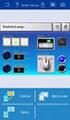 EZ RMC Remote HMI App Application Guide for ios The EZ RMC Remote HMI App is an application designed for your ios devices to enable the monitoring and control of your EZTouch HMIs from EZAutomation.net.
Export / Import using itunes File Sharing
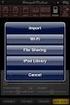 Export to itunes File Sharing Access Edit Mode Tap the pencil button on the bottom toolbar to access Edit Mode. Select a Button or a Folder Select to the button(s) you want to export/ import. A checkmark
From a Finder window choose Applications (shown circled in red) and then double click the Tether icon (shown circled in green).
 From a Finder window choose Applications (shown circled in red) and then double click the Tether icon (shown circled in green). You will be presented with a dialog box asking for you to enter an ad-hoc
ibaby Monitor Model: M3s User Manual
 ibaby Monitor Model: M3s User Manual Index 1 Introduction...3 1.1 The package contents...3 1.2 Product Features...3 1.3 Product Specifications...4 2 Appearance and Interface...5 2.1 Appearance...5 2.2
Using an ios/android device to control the camcorder from another location after setting it up in your home (Remote Control+Streaming) (VIXIA HF
 Using an ios/android device to control the camcorder from another location after setting it up in your home (Remote Control+Streaming) (VIXIA HF R60/R62) With this function of CameraAccess plus, you can
Live Streaming Camera GV-LS2 / GV-LS1. Connection Guide. Other information can be found in the Reference Manual.
 C2N LYT2644-002A 0513YHM-YH-OT Live Streaming Camera GV-LS2 / GV-LS1 Connection Guide This PDF will give you the steps in order to connect the Live Streaming Camera to your network and digital devices.
Chapter 1 Configuring Internet Connectivity
 Chapter 1 Configuring Internet Connectivity This chapter describes the settings for your Internet connection and your wireless local area network (LAN) connection. When you perform the initial configuration
MERLIN SERVER. The Quick Start Guide for collaborative project management. 2012 ProjectWizards GmbH, Melle, Germany. All rights reserved.
 MERLIN SERVER The Quick Start Guide for collaborative project management 2012 ProjectWizards GmbH, Melle, Germany. All rights reserved. INTRODUCTION Welcome to this quick start guide for Merlin Server!
Wi-Fi Settings Guide. Model No. SP 212/SP 213 Series
 Wi-Fi Settings Guide Model No. SP 212/SP 213 Series Introduction There are two wireless LAN modes: infrastructure mode for connection through an access point and ad-hoc mode for establishing direct connection
How to setup EW-7438RPn with a Windows computer to extend an existing Wi-Fi network
 2 How to setup EW-7438RPn with a Windows computer to extend an existing Wi-Fi network Note: 1. This instruction use pictures from EW-7438RPn firmware v1.13. 2. If you need to restore to the default settings,
Fibe Internet Connection Hub Reference Guide
 Fibe Internet Connection Hub Reference Guide FibeInternet_ConnectionHub_ReferenceGuide_Eng_V7 1 Bell Internet Service Agreement Use of the Bell Internet service is subject to the terms and conditions of
PNY DUO-LINK On-The-Go Flash Drive for iphone and ipad. User Manual
 PNY DUO-LINK On-The-Go Flash Drive for iphone and ipad User Manual Table of Contents 1. Introduction 2. System Requirements 3. Physical Descriptions 4. DUO-LINK App Installation 5. Using DUO-LINK App 5.1
Internet and Email Help. Table of Contents:
 Internet and Email Help The following tips are provided to assist you in troubleshooting and managing your Plex Internet and email services. For additional issues or concerns, you may also call our Product
Thank you for purchasing the Mobile WiFi. This Mobile WiFi brings you a high speed wireless network connection.
 Quick Start Thank you for purchasing the Mobile WiFi. This Mobile WiFi brings you a high speed wireless network connection. This document will help you understand your Mobile WiFi so you can start using
PIXMA MG5500. series. Setup Guide
 PIXMA MG5500 series Setup Guide CANON INC. 2013 Setup Guide This guide provides information for setting up a network connection for the printer. Network Connection Wireless Connection Preparation for Connection
Setting up RDP on your ipad
 This document will show you how to set up RDP (Remote Desktop Protocol) on your ipad. It will cover the following: Step 1: Creating an itunes account (if necessary) Step 2: Using the App Store Step 3:
About UmojaPhone App for Android UmojaPhone App Requirements Please note Set up
 About UmojaPhone App for Android UmojaPhone App is a SIP Based Softphone for Android mobile digital devices. The UmojaPhone App Mobile dialer for Android comes equipped with the following features: Ability
CM1-Mini Wi Drive. Setup Guide Ver 0.1
 CM1-Mini Wi Drive Setup Guide Ver 0.1 Please read the following safety information prior to using CM1. Only qualified personnel should service CM1. Faulty installation or service may invalidate any warranty
GGMM WS-301 Setup Guide
 GGMM WS-301 Setup Guide 1 Product list M-Freedom + Power Adaptor + AUX audio cable + Setup Guide + Warranty Card Method of usage Step 1: Take out M-Freedom and the accessories, and connect it with the
Homeguard Wireless Home Camera Quick Start Guide
 Homeguard Wireless Home Camera Quick Start Guide Congratulations on your purchase of this Homeguard Wireless Home Camera. This leaflet will guide you through setting up your camera for basic use with a
Technical Support. Package Contents. D6300 WiFi ADSL Modem Router Installation Guide
 Technical Support Thank you for selecting NETGEAR products. After installing your device, locate the serial number on the label of your product and use it to register your product at NETGEAR.com/register.
Connecting your Blu-ray Disc / DVD Player to your Wi-Fi Network
 4-151-271-11(1) Connecting your Blu-ray Disc / DVD Player to your Wi-Fi Network 2009 Sony Corporation Welcome This guide illustrates how to connect the player to your Wi-Fi network (wireless network).
Quick Installation Guide
 Quick Installation Guide Installationsanleitung Guide D installation Guía de Instalación Guida di Installazione Installatiehandleiding Instrukcja Instalacji Instalační Příručka Telepítési Segédlet Installasjonsveiledning
Time Machine Setup for Routers
 User Manual August 2015 202-11590-02 350 East Plumeria Drive San Jose, CA 95134 USA Support Thank you for selecting NETGEAR products. After installing your device, locate the serial number on the label
COPY EOS 70D (W) Wi-Fi Function Instruction Manual INSTRUCTION MANUAL
 EOS 70D (W) Wi-Fi Function Instruction Manual E INSTRUCTION MANUAL What You Can Do Using the Wireless LAN Functions This camera s wireless LAN functions let you perform a range of tasks wirelessly, from
Rockets Email Smartphone Configuration. Spring 2012 Edition
 Rockets Email Smartphone Configuration Spring 2012 Edition 2/20/2012 Contents Android Rockets Email Configuration... 2 Apple iphone/ipod Touch/iPad Rockets Email Configuration... 3 Blackberry (BBOS 5 or
WF-R5690 User's Guide
 WF-R5690 User's Guide Contents WF-R5690 User's Guide... 15 Product Basics... 16 Using the Control Panel... 16 Control Panel Buttons and Lights... 17 Status Icon Information... 18 Status Button Information...
Quick Installation Guide of WLAN Broadband Router
 To avoid users without access right through your WLAN Broadband Router, suggest that use security mechanism like WEP, WPA or set ID/password for web configuration login IP address 192.168.1.254. Preparation
Thank you for purchasing the Mobile WiFi. This Mobile WiFi brings you a high speed wireless network connection.
 Quick Start Thank you for purchasing the Mobile WiFi. This Mobile WiFi brings you a high speed wireless network connection. This document will help you understand your Mobile WiFi so you can start using
ADTVision (ios) Mobile Client Software User Manual (V1.6)
 ADTVision (ios) Mobile Client Software User Manual (V1.6) Thank you for purchasing our product. This manual applies to ADTVision (ios) mobile client software, please read it carefully for the better use
POWERLINK High Power Wireless LAN 802.11b/g/n USB Adapter User Manual
 Before you proceed with the installation, please notice the following descriptions. Note 1: The following installation was operated under Windows XP. (Procedures are similar for Windows 98SE/Me/2000.)
N600 WiFi USB Adapter
 Model WNDA3100v3 User Manual December 2014 202-11470-01 350 East Plumeria Drive San Jose, CA 95134 USA Support Thank you for selecting NETGEAR products. After installing your device, locate the serial
Configuring the wireless security of your Linksys Wireless-N router through the web-based setup page
 Contents Configuring the wireless security of your Linksys Wireless-N router through the web-based setup page.. 2 Checking the Linksys router s wireless settings through the web-based setup page and adding
Installing Your Multifunction to Your Network for the First Time. PIXMA MP980 / PIXMA MP620 Mac OS
 Installing Your Multifunction to Your Network for the First Time PIXMA MP980 / PIXMA MP620 Mac OS 1 Navigation Tips for Macintosh Users DOWN To navigate this guide, please use the arrows on the MAC keyboard
User Guide Vodafone Mobile Wi-Fi R206-Z. Designed by Vodafone
 User Guide Vodafone Mobile Wi-Fi R206-Z Designed by Vodafone Welcome to the world of mobile communications 1 Welcome 2 Device overview 3 Getting started: Step 1 4 Getting started: Step 2 5 Mobile Wi-Fi
802.11n Wireless Broadband Router WNRT-625
 802.11n Wireless Broadband Router WNRT-625 Quick Installation Guide Table of Contents Introduction... 3 Package Content... 4 Hardware Installation... 5 Web Configuration... 8 Further Configuration...11
How To Connect To A Wireless Network On Your Computer (Wired) Or Ipv) On A Computer (Wireless) On Your Ipv Or Ipa (Wired Or Wireless) On An Ipv (Wired/Wired) On Pc Or Mac
 HI-SPEED INTERNET USER GUIDE Wireless Modem Router - 2704R 2013-11 VERSION 1-800-360-8555 TABLE OF CONTENTS 1. Installing Your Wireless Modem Router...4 1.1 Hardware Provided...4 1.2 Connecting Your Modem
Sending images to a computer (Wi-Fi function) PowerShot G1X MarkII, PowerShot SX600 HS, PowerShot N100, PowerShot SX700 HS, PowerShot ELPH 340 HS
 Sending images to a computer (Wi-Fi function) PowerShot G1X MarkII, PowerShot SX600 HS, PowerShot N100, PowerShot SX700 HS, PowerShot ELPH 340 HS Getting Started The procedure for using the Wi-Fi function