
How To Use Rabo Internet Banking
|
|
|
- George Hill
- 5 years ago
- Views:
Transcription
1 User manual RABO INTERNET BANKING BETALEN EN SPAREN (PAYING AND SAVING) BETALEN BUITENLAND (FOREIGN PAYMENTS) For instructions on how to use Rabo Internetbanking we recommend to watch the demos with English subtitles on (servicemenu, english_pages).the demos show how to log on, to enter a payment order, to check account information and more specific options for different user groups. This document contains extra information on security and order statuses and instructions how to respond to any error messages and a dictionary. INDEX 1. Security 2. Using the Random reader 3. Foreign payments 4. Special instructions 5. Status reports 6. Other options 7. Ending a session 8. Rabo Internetbanking Helpdesk 9. Dictionary 1

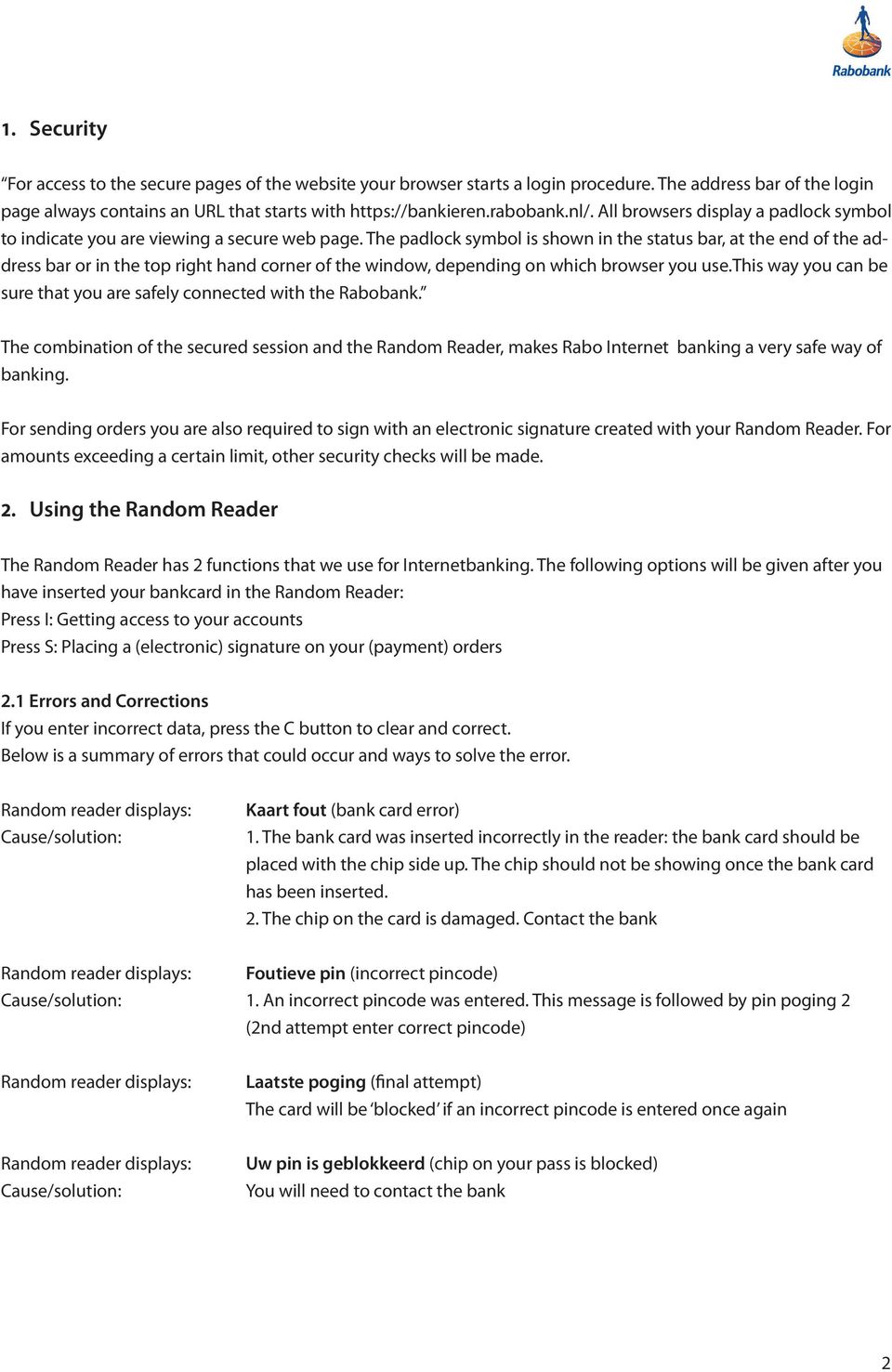
2 1. Security For access to the secure pages of the website your browser starts a login procedure. The address bar of the login page always contains an URL that starts with All browsers display a padlock symbol to indicate you are viewing a secure web page. The padlock symbol is shown in the status bar, at the end of the address bar or in the top right hand corner of the window, depending on which browser you use.this way you can be sure that you are safely connected with the Rabobank. The combination of the secured session and the Random Reader, makes Rabo Internet banking a very safe way of banking. For sending orders you are also required to sign with an electronic signature created with your Random Reader. For amounts exceeding a certain limit, other security checks will be made. 2. Using the Random Reader The Random Reader has 2 functions that we use for Internetbanking. The following options will be given after you have inserted your bankcard in the Random Reader: Press I: Getting access to your accounts Press S: Placing a (electronic) signature on your (payment) orders 2.1 Errors and Corrections If you enter incorrect data, press the C button to clear and correct. Below is a summary of errors that could occur and ways to solve the error. Random reader displays: Cause/solution: Kaart fout (bank card error) 1. The bank card was inserted incorrectly in the reader: the bank card should be placed with the chip side up. The chip should not be showing once the bank card has been inserted. 2. The chip on the card is damaged. Contact the bank Random reader displays: Foutieve pin (incorrect pincode) Cause/solution: 1. An incorrect pincode was entered. This message is followed by pin poging 2 (2nd attempt enter correct pincode) Random reader displays: Laatste poging (final attempt) The card will be blocked if an incorrect pincode is entered once again Random reader displays: Cause/solution: Uw pin is geblokkeerd (chip on your pass is blocked) You will need to contact the bank 2
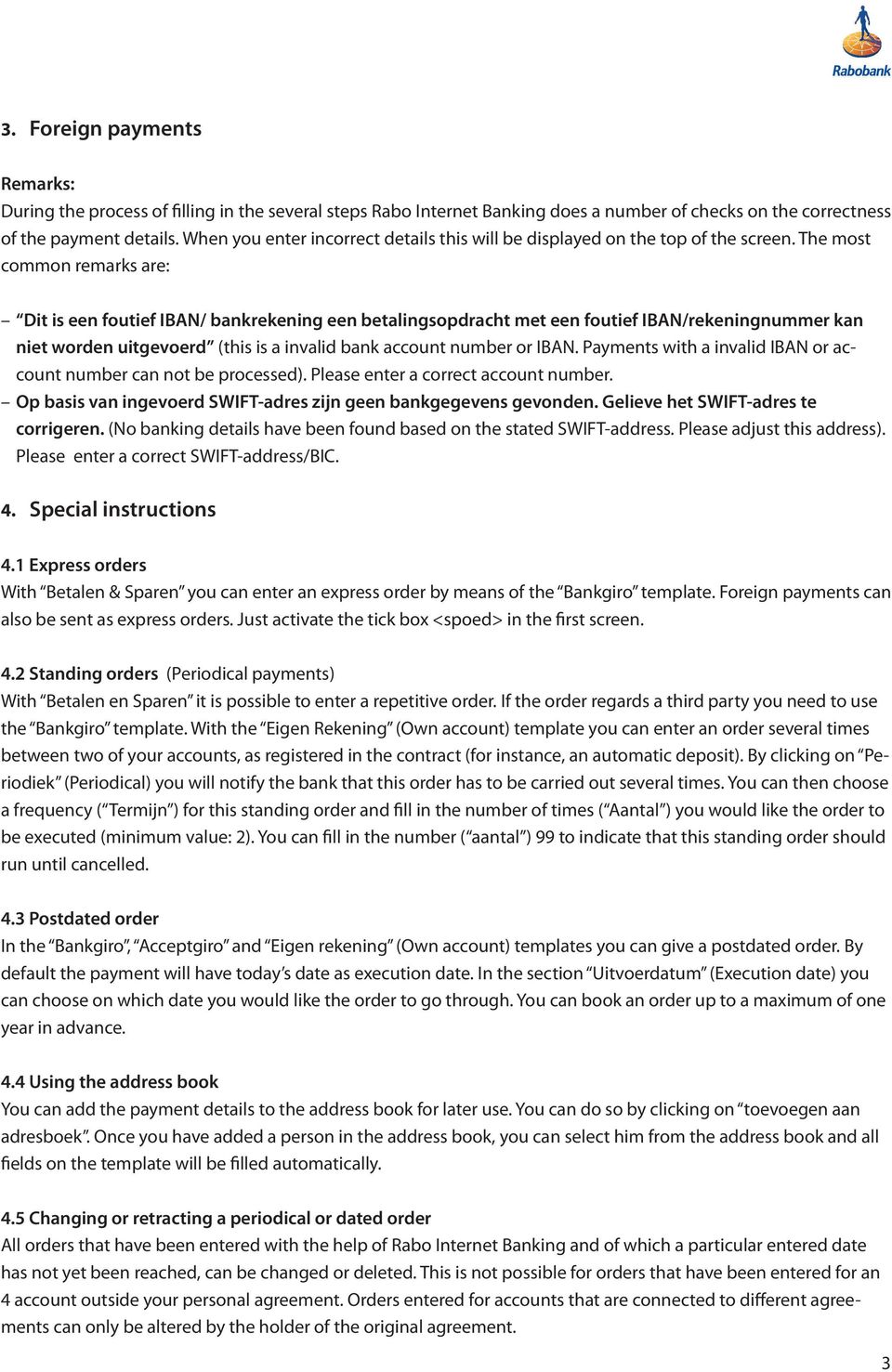
3 3. Foreign payments Remarks: During the process of filling in the several steps Rabo Internet Banking does a number of checks on the correctness of the payment details. When you enter incorrect details this will be displayed on the top of the screen. The most common remarks are: Dit is een foutief IBAN/ bankrekening een betalingsopdracht met een foutief IBAN/rekeningnummer kan niet worden uitgevoerd (this is a invalid bank account number or IBAN. Payments with a invalid IBAN or account number can not be processed). Please enter a correct account number. Op basis van ingevoerd SWIFT-adres zijn geen bankgegevens gevonden. Gelieve het SWIFT-adres te corrigeren. (No banking details have been found based on the stated SWIFT-address. Please adjust this address). Please enter a correct SWIFT-address/BIC. 4. Special instructions 4.1 Express orders With Betalen & Sparen you can enter an express order by means of the Bankgiro template. Foreign payments can also be sent as express orders. Just activate the tick box <spoed> in the first screen. 4.2 Standing orders (Periodical payments) With Betalen en Sparen it is possible to enter a repetitive order. If the order regards a third party you need to use the Bankgiro template. With the Eigen Rekening (Own account) template you can enter an order several times between two of your accounts, as registered in the contract (for instance, an automatic deposit). By clicking on Periodiek (Periodical) you will notify the bank that this order has to be carried out several times. You can then choose a frequency ( Termijn ) for this standing order and fill in the number of times ( Aantal ) you would like the order to be executed (minimum value: 2). You can fill in the number ( aantal ) 99 to indicate that this standing order should run until cancelled. 4.3 Postdated order In the Bankgiro, Acceptgiro and Eigen rekening (Own account) templates you can give a postdated order. By default the payment will have today s date as execution date. In the section Uitvoerdatum (Execution date) you can choose on which date you would like the order to go through. You can book an order up to a maximum of one year in advance. 4.4 Using the address book You can add the payment details to the address book for later use. You can do so by clicking on toevoegen aan adresboek. Once you have added a person in the address book, you can select him from the address book and all fields on the template will be filled automatically. 4.5 Changing or retracting a periodical or dated order All orders that have been entered with the help of Rabo Internet Banking and of which a particular entered date has not yet been reached, can be changed or deleted. This is not possible for orders that have been entered for an 4 account outside your personal agreement. Orders entered for accounts that are connected to different agreements can only be altered by the holder of the original agreement. 3
4 You can find these orders on the screen Geagendeerd (Postdated). After you have clicked on <Geagendeerd> in the menu bar you will find the buttons <Wis> (Delete) and <Wijzig> (Change). If you would like to retract an order click on <Wis>. If you click on the button <Wijzig> then the original template will appear again and you can change the details. The cancellation or alteration of an order must be sent to the Rabobank computer via the menu option <Verzenden opdrachten> (Send payments) or <Verzenden> (Send). 5. Status report of payments sent To check whether your payments have been executed you can login in Betalen en Sparen (Paying and Saving). After you have signed on all orders which have been postponed will automatically be shown on a Waarschuwingsscherm (Warning screen). To verify the status of all payments, click on In behandeling (Being processed). An overview will be shown of orders that are being processed at that moment or have already been processed. The status of the orders will indicate if the order has been processed. The following statuses excist: Aangeboden (offered) The order has been sent to the Rabobank computer. The execution date of the order is today s date. To check if the order has been processed you can consult Betalen en Sparen later on in the day Goedgekeurd (approved) The order has been sent and/or is being processed by the Rabobank computer. Orders with this status have already been debited from your account. Please consult the Transactieoverzicht (Transaction statement) Uitgesteld (postponed) The order has been sent to the Rabobank computer. The execution date of the order has arrived, however the order could not be processed on that day due to insufficient funds. The Rabobank computer will try to execute the order within 3 business days from the original order date Afgekeurd (rejected) The order has been sent to the Rabobank computer and the execution date has arrived. The computer has definitely rejected the order. This could be due to: - Incorrect details have been entered or the order can not be processed from this account - Funds on your account were insufficient on the execution date as well as the following 2 business days Approved orders will stay visible on the screen In behandeling (Being processed) for the next 7 days. Rejected orders for 14 days. Approved orders are also visible on the Transactieoverzicht (Transaction statement) screen. On this screen you can see all the transactions per account during an indicated period given by you. 5 Orders with a processing date in the future can be found on the screen Geagendeerd (Post-dated). On this screen you will also find your periodical transfers. 4

5 6. Other options Orders which have not yet been processed, will automatically appear on the Waarschuwingsscherm (Warning screen) when you restart Betalen & Sparen. You will also receive information regarding special processing dates, for example due to bank holidays. All messages are being saved in Mededelingen (messages) which you can access in the taskbar on the left. You can also access the address book there. A maximum of 75 addresses can be added to the address book. For RIB Professional the number is unlimited. 7. Ending the session You can end your Internetbanking session by clicking on <Uitloggen> (Log off) in the taskbar. You will exit the secured site. If you wish to end the session while there are still orders ready to be sent, you will automatically be sent to the screen Opdrachten verzenden (send order). If you close without sending the orders to the Rabobank computer, the orders will be deleted. In RIB Professional the orders will be saved 8. Helpdesk Rabobank Internet Banking If you have questions you can call the helpdesk Rabo Internetbanking at When calling from abroad Opening hours are Monday till Friday between to hours and Saturday and Sunday between to hours. 9. Dictionary Dutch Aangeboden Aantal Acceptgiro Adresboek Afgekeurd Afsluiten Annuleren Bankgiro bankpas Bedrijven Begunstigde Berichten Betaalopdracht Betalen Betalen Buitenland Eigen rekening Europas English Offered (for payment) Number (quantity) Payment order template (could also been added to invoice) Address book Rejected Close Cancel Payment order template Bank card Company Beneficiary Messages Payment order Paying Foreign payments Own account Rabo Debit card 5
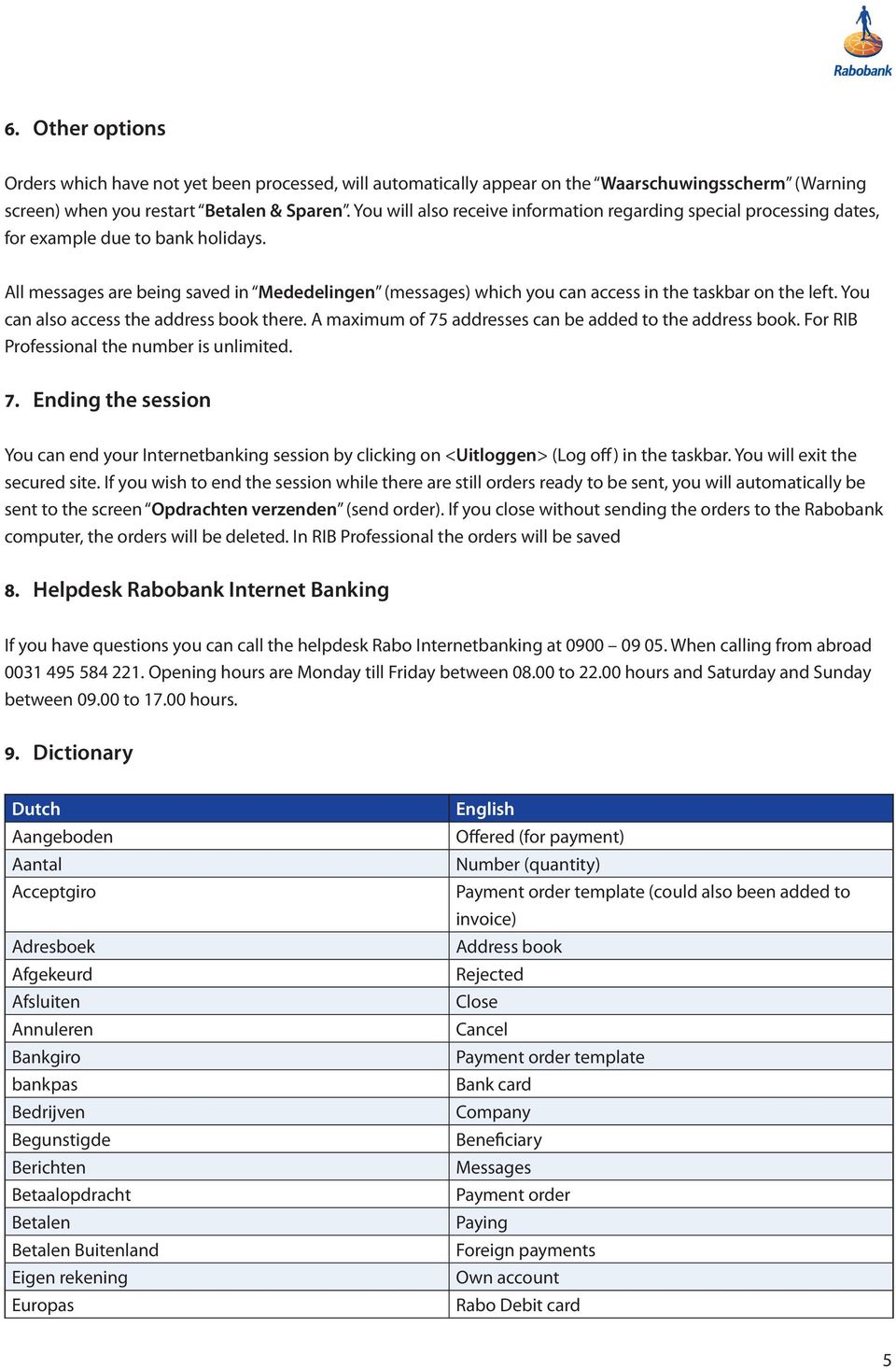
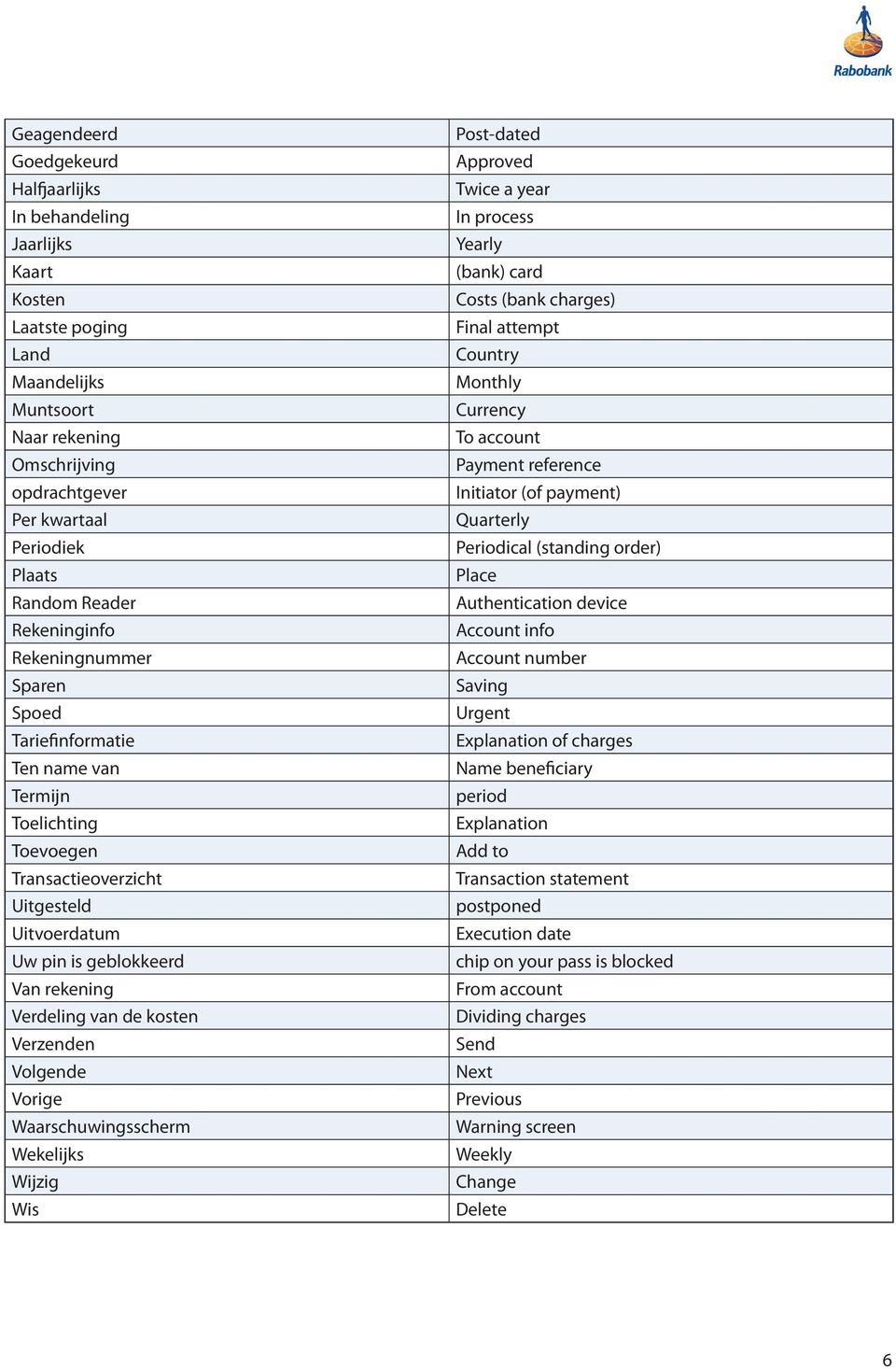
6 Geagendeerd Goedgekeurd Halfjaarlijks In behandeling Jaarlijks Kaart Kosten Laatste poging Land Maandelijks Muntsoort Naar rekening Omschrijving opdrachtgever Per kwartaal Periodiek Plaats Random Reader Rekeninginfo Rekeningnummer Sparen Spoed Tariefinformatie Ten name van Termijn Toelichting Toevoegen Transactieoverzicht Uitgesteld Uitvoerdatum Uw pin is geblokkeerd Van rekening Verdeling van de kosten Verzenden Volgende Vorige Waarschuwingsscherm Wekelijks Wijzig Wis Post-dated Approved Twice a year In process Yearly (bank) card Costs (bank charges) Final attempt Country Monthly Currency To account Payment reference Initiator (of payment) Quarterly Periodical (standing order) Place Authentication device Account info Account number Saving Urgent Explanation of charges Name beneficiary period Explanation Add to Transaction statement postponed Execution date chip on your pass is blocked From account Dividing charges Send Next Previous Warning screen Weekly Change Delete 6
User manual RABO INTERNET BANKING
 User manual RABO INTERNET BANKING BETALEN EN SPAREN (PAYING AND SAVING) BETALEN BUITENLAND (FOREIGN PAYMENTS) For instructions on how to use Rabo Internet Banking we recommend to watch the demos with English
Online Banking with Mijn ING. Quick-start guide
 Online Banking with Mijn ING Quick-start guide Mijn ING Mijn ING (My ING) allows you to do your banking wherever and whenever you want. You can see exactly how much money you have in your account at any
How To Secure Banking With Mijn Ing Online Banking
 Online Banking with Mijn ING Quick-start guide Mijn ING Mijn ING (My ING) allows you to do your banking wherever and whenever you want. You can see exactly how much money you have in your account at any
Frequently asked questions and answers
 Frequently asked questions and answers Q: How can I open a (student)bank account? A: You can visit our bank branch Guldenstraat 12 to set up an appointment to open a student account. To get an appointment
XTEND ONLINE MANUAL LOGIN... 1 WELCOME SCREEN... 2 MY PERSONAL DETAILS MIJN GEGEVENS... 2 CURRENT AND PAST DECLARATIONS DECLARATIES...
 XTEND ONLINE MANUAL Introduction Xtend uses an online environment for the declaration of worked hours. This environment is called: Xtend online. Besides declaring worked hours, this environment also shows
Wealth and Investment Management Intermediaries. Online Banking. Bulk Payments User guide
 Wealth and Investment Management Intermediaries Online Banking Bulk Payments User guide Contents Contents 1. Introduction 3 2. Log in steps 4 3. Make BACS payments 5 3.1 Select BACS from account 6 3.2
BUSINESS ONLINE USER MANUAL
 BUSINESS ONLINE USER MANUAL Version, date: June 2015 Table of Contents INTRODUCTION... 3 SECURITY... 4 WHAT IS DHB BUSINESS ONLINE?... 5 User Profiles... 5 APPLICATION... 6 If you are already using DHB
BT 24 User Manual 1. Useful information... 4 2. Application access... 6 2.1 First log into BT24... 6 2.2 Subsequent logins into BT 24... 6 2.
 BT 24 User Manual 1. Useful information... 4 2. Application access... 6 2.1 First log into BT24... 6 2.2 Subsequent logins into BT 24... 6 2.3 Password changing... 7 2.4 How I reset the password... 8 2.5
STEP BY STEP GUIDE TO USING LARGE BUSINESS TOKENS. Large Token (Vasco DP250) Activation on Account. Activate Token Once Obtained
 a refreshing attitude to banking STEP BY STEP GUIDE TO USING LARGE BUSINESS TOKENS Large Token (Vasco DP250) Activation on Account Activate Token Once Obtained 1. On token press the arrow key. ( ) 2. Enter
Welcome to your Nationwide MySave Online Account
 Welcome to your Nationwide MySave Online Account This guide will tell you everything you need to know about the account and help you make the most of it. If you have any further questions, you can call
Getting started with the e.dentifier2
 Getting started with the e.dentifier2 You can use the e.dentifier2 to log onto Access Online with or without the included USB cable. The differences between these methods are explained below. At the end
User Manual Internet Banking Sundries
 This manual of ABN AMRO Internet Banking describes how to find and export transactions, how to maintain the address book, how to solve error messages after log on and error messages concerning the e-dentifier
Deutsche Bank www.deutschebank.nl. Working with Deutsche Bank Internet Bankieren
 Deutsche Bank www.deutschebank.nl Working with Deutsche Bank Internet Bankieren Working with Deutsche Bank Internet Bankieren Before you get started, watch the handy instruction demos at www.deutschebank.nl/
MIJN WATERNET. Quick-start guide
 MIJN WATERNET Quick-start guide MIJN WATERNET 2 Mijn Waternet (My Waternet) allows you to manage your water accounts wherever and whenever you want. You can check your water bills and water tax assessments,
User Manual Internet Banking
 This manual describes the main functions of ABN AMRO Internet Banking. It tells you how to enter a payment order or fund order, explains order statuses and account balance overviews and also how to respond
How do I contact someone if my question is not answered in this FAQ?
 Help Where may I find the answers to my Internet Banking questions? How do I contact someone if my question is not answered in this FAQ? Enrolling How do I enroll in Internet Banking? Logging In How do
Entering payment order abroad and payment order in a foreign currency in the Czech Republic via electronic banking service ČSOB InternetBanking 24
 Entering payment order abroad and payment order in a foreign currency in the Czech Republic via electronic banking service ČSOB InternetBanking 24 Content 1. Payment order abroad... 2 1.1. Entering payment
Rabo Cash Management. Installation Guide. Guide content
 Installation Guide Rabo Cash Management The Rabo Financial Logistics Portal (RFLP) offers an integrated solution for liquidity and risk management and simplifies financial logistic processes. The Rabo
online banking guide Mediterranean Bank plc is licensed by the MFSA under the Banking Act. Co. Registration No: C 34125. www.medbank.com.
 online banking guide Think Ahead. Bank Ahead. www.medbank.com.mt Mediterranean Bank plc is licensed by the MFSA under the Banking Act. Co. Registration No: C 34125. Internet Banking Guide Start using our
Rabo CORPORATE CONNECT. Certificate renewal
 Rabo CORPORATE CONNECT Certificate renewal Content... 3... 4... 6... 7... 8... 9... 10 2 1 Preface Your smart card, which provides access to the Rabo Corporate Connect portal and its underlying applications,
User's manual for OTPdirekt Internet Banking. v.1.0
 User's manual for OTPdirekt Internet Banking v.1.0 1 Contents General... 4 Log in... 4 Logging out... 4 Home page... 5 Accounts... 5 Accounts - Overview of movements... 6 Accounts - OTPdirekt transactions...
YOUR GUIDE TO THE iphone MOBILE APP WITH 1st SOURCE
 YOUR GUIDE TO THE iphone MOBILE APP WITH 1st SOURCE Strong. Stable. Local. Personal. 10/12 Install, Sign On and View Account Balances 1. Visit the iphone App Store on your iphone and search for 1st Source
Business On Line Payments Plus Guide
 Business On Line Payments Plus Guide This document is published by Bank of Ireland, and both it, and its contents, are the property of Bank of Ireland. This document may not be reproduced or further distributed,
Only checking accounts can be used for Bill Payment purposes.
 INTERNET BILL PAYMENT SERVICE AGREEMENT The Internet Bill Payment service allows you to pay your bills electronically through a personal computer, rather than manually writing and mailing checks. You can
Business On Line Payments Plus Customer Support Guide
 Business On Line Payments Plus Customer Support Guide This document is published by Bank of Ireland, and both it, and its contents, are the property of Bank of Ireland. This document may not be reproduced
Swedbank Business Internet Banking User Manual
 Swedbank Business Internet Banking User Manual Content Introduction 1. HOW TO START 1.1 USING INTERNET BANKING 1.2 TERMINATING INTERNET BANKING SESSION 2. INTERNET BANKING SECURITY 2.1 PASSWORD SYSTEM
How To Create An Overseas Telegraphic Transfer
 VELOCITY@OCBC 2.0 BUSINESS INTERNET BANKING USER GUIDE 1 of 131 1 Contents 1. Log in to Velocity@ocbc 2.0 4 2. View Trade Finance portfolio 12 3. View and download a bank statement 15 4. Create a Letter
Electronic Banking. Government Tax Payment & Filing Service
 Electronic Banking Government Tax Payment & Filing Service June 2009 Table of Contents 1 Scotiabank s Government Tax Payment & Filing Service..............................2 2 Getting Started...............................................................3
The Verification Process User Guide To be used by those responsible for verifying an applicants identity documents.
 The Verification Process User Guide To be used by those responsible for verifying an applicants identity documents. Enter Helpdesk Telephone: 0845 251 5000* Opening Times: 8.30am to 5.30pm Monday to Friday
Dues & Billing. Dues & Billing. I. Dues and Billing Overview. Welcome to Dues and Billing!
 Dues & Billing I. Dues and Billing Overview Welcome to Dues and Billing! This feature allows you to create batches of invoices and specify members as recipients. The current functionality allows you to
ipko biznes Administrator s Guide
 ipko biznes Administrator s Guide 1 1. GLOSSARY Client an entity that entered into e-banking agreement with the Bank. User a representative entitled to use e-banking services, that is a person appointed
GLOBAL EXPRESS PAYMENT CENTER
 GLOBAL EXPRESS PAYMENT CENTER USER GUIDE V1.4 EFFECTIVE 05/14/15 TABLE OF CONTENTS 03 Get Started Set Up Terminal Required Step by Admin Set Up Users Required Step by Admin Set Up Receipt Explore Dashboard
The Windward Islands Bank Ltd. Clem Labega Square, P.O. Box 220 Phlipsburg, St. Maarten Tel.: (721) 546 2WIB Fax: (721) 542 4761 www.wib-bank.
 The Windward Islands Bank Ltd. Clem Labega Square, P.O. Box 220 Phlipsburg, St. Maarten Tel.: (721) 546 2WIB Fax: (721) 542 4761 www.wib-bank.net The Windward Islands Bank Ltd. Clem Labega Square, P.O.
Corporate Netbank User Guide Cash Management Services
 Corporate Netbank User Guide Cash Management Services Introduction This guide is designed to give you an overview of the most commonly used cash management functionalities in Corporate Netbank and to provide
User Manual. CitiDirect \ CitiDirect EB - Citi Trade Portal. InfoTrade Phone No. 0 801 258 369 [email protected]
 CitiDirect \ CitiDirect EB - Citi Trade Portal User Manual InfoTrade Phone No. 0 801 258 369 [email protected] CitiDirect HelpDesk Phone No. 0 801 343 978, +48 (22) 690 15 21 Monday Friday 8.00 17.00
e-ambiz User Guide N A V I G A T I O N INTRODUCTION Page 1 from 35
 INTRODUCTION Page 1 from 35 e-ambiz is your Online Banking facility that keeps you up to date on your company s account status. It also gives you the control you need to manage your day-to-day transactions
ipay88 Recurring Payments V1.0 CHAPTER GUIDE
 CHAPTER GUIDE Overview 3 Login to Recurring Payments Page 4 Recurring Payments via Email 5 Recurring Payments via Website 10 Online Report 16 Modify or Terminate A Subscription 18 FAQ 22 OVERVIEW When
Online Banking. Customer Information
 Online Banking Customer Information PRIVACY & SECURITY FOR YOUR NETTELLER ACCOUNT Protect Your NetTeller Online Banking Account Information While Farmers Bank & Trust works to protect your banking privacy,
BANKOH BUSINESS CONNECTIONS WIRE TRANSFER GUIDE
 BANKOH BUSINESS CONNECTIONS WIRE TRANSFER GUIDE Revision 2/2013 1 of 35 Contents GENERAL INFORMATION... 3 Wire Transfers... 3 Types of Wires... 3 Wire Templates... 3 Bankoh Business Connections Wire Cut-off
/ 1. Online Banking User Guide SouthStateBank.com / (800) 277-2175
 / 1 Online Banking User Guide SouthStateBank.com / (800) 277-2175 Welcome Thank you for using South State s Online Banking. Whether you are a first time user or an existing user, this guide will walk you
Deutsche Bank Global Transaction Banking. Internet Bankieren. Entering Payments and Collections. www.deutschebank.nl
 Deutsche Bank Global Transaction Banking Internet Bankieren Entering Payments and Collections www.deutschebank.nl Internet Bankieren Entering Payments and Collections 2 Entering payments and collections
Electronic Ticket System
 UNIVERSITY OF GEORGIA Electronic Ticket System New Options Available as of January 2010 Insert the complete email address (valid UGA address only) instead of the UGA MyID to send tickets to Approvers.
Zenith Bank Corporate Internet Banking User Guide. Zenith Bank Corporate Internet Banking User Guide
 Zenith Bank Corporate Internet Banking User Guide 1 STEP-BY-STEP USER GUIDE The following information will help you make the most of your Corporate Internet Banking (CIB). Table of Contents i. Brief on
SENDING AND RECEIVING PROTECTED INFORMATION VIA ELECTRONIC MAIL. Naval Medical Center Portsmouth IMD Training Division
 SENDING AND RECEIVING PROTECTED INFORMATION VIA ELECTRONIC MAIL Naval Medical Center Portsmouth IMD Training Division INTRODUCTION The following slides will help you set up your computer and Microsoft
Mijn Waternet. Quick-start guide
 Mijn Waternet Quick-start guide Mijn Waternet Mijn Waternet (My Waternet) allows you to manage your water accounts wherever and whenever you want. You can check your water bills and water tax assessments,
Northland s Bill Pay Service Frequently Ask Questions
 Northland s Bill Pay Service Frequently Ask Questions Why do I need to allow pop-up windows? Pop-up functionality is used by many Web sites to display advertisements to users, but some services like this
CANADA SAVINGS BONDS WEB TRANSMISSION GUIDE 2014. csb.gc.ca PAYROLL SAVINGS PROGRAM 20$ 40$ 80$ 50 $ 30$ WEBGUIDE-14
 7 WEB TRANSMISSION GUIDE 204 CANADA SAVINGS BONDS csb.gc.ca PAYROLL SAVINGS PROGRAM 40$ 5$ 30$ 0$ 20$ 80$ 70$ 0$ What are you saving for? 50 $ 40$ 20 0$ 80$ 4 20$ 7 7 $ $ $ $ $ $ $ $ $ $ $ $ WEBGUIDE-4
Online Banking User Guide
 TABLE OF CONTENTS TABLE OF CONTENTS... 1 INTRODUCTION... 4 QUICK REFERENCE... 4 LOG ON... 4 SECURITY PROFILE... 4 ENTITLEMENTS... 4 LOG ON... 5 ENTER YOUR USERNAME... 5 REVIEW SECURE IMAGE AND PHRASE,
Outlook Operating Instructions. Internal Desktop Access
 Outlook Operating Instructions Internal Desktop Access OUTLOOK OPERATING INSTRUCTIONS (INTERNAL DESKTOP ACCESS) FREQUENTLY ASKED QUESTIONS & ANSWERS Q: How do I check my email while on campus? A: Click
Business Online Banking & Bill Pay Guide to Getting Started
 Business Online Banking & Bill Pay Guide to Getting Started What s Inside Contents Security at Vectra Bank... 4 Getting Started Online... 5 Welcome to Vectra Bank Business Online Banking. Whether you re
USER MANUAL FOR INTERNET BANKING (IB) SERVICE
 USER MANUAL FOR INTERNET BANKING (IB) SERVICE Content: Introduction and General questions. Accessing and using Internet Banking. 1. Log In, Log Out and Printing screen/transaction information 2. Inquiries
Contents: Accessing the GWAZY Account 3. Platform Sections 4. Platform Overview 5. Watchlist 5. Trading Area 6. Classic Method 7. Open Investments 9
 Contents: Accessing the GWAZY Account 3 Platform Sections 4 Platform Overview 5 Watchlist 5 Trading Area 6 Classic Method 7 Open Investments 9 News 10 Reports 11 Closed Investments 11 Balance Book 12 Accessing
/ 1. Online Banking User Guide SouthStateBank.com / (800) 277-2175
 / 1 Online Banking User Guide SouthStateBank.com / (800) 277-2175 Welcome Thank you for using South State s Online Banking. Whether you are a first time user or an existing user, this guide will walk you
Manual Rabo Corporate Connect Rabo Cash Management. Installation Manual
 Manual Rabo Corporate Connect Rabo Cash Management Installation Manual Content 1 PREFACE 3 2 CONFIGURATION REQUIREMENTS 4 3 USB CARD READER INSTALLATION 5 4 INSTALLATION OF SAFENET DRIVERS 6 5 JAVA INSTALLATION
account multiple solutions
 Start Guide Salary Payments for Sage VIP Payroll & HR 1 Our easy to use guide will get you up and running in no time! Sage Pay allows you to seamlessly transfer your salary payments from Sage VIP Payroll
bank account & import of bank statements
 bank account & import of bank statements Version 05/2014 EXACT ONLINE 2 Inhalt Preliminary... 3 Set up your bank account... 4 EXACT ONLINE 3 Preliminary Exact Online provides access to online banking many
business online plus payments user guide
 business online plus payments user guide 1 payments What s included pg 4 pg 5-6 pg 7 pg 8-13 pg 14 pg 15 pg 16 pg 17 pg 18 pg 19 pg 20 pg 21 pg 22 pg 23 Payments : Home menu Payments : Transaction types
Instructions for approval of digital invoices
 Instructions for approval of digital invoices Leiden University Instruction digital invoices Pagina: 1/17 Processing digital invoices Contents: 1 Processing digital invoices...3 1.1 Approving digital invoices...5
Creating international money transfers
 Creating international money transfers About this guide This guide takes you through the process of creating international money transfers (IMT) through CommBiz. Important information If you are making
DirektNet Frequently Asked Questions (FAQ)
 DirektNet Frequently Asked Questions (FAQ) Frequently Asked Questions DirektNet functions, how to request the service Activation, login Password, security SMS password Viewing earlier transactions Questions
Common Questions about NetTeller Internet Banking
 Common Questions about NetTeller Internet Banking 1. What is NetTeller Online Banking? NetTeller Online Banking allows our customers a secure and convenient access to their accounts using the Internet
INTERNET BANK SERVICE USER MANUAL
 SERVICE 2014 INDEX 1. KEY QUESTIONS... 4 2. GENERAL INFORMATION... 6 3. SECURITY... 6 4. ACCESS TO THE SYSTEM... 7 4.1 MAIN STEPS TO CONNECT TO THE SYSTEM... 7 4.2. LOGIN BY IDENTIFICATION CARD NUMBER...
e - zaba PAYMENTS, COLLECTIONS, PURCHASE AND SALE OF FOREIGN CURRENCIES AND FOREIGN CURRENCY TRANSFERS INSTRUCTIONS FOR USE
 e - zaba PAYMENTS, COLLECTIONS, PURCHASE AND SALE OF FOREIGN CURRENCIES AND FOREIGN CURRENCY TRANSFERS INSTRUCTIONS FOR USE CONTENTS: 1. INTRODUCTION... 2 2. LOGGING IN TO e - zaba... 2 3. FOREIGN CURRENCY
Online Banking Frequently Asked Questions
 HOME BANKING Q. What is Freedom's Home Banking? A. Freedom s Home Banking allows you to bank anywhere, at any time, electronically. Our system allows you to securely access your accounts by way of any
POINT OF SALES SYSTEM (POSS) USER MANUAL
 Page 1 of 24 POINT OF SALES SYSTEM (POSS) USER MANUAL System Name : POSI-RAD System Release Version No. : V4.0 Total pages including this covering : 23 Page 2 of 24 Table of Contents 1 INTRODUCTION...
1 Introduction. 2.1 Logging In 1. Visit our website http://www.bocionline.com and click Futures A/C Login button. 2 Login
 1 Introduction BOCI Securities Limited X5 Futures and Options Trading System provides a platform for customers to place orders, review portfolio and acquire market data information. This document demonstrates
10 Step Guide to Getting Started with BOI Business On Line. Business On Line. 10 Step Guide to Getting Started. A BOL Setup Guide. ROI Only. v.
 Business On Line 10 Step Guide to Getting Started A BOL Setup Guide ROI Only v.01/14 This Document is published by Bank of Ireland, and both it, and its contents, are the property of Bank of Ireland. Page
The latest in online FX trading
 The latest in online FX trading UCTrader Professional User Guide UCTrader Getting started 5 Visit https://quantus.unicreditgroup.eu Enter your Login Name and Passcode The PIN field should remain empty
Can I use Mobile Deposit with any mobile device? Eligible phones include:
 Mobile Deposit What is Mobile Deposit? Mobile Deposit is a convenient, easy way to deposit checks from your mobile phone into one of your accounts. With the FOCUS Bank Mobile Banking app on your iphone
Complete Citibank Online Internet Banking Manual
 Complete Citibank Online Internet Banking Manual 2 Contents 1. INTRODUCTION... 5 2. STARTING AT CITIBANK ONLINE... 5 2.1. REGISTER FOR THE FIRST TIME... 5 2.2. EASY SIGN ON... 6 2.2.1. ACCESS BLOCKING,
User Manual. Firm Bank Manager (includes instructions for employees and firms) U.S Network of Virtual Enterprises Bank. for
 U.S Network of Virtual Enterprises Bank User Manual for Firm Bank Manager (includes instructions for employees and firms) US Network Bank User Manual Bank Manager Page 1 of 8 FOR FIRM BANK MANAGER LOGIN
Mobile Deposit Frequently Asked Questions
 Mobile Deposit Frequently Asked Questions Q: What is Citizens Business Bank Personal Mobile Deposit? A: Citizens Business Bank Personal Mobile Deposit is an easy way to use an Apple or Android mobile device
Contact Treasury Management Support: 866-563-1010 (toll free) Monday through Friday, 7:30 am 5:30 pm (Pacific Time) TreasuryManagement@umpquabank.
 Contact Treasury Management Support: 866-563-1010 (toll free) Monday through Friday, 7:30 am 5:30 pm (Pacific Time) [email protected] Updated October 2013 - TreasuryPro 3.8 Contents Welcome...
Contents. Biocides Closed Circuit 28/10/2015
 2 Contents 1. Definition and goals... 3 2. Logging in... 4 2.1. Creating a personal account... 4 2.2. Linking your personal account to an enterprise... 7 2.3. Approval of the 'Local Admin' account by the
(for Creative Center enter 8/06/2012) (for Creative Center enter 05/17/2013) Step 3 - Review Application Step 4 - Credit Check and Submit
 1 Instructions for Completing the Parent Plus Loan Process Important: Each applicant, including endorsers for a PLUS loan, must have their own unique PIN, and sign in using their own information. If you
Our website Internet Banking
 Our website Internet Banking A safe and efficient way of accessing your People s Choice Credit Union accounts, paying bills and transferring money. 1 Contents 1. Security, system requirements and cookies...3
Internet Bank with certificates First steps
 Internet Bank with certificates First steps 2 Content BEFORE YOU START...3 Minimum requirements for your computer...3 Support for service Internet Bank...3 Useful links...3 Security...3 Parameters of certificates...3
DimeOnLine BillPay Frequently Asked Questions
 DimeOnLine BillPay Frequently Asked Questions The Dime Bank has made banking easier by providing access to your accounts 24 hours a day, 7 days a week. Now you can view up-to-the-minute deposit account
Business Online Banking Client Setup Form
 Business Online Banking Client Setup Form *All available fields must be filled out prior to submission to ensure proper processing. New Setup Maintenance on Existing Customer Company Name: Tax ID: Address:
Making payments. Move money between your accounts
 Making payments 16 December 2015 With easy and convenient ways to make and manage your payments, you can stay in control of your business finances. TRANSFERS PAYMENTS APPROVALS LIMITS & SECURITY PAYEES
First United Bank. Mobile Banking Enrollment and FAQs
 First United Bank Mobile Banking Enrollment and FAQs Mobile Banking Enrollment & FAQs MOBILE DEVICE MINIMUM REQUIREMENTS Apple: Apple iphone 4.3 or higher Apple ipod Touch 4.3 or higher Apple ipod 4.3
Mobile Banking Frequently Asked Questions
 Mobile Banking Frequently Asked Questions What types of Mobile Banking does Midwest BankCentre offer? We offer three types of Mobile Banking: Mobile Apps allows you to easily connect to Midwest BankCentre
The latest in online FX trading
 The latest in online FX trading UCTrader Professional User Guide UCTrader Getting started 5 Visit https://uctrader.unicreditgroup.eu Enter your Login Name and Passcode The PIN field should remain empty
Frequently Asked Questions..2. Getting Started with Bank 2 Bank Transfers 4. Making a Bank 2 Bank Transfer...8
 Table of Contents Frequently Asked Questions..2 Getting Started with Bank 2 Bank Transfers 4 Making a Bank 2 Bank Transfer...8 Viewing Pending Bank 2 Bank Transfers..10 Viewing Bank 2 Bank Transfer History
PAIN.002. Format description Functional
 PAIN.002 Format description Functional Content 1. PAIN.002 STATUS EXPORT FORMAT 3 2. PAIN.002 SCENARIOS 5 APPENDIX 1: EXPORTING PAIN.002 FROM RABO CASH MANAGEMENT 12 APPENDIX 2: DOWNLOADING PAIN.002 FROM
Online Payment Center T-Mobile User s Guide
 Online Payment Center T-Mobile User s Guide Table of Contents Introduction... 3 Features... 3 Getting Started... 4 Starting Qpay Online Payment Center... 4 Login... 4 Changing Your Password... 5 Navigating...
User Manual Internet Banking Enter and Send Orders
 This manual of ABN AMRO Internet Banking describes how to enter payment orders, stock orders, investment orders and how to send your orders to the bank. You can enter a maximum of 45 orders for dispatch.
BT Online Employer Easy User Guide. November 2010
 BT Online Employer Easy User Guide November 2010 Contents I Introduction 3 Getting started 3 Register for BTOE 3 Login to BTOE 3 If you forget your password 4 Where to get help in BTOE? 4 Manage your BT
Mobility Tool Guide for Beneficiaries
 EUROPEAN COMMISSION Directorate-General for Education and Culture Lifelong Learning: policies and programme Coordination of the "Lifelong learning" programme Mobility Tool Guide for Beneficiaries Version:
Online Services. User Guide. www.aibgb.co.uk 028 9034 6060 Ask at any branch
 Online Services User Guide www.aibgb.co.uk 028 9034 6060 Ask at any branch Contents 01 Introduction 02 Online Banking 06 Phoneline Banking 09 Common questions about Online Services Secure and convenient
Payment solutions for individual clients. Swiss ways and customs
 ab Payment solutions for individual clients. Swiss ways and customs Contents Introduction to payments in Switzerland 05 How can I make day-to-day payments without using cash? Maestro card 06 Credit cards
Select a topic below to be automatically directed to that section:
 Select a topic below to be automatically directed to that section: Account Transfers Address Change Bill Payment Check Orders Contact Information Cutoff Times Email address changes Enrolling in Online
Business Mobile App User Guide
 Business Mobile App User Guide Logging On to CNB Business Mobile Logging on to CNB Business Mobile involves the same layers of authentication as your Online For Business account does. 1. Launch the app
INFORMATION TECHNOLOGY CERES DEPARTMENT
 INFORMATION TECHNOLOGY CERES DEPARTMENT LRA APPLICATION MANUAL Name Date Written by: Technical support 18/10/2010 Revised by: Approved by: DOCUMENT TRACEABILITY Version Date Description Author 1.0 18/10/2010
Security First Bank Consumer Online Banking Information Sheet, Access Agreement and Disclosures
 Security First Bank Consumer Online Banking Information Sheet, Access Agreement and Disclosures Welcome to Online Banking with Security First. This Online Banking Agreement and Disclosure (Agreement) discusses
Helpdesk manual. Version: 1.1
 Version: 1.1 Date: 06-May-2014 Introduction Once a new system has been delivered, or an update has taken place, issues could occur, questions raised and new functionality needed. You can register these