
SAGEM TM 1500 SAGEM TM 1500WG
|
|
|
- Ethan Frederick Tyler
- 10 years ago
- Views:
Transcription
1 SAGEM TM 1500 SAGEM TM 1500WG Reference Manual August 2004 Issue S

2 E closely follows all technological changes and is continually striving to improve its products for the benefit of its customers. It therefore reserves the right to change its documentation accordingly without notice. All the trade marks mentioned in this guide are registered by their respective owners: - SAGEM F@st is a registered trade mark of E. - Windows TM is a registered trade mark of Microsoft Corporation. - Internet Explorer is a registered trade mark of Microsoft Corporation. Warning! Warning icon, used in this guide. Information icon, used in this guide.

3 Contents Pages Contents 0-1 to Introduction About the SAGEM TM 1500WG ADSL Router Features and Benefits Applications Composition of the supply Prerequisites Description and Physical installation Hardware Description Front panel Rear panel Physical Installation Installation instructions Desktop Installation Settings and Connecting ISP settings Install the SAGEM TM 1500 ADSL Router Connect the ADSL Line Phone Line Configuration Attach to Your Network Using Ethernet Cabling Connect the Power Adapter Powering up the SAGEM 1500 ADSL router Configuring Client Computer TCP/IP Configuration Configuring your Windows computer On Windows 98 / Me On Windows NT On Windows On Windows XP Configuring your Mac computer 3-20 Reproduction and communication prohibited without the written permission of E Page 0-1

4 4. Configuring the SAGEM 1500 ADSL router STATUS "SETUP WIZARD" menu PPP Setting Channel and SSID WEP Access Control SYSTEM Time Settings Password Settings Configuration tools Firmware Upgrade Reset "WAN" menu ATM PVC Clone MAC LAN DNS Wireless Channel and SSID Access Control Security WEP WPA X NAT Address Mapping Virtual Server Special Application NAT Mapping Table Firewall Access Control MAC Filter URL Blocking Schedule Rule Intrusion Detection DMZ Route Static Route RIP Routing Table QoS Traffic Mapping Traffic statistics 4-52 Page 0-2 Reproduction and communication prohibited without the written permission of E

5 4.11 Advanced ADSL Remote Management SNMP UPnP Finding the MAC address of a Network Card 4-59 A. Appendix A - Troubleshooting A-1 B. Appendix B - Safety warnings B-1 B.1 Safety warnings B-2 B.1.1 Safety levels on the mains adapter unit B-2 B.1.2 Safety levels on the SAGEM F@st 1500 unit B-2 B.2 CE declaration of conformity B-3 C. Appendix C - CABLES C-1 C.1 Ethernet cable C-2 C.1.1 Specifications C-2 C.1.2 Wiring Conventions C-2 C.1.3 RJ-45 Port Connection C-2 C.1.4 Pin Assignments C-3 C.2 ADSL Cable C-4 C.2.1 Specifications C-4 C.2.2 Wiring Conventions C-5 D. Appendix D - Technical specifications D-1 D.1 Mechanical Characteristics - Displays D-2 D.2 Electrical Characteristics D-2 D.3 Soft Component Features D-3 D.4 Radio Features D-4 D.5 Environmental characteristics D-6 E. Appendix E - Default configuration E-1 E.1 Default user name and password E-2 E.2 Default configuration on the local area network side E-2 E.3 Default configuration on the wide area network side E-2 Reproduction and communication prohibited without the written permission of E Page 0-3

6 List of figures Figure Front Panel Figure Rear Panel Figure Installing with a Splitter Figure Installing without a splitter Figure C.1 - RJ-45 Ethernet Connector Pin Numbers Figure C.2 - RJ-11 Connector Pin Numbers Figure C.3 - RJ-11 Pinouts Page 0-4 Reproduction and communication prohibited without the written permission of E

7 1. Introduction This chapter covers an overview of the SAGEM TM 1500 router Section 1.1 the Features and Benefits Section 1.2 the Applications of the SAGEM TM 1500 router Section 1.3 the composition of the supply Section 1.4 the IT prerequisites Section 1.5 Reproduction and communication prohibited without the written permission of E Page 1-1

8 1 - Introduction Congratulations on your purchase of the SAGEM F@st TM 1500WG IEEE g ADSL Router, hereafter referred to as the SAGEM F@st TM 1500WG ADSL Router. We are proud to provide you with a powerful yet simple communication device for connecting your local area network (LAN) to the Internet. For those who want to surf the Internet in the most secure way, this router provides a convenient and powerful solution. 1.1 About the SAGEM F@st TM 1500WG ADSL Router The ADSL Router provides Internet access to multiple users by sharing a single-user account. Support is provided for both wired and wireless devices. New technology provides wireless security via Wired Equivalent Privacy (WEP) encryption and MAC address filtering. It is simple to configure and can be up and running in minutes. 1.2 Features and Benefits Internet connection to an ADSL modem via an RJ-11 ADSL port. Local network connection via four 10/100 Mbps Ethernet ports. On-board IEEE g wireless network adapter. DHCP for dynamic IP configuration, and DNS for domain name mapping. Firewall with Stateful Packet Inspection, client privileges, intrusion detection, and NAT. NAT also enables multi-user Internet access via a single user account, and virtual server functionality (providing protected access to Internet services such as web, FTP, , and Telnet). VPN pass-through (IPSec-ESP Tunnel mode, L2TP, PPTP). User-definable application sensing tunnel supports applications requiring multiple connections. Easy setup through a web browser on any operating system that supports TCP/IP. Compatible with all popular Internet applications. 1.3 Applications Many advanced networking features are provided by the SAGEM F@st TM Router: 1500WG ADSL Wireless and Wired LAN The SAGEM F@st TM 1500WG ADSL Router provides connectivity to 10/100 Mbps devices, and wireless IEEE g compatible devices, making it easy to create a network in small offices or homes. Internet Access This device supports Internet access through an ADSL connection. Since many DSL providers use PPPoE or PPPoA to establish communications with end users, the SAGEM F@st TM 1500WG ADSL Router includes built-in clients for these protocols, eliminating the need to install these services on your computer. Page 1-2 Reproduction and communication prohibited without the written permission of E

9 1 - Introduction Shared IP Address The SAGEM F@st TM 1500WG ADSL Router provides Internet access for up to 253 users via a single shared IP address. Using only one ISP account, multiple users on your network can browse the web at the same time. Virtual Server If you have a fixed IP address, you can set the SAGEM F@st TM 1500WG ADSL Router to act as a virtual host for network address translation. Remote users access various services at your site using a constant IP address. Then, depending on the requested service (or port number), the SAGEM F@st TM 1500WG ADSL Router can route the request to the appropriate server (at another internal IP address). This secures your network from direct attack by hackers, and provides more flexible management by allowing you to change internal IP addresses without affecting outside access to your network. DMZ Host Support Allows a networked computer to be fully exposed to the Internet. This function is used when NAT and firewall security prevent an Internet application from functioning correctly. Security The SAGEM F@st TM 1500WG ADSL Router supports security features that deny Internet access to specified users, or filter all requests for specific services that the administrator does not want to serve. The SAGEM F@st TM 1500WG ADSL Router s firewall also blocks common hacker attacks, including IP Spoofing, Land Attack, Ping of Death, IP with zero length, Smurf Attack, UDP port loopback, Snork Attack, TCP null scan, and TCP SYN flooding. WEP (Wired Equivalent Privacy), SSID, and MAC filtering provide security over the wireless network. Virtual Private Network (VPN) The SAGEM F@st TM 1500WG ADSL Router supports three of the most commonly used VPN protocols - PPTP, L2TP, and IPSec. These protocols allow remote users to establish a secure connection to their corporate network. If your service provider supports VPNs, then these protocols can be used to create an authenticated and encrypted tunnel for passing secure data over the Internet (i.e., a traditionally shared data network). The VPN protocols supported by the SAGEM F@st TM 1500WG ADSL Router are briefly described below: Point-to-Point Tunneling Protocol - Provides a secure tunnel for remote client access to a PPTP security gateway. PPTP includes provisions for call origination and flow control required by ISPs. L2TP merges the best features of PPTP and L2F - Like PPTP, L2TP requires that the ISP s routers support the protocol. IP Security - Provides IP network-layer encryption. IPSec can support large encryption networks (such as the Internet) by using digital certificates for device authentication. Reproduction and communication prohibited without the written permission of E Page 1-3

10 1 - Introduction 1.4 Composition of the supply The SAGEM F@st 1500 is supplied in a package with: one SAGEM F@st 1500 router or one SAGEM F@st 1500WG router one mains adapter unit one RJ11/RJ11 lead (length = 3 m) one crossed RJ45/RJ45 Ethernet lead (length = 1.8 m) one CD-ROM ADSL filters (optional) wireless accessories (optional) Note: This list is by no means exhaustive; the package may also include safety instructions and other documents. The CD ROM contains: the software for installing the four Ethernet (ETH) interfaces. the SAGEM F@st 1500 User Guide in pdf file format. the Acrobat Reader software for reading pdf files. Incomplete or damaged supply If the equipment is received damaged or incomplete, contact the supplier of your SAGEM F@st 1500 router. Page 1-4 Reproduction and communication prohibited without the written permission of E

11 1 - Introduction 1.5 Prerequisites To use the SAGEM F@st 1500, you must have: a line supporting ADSL transmission. a subscription to a service provider (for the Internet connection). terminals with a TCP/IP protocol stack, an Ethernet 10BASE-T or 10/100BASE-T interface, or a wireless interface (IEEE b/g). and, for the SAGEM F@st TM 1500's HTTP/HTML configuration: a WEB browser (Internet Explorer, version 5 or above). a monitor with a minimum resolution of 1024 x 728 pixels. Before installing the SAGEM F@st 1500 router, we would advise you to uninstall any other modem or ADSL router. Reproduction and communication prohibited without the written permission of E Page 1-5

12 1 - Introduction Page 1-6 Reproduction and communication prohibited without the written permission of E

13 2. Description and Physical installation This chapter covers a description of the SAGEM F@st TM 1500 Section 2.1 how to install the SAGEM F@st TM 1500 Section 2.2 how to connect the ports of the SAGEM F@st TM 1500 Section 2.3 how to power up the SAGEM F@st TM 1500 Section 2.4 Reproduction and communication prohibited without the written permission of E Page 2-1

14 2 - Description and physical installation Before installing the SAGEM F@st TM 1500 ADSL Router, verify that you have all the items listed under the Package Contents list (see 1.4). If any of the items are missing or damaged, contact your local distributor. Also be sure that you have all the necessary cabling before installing the SAGEM F@st TM 1500 ADSL Router. After installing the ADSL Router, refer to Configuring the SAGEM F@st TM 1500 ADSL Router on chapter Hardware Description The SAGEM F@st TM 1500 ADSL Router contains an integrated ADSL modem and connects to the Internet or to a remote site using its RJ-11 WAN port. It can be connected directly to your PC or to a local area network using any of the four Fast Ethernet LAN ports. Access speed to the Internet depends on your service type. Full-rate ADSL provides up to 8 Mbps downstream and 640 kbps upstream. G.lite (or splitterless) ADSL provides up to 1.5 Mbps downstream and 512 kbps upstream. However, you should note that the actual rate provided by specific service providers may vary dramatically from these upper limits. Data passing between devices connected to your local area network can run at up to 100 Mbps over the Fast Ethernet ports and 54 Mbps over the built-in wireless network adapter. The SAGEM F@st TM 1500 ADSL Router includes an LED display on the front panel for system power and port indications that simplifies installation and network troubleshooting. It also provides the following ports on the rear panel. Page 2-2 Reproduction and communication prohibited without the written permission of E

15 2 - Description and physical installation Front panel Figure Front Panel From left to right, this comprises eight green supervisory LEDs, followed by the SAGEM logo, the meaning of which is given in the table below: LED Status Description PWR On The SAGEM F@st TM 1500 ADSL Router is receiving power. Normal operation. Off Power off or failure. ADSL On ADSL connection is functioning correctly. Flashing The SAGEM F@st TM 1500 ADSL Router is establishing an ADSL link. Off ADSL connection is not established. WLAN Flashing The indicated ADSL port is sending or receiving data. ALM On PPP is not established. Off PPP has been established. ETHERNET On Ethernet connection is established. (4 LEDs) Flashing The indicated LAN port is sending or receiving data. Off There is no LAN connection on the port. Page 2-3 Reproduction and communication prohibited without the written permission of E

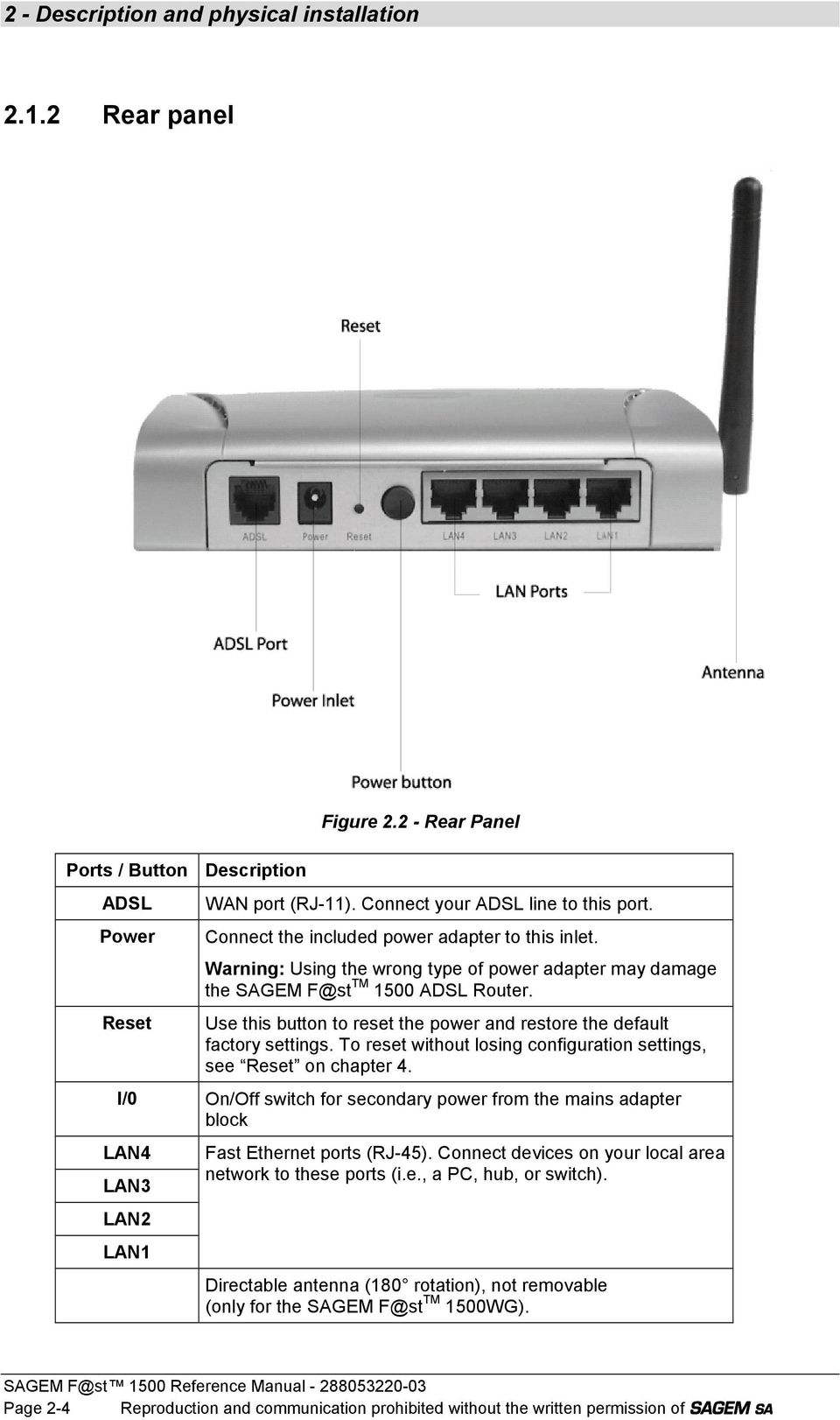
16 2 - Description and physical installation Rear panel Ports / Button ADSL Power Reset Description Figure Rear Panel WAN port (RJ-11). Connect your ADSL line to this port. Connect the included power adapter to this inlet. Warning: Using the wrong type of power adapter may damage the SAGEM F@st TM 1500 ADSL Router. Use this button to reset the power and restore the default factory settings. To reset without losing configuration settings, see Reset on chapter 4. I/0 On/Off switch for secondary power from the mains adapter block LAN4 LAN3 LAN2 LAN1 Fast Ethernet ports (RJ-45). Connect devices on your local area network to these ports (i.e., a PC, hub, or switch). Directable antenna (180 rotation), not removable (only for the SAGEM F@st TM 1500WG). Page 2-4 Reproduction and communication prohibited without the written permission of E
17 2 - Description and physical installation 2.2 Physical Installation Installation instructions Environment The SAGEM F@st 1500 must be installed and used inside a building. The room temperature must not exceed 45 C. The SAGEM F@st 1500 must be placed on a desktop. The SAGEM F@st 1500 must not be exposed to strong sunlight or excessive heat. The SAGEM F@st 1500 must not be placed in an environment subject to significant steam condensation. The SAGEM F@st 1500 must not be exposed to splashed water. The SAGEM F@st 1500 casing must not be covered. The SAGEM F@st 1500WG and its peripheral devices must not be used for outdoor transmissions. Power supply source The SAGEM F@st 1500's mains adapter block must not be covered. The SAGEM F@st 1500 router is supplied with its own power supply adapter. It must not be used with any other adapter. This Class II adapter does not need to be earthed. The connection to the electrical network must comply with the information on its label. Use a readily accessible mains outlet near to the router. The power supply lead is 2 m long. Arrange the power supply lead to avoid any accidental disconnection of the power supply to the router. The SAGEM F@st 1500 is designed for connection to a TT or TN system power supply network. The SAGEM F@st 1500 is not designed for connection to an IT system electrical installation (power supply with separate neutral). Protection against short circuits and leaks between phase, neutral and earth must be provided by the building's electrical installation. The power circuit for this equipment must be fitted with 16 A overcurrent protection and differential protection. The mains connection must be via a readily accessible, switched wall socket. Maintenance The casing must not be opened. This must be done only by personnel qualified and approved by your supplier. Do not use liquid or aerosol cleaning agents. Never open the mains adapter block; this can expose you to mortal danger. Page 2-5 Reproduction and communication prohibited without the written permission of E

18 2 - Description and physical installation Desktop Installation place the SAGEM F@st 1500 on its plastic stand fitted with four non-slip rubber feet. make sure that the various leads pass correctly through the cable guide to avoid any risk of tension or of dropping the unit. Page 2-6 Reproduction and communication prohibited without the written permission of E

19 2 - Description and physical installation 2.3 Settings and Connecting ISP settings Please collect the following information from your ISP before setting up the SAGEM F@st TM 1500 ADSL Router: ISP account user name and password, Protocol, encapsulation and VPI/VCI circuit numbers, DNS server address, IP address, subnet mask and default gateway (for fixed IP users only) Install the SAGEM F@st TM 1500 ADSL Router The SAGEM F@st TM 1500 ADSL Router can be positioned at any convenient location in your office or home. No special wiring or cooling requirements are needed. You should, however, comply with the following guidelines: Keep the SAGEM F@st TM 1500 ADSL Router away from any heating devices. Do not place the SAGEM F@st TM 1500 ADSL Router in a dusty or wet environment. You should also remember to turn off the power, remove the power cord from the outlet, and keep your hands dry when you install the SAGEM F@st TM 1500 ADSL Router Connect the ADSL Line Connect the supplied RJ-11 cable from the ADSL Microfilter/Splitter to the ADSL port on your Sagem SAGEM F@st TM 1500 Router. When inserting an ADSL RJ-11 plug, be sure the tab on the plug clicks into position to ensure that it is properly seated. Page 2-7 Reproduction and communication prohibited without the written permission of E

20 2 - Description and physical installation Phone Line Configuration Installing a Full-Rate Connection If you are using a full-rate (G.dmt) connection, your service provider will attach the outside ADSL line to a data/voice splitter. In this case you can connect your phones and computer directly to the splitter as shown below: Figure Installing with a Splitter Page 2-8 Reproduction and communication prohibited without the written permission of E

21 2 - Description and physical installation Installing a Splitterless Connection If you are using a splitterless (G.lite) connection, then your service provider will attach the outside ADSL line directly to your phone system. In this case you can connect your phones and computer directly to the incoming ADSL line, but you will have to add low-pass filters to your phones as shown below: Figure Installing without a splitter Page 2-9 Reproduction and communication prohibited without the written permission of E
22 2 - Description and physical installation Attach to Your Network Using Ethernet Cabling The four LAN ports on the SAGEM F@st TM 1500 ADSL Router auto-negotiate the connection speed to 10 Mbps Ethernet or 100 Mbps Fast Ethernet, as well as the transmission mode to half duplex or full duplex. Use RJ-45 cables to connect any of the four LAN ports on the SAGEM F@st TM 1500 ADSL Router to an Ethernet adapter on your PC. Otherwise, cascade any of the LAN ports on the SAGEM F@st TM 1500 ADSL Router to an Ethernet hub or switch, and then connect your PC or other network equipment to the hub or switch. When inserting an RJ-45 connector, be sure the tab on the connector clicks into position to ensure that it is properly seated.! Do not plug a phone jack connector into an RJ-45 port. This may damage the SAGEM F@st TM 1500 ADSL Router. Use 100-ohm shielded or unshielded twisted-pair cable with RJ-45 connectors for all Ethernet ports. Use Category 3, 4, or 5 for connections that operate at 10 Mbps, and Category 5 for connections that operate at 100 Mbps. Make sure each twisted-pair cable length does not exceed 100 meters (328 feet) Connect the Power Adapter Plug the power adapter into the power socket on the rear of the SAGEM F@st TM 1500 ADSL Router, and the other end into a power outlet. Check the power indicator on the front panel is lit. If the power indicator is not lit, refer to Troubleshooting on Appendice A. In case of a power input failure, the SAGEM F@st TM 1500 ADSL Router will automatically restart and begin to operate once the input power is restored. Page 2-10 Reproduction and communication prohibited without the written permission of E
23 2 - Description and physical installation 2.4 Powering up the SAGEM F@st 1500 ADSL router Check that the SAGEM F@st 1500 router is connected correctly to the electrical power supply network (see section 2.3.2). Set the I/O switch to I (bottom position). Initially, the PWR LED and all the ETHERNET LEDs will come on. After a certain period, only the PWR LED will remain lit, the extreme right ETHERNET LED is slowly blinking, the ALM LED will come on and the WLAN LED (only for the SAGEM F@st 1500WG) will then come on if the wireless module is installed and active, and finally the ADSL LED will start blinking. Page 2-11 Reproduction and communication prohibited without the written permission of E
24 2 - Description and physical installation Page 2-12 Reproduction and communication prohibited without the written permission of E
25 3. Configuring Client Computer This chapter covers the TCP/IP Configuration Section 3.1 the configuration of your Windows computer Section 3.2 the configuration of your Mac computer Section 3.3 Reproduction and communication prohibited without the written permission of E Page 3-1
26 3 - Configuring Client Computer After completing hardware setup by connecting all your network devices, you need to configure your computer to connect to the SAGEM F@st TM 1500 ADSL Router. See: PC Windows 98/Me on sub-section Windows NT 4.0 on sub-section Windows 2000 on sub-section Windows XP sub-section Mac Mac OS 10.2 on sub-section 3.3 Configuring Your Macintosh Computer depending on your operating system. 3.1 TCP/IP Configuration To access the Internet through the SAGEM F@st TM 1500 ADSL Router, you must configure the network settings of the computers on your LAN to use the same IP subnet as the SAGEM F@st TM 1500 ADSL Router. The default IP settings for the SAGEM F@st TM 1500 ADSL Router are: IP Address : Subnet Mask : These settings can be changed to fit your network requirements, but you must first configure at least one computer to access the SAGEM F@st TM 1500 ADSL Router s web configuration interface in order to make the required changes. (See Configuring the SAGEM F@st TM 1500 ADSL Router on chapter 4 for instruction on configuring the SAGEM F@st TM 1500 ADSL Router). Page 3-2 Reproduction and communication prohibited without the written permission of E
27 3 - Configuring Client Computer 3.2 Configuring your Windows computer On Windows 98 / Me You may find that the instructions in this section do not exactly match your version of Windows. This is because these steps and screen shots were created from Windows 98. Windows Millennium Edition is similar, but not identical, to Windows 98. 1) On the Windows desktop, click Start/Settings/Control Panel. 2) In Control Panel, double-click the Network icon. 3) In the Network window, under the Configuration tab, double-click the TCP/IP item listed for your network card. 4) In the TCP/IP window, select the IP Address tab. If Obtain an IP address automatically is already selected, your computer is already configured for DHCP. If not, select this option. Reproduction and communication prohibited without the written permission of E Page 3-3
28 3 - Configuring Client Computer 5) Windows may need your Windows 95/98/Me CD to copy some files. After it finishes copying, it will prompt you to restart your system. Click Yes and your computer will restart. TCP/IP Configuration Setting Primary DNS Server Secondary DNS Server Default Gateway Host Name Page 3-4 Reproduction and communication prohibited without the written permission of E
29 3 - Configuring Client Computer Disable HTTP Proxy You need to verify that the HTTP Proxy feature of your web browser is disabled. This is so that your browser can view the SAGEM F@st TM 1500 ADSL Router s HTML configuration pages. The following steps are for Internet Explorer. Internet Explorer 1) Open Internet Explorer. 2) Click the Stop button, then click Tools/Interne Options. 3) In the Internet Options window, click the Connections tab. Next, click the LAN Settings button. 4) Clear all the check boxes. 5) Click OK, and then click OK again to close the Internet Options window. Reproduction and communication prohibited without the written permission of E Page 3-5
30 3 - Configuring Client Computer Page 3-6 Reproduction and communication prohibited without the written permission of E
31 3 - Configuring Client Computer Obtain IP Settings from SAGEM F@st TM 1500 ADSL Router Now that you have configured your computer to connect to your SAGEM F@st TM 1500 ADSL Router, it needs to obtain new network settings. By releasing old DHCP IP settings and renewing them with settings from your SAGEM F@st TM 1500 ADSL Router, you can also verify that you have configured your computer correctly. 1) On the Windows desktop, click Start/Run... 2) Type WINIPCFG and click OK. It may take a second or two for the IP Configuration window to appear. 3) In the IP Configuration window, select your network card from the drop-down menu. Click Release and then click Renew. Verify that your IP address is now xxx, your Subnet Mask is and your Default Gateway is These values confirm that your SAGEM F@st TM 1500 ADSL Router is functioning. Click OK to close the IP Configuration window. Reproduction and communication prohibited without the written permission of E Page 3-7
32 3 - Configuring Client Computer On Windows NT 4.0 1) On the Windows desktop, click Start/Settings/Control Panel. Page 3-8 Reproduction and communication prohibited without the written permission of E
33 3 - Configuring Client Computer 2) Double-click the Network icon. 3) In the Network window, select the Protocols tab. Double-click TCP/IP Protocol. 4) When the Microsoft TCP/IP Properties window open, select the IP Address tab. 5) In the Adapter drop-down list, be sure your Ethernet adapter is selected. 6) If Obtain an IP address automatically is already selected, your computer is already configured for DHCP. If not, select this option and click Apply. 7) Click the DNS tab to see the primary and secondary DNS servers. Record these values, and then click Remove. Click Apply, and then OK. Reproduction and communication prohibited without the written permission of E Page 3-9
34 3 - Configuring Client Computer 8) Windows may copy some files, and will then prompt you to restart your system. Click Yes and your computer will shut down and restart. TCP/IP Configuration Setting Primary DNS Server Secondary DNS Server Default Gateway Host Name Disable HTTP Proxy You need to verify that the HTTP Proxy feature of your web browser is disabled. This is so that your browser can view the SAGEM F@st TM 1500 ADSL Router s HTML configuration pages. (refer to Internet Explorer on 3.2.1). Obtain IP Settings from SAGEM F@st TM 1500 ADSL Router Now that you have configured your computer to connect to your SAGEM F@st TM 1500 ADSL Router, it needs to obtain new network settings. By releasing old DHCP IP settings and renewing them with settings from your SAGEM F@st TM 1500 ADSL Router, you can also verify that you have configured your computer correctly. Page 3-10 Reproduction and communication prohibited without the written permission of E
35 3 - Configuring Client Computer 1) On the Windows desktop, click Start/Programs/ Command Prompt. 2) In the Command Prompt window, type IPCONFIG /RELEASE and press the ENTER key. 3) Type IPCONFIG /RENEW and press the ENTER key. Verify that your IP Address is now xxx, your Subnet Mask is and your Default Gateway is These values confirm that your SAGEM F@st TM 1500 ADSL Router is functioning. 4) Type EXIT and press the ENTER key to close the Command Prompt window. Your computer is now configured to connect to the SAGEM F@st TM 1500 ADSL Router. Reproduction and communication prohibited without the written permission of E Page 3-11
36 3 - Configuring Client Computer On Windows ) On the Windows desktop, click Start/Settings/Network and Dial-Up Connections. 2) Click the icon that corresponds to the connection to your SAGEM F@st TM 1500 ADSL Router. 3) The connection status screen will open. Click Properties. Page 3-12 Reproduction and communication prohibited without the written permission of E
37 3 - Configuring Client Computer 4) Double-click Internet Protocol (TCP/IP). 5) If Obtain an IP address automatically and Obtain DNS server address automatically are already selected, your computer is already configured for DHCP. If not, select this option. Disable HTTP Proxy You need to verify that the HTTP Proxy feature of your web browser is disabled. This is so that your browser can view the SAGEM F@st TM 1500 ADSL Router s HTML configuration pages. (refer to Internet Explorer on 3.2.1). Reproduction and communication prohibited without the written permission of E Page 3-13
38 3 - Configuring Client Computer Obtain IP Settings from SAGEM F@st TM 1500 ADSL Router Now that you have configured your computer to connect to your SAGEM F@st TM 1500 ADSL Router, it needs to obtain new network settings. By releasing old DHCP IP settings and renewing them with settings from SAGEM F@st TM 1500 ADSL Router, you can verify that you have configured your computer correctly. 1) On the Windows desktop, click Start/Programs/Accessories/Command Prompt. 2) In the Command Prompt window, type IPCONFIG/RELEASE and press the ENTER key. Page 3-14 Reproduction and communication prohibited without the written permission of E
39 3 - Configuring Client Computer 3) Type IPCONFIG /RENEW and press the ENTER key. Verify that your IP Address is now xxx, your Subnet Mask is and your Default Gateway is These values confirm that your SAGEM F@st TM 1500 ADSL Router is functioning. 4) Type EXIT and press the ENTER key to close the Command Prompt window. Your computer is now configured to connect to the SAGEM F@st TM 1500 ADSL Router. Reproduction and communication prohibited without the written permission of E Page 3-15
40 3 - Configuring Client Computer On Windows XP 1) On the Windows desktop, click Start/Control Panel. 2) In the Control Panel window, click Network and Internet Connections. 3) The Network Connections window will open. Double-click the connection for this device. 4) On the connection status screen, click Properties. Page 3-16 Reproduction and communication prohibited without the written permission of E
41 3 - Configuring Client Computer 5) Double-click Internet Protocol (TCP/IP). 6) If Obtain an IP address automatically and Obtain DNS server address automatically are already selected, your computer is already configured for DHCP. If not, select this option. Disable HTTP Proxy You need to verify that the HTTP Proxy feature of your web browser is disabled. This is so that your browser can view the SAGEM F@st TM 1500 ADSL Router s HTML configuration pages. (refer to Internet Explorer on 3.2.1). Reproduction and communication prohibited without the written permission of E Page 3-17
42 3 - Configuring Client Computer Obtain IP Settings from Sagem F@st1500 ADSL Router Now that you have configured your computer to connect to your SAGEM F@st TM 1500 ADSL Router, it needs to obtain new network settings. By releasing old DHCP IP settings and renewing them with settings from SAGEM F@st TM 1500 ADSL Router, you can verify that you have configured your computer correctly. 1) On the Windows desktop, click Start/All Programs/Accessories/ Command Prompt. 2) In the Command Prompt window, type IPCONFIG/RELEASE and press the ENTER key. Page 3-18 Reproduction and communication prohibited without the written permission of E
43 3 - Configuring Client Computer 3) Type IPCONFIG /RENEW and press the ENTER key. Verify that your IP Address is now xxx, your Subnet Mask is and your Default Gateway is These values confirm that your SAGEM F@st TM 1500 ADSL Router is functioning. Type EXIT and press the ENTER key to close the Command Prompt window. Your computer is now configured to connect to the SAGEM F@st TM 1500 ADSL Router. Reproduction and communication prohibited without the written permission of E Page 3-19
44 3 - Configuring Client Computer 3.3 Configuring your Mac computer You may find that the instructions here do not exactly match your operating system. This is because these steps and screenshots were created using Mac OS Mac OS 7.x and above are similar, but may not be identical to Mac OS Follow these instructions: 1) Pull down the Apple Menu. Click System Preferences. 2) Double-click the Network icon in the Systems Preferences window. Page 3-20 Reproduction and communication prohibited without the written permission of E
45 3 - Configuring Client Computer 3) If Using DHCP Server is already selected in the Configure field, your computer is already configured for DHCP. If not, select this Option. 4) Your new settings are shown on the TCP/IP tab. Verify that your IP Address is now xxx, your Subnet Mask is and your Default Gateway is These values confirm that your SAGEM F@st TM 1500 ADSL Router is functioning. 5) Close the Network window. Now your computer is configured to connect to the SAGEM F@st TM 1500 ADSL Router. Disable HTTP Proxy You need to verify that the HTTP Proxy feature of your web browser is disabled. This is so that your browser can view the SAGEM F@st TM 1500 ADSL Router s HTML configuration pages. The following steps are for Internet Explorer. Internet Explorer 1) Open Internet Explorer and click the Stop button. Click Explorer/Preferences. 2) In the Internet Explorer Preferences window, under Network, select Proxies. 3) Uncheck all check boxes and click OK. Reproduction and communication prohibited without the written permission of E Page 3-21
46 3 - Configuring Client Computer Page 3-22 Reproduction and communication prohibited without the written permission of E
47 4. Configuring the SAGEM 1500 ADSL router This chapter covers The SETUP WIZARD menu Section 4.2 The ADVANCED menu Section 4.11 Finding the MAC address of a Network Card Section 4.12 Reproduction and communication prohibited without the written permission of E Page 4-1
48 4 - Configuring the SAGEM F@st 1500 ADSL router After you have configured TCP/IP on a client computer, you can configure the 1500 ADSL Router using Internet Explorer 5.0 or above. To access the SAGEM F@st 1500 ADSL Router s management interface, enter the default IP address of the SAGEM F@st 1500 ADSL Router in your web browser: No Password needed, just click LOGIN. Navigating the Management Interface The SAGEM F@st 1500 ADSL Router s management interface consists of a Setup Wizard and an Advanced Setup section. Setup Wizard: Use the Setup Wizard if you want to quickly set up the SAGEM F@st 1500 ADSL Router. Go to SETUP WIZARD on section 4.2 Advanced Setup: Advanced Setup supports more advanced functions like hacker attack detection, IP and MAC address filtering, virtual server setup, virtual DMZ host, as well as other functions. Go to Advanced Setup on section You can also display router information on section 4.1. Making Configuration Changes Configurable parameters have a dialog box or a drop-down list. Once a configuration change has been made on a page, click the SAVE SETTINGS or NEXT button at the bottom of the page to enable the new setting. To ensure proper screen refresh after a command entry, be sure that Internet Explorer 5.0 is configured as follows: Under the menu Tools/Internet Options/General/Temporary Internet Files/Settings, the setting for Check for newer versions of stored pages should be Every visit to the page. Some new settings require a Save & Reboot process to store the modification in the flush memory. You can click the Save & Reboot button at the top of page. Page 4-2 Reproduction and communication prohibited without the written permission of E
49 4 - Configuring the SAGEM F@st 1500 ADSL router This section on the left of the Home screen contains the following menus: STATUS (see section 4.1), SETUP WIZARD (see section 4.2), SYSTEM (see section 4.3), WAN (see section 4.4), LAN (see section 4.5), WIRELESS (see section 4.6), NAT (see section 4.7), FIREWALL (see section 4.8), ROUTE (see section 4.9), QoS (see section 4.10), ADVANCED (see section 4.11). On tne Home screen, you can choose the language in which you want to configure your modem by clicking the appropriate flag (French or english). Reproduction and communication prohibited without the written permission of E Page 4-3
50 4 - Configuring the SAGEM F@st 1500 ADSL router 4.1 STATUS The Status page displays WAN/LAN connection status, firmware, and hardware version numbers, illegal attempts to access your network, as well as information on DHCP clients connected to your network. The security log may be saved to a file by clicking the button and choosing a location. Scroll down to view more information on the STATUS page. Page 4-4 Reproduction and communication prohibited without the written permission of E
51 4 - Configuring the SAGEM F@st 1500 ADSL router The following items are included on the Status page: Item INTERNET VC GATEWAY INFORMATION Security Log DHCP Client Log Description Displays WAN connection type and status. Click the Connect button to connect to your ISP. Displays your VC settings and its status. Click on the Connect button to establish the VC s connection, click on the Disconnect button to stop it. Displays system IP settings, as well as DHCP Server and Firewall status. Displays the number of attached clients, the firmware versions, the physical MAC address for each media interface, and for the SAGEM F@st 1500 ADSL Router, as well as the hardware version and serial number. Displays illegal attempts to access your network. Save Click on this button to save the security log file. Clear Click on this button to delete the access log. Refresh Click on this button to refresh the screen. Displays information on DHCP clients on your network. In the Security Log field, click on this button to clear all the events from the Security Log. In the Security Log field, click on this button to refresh all the events from the Security Log. Reproduction and communication prohibited without the written permission of E Page 4-5
52 4 - Configuring the SAGEM F@st 1500 ADSL router 4.2 "SETUP WIZARD" menu In this menu is included the following sub-menus: PPP setting (see section 4.2.1), Channel and SSID (see section 4.2.2), WEP (see section 4.2.3), Access control (see section 4.2.4) PPP Setting Enter the PPPoA (Point-to-Point Protocol over ATM) settings provided by your ISP. Parameter Username Password Confirm Password Description Enter the ISP assigned user name Enter your password Confirm your password This will automatically configure the SAGEM F@st 1500 ADSL Router with the correct Protocol, Encapsulation and VPI/VCI settings for your ISP. Click Next, the router will try to connect to the Internet. Page 4-6 Reproduction and communication prohibited without the written permission of E
53 4 - Configuring the SAGEM F@st 1500 ADSL router Once the ADSL Router has been connected to the Internet, you get the following message: Channel and SSID Now, you can start the wireless configuration. You must specify a common radio channel and SSID (Service Set ID) to be used by the SAGEM F@st 1500 ADSL Router and all of its wireless clients. Be sure you configure all of its clients to the same values. Parameter ESSID ESSID Broadcast Wireless Mode Channel Description Extended Service Set ID. The ESSID must be the same on the SAGEM F@st 1500 ADSL Router and all of its wireless clients. Enable or disable the broadcasting of the SSID. This device supports both g and b wireless networks. Make your selection depending on the type of wireless network that you have. The radio channel used by the wireless router and its clients to communicate with each other. This channel number must be the same on the ADSL Router and all of its wireless clients. Reproduction and communication prohibited without the written permission of E Page 4-7
54 4 - Configuring the SAGEM F@st 1500 ADSL router WEP To make your wireless network safe, you should turn on the security function. Parameter WEP module function WEP Mode Key Entry Method Description Select Disable or Enable key to use or not WEP module function. Remark: It is advised to select the Enable key. Select 64 bit or 128 bit key to use for encryption. Select Hex or ASCII key to use a Key Entry Method (Hexadecimal or ASCII). To validate the WEP security protection, you should to set the same parameters for the SAGEM F@st 1500 ADSL Router and all your wireless clients. You may automatically generate encryption keys or manually enter the keys. To generate the key automatically with passphrase, check the Passphrase box, enter a string of characters. Select the default key from the drop down menu. Click Next. The passphrase can consist of up to 32 alphanumeric characters. To manually configure the encryption key, enter five hexadecimal pairs of digits for each 64-bit key, or enter 13 pairs for the single 128-bit key (A hexadecimal digit is a number or letter in the range 0-9 or A-F.). Note that WEP protects data transmitted between wireless nodes, but does not protect any transmissions over your wired network or over the Internet. Page 4-8 Reproduction and communication prohibited without the written permission of E
55 4 - Configuring the SAGEM F@st 1500 ADSL router Access Control Access Control allows users to define the outgoing traffic permitted or not-permitted through the Wi-Fi interface. The default is to permit all outgoing traffic. The following items are on the Access Control screen: Click Yes to turn on the filtering function, or No to disable this function. If you have enabled this function, you can enter the client MAC addresses that you want to filter. You can give up to 32 client stations. Once you have done your settings, click Finish to save these settings and quit the Setup Wizard. Your SAGEM F@st 1500 ADSL Router is now set up. Go to Troubleshooting on Appendice A, if you cannot make a connection to the Internet. Reproduction and communication prohibited without the written permission of E Page 4-9
56 4 - Configuring the SAGEM F@st 1500 ADSL router 4.3 SYSTEM In this menu is included the following sub-menus: Time setting (see section 4.3.1), Password setting and SSID (see section 4.3.2), Configuration tools (see section 4.3.3), Firware upgrade (see section 4.3.4), Reset (see section 4.3.5) Time Settings Select your local time zone from the drop down list. This information is used for log entries and client filtering. For accurate timing of log entries and system events, you need to set the time zone. Select your time zone from the drop down list. If you want to automatically synchronize the SAGEM F@st 1500 ADSL Router with a public time server, check the box to Enable Automatic Time Server Maintenance. Select the desired servers from the drop down menu. Page 4-10 Reproduction and communication prohibited without the written permission of E
57 4 - Configuring the SAGEM F@st 1500 ADSL router Password Settings Use this page to change the password for accessing the management interface of the SAGEM F@st 1500 ADSL Router. Passwords can contain from 3 to 12 alphanumeric characters and are case sensitive. If you lost the password, or you cannot gain access to the user interface, press the blue reset button on the rear panel, holding it down for at least five seconds to restore the factory defaults. The default password is empty. Enter a maximum Idle Time Out (in minutes) to define a maximum period of time for which the login session is maintained during inactivity. If the connection is inactive for longer than the maximum idle time, it will perform system logout, and you have to log in again to access the management interface. The default timeout is fixed to 10 minutes. Reproduction and communication prohibited without the written permission of E Page 4-11
58 4 - Configuring the SAGEM F@st 1500 ADSL router Configuration tools Use the Tools menu to backup the current configuration, restore a previously saved configuration, restore factory settings, update firmware, and reset the SAGEM F@st 1500 ADSL Router. Choose a function and click Next. Backup allows you to save the SAGEM F@st 1500 ADSL Router s configuration to a file. Restore can be used to restore the saved backup configuration file. Restore to Factory Defaults resets the SAGEM F@st 1500 ADSL Router to the original settings. You will be asked to confirm your decision. Page 4-12 Reproduction and communication prohibited without the written permission of E
59 4 - Configuring the SAGEM F@st 1500 ADSL router Firmware Upgrade Use this screen to update the firmware or user interface to the latest versions. Download the upgrade file from the Sagem web site, and save it to your hard drive. In the Upgrade Target field, choose Firmware. Then click Browse... to look for the downloaded file. Click Apply. Check the Status page Information section to confirm that the upgrade process was successful Reset Click REBOOT ROUTER to reset the SAGEM F@st 1500 ADSL Router. The reset will be completed when the power LED stops blinking. If you perform a reset from this page, the configurations will not be changed back to the factory default settings. If you use the Reset button on the front panel, the SAGEM F@st 1500 ADSL Router performs a power reset. If the button is depressed for over five seconds, all the LEDs will be lighted and the factory settings will be restored. Reproduction and communication prohibited without the written permission of E Page 4-13
60 4 - Configuring the SAGEM F@st 1500 ADSL router 4.4 "WAN" menu Specify the WAN connection parameters provided by your Internet Service Provider (ISP). The SAGEM F@st 1500 ADSL Router can be connected to your ISP in one of the following ways: ATM PVC (see section 4.4.1), Clone MAC (see section 4.4.2). Page 4-14 Reproduction and communication prohibited without the written permission of E
61 4 - Configuring the SAGEM F@st 1500 ADSL router ATM PVC Enter ATM (Asynchronous Transfer Mode) function parameters here. Parameter Description Protocol Disable Disables the ATM mode. VPI/VCI Encapsulation 1483 Bridging PPPoA: 1483 Routing PPPoE MAC Encapsulated Routing Bridging: Bridging is a standardized layer 2 technology. It is typically used in corporate networks to extend the physical reach of a single LAN segment and increase the number of stations on a LAN without compromising performance. Bridged data is encapsulated using the RFC1483 protocol to enable data transport. Point-to-Point over ATM Use 1483 Routing protocol. Point-to-Point over Ethernet. MAC Encapsulated Routing Virtual Path Identifier (VPI) and Virtual Circuit Identifier (VCI).Each connection must have a unique pair of VPI/VCI settings. Specifies how to handle multiple protocols at the ATM transport layer. VC-MUX Point-to-Point Protocol over ATM Virtual Circuit Multiplexer (null encapsulation) allows only one protocol running per virtual circuit with less overhead. LLC Point-to-Point Protocol over ATM Logical Link Control (LLC) allows multiple protocols running over one virtual circuit (using slightly more overhead). QoS CBR Constant Bit Rate. It is used for voice application. VBR UBR PCR/SCR/MBS PCR Peak Cell Rate. SCR MBS Variable Bit Rate. It is used for video application. Unspecified Bit Rate. It is used in Best Effort for IP and Ethernet (for Data Application) Sustainable Cell Rate. Maximum Burst Size. Reproduction and communication prohibited without the written permission of E Page 4-15
62 4 - Configuring the SAGEM F@st 1500 ADSL router IP assigned by ISP IP Address Subnet Mask Click Yes or No to assign or no IP address to your ISP IP address of the ATM interface. Subnet mask of the ATM interface. Connect Type Always connected Your router is always connected to the WAN (automatic mode). Idle Time (Minute) Username Password Confirm Password Confirm Password MTU Auto - Triggered by traffic Manual - Start in Disconnected Your router only connect to WAN when traffic is on (automatic mode). When your router start, this is disconnected to WAN (Manual mode). Manual - Start in Disconnected When your router start, this is connected to WAN (Manual mode). Manual - Start in Last State When your router start, this connect to WAN in last stated (Manual mode). Enter the maximum idle time for the Internet connection. After this time has been exceeded the connection will be terminated. In the field it appears the username that you entered during the SETUP WIZARD menu In the field it appears the Password that you entered during the SETUP WIZARD menu In the field it appears the Confirm Password that you entered during the SETUP WIZARD menu In the field it appears the Confirm Password that you entered during the SETUP WIZARD menu Specifies the maximum size of the payload data in IP packets as a number of bytes (1500 in general) The following parameters only appear in "Routed" mode that you can select in the "Protocol" field: Default Gateway DHCP Client Default gateway of the ATM interface. Check this box if your ISP assigns an IP to clients using DHCP. Page 4-16 Reproduction and communication prohibited without the written permission of E
63 4 - Configuring the SAGEM F@st 1500 ADSL router Clone MAC Some ISPs require you to register your MAC address with them. If this is the case, the MAC address of the SAGEM F@st 1500 ADSL Router must be changed to the MAC address that you have registered with your ISP. Reproduction and communication prohibited without the written permission of E Page 4-17
64 4 - Configuring the SAGEM F@st 1500 ADSL router 4.5 LAN Use the LAN menu to configure the LAN IP address and to enable the DHCP server for dynamic client address allocation. Parameter LAN IP Description IP Address The IP address of the SAGEM F@st 1500 ADSL Router. IP Subnet Mask The subnet mask of the network. DHCP Server The SAGEM F@st 1500 ADSL Router comes with the DHCP function. To dynamically assign an IP address to client PCs, enable this function. Lease Time Set the IP lease time. For home networks this may be set to Forever, which means there is no time limit on the IP address lease. IP Address Pool Start IP Specify the start IP address of the DHCP pool. Do not include the gateway address of the SAGEM F@st 1500 ADSL Router in the client address pool. If you change the pool range, make sure the first three octets match the gateway s IP address, i.e., xxx End IP Specify the end IP address of the DHCP pool. Domain Name If your network uses a domain name, enter it here. Otherwise, leave this field blank. Remember to configure your client PCs for dynamic address allocation (See section 3.1 for details). In this menu is included the following sub-menu: DNS (see section 4.5.1). Page 4-18 Reproduction and communication prohibited without the written permission of E
65 4 - Configuring the SAGEM F@st 1500 ADSL router DNS Domain Name Servers (DNS) are used to map a domain name (e.g., with the IP address (e.g., ). Your ISP should provide the IP address of one or more Domain Name Servers. Enter those addresses on this page, and click Apply. Reproduction and communication prohibited without the written permission of E Page 4-19
66 4 - Configuring the SAGEM F@st 1500 ADSL router 4.6 Wireless The SAGEM F@st 1500 ADSL Router also operates as a wireless access point, allowing wireless computers to communicate with each other. To configure this function, all you need to do is enable the wireless function, define the radio channel, the domain identifier, and the security options. Check Enable and click Apply". In this menu is included the following sub-menus: Channel and SSID (see section 4.6.1), Access control (see section 4.6.2), Security (see section 4.6.3), WEP (see section 4.6.4), WPA setting (see section 4.6.5), 802.x (see section 4.6.6). Page 4-20 Reproduction and communication prohibited without the written permission of E
67 4 - Configuring the SAGEM F@st 1500 ADSL router Channel and SSID You must specify a common radio channel and SSID (Service Set ID) to be used by the SAGEM F@st 1500 ADSL Router and all of its wireless clients. Be sure you configure all of its clients to the same values. Parameter Description SSID Service Set ID. The ESSID must be the same on the SAGEM F@st 1500 ADSL Router and all of its wireless clients. SSID Broadcast Wireless Mode Channel Enable or disable the broadcasting of the SSID. This device supports both 11g and 11b wireless networks. Make your selection depending on the type of wireless network that you have. The radio channel used by the wireless router and its clients to communicate with each other. This channel number must be the same on the ADSL Router and all of its wireless clients. Reproduction and communication prohibited without the written permission of E Page 4-21
68 4 - Configuring the SAGEM F@st 1500 ADSL router Access Control Access Control allows users to define the outgoing traffic permitted or not-permitted through the Wi-Fi interface. The default is to permit all outgoing traffic. The following items are on the Access Control screen: Click Yes to turn on the filtering function, or No to disable this function. If you have enabled this function, you can enter the client MAC addresses that you want to filter. (You can give up to 32 client stations). Page 4-22 Reproduction and communication prohibited without the written permission of E
69 4 - Configuring the SAGEM F@st 1500 ADSL router Security To make your wireless network safe, you should turn on the security function. The SAGEM F@st 1500 ADSL Router supports WEP (Wired Equivalent Privacy), WPA (Wi-Fi Protected), and 802.1x security mechanisms. Reproduction and communication prohibited without the written permission of E Page 4-23
70 4 - Configuring the SAGEM F@st 1500 ADSL router WEP If you want to use WEP to protect your wireless network, you need to set the same parameters for the SAGEM F@st 1500 ADSL Router and all your wireless clients. Parameter WEP Mode Key Provisioning Description Select 64 bit or 128 bit key to use for encryption. Select Static if there is only one fixed key for encryption. If you want to select Dynamic, you would need to enable 802.1x function first. You may automatically generate encryption keys or manually enter the keys. To generate the key automatically with passphrase, check the Passphrase box, enter a string of characters. Select the default key from the drop down menu. Click Apply. The passphrase can consist of up to 32 alphanumeric characters. To manually configure the encryption key, enter five hexadecimal pairs of digits for each 64-bit key, or enter 13 pairs for the single 128-bit key (A hexadecimal digit is a number or letter in the range 0-9 or A-F). Note that WEP protects data transmitted between wireless nodes, but does not protect any transmissions over your wired network or over the 1500 ADSL Router using Internet Explorer 5.0 or above. Page 4-24 Reproduction and communication prohibited without the written permission of E
71 4 - Configuring the SAGEM F@st 1500 ADSL router WPA Wi-Fi Protected Access (WPA) combines Temporal Key Integrity Protocol (TKIP) and 802.1x mechanisms. It provides dynamic key encryption and 802.1x authentication service. Parameter Cypher suite Authentication Pre-shared key type Pre-shared Key Description The security mechanism used in WPA for encryption. Choose 802.1X or Pre-shared Key to use as the authentication method X: for the enterprise network with a RADIUS server. Pre-shared key for the SOHO network environment without an authentication server. Select the key type to be used in the Pre-shared Key. Type in the key here. Group Key Re-Keying The period of renewing broadcast/multicast key. Reproduction and communication prohibited without the written permission of E Page 4-25
72 4 - Configuring the SAGEM F@st 1500 ADSL router X If 802.1X is used in your network, then you should enable this function for the SAGEM F@st 1500 ADSL Router. Page 4-26 Reproduction and communication prohibited without the written permission of E
73 4 - Configuring the SAGEM F@st 1500 ADSL router 802.1X Parameter 802.1X Authentication Session Idle timeout Re-Authentication Period Quiet Period Server Type RADIUS Server Parameters Server IP Server Port Secret Key NAS-ID TINY Server Users Profile (up to 10 users) Index Username Password Re-Type Password New Clear Description Enable or disable this authentication function. Defines a maximum period of time for which the connection is maintained during inactivity. Defines a maximum period of time for which the authentication server will dynamically re-assign a session key to a connected client. Defines a maximum period of time for which the SAGEM F@st 1500 ADSL Router will wait between failed authentications. Select TINY or RADIUS as the authentication server. The IP address of your authentication server. The port used for the authentication service. The secret key shared between the authentication server and its clients. Defines the request identifier of the Network Access Server. The Tiny Encryption Algorithm is used to encrypt the password with a randomly generated number sent by the server. Check the box of the user you wish to modify. Defines the user name of clients. Set the single-use password for the clients. Confirm your password. Create a new Tiny service account. Clear the profile settings. Reproduction and communication prohibited without the written permission of E Page 4-27
74 4 - Configuring the SAGEM F@st 1500 ADSL router 4.7 NAT Network Address Translation allows multiple users to access the Internet sharing one public IP. In this menu is included the following sub-menus: Address Mapping (see section 4.7.1), Virtual Server (see section 4.7.2), Special Application (see section 4.7.3), NAT Mapping Table (see section 4.7.4). Page 4-28 Reproduction and communication prohibited without the written permission of E
75 4 - Configuring the SAGEM F@st 1500 ADSL router Address Mapping This feature allows one or more public IP addresses to be shared by multiple internal users. This also hides the internal network for increased privacy and security. Enter the Public IP address you wish to share into the Global IP field. Enter a range of internal IPs that will share the global IP into the from field. Reproduction and communication prohibited without the written permission of E Page 4-29
76 4 - Configuring the SAGEM F@st 1500 ADSL router Virtual Server If you configure the SAGEM F@st 1500 ADSL Router as a virtual server, remote users accessing services such as web or FTP at your local site via public IP addresses can be automatically redirected to local servers configured with private IP addresses. In other words, depending on the requested service (TCP/UDP port number), the SAGEM F@st 1500 ADSL Router redirects the external service request to the appropriate server (located at another internal IP address). For example, if you set Type/Public Port to TCP/80 (HTTP or web) and the Private IP/Port to /80, then all HTTP requests from outside users will be transferred to on port 80. Therefore, by just entering the IP address provided by the ISP, Internet users can access the service they need at the local address to which you redirect them. The more common TCP service ports include: HTTP: 80, FTP: 21, Telnet: 23, and POP3: 110. A list of ports is maintained at the following link: Page 4-30 Reproduction and communication prohibited without the written permission of E
77 4 - Configuring the SAGEM F@st 1500 ADSL router Special Application Some applications require multiple connections, such as Internet gaming, video-conferencing, and Internet telephony. These applications may not work when Network Address Translation (NAT) is enabled. If you need to run applications that require multiple connections, use these pages to specify the additional public ports to be opened for each application. Reproduction and communication prohibited without the written permission of E Page 4-31
78 4 - Configuring the SAGEM F@st 1500 ADSL router NAT Mapping Table Page 4-32 Reproduction and communication prohibited without the written permission of E
79 4 - Configuring the SAGEM F@st 1500 ADSL router 4.8 Firewall The SAGEM F@st 1500 ADSL Router s firewall inspects packets at the application layer, maintains TCP and UDP session information including time-outs and the number of active sessions, and provides the ability to detect and prevent certain types of network attacks. Network attacks that deny access to a network device are called Denial-of-Service (DoS) attacks. DoS attacks are aimed at devices and networks with a connection to the Internet. Their goal is not to steal information, but to disable a device or network so users no longer have access to network resources. The SAGEM F@st 1500 ADSL Router protects against the following DoS attacks: IP Spoofing, Land Attack, Ping of Death, IP with zero length, Smurf Attack, UDP port loopback, Snork Attack, TCP null scan, and TCP SYN flooding. (See section for details). The firewall does not significantly affect system performance, so we advise leaving it enabled to protect your network. Select Enable and click the Apply to open the Firewall submenus. In this menu is included the following sub-menus: Access Control (see section 4.8.1), MAC Filter (see section 4.8.2), URL Blocking (see section 4.8.3), Schedule Rule (see section 4.8.4), Intrusion Detection (see section 4.8.5), DMZ (see section 4.8.6). Reproduction and communication prohibited without the written permission of E Page 4-33
80 4 - Configuring the SAGEM F@st 1500 ADSL router Access Control Access Control allows users to define the outgoing traffic permitted or not-permitted through the WAN interface. The default is to permit all outgoing traffic. The following items are on the Access Control screen: Parameter Enable Filtering Function Normal Filtering Table Description Click Yes to turn on the filtering function. Displays the IP address (or an IP address range) filtering table. To add the PC to the filtering table: 1) Click Add PC on the Access Control screen. 2) Define the appropriate settings for client PC services. 3) Click OK and then click SAVE SETTINGS to save your settings. Page 4-34 Reproduction and communication prohibited without the written permission of E
81 4 - Configuring the SAGEM F@st 1500 ADSL router Reproduction and communication prohibited without the written permission of E Page 4-35
82 4 - Configuring the SAGEM F@st 1500 ADSL router MAC Filter The SAGEM F@st 1500 ADSL Router can also limit the access of hosts within the local area network (LAN). The MAC Filtering Table allows the SAGEM F@st 1500 ADSL Router to enter up to 32 MAC addresses that are not allowed access to the WAN port. Click Yes to enable, or No to disable this function. Enter the MAC address in the space provided. Page 4-36 Reproduction and communication prohibited without the written permission of E
83 4 - Configuring the SAGEM F@st 1500 ADSL router URL Blocking The SAGEM F@st 1500 ADSL Router allows the user to block access to web sites from a particular PC by entering either a full URL address or just a keyword. This feature can be used to protect children from accessing violent or pornographic web sites. You can define up to 30 sites here. Reproduction and communication prohibited without the written permission of E Page 4-37
84 4 - Configuring the SAGEM F@st 1500 ADSL router Schedule Rule You may filter Internet access for local clients based on rules. Each access control rule may be activated at a scheduled time. Define the schedule on the Schedule Rule page, and apply the rule on the Access Control page. Follow these steps to add a schedule rule: 1) Click Add Schedule Rule. 2) Define the appropriate settings for a schedule rule (as shown in this example). 3) Click OK and then click SAVE SETTINGS to save your settings. Page 4-38 Reproduction and communication prohibited without the written permission of E
85 4 - Configuring the SAGEM F@st 1500 ADSL router Intrusion Detection 1) Intrusion Detection Feature Stateful Packet Inspection (SPI) and Anti-DoS firewall protection (Default: Enabled) - The Intrusion Detection Feature of the SAGEM F@st 1500 ADSL Router limits access for incoming traffic at the WAN port. When the SPI feature is turned on, all incoming packets will be blocked except for those types marked in the Stateful Packet Inspection section. RIP Defect (Default: Enabled) - If an RIP request packet is not acknowledged to by the router, it will stay in the input queue and not be released. Accumulated packets could cause the input queue to fill, causing severe problems for all protocols. Enabling this feature prevents the packets from accumulating. Discard Ping to WAN (Default: Disabled) - Prevent a ping on the ADSL Router s WAN port from being routed to the network. 2) Stateful Packet Inspection This is called a stateful packet inspection because it examines the contents of the packet to determine the state of the communications; i.e., it ensures that the stated destination computer has previously requested the current communication. This is a way of ensuring that all communications are initiated by the recipient computer and are taking place only with sources that are known and trusted from previous interactions. In addition to being more rigorous in their inspection of packets, stateful inspection firewalls also close off ports until connection to the specific port is requested. Reproduction and communication prohibited without the written permission of E Page 4-39
86 4 - Configuring the SAGEM F@st 1500 ADSL router Page 4-40 Reproduction and communication prohibited without the written permission of E
87 4 - Configuring the SAGEM F@st 1500 ADSL router When particular types of traffic are checked, only the particular type of traffic initiated from the internal LAN will be allowed. For example, if the user only checks FTP Service in the Stateful Packet Inspection section, all incoming traffic will be blocked except for FTP connections initiated from the local LAN. Stateful Packet Inspection allows you to select different application types that are using dynamic port numbers. If you wish to use the Stateful Packet Inspection (SPI) to block packets, click on the Yes radio button in the Enable SPI and Anti-DoS firewall protection field and then check the inspection type that you need, such as Packet Fragmentation, TCP Connection, UDP Session, FTP Service, H.323 Service, or TFTP Service. 3) When hackers attempt to enter your network, we can alert you by Enter your address. Specify your SMTP and POP3 servers, user name, and password. 4) Connection Policy Enter the appropriate values for TCP/UDP sessions as described in the following table. Parameter Defaults Description Fragmentation half-open wait 10 sec Configures the number of seconds that a packet state structure remains active. When the timeout value expires, the router drops the unassembled packet, freeing that structure for use by another packet. TCP SYN wait 30 sec Defines how long the software will wait for a TCP session to synchronize before dropping the session. TCP FIN wait 5 sec Specifies how long a TCP session will be maintained after the firewall detects a FIN packet. TCP connection idle timeout UDP session idle timeout H.323 data channel idle timeout 3600 seconds (1 hour) The length of time for which a TCP session will be managed if there is no activity. 30 sec The length of time for which a UDP session will be managed if there is no activity. 180 sec The length of time for which an H.323 session will be managed if there is no activity. Reproduction and communication prohibited without the written permission of E Page 4-41
88 4 - Configuring the SAGEM F@st 1500 ADSL router 5) DoS Criteria and Port Scan Criteria Set up DoS and port scan criteria in the spaces provided (as shown below). Note: The firewall does not significantly affect system performance, so we advise enabling the prevention features to protect your network. Parameter Defaults Description Total incomplete TCP/UDP sessions HIGH Total incomplete TCP/UDP sessions LOW Incomplete TCP/UDP sessions (per min) HIGH Incomplete TCP/UDP sessions (per min) LOW Maximum incomplete TCP/UDP sessions number from same host Incomplete TCP/UDP sessions detect sensitive time period Maximum half open fragmentation packet number from same host Half-open fragmentation detect sensitive time period Flooding cracker block time 300 sessions Defines the rate of new unestablished sessions that will cause the software to start deleting half-open sessions. 250 sessions Defines the rate of new unestablished sessions that will cause the software to stop deleting halfopen sessions. 250 sessions Maximum number of allowed incomplete TCP/UDP sessions per minute. 200 sessions Minimum number of allowed incomplete TCP/UDP sessions per minute. 10 Maximum number of incomplete TCP/UDP sessions from the same host. 300 msec Length of time before an incomplete TCP/UDP session is detected as incomplete. 30 Maximum number of half open fragmentation packets from the same host msec Length of time before a half-open fragmentation session is detected as half-open. 300 second Length of time from detecting a flood attack to blocking the attack. Page 4-42 Reproduction and communication prohibited without the written permission of E
89 4 - Configuring the SAGEM F@st 1500 ADSL router DMZ If you have a client computer that cannot run an Internet application properly from behind the firewall, you can open the client up to unrestricted twoway Internet access. Enter the IP address of a DMZ (DeMilitarized Zone) host on this screen. Adding a client to the DMZ may expose your local network to a variety of security risks, so only use this option as a last resort. Reproduction and communication prohibited without the written permission of E Page 4-43
90 4 - Configuring the SAGEM F@st 1500 ADSL router 4.9 Route These pages define routing related parameters, including static routes and RIP (Routing Information Protocol) parameters. In this menu is included the following sub-menus: Static Route (see section 4.9.1), RIP (see section 4.9.2), Routing Table (see section 4.9.3) Static Route Click Add to add a new static route to the list, or check the box of an already entered route and click Modify. Clicking Delete will remove an entry from the list. Parameter Index Network Address Subnet Mask Gateway Description Check the box of the route you wish to delete or modify. Enter the IP address of the remote computer for which to set a static route. Enter the subnet mask of the remote network for which to set a static route. Enter the WAN IP address of the gateway to the remote network. Page 4-44 Reproduction and communication prohibited without the written permission of E
91 4 - Configuring the SAGEM F@st 1500 ADSL router RIP Reproduction and communication prohibited without the written permission of E Page 4-45
92 4 - Configuring the SAGEM F@st 1500 ADSL router Parameter General RIP Parameters RIP mode Description Globally enables or disables RIP. Auto summary If Auto summary is disabled, then RIP packets will include subnetwork information from all subnetworks connected to the router. If enabled, this sub-network information will be summarized to one piece of information covering all subnetworks. Table of current Interface RIP parameter Interface Operation Mode Version Poison Reverse Authentication Required Authentication Code The WAN interface to be configured. Disable: RIP disabled on this interface. Enable: RIP enabled on this interface. Silent: Listens for route broadcasts and updates its route table. It does not participate in sending route broadcasts. Sets the RIP (Routing Information Protocol) version to use on this interface. A method for preventing loops that would cause endless retransmission of data traffic. None: No authentication. Password: A password authentication key is included in the packet. If this does not match what is expected, the packet will be discarded. This method provides very little security as it is possible to learn the authentication key by watching RIP packets. MD5: An algorithm that is used to verify data integrity through the creation of a 128-bit message digest from data input (which may be a message of any length) that is claimed to be as unique to that specific data as a fingerprint is to a specific individual. Password or MD5 Authentication key. RIP sends routing-update messages at regular intervals and when the network topology changes. When a router receives a routing update that includes changes to an entry, it updates its routing table to reflect the new route. RIP routers maintain only the best route to a destination. After updating its routing table, the router immediately begins transmitting routing updates to inform other network routers of the change. Page 4-46 Reproduction and communication prohibited without the written permission of E
93 4 - Configuring the SAGEM F@st 1500 ADSL router Routing Table Parameter Flags Network Address Netmask Gateway Interface Metric Description Indicates the route status: C = Direct connection on the same subnet. S = Static route. R = RIP (Routing Information Protocol) assigned route. I = ICMP (Internet Control Message Protocol) Redirect route. Destination IP address. The subnetwork associated with the destination. This is a template that identifies the address bits in the destination address used for routing to specific subnets. Each bit that corresponds to a 1 is part of the subnet mask number; each bit that corresponds to 0 is part of the host number. The IP address of the router at the next hop to which frames are forwarded. The local interface through which the next hop of this route is reached. When a router receives a routing update that contains a new or changed destination network entry, the router adds 1 to the metric value indicated in the update and enters the network in the routing table. Reproduction and communication prohibited without the written permission of E Page 4-47
94 4 - Configuring the SAGEM F@st 1500 ADSL router 4.10 QoS The QoS function allows users to classify traffic of applications and provides them differentiated services (Diffserv). The following items are on the "QoS Settings" screen: Parameter Enable or disable QoS module function Description Click Enable to activate QoS module function. To configure bandwidth Allocation. Page 4-48 Reproduction and communication prohibited without the written permission of E
95 4 - Configuring the SAGEM F@st 1500 ADSL router Click ; the following screen appears : Allow users to configure guaranteed bandwidth of each Forwarding Group (EF, AF4x to AF1x and BE). The amount of guaranteed bandwidth for the Forwarding Groups must not be over 100%. Allow to limit whether or not the guaranteed bandwidth of each Forwarding Group by checking or not the "Allow More" box In this menu are included the following sub-menus: Traffic Mapping (see section ), Traffic statistics (see section ). Reproduction and communication prohibited without the written permission of E Page 4-49
96 4 - Configuring the SAGEM F@st 1500 ADSL router Traffic Mapping No traffic Mapping was defined. Click on the button to add a traffic class ; the following screen appears: Parameter Rule Name Traffic Type Map to forwarding Group Remark DSCP Direct to VC Description Enter a Rule Name. Select FTP, VoIP, , SNMP, TELNET, WWW, VPN, User define - TCP, User define - UDP or User define - IP, Select Forwarding Service from th lowest to the highest : BE (Best Effort), AF1x (Assured Forwarding), AF2x, AF3x, AF4x or EF (Expedited Forwarding). Check the box to change the DSCP (Differenciated Service Code Point) field in the "IP header" of each outgoing frame. Select "By routing" or "VCx" Page 4-50 Reproduction and communication prohibited without the written permission of E
97 4 - Configuring the SAGEM F@st 1500 ADSL router Click on the button ; the following screen appears: Almost fields are been informed, please inform these last ones: Parameter Local Address Remote Address Description Select Mac addr, IP range, This router or ANY. Select Mac addr, IP range, This router or ANY. In the fields Local Address or Remote Address, if you choose Mac addr, IP range, an other screen appears and you may enter the Mac address or a IP address range (or the IP address) on the local or remote part. For example, in the screen above IP range has been selected After having entered several services classes, the following screen appears: Reproduction and communication prohibited without the written permission of E Page 4-51
98 4 - Configuring the SAGEM F@st 1500 ADSL router This button allows to modify all parameters of each traffic class. This button allows to delete a traffic class. This button allows to move up the matching priority of the selected rule. This button allows to move down the matching priority of the selected rule Traffic statistics Page 4-52 Reproduction and communication prohibited without the written permission of E
99 4 - Configuring the SAGEM F@st 1500 ADSL router 4.11 Advanced In this menu is included the following sub-menus: ADSL (see section ), Remote Management (see section ), SNMP (see section ), UPnP (see section ) ADSL ADSL Status Information ADSL (Asymmetric Digital Subscriber Line) is designed to deliver more bandwidth downstream (from the central office to the customer site) than upstream. This section is used to display the ADSL operation type its status. Reproduction and communication prohibited without the written permission of E Page 4-53
100 4 - Configuring the SAGEM F@st 1500 ADSL router Status The Status screen displays information on connection line status, data rate, operation data and defect indication, and statistics. Scroll down to view more information. Page 4-54 Reproduction and communication prohibited without the written permission of E
101 4 - Configuring the SAGEM F@st 1500 ADSL router The following items are included on this information page: Parameter Status Data Rate Line Status Upstream Downstream Description Shows the current status of the ADSL line connection. Maximum upstream data rate. Operation Data/Defect Indication Noise Margin Output Power Attenuation Fast Path FEC Correction Maximum downstream data rate. Maximum upstream and downstream noise margin. Maximum fluctuation in the output power. Maximum reduction in the strength of the upstream and downstream signal. There are two latency paths that may be used: fast and interleaved. For either path, a forward error correction (FEC) scheme is employed to ensure higher data integrity. For maximum noise immunity, an interleaver may be used to supplement FEC Interleaved Path FEC Correction An interleaver is basically a buffer used to introduce a delay, allowing for additional error correction techniques to handle noise. Interleaving slows the data flow and may not be optimal for real-time signals such as video transmission. Fast Path CRC Error The number of Fast Path Cyclic Redundancy Check errors. Interleaved Path CRC Error The number of Interleaved Path Cyclic Redundancy Check errors. Loss of Signal Defect Momentary signal discontinuities. Loss of Frame Defect Failures due to loss of frames. Loss of Power Defect Failures due to loss of power. Fast Path HEC Error Fast Path Header Error Concealment errors. Interleaved Path HEC Error Interleaved Path Header Error Concealment errors. Statistics Superframes represent the highest level of data presentation. Each superframe contains regular ADSL frames, one of which is used to provide superframe synchronization, identifying the start of a superframe. Some of the remaining frames are also used for special functions.rs. Received Superframes Interleaved Number of interleaved superframes received. Transmitted Superframes Interleaved Number of interleaved superframes transmitted. Received Superframes Fast Number of fast superframes received Transmitted Superframes Fast Number of fast superframes transmitted. Reproduction and communication prohibited without the written permission of E Page 4-55
102 4 - Configuring the SAGEM F@st 1500 ADSL router Remote Management By default, management access is only available to users on your local network. However, you can also manage the SAGEM F@st 1500 ADSL Router from a remote host by entering the IP address of a remote computer on this screen. Check the Enabled check box, and enter the IP address of the Host Address and click Apply. If you check Enable and specify an IP address of , any remote host can manage the SAGEM F@st 1500 ADSL Router. For remote management via WAN IP address you need to connect using port Simply enter WAN IP address followed by :8080, for example, :8080. Page 4-56 Reproduction and communication prohibited without the written permission of E
103 4 - Configuring the SAGEM F@st 1500 ADSL router SNMP Use the SNMP configuration screen to display and modify parameters for the Simple Network Management Protocol (SNMP). SNMP Setting A computer attached to the network, called a Network Management Station (NMS), can be used to access this information. Access rights to the agent are controlled by community strings. To communicate with the SAGEM F@st 1500 ADSL Router, the NMS must first submit a valid community string for authentication. Parameter Community Access Valid Description A community name authorized for management access. Management access is restricted to Read Only (Read) or Read/Write (Write). Enables/disables the entry. Reproduction and communication prohibited without the written permission of E Page 4-57
104 4 - Configuring the SAGEM F@st 1500 ADSL router Up to five community names may be entered. SNMP Trap Specify the IP address of the NMS to notify when a significant event is detected by the agent. When a trap condition occurs, the SNMP agent sends an SNMP trap message to any NMS specified as a trap receiver. Parameter IP Address Community Version Description Traps are sent to this address when errors or specific events occur on the network. A community string (password) specified for trap management. Enter a word, something other than public or private, to prevent unauthorized individuals from accessing information on your system. Sets the trap status to disabled, or enabled with V1 or V2c. The v2c protocol was proposed in late 1995 and includes enhancements to v1 that are universally accepted. These include a get-bulk command to reduce network management traffic when retrieving a sequence of MIB variables, and a more elaborate set of error codes for improved reporting to a Network Management Station UPnP Click Enable to turn on the Universal Plug and Play function of the ADSL Router. This function allows the device to automatically: dynamically join a network, obtain an IP address. Page 4-58 Reproduction and communication prohibited without the written permission of E
105 4 - Configuring the SAGEM F@st 1500 ADSL router 4.12 Finding the MAC address of a Network Card Windows 98/ME Click Start/Run. Type winipcfg and press ENTER. The MAC address is in the Adapter Address section. Windows NT4/2000/XP Click Start/Programs/Command Prompt. Type ipconfig /all and press ENTER. The MAC address is listed as the Physical Address. Macintosh Click System Preferences/Network. The MAC address is listed as the Ethernet Address on the TCP/IP tab. Linux Run the command /sbin/ifconfig. The MAC address is the value after the word HWaddr. Reproduction and communication prohibited without the written permission of E Page 4-59
106 4 - Configuring the SAGEM F@st 1500 ADSL router Page 4-60 Reproduction and communication prohibited without the written permission of E
107 A. Appendix A - Troubleshooting Reproduction and communication prohibited without the written permission of E Page A-1
108 Appendix A - Troubleshooting This section describes common problems you may encounter and possible solutions to them. The SAGEM F@st TM 1500 ADSL Router can be easily monitored through panel indicators to identify problems. Symptom LED Indicators The PWR LED is Off. The ADSL LED is Off. Network Connection Problems The user cannot ping the SAGEM F@st TM 1500 ADSL Router from the attached LAN. Management Problems The user cannot connect using the web browser. The user forgot or lost the password. Troubleshooting Chart Action Check connections between the SAGEM F@st TM 1500 ADSL Router, the external power supply, and the wall outlet. If the power indicator does not turn on when the power cord is plugged in, you may have a problem with the power outlet, power cord, or external power supply. However, if the unit powers off after running for a while, check for loose power connections, power losses, or surges at the power outlet. If you still cannot isolate the problem, then the external power supply may be defective. In this case, contact Technical Support for assistance. Verify that the SAGEM F@st TM 1500 ADSL Router and attached device are powered on. Be sure the cable is plugged into both the ADSL Router and the corresponding device. Verify that the proper cable type is used and that its length does not exceed the specified limits. Be sure that the network interface on the attached device is configured for the proper communication speed and duplex mode. Check the adapter on the attached device and cable connections for possible defects. Replace any defective adapter or cable if necessary. Verify that the IP addresses are properly configured. For most applications, you should use the A DSL Router s DHCP function to dynamically assign IP addresses to hosts on the attached LAN. However, if you manually configure IP addresses on the LAN, verify that the same network address (network component of the IP address) and subnet mask are used for both the SAGEM F@st TM 1500 ADSL Router and any attached LAN devices. Be sure the device you want to ping (or from which you are pinging) has been configured for TCP/IP. Be sure to have configured the SAGEM F@st TM 1500 ADSL Router with a valid IP address, subnet mask, and default gateway. Check that you have a valid network connection to the SAGEM F@st TM 1500 ADSL Router and that the port you are using has not been disabled. Check the network cabling between the management station and the SAGEM F@st TM 1500 ADSL Router. Press the Reset button on the rear panel (holding it down for at least five seconds) to restore the factory defaults. Page A-2 Reproduction and communication prohibited without the written permission of E
109 Appendix A - Troubleshooting Troubleshooting Chart Symptom LED Indicators Wireless Problems A wireless PC cannot associate with the ADSL Router. The wireless network is often interrupted. The SAGEM F@st TM 1500 ADSL Router cannot be detected by a wireless client. Action Make sure the wireless PC has the same SSID settings as the SAGEM F@st TM 1500 ADSL Router. See Channel and SSID on section You need to have the same security settings on the clients and the SAGEM F@st TM 1500 ADSL Router. See Security on section Move your wireless PC closer to the SAGEM F@st TM 1500 ADSL Router to find a better signal. If the signal is still weak, change the angle of the antenna. There may be interference, possibly caused by a microwave ovens or wireless phones. Change the location of the interference sources or of the ADSL Router. Change the wireless channel on the SAGEM F@st TM 1500 ADSL Router. See Channel and SSID on section Check that the antenna, connectors, and cabling are firmly connected. The distance between the SAGEM F@st TM 1500 ADSL Router and wireless PC is too great. Make sure the wireless PC has the same SSID and security settings as the SAGEM F@st TM 1500 ADSL Router. See ADSL Router. See Channel and SSID on section and Security on section Reproduction and communication prohibited without the written permission of E Page A-3
110 Appendix A - Troubleshooting Page A-4 Reproduction and communication prohibited without the written permission of E
111 B. Appendix B - Safety warnings This chapter covers Safety warnings Section B.1 CE declaration of conformity Section B.2 Reproduction and communication prohibited without the written permission of E Page B-1
112 Appendix B - Safety warnings B.1 Safety warnings The SAGEM F@st 1500 product is compliant with EN 60950, April 2002 edition. The safety levels in the sense of this standard are: B.1.1 Safety levels on the mains adapter unit Connectors Function Safety level Two-pole mains AC connector Primary power supply access HPV 1 Miniature DC socket DC power supply port SELV 2 B.1.2 Safety levels on the SAGEM F@st 1500 unit Connectors Function Safety level Power Inlet DC power supply port SELV LAN Ports 10/100BASE-T Ethernet port SELV ADSL Port ADSL line port TNV3 3 1 Hazardous Primary Voltage circuit 2 Safety Extra-Low Voltage circuit 3 Telecommunication Network Voltage level 3 circuit Page B-2 Reproduction and communication prohibited without the written permission of E
113 Appendix B - Safety warnings B.2 CE declaration of conformity Products bearing this symbol are compliant with the EMC regulations and the low voltage directive published by the European Commission. E declares that the SAGEM F@st TM 1500 product is compliant with the requirements of European Directives 1995/5/CE and the main requirements of directives 89/336/CEE dated 03/05/1989 and 73/23/CEE dated 19/02/1973, and that it effectively uses the spectrum assigned for terrestrial or space radio communications. The CE declaration of conformity concerning the SAGEM F@st TM 1500 is drawn up within the context of the R&TTE directive. Conformity is presumed by full compliance with the harmonized European standards: Safety EN Ed: EMC EN Ed: EN Ed: Radio (specific to SAGEM F@st 1500WG) EN Ed EN Ed EN Ed EN Ed SAR EN (Limits of human exposure to electromagnetic fields) The radio frequency bands authorized for wireless transmission in IEEE b/g depend on national regulations. In most European countries, the authorized channels are channels 1 to 13 ( MHz band): In France, for a maximum transmitted power of 100 mw within a building, channels 10 to 13 ( MHz band) are authorized throughout the country and channels 1 to 13 ( MHz band) are authorized in 58 departments (decision N of ART dated 31/10/2002). The list of departments can be viewed on the ART WEB site. E cannot except any liability if current regulations are not observed at the place of installation. The CE declaration of conformity for the SAGEM F@st TM 1500 is included in the form of a file with pdf extension in the product delivery CD-ROM. Reproduction and communication prohibited without the written permission of E Page B-3
114 Appendix B - Safety warnings Page B-4 Reproduction and communication prohibited without the written permission of E
115 C. Appendix C - CABLES This chapter covers Ethernet cable Section C.1 ADSL cable Section C.2 Reproduction and communication prohibited without the written permission of E Page C-1
116 Appendix C - Cable C.1 Ethernet cable! DO NOT plug a phone jack connector into any RJ-45 port. Use only twisted-pair cables with RJ-45 connectors that conform with FCC standards. C.1.1 Specifications Cable Types and Specifications Cable Type Max. Length Connector 10BASE-T Cat. 3, 4, ohm UTP 100 m (328 ft) RJ BASE-TX Cat ohm UTP 100 m (328 ft) RJ-45 C.1.2 Wiring Conventions For Ethernet connections, a twisted-pair cable must have two pairs of wires. Each wire pair is identified by two different colors. For example, one wire might be red and the other, red with white stripes. Also, an RJ-45 connector must be attached to both ends of the cable Each wire pair must be attached to the RJ-45 connectors in a specific orientation. The following figure illustrates how the pins on an Ethernet RJ-45 connector are numbered. Be sure to hold the connectors in the same orientation when attaching the wires to the pins. Figure C.1 - RJ-45 Ethernet Connector Pin Numbers C.1.3 RJ-45 Port Connection Use the straight-through CAT-5 Ethernet cable provided in the package to connect the Sagem F@st1500 ADSL Router to your PC. When connecting to other network devices such as an Ethernet switch, use the cable type shown in the following table. Attached Device Port Type MDI-X MDI Connecting Cable Type Straight-through Crossover Page C-2 Reproduction and communication prohibited without the written permission of E
117 Appendix C - Cable C.1.4 Pin Assignments General With 100BASE-TX/10BASE-T cable, pins 1 and 2 are used for transmitting data, and pins 3 and 6 for receiving data. RJ45 Pin Assignments Pin Number Assignment1 1 Tx+ 2 Tx- 3 Rx+ 6 Rx- The + and - signs represent the polarity of the wires that make up each wire pair. Straight-Through Wiring If the port on the attached device has internal crossover wiring (MDI-X), then use straight-through cable. Straight Through Cable Pin Assignments End 1 End 2 1 (Tx+) 1 (Tx+) 2 (Tx-) 2 (Tx-) 3 (Rx+) 3 (Rx+) 6 (Rx-) 6 (Rx-) Crossover Wiring If the port on the attached device has straight-through wiring (MDI), use crossover cable. Crossover Cable Pin Assignments End 1 End 2 1 (Tx+) 1 (Rx+) 2 (Tx-) 2 (Rx-) 3 (Rx+) 3 (Tx+) 6 (Rx-) 6 (Tx-) Reproduction and communication prohibited without the written permission of E Page C-3
118 Appendix C - Cable C.2 ADSL Cable Use standard telephone cable to connect the RJ-11 telephone wall outlet to the RJ-45 ADSL port on the Sagem F@st1500 ADSL Router.! DO NOT plug a phone jack connector into any RJ-45 port. C.2.1 Specifications Cable Types and Specifications Cable Type Connector ADSL Line Standard Telephone cable RJ11 Page C-4 Reproduction and communication prohibited without the written permission of E
119 Appendix C - Cable C.2.2 Wiring Conventions For ADSL connections, a cable requires one pair of wires. Each wire is identified by different colors. For example, one wire might be red and the other, red with white stripes. Also, an RJ-11 connector must be attached to both ends of the cable. Each wire pair must be attached to the RJ-11 connectors in a specific orientation. The following figure illustrates how the pins on the RJ-11 connector are numbered. Be sure to hold the connectors in the same orientation when attaching the wires to the pins. Figure C.2 - RJ-11 Connector Pin Numbers Figure C.3 - RJ-11 Pinouts Pin Signal Name Wire Color 1 Not used _ 2 Line 2 Tip Black or White/Orange 3 Line 1 Ring Red or Blue/White 4 Line 1Tip Green or White/Blue 5 Line 2 Ring Yellow or Orange/White 6 Not used _ Reproduction and communication prohibited without the written permission of E Page C-5
120 Appendix C - Cable Page C-6 Reproduction and communication prohibited without the written permission of E
121 D. Appendix D - Technical specifications This chapter covers the Mechanical Characteristics - Displays Section D.1 the Electrical Characteristics Section D.2 the Soft Component Features Section D.3 the Radio Features Section D.4 the Environmental characteristics Section D.5 Reproduction and communication prohibited without the written permission of E Page D-1
122 Appendix D - Specifications D.1 Mechanical Characteristics - Displays Mechanical specifications Dimensions (mm) Height without antenna : 35 mm Height with antenna : 100 mm Depth with cable guide : 140 mm Width of stand : 170 mm Weight (without mains adapter) Unit with stand : 400 g Weight (without mains adapter) Mains unit : 580 g Installation Desktop Displays 1 LED Presence of power supply (PWR) 1 LED ADSL interface set up (ADSL) 1 LED WLAN b/g (WLAN) 1 LED Alarm Detection (ALM) 4 LEDs Ethernet activity (ETHERNET) Ports Four ports 10 / 100 bps - RJ45 (LAN1 to LAN4) One port ADSL - RJ11 (ADSL) One Type 2 Europlug socket (Power) One external dipole antenna D.2 Electrical Characteristics ADSL Features Supports DMT line modulation, Supports Annex A Full-Rate ADSL: up to 8 Mbps downstream, up to 1 Mbps upstream (G &T1.413, Issue 2), Supports G.Lite ADSL: up to 1.5 Mbps downstream, up to 512 Kbps Upstream, Dying GASP support. Input Power 12 V / 1 A. Page D-2 Reproduction and communication prohibited without the written permission of E
123 Appendix D - Specifications D.3 Soft Component Features ATM Features RFC1483 Encapsulation (IP, Bridging and encapsulated routing), PPP over ATM (LLC &VC multiplexing) (RFC2364), Classical IP (RFC1577), Traffic shaping (UBR, CBR), OAM F4/F5 support, PPP over Ethernet Client. Management Features Firmware upgrade via web based management, Web based management (configuration), Power indicators, Event and history logging, Network ping. Security Features Password protected configuration access, User authentication (PAP/CHAP) with PP, Firewall NAT NAPT, VPN pass through (IPSec-ESP Tunnel mode,l2tp, PPTP). LAN Features IEEE 802.1d (self-learning transparent Bridging), DHCP Server, DNS Proxy, Static Routing, RIPv1 and RIP. QoS Features Diffserv (RFC 2475), Diffserv PHBs : BE, AF1x, AF1x, AF1x, AF1x and EF, Diffserv code point (DSC) remarking, Layer 2/3 Multi-field Classification, Application Layer Classification. Reproduction and communication prohibited without the written permission of E Page D-3
124 Appendix D - Specifications Applications Netmeeting, ICQ, Real Player, QuickTime, DialPad, PC Anywhere, Telnet, SNTP, NNTP. D.4 Radio Features Wireless RF module Frequency Band g Radio: 2.4GHz b Radio: 2.4GHz. USA - FCC 2412 to 2462 MHz (Ch1 to Ch11). Canada - IC 2412 to 2462 MHz (Ch1 to Ch11). Europe - ETSI 2412 to 2472 MHz (Ch1 to Ch13). Spain 2457 to 2462 MHz (Ch10 et Ch11). France 2457 to 2472 MHz (Ch10 to Ch13). Japan - STD-T66/STD to 2484 MHz (Ch1 to Ch14). Modulation Type OFDM, CCK. Operating Channels IEEE b compliant: 11 channels (US, Canada), 13 channels (ETSI), 2 Channels (Spain), 4 Channels (France), 14 channels (Japan). Operating Channels IEEE g compliant: 13 channels (US, Canada, Europe, Japan). Page D-4 Reproduction and communication prohibited without the written permission of E
125 Appendix D - Specifications RF Output Power Modulation Rate-Output Power (dbm) b - 1Mbps (16 dbm), b - 2Mbps (16 dbm), b - 5.5Mbps (16 dbm,) b - 11Mbps (16 dbm). Modulation Rate-Output Power (dbm) g - 6Mbps (15 dbm), g - 9Mbps (15 dbm), g - 12Mbps (15 dbm), g - 18Mbps (15 dbm), g- 24Mbps (15 dbm), g - 36Mbps (15 dbm), g- 48Mbps (15 dbm), g - 54Mbps (15 dbm). Sensitivity Modulation Rate-Receiver ~ HGz Sensitivity (dbm) b - 1Mbps - (90 dbm), b - 2Mbps - (88 dbm), b - 5.5Mbps - (85 dbm), b- 11Mbps - (84 dbm). Modulation Rate-Receiver Sensitivity Typical (dbm) g - 6Mbps - (88 dbm), g - 9Mbps - (87 dbm), g - 12Mbps - (84 dbm), g - 18Mbps - (82 dbm), g - 24Mbps - (79 dbm), g - 36Mbps - (75 dbm), g - 48Mbps - (68 dbm), g - 54Mbps - (68 dbm). Reproduction and communication prohibited without the written permission of E Page D-5
126 Appendix D - Specifications D.5 Environmental characteristics SAGEM F@st TM 1500WG complies with the following standards: Temperature: IEC to 50 degrees C (Standard Operating), -40 to 70 degrees C (Non-operation). Humidity 10% to 90% (Non-condensing). Vibration IEC , IEC Shock IEC Drop IEC IEEE Standards IEEE 802.3, 802.3u, g, 802.1d, ITU G.dmt, ITU G.Handshake, ITU T.413 issue 2 - ADSL full rate. Standards Conformance Electromagnetic Compatibility CE, ETSI, R&TTE, FCC part 15 class B & FCC part 68, ETS , ETS Safety CSA/NRTL (UL1950, CSA ) GS (EN60950), CB (IEC60950), ITU K21. Page D-6 Reproduction and communication prohibited without the written permission of E
127 Appendix D - Specifications Internet Standards RFC 826 ARP, RFC 791 IP, RFC 792 ICMP, RFC 768 UDP, RFC 793 TCP, RFC 783 TFTP, RFC 1483 AAL5 Encapsulation, RFC 1661 PPP, RFC 1866 HTML, RFC 2068 HTTP, RFC 2364 PPP over ATM. Reproduction and communication prohibited without the written permission of E Page D-7
128 Appendix D - Specifications Page D-8 Reproduction and communication prohibited without the written permission of E
129 E. Appendix E - Default configuration This chapter covers the default user name and password Section E.1 the default configuration on the local area network side Section E.2 the default configuration on the wide area network side Section E.3 Reproduction and communication prohibited without the written permission of E Page E-1
130 Appendix E - Default configuration This section gives the default factory settings for the SAGEM F@st The SAGEM F@st 1500 is set to "Router" mode by default. These default settings can be modified by a special pre-configuration of the SAGEM F@st E.1 Default user name and password Password Empty E.2 Default configuration on the local area network side LAN characteristics Function - Mode State/Value IP characteristics IP address Mask BROADCAST, ARP, MULTICAST Enabled IP - SERVICES RIP Disabled "Wireless" characteristics Only SAGEM F@st TM 1500WG DHCP server activated on the LAN to SSID broadcasting ESSID Enabled "SAGEM" Channel 6 (when channels 1 to 13) WEP Keys 10 (when channels 10 to 13) Enabled 64 bits / Hex / Key1 (01/01/01/01/01) E.3 Default configuration on the wide area network side WAN characteristics Function - Mode State/Value ATM characteristics Protocol IP/PPP/ATM VPI 8 VCI 35 Encapsulation VC MUX CLASS Traffic-type CBR PCR bit/s NAT Enabled Default route ADSL interface address DNS relay Enabled Firewall Enabled Intrusion detection Disabled OAM F4 and F5 (see Note) Enabled Page E-2 Reproduction and communication prohibited without the written permission of E
131 Appendix E - Default configuration Note: The OAM functions provided are as follows: - Segment and end-to-end flow F4 and F5 management by VC. - AIS/RDI functions. - Response to loopback cells F4 or F5. - Response to continuity check (CC) enable/disable cells. PPP characteristics IP address Automatic negotiation MTU 1500 PPP restart Enabled Management Access Disabled ADSL characteristics Maximum upstream rate 896 kbit/s Maximum downstream rate Mode Latency 8160 kbit/s Multimode Simple latency (fast or interleaved) Note: The user can revert to the default configuration via the HTTP interface. Reproduction and communication prohibited without the written permission of E Page E-3
132 Appendix E - Default configuration Page E-4 Reproduction and communication prohibited without the written permission of E
133
134 E Networks Division Le Ponant de Paris - 27, rue Leblanc PARIS CEDEX 15 - FRANCE Tél. : Fax : s E - Société anonyme à directoire et conseil de surveillance au capital de Siège social : 27, rue Leblanc PARIS CEDEX R.C.S. PARIS
Chapter 3 Connecting the Router to the Internet
 Chapter 3 Connecting the Router to the Internet This chapter describes how to set up the router on your Local Area Network (LAN) and connect to the Internet. It describes how to configure your DG834GT
DSL-2600U. User Manual V 1.0
 DSL-2600U User Manual V 1.0 CONTENTS 1. OVERVIEW...3 1.1 ABOUT ADSL...3 1.2 ABOUT ADSL2/2+...3 1.3 FEATURES...3 2 SPECIFICATION...4 2.1 INDICATOR AND INTERFACE...4 2.2 HARDWARE CONNECTION...4 2.3 LED STATUS
your Gateway Windows network installationguide 802.11b wireless series Router model WBR-100 Configuring Installing
 your Gateway Windows network installationguide 802.11b wireless series Router model WBR-100 Installing Configuring Contents 1 Introduction...................................................... 1 Features...........................................................
Prestige 623R-T. Quick Start Guide. ADSL Dual-link Router. Version 3.40
 Prestige 623R-T ADSL Dual-link Router Quick Start Guide Version 3.40 February 2004 Introducing the Prestige The Prestige 623R-T ADSL Dual-link Router is the ideal all-in-one device for small networks connecting
MN-700 Base Station Configuration Guide
 MN-700 Base Station Configuration Guide Contents pen the Base Station Management Tool...3 Log ff the Base Station Management Tool...3 Navigate the Base Station Management Tool...4 Current Base Station
How To Set Up A Voip Router For A Small Business
 VoIP ADSL Router (SIP) DRAFT ARV3515J-A-GP March 2005 150000007300J TABLE OF CONTENTS 1 Introduction..................................1-1 About the VoIP ADSL Router................................ 1-1
Prestige 660R-6x Read Me First
 Prestige 660R-6x Read Me First Prestige Rear Panel Connections DSL PORT CONNECTION Connect the DSL port on the Prestige to the wall jack using the included DSL cable (telephone wire). Connect the micro
GHz 2.4 802.11g. Wireless-G. User Guide. ADSL Gateway with 2 Phone Ports WIRELESS WAG54GP2. Model No.
 GHz 2.4 802.11g WIRELESS Wireless-G ADSL Gateway with 2 Phone Ports User Guide Model No. WAG54GP2 Copyright and Trademarks Specifications are subject to change without notice. Linksys is a registered trademark
ZyWALL 5. Internet Security Appliance. Quick Start Guide Version 3.62 (XD.0) May 2004
 ZyWALL 5 Internet Security Appliance Quick Start Guide Version 3.62 (XD.0) May 2004 Introducing the ZyWALL The ZyWALL 5 is the ideal secure gateway for all data passing between the Internet and the LAN.
ADSL MODEM. User Manual V1.0
 ADSL MODEM User Manual V1.0 CONTENTS 1.OVERVIEW... 3 1.1 ABOUT ADSL... 3 1.2 ABOUT ADSL2/2+... 3 1.3 FEATURES... 3 2 SPECIFICATION... 4 2.1 INTERFACE INTRODUCTION... 4 2.1.1 INDICATOR AND INTERFACE...
1. Hardware Installation
 4 Port 10/100M Internet Broadband Router with USB Printer server Quick Installation Guide #4824904AXZZ0 1. Hardware Installation A. System Requirement Before you getting started, make sure that you meet
BiPAC 7404V series. VoIP/(802.11g) ADSL2+ (VPN) Firewall Router. Quick Start Guide
 BiPAC 7404V series VoIP/(802.11g) ADSL2+ (VPN) Firewall Router Quick Start Guide VoIP/(802.11g) ADSL2+ (VPN) Firewall Router For more detailed instructions on configuring and using the Billion VoIP/(802.11g)
TW100-BRV204 VPN Firewall Router
 TW100-BRV204 VPN Firewall Router Cable/DSL Internet Access 4-Port Switching Hub User's Guide Table of Contents CHAPTER 1 INTRODUCTION... 1 TW100-BRV204 Features... 1 Package Contents... 3 Physical Details...
Prestige 324. Prestige 324. Intelligent Broadband Sharing Gateway. Version 3.60 January 2003 Quick Start Guide
 Prestige 324 Intelligent Broadband Sharing Gateway Version 3.60 January 2003 Quick Start Guide 1 Introducing the Prestige The Prestige is a broadband sharing gateway with a built-in four-port 10/100 Mbps
Broadband ADSL2+ Modem DM111PSPv2
 Broadband ADSL2+ Modem DM111PSPv2 User Manual 350 East Plumeria Drive San Jose, CA 95134 USA August 2011 202-10913-01 v1.0 2011 NETGEAR, Inc. All rights reserved No part of this publication may be reproduced,
TW100-BRF114 Firewall Router. User's Guide. Cable/DSL Internet Access. 4-Port Switching Hub
 TW100-BRF114 Firewall Router Cable/DSL Internet Access 4-Port Switching Hub User's Guide Table of Contents CHAPTER 1 INTRODUCTION...1 TW100-BRF114 Features...1 Package Contents...3 Physical Details...
SMC7908A-ISP VoIP ADSL Router SMC7908A-ISP
 SMC7908A-ISP VoIP ADSL Router SMC7908A-ISP COMPLIANCES EC Conformance Declaration This device can be operated in the EU without restrictions indoor. However, operated outdoors in France is restricted to
Wireless Broadband Router. Manual
 Wireless Broadband Router Manual 1 Introduction... 4 Features... 4 Minimum Requirements... 4 Package Content... 4 Note... 4 Get to know the Broadband Router... 5 Back Panel... 5 Front Panel... 6 Setup
Belgacom b-box. Instructions for use. Version 1.0
 Belgacom b-box Instructions for use Version 1.0 TABLE OF CONTENTS CHAPTER 1 INTRODUCTION...4 About the Belgacom b-box... 4 Telephony over IP... 4 CHAPTER 2 INSTALLATION...6 Package Contents... 6 System
Broadband Router ALL1294B
 Broadband Router ALL1294B Broadband Internet Access 4-Port Switching Hub User's Guide Table of Contents CHAPTER 1 INTRODUCTION... 1 Broadband Router Features... 1 Package Contents... 3 Physical Details...
Wireless Router Setup Manual
 Wireless Router Setup Manual NETGEAR, Inc. 4500 Great America Parkway Santa Clara, CA 95054 USA 208-10082-02 2006-04 2006 by NETGEAR, Inc. All rights reserved. Trademarks NETGEAR is a trademark of Netgear,
LevelOne. User Manual. FBR-1430 VPN Broadband Router, 1W 4L V1.0
 LevelOne FBR-1430 VPN Broadband Router, 1W 4L User Manual V1.0 Table of Contents CHAPTER 1 INTRODUCTION... 1 VPN BROADBAND ROUTER FEATURES... 1 Internet Access Features... 1 Advanced Internet Functions...
ZyAIR G-2000 Plus 802.11g Wireless 4-port Router Quick Start Guide
 ZyAIR G-2000 Plus 802.11g Wireless 4-port Router Quick Start Guide Version 3.60 3/2005 Table of Contents 1 Introducing the ZyAIR... 3 2 Hardware Connections... 4 2.1 Side Panel and Connections... 4 2.2
Prestige 650R-31/33 Read Me First
 Prestige 650R-31/33 Read Me First Prestige Rear Panel Connections PORT DSL CONSOLE LAN 10/100M POWER Connect to a telephone jack using a telephone wire. CONNECTION Connect to a serial port (COM port) on
Quick Start Guide. WRV210 Wireless-G VPN Router with RangeBooster. Cisco Small Business
 Quick Start Guide Cisco Small Business WRV210 Wireless-G VPN Router with RangeBooster Package Contents WRV210 Router Ethernet Cable Power Adapter Product CD-ROM Quick Start Guide Welcome Thank you for
Prestige 324 Quick Start Guide. Prestige 324. Intelligent Broadband Sharing Gateway. Version V3.61(JF.0) May 2004 Quick Start Guide
 Prestige 324 Intelligent Broadband Sharing Gateway Version V3.61(JF.0) May 2004 Quick Start Guide 1 1 Introducing the Prestige The Prestige is a broadband sharing gateway with a built-in four-port 10/100
N300 WiFi ADSL2+ Modem Router (N300RM)
 Easy, Reliable & Secure N300 WiFi ADSL2+ Modem Router (N300RM) User Manual 350 East Plumeria Drive San Jose, CA 95134 USA December 2012 202-11208-01 v1.0 Trademarks Brand and product names are trademarks
Belkin Wireless Cable/DSL Gateway Router
 Belkin Wireless Cable/DSL Gateway Router User Manual F5D6230-3 Table of Contents Introduction................................................ 1-3 Knowing your Belkin Router....................................
N150 WiFi Router (N150R)
 Easy, Reliable & Secure N150 WiFi Router (N150R) User Manual 350 East Plumeria Drive San Jose, CA 95134 USA August 2012 202-11000-01 v1.0 Trademarks Brand and product names are trademarks or registered
How To Set Up A Computer With A Network Connection On A Cdrom 2.5 (For A Pc) Or Ipad (For Mac) On A Pc Or Mac Or Ipa (For Pc) On An Ipad Or Ipro (
 Connect the supplied power-adapter to the power inlet port and connect it to a wall outlet. Then, the router automatically enters the self-test phase. During self-test phase, RNX-EasyN400 s Power LED will
Wireless DSL Gateway GT704WG. User s Manual
 Wireless DSL Gateway GT704WG User s Manual Table of Contents 1 Introduction 1 Minimum System Requirements 1 Features 2 Getting to Know the Gateway 3 2 Performing a Quick Setup 7 Accessing Quick Setup Screens
USB/Ethernet DSL Modem Model #: GT701 User Manual
 USB/Ethernet DSL Modem Model #: GT701 User Manual Solutions for the Digital Life Table of Contents 1 Introduction 1 Package Contents 1 Minimum System Requirements 2 Features 2 Getting to Know the Modem
Link Link sys E3000 sys RE1000
 User Guide High Performance Extender Wireless-N Router Linksys Linksys RE1000 E3000Wireless-N Table of Contents Contents Chapter 1: Product Overview 1 Front 1 Top 1 Bottom 1 Back 2 Chapter 2: Advanced
DSL Modem. User Manual. Solutions for the Digital Life. Model #: GT701D. Ver 1.0
 DSL Modem Model #: GT701D User Manual Ver 1.0 Solutions for the Digital Life Table of Contents 1 Introduction 1 Minimum System Requirements 1 Features 2 Getting to Know the Modem 3 2 Performing a Quick
Front LEDs... 2 Rear Ports... 3 BASIC INSTALLATION... 4 Connecting Your Router... 5 Network Configuration... 6
 0 P a g e Table of contents Front LEDs... 2 Rear Ports... 3 BASIC INSTALLATION... 4 Connecting Your Router... 5 Network Configuration... 6 Gateway Configuration... 11 Accessing your gateway... 11 Displaying
N150 Wireless ADSL2+ Modem Router N150RM
 Easy, Reliable & Secure N150 Wireless ADSL2+ Modem Router N150RM User Manual 350 East Plumeria Drive San Jose, CA 95134 USA December 2012 202-11139-01 v1.0 N150 WiFi Router (N150R) Trademarks Brand and
Multifunctional Broadband Router User Guide. Copyright Statement
 Copyright Statement is the registered trademark of Shenzhen Tenda Technology Co., Ltd. Other trademark or trade name mentioned herein are the trademark or registered trademark of above company. Copyright
PePWave Surf Series PePWave Surf Indoor Series: Surf 200, AP 200, AP 400
 PePWave Surf Series PePWave Surf Indoor Series: Surf 200, AP 200, AP 400 PePWave Surf Outdoor Series: Surf AP 200/400-X, PolePoint 400-X, Surf 400-DX User Manual Document Rev. 1.2 July 07 COPYRIGHT & TRADEMARKS
NOTICE. All brand and product names are the trademarks of their respective owners. Copyright 2011 All rights reserved.
 X7N USER MANUAL NOTICE This document contains proprietary information protected by copyright, and this Manual and all the accompanying hardware, software, and documentation are copyrighted. No part of
DSL-584T ADSL2+ Router User Guide
 DSL-584T ADSL2+ Router User Guide January 2006 ESL584TEU.A1G FCC Warning This device complies with part 15 of the FCC Rules. Operation is subject to the following two conditions: (1) This device may not
2 Setting Up the Hardware for a Wired Ethernet Network... 13. 3 Setting Up the Software for an Ethernet Network... 21
 Contents 1 Networking Basics............................................... 1 Selecting a network connection........................................ 2 Wired Ethernet network...........................................
Building Networks For People. DIR-100 Ethernet Broadband Router User Manual
 Building Networks For People DIR-100 Ethernet Broadband Router User Manual CONTENTS About This User s Guide... iii Before You Start... iii Installation Notes... iv Installation Information... v INTRODUCTION...1
Prestige 202H Plus. Quick Start Guide. ISDN Internet Access Router. Version 3.40 12/2004
 Prestige 202H Plus ISDN Internet Access Router Quick Start Guide Version 3.40 12/2004 Table of Contents 1 Introducing the Prestige...3 2 Hardware Installation...4 2.1 Rear Panel...4 2.2 The Front Panel
Chapter 1 Connecting Your Router to the Internet
 Chapter 1 Connecting Your Router to the Internet This chapter describes how to configure your DG834N RangeMax TM NEXT Wireless ADSL2+ Modem Router Internet connection.when you perform the initial configuration
SAGEM F@STTM1400W. English. User guide. www.sagem.com/adsl/ Default parameters SSID = F@st1400W
 English Default parameters SSID = F@st1400W SAGEM F@STTM1400 F@STTM1400W User guide SAGEM SA Le Ponant de Paris 27, rue Leblanc 75512 PARIS CEDEX 15 - France Ref 251 309 131 www.sagem.com/adsl/ Table of
LW310V2 Sweex Wireless 300N Router
 LW310V2 Sweex Wireless 300N Router Please notice! On the included CD-ROM you will find the Setup Wizard. This easy install procedure will show you how to setup the router step-by-step. Do not expose the
How To Set Up An Andsl Modem Router For Internet Access
 ADSL Modem Router Setup Manual NETGEAR, Inc. 4500 Great America Parkway Santa Clara, CA 95054 USA 208-10026-01 2006-2 2006 by NETGEAR, Inc. All rights reserved. Trademarks NETGEAR is a trademark of Netgear,
SAGEM F@st TM 1201/1241 V2
 SAGEM F@st TM 1201/1241 V2 Quick Installation Guide 253156400-A_GIR 1201 V2 STD-gb.i1 1 14/10/2008 16:59:35 Contents 1 contents of the pack...2 2 connecting YOUR MODEM...3 2.1 Connecting your router...3
Wireless Cable Gateway CG3100Dv3
 Wireless Cable Gateway CG3100Dv3 User Manual 350 East Plumeria Drive San Jose, CA 95134 USA October 2011 202-10942-01 v1.0 2011 NETGEAR, Inc. All rights reserved No part of this publication may be reproduced,
RedRapid X WIRELESS MODEM ROUTER. Quick Installation Guide (DN-7060)
 RedRapid X WIRELESS MODEM ROUTER Quick Installation Guide (DN-7060) 1. Product Introduction Congratulations on purchasing this Wireless N ADSL2/2+ Router. This router is a cost-effective ADSL2+ router,
Broadband Router ESG-103. User s Guide
 Broadband Router ESG-103 User s Guide FCC Warning This equipment has been tested and found to comply with the limits for Class A & Class B digital device, pursuant to Part 15 of the FCC rules. These limits
SNV6520. ADSL Modem Multiservices PSTN Voice VERSION 1.0
 SNV6520 ADSL Modem Multiservices PSTN Voice VERSION 1.0 European Regulations This product has been designed, tested and manufactured according to the European R&TTE Directive 1999/5/EC. Following this
BoB TM 4 port wireless VoIP router
 BoB TM 4 port wireless VoIP router Table of Contents Chapter 1 Introduction...4 Chapter 2 Product Overview...5 Chapter 3 Knowing BoB Lite...8 Chapter 4 Connection and configuration...9 Chapter 5 Modem
Chapter 2 Preparing Your Network
 Chapter 2 Preparing Your Network This document describes how to prepare your network to connect to the Internet through a router and how to verify the readiness of your broadband Internet service from
Prestige 660HW Series. Prestige 660H Series. Compact Guide Version 3.40 September 2004
 Prestige 660HW Series ADSL 2+ 4-Port Gateway with 802.11g Wireless Prestige 660H Series ADSL 2+ 4-Port Gateway Compact Guide Version 3.40 September 2004 Table of Contents 1 Introducing the Prestige...4
Broadband Router User s Manual
 Broadband Router User s Manual Table of Contents Chapter 1 Introduction...4 1.1 The Broadband Router......4 1.2 Physical Features of Broadband Router...4 1.3 Non-Physical Features of Broadband Router..
P-660R-TxC Series. ADSL2+ Access Router. Quick Start Guide
 P-660R-TxC Series ADSL2+ Access Router Quick Start Guide Version 3.40 Edition 1 2/2006 Overview The P-660R-TxC ADSL2+ access router is the ideal device for small networks connecting to the Internet via
DSL-380T ADSL Modem User Guide
 DSL-380T ADSL Modem User Guide January 2006 ESL380TEU.A1G FCC Warning This device complies with part 15 of the FCC Rules. Operation is subject to the following two conditions: (1) This device may not cause
WL830RT4 Wireless G Broadband Router
 WL830RT4 Wireless G Broadband Router User Manual VERSION 1.0 Contents About the Manual... 6 About the Router... 7 Specifications...8 Requirements...9 Device Design...9 Front Panel...9 Rear Panel...10 Getting
BR-6104K / BR-6104KP Fast Ethernet Broadband Router User s Manual
 BR-6104K / BR-6104KP Fast Ethernet Broadband Router User s Manual 1 Introduction... 4 Features... 4 Minimum Requirements... 4 Package Content... 4 Note... 4 Get to know the Broadband Router... 4 Back Panel...
Chapter 4 Customizing Your Network Settings
 . Chapter 4 Customizing Your Network Settings This chapter describes how to configure advanced networking features of the Wireless-G Router Model WGR614v9, including LAN, WAN, and routing settings. It
N300 Wireless ADSL2+ Modem Router DGN2200M Mobile Edition
 N300 Wireless ADSL2+ Modem Router DGN2200M Mobile Edition User Manual 350 East Plumeria Drive San Jose, CA 95134 USA November 2011 202-10604-02 v1.0 2011 NETGEAR, Inc. All rights reserved No part of this
TP-LINK TD-W8901G. Wireless Modem Router. Advanced Troubleshooting Guide
 TP-LINK TD-W8901G Wireless Modem Router Advanced Troubleshooting Guide Released on 2009.09.25 Version 1.0 Content Summary... 3 Troubleshooting Flow Chart and Resolutions... 3 Check 1... 3 Check 2... 4
AMG1001-T Series. AMG1011-T Series. User s Guide. Quick Start Guide. ADSL2+ 1-port Gateway. ADSL2+ 1-port Ethernet/USB Gateway. Default Login Details
 AMG1001-T Series ADSL2+ 1-port Gateway AMG1011-T Series ADSL2+ 1-port Ethernet/USB Gateway Version 1.00 Edition 1, 07/2013 Quick Start Guide User s Guide Default Login Details IP Address http://192.168.1.1
Connecting to the Internet. LAN Hardware Requirements. Computer Requirements. LAN Configuration Requirements
 Connecting to the Internet LAN Hardware Requirements Computer Requirements LAN Configuration Requirements Installation Performed by Time Warner Cable Technician Connecting via Ethernet Connecting via USB
CPEi 800/825 Series. User Manual. * Please see the Introduction Section
 CPEi 800/825 Series User Manual * Please see the Introduction Section Contents Introduction...iii Chapter 1: CPEi 800/825 User Guide Overview... 1-1 Powerful Features in a Single Unit... 1-2 Front of the
C2-010/C2-010-I ADSL2+ Router
 s C2-010/C2-010-I ADSL2+ Router User s Manual Rev: 1.3 2005/1210 No part of this publication may be reproduced in any form by any means without the prior written permission. Other trademarks or brand names
ADSL 2/2+ Gateway with 802.11g Wireless Compact Guide
 Series ADSL 2/2+ Gateway with 802.11g Wireless Compact Guide Version 3.40 March 2004 Table of Contents 1 Introducing the Prestige...3 2 Hardware...4 2.1 Rear Panel Connections...4 2.2 The Front Panel LEDs...5
Chapter 1 Configuring Internet Connectivity
 Chapter 1 Configuring Internet Connectivity This chapter describes the settings for your Internet connection and your wireless local area network (LAN) connection. When you perform the initial configuration
TL-R402M Cable/DSL Router
 Cable/DSL Router Rev: 3.0.2 1910010053 COPYRIGHT & TRADEMARKS Specifications are subject to change without notice. is a registered trademark of TP-LINK TECHNOLOGIES CO., LTD. Other brands and product names
TL-R460 Cable/DSL Router
 Cable/DSL Router Rev: 2.0.0 1910010471 COPYRIGHT & TRADEMARKS Specifications are subject to change without notice. is a registered trademark of TP-LINK TECHNOLOGIES CO., LTD. Other brands and product names
A Division of Cisco Systems, Inc. Broadband Router. with 2 Phone Ports. Voice Installation and Troubleshooting Guide RTP300. Model No.
 A Division of Cisco Systems, Inc. Broadband Router with 2 Phone Ports Voice Installation and Troubleshooting Guide Model No. RTP300 Copyright and Trademarks Specifications are subject to change without
UIP1868P User Interface Guide
 UIP1868P User Interface Guide (Firmware version 0.13.4 and later) V1.1 Monday, July 8, 2005 Table of Contents Opening the UIP1868P's Configuration Utility... 3 Connecting to Your Broadband Modem... 4 Setting
English version. LW320/LW321 Sweex Wireless 300N Router. Package Contents. Terminology list
 LW320/LW321 Sweex Wireless 300N Router Do not expose the Sweex Wireless 300N Router to extreme temperatures. Do not place the device in direct sunlight or in the direct vicinity of heating elements. Do
High Speed. Internet BroadBand Router. User Guide
 High Speed Internet BroadBand Router User Guide FCC Warning This equipment has been tested and found to comply with the regulations for a Class B digital device, pursuant to Part 15 of the FCC Rules. These
High Speed. Internet BroadBand Router. User Guide
 High Speed Internet BroadBand Router User Guide FCC Warning This equipment has been tested and found to comply with the regulations for a Class B digital device, pursuant to Part 15 of the FCC Rules.
Table of Contents. D-Link DSL-2640U User Manual 1
 Table of Contents D-Link DSL-2640U User Manual 1 Table of Contents PACKAGE CONTENTS... 4 SYSTEM REQUIREMENTS... 4 FEATURES... 5 HARDWARE OVERVIEW... 7 Connections... 7 LEDs... 8 INSTALLATION... 9 BEFORE
Overview. Introduction
 Table of Contents Manual... 1 Overview... 3 Introduction... 3 Package Contents... 4 System Requirements... 4 Hardware Overview... 5 Rear Panel... 5 Front Pannel... 6 Features... 7 Configuration... 8 Log
N300 Wireless ADSL2+ Modem Router DGN2200
 N300 Wireless ADSL2+ Modem Router DGN2200 User Manual 350 East Plumeria Drive San Jose, CA 95134 USA February 2011 202-10563-04 v1.0 2011 NETGEAR, Inc. All rights reserved. No part of this publication
 Setup The Setup screen is the first screen you will see when accessing the Gateway. Most users will be able to configure the Gateway and get it working properly using only the settings on this screen.
ADSL Modem. User Guide AM200 (EU/LA) Model No. WIRED
 WIRED User Guide Model No. AM200 (EU/LA) Copyright and Trademarks Specifications are subject to change without notice. Linksys is a registered trademark or trademark of Cisco Systems, Inc. and/or its affiliates
Vantage RADIUS 50. Quick Start Guide Version 1.0 3/2005
 Vantage RADIUS 50 Quick Start Guide Version 1.0 3/2005 1 Introducing Vantage RADIUS 50 The Vantage RADIUS (Remote Authentication Dial-In User Service) 50 (referred to in this guide as Vantage RADIUS)
47611 GT4. Internet Gateway. Broadband Internet Access. 4-Port Switch. User's Manual
 47611 GT4 Internet Gateway Broadband Internet Access 4-Port Switch User's Manual Table of Contents CHAPTER 1 INTRODUCTION... 1 Internet GatewayFeatures... 1 Package Contents... 3 Physical Details... 4
Quick Start Guide. RV 120W Wireless-N VPN Firewall. Cisco Small Business
 Quick Start Guide Cisco Small Business RV 120W Wireless-N VPN Firewall Package Contents Wireless-N VPN Firewall Ethernet Cable Power Adapter Quick Start Guide Documentation and Software on CD-ROM Welcome
User Manual. ADSL2+ Modem. Broadband Voice Modem/Router
 ADSL+ Modem Broadband Voice Modem/Router 00 Belkin Corporation. All rights reserved. All trade names are registered trademarks of respective manufacturers listed. g is a trademark of Broadcom Corporation
XRT-401C XRT-402C XRT-204C
 XRT-401C XRT-402C XRT-204C Copyright Copyright (C) 2003 PLANET Technology Corp. All rights reserved. The products and programs described in this User s Manual are licensed products of PLANET Technology,
DSL-520T ADSL Router User Guide
 DSL-520T ADSL Router User Guide May 2006 ESL520TEU.A1G Table Of Contents BEFORE YOU START...1 Installation Overview...1 Setup Wizard...1 Packing List...1 Installation Notes...2 INTRODUCTION...5 Router
P-660R-T1/T3 v2 Quick Start Guide
 P-660R-T1/T3 v2 ADSL2+ Access Router Quick Start Guide Version 3.40 Edition 1 12/2006 0 Overview P-660R-T1/T3 v2 Quick Start Guide This Quick Start Guide shows you how to: 1 Connect the Hardware 2 Set
Networking. General networking. Networking overview. Common home network configurations. Wired network example. Wireless network examples
 Networking General networking Networking overview A network is a collection of devices such as computers, printers, Ethernet hubs, wireless access points, and routers connected together for communication
High Speed Internet DSL Modem GT701C. User s Manual
 High Speed Internet DSL Modem GT701C User s Manual Table of Contents 1 Introduction 1 Minimum System Requirements 1 Features 2 Getting to Know the Modem 3 2 Performing a Quick Setup 7 Accessing Quick Setup
Quick Installation Guide DSL-2750U/NRU. 3G/ADSL/Ethernet Router with Wi-Fi and Built-in Switch
 DSL-2750U/NRU 3G/ADSL/Ethernet Router with Wi-Fi and Built-in Switch BEFORE YOU BEGIN Delivery Package Router DSL-2750U/NRU Power adapter RJ-11 telephone cable Straight-through Ethernet cable (CAT 5E)
Sweex Wireless BroadBand Router + 4 port switch + print server
 Sweex Wireless BroadBand Router + 4 port switch + print server Advantages Internet Sharing - A broadband internet connection makes it possible for several PCs to use the internet simultaneously. Wireless
Nokia Siemens Networks. CPEi-lte 7212. User Manual
 Nokia Siemens Networks CPEi-lte 7212 User Manual Contents Chapter 1: CPEi-lte 7212 User Guide Overview... 1-1 Powerful Features in a Single Unit... 1-2 Front of the CPEi-lte 7212... 1-2 Back of the CPEi-lte
Prestige 2602HW-C Series. Prestige 2602HWL-C Series
 Prestige 2602HW-C Series 802.11g Wireless ADSL VoIP IAD Prestige 2602HWL-C Series 802.11g Wireless ADSL VoIP IAD with Lifeline Quick Start Guide Version 3.40 3/2005 Prestige 2602HW Series Quick Start Guide
How to Configure a DIR-120 Broadband Router
 CONTENTS About This User s Guide...iv Before You Start...iv Installation Notes...v Installation Information...vi INTRODUCTION... 1 Router Description and Operation...1 Front Panel...3 Rear Panel...4 CONNECTING
Prestige 792H. G.SHDSL 4-port Security Gateway. Compact Guide Version 3.40(BZ.0) March 2004
 G.SHDSL 4-port Security Gateway Compact Guide Version 3.40(BZ.0) March 2004 Table of Contents 1 Introducing the Prestige... 3 1.1 Certifications... 3 2 Hardware... 4 2.1 Rear Panel Connections... 4 2.2