
Cisco WebEx Connect. Administrator s Guide. Version1.2
|
|
|
- Peter Mathews
- 10 years ago
- Views:
Transcription
1 Cisco WebEx Connect Administrator s Guide Version1.2

2 Copyright Cisco and/or its affiliates. All rights reserved. WEBEX, CISCO, Cisco WebEx, the CISCO logo, and the Cisco WebEx logo are trademarks or registered trademarks of Cisco and/or its affiliated entities in the United States and other countries. Third-party trademarks are the property of their respective owners. U.S. Government End User Purchasers. The Documentation and related Services qualify as "commercial items," as that term is defined at Federal Acquisition Regulation ("FAR") (48 C.F.R.) Consistent with FAR and DoD FAR Supp through , and notwithstanding any other FAR or other contractual clause to the contrary in any agreement into which the Agreement may be incorporated, Customer may provide to Government end user or, if the Agreement is direct, Government end user will acquire, the Services and Documentation with only those rights set forth in the Agreement. Use of either the Services or Documentation or both constitutes agreement by the Government that the Services and Documentation are commercial items and constitutes acceptance of the rights and restrictions herein. Last updated:

3 Table of Contents Localized Versions of Documentation... 7 Getting started with Cisco WebEx Administration Tool... 9 Desktop requirements... 9 Network requirements Port and bandwidth requirements for audio-video sessions Cisco WebEx federation with other instant messaging providers Supporting third party XMPP IM clients Sign in to the Administration Tool Cisco WebEx Connect Administration Tool interface Overview of User Management Searching for users and administrators Creating new users Editing users and administrators Importing and exporting users Assigning users to Policy Groups Deactivating and reactivating users Customizing the user tab view Adding users enabled with Single sign-on and Directory Integration i

4 Migrating Guest Edition users to Business Edition users Understanding the Configuration tab Entering organization information Entering domain information Specifying resource management information Specifying URL configuration information Specifying security settings Specifying directory settings Specifying password settings Using templates template variables Entering user provisioning information Entering contact list settings for Cisco WebEx Connect client Entering user profile view settings Entering instant message blocking settings Specifying settings for XMPP IM Clients Specifying upgrade management settings Creating upgrade sites Specifying P2P settings Understanding additional services Understanding Cisco WebEx Connect integration with the Cisco WebEx application ii

5 Overview of Tightly Coupled Integration Overview of Loosely Coupled Integration Integrating older Cisco WebEx Connect Organizations with Cisco WebEx Meeting application Specifying IM Federation settings Overview of IM Logging and Archiving Single sign-on Using SSO with the Cisco WebEx and Cisco WebEx Meeting applications Single sign-on requirements Single sign-on Configuration in the Cisco WebEx Connect Administration Tool Federated Web SSO Configuration WebEx Certificate Management Organization Certificate Management Partner Delegated Authentication Partner Web Single sign-on Configuration Single sign-on Configuration in Cisco WebEx Connect Administration Tool Sample installation for Cisco WebEx Connect Client for Single sign-on Using Single sign-on integrated with Cisco WebEx Meeting application SAML assertion attributes Understanding Cisco Unified Communications integration with Cisco WebEx Understanding the unified communications screen Specifying Cisco WebEx Click-to-Call Settings iii

6 Specifying Visual Voic settings Creating unified communications clusters Specifying Cisco Unified Communication settings for Click-to-Call Specifying Cisco Unified Communication Manager integration with Cisco WebEx Connect Specifying Cisco Unified Communication Manager Express integration with Cisco WebEx Connect Specifying Cisco TelePresence Video Communication Server Getting started with Cisco Unified Communications Manager for Click to Call Cisco Unified Communications Manager Setup tasks Configuring Cisco Unified IP Phones Configuring Cisco Unified Communications Manager for Click to Call Activating Cisco WebDialer on Cisco Unified Communications Manager Verifying the CTI Manager is running on Cisco Unified Communications Manager Verifying the CCMCIP Service is running on Cisco Unified Communications Manager Verifying the correct phone devices are associated with the user How to configure application dial rules Sample Application Dial Plan Configuring Cisco WebDialer to automatically use application dial rules on Cisco Unified Communications Manager Troubleshooting iv

7 Error Messages Using the Policy Editor to define and apply Policies Understanding policies and policy actions Defining and applying policies About the Policy Editor Adding policies Adding actions to a policy Using policy actions available in Cisco WebEx Understanding Groups Adding groups Editing groups Deleting groups Assigning policies to groups Viewing top level, parent, and child groups Directory Integration Directory Integration Import Process and File Formats User File Formats Group File Formats Signing into a Directory Integration-enabled Cisco WebEx organization Reports Generating Reports Connect User Report v

8 Connect Space Report Connect Widget Report Connect Activity Report Connect User Activity Connect Space Activity Audit Trail Report CSV File Format CSV Fields CSV Import Process Library Management Adding Applications Copying applications to a library Approving request to add application to public library Removing applications from a library Restoring applications to a library Cisco WebEx Command-line Parameters Command-line parameters Index vi

9 Localized Versions of Documentation The Cisco WebEx Connect Administrator's Guide is available as a PDF document in the following languages. To view the document in the language of your choice, click the applicable link. Localized versions for Cisco WebEx Connect version 7.5 Language English Download Link ect_administrator_guide.pdf Localized versions for Cisco WebEx Connect version 7.0 Language English French German Spanish Italian Japanese Simplified Chinese Download Link ect_administrator_guide.pdf ct_administrator_guide.pdf ect_administrator_guide.pdf ect_administrator_guide.pdf t_administrator_guide.pdf ct_administrator_guide.pdf ect_administrator_guide.pdf 7

10 Localized versions for Cisco WebEx Connect version 6.7 Language English French German Spanish Italian Japanese Simplified Chinese Download Link ect_administrator_guide.pdf ct_administrator_guide.pdf ect_administrator_guide.pdf ect_administrator_guide.pdf t_administrator_guide.pdf ct_administrator_guide.pdf ect_administrator_guide.pdf Localized versions for Cisco WebEx Connect version 6.5 Language English French German Spanish Italian Japanese Simplified Chinese Download Link ect_administrator_guide.pdf ct_administrator_guide.pdf ect_administrator_guide.pdf ect_administrator_guide.pdf t_administrator_guide.pdf ct_administrator_guide.pdf ect_administrator_guide.pdf 8

11 Chapter 1 1 Getting started with Cisco WebEx Administration Tool The Cisco WebEx Administration Tool enables Organization Administrators to monitor, manage, control, and enhance user access to Cisco WebEx. The Cisco WebEx administrator is known as the Organization Administrator. The Organization Administrator controls what features are available to Cisco WebEx users and determines how they can use these features. This section includes a summary of tasks to quickly get started using the Cisco WebEx Administration Tool. Refer to the following links for the latest tool and associated resources: Desktop requirements The following are the minimum and recommended desktop requirements to install and run the Cisco WebEx Client. Important: MS Outlook and IBM Lotus Notes are for desktop clients only. They are not for web-based or mobile versions. MS Outlook 2010 (64 bit) and IBM Lotus Notes for Cisco WebEx client 7.1 or higher only. 9

12 Chapter 1: Getting started with Cisco WebEx Administration Tool Component IM Only IM With Spaces Operating System Windows XP SP3 Windows Vista 32- bit Windows 7 (32-bit or 64-bit) Mac OS X 10.7 Lion, version (or later) Mac OS X Snow Leopard, version (or later) Windows XP SP3 Windows Vista 32-bit Windows 7 (32-bit or 64-bit) Cisco Unified Communications Integration for Cisco WebEx Windows XP SP3 Windows Vista 32-bit Windows 7 (32-bit application on a Win 7, 64 bit OS) Mac OS X 10.7 Lion, version (or later) Mac OS X Snow Leopard, version (or later) CPU Intel Pentium Processor Intel Core 2 Duo Processor Intel Pentium processor (1.8 GHz recommended) 1.5 GHz Intel Pentium M Centrino (for laptop computer) 1.8 GHz Intel Pentium Processor 2.4 GHz Intel Pentium IV (for desktop computer) Intel Core 2 Duo Processor Disk Space 80 MB 300 MB of free disk space recommended for Mac 80 MB 80 MB 300 MB of free disk space recommended for Mac RAM 512 MB (1 GB recommended) 1 GB 1 GB; 2 GB (for Windows Vista) 512 MB RAM (1024 MB recommended) Browser Internet Explorer 6, 7 or 8 Mozilla Firefox 3.0 or 3.5 Safari 4.0 for Mac Internet Explorer 6, 7 or 8 Mozilla Firefox 3.0 or 3.5 Safari 4.0 for MAC Internet Explorer SP2 for XP Internet Explorer 7 for Vista Firefox 3.5 Safari 4.0 for Mac I/O Ports USB 2.0 (for video camera) USB 2.0 (for video camera) USB 2.0 (for video camera) 10

13 Chapter 1: Getting started with Cisco WebEx Administration Tool Component IM Only IM With Spaces Internet Connection Cisco Unified Communications Integration for Cisco WebEx Broadband connection Program Make sure you have selected the Cisco WebEx setting permitting MS Outlook integration MS Outlook 2010 (32 bit & 64 bit) MS Outlook 2007 (32 bit - Sender field only, IM only) MS Outlook 2010 (32 bit & 64 bit) MS Outlook 2007 (32 bit - Sender field only, IM only) MS Outlook 2007 (32 bit), Outlook 2010 (32 bit & 64 bit) MS Outlook 2007 (32 bit, Sender field only) MS Word 2007 & 2010, Excel 2007 & 2010 Calendar integration for meetings MS Outlook 2007 (32 bit), Outlook 2010 (32 bit & 64 bit), IBM Lotus Notes and (32 bit) MS Outlook 2007 (32 bit), Outlook 2010 (32 bit & 64 bit) MS Outlook 2007(32 bit - Sender field only, IM only), IBM Lotus Notes and (32 bit) MS Outlook 2007 (32 bit), MS Outlook 2010 bit & 64 bit) Full duplex sound card and a headset Audio Full duplex sound card and a headset Full duplex sound card and a headset For Click-to-Call: Your organization must have Cisco Unified Communications Manager (CUCM) already deployed and available. Contact your CUCM system administrator to obtain account and server information. Unit ServerUnity Connection server must be available to use voic services. VoIP codec: isac from Global IP Sounds Inc Video At least 1.8 GHz CPU, 800x600 resolution, 256 colors or more, At least 1.8 GHz CPU, 800x600 resolution, 256 colors or more, and a At least 1.8 GHz CPU, 800x600 resolution, 256 colors or more, and a 11

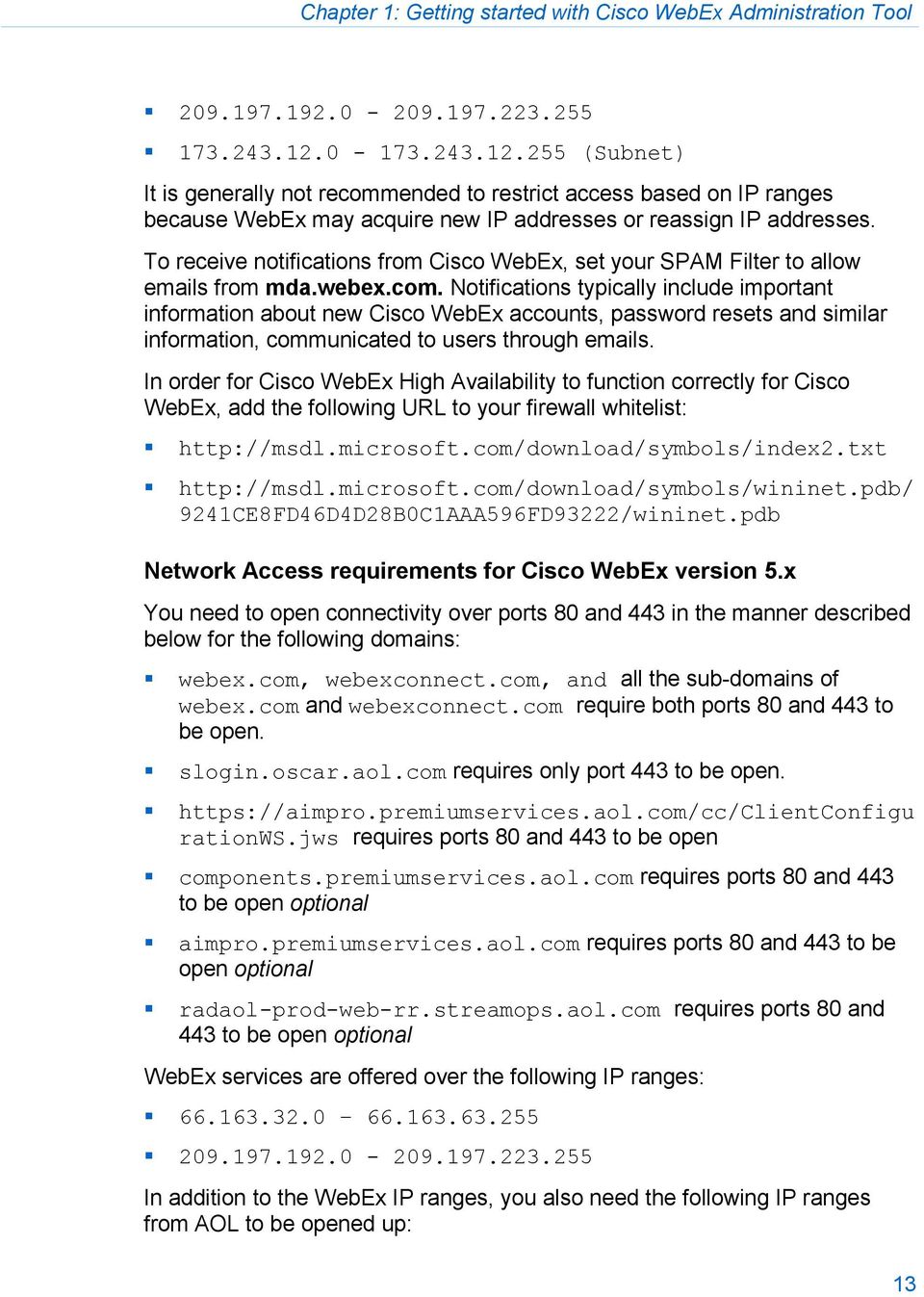
14 Chapter 1: Getting started with Cisco WebEx Administration Tool Component IM Only IM With Spaces Cisco Unified Communications Integration for Cisco WebEx and a webcam. webcam. webcam. HD Video Quad core, or dual core + HT(Hyper thread) support + working speed 2.4GHz, or dual core + no HT support + working speed 2.8GHz, 1 GB Quad core, or dual core + HT(Hyper thread) support + working speed 2.4GHz, or dual core + no HT support + working speed 2.8GHz, 1 GB Quad core, or dual core + HT(Hyper thread) support + working speed 2.4GHz, or dual core + no HT support + working speed 2.8GHz, 1 GB Network requirements The following network requirements are required to access the Cisco WebEx Service. The client computer must have Internet connectivity and be able to connect to the following hosts and ports. Specific requirements differ between Cisco WebEx versions 6.x and 5.x. This topic lists requirements for each version separately. Note: Cisco WebEx Client uses the Web Proxy information configured in Internet Explorer to access the client configuration service. If the proxy in the customer network is an authenticated proxy, the proxy will be appropriately configured to allow access to this URL without requiring any authentication. Network Access requirements for Cisco WebEx version after 6.x You need to open connectivity over ports 80 and 443 for the following domains: webex.com webexconnect.com all the sub-domains of webex.com and webexconnect.com. If you intend to use third-party XMPP clients such as Adium, you need to open port 5222 as well. For more information about using third-party XMPP clients, see Supporting third party XMPP IM Clients (on page 19). WebEx services are offered over the following IP ranges:

15 Chapter 1: Getting started with Cisco WebEx Administration Tool (Subnet) It is generally not recommended to restrict access based on IP ranges because WebEx may acquire new IP addresses or reassign IP addresses. To receive notifications from Cisco WebEx, set your SPAM Filter to allow s from mda.webex.com. Notifications typically include important information about new Cisco WebEx accounts, password resets and similar information, communicated to users through s. In order for Cisco WebEx High Availability to function correctly for Cisco WebEx, add the following URL to your firewall whitelist: CE8FD46D4D28B0C1AAA596FD93222/wininet.pdb Network Access requirements for Cisco WebEx version 5.x You need to open connectivity over ports 80 and 443 in the manner described below for the following domains: webex.com, webexconnect.com, and all the sub-domains of webex.com and webexconnect.com require both ports 80 and 443 to be open. slogin.oscar.aol.com requires only port 443 to be open. rationws.jws requires ports 80 and 443 to be open components.premiumservices.aol.com requires ports 80 and 443 to be open optional aimpro.premiumservices.aol.com requires ports 80 and 443 to be open optional radaol-prod-web-rr.streamops.aol.com requires ports 80 and 443 to be open optional WebEx services are offered over the following IP ranges: In addition to the WebEx IP ranges, you also need the following IP ranges from AOL to be opened up: 13
16 Chapter 1: Getting started with Cisco WebEx Administration Tool It is generally not recommended to restrict access based on IP ranges because WebEx or AOL may acquire new IP addresses or reassign IP addresses. To receive automatic Username and Passwords, set your SPAM Filter to allow s from mda.webex.com. Port and bandwidth requirements for audio-video sessions This section lists the recommended port and bandwidth requirements for the Video sessions initiated from the Cisco WebEx Client. Video is provided over random ports that include both TCP and UDP. In general, audio and video functionality is offered over the following ports: Item Port Type Port Number A/V Server port TCP 80 and 443 UDP 5101 STUN server TCP 80 UDP 8070/8090 P2P port TCP Random UDP Random The UDP port 5101 is used to establish the server connection. If the connectivity fails, ports 80/443 are used to establish connectivity. For additional information, see the following note. 14

17 Chapter 1: Getting started with Cisco WebEx Administration Tool Note: Typically, when a Cisco WebEx user starts an audio or video call, the Cisco WebEx client first attempts to establish a direct connection to another user's Cisco WebEx client. Direct connections are possible if the other user is on the same network and is not separated by a firewall. If a direct connection is established, then the P2P ports listed in the table are used for audio and video communication. If a direct connection cannot be established (due to a firewall or other network device), the Cisco WebEx client will establish a connection to a Cisco WebEx server for audio and video communication. The Cisco WebEx client will first attempt to connect to the server using a UDP port. If the port connection cannot be established (due to firewall restrictions), the Cisco WebEx client will then establish a server connection using the TCP ports listed in the table. Bandwidth Requirement for video Resolution P2P Bandwidth Remarks 90p 0~120kbps Additional bandwidth may be consumed if severe packet loss is detected. This will compensate for lost packets. 180p 120~360kbps Additional bandwidth may be consumed if severe packet loss is detected in order to compensate for lost packets. 360p 720p 360~1200kbp s 1200kbps~20 00kbps Actual resolutions include 360p, 432p, and 512p. Additional bandwidth may be consumed if severe packet loss is detected. This will compensate for lost packets. Actual resolutions include 576p and 720p. Additional bandwidth may be consumed if severe packet loss is detected. This will compensate for lost packets. Note: The bandwidth matrix is intended as a guideline. Additional bandwidth might be required depending on your usage. In general, it is recommended to have a minimum bandwidth of at least 50 Kbps for using the IM, video, VoIP and desktop sharing capabilities of Cisco WebEx. If the video call goes through the audio/video server, the maximum resolution supported is VGA (360p). 15

18 Chapter 1: Getting started with Cisco WebEx Administration Tool Cisco WebEx federation with other instant messaging providers Cisco WebEx can federate with users of leading instant messaging providers such as AIM, IBM Lotus Sametime, Microsoft Office Communicator Server (OCS), and XMPP-based IM networks like GoogleTalk and Jabber.org. A list of public XMPP-based IM networks is available at the XMPP Standards Foundation website: Federation requirements for Cisco WebEx version 6.x and later This section provides information on federating Cisco WebEx version 6.x and later with several leading IM providers. Federating with the AOL Instant Messaging network Cisco WebEx can federate with AOL s instant messaging network. Contact your Cisco WebEx account representative if you would like to federate with AOL s instant messaging network. Federating with IBM Lotus Sametime Federation between Cisco WebEx and IBM Lotus Sametime requires the IBM Lotus Sametime XMPP Gateway to be configured and running in the IBM Lotus Sametime environment and the publishing of a XMPP service (SRV) record in DNS for your domain. IBM Lotus Sametime XMPP Gateway is available from IBM. For example, if your domain is acme.com and the IBM Lotus Sametime domain you want to federate with is mysupplier.com, you will need to publish a XMPP Service record for your domain, acme.com in DNS. For more information, refer to Specifying settings for XMPP IM Clients (on page 67, The owner of the mysupplier.com domain will need to configure and run the IBM Lotus Sametime XMPP gateway in their environment. Federating with Microsoft Office Communication Server Release 2 and Lync 16

19 Chapter 1: Getting started with Cisco WebEx Administration Tool Federation between Cisco WebEx and Microsoft Office Communication Server (OCS) and Lync requires an XMPP Gateway to be configured and running in the Microsoft environment and the publishing of a XMPP service (SRV) record in DNS for your domain. Additionally, confirm that TCP Dialback is set in the XMPP Configuration settings on the XMPP Gateway server. Microsoft Gateway is available from Microsoft. For example, if your domain is acme.com and the Microsoft domain you want to federate with is mysupplier.com, you will need to publish a XMPP Service record for your domain acme.com in DNS. For more information, refer to Specifying settings for XMPP IM Clients (on page 67, The owner of the mysupplier.com domain will need to configure and run the Microsoft XMPP gateway in their environment. Federation with XMPP-based IM networks or IM solutions that support XMPP Federation between Cisco WebEx and XMPP-based Instant Messaging networks or IM solutions that support XMPP requires the publishing of a Service (SRV) record in DNS. Examples of XMPP-based IM networks include Google Talk, and Jabber.org. Examples of IM solutions that support XMPP include IBM Lotus Sametime and Microsoft Office Live Communications Server when configured with an XMPP Gateway. For more information on enabling XMPP federation, refer to Specifying IM Federation settings (on page 97, The following example shows how XMPP federation is provisioned for an organization called Acme.com. If acme.com wants federation with external domains (domains not within the Cisco WebEx Collaboration cloud), it publishes the following Service (SRV) records in DNS: _xmpp-server._tcp.acme.com IN SRV s2s.acme.com.webexconnect.com Notes: The SRV records for your domain can be found in IM Federation under the Configuration tab. For more information, see Specifying IM Federation settings (on page 97). The TCP port, 5269 should be open to enable XMPP federation. 17


20 Chapter 1: Getting started with Cisco WebEx Administration Tool Configuring a DNS server sample 1 SRV (Service): 1 Service = _xmpp-server 1 Protocol = _tcp 1 Name = acme.com (domain name) 1 Priority = 5 1 Weight = 0 1 Port = Target = s2s.acme.com.webexconnect.com 1 18

21 Chapter 1: Sign in to the Administration Tool Supporting third party XMPP IM clients Instead of the Cisco WebEx client, third party clients (for example, Pidgin for Linux) that support XMPP can also be used for basic IM communication. However, organization policies cannot be enforced on third party XMPP clients. Additionally, features such as end-to-end encryption, desktop sharing, video calls, computer-to-computer calls, and teleconferencing are not supported with third party clients. A list of third party clients that support XMPP is available at the XMPP Standards Foundation website To allow the use of third party clients within Cisco WebEx, you need to enable the setting in Cisco WebEx Administration Tool. For more information refer to Specifying IM Federation settings (on page 97, You will also need to publish a Service (SRV) record in DNS to enable third party XMPP clients to work with the Cisco WebEx Collaboration cloud. For example, the Cisco WebEx Organization, Acme.com publishes the following SRV record in DNS to allow the use of third party XMPP clients: _xmpp-client._tcp.acme.com IN SRV c2s.acme.com.webexconnect.com Notes: The SRV records for your domain can be found in IM Federation under the Configuration tab. For more information, see Specifying IM Federation settings (on page 97). The TCP port 5222 should also be opened to enable the use of third party XMPP clients. Polices cannot be enforced when users in your Cisco WebEx Organization use third party XMPP clients to connect to your domain. Policies can only be enforced on users who use the Cisco WebEx client. Sign in to the Administration Tool 19

22 Chapter 1: Sign in to the Administration Tool This topic describes the procedure for signing in to Cisco WebEx Administration Tool using the Web interface. Important: If your Cisco WebEx Organization is enabled with Single sign-on integration, the following settings are applicable: The URL that you need to type in your Web browser should be in this format: domain name>/orgadmin.app If your Cisco WebEx Organization is running Cisco WebEx version 5x, the URL that you need to type in your Web browser should be in the following format: app. where acme.com is the Cisco WebEx Organization enabled with Single sign-on integration. To sign in to Cisco WebEx Administration Tools: 2 Type the following URL in your Web browser: The Cisco WebEx Administration Tool page is displayed. 3 Enter your sign in details in the Username and Password fields. 4 Select Remember Username if you want to avoid typing in the username each time you sign in. 5 Click Sign In to sign in to Cisco WebEx Connect Administration Tool. 20
23 Chapter 1: Sign in to the Administration Tool Note: Customers with Single sign-on or Directory Integration enabled need to contact a Cisco WebEx representative for assistance in getting started with launching Cisco WebEx Administration Tool. Cisco WebEx Connect Administration Tool interface The following graphic explains the tabs available in Cisco WebEx Connect Administration Tool. User Configuration Policy Editor Group Report About Help Add and configure user information. Configure settings for various features of Cisco WebEx such as general information about your organization, domains, password enforcement, user provisioning, IM settings, and additional services such as IM federation, IM archiving, and unified communications. Set policies and rules for users. Assign group policies. View usage reports on users. View Cisco WebEx version information. View Cisco WebEx Connect documentation. From the Administrative Tools tab, you can: Enable self-registration. Customize various system-generated s sent to Cisco WebEx users. Add new Cisco WebEx users and assign Roles and Groups to these users. Enforce password requirements Import and export users from or to comma-separated value (CSV) files. Define and apply policies and policy actions. 21
24 Chapter 1: Sign in to the Administration Tool Note: When a User-Only administrator signs into Organization Administration, only the User, Report, About, and Help links will be displayed 22
25 Chapter 2 2 Overview of User Management The User tab enables you to manage users in your organization. Typical user management tasks include searching for users, viewing a specific user's details, creating new users, activating and deactivating existing users, and assigning policy groups to users. The User tab is the default tab that is displayed when an Organization Administrator signs in to Cisco WebEx Connect. The following graphic shows the default view of the User tab after you sign in into Cisco WebEx Connect. The default view of the User tab provides a search box that is always visible, and instructions for searching users in your Cisco WebEx Connect Organization. A toolbar provides additional options for accomplishing specific tasks with respect to users in your Cisco WebEx Connect Organization. The following topics describe some of the major tasks you can accomplish using the User tab. Searching users (on page 24) Adding individual users (on page 25) 23
26 Chapter 2: Overview of User Management Exporting or Importing users from a CSV file (on page 32) Deactivating users (on page 36) Assigning policy groups to users (on page 34) Searching for users and administrators The User tab provides a powerful search facility to quickly and easily locate specific users in your organization. The search facility is especially handy when your organization contains hundreds of users because it offers several ways or filters, which you can use to search for specific users. Filters enable you to limit the number of user records showing at any one time. The following table lists the different filters available to search for users. List by All Users Employee ID Inactive Users Organization Administrators User Administrators Definition Enter at least one letter of the user's first or last name. All active users with a name matching those letters are displayed in the search results. Enter the exact employee ID of the user. This function is only visible when the organization has been turned on as a directory integrated organization. Select Inactive Users and click Search to view all inactive users. To narrow down the search results, specify the starting letters of the user's first name or last name. Select this option and click Go to display all users with Organization Administrator privileges. Select this option and click Go to display all users with User Administrator privileges. Meeting Users This option is displayed only if your Cisco WebEx Connect Organization is integrated with Cisco WebEx Meeting application. Select Meeting Users and click Go to view all users that have a Cisco WebEx Meeting application account. In this case, you cannot search for users who do not have a Cisco WebEx Meeting application account. Logged Users Select Logged Users and click Go to view all users whose IM sessions are currently being logged for archival. The search results also show the archiving endpoint these users are associated with. 24

27 Chapter 2: Overview of User Management To search for users or administrators: 1 In the Search drop down list, select the applicable search criteria. See the preceding table for a description of each search criterion. 2 Depending on what search criterion you have selected, enter the corresponding search term. For example, if you have selected All Users, enter at least one letter of the user name in the search field. 3 Click Search to display the list of users that match the search criteria as shown in the following graphic. 4 If the search result displays more users than can fit on one page, you can use the arrow icons (>> and <<) at the bottom of the page to navigate through the search result. Note: Searching for only active users is currently unsupported. To view a list of active users, you need to first export all the users in your Cisco WebEx Connect organization and then view the active users in Microsoft Excel or a CSV editor of your choice. To learn how to export users, see Importing and exporting users (on page 32). Creating new users An Organization Administrator can add new users, one at a time from the User tab. A newly-created user does not necessarily belong to any group unless the Organization Administrator explicitly assigns the user to a specific group. A new user's default role is Member unless the Organization Administrator does not explicitly assign the Organization Administrator role. 25
28 Chapter 2: Overview of User Management The Organization Administrator role can only be assigned to users who are members of the top level group. A top level group, with the name of the Cisco WebEx Connect Organization is provided at the time of provisioning. The name of the top level group typically begins with the name of the Organization where Cisco WebEx Connect is provisioned. In addition to manually adding and editing users and groups, the process is different for adding and editing users when Single sign-on (SSO) and directory integration are enabled. For more information on adding users with SSO and Directory Integration enabled, see Adding Users with Single Sign-on and Directory Integration Enabled (on page 38). The Org Administrator can determine if users are permitted to change their profile. This includes specifying if users can upload their profile pictures from within the Cisco WebEx Connect client. In this case, the Org Administrator can upload the user's profile picture from the corporate database. The primary purpose of the User Administrator role is to have administrators who can perform only User Management actions. These users will not have the authorizations to make configuration or policy changes at an Organization level. Additionally, they will also not have the authorization to create or update Policy Groups. To create a new user or administrator: 1 In Cisco WebEx Connect Administration Tool, click the User tab. 2 Click the Add icon to open the Add User dialog box. Note: Organization Administrators have the ability to create User-Only Administrator roles. These User Administrators have rights pertaining to User Management only. User Administrators cannot create new Organization Administrators. 26

29 Chapter 2: Overview of User Management 3 Enter the applicable information in each field. Note that the fields marked with a red asterisk (*) are mandatory. The default Role is User (nonadministrator). Note: The Business is the Username. You cannot edit the Username. 27

30 Chapter 2: Overview of User Management 4 Optionally, click the Policy Group Assignment tab to assign a policy group to the user. For more information on assigning policy groups, see Assigning Policy Groups to Users (on page 34). 5 If IM Archiving is enabled for your Cisco WebEx Connect Organization, the Archive IMs check box is displayed on the Add User dialog box. The checkbox will appear grayed out if archiving endpoints have not been configured. To configure an archiving endpoint, see Setting up IM Archiving (on page 102). 6 To log IMs for this user for archival, select the Archive IMs checkbox. The name of the Archiving endpoint is displayed. 7 To change the endpoint, select a different endpoint from the drop down list. Archiving endpoints are defined in the IM Archiving screen of Cisco WebEx Connect Administration Tool. Selecting Default will assign the user to the endpoint preconfigured as the default endpoint in the IM Archiving screen. For more information, see Setting up IM Archiving (on page 98). 28
31 Chapter 2: Overview of User Management 8 To assign this user to an upgrade site, select the appropriate site from the Upgrade Site drop down list as shown in the following graphic. For information about upgrade sites, see Creating upgrade sites (on page 74). 9 If your Cisco WebEx Connect Organization is enabled with Cisco Unified Communications, the Unified Communications tab is displayed on the Add User dialog box as shown in the following graphic. 10 Click the Unified Communications tab to view the settings available for Cisco Unified Communications. 29

32 Chapter 2: Overview of User Management 11 Under Cluster, select the applicable Cisco Unified Communications cluster to which you want to add this user. For more information, see Creating unified communications clusters (on page 141). 12 If your Cisco WebEx Connect Organization is enabled with Cisco WebEx Meeting Center integration, the Add User dialog box will be displayed. Notes: The Meeting Account check box will be selected by default if you have enabled Automatically enable Meeting account when creating a new user in the Meetings screen. In such a case, you cannot clear the Meeting Account check box. For more information, see Enabling Tightly Coupled Integration for a New Cisco WebEx Connect Deployment with an existing Cisco WebEx Meeting Center deployment (on page 89). When the Meeting Account check box is selected, it means a corresponding Cisco WebEx Meeting Center account will be created for this user. 13 To assign the Organization Administrator role to the user, select the Organization Administrator check box. 30
33 Chapter 2: Overview of User Management 14 Click Save to add the new user to your Cisco WebEx Connect Organization. New users receive a welcome based on the Welcome template in Cisco WebEx Connect Administration Tool. For information on templates, see Notifications, s, and Alert Templates. Repeat the previous steps to continue adding new users. Note: If there is missing information or errors when you add new users, the errors are highlighted in yellow and a message is displayed. Editing users and administrators An Organization Administrator can edit all the properties of an existing user including altering the policy groups that the user is assigned to. To edit a user or administrator: 1 In the User tab search for the user whose information you want to edit. For information about searching for users, see Searching Users (on page 24). 2 In the search results, select the user whose information you want to edit. 3 Click the Edit User icon to open the Edit User dialog box. The existing information of the user is displayed. Note: Organization Administrators can update the roles and profiles of User Administrators. The User Administrators have rights pertaining to User Management only. User Administrators cannot update the roles of Organization Administrators but they can update other profile information including first name, last name, and business . 31
34 Chapter 2: Overview of User Management 4 Make the applicable changes to the user's information. Select User Administrator from the "Role" pull-down list as applicable. 5 Click Apply to save and continue making changes. 6 Click Save to save your changes and return to the User tab. Note: To reset a user's password, select the user in the User tab and click the Reset Password icon. Importing and exporting users You can easily import a large number of users from a comma separated values (CSV) file into your Cisco WebEx Connect Organization. Similarly, you can export your Cisco WebEx Connect Organization users to a CSV file. Importing is a useful way of painlessly adding a large number of users to your Cisco WebEx Connect Organization thereby saving the effort of manually adding each user. 32
35 Chapter 2: Overview of User Management Note: Use an UTF-8 Encoded spreadsheet for optimal results. To import users from a CSV file: 1 In the Cisco WebEx Connect Administration Tool, select the User tab. 2 Click More Actions and select Import/Export Users to open the Import/Export Users dialog box. You can import/export a large number of users from a comma separated values (CSV) file into your Cisco WebEx Connect Organization. 3 Click Browse and select the CSV file that contains the list of users you want to import. 4 Click Import to begin the import process. After the import is complete, the Organization Administrator who initiated the import will receive an with the status of the import. The states whether the import was a success, failure, or terminated. 33
36 Chapter 2: Overview of User Management The CSV file is imported and the users appear in the User tab. For more information on CSV file format and a sample file, see CSV File Format (on page 207). 5 To export users in your Connect Organization, click Export in the Import/Export User dialog box. A progress message indicates that the progress of the export process. A success message indicates that your Connect Organization users have been successfully exported. 6 To view the CSV file that contains the exported users, click the time stamp of the export message. A confirmation prompt appears.the message resembles the following example:last export: :02:01. 7 At the confirmation prompt, click Open to view the CSV file containing your Connect Organization's users. Alternatively, click Save to save the CSV file to your local computer. Assigning users to Policy Groups When you assign a user to a policy group, all policies applied to that particular group will automatically apply to the user. You can assign only one policy group to a user. When you try to assign a different policy group to the same user, the new policy group will replace the currently-assigned policy group. You can assign a policy group to both new and existing users. Additionally, you can add multiple users to a group by importing a CSV file containing user information. For more information, see Importing and exporting users (on page 32). Note: By default users are not assigned to any policy group and have access to all Cisco WebEx Connect features. After you assign a policy group to users, they are governed by the policies associated with that policy group. For more information about applying policies to groups, see Applying policies to groups. To assign users to policy groups 1 In Cisco WebEx Connect Administration Tool, click the User tab. 2 If you want to assign a policy group to a new user, create the new user first by clicking the Add User icon. For information on adding a new user, see Adding individual users (on page 25). 34

37 Chapter 2: Overview of User Management 3 If you want to assign a policy group to an existing user, search for the user. For information on searching for users, see Searching Users (on page 24). 4 In the search result, double-click the appropriate user's name to open the Edit User dialog box. 5 Click the Policy Group Assignment tab to open the Policy Group Assignment dialog box. 35
38 Chapter 2: Overview of User Management 6 In the Search field, enter at least one letter of the policy group that you want to search for and assign to this user. 7 Click Search. 8 In the Search Result pane, select the appropriate policy group and click Assign to assign the policy to this user. 9 Click Save to save the policy group assignment and return to the User tab. Deactivating and reactivating users Users can be deactivated for a variety of reasons. For example, they leave the company or violate policies. When you deactivate users, they are not removed from the Cisco WebEx Connect system but are disabled. You can reactivate deactivated users at a later time as required. 36
39 Chapter 2: Overview of User Management A user with an inactive status can also indicate a user of the Guest Edition of Cisco WebEx Connect version 5.x. Such a user is typically not yet migrated to the Business Edition. For more information about migration, see Migrating Guest Edition users to Business Edition users (on page 39). To deactivate users Note: Primary Administrators cannot be deactivated. 1 In the User tab search for the user to deactivate. For information about searching for users, see Searching Users (on page 24). 2 In the search results, select the user to deactivate. 3 Click More Actions and click Deactivate to display a confirmation message. 4 Click Yes in the message box to deactivate the selected user. To reactivate users 1 To reactivate a deactivated user (or to migrate Guest Edition users), search for the appropriate user using the Inactive Status search filter. For more information on search filters, see Searching Users (on page 24). 2 In the search result, select the user to activate. 3 Click More Actions and then select Activate User to display a confirmation message. 4 Click Yes in the message box to reactivate the selected user. Customizing the user tab view You can customize the default view of the User tab to suit your needs. Customization settings include hiding or showing columns and sorting the order in which users are displayed. To customize the user tab view 1 On the User tab, click More Actions and then select Customize View to display the Customize View dialog box. 37
40 Chapter 2: Overview of User Management 2 Under Select columns for display in the user tab, select or clear the applicable fields. If you have enabled integration with Cisco WebEx Meeting application, the Meeting Account field is displayed in addition to these default fields. Similarly, if you have enabled IM Archiving, and Cisco Unified Communication Manager, the IM Archiving Endpoint and CUCM Cluster fields are displayed. 3 Under Select default sort order of user records, select the field (or column) by which you want to sort the list of users. 4 Select either Ascending or Descending as the sort order. 5 Click Save to save your customization and return to the User tab. Adding users enabled with Single sign-on and Directory Integration The procedure for adding users who are enabled with Single sign-on and Directory Integration is different from adding users who do not have these features enabled. For more information on single sign-on and Directory Integration, see Single sign-on and Directory Integration. 38
41 Chapter 2: Overview of User Management When single sign-on and Directory Integration are enabled, you cannot use the following features in the User tab: Importing and exporting users Resetting user passwords Editing existing user information Creating new users When Directory Integration is implemented with Cisco WebEx: Users and groups are created from corporate directory files provided by the company. Organization Administrators cannot directly edit the user and group data. When the user and group data needs updating, the company provides an updated corporate directory file that can be imported into Cisco WebEx. The CSV file import function is not available. When Single sign-on is implemented with Cisco WebEx: New user accounts are automatically created when the user signs in to Cisco WebEx for the first time. User accounts are automatically provisioned the first time the user signs into Cisco WebEx. Migrating Guest Edition users to Business Edition users When Cisco WebEx Connect is provisioned with specific domain names, any Guest Edition users with the same domain names will be prevented from signing in to Cisco WebEx Connect. These users will receive an notifying that their Cisco WebEx Connect accounts have been deactivated. The earlier versions of Cisco WebEx Connect displayed the Migration tab in Cisco WebEx Administration Tool. The Migration tab displayed the list of Guest Edition users pending migration to the Business Edition of Cisco WebEx Connect The Migration tab was hidden in case there were no users pending migration. 39
42 Chapter 2: Overview of User Management The Migration tab will no longer appear in Cisco WebEx Connect version 6.0 or later. Guest Edition users pending migration will now appear as inactive users. The Organization Administrator needs to complete the following steps to migrate the Guest Edition users to the Business Edition of Cisco WebEx Connect: 1 Review the list of "inactive" users in the Cisco WebEx Administration Tool and identify the users who need to be migrated to Cisco WebEx Connect Business Edition. 2 Send instructions to the selected users with the download URL for the latest version of Cisco WebEx client. The URL can be found in the that the administrator would have received at the time when the service is provisioned. 3 Set the status to "active" and reset the password for the selected users. For more information on activating inactive users, see Deactivating and reactivating users (on page 36). These users will receive s with a password reset link. The link allows users to specify a new password. Users can then use this new password to sign in to the latest version of Cisco WebEx Connect Business Edition. Users' contacts will not be transferred to the Business Edition. After migration, the user will be subject to the policies configured by the Organization Administrator. All the resources that the user consumes as a Business Edition user including the Cisco WebEx Connect license, will form part of the total amount of resources (user licenses and storage) assigned to the Cisco WebEx Connect Organization. 40
43 Chapter 3 3 Understanding the Configuration tab The Configuration tab enables you to specify settings that control different features of Cisco WebEx Connect and impacts overall administration of Cisco WebEx Connect. These settings typically impact areas such as licensing, policies, user administration, and integration with additional services. Changing a specific setting therefore might have an organization-wide impact. It is recommended that you plan thoroughly before making configuration changes. This topic explains the interface of the Configuration tab with brief descriptions about the different items in the interface. 41

44 Chapter 3: Understanding the Configuration tab Configuration category. Displays items that you can configure under a particular category. For example, you can configure domain names and URLs under the System Settings category and contact list settings under the Connect Client category. Configuration work area. Where you enter the actual configuration settings for a specific configuration item. This graphic, for example, shows configurable details for Organization Information. Specific configuration item. When you click a particular configuration item, configurable details of that item are displayed. For example, clicking Resource Management lets you view license information for your Organization and allows you to enable storage enforcement for users. 42
45 Chapter 3: Understanding the Configuration tab Entering organization information The Organization Information screen enables you to provide relevant information about your Cisco WebEx Connect Organization. A Cisco WebEx Connect Organization signifies any organization where Cisco WebEx Connect has been purchased and provisioned. To provide Cisco WebEx Connect Organization information 1 Click the Configuration tab to open the Organization Information screen as the default view. 2 Enter the appropriate information in each of the settings fields. 43
46 Chapter 3: Understanding the Configuration tab 3 Verify that the name and address of the Primary Administrator of your Cisco WebEx Connect Organization is already present. This information is set when your Cisco WebEx Connect Organization is provisioned. All critical information about Cisco WebEx services, such as the availability of newer versions and maintenance schedules will be sent to this address. To change this information, contact your Cisco WebEx representative. 4 In the Notification field, specify the address used for sending alerts to Administrators when a critical event occurs. A typical example of a critical event is when storage usage for an organization exceeds its allocated limit. Notes: You cannot enter or modify the Company name. This name is the same name provided at the time of purchase. Contact information such as address and business phone is for information purposes. The Notification address is the Organization Administrator's address by default. You can change it to any other Id including a distribution list. 5 Click Save to save your organization information. Entering domain information The Domain(s) screen enables you to view the domains provisioned for your Cisco WebEx Connect Organization. Additionally, you can specify a Domain Whitelist, which is a list of "trusted" domains outside your Connect Organization. The process of provisioning the Cisco WebEx Connect Organization begins when the Cisco WebEx Connect provisioning team receives a provisioning request from the company or organization that has purchased Cisco WebEx Connect. When you create the Cisco WebEx Connect Organization as part of the provisioning request, you will typically enter domain names or sub domain names that will be part of this Cisco WebEx Connect Organization. Examples of a domain include acme.com, mydomain.net, myorg.com, and so on. Examples of sub domains include test.acme.com, docs.mydomain.net, prod.myorg.com and so on. 44
47 Chapter 3: Understanding the Configuration tab A domain whitelist is a list of trusted domains that are external to your Cisco WebEx Connect Organization's domains and sub domains. A trusted domain is one that has a relationship of trust established with your Cisco WebEx Connect Organization's domains. For example, if acme.com is your Cisco WebEx Organization, you can add customeracme.com, vendoracme.com to your domain whitelist after establishing a relationship of trust with such (external) domains. To enter domain information 1 Click the Configuration tab to open the Organization Information screen as the default view. 2 Under System Settings, click Domain(s) to open the Domain(s) screen. Note: The list of domain names that appear in the Domain(s) box is already created by the Cisco WebEx Connect provisioning team when the Cisco WebEx Connect Organization is provisioned. To add, modify or remove domain names, contact your Cisco WebEx representative. 45
48 Chapter 3: Understanding the Configuration tab 3 In the Domain Whitelist box, enter the names of "trusted" domains. The domain names appearing in the domain whitelist are external to your Connect Organization. The domain whitelist is used in conjunction with the policies. For more information, see Using Policy Actions Available in Cisco WebEx Connect (on page 172). Note: The domains you enter in the Domains and Domain Whitelist boxes impact how contacts are added in the Cisco WebEx Connect client. Contacts belonging to the whitelisted domains will be treated the same as domains within the Cisco WebEx Connect Organization with regard to the behavior of adding contact lists. For more information, see Entering contact list settings for Cisco WebEx Connect client (on page 61). 4 Click Save to save your domain information settings. Specifying resource management information Resource management information includes specifying details about the number of user licenses and storage space allotted for your Cisco WebEx Connect Organization. You can only view the number of user licenses purchased for your Cisco WebEx Connect Organization. You can also view the number of active users in your Cisco WebEx Connect Organization. Active users are users who are actually using Cisco WebEx Connect. The number of active users is automatically updated when you activate or deactivate users. For information on activating and deactivating users, see Deactivating and reactivating users (on page 36). To increase the number of user licenses, contact your Cisco WebEx representative. To specify resource management information 1 Click the Configuration tab to open the Organization Information screen as the default view. 2 Under System Settings, click Resource Management to open the Resource Management screen. 46

49 Chapter 3: Understanding the Configuration tab Notes: You cannot edit user license information and the Storage Purchased information. The total amount of storage you have already used is indicated by Storage Used. Total storage used includes space consumed by files and persistent chat in all spaces created by users in your Connect Organization. Space used up for storing NBR (Network based recording) is not calculated for computing the storage used. The IM Logging User Licenses Purchased and IM Logging User Licenses Used fields are displayed if your organization has purchased the IM Archiving feature. For more information, see Setting up IM Archiving (on page 98). 3 To allocate a fixed amount of storage space for each user in your Connect Organization, click Enable storage enforcement for each user. 4 In the Default file storage allocation per user, enter the number of megabytes you want to allocate for each user as the default storage space. Notes: 47

50 Chapter 3: Understanding the Configuration tab By default, storage enforcement is not enabled for each user. In such a case, storage is used based on the First Come First Served basis until the total storage utilization reaches the licensed storage limit. When storage enforcement for each user is enabled, the Organization Administrator can specify a default storage limit when creating new users. When you change this value, it does not change the storage limit that you have specified for a user in the Add User or Edit User dialog box 5 Click Save to save your resource allocation information. Specifying URL configuration information The URL Configuration screen enables you to specify URLs for the following websites: Password retrieval: enables users to retrieve their password. Cisco WebEx Connect support website: for users to log their support requests. To specify URL configuration information 1 Click the Configuration tab to open the Organization Information screen as the default view. 2 Under System Settings, click URL Configuration to open the URL Configuration screen. 48
51 Chapter 3: Understanding the Configuration tab 3 In the Forgot Password URL field, enter the URL of the password retrieval page. The Organization Administrator can override the default URL by specifying a custom Forgot Password URL. This can be customized in special cases where a company or organization has enabled SAML integration. 4 In the Connect Support URL field, enter the URL of the Cisco WebEx Connect support page. The Organization Administrator can override the default Cisco WebEx Support URL by specifying an internal first level support page. 5 Click Save to save the URL configuration information. Specifying security settings The Partner Delegated Authentication screen enables you to specify options for integrating a Cisco WebEx certified Delegation Authentication partner Organization with your Cisco WebEx Connect Organization. This option is available only when a pre-configured correlation has been setup via a Super Administrator configuration. Integrating a partner Organization simply means you allow the partner Organization to authenticate with your Cisco WebEx Connect Organization as a Member, an Organization Administrator, or both. When such an authentication is enabled, users using applications developed by these Cisco WebEx certified partner Organizations can access Cisco WebEx Connect without the need to use a separate set of credentials. For example, acme.com is a Cisco WebEx Connect Organization that has enabled integration with Verizon Communications, a Cisco WebEx Connect certified partner. Users of acme.com can authenticate to an application offered by Verizon Communications and access Cisco WebEx Connect without having to enter different sign in credentials. If you grant Organization Administrator access, your partner Organization will be able to perform administrative tasks on your Cisco WebEx Connect Organization and the partner Organization. You can enable partner Organization integration with more than one partner Organization. You can disable the partner Organization integration at any time. To enable partner organization integration: 1 Sign in to the Cisco WebEx Administration Tool. 2 Click the Configuration tab to display the System Settings screen as the default view. 49

52 Chapter 3: Understanding the Configuration tab 3 Select the inactivity timeout periods. 4 Set the feeds and message display options. 5 Under SSO Related Options: a) Click Partner Delegated Authentication to display the dialog for an administrator whose organization is not Delegated Authentication. Note: The SSO Related Options link display is set by the super administrator. b) Click Federated Web SSO Configuration to display the dialog for an administrator who has turned on single sign-on. More... c) Click Organization Certificate Management to display the dialog for an administrator who has turned on single sign-on or is a Delegated Authentication administrator. More... d) Click WebEx Certificate Management to display the dialog for an administrator who has turned on single sign-on. More... e) Click Partner Web SSO Configuration to display the dialog for an administrator who is Delegated Authentication. More... Use the following table to determine the SSO Related Options link display. 50

53 Chapter 3: Understanding the Configuration tab SSO Org Delegated Authentication Org Display False False True False True True False True 6 Select Member or Organization Administrator as the applicable level of access to permit for each partner Organization. If you select Organization Administrator, Member is selected by default. The NameID selection should match the identifier for your organization in Cisco WebEx Connect. For example, if your organization is authenticated based on EmployeeID, your Delegated Authentication Partner must use EmployeeID to federate your user account. The available selections are UserName, , and EmployeeID. 7 Click Save to display a confirmation message. 8 Click Grant Partner Access to save the partner Organization integration settings. 51
54 Chapter 3: Understanding the Configuration tab Specifying directory settings This topic applies only if your Cisco WebEx Connect Organization has enabled directory integration. For more information, see Directory Integration (on page 187) and Directory Integration Import Process and File Formats (on page 187). Specifying password settings An Organization Administrator can specify password settings for users in your Cisco WebEx Connect Organization. Password settings determine how passwords are enforced in various scenarios such as when a new user signs up for a Cisco WebEx Connect account or existing users want to change their passwords. A password does not come into effect until it meets all the rules you have set for it in this screen. To specify password settings 1 Click the Configuration tab to display the Organization Information screen. 2 Under System Settings, click Password Settings to open the Password Settings screen. 52
55 Chapter 3: Understanding the Configuration tab 3 Set the applicable choices by following the on-screen instructions. Note that by default, every Cisco WebEx Connect Organization is provisioned with the following password settings: Minimum password length = 6 Minimum number of alphabets = 1 Minimum number of numerals = 1 If you want to reset these minimum password length requirements, contact your Cisco WebEx representative. 53
56 Chapter 3: Understanding the Configuration tab 4 In the List of Unacceptable Passwords box, enter the words or terms that are prohibited to be used in a password. Typically, this includes terms such as your organization name, the word "password," URLs, and so on. Separate each term with a comma. 5 Click Save to save the password setting information. Using templates Cisco WebEx Connect Administration Tool provides templates for notifications and alerts that Cisco WebEx Connect users receive. Organization Administrators can customize templates. Once customized, any updates made to these templates by Cisco WebEx will be lost. You can however, revert to the default templates at any time. You can use variables to more fully customize templates. For detailed information about using variables to customize templates, see Templates (on page 57). To use templates 1 Click the Configuration tab to open the Organization Information screen as the default view. 2 Under System Settings, click Templates to open the Templates screen. 54

57 Chapter 3: Understanding the Configuration tab 3 Click the template that you want to modify. The Edit Template dialog box is displayed. 55
58 Chapter 3: Understanding the Configuration tab 4 Enter the appropriate information in each field starting with Name. 5 From the Format drop down list, select the format to send the in: HTML or Text. Note: If you change the format from HTML to Text, you need to manually remove the HTML tags in the body of the template. 6 In the Message box, enter the text of the template. Note: Every template contains pre-existing message text in the Message box. You can customize or change it according to your requirements. 7 Click Save to return to the Templates screen. Note: Cisco WebEx will continue to enhance the content of templates from time to time. Organization Administrators who do not customize their templates will get the updated content automatically. Once templates are customized, only the customized templates will be used. Organization Administrators revert to using Cisco WebEx default templates by selecting the template and clicking Reset to Default. 56
59 Chapter 3: Understanding the Configuration tab Any changes made to templates will be lost once they are reset to Cisco WebEx default templates. template variables This topic describes the various templates available in Cisco WebEx Connect and how you can edit or customize these templates. Typically, you can customize an template by editing its built-in variables. Variables are building blocks that define what an template (and s based on that template) will contain. For example, the Welcome Message template contains the %USERNAME% variable. This variable will display the Cisco WebEx Connect user's username in the that is sent to the user. The following table describes each template, the variables used in each template and their definitions. Note: Cisco WebEx Connect templates are pre-populated with appropriate templates for out of the box use. Template Welcome Message Default contains links to reset password, download the client, documentation, and community links. Space Invitation Message Connect User Default template includes information on how to get to the Space and link to the community. Space Invitation Message Non-Connect User Default template includes information on where to get a Cisco WebEx Connect account, how to open a new Space, and link to the community. Get or Reset Password is sent when Cisco WebEx Connect Administrator Variables and Macros %USERNAME% The name of the user. %CLIENTDOWNLOADURL% The URL that takes the user to the welcome message. %NEWPASSWORDURL% The new password variable. %SPACEOWNER% Name of the Space owner %SPACENAME% Name of the Space %USERDEFINEDMESSAGE% Text entered by the Space owner at the time of creating the Space %SPACEOWNER% The name of the Space owner. %SPACENAME% The name of the Space. %USERDEFINEDMESSAGE% Text of any message that the Cisco WebEx Connect user enters. %REGISTERURL% URL where the user can register as a Space user %NEWPASSWORDURL% URL that will take 57
60 Chapter 3: Understanding the Configuration tab Template resets password. Notify Space Members Default template for manual notifications sent from within Spaces. Add to Public Library Request A request to copy an application to the public library. Deny Add to Public Library Request A denied request to add to an application to the public library. Variables and Macros the user to reset password. %UserMessage% The message the user writes. %ObjectLink% The URL that takes the Space member to a particular location specified by the user. %SpaceName% The name of the user's Space. %USERNAME% The name of the user. %APPNAME% The name of the application to copy to the library. %APPNAME% The name of the application to copy to the library. The following is an example of the Welcome template that a new user will receive: 58
61 Chapter 3: Understanding the Configuration tab Entering user provisioning information User provisioning includes specifying user-provisioning information such as registration, and fields required when creating a user's profile. The settings you make here impact when users are provisioned in your Cisco WebEx Connect Organization. For example, if you set specific fields as mandatory here, the user needs to compulsorily fill in those fields when creating the user profile. Cisco WebEx Connect customers can enable self-registration when there is no SAML or Directory Integration enabled. In such a case, the Organization Administrator does not need to specify the registration URL. When registration is not enabled, customers can specify a custom web page. Any user trying to register with an address that matches with customer s domain will be redirected to the custom web page. Customers can use this webpage to display information about their internal processes required for creating a new Cisco WebEx Connect account. For example, To obtain the Cisco WebEx Connect service, send an to [email protected], or call To enter user provisioning information 1 Click the Configuration tab to open the Organization Information screen as the default view. 2 Under System Settings, click User Provisioning to open the User Provisioning screen. 59
62 Chapter 3: Understanding the Configuration tab 3 To enable users to self-register for an account on Cisco WebEx Connect, click Enable user self-registration using Cisco WebEx registration page. The URL for the self-registration page is The Cisco WebEx Connect Organization Administrator typically provides this URL. Notes: If you do not select Enable user self-registration using Cisco WebEx registration page, the Custom Registration URL field and the Custom Message box is displayed. In this case, you will need to enter the URL for the custom user registration page. See the next step for information on entering the custom user registration page. 4 In the Custom Registration URL field, enter the URL of the customized self-registration page. If you do not enter a custom URL, the following selfregistration page (default) URL will be displayed: 5 In the Custom Message box, enter a description for the custom selfregistration page. 60
63 Chapter 3: Understanding the Configuration tab 6 To notify the Organization Administrator via each time a user registers using the self-registration page, select Send notification to Administrator when users self register using Cisco WebEx registration page. 7 Under Set mandatory fields for user profile, select the fields that should be compulsorily displayed each time a user's profile is created or viewed. These fields will always appear each time you: create a new user edit an existing user profile import users from a CSV file 8 Click Save to save the user provisioning information. Entering contact list settings for Cisco WebEx Connect client The Contact List screen enables you to specify settings for how users of your Cisco WebEx Connect Organization can manage their contact lists. These settings control features such as displaying contact pictures, displaying quick contacts and observer group in the user's Contact List. To specify contact list settings for the Cisco WebEx Connect client 1 Click the Configuration tab to open the Organization Information screen as the default view. 2 Under Connect Client, click Contact List to open the Contact List screen. 61

64 Chapter 3: Understanding the Configuration tab 3 Specify the appropriate settings based on the description given in the following table: Select Allow users to set "Show contact pictures in my contact list" This option is applicable only to Cisco WebEx Connect versions 6.x or earlier. To Allows the Organization Administrator to directly control whether users can see contact pictures. If this option is selected, the Show contact pictures in my contact list check box is shown in the Cisco WebEx Connect client and users can specify their preferences for showing contact pictures. If this option is not selected, the Show contact pictures in my contact list check box is not shown in the Cisco WebEx Connect client. Show contact pictures in my contact list This option is applicable only to Cisco WebEx Connect versions 6.x or earlier. Allow users to set "Show quick contacts" This option is applicable only to Cisco WebEx Connect versions 6.x or earlier. If this option is selected, contact pictures are displayed in the users' contact list on the Cisco WebEx Connect client. Contact pictures are displayed at the right side of the contact name. This option will be grayed out if Allow users to set "Show contact pictures in my contact list" has been selected. Enables the Organization Administrator to directly control whether users can see the Quick Contacts group in the Cisco WebEx Connect client. If this option is selected, the Show quick contacts check box is shown in the Cisco WebEx Connect client and users 62
65 Chapter 3: Understanding the Configuration tab Select Show quick contacts This option is applicable only to Cisco WebEx Connect versions 6.x or earlier. To can specify their preferences accordingly. If this option is not selected, the Show quick contacts check box is not shown in the Cisco WebEx Connect client. If this option is selected, Quick Contacts are shown in the users' contact list on the Cisco WebEx Connect client. Quick Contacts is a way of grouping your contacts in the Cisco WebEx Connect client. This option will be grayed out if Allow users to set "Show quick contacts" has been selected. Allow users to set "Show observer group on my contact list" This option is applicable only to Cisco WebEx Connect versions 6.x or earlier. Allows the Organization Administrator to directly control whether users can see the Observer Group in the Cisco WebEx Connect client. If this option is selected, the Show observer group on my contact list check box is shown the Cisco WebEx Connect client and users can specify their preferences accordingly. If this option is not selected, the Show observer group on my contact list check box is not shown in the Cisco WebEx Connect client. Show observer group on my contact list This option is applicable only to Cisco WebEx Connect versions 6.x or earlier. Selecting this option shows the Observer Group in the Cisco WebEx Connect client. The Observer Group is a special grouping of your contacts in the Cisco WebEx Connect client. By default, this option is selected. This option will be grayed out if Allow users to set "Show observer group on my contact list" has been selected. 4 Click Save to save the Contact List settings. Entering user profile view settings The Profile Settings screen enables you specify who can view users in your Cisco WebEx Connect Organization. Additionally, you can permit users to change their profile view settings in the Cisco WebEx Connect client. The user profile is typically displayed in the Cisco WebEx Connect client similar to the user's business card. To specify user profile view settings 1 Click the Configuration tab to open the Organization Information screen. 2 Under Connect Client, click Profile Settings to open the Profile Settings screen. 63

66 Chapter 3: Understanding the Configuration tab 3 Select Allow users to change their profile view settings if you want to allow users to edit their profile view settings directly in the Cisco WebEx Connect client. If you enable this option, users can open and edit their profiles directly in the Cisco WebEx client. 64

67 Chapter 3: Understanding the Configuration tab Notes: When clearing the Allow users to change their profile view settings check box, users will be unable to change any information about their profile in the Cisco WebEx client. The Organization Administrator can restrict users' ability to change profile view settings by applying the Edit View Profile Setting policy action. If this policy action is set to FALSE, the ability to change profile view settings will be disabled even if the Allow users to change their profile view settings check box has been selected. For more information about this policy, see Using Policy Actions Available in Cisco WebEx Connect (on page 172). 65
68 Chapter 3: Understanding the Configuration tab 4 Under User profile view settings, select one of the following options: All: Permits all users to view the user's profile information. This includes users external to your Cisco WebEx Connect Organization with whom a relationship of trust has been established. Organization & Network: Permits all users within both your Cisco WebEx Connect Organization and network to view the user's profile information. Network: Permits all users within your network to view the user's profile information. A user's network includes users in the contact list and users who share Cisco WebEx Connect Spaces with the user. Organization: Permits all users within your Cisco WebEx Connect Organization to view the user's profile information. Users who can view your profile are determined according to how your Cisco WebEx Connect Organization was provisioned. User: Permits users to view only their own individual profiles. 5 Click Save to save your user profile view settings. Entering instant message blocking settings Instant message (IM) blocking settings include specifying the following: file types that you want to prohibit from being exchanged over IM communications URLs that you want to prohibit from being accessed over IM communications To enter instant message blocking settings 1 Click the Configuration tab to open the Organization Information screen as the default view. 2 Under Connect Client, click IM Block Settings to open the IM Block Settings screen. 66
69 Chapter 3: Understanding the Configuration tab 3 In the Blocked File Types box, enter the file types that you want to block in IM communications. Separate each file type with a semicolon. 4 In the Blocked URLs box, enter the URLs that you want to prohibit in IM communications.separate each URL with a semicolon. 5 Click Save to save the IM blocking settings. Specifying settings for XMPP IM Clients The XMPP IM Clients screen allows you to specify whether users within your Cisco WebEx Connect organization are permitted to sign in using a third party XMPP standard client. Instead of the Cisco WebEx Connect client, third party clients (for example, Pidgin for Linux) that support XMPP can also be used for basic IM communication. However, Organization policies cannot be enforced on third party XMPP clients. Additionally, features such as end-to-end encryption, Desktop sharing, video calls, computer-to-computer calls, and teleconferencing are not supported with third party clients. A list of third party clients that support XMPP is available at the XMPP Standards Foundation website 67

70 Chapter 3: Understanding the Configuration tab To specify settings for XMPP IM clients 1 Click the Configuration tab to open the Organization Information screen as the default view. 2 Under Connect Client, click XMPP IM Clients to open the XMPP IM Clients screen. 3 Select Allow use of non-connect XMPP IM clients to allow users in your Cisco WebEx Connect Organization to sign in using a third party XMPPbased IM client. The SRV records for your domain can be found in the IM Federation screen under the Configuration tab. For more information, see Specifying IM Federation settings (on page 97). 4 Click Save to save the XMPP IM clients settings. Specifying upgrade management settings The Upgrade Management screen enables you to specify how upgrades to the Cisco WebEx Connect client should be rolled out to users in your organization. You can roll out upgrades using the following upgrade modes: Default: where all users are automatically upgraded to the latest version of Cisco WebEx Connect. This is the default upgrade mode. Custom: where you can manually configure how you want to roll out the upgrades to users. In this case, you need to select a baseline version and create an upgrade task, which defines how the upgrades are rolled out. You can switch between the two upgrade modes at any point time but this will have an impact on how upgrades are rolled out. For example, if you select a specific version (using the Custom mode) to roll out to users, and then change the mode to Default, the specific version will be discarded and users will be upgraded to the latest version. 68
71 Chapter 3: Understanding the Configuration tab The following graphic explains the steps for using the Custom upgrade mode. To specify upgrade management settings: 1 Click the Configuration tab to display the Organization Information screen. 2 Under Connect Client, click Upgrade Management to display the Upgrade Mode screen. 69
72 Chapter 3: Understanding the Configuration tab 3 Click Change to view the available upgrade modes. 4 Select the baseline as applicable. 5 Select the version to deploy and click OK. 70
73 Chapter 3: Understanding the Configuration tab Note: If you do not select a baseline, the following message is displayed: You have not set baseline versions. The URL in the Welcome to download the Cisco WebEx Connect client will be directed to the latest versions of Cisco WebEx Connect for both platforms. 6 Click Yes to view the selected version on the Upgrade Management screen listed under Baseline Versions. If you have selected an older version (than the latest version) in step 6, all newer versions are displayed above Baseline Versions. 71

74 Chapter 3: Understanding the Configuration tab 7 Click Download next to the applicable version. 8 Click Release Notes next to the release notes for that version. Note: The version listed under Baseline Versions is the version that will be deployed to your organization. 72
75 Chapter 3: Understanding the Configuration tab To create an upgrade task: 1 Click Create Upgrade Task to open the Create Upgrade Task for Windows in the Upgrade Management work area. 2 From the Target Version drop down list, select the applicable version to deploy. Note: If a baseline has been selected, you cannot select a Target Version. Deselect the baseline version prior to creating the upgrade task. 3 Click Provide Customized URL to specify a custom link from where the Cisco WebEx Connect Setup Program can be downloaded. This field is optional. 4 In the Optional Upgrade box, select a date and time on which the upgrade will be optionally deployed. Or click Skip to skip applying the optional upgrade. 5 In the Mandatory Upgrade box, select a date and time on which the upgrade will be deployed. Or click Skip to skip applying the mandatory upgrade. 6 From the Time Zone drop down list, select the time zone based on which the upgrade will be deployed. The date and time that you select for optional and mandatory upgrades will be calculated according to this time zone. 73

76 Chapter 3: Understanding the Configuration tab 7 Under Target User, select: All users: to deploy the upgrade to all the users in your organization. Specific Upgrade Sites: to deploy the upgrade to the selected upgrade sites. In this case, the upgrade will be deployed to all users within those sites. If no upgrade sites are listed, you will need to create them. For more information, see Creating upgrade sites (on page 74). 8 Click Save to save the upgrade task. The upgrade is displayed on the Upgrade Management page. 9 Click Edit to edit the details of the upgrade task. 10 Click Close Upgrade Task to display (and cancel the deployment) as shown in the following graphic. 11 Click Yes to delete the upgrade task. Creating upgrade sites An upgrade site helps you add specific users to whom upgrades of the Cisco WebEx Connect client should be deployed. An upgrade site is used when you create an upgrade task to deploy the upgrade to specific users in your organization. For information on creating an upgrade task, see Specifying upgrade management settings (on page 68). 74

77 Chapter 3: Understanding the Configuration tab To create an upgrade site: 1 Click the Configuration tab to open the Organization Information screen as the default view. 2 Under Connect Client, click Upgrade Management to open the Upgrade Management screen. 3 Scroll down if required to locate the Upgrade Site section. If you have selected Default as the upgrade mode, the Upgrade Site section will not be displayed. Additionally, if no upgrade sites have been created, this section will be blank. 4 Click Add to open the Add Upgrade Site dialog box. 75

78 Chapter 3: Understanding the Configuration tab 5 In the Upgrade Site Name box, enter a name for the upgrade site and click Save. The new upgrade site appears on the Upgrade Management screen. You can add any number of upgrade sites in your organization. 6 To view users belonging to an upgrade site, click the View Users icon. To learn how to add users to an upgrade site, see Creating new users (on page 25). 7 To delete an upgrade site, select it and click Delete. If the upgrade site is scheduled for an upgrade task, a message is displayed indicating that you cannot delete it. Specifying P2P settings The P2P Settings screen provides the following options for configuring P2P settings: Manual configuration of TCP/UDP ports: Where the administrator at the customer's organization can manually provide a range of TCP/UDP ports 76
79 Chapter 3: Understanding the Configuration tab to be used by the Cisco WebEx Connect client when it attempts to negotiate a direct P2P connection. Allowing the customer's administrator to manually specify a port range helps minimize security risk because the Cisco WebEx Connect client will only ping the ports within this range when attempting to establish a direct P2P connection. Port range is specified as port numbers allowable within a minimum and maximum port number. Enabling or Disabling P2P connections within the same Organization: Where the administrator at the customer's Organization can enable or disable Internet transmission from negotiating P2P connections within the same Cisco WebEx Connect Organization or domain. Typically, this involves disabling Audio/Video Server communications within the same Cisco WebEx Connect Organization or domain. Allowing the customer's administrator to disable A/V Server communications is useful when both the Cisco WebEx Connect clients are within the same Organization or domain because it helps conserve bandwidth when applications like P2P video are used. Notes: Disabling P2P connections within the same Organization or domain may result in the following: The firewall penetration feature of P2P communications maybe disabled. Using Cisco WebEx Connect servers as a proxy to the connection will be disabled. This will reduce bandwidth consumption outside the corporate network. A possible increase in the failure rate of call attempts. The P2P Settings screen is applicable only for customers with Cisco WebEx Connect version 7 or higher. To specify P2P port settings: 1 Click the Configuration tab to open the Organization Information screen as the default view. 2 Under Connect Client, click P2P Settings to open the P2P Settings screen. 77
80 Chapter 3: Understanding the Configuration tab 3 Select Configure Ports Manually to specify the UDP/TCP port range manually. If you do not select this option, the system establishes direct connectivity by randomly choosing a port. 4 Under UDP/TCP Port Range, enter: 78
81 Chapter 3: Understanding the Configuration tab The minimum port number in the Min box. You can enter any port number between 1024 and The maximum port number in the Max box. You can enter any port number between 1034 and Notes: For example, if your UDP/TCP range is , the Cisco WebEx Connect client will scan all ports only in this range to negotiate a direct P2P connection. Ensure that the Max port number is always greater than the Min port number. For example, Min=1034 and Max=1024 is an invalid port range. The lower and upper values for the Min and Max port ranges are systemdefined. You can only enter a port number that falls within these predefined ranges; between and Select Disable internet transmission to negotiate P2P connections within the same Organization if you want to restrict A/V Server communication for users within the same Cisco WebEx Connect Organization. The impact of enabling this option has been described earlier in this topic. If you do not select this option, the connection will be established through the A/V server. 6 Click Save to save your P2P port configuration. 7 To revert to a previous configuration of P2P settings, click Reset. Understanding additional services Cisco WebEx Connect provides certain additional services over and above the regular or default options that are part of every Cisco WebEx Connect deployment. Additional services involve separate configuration so they can be seamlessly integrated into Cisco WebEx Connect. The following additional services are available: Integration with Cisco WebEx Meeting application: You can enable integration between Cisco WebEx Connect and Cisco WebEx Meeting application to simplify administration and user experience. For information about specifying Cisco WebEx Meeting application integration details, see Understanding Cisco WebEx Connect integration with Cisco WebEx Meeting application (on page 80). Integration with Unified Communication: Enables your Cisco WebEx Connect Organization's users to use Click-to-Call and Cisco Unified Call 79
82 Chapter 3: Understanding the Configuration tab Manager (CUCM) directly from Cisco WebEx Connect. For information about specifying unified communications integration information, see Understanding Cisco Unified Communications integration with Cisco WebEx (on page 133). IM Federation: Enables you to specify IM federation settings so your Cisco WebEx Organization's users can communicate with public XMPP networks such as Google Talk. For information about specifying IM federation settings, see Specifying IM Federation settings (on page 97, IM Logging and Archiving: Cisco WebEx Connect allows you to log and archive IMs that users in your Organization exchange with each other. For more information, see Overview of IM Archiving (on page 98). Understanding Cisco WebEx Connect integration with the Cisco WebEx application You can enable integration between Cisco WebEx Connect and the Cisco WebEx application to simplify user administration and user experience. This integration is available at two levels: Tightly Coupled and Loosely Coupled. Administrators need to select the appropriate level of integration based on their requirements and the specific deployment scenario involved. The following table lists major features and differences between the two levels of integration. Tightly Coupled Integration All Cisco WebEx Meeting application users are required to have a Cisco WebEx Connect account. Provides the "Click-tomeeting" experience to users with no additional settings Loosely Coupled Integration Provides the "Click-to-meeting" experience to users with no additional settings Provides a Single point of User Provisioning, User Password Management, and User Administration Cisco WebEx Connect and Cisco WebEx Meeting application are managed as independent services. Not all Cisco WebEx Connect users need to have a Cisco WebEx application account and vice-versa. Enables use of just one set of sign in credentials across both Cisco WebEx Connect and the Cisco WebEx application Users can continue to use their Cisco WebEx application sign in credentials for signing into the Cisco WebEx web site. 80
83 Chapter 3: Understanding the Configuration tab In general, Tightly Coupled Integration is recommended for enterprises that have not deployed a single sign-on system. Loosely Coupled Integration is recommended for enterprises that have deployed a single sign-on system. However, you can enable the Loosely Coupled Integration even for enterprises that have not deployed a single sign-on system. For detailed information about each level of integration, see: Overview of Tightly Coupled Integration (on page 81) Overview of Loosely Coupled Integration (on page 92) Both Tightly Coupled and Loosely Coupled levels involve different scenarios in the integration process and can vary accordingly. Note: Tightly and Loosely Coupled Integration applies if your Cisco WebEx Messenger organization supports an existing Cisco WebEx Meeting Center site for starting a WebEx meeting from the client. Overview of Tightly Coupled Integration Tightly Coupled Integration provides a single point of user management from the Cisco WebEx Connect Administration Tool. Organization Administrators can create Cisco WebEx Connect accounts with or without enabling the Cisco WebEx Meeting application service for such accounts. Organization Administrators can access the Cisco WebEx Meeting application administration tool from the Cisco WebEx Connect Administration Tool to perform administration functions specific to Cisco WebEx Meeting application accounts. Tightly Coupled Integration provides significant value for customers who have not integrated with the Enterprise Single sign-on infrastructure. Customers who have integrated with the Enterprise Single sign-on infrastructure use Enterprise Identity Management system as their primary means of user management. Loosely Coupled Integration is recommended for such customers. Three typical scenarios are available for enabling a Tightly Coupled Integration for an enterprise as shown in the following table. Integration Scenario Cisco WebEx Connect Cisco WebEx Meeting application 1 New deployment New deployment 81
84 Chapter 3: Understanding the Configuration tab Integration Scenario Cisco WebEx Connect Cisco WebEx Meeting application 2 New deployment Existing deployment. The enterprise already has a fully functional deployment of Cisco WebEx Meeting application. 3 Existing deployment. The enterprise already has a fully functional deployment of Cisco WebEx Connect. New deployment The steps for enabling a Tightly Coupled Integration between Cisco WebEx Connect and Cisco WebEx Meeting application vary for each of these scenarios. For more information about each scenario, see the following topics: Verifying the success of Tightly Coupled Integration for a New deployment of both Cisco WebEx Connect and Cisco WebEx Meeting application (on page 86) Verifying the success of Tightly Coupled Integration for a New Cisco WebEx Connect Deployment with an existing Cisco WebEx Meeting application (on page 89) Verifying the success of Tightly Coupled Integration for a New Cisco WebEx Meeting Connect Deployment with an existing Cisco WebEx application (on page 92) System requirements for Tightly Coupled Integration Ensure that the following system requirements are met before you enable the Tightly Coupled Integration. Item Cisco WebEx Connect client Cisco WebEx Meeting application Requirement Version 6 or later Version T27L with Service Pack 9. Note that you can integrate only one Cisco WebEx Meeting application site with Cisco WebEx Connect. To know which version of Cisco WebEx Meeting application you are currently running, type the URL of your Cisco WebEx Meeting application in the address bar of your Browser in the following format: Alternatively, contact your Cisco WebEx sales representative to obtain the version. 82
85 Chapter 3: Understanding the Configuration tab Item Requirement XML API version or later Organization A Tightly Coupled Integration does not support Single sign-on for authentication. A non-single sign-on enabled Cisco WebEx Connect Organization can only be integrated with a non-single sign-on enabled Cisco WebEx Meeting application site. Note: Tightly coupled or loosely coupled integration for Cisco WebEx Connect and Cisco WebEx Meeting application is not supported if Cisco Unified MeetingPlace audio is enabled. Provisioning steps for Tightly Coupled Integration This topic describes the provisioning steps for each of the three Tightly Coupled Integration scenarios. For more information on the different scenarios for Tightly Coupled Integration, see Overview of Tightly Coupled Integration (on page 81). Scenario 1: Tightly Coupled Integration between a new deployment of both Cisco WebEx Connect and Cisco WebEx Meeting application Make sure that the following preparatory steps are completed prior to enabling tightly coupled integration between Cisco WebEx Meeting application and Cisco WebEx: 1 The Cisco WebEx provisioning team creates a brand new Cisco WebEx Meeting application site. 2 The Cisco WebEx provisioning team creates a brand new Cisco WebEx Connect Organization with the Cisco WebEx Meeting application site (URL) specified for the Tightly Coupled Integration. 3 The integration is successful if the Meetings screen under the Configuration tab shows the Cisco WebEx Meeting application site URL. Additionally, when the Organization Administrator signs in to the Cisco WebEx Meeting application site, a corresponding Administrator account will be automatically created in the site. For more information, see Verifying the success of Tightly Coupled Integration for a New deployment of both Cisco WebEx Connect and Cisco WebEx Meeting application (on page 86). 83

86 Chapter 3: Understanding the Configuration tab Scenario 2: Tightly Coupled Integration for a New Cisco WebEx Connect Deployment with an existing Cisco WebEx Meeting application deployment Make sure that the following preparatory steps are completed prior to enabling tightly coupled integration between Cisco WebEx Meeting application and Cisco WebEx Connect: 1 Modify the addresses of all the Cisco WebEx Meeting application user accounts. The domain of the modified addresses should match the Cisco WebEx Connect Organization's domain. For example, if the existing address of the Cisco WebEx Meeting application user account is [email protected] and the new Cisco WebEx Connect Organization's domain is acme.com, modify [email protected] in Cisco WebEx Meeting application to [email protected]. 2 Create Cisco WebEx Connect accounts for existing Cisco WebEx Meeting application accounts. If you do not create Cisco WebEx Connect accounts for existing Cisco WebEx Meeting application users, the Cisco WebEx Meeting application users will be unable to sign in to their Cisco WebEx Meeting application site. The remaining steps describe the procedure for creating Cisco WebEx Connect accounts for existing Cisco WebEx Meeting application users. 3 Export all the Cisco WebEx Meeting application user accounts. 4 Open the exported file containing Cisco WebEx Meeting application user accounts. Modify the column headers as shown in the following table. There may be additional column headers than the ones listed below, however, they do not need to be modified or deleted. 84
87 Chapter 3: Understanding the Configuration tab Column Header Name UserName FirstName LastName Address1 Address2 City State/Prov Zip/Postal Country/Region PhoneCntry PhoneLocal CellCntry CellLocal All tracking codes What to do Delete this column Rename to firstname Rename to lastname Rename to Rename to address1 Rename to address2 Rename to city Rename to state Rename to zipcode Rename to country Rename to phonebusinesscountrycode Rename to phonebusinessnumber Rename to phonemobilecountrycode Rename to phonemobilenumber Rename to "TC#" based the amount of defined tracking codes. 5 Save the file in the UTF-8 format or UTL-16 LE format. 6 Import this modified file into your Cisco WebEx Connect Organization via the Cisco WebEx Connect Administration Tool. 7 Verify the Cisco WebEx Connect accounts are created for Cisco WebEx Meeting application users by viewing the status and statusmessage columns in the import status file. 85
88 Chapter 3: Understanding the Configuration tab After the Tightly Coupled Integration is active, Cisco WebEx Meeting application users will no longer be able to sign in with their previous sign in credentials (username/password). Cisco WebEx Meeting application users signing in to Cisco WebEx Meeting application will be required to use their Cisco WebEx Connect sign in credentials (username/password). Ensure that all users are aware of this change and the time of change. It is recommended for the Organization Administrator to notify all users of the proposed change well in advance. Request the Cisco WebEx provisioning team to enable the Tightly Coupled Integration between Cisco WebEx Connect and Cisco WebEx Meeting application. 8 See Verifying the success of Tightly Coupled Integration for a New Cisco WebEx Connect Deployment with an existing Cisco WebEx Meeting application deployment (on page 89) to verify successful integration. Scenario 3: Tightly Coupled Integration for a New Cisco WebEx Meeting application deployment with an existing Cisco WebEx Connect deployment The provisioning steps for enabling a Tightly Coupled Integration for a New Cisco WebEx Meeting application deployment with an existing Cisco WebEx Connect deployment is similar to enabling a Tightly Coupled Integration for a New Cisco WebEx Meeting application deployment with a new Cisco WebEx Connect deployment. For information, see the section titled Scenario 1 described earlier in this topic. Verifying the success of Tightly Coupled Integration for a new deployment of both Cisco WebEx and Cisco WebEx Meeting application Make sure you have completed all the provisioning steps before verifying the success of a Tightly Coupled Integration between a new deployment of both Cisco WebEx and Cisco WebEx Meeting application. For more information, see Scenario 1 under Provisioning Steps for Tightly Coupled Integration (on page 83) To verify the Tightly Coupled Integration has been successful 1 Click the Configuration tab to open the Organization Information screen. 2 Click Meetings under the Additional Services section to display the Meetings screen. 86
89 Chapter 3: Understanding the Configuration tab Verify that the Cisco WebEx "ball" is displayed before the URL of the Cisco WebEx Meeting application site. The site URL cannot be changed. 3 Select Enable Meeting Integration to enable the integration between Cisco WebEx and Cisco WebEx Meeting application. If you are using Cisco WebEx version 7.0 or later and this checkbox is disabled, all meeting-related preference options and features will be hidden for the users in the Cisco WebEx client. 4 Select the Display to User check box to display the Cisco WebEx Meeting application site URL to users in the host account setup section of the client. 5 In the Brief Description box, enter a meaningful description for the Cisco WebEx Meeting application site. 6 You cannot change the value in the Common User Identity box. The common user identity indicates a one-to-one mapping relationship for users between Cisco WebEx and Cisco WebEx Meeting application. Common User Identity is a mechanism to recognize and authenticate users between the two systems. For example, is one of the methods for establishing a Common User Identity. This is configured during provisioning and cannot be changed in Cisco WebEx Administration Tool. Notes: 87
90 Chapter 3: Understanding the Configuration tab Address :: Meeting Account Address (recommended) Username :: Meeting Account Address Username :: Meeting Account Username 7 Select the Select as Default button against a particular Cisco WebEx Meeting application URL to indicate it as the default site to be displayed as the default site when a user sets up the host account in the client. If there is one Cisco WebEx Meeting application URL, it will be selected as default. 8 Verify that Automatically enable Meeting account when creating a new user is selected by default. This automatically creates a corresponding Cisco WebEx Meeting application account for each new user you create in your Cisco WebEx Organization. The following graphic illustrates the automatic creation of a Cisco WebEx Meeting application account when you create a new user. If you do not plan to provide the Cisco WebEx Meeting application service to all users by default, clear this check box. Notes: To verify if the Cisco WebEx Meeting application account was automatically 88
91 Chapter 3: Understanding the Configuration tab created, open the newly-created user's profile and click Advanced Settings. The Cisco WebEx Meeting application Site Administration page opens showing the user's profile. For more information about viewing a user's profile, see Editing Users (on page 31). If you clear Automatically enable Meeting account when creating a new user, you need to manually enable the Cisco WebEx Meeting application account for each new user you create. For more information on creating new users, see Adding Users (on page 23). 9 Click Save. Verifying the success of Tightly Coupled Integration for a New Cisco WebEx Deployment with an existing Cisco WebEx Meeting application deployment Make sure you have completed all the provisioning steps before verifying the success of a Tightly Coupled Integration between a new deployment of both Cisco WebEx and Cisco WebEx Meeting application. For more information, see the section titled Scenario 2 under Provisioning Steps for Tightly Coupled Integration (on page 83). To verify the Tightly Coupled Integration has been successful 1 Click the Configuration tab to display the Organization Information screen. 2 Click Meetings under the Additional Services section to display the Meetings screen. Verify that the Cisco WebEx "ball" is displayed before the URL of the Cisco WebEx Meeting application site. The site URL cannot be changed. 89

92 Chapter 3: Understanding the Configuration tab 3 Select Enable Meeting Integration to enable the integration between Cisco WebEx and Cisco WebEx Meeting application. If you are using Cisco WebEx version 7.0 or later and this checkbox is disabled, all meeting-related preference options and features will be hidden for the users in the Cisco WebEx client. 4 Select the Display to User check box to display the Cisco WebEx Meeting application site URL to users when they host and join meetings. 5 In the Brief Description box, enter a relevant description for the Cisco WebEx Meeting application site. 6 You cannot change the value in the Common User Identity box. The common user identity indicates a one-to-one mapping relationship for users between Cisco WebEx and Cisco WebEx Meeting application. Notes: Address :: Meeting Account Address (recommended) Username :: Meeting Account Address Username :: Meeting Account Username 7 Select the Select as Default button against a particular Cisco WebEx Meeting application URL to indicate it as the default site to which users will be directed for setting up their host account in the client. If there is one Cisco WebEx Meeting application URL, it will be selected as default. 90

93 Chapter 3: Understanding the Configuration tab 8 Verify that Automatically enable Meeting account when creating a new user is selected by default. This automatically creates a corresponding Cisco WebEx Meeting application account for each new user you create in your Cisco WebEx Organization. The following graphic illustrates the automatic creation of a Cisco WebEx Meeting application account when you create a new user. If you do not plan to provide the Cisco WebEx Meeting application service to all users by default, clear this check box. Notes: To verify if the Cisco WebEx Meeting application account was automatically created, open the newly-created user's profile and click Advanced Settings. The Cisco WebEx Meeting application Site Administration page opens showing the user's profile. For more information about viewing a user's profile, see Editing Users (on page 31). If you clear Automatically enable Meeting account when creating a new user, you need to manually enable the Cisco WebEx Meeting application account for each new user you create. For more information on creating new users, see Adding Users (on page 23). 9 Click Save. 91
94 Chapter 3: Understanding the Configuration tab Verifying the success of Tightly Coupled Integration for a New Cisco WebEx Meeting application deployment with an existing Cisco WebEx Connect deployment Make sure you have completed all the provisioning steps before verifying the success of a Tightly Coupled Integration for a New Cisco WebEx Meeting application Deployment with an existing Cisco WebEx Connect deployment. The provisioning steps are similar to that of a Tightly Coupled Integration for a New Cisco WebEx Meeting application deployment with a new Cisco WebEx Connect deployment. For information on the provisioning steps, see the section titled Scenario 3 under Provisioning Steps for Tightly Coupled Integration (on page 83). The steps for verifying if the Tightly Coupled Integration is successful is the same as described in the topic for Verifying the success of Tightly Coupled Integration for a New deployment of both Cisco WebEx Connect and Cisco WebEx Meeting application (on page 86). After the Tightly Coupled Integration is complete, the Cisco WebEx Connect Organization Administrator typically performs the following administrative tasks: Creates Cisco WebEx Meeting application accounts for existing or new Cisco WebEx Connect users. For more information on creating users, see Adding Users (on page 23). Imports Cisco WebEx Meeting application accounts directly into Cisco WebEx Connect using a CSV file. For more information, see Importing multiple users from a CSV file (on page 32). Overview of Loosely Coupled Integration 92 Loosely Coupled Integration enables customers to minimize the configuration required for the Cisco WebEx Connect client. Users benefit from Loosely Coupled Integration by not having to manually configure the Cisco WebEx Meeting application accounts in the Cisco WebEx Connect client. Loosely Coupled Integration is typically recommended for Organizations that have: users who are Cisco WebEx Meeting application users but not Cisco WebEx Connect users existing Cisco WebEx Meeting application sites but do not want to change how users sign in to Cisco WebEx Meeting application sites
95 Chapter 3: Understanding the Configuration tab Two typical scenarios are available for enabling a Loosely Coupled Integration for an enterprise: Enterprises with Single sign-on Integration Enterprises without Single sign-on Integration The steps for enabling a Loosely Coupled Integration between Cisco WebEx Connect and Cisco WebEx Meeting application vary for each of these scenarios. For more information about each scenario, see the following topics: Customers with Single sign-on Integration (on page 94) Customers without Single sign-on Integration (on page 95) System requirements for Loosely Coupled Integration Ensure that the following system requirements are met before you enable the Loosely Coupled Integration. Item Cisco WebEx Connect client Cisco WebEx Meeting application Organization Requirement Version 5.1 or later Version T26L with Service Pack EP 20 or Version T27L with Service Pack 9 To know which version of Cisco WebEx Meeting application you are currently running, type the URL of your Cisco WebEx Meeting application in the address bar of your Browser in the following format: Alternatively, contact your Cisco WebEx sales representative to obtain the version. A Single sign-on enabled Cisco WebEx Connect Organization can only be integrated with a Single sign-on enabled Cisco WebEx Meeting application site. A non-single sign-on enabled Cisco WebEx Connect Organization can only be integrated with a non-single sign-on enabled Cisco WebEx Meeting application site. Note: Tightly coupled or loosely coupled integration for Cisco WebEx Connect and Cisco WebEx Meeting application is not supported if Cisco Unified MeetingPlace audio is enabled. 93
96 Chapter 3: Understanding the Configuration tab Provisioning steps for Loosely Coupled Integration This topic describes the provisioning steps for enabling Loosely Coupled Integration between Cisco WebEx Connect and Cisco WebEx Meeting application. The provisioning steps are the same for Organizations with or without single sign-on infrastructure. Organizations without single sign-on infrastructure can integrate only one Cisco WebEx Meeting application site with Cisco WebEx Connect. For more information on Loosely Coupled Integration, see Overview of Loosely Coupled Integration (on page 92). Verify the following preparatory steps are completed before enabling a Loosely Coupled Integration between Cisco WebEx Connect and Cisco WebEx Meeting application. Request the Cisco WebEx provisioning team to set up a Loosely Coupled Integration with a single sign-on enabled Cisco WebEx Meeting application site. Provide the Cisco WebEx Meeting application site URLs and Common User Identity between Cisco WebEx Connect and Cisco WebEx Meeting application. Verify the success of the Loosely Coupled Integration by sign in to the Cisco WebEx Connect Organization's Administration Tool. Verifying the success of Loosely Coupled Integration for Organizations with Single sign-on infrastructure This topic describes the procedure for verifying the success of a Loosely Coupled Integration for Organizations with Single sign-on infrastructure. Make sure that you have completed the provisioning steps before verifying the success of the integration. For more information, see Provisioning Steps for Loosely Coupled Integration (on page 94). To verify the success of the Loosely Coupled Integration 1 Click the Configuration tab to open the Organization Information screen. 2 Click Meetings to open the Meetings screen. 94

97 Chapter 3: Understanding the Configuration tab 3 If you have enabled the integration with multiple Cisco WebEx Meeting application sites, verify that all these sites are listed. 4 Select Set as default for the Cisco WebEx Meeting application that will be the default for the Cisco WebEx Connect Organization. Each time a user starts the One-Click Meeting from the Cisco WebEx Connect client, this default site will be used. Note: The Common User Identity determines a one-to-one mapping of users between the Cisco WebEx Connect and Cisco WebEx Meeting application. In the example graphic, the user needs to have the same address in both Cisco WebEx Connect and Cisco WebEx Meetings application to schedule and start One-Click Meetings. 5 Click Save to save any changes you have made. Verifying the success of Loosely Coupled Integration for Organizations without Single sign-on infrastructure This topic describes the procedure for verifying the success of a Loosely Coupled Integration for Organizations without Single sign-on infrastructure. Make sure that you have completed the provisioning steps before verifying the success of the integration. For more information, see Provisioning Steps for Loosely Coupled Integration (on page 94). To verify the success of Loosely Coupled Integration 1 Click the Configuration tab to open the Organization Information screen. 2 Click Meetings to open the Meetings screen. 95
98 Chapter 3: Understanding the Configuration tab 3 Verify that the Cisco WebEx Meeting application site URL for which you have enabled the Loosely Coupled Integration is displayed. Note: The Activate Integration button activates Tightly Coupled Integration with Cisco WebEx Meeting application. Further information can be found at Overview of Tightly Coupled Integration. Integrating older Cisco WebEx Connect Organizations with Cisco WebEx Meeting application This topic describes the procedure for integrating older versions of Cisco WebEx Connect Organizations with the Cisco WebEx application. The instructions in this topic are applicable only if your Cisco WebEx Connect Organization is provisioned with Cisco WebEx Connect versions 5.0 or older. When you enable integration of older Cisco WebEx Connect Organizations with the Cisco WebEx application, you can only enable Loosely Coupled Integration. You will still need to use separate credentials to sign in to Cisco WebEx Connect and the Cisco WebEx application. For more information, see Understanding Cisco WebEx Connect integration with Cisco WebEx application (on page 80). To enable integration between a Cisco WebEx Connect Organization and the Cisco WebEx application 1 Click the Configuration tab to open the Organization Information screen. 2 Click Meetings to open the Meetings screen. 96

99 Chapter 3: Understanding the Configuration tab 3 In the Site URL box, enter the URL of the Cisco WebEx Meeting application site that you want to integrate with your Cisco WebEx Connect Organization. The Site URL box will be blank for the first time. Note: After the site url has been configured, the Meetings, Site Options page will be displayed. 4 In the Brief Description box, enter a description for the Cisco WebEx application site you want to enable the integration for. 5 Click Save to save your Cisco WebEx Connect and the Cisco WebEx application integration settings. Specifying IM Federation settings Cisco WebEx Connect can be configured to enable federation with public XMPP-based IM networks such as Google Talk. It also permits the use of third party XMPP clients to connect to your Cisco WebEx Connect domain. To specify IM Federation settings 1 Click the Configuration tab to open the Organization Information screen. 2 Click IM Federation to open the IM Federation screen. 97
100 Chapter 3: Understanding the Configuration tab 3 Update your DNS SRV records according to the information displayed on the IM Federation screen. Notes: You can publish two types of records to DNS: Publishing the first SRV record enables your users to communicate with users of public XMPP networks. Publishing the second SRV record enables your users to use third party XMPP clients and connect to your Cisco WebEx Connect domain Overview of IM Logging and Archiving 98 Cisco WebEx Connect allows you to log and archive Instant Messages (IMs) that users in your Organization exchange with each other or with users outside your Organization as your Organization allows it. IM logging and archiving allows your Organization to monitor and review IM exchanges. In most cases, this is done to comply with the enterprise's information audit processes. You can enable IM logging and archiving for users in your Cisco WebEx Connect Organization. Cisco WebEx Connect can send the logged messages for archival to the following archival solutions: Iron Mountain's DRC-CM Global Relay's Message Archiver
101 Chapter 3: Understanding the Configuration tab Secure SMTP Service: This option allows you to configure a SMTP server to receive IMs as s. In this case, IMs become part of the same archival system as your s enabling you to use the same archival and auditing solution that you use for . Iron Mountain DRC-CM and Global Relay Message Archiver are Saas-based message archiving services. Information logged in an IM session The following is logged in an IM session: Date and Time Participants (user names) Plain text HTML (including the text equivalent of an emoticon) System messages such as invitations and participants joining and leaving. File transfer initiation and termination, including name of file, and size of file. Video call initiation and termination PC-to-PC call initiation and termination Audio conference initiation and termination Cisco WebEx Meeting initiation and termination Desktop Share initiation and termination Phone call initiation and termination For a complete list of messages logged in an IM session, see the following topics: IM Logging and Archiving Messages IM Logging and Archiving Messages for WebIM Restrictions for logged IM users The following restrictions are applicable for logged IM users: Users whose IM needs to be logged must use the Cisco WebEx Connect version 6.5 desktop client or the Web IM client. However, other participants can be using an older version of the Cisco WebEx Connect client or any third party IM clients (where XMPP or AIM federation is enabled) while participating in an IM session with the logged user. 99
102 Chapter 3: Understanding the Configuration tab The logged user cannot be logged onto a Cisco WebEx Connect client lower than version 6.5 or on any 3rd party IM client. Logged users must not have end-to-end (AES encryption enabled) encryption enabled. If a logged user has end-to-end encryption enabled, the logged status of the user will take precedence and end-to-end encryption will be disabled for the user. A logged user will be unable to join a group chat session that is encrypted. A logged user cannot participate in a group chat hosted by a federated user (e.g. user on the AIM or GoogleTalk network). However, federated users can participate in a group chat hosted by a logged user. Each participant in an IM session with a logged user will see the following notification after the first IM is exchanged: All instant messages sent in this session to and from this account, as well as the initiation and termination of any other communication modes (e.g. voice call, video call) will be logged and are subject to archival, monitoring, or review and/or disclosure to someone other than the recipient. If both users are set up to be logged, they will see this notification twice (once for each logged user). This is also true for participants in a group chat. Each logged user will generate one notification (per head). This notification will be repeated every hour for long-running IM sessions. The notification frequency is reset every time the logged user logs out of the Cisco WebEx Connect client. IMs are temporarily stored in Cisco data centers before they are transmitted to the customer's servers over a secure channel. Once the transmission is complete, these IMs are permanently deleted from Cisco data centers. The following graphic shows the IM logging and archiving process. 100
103 Chapter 3: Understanding the Configuration tab Defining an IM archiving Endpoint Setting up IM archiving for your Cisco WebEx Connect Organization involves configuring the archiving endpoint in Cisco WebEx Administration Tool. The IM archiving endpoint is the place where the logged IM data will be sent to. You can configure multiple endpoints but set only one endpoint as the default. Endpoint configuration involves specifying the following parameters: Endpoint name Endpoint type Endpoint parameters: Parameters vary according to the endpoint type. To learn how to set up IM archiving endpoints, see Setting up IM Archiving (on page 102). After configuring IM archiving endpoints, you need to assign users in your Cisco WebEx Connect Organization to be logged. There are several provisioning methods that allow you to assign users to be logged as listed below: 101
104 Chapter 3: Understanding the Configuration tab By creating new users. For more information, see Creating new users (on page 25). By using CSV files. For more information, see CSV File Format (on page 207). Through Directory Integration. For more information, see Directory Integration Import Process and File Formats (on page 187). Using SAML. For more information, see Single Sign-On Configuration in Cisco WebEx Connect Administration Tool (on page 124). Licensing IM Archiving is a separate solution that you need to get provisioned from Cisco WebEx. For information on how get IM Archiving provisioned for your organization, contact your Cisco WebEx Customer Success Manager. Provisioning information is displayed in Cisco WebEx Administration Tool under Resource Management in the Configuration tab. IM Archiving will not work for users over and above the number of users your Cisco WebEx Connect Organization has been provisioned with. For more information, see Specifying resource management information (on page 46). Setting up IM Archiving The IM Archiving screen enables you to set up endpoints for archiving instant messages exchanged between users in your Cisco WebEx Connect Organization. You can set up more than one endpoint. However, a user can be assigned to only one endpoint at a time. To set up IM Archiving 1 Click the Configuration tab. 2 Click IM Archiving to open the IM Archiving screen. If you have not set up any endpoint, the IM Archiving screen will be blank. 102
105 Chapter 3: Understanding the Configuration tab 3 Click Add to open the Add Archiving Endpoint dialog box. 4 In the Endpoint Name field, type a name for the endpoint. Your endpoint name should not contain spaces. 103
106 Chapter 3: Understanding the Configuration tab 5 From the Type drop down list, select the endpoint type: Global Relay Message Archiver Iron Mountain DRC-CM Secure SMTP Service Note: Depending on the type of endpoint you select, the fields that you need to fill in will vary. The graphic shows the fields for the endpoint type, Secure SMTP Service. Cisco WebEx Connect will always negotiate a secure connection to the archiving endpoint. The archiving endpoint needs to be configured to support STARTTLS. For the Secure SMTP Service endpoint type, use port 465 instead of port 25 if you want to use SSL. In either case the SMTP server will need to support STARTTLS. For information on how to configure SMTP MX records, see 6 After you have filled out all the fields, click Test to test the endpoint configuration. You cannot save the endpoint unless the test is successful. If the test fails, a failure message is displayed as shown in the following graphic (the failure message is highlighted in yellow in the graphic). 104

107 Chapter 3: Understanding the Configuration tab 7 Click View Results to view the configuration problems that resulted in the test failure. You can correct the problems and then click Test again. If the test is successful, a success message is displayed. 8 After the configuration test is successful, click Save to save the endpoint configuration and return to the IM Archiving screen. Your newlyconfigured IM archiving endpoint will be displayed as shown in the following graphic. 9 To add another endpoint, follow the same steps described earlier in this section. 10 Click Refresh in case the endpoint you have successfully configured doesn't appear in the list of endpoints in the IM Archiving screen. 11 To set an endpoint as the default endpoint, select the appropriate button under the Default Endpoint column. 12 If you have associated users with an endpoint, click View Users to view the list of users associated with that endpoint as shown in the following graphic. Note: The endpoint will begin to receive logs within a maximum of one hour. The system takes this time to register the endpoint. 105
108 Chapter 3: Understanding the Configuration tab System behavior if an archiving endpoint is not reachable In case the archiving endpoint is not reachable, Cisco WebEx Connect will retry delivering to the endpoint at 1 hour, 2 hour, 4 hour, and 8 hour intervals. Beyond this, Cisco WebEx Connect will retry once a day for a maximum period of 90 days. At each retry, an notification will be sent to the address configured for your Organization Administrator. To view the log of each retry and response for the archiving endpoint, click Configuration > IM Archiving > View Results. Format of the IM transcript sent to the archiving endpoint The following graphic shows the format of the IM transcript that is sent to the archiving endpoint when instant messages are logged. The transcript contains details of the IM such as who has logged in, participants and number of participants in the IM session, and the actual message contained in the body of the IM. 106
109 Chapter 3: Understanding the Configuration tab 107
110
111 Chapter 4 4 Single sign-on This topic provides an overview of using single sign-on to sign in to the Cisco WebEx Administration tool. In a standard configuration, the users' sign in name and password are independent from the authentication credentials used by their company or organization. This requires users to remember another set of sign in credentials. Additionally, Organization Administrators are required to manage a separate set of user accounts. Single sign-on also permits companies to use their on-premise single sign-on system to simplify the management of Cisco WebEx Administration. With single sign-on, users securely sign in to the application using their corporate sign in credentials. The user's sign in credentials are not sent to Cisco WebEx, protecting the user's corporate sign in information. As a single sign-on configuration option, user accounts can be automatically created the first time a user signs in. Single sign-on also prevents users from accessing Cisco WebEx application if their corporate sign in account has been deactivated. The Cisco WebEx application supports single sign-on systems based on the industry standard Security Assertion Markup Language (SAML) protocol. 109
112 Chapter 4: Single sign-on Using SSO with the Cisco WebEx and Cisco WebEx Meeting applications One of the goals of the Cisco WebEx services is to provide comprehensive management of user identities for an organization. User identity management involves providing secure mechanisms for passing credentials and related information between different websites that have their own authorization and authentication systems. These mechanisms facilitate ease of use and policy controls based on the user s role and group affiliations inside the organization. Federated Single sign-on standards such as SAML (Security Assertion Markup Language) and WS-Federation provide such secure mechanisms for managing user identities. SAML-compliant websites exchange user credential information via SAML assertions. A SAML assertion is an XML document containing trusted statements about a subject. Typically, these trusted statements include information such as user name, contact information, and access privileges. SAML assertions are digitally signed to ensure their authenticity. Normally, enterprises deploy a federated Identity and Access Management system (IAM) to manage user identities. These IAM systems use SAML, and WS-Federation standards for user identity management activities. Some of the more prominent enterprise-class IAM systems include CA SiteMinder, Ping Federate, and Windows Active Directory Federation Services (ADFS). These IAM systems form part of an organization's corporate intranet which handles the user authentication and single sign-on requirements for employees and partners. IAM systems use the SAML or WS-Federation protocols to interoperate with partner websites outside their firewalls. Customers, partners, and vendors can utilize their IAM systems to automatically authenticate their users to Cisco WebEx services. This will increase efficiency as users will not be required to recall their username and password to use Cisco WebEx meetings. Additionally, employees leaving an organization do not have to be explicitly disabled in external administration tools. As soon as they are removed from the customers IAM system, they will not be able to authenticate against any of the Cisco WebEx services. Note: Contact your Customer Success Manager to enable Single sign-on for Cisco WebEx Connect. 110
113 Chapter 4: Single sign-on Single sign-on requirements The following system requirements are required to implement federated single sign-on for your Cisco WebEx organization. These system requirements are the same for Cisco WebEx Connect and the Cisco WebEx Meeting applications. Item Requirement Notes Identity and Access Management (IAM) system Any IAM that conforms to SAML versions (for Cisco WebEx Meeting only) 2.0 or WS- Federation 1.0 standard. Customers can develop their own SAML-compliant IAM system using programming libraries such as OpenSAML or purchase commercial third party IAM systems such as Ping Federate, CA SiteMinder, Microsoft Windows Server ADFS, Oracle Identity Federation/OpenSSO, Novell Identity Manager and IBM Tivoli Federated Identity Manager. X509 Certificate has public key, digitally sign uses private key From trusted organizations like VeriSign and Thawte in the PEM format. Alternatively, customers can serve their own X.509 certificates developed in house using self-signed certificates. The following items are also required: a standard SAML 2.0 or WS Federate 1.0 compliant IAM. a corporate X.509 public key certificate. SAML assertions sent to the Cisco WebEx system are signed with the private key. a Cisco WebEx supported Identity and Access Management system (IAM) for tasks such as enabling single sign-on, authentication management, policy-based authorization, and identity federation. Supported systems include CA SiteMinder, ADFS, Ping Identity, SAML 2.0 or any WS- Federation 1.0-compliant Identity Management System. IAM configured to provide a SAML assertion with the user account information and SAML system IDs required by Cisco WebEx. URL for the corporate IAM service to be entered in Cisco WebEx Administration tool. 111
114 Chapter 4: Single sign-on Single sign-on Configuration in the Cisco WebEx Connect Administration Tool The Cisco WebEx Connect Administration Tool allows the Organization Administrator to configure Single sign-on settings and modify the security setting and certificates for your Cisco WebEx Organization. Options will be displayed based on user authorizations. Not all options will be displayed at all times. When configuring Cisco WebEx Connect, an SSO request will be required. Note: Organization Administrators and User Administrators cannot be created using the single sign-on process. Note: All SSO Organization Administration related settings must match the configuration in IdP. 1 Sign in to the Cisco WebEx Connect Administration Tool. 2 Click the Configuration tab to display the System Settings options. 3 Click Security Settings. 4 Select the option as applicable: Click Federated Web Single sign in Configuration (on page 113) to configure the administrator display. Click Organization Certificate Management (on page 120) to display the dialog for an administrator whose organization has turned on single sign-on or is a Delegated Authentication administrator. Click WebEx Certificate Management (on page 118) to display the dialog for an administrator whose organization has turned on single sign-on. Click Partner Web Single sign-on Configuration (on page 123) to display the dialog for an administrator whose organization is Delegated Authentication. 112
115 Chapter 4: Single sign-on Federated Web SSO Configuration Configuring for SAML 1 Click Federated Web SSO Configuration to display the Federated Web SSO Configuration dialog box. 113

116 Chapter 4: Single sign-on 2 From the Federation Protocol drop down list, select the federation protocol SAML 2.0 The fields displayed in the Federated Web SSO Configuration dialog box vary based on the selected federation protocol. By default, the configuration fields for SAML 2.0 will be displayed each time the Federated Web SSO Configuration dialog box is opened. 3 Click Import SAML Metadata to open the Federated Web SSO Configuration - SAML Metadata dialog box. 4 Perform one of the following: Navigate to and import the SAML Metadata file to autofill the federated Web authentication fields. Click Import, Back to complete the import. Imported metadata fields include: 114
117 Chapter 4: Single sign-on Or AuthnRequestSigned Destination Issuer for SAML (Idp ID) Customer SSO Service Login URL Enter the following information: Field SSO Profile Description SP Initiated - When a user visits a service provider (SP) site via a browser bookmark and first accessing resources that do not require special authentication or authorization. In an SAML-enabled deployment, when they subsequently attempt to access a protected resource at the SP, the SP will send the user to the IdP with an authentication request in order to permit the user to sign in. AuthnRequest Signed Destination - When selected, a WebEx certificate and destination must be specified. This destination address must match the authnrequest signed configuration in the IAM. IdP Initiated Target page URL Parameter - The user will authenticated at the IdP prior to accessing a protected resource at the Cisco WebEx service (SP). WebEx SAML Issuer (SP ID) Issuer For SAML (IdP ID) Customer SSO Service Login URL The URI identifies the Cisco WebEx Connect service as an SP. The configuration must match the settings in the customer Identity Access Management. The default value is A URI uniquely identifies the IdP.The configuration must match the settings in the customer IAM. URL for your enterprise's single sign-on service. Users in your enterprise will typically sign in via this URL. You can export an SAML metadata WebEx SP configuration file: Exported metadata fields include: NamedID Format AuthnRequestSigned Destination Issuer for SAML (Idp ID) Customer SSO Service Login URL This field must match the IAM configuration. The following formats are supported: Unspecified (default) address 115
118 Chapter 4: Single sign-on Field AuthnContextClassR ef Default WebEx Target page URL Customer SSO Error URL Single Logout for Web Client Customer SSO Service Logout URL Auto Account Creation Auto Account Update Remove uid Domain Suffix for Active Directory UPN Description X509 Subject Name Entity Identifier Persistent Identifier The SAML statement that describes the act of authentication at the identity provider.this field must match the IAM configuration. Optional. Upon authentication, displays a target page assigned for the Web Client only. The request does not contain a RelyState parameter. Optional. In the event of an error, redirects to this URL with the error code appended in the URL. Check to require a sign out and set the log out URL. The IdP does not support SLO and does not participate in the SLO protocol. Note: This option is only applicable to the web IM client. Enter the url to be redirected to upon sign out. This field is active when Single Logout for Web Client is set checked. This field must match the IAM configuration. Select to create a user account. UID, , and first and last name fields must be present in the SAML assertion. Specify the updatetimestamp attribute in the SAML assertion and check this field to update an existing user account. The updatetimestamp value is the last update time of a user s profile in the customer s Identity store. For example, in Active Directory, the whenchanged attribute has this value. If updatetimestamp is not in the attribute, the user profile would not be updated since the last update. It updates the first time when the user profile is updated via Auto Account Update or Auto Account Creation. Unchecked indicates no updates will occur. The Active Directory domain part will be removed from the UPN when selected. WebEx Connect uid s require the domain; therefore, when this field is checked, it will cause an error. In this case, use ssoid to identify the user. The default is unchecked for SAML 2.0 and WS-Federation 1.0. After the SAML Metadata file has been successfully imported, verify the relevant fields in the Federated Web SSO Configuration dialog box have been populated. 116

119 Chapter 4: Single sign-on Configuring for WS-Federation 1 From the Federation Protocol drop down list, select the federation protocol WS-Federation 1.0. The fields displayed in the Federated Web SSO Configuration dialog box vary based on the selected federation protocol. 2 Enter the following additional information: Field Description WebEx Service URI The URI identifies the Cisco WebEx Service relying party. Federation Service URI Customer SSO Service Login URL The URI identifies the enterprise's single sign-on service (IdP). URL for your enterprise's single sign-on service. Users in your enterprise will typically sign in via this URL. Depending on the single sign-on Profile, the IdP-Initiated login URL and SP-Initiated sign in URL would be set accordingly to match IdP settings. 3 Click Save to save the Federated Web single sign-on Configuration details and return to the SSO Related Options screen. 117

120 Chapter 4: Single sign-on WebEx Certificate Management Used as a management tool for Organization Administrators to create service provider certificates, this tool is used for SP-initiated situations. A self-signed certificate by Cisco WebEx will be generated and will require upload to the IAM system. Certificates are generated: for signing the authnreq for SAML assertion encryption to enable Single Logout A self signed certificate or a certificate authority will have been previously generated and made available for import. Administrators can select which to apply to the organization. 1 Click WebEx Certificate Management to open the WebEx Certificate Management dialog box displaying previously generated Cisco WebEx certificates. 2 To generate a new certificate, click Generate New Certificate. New certificates are typically generated when an existing certificate is about to expire. 118

121 Chapter 4: Single sign-on 3 In the WebEx Certificate Management dialog box, enter the following information: Field Alias Val Description An alias that identifies the WebEx Certificate. The number of days the WebEx Certificate is valid. A WebEx Certificate is valid for a minimum of 90 days and maximum of 3652 days. 4 Click a Certificate Alias to view the complete details of the generated certificate. 5 In the generated certificate screen, click: Remove: to delete the certificate. Active certificates cannot be removed. Export: to export and save the certificate as a.cer file to your computer. 6 Click Close to return to the WebEx Certificate Management screen. 7 Select the Active option to apply this (newly-generated) WebEx Certificate as the active certificate for single sign-on related authentication purposes. 8 Click Save to save your WebEx Certificate changes and return to the SSO Related Options screen. 9 Import the certificated to the IdP. 119

122 Chapter 4: Single sign-on Organization Certificate Management Used to manually import, validate, or review X.509 certificates, Organization Certification Management is a management tool for Organization Administrators. 1 Click Organization Certificate Management to display the Organization Certificate Management dialog box and available certificates. Previously imported X.509 certificates will be displayed. Note: Certificates are limited to a maximum of three and only one can be active at any given time. 2 Click Import New Certificate to display the Organization Certificate Management dialog box. 3 In the Organization Certificate Management dialog box: Enter your company's Cisco WebEx Organization name in the Alias field. 120
123 Chapter 4: Single sign-on Click Browse to navigate to the X.509 certificate. The certificate should be in a cer or crt file format. Only certificates with 1024, 2048 or 4096 encryption bits and RC4-MD5 algorithms are supported. Click Import to import the certificate. If the certificate is not according to the format specified for an X.509 certificate, an error will be displayed. 4 Click Close twice to return to the SSO Related Options screen. 5 Click Save to save your Federated Web single sign-on Configuration details and return to the SSO Related Options screen Partner Delegated Authentication When to configure partner delegate authentication? Partner delegation allows administrators to setup up a single user name and password authentication sign on page for partner applications. Administrators should use this functionality to increase security and reduce multiple sign on and password requirements, eliminating the need for users to track multiple sign on credentials. Requirements for partner delegated authentication A trust must be established between a customer and a partner. The partner acts on behalf of its customer s user to log on to the Cisco WebEx service via the partner route. Partner Delegated Authentication consists of the following attributes used to build trusted and consented relationships: Customer and Cisco WebEx service (trust) Partner and Cisco WebEx service (trust) Customer and Partner (trust and consent) Configuring partner delegated authentication 1 Use WebEx Certificate Management to upload the certificate. 2 Use Partner Web SSO Configuration to configure SAML 2.0 settings. 3 Set SAML 2.0 configurations. Attributes are displayed in the following table: 121
124 Chapter 4: Single sign-on Attribute uid firstname lastname Required (Yes/No) Yes Yes Yes Yes Usage groupid No Supports only create, not update updatetimestamp displayname companyname businessfax streetline1 streetline2 city state zipcode jobtitle mobilephone businessphone employeeid No, but recommend ed No No No No No No No No No No No No Supports long value, UTC time format, & LDIF time format imloggingenabled No When an organization has IMLogging enabled, and if no such attribute exists, it would be set to false. imloggingendpointname No When an organization has IMLogging enabled, and if no such attribute exists, it would be set to wbx_default_endpoint. ISOCountry No 2-letter ISO country code 122

125 Chapter 4: Single sign-on Attribute Required (Yes/No) Usage upgrade site No If there is a not-null upgradesite attribute, the action will correspond with the (enabled/disabled) auto account creation and auto account update features. If the upgradesite attribute is not provided or the value is empty, no action is required. 4 Click Partner Delegated Authentication to display the dialog for an administrator whose organization is not Delegated Authentication. 5 Trust the partner to act as member or member plus an organization administrator 6 Set the corresponding NameID field. Partner Web Single sign-on Configuration Note: This procedure applies to the Partner Web single sign-on Configuration in the Organization Administration tool. 1 Click Partner Web SSO Configuration. 123

126 Chapter 4: Single sign-on 2 If you have not imported SAML configurations, click Import SAML Metadata to open the Partner Web single sign-on Configuration - SAML metadata dialog box. See Partner Web Single sign-on Configuration - SAML metadata (on page 124) for additional information. Partner Web Single sign-on Configuration - SAML metadata Single sign-on Configuration in Cisco WebEx Connect Administration Tool The Cisco WebEx Administration Tool allows the Organization Administrator to configure Single sign-on settings and modify the security setting and certificates for your Cisco WebEx Organization. Options will be display based on user authorizations. Not all options will be displayed at all times. 124
127 Chapter 4: Single sign-on Click Federated Web SSO Configuration to display the dialog for an administrator whose organization has turned on single sign-on. more... Click Organization Certificate Management to display the dialog for an administrator whose organization has turned on single sign-on or is a Delegated Authentication administrator. more... Click WebEx Certificate Management to display the dialog for an administrator whose organization has turned on single sign-on. more... Click Partner Web SSO Configuration to display the dialog for an administrator whose organization is Delegated Authentication. more... Note: Organization Administrators and User Administrators cannot be created using the single sign-on process. Note: All settings must match the configuration in IdP. 1 Sign in to the Cisco WebEx Connect Administration Tool. 2 Click the Configuration tab to display the System Settings options. 3 Click Security Settings. 125
128 Chapter 4: Single sign-on 4 126
129 Chapter 5 5 Sample installation for Cisco WebEx Connect Client for Single sign-on When single sign-on is enabled, the Cisco WebEx Connect client must be installed with a command specifying the company or organization's name. This enables single sign-on in the Cisco WebEx Connect client and identifies the Cisco WebEx Connect Organization to be used for single sign-on. Use the following example for installing the Cisco WebEx Connect client: For a non-single sign-on msi installation msiexec.exe /i apsetup.msi For an SSO msi installation msiexec.exe /i apsetup.msi /SSO_ORG_NAME EXAMPLE.com or Connect.exe (installation package) or apsetup.exe to install non-single sign-on Connect.exe (installation package) or apsetup.exe /SSO_ORG_NAME EXAMPLE.com to install single sign-on Note: Connect.exe installation package and Connect.exe run-time executable are two different files. To enable/disable the single sign-on Connect.exe (run time executable): Enabled: Connect.exe /SSO_ORG_NAME EXAMPLE.com Disabled: Connect.exe /SSO_ORG_NAME NONE 127
130
131 Chapter 6 6 Using Single sign-on integrated with Cisco WebEx Meeting application The Single sign-on integration with Cisco WebEx Meeting application enables users with Cisco WebEx Meeting application accounts to schedule and launch meetings directly from the Cisco WebEx Connect client without having to enter their sign in credentials again. The Organization Administrator can specify the default Cisco WebEx Meeting application site to be used for starting meetings. Additionally, a user can change the default site to another Cisco WebEx Meeting application site associated with Cisco WebEx Connect or specify any Cisco WebEx Meeting application site where the user has an account. For detailed information about enabling Cisco WebEx Meeting application integration with Single sign-on enabled Cisco WebEx Connect Organizations, see: Understanding Cisco WebEx integration with Cisco WebEx Meeting application (on page 80) 129
132
133 Chapter 7 7 SAML assertion attributes This topic provides a list of attributes that you can include in a SAML assertion. Attribute uid firstname lastname Required (Yes/No) Yes Yes Yes Yes Usage groupid No Supports only create, not update updatetimestamp displayname companyname businessfax streetline1 streetline2 city state zipcode jobtitle mobilephone No, but recommend ed No No No No No No No No No No Supports long value, UTC time format, & LDIF time format 131
134 Chapter 7: Single sign-on Attribute businessphone employeeid Required (Yes/No) No No Usage imloggingenabled No When an organization has IMLogging enabled, and if no such attribute exists, it would be set to false. imloggingendpointname No When an organization has IMLogging enabled, and if no such attribute exists, it would be set to wbx_default_endpoint. ISOCountry No 2-letter ISO country code upgrade site No If there is a not-null upgradesite attribute, the action will correspond with the (enabled/disabled) auto account creation and auto account update features. If the upgradesite attribute is not provided or the value is empty, no action is required. 132
135 Chapter 8 8 Understanding Cisco Unified Communications integration with Cisco WebEx The Cisco Unified Communications (UC) integration with Cisco WebEx enables you to create and configure new clusters for each of the following types of Cisco UC integration available for Cisco WebEx: Cisco WebEx Click-to-Call Cisco UC Integration with Cisco WebEx Cisco UC Manager Express Integration with Cisco WebEx It is recommended that the following topics be reviewed prior to proceeding: Getting started with Cisco Unified Communications Manager for Click to Call (on page 151) Cisco Unified Communications Manager (on page 152) Cisco Unified Communications Manager Express documentation available at ion/guide/cmeadm.html Typically, an enterprise will be comprised of several Cisco Unified Communications Manager (CUCM) clusters. Each of these clusters can be a Cisco WebEx Click-to-Call cluster or Cisco UC integration with Cisco WebEx cluster. Users are assigned to a CUCM cluster based on certain predefined grouping criteria. A typical example of a grouping criterion is to assign users to a CUCM cluster based on their phone numbers. 133
136 Chapter 8: Understanding Cisco Unified Communications integration with Cisco WebEx Cisco WebEx Click-to-Call Cisco WebEx Click-to-Call settings work only for users on Cisco WebEx client versions 6.x or earlier. Cisco WebEx Click-to-Call enables you to use Cisco WebEx to make calls to another computer or phone. You can specify the settings for a specific Click-to-Call cluster or use the default settings provided for the entire organization. For more information, see Specifying unified communication settings (on page 141). Cisco UC Integration (CUCM) Cisco WebEx The Cisco UC Integration for Cisco WebEx adds a phone tab to Cisco WebEx. This new space turns your computer into a full-featured phone, permitting you to place, receive, and manage calls. The Cisco UC Integration with Cisco WebEx comprises these following broad steps: Configuring the CUCM with the Device Type, and setting dial rules. For more information, see the CUCI-Connect Configuration Guide available at configuration_guides_list.html. Specifying the Cisco UC Integration with Cisco WebEx settings in the Cisco WebEx Administration Tool. For more information, see Specifying unified communication settings (on page 141). Visual Voic is available with only Cisco WebEx client version 7 or later. Visual Voic is an alternative to the audio voic service. For more information, see Specifying Visual Voic settings (on page 138). Cisco UC Call Manager Express (CME) Integration with Cisco WebEx This is portion of the application is only available to Cisco WebEx Connect and the above clients. For more information, see the Cisco Unified Communications Manager Express documentation available at guide/cmeadm.html Understanding the unified communications screen 134 Cisco Unified Communications integration with Cisco WebEx includes specifying configuration options for these components: Cisco WebEx Click-to-Call
137 Chapter 8: Understanding Cisco Unified Communications integration with Cisco WebEx Cisco UC Integration for Cisco WebEx Cisco UC Manager Express Integration for Cisco WebEx You can configure these components at either your Cisco WebEx Organization level or by creating a cluster for each component. The following graphic explains the Unified Communications screen. 1 Click the Configuration tab. 2 Click Unified Communications to open the Unified Communications screen. Enables you to specify Cisco WebEx Click-to-Call settings and the URL to download the Cisco UC Integration for Cisco WebEx Setup Program. For more information, see Specifying Cisco WebEx Connect Clickto-Call settings (on page 136). Note: Applies only to Cisco WebEx 6.x. Enables you to specify Visual Voic settings. For more information, see Specifying Visual Voic settings (on page 138). Enables you to create, modify and delete Cisco UC Clusters. 135
138 Chapter 8: Understanding Cisco Unified Communications integration with Cisco WebEx Specifying Cisco WebEx Click-to-Call Settings Cisco WebEx Click to Call settings work only for users on Cisco WebEx client versions 6.x. This topic describes the procedure to configure the following: Cisco WebEx Click to Call Settings Cisco UC Integration for Cisco WebEx Settings The configuration settings will apply only to users in your Cisco WebEx Organization that do not belong to any cluster. For more information about creating Cisco Unified Communications Clusters, see Creating unified communications clusters (on page 141). Additionally, we recommend referring the following documentation resources: Getting started with Cisco Unified Communications Manager for Click to Call (on page 151) Cisco Unified Communications Manager (on page 152) Understanding Cisco Unified Communications integration with Cisco WebEx Connect (on page 133) CUCI-Connect Configuration Guide available at configuration_guides_list.html To specify Cisco WebEx Click-to-Call settings: 1 Click the Configuration tab to open the Organization Information screen. 2 Click Unified Communications to open the Unified Communications screen. 136
139 Chapter 8: Understanding Cisco Unified Communications integration with Cisco WebEx 3 Under Cisco WebEx Click-to-Call Settings: Select Enable Cisco WebEx Click-to-Call by default to enable Clickto-Call integration for your organization by default. This option enables Click-to-Call integration for your organization whether or not you have created a separate Click-to-Call cluster. In the Cisco Unified Communications Manager (CUCM) box, enter the IP address or server name for the CUCM server configured for your Cisco WebEx Organization. Note that unless you select Enable Cisco WebEx Click-to-Call by default, you will be unable to enter settings for CUCM. Select Allow user to enter manual settings to permit the users of your Cisco WebEx Organization to manually specify Click-to-Call settings. If you select this option, the user-entered settings will override the default Click-to-Call settings entered by the Organization Administrator. 137
140 Chapter 8: Understanding Cisco Unified Communications integration with Cisco WebEx 4 Under Cisco UC Integration for Cisco WebEx Settings, enter the URL for Cisco UC Integration for Cisco WebEx Setup Download URL. This URL enables your Cisco WebEx Organization's users to download the Setup program, which installs the Cisco Unified Communications Integration (CUCI) feature on to their Cisco WebEx client. 5 Click Save to save the Cisco UC settings for your Cisco WebEx Organization. Specifying Visual Voic settings Visual Voic is available with only Cisco WebEx client version 7 or later. The Visual Voic application is an alternative to the audio voic service. With Visual Voic , you can use the screen on your phone to work with your voice messages. You can view a list of your messages and play your messages from the list. You can also compose, reply to, forward, and delete messages. Note: Cisco UC Integration for Cisco WebEx must also be configured to use this service. When you enable the integration of Cisco WebEx with Visual Voic , you can directly view your Visual Voic from within the Cisco WebEx client. Before enabling the integration of Cisco WebEx with Visual Voic , we recommend reading the following documentation: Planning to Install Visual Voic available at Installation and Configuration Guide for Visual Voic available at Voic _Release_70.pdf CUCI Connect Configuration Guide available at configuration_guides_list.html ( _configuration_guides_list.html) Visual Voic settings do not work if you are using a Cisco WebEx version prior to 7.x. 138
141 Chapter 8: Understanding Cisco Unified Communications integration with Cisco WebEx To specify Visual Voic settings: 1 Click the Configuration tab to open the Organization Information screen. 2 Click Unified Communications to open the Unified Communications screen. 3 Click Voic to open the Default settings for Visual Voic for CUCI screen. 139

142 Chapter 8: Understanding Cisco Unified Communications integration with Cisco WebEx Note: Unity Connection customers should enter the Unity Connection server IP Address or DNS name into the "Voic Server" and "Mailstore Server" fields. It is recommended that all other settings remain as the defaults. 4 To enable Visual Voic , select Enable Visual Voic . 5 If you want to manually enter the Visual Voic settings, select Allow user to enter manual settings. 6 Enter the following information: Voic Server: Name of the Visual Voic server with which the Cisco WebEx client should communicate for retrieving voic . Protocol: Protocol used for communicating with the Visual Voic server. You can select HTTPS or HTTP. Port: Port associated with the Visual Voic server. Mailstore Server: Name of the mailstore server. Protocol: Protocol used by the mailstore server. You can select TLS or Plain. Port: Port associated with the mailstore server. 140
143 Chapter 8: Understanding Cisco Unified Communications integration with Cisco WebEx IMAP IDLE Expire Time: Time (in minutes) after the expiry of which the server stops automatically checking for voic . Mailstore Inbox Folder Name: Name of the inbox folder configured at the mailstore server. Mailstore Trash Folder Name: Name of the trash folder (typically, the deleted items folder) configured at the mailstore server. 7 Click Save to save the Visual Voic configuration. Note: The settings entered in these tabs are the default visual voic settings for Clusters and are not configured for a specific server. Additionally, each cluster must be individually enabled. More... (on page 141) Creating unified communications clusters This topic describes the procedure to configure Cisco WebEx for the following components of Cisco Unified Communications: Cisco Unified Communication settings for Click-to-Call Cisco Unified Communication Manager integration with Cisco WebEx Connect Cisco Unified Communication Manager Express integration with Cisco WebEx Connect Cisco TelePresence Video Communication Server Because the configuration steps vary between these UC components, the configuration instructions are explained in multiple parts within this topic. Refer to the following documentation resources: CUCI-Connect Configuration Guide available at configuration_guides_list.html. Cisco Unified Communications Manager Express documentation available at guide/webexconnect_cme.html 141
144 Chapter 8: Understanding Cisco Unified Communications integration with Cisco WebEx Specifying Cisco Unified Communication settings for Clickto-Call To specify Cisco Unified Communication settings for Click-to-Call Important: Organization administrators should contact their customer support representative for CUCI provisioning. 1 Click the Configuration tab to open the Organization Information screen. 2 Under IM, click Unified Communications. 3 Click Clusters to display the Clusters screen. Previously created clusters will be displayed. 142


145 Chapter 8: Understanding Cisco Unified Communications integration with Cisco WebEx To delete a cluster, select the checkbox next to the cluster name and click Delete. A confirmation message will be displayed. Click Yes in the confirmation message box to delete the selected cluster. Clusters with associated users cannot be deleted. 4 Click Add to view the New Cluster dialog box. 5 Enter a name for the new cluster in the Cluster Name box. 6 If it is not already selected, click Enable Cisco WebEx Click-to-Call. 7 Select Allow user to enter manual settings to permit all users belonging to this cluster to specify their Cisco Unified CM settings. Note: When you enable this option, user-entered settings will override the default or global Click-to-Call settings specified for the Cisco WebEx Organization. 143

146 Chapter 8: Understanding Cisco Unified Communications integration with Cisco WebEx 8 In the Cisco Unified Communications Manager (CUCM) box, enter the IP Address of CUCM configured for your Cisco WebEx Organization. Make sure that your CUCM includes a Device Type called Client Services Framework (CSF). For more information on configuring your CUCM to work with CSF, refer to the section titled Preparing Cisco Unified Communications Manager in the CUCI-Connect Configuration Guide available at configuration_guides_list.html. 9 Click Save to save the Click-to-Call cluster settings and return to the Unified Communications screen. The new Click-to-Call cluster is now displayed under Cisco Unified Communications Clusters. Specifying Cisco Unified Communication Manager integration with Cisco WebEx Connect To specify Cisco Unified CM integration with Cisco WebEx Connect 1 Click the Configuration tab to open the Organization Information screen. 2 Under IM, click Unified Communications. 3 Click the Clusters tab. 4 Click Add to view the New Cluster dialog box. 5 Select Allow Cisco UC Manager integration with Cisco WebEx Connect. 144

147 Chapter 8: Understanding Cisco Unified Communications integration with Cisco WebEx 6 Select Allow user to enter manual settings to permit users to change the Primary Server values in basic mode or the TFTP/CTI/CCMCIP Server values in advance mode. Note: When this option is enabled, the user-entered settings will override the default or global CUCM settings specified for the Cisco WebEx Organization. 7 Under Cisco Unified Communications Manager Server Settings, select: 145

148 Chapter 8: Understanding Cisco Unified Communications integration with Cisco WebEx Basic Server Settings: to enter the basic settings for the CUCM server. Advanced Server Settings: to enter advanced or more detailed settings for the CUCM server. Note: The Server configuration options will change based on: Basic or Advanced. 8 Enter the following values for Basic Server Settings: Primary Server: Enter the IP address of the primary CUCM server. This server will be configured with TFTP, CTI, and CCMCIP settings. Backup Server: Enter the IP address of the backup CUCM server. This server will be configured with TFTP, CTI, and CCMCIP settings and will provide failover support in case the primary CUCM server fails. 9 If you have selected Advanced Server Settings in Step 4, specify each setting for TFTP (Trivial File Transfer Protocol), CTI (Computer Telephony Integration), and CCMCIP (Cisco Unified Communications Manager IP Phone) servers. 146
149 Chapter 8: Understanding Cisco Unified Communications integration with Cisco WebEx 10 Enter the IP address for each of the following servers: TFTP Server CTI Server CCMCIP Server Notes: You can specify up to two backup servers for the TFTP server and one backup server each for the CTI and CCMCIP servers. Enter the appropriate IP addresses for each Backup Server. For detailed information about the TFTP, CTI, and CCMCIP servers, see CUCI-Connect Configuration Guide located at guides_list.html. 11 In the Voic Pilot Number box, enter the number of the voice message service in your Cisco Unified Communications system. Note: The Organization Administrator typically provides a default voice message number for your entire Cisco WebEx Organization. However, you can select the Allow user to enter manual settings check box to enable users of the cluster to override this default voice message number. 12 Enter the LDAP Server Settings information if you Cisco WebEx Organization is set up with Directory Integration. To obtain LDAP server settings, contact your company or Organization's IT administrator. LDAP server settings are applicable only for users on Cisco WebEx client versions 6.x or earlier. 13 Click Voic . 147

150 Chapter 8: Understanding Cisco Unified Communications integration with Cisco WebEx 14 Select Enable Visual Voic . The Visual Voic settings entered here will be applicable only to the users belonging to this cluster. 15 Select Specific voic server for this cluster to specify a voic server, which is different from the voic server settings provided for the entire organization. For information about specifying default Visual Voic settings for the entire organization, see Specifying Visual Voic settings (on page 138). 16 Select Allow user to enter manual settings to permit users to manually enter Visual Voic settings for this cluster. 17 For information on entering specific Visual Voic settings, see Specifying Visual Voic settings (on page 138). 18 Click Save to save the Unified Communications configuration. 148

151 Chapter 8: Understanding Cisco Unified Communications integration with Cisco WebEx Specifying Cisco Unified Communication Manager Express integration with Cisco WebEx Connect To specify Cisco Unified CME integration with Cisco WebEx Connect 1 Click the Configuration tab to open the Organization Information screen. 2 Under IM, click Unified Communications. 3 Click the Clusters tab. 4 Click Add to view the New Cluster dialog box. 5 Select Allow Cisco UC Manager Express integration with Cisco WebEx Connect. 6 Click the Download link to obtain and download the latest software release. Note: The Cisco Unified CME integration download server settings will not be auto populated. The download should be considered a plugin for Cisco WebEx Connect. 149
152 Chapter 8: Understanding Cisco Unified Communications integration with Cisco WebEx 7 Select Allow user to enter manual settings to permit organization administrators to provide default values and permit users to modify their Primary Server values. 8 Click Save. Specifying Cisco TelePresence Video Communication Server 1 Click the Configuration tab to open the Organization Information screen. 2 Under IM, click Unified Communications. 3 Click the Clusters tab. 4 Click Add to view the New Cluster dialog box. 5 Select Allow Cisco TelePresence Video Communication Server. 6 Select Allow user to enter manual settings to permit organization administrators to provide default values but allow users to modify their Internal/External Server and SIP Domain values. 150

153 Chapter 8: Getting started with Cisco Unified Communications Manager for Click to Call Getting started with Cisco Unified Communications Manager for Click to Call Cisco's call-processing software, telephones, and endpoint devices allows your company or organization to efficiently run voice, data, and video communications over a single, converged network. 151
154 Chapter 8: Getting started with Cisco Unified Communications Manager for Click to Call Cisco provides call-processing solutions for organizations of all sizes and types. These industry-leading IP private-branch-exchange (PBX) solutions manage voice, video, mobility, and presence services between IP phones, media processing devices, voice-over-ip (VoIP) gateways, mobile devices, and multimedia applications. Cisco call-processing solutions include: Cisco Unified Communications Manager: This enterprise callprocessing system is the core of Cisco Unified Communications. It provides voice, video, mobility, and presence services to IP phones, media-processing devices, VoIP gateways, mobile devices, and multimedia applications. A single system can support up to 30,000 users and scale to support up to 1 million users at up to 1000 sites. The Cisco Unified Communications Manager Click-to-Call service is an optional feature and not available in Cisco WebEx by default. Click-to-Call is offered as a free service. However, your Organization Administrator needs to enable it. Contact your Cisco sales representative for more information. Cisco Unified Communications Manager Cisco Unified Communications Manager is an enterprise-class IP telephony call-processing system that provides traditional telephony features as well as advanced capabilities, such as mobility, presence, preference, and rich conferencing services. This powerful call processing solution can help: Build productivity with feature-rich unified communications that help workers spend less time chasing people, and more time being productive. Enable mobility with software that has embedded unified mobility capabilities so mobile workers can remain productive wherever they are. Cisco Unified Communications Manager creates a unified workspace that supports a full range of communications features and applications with a solution that is highly: Scalable: Each Cisco Unified Communications Manager cluster can support up to 30,000 users. Distributable: For scalability, redundancy, and load balancing. Available: Support business continuity and improve collaboration with high availability that provides a foundation for multiple levels of server redundancy and survivability. 152
155 Chapter 8: Getting started with Cisco Unified Communications Manager for Click to Call Setup tasks To get started, open the Cisco Unified CM Administration tool. Tasks for setting up Cisco Unified Communications Manager include: Configuring phones More... (on page 153) Configuring the Cisco Unified Communications Manager for Click to Call More... (on page 155) Configuring Cisco Unified IP Phones Before a Cisco Unified IP Phone can be used, you must use this procedure to add the phone to Cisco Unified Communications Manager. You can also use this procedure to configure third-party phones that are running SIP, H.323 clients, CTI ports, the Cisco ATA 186 Telephone Adaptor, or the Cisco IP Communicator. To configure the phone 1 Select Device > Phone. 2 Select the Add New button. 3 From the Phone Type drop-down list, select the appropriate phone type or device and click Next. After you select a phone type, you cannot modify it. 4 If the Select the device protocol drop-down list displays, choose the appropriate protocol of the device and click Next. The Find and List Phones window will be displayed. 5 Enter the appropriate settings. 6 Select Save. Option MAC Address Description Enter the Media Access Control (MAC) address that identifies Cisco Unified IP Phones (hardware phones only). The Media Access Control (MAC) address is a unique, 12-character hexadecimal number that identifies a Cisco Unified IP Phone or other hardware device. Locate the number on a label on the bottom of the phone (for example, 000B6A409C405 for Cisco Unified IP Phone 7900 family of phones or SS-00-0B C4-05 for Cisco IP Phone 153
156 Chapter 8: Getting started with Cisco Unified Communications Manager for Click to Call Option Device Name Description SP 12+ and 30 VIP). Do not enter spaces or dashes and do not include the "SS" that may precede the MAC address on the label. For information on how to access the MAC address for your phone, refer to the Cisco Unified IP Phone Administration Guide for Cisco Unified Communications Manager that supports your phone model. Cisco Unified Communications Manager converts the MAC address for each device by Dropping the first two digits of the MAC address Shifting the MAC address two places to the left Adding the two-digit port number to the end of the MAC address (to the right of the number) EXAMPLE MAC Address for the Cisco VG248 is A44218 the MAC address for registered port 12 in the Cisco Unified Communications Manager is 0039A Enter a name to identify software-based telephones, H.323 clients, and CTI ports. The value can include 1 to 15 characters, including alphanumeric characters, dot, dash, and underscores. Adding a directory number to the phone If you are adding a phone, a message is displayed, confirming that the phone has been added to the database. To add a directory number to this phone, click one of the line links, such as Line [1] - Add a new DN, in the Association Information pane that displays on the left side of the window. To add a directory number: 1 Enter a dialable phone number. Values can include route pattern wildcards and numeric characters (0 through 9). Special characters such as a question mark (?), exclamation mark (!), backslash (\), brackets ([,]), plus sign (+), dash (-), asterisk (*), caret (^), pound sign (#), and X are also allowable. Special characters that are not allowed are a period (.), at sign (@), dollar sign ($), and percent sign (%). 154
157 Chapter 8: Getting started with Cisco Unified Communications Manager for Click to Call At the beginning of the pattern, enter \+ if you want to use the international escape character +. For this field, \+ does not represent a wildcard; instead, entering \+ represents a dialable digit. Note: When a pattern is used as a directory number, the display on the phone and the caller ID that displays on the dialed phone will both contain characters other than digits. To avoid this, Cisco recommends that you provide a value for Display (Internal Caller ID), Line text label, and External phone number mask. The directory number that you enter can appear in more than one partition. 2 Select Save. 3 Select Reset Phone. For more information, see "Resetting a phone" in the Cisco Unified Communications Administration Guide. Note: Restart devices as soon as possible. During this process, the system may drop calls on gateways. Configuring Cisco Unified Communications Manager for Click to Call Now that you have set up phones and users, you need to complete these tasks in the Cisco Unified Communications Manager: Activate the click-to-dial application on the Cisco Unified Communications Manager More... (on page 155) Verify the CTI Manager is running on Cisco Unified Communications Manager More... (on page 156) Verify the CCMCIP Service is running on Cisco Unified Communications Manager More... (on page 157) Verify the correct phone devices are associated with the user More... (on page 157) 155
158 Chapter 8: Getting started with Cisco Unified Communications Manager for Click to Call Activating Cisco WebDialer on Cisco Unified Communications Manager Note: Click to Call uses the SOAP interface to interact with the WebDialer servlet on Cisco Unified Communications Manager. Because Click to Call does not use the HTTP interface, the application does not interact with the Redirector servlet. To activate the Cisco WebDialer 1 Select Cisco Unified Communications Manager Serviceability > Tools > Service Activation. 2 Select the Cisco Unified Communications Manager server from the server drop-down list. 3 In CTI Services, check Cisco WebDialer Web Service. 4 Click Save. Verifying the CTI Manager is running on Cisco Unified Communications Manager The CTI Manager must be running on Cisco Unified Communications Manager for Click to Call to function properly. 1 Select Cisco Unified Communications Manager Serviceability > Tools > Control Center - Feature Services. 2 Select the Cisco Unified Communications Manager server from the server drop-down list. 3 In CM Services, verify Cisco CTIManager is running. 156
159 Chapter 8: Getting started with Cisco Unified Communications Manager for Click to Call Verifying the CCMCIP Service is running on Cisco Unified Communications Manager Click to Call retrieves the phone type for the user from the CCMCIP (Cisco CallManager Cisco IP Phone Services) service, and displays the phone type on the Phone Preferences screen in Click to Call. Because the CCMCIP service only runs on Cisco Unified Communications Manager release 6.x or later, this procedure is only applicable if you are running this Cisco Unified Communications Manager release. 1 Select Cisco Unified Communications Manager Serviceability > Tools > Control Center - Network Services. 2 Select the Cisco Unified Communications Manager server from the server drop-down list. 3 In CM Services, verify Cisco CallManager Cisco IP Phone Services is running. Verifying the correct phone devices are associated with the user You need to verify that the correct phone devices are associated with the user on Cisco Unified Communications Manager. If a phone device is not correctly associated with the user on Cisco Unified Communications Manager, the phone is not listed on the Phone Preferences screen in Click to Call. 1 Select Cisco Unified Communications Manager Administration > User Management > End User. 2 Click Find. 3 Click on the appropriate user ID. 4 In the Device Association section, verify the correct devices are listed in the Controlled Devices window. Note: If you need to associate a phone device with the user, click Device Association. Consult the Cisco Unified Communications Manager online help for further information. 157
160 Chapter 8: Getting started with Cisco Unified Communications Manager for Click to Call How to configure application dial rules You can configure dial rules for applications that automatically strip numbers from, or add numbers to, a telephone number that a user dials. For example, you can use dial rules to automatically prefix a digit to a telephone number to provide access to an outside line. You configure application dial rules on Cisco Unified Communications Manager from Cisco Unified Communications Manager Administration > Call Routing > Dial Rules > Application Dial Rules. This section provides a brief description of application dial rules. For detailed information on configuring the application dial rules on Cisco Unified Communications Manager, refer to these documents: The "Application Dial Rules Configuration" section in the Cisco Unified Communications Manager Administration Guide The "Dial Plans" section in the Cisco Unified Communications Manager Administration Guide Sample Application Dial Plan (on page 158) Configuring Cisco WebDialer to automatically use application dial rules on Cisco Unified Communications Manager (on page 160) Sample Application Dial Plan Name/Description Number Begins With Number of Digits Total Digits to be Removed International 12 Digit International 13 Digit International 14 Digit International 15 Digit Prefix with Pattern Local 7 Digit XXX-XXXX 7 9 Local 10 Digit
161 Chapter 8: Getting started with Cisco Unified Communications Manager for Click to Call Name/Description (510) XXX-XXXX Number Begins With Number of Digits Total Digits to be Removed Prefix with Pattern National 10 Digit (XXX) XXX-XXXX National 11 Digit 1(XXX) XXX-XXXX In the sample application dial plan above, 9 represents the off-net access code for outside dialing. For domestic calls, you append the appropriate quantity of digits to the off-net access code to call either a local number or a national (long-distance) number. In each international dial rule, you replace the "+" with the off-net access code and the appropriate international dialing access code. These application dial rules are configured in the sample dial plan above: Any international number, the application dial rule removes "+" from the number, and prepends the off-net access code 9 and the international dialing access code 011 to the remaining digits. Any local seven digit number, the application dial rule prepends the off-net access code 9. Any local ten digit number that begins with 510, the application dial rule removes 510 from the number and prepends the off-net access code 9 to the remaining digits. Any national ten digit number, the application dial rule prepends the digits 91. Any national eleven digit number beginning with 1, the application dial rule prepends the off-net access code 9. If the Number Begins With field is blank, you leave the number of initial digits open that you wish to apply to the dial rule. For example, the initial digits 1, 1408, or will each match the dialed number
162 Chapter 8: Getting started with Cisco Unified Communications Manager for Click to Call You must configure the application dial rule list in order of priority. Cisco Unified Communications Manager applies the first dial rule match that it finds for the dialed number in the dial rule list; it does not attempt to find the best match in the list. For example, if you configure the dial rule conditions listed below, on receipt of the dialed number , Cisco Unified Communications Manager will ignore dial rule 1, and apply dial rule 2 because it is the first match. Although dial rule 3 is the best match, Cisco Unified Communications Manager ignores any subsequent rules in the list after finding the first match. 1 Begins with 9 and is 8 digits long, then do X. 2 Begins with 1 and is 11 digits long, then do Y. 3 Begins with 1408 and is 11 digits long, then do Z. Note: You can also configure directory lookup rules on Cisco Unified Communications Manager. Directory lookup rules transform the number the user dials into a directory number. For further information, refer to the "Directory Lookup dial Rules Configuration" in the Cisco Unified Communications Manager Administration Guide. Configuring Cisco WebDialer to automatically use application dial rules on Cisco Unified Communications Manager You can configure the Cisco WebDialer service to automatically apply the application dial rules that are configured on 1 Select Cisco Unified Communications Manager Administration > System > Service Parameters. 2 Select the Cisco Unified Communications Manager server from the Server menu. 3 Select Cisco WebDialer Web Service from the Service menu. 4 Click True for the Apply Application Dial Rules on Dial parameter. 5 If you are running Cisco Unified Communications Manager release 6.x or 7.x, click True for the Apply Application Dial Rules on SOAP Dial parameter. 6 Restart the Cisco WebDialer service. 160
163 Chapter 8: Getting started with Cisco Unified Communications Manager for Click to Call Troubleshooting The following topics provide troubleshooting information when you encounter problems when using Cisco Unified Communications Manager: Click to Call log files and configuration files Click to Call Log Files Error Messages (on page 161) Error Messages This table provides a list of error messages can appear in the Click to Call application and describes a recommended action for each error message. Error message A connection error occurred. Verify Click to Call is running A directory error occurred. Contact your phone administrator A service error occurred. Retry the call. If the problem persists, contact your phone administrator Cannot make call. Verify Click to Call is running Problem and recommended action A call was attempted using the Click to Call functionality when the Click to Call application is not running. Ask the end user to restart the Click to Call application. The Cisco Unified Communications Manager directory service may be down. Allow a short time lapse and retry your connection. If the error occurs again, contact your Cisco Unified Communications Manager system administrator. An internal error occurred in the WebDialer application. Contact your Cisco Unified Communications Manager system administrator. Ask the end user to restart the Click to Call application. Click to Call cannot find Cisco IP Communicator. Verify it is running or select another phone Ask the end user to verify that their Cisco IP Communicator soft phone is running properly or to select a phone to use with the Click to Call application. 161
164 Chapter 8: Getting started with Cisco Unified Communications Manager for Click to Call Error message Click to Call is not fully configured Destination cannot be reached Login failed. Verify your user name and password are correct No phone is available. Verify contact your phone administrator No phone has been selected for use with Click to Call. Select a phone Proxy authentication rights could not be found. Contact your phone administrator Service is temporarily unavailable. Retry the call. If the problem persists, contact your phone administrator The service is overloaded. Retry the call. If the problem persists, contact your phone administrator The URL you requested is not available. Contact your phone administrator The XML command is not available in the Problem and recommended action One or more mandatory fields in the sign in screen have been left blank. Ask the end user to enter the missing information on the sign in screen and retry. The end user dialed the wrong number or you have not applied the correct dial rules. Check that the Cisco WebDialer service is configured to use the application dial rules on Cisco Unified Communications Manager. Provide the end user with the correct username and password for the Cisco Unified Communications Manager server. Ask the end user to enter the username and password at the sign in screen and retry. Ask the end user to verify and refresh the phone preferences in the Phones screen of the Click to Call Preferences. The end user has no phone selected to use with the Click to Call application. Ask the end user to select a phone to use with the application from the Click to Call. Cisco WebDialer service sends this error. Contact your Cisco Unified Communications Manager system administrator. The Cisco Unified Communications Manager service is overloaded. It has reached its limit of two concurrent sessions. Allow a short time lapse and retry your connection. If the error occurs again, contact your Cisco Unified Communications Manager system administrator. The Cisco Unified Communications Manager service is overloaded. It has reached its limit of two concurrent sessions. Allow a short time lapse and retry your connection. If the error occurs again, contact your Cisco Unified Communications Manager system administrator. Provide the end user with the correct Cisco Web Dialer and/or Device Query service IP address. Ask the end users to enter this information in the sign in screen and retry. This is an error sent from the Cisco WebDialer service. Contact your 162
165 Chapter 8: Getting started with Cisco Unified Communications Manager for Click to Call Error message request. Contact your phone administrator <Number> cannot be converted to a valid phone number The maximum phone number length is 32 digits Invalid XML command. Contact your phone administrator Cisco WebDialer service cannot be found. Verify the address The call failed. Verify you are logged into your Extension Mobility device. If the problem persists contact your phone administrator Problem and recommended action Cisco Unified Communications Manager system administrator. The phone number the end user has entered is invalid. Ask the end user to edit the phone number and retry the call. The phone number the end user has entered is too long. Ask the end user to edit the phone number and retry the call. Cisco WebDialer service sends this error. Contact your Cisco Unified Communications Manager system administrator. Provide the end user with the correct Webdialer server address. Ask the end user to enter this server address on the sign in screen and retry. A call request is already in progress or the Cisco WebDialer service could not get a line on the phone device from the CTI. Wait a few moments and then retry your connection. If the error occurs again, contact your Cisco Unified Communications Manager system administrator. 163
166
167 Chapter 9 9 Using the Policy Editor to define and apply Policies Cisco WebEx provides a Policy Editor to define and apply policies for your groups. Policies can be used to enable or disable features such as file transfer, desktop sharing, archiving IM sessions, and automatically upgrading Cisco WebEx. You can apply policies for all the users within your Cisco WebEx organization or to a specific groups of users. You cannot apply policies to an individual. For more information about how policies and policy actions work, see Understanding policies and policy actions (on page 165). Understanding policies and policy actions A policy is a set of rules that includes actions which determine the Cisco WebEx features available to groups of users or to an entire Cisco WebEx organization. Thus, a policy can include multiple actions which are enabled, disabled, or available for advanced configuration. For example, a customer who wants to restrict certain Cisco WebEx capabilities for Contractors can create a policy named Contractor Policy. This policy can restrict the capabilities that need to be disabled by setting specific actions to FALSE. For instance, a Contractor Policy may disable External File Transfer and External IM for Contractors as shown in the following graphic. 165
168 Chapter 9: Using the Policy Editor to define and apply Policies An action is a Cisco WebEx capability that can be regulated via policies. For example, the External File Transfer action corresponds to the capability of exchanging files with users outside the Cisco WebEx Organization. Defining and applying policies It is important to understand the difference between Organization level policies and group level policies. When you create new users in your Cisco WebEx Organization, they do not belong to any groups by default. All default policy actions will therefore apply to your entire Cisco WebEx Organization. This is because the top-level group, typically created at the time of provisioning includes all the users of the Cisco WebEx Organization. When the Organization Administrator creates groups and applies specific policies to these groups, the group-level policies will override the organizationlevel policies. Users belonging to these groups will now be governed by the group-level policies instead of the organization-level policies. For example, if the Organization Administrator applies a policy that prohibits external VOIP communications for a particular group, users of that group will be unable to communicate using VOIP. However, external VOIP communications may still be enabled for all other users in the organization. 166

169 Chapter 9: Using the Policy Editor to define and apply Policies You can apply policies at the Organization level or to specific groups. However, if there is a conflict in policy settings between the Organization level and group level (or between a parent group and its sub-groups), the most restrictive actions will take effect. For example, if VOIP capability is turned on (set to TRUE) at the Organization level, but turned off (set to FALSE) at the group level, VOIP capability for all users within the group will be disabled. However, if VOIP capability is turned off at the Organization level but the group has enabled it, VOIP capability will still be disabled for the users of the group. The following graphic illustrates how policies are applied at the Organization and group levels. 167
170 Chapter 9: Using the Policy Editor to define and apply Policies About the Policy Editor Use Cisco WebEx Administration Tool to set policies. You can set different policies for each group and make changes to your policies at any time. If your Cisco WebEx Organization is newly provisioned, all capabilities are enabled for all users by default, except the capability that requires users to use AES encryption. Note: If you have modified or updated any policy, you need to first sign out of Cisco WebEx and then sign in again for the updated policy to take effect. To learn how to apply policies to your groups, see Assigning policies to groups (on page 184). Adding policies To add or edit policies: 1 Sign in to Cisco WebEx Administration Tool. 2 Click the Policy Editor tab. The Policy List appears to the left and the Action List appears at the right of the Policy Editor screen as shown in the following graphic. 3 Under Policy List, click Add. "New Policy "appears as the policy name by default. 4 Enter a unique name for the policy. 5 To add Actions for this policy, see Adding actions to a policy (on page 169). 168

171 Chapter 9: Using the Policy Editor to define and apply Policies 6 Select the Applied check box to view a message as shown in the following graphic. 7 Click OK in the message box to apply the policy for the entire Cisco WebEx Organization. 8 To apply policies to specific groups, see Assigning policies to groups (on page 184). Adding actions to a policy To add actions to a policy: 1 Sign in to Cisco WebEx Administration Tool. 2 Click the Policy Editor tab. The Policy List appears to the left and the Action List appears at the right of the Policy Editor screen as shown in the following graphic. 3 Under Policy Name, select the policy to which you want to add actions. 4 To add actions, click Add Action under Action List. The Action Editor screen appears. 169

172 Chapter 9: Using the Policy Editor to define and apply Policies 5 Select a policy action from the Action Tag Name drop down list. The list of available action tags appears. Note: For more information on these actions, see Understanding policies and policy actions (on page 165). 170
173 Chapter 9: Using the Policy Editor to define and apply Policies 6 After selecting the appropriate policy action, select: Enabled: to enable the selected policy action. Disabled: to disable the selected policy action. Advanced: to open the advanced configuration options for the selected policy action. 7 When you select Advanced, in the previous step, the Action Editor dialog box expands to show the advanced configuration options. 8 Under Action Details Configuration, select the appropriate Action Node Type: Term Element or Logic. 9 If you have selected Logic, select the relevant logical operator: OR, AND, or NOT from the logical operators drop down list. 10 If you have selected Term Element, select the relevant Element Description Type. The Element Description Type determines the behavior the policy action, that is, whether the policy action will be turned on or off or under what conditions the policy action will be turned on or off. The following types are available: Pair Element Exists 171
174 Chapter 9: Using the Policy Editor to define and apply Policies Requires True False Call Note: The True and False values indicate whether the policy action will be enabled or disabled. The rest of the values determine the condition under which the policy will be enabled or disabled. 11 Click Save. Using policy actions available in Cisco WebEx This section describes the policy actions available in Cisco WebEx. The description also includes information about the impact a policy action has on the features that it controls. This in turn enables you to set the most appropriate policies on the groups that you administer. For information on how to view and set policy actions, see Adding actions to a policy (on page 169). By default, a newly provisioned Cisco WebEx Organization has all the capabilities granted to all the users. This means all Cisco WebEx features are available to all users by this default policy action. Notes: Only the end-to-end encryption policy is not enabled by default. The Organization Administrator needs to explicitly enable this policy. Administrators then need to create policies only if specific capabilities for all the users or specific groups of users need to be disabled. Policy actions cannot be enforced on users using third-party XMPP IM clients. No more than 10 VoIP conference attendees can be connected to the same VoIP conference simultaneously. External users are users who do not belong to the Cisco WebEx organization but can still use Cisco WebEx to communicate with users who belong to the Cisco WebEx organization. Policy Action Description Impact Default Value External File Transfer Controls file transfer in an IM session between organization users and users outside Setting this policy action to FALSE will stop all file transfers between the organization users and external users, including multi-party IM sessions with at least one external TRUE 172
175 Chapter 9: Using the Policy Editor to define and apply Policies Policy Action Description Impact Default Value the organization. user. Internal File Transfer Controls file transfer in an IM session between users within the organization. Setting this policy action to FALSE will stop all internal file transfers. When this policy action is not explicitly set to FALSE, all the users within the organization will have the ability to exchange files with the internal users. TRUE External IM External VOIP Controls IM sessions between users in the organization and users outside the organization. Controls VOIP communications in IM sessions between users in the organization and users outside the organization Setting this policy action to FALSE will stop all IM sessions between users in the organization and users outside the organization. This will also stop all dependent services like voice, video, and VOIP. Setting this policy action to FALSE will stop all VOIP communications in IM sessions between users in the organization and users outside the Organization. However, other services like text-based IM sessions and file transfers will be available TRUE TRUE Internal VOIP Controls VOIP communications in IM sessions between users within the organization. Setting this policy action to FALSE will stop all VOIP communications in IM sessions between users within the organization. However, other services like text-based IM sessions and file transfers will be available. TRUE When this policy action is not explicitly set to FALSE, all the users within the organization will have the ability to use VOIP communications in IM sessions. External Video Controls video services in IM sessions between users in the organization and users outside the organization Setting this policy action to FALSE will stop all video services in IM sessions between users within the organization and users outside the organization. However, other services like text-based IM sessions and file transfers will be available. TRUE Internal Video Controls video services in IM Setting this policy action to FALSE will stop all video services in IM TRUE 173
176 Chapter 9: Using the Policy Editor to define and apply Policies Policy Action Description Impact Default Value sessions between users within the organization. sessions between users within the organization. However, other services like text-based IM sessions and file transfers will be available. When this policy action is not explicitly set to FALSE, all the users within the organization will have the ability to use video communications in IM sessions. Local Archive Controls the ability of the user to locally archive IM text messages. Starting with the 7.1 client, previous stored local history will be deleted when this policy is set to FALSE. In the Cisco WebEx client, the following option is disabled: Edit >Settings>General IM>Message Archive. TRUE If you are upgrading from Cisco WebEx version 5.x to 6.x, the chat history archive stored on the users' local computers will be deleted and cannot be recovered. It is recommended that the Organization Administrator communicates this to all Cisco WebEx Organization users. Additionally, users need to backup their individual chat archives before Cisco WebEx is upgraded to a newer version. Beginning with 7.1, local history will be deleted when this policy is set to FALSE. External Desktop Share Controls the ability of users within the organization to share their desktop with users outside the organization. Setting this policy action to FALSE prevents users within the organization from sharing their (local) desktop with users outside the organization. When this policy action is not explicitly set to FALSE, users can share their (local) desktop with users outside the organization. TRUE Internal Desktop share Controls the ability of users within the organization to share their desktop Setting this policy action to FALSE prevents users within the organization from sharing their desktop with other users within the TRUE 174
177 Chapter 9: Using the Policy Editor to define and apply Policies Policy Action Description Impact Default Value with other users organization. within the When this policy action is not organization. explicitly set to FALSE, users can share their desktop with other users inside the organization. Support AES Encryption For IM Enables users to specify support for end-to-end Encryption for IM sessions. Setting this policy action to FALSE will disable support for end-to-end Encryption for IM sessions. If a user is designated to be logged, the end-to-end encryption policy setting will be overridden to be FALSE. End-to-end encryption is not supported for logged users. For more information, see FALSE Overview of IM Archiving (on page 98). Note To apply this policy exclusively, the Support SSL Encoding For IM, and Support No Encoding For IM policies should be set to FALSE. If they are set to TRUE, the encryption level negotiated will be the highest level that the other party supports. This policy action is set to FALSE by default. For more information about encryption levels, see About Encryption Levels (on page 178). Support SSL Encryption For IM Enables users to specify support for SSL Encryption for IM sessions. Setting this policy action to FALSE will disable support for SSL Encryption for IM sessions. Notes: TRUE This policy action is applicable only if you are using Cisco WebEx version 5.x. It is not applicable to Cisco WebEx version 6.x. To apply this policy exclusively, the Support AES Encoding For IM, and Support No Encoding For IM policies should be set to FALSE. If they are set to 175
178 Chapter 9: Using the Policy Editor to define and apply Policies Policy Action Description Impact Default Value TRUE, the encryption level negotiated will be the highest level that the other party supports. For more information about encryption levels, see About Encryption Levels (on page 178). Internal IM (including White Listed domains) Controls IM communication between users within the organization and specific domains on the white list. Setting this policy action to FALSE will prevent users within the organization from being able to IM users within the domains specified in the white list. However, users within the organization will continue to be able to IM each other. Setting this policy action to FALSE will also disable other dependent services such as VOIP, Video and FileTransfer. TRUE Allow user to edit the view profile setting Controls the ability to restrict groups of users from changing their user profile view settings. Setting this policy action to FALSE prevents users from changing their user profile view settings. This policy action impacts the Allow users to change their profile view settings check box in the Profile Settings screen under the Configuration tab. TRUE When this policy action is set to FALSE, the Allow users to change their profile view settings check box will have no impact even if it is selected. Allow user to edit profile Controls the ability to restrict users from editing their profile information. Setting this policy action to FALSE will prevent users from editing their profile information. This policy action impacts the settings in the Profile Settings screen under the Configuration tab. TRUE Internal Screen Capture Controls users' ability to send a screen capture to users within the Organization. Setting this policy action to FALSE prevents users within the organization from sending screen captures within the Organization. TRUE 176
179 Chapter 9: Using the Policy Editor to define and apply Policies Policy Action Description Impact Default Value External Screen Capture Controls users' ability to send a screen capture to users outside of the Organization. Setting this policy action to FALSE prevents users within the organization from sending screen captures outside of the organization. TRUE Send Internal Broadcast Message Send External Broadcast Message Controls users' ability to send broadcast messages to users within the Organization. Controls users' ability to send broadcast messages to users outside of the Organization. Setting this policy action to FALSE prevents users within the organization from sending broadcast messages inside the Organization. Setting this policy action to FALSE prevents users within the organization from sending broadcast messages outside of the Organization. TRUE TRUE Allow user to send broadcast to a directory group Controls users' ability to send broadcast messages to a directory group within the Organization. Setting this policy action to FALSE prevents users within the organization from sending broadcast messages to a directory group within the Organization. TRUE HD Video Controls the HD Video feature on computer to computer calls when External Video or Internal Video policies are enabled Setting this policy action to FALSE will prevent HD Video for all computer to computer calls. TRUE File Upload Controls file upload to the Cisco WebEx file library Setting this policy action to FALSE will prevent all file uploads to WebEx file library. Disabling file uploads will not affect content previously uploaded. The policy takes effect the next time the user attempts to uploads a file TRUE External File and Meeting Archive Sharing Controls Cisco WebEx file and meeting space sharing with external users Setting this policy action to FALSE will prevent external users from accessing any WebEx file and meeting space content. Content previously shared with external users will continue to be shared if this policy action value is changed to FALSE from TRUE TRUE 177
180 Chapter 9: Using the Policy Editor to define and apply Policies Policy Action Description Impact Default Value Public File Sharing Controls whether file owners can share the direct file link without requiring users who received the file link to login to download the file. Setting this policy action to FALSE will prevent file owners from sharing the direct file link to other users and will require them to explicitly name the users they would like to share the file with. FALSE Note: Organization Administrators who want to disable the following policy actions for all users should set their value to FALSE: Internal VoIP External VoIP Internal Video External Video Internal File Transfer External File Transfer Internal Desktopshare External Desktopshare The value for both "internal" and "external" must be set to FALSE. About Encryption Levels Typically, all IM communication between Cisco WebEx clients will be encrypted both within the Cisco WebEx Organization and outside of it. The IM communication will be encrypted at the originating Cisco WebEx client and decrypted at the destination client. This encryption applies to all forms of IM communication including text, desktop (and application) sharing, file transfer, VOIP, and video. Cisco WebEx provides three levels of encryption: 256-bit Advanced Encryption Standard (AES)/End-to-End encryption: Provides an additional layer of security, where data is encrypted using AES at the client and decrypted only at its destination. 128-bit Secure Sockets Layer (SSL): Connectivity between a client and the SSL termination point in the data center is encrypted. In Cisco WebEx version 6 or later, Cisco WebEx clients always use SSL (Secure Sockets Layer) to connect to Cisco WebEx Data Centers. 178
181 Chapter 9: Using the Policy Editor to define and apply Policies No encryption: The data is not encrypted, but connectivity maybe SSL (for Cisco WebEx version 5.x). For Cisco WebEx version 6 or later, connectivity is always SSL. The level of encryption depends on the policy set by the Organization Administrator. The Organization Administrator can apply the encryption policy either across the Cisco WebEx Organization or to specific groups. The Cisco WebEx client automatically determines its encryption level from the policy applicable to the user logged into the client. Therefore, if a Cisco WebEx organization's policy settings do not allow a particular encryption level, the IM session will be disallowed and the applicable error message will be displayed to all clients in the IM session. Note: In a group IM scenario, the encryption level will be negotiated between all the users when the initial invite is sent out. After the IM session is established, subsequent attendees will need to support the negotiated encryption level to be able to participate. The following example explains a typical encryption policy for IM sessions. An organization that chooses to adopt end-to-end encryption can choose from these policy options: Allow only end-to-end encryption. Do not set end-to-end encryption exclusively if you have users that you need to log IMs for. This is because IM logging will take precedence over end-to-end encryption. Allow both end-to-end encryption and SSL encryption. This option is applicable if you are using Cisco WebEx version 5.x. Allow end-to-end encryption, SSL encryption, and no encryption. The following table illustrates the impact of these policy options. Client B Encryption Level End-to-end encryption SSL SSL Client A Policies Only end-to-end encryption End-to-end encryption Don't allow Don't allow End-to-end encryption or SSL End-to-end encryption SSL Don't allow End-to-end encryption or SSL or no encryption End-to-end encryption SSL No encryption 179
182 Chapter 9: Using the Policy Editor to define and apply Policies In the Action Editor, you need to set TRUE or FALSE for each of these encryption levels based on the policy option you choose. 180
183 Chapter Understanding Groups The Cisco WebEx Connect Organization Administrator organizes users into groups (or policy groups). The groups are assigned group policies to determine what actions should be applied to users belonging to a particular group. Users can be members of one or more groups. A top-level group, named with your company, or organization's name is created when your Cisco WebEx Connect Organization is provisioned. The Organization Administrator role can only be assigned to users who are members of the top level group. Note: Cisco WebEx Connect sees a personal library appear as a group associated with a user, but this group cannot be modified. To view the Group screen 1 Sign in to the Cisco WebEx Connect Administration Tool. 2 Click the Group tab to open the Group screen. Where you enter the search terms to search for the group you want. Icons or tools that let you perform tasks related to groups. Where the list of groups is displayed. List of policies assigned to the currently-selected group. 181

184 Chapter 10: Understanding Groups Note: The following options are not available when your Cisco WebEx Connect Organization is set up with Directory Integration and single sign-on integration: Creating new groups Editing existing groups Deleting existing groups Adding groups Only Organization Administrators can create new groups. To create a new group: 1 Sign in to Cisco WebEx Connect Administration Tool. 2 Click the Group tab to open the Group screen. 3 Click the Add Group icon to open the Add Group dialog box. The name of the Parent Group is always displayed at the top of this dialog box. 4 In the Group Name field, enter a name for the group. 5 Click OK to create the new group and return to the Group screen. 182
185 Chapter 10: Understanding Groups Editing groups Editing a group involves only renaming it. Only Organization Administrators can edit groups. To edit a group: 1 Sign in to Cisco WebEx Connect Administration Tool. 2 Click the Group tab to open the Group screen. 3 In the Search field, enter at least one letter of the group that you want to edit and click Search to view the group that you want to edit. 4 Select the group and click the Rename Group icon to view the Rename Group dialog box. 5 In the Group Name field, enter the new name for the group and click OK to return to the Group screen. Your renamed group is now visible in the Group screen. Deleting groups A group can only be deleted if the group is empty and has no users associated with it. However, if a group is not empty, you can delete any users that belong to multiple groups. You cannot delete the top-level group, which was created when your Cisco WebEx Connect Organization was provisioned. 183
186 Chapter 10: Understanding Groups To delete a group: 1 Sign in to Cisco WebEx Connect Administration Tool. 2 Click the Group tab to open the Group screen. 3 In the Search field, enter at least one letter of the group that you want to delete and click Search to view the group that you want to delete. 4 Select the group and click the Delete Group icon to view the Delete Group confirmation message. 5 Click OK in the message box to delete the selected group. You cannot retrieve a deleted group. Assigning policies to groups Assigning a policy to a group involves selecting the group and the policy that you want to apply to it. You can assign multiple policies to a group. If a group contains child groups, the policies you assign to the parent group will also apply to the child groups. However, the policies that you assign to a child group do not apply to the parent group. For more information about policies, see Understanding policies and policy actions (on page 165). To assign policies to groups 1 Sign in to Cisco WebEx Connect Administration Tool. 2 Click the Group tab to open the Group screen. 184
187 Chapter 10: Understanding Groups 3 In the Search field, enter at least one letter of the group for which you want to assign policies and click Search. 4 In the list of groups that match your search term, select the group for which you want to assign policies. 5 Under Policy Assignment, select the policies that you want to apply. You can select one policy at a time. A brief pause indicates that your policy is being assigned. 6 To unassign a policy, clear the check box next to the appropriate policy. Viewing top level, parent, and child groups An Organization Administrator can organize groups in a hierarchical manner by creating parent and child groups. The topmost group in the groups hierarchy is always the top-level group created when your Cisco WebEx Connect Organization was provisioned. You cannot create another parent group above the top-level group. You can create any number of parent and child groups under this top-level group. A parent group can also be a child group and vice versa. To view top-level, parent and child groups 1 Sign in to the Cisco WebEx Connect Administration Tool. 2 Click the Group tab to open the Group screen. 185

188 Chapter 10: Understanding Groups 3 In the Search field, enter at least one letter of the group whose parent or child groups you want to view. 4 Click Search to view the list of groups that match your search term. 5 Select the group and click More Actions. 6 In the the More Actions drop down list, select one of the following as required: Top Level Group: to view the top level group of the selected group. The top level group is always the group created when your Cisco WebEx Connect Organization was provisioned. View Child Groups: to view the child groups of the selected group. View Parent Group: to view the parent group of the selected group. View Group Users: to view the list of users belonging to the selected group. Note that the list of users is displayed in the User screen under the User tab. 186
189 Chapter Directory Integration With Directory Integration, the following are enabled for your Cisco WebEx organization: Automating user provisioning and de-provisioning. Keeping user profile information in the Cisco WebEx Administration Tool updated with the information from the corporate directory. Exposing groups (for example, distribution lists) to users in Cisco WebEx so that users can add Groups to their contact list without having to add individual members directly. Categorizing users into Policy groups. For information about applying policies to groups, see Assigning policies to groups (on page 184). Notes: If your Cisco WebEx organization is enabled with directory integration, users cannot edit the directory information in their profiles. Users need to contact the Organization Administrator for updates to their profiles. If your Cisco WebEx organization is enabled with directory integration, you can deactivate users manually in case a user's account needs to be deactivated immediately. Directory Integration Import Process and File Formats Note: Organization Administrators and User Administrators cannot be created using the Directory Integration process. 187
190 Chapter 11: Directory Integration Cisco WebEx Connect customers who plan to enable Directory Integration for their organizations need to: Contact the Cisco CSM to request for Directory Integration. Cisco will provide the necessary credentials and relevant settings. Sign in to the Cisco WebEx Connect Administration Tool to configure Directory Integration settings with the credentials and other settings provided by Cisco. Develop and run a script or tool to do the following: Extract the relevant pieces of information from the directory Convert the extracted information to a CSV file. For information about CSV files, see CSV File Format (on page 207) and User File Formats (on page 190). Upload the CSV file to Cisco s Secure FTP server Note: Contact your Cisco WebEx Customer Success Manager to enable Directory Settings in the Cisco WebEx Connect Administration Tool and provide the necessary credentials and relevant settings. To specify Directory Integration settings: 1 Click the Configuration tab and click the Organization Information screen. 2 Under System Settings, click Directory Settings to open the Directory Settings screen. 188
191 Chapter 11: Directory Integration 3 In Job Scheduling, enter the schedule at which the job should run. The schedule is a CRON expression and should be entered in the following format: ? * * In this example, the schedule is set at 3 AM PDT every day. Notes: CRON jobs are run in the GMT time zone. The format to schedule a job to run multiple times in a day is as follows: CRON expression Run1,CRON expression Run2,CRON expression Run3 The following example shows how you can schedule a job to run multiple times in a day , 16? * * In this example, the job runs daily at 3 PM and 4 PM GMT. 4 Under SFTP Server, enter the following details in each of the fields: 189
192 Chapter 11: Directory Integration Server Address: IP address of the SFTP server. Port: Port number of the SFTP server. Typically, the default port number of an SFTP server is 22. User ID: ID of the person who has access to the SFTP server. This is typically an administrator of the customer's Cisco WebEx Connect organization. Password: Password associated with the user ID. Input Folder Path: Path of the folder on the SFTP server where the organization administrator will download the input CSV files. Error Folder Path: Path of the folder on the SFTP server where any errors in the output file are stored. File Password: If encrypting the input CSV files, enter the password for the CSV file. Cisco WebEx Connect supports the standard gpg encryption system. For more information about gpg, see Alternatively, field can be left blank. In such a case, input CSV files will be treated as plain text. Note: The SFTP server is hosted by Cisco, which provides access to customers for uploading and downloading CSV files in a secure manner. 5 Click Save to save the Directory Integration settings. User File Formats The directory information for users and groups is imported using files with the following formats. User and group data is imported in separate files. User file name format: userfile_yyyy-mm-dd_n.csv Format yyyy-mm-dd n Description The date on which the job is run. The date is based on the GMT time zone. The job instance number for that particular day. Example: If the job is scheduled to run four times a day, and the job was running on 28th July 2008, the files would be named userfile_ _1.csv, userfile_ _2.csv, userfile_ _3.csv, userfile_ _4.csv 190
193 Chapter 11: Directory Integration User file format A header record should not be present in the file. The file format is: userssoid,displayname,firstname,lastname, ,jobtitle,address1,address2,city,state,zip,country,phoneoffice,phonecell,homegroupssoid,ho megroupname,businessunit,userprofilephotourl,center,storageallocated,cucmclustername,imloggingenable,endpointname,tc Format Description Remarks userssoid displayname The SSO ID used internally by the Cisco WebEx Connect Organization. This is the main field which is used to determine the record to be updated. If users with the same userssoid already exist in the Cisco WebEx Connect database, then such users' details are updated. If not, a new user is provisioned for the Cisco WebEx Connect Organization with all the details. User's display name on the Cisco WebEx Connect client. Mandatory field firstname The user's first name. Mandatory field lastname The user's last name. Mandatory field The user's address. jobtitle address1 address2 city state zip country phoneoffice phonecell homegroupss OID Whenever the address is updated or changed, the username, sign in and IM contact list will be automatically migrated from the old username to the new username. All the user s contacts will automatically receive a new presence subscription request with new username. The user's job title. The user's mailing address. The user's alternate mailing address if any. City where the user resides. State where the user resides. ZIP code of the user's city. Country where the user resides. The user's work phone number. The user's cell phone number. Used internally by an Organization to identify a group. It determines whether a group has already been created in Cisco WebEx Connect. Mandatory field 191
194 Chapter 11: Directory Integration Format Description Remarks If it has already been created, the group information is updated. If it has not been created, a new group is created. If a value is present, the user will be associated with that group. homegroupna me The name for the group. If a name is not provided, the homegroupssoid itself will be used. businessunit If present this information will be placed in the user's profile area. userprofilephot ourl center storageallocate d CUCMClusterN ame IMLoggingEnabl e A URL where the user's profile photo is provided. This URL will be used as-is by the Cisco WebEx Connect client to display the photo. The user's Cisco WebEx Meeting application account if an account has been created. The amount of storage allocated (in Mb) to the user in Cisco WebEx Connect. Name of the CUCM cluster to which the user is assigned if any. The value of this field can be True or False. This value can be used in conjunction with the EndPointName field described below. EndPointName Name of the IM archiving endpoint if any, configured for the user. If no endpoint is configured for the user and if IMLoggingEnab le is set to True, the user's endpoint can be set to the Cisco WebEx Connect organization's default endpoint. TC Tracking code for the user's Cisco WebEx Meeting application account when Cisco WebEx Connect and Cisco WebEx Meeting application are integrated. 192
195 Chapter 11: Directory Integration User inactivation file name format User inactivation file name format: userssoid, Inactivate Format userssoid Inactivate Description SSO Id of the user to inactivate. Optional. The value can be True or False. If no value is provided for this field, the user will be deleted from Cisco WebEx Connect. If the value is set to True, the user will be deactivated. A header record should not be present in the file. This file contains only userssoids whose record must either be deactivated or deleted. Group File Formats The directory information for users and groups is imported using files with the following formats. User and group data is imported in separate files. Group file name format Group file name format: groupfile_yyyy-mm-dd_n.csv Format yyyy-mm-dd n Description The date on which the job is run. The date is based on the GMT time zone. The job instance number for that particular day. Group file format A header record should NOT be present in the file. The group file contains three different types of records Group Information, Child group information and Member information. Each of these types of records are differentiated by providing a recindicator (Record Indicator). Group Information record the record indicator g 193
196 Chapter 11: Directory Integration Child group record the record indicator is gg Group members record the record indicator is gu Group Records The following table lists the group information records. recindicator,ssogroupid,groupname,grouptype Format SSOGroupID grouptype Description This field is used to determine if a group has been created in Cisco WebEx Connect. If already created, the group information is updated. Otherwise, a new group is created. Optional. If present, it needs to have a numeric value. grouptype can take on the following values: 0 - Normal. Typically, most groups belong to this type. 4 - Presence. These groups will be available for searching on the Cisco WebEx Connect client. If grouptype is not specified, the value defaults to 0. Child Group Records The child group record fields are: recindicator,ssogroupid,recurring_subgroupssoid For example, the subgroupssoids are provided in a comma separated format after the parent record indicator and parent group id to which they belong to. Group Member Records The group member record fields are: recindicator,ssogroupid,recurring_memberssoid The member SSOIDs are provided after the record indicator and group ID to which they belong. The group file can have many types of records, in any order. This example contains records of all three types in any order. 194
197 Chapter 11: Directory Integration g, groupssoid1, Group SSO Name1 g, groupssoid2, Group SSO Name2 g, groupssoid3, Group SSO Name3 gu,groupssoid2,userssoid6, userssoid7 g, groupssoid4, Group SSO Name4 g, groupssoid5, Group SSO Name5 gg, groupssoid3, groupssoid10 gu,groupssoid1,userssoid1,userssoid2,userssoid3, userssoid4 gg, groupssoid1, groupssoid2, groupssoid3, groupssoid4, groupssoid5 gg, groupssoid2, groupssoid3, groupssoid4 Group Deletion file name format Group deletion file name format: groupdeletion_yyyy-mm-dd_n.csv A header record should not be present in the file. Group deletion file format: SSOGroupID This file contains only SSOGroupIDs whose record must be deleted. Format yyyy-mm-dd n Description The date on which the job is run. The date is based on the GMT time zone. The job instance number for that particular day. Signing into a Directory Integration-enabled Cisco WebEx organization After directory integration has been enabled, a welcome is sent to users who are provisioned in the Cisco WebEx organization. However, if your Cisco WebEx organization is also enabled with SAML integration, no welcome will be sent. 195
198 Chapter 11: Directory Integration Users of a Directory Integration-enabled Cisco WebEx organization can sign in to the Cisco WebEx Connect client and change their sign in password. Additionally, the Cisco WebEx organization administrator can reset the password for the entire Cisco WebEx organization. 196
199 Chapter Reports You can generate reports to track and measure activities and usage of Cisco WebEx Connect. You can only run reports for the previous 13 months. The Cisco WebEx Connect Organization Administrator can generate the following reports: Connect User Report (on page 199) Connect Space Report (on page 200) Connect Widget Report (on page 201) Connect Activity Report (on page 201) Connect User Activity (on page 202) Connect Space Activity (on page 203) Audit Trail (on page 204) You can run only one report at a time. A progress indicator shows the status of the report generation. A Completed status indicates that your report was successfully generated. You can directly view the report or save it to your computer as a CSV file. Reports are saved for 7 days from the date the report is generated. Generating Reports Generating a report is a two-step process of selecting the type of report to generate and then generating it. Each report displays the time stamp using the Greenwich Mean Time (GMT) as the time zone. Many reports can be run in 15, 30, and 60 minute intervals. 197

200 Chapter 12: Reports For details on each report, see: Connect User Report (on page 199) Connect Space Report (on page 200) Connect Widget Report (on page 201) Connect Activity Report (on page 201) Connect User Activity (on page 202) Connect Space Activity (on page 203) To generate a report 1 Sign in to Cisco WebEx Connect Administration Tool. 2 Click the Report tab to open the Reports screen. 3 From the Report Type drop down list, select the type of report that you want to generate. 4 Optionally, select the Interval for the report. The Interval option is available only for the following reports: Connect Activity: Select hour, day, week, or month as the Interval. User Activity: Select Month as the Interval. Space Activity: Select Month as the Interval. 5 Click Generate Report. The Status column shows a Running status indicating the progress of the report generation. After it is successfully generated, the Status column shows Completed. Additionally, you also receive an that contains instructions to download the report. 198 Note: To cancel the report generation at any time when the Running status is showing, click Cancel the Progress. A Stopped status indicates that the report generation has been canceled. 6 Click the name of the report link to open or save the report.
201 Chapter 12: Reports Note: Only one report can be generated at a time. You must wait until the status of the generated report is Completed before generating another report. Connect User Report The Connect User Report includes the following columns (listed below in the order they appear from left to right in the report): Column Username User Status Total Storage Used(MB) Total Allocated Storage(MB) Total Number of Spaces Owned Total Number Of Spaces as Member Logged User Description The user's sign in name. Displays the user as activated/deactivated. A deactivated user cannot sign into Cisco WebEx Connect. The total megabytes of storage used. The total megabytes of storage limit allocated for the user. The total number of Spaces owned by the user. The total number of Spaces in which the user has the role of member. Displays if the user's IMs are signed in via IM Logging and Archiving. (true/false). The endpoint where the user s IMs are being archived. Archiving Endpoint If the Logged User is set to true, then this value is set to the default. The value is shown as Default if the user s IM s are archived to the endpoint which has been designated as is the default archiving endpoint. See Setting up IM Archiving (on page 102) for additional information. 199
202 Chapter 12: Reports Column # of Users in Roster (excludes Directory Groups) # of Personal Groups in Roster # of Directory Groups in Roster Description Displays the number of contacts in the user s contact list. Does not include those in Directory groups. See Directory Integration (on page 187) for additional information. Displays the number of contacts in the users contact list. This number excludes those that are part of the Directory Group. See Directory Integration (on page 187) for additional information. Directory Groups are groups whose membership is pre-determined. Users can add groups to their contact list but cannot alter the members in the group. This feature is ONLY available if the customers using the Directory Integration feature Connect Space Report The Connect Space Report provides aggregate values up to the report time. This report is only useful if your organization uses the Spaces feature in Cisco WebEx Connect. The Connect Space Report displays details about Spaces such as number of members (within your organization and external to it) in the Space, storage used, and widgets. The Connect Space Report includes the following columns (listed below in the order they appear from left to right in the report): Column Space Name Space Owner Total Number of Members(In-domain) Total Number of Members(Non-domain) Description The name of the Space. The name of the Space owner. The total of number of Space members who are in your organization (indomain). The total of Space members outside of your organization (users who belong to domains outside of your organization s domains). Total Storage Used(MB) The total megabytes of storage used by the Space. Number of Widgets Number of Documents The number of widgets created in the Space. The number of documents uploaded to the Space. 200
203 Chapter 12: Reports Column Number of PCS Messages Description The number of PCS messages posted to the Space. Connect Widget Report The Connect Widget Report displays details about widgets created in your Cisco WebEx Connect Organization. This report is only useful if your organization uses the Spaces feature in Cisco WebEx Connect. The Connect Widget Report includes the following columns (listed below in the order they appear from left to right in the report): Column Widget Name Company Name Creator Name Version Number Used in Spaces Description The name of the widget. The name of the company in which the widget is created. Name of the person (user) who created the widget. The version number of the widget. The number of Spaces where this widget is used. Connect Activity Report The Connect Activity Report displays details of various activities in your Cisco WebEx Connect Organization for a particular month. This report displays the following data for the month for which you have generated the report. Column Description Date/Time Displays the aggregated date and time data as YYYY/MM/DD. This is the time that data collection began and was collected and aggregated up to the specified aggregation intervals of 15, 30, and 60 minute. Number of Concurrent Users Displays the number of simultaneous users signed into WebEx Connect. Note: The metric is calculated as: Number of Concurrent Users = Number of users signed in (beginning of interval) + Number of users signed in (during time interval) Number of users signed out (during time interval). 201
204 Chapter 12: Reports Column Description Negative numbers are permitted. Aggregate Number of Logins/Logouts Number of IM's Number of Meetings Hosted Number of Meetings Joined Number of Desktop Share Sessions Number Telephony of Calls Number of Click-to- Call Calls Displays the number of sign in/sign outs. Note: This is the Number of Concurrent Users (current interval) the Number of Concurrent Users (previous interval). Displays the number of outgoing instant messages. Displays the number of meetings hosted from Cisco WebEx Connect. Displays the number of meetings joined from Cisco WebEx Connect. Displays the number of desktop share sessions initiated from Cisco WebEx Connect. Displays the number of conference calls initiated from Cisco WebEx Connect. Displays the number of calls initiated from Cisco WebEx Connect using the Cisco Unified Communication Integration. Number of Video Calls Displays the number of outgoing video calls. Number of PC-to-PC Calls Displays the number of outgoing VOIP calls. Connect User Activity The Connect User Activity Report displays details of activities that users of your Cisco WebEx Connect Organization have performed for a particular month. This report displays the following data for the month for which you have generated the report. Column Username Number of Logins Number of New Spaces Owned Number of New Description Displays the user name (sign in name) of the user. Displays the number of sign ins into Cisco WebEx Connect. Displays the number of new Spaces created during the month. This includes the two Spaces (MyWebex and Developer Sandbox) that are automatically created when the user signs in for the first time. Displays the number of new Spaces that users have joined with the 202
205 Chapter 12: Reports Column Spaces Joined Number of Meetings Hosted Number of Meetings Joined Number of IMs Number of Desktop Share Sessions Number of Telephony Calls Number of Click-to- Call Calls Additional Storage Used(MB) Last Login Description member role during the month. This number excludes the number of Spaces that users have created. Displays the number of meetings hosted from Cisco WebEx Connect. Displays the number of meetings joined from Cisco WebEx Connect. Displays the number of outgoing IMs. Displays the number of desktop sharing sessions initiated by users from Cisco WebEx Connect. Displays the number of conference calls initiated by users from Cisco WebEx Connect. Displays the number of Click-to-Call calls initiated by users from Cisco WebEx Connect using the Cisco Unified Communication integration. Displays the amount of additional storage (in MB) used. This metric is calculated as follows: Additional Storage Used=Storage Used Storage Freed Up. This can be a negative number. Displays the last time the user signed in and the type/version used. Number of Video Calls Displays the number of video calls made by the user (outgoing calls). Number of PC-to-PC Calls Displays the number of VOIP calls initiated from Cisco WebEx Connect. Connect Space Activity The Connect Space Activity Report includes details about the activity that has occurred in all the Spaces belonging to your Cisco WebEx Connect Organization. This report is only useful if your organization uses the Spaces feature in Cisco WebEx Connect. The report includes the following details: Column Space Name Space Owner Description Displays the name of the Space. Displays the Cisco WebEx Connect user name of the owner of the Space. 203

206 Chapter 12: Reports Column Number of Meetings Number of Telephony Calls Number of Login Into Space Additional Storage Used(MB) Description Displays the number of meetings initiated from the Space. Displays the number of telephony calls initiated from the Space. Displays the total number of logins into the Space for the month. Displays the amount of additional storage (in MB) used in the month. This metric is calculated as follows: Additional Storage Used=Storage Used Storage Freed Up. This can be a negative number. Audit Trail Report The Audit Trail report displays a list of all the actions performed by the Cisco WebEx Connect Organization Administrator. Every action that the Organization Administrator performs within Cisco WebEx Connect Administration Tool is logged by the tool and displayed in the Audit Trail report. This includes actions such as signing into the Cisco WebEx Connect Administration Tool, clicking various tabs on the Cisco WebEx Connect Administration Tool interface, changing configuration settings and generating the Audit Trail report itself. The Audit Trail report is available as a CSV file and includes the following details: 204
207 Chapter 12: Reports Column Administrator Timestamp Category Sub Category Details Description Sign in ID of the Organization Administrator whose actions are logged and captured in this report. Timestamp of each individual action performed by the Org Administrator. Category to which the action belongs. Typical categories include sign in, configuration, policy management, and report management. Sub category to which the action belongs. Typical sub categories include meetings, XMPP IM clients, policy action addition and removal, auto upgrade and unified communications. Details of the action. For instance, when the Organization Administrator changes Unified Communication settings, the corresponding details will include the following wording: Changed the Org-Level settings for all clusters. 205
208
209 Chapter CSV File Format You use CSV files to import users into your organization. Every CSV file needs to adhere to a specific format in order for the import to be successful. Before you import, it is useful to review the following guidelines about creating CSV files. Every column in the CSV file should have a header with a valid name. For more information about valid column names, see CSV Fields (on page 208). The name of a column should typically correspond to the name of a field in the user's profile. For example, the First Name field in the user profile dialog box should have a corresponding column named firstname in the CSV file. See the graphic below for an example of this one-to-one relationship between the field name and the CSV column name. You can have optional or invalid column names in your CSV file. However, these columns are skipped or re-ordered during the import process. he status of the import is reported in the CSV file that replicates all the information from the input file, with a specific column indicating the status. If a user with the same address is already in Cisco WebEx, the existing record in the database is overwritten with the value in the CSV file. Updates will replace the previous settings. For example, if new roles are specified for the user, the previous roles are replaced. The import process runs in the background. This enables you to continue performing other Cisco WebEx Administration tasks, such as configuration. After the import is complete, a confirmation is sent to the person who initiated it. The notification includes a summary of the import results. 207
210 Chapter 13: CSV File Format The Organization Administrator can cancel an import process that is in progress. The following graphic illustrates the one-to-one relationship between CSV column names and user profile fields. CSV Fields Note: Organization Administrators and User Administrators cannot be created using the CSV Import process. The following fields (in no specific order) should be included in the CSV file prior to importing users into Cisco WebEx. 208
211 Chapter 13: CSV File Format Field Name employeeid displayname Description Optional. Enter the user's display name. firstname Enter the user's first name. lastname username jobtitle address1 address2 city state zipcode ISOcountry phonebusinessisocountr y phonebusinessnumber phonemobileisocountry Enter the user's last name. Enter the user's address. Enter the user's username in the user@ .com format. Enter the user's job title or designation. Optional. Enter the first line of the user's address. The Organization Administrator can configure this field so that it is mandatory for users. Optional. Enter the second line of the user's address. The Organization Administrator can configure this field so that it is mandatory for users. Optional. Enter the city in which the user lives. The Organization Administrator can configure this field so that it is mandatory for users. Optional. Enter the state in which the user lives. The Organization Administrator can configure this field so that it is mandatory for users. Optional. Enter the user's ZIP code. The Organization Administrator can configure this field so that it is mandatory for users. Optional. Enter the country code in which the user lives. This field should have a numeric value. For example, if the user lives in the US, enter 1 for this field. The Organization Administrator can configure this field so that it is mandatory for users. Optional. Enter the country code for the user's business phone number. The Organization Administrator can configure this field so that it is mandatory for users. Optional. Enter the user's business phone number. The Organization Administrator can configure this field so that it is mandatory for users. Optional. Enter the country code for the user's mobile phone number. The Organization Administrator can configure this field so 209
212 Chapter 13: CSV File Format Field Name phonemobilenumber fax policygroupname userprofilephotourl activeconnect center storageallocated CUCMClusterName businessunit IMLoggingEnabled endpointnam autoupgradesitename Description that it is mandatory for users. Optional. Enter the user's mobile phone number. The Organization Administrator can configure this field so that it is mandatory for users. Enter the user's fax number. Enter the default policy group to which the user belongs. Enter the URL where the user's profile picture can be accessed. Indicate whether the user's status is active in Cisco WebEx. Enter Yes to indicate an active status and No to indicate an inactive status. Used to assign or remove the center account for the Connect user. Only one center can be specified. Values: Yes - assign No - remove Enter the storage allocated to the user in Megabytes. Enter the name of the Cisco Unified Communications Manager cluster that the user belongs to. Optional. Enter the business unit or department of the user. The Organization Administrator can configure this field so that it is mandatory for users. Indicate if IM logging is enabled for this user. Enter the endpoint name configured for logging IMs. Enter the upgrade site name. Workaround to resolve a potential import issue In some cases, you might encounter an error when importing users via a CSV file. This is caused when the Organization Administrator has set the Country field as mandatory. To work around this issue, follow one of these solutions. Solution 1: 1 Click the Configuration tab to open the Organization Information screen as the default view. 2 Under System Settings, click User Provisioning to open the User Provisioning screen. 3 Under Set Mandatory Fields for User Profile, clear the Country field. 210
213 Chapter 13: CSV File Format 4 Run the CSV import process again. Solution 2: 1 Open the CSV file and locate the field titled ISOCountry. 2 Enter the ISO Country Code for each user as appropriate. For the complete list of ISO Country Codes, see ISO Country Codes. 3 Save the CSV file. 4 Run the CSV import process again. Solution 3: 1 Open the CSV file and locate the field titled ISOCountry. 2 Delete the ISOCountry field if your organization does not use it. 3 Save the CSV file. 4 Run the CSV import process again. 211
214 Chapter 13: CSV File Format Notes: You can use tab, or comma-separated CSV files. Ensure that your CSV file is encoded in either UTF8 or UTF16-LE formats. If you use Microsoft Excel 2003 or later, save your CSV file in the UTF8 format. The following steps describe the procedure to select UTF8 as the encoding format. In Microsoft Excel, click File > Save As. In the Save As dialog box, click Tools and select Web Options. In the Web Options dialog box, click the Encoding tab. From the Save this document as drop down list, select UTF-8. Click OK to return to the Save As dialog box. From the Save as type drop down list, select CSV (Comma delimited) (*.csv). In the File Name box, type a name for your CSV file and click Save. Open in Notepad ++ and change encoding to utf-8 and try import again. 212
215 13 213
216 Chapter 14: CSV File Format CSV Import Process The following diagram illustrates the process of importing user information using a CSV file. 214
217 Chapter 14 Chapter 14: Library Management Library Management The Library (Application) Management application allows users to manage applications (widgets and templates) for an organization, such as uploading applications to a library, moving applications between libraries, and deleting applications. Users can upload applications to any library for which they have permission. In addition, users can copy applications from one library to another, and delete applications from a library. The user must have write permissions to the library in order to copy applications. If the user does not have permissions to a library, the user can send a notification to the Organization Administrator to copy the application. For more information on using the Cisco WebEx Connect product and the Library Management widget, refer to the Cisco WebEx Connect Help and search for Library Management. Adding Applications A regular Cisco WebEx Connect user and the Organization Administrator can add applications using the Library Management Widget. Regular users can only add or manage applications to their own personal libraries. The Organization Administrator can also manage applications in the public library. 215
218 Chapter 14: Library Management Note: For more details on adding applications (widgets) to a library, refer to the Cisco WebEx Connect Help Copying applications to a library This is for regular Cisco WebEx Connect users and Organization Administrators. To copy application from one library to another: 1 Navigate to the applications in your personal or public library. 2 Select an application from the list of applications and select Copy widget to. 3 Select Public or Personal from the drop down list and click on OK. 216
219 Chapter 14: Library Management If the user does not have permission to a library, an error message will be displayed asking whether the user wants to send a request to the Organization Administrator to complete this step. The user can click Yes or No. If the user selects Yes, a notification is sent to the Organization Administrator. When the Organization Administrator sign in to Cisco WebEx Connect and opens the Library Management widget, the list of applications under the Pending Approval. The Organization Administrator can use the mouse to hover over the widget to see details and Approve or Deny the request. For more information on approving requests to add applications, see Approving request to add application to public library (on page 217). If the request is approved, it appears in the public library. If the request is denied, it is removed from the Pending Approval list and a notification is sent to the user. Approving request to add application to public library This is for users with Organization Administrator privileges only. 1 The Organization Administrator receives an notification each time a user requests a widget/template to be copied to the public library. The has a title such as, Request to copy application to the Public Library. 2 The Organization Administrator needs to sign in to MyWebEx and navigate to the library management widget. 3 The Organization Administrator will see a list of applications in the Pending Approval list. The Organization Administrator can hover over the widget to see details (pop-up similar to the "Get More Apps" pop-up), and Accept or Deny the request. 217
220 Chapter 14: Library Management 4 If the request is approved, it appears in the public library. 5 If the request is denied, it is removed from the Pending Approval list and a notification is sent to the user. Removing applications from a library This is for regular Cisco WebEx Connect users and Organization Administrators. 1 Navigate to the applications in the personal library (personal and public for organization administrator user) 2 Select an application from the list of applications and select Remove The Widget
221 Chapter 14: Library Management 3 To confirm deleting the widget, click OK. The application is removed from the user's personal library and added to the Recycle Bin. Restoring applications to a library This is for Cisco WebEx Connect users and Organization Administrators. 1 Navigate to the Recycle Bin list. 2 Select an application from the list of applications and select Restore. 219
222 Chapter 14: Library Management 3 The application is restored to the library it was originally removed from and is removed from the Recycle Bin. 220
223 Chapter Cisco WebEx Command-line Parameters This section includes command-line parameters used in the Cisco WebEx installer. The command-line parameters are passed into the Installer executable WebExConnect.exe or the MSI package apsetup.msi, or directly added into the MSI package. The following example explains the syntax and usage of the RUNATONCE command-line (or MSI) parameter. msiexec /i "C:\apsetup.msi" RUNATONCE="YES" where msiexec=the command for invoking the Windows Installer (formerly known as the Microsoft Installer) /i=the switch or the install option (here, i is the switch to install or configure the Cisco WebEx Installer) C:\...: the path where the Cisco WebEx Installer file is located RUNATONCE: the parameter supported by the Cisco WebEx Installer YES=the value of the (RUNATONCE) parameter For a list and description of all the command-line parameters supported by the Cisco WebEx Installer, see Command-line Parameters (on page 222). You can also use the following parameter to "silently" install Cisco WebEx: /qn. 221
224 Chapter 15: Cisco WebEx Command-line Parameters Command-line parameters The following command-line parameters are listed with their values and descriptions. The default value is listed in bold text in the following table. Auto Update always runs WebExConnect.exe /m, so it saves the current settings, which are in system registry. Note: If the registry value cannot be decrypted (for example, it was manually modified), an error is reported and the user cannot sign in. For installation over an existing version, the command line parameters or the corresponding public properties in the MSI package will overwrite the current settings. If not specified, the current settings, NOT DEFAULT, will be used. Parameter Values ARCHIVE YES NO Description Archive IMs Do not archive IMs. ARCHIVE_DAYS <integer> All values for this parameter are case-insensitive. HOMEPAGE MyWebEx MyWebEx is the homepage. RUNATONCE YES NO Start Cisco WebEx when Windows starts. The default value of this parameter is YES. Do not start Cisco WebEx when Windows starts. CONNECT_OUTLOOK YES NO Connect to Microsoft Outlook when Cisco WebEx starts. Do not connect to Microsoft Outlook when Cisco WebEx starts. DISPLAY_PRESENCE YES Display my Cisco WebEx presence status in Microsoft Outlook. This 222
225 Chapter 15: Cisco WebEx Command-line Parameters Parameter Values NO Description parameter works only when CONNECT_OUTLOOK is YES. Do not display my Cisco WebEx presence status in Microsoft Outlook. SIGN_ME_OUT YES NO Sign out of Cisco WebEx when I close my Contacts List window. Do not sign out of Cisco WebEx when I close my Contacts List window. SUPPORT_URL <SupportURL> Support URL specified by <SupportURL> value. This value overrides the default URLs provided by Cisco WebEx. The support URL can be set to your Cisco WebEx Organization's first level support page at the time of installation. To do this, use the following command line parameter: msiexec /i "C:\apsetup.msi" SUPPORT_URL= support.mycompany.com GET_SCREEN_NAME_URL= gister.mycompany.com Where mycompany.com is the name of your Organization. FORGOT_PASSWORD_URL <ForgotPasswordURL> URL for "forgot password" hyperlink, specified by <ForgotPasswordURL> value. The value overrides the default URLs provided by Cisco WebEx. Note: In organizations where Single sign-on is implemented, the Forgot Password? link on the client opens the URL the organization administrator has specified for this parameter. However, if a URL has not been is provided for this parameter, the Forgot Password page will display an error when you enter the user name and click Submit. CONNECTION_SETTINGS_RE ADONLY Read-Only Connection Settings are read-only. The entire string is encrypted and stored in system registry. If the registry value cannot be decrypted (for example, was manually 223
226 Chapter 15: Cisco WebEx Command-line Parameters Parameter Values Read-Write Description modified), the default value "Read-Only" is used. If <Permission> is read-only, all fields in Connection Settings are disabled, including the proxy settings. The username and password fields should be enabled if "Connect using proxy" checkbox is selected. Connection Settings are read-write. USE_PROXY UseProxy NotUseProxy Use proxy. The entire string is encrypted and stored in system registry. Do not use proxy. PROXY_NAME <ProxyName> Proxy name in Connection Settings. The value string is encrypted and stored in system registry. The default value is a special GUID to indicate no proxy server to be used. If no proxy server is used, this value is ignored. PROXY_PORT HTTPS=443 HTTP=80 SOCKS4=1080 SOCKS5 =1080 Proxy port in Connection Settings. The value string is encrypted and stored in system registry. The default value depends on proxy protocol value. If no proxy server is used, this value is ignored. PROXY_PROTOCOL HTTPS HTTP SOCKS4 SOCKS5 Protocol in Connection Settings. The value string is encrypted and stored in system registry. The default value depends on proxy protocol value: HTTPS 443, HTTP 80, SOCKS , SOCKS If no proxy server is used, this value is ignored. DEBUG DEBUG OFF Enables creating debug trace logs. When enabled, this parameter creates debug log files in the Cisco WebEx user's...\documents and Settings\<user's profile folder>\application Data\WebEx Connect folder. Debug trace logs typically help in investigating any problems that may arise. The size of each log file is typically 10 Mb. When this parameter is disabled, the apconfig.ini file appears as follows: 224
227 Chapter 15: Cisco WebEx Command-line Parameters Parameter Values INFO Description [Trace] # OFF or DEBUG or INFO Level=OFF EnableWidgetTrace=1 Additionally, no log files will be generated. The MSI will not set any default value for the parameter. The apconfig.ini file will contain a default value for this parameter when Cisco WebEx is installed. When you specify the INFO value, this default value will remain unchanged. Additionally, it generates debug log files, which provide very minimal information. The log file size is typically about 1 Mb. We do not recommend setting the value for this parameter to INFO. SSO_ORG_NAME <OrgName> Required when single sign-on is implemented for the Organization. The parameter enables single sign-on for the client and identifies the Organization to be used for single sign-on. LANGUAGE <parameter value> Used for setting a default language. The following the parameter values: English = EN Chinese Simplified = ZH French = FR German = DE Italian = IT Japanese = JP Spanish = ES When single sign-on is enabled, the Cisco WebEx client must be installed with a command specifying the organization name. This enables single sign-on in the client and identifies the organization to be used for single sign-on. Use the following example for installing the Cisco WebEx client: 1 Example for installing the MSI file: msiexec.exe /i filename.msi SSO_ORG_NAME=OrgName 2 Example for installing the.exe file: 225
228 Chapter 15: Cisco WebEx Command-line Parameters filename.exe SSO_ORG_NAME=OrgName 226
229 Index 227
Cisco WebEx Connect. Administrator s Guide
 Cisco WebEx Connect Administrator s Guide Copyright 2006 2011 Cisco and/or its affiliates. All rights reserved. WEBEX, CISCO, Cisco WebEx, the CISCO logo, and the Cisco WebEx logo are trademarks or registered
Cisco WebEx Connect Administrator s Guide
 For more information: In the U.S.: 800.374.2441 www.intercall.com [email protected] In Canada: 877.333.2666 www.intercall.ca Cisco WebEx Connect Administrator s Guide 2009. WebEx Communications, Inc.
Site Administration. User s Guide
 Site Administration User s Guide Copyright 1997-2010. Cisco and/or its affiliates. All rights reserved. WEBEX, CISCO, Cisco WebEx, the CISCO logo, and the Cisco WebEx logo are trademarks or registered
Site Administration. User s Guide
 Site Administration User s Guide Copyright 1997-2008. WebEx Communications, Inc. All Rights Reserved. WEBEX and the WEBEX LOGO are trademarks or registered trademarks of WebEx Communications, Inc. in the
Site Admininstration. User Guide
 Site Admininstration User Guide Copyright 1997 2011 Cisco and/or its affiliates. All rights reserved. WEBEX, CISCO, Cisco WebEx, the CISCO logo, and the Cisco WebEx logo are trademarks or registered trademarks
Spontania User Setup Guide
 Spontania User Setup Guide ClearOne 5225 Wiley Post Way Suite 500 Salt Lake City, UT 84116 Telephone 1.800.945.7730 1.801.975.7200 Spontania Support 1.801.974.3612 TechSales 1.800.705.2103 FAX 1.801.977.0087
Cisco WebEx Node Management System. Administrator s Guide
 Cisco WebEx Node Management System Administrator s Guide Copyright 1997 2011 Cisco and/or its affiliates. All rights reserved. WEBEX, CISCO, Cisco WebEx, the CISCO logo, and the Cisco WebEx logo are trademarks
WebEx Integration to Outlook. User Guide
 WebEx Integration to Outlook User Guide 072310 Copyright 1997 2010 Cisco and/or its affiliates. All rights reserved. WEBEX, CISCO, Cisco WebEx, the CISCO logo, and the Cisco WebEx logo are trademarks or
Cisco WebEx. Connect. Administrator s Guide
 Cisco WebEx Connect Administrator s Guide Copyright WebEx Communications, Inc. reserves the right to make changes in the information contained in this publication without prior notice. The reader should
WebEx Meeting Center User Guide
 WebEx Meeting Center User Guide For Hosts, Presenters, and Attendees 8.17 Copyright 1997 2010 Cisco and/or its affiliates. All rights reserved. WEBEX, CISCO, Cisco WebEx, the CISCO logo, and the Cisco
Charter Business Desktop Security Administrator's Guide
 Charter Business Desktop Security Administrator's Guide Table of Contents Chapter 1: Introduction... 4 Chapter 2: Getting Started... 5 Creating a new user... 6 Recovering and changing your password...
Lync for Mac 2011 Deployment Guide
 2011 Deployment Guide Getting Started Information in this document, including URL and other Internet Web site references, is subject to change without notice. Content in this document represents the current
Remote Support. User Guide 7.23
 Remote Support User Guide 7.23 Copyright 1997 2011 Cisco and/or its affiliates. All rights reserved. WEBEX, CISCO, Cisco WebEx, the CISCO logo, and the Cisco WebEx logo are trademarks or registered trademarks
Spontania User Setup Guide
 Spontania User Setup Guide ClearOne 5225 Wiley Post Way Suite 500 Salt Lake City, UT 84116 Telephone 1.800.945.7730 1.801.975.7200 Spontania Support 1.801.974.3612 TechSales 1.800.705.2103 FAX 1.801.977.0087
Setting Up a One-Click Meeting
 Chapter 10 10 Setting Up a One-Click Meeting If you want to... get an overview of starting a One-Click Meeting from your WebEx service Web site specify settings for your One-Click Meeting install WebEx
Table 1 summarizes the requirements for desktop computers running the Participant Application and the myat&t utility.
 SYSTEM REQUIREMENTS Participant Application and myat&t Table 1 summarizes the requirements for desktop computers running the Participant Application and the myat&t utility. End-user Computer for Participant
Qlik Sense Desktop. Qlik Sense 2.0.6 Copyright 1993-2015 QlikTech International AB. All rights reserved.
 Qlik Sense Desktop Qlik Sense 2.0.6 Copyright 1993-2015 QlikTech International AB. All rights reserved. Copyright 1993-2015 QlikTech International AB. All rights reserved. Qlik, QlikTech, Qlik Sense, QlikView,
WatchDox Administrator's Guide. Application Version 3.7.5
 Application Version 3.7.5 Confidentiality This document contains confidential material that is proprietary WatchDox. The information and ideas herein may not be disclosed to any unauthorized individuals
Configuring Bria 3 Mac for Virtual Contact Center
 Configuring Bria 3 Mac for Virtual Contact Center Counterpath s Bria 3 is a softphone application that enables you to manage your Virtual Contact Center VOIP calls easily from your desktop replacing or
Copyright 2012 Trend Micro Incorporated. All rights reserved.
 Trend Micro Incorporated reserves the right to make changes to this document and to the products described herein without notice. Before installing and using the software, please review the readme files,
USER GUIDE: MaaS360 Services
 USER GUIDE: MaaS360 Services 05.2010 Copyright 2010 Fiberlink Corporation. All rights reserved. Information in this document is subject to change without notice. The software described in this document
Avigilon Control Center Server User Guide
 Avigilon Control Center Server User Guide Version 4.10 PDF-SERVER-D-Rev1 Copyright 2011 Avigilon. All rights reserved. The information presented is subject to change without notice. No copying, distribution,
Netwrix Auditor for Windows Server
 Netwrix Auditor for Windows Server Quick-Start Guide Version: 7.0 7/7/2015 Legal Notice The information in this publication is furnished for information use only, and does not constitute a commitment from
WebEx Integration to Lotus Notes. Users Guide
 WebEx Integration to Lotus Notes Users Guide 072310 Copyright 1997 2010 Cisco and/or its affiliates. All rights reserved. WEBEX, CISCO, Cisco WebEx, the CISCO logo, and the Cisco WebEx logo are trademarks
http://docs.trendmicro.com
 Trend Micro Incorporated reserves the right to make changes to this document and to the products described herein without notice. Before installing and using the product, please review the readme files,
IT Administrator Guide for Mass Deployment of WebEx Productivity Tools. Installation Guide for Administrators
 IT Administrator Guide for Mass Deployment of WebEx Productivity Tools Installation Guide for Administrators COPYRIGHT 1997-2015. Cisco and/or its affiliates. All rights reserved. WEBEX, CISCO, Cisco WebEx,
System Administration Training Guide. S100 Installation and Site Management
 System Administration Training Guide S100 Installation and Site Management Table of contents System Requirements for Acumatica ERP 4.2... 5 Learning Objects:... 5 Web Browser... 5 Server Software... 5
Legal Notes. Regarding Trademarks. 2013 KYOCERA Document Solutions Inc.
 Legal Notes Unauthorized reproduction of all or part of this guide is prohibited. The information in this guide is subject to change without notice. We cannot be held liable for any problems arising from
ORGANIZER QUICK REFERENCE GUIDE. Install GoToMeeting. Schedule a Meeting. Start a Scheduled Meeting. Start an Instant Meeting.
 GoToMeeting organizers on both personal and corporate plans can hold meetings with up to 25 attendees. Organizers must first create a GoToMeeting account and then download the GoToMeeting desktop application
Netwrix Auditor for Active Directory
 Netwrix Auditor for Active Directory Quick-Start Guide Version: 7.1 10/26/2015 Legal Notice The information in this publication is furnished for information use only, and does not constitute a commitment
WebEx. Remote Support. User s Guide
 WebEx Remote Support User s Guide Version 6.5 Copyright WebEx Communications, Inc. reserves the right to make changes in the information contained in this publication without prior notice. The reader should
SMART Classroom Suite 2011
 SMART Classroom Suite 2011 Windows operating systems System administrator s guide Trademark notice SMART Board, SMART Classroom Suite, SMART Notebook, SMART Response, SMART Sync, SMART Document Camera,
Netwrix Auditor for SQL Server
 Netwrix Auditor for SQL Server Quick-Start Guide Version: 7.1 10/26/2015 Legal Notice The information in this publication is furnished for information use only, and does not constitute a commitment from
Microsoft Office Communicator 2007 R2 Getting Started Guide. Published: December 2008
 Microsoft Office Communicator 2007 R2 Getting Started Guide Published: December 2008 Information in this document, including URL and other Internet Web site references, is subject to change without notice.
Administration Guide. BlackBerry Enterprise Service 12. Version 12.0
 Administration Guide BlackBerry Enterprise Service 12 Version 12.0 Published: 2015-01-16 SWD-20150116150104141 Contents Introduction... 9 About this guide...10 What is BES12?...11 Key features of BES12...
LYNC 2010 USER GUIDE
 LYNC 2010 USER GUIDE D O C U M E N T R E V I S O N H I S T O R Y DOCUMENT REVISION HISTORY Version Date Description 1.0 6/25/2013 Introduction of the Lync 2010 to product line. 2 Lync 2010 User Guide 401
DOCSVAULT Document Management System for everyone
 Installation Guide DOCSVAULT Document Management System for everyone 9 v Desktop and Web Client v On Premises Solution v Intelligent Data Capture v Email Automation v Workflow & Record Retention Installing
Administration Guide. WatchDox Server. Version 4.8.0
 Administration Guide WatchDox Server Version 4.8.0 Published: 2015-11-01 SWD-20151101091846278 Contents Introduction... 7 Getting started... 11 Signing in to WatchDox... 11 Signing in with username and
Cisco WebEx Training Center
 Cisco WebEx Training Center User Guide Training Center 5.17 Copyright 1997 2010 Cisco and/or its affiliates. All rights reserved. WEBEX, CISCO, Cisco WebEx, the CISCO logo, and the Cisco WebEx logo are
REDCENTRIC UNITY SOFTWARE MINIMUM REQUIREMENTS
 REDCENTRIC UNITY SOFTWARE MINIMUM REQUIREMENTS User Guide v1.0 12/08/2014 VERSION CONTROL Date Change Author 12/08/14 1.0 Initial version created and signed off DM Page 2 Public UNITY SOFTWARE MINIMUM
Scholastic Reading Inventory Installation Guide
 Scholastic Reading Inventory Installation Guide For use with Scholastic Reading Inventory version 2.0.1 or later and SAM version 2.0.2 or later Copyright 2011 by Scholastic Inc. All rights reserved. Published
8x8 Virtual Office Phone System Setup Guide
 8x8 Virtual Office May 2013 Effective May 10, 2013, the Privileges tab in the top navigation bar of the Account Manager was renamed My Account. Privileges and User Profiles can now be found in the My Account
SAP Cloud Identity Service Document Version: 1.0 2014-09-01. SAP Cloud Identity Service
 Document Version: 1.0 2014-09-01 Content 1....4 1.1 Release s....4 1.2 Product Overview....8 Product Details.... 9 Supported Browser Versions....10 Supported Languages....12 1.3 Getting Started....13 1.4
PolyU Connect Email Service. Lync 2013. Setup and User Guide
 PolyU Connect Email Service Lync 2013 Setup and User Guide Version 1.0 Last Update: 27 January 2014 PolyU Connect: www.polyu.edu.hk/connect ITS HelpCentre Support: www.polyu.edu.hk/hots ITS HelpCentre
IT Administrator Guide for Mass Deployment of WebEx Productivity Tools
 IT Administrator Guide for Mass Deployment of WebEx Productivity Tools Version 2.0 COPYRIGHT 1997-2010 Cisco and/or its affiliates. All rights reserved. WEBEX, CISCO, Cisco WebEx, the CISCO logo, and the
8x8 Virtual Room User Guide
 8x8 Version 1.0, July 2011 The Champion For Business Communications Table of Contents Introduction...3 System Requirements...4 8x8 Virtual Room...5 Virtual Office Online Login Procedure...5 Create a Virtual
Cloud Authentication. Getting Started Guide. Version 2.1.0.06
 Cloud Authentication Getting Started Guide Version 2.1.0.06 ii Copyright 2011 SafeNet, Inc. All rights reserved. All attempts have been made to make the information in this document complete and accurate.
Sharp Remote Device Manager (SRDM) Server Software Setup Guide
 Sharp Remote Device Manager (SRDM) Server Software Setup Guide This Guide explains how to install the software which is required in order to use Sharp Remote Device Manager (SRDM). SRDM is a web-based
http://docs.trendmicro.com
 Trend Micro Incorporated reserves the right to make changes to this document and to the products described herein without notice. Before installing and using the product, please review the readme files,
Configuring a Softphone for Windows for Virtual Contact Center
 Configuring Bria 3 for Virtual Contact Center Configuring a Softphone for Windows for Virtual Contact Center 8x8 issues softphone licenses to Virtual Contact Center customers allowing them to manage all
Cisco WebEx Meetings Server System Requirements
 First Published: October 21, 2012 Last Modified: October 21, 2012 Americas Headquarters Cisco Systems, Inc. 170 West Tasman Drive San Jose, CA 95134-1706 USA http://www.cisco.com Tel: 8 526-00 800 553-NETS
UNIFIED MEETING 5 HELP
 UNIFIED MEETING 5 HELP Table of Contents Conference Manager... 1 About Conference Manager... 1 From Conference Manager, you can... 1 Signing in to Conference Manager... 2 To sign in to the Conference
Scopia XT Desktop Server for IP Office
 Scopia XT Desktop Server for IP Office Deployment Guide For Solution 8.2 8.2.1 2000-2013 RADVISION Ltd. All intellectual property rights in this publication are owned by RADVISION Ltd and are protected
MITEL UNIFIED COMMUNICATOR ADVANCED
 MITEL UNIFIED COMMUNICATOR ADVANCED About UC Advanced Mitel Unified Communicator (UC) Advanced is a software communications product integrated with the advanced call management features of Mitel Communications
TANDBERG MANAGEMENT SUITE 10.0
 TANDBERG MANAGEMENT SUITE 10.0 Installation Manual Getting Started D12786 Rev.16 This document is not to be reproduced in whole or in part without permission in writing from: Contents INTRODUCTION 3 REQUIREMENTS
BlackBerry Enterprise Server for Microsoft Exchange. Version: 5.0 Service Pack: 4. Upgrade Guide
 BlackBerry Enterprise Server for Microsoft Exchange Version: 5.0 Service Pack: 4 Upgrade Guide Published: 2014-01-16 SWD-20140116175501016 Contents 1 Overview: BlackBerry Enterprise Server...7 2 Planning
BlackBerry Enterprise Server for Microsoft Exchange Version: 5.0 Service Pack: 2. Feature and Technical Overview
 BlackBerry Enterprise Server for Microsoft Exchange Version: 5.0 Service Pack: 2 Feature and Technical Overview Published: 2010-06-16 SWDT305802-1108946-0615123042-001 Contents 1 Overview: BlackBerry Enterprise
Copyright 2013 Trend Micro Incorporated. All rights reserved.
 Trend Micro Incorporated reserves the right to make changes to this document and to the products described herein without notice. Before installing and using the software, please review the readme files,
WebEx Meeting Center User Guide
 WebEx Meeting Center User Guide For Hosts, Presenters, and Participants 8.17 Copyright 1997 2010 Cisco and/or its affiliates. All rights reserved. WEBEX, CISCO, Cisco WebEx, the CISCO logo, and the Cisco
NETWRIX FILE SERVER CHANGE REPORTER
 NETWRIX FILE SERVER CHANGE REPORTER ADMINISTRATOR S GUIDE Product Version: 3.3 April/2012. Legal Notice The information in this publication is furnished for information use only, and does not constitute
OpenScape Web Collaboration
 OpenScape Web Collaboration Give your teams a better way to meet Enabling the Bring-Your-Device-to-Work era OpenScape Web Collaboration is a scalable, reliable, and highly secure web conferencing solution
Interworks. Interworks Cloud Platform Installation Guide
 Interworks Interworks Cloud Platform Installation Guide Published: March, 2014 This document contains information proprietary to Interworks and its receipt or possession does not convey any rights to reproduce,
Mitel Unified Communicator Advanced
 Mitel Unified Communicator Advanced Quick Reference Guide About UC Advanced Unified Communicator (UC) Advanced is a software communications product integrated with the advanced call management features
AVG 8.5 Anti-Virus Network Edition
 AVG 8.5 Anti-Virus Network Edition User Manual Document revision 85.2 (23. 4. 2009) Copyright AVG Technologies CZ, s.r.o. All rights reserved. All other trademarks are the property of their respective
Technical Requirements
 Vidyo Classic Platform August 203 Technical Requirements Operating Systems Windows XP SP2 Windows Vista Windows 7 32bit Windows 7 64bit Windows 8 Mac OS X 0.5 and above Linux Ubuntu 32bit Linux Ubuntu
Imaging License Server User Guide
 IMAGING LICENSE SERVER USER GUIDE Imaging License Server User Guide PerkinElmer Viscount Centre II, University of Warwick Science Park, Millburn Hill Road, Coventry, CV4 7HS T +44 (0) 24 7669 2229 F +44
Personal Archive User Guide
 Personal Archive User Guide Personal Archive gives you an unlimited mailbox and helps you quickly and easily access your archived email directly from Microsoft Outlook or Lotus Notes. Since Personal Archive
GoToMeeting. User Guide. 7414 Hollister Avenue Goleta CA 93117. http://support.citrixonline.com. 2013 Citrix Online, LLC. All rights reserved.
 GoToMeeting User Guide 7414 Hollister Avenue Goleta CA 93117 http://support.citrixonline.com 2013 Citrix Online, LLC. All rights reserved. Contents Get Started with Your Account... 1 Log In... 1 Download
vcloud Director User's Guide
 vcloud Director 5.5 This document supports the version of each product listed and supports all subsequent versions until the document is replaced by a new edition. To check for more recent editions of
Netwrix Auditor for Exchange
 Netwrix Auditor for Exchange Quick-Start Guide Version: 8.0 4/22/2016 Legal Notice The information in this publication is furnished for information use only, and does not constitute a commitment from Netwrix
Corporate Telephony Toolbar User Guide
 Corporate Telephony Toolbar User Guide 1 Table of Contents 1 Introduction...6 1.1 About Corporate Telephony Toolbar... 6 1.2 About This Guide... 6 1.3 Accessing The Toolbar... 6 1.4 First Time Login...
Configuration Guide. Installation and. BlackBerry Enterprise Server for Microsoft Exchange. Version: 5.0 Service Pack: 4
 BlackBerry Enterprise Server for Microsoft Exchange Version: 5.0 Service Pack: 4 Installation and Configuration Guide Published: 2014-01-14 SWD-20140114180405595 Contents 1 Overview: BlackBerry Enterprise
Sage Grant Management System Requirements
 Sage Grant Management System Requirements You should meet or exceed the following system requirements: One Server - Database/Web Server The following system requirements are for Sage Grant Management to
Administering Avaya one-x Agent with Central Management
 Administering Avaya one-x Agent with Central Management Release 2.0 November 2009 2009 Avaya Inc. All Rights Reserved. Notice While reasonable efforts were made to ensure that the information in this document
Vidyo Desktop User Guide. Telemedicine Development Center of Asia April 2011
 Vidyo Desktop User Guide Telemedicine Development Center of Asia April 2011 The VidyoPortal VidyoDesktop VidyoPortal refer to the server that provides audio/video communications services as the VidyoPortal,
Configuration Information
 This chapter describes some basic Email Security Gateway configuration settings, some of which can be set in the first-time Configuration Wizard. Other topics covered include Email Security interface navigation,
How To Set Up A Xerox Econcierge Powered By Xerx Account
 Xerox econcierge Account Setup Guide Xerox econcierge Account Setup Guide The free Xerox econcierge service provides the quickest, easiest way for your customers to order printer supplies for all their
FAQ. F-Secure Online Backup 2.1
 FAQ F-Secure Online Backup 2.1 Before installation... 4 Does the F-Secure Online Backup program work if there are other online backup programs installed on my computer?... 4 Are two online backup programs
Amazon WorkMail. User Guide Version 1.0
 Amazon WorkMail User Guide Amazon WorkMail: User Guide Copyright 2016 Amazon Web Services, Inc. and/or its affiliates. All rights reserved. Amazon's trademarks and trade dress may not be used in connection
Telephony Toolbar Corporate. User Guide
 Telephony Toolbar Corporate User Guide Release 7.1 March 2011 Table of Contents 1 About This Guide...7 1.1 Open Telephony Toolbar - Corporate... 7 1.2 First Time Login... 8 1.3 Subsequent Use... 11 2 Using
Enterprise Manager. Version 6.2. Installation Guide
 Enterprise Manager Version 6.2 Installation Guide Enterprise Manager 6.2 Installation Guide Document Number 680-028-014 Revision Date Description A August 2012 Initial release to support version 6.2.1
BroadTouch Business Communicator for Desktop
 BroadTouch Business Communicator for Desktop User Guide Release 10.0.2 Document Version 1 9737 Washingtonian Boulevard, Suite 350 Gaithersburg, MD 20878 Tel +1 301.977.9440 WWW.BROADSOFT.COM BroadTouch
Core Protection for Virtual Machines 1
 Core Protection for Virtual Machines 1 Comprehensive Threat Protection for Virtual Environments. Installation Guide e Endpoint Security Trend Micro Incorporated reserves the right to make changes to this
User Manual. Onsight Management Suite Version 5.1. Another Innovation by Librestream
 User Manual Onsight Management Suite Version 5.1 Another Innovation by Librestream Doc #: 400075-06 May 2012 Information in this document is subject to change without notice. Reproduction in any manner
UC-One. Epik. UC-One Quick Guide. Quick Guide For Apps. Why we love UC-One
 Quick Guide For Apps Epik UC-One UC-One is part of our Epik suite enabling you to access all your communication services, telephony, video, IM and presence from any supported device. Contact Integration
Veeam Backup Enterprise Manager. Version 7.0
 Veeam Backup Enterprise Manager Version 7.0 User Guide August, 2013 2013 Veeam Software. All rights reserved. All trademarks are the property of their respective owners. No part of this publication may
Getting Started with MozyPro Online Backup Online Software from Time Warner Cable Business Class
 Getting Started with MozyPro Online Backup Online Software from Time Warner Cable Business Class A Guide for Users MozyPro is an online backup service with an easy to use interface so you can start backing
Cloud Catcher TM Software
 Cloud Catcher TM Software User Manual Version 2.0 Technical Support SanDisk Knowledgebase Contact SanDisk Table of Contents Overview... 2 Minimum System Requirements... 2 Languages Supported... 2 Installing
Getting Started with ESXi Embedded
 ESXi 4.1 Embedded vcenter Server 4.1 This document supports the version of each product listed and supports all subsequent versions until the document is replaced by a new edition. To check for more recent
VMware Identity Manager Administration
 VMware Identity Manager Administration VMware Identity Manager 2.4 This document supports the version of each product listed and supports all subsequent versions until the document is replaced by a new
User Manual for Web. Help Desk Authority 9.0
 User Manual for Web Help Desk Authority 9.0 2011ScriptLogic Corporation ALL RIGHTS RESERVED. ScriptLogic, the ScriptLogic logo and Point,Click,Done! are trademarks and registered trademarks of ScriptLogic
Ocularis Media Server Installation & Administration Guide
 Ocularis Media Server Installation & Administration Guide 2013 On-Net Surveillance Systems Inc. On-Net Surveillance Systems, Inc. One Blue Hill Plaza, 7 th Floor, PO Box 1555 Pearl River, NY 10965 Phone:
This Deployment Guide is intended for administrators in charge of planning, implementing and
 YOUR AUTOMATED EMPLOYEE Foxtrot Deployment Guide Enterprise Edition Introduction This Deployment Guide is intended for administrators in charge of planning, implementing and maintaining the deployment
Mobile Configuration Profiles for ios Devices Technical Note
 Mobile Configuration Profiles for ios Devices Technical Note Mobile Configuration Profiles for ios Devices Technical Note December 10, 2013 04-502-197517-20131210 Copyright 2013 Fortinet, Inc. All rights
Netwrix Auditor for SQL Server
 Netwrix Auditor for SQL Server Quick-Start Guide Version: 8.0 4/22/2016 Legal Notice The information in this publication is furnished for information use only, and does not constitute a commitment from
How To Install Sedar On A Workstation
 SEDAR Client Installation Guide Version 1.2 January 27, 2014 10 Contents About This Guide... 2 Assumptions... 3 Date Format Synchronization... 3 Before You Begin the Installation Test of the SEDAR Client...
Kerio Connect. Kerio Connect Client. Kerio Technologies
 Kerio Connect Kerio Connect Client Kerio Technologies 2015 Kerio Technologies s.r.o. Contents Kerio Connect Client.......................................................... 10 Kerio Connect Client.....................................................
AVG Business SSO Partner Getting Started Guide
 AVG Business SSO Partner Getting Started Guide Table of Contents Overview... 2 Getting Started... 3 Web and OS requirements... 3 Supported web and device browsers... 3 Initial Login... 4 Navigation in
WebEx Meeting Center Tutorial
 VIRGINIA TECH WebEx Meeting Center Tutorial Getting Started Guide Instructional Technology Team, College of Engineering Last Updated: Fall 2014 Contents Introduction 2 Minimum System Requirements 2 How