
Foreword. 1 How it w orks 2 Getting started Sign up - Create account Add a new computer. Install ISL AlwaysOn Send Remote Computer Invite
|
|
|
- Brianna Gardner
- 10 years ago
- Views:
Transcription
1

2 Contents 2 Table of Contents Foreword 0 Part I Introduction How it w orks Getting started 5... Sign up - Create account 5... Add a new computer 9... Login Install ISL AlwaysOn Send Remote Computer Invite Access a computer Login Connect Control Features Reliability Security System Requirements 32 Part II How ISL Alw ayson w orks Ways to add a new computer Access a computer ISL Alw ayson GUI My Computers Overview Menu Tab ISL AlwaysOn Session ISL AlwaysOn executables and processes ISL AlwaysOn Web Options Edit Delete History Execute Shutdown computer Change password System information Upgrade ISL AlwaysOn User Management Grouping Customization Command line arguments Settings Basic 74 2

3 Contents 3... Computer Status Access Password Remote Users Notifications Computer Desktop Sharing Computer Status Session Download Client Recording File Sharing Computer Status File Sharing Advanced Attach Session Wake On LAN Sleep Mode Connection Filters History How to Remotely Shutdow n Computers How to Fully Uninstall ISL Alw ayson 127 Part III Server licence Quick setup Add a new computer Conference Proxy points of interest Access a computer Customization Command line arguments User management Grouping Pushing updates Integration XMLMSG Querying computer list Source code On Demand 155 Part IV FAQ Index


4 1 Introduction 4 Introduction ISL AlwaysOn is business software for fast and secure access to your PC over the Internet. ISL AlwaysOn automatically handles all special network configurations, therefore remote access can be easy even if both computers are behind a firewall and complex networks. Be more flexible and save time. You can work on your office PC or administer a remote server from home, while on vacation or anywhere else using either Windows or Apple MAC computers. Please continue to Welcome to ISL AlwaysOn 2.2 chapter. 1.1 How it works Enable Remote Access and Access Your Computer from Anywhere. Set up remote access on a computer or server and gain 24/7 unattended remote access. 1. Log in To make your computer accessible over the Internet, you need to log into your ISL Online Account Don't have an account yet? Sign up. 2. Install Remote Access Once logged in, choose Remote Access from the product list and click on the "Add this Computer" button. Download and install the remote access application on your computer and set a computer Access Password. Please note that this password is an important part of security.

5 Introduction 5 3. Connect to Computer After a quick remote access set-up, you can access your PC from anywhere. Log in to your ISL Online Account from any Windows,Mac, or Linux computer or from a mobile device like ipad. Once logged in, click on the 'Connect' button beside the computer you wish to access and enter your Access Password. For more information on how to set this up please view the Add a new computer topic. 1.2 Getting started ISL AlwaysOn is a part of ISL Online family of products and there are two user models: a hosted service (1-year subscription or PayPerUse Coupon) and a stand-alone server application (Server License). Using ISL AlwaysOn as a hosted service, a secure connection is established through the ISL Online network - ISL Online's massive network of servers worldwide. Using ISL AlwaysOn as a server licence, a secure connection is established through your server (or a grid of your servers) running ISL Conference Proxy. ISL AlwaysOn works on both Windows and Apple Mac platforms. This chapter describes the basic setup procedure and main features of ISL AlwaysOn. You need to do the following: 1. Create an ISL Online account 2. Add a new computer 3. Access a computer Sign up - Create account This chapter describes the procedure for registering a new ISL Online account. It involves four steps: Sign Up Before you start using ISL AlwaysOn Remote Access, you will need to create your ISL Online account. You are welcome to sign up here. or navigate to and clik the Sign Up link.


6 Introduction 6 Please be sure that the account is accessible as the ISL Online Customer care system will send important information to that address, including the confirmation link and account credentials. If needed, the selected address could later be changed. Check "send plain text " option if your system has rigorous anti-spam program installed. Open Inbox You can check your account's inbox immediately after the verification has been sent by the registration procedure. Open the received and follow the verification link. If it does not work for some reason, copy the link below that link, paste it into your browser's address line and press enter.

7 Introduction 7 Sometimes some of the links in the get broken into multiple lines because of the system. In that case please compose the link back into a single line before putting it into your browser's address line. Finish Registration The last form asks for some basic company information. Press Complete to finish the registration.


8 Introduction 8 All credentials have been sent to your address. Please open your mailbox and check for another from ISL Customer Care system with the subject ISL Online Login Information. Later on you can use your username and password to log into your ISL Online Account (My Account at Within your ISL Online Account you can manage your license(s), add and edit users, see reports, activate a key after a purchase and modify your account information. When an account is registered for the first time, it is automatically activated with a 15-day fully functional no obligation trial mode, with two active connections. Please select the Activate key link if you have purchased an ISL Online service item and you wish to activate the activation key for this account. Log in

9 Introduction 9 Having finished the registration procedure, your ISL Online account will be activated with the 15-day fully functional no obligation trial mode and username and password for accessing this account will be sent to your address. Enter your username and password and press the Log In button to enter your ISL Online Account. Select Forgot password? option if you do not know your password. It will be sent to your address. When logged in, you will be taken directly to the My Account page. Using the Login menu drop down on the top right of the website header bar, you can modify and configure your ISL Online Account: My Account entry is used to access the Users, Reports, My Profile and License area. Activate Key entry is used for the activation of purchased keys (ISL Online items). Hosted Service entry is used to access the Users, Reports, My Profile and License area. Server License entry is used for setting up your own ISL Conference Proxy for running on your company's server(s). Logout entry allows you to log out of your ISL Online account from this machine Add a new computer This chapter describes the basic instructions on how to add a computer to your list of

10 Introduction 10 computers. It involves two steps: 1. Login 2. Install ISL AlwaysOn[****] 3. Send Remote Computer Invite Please continue to the first step: Login Login Please follow these steps: 1. Please go to ISL Online home page. 2. Click on the Log In button top right side of the web page. 3. Enter your ISL Online username and password in the provided space. 4. Click the Remote Access tab on the My Account page. 5. Here you will see a list of your Remote access computers. If you do not have any setup then click Add this Computer to add the computer you are currently using to the list. If you wish to add a remote computer you are not currently on then click on the Add Remote Computer button.

11 Introduction 11 Please continue to the next step: Install ISL AlwaysOn Install ISL AlwaysOn Important: In an environment where a Web Proxy is used, ISL Light and ISL AlwaysOn use Internet Explorer connection settings. Since ISL AlwaysOn as well as ISL Light with restart and resume enabled run under system account, they use Internet Explorer settings for the system account. It might happen that Internet Explorer settings have not been set for the system account. Please refer to the following topic in the ISL LIght manual: Checking system account connection settings Please follow these steps: 1. You have two options on how to add new computer on the list of accessible PC's: - Clicking will allow user logged into this account to have remote access to the computer that you are currently using - Clicking will send a link related to your account to (s) of your choice, link can then be opened on another PC, granting you control of that computer. 2. Once you run an executable, a security warning should appear - select Run (Windows) Open (MAC).


12 Introduction 12 Important: To install ISL AlwaysOn, administrative privileges are required! 3. ISL AlwaysOn setup wizard will appear. Click Next (windows) Continue (MAC) and follow the wizard. NOTE: Skip to Step 5 if ISL AlwaysOn is already installed on this computer.

13 Introduction ISL AlwaysOn will now prompt you for the password. As an important part of security, you need to set a strong access password. You will need to provide the access password each time you try to access the remote computer. The access password can be changed in the Computer Access Configurations, but everybody having access to this computer has to be informed about the change. The password is stored locally in the computer registry.


14 Introduction Once you have typed in the password you will see this box. Note: If you have already installed ISL AlwaysOn to the current PC and are just adding a new user to the current PC click on the Grant Access button. 6. After the access is granted, you will see the ISL AlwaysOn Overview Remote Access box. a) Select the server from the drop down list (for hosted users select: ISL Online Network). b) Type in your ISL Online Username and Password (check remember password if you

15 Introduction 15 would like ISL AlwaysOn to remember your account details). c) Click "Login" to access your account. The same screen can later be reached simply by double-clicking the ISL AlwaysOn icon in the taskbar - the icon appears after the installation of ISL AlwaysOn: You have now successfully added a computer to your list. Please continue to the Access a computer chapter to learn how to access that computer from anywhere Send Remote Computer Invite To connect to a remote computer you first need to send that computer an invitation code/link. Once the end user clicks the link, the installation will take place. Once setup the computer will be added to the ISL AlwaysOn computer list. Please follow these steps:

16 1. Click on the Introduction 16 button. 2. Type in the address of the computer you wish to send the link to. Note: You can also contact the person sat next to the computer and ask them to enter the 12 digit code manually. To enter the code you need to ask the client to: a. Navigate to b. Click on Join Session located at the top of the website. c: Enter 12 digit code (in the following format xxx-xxx-xxx-xxx ) into the white box. d. Click Connect Access a computer This chapter describes the basic instructions on how to access a computer from your list of computers. It involves three steps: 1. Login 2. Connect 3. Control Please continue to the first step: Login. Tip: If you access your computers on a regular basis and want to store a direct link on your desktop follow the quick guide below.


17 Introduction Login to the ISL Online website 2. Click the Login Box top right corner of the web page. 3. Enter your Login details and click Log In. 4. Click on the Products Tab from the My Account menu bar. 5. Click Remote Access from the list of options. 6. Locate the computer/s you wish to store on your desktop and right click the Connect button. 7. Click Save link as... and select location on your computer where you wish to save a shortcut (preferably Desktop). 8. Click Save and the link to this computer will appear in the chosen destination on your PC. All you need to do now is double click the shortcut when you wish to access the computer and enter the unique password in the connection box that appears on screen. Once entered you will be granted control Login Please follow these steps: 1. Please go to ISL Online home page. 2. Click on the Log In button top right side of the web page. 3. Enter your ISL Online username and password in the provided space.


18 Introduction Click the Products tab on the My Account page. 5. Here you will see a list of your Remote access computers. If you do not have any setup then click Add This Computer to add the computer you are currently using to the list or Add Remote Computer to add some other PC to the list. Please continue to the next step: Install ISL AlwaysOn.

19 Introduction 19 Connect Please follow these steps: 1. You will be presented with a list of computers. Click Connect next to the computer you wish to connect to. 2. A security warning will appear - select Run. 3. When prompted, enter the remote computer's access password and click OK. Note: There is a Desktop sharing options button which allows you to configure the settings for the connection.

20 Introduction 20 There are many options available to select from which will affect the way the session is established/what you see when you connect to the session. Once you have selected the options for your session you wish to use, a number will appear next to the settings button which shows (for reference) the number of selected options. Download client : (download GUI for client side. This gives your client additional
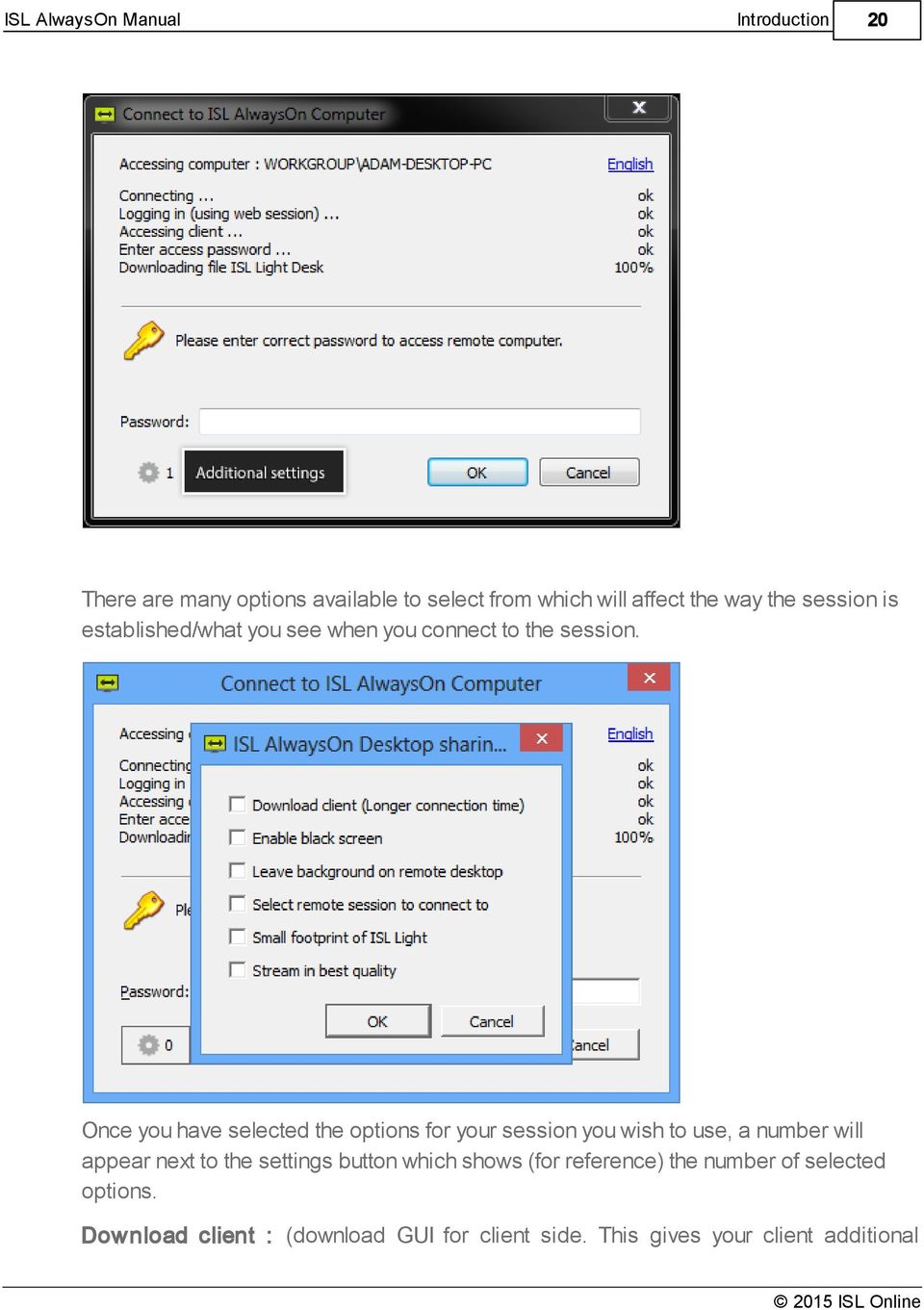
21 Introduction 21 option, but increases connection time - for more information on fast connect click here) Enable black screen: (temporarily changes the clients monitor to a black screen so you can work privately in session) Leave background on remote desktop: (does not change the background of the clients computer once connected) Select remote session to connect to: (allows you to select a specific console on clients desktop) Small footprint of ISL Light: (runs a non graphic/basic cut down version of ISL Light on clients desktop) Stream in best quality: (streams desktop in the highest quality) Please continue to the next step: Control Control ISL Light will automatically start on both your (ISL Light Desk) and the remote computer (ISL Light Client), exchange a session code and connect. ISL View window will appear and you can start working on the remote computer as if you were there. Please continue to the Features overview. 1.3 Features Unattended Remote Access Access a remote computer or remote server from anywhere in the world. Remote Work Use ISL AlwaysOn remote access and safely connect to your office PC from another Windows, Mac, Linux computer. You can access your Windows computer also from ipad or iphone, and experience maximum flexibility of working remotely. View and
22 Introduction 22 control a desktop, toggle between multiple monitors, restart the computer or switch users, transfer and synchronise files and folders, print remote documents locally... Work on a remote computer as if you were sitting right there in front of it. Remote File Access Be carefree when you go to a business meeting or on holiday. Access remote files and applications by means of one click. Connect to your home computer or your office PC from any Internet-connected computer or mobile device in seconds. Remote Administration of Unattended Servers Administer Windows 7, Vista or older Microsoft OS computers and servers remotely from anywhere anytime without actually being there. After a quick remote access set-up, you can reach unattended computers and servers through always accessible Web-based access. Easy Setup Follow an automatic remote access set-up and have your remote PC accessible in minutes. Quick Installation Install and configure remote access to your computer or a server automatically without changing settings on your firewall. ISL AlwaysOn executable automatically launches, installs, and configures itself. No restart is required. Firewall-Friendly Worried to end up at a third party's firewalls or NAT proxies? No need. ISL AlwaysOn remote access connects through a firewall, both yours and you clients'. It does not require a special configuration and it will pass even the tightest firewall without even blinking. Web-Based Access Access a remote PC or server via the Internet using any web browser. No Installation
23 Introduction 23 With ISL AlwaysOn, you can access any computer remotely over the Internet. No installation is required; just log in to your user account through any Web browser and click on 'Connect'. Log in From Anywhere Feel free to work on a remote PC from any Internet-connected computer (Windows, Mac, Linux) or an ios mobile device (iphone, ipad, ipod touch). Log in to your ISL Online user account and connect to one or more computers and servers with a previously setup remote access application. Mobile Access Access your computer from iphone or ipad and control your computer from virtually anywhere. ios Mobile You are on the road and need to access your office PC? Grab your iphone, ipad, or ipod touch and connect to your remote computer in seconds. Use remote access no matter whether you are in a business meeting in a room next door or on an exotic holiday halfway around the world. Provide remote support and server administration from anywhere. Learn more about remote access from iphone and ipad. Remote Computer Management Manage remote computers from one place Name Tags Give each remote computer a name tag for easier recognition. Keep them organised for a quicker search through your list of remote devices. Remote Computer Sharing Multiple operators of your help desk support centre can access unattended computers and servers and provide remote support. With ISL AlwaysOn remote access software, you can share remote computers among co-workers without any additional installation. Once the administrator of ISL Online account has set up remote access to a computer, he/she can pass the access rights to help desk operators in just a few clicks.
24 Introduction 24 Online Status Display See which computers are online and available for remote access. Turbo Desktop Control Access your PC and work remotely with virtually no delay. Also when viewing high definition content. Full Remote Access Access remote computers and control them using administrator rights. In this way, you can reboot a computer and reconnect into the same remote access session, switch between users, send Ctrl+Alt+Del, install software, or do whatever you would if sitting right there in front of it. Best Quality Sharing Is the quality of viewing a remote desktop important for your remote access? If yes, then choose the best quality option. It delivers smooth high definition content sharing with almost no delay if the bandwidth on both sides is good enough. High Speed Sharing Default option. You will hardly notice you are working on a remote computer as there is practically no delay. The high speed option provides a remote desktop with 256 colours and is recommended for lower bandwidth connections. Adjust Viewing Window Zoom in or zoom out, get the exact size of your remote desktop or adjust it to fit into a viewing window. Multi Monitor Navigation Enjoy simple remote desktop control of multiple monitors. Access Multiple Monitors
25 Introduction 25 Access and control remote computers with one or multiple monitors. Toggle between different monitors or fit all monitors into one screen. ISL AlwaysOn s default option shows all monitors on one screen side by side. Choose One Monitor Limit your remote view to one monitor. Although you can view multiple monitors of a remote computer, you might still want to work on one desktop alone. Please see our manual to learn how to limit a remote view to one monitor. Administrator Rights Access a remote computer with administrator rights Reboot and Reconnect Install software remotely, restart a PC and automatically reconnect to the same remote access session. Do anything on a remote computer as if you were on your PC. Blank Screen If you prefer privacy during your remote access, you can always turn on black screen on the remote computer. The remote desktop will be hidden behind a black screen. Send Ctrl+Alt+Del Send Ctrl+Alt+Del to a remote desktop to perform administrative tasks, start a task manager, switch between users or log off, all without interrupting the session in progress. Easy File Transfer and Sync Quickly transfer files and folders between computers in both directions SendTo Use an integrated SendTo option in the Windows Explorer menu (available to Windows Vista, Windows 7 and Windows 8 users). Right-click on the selected file or folder, open Send to, and choose ISL Light to send the documents to a remote computer.
26 Introduction 26 File Manager Manage a file transfer. Change the default destination folder, pause or resume a file transfer, or limit the file transfer's bandwidth usage. Drag & Drop To transfer files from a remote to a local computer, simply drag the files or folders on one computer and drop them into the ISL Light GUI. Or transfer documents in the other direction - from a local to a remote computer. File Sync If you often transfer files between your home and your work computer, you will appreciate the file synchronisation option. Remote Printing Access a remote computer and share a printer. Print a local document on a remote printer, or print remote computer's documents on your local printer. Share Printer The ISL Light Remote Printing feature allows you to share a printer with a remote user during remote computer access. It requires a simple, one-click-and-one-time installation of the ISL Remote Printer driver on the remote computer. Print Remotely Share a printer and provide a remote user with your local document s hard copy without sending the file over. Or print a remote user s document on your local printer. Just open a document and choose ISL Remote Printer in the Print menu to send it to the remote printer. Please read more at Remote Printing in the manual. Session Recording Record remote desktop sessions for later playback. Improve remote access management and security with the help of session recordings.
27 Introduction 27 Record Remote Desktop Sessions Have you granted remote access to your computer to others? For security reasons, you can capture everything or just selected parts of the remote access to your computer. You can record desktop sharing, video, audio and text chat, and then play back each recorded element in a separate window. ISL Recording Player A session recording is originally saved in a special highly compressed.isr format, which requires ISL Recording Player for playback. Please download ISL Recording Player for FREE and play back everything you have recorded - desktop sharing, text chat, video and audio communication, with a lot of playback options. Automatic Session Recording Automate session recording at the beginning of every remote access to your computer. To do that, just open ISL AlwaysOn on the remote computer, open the Security tab and check Enable session recording under Session Options. Convert to.avi Save session recordings, play them again and easily convert the highly compressed.isr format into.avi. Remote system information Run computer diagnostic tools and instantly gather vital information about a remote printer computer's hardware and software. Instant Remote Diagnostics After establishing the remote access connection with a client, run remote diagnostic tools to access the complete system information of the remote computer easily. Get a snapshot of basic data followed by a complete list of the remote system information. Remote System Information at Hand Having in-depth software and hardware information always at hand is sometimes indispensable when working on a remote computer. Run the computer diagnostic tools, save the file with remote system information details and raise the efficiency of your remote access session. Have instant access to basic information about the System, CPU, Memory and Data Drives. List information of all on-going processes and applications on
28 Introduction 28 the remote system, view all the active hardware and software drivers and more. Secure Remote Access Have carefree access to a remote computer. ISL AlwaysOn guarantees maximum remote access security with top industry standards security technologies: AES 256 Bit SSL, Verisign certificate and a computer access password. AES 256-bit End-to-end Encryption AES 256 Bit SSL (Secure Sockets Layer) tunnel is established between two connected computers during remote access. All the information exchanged between your and remote computer is encrypted end-to-end, meaning that nothing can decrypt the contents of the session transferred from one side to another. VeriSign Certificate ISL Online remote access application is digitally signed by means of a VeriSign Code Signing certificate. Lock Feature Lock your computer to block others from accessing it remotely. If you have permitted access to your computer to other people, use the temporary lock feature when leaving for your holidays. Military Strength Encryption The Advanced Encryption Standard (AES) is an encryption standard adopted by the U.S. government for data security and is now used worldwide. If the lower 128-bit hard drive-based encryption suffices to address all commercial, bank and non-top secret government applications, the 256-bit AES, also used in ISL Online s remote access security, is known as military strength encryption. It protects top secret government information and has a higher security level than your online banking. Computer Access Password Installing ISL AlwaysOn on a computer does not yet enable remote access itself. Only after you have also set a locally stored computer access password, will the computer become available for remote access.
29 Introduction 29 ISL Online Remote Access Security Learn more about ISL Online s remote access security by reading the Remote Desktop Security Statement. 1.4 Reliability ISL AlwaysOn, as a part of ISL Online network, uses an architecture that is designed for maximum reliability, security and performance. With ISL AlwaysOn's screen-sharing technology and intuitive interface, accessing remote computers could not be easier simply add computers to your list and then access any of them from anywhere on the internet. Access any computer anywhere anytime ISL AlwaysOn sessions are established through a global network of servers called ISL Online network. It assures 24/7 availability of the service with a strong and reliable desktop connection between any two points in the world. ISL Online network's architecture is fault tolerant, includes geographical load balancing mechanisms and distributed session roaming. Not only is the connection relayed through the server with the lowest traffic load, but also the geographically nearest server to both end points. Scalable to your needs You can rely on ISL AlwaysOn to optimize its performance regardless of your Internet connection or the number of computers being accessed remotely. Whether you are accessing 1 or 1,000 computers, our compression mechanisms and color depth dynamically adapt to your Internet bandwidth, enabling optimized speed and quality of the remote screen. We are committed to taking your ISL AlwaysOn sessions to a seamless and effortless level. ISL Customer Care The ISL Online Team is available to assist you with technical issues or other questions over the telephone, via and through our live chat (simply go to and click the Chat Live button in the top-right corner of the page). You are welcome to contact us directly or your nearest Authorized Reseller.
30 1.5 Introduction 30 Security Introduction Security should be a crucial part of a remote access product, no matter for what purposes you are using it; business or personal. ISL AlwaysOn uses maximum security. ISL AlwaysOn is secured on multiple layers: 1. ISL AlwaysOn computer to ISL Online products user visibility. 2. ISL AlwaysOn computer access password. 3. ISL Light remote desktop session security. 4. MS Windows OS access security scheme. Each ISL AlwaysOn connection from a computer to an ISL Conference Proxy server is encrypted with SSL. ISL AlwaysOn's activities can be monitored by tracking the history of accesses to a computer. This report shows which ISL Online users accessed the computer and when they accessed it. A user can always lock access to his/her computer. When disabled, that computer becomes inaccessible until further action. 1st layer - ISL AlwaysOn computer to ISL Online products user visibility To access a remote computer, you need to establish a link between your ISL Online account and a computer you want to add access to. Each user has its own digitally signed executable identifying his/her ISL Online user account. No other ISL Online user will be able to see or try to start a remote connection if the ISL AlwaysOn computer administrator has not installed a customized ISL AlwaysOn program. The procedure of adding a new computer is described in the Add a new computer chapter. 2nd layer - ISL AlwaysOn computer access password
31 Introduction 31 Installing ISL AlwaysOn on a computer does not completely enable access to the computer. To enable access, a strong access password must be set first. This password is stored in the Local Machine registry as MD5 hash. The plain text password is not available anymore. After installing ISL AlwaysOn and setting the access password, remote access for the specific ISL Online user is finally enabled. Whenever the ISL Online user wants to connect to the remote computer, he/she needs to enter the ISL AlwaysOn access password for each remote access session he/she starts. Step 1. ISL Online products user send encrypt("connect") <challenge> = generate challenge send "encrypt(authentication_required({chmd5, <challenge>}))" request input of password make chal-passmd5=md5(challenge,md5(password)) send encrypt("authenticate({chmd5, <chal-passmd5>})") request = decrypt(received_data) if request[key] = chmd5 then load md5-password from registry into memory if request[1] = md5(challenge, md5-password) then set authenticated user = true send encrypt("get_code") else send encrypt("error authentication failed") end else send encrypt("error authentication not supported") end if received = get_code then start ISL Light Desk, request code send encrypt("code <ISL Light session code>") else goes again to step 3. end ISL AlwaysOn computer received = decrypt(recieved_data) if received = "code <code>" then start ISL Light Client with --connect <code> set authenticated user = false end ISL Light Desk is connected into session ISL Light Client is connected into session 3rd layer - ISL Light remote desktop session security
32 Introduction 32 The remote desktop control session is enabled by ISL Light. ISL Light (version 3.1) enables to create an instant remote desktop control session, which is secured with SSL (a 1024-bit RSA key for the handshake and a 256-bit AES session key). Once a session is established, no one can see this session's encrypted data. And when an ISL Light session is ended you cannot connect to the same session again. For more information on ISL Light security, please refer to this link. 4th layer - MS Windows OS security Once an ISL Online user is connected to a remote computer, he/she can see the Windows console desktop session running on the computer. It is recommended that the user sets passwords for all Windows accounts and disables accounts which are not in use. The user should always log off the computer when not present, so when accessing the computer he/she needs to type in the Windows account password. 1.6 System Requirements Operating Systems: Microsoft Windows 2000 Microsoft Windows 2000 Server Microsoft Windows Server 2003 Microsoft Windows Server 2008 Microsoft Windows Server 2012 Microsoft Windows XP (32-bit and 64-bit) Microsoft Windows Vista (32-bit and 64-bit) Microsoft Windows 7 (32-bit and 64-bit) Microsoft Windows 8 (32-bit and 64-bit) Apple MAC OS X Snow Leopard 10.6 or higher Internet Connection:
33 Introduction 33 For bandwidth, when a remote computer is available, ISL AlwaysOn uses ping packets to keep alive the connection. Once ISL AlwaysOn service program registers with server, it will only send ping packet every 30 seconds. The server will respond to each ping with the same packet. Below the application level packet there is a SSL layer that wraps application data. The payload data within a packet consists of 20 bytes ISL AlwaysOn ping packets are around 70 bytes on the TCP layer and the server responds with the same packet. The total packet size will be around 90 bytes. Default keep alive settings are used: 1 packet per second. When connected to a remote computer, the required bandwidth minimum is not defined, although we recommend at least a 50 kbits/s connection for more comfortable work.
34 2 34 This manual describes ISL AlwaysOn in detail. Everything within this chapter applies to both hosted service users and server licence users. When there is a difference for server licence users, a special note will be added and the user will be able to go to the appropriate server licence topic by clicking the link provided. Example: Server licence users: The procedure for server licence differs from the procedure for hosted service users - please go to this topic for more information. Please click here to go to the topic that describes usage and options of ISL AlwaysOn that are specific for server licence users. This manual is divided into the following sections: How ISL AlwaysOn works Add a new computer Access a computer ISL AlwaysOn GUI ISL AlwaysOn executables and processes User Management Customization Settings How to Remotely Shutdown Computers 2.1 How ISL AlwaysOn works ISL AlwaysOn is a business software for fast and secure access to your PC over the Internet. ISL AlwaysOn automatically handles all special network configurations, therefore remote access can be easy even if both computers are behind a firewall and complex networks. Be more flexible and save time. You can work on your office PC or administer a remote server from home, while on vacation or anywhere else. You have a list of your computers within your ISL Online products username with

35 35 computer descriptions and their status. You can access any online computer from the list from anywhere in the world or add new computers. You assign an access password to each computer and you need to enter it for each access. ISL AlwaysOn in its current form is a kind of a wrapper around ISL Light - all the computers that you have added to your list have a service running that allows you to connect to those computers without someone manually entering a session code. When you are connected through ISL AlwaysOn, the situation is identical to the situation where you are connected directly using ISL Light, with the addition of automatically enabled administrative mode and restart and resume support. ISL Online offers two user models ISL AlwaysOn is a part of ISL Online and there are two user models available. Using ISL Online as a Hosted service (ASP Subscription or PayPerUse Coupon), a secure connection is established through the ISL Grid - ISL Online's massive network of servers worldwide. Server License allows you to set up your own ISL Conference Proxy server (or a grid of servers) and use it as a connecting point for ISL Online products instead of our ISL Grid. You should be familiar with network and server administration in order to install and configure it properly. If you wish to use the Server License, please visit our Knowledge Center to learn how to setup the ISL Online system in your company.
36 Ways to add a new computer Important notice when cloning an installation: If you are using ISL AlwaysOn or newer, please follow these instructions, otherwise follow the notice below this one. ISL AlwaysOn can also be installed in environments where computers are installed as clones from one master image. First ISL AlwaysOn is installed (with predefined changes) onto the master computer, but final steps are then performed on cloned computers. Before cloning the master image to target computers, the master machine must have ISL AlwaysOn already installed and please make sure that you have granted access to all the desired users (the users that you intend to allow access to cloned computers). Having done that, please follow these steps: 1. Stop ISL AlwaysOn service on the master machine (go to command prompt and execute net stop isl_always_on) 2. Close any ISL AlwaysOn computer configuration dialogs that might be running. 3. Open regedit and navigate to HKEY_LOCAL_MACHINE\SOFTWARE\ISL Online\ISL AlwaysOn Important: If you are using 64-bit Windows, the appropriate key is located in HKEY_LOCAL_MACHINE\SOFTWARE\Wow6432Node\ISL Online\ISL AlwaysOn 4. Delete the binary content key called uid 5. Create a new binary content key called _ghost_ with content 01 This concludes the preparation steps - you should now shut down the master computer and clone it. Please be extra careful not to boot the master computer after the last step or the cloning process will not work properly! Important notice when cloning an installation and using an older version of ISL AlwaysOn (version lower than 1.2.2): In case you are cloning an installation, please make sure that the following key is not present in the registry prior to cloning: KEY_LOCAL_MACHINE\Software\ISL Online\ISL AlwaysOn\uid Important: If you are using 64-bit Windows, the appropriate key is located in HKEY_LOCAL_MACHINE\SOFTWARE\Wow6432Node\ISL Online\ISL AlwaysOn\uid
37 37 This key represents a unique machine ID and does not get deleted when you uninstall ISL AlwaysOn! If it remains on the machine and gets cloned, then all machines will have this key with the same ID, effectively identifying themselves as the same computer. To avoid this, please follow the correct procedure for situations where cloning is involved 1. Make sure that the key mentioned above is not present on the machine before cloning. If you have previously installed ISL AlwaysOn on that machine, it will be there, otherwise not. 2. Clone the computer to n computers. 3. Install ISL AlwaysOn manually on each of the n computers. 4. Each cloned computer will now have a unique machine ID for ISL AlwaysOn and you will see them all in your list of computers. Important: In an environment where a Web Proxy is used, ISL Light and ISL AlwaysOn use Internet Explorer connection settings. Since ISL AlwaysOn as well as ISL Light with restart and resume enabled run under system account, they use Internet Explorer settings for the system account. It might happen that Internet Explorer settings have not been set for the system account. Please refer to the following topic in the ISL Light manual: Checking system account connection settings Server license users: The procedure for server license differs from the procedure for hosted service users - please go to this topic for more information. Apart from the procedure described in the Add a new computer topic (in the getting started section), there are also additional options when adding a new computer: 1. Please go to ISL Online home page. 2. Click on the Log In box to the top right of the web page. 3. Enter your ISL Online username/ and password and press Log In. 4. Click the Products tab to view the remote access "My Computers" area.
38 38 5. You can send these instructions via by clicking the Send button - if you choose this option, please proceed to the next step (step 7). The procedure can also be performed manually - if you choose this option, please skip to step Invitation page will appear. Provide the address(es), click the Send Invitations button and automatically generated invitation will be sent out immediately. If you want to modify the content of the message seen in the Preview, click the Change button, enter your changes and Apply them:

39 39 7. The recipient will receive an that looks like the picture below. Ifs the recipient follows the grant link, please proceed to step 11. If the grant link does not work and the recipient follows the alternate link, please proceed to the next step (step 8). 8. Instruct your client to navigate to from the computer to be available to the ISL AlwaysOn user and then tell him/her to enter the code that was displayed to you in the step The client will see the Grant remote access confirmation page. If the client agree to grant access to the current computer to the user who has issued the user code, he/ she should click the Grant Access button.

40 A security warning will appear - the client should select Run. Important: To install ISL AlwaysOn, administrative privileges are required! 11. ISL AlwaysOn setup wizard will appear. The client should click Next and follow the wizard.

41 ISL AlwaysOn will now prompt for the password. As an important part of security, the client will need to set a strong access password. This password is required for every access to the remote computer. The access password can be changed in the ISL AlwaysOn Settings (click here for more info), but everybody having access to the client's computer has to be informed about the change. The password is stored locally in the computer registry. Obviously, the client will need to contact you and tell you the password in order for you to access the client's computer.
42 The client should click OK to grant access. 14. After the access is granted, the client will see the ISL AlwaysOn window.
43 Login using your ISL Online product username and password assigned to you by your ISL Online account holder. How to access ISL AlwaysOn through the task bar Another way of accessing ISL AlwaysOn is simply by double-clicking the ISL AlwaysOn icon in the taskbar - this icon appears after the installation process for ISL AlwaysOn is complete: You have now successfully added a computer to your list. Please continue to the Access a computer chapter to learn how to access that computer from anywhere. 2.3 Access a computer Server licence users: The procedure for server licence differs from the procedure for hosted service users - please go to this topic for more information. Apart from the procedure described in the Access a computer topic (in the Getting started section), where you chose the Run option in step 5, you can also choose Save and save the executable for later use - e.g. place it on your desktop and rename it to a more friendly name, e.g. J ohn' s home c omput er. ex e. When you wish to access that remote computer, simply double-click the executable on your desktop, enter your ISL Online products username and password when prompted, then the computer access password and you will be connected - there is no need to visit ISL Online web pages each time. It is possible to use command line arguments for ISL AlwaysOn Connect, allowing you to skip the password entry form. Available parameters are: connect-uid (you can use this to pass the desired unique id of the target machine, if needed) username (you can use it to provide your ISL Online username, e.g. \ \ my c ompany \ us er 1 ) password (you can use it to provide your ISL Online password) computer-password (you can use it to provide the computer access password)
44 44 computer-password-md5 (you can use it to provide the raw computer access password as written in the registry - check HKEY_LOCAL_MACHI NE\ SOFTWARE\ I SL Onl i ne\ I SL Al way s On\ pas s wor d ) stream-options (you can use it to enable the desired checkboxes [separate them with a semicolon] in the list, e.g. s mal l _f oot ; l eav e_bac k gr ound; ) If you specify a username, password and a computer password (either in plaintext or as MD5), you will get a single-click solution that connects to a certain ISL AlwaysOn machine without having to enter any credentials or login to your ISL Online account beforehand. Important: Please keep in mind that if you create a shortcut and set those parameters for it, anyone with access to your machine can do a right-click on that shortcut and read the parameters. Example: I SLAl way s OnConenc t. ex e - - us er name \ \ my c ompany \ us er pas s wor d us er pwd - c omput er - pas s wor d ac c es s pwd Important: In the previous version, all the parameters were specified as "key=value". Please note that the old format will work, but the new format is preferred. Mapping from the old format to the new format: old format new format " Comput er UI D=[ ui d] " - - c onnec t - ui d [ ui d] " Us er name=[ c p us er ] " - - us er name [ c p us er ] " Pas s wor d=[ c p pwd] " - - pas s wor d [ c p pwd] " Ac c es s =[ c onnec t i on i d] " - - c onnec t [ c onnec t i on i d] " Comput er Pas s wor d=[ pwd] " - - c omput er - pas s wor d [ pwd] " Comput er Pas s wor dmd5=[ pwd] " - - c omput er - pas s wor d- MD5 [ pwd] " St r eamopt i ons =[ opt s ] " - - s t r eam- opt i ons [ opt s ] An example for the old format : I SLAl way s OnConenc t. ex e " Us er name=\ \ my c ompany \ us er 1" " Pas s wor d=us er pwd" " Comput er Pas s wor d=ac c es s pwd" 2.4 ISL AlwaysOn GUI ISL AlwaysOn GUI consists of two separate parts - the first part is the computer access
45 45 configuration window that can be reached by double-clicking the ISL AlwaysOn icon in the taskbar - the icon appears after the installation of ISL AlwaysOn: Login Box When you load ISL AlwaysOn either by right clicking on the icon in the task bar, then clicking Open on the selection you will be shown the Login Box. To login you need to enter your Username and Password. Tick the Remember me check box if you wish the computer to remember the details for next time you login. For help at any time click on the (?) button. You will be directed to the relevant topic on our help center manuals. Important: If you use only the global access password and change it, other users will obviously not be able to connect until you tell them the new global password. Consider using a password for each user or one-time global passwords to avoid such situations. To view some more detailed information about the ISL AlwaysOn GUI click on the links below.
46 46 My Computers Overview Menu Tab Once your connection to the computer is established you will notice the ISL Light GUI. Please refer to the ISL Light manual for more information on ISL Light, especially the following chapters: In session features ISL Light GUI Desktop sharing My Computers After logging into ISL AlwaysOn application, you will be presented with two main tabs. Default one is My Computers, here you will see a list of all the computers that you have access to. It states the IP Address of the computer, the status whether it is online or offline, tags associated with the computer, and the action to connect to the computer if it is available and online. You can add a new remote computer by clicking on the Add Remote Computer button at the bottom of the My Computers window.

47 47 If you have a long list of computers in the list, then the search function may come in handy. To search for computers in the list type in the IP Address (if you have it to hand) or any combination of characters that enable you to dictate what the computer is called. Example: 1. If I search for PC in the search box then I will only see OFFICE-PC-Laptop and Home PC in the list. 2. If I search for (or the first few numbers) in the search box then I will only see OFFICE-PC-Laptop in the list. For help at any time click on the (?) button. You will be taken to the relevant topic on our
48 48 help center manuals Overview Overview Here you can change the Computer status, add Remote Users, customize File Sharing, and view the Access History of the connection (please view this topic for more information). The overview allows you to view the general details regarding this computers setup. You can logout by clicking on the blue Logout button at the top right. For help at any time click on the (?) button. You will be taken to the relevant topic on our
49 49 help center manuals. Computer Status You can change what is accessible on this computer by clicking on the Change button. It will allow you to enable/disable Remote Access, Desktop Sharing, and File Sharing. Remote Users Here you will see a list of all the users who have access to the computer. To add a new user to the list of shares click on the Add button. It will prompt you to first select the server (for hosted users: ISL Online Network), type in the new users granted access code, or username and password. Click Grant Access to confirm or Cancel to quit. To view more help click on the (?) Button to the bottom left. You will be taken to the relevant topic on our help center manuals.
50 50 File Sharing You can select which folders on the computer can be shared and access by the supporter. Click on the Add button to browse for folders you wish to share on your computer. For more information click here. Access History The access history is where you can search what connections have been made using your account, desktop connection start and end times, and other useful information. To view more help click on the (?) Button to the bottom left. You will be taken to the relevant topic on our help center manuals.

51 Menu Tab Menu Tab At the top left of the control panel you will see a green ISL AlwaysOn clickable button. Once you click on it, it will bring up a sub menu where you can select Language, Settings, Help, About, Close

52 52 Language There are many languages you can select in ISL AlwaysOn. Languages are as follows: English, German, Japanese, Slovenian, Serbian (Cyrillic and Latin). Settings This will bring up the ISL AlwaysOn settings. Help This will take you to the Online Help s. About You would go here if you would like to check for latest updates and the current version number.

53 53 Close Closes the ISL AlwaysOn window ISL AlwaysOn Session With ISL AlwaysOn 2.2 you can now have an additional option to select when connecting to a remote computer - Download client. It enables you to select whether the client side should download a client or not. Mainly you can cut down on connection time significantly by unchecking this option and using the Connection Box interface described bellow. Standard connection To enable standard GUI for client side, select the "Download client" option when connecting to the remote computer - additional connection options are described in this topic. This will start a standard ISL Light session with a client computer. To get all the information about ISL Light GUI, please refer to ISL Light manual Fast connection
54 54 New ISL Always On enables fast connection option by default, which doesn't download ISL Light GUI for client side but presents your client with a fast connection box giving him or her all the essential options and decreasing connection time significantly., this option also comes in handy, when you are accessing an unattended computer and don't need a client side interface at all. Connection Box Instead of standard ISL Light GUI your client will be presented with a Connection Box shown here: Drag and drop files into the box to automatically start transferring them to Desk side (note: Desk side can still decline file transfer) Clicking the X in top right corner of Fast Connection Box will give you the option to close and exit the remote session. Fast Connection Tray Icon In addition to the Connection Box a new tray icon will appear when remote user connects to your computer without downloading the client GUI: If you hover your cursor over it, it will display connection status (e.g. ISL AlwaysOn - Enabled and connected to ISL Online Network) Left or Right click the tray icon to access following options:

55 55 - Active sessions: see all your current session, with additional options to switch to or close any of them - Open ISL AlwaysOn...: Access first page of ISL AlwaysOn Interface, where you can manage all your computers and settings (My Computers topic) - Settings...: Access the settings from ISL AlwaysOn interface directly (Settings topic) ISL AlwaysOn executables and processes This topic describes executables and processes that are running/started on a computer that has ISL AlwaysOn installed as well as on computer that is trying to connect to it via ISL AlwaysOn Connect. On server side: (watchdog service process - it ensures that ISLAlwaysOn server process is always running) I SLAl way s OnSer v i c e. ex e I SLAl way s On. ex e (main process that serves ISL AlwaysOn functionality) I SLAl way s OnMoni t or. ex e (proxy process is started in each windows session - this
56 56 program starts ISL Light program in the appropriate session) (tray process is started in each session - it shows ISL AlwaysOn status icon in system tray) I SLAl way s On. ex e When a user connects, I SLAl way s OnMoni t or. ex e will start I SLLi ght. ex e that will enable restart and resume: I SLLi ght. ex e (main ISL Light program showing GUI in serving remote desktop session) (watchdog service process - it ensures that ISLLight process is always running; proxy process that starts desktop streaming service under appropriate account) I SLLi ght Ser v i c e. ex e I SLLi ght Ser v i c e. ex e (desktop streaming service process) (main ISL Light program showing GUI in serving remote desktop session that was restarted due to FUS, restart or logoff) i s l l i ght. ex e (ISL Light program showing Drag & Drop connection box, if connection was established without downloading the client) I SLLi ght Fas t. ex e So on the computer there might be running many I SLAl way s OnMoni t or. ex e processes (one for each windows session) and there might be running many I SLAl way s On. ex e processes showing tray icon status (one for each windows session). On client side (accessing remote desktop) there are only two processes: (process where you enter your ISL Online product password, computer access password and see the connection progress) I SLAl way s OnConnec t. ex e I SLLi ght. ex e (main ISL Light program that is started by ISL AlwaysOn Connect) ISL AlwaysOn Web Options Besides options described above that you can access trough ISL AlwaysOn application, you have additional options when accessing computers running ISL AlwaysOn trough web interface. This enables you to remote control computers without installing ISL AlwaysOn on the current computer. To begin, navigate to log into your account and click on Remote Access tab. You will be presented with the list of all computers you can access via ISL AlwaysOn. Ones that have remote access currently enabled will have their status set to online meaning they are currently connected to ISL Online

57 57 network. Besides two main options available to you for a computer that is online (Connect and Files) you have more actions available by pressing the More... option. Following options are available: Edit Delete History Execute Shutdown Computer Change password System information Upgrade ISLAlaysOn

58 Edit In Edit window you can change and add information about selected computer. Computer name - Id of the selected computer given when computer was added to ISL AlwaysOn. Description - Screen name of the selected computer, computer will be shown in the list of all computers under this name. You can change it to something that will enable you to easily recognize which computer this is (e.g. Stationary computer, My laptop,...). Icon - If you deselect the Use default image option, you can select a custom image that will be displayed next to the name of the selected computer. Computer tags - Add additional tags describing this computer, this will help you find this computer faster when using the search tool if you have a lot of computers linked to your account. (Separate tags with ",", e.g. laptop,home) Share this computer with - Add users under your domain to whom you wish to allow access to selected computer. After saving changes the selected computer will be added to the list of their computers Delete Select this option if you want to remove the selected computer from the list of available computers for your account. You will be prompted to confirm your choice, then the computer will be removed.

59 History In History window you can see the information about connections made to selected computer in the desired time range Execute ISL AlwaysOn has new action available called Execute which enables you to execute
60 60 executable files on the remote computer. This action can only be executed on remote computer that has Windows operating system. Example for executing fciv.exe through web interface (fciv.exe utility computes and verifies cryptographic hash values of files.): Pre-requirements: 1. Create a folder named trusted inside ISL AlwaysOn install directory - 32-bit Windows: C:\Program Files\ISL Online\ISL AlwaysOn - 64-bit Windows: C:\Program Files (x86)\isl Online\ISL AlwaysOn Example procedure: 1. Place fciv.exe inside trusted directory of ISL AlwaysOn (C:\Program Files\ISL Online \ISL AlwaysOn\trusted) 2. Log into your account at 3. Select Remote access tab 4. Click More... next to computer on which you wish to run an executable 5. Click Execute 6. Enter computer access password 7. For argument enter: fciv.exe --arg_e % current_dir% \..\..\trusted\fciv.exe (In this example hash value will be calculated for fciv.exe file, generally inpute arguments as following: Name_of_executable --arg_e" Arguments" ) You can use the following variables for location: - %current_dir% points to - C:\Program Files\ISL Online\ISL AlwaysOn\actions \execute_1_0_0 - %windir_system_native% points to windows system32 folder - depending on OS architecture - %ProgramFiles_native% points to program files folder - depending on OS architecture Note: Help on how to execute commands can by accessed by pressing Execute
61 61 without defining arguments. Info will be displayed instead of what the executable would return. 8. Click Execute: 9. In the next step you will see the result of the action taken:

62 62 Example for executing fciv.exe using WebAPI2: Pre-requirements: 1. Create a folder named trusted inside ISL AlwaysOn install directory - 32-bit Windows : C:\Program Files\ISL Online\ISL AlwaysOn - 64-bit Windows : C:\Program Files (x86)\isl Online\ISL AlwaysOn Example procedure: 1. Place fciv.exe inside trusted directory of ISL AlwaysOn (C:\Program Files\ISL Online \ISL AlwaysOn\trusted) 2. Firstly you will need to login through webapi2 using: function: utils/login/1 parameters: {" user" :" _ENTER_USERNAME_"," pwd" :" _ENTER_USER_PASSWORD_" in this step you will obtain sid 3. Search for the computer you would like to execute on
63 63 function: islalwayson/computer/search/1 parameters: {" simple_search" :" true"," search" :" _ENTER_COMPUTER_NAME" } in this step you will obtain co_id of computer 4. Execute the command function: islalwayson/actions/start/1 parameters: {" co_id" :" _CO_ID_STEP_3_", " name" :" execute"," arguments" : [" fciv.exe"," --arg_e"," % current_dir% \\..\\..\\trusted\\fciv.exe" ]} in this step you will obtain action_id 5. Check the status of the execution function: islalwayson/actions/info/1 parameters: " info" :" computers"," events" :" true" } {" action_id" :" _ACTION_ID_STEP_4_", in this step you will receive authenticate chmd5 number 6. Authenticate function: islalwayson/actions/authenticate/1 parameters: {" co_id" :" _CO_ID_STEP_3_", " chmd5" :" _CHMD5_STEP_5_", " action_id" :" _ACTION_ID_STEP4"," plain_password" :" _YOUR_COMPUTER_A CCESS_PASSWORD" } in this step you will receive ok response, which means you were correctly authenticated 7. Check the info of the execution again function: islalwayson/actions/info/1 parameters: " info" :" computers"," events" :" true" } {" action_id" :" _ACTION_ID_STEP_4_", In this step you will receive fid and file 8. Get the result which is stored in file with file id fid function: islalwayson/file/download/1 parameters: {" fid" :" _FID_STEP_7", " type" : " file", " file" :" _FILE_STEP_7" }

64 64 In this step you will receive download link of the file which you download to check the result Shutdown computer With this option you can execute Shutdown or Restart command on the selected computer. Enter the access password for the selected computer and press execute after selecting either Shutdown or Reboot option.
65 Change password Here you can change the Global password for the selected computer or set up a connection password. Global password - Change the global password for the selected computer used for establishing connection or accessing the ISL AlwaysOn settings on that computer. This connection password - Change or set up a password used for establishing the connection to the selected computer. If you set up connection password, you can still establish connection to the selected computer with its global password System information By pressing the Execute button in System information window, you will be presented with basic information of selected computer:

66 Upgrade ISL AlwaysOn This option prompts the ISL AlwaysOn application on selected computer to search for available updates and installs them. Notifications will be displayed above the list of computers in Remote Access tab of your account. 2.5 User Management Server licence users: The procedure for server licence differs from the procedure for hosted service users - please go to this topic for more information. User administration for hosted service users is available within your ISL Online account. Please login to your ISL Online account (refer to this topic for instructions) and go to Hosted service - users. There are two modes of user administration available - simple administration (default)
67 67 and advanced mode. Simple administration is the default mode and it includes only one user - this user's username is the same as the ISL Online account address. The following options are available: Change password (use it to change the user password - note that this password is independent from your ISL Online account password) Forgot password (use it to resend the user's password to the user's address) Change contact (use it to change user's name and address) Advanced mode allows creation and administration of multiple users within your ISL Online Domain (e.g. mycompany). To register an ISL Online Domain, please follow the link Register Your ISL Online Domain. You can add a new user or change settings for the existing user(s). The following options are available: Change password (use it to change the user password - note that this password is independent from your ISL Online account password) Forgot password (use it to resend the user's password to the user's address) Change contact (use it to change user's name and address) Delete user (use it to delete a user) Limitations (enable or disable a user, limit the number of concurrent sessions, enable or disable certain plugins) Customizations (change customization settings for this user) If you click on Preferences, you have the following options available: personal info (view your ISL Online account's contact information) change info (change your ISL Online account's contact information) change password (change your ISL Online account's password) change (change your ISL Online account's address) Please note: if the advanced mode is enabled, users must enter their ISL Online Domain in front of their username, with two leading backslashes. The separator
68 68 between the ISL Online Domain and a username is a single backslash. Example: \ \ I SLOnl i nedomai n\ us er name. Useful hint : It is possible to share a computer from one user's list with another user. Please check the following topic for instructions: Grouping Warning: "Back to simple administration" option deletes your ISL Online Domain and all users within this domain! Grouping It is possible to share a computer from one user's list with one or more other users from the same domain. Please note that it is required to have a registered ISL Online domain within your ISL Online account. If you have not done it yet, please do so before following the procedure below. Check the user management topic for instructions. With a registered ISL Online domain your ISL Online product username will look like this (replace my domai n with your ISL Online domain and us er with the appropriate username): \ \ my domai n\ us er If you have not done it yet, you should create at least one more user within your ISL Online account, e.g. us er 2. Now you can login with the user that wishes to share a computer, e.g. \ \ my domai n\ us er and click Edit next to the desired computer from the list. You will see an option called Share this computer with - mark the checkbox and enter the desired ISL Online product username, e.g. us er 2 and click Save changes. From that moment on, the user \ \ my domai n\ us er 2 will see that computer in his/her list (with a comment about the owner below the computer description), but available options next to that computer will only be Connect and History (instead of Connect, Edit, Delete, History), since that user is not the owner. When the user \ \ my domai n\ us er 2 clicks History, he/she sees only his access history. When the user \ \ my domai n\ us er (i.e. the owner) clicks History, he/she also sees only his access history. If you open ISL AlwaysOn GUI at the remote computer and click History, you can see a list of all accesses. The owner (in this case \ \ my domai n\ us er ) can remove the sharing at any moment by clicking Edit next to that computer and removing the checkbox next to the appropriate user in the Share this computer with section.
69 Customization Server licence users: The procedure for server licence differs from the procedure for hosted service users - please go to this topic for more information. The following ISL AlwaysOn customizations are available at the moment: change the icon for each computer in the list change the description for each computer in the list command line arguments (e.g. implementing silent install) Apart from these ISL AlwaysOn customizations, you can use customizations that are specific to ISL Light. Please refer to the following chapter in the ISL Light manual for more information: ISL Light customization Please note that certain options are already used or enabled due to the way ISL AlwaysOn works, e.g. desktop sharing is automatically started, control is automatically granted, administrative mode and restart and resume support activated etc Command line arguments Introduction ISL AlwaysOn is controlled through command line parameters. When installing ISL AlwaysOn through product pages, the same parameters are used as a whole command line in the CGI parameter c mdl i ne. Important: These command line arguments are discarded when passed to push upgrade of ISL AlwaysOn from ISL Conference Proxy, so you cannot use them when doing a push upgrade. They are also not used when ISL AlwaysOn management dialog or setup is started from a non-admin or non-system account. In order to allow the ISL AlwaysOn management dialog (and use command line arguments) under system account please add the command line option i gnor e_s y s t em_ac c ount.

70 70 An example of a valid URL is the "Add this computer" button on the remote access tab after you login to your ISL Online account. If you right-click on that button (marked with red in the screenshot below) and copy the link, then paste it into a text editor, you will be able to inspect it and use it as a starting point for constructing a custom link for the desired customized installer. That link looks like this: 22GRANTBLOB%22&custom=uc-USERCODE Where: is your unique grant blob - this is the part of the link that tells the program which user to add this computer to. Wherever you see a reference to a blob or grant blob in examples below, replace it with the appropriate value for your case. GRANTBLOB is a customization identifier, basically it tells the program to check if there are any default customizations set for your user and use it. USERCODE
71 71 We can now proceed to the list of available parameters and their syntax. Syntax [ / SI LENT] [ / VERYSI LENT] [ gr ant gr ant _s i l ent <gr ant bl ob>] [ pas s wor d <def aul t pas s wor d>] [ des c r i pt i on <c omput er des c r i pt i on>] [ pus h_upgr ade ( t r ue f al s e) ] [ r ec or d <pat h t o r ec or di ngs >] [ s hut down s hut down_s i l ent ] [ gr ant _pas s wor d <c onnec t i on_pas s wor d>] [ i gnor e_s y s t em_ac c ount ] [ s k i p_c hec k _s t ar t ] [ r ec or d <pat h>] [ gr ant _pas s wor d <pat h>] [ s har e <pat h>] [ s hut down s hut down_s i l ent ] Command line option / SI LENT instructs the installer not to display the wizard and the background window. If you use / VERYSI LENT, the installation progress window will not be displayed either. The setup will not be started when ISL AlwaysOn is already installed on that computer. Adding option pus h_upgr ade will enable or disable automatic software updates initiated from the ISL Conference Proxy server - this options is useful for corporate environments where administrator wants to update multiple computers at the same time. Option r ec or d is used to set the session recordings folder. When an ISL Light session is started and session recording folder is set, the session will be recorded to the specified folder. Option s har e is used to add a shared folder - during installation, a dialog for adding a new file share will pop up, with the provided location already entered, allowing you to set the authentication and access parameters, then confirm it by clicking OK. Example: s har e " C: \ my s har e" Link that is used by the default ISL AlwaysOn web page used command line option gr ant that is followed by grant blob. If silent install is needed (no user confirmation), gr ant _s i l ent can be used instead.
72 72 Option pas s wor d will set access password if the password hasn't already been set. Command line option des c r i pt i on is followed by the description text that will be shown in the ISL AlwaysOn page. Description text can also specify environment variables that are available to ISL AlwaysOn process and some additional variables: di s k i d (disk serial ID) (MAC addresses of network cards that are present on system delimited with '_'. Single MAC address has the following syntax x x : : x x : :..., where x x is a hexadecial number in lowercase) mac ni f s (all (but localhost) IPs that are present on system, delimited with ',') c pui d... (processor cpuid - normally 0) (computer name as it would be seen in ISL AlwaysOn web page without "description" command line option) name Environment and additional variables must be prefixed with $[ and must end with ]. An example of a valid description text: " $[ name] - $[ ni f s ] " Option s hut down stops all ISL AlwaysOn services on local computer. If no user confirmation is needed, use s hut down_s i l ent. Option gr ant _pas s wor d defines a new granted connection password. This option is used together with the option gr ant _s i l ent. Option s k i p_c hec k _s t ar t will always upgrade the ISL AlwaysOn program first and then perform actions that are specified with parameters. Steps for preparing a custom executable These are general steps that need to be done: 1. Get the default link for granting access to your user as described in the introduction section above, this will be your starting point.
73 73 2. Make a list of the desired command line arguments that you wish to use (check the syntax section). 3. URL-encode your command line arguments from the previous step. You can use any URL-encoding page, but we also have a page for this purpose: Link for URL encoding 4. Insert the command line arguments to the appropriate position and replace gr ant with gr ant _s i l ent if needed. Example The following example will show you how to create a silent installer which could be used for deployment: 1. Following the instructions we have obtained a link that looks like this: 22GRANTBLOB%22&custom=uc-USERCODE 2. Let us say we want to use the following command line parameters: / VERYSI LENT pas s wor d " t ops ec r et " des c r i pt i on " t es t $[ name] - $[ ni f s ] $[ mac ] " 3. We encode them using our URL encoder and get the following result: %2FVERYSI LENT+pas s wor d+%22t ops ec r et %22+des c r i pt i on+%22t es t +%24%5Bname%5D+- + %24%5Bni f s %5D+- +%24%5Bmac %5D%22 4. Now we need to add these encoded arguments to our link. The easiest way to do it is to insert them at the beginning of the cmdline part and add a trailing + (encoded space), so we get this: +password+%22topsecret%22+description+%22test+%24%5bname%5d+-+%24% 5Bnifs%5D+-+%24%5Bmac%5D%22+grant+%22GRANTBLOB%22&custom=ucUSERCODE Since we want to make a completely silent installer for deployment purposes, we will replace gr ant with gr ant _s i l ent., this is the end result: +password+%22topsecret%22+description+%22test+%24%5bname%5d+-+%24% 5Bnifs%5D+-+%24%5Bmac%5D%22+grant_silent+%22GRANTBLOB% 22&custom=uc-USERCODE
74 Settings The settings section will take a look at the ISL AlwaysOn v2.2 GUI and give an in depth guide, taking account of all features available in the program. Here is a list of options you have access to in Settings: Basic Desktop Sharing File Sharing Advanced Basic This chapter will explain in detail how to configure the basic settings. To access the Basic area of ISL AlwaysOn settings, right mouse click on the ISL AlwaysOn Icon ( ) located in the system tray -> Click Settings... -> Enter Global Password (if set). Click Basic from the side menu.

75 75 Here is a list of options you have access to in Settings: Overview Security Granted Access Notifications Computer Computer Status The Computer Status notifies you of 3 important options. Remote Access (Enabled/Disabled)

76 76 Desktop Sharing (Enabled/Disabled) File Sharing (Enabled/Disabled) You can change the options by clicking on the change button. Examples: 1. Here is an example of what happens when a supporter tries to connect to a computer where the Remote Access option is disabled. Login to your ISL Online account via the website. Click on Remote Access from the Hosted Service tabs. My Computers list show that

77 77 the computer/s are Offline. 2. Here is an example of what happens when a supporter tries to connect to a computer where the remote access option is selected but Desktop sharing is disabled. Follow the same steps as in the previous example. Click Connect next to the computer you wish to connect to from the My Computers List. Because Remote Access option is enabled the computer's status will be shown as online, so you can click the Connect button next to it. If prompted with security warning allow ISL AlwaysOn to execute by pressing Run. Isl AlwaysOn will try to connect to the other computer, but it will result in following warning before asking you for access password.

78 Access Password The Access Password option allows you to configure passwords so either the user or the administrator has access to the settings area. To set a global password or change the password for the connection click on Change Password. Type in the password you want to use for this computer then click OK to confirm. If you wish for the user to have access to the settings area for only the one occasion where you for example might want them to access the settings are to make a change, you can enable a one-time password Check the One time password checkbox. Click the Generate Passwords button. Confirm by clicking the OK button (you will be offered a PDF file (pwd.pdf)) Select a location to save this file. (The file contains 50 generated one time passwords for this computer.) When connecting to this computer, you can enter:

79 79 1. the global password. 2. The connection password (if set). 3. The required one time password (e.g. you will be prompted for the one time password number when the ISL AlwaysOn starts to connect to the remote computer). Important: We recommend you save a copy of the One time passwords list for when you want to access to the computer. You have the option to Save To PDF or send the list to the printer. The purpose of the global password is to stop the users accessing the AlwaysOn settings for security reasons. The administrator is normally the only person who has access to this password so he can make changes to the connection. If you type in the incorrect global password, the password box disappears. To re enter the global password you need to right click on the ISL AlwaysOn icon in the system tray > Click Settings. Example: The computer security configuration is setup for one time password: The administrator of the connection to this computer sets the security to use a one time password upon connection to the computer. In order for the supporter to connect they will need to enter the one time password.
80 80 Important: You can also access the AlwaysOn list of computer via our website. 1. Right click on the ISL AlwaysOn system tray icon > Click "Open". This will bring up the ISL Online Login Box. 2. Login to your account using your ISL Online Username and Password. 3. Find the computer you wish to connect to from the list. 4. Click connect. 5. ISL AlwaysOn Connect will now download in your default Internet Browser. 6. Click "Run" to start the process. ISL AlwaysOn connect will now load on your desktop. Once it has loaded and starts connecting to the computer, it will ask you to enter the One time password.

81 81 7. In this example it is asking us to enter one time password number 11. Refer to the list of one time passwords and enter the correct code into the Password box as shown above. 8. Click "OK" and if it accepts the password your connection will be established. Important: If you enter the incorrect password, a failed message will appear in the connection box Remote Users The Access Password list shows important details on who has access to their computers using ISL AlwaysOn. There are two ways you can add new computers to the list. Either you can enter a valid ISL Online account username, or by typing in an invitation code and it will be added to the list. Highlight over a user account from the list by using your mouse. You will see an icon
82 82 appear to the right side of the box. Here you can access the Connection Settings. Adding a new user to access your computer There are two ways to add a new computer to the list either enter the invitation code and click on the + icon to the right side of the box, (click here for more information on how to get hold of the invitation code), or hover the mouse over "Enter user name or invitation code" and click on the + icon. It will bring up the Add Remote User box. For help at any time click on the (?) button. You will be taken to the relevant topic on our help center manuals. Select the Server from the drop down list. For hosted service users select ISL Online Network for Server License users select the name of your server. Now enter either your Granted Access code (refer to the generated by the supporter) or enter your ISL Online product login user name and password and click Grant Access. The user account will now be added to the list as shown below. To enter the connection settings for this user, hover the mouse over the user name and click on the icon to the right side of the box, then click Change Connection Settings from the drop down list.
83 83 The connection settings area allows you to customize each user accounts security settings, Notifications, Desktop sharing properties, ability to start recordings, and use filters each explained below. Access Password Global Password: If this is selected then only the administrator who sets the global password will have access to this computer. This connection password: Allows you to set a password for this connection only. One time password: Allows you to generate a list of passwords for this computer that once used, become obsolete. Please see the Security topic for more information. Notifications Please see the Notifications topic for more information. Desktop Sharing Please see the Desktop Sharing Session topic for more information. Recording Please see the Desktop Sharing Recording topic for more information. Important: Each user account is given its own password to access the ISL AlwaysOn settings for only their account. The administrator is the only person allowed to configure
84 84 user accounts on the computer by using the Global Password.Im Notifications Here you will find a list of Notifications that can be enabled/disabled. To receive notifications enter addresses into the Enter new box. All the addresses added will receive notifications with details on when sessions have either: Successfully started. Ended. Failed to start. Had files successfully downloaded. Example: Notification sent to after a session was started successfully. 1. address entered into Enter new box. Checked tick boxes for Successful start of desktop sharing session, and File downloaded.
85 85 2. After a connection is made to a computer a notification is sent to the address entered in the box as shown above Computer Within the Settings menu you have some Computer options. The list of options you have available to you are shown in the screenshot below. Show tray notifications icon: Allows you to see the ISL AlwaysOn button in the taskbar notification area. Protect computer configuration with global password: Allows you to protect the ISL AlwaysOn settings with a global password. Enable automatic updates initiated from ISL Conference Proxy server: Allows you to receive updates automatically. You will notice a notification window appear. Once ISL AlwaysOn is installed to a computer an icon will appear in the notification area of the desktop taskbar. Right click on the icon to bring up a sub menu which allows you to open certain windows.

86 86 Open ISL AlwaysOn...: Allows you to open the ISL AlwaysOn login window. Settings...: Allows you to configure the ISL AlwaysOn user settings. About: Allows you to view the version of ISL AlwaysOn you are using. Exit: Closes the ISL AlwaysOn process from your computer. Important: You can disable the ISL AlwaysOn notification icon by unticking Show tray notification icon. After you check the box for Protect computer configuration with global password a window appears when you try to access the Settings area of ISL AlwaysOn. You will be asked to enter the global password. Every time you close the settings box down you will need to re enter the global password to access it again Desktop Sharing This chapter will explain in detail the Desktop Sharing settings. To access the Desktop Sharing area of ISL AlwaysOn settings, right mouse click on the ISL AlwaysOn Icon located in the system tray > Click Settings... > Enter Global

87 87 Password (if set). Click Desktop Sharing from the side menu. Here is a list of options you have access to in Settings: Computer Status Session Download Client Recording
88 Computer Status The desktop overview lets you select whether or not desktop sharing is switched on or off. Important: The same option can be found in the Basic -> Computer Status topic which explains in more detailed information. You can change some options by clicking on the Change button. You can choose whether or not the computer is accessible, and desktop and file sharing are enabled Session The desktop sharing options allow you to change a number of settings when running a session. The 4 options are shown below. Show Notification of incoming connection: Allows client to see a countdown notification to when a connection will be established. This can be customized to any time limit.

89 89 Allow local user to reject connection: This option is only available after the Show notification of incoming connection is ticked. This brings up a prompt box allowing the local user to reject the connection by the supporter. Lock computer when session starts: This will stop the user from being able to control the desktop when a session is in progress. Enable black screen when session starts: This means the local user will not be able to see the screen when the session is active. Examples: 1. Here is a demonstration of what you would expect to see when you check the box Show notification of incoming connection and set a Notification Timeout of 24 seconds. a) Start ISL AlwaysOn connection with client b) Type in the ISL AlwaysOn connection password for this computer c) Client will see the countdown timeout notification on their screen d) Once countdown is complete the connection to the client is established 2. Here is a demonstration of what you would expect to see when you check the box Allow local user to reject connection. a) Start ISL AlwaysOn connection with client b) Type in the ISL AlwaysOn connection password for this computer

90 90 c) Client will be given the options to either Allow or Reject the supporters connection 3. Here is a demonstration of what you would expect to see when you check the box Lock computer when session starts. a) Start ISL AlwaysOn connection with client b) Type in the ISL AlwaysOn connection password c) Connection will now be made to the clients computer d) Clients computer will be locked when session starts 4. Here is a demonstration of what you would expect to see when you check the box Enable black screen when session starts. a) Start ISL AlwaysOn connection with client b) Type in the ISL AlwaysOn connection password c) The connection will now be made to the clients computer d) The clients computer will turn black when session starts

91 Download Client With implementation of fast connection a new option was added to Desktop Sharing tab, enabling you to force the download of client GUI, giving you more control once the session starts. If you select option Use default server settings, then it is up to the server or the person connecting to your computer to decide if client GUI will be downloaded or not. If you select Download client option, then you force the downloading of the client GUI, which will give you more options when remote user is controlling your computer, but it will increase the connection time.

92 92 Connection box on the left and standard Client GUI on the right. For more information about fast connection and client GUI, please take a look at ISL AlwaysOn Session topic Recording ISL AlwaysOn allows you to enable session recording when running an active connection with a participant. Click the tick box to enable session recording and choose a destination folder to save your recording files. Example: Setting a recording folder:

93 93 Click on the Browse button to select a folder in which ISL Light session recordings to be stored. How to setup a recording within ISL AlwaysOn: 1. Start an ISL AlwaysOn connection. 2. Wait until the connection is established and you can see the computer screen you are connecting to, then click on the Tools option from the AlwaysOn menu. 3. Click on the recording option from the bottom of the list. 4. Click on "Load Plugin".

94 94 5. Repeat previous steps 2, 3, and 4 but this time click Start.

95 95 6. A message will appear on the clients side asking to give permission to start recording. Since you are in control of the session you can either speak to your client to confirm this is Ok, or if it has been pre agreed, click Yes to this message. 7. A recording location box appears on your screen. If you have not already done so you need to specify a folder where the saved recording files will be stored. Click Browse to locate your preferred folder. Then click OK to confirm the folder and OK again to start the recording.

96 96 8. After you have finished recording repeat steps 2, 3 and 4 but this time click Stop. 9. A save notification box will appear on screen after you stop the recording. To watch the recording click View. 10. An internet explorer box will open and you will be asked to download the ISL Recording Player to watch the recording. Confirm this download to open the Recording Player. Important: To find out more information about the Recording player read through this

97 If you have already downloaded the ISL Recording Player and are familiar with it, repeat steps 2, 3, and 4 this time click Start Player File Sharing This chapter will explain in detail how to configure file sharing within ISL AlwaysOn. To access the File Sharing area of ISL AlwaysOn settings, right mouse click on the ISL AlwaysOn Icon located in the system tray > Click Settings... > Enter Global Password (if set) Click File Sharing from the side menu. Here is a list of options you have access to in Settings:

98 98 Computer Status - Overview Shared Files Computer Status Here you will find options on file sharing. The overview for File Sharing is much like the basic overview, but only File Sharing is shown. Please refer to the Basic -> Computer Status topic where you will also find more detailed information. You can start and stop File Sharing by simply clicking on the Change button and clicking the File sharing tick box, as shown below File Sharing Here you will be able to to determine the location of shared files on your computer and set the permissions for those who can access the files. To browse for a share location on your computer hover the mouse over the Enter new share location box and click on the + button.

99 99 The share settings box will appear on the screen. Here you will be able to browse for a specific share folder along with the ability to change who has authentication and permission to access the files. Location: Location of file share. Authentication: Public access: A llows everyone to see the files Private access: A llows only you or users who you granted access to see the files Access Permission: Download Only: A llows users access to download files in your share location

100 100 Full Control: A llows all users access to files in your share location 1. Click Browse to locate a folder 2. Locate this folder on your computer/network 3. Click Select Folder 4. Select the Authentication type. (details shown bottom of page) 5. Select preferred Access Permissions. (details shown bottom of page) 6. Click "OK" You will now see a list of folders that are shared, as seen in the example below.
101 101 Example of sharing a file from your Computer: 1. First you need to locate the file you wish to share with ISL AlwaysOn. 2. Right mouse click on the file you wish to share (you will see a list of options as seen in the screenshot below). 3. Click on the option Share this folder with AlwaysOn. 4. If you aren't logged in you will have to enter the global password. 5. Now you will be given a choice of how you want to share this file, along with permissions, and authentication.

102 Click "OK" to confirm settings. Example of sharing a file from your Computer via copy link/ link options: 1. First login to your ISL AlwaysOn Desktop GUI tool. 2. Click on the Overview tab. 3. Scroll down to File Sharing and click on the Add button.

103 Select the Location, Authentication and Access permissions and click OK 5. The Location is then added to the File Sharing list located on the Overview 6. To send someone a file/folder you need to click on the icon to the right of the File share location. 7. From the menu you can the file share URL or copy it to your clipboard and paste it into a message to send. Important: In order for you to send a file to someone outside of your company it will require a you to create a user name and password with access to either your ISL Online Account or their own account. This is for security reasons. 8. Once the recipient clicks on the link sent to them they may be asked for a password (if setup during the file share settings) in order to view files in the share folder.

104 To download a file from this folder click on the file name tick box. Depending on your internet browser, it may ask you to download/run/save the file to a location before it downloads. Note: To select all files in the folder, tick the box next to FILE NAME label. An example to show how you view the shared folders: Important: Folders on the remote computer can only be accessed trough ISL Always on web GUI and mobile version of ISL AlwaysOn Example of viewing and managing shared files/folders trough ISL AlwaysOn web GUI: 1. First login to your ISL Online account. 2. Click on Remote Access from the top menu bar. 3. Locate the computer you wish to view shared folders, then click Files from the options
105 105 as shown below. 4. You will now be able to see a list of folders shared on this computer, along with the description, authentication and permissions. Click on the folder you want to view shared files from. 5. You might be prompted to enter computer's access password if the folder's authentication was set to Private + Requires access password. (See the beginning of this chapter) 6. Now you have the option to either, download files in a zip format, upload files to this folder, delete files or create a new folder inside the current folder.

106 106 If you have setup the folder with read permissions then you can only access download option If you have setup the folder with full permissions then you can access a few more features such as Delete Files, Upload and Create New Folder 1. Below is an example of what happens when you delete files from this folder. A warning message box will appear.

107 If you click OK the file will be deleted from the computer. 3. If you click Download zip the file will download to your downloads folder (you need to make sure the files you wish to be downloaded into the zip are selected). 4. If you wish to upload files to the folder click Upload and a file Upload screen will open in a new window. It will ask you to choose the file you wish to upload to the folder. Once you have located the file click Open, then click Send. 5. The file will now be uploaded to the folder. You will find it is added to the File List. 6. To create a new folder click on the Create new folder button. For this example we will enter "TEST" as the folder name.

108 A new folder will appear in the File list. 8. You can preview certain file types by holding the mouse over the magnifying glass. An example of a preview is shown below.
109 Some file types are not available for preview. You will receive this message when the file is not available. Important: Certain files such as txt, out, js, html, htm, cs, css, vb, ini, reg can be seen in a preview but only if the file size is less than 320Kb. The following image files png, jpg, jpeg, gif can be seen in a preview if the files size is less than 32Kb. 10. You also have additional options for folders on the remote Computer - select the down arrow option which allows you to select from a list of functions you can use within the folder Advanced This chapter will explain in detail more about the advanced settings inside the ISL AlwaysOn Control Panel. To access the Advanced area of ISL AlwaysOn settings, right mouse click on the ISL AlwaysOn Icon located in the system tray > Click Settings... > Enter Global Password (if set).

110 110 Click Advanced from the side menu. Here is a list of options you have access to in Settings: Attach Session
111 111 Wake On LAN Sleep Mode Connection Filters History Attach Session In the advanced settings you have the option to attach a session. This means you can transfer a session to another machine. The process for setting this up is shown below. You can either use default server settings which for hosted service users uses the settings configured on ISL Online Grid server network. If you are using Server License it takes the settings configured in your ISL Conference Proxy. You can bypass the server settings by un-ticking the Use default server settings option and just tick Allow attaching to existing session (RDP Session) as shown in the screenshot below. Click Save at the bottom of the ISL AlwaysOn Settings box to confirm the change. This computer is now available to connect to through RDP Connect. An example of attaching a session is shown below. 1. Open either the ISL AlwaysOn Desktop tool, or login to the ISL Online website and click Products to view your ISL AlwaysOn computers. For this example we will use the Desktop Tool. 2. Select a Computer that you have set Attach Session option for.

112 When the Connect to box appears, click on the Option tool in the bottom left before entering your computer access password. 4. Tick the option Select remote session to connect to.

113 Type in your access password and click OK. 6. New option will appear once the connection is confirmed by remote Computer (connection will be confirmed automatically by default, unless specified otherwise by remote user - please refer to Session chapter). You can now select which console to connect to from Console Session drop down.

114 Once selected, click OK to start the connection Wake On LAN In the advanced settings you have the option to enable Wake On LAN. Tick the Automatic detection of WakeOnLan parameters. If you wish to customise Wake On LAN to your own address and port numbers you need to untick the selection box. To make Wake On LAN secure, type in a password into the SecureON password box. Some important factors to take note of before you set up Wake On LAN 1. Wake On LAN works on both Windows and Apple Mac. 2. Wake On LAN only works with wired network connections. 3. At least one machine on the subnet needs to be online in order for Wake On LAN to work. 4. Wake On LAN works by sending a wake-up frame or packet to a client machine from a server machine that has remote network management software installed (to use Wake On LAN technology you need a Wake On LAN network adapter, Wake on LAN enabled motherboard). Once a connection is started the Wake On LAN network adapter installed in the client receives the wake-up frame and turns on.

115 115 Windows Example: BIOS Changes made to enable Wake On LAN: 1. You will need to check Wake On LAN is enabled on your machine. To do this you need to enter the BIOS setup utility during system startup in order to check the setting. Please note that accessing BIOS and the BIOS settings look differ from machine to machine, most commonly you will have to press one of the next keys: F2/F8/F10/DEL during restart. WOL options are normally located inside Power tab in BIOS. 2. The screenshot below shows how you can enable Wake On LAN inside BIOS. 3. You will also have to enable Wake On LAN on from within Windows. 4. To run Device manager: Click Start -> Run -> Type "devmgmt.msc" and press "Enter".

116 Locate and double left mouse click Network Adapters from list -> Double left mouse click the network controller you are using (the network adapters properties box will appear) -> Click the Advanced tab -> Locate from the Property list Wake Up Capabilities/Wake On LAN -> set the Value to Magic Packet this will enable you to Wake your computer up. Click OK to confirm changes. 6. Now go back to the Network Adapter properties and this time click on the Power Management tab. Check the second and third boxes to enable Wake On LAN.

117 Press OK until you are back to the network connections. Now the computer can be started from Hibernate, Standby, or PowerOff modes via a special management packet. 8. Your computer is now configured to be accessible with Wake On LAN. For Apple Mac please follow these steps: 1. Open System Preferences from the task bar. 2. Click Energy Saver. 3. Make sure that the Wake for Ethernet network access is ticked.

118 118 Windows and Apple Example continued: 9. Login to the ISL AlwaysOn computer list via the user login area of our website. 10. Click on the Products tab. 11.By Default you will see the list of computers and notice that the computer is set to Offline (if this is not the case then click the Remote Access option). Now you can send a Wake On LAN request to the computer by clicking on Send WOL. After a few seconds (depending on the speed of your internet) the computer will wake up and the status will change to Online.
119 119 Important: In order to connect to a computer you need to install the ISL AlwaysOn client. Click here for more information on how to install a new computer. Important: If the security software installed on the client's computer blocks Wake On LAN then you can configure ISL AlwaysOn to use UDP Port 7 or 9. This will ultimately enable the client computer to be woken even when protected by Firewalls/NAT. So instead of using automatic detection of Wake On LAN parameters you can untick the checkbox and in the Port box, enter UDP Port 7 or Sleep Mode Here you have an option to allow or not allow your ISL AlwaysOn computers to go to sleep. If you select Use default server settings, you will be using the settings based on our servers. However, If you unselect it, you have the choice to allow/not allow a computer to got to sleep. So by selecting the Allow computer to go to sleep box you can let your computer sleep but by unselecting it the computer will always stay awake Connection Here you can customise the connection settings for ISL AlwaysOn. The default setting is set to Use default server settings but you can set the connection to use either Port 80, 443 or These ports are what allows the software to run through your internet connection. So changing default server setting to use specific port number would be recommend if you have your firewall setup to block certain ports. You can also test the connection by clicking on the Test Connection button and even open up the ISL Online Connection Tester. To see more information on Connection tester please view this topic.
120 120 If you are running your internet connection over a proxy server click on the Advanced checkbox and fill in your HTTP proxy connection details and click Test Connection to check the settings are working. If you have any problems when trying to connect or use any of the ISL Online products you can use the ISL Online Connection Tester to test your internet connection is setup correctly. For more information on the ISL Online Connection Tester please read this manual Filters You can enable access filters for this connection by checking the Enable access filters checkbox. This will allow you to set certain limitations, based on the IP and/or MAC address. Each filter definition consists of pairs of filter name and filter descriptions. Pairs are delimited with a new line or using the ; character.

121 121 Filter syntax: (allow_ deny_)(all ip mac) <filter description> [;(allow_ deny_)(ip mac) <filter description 1>...] First part of the pair begins with allow_ or deny_ and is followed by ip or mac (applying IP or MAC filtering). The second part (filter_description) depends on the filtering type either an IP address/subnet/... or a MAC address using the aa-bb-cc-dd-ee format. When accessing a computer, its access rules are read from the top down and stop immediately when a rule is matched, whether it is allow or deny. If it gets to the bottom of the list, deny_all is implicitly used - i.e. if all the rules fail to match and it gets to the bottom of the list, access is denied. This means that you do not need to append deny_all to your list. Example: deny_ip allow_ip / allow_mac d1-06-c9 This will allow connections from any IP in the * subnet except 192. coming from the d1-06-c9 MAC address with any IP. Important: IP and MAC addresses can be spoofed, so filters alone are not a substitute for a strong access password! and allow connections

122 122 Example of a filter to deny a specific IP Address In this example we will deny the ip The filter shows that the IP has been denied. If you try to make a connection to this IP, ISL AlwaysOn will attempt to download but when it tries to access the client you receives this error message History With ISL AlwaysOn you can search all of your connection history. To do this click on Open which will bring up a fully customizable search box. In the Access History box you can search by User, Type and Time Range.

123 123 Search Criteria Drop downs User: Scroll through all users who are connected to your ISL Online account. Type: Choose between all and Connect. Time Range: Select the time range you wish to search by. This can be set by Today, Yesterday, This Week, Last Week, This Month, Last Month, Custom. Options: Show all events for more detailed look at your session histories. Once you have customized the search criteria, type in your search string and you will notice the data will appear in the results box below. An example is shown below with the show all events option selected.

124 124 Export: You can export your histories to your computer for future reference. Important: All exports are saved in the.xml format.

125 How to Remotely Shutdown Computers From within your ISL Online Account you can reboot and shutdown computers located in your ISL AlwaysOn List. Any Online Computer can be shut down or rebooted manually as long as it is shown as Online. Click on the More option, next to the computer you wish to shutdown or reboot from the computer list. You will notice a drop down appear (as shown above).

126 126 Click on the Shutdown Computer option. A list of all your computers will appear. Once you have chosen your computer you wish to reboot or shutdown click the Execute button. The computer will be sent a reboot or shutdown (depending on your chosen option) signal instantly. If you chose the Reboot option then you will be able to gain access to the computer from your list as soon as it has restarted into windows.
127 How to Fully Uninstall ISL AlwaysOn This topic will go through the procedure of removing all traces of ISL AlwaysOn. Windows 1. Remove granted user connection. Open ISL AlwaysOn settings and remove all users under the "Remote Users" section. You can also open up the ISL AlwaysOn web interface and delete the computer from all user groups. 2. Uninstall ISL AlwaysOn (Control Panel -> Programs and Features -> uninstall ISL AlwaysOn). 3. Navigate to C:\Program Files(x86)\ISL Online\ 4. Delete the folder ISL AlwaysOn 5. Press Win + R (run) and run "regedit" 6. Delete the registry folder: HKEY_LOCAL_MACHINE\SOFTWARE\Wow6432Node \ISL Online\ISL AlwaysOn 7. Delete the registry folder: HKEY_CURRENT_USER\Software\ISL Online\ISL AlwaysOn The computer now has all traces of ISL AlwaysOn removed. Mac 1. Remove granted user connection. Open ISL AlwaysOn settings and remove all users under the "Remote Users" section. You can also open up the ISL AlwaysOn web interface and delete the computer from all user groups. 2. Run ISLAlwaysOnUninstall ( in Applications ) 3. Remove folder ISL+AlwaysOn located in ~/.islonline 4. Remove folder ISL AlwaysOn located in ~/.islonline/cache 5. Remove folder ISL AlwaysOn located in /etc/islonline/isl+alwayson/ The Mac computer now has all traces of ISL AlwaysOn removed.
128 3 Server licence 128 Server licence This chapter describes usage and options of ISL AlwaysOn that are specific for server licence users. The first topic (Quick setup) includes some basic instructions to get your own ISL Conference Proxy server up and running. Please refer to the ISL Conference Proxy for further instructions and advanced features. Whenever you see a reference to l oc al hos t in this manual, it refers to the server that runs ISL Conference Proxy. Please replace it with the appropriate address for your situation. This chapter includes the following sections: Quick setup Conference Proxy points of interest Add a new computer Access a computer Customization User management Pushing updates Integration Please continue to the Quick setup chapter. 3.1 Quick setup In order to install ISL Conference Proxy, you first need to create a new packet. Please follow these steps: 1. Please login to your ISL Online account (refer to this topic for instructions). 2. Go to Server license - info and read the three steps on the right - this is what you need to do now. 3. Click define a new server and enter your server's inner and outer IP address, then
129 Server licence 129 click Define server. 4. Having defined a new server, click assign licenses, select your server IP from the list and click Change. 5. Having assigned a licence, go to Server license - packets and click create new packet. 6. Select your server IP from the list next to Server and select ISL Conference Proxy 3.1 next to Release, then click Next. 7. You can enter a comment if you wish and then press Create packet. You have now created a new ISL Conference Proxy 3.4 packet - it contains two files: Readme.html and confproxy-3-4.license. Please download those two files to your computer and open the Readme.html file - it contains installation instructions. Please follow the appropriate section (depending on your server OS - Windows or Linux). Instructions for first installation are included below for convenience: Windows 1. Run the latest ISL Conference Proxy installation file and follow the installation wizard. 2. Web administration will appear (also available from Start menu or address localhost:7615/conf). 3. Login as user admi n, password as d. 4. Select Basic configuration and enter all necessary fields. 5. Select Licenses and upload license file. 6. Select Online update and download all necessary software components (ISL Light,...). Linux 1. Download the latest ISL Conference Proxy installation file. 2. Login as root and install ISL Conference Proxy: sh I SL_Conf er enc e_pr ox y _3_4_x _l i nux. bi n (where 3.4.x is the version of the downloaded installation file)
130 Server licence Open web administration, which is available at address 4. Login as user admi n, password as d. 5. Select Basic configuration and enter all necessary fields. 6. Select Licenses and upload license file. 7. Select Online update and download all necessary software components (ISL Light,...). You should now have a running ISL Conference Proxy on your server. In order to use ISL Online products with your ISL Conference Proxy, you need to create at least one user, since the admi n user is only used for administration purposes. Please follow these steps to add a user: 1. Login to your ISL Conference Proxy administration ( 2. Go to User management and click Create user Enter the details (User name, password, password again, full name, , nickname) and click Create. You have now successfully created a new user and you can use that username and password for ISL AlwaysOn. For more information on user management, refer to the User management chapter. This concludes the Quick setup chapter. Please continue to the Add a new computer chapter to learn how to add a new computer to your list. You may also be interested in some of the main ISL AlwaysOn-related settings in the Conference Proxy administration - please check the Conference Proxy points of interest chapter for more information. 3.2 Add a new computer Standard interface for accessing ISL Online products can be reached through the localhost/ address in your browser (replace l oc al hos t in the address with the appropriate server address for your situation): Click ISL AlwaysOn on the left and login with the desired username and password. Once logged in, you will be presented with a list of your computers (initially it is empty).

131 Server licence There are two ways of adding a new computer. To add the current computer click Add this computer. This will immediately download ISL AlwaysOn and start the installation. To add any other computer, press the Add Remote Computer button, this will open up an template with invitation link. By clicking the link on another computer ISL AlwaysOn will be automatically downloaded and installation started. Alternatively you can just copy the code marked on the image below, send it to your client and ask them to enter it at the landing page of your ISL Conference proxy.
132 Server licence 132 If the invitation code is valid, a grant screen will appear prompting you (or your client) if they trust the user. If they click Grant the ISL AlwaysOn will automatically download and the installation will start.

133 Server licence ISL AlwaysOn setup wizard will appear. Click Next and follow the wizard.

134 Server licence ISL AlwaysOn will now prompt you for the access password, used to connect to this computer. As an important part of security, you need to set a strong access password. You will need to provide the access password each time you try to access the remote computer. The access password can be changed in the Computer Access Configurations, but everybody having access to this computer has to be informed about the change. The password is stored locally in the computer registry. 4. Click OK to grant access. 5. After the access is granted, the client will see the ISL AlwaysOn window. The same screen can later be reached simply by double-clicking the ISL AlwaysOn icon in the taskbar - the icon appears after the installation of ISL AlwaysOn: You have now successfully added a computer to your list. Please continue to the Access a computer chapter to learn how to access that computer from anywhere Conference Proxy points of interest For reference purposes, this topic includes some ISL AlwaysOn points of interest in the ISL Conference Proxy administration. Please refer to ISL Conference Proxy for more information about ISL Conference Proxy administration.
135 Server licence 135 Activity monitor - Servers Information about your servers - you can restart, connect a server to grid, disconnect a server from grid. Activity monitor - Clients Shows connections to servers and concurrent usage statistics. Activity monitor - System statistics Shows system information and current usage statistics - e.g. cpu load, memory usage. Activity monitor - Sessions - Active - ISL AlwaysOn Shows a list of active ISL AlwaysOn sessions. Configuration - General - HTTPT ports Default values (80, 443, 7615) can be changed - e.g. if port 80 is already taken by the web server, remove it from the list and ISL Conference Proxy will not try to bind that port. If possible, please have a separate IP address for ISL Conference Proxy and all three ports available in order to allow most users to connect. Configuration - General - Default domain for user authentication Change the default domain from "default" to some other domain, e.g. "mycompany". Configuration - General - Default program customization Assign a certain customization as the default value - default is none. Configuration - ISL AlwaysOn General ISL AlwaysOn options. User management Used for managing domains and users. Please refer to the User management chapter for more information on user management. Manage software - Licenses Displays information about the currently installed license - most important entries

136 Server licence 136 are "Concurrent limit" and "Max release date". Manage software - Online update Offers an easy way to update your ISL Conference Proxy server and its components. Manage software - Install ZIP Used for manually updating ISL Conference Proxy in case it is not connected to the internet. 3.3 Access a computer Standard interface for accessing ISL Online products can be reached through the localhost/ address in your browser (replace l oc al hos t in the address with the appropriate server address for your situation). Click ISL AlwaysOn on the left and login with the desired username and password. Once logged in, you will be presented with a list of your computers. To access a computer from the list, please follow this procedure: 1. Click Connect next to the computer you wish to connect to.

137 Server licence Depending on your computers security settings a warning might appear - select Run, to start ISL AlwaysOn. 3. When prompted, enter the remote computer's access password and click OK. 4. ISL Light will automatically start on both your (ISL Light Desk) and the remote computer (ISL Light Client), exchange a session code and connect. ISL View window will appear and you can start working on the remote computer as if you were there. Apart from the above procedure, where you chose the Run option in step 2, you can
138 Server licence 138 also choose Save and save the executable for later use - e.g. place it on your desktop and rename it to a more friendly name, e.g. J ohn' s home c omput er. ex e. When you wish to access that remote computer, simply double-click the executable on your desktop, enter the appropriate username and password when prompted, then the computer access password and you will be connected - no need to visit the product pages of your ISL Conference Proxy each time. It is possible to use command line arguments for ISL AlwaysOn Connect, allowing you to skip the password entry form. Available parameters are: connect-uid (you can use this to pass the desired unique id of the target machine, if needed) username (you can use it to provide your ISL Online username, e.g. \ \ my c ompany \ us er 1 ) password (you can use it to provide your ISL Online password) computer-password (you can use it to provide the computer access password) computer-password-md5 (you can use it to provide the raw computer access password as written in the registry - check HKEY_LOCAL_MACHI NE\ SOFTWARE\ I SL Onl i ne\ I SL Al way s On\ pas s wor d ) stream-options (you can use it to enable the desired checkboxes [separate them with a semicolon] in the list, e.g. s mal l _f oot ; l eav e_bac k gr ound; ) If you specify a username, password and a computer password (either in plaintext or as MD5), you will get a single-click solution that connects to a certain ISL AlwaysOn machine without having to enter any credentials or login to your user beforehand. Important: Please keep in mind that if you create a shortcut and set those parameters for it, anyone with access to your machine can do a right-click on that shortcut and read the parameters. Example: I SLAl way s OnConenc t. ex e - - us er name \ \ my c ompany \ us er pas s wor d us er pwd - c omput er - pas s wor d ac c es s pwd Important: In the previous version, all the parameters were specified as
139 Server licence 139 "key=value". Please note that the old format will work, but the new format is preferred. Mapping from the old format to the new format: old format new format " Comput er UI D=[ ui d] " - - c onnec t - ui d [ ui d] " Us er name=[ c p us er ] " - - us er name [ c p us er ] " Pas s wor d=[ c p pwd] " - - pas s wor d [ c p pwd] " Ac c es s =[ c onnec t i on i d] " - - c onnec t [ c onnec t i on i d] " Comput er Pas s wor d=[ pwd] " - - c omput er - pas s wor d [ pwd] " Comput er Pas s wor dmd5=[ pwd] " - - c omput er - pas s wor d- MD5 [ pwd] " St r eamopt i ons =[ opt s ] " - - s t r eam- opt i ons [ opt s ] An example for the old format : I SLAl way s OnConenc t. ex e " Us er name=\ \ my c ompany \ us er 1" " Pas s wor d=us er pwd" " Comput er Pas s wor d=ac c es s pwd" 3.4 Customization The following ISL AlwaysOn customizations are available at the moment: change the icon for each computer in the list change the description for each computer in the list command line arguments (e.g. implementing silent install) To access these settings for a certain computer on the list, please select the Edit action. Apart from these ISL AlwaysOn customizations, you can use customizations that are specific to ISL Light. Please refer to the following chapter in the ISL Light manual for more information: ISL Light customization Please note that certain options are already used or enabled due to the way ISL AlwaysOn works, e.g. desktop sharing is automatically started, control is automatically granted, administrative mode and restart and resume support activated etc Command line arguments Introduction

140 Server licence 140 ISL AlwaysOn is controlled through command line parameters. When installing ISL AlwaysOn through product pages, the same parameters are used as a whole command line in the CGI parameter c mdl i ne. Important: These command line arguments are discarded when passed to push upgrade of ISL AlwaysOn from ISL Conference Proxy, so you cannot use them when doing a push upgrade. They are also not used when ISL AlwaysOn management dialog or setup is started from a non-admin or non-system account. In order to allow the ISL AlwaysOn management dialog (and use command line arguments) under system account please add the command line option i gnor e_s y s t em_ac c ount. An example of a valid URL is the Add This Computer button on the ISL AlwaysOn page after you login to your ISL Conference Proxy server as a product user. If you right-click on that button and copy the link(1st screenshot), then paste it into a text editor, you will be able to inspect it and use it as a starting point for constructing a custom link for the desired customized installer. If you use the older version of ISL AlwaysOn, the link can be copied from the Download button, located bellow the list of computers under the " To add this computer" frame (2nd screenshot). Note: Option to copy link address differs from browser to browser, in IE (screenshot above) the correct option is Copy shortcut, in Google Chrome the same option is

141 Server licence 141 marked as Copy link address, in Safari as Copy link and in Mozzilla Firefox as Copy Link Location. Note: There are two different ISL AlwaysOn web interfaces (As seen above), if you have administrative rights for ISL Conference Proxy, you can set which web interface is shown, by logging into your administrative account at: server_address/conf/ (replace server_address with the address of your ISL Conference Proxy server) and change the Which version of ISL AlwaysOn web interface to show option under Configuration->ISL AlwaysOn tab. For more information on ISL Conference Proxy options please refer to ISL Conference Proxy manual. That link looks like this (s er v er addr es s will be replaced with the appropriate ISL Conference Proxy server address for your situation): 22&custom=uc-USERCODE Where: is your unique grant blob - this is the part of the link that tells the program which user to add this computer to. Wherever you see a reference to a blob or grant GRANTBLOB
142 Server licence 142 blob in examples below, replace it with the appropriate value for your case. is a customization identifier, basically it tells the program to check if there are any default customizations set for your user and use it. USERCODE We can now proceed to the list of available parameters and their syntax. Syntax [ / SI LENT] [ / VERYSI LENT] [ gr ant gr ant _s i l ent <gr ant bl ob>] [ pas s wor d <def aul t pas s wor d>] [ des c r i pt i on <c omput er des c r i pt i on>] [ pus h_upgr ade ( t r ue f al s e) ] [ r ec or d <pat h t o r ec or di ngs >] [ s hut down s hut down_s i l ent ] [ gr ant _pas s wor d <c onnec t i on_pas s wor d>] [ i gnor e_s y s t em_ac c ount ] [ s k i p_c hec k _s t ar t ] [ r ec or d <pat h>] [ gr ant _pas s wor d <pat h>] [ s har e <pat h>] [ s hut down s hut down_s i l ent ] Command line option / SI LENT instructs the installer not to display the wizard and the background window. If you use / VERYSI LENT, the installation progress window will not be displayed either. The setup will not be started when ISL AlwaysOn is already installed on that computer. Adding option pus h_upgr ade will enable or disable automatic software updates initiated from the ISL Conference Proxy server - this options is useful for corporate environments where administrator wants to update multiple computers at the same time. Option r ec or d is used to set the session recordings folder. When an ISL Light session is started and session recording folder is set, the session will be recorded to the specified folder. Option s har e is used to add a shared folder - during installation, a dialog for adding a new file share will pop up, with the provided location already entered, allowing you to set the authentication and access parameters, then confirm it by clicking OK. Example: s har e " C: \ my s har e" Link that is used by the default ISL AlwaysOn web page used command line option
143 Server licence 143 that is followed by grant blob. If silent install is needed (no user confirmation), gr ant _s i l ent can be used instead. gr ant Option pas s wor d will set access password if the password hasn't already been set. Command line option des c r i pt i on is followed by the description text that will be shown in the ISL AlwaysOn page. Description text can also specify environment variables that are available to ISL AlwaysOn process and some additional variables: di s k i d (disk serial ID) (MAC addresses of network cards that are present on system delimited with '_'. Single MAC address has the following syntax x x : : x x : :..., where x x is a hexadecial number in lowercase) mac ni f s (all (but localhost) IPs that are present on system, delimited with ',') c pui d... (processor cpuid - normally 0) (computer name as it would be seen in ISL AlwaysOn web page without "description" command line option) name Environment and additional variables must be prefixed with $[ and must end with ]. An example of a valid description text: " $[ name] - $[ ni f s ] " Option s hut down stops all ISL AlwaysOn services on local computer. If no user confirmation is needed, use s hut down_s i l ent. Option gr ant _pas s wor d defines a new granted connection password. This option is used together with the option gr ant _s i l ent. Option s k i p_c hec k _s t ar t will always upgrade the ISL AlwaysOn program first and then perform actions that are specified with parameters. Steps for preparing a custom executable
144 Server licence 144 These are general steps that need to be done: 1. Get the default link for granting access to your user as described in the introduction section above, this will be your starting point. 2. Make a list of the desired command line arguments that you wish to use (check the syntax section). 3. URL-encode your command line arguments from the previous step. You can use any URL-encoding page, but we also have a page for this purpose: Link for URL encoding 4. Insert the command line arguments to the appropriate position and replace gr ant with gr ant _s i l ent if needed. Example The following example will show you how to create a silent installer which could be used for deployment: 1. Following the instructions we have obtained a link that looks like this: 22&custom=uc-USERCODE 2. Let us say we want to use the following command line parameters: / VERYSI LENT pas s wor d " t ops ec r et " des c r i pt i on " t es t $[ name] - $[ ni f s ] $[ mac ] " 3. We encode them using our URL encoder and get the following result: %2FVERYSI LENT+pas s wor d+%22t ops ec r et %22+des c r i pt i on+%22t es t +%24%5Bname%5D+- + %24%5Bni f s %5D+- +%24%5Bmac %5D%22 4. Now we need to add these encoded arguments to our link. The easiest way to do it is to insert them at the beginning of the cmdline part and add a trailing + (encoded space), so we get this: 22topsecret%22+description+%22test+%24%5Bname%5D+-+%24%5Bnifs%5D+-+% 24%5Bmac%5D%22+grant+%22GRANTBLOB%22&custom=uc-USERCODE Since we want to make a completely silent installer for deployment purposes, we will replace gr ant with gr ant _s i l ent., this is the end result:
145 Server licence topsecret%22+description+%22test+%24%5Bname%5D+-+%24%5Bnifs%5D+-+% 24%5Bmac%5D%22+grant_silent+%22GRANTBLOB%22&custom=uc-USERCODE 3.5 User management This topic will shows you the basics of user management. To access a list of users or domains on your ISL Conference Proxy, please do the following: 1. Login to your ISL Conference Proxy administration ( 2. Go to User management. 3. To manage domains, click the Domains tab. To manage users, click the Users tab. 4. You will be presented with a list of domains or users, depending on your choice. Filtering of the results is available, including standard wildcards like * and?. Creating a domain 1. Click the Domains tab and then click Create domain Enter the desired domain name and click Create. 3. You will be presented with the General tab for the newly created domain. After making the desired changes, please click Save. For a detailed description of settings in each tab please refer to the ISL Conference Proxy manual. Creating a user 1. Click the Users tab and then click Create user Enter user information (User name, password, password again, full name, , nickname) and click Create. You can change the domain from the default value to some other domain - click (change...) and select the desired domain. 3. You will be presented with the General tab for the newly created user. After making
146 Server licence 146 the desired changes, please click Save. For a description of settings in each tab please refer to the ISL Conference Proxy manual. Important: If you assign a blank password to a user, that user will not be able to obtain a session code. Important: Users from a non-default domain have to enter their usernames in the following format: \ \ domai n\ us er name Deleting a domain 1. Click the Domains tab and select the desired domain. 2. Click the checkbox next to the Delete domain button. 3. Click the Delete domain button to delete the domain. Important: Deleting a domain automatically deletes all users within that domain. Deleting a user 1. Click the Users tab and select the desired user. 2. Click the checkbox next to the Delete user button. 3. Click the Delete user button to delete the user. Useful hint : It is possible to share a computer from one user's list with another user. Please check the following topic for instructions: Grouping Grouping It is possible to share a computer from one user's list with one or more other users. Your ISL Online product username looks like this (replace domai n with the appropriate domain and us er with the appropriate username): \ \ domai n\ us er If you have not done it yet, you should create at least one more user in the ISL Conference Proxy administration, e.g. \ \ domai n\ us er 2. Check the user management
147 Server licence 147 topic for instructions. Now you need to enable the grouping feature: 1. Login to your ISL Conference Proxy administration ( 2. Go to User management. 3. Click the Domains tab and select the desired domain (in this example, it is domai n ). 4. Click the ISL AlwaysOn tab. 5. Uncheck the Use grouping functionality option and change the setting on the right to Yes. 6. Uncheck the User (as guest) can share connection with owner in the same domain option and change the setting on the right to Yes. 7. Click Save to save these changes. Now you can login at (replace l oc al hos t with the appropriate server address) with the user that wishes to share a computer, e.g. \ \ domai n\ us er and click Edit next to the desired computer from the list. You will see an option called Share this computer with - mark the checkbox and enter the desired ISL Online product username, e.g. us er 2 and click Save changes. From that moment on, the user \ \ domai n\ us er 2 will see that computer in his/her list (with a comment about the owner below the computer description), but available options next to that computer will only be Connect and History (instead of Connect, Edit, Delete, History), since that user is not the owner. When the user \ \ domai n\ us er 2 clicks History, he/she sees only his access history. When the user \ \ domai n\ us er (i.e. the main user) clicks History, he/she also sees only his access history. If you open ISL AlwaysOn GUI at the remote computer and click History, you can see a list of all accesses. The main user (in this case \ \ domai n\ us er ) can remove the sharing at any moment by clicking Edit next to that computer and removing the checkbox next to the appropriate user in the Share this computer with section. 3.6 Pushing updates ISL AlwaysOn or newer includes a special option for enabling/disabling push updates - please refer to the following topic for more information: Global security
148 Server licence 148 To push an update to one or more computers that have push updates enabled, please login to your ISL Conference Proxy administration (at replace l oc al hos t with the appropriate address), go to Activity Monitor - Sessions - Active, select the ISL AlwaysOn tab. Then select the desired computers from the list that have push updates enabled (please note the Supports Upgrade column), click the Push Upgrade radio button, select the desired ISL AlwaysOn version from the list and click Execute. Please note that the value in the Supports Upgrade column for a specific computer gets updated only when a computer connects, so if you change the option, it will not be refreshed until the next time this computer connects. However, the functionality is enabled immediately - you can push an update immediately after enabling the option on a specific computer. Useful tip: If you are using (or plan to use) a default customization, you can set the that customization's option Enable automatic updates to enabled and all ISL AlwaysOn installations will have the push updates enabled by default, making your administration tasks much easier. Please note that changing the option manually overrides the customization preference - if at some point you disable this option in the ISL AlwaysOn GUi, the setting from the customization will not be used any more and you will have to enable it manually. 3.7 Integration This chapter contains some integration examples for ISL AlwaysOn using ISL Conference Proxy's means of integration. For a general description of ISL Conference Proxy's integration capabilities and a description of ISL Conference Proxy administration settings please refer to the ISL Conference Proxy manual. Please click the desired topic: XMLMSG (includes a few ISL AlwaysOn-related XMLMSG examples) Since ISL Light is a part of ISL AlwaysOn, ISL Light-related integration instructions also apply. Please refer to the Integration chapter in the ISL Light manual for more information on ISL Light integration XMLMSG XMLMSG is a way to control ISL Conference Proxy database remotely by using XML messages. XMLMSG is available as a simple web page entry form or direct HTTP
149 Server licence 149 POST access for developers. Most XMLMSG messages will need the database secret. Please set the database secret in ISL Conference Proxy administration (available at Configuration - General - Database secret). Web entry form is particularly suitable for testing or quick database updates. It is available at (open the link in the web browser on the server). The message will be sent by pressing the Send button. Server will respond with a message which describes the actions taken. HTTP POST can be used to send XMLMSG messages automatically from a program. "Content-Type" of the HTTP POST request must be set to t ex t / x ml. Whole protocol specification is available at This chapter includes the following sections: Querying computer list Querying computer list Information about ISL AlwaysOn Computers can also be obtained through XMLMSG interface - it offers same functionality as default web pages served by ISL AlwaysOn module on Conference Proxy. Querying ISL AlwaysOn computer list is supported on ISL Conference Proxy or newer with ISL AlwaysOn module 1.2.1dev1 or newer. Replace dbsecret in the examples below with the appropriate database secret. Query user id <modul e s ec r et =" dbs ec r et " name=" I SL_ALWAYSON" > <us er addr es s =" " us er name=" t es t er " pas s wor d=" 123" / > Note: replace with requesting client's IP address </ modul e> Returned is user information (direct user ID in database and user tags). Returned user ID can be used in subsequent queries. Error is returned if invalid username and/or
150 Server licence 150 password is specified. Setting valid user tags <modul e s ec r et =" dbs ec r et " name=" I SL_ALWAYSON" > <us er i d=" s - 1_0_2" > <t ags ><t ag>t es t </ t ag><t ag>wor k </ t ag></ t ags > </ us er > </ modul e> Query latest used computers (equal to first page) <modul e s ec r et =" dbs ec r et " name=" I SL_ALWAYSON" > <us er us er name=" t es t er " pas s wor d=" 123" / > <l i s t / > </ modul e> Query computers through search (equal to search page) <modul e s ec r et =" dbs ec r et " name=" I SL_ALWAYSON" > <us er i d=" s - 1_0_2" / > <l i s t > <c gi > <pr op name=" s ear c h_f or m" >t r ue</ pr op> <pr op name=" aonl i s t _c ount " >2</ pr op> <pr op name=" s ear c h_des c " ></ pr op> <pr op name=" s ear c h_t ag" ></ pr op> </ c gi > </ l i s t > </ modul e> Search parameters can be obtained by studying URL location of default ISL AlwaysOn search page. Pass relevant search parameters in cgi/prop elements. Query stored icon for connection <modul e s ec r et =" dbs ec r et " name=" I SL_ALWAYSON" > <us er i d=" s - 1_0_2" / >
151 Server licence 151 <i c on i d=" 1c 16f 2709f ad e7340a b4aa0012b9729f e58a a34d9a4d08 3c ed e19d65d06de59c c 8d d15a6448c 0f f e84e " / > </ modul e> Query ISL AlwaysOn history (equal to history page) <modul e s ec r et =" dbs ec r et " name=" I SL_ALWAYSON" > <us er i d=" s - 1_0_2" / > <hi s t or y > <c gi > <pr op name=" s ear c h_c omput er " >* MUX</ pr op> </ c gi > </ hi s t or y > </ modul e> To specify range use following fields: session_after_date_year=2009 session_after_date_month=3 session_after_date_day=22 session_after_time_hour=0 session_after_time_minute=0 session_before_date_year=2009 session_before_date_month=3 session_before_date_day=23 session_before_time_hour=0 session_before_time_minute=0 Search parameters can be obtained by studying URL location of default ISL AlwaysOn history page. Pass relevant search parameters in cgi/prop elements. Delete ISL AlwaysOn computer <modul e s ec r et =" dbs ec r et " name=" I SL_ALWAYSON" > <us er i d=" s - 1_0_2" / >
152 Server licence 152 <del et e c o_i d=" " > </ del et e> </ modul e> To update ISL AlwaysOn computer options <modul e s ec r et =" dbs ec r et " name=" I SL_ALWAYSON" > <us er i d=" s - 1_0_2" / > <opt i ons c o_i d=" " > <des c r i pt i on>t es t c omput er </ des c r i pt i on> <t ags ><t ag>t es t </ t ag></ t ags > <i c on> </ i c on> </ opt i ons > </ modul e> Element i c on must be base64 encoded content of PNG file that will be displayed in web page. Show a list of offline ISL AlwaysOn computers This example includes a perl script that shows a list of offline computers for a specific user - the output looks like this: Wor k Home (the first column represents the IP address, the second column represents the computer description) Prerequisites: 1. Enabled XMLMSG access with database secret set. 2. Perl (on most Linux systems it is already installed; on Windows, you can install ActivePerl: 3. Perl packages LWP: : Us er Agent and XML: : DOM
153 Server licence 153 Having fulfilled those prerequisites, please follow these steps: 1. Download example_aon_offline.zip and extract aon_of f l i ne. pl location. to the desired To view the source of aon_of f l i ne. pl, click here. 2. Change the parameters in the script with the correct values for your case (i.e. $dbs ec r et, $us er, $pwd, $s er v er ). 3. Go to the directory where you extracted aon_offline.pl, open the command prompt (Windows) or terminal (Linux), then run the script by typing per l aon_of f l i ne. pl and it will show a list of offline computers Source code This section includes source code for the following scripts (click the desired script to go to its source): aon_offline.pl aon_offline.pl us e s t r i c t ; us e LWP: : Us er Agent ; us e XML: : DOM; # par amet er s my $dbs ec r et = " dbs ec r et " ; my $addr es s = " " ; my $us er = " us er 1" ; my $pwd = " us er 1" ; my $s er v er = " ht t p: / / : 7615/ x ml ms g" ; # body my $f r om = " 0" ; my $dom_par s er = new XML: : DOM: : Par s er ; my $ua = LWP: : Us er Agent - >new;
154 Server licence 154 s ub nodeval ue { my ( $el m, $v al ue) r et ur n $el m- >get El ement s By TagName( $v al ue) - >i t em( 0) - >get Fi r s t Chi l d>get NodeVal ue( ) ; } whi l e ( 1) { my $out = ' ' ; $out. = <<EOF <modul e s ec r et =" $dbs ec r et " name=" I SL_ALWAYSON" > <us er addr es s =" $addr es s " us er name=" $us er " pas s wor d=" $pwd" / > <l i s t > <c gi > <pr op name=" s ear c h_f or m" >t r ue</ pr op> <pr op name=" aonl i s t _c ount " >100</ pr op> <pr op name=" aonl i s t _f r om" >$f r om</ pr op> <pr op name=" s ear c h_des c " ></ pr op> <pr op name=" s ear c h_t ag" ></ pr op> </ c gi > </ l i s t > </ modul e> EOF ; my $r eq = HTTP: : Reques t - >new( POST => $s er v er ) ; $r eq- >c ont ent _t y pe( ' t ex t / x ml ' ) ; $r eq- >c ont ent ( $out ) ; my $r es = $ua- >r eques t ( $r eq) ; my $dom = $dom_par s er - >par s e( $r es - >c ont ent ) ; omps =$dom- >get El ement s By TagName( ' c omput er ' ) ; i f ( s c al ar omps ) == 0) { ex i t ; }
155 Server licence 155 $f r om += s c al ar omps ) ; f or eac h my $c omp omps ) { my $s t at us = nodeval ue( $c omp, ' s t at us ' ) ; i f ( $s t at us eq ' of f l i ne' ) { pr i nt nodeval ue( $c omp, ' addr es s ' ). " " ; pr i nt nodeval ue( $c omp, ' des c r i pt i on' ). " \ n" ; } } } 3.8 On Demand You can activate On Demand for your remote computers so that communication between the computer and the server will only occur when requested by the server. This functionality is only available if your server is on site. In order to active On Demand for your server, go to you conference proxy configuration (yourserveraddress.com/ conf). 1. Log in to your admin account and go to Configuration -> ISL AlwaysOn. 2. Find the setting "Allow use OnDemand functionality" and change it to "Yes". Then click "Save". 3. Now, open up your ISL AlwaysOn client on the remote computer that you want to activate On Demand for. 4. Go to Settings -> Advanced -> On Demand. Ensure that "Use default server settings" is checked, and click "Save". ("Allow On Demand mode" should also be checked, if not please repeat step 2). On Demand mode is now activated! If you hover over the ISL AlwaysOn tray icon, you should see that it is "Enabled and on demand". Communication between the remote computer and the server will now only occur when requested by the server.
156 4 FAQ 156 FAQ Please refer to the Frequently answered questions manual.
ISL AlwaysOn 1.0 Manual
 Contents 2 Table of Contents Foreword 0 Part I Introduction 3 Part II Security Statement 4 Part III System requirements 6 Part IV Setting up ISL AlwaysOn on a computer 7... 1 Register ISL Online account
ISL AlwaysOn 2.0 Manual
 Contents 2 Table of Contents Foreword 0 Part I Introduction 4... 1 Welcome to ISL Alw ayson 2.0 4... 2 How it w orks 4... 3 Features 5... 4 Reliability 12... 5 Security 13... 6 System Requirements 15 Part
Table of Contents. OpenDrive Drive 2. Installation 4 Standard Installation Unattended Installation
 User Guide for OpenDrive Application v1.6.0.4 for MS Windows Platform 20150430 April 2015 Table of Contents Installation 4 Standard Installation Unattended Installation Installation (cont.) 5 Unattended
TeamViewer 7 Manual Remote Control
 TeamViewer 7 Manual Remote Control TeamViewer GmbH Kuhnbergstraße 16 D-73037 Göppingen teamviewer.com Table of Contents 1 About TeamViewer... 5 1.1 About the software... 5 1.2 About the manual... 5 2 Basics...
TeamViewer 8 Manual Remote Control
 TeamViewer 8 Manual Remote Control Rev 8.1-12/2012 TeamViewer GmbH Kuhnbergstraße 16 D-73037 Göppingen www.teamviewer.com Table of Contents 1 About TeamViewer... 6 1.1 About the software... 6 1.2 About
TeamViewer 7 Manual Remote Control
 TeamViewer 7 Manual Remote Control TeamViewer GmbH Kuhnbergstraße 16 D-73037 Göppingen www.teamviewer.com Table of Contents 1 About TeamViewer... 5 1.1 About the software... 5 1.2 About the manual... 5
TeamViewer 9 Manual Remote Control
 TeamViewer 9 Manual Remote Control Rev 9.2-07/2014 TeamViewer GmbH Jahnstraße 30 D-73037 Göppingen www.teamviewer.com Table of Contents 1 About TeamViewer... 6 1.1 About the software... 6 1.2 About the
TeamViewer 10 Manual Remote Control
 TeamViewer 10 Manual Remote Control Rev 10.3-201506 TeamViewer GmbH Jahnstraße 30 D-73037 Göppingen www.teamviewer.com Table of contents 1 About TeamViewer 5 1.1 About the software 5 1.2 About the manual
Simple, Secure User Guide for OpenDrive Drive Application v1.2.0.4 for OS-X Platform 20150501 May 2015
 Simple, Secure User Guide for OpenDrive Drive Application v1.2.0.4 for OS-X Platform 20150501 May 2015 Table of Contents Logging into the Drive Application 4 Log In Sign Up Access the Drive Application
FAQ. How does the new Big Bend Backup (powered by Keepit) work?
 FAQ How does the new Big Bend Backup (powered by Keepit) work? Once you establish which of the folders on your hard drive you ll be backing up, you ll log into myaccount.bigbend.net and from your control
Last modified on 03-01-2010 for application version 4.4.4
 Last modified on 03-01-2010 for application version 4.4.4 RemotePC User Manual Table of Contents Introduction... 3 Features... 3 Install the Remote Access Host application... 4 Install the Remote Access
HP MediaSmart Server Software Upgrade from v.1 to v.3
 HP MediaSmart Server Software Upgrade from v.1 to v.3 Table of Contents Upgrade Your Server Software to HP MediaSmart Server v.3 2 Before You Begin 3 What's New... 3 Features That Will Change... 4 Prepare
TABLE OF CONTENTS. Copyright Pro Softnet Corporation. All rights reserved. 2
 Last modified on 08.11.2011 TABLE OF CONTENTS Introduction... 4 Features... 5 General Features... 5 Backup Features... 5 Restore Features... 6 Link for Application Download... 6 Install IBackup for Mac...
HP MediaSmart Server Software Upgrade from v.2 to v.3
 HP MediaSmart Server Software Upgrade from v.2 to v.3 Table of Contents Table of Contents Upgrade Your Server Software to HP MediaSmart Server v.3 2 Before You Begin 3 What's New 3 Features That Will
ISL Tools 1.0 Manual
 ISL Tools 1.0 Manual ISL Tools 1.0 Manual Contents 2 Table of Contents Foreword 0 Part I ISL WebStart 3... 1 Introduction 3... 2 Installation 3 Part II ISL Player 5... 1 Introduction 5... 2 How to Start
Gladinet Cloud Backup V3.0 User Guide
 Gladinet Cloud Backup V3.0 User Guide Foreword The Gladinet User Guide gives step-by-step instructions for end users. Revision History Gladinet User Guide Date Description Version 8/20/2010 Draft Gladinet
Sharp Remote Device Manager (SRDM) Server Software Setup Guide
 Sharp Remote Device Manager (SRDM) Server Software Setup Guide This Guide explains how to install the software which is required in order to use Sharp Remote Device Manager (SRDM). SRDM is a web-based
WebEx Remote Access User s Guide
 About This Guide This guide introduces you to WebEx Remote Access and its features. This guide assumes that you have a user account for your Remote Access service. Note To obtain a user account, contact
Introweb Remote Backup Client for Mac OS X User Manual. Version 3.20
 Introweb Remote Backup Client for Mac OS X User Manual Version 3.20 1. Contents 1. Contents...2 2. Product Information...4 3. Benefits...4 4. Features...5 5. System Requirements...6 6. Setup...7 6.1. Setup
Remote Desktop Services User's Guide
 Contents Remote Desktop Services Document Revision Control Revision Description Author DATE 1.0 Initial Release Karen M. Hess 3/24/2015 1.1 Added section for viewing mapped drives Karen M. Hess 4/15/2015
Using MioNet. 2006 Senvid Inc. User Manual Version 1.07
 Using MioNet Copyright 2006 by Senvid, Inc. All rights reserved. 2445 Faber Place, Suite 200, Palo Alto, CA 94303 Voice: (650) 354-3613 Fax: (650) 354-8890 1 COPYRIGHT NOTICE No part of this publication
2X ApplicationServer & LoadBalancer Manual
 2X ApplicationServer & LoadBalancer Manual 2X ApplicationServer & LoadBalancer Contents 1 URL: www.2x.com E-mail: [email protected] Information in this document is subject to change without notice. Companies,
SSL VPN Service. Once you have installed the AnyConnect Secure Mobility Client, this document is available by clicking on the Help icon on the client.
 Contents Introduction... 2 Prepare Work PC for Remote Desktop... 4 Add VPN url as a Trusted Site in Internet Explorer... 5 VPN Client Installation... 5 Starting the VPN Application... 6 Connect to Work
Xythos on Demand Quick Start Guide For Xythos Drive
 Xythos on Demand Quick Start Guide For Xythos Drive What is Xythos on Demand? Xythos on Demand is not your ordinary online storage or file sharing web site. Instead, it is an enterprise-class document
Aventail Connect Client with Smart Tunneling
 Aventail Connect Client with Smart Tunneling User s Guide Windows v8.7.0 1996-2006 Aventail Corporation. All rights reserved. Aventail, Aventail Cache Control, Aventail Connect, Aventail Connect Mobile,
How To Backup Your Computer With A Remote Drive Client On A Pc Or Macbook Or Macintosh (For Macintosh) On A Macbook (For Pc Or Ipa) On An Uniden (For Ipa Or Mac Macbook) On
 Remote Drive PC Client software User Guide -Page 1 of 27- PRIVACY, SECURITY AND PROPRIETARY RIGHTS NOTICE: The Remote Drive PC Client software is third party software that you can use to upload your files
User Guide. CTERA Agent. August 2011 Version 3.0
 User Guide CTERA Agent August 2011 Version 3.0 Copyright 2009-2011 CTERA Networks Ltd. All rights reserved. No part of this document may be reproduced in any form or by any means without written permission
Citrix Access Gateway Plug-in for Windows User Guide
 Citrix Access Gateway Plug-in for Windows User Guide Access Gateway 9.2, Enterprise Edition Copyright and Trademark Notice Use of the product documented in this guide is subject to your prior acceptance
Technology Services Group Procedures. IH Anywhere guide. 0 P a g e
 VDI Pilot Technology Services Group Procedures IH Anywhere guide 0 P a g e Installation Disable Apple Security Table of Contents IH Anywhere for Apple OSX (MAC)... 2 1. Installation... 2 Disable Apple
Mikogo User Guide Linux Version
 Mikogo User Guide Linux Version Table of Contents Registration 3 Downloading & Running the Application 4 Start a Session 5 Join a Session 6 Features 7 Participant List 7 Switch Presenter 8 Remote Control
DigiDelivery Client Quick Start
 DigiDelivery Client Quick Start Installing the DigiDelivery Client To download and install the DigiDelivery client software: 1 Launch your Web browser and navigate to www.digidesign.com/digidelivery/clients.
BIGPOND ONLINE STORAGE USER GUIDE Issue 1.1.0-18 August 2005
 BIGPOND ONLINE STORAGE USER GUIDE Issue 1.1.0-18 August 2005 PLEASE NOTE: The contents of this publication, and any associated documentation provided to you, must not be disclosed to any third party without
Getting Started with WebEx Access Anywhere
 Getting Started with WebEx Access Anywhere This guide provides basic instructions to help you start using WebEx Access Anywhere quickly. This guide assumes that you have a user account on your meeting
CTERA Agent for Mac OS-X
 User Guide CTERA Agent for Mac OS-X June 2014 Version 4.1 Copyright 2009-2014 CTERA Networks Ltd. All rights reserved. No part of this document may be reproduced in any form or by any means without written
Manual - TeamViewer 6.0
 Manual - TeamViewer 6.0 Revision TeamViewer 6.0 9947c Table of Contents Table of Contents 1 Scope of Service... 1 1.1 About TeamViewer... 1 1.2 New with Version 6.0... 1 1.3 Functions of Mac and Linux
Setting up your new Live Server Account
 Setting up your new Live Server Account Welcome to Remote Data Backups LiveVault Service. This document will help you set up the agent service on your server as well as giving you some guidance on accessing
Dell SonicWALL SRA 7.5 Secure Virtual Meeting and Secure Virtual Assist
 Dell SonicWALL SRA 7.5 Secure Virtual Meeting and Secure Virtual Assist Document Scope This document describes how to configure and use the Dell SonicWALL SRA Secure Virtual Meeting feature and the Dell
Hosting Users Guide 2011
 Hosting Users Guide 2011 eofficemgr technology support for small business Celebrating a decade of providing innovative cloud computing services to small business. Table of Contents Overview... 3 Configure
OneDrive for Business User Guide
 OneDrive for Business User Guide Contents OneDrive for Business and Office 365... 2 Storing University Information in the Cloud... 2 Signing in... 2 The Office 365 Interface... 3 The OneDrive App... 3
GE Measurement & Control. Remote Comms System. Installation and User Reference Guide
 GE Measurement & Control Remote Comms System Installation and User Reference Guide Contents BENEFITS OF REMOTE COMMS SYSTEM... 1 HOW THE REMOTE COMMS SYSTEM WORKS... 3 COMPONENTS OF REMOTE COMMS SYSTEM...
FAQ. F-Secure Online Backup 2.1
 FAQ F-Secure Online Backup 2.1 Before installation... 4 Does the F-Secure Online Backup program work if there are other online backup programs installed on my computer?... 4 Are two online backup programs
Copyright Pro Softnet Corporation. All rights reserved. 2 of 24
 Copyright Pro Softnet Corporation. All rights reserved. 2 of 24 Remote Access Helpdesk User Manual TABLE OF CONTENTS Introduction...4 Features...4 Administrator: Manage Technicians...5 Technician: Initiate
WhatsUp Gold v16.3 Installation and Configuration Guide
 WhatsUp Gold v16.3 Installation and Configuration Guide Contents Installing and Configuring WhatsUp Gold using WhatsUp Setup Installation Overview... 1 Overview... 1 Security considerations... 2 Standard
ReadyNAS Remote. User Manual. June 2013 202-11078-03. 350 East Plumeria Drive San Jose, CA 95134 USA
 User Manual June 2013 202-11078-03 350 East Plumeria Drive San Jose, CA 95134 USA Support Thank you for selecting this NETGEAR product. After installing your device, locate the serial number on the label
USER GUIDE. General Information... 2. The BeAnywhere Service... 2. BeAnywhere Server... 2. BeAnywhere DRIVE... 2. Security... 2
 USER GUIDE TABLE OF CONTENTS General Information... 2 The BeAnywhere Service... 2 BeAnywhere Server... 2 BeAnywhere DRIVE... 2 Security... 2 Level 1 User Security... 3 Level 2 Communications Security...
Colligo Email Manager 6.0. Connected Mode - User Guide
 6.0 Connected Mode - User Guide Contents Colligo Email Manager 1 Benefits 1 Key Features 1 Platforms Supported 1 Installing and Activating Colligo Email Manager 2 Checking for Updates 3 Updating Your License
Sendspace Wizard Desktop Tool Step-By-Step Guide
 Sendspace Wizard Desktop Tool Step-By-Step Guide Copyright 2007 by sendspace.com This publication is designed to provide accurate and authoritative information for users of sendspace, the easy big file
ThinPoint Quick Start Guide
 ThinPoint Quick Start Guide 2 ThinPoint Quick Start Guide Table of Contents Part 1 Introduction 3 Part 2 ThinPoint Windows Host Installation 3 1 Compatibility... list 3 2 Pre-requisites... 3 3 Installation...
Enterprise Remote Control 5.6 Manual
 Enterprise Remote Control 5.6 Manual Solutions for Network Administrators Copyright 2015, IntelliAdmin, LLC Revision 3/26/2015 http://www.intelliadmin.com Page 1 Table of Contents What is Enterprise Remote
Getting Started with Vision 6
 Getting Started with Vision 6 Version 6.9 Notice Copyright 1981-2009 Netop Business Solutions A/S. All Rights Reserved. Portions used under license from third parties. Please send any comments to: Netop
Intel Unite Solution. Standalone User Guide
 Intel Unite Solution Standalone User Guide Legal Disclaimers & Copyrights All information provided here is subject to change without notice. Contact your Intel representative to obtain the latest Intel
Colligo Email Manager 6.0. Offline Mode - User Guide
 6.0 Offline Mode - User Guide Contents Colligo Email Manager 1 Key Features 1 Benefits 1 Installing and Activating Colligo Email Manager 2 Checking for Updates 3 Updating Your License Key 3 Managing SharePoint
How To Use Senior Systems Cloud Services
 Senior Systems Cloud Services In this guide... Senior Systems Cloud Services 1 Cloud Services User Guide 2 Working In Your Cloud Environment 3 Cloud Profile Management Tool 6 How To Save Files 8 How To
ReadyNAS Replicate. Software Reference Manual. 350 East Plumeria Drive San Jose, CA 95134 USA. November 2010 202-10727-01 v1.0
 ReadyNAS Replicate Software Reference Manual 350 East Plumeria Drive San Jose, CA 95134 USA November 2010 202-10727-01 v1.0 2010 NETGEAR, Inc. All rights reserved. No part of this publication may be reproduced,
OCS Client Installation - Quick Start Guide. Web Conferencing & Secure Instant Messaging via Microsoft Office Communications Server 2007
 OCS Client Installation - Quick Start Guide Web Conferencing & Secure Instant Messaging via Microsoft Office Communications Server 2007 MailStreet Live Support: 866-461-0851 Document Revision: March, 2010
LogMeIn Network Console Version 8 Getting Started Guide
 LogMeIn Network Console Version 8 Getting Started Guide April 2007 1. About the Network Console... 2 2. User Interface...2 3. Quick Start... 2 4. Network & Subnet Scans...3 5. Quick Connect...3 6. Operations...
Partner. Sage Pastel. Accounting. Installation Guide
 Sage Pastel Accounting Partner Installation Guide Sage Pastel: +27 11 304 3000 Sage Pastel Intl: +27 11 304 3400 www.pastel.co.za www.sagepastel.com [email protected] [email protected] Sage Pastel Accounting
Online Backup Client User Manual
 Online Backup Client User Manual Software version 3.21 For Linux distributions January 2011 Version 2.0 Disclaimer This document is compiled with the greatest possible care. However, errors might have
Foreword. 1 How to Login to Your Account 2 Activate Key. Remote Support Remote Access. Web Conference 4 Hosted Service. How to Write Filters
 Contents 2 Table of Contents Foreword 0 Part I 3... 1 How to Login to Your Account 3... 2 Activate Key 6... 3 Products 7... Remote Support 9... Remote Access 9... Live Chat 9... Web Conference 10... 4
Global VPN Client Getting Started Guide
 Global VPN Client Getting Started Guide 1 Notes, Cautions, and Warnings NOTE: A NOTE indicates important information that helps you make better use of your system. CAUTION: A CAUTION indicates potential
Online Backup Client User Manual Mac OS
 Online Backup Client User Manual Mac OS 1. Product Information Product: Online Backup Client for Mac OS X Version: 4.1.7 1.1 System Requirements Operating System Mac OS X Leopard (10.5.0 and higher) (PPC
Online Backup Client User Manual Mac OS
 Online Backup Client User Manual Mac OS 1. Product Information Product: Online Backup Client for Mac OS X Version: 4.1.7 1.1 System Requirements Operating System Mac OS X Leopard (10.5.0 and higher) (PPC
Comodo LoginPro Software Version 1.5
 Comodo LoginPro Software Version 1.5 User Guide Guide Version 1.5.030513 Comodo Security Solutions 1255 Broad Street STE 100 Clifton, NJ 07013 Table of Contents 1.Introduction to Comodo LoginPro... 3 1.1.System
SonicWALL SSL VPN 3.5: Virtual Assist
 SonicWALL SSL VPN 3.5: Virtual Assist Document Scope This document describes how to use the SonicWALL Virtual Assist add-on for SonicWALL SSL VPN security appliances. This document contains the following
QBalance.com. We make QuickBooks work for you. Call Toll-Free: (800) 216-0763. Congratulations! You are using the best accounting software available!
 QBalance.com We make QuickBooks work for you CPA Call Toll-Free: (800) 216-0763 Congratulations! You are using the best accounting software available! But: you may be one of the 75% of all QuickBooks installations
Remote Control 5.4 Setup Guide
 Remote Control 5.4 Setup Guide A remote control solution designed for Network Administrators Copyright 2014, IntelliAdmin, LLC Revision 5/15/2014 http://www.intelliadmin.com Page 1 Table of Contents Quick
WebEx. Remote Support. User s Guide
 WebEx Remote Support User s Guide Version 6.5 Copyright WebEx Communications, Inc. reserves the right to make changes in the information contained in this publication without prior notice. The reader should
Release 2.0. Cox Business Online Backup Quick Start Guide
 Cox Business Online Backup Quick Start Guide Release 2.0 Cox Business Online Backup Quick Start Guide i IMPORTANT: You must notify Cox in advance if you would like to move or relocate your telephone Service.
MS Live Communication Server managed by TELUS. Getting Started Guide. v. 1.0
 MS Live Communication Server managed by TELUS Getting Started Guide v. 1.0 Table of Contents Getting Connected...1 Managing Contacts...2 Searching for a Contact...2 Adding a Contact to Your Contacts List...2
OneDrive for Business User Guide
 OneDrive for Business User Guide Contents OneDrive for Business and Office 365... 2 Storing University Information in the Cloud... 2 Signing in... 2 The Office 365 Interface... 3 The OneDrive App... 3
ONLINE ACCOUNTABILITY FOR EVERY DEVICE. Quick Reference Guide V1.0
 ONLINE ACCOUNTABILITY FOR EVERY DEVICE Quick Reference Guide V1.0 TABLE OF CONTENTS ACCOUNT SET UP Creating an X3watch account DOWNLOADING AND INSTALLING X3WATCH System Requirements How to install on a
CTERA Agent for Windows
 User Guide CTERA Agent for Windows May 2012 Version 3.1 Copyright 2009-2012 CTERA Networks Ltd. All rights reserved. No part of this document may be reproduced in any form or by any means without written
Online Backup Client User Manual
 For Mac OS X Software version 4.1.7 Version 2.2 Disclaimer This document is compiled with the greatest possible care. However, errors might have been introduced caused by human mistakes or by other means.
Outlook Synchronisation guide
 Outlook Synchronisation guide Contents Introduction... 2 Installing Outlook Synchronisation Plug-in... 3 Daily Use of Outlook and webcrm... 6 Synchronising Emails... 7 Synchronising Contacts... 8 Contact
SecuraLive ULTIMATE SECURITY
 SecuraLive ULTIMATE SECURITY Home Edition for Windows USER GUIDE SecuraLive ULTIMATE SECURITY USER MANUAL Introduction: Welcome to SecuraLive Ultimate Security Home Edition. SecuraLive Ultimate Security
Backup & Disaster Recovery Appliance User Guide
 Built on the Intel Hybrid Cloud Platform Backup & Disaster Recovery Appliance User Guide Order Number: G68664-001 Rev 1.0 June 22, 2012 Contents Registering the BDR Appliance... 4 Step 1: Register the
Getting Started. Getting Started with Time Warner Cable Business Class. Voice Manager. A Guide for Administrators and Users
 Getting Started Getting Started with Time Warner Cable Business Class Voice Manager A Guide for Administrators and Users Table of Contents Table of Contents... 2 How to Use This Guide... 3 Administrators...
IBackup Drive User Guide
 IBackup Drive User Guide TABLE OF CONTENTS Introduction... 3 Features... 4 Install IBackup Drive... 5 Login to IBackup Drive... 5 About Main Screen... 7 Settings... 8 Toolbar Options... 11 IBackup Drive
Baylor Secure Messaging. For Non-Baylor Users
 Baylor Secure Messaging For Non-Baylor Users TABLE OF CONTENTS SECTION ONE: GETTING STARTED...4 Receiving a Secure Message for the First Time...4 Password Configuration...5 Logging into Baylor Secure Messaging...7
SOS SO S O n O lin n e lin e Bac Ba kup cku ck p u USER MANUAL
 SOS Online Backup USER MANUAL HOW TO INSTALL THE SOFTWARE 1. Download the software from the website: http://www.sosonlinebackup.com/download_the_software.htm 2. Click Run to install when promoted, or alternatively,
Media Server Installation & Administration Guide
 Media Server Installation & Administration Guide Smarter Surveillance for a Safer World On-Net Surveillance Systems, Inc. One Blue Hill Plaza, 7 th Floor, PO Box 1555 Pearl River, NY 10965 Phone: (845)
Installation and Setup: Setup Wizard Account Information
 Installation and Setup: Setup Wizard Account Information Once the My Secure Backup software has been installed on the end-user machine, the first step in the installation wizard is to configure their account
Internet and Email Help. Table of Contents:
 Internet and Email Help The following tips are provided to assist you in troubleshooting and managing your Plex Internet and email services. For additional issues or concerns, you may also call our Product
User Manual. Onsight Management Suite Version 5.1. Another Innovation by Librestream
 User Manual Onsight Management Suite Version 5.1 Another Innovation by Librestream Doc #: 400075-06 May 2012 Information in this document is subject to change without notice. Reproduction in any manner
User Guide Online Backup
 User Guide Online Backup Table of contents Table of contents... 1 Introduction... 2 Adding the Online Backup Service to your Account... 2 Getting Started with the Online Backup Software... 4 Downloading
TANDBERG MANAGEMENT SUITE 10.0
 TANDBERG MANAGEMENT SUITE 10.0 Installation Manual Getting Started D12786 Rev.16 This document is not to be reproduced in whole or in part without permission in writing from: Contents INTRODUCTION 3 REQUIREMENTS
Lenovo Online Data Backup User Guide Version 1.8.14
 Lenovo Online Data Backup User Guide Version 1.8.14 Contents Chapter 1: Installing Lenovo Online Data Backup...5 Downloading the Lenovo Online Data Backup Client...5 Installing the Lenovo Online Data
Core Protection for Virtual Machines 1
 Core Protection for Virtual Machines 1 Comprehensive Threat Protection for Virtual Environments. Installation Guide e Endpoint Security Trend Micro Incorporated reserves the right to make changes to this
Contents. Hardware Configuration... 27 Uninstalling Shortcuts Black...29
 Contents Getting Started...1 Check your Computer meets the Minimum Requirements... 1 Ensure your Computer is Running in Normal Sized Fonts... 7 Ensure your Regional Settings are Correct... 9 Reboot your
USER MANUAL. v. 1.0.0.95 Windows Client ------------------------ January 2014 ------------------------
 USER MANUAL v. 1.0.0.95 Windows Client ------------------------ January 2014 ------------------------ 1 Contents At a Glance Troubleshoot 3 About SkyCrypt 23 FAQ 4 About this manual 23 Contact support
TeamViewer 9 Manual Meeting
 TeamViewer 9 Manual Meeting Rev 9.2-07/2014 TeamViewer GmbH Jahnstraße 30 D-73037 Göppingen www.teamviewer.com Table of contents 1 About TeamViewer... 5 1.1 About the software... 5 1.2 About the manual...
SimpleFTP. User s Guide. On-Core Software, LLC. 893 Sycamore Ave. Tinton Falls, NJ 07724 United States of America
 SimpleFTP User s Guide On-Core Software, LLC. 893 Sycamore Ave. Tinton Falls, NJ 07724 United States of America Website: http://www.on-core.com Technical Support: [email protected] Information: [email protected]
Manual TeamViewer 4.0
 Manual TeamViewer 4.0 Revision TV3.6-4889-g TeamViewer - Table of Contents Table of Contents 1 Scope of service... 1 1.1 Introduction... 1 1.1.1 About TeamViewer... 1 1.1.2 New as of Version 4.0... 1 1.1.3
How To Set Up A Xerox Econcierge Powered By Xerx Account
 Xerox econcierge Account Setup Guide Xerox econcierge Account Setup Guide The free Xerox econcierge service provides the quickest, easiest way for your customers to order printer supplies for all their
Manual TeamViewer 3.6
 Manual TeamViewer 3.6 Revision TV3.6 4889 g TeamViewer Introduction Table of Contents 1 Introduction... 3 1.1.1 About TeamViewer... 3 1.1.2 New as of version 3.6... 3 1.1.3 New as of version 3.5... 3 1.1.4
for Windows 7 Laplink Software, Inc. Quick Start Guide h t t p : / / w w w. l a p l i n k. c o m / h e l p MN-LLG-EN-15 (REV.
 1 for Windows 7 Laplink Software, Inc. Customer Service/Technical Support: Web: http://www.laplink.com/help E-mail: [email protected] Laplink Software, Inc. 14335 NE 24th Street, Suite 201 Bellevue,
Colligo Email Manager 6.2. Offline Mode - User Guide
 6.2 Offline Mode - User Guide Contents Colligo Email Manager 1 Benefits 1 Key Features 1 Platforms Supported 1 Installing and Activating Colligo Email Manager 3 Checking for Updates 4 Updating Your License
Kerio Connect. Kerio Connect Client. Kerio Technologies
 Kerio Connect Kerio Connect Client Kerio Technologies 2015 Kerio Technologies s.r.o. Contents Kerio Connect Client.......................................................... 10 Kerio Connect Client.....................................................
Sticky Password 7. Sticky Password 7 is the latest, most advanced, portable, cross platform version of the powerful yet
 Sticky Password 7 Reviewer Guide Introduction Sticky Password 7 is the latest, most advanced, portable, cross platform version of the powerful yet simple password manager and form-filler. Its main goal
ShareSync Get Started Guide
 ShareSync Get Started Guide WHAT IS SHARESYNC? ShareSync is a cloud file sync and share service. ShareSync allows you to easily sync files between multiple computers, the ShareSync web portal and mobile