
pc card user s guide
|
|
|
- Shana Mercy York
- 10 years ago
- Views:
Transcription
1 pc card user s guide

2 Contents Welcome Before you begin Installing the Clearwire pc card driver Plugging in the Clearwire pc card Choose between your Clearwire pc card and WiFi Managing your Clearwire pc card connection Finding signal Optimizing the signal Unplugging your Clearwire pc card Disabling your Clearwire pc card Uninstalling the Clearwire pc card Uninstalling the Clearwire pc card Disclaimer Declaration of Conformity Regulatory Requirements RF Operational Characteristics Antenna Care Product Operation and EME Exposure Electro Magnetic Interference/Compatibility Facilities Aircraft Medical Devices Pacemakers Hearing Aids Other Medical Devices Operational Cautions Cleaning and Drying Considerations Operational Warnings For Vehicle With Air Bags Potentially Explosive Atmospheres Blasting Caps and Blasting Areas Equipment and Installation Warranty Patent and Software Provisions

3

4 Welcome This document describes how to install and use your Clearwire pc card to obtain wireless high-speed Internet access. You can plug the Clearwire pc card into any laptop computer with a side access cardbus slot. The Clearwire pc card contains an internal antenna that it uses to connect with base stations. Once a connection is established between the Clearwire pc card and a base station you can access the Clearwire network. Before you begin or Copyright 2007 Clearwire Corporation. All Rights Reserved Laptop card Software Quick Start Guide follow the steps. USB thumb drive Installation CD Quick Start Guide Clearwire pc card Figure 1 Clearwire pc card package contents Table 1 lists the standard contents in your Clearwire pc card package. Table 1 Clearwire pc card package components Component Part number Clearwire pc card * Installation CD Quick Start Guide * USB thumb drive may be included Installing and using Clearwire pc card 1

5 Clea Clea Cl learwire Corpo g ts hts Re Res eserved Laptop card software Installing the Clearwire pc card driver * Do not insert your pc card until after you install the software Before using the Clearwire pc card for the first time, you must install the software included with your card. 1 Insert the installation CD or USB drive into laptop PC. The installation program automatically runs. or Copyright 2007 Clearwire Corporation.All Rights Reserved i e Corporation.All Rights Figure 1.5 Insert the installation CD or USB drive into laptop PC If the installation program does not automatically run: From the Start menu, select Run. When the Run dialog box opens, type X:\Setup where X: is your laptop PC s CD-ROM or USB drives. Click OK. 2 Follow the on screen instructions to complete the installation. Plugging in the Clearwire pc card * Do not insert your pc card until after you install the software 1 After powering on your laptop, slide the pc card into the slot on your laptop. Figure 2 Plugging pc card into laptop computer 2 The pc card detects the network. You can discover the connection status of your pc card in the following ways: The icons displayed in your laptop s system tray vary depending on the operating state of the pc card and the signal strength it detects. Figure 3 System tray icons: connected/signal strength icons 2 Installing and using Clearwire pc card

6 You can see more detailed status of the Clearwire pc card by rolling your mouse over the system tray icon. The status tip box appears (Figure 4). Figure 4 Status tip box 3 To obtain the best signal, follow the process described in the section Optimizing the signal. Choose between your Clearwire pc card and WiFi The Clearwire pc card cannot run simultaneously with WiFi on your laptop PC. The connection manager software that you installed will manage turning WiFi on and off as you use the Clearwire pc card. 1 Plug your Clearwire pc card into your laptop PC. The following dialog box will appear on your screen: Figure 5 Select Connection Type: Use Clearwire or Use Wifi window 2 Select the connection type that you want to use If you want to connect to the network using the pc card, click Use Clearwire. This will disable your WiFi connection. If you want to connect to the WiFi network, click Use WiFi. This will disable your Clearwire pc card. Installing and using Clearwire pc card 3

7 3 Confirm your selection. a. If you select Use Clearwire - the following dialog box will appear. Figure 6 pc card enabled: Disable WiFi window If you select Yes, the pc card will become active and WiFi network will be disabled. Note: when you remove your Clearwire pc card, you will be asked if you want to turn on WiFi again. If you select No, the WiFi network will remain active and the pc card will not be enabled. b. If you select Use WiFi - the following dialog box will appear: Figure 7 pc card disabled: Enable WiFi window If you select Yes, the pc card will be disabled and the WiFi network will be enabled. If you select No, the WiFi network will be disabled and the pc card will be enabled. 4 Removing your pc card If you remove the pc card from the computer, a dialog box appears, asking if you want to enable a WiFi connection. b. If you select Use WiFi the following dialog box will appear: Figure 8 pc card removed: Enable WiFi window 4 Installing and using Clearwire pc card

8 Managing your Clearwire pc card connection You may want to disable the pc card connection to use your WiFi network. To enable or disable the pc card connection: 1 Right click on the System Tray Connection icon. 2 Select one of the following depending on your state: Enable -- To use the pc card to connect to the Clearwire network. Disable -- To disable the pc card connection. Note: To enable your Wi-Fi connection manually, use the Windows control panel. Figure 9 Enable or Disable pc card using the System Tray icon menu Finding signal When your pc card is enabled, it will go out to the network to find a signal from a near by base station antenna. You can monitor its progress from the Signal Strength window. 1 Open the Signal Strength window: Click on the System Tray Connection icon. 2 View the status of your pc card Signal Strength Searching for signal Installing and using Clearwire pc card 5

9 Optimizing the signal The Signal Strength window is a graphic tool that will help you optimize the pc card s connection to the Clearwire network. 1 Open the Signal Strength window: Click on the System Tray Connection icon. The Signal Strength window will open. The number of arcs displayed wil tell you the quality of the signal that your pc card is receiving. Figure 10 Signal Strength window 2 To obtain a stronger connection, try to position your laptop in different work areas. If your signal is poor, you should install the Clearwire External Antenna for your pc card. See the Quick Start Guide for that antenna for more information on how to use it. 6 Installing and using Clearwire pc card

10 Unplugging your Clearwire pc card Unplug your Clearwire pc card safely by using Safely Remove Hardware system tray icon before unplugging the pc card from your computer. 1 Double click the Safely Remove Hardware system tray icon. 2 In the hardware devices list, select the Expedience Wireless Broadband Non-Line-Of-Sight (NLOS) and click Stop 3 In the dialog box that appears, confirm your choice to stop the modem. 4 Safely remove the pc card from your computer. 5 The Signal Strength window will display the updated status. Installing and using Clearwire pc card 7

11 Disabling your Clearwire pc card You may want to disable the pc card connection to use your WiFi network.. To disable the pc card connection: 1 Right click on the System Tray Connection icon and select Disable. 2 You will be promted if you want to turn on the WiFi Connection. Select whether you would like WiFi to be turned on or not. 3 The Signal Strength window will display the updated status. Note: To enable your Wi-Fi connection manually, use the Windows control panel. Uninstalling the Clearwire pc card To uninstall the Clearwire pc card, go to the Start menu and select All Programs, Clearwire, Clearwire Connection Manager, Uninstall. This removes the Connection Manager and the driver software from your laptop PC. 8 Installing and using Clearwire pc card

12 Disclaimer Statements included in this manual indicating support provided by Motorola are subject to changes at any time. Motorola reserves the right to make changes to this manual. Declaration of Conformity Per FCC CFR 47 Part 2 Section (a) Responsible Party Name: Motorola, Inc. Address: 2900 W. Cty. Rd. 42, Burnsville, MN USA Phone Number: Hereby declares that the product: Product Name: PCC-2510 Model Number: xxxx Conforms to the following regulations: FCC Part 15, subpart B, section (a), (d) and section (a) Class B Digital Device As a personal computer peripheral, this device complies with Part 15 of the FCC Rules. Operation is subject to the following two conditions: (1) this device may not cause harmful interference, and (2) this device must accept any interference received, including interference that may cause undesired operation. If this equipment does cause harmful interference to radio or television reception, which can be determined by turning the equipment off and on, the user is encouraged to try to correct the interference by one or more of the following measures: Reorient or relocate the receiving antenna. Increase the separation between the equipment and receiver. Connect the equipment into an outlet on a circuit different from that to which the receiver is connected. Consult the dealer or an experienced radio/tv technician for help. Installing and using Clearwire pc card 9

13 Regulatory Requirements The Federal Communications Commission (FCC) requires application for certification of digital devices in accordance with CFR Title 47, Part 15 and Part 27. This includes Electromagnetic Energy Exposure (EME) testing. As the PCC-2510 is not a stand-alone modem but is a PC card, the PCC-2510 cannot be tested by itself for EME certification and was tested while inserted in a laptop computer. Modification of this device may void the user s authority to operate this equipment. When using the PCC-2510 product, other wireless networking devices contained within the laptop computer must be disabled. For example, most modern laptop computers contain wireless networking functions that are integrated into the computer which utilize a Wi-Fi or WLAN protocol product such as [email protected] and b/[email protected]. This equipment has been tested and found to comply with the limits for a Class B digital device, pursuant to part 15 of the FCC Rules. These limits are designed to provide reasonable protection against harmful interference in a residential installation. This equipment generates, uses and can radiate radio frequency energy and, if not installed and used in accordance with the instructions, may cause harmful interference to radio communications. However, there is no guarantee that interference will not occur in a particular installation. NOTE: The PCC-2510 was approved by the United States Federal Communications Commission (FCC) for use with the integral antenna and optional external accessory antenna which is available from your service provider. NOTE: Safety and General Information IMPORTANT INFORMATION ON SAFE AND EFFICIENT OPERATION. READ THIS INFORMATION BEFORE USING YOUR MOTOROLA PCC RF Operational Characteristics Your Motorola product contains a radio frequency transmitter to convey the information you wish to send as well as occasional automatic signals used to sustain connection to the wireless network, and a receiver which enables you to receive communication and connection information from the network. Antenna Care Use only the supplied or an approved replacement antenna. Unauthorized antennas, modifications, or attachments could damage the radio product and may violate FCC regulations. When using any approved accessory antenna, position it at least eight inches (20cm) from any part of any person. DO NOT hold the antenna when the radio product is IN USE. Holding the antenna affects communication quality and may cause the product to operate at a higher power level than needed. 10 Installing and using Clearwire pc card

14 Product Operation and EME Exposure Your Motorola product is designed to comply with the following national and international standards and guidelines regarding exposure of human beings to radio frequency electromagnetic energy (EME): United States Federal Communications Commission,Code of Federal Regulations; 47 CFR part 2 sub-part J. American National Standards Institute (ANSI) / Institute of Electrical and Electronics Engineers (IEEE). C Institute of Electrical and Electronics Engineers (IEEE). C Edition. International Commission on Non-Ionizing Radiation Protection (ICNIRP) Ministry of Health (Canada). Safety Code 6. Limits of Human Exposure to Radiofrequency Electromagnetic Fields in the Frequency Range from 3 khz to 300 GHz, Australian Communications Authority Radiocommunications (Electromagnetic Radiation - Human Exposure) Standard ANATEL, Brasil Regulatory Authority, Resolution 303 (July 2, 2002) Regulation of the limitation of exposure to electrical, magnetic, and electromagnetic fields in the radio frequency range between 9 khz and 300 GHz. Attachment to Resolution 303 from July 2, The PCC-2510 has been tested for compliance with FCC RF exposure limits in laptop computer configurations with side PCMCIA slots, and can be used in laptop computers with substantially similar physical dimensions, construction, and electrical and RF characteristics. FCC ID: PHX-PCC2510 MEETS THE GOVERNMENT S REQUIREMENTS FOR EXPOSURE TO RADIO WAVES. Your PCC-2510 is a radio transmitter and receiver. It is designed and manufactured not to exceed the emission limits for exposure to radiofrequency (RF) energy set by the Federal Communications Commission of the U.S. Government. These limits are part of comprehensive guidelines and establish permitted levels of RF energy for the general population. The guidelines are based on standards that were developed by independent scientific organizations through periodic and thorough evaluation of scientific studies. The standards include a substantial safety margin designed to assure the safety of all persons, regardless of age and health. The exposure standard for the PCC-2510 employs a unit of measurement known as the Specific Absorption Rate, or SAR. The SAR limit set by the FCC is 1.6W/kg.(1) Tests for SAR are conducted using standard operating positions reviewed by the FCC with the PCC transmitting at its highest certified power level in all tested frequency bands. Although the SAR is determined at the highest certified power level, the actual SAR level of the PCC while operating can be well below the maximum value. This is because the PCC-2510 is designed to operate at multiple power levels so as to use only the power required to reach the network. Installing and using Clearwire pc card 11

15 Electro magnetic interference/compatibility Facilities To avoid electromagnetic interference and/or compatibility conflicts, turn off your PCC immediately in any facility where posted notices instruct you to do so. Hospitals or health care facilities may be using equipment that is sensitive to external RF energy. Aircraft When instructed to do so, turn off your PCC-2510 when on board an aircraft. Any use of a PCC-2510 must be in accordance with applicable regulations per airline crew instructions. Medical Devices Pacemakers The Advanced Medical Technology Association (AdvaMed) recommends that a minimum separation of 6 inches (15 cm) be maintained between a PCC-2510 and a pacemaker. These recommendations are consistent with those of the U.S. Food and Drug Administration. Persons with pacemakers should: ALWAYS keep the PCC-2510 more than 6 inches (15 cm) from their pacemaker when the PCC-2510 is turned ON. Turn the PCC-2510 OFF immediately if you have any reason to suspect that interference is taking place. Hearing Aids Some digital wireless modem products may interfere with some hearing aids. In the event of such interference, you may want to consult your hearing aid manufacturer to discuss alternatives. Other Medical Devices If you use any other personal medical device, consult the manufacturer of your device to determine if it is adequately shielded from RF energy. Your physician may be able to assist you in obtaining this information. 12 Installing and using Clearwire pc card

16 Operational cautions Cleaning and Drying Considerations This product is not water proof, and exposing the unit to liquids may result in permanent damage to the unit. If your PCC-2510 interior gets wet, do not try to accelerate drying with the use of an oven or a dryer as this will damage the PCC-2510 and void the warranty. Instead, do the following: 1 Immediately power off the PCC Shake excess liquid from PCC Place the PCC-2510 in an area that is at room temperature and has good air flow. 4 Let the PCC-2510 dry for 72 hours before powering on again. If the PCC-2510 does not work after following the steps listed above, contact your dealer for servicing information. Clean the external surfaces of the PCC-2510 with a damp cloth, using a mild solution of dishwashing detergent and water. Some household cleaners may contain chemicals that could seriously damage the PCC Avoid the use of any petroleum-based solvent cleaners. Also, avoid applying liquids directly on the PCC Nearly every electronic device is susceptible to electromagnetic interference (EMI) if inadequately shielded, designed or otherwise configured for electromagnetic compatibility. Operational warnings For Vehicle With Air Bags Do not place a PCC-2510 in the area over an air bag or in the air bag deployment area. Air bags inflate with great force. If a PCC-2510 is placed in the air bag deployment area and the air bag inflates, the PCC-2510 may be propelled with great force and cause serious injury to occupants of the vehicle. Potentially Explosive Atmospheres Turn off your PCC-2510 prior to entering any area with a potentially explosive atmosphere. Sparks in a potentially explosive atmosphere can cause an explosion or fire resulting in bodily injury or even death. The areas with potentially explosive atmospheres referred to above include fueling areas such as below decks on boats, fuel or chemical transfer or storage facilities, and areas where the air contains chemicals or particles such as grain, dust or metal powders, and any other area where you would normally be advised to turn off your vehicle engine. Areas with potentially explosive atmospheres are often but not always posted. Blasting Caps and Blasting Areas To avoid possible interference with blasting operations, turn off your PCC-2510 when you are near electrical blasting caps, in a blasting area, or in areas posted: Turn off two-way radio. Obey all signs and instructions. Installing and using Clearwire pc card 13

17 Equipment and Installation Warranty Clearwire warrants to you that the Equipment and its Installation by Clearwire will be substantially free from material defects in material and workmanship, under normal use in compliance with Clearwire s instructions, for a period of one (1) year from the date you receive the Equipment or installation ( Limited Warranty ). This Limited Warranty excludes any defects resulting from abuse, misuse, neglect, theft, vandalism, fire, unusual physical or electrical stress, water, extremes of temperature, an act of God, your failure to comply with Clearwire s policies or other instructions provided by Clearwire, actual or attempted alteration of or additions to the Equipment not approved by Clearwire, or any other cause beyond the reasonable control of Clearwire, all as determined by Clearwire (collectively, Excluded Causes ). Repair or replacement, in Clearwire s discretion, of the Equipment and reperformance of the installation is Clearwire s only responsibility, and your exclusive remedy, for breach of any warranty regarding the Equipment or the installation, as applicable. This Limited Warranty is personal to you, and will terminate immediately upon the sale or transfer of the Equipment or expiration or termination of this Agreement. 14 Installing and using Clearwire pc card

18 Patent and software provisions Motorola will defend, at its own expense, any suit brought against the end user purchaser to the extent that it is based on a claim that the Product or its parts infringe a United States patent, and Motorola will pay those costs and damages finally awarded against the end user purchaser in any such suit which are attributable to any such claim, but such defense and payments are conditioned on the following: 1 that Motorola will be notified promptly in writing by such purchaser of any notice of such claim; 2 that Motorola will have sole control of the defense of such suit and all negotiations for its settlement or compromise; and 3 should the Product or its parts become, or in Motorola s opinion be likely to become, the subject of a claim of infringement of a United States patent, that such purchaser will permit Motorola, at its option and expense, either to procure for such purchaser the right to continue using the Product or its parts or to replace or modify the same so that it becomes non-infringing or to grant such purchaser a credit for the Product or its parts as depreciated and accept its return. The depreciation will be an equal amount per year over the lifetime of the Product or its parts as established by Motorola. Motorola will have no liability with respect to any claim of patent infringement which is based upon the combination of the Product or its parts furnished hereunder with software, apparatus or devices not furnished by Motorola, nor will Motorola have any liability for the use of ancillary equipment or software not furnished by Motorola which is attached to or used in connection with the Product. The foregoing states the entire liability of Motorola with respect to infringement of patents by the Product or any its parts thereof. Laws in the United States and other countries preserve for Motorola certain exclusive rights for copyrighted Motorola software such as the exclusive rights to reproduce in copies and distribute copies of such Motorola software. Motorola software may be used in only the Product in which the software was originally embodied and such software in such Product may not be replaced, copied, distributed, modified in any way, or used to produce any derivative thereof. No other use including, without limitation, alteration, modification, reproduction, distribution, or reverse engineering of such Motorola software or exercise of rights in such Motorola software is permitted. No license is granted by implication, estoppel or otherwise under Motorola patent rights or copyrights Installing and using Clearwire pc card 15

19 Index D driver installing 2 P pc card plugging into computer 2 unplugging from computer 7 uninstalling 7 pc card and Wi-Fi connection in conflict 3 S signal quality optimizing 6 Signal Strength window 6 status tip box 3 system tray icons pc card disconnected 7 signal strength 2 16 Installing and using Clearwire pc card

20 For more information: Go to or please contact Customer Care at Clearwire

Product Safety and RF Exposure for Mobile Two-Way Radios Installed in Vehicles or as Fixed Site Control Stations
 Product Safety and RF Exposure for Mobile Two-Way Radios Installed in Vehicles or as Fixed Site Control Stations! C a u t i o n BEFORE USING THIS RADIO, READ THIS BOOKLET WHICH CONTAINS IMPORTANT OPERATING
safe, smart, protected
 safe, smart, protected en Safety, Regulatory, &Legal Charging Dock Operation Charging Dock Operation The charging dock is designed for tabletop use. To be compliant with RF exposure guidelines and to
USB Modem User Guide ZTE MF823
 Need any help? Please visit www.bt.com/business/help/mobilebroadband Xxx BT Business Mobile Broadband USB Modem User Guide ZTE MF823 1 Contents Contents Quick Start Set-up / What s In Your Pack 3 Minimum
NFC Communication Tray Model: HHX-IT3-Z
 INSTRUCTION MANUAL NFC Communication Tray Model: HHX-IT3-Z ENGLISH CONTENTS Introduction...3 Important safety information...4 Know your unit...6 Transferring data to the PC...7 Care and maintenance...8
KPN USB-Modem 2 (HSUPA) Quick Start Manual
 KPN USB-Modem 2 (HSUPA) Quick Start Manual Table of Contents What Is in Your Packet 2 Getting to Know Your KPN USB-Modem 2 3 Preparation 4 Installation/Removal Guide 5 Safety Information 7 Acronyms and
User Guide Microsoft Screen Sharing for Lumia Phones (HD-10)
 User Guide Microsoft Screen Sharing for Lumia Phones (HD-10) Issue 1.1 EN-US User Guide Microsoft Screen Sharing for Lumia Phones (HD-10) Contents Safety 3 About your accessory 4 Keys and parts 5 Connect
User Guide Microsoft Screen Sharing for Lumia Phones (HD-10)
 User Guide Microsoft Screen Sharing for Lumia Phones (HD-10) Issue 1.1 EN User Guide Microsoft Screen Sharing for Lumia Phones (HD-10) Contents Safety 3 About your accessory 4 Keys and parts 5 Connect
Nokia USB Modem. Issue 1.1
 Nokia USB Modem Issue 1.1 2 Contents About your USB modem 3 Get started 3 Parts 3 Insert the SIM card 4 Insert a memory card 4 Install the connection manager 6 Uninstall from your computer 6 Internet connection
AIRCARD 310U QUICK START
 OPTUS Mobile BROADBAND AIRCARD 310U USB MODEM 02 Optus mobile BROADBAND AIRCARD 310U USB Modem QUICK START INSTALLATION GUIDE OPTUS Mobile BROADBAND AIRCARD 310U USB MODEM 02 Contents 01 Package Contents
User s Manual Model KB990W
 Wireless Internet Keyboard & Optical Mouse User s Manual Model KB990W FCC Statement This device complies with part 15 of FCC Rules. Operation is subject to the following two conditions: (1) this device
User manual. Your best protection against theft and loss. (Android) Made for
 User manual Made for Your best protection against theft and loss (Android) Warranty SCOPE OF THE WARRANTY Subject to legal provisions, the responsibility of SECU4 under this warranty is limited to the
How To Use A U.S. Cell Phone At Home
 U.S. Cellular Home Phone 1 Contents Getting to Know Your Device...5 Appearance... 5 LED Indicators... 6 Device Installation...7 Before You Begin... 7 Installing the Battery... 7 Installing the Power Adapter...
User Guide Nokia Portable Wireless Charging Plate DC-50
 User Guide Nokia Portable Wireless Charging Plate DC-50 Issue 1.1 EN User Guide Nokia Portable Wireless Charging Plate DC-50 Contents For your safety 3 About your accessory 4 Keys and parts 5 Top up your
ARCHOS (www.archos.com/support).
 1 ! www.archos.com/register, ARCHOS.. ARCHOS, (www.archos.com/register).. ARCHOS (www.archos.com/support)., Windows, Windows Help Start ( ), Help and Support.. ARCHOS. 2 ,.! /, : ARCHOS 9,,,,,. -.,. ARCHOS
Creatix 802.11g Adapter CTX405 V.1/V.2 User Manual
 Creatix 802.11g Adapter CTX405 V.1/V.2 User Manual 1 Safety instructions for Creatix 802.11g Adapter This equipment has been designed and tested in accordance with the requirements of Standard EN60950.
Congratulations on your HomePortal purchase. To install your HomePortal and configure your home network, follow these steps.
 Notice to Users 2003 2Wire, Inc. All rights reserved. This manual in whole or in part, may not be reproduced, translated, or reduced to any machine-readable form without prior written approval. 2WIRE PROVIDES
Regulatory Compliance Statement
 Regulatory Compliance Statement 0560 EU Declaration of Conformity The declaration of conformity may be consulted at www.kobo.com/userguides SAR Limits The exposure standard for wireless devices employs
Contents. Product Code -------------------------------------------------------15. Page 1
 Contents Important Safety Instructions -------------------------------------2 BT HP01 --------------------------------------------------------------4 BT HP01 Anatomy ---------------------------------------------------5
Regulatory Compliance. IC Certification. FCC Certification. Declaration of Conformity
 VP6495 Regulatory Compliance This device complies with Part 15 of the FCC Rules. Operation is subject to the following two conditions: (1) This device may not cause harmful interference, and (2) This device
IEEE 802.11b WLAN PC Card
 IEEE 802.11b WLAN PC Card User s Guide Version: 1.3 August 2001 Please install the Utility/Driver first before inserting the PCMCIA Card. FCC Class B Radio Frequency Interference Statement The manufacturer
Wireless Mouse USER GUIDE. for Mac. www.targus.com/us/formac ONE YEAR LIMITED WARRANTY N2953
 AMW43US / 410-1514-001C N2953 www.targus.com/us/formac 2008 Manufactured or imported by Targus Group International, Inc. (for U.S. sales: 1211 North Miller Street, Anaheim, CA 92806 USA, for Australia
Introduction. Setting Up Your Remote Installing the Battery. Contents. System Requirements
 410-1681-001F / AMP13US 1 YEAR LIMITED WARRANTY: We pride ourselves on the quality of our products. For complete warranty details and a list of our worldwide offices, please visit www.targus.com. Features
Wireless Travel Mouse with 5-Buttons User Manual
 Wireless Travel Mouse with 5-Buttons User Manual Product Features 1. Radio frequency 27MHz wireless transmission 2. Use of 256 ID codes to prevent interference between several wireless mice being used
Mercury Helios 2 ASSEMBLY MANUAL & USER GUIDE
 Mercury Helios 2 ASSEMBLY MANUAL & USER GUIDE TABLE OF CONTENTS INTRODUCTION...1 1.1 MINIMUM SYSTEM REQUIREMENTS 1.1.1 Apple Mac Requirements 1.1.2 PC Requirements 1.1.3 Supported PCIe Cards 1.2 PACKAGE
Verbatim PowerBay Single USB and esata External Hard Drive Version 1.00
 Verbatim PowerBay Single USB and esata External Hard Drive Version 1.00 User Manual Table of Contents Introduction... 2 Controls, Connectors and Indicators... 2 About the Hard Drive... 2 Locating the Drive
ZTE WIRELESS HOME PHONE BASE USER GUIDE
 ZTE WIRELESS HOME PHONE BASE USER GUIDE INTRODUCTION HOW IT WORKS Thank you for choosing Consumer Cellular! We know you re excited to use your new Wireless Home Phone Base and this short guide will help
High Speed File Share Cable USER GUIDE
 High Speed File Share Cable USER GUIDE Visit our Website at www.targus.com/emea Features and specifications are subject to change without notice. 2008 Targus Group International, Inc. and Targus, Inc.
Laser Wireless Rechargeable Mouse. User s Manual
 Laser Wireless Rechargeable Mouse Model #: LM8000WR User s Manual Rev. 060801 User s Record: To provide quality customer service and technical support, it is suggested that you keep the following information
USB to IDE or SATA Adapter
 USB to IDE or SATA Adapter USB 2.0 to IDE or SATA Adapter Cable USB2SATAIDE Instruction Manual Actual product may vary from photo FCC Compliance Statement This equipment has been tested and found to comply
www.iconnectivity.com
 www.iconnectivity.com USER GUIDE WARRANTY INFORMATION iconnectivity warrants to the original purchaser that this unit is free of defects in materials and workmanship under normal use and maintenance for
USB Scrolling Optical Mini Mouse
 USB Scrolling Optical Mini Mouse Owner s Manual Please read before using this equipment. ˆ Contents Features... 3 System Requirements... 4 FCC Declaration of Conformity... 5 The FCC Wants You to Know...
AIRAVE 2.5 User Guide
 AIRAVE 2.5 User Guide 2012 Sprint. Sprint and the logo are trademarks of Sprint. Other marks are trademarks of their respective owners. 911702 Rev. 51.13 Important Messages IMPORTANT: Sprint s policies
Duplex ID Card & License Scanner. User Guide
 Duplex ID Card & License Scanner User Guide CE Conformity and FCC Statement This equipment has been tested and found to comply with the limits of the European Council Directive on the approximation of
Caller-ID on your TV!
 TM Caller-ID on your TV! User s Manual and Installation Guide Copyright 1998 NetMedia Inc., All rights reserved. Rev. 061898 Thank you for your purchase of Caller-TV! You are now ready to enjoy the convenience
PROGRAMMER INSTALLATION INSTRUCTIONS
 PROGRAMMER INSTALLATION INSTRUCTIONS TABLE OF CONTENTS Description 4 Installation 4 Operation 5 Safety Precautions 6 Regulatory & Service Information 6 Important Safety and Usage Information 7 Regulatory
Wireless Keyboard and Optical Mouse Bundle
 Wireless Keyboard and Optical Mouse Bundle Enjoy the freedom of wireless optical precision User Manual F8E832-BNDL TABLE OF CONTENTS Introduction....................................1 Compatible Equipment............................2
PCMCIA Wireless LAN Card User s Manual
 PCMCIA Wireless LAN Card User s Manual Rev 1.0 Regulatory compliance FCC Warning This equipment has been tested and found to comply with the limits for a Class B digital device, pursuant to part 15 of
User Guide USB 2.0 LAPTOP DOCKING STATION WITH VIDEO N2953
 USB 2.0 LAPTOP DOCKING STATION WITH VIDEO 410-1864-001B / ACP51US 1 YEAR LIMITED WARRANTY: We pride ourselves on the quality of our products. For complete warranty details and a list of our worldwide offices,
WUA-0605 300Mbps Wireless USB Network Adapter
 WUA-0605 300Mbps Wireless USB Network Adapter User Manual V1.0 Certification FCC CE FCC Statement This equipment has been tested and found to comply with the limits for a Class B digital device, pursuant
Quick Start Guide. Version: 1.01 Date: 19/03/2010
 Vigor 2710e/ne ADSL2/2+ Router Quick Start Guide Version: 1.01 Date: 19/03/2010 Warranty We warrant to the original end user (purchaser) that the router will be free from any defects in workmanship or
Business Audio System: Music & Messaging MP3 Player. by Grace Digital Audio. User Guide. Model No. GDI-USBM10
 Business Audio System: Music & Messaging MP3 Player by Grace Digital Audio User Guide Model No. GDI-USBM10 User Guide Contents Introduction 2 Safety & General Use Information 2 Features 3 Set Up & Operation
Pad. Quick Start Guide
 Pad Quick Start Guide Copyright 2008 Mimio Congratulations on your mimio Pad purchase! mimio Pad is a 4 GHz wireless pad. To configure mimio Pad for use, install the mimio Studio software and plug the
reflecta Super 8 Scanner
 reflecta Super 8 Scanner User Manual 1 FEDERAL COMMUNICATIONS COMMISSION (FCC) STATEMENT This Equipment has been tested and found to comply with the limits for a class B digital device, pursuant to Part
Optical Wireless Mouse. User s Manual
 Optical Wireless Mouse Model : OM4000W User s Manual 110935-109154 Rev. 061101 User s Record: To provide quality customer service and technical support, it is suggested that you keep the following information
USER GUIDE. Access to the Server is via the following webpage: www.admin.airgoosignage.co.uk
 USER GUIDE The A+K Airgoo Digital Signage MicroPlayer is a totally new generation of product with wireless capabilities and innovative features. It is designed to operate with our Digital Signage Server
7 High-Resolution Digital Photo Frame
 TM 16-1003 User s Guide 7 High-Resolution Digital Photo Frame One demo photo included, as illustrated Please read this user s guide before using your new photo frame. Package contents Photo Frame AC Adapter
3.5 mm Audio Jack. Manual innoxplore ix B24 A2DP Stereo Bluetooth Audio Adapter Dongle 3.5mm Audio Jack [ix B24] Contents
![3.5 mm Audio Jack. Manual innoxplore ix B24 A2DP Stereo Bluetooth Audio Adapter Dongle 3.5mm Audio Jack [ix B24] Contents](/thumbs/40/20932712.jpg "3.5 mm Audio Jack. Manual innoxplore ix B24 A2DP Stereo Bluetooth Audio Adapter Dongle 3.5mm Audio Jack [ix B24] Contents") 3.5 mm Audio Jack Manual innoxplore ix B24 A2DP Stereo Bluetooth Audio Adapter Dongle 3.5mm Audio Jack [ix B24] Contents 1 Safety Information.. 2 1.1. Electronic Devices 2 1.2 Aircraft..2 1.3 Medical Instruments..2
3.5 mm Audio Jack Manual innoxplore ix B24 A2DP Stereo Bluetooth Audio Adapter Dongle 3.5mm Audio Jack [ix B24] Contents 1 Safety Information.. 2 1.1. Electronic Devices 2 1.2 Aircraft..2 1.3 Medical Instruments..2
Alarm Clock USER GUIDE
 Alarm Clock USER GUIDE Jazwares, Inc. 2012 CONTENTS Please read the instructions along with the Alarm Clock carefully before you use it, so that you can operate it conveniently. WELCOME & Warnings Page
DELORME. Getting Started with. Earthmate GPS BT-20. Bluetooth
 DELORME Getting Started with GPS BT-20 Bluetooth Earthmate Table of Contents Overview... 2 Hardware Features... 2 Using the Earthmate GPS BT-20... 3 Charging the Battery... 4 Troubleshooting... 4 Hardware
Introduction. Setting Up Your Remote Installing the Battery. Contents. System Requirements
 410-1680-001E / AMP09US 1 YEAR LIMITED WARRANTY: We pride ourselves on the quality of our products. For complete warranty details and a list of our worldwide offices, please visit www.targus. com. Features
File Share Cable USER GUIDE. for Mac. www.targus.com/us/formac ONE YEAR LIMITED WARRANTY N2953
 N2953 USER GUIDE ACC9602US / 410-1486-001A www.targus.com/us/formac 2008 Manufactured or imported by Targus Group International, Inc. (for U.S. sales: 1211 North Miller Street, Anaheim, CA 92806 USA, for
SanDisk Connect Wireless Flash Drive QUICK START GUIDE
 SanDisk Connect Wireless Flash Drive QUICK START GUIDE GET STARTED 1. Charge your Wireless Drive Plug the Drive into a computer or USB-AC adaptor. A full charge can take up to 2 hours. 2) Turn on the
Intelli-Time Alarm Clock model 13027
 Instruction Manual Intelli-Time Alarm Clock model 13027 CONTENTS Unpacking Instructions... 2 Package Contents... 2 Product Registration... 2 Features & Benefits... 3 Clock Setup... 4 Intelli-Time Clock...
In-Site Motion Webcam
 In-Site Motion Webcam User s Manual Model IC825C FCC STATEMENT IC825C This device complies with part 15 of FCC Rules. Operation is subject to the following two conditions: (1) this device may not cause
PIR-1 Owner s Manual
 PIR-1 Owner s Manual PIR-1 Owner s Manual 2010 Universal Remote Control, Inc. The information in this manual is copyright protected. No part of this manual may be copied or reproduced in any form without
ExpressCard USB 3.0 Controller Adapter Card
 ECUSB3S2 Instruction Manual ExpressCard USB 3.0 Controller Adapter Card 2-Port ExpressCard SuperSpeed USB 3.0 Controller Adapter Card FCC Compliance Statement This equipment has been tested and found to
Wireless Internet Keyboard and Laser Mouse
 Wireless Internet Keyboard and Laser Mouse User s Manual Model KB1045LSR FCC STATEMENT KB1045LSR This device complies with part 15 of FCC Rules. Operation is subject to the following two conditions: (1)
Wireless Indoor/ Outdoor Thermometer
 Wireless Indoor/ Outdoor Thermometer Owner s Manual Please read before using this equipment. ˆ Contents FCC Information... 3 FCC Declaration of Conformity... 5 Preparation... 5 Installing Batteries...
USB 3.0 to M.2 NGFF SSD Enclosure with UASP
 USB 3.0 to M.2 NGFF SSD Enclosure with UASP SM2NGFFMBU33 *actual product may vary from photos DE: Bedienungsanleitung - de.startech.com FR: Guide de l'utilisateur - fr.startech.com ES: Guía del usuario
Wireless Alarm System. Window/Door Sensor. User s Manual. Choice ALERT. Control all Sensors & accessories from one location
 45131 Wireless Alarm System Window/Door Sensor User s Manual Choice ALERT Control all Sensors & accessories from one location Table of Contents Important Safeguards 4 Introduction 5 Installation 6 Assigning
HANDS-FREE BLUETOOTH CONTROLLER for SMART READY TABLETS AND COMPUTERS
 HANDS-FREE BLUETOOTH CONTROLLER for SMART READY TABLETS AND COMPUTERS Operating Manual 2 CONTENTS Before Turning on Your PED... 4 Power... 5 ON... 5 OFF... 5 Modes... 6 Changing the MODE... 7 Connecting
Targus Bluetooth Keyboard for Tablets
 1 BLUETOOTH KEYBOARD for Tablets 410-2153-001B / AKB33US 1 YEAR LIMITED WARRANTY: We pride ourselves on the quality of our products. For complete warranty details and a list of our worldwide offices, please
SoftRAID 5 QUICK START GUIDE. for OWC ThunderBay
 SoftRAID 5 QUICK START GUIDE for OWC ThunderBay TABLE OF CONTENTS INTRODUCTION...1 1.1 MINIMUM SYSTEM REQUIREMENTS 1.2 FEATURES 1.3 ABOUT THIS MANUAL SYSTEM SETUP...2 2.1 GETTING STARTED 2.2 INITIALIZING,
Wave/PC Interactive System USB Adapter Kit. Installation Guide
 Wave/PC Interactive System USB Adapter Kit Installation Guide Safety Information 1. Read these instructions for all components before using this product. 2. Keep these instructions for future reference.
QUICK START GUIDE CX-MC200LE-VZ
 QUICK START GUIDE CX-MC200LE-VZ LTE/EV-DO Business-Grade Modem For use with Juniper Networks CX111 3G/4G Bridge with Enhanced Performance and Reliability GETTING READY TO USE YOUR CX-MC200LE-VZ MODEM Thank
4 Port PCI Express Low Profile High Speed USB Card
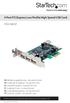 4 Port PCI Express Low Profile High Speed USB Card PEXUSB4DP DE: Bedienungsanleitung - de.startech.com FR: Guide de l'utilisateur - fr.startech.com ES: Guía del usuario - es.startech.com IT: Guida per
USB 3.0 to HDMI Adapter with 3-Port USB 3.0 Hub USB 3.0 to VGA Adapter with 3-Port USB 3.0 Hub
 USB 3.0 to HDMI Adapter with 3-Port USB 3.0 Hub USB 3.0 to VGA Adapter with 3-Port USB 3.0 Hub USB32HDEH3 / USB32VGAEH3 *actual product may vary from photos DE: Bedienungsanleitung - de.startech.com FR:
QUICK INSTALLATION. 8-Port Telephony Gateway. Model: SPA8000
 QUICK INSTALLATION 8-Port Telephony Gateway Model: SPA8000 Table of Contents Connect................................................. 4 Regulatory Information....................................12 WEEE
PCI Express USB 3.0 Controller Adapter Card
 PEXUSB3S2 Instruction Manual PCI Express USB 3.0 Controller Adapter Card 2-Port PCI Express SuperSpeed USB 3.0 Controller Adapter Card FCC Compliance Statement This equipment has been tested and found
Portable Multiband Radio (120-0456A) Features Faxback Doc. # 56400
 (120-0456A) Features Faxback Doc. # 56400 Your RadioShack Portable Multiband Radio is an all-in-one radio system designed to provide high-quality sound. the multi-band tuner lets you listen to the radio,
Mini PCI Express FireWire Adapter Card
 MPEX1394B3 Instruction Manual Mini PCI Express FireWire Adapter Card 3-Port Mini PCI Express to 1394b FireWire Adapter Card Manual Revision:01/10/2011 For the most up-to-date information, please visit
Wireless Optical Mouse
 Wireless Optical Mouse User s Manual Model PD950P FCC STATEMENT PD950P This device complies with part 15 of FCC Rules. Operation is subject to the following two conditions: (1) this device may not cause
Digital Satellite Receiver
 USER GUIDE Digital Satellite Receiver Models DSR207, DSR317, DSR505, and DSR530 CONTENTS IMPORTANT SAFETY INSTRUCTIONS...1 DSR BASICS SYMBOLS/ICONS...6 Front Panel...6 Back Panel...7 CONNECTING YOUR DSR...10
2.5/3.5 SATA HDD Docking Station
 SATADOCKU2 SATADOCKU2E SATADOCK22UE 2.5/3.5 SATA HDD Docking Station FCC Compliance Statement This equipment has been tested and found to comply with the limits for a Class B digital device, pursuant to
PCI Express USB 2.0 Adapter Card
 PEXUSB400 Instruction Manual PCI Express USB 2.0 Adapter Card 4-Port (Independent) PCI Express to High Speed USB 2.0 Adapter Card FCC Compliance Statement This equipment has been tested and found to comply
HDMI or Component Standalone Capture Device 1080p
 HDMI or Component Standalone Capture Device 1080p USB2HDCAPS *actual product may vary from photos DE: Bedienungsanleitung - de.startech.com FR: Guide de l'utilisateur - fr.startech.com ES: Guía del usuario
2 Port USB Keyboard Mouse Switch Cable with File Transfer for PC and Mac
 2 Port USB Keyboard Mouse Switch Cable with File Transfer for PC and Mac SVKMS2 *actual product may vary from photos DE: Bedienungsanleitung - de.startech.com FR: Guide de l'utilisateur - fr.startech.com
USB 2.0 to 10/100Mbps Ethernet Adapter UE-9521. User Manual
 USB 2.0 to 10/100Mbps Ethernet Adapter UE-9521 User Manual 1 Copyright Copyright 2004 by PLANET Technology Corp. All rights reserved. No part of this publication may be reproduced, transmitted, transcribed,
Table of Contents. Table of Contents... i Get Started... 2 Your Device at a Glance... 2 Manage Your Account... 2 Set Up Your Device...
 Table of Contents Table of Contents... i Get Started... 2 Your Device at a Glance... 2 Manage Your Account... 2 Set Up Your Device... 2 Your Device at a Glance... 2 Manage Your Account... 3 Set Up Your
Aura SSD. for the 2013 Apple Mac Pro INSTALLATION GUIDE
 Aura SSD for the 2013 Apple Mac Pro INSTALLATION GUIDE TABLE OF CONTENTS 1. INTRODUCTION...1 1.1 SYSTEM REQUIREMENTS 1.2 PACKAGE CONTENTS 1.3 ABOUT THIS MANUAL 2. INSTALLATION...2 2.1 PREPARING THE MAC
Wireless 802.11g CF Card User Manual
 Wireless 802.11g CF Card User Manual Version 1.0 Copyright statement No part of this publication may be reproduced, stored in a retrieval system, or transmitted in any form or by any means, whether electronic,
User s Manual. Bluetooth Calculator Keypad. Page
 User s Manual Bluetooth Calculator Keypad Page Regulatory Compliance This device complies with Part 15 of the FCC Rules. Operation is subject to the following two conditions: (1) This device may not cause
External USB 2.0 DVD-RW Drive
 External USB 2.0 DVD-RW Drive External Slim USB 2.0 8x DVD-RW Drive SLIMDVDRW8U2 Actual product may vary from photo FCC Compliance Statement This equipment has been tested and found to comply with the
user manual IH-W350DB IH-W351DW MyLife webcam pro 5.0 megapixel max resolution
 IH-W350DB IH-W351DW MyLife webcam pro 5.0 megapixel max resolution Congratulations on the purchase of your new MyLife webcam pro. This product comes with a limited lifetime warranty. Before using your
Conference Phone UserÕs Manual. Part No. 54-2070-01R1 Printed in Korea. 2002 Bogen Communications, Inc.
 Part No. 54-2070-01R1 Printed in Korea. 2002 Bogen Communications, Inc. UserÕs Manual Notice Every effort was made to ensure that the information in this guide was complete and accurate at the time of
Rapier V1. Laser Gaming Mouse. User Guide English
 Rapier V1 Laser Gaming Mouse User Guide English Contents Welcome 3 Whats in the Pack 3 Key Features 3 Button Assignment 3 Rapier V1 Installation 4 Software Introduction 4 Rapier V1 Gamer Toolkit 4 Funtion
Atomic Alarm Clock model 13131W2
 Instruction Manual Atomic Alarm Clock model 13131W2 CONTENTS Unpacking Instructions... 2 Package Contents... 2 Product Registration... 2 Features & Benefits... 3 Clock Setup... 4 Atomic Clock... 5 Set
USB to VGA Adapter USB2VGAE2. Instruction Manual. USB 2.0 to VGA Multi Monitor External Video Adapter
 USB to VGA Adapter USB2VGAE2 Instruction Manual USB 2.0 to VGA Multi Monitor External Video Adapter *Please ensure that the driver installation is complete prior to the physical installation of the USB
GETTING TO KNOW YOUR TELSTRA PRE-PAID 3G USB + WI-FI
 FOR MORE INFORMATION CALL 125 8880 or FROM A NON-TELSTRA PHONE, CALL 13 2200 AND SAY PRE-PAID VISIT telstra.com/ppmbb VISIT A TELSTRA STORE OR PARTNER GETTING TO KNOW YOUR TELSTRA PRE-PAID 3G USB + WI-FI
Wireless Alarm System. Silent Alert. User s Manual. Choice ALERT. Control all Sensors & accessories from one location
 45137 Wireless Alarm System Silent Alert User s Manual Choice ALERT Control all Sensors & accessories from one location Table of Contents Important Safeguards 4 Introduction 4 Adding a Silent Alert to
PEARL Portable Reading Camera
 PEARL Portable Reading Camera Quick Start Guide Freedom Scientific, Inc. 440528-001 Rev. D Freedom Scientific, Inc., 11800 31 st Court North, St. Petersburg, Florida 33716-1805, USA www.freedomscientific.com
PCI USB 2.0 Card. 3 Port PCI USB 2.0 Card PCI330USB2. Instruction Manual. Actual product my vary from photo
 PCI USB 2.0 Card 3 Port PCI USB 2.0 Card PCI330USB2 Instruction Manual Actual product my vary from photo FCC Compliance Statement This equipment has been tested and found to comply with the limits for
XTEND 900 MHZ WIRELESS MODEM For use with VEEDER-ROOT EMR³ DATALINK INSTALLATION INSTRUCTIONS Manual 577013-859, Rev. B
 INTRODUCTION This Installation Guide Contains the necessary information to Connect the Wireless Modems to the EMR³ Interconnect Box and the Office Computer for running the EMR³ Datalink Program. For Specific
USB2VGA. Instruction Manual. USB to VGA Adapter. USB 2.0 to VGA External Multi Monitor Video Adapter
 USB to VGA Adapter USB2VGA Instruction Manual USB 2.0 to VGA External Multi Monitor Video Adapter FCC Compliance Statement This equipment has been tested and found to comply with the limits for a Class
iosafe Solo External Hard Drive
 Users Manual & Limited Warranty iosafe Solo External Hard Drive USB 2.0 Fireproof Waterproof FloSafe Cooling Technology Data Recovery Service 910-10841-00 REV 7.1 2 COPYRIGHTS Copyright iosafe, Inc. 2009.
GETTING TO KNOW YOUR PRE-PAID TELSTRA WI-FI 4G
 GETTING TO KNOW YOUR PRE-PAID TELSTRA WI-FI 4G LET S GET THIS SHOW ON THE ROAD You must be excited about your brand new Pre-Paid Telstra Wi-Fi 4G. This guide will help you get connected as quickly and
LF-IRX. Limited Warranty LF-IRX. Remote Control Extender OWNER S MANUAL
 Limited Warranty OWNER S MANUAL Audiovox Corporation (Audiovox) warrants this product against defects in materials or workmanship for one (1) year from the date of purchase. During this period, this product
ACRS 2.0 User Manual 1
 ACRS 2.0 User Manual 1 FCC Regulatory Information This device complies with part 15 of the FCC Rules. Operation is subject to the following two conditions: (1) This device may not cause harmful interference,
PCI Express USB Card. PCI Express 4 Port USB 2.0 card PEX400USB2. Instruction Manual. Actual product may vary from photo
 PCI Express USB Card PCI Express 4 Port USB 2.0 card PEX400USB2 Actual product may vary from photo FCC Compliance Statement This equipment has been tested and found to comply with the limits for a Class