
User s Guide. Record without limitations or fees.
|
|
|
- Stephen Sherman
- 10 years ago
- Views:
Transcription
1 User s Guide Record without limitations or fees.

2 Important Software Notice As with all software controlled products, unexpected behavior could arise if the user tries to perform operations in a non-routine manner. This product, like almost any other high tech product, is subject to bugs and hence Channel Master CANNOT AND DOES NOT GUARANTEE OR WARRANT THAT ALL FEATURES, SUCH AS PARENTAL CONTROLS, WILL WORK AS INTENDED UNDER ALL CIRCUMSTANCES. Channel Master endeavors to improve such conditions and will periodically download improvements. Equipment and Software Covered by this Guide This User Guide covers the Channel Master DVR+ receiver and software model Channel Master DVR+. This User Guide may cover other devices not listed here. Document Number: Document Version: 1.0 Channel Master is a registered trademark and DVR+ is a trademark of Channel Master L.L.C. All product names, trade names, or corporate names mentioned in this User Guide are acknowledged to be the proprietary property of the registered owners. VUDU and the logo are trademarks of VUDU, Inc. and are used by permission. Manufactured under license from Dolby Laboratories. Dolby and the double-d symbol are trademarks of Dolby Laboratories. The terms HDMI and HDMI High-Definition Multimedia Interface, and the HDMI Logo are trademarks or registered trademarks of HDMI Licensing LLC in the United States and other countries. Publishing Information Copyright Channel Master, Gilbert, Arizona All rights reserved. The information in this User Guide may change without notice. Revisions may be issued to tell you about such changes.

3 Important Safety Instructions 1 Read these instructions. 2 Keep these instructions. 3 Heed all warnings. 4 Follow all instructions. 5 Do not use the apparatus near water. 6 Clean only with a dry cloth. 7 Do not block any ventilation openings. Install in accordance with the manufacturer s instructions. 8 Do not install near any heat sources such as radiators, heat registers, stoves, or other apparatus (including amplifiers) that produce heat. 9 Do not defeat the safety purpose of the polarized or grounding-type plug. A polarized plug has two blades with one wider than the other. A grounding-type plug has two blades and a third grounding prong. The wide blade or the third prong are provided for your safety. If the provided plug does not fit into your outlet, consult an electrician for replacement of the obsolete outlet. 10 Protect the power cord from being walked on or pinched, particularly at plugs, convenience receptacles, and the point where they exit from the apparatus. 11 Only use attachments/accessories specified by the manufacturer. 12 Unplug the apparatus during lightning storms or when unused for long periods of time. 13 Refer all servicing to qualified service personnel. Servicing is required when the apparatus has been damaged in any way, such as the power supply cord or plug is damaged, liquid has been spilled or objects have fallen into it, the apparatus has been exposed to rain or moisture, does not operate normally, or has been dropped. 14 Do NOT expose the remote control batteries to excessive heat such as fire or sunshine. 15 WARNING: To reduce the risk of fire or electric shock, do not expose this apparatus to rain, moisture, dripping or splashing. 16 The power adapter must remain easy to unplug from the power socket once the equipment is installed. 17 Some safety related markings can be found on the bottom of the apparatus. 18 CAUTION: Danger of explosion if battery is incorrectly replaced. Replace only with the same or equivalent type. Installation Locate the power adapter and receiver indoors in an open, well-ventilated area. Do not place them in an enclosure (such as a cabinet) without proper ventilation. Place the receiver on its feet on a firm, stable, horizontal surface. Unplug the power adapter from the power socket during installation and follow all connection instructions. Only connect the original power adapter to the receiver. Other power adapters may damage the circuitry and cause a fire risk. Do NOT place heavy objects on the receiver or power adapter. Keep plastic packaging and small parts away from babies and children. Protect from water Do NOT place objects filled with liquids, such as vases or drinks, on or near the power adapter or receiver. General Precautions Do NOT remove the power adapter cover due to risk of electric shock from live parts inside. Do NOT allow objects to drop or be pushed inside the receiver, for example by children. Do NOT place naked flames such as lighted candles on or near the receiver or power adapter. Equipment Care Unplug the power adapter from the power socket before cleaning. If the power adapter or receiver is damaged, unplug it from the power socket and have it checked by qualified personnel before operating it any further. III

4 Warning and Attention Symbols You must be aware of safety when you install and use this system. This User s Guide provides various procedures. If you do some of these procedures carelessly, you could injure or kill yourself or damage equipment or property. Some other procedures require special attention. The Class II equipment symbol means the equipment has additional insulation and does not need to be grounded. For Your Safety Warning: To reduce the risk of fire or electric shock, do not expose this appliance to rain or moisture. Alternating Current (AC) Direct Current (DC) Indoor Use Only USB Connector WARNING: DO NOT INGEST BATTERY, CHEMICAL BURN HAZARD. The remote control supplied with this product contains a coin cell battery. If the coin cell battery is swallowed, it can cause severe internal burns in just 2 hours and can lead to death. Keep new and used batteries away from children. If the battery compartment does not close securely, stop using the product and keep it away from children. If you think batteries might have been swallowed or placed inside any part of the body, seek immediate medical attention. IV

5 Table of Contents INTRODUCTION 1 Safety Instructions Introduction 03 :: What s included 04 :: Controls and connectors 05 :: Setting up your DVR+ 06 :: Using the remote control Getting Started 10 :: Turning on your DVR+ 10 :: Programming the remote 12 :: List of Remote Codes 16 :: Recording on your DVR+ 16 :: Playing a recording 16 :: Deleting a recording 17 :: Managing recordings 17 :: Locking a recording Using the DVR+ 20 :: Changing channels 20 :: Controlling the audio 20 :: Setting audio options 21 :: Getting program info 21 :: Adjusting languages and captioning 22 :: Using VUDU service Menus and Options 24 :: DVR+ Main Menu 25 :: SEARCH 25 :: DVR 26 :: GUIDE 26 :: SETTINGS Troubleshooting 29 :: Issues and Actions FCC, Warranty, OSS 32 :: FCC Statement 33 :: Limited Warranty 36 :: OSS Notices V

6

7 Chapter 1 :: Introduction What you ll find in this chapter: What s included with your DVR+ Controls and connectors Setting up your DVR+ Using the remote control. Introduction :: 1

8 Introduction Your new Channel Master DVR+ receiver Thank you for purchasing your new Channel Master DVR+ High Definition digital video receiver and recorder. The DVR+ receiver is a state-of-the-art, high definition (HD), digital video recorder (DVR) combining subscription-free, Over The Air (OTA) digital television reception with the flexibility of recording for later playback. It is the complete entertainment solution: an advanced, HD digital video recorder combining OTA reception and recording with access to Internet-enabled TV entertainment such as on-demand VUDU movies. Internet features Note that to access DVR+ Internet-enabled features, you must connect to a high-speed broadband Internet service. A download speed of 2 Mbps or more is highly recommended in order to enjoy on-demand high-definition movies, such as VUDU. Using this guide This guide is intended to help you use your new Channel Master DVR+ receiver. It describes the controls and connections required to set up and get started using the device, as well as providing lists of numbered tasks for using its many features. The flow of these tasks may be illustrated using a ribbon, as shown below. The VUDU Service Access to rent or buy VUDU movies on-demand using your DVR+ receiver requires an account with the VUDU service. You can browse for available movies and then sign up directly from within the online application on the DVR+ receiver. Or you may use a web browser to visit and select the Sign Up link to get started. If you already have a VUDU account, then you can sign in to it from your DVR+ receiver; or if you have an account with Walmart.com, you can use that username and password to get started. Start task with Step 1. Continue with Step 2. Follow with Step 3. Finish task with Step 4. Task completed. 2 :: Introduction

9 Record without limitations or fees. Quick Start Guide Quick Start Guide What is included with your DVR+ Stop Sheet Unpack the box and familiarize yourself with each item: The Channel Master DVR+ digital video recorder Quick Start Guide Read This First Stop Sheet AC Power Supply Remote control (Two CR2032 batteries included) Power Supply Remote Control Introduction :: 3

10 Front Panel Controls The front panel of your Channel Master DVR+ receiver features the following: IR Receiver to receive infrared signals from your remote control. Please do not cover or obstruct. Status LED to provide a visual indication of whether your DVR+ receiver is turned on (bright blue) or in standby mode (dim blue). The bright blue light turns red when the DVR+ receiver is actively recording a program or event. Power button to activate your DVR+ (if it is standby mode) or put it in standby (if it is active). IR Receiver Receives IR signals from remote. Do not cover or obstruct Status LED Red Active Recording Bright Blue On Dim Blue Standby Power Button Turns power on/off; push and hold to reset Rear Panel Connections The rear panel of your DVR+ receiver has a number of different connectors you should note. RF IN to connect a coaxial cable for an Over-The-Air (OTA) television antenna (REQUIRED). OPTICAL port to connect a digital audio cable for multichannel sound output. HDMI port to connect a High-Definition Multimedia Interface cable for digital audio/video output. ETHERNET to connect a LAN cable to your router for broadband Internet service. Note that this optional connection (or a wireless connection using the optional USB Wi-Fi adapter) is required if you wish to access Internet-enabled services such as VUDU. Two USB 2.0 ports to connect the optional USB WiFi adapter and/or external hard-disk/flash drive for expanded DVR storage. IR port to connect the extension cable for an optional Infrared (IR) receiver. This increases the flexibility of where you can install your DVR+ and still have it respond to remote control signals. Antenna Connects over-the-air antenna HDMI Output Provides highdefinition digital audio and video to the TV USB 2.0 Ports Connects to external hard drive/flash drive and optional USB Wi-Fi adapter IR Connect (optional) IR extension cable Digital Audio Optical connection to a high-quality digital sound decoding system Ethernet Connects to the broadband home network (required for extended program guide and internet applications) Power Provides AC power to DVR+ WARNING: Only use the power supply included with your DVR+ to connect it to the AC outlet. 4 :: Introduction

11 Connecting and setting up your DVR+ receiver 1 Connect the antenna to the receiver. RF IN Connects over-the-air (OTA) TV antenna 2 Connect the receiver to the TV. HDMI Output Provides high-definition digital audio and video to the TV Note: Only use a good-quality, shielded HDMI cable. 3 Connect the small end of the power cord to the receiver input and plug the other end into an AC outlet. Turn on the TV and select the correct input. Power Input Provides power to DVR+ 4 Remove plastic battery tab from remote control by pulling it out. 5 Firmly pull straight out Follow the on-screen Setup Wizard instructions, using the remote control. (See the following pages for more instructions on using your remote.) Introduction :: 5

12 Using your DVR+ remote control Input Selects the TV input (see Programming the Remote Control, page 10) TV On/Standby (see Programming the Remote Control, page 10) Period Used to enter sub-channel numbers Mute Silence audio output from the TV (see Programming the Remote Control, page 10) DVR Displays recorded events Guide View program guide Home Returns to home screen from Internet apps Exit Close menu or guide and return to viewing Navigation Choose options in menus, DVR recordings, guide, settings and info bar Volume Increase/decrease TV volume (see Programming the Remote Control, page 10) Playback Control Rewind/Pause/Fast Forward/Skip Back/Play/ Skip Forward//Stop Record Record current program or guide selection On/Standby DVR+ power on/standby Numeric Keypad Choose channel directly by its number or navigate the program guide Zoom Format SD picture to the desired width of program Menu View Main Menu for advanced options and settings Info Displays channel and program information Closed Captions (CC) Toggles closed captions on/off Back Return to previous guide page, menu, or channel Colored Buttons Use varies depending on feature Channel View previous/next channel Page Navigate guide or text pages Audio Displays all audio/audio description channels 6 :: Introduction

13 Mute/unmute (see Programming the Remote Control, page 10) View program/ channel information Increase/decrease sound volume (see Programming the Remote Control, page 10) Rewind Skip backward Record remainder of current program or a program scheduled for the future in the guide Browse up/ down to next numbered channel Pause a program Play a program Fast forward Skip forward Stop To move through the program guide, use the following buttons: -2.5 hours Search -1 day +1 day Record selected program Next page of channels Previous page of channels Introduction :: 7

14 8 :: Introduction

15 Chapter 2 :: Getting Started What you ll find in this chapter: Turning on your new Channel Master DVR+ Programming the remote to control your TV Recording a program using your DVR+ Playing back a recorded program Deleting a recorded program on your DVR+ Managing your recorded programs Locking a recording with a password. Getting Started :: 9

16 Getting Started Turning on your new DVR+ receiver When you switch on your DVR+ receiver for the first time, it may take a minute for two for the unit to power up and display the Setup Wizard. This will guide you through the steps to set up your receiver and scan for subscription-free, over-the-air channels. Highlight and select your Language & Country. Press OK to continue. Validate connections are hooked up correctly and then press OK to continue. A Channel Scan will begin automatically. After it is complete, the next Step is displayed. Online channels from your Internet connection are listed. Press OK to continue. Highlight and select your Zip Code, Time Zone & Setting. Press OK to finish setup. Programming the DVR+ remote control The remote is capable of controlling basic functions of most TVs (volume up/down, mute/unmute TV sound, TV power on/off, and change current input). To program the remote control to operate your TV, you may use either of the following methods: Easy Scan as described on the following page. Code Entry as described on pages :: Getting Started If some channels are duplicated/unacceptable In some areas with multiple transmitters nearby, there may be duplicate channels. If there are duplicate overthe-air channels in your local area, they will be listed in the channel range in the guide. If a channel s transmission is marginal (for example, macroblocking or audio issues) and cannot be improved (see page 20), then you may consider deleting it (see page 28).

17 Programming your remote using Easy Scan 1 Turn on your TV. 2 3 Point the DVR+ remote control at the TV. Press and hold down both CH+ and VOL- on the remote simultaneously for at least two seconds. The blue TV button LED gives two slow flashes to indicate successful entry into setup mode. Press INPUT. The TV button LED comes on. 4 Press TV POWER repeatedly until the TV switches off. 5 Press INPUT. The TV button LED gives two slow flashes to indicate that the code has been stored successfully. Turn on your TV. Hold down CH+ and VOL- on DVR+ remote for 2 sec until TV button flashes twice. Press the INPUT button. Press the TV Power button until TV is off. Press INPUT. TV button flashes twice. Getting Started :: 11

18 Programming your remote using Code Entry To program the remote with a 4-digit numerical code, use the steps below. Note: Where several codes are listed for a manufacturer, it may be necessary to repeat the sequence below with each code until the correct one is found. 1 Hold down both the CH+ and VOL- keys simultaneously for at least two seconds. The blue TV button LED gives two slow flashes to indicate successful entry into the setup mode. 2 Using the numbered keys (keypad) on the remote control, enter the 4-digit code for your TV manufacturer within 30 seconds. The blue TV button LED flashes for each entry. Note: Remote codes for TVs are listed on pages After the fourth digit entry, the blue TV button LED gives two slow flashes to indicate that the code has been successfully programmed. 3 In the event of an error, the blue TV button LED gives four rapid flashes. If this occurs, then you will need to begin the code entry process again. When you successfully program a code that turns your TV on and controls its volume and inputs, write down this code in the spaces provided. Remote Code: Hold down CH+ and VOL- on DVR+ remote for 2 sec until TV button flashes twice. Enter remote code listed for your TV brand. TV button flashes twice. Repeat until code works with your TV. Write down this code. Remote Codes The table on the following pages contains the manufacturer codes for programming the remote control to operate your TV. If your TV brand is not listed or if the codes listed for it do not work, the DVR+ remote may not be able to control your TV. In some cases, codes may operate some, but not ALL the buttons shown in this guide. 12 :: Getting Started

19 Abex Acer Acme 0471 ADA 0461 ADC Admiral Advent Adventura 0151 Aiko Aiwa Akai Alleron 1711 Amark 1441 Ames 1275 Amtron 2191 AMW Anaba 1375 Anam National AOC Apex Archer 1441 Aspect 1271 Audiovox Aurora 3061 Axion 0881 Bang & Olufsen 1591 Belcor 0001 Bell & Howell Benq Blue Sky Bradford 2191 Broksonic Brokwood 0001 Candle Capehart CCE 3721 Celebrity 1901 Celera 0191 Centrios 1361 Centurion 1221 Cetomer Cetronic 1941 Changhong Chimei 3071 Cineral Citizen Clairtone 0011 Classic CLP 0061 CLP Classic Coby Color Voice 1431 Colortyme Concerto Concierge Contec Cornea 1471 Craig Crosley 1961 Crown CTX 1441 Curtis Mathes CTX Cybervision 3511 Daewoo Daytron Dell Diamond Vision Digimate 4301 Digistar Dimensia DISH Network 5491 Disney Distar 3231 Dukane Dumont Durabrand Dynasty 1941 Dynex Electroband Electrohome Elektra 1661 Element Elite Video 0901 Emerson Envision ESA 1381 Fisher Fluid Fujitsu Funai Futuretec Gateway 0501 GE Gilbralter Goldstar GPX 4701 Gradiente Grundy Guestvision 1861 GVision 4871 Haier Hallmark Hannspree Harvard 2191 Hauppauge 3791 Hello Kitty 5391 Hewlett Packard Hisense Hitachi Hyundai 4651 ILO IMA 2191 Infinity Infocus 3421 Initial Insignia Integra 1841 Inteq ISymphony 3041 Janeil 0151 JBL 1961 JC Penney JCB 1901 Jensen Getting Started :: 13

20 JVC Kawasaki 4741 Kawasho Kaypani KEC Kenwood KLH 0191 Kloss Novabeam Kogi 4871 Konka KTV Kurazai 1661 KWorld 2931 Lasonic Legend 0581 LG LiquidVideo LodgeNet Loewe Logik Luce 0301 Luxman LXI Magnasonic 1711 Magnavox Majestic Manhattan 5381 Marantz Maxent 0501 Medion Megatron MEI 0011 Memorex MGA Midland Mintek 4231 Minutz 1951 Misakai 1381 Mitsubishi Monivision 0491 Montgomery Ward :: Getting Started Moteva Motorola MTC Multitech 2191 Multivision 0081 Myron & Davis 2101 NAD NEC Net TV Nexxtech Nikkei 1941 Nikko Niko 3581 Norcent NTC Olevia OnCommand OnKing 1941 Onkyo 3101 Onwa Optimus Optoma Optonica Orion Panasonic Philco Philips Philips-Magnavox Pilot 0001 Pioneer Piva Planar 4251 Polaroid Portland Precision 0621 Price Club 0351 Prima Princeton Graphics Prism 0051 Proscan Proton Protron Proview Pulsar Pyle 3331 Quasar Radio Shack RCA Realistic Rhapsody 0011 Runco Sampo Samsung Samsux 1221 Samtron 0351 Sansui Santeca 0171 Sanyo Sceptre Scotch Scott Sears Selectron Semp 3611 Sharp

21 Shogun 0001 Signature Signet Simpson 0961 Sonic 0011 Sony Soundesign Sova Soyo Spectra 1611 Specravision 2341 Squareview 1381 SSS Star Sight 0061 Starlite 2191 Superscan Supersonic Supra Supremacy 0151 Supreme 1901 SVA Sylvania Symphonic Syntax Tandy 1441 Tatung TCL Technics 0051 Techwood Teknika Telecaption 0821 Telerent Tera Tevion 1141 TMK Toshiba Trutech Universal Venturer 3781 Victor Videocon 4061 Vidtech Viewsonic Viking 0151 Viore Visteon 3411 Vizio Wards Westinghouse White Westinghouse Yamaha Zenith Getting Started :: 15
22 Recording a program using your DVR+ To record the current program you are watching on live TV, press RECORD on the remote control, OR To record a future event, press GUIDE on the remote. Use the navigation wheel to highlight the desired program, and then press RECORD on the remote control. If more than one program with the same title is recorded, a folder is automatically created. To watch a program in the folder, first highlight and select the folder, then View Folder Content, and then the individual program. You can also delete all content in a folder by deleting the folder itself. Note: The Channel Master DVR+ receiver still records your programs when the receiver is in standby. Playing back a recorded program on your DVR+ Press DVR on the remote. Use the navigation wheel to highlight the program. Press OK on the remote. Select one of the displayed options and press OK: Play Recording (which plays back the event from the beginning) Resume Playback (if you have previously played back a portion) Delete Options Deleting a recorded program on your DVR+ Press DVR on the remote. Use the navigation wheel to highlight the program. Press OK on the remote. Select Delete from the displayed options and press OK. Select the option to Confirm the deletion and press OK. 16 :: Getting Started
23 Managing recorded programs on your DVR+ Schedule / History / Recordings Sort A-Z or by date/time Delete Search Pause Rewind Skip backward Fast forward Skip forward Stop Play Locking a recording with a password Press DVR on the remote. Use the navigation wheel to highlight the program. Press OK on the remote. Select Options. Select Lock to lock the recording. A locked recording cannot be deleted until it is unlocked with a PIN. If you have not set a PIN (numeric password), then you must enter and confirm one in order to lock a recording. If the recording has previously been locked, you need to enter the current PIN to unlock it. Then you can delete it. Note: If you lose or forget your PIN, then please visit support.channelmaster.com using your computer. Getting Started :: 17
24 18 :: Getting Started
25 Chapter 3 :: Using the DVR+ What you ll find in this chapter: Changing channels Controlling the audio Setting digital audio options Getting program information Adjusting languages and captioning Using the live pause feature on DVR+ Using Internet-enabled online apps. Using the DVR+ :: 19
26 Using the DVR+ receiver Changing channels You can change channels on your DVR+ receiver in several ways. When you are viewing live TV you can: Press the CH+ or CH- button on the remote control, OR Enter the channel number using the numeric keypad. Press GUIDE on the remote to view the list of all currently available channels. Then highlight a current program on a different channel, press OK and select Watch this program. Controlling the sound from your TV Press the VOL+ or VOL- button on the remote control to raise or lower the volume on your TV. Press the MUTE button on the remote control to turn off the sound on your TV; press MUTE again or VOL+ or VOL- to restore the sound. Note: You must program you new Channel Master DVR+ remote to control the VOL+ or VOL- and MUTE functions of your TV. See pages for more information on programming your remote. Controlling digital audio Your new DVR+ receiver offers several digital audio features to enhance your enjoyment of many programs and events. Most of these options are in the Digital Audio Setup submenu within the TV & Audio Setup menu under Settings: If channels are missing If there are subscriptionfree over-the-air channels in your local area that you do not see listed in the DVR+ program guide, then try the following: Press MENU on the remote. Navigate on the left to select SETTINGS. Scroll the list to select Technical Information. Scroll the list to select Signals and Network. Verify that your Signal Strength and Signal Quality are both at least 30. If not, then readjust your OTA antenna. If one channel is missing, perform a Manual Scan from the Tuning submenu. If several channels are missing, then perform a Full Re-Scan instead. Press MENU on the remote. Navigate on the left to SETTINGS and press OK. Scroll the list of Settings to highlight TV & Audio Setup and press OK. Scroll the list of items to highlight Digital Audio Setup and press OK. 20 :: Using the DVR+
27 Setting your digital audio options Many programs and events, especially those broadcast with high-definition video, also feature multiple audio channels to enhance the enjoyment through your home theater. The following options on your DVR+ can be used with other compatible equipment: HDMI can be set to Stereo only if you are not connecting the HDMI output of your DVR+ to a device capable of multi-channel surround sound. The default setting for this output is Auto Stereo/Surround, which will output the best audio option present in the broadcast. Optical Digital Audio can be set to Stereo only if you are not connecting the OPTICAL output of your DVR+ to a device capable of surround sound. The default setting for this output is Multichannel, which is supported by most equipment which will accept optical digital audio input(s). Midnight Mode helps you keep from disturbing others in your home by compressing the dynamic range (that is, how big a difference there is between the loudest and quietest sounds) of the digital audio output signal. The default setting for this mode is On. Getting program information on your DVR+ A banner is displayed across the bottom of the screen for a few seconds whenever you change channels on your DVR+. This banner shows details about the current channel and programming. With this banner displayed, you can press the navigation buttons (up, down, right, and left) on the remote control to browse current or future program information for the next highest or lowest channel, or display the current or future programs scheduled on the current channel. When watching live TV, pressing the INFO button on the remote control displays an info banner at the bottom ot the screen. Pressing INFO again dismisses the banner. When you highlight a program on now or scheduled in the future displayed in the Program Guide, a box of more detailed information will be displayed about the highlighted program. Pressing INFO again dismisses the box. You can also use information screens to help set a new recording or stop a recording in progress: Press the record button on the remote control to start recording a highlighted program on now, or to set a recording for a future program. Press the record or the stop button again on a current program to stop a recording in progress. Adjusting languages and captioning There are dedicated buttons on the DVR+ remote control to help you set preferences for your audio language and enable or disable closed captioning. While watching video using your DVR+: Press AUDIO on the remote and highlight the language for your audio. Some available languages may not be broadcast in stereo; changing digital audio options cannot override this. Press CC on the remote to turn on Closed Captions if they are currently off; press the button again to turn Closed Captions back off if they are currently on. Using the DVR+ :: 21
28 Using the live pause feature on your DVR+ While viewing programming on a channel, pressing the PAUSE button on your remote control activates an automatic memory buffer, capturing as much as 15 minutes of live TV. You can: Use the rewind, fast forward, skip back, skip forward, pause, and play functions of your remote control on the buffered programming. Note that you cannot move backward past the last DVR+ activation or channel change, or forward into the future. The live TV buffer is reset when you change channels or put your receiver into standby mode. If you install an external USB hard-disk drive, the live TV buffer is automatically started on each channel change and the capacity of the buffer is extended to as much as two hours of programming. Using the VUDU service on your DVR+ For simplicity and ease of use, access to the Internet-enabled VUDU on-demand movie application is integrated into the Program Guide available on your DVR+. By accessing the channel 200 range (see page 20 on how to change channels) from your guide, the information banner or other screens, you exit from any over-the-air TV broadcast and enter the VUDU online application running on the DVR+. (You must select the Confirm option when prompted.) The DVR+ receiver will be placed in standby mode and recordings that you have set up or are in progress will continue uninterrupted. Access to rent or buy VUDU movies on-demand using your DVR+ requires an account with the VUDU service. There are several methods you may use to get started, depending on whether you already have a VUDU username and password: If you do not have a VUDU or Walmart.com account, then you can browse for available movies on the service and sign up directly from within the Internet application on your DVR+ receiver. You also may use a computer to visit and then select the Sign Up link to get started. If you know your username and password for your existing VUDU account, you may sign in to it directly on your DVR+ receiver. If you have an account on Walmart.com, then you can use that username and password to get started. 22 :: Using the DVR+
29 Chapter 4 :: Menus and Options What you ll find in this chapter: DVR+ Main Menu SEARCH DVR GUIDE SETTINGS Deleting an unwanted channel Setting up network connectivity Updating your DVR+ software. Menus and Options :: 23
30 Menus and Options DVR+ Main Menu The Main Menu on your DVR+ receiver is accessed by pressing the MENU button on the remote control and is displayed arranged vertically along the left-hand side of your TV screen. Menu Navigation Your DVR+ receiver s menu screens can be navigated easily using the D-pad control in the center of your remote. Main Menu Items The following items appear on, and can be highlighted and selected from, the DVR+ Main Menu: SEARCH to find a program to watch or record. DVR to manage and play back your recordings. GUIDE to browse what s on now and is scheduled to be broadcast in the future. Highlighting and selecting a program or event from the guide displays a pop-up options submenu. SETTINGS to set your user preferences and change a variety of options available on your DVR+ receiver. Pressing on the top center of the pad moves the cursor or highlight up; pressing on the bottom center moves it down; pressing the right-hand side moves right; pressing the left-hand side moves left. Finally, pressing the OK button in the center of the pad will select the currently highlighted item (like a program name) or option (like Confirm or Cancel) on your screen. 24 :: Menus and Options
31 SEARCH Your DVR+ receiver s Search function allows you to enter one or more keywords associated with programs or events you would like to find in the electronic Program Guide. After selecting SEARCH from the DVR+ Main Menu, use the navigation buttons on your remote to highlight and select characters, including letters and numbers, that spell out the keyword(s) you wish to find. DVR A Digital Video Recorder allows you to record your favorite shows, series and events without using tapes or a VCR. Selecting DVR from the Main Menu accesses the following screens and sub-menus: Recordings also accessible directly from the remote control by pressing the DVR button. This shows the DVR Recordings screen listing all existing recorded programs and events. Schedule accesses the DVR Scheduled Recordings screen showing programs or events that you have scheduled to record in the near future. Also accessed from the DVR Recordings screen by pressing the Blue remote button. Recording History accesses the DVR Recording History screen showing programs or events that you have scheduled to record in the past. Also accessed from the DVR Scheduled Recordings screen by pressing the Blue remote button. DVR Setup submenu contains the Recording Setup, Playback Setup, Re-initialize HDD, and Check Disk screens. Also accessed from the DVR Recording History screen by pressing the Blue remote button. Recording Setup Playback Setup Re-Initialize HDD Check Disk Set the default start early Set default Skip Fwd Reboot, erase and Reboot the disk and end late times (0-10 ) and Back times (10-60 ) restore disk to new and report errors Menus and Options :: 25
32 GUIDE Selecting GUIDE from the Main Menu or pressing the GUIDE button on the remote control displays the Program Guide of the DVR+ receiver on your screen. From the guide, you can: Change channels to watch (or watch and record) a program on now. Set the DVR+ receiver to record a program on now or one scheduled in the future. Set a reminder for the time of a program that you want to be sure you do not miss. SETTINGS Selecting SETTINGS from the Main Menu displays the SETTINGS menu, containing the following sub-menus and screens: Languages to change the default language for the display of menus, the language of the Primary Audio (can also be changed using the AUDIO button on the remote control), as well as enabling/disabling Closed Captioning and setting a variety of other options related to displaying on-screen captions. TV & Audio Setup to change the default Display Setup (to match your TV resolution), the Digital Audio Setup and HDCP (High-Definition Copy Protection) Setup, if applicable. Parental Control to protect access based on channel or ratings. A numeric password, or PIN, must be set (or entered) and confirmed to enable this feature or change settings. User Preferences to change the degree of Transparency of menu or guide screens. The default setting is Medium; High is more transparent, Low less so, and Solid is off. 26 :: Menus and Options
33 Network Setup to view or change the status and information about Internet connectivity, including setup of the optional USB WiFi adapter (see page 28). Power Options to change the Inactivity Standby setting from the default of 4 hours to either 5 or 6 hours (the Off setting is not recommended). Technical Info to view information about your current DVR+ software version, the status of the OTA and/or network signal, the availability of any downloadable software updates (see page 29), the notices for related open-source software, or the screen detailing set-top box (STB) health. Tuning to review currently available OTA channels, manually scan for one (or more) additional channels, or fully re-scan all channels (for example, after you have repositioned or replaced your OTA antenna for better broadcast TV reception). Time & Date to set or change your Zip (Postal) Code, Time Zone and Country; enable or disable the automatic time-setting option and Daylight Savings Time (DST); and set the current time of day, as well as the date, month and year. Factory Reset to access options to fully Factory Reset your DVR+ (erasing any user preferences you have changed from the factory default settings) or only VUDU Reset (erasing any VUDU online movie service account information you entered). Menus and Options :: 27
34 Deleting an unwanted channel Pressing the MENU button, highlighting and selecting the SETTINGS menu, followed by the Tuning submenu, then Channels displays the list of scanned-in channels on your DVR+ receiver. If you need to delete a channel (for example, it is a duplicate of another channel or it is one that you never watch), then: Highlight the channel in the list that you want to delete. Press the red color button on your remote control. A confirmation message is displayed. Highlight and select CONFIRM to delete the highlighted channel from the list. Setting up network connectivity Pressing the MENU button, highlighting and selecting the SETTINGS menu, then the Network Setup submenu, displays on your screen the current status of your Internet, wired and wireless network connectivity as well as related items and screens. From here, you can: Enable (On) or disable (Off) Internet Connectivity. By default, connectivity is enabled. View or choose your Connection Type, either Wired (the default selection for using an Ethernet cable) or Wireless (for using an optional USB WiFi adapter; please visit for details). View IP Connection Settings and disable (or re-enable) the Automatic Setup of the DVR+ Internet connection. If you select Enable (which is selected by default), the DVR+ receiver expects that it will be assigned its IP settings by a DHCP server (or DHCP-enabled router) residing on your local network. If you select Disable, then you will need to assign these settings manually yourself (for advanced users only). View or edit your Wireless Setup, if you chose Wireless as the Connection Type. (If Wired is selected as the Connection Type, the Wireless Setup item is unavailable.) To change Wireless Connection Settings, select Network Setup and choose to Scan for available wireless networks (if your network s SSID/name is publicly broadcast), or choose Manual (if your network SSID/name is not publicly broadcast). If you chose Scan, do the following: Highlight and select the appropriate wireless network SSID/name from the displayed list. Then use the on-screen keyboard to enter the WiFi network password (sometimes referred to as a key or passphrase). Select DONE and the DVR+ receiver will try to connect to the specified network. Wait for confirmation that the connection is successful. If you chose Manual, do the following: Highlight and select Network Name and use the on-screen keyboard to enter the (hidden) SSID/name. Select DONE and then choose the network s Security Protocol (Open, WEP, WPA, or WPA2). Finally, select Key and use the on-screen keyboard to enter the WiFi network password or passphrase. The DVR+ receiver will try to connect to the specified network. Wait for confirmation that the connection is successful. 28 :: Menus and Options
35 Updating your DVR+ software By pressing the MENU button, highlighting and selecting the SETTINGS menu, followed by the Technical Info submenu, and then Software Updates, you can: Manually Check for downloads. Note that a DVR+ receiver with an active connection to the Internet will periodically check for downloads automatically. When new downloadable software is available, a pop-up message is displayed. Follow the on-screen instructions to download and install the update. Wait for your DVR+ receiver to restart automatically and begin updating software. Do not turn off or remove power from the DVR+ receiver until the entire update process has been successfuly completed. This process may take as long as 5 minutes, after which the DVR+ receiver will restart again running the updated software. You can now operate your DVR+ receiver normally. To update your DVR+ receiver s software manually (for example, your DVR+ receiver is not Internet connected), you must: Ensure you have an empty USB flash-memory (or thumb) drive formatted as FAT or FAT32. Then download the software update file from the and save it on the flash drive. Ensure that your DVR+ receiver is turned on (and not in standby mode), and then insert the drive with the update into one of the USB ports on the DVR+ rear panel. Wait for your DVR+ receiver to detect the updated software and display the version information. When prompted by the pop-up message, select CONFIRM to begin installing the update. See page 34 for more information about messages you may see displayed. Wait for your DVR+ receiver to restart automatically and begin updating software. Do not turn off or remove power from the DVR+ receiver until the entire update process has been successfuly completed. This process may take as long as 5 minutes, after which the DVR+ receiver will restart again running the updated software. You can now operate your DVR+ receiver normally. Menus and Options :: 29
36
37 Chapter 5 :: Troubleshooting What you ll find in this chapter: Possible issues Suggested actions. Troubleshooting :: 31
38 Troubleshooting Signal Issues Program Guide Issues Online Apps Issues (network connection is required) Verify the coax cable to the over-the-air antenna is connected to both the RF IN port on the back of the receiver (hand-tighten only) and also to the over-the-air antenna. Verify your antenna has not been moved out of proper alignment. This can cause signal loss on some or all channels. Reset the receiver by pressing and holding the POWER button located on the front panel. Verify that the LED is red or bright blue. If reset doesn t work (the LED is dim blue), then place the receiver in standby (press the POWER button), unplug it from the outlet for 15 seconds, then plug it back in. Press the button to turn it back on. If you see image pixelization, verify your signal strength and quality by pressing the MENU button, highlighting and selecting the Settings menu, thetechnical Info submenu and then Signals and Network. The DVR+ is only capable of receiving digital TV channels and will not tune to a channel that is still broadcasting analog TV signals. Visit antennaweb.org on a computer to find out which channels in your area are broadcasting digital TV signals. Verify the DVR+ receiver is connected to broadband Internet service (recommended) in order to access an extended guide for as much as 14 days of programming. You can view current information about this connection by pressing the MENU button, highlighting and selecting the Settings menu, and then the Network Setup submenu. When extended guide data is available over your network connection, both the guide screen and also info banner will display Powered by Rovi. You can use the color buttons on the remote control to navigate within the program guide (see page 7). Verify your extended guide data is up to date. Typically, this data is updated every 24 hours. You can view when the guide was last updated by pressing the MENU button, highlighting and selecting the Settings menu, the Technical Info submenu and then STB Health. If your DVR+ receiver is not connected to the Internet, then the DVR+ populates the program guide with data from the broadcast signals. Each channel decides how to populate this data, so the amount varies. Your receiver displays as much as possible. Verify your DVR+ is connected to the network either by a wired connection (using an Ethernet cable) or a wireless connection (using the optional USB WiFi Adapter). Press the MENU button, highlight and select the Settings menu and then the Network Setup submenu. Verify that you can access the Internet from other devices connected to the same network. If there are problems accessing the Internet, check your network equipment (for example, the WiFi router or access point). Verify the connections are correct using the documentation provided with the equipment. 32 :: Troubleshooting
39 Remote Control Issues Recording Issues If your network equipment appears to be working correctly, but you still cannot access the Internet from devices connected to the network, contact your Internet service provider for assistance. To enjoy high-quality video streaming from online applications such as VUDU, a 2 Mbps minimum connection speed is recommended. If you are not sure of your connection speed, check with your Internet service provider. Ensure the batteries are functional; when you press a button on the remote control, the POWER button (or TV POWER button) should light up briefly. Ensure the batteries are installed as indicated on the diagram inside the battery compartment, and that you have pulled out the arrowshaped piece of plastic to remove it from the compartment for first use of the remote. Old (discharged) batteries should be replaced with (2) fresh CR2032 batteries. Ensure you are holding the remote control with the lens at the top of the remote pointing directly at the front of your DVR+. Ensure that the IR window in the center of the DVR+ front panel is not covered or obstructed. If your DVR+ receiver is installed in a location without a clear line-of-sight to the remote, you can obtain an optional IR extender; visit support.channelmaster.com for more information on this and other accessories. If the remote controls your DVR+ but not your TV, then ensure the remote is set up correctly to control your TV (see pages 11-13). You will need to do this whenever you change batteries. Your DVR+ receiver must be powered on or in standby mode when a program or event is scheduled for it to be recorded. If your external disk cannot be detected by DVR+ software or is not working correctly, first try the Check Disk option on the DVR Setup submenu of the DVR menu. This will reboot the drive. If you would like to keep more recordings than there is space on internal memory, consider purchasing a USB external hard-disk drive for additional storage and connecting it to one of the USB ports on your DVR+ rear panel (see page 4). When an external drive is connected, additional DVR features are made available such as recording two programs at once and pausing live TV. View issues causing DVR timers to fail (such as insufficient tuners, recording capacity or signal strength) by pressing the MENU button, highlighting and selecting the DVR menu, then Recording History. Verify that event timers are set as DVR timers, not as Reminder timers. Confirm an event recording is set up by looking for a red triangle on the corner of the guide listing for the event. Verify that there is sufficient storage space for your recordings. You can delete any watched recordings to save space. To enable simultaneous recording of programs on two different channels, connect an external USB hard-disk drive. For more details, visit Troubleshooting :: 33
40 Audio Issues Software Update Issues Parental Control Issues If your DVR+ receiver s audio sounds distorted, then you can: Try a different channel to see if the fault lies in the transmission of the signal. Try to see if the fault lies with your reception of the channel s signal(s) by ensuring that your over-the-air antenna is installed and aimed correctly (for example, away from tall buildings and metal obstacles). Verify the strength and quality of your OTA signal by pressing the MENU button, highlighting and selecting the Settings menu, followed by the Technical Info submenu, then Signals & Network. Verify the cables between your antenna and DVR+ receiver, as well as the HDMI cable between your DVR+ receiver and TV, are connected correctly. If the audio issue persists, change the HDMI audio output for the DVR+ receiver to Stereo Only by pressing the MENU button, highlighting and selecting the Settings menu, followed by the TV & Audio Setup submenu, then Digital and Audio Setup. If you are manually updating your DVR+ software using a USB flash-memory drive, you may see one of the following messages displayed after inserting the drive into a USB port: EHD Insufficient Disk Size. Some flash-memory drives have multiple small partitions, or even zero partitions. Try reformatting the drive to have a single primary partition, or you may want to try using a different flash drive. A USB download has been detected which is already present on your device. In this case, your DVR+ receiver has been updated to the same version of software as you have on the flash drive. It is up to date, so no update is needed. I change the channel and a Locked Channel message is displayed requesting the PIN (password). Parental Control has been activated and the channel has been locked. See page 26. I change the channel and a Parental Lock Activated or Rating Locked message is displayed requesting the PIN (password). The program or event currently on this channel has been locked. See page 26. I choose a program or event in the guide and a message is displayed requesting a PIN (password). Parental Control has been activated and the channel or the program or event has been locked. See page :: Troubleshooting
41 Chapter 6 :: FCC, Warranty, OSS What you ll find in this chapter: FCC Statement Limited Warranty Open Source Software Notices. FCC, Warranty, OSS :: 35
42 FCC Statement, Limited Warranty, OSS The following FCC Statement applies to DVR+ Note: This equipment has been tested and found to comply with the limits for a Class B digital device, pursuant to part 15 of the FCC Rules. These limits are designed to provide reasonable protection against harmful interference in a residential installation. This equipment generates, uses and can radiate radio frequency energy and, if not installed and used in accordance with the instructions, may cause harmful interference to radio communications. However, there is no guarantee that interference will not occur in a particular installation. If this equipment does cause harmful interference to radio or television reception, which can be determined by turning the equipment off and on, the user is encouraged to try to correct the interference by one or more of the following measures: Reorient or relocate the receiving antenna. Increase the separation between the equipment and receiver. Connect the equipment into an outlet on a circuit different from that to which the receiver is connected. Consult the dealer or an experienced radio/tv technician for help. Do not make changes or modifications to this equipment. This could void the user s authority to operate the equipment. 36 :: FCC, Warranty, OSS
43 The following Limited Warranty applies to DVR+ Limited Warranty Period: CHANNEL MASTER DVR+ has a limited (1) year Warranty from the original purchase date with a valid proof of purchase from an authorized retailer. A sales receipt or other document showing that you purchased the product is considered proof of purchase. Certain limitations and exclusions apply. What is covered by this limited warranty? CHANNEL MASTER warrants the original CHANNEL MASTER branded product hardware and accessories contained in the original packaging against defects in materials and workmanship when used normally in accordance with CHANNEL MASTER s published guidelines for a period of (1) year from the date of original purchase by the end-user purchaser. CHANNEL MASTER s guidelines include but are not limited to information contained in technical specifications, user manuals and service communications. (90) Days of complimentary software/user support is also included in this Warranty, software and user support outside of (90) days will be subject to additional charges. This Warranty is valid only in the United States and Canada. What is NOT covered by this limited warranty? This Warranty does not apply to any non- CHANNEL MASTER branded hardware products or any software and data services, even if packaged or sold with CHANNEL MASTER hardware. Manufacturers, suppliers, or publishers, other than CHANNEL MASTER, may provide their own warranties to you but CHANNEL MASTER, in so far as permitted by law, provides their products AS IS. Software distributed by CHANNEL MASTER with or without the CHANNEL MASTER brand (including, but not limited to system software) is not covered by this Warranty. Please refer to the licensing agreement accompanying the software for details of your rights with respect to its use. CHANNEL MASTER does not warrant that the operation of the CHANNEL MASTER product will be uninterrupted or error-free. CHANNEL MASTER is not responsible for damage arising from failure to follow instructions relating to CHANNEL MASTER s product use. Shipping charges to return products under warranty back to CHANNEL MASTER is not covered. How to Obtain Warranty Service? Consumers with a valid proof of purchase from an authorized retailer can return any In-Warranty CHANNEL MASTER product to the Warranty department for repair or replacement. For In- Warranty service the consumer must Technical Support and request an RMA number in order to return the product. The returned product must have the RMA number visible on the box and must include the bill of sale showing the unit is within the warranty period. If the unit is found to be defective under our Warranty Policy CHANNEL MASTER will repair or replace the item at no charge. Products outside of the warranty period should not be returned to CHANNEL MASTER with the exception of any product requested by Technical Support to be accessed for quality assurance purposes. Technical Support: [email protected] GENERAL TERMS: 1.1 Subject to the provisions of this Warranty, CHANNEL MASTER warrants that the equipment described in Paragraph 1.2 will conform to our specifications in all material respect and that the equipment will be free from material defects in materials and workmanship during the Limited Warranty period. 1.2 This Warranty applies to all original purchases by consumers of CHANNEL MASTER products ( Equipment ). The warranties set forth herein are not transferable. 1.3 The Effective period of this Warranty will start on the date of purchase of the Equipment from an authorized retailer and will end, for the Equipment, (1) year later (for all hardware and components). Software is not covered even if packed or sold with CHANNEL MASTER hardware, unless otherwise expressed or provided herein (in each case the Warranty Period ). FCC, Warranty, OSS :: 37
44 RETURN OF EQUIPMENT UNDER WARRANTY: 2.1 If an item of Equipment malfunctions or fails in normal use within the applicable Warranty Period: (a) The Customer shall notify CHANNEL MASTER within thirty (30) days of the problem. (b) CHANNEL MASTER will, at its option, either resolve the problem over the telephone or provide the customer with a Return Authorization ( RMA ) Number and the address to which the customer may ship the defective item; (c) If the problem can not be resolved over the telephone, the Customer shall attach a label showing the RMA number to each returned item, and include a description of the problem. The Customer shall, at his or her own cost, properly pack the item to be returned, mark the RMA# on the outside of the box, prepay the insurance and shipping charges, and ship the item to the specified CHANNEL MASTER location. (d) Unauthorized return of any equipment, whether in or out of warranty, will be subject to a handling charge, in addition to all repair and all transportation charges. (e) CHANNEL MASTER will, at its sole option, repair or replace the returned item. If replaced, the replacement item may be new or refurbished; if refurbished it will be equivalent in operation to new Equipment. If a returned item is replaced by CHANNEL MASTER, the Customer agrees that the returned item will become the property of CHANNEL MASTER. (f) CHANNEL MASTER will complete the exchange of CHANNEL MASTER manufactured equipment returned under this Warranty within a reasonable time, subject to lead-times from factory, and will make a good faith effort to minimize any and all delays where possible; and (g) CHANNEL MASTER will, at its cost, ship the repaired item or replacement to the Customer. If the Customer requests express shipping, the Customer will pay CHANNEL MASTER an expediting fee. 2.2 Equipment which is repaired or replaced by CHANNEL MASTER under this Warranty will be covered under all of the provisions of this Warranty for the remainder of the applicable Warranty period (for that particular equipment). 2.3 If equipment is repaired beyond effective warranty dates or if abnormal usage had occurred, Customer shall be charged applicable rates and the Customer will be advised of the estimated charges prior to repair by CHANNEL MASTER s authorized service center. 2.4 The price of out-ofwarranty repairs payable by the Customer will be based on standard labor and parts prices in effect at the time of the repair. CHANNEL MASTER will use its best efforts to ensure that the cost of such repair, exchange, refurbishing, or substitution will not exceed the original price of Product. 2.5 If the problem reoccurs within the warranty period, CHANNEL MASTER will, at its option: (a) re-perform the service; (b) replace the product pursuant to the terms of this warranty, (c) permit Customer to return the product and issue a refund pursuant to this warrant, or (d) refund the amount the Customer paid for the services. PRODUCT MODIFICATION: 3.1 CHANNEL MASTER reserves the right to make changes or improvements to its products, during subsequent production, without incurring the obligation to install such changes or improvements on previously manufactured or sold products. FORCE MAJEURE: 4.1 CHANNEL MASTER will not be liable if its performance under this warranty becomes commercially impracticable due to any contingency beyond CHANNEL MASTER s reasonable control, including acts of God, fires, flood, wars, sabotage, civil unrest, accidents, labor disputes or shortages, government laws, rules and regulations, whether valid or invalid, inability to obtain material, discontinuation of third part data or services, equipment or transportation, incorrect, delayed or incomplete specifications, drawings or data supplied by Customer (collectively Force Majeure ). LIMITATIONS AND QUALIFICATIONS OF WARRANTY: 5.1 This Limited Warranty extends only to the original purchaser of the Equipment and is in lieu of all other express or implied warranties, including those of merchantability and fitness for a particular purpose. This Warranty does not apply to any damage, defect of failure caused by: (a) any part of the equipment having been modified, adapted, repaired, maintained, transported or relocated by any person; (b) Storage or environmental characteristics which do not conform to the applicable sections of the appropriate Equipment Manual or Instruction Sheet; (c) Failure to conform with the Equipment Operating Instructions in the applicable Equipment Manual or Instruction Sheet; (d) External causes, including external electrical stress or lightning, or use in conjunction with incompatible equipment, unless such use was with CHANNEL MASTER s prior written request; (e) Cosmetic damage; (f) Accidental damage, negligence, modification, mishandling, abuse or misuse; or (g) Force Majeure. Warranty does not cover: (a) Labor charges for installation or setup of the product. (b) Any taxes imposed on CHANNEL MASTER for units replaced or repaired under this warranty. (c) Installation, performance of, or repair of: audio/ video cabling, telephone line, or accessory attachments used with the product. (d) Product replacement because of misuse, accident, lightning damage, unauthorized repair, or other cause not within the control of CHANNEL MASTER. Please note that removing the cover of the Unit for any reason voids the warranty. 38 :: FCC, Warranty, OSS
45 (e) Reception transmission problems caused by signal conditions, telephone line, or cable or antenna systems outside the unit. (f) Damages to, or viruses that may infect your Unit or other devices arising from the use of unauthorized third party devices in connection with your Unit. (g) Incidental or consequential damages resulting from the product. (Some states (or jurisdictions) do not allow the exclusion of incidental or consequential damages, so the above exclusion may not apply to you.) (h) A product that has been modified or adapted to enable it to operate in any country other than the country for which it was designed, manufactured, approved and/or authorized, or repair of products damaged by these modifications. (i) A product used for commercial or institutional purposes. (j) Access connections (telephone or broadband), including charges from your communications provider. LIMITATION ON DAMAGES: 6.1 THIS WARRANTY IS THE CUSTOMER S EXCLUSIVE WARRANTY FOR THE EQUIPMENT, CHANNEL MASTER SPECIFICALLY DISCLAIMS ALL OTHER WARRANTIES OF ANY KIND, EXPRESSED OR IMPLIED, INCLUDING ANY WARRANTIES OF FITNESS FOR A PARTICULAR PURPOSE AND OF MERCHANTABILITY. 6.2 CHANNEL MASTER WILL NOT BE LIABLE IN TORT, INCLUDING LIABILITY IN NEGLIGENCE OR STRICT LIABILITY, AND WILL HAVE NO LIABILITY AT ALL FOR INJURY TO PERSONS OR PROPERTY. CHANNEL MASTER S LIABILITY FOR FAILURE TO FULFILL ITS OBLIGATIONS UNDER THIS WARRANTY OR ANY OTHER LIABILITY UNDER OR IN CONNECTION WITH THE EQUIPMENT WILL BE LIMITED TO THE AMOUNT OF THE PURCHASE PRICE OF THE EQUIPMENT AT THE TIME OF ORIGINAL PURCHASE. THE REMEDIES STATED IN THIS WARRANTY ARE THE CUSTOMER S EXCLUSIVE REMEDIES AGAINST CHANNEL MASTER REGARDING THE EQUIPMENT. 6.3 EVEN IF CHANNEL MASTER HAS BEEN NOTIFIED OF THE POSSIBILITY OF THEM, CHANNEL MASTER WILL NOT BE LIABLE FOR ANY INDIRECT, INCIDENTAL, SPECIAL OR CONSEQUENTIAL DAMAGES, INCLUDING LOST PROFITS AND REVENUES, FAILURE TO REALIZE EXPECTED SAVINGS, ANY CLAIM AGAINST A CUSTOMER BY A THIRD PARTY, OR ANY OTHER COMMERCIAL OR ECONOMIC LOSSES OF ANY KIND. 6.4 THESE LIMITATIONS AND DISCLAIMERS ARE NOT MADE BY CHANNEL MASTER WHERE PROHIBITED BY LAW. FCC, Warranty, OSS :: 39
46 The following Open-Source Software Notices apply to DVR+ This product uses certain open source operating system software distributed pursuant to GNU General Public Licence Version 2 and GNU Lesser General Licence Version 2. The following software components are licensed under the GNU General Public License (GPL) version 2, a copy of which is provided with this product. GNU GENERAL PUBLIC LICENSE Version 2, June , 1991 Free Software Foundation, Inc., Franklin Street, Fifth Floor, Boston, MA USA Linux Kernel Linus Torvalds and other contributors Busybox Bruce Perens, Erik Andersen, Rob Landley, Denys Vlasenko and other contributors. Badblocks Remy Card, Theodore Ts\ o,, 1999 David Beattie Patrick McHardy, Harald Welte, Jozsef Kadlecsik, Martin Josefsson, Yasuyuki Kozakai, Pablo Neira Ayuso, James Morris, Marc Boucher, Rusty Russell and other contributors. libstdc Free Software Foundation, Inc. libgcc_s Free Software Foundation, Inc. gcc 1989, Free Software Foundation, Inc. e2fsck 1993, 1994, 1995, 1996, 1997 Theodore Ts o fdisk 1992 A. V. Le Blanc fsck Theodore Ts o. Ifconfig 1993 MicroWalt Corporation kill 40 :: FCC, Warranty, OSS
47 David I. Bell, 1999, Rt-Control Inc., 2000 Lineo, Inc. libav Copyright (C) 1989, 1991 Free Software Foundation, Inc. libglib Copyright (C) 1991 Free Software Foundation, Inc. libiconv Copyright (C) 2007 Free Software Foundation, Inc. < libintl Copyright (C) 1989, 1991 Free Software Foundation, Inc. mke2fs\ Theodore Ts o. ps by Albert Cahalan; route 1994 Free Software Foundation, Inc. sfdisk 1995 Andries E. Brouwer shared-mime Copyright (C) 1989, 1991 Free Software Foundation, Inc. tune2fs Remy Card wpa_supplicant copyright Jiuni Malinen and contributors The following software components are licensed under the GNU Lesser General Public License (LGPL) version 2.1, a copy of which is provided with this product. GNU LESSER GENERAL PUBLIC LICENSE Version 2.1, February , 1999 Free Software Foundation, Inc. ld-uclibc Eric Youngdale, Peter MacDonald, David Engel, Hongjiu Lu and Mitch D Souza libdirectfb (c) Copyright The DirectFB Organization (directfb.org) (c) Copyright Convergence (integrated media) GmbH All rights reserved. FCC, Warranty, OSS :: 41
48 Written by Denis Oliver Kropp Andreas Hundt Sven Neumann Ville Syrjà lã and Claudio Ciccani libnl Copyright (C) 1991, 1999 Free Software Foundation, Inc. libproc Martin Schulze, 1996 Charles Blake libtermcap 1985, 1986, Free Software Foundation, Inc. Libusb Copyright (C) 1991, 1999 Free Software Foundation, Inc. uclibc Erik Andersen, Mike Frysinger, Ricard Wanderlof, Joakim Tjernlund, Paul Mundt, Jan-Benedict Glaw and other contributors. 42 :: FCC, Warranty, OSS
Evolution Digital HD Set-Top Box Important Safety Instructions
 Evolution Digital HD Set-Top Box Important Safety Instructions 1. Read these instructions. 2. Keep these instructions. 3. Heed all warnings. 4. Follow all instructions. 5. Do not use this apparatus near
CAUTION RISK OF ELECTRIC SHOCK NO NOT OPEN
 Evolution Digital HD Set-Top Box Important Safety Instructions 1. Read these instructions. 2. Keep these instructions. 3. Heed all warnings. 4. Follow all instructions. 5. Do not use this apparatus near
Watch Remote Manual.0814.qxd 8/14/01 4:49 PM Page 1. Watch Remote Control
 Watch Remote Manual.0814.qxd 8/14/01 4:49 PM Page 1 Watch Remote Control Watch Remote Manual.0814.qxd 8/14/01 4:49 PM Page 2 Watch Remote Manual.0814.qxd 8/14/01 4:49 PM Page 3 Operation range of your
Synergy V Universal / DVR Remote Control Model RT-U62CD
 Synergy V Universal / DVR Remote Control Model RT-U62CD Programming And Operating Instructions Rev. 09/04 2004 CONTEC CORPORATION - 1 - 1. Introduction Your Synergy V Universal / DVR remote control is
HD udta Quick-Start Guide
 HD udta Quick-Start Guide Vyve Broadband HD Set-Top Box Important Safety Instructions 1. Read these instructions. 2. Keep these instructions. 3. Heed all warnings. 4. Follow all instructions. 5. Do not
IMPORTANT SAFETY INSTRUCTIONS
 IMPORTANT SAFETY INSTRUCTIONS Before you install or use the apparatus, you must read and understand these Important Safety Instructions. At all times when using the apparatus you must follow these Important
INSTALLING BATTERIES IN REMOTE TYPE A
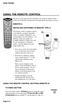 USING THE REMOTE CONTROL The next several pages provide instructions for using the remote control. Follow the instructions that pertain to the appropriate model type you have. REMOTE A INSTALLING BATTERIES
Synergy V Universal / DVR Remote Control Model RC-U63CDR
 Synergy V Universal / DVR Remote Control Model RC-U63CDR Programming And Operating Instructions (Part # 9-542-906) 2007, Contec Holdings, LLC, Rev. 06/07-1 - 1. Introduction Your Synergy V Universal /
Problem: Remote is not working A remote control may not be responding as expected when a customer presses certain buttons
 Welcome to Comcast! We are proud to be the exclusive broadband digital video provider for the University of Alabama. The digital cable service provided in your dorm room gives you additional channel offerings,
Movie Cube N150H. User s Manual
 Movie Cube N150H User s Manual (v1.0) TABLE OF CONTENTS 1. Main Features... 4 1.1 Front panel... 4 1.2 Back panel... 4 2. Remote Control... 5 3. Welcome Page... 6 4. Installation Guide... 6 5. Program...
(2012 10 24) manual_tocomsat duo LITE.indd 20-1 2012-10-24 7:44:57
 (2012 10 24) manual_tocomsat duo LITE.indd 20-1 2012-10-24 7:44:57 TABLE OF CONTENTS Table of Contents Table of Contents Safety Warning General Information Package Contents & Features Front Panel Rear
Digital Satellite Receiver
 USER GUIDE Digital Satellite Receiver Models DSR207, DSR317, DSR505, and DSR530 CONTENTS IMPORTANT SAFETY INSTRUCTIONS...1 DSR BASICS SYMBOLS/ICONS...6 Front Panel...6 Back Panel...7 CONNECTING YOUR DSR...10
ZaapTV HD509N. User s Guide. How to use the HD509N set-top box
 ZaapTV HD509N User s Guide How to use the HD509N set-top box Contents 1. Safety... 1 2. Appearance... 4 3. Rear Panel Connection... 5 4. Remote... 7 5 First Time Set-Up... 9 6. Network Settings... 10 6.1
CDKN-7402. User Manual
 CDKN-7402 User Manual FCC INFORMATION This equipment has been tested and found to comply with the limits for a Class B digital device, pursuant to Part 15 of the FCC Rules. These limits are designed to
The Bouncer Bluetooth Stereo Speaker
 The Bouncer Bluetooth Stereo Speaker 1 Welcome to JLab! Thank you for purchasing The Bouncer Bluetooth Speaker! Enjoy your music wirelessly from any smartphone, tablet, laptop, or other Bluetooth enabled
USER GUIDE MANUAL DCT700. One-way Application
 USER GUIDE MANUAL DCT700 One-way Application CAUTION: CAUTION RISK OF ELECTRIC SHOCK TO REDUCE THE RISK OF ELECTRIC SHOCK, DO NOT REMOVE COVER (OR BACK). NO USER-SERVICEABLE PARTS INSIDE. REFER SERVICING
Digital Cable TV. User Guide
 Digital Cable TV User Guide T a b l e o f C o n T e n T s DVR and Set-Top Box Basics............... 2 Remote Playback Controls................ 4 What s on TV.......................... 6 Using the OK Button..................
400 & 450 SERIES QUICK START GUIDE
 400 & 450 SERIES COPYRIGHT 2011 Entone, Inc. All rights reserved. This document contains proprietary information protected by copyright. No part of this publication may be reproduced, stored in a retrieval
Using the System ORDER YOUR BELL EXPRESSVU PROGRAMMING. Page 3-1
 Using the System ORDER YOUR BELL EXPRESSVU PROGRAMMING This procedure notifies the Bell ExpressVu Customer Service Call Centre that your system is on-line and installed. You need to have your services
XFINITY Spectrum. Remote Control Programming Guide
 XFINITY Spectrum Remote Control Programming Guide 2 Programming Your Remote Control Channel + / Press to change channels. Info Press to display information about the program you are currently watching.
text_dishpvr.fm Page 1 Tuesday, March 2, 2004 12:35 PM Remote Control Basics... 2
 text_dishpvr.fm Page 1 Tuesday, March 2, 2004 12:35 PM TABLE OF CONTENTS Remote Control Basics... 2 Models Supported by this Guide... 2 UHF and IR Signals... 3 Installing Batteries... 3 Converting the
Setup Guide. You re minutes away from a whole new way of watching TV. Of controlling TV. Of thinking about what TV can be.
 Setup Guide You re minutes away from a whole new way of watching TV. Of controlling TV. Of thinking about what TV can be. Unpack the box From HD video calling on your couch to house-of-the-future touch
Troubleshooting Guide
 Poor or Distorted Picture Troubleshooting Guide Poor picture quality compared to what was seen in the store. Picture is distorted. (Macroblock, small block, dots, pixelization.) Wrong or missing color
TROUBLESHOOTING TABLES REMOTE CONTROL DEVICE CODES
 Troubleshooting and Device Codes What you ll find in this chapter: TROUBLESHOOTING TABLES REMOTE CONTROL DEVICE CODES 119 Troubleshooting Tables TROUBLESHOOTING TABLES Use these tables if you have problems
USER GUIDE 152772/6-14/8116
 USER GUIDE 152772/6-14/8116 June 2014 CONTENTS Equipment 4 Connected-Home DVR/Standard Set-Top Box Wireless Set-Top Box Wireless Access Point Remote Controls Residential Gateway Getting Started 12 Turn
IPTV STB QUICK GUIDE. Detailed user manual download from www.my-home-television.com
 IPTV STB QUICK GUIDE Detailed user manual download from www.my-home-television.com Dolby Digital: Manufactured under license from Dolby Laboratories. Dolby and the double-d symbol are trademarks of Dolby
Albrecht DR314. DAB/DAB+/FM Radio 1.) User Manual
 Albrecht DR314 DAB/DAB+/FM Radio 1.) User Manual -1- Important Safety Notes TO PREVENT FIRE OR SHOCK HAZARD, DO NOT USE THIS PLUG WITH AN EXTENSION CORD, RECEPTACLE OR OTHER OUTLET UNLESS THE BLADES CAN
HANTZ + PARTNER The Upgrade Company! www.hantz.com
 Quick Start Guide X3000 HD Network Media Player X3000 HD NETWORK MEDIA PLAYER POWER HANTZ + PARTNER The Upgrade Company! www.hantz.com A Get to know your HELIOS X3000 Thank you for purchasing the HELIOS
UNIVERSAL REMOTE CONTROL
 Cox Manual 11/27/01 7:14 PM Page 1 UNIVERSAL REMOTE CONTROL User s Guide 4th Draft Cox Manual 11/27/01 7:14 PM Page 2 TABLE OF CONTENTS Introduction................................ 3 Features And Functions......................
DVR Guide. Dual Tuner HD-Capable DVR. You go get the popcorn. Your show waits for you.
 DVR Guide Dual Tuner HD-Capable DVR You go get the popcorn. Your show waits for you. USING YOUR REMOTE CONTROL TV: When programmed, enables control of your TV. Cable: Enables control of your digital cable
TEK PARTNER TM UNIVERSAL REMOTE CONTROL USER S MANUAL
 TEK PARTNER TM UNIVERSAL REMOTE CONTROL USER S MANUAL Congratulations! Your TEK PARTNER TM Universal Remote Control is a state-of-the-art device which integrates many different infra-red remote controls.
ABOUT YOUR SATELLITE RECEIVER
 2 Satellite Receiver ABOUT YOUR SATELLITE RECEIVER This chapter gives you an overview and a description of your satellite receiver. SATELLITE RECEIVER OVERVIEW SINGLE AND DUAL MODES REMOTE CONTROL SATELLITE
Amcrest 960H DVR Quick Start Guide
 Amcrest 960H DVR Quick Start Guide Welcome Thank you for purchasing our Amcrest 960H DVR! This quick start guide will help you become familiar with our DVR in a very short time. Before installation and
Digital Television User Guide
 Digital Television User Guide Table of Contents THE HURONTEL HOME BUNDLE >> Finally you can receive Home Phone (with Calling Features), High Speed Fibre Optic Internet and 100% Digital TV including 1 Digital
HD DVR Quick Start Guide
 HD DV Quick Start Guide Thanks for buying a Moxi HD DV. We know you want to see it in action, so let s get started. What you need for setup: Moxi HD DV Multi-Stream CableCAD * Digital Cable Subscription
Home Gateway. User s Installation Guide. In This Guide
 Explorer 4250 Home Gateway User s Installation Guide In This Guide Safety Information... 2 Safety First... 6 Explorer eclub... 6 Explorer 4250 Home Gateway Serial Number... 6 What s On the Front Panel?...
NeoTV Streaming Player (NTV200)
 NeoTV Streaming Player (NTV200) User Manual 350 East Plumeria Drive San Jose, CA 95134 USA February 2012 202-10841-03 v1.0 2012 NETGEAR, Inc. All rights reserved No part of this publication may be reproduced,
Fi TV Gold Quick Start Guide
 Quick Start Guide Fi TV Gold Quick Start Guide Welcome to Fi TV! We re happy that you chose EPB Fiber Optics to bring the best movies, sports, news and television programming into your home and we will
Nighthawk AC1900 WiF Range Extender
 Nighthawk AC1900 WiF Range Extender Model EX7000 User Manual December 2014 202-11469-01 350 East Plumeria Drive San Jose, CA 95134 USA Nighthawk AC1900 WiF Range Extender Support Thank you for selecting
DVB-T2 DIGITAL TV BOX
 DVB-T2 DIGITAL TV BOX QUALITY OF DIGITAL TELEVISION MT4159 User Manual EN 2 Index Index...2 Introduction...3 Front panel...3 Rear panel...3 Remote control...4 Hardware configuration...5 Connecting tuner
Manufactured under license from Dolby laboratories. Dolby and the double-d symbol are trademarks of Dolby Laboratories.
 Getting Started Thank you for selecting NETGEAR products. After installing your device, locate the serial number on the label and use it to register your product at https://my.netgear.com. You must register
Please click on the Table of Contents item you are interested in to go directly to the information. Connections and Devices...5
 Please click on the Table of Contents item you are interested in to go directly to the information. Connections and Devices...5 MTS HDTV Set-Top Box General Information and Maintenance... 5 Connecting
Register your product and get support at. www.philips.com/welcome AS111. User manual
 Register your product and get support at www.philips.com/welcome AS111 User manual Contents 1 Important 4 Safety 4 English 2 Your docking speaker for AndroidTM 5 Introduction 5 What's in the box 5 Overview
Hi! Let s get started.
 Hi! Let s get started. What s in the box Roku 2 player Roku 2 enhanced remote Headphones 2 x AA batteries for remote A/V cable (RCA) Power adapter Get to know your Roku 2 A Front view B E C Back view
XPanel V2. Remote Control Panel. User Manual. XILICA Audio Design
 XPanel V2 Remote Control Panel User Manual XILICA Audio Design Important Safety Instructions 1. READ THESE INSTRUCTIONS All the safety and operating instructions should be read before the product is operated.
mini box User s Manual
 mini box User s Manual Version. Updated: 0/0/4 04 Cox Communications, Inc. Table of Contents Chapter : Introduction... About This Manual... Chapter : Installing & Activating Your mini box... 4 Connecting
Table of Contents. Table of Contents. Table of Contents. VUDU Movies...38 Activating VUDU... 38 Browsing VUDU Catalog... 42
 COPYRIGHT 2012 Entone, Inc. All rights reserved. This document contains proprietary information protected by copyright. No part of this publication may be reproduced, stored in a retrieval system, or transmitted
USING YOUR DMX PROFUSION
 Set Up Guide USING YOUR DMX PROFUSION io FOR 1 Connect 2 Set Up 3 Listen SIMPLE PERSONALIZED UNLIMITED ECONOMICAL LICENSED Welcome Thank you for choosing DMX to provide your Pandora listening experience
USER GUIDE DCH70. Standard-Definition All-Digital Cable Receiver DCH70 MESSAGE POWER
 POWER MESSAGE USER GUIDE DCH70 Standard-Definition All-Digital Cable Receiver DCH70 IMPORTANT SAFETY INSTRUCTIONS Read these instructions. Keep these instructions. Heed all warnings. Follow all instructions.
IMPORTANT SAFETY INSTRUCTIONS. When using this electronic device, basic precautions should always be taken, including the following:
 IMPORTANT SAFETY INSTRUCTIONS When using this electronic device, basic precautions should always be taken, including the following: 1. Read all instructions before using the product. 2. Do not use this
Welcome to life on. Get started with this easy Self-Installation Guide.
 Welcome to life on Get started with this easy Self-Installation Guide. Welcome to a network that s light years ahead. Welcome to life on FiOS. Congratulations on choosing Verizon FiOS! You re just a few
DIGITAL CABLE TV RECEIVER OPERATION MANUAL DVB-C8080AL DIGITAL CABLE RECEIVER DEAR CONSUMER
 DIGITAL CABLE TV RECEIVER OPERATION MANUAL DVB-C8080AL DIGITAL CABLE RECEIVER DEAR CONSUMER GREAT APPRECIATION FOR PURCHASING OUR PRODUCT TO ENSURE THE BEST PERFORMANCE AND THE HIGHEST SAFETY, PLEASE READ
Connections and Setup
 12 Connections and Setup HOW TO CONNECT YOUR SATELLITE RECEIVER Use the information in this chapter to connect your receiver to other equipment. CONNECTING TO THE NEARBY HDTV (TV1) CONNECTING TO THE REMOTE
User Guide. QIP27xx Series Set-Top Terminals. Standard- Definition Watch and Record DVR
 User Guide QIP27xx Series Set-Top Terminals Standard- Definition Watch and Record DVR CAUTION RISK OF ELECTRIC SHOCK CAUTION: TO REDUCE THE RISK OF ELECTRIC SHOCK, DO NOT REMOVE COVER (OR BACK). NO USER-SERVICEABLE
CINEMATE 1 SR DIGITAL HOME THEATER SPEAKER SYSTEM. Operating Guide Guía del usuario Guide d utilisation
 CINEMATE 1 SR DIGITAL HOME THEATER SPEAKER SYSTEM Operating Guide Guía del usuario Guide d utilisation Notice This equipment has been tested and found to comply with the limits for a Class B digital device,
TABLETOP CONTROLLER USER'S MANUAL
 TABLETOP CONTROLLER USER'S MANUAL Preface TABLETOP CONTROLLER USER S MANUAL CLEARONE PART NO. 800-151-891 OCTOBER 2009 (REV. 2.1) 2009 ClearOne Communications, Inc. All rights reserved. No part of this
Welcome. You re watching Apple TV. This guide contains all the information you need to get from setup to your sofa.
 Welcome. You re watching Apple TV. This guide contains all the information you need to get from setup to your sofa. Contents Chapter 1: Connect. 7 What s in the box 8 Apple TV at a glance 10 What you
DVR GUIDE. Using your DVR/Multi-Room DVR. 1-866-WAVE-123 wavebroadband.com
 DVR GUIDE Using your DVR/Multi-Room DVR 1-866-WAVE-123 wavebroadband.com Table of Contents Control Live TV... 4 Playback Controls... 5 Remote Control Arrow Buttons... 5 Status Bar... 5 Pause... 6 Rewind...
Fi TV Gold Quick Start Guide
 Quick Start Guide Fi TV Gold Quick Start Guide Welcome to Fi TV! We re happy that you chose EPB Fiber Optics to bring the best movies, sports, news and television programming into your business and we
DVB-T VERTO. User Manual HD TERRESTRIAL DIGITAL TV STB & PLAYER MT4162
 DVB-T VERTO HD TERRESTRIAL DIGITAL TV STB & PLAYER MT4162 User Manual EN 2 Index Index...2 Overview...2 Remote Control...3 Battery installation in remote control...4 Using remote control...4 Connections...4
THIS IS GOING TO BE EXCITING. AND EASY.
 FiOS TV USER GUIDE 2015 WELCOME TO FiOS TV. NOW YOU CAN Record More Shows. Watch In More Places. Store More Recordings. THIS IS GOING TO BE EXCITING. AND EASY. 1 ALL YOU NEED TO KNOW ABOUT FiOS TV Your
How To Use Your Tv On A Tv On Tv On An Iphone Or Ipad (For Aiphone)
 Hargray s Voyager HD/DVR user guide Hargray s Voyager HD/DVR Hargray s Voyager HD/DVR Welcome Hargray s Voyager HD/DVR is the on-screen interface of your Set Top Box (STB) that you use to navigate, control
Safety Instructions...iii. Introduction...1
 Contents Safety Instructions...iii Introduction...1 Welcome to DISH... 1 About this Receiver... 1 Overview... 2 Getting Started... 4 Quick Tour of Basic Features... 5 Quick Tour of the Menus... 7 About
IMPORTANT SAFETY INSTRUCTIONS
 Contents Important Safety Instructions.. 1 Location of Controls 4 Remote Control Unit 5 Connections... 7 Install Guide. 9 Basic Functions 10 Volume Control 10 Select Channel. 10 Signal Strength.... 11
How To Use An Easypad On A Pc Or Macbook Or Ipad (For Pc)
 User Guide Congratulations on your new EasyPad 1000. Please follow the instructions in this manual carefully. Statement: If the final version of this product has any differences from the description of
The only warranties for Hewlett-Packard products and services are set forth in the express statements accompanying such products and services.
 The only warranties for Hewlett-Packard products and services are set forth in the express statements accompanying such products and services. Nothing herein should be construed as constituting an additional
RCN DIGITAL CABLE USERS GUIDE
 RCN DIGITAL CABLE USERS GUIDE WELCOME Congratulations! Thanks to your new Digital Cable Service, you now have access to the most cutting-edge cable television services available, only from RCN. At RCN,
CABLE ONE ALL DIGITAL
 CABLE ONE ALL DIGITAL The world is going All Digital and so is Cable ONE. With the switch from analog to digital technology, Cable ONE will be able to add new channels, especially more HD channels, and
It s here a New Breed of TV entertainment.
 Quick Start Guide 1 2 It s here a New Breed of TV entertainment. Welcome to Fetch TV an exciting new television experience that puts you in control of the best TV, great movies, and popular interactive
User Guide. Plaza HDR S freesat digital HD TV recorder
 User Guide Plaza HDR S freesat digital HD TV recorder CONGRATULATIONS on buying a Manhattan Plaza HDR S freesat receiver. This high performance unit lets you record and watch the best of digital TV and
Explorer HDTV Setup Wizard User s Guide
 Explorer HDTV Setup Wizard User s Guide In This Guide Introducing the Setup Wizard... 2 Picture Formats... 3 Setting Up Your HDTV With the Setup Wizard... 7 Easy Setup Instructions... 11 Advanced Setup
User Guide. Internet Television Telephone. and more... How-To: Setup Voice Mail
 User Guide How-To: Setup Voice Mail Setup a Wireless Router Enable TV Parental Controls Schedule Recordings with a DVR Troubleshoot Your Service and more... Internet Television Telephone Burlington Telecom
PDP TV. quick start guide. imagine the possibilities
 PDP TV quick start guide imagine the possibilities Thank you for purchasing a Samsung product. To receive a more complete service, please register your product at www.samsung.com/global/register 02134A_CMS.indd
Hi! Let s get started.
 Hi! Let s get started. What s in the box Roku player Remote control with in-ear headphone jack 2 x AA Alkaline batteries In-ear headphones Power adapter Get to know your Roku B A Front view C D E Back
Hi! Let s get started.
 Hi! Let s get started. What s in the Box Roku player Remote control 2 x AAA batteries for remote A/V cable RCA Power adapter Get to know your roku A Front view B C F Back view D E A B C D E F Status light
Verizon FiOS TV User Guide
 Verizon FiOS TV User Guide Welcome to Verizon FiOS TV Congratulations. You made a great choice by subscribing to FiOS SM TV. It s going to revolutionize your television experience. As a Verizon FiOS TV
WLAN600 Wireless IP Phone Administrator s Guide
 WLAN600 Wireless IP Phone Administrator s Guide Trademark Acknowledgement All brand names are trademarks or registered trademarks of their respective companies. Disclaimer This document is supplied by
Quick Start Guide English
 Quick Start Guide 1. Checking Accessories Quick Start Guide User s Manual Remote Control & Batteries Manual & Quick Start Guide HUMAX Wi-Fi USB Adapter (Supplied with HDR-2000T/1TB/WD) HDMI Cable Ethernet
Rock-Ola Music Center Set-Up and Installation Guide For all Q-Series models 230V, Export
 Part No. 61745-01 Rock-Ola Music Center Set-Up and Installation Guide For all Q-Series models 230V, Export IMPORTANT SAFETY INSTRUCTIONS a. Read these instructions. b. Keep these instructions. c. Follow
OPERATION MANUAL DCH3200. User Guide
 OPERATION MANUAL DCH3200 User Guide IMPORTANT SAFETY INSTRUCTIONS Read these instructions. Keep these instructions. Heed all warnings. Follow all instructions. Do not use this apparatus near water. The
GSM Door Phone System
 GSM Door Phone System System Installation, Setting and Operation Manual User Manual (263-S V1) Please read this user manual completely before operating this system and keep it in a safe place for future
How To Watch Tv On Tv On Pc Or Mac (For Pc) On A Pc Or Ipad (For Mac) On Tv Or Ipa) On Pc (For Blackburn) On An Iphone Or Ipro (For Whiteford
 Cisco Videoscape Voyager Vantage Client User Interface Table of Contents Introducing the Cisco Videoscape Voyager Vantage Client User Interface... 6 Welcome... 6 About the AT8500 AllTouch IR Universal
2008 PVR Remote Functionality Guide V1.1
 2008 PVR Remote Functionality Guide V1.1 1. LED Indications 1 2. Basic Colour Button Functionality 1 3. Shift Functionality 1 4. Programming 2 4.1. Programming a Device onto your Remote Control 2 4.1.1.
About the Remote Control... page 2
 TABLE OF CONTENTS About the Remote Control... page 2 Remote Control Signals: UHF or IR...page 2 Installing Batteries in the Remote Control...page 3 Remote Control Modes...page 3 Using the Remote Control
Welcome. You re watching Apple TV. This guide contains all the information you need to get from setup to your sofa.
 Welcome. You re watching Apple TV. This guide contains all the information you need to get from setup to your sofa. Contents. 1. Connect 7 What s in the Box 8 What You Need 10 Apple TV at a Glance 12 Setting
Connections and Setup
 9242_14_Ch12_eng 6/11/07 9:36 AM Page 1 Connections and Setup HOW TO CONNECT YOUR SATELLITE RECEIVER Do you have a handful of cables and a head full of questions? This chapter is the perfect place to find
Welcome to Verizon FiOS TV
 Welcome to Verizon FiOS TV Congratulations. You made a great choice by subscribing to FiOS TV. It s going to revolutionize your television experience. As a Verizon FiOS TV subscriber, you can unleash the
DTA100. Digital Transport Adapter. Quick Start Guide. Downloaded from www.manualslib.com manuals search engine
 DTA100 Digital Transport Adapter Quick Start Guide Before You Begin READ THIS FIRST Connecting Your DTA100 1. Connect the DTA100 to your cable service. Connect the coaxial cable from your wall outlet to
US E R GUI DE RNG150N
 USER GUIDE RNG150N IMPORTANT SAFETY INSTRUCTIONS Read these instructions. Keep these instructions. Heed all warnings. Follow all instructions. Do not use this apparatus near water. Clean only with dry
Technical Support. Trademarks
 Getting Started Technical Support Thank you for selecting NETGEAR products. After installing your device, locate the serial number on the label of your product and use it to register your product at https://my.netgear.com.
Remember that contact with 230V AC power can be lethal or can cause a severe electric shock. To avoid this risk:
 User Guide DT840INZ FOR YOUR SAFETY Your IGLOO has been manufactured to meet international safety standards. To obtain the best results and operate safely it is important that you read the safety instructions
Your Digital Adapter Easy Setup Guide
 Your Digital Adapter Easy Setup Guide Connect with the future of TV You re about to step up to a world of even better picture and sound, and this Easy Setup Guide is here to help every step of the way.
Table of Contents Function Keys of Your RF Remote Control Quick Setup Guide Advanced Features Setup Troubleshooting
 Congratulations on your purchase of the AT&T U-verse TV Point Anywhere RF Remote Control. This product has been designed to provide many unique and convenient features to enhance your AT&T U-verse experience.
Hello! Let s get started.
 Hello! Let s get started. What s in the Box Roku player Enhanced remote control 2 x AA batteries for remote A/V Cable Power adapter Get to know your roku B A Front view C D G Back view E F H A B C D E
Receiver Customization
 9242_13_Ch11_eng 6/11/07 9:36 AM Page 1 Receiver Customization PERSONALIZING YOUR SATELLITE RECEIVER Take a look through this chapter and you ll find out how to change settings on the receiver to make
Film-Tech The information contained in this Adobe Acrobat pdf file is provided at your own risk and good judgment.
 Film-Tech The information contained in this Adobe Acrobat pdf file is provided at your own risk and good judgment. These manuals are designed to facilitate the exchange of information related to cinema
ENJOY ENTERTAINMENT BETTER
 TV ENJOY ENTERTAINMENT BETTER 1 2 Table Of Contents 4 Setting Up Your Remote Control 5 Find Channels/Search 7 Aspect Ratio Settings 8 Output Resolution Settings 9 Parental Control 10 Menu Bar 10 Settings
Spider IV 15. Pilot s Handbook Manuel de pilotage Pilotenhandbuch Pilotenhandboek Manual del Piloto 取 扱 説 明 書
 Spider IV 15 Pilot s Handbook Manuel de pilotage Pilotenhandbuch Pilotenhandboek Manual del Piloto 取 扱 説 明 書 40-00-0187 Pilot s Handbook available @ www.line6.com/manuals Rev D Important Safety Instructions
Kinivo 301BN HDMI Switch
 Kinivo 301BN HDMI Switch User Manual 2012 Kinivo LLC. All rights reserved. Kinivo is a trademark of Kinivo LLC. Bluetooth word mark and the Bluetooth logo are registered trademarks of Bluetooth SIG. All
REV3-16.11.19.03 TV Guide Interactive. We Make TV Better SM i
 REV3-16.11.19.03 TV Guide Interactive. We Make TV Better SM i TV Guide Interactive Reference Manual Revision Date: November 19, 2003 TV Guide Interactive, Inc. 7140 South Lewis Tulsa, Oklahoma 74136 CONFIDENTIAL