
Administration Guide Revision E. SaaS Protection
|
|
|
- Dominic Eaton
- 10 years ago
- Views:
Transcription
1 Administration Guide Revision E SaaS Protection
2 COPYRIGHT Copyright 2015 McAfee, Inc., 2821 Mission College Boulevard, Santa Clara, CA 95054, , TRADEMARK ATTRIBUTIONS Intel and the Intel logo are registered trademarks of the Intel Corporation in the US and/or other countries. McAfee and the McAfee logo, McAfee Active Protection, McAfee DeepSAFE, epolicy Orchestrator, McAfee epo, McAfee EMM, McAfee Evader, Foundscore, Foundstone, Global Threat Intelligence, McAfee LiveSafe, Policy Lab, McAfee QuickClean, Safe Eyes, McAfee SECURE, McAfee Shredder, SiteAdvisor, McAfee Stinger, McAfee TechMaster, McAfee Total Protection, TrustedSource, VirusScan are registered trademarks or trademarks of McAfee, Inc. or its subsidiaries in the US and other countries. Other marks and brands may be claimed as the property of others. LICENSE INFORMATION License Agreement NOTICE TO ALL USERS: CAREFULLY READ THE APPROPRIATE LEGAL AGREEMENT CORRESPONDING TO THE LICENSE YOU PURCHASED, WHICH SETS FORTH THE GENERAL TERMS AND CONDITIONS FOR THE USE OF THE LICENSED SOFTWARE. IF YOU DO NOT KNOW WHICH TYPE OF LICENSE YOU HAVE ACQUIRED, PLEASE CONSULT THE SALES AND OTHER RELATED LICENSE GRANT OR PURCHASE ORDER DOCUMENTS THAT ACCOMPANY YOUR SOFTWARE PACKAGING OR THAT YOU HAVE RECEIVED SEPARATELY AS PART OF THE PURCHASE (AS A BOOKLET, A FILE ON THE PRODUCT CD, OR A FILE AVAILABLE ON THE WEBSITE FROM WHICH YOU DOWNLOADED THE SOFTWARE PACKAGE). IF YOU DO NOT AGREE TO ALL OF THE TERMS SET FORTH IN THE AGREEMENT, DO NOT INSTALL THE SOFTWARE. IF APPLICABLE, YOU MAY RETURN THE PRODUCT TO MCAFEE OR THE PLACE OF PURCHASE FOR A FULL REFUND. 2 SaaS Protection Administration Guide

3 Contents Preface 7 About this guide Audience Conventions What's in this guide Find McAfee SaaS service documentation Protection 9 2 Overview 11 Overview page Display Statistics view Quarantine 15 Search quarantine messages Quarantine page Safe Message View Continuity 17 Continuity features and limitations Open an in Continuity Search for mail in Continuity Compose an in Continuity Continuity Continuity for non-local accounts Policies 27 Policies page New Policy Set window Managing Policy Sets Details Details tab Virus Configure actions to take against a virus Virus actions Notifications [Virus] Spam What is spam? Configure the spam classification policy Classification Configure content groups policies Content Groups subtab Reporting tab ClickProtect Update ClickProtect options for an inbound policy set SaaS Protection Administration Guide 3

4 Contents Classification tab Custom Warnings tab Allow List tab Content Content groups Custom content groups Registered Documents Notifications [Content] HTML Shield tab Attachments File Types Attachment File Types Filename Policies Additional policies Notifications [Attachments] Allow/Deny Sender allow Sender Deny Recipient Shield Authentication Enforced TLS Enforced SPF Enforced DKIM Notifications [ Authentication] Notifications Configure a notification template Notifications tab Notification variables Disaster Recovery Group Subscriptions Add a group subscription Setup 77 Inbound Servers Verify setup of inbound servers Set up an inbound server Delete an inbound server Inbound Servers page Outbound Servers Configuring outbound filtering Configure outbound servers Delete an outbound server Outbound Servers Setup page Outbound Disclaimer Add an outbound disclaimer Outbound Disclaimer page Disaster Recovery Disaster recovery services Set up automatic spooling for disaster recovery Start and stop spooling for disaster recovery manually Set up notifications of disaster recovery Disaster Recovery page MX records Redirecting your MX Records Select a region to review MX records MX Records Setup page SaaS Protection Administration Guide
5 Contents User Creation Settings page Registered Documents How registering documents prevents distribution of proprietary documents Upload a registered document Registered Documents page DKIM Setup Set up DKIM DKIM Setup page Message Audit 93 Viewing message disposition information Search by message details Search by Message ID Search by header Message audit Audit Details Preview event definitions Viewing blocked IP addresses Run a Perimeter Block Search Perimeter Block Search window Viewing Search History Review Search History Search History window Reports 105 Reports overview Set up your customer or domain and time zone Traffic Overview report Traffic: TLS report Traffic: Encryption report Threats: Overview report Threats: Viruses report Threats: Spam report Threats: Content report Threats: Attachments report Enforced TLS: Details report Enforced SPF report Enforced DKIM report ClickProtect: Overview report ClickProtect: Click Log report Quarantine: Release Overview report Quarantine: Release Log report User Activity report Event Log report Audit Trail report Inbound Server Connections report Disaster Recovery: Overview report Disaster Recovery: Event Log report Index 123 SaaS Protection Administration Guide 5

6 Contents 6 SaaS Protection Administration Guide

7 Preface This guide provides the information you need to configure, use, and maintain your McAfee SaaS service. Contents About this guide Find McAfee SaaS service documentation About this guide This information describes the guide's target audience, the typographical conventions and icons used in this guide, and how the guide is organized. Audience McAfee SaaS documentation is carefully researched and written for the target audience. The information in this guide is intended primarily for: Administrators People who configure and manage specific features of a service. Conventions This guide uses the following typographical conventions and icons. Book title or Emphasis Title of a book, chapter, or topic; introduction of a new term; emphasis. Bold User input or Path Code Text that is strongly emphasized. Commands and other text that the user types; the path of a folder or program. A code sample. User interface Hypertext blue Words in the user interface including options, menus, buttons, and dialog boxes. A live link to a topic or to a web site. Note: Additional information, like an alternate method of accessing an option. Tip: Suggestions and recommendations. Important/Caution: Valuable advice to protect your computer system, software installation, network, business, or data. SaaS Protection Administration Guide 7

8 Preface Find McAfee SaaS service documentation What's in this guide This guide is organized to help you find the information you need. It's divided into functional parts intended to support the goals you need to accomplish when using your McAfee SaaS service. Each part is further divided into chapters that group relevant information together by feature and associated tasks, so you can go directly to the topic you need to successfully accomplish your goals. Find McAfee SaaS service documentation McAfee provides the information you need during each phase of service implementation, from setup to daily use and troubleshooting. After a service update is released, information is added to the McAfee SaaS and Web Security Support site. Task 1 Go to the ServicePortal for SaaS and Web Security page at 2 Click or select Downloads. 3 Under Reference Materials, scroll down to access information that you need: Service Enhancements and Release Notes Training Materials Service Reference Guides 8 SaaS Protection Administration Guide

9 1 1 Protection Protection provides security services that safeguard corporations from unsolicited spam , junk mail, viruses, worms, and unwanted content at the network perimeter before they can enter your internal network. Multiple layers of Protection provide secure and complete filtering to protect your users. You can enable or disable specific layers by changing the licensed packages of features or through configuring the specific policies in the Control Console. SaaS Protection Administration Guide 9

10 1 Protection 10 SaaS Protection Administration Guide

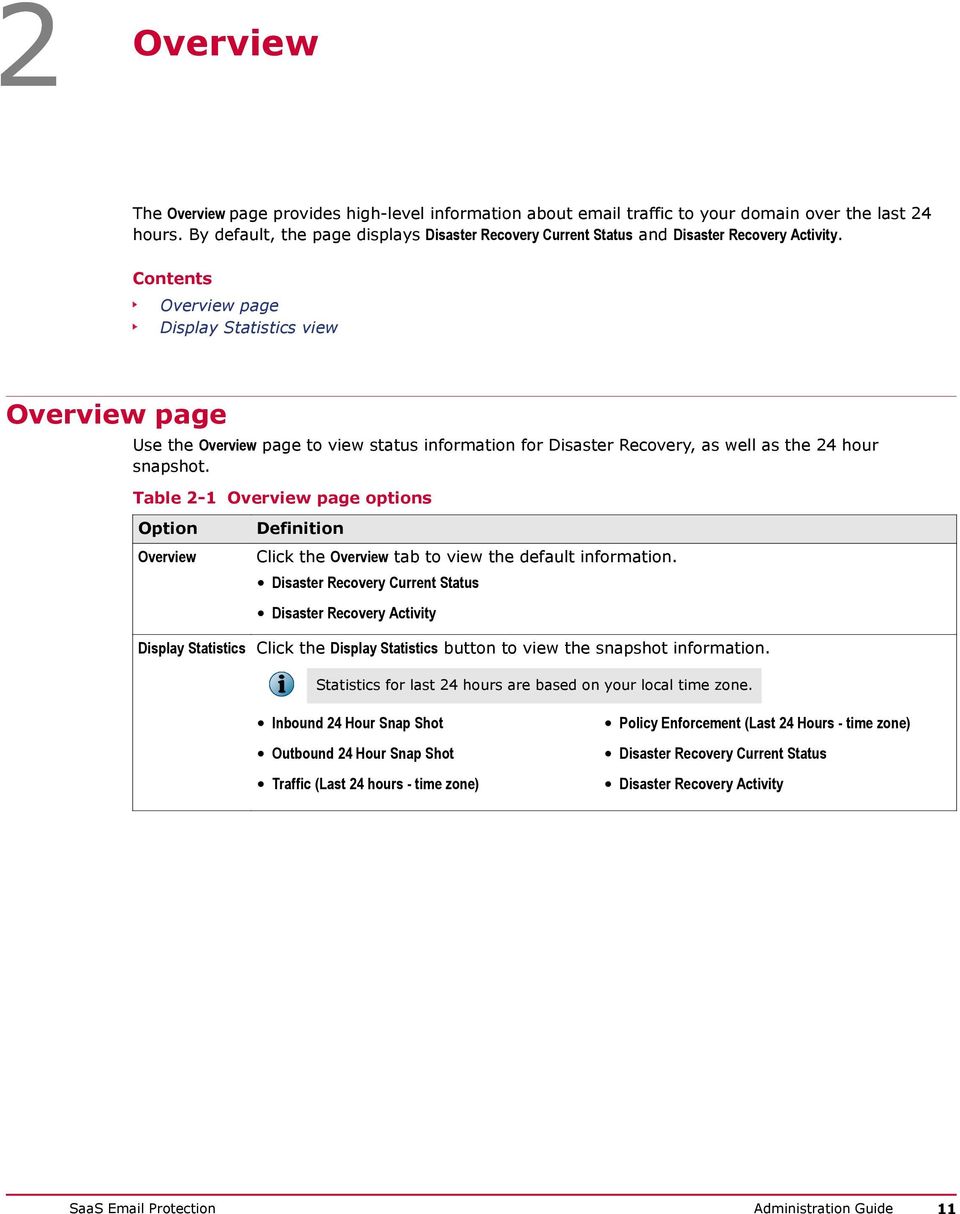
11 2 Overview The Overview page provides high-level information about traffic to your domain over the last 24 hours. By default, the page displays Disaster Recovery Current Status and Disaster Recovery Activity. Contents Overview page Display Statistics view Overview page Use the Overview page to view status information for Disaster Recovery, as well as the 24 hour snapshot. Table 2-1 Overview page options Overview Display Statistics Definition Click the Overview tab to view the default information. Disaster Recovery Current Status Disaster Recovery Activity Click the Display Statistics button to view the snapshot information. Statistics for last 24 hours are based on your local time zone. Inbound 24 Hour Snap Shot Outbound 24 Hour Snap Shot Traffic (Last 24 hours - time zone) Policy Enforcement (Last 24 Hours - time zone) Disaster Recovery Current Status Disaster Recovery Activity SaaS Protection Administration Guide 11
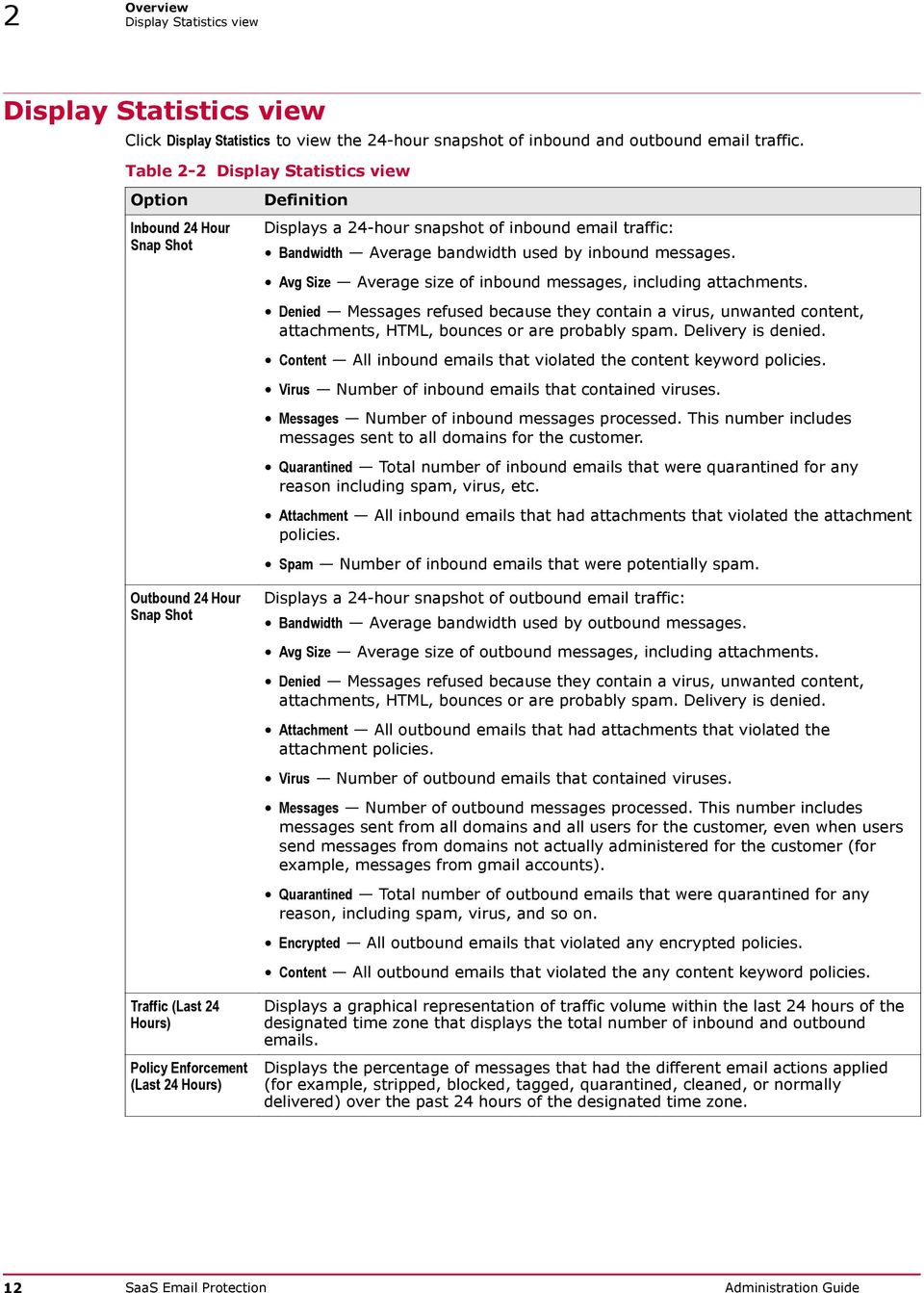
12 2 Overview Display Statistics view Display Statistics view Click Display Statistics to view the 24-hour snapshot of inbound and outbound traffic. Table 2-2 Display Statistics view Inbound 24 Hour Snap Shot Outbound 24 Hour Snap Shot Traffic (Last 24 Hours) Policy Enforcement (Last 24 Hours) Definition Displays a 24-hour snapshot of inbound traffic: Bandwidth Average bandwidth used by inbound messages. Avg Size Average size of inbound messages, including attachments. Denied Messages refused because they contain a virus, unwanted content, attachments, HTML, bounces or are probably spam. Delivery is denied. Content All inbound s that violated the content keyword policies. Virus Number of inbound s that contained viruses. Messages Number of inbound messages processed. This number includes messages sent to all domains for the customer. Quarantined Total number of inbound s that were quarantined for any reason including spam, virus, etc. Attachment All inbound s that had attachments that violated the attachment policies. Spam Number of inbound s that were potentially spam. Displays a 24-hour snapshot of outbound traffic: Bandwidth Average bandwidth used by outbound messages. Avg Size Average size of outbound messages, including attachments. Denied Messages refused because they contain a virus, unwanted content, attachments, HTML, bounces or are probably spam. Delivery is denied. Attachment All outbound s that had attachments that violated the attachment policies. Virus Number of outbound s that contained viruses. Messages Number of outbound messages processed. This number includes messages sent from all domains and all users for the customer, even when users send messages from domains not actually administered for the customer (for example, messages from gmail accounts). Quarantined Total number of outbound s that were quarantined for any reason, including spam, virus, and so on. Encrypted All outbound s that violated any encrypted policies. Content All outbound s that violated the any content keyword policies. Displays a graphical representation of traffic volume within the last 24 hours of the designated time zone that displays the total number of inbound and outbound s. Displays the percentage of messages that had the different actions applied (for example, stripped, blocked, tagged, quarantined, cleaned, or normally delivered) over the past 24 hours of the designated time zone. 12 SaaS Protection Administration Guide
13 Overview Display Statistics view 2 Table 2-2 Display Statistics view (continued) Disaster Recovery Current Status Disaster Recovery Activity Definition Displays a list of domains that are currently in disaster recovery. Protection is currently spooling the specified domain's . Displays a snapshot of spooled and unspooled messages if your company is in disaster recovery mode. The number of messages is listed, along with the total KB size that is spooled or unspooled. Choose from one of the three mechanisms provided that allows you into the Web Protection system. The default for the time zone is mountain time. SaaS Protection Administration Guide 13

14 2 Overview Display Statistics view 14 SaaS Protection Administration Guide

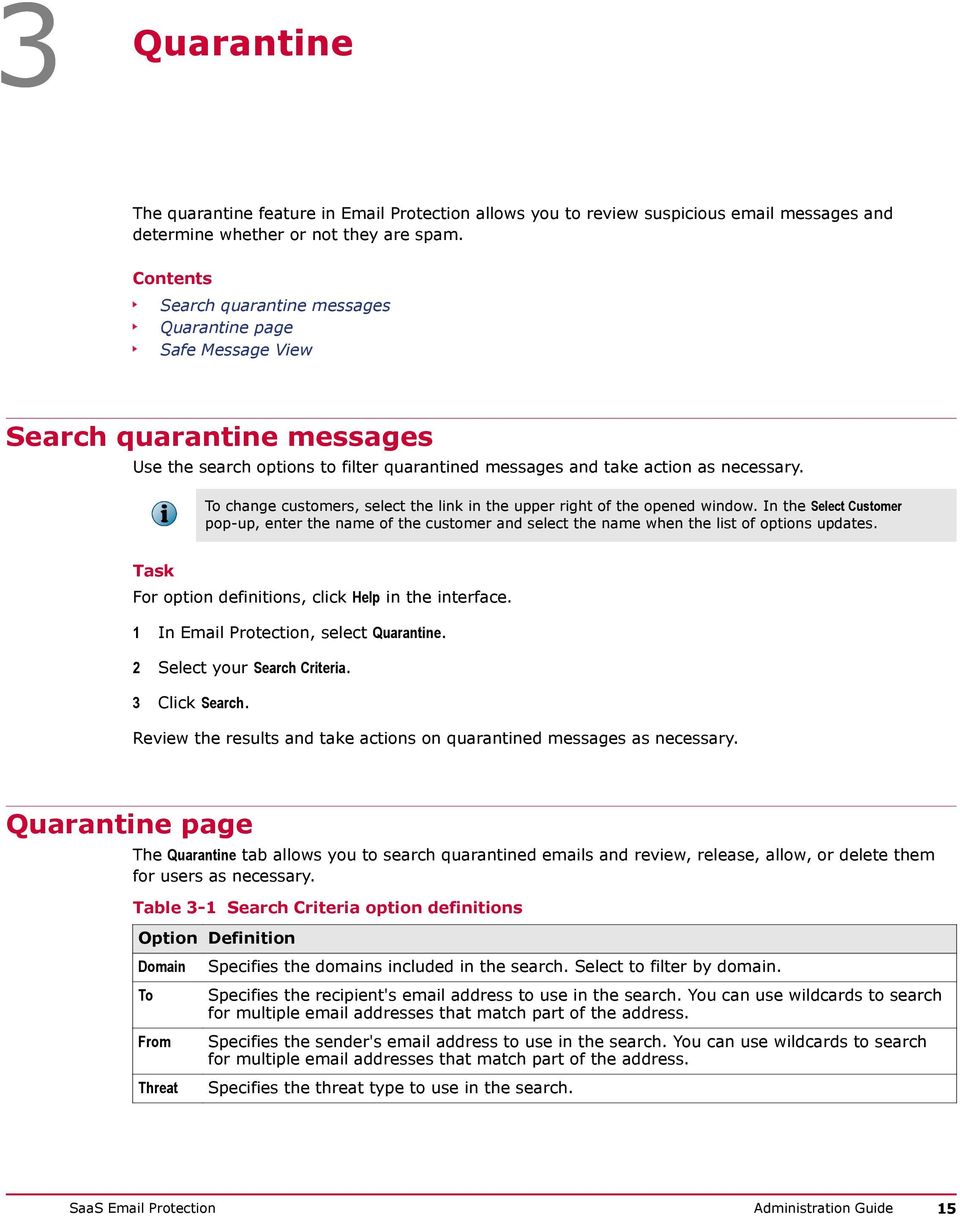
15 3 Quarantine The quarantine feature in Protection allows you to review suspicious messages and determine whether or not they are spam. Contents Search quarantine messages Quarantine page Safe Message View Search quarantine messages Use the search options to filter quarantined messages and take action as necessary. To change customers, select the link in the upper right of the opened window. In the Select Customer pop-up, enter the name of the customer and select the name when the list of options updates. Task For option definitions, click Help in the interface. 1 In Protection, select Quarantine. 2 Select your Search Criteria. 3 Click Search. Review the results and take actions on quarantined messages as necessary. Quarantine page The Quarantine tab allows you to search quarantined s and review, release, allow, or delete them for users as necessary. Table 3-1 Search Criteria option definitions Definition Domain To From Threat Specifies the domains included in the search. Select to filter by domain. Specifies the recipient's address to use in the search. You can use wildcards to search for multiple addresses that match part of the address. Specifies the sender's address to use in the search. You can use wildcards to search for multiple addresses that match part of the address. Specifies the threat type to use in the search. SaaS Protection Administration Guide 15
16 3 Quarantine Safe Message View Table 3-1 Search Criteria option definitions (continued) Definition Day Direction Specifies the date to use in the search. Specifies the direction of the traffic to use in the search (inbound, outbound, or both). Table 3-2 Search Results option definitions Release Always Allow for User Delete Delete All View Search Results list Definition Click to release the selected messages. Click to add the selected senders to the user's Allow list and release the messages (applies to spam messages only). Click to delete the selected messages. Click to delete all messages. Click to view a message in the Safe Message View tab. Date Displays the date of the message. From Displays the from address of the message. To Displays the to address of the message. Subject Displays the subject of the message. Threat Displays the threat type of the message. Score Displays the quarantine score of the message. Size Displays the size of the message. Safe Message View The Safe Message View window provides more information about the quarantined message you have selected. You can also view the message content when policy settings Safe Message View is enabled. Table 3-3 Safe Message View Release Delete Always Allow for User Always Deny Definition Click to release a selected message from the quarantine list and have it moved to your inbox. Click to delete a selected message from the quarantine list. Click to release messages through to the recipients. All senders' addresses are added to the recipient's Allow List. All future messages from the senders will no longer be quarantined. Click to block messages to the recipients. 16 SaaS Protection Administration Guide

17 4 4 Continuity Continuity provides a comprehensive managed disaster recovery service that protects your traffic during a network outage. When active, users and administrators can view, send, and manage their using the online interface while the service stores all inbound and outbound mail activity in the cloud. Afterwards, when connectivity is restored, the service synchronizes your with your servers and normal use can resume. Contents Continuity features and limitations Open an in Continuity Search for mail in Continuity Compose an in Continuity Continuity Continuity for non-local accounts SaaS Protection Administration Guide 17

18 4 Continuity Continuity features and limitations Continuity features and limitations You can use most of the features of a standard web client during an outage. Table 4-1 Continuity features and limitations features... That you can use during an outage That are unavailable during an outage That may be different from your standard client Description Standard options. Attach files Search messages Cannot change your From: address. No access to your Global Address List or Personal Contact List. These Distribution Lists are on the corporate server, and during an outage, the corporate server is not available. No Spell Check. No Drafts Folder. No "Check names" functionality to verify address prior to sending. Cannot search for text in the body of a message. You must separate multiple addresses with commas, no spaces after the comma. You must enter a fully qualified address in the To: field when composing a new message. If you have opened several messages, a tab for each message will appear. Messages deleted in Continuity are not permanently deleted. Once your outage is over, all activity is synchronized with your organization's server(s), which handles final message disposition. Open an in Continuity When Disaster Recovery is active, use Continuity tab to access your messages. Task For option definitions, click Help in the interface. 1 Click the Continuity tab. 2 In the Criteria panel, select a mail folder. The tab for the mail folder opens. 3 In the list, select an message. 4 Click Open. The message opens in a new tab. Use the options to respond to the message, delete it, or print it. 18 SaaS Protection Administration Guide

19 Continuity Search for mail in Continuity 4 Search for mail in Continuity When Disaster Recovery is active, use the Continuity tab to search for your messages. Task For option definitions, click Help in the interface. 1 Click the Continuity tab. 2 In the Criteria panel, select a mail folder. The tab for the mail folder opens. 3 Click the Search panel. The search criteria options open. 4 Enter one or more search criteria. 5 Click the Search button. Your search results display in a new tab. Use the options to manage the s in your search results. Compose an in Continuity When Disaster Recovery is active, use the Continuity tab to access your messages. Task For option definitions, click Help in the interface. 1 Click the Continuity tab. 2 In the Criteria panel, select Inbox. The Inbox tab opens. 3 Click the New. The New Message tab opens. 4 Create your . Select your sender address Add recipients Description Select from the From drop-down list. Enter addresses in the To, Cc, or Bcc fields. Enter your subject Attach files 1 Click Attach File to add an Attachment field. 2 Click Browse to select a file. Compose your message Enter the text of your message. In the default view, use the HTML options to format your text. SaaS Protection Administration Guide 19

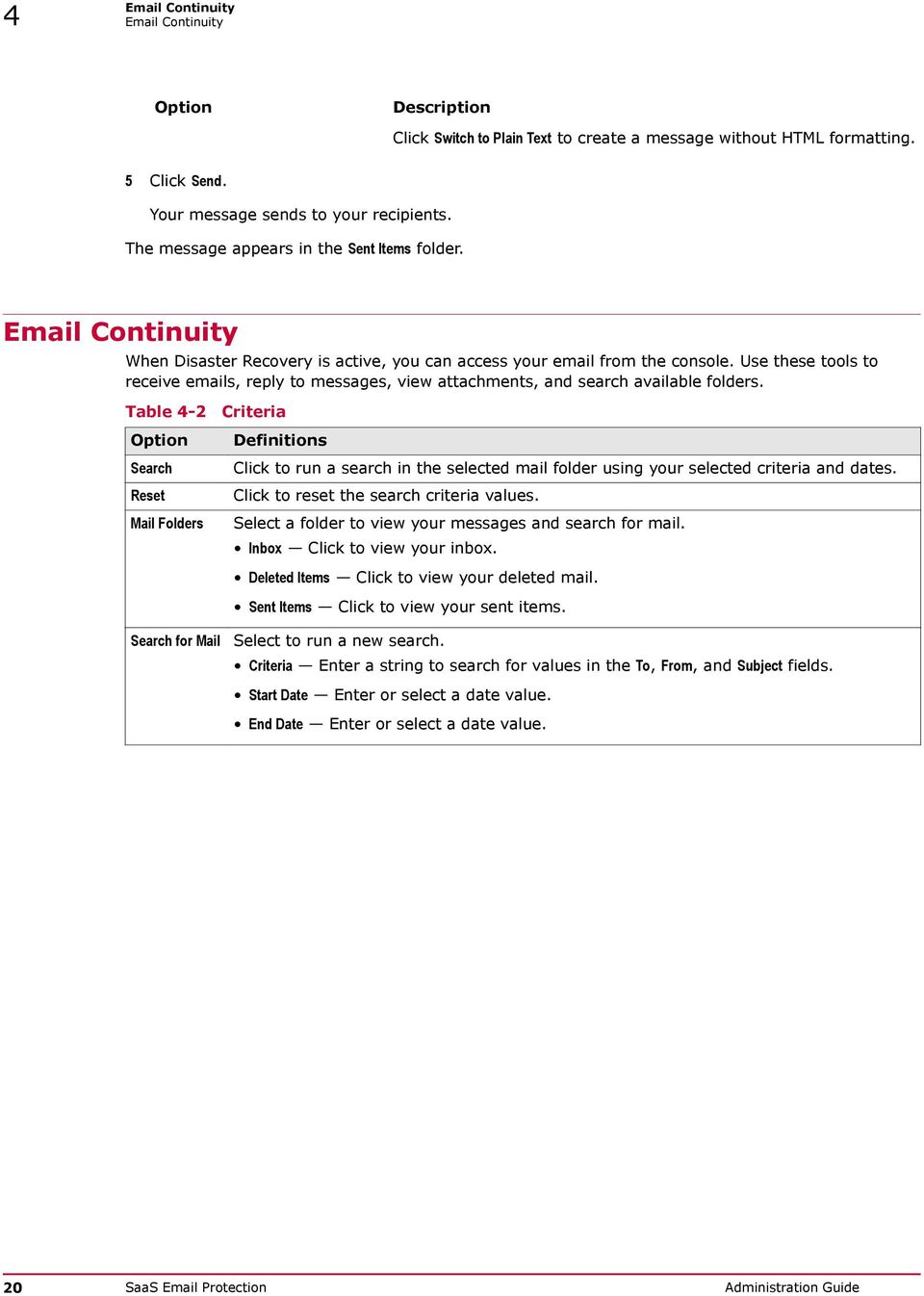
20 4 Continuity Continuity Description Click Switch to Plain Text to create a message without HTML formatting. 5 Click Send. Your message sends to your recipients. The message appears in the Sent Items folder. Continuity When Disaster Recovery is active, you can access your from the console. Use these tools to receive s, reply to messages, view attachments, and search available folders. Table 4-2 Criteria Search Reset Mail Folders Search for Mail Definitions Click to run a search in the selected mail folder using your selected criteria and dates. Click to reset the search criteria values. Select a folder to view your messages and search for mail. Inbox Click to view your inbox. Deleted Items Click to view your deleted mail. Sent Items Click to view your sent items. Select to run a new search. Criteria Enter a string to search for values in the To, From, and Subject fields. Start Date Enter or select a date value. End Date Enter or select a date value. 20 SaaS Protection Administration Guide
21 Continuity Continuity 4 Table 4-3 Continuity Inbox Deleted Items Definitions New Click to compose a new . Open Click to open the selected in a new tab. Preview Click to view the selected in the preview panel. Select the location of the preview panel, or click the button to cycle through the options. Bottom View the message on the bottom of the tab. Right View the message on the right of the tab. Hide Hide the preview. Reply Click to write a reply to the sender of the selected . Reply All Click to write a reply to the sender and all recipients of the selected . Forward Click to forward the selected . Delete Click to delete the selected and move it to the Deleted Items folder. Actions Select an action. Mark as read Click to select messages as read. Mark as unread Click to select messages as unread. Print Click to print the selected . Refresh Click to refresh the list of the messages. Open Click to open the selected in a new tab. Preview Click to view the selected in the preview panel. Select the location of the preview panel, or click the button to cycle through the options. Bottom View the message on the bottom of the tab. Right View the message on the right of the tab. Hide Hide the preview. Reply Click to write a reply to the sender of the selected . Reply All Click to write a reply to the sender and all recipients of the selected . Forward Click to forward the selected . Undelete Click to undelete the selected and move it to the Inbox folder. Actions Select an action. Mark as read Click to select messages as read. Mark as unread Click to select messages as unread. Print Click to print the selected . Refresh Click to refresh the list of the messages. SaaS Protection Administration Guide 21
22 4 Continuity Continuity Table 4-3 Continuity (continued) Sent Items Preview panel Definitions Open Click to open the selected in a new tab. Preview Click to view the selected in the preview panel. Select the location of the preview panel, or click the button to cycle through the options. Bottom View the message on the bottom of the tab. Right View the message on the right of the tab. Hide Hide the preview. Reply Click to write a reply to the sender of the selected . Reply All Click to write a reply to the sender and all recipients of the selected . Forward Click to forward the selected . Print Click to print the selected . Refresh Click to refresh the list of the messages. Open Click to open the selected in a new tab. Reply Click to write a reply to the sender of the selected . Reply All Click to write a reply to the sender and all recipients of the selected . Forward Click to forward the selected . Delete Click to delete the selected and move it to the Deleted Items folder. Actions Select an action. Mark as read Click to select messages as read. Mark as unread Click to select messages as unread. Print Click to print the selected . Show Headers/Hide Headers Click to show or hide headers. 22 SaaS Protection Administration Guide
23 Continuity Continuity for non-local accounts 4 Table 4-3 Continuity (continued) Opened message tab New Message Definitions Reply Click to write a reply to the sender of the selected . Reply All Click to write a reply to the sender and all recipients of the selected . Forward Click to forward the selected . Print Click to print the selected . Show Headers/Hide Headers Click to show or hide headers. Send Click to send the message. Attach Click to attach files to the . Switch to Plain Text/Switch to HTML Click to select the message format. Plain text use text-only format. HTML use HTML WYSIWYG tool to format the message. From: Select the from address. To: Enter one or more addresses. Cc: Enter one or more Cc addresses. Bcc: Enter one or more Bcc addresses. Subject: Enter the subject text. Attachment: Select a file attachment. A new Attachment field displays each time you click Attach and add the file. Delete icon Click to delete the attachment. Message body Enter the message body. Continuity for non-local accounts When Disaster Recovery is active, administrators can view orphaned messages that belong to unassigned users. Table 4-4 Criteria Search Reset Mail Folders Search for Mail Definitions Click to run a search in the selected mail folder using your selected criteria and dates. Click to reset the search criteria values. Select a folder to view your messages and search for mail. Inbox Click to view your inbox. Deleted Items Click to view your deleted mail. Select to run a new search. Criteria Enter a string to search for values in the To, From, and Subject fields. Start Date Enter or select a date value. End Date Enter or select a date value. SaaS Protection Administration Guide 23
24 4 Continuity Continuity for non-local accounts Table 4-5 Continuity Inbox Deleted Items Definitions Open Click to open the selected in a new tab. Preview Click to view the selected in the preview panel. Use the drop-down menu to select the location of the preview panel, or click the button to cycle through the options. Bottom View the message on the bottom of the tab. Right View the message on the right of the tab. Hide Hide the preview. Reply Click to write a reply to the sender of the selected . Reply All Click to write a reply to the sender and all recipients of the selected . Forward Click to forward the selected . Delete Click to delete the selected and move it to the Deleted Items folder. Actions Select an action. Mark as read Click to select messages as read. Mark as unread Click to select messages as unread. Print Click to print the selected . Refresh Click to refresh the list of the messages. Go to User List click to return to the user accounts list. Available from the Account Management Users Non-Local Accounts link. Open Click to open the selected in a new tab. Preview Click to view the selected in the preview panel. Use the drop-down menu to select the location of the preview panel, or click the button to cycle through the options. Bottom View the message on the bottom of the tab. Right View the message on the right of the tab. Hide Hide the preview. Reply Click to write a reply to the sender of the selected . Reply All Click to write a reply to the sender and all recipients of the selected . Forward Click to forward the selected . Undelete Click to undelete the selected and move it to the Inbox folder. Actions Select an action. Mark as read Click to select messages as read. Mark as unread Click to select messages as unread. Print Click to print the selected . Refresh Click to refresh the list of the messages. 24 SaaS Protection Administration Guide
25 Continuity Continuity for non-local accounts 4 Table 4-5 Continuity (continued) Preview panel Opened message tab Definitions Open Click to open the selected in a new tab. Reply Click to write a reply to the sender of the selected . Reply All Click to write a reply to the sender and all recipients of the selected . Forward Click to forward the selected . Delete Click to delete the selected and move it to the Deleted Items folder. Actions Select an action. Mark as read Click to select messages as read. Mark as unread Click to select messages as unread. Print Click to print the selected . Show Headers/Hide Headers Click to show or hide headers. Reply Click to write a reply to the sender of the selected . Reply All Click to write a reply to the sender and all recipients of the selected . Forward Click to forward the selected . Print Click to print the selected . Show Headers/Hide Headers Click to show or hide headers. SaaS Protection Administration Guide 25
26 4 Continuity Continuity for non-local accounts 26 SaaS Protection Administration Guide
27 5 Policies In Protection, policies define rules for filtering your inbound and outbound . Inbound policies protect you from spam, viruses, and other harmful content. Outbound policies, on the other hand, ensures the safety and appropriateness of s being sent from your system. The service includes a default inbound and outbound policy for each of your domains. You can also create custom policies for any domain or group. Contents Policies page New Policy Set window Managing Policy Sets Details Virus Spam ClickProtect Content Attachments Allow/Deny Authentication Notifications Disaster Recovery Group Subscriptions Policies page The Policies page allows you to configure inbound and outbound policy sets. Table 5-1 Policies tab options Inbound Policies Outbound Policies Definition Displays the list of inbound policy sets. Select to configure inbound policies for a domain or group. Displays the list of outbound policy sets. Select to configure outbound policies for a domain or group. SaaS Protection Administration Guide 27
28 5 Policies New Policy Set window Table 5-2 Inbound and Outbound Policies page options Definition Policies toolbar Apply Click to save changes to a policy. Reset Click to restore previously saved changes. New Click to create a new policy. Edit Click to edit an existing policy. Delete Click to delete an existing policy. Policies list Name Specifies the name of the policy. Owner Specifies whether the policy belongs to a customer or a group. Priority Specifies the priority order that the policy is applied in relation to other policies. Description Specifies the description of the policy. New Policy Set window Create a new policy set to apply custom filtering rules to a customer or group. Table 5-3 New Policy Set window options Save Cancel Name Priority Direction Description Owner Copy From Definition Click to save changes. Click to close the window without saving changes. Enter a name for the policy. Displays the priority order of the policy. Displays whether the policy is for Inbound or Outbound SMTP. Enter a brief description of the policy. Select the owner to specify who can edit the policy: Customer Specifies that customer administrators and higher can edit the policy. Group Specifies that group administrators for the specified group as well as customer administrators and higher can edit the policy. Select the group from the drop-down. If necessary, select an existing policy to copy configuration settings into the new policy set. The following options apply for inbound options: Copy Sender Allow List Select to copy the current sender allow list. Copy Sender Deny List Select to copy the current sender deny list. Copy Recipient Shield List Select to copy the current recipient shield list. Copy ClickProtect Allow List Select to copy the current ClickProtect allow list. 28 SaaS Protection Administration Guide
29 Policies Managing Policy Sets 5 Managing Policy Sets Policy sets allow you to define custom inbound and outbound rules for each or your domains, as well as default rules that apply to all domains. Table 5-4 Policy set options Tab Description Inbound Outbound Details Virus Specifies the name, priority, direction, owner, and description of the policy set. Specifies the actions to take and the notifications to send when a message is infected with a virus. Spam Specifies what to do when a message is identified as spam. Yes No ClickProtect Content Specifies ways to protect against web addresses in messages that may link to harmful sites. Specifies filtering rules for specific types of content that may be inappropriate or offensive. Attachments Specifies the filtering rules for attachments. Yes Yes Allow/Deny Authentication Notifications Disaster Recovery Specifies lists of senders who are automatically allowed or denied. Specifies lists of domains that should be verified using TLS, SPF, or a DKIM signature before is sent or received. Specifies options for the notifications that are sent when a policy violation occurs and action is taken. Specifies rules when an interruption occurs and Continuity is available. Group Subscriptions Specifies the list of groups that are affected by this policy. Yes Yes Yes Yes Yes Yes Yes Yes Yes Yes Yes Yes No Yes No Yes Yes No Details The Details tab displays the basic set up information for an existing policy set. Details tab View and edit the name and description for the policy set. Table 5-5 Details tab option definitions Save Cancel Name Priority Direction Owner Description Definition Click to save changes. Click to reset without saving changes. Specifies the name of the policy. Specifies the priority order of the policy (read only). Specifies whether the policy is for Inbound or Outbound SMTP (read only). Specifies who can edit the policy (read only). Specifies the brief description for the policy. SaaS Protection Administration Guide 29
30 5 Policies Virus Virus Protection provides highly effective, organization-wide virus and worm protection. By identifying viruses and worms on your network perimeter before they enter or leave your messaging infrastructure, Protection minimizes outbreak and infection risks to your system. Protection virus protection: Provides maximum protection using multiple, industry-leading, anti-virus engines to allow Protection to customize the protection to meet the latest threats. Defines virus definition updates every 5 minutes, providing up-to-the-minute defense against the latest threats. Provides safe, external virus scanning and quarantine management for protection against viruses before they reach your network. Protects your users, networks, and data from harm. Configure actions to take against a virus Select options in the Actions subtab to configure how the system reacts if an is received that contains a known virus. Task For option definitions, click Help in the interface. 1 In the policy set, select Virus Actions 2 Under If a Message Contains a Virus field, select the action to take. 3 If you selected, Clean the message, select an additional action under If a Message Cannot be Cleaned. 4 Click Save. Virus actions The Actions subtab allows you to configure whether infected s are quarantined, denied, or stripped of infection. The following table lists the type of configurations available. Table 5-6 definitions Save Cancel Definition Click to save your changes. Click to restore your previously saved values. 30 SaaS Protection Administration Guide
31 Policies Spam 5 Table 5-6 definitions (continued) If a Message Contains a Virus If a Message Cannot be Cleaned Definition Do Nothing Send to the recipient with no filtering or notification (not recommended). Quarantine the message after attachment is stripped Strip the infected attachment from the and send it to the virus quarantine area without notification to the recipient. Text is inserted into the notifying the recipient that an attachment has been stripped. Strip the attachment Strip the infected attachment from the and send it to the recipient. Text is inserted into the notifying the recipient that an attachment has been stripped. Deny Delivery Deny delivery of the message. Clean the message Attempt to remove the virus content and save the remainder of the message. If the clean is successful, the is sent to the recipient with inserted text indicating that the had been cleaned of a virus. If the clean is unsuccessful, the system takes the action you select under If a Message Cannot be Cleaned. Quarantine the message after attachment is stripped Strip the infected attachment from the and send it to the virus quarantine area without notification to the recipient. Text is inserted into the notifying the recipient that an attachment has been stripped. Strip the attachment Strip the infected attachment from the and send it to the recipient. Text is inserted into the notifying the recipient that an attachment has been stripped. Deny Delivery Deny delivery of the message. Notifications [Virus] Use the Notifications subtab to select when notifications of an action are sent to the sender and the recipient of an that is infected by a virus. Table 5-7 Notifications options Save Cancel Sender options Definition Click to save your changes. Click to restore your previously saved values. Specifies that a notification is sent to the sender when a message triggers the selected action. Recipient options Specifies that a notification is sent to the recipient when a message triggers the selected action. Spam Protection provides the most comprehensive and effective spam-blocking product available, blocking 98 percent of spam and providing an industry-leading low false positive rate. is assigned a high or medium likelihood of being spam as appropriate and a separate action can be assigned to each likelihood. SaaS Protection Administration Guide 31
32 5 Policies Spam Contents What is spam? Configure the spam classification policy Classification Configure content groups policies Content Groups subtab Reporting tab What is spam? Spam includes unsolicited and unwanted commercial sent to many addresses that you want to block from your inbox. In some instances, criminals use spam to gather proprietary information or cause harm to your system. Spam of this kind can use various strategies to bypass spam filters, including blacklists and keyword lists. Spam blocking and bounce flood protection Spam Blocking Protection through Real-Time BlackHole Lists (RBLs) and Bounce Flood Protection are two spam protection methods used to block offending IP addresses or messages. Spam protection method Spam Blocking Protection through RBLs Bounce Flood Protection Definition RBLs are used to identify distributed from known spammer IP addresses. RBLs are enabled by default for all new policy sets. This setting ensures the highest level of spam identification and automatically blocks messages from suspect IP addresses. Custom "allow lists" take precedence over RBLs on a per address basis. The address of the sender is always compared to the appropriate allow lists before RBL filtering. The system delivers the message if the address appears on an allow list. Customers can opt out of RBL protection, but, for security purposes, opt out is not recommended. Denies receipt of unrecognized bounce messages but allows valid bounces that contain a secure header provided by the outbound service. Filtering graymail Protection includes a pre-built content policy for easily identifying and blocking graymail. Unlike spam, graymail includes legitimate bulk messages, newsletters, and advertisements. For example, a retailer that you once opted into, but now you want to block. Defining content groups Spam content filtering is controlled by comparing the content of an against predefined lists of keywords or phrases (spam content groups). You can define a different action for each spam content group. The action in this window overrides all other spam actions. For example, an that has a medium likelihood of being spam also contains content that is in a spam content group. In this case, the action defined for the spam content group applies rather than the action for medium spam. 32 SaaS Protection Administration Guide
33 Policies Spam 5 This policy is separate from the Content Keyword filtering controlled by the Content Groups tab. s that are quarantined are placed in the content quarantine area for the user account. This account is accessible only by quarantine managers or higher-level users. When the same content is defined in the Spam tab and in the Content tab, the content policies are used. Configure the spam classification policy Use the spam classification policy settings to automatically manage unwanted s. The different classification levels allow you to select different actions depending on the risk-level of messages. For option definitions, click Help in the interface. Task 1 Under Protection, select Policies and open a policy set. 2 In the policy set window, select Spam Classification. 3 Select an option for each spam likelihood level to specify an action. probably spam (medium likelihood) almost certainly spam (high likelihood) graymail 4 Select additional policy actions as necessary. 5 Click Save. Classification Use the Classification tab to configure your inbound spam policy. Table 5-8 definitions Save Cancel Definition Click to save changes. Click to clear changes. SaaS Protection Administration Guide 33
34 5 Policies Spam Table 5-8 definitions (continued) When a message is Definition probably spam (medium likelihood) Specifies messages that are likely to be spam. Tag the message subject with "[SPAM]" Append "[SPAM]" to messages so you can sort and review them in your local client. Quarantine Store messages in quarantine. Deny delivery Block messages and notify the senders when messages are rejected. Do nothing Accept all messages and take no further action. Do nothing is reported on the Threats: Spam report as Other for spam messages. almost certainly spam (high likelihood) Specifies messages that are the most likely to be spam. Tag the message subject with "[SPAM]" Append "[SPAM]" to messages so you can sort and review them in your local client. Quarantine Store messages in quarantine. Deny delivery Block messages and notify the senders when messages are rejected. Do nothing Accept all messages and take no further action. Do nothing is reported on the Threats: Spam report as Other for spam messages. graymail Specifies messages that are non-spam but can include unwanted subscriptions and other bulk messages. Tag subject with "[Graymail]" Append "[Graymail]" to messages so you can sort and review them in your local client. Quarantine Store messages in quarantine. Deny delivery Block messages and notify the senders when messages are rejected. Do nothing Accept all messages and take no further action. Do nothing is reported on the Threats: Spam report as Other for spam messages. Allow Accept all messages and allow the senders in the future. More s Enable real-time block lists (RBLs) Select for enhanced spam protection that can detect and block IP addresses that are sending mass mailing campaigns. Block unrecognized bounce messages ("backscatter") Select to prevent unrecognized bounce messages from being received. Enable spam flood prevention Select to block high volume, short-lived, spam campaigns, also known as "hailstorm" spam. Deselect to reduce false positives where spam flood prevention is the cause. Configure content groups policies Designate what action to take if an contains any content that is defined as spam content for groups. 34 SaaS Protection Administration Guide
35 Policies Spam 5 Task For option definitions, click Help in the interface. 1 Under Protection, select Policies and open a policy set. 2 In the policy set window, select Spam Content Groups. 3 Click New. 4 Type a unique Group Name for the new content group and configure options. a Enter keywords and phrases associated with the content group in the Content field. b c Select the appropriate Action. For example, Quarantine. Select Enable to apply the content group to the policy. 5 Click Save. Content Groups subtab Use the Content Groups subtab to define content groups and assign the actions to take if an matches those keywords or phrases. Table 5-9 Content Groups option definitions New Edit Delete Definition Click to create a new content group. Click to edit an existing content group. Click to delete a content group. SaaS Protection Administration Guide 35
36 5 Policies Spam Table 5-9 Content Groups option definitions (continued) Content groups table Definition Displays a list of current content groups. Group Name Displays the name of the content group. Action Displays the action to take. Enabled Displays whether the content group is currently enabled. Content groups options Specifies the settings when creating a content group or editing an existing group name. Group Name Specifies the content group name. Content Specifies the keywords or phrases associated with the content group. Action Specifies the action to take. Quarantine Deny Allow Tag subject Enable Select to enable the content group. Save Click to save changes. Cancel Click to close the content group options without saving. You can use wildcards asterisk (*) and question mark (?) to define the content for a content group. The asterisk applies to one or more characters in a string. The question mark applies to a single character. Wildcards can be place within or at the end of a string, but not at the beginning. Reporting tab The Reporting tab allows you to configure the Spam Report. Table 5-10 Reporting option definitions Save Cancel Definition Click to save changes. Click to clear changes. 36 SaaS Protection Administration Guide
37 Policies Spam 5 Table 5-10 Reporting option definitions (continued) Default Settings Schedule and Frequency Definition a Spam Report to Specifies who receives the report. All users assigned to this policy All user accounts associated with the policy set. Selected users Only those user accounts configured for Spam Reports on the user management windows. No users No users associated with this policy set. Format Specifies the format and type of content to include in the Spam Report. HTML - with Actions This HTML report allows the recipient to perform actions directly from the Spam Report. You can Release, Always Allow, or (if allowed) Always Deny each message in the report. You can also Delete All messages in the spam quarantine. HTML - without Actions The HTML Report does not contain any of the action links. Plain text Report is plain text. Type Specifies what should be included in the Spam Report. New Items Since Last Report Contains any new quarantined spam messages added since the last generated report. This does not apply to the on-demand Spam Reports. All quarantined items Contains all quarantined spam messages. Spam Report Links to the Control Console Specifies the number of days links are active before they expire. Two additional values allow you to customize the link: Require authentication The link does not expire but it does require the user to log on. Never expire The link never expires. Custom Message Specifies custom text that you can add to the Spam Report. Text is limited to 4000 characters. Frequency Specifies the days of the week that the report is sent. Select one or more days. Deliver reports by Specifies the time of day that the reports are scheduled to be delivered by. You can schedule Spam Reports to be sent once or twice a day. Reports are sent out no later than the time specified. All times are based on your time zone setting. To set your time zone, select Account Management Customers Details. Select the update link next to Time Zone Default In the pop-up, select your time zone, click Update. SaaS Protection Administration Guide 37
38 5 Policies ClickProtect Table 5-10 Reporting option definitions (continued) Allow users to... Definition personalize spam filtering options When enabled, users can select the actions for spam from the Preferences tab. personalize Spam Report delivery time and frequency When enabled, users can select the frequency of reports from the Preferences tab. personalize report type When enabled, users can change the report type from the Preferences tab. disable spam filtering When enabled, users can turn off spam filtering from the Preferences tab. configure alternate address for spam report delivery When enabled, users can specify their alternate address from the Preferences tab. Redirecting the report allows the alternate recipient to have full access to a user's Control Console account. Encourage users to choose their alternate address carefully. download Spam Control For Outlook When enabled, users can download the Spam Control For Outlook utility. You can specify the location for the download on the branding settings page. Access to Spam Control for Outlook can also be enabled or disabled at the system level. Other s Specifies additional options enabled for reports. Allow non-admin users to login directly to the Control Console When enabled, allows users to log onto the Control Console using the logon page. Does not affect the ability of users to log on by selecting a link in the Spam Report. If Control Console access is not enabled and users do not receive the Spam Report, the quarantine manager or higher-level roles must perform any changes to user settings. Display messages in quarantine using Safe Message View When enabled, allows users to view the body content of an in the safe message view window. Otherwise, the user must release the to see what it contains in the body content. Display user address in the Spam Report When enabled, displays user addresses and aliases in the Spam Report. Enable the "Deny" shortcut from the Spam Report When enabled, displays the Always Deny link in the Spam Report, the Message Quarantine page, and the Safe Message View page. Otherwise, users must go to the Allow/Deny Sender Lists window to change their Allow or Deny lists. Show the spam score on the Spam Report When enabled, displays the spam likelihood score for each quarantined message in the Spam Report. ClickProtect ClickProtect safeguards your organization from web-based threats that can arrive by using McAfee GTI URL Reputation. URLs are evaluated during processing ("scan-time") as well as when 38 SaaS Protection Administration Guide

39 Policies ClickProtect 5 users click a link ("click-time"). Click-time scanning ensures that users are protected from changes to a site's reputation that can occur after the message is initially scanned. Figure 5-1 New ClickProtect tab in the inbound policy window Update ClickProtect options for an inbound policy set Configure ClickProtect to take specific scan-time and click-time actions that protect your users from risky URL links in inbound messages. Task For option definitions, click Help in the interface. 1 Select Protection Policies Inbound Policies 2 Highlight a custom policy or select the Default Inbound policy, click Edit. 3 In the Policy Set window, select ClickProtect. 4 Select Enable ClickProtect. 5 Select scan-time and click-time actions for each reputation type. 6 Under Advanced Anti-malware Scan, select malware scan options as necessary. 7 Click Save. Once ClickProtect is active, you can customize the warning messages your users see as well as update the list of approved URLs. SaaS Protection Administration Guide 39
40 5 Policies ClickProtect Classification tab Use the Classification tab to configure ClickProtect scan-time and click-time actions. Table 5-11 Classification tab option definitions Save Cancel Enable ClickProtect Reputation Scan-time Action Click-time Action Advanced Anti-malware Scan Definition Click to save changes. Click to reset without saving changes. Select to enable ClickProtect and configure your scan-time and click-time actions. Displays the risk categories: High Risk Specifies a URL that exhibits detrimental behavior. For example, the site is known to host malware. Medium Risk Specifies a URL that exhibits questionable behavior that may be detrimental to the user. Minimal Risk Specifies a URL that exhibits appropriate behavior or that is verified as trusted. Unverified Specifies a URL for which no reputation information has been calculated. Specifies the action to take at scan-time, for each reputation type. Deliver message Quarantine message Deny message Tag subject Specifies the action to take at click-time, for each reputation type. Allow click-through Select to immediately redirect the user to the website. Warn and allow click-through Select to display a warning message in a browser and give the user the option to continue to the requested website. Deny click-through Select to display a block message in a browser and explain why the website was denied. You can customize the warning and blocked message pages in the Custom Warnings tab. Specifies whether or not you want to scan links for malware at click-time. Enable Select to enable the anti-malware scan. Enable the Safe Preview token for custom warnings Select to enable the Safe Preview option in the Custom Warnings tab. You can customize the warning message page in the Custom Warnings tab. 40 SaaS Protection Administration Guide
41 Policies ClickProtect 5 Custom Warnings tab The Custom Warnings tab allows you to customize the warning page that displays when a website risk is detected at click-time. Each text field allows you to enter and format the text using the toolbar options. You can also add tokens to display specific information about a link. Table 5-12 Custom Warnings tab option definitions Save Cancel Warn-and-allow Definition Click to save the text, tokens, and HTML formatting. Click to discard your changes and restore the previously saved text. Specifies the text that displays when you select Warn and allow click-through as the click-time action for a risk level. This page typically warns the user of the risk and gives them the option to continue or abandon the link. Deny Click-through Specifies the text that displays when you select Deny click-through as the click-time action for a risk level. This page typically warns the user of the risk and provides and explanation for why the website was blocked. Malware Found Error Occured Specifies the text that displays when you enable the Advanced Anti-malware Scan option and malware is found. Specifies the text that displays when an error occurs. For example, a URL's reputation cannot be checked, or a website cannot be scanned for malware. Custom Warnings tokens Use these tokens to include specific details about a link in the text of your custom warning message. Table 5-13 Tokens definitions Add this token %URL% To display The URL that the user clicked. Recommended for the Warn-and-allow warning message only. %URL_REPUTATION% The risk level of the website based on its reputation. Minimal Medium High Unverified %URL_CATEGORY% The category of the website. SaaS Protection Administration Guide 41
42 5 Policies ClickProtect Table 5-13 Tokens definitions (continued) Add this token %IMAGE_PREVIEW% To display A safe preview of the website. In certain situations, the image preview may not display. This can happen when: Access to the page is denied due to the %URL_REPUTATION% value. For example, High Risk is set to Deny click-through. The malware scan detected a virus. Safe preview is not enabled for the Advanced Anti-malware Scan. The %URL_CATEGORY% value includes sexual or violent content. Extreme Gruesome Content Incidental Nudity Nudity Pornography Provocative Attire Sexual Materials An error occurs during the preview scan, or the preview scan takes longer than 20 seconds. %FROM_ADDRESS% %DATE_TIME% %SUBJECT% %MESSAGE_ID% %MALWARE_NAME% The address that sent the with the website URL. The timestamp of the . The subject line of the . The message ID of the . The name of the malware threat. Custom Warning token examples The website you requested is considered %URL_REPUTATION% risk. The link was sent to you by %FROM_ADDRESS% on %DATE_TIME%. The subject line was %SUBJECT%. This website, %URL%, is associated with the %URL_CATEGORY% category. Allow List tab The Allow List tab allows you to configure the list of domains, IP addresses, and URLs that ClickProtect always allows in an . For example, a website that you want to exclude from URL rewrite, or an internal website that ClickProtect is unable to access. Each domain, IP address, or URL can have a maximum of 256 characters. Wildcards are permitted with domains and IP addresses. You can add a maximum of 200 addresses. Table 5-14 Allow List tab option definitions Save Cancel Definition Click to save changes to the list. Click to discard changes and reset the list. 42 SaaS Protection Administration Guide
43 Policies Content 5 Table 5-14 Allow List tab option definitions (continued) Domain, IP Address, or URL More s Definition Form fields: Domain, Address, or IP Address Enter a valid domain, address, or IP address. Add >> Click to add an address to the list. << Remove Select an address in the list and click << Remove to delete it. << Remove All Click to delete all addresses from the list. Allow List: Address Displays the domain, address, or IP address. Upload a list: Browse Click to locate a file on your local drive. Upload Click to upload the file. Download a list: Download Click to download the list in a csv file. Use default options: Subscribe to the Default Inbound policy ClickProtect List Specifies whether to use the default policy Sender Allow list in addition to your custom list. Content The content filtering options allow you comparing the content of an against predefined lists of keywords or phrases (content groups). Content groups Content groups allow you to configure how the system reacts when it receives an that contains text that violated the content policies. If the content group is enabled, then is filtered for the following content. Profanity Racially Insensitive Sexual Overtones Protection also provides predefined content groups that contain valid and acceptable personal identifiable information that is allowed in messages due to specific policies. You cannot edit these content groups, but can designate whether or not they are used. Following are the two types of predefined content groups. Credit Card Number Social Security Number The credit cards that are supported include AMEX, VISA, MC and, DISC. Credit card numbers and social security numbers can be represented or formatted in various ways and Protection may not be able to capture all messages that contain this information. SaaS Protection Administration Guide 43
44 5 Policies Content Edit content groups [inbound policies] Define actions for inbound policy content groups. Task 1 Select a content group, click Edit. 2 In the Group Name field, enter the custom content group. 3 From the Action menu, select an option. None Forward to the recipient address. Quarantine Send to the quarantine. Deny Deny delivery. Allow Send to the recipient address. Tag subject Add the phrase "[CONTENT]" to the subject line of the . Send to the recipient address. 4 If you want to send a copy of the to a separate address, select a predefined distribution list from the Silent Copy menu. 5 Select Enable. 6 Click Save. Edit content groups [outbound policies] Define actions for outbound policy content groups. Task 1 Select a content group, click Edit. 2 In the Group Name field, enter the custom content group. 3 From the Action menu, select an option. None Forward to the recipient address. Quarantine Send to the quarantine. Deny Deny delivery. Allow Send to the recipient address. Tag subject Add the phrase "[CONTENT]" to the subject line of the . Send to the recipient address. 4 If you want to send a copy of the to a separate address, select a predefined distribution list from the Silent Copy menu. 5 Select Enable. 6 Click Save. 7 Click More s SaaS Protection Administration Guide
45 Policies Content 5 Content group names for outbound policies Choose from these options to configure content groups for your outbound policy. These settings ensure that your outbound messages conform to both international regulatory compliance rules as well as your corporate operating compliance rules. Table 5-15 Group name definitions Category Acceptable Use Australia Policy Austria Policy Banking and Financial Sector Brazil Policy Definitions Confidential Internal Memos Terms commonly found in internal company memos. Commonly used terms for expressing confidentiality. Controlled Substances Terms relating to illegal substances. Discrimination Terms relating to racism and bigotry. Gambling Terms relating to gambling activities. Offensive Language Terms relating to profanity. Threatening Language Terms commonly found to be related to weapons or harmful chemicals. NSW Drivers Licence Commonly used expressions supporting drivers Licence numbers. Patterns related to New South Wales Drivers Licence. Queensland Drivers Licence Commonly used expressions supporting drivers Licence numbers. Patterns related to Queensland Drivers Licence. Tax File Number Patterns related to Australia Tax File Number. Victoria Drivers Licence Commonly used expressions supporting drivers Licence numbers. Patterns related to Victoria Drivers Licence. Austria IBAN Numerical patterns related to Austrian IBAN. ABA Routing Number ABA Routing Number with check sum and keyword validation. Brazil CEP Patterns related to Brazil CEP. Brazil CNPJ Patterns related to Cadastro Nacional de Pessoas Juridicas. Brazil CPF Patterns related to Brazil Cadastro de Pessoas Fisicas. Brazil Placa de Carro Patterns related to Brazil Placa de Carro. SaaS Protection Administration Guide 45
46 5 Policies Content Table 5-15 Group name definitions (continued) Category Canada Policy China Policy Chinese Hong Kong Policy Chinese Taiwan Policy Competitive Edge Employee Discontent Entertainment Industry IP FERPA Compliance Definitions Alberta Drivers License Commonly used expressions supporting drivers license numbers. Numerical patterns related to Alberta Drivers License. Alberta Health Numerical patterns related to Alberta Health Card. Canada Passport Numerical patterns related to Ontario Health Card. Manitoba Drivers License Commonly used expressions supporting drivers license numbers. Patterns related to Manitoba Drivers License. Manitoba Health Numerical patterns related to Manitoba Health Card. Ontario Drivers License Commonly used expressions supporting drivers license numbers. Numerical patterns related to Ontario Drivers License. Ontario Health Numerical patterns related to Ontario Health Card. Quebec Drivers License Commonly used expressions supporting drivers license numbers. Numerical patterns related to Quebec Drivers License. Quebec Health Numerical patterns related to Quebec Health Card. Saskatchewan Drivers License Commonly used expressions supporting drivers license numbers. Saskatchewan Health Numerical patterns related to Quebec Health Card. Social Insurance Number Numerical patterns related to Canadian Social Insurance Number. Chinese Passport Patterns related to Chinese Passport. Hong Kong ID Patterns related to Hong Kong ID. Citizen ID Patterns related to Taiwan Citizen ID Number. Board Meeting Minutes Terms commonly found in documents detailing board meeting activities. Pricing Information Terms found frequently in price lists. Disgruntled Employee Communications Terms commonly used by someone expressing discontent with their job or other. Executive Job Search Terms found in executive job searches. Resume Terms often found in a person's resume or curriculum vitae. Tax Return or Related Data Commonly used expression for employer identification number. Registered Programming Schedules Terms commonly found in entertainment or broadcast program schedules. Social Security Numbers and Ethnicities Social Security Number with SSA Check and Keyword Check. Terms describing a person's ethnic background. Social Security Numbers and Grades Social Security Number with SSA Check and Keyword Check. Terms frequently found adjacent to student grade information. 46 SaaS Protection Administration Guide
47 Policies Content 5 Table 5-15 Group name definitions (continued) Category Financial and Security Compliance FISMA Compliance France Policy German Policy GLBA Compliance HIPAA Compliance India Policy Israel Policy Korean Policy Legal Mexico Policy Definitions Financial Audit Documents Terms related to financial audits. Financial Report Documents Terms and expressions commonly used in financial reports. Financial Statement Documents Terms commonly found in financial statements. FIPS High Impact Rating FIPS Classification of System with High Impact Rating. FIPS Low Impact Rating FIPS Classification of System with Low Impact Rating. FIPS Medium Impact Rating FIPS Classification of System with Medium Impact Rating. France IBAN Numerical patterns related to French IBAN. INSEE Numerical patterns related to French INSEE Code. German IBAN Numerical patterns related to German IBAN. ABA Routing Number ABA Routing Number with check sum and keyword validation. Credit Card Number Violations Credit Card Number with keyword check. Credit Report Violations Terms commonly found within a credit report. Social Security Numbers Violations Social Security Number with SSA Check and Keyword Check. Credit Card Numbers and Medical Terms Credit Card Number with keyword check. Terms commonly found adjacent to a medical diagnosis. Personal Health Info- Admission/Discharge Data Patient admission and discharge related information. Personal Health Info- Contains Social Security Numbers Patient admission and discharge related information. Social Security Number with SSA Check and Keyword Check. Personal Health Info- Diagnosis Data Terms commonly found adjacent to a medical diagnosis. Social Security Numbers and Medical Terms Social Security Number with SSA Check and Keyword Check. Terms commonly found adjacent to a medical diagnosis. India PAN Patterns related to Indian Permanent Account Number. Israel IBAN Text patterns related to Israeli Identification. Israel Identification Numerical patterns related to Israeli Identification. Residents Registration Number Patterns related to Korean Resident's Registration Number. Attorney Client Communications Terms often found in Attorney Client Communications. Lawsuit and Legal Matters Terms often found in Legal Documents. Mexico CURP Patterns related to Mexican Clave Única de Registro de Población. Mexico NSS Patterns related to Mexican Número del seguro Social. Mexico RFC Patterns related to Mexican Registro Federal de Contribuyentes. Mexico CLABE Patterns related to Mexican CLABE. SaaS Protection Administration Guide 47
48 5 Policies Content Table 5-15 Group name definitions (continued) Category Netherlands Policy North America PII Payment Card Industry Poland Policy Russia Policy Singapore Policy Definitions Netherlands IBAN Numerical patterns related to Dutch IBAN. Bulk Social Insurance Number Violations Numerical patterns related to Canadian Social Insurance Number. Bulk Social Security Number Violations Social Security Number with SSA Check and Keyword Check. Numerical Threshold for SSN Numbers. Default is set to greater than 100. Canada Personal Identifiable Information Violations Numerical patterns related to Canadian Social Insurance Number. Employer ID Number Violations Commonly used expression for employer identification number. Social Insurance Number Violations Numerical patterns related to Canadian Social Insurance Number. Social Security Number ONLY Violations Social Security Number with SSA Check only, no keywords required. Social Security Number Violations Social Security Number with SSA Check and keyword check. Unencrypted Credit Card Number Violations Credit Card Number with keyword check. United States Personal Identifiable Information Violations Social Security Number with SSA Check and keyword check. Bulk Credit Card Number Violations Credit Card Number with keyword check. Numerical Threshold for Credit Card Numbers. Default is set to greater than 100 credit card numbers. Credit Card Number Violations Credit Card Number with keyword check. Numer PESEL Numerical patterns related to Polish PESEL. Numer NIP Numerical patterns related to Polish NIP. Numer Paszportu Numerical patterns related to Polish Numer Paszportu. Numer Regon Numerical patterns related to Polish Regon ID. Poland IBAN Numerical patterns related to Polish IBAN. Russia Pension Fund Patterns related to Russian Pension Fund Individual Number. Russia Personal Tax ID Patterns related to Russian Personal Tax ID. Russia External Passport Patterns related to Russian External Passport. Russia Internal Passport Patterns related to Russian Internal Passport. Bank Account Pattern Terms relating to bank account information. Patterns related to Singapore Bank Account. NRIC Patterns related to Singapore National Registration Identity Card. Sofinummer Numerical patterns related to Dutch Sofinummer. 48 SaaS Protection Administration Guide
49 Policies Content 5 Table 5-15 Group name definitions (continued) Category SOX Compliance Spain Policy State Privacy Laws Turkey Policy UK Policy Uncategorized Groups Definitions Board Meeting Minutes Terms commonly found in documents detailing board meeting activities. Terms commonly found that are sensitive to Sarbanes-Oxley. Compensation and Benefits Terms pertaining to compensation and benefits. Terms commonly found that are sensitive to Sarbanes-Oxley. Compliance Reports Terms commonly found in compliance reports. Terms commonly found that are sensitive to Sarbanes-Oxley. Financial Reports Terms and expressions commonly used in financial reports. Terms commonly found that are sensitive to Sarbanes-Oxley. Financial Statement Disclosures Terms commonly found in financial statements. Terms commonly found that are sensitive to Sarbanes-Oxley. Merger and Acquisition Terms commonly used in merger or acquisition scenarios. Terms commonly found that are sensitive to Sarbanes-Oxley. Profit and Loss Statements Terms often used in profit and loss statements. Terms commonly found that are sensitive to Sarbanes-Oxley. Projected Earnings Terms found frequently in projected earnings information. Terms commonly found that are sensitive to Sarbanes-Oxley. Sales Forecast Terms commonly found in a sales forecast. Terms commonly found that are sensitive to Sarbanes-Oxley. Suspicious Activity Reports Terms commonly found within a suspicious activity report. Terms commonly found that are sensitive to Sarbanes-Oxley. Spain DNI Patterns related to Spanish Documento Nacional de Identidad. Spain IBAN Patterns related to Spanish IBAN. California Drivers License Law Commonly used expressions supporting drivers license numbers. Social Security Number Social Security Number with SSA Check and keyword check. Turkey Citizen Number Patterns related to Turkish Citizen Number. Turkey IBAN Patterns related to Turkish IBAN. NHS Number Patterns related to UK National Health Service Number. NINO Patterns related to UK National Insurance Number. SEDOL Patterns related to UK SEDOL. UK IBAN Patterns related to UK IBAN. China Policy China National ID Patterns related to Chinese National ID. Sexual Content Terms relating to sex. SaaS Protection Administration Guide 49
50 5 Policies Content Custom content groups Custom content groups allow you to define your own custom rules. By configuring a content group, you can determine how the system reacts when it receives an that contains text that matches a given rule. You can also define a different action for each content group rule. You can add up to 2000 custom content groups. Each custom content group is limited to 255 characters. Configure custom content groups policies Designate what action to take if an contains any content that is defined as custom content for groups. Task For option definitions, click Help in the interface. 1 Under Protection, select Policies and open a policy set. 2 In the policy set window, select Content Custom Content Groups. 3 Click New. 4 Type a unique Group Name for the new content group and configure options. a Enter keywords and phrases associated with the content group in the Content field. Outbound encryption policies support regular expressions in the content. If needed, select Enable regular expressions. Use the Regular Expression Validator to test the accuracy of your regular expressions. b c Select the appropriate Action. For example, Quarantine. Select Enable to apply the content group to the policy. 5 Click Save. Custom content groups Use the Custom Content Groups tab to define content groups and assign the actions to take if an matches those keywords or phrases. Table 5-16 Custom content groups New Edit Delete Custom content group list Definition Click to create a content group. Click to edit an existing content group. Click to delete a content group. Displays a list of current content groups. Group Name Displays the name of the content group. Action Displays the action to take. Silent Copy List Displays the distribution list that receives silent copies. Enabled Shows whether the content group is enabled. 50 SaaS Protection Administration Guide
51 Policies Content 5 Table 5-16 Custom content groups (continued) Add or change a custom content group Definition Specifies the settings when creating a content group or editing an existing group name. Group Name Content Action Enable Save Cancel Group Name Specifies the content group name. Content Specifies the keywords or phrases associated with the content group. Enable regular expressions (outbound encryption policies only) Select to enable the use of regular expressions in the Content field. Launch Validator (outbound encryption policies only) Click to open the Regular Expression Validator window. Action Specifies the action to take. Quarantine Deny Allow Tag subject. Silent Copy Select that distribution list that receives silent copies. Enable Select to enable the content group. Save Click to save changes. Cancel Click to close the content group options without saving. You can use wildcards asterisk (*) and question mark (?) to define the content for a content group. The asterisk applies to one or more characters in a string. The question mark applies to a single character. Wildcards can be place within or at the end of a string, but not at the beginning. Regular Expression Validator window (outbound policies only) Use the regular expression validator to test your regular expressions. If the search results do not match what you expected, change your regular expression. Regular Expression Enter your regular expression criteria. Sample Text Enter sample text that contains terms you want to search for. Test Click to validate the regular expression. Result Displays the search results. Registered Documents You can filter outbound mail to prevent registered documents from being sent to users outside your organization. Configure actions for registered documents Assign appropriate actions in your outbound policies for registered documents. Before you begin Upload your documents by selecting Setup Registered Documents. SaaS Protection Administration Guide 51
52 5 Policies Content Task 1 In Protection, select Policies Outbound Policies. 2 Select a policy and click Edit. 3 In the policy set window, select Content Registered Documents. 4 Select a document and click Edit. 5 Enter a description. 6 Select an action from the Action drop-down. Description None Quarantine Deny Allow Tag subject Encrypt Message The is forwarded to the recipient address. The is sent to the sender's content quarantine area. The is denied delivery. The is sent to the recipient address. The phrase "[CONTENT]" is added to the subject line of the at the beginning of the subject text. The is sent to the recipient address. Encrypted messages cannot exceed 30 MB. This limit includes the combined size of the message header, body, and all attachments. 7 Select a predefined distribution list from the Silent Copy drop-down. 8 Select Enable and click Save. Notifications [Content] Use the Notifications subtab to select when notifications of an action are sent to the sender and the recipient of an that violates a content group policy. Table 5-17 Notifications options Save Cancel Sender options Definition Click to save your changes. Click to restore your previously saved values. Specifies that a notification is sent to the sender when a message triggers the selected action. Recipient options Specifies that a notification is sent to the recipient when a message triggers the selected action. HTML Shield tab HTML Shield allows you to apply an additional layer of security to HTML formatted s by eliminating varying levels of potentially harmful HTML content. This is useful for blocking potential zero-hour threats, or threats that target previously unknown vulnerabilities, that may be hidden in 52 SaaS Protection Administration Guide
53 Policies Attachments 5 HTML code. HTML Shield is particularly useful for users who have received dangerous s in the past. Table 5-18 HTML Shield options Save Cancel HTML Shield Protection s for Low and Medium settings Definition Click to save changes. Click to cancel changes. Specifies the level of protection: Low Addresses the most common HTML-based sources of potential exploits by removing malicious HTML tags. Medium Adds additional security options by disabling Javascript, Java, and ActiveX as well as removing threats that may be hidden in HTML comments or invalid HTML attributes. High Provides the highest level of protection by removing all HTML content. None HTML Shield Protection is not active. Specifies additional options you can set when selecting Low or Medium HTML Shield protection. Attachments Attachment filtering provides the ability to control the types and sizes of allowed attachments entering your network. Attachment Filtering by File Type Enable or disable filtering of attachments by file type. File type is determined using the file extension, MIME content type, and binary composition. Attachment Filtering by Size Designate a maximum allowed size for each enabled attachment type. Custom Attachment Rules by Filename - Configure custom rules using filenames that override the global settings for an attachment file type. You can designate that the rule use the entire filename or any part of the filename. Filtering for Files Contained within a Zip File Attachment Configure custom rules to cause Protection to analyze the files within a zip file attachment, if possible, to determine if a file in the zip file violates attachment policies. If the zip file cannot be analyzed, designate the action to be applied. Encrypted or High Risk Zip File Attachment Rules Configure custom rules for s with encrypted zip files and/or zip files that are considered high risk (too large, too many nested levels, etc.). File Types The File Types subtab allows you to configure how the system reacts if it receives an of a specified attachment type or if an attachment violates attachment policies. By default, all attachments which are not on the allow list will be filtered with the selected action. Attachments are scrutinized by filename, MIME content type and binary composition. SaaS Protection Administration Guide 53
54 5 Policies Attachments Attachment File Types Allowed attachment file types and their files extensions. Table 5-19 File Types that are allowed. Allowed File Types Microsoft Word documents Microsoft PowerPoint documents Microsoft Excel documents Microsoft Access files Other Microsoft Office files Office Word 2007 XML documents Office Word 2007 XML macro-enabled document Office Word 2007 XML template Office Word 2007 XML macro-enabled template Office Excel 2007 XML workbook Office Excel 2007 XML macro-enabled workbook Office Excel 2007 XML template Office Excel 2007 XML macro-enabled template Office Excel 2007 binary workbook (BIFF12) Office Excel 2007 XML macro-enabled add-in Office PowerPoint 2007 XML presentation File Extensions *.doc, *.dot, *.rtf, *.wiz *.pot, *.ppa, *.pps, *.ppt, *.pwz *.xla, *.xlb, *.xlc, *.xlk, *.xls, *.xlt, *.xlw *.adp, *.ldb, *.mad, *.mda, *.mdb, *.mdz, *.snp *.cal, *.frm, *.mbx, *.mif, *.mpc, *.mpd, *.mpp, *.mpt, *.mpv, *.win, *.wmf *.docx *.docm *.dotx *.dotm *.xlsx *.xlsm *.xltx *.xltm *.xlsb *.xlam *.pptx Office PowerPoint 2007 macro-enabled XML presentation *.pptm Office PowerPoint 2007 XML template Office PowerPoint 2007 macro-enabled XML template Office PowerPoint 2007 macro-enabled XML add-in Office PowerPoint 2007 XML show Office PowerPoint 2007 macro-enabled XML show Adobe Acrobat (PDF) Files Macintosh Files Compressed or Archived Files Audio Files Video/Movie Files Image Files *.potx *.potm *.ppam *.ppsx *.ppsm *.abf, *.atm, *.awe, *.fdf, *.ofm, *.p65, *.pdd, *.pdf *.a3m, *.a4m, *.bin, *.hqx, *.rs_ *.arj, *.bz2, *.cab, *.gz, *.gzip, *.jar, *.lha, *.lzh, *.rar, *.rpm, *.tar, *.tgz, *.z, *.zip *.aff, *.affc, *.aif, *.aiff, *.au, *.m3u, *.mid, *.mod, *.mp3, *.ra, *.rmi, *.snd, *.voc, *.wav *.asf, *.asx, *.avi, *.lsf, *.lsx, *.m1v, *.mmm, *.mov, *.movie, *.mp2, *.mp4, *.mpa, *.mpe, *.mpeg, *.mpg, *.mpv2, *.qt, *.vdo *.art, *.bmp, *.dib, *.gif, *.ico, *.jfif, *.jpe, *.jpeg, *.jpg, *.png, *.tif, *.tiff, *.xbm 54 SaaS Protection Administration Guide
55 Policies Attachments 5 Table 5-19 File Types that are allowed. (continued) Allowed File Types Executables Defaults to Disallow Scripts Defaults to Disallow ASCII Text Files Postscript Files File Extensions *.bat, *.chm, *.class, *.cmd, *.com, *.dll, *.dmg, *.drv, *.exe, *.grp, *.hlp, *.lnk, *.ocx, *ovl, *.pif, *.reg, *.scr, *.shs, *.sys, *.vdl, *.vxd *.acc, *.asp, *.ccs, *.hta, *.htx, *.je, *.js, *.jse, *.php, *.php3, *.sbs, *.sct, *.shb, *.shd, *.vb, *.vba, *.vbe, *.vbs, *.ws, *.wsc, *.wsf, *.wsh, *.wst *.cfm, *.css, *.htc, *.htm, *.html, *.htt, *.htx, *.idc, *.jsp, *.nsf, *.plg, *.txt, *ulx, *.vcf, *.xml, *.xsf *.cmp, *.eps, *.prn, *.ps Filename Policies The Filename Policies subtab designates the rules for specific filenames. The structure allows you to specify custom rules that override the global rules defined in the file types tab. Before you begin Attachment filtering policies are applied in the following order. 1 Filename policies 2 Additional policies 3 File Types policies Task 1 From the filter drop-down list, select one of the following. Description Is Contains Ends with Protection filters for file names that have an exact match to the text in the value field. For example, if you want to filter for the file name config.exe and no others, you must select Is and then type config.exe in the value field. For this example, the Is option has the meaning File name IS config.exe. Protection filters for file names that contain the text in the value description anywhere within the filename string. For example, if you want to filter for any file that contains config in its name, like postconfig or config.ini, select this option. Protection filters for file names that end with the text in the value description. For example, if you want to filter for any executable files ending with.exe, select this option. In the Value field, type the name or partial name with which Protection should search incoming . SaaS Protection Administration Guide 55
56 5 Policies Attachments 2 From the Action drop-down list, select one of the following options. Description Quarantine Deny Allow Strip Encrypt Message The is sent to the recipient's content quarantine area. The is denied delivery. The is sent to the recipient address. Protection strips the attachment from the and the is sent to the recipient. Text is inserted into the notifying the recipient that an attachment has been stripped. Is available for outbound content groups, if the user has subscribed to encryption. The combination for maximum encrypted message size includes the message header, body and attachment cannot exceed 30 MB for encrypted messages. 3 If you want to send a copy of the to a separate address, select a predefined distribution list from the Silent Copy drop-down list. 4 Click Save. Additional policies Use the Additional Policies tab to specify additional actions to take when processing.zip files or large attachments. These rules allow you to refine the policies for allowed file types and override the rules defined in the File Type Policies tab. Table 5-20 definitions Message contains a high risk.zip attachment: Message contains an encrypted.zip attachment: Description Specifies the action to take when a.zip file is considered high risk. A.zip file is an archive file that contains other files and folders, typically in a compressed format. There are several ways in which an attacker can create a.zip file that, when delivered in an message, poses a threat to the recipient. These threats include driving a recipient's mailbox over-quota, running the recipient's computer out of storage space, locking up or crashing the recipient's computer. A zip attachment is considered high risk when it violates the rules regarding file size, compression rate, number of files, and nested folders. The.zip file itself is larger than 500 MB. A file contained in the.zip file is larger than 100 MB. The.zip file contains more than 1500 files. The compression rate is greater than 95%. The.zip file contains additional layers of.zip nesting. For example, the top-level.zip attachment contains a.zip which contains another.zip. Specifies the action to take when a.zip file is encrypted. An encrypted.zip attachment is a.zip archive file that is password protected and encrypted. Encrypted.zip attachments can pose a threat to the recipient because they can contain undetected viruses. 56 SaaS Protection Administration Guide
57 Policies Allow/Deny 5 Table 5-20 definitions (continued) File in.zip attachment violates attachment policy: Description Specifies the action to take when a.zip file violates the attachment policy. A.zip archive contains an index which lists each file included in the archive by name. The file names listed in the archive index are scanned to determine if an attachment type or attachment file name policy has been violated. Attachment-filtering policies are applied in the following order. 1 Filename policies Deny messages where the total size exceeds: 2 Attachment policies 3 File Type policies Specifies the action to take when the total message size is greater than the allowed maximum. An inbound message can be denied if it exceeds 5 MB to 200 MB. An outbound message can be denied if it exceeds 10 MB to 200 MB. Notifications are not sent to the sender or recipient for maximum message size violations. Notifications [Attachments] Select when notifications of an action are sent to the sender and the recipient of an that violates an attachment policy. Table 5-21 definitions Save Cancel Sender options Definition Click to save your changes. Click to restore your previously saved values. Specifies that a notification is sent to the sender when a message triggers the selected action. Recipient options Specifies that a notification is sent to the recipient when a message triggers the selected action. Allow/Deny With the Allow/Deny options, you can create lists of senders that the policy always allows or always denies regardless of the circumstances. These sender lists can include individual addresses, IP addresses, and domains. Sender Allow add senders that you trust and always want to receive from. Sender Deny add senders that you do not trust and do not want to receive from. Recipient Shield add addresses from your own organization that are no longer active. For example, a former employee. Policy set lists versus user lists Protection allows for allowed and denied senders lists at both the policy set level and the user level. When there is a conflict between lists, the higher ranked policy set list takes precedence. SaaS Protection Administration Guide 57
58 5 Policies Allow/Deny For example, a user who adds an address to their personal allow list can expect to receive from that sender. However, if that address is also on the policy deny list, the sender is denied. Allow lists versus deny lists The allow list always takes precedence over the deny list within the same policy set when there is a conflict. For example, when a domain is on the deny list, but a sender from that domain is also on the allow list, the sender is allowed. Duplicate addresses are not allowed You cannot add the same address: More than once to the allow or deny lists. To both the allow and the deny lists. Allow/Deny and quarantine If an address is blocked as spam and added to the quarantine, there is no need to add the sender to the deny list. Sender allow The Sender Allow tab allows you to maintain a list of trusted senders. Adding senders You can add addresses, domains, IP addresses, and IP address ranges. You can also use wild cards. Type Example address [email protected] [email protected] user@example.*.com Domain example.com *.example.com example.* mysubdomain.*.* IP address *.20.* * /24 10.*.*.* Do not use a wildcard and a number within the same octet. For example, 10.2*.0.4 is not valid. 58 SaaS Protection Administration Guide
59 Policies Allow/Deny 5 SPF validation The Sender Policy Framework (SPF) prevents address forgery and ensures that an from a trusted sender address is genuine. Within SPF, a result of softfail or permerror indicates that a sender has failed validation and the is not allowed. SPF validation does not apply to IP addresses. Bypass attachment policy senders that are added to the allow list are still subject to other parts of the policy. For example, inbound from senders on the allow list is filtered for viruses and malicious attachments. However, you can use the Bypass attachment policy feature to receive mail from senders without filtering for attachments. This option is not selected by default, but you can select it for new and existing senders when you update the list. Upload and download lists You can add a long list of addresses at one time by uploading them in a text file. Make sure to use a text file (.csv or.txt, for example), add one address per line, and have the file available on your local drive. The maximum number of values allowed in a list is Duplicate or invalid values are discarded automatically. You can also download an existing list to a.csv file if you want to edit it or reuse it in a different policy. Default inbound policy sender allow list When you create a sender allow list for a custom policy set, you can subscribe to the default inbound policy sender allow list. This subscription adds the default addresses to your policy. If the default list changes, your subscription updates automatically. Add senders to the allowed list Use the Sender Allow tab to manage the list of allowed senders. Task For option definitions, click Help in the interface. 1 In the Policy Set window, select Allow/Deny Sender Allow 2 Enter the domain, address, or IP address. 3 If necessary, select to require SPF validation or to bypass the attachment policy. Require SPF Validation Bypass attachment policy 4 Click Add >>. The sender now appears in the list. 5 Click Save. SaaS Protection Administration Guide 59
60 5 Policies Allow/Deny Upload a list of allowed senders You can create a list of senders and upload that list to the Sender Allow page. Uploading a list adds new information to the existing list. It does not replace the entire list. For option definitions, click Help in the interface. Task 1 Create the file wit the list of senders. 2 In the Policy Set window, select Allow/Deny Sender Allow. 3 Click Browse for the Upload list field. 4 Find the file on your computer and click Upload. 5 Click Save. The senders in the file are appended to the existing list. Remove senders from the allowed senders list You can remove one or more senders from this list using the << Remove and << Remove All buttons. s from senders you remove are again subject to all aspects of the inbound policy. For option definitions, click Help in the interface. Task 1 In the Policy Set window, select Allow/Deny Sender Allow. 2 Select the sender or senders you want to remove. To select multiple senders, press Ctrl and select each sender individually. To select a range of senders, press Shift and select the first and last senders in the range. Sender allow page options Create a list of addresses, domains, and IP addresses that are always allowed. Table 5-22 Sender allow page options Save Cancel New sender field Description Click to save changes to the list. Click to discard changes and reset the list. Add or remove senders. Domain, Address, or IP Address Enter a valid domain, address, or IP address. Require SPF Validation (not available for IP Addresses) Select to require SPF validation for the new domain or address. Applies to domains and addresses only. The option is inactive for IP addresses. Bypass attachment policy (not recommended) Select to allow from the sender to bypass the attachment policy. Add >> Click to add your entry to the list. << Remove Click to remove one or more selected addresses from the list. << Remove All Click to remove all addresses from the list. 60 SaaS Protection Administration Guide
61 Policies Allow/Deny 5 Table 5-22 Sender allow page options (continued) Description Senders list Columns: Address Displays the domain, address, or IP address. Bypass Attach. Policy Specifies whether from the sender is exempt from the policy settings for attachments. Select to change. Validate SPF Specifies whether SPF validation is required. Applies to domains and addresses only. The checkbox is inactive for IP addresses. Select to change. Sort and filter options: Click the heading of a column to sort ascending or descending. Select the menu for a column to use the sort and filter options. Sort Ascending Select to sort the column in ascending order (for example, alphabetical or deselected to selected). Sort Descending Select to sort the column in descending order (for example, reverse-alphabetical or selected to deselected). Columns Select to show or hide columns. Filters (Address column only) Select to enter text and filter the Address column (for example, to view all addresses associated with example.com). Select or deselect a checkbox to update settings. Red triangles indicate a change to the list. Click Save to keep your changes. Click Cancel to restore the list to its previously saved version. More s Upload the sender allow list: Browse Click to locate a file on your local drive. Upload Click to upload the file. Download the sender allow list: Download Click to download the list in a.csv file. Use default inbound policy settings with a custom policy. Subscribe to the Default Inbound policy Sender Allow List Specifies whether to use the default policy Sender Allow list in addition to your custom list. Sender Deny The Sender Deny allows you to define a list of sender addresses whose will not be accepted for delivery. If an address is entered here, users will not be able to override this setting even if the address is entered in their user-level allow list. To enter values into the Sender Deny List complete the following information. Task 1 Enter an address into thedomain, Address, or IP Address: field. Use one of the following formats. SaaS Protection Administration Guide 61
62 5 Policies Allow/Deny Description An address - for example: [email protected] [email protected] user@example.*.com A domain name - for example: example.com *.example.com example.* mysubdomain.*.* An IP address - IP addresses must contain 4 octets; Each octet must be numeric, between 0 and 255, OR a wildcard. Wildcards and numbers cannot be mixed in an octet *.20.* * /24 10.*.*.* Examples include: 2 Click Add. 3 Click Save. Tasks If the Sender is on the Sender Deny List on page 62 To select one of the available message disposition options complete the following. Bulk upload on page 63 Upload a file with a predefined list. If the Sender is on the Sender Deny List To select one of the available message disposition options complete the following. Click one of the available message disposition options (the selection will also apply to an end-users' deny list). Deny delivery Senders in the policy set's deny list receive a notification that the message was denied by the intended recipient. Accept and silently discard the message - Senders in the policy set's deny list are not sent a notification that their messages were never sent to the intended recipient. Task Subscribe to Default Inbound Sender Deny List Select the subscription to the Default Inbound Sender Deny default list to add the default domain policy to a customized inbound sender deny list. The default list can be viewed by selecting the default inbound selection under the policies tab. If the default list changes, your subscription to the default is updated to reflect those changes. 62 SaaS Protection Administration Guide
63 Policies Allow/Deny 5 Bulk upload Upload a file with a predefined list. Before you begin The list must be in the following format. Must be a text file. One address per line. File must be available for your browser to access. Task 1 Click Browse and select a file to upload. 2 Click Upload. The file is added to the domain list. 3 Edit the list. To remove a value from the list, select it in the list box and click Remove. Select Remove All to remove all entries. 4 Click Save. The maximum number of values allowed in any list is Any duplicate or invalid values are discarded automatically. Recipient Shield The Recipient Shield allows you to define a list of recipient addresses and designate an action for any s sent to that recipient. s received for all alias addresses for the designated user account will also be included in the recipient shield processing. For example, you can designate that s received to an ex-employee's user account are always denied. For service-provider customers, the addresses you enter apply only to the domain you are configuring. For enterprise-customers, the addresses you enter apply to all domains within the enterprise. However, if groups are administered, enterprise-customers can create a unique recipient list within a custom policy set and then assign one or more groups to that policy set. Task 1 Enter an address into the Address field. address must contain a valid domain from the current customer. 2 Click Add. 3 Click Save. Tasks If the recipient is on the Recipient Shield List on page 64 Select the action you want to apply when an is received for one of the addresses in the Recipient Shield List box. Bulk upload on page 64 Upload a file with a predefined list. SaaS Protection Administration Guide 63
64 5 Policies Allow/Deny If the recipient is on the Recipient Shield List Select the action you want to apply when an is received for one of the addresses in the Recipient Shield List box. Task 1 Select the action you want to apply. Description Accept and silently discard the message Deny delivery Do nothing The is accepted, but is discarded without notification. The is denied delivery. The is forwarded to the recipient address with no processing applied. 2 Subscribe to Default Inbound Recipient Shield List. Select the subscription to the Default Inbound Recipient Shield default list to add the default domain or group policy to your customized inbound recipient shield list. The default list can be viewed by selecting the default inbound selection under the policies tab. If the default list changes, your subscription to the default is updated to reflect those changes. Bulk upload Upload a file with a predefined list. Before you begin The list must be in the following format. Must be a text file. One address per line. File must be available for your browser to access. Task 1 Click Browse and select a file to upload. 2 Click Upload. The file is added to the domain list. 3 Edit the list. To remove a value from the list, select it in the list box and click Remove. Select Remove All to remove all entries. 4 Click Save. The maximum number of values allowed in any list is Any duplicate or invalid values are discarded automatically. 64 SaaS Protection Administration Guide
65 Policies Authentication 5 Authentication The authentication feature allows you to validate senders and protect contents when they are in transit. Authenticating in this way helps you identify and block some types of forged messages as well as phishing attempts. Enforced TLS The Transport Layer Security (TLS) cryptographic protocol encrypts inbound and outbound . By specifying Enforced TLS for a domain, you can require that TLS is used when receiving or sending mail to that domain. When TLS cannot be negotiated, messages are denied and notifications are optionally sent to the sender, recipient, or both. When you exchange with someone that also uses TLS, a certificate from a recognized certificate authority (CA) is generated. Enforced TLS is required for Encryption. Enable TLS on your system Enforced TLS requires a negotiation between the mail transfer agent and your system to be successful. You must have TLS turned on at your end to accommodate this transaction. See your MTA software manual for information about how to enable TLS. Ensure that TLS is implemented in your system before setting up your domain lists. Use wildcards for domains and subdomains Using the (*) wildcard is a convenient way to identify a Sender/Recipient's subdomain. Table 5-23 Wildcard examples Domain Example *.example.com example.* subdomain.*.* subdomain.*.example.com Matches subdomain1.example.com and subdomain2.example.com example.com and example.net subdomain.example.com and subdomain.someplace.com subdomain.something.example.com and subdomain.else.example.com Upload and download lists You can add a long list of domains at one time by uploading them in a text file. Make sure to use a text file (.csv or.txt, for example), add one domain per line, and have the file available on your local drive. The maximum number of values allowed in a list is Duplicate or invalid values are discarded automatically. You can also download an existing list to a.csv file if you want to edit it or reuse it in a different policy. Add a domain to the Enforced TLS list Use the Enforced TLS tab to add a domain or sub-domain to the enforced TLS list. SaaS Protection Administration Guide 65
66 5 Policies Authentication Task For option definitions, click Help in the interface. 1 In the Policy Set window, select Authentication Enforced TLS 2 Complete one or more tasks to update the list. To... Add an individual domain or sub-domain Remove a domain Remove all domains Change the CA validation setting for one or more domains Upload a list of domains Follow these steps... 1 Enter a domain. 2 Click Add>> The domain updates in the list. 1 Select one or more domains in the list. Use CTRL-click or SHIFT-click to select more than one address. 2 Click <<Remove. The domains no longer appear in the list. 1 Click <<Remove All. The page displays a warning message. 2 Click Continue. The domain list is empty. 1 Select one or more addresses in the list. Use CTRL-click or SHIFT-click to select more than one domain. 2 Select Require CA Validation or Remove CA Validation. The Validate CA value changes to the new setting. 1 Under More s, click Browse. 2 Find your file, click Open. 3 Click Upload. The new domains appear as additions to the existing list. Download a list of domains 1 Under More s, click Download. 2 Save the list to your local drive. You now have a list you can edit and upload to a policy set. 3 Click Save. Enforced TLS tab Create a list of domains that require TLS. Table 5-24 Enforced TLS tab Save Cancel Description Click to save changes to the list. Click to discard changes and reset the list. 66 SaaS Protection Administration Guide
67 Policies Authentication 5 Table 5-24 Enforced TLS tab (continued) Domain More s Description Form fields: Domain Enter a valid domain. Require CA Validation Select to require CA validation for the new domain. Add >> Click to add your entry to the list. << Remove Click to remove one or more selected domains from the list. << Remove All Click to remove all domains from the list. List: Domain Displays the domain. Validate CA Specifies whether CA validation is required. Require CA Validation Click to require CA validation for the selected addresses. Remove CA Validation Click to remove CA validation from the selected addresses. Upload a list: Browse Click to locate a file on your local drive. Upload Click to upload the file. Download a list: Download Click to download the list in a csv file. Use default options: Subscribe to the Default Inbound policy Enforced TLS List Specifies whether to use the default inbound policy Enforced TLS list in addition to your custom list. Subscribe to the Default Outbound policy Enforced TLS List Specifies whether to use the default outbound policy Enforced TLS list in addition to your custom list. Certificate Authorities Use a trusted certificate authority (CA) to validate domains in the Enforced TLS page. Table 5-25 Certificate Authorities list CA AddTrust GTE CyberTrust Thawte Comodo IPS Servidores Trustis FPS DigiCert Inc Netlock Valicert DST - Digital Signature Trust Network Solutions Usertrust Entrust.net QuoVadis Verisign Equifax RSA Data Security Tata GlobalSign SecureNet Starfield Tech Go Daddy StartCom SwissSign GeoTrust TC TrustCenter SecureTrust /Trustwave Enforced SPF Sender Policy Framework (SPF) can be used by recipients to determine if the messages they receive were sent from an IP address authorized by the domain owner, which can help detect spoofing. SPF SaaS Protection Administration Guide 67
68 5 Policies Authentication can only help detect spoofing when domain owners implement and maintain SPF records in Domain Name Server (DNS). To implement SPF, domain owners must create special DNS entries which list the IP addresses that are authorized to send from their domain. recipients must compare an 's source IP address to the IP address in the domain owner's DNS SPF records. If they match, it is reasonable to assume that the message was sent by the domain owner or an authorized third party. If they don't match, the recipient should be suspicious of the message because it might be a cleverly masked phishing attempt. Important SPF information: Many domain owners have not implemented SPF, including many well-known commercial domains, since SPF implementation is voluntary. Even those that have implemented SPF might have outdated or inaccurate records, resulting in false positives. The only way to resolve this is to contact the domain owner and ask them to correct the issue. Nothing prevents spammers and hackers from implementing SPF, so it is not a reliable spam indicator. Many organizations allow third parties to send on behalf of their domain (authorized spoofing). The IP addresses of these third parties must be included in the domain owner's SPF records in order for recipients to be able to successfully validate these types of messages. Hosted providers often give the same SPF records to all their domain owners, making it impossible to distinguish one domain owner from another, thus reducing usefulness of the technology. Even when SPF is implemented and enforced, it is still possible for spammers to create very convincing s that come from domains similar to, but not exactly the same as, the domain used by the organization being spoofed. As a result, continued user training and caution is advised. You can enable Enforced SPF in two distinct ways: for specific domains and for all domains. 68 SaaS Protection Administration Guide
69 Policies Authentication 5 Create an enforced SPF domain Require SPF validation for specific domains. To enable Enforced SPF for specific domains, add them to the domain list. Domains in the list must pass an SPF check or the message is denied. Task 1 Enter a domain in the Domain field. Click Add >>. To enter values for the SPF domain list, enter the full address of the sender domain or subdomain, or use part of the domain using wildcards. Specifying a sender domain does not automatically include any subdomains of that domain. The following list demonstrates different examples of entries using a wildcard (*). Table 5-26 Wildcard examples Domain Example *.example.com example.* subdomain.*.* Matches subdomain1.example.com and subdomain2.example.com example.com and example.net subdomain.example.com and subdomain.someplace.com subdomain.*.example.com subdomain.something.example.com and subdomain.else.example.com If the subdomain is not going to be entered using the wildcard character, the subdomain must be explicitly defined. The maximum number of values allowed in the Domain list is1500. Any duplicate or invalid values are discarded automatically. 2 To remove a value from the list, select it in the list box and click << Remove. Select << Remove All to remove all entries. 3 Select more options. For domains not in the list: Description From the drop-down lists, select the appropriate SPF action (Deliver, Deny, Tag subject) for the following criteria: When SPF is available but validation fails. When SPF is not available. When SPF is available and validation succeeds. When the action is Tag subject, tags are applied to the end of the subject. The tags are: WARNING: SPF validation failed, SPF verified, WARNING: SPF validation unavailable. Upload list (appends): To upload a file with a predefined list of domains, click Browse and select a file to upload. After you select the file, click Upload. The file is added to the domain list. SaaS Protection Administration Guide 69
70 5 Policies Authentication Download list (be sure to save changes first): Description To download the domain list to a CSV file, click Download. 4 Click Save. Select the Subscribe to Default Inbound policy Enforced SPF List to include the Enforced SPF list from the default policy with the current policy. If the Enforced SPF settings in the default policy change, the subscription automatically updates any subscribed policies. Enforce SPF for all domains not on the list Select actions to apply to all other domains, not in the domain list, by using the drop-down lists. For domains not added to a domain list, the following actions can be applied. If a domain is listed, the action is deny if the SPF fails or allow if the SPF passes. Task 1 Select the appropriate SPF action (deliver, deny, tag subject) using the drop-down lists under the For Domains not in the list option, for the following criteria: when SPF is available but validation fails the domain owner has implemented SPF but the message did not come from an IP address included in the SPF record when SPF is not available the domain owner has not implemented SPF, it is not possible to SPF verify the message when SPF is available and validation succeeds When the action is tag subject, tags are applied to the end of the subject. The tags are: [WARNING: SPF validation failed] [WARNING: SPF validation unavailable] [SPF verified] 2 Click Save. When domains are present in the domain list and actions are specified for all other domains, the domain list action of deny takes preference over the actions that apply to all other domains. Enforced DKIM DomainKeys Identified Mail (DKIM) is part of the Authentication suite designed to verify the sender and the message integrity. The DomainKeys specification has adopted aspects of identified internet mail to create an enhanced protocol called DomainKeys Identified Mail. 70 SaaS Protection Administration Guide
71 Policies Authentication 5 Create an enforced DKIM domain Require DKIM validation for specific domains. Task 1 Enter a domain in the Domain field. Click Add >>. To enter values for the DKIM domain list, enter the full address of the sender domain or subdomain, or use part of the domain using wildcards. Specifying a sender domain does not automatically include any subdomains of that domain. The following list demonstrates different examples of entries using a wildcard (*). Table 5-27 Wildcard examples Domain Example *.example.com example.* subdomain.*.* Matches subdomain1.example.com and subdomain2.example.com example.com and example.net subdomain.example.com and subdomain.someplace.com subdomain.*.example.com subdomain.something.example.com and subdomain.else.example.com If the subdomain is not going to be entered using the wildcard character, the subdomain must be explicitly defined. The maximum number of values allowed in the Domain list is Any duplicate or invalid values are discarded automatically. 2 To remove a value from the list, select it in the list box and click << Remove. Select << Remove All to remove all entries. 3 Select more options. Description For domains not in the list: From the drop-down lists, select the appropriate DKIM action (Deliver, Deny, Tag subject) for the following criteria: When a DKIM signature is present but is not valid. When no DKIM signature is present. When a valid DKIM signature is present. When the action is tag subject, tags are applied to the end of the subject. The tags are: WARNING: DKIM validation failed, DKIM verified, WARNING: DKIM validation unavailable. Upload list (appends): To upload a file with a predefined list of domains, click Browse and select a file to upload. After you select the file, click Upload. The file is added to the domain list. SaaS Protection Administration Guide 71
72 5 Policies Authentication Download list (be sure to save changes first): Description To download the domain list to a CSV file, click Download. 4 Click Save. Select the Subscribe to Default Inbound policy Enforced DKIM List subscription to add the appropriate inbound/ outbound default domain policy to your customized Enforced DKIM policy. The default list can be viewed by selecting the corresponding inbound/outbound default selection under the policies tab. This option is only available in custom (non-default) policy sets. If the default list changes, your subscription to the default is updated to reflect those changes. Enforce DKIM for all domains not on the list Select actions to apply to all other domains, not in the domain list, by using the drop-down lists. For domains not added to a domain list, the following actions can be applied. If a domain is listed, the action is deny if the DKIM fails or allow if the DKIM passes. Task 1 Select the appropriate DKIM action (deliver, deny, tag subject) using the drop-down lists under the For Domains not in the list option, for the following criteria: when a DKIM signature is present but is not valid when no DKIM signature is present when a valid DKIM signature is present When the action is tag subject, tags are applied to the end of the subject. The tags are: [WARNING: DKIM validation failed] [WARNING: DKIM validation unavailable] [DKIM verified] 2 Click Save. When domains are present in the domain list and actions are specified for all other domains, the domain list action of deny takes preference over the actions that apply to all other domains. Notifications [ Authentication] Use the Notifications subtab to select when notifications of an action are sent to the sender and the recipient of an that violates an Enforced Authentication policy. Table 5-28 Notifications options Save Cancel Sender options Definition Click to save your changes. Click to restore your previously saved values. Specifies that a notification is sent to the sender when a message triggers the selected action. Recipient options Specifies that a notification is sent to the recipient when a message triggers the selected action. 72 SaaS Protection Administration Guide
73 Policies Notifications 5 Notifications The Notifications tab allows you to configure templates for the policy notifications available in the other tabs. Customizing templates for each destination and action combination Under each tab you can see that there are separate templates for every combination of destination and policy action. For example, when you have two destinations (sender and recipient) and three actions (quarantine, deny delivery, and strip), there are six templates to configure: sender and quarantine recipient and quarantine sender and deny delivery recipient and deny delivery sender and strip recipient and strip Configuring templates with text and variables In each template you can customize the sender address, reply-to address, subject line, and body text. You can also use the notification variables to add system information into each of these fields. For example, adding the variable $(DATE) inserts the date that the notification was sent into the text. Configure a notification template Customize the template for each notification type and each destination and action combination. Task For option definitions, click Help in the interface. 1 In Protection, select Policies and open an inbound or outbound policy. 2 In the policy set, select Notifications and select the notification type you want to modify. 3 Click the subject of the template you want to modify and click Edit. Editable form fields appear. 4 Update the content of each field. Description From Reply to Subject Body Enter the address you want to use as the sender of the notification. Enter the address you want recipients to use when they reply to the notification. Enter the subject line of the notification. Enter all of the relevant information you want to include regarding the policy violation and action taken. 5 Click Save. SaaS Protection Administration Guide 73
74 5 Policies Notifications Notifications tab Use each of the Notifications subtabs to edit the notification templates for your policy. Table 5-29 Notification tabs option definitions Edit Template list Definition Click to edit the selected template. Specifies the details of each template. Subject Specifies the subject line of the template. Destination Specifies the destination of the notification (sender or recipient). Action Specifies the action taken. In Use Uses an icon to indicate whether or not the notification is selected for the policy. Editable fields Specifies the values for each template. From Specifies the address you want to use as the sender of the notification. Reply to Specifies the address you want recipients to use when they reply to the notification. Subject Specifies the subject line of the notification. Body Specifies the body text of the . This should include all of the relevant information regarding the , the policy violation and the action taken. Save Click to save your changes. It can take up to 20 minutes for changes to take effect. Cancel Click to close the template without saving changes. Notification variables Use these notification variables to add system information to an template. All variables are case-sensitive and you should enter them just as they appear here. Table 5-30 Notification variables Use this variable syntax... $(SUBJECT) $(FROM) $(SENDER) $(TO) $(DATE) $(REASON) $(ACTION) $(DOMAIN) $(MSG_HEADER) $(SIZE) $(POSTMASTER) To automatically insert... The subject of the that violated the policy. The sender's address from the that violated the policy. This variable inserts the From: address that is displayed in the . The sender's address from the that violated the policy. This variable inserts the SMTP envelope From: address received from the sending server. The recipient's address, or To: address, from the that violated the policy. The date when the was received that violated the policy. The reason why the violated the policy. The action that was applied to the that violated the policy. The Domain that received the that violated the policy. The header information from the that violated the policy. The size of the that violated the policy, including attachments. and then your domain. 74 SaaS Protection Administration Guide
75 Policies Disaster Recovery 5 Disaster Recovery Disaster Recovery allows you to specify what actions to take when cannot be delivered. A customer administrator or higher must be enabled to make changes to this window. Defer to domain-based Continuity access control configured under Disaster Recovery Setup. Select this option to use the configuration settings from the Disaster Recovery Setup window. Allow users to use the Continuity webmail client. Select this option to allow users to use the Continuity webmail client when cannot be delivered. Do not allow users to use the Continuity webmail client. Select this option if you do not want to allow users to use the Continuity webmail client when cannot be delivered. Group Subscriptions Group Subscriptions allow you to apply a policy set to one or more of the user groups you create in Account Management. Add a group subscription Subscribe groups to the current policy set. Task For option definitions, click Help in the interface. 1 Select one or more groups from the Available Groups list. Press and hold the Ctrl key to select multiple groups. 2 Click Add to add the group to the Groups Subscribed to this Policy Set list. 3 Click Save. To remove a value from the list, select the group and click Remove. SaaS Protection Administration Guide 75
76 5 Policies Group Subscriptions 76 SaaS Protection Administration Guide
77 6 Setup 6 Protection filters destined for your inbound Simple Mail Transfer Protocol (SMTP) server or servers. Your provisioner should have already defined one or more SMTP servers in the Control Console. Contents Inbound Servers Outbound Servers Outbound Disclaimer Disaster Recovery MX records User Creation Settings page Registered Documents DKIM Setup Inbound Servers Protection filters destined for your inbound SMTP servers. Some inbound servers are configured when you are provisioned in the system, but you can also add additional servers as needed. You must add all servers that receive inbound for a given domain. Contents Verify setup of inbound servers Set up an inbound server Delete an inbound server Inbound Servers page Verify setup of inbound servers If you are new to Protection, your provisioner has already set up SMTP servers for you. Before continuing, you should verify that these settings are correct. Task For option definitions, click Help in the interface. 1 In Protection, select Setup. 2 In the Setup tab, check that you are viewing the correct domain. Click the link to select a different domain. 3 Review the SMTP settings for each server in the list to verify that it is correct. 4 Click Save. SaaS Protection Administration Guide 77
78 6 Setup Inbound Servers Set up an inbound server Add additional inbound servers for a domain to ensure that all servers in a domain receive inbound . Task For option definitions, click Help in the interface. 1 In Protection, select Setup. 2 If necessary, click the domain link to change domains. 3 Click Add New Host. 4 In the SMTP Host Address field, enter the IP address or fully qualified domain name of the server host. CIDR notation is not allowed. If you don't have a valid DNS name for your servers, you must use the IP address. 5 Enter the value for the Port. The default value is Enter a value to rank the Preference of the server relative to the other servers. 7 Select Active. At least one server must be selected as active. 8 Click Save. Protection immediately routes to the active servers. Delete an inbound server Remove any server entries that are no longer used by a domain. Task For option definitions, click Help in the interface. 1 In Protection, select Setup. 2 If necessary, click the domain link to change domains. 3 Find the inbound server you want to remove, select Delete. 4 Click Save. Inbound Servers page Use the Inbound Servers page to configure proper delivery to inbound SMTP servers. For each SMTP host, specify an address, port, and preference value. Table 6-1 Inbound Server Setup option definitions Domain link Save Cancel Description Specifies the current domain. Click to select a different domain. Click to save all changes. Click to restore previously saved settings. 78 SaaS Protection Administration Guide
79 Setup Outbound Servers 6 Table 6-1 Inbound Server Setup option definitions (continued) Description SMTP Host list SMTP Host Address Specifies the host that delivers inbound SMTP traffic. Enter either an IP address or a fully qualified hostname that is registered in DNS. For example, mycompany.com. Required field. Port Specifies the SMTP port. Typically, the value is 25. Required field. Preference Specifies the MX preference for this server. When delivering mail, the service delivers to the lowest numbered servers first. If delivery fails, the service will then deliver to the SMTP host address with the next highest number, and so on. Required field. Enforce TLS Specifies whether or not the connection to the server is encrypted using TLS. If you select Enforce TLS, and your inbound mail server does not have TLS enabled, all inbound messages to the mail server will be denied. Active Specifies whether or not the SMTP host address is currently accepting traffic. Delete Select to delete the specified SMTP host. Add New Host Test Connectivity Click to add a new IP address or hostname to the list. Click to test the server connection status for all active SMTP host addresses. Outbound Servers Protection allows you to filter outbound messages sent from your servers. If your service includes outbound filtering, use the Outbound Servers Setup page to configure the IP addresses for your servers. Contents Configuring outbound filtering Configure outbound servers Delete an outbound server Outbound Servers Setup page Configuring outbound filtering Protection uses the "smart host" or "relay" address to ensure that your outbound is filtered. This is accomplished by routing all of your outbound through Protection before it continues on to its final destination. Configure outbound servers Set up one or more outbound servers in Protection to enable outbound filtering. For each outbound server, add and configure the IP address range your server will need to send through Protection. Before you begin Outbound server configuration is region aware. Before adding outbound servers, select your region by going to Setup MX Records. SaaS Protection Administration Guide 79
80 6 Setup Outbound Servers Task For option definitions, click Help in the interface. 1 In Protection, select Setup Outbound Servers. Figure 6-1 Outbound Servers Setup 2 If necessary, click the domain link to change domains. 3 Click Add New Address. 4 In the Server IP Address Range field, enter the IP address or addresses for all outbound mail servers. CIDR notation is acceptable, up to /24. 5 If necessary, select Enforce TLS. Encryption users should select this option to ensure that their is encrypted. 6 If necessary, select More s to view and configure additional options. Select options to Allow filtering from Microsoft Office 365 or Google Apps for Business. Configure an Alternate Outbound Delivery Server. After a message is delivered to the alternate outbound delivery server, Protection is no longer associated with the message. 7 Click Save. Wait at least 30 minutes for your new settings to take effect. After you set up your outbound server addresses, you should configure the outbound "smart host" or "relay" address on your servers. Use the address that is specified for you in the Outbound Server Setup page. Delete an outbound server Remove an outbound server if the range of addresses is no longer used. 80 SaaS Protection Administration Guide
81 Setup Outbound Disclaimer 6 Task For option definitions, click Help in the interface. 1 In Protection, select Setup Outbound Servers. 2 Find the outbound server you want to remove under Server IP Address Range, select Delete. 3 Click Save. Outbound Servers Setup page Use the Outbound Servers page to configure filtering for outbound servers. You can configure individual IP addresses, or a range of addresses using CIDR notation. Protection also provides support for Microsoft Office 365 and Google Apps for Business. Table 6-2 Outbound Servers Setup option definitions Domain link Save Outbound servers list Add New Address More s... Definition Specifies the current domain. Click to select a different domain. Click to save all changes. Server IP Address Range Enter an IP address or address range. CIDR notation is acceptable, up to /24. Enforce TLS Specifies whether or not the connection to the server is encrypted using TLS. Delete Select to delete the specified SMTP host. Click to add a new address or address range. Click to view additional options. Allow filtering from Microsoft Office 365 Select to enable support for Microsoft Office 365. Google Apps for Business Select to enable support for Google Apps for Business. Alternate Outbound Delivery Server Server IP or Hostname Specifies the host for alternate outbound delivery. Enter either an IP address or a fully qualified hostname. Port Specifies the SMTP port. Typically, the value is 25. Enforce TLS Specifies whether or not the connection to the server is encrypted using TLS. Active Specifies whether or not the server is currently active. Outbound Disclaimer You can create text that will be appended to all outgoing s. Contents Add an outbound disclaimer Outbound Disclaimer page SaaS Protection Administration Guide 81
82 6 Setup Disaster Recovery Add an outbound disclaimer The Outbound Disclaimer Setup actions configure disclaimer text for each domain that appears in all outbound s. Task For option definitions, click Help in the interface. 1 In Protection, select Setup Outbound Disclaimer. 2 If necessary, click the domain link to change domains. 3 Select Display disclaimer in outbound messages to enable the text area. 4 Enter your Disclaimer Text. You should limit your text to a maximum of 2000 characters. 5 Click Save. Outbound Disclaimer page Customize the text you want to appear in all outbound s. Table 6-3 Outbound Disclaimer Setup option definitions Save Cancel Disclaimer Message Action Definition Click to save your changes. Click to restore previously saved settings. No disclaimer Specifies that no disclaimer is attached to outbound s. Display disclaimer in outbound messages Specifies that your custom text is attached to outbound s. Disclaimer text Specifies the text you want to appear in all outbound s. Limit your text to 2000 characters. Disaster Recovery Protection's disaster recovery services allows you to temporarily store your remotely when communication with your servers is unexpectedly interrupted. Contents Disaster recovery services Set up automatic spooling for disaster recovery Start and stop spooling for disaster recovery manually Set up notifications of disaster recovery Disaster Recovery page 82 SaaS Protection Administration Guide
83 Setup Disaster Recovery 6 Disaster recovery services Disaster recovery includes two services, Fail Safe and Continuity. Fail Safe Fail Safe saves messages for later delivery if your mail server becomes unavailable. When your mail server becomes available, Fail Safe delivers the messages. Users cannot access their messages while messages are in Fail Safe only. Fail Safe has an unlimited amount of storage capacity but removes messages that have been in Fail Safe storage for more than 5 days. Continuity Continuity saves messages for later delivery if your mail server becomes unavailable. When your mail server becomes available, Continuity delivers the messages. Users can access their messages through a Web-based interface while messages are in Continuity only. Continuity also has unlimited storage capacity and removes messages that have been in Continuity storage for more than 60 days. Set up automatic spooling for disaster recovery You can set up disaster recovery to automatically begin storing, or spooling, your after a specified number of minutes of downtime. Task For option definitions, click Help in the interface. 1 In Protection, select Setup. 2 If necessary, click the domain link to change domains. 3 Under Configuration Settings, select Automatic. 4 Select a value for the number of minutes of downtime the system should wait before automatically starting spooling. 5 If applicable, select Allow users to use Continuity. 6 Click Save. Start and stop spooling for disaster recovery manually You can manually start or stop spooling whenever you know that your servers are down. Task For option definitions, click Help in the interface. 1 In Protection, select Setup. 2 If necessary, click the domain link to change domains. 3 Under Configuration Settings, select Manual. SaaS Protection Administration Guide 83
84 6 Setup Disaster Recovery 4 Select an option from the drop-down. Select Start Spooling to begin manual spooling. Select Stop Spooling to end manual spooling. 5 ally, select Deliver spooled mail when connectivity is available. 6 If applicable, select Allow users to use Continuity. 7 Click Save. Set up notifications of disaster recovery Specify one or more addresses that should be notified when disaster recovery events occur. Task For option definitions, click Help in the interface. 1 In Protection, select Setup. 2 If necessary, click the domain link to change domains. 3 Under Notifications, enter a Recipient Address. 4 Click Add to update the list. You can add up to four addresses. 5 Click Save. 84 SaaS Protection Administration Guide
85 Setup Disaster Recovery 6 Disaster Recovery page The following information explains how to set up disaster recovery services. Table 6-4 Disaster Recovery Setup option definitions Status Configurations and Settings Definition Specifies the current spooling status, including: Whether spooling is on or off If applicable, how long messages have been spooling If applicable, the amount of messages that have been spooled, in kilobytes The animated graphic is a visual aid that indicates current spooling status, where: Filtering Solution the Protection filtering servers. Stored Mail Continuity spooling servers. Customer Server your mail servers. Click Test Connectivity to test connectivity with each active SMTP host address listed on the Inbound Servers window. When Continuity is active and is spooling, a second information icon displays for Non-Local Accounts. Non-local s occur when users are not provisioned in your system. These s are put into a different queue. Click the link View Non-Local Accounts now to launch the non-local inbox and identify unprovisioned users. Automatic Configures the system to automatically spool all incoming when the system detects a loss of connectivity with your server for a specified period of time. Be aware that it may take several minutes to determine that your inbound server is unavailable. During this time, and during the time delay, received s can fail if your inbound server is unavailable. Manual You can start and stop Disaster Recovery spooling manually for planned server outages such as server maintenance. Start Spooling initiates manual spooling Stop Spooling stop manual spooling. It may take a few minutes for manual spooling of incoming mail to start and stop. Select the Deliver spooled when connectivity is available option to deliver spooled when connectivity to the server is restored. Allow users to use Continuity Allows users in the selected domain to use Continuity. This is for Continuity only and allows the user access when connectivity is disabled. Notifications Notifications are automatically delivered to all listed recipients when the following Disaster Recovery events occur: Automatic spooling starts Automatic unspooling starts Automatic or manual unspooling completes In order to minimize the possibility that Disaster Recovery notifications cannot be delivered to listed recipients, McAfee recommends that notifications be sent to addresses associated with mobile devices. SaaS Protection Administration Guide 85
86 6 Setup MX records MX records A mail exchange record (MX record) is a resource record in DNS that specifies the mail server that is responsible for accepting on behalf of a domain. Each MX record specifies a host name and preference value that prioritizes mail delivery when multiple servers are available. You must configure your MX records to point to the Protection service in order for to be correctly routed and filtered. Conversely, if your MX records are invalid or out-of-date, you run the risk of losing your or limiting the effectiveness of the service. Complete the Inbound Servers set up process for each domain before redirecting your MX records. Configure the MX records for each of your domains by clicking on the name of the current domain in the menu bar. Contents Redirecting your MX Records Select a region to review MX records MX Records Setup page Redirecting your MX Records Your MX records must be configured as fully qualified domains names and then redirected to point to Protection. This change allows Protection to filter your and route it to your mail servers. Your network administrator or domain registrar is typically the individual responsible for updating the MX records. The information necessary for your company to make these changes is provided in the Protection Activation Guide. It may take several days for your MX record redirect to propagate to all the servers that send messages to your server. During that time, your server may still receive directly from those servers. Select a region to review MX records Select a region to use its MX records for filtering. Before you begin Before changing your MX records, you must first complete the inbound servers setup process. Task For option definitions, click Help in the interface. 1 Select Protection Setup MX Records 2 Under Region, select an option to update the page. 3 Review the information under Recommended Configuration, Current Configuration, and Lock Down. Use this information to configure your MX records so that mail is routed through the Protection service. The Lock Down information allows you to configure your servers to only accept connections from the service. 86 SaaS Protection Administration Guide
87 Setup MX records 6 MX Records Setup page The MX Records Setup page allows you to determine what MX records to use based on your region, whether or not your MX records are configured correctly, and provides you with IP addresses that you can use to prevent attackers from bypassing the service. Table 6-5 MX Record Setup page option definitions Region Recommended Configuration Current Configuration Lock Down Definition Specifies the location of your servers. Selecting a region determines the set of MX records you should use. Displays the recommended MX records for your selected region. Use these records to redirect your to the Protection service. To avoid delivery issues, you should replace your current configuration with the full set of MX records. Displays the current set of MX records based on a query to your authoritative DNS provider. Each record includes the following status information: Invalid The record is unrecognized and unable to route to the Protection service. Valid The record is recognized and able to route to the Protection service. Outdated The record is recognized, but does not match the current recommended MX records displayed under Recommended Configuration. You should update your records to match what is displayed. Recheck your current configuration: Check Again Click to query your authoritative DNS provider. Use this DNS server Enter the hostname of an alternative DNS server and click Check Again. Displays a list of files that you can use to limit SMTP connections and prevent attackers from bypassing Protection. Each file contains the list of IP addresses that you should allow from Protection. All others should be blocked. There are four different formats. Select the one that will work best with your environment: CIDR /21 notation Contains two /21 IP blocks. CIDR /24 notation Contains a list of /24 IP blocks. Individual IPs Contains a list of individual IP addresses. Optimized for Microsoft Office 365 For Microsoft Office 365 users, this file contains a list of IP addresses that are formatted for use when creating an Inbound Connector in Forefront Online Protection for Exchange (FOPE). SaaS Protection Administration Guide 87
88 6 Setup User Creation Settings page User Creation Settings page The user creation settings page configures the method that is used to create user accounts ( addresses) in Protection and designates an action to take when the recipient address is invalid. Table 6-6 User Creation Settings option definitions User Creation Mode Definition SMTP Discovery Specifies that users are created automatically based on SMTP transactions. In this mode, a user account is automatically created when several messages have been successfully delivered to a recipient who does not already have a user account. The number of delivered messages required to trigger a user creation event varies due to system-related factors. Only messages delivered to recipient addresses in a primary domain are counted for the purpose of user creation. Messages sent to recipient addresses in alias domains are not counted. Explicit Specifies that only the manual creation and deletion methods are enabled in Protection. If Protection receives an that does not have an existing user account, it will perform the action designated in the When a Recipient is Invalid area. When the action is Deny delivery, the is rejected and an error message is displayed to the sender. Invalid Recipient Handling (limited to select users) Specifies that users must explicitly define addresses and aliases using settings under account management. After these settings are defined, users may use the link to force users to explicitly define addresses and aliases. When a Recipient is Invalid Accept and silently discard the message The is accepted, but is discarded without notification. Deny delivery The is denied delivery. Do nothing The is denied delivery if the customer MTA permfailed the as invalid recipient and the user creation method is set to Explicit. Registered Documents The registered documents feature prevents your sensitive internal documents from being sent out as attachments. Contents How registering documents prevents distribution of proprietary documents Upload a registered document Registered Documents page How registering documents prevents distribution of proprietary documents In order to protect your sensitive documents from being sent out in s, you should register those documents with Protection. Registering the document creates a fingerprint that the system can use to identify the text and filter the before it is sent to its destination. When you upload a file to register it, the document is broken down into smaller parts. Each individual part creates a unique fingerprint. A registered document can result in hundreds or even thousands of such fingerprints. 88 SaaS Protection Administration Guide
89 Setup Registered Documents 6 When a document is sent in outbound by a user, it is also broken down in the same manner. The fingerprints of the outbound are then compared to the ones stored in the system. If enough of the fingerprints match, the policy action you specify is taken. In order for a registration to be effective, the system must have a substantial amount of text content that it can fingerprint and store. Therefore, very short documents may be rejected during the registration process because there isn't enough content for the system to use. Registering compressed formats like zip files may not produce accurate matches. Upload a registered document Register your sensitive documents and create a digital fingerprint. Before you begin Enable Encryption before uploading your documents. Task For option definitions, click Help in the interface. 1 In Protection, select Setup Registered Documents. 2 Click New to view the upload interface and add a file. 3 Click Browse and select a file. 4 Enter a Description for the document. 5 Click Save. After the file uploads, the document will be in a pending status. After a few minutes, click Refresh to verify that the document is registered. Registered Documents page The Registered Documents page allows you to manage the documents that you do not want distributed outside your company. Table 6-7 Registered Documents page option definitions New Edit Delete Refresh Definition Click to register a new document. Click to edit the description of an existing document. Click to delete the selected document. Click to refresh the page and update the status of a document. SaaS Protection Administration Guide 89
90 6 Setup DKIM Setup Table 6-7 Registered Documents page option definitions (continued) Registered Documents list New/Edit options Definition Filename The filename of the document. Description The summary of the document. Size The file size of the document. Registration Date The date the document was registered. Expiration Date The date the document expires. Registered Document Specifies the filename of the document. Browse Click to select the document on your local machine that you want to register. Description Specifies a summary of the document. Enter any relative details in the description. Save Click to save the description and upload the file if registering a new document. Cancel Click to close the options without saving your changes. DKIM Setup DomainKeys Identified Mail (DKIM) allows you to associate your domain name to your messages by adding a DKIM-Signature to the message header. Doing so allows you to easily identify legitimate and can help make phishing attacks easier to detect. Contents Set up DKIM DKIM Setup page Set up DKIM To configure DKIM for your outbound mail, you should add DKIM keys to DNS. Before you begin DKIM is only available if an outbound package has been associated with the domain. Configure your outbound servers. Task For option definitions, click Help in the interface. 1 In Protection, select Setup DKIM Setup. 2 If necessary, click the domain link to change domains. 3 Click Generate Keys. 4 Before continuing, create a DNS TXT record for the specified hostname. 5 Copy and paste the DKIM keys into the new file. 90 SaaS Protection Administration Guide
91 Setup DKIM Setup 6 6 Once the DKIM keys have been added to DNS, click Validate. 7 When the record validates successfully, click Activate. A DKIM-signature is attached to the message header of all outbound s. DKIM Setup page The DKIM Setup page allows you to add DKIM signatures to outbound mail. Table 6-8 DKIM Setup page option definitions Generate Keys Validate Activate Deactivate Definition Click to generate a key pair. This is the first step in the process. Click to ensure that the DNS entry is correct. If the DNS entry does not validate, go back and make sure that you entered the value correctly. Click to activate your DKIM signature. Click to delete your active DKIM signature. SaaS Protection Administration Guide 91
92 6 Setup DKIM Setup 92 SaaS Protection Administration Guide
93 7 Message 7 Audit Message Audit provides a basic self-service message audit capability that allows you to research message disposition information as well as blocked IP addresses. Contents Viewing message disposition information Viewing blocked IP addresses Viewing Search History Viewing message disposition information Message audit provides a self-service message audit capability that allows you to research message disposition information. Message disposition information describes the disposition of a message which can include the following. Whether or not the message was delivered successfully. If it was read. If it was blocked or quarantined. Search by message details Use the message details option to view message disposition information based on specific parts of the message (for example, the sender or the subject line). Task To search by message details, complete the following steps. 1 Under Protection, select Message Audit. 2 Click Message Search. This option is selected by default. 3 Select Search by Message Details. This option is selected by default. 4 Select your search criteria by completing one or more of the following. SaaS Protection Administration Guide 93
94 7 Message Audit Viewing message disposition information A valid to or from address is required. From the drop-down list, select the correct Domain associated with the chosen customer. Enter the domain address in the From field. You may use wildcards for this search. Examples include: (*) wildcard to represent zero or any number of alphanumeric values. (?) wildcard to represent a single instance of an alphanumeric value - Example: b? b@domain.*. A blank field will also prompt a search. Enter the domain address in the To field. You may use wildcards for this search. Examples include: (*) wildcard to represent zero or any number of alphanumeric values. (?) wildcard to represent a single instance of an alphanumeric value - Example: b? b@domain.*. A blank field will also prompt a search. Enter the start date. Enter the start time. Enter the end date. Enter the end time. Enter the text of the subject line. Select All of the words, Any of the words, or Exact phrase to refine a subject line search. Enter the Sender IP. 5 Click Search. The results appear in the Search Results window. 6 View and download search results. To... Use these steps... Download all Results Preview a result View result details Download an individual result Click Download in the Search Results window. Select an item to view it in the Audit Details Preview window. Double-click an item to view it in a new Audit Details tab. Double-click an item to view it in a new Audit Details tab and click Download. Search by Message ID Use search in the message ID option to find message disposition information based on the unique message ID of an message. 94 SaaS Protection Administration Guide
95 Message Audit Viewing message disposition information 7 Task To search by message id, complete the following steps. 1 Under Protection, select Message Audit. 2 Click Message Search. This option is selected by default. 3 Select Search by Message ID. 4 Enter the unique ID in the Message ID field. 5 Click Search. The results appear in the Search Results window. 6 View and download search results. To... Use these steps... Download all Results Preview a result View result details Download an individual result Click Download in the Search Results window. Select an item to view it in the Audit Details Preview window. Double-click an item to view it in a new Audit Details tab. Double-click an item to view it in a new Audit Details tab and click Download. Search by header Use the Search by Header option to find message disposition information based on the message header of an message. Task To search by header, complete the following steps. 1 Under Protection, select Message Audit. 2 Click Message Search. This option is selected by default. 3 Select Search by Header. 4 Enter an header into the Header field. Header search does not support wildcards. SaaS Protection Administration Guide 95
96 7 Message Audit Viewing message disposition information 5 Click Search. The results appear in the Search Results window. 6 View and download search results. To... Use these steps... Download all Results Preview a result View result details Download an individual result Click Download in the Search Results window. Select an item to view it in the Audit Details Preview window. Double-click an item to view it in a new Audit Details tab. Double-click an item to view it in a new Audit Details tab and click Download. Message audit The Message Audit page allows partner administrators and higher to research message disposition information. You can search based on the message details, message ID or message header. Input information is not case sensitive. The Search by Message Details, Search by Message ID, and Search by Header options are viewed in collapsible panels. Click the title open the panel and view the search options. Table 7-1 Search by Message Details From To Start Date Definition If you are using the field as your primary search field, then you may use a wildcard for your search. For example: (*) wildcard to represent zero or any number of alphanumeric values (?) wildcard to represent a single instance of an alphanumeric value - Example: b? b@domain.* A blank field will also prompt a search. If you are using the field as your primary search field, then you may use a wildcard for your search. For example: (*) wildcard to represent zero or any number of alphanumeric values (?) wildcard to represent a single instance of an alphanumeric value - Example: b? b@domain.* Type a start date from the last 60 days. The date is based on your time zone. Click the calendar icon to select a date from the calendar window. Start Time End Date Select the start time on the start date to further narrow the date and time range. The drop-down lists the time of day in 15 minute intervals. Type an end date from the last 60 days. The date is based on your time zone. Click the calendar icon to select a date from the calendar window. End Time Subject Sender IP Select the end time on the end date to further narrow the date and time range. The drop-down lists the time of day in 15 minute intervals. Type the subject of the you are searching. Select either all of the words, any of the words, or an exact phrase from the drop-down to narrow this search. You may use an asterisk (*) wildcard for your search. Type the complete Sender IP. Wildcard searches are not allowed. 96 SaaS Protection Administration Guide
97 Message Audit Viewing message disposition information 7 Table 7-2 Search by Message ID Message ID Definition Type the complete message ID of the . Table 7-3 Search by Header Message Header Definition Type or copy the message header of the into the text box. Wildcard searches are not allowed. Table 7-4 Search Results From To Subject Direction Received Download Definition The From address. TheTo address. The subject line. Describes whether the was sent or received: Inbound An sent to a recipient on a domain provisioned on the filtering service. Outbound An sent from a domain provisioned on the filtering service to an external recipient. The date the was received. Click to download all of the search results in a csv file. The Audit Details Preview window and Audit Detail tabs display the details of an and its delivery contents. Table 7-5 Audit Details Preview window and Audit Detail Download Description Click to download the audit details in a.csv file. From Specifies the sender's address. To Specifies the recipient's address. Subject Specifies the subject line. Size Specifies the file size of the . Message ID Specifies the unique message ID. Tracking ID Specifies the unique tracking ID. Sender IP Specifies the IP address of the sender. Direction Specifies whether the was sent (outbound) or received (inbound). Spam Score Specifies the likelihood that the is spam. SaaS Protection Administration Guide 97
98 7 Message Audit Viewing message disposition information Table 7-6 Event details Timestamp Event Description The date and time fo the event. Provides details on each event, including: A blank field will also prompt a search. Frontend/backend Transport Layer Security (TLS) yes/no. Backend IP the attempted destination the IP Server was sent. User Name who released the from quarantine. Tags for quarantined messages include: qa Quarantined Attachment qs Quarantined Spam qh Quarantined for ClickProtect qv Quarantine Virus qk Quarantine Content Keyword If your message was deleted from quarantine, you may view who deleted the message. For example: Detail: deleted from quarantine by: [email protected]. Audit Details Preview event definitions Use disposition definitions to understand each disposition, its description, and suggested actions you can take in response. Recipient disposition descriptions A single may have numerous recipients. A recipient status disposition records the status for an individual recipient of the . The following dispositions are not included: Continuity (new, replied, forwarded, outbound, system generated messages). Table 7-7 Recipient disposition descriptions Event Definition and suggested actions 250 Backend; Mode: normal Message was accepted for delivery. 250 Backend; (Mode: exempt) Recipient is exempt from filtering. Contact your customer administrator if you want to remove exemption. 250 Deferred; (Mode: normal) The sender of the message receives a successfully delivered confirmation, but a copy or notification of the message is sent to a designated recipient due to a policy violation. Contact your customer administrator if this is in error. 250 OK Successfully delivered. The user name who released the from quarantine may be listed in the Audit Details window. 250 OK silent discard for recipient shield Due to the recipient shield, the message had a silent discard but the recipient received an OK message. Contact your customer administrator to allow delivery. 521 outbound.logi.com must use TLS (Mode: normal) Enforced TLS is enabled but the server denies the . Contact your server administrator. The outbound server may not have TLS configured 98 SaaS Protection Administration Guide
99 Message Audit Viewing message disposition information 7 Table 7-7 Recipient disposition descriptions (continued) Event 551 Sender is on domain's block list (Mode: normal) 551 Mailhost is on a global block list 551 Mailhost is on our global block list 551 Sender is on domain's block list 552 Message size exceeds fixed maximum 553 Invalid recipient (Mode: normal) Definition and suggested actions The policy settings determine the message has a permanent failure and will not be retried. For Users - Log on to the Control Console, under Protection select Policies select the policy Allow/Deny to reset the domain block list. Please allow up to 15 minutes for changes to take effect. The mail host is sending a high percentage of spam. Try again in 2 hours. If it fails again, it means the IP address is continuing to send spam. Contact your mail administrator if this is in error. Due to prior abuse, the sender or recipient is being blocked. Contact your customer administrator to appeal this status. This sender is not allowed to send messages per policy settings. Contact your customer administrator if this is in error. This sender has sent a message which exceeds a policy setting maximum. Contact your customer administrator if this is in error. The message was rejected because user creation was set to deny. Contact your customer administrator. if this is in error. 553 Mailbox is restricted The message was sent to an address that is rejected by a recipient shield. Contact your customer administrator. 553 Sender is on user deny list User has added sender to his/her deny list. Log on to the Control Console and under Protection select Policies Policies Set Allow/Deny to reset and remove the sender from your deny list. 554 Denied IPR The sending IP address has recently seen a high percentage of spam. Try again in 2 hours. If it fails again, it means the IP address is continuing to send spam. Contact your mail administrator if this is in error. 554 Denied Spamhaus Spamhaus is a 3rd party block listing service. Contact to see block list or log on to the Control Console and under Protection select Policies select the inbound policy Spam More s uncheck Enable Real-time Blackhole List. 592 Recipient does not accept mail Recipient's address is questionable. Escalate to your customer administrator. Message disposition descriptions Data status dispositions record the status of an in reference to the body of that . The following dispositions are not included: Continuity (new, replied, forwarded, outbound, system generated messages). SaaS Protection Administration Guide 99
100 7 Message Audit Viewing message disposition information Table 7-8 Message disposition description Event Definition and suggested actions 250 Delivered Replied Successful Delivery. 250 Failsafe Message has been accepted and is stored in failsafe. Notify recipient their mail server is down. 250 Queued Message is in the queue. Each message is handled differently due to policy. The queue information may be listed in the Audit Details window. 250 OK qa Message was quarantined because message contained an attachment that is rejected by your customer administrator policy. The attachment title may be listed in the Audit Details window. Contact your customer administrator if necessary. 250 OK qh Message was quarantined for ClickProtect. 250 OK qk Message was quarantined because message contained a keyword that is rejected by your customer administrator policy. The keyword may be listed in the audit details window. Contact your customer administrator. 250 OK qs Message contained spam. Contact your customer administrator if necessary. 250 OK qv Message might contain a virus and is being quarantined. The virus name may be listed in the Audit Details window. Contact your customer administrator if necessary. 250 OK, Silent Deny Sender believes delivery to be successful but message was dropped by policy. Contact your customer administrator to turn on or off silent deny. 250 encrypted Message was delivered via the encryption inbox. Contact your customer administrator if this is in error. 451 No Recipients Message is received but the system is unable to verify if recipients can receive mail. The system will retry sending the message, but if this is unsuccessful, it will stop trying to send the message after a specified amount of time (typically 5 days). Notify recipient. 521 Could not deliver message over TLS for domain Enforced TLS is enabled but the server denies the . Contact your server administrator. The inbound server may not have TLS configured. 551 Denied IVF There is a high risk of viruses and worms so this type of message is automatically denied. The virus name may be listed in the Audit Details window. Escalate to your customer administrator. 551 Denied SPAM This type of message is automatically denied due to a spam content. The spam title may be listed in the Audit Details window. Escalate to your customer administrator. 551 Message contains an encrypted ZIP File This policy denies attachments that cannot be scanned. Escalate to your customer administrator to allow. 100 SaaS Protection Administration Guide
101 Message Audit Viewing blocked IP addresses 7 Table 7-8 Message disposition description (continued) Event 552 message size exceeds fixed maximum message size of {whatever} (Mode: normal) Definition and suggested actions Sender believes delivery to be successful but the message exceeded maximum policy size and was discarded. Contact your customer administrator if this is in error. 554 Denied This policy does not allow a specific keyword. The keyword may be listed in the Audit Details window. Escalate to your customer administrator to quarantine or allow content. 554 Denied SPAM This policy determined this type of message to be spam. The spam title may be listed in the Audit Details window. Contact your customer administrator to allow. 554 Content filter will not allow this message 554 This message contains a virus 554 Message Denied: Restricted attachment 554 Denied, restricted attachment (contains two restricted attachments) 554 must use TLS (Mode normal) 554 Error: SPF validation failed because no SPF records available This policy contains an spam content group that blocked this message. The spam keyword may be listed in the Audit Details window. Contact your customer administrator. This policy denies an attachment containing this virus or this virus can not be cleaned. The virus name may be listed in the Audit Details window. Contact your customer administrator. The policy setting denies these attachments due to type or size. The attachment name may be listed in the Audit Details window. Contact your customer administrator to quarantine and strip the attachment or try to clean the attachment. The policy setting denies these attachments due to type or size. The attachment name may be listed in the Audit Details window. Contact your customer administrator to allow. TLS is not enforced. Coordinate with the mail administrator of the failed domain to ensure TLS is enabled on both mail servers. Denied due to an enforced SPF policy violation. Contact your customer administrator if this policy is in error. Viewing blocked IP addresses The Perimeter Block Search allows the user to search and review which IPs have been blocked based on the history of the sender IP. If there is a question with the results of your IP search do one of the following. If an IP has been blocked in error, you should submit an IP research request by going to postmaster.mcafee.com and clicking on the link that reads click here to submit an IP Research Request to fill out the form and submit it for review. If the IP was allowed, but message audit was unable to track it, then escalate this information to your customer administrator for further research. If message audit is unable to trace the IP, escalate this information to your customer administrator. SaaS Protection Administration Guide 101
102 7 Message Audit Viewing Search History Run a Perimeter Block Search Use the Perimeter Block Search form to search and review IPs that have been blocked based on the history of the sender IP. Task To run a perimeter block search, complete the following steps. 1 Under Protection, select Message Audit. 2 Click Perimeter Block Search. 3 Enter the sender IP address. This is a required field. Use a fully qualified IP address. Wildcard searches are not allowed. 4 Enter a start date. 5 Enter or select an end date. 6 Click Search. The results appear in the Search Results window. 7 Click Download in the Search Results window to download all results. Perimeter Block Search window The Perimeter Block Search window allows you to search for and review IPs that have been blocked. Table 7-9 Search Criteria window Sender IP Start Date Start Date Definition Type the complete sender IP. Wildcard searches are not allowed. Type a start date using a range within the last 14 days. The date is based on your time zone. Click the calendar icon to select a date from the calendar window. Type an end date using a range within the last 14 days. The date is based on your time zone. Click the calendar icon to select a date from the calendar window. Search Click to run your search. Table 7-10 Search Results window Timestamp Sender IP Status Download Definition The time and date that the IP address was blocked or allowed. The IP address being reviewed. Indicates whether that IP address was blocked or allowed. Click to generate a csv file containing the search details. Viewing Search History The search history tool allows you to view the history of users who have searched in message audit during the previous 14 days. 102 SaaS Protection Administration Guide
103 Message Audit Viewing Search History 7 Review Search History Use the search form to find search history results based on a date range. Task To review your search history, complete the following steps. 1 Under Protection, select Message Audit. 2 Click Search History. 3 Enter a start date. 4 Enter an end date. 5 Click Search. The results appear in the Search Results window. 6 View and download search results. To Use these steps Download all Results Preview a result View result details Download an individual result Click Download in the Search Results window. Select an item to view it in the Preview window. Double-click an item to view it in a new Details tab. Double-click an item to view it in a new Details tab and click Download. Search History window The Search History window allows you to view information on past searches. To change domains, or if appropriate, to change customers, you can click the link for your current domain/customer in the upper right of the window. In the Select window that opens, begin entering the name of the entity you want and select that entity when a list of entities appears. Input information is not case sensitive. Search criteria, search by message ID, and search by message header are collapsible panes. Simply click the header you want to use to open that window. Table 7-11 Search criteria Start Date Definition Type a start date using a range within the last 60 days. The date is based on your time zone. Click the calendar icon to select a date from the calendar window. End Date Search Type an end date using a range within the last 60 days. The date is based on your time zone. Click the calendar icon to select a date from the calendar window. Click to run your search. SaaS Protection Administration Guide 103
104 7 Message Audit Viewing Search History Table 7-12 Search Results Timestamp User Search Type Search Criteria Download Definition The timestamp provides the recording of the IP address that was either blocked or allowed based on the time criteria selected. The user who performed the search. The type of search (message or perimeter block) The fields and search criteria used in the search. Click to generate a.csv file containing the search details. The Preview window and Details tab both provide additional information and options for an individual search result. Table 7-13 Preview window and details UserIP Results Count Download Description The IP address for the user who performed the search. The number of results returned by the search. In the Details tab, click to generate a.csv file containing the search details. 104 SaaS Protection Administration Guide
105 8 Reports Protection provides a large number of reports with which to monitor your service. Contents Reports overview Set up your customer or domain and time zone Traffic Overview report Traffic: TLS report Traffic: Encryption report Threats: Overview report Threats: Viruses report Threats: Spam report Threats: Content report Threats: Attachments report Enforced TLS: Details report Enforced SPF report Enforced DKIM report ClickProtect: Overview report ClickProtect: Click Log report Quarantine: Release Overview report Quarantine: Release Log report User Activity report Event Log report Audit Trail report Inbound Server Connections report Disaster Recovery: Overview report Disaster Recovery: Event Log report Reports overview Protection provides a large number of reports with which to monitor your service. The following table offers the list of reports available and an overview of their functions. Table 8-1 Reports overview Report Traffic Overview Threat: TLS Description Information about all inbound and outbound traffic and bandwidth for the designated domain during the selected date or date range. Information about all TLS inbound and outbound traffic, percentages and bandwidth for the designated domain during the selected date or date range. SaaS Protection Administration Guide 105
106 8 Reports Reports overview Table 8-1 Reports overview (continued) Report Traffic Encryption Threats: Overview Threats: Viruses Threats: Spam Threats: Content Threats: Attachments Enforced TLS Details Enforced SPF Enforced DKIM ClickProtect: Overview ClickProtect: Click Log Quarantine: Release Overview Quarantine: Release Log User Activity Event Log Audit Trail Inbound Server Connections Description Information about all outbound traffic, percentages and bandwidth for the designated domain during the selected date or date range sent out to be encrypted. Information about violations by policy type for the designated domain during the selected date or date range. Information about all inbound and outbound s that violated the virus policies for the designated domain during the selected date or date range. Information about s that violated the spam policies for the designated domain during the selected date or date range. Information about s that violated the content keyword policies for the designated domain during the selected date or date range. Information about s that had attachments that violated the attachment policies for the designated domain during the selected date or date range. Information about all enforced TLS inbound and outbound traffic, including the number of messages and bandwidth for the designated domain during a selected time frame. The report also includes a count of inbound and outbound messages that were denied due to an enforced TLS policy violation. Information about all enforced SPF inbound traffic, including the designated domain during a selected time frame. The report also includes a count of messages that were denied due to an Enforced SPF policy violation. Information about all enforced DKIM inbound traffic, including the designated domain during a selected time frame. The report also includes a count of messages that were denied due to an Enforced DKIM policy violation. Information about ClickProtect processing. ClickProtect processing tracks web hyperlinks received in s that can be clicked and followed by the user or that can be blocked, depending on the ClickProtect policy configurations for the designated domain during the selected date or date range. Information about Web hyperlinks in s that were clicked by the recipient for the designated domain during the selected date or date range. Information about s that were quarantined and released from all quarantine areas within the Protection for the designated domain during the selected date or date range. Information about s that were released from all quarantine areas within the Protection for the designated domain during the selected date or date range. Information about all inbound and outbound traffic and bandwidth for the designated domain during the selected date or date range. Displays messages that have had actions performed based on the content, spam content, virus, or attachment policy definitions. Messages can be sorted per domain, and inbound direction, outbound direction or both. Messages that are identified as threats by the Protection are also included. Displays the audit log items for all actions performed by users at report manager, or higher-level, roles within the Control Console for the designated domain during the selected date or date range, including sign ins and configuration changes. Displays information about the connections made to the inbound servers during processing. 106 SaaS Protection Administration Guide
107 Reports Set up your customer or domain and time zone 8 Table 8-1 Reports overview (continued) Report Disaster Recovery: Overview Disaster Recovery: Event Log Description Information about s that were spooled and unspooled by the disaster recovery service for the designated domain during the selected date or date range. Displays the event log items for actions performed within the disaster recovery service. Included are actions performed automatically by the Protection and performed manually by the administrator. Set up your customer or domain and time zone For all reports, select your customer or your domain to manage. Task 1 Select the customer report. 2 Depending on how your system is configured, you may run a report for a primary domain, a domain alias, or a public domain. A public domain is a registered domain with a public MX record that is used for uniform addresses across multiple primary domains. A public domain name will have the primary domain appended to it with brackets [primary domain], and a Domain Alias is appended with brackets [alias]. The following examples demonstrate this feature: acme.com [acme-denver.com] is the public domain [primary domain] respectively acme.com [alias] Traffic Overview report TheTraffic Overview report contains various charts and summarized text to provide you with an overall understanding of the traffic and bandwidth trends for the specified time period. The Download button at the top of the window allows you to download all the report information to a spreadsheet. Field Traffic Summary Description Summarizes in text form the data displayed in the charts. Message data includes messages for the domain specified for the report. To include data to match the Protection Overview page, select the All Domains option from the Domain drop-down menu. If you have only one domain, outbound message counts on this report might not match outbound message counts on the Protection Overview page because the Protection Overview page includes all messages sent by administered users, even messages from domains not administered in the Control Console. Data Volume Summary Allowed Traffic Requests Blocked Traffic Trends Data Volume In Trends Data Volume Out Trends Summarizes in text form the data displayed in the charts. Displays the aggregates of allowed requests by users over a specified time period. These numbers include one or more hits on a single visit to a Web page Displays the aggregates of blocked requests for the specified time period. These numbers include one or more content requests on a single visit to a web page. Displays inbound bandwidth usage. Displays outbound bandwidth usage. SaaS Protection Administration Guide 107
108 8 Reports Traffic: TLS report Traffic: TLS report The Traffic: TLS report displays information about all TLS inbound and outbound traffic, percentages and bandwidth for the designated domain during the selected date or date range. All report data is viewable on either a day, week, or month basis for the current month, or the previous month. The Download button at the top of the window allows you to download all the report information to a spreadsheet. Table 8-2 Traffic Summary Title TLS Inbound Messages Description The total of TLS inbound messages that were processed via a TLS connection. % Inbound Messages sent via TLS The percentage of incoming messages process via a TLS connection. Inbound Messages blocked by Enforced TLS TLS Outbound Messages % Outbound Messages sent via TLS Outbound Messages blocked by Enforced TLS Table 8-3 Bandwidth Summary Title TLS Inbound Total Bandwidth The total of inbound messages blocked by an enforced TLS policy. The total of TLS outbound messages that were processed via a TLS connection. The percentage of outgoing messages processed via a TLS connection. The total of outgoing messages blocked by an enforced TLS policy. Description The quantity of data transferred via TLS, measured in bytes. % Inbound Bytes sent via TLS The percentage of inbound mail sent via TLS, measured in bytes. Outbound Total Bandwidth The quantity of data transferred via TLS, measured in bytes. % Outbound Bytes sent via TLS The percentage of outbound mail sent via TLS, measured in bytes. Traffic: Encryption report The Traffic: Encryption report displays information about all Outbound Traffic, percentages and bandwidth for the designated domain during the selected date or date range sent out to be encrypted. All report data is viewable on either a day, week, or month basis for the current month, or the previous month. Table 8-4 Encryption Summary Title Outbound Encrypted Messages % Outbound Messages sent via Encryption Description The total outbound messages to be delivered for encryption. The percentage of outgoing messages sent out to be encrypted. 108 SaaS Protection Administration Guide
109 Reports Threats: Overview report 8 Table 8-5 Encryption Bandwidth Summary Title Outbound Total Bandwidth % Outbound Bytes Messages sent via Encryption Description The total bandwidth of outgoing messages sent for encryption. The percentage of outgoing bytes messages sent out to be encrypted. Threats: Overview report The Threats: Overview report provides an at-a-glance view of inbound and outbound threats spam, viruses, spam beacons, content violations, and attachment violations being filtered by the Protection before they can reach the customer network. Administrators can use the reports to quickly gauge the effectiveness and value of the Protection. The Threats: Overview indicates the total number of inbound and outbound s that violated each policy type for the designated domain and date range. Data for each policy type is color-coded as indicated in the legend below the graph. Your policy types and policy configuration determine the contents of this report. Total inbound messages categorized as: spam, viruses, content, and attachments. Total outbound messages categorized as: viruses, content, and attachments. The numbers in the Inbound Threat Summary are included to give you an overall picture of what the Protection is doing to protect your company. The numbers will likely not add up to 100% because the following utilities are used to scan Several different virus engines Software that identifies multiple viruses in a single Software that resolves several domain names and aliases at your site Utilities that identify spam and viruses in a single Table 8-6 Inbound Threat Summary Title Total Viruses Infection Rate Total Spam Identified Spam Volume Spam Beacons Detected Description All Inbound s that contained known viruses. The number of s with viruses / all Inbound s. Expressed in this notation: 0/407 In this example, the notation means "0" infected s out of a total of "407" s received. All Inbound s found to have potential spam. The percentage of Inbound s that were found to have potential Spam. All Spam Beacons detected in Inbound s. Each may contain multiple spam beacons and all beacons are counted. Definition: Spam beacons, typically a transparent, 1x1 pixel graphic embedded in HTML content, can reveal user activity to spammers while flagging the recipient's address as active. Content Keyword Violations Attachment Policy Violations All Inbound s that violated the content keyword policies. All Inbound s that had attachments that violated the attachment policies. SaaS Protection Administration Guide 109
110 8 Reports Threats: Viruses report Table 8-7 Outbound Threat Summary Title Total Viruses Infection Rate Content Keyword Violations Description All outbound s that contained known viruses. The percentage of outbound s that contained known viruses. All outbound s that violated the content keyword policies. Attachment Policy Violations All outbound s that had attachments that violated the attachment policies. Threats: Viruses report The Threats: Viruses report measures the number of inbound and outbound virus-infected s filtered by the service and provides information on their disposition cleaned or stripped per customer preference. The report also includes the names of known viruses filtered out. Table 8-8 Virus Detection Summary Field Total Viruses Inbound Inbound Infection Rate Total Viruses Outbound Description The total number of inbound s that contained known viruses ("infected s"). The percentage of infected inbound s vs. the total number of received inbound s. The total number of infected outbound s. Outbound Infection Rate The percentage of infected outbound s vs. the total number of sent outbound s. Disinfected (cleaned) Stripped Table 8-9 Virus Policy Actions Field Deny Description The total number of infected s that had their viruses successfully removed and the s were forwarded to their destinations. The total number of infected s that had the infected attachments stripped and then were forwarded to their destinations. The percentage of s that were infected and had policy actions applied to them. Delivery is denied. Quarantine The percentage of s that were infected and had policy actions applied to them. The is sent to the recipient's quarantine area. Table 8-10 Top Inbound Viruses Field Description { name } The name(s) of the most frequently encountered viruses in inbound s, in order of most frequent to less frequent. { number} The quantity of the most frequently encountered viruses in inbound s, in order of most frequent to less frequent. Table 8-11 Top Outbound Viruses Field Description { name } The name(s) of the most frequently encountered viruses in outbound s, in order of most frequent to less frequent. { number} The quantity of the most frequently encountered viruses in outbound s, in order of most frequent to less frequent. 110 SaaS Protection Administration Guide
111 Reports Threats: Spam report 8 Threats: Spam report The Threats: Spam report window displays information about s that violated the spam policies for the designated domain during the selected date or date range. Administrators can easily gauge the impact of the most prevalent threat spam within this report, which includes three key measurements: Total Inbound Spam Identified Inbound Spam Volume Invalid Detected Table 8-12 Spam Detection Summary Field Total Inbound Spam Identified Inbound Spam Volume Description The total number of inbound s that violated spam policies. The percentage of inbound s that violated spam policies vs. the total number of received inbound s. Invalid Detected Displays the number of messages classified as invalid mail. Invalid is defined as either sent from invalid senders or sent to invalid recipients. Spam Beacons Detected All spam beacons detected in inbound s. Each may contain multiple Spam Beacons all beacons are counted. DEFINITION: Spam beacons, typically a transparent, 1x1 pixel graphic embedded in HTML content, can reveal user activity to spammers while flagging the recipient's address as active. Real-time Blackhole Lists Bounce Messages Denied Displays the number of messages identified as suspect by reputation-based DNSBL filtering. Displays the total number of messages that were denied. These totals are not included in the spam volume totals, Total Inbound spam identified totals, or spam policy action graphs. Table 8-13 Spam Policy Actions Field Deny Description The percentage of s that violated spam policies and had policy actions applied to them. Delivery is denied. Quarantine The percentage of s that violated spam policies and had policy actions applied to them. The is sent to the recipient's quarantine area. Tag Other The percentage of s that violated spam policies and had policy actions applied to them. The is sent to the recipient with the tag of [SPAM]. The percentage of s that fall under all other policies (for example; Do Nothing) and had policy actions applied to them. The is either sent to the recipient with the appropriate action applied or the is denied. SaaS Protection Administration Guide 111
112 8 Reports Threats: Content report Threats: Content report The Threats: Content report indicates the total number of Inbound and outbound s that violated the keyword content policies and the percentage of policy actions (for example, quarantine) applied to s that violated the keyword content policies during the selected date or date range. Table 8-14 Top Inbound / Outbound Content Group Violations Field Credit Card Profanity Racially Insensitive Sexual Overtones Social Security Acceptable Use - Offensive Language Acceptable Use - Discrimination North America PII - Social Security Number Violations North America PII - Unencrypted Credit Card Number Violations Sexual Content Description The total number of s that contained keywords and phrases from the credit card predefined content group. The total number of s that contained keywords and phrases from the profanity predefined content group. The total number of s that contained keywords and phrases from the racially insensitive predefined content group. The total number of s that contained keywords and phrases from the sexual overtones predefined content group. The total number of s that contained keywords and phrases from the social security predefined content group. The total number of s that contained keywords and phrases from the offensive language predefined content group. The total number of s that contained keywords and phrases from the discrimination predefined content group. The total number of s that contained keywords and phrases from the social security number violations predefined content group. The total number of s that contained keywords and phrases from the credit card number violations predefined content group. The total number of s that contained keywords and phrases from the sexual content predefined content group. { custom } The total number of s that contained keywords and phrases from a {custom} content group created by you. You may have multiple {custom} content groups, each with a unique name. Table 8-15 Content Policy Actions Field Deny Description The percentage of s that violated content keyword policies and had policy actions applied to them. Delivery is denied. Quarantine The percentage of s that violated content keyword policies and had policy actions applied to them. The will be viewable in the domain's Message quarantine / Content quarantine area. Allow Tag Encrypt The percentage of s that did not violate content keyword policies. The is forwarded to the recipient address with no processing applied. The percentage of s that violated content keyword policies and had policy actions applied to them. The is sent to the recipient address with the word "[CONTENT]" added to the subject line. The percentage of outbound s that violated any encrypted policies. 112 SaaS Protection Administration Guide
113 Reports Threats: Attachments report 8 Threats: Attachments report With the Threats: Attachments report, administrators can view the number of inbound and outbound messages found in violation of customer attachment policies. The report includes message totals by file type blocked, including executables, scripts, documents, audio, image, and compressed files. Table 8-16 Attachment Summary Field Average Attachment Size Executables Scripts Office Documents Audio Images Compressed Archives Description The average size (in KB) of attachments encountered in s. The total number of executable files (for example, *.exe) received as attachments. The total number of script files received as attachments. The total number of Microsoft Office documents (for example, *.doc or *.xls files, etc.) received as attachments. The total number of audio files (for example, *.wav or *.mp3 files, etc.) received as attachments. The total number of graphic files (for example, *.gif or *.bmp files, etc.) received as attachments. The total number of archive files (for example, *.zip or *.tar files, etc.) received as attachments. Table 8-17 Attachment Policy Actions Field Deny Description The percentage of s that violated attachment policies and had policy actions applied to them. Delivery is denied. Quarantine The percentage of s that violated attachment policies and had policy actions applied to them. The will be viewable in the domain's message quarantine / attachment quarantine area. Encrypt Strip The percentage of outbound s that violated any encrypted policies. The percentage of s that have had text stripped from an attachment. Enforced TLS: Details report The Enforced TLS: Details report displays information about all Enforced TLS inbound and outbound traffic, including the number of messages and bandwidth for the designated domain during a selected time frame. The report also includes a count of inbound and outbound messages that were denied due to an enforced TLS policy violation. Table 8-18 Enforced TLS: Details Field Enforced TLS Accepted - Inbound Messages Enforced TLS Accepted - Outbound Messages Enforced TLS Accepted - Inbound Bandwidth Enforced TLS Accepted - Outbound Bandwidth Description The total number of TLS inbound messages that were processed via an enforced TLS connection for a given domain. The total number of TLS outbound messages that were processed via an enforced TLS connection for a given domain. The quantity of data transferred via enforced TLS for inbound messages, measured in bytes, for a given domain. The quantity of data transferred via enforced TLS for outbound messages, measured in bytes for a given domain. SaaS Protection Administration Guide 113
114 8 Reports Enforced SPF report Table 8-18 Enforced TLS: Details (continued) Field Enforced TLS Denied - Inbound Messages Enforced TLS Denied - Outbound Messages Description The total of incoming messages blocked by an enforced TLS policy for a given domain. The total of outgoing messages blocked by an enforced TLS policy for a given domain. Enforced SPF report The Enforced SPF report identifies inbound messages that were delivered or denied due to an enforced SPF policy violation. Table 8-19 Enforced SPF report Field Top 10 Enforced SPF Denied Domains SPF Message Summary Description Shows the top domains and the total number of messages denied by an enforced SPF policy. To view data, you must have an enforced SPF policy configured with the appropriate domains and deny actions set. Summarizes the totals and percentages of enforced SPF s that were successful, unavailable, or failed: Validation Succeeded Specifies the number and percentage of enforced SPF s validated successfully. Validation Failed Specifies the number and percentage of enforced SPF s where validation failed. SPF Unavailable Specifies the number and percentage of enforced SPF s where SPF was unavailable. Enforced DKIM report The Enforced DKIM report identifies inbound messages that were delivered or denied due to an enforced DKIM policy violation. Table 8-20 Enforced DKIM report Field Top 10 Enforced DKIM Denied Domains DKIM Message Summary Description Shows the top domains and the total number of messages denied by an enforced DKIM policy. To view data, you must have an enforced DKIM policy configured with the appropriate domains and deny actions set. Summarizes the totals and percentages of enforced DKIM s that were successful, unavailable, or failed: Validation Succeeded Specifies the number and percentage of enforced DKIM s validated successfully. Validation Failed Specifies the number and percentage of enforced DKIM s where validation failed. DKIM Unavailable Specifies the number and percentage of enforced DKIM s where DKIM was unavailable. 114 SaaS Protection Administration Guide
115 Reports ClickProtect: Overview report 8 ClickProtect: Overview report The ClickProtect: Overview report provides you with the results of your ClickProtect implementation including counts of messages affected and the number of user clicks that were allowed and denied. Table 8-21 ClickProtect Statistics Field Messages with links Messages with multiple links Total clicks Total allowed click-throughs Total warn-and-allow click-throughs Total click-throughs denied due to reputation Total click-throughs denied due to malware Number of individual users that clicked Spam messages with click-throughs Messages with links on the ClickProtect Allow list Description The total number of messages that contained a link. The total number of messages that contained more than one linke. The total number of times that recipients clicked links in their . The total number of times that recipients were allowed to access the website after clicking the link. The total number of times that recipients were taken to the warning page before being allowed to access the website. The total number of times that recipients were denied access to a website because of the site's reputation. The total number of times that recipients were denied access to a website because the site contained malware. The total number of recipients that attempted to click a link in an . The total number of spam s that contained links clicked by recipients. The total number of s that contained links that are listed in the ClickProtect allow list. ClickProtect: Click Log report The ClickProtect: Click Log report provides details on each link that is scanned for potential risks as well as the resulting action. Table 8-22 The ClickProtect: Click Logoptions Field Timestamp From To Subject URL Reputation Category Description Displays the date and time. Displays the address of the sender. Displays the address of the recipient. Displays the subject line of the . Displays the full URL of the link. Displays the reputation of the website. High Risk Specifies a URL that exhibits detrimental behavior. For example, the site is known to host malware. Medium Risk Specifies a URL that exhibits questionable behavior that may be detrimental to the user. Minimal Risk Specifies a URL that exhibits appropriate behavior or that is verified as trusted. Unverified Specifies a URL for which no reputation information has been calculated. When available, displays the category associated with the website. SaaS Protection Administration Guide 115
116 8 Reports Quarantine: Release Overview report Table 8-22 The ClickProtect: Click Logoptions (continued) Field Malware Action Score Description When found, displays the name of the malicious software. The action taken at click-time. Denied-malware Denied-reputation Warn and allow Allowed Displays the spam likelihood score assigned to the as a graphical bar. The spam score ranges from 0-100% (green to red), with 100% (or red) being the highest likelihood that the is spam. Quarantine: Release Overview report The Quarantine: Release Overview report provides an at-a-glance overview of inbound message activity within message quarantine. You can view the total number of messages quarantined or released in each of four categories: spam, viruses, content violations, and attachment violations. Table 8-23 Quarantine: Release Overview report details Inbound Quarantine Release Trends Inbound Spam Release Summary Inbound Virus Release Summary Definition Displays the release trends for quarantined messages over the specified time period. Click the icons to change the format of the chart. Click the categories to show or hide trends for Spam, Virus, Attachment, and Content. Total Spam Identified The total number of quarantined s that were identified as spam. Total Spam Released The total number of s released from spam quarantine. Release Percent The percent of s released from the spam quarantine from the total number of s that were quarantined as potential spam. Total # of Individuals The total number of user accounts that had s released from the spam quarantine. Total Viruses Identified The total number of viruses detected in incoming s that were quarantined. Total Viruses Released The total number of s released from the virus quarantine. Release Percent The percent of s released from the virus quarantine from the total number of s that were quarantined because of viruses. Total # of Individuals The total number of user accounts that had s released from the virus quarantine. 116 SaaS Protection Administration Guide
117 Reports Quarantine: Release Log report 8 Table 8-23 Quarantine: Release Overview report details (continued) Inbound Content Release Summary Inbound Attachment Release Summary Definition Total Content Identified The total number of quarantined s that violated content policies. Total Content Released The total number of s released from the content quarantine. Release Percent The percent of s released from the content quarantine from the total number of s that was quarantined because of content. Total # of Individuals The total number of user accounts that had s released from the content quarantine. Total Attachment Policy Violations The total number of quarantined s that violated attachment policies. Total Attachment Released The total number of s released from the attachment quarantine. Release Percent The percent of s released from the attachment quarantine from the total number of s that were quarantined because of attachments. Total # of Individuals The total number of user accounts that had s released from the attachment quarantine. Quarantine: Release Log report The Quarantine: Release Log report includes a list of all messages released from the message quarantine areas: spam, viruses, attachments, and content. You can view quarantined released from 1-30 days. Within this log, you can search for released mail by day, week, or month.. Display field Use the drop-down list to designate which type of quarantine release events to display: All Events: release events for all quarantines. Spam: release events for the spam quarantine. Viruses: release events for the virus quarantine. Attachments: release events for the attachment quarantine. Content: release events for the content quarantine. Log Item Pop-up Window Hover the cursor over a log item and a pop-up window appears displaying additional information about the item, such as the Sender IP address. Table 8-24 Quarantine: Release Logsummary Field Type From Description The reason why this was quarantined: spam: violated the spam policies, virus: contained a known virus, attachment: 's attachment violated the attachment policies, content: contained content that violated the content policies, including keywords and HTML. The address that sent the . SaaS Protection Administration Guide 117
118 8 Reports User Activity report Table 8-24 Quarantine: Release Logsummary (continued) Field To Subject Description The recipient address. The text in the subject line of the . Release Date The date, time, and time zone when this was released from quarantine from the Protection. Size The total file size of this , including all attachments. User Activity report The User Activity report displays a list of the top Inbound and the top outbound user addresses per domain within your organization. Also displayed for each user address are the total number of messages received or sent and the total file size of all of the messages for that user. Table 8-25 Top Inbound Users Field Description Address The recipient addresses that received the most Inbound , in order of volume. Messages Size The total number of s received by each address. The total size in bytes (KB or MB) of all s, including attachments, received by each address. Table 8-26 Top Outbound Users Field Description Address The sender addresses that sent the most outbound , in order of volume. If a sender address was not created in the Protection system, you may see an address in this list formatted as either "<unknown>@xyz.com" or "@xyz.com" where "xyz.com" can be any domain related to the customer account. Messages Size The total number of s sent by each address. The total size in bytes (KB or MB) of all s, including attachments, sent by each address. 118 SaaS Protection Administration Guide
119 Reports Event Log report 8 Event Log report The Event Log report displays messages that have had actions performed based on specific policy definitions. You can sort messages by domain, as well as inbound direction, outbound direction or both. Messages that are identified as threats are also included. Table 8-27 Event Log report Display Direction Event log table Definition All Events display policy enforcement events for viruses, spam content types, attachments, and content. Spam Content display policy enforcement events for spam content types. Viruses display policy enforcement events for viruses. Attachments display policy enforcement events for attachments. Content display policy enforcement events for content. Enforced TLS display policy enforcement events for enforced TLS. Enforced SPF display policy enforcement events for enforced SPF (for inbound messages only). Inbound Only display only inbound s. Outbound Only display only outbound s. Inbound & Outbound display both inbound and outbound s. Type Specifies the policy type that the filtered violated. Timestamp Specifies the date, time, and time zone when the action was performed on the filtered . From Specifies the address that sent the . To Specifies the recipient address. Subject Specifies the text in the subject line of the . Details Specifies the reason for the action. If the contained a virus, the "virus name" is shown. If the contained a policy enforced spam keyword, the "keyword" is shown. If the contained policy enforced content, the "content" is shown. If the contained policy enforced attachment, the "attachment type" is shown. If the was denied for enforced TLS policy, the denied "domain" is shown. Action Specifies the action applied to the (for example, quarantined, denied, and none). Hover over a log item to view additional information about an item, such as the Sender IP address. SaaS Protection Administration Guide 119
120 8 Reports Audit Trail report Audit Trail report The Audit Trail report displays the Audit Log items for all actions performed by users at the report manager, or higher, level. This log includes activity for the designated domain during the selected date or date range, including sign-ins and configuration changes. This report provides detailed information about activity within the Control Console, including: An audit of successful/unsuccessful sign-in attempts. Any changes made to the domain such as users or group creation. Any changes to inbound IP address settings, policy sets, and filters. Any changes to customer provisioning. Any other changes from the user-level up to the domain-level. Table 8-28 Audit Trail details Field Description Timestamp The date, time, and time zone when the action was performed in the Control Console. Domain Details The domain where the action was performed. A description of the action that was performed, including the role and user account of the person. Inbound Server Connections report The Inbound Server Connections report displays information about the connections made to the Inbound servers (customer MTAs) during processing. The report includes data for server volume trends and details about connection successes or failures. The server IP address is resolved at the time of report generation, to match event data. Non-configured servers are also shown, including deleted or inactive servers. This report outlines the overall success and fail rates for connections to the customers inbound server(s). Administrators can use this report to pinpoint connection failures on a particular server by viewing the status of the inbound IP connection, failure rate %, and success or fail. The customer administrator can quickly view the connection status here. Display Volume Trends For Use the drop-down list to display: All Servers: information for all Inbound servers configured for the selected domain. { specific server }: information about the selected Inbound server only. Overall Failure Rate The percentage of connection failures to the designated server. Total Successes The total number of successful connections to the designated server. Each message delivered equals one successful connection. Total Failures The total number of unsuccessful attempts to connect to the designated server. 120 SaaS Protection Administration Guide
121 Reports Disaster Recovery: Overview report 8 Table 8-29 Inbound Server Connection Details Field Server : Port IP Address Status Preference Description The server address and port number. The IP address of the server. Whether the server is currently active, inactive, or deleted. MX Preference for this server. When delivering , the service will attempt to deliver to the lowest numbered server first. Failure Rate % The percentage of connection failures to this server and port. Success Fail The total number of successful connections to this server and port. Each message delivered equals one successful connection. The total number of unsuccessful attempts to connect to the selected server and port. Disaster Recovery: Overview report The Disaster Recovery: Overview report window displays information about s that were spooled and unspooled by the Disaster Recovery Service for the designated domain during the selected date or date range. This report details message activity within either Continuity or the Fail Safe Service, including the number of messages spooled or unspooled by the disaster recovery services. Table 8-30 Disaster Recovery Summary - Messages Field Spooled Messages Unspooled Messages Description The number of s that were spooled, either automatically or manually. The number of s that were unspooled, either automatically or manually. Table 8-31 Disaster Recovery Summary - Bytes Field Spooled Bytes Unspooled Bytes Description The amount of spool storage used by spooling s during an outage. The amount of spool storage freed by unspooling s after an outage. Disaster Recovery: Event Log report The Disaster Recovery: Event Log report displays the event log items for actions performed within the disaster recovery service. Included are actions performed automatically by the Protection and performed manually by the administrator. Includes data about automatic and manual spooling and SaaS Protection Administration Guide 121
122 8 Reports Disaster Recovery: Event Log report unspooling of messages during an outage within the selected domain. The Disaster Recovery Event Log includes events from both Disaster Recovery and from Continuity. Table 8-32 Disaster Recovery: Event Log Field Timestamp Event Description The date, time, and time zone when the action was performed in disaster recovery mode. The event log items for disaster recovery actions performed for the designated domain and date range. Initiated By The responsible party that performed the disaster recovery action. If an action was manually performed, indicates the role and user account of the person who performed the action. All actions performed by the Protection will be listed under the system users. 122 SaaS Protection Administration Guide
123 Index A About this guide 7 Audience 7 C Conventions 7 F Find documentation 8 W What's in this guide 8 SaaS Protection Administration Guide 123
124 SAAS-EDS-AG-8.4.0E00
Administration Guide Revision A. SaaS Email Protection
 Administration Guide Revision A SaaS Email Protection COPYRIGHT Copyright 2013 McAfee, Inc. Do not copy without permission. TRADEMARK ATTRIBUTIONS McAfee, the McAfee logo, McAfee Active Protection, McAfee
Setup Guide Revision B. McAfee SaaS Email Archiving for Microsoft Exchange Server 2010
 Setup Guide Revision B McAfee SaaS Email Archiving for Microsoft Exchange Server 2010 COPYRIGHT Copyright 2015 McAfee, Inc., 2821 Mission College Boulevard, Santa Clara, CA 95054, 1.888.847.8766, www.intelsecurity.com
McAfee SaaS Email Archiving
 User Guide McAfee SaaS Email Archiving COPYRIGHT Copyright 2013 McAfee, Inc. Do not copy without permission. TRADEMARK ATTRIBUTIONS McAfee, the McAfee logo, McAfee Active Protection, McAfee AppPrism, McAfee
How To Manage Your Spam On Graymail On Pc Or Macodeo.Com
 User Guide Revision E SaaS Email Protection Email Protection for your account The Email Protection service works in the cloud to protect your email account from spam, viruses, worms, phishing scams, and
Email Protection for your account
 User Guide Revision A SaaS Email Protection Email Protection for your account The Email Protection service works in the cloud to protect your email account from spam, viruses, worms, phishing scams, and
Product Guide Revision A. McAfee Secure Web Mail Client 7.0.0 Software
 Product Guide Revision A McAfee Secure Web Mail Client 7.0.0 Software COPYRIGHT Copyright 2011 McAfee, Inc. All Rights Reserved. No part of this publication may be reproduced, transmitted, transcribed,
Product Guide Revision A. McAfee Secure Web Mail Client 7.0.0 Software
 Product Guide Revision A McAfee Secure Web Mail Client 7.0.0 Software COPYRIGHT Copyright 2011 McAfee, Inc. All Rights Reserved. No part of this publication may be reproduced, transmitted, transcribed,
Creating a Content Group and assigning the Encrypt action to the Group.
 Product Guide Revision A SaaS Email Encryption Enablement for Customers, Domains, and Users Email Encryption Customers who are provisioned for SaaS Email Encryption can easily configure their Content Policies
Symantec Hosted Mail Security. Console and Spam Quarantine User Guide
 Symantec Hosted Mail Security Console and Spam Quarantine User Guide Symantec Hosted Mail Security Console and Spam Quarantine User Guide The software described in this book is furnished under a license
McAfee Public Cloud Server Security Suite
 Installation Guide McAfee Public Cloud Server Security Suite For use with McAfee epolicy Orchestrator COPYRIGHT Copyright 2015 McAfee, Inc., 2821 Mission College Boulevard, Santa Clara, CA 95054, 1.888.847.8766,
Data Center Connector for vsphere 3.0.0
 Product Guide Data Center Connector for vsphere 3.0.0 For use with epolicy Orchestrator 4.6.0, 5.0.0 Software COPYRIGHT Copyright 2013 McAfee, Inc. Do not copy without permission. TRADEMARK ATTRIBUTIONS
Product Guide. McAfee SaaS Endpoint Protection (October, 2012 release)
 Product Guide McAfee SaaS Endpoint Protection (October, 2012 release) COPYRIGHT Copyright 2012 McAfee, Inc. Do not copy without permission. TRADEMARK ATTRIBUTIONS McAfee, the McAfee logo, McAfee Active
McAfee Directory Services Connector extension
 Getting Started Guide Revision A McAfee Directory Services Connector extension For use with epolicy Orchestrator 4.6.1 through 5.0 COPYRIGHT Copyright 2013 McAfee, Inc. Do not copy without permission.
Data Center Connector 3.0.0 for OpenStack
 Product Guide Data Center Connector 3.0.0 for OpenStack For use with epolicy Orchestrator 5.1.0 Software COPYRIGHT Copyright 2014 McAfee, Inc. Do not copy without permission. TRADEMARK ATTRIBUTIONS McAfee,
McAfee Endpoint Security 10.0.0 Software
 Installation Guide McAfee Endpoint Security 10.0.0 Software For use with epolicy Orchestrator 5.1.1 5.2.0 software and the McAfee SecurityCenter COPYRIGHT Copyright 2014 McAfee, Inc. Do not copy without
Symantec Hosted Mail Security Getting Started Guide
 Symantec Hosted Mail Security Getting Started Guide Redirecting Your MX Record You have successfully activated your domain within the Symantec Hosted Mail Security Console. In order to begin the filtration
Setting up Microsoft Office 365
 Integration Guide Revision G McAfee SaaS Email Protection Securing Exchange Online in Microsoft Office 365 Setting up Microsoft Office 365 Use this guide to configure Microsoft Office 365 and Microsoft
Filtering Service. Secure E-Mail Gateway (SEG) Service Administrative Guides. Revised February 2013
 Secure E-Mail Gateway (SEG) Service Administrative Guides Filtering Service Revised February 2013 2013 AT&T Intellectual Property. All rights reserved. AT&T, the AT&T logo and all other AT&T marks contained
SaaS Email Encryption Enablement for Customers, Domains and Users Quick Start Guide
 SaaS Email Encryption Enablement for Customers, Domains and Users Quick Start Guide Email Encryption Customers who are provisioned for SaaS Email Encryption can easily configure their Content Policies
IBM Express Managed Security Services for Email Security. Anti-Spam Administrator s Guide. Version 5.32
 IBM Express Managed Security Services for Email Security Anti-Spam Administrator s Guide Version 5.32 Table of Contents 1. Service overview... 3 1.1 Welcome... 3 1.2 Anti-Spam (AS) features... 3 1.3 How
Setup Guide. Email Archiving for Microsoft Exchange Server 2007
 Setup Guide Email Archiving for Microsoft Exchange Server 2007 COPYRIGHT Copyright 2012 McAfee, Inc. Do not copy without permission. TRADEMARK ATTRIBUTIONS McAfee, the McAfee logo, McAfee Active Protection,
January 23, 2010 McAfee SaaS Email Continuity User Guide
 January 23, 2010 McAfee SaaS Email Continuity User Guide COPYRIGHT Copyright 2001 2010 McAfee, Inc. All Rights Reserved. This document contains proprietary information of McAfee Inc. and is subject to
Setting up Microsoft Office 365
 Setup Guide Revision F Using McAfee SaaS Email Protection to Secure Exchange Online in Microsoft Office 365 Setting up Microsoft Office 365 Use this guide to configure Microsoft Office 365 and Microsoft
Administration Guide. McAfee SaaS Email Archiving
 Administration Guide McAfee SaaS Email Archiving COPYRIGHT Copyright 2013 McAfee, Inc. Do not copy without permission. TRADEMARK ATTRIBUTIONS McAfee, the McAfee logo, McAfee Active Protection, McAfee AppPrism,
Email Data Protection. Administrator Guide
 Email Data Protection Administrator Guide Email Data Protection Administrator Guide Documentation version: 1.0 Legal Notice Legal Notice Copyright 2015 Symantec Corporation. All rights reserved. Symantec,
Setup Guide. Email Archiving for Microsoft Exchange Server 2010
 Setup Guide Email Archiving for Microsoft Exchange Server 2010 COPYRIGHT Copyright 2012 McAfee, Inc. Do not copy without permission. TRADEMARK ATTRIBUTIONS McAfee, the McAfee logo, McAfee Active Protection,
PureMessage for Microsoft Exchange Help. Product version: 4.0
 PureMessage for Microsoft Exchange Help Product version: 4.0 Document date: July 2013 Contents 1 About PureMessage for Microsoft Exchange...3 2 Key concepts...4 3 Administration console...7 4 Monitoring...9
Spambrella SaaS Email Encryption Enablement for Customers, Domains and Users Quick Start Guide
 January 24, 2015 Spambrella SaaS Email Encryption Enablement for Customers, Domains and Users Quick Start Guide Spambrella and/or other noted Spambrella related products contained herein are registered
McAfee Endpoint Encryption for PC 7.0
 Migration Guide McAfee Endpoint Encryption for PC 7.0 For use with epolicy Orchestrator 4.6 Software COPYRIGHT Copyright 2012 McAfee, Inc. Do not copy without permission. TRADEMARK ATTRIBUTIONS McAfee,
Installation Guide. McAfee VirusScan Enterprise for Linux 1.9.0 Software
 Installation Guide McAfee VirusScan Enterprise for Linux 1.9.0 Software COPYRIGHT Copyright 2013 McAfee, Inc. Do not copy without permission. TRADEMARK ATTRIBUTIONS McAfee, the McAfee logo, McAfee Active
Product Guide. McAfee Endpoint Security for Mac Threat Prevention 10.1.0
 Product Guide McAfee Endpoint Security for Mac Threat Prevention 10.1.0 COPYRIGHT Copyright 2015 McAfee, Inc., 2821 Mission College Boulevard, Santa Clara, CA 95054, 1.888.847.8766, www.intelsecurity.com
McAfee Asset Manager Console
 Installation Guide McAfee Asset Manager Console Version 6.5 COPYRIGHT Copyright 2012 McAfee, Inc. Do not copy without permission. TRADEMARK ATTRIBUTIONS McAfee, the McAfee logo, McAfee Active Protection,
Configuration Information
 Configuration Information Email Security Gateway Version 7.7 This chapter describes some basic Email Security Gateway configuration settings, some of which can be set in the first-time Configuration Wizard.
Microsoft and Windows are either registered trademarks or trademarks of Microsoft Corporation in the United States and/or other countries.
 2001 2014 EdgeWave. All rights reserved. The EdgeWave logo is a trademark of EdgeWave Inc. All other trademarks and registered trademarks are hereby acknowledged. Microsoft and Windows are either registered
eprism Email Security Suite
 FAQ V8.3 eprism Email Security Suite 800-782-3762 www.edgewave.com 2001 2012 EdgeWave. All rights reserved. The EdgeWave logo is a trademark of EdgeWave Inc. All other trademarks and registered trademarks
Spambrella SaaS Email Encryption Enablement for Customers, Domains and Users Quick Start Guide
 August 22, 2013 Spambrella SaaS Email Encryption Enablement for Customers, Domains and Users Quick Start Guide Spambrella and/or other noted Spambrella related products contained herein are registered
Core Protection Suite
 Core Protection Suite Admin Guide Spam Soap, Inc. 3193 Red Hill Avenue Costa Mesa, CA 92626 United States p.866.spam.out f.949.203.6425 e. [email protected] www.spamsoap.com Contents EMAIL PROTECTION OVERVIEW...3
Core Filtering Admin Guide
 Core Filtering Admin Guide 3193 Red Hill Avenue Costa Mesa, CA 92626 United States p.866.spam.out f.949.203.6425 e. [email protected] www.spamsoap.com Table of Contents Login... 3 Overview... 3 Quarantine...
McAfee VirusScan Enterprise for Linux 1.7.0 Software
 Configuration Guide McAfee VirusScan Enterprise for Linux 1.7.0 Software For use with epolicy Orchestrator 4.5.0 and 4.6.0 COPYRIGHT Copyright 2011 McAfee, Inc. All Rights Reserved. No part of this publication
Best Practices Revision A. McAfee Email Gateway 7.x Appliances
 Best Practices Revision A McAfee Email Gateway 7.x Appliances COPYRIGHT Copyright 2012 McAfee, Inc. Do not copy without permission. TRADEMARK ATTRIBUTIONS McAfee, the McAfee logo, McAfee Active Protection,
McAfee SiteAdvisor Enterprise 3.5 Patch 2
 Installation Guide McAfee SiteAdvisor Enterprise 3.5 Patch 2 For use with epolicy Orchestrator 4.5, 4.6 Software COPYRIGHT Copyright 2013 McAfee, Inc. Do not copy without permission. TRADEMARK ATTRIBUTIONS
The client transfer between epo servers guide. McAfee Drive Encryption 7.1.3
 The client transfer between epo servers guide McAfee Drive Encryption 7.1.3 COPYRIGHT Copyright 2015 McAfee, Inc., 2821 Mission College Boulevard, Santa Clara, CA 95054, 1.888.847.8766, www.intelsecurity.com
For detailed information on these options and more, please read the appropriately titled topic in this help document.
 Introduction to Webmail Webmail allows you to perform a variety of e-mail related tasks, such as viewing, composing, and sending e-mail messages. Individuals who have used e-mail clients and word processors
Product Guide. McAfee Endpoint Protection for Mac 2.1.0
 Product Guide McAfee Endpoint Protection for Mac 2.1.0 COPYRIGHT Copyright 2013 McAfee, Inc. Do not copy without permission. TRADEMARK ATTRIBUTIONS McAfee, the McAfee logo, McAfee Active Protection, McAfee
PureMessage for Microsoft Exchange Help. Product version: 3.1
 PureMessage for Microsoft Exchange Help Product version: 3.1 Document date: June 2015 Contents 1 About PureMessage for Microsoft Exchange...4 2 Key concepts...5 2.1 Key concepts overview...5 2.2 Inbound,
Configuration Information
 This chapter describes some basic Email Security Gateway configuration settings, some of which can be set in the first-time Configuration Wizard. Other topics covered include Email Security interface navigation,
Archive Add-in Administrator Guide
 Archive Add-in Administrator Guide RESTRICTION ON USE, PUBLICATION, OR DISCLOSURE OF PROPRIETARY INFORMATION Copyright 2011 McAfee, Inc. This document contains information that is proprietary and confidential
McAfee Content Security Reporter 2.0.0
 Product Guide Revision A McAfee Content Security Reporter 2.0.0 For use with epolicy Orchestrator 4.6.5 Software COPYRIGHT Copyright 2013 McAfee, Inc. Do not copy without permission. TRADEMARK ATTRIBUTIONS
Cloud. Hosted Exchange Administration Manual
 Cloud Hosted Exchange Administration Manual Table of Contents Table of Contents... 1 Table of Figures... 4 1 Preface... 6 2 Telesystem Hosted Exchange Administrative Portal... 7 3 Hosted Exchange Service...
E-MAIL FILTERING FAQ
 V8.3 E-MAIL FILTERING FAQ COLTON.COM Why? Why are we switching from Postini? The Postini product and service was acquired by Google in 2007. In 2011 Google announced it would discontinue Postini. Replacement:
Quarantined Messages 5 What are quarantined messages? 5 What username and password do I use to access my quarantined messages? 5
 Contents Paul Bunyan Net Email Filter 1 What is the Paul Bunyan Net Email Filter? 1 How do I get to the Email Filter? 1 How do I release a message from the Email Filter? 1 How do I delete messages listed
Eiteasy s Enterprise Email Filter
 Eiteasy s Enterprise Email Filter Eiteasy s Enterprise Email Filter acts as a shield for companies, small and large, who are being inundated with Spam, viruses and other malevolent outside threats. Spammer
Upgrade Guide. McAfee Vulnerability Manager Microsoft Windows Server 2008 R2
 Upgrade Guide McAfee Vulnerability Manager Microsoft Windows Server 2008 R2 COPYRIGHT Copyright 2012 McAfee, Inc. Do not copy without permission. TRADEMARKS McAfee, the McAfee logo, McAfee Active Protection,
V1.4. Spambrella Email Continuity SaaS. August 2
 V1.4 August 2 Spambrella Email Continuity SaaS Easy to implement, manage and use, Message Continuity is a scalable, reliable and secure service with no set-up fees. Built on a highly reliable and scalable
How To Use The Mail Control Console On A Pc Or Macbook 2.5.3 (For A Macbook)
 MX Control Console & Spam Quarantine Report User Guide Product Version: 2.5 Release Date: Document Version: ed_eug_2.5.3_gr Copyright 2004 MX Logic, Inc. RESTRICTION ON USE, PUBLICATION, OR DISCLOSURE
McAfee Enterprise Mobility Management 11.0 Software
 Product Guide McAfee Enterprise Mobility Management 11.0 Software For use with epolicy Orchestrator 4.6.5-5.0 Software COPYRIGHT Copyright 2013 McAfee, Inc. Do not copy without permission. TRADEMARK ATTRIBUTIONS
Installation Guide Revision B. McAfee Email Gateway 7.x Virtual Appliances
 Installation Guide Revision B McAfee Email Gateway 7.x Virtual Appliances COPYRIGHT Copyright 2013 McAfee, Inc. Do not copy without permission. TRADEMARK ATTRIBUTIONS McAfee, the McAfee logo, McAfee Active
McAfee Cloud Single Sign On
 Setup Guide Revision B McAfee Cloud Single Sign On COPYRIGHT Copyright 2013 McAfee, Inc. Do not copy without permission. TRADEMARK ATTRIBUTIONS McAfee, the McAfee logo, McAfee Active Protection, McAfee
McAfee Content Security Reporter 1.0.0 Software
 Product Guide Revision A McAfee Content Security Reporter 1.0.0 Software For use with epolicy Orchestrator 4.6.2 Software COPYRIGHT Copyright 2012 McAfee, Inc. Do not copy without permission. TRADEMARK
Cloud Services. Email Anti-Spam. Admin Guide
 Cloud Services Email Anti-Spam Admin Guide 10/23/2014 CONTENTS Introduction to Anti- Spam... 4 About Anti- Spam... 4 Locating the Anti- Spam Pages in the Portal... 5 Anti- Spam Best Practice Settings...
MAIL CENTRAL. Spam & Virus Protection Service for TREB Email
 MAIL CENTRAL Spam & Virus Protection Service for TREB Email July16, 2010 1 Mail Central - Spam & Virus Protection Service for TREB Email Table of Contents Introduction/Beneficial Features p.3 Compose Message
McAfee Data Loss Prevention 9.3.0
 Product Guide Revision E McAfee Data Loss Prevention 9.3.0 For use with epolicy Orchestrator 4.5, 4.6, 5.0 Software COPYRIGHT Copyright 2014 McAfee, Inc. Do not copy without permission. TRADEMARK ATTRIBUTIONS
Email Security 8.0 User Guide
 Email Security 8.0 User Guide 1 Notes, Cautions, and Warnings NOTE: A NOTE indicates important information that helps you make better use of your system. CAUTION: A CAUTION indicates potential damage to
Admin Guide Boundary Defense for Email Email Anti-Virus & Anti-Spam
 Admin Guide Boundary Defense for Email Email Anti-Virus & Anti-Spam DOCUMENT REVISION DATE: October, 2010 Boundary Defense for Email Admin Guide / Table of Contents Page 2 of 34 Table of Contents 1 INTRODUCTION...
McAfee Client Proxy 2.0
 Product Guide Revision B McAfee Client Proxy 2.0 For use with McAfee epolicy Orchestrator COPYRIGHT Copyright 2015 McAfee, Inc., 2821 Mission College Boulevard, Santa Clara, CA 95054, 1.888.847.8766, www.intelsecurity.com
Archive Add-in User Guide
 Archive Add-in User Guide RESTRICTION ON USE, PUBLICATION, OR DISCLOSURE OF PROPRIETARY INFORMATION Copyright 2011 McAfee, Inc. This document contains information that is proprietary and confidential to
Product Guide. McAfee Endpoint Security 10
 Product Guide McAfee Endpoint Security 10 COPYRIGHT Copyright 2014 McAfee, Inc. Do not copy without permission. TRADEMARK ATTRIBUTIONS McAfee, the McAfee logo, McAfee Active Protection, McAfee DeepSAFE,
Focus On echalk Email. Introduction. In This Guide. Contents:
 Focus On echalk Email Introduction Email can be very useful in a school setting. For instance, instead of writing out a memo and delivering it to everyone s mailbox in the main office, you can simply send
Webmail Instruction Guide
 Webmail Instruction Guide This document is setup to guide your through the use of the many features of our Webmail system. You may either visit www.safeaccess.com or webmail.safeaccess.com to login with
Email AntiSpam. Administrator Guide and Spam Manager Deployment Guide
 Email AntiSpam Administrator Guide and Spam Manager Deployment Guide AntiSpam Administration and Spam Manager Deployment Guide Documentation version: 1.0 Legal Notice Legal Notice Copyright 2013 Symantec
Trustwave SEG Cloud Customer Guide
 Trustwave SEG Cloud Customer Guide Legal Notice Copyright 2015 Trustwave Holdings, Inc. All rights reserved. This document is protected by copyright and any distribution, reproduction, copying, or decompilation
http://docs.trendmicro.com/en-us/smb/hosted-email-security.aspx
 Trend Micro Incorporated reserves the right to make changes to this document and to the product described herein without notice. Before installing and using the product, review the readme files, release
Comprehensive Anti-Spam Service
 Comprehensive Anti-Spam Service Chapter 1: Document Scope This document describes how to implement and manage the Comprehensive Anti-Spam Service. This document contains the following sections: Comprehensive
PANDA CLOUD EMAIL PROTECTION 3.3.0 / Administrator s Manual / 1
 PANDA CLOUD EMAIL PROTECTION 3.3.0 / Administrator s Manual / 1 Contents 1 INTRODUCTION TO PANDA CLOUD EMAIL PROTECTION... 5 1.1 WHAT IS PANDA CLOUD EMAIL PROTECTION?... 5 1.2 FUNCTIONALITIES... 5 2 PANDA
Administrators Guide Revision A. McAfee Email Gateway 7.5.0 Appliances
 Administrators Guide Revision A McAfee Email Gateway 7.5.0 Appliances COPYRIGHT Copyright 2013 McAfee, Inc. Do not copy without permission. TRADEMARK ATTRIBUTIONS McAfee, the McAfee logo, McAfee Active
Product Guide Revision A. McAfee Web Reporter 5.2.1
 Product Guide Revision A McAfee Web Reporter 5.2.1 COPYRIGHT Copyright 2012 McAfee, Inc. Do not copy without permission. TRADEMARK ATTRIBUTIONS McAfee, the McAfee logo, McAfee Active Protection, McAfee
Service Launch Guide (US Customer) SEG Filtering
 Secure Network Gateway / Secure E-Mail Gateway (SEG) Service Service Launch Guide Service Launch Guide (US Customer) SEG Filtering Overview The following information will guide you through the steps required
Admin Quick Start Guide Email Protection Service Anti-Virus & Anti-Spam
 Admin Quick Start Guide Email Protection Service Anti-Virus & Anti-Spam DOCUMENT REVISION DATE: January, 2010 Email Protection Admin Quick Start Guide / Table of Contents Page 2 of 17 Table of Contents
Policy Based Encryption Z. Administrator Guide
 Policy Based Encryption Z Administrator Guide Policy Based Encryption Z Administrator Guide Documentation version: 1.2 Legal Notice Legal Notice Copyright 2012 Symantec Corporation. All rights reserved.
Frequently Asked Questions
 Frequently Asked Questions Table of Contents DNS Settings... 3 MX record... 3 SPF record... 3 Configuring Outbound... 3 Smart host configuration for Exchange 2003... 3 Smart host configuration for Exchange
Policy Based Encryption E. Administrator Guide
 Policy Based Encryption E Administrator Guide Policy Based Encryption E Administrator Guide Documentation version: 1.2 Legal Notice Legal Notice Copyright 2012 Symantec Corporation. All rights reserved.
Policy Based Encryption E. Administrator Guide
 Policy Based Encryption E Administrator Guide Policy Based Encryption E Administrator Guide Documentation version: 1.2 Legal Notice Legal Notice Copyright 2012 Symantec Corporation. All rights reserved.
Mimecast Personal Portal (MPP)
 Mimecast Personal Portal (MPP) End User Quick Start Guide Mimecast Personal Portal (MPP) provides email continuity and archive search services to users. This means that it is always possible to send and
McAfee MOVE AntiVirus Multi-Platform 3.5.0
 Product Guide McAfee MOVE AntiVirus Multi-Platform 3.5.0 For use with epolicy Orchestrator 4.6.7, 4.6.8, 5.1.0 Software COPYRIGHT Copyright 2014 McAfee, Inc. Do not copy without permission. TRADEMARK ATTRIBUTIONS
How to Use Red Condor Spam Filtering
 What is Spam Filtering? Spam filtering is used to detect unsolicited and unwanted email. By looking for certain words in an email's subject line, or through suspicious word patterns or word frequencies
Table of Contents Chapter 1 INTRODUCTION TO MAILENABLE SOFTWARE... 3 MailEnable Webmail Introduction MailEnable Requirements and Getting Started
 Webmail User Manual Table of Contents Chapter 1 INTRODUCTION TO MAILENABLE SOFTWARE... 3 MailEnable Webmail Introduction MailEnable Requirements and Getting Started Chapter 2 MAILENABLE KEY FEATURES OVERVIEW...
MailFoundry Users Manual. MailFoundry User Manual Revision: MF2005071100 Copyright 2005, Solinus Inc. All Rights Reserved
 MailFoundry User Manual Revision: MF2005071100 Copyright 2005, Solinus Inc. All Rights Reserved Page 1 of 91 Chapter 1: Introduction... 4 What are Spam Profiles?... 4 Models Covered In This Manual... 4
Using Email Security to Protect Against Phishing, Spam, and Targeted Attacks: Combining Features for Higher Education
 White Paper Using Email Security to Protect Against Phishing, Spam, and Targeted Attacks: Combining Features for Higher Education Online criminals are constantly looking for new ways to reach their targets
Mimecast Services for Outlook (MSO4)
 Mimecast Services for Outlook (MSO4) End User Quick Start Guide for Outlook 2010/2013 Mimecast Services for Outlook (MSO 4) is a software application that integrates with your Microsoft Outlook. Once installed,
McAfee Email Gateway 7.x Encryption and IronPort Integration Guide
 Sample deployment architecture For this guide, we have provided a deployment architecture example. This example includes an IronPort Email Gateway sending outbound email, and the McAfee Email Gateway Encryption
System Compatibility. Enhancements. Operating Systems. Hardware Requirements. Email Security
 Email Security SonicWALL Email Security 7.0 for Microsoft Small Business Server System Compatibility SonicWALL Email Security 7.0 Software is supported on systems with the following: Operating Systems
If you encounter difficulty or need further assistance the Archdiocesan help desk can be reached at (410) 547-5305, option 1. Email Access Methods:
 ArchMail (www.archbalt.org/archmail) is a centrally hosted email system for the employees of the Archdiocese. To simplify employee access multiple methods for accessing email have been established. This
Using Webmail. Technical Manual: User Guide. Document Updated: 1/07. The Webmail Window. Displaying and Hiding the Full Header.
 Using Webmail Technical Manual: User Guide The Webmail Window To save an attachment: 1. Click once on the attachment name. Or, if there are multiple attachments, click the Save icon to save all attachments
Installation Guide. McAfee SaaS Endpoint Protection 6.0
 Installation Guide McAfee SaaS Endpoint Protection 6.0 COPYRIGHT Copyright 2012 McAfee, Inc. Do not copy without permission. TRADEMARK ATTRIBUTIONS McAfee, the McAfee logo, McAfee Active Protection, McAfee
Microsoft Outlook 2010
 Microsoft Outlook 2010 Prepared by Computing Services at the Eastman School of Music July 2010 Contents Microsoft Office Interface... 4 File Ribbon Tab... 5 Microsoft Office Quick Access Toolbar... 6 Appearance