
Accounts Receivable User Manual
|
|
|
- Anna Montgomery
- 10 years ago
- Views:
Transcription
1 Accounts Receivable User Manual

2 Confidential Information This document contains proprietary and valuable, confidential trade secret information of APPX Software, Inc., Richmond, Virginia Notice of Authorship This publication and the computer software it relates to were authored by APPX Software, Inc by APPX Software, Inc Boulders Parkway Richmond, Virginia APPX is a registered copyright of APPX Software, Inc. All rights reserved. No part of this publication may be reproduced or used in any form or by any means, electronic or mechanical, including photocopying and recording, or by any information storage and retrieval system, without permission in writing from APPX Software, Inc.

3 Table of Contents Chapter 1: General Information... 1 Introduction...2 What Is Accounts Receivable?...2 The Accounts Receivable Cycle...4 Purpose...4 Contents...4 Other Manuals...4 Phases...5 Initial Setup...5 Live Operations...5 Recovery Processing...5 Accounting Audit Trails...5 Transaction Entry...6 Journal Printing...6 Transaction Posting...6 Modification Logs...6 Major Functions...7 Application Features...7 Customer Type and Area...8 Transaction Control...8 Cash Flow...8 Historical Information...9 Service Charges...9 Customer Refunds...10 Dunning Letters and Statements...10 Open Item or Balance Forward Customers...10 Application Interfaces...11 Accounts Receivable...12 Chapter 2: Transaction Processing Option 1 - Invoices Entry...14 Option 2 - Cash Receipts...33 Option 3 - Adjustments Entry...46 Option 4 - Invoices Journal...55 Option 5 - Cash Receipts Journal...57 Option 6 - Adjustments Journal...59 Option 7 - Invoices Post...61 Option 8 - Cash Receipts Post...62 Accounts Receivable User Manual iii

4 Table of Contents Option 9 - Adjustments Post...63 Option 10 - Consolidated Processing...65 Edit Unposted Control Groups...65 Print Unposted Control Groups...68 Print All Journals...70 Post All Transactions...79 Print/Post All Transactions...81 Option 11 - Special Processing...92 Invoices Rapid Entry...92 Automatic Cash Receipts Generate Recurring Billings Print Invoices Bank Deposit Slip Chapter 3: Monthly Processing Option 1 - Sales Tax Report Option 2 - Sales GL Distributions Option 3 - Cash Receipts GL Distributions Option 4 - Adjustments GL Distributions Option 5 - Subsidiary Code GL Distributions Option 6 - Transaction Control Option 7 - Print All GL Distributions Option 8 - Print All Reports Option 9 - General Ledger Distributions Inquiry Option 10 - Monthly Status Inquiry Option 11 - Close Month Chapter 4: File Maintenance Option 1 - Customers Option 2 - Customer Divisions Option 3 - Customer Areas Option 4 - Customer Types Option 5 - Sales Tax Codes Option 6 - Terms Option 7 - Dunning Codes Option 8 - Recurring Billings Option 9 - Parameters Option 10 - Descriptions iv Accounts Receivable User Manual

5 Table of Contents Option 11 - Customers List Option 12 - Customer Divisions List Option 13 - Customer Areas List Option 14 - Customer Types List Option 15 - Sales Tax Codes List Option 16 - Terms List Option 17 - Dunning Codes List Option 18 - Recurring Billings List Option 19 - Parameters List Option 20 - Descriptions List Option 21 - Labels Option 22 - Rolodex Cards Chapter 5: Reports and Inquiry Option 1 - Transaction Register Option 2 - Ageing Option 3 - Unpaid Invoices Option 4 - Transaction History Option 5 - Cash Receipts Projection Option 6 - Daily Cash Receipts Option 7 - Deposits Not Invoiced Option 8 - Statements Option 9 - Dunning Letters Option 10 - Customer Credit Option 11 - Customer History Option 12 - Miscellaneous Customers Option 13 - Sales History Inquiry Option 14 - Transactions Inquiry Option 15 - Customer Credit Inquiry Option 16 - Transaction History Inquiry Option 17 - Transaction Control Inquiry Chapter 6: Refunds and Service Charges Option 1 - Calculate Customer Refunds Option 2 - Edit Customer Refunds Option 3 - Customer Refunds Register Option 4 - Post Customer Refunds Option 5 - Calculate Service Charges Accounts Receivable User Manual v
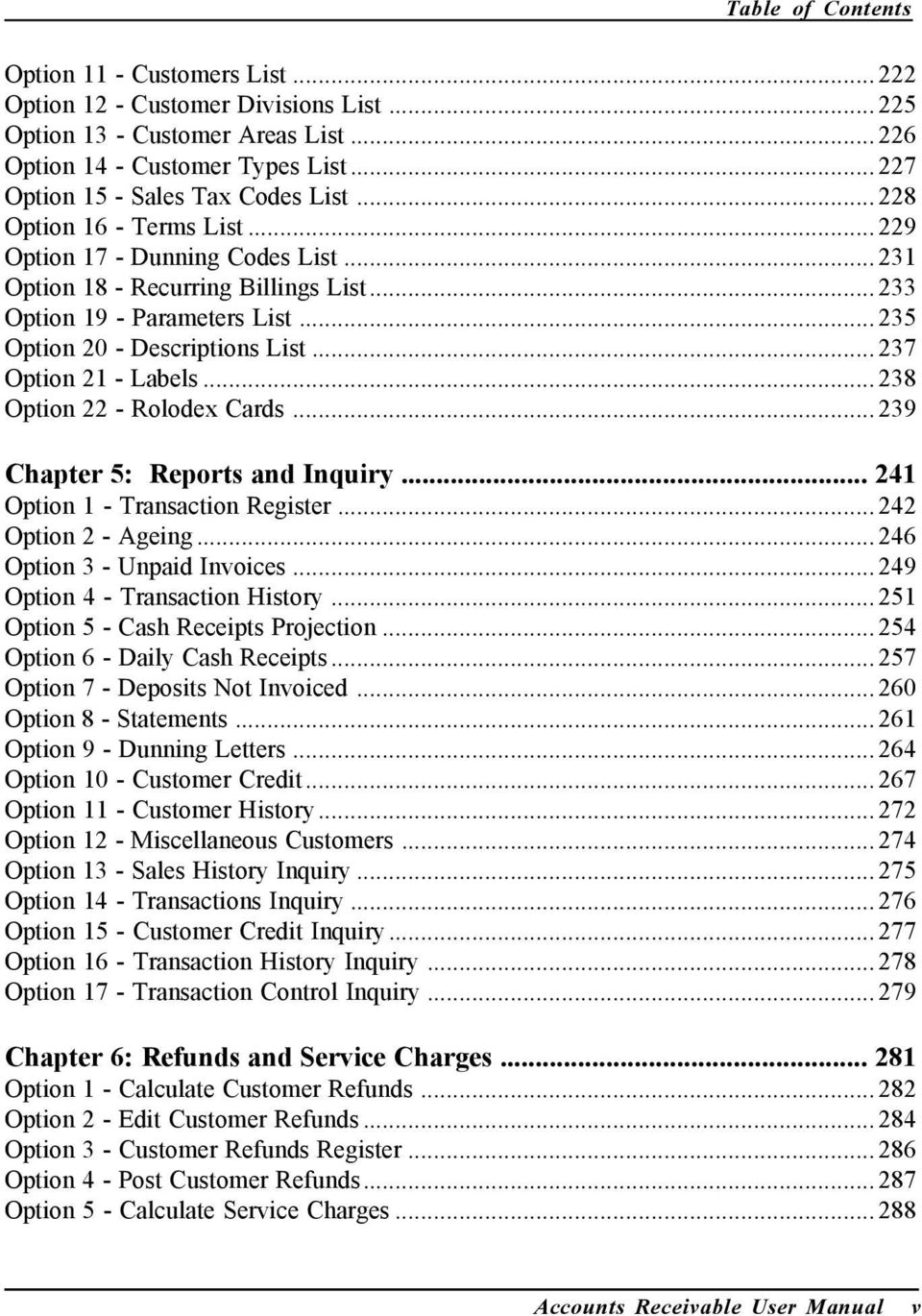
6 Table of Contents Option 6 - Edit Service Charges Option 7 - Service Charges Register Option 8 - Post Service Charges Option 9 - Write Off Service Charges Appendix A Introduction Entering Invoices Deposits Cash Receipts Payment for an Invoice Direct Sale Notes Receivable Service Charges Write-Off Service Charges Refunds vi Accounts Receivable User Manual

7 Chapter 1: General Information

8 1 General Information Introduction What Is Accounts Receivable? Accounts Receivable is a means by which you can record sales and send bills and statements to your customers. Simply put, Accounts Receivable keeps track of your company s revenues and your customer s unpaid bills. When a sale is recorded, an invoice is sent to the customer. Besides the total amount of money owed, the invoice usually contains information about any discount you may be offering your customer as incentive to pay the invoice in a timely fashion, and when the total amount of the invoice is due (the terms of the invoice); the products or services purchased by the customer; and the amount of freight or tax attributed to the purchase. The revenue is recorded as income when you post the invoice. Normally, when you post an invoice the system credits, or increases, the balance in a revenue account. Since the customer has not yet paid the invoice, the amount of the invoice also debits, or increases, an asset account called Accounts Receivable. Some examples of receivable accounts are Notes Receivable, Employee Loans Receivable, and Customer Accounts Receivable. The total amount in Accounts Receivable represents the total amount of revenues which have not yet been collected. If General Ledger is part of your system, Accounts Receivable postings also update the General Ledger balances, providing you with up-to-date financial information. The following T charts shown the effect of the posting of a $ invoice to a customer for the purchase of office supplies: DR Accounts Receivable CR DR Sales Income CR When the check is received from the customer, it is entered as a Cash Receipt. At this time you can record any discounts the customer has taken in addition to the discounts offered on the invoice. A cash receipt credit (decreases) Accounts Receivable; debits (increases) cash; and debits, or increases, any discount given account. Customer discounts are debits, usually to a contra-revenue account. Below is a T chart example of a cash receipt which includes a 2% discount amount. Assume it is payment for the invoice in the first example. 2 Accounts Receivable User Manual

9 General Information 1 DR Cash CR DR Accounts Receivable CR DR Discounts Given CR Cash Receipts can also be used to record sales that do no include an invoice (for example, a cash sale). This type of sale is called a Direct Receipt. With a direct receipt, the only record of the sale is the receipt itself and no receivable is incurred. Consequently, entry of a direct receipt debits (increases) the balance of the cash account instead of increasing the receivable. As with all sales, the offsetting credit amount increases the balance in a revenue account. The following T charts shown an example of a direct receipt for $50.00 of office supplies. DR Cash CR DR Sales Income CR Adjustments can be entered to make changes to invoices that you have already posted. You can adjust the amount of an invoice or change the revenue account to which the invoice was posted. The following T charts show a typical example of an adjustment to change the amount of an invoice. The invoice was originally entered for $ but actually should have been $ DR Accounts Receivable CR DR Sales Income CR For additional information and examples regarding postings to General Ledger from Accounts Receivable, refer to Appendix A of this manual. Accounts Receivable User Manual 3

10 1 General Information The Accounts Receivable Cycle Accounts Receivable is normally operated on a monthly accounting cycle. During the month you enter and post invoices as sales occur, enter and post adjustments as necessary, and enter and post cash receipts as they are received. Once a month you may want to generate service charges and/or dunning letters for invoices that are more than 30 or 60 days overdue. If you issue refunds, these should also be done once a month. Also, most businesses print statements for their customers once a month. At the end of the month, print the monthly reports and balance the Accounts Receivable for the current month and prepare for next month s processing. Reports can be printed and inquiries can be used to supply information at any time during the month. Purpose This manual provides instructions for using the Live Operations phase of the Accounts Receivable application. Use this manual as a guide for performing day-to-day and monthly procedures. The features described in this manual are included in the standard Accounts Receivable application. Any modification to the software or documentation is the responsibility of the software consultant who makes the modification. Contents In addition to an overview explaining the functions of the application, this manual includes: Sample screen displays Data field characteristics Instructions and explanations for valid entries Pertinent examples Default sort sequences Selection criteria for all outputs Sample reports, lists, and inquiries Other Manuals The APPX User Manual provides general information about starting up your system, making entries, printing, and using other features common to all APPX applications. It also includes overviews of the operational and accounting concepts that characterize the design of all APPX accounting software. Since the information contained in the APPX User Manual is not repeated in this or other APPX manuals, you should read it carefully prior to working with the system. 4 Accounts Receivable User Manual

11 General Information 1 The Accounts Receivable System Administration manual describes the Initial Setup phase and the Recovery Processing phase of the APPX Accounts Receivable application. The APPX User Manual, the Accounts Receivable System Administration manual, and this manual complete the set of user manuals which are available for the APPX Accounts Receivable application. For questions about the computer hardware used at your installation, please refer to the manuals provided by the hardware manufacturer. Phases APPX Accounts Receivable operates in three distinct phases: Initial Setup Live Operations Recovery Processing Initial Setup During Initial Setup, master files and system-maintained files can be set up and transaction history can be entered. Information entered during the Initial Setup phase provides the basis for Live Operations. Live Operations Live Operations is used to perform daily transaction processing, file maintenance, report generation and monthly processing functions. In Live Operations, invoices, cash receipts, and adjustments can be entered. Service charges and refunds can be generated, and invoices, deposit slips, dunning letters, and statements can be printed. Recurring Billings can also be generated. After printing journals for the necessary audit trail, transactions can be posted. Many different types of reports can be printed, and information can be viewed using a variety of inquiries. File maintenance can be performed on system master files. Recovery Processing There is a certain day-to-day risk of losing data due to sudden power surges or outages and other system problems. Recovery Processing is used to manually restore information to system-maintained files and fields which are normally not accessible during Live Operations. Accounting Audit Trails During Live Operations, the Transaction Processing, File Maintenance, and Reports and Inquiry menus provide functions used during day-to-day operation of the system. Accounts Receivable User Manual 5

12 1 General Information To process transactions, a three-step procedure is followed: (1) transaction entry; (2) printing journals; and (3) transaction posting, where records are integrated with permanent master files. Transaction Entry Entry of data occurs in groups, or batches, called Control Groups, which you should review prior to posting them to your master files. These groups are identified by user ID and control number, which allows each operator to process transactions separately from other operators. The system performs validation checks on all transactions when they are entered. Accounts Receivable may also receive customer invoice information from Order Entry. Journal Printing After transaction entry, the control groups must be printed on a journal before they can be posted. The journals should be reviewed or edited by the operator, or someone else in the department who can verify the entered data. Save the journals; they are an important part of your audit trail. During journal printing, the system performs validation checks on the data to ensure that it can be posted correctly., Errors and warnings may be printed on the journal and summarized at the end of the journal. A control group that prints with errors will not be allowed to post until the errors are corrected and the journal is reprinted without error. This process ensures that data is verified twice prior to being posted to permanent master files, and gives added assurance that erroneously entered data will not be posted to permanent files. Transaction Posting Once transactions have been entered and the journal has been printed without error, the control group is ready to be posted to our permanent master files. This process usually involves adding records to a system-maintained detail file, and summarizing the detail for historical records. Each transaction is deleted after it has been posted. Any errors encountered will be printed on an error log. During posting, Accounts Receivable may transfer sales information to Sales Analysis, commissions to Commission Accounting, and cash receipts to the Outstanding Checks file in Accounts Payable. In Accounts Receivable, the detail files are Month-to-Date Postings, Transactions, and Unpaid Invoices; historical records are maintained in the Customer History, Transaction Control, and Transaction History files. Modification Logs In all APPX applications, optional Modification Logs may be enabled to provide an additional degree of audit control over who makes changes to master files, and when such changes are made. When a modification log name is supplied to a file maintenance function, a record of all additions, deletions, and changes to that file is transferred to a print file. When additions to a file are made, all new field contents are shown; when deletions are done, the key value and all field contents are recorded; when 6 Accounts Receivable User Manual

13 General Information 1 changes are made, old field contents and new field contents are shown. In all cases, the user ID of the individual who performed the maintenance is printed, along with the date and time of the change. Examples of master files in Accounts Receivable are Customers, Terms, Customer Types, Customer Areas, Customer Divisions, Sales Tax Codes, Descriptions, and Recurring Billings. Modification logs are not enabled for transaction files such as Invoices, adjustments, or Cash Receipts. Major Functions APPX Accounts Receivable is designed to manage your customer accounts and facilitate positive cash flow for your company. Accounts Receivable functions control the maintenance of customer, invoice, and cash receipt data, as well as the processing of debit or credit memos, adjustments, refunds, and service charges. This data is used to generate sophisticated transactional analyses, and receivables reports and inquiries. Major functions include: Transaction Processing Monthly Processing File Maintenance Reports and Inquiry Refunds and Service Charges The features described in this manual are included in the APPX turnkey Accounts Receivable application. Any modification to the software or documentation is the responsibility of the software consultant who makes the modification. Application Features Accounts Receivable provides the accounting information required for analysis and control of your company s revenues. Invoices, Adjustments, and Cash Receipts are entered through an online user workstation, and detail or summary information generated from Order Entry can also provide input to Accounts Receivable. All transactions entering the system are controlled and processed against individual customer terms, occurs online and does not allow invalid or out-of-balance data to post to master files. During posting, Accounts Receivable transfers information to the General Ledger, Accounts Payable, Sales Analysis, and/or Commission Accounting applications. Accounts Receivable can support either twelve or thirteen financial periods per fiscal year. The fiscal year may be synchronized with or independent of the calendar year. Other applications may coincide with the Accounts Receivable accounting period, or may be ahead of or behind that used by Accounts Receivable. Transaction entry functions allow the user to specify the month and year to which a transaction is to be posted. Accounts Receivable User Manual 7

14 1 General Information The Close Month function within Accounts Receivable deletes historical data older than the number of months of history you choose to keep and prepares the files for the next accounting month. Customer Type and Area Customers can be categorized using Customer Types and Customer Areas. Many of the Accounts Receivable reports and updating functions can be sorted and selected by using these fields. For example, customers who are company employees that borrow funds from the company can be given their own Customer Type. Transaction Control On the Accounts Receivable Parameters file, there are two entries which allow you to define the level of transaction control detail that is appropriate for your business. These fields are labeled Ask for Operator ID? and Use Transaction Control?. Every transaction file is keyed by Operator ID and a sequential Control Number that is a part of your audit trail. If you enter N (No) for Ask for Operator ID?, the system will automatically assign the Operator ID and Control Number for each group of transactions, but the Control Number can be changed. No operator will be allowed to edit another operator s transactions. No control or hash totals will be kept, and no data will be posted to the Transaction Control file. If you enter Y (Yes) to Ask for Operator ID? and N (No) for Use Transaction Control?, the system will assign the Operator ID and Control Number for each group of transactions, but the Control Number can be changed. Additionally, any operator will be allowed to edit another operator s transactions. No control or hash totals will be kept, and no data will be posted to the Transaction Control file. If you enter Y (Yes) to Ask for Operator ID? and Y (Yes) to Use Transaction Control?, the system will assign the Operator ID and Control number to each group of transactions, but the Control Number can be changed. In addition, control and hash totals can be entered and will be balanced against the sum of the transactions. Each control group can have a unique description. An Operator Exclusive? option allows any operator to restrict access to his or her transactions. One record will be written to the Transaction Control file for each group of transactions posted, detailing the Operator ID, Control Number, Description, Number of Transactions and Last Transaction Posted, Total Amount Posted, Number of Errors, and Number of Warnings. This information can be printed on reports and viewed through an inquiry. Cash Flow For Cash flow forecasting purposes, Accounts Receivable provides a Cash Receipts Projection report. This report shows a projection of receivable amounts, based on either the invoice due date or the discount due date, for whatever time intervals you designate. 8 Accounts Receivable User Manual
15 General Information 1 Historical Information Accounts Receivable maintains historical information for several types of data. The Customer History file maintains total sales, total margin, the number of invoices, the high balance, and the total number of days it took to pay the invoices for each customer by month. You may choose to keep customer history by either calendar or fiscal year. On the Parameters file, you can specify the number of months of customer history you wish to keep. The Transaction History file saves invoice, receipt, and adjustment detail for each customer. When paid invoices are purged from the Current Transactions file at end of month, they are stored on the Transaction History file. On the Parameters file, you can specify the number of months of transaction history to keep. The Transaction Control file keeps a record of each control group of transactions that is posted. Operator ID, journal code, file posted, number of transactions, and total amount posted are among the types of information kept. This information is available in inquiry or as hard copy. As with the other types of history, you can specify the number of months of historical transaction control information to keep with an entry on the Parameters file. The advantage of saving data for an extended period of time is that it allows you online access to more information. The disadvantage of saving a great deal of historical information is that it consumes disk space and may affect system performance. Service Charges Service charges can be calculated by invoice, or by customer if you use the Summary Service Charges? field on the Parameters file. A response of Y (Yes) to this question will result in a single service charge invoice per customer; a response of N (No) to this question will result in a service charge invoice for each overdue invoice in the system. If you choose to issue individual service charge invoices, you can automatically write off services charges by using the Write Off? feature on the Customer master file. This Write Off field is attached to each invoice and can be modified either through Adjustments or through Cash Receipts entry. You can also issue service charges using the Average Daily Balance? feature available on the Parameters file. A response of Y (Yes) to this question will automatically cause a response of Y to the Summary Service Charges? question, and will result in a single service charge invoice per customer, based on the average daily balance in their account. The number of allowable days overdue, the percentage for calculating the service charge, and the minimum service charge amount are all maintained on the Terms file, and can therefore be different for each customer (or invoice, if you are calculating service charges on a detail basis). Accounts Receivable User Manual 9

16 1 General Information Customer Refunds Refunds can be generated for any invoice with a credit balance. Generated refunds are placed in a file which can be edited and printed on a Customer Refunds Register. The Customer Refunds Register must be printed before refunds can be posted. Posting refunds creates adjustments in Accounts Receivable and open invoices in Accounts Payable, which can then be paid in the normal fashion. If your system does not include Accounts Payable, you will be unable to process refunds in the manner described above. Dunning Letters and Statements The Dunning Letters feature allows you to set up a variety of different text options and assign different styles of letters to different customers. In addition, different types of text can be generated based on how many days overdue the oldest customer invoice is. Statements can be issued monthly, detailing each overdue invoice and any adjustments posted to it. Optionally, you can also print all detail for the current month, including any invoices that have been paid in full. Open Item or Balance Forward Customers You can keep current customer transactions either as open item or balance forward information. If you choose to keep a customer on an open item basis, all detail for any currently unpaid invoice will be kept until the end of the month in which the invoice is fully paid. This allows you to maintain a complete audit trail for any unpaid invoice. Alternatively, you can choose to keep a customer on a balance forward basis. In this case, at the end of each month, open transactions are summed into a single Balance Forward record and the detail is deleted. Any invoice that is not due until the following month is retained in detail however. The advantage of the balance forward basis is that it requires fewer disk resources because fewer transactions are maintained. It is possible to maintain both types of customers simultaneously. In other words, you can have some customers that are balance forward customers, and some that are open item customers. 10 Accounts Receivable User Manual
17 General Information 1 Application Interfaces The combination of Accounts Receivable and other APPX accounting applications, such as General Ledger, Order Entry, Inventory Control, Sales Analysis, and Commission Accounting, provides a fully integrated system for effective management and control of your business. There are many separate applications that can be installed, in whatever configuration best suits your requirements. Components of each application contribute to the overall effectiveness of the system. The particular combination which is most effective for your installation, as well as the specific way in which the applications interact, will be determined by the specialized needs of you company. Information contained in the master files of one application may be accessed, modified, updated, or even entered from another application. This eliminates the need for duplication in entering and storing information, thereby saving valuable computer storage space and increasing accuracy. Accounts Receivable may be installed as a stand-alone application, or as part of a system that includes General Ledger, Budget Analysis, General Subsidiary, Accounts Payable, Inventory Control, Purchase Orders, Order Entry, Commission Accounting, and Sales Analysis. In a multi-application system, data can be exchanged between applications. If your system includes Order Entry, Accounts Receivable receives customer invoice postings from that application. Operation of Order Entry requires the existence of Accounts Receivable and Inventory Control. Information from Accounts Receivable is sent to General Ledger, General Subsidiary, Sales Analysis, Commission Accounting, and Accounts Payable. However, none of these applications are necessary for the functioning of Accounts Receivable. If General Ledger is not installed, however, account verification will not be performed within Accounts Receivable. Accounts Receivable User Manual 11

18 1 General Information Accounts Receivable This is the Accounts Receivable application main menu. It allows you to access Accounts Receivable submenus. Figure 1. The Accounts Receivable Application Main Menu 12 Accounts Receivable User Manual

19 Chapter 2: Transaction Processing

20 2 Transaction Processing Transaction Processing This menu allows you to enter transaction data, print journals, and post transactions. Recurring billings generation and invoice and deposit slip printing are also available from this menu. Figure 2. The Accounts Receivable Transaction Processing Menu Option 1 - Invoices Entry Use this function to enter and edit customer invoices. You also have the option of entering invoices through the Invoices Rapid Entry function. Invoices can be entered or edited using either function; however, some data items are not available for editing in Rapid Entry. The normal process of posting invoices includes: 1) entering the invoices; 2) printing the invoices and the Invoices Journal; and 3) posting the invoices. If the journal shows any errors, the errors must be corrected and the journal reprinted. If the journal has been printed and some of the data is modified, the journal must be reprinted before the data can be posted. On the following pages, the five screens displayed by this function are shown. The screen shown below presents information about Invoice Control Groups. When you enter invoices, you will see only one of the two possible screens for Invoice Control Groups. Which screen you see will depend on how you answered two questions on your Parameters file. These are the Ask Operator ID? question, and the Use Transaction Control question. If you answered Y to both questions, you will see the screen below, and you will be able to enter 14 Accounts Receivable User Manual

21 Transaction Processing 2 control and hash totals for your invoices. In addition, a record will be written to the Transaction Control file for each control group posted. If you answered Y to Ask operator ID?, and N to Use Transaction Control?, you will see the second screen, which displays only the Operator ID and the Control Number. If you answered N to both questions, you will see the second screen, but you will not be allowed to edit the Operator ID. Figure 3. The Accounts Receivable Invoices Control Groups Screen When the key value for a particular record is requested, you can review all the records in the file by selecting the Scan option. The records will be presented on an Access screen, and you will be allowed to scan the available data until you find the record you want. Then, position the cursor by that record and press ENTER the record will be displayed for editing. Data items for the preceding screen are described below: Operator ID Enter an upper case alphanumeric field, up to 3 characters in length. Only number and letters are acceptable. This field is required. In ADD mode, this field will automatically be saved from one record to the next. The operator ID which you entered at log-on is displayed. All control groups are separated by operator. Accounts Receivable User Manual 15
22 2 Transaction Processing Control No Enter a positive number with up to 7 digits. A sequential number is supplied to identify this group of invoices. This number is printed on the journal, tracked on the Transaction control file, and posted to General Ledger for detail accounts. Although it is not necessary that this number be exactly sequential, the number itself is important as a part of your audit trail. Operator Exclusive? Enter Y (Yes) or N (No). the initial default value is N. This field is required. Indicate whether or not you want to restrict access to these invoices. Y: Yes, access should be restricted to the user who enters the invoices. N: No, access is not restricted. Any user can edit these invoices. Description Enter an alphanumeric field, up to 30 characters in length. This field is required. Describe this group of invoices. This description appears on the Transaction Control report and inquiry. Control Total Enter a number with up to 9 digits to the left of the decimal and 2 digits to the right of the decimal. Supply the total of all invoices. This total is balanced against the running total being kept by the system as each transaction is entered. Customer Hash Total Enter a positive number with up to 12 digits. Supply the hash total of all customer numbers on this group of invoices. Any discrepancy between the hash total entered and the calculated hash total may represent transposition errors on one or more customer numbers. Print Journal? Enter Y (Yes) or N (No). The initial default value is Y. This field is required. Y is displayed to indicate that these invoices are ready for printing. Enter N if you want to delay the printing of the journal for any reason. 16 Accounts Receivable User Manual
23 Transaction Processing 2 Journal OK? The system displays Y (Yes) or N (No). The initial default value is N. This indicates whether or not the journal has been printed without errors. If N, the control group may contain errors and cannot be posted. Invoices Printed? The system displays Y (Yes) or N (No). The initial default value is N. This indicates whether or not invoices have been printed for this control group. The printing of invoices is optional. Post Now? Enter Y (Yes) or N (No). the initial default value is Y. This field is requires. Y is displayed to indicate that these invoices are ready for posting. Enter N if you want to delay posting for any reason. The entered data is validated. During validation, including access to other files, conditions may be found which cause messages to be displayed. Errors (E), Warnings (W), and Messages (M) that may result are shown below: E This Control Group Has Already Been Used For Invoice Posting E This Operator s Data May Not Be Edited - Posting Was Started E You May Not Change Data Entered By the Original Operator Press ENTER to continue to the next screen. Select Next Record to go to the next Invoice Control Groups record. At this screen, the use of the MODE keys - ADD, DEL, CHG, or INQ - pertain to those records in the Invoice Control Groups file. This screen may optionally be used to display information about Invoice Control Groups. Accounts Receivable User Manual 17
24 2 Transaction Processing Figure 4. The Accounts Receivable Invoices Operator ID Screen When the key value for a particular record is requested, you can review all the records in the file by selecting the Scan option. The records will be presented on an Access screen, and you will be allowed to scan the available data until you find the record you want. Then, position the cursor by that record and press ENTER; the record will be displayed for editing. Data items for the preceding screen are described below: Operator ID Control No Enter an upper case alphanumeric field, up to 3 characters in length. Only numbers and letters are acceptable. This field is required. In ADD mode, this field will automatically be saved from one record to the next. The operator ID which you entered at log-on is displayed. All control groups are separated by operator. Enter a positive number with up to 4 digits. A sequential number is supplied to identify this group of invoices. This number is printed on the journal, tracked on the Transaction Control file, and posted to General Ledger for detail accounts. Although it is not necessary that this number be exactly sequential, the number itself is important as a part of your audit trail. The entered data is validated. During validation, including access to other files, conditions may be found which cause messages to be displayed. Errors (E), Warnings (W), and Messages (M) that may result are shown below: 18 Accounts Receivable User Manual
25 Transaction Processing 2 E This Operator s Data May Not Be Edited - Posting Was Started Press ENTER to continue to the next screen. Select Next Record to go to the next Invoice Control Groups record. At this screen, the use of the MODE keys - ADD, DEL, CHG, or INQ - pertain to those records in the Invoice Control Groups file. The screen shown below presents information about Invoices. This file contains information that applies to the entire invoice, such as customer number, terms code, total invoice amount, freight, and sales tax. Figure 5. The Accounts Receivable Invoices Screen When the key value for a particular record is requested, you can review all the records in the file by selecting the Scan option. The records will be presented on an Access screen, and you will be allowed to scan the available data until you find the record you want. Then, position the cursor by that record and press ENTER; the record will be displayed for editing. Note that the Audit Info option is available at the bottom of this screen. When this option is invoked, the Audit Information overlay appears and displays the date the record was created and who created it, as well as the date the record was last modified and who modified it. Press the END key or the RETURN key to clear the overlay from your screen. The information displayed in the Audit Information overlay is system-supplied and non-modifiable. Accounts Receivable User Manual 19
26 2 Transaction Processing Data items for the preceding screen are described below: Transaction No The system displays a positive number with up to 4 digits. A sequential transaction number is supplied for each invoice. This number is printed on the journal, and posted to General Ledger for detail accounts. Although it is not necessary that this number be exactly sequential, the number itself is important as a part of your audit trail. It is printed on many reports and inquiries throughout Accounts Receivable. Transaction Type Enter a positive number with 1 digit. In ADD mode, this field will automatically be saved from one record to the next. The system displays a 1-digit code that identifies this type of transaction, along with the description entered for that code on the Descriptions file. The system defaults to an accounts receivable invoice (type 1). However, this value may be changed. If changed, the new description is displayed for verification. Valid choices are: 1: AR Invoice transaction is entered as an invoice through A/R. 2: Debit/Credit Memo transaction reflects a debit or credit memo issued. 6: Service Charge transaction is a service charge on a past-due invoiced. The transaction Type prints on the Transaction Register and the General Ledger Distribution reports. Customer Enter an upper case alphanumeric field, up to 8 characters in length. Only numbers are acceptable. You can use PF2 to search for an appropriate entry. Identify the customer who is receiving this invoice. The customer number must be on file in the Customers file; the system displays the customer name so that you can verify your entry. Post Month Enter an upper case alphanumeric field, up to 2 characters in length. Only numbers and letters are acceptable. Valid entries are 01, 02, 03, 04, 05, 06, 07, 08, 09, 10, 11, 12, 13 and EY. This field is required, In ADD mode, this field will automatically be saved from one record to the next. Identify the month to which this transaction is to be posted. The current calendar month is supplied from the Parameters file; if you want to post to a prior or future month, you can change it. If your system is based on 12 accounting periods, enter the calendar month; if you 20 Accounts Receivable User Manual
27 Transaction Processing 2 are using 13-period accounting, enter the fiscal period. Valid entries and their meanings are: 1-13: Calendar period EY: End-of-Year Post Year Enter a positive number with up to 2 digits. In ADD mode, this field will automatically be saved from one record to the next. Identify the year to which this transaction is to be posted. The current calendar year is supplied from the Parameters file; if you want to post to a prior or future year you can change it. If you are using 12-month accounting, this will be the calendar year; if you are using 13 period accounting, this will be the fiscal year. NOTE: A value of zero in the Post Year will cause the transaction to be posted to the year Invoice Number Enter an upper case alphanumeric field, up to 8 characters in length. This field is required. Identify the invoice number for this invoice, debit memo, or credit memo. Apply To Enter an upper case alphanumeric field, up to 8 characters in length. This field is required. This field identifies the invoice to which the transaction applies. By default, the system displays the Invoice Number in this field for Invoice transaction types. For debit or credit memos, you must enter this field; you may want the Apply To to reference the original invoice. In any case, you may override the display. Order No Enter a positive number with up to 6 digits. Identify the sales order to which this invoice applies, if any. If the Order Entry application is part of your system, this number must be on file in the Sales Orders file. If there is a deposit associated with this invoice, you should have already entered the deposit as a cash receipt using the order number as the Paid Invoice, and posted the cash receipt; enter that order number here. Invoice Amount Enter a number with up to 7 digits to the left of the decimal and 2 digits to the right of the decimal. Accounts Receivable User Manual 21
28 2 Transaction Processing Provide the net invoice amount. The Invoice Amount is calculated by this formula: Amount = Subtotal - Customer Discount - Deposit + Freight + Sales Tax For a credit memo, enter a negative amount. NOTE: The subtotal as listed above, is defined as the sum of all the invoice line items excluding any memo items. Subtotal The system displays a number with up to 7 digits to the left of the decimal and 2 digits to the right of the decimal. The sum of the invoice line items, excluding any memo items, is displayed. This subtotal is calculated using the formula listed under Invoice Amount, above. A memo line item might be a detail entry for freight or sales tax, which is also supplied in the invoice record itself. See the documentation on Discount, Freight, and Sales Tax below for additional explanation. Deposit Enter a number with up to 7 digits to the left of the decimal and 2 digits to the right of the decimal. Identify the prepaid deposit on this invoice, if any. This amount is debited to the Deposit account identified in the Parameters file. Deposits should be entered and deposited as cash receipts, using the Order No as the Paid Invoice number, before the invoice is posted. If you enter an amount in this field, you must identify the Order No that was used as the Paid Invoice number when the cash receipt was posted, so that the system can track the deposit properly. Invoice Date Enter a date (YMD). This field is required. Supply the date of the invoice. Terms Enter a positive number with up to 3 digits. You can use PF2 to search for an appropriate entry. The system displays the terms code from the Customers record; you can override the display. The system also displays the description from the terms file so that you can verify your entry. 22 Accounts Receivable User Manual
29 Transaction Processing 2 Due Date Enter a date (YMD). This field is required. The system displays the due date based on the invoice date and terms for this customer. You may change this date. Description Customer PO Enter an alphanumeric field, up to 30 characters in length. Describe this invoice. This description will be printed on various reports throughout Accounts Receivable. If you leave this field blank, the system will use the customer s Purchase Order number as the description. Enter an alphanumeric field, up to 10 characters in length. Supply the customer s Purchase Order number, if any. If the Description field is left blank, the system will use the customer s PO number in its place. The PO number prints on the invoice; the description prints on statements and dunning letters. Tax Code Enter a positive number with up to 3 digits. You can use PF2 to search for an appropriate entry. The system displays the Tax Code entered on the Customers record from the Tax Codes file; you can override the display. The system also displays the corresponding description so that you can verify your entry. Discount Enter a number with up to 7 digits to the left of the decimal and 2 digits to the right of the decimal. For an invoice (transaction type 1), supply any discount offered to this particular customer, independent of the usual terms discount. This amount is debited to the Customer Discount account identified in the Parameters file. You can enter the customer discount here and enter type 2 (customer discount) line items. In this case, the line items are memo-only; that is, they are printed on the invoice but not posted to General Ledger. Rather, the General Ledger posting is taken from this field as described above. If you leave this field blank and enter discount line items, the General Ledger posting will be made to the account numbers supplied on the line items. Accounts Receivable User Manual 23
30 2 Transaction Processing Tax District Enter an alphanumeric field, up to 5 characters in length. The system displays the Tax District entered on the Customers record; you can override the display. The tax district must be valid for any Tax Code you entered. Sales Tax Enter a number with up to 7 digits to the left of the decimal and 2 digits to the right of the decimal. For an invoice (transaction type 1) or a debit/credit memo (transaction type 2), supply the sales tax for all line items, if any. This is the amount of tax that is billed to the customer. This amount is credited to the sales tax liability account entered for the tax district in the Tax Codes file. You can enter the sales tax here and enter type 4 (sales tax) line items. In this case, the line items are memo only; that is, they are printed on the invoice but not posted to General Ledger. Rather, General Ledger is posted using this amount as described above. If you leave this field blank and enter sales tax line items, the General Ledger posting will be made to the account numbers supplied on the line items. Freight Enter a number with up to 7 digits to left of the decimal and 2 digits to the right of the decimal. If there are any freight charges, identify them. This amount is credited to the Freight Out account identified in the Parameters file. You can also enter the freight amount here and enter type 3 (freight) line items. In this case, the line items are memo only: that is, they are printed on the invoice, but not posted to General Ledger. Rather, the General Ledger is posted using this amount, as described above. If you leave this field blank and enter freight line items, the General Ledger posting will be made to the account numbers supplied on the line items. Receivable Account Enter an upper case alphanumeric field, up to 12 characters in length. This field is required. You can use PF2 to search for an appropriate entry. Supply the account that should be debited when this invoice is posted. By default, the system displays the receivable account for the customer from the Customer s record. You may change this account number. If the General Ledger application is part of the system, the account number must be on file in the Chart of Accounts file, and the system displays the description of this account so that you can verify your entry. 24 Accounts Receivable User Manual
31 Transaction Processing 2 Salesperson Enter a positive number with up to 3 digits. You can use PF2 to search for an appropriate entry. If your system includes Commission Accounting, you may supply up to two codes from the Salespersons file to identify the salesperson(s) who made or received credit for the sale. The system displays the corresponding salesperson Alpha entry from that file so that you can verify your entry. If your system does not include Commission Accounting, you can make an entry here for your information. Comm Pct Enter a positive number with up to 3 digits to the left of the decimal and 1 digits to the right of the decimal. This field specifies the percentage used to calculate the commission earned by the salesperson you entered. If your system includes Commission Accounting, the system displays the Commission Percent from the Salespersons record for each salesperson that you entered. You can override the display. If your system does not include Commission Accounting, you can make an entry here for your information. Comm Basis Enter a positive number with up to 3 digits to the left of the decimal and 2 digits to the right of the decimal. Provide the percentage of the commissionable dollars that each Salesperson is allocated for this order. This percentage is applied either to the Subtotal or to each line item, depending on the entry in the Comm on Sub? field. If the commission is split between two salespeople, the first entry represents the percentage that the first salesperson receives, and the second entry represents the percentage that the second salesperson receives. If Commission Accounting is part of the system, the first entry defaults to 100 and the second to 0. You can override these defaults. These entries do not need to add up to 100. Any overage or underage will be posted to the House Account in Commission Accounting. Accounts Receivable User Manual 25
32 2 Transaction Processing Comm on Sub? Enter Y (Yes) or N (No). Specify the amount on which commissionable dollars are to be calculated. Valid entries are: Y: The invoice Subtotal amount N: Each individual line item amount Leave this field blank if commissions will not be calculated. The entered data is validated. During validation, including access to other files, conditions may be found which cause messages to be displayed. Errors (E), Warnings (W), and Messages (M) that may result are shown below: E Blank Not Permitted If Deposit Amount Entered E Cannot Post to a Heading Account E Cannot Post to a Summary Account E Cannot Post to the 13th Month in a 12 Month Fiscal Year E Invalid Application Type E Invalid Transaction Type E No Sales Tax Will Be Posted for This Invoice E Tax District Has No Account Number; G/L Will Be Out of Balance W Invoice Already on File W Invoice Not on File W Post Month is Previous to Parameters Calendar Month W Post Year of Zero Will Be Treated as the Year 2000 Press ENTER to display system-supplied information and then press ENTER again to continue to the next screen. Select Previous Image to go back to the Invoice Control Groups screen. Select Next Record to go to the next Invoices record. Select End to go to the next Invoice Control Groups record. At this screen, the use of the MODE keys - ADD, DEL, CHG, or INQ - pertain to those records in the Invoices file. The screen below presents additional information about Invoices. 26 Accounts Receivable User Manual
33 Transaction Processing 2 Figure 6. The Accounts Receivable Invoice - Customer Address Screen When the key value for a particular record is requested, you can review all the records in the file by selecting the Scan option. The records will be presented on an Access screen, and you will be allowed to scan the available data until you find the record you want. Then, position the cursor by that record and press ENTER; the record will be displayed for editing. Data items for the preceding screen are described below: Miscellaneous Customer Name Enter an alphanumeric field, up to 30 characters in length. Supply the name of this miscellaneous customer. This information will be printed on the invoice and several reports throughout Accounts Receivable. Address 1 Enter an alphanumeric field, up to 30 characters in length. Provide the first address line for this miscellaneous customer. You may want to list the shipping address in the first line and the mailing address in the second line. Address 2 Enter an alphanumeric field, up to 30 characters in length. Provide the second address line for this miscellaneous customer, if applicable. You may want to list the shopping address in the first address line and the mailing address in the second address line. Accounts Receivable User Manual 27
34 2 Transaction Processing City Enter an alphanumeric field, up to 20 characters in length. Supply the city for this miscellaneous customer. State Enter an upper case alphanumeric field, up to 2 characters in length. Provide the two-character standard abbreviation for the miscellaneous customer s state. Zip Enter an upper case alphanumeric field, up to 10 characters in length. Supply the zip code for this miscellaneous customer. Country Enter an alphanumeric field, up to 20 characters in length. Provide the country of this miscellaneous customer, if necessary. Press ENTER to continue to the next screen. Select Previous Image to go back to the Invoice Control Groups screen. Select Next Record to go to the next Invoices record. Select End to go to the next Invoice Control Groups record. At this screen, the use of the MODE keys - ADD, DEL, CHG, or INQ - pertain to those records in the Invoices file. The screen shown below presents information about Invoice Line Items. This file identifies and describes the individual purchases made by the customer. 28 Accounts Receivable User Manual
35 Transaction Processing 2 Figure 7. The Accounts Receivable Invoices Line Items Screen When the key value for a particular record is requested, you can review all the records in the file by selecting the Scan option. The records will be presented on an Access screen, and you will be allowed to scan the available data until you find the record you want. Then, position the cursor by that record and press ENTER; the record will be displayed for editing. Data items for the preceding screen are described below: Line Item Enter a positive number with up to 3 digits. The system automatically number line items in sequence beginning with 1. You may return to this field and change the number. However, each line item must be identified by a unique number. Quantity Enter a number with up to 7 digits to the left of the decimal and 2 digits to the right of the decimal. Supply the number of items sold. If units do not apply here, enter 1. For a credit memo or a discount line item, enter a negative number. Price Enter a positive number with up to 6 digits to the left of the decimal and 3 digits to the right of the decimal. Accounts Receivable User Manual 29
36 2 Transaction Processing Supply a unit price for the item being sold. If the price per unit does not apply here, enter the line item amount. Amount Enter a number with up to 7 digits to the left of the decimal and 2 digits to the right of the decimal. The system calculates and displays the line item amount based on the Quantity and Price. This number is rounded to 2 decimal positions. The Amount, Quantity, and Price fields are interrelated. Thus, if you change the Quantity or Price, the Amount is recomputed. If you change the Amount, the Price is recomputed. Item Code Enter an alphanumeric field, up to 16 characters in length. Identify the inventory item code of the product or service being sold, if appropriate. If Inventory Control is part of your system, your entry must be on file in the Inventory Products file. Description Enter an alphanumeric field, up to 30 characters in length. If your system includes Inventory control, the system displays the description (from the Inventory Products file) of the item code you entered in the previous field. You can override the display. If your system does not include Inventory Control, you can provide a description of the line item. This entry is printed on invoices, the invoices journal, and the Sales GL Distribution report. Item Type Enter a positive number with 1 digit. Enter a 1-digit code from the Descriptions file that identifies the type of line item. The system displays the description next to this field. Valid codes are: 0: Taxable Sale; 1: Nontaxable Sale; 2: Customer Discount; 3: Freight; 4: Sales Tax; 5: Other If an entry was made in the Customer Discount field on the header screen, a type 2 line item is memo only. That is, it printed on the invoice but not posted to General Ledger. If no entry was made in the Customer Discount field on the header, a type 2 line item is posted to the offset account entered for the line item. The same holds true for the Freight and Sales Tax fields on the header and type 3 and 4 line items, respectively. If no entry was made on the header, the line item is posted to the offset account. If an entry was made on the header, the line item is memo only. 30 Accounts Receivable User Manual
37 Transaction Processing 2 Cost Enter a number with up to 6 digits to the left of the decimal and 3 digits to the right of the decimal. Identify the total Cost of Goods Sold for this line item. If your system includes Order Entry, and if this invoice was entered through Order Entry, the system displays the cost that was calculated in Order Entry for this line item. You can override the display; if your system does not include Order Entry, supply the total Cost of Goods for this line item. This field is used to calculate margins for reports and inquiries. It is not posted to General Ledger. Offset Account Enter an upper case alphanumeric field, up to 12 characters in length. You can use PF2 to search for an appropriate entry. The offset account is defaulted from the customer s record. You may override this entry. This is the account to which the line item amount will be posted. For invoices, freight, sales tax, and debit memos, this account is credited. For credit memos and discounts, this account is debited. If your system includes General Ledger, this account number must be on file in the Chart of Accounts file. The system displays the corresponding description so that you can verify your entry. Comm Percent Enter a positive number with up to 3 digits to the left of the decimal and 1 digit to the right of the decimal. If you entered N for Comm on Sub? on the invoice header, enter the commission percent to be paid on this line item. Sub Type Enter an upper case alphanumeric field, up to 2 characters in length. Only letters are acceptable. The system displays the subsidiary type for the account, as defined in General Ledger. This reflects the subsidiary to which this line item will be posted. If General Ledger is not part of your system, you may enter any value in this field. The transactions that are posted to various subsidiary types and codes can be printed on the Subsidiary Codes GL Distributions report on the Monthly Processing menu. Accounts Receivable User Manual 31
38 2 Transaction Processing Sub Code Enter an upper case alphanumeric field, up to 1 characters in length. Supply a subsidiary code if this line item is to be posted to a subsidiary costing application. If the sub type is GL, it is assumed that the transaction will flow through to General Subsidiary. You cannot enter a subsidiary code if the subsidiary type is blank; conversely, if the subsidiary type is not blank you must enter a subsidiary code. The transactions that are posted with the various subsidiary types and codes can be viewed on the Subsidiary Code GL Distributions report on the Monthly Processing menu. The entered data is validated. During validation, including access to other files, conditions may be found which cause messages to be displayed. Errors (E), Warnings (W), and Messages (M) that may result are shown below: E Amount Must Have The Same Numeric Sign As Quantity E Cannot Have Sub Code With Blank Sub Type E Cannot Have Sub Type With Blank Sub Code E Cannot Post to a Heading Account E Cannot Post to a Summary Account E Invalid Application Type E Item Must Be Entered E Quantity Times Price Exceeds Maximum Value of Amount E Sales Tax Cannot Be Posted - No Tax District Was Specified E Subsidiary Code Not on Subsidiary Codes by Account File E Subsidiary Codes by Account File Does Not Exist Press ENTER to display system-supplied information and then press ENTER again to save the information on this screen. Select Pervious Image to go back to the Invoices screen. Select Next Record to go to the next Invoice Line Items record. Select End to go to the next Invoices record. At this screen, the use of the MODE keys - ADD, DEL, CHG, or INQ - pertain to those records in the Invoice Line Items file. 32 Accounts Receivable User Manual
39 Transaction Processing 2 Option 2 - Cash Receipts Use this function to enter a debit cash receipts. You can also enter cash receipts using the Cash Receipts - Automatic function on this menu. The Automatic function will apply the cash beginning with the oldest invoices, and then allow you to edit the applied cash receipts. The normal process of posting cash receipts includes: 1) entering the cash receipts; 2) printing the Cash Receipts Journal; and 3) posting the cash receipts. If the journal shows any errors, the errors must be corrected and the journal reprinted. If the journal has been printed and some of the data is modified, the journal must be printed before the data can be posted. On the following pages, the four screens displayed by this function are shown. The screen shown below presents information about Cash Receipts control Groups. When you enter cash receipts, you will see only one of the two possible screens for Cash Receipts Control Groups. Which screen you see will depend on how you answered two questions on you Parameters file. These are the Ask Operator ID? question, and the Use Transaction Control? question. If you answered Y to both questions, you will see the screen below, and you will be able to enter control and hash totals for your invoices. In addition, a record will be written to the Transaction Control file for each control group posted. If you answered Y to Ask Operator ID?, and N to Use Transaction Control?, you will see the second screen, which displays only the Operator ID and the Control Number. If you answered N to both questions, you will see the second screen, but you will not be allowed to edit the Operator ID. Accounts Receivable User Manual 33
40 2 Transaction Processing Figure 8. The Accounts Receivable Cash Receipts Control Group Screen When the key value for a particular record is requested, you can review all the records in the file by selecting the Scan option. The records will be presented on an Access screen, and you will be allowed to scan the available data until you find the record you want. Then, position the cursor by that record and press ENTER; the record will be displayed for editing. Data items for the preceding screen are described below: Operator ID Enter an upper case alphanumeric field, up to 3 characters in length. Only number and letters are acceptable. This field is required. In ADD mode, this field will automatically be saved from one record to the next. The system displays the operator ID you entered at log-on. All transactions are separated by operator. Control No Enter a positive number with up to 4 digits. A sequential number is supplied to identify this group of cash receipts. This number is printed on the journal, tracked on the Transaction Control file, and posted to General Ledger for detail accounts. Although it is not necessary that this number be exactly sequential, the number itself is important as a part of your audit trail. 34 Accounts Receivable User Manual
41 Transaction Processing 2 Operator Exclusive? Enter Y (Yes) or N (No). The initial default value is N. This field is required. Indicate whether or not you want to restrict access to these cash receipts. Y: Yes, access should be restricted to the user who enters the receipts. N: No, access is not restricted. Any user can edit these cash receipts. Description Enter an alphanumeric field, up to 30 characters in length. This field is required. Describe this group of cash receipts. This description appears on the Transaction Control report and inquiry. Control Total Enter a number with up to 9 digits to the left of the decimal and 2 digits to the right of the decimal. Sum all of the checks in this control group, and enter the total. Customer Hash Total Enter a positive number with up to 12 digits. Supply the hash total of all customer number on the group of cash receipts. Any discrepancy between the hash total enter and the calculated hash total may represent transposition errors on one or mare customer numbers. Print Journal? Enter Y (Yes) or N (No). The initial default value is Y. This field is required. Y is displayed to indicate that these cash receipts are ready for posting. Enter N if you want to delay printing of the journal for any reason. Journal OK? The system displays Y (Yes) or N (No). The initial default value is N. This indicates whether or not the journal has been printed without errors. If N, the control group may contain errors and cannot be posted. Accounts Receivable User Manual 35
42 2 Transaction Processing Post Now? Enter Y (Yes) or N (No). The initial default value is Y. this field is required. Y is displayed to indicate that these cash receipts are ready for postings. Enter N if you want to delay posting for any reason. The entered data is validated. During validation, including access to other files, conditions may be found which cause messages to be displayed. Errors (E), Warnings (W), and Messages (M) that may result are shown below: E This Control Group Has Already Been Used For Receipts Posting E This Operator s Data May Not Be Edited - Posting Was Started E You May Not Change Data Entered By the Original Operator Press ENTER to continue to the next screen. Select Next Record to go to the next Cash Receipts Control Groups record. At this screen, the use of the MODE keys - ADD, DEL, CHG, or INQ - pertain to those records in the Cash Receipts Control Groups file. This screen may optionally be used to display information about Cash Receipts Control Groups. Figure 9. The Accounts Receivable Cash Receipts Operator ID Screen When the key value for a particular record is requested, you can review all the records in the file by selecting the Scan Option. The records will be presented on an Access screen, and you will be al- 36 Accounts Receivable User Manual
43 Transaction Processing 2 lowed to scan the available data until you find the record you want. Then, position the cursor by that record and press ENTER; the record will be displayed for editing. Data items for the preceding screen are described below: Operator ID Enter an upper case alphanumeric field, up to 3 characters in length. Only number and letters are acceptable. This field is required. In ADD mode, this field will automatically be saved from one record to the next. The system displays the operator ID you entered at log-on. All transactions are separated by operator. Control No Enter a positive number with up to 4 digits. A sequential number is supplied to identify this group of cash receipts. This number is printed on the journal, tracked on the Transaction Control file, and posted to General Ledger for detail accounts. Although it is not necessary that this number be exactly sequential, the number itself is important as a part of your audit trail. The entered data is validated. During validation, including access to other files, conditions may be found which cause messages to be displayed. Errors (E), Warnings (W), and Messages (M) that may result are shown below: E This Operator s Data May Not Be Edited - Posting Was Started Press ENTER to continue to the next screen. Select Next Record to go to the next Cash Receipts Control Groups records. At this screen, the use of the MODE keys - ADD, DEL, CHG, or INQ - pertain to those records in the Cash Receipts Control Groups file. The screen shown below presents information about cash Receipts. This file contains information pertaining to the entire receipt: customer, date, amount, check number, and cash account. Accounts Receivable User Manual 37
44 2 Transaction Processing Figure 10. The Accounts Receivable Cash Receipts Screen When the key value for a particular record is requested, you can review all the records in the file by selecting the Scan option. The records will be presented on an Access screen, and you will be allowed to scan the available data until you find the record you want. Then, position the cursor by that record and press ENTER; the record will be displayed for editing. Note that the Audit Info option is available at the bottom of this screen. When this option is invoked, the Audit Information overlay appears and displays the date the record was created and who created it, as well as the date the record was last modified and who modified it. Press the END key or the RETURN key to clear the overlay from your screen. The information displayed in the Audit Information overlay is system-supplied and non-modifiable. Data items for the preceding screen are described below: Trx No The system displays a positive number with up to 4 digits. A sequential transaction number is supplied for each check record. This number is printed on the journal, and posted to General Ledger for detail accounts. Although it is not necessary that this number be exactly sequential, the number itself is important as a part of your audit trail. It is printed on many reports and inquires throughout Accounts Receivable. 38 Accounts Receivable User Manual
45 Transaction Processing 2 Check Number Enter a positive number with up to 9 digits. Supply the number imprinted on the check. Customer Enter an upper case alphanumeric field, up to 8 characters in length. Only numbers are acceptable. This field is required. You can use PF2 to search for an appropriate entry. Identify the customer who issued this check. The customer number must be on file in the Customers file. The system displays the customer name so that you can verify your entry. Check Amount Enter a number with up to 7 digits to the left of the decimal and 2 digits to the right of the decimal. If this cash receipt applies to the receivable accounts entered on the line items, the Check Amount is given by this formula: Check Amount = Credit Amount - Discount Given - Write Off Amount Alternatively, if this cash receipt applies to the Direct Accounts entered on the line items, the Check Amount is given by this formula: Check Amount = Direct Amount - Discount Given Direct, Credit, and Write Off amounts, as well as Discount Given, are entered on the line item screens for this cash receipt. Date Enter a date (YMD). This field is required. In ADD mode, this field will automatically be saved from one record to the next. This is the date the check was received (deposited), not the date printed on the check. Post Month Enter an upper case alphanumeric field, up to 2 characters in length. Only numbers and letters are acceptable. Valid entries are 01, 02, 03, 04, 05, 06, 07, 08, 09, 10, 11, 12, 13 and EY. This field is required. In ADD mode, this field will automatically be saved from one record to the next. Identify the month to which this transaction is to be posted. The current month defined in the Parameters file is supplied; if you want to post to a prior or future month, you can change it. If your system is based on 12 accounting periods, enter the calendar month; if you are using 13-period accounting, enter the fiscal period. Valid entries and their meanings are: Accounts Receivable User Manual 39
46 2 Transaction Processing 1-13: Calendar period EY: End-of-Year Post Year Enter a positive number with up to 2 digits. In ADD mode, this field will automatically be saved from one record to the next. Identify the year to which this transaction is to be posted. The year defined in the Parameters file is supplied; if you want to post to a prior or future year, you can change it. If you are using 12-month accounting, this will be the calendar year; if you are using 13-period accounting, this will be the fiscal year. NOTE: A value of zero in the calendar year will cause the transaction to be posted to the year Description Enter an alphanumeric field, up to 30 characters in length. Describe the transaction. This description will be printed on various reports throughout Accounts Receivable and may be useful as a part of your audit trail. Bank Transit No Enter an alphanumeric field, up to 6 characters in length. Supply the bank transit number printed on the check. This is the number requested on the bank deposit slip. Cash Account Enter an upper case alphanumeric field, up to 12 characters in length. This field is required. You can use PF2 to search for an appropriate entry. Provide the number of the cash account that will be debited for this receipt. If your system includes General Ledger, this number must be on file in the Chart of Accounts file, and the system displays the corresponding description so that you can verify your entry. The entered data is validated. During validation, including access to other files, conditions may be found which cause messages to be displayed. Errors (E), Warnings (W), and Messages (M) that may result are shown below: E Cannot Post to the 13th Month in a 12 Month Fiscal Year E Check Number Must Be Entered 40 Accounts Receivable User Manual
47 Transaction Processing 2 W Check Amount Has Not Been Entered W Post Month Is Previous to Parameters Calendar Month W Post Year of Zero Will be Treated as the Year 2000 Press ENTER to display system-supplied information and then press ENTER again to continue to the next screen. Select Previous Image to go back to the cash Receipts Control Groups screen. Select Next Record to go to the next Cash Receipts record. Select End to go to the next Cash Receipts Control Groups record. At this screen, the use of the MODE keys - ADD, DEL, CHG, or INQ - pertain to those records in the Cash Receipts file. The screen shown below presents information about Cash Receipts Line Items. Figure 11. The Accounts Receivable Cash Receipts Line Items Screen When the key value for a particular record is requested, you can review all the records in the file by selecting the Scan option. The records will be presented on an Access screen, and you will be allowed to scan the available data until you find the record you want. Then, position the cursor by that record and press ENTER; the record will be displayed for editing. Data items for the preceding screen are described below: Line Enter a positive number with up to 4 digits. Accounts Receivable User Manual 41
48 2 Transaction Processing The system automatically numbers cash receipt line items in sequence beginning with 1. you may change this number. Each paid invoice or direct sale item must be identified by a unique number. Apply To Type Enter an upper case alphanumeric field, 1 character in length. Only numbers are acceptable. Valid entries are 1, 2 and 3. This field is required. In ADD mode, this field will automatically be saved from one record to the next. Identify how the receipt should be applied. If the customer is a Balance Forward customer, a 1 defaults; if the customer is Open Item, a 3 defaults. If you define this receipt as type 1, the amount will be applied to the oldest invoices first. The system displays the description so that you can verify your entry. Valid codes and their meanings are: 1: Apply on Account 2: Deposit 3: Apply to Invoice or Direct Sale Apply To Enter an upper case alphanumeric field, up to 8 characters in length. Identify the invoice to which this receipt should be applied. If this receipt is a deposit on a sales order, enter the order number. The order number and deposit amount must also be indicated on the invoice when it is entered so that the system can track the deposit correctly. If this receipt is not being applied to an invoice (for example, for an on-account receipt), leave this field blank. You can use PF2 to search the Unpaid Invoices file if this is an Apply To Type 3. If you enter an invoice number, and that invoice is on you Unpaid Invoices file, you may press PF17 to default the credit amount to the current invoice balance. Write Off? Enter Y (Yes) or N (No). The initial default value is N. This field is required. This field specifies whether or not service charges accrued against the Apply To invoice will be written off when the Write Off Service Charges function is run. By default, the system displays the Write Off Service Charge? field ( Y or N ) from the Customers record. It may be changed: 42 Accounts Receivable User Manual
49 Transaction Processing 2 Y: Service Charges accrued against the Apply To invoice will be written off. N: Service Charges accrued against the Apply To invoice will not be written off. NOTE: This function is only available if you entered N as a response to Summary Service Charges? on your Parameters file. In other words, you can only use the automatic write off procedure if you are calculating service charges on each individual invoice. Description Enter an alphanumeric field, up to 30 characters in length. If you pressed PF17 as described for Apply To, the system displays the Customer PO number or description that was entered for the Apply To invoice. You can override the display. Credit Amount Enter a number with up to 7 digits to the left of the decimal and 2 digits to the right of the decimal. If the receipt applies to an existing receivable that has been or will be posted, enter the amount to apply. This amount will be credited to the Receivable Account that you enter. Leave this field blank for items that do not affect a receivable (for example, cash sales). Use the Direct Amount field instead. Discount Given Enter a number with up to 7 digits to the left of the decimal and 2 digits to the right of the decimal. Identify the amount of discount given according to the terms on this transaction. This amount will be debited to the Discounts Given account specified in your Parameters file. Write Off Amount Enter a number with up to 7 digits to the left of the decimal and 2 digits to the right of the decimal. Supply the amount to be written off for this invoice, if applicable. This amount will be debited to the Write Off account number specified in your Parameters file. Receivable Account Enter an upper case alphanumeric field, up to 12 characters in length. You can use PF2 to search for an appropriate entry. In ADD mode, this field will automatically be saved from one record to the next. Accounts Receivable User Manual 43
50 2 Transaction Processing The system displays the receivable account from the Customers record (or the unpaid invoice, if PF17 was used to create the receipt). You may change this account number. If this receipt applies to an existing receivable, this receivable account will be credited for the Credit Amount that you enter. If your system includes General Ledger, this account number must be on file in the Chart of Accounts file, and the system automatically displays the account description from that file so that you can verify your entry. If you are using a Direct Account, erase this field; if this is a deposit, the Deposits account should default from the Parameters file. Direct Account Enter an upper case alphanumeric field, up to 12 characters in length. You can use PF2 to search for an appropriate entry. If this receipt does not apply to an invoice that has been or will be posted (if it is, for example, a cash sale), enter the number of the account that will be credited for the Direct Amount. This credit offsets the debit to cash; therefore, this account is usually a revenue account. If your system includes General Ledger, this account number must be on file in the Chart of Accounts file, and the system displays the account description from that file so that you can verify your entry. Direct Amount Enter a number with up to 7 digits to the left of the decimal and 2 digits to the right of the decimal. If the receipt does not affect an invoice that has been or will be posted (if it is, for example, a cash sale), enter the amount of the sale. This amount will be credited to the Direct Account. Sub Type Enter an upper case alphanumeric field, up to 2 characters in length. Only letters are acceptable. The system displays the subsidiary type for the Direct Account, as defined in General Ledger. This reflects the subsidiary to which the Direct Amount will be posted. The subsidiary type and code apply only to direct receipts; for posted invoices, the subsidiary type and code were indicated when the invoice was entered. If General Ledger is not part of your system, you may enter any value in this field. The transactions that are posted to various subsidiary types and codes can be printed on the Subsidiary codes GL Distributions report on the Monthly processing menu. 44 Accounts Receivable User Manual
51 Transaction Processing 2 Sub Code Enter an upper case alphanumeric field, up to 16 characters in length. If this is a direct receipt, and the amount is to be passed to a costing subsidiary system, supply the subsidiary code to which the receipt applies. If the subsidiary involved is General Subsidiary, the subsidiary type must be GL. You cannot enter a subsidiary code if the subsidiary type is blank. Conversely, if the subsidiary type is not blank, you must enter a subsidiary code. The transactions that are posted with the various subsidiary types and codes can be viewed on the Subsidiary Code GL Distributions report on the Monthly Processing menu. The subsidiary type and code apply only to direct receipts; for posted invoices, the subsidiary type and code were identified when the invoice was entered. The entered data is validated. During validation, including access to other files, conditions may be found which cause messages to be displayed. Errors (E), Warnings (W), and Messages (M) that may result are shown below: E A Credit Amount Must Accompany the Receivable Account E A Direct Account Must Be Assigned for the Direct Amount E A Direct Amount Must Accompany the Direct Account E A Receivable Account Must Be Assigned for the Credit Amount E Cannot Enter Write Off Amount with On Account Payment E Cannot Have Sub Code With Blank Sub Type E Cannot Have Sub Type With Blank Sub Code E Cannot Post to a Heading Account E Cannot Post to a Summary Account E Deposits Must Specify Order Number as Paid Invoice E Enter Either Credit Amt/Rec v Acct OR Direct Amt/Direct Acct E Invalid Application Type E Subsidiary Code Not on Subsidiary Codes by Account File E Subsidiary Code Valid Only for Direct Cash Receipts E Subsidiary Codes by Account File Does Not Exist M In ADD Mode, Use Option 17 to Supply Data from Unpaid Invoices File W Apply To Will Be Ignored For On Account Payments W Customer/Apply To Not on Unpaid Invoices File Press ENTER to display system-supplied information and then press ENTER again to save the information on this screen. Select Previous Image to go back to the Cash Receipts screen. Select Next Record to go to the next Cash Receipts Line Items record. Select End to go to the next Cash Receipts record. At this screen, the use of the MODE keys - ADD, DEL, CHG, or INQ - pertain to those records in the Cash Receipts Line Items file. Accounts Receivable User Manual 45
52 2 Transaction Processing Option 3 - Adjustments Entry Use this function to enter and edit adjustments to posted invoices. The normal process of posting adjustments includes: 1) entering the adjustments; 2) printing the Adjustments Journal; and 3) posting the adjustments. If the journal shows any errors, the errors must be corrected and the journal reprinted. If the journal has been printed and some of the data is modified, the journal must be reprinted before the data can be posted. On the following pages, the three screens displayed by this function are shown. The screen shown below presents information about Adjustments Control Groups. When you enter adjustments, you will see only one of the two possible screens for Adjustments Control Groups. Which screen you see will depend on how you answered two questions on your Parameters file. These are the Ask Operator ID? question, and the Use Transaction Control question. If you answered Y to both questions, you will see the screen below, and you will be able to enter control and hash totals for your invoices. In addition, a record will be written to the Transaction Control file for each control group posted. If you answered Y to Ask Operator ID?, and N to Use Transaction Control?, you will see the second screen, which displays only the Operator ID and the Control Number. If you answered N to both questions, you will see the second screen, but you will not be allowed to edit the Operator ID. Figure 12. The Accounts Receivable Adjustments Control Groups Screen 46 Accounts Receivable User Manual
53 Transaction Processing 2 When the key value for a particular record is requested, you can review all the records in the file by selecting the Scan option. The records will be presented on an Access screen, and you will be allowed to scan the available data until you find the record you want. Then, position the cursor by that record and press ENTER; the record will be displayed for editing. Data items for the preceding screen are described below: Operator ID Enter an upper case alphanumeric field, up to 3 characters in length. Only numbers and letters are acceptable. This field is required. In ADD mode, this field will automatically be saved from one record to the next. The system displays the operator ID you entered at log-on. All transactions are separated by operator. Control No Enter a positive number with up to 4 digits. A sequential number is supplied to identify this group of adjustments. This number is printed on the journal, tracked on the Transaction Control file, and posted to General Ledger for detail accounts. Although it is not necessary that this number be exactly sequential, the number itself is important as a part of your audit trail. Operator Exclusive? Enter Y (Yes) or N (No). The initial default value is N. This field is required. Indicate whether or not you want to restrict access to these adjustments. Y: Yes, access should be restricted to the user who enters the adjustments. N: No, access is not restricted. Any user can edit these adjustments. Description Enter an alphanumeric field, up to 30 characters in length. This field is required. Describe this group of adjustments. This description appears on the Transaction Control report and inquiry. Control Total Enter a number with up to 9 digits to the left of the decimal and 2 digits to the right of the decimal. Accounts Receivable User Manual 47
54 2 Transaction Processing Supply the total of all adjustments. This total is balanced against the running total being kept by the system as each transaction is entered. Customer Hash Total Enter a positive number with up to 2 digits. Supply the hash total of all customer number on the group of adjustments. Any discrepancy between the hash total entered and the calculated hash total may represent transposition errors on one or more customer numbers. Print Journal? Enter Y (Yes) or N (No). The initial default value is Y. This field is required. Y is displayed to indicate that these adjustments are ready for printing. Enter N if you want to delay the printing of the journal for any reason. Journal OK? The system displays Y (Yes) or N (No). The initial default value is N. This indicates whether or not the journal has been printed without errors. If N, the control group may contain errors and cannot be posted. Post Now? Enter Y (Yes) or N (No). The initial default value is Y. This field is required. Y is displayed to indicate that these adjustments are ready for posting. Enter N if you want to delay posting for any reason. The entered data is validated. During validation, including access to other files, conditions may be found which cause messages to be displayed. Errors (E), Warnings (W), and Messages (M) that may result are shown below: E This Control Group Has Already Been Used For Adjustments Posting E This Operator s Data May Not Be Edited - Posting Was Started E You May Not Change Data Entered By the Original Operator Press ENTER to continue to the next screen. Select Next Record to go to the next Adjustments Control Groups record. At this screen, the use of the MODE keys - ADD, DEL, CHG, or INQ - pertain to those records in the Adjustments Control Groups file. 48 Accounts Receivable User Manual
55 Transaction Processing 2 This screen may optionally be used to display information about Adjustments Control Groups. Figure 13. The Accounts Receivable Adjustments Operator ID Screen When the key value for a particular record is requested, you can review all the records in the file by selecting the Scan option. The records will be presented on an Access screen, and you will be allowed to scan the available data until you find the record you want. Then, position the cursor by that record and press ENTER; the record will be displayed for editing. Data items for the preceding screen are described below: Operator ID Enter an upper case alphanumeric field, up to 3 characters in length. Only number and letters are acceptable. This field is required. In ADD mode, this field will automatically be saved from one record to the next. The system displays the operator ID you entered at log-on. All transactions are separated by operator. Control No Enter a positive number with up to 4 digits. A sequential number is supplied to identify this group of adjustments. This number is printed on the journal, tracked on the Transaction Control file, and posted to General Ledger for detail accounts. Although it is not necessary that this number be exactly sequential, the number itself is important as a part of your audit trail. Accounts Receivable User Manual 49
56 2 Transaction Processing The entered data is validated. During validation, including access to other files, conditions may be found which cause messages to be displayed. Errors (E), Warnings (W), and Messages (M) that may result are shown below: E This Operator s Data May Not Be Edited - Posting Was Started Press ENTER to continue to the next screen. Select Next Record to go to the next Adjustments Control Groups record. At this screen, the use of the MODE keys - ADD, DEL, CHG, or INQ - pertain to those records in the Adjustments Control Groups file. The screen shown below presents information about Adjustments. This file contains adjustments to posted invoices. The General Ledger distribution, if appropriate, is always to the receivable account in the amount of the adjustment, with an offsetting distribution to the account entered. If you want to reduce the amount of an invoice, you must enter a negative amount. Figure 14. The Accounts Receivable Adjustments Screen When the key value for a particular record is requested, you can review all the records in the file by selecting the Scan option. The records will be presented on an Access screen, and you will be allowed to scan the available data until you find the record you want. Then, position the cursor by that record and press ENTER; the record will be displayed for editing. 50 Accounts Receivable User Manual
57 Transaction Processing 2 Note that the Audit Info option is available at the bottom of this screen. When this option is invoked, the Audit Information overlay appears and displays the date the record was created and who created it, as well as the date the record was last modified and who modified it. Press the END key or the RETURN key to clear the overlay from your screen. The information displayed in the Audit Information overlay is system-supplied and non-modifiable. Data items for the preceding screen are described below: Transaction Number The system displays a positive number with up to 4 digits. A sequential transaction number is supplied for each detail record. This number is printed on the journal, and posted to General Ledger for detail accounts. Although it is not necessary that this number be exactly sequential, the number itself is important as a part of your audit trail. It is printed on many reports and inquiries throughout Accounts Receivable. Customer Enter an upper case alphanumeric field, up to 8 characters in length. Only numbers are acceptable. You can use PF2 to search for an appropriate entry. Identify the customer whose invoice is to be adjusted. This number must be on file in the Customers file. The system displays the customer s name so that you can verify your entry. Apply To Enter an upper case alphanumeric field, up to 8 characters in length. This field is required. Identify the invoice that you are adjusting with this entry. Adjust Date Enter a date (YMD). This field is required. In ADD mode, this field will automatically be saved from one record to the next. Supply the adjustment date, By default, the system displays today s date. You may override the display. Post Month Enter an upper case alphanumeric field, up to 2 characters in length. Only numbers and letters are acceptable. Valid entries are 01, 02, 03, 04, 05, 06, 07, 08, 09, 10, 11, 12, 13 and EY. This field is required. In ADD mode, this field will automatically be saved from one record to the next. Accounts Receivable User Manual 51
58 2 Transaction Processing Identify the month to which this transaction is to be posted. The current calendar month is supplied from the Accounts Receivable Parameters file; if you want to post to a future or prior month, you can change it. If your system is based on 12 accounting periods, enter a calendar month; if you are using 13-period accounting, enter a fiscal period. Valid entries and their meanings are: 1-13: Calendar period EY: End-of-year Post Year Enter a positive number with up to 2 digits. In ADD mode, this field will automatically be saved from one record to the next. Identify the year to which this transaction is to be posted. The current calendar year is supplied from the Accounts Receivable Parameters file; if you want to post to a prior or future year, you can change it. If you are using 12-month accounting, this will be the calendar; if you are using 13-period accounting, this will be the fiscal year. NOTE: A value of zero in the Post Year will cause the transaction to be posted to the year Amount Enter a number with up to 7 digits to the left of the decimal and 2 digits to the right of the decimal. Supply the amount of the adjustment. This entry may be a positive or a negative amount. A positive adjustment is added to the invoice balance; a negative adjustment is subtracted from the invoice balance. Remark Enter an alphanumeric field, up to 30 characters in length. Describe this adjustment. This description is printed on various reports throughout Accounts Receivable and can be useful as a part of your audit trail. Receivable Account Enter an upper case alphanumeric field, up to 12 characters in length. You can use PF2 to search for an appropriate entry. Identify the receivable account to which this adjustment will be posted. By default, the system displays the receivable account for the customer from the Customers file. You may change this account. 52 Accounts Receivable User Manual
59 Transaction Processing 2 If General Ledger is part of your system, this account number must be on file in the Chart of Accounts file, and the system displays the account description from that file so that you can verify your entry. Offset Account Enter an upper case alphanumeric field, up to 12 characters in length. You can use PF2 to search for an appropriate entry. Supply the offset account to which this adjustment will be posted. If General Ledger is part of your system, this account number must be on file in the Chart of Accounts file, and the system displays the account description from that file so that you can verify your entry. For example, if you posted an invoice incorrectly because you failed to note a deposit of $ on that invoice, you would need an adjustment to reduce the receivable and also reduce the amount deposited in you Deposits account. In this instance, you would enter an adjustment for -$100.00, identifying the appropriate receivable account, and entering the Deposits account in this field. This entry, when posted, will credit the receivable account and debit the Deposits account. Sub Type Enter an upper case alphanumeric field, up to 2 characters in length. Only letters are acceptable. The system displays the subsidiary type for the offsetting account, as defined in General Ledger. This reflects the subsidiary to which this adjustment will be posted. If General Ledger is not part of your system, you may enter any value in this field. The transactions that are posted to various subsidiary types and codes can be printed on the subsidiary Codes GL Distributions report on the Monthly Processing menu. Sub Code Enter an upper case alphanumeric field, up to 16 characters in length. If this adjustment will be passed to a subsidiary costing system, enter the subsidiary code to which the adjustment applies. If the subsidiary involved is General Subsidiary, the subsidiary type must be GL. You cannot enter a subsidiary code if the subsidiary type is blank. Conversely, if the subsidiary type is not blank, you must enter a subsidiary code. The transactions that are posted with the various subsidiary types and codes can be viewed on the subsidiary Code GL Distributions report on the Monthly Processing menu. Write Off? Enter Y (Yes) or N (No). The initial default value is N. This field is required. Accounts Receivable User Manual 53
60 2 Transaction Processing Enter Y if you want to cause the Write Off Service Charges function to remove any existing service charges on this invoice. The automatic Service Charge Write Off function is only available if you are generating service charges by invoice. Otherwise, you must selectively write off service charges using this Adjustments Entry function. Control over the Service Charges feature is determined by your responses to two questions on the Accounts Receivable Parameters file. A response of N to the question Summary Service Charges? will produce a service charge invoice for each customer invoice. A response of Y to that question will produce a single service charge invoice for each customer. In addition, a response of Y to the question Use Average Daily Balance? will not only produce a summary service charge, but the basis of that service charge will be the customer s average daily balance. The entered data is validated. During validation, including access to other files, conditions may be found which cause messages to be displayed. Errors (E), Warnings (W), and Messages (M) that may result are shown below: E Cannot Have Sub Code With Blank Sub Type E Cannot Have Sub Type With Blank Sub Code E Cannot Post to a Heading Account E Cannot Post to a Summary Account E Cannot Post to the 13th Month in a 12 Month Fiscal Year E Invalid Application Type E Offset Account Not on File E Receivable Account Not on File E Subsidiary Code Not on Subsidiary Codes By Account File E Subsidiary Codes by Account File Does Not Exist W Adjustment Amount Has Not been Entered W Customer/Apply To Not on Unpaid Invoices File W Post Month Is Previous to Parameters Calendar Month W Post Year of Zero Will Be Treated as the Year 2000 Press ENTER to display system-supplied information and then press ENTER again to save the information on this screen. Select Previous Image to go back to the Adjustments Control Groups screen. Select Next Record to go to the next Adjustments record. Select End to go to the next Adjustments Control Groups record. At this screen, the use of the MODE keys - ADD, DEL, CHG, or INQ - pertain to those records in the Adjustments file. 54 Accounts Receivable User Manual
61 Transaction Processing 2 Option 4 - Invoices Journal Use this function to print a journal of invoice transactions entered through either invoices entry function. The following processing steps accomplish this job. Step 1 In preparation for performing a sort/selection process on the Invoices information, this step provides sequencing of data records by Post Now?, Operator ID, Control Number, Post Year, and Post Month, with no option to change the sequence at run time. Selection of data records is provided by Operator ID, Control Number, Print Journal?, Journal OK?, and Invoices Printed?, with the option to enter userspecified comparisons at run time. Step 2 This is the standard disposition used for all transaction journals. Step 3 According to previously specified criteria, this step actually performs the desired selection and/or sorting process. Step 4 In order to print the Accounts Receivable Invoices Journal, this step formats the Invoices and Invoice Line Items information. The following data items are shown: Transaction No, Customer, Name, Tax Code and District, Terms, Post Month and Year, Invoice and Due Date, Customer PO, Comm on Sub?, Order No, Subtotal, Receivable Account, Description, Transaction Type, Salespersons, Comm Percent, Comm Basis, Invoice Number, Apply To, Invoice Amount, Deposit, Discount, Freight, Sales Tax, Line Item, Offset Account, Line Item Type, Price, Quantity, Amount, Item Code, Description, Sub Type, Sub Code, and Cost. As appropriate, group headings appear whenever a change occurs in Control Number or Post Month. If requested, totals appear whenever a change occurs in Post Month or Control Number. When totals are specified, the following items are accumulated: Invoice Total, Deposit Total, Discount Total, Freight Total, Tax Total, Control Total, and Hash Total. Grand totals print at the end, showing Journal Errors and Journal Warnings. Accounts Receivable User Manual 55
62 2 Transaction Processing A sample is shown below. Expert Computing, Inc. 10/12/94 15:10 LGG Page: 1 Accounts Receivable Invoices Journal Trx Customer Tax Cd/Dst Trms Mo/Yr Inv Date Due Date Customr PO C/Sub? Order No Subtotal Receiv Account Trx Type Description Sls Comm Comm Invoice Apply To Invc Amount Deposit Cust Disc Freight Sales Tax Rep Pct Basis ================================================================================================================================= Control Group SRR / 0013 Orders through 8/20/89 Post Month/Year 08 / Burlington Enterprises /21/89 09/20/89 89A WH Accts Receiv, Sales/Wholesale AR Invoice special order shipped 8/18/ Line Account/Item Cd Description Item Type/Sub Code Price/Cost Quantity Comm Pct Amount MA Sales, Manufacturing Taxable Sales special order desk GL JONES WH Sales, Wholesale Taxable Sales leather office chair Line Items Total > Master Sellers Company /21/89 08/21/ WH Accts Receiv, Sales/Wholesale AR Invoice 8/15/89 shipment Line Account/Item Cd Description Item Type/Sub Code Price/Cost Quantity Comm Pct Amount WH Sales, Wholesale Taxable Sales file cabinet Line Items Total > Burlington Enterprises /21/89 09/20/ WH Accts Receiv, Sales/Wholesale AR Invoice 8/18/89 shipment Line Account/Item Cd Description Item Type/Sub Code Price/Cost Quantity Comm Pct Amount WH Sales, Wholesale Taxable Sales x8' shelving unit WH Sales, Wholesale Taxable Sales metal shelf WH Sales, Wholesale Taxable Sales x3' bookcase WH Sales, Wholesale Taxable Sales desk set WH Sales, Wholesale Sales Tax Step 5 In order to print the Accounts Receivable Journal Summary, this step formats the Summarized Distributions information. The following data items are shown: Post Year, Post Month, GL Account, Description, Journal Code, Operator ID, Transaction Date, Debits, and Credits. 56 Accounts Receivable User Manual
63 Transaction Processing 2 A sample is shown below. Expert Computing, Inc. 10/12/94 15:11 LGG Page: 1 Accounts Receivable Journals Summary!!! ONE OR MORE OF THE CONTROL GROUPS ON THE DETAIL JOURNAL CONTAINED ERRORS; GROUPS WITH ERRORS WILL NOT POST!!! Yr Mo Account Account Name Jrnl ID Trx Date Debits Credits ================================================================================================================================= WH Accts Receiv, Sales/Wholesale ARIV SRR 08/21/ Sales Tax Payable, Sales ARIV SRR 08/21/ Sales Deposits ARIV SRR 08/21/ MA Sales, Manufacturing ARIV SRR 08/21/ WH Sales, Wholesale ARIV SRR 08/21/ WH Customer Disct, Sales/Wholesal ARIV SRR 08/21/ WH Freight Out, Sales/Wholesale ARIV SRR 08/21/ Grand Totals > ============= ============= Option 5 - Cash Receipts Journal Use this function to print a journal of cash receipt transactions entered through either cash receipts entry function. The following processing steps accomplish this job. Step 1 In preparation for performing a sort/selection process on the Cash Receipts information, this step provides sequencing of data records by Post Now?, Operator ID, Control Number, Post Year, and Post Month, with no option to change the sequence at runtime. Selection of data records is provided by Operator ID, Control Number, Print Journal?, and Journal OK?, with the option to enter user-specified comparisons at run time. Step 2 This is the standard disposition used for all transaction journals. Step 3 According to previously specified criteria, this step actually performs the desired selection and/or sorting process. Accounts Receivable User Manual 57
64 2 Transaction Processing Step 4 In order to print the Cash Receipts Journal, this step formats the Cash Receipts and Cash Receipts Line Items information. The following data items are shown: Transaction No, Customer, Name, Check Amount, Check No, Date, Bank Transit No, Post Month, Post year, Cash Account, Description, Line No, Apply To, Apply Type Description, Credit Amount, Write Off Amount, Discount Given, Direct Amount, Receivable Account, Write Off?, Subsidiary Type, Subsidiary Code, Direct Account, Receivable Total, Discount Amount Total, Direct Total, and Line Items Total. As appropriate, group headings appear whenever a change occurs in Control Number of Post Month. If requested, totals appear whenever a change occurs in Post Month or Control Number. When totals are specified, the following items are accumulated: Receivable Amount, Write Off Amount, Discount Amount, Direct Amount, Check Amount, Control Total, and Hash Total. Grand totals print at the end, showing Journal Errors and Journal Warnings. Expert Computing, Inc. 10/12/94 15:12 LGG Page: 1 Cash Receipts Journal Trx Customer Check Amt Check No Date Transit Mo/Yr Cash Account ================================================================================================================================= Control Group SRR / 0009 Receipts through 8/21/90 Post Month/Year 08 / Alexander's Inc /22/ Cash, Sales Outlets payment Apply Type CR Receiv W/O Amount Disc Given Direct GL Receivable Account Item Apply To Description Amount W/O SvcChg? Sub Type/Code Amount GL Direct Account Apply to Invoice WH Accts Receiv, Sales/Wholesale shelving units shipped 6/13/89 N Apply to Invoice WH Accts Receiv, Sales/Wholesale write off disputed charge N Line Items Totals > Check Total: Burlington Enterprises /22/ Cash, Sales Outlets deposit Apply Type CR Receiv W/O Amount Disc Given Direct GL Receivable Account Item Apply To Description Amount W/O SvcChg? Sub Type/Code Amount GL Direct Account Deposit Sales Deposits deposit on special order N Line Items Totals > Check Total: Richards & Wright, PC /22/ Cash, Sales Outlets payment on account Apply Type CR Receiv W/O Amount Disc Given Direct GL Receivable Account Item Apply To Description Amount W/O SvcChg? Sub Type/Code Amount GL Direct Account 0001 Apply On Account WH Accts Receiv, Sales/Wholesale payment on account N Line Items Totals > Check Total: Accounts Receivable User Manual
65 Transaction Processing 2 Step 5 In order to print the Accounts Receivable Journals Summary, this step formats the Summarized Distributions information. The following data items are shown: Post Year, Post Month, GL Account, Description, Journal Code, Operator ID, Transaction Date, Debits, and Credits. A sample output is shown below. Expert Computing, Inc. 10/12/94 15:13 LGG Page: 1 Accounts Receivable Journals Summary!!! ONE OR MORE OF THE CONTROL GROUPS ON THE DETAIL JOURNAL CONTAINED ERRORS; GROUPS WITH ERRORS WILL NOT POST!!! Yr Mo Account Account Name Jrnl ID Trx Date Debits Credits ================================================================================================================================= Cash, Sales Outlets ARCR SRR 08/22/ WH Accts Receiv, Sales/Wholesale ARCR SRR 08/22/ Sales Deposits ARCR SRR 08/22/ WH Sales, Wholesale ARCR SRR 08/22/ Miscellaneous Income ARCR SRR 08/22/ Grand Totals > ============= ============= Option 6 - Adjustments Journal Use this function to print a journal of adjustment transactions entered through the Adjustments Entry function. The following processing steps accomplish this job. Step 1 In preparation for performing a sort/selection process on the Adjustments information, this step provides sequencing of data records by Post Now?, Operator ID, Control Number, Post Year, and Post Month, with no option to change the sequence at run time. Selection of data records is provided by Operator ID, Control Number, Print Journal?, and Journal OK?, with the option to enter user-specified comparisons at run time. Step 2 This is the standard disposition used for all transaction journals. Step 3 According to previously specified criteria, this step actually performs the desired selection and/or sorting process. Accounts Receivable User Manual 59
66 2 Transaction Processing Step 4 In order to print the Accounts Receivable Adjustments Journal, this step formats the Adjustments information. The following data items are shown: Transaction Number, Customer, Name, Apply To, Adjust Date, Remark, Amount, Offset Account, Description, Post Month, Post Year, Subsidiary Type, Subsidiary Code, and Receivable Account. As appropriate, group headings appear whenever a change occurs in Control Number or Post Month. If requested, totals appear whenever a change occurs in Post Month or Control Number. When totals are specified, the following items are accumulated: Adjustment Total, Control Total, and Hash Total. Grand totals print at the end, showing Journal Errors and Journal Warnings. A sample output is shown below. Expert Computing, Inc. 10/12/94 15:14 LGG Page: 1 Accounts Receivable Adjustments Journal Trx Customer Apply To Adj Date Description Adj Amount Offset Account Post Mo/Yr Sub Type/Code Receivable Account ================================================================================================================================= Control Group SRR / 0001 August - group 2 Post Month/Year 08 / Burlington Enterprises /30/89 wrong customer invoiced WH Sales, Wholesale WH Accts Receiv, Sales/Wholesale Alexander's, Inc /30/89 correction WH Sales, Wholesale WH Accts Receiv, Sales/Wholesale Hale s Interiors /30/89 order cancelled-apply deposit WH Sales, Wholesale WH Accts Receiv, Sales/Wholesale Hale s Interiors /30/89 order cancelled-apply deposit WH Sales, Wholesale WH Accts Receiv, Sales/Wholesale Richards & Wright, PC BF /16/90 write off service charge Miscellaneous Income WH Accts Receiv, Sales/Wholesale Post Month/Year Totals > ============ Control Group Totals > Entered Calculated Difference Control Group: SRR / 0001 August - group 2 Control Totals: Exclusive? N Hash Totals: Post Now? N ================================================================================================================================= Grand Total > Number of Errors in This Journal: 0 Number of Warnings: 0 ================================================================================================================================ ================================================================================================================================ 60 Accounts Receivable User Manual
67 Transaction Processing 2 Step 5 In order to print the Accounts Receivable Journals Summary, this step formats the Summarized Distributions information. The following data items are shown: Post Year, Post Month, GL Account, Description, Journal Code, Operator ID, Transaction Date, Debits, and Credits. A sample output is shown below. Expert Computing, Inc. 10/12/94 15:16 LGG Page: 1 Accounts Receivable Journals Summary Yr Mo Account Account Name Jrnl ID Trx Date Debits Credits ================================================================================================================================= WH Accts Receiv, Sales/Wholesale ARAJ SRR 08/30/ WH Sales, Wholesale ARAJ SRR 08/30/ Miscellaneous Income ARAJ SRR 08/30/ Grand Totals > ============= ============= Option 7 - Invoices Post Use this function to post those invoice control groups that have had their journals print without error. The following processing steps accomplish this job. Step 1 In preparation for performing a sort/selection process on the Invoice Control Groups information, this step provides sequencing of data records by key, with no option to change the sequence at run time. Selection of data records is provided by Operator ID, Control Number, Journal OK?, Post Now?, and Invoices Printed?, with the option to enter user-specified comparisons at run time. Step 2 This is the standard disposition used for all posting functions. Step 3 This step prevents CANCEL from canceling the current job. Step 4 According to previously specified criteria, this step actually performs the desired selection and/or sorting process. Accounts Receivable User Manual 61
68 2 Transaction Processing Step 5 This step processes the information for Invoice control Groups, Invoices, and Invoice Line Items. Under certain conditions, records in the General Ledger Transaction Control file will be added. Updates to certain fields in the Invoice control Groups, Invoices, Invoice Line Items, and General Ledger Transaction Control files will occur. Generalized routines are performed to do Month to Date Postings in Accounts Receivable, Post GL Transactions in General Ledger, and Convert Calendar To Fiscal In General Ledger. Step 6 This step processes the information for Invoice Control Groups, Invoices, and Invoice Line Items. Under certain conditions, records in the Accounts Receivable Transaction Control and Miscellaneous Customers files will be added. Updates to certain fields in the Parameters, Invoice Control Groups, Miscellaneous Customers, and Accounts Receivable Transaction Control files will occur. Generalized routines are performed to Post Sales Tax in Accounts Receivable, roll over commissions in Accounts Receivable, Post AR Transactions in Accounts Receivable, calculate commissions in Accounts Receivable, Post CA Transactions in Commission Accounting, and Post SA Transactions in Sales Analysis. Records in the Invoice Line Items, Invoices, and Invoice Control Groups files will then be deleted. Step 7 This function displays a warning to the operator if any errors were encountered during posting. Option 8 - Cash Receipts Post Use this function to post those cash receipt control groups that have had their journals print without error. The following processing steps accomplish this job. Step 1 In preparation for performing a sort/selection process on the Cash Receipts Control Groups information, this step provides sequencing of data records by key, with no option to change the sequence at run time. Selection of data records is provided by Operator ID, Control Number, Journal OK?, and Post Now?, with the option to enter user-specified comparisons at run time. Step 2 This is the standard disposition used for all posting functions. Step 3 This step prevents CANCEL from canceling the current job. Step 4 According to previously specified criteria, this step actually performs the desired selection and/or sorting process. 62 Accounts Receivable User Manual
69 Transaction Processing 2 Step 5 This step processes the information for Cash Receipts Control Groups, Cash Receipts, and Cash Receipts Line Items. Under certain conditions, records in the General Ledger Transaction Control file will be added. Updates to certain fields in the Cash Receipts Control Groups, Cash Receipts, Cash Receipts Line Items, and General Ledger Transaction Control files will occur. Generalized routines are performed to do Month to Date Postings in Accounts Receivable, Post GL Transactions in general Ledger, and Convert Calendar To Fiscal in General Ledger. Step 6 This step processes the information for Cash Receipts Control Groups, Cash Receipts, and Cash Receipts Line Items. The Accounts Payable Receipts file will be created. Under certain conditions, records in the Accounts Receivable Transaction Control and accounts Payable Receipts files will be added. Updates to certain fields in the Parameters, Cash Receipts Control Groups, Cash Receipts, and Accounts Receivable Transaction Control files will occur. Generalized routines are performed to Post AR Transactions in Accounts Receivable. Records in the Cash Receipts Line Items, Cash Receipts, and Cash Receipts Control Groups files will then be deleted. Step 7 This step processes the information for Accounts Payable Receipts. Under certain conditions, records in the Accounts Payable Outstanding Checks file will be added. Step 8 This function displays a warning to the operator if any errors were encountered during posting. Option 9 - Adjustments Post Use this function to post those adjustment control groups that have had their journals print without error. The following processing steps accomplish this job. Step 1 In preparation for performing a sort/selection process on the Adjustments Control Groups information, this step provides sequencing of data records by key, with no option to change the sequence at run time. Selection of data records is provided by Operator ID, Control Number, Journal OK?, and Post Now?, with the option to enter user-specified comparisons at run time. Step 2 This is the standard disposition used for all posting functions. Step 3 This step prevents CANCEL from canceling the current job. Accounts Receivable User Manual 63
70 2 Transaction Processing Step 4 According to previously specified criteria, this step actually performs the desired selection and/or sorting process. Step 5 This step processes the information for adjustments Control Groups and Adjustments. Under certain conditions, records in the General Ledger Transaction Control file will be added. Updates to certain fields in the Adjustments Control Groups, Adjustments, and General Ledger Transaction Control files will occur. Generalized routines are performed to do Month to Date postings in Accounts Receivable, Post GL Transaction in General Ledger, and Convert Calendar To Fiscal In General Ledger. Step 6 This step processes the information for Adjustments Control Groups and Adjustments. Under certain conditions, records in the Accounts Receivable Transaction Control file will be added. Updates to certain fields in the Parameters, Adjustments Control Groups, and Accounts Receivable Transaction Control files will occur. Generalized routines are performed to Post AR Transactions in Accounts Receivable. Records in the Adjustments and Adjustments Control Groups files will then be deleted. Step 7 This function displays a warning to the operator if any errors were encountered during posting. 64 Accounts Receivable User Manual
71 Transaction Processing 2 Option 10 - Consolidated Processing Use this option to access the Consolidated Processing overlay. The options available from this overlay are described below. Figure 15. The Accounts Receivable Consolidated Processing Overlay Edit Unposted Control Groups Use this function to change the value of the Print Journal? and Post Now? fields on the control group records of all outstanding transactions. On the following pages, the screen displayed by this function is shown. The screen shown below presents information about Control Groups. Accounts Receivable User Manual 65
72 2 Transaction Processing Figure 16. The Accounts Receivable Unposted Control Groups Screen When the key value for a particular record is requested, you can review all the records in the file by selecting the Scan option. The records will be presented on an Access screen, and you will be allowed to scan the available data until you find the record you want. Then, position the cursor by that record and press ENTER; the record will be displayed for editing. Data items for the preceding screen are described below: Operator ID The system displays an upper case alphanumeric field, up to 3 characters in length. Only numbers and letters are acceptable. Identify the operator who entered the control group you wish to edit. Control No The system displays a positive number with up to 4 digits. Supply the control number of the control group you want to edit. File The system displays an upper case alphanumeric field, up to 4 characters in length. The originating file is identified. 66 Accounts Receivable User Manual
73 Transaction Processing 2 Description The system displays an alphanumeric field, up to 30 characters in length. The description of this control group is displayed. Print Journal? Enter Y (Yes) or N (No). The initial default value is Y. This field is required. Enter N if you want to delay printing the journal for any reason. Post Now? Enter Y (Yes) or N (No). The initial default value is Y. This field is required. Enter N if you want to delay posting for any reason. Invoices Printed? The system displays Y (Yes) or N (No). The initial default value is N. This indicates whether or not Invoices have been printed. It has no meaning for Cash Receipts or Adjustments. Journal OK? The system displays Y (Yes) or N (No). The initial default value is N. This indicates whether or not the journal has been printed without errors. If N, the control group may contain errors and cannot be posted. The entered data is validated. During validation, including access to other files, conditions may be found which cause messages to be displayed. Errors (E), Warnings (W), and Messages (M) that may result are shown below: E Control Group Can Only Be Edited by the Original Operator Press ENTER to save the information on this screen. Select the Next Record option to go to the next Control Groups record. At this screen, the use of the MODE keys - CHG, or INQ - pertain to those records in the Control Groups file. Accounts Receivable User Manual 67
74 2 Transaction Processing Print Unposted Control Groups Use this function to print listings itemizing each control group that still remains to be posted. The number of transactions will also be included. The following processing steps accomplish this job. Step 1 This is the standard disposition used for all reports not printed on special forms. Step 2 In order to print the Unposted Transactions - Invoices, this step formats the Invoice Control Groups information. The following data items are shown: Operator ID, Control Number, Description, Number of Transactions, Operator Exclusive?, Print Journal?, Journal OK?, Post Now?, Post in Progress?, Control Total, and Hash Total. A sample output is shown below. Expert Computing, Inc. 10/12/94 15:48 LGG Page: 1 Unposted Transactions - Invoices Invcs No Op Prnt Jour Post Post Op/Cntrl Description Prntd Trx Ex Jour OK Now Strt Cntrl Total Hash Total ================================================================================================================================= SRR / 0013 Orders through 8/20/89 Y 5 N Y N N N Accounts Receivable User Manual
75 Transaction Processing 2 Step 3 In order to print the Unposted Transactions - Cash Receipts, this step formats the Cash Receipts Control Groups information. The following data items are shown: Operator ID, Control Number, Description, Number of Transactions, Operator Exclusive?, Print Journal?, Journal OK?, Post Now?, Post in Progress?, Control Total, And Hash Total. A sample output is shown below. Expert Computing, Inc. 10/12/94 15:49 LGG Page: 1 Unposted Transactions - Cash Receipts No Op Prnt Jour Post Post Op/Cntrl Description Trx Ex Jour OK Now Strt Cntrl Total Hash Total ================================================================================================================================= SRR / 0009 Receipts through 8/21/90 4 N Y N N N Step 4 In order to print the Unposted Transactions - Adjustments, this step formats the Adjustments Control Groups information. The following data items are shown: Operator ID, Control Number, Description, Number of Transactions., Operator Exclusive?, Print Journal?, Journal OK?, Post Now?, Post Started?, Control Total, And Hash Total. A sample output is shown below. Expert Computing, Inc. 10/12/94 15:49 LGG Page: 1 Unposted Transactions - Adjustments No Op Prnt Jour Post Post Op/Cntrl Description Trx Ex Jour OK Now Strt Cntrl Total Hash Total ================================================================================================================================= SRR / 0001 August - group 2 5 N Y Y N N Accounts Receivable User Manual 69
76 2 Transaction Processing Print All Journals Use this function to print the invoices, cash receipts, and adjustment journals, as well as invoice forms and bank deposit slips. The following processing steps accomplish this job. Step 1 This is the standard disposition used for all transaction journals. Step 2 In preparation for performing a sort/selection process on the Invoices information, this step provides sequencing of data records by Post Now?, Operator ID, Control Number, Post Year, and Post Month, with no option to change the sequence at run time. Selection of data records is provided by Operator ID, Control Number, Print Journal?, Journal OK?, and Invoices Printed?, with the option to enter userspecified comparisons at run time. Step 3 According to previously specified criteria, this step actually performs the desired selection and/or sorting process. Step 4 In order to print the accounts Receivable Invoices Journal, this step formats the Invoices and Invoice Line Items information. The following data items are shown: Transaction No, Customer, Name, Tax Code and District, Terms, Post Month and Year, Invoice and Due Date, Customer PO, Comm on Sub?, Order No, Subtotal, Receivable Account, Description, Transaction Type, Salespersons, Comm Percent, Comm Basis, Invoice Number, Apply To, Invoice Amount, Deposit, Discount, Freight, Sales Tax, Line Item, Offset Account, Line Item Type, Price, Quantity, Amount, Item Code, Description, Sub Type, Sub Code, and Cost. As appropriate, group headings appear whenever a change occurs in Control Number or Post Month. If requested, totals appear whenever a change occurs in Post Month or Control Number. When totals are specified, the following items are accumulated: Invoice Total, Deposit Total, Discount Total, Freight Total, Tax Total, Control Total, and Hash Total. Grand totals print at the end, showing Journal Errors and Journal Warnings. 70 Accounts Receivable User Manual
77 Transaction Processing 2 A sample output is shown below: Expert Computing, Inc. 10/12/94 15:10 LGG Page: 1 Accounts Receivable Invoices Journal Trx Customer Tax Cd/Dst Trms Mo/Yr Inv Date Due Date Customr PO C/Sub? Order No Subtotal Receiv Account Trx Type Description Sls Comm Comm Invoice Apply To Invc Amount Deposit Cust Disc Freight Sales Tax Rep Pct Basis ================================================================================================================================= Control Group SRR / 0013 Orders through 8/20/89 Post Month/Year 08 / Burlington Enterprises /21/89 09/20/89 89A WH Accts Receiv, Sales/Wholesale AR Invoice special order shipped 8/18/ Line Account/Item Cd Description Item Type/Sub Code Price/Cost Quantity Comm Pct Amount MA Sales, Manufacturing Taxable Sales special order desk GL JONES WH Sales, Wholesale Taxable Sales leather office chair Line Items Total > Master Sellers Company /21/89 08/21/ WH Accts Receiv, Sales/Wholesale AR Invoice 8/15/89 shipment Line Account/Item Cd Description Item Type/Sub Code Price/Cost Quantity Comm Pct Amount WH Sales, Wholesale Taxable Sales file cabinet Line Items Total > Burlington Enterprises /21/89 09/20/ WH Accts Receiv, Sales/Wholesale AR Invoice 8/18/89 shipment Line Account/Item Cd Description Item Type/Sub Code Price/Cost Quantity Comm Pct Amount WH Sales, Wholesale Taxable Sales x8' shelving unit WH Sales, Wholesale Taxable Sales metal shelf WH Sales, Wholesale Taxable Sales x3' bookcase WH Sales, Wholesale Taxable Sales desk set WH Sales, Wholesale Sales Tax Accounts Receivable User Manual 71
78 2 Transaction Processing Step 5 In preparation for performing a sort/selection process on the Invoices information, this step provides sequencing of data records by Operator ID, Control Number, and Invoice Number, with no option to change the sequence at run time. Selection of data records is provided by Operator ID, Control Number, and Invoices Printed?, with the option to enter user-specified comparisons at run time. Step 6 According to previously specified criteria, this step actually performs the desired selection and/or sorting process. Step 7 This function checks the Parameters file to see if preprinted forms are to be used. Step 8 In order to print Invoices on plain 8-1/2 x 11 inch paper, this step formats the Invoices and Invoice Line Items information. The following data items are shown: Line Item Description, Quantity, Price and Amount. A sample output is shown below. APPX Demonstration Company Hammond Dr Ste 800 Atlanta, GA I N V O I C E Invoice Number: 3011 Invoice Date: 08/21/89 Apply To: 3011 Sold To: Burlington Enterprises 404 W. 12th Street Spokane, WA Due Date: 09/20/89 Your PO No: 89A-556 Terms: 2/10, Net 30 Salesperson: Mr. Jarvis W. Payne =========================================================================== Description Quantity Price Amount special order desk leather office chair Accounts Receivable User Manual
79 Transaction Processing 2 Step 9 In preparation for performing a sort/selection process on the Cash Receipts information, this step provides sequencing of data records by Post Now?, Operator ID, Control Number, Post Year, and Post Month, with no option to change the sequence at run time. Selection of data records is provided by Operator ID, Control Number, Print Journal?, and Journal OK?, with the option to enter user-specified comparisons at run time. Step 10 According to previously specified criteria, this step actually performs the desired selection an/or sorting process. Step 11 In order to print the Cash Receipts Journal, this step formats the Cash Receipts and Cash Receipts Line Items information. The following data items are shown: Transaction No, Customer, Name, Check Amount, Check No, Date, Bank Transit No, Post Month, Post Year, Cash Account, Description, Line No, Apply To, Apply Type Description, Credit Amount, Write Off Amount, Discount Given, Direct Amount, Receivable Account, Write Off?, Subsidiary Type, Subsidiary Code, Direct Account, Receivable Total, Discount Amount Total, Direct Total, and Line Items Total. As appropriate, group headings appear whenever a change occurs in Control Number or Post Month. If requested, totals appear whenever a change occurs in Post Month or Control Number. When totals are specified, the following items are accumulated: Receivable Amount, Write Off Amount, Discount Amount, Direct Amount, Check Amount, Control Total, and Hash Total. Grand totals print at the end, showing Journal Errors and Journal Warnings. Accounts Receivable User Manual 73
80 2 Transaction Processing A sample output is shown below: APPX Demonstration Company 11/30/94 10:30 LGG Page: 1 Cash Receipts Journal Trx Customer Check Amt Check No Date Transit Mo/Yr Cash Account ================================================================================================================================= Control Group SRR / 0009 Receipts through 8/21/90 Post Month/Year 08 / Alexander's, Inc /22/ Cash, Sales Outlets payment Apply Type CR Receiv W/O Amount Disc Given Direct GL Receivable Account Item Apply To Description Amount W/O SvcChg? Sub Type/Code Amount GL Direct Account Apply to Invoice WH Accts Receiv, Sales/Wholesale shelving units shipped 6/13/89 N Apply to Invoice WH Accts Receiv, Sales/Wholesale write off disputed charge N Line Items Totals > Check Total: Burlington Enterprises /22/ Cash, Sales Outlets deposit Apply Type CR Receiv W/O Amount Disc Given Direct GL Receivable Account Item Apply To Description Amount W/O SvcChg? Sub Type/Code Amount GL Direct Account Deposit Sales Deposits deposit on special order N Line Items Totals > Check Total: Richards & Wright, PC /22/ Cash, Sales Outlets payment on account Apply Type CR Receiv W/O Amount Disc Given Direct GL Receivable Account Item Apply To Description Amount W/O SvcChg? Sub Type/Code Amount GL Direct Account 0001 Apply On Account WH Accts Receiv, Sales/Wholesale payment on account N Line Items Totals > Check Total: Accounts Receivable User Manual
81 Transaction Processing 2 Step 12 In preparation for performing a sort/selection process on the Cash Receipts information, this step provides sequencing of data records by Cash Account and Check Number, with no option to change the sequence at run time. Selection of data records is provided by Cash Account and Check Number, with the option to enter user-specified comparisons at run time. Step 13 According to previously specified criteria, this step actually performs the desired selection and/or sorting process. Step 14 In order to print the bank Deposit Slip, this step formats the Cash Receipts information. The following data items are shown: Bank Transit No, Check No, Customer, Name, Date, and Check Amount. A sample output is shown below. APPX Demonstration Company 11/30/94 10:31 LGG Page: 1 Bank Deposit Slip Transit Check Customer Date Check No No Cust No Name Received Amount ================================================================================================================================= Account Cash, Sales Outlets Richards & Wright, PC 08/22/ Alexander's, Inc. 08/22/ Burlington Enterprises 08/22/ Miscellaneous Customer 08/22/ Cash Account Subtotals > =========== Accounts Receivable User Manual 75
82 2 Transaction Processing Step 15 In preparation for performing a sort/selection process on the Adjustments information, this step provides sequencing of data records by Post Now?, Operator ID, Control Number, Post year, and Post Month, with no option to change the sequence at run time. Selection of data records is provided by Operator ID, Control Number, Print Journal?, and Journal OK?, with the option to enter user-specified comparisons at run time. Step 16 According to previously specified criteria, this step actually performs the desired selection and/or sorting process. Step 17 In order to print the Accounts Receivable Adjustments Journal, this step formats the Adjustments information. The following data items are shown: Transaction Number, Customer, Name, Apply To, Adjust Date, Remark, Amount, Offset Account, Description, Post Month, Post Year, Subsidiary Type, Subsidiary Code, and Receivable Account. As appropriate, group headings appear whenever a change occurs in Control Number of Post Month. If requested, totals appear whenever a change occurs in Post Month or Control Number. When totals are specified, the following items are accumulated: Adjustment Total, Control Total, and Hash Total. Grand totals print at the end, showing Journal Errors and Journal Warnings. 76 Accounts Receivable User Manual
83 Transaction Processing 2 A sample output is shown below. APPX Demonstration Company 11/30/94 15:48 SRR Page: 1 Accounts Receivable Adjustments Journal Trx Customer Apply To Adj Date Description Adj Amount Offset Account Post Mo/Yr Sub Type/Code Receivable Account ================================================================================================================================= Control Group SRR / 0001 August - group 2 Post Month/Year 08 / Burlington Enterprises /30/89 wrong customer invoiced WH Sales, Wholesale WH Accts Receiv, Sales/Wholesale Alexander's, Inc /30/89 correction WH Sales, Wholesale WH Accts Receiv, Sales/Wholesale Hale s Interiors /30/89 order cancelled-apply deposit WH Sales, Wholesale WH Accts Receiv, Sales/Wholesale Hale s Interiors /30/89 order cancelled-apply deposit WH Sales, Wholesale WH Accts Receiv, Sales/Wholesale Richards & Wright, PC BF /16/90 write off service charge Miscellaneous Income WH Accts Receiv, Sales/Wholesale Post Month/Year Totals > ============ Control Group Totals > Entered Calculated Difference Control Group: SRR / 0001 August - group 2 Control Totals: Exclusive? N Hash Totals: Post Now? N ================================================================================================================================= Grand Total > Number of Errors in This Journal: 0 Number of Warnings: 0 ================================================================================================================================= ================================================================================================================================= Accounts Receivable User Manual 77
84 2 Transaction Processing Step 18 In order to print the Accounts Receivable Journals Summary, this step formats the Summarized Distributions information. The following data items are shown: Post Year, Post Month, GL Account, Description, Journal Code, Operator ID, Transaction Date, Debits, and Credits. A sample output is shown below. APPX Demonstration Company 11/30/94 10:32 LGG Page: 1 Accounts Receivable Journals Summary!!! ONE OR MORE OF THE CONTROL GROUPS ON THE DETAIL JOURNAL CONTAINED ERRORS; GROUPS WITH ERRORS WILL NOT POST!!! Yr Mo Account Account Name Jrnl ID Trx Date Debits Credits ================================================================================================================================= Cash, Sales Outlets ARCR SRR 08/22/ WH Accts Receiv, Sales/Wholesale ARCR SRR 08/22/ WH Accts Receiv, Sales/Wholesale ARIV SRR 08/21/ Sales Tax Payable, Sales ARIV SRR 08/21/ Sales Deposits ARCR SRR 08/22/ Sales Deposits ARIV SRR 08/21/ MA Sales, Manufacturing ARIV SRR 08/21/ WH Sales, Wholesale ARCR SRR 08/22/ WH Sales, Wholesale ARIV SRR 08/21/ Miscellaneous Income ARCR SRR 08/22/ WH Customer Disct, Sales/Wholesal ARIV SRR 08/21/ WH Freight Out, Sales/Wholesale ARIV SRR 08/21/ Grand Totals > ============= ============= 78 Accounts Receivable User Manual
85 Transaction Processing 2 Post All Transactions Use this function to post the invoice, cash receipt, and adjustment transactions to the appropriate master and holding files. The following processing steps accomplish this job. Step 1 This is the standard disposition used for all posting functions. Step 2 In preparation for performing a sort/selection process on the Invoice Control Groups information, this step provides sequencing of data records by key, with no option to change the sequence at run time. Selection of data records is provided by Operator ID, Control Number, Journal OK?, Post Now?, and Invoices Printed?, with the option to enter user specified comparisons at run time. Step 3 This step prevents CANCEL from canceling the current job. Step 4 According to previously specified criteria, this step actually performs the desired selection and/or sorting process. Step 5 This step processes the information for invoice Control Groups, Invoices, and Invoice Line Items. Under certain conditions, records in the General Ledger Transaction Control file will be added. Updates to certain fields in the Invoice Control Groups, Invoices, Invoice Line Items, and General Ledger Transaction Control files will occur. Generalized routines are performed to do Month to Date Postings in Accounts Receivable, Post GL Transactions in General Ledger, and Convert Calendar to Fiscal in General Ledger. Step 6 This step processes the information for Invoice Control Groups, Invoices, and Invoice Line Items. Under certain conditions, records in the Accounts Receivable Transaction Control and Miscellaneous Customers files will be added. Updates to certain fields in the Parameters, Invoice Control groups, Miscellaneous Customers, and Accounts Receivable Transaction Control files will occur. Generalized routines are performed to Post Sales Tax in Accounts Receivable, roll over commissions in Accounts Receivable, Post AR Transactions in Accounts Receivable, calculate commissions in Accounts Receivable, Post CA Transactions in Commission Accounting, and Post SA Transactions in Sales Analysis. Records in the Invoice Line Items, Invoices, and Invoice Control Groups files will then be deleted. Step 7 In preparation for performing a sort/selection process on the Cash Receipts Control Groups information, this step provides sequencing of data records by key, with no option to change the sequence at run Accounts Receivable User Manual 79
86 2 Transaction Processing time. Selection of data records is provided by Operator ID, Control Number, Journal OK?, and Post Now?, with the option to enter user-specified comparisons at run time. Step 8 This step prevents CANCEL from canceling the current job. Step 9 According to previously specified criteria, this step actually performs the desired selection and/or sorting process. Step 10 This step processes the information for Cash Receipts Control Groups, Cash Receipts, and Cash Receipts Line Items. Under certain conditions, records in the General Ledger Transaction Control file will be added. Updates to certain fields in the Cash Receipts Control Groups, Cash Receipts, Cash Receipts Line Items, and General Ledger Transaction Control files will Occur. Generalized routines are performed to do Month to Date Postings in Accounts Receivable, Post GL Transactions in General Ledger, and Convert Calendar To Fiscal in General Ledger. Step 11 This step processes the information for Cash Receipts Control Groups, Cash Receipts., and Cash Receipts Line Items. The Accounts Payable Receipts file will be created. Under certain conditions, records in the Accounts Receivable Transaction Control and Accounts Payable Receipts files will be added. Updates to certain fields in the Parameters, Cash Receipts Control Groups, Cash Receipts, and Accounts Receivable Transaction Control Files will occur. Generalized routines are performed to Post AR Transactions in Accounts Receivable. Records in the Cash Receipts, and Cash Receipts Control Groups files will then be deleted. Step 12 This step processes the information for accounts Payable receipts. Under certain conditions, records in the Accounts Payable Outstanding Checks file will be added. Step 13 In preparation for performing a sort/selection process on the Adjustments Control Groups information, this step provides sequencing of data records by key, with no option to change the sequence at run time. Selection of data records is provided by Operator ID, Control Number, Journal OK?, and Post Now?, with the option to enter user-specified comparisons at run time. Step 14 This step prevents CANCEL from canceling the current job. 80 Accounts Receivable User Manual
87 Transaction Processing 2 Step 15 According to previously specified criteria, this step actually performs the desired selection and/or sorting process. Step 16 This step processes the information for Adjustments Control Groups and Adjustments. Under certain conditions,, records in the General Ledger transaction Control file will be added. Updates to certain fields in the Adjustments Control Groups, Adjustments, and General Ledger Transaction Control files will occur. Generalized routines are performed to do Month to Date Postings in Account Receivable, Post GL Transactions in General Ledger, and Convert Calendar To Fiscal in General Ledger. Step 17 This step processes the information for Adjustments Control Groups and Adjustments. Under certain conditions, records in the Accounts Receivable Transaction Control file will be added. Updates to certain fields in the Parameters, Adjustments Control Groups, and Accounts Receivable Transaction Control files will occur. Generalized routines are performed to Post AR Transactions in Accounts Receivable. Records in the Adjustments and Adjustments Control Groups files will then be deleted. Step 18 This function displays a warning to the operator if any errors were encountered during posting. Print/Post All Transactions Use this function to print the invoices, cash receipts, and adjustments journals, as well ass bank deposits slips and invoice forms, and then post these transactions. The following processing steps accomplish this job. Step 1 This is the standard disposition used for all transaction journals. Step 2 In preparation for performing a sort/selection process on the Invoices information, this step provides sequencing of data records by Post Now?, Operator ID, Control Number, Post Year, and Post Month, with no option to change the sequence at run time. Selection of data records is provided by Operator ID, Control Number, Print Journal?, Journal OK?, and Invoices Printed?, with the option to enter userspecified comparisons at run time. Step 3 According to previously specified criteria, this step actually performs the desired selection and/or sorting process. Accounts Receivable User Manual 81
88 2 Transaction Processing Step 4 In order to print the Accounts Receivable Invoices Journal, this step formats the Invoices and Invoice Line Items information. The following data items are shown: Transaction No, Customer, Name, Tax Code and District, Terms, Post Month and Year, Invoice and Due Date, Customer PO, Comm on Sub?, Order No, Subtotal, Receivable Account, Description, Transaction Type, Salespersons, Comm Percent, Comm Basis, Invoice Number, Apply To, Invoice Amount, Deposit, Discount, Freight, Sales Tax, Line Item, Offset Account, Line Item Type, Price, Quantity, Amount, Item Code, Description, Sub Type, Sub Code, and Cost. As appropriate, group headings appear whenever a change occurs in Control Number or Post Month, If requested, totals appear whenever a change occurs in Control Number or Post Month. If totals are specified, the following items are accumulated: Invoice Total, Deposit Total, Discount Total, Freight Total, Tax Total, Control Total, and Hash Total. Grand totals print at the end, showing Journal Errors and Journal Warnings. Expert Computing, Inc. 10/12/94 15:10 LGG Page: 1 Accounts Receivable Invoices Journal Trx Customer Tax Cd/Dst Trms Mo/Yr Inv Date Due Date Customr PO C/Sub? Order No Subtotal Receiv Account Trx Type Description Sls Comm Comm Invoice Apply To Invc Amount Deposit Cust Disc Freight Sales Tax Rep Pct Basis ================================================================================================================================= Control Group SRR / 0013 Orders through 8/20/89 Post Month/Year 08 / Burlington Enterprises /21/89 09/20/89 89A WH Accts Receiv, Sales/Wholesale AR Invoice special order shipped 8/18/ Line Account/Item Cd Description Item Type/Sub Code Price/Cost Quantity Comm Pct Amount MA Sales, Manufacturing Taxable Sales special order desk GL JONES WH Sales, Wholesale Taxable Sales leather office chair Line Items Total > Master Sellers Company /21/89 08/21/ WH Accts Receiv, Sales/Wholesale AR Invoice 8/15/89 shipment Line Account/Item Cd Description Item Type/Sub Code Price/Cost Quantity Comm Pct Amount WH Sales, Wholesale Taxable Sales file cabinet Line Items Total > Burlington Enterprises /21/89 09/20/ WH Accts Receiv, Sales/Wholesale AR Invoice 8/18/89 shipment Line Account/Item Cd Description Item Type/Sub Code Price/Cost Quantity Comm Pct Amount WH Sales, Wholesale Taxable Sales x8' shelving unit WH Sales, Wholesale Taxable Sales metal shelf WH Sales, Wholesale Taxable Sales x3' bookcase WH Sales, Wholesale Taxable Sales desk set WH Sales, Wholesale Sales Tax Accounts Receivable User Manual
89 Transaction Processing 2 Step 5 In preparation for performing a sort/selection process on the Invoices information, this step provides sequencing of data records by Operator ID, Control Number, and Invoice Number, with no option to change the sequence at run time. Selection of data records is provided by Operator ID, Control Number, and Invoices Printed?, with the option to enter user-specified comparisons at run time. Step 6 According to previously specified criteria, this step actually performs the desired selection and/or sorting process. Step 7 This function checks the Parameters file to see if preprinted forms are to be used. Step 8 In order to print Invoices on plain 8-1/2 x 11 inch paper, this step formats the Invoices and Invoice Line Items information. The following data items are shown: Line Item Description, Quantity, Price and Amount. A sample output is shown below. APPX Demonstration Company Hammond Dr Ste 800 Atlanta, GA I N V O I C E Invoice Number: 3011 Invoice Date: 08/21/89 Apply To: 3011 Sold To: Burlington Enterprises 404 W. 12th Street Spokane, WA Due Date: 09/20/89 Your PO No: 89A-556 Terms: 2/10, Net 30 Salesperson: Mr. Jarvis W. Payne =========================================================================== Description Quantity Price Amount special order desk leather office chair Accounts Receivable User Manual 83
90 2 Transaction Processing Step 9 In preparation for performing a sort/selection process on the Cash Receipts information, this step provides sequencing of data records by Post Now?, Operator ID, Control Number, Post Year, and Post Month, with no option to change the sequence at run time. Selection of data records is provided by Operator ID, Control Number, Print Journal?, and Journal OK?, with the option to enter user-specified comparisons at run time. Step 10 According to previously specified criteria, this step actually performs the desired selection and/or sorting process. Step 11 In order to print the Cash Receipts Journal, this step formats the Cash receipts and cash Receipts Line Items information. The following data items are shown: Transaction No, Customer, Name, Check Amount, Check No, Date, Bank Transit No, Post Month, Post Year, Cash Account, Description, Line No, Apply To, Apply Type Description, Credit Amount, Write Off Amount, Discount Given, Direct Amount, Receivable Account, Write Off?, Subsidiary Type, Subsidiary Code, Direct Account, Receivable Total, Discount Amount Total, Direct Total, and Line Items Total. As appropriate, group headings appear whenever a change occurs in Control Number or Post Month. If requested, totals appear whenever a change occurs in Post Month or Control Number. When totals are specified, the following items are accumulated: Receivable Amount, Write Off Amount, Discount Amount, Direct Amount, Check Amount, Control Total, and Hash Total. Grand totals print at the end, showing Journal Errors and Journal Warnings. 84 Accounts Receivable User Manual
91 Transaction Processing 2 A sample output is shown below: Expert Computing, Inc. 10/12/94 15:12 LGG Page: 1 Cash Receipts Journal Trx Customer Check Amt Check No Date Transit Mo/Yr Cash Account ================================================================================================================================= Control Group SRR / 0009 Receipts through 8/21/90 Post Month/Year 08 / Alexander's Inc /22/ Cash, Sales Outlets payment Apply Type CR Receiv W/O Amount Disc Given Direct GL Receivable Account Item Apply To Description Amount W/O SvcChg? Sub Type/Code Amount GL Direct Account Apply to Invoice WH Accts Receiv, Sales/Wholesale shelving units shipped 6/13/89 N Apply to Invoice WH Accts Receiv, Sales/Wholesale write off disputed charge N Line Items Totals > Check Total: Burlington Enterprises /22/ Cash, Sales Outlets deposit Apply Type CR Receiv W/O Amount Disc Given Direct GL Receivable Account Item Apply To Description Amount W/O SvcChg? Sub Type/Code Amount GL Direct Account Deposit Sales Deposits deposit on special order N Line Items Totals > Check Total: Richards & Wright, PC /22/ Cash, Sales Outlets payment on account Apply Type CR Receiv W/O Amount Disc Given Direct GL Receivable Account Item Apply To Description Amount W/O SvcChg? Sub Type/Code Amount GL Direct Account 0001 Apply On Account WH Accts Receiv, Sales/Wholesale payment on account N Line Items Totals > Check Total: Accounts Receivable User Manual 85
92 2 Transaction Processing Step 12 In preparation for performing a sort/selection process on the Cash Receipts information, this step provides sequencing of data records by Cash Account and Check Number, with no option to change the sequence at run time. Selection of data records is provided by Cash Account and Check Number, with the option to enter user-specified comparisons at run time. Step 13 According to previously specified criteria, this step actually performs the desired selection and/or sorting process. Step 14 In order to print the Bank Deposit Slip, this step formats the Cash Receipts information. The following data items are shown: Bank Transit No, Check No, Customer, Name, Date, And Check Amount. A sample output is shown below. Expert Computing, Inc. 10/12/94 15:28 LGG Page: 1 Bank Deposit Slip Transit Check Customer Date Check No No Cust No Name Received Amount ================================================================================================================================= Account Cash, Sales Outlets Richards & Wright, PC 08/22/ Alexander's, Inc. 08/22/ Burlington Enterprises 08/22/ Miscellaneous Customer 08/22/ Cash Account Subtotals > =========== 86 Accounts Receivable User Manual
93 Transaction Processing 2 Step 15 In preparation for performing a sort/selection process on the Adjustments information, this step provides sequencing of data records by Post Now?, Operator ID, Control Number, Post Year, and Post Month, with no option to change the sequence at run time. Selection of data records is provided by Operator ID, Control Number, Print Journal?, and Journal OK?, with the option to enter user-specified comparisons at run time. Step 16 According to previously specified criteria, this step actually performs the desired selection and/or sorting process. Step 17 In order to print the Accounts Receivable Adjustments Journal, this step formats the Adjustments information. The following data items are shown: Transaction Number, Customer, Name, Apply To, Adjust Date, Remark, Amount, Offset Account, Description, Post Month, Post Year, Subsidiary Type, Subsidiary Code, and Receivable Account. As appropriate, group headings appear whenever a change occurs in Control Number or Post Month. If requested, totals appear whenever a change occurs in Post Month or Control Number. When totals are specified, the following items are accumulated: Adjustment Total, Control Total, and Hash Total. Grand totals print at the end, showing Journal Errors and Journal Warnings. Accounts Receivable User Manual 87
94 2 Transaction Processing A sample output is shown below. APPX Demonstration Company 11/30/94 15:48 SRR Page: 1 Accounts Receivable Adjustments Journal Trx Customer Apply To Adj Date Description Adj Amount Offset Account Post Mo/Yr Sub Type/Code Receivable Account ================================================================================================================================= Control Group SRR / 0001 August - group 2 Post Month/Year 08 / Burlington Enterprises /30/89 wrong customer invoiced WH Sales, Wholesale WH Accts Receiv, Sales/Wholesale Alexander's, Inc /30/89 correction WH Sales, Wholesale WH Accts Receiv, Sales/Wholesale Hale s Interiors /30/89 order cancelled-apply deposit WH Sales, Wholesale WH Accts Receiv, Sales/Wholesale Hale s Interiors /30/89 order cancelled-apply deposit WH Sales, Wholesale WH Accts Receiv, Sales/Wholesale Richards & Wright, PC BF /16/90 write off service charge Miscellaneous Income WH Accts Receiv, Sales/Wholesale Post Month/Year Totals > ============ Control Group Totals > Entered Calculated Difference Control Group: SRR / 0001 August - group 2 Control Totals: Exclusive? N Hash Totals: Post Now? N ================================================================================================================================= Grand Total > Number of Errors in This Journal: 0 Number of Warnings: 0 ================================================================================================================================= ================================================================================================================================= 88 Accounts Receivable User Manual
95 Transaction Processing 2 Step 18 In order to print the Accounts Receivable Journals Summary, this step formats the Summarized Distributions information. The following data items are shown: Post Year, Post Month, GL Account, Description, Journal Code, Operator ID, Transaction Date Debits, and Credits. A sample output is shown below. APPX Demonstration Company 11/30/94 10:32 LGG Page: 1 Accounts Receivable Journals Summary!!! ONE OR MORE OF THE CONTROL GROUPS ON THE DETAIL JOURNAL CONTAINED ERRORS; GROUPS WITH ERRORS WILL NOT POST!!! Yr Mo Account Account Name Jrnl ID Trx Date Debits Credits ================================================================================================================================= Cash, Sales Outlets ARCR SRR 08/22/ WH Accts Receiv, Sales/Wholesale ARCR SRR 08/22/ WH Accts Receiv, Sales/Wholesale ARIV SRR 08/21/ Sales Tax Payable, Sales ARIV SRR 08/21/ Sales Deposits ARCR SRR 08/22/ Sales Deposits ARIV SRR 08/21/ MA Sales, Manufacturing ARIV SRR 08/21/ WH Sales, Wholesale ARCR SRR 08/22/ WH Sales, Wholesale ARIV SRR 08/21/ Miscellaneous Income ARCR SRR 08/22/ WH Customer Disct, Sales/Wholesal ARIV SRR 08/21/ WH Freight Out, Sales/Wholesale ARIV SRR 08/21/ Grand Totals > ============= ============= Step 19 In preparation for performing a sort/selection process on the Invoice Control Groups information, this step provides sequencing of data records by key, with no option to change the sequence at run time. Selection of data records is provided by Operator ID, Control Number, Journal OK?, Post Now?, and invoices Printed?, with the option to enter user-specified comparisons at run time. Step 20 This step prevents CANCEL from canceling the current job. Step 21 According to previously specified criteria, this step actually performs the desired selection and/or sorting process. Accounts Receivable User Manual 89
96 2 Transaction Processing Step 22 This step processes the information for Invoice Control Groups, Invoices, and Invoice Line Items. Under certain conditions, records in the General Ledger Transaction Control file will be added. Updates to certain fields in the Invoice Control Groups, Invoices, Invoice Line Items, and General Ledger Transaction Control files will occur. Generalized routines are performed to do Month to Date Postings in Accounts Receivable, Post GL Transactions in General Ledger, and Convert Calendar To Fiscal in General Ledger. Step 23 This step processes the information for Invoice Control Groups, Invoices and Invoice Line Items. Under certain conditions, records in the Accounts Receivable Transaction Control and Miscellaneous Customers files will be added. Updates to certain fields in the Parameters, Invoice Control Groups, Miscellaneous Customers, and accounts Receivable Transaction Control files will occur. Generalized routines are performed to Post Sales Tax in Accounts Receivable, roll over commissions in Accounts Receivable, Post AR Transactions in Accounts Receivable, calculate commissions in Accounts Receivable, Post CA Transactions in Commission Accounting, and Post SA Transactions in Sales Analysis. Records in the Invoice Line Items, Invoices, and Invoice Control Groups files will then be deleted. Step 24 In preparation for performing a sort/selection process on the Cash Receipts Control Groups information, this step provides sequencing of data records by key, with no option to change the sequence at run time. Selection of data records is provided by Operator ID, Control Number, Journal OK?, and Post Now?, with the option to enter user-specified comparisons at run time. Step 25 This step prevents CANCEL from canceling the current job. Step 26 According to previously specified criteria, this step actually performs the desired selection and/or sorting process. Step 27 This step processes the information for Cash Receipts Control Groups, Cash Receipts, and Cash Receipts Line Items. Under certain conditions, records in the General Ledger Transaction Control file will be added. Updates to certain fields in the Cash Receipts Control Groups, Cash Receipts, Cash Receipts, Cash Receipts Line Items, and General Ledger Transaction Control files will occur. Generalized routines are performed to do Month to Date Postings in Accounts Receivable, Post GL Transactions in General Ledger, and Convert Calendar To Fiscal in General Ledger. Step 28 This step processes the information for Cash Receipts Control Groups, Cash Receipts, and Cash Receipts Line Items. The Accounts Payable Receipts file will be created. Under certain conditions, 90 Accounts Receivable User Manual
97 Transaction Processing 2 records in the Accounts Receivable Transaction Control and Accounts Payable Receipts files will be added. Updates to certain fields in the Parameters, Cash Receipts Control Groups, Cash Receipts, and Accounts Receivable Transaction Control files will occur. Generalized routines are performed to Post AR Transactions in Accounts Receivable. Records in The Cash Receipts Line Items, Cash Receipts, and Cash Receipts Control Groups files will then be deleted. Step 29 This step processes the information for Accounts Payable Receipts. Under certain conditions, records in the Accounts Payable Outstanding Checks file will be added. Step 30 In preparation for performing a sort/selection process on the Adjustments Control Groups information, this step provides sequencing of data records by key, with no option to change the sequence at run time. Selection of data records is provided by Operator ID, Control Number, Journal OK?, and Post Now?, with the option to enter user-specified comparisons at run time. Step 31 This step prevents CANCEL from canceling the current job. Step 32 According to previously specified criteria, this step actually performs the desired selection and/or sorting process. Step 33 This step processes the information for Adjustments Control Groups and Adjustments. Under certain conditions, records in the General Ledger Transaction Control file will be added. Updates to certain fields in the Adjustments Control Groups, Adjustments, and General Ledger Transaction Control files will occur. Generalized routines are performed to do Month to Date Postings in Accounts Receivable, Post GL Transactions in General Ledger, and Convert Calendar To Fiscal in General Ledger. Step 34 This step processes the information for Adjustments Control Groups and Adjustments. Under certain conditions, records in the Accounts Receivable Transaction Control file will be added. Updates to certain fields in the Parameters, Adjustments Control Groups, and Accounts Receivable Transaction Control files will occur. Generalized routines are performed to Post AR Transactions, in Accounts Receivable. Records in the Adjustments and Adjustments Control Groups files will then be deleted. Step 35 This function displays a warning to the operator if any errors were encountered during posting. Accounts Receivable User Manual 91
98 2 Transaction Processing Option 11 - Special Processing Use this option to access the Special Processing overlay. The options available from this overlay are described below. Figure 17. The Accounts Receivable Special Processing Overlay Invoices Rapid Entry Use this function to enter and edit invoices. Unlike the standard Invoices Entry function, most data will be defaulted and you need only enter certain key items; for this reason, invoices can be entered more quickly than usual. If it becomes necessary to change an invoice entered in this fashion, you can also use the standard Invoices Entry function to edit your data. If you need to enter invoices that post to a subsidiary application such as General Subsidiary, or that relate to a miscellaneous customer, you should use the standard invoices entry function; Sub Type and Code, and Miscellaneous Customer Name and Address, are not available for editing in this function. The normal process of posting invoices includes: 10 entering the invoices; 2) printing the invoices and the Invoices Journal; and 3) posting the invoices. If the journal shows any errors, the errors must be corrected and the journal reprinted. If the journal has been printed and some of the data is modified, the journal must be reprinted before the data can be posted. On the following pages, the four screens displayed by this function are shown. The screen shown below presents information about Invoice Control Groups. 92 Accounts Receivable User Manual
99 Transaction Processing 2 When you enter invoices, you will see only one of the two possible screens for Invoice Control Groups. Which screen you see will depend on how you answered two questions on your Parameters file. These are the Ask Operator ID? question, and the Use Transaction Control question. If you answered Y to both questions, you will see the screen below, and you will be able to enter control and hash totals for your invoices. In addition, a record will be written to the Transaction Control file for each control group posted. If you answered Y to Ask Operator ID?, and N to Use Transaction Control?, you will see the second screen, which displays only the Operator ID and the Control Number. If you answered N to both questions, you will see the second screen, but you will not be allowed to edit the Operator ID. Figure 18. The Accounts Receivable Invoices Control Groups Screen When the key value for a particular record is requested, you can review all the records in the file by selecting the Scan option. The records will be presented on an Access screen, and you will be allowed to scan the available data until you find the record you want. Then, position the cursor by that record and press ENTER; the record will be displayed for editing. Data items for the preceding screen are described below: Operator ID Enter an upper case alphanumeric field, up to 3 characters in length. Only number and letters are acceptable. This field is required. In ADD mode, this field will automatically be saved from one record to the next. Accounts Receivable User Manual 93
100 2 Transaction Processing The operator ID which you entered at log-on is displayed. All control groups are separated by operator. Control No Enter a positive number with up to 4 digits. A sequential number is supplied to identify this group of invoices. This number is printed on the journal, tracked on the Transaction Control file, and posted to General Ledger for detail accounts. Although it is not necessary that this number be exactly sequential, the number itself is important as a part of your audit trail. Operator Exclusive? Enter Y (Yes) or N (No). The initial default value is N. This field is required. Indicate whether or not you want to restrict access to these invoices. Y: Yes, access should be restricted to the user who enters the invoices. N: No, access is not restricted. Any user can edit these invoices. Description Enter an alphanumeric field, up to 30 characters in length. This field is required. Describe this group of invoices. This description appears on the Transaction Control report and inquiry. Control Total Enter a number with up to 9 digits to the left of the decimal and 2 digits to the right of the decimal. Supply the total of all invoices. This total is balanced against the running total being kept by the system as each transaction is entered. Customer Hash Total Enter a positive number with up to 12 digits. Supply the hash total of all customer numbers on this group of invoices. Any discrepancy between the hash total entered and the calculated hash total may represent transposition errors on one or more customer numbers. Print Journal? Enter Y (Yes) or N (No). The initial default value is Y. This field is required. Y is displayed to indicate that these invoices are ready for printing. Enter N if you want to delay the printing of the journal for any reason. 94 Accounts Receivable User Manual
101 Transaction Processing 2 Journal OK? The system displays Y (Yes) or N (No). The initial default value is N. This indicates whether or not the journal has been printed without errors. If N, the control group may contain errors and cannot be posted. Invoices Printed? The system displays Y (Yes) or N (No). The initial default value is N. This indicates whether or not invoices have been printed for this control group. The printing of invoices is optional. Post Now? Enter Y (Yes) or N (No). The initial default value is Y. This field is required. Y is displayed to indicate that these invoices are ready for posting. Enter N if you want to delay posting for any reason. The entered data is validated. During validation, including access to other files, conditions may be found which cause messages to be displayed. Errors (E), Warnings (W), and Messages (M) that may result are shown below: E This Control Group Has Already Been Used For Invoice Posting E This Operator s Data May Not Be Edited - Posting was Started E You May Not Change Data Entered By the Original Operator Press ENTER to continue to the next screen. Select Next Record to go to the next Invoice Control Groups record. At this screen, the use of the MODE keys - ADD, DEL, CHG, or INQ - pertain to those records in the Invoice Control Groups file. This screen may optionally be used to display information about Invoice Control Groups. Accounts Receivable User Manual 95
102 2 Transaction Processing Figure 19. The Accounts Receivable Invoices Operator ID Screen When the key value for a particular record is requested, you can review all the records in the file by selecting the Scan option. The records will be presented on an Access screen, and you will be allowed to scan the available data until you find the record you want. Then, position the cursor by that record and press ENTER; the record will be displayed for editing. Data items for the preceding screen are described below: Operator ID Control No Enter an upper case alphanumeric field, up to 3 characters in length. Only numbers and letters are acceptable. This field is required. In ADD mode, this field will automatically be saved from one record to the next. The operator ID which you entered at log-on is displayed. All control groups are separated by operator. Enter a positive number with up to 4 digits. A sequential number is supplied to identify this group of invoices. This number is printed on the journal, tracked on the Transaction Control file, and posted to General Ledger for detail accounts. Although it is not necessary that this number be exactly sequential, the number itself is important as a part of your audit trail. The entered data is validated. During validation, including access to other files, conditions may be found which cause messages to be displayed. Errors (E), Warnings (W), and Messages (M) that may result are shown below: 96 Accounts Receivable User Manual
103 Transaction Processing 2 E This Operator s Data May Not Be Edited - Posting Was Started Press ENTER to continue to the next screen. Select Next Record to go to the next Invoice Control Groups record. At this screen, the use of the MODE keys - ADD, DEL, CHG, or INQ - pertain to those records in the Invoice Control Groups file. The screen shown below presents information about Invoices. This file contains information that applies to the entire invoice, such as customer number, terms code, total invoice amount, freight, and sales tax. Figure 20. The Accounts Receivable Invoices Screen When the key value for a particular record is requested, you can review all the records in the file by selecting the Scan option. The records will be presented on an Access screen, and you will be allowed to scan the available data until you find the record you want. Then, position the cursor by that record and press ENTER; the record will be displayed for editing. Note that the Audit Info option is available at the bottom of this screen. When this option is invoked, the Audit Information overlay appears and displays the date the record was created and who created it, as well as the date the record was last modified and who modified it. Press the END key or the RETURN key to clear the overlay from your screen. The information displayed in the Audit Information overlay is system-supplied and non-modifiable. Accounts Receivable User Manual 97
104 2 Transaction Processing Data items for the preceding screen are described below: Transaction No The system displays a positive number with up to 4 digits. A sequential transaction number is supplied for each invoice. This number is printed on the journal, and posted to General Ledger for detail accounts. Although it is not necessary that this number be exactly sequential, the number itself is important as a part of your audit trail. It is printed on many reports and inquiries throughout Accounts Receivable. Transaction Type Enter a positive number with 1 digit. In ADD mode, this field will automatically be saved from one record to the next. The system displays a 1-digit code that identifies this type of transaction, along with the description entered for that code on the Descriptions file. The system defaults to an accounts receivable invoice (type 1). However, this value may be changed. If changed, the new description is displayed for verification. Valid choices are: 1: AR Invoice transaction is entered as an invoice through A/R. 2: Debit/Credit Memo transaction reflects a debit or credit memo issued. 6: Service Charge transaction is a service charge on a post-due invoice. The Transaction Type prints on the Transaction Register and the General Ledger Distribution reports. Customer Enter an upper case alphanumeric field, up to 8 characters in length. Only numbers are acceptable. You can use PF2 to search for an appropriate entry. Identify the customer who is receiving this invoice. The customer number must be on file in the Customers file; the system displays the customer name so that you can verify your entry. Invoice Number Enter an upper case alphanumeric field, up to 8 characters in length. This field is required. Identify the invoice number for this invoice, debit memo, or credit memo. Invoice Date Enter a date (YMD). This field is required. Supply the date of the invoice. 98 Accounts Receivable User Manual
105 Transaction Processing 2 Invoice Amount Enter a number with up to 7 digits to the left of the decimal and 2 digits to the right of the decimal. Provide the net invoice amount. The Invoice Amount is calculated by this formula: Amount = Subtotal - Customer Discount - Deposit + Freight + Sales Tax For a credit memo, enter a negative amount. NOTE: The subtotal as listed above, is defined as the sum of all the invoice line items excluding any memo items. Deposit Enter a number with up to 7 digits to the left of the decimal and 2 digits to the right of the decimal. Identify the prepaid deposit on this invoice, if any. This amount is debited to the Deposit account identified in the Parameters file. Deposits should be entered and posted as cash receipts, using the Order No as the Paid Invoice number, before the invoice is posted. If you enter an amount in this field, you must identify the Order No that was used as the Paid Invoice number when the cash receipt was posted, so that the system can track the deposit properly. Description Enter an alphanumeric field, up to 30 characters in length. Describe this invoice. This description will be printed on various reports throughout Accounts Receivable. If you leave this field blank, the system will use the customer s Purchase Order number as the description. PO Enter an alphanumeric field, up to 10 characters in length. Supply the customer s Purchase Order number, if any. If the Description field is left blank, the system will use the customer s PO number in its place. The PO number prints on the invoice; the description prints on the invoice; the description prints on statements and dunning letters. Order Enter a positive number with up to 6 digits. Identify the sales order to which this invoice applies, if any. If the Order Entry application is part of your system, this number must be on file in the Sales Orders file. Accounts Receivable User Manual 99
106 2 Transaction Processing If there is a deposit associated with this invoice, you should have already entered the deposit as a cash receipt using the order number as the Paid Invoice, and posted the cash receipt; enter that order number here. Freight Enter a number with up to 7 digits to the left of the decimal and 2 digits to the right of the decimal. If there are any freight charges, identify them. This amount is credited to the Freight Out account identified in the Parameters file. You can also enter the freight amount here and enter type 3 (freight) line items. In this case, the line items are memo only: that is, they are printed on the invoice, but no posted to General Ledger. Rather, the General Ledger is posted using this amount, as described above. If you leave this field blank and enter freight line items, the General Ledger posting will be made to the account numbers supplied on the line items. Sales Tax Enter a number with up to 7 digits to the left of the decimal and 2 digits to the right of the decimal. For an invoice (transaction type 1) or a debit/credit memo (transaction type 2), supply the sales tax for all line items., if any. This is the amount of tax that is billed to the customer. This amount is credited to the sales tax liability account entered for the tax district in the Tax Codes file. You can enter the sales tax here and enter type 4 (sales tax) line items. In this case, the line items are memo only; that is, they are printed on the invoice but not posted to General Ledger. Rather, General Ledger is posted using this amount as described above. If you leave this field blank and enter sales tax line items, the General Ledger posting will be made to the account numbers supplied on the line items. Discount Enter a number with up to 7 digits to the left of the decimal and 2 digits to the right of the decimal. For and invoice (transaction type 1), supply any discount offered to this particular customer, independent of the usual terms discount. This amount is debited to the Customer Discount account identified in the Parameters file. You can enter the customer discount here and enter type 2 (customer discount) line items. In this case, the line items are memo-only; that is they are printed on the invoice but not posted to General Ledger. Rather, the General Ledger posting is taken from this field as described above. 100 Accounts Receivable User Manual
107 Transaction Processing 2 If you leave this field blank and enter discount line items, the General Ledger positing will be made to the account number supplied on the line items. The entered data is validated. During validation, including access to other files, conditions may be found which cause messages to be displayed. Errors (E), Warnings (W), and Messages (M) that may result are shown below: E Blank Not Permitted If Deposit Amount Entered E Cannot Post to a Heading Account E Cannot Post to a Summary Account E Invalid Transaction Type E Sales Tax Cannot Be Posted - No Tax District Was Specified E Tax District Has No Account Number; G/L Will Be Out of Balance W Invoice Already on File W Invoice Not on File W Miscellaneous Customer Use Standard Entry to Enter Address Press ENTER to display system-supplied information and then press ENTER again to continue to the next screen. Select Previous Image to go back to the Invoice Control Groups screen. Select Next Record to go to the next Invoices record. Select End to go to the next Invoice Control Groups record. At this screen, the use of the MODE keys - ADD, DEL, CHG, or INQ - pertain to those records in the Invoices file. The screen shown below presents information about Invoice Line Items. This file identifies and describes the individual purchases made by the customer. Accounts Receivable User Manual 101
108 2 Transaction Processing Figure 21. The Accounts Receivable Invoice Line Items Screen When the key value for a particular record is requested, you can review all the records in the file by selecting the Scan option. The records will be presented on an Access screen, and you will be allowed to scan the available data until you find the record you want. Then, position the cursor by that record and press ENTER; the record will be displayed for editing. Note that the Audit Info option is available at the bottom of this screen. When this option is invoked, the Audit Information overlay appears and displays the date the record was created and who created it, as well as the date the record was last modified and who modified it. Press the END key or the RETURN key to clear the overlay from your screen. The information displayed in the Audit Information overlay is system-supplied and non-modifiable. Data items for the preceding screen are described below: Line Item The system displays a positive number with up to 3 digits. The system automatically numbers line items in sequence beginning with 1. You may return to this field and change the number. However, each line item must be identified by a unique number. Description Enter an alphanumeric field, up to 30 characters in length. If your system includes Inventory Control, the system displays the description (from the Inventory Products file) of the item code you entered in the previous field. You can override the display. 102 Accounts Receivable User Manual
109 Transaction Processing 2 If your system does not include Inventory Control, you can provide a description of the line item. This entry is printed on invoices, the invoices journal, and the Sales GL Distribution report. Item Type Enter a positive number with 1 digit. Enter a 1-digit code from the Descriptions file that identifies the type of line item. The system displays the description next to this field. Valid codes are: 0: Taxable Sale; 1: Nontaxable Sale; 2: Customer Discount; 3: Freight; 4: Sales Tax; 5: Other If an entry was made in the Customer Discount field on the header screen, a type 2 line item is memo only. This is, it is printed on the invoice but not posted to General Ledger. If no entry was made in the Customer Discount field on the header, a type 2 line item is posted to the offset account entered for the line item. The same holds true for the Freight and Sales Tax fields on the header and type 3 and 4 line items, respectively. If no entry was made on the header, the line item is posted to the offset account. If an entry was made on the header, the line item is memo only. Quantity Enter a number with up to 7 digits to the left of the decimal and 2 digits to the right of the decimal. Supply the number of items sold. If units do not apply here, enter 1. For a credit memo or a discount line item, enter a negative number. Price Enter a positive number with up to 6 digits to the left of the decimal and 3 digits to the right of the decimal. Supply a unit price for the item being sold. If the price per unit does not apply here, enter the line item amount. Offset Account Enter an upper case alphanumeric field, up to 12 characters in length. You can use PF2 to search for an appropriate entry. The offset account is defaulted from the customer s record. You may override this entry. This is the account to which the line item amount will be posted. For invoices, freight, sales tax, and debit memos, this account is credited. For credit memos and discounts, this account is debited. Accounts Receivable User Manual 103
110 2 Transaction Processing If your system includes General Ledger, this account number must be on file in the Chart of Accounts file. The system displays the corresponding description so that you can verify your entry. The entered data is validated. During validation, including access to other files, conditions may be found which cause messages to be displayed. Errors (E), Warnings (W), and Messages (M) that may result are shown below: E Account Requires Sub Code; Use Normal Invoices Entry E Cannot Post to a Heading account E Cannot Post to a Summary Account E Item Must Be Entered E Quantity Times Price Exceeds Maximum Value of Amount E Sales Tax Cannot Be Posted - No Tax District Was Specified Press ENTER to save the information on this screen. Select Previous Image to go back to the Invoices screen. Select Next Record to go to the next Invoice Line Items record. Select End to go to the next Invoices record. At this screen, the use of the MODE keys - ADD, DEL, CHG, or INQ - pertain to those records in the Invoice Line Items file. Automatic Cash Receipts Use this function to enter cash receipts and allow the system to distribute them for you; the payment is distributed to the oldest invoices first. You have the option to edit which invoices are being paid. Also, any cash receipt entered in this fashion can be edited using the standard Cash Receipts Entry function. This function automatically applies the check amount to outstanding customer invoices, oldest invoice first. You can then edit the created cash receipts. If you want to enter direct sales, or write off any portion of an invoice, you must use the standard cash receipts entry function. The normal process of posting cash receipts includes: 1) entering the cash receipts; 2) printing the Cash Receipts Journal; and 3) posting the cash receipts. If the journal shows any errors, the errors must be corrected and the journal reprinted. If the journal has been printed and some of the data is modified, the journal must be reprinted before the data can be posted. On the following pages, the four screens displayed by this function are shown. The screen shown below presents information about Cash Receipts Control Groups. 104 Accounts Receivable User Manual
111 Transaction Processing 2 When you enter cash receipts, you will see only one of the two possible screens for Cash Receipts Control Groups. Which Screen you see will depend on how you answered two questions on your Parameters file. These are the Ask Operator ID? question, and the Use Transaction Control? question. If you answered Y to both questions, you will see the screen below, and you will be able to enter control and hash totals for your invoices. In addition, a record will be written to the Transaction Control file for each control group posted. If you answered Y to Ask Operator ID?, and N to Use Transaction Control?, you will see the second screen, which displays only the Operator ID and the Control Number. If you answered N to both questions, you will see the second screen, but you will not be allowed to edit the Operator ID. Figure 22. The Accounts Receivable Cash Receipts Control Groups Screen When the key value for a particular record is requested, you can review all the records in the file by selecting the Scan option. The records will be presented on an Access screen, and you will be allowed to scan the available data until you find the record you want. Then, position the cursor by that record and press ENTER; the record will be displayed for editing. Data items for the preceding screen are described below: Operator ID Enter an upper case alphanumeric field, up to 3 characters in length. Only numbers and letters are acceptable. This field is required. In ADD mode, this field will automatically be saved from one record to the next. Accounts Receivable User Manual 105
112 2 Transaction Processing The system displays the operator ID you entered at log-on. All transactions are separated by operator. Control No Enter a positive number with up to 4 digits. A sequential number is supplied to identify this group of cash receipts. This number is printed on the journal, tracked on the Transaction Control file, and posted to General Ledger for detail accounts. Although it is not necessary that this number be exactly sequential, the number itself is important as a part of your audit trail. Operator Exclusive? Enter Y (Yes) or N (No). The initial default value is N. This field is required. Indicate whether or not you want to restrict access to these cash receipts. Y: Yes, access should be restricted to the user who enters the receipts. N: No, access is not restricted. Any user can edit these cash receipts. Description Enter an alphanumeric field, up to 30 characters in length. This field is required. Describe this group of cash receipts. This description appears on the Transaction Control report and inquiry. Control Total Enter a number with up to 9 digits to the left of the decimal and 2 digits to the right of the decimal. Sum all of the checks in this control group, and enter the total. Customer Hash Total Enter a positive number with up to 12 digits. Supply the hash total of all customer numbers on the group of cash receipts. Any discrepancy between the hash total entered and the calculated hash total may represent transposition errors on one or more customer numbers. Print Journal? Enter Y (Yes) or N (no). The initial default value is Y. This field is required. 106 Accounts Receivable User Manual
113 Transaction Processing 2 Y is displayed to indicate that these cash receipts are ready for printing. Enter N if you want to delay the printing of the journal for any reason. Journal OK? The system displays Y (Yes) or N (No). The initial default value is N. This indicates whether or not the journal has been printed without errors. If N, the control group may contain errors and cannot be posted. Post Now? Enter Y (Yes) or N (No). The initial default value is Y. This field is required. Y is displayed to indicate that these cash receipts are ready for posting. Enter N if you want to delay posting for any reason. The entered data is validated. During validation, including access to other files, conditions may be found which cause messages to be displayed. Errors (E), Warnings (W), and Messages (M) that may result are shown below: E This Control Group Has Already Been Used For Receipts Posting E This Operator s Data May Not Be Edited - Posting Was Started E You May Not Change Data Entered By the Original Operator Press ENTER to continue to the next screen. Select Next Record to go to the next Cash Receipts Control Groups record. At this screen, the use of the MODE keys - ADD, DEL, CHG, or INQ - pertain to those records in the Cash Receipts Control Groups file. This screen may optionally be used to display information about Cash Receipts Control Groups. Accounts Receivable User Manual 107
114 2 Transaction Processing Figure 23. The Accounts Receivable Cash Receipts Operator ID Screen When the key value for a particular record is requested, you can review all the records in the file by selecting the Scan option. The records will be presented on an Access screen, and you will be allowed to scan the available data until you find the record you want. Then, position the cursor by that record and press ENTER; the record will be displayed for editing. Data items for the preceding screen are described below: Operator ID Enter an upper case alphanumeric field, up to 3 characters in length. Only numbers and letters are acceptable. This field is required. In ADD mode, this field will automatically be saved from one record to the next. The system displays the operator ID you entered at log-on. All transactions are separated by operator. Control No Enter a positive number with up to 4 digits. A sequential number is supplied to identify this group of cash receipts. This number is printed on the journal, tracked on the Transaction Control file, and posted to General Ledger for detail accounts. Although it is not necessary that this number be exactly sequential, the number itself is important as a part of your audit trail. The entered data is validated. During validation, including access to other files, conditions may be found which cause messages to be displayed. Errors (E), Warnings (W), and Messages (M) that may result are shown below: 108 Accounts Receivable User Manual
115 Transaction Processing 2 E This Operator s Data May Not Be Edited - Posting Was Started Press ENTER to continue to the next screen. Select Next Record to go to the next Cash Receipts Control Groups record. At this screen, the use of the MODE keys - ADD, DEL, CHG, or INQ - pertain to those records in the Cash Receipts Control Groups file. The screen shown below presents information about Cash Receipts. This file contains information pertaining to the entire receipt: customer, date amount, check number, and cash account. Figure 24. The Accounts Receivable Automatic Cash Receipts Screen When the key value for a particular record is requested, you can review all the records in the file by selecting the Scan option. The records will be presented on an Access screen, and you will be allowed to scan the available data until you find the record you want. Then, position the cursor by that record and press ENTER; the record will be displayed for editing. Note that the Audit Info option is available at the bottom of this screen. When this option is invoked, the Audit Information overlay appears and displays the date the record was created and who created it, as well as the date the record was last modified and who modified it. Press the END key or the RETURN key to clear the overlay from your screen. The information displayed in the Audit Information overlay is system-supplied and non-modifiable. Accounts Receivable User Manual 109
116 2 Transaction Processing Data items for the preceding screen are described below: Trx No The system displays a positive number with up to 4 digits. A sequential transaction number is supplied for each check record. This number is printed on the journal, and posted to General Ledger for detail accounts. Although it is not necessary that this number be exactly sequential, the number itself is important as a part of your audit trail. It is printed on many reports and inquiries throughout Accounts Receivable. Check Number Enter a positive number with up to 9 digits. Supply the number imprinted on the check. Customer Enter an upper case alphanumeric field, up to 8 characters in length. Only numbers are acceptable. This field is required. You can use PF2 to search for an appropriate entry. Identify the customer who issued this check. The customer number must be on file in the Customers file. The system displays the customer name so that you can verify your entry. Check Amount Enter a number with up to 7 digits to the left of the decimal and 2 digits to the right of the decimal. If this cash receipt applies to the receivable accounts entered on the line items, the Check Amount is given by this formula: Check Amount = Credit Amount - Discount Given - Write Off Amount Alternatively, if this cash receipt applies to the Direct Accounts entered on the line items, the Check Amount is given by this formula: Check Amount = Direct Amount - Discount Given Direct, Credit, And Write Off amounts, as well as Discount Given, are entered on the line item screens for this cash receipt. Date Enter a date (YMD). This field is required. In ADD mode, this field will automatically be saved from one record to the next. This is the date the check was received (deposited), not the date printed on the check. 110 Accounts Receivable User Manual
117 Transaction Processing 2 Post Month Post Year Enter an upper case alphanumeric field, up to 2 characters in length. Only numbers and letters are acceptable. Valid entries are 01, 02, 03, 04, 05, 06, 07, 08, 09, 10, 11, 12, 13 and EY. This field is required. In ADD mode, this field will automatically be saved from one record to the next. Identify the month to which this transaction is to be posted. The current month defined in the Parameters file is supplied; if you want to post to a prior or future month, you can change it. If your system is based on 12 accounting periods, enter the calendar month; if you are using 13-period accounting, enter the fiscal period. Valid entries and their meanings are: 1-13: Calendar period EY: End-of-Year Enter a positive number with up to 2 digits. In ADD mode, this field will automatically be saved from one record to the next. Identify the year to which this transaction is to be posted. The year defined in the Parameters file is supplied; if you want to post to a prior or future year, you can change it. If you are using 12-month accounting, this will be the calendar year; if you are using 13-period accounting, this will be the fiscal year. NOTE: A value of zero in the calendar year will cause the transaction to be posted to the year Description Enter an alphanumeric field, up to 30 characters in length. Describe the transaction. This description will be printed on various reports throughout Accounts Receivable and may be useful as a part of your audit trail. Bank Transit No Enter an alphanumeric field, up to 6 characters in length. Supply the bank transit number printed on the check. This is the number requested on the bank deposit slip. Cash Account Enter an upper case alphanumeric field, up to 12 characters in length. This field is required. You can use PF2 to search for an appropriate entry. Provide the number of the cash account that will be debited for this receipt. If your system includes General Ledger, this number must be on file in the Chart of Accounts file, and the system displays the corresponding description so that you can verify your entry. Accounts Receivable User Manual 111
118 2 Transaction Processing The entered data is validated. During validation, including access to other files, conditions may be found which cause messages to be displayed. Errors (E), Warnings (W), and Messages (M) that may result are shown below: E Cannot Post to the 13th Month in a 12 Month Fiscal Year E Check Number Must Be Entered W Check Amount Has Not Been Entered W No Unpaid Invoices; Will Be Created as an On Account Payment W Post Month Is Previous to Parameters Calendar Month W Post Year of Zero Will Be Treated as the Year 2000 Press ENTER to display system-supplied information and then press ENTER again to continue to the next screen. Select Previous Image to go back to the Cash Receipts Control Groups screen. Select Next Record to go to the next Cash Receipts record. Select End to go to the next Cash Receipts Control Groups record. At this screen, the use of the MODE keys - ADD, DEL, CHG, or INQ - pertain to those records in the Cash Receipts file. The screen shown below presents information about Cash Receipts Line Items. Figure 25. The Accounts Receivable Cash Receipts Line Items Screen 112 Accounts Receivable User Manual
119 Transaction Processing 2 When the key value for a particular record is requested, you can review all the records in the file by selecting the Scan option. The records will be presented on an Access screen, and you will be allowed to scan the available data until you find the record you want. Then, position the cursor by that record and press ENTER; the record will be displayed for editing. Data items for the preceding screen are described below: Line The system displays a positive number with up to 4 digits. The system automatically numbers cash receipt line items in sequence beginning with 1. You may change this number. Each paid invoice or direct sale item must be identified by a unique number. Apply To The system displays an upper case alphanumeric field, up to 8 characters in length. Identify the invoice to which this receipt should be applied. If this receipt is a deposit on a sales order, enter the order number. The order number and deposit amount must also be indicated on the invoice when it is entered so that the system can track the deposit correctly. If this receipt is not being applied to an invoice (for example, for an on-account receipt), leave this field blank. You can use PF2 to search the unpaid Invoices file if this is an Apply To Type 3. If you enter an invoice number, and that invoice is on your Unpaid Invoices file, you may press PF17 to default the credit amount to the current invoice balance. Description Balance The system displays the amount due on this Apply To invoice, including all invoices, receipts, or adjustments that apply. This field is used to display the description for transaction types, as follows: 1. AR Invoice 2. Debit/Credit Memo 3. AR Adjustment 4. Cash Receipt 5. OE Invoice 6. Service Charge 7. Prepayment Accounts Receivable User Manual 113
120 2 Transaction Processing Credit Amount Enter a number with up to 7 digits to the left of the decimal and 2 digits to the right of the decimal. If the receipt applies to an existing receivable that has been or will be posted, enter the amount to apply. This amount will be credited to the Receivable Account that you enter. Leave this field blank for items that do not affect a receivable (for example, cash sales). Use the Direct Amount field instead. Discount Given Enter a number with up to 7 digits to the left of the decimal and 2 digits to the right of the decimal. Identify the amount of discount given according to the terms on this transaction. This amount Will be debited to the Discounts Given account specified in your Parameters file. W/O (Write Off?) Enter Y (Yes) or N (No). The initial default value is N. This field is required. This field specifies whether or not service charges accrued against the Apply To invoice will be written off when the Write Off Service Charges function is run. By default, the system displays the Write Off Service Charges function is run. By default, the system displays the Write Off Service Charge? field ( Y or N ) from the Customers record. It may be changed: Y: Service Charges accrued against the Apply To invoice will be written off. N: Service Charges accrued against the Apply To invoice will not be written off. NOTE: This function is only available if you entered N as a response to Summary Service Charges? on your Parameters file. In other words, you can only use the automatic write off procedure if you are calculating service charges on each individual invoice. The entered data is validated. During validation, including access to other files, conditions may be found which cause messages to be displayed. Errors (E), Warnings (W), and Messages (M) that may result are shown below: E Can Only Change or Inquire on Receipt Line Items M Use INQ Mode to View Applied Cash Receipts; CHG to Change Press ENTER to display system-supplied information and then press ENTER again to save the information on this screen. Select Previous Image to go back to the Cash Receipts screen. Select Next Record to go to the next Cash Receipts Line Items record. Select End to go to the next Cash Receipts record. 114 Accounts Receivable User Manual
121 Transaction Processing 2 At this screen, the use of the MODE keys - ADD, DEL, CHG, or INQ - pertain to those records in the Cash Receipts Line Items file. Generate Recurring Billings Use this function to generate invoice entries for those items defined in the Recurring Billings file. The generated invoices can be reviewed and edited before the journal is printed and the invoices are posted. The following processing steps accomplish this job. Step 1 This function allows you to enter a month and year for Recurring Billings, prior to generating invoices. On the following pages, the screen displayed by this function is shown. The screen shown below allows you to enter parameters needed to generate recurring billings. Figure 26. The Accounts Receivable Generate Recurring Billings Screen Data items for the preceding screen are described below: Generate Billings Month Enter an upper case alphanumeric field, up to 2 characters in length. This is required. Supply the month for which recurring billing invoice entries will be generated. The current calendar month defined in the Parameters file is supplied. If you want to post to a prior or future month, you can change it. If your system is based on 12 accounting periods, enter the calendar month; if you are using 13-period accounting, enter the fiscal period. Accounts Receivable User Manual 115
122 2 Transaction Processing Generate Billings Year Enter a positive number with up to 2 digits. Supply the year for which recurring billing invoice entries will be generated. The calendar year defined in the Parameters file is supplied; you can change it. If you are using 12-month accounting, enter the calendar year; if you are using 13-period accounting, enter the fiscal year. The entered data is validated. During validation, including access to other files, conditions may be found which cause messages to be displayed. Errors (E), Warnings (W), and Messages (M) that may result are shown below: E Cannot Generate Recurring Billings for End of Year E Cannot Post to the 13th Month in a 12 Month Fiscal Year W A Year of Zero Will Be Processed as the Year 2000 W Recurring Billings Already Generated During Current Month Press ENTER to display system-supplied information and then press ENTER again to save the information on this screen. Step 2 This step provides sequencing of data records by Billing Day, Customer, and Billing, with no option to change the sequence at run time. Step 3 This is the standard disposition used for all processing functions other than posts. Step 4 According to previously specified criteria, this step actually performs the desired selection and/or sorting process. Step 5 This step processes the information for Recurring Billings and Recurring Billings Line Items. Under certain conditions, records in the Invoice Control Groups, Invoices, and Invoice Line Items files will be added. Updates to certain fields in the Parameters, Recurring Billings, and Invoices files will occur. Generalized routines are performed to define Due Dates in Accounts Receivable. 116 Accounts Receivable User Manual
123 Transaction Processing 2 Print Invoices Use this function to print invoices on standard 8-1/2 x 11 white stock paper or on special preprinted forms depending on the entry in the Parameters file. The following processing steps accomplish this job. Step 1 In preparation for performing a sort/selection process on the Invoices information, this step provides sequencing of data records by Operator ID, Control Number, and Invoice Number, with no option to change the sequence at run time. Selection of data records is provided by Operator ID, Control Number, and Invoices Printed?, with the option to enter user-specified comparisons at run time. Step 2 This disposition is used to print invoices. Although they are designed to print on 8-1/2 x 11 white paper, many customers may have preprinted forms they wish to use, which may require modification of this disposition function. Step 3 According to previously specified criteria, this step actually performs the desired selection and/or sorting process. Step 4 This function checks the Parameters file to see if preprinted forms are to be used. Step 5 In order to print Invoices on plain 8-1/2 x 11 inch paper, this step formats the Invoices and Invoice Line Items information. The following data items are shown: Line Item Description, Quantity, Price and Amount. Accounts Receivable User Manual 117
124 2 Transaction Processing A sample output is shown below: APPX Demonstration Company Hammond Dr Ste 800 Atlanta, GA I N V O I C E Invoice Number: 3011 Invoice Date: 08/21/89 Apply To: 3011 Sold To: Burlington Enterprises 404 W. 12th Street Spokane, WA Due Date: 09/20/89 Your PO No: 89A-556 Terms: 2/10, Net 30 Salesperson: Mr. Jarvis W. Payne =========================================================================== Description Quantity Price Amount special order desk leather office chair Accounts Receivable User Manual
125 Transaction Processing 2 Step 6 In order to print Invoices on preprinted forms, this step formats the Invoices and Invoice Line Items information. The following data items are shown: Line Item Description, Quantity, Price and Amount. A sample output is shown below. APPX Demonstration Company Hammond Dr Ste 800 Atlanta, GA I N V O I C E Invoice Number: 3011 Invoice Date: 08/21/89 Apply To: 3011 Sold To: Burlington Enterprises 404 W. 12th Street Spokane, WA Due Date: 09/20/89 Your PO No: 89A-556 Terms: 2/10, Net 30 Salesperson: Mr. Jarvis W. Payne =========================================================================== Description Quantity Price Amount special order desk leather office chair Accounts Receivable User Manual 119
126 2 Transaction Processing Bank Deposit Slip Use this function to print a bank deposit slip for cash receipts. The following processing steps accomplish this job. Step 1 In preparation for performing a sort/selection process on the Cash Receipts information, this step provides sequencing of data records by Cash Account and Check Number, with no option to change the sequence at run time. Selection of data records is provided by Cash Account and Check Number, with the option to enter user-specified comparisons at run time. Step 2 This is the standard disposition used for all reports not printed on special forms. Step 3 According to previously specified criteria, this step actually performs the desired selection and/or sorting process. Step 4 In order to print the Bank Deposit Slip, this step formats the Cash Receipts information. The following data items are shown: Bank Transit No, Check No, Customer, Name, Date, and Check Amount. A sample output is shown below. Expert Computing, Inc. 10/12/94 15:28 LGG Page: 1 Bank Deposit Slip Transit Check Customer Date Check No No Cust No Name Received Amount ================================================================================================================================= Account Cash, Sales Outlets Richards & Wright, PC 08/22/ Alexander's, Inc. 08/22/ Burlington Enterprises 08/22/ Miscellaneous Customer 08/22/ Cash Account Subtotals > =========== 120 Accounts Receivable User Manual
127 Chapter 3: Monthly Processing
128 3 Monthly Processing This menu provides access to all monthly reports that may need to be printed prior to closing the month, as well as the Monthly Status Inquiry and Close Month junctions. Figure 27. The Accounts Receivable Monthly Processing Menu Option 1 - Sales Tax Report Use this function to print sales tax liability information from the Sales Tax Codes file. The following processing steps accomplish this job. Step 1 This function allows you to enter the time period for the Sales Tax Report. This can be Month to date, Quarter to Date, or Year to Date. On the following pages, the screen displayed by this function is shown. The screen shown below allows you to enter parameters needed to print the Sales Tax report. 122 Accounts Receivable User Manual
129 Monthly Processing 3 Figure 28. The Accounts Receivable Sales Tax Screen Data items for the preceding screen are described below: Time Period Enter an upper case alphanumeric field, 1 character in length. Only numbers are acceptable. Valid entries are 1, 2, and 3. The initial default value is 1. This field is required. Specify the time period that you want the report to cover. Valid options are: 1: Month to date 2: Quarter to date 3: Year to date Press ENTER to save the information on this screen. Step 2 In preparation for performing a sort/selection process on the Sales Tax Districts information, this step provides you with a default sequencing of data records by Tax Code and Tax district, with the option to change modifiable parameters at run time. Selection of data records is provided by Tax Code and Tax District, with the option to enter user-specified comparisons at run time. Step 3 This is the standard disposition used for all reports not printed on special forms. Accounts Receivable User Manual 123
130 3 Monthly Processing Step 4 According to previously specified criteria, this step actually performs the desired selection and/or sorting process. Step 5 In order to print the Sales Tax report, this step formats the Sales Tax Districts information. The following data items are shown: Tax District, Description, Rate, GL Account, Total Sales, Taxable Sales and Total Sales tax. As appropriate, group headings appear whenever a change occurs in Tax Code. If requested, totals appear whenever a change occurs in Tax Code. When totals are specified, the following items are accumulated: Total Sales by Tax Code, Taxable Sales by Tax Code, and Sales Tax by Tax Code. A sample output is shown below. Expert Computing, Inc. 11/08/94 15:25 LGG Page: 1 Sales Tax Year to Date Dist District Name Tax Rate GL Account Sales Taxable Sales Sales Tax ================================================================================================================================= Tax Code 001 No Sales Tax 1 No tax Tax Code Totals > ============ ============ ============ Tax Code 002 State Tax 001 Washington State Tax-Urban Washington State Tax - Rural Nevada State Tax Tax Code Totals > ============ ============ ============ Grand Totals > ============= ============= ============= 124 Accounts Receivable User Manual
131 Monthly Processing 3 Option 2 - Sales GL Distributions Use this function to print information about sales postings to General Ledger. The following processing steps accomplish this job. Step 1 This function is used to select the summary only option for the Sales GL Distributions Report. On the following pages, the screen displayed by this function is shown. The screen shown below allows you to print only the summary Sales GL Distributions report. Figure 29. The Accounts Receivable Sales GL Distributions Screen Data items for the preceding screen are described below: Print Summary Report Only? Enter Y (Yes) or N (No). The initial default value is N. You can choose to print just the summary report by entering Y. If you enter N, both the detail and the summary report will be printed. Press ENTER to save the information on this screen. Step 2 In preparation for performing a sort/selection process on the Month To Date Postings information, this step provides you with a default sequencing of data records by Post Year, Post Month, Account Num- Accounts Receivable User Manual 125
132 3 Monthly Processing ber, Operator ID, and Transaction No, giving additional sort order choice by account component, with the option to change modifiable parameters at run time. Selection of data records is provided by Post Year, Post Month, Account Number, and Account component, with the option to enter user-specified comparisons at run time. Step 3 This is the standard disposition used for all reports not printed on special forms. Step 4 According to previously specified criteria, this step actually performs the desired selection and/or sorting process. Step 5 In order to print the report requested, this step formats the Month To Date Postings information. The following data items are shown: Operator ID, Transaction No, Customer, Name, Invoice/Check Number, Transaction Type, Transaction Date, Apply Type, Debit Amount, and Credit Amount. As appropriate, group headings appear whenever a change occurs in Post Month, Account Number, or account component. If requested, totals appear whenever a change occurs in Account Number, account component, or Post Month. When totals are specified, the following items are accumulated: Debit Amount Total, Credit Amount Total, and Net Change Amount Total. Grand totals print at the end, showing Debit Amount Total, Credit Amount Total, and Net Change Amount Total. 126 Accounts Receivable User Manual
133 Monthly Processing 3 A sample output is shown below. Expert Computing, Inc. 11/08/94 15:26 LGG Page: 1 Sales Detail GL Distributions ID Ctrl Trx Customer Inv/Ck Trx Date Description Debits Credits Net Change ================================================================================================================================= Post Month/Year Account WH Accts Receiv, Sales/Wholesale Alexander's, Inc 401 SVC 06/30/89 Svc Charge Write Off Master Sellers Company 333 SVC 06/30/89 Svc Charge Write Off Burlington Enterprises 404 SVC 06/10/89 Svc Charge Write Off Burlington Enterprises 604 SVC 06/10/89 Svc Charge Write Off Current Month Totals > Beginning GL Balance > Account Total > ============ ============ ============ Account Miscellaneous Income ???????????????????????? 401 SVC 06/30/89 Svc Charge Write Off Master Sellers Company 333 SVC 06/30/89 Svc Charge Write Off Burlington Enterprises 404 SVC 06/10/89 Svc Charge Write Off Burlington Enterprises 604 SVC 06/10/89 Svc Charge Write Off Current Month Totals > Beginning GL Balance >.00 Account Total > ============ ============ ============ Post Month/Year Totals > ============ ============ ============ Post Month/Year Account WH Accts Receiv, Sales/Wholesale ???????????????????????? 401 SVC 07/31/89 Svc Charge Write Off Master Sellers Company 333 SVC 07/31/89 Svc Charge Write Off Current Month Totals > Beginning GL Balance > Account Total > ============ ============ ============ Accounts Receivable User Manual 127
134 3 Monthly Processing Step 6 In order to print the report requested, this step formats the Month To Date Postings information. As appropriate, group headings appear whenever a change occurs in Post Month. If requested, totals appear whenever a change occurs in Post Month. When totals are specified, the following items are accumulated: Debit Amount Total, Credit Amount Total, and Net Change Amount Total. Grand totals print at the end, showing Debit Amount Total, Credit Amount Total, and Net Change Amount Total. A sample output is shown below. Expert Computing, Inc. 11/08/94 15:26 LGG Page: 1 Sales Summary GL Distributions Account Account Name Debits Credits Net Change ================================================================================================================================= Post Month/Year WH Accts Receiv, Sales/Wholesale Miscellaneous Income Post Month/Year Totals > ============ ============ ============ Post Month/Year WH Accts Receiv, Sales/Wholesale Miscellaneous Income Post Month/Year Totals > ============ ============ ============ Post Month/Year WH Accts Receiv, Sales/Wholesale Service Charges Receivable Sales Tax Payable, Sales Sales Deposits MA Sales, Manufacturing WH Sales, Wholesale WH Freight Out, Sales/Wholesale Post Month/Year Totals > ============ ============ ============ Post Month/Year MA Accts Receiv, Corp./Mfg MA Accts Receiv, Sales/Mfg WH Accts Receiv, Sales/Wholesale WH Resale Inventory WH Resale Inventory, Sales Outlet Sales Tax Payable, Sales Sales Deposits MA Sales, Manufacturing WH Sales, Wholesale Miscellaneous Income WH Cost of Goods Sold, Sales/Whls MA Discounts Lost, Mfg WH Customer Disct, Sales/Wholesal WH Freight Out, Sales/Wholesale Accounts Receivable User Manual
135 Monthly Processing 3 Option 3 - Cash Receipts GL Distributions Use this function to print information about cash receipts postings to General Ledger. The following processing steps accomplish this job. Step 1 You can use this function to select the summary only option for the Cash Receipts GL Distributions report. On the following pages, the screen displayed by this function is shown. The screen shown below allows you to choose to print only the summary Cash Receipts report. Figure 30. The Accounts Receivable Cash Receipts GL Distributions Data items for the preceding screen are described below: Print Summary Report Only? Enter Y (Yes) or N (No). The initial default value is N. You can choose to print just the summary report by entering Y. If you enter N, both the detail and the summary report will be printed. Press ENTER to save the information on this screen. Step 2 In preparation for performing a sort/selection process on the Month To Date Postings information, this Accounts Receivable User Manual 129
136 3 Monthly Processing step provides you with a default sequencing of data records by Post Year, Post Month, Account Number, Operator ID, and Transaction No, giving additional sort order choice by account component, with the option to change modifiable parameters at run time. Selection of data records is provided by Post Year, Post Month, Account Number, and account component, with the option to enter user-specified comparisons at run time. Step 3 This is the standard disposition used for all reports not printed on special forms. Step 4 According to previously specified criteria, this step actually performs the desired selection and/or sorting process. Step 5 In order to print the report requested, this step formats the Month To Date Postings information. The following data items are shown: Operator ID, Transaction No, Customer, Name, Invoice/Check Number, Transaction Type, Transaction Date, Apply Type, Debit Amount, and Credit Amount.. As appropriate, group headings appear whenever a change occurs in Post Month, Account Number, or account component. If requested, totals appear whenever a change occurs in Account Number, account component, or Post Month. When totals are specified, the following items are accumulated: Debit Amount Total, Credit Amount Total, and Net Change Amount total. Grand totals print at the end, showing Debit Amount Total, Credit Amount Total, and Net Change Amount Total. 130 Accounts Receivable User Manual
137 Monthly Processing 3 A sample output is shown below. Expert Computing, Inc. 11/08/94 15:28 LGG Page: 1 Cash Receipts Detail GL Distributions ID Ctrl Trx Customer Inv/Ck Trx Date Description Debits Credits Net Change ================================================================================================================================= Post Month/Year Account Cash, Corporate MRC Dominion Business Machin PAY 08/09/94 Cash Current Month Totals > Beginning GL Balance > Account Total > ============ ============ ============ Account Cash, Sales Outlets SRR Alexander's, Inc PAY 08/11/89 payment SRR Burlington Enterprises PAY 08/11/89 payment SRR Hale s Interiors 817 PAY 08/11/89 payment SRR Master Sellers Company 1278 PAY 08/11/89 payment SRR Miscellaneous Customer 3121 PAY 08/11/89 payment SRR Pool and Associates 4421 PAY 08/11/89 payment SRR Master Sellers Company 1279 PAY 08/11/89 deposit SRR Miscellaneous Customer 3144 PAY 08/11/89 deposit Current Month Totals > Beginning GL Balance > Account Total > ============ ============ ============ Account MA Accts Receiv, Corp./Mfg. MRC Dominion Business Machin PAY 08/09/94 payment Current Month Totals > Beginning GL Balance > Account Total > ============ ============ ============ Accounts Receivable User Manual 131
138 3 Monthly Processing Step 6 In order to print the report requested, this step formats the Month To Date Postings information. As appropriate, group headings appear whenever a change occurs in Post Month. If requested, totals appear whenever a change occurs in Post Month. When totals are specified, the following items are accumulated: Debit Amount Total, Credit Amount Total, and Net Change Amount Total. Grand totals print at the end, showing Debit Amount Total, Credit Amount Total, and Net Change Amount Total. A sample output is shown below. Expert Computing, Inc. 11/08/94 15:28 LGG Page: 1 Cash Receipts Summary GL Distributions Account Account Name Debits Credits Net Change ================================================================================================================================= Post Month/Year Cash, Corporate Cash, Sales Outlets MA Accts Receiv, Corp./Mfg WH Accts Receiv, Sales/Wholesale Sales Deposits Post Month/Year Totals > ============ ============ ============ Grand Totals > ============ ============ ============ Option 4 - Adjustments GL Distributions Use this function to print information about adjustments postings to General Ledger. The following processing steps accomplish this job. Step 1 You can use this function to select the summary only option for the Adjustments GL Distributions report. On the following pages, the screen displayed by this function is shown. The screen shown below allows you to choose to print only summary information on the Adjustments report. 132 Accounts Receivable User Manual
139 Monthly Processing 3 Figure 31. The Accounts Receivable Adjustments GL Distributions Screen Data items for the preceding screen are described below: Print Summary Report Only? Enter Y (Yes) or N (No). The initial default value is N. You can choose to print just the summary report by entering Y. If you enter N, both the detail and the summary report will be printed. Press ENTER to save the information on this screen. Step 2 In preparation for performing a sort/selection process on the Month To Date Postings information, this step provides you with a default sequencing of data records by Post Year, Post Month, Account Number, Operator ID, and Transaction No, giving additional sort order choice by account component, with the option to change modifiable parameters at run time. Selection of data records is provided by Post Year, Post Month, Account Number, and account component, with the option to enter user-specified comparisons at run time. Step 3 This is the standard disposition used for all reports not printed on special forms. Step 4 According to previously specified criteria, this step actually performs the desired selection and/or sorting process. Accounts Receivable User Manual 133
140 3 Monthly Processing Step 5 In order to print the report requested, this step formats the Month To Date Postings information. The following data items are shown: Operator ID, Transaction No, Customer, Name, Invoice/Check Number, Transaction Type, Transaction Date, Apply Type, Debit Amount and Credit Amount. As appropriate, group headings appear whenever a change occurs in Post Month, Account Number, or account component. If requested, totals appear whenever a change occurs in Account Number, account component, or Post Month. When totals are specified, the following items are accumulated: Debit Amount Total, Credit Amount Total, and Net Change Amount Total. Grand totals print at the end, showing Debit Amount Total, Credit Amount Total, and Net Change Amount Total. A sample output is shown below. Expert Computing, Inc. 11/08/94 15:29 LGG Page: 1 Adjustments Detail GL Distributions ID Ctrl Trx Customer Inv/Ck Trx Date Description Debits Credits Net Change ================================================================================================================================= Post Month/Year Account WH Accts Receiv, Sales/Wholesale SRR Burlington Enterprises 111 ADJ 08/12/89 order cancelled-apply SRR Burlington Enterprises 1023 ADJ 08/12/89 order cancelled-apply SRR Hale s Interiors 1018 ADJ 08/12/89 wrong customer invoic SRR Alexander's, Inc ADJ 08/12/89 correction SRR Master Sellers Company 333 ADJ 08/12/89 write off service cha Current Month Totals > Beginning GL Balance > Account Total > ============ ============ ============ Account WH Sales, Wholesale SRR Burlington Enterprises 111 ADJ 08/12/89 order cancelled-apply SRR Burlington Enterprises 1023 ADJ 08/12/89 order cancelled-apply SRR Hale s Interiors 1018 ADJ 08/12/89 wrong customer invoic SRR Alexander's, Inc ADJ 08/12/89 correction Current Month Totals > Beginning GL Balance > Account Total > ============ ============ ============ Account Miscellaneous Income SRR Master Sellers Company 333 ADJ 08/12/89 write off service cha Current Month Totals > Beginning GL Balance > Account Total > ============ ============ ============ Post Month/Year Totals > ============ ============ ============ Grand Totals > ============ ============ ============ 134 Accounts Receivable User Manual
141 Monthly Processing 3 Step 6 In order to print the report requested, this step formats the Month To Date Postings information. As appropriate, group headings appear whenever a change occurs in Post Month. If requested, totals appear whenever a change occurs in Post Month. When totals are specified, the following items are accumulated: Debit Amount Total, Credit Amount Total, and Net change Amount Total. Grand totals print at the end, showing Debit Amount Total, Credit Amount Total, and Net Change Amount Total. A sample output is shown below. Expert Computing, Inc. 11/08/94 15:29 LGG Page: 1 Adjustments Summary GL Distributions Account Account Name Debits Credits Net Change ================================================================================================================================= Post Month/Year WH Accts Receiv, Sales/Wholesale WH Sales, Wholesale Miscellaneous Income Post Month/Year Totals > ============ ============ ============ Grand Totals > ============ ============ ============ Option 5 - Subsidiary Code GL Distributions Use this function to print the General Ledger distributions which were posted to General Subsidiary. The following processing steps accomplish this job. Step 1 This function allows you to select the summary only option for the Subsidiary Code GL distributions report. On the following pages, the screen displayed by this function is shown. The screen shown below allows you to print only the summary Subsidiary Code GL Distributions report. Accounts Receivable User Manual 135
142 3 Monthly Processing Figure 32. The Accounts Receivable Summary Code Distributions Screen Data items for the preceding screen are described below: Print Summary Report Only? Enter Y (Yes) or N (no). The initial default value is N. This field is required. You can choose to print just the summary report by entering Y. If you enter N, both the detail and the summary report will be printed. Press ENTER to save the information on this screen. Step 2 In preparation for performing a sort/selection process on the Month To Date Postings information, this step provides you with a default sequencing of data records by Subsidiary Type, Subsidiary Code, and Account Number, with the option to change modifiable parameters at run time. Selection of data records is provided by Subsidiary Type, Subsidiary Code, and account component, with the option to enter user-specified comparisons at run time. Step 3 This is the standard disposition used for all reports not printed on special forms. Step 4 According to previously specified criteria, this step actually performs the desired selection and/or sorting process. 136 Accounts Receivable User Manual
143 Monthly Processing 3 Step 5 In order to print the Subsidiary Code Detail GL Distributions, this step formats the Month To Date Postings information. The following data items are shown: Transaction No, Customer, Name, Invoice/Check Number, Transaction Type, Transaction Date, Description, and Amount. A sample output is shown below. Expert Computing, Inc. 11/08/94 15:30 LGG Page: 1 Subsidiary Code Detail GL Distributions Trx Customer Invc/Chk Trx Date Description Amount ================================================================================================================================= Subsidiary Type GL Subsidiary Code JONES 2 JONES Salesperson Sam Jones Alexander's, Inc 3001 INV 08/11/89 special order desk Alexander's, Inc INV 08/11/89 special order chairs Subsidiary Code Subtotals > =========== Subsidiary Code PETERS 2 PETERS Salesperson George Peters Master Sellers Company 3005 INV 08/11/89 special order table Subsidiary Code Subtotals > =========== Subsidiary Code WILLIAMS 2 WILLIAMS Salesperson Kris Williams Deno s Inc INV 08/11/89 shelving unit Deno s Inc INV 08/11/89 shelving unit Subsidiary Code Subtotals > =========== Subsidiary Type Subtotals > =========== Grand Totals > =========== Step 6 In order to print the Subsidiary Code Summary GL Distributions, this step formats the Month To Date Postings information. As appropriate, group headings appear whenever a change occurs in Subsidiary Type or Subsidiary Code. If requested, totals appear whenever a change occurs in Subsidiary Code or Subsidiary Type. When totals are specified, the following items are accumulated: Debit Amount Total, Credit Amount Total, and Net Change Amount Total. Grand totals print at the end showing Debit Amount Total, Credit Amount Total, and Net Change Amount Total. Accounts Receivable User Manual 137
144 3 Monthly Processing A sample output is shown below. Expert Computing, Inc. 11/08/94 15:30 LGG Page: 1 Subsidiary Code Summary GL Distributions Subsidiary Code Debits Credits Net Change ================================================================================================================================= Sub Type GL JONES PETERS WILLIAMS Sub Type GL Totals > ============ ============ ============ Grand Totals > ============ ============ ============ Option 6 - Transaction Control Use this function to print a report of Transaction Control information. The following processing steps accomplish this job. Step 1 In preparation for performing a sort/selection process on the Transaction Control information, this step provides you with a default sequencing of data records by Application, File Posted, Operator ID, and Control No, with the option to change modifiable parameters at run time. Selection of data records is provided by Application, File Posted, Operator ID, Control No, and Journal Code, with the option to enter user-specified comparisons at run time. Step 2 This is the standard disposition used for all reports not printed on special forms. Step 3 According to previously specified criteria, this step actually performs the desired selection and/or sorting process. Step 4 In order to print the Transaction Control report, this step formats the Transaction Control information. The following data items are shown: Application, File Posted, Operator ID, Control No, Amount Posted, Last Transaction Posted, Date/Time, Journal Code, Description, Operator Exclusive?, Control Total, Hash Total, Number of Transactions, Number of Errors, and Number of Warnings. 138 Accounts Receivable User Manual
145 Monthly Processing 3 A sample output is shown below. Expert Computing, Inc. 11/08/94 15:31 LGG Page: 1 Accounts Receivable Transaction Control Appl/File Control Group Amt Posted Last Tx Date/Time Jrnl Description Op Exc? Ctrl Total Hash Total Trx Errors Warnings ================================================================================================================================= TAR ADJUSTMENTS SRR / /16/90 14:25 ARAJ August - group 1 N TAR CASH RECEIPTS MRC / /09/94 15:40 ARCR Cash Receipts N TAR CASH RECEIPTS SRR / /14/90 11:55 ARCR June - group 1 N TAR CASH RECEIPTS SRR / /14/90 11:55 ARCR June - second group N TAR CASH RECEIPTS SRR / /14/90 11:55 ARCR June - group 3 N TAR CASH RECEIPTS SRR / /14/90 11:55 ARCR June - EOM group N TAR CASH RECEIPTS SRR / /16/90 09:15 ARCR through 7/15/89 N TAR CASH RECEIPTS SRR / /16/90 09:15 ARCR July receipts through EOM N TAR CASH RECEIPTS SRR / /16/90 14:23 ARCR Through 8/10/89 N TAR INVOICES KAJ / /16/90 10:06 ARIV N TAR INVOICES MRC / /09/94 15:28 ARIV FROM ORDER ENTRY N TAR INVOICES MRC / /20/94 12:15 ARIV FROM ORDER ENTRY N TAR INVOICES MRC / /20/94 14:34 ARIV FROM ORDER ENTRY N TAR INVOICES SRR / /13/90 14:17 ARIV Orders through 6/10/89 N TAR INVOICES SRR / /13/90 15:45 ARIV Orders 6/11-6/20/89 N TAR INVOICES SRR / /13/90 15:45 ARIV June order 6/21/89-EOM N TAR INVOICES SRR / /27/90 09:26 ARIV Service charges-opening entry N Accounts Receivable User Manual 139
146 3 Monthly Processing Option 7 - Print All GL Distributions Use this function to print the Sales, Cash Receipts, Adjustments, and Subsidiary Code General Ledger Distributions reports. The following processing steps accomplish this job. Step 1 This is the standard disposition used for all reports not printed on special forms. Step 2 In preparation for performing a sort/selection process on the Month To Date Postings information, this step provides you with a default sequencing of data records by Post year, Post Month, Account Number, Operator ID, and Transaction No, giving additional sort order choice by account component, with the option to change modifiable parameters at run time. Selection of data records is provided by Post Year, Post Month, Account Number, and account component, with the option to enter user-specified comparisons at run time. Step 3 According to previously specified criteria, this step actually performs the desired selection and/or sorting process. Step 4 In order to print the report requested, this step formats the Month To Date Postings information. The following data items are shown: Operator ID, Transaction No, Customer, Name, Invoice/Check Number, Transaction Type, Transaction date, Apply Type, Debit Amount, and Credit Amount. As appropriate, Group headings appear whenever a change occurs in Post Month, Account Number, or account component. If requested, totals appear whenever a change occurs in Account Number, account component, or Post Mont. When totals are specified, the following items are accumulated: Debit Amount Total, Credit Amount Total, and Net Change Amount Total. Grand totals print at the end, showing Debit Amount Total, Credit Amount Total, and Net Change Amount Total. 140 Accounts Receivable User Manual
147 Monthly Processing 3 A sample output is shown below. Expert Computing, Inc. 11/08/94 15:32 LGG Page: 1 Sales Detail GL Distributions ID Ctrl Trx Customer Inv/Ck Trx Date Description Debits Credits Net Change ================================================================================================================================= Post Month/Year Account WH Accts Receiv, Sales/Wholesale Alexander's 401 SVC 06/30/89 Svc Charge Write Off Master Sellers Company 333 SVC 06/30/89 Svc Charge Write Off Burlington Enterprises 404 SVC 06/10/89 Svc Charge Write Off Burlington Enterprises 604 SVC 06/10/89 Svc Charge Write Off Current Month Totals > Beginning GL Balance > Account Total > ============ ============ ============ Account Miscellaneous Income Alexander's, Inc. 401 SVC 06/30/89 Svc Charge Write Off Master Sellers Company 333 SVC 06/30/89 Svc Charge Write Off Burlington Enterprises 404 SVC 06/10/89 Svc Charge Write Off Burlington Enterprises 604 SVC 06/10/89 Svc Charge Write Off Current Month Totals > Beginning GL Balance >.00 Account Total > ============ ============ ============ Post Month/Year Totals > ============ ============ ============ Post Month/Year Account WH Accts Receiv, Sales/Wholesale Alexander's, Inc. 401 SVC 07/31/89 Svc Charge Write Off Master Sellers Company 333 SVC 07/31/89 Svc Charge Write Off Current Month Totals > Beginning GL Balance > Account Total > ============ ============ ============ Accounts Receivable User Manual 141
148 3 Monthly Processing Step 5 In order to print the report requested, this step formats the Month To Date Postings information. As appropriate, group headings appear whenever a change occurs in Post Month. If requested, totals appear whenever a change occurs in Post Month. When totals are specified, the following items are accumulated: Debit Amount Total, Credit Amount Total, and Net Change Amount Total. Grand totals print at the end, showing Debit Amount Total, Credit Amount Total, and Net Change Amount Total. A sample output is shown below. Expert Computing, Inc. 11/08/94 15:33 LGG Page: 1 Sales Summary GL Distributions Account Account Name Debits Credits Net Change ================================================================================================================================= Post Month/Year WH Accts Receiv, Sales/Wholesale Miscellaneous Income Post Month/Year Totals > ============ ============ ============ Post Month/Year WH Accts Receiv, Sales/Wholesale Miscellaneous Income Post Month/Year Totals > ============ ============ ============ Post Month/Year WH Accts Receiv, Sales/Wholesale Service Charges Receivable Sales Tax Payable, Sales Sales Deposits MA Sales, Manufacturing WH Sales, Wholesale WH Freight Out, Sales/Wholesale Post Month/Year Totals > ============ ============ ============ Post Month/Year MA Accts Receiv, Corp./Mfg MA Accts Receiv, Sales/Mfg WH Accts Receiv, Sales/Wholesale WH Resale Inventory WH Resale Inventory, Sales Outlet Sales Tax Payable, Sales Sales Deposits MA Sales, Manufacturing WH Sales, Wholesale Miscellaneous Income WH Cost of Goods Sold, Sales/Whls MA Discounts Lost, Mfg WH Customer Disct, Sales/Wholesal WH Freight Out, Sales/Wholesale Accounts Receivable User Manual
149 Monthly Processing 3 Step 6 In preparation for performing a sort/selection process on the Month To Date Postings information, this step provides you with a default sequencing of data records by Post Year, Post Month, Account Number, Operator ID, and Transaction No, giving additional sort order choice by account component, with the option to change modifiable parameters at run time. Selection of data records is provided by Post Year, Post Month, Account Number, and account component, with the option to enter user-specified comparisons at run time. Step 7 According to previously specified criteria, this step actually performs the desired selection and/or sorting process. Step 8 In order to print the report requested, this step formats the Month To Date Postings information. The following data items are shown: Operator ID, Transaction No, Customer, Name, Invoice/Check Number, Transaction Type, Transaction Date, Apply Type, Debit Amount, and Credit Amount. As appropriate, group headings appear whenever a change occurs in Post Month, Account Number, or account component. If requested, totals appear whenever a change occurs in Account Number, account component, or Post Month. When totals are specified, the following items are accumulated: Debit Amount Total, Credit Amount Total, and Net Change Amount Total. Grand totals print at the end, showing Debit Amount Total, Credit Amount Total, and Net Change Amount Total. Accounts Receivable User Manual 143
150 3 Monthly Processing A sample output is shown below. Expert Computing, Inc. 11/08/94 15:33 LGG Page: 1 Cash Receipts Detail GL Distributions ID Ctrl Trx Customer Inv/Ck Trx Date Description Debits Credits Net Change ================================================================================================================================= Post Month/Year Account Cash, Corporate MRC Dominion Business Machin PAY 08/09/94 Cash Current Month Totals > Beginning GL Balance > Account Total > ============ ============ ============ Account Cash, Sales Outlets SRR Alexander's, Inc 6130 PAY 08/11/89 payment SRR Burlington Enterprises PAY 08/11/89 payment SRR Hale s Interiors 817 PAY 08/11/89 payment SRR Master Sellers Company 1278 PAY 08/11/89 payment SRR Miscellaneous Customer 3121 PAY 08/11/89 payment SRR Pool and Associates 4421 PAY 08/11/89 payment SRR Master Sellers Company 1279 PAY 08/11/89 deposit SRR Miscellaneous Customer 3144 PAY 08/11/89 deposit Current Month Totals > Beginning GL Balance > Account Total > ============ ============ ============ 144 Accounts Receivable User Manual
151 Monthly Processing 3 Step 9 In order to print the report requested, this step formats the Month To Date Postings information. As appropriate, group headings appear whenever a change occurs in Post Mont. If requested, totals appear whenever a change occurs in Post Month. When totals are specified, the following items are accumulated: Debit Amount Total, Credit Amount Total, and Net Change Amount Total. Grand totals print a the end, showing Debit Amount Total, Credit Amount Total, and Net Change Amount Total. A sample output is shown below. Expert Computing, Inc. 11/08/94 15:33 LGG Page: 1 Cash Receipts Summary GL Distributions Account Account Name Debits Credits Net Change ================================================================================================================================= Post Month/Year Cash, Corporate Cash, Sales Outlets MA Accts Receiv, Corp./Mfg WH Accts Receiv, Sales/Wholesale Sales Deposits Post Month/Year Totals > ============ ============ ============ Grand Totals > ============ ============ ============ Step 10 In preparation for performing a sort/selection process on the month To Date Postings information, this step provides you with a default sequencing of data records by Post Year, Post Month, Account Number, Operator ID, and Transaction No, giving additional sort order choice by account component, with the option to change modifiable parameters at run time. Selection of data records is provided by Post Year, Post Month, Account Number, and account component, with the option to enter user-specified comparisons at run time. Step 11 According to previously specified criteria, this step actually performs the desired selection and/or sorting process. Step 12 In order to print the report requested, this step formats the Month To Date Postings information. The following data items are shown: Operator ID, transaction No, Customer, Name, Invoice/Check Number, Transaction Type, Transaction Date, Apply Type, Debit Amount, and Credit Amount. As appropriate, group headings appear whenever a change occurs in Post Month, Account Number, or account component. If requested, totals appear whenever a change occurs in Account Number, account com- Accounts Receivable User Manual 145
152 3 Monthly Processing ponent, or Post Month. When totals are specified, the following items are accumulated: Debit Amount Total, Credit Amount Total, and Net Change Amount Total. Grand totals print at the end, showing Debit Amount Total, Credit Amount Total, and Net Change Amount Total. A sample output is shown below. Expert Computing, Inc. 11/08/94 15:33 LGG Page: 1 Adjustments Detail GL Distributions ID Ctrl Trx Customer Inv/Ck Trx Date Description Debits Credits Net Change ================================================================================================================================= Post Month/Year Account WH Accts Receiv, Sales/Wholesale SRR Burlington Enterprises 111 ADJ 08/12/89 order cancelled-apply SRR Burlington Enterprises 1023 ADJ 08/12/89 order cancelled-apply SRR Hale s Interiors 1018 ADJ 08/12/89 wrong customer invoic SRR Alexander's, Inc ADJ 08/12/89 correction SRR Master Sellers Company 333 ADJ 08/12/89 write off service cha Current Month Totals > Beginning GL Balance > Account Total > ============ ============ ============ Account WH Sales, Wholesale SRR Burlington Enterprises 111 ADJ 08/12/89 order cancelled-apply SRR Burlington Enterprises 1023 ADJ 08/12/89 order cancelled-apply SRR Hale s Interiors 1018 ADJ 08/12/89 wrong customer invoic SRR Alexander's, Inc ADJ 08/12/89 correction Current Month Totals > Beginning GL Balance > Account Total > ============ ============ ============ Account Miscellaneous Income SRR Master Sellers Company 333 ADJ 08/12/89 write off service cha Current Month Totals > Beginning GL Balance > Account Total > ============ ============ ============ Post Month/Year Totals > ============ ============ ============ Grand Totals > ============ ============ ============ 146 Accounts Receivable User Manual
153 Monthly Processing 3 Step 13 In order to print the report requested, this step formats the Month To Date Postings information. As appropriate, group headings appear whenever a change occurs in Post Month. If requested, totals appear whenever a change occurs in Post Month. When totals are specified, the following items are accumulated: Debit Amount Total, Credit Amount Total, and Net Change Amount Total. Grand totals print at the end, showing Debit Amount Total, Credit Amount Total, and Net Change Amount Total. A sample output is shown below. Expert Computing, Inc. 11/08/94 15:34 LGG Page: 1 Adjustments Summary GL Distributions Account Account Name Debits Credits Net Change ================================================================================================================================= Post Month/Year WH Accts Receiv, Sales/Wholesale WH Sales, Wholesale Miscellaneous Income Post Month/Year Totals > ============ ============ ============ Grand Totals > ============ ============ ============ Step 14 In preparation for performing a sort/selection process on the Month To Date Postings information, this step provides you with a default sequencing of data records by Subsidiary Type, Subsidiary Code, and Account Number, with the option to change modifiable parameters at run time. Selection of data records is provided by Subsidiary Type, Subsidiary Code, and account component, with the option to enter user-specified comparisons at run time. Step 15 According to previously specified criteria, this step actually performs the desired selection and/or sorting process. Step 16 In order to print the Subsidiary Code Detail GL Distributions, this step formats the Month To Date Postings information. The following data items are shown: Transaction No, Customer, Name, Invoice/Check Number, Transaction Type, Transaction Date, Description, and Amount. Accounts Receivable User Manual 147
154 3 Monthly Processing A sample output is shown below. Expert Computing, Inc. 11/08/94 15:34 LGG Page: 1 Subsidiary Code Detail GL Distributions Trx Customer Invc/Chk Trx Date Description Amount ================================================================================================================================= Subsidiary Type GL Subsidiary Code JONES 2 Salesperson Sam Jones JONES Alexander's, Inc INV 08/11/89 special order desk Alexander's, Inc INV 08/11/89 special order chairs Subsidiary Code Subtotals > =========== Subsidiary Code PETERS 2 Salesperson George Peters PETERS Master Sellers Company 3005 INV 08/11/89 special order table Subsidiary Code Subtotals > =========== Subsidiary Code WILLIAMS 2 Salesperson Kris Williams WILLIAMS Deno s Inc INV 08/11/89 shelving unit Deno s Inc INV 08/11/89 shelving unit Subsidiary Code Subtotals > =========== Subsidiary Type Subtotals > =========== Grand Totals > =========== Step 17 In order to print the Subsidiary Code Summary GL Distributions, this step formats the Month To Date Postings information. As appropriate, group headings appear whenever a change occurs in Subsidiary Type or Subsidiary Code. If requested, totals appear whenever a change occurs in Subsidiary Code or Subsidiary Type. When totals are specified, the following items are accumulated: Debit Amount Total, Credit Amount Total, and Net Change Amount Total. Grand totals print at the end, showing Debit Amount Total, Credit Amount Total, and Net Change Amount Total. 148 Accounts Receivable User Manual
155 Monthly Processing 3 A sample output is shown below. Expert Computing, Inc. 11/08/94 15:35 LGG Page: 1 Subsidiary Code Summary GL Distributions Subsidiary Code Debits Credits Net Change ================================================================================================================================= Sub Type GL JONES PETERS WILLIAMS Sub Type GL Totals > ============ ============ ============ Grand Totals > ============ ============ ============ Option 8 - Print All Reports Use this function to print the Sales Tax Report, Sales Report, Cash Receipts Report, Adjustments Report, Subsidiary GL Distributions Report, and Transaction Control Report. The following processing steps accomplish this job. Step 1 This is the standard disposition used for all reports not printed on special forms. Step 2 This function supplies a default value for the time period (month, quarter, or year) in the Sales Tax Report. Step 3 In preparation for performing a sort/selection process on The Sales Tax Districts information, this step provides you with a default sequencing of data records by Tax Code and Tax District, with the option to change modifiable parameters at run time. Selection of data records is provided by Tax Code and Tax District, with the option to enter user-specified comparisons at run time. Step 4 According to previously specified criteria, this step actually performs the desired selection and/or sorting process. Accounts Receivable User Manual 149
156 3 Monthly Processing Step 5 In order to print the Sales Tax report, this step formats the Sales Tax Districts information. The following data items are shown: Tax District, Description, Rate, GL Account, Total Sales, Taxable Sales and Total Sales Tax. As appropriate, group headings appear whenever a change occurs in Tax Code. If requested, totals appear whenever a change occurs in Tax Code. When totals are specified, the following items are accumulated: Total Sales by Tax Code, Taxable Sales by Tax Code, and Sales Tax by Tax Code. A sample output is shown below. Expert Computing, Inc. 11/08/94 15:35 LGG Page: 1 Sales Tax Month to Date Dist District Name Tax Rate GL Account Sales Taxable Sales Sales Tax ================================================================================================================================= Tax Code 001 No Sales Tax 1 No tax Tax Code Totals > ============ ============ ============ Tax Code 002 State Tax 001 Washington State Tax-Urban Washington State Tax - Rural Nevada State Tax Tax Code Totals > ============ ============ ============ Grand Totals > ============= ============= ============= Step 6 In preparation for performing a sort/selection process on the Month To Date Postings information, this step provides you with a default sequencing of data records by Post Year, Post Month, Account Number, Operator ID, and Transaction No, giving additional sort order choice by account component, with the option to change modifiable parameters at run time. Step 7 According to previously specified criteria, this step actually performs the desired selection and/or sorting process. Step 8 In order to print the report requested, this step formats the Month To Date Postings information. The following data items are shown: Operator ID, Transaction No, Customer, Name, Invoice/Check Number, Transaction Type, Transaction Date, Apply Type, Debit Amount, And Credit Amount. As appropriate, group headings appear whenever a change occurs in Post Month, Account Number, or account 150 Accounts Receivable User Manual
157 Monthly Processing 3 component. If requested, totals appear whenever a change occurs in Account Number, account component, or Post Month. When totals are specified, the following items are accumulated: Debit Amount Total, Credit Amount Total, and Net Change Amount Total. Grand totals print at the end, showing Debit Amount Total, Credit Amount Total, and Net Change Amount Total. A sample output is shown below. Expert Computing, Inc. 11/08/94 15:36 LGG Page: 1 Sales Detail GL Distributions ID Ctrl Trx Customer Inv/Ck Trx Date Description Debits Credits Net Change ================================================================================================================================= Post Month/Year Account WH Accts Receiv, Sales/Wholesale Alexander's, Inc. 401 SVC 06/30/89 Svc Charge Write Off Master Sellers Company 333 SVC 06/30/89 Svc Charge Write Off Burlington Enterprises 404 SVC 06/10/89 Svc Charge Write Off Burlington Enterprises 604 SVC 06/10/89 Svc Charge Write Off Current Month Totals > Beginning GL Balance > Account Total > ============ ============ ============ Account Miscellaneous Income Alexander's, Inc. 401 SVC 06/30/89 Svc Charge Write Off Master Sellers Company 333 SVC 06/30/89 Svc Charge Write Off Burlington Enterprises 404 SVC 06/10/89 Svc Charge Write Off Burlington Enterprises 604 SVC 06/10/89 Svc Charge Write Off Current Month Totals > Beginning GL Balance >.00 Account Total > ============ ============ ============ Post Month/Year Totals > ============ ============ ============ Accounts Receivable User Manual 151
158 3 Monthly Processing Step 9 In order to print the report requested, this step formats the Month To Date Postings information. As appropriate, group headings appear whenever a change occurs in Post Month. If requested, totals appear whenever a change occurs in Post Month. When totals are specified, the following items are accumulated: Debit Amount Total, Credit Amount Total, and Net Change Amount Total. Grand totals print at the end, showing Debit Amount Total, Credit Amount Total, and Net Change Amount Total. A sample output is shown below. Expert Computing, Inc. 11/08/94 15:36 LGG Page: 1 Sales Summary GL Distributions Account Account Name Debits Credits Net Change ================================================================================================================================= Post Month/Year WH Accts Receiv, Sales/Wholesale Miscellaneous Income Post Month/Year Totals > ============ ============ ============ Post Month/Year WH Accts Receiv, Sales/Wholesale Miscellaneous Income Post Month/Year Totals > ============ ============ ============ Post Month/Year WH Accts Receiv, Sales/Wholesale Service Charges Receivable Sales Tax Payable, Sales Sales Deposits MA Sales, Manufacturing WH Sales, Wholesale WH Freight Out, Sales/Wholesale Post Month/Year Totals > ============ ============ ============ Step 10 In preparation for performing a sort/selection process on the Month To Date Postings information, this step provides you with a default sequencing of data records by Post Year, Post Month, Account Number, Operator ID, and Transaction No, giving additional sort order choice by account component, with the option to change modifiable parameters at run time. Selection of data records is provided by Post Year, Post Month, Account Number, and account component, with the option to enter user-specified comparisons at run time. 152 Accounts Receivable User Manual
159 Monthly Processing 3 Step 11 According to previously specified criteria, this step actually performs the desired selection and/or sorting process. Step 12 In order to print the report requested, this step formats the Month To Date Postings information. The following data items are shown: Operator ID, Transaction No, Customer, Name, Invoice/Check Number, Transaction Type, Transaction Date, Apply Type, Debit Amount, and Credit Amount. As appropriate, group headings appear whenever a change occurs in Post Month, Account Number, or account component. If requested, totals appear whenever a change occurs in Account Number, account component, or post Month. When totals are specified, the following items are accumulated: Debit Amount Total, Credit Amount Total, and Net Change Amount Total. Grand totals print at the end, showing Debit Amount Total, Credit Amount Total, and Net Change Amount Total. A sample output is shown below. Expert Computing, Inc. 11/08/94 15:36 LGG Page: 1 Cash Receipts Detail GL Distributions ID Ctrl Trx Customer Inv/Ck Trx Date Description Debits Credits Net Change ================================================================================================================================= Post Month/Year Account Cash, Corporate MRC Dominion Business Machin PAY 08/09/94 Cash Current Month Totals > Beginning GL Balance > Account Total > ============ ============ ============ Account Cash, Sales Outlets SRR Alexander's, Inc PAY 08/11/89 payment SRR Burlington Enterprises PAY 08/11/89 payment SRR Hale s Interiors 817 PAY 08/11/89 payment SRR Master Sellers Company 1278 PAY 08/11/89 payment SRR Miscellaneous Customer 3121 PAY 08/11/89 payment SRR Pool and Associates 4421 PAY 08/11/89 payment SRR Master Sellers Company 1279 PAY 08/11/89 deposit SRR Miscellaneous Customer 3144 PAY 08/11/89 deposit Current Month Totals > Beginning GL Balance > Account Total > ============ ============ ============ Account MA Accts Receiv, Corp./Mfg. MRC Dominion Business Machin PAY 08/09/94 payment Current Month Totals > Beginning GL Balance > Account Total > ============ ============ ============ Accounts Receivable User Manual 153
160 3 Monthly Processing Step 13 In order to print the report requested, this step formats the Month To Date Postings information. As appropriate, group headings appear whenever a change occurs in Post Month. If requested, totals appear whenever a change occurs in Post Month. When totals are specified, the following items are accumulated: Debit Amount Total, Credit Amount Total, and Net Change Amount Total. Grand totals print at the end, showing Debit Amount Total, Credit Amount Total, and Net Change Amount Total. A sample output is shown below. Expert Computing, Inc. 11/08/94 15:37 LGG Page: 1 Cash Receipts Summary GL Distributions Account Account Name Debits Credits Net Change ================================================================================================================================= Post Month/Year Cash, Corporate Cash, Sales Outlets MA Accts Receiv, Corp./Mfg WH Accts Receiv, Sales/Wholesale Sales Deposits Post Month/Year Totals > ============ ============ ============ Grand Totals > ============ ============ ============ Step 14 In preparation for performing a sort/selection process on the Month To Date Postings information, this step provides you with a default sequencing of data records by Post Year, Post Month, Account Number, Operator ID, and Transaction No, giving additional sort order choice by account component, with the option to change modifiable parameters at run time. Selection of data records is provided by Post Year, Post Month, Account Number, and account component, with the option to enter user-specified comparisons at run time. Step 15 According to previously specified criteria, this step actually performs the desired selection and/or sorting process. Step 16 In order to print the report requested, this step formats the Month To Date Postings information. The following data items are shown: Operator Id, Transaction No, Customer, Name, Invoice/Check Number, Transaction Type, Transaction Date, Apply Type, Debit Amount, and credit Amount. As appropriate, group headings appear whenever a change occurs in Post Month, Account Number or account 154 Accounts Receivable User Manual
161 Monthly Processing 3 component. If requested, totals appear whenever a change occurs in Account Number, account component, or Post Month. When totals are specified, the following items are accumulated: Debit Amount Total, Credit Amount Total, and Net Change Amount Total. Grand totals print at the end, showing Debit Amount Total, Credit Amount Total, and Net Change Amount Total. A sample output is shown below. Expert Computing, Inc. 11/08/94 15:37 LGG Page: 1 Adjustments Detail GL Distributions ID Ctrl Trx Customer Inv/Ck Trx Date Description Debits Credits Net Change ================================================================================================================================= Post Month/Year Account WH Accts Receiv, Sales/Wholesale SRR Burlington Enterprises 111 ADJ 08/12/89 order cancelled-apply SRR Burlington Enterprises 1023 ADJ 08/12/89 order cancelled-apply SRR Hale s Interiors 1018 ADJ 08/12/89 wrong customer invoic SRR Alexander's, Inc ADJ 08/12/89 correction SRR Master Sellers Company 333 ADJ 08/12/89 write off service cha Current Month Totals > Beginning GL Balance > Account Total > ============ ============ ============ Account WH Sales, Wholesale SRR Burlington Enterprises 111 ADJ 08/12/89 order cancelled-apply SRR Burlington Enterprises 1023 ADJ 08/12/89 order cancelled-apply SRR Hale s Interiors 1018 ADJ 08/12/89 wrong customer invoic SRR Alexander's, Inc ADJ 08/12/89 correction Current Month Totals > Beginning GL Balance > Account Total > ============ ============ ============ Account Miscellaneous Income SRR Master Sellers Company 333 ADJ 08/12/89 write off service cha Current Month Totals > Beginning GL Balance > Account Total > ============ ============ ============ Post Month/Year Totals > ============ ============ ============ Grand Totals > ============ ============ ============ Accounts Receivable User Manual 155
162 3 Monthly Processing Step 17 In order to print the report requested, this step formats the Month To Date Postings information. As appropriate, group headings appear whenever a change occurs in Post month. If requested, totals appear whenever a change occurs in Post Month. When totals are specified, the following items are accumulated: Debit Amount Total, Credit Amount Total, and Net Change Amount Total. Grand totals print at the end, showing Debit Amount Total, Credit Amount Total, And Net Change Amount Total. A sample output is shown below. Expert Computing, Inc. 11/08/94 15:37 LGG Page: 1 Adjustments Summary GL Distributions Account Account Name Debits Credits Net Change ================================================================================================================================= Post Month/Year WH Accts Receiv, Sales/Wholesale WH Sales, Wholesale Miscellaneous Income Post Month/Year Totals > ============ ============ ============ Grand Totals > ============ ============ ============ Step 18 In preparation for performing a sort/selection process on the Month To Date Postings information, this step provides you with a default sequencing of data records by Subsidiary Type, Subsidiary Code, and Account Number, with the option to change modifiable parameters at run time. Step 19 According to previously specified criteria, this step actually performs the desired selection and/or sorting process. Step 20 In order to print the Subsidiary Code Detail GL Distributions, this step formats the Month To Date Postings information. The following data items are shown: Transaction No, Customer, Name, Invoice/Check Number, Transaction Type, Transaction Date, Description, and Amount. 156 Accounts Receivable User Manual
163 Monthly Processing 3 A sample output is shown below. Expert Computing, Inc. 11/08/94 15:38 LGG Page: 1 Subsidiary Code Detail GL Distributions Trx Customer Invc/Chk Trx Date Description Amount ================================================================================================================================= Subsidiary Type GL Subsidiary Code JONES 2 Salesperson Sam Jones JONES Alexander's, Inc INV 08/11/89 special order desk Alexander's, Inc INV 08/11/89 special order chairs Subsidiary Code Subtotals > =========== Subsidiary Code PETERS 2 Salesperson George Peters PETERS Master Sellers Company 3005 INV 08/11/89 special order table Subsidiary Code Subtotals > =========== Subsidiary Code WILLIAMS 2 Salesperson Kris Williams WILLIAMS Deno s Inc INV 08/11/89 shelving unit Deno s Inc INV 08/11/89 shelving unit Subsidiary Code Subtotals > =========== Subsidiary Type Subtotals > =========== Grand Totals > =========== Step 21 In order to print the Subsidiary Code Summary GL Distributions, this step formats the Month To Date Postings information. As appropriate, group headings appear whenever a change occurs in Subsidiary Type or Subsidiary Code. If requested, totals appear whenever a change occurs in Subsidiary Code or Subsidiary Type. When totals are specified, the following items are accumulated: Debit Amount Total, Credit Amount Total, and Net Change Amount Total. Grand totals print at the end, showing Debit Amount Total, Credit Amount Total, and Net Change Amount Total. Accounts Receivable User Manual 157
164 3 Monthly Processing A sample output is shown below. Expert Computing, Inc. 11/08/94 15:38 LGG Page: 1 Subsidiary Code Summary GL Distributions Subsidiary Code Debits Credits Net Change ================================================================================================================================= Sub Type GL JONES PETERS WILLIAMS Sub Type GL Totals > ============ ============ ============ Grand Totals > ============ ============ ============ Step 22 In preparation for performing a sort/selection process on the Transaction Control information, this step provides you with a default sequencing of data records by Application, File Posted, Operator ID, and Control No, with the option to change modifiable parameters at run time. Selection of data records is provided by Application, File Posted, Operator ID, Control No, and Journal Code, with the option to enter user-specified comparisons at run time. Step 23 According to previously specified criteria, this step actually performs the desired selection and/or sorting process. Step 24 In order to print the Transaction Control report, this step formats the Transaction Control information. The following data items are shown: Application, File Posted, Operator ID, Control No, Amount Posted, Last Transaction Posted, Date/Time, Journal Code, Description, Operator Exclusive?, Control Total, Hash Total, Number of Transaction, Number of errors, and Number of Warnings. 158 Accounts Receivable User Manual
165 Monthly Processing 3 A sample output is shown below. Expert Computing, Inc. 11/08/94 15:38 LGG Page: 1 Accounts Receivable Transaction Control Appl/File Control Group Amt Posted Last Tx Date/Time Jrnl Description Op Exc? Ctrl Total Hash Total Trx Errors Warnings ================================================================================================================================= TAR ADJUSTMENTS SRR / /16/90 14:25 ARAJ August - group 1 N TAR CASH RECEIPTS MRC / /09/94 15:40 ARCR Cash Receipts N TAR CASH RECEIPTS SRR / /14/90 11:55 ARCR June - group 1 N TAR CASH RECEIPTS SRR / /14/90 11:55 ARCR June - second group N TAR CASH RECEIPTS SRR / /14/90 11:55 ARCR June - group 3 N TAR CASH RECEIPTS SRR / /14/90 11:55 ARCR June - EOM group N TAR CASH RECEIPTS SRR / /16/90 09:15 ARCR through 7/15/89 N TAR CASH RECEIPTS SRR / /16/90 09:15 ARCR July receipts through EOM N TAR CASH RECEIPTS SRR / /16/90 14:23 ARCR Through 8/10/89 N TAR INVOICES KAJ / /16/90 10:06 ARIV N TAR INVOICES MRC / /09/94 15:28 ARIV FROM ORDER ENTRY N TAR INVOICES MRC / /20/94 12:15 ARIV FROM ORDER ENTRY N TAR INVOICES MRC / /20/94 14:34 ARIV FROM ORDER ENTRY N TAR INVOICES SRR / /13/90 14:17 ARIV Orders through 6/10/89 N TAR INVOICES SRR / /13/90 15:45 ARIV Orders 6/11-6/20/89 N TAR INVOICES SRR / /13/90 15:45 ARIV June order 6/21/89-EOM N TAR INVOICES SRR / /27/90 09:26 ARIV Service charges-opening entry N Accounts Receivable User Manual 159
166 3 Monthly Processing Option 9 - General Ledger Distributions Inquiry Use this function to view all the general Ledger distributions for a given account. This inquiry is not available if General Ledger is not part of your system. The following processing steps accomplish this job. Step 1 This function cancels the GL Distributions Inquiry if General Ledger does not exist. Step 2 In order to print the General Ledger Distributions Inquiry, this step formats the Chart of Accounts and Month To Date Postings information. The following data items are shown: Account Number, Description, Operator ID, Customer, Invoice/Check Number, Transaction Type, Transaction Date, and Amount. A sample output is shown below. ************************ General Ledger Distributions *********************** Account Cash, Sales Outlets OpID Customer Inv/Chck Trx Date Description Amount SRR PAY 08/11/89 payment SRR PAY 08/11/89 payment SRR PAY 08/11/89 payment SRR PAY 08/11/89 payment SRR PAY 08/11/89 payment SRR PAY 08/11/89 payment SRR PAY 08/11/89 deposit SRR PAY 08/11/89 deposit Account Total > ============ 160 Accounts Receivable User Manual
167 Monthly Processing 3 Option 10 - Monthly Status Inquiry Use this function to display the current month and year, the status of monthly reports, and whether recurring billings have been generated. In order to print the Monthly Status Inquiry, this step formats the Parameters information. The following data items are shown: Current Calendar Month, Current Calendar Year, Sales Tax Report Required, Sales Tax Report Printed, Sales Distribution Report Required, Sales Distribution Report Printed, Receipts Distribution Report Required, Receipts Distribution Report Printed, Adjustment Distribution Report Required, Adjustments Distribution Report Printed, Subsidiary GL Distribution Report Required, Subsidiary GL Distribution Report Printed, Transaction Control Report Required, Transaction Control Report Printed, Recurring Payments Generated?, and Service Charges Posted?. A sample output is shown below. ******************************* Monthly Status ******************************* Calendar Month/Year EOM Reports Required Printed Sales Tax N Y Sales GL Distributions Y N Cash Receipts GL Distributions Y N Adjustments GL Distributions Y N Subsidiary GL Distributions N N Transaction Control N N Recurring Billings Generated? N Service Charges Posted? N Option 11 - Close Month Use this function to perform end of month processing. The following processing steps accomplish this job. Step 1 This function verifies the End-of-Month report status before proceeding with the Close Month process. In addition, the Recurring Billings Generated? field is examined, and a WARNING message is displayed if recurring billings have not been generated. Step 2 This is the standard disposition used for all posting functions. Step 3 This step prevents CANCEL from canceling the current job. Accounts Receivable User Manual 161
168 3 Monthly Processing Step 4 This step deletes current and prior month records in the Month To Date Postings file. Future period postings are not deleted. Step 5 In preparation for performing a sort/selection process on the Transactions information, this step provides sequencing of data records by Customer, Apply To, and Invoice Due Date, with no option to change the sequence at run time. Step 6 According to previously specified criteria, this step actually performs the desired selection and/or sorting process. Step 7 This step processes the information for Transactions. Zero balance invoices will be transferred to the Transactions History file; then those records in the Transactions, Unpaid Invoices, and Miscellaneous Customers files will be deleted. Step 8 In preparation for performing a sort/selection process on the Transactions information, this step provides sequencing of data records by Customer, Apply To, and Transaction Type, with no option to change the sequence at run time. Step 9 According to previously specified criteria, this step actually performs the desired selection and/or sorting process. Step 10 This step creates balance forward records in the Transactions and Unpaid Invoices files for balance forward customers. Related records in the Transactions and Unpaid Invoices files will then be deleted. Step 11 This step processes the information for Sales Tax Districts. Updates to Month to Date, Quarter to Date, and Year to Date dollar fields in the Sales Tax Districts file will occur. Step 12 This step processes the information for Parameters; the calendar and fiscal month and year are advanced. 162 Accounts Receivable User Manual
169 Monthly Processing 3 Step 13 This step processes the information for Customer History and Customer History by Month. Records older than the Number of Months of Customer History defined on the Parameters file will be deleted. Step 14 This step processes the information for customers; record-protection fields will be reset in the Customers file if that customer has no more transactions on file. Step 15 In preparation for performing a sort/selection process on the Transactions History information, this step provides sequencing of data records by Customer, Apply To, and Invoice Due Date, with no Option to change the sequence at run time. Step 16 According to previously specified criteria, this step actually performs the desired selection and/or sorting process. Step 17 This step processes the information for Transaction History. Records older than the Number of Months of Transaction History defined in the Parameters file will be deleted. Step 18 This step processes the information for Transaction Control. Records older than the Number of Months of Transaction Control defined in the Parameters file will be deleted. Step 19 This function displays a warning to the operator if any errors were encountered during posting. Accounts Receivable User Manual 163
170 3 Monthly Processing 164 Accounts Receivable User Manual
171 Chapter 4: File Maintenance
172 4 File Maintenance This menu allows you to perform file maintenance and print lists for master files. You can also print customer labels and rolodex cards from this menu. Figure 33. The Accounts Receivable File Maintenance Menu Option 1 - Customers Use this function to enter and edit customer records. Make sure this information you enter is accurate and complete, as this data is crucial to the proper functioning of the Accounts Receivable application. When you use this function, a record of all entries will be printed. For additions, all new field contents are printed; for deletions, the deleted record s contents are shown; for changes, both old field contents and new field contents are shown; and in all cases, the User ID, date, and time are printed. On the following pages, the three screens displayed by this function are shown. The screen shown below presents information about Customers. This file contains the information for a specific customer. Some of the information is used as reference information and some is used in processing the customer s transactions. 166 Accounts Receivable User Manual
173 File Maintenance 4 Figure 34. The Accounts Receivable Customers Screen - Part 1 of 3 When the key value for a particular record is requested, you can review all the records in the file by selecting the scan option. The records will be presented on an Access screen, and you will be allowed to scan the available data until you find the record you want. Then, position the cursor by that record and press ENTER; the record will be displayed for editing. Note that the Audit Info option is available at the bottom of this screen. When this option is invoked, the Audit Information overlay appears and displays the date the record was created and who created it, as well as the date the record was last modified and who modified it. Press the END key or the RETURN key to clear the overlay from your screen. The information displayed in the Audit Information overlay is system-supplied and non-modifiable. Data items for the preceding screen are described below: Customer No Enter an upper case alphanumeric field, up to 8 characters in length. Only numbers are acceptable. By using Scan you may use this as an access key for selecting records. Supply a unique number to identify this customer. This is the number that is used to recall or reference the customer s records throughout the Accounts Receivable application. Name Enter an alphanumeric field, up to 30 characters in length. This field is required. By using Scan you may use this as an access key for selecting records. Provide the customer s name. Accounts Receivable User Manual 167
174 4 File Maintenance Alpha Code Enter an alphanumeric field, up to 8 characters in length. This field is required. By using Scan you may use this as an access key for selecting records. Supply a code that will provide an alternative identification for the customer. You may want to use a portion of the customer name. Many reports are sorted by Customer Alpha throughout Accounts Receivable. Address (Line 1) Enter an alphanumeric field, up to 30 characters in length. Provide the first line of the customer s street address. Address (Line 2) Enter an alphanumeric field, up to 30 characters in length. If appropriate, enter additional information to complete the customer s address. City Enter an alphanumeric field, up to 20 characters in length. Supply the city in the customer s address. State Enter an upper case alphanumeric field, up to 2 characters in length. Supply the standard 2-letter state abbreviation for the customer s state. Zip Code Enter an upper case alphanumeric field, up to 10 characters in length. Supply the customer s zip code. Country Enter an alphanumeric field, up to 20 characters in length. Name the customer s country, if appropriate. Contact Name Enter an alphanumeric field, up to 20 characters in length. Name the contact person at the customer s office. (This will be the addressee on dunning letters sent to this customer.) 168 Accounts Receivable User Manual
175 File Maintenance 4 Telephone Enter an upper case alphanumeric field, up to 14 characters in length. Provide the customer s phone number, including the area code. You may use any notation or format (for example, (###) ###-#### or ###-###-#### ). Facsimile Enter an upper case alphanumeric field, up to 14 characters in length. Supply the customer s FAX number, if appropriate. Include the area code; any format is appropriate. Terms Code Enter a positive number with up to 3 digits. You can use Scan to search for an appropriate entry. Identify the payment terms that apply to this customer. This code must be on file in the Terms file. The system displays the description from this file so that you can verify your entry. This code is defaulted when invoices are entered for this customer. Cust Type Enter a positive number with up to 2 digits. You can use Scan to search for an appropriate entry. Identify the type that applies to this customer. Your entry must be on file in the Customer Types file. The system displays the type description from this file so that you can verify your entry. Many reports in Accounts Receivable are sorted by customer division, customer area, and customer type. Miscellaneous Customer? Enter Y (Yes) or N (No). The initial default value is N. This field is required. If this record is being set up to handle miscellaneous customers that is, customers you may only do business with occasionally, and whom you do not want to track individually enter Y. When you enter an invoice for a miscellaneous customer, the system will prompt you for a name and address to be printed on the invoice. You may create as many miscellaneous customers as you want; many businesses create only one, for all such customers. Salesperson Enter a positive number with up to 3 digits. You can use Scan to search for an appropriate entry. Accounts Receivable User Manual 169
176 4 File Maintenance If Commission Accounting is included in your system, enter the code that identifies the salesperson to be credited with sales to this customer. Only number from the Salespersons file are accepted. The salesperson s name is displayed so that you can verify your entry. If your system does not include Commission Accounting, you can make an entry here for your information. This code is defaulted when invoices are entered for this customer. Tax Code Enter a positive number with up to 3 digits. You can use Scan to search for an appropriate entry. Supply the tax code that applies to this customer, if any. If entered, this code must be on file in the Sales tax Codes file. The system displays the description from this file so that you can verify your entry. This code is defaulted when invoices are entered for this customer. If no tax code and tax district are entered, sales tax cannot be entered on invoices for this customer. Tax District Enter an alphanumeric field, up to 5 characters in length. You can use Scan to search for an appropriate entry. Supply the tax district that applies to this customer, if appropriate. If entered, this code must be on file in the Sales tax Codes file for the tax code you entered in the previous field. The system displays the description of the tax district from this file so that you can verify your entry. If you enter a tax code, you should also enter a tax district. This district is defaulted during invoices entry for this customer. If no tax code and tax district are entered, sales tax cannot be calculated on invoices for this customer. Division Enter a positive number with up to 2 digits. You can use Scan to search for an appropriate entry. Identify the division to which the customer belongs. This number must be on file in the Customer divisions file. The system displays the description of the division from this file so that you can verify your entry. Many reports in Accounts Receivable are sorted by customer division, customer area, and customer type. 170 Accounts Receivable User Manual
177 File Maintenance 4 Area Enter a positive number with up to 2 digits. You can use Scan to search for an appropriate entry. Identify the area to which the customer belongs. The area must be on file in the Customer Areas file. The system displays the description of the area from this file so that you can verify your entry. Many reports in Accounts Receivable are sorted by customer division, customer area, and customer type. Warehouse Enter a positive number with up to 2 digits. You can use Scan to search for an appropriate entry. Identify the warehouse that usually supplies the inventory items purchased by this customer. If your system includes Inventory Control, this number must be on file in the Ware houses file. The system displays the warehouse description from this file so that you can verify your entry. This warehouse is used as a default for this customer in the Order Entry application. The entered data is validated. During validation, including access to other files, conditions may be found which cause messages to be displayed. Errors (E), Warnings (W), and Messages (M) that may result are shown below: W No Sales Tax Will Be Collected for This Customer Press ENTER to display system-supplied information and then press ENTER again to continue to the next screen. Select the Next Record option to go to the next Customers record. At this screen, the use of the MODE keys - ADD, DEL, CHG, or INQ - pertain to those records in the Customer file. The screen below presents additional information about Customers. Accounts Receivable User Manual 171
178 4 File Maintenance Figure 35. The Accounts Receivable Customers Screen - Part 2 of 3 When the key value for a particular record is requested, you can review all the records in the file by selecting the Scan option. The records will be presented on an Access screen, and you will be allowed to scan the available data until you find the record you want. Then, position the cursor by that record and press ENTER; the record will be displayed for editing. Data items for the preceding screen are described below: Receivable Account Enter an upper case alphanumeric field, up to 12 characters in length. This field is required. You can use Scan to search for an appropriate entry. Supply the receivable account for this customer from the General Ledger Chart of Accounts file. If General Ledger is part of your system, this number must be a valid account number. When you enter a valid account number, the system displays the account description from the Chart of Accounts file so that you can verify your entry. During Live Operations, this account number will be used as the default receivable account for this customer s transactions. Offset Account Enter an upper case alphanumeric field, up to 12 characters in length. You can use Scan to search for an appropriate entry. Supply the standard offset account for this customer. This is usually a revenue account. This account will default for you when you are entering invoices. If there is no default offset account for this customer, leave this field blank. 172 Accounts Receivable User Manual
179 File Maintenance 4 If entered, this account must be on file in the General Ledger Chart of Accounts file. The system will display the account description from that file so that you can verify your entry. Open Item? Enter Y (Yes) or N (No). The initial default value is Y. This field is required. Specify whether this customer s account will be maintained on an open-item or balance-forward basis. Values and their meanings are: Y: The customer s account is maintained on an open-item basis. All transactions will be kept in detail in the Transactions file. During Close Month processing in Live Operations, the system will delete only zero-balance invoices from these files. N: The customer s account will be maintained on a balance-forward basis. During Close Month processing in Live Operations, all of the month s invoice records, based on due date will be summed into a single balance-forward record. After the Close Month function has finished, statements, transaction reports, dunning letters, and inquiries will not show prior months transaction detail for this customer. However, an invoice with a due date in a future month will be excluded from the summary and maintained in detail. Keep Sales History? Enter Y (Yes) or N (No). The initial default value is Y. This field is required. Specify whether or not sales history will be maintained for this customer in the Customer History file. Y: Keep sales history for this customer. N: Do not keep sales history for this customer. History will be maintained for the number of months specified in the Months of Customer History field in the Parameters file. Post to Sales Analysis? Enter Y (Yes) or N (No). The initial default value is N. This field is required. Specify whether or not you want to post this customer s invoices to the Sales Analysis application. Y: Post this customer s invoices to Sales Analysis. N: Do not post this customer s invoices to Sales Analysis (or, Sales Analysis is not part of your system). Accounts Receivable User Manual 173
180 4 File Maintenance First Transaction Date The system displays a date (YMD). During Initial Setup, you can enter the sale of the first sale to this customer. During Live Operations, the system sets and displays the date of the first sale to this customer. Once set, this field never changes. Last Transaction Date The system displays a date (YMD). During Initial Setup, you can enter the date of the most recent sale to this customer. During Live Operations, the system maintains and displays the date of the most recent sale to this customer. This field is updated during transaction posting. If a cash receipt was the last posted transaction, this date and the Last Payment date are the same. Last Payment Date The system displays a date (MD). During Initial Setup, you can enter the date the most recent payment was received from this customer. During Live Operations, the system maintains and displays the date the most recent payment was received from this customer. This field is updated during transaction posting. Comments Enter a text field, up to 237 characters in length. You can use the options to split, join and redisplay text, the End Paragraph option, and the fixed space character to hold spaces in this field. Supply any additional information you may need about this customer. This field is optional, and appears only on the standard Customer List, the Customer Credit Inquiry, and the Customer Credit report. The entered data is validated. During validation, including access to other files, conditions may be found which cause messages to be displayed. Errors (E), Warnings (W), and Messages (M) that may result are shown below: E Miscellaneous Customers Must Be Open Item Press ENTER to display system-supplied information and then press ENTER again to continue to the next screen. Select the Next Record option to go to the next Customers record. 174 Accounts Receivable User Manual
181 File Maintenance 4 At this screen, the use of the MODE keys - ADD, DEL, CHG, or INQ - pertain to those records in the Customers file. The screen below presents additional information about Customers. Figure 36. The Accounts Receivable Customers Screen - Part 3 of 3 When the key value for a particular record is requested, you can review all the records in the file by selecting the Scan option. The records will be presented on an Access screen, and you will be allowed to scan the available data until you find the record you want. Then, position the cursor by that record and press ENTER; the record will be displayed for editing. Data items for the preceding screen are described below: Credit Limit Enter a number with up to 7 digits. Define the maximum amount of credit extended to this customer. The system uses this amount to set the Credit Status for this customer if the system is set up to maintain this information (see the Hold OK? field). The Credit Limit does not prevent you from entering sales over the limit. If you leave a blank entry in this field, the system assumes a limit of 0, not an unlimited line of credit. The default value is , meaning that unlimited credit is available for this customer. Accounts Receivable User Manual 175
182 4 File Maintenance Credit Status Enter an upper case alphanumeric field, up to 3 characters in length. Valid entries are OK, NO and BAD. The initial default value is OK. This field is required. Use one of the following codes to identify this customer s credit status: OK: The customer s credit is not exceeded. NO: The customer s balance exceeds the customer s credit limit. BAD: For some reason other than the credit limit, this customer is considered to be a poor credit risk. You are the only one allowed to set or change this status code; the system will not alter a credit status of BAD. The credit status indicator is used in Order Entry, to inform users entering sales orders of the customer s current credit status. The system will maintain this field only if the Hold OK? field (see next field) is set to Y. Hold OK? Enter Y (Yes) or N (No). The initial default value is Y. This field is required. Indicate whether or not the system should maintain this customer s credit status (that is, whether or not the system should update the credit status field). N: The system should not maintain this customer s credit status. Y: The system should maintain this customer s credit status. It will set Credit Status to NO during any post when this customer s credit limit is exceeded, and will set Credit Status to OK during any post when this customer s balance goes below the credit limit. NOTE: The system will not alter the credit status if you set it to BAD. See the credit Status field above. Statement Type Enter an upper case alphanumeric field, 1 character in length. Valid entries are N, Y and Z. The initial default value is Y. This field is required. Supply one of the following codes to identify how monthly statements will be handled for this customer: N: Do not print a statement for this customer. Y: Print a statement if there is an outstanding balance for this customer s account. Z: Print a statement even if there is a zero balance for the customer s account. 176 Accounts Receivable User Manual
183 File Maintenance 4 Statement Period Enter an upper case alphanumeric field, up to 2 characters in length. Specify the statement period; this code is used for sorting when statements are printed. For example if you wanted to separate your customers into three segments, you might choose Period 1 as all customers whose names begin with A through H; Period 2 as all customers whose names begin with I through P; and Period 3 as all customers whose names begin with Q through Z. Any combination or separation is allowed. Service Charge? Enter Y (Yes) or N (No). The initial default value is Y. This field is required. Specify whether or not service charges should be calculated on past-due invoices and added to the customer s account when the Calculated Service Charges function is run during Live Operations. Values are: N: This customer is not subject to service charges. Y: This customer is subject to service charges. The basis of the service charge is defined on the terms record identified by the Terms code entered. Service charges should be calculated, edited, printed, posted, and written off on a monthly basis. The type of service charges calculated are affected by your responses to two questions on the Parameters file: Summary Service Charges? and Use Average Daily Balance?. A response of N to Summary Service charges? will cause service charge invoices to be created for each customer invoice. A response of Y will cause one service charge invoice to be created per customer. Average Daily Balance is a Summary charge. Write Off Service Charge? Enter Y (Yes) or N (No). The initial default value is Y. This field is required. Specify whether or not service charges can be written off for this customer when the Write Off Service Charges program is run in Live Operations. Values are: Y: Service Charges can be written off for this customer. N: Service charges can not be written off for this customer. During Live Operations, this entry will be the default on invoices for this customer. However, it can be changed for individual invoices during cash receipts and adjustments entry. The automatic Service Charge Write Off feature can only be used if service charges are calculated on each invoice individually. This means that the question Summary Service Charges? in the Parameters file has an entry of N. Accounts Receivable User Manual 177
184 4 File Maintenance Dunning Code Enter a positive number with up to 3 digits. You can use Scan to search for an appropriate entry. Identify the set of dunning letters which will be sent to this customer if receivables are overdue. The code you enter must be on file in the Dunning Codes file. The system displays the description of the code from that file so that you can verify your entry. Dunning Letters are printed from the Reports and Inquiry menu in Live Operations. Date Dunning Sent The system displays a date (YMD). The date on which the last dunning letter was printed for this customer is displayed. On Order Amount The system displays a number with up to 7 digits to the left of the decimal and 2 digits to the right of the decimal. During Initial Setup, supply the total dollar value of all outstanding sales orders not yet shipped to the customer. During Live Operations, the system maintains and displays the total amount of all outstanding sales orders not yet shipped to the customer. The Order Entry application updates this field. Balance Due The system displays a number with up to 7 digits to the left of the decimal and 2 digits to the right of the decimal. For new records entered during Initial Setup, this field is zero. When you run the Process Initial Setup function, the system will calculate the total amount of outstanding invoices based on the opening entries and will place the result in this field. During Live Operations, the system maintains and displays the total amount of all outstanding invoices for the customer. This field is updated during transaction posting. Refund Vendor No Enter an upper case alphanumeric field, up to 8 characters in length. Only numbers are acceptable. You can use Scan to search for an appropriate entry. If this customer will need a refund for any reason, it will be necessary to transfer the refund to Accounts Payable in order to print a check. Supply the vendor number for this customer, if a check is possible. You might want to create a Miscellaneous Vendor specifically to handle refunds. If a refund is created for a Miscellaneous Vendor, the name and address for the vendor invoice are transferred from the Customers file. 178 Accounts Receivable User Manual
185 File Maintenance 4 Press ENTER to display system-supplied information and then press ENTER again to save the information on this screen. Select the Next Record option to go to the next Customers record. At this screen, the use of the MODE keys - ADD, DEL, CHG, or INQ - pertain to those records in the Customers file. Option 2 - Customer Divisions Use this function to enter and edit Customer Divisions records. These divisions represent subsets of your company which do business with different customers. If you prefer to use this file merely to subdivide your customers, leave the addresses blank. Then, when invoices, statements, and dunning letters are pretend, the system will supply the company name and address that was entered when your system was installed. Otherwise, the data in this file is used. When you use this function, a record of all entries will be printed. For additions, all new field contents are printed; for deletions, the deleted record s contents are shown; for changes, both old field contents and new field contents are shown; and in all cases, the User ID, date, and time are printed. On the following pages, the screen displayed by this function is shown. The screen shown below presents information about Customer Divisions. This file contains a record identifying each division used within your company. Each division can have its own name and address; if entered, these names and addresses will be printed as the company name and address on invoices, statements, and dunning letters. Accounts Receivable User Manual 179
186 4 File Maintenance Figure 37. The Accounts Receivable Customer Divisions Screen When the key value for a particular record is requested, you can review all the records in the file by selecting the Scan option. The records will be presented on an Access screen, and you will be allowed to scan the available data until you find the record you want. Then, position the cursor by that record and press ENTER; the record will be displayed for editing. Note that the Audit Info option is available at the bottom of this screen. When this option is invoked, the Audit Information overlay appears and displays the date the record was created and who created it, as well as the date the record was last modified and who modified it. Press the END key or the RETURN key to clear the overlay from your screen. The information displayed in the Audit Information overlay is system-supplied and non-modifiable. Data items for the preceding screen are described below: Customer Division Enter a positive number with up to 2 digits. By using Scan you may use this as an access key for selecting records. Use a unique code to identify each division within your company. Description Enter an alphanumeric field, up to 30 characters in length. This field is required. Describe each division. This description is for your information only; it will not be printed on invoices. 180 Accounts Receivable User Manual
187 File Maintenance 4 Name Enter an alphanumeric field, up to 30 characters in length. Supply the name of each division, if you want a name other than your company name to be printed on invoices, statements, and dunning letters. Address (Line 1) Enter an alphanumeric field, up to 30 characters in length. Provide each division s street address, if you want an address other than your company address to printed on invoices, statements, and dunning letters. Address (Line 2) Enter an alphanumeric field, up to 30 characters in length. If needed, enter an additional address line to complete each division s address. City Enter an alphanumeric field, up to 20 characters in length. Supply the city for the division s address, if it is different from the city that was entered during system installation. If you enter a city here, be sure to also supply the state and zip code. State Enter an upper case alphanumeric field, up to 2 characters in length. Supply the standard 2-letter state abbreviation for each division, if appropriate. Zip Code Enter an alphanumeric field, up to 10 characters in length. Provide the zip code for each division, if appropriate. Country Enter an alphanumeric field, up to 20 characters in length. Supply the country in which each division is located, if appropriate. The entered data is validated. During validation, including access to other files, conditions may be found which cause messages to be displayed. Errors (E), Warnings (W), and Messages (M) that may result are shown below: E Blank Not Permitted Accounts Receivable User Manual 181
188 4 File Maintenance Press ENTER to save the information on this screen. Select the Next Record option to go to the next Customer Divisions record. At this screen, the use of the MODE keys - ADD, DEL, CHG, or INQ - pertain to those records in the Customer Divisions file. Option 3 - Customer Areas Use this function to enter and edit Customer Areas records. Customer Areas provides you with another way to subdivide your customers; the areas need not be geographical. Many reports in Accounts Receivable are sorted by Customer Area. When you use this function, a record of all entries will be printed. For additions, all new field contents are printed; for deletions, the deleted record s contents are shown; for changes, both old field contents and new field contents are shown; and in all cases, the User ID, date, and time are printed. On the following pages, the screen displayed by this function is shown. The screen shown below presents information about Customer Areas. You can use this file to define the various areas in which your customers are located. The areas need not be geographical. Figure 38. The Accounts Receivable Customer Areas Screen 182 Accounts Receivable User Manual
189 File Maintenance 4 When the key value for a particular record is requested, you can review all the records in the file by selecting the Scan option. The records will be presented on an Access screen, and you will be allowed to scan the available data until you find the record you want. Then, position the cursor by that record and press ENTER; the record will be displayed for editing. Note that the Audit Info option is available at the bottom of this screen. When this option is invoked, the Audit Information overlay appears and displays the date the record was created and who created it, as well as the date the record was last modified and who modified it. Press the END key or the RETURN key to clear the overlay from your screen. The information displayed in the Audit Information overlay is system-supplied and non-modifiable. Data items for the preceding screen are described below: Customer Area Enter a positive number with up to 2 digits. By using PF1 you may use this as an access key for selecting records. Supply a unique code to identify this customer area. Description Enter an alphanumeric field, up to 30 characters in length. This field is required. Describe this customer area. This description is for your information only; it will print on subheadings for various reports throughout Accounts Receivable. The entered data is validated. During validation, including access to other files, conditions may be found which cause messages to be displayed. Errors (E), Warnings (W), and Messages (M) that may result are shown below: E Blank Not Permitted Press ENTER to save the information on this screen. Select Next Record to go to the next Customer Areas record. At this screen, the use of the MODE keys - ADD, DEL, CHG, or INQ - pertain to those records in the Customer Areas file. Accounts Receivable User Manual 183
190 4 File Maintenance Option 4 - Customer Types Use this function to enter and edit Customer Types records. Customer Types provides you with another way to subdivide your customers. Many reports in Accounts Receivable are sorted by Customer Type. When you use this function, a record of all entries will be printed. For additions, all new field contents and new field contents are shown; and in all cases, the User ID, date, and time are printed. On the following pages, the screen displayed by this function is shown. The screen shown below presents information about Customer Types. This file allows you to subdivide your customers by type. Figure 39. The Accounts Receivable Customer Types Screen When the key value for a particular record is requested, you can review all the records in the file by selecting the Scan option. The records will be presented on an Access screen, and you will be allowed to scan the available data until you find the record you want. Then, position the cursor by that record and press ENTER; the record will be displayed for editing. Note that the Audit Info option is available at the bottom of this screen. When this option is invoked, the Audit Information overlay appears and displays the date the record was created and who created it, as well as the date the record was last modified and who modified it. Press the END key or the RETURN key to clear the overlay from your screen. The information displayed in the Audit Information overlay is system-supplied and non-modifiable. 184 Accounts Receivable User Manual
191 File Maintenance 4 Data items for the preceding screen are described below: Customer Type Enter a positive number with up to 2 digits. By using PF1 you may use this as an access key for selecting records. Supply a unique code to identify this customer type. Description Enter an alphanumeric field, up to 30 characters in length. This field is required. Describe this customer type. This description is printed on various reports throughout Accounts Receivable. The entered data is validated. During validation, including access to other files, conditions may be found which cause messages to be displayed. Errors (E), Warnings (W), and Messages (M) that may result are shown below: E Blank Not permitted Press ENTER to save the information on this screen. Select Next Record to go to the next Customer types record. At this screen, the use of the MODE keys - ADD, DEL, CHG, or INQ - pertain to those records in the Customer Types file. Option 5 - Sales Tax Codes Use this function to enter and edit Sales Tax Codes records. For each tax code, you should enter and describe the tax districts within that tax code, and supply each tax percentage. Sales Tax Codes are used during invoice entry in Accounts Receivable and Order Entry to calculate the sales tax due. For each customer, you supply a default Sales Tax Code and District, which is transferred to each new invoice that is entered. These default values can be changed. When you use this function, a record of all entries will be printed. For additions, all new field contents are printed; for deletions, the deleted record s contents are shown; for changes, both old field contents and new field contents are shown; and in all cases, the User ID, date, and time are printed. On the following pages, the two screens displayed by this function are shown. Accounts Receivable User Manual 185
192 4 File Maintenance The screen shown below presents information about Sales Tax Codes. This file contains records identifying the tax codes which apply to customers in Account Receivable. Figure 40. The Accounts Receivable Sales Tax Codes Screen When the key value for a particular record is requested, you can review all the records in the file by selecting the Scan option. The records will be presented on an Access screen, and you will be allowed to scan the available data until you find the record you want. Then, position the cursor by that record and press ENTER; the record will be displayed for editing. Note that the Audit Info option is available at the bottom of this screen. When this option is invoked, the Audit Information overlay appears and displays the date the record was created and who created it, as well as the date the record was last modified and who modified it. Press the END key or the RETURN key to clear the overlay from your screen. The information displayed in the Audit Information overlay is system-supplied and non-modifiable. Data items for the preceding screen are described below: Tax Code Enter a positive number with up to 3 digits. By using Scan you may use this as an access key for selecting records. Supply a unique number to identify this sales tax code. 186 Accounts Receivable User Manual
193 File Maintenance 4 Description Enter an alphanumeric field, up to 30 characters in length. This field is required. Describe this sales tax code. The entered data is validated. During validation, including access to other files, conditions may be found which cause messages to be displayed. Errors (E), Warnings (W), and Messages (M) that may result are shown below: E Blank Not Permitted Press ENTER to continue to the next screen. Select the Next Record option to go to the next Sales Tax Codes record. At this screen, the use of the MODE keys - ADD, DEL, CHG, or INQ - pertain to those records in the Sales Tax Codes file. The screen show below presents information about Sales Tax Districts. Each tax code may have any number of jurisdictions to which it refers; each jurisdiction may have its own tax percentage. In the case of overlapping jurisdictions and/or compound sales tax, a separate tax district should be created for each combination or separate jurisdiction. This file contains one record for each tax district within a specified tax code. Figure 41. The Accounts Receivable Sales Tax Districts Screen Accounts Receivable User Manual 187
194 4 File Maintenance When the key value for a particular record is requested, you can review all the records in the file by selecting the Scan option. The records will be presented on an Access screen, and you will be allowed to scan the available data until you find the record you want. Then, position the cursor by that record and press ENTER; the record will be displayed for editing. Note that the Audit Info option is available at the bottom of this screen. When this option is invoked, the Audit Information overlay appears and displays the date the record was created and who created it, as well as the date the record was last modified and who modified it. Press the END key or the RETURN key to clear the overlay from your screen. The information displayed in the Audit Information overlay is system-supplied and non-modifiable. Data items for the preceding screen are described below: Tax District Enter an alphanumeric field, up to 5 characters in length. This field is required. Supply a unique code to identify this taxing district. Description Enter an alphanumeric field, up to 30 characters in length. This field is required. Describe this taxing district. Rate Enter a number with up to 2 digits to the left of the decimal and 3 digits to the right of the decimal. Provide the percentage to be used as the tax rate. If your system includes Order Entry, this tax rate is applied to sales in this taxing district. If Order Entry is not part of your system, this field is used for information only. G/L Account NOTE: Because only one district is entered on an invoice, the tax rate must be the sum of all jurisdictions taxes that apply to a customer located in that district. Fro example if state tax is 6 percent and local tax is 2 percent enter 8 percent in this field. Enter an upper case alphanumeric field, up to 12 characters in length. You can use Scan to search for an appropriate entry. Define the General Ledger account to which this district s sales taxes will be credited. During invoice posting, this account will be credited for taxes billed to the customer. If your system includes General Ledger, this number must be on file in the Chart of Account 188 Accounts Receivable User Manual
195 File Maintenance 4 file, and the system displays the corresponding description so that you can verify your entry. If the Rate is zero, you can leave this field blank. Total Sales The system displays a number with up to 9 digits to the left of the decimal and 2 digits to the right of the decimal. During Initial Setup, you can enter the total amounts of the month-to-date, quarter-to-date, and year-to-date sales made in this tax district. During Live Operations, the system displays the total amounts of the month-to-date, quarter-to-date, and year-to-date sales made in this tax district. Year-to-date and quarter-to-date figures reflect the calendar year totals. Taxable Sales The system displays a number with up to 9 digits to the left of the decimal and 2 digits to the right of the decimal. During Initial Setup, you can enter the total amounts of the taxable month-to-date, quarter-todate, and year-to-date sales in this tax district. During Live Operations, the system displays the total amounts of the taxable month-to-date, quarter-to-date, and year-to-date sales made in this tax district. Year-to-date and quarter-to-date figures reflect the calendar year totals. Sales Tax The system displays a number with up to 9 digits to the left of the decimal and 2 digits to the right of the decimal. During Initial Setup, you can enter the total amounts of the month-to-date, quarter-to-date, and year-to-date taxes charged for this tax district.during Live Operations, the system displays the total amounts of the month-to-date, quarter-to-date, and year-to-date taxes charged for this tax district. Year-to-date and quarter-to-date figures reflect the calendar year totals. The entered data is validated. During validation, including access to other files, conditions may be found which cause messages to be displayed. Errors (E), Warnings (W), and Messages (M) that may result are shown below: E General Ledger Account Must Be Entered Press ENTER to display system-supplied information and then press ENTER again to save the information on this screen. Select the Previous Window option to go back to the Sales Tax Codes screen. Select the Next Record option to go to the next Sales Tax Districts record. Select the End option to go to the next Sales Tax Codes record. Accounts Receivable User Manual 189
196 4 File Maintenance At this screen, the use of the MODE keys - ADD, DEL, CHG, or INQ - pertain to those records in the Sales Tax Districts file. Option 6 - Terms Use this function to enter and edit Terms records. Terms records not only determine when the invoice is due, but also define the service charge percent, if any. When you use this function, a record of all entries will be printed. For additions, all new field contents are printed; for deletions, the deleted record s contents are shown; for changes, both old field contents and new field contents are shown; and in all cases, the User ID, date, and time are printed. On the following pages, the screen displayed by this function is shown. The screen shown below presents information about Customer Terms. This file contains days and codes used to calculate when invoices are due. It also contains days, service charge minimums, and service charge percentages. Figure 42. The Accounts Receivable Terms Screen When the key value for a particular record is requested, you can review all the records in the file by selecting the Scan option. The records will be presented on an Access screen, and you will be allowed to scant he available data until you find the record you want. Then, position the cursor by that record and press ENTER; the record will be displayed for editing. 190 Accounts Receivable User Manual
197 File Maintenance 4 Note that the Audit Info option is available at the bottom of this screen. When this option is invoked, the Audit Information overlay appears and displays the date the record was created and who created it, as well as the date the record was last modified and who modified it. Press the END key or the RETURN key to clear the overlay from your screen. The information displayed in the Audit Information overlay is system-supplied and non-modifiable. Data items for the preceding screen are described below: Terms Code Description Enter a positive number with up to 3 digits. By using Scan you may use this as an access key for selecting records. Supply a unique code for each Terms record. Enter an alphanumeric field, up to 16 characters in length. This field is required. Describe the terms. For example, 2/10, net 30. This field is printed on the invoice. Discount Percentage Enter a positive number with up to 2 digits to the left of the decimal and 3 digits to the right of the decimal. Supply the discount percent for these terms. For example, two and one-half percent would be entered as 2.5. This percent is for your information only; the system does not directly calculate the terms discount. Receipt Code (Discount) Enter a positive number with 1 digit. Supply a code to indicate the date from which the payment days are counted in calculating discount dates. Valid codes are: 1: From the invoice date 2: From the last day of the month 3: From a specific day or days of the month (for example, the 15th or the 25th) NOTE: This data is for your information only; the system does not directly calculate the terms discount. Within Days (Discount) Enter a positive number with up to 3 digits. Define the number of days within which invoices must be paid in order to qualify for the dis- Accounts Receivable User Manual 191
198 4 File Maintenance count. If no discount terms are offered, this field is not required. This data is for your information only; terms discounts are not directly calculated by the system. Specific Days of Month (Discount) Enter a positive number with up to 2 digits. Supply the day of the month from which the payment days are to be counted for discounts. You may enter up to two dates for discounts. This field is used if you entered a code of 3 in the Receipt Code (Discount) field. This data is for your information only; terms discounts are not directly calculated by the system. For example, assume that the Specific Days (Disc) are 10 and 25, and the Specific Days (Net) are 25 and 10. In this example, invoices dated from the 25th of the month through the 9th of the next month have their discount due date as the 10th of the month, and the net invoice is due on the 25th; and for invoices dated from the 10th of the month to the 24th, their discount due date is the 25th of the month, and their net due dates are the 10th of the next month. Receipt Code (Net) Enter a positive number with 1 digit. Supply a code to indicate the date from which the payment days are counted in calculating due dates. These codes are: 1: From the invoice date 2: From the last day of the month 3: From a specific day or days of the month (for example, the 15th or the 25th) Within Days (Net) Enter a positive number with up to 3 digits. Supply the number of days within which invoices must be paid in full. Specific Days of Month (Net) Enter a positive number with up to 2 digits. Supply the days of the month from which the payment days are to be counted for net payments. You may enter up to two dates for net payments. This field is used if you entered a code of 3 in the Receipt Code (Net) field. For example, assume that the Specific Days (Disc) are 10 and 25, and the Specific Days (Net) are 25 and 10. In this example, invoices dated from the 25th of the month through the 9th of the next month have their discount due date as the 10th of the month, and the net invoice is 192 Accounts Receivable User Manual
199 File Maintenance 4 due on the 25th; and for invoices dated from the 10th of the month to the 24th, their discount due date is the 25th of the month, and their net due dates are the 10th of the next month. Service Charge Rate Enter a positive number with 1 digit to the left of the decimal and 2 digits to the right of the decimal. Identify the monthly percentage rate at which service charges are accumulated when an invoice is past due. For example, if service charges are accumulated at one and one-half percent per month, enter 1.5. Service Charge Minimum Enter a positive number with up to 2 digits to the left of the decimal and 2 digits to the right of the decimal. Define the minimum amount that will be charged when service charges are calculated. If the calculated service charge is under the minimum, the system will increase the calculated charge to the minimum charge. If you are calculating service charges by invoice ( Summarize Service Charges? = N on your Parameters file), this is the minimum amount charged per invoice. Service Charge Days Enter a positive number with up to 3 digits. Identify the number of days that an invoice must be past due before service charges are applied. Once this number of days has been reached and service charges have been generated, the amount of the service charge is calculated with reference to the invoice due date. The formula for service charge calculation is: Service Charge = Overdue Balance * Service Charge Rate / 100 The entered data is validated. During validation, including access to other files, conditions may be found which cause messages to be displayed. Errors (E), Warnings (W), and Messages (M) that may result are shown below: E Blank Not Permitted E Discount Receipt Code Must Be Entered with Discount % E Enter Specific Days Only for Receipt Code 3 E If Discount Is Specific Day Then Net Must Be Specific Day Also E If Net Is Specific Day Then Discount Must Be Specific Day Also E If Only One Period Is Defined It Must Be the First Period E Receipt Code 3 Uses Only Specific Days E Specific Days Must Be Entered for Receipt Code 3 Accounts Receivable User Manual 193
200 4 File Maintenance Press ENTER to save the information on this screen. Select the Next Record option to go to the next Customer Terms record. At this screen, the use of the MODE keys - ADD, DEL, CHG, or INQ - pertain to those records in the Customer Terms file. Option 7 - Dunning Codes Use this function to enter and edit dunning letter text. You may enter any number of letters for each dunning code. Each letter has a different number of days to age and different text for the body of the letter. This would allow you, for example, to have different letters for 30, 60, 90, and 120 day-overdue invoices. When you use this function, a record of all entries will be printed. For additions, all new field contents are printed; for deletions, the deleted record s contents are shown; for changes, both old field contents and new field contents are shown; and in all cases, the User ID, date, and time are printed. On the following pages, the two screens displayed by this function are shown. The screen shown below presents information about Dunning Codes. This file identifies and describes each set of dunning letters. Figure 43. The Accounts Receivable Dunning Codes Screen 194 Accounts Receivable User Manual
201 File Maintenance 4 When the key value for a particular record is requested, you can review all the records in the file by selecting the Scan option. The records will be presented on an Access screen, and you will be allowed to scan the available data until you find the record you want. Then, position the cursor by that record and press ENTER the record will be displayed for editing. Note that the Audit Info option is available at the bottom of this screen. When this option is invoked, the Audit Information overlay appears and displays the date the record was created and who created it, as well as the date the record was last modified and who modified it. Press the END key or the RETURN key to clear the overlay from your screen. The information displayed in the Audit Information overlay is system-supplied and non-modifiable. Data items for the preceding screen are described below: Code Enter a positive number with up to 3 digits. By using Scan you may use this as NA access key for selecting records. Provide a unique code to identify each set of dunning letters. Description Enter an alphanumeric field, up to 30 characters in length. This field is required. Describe this set of dunning letters. Press ENTER to continue to the next screen. Select the Next Record option to go to the next Dunning Codes record. At this screen, the use of the MODE keys - ADD, DEL, CHG, or INQ - pertain to those records in the Dunning Codes file. The screen shown below presents information about Dunning Letters by Age. This file contains the text used when printing dunning letters for each ageing category. Accounts Receivable User Manual 195
202 4 File Maintenance Figure 44. The Accounts Receivable Dunning Letters by Age Screen When the key value for a particular record is requested, you can review all the records in the file by selecting the Scan option. The records will be presented on an Access screen, and you will be allowed to scan the available data until you find the record you want. Then, position the cursor by that record and press ENTER; the record will be displayed for editing. Note that the Audit Info option is available at the bottom of this screen. When this option is invoked, the Audit Information overlay appears and displays the date the record was created and who created it, as well as the date the record was last modified and who modified it. Press the END key or the RETURN key to clear the overlay from your screen. The information displayed in the Audit Information overlay is system-supplied and non-modifiable. Data items for the preceding screen are described below: Age Enter a positive number with up to 3 digits. Identify the number of days past due an invoice must be, in order to generate this dunning text. Description Enter an alphanumeric field, up to 30 characters in length. This field is required. Describe this dunning code and age combination. 196 Accounts Receivable User Manual
203 File Maintenance 4 Text Enter a text field, up to 600 characters in length. You can use the options to split, join, or redisplay text, the End Paragraph option, and the fixed space character to hold spaces in this field. Supply the body of the dunning letter for this age. This is the text that will appear above the statement information when the dunning letter is printed. Press ENTER to save the information on this screen. Select the Previous Window option to go back to the Dunning Codes screen. Select the Next Record option to go to the next Dunning Letters by Age record. Select the End option to go to the next Dunning Codes record. At this screen, the use of the MODE keys - ADD, DEL, CHG, or INQ - pertain to those records in the Dunning Letters by Age file. Option 8 - Recurring Billings Use this function to enter and edit Recurring Billings records, and to define the line items that make up each recurring billing. When you use this function, a record of all entries will be printed. For additions, all new field contents are printed; for deletions, the deleted record s contents are shown; for changes, both old field contents and new field contents are shown; and in all cases, the User ID, date, and time are printed. On the following pages, the two screens displayed by this function are shown. The screen shown below presents information about Recurring Billings. This file defines invoice entries to be automatically generated within the invoice transaction files every month when the Generate Recurring Billings function is run. Accounts Receivable User Manual 197
204 4 File Maintenance Figure 45. The Accounts Receivable Recurring Billings Screen When the key value for a particular record is requested, you can review all the records in the file by selecting the Scan option. The records will be presented on an Access screen, and you will be allowed to scan the available data until you find the record you want. Then, position the cursor by that record and press ENTER; the record will be displayed for editing. Note that the Audit Info option is available at the bottom of this screen. When this option is invoked, the Audit Information overlay appears and displays the date the record was created and who created it, as well as the date the record was last modified and who modified it. Press the END key or the RETURN key to clear the overlay from your screen. The information displayed in the Audit Information overlay is system-supplied and non-modifiable. Data items for the preceding screen are described below: Billing Enter a positive number with up to 4 digits. By using Scan you may use this as an access key for selecting records. The system automatically displays the next available number beginning with 1. You may enter your own unique number of up to 4 digits or accept the default. Description Enter an alphanumeric field, up to 30 characters in length. This field is required. Describe this recurring billing. 198 Accounts Receivable User Manual
205 File Maintenance 4 Customer Enter an upper case alphanumeric field, up to 8 characters in length. Only numbers are acceptable. You can use Scan to search for an appropriate entry. Identify the customer who receives this recurring billing. This number must be on file in the Customers file. The system displays the customer name so that you can verify your entry. Generation Months Enter an alphanumeric field, up to 13 characters in length. Only letters are acceptable. The initial default value is JFMAMJJASONDt. Each of these letters represents the name of a month. If you are set up on a 13-period year in the Parameters file, a t appears after the last month to identify the 13th period. Delete the characters of all months during which you do not want to generate a recurring billing. For example, if you want to generate a recurring billing every odd month, you would remove the even-month characters.. The field would look like this: Generation Months J M M J S N Billing Day Enter a positive number with up to 2 digits. Supply the date used on the invoice. Depending on the entry in the 13 month Basis? field, the Billing Day specifies either the day of the month or the day of the period. If 13 Month Basis? is Y, the Billing Day pertains to a 28-day accounting period, and the system calculates the actual calendar date. For example, suppose that you are currently in the second calendar period of the year. If you entered a 2 for Billing Day, the 2 would represent January 30th, since this date is the second day in the calendar period. If 13 Month Basis? is N, the Billing Day is the day of the calendar month. For example, suppose you entered a 2 for Billing Day, and you are currently in February. The 2 would represent February 2nd, since this date is the second day in the calendar month. 13 Month Basis? Enter Y (Yes)or N (No). The initial default value is N. This field is required. The system displays Y or N to indicate whether or not the Billing Day is based on a 13- month accounting period. This field words in conjunction with the Billing Day field on this screen. If your system is on a 12-month fiscal year (see Parameters file), this field is automatically set to N and cannot be changed. If your system is on a 13-month fiscal year, the entries are either: Y: The recurring billing generation is based on a 13-period fiscal year. In this case, the Billing Day field corresponds to a day in the 28-day accounting period. For example, a Bill- Accounts Receivable User Manual 199
206 4 File Maintenance ing Day of 10 means that payment should occur on the 10th day of the accounting period. N: The recurring billing generation is based on a 12-month fiscal year. In this case, the Billing Day field corresponds to a day in the month. Limit Enter a number with up to 9 digits to the left of the decimal and 2 digits to the right of the decimal. Specify the maximum dollar amount that may be generated by this recurring bulling. A billing will not be generated once the Billed to Date field reaches this limit. If this field is left blank, the recurring billing is unlimited. In the event that a partial billing is generated due to reaching the limit, the line items are prorated to reflect the partial bill. Start Month Enter an upper case alphanumeric field, up to 2 characters in length. Only numbers and letters are acceptable. Valid entries are 01, 02, 03, 04, 05, 06, 07, 08, 09, 10, 11, 12, 13, and EY. This field is required. Identify the calendar month and year of the first month for which you want to generate invoices for this recurring billing. Start Year Enter a positive number with up to 2 digits. In ADD mode, this field will automatically be saved from one record to the next. Supply the first calendar year for which you want to generate invoices for this recurring billing. Amount Enter a number with up to 7 digits to the left of the decimal and 2 digits to the right of the decimal. Supply the dollar amount to be debited or credited to the receivable account for this recurring billing. Enter a negative amount for a credit entry. Billed to Date The system displays a number with up to 9 digits to the left of the decimal and 2 digits to the right of the decimal. During Initial Setup you can enter the total dollar amount that has been billed to date for this 200 Accounts Receivable User Manual
207 File Maintenance 4 recurring billing. During Live Operations, the system maintains and displays the total amount that has been Billed to Date for this recurring billing. This field is used with the Limit field to control the recurring billing generation. Receivable Account Enter an upper case alphanumeric field, up to 12 characters in length. This field is required. You can use Scan to search for an appropriate entry. The system displays the receivable account set up for this customer; you can enter a new receivable account. If General Ledger is part of your system, the account number you enter must be on file in the Chart of Accounts file, and the system, displays the description from that file so that you can verify your entry. Terms Code Enter a positive number with up to 3 digits. You can use Scan to search for an appropriate entry. The system displays the terms code entered on the Customers record; you can enter a new terms code if you choose. The code you enter must be on file in the Terms file, and the system displays the description of your entry for verification. Tax Code Enter a positive number with up to 3 digits. You can use Scan to search for an appropriate entry. The system displays the Tax Code entered on the Customers record. You can override the display. The system displays the corresponding description so that you can verify your entry. Tax District Enter an alphanumeric field, up to 5 characters in length. You can use Scan to search for an appropriate entry. The system displays the Tax District entered on the Customers record. You can override the display. The system displays the corresponding description so that you can verify your entry. The tax district must be valid for the Tax Code you entered. Salespersons Enter a positive number with up to 3 digits. You can use Scan to search for an appropriate entry. If your system includes Commission Accounting, you can make an entry here for your information. Accounts Receivable User Manual 201
208 4 File Maintenance Comm on Subtotal? Enter Y (Yes) or N (No). Specify the base on which commissions are to be calculated. Y: The invoice Subtotal amount N: The line item amounts Leave this field blank if commissions will not be calculated. Comm Pct Enter a positive number with up to 3 digits to the left of the decimal an d1 digit to the right of the decimal. This field specifies the percentage base used to calculate the commission earned by each salesperson you entered. If your system includes Commission Accounting, the system displays the Commission Percent from the Salesperson record for each salesperson that you entered. You can override the display. If your system does not include Commission Accounting, you can make an entry here for your information. Comm Basis Enter a positive number with up to 3 digits to the left of the decimal and 2 digits to the right of the decimal. Supply the percentage of the commissionable dollars that each salesperson is allocated for this invoice. This percentage is applied either to the Subtotal or to each line item, depending on the entry in the Comm on Subtotal? field. If the commission is split between two salespeople, the first entry should be the percentage of the sales used to calculate the first salesperson s commission, and the second should be the percentage used to calculate the second salesperson s commission. If Commission Accounting is part of the system, the first entry defaults to 100 and the second to 0. You can override these defaults. These entries do not need to add up to 100. Any underage or overage will be posted to the House Account in Commission Accounting. The entered data is validated. During validation, including access to other files, conditions may be found which cause messages to be displayed. Errors (E), Warnings (W), and Messages (M) that may result are shown below: 202 Accounts Receivable User Manual
209 File Maintenance 4 E 13 Month Basis Must Be Y to Generate for 13th Month E Cannot Post to a Heading Account E Cannot Post to a Summary Account E Invalid Application Type E Limit Cannot Be Less Than Amount W Misc. Customer Name and Address must be Added in Invoices Entry W Start Year Has Not Been Entered Press ENTER to display system-supplied information and then press ENTER again to continue to the next screen. Select the Next Record option to go to the next Recurring Billings record. At this screen, the use of the MODE keys - ADD, DEL, CHG, or INQ - pertain to those records in the Recurring Billings file. The screen below presents information about Recurring Line Items. This file defines invoice line items to be automatically generated within the invoice transaction file every month when the Generate Recurring Billings function is run. Figure 46. The Accounts Receivable Recurring Line Items Screen When the key value for a particular record is requested, you can review all the records in the file by selecting the Scan option. The records will be presented on an Access screen, and you will be allowed to scan the available data until you find the record you want. Then, position the cursor by that record and press ENTER; the record will be displayed for editing. Accounts Receivable User Manual 203
210 4 File Maintenance Data items for the preceding screen are described below: Line Item Number Enter a positive number with up to 4 digits. Identify the line item number. You may enter line items in any sequence. The system automatically starts with 1, and sorts them into numerical order when you complete the screen entry. Account Enter an upper case alphanumeric field, up to 12 characters in length. This field is required. You can use Scan to search for an appropriate entry. The Offset Account from the Customer record is supplied; you may change it. If your system includes General Ledger, the account you enter must be on file in the Chart of Accounts file, and the system displays the account description form that file so that you can verify your entry. Item Type Enter a positive number with 1 digit. Identify the type of this line item. The system displays the description so that you can verify your entry. Valid codes are: 0: Taxable sale 1: Nontaxable sale 2: Customer discount 3: Freight 4: Sales tax 5: Other Amount Enter a number with up to 7 digits to the left of the decimal and 2 digits to the right of the decimal. Identify the amount to be debited or credited for this recurring billing line item. A positive amount is considered a credit; for a discount line item, enter a negative amount. 204 Accounts Receivable User Manual
211 File Maintenance 4 Description Enter an alphanumeric field, up to 30 characters in length. Describe this recurring line item. Sub Type Enter an upper case alphanumeric field, up to 2 characters in length. Only letters are acceptable. The system displays the subsidiary type for the account, as defined in General Ledger. This reflects the subsidiary to which this line item will be posted. If General Ledger is not part of your system, you may enter any value in this field. The transactions that are posted to various subsidiary types and codes can be printed on the Subsidiary Codes GL Distributions report on the Monthly Processing menu. Sub Code Enter an upper case alphanumeric field, up to 16 characters in length. You can use Scan to search for appropriate entry. Supply a subsidiary code if this line item is to be posted to a subsidiary costing application. If the sub type is GL, it is assumed that the transaction will flow through to General Subsidiary. You cannot enter a subsidiary code if the subsidiary type is blank; conversely, if the subsidiary type is not blank you must enter a subsidiary code. The transactions that are posted with the various subsidiary types and codes can be viewed on the Subsidiary Code GL Distributions report on the Monthly Processing menu. Commission Percent Enter a positive number with up to 3 digits to the left of the decimal and 1 digit to the right of the decimal. If you entered N for Comm on Subtotal? on the previous screen, enter the commission percent(s) to be paid on this line item. This field is optional. If your system does not include Commission Accounting, you can make an entry here for your information. The entered data is validated. During validation, including access to other files, conditions may be found which cause messages to be displayed. Errors (E), Warnings (W), and Messages (M) that may result are shown below: Accounts Receivable User Manual 205
212 4 File Maintenance E Cannot Have Sub Code With Blank Sub Type E Cannot Have Sub Type With Blank Sub Code E Cannot Post to a Heading Account E Cannot Post to a Summary Account E Invalid Application Type E Subsidiary Code Not on Subsidiary Codes By Account File E Subsidiary Codes by Account File Does Not Exist Press ENTER to display system-supplied information and then press ENTER again to save the information on this screen. Select the Previous Window option to go back to the Recurring Billings screen. Select the Next Record option to go to the next Recurring Billings Line Items record. Select the End option to go to the next Recurring Billings record. At this screen, the use of the MODE keys - ADD, DEL, CHG, or INQ - pertain to those records in the Recurring Billings Line Items file. Option 9 - Parameters Use this function to enter an edit the Parameters record. Be careful that this information is correct; it controls the operation of the Accounts Receivable application. When you use this function, a record of all entries will be printed. For additions, all new field contents are printed; for changes, both old field contents and new field contents are shown; and in both cases, the User ID, date, and time are printed. On the following pages, the two screens displayed by this function are shown. The screen shown below presents information about Parameters. 206 Accounts Receivable User Manual
213 File Maintenance 4 Figure 47. The Accounts Receivable Parameters Screen - Part 1 of 2 Note that the Audit Info option is available at the bottom of this screen. When this option is invoked, the Audit Information overlay appears and displays the date the record was created and who created it, as well as the date the record was last modified and who modified it. Press the END key or the RETURN key to clear the overlay from your screen. The information displayed in the Audit Information overlay is system-supplied and non-modifiable. Data items for the preceding screen are described below: Current Calendar Month The system displays a positive number with up to 2 digits. If you are in Initial Setup mode, enter the current calendar month. During Live Operations, the system displays the current calendar month. Current Calendar Year The system displays a positive number with up to 2 digits. If you are in Initial Setup mode, enter the current calendar year. During Live Operations, the system displays the current calendar year. Current Fiscal Month Enter a positive number with up to 2 digits. If General Ledger is a part of your system, the fiscal month will be supplied for you and you Accounts Receivable User Manual 207
214 4 File Maintenance will not be able to change it. If you are operating Accounts Receivable without General Ledger, you should supply the appropriate fiscal month. Current Fiscal Year Enter a positive number with up to 2 digits. If General Ledger is a part of your system, the proper fiscal year will be supplied for you and you will not be able to change it. If you are operating Accounts Receivable without General Ledger, you should supply the appropriate fiscal year. Number of Accounting Periods The system displays a positive number with up to 2 digits. If you are in Initial Setup mode, enter either 12 or 13 to specify the number of periods in the fiscal year. During Live Operations, the system displays either 12 or 13. If General Ledger is part of your system, the number is provided for you and you cannot change it. Start Month of Fiscal Year The system displays a positive number with up to 2 digits. The starting month for your fiscal year is provided from General Ledger, if it is part of your system, If your system does not include General Ledger, enter the starting month for your fiscal year. Months of Customer History Enter a positive number with up to 3 digits. Specify the number of months that summary customer history will be kept on file. After the system reaches this number, the records for the oldest month are deleted during Close Month processing. History by Calendar Month? The system displays Y (Yes) or N (No). The initial default value is Y. Normally the system will keep customer history by calendar period. If you would prefer to keep customer history by fiscal period, enter N. The reports affected by your decision are the Customer History report and the Customer Credit report. The sales History Inquiry and the Customer Credit Inquiry will also be affected. NOTE: The option to keep history by fiscal period is not available unless your system includes General Ledger. In the absence of General Ledger, history will be kept by calendar period. 208 Accounts Receivable User Manual
215 File Maintenance 4 Ask For Operator ID? Enter Y (Yes) or N (No). The initial default value is Y. This field is required. The operator ID in any transaction file is always defaulted. If this field is set to Y, any operator can change the operator ID on any transaction file during data entry. This permits editing of another operator s transactions. If this field is set to N, then the system does not allow the operator ID in any transaction file to be changed. This creates an operator exclusive environment wherein an operator may not access any transactions except those she/he entered. If you wish to use the Transaction Control feature, set this field to Y and also set the Use Transaction Control? field to Y. This will bring up a screen during Transaction Processing that will allow you to establish operator exclusive control groups if you choose. Use Transaction Control? Enter Y (Yes) or N (No). The initial default value is Y. This field is required. The system assumes that you wish to use the Transaction Control feature available in Accounts Receivable. Transaction Control allows you to enter control and hash totals for each control group, and tracks the number of transactions posted and the total amount posted. It also notes the last transaction posted and whether any errors or warnings were encountered during posting. If you do not choose to use this feature, enter N. If you want to use this feature and also want to ensure that an operator has exclusive control of his or her own transactions, enter Y in this field, and change the default value of the Operator Exclusive? field on each Control Group record in Transaction Processing to Y. NOTE: If you enter Y to this question, the system assumes that Ask for Operator ID? is also Y. Months of Transaction Control Enter a positive number with up to 3 digits. Enter the number of months of historical Transaction Control records you want to keep. If you are not using the Transaction Control feature, leave this entry blank. Since these records are deleted based on the actual date and time of posting, there may be some slight discrepancy between your choice of month-end closing date and the actual number of months kept. However, Transaction Control history can be useful as an audit trail. Months of Transaction History Enter a positive number with up to 3 digits. Supply the number of months of transaction history you wish to keep. This will be a historical reference of the chronological audit trail for all your transactions, including invoices, receipts, adjustments, service charges, and refunds. This information is transferred from the Accounts Receivable User Manual 209
216 4 File Maintenance current Transaction file at End of Month when an invoice nets to zero. If you keep many months of history this file can become very large. This historical data differs from Transaction Control. Transaction Control history merely reflects the number of transactions and the total value for any given control group of transactions. Transaction History includes the transactions themselves. Ageing Type Enter an upper case alphanumeric field, 1 character in length. The initial default value is 2. Specify the default ageing basis that will be used for the Ageing and Transaction Register reports in Live Operations: 1: Invoice date 2: Due date Ageing Report Periods Enter a number with up to 3 digits. Define the default ageing periods for the Ageing Report and customer Statements. Up to 4 ageing entries may be entered to define up to 5 actual ageing periods. Each ageing period refers to either the invoice date or the due date, depending on the entry in the Ageing Type field. A positive entry indicates the number of days after the invoice or due date. A negative entry indicates the number of days before the invoice or due date. For example, ageing entries of 0, 30, 60, and 90 would define the following five periods: 0 and before; 1 to 30; 31 to 60; 61 to 90; 91 and above These values may be changed when the Ageing report is printed. Transaction Register Periods Enter a number with up to 3 digits. Define the default ageing periods for the Transaction Register report. Up to 2 ageing entries may be entered to define up to 3 actual ageing periods. Each ageing period refers to either the invoice date or the due date, depending on the entry in the Ageing Type field. A positive entry indicates the number of days after the invoice or due date. A negative entry indicates the number of days before the invoice or due date. For example, ageing entries of 0 and 30 would define the following three periods: 0 and before; 1 to 30; 31 and above These values may be changed when the Transaction Register report is printed. 210 Accounts Receivable User Manual
217 File Maintenance 4 Customer Discount Account Enter an upper case alphanumeric field, up to 12 characters in length. This field is required. You can use Scan to search for an appropriate entry. Enter the General Ledger account to which customer discounts (discounts offered to specific customers independent of terms discounts) will be posted. If General Ledger is part of your system, this account number must be on file in the Chart of Accounts file. The system displays the account description from that file so that you can verify your entry. This account will be debited for the Customer Discount amount during invoice posting. Discounts Given Account Enter an upper case alphanumeric field, up to 12 characters in length. This field is required. You can use Scan to search for an appropriate entry. Enter the General Ledger account to which terms discount will be posted. If General Ledger is part of your system, this account number must be on file in the Chart of Accounts file. The system displays the account description from that file so that you can verify your entry. This account will be debited for the Discounts Given amount during cash receipts posting. Freight Out Account Enter an upper case alphanumeric field, up to 12 characters in length. This field is required. You can use Scan to search for an appropriate entry. Enter the General Ledger account to which freight charges on ivoices will be posted. If General Ledger is part of your system, this account number must be on file in the Chart of Accounts file. The system displays the account description from that file so that you can verify your entry. This account will be credited for the Freight amount during invoice posting. Service Charge Account Enter an upper case alphanumeric field, up to 12 characters in length. This field is required. You can use Scan to search for an appropriate entry. Enter the General Ledger account to which service charges on past-due invoices will be posted. If General Ledger is part of your system, this account number must be on file in the Chart of Accounts file. The system displays the account description from that file so that you can verify your entry. This account will be credited during service charge posting. Accounts Receivable User Manual 211
218 4 File Maintenance Write Off Account Enter an upper case alphanumeric field, up to 12 characters in length. This field is required. You can use Scan to search for an appropriate entry. Enter the General Ledger account to which service charge write off amounts will be posted. This is also the account to which write off amounts entered through Cash Receipts will be posted. If General Ledger is part of your system, this account number description from that file so that you can verify your entry. This account will be debited when Write Off Service Charges is run, and also when any write off amounts are posted through Cash Receipts. Deposit Account Enter an upper case alphanumeric field, up to 12 characters in length. This field is required. You can use Scan to search for an appropriate entry. Enter the General Ledger account to which customer deposits will be posted. If General Ledger is part of your system, this account number must be on file in the Chart of Accounts file. The system displays the account description from that file so that you can verify your entry. This account will be credited when the deposit is posted through cash receipts, and debited when the deposit is acknowledged through invoices posting. The entered data is validated. During validation, including access to other files, conditions may be found which cause messages to be displayed. Errors (E), Warnings (W), and Messages (M) that may result are shown below: E Ageing Periods Must Be In Ascending Order E General Ledger Must Exist to Keep Fiscal History E Transaction Ageing Periods Must Be In Ascending Order Press ENTER to display system-supplied information and then press ENTER again to continue to the next screen. The screen below presents additional information about Parameters. 212 Accounts Receivable User Manual
219 File Maintenance 4 Figure 48. The Accounts Receivable Parameters Screen - Part 2 of 2 Data items for the preceding screen are described below: Post to Other Applications - CA? SA? Enter Y (Yes) or N (No). The initial default value is N. This field is required. Tell the system whether or not to allow information transfer to the General Ledger application, the Commission Accounting application, or the Sales Analysis application. Hold Transactions? Enter Y (Yes) or N (No). The initial default value is N. This field is required. Tell the system whether or not to hold zero-balance invoices beyond the current calendar month rather than deleting them at month-end closing. Since transactions may be entered with a posting date for a future month, the system needs to know how long to keep zero-balance invoices on file. Enter either: Y: Hold zero-balance invoices until the Accounts Receivable current month reaches the transaction month, as defined by the latest date on the invoice, receipt, or service charge. N: Delete zero-balance invoices during month-end closing, regardless of their transaction dates. Invoices Control Number The system displays a positive number with up to 4 digits. Accounts Receivable User Manual 213
220 4 File Maintenance The system provides the Control Group number for Invoices. This number will default for the next group of invoices and will be incremented for subsequent groups of invoices. Summarize Service Charges? Enter Y (Yes) or N (No). The initial default value is N. This field is required. If you want the system to issue only one service charge invoice per customer, enter Y. If you want the system to issue service charges on each past-due invoice, enter N. On a summary basis, information such as the receivable account and terms is retrieved from the Customers file; on a detail basis, that information comes from the invoice itself. This information can vary form invoice to invoice. NOTE: The automatic write off service charges feature is specifically designed to work on an invoice by invoice basis. If you choose to summarize service charges, Then write offs will have to be taken care of individually, either through adjustments or cash receipts. NOTE: If you calculate service charges based on the Average Daily Balance in your customers accounts, then you are summarizing service charges. Cash Receipts Control Number The system displays a positive number with up to 4 digits. The system provides the Cash Receipts Control Group number. This number will default for the next group of cash receipts and will be incremented for subsequent groups of cash receipts. Compound Service Charges? Enter Y (Yes) or N (No). The initial default value is N. This field is required. Specify whether or not the receivable balance on which service charges will be calculated will include service charge receivables from pervious assessments. Y: Include previous service charge assessments in the receivable balance when calculating service charges for the current month. N: Do not include previous service charge assessments in the receivable balance when calculating service charges for the current month. N: Do not include previous service charge assessments in the receivable balance when calculating service charges for the current month. 214 Accounts Receivable User Manual
221 File Maintenance 4 Adjustments Control Number The system displays a positive number with up to 4 digits. The system provides the Adjustments Control Group number. This number will default for the next group of adjustments or refunds and will be incremented for subsequent groups of adjustments or refunds. Use Average Daily Balance? Enter Y (Yes) or N (No). The initial default value is N. This field is required. Enter Y if you calculate service charges based on an Average Daily Balance for your customers. The Average Daily Balance will be calculated by summing the balances for each day since the last closing date, and then dividing the total by the number of days since the last closing date. To be consistent in the use of Average Daily Balance, service charges should be calculated using the same day of the month as the closing date each month, and that date should be as close as possible to your month-end closing date. Service Charges Control Number The system displays a positive number with up to 4 digits. The system provides a control number for Service Charges, This number will default for the next group of service charges and will be incremented for subsequent groups of service charges. Recurring Billings Generated? The system displays Y (Yes) or N (No). The initial default value is N. This field indicates whether or not recurring billings have been generated in the current period. During Initial Setup, set this field to N. During Live Operations, the system displays either Y or N to indicate whether or not recurring billings have been generated in the current period. Closing Date The system displays a date (YMD). The system stores the closing date for service charges so that it can be printed on the Service Charge Register. The closing date also determines how many days overdue any given invoice is. The system date is the default value; you can change it. Accounts Receivable User Manual 215
222 4 File Maintenance Service Charges Posted? The system displays Y (Yes) or N (No). The initial default value is N. This field indicates whether or not service charges have been posted for the current period. During Initial Setup, set this field to an N. During Live Operations, the system automatically maintains this field. Prior Closing Date The system displays a date (YMD). The system supplies the date that service charges were last calculated. The number of days between the Prior Closing Date and the current Closing Date is used to determine the Average Daily Balance. OK Applications Enter an upper case alphanumeric field, up to 2 characters in length. Only letters are acceptable. Valid entries are AP, AR, FA, GL, IC, PA, PO and OE. Enter the application IDs of those applications which are allowed to interface with Accounts Receivable. If you intend to include blanks as a valid value, the blank entry should not be the last entry. Sales Tax Report Required Enter Y (Yes) or N (No). The initial default value is N. This field is required. Indicate whether or not you want to that the Sales Tax report be printed before running the Close Month procedure. Sales Tax Report Printed The system displays Y (Yes) or N (No). The initial default value is N. This field indicates whether or not the Sales Tax report has been printed for the current month. During Initial Setup, set this field to an N. During Live Operations, the system automatically maintains this field; it is set to Y when the Sales Tax report is printed, and set to N when invoices are posted. Preprinted Statements? Enter Y (Yes) or N (No). The initial default value is N. This field is required. Indicate whether or not preprinted forms will be used when printing Statements. The format for preprinted statements is the same as the format for regular statements, except that the company name and column headings are not printed by the computer. 216 Accounts Receivable User Manual
223 File Maintenance 4 Preprinted forms which are appropriate for use with Customer Statements are available from well-known forms companies. Sales GL Distribution Report Required Enter Y (Yes) or N (No). The initial default value is N. This field is required. Indicate whether or not you want to require that the Sales GL Distribution report be printed before running the Close Month procedure. Sales GL Distribution Report Printed The system displays Y (Yes) or N (No). The initial default value is N. This field indicates whether or not the Sales GL Distribution report has been printed for the current month. During Initial Setup, set this field to an N. During Live Operations, the system automatically maintains this field; it is set to Y when the Sales GL Distributions report is run, and set to N when invoices or service charges are posted. Preprinted Invoices? Enter Y (Yes) or N (No). The initial default value is N. This field is required. Indicate whether or not preprinted forms will be used when printing Invoices. The format for preprinted invoices is the same as the format for regular invoices, except that the company name and column headings are not printed by the computer. Preprinted forms appropriate for use with Customer Invoices are available from well-known forms companies. Receipts GL Distribution Report Required Enter Y (Yes) or N (No). The initial default value is N This field is required. Indicate whether or not you want to require that the Cash Receipts GL Distribution report be printed before running the Close Month procedure. Receipts GL Distribution Report Printed The system displays Y (Yes) or N (No). The initial default value is N. This field indicates whether or not the Cash Receipts GL Distribution report has been printed for the current month. During Initial Setup, set this field to an N. During Live Operations, the system automatically maintains this field; it is set to Y when the Cash receipts GL Distributions report is printed, and set to N when cash receipts are posted. Accounts Receivable User Manual 217
224 4 File Maintenance Adjustments GL Report Required Enter Y (Yes) or N (No). The initial default value is N. This field is required. Indicate whether or not you want to require that the Adjustments GL Distribution report be printed before running the Close Month procedure. Adjustments GL Report Printed The system displays Y (Yes) or N (No). The initial default value is N. This field indicates whether or not the Adjustments GL Distribution report has been printed for the current month. During Initial Setup, set this field to an N. During Live Operations, the system automatically maintains this field; it is set to Y when the Adjustments GL Distributions report is printed, and set to N when adjustments or refunds are posted. Subsidiary Code GL Distributions Report Required? Sub Code GL Report Required? Enter Y (Yes) or N (No). The initial default value is N. This field is required. Indicate whether or not the Subsidiary Code GL Distributions report should be printed before the month is closed. Subsidiary Code GL Distributions Report Printed? The system displays Y (Yes) or N (No). The initial default value is N. The system will set this field to Y when you print the Subsidiary Code GL Distributions report. Set this field to N in Initial Setup. During Live Operations, this field is maintained by the system; it is set to Y when the Sub Code GL Distributions report is printed, and set to N during any transaction post. Transaction Control Report Required Enter Y (Yes) or N (No). The initial default value is N. This field is required. Indicate whether or not the Transaction Control report should be printed before the month is closed. Transaction Control Report Printed? The system displays Y when the Transaction control report is printed. During Initial Setup, set this field to N. During Live Operations, this field is maintained by 218 Accounts Receivable User Manual
225 File Maintenance 4 the system; it is set to Y when the Transaction Control report is printed, and set to N when any transaction is posted. The entered data is validated. During validation, including access to other files, conditions may be found which cause messages to be displayed. Errors (e), Warnings (W), and Messages (M) that may result are shown below: E Commission Accounting is NOT On System Can t Post to CA E General Ledger is NOT On System Cannot Post to GL E Prior Closing Date Cannot Be Later than Current Closing Date E Sales Analysis is NOT On System Can t Post to SA W Using Average Daily Balance Requires Summary Service Charges Press ENTER to save the information on this screen. Option 10 - Descriptions Use this function to enter and edit the Descriptions file. The Descriptions file allows you to supply your own wording for various types of transactions required by Accounts Receivable. You can also supply your own wording for invoice line item types and cash receipt apply to types. Default values are provided; they may be changed. When you use this function, a record of all entries will be printed. For additions, all new field contents are printed; for changes, both old field contents and new field contents are shown; and in both cases, the User ID, date and time are printed. On the following pages, the screen displayed by this function is shown. The screen shown below presents information about Descriptions. This file contains descriptions for transaction type, apply type, and line item type. Accounts Receivable User Manual 219
226 4 File Maintenance Figure 49. The Accounts Receivable Descriptions Screen Note that the Audit Info option is available at the bottom of this screen. When this option is invoked, the Audit Information overlay appears and displays the date the record was created and who created it, as well as the date the record was last modified and who modified it. Press the END key or the RETURN key to clear the overlay from your screen. The information displayed in the Audit Information overlay is system-supplied and non-modifiable. Data items for the preceding screen are described below: Transaction Type Description Enter an alphanumeric field, up to 21 characters in length. The system displays a description of the transaction types. You can override the display. The system can sort through the various transactions based on this type for reporting purposes. Listed below are standard descriptions for each transaction type. 1: AR Invoice 2: Debit/Credit Memo 3: AR Adjustment 4: Cash Receipt 5: OE Invoice 6: Service Charge 7: Deposit NOTE: Changing the description does NOT change the way the system functions. 220 Accounts Receivable User Manual
227 File Maintenance 4 Transaction Type Abbreviation Enter an upper case alphanumeric field, up to 3 characters in length. Listed below are the standard abbreviations for each transaction type. You may change these values. Changing the abbreviation does NOT change the way the system functions. 1: INV 2: MEM 3: ADJ 4: REC 5: OEI 6: SVC 7: DEP Apply Type Description Enter an alphanumeric field, up to 16 characters in length. Describe how receipts are to be applied to invoices. Listed below are the default values for descriptions for each apply to type. You may use these descriptions or enter your own. Changing these descriptions does NOT change the way the system functions. 1: On Account 2: Deposit 3: Invoice Item Type Description Enter an alphanumeric field, up to 18 characters in length. Describe each type of invoice line item. Listed below are the default descriptions for each line item type. You may use these descriptions or enter your own. Changing these descriptions does NOT change the way the system functions. 0: Taxable Sales 1: Nontaxable Sales 2: Customer Discount 3: Freight 4: Sales Tax 5: Other Press ENTER to save the information on this screen. Accounts Receivable User Manual 221
228 4 File Maintenance Option 11 - Customers List Use this function to print a list of the Customer file. A complete detail list can be printed, as well as a short list. The short list prints one line per customer. The following processing steps accomplish this job. Step 1 This function allows you to choose either the standard Customer List or the shortened version. On the following pages, the screen displayed by this function is shown. The screen shown below allows you to choose to print the short form of the Customers List. Figure 50. The Accounts Receivable Print Customers List Screen Data items for the preceding screen are described below: Print Short List? Enter Y (Yes) or N (No). The initial default value is N. This field is required. You can choose to print the short customer list one line per customer by entering Y. If you leave the entry as N, you will print the fully detailed customer list. Press ENTER to save the information on this screen. 222 Accounts Receivable User Manual
229 File Maintenance 4 Step 2 In preparation for performing a sort/selection process on the customers information, this step provides you with a default sequencing of data records by Customer Alpha and Customer, giving additional sort order choice by Receivable Account, Zip Code, Terms Code, Customer Type, Division, and Area, with the option to change modifiable parameters at run time. Selection of data records is provided by Customer, Customer Alpha, Zip Code, Credit Status, Customer Hold OK?, Terms Code, Changed On, Salesperson, Tax Code, Service Charges?, Write Off Service Charge?, Statement Type, Customer Type, Division, And Area, with the option to enter user-specified comparisons at run time. Step 3 This is the standard disposition used for all lists of master files. Step 4 According to previously specified criteria, this step actually performs the desired selection and/or sorting process. Step 5 In order to print the customers List, this step formats the Customers information. The following data items are shown: Customer Alpha, Customer, Phone, Contact, Salesperson, FAX Number, Name, Terms Code, Description, Open Item?, Address, Tax Code, Statement Type, Tax District, Statement Period, City, State, Zip Code, Division, Service Charges?, Country, Area, Write Off Service Charge?, Type, Sales History?, Balance, Warehouse, Customer Hold OK?, On order, Vendor No (for Refunds), Post to Sales Analysis?, Credit Limit, Receivable Account, Credit Status, Offset Account, Dunning Code, Dunning Sent, First Transaction Date, Last Payment Date, Last Transaction Date, and Comments. Accounts Receivable User Manual 223
230 4 File Maintenance A sample output is shown below. Expert Computing, Inc. 10/17/94 14:50 LGG Page: 1 Customers List ==================================================================================================================================== Atest Phone: ( ) - Contact: Salesperson: FAX: ( ) - THE TEST CO Tax Code: 001 No Sales Tax Statement Type Y Terms: 001 Due Upon Receipt Open Item? Y Tax District: 1 No tax Statement Period Division: Miscellaneous Customer? N Area: Service Charge? Y Type: 01 Retail Customer Write Off Svc Charge? N Warehouse: Keep Sales History? Y Balance:.00 On Order:.00 Vendor: Customer Hold OK? Y Credit Limit: Receiv Acct: Post to Sales Analysis? N Accts Receiv, Intercompany Credit Status: OK Offset Acct: WH Resale Inventory, Sales Outlet Dunning Code: Dunning Sent: First Transaction: Last Payment: Last Transaction: Comments: BELLWOOD Phone: ( ) - Contact: Salesperson: FAX: ( ) - Bellwood RV Sales Tax Code: 001 No Sales Tax Statement Type Y Terms: 001 Due Upon Receipt Open Item? Y Tax District: 1 No tax Statement Period Division: Miscellaneous Customer? N Area: Service Charge? Y Type: Write Off Svc Charge? N Balance:.00 Warehouse: Keep Sales History? Y On Order:.00 Vendor: Customer Hold OK? Y Credit Limit: Receiv Acct: 1 1 Post to Sales Analysis? N Credit Status: OK Offset Acct: Dunning Code: Dunning Sent: First Transaction: Last Payment: Last Transaction: Comments: Step 6 In order to print the Customers List (Short), this step formats the Customers information. The following data items are shown: Name, Customer, Contact, Phone, FAX Number, Terms Code, and Description. 224 Accounts Receivable User Manual
231 File Maintenance 4 A sample output is shown below. Expert Computing, Inc. 10/17/94 14:51 LGG Page: 1 Customers List (Short) Customer Customer Terms Name Number Contact Phone FAX Code Description ==================================================================================================================================== THE TEST CO ( ) - ( ) Due Upon Receipt Bellwood RV ( ) - ( ) Due Upon Receipt Sales Burlington Enterprises Molly Mogan (205) (205) /10, Net 30 Capital Truck Center ( ) - ( ) Due Upon Receipt Dietz Press, Inc ( ) - ( ) Due Upon Receipt Dominion Business Machines ( ) - ( ) Due Upon Receipt Duplex Envelope Co ( ) - ( ) Due Upon Receipt Fox Technical, Inc ( ) - ( ) Due Upon Receipt Fiberlux Bill Edelman (914) ( ) Net 30 Hale s Interiors Helen Walls ( ) - ( ) /10, Net 30 Highland Park Variety Shop ( ) - ( ) Due Upon Receipt Commonwealth Kennel LTD ( ) - ( ) Due Upon Receipt Option 12 - Customer Divisions List Use this function to print a list of the Customer Divisions file. The following processing steps accomplish this job. Step 1 In preparation for performing a sort/selection process on the Customer Divisions information, this step provides you with a default sequencing of data records by Customer Division, giving additional sort order choice by Description, with the option to change modifiable parameters at run time. Selection of data records is provided by Customer Division, Description, and Date Changed, with the option to enter user-specified comparisons at run time. Step 2 This is the standard disposition used for all lists of master files. Step 3 According to previously specified criteria, this step actually performs the desired selection and/or sorting process. Step 4 In order to print the Customer Divisions List, this step formats the Customer Divisions information. The following data items are shown: Customer Division, Description, Address, City, State, Zip Code, Name, And Country. Accounts Receivable User Manual 225
232 4 File Maintenance A sample output is shown below. Expert Computing, Inc. 10/17/94 14:52 LGG Page: 1 Customer Divisions List vision Description Address City St Zip Code ================================================================================================================================= 01 Main Division 02 Division Maryland Pkwy. Las Vegas NV Expert Distributing, Inc. Suite Division Washington Boulder CO Expert Distributing, Inc. Option 13 - Customer Areas List Use this function to print a list of the Customer Areas file. The following processing steps accomplish this job. Step 1 In preparation for performing a sort/selection process on the Customer Areas information, this step provides you with a default sequencing of data records by Customer Area, giving additional sort order choice by Description, with the option to change modifiable parameters at run time. Selection of data records is provided by Changed On, with the option to enter user-specified comparisons at run time. Step 2 This is the standard disposition used for all lists of master files. Step 3 According to previously specified criteria, this step actually performs the desired selection and/or sorting process. Step 4 In order to print the Customer Areas List, this step formats the customer Areas information. The following data items are shown: Customer Area and Description. 226 Accounts Receivable User Manual
233 File Maintenance 4 A sample output is shown below. Expert Computing, Inc. 10/17/94 14:53 LGG Page: 1 Customer Areas List Area Description ==================================================================================================================================== 01 Western Region 02 Southern Region 03 Eastern Region 04 Northern Region Option 14 - Customer Types List Use this function to print a list of the Customer Types file. The following processing steps accomplish this job. Step 1 In preparation for performing a sort/selection process on the Customer Types information, this step provides you with a default sequencing of data records by Customer Type, giving additional sort order choice by Description, with the option to change modifiable parameters at run time. Selection of data records is provided by Changed On, with the option to enter user-specified comparisons at run time. Step 2 This is the standard disposition used for all lists of master files. Step 3 According to previously specified criteria, this step actually performs the desired selection and/or sorting process. Step 4 In order to print the Customer Types List, this step formats the Customer Types information. The following data items are shown: Customer Type and Description. Accounts Receivable User Manual 227
234 4 File Maintenance A sample output is shown below. Expert Computing, Inc. 10/18/94 09:00 LGG Page: 1 Customer Types List Type Description ================================================================================================================================= 01 Retail Customer 02 Wholesale Customer Option 15 - Sales Tax Codes List Use this function to print a list of the Sales Tax Codes file. The following processing steps accomplish this job. Step 1 In preparation for performing a sort/selection process on the Sales Tax Codes information, this step provides you with a default sequencing of data records by Tax Code, with the option to change modifiable parameters at run time. Selection of data records is provided by Tax Code and Changed On, with the option to enter user-specified comparisons at run time. Step 2 This is the standard disposition used for all lists of master files. Step 3 According to previously specified criteria, this step actually performs the desired selection and/or sorting process. Step 4 In order to print the Sales Tax Codes List, this step formats the Sales Tax Codes and Sales Tax Districts information. The following data items are shown: Tax District, Description, Rate, Total Sales, Taxable Sales, Sales Tax, and GL Account. 228 Accounts Receivable User Manual
235 File Maintenance 4 A sample output is shown below. Expert Computing, Inc. 10/18/94 09:01 LGG Page: 1 Sales Tax Codes List District Description Rate Total Taxable Sales GL Account Sales Sales Tax ==================================================================================================================================== Tax Code 001 No Sales Tax 1 No tax.000 Month-To-Date 2, , Quarter-To-Date 21, , Year-To-Date 29, , Tax Code 002 State Tax 001 Washington State Tax-Urban.081 Month-To-Date 10, , Sales Tax Payable, Sales Quarter-To-Date 31, , , Year-To-Date 70, , , Washington State Tax - Rural.079 Month-To-Date Sales Tax Payable, Sales Quarter-To-Date 185, , Year-To-Date 185, , Nevada State Tax.062 Month-To-Date 5, , Sales Tax Payable, Sales Quarter-To-Date 5, , Year-To-Date 5, , Option 16 - Terms List Use this function to print a list of the Terms file. The following processing steps accomplish this job. Step 1 In preparation for performing a sort/selection process on the Customer Terms information, this step provides you with a default sequencing of data records by Terms Code, giving additional sort order choice by Description, with the option to change modifiable parameters at run time. Selection of data records is provided by Terms Code, Description, Receipt Code (Discount), Receipt Code (Net), and Changed On, with the option to enter user-specified comparisons at run time. Step 2 This the standard disposition used for all lists of master files. Step 3 According to previously specified criteria, this step actually performs the desired selection and/or sorting process. Accounts Receivable User Manual 229
236 4 File Maintenance Step 4 In order to print the Terms List, this step formats the Customer Terms information. The following data items are shown: Terms Code, Description, Discount Percentage, Service Charge Rate, Service Charge Minimum, Service Charge Days, Within Days (Discount), Receipt Code (Discount), Discount/Net Code Description, Specific Days of the Month, Within Days (Net), and Receipt Code (Net). A sample output is shown below. Expert Computing, Inc. 10/18/94 09:01 LGG Page: 1 Terms List Terms Svc Chg Svc Chg Disc Disc Code Discount Net Code Net Code Description Disc % Rate Minimum Days Code Description Day of Mo Days Description Day of Mo ================================================================================================================================= 001 Due Upon Receipt Invoice Date 002 2/10, Net Invoice Date 30 1 Invoice Date 003 Net Invoice Date 005 Mike s Terms Invoice Date 230 Accounts Receivable User Manual
237 File Maintenance 4 Option 17 - Dunning Codes List Use this function to print a list of the Dunning Codes file. The following processing steps accomplish this job. Step 1 In preparation for performing a sort/selection process on the Dunning Codes information, this step provides you with a default sequencing of data records by Dunning Code, with the option to change modifiable parameters at run time. Selection of data records is provided by Dunning Code and Changed On, with the option to enter user-specified comparisons at run time. Step 2 This is the standard disposition used for all lists of master files. Step 3 According to previously specified criteria, this step actually performs the desired selection and/or sorting process. Step 4 In order to print the Dunning Codes List, this step formats the Dunning Codes and Dunning Letters by Age information. The following data items are shown: Dunning Code, Age, Description, and Text. Accounts Receivable User Manual 231
238 4 File Maintenance A sample output is shown below. Expert Computing, Inc. 10/18/94 09:03 LGG Page: 1 Dunning Codes List Age Description Text ==================================================================================================================================== Dunning Code 1 Friendly Reminder 30 Friendly Reminder this is a reminder that the invoice listed below is now past due. If payment has been made, ignore this note. Otherwise, may we please receive your payment promptly? Dunning Code 2 Standard Letter 45 Standard Please note that the invoices listed above are now at least 45 days past due. If there is a problem involving these invoices, please contact me. Otherwise, please send your payment immediately. 60 Stern The invoices listed above are seriously past due. If payment is not received within the next 7 days, this matter will be turned over to a collection agency. Dunning Code 3 sdfsdfsdf 0 fdsg test 1 df 2 sdf 3 sdf 4 sdf 5 sfdg 6 dfg 7 sd 8 dfg 9 sdfg 10 sg 11 sdf Dunning Code 888 Test Code 10 Letter You are past due 232 Accounts Receivable User Manual
239 File Maintenance 4 Option 18 - Recurring Billings List Use this function to print a list of the Recurring Billings file. The following processing steps accomplish this job. Step 1 In preparation for performing a sort/selection process on the Recurring Billings information, this step provides you with a default sequencing of data records by Billing and Customer, with the option to change modifiable parameters at run time. Selection of data records is provided by Customer, Billing, and Changed On, with the option to enter user-specified comparisons at run time. Step 2 This is the standard disposition used for all lists of master files. Step 3 According to previously specified criteria, this step actually performs the desired selection and/or sorting process. Step 4 In order to print the Recurring Billings List, this step formats the Recurring Billings and Recurring Line Items information. The following data items are shown: Billing, Description, Customer, Name, Receivable Account, Terms Code, Amount, Tax Code, Tax District, 13 Month Basis?, Limit, Commission on Subtotal?, Commission Basis, Generation Months, Billed to Date, Salespersons, Start Month, Start Year, Commission Percent, Billing Day, Line Item Number, Item Type, Account, Commission Percent, Sub Type, and Sub Code. Accounts Receivable User Manual 233
240 4 File Maintenance A sample output is shown below. Expert Computing, Inc. 10/18/94 09:05 LGG Page: 1 Recurring Billings List Billing No Customer Account Terms Amount Tax Code Tax District 13 Month Basis? Limit Comm on Subtotal? Commission Basis Generate Months Billed To Date Salesperson 1 Salesperson 2 Start Mo/Yr Commission Percent Commission Percent Billing Day ==================================================================================================================================== 0001 Monthly shipment Marsh & McLennan, Inc Due Upon Receipt No Sales Tax 1 No tax N JFMAMJJASOND 3, Line Type GL Account Amount Comm% Comm% Sub Type/Code Taxable Sales WH Sales, Wholesale monthly merchandise shipment 0002 Monthly shipment per contract Master Sellers Company WH Accts Receiv, Sales/Wholesale 001 Due Upon Receipt State Tax 002 Washington State Tax - Rural N 2, JFMAMJJASOND 2, Mr. James V. Anthony Line Type GL Account Amount Comm% Comm% Sub Type/Code Taxable Sales MA Sales, Manufacturing GL JONES Materials Taxable Sales WH Sales, Wholesale Supplies 0003 Monthly Billing Pool and Associates WH Accts Receiv, Sales/Wholesale 003 Net State Tax 001 Washington State Tax-Urban N 6, JFMAMJJASOND Ms. Vanessa L. Hastings Line Type GL Account Amount Comm% Comm% Sub Type/Code Non-taxable Sales WH Sales, Wholesale Mailing services 234 Accounts Receivable User Manual
241 File Maintenance 4 Option 19 - Parameters List Use this function to print a list of the Parameters file. The following processing steps accomplish this job. Step 1 This is the standard disposition used for all lists of master files. Step 2 In order to print the Accounts Receivable Parameters List, this step formats the Parameters information. The following data items are shown: Calendar Month and Year, Fiscal Month and Year, Months of History, Keep History by Fiscal Period, Ask For Operator ID, Use Transaction Control, Ageing Type, Ageing Periods, Transaction Register Periods, Customer Discount Account, Discount Given Account, Freight Out Account, Service Charge Account, Write Off Account, Deposit Account, Post to GL, CA, and SA, Hold Transactions, various Control Numbers, Summarize Service Charges, Compound Service Charges, Use Average Daily Balance, Recurring Payments Generated, Service Charges Posted, OK Applications, Sales Tax Report Required and Printed, Preprinted Statements, Sales Distribution Report Required and Printed, Preprinted Invoices Forms, Receipts Distribution Report Required and Printed, Adjustment Distribution Report Required and Printed Subsidiary GL Distributions Report Required and Printed, and Transaction Control Report required and Printed. Accounts Receivable User Manual 235
242 4 File Maintenance Expert Computing, Inc. 10/18/94 09:06 LGG Page: 1 Accounts Receivable Parameters List ================================================================================================================================== Current Calendar Month / Year 8 89 Current Fiscal Month / Year Number of Fiscal Months 12 Start Month of Fiscal Year 06 Months of Customer History 24 History by Calendar Month? N Ask for Operator ID? Y Use Transaction Control? Y Months of Transaction Control 6 Months of Transaction History 2 Ageing Type 2 Ageing Report Periods Transaction Register Periods 0 30 Customer Discount Account WH Customer Disct, Sales/Wholesal Discount Given Account WH Discounts Given, Sales/Wholesl Freight Out Account WH Freight Out, Sales/Wholesale Service Charge Account Service Charge Income Svc Chg Write Off Account Miscellaneous Income Deposit Account Sales Deposits Post to Other Applications? GL Y CA N SA N System Control Numbers: Hold Transactions? Y Invoices 20 Summarize Service Charges? N Cash Receipts 12 Compound Service Charges? Y Adjustments 9 Use Average Daily Balance? N Service Charges 3 Recurring Payments Generated? N Closing Date 08/31/89 Service Charges Posted? N Prior Closing 07/31/89 OK Applications AR OE GL EOM Reports Required? Printed? Preprinted Forms? Sales Tax Report N N Statements N Sales Distribution Report Y N Invoices N Cash Receipts GL Distributions Y N Adjustments GL Distributions Y Y Subsidiary Code GL Distributions N N Transaction Control Report N N 236 Accounts Receivable User Manual
243 File Maintenance 4 Option 20 - Descriptions List Use this function to print a list of the Descriptions file. The following processing steps accomplish this job. Step 1 This is the standard disposition used for all lists of master files. Step 2 In order to print the Descriptions list, this step formats the Descriptions information. The following data items are shown: Transaction Type Description, Transaction Type Abbreviation, Apply to Type, and Item Type. A sample output is shown below. Expert Computing, Inc. 10/18/94 09:06 LGG Page: 1 Descriptions List ==================================================================================================================================== Transaction Types: Description Abbreviation Apply Types: Description Item Types: Description 1) AR Invoice INV 1) Apply On Account 0) Taxable Sales 2) Debit/Credit Memo MEM 2) Deposit 1) Non-taxable Sales 3) AR Adjustments ADJ 3) Apply to Invoice 2) Customer Discount 4) Cash Receipt PAY 3) Freight 5) OE Invoice OEI 4) Sales Tax 6) Service Charge SVC 5) Other 7) Deposit DEP Accounts Receivable User Manual 237
244 4 File Maintenance Option 21 - Labels Use this function to print labels from the Customer file. Miscellaneous customers are not included. The following processing steps accomplish this job. Step 1 In preparation for performing a sort/selection process on the Customers information, this step provides you with a default sequencing of data records by Customer Alpha and Customer, giving additional sort order choice by Zip Code, Division, Area, and Salesperson, with the option to change modifiable parameters at run time. Selection of data records is provided by Customer Alpha, Customer, Zip Code, Division, Area, Salesperson, and Type, with the option to enter user-specified comparisons at run time. Step 2 This disposition is used to print labels from the Customer file. Step 3 According to previously specified criteria, this step actually performs the desired selection and/or sorting process. Step 4 In order to print the Customer Labels, this step formats the Customers information. The following data items are shown: Name, Address, City, State, and Zip Code. A sample output is shown below. Burlington Enterprises 404 W. 12th Street Spokane, WA Hale s Interiors 945 S. Airport Way Seattle, WA Master Sellers Company 401 Texas Blvd. Bldg Los Alamos, NM Pool and Associates 985 E. University Way Suite 115 Seattle, WA Richards & Wright, PC 501 Westlake Suite 408 Seattle, WA Accounts Receivable User Manual
245 File Maintenance 4 Option 22 - Rolodex Cards Use this function to print rolodex cards from the Customer file. Miscellaneous customers are not included. The following processing steps accomplish this job. Step 1 In preparation for performing a sort/selection process on the Customers information, this step provides you with a default sequencing of data records by Customer Alpha and Customer, giving additional sort order choice by Zip Code, Division, Area, and Salesperson, with the option to change modifiable parameters at run time. Selection of data records is provided by Customer Alpha, Customer, Zip Code, Division, Area, Salesperson, and Type, with the option to enter user-specified comparisons at run time. Step 2 This disposition is used to print Rolodex cards from the Customer file. Step 3 According to previously specified criteria, this step actually performs the desired selection and/or sorting process. Step 4 In order to print the Customer Rolodex Cards, this step formats the Customers information. The following data items are shown: Customer, Phone, Name, Address, City, State, Zip Code, Country, and FAX Number. Accounts Receivable User Manual 239
246 4 File Maintenance A sample output is shown below (205) Burlington Enterprises 404 W. 12th Street Spokane, WA Contact: Molly Mogan FAX: (205) (301) Hale s Interiors 945 S. Airport Way Seattle, WA Contact: Helen Walls FAX: (301) (516) Master Sellers Company 401 Texas Blvd. Bldg Los Alamos, NM Contact: Rich Gonzales FAX: (516) (804) Pool and Associates 985 E. University Way Suite 115 Seattle, WA Contact: Shelly Hodges FAX: (804) (206) Richards & Wright, PC 501 Westlake Suite 408 Seattle, WA Contact: Les Thompson FAX: (206) Accounts Receivable User Manual
247 Chapter 5: Reports and Inquiry
248 5 Reports and Inquiry Reports and Inquiry This menu allows you to print transaction and customer reports, as well as view many different types of information. Figure 51. The Accounts Receivable Reports and Inquiry Menu Option 1 - Transaction Register Use this function to print a detail listing of customer transactions, printing the balance in the appropriate ageing column. Zero balance invoices are not included for months prior to the current month; this information is located on the Transaction History file. The following processing steps accomplish this job. Step 1 This function allows you to enter the ageing date, choose which date to age from, enter the ageing periods, and choose whether or not to print the transaction description. On the following pages, the screen displayed by this function is shown. The screen shown below allows you to enter parameters needed to print the Transaction Register report. 242 Accounts Receivable User Manual
249 Reports and Inquiry 5 Figure 52. The Accounts Receivable Transaction Processing Menu Data items for the preceding screen are described below: Ageing Date Enter a date (YMD). This field is required. You can specify the date from which the transactions to printed will be aged. By default, the system displays today s date. You can enter a new date to override the display. Date to Age Enter a positive number with 1 digit. The system displays the Ageing Type entry from the Parameters file. If you wish, you can change it. Valid options are: 1: Invoice date 2: Due date Ageing Periods Enter a number with up to 3 digits. The system displays the ageing periods that were entered in the Parameters file for this report. You can override any ageing period. Each ageing period refers to either the invoice date rot he due date, depending on the entry in the Date To Age or Closing Date field. A positive entry indicates the number of days after the invoice or due date. Accounts Receivable User Manual 243
250 5 Reports and Inquiry Period Ending Dates The system displays a date (YMD). These dates shown you the actual ending date for each ageing period that is to be printed. This date is determined by subtracting the number of days in the corresponding Ageing Period to the Ageing Date. For example, if the Ageing Date is 6/30/90, and the ageing periods are 0, 30, 60, and 90, the Period Ending Dates will be 6/30/90, 5/31/90, 5/01/90, and 4/01/90. Print Description? Enter Y (Yes) or N (No). The initial default value is N. You can choose to print the description of each transaction on the Transaction Register. Printing this information requires an extra line. By default, the system displays N. The display can be changed: Y: Print the customer s purchase order number/description for each transaction on the Transaction Register. N: Do not print customer purchase order numbers/descriptions for each transaction on the transaction Register. The entered data is validated. During validation, including access to other files, conditions may be found which cause messages to be displayed. Errors (E), Warnings (W), and Messages (M) that may result are shown below: E Ageing Periods Must Be in Ascending Order Press ENTER to save the information on this screen. Step 2 In preparation for performing a sort/selection process on the Transactions information, this step provides you with a default sequencing of data records by Account Number, Customer Alpha, Customer, Apply To, and Date/Time, giving additional sort order choice by Post Year and Post Month, with the option to change modifiable parameters at run time. Selection of data records is provided by Account Number, Customer, Post Year, and Post Month, with the option to enter user-specified comparisons at run time. Step 3 This is the standard disposition used for all reports not printed on special forms. Step 4 According to previously specified criteria, this step actually performs the desired selection and/or sorting process. 244 Accounts Receivable User Manual
251 Reports and Inquiry 5 Step 5 In order to print the Transaction register, this step formats the Transactions information. The following data items are shown: Operator ID, Control No, Transaction No, Invoice or Check Number, Transaction Type, Apply To, Order Number, Transaction Date, Invoice Due Date, Amount, and optionally Transaction Description. As appropriate, group headings appear whenever a change occurs in Post Month, Account Number, or Post Month. When totals are specified, the following items are accumulated: Total Balance, Total Amount, and Ageing Period Percent. Grand totals print at the end, showing Total Balance, Total Amount, and Ageing Period Percent. A sample output is shown below. Expert Computing, Inc. 11/08/94 14:57 LGG Page: 1 Accounts Receivable Transaction Register Aged as of 11/08/94 Using Due Date 11/08/94 10/09/94 ID Cont Trx Invc/Chk Type Apply To Ord No Trx Date Due Date Amount Balance 0 & Under 1 To 30 Over 30 Description ================================================================================================================================= Customer Alexanders, Inc. SRR S0100 SVC /10/89 06/10/ Service Charge SRR INV /10/89 07/10/ /6/89 Supply shipment SRR PAY /11/89 08/11/ /6/89 Supply shipment SRR INV /21/89 07/21/ chair shipment 6/12/89 SRR INV /21/89 07/21/ shelving units shipped 6/13/89 SRR ADJ /12/89 08/12/ correction SRR INV /11/89 09/10/ Special order shipment SRR INV /10/89 08/09/ /6/89 shipment SRR INV /31/89 08/30/ /26/89 shipment SRR INV /11/89 09/10/ Special order shipment SRR INV /11/89 09/10/ /2/89 shipment SRR INV /04/89 05/14/ Opening Entry SRR SVC /30/89 06/30/ SERVICE CHARGES SRR SVC /31/89 07/31/ SERVICE CHARGES SRR PAY /11/89 08/11/ Opening Entry SVC /30/ Svc Charge Write Off SVC /31/ Svc Charge Write Off SRR INV /10/89 08/09/ Monthly shipment Credit Limit 0 Customer Totals > Available %.0 % % ================================================================================================================================= Accounts Receivable User Manual 245
252 5 Reports and Inquiry Option 2 - Ageing Use this function to print customer balances and break them down by ageing category. Detail on invoices can be printed if you choose. The following processing steps accomplish this job. Step 1 You can use this function to enter the ageing date, choose which date to age from, define the ageing periods, and choose whether or not to print invoice detail on the ageing report. On the following pages, the screen displayed by this function is shown. The screen shown below allows you to enter parameters needed to print the Ageing Report. Figure 53. The Accounts Receivable Transaction Processing Menu Data items for the preceding screen are described below: Ageing Date Enter a date (YMD). You can specify the date from which the transactions to be printed will be aged. By default, the system displays today s date. You can enter a new date to override the display. Date to Age Enter a positive number with 1 digit. 246 Accounts Receivable User Manual
253 Reports and Inquiry 5 The system displays the Ageing Type entry from the Parameters file. If you wish, you can change it. Valid options are: 1: Invoice date 2: Due date Ageing Periods Enter a number with up to 3 digits. The system displays the ageing periods that were entered in the Parameters file for this report. You can override any ageing period. Each ageing period refers to either the invoice date or the due date, depending on the entry in the Date To Age or Closing Date field. A positive entry indicates the number of days after the invoice or due date. A negative entry indicates the number of days before the invoice or due date. Period Ending Dates The system displays a date (YMD). These dates shown you the actual ending date for each ageing period that is to be printed. This date is determined by subtracting the number of days in the corresponding Ageing Period to the Ageing date. For example if the Ageing Date is 6/30/90 and the ageing periods are 0, 30, 60, and 90, the period Ending Dates will be 6/30/90, 5/31/90, 5/01/90, and 4/01/90. Print Transaction Detail? Enter Y (Yes) or N (No). This field is required. Specify whether or not transaction detail should be printed for each customer on the report. The default value is Y. The display may be changed: Y: Print transaction detail. N: Do not transaction detail. The entered data is validated. During validation, including access to other files, conditions may be found which cause messages to be displayed. Errors (E), Warning (W), and Messages (M) that may result are shown below: E Ageing Periods Must Be in Ascending Order Press ENTER to save the information on this screen. Accounts Receivable User Manual 247
254 5 Reports and Inquiry Step 2 In preparation for performing a sort/selection process on the Transaction information, this step provides you with a default sequencing of data records by Account Number, Customer Alpha, Customer, Apply To, and Date/Time, giving additional sort order choice by Post Year and Post month, with the option to change modifiable parameters at run time. Selection of data records is provided by Account Number, Customer, Post Year, and Post Month, with the option to enter user-specified comparisons at run time. Step 3 This is the standard disposition used for all reports not printed on special forms. Step 4 According to previously specified criteria, this step actually performs the desired selection and/or sorting process. Step 5 In order to print the Ageing Report, this step formats the Transactions information. As appropriate, group headings appear whenever a change occurs in Account Number. If requested, totals appear whenever a change occurs in Account Number. When totals are specified, the following items are accumulate: Total Balance, Amount Total, and Ageing Period Percent. Grand totals print at the end, showing Total Balance, Amount Total, and Ageing Period Percent. A sample output is shown below. Expert Computing, Inc. 11/08/94 14:58 LGG Page: 1 Ageing Report Aged as of 11/08/94 Using Due Date 11/08/94 10/09/94 09/09/94 08/10/94 Customer Balance 0 & Under 1 To To To 90 Over 90 ================================================================================================================================= Receivable Account MA Accts Receiv, Corp./Mfg Dominion Business Machines Fiberlux Account Totals > % %.0 %.0 % 8.6- % ============ ============ ============ ============ ============ ============ Receivable Account MA Accts Receiv, Sales/Mfg Master Sellers Company Miscellaneous Customer Account Totals > %.0 %.0 %.0 % % ============ ============ ============ ============ ============ ============ 248 Accounts Receivable User Manual
255 Reports and Inquiry 5 Option 3 - Unpaid Invoices Use this function to print an itemized list of all unpaid invoices, providing totals by customer. Fully paid invoices are excluded from this report. The following processing steps accomplish this job. Step 1 In preparation for performing a sort/selection process on the Unpaid Invoices information, this step provides you with a default sequencing of data records by Customer, Apply To, Balance Due, and Invoice Due Date, giving additional sort order choice by Receivable Account, with the option to change modifiable parameters at run time. Selection of data records is provided by Receivable Account, Customer, Apply To, Invoice Due Date, Invoice Date, and Balance Due, with the option to enter userspecified comparisons at run time. Step 2 This is the standard disposition used for all reports not printed on special forms. Step 3 According to previously specified criteria, this step actually performs the desired selection and/or sorting process. Step 4 In order to print the Unpaid Invoices report, this step formats the Unpaid Invoices information. The following data items are shown: Apply To, Description, Receivable Account, Account Description, Invoice Date, Invoice Due Date, Order Number, Credit Receivable, Discount Given, Service Charge, Write Off Service Charge?, and Balance Due. As appropriate, group headings appear whenever a change occurs in Customer. If requested, totals appear whenever a change occurs in Customer. When totals are specified, the following items are accumulated: Total Balance. Accounts Receivable User Manual 249
256 5 Reports and Inquiry A sample output is shown below. Expert Computing, Inc. 11/08/94 14:58 LGG Page: 1 Accounts Receivable Unpaid Invoices Invoice Due Order Invoice Discount Service Write Apply To Description Account Number Date Date Number Amount Given Charge Off? Balance ================================================================================================================================= Customer Alexander's, Inc Service Charge WH Accts Receiv, Sale 06/10/89 06/10/ N /6/89 Supply sh wh Accts Receiv, Sale 06/10/89 07/10/ N chair shipment WH Accts Receiv, Sale 06/21/89 07/21/ N shelving units s wh Accts Receiv, Sale 06/21/89 07/21/ N correction WH Accts Receiv, Sale 08/12/89 08/12/ N /6/89 shipment WH Accts Receiv, Sale 07/10/89 08/09/ N /26/89 shipment wh Accts Receiv, Sale 07/31/89 08/30/ N Special order sh wh Accts Receiv, Sale 08/11/89 09/10/ N /2/89 shipment WH Accts Receiv, Sale 08/11/89 09/10/ N Opening Entry WH Accts Receiv, Sale 05/04/89 05/14/ Y deposit Sales Deposits 07/31/89 07/31/ Y deposit Sales Deposits 07/31/89 07/31/ Y Monthly shipment wh Accts Receiv, Sale 07/10/89 08/09/ N Customer Totals > ============ Customer Master Sellers Company 1004 P MA Accts Receiv, Sale 08/15/89 09/14/ N /2/89 shipment WH Accts Receiv, Sale 07/10/89 07/10/ N /26/89 shipment wh Accts Receiv, Sale 07/31/89 07/31/ N special order sh wh Accts Receiv, Sale 08/11/89 08/11/ N Opening entry WH Accts Receiv, Sale 05/20/89 05/20/ Y Monthly shipment wh Accts Receiv, Sale 07/10/89 07/10/ N Customer Totals > ============ Customer Pool and Associates /13/89 shipment wh Accts Receiv, Sale 07/21/89 08/20/ N BF BALANCE FORWARD WH Accts Receiv, Sale 07/31/89 07/31/ Y Customer Totals > ============ Customer Burlington Enterprises P WH Accts Receiv, Sale 08/12/89 09/11/ N P WH Accts Receiv, Sale 08/12/89 09/11/ N /28/89 shipment wh Accts Receiv, Sale 06/30/89 07/30/ N /19/89 shipment wh Accts Receiv, Sale 07/21/89 08/20/ N /19 shipment WH Accts Receiv, Sale 07/21/89 08/20/ N /5/89 shipment WH Accts Receiv, Sale 08/11/89 09/10/ N /10/89 shipment wh Accts Receiv, Sale 08/11/89 09/10/ N Customer Miscellaneous Customer Customer Totals > ============ MA Accts Receiv, Sale 08/20/89 09/19/ N /19/89 shipment wh Accts Receiv, Sale 07/21/89 07/21/ N /4/89 shipment WH Accts Receiv, Sale 08/11/89 08/11/ N special order-nw Sales Deposits 08/11/89 08/11/ Y Customer Totals > ============ 250 Accounts Receivable User Manual
257 Reports and Inquiry 5 Option 4 - Transaction History Use this function to print transaction history information for your customers. You also have the option to include current transactions on this report. The following processing steps accomplish this job. Step 1 This function checks to see whether the end user has chosen to keep Transaction History, before executing any function that requires the file. Step 2 Transaction History records include all the transactions for fully paid invoices that have been removed from the current Transactions file by means of a Close Month process, and that are within the guidelines of the number of Months of Transaction History established in the Parameters file. This function allows you to choose to include current transactions in addition to historical information on the Transaction History Report. On the following pages, the screen displayed by this function is shown. The screen shown below allows you to enter parameters needed to print the Transaction History report. Figure 54. The Accounts Receivable Transaction Processing Menu Data items for the preceding screen are described below: Accounts Receivable User Manual 251
258 5 Reports and Inquiry Include Current Transactions? Enter Y (Yes) or N (No). The initial default value is N. This field is required. Indicate whether or not transactions for the current month should be included in this report. NOTE: Even if you answer Y to this question, if there are no historical records for a given customer, that customer s current information will be bypassed. Press ENTER to save the information on this screen. Step 3 In preparation for performing a sort/selection process on the Transaction History information, this step provides you with a default sequencing of data records by Account Number, Customer, and Apply To, giving additional sort order choice by Post Month and Post Year, with the option to change modifiable parameters at run time. Selection of data records is provided by Account Number, Customer, Apply To, Operator ID, Post Month, and Post Year, with the option to enter user-specified comparisons at run time. Step 4 This is the standard disposition used for all reports not printed on special forms. Step 5 According to previously specified criteria, this step actually performs the desired selection and/or sorting process. Step 6 In order to print the Transaction History report, this step formats the Transaction History information. The following data items are shown: Operator ID, Control No, Transaction No, Post Month, Post Year, Apply To, Invoice Number, Check Number, Transaction Type, Order Number, Transaction Date, Transaction Description, and Amount. As appropriate, group headings appear whenever a change occurs in Post Month, Account Number, or Customer. If requested, totals appear whenever a change occurs in Customer, Account Number, or Post Month. When totals are specified, the following items are accumulated: Total Amount. Grand totals print at the end, showing Total Amount. 252 Accounts Receivable User Manual
259 Reports and Inquiry 5 A sample output is shown below. Expert Computing, Inc. 11/08/94 15:02 LGG Page: 1 Transaction History Op Cntrl Trx Post Trx Order Trx ID No No Mo / Yr Apply To Inv No Chck No Type No Date Description Amount ================================================================================================================================= Account WH Accts Receiv, Sales/Wholesale Customer Alexander's, Inc. FAX SRR / INV 0 04/01/89 Opening Entry SRR / SVC 0 05/31/89 Service Charge - Opening Entry 8.18 SRR / SVC 0 06/30/89 SERVICE CHARGES 8.30 SRR / PAY 0 07/15/89 Opening Entry SRR / INV 0 06/10/89 6/2/89 shipment SRR / PAY 0 06/30/89 6/2/89 shipment SRR / INV /10/89 6/6/89 Supply shipment SRR / INV /24/89 Opening Entry SRR / PAY 0 06/05/89 Opening Entry SRR / INV 0 05/05/89 Opening Entry SRR / SVC 0 06/30/89 SERVICE CHARGES 1.00 SRR / PAY 0 07/15/89 Opening Entry SRR / INV /05/89 Opening Entry SRR / PAY 0 06/21/89 Opening Entry SRR / INV 0 05/26/89 Opening entry SRR / PAY 0 06/21/89 Opening entry SRR / INV 0 06/10/89 Monthly shipment SRR / PAY 0 07/31/89 Monthly shipment Customer Total > ============ Customer Master Sellers Company (516) FAX (516) SRR / INV /10/89 6/3/89 shipment SRR / PAY 0 06/30/89 6/3/89 shipment SRR / INV 0 06/10/89 6/6/89 shipment SRR / PAY 0 07/31/89 6/6/89 shipment SRR / INV 0 06/21/89 6/16/89 shipment SRR / PAY 0 07/31/89 6/16/89 shipment SRR / INV /10/89 6/3/89 shipment SRR / INV /03/89 Opening entry SRR / PAY 0 06/12/89 Opening entry SRR / INV 0 05/20/89 Opening entry SRR / PAY 0 06/30/89 Opening entry SRR / INV /05/89 Opening entry SRR / SVC 0 06/30/89 SERVICE CHARGES 5.15 SRR / PAY 0 07/15/89 payment SRR / INV 0 06/10/89 Monthly shipment per contract SRR / PAY 0 07/15/89 Monthly shipment per contract Customer Total > ============ Accounts Receivable User Manual 253
260 5 Reports and Inquiry Option 5 - Cash Receipts Projection Use this function to print summaries of projected cash receipts. The number of days projected can be varied, allowing you to do comparative analyses. The following processing steps accomplish this job. Step 1 You can use this function to enter a projection date, choose which date to project from, and choose the length of the projection periods. On the following pages, the screen displayed by this function is shown. The screen shown below allows you to enter parameters needed for the Cash Receipts Projection report. Figure 55. The Accounts Receivable Transaction Processing Menu Data items for the preceding screen are described below: Projected From Date Enter a date (YMD). This field is required. Specify the date from which the transactions to be printed will be projected. By default, the system displays today s date. You can enter a new date to override the display. 254 Accounts Receivable User Manual
261 Reports and Inquiry 5 Date to Use as Basis Enter an upper case alphanumeric field, 1 character in length. This field is required. The system displays a default value from the Parameters file. If you wish, you can change it. This entry signifies which date to use as the basis for projections. Valid options are: 1: Invoice date 2: Due date Projection Periods Enter a number with up to 3 digits. The system displays, in days, a set of weekly projection periods. You can override any of the period values. Each projection period refers to either the invoice date or the due date, depending on the entry in the Date to Use as Basis field. A positive entry indicates the number of days ahead that you want to project. Period Ending Dates The system displays a date (YMD). These dates shown you the actual ending date for each projection period that is to be printed. This date is determined by adding the number of days in the corresponding Projection Period to the Projection Date. For example, if the projection date is 7/01/90 and the projection periods are 7, 14, 21, and 28 days, the Period Ending Dates will be 7/08/90, 7/15/90, 7/22/90, and 7/29/90. The entered data is validated. During validation, including access to other files, conditions may be found which cause messages to be displayed. Errors (E), Warnings (W), and Messages (M) that may result are shown below: E Projection Periods Must Be in Ascending Order Press ENTER to save the information on this screen. Step 2 In preparation for performing a sort/selection process on the Transactions information, this step provides you with a default sequencing of data records by Customer Alpha, Customer, Apply To, and Date/Time, giving additional sort order choice by Post Year, Post Month, and Account Number, with the option to change modifiable parameters at run time. Selection of data records is provided by Account Number, with the option to change modifiable parameters at run time. Selection of data records is provided by Account Number, Customer, Post Month, and Post Year, with the option to enter userspecified comparisons at run time. Accounts Receivable User Manual 255
262 5 Reports and Inquiry Step 3 This is the standard disposition used for all reports not printed on special forms. Step 4 According to previously specified criteria, this step actually performs the desired selection and/or sorting process. Step 5 In order to print the Cash Receipts Projection, this step formats the Transactions information. As appropriate, group headings appear whenever a change occurs in Customer. If requested, totals appear whenever a change occurs in Customer or Account Number. When totals are specified, the following items are accumulated: Total Balance, Amount Total, and Ageing Period Percent. Grand totals print at the end, showing Total Balance, Amount Total, and Ageing Period Percent. A sample output is shown below. Expert Computing, Inc. 11/08/94 15:07 LGG Page: 1 Cash Receipts Projection Projected as of 11/08/94 Using Due Date 11/15/94 11/22/94 11/29/94 12/06/94 Apply To Description Date Balance 7 & Under 8 To To To 28 Over 28 ================================================================================================================================= Customer Alexander's, Inc Service Charge 06/10/ /6/89 Supply shipme 07/10/ chair shipment 6/12/ 07/21/ shelving units shipp 07/21/ correction 08/12/ /6/89 shipment 08/09/ /26/89 shipment 08/30/ Special order shipme 09/10/ /2/89 shipment 09/10/ Opening Entry 05/14/ deposit 07/31/ deposit 07/31/ Monthly shipment 08/09/ Customer Totals > %.0 %.0 %.0 %.0 % ============ ============ ============ ============ ============ ============ Customer Burlington Enterprises P /11/ P /11/ /28/89 shipment 07/30/ /19/89 shipment 08/20/ /19 shipment 08/20/ /5/89 shipment 09/10/ /10/89 shipment 09/10/ Customer Totals > %.0 %.0 %.0 %.0 % ============ ============ ============ ============ ============ ============ 256 Accounts Receivable User Manual
263 Reports and Inquiry 5 Option 6 - Daily Cash Receipts Use this function to print a report that shows all cash receipts that have been posted, in sequence by posting date. The following processing steps accomplish this job. Step 1 This function allows you to enter a low and high cash account range in order to print the Daily Cash Receipts report. On the following pages, the screen displayed by this function is shown. The screen shown below allows you to enter parameters needed for the Daily Cash Receipts report. Figure 56. The Accounts Receivable Transaction Processing Menu Data items for the preceding screen are described below: Begin Cash Account Enter an upper case alphanumeric field, up to 12 characters in length. This field is required. Supply the beginning account in the cash account range for the Daily Cash Receipts report. End Cash Account Enter an upper case alphanumeric field, up to 12 characters in length. This field is required. Supply the ending account in the cash account range for the Daily Cash Receipts report. If only one account is to be printed, the Start and End Cash Accounts should be the same. Accounts Receivable User Manual 257
264 5 Reports and Inquiry The entered data is validated. During validation, including access to other files, conditions may be found which cause messages to be displayed. Errors (E), Warnings (W), and Messages (M) that may result are shown below: E End Account Must Be Higher Than Begin Account Press ENTER to save the information on this screen. Step 2 In preparation for performing a sort/selection process on the Month To Date Postings information, this step provides you with a default sequencing of data records by Transaction Date, Account Number, Operator ID, and Control No, giving additional sort order choice by Post Month and Post Year, with the option to change modifiable parameters at run time. Selection of data records is provided by Transaction Date, Operator ID, Control No, Post Month, and Post Year, with the option to enter user-specified comparisons at run time. Step 3 This is the standard disposition used for all reports not printed on special forms. Step 4 According to previously specified criteria, this step actually performs the desired selection and/or sorting process. Step 5 In order to print the Daily Cash Receipts, this step formats the Month To Date Postings information. The following data items are shown: Operator ID, Control No, Transaction No, Post Month, Post Year, Customer, Name, Description, Transaction Date, Invoice/Check Number, Apply To, and Amount. As appropriate, group headings appear whenever a change occurs in Transaction Date or Account Number. If requested, group totals appear whenever a change occurs in Account Number or Transaction Date. 258 Accounts Receivable User Manual
265 Reports and Inquiry 5 A sample output is shown below. Expert Computing, Inc. 11/08/94 15:08 LGG Page: 1 Daily Cash Receipts Trx Post Op ID/Cont No Mo Yr Customer Description Trx Date Check No Apply To Amount ================================================================================================================================= Date Check Received 06/10/89 Account WH Accts Receiv, Sales/Wholesale / Burlington Enterprises Svc Charge Write Off 06/10/ / Burlington Enterprises Svc Charge Write Off 06/10/ SRR / Burlington Enterprises Service Charge 06/10/89 S SRR / Burlington Enterprises Service charge 06/10/89 S SRR / Burlington Enterprises Service charge 06/10/89 S Account Number Subtotals > =========== Account Service Charges Receivable SRR / Burlington Enterprises Service charge 06/10/89 S SRR / Burlington Enterprises Service charge 06/10/89 S SRR / Burlington Enterprises Service charge 06/10/89 S Account Number Subtotals > =========== Account Miscellaneous Income / Burlington Enterprises Svc Charge Write Off 06/10/ / Burlington Enterprises Svc Charge Write Off 06/10/ Account Number Subtotals > =========== Transaction Date Subtotals >.00 =========== Date Check Received 06/30/89 Account WH Accts Receiv, Sales/Wholesale / Alexander's, Inc. Svc Charge Write Off 06/30/ / Master Sellers Company Svc Charge Write Off 06/30/ Account Number Subtotals > =========== Accounts Receivable User Manual 259
266 5 Reports and Inquiry Option 7 - Deposits Not Invoiced Use this function to print a report containing all deposits that have been made for which there is no corresponding invoice. The following processing steps accomplish this job. Step 1 In preparation for performing a sort/selection process on the Transactions information, this step provides you with a default sequencing of data records by Customer, Apply To, Post Month, Post Year, Transaction Date, and Invoice Due Date, with the option to change modifiable parameters at run time. Selection of data records is provided by Customer, Apply To, Post Month, Post Year, Transaction Date, and Invoice Due Date, with the option to enter user-specified comparisons at run time. Step 2 This is the standard disposition used for all reports not printed on special forms. Step 3 According to previously specified criteria, this step actually performs the desired selection and/or sorting process. Step 4 In order to print the Deposits Not Invoiced report, this step formats the Transactions information. The following data items are shown: Customer, Name, Apply To, Transaction Description, Operator ID, Control No, Post Month, Post Year, Transaction Date, Deposit Amount, and Adjustments. A sample output is shown below. Expert Computing, Inc. 11/08/94 15:10 LGG Page: 1 Deposits Not Invoiced Op Post Customer Apply To Description ID/Cntrl Mo Yr Trx Date Deposit Adjustments ================================================================================================================================= Alexander's, Inc deposit SRR /31/ Alexander's, Inc deposit SRR /31/ Master Sellers Company 8001 deposit SRR /11/ Miscellaneous Customer 8002 special order-nwwc, Inc. SRR /11/ Hale s Interiors 7300 deposit SRR /31/ Hale s Interiors 906 Deposit on special order SRR /28/ Grand Totals > =========== =========== 260 Accounts Receivable User Manual
267 Reports and Inquiry 5 Option 8 - Statements Use this function to print customer statements. The following processing steps accomplish this job. Step 1 This function allows you to enter the Closing Date and to indicate whether to use the invoice date or due date for ageing the Customer Statements. On the following pages, the screen displayed by this function is shown. The screen shown below allows you to enter parameters needed to print Statements. Figure 57. The Accounts Receivable Transaction Processing Menu Data items for the preceding screen are described below: Closing Date Enter a date (YMD). Specify the closing date for this function. Only invoices dated on or before this date are included. By default, the system displays today s date. You can enter a new date to override the display. Print Paid Invoices? Enter Y (Yes) or N (No). The initial default value is N. This field is required. Specify whether or not you want to have invoices that have been paid in full print on the statement, as well as outstanding invoices. Accounts Receivable User Manual 261
268 5 Reports and Inquiry Ageing Periods Enter a number with up to 3 digits. The system displays the ageing periods that were entered in the Parameters file for this report. You can override any ageing period. Each ageing period refers to either the invoice date or the due date, depending on the entry in the Date To Age or Closing Date field. A positive entry indicates the number of days after the invoice or due date. A negative entry indicates the number of days before the invoice or due date. The entered data is validated. During validation, including access to other files, conditions may be found which cause messages to be displayed. Errors (E), Warnings (W), and Messages (M) that may result are shown below: E Ageing Periods Must Be in Ascending Order Press ENTER to save the information on this screen. Step 2 In preparation for performing a sort/selection process on the Transactions information, this step provides you with a default sequencing of data records by Statement Period, Customer Alpha, Customer, Apply To, and Transaction Date, with the option to change modifiable parameters at run time. Selection of data records is provided by Statement Type, Statement Period, Customer, and Customer Alpha, with the option to enter user-specified comparisons at run time. Step 3 This disposition is used to select printer and output options for printing Statements. Step 4 According to previously specified criteria, this step actually performs the desired selection and/or sorting process. Step 5 This function checks the Parameters file to see if preprinted forms are to be used. Step 6 In order to print Statements on plain 8-1/2 x 11 inch paper, this step formats the Transactions information. The following data items are shown: Invoice or Check Number, Transaction Type, Apply To, Description, Transaction Date, Invoice Due Date and Amount. One statement is printed for each customer. 262 Accounts Receivable User Manual
269 Reports and Inquiry 5 A sample output is shown below. Expert Distributing, Inc. 449 Maryland Pkwy. Suite 401 Las Vegas, NV Master Sellers Company 401 Texas Blvd. Bldg Los Alamos, NM S T A T E M E N T Closing Date: 11/30/89 Inv/Chk Trx Apply To Description Trx Date Due Date Amount Balance =================================================================================== 1004 OEI 1004 P /15/89 09/14/ INV /2/89 shipment 07/10/89 07/10/ INV /26/89 shipment 07/31/89 07/31/ INV 3005 special order sh 08/11/89 08/11/ DEP 333 Deposit Opening 05/15/89 05/15/ INV 333 Opening entry 05/20/89 05/20/ SVC 333 SERVICE CHARGES 06/30/89 06/30/ SVC 333 Svc Charge Write 06/30/ SVC 333 SERVICE CHARGES 07/31/89 07/31/ SVC 333 Svc Charge Write 07/31/ ADJ 333 write off servic 08/12/89 08/12/ DEP 7220 deposit 07/31/89 07/31/ INV 7220 special order sh 08/11/89 08/11/ DEP 8001 deposit 08/11/89 08/11/ INV Monthly shipment 07/10/89 07/10/ PAY Monthly shipment 08/11/89 08/11/ INV Co-op Advertisin 07/10/89 07/10/ PAY Co-op Advertisin 08/11/89 08/11/ ============ & Under 1 To To To 90 Over Accounts Receivable User Manual 263
270 5 Reports and Inquiry Option 9 - Dunning Letters Use this function to print dunning letters for customers with past due balances. You can specify the date to use for ageing, the author, and the number of days past due that causes a dunning letter to be sent. The following processing steps accomplish this job. Step 1 This function allows you to enter the author, date to age from, and number of days an invoice must be past due to cause a dunning letter to be printed. On the following pages, the screen displayed by this function is shown. The screen shown below allows you to enter parameters needed to print dunning letters. Figure 58. The Accounts Receivable Transaction Processing Menu Data items for the preceding screen are described below: Ageing Date Enter a date (YMD). This field is required. You can specify the date from which the transactions to be printed will be aged. By default, the system displays today s date. You can enter a new date to override the display. Days Past Due Enter a positive number with up to 3 digits. Define the number of days an invoice must be past due before a dunning letter is printed. 264 Accounts Receivable User Manual
271 Reports and Inquiry 5 Author Enter an alphanumeric field, up to 30 characters in length. This field is required. Provide the name that will appear as the signature on the dunning letter. Author s Title Enter an alphanumeric field, up to 30 characters in length. This field is required. Supply the title of the individual identified in the Author field. Press ENTER to save the information on this screen. Step 2 In preparation for performing a sort/selection process on the Unpaid Invoices information, this step provides you with a default sequencing of data records by Customer Alpha, Customer, and Invoice Due Date, giving additional sort order choice by Division, Area, and Type, with the option to change modifiable parameters at run time. Selection of data records is provided by Division, Type, Area, Customer, and Customer Alpha, with the option to enter user-specified comparisons at run time. Step 3 This is the standard disposition used for all reports not printed on special forms. Step 4 According to previously specified criteria, this step actually performs the desired selection and/or sorting process. Step 5 In order to print Dunning Letters, this step formats the Unpaid Invoices information. The following data items are shown: Apply To, Description, Invoice Date, Invoice Due Date, and Balance Due. One Dunning Letter is printed for each customer that has a balance that is overdue by the appropriate number of days. Accounts Receivable User Manual 265
272 5 Reports and Inquiry A sample output is shown below. Expert Distributing, Inc. 11/08/ Maryland Pkwy. Suite 401 Las Vegas, NV Hale s Interiors 945 S. Airport Way Dear Helen Walls Seattle, WA The invoices listed above are seriously past due. If payment is not received within the next 7 days, this matter will be turned over to a collection agency. As of 11/08/94 the following invoices are past due. Invoice Description Trx Date Due Date Balance ================================================================================== /28/89 shipment 06/30/89 07/30/ /7/89 shipment 07/10/89 08/09/ /17/89 shipment 07/21/89 08/20/ easel shipment 07/31/89 08/30/ ============ Sincerely, APPX User Accounts Receivable Clerk 266 Accounts Receivable User Manual
273 Reports and Inquiry 5 Option 10 - Customer Credit Use this function to print credit information by customer. You can print the transaction detail, if you choose. The following processing steps accomplish this job. Step 1 You can use this function to choose whether or not to print the transaction detail for each customer on this report. On the following pages, the screen displayed by this function is shown. The screen shown below allows you to choose either the detail or the summary Customer Credit report. Figure 59. The Accounts Receivable Transaction Processing Menu Data items for the preceding screen are described below: Print Transaction Detail? Enter Y (Yes) or N (No). This field is required. Specify whether or not transaction detail should be printed for each customer on the report. The default value is Y. The display may be changed: Y: Print transaction detail. N: Do not print transaction detail. Press ENTER to save the information on this screen. Accounts Receivable User Manual 267
274 5 Reports and Inquiry Step 2 In preparation for performing a sort/selection process on the Customers information, this step provides you with a default sequencing of data records by Customer Alpha and Customer, with the option to change modifiable parameters at run time. Selection of data records is provided by Customer Alpha, Customer, Credit Status, Area, Type, Division, Terms Code, Salesperson, and On Order, with the option to enter user-specified comparisons at run time. Step 3 This is the standard disposition used for all reports not printed on special forms. Step 4 According to previously specified criteria, this step actually performs the desired selection and/or sorting process. Step 5 In order to print the Customer Credit report, this step formats the Customers information. The following data items are shown: Customer, Name, Customer, Credit Limit, Customer High Balances Per Quarter, Average Days for Payment, First Transaction, Customer MTD Sales, Contact, Balance, Last Transaction, Customer YTD Sales, Phone, Available Credit Amount, Last Payment, Customer Pervious Year Sales, Credit Status, Invoice Date, On Order, and Comments. 268 Accounts Receivable User Manual
275 Reports and Inquiry 5 A sample output is shown below. Expert Computing, Inc. 11/08/94 15:15 LGG Page: 1 Customer Credit As Of 8 / 89 Cust No Customer Name Cr Limit High Balance Average First Trx MTD Sales Contact Balance Last 4 Quarters Days to Pay Last Trx YTD Sales Phone No Available Last 4 Qtrs Last Pay Prev Yr Sales Comment Cr Status Oldest Inv On Order ================================================================================================================================= Hale s Interiors /05/89.00 Helen Walls /12/ (212) /11/89.00 OK /28/ New customer as of April Limited credit until 9/1/ Highland Park Variety Shop (414) OK Commonwealth Kennel LTD (303) OK Marsh & McLennan, Inc (333) OK Master Sellers Company /01/ Rich Gonzales /15/ (516) /11/ BAD /15/89.00 Late on payments Pool and Associates /20/88.00 Shelly Hodges /31/89.00 (804) /11/ OK /21/89.00 Good Customer. Also our ad agency Richards & Wright, PC /10/ Les Thompson /11/ (804) /15/89.00 OK /30/89.00 May require special delivery. Accounts Receivable User Manual 269
276 5 Reports and Inquiry Step 6 In preparation for performing a sort/selection process on the Transactions information, this step provides you With a default sequencing of data records by Customer Alpha and Customer, with the option to change modifiable parameters at run time. Selection of data records is provided by Customer, with the option to change modifiable parameters at run time. Selection of data records is provided by Customer, Apply To, Transaction Date, Invoice Due Date, Post Month, Post Year, Operator ID, and Control No, with the option to enter user-specified comparisons at run time. Step 7 This is the standard disposition used for all reports not printed on special forms. Step 8 According to previously specified criteria, this step actually performs the desired selection and/or sorting process. Step 9 In order to print the Customer Credit (Detail), this step formats the Transactions information. The following data items are shown: Operator ID, Transaction No, Transaction Type, Apply To, Transaction Description, Order Number, Invoice or Check Number, Transaction Date, Invoice Due Date, and Amount. 270 Accounts Receivable User Manual
277 Reports and Inquiry 5 A sample output is shown below. Expert Computing, Inc. 11/08/94 15:16 LGG Page: 1 Customer Credit (Detail) As Of 8 / 89 ================================================================================================================================= Customer Cr Limit High.00 Contact Balance.00 Balance.00 Phone ( ) - Available Last.00 Cr Status OK 4 Quarters.00 Comment First Trx MTD Sales.00 Average 0 Last Trx YTD Sales.00 Days to Pay 0 Last Pay Prev Yr Sales.00 Last 0 Oldest Inv 05/04/89 On Order.00 4 Quarters 0 Error - Unexpected Error READ CUSTOMER ID Trx Type Apply To Description Ord No Inv/Chk Trx Date Due Date Amount SRR 0001 SVC 0040 Service Charge S /10/89 06/10/ SRR 0001 INV /6/89 Supply shipment /10/89 07/10/ SRR 0001 PAY /6/89 Supply shipment /11/89 08/11/ SRR 0003 INV 1013 chair shipment 6/12/ /21/89 07/21/ SRR 0006 INV 1016 shelving units shipped 6/13/ /21/89 07/21/ SRR 0004 ADJ 1018 correction /12/89 08/12/ SRR 0001 DEP 102 Deposit on Special Order 05/10/89 05/10/ SRR 0001 INV 102 Special order shipment /11/89 09/10/ SRR 0002 INV /6/89 shipment /10/89 08/09/ SRR 0002 INV /26/89 shipment /31/89 08/30/ SRR 0001 INV 3001 Special order shipment /11/89 09/10/ SRR 0002 INV /2/89 shipment /11/89 09/10/ SRR 0001 INV 401 Opening Entry /04/89 05/14/ SRR 0002 SVC 401 SERVICE CHARGES /30/89 06/30/ SRR 0001 SVC 401 SERVICE CHARGES /31/89 07/31/ SRR 0001 PAY 401 Opening Entry /11/89 08/11/ SVC 401 Svc Charge Write Off /30/ SVC 401 Svc Charge Write Off /31/ SRR 0001 DEP 7210 deposit /31/89 07/31/ SRR 0001 DEP 7211 deposit /31/89 07/31/ SRR 0002 INV Monthly shipment /10/89 08/09/ Customer Burlington Enterprises Cr Limit High Contact Molly Mogan Balance Balance Phone (205) Available Last Cr Status OK 4 Quarters Comment Valued customer. President is on our Board of Directors. Do not offend. First Trx 09/03/87 MTD Sales Average 53 Last Trx 08/12/89 YTD Sales Days to Pay 7 Last Pay 08/11/89 Prev Yr Sales Last 6 Oldest Inv 05/05/89 On Order Quarters 6 ID Trx Type Apply To Description Ord No Inv/Chk Trx Date Due Date Amount MRC 0002 OEI P /12/89 09/11/ MRC 0002 OEI 1003 P /12/89 09/11/ SRR 0003 INV /28/89 shipment /30/89 07/30/ SRR 0002 ADJ 1023 order cancelled-apply deposit /12/89 08/12/ SRR 0002 DEP 111 deposit - order 05/05/89 05/05/ SRR 0001 ADJ 111 order cancelled-apply deposit /12/89 08/12/ SRR 0004 INV /7/89 shipment /10/89 08/09/ SRR 0002 PAY /7/89 shipment /11/89 08/11/ SRR 0005 INV /9/89 shipment /10/89 08/09/ SRR 0002 PAY /9/89 shipment /11/89 08/11/ SRR 0003 INV /19/89 shipment /21/89 08/20/ SRR 0006 INV /19 shipment /21/89 08/20/ SRR 0003 INV /5/89 shipment /11/89 09/10/ SRR 0004 INV /10/89 shipment /11/89 09/10/ SRR 0003 SVC 404 Service charge S /10/89 06/10/ SVC 404 Svc Charge Write Off /10/ SRR 0002 SVC 604 Service charge S /10/89 06/10/ SVC 604 Svc Charge Write Off /10/ Accounts Receivable User Manual 271
278 5 Reports and Inquiry Option 11 - Customer History Use this function to print monthly sales history information by customer. This information will be printed by calendar or fiscal period, depending on your answer to the Keep History by Calendar? field in the Parameters file. The following processing steps accomplish this job. Step 1 In preparation for performing a sort/selection process on the Customer History by Month information, this step provides you with a default sequencing of data records by Receivable Account, Customer Alpha, customer Number, Year, and Month, with the option to change modifiable parameters at run time. Selection of data records is provided by Receivable Account, Customer, and Year, with the option to enter user-specified comparisons at run time. Step 2 This is the standard disposition used for all reports not printed on special forms. Step 3 According to previously specified criteria, this step actually performs the desired selection and/or sorting process. Step 4 In order to print the Customer History report, this step formats the Customer History by Month information. The following data items are shown: Month, Sales Margin, Cost, and Gross Margin Percent. As appropriate, group headings appear whenever a change occurs in Receivable Account or Customer. If requested, totals appear whenever a change occurs in Customer or Receivable Account. When totals are specified, the following items are accumulated: Sales, Margin, Cost, and Gross Margin Percent. Grand totals print at the end, showing Sales, Margin, cost, and Gross Margin Percent. 272 Accounts Receivable User Manual
279 Reports and Inquiry 5 A sample output is shown below. Expert Computing, Inc. 11/08/94 15:17 LGG Page: 1 Customer History Month Sales Margin Cost GM % ================================================================================================================================= Account WH Accts Receiv, Sales/Wholesale Customer Burlington Enterprises Year 90 Year 89 Jun Jul Aug Sep Totals For Year 90 > ============ ============ ============ ====== Aug Sep Oct Nov Dec Jan Feb Mar Apr May Totals For Year 89 > ============ ============ ============ ====== Customer Hale s Interiors Customer Totals > ============ ============ ============ ====== Year 90 Jun Jul Aug Totals For Year 90 > ============ ============ ============ ====== Customer Totals > ============ ============ ============ ====== Accounts Receivable User Manual 273
280 5 Reports and Inquiry Option 12 - Miscellaneous Customers Use this function to print a report of miscellaneous customers, detailing names and addresses. The following processing steps accomplish this job. Step 1 In preparation for performing a sort/selection process on the Miscellaneous Customers information, this step provides you with a default sequencing of data records by Customer and Apply To, giving additional sort order choice by State, Country, and Zip Code, with the option to change modifiable parameters at run time. Selection of data records is provided by Customer, Apply To, State, Country, and Zip Code, with the option to enter user-specified comparisons at run time. Step 2 This is the standard disposition used for all reports not printed on special forms. Step 3 According to previously specified criteria, this step actually performs the desired selection and/or sorting process. Step 4 In order to print the Miscellaneous Customers report, this step formats the Miscellaneous Customers information. The following data items are shown: Customer, Apply To, Name, Address, City, State, Zip Code, and Country. A sample output is shown below. Expert Computing, Inc. 11/08/94 15:18 LGG Page: 1 Miscellaneous Customers Customer Apply To Customer Name Address City State /Zip /Country ================================================================================================================================= Western Rental Mart 8759 Fir Street Eugene, OR South Dakota Steel 4080 Montana Avenue Souix Falls, SD Deno s Inc Maryland Parkway Las Vegas, NV Accounts Receivable User Manual
281 Reports and Inquiry 5 Option 13 - Sales History Inquiry Use this function to view sales history information by customer. In order to print the Sales History Inquiry, this step formats the Customer History information. The following data items are shown: Customer, Name, Year, Month, Sales, Margin, Cost, Gross Margin Percent, Total Sales, Total Margin, Total Margin, Total Cost, and Total Gross Margin Percent. A sample output is shown below. ******************************* Sales History ******************************* Customer Pool and Associates Year 89 Sales Margin Cost Gross Margin % Jun Jul Aug Sep Oct Nov Dec Jan Feb Mar Apr May EOY Accounts Receivable User Manual 275
282 5 Reports and Inquiry Option 14 - Transactions Inquiry Use this function to view current transactions for a customer. In order to print the Transactions Inquiry, this step formats the Customers and Transactions information. The following data items are shown: Customer, Name, Phone, Apply To, Transaction Type, Invoice, or Check Number, Operator ID, Order Number, Transaction Date, Invoice Due Date, Amount, and Balance. A sample output is shown below. *************************** Current Transactions **************************** Customer Pool and Associates (804) Apply To Typ Invc/Chck Op Order Trx Date Due Date Amount W/O? U 2012 INV 2012 SRR /21/89 08/20/ N BF INV BF SRR 07/31/89 07/31/ BF PAY 4421 SRR 08/11/89 08/11/ Y Customer Totals > ============ 276 Accounts Receivable User Manual
283 Reports and Inquiry 5 Option 15 - Customer Credit Inquiry Use this function to display customer credit information. In order to print the customer Credit Inquiry, this step formats the Customers information. The following data items are shown: Current Calendar Month, Current Calendar Year, Customer, Name, Customer Credit Limit, Contact, Balance, Phone, Available Credit Amount, Credit Status, Customer MTD Sales, First Transaction, Customer YTD Sales, Last Transaction, Customer Previous Year Sales, Last Payment, On Order, Invoice Date, Customer High Balances Per Quarter, Average Days for Payment, Salesperson, and Comments. A sample output is shown below. ****************************** Customer Credit ****************************** as of 8 / Pool and Associates Credit Limit Credit Shelly Hodges Balance Status (804) Available OK MTD Sales.00 First Trx 12/20/88 YTD Sales.00 Last Trx 07/31/89 Prev Yr Sales Last Pay 08/11/89 On Order.00 Oldest Inv 07/21/89 High Balance Avg Days to Pay Last 4 Quarters.00 Last 4 Quarters Salesperson 30 Ms. Vanessa L. Hastings Comments: Good Customer. Also our ad agency. Accounts Receivable User Manual 277
284 5 Reports and Inquiry Option 16 - Transaction History Inquiry Use this function to view transaction history for any customer. The following processing steps accomplish this job. Step 1 This function checks to see whether the end user has chosen to keep Transaction History, before executing any function that requires the file. Step 2 In order to print the Transaction History Inquiry, this step formats the Customers and Transaction History information. The following data items are shown: Customer, Name, Phone, Apply To, Transaction Type, Invoice or Check Number, Operator ID, Order Number, Transaction Date, Invoice Due Date, Amount, And Balance. A sample output is shown below. *************************** Transaction History ***************************** Customer Pool and Associates (804) Apply To Typ Invc/Chck Op Order Trx Date Due Date Amount Balance 1017 INV 1017 SRR 06/21/89 07/21/ PAY 4101 SRR 07/31/89 07/31/ BF INV BF SRR 06/30/89 06/30/ BF PAY 3930 SRR 07/15/89 07/15/ Customer Totals >.00 ============ 278 Accounts Receivable User Manual
285 Reports and Inquiry 5 Option 17 - Transaction Control Inquiry Use this function to view Transaction Control information. In order to print the transaction Control Inquiry, this step formats the Transaction Control information. The following data items are shown: Application, File Posted, Operator ID, Control No, Date/Time, Journal Code, Description, Operator Exclusive?, Control Total, Hash Total, Number of Transactions, Number of Errors, Number of Warnings, Last Transaction Posted, and Total Amount Posted. A sample output is shown below. **************************** Transaction Control **************************** Appl/File Control Group Date/Time Jrnl Description Op Ex? TAR ADJUSTMENTS SRR / /16/90 14:25 ARAJ August - group 1 N Control Total.00 Hash Total 0 Number of Transactions 5 Number of Errors 0 Number of Warnings 0 Last Transaction Posted 5 Total Amount Posted Accounts Receivable User Manual 279
286 5 Reports and Inquiry 280 Accounts Receivable User Manual
287 Chapter 6: Refunds and Service Charges
288 6 Refunds and Service Charges This menu allows you to generate, edit and post customer refunds and service charges. Refunds and service changes must be printed on a register before being posted. Figure 60. The Accounts Receivable Refunds and Service Charges Menu Option 1 - Calculate Customer Refunds Use this function to generate refund records for each customer invoice with a credit balance. Deposits without a corresponding invoice are ignored. Once calculated, these records can be edited before printing the Customer Refunds Register and posting the refunds. Any existing refund records will be deleted before new refunds are calculated. The following processing steps accomplish this job. Step 1 This function allows you to enter a transaction date to be used on the refunds. On the following pages, the screen displayed by this function is shown. The screen shown below allows you to enter a transaction date for Customer Refunds. 282 Accounts Receivable User Manual
289 Refunds and Service Charges 6 Figure 61. The Accounts Receivable Calculate Customer Refunds Screen Data items for the preceding screen are described below: Transaction Date Enter a date )YMD). This field is required. Supply an appropriate date to be used as the transaction date for both the Accounts Receivable Adjustment date and the Accounts Payable Invoice date. Press ENTER to save the information on this screen. Step 2 In preparation for performing a sort/selection process on the Transactions information, this step provides sequencing of data records by Customer, Apply To, and Transaction Type, with no option to change the sequence at run time. Selection of data records is provided by Division, Type, Area, Customer, and Apply to, with the option to enter user-specified comparisons at run time. Step 3 This is the standard disposition used for all processing functions other than posts. Step 4 According to previously specified criteria, this step actually performs the desired selection and/or sorting process. Accounts Receivable User Manual 283
290 6 Refunds and Service Charges Step 5 This step processes the information for Transactions. The entire contents of the Customer Refunds file will be deleted. The Customer refunds file will be created. Records in the Customer Refunds file will be added, one for each invoice with a credit balance. Deposits without a corresponding invoice will be ignored. Option 2 - Edit Customer Refunds Use this function to edit refund records created when you selected Calculate Customer Refunds, if they need to be changed before posting. On the following pages, the screen displayed by this function is shown. The screen shown below presents information about Customer Refunds. These records were created when the Calculate Customer Refunds function was selected. Figure 62. The Accounts Receivable Edit Customer Refunds Screen When the key value for a particular record is requested, you can review all the records in the file by selecting the Scan option. The records will be presented on an Access screen, and you will be allowed to scan the available data until you find the record you want. Then, position the cursor by that record and press ENTER; the record will be displayed for editing. Data items for the preceding screen are described below: 284 Accounts Receivable User Manual
291 Refunds and Service Charges 6 Customer Number The system displays an upper case alphanumeric field, up to 8 characters in length. Only numbers are acceptable. Identify the customer number associated with this refund transaction. This number must be on file in the Customers file; the system displays the customer name so that you can verify your entry. Apply To Invoice Number The system displays an upper case alphanumeric field, up to 8 characters in length. Identify the invoice number to which this refund applies. Refund Amount The system displays a number with up to 7 digits to the left of the decimal and 2 digits to the right of the decimal. This is the refund amount as calculated by the calculate Customer Refunds function. Amount to Pay Enter a number with up to 7 digits to the left of the decimal and 2 digits to the right of the decimal. Identify the amount of refund that you want to be paid. By default, the system supplies the amount calculated when the Calculate Customer Refunds function was run; this amount can be changed. Payment Date Enter a date (YMD). this field is required. This is the date entered when refunds were calculated. You may override the display. Receivable Account The system displays an upper case alphanumeric field, up to 12 characters in length. This is the receivable account which applies to this refund, retrieved from the invoice being refunded. If General Ledger is a part of your system, this account must be on file in the General Ledger Chart of Accounts file, and the system displays the account description from that file. Accounts Receivable User Manual 285
292 6 Refunds and Service Charges Vendor Number Enter an upper case alphanumeric field, up to 8 characters in length. Only numbers are acceptable. This field is required. You can use Scan to search for an appropriate entry. The vendor number is defaulted from the customer master file; you may change it. This number must be on file in the accounts Payable Vendors file, and the system displays the name from that file so that you can verify your entry. Payable Account Enter an upper case alphanumeric field, up to 12 characters in length. This field is required. You can use Scan to search for an appropriate entry. The payable account associated with this refund is defaulted from the Vendor record defined for this customer. You may override the display. If General Ledger is part of your system, this account must be on file in the Chart of Accounts file, and the system displays the corresponding description so that you can verify your entry. Press ENTER to display system-supplied information and then press ENTER again to save the information on this screen. Select the Next Record option to go to the next customer refunds record. At this screen, the use of the MODE keys - DEL, CHG, or INQ - pertain to those records in the Customer Refunds file. Option 3 - Customer Refunds Register Use this function to print an itemized list of the refunds to be posted. This register will serve as your audit trail, both for Accounts Receivable Adjustments and for Accounts Payable Invoices. The following processing steps accomplish this job. Step 1 This is the standard disposition used for all transaction journals. Step 2 In order to print the Customer refunds Register, this step formats the Customer Refunds information. The following data items are shown: Customer Number, Name, Apply To Invoice Number, Invoice Title, Receivable Account, Description, Amount to Refund, amount to Pay, Vendor Number, Transaction Date, and Payable Account. 286 Accounts Receivable User Manual
293 Refunds and Service Charges 6 A sample output is shown below. Expert Computing, Inc. 11/08/94 15:22 LGG Page: 1 Customer Refunds Register Post Month/Year 8 / 89 Customer Number Apply To Description Receivable Account Calculated Amount Vendor Number Trx Date Payable Account Refund to Pay ================================================================================================================================= Alexander's, Inc /6/89 Supply shipme WH Accts Receiv, Sales/Wholesale Miscellaneous Supplier 08/31/ Accounts Payable, Corporate Error - Record Not on file Master Sellers Company Monthly shipment per WH Accts Receiv, Sales/Wholesale Miscellaneous Supplier 08/31/ Accounts Payable, Corporate Grand Totals > =========== Option 4 - Post Customer Refunds Use this function to post the refunds. They will be posted as adjustments to Accounts Receivable and as unpaid invoices in Accounts Payable. The following processing steps accomplish this job. Step 1 This is the standard disposition used for all posting functions. Step 2 This step prevents CANCEL from canceling the current job. Step 3 This step processes the information for Customer Refunds. Under certain conditions, records in the General Ledger, Accounts Receivable, and Accounts Payable Transaction Control files, and the Accounts Payable Miscellaneous Vendor file, will be added. Updates to certain fields in the Parameters and Transaction Control files will occur. Generalized routines are performed to do Month to Date Postings in Accounts Receivable, Post GL Transactions in General Ledger, Convert Calendar To Fiscal in General Ledger, Post AR Transactions in Accounts Receivable, and Post AP Transactions in Accounts Payable. Records in the Customer Refunds file will then be deleted. Step 4 This function displays a warning to the operator if any errors were encountered during posting. Accounts Receivable User Manual 287
294 6 Refunds and Service Charges Option 5 - Calculate Service Charges Use this function to calculate service charges for designated customers with past due balances. This function uses the percentage, number of days, and minimum amount defined in the Terms file for each customer (or invoice). Any existing service charge records will be erased before the new service charges are calculated. The following processing steps accomplish this job. Step 1 Use this function to enter the Closing Date for calculation of service charges. Service charge calculation will be affected by the entries in the Summary Service Charges?, Compound Service Charges?, and Use Average Daily Balance? fields on the Parameters file. Service charges should be processed monthly, just before the month is closed. On the following pages, the screen displayed by this function is shown. The screen shown below allows you to enter a closing date for the calculation of Service Charges. Figure 63. The Accounts Receivable Calculate Service Charges Screen Data items for the preceding screen are described below: Closing Date Enter a date (YMD). This field is required. The system stores the closing date for service charges so that it can be printed on the Service Charge Register. The closing date also determines how many days overdue any given invoice is. The system date is the default value; you can change it. 288 Accounts Receivable User Manual
295 Refunds and Service Charges 6 Prior Closing Date Enter a date (YMD). The system supplies the date that service charges were last calculated. The number of days between the Prior Closing Date and the current Closing Date is used to determine the Average Daily Balance. The entered data is validated. During validation, including access to other files, conditions may be found which cause messages to be displayed. Errors (E), Warnings (W), and Messages (M) that may result are shown below: E Prior Closing Date Must Be Earlier Than Current Closing Date W Service Charges Have Been Posted For The Current Period W There Are Unposted Invoices, Cash Receipts, or Adjustments Press ENTER to save the information on this screen. Step 2 In preparation for performing a sort/selection process on the Transactions information, this step provides sequencing of data records by Account Number, Customer, Apply To, and Transaction Type, with on option to change the sequence at run time. Selection of data records is provided by Account Number, Customer, and Apply To, with the option to enter use-specified comparisons at run time. Step 3 This is the standard disposition used for all posting functions. Step 4 According to previously specified criteria, this step actually performs the desired selection and/or sorting process. Step 5 This step processes the information for Transactions. The entire contents of the Service Charges and Daily Balances files will be deleted. The Service Charges and Daily Balances files will be created. Under certain conditions, records in the daily Balances and Service Charges files will be added. Updates to certain fields in the Daily Balances file will occur. Accounts Receivable User Manual 289
296 6 Refunds and Service Charges Option 6 - Edit Service Charges Use this function to edit the service charge transactions that were generated by the Calculate Service Charges function, if they need to be changed before posting. On the following pages, the screen displayed by this function is shown. The screen shown below presents information about Service Charges Figure 64. The Accounts Receivable Edit Service Charges Screen When the key value for a particular record is requested, you can review all the records in the file by selecting the Scan option. The records will be presented on an Access screen, and you will be allowed to scan the available data until you find the record you want. Then, position the cursor by that record and press ENTER; the record will be displayed for editing. Data items for the preceding screen are described below: Customer Number The system displays an upper case alphanumeric field, up to 8 characters in length. Only numbers are acceptable. Identify the customer to whom the service charges apply. This number must be on file in the Customers file. The system displays the customer s name so that you can verify your entry. 290 Accounts Receivable User Manual
297 Refunds and Service Charges 6 Invoice Number The system displays an upper case alphanumeric field, up to 8 characters in length. Identify the invoice to which service charges will be applied. For summary service charges, including average daily balance, the invoice number will be SC plus the date the service charge was created. For example, if service charges are calculated on January 29, 1990, the summary invoice number will be SC Receivable Account The system displays an upper case alphanumeric field, up to 12 characters in length. This is the receivable account from the invoice (or from the Customer file, for summary service charges). If your system includes General Ledger, this number must be on file in the General Ledger Chart of Accounts file, and the system displays the account description from that file. Amount Due The system displays a number with up to 7 digits to the left of the decimal and 2 digits to the right of the decimal. This is the total amount of the service charge due, as calculated by the Calculate Service Charges function. This amount was calculated by multiplying the invoice balance (or the customer balance, for summary service charges) by the service charge percentage located on the Terms record for this invoice or customer. This amount is also affected by the number of days and minimum service charge on that record. Oldest Due Date The system displays a date (YMD). The due date from the oldest invoice is saved, to be printed for reference on the Service Charge Register. Amount Charged Enter a number with up to 7 digits to the left of the decimal and 2 digits to the right of the decimal. Specify the amount of the service charge that will actually be applied. By default, the system displays the Amount Due in this field. You can override the display. Press ENTER to display system-supplied information and then press ENTER again to save the information on this screen. Accounts Receivable User Manual 291
298 6 Refunds and Service Charges Select the Next Record option to go to the next Service Charges record. At this screen, the use of the MODE keys - DEL, CHG, or INQ - pertain to those records in the Service Charges file. Option 7 - Service Charges Register Use this function to print a journal of service charge invoices that were generated by the calculate service charges function. The following processing steps accomplish this job. Step 1 This is the standard disposition used for all transaction journals. Step 2 In order to print the Service Charges Register, this step formats the Service Charges information. The following data items are shown: Invoice Number, Date, Customer Number, Name, Receivable Account, Description, Oldest Due Date, Amount Due, and Amount Charged. A sample output is shown below. Expert Computing, Inc. 11/08/94 15:23 LGG Page: 1 Service Charges Register Closing Date: 08/31/89 Prior Closing: 07/31/89 Inv Short Receiv Due Due Amount No Date Cust Name Account Account Name Date Amount Charged ================================================================================================================================= /31/ Alexander's, Inc WH Accts Receiv, Sales/Wholesale 07/10/ /31/ Alexander's, Inc WH Accts Receiv, Sales/Wholesale 07/10/ /31/ Master Sellers Company WH Accts Receiv, Sales/Wholesale 07/10/ /31/ Master Sellers Company WH Accts Receiv, Sales/Wholesale 07/10/ /31/ Master Sellers Company WH Accts Receiv, Sales/Wholesale 05/20/ BF /31/ Pool and Associates WH Accts Receiv, Sales/Wholesale 07/31/ /31/ Burlington Enterprises WH Accts Receiv, Sales/Wholesale 07/30/ /31/ Hale s Interiors WH Accts Receiv, Sales/Wholesale 07/21/ BF /31/ Richards & Wright, PC WH Accts Receiv, Sales/Wholesale 06/30/ BF /31/ Richards & Wright, PC WH Accts Receiv, Sales/Wholesale 06/30/ Grand Totals > ========= ========= 292 Accounts Receivable User Manual
299 Refunds and Service Charges 6 Option 8 - Post Service Charges Use this function to post service charges to the appropriate master and system-maintained files in Accounts Receivable and General Ledger. The following processing steps accomplish this job. Step 1 This is the standard disposition used for all posting functions. Step 2 This step prevents CANCEL from canceling the current job. Step 3 This step processes the information for Service Charges. Under certain conditions, records in the General Ledger and Accounts Receivable Transaction Control files will be added. Updates to certain fields in the Parameters and Transaction Control files will occur. Generalized routines are performed to do Month to Date Postings in Accounts Receivable, Post GL Transactions in General Ledger, Convert Calendar To Fiscal In General Ledger, and Post AR Transactions in Accounts Receivable. Records in the Service Charges file will then be deleted. Step 4 This function displays a warning to the operator if any errors were encountered during posting. Option 9 - Write Off Service Charges Use this function to print and post service charges that have been designated as write offs. The write off process reverses the original service charge. This function is only available if you are generating service charges by invoice ( Summary Service Charges? in your Parameters file is set to N ). The Write Off? field can be changed through Cash Receipts or Adjustments. The following processing steps accomplish this job. Step 1 In preparation for performing a sort/selection process on the Transactions information, this step provides sequencing of data records by Account Number, Customer, Apply To, and Transaction Type, with no option to change the sequence at run time. Selection of data records is provided by Account Number, Customer, and Apply To, with the option to enter user-specified comparisons at run time. Step 2 This is the standard disposition used for all transaction journals. Step 3 According to previously specified criteria, this step actually performs the desired selection and/or sorting process. Accounts Receivable User Manual 293
300 6 Refunds and Service Charges Step 4 In order to print the Service Charge Register - Write Offs, this step formats the Transactions information. The following data items are shown: Customer, Name, Apply To, Transaction Date, Account Number, Description, and Amount. A sample output is shown below. Expert Computing, Inc. 11/08/94 15:23 LGG Page: 1 Service Charge Register - Write-Offs Cust Customer Account No Name Apply To Trx Date Number Account Name Amount ================================================================================================================================= Alexander's, Inc /30/ WH Accts Receiv, Sales/Wholesale Alexander's, Inc /31/ WH Accts Receiv, Sales/Wholesale Alexander's, Inc /30/ WH Accts Receiv, Sales/Wholesale Alexander's, Inc /31/ WH Accts Receiv, Sales/Wholesale Master Sellers Company /30/ WH Accts Receiv, Sales/Wholesale Master Sellers Company /31/ WH Accts Receiv, Sales/Wholesale Master Sellers Company /30/ WH Accts Receiv, Sales/Wholesale Master Sellers Company /31/ WH Accts Receiv, Sales/Wholesale Burlington Enterprises /10/ WH Accts Receiv, Sales/Wholesale Burlington Enterprises /10/ WH Accts Receiv, Sales/Wholesale Burlington Enterprises /10/ WH Accts Receiv, Sales/Wholesale Burlington Enterprises /10/ WH Accts Receiv, Sales/Wholesale Step 5 This step prevents CANCEL from canceling the current job. Step 6 This step processes the information for Transactions. Under certain conditions, records in the Transaction Control file will be added. Updates to certain fields in the Parameters and Transaction Control files will occur. Generalized routines are performed to Post AR Transactions in Accounts Receivable, do Month to Date Postings in Accounts Receivable, Post GL Transactions in General Ledger, and Convert Calendar To Fiscal in General Ledger. Step 7 This function displays a warning to the operator if any errors were encountered during posting. 294 Accounts Receivable User Manual
301 Appendix A
302 Appendix A Introduction This Appendix is intended to show the accounting impact of transactions entered and posted in Accounts Receivable. The T charts show the debits (DR) and credits (CR) to General Ledger accounts for a number of typical transactions. The values of pertinent fields are also shown for each example. Entering Invoices When an invoice is entered, it may have associated with it a Customer Discount, a Freight charge, and/ or Sales Tax. (Note that the Customer Discount is above and beyond any discount the customer may take due to the terms of the invoice.) There are three ways that you can represent this on an invoice; each method is described below. Example 1: The Customer Discount, Freight, and Sales Tax are lump sums that should be posted to the standard accounts for those items (i.e., the Customer Discount and Freight Out accounts in the Parameters file, and the Sales Tax liability account in the Sales Tax District file for the appropriate sales tax code). The invoice itself has the following items on it: Invoice Subtotal: $ Customer Discount: $ Freight Out: $ Sales Tax: $ 7.85 Invoice Total: $ This is accompanied by a single line item for the sale of $ of merchandise. This transaction posts to General Ledger as follows: 296 Accounts Receivable User Manual
303 Appendix A DR Accounts Receivable CR DR Customer Discount CR DR Freight Out CR DR Sales Tax CR DR Revenues CR Example 2: The Customer Discount, Freight Out, and Sales Tax are lump sums that should be posted to their customary accounts, but the customer prefers to see them itemized as line items on the invoice. The invoice itself has the following items on it: Invoice Subtotal: $ Customer Discount: $ Freight Out: $ Sales Tax: $ 7.85 Invoice Total: $ This is accompanied by the following line items: Merchandise: $ Customer Discount: $ Freight Out: $ Sales Tax: $ 7.85 This invoice posts exactly like the invoice in Example 1. Since the discount, freight, and sales tax were entered on the invoice itself, the system ignores the discount, freight, and tax line items. They are called memo line items, and exist only to be printed on the invoice. Notice that the discount line item is a negative amount; invoice line items are normally credit amounts, so the sign of the amount on an invoice line item must be reversed if the line item is a debit. Accounts Receivable User Manual 297
304 Appendix A Example 3: You have an invoice where the Customer Discount, Freight Out, and Sales Tax should be posted to accounts that are not their standard account numbers. The invoice itself has the following items on it: Invoice Subtotal: $ Invoice Total: $ This is accompanied by the following line items: Merchandise: $ Supplies Discount: $ Customer Discount $ Special Freight: $ Special Sales Tax: $ 7.85 This transaction posts to General Ledger as follows: 298 Accounts Receivable User Manual
305 Appendix A DR Accounts Receivable CR DR Supplies Discount CR DR Customer Discount CR DR Special Freight CR DR Special Sales Tax CR DR Revenues CR Notice that the system will take the account numbers for the discount, freight, and tax from the line items using this method. This is because no discount, freight, or sales tax was entered on the invoice itself. NOTE: You can mix and match using the invoice itself or a line item to express Customer Discount, Freight, and Sales Tax. In other words, you can enter the Customer discount and Sales Tax on the invoice itself, and enter a Freight line item; or, you can enter Sales Tax on the invoice itself, and enter a Freight line item; or, you can enter Sales Tax on the invoice and Customer Discount and Freight line items, and so forth. Any combination may be used. If an amount is entered on the invoice itself for any of these three items, the amount is posted to the customary account for that item and any corresponding line item is ignored. Conversely, if there is no amount on the invoice itself for one of these three items, any corresponding line item is posted to the account specified on the line item. Accounts Receivable User Manual 299
306 Appendix A Deposits Occasionally, a customer will leave a cash deposit on an order and agree to pay the balance when invoiced. Two transactions are needed to accomplish this; the first is a cash receipt to record the deposit, and the second is the invoice that acknowledges the deposit. Both of these transactions are detailed below. For the cash receipt, enter the amount received on the check record and identify that amount as the Credit Amount on the line item. Make sure that the account number in the Receivable Acct field is the Deposit account number as defined in the Parameters file (this should default for you), and that the Apply to Type is 2 (Deposit). Make sure also that the Apply To is the sales order number for the associated order. This order number also has to be entered on the invoice for the system to properly acknowledge the deposit. Assume a $ deposit was made on a $ sale. The cash receipt entry looks like this: Check Amount: $ With the following line item: Credit Amount: $ Apply To: Sales Order Number Receivable Acct: Deposits When the cash receipt is posted to General Ledger, the following accounts are updated: DR Cash CR DR Deposits CR When the invoice is issued, the following items are entered: Invoice Subtotal: $ Deposit: $ Invoice Total: $ Order Number: Sales Order Number entered on Cash Receipt 300 Accounts Receivable User Manual
307 Appendix A This accompanied by a single line item for $ of merchandise. When the invoice is posted, the following accounts are updated: DR Accounts Receivable CR DR Deposits CR DR Revenues CR Cash Receipts Cash Receipts entry is normally used to record the receipt of invoice payments. However, it can also be used to record direct sales, that is, sales that are paid for immediately. Both types of transactions are described below. Payment for an Invoice When you receive payment for an invoice, the amount of cash received may not be the full amount of the invoice. It is possible that this could be a partial payment; more often, however, the customer took advantage of your terms discount and paid their account in a timely fashion. Another possibility is that you and your customer had a dispute over part of the invoice, and you agreed to write off a portion of the charge. Assume a cash receipt of $650.00, applied against an invoice with an original amount of $ The customer paid promptly, and therefore qualifies for a 2 percent discount, but disputes a $36.00 charge for copying services. The cash receipt looks like this: Check Amount: $ With the following line items: Credit Amount: $ Discount Given: $ Write Off Amount: $ This updates the following accounts when posted to General Ledger: Accounts Receivable User Manual 301
308 Appendix A DR Cash CR DR Accounts Receivable CR DR Discounts Given CR DR Write-Offs CR Note that the full amount of the receivable was credited. If you had chosen to insist that the customer pay the $36.00 copying charge the Write-Off Amount would have been zero, and the Credit Amount (to Accounts Receivable) would have been $ If the customer had not disputed the copying charge in the above example, the Check Amount would have been $686.00, and the Write-Off Amount would have been zero. Direct Sale When you receive money for a direct sale, there is no need to record the sale into the Accounts Receivable account; rather, that account can be bypassed, and the sale s revenue and cash can be recorded together. The cash receipt for a direct sale of $ of merchandise would look like this: Check Amount: $ With the following line item: Direct Amount: $ Direct Account: Revenues This updates the following accounts when posted to General Ledger: 302 Accounts Receivable User Manual
309 Appendix A DR Cash CR DR Revenues CR Notes Receivable Below is an example of how to process the initial receivable and subsequent invoices for a Note Receivable, Loan, or any other pre-existing or lump sum receivable that is invoiced in regular installments. Assume that you are issuing $10, in cash for which you are receiving a signed note. Your customer agrees to repay the note in monthly installments of $ Part of each monthly payment applies toward the principal of the note and part is an interest payment. For this example, assume the first monthly installment pays $10.00 of the note principal and $90.00 of interest. The General Ledger Journal Entry for the Note posts as follows: DR Notes Receivable CR DR Cash CR 10, , The invoice as entered in Accounts Receivable looks like this: Invoice Subtotal: $ Invoice Total: $ With line items of: Principal: $ Interest: $ This posts to general Ledger as follows: Accounts Receivable User Manual 303
310 Appendix A DR Accounts Receivable CR DR Notes Receivable CR DR Interest Income CR Service Charges When you calculate service charges, the system checks outstanding invoices for overdue amounts, and multiplies the amount of those invoices by a percentage that you establish. There are a variety of ways to calculate service charges; see the chapter entitled Application Features for a full accounting of your options. No matter how service charges are calculated, they are always posted the same: The system debits the appropriate Accounts Receivable account for the amount of the charge, and credits the Service Charges income account established in the Parameters file. Thus, the post to General Ledger of a $25.00 service charge updates the following accounts: DR Accounts Receivable CR DR Service Charges CR Write-Off Service Charges If you choose to use the automatic Service Charge Write-Off feature, for any invoice that has a value of Y (Yes) for the Write Off? field, the system generates a reversing entry for any service charges. These write-offs credit the appropriate Accounts Receivable account and debit the Write-Off account established in the Parameters file. Thus, the post to General Ledger of a $25.00 write-off updates the following accounts: 304 Accounts Receivable User Manual
311 Appendix A DR Write-Offs CR DR Accounts Receivable CR Refunds When Calculate Refunds is selected, the system issues a refund transaction for any invoice with a credit balance. You have the option to edit or delete any refund transaction. When refunds are posted, the amount of the refund is transferred from Accounts Receivable to Accounts Payable by means of an Accounts Receivable Adjustment, and an invoice is created in Accounts Payable so that a check can be printed for the customer. For example, a refund of $ generates an Accounts Receivable Adjustment that posts to general ledger as follows: DR Accounts Receivable CR DR Accounts Payable CR This generates an Accounts Payable Invoice for $ Accounts Receivable User Manual 305
312 APPX Software, Inc. Accounts Receivable User Manual Published 5/95
Accounts Receivable System Administration Manual
 Accounts Receivable System Administration Manual Confidential Information This document contains proprietary and valuable, confidential trade secret information of APPX Software, Inc., Richmond, Virginia
Accounts Payable User Manual
 Accounts Payable User Manual Confidential Information This document contains proprietary and valuable, confidential trade secret information of APPX Software, Inc., Richmond, Virginia Notice of Authorship
Accounts Payable System Administration Manual
 Accounts Payable System Administration Manual Confidential Information This document contains proprietary and valuable, confidential trade secret information of APPX Software, Inc., Richmond, Virginia
Inventory Control User Manual
 Inventory Control User Manual Confidential Information This document contains proprietary and valuable, confidential trade secret information of APPX Software, Inc., Richmond, Virginia Notice of Authorship
Commission Accounting User Manual
 Commission Accounting User Manual Confidential Information This document contains proprietary and valuable, confidential trade secret information of APPX Software, Inc., Richmond, Virginia Notice of Authorship
Inventory Control System Administration Manual
 Inventory Control System Administration Manual Confidential Information This document contains proprietary and valuable, confidential trade secret information of APPX Software, Inc., Richmond, Virginia
Sales Analysis System Administration Manual
 Sales Analysis System Administration Manual Confidential Information This document contains proprietary and valuable, confidential trade secret information of APPX Software, Inc., Richmond, Virginia Notice
for Sage 100 ERP Accounts Receivable Overview Document
 for Sage 100 ERP Accounts Receivable Document 2012 Sage Software, Inc. All rights reserved. Sage Software, Sage Software logos, and the Sage Software product and service names mentioned herein are registered
for Sage 100 ERP General Ledger Overview Document
 for Sage 100 ERP General Ledger Document 2012 Sage Software, Inc. All rights reserved. Sage Software, Sage Software logos, and the Sage Software product and service names mentioned herein are registered
for Sage 100 ERP Purchase Order Overview Document
 for Sage 100 ERP Purchase Order Document 2012 Sage Software, Inc. All rights reserved. Sage Software, Sage Software logos, and the Sage Software product and service names mentioned herein are registered
Version 10 ACCOUNTS RECEIVABLE
 Version 10 ACCOUNTS RECEIVABLE Accounts Receivable Manual Version 10 ACCOUNTS PAYABLE ACCOUNTS RECEIVABLE BILLING CONTROL FILES FIXED ASSETS GENERAL LEDGER INVENTORY PAYROLL PERSONNEL ii N/Compass Hotline
Microsoft Dynamics GP. Payables Management
 Microsoft Dynamics GP Payables Management Copyright Copyright 2010 Microsoft. All rights reserved. Limitation of liability This document is provided as-is. Information and views expressed in this document,
for Sage 100 ERP Job Cost Overview Document
 for Sage 100 ERP Job Cost Document 2012 Sage Software, Inc. All rights reserved. Sage Software, Sage Software logos, and the Sage Software product and service names mentioned herein are registered trademarks
Microsoft Dynamics GP. Receivables Management
 Microsoft Dynamics GP Receivables Management Copyright Copyright 2010 Microsoft. All rights reserved. Limitation of liability This document is provided as-is. Information and views expressed in this document,
The POS system can track sales by various payment methods like cash, checks, credit cards, coupons, and gift certificates.
 Point-Of-Sale Overview You can use the Point-of-Sale module (POS) to create Cash Receipts, Invoices, and receive A/R Payments. In addition, you can create returns for Receipts and Invoices. The POS system
Amicus Small Firm Accounting: Frequently Asked Questions
 Amicus Small Firm Accounting: Frequently Asked Questions Questions Administration... 3 1 How do I add another user account? 3 2 How are passwords set up and how are they used? 3 3 What does "Reset User
Solar Eclipse Accounts Receivable. Release 8.7.2
 Solar Eclipse Accounts Receivable Release 8.7.2 Legal Notices 2011 Epicor Software Corporation. All rights reserved. Unauthorized reproduction is a violation of applicable laws. Epicor and the Epicor logo
Solution-IV TM Accounting Accounts Receivable
 Solution-IV TM Accounting Accounts Receivable Version 8.71 285 Davidson Ave. Suite 302 Somerset, J 08873-4153 Telephone: 732-560-1377 Outside J 800-524-0430 Fax: 732-560-1594 Internet address: http://www.tbred.com
Sage 300 ERP 2012. Bank Services User's Guide
 Sage 300 ERP 2012 Bank Services User's Guide This is a publication of Sage Software, Inc. Copyright 2014. Sage Software, Inc. All rights reserved. Sage, the Sage logos, and the Sage product and service
Accounts Payable User s Guide. Version 7.6 2210.AP76
 Accounts Payable User s Guide Version 7.6 2210.AP76 1995, 1997, 2000, 2003 2010 by Open Systems Holdings Corp. All rights reserved. No part of this manual may be reproduced by any means without the written
EnterpriseOne Xe Property Management PeopleBook
 EnterpriseOne Xe Property Management PeopleBook September 2000 J.D. Edwards World Source Company 7601 Technology Way Denver, CO 80237 Portions of this document were reproduced from material prepared by
PROPRIETARY RIGHTS NOTICE:
 Copyright 2014 by Samco Software Inc. PROPRIETARY RIGHTS NOTICE: All rights reserved. No part of this material may be reproduced or transmitted in any form or by any means, electronic, mechanical, or otherwise,
TheFinancialEdge. Records Guide for Accounts Receivable
 TheFinancialEdge Records Guide for Accounts Receivable 102511 2011 Blackbaud, Inc. This publication, or any part thereof, may not be reproduced or transmitted in any form or by any means, electronic, or
How To Use A Bank Service On A Bank System
 Sage 300 ERP 2014 Bank Services User's Guide This is a publication of Sage Software, Inc. Copyright 2014. Sage Software, Inc. All rights reserved. Sage, the Sage logos, and the Sage product and service
The End of Month Closing process cuts off all sub-journal postings for the month and should be performed at the conclusion of each month.
 End of Month Closing The End of Month Closing process cuts off all sub-journal postings for the month and should be performed at the conclusion of each month. Closing the month involves up to five steps:
Oracle ERP Cloud Period Close Procedures O R A C L E W H I T E P A P E R J U N E 2 0 1 5
 Oracle ERP Cloud Period Close Procedures O R A C L E W H I T E P A P E R J U N E 2 0 1 5 Table of Contents Introduction 7 Chapter 1 Period Close Dependencies 8 Chapter 2 Subledger Accounting Overview 9
Invoice Entry. Field Descriptions. A number used to identify the batch. This number must be unique for each user. Batch
 Invoice Entry Objective The Invoice Entry screen allows the entry of invoices, credit memos, wire transfers, and direct disbursements in batch mode. When batches are complete, they are proofed, posted,
Accounts Receivable User s Guide. Version 7.6 2210.AR76
 Accounts Receivable User s Guide Version 7.6 2210.AR76 2010 Open Systems Holdings Corp. All rights reserved. No part of this manual may be reproduced by any means without the written permission of Open
for Sage 100 ERP Accounts Payable Overview Document
 for Sage 100 ERP Accounts Payable Document 2012 Sage Software, Inc. All rights reserved. Sage Software, Sage Software logos, and the Sage Software product and service names mentioned herein are registered
MSI Accounts Receivable Version 4.0
 MSI Accounts Receivable Version 4.0 User s Guide Municipal Software, Inc. 1850 W. Winchester Road, Ste 209 Libertyville, IL 60048 Phone: (847) 362-2803 Fax: (847) 362-3347 Contents are the exclusive property
Accounts Receivable. Features. Parameterized. Multiple Divisions
 Accounts Receivable Solution-IV Accounts Receivable is a flexible and complete accounting software package designed to help you manage your customer base and incoming cash flow. Your sales and profit information,
Accounts Payable Workbook
 H A R D G O O D S Accounts Payable Workbook with reference information Personalized By: (your name) for: (store name) This manual contains reference information about Triad s hardgoods line of software
Product. Prologue Accounts Payable Automate Your Accounts Payable Processing
 Product Prologue Accounts Payable Automate Your Accounts Payable Processing Product The foundation of effective enterprise performance management is sound business intelligence intelligence that requires
MICROSOFT DYNAMICS-SL ASI-ORDER ENTRY / INVOICING MANUAL
 MICROSOFT DYNAMICS-SL ASI-ORDER ENTRY / INVOICING MANUAL 140 Washington Ave North Haven, CT 06473 203.239.7740 www.asillc.com [email protected] PREPARED BY ACCOUNTING SYSTEM INTEGRATORS, LLC PAGE i Last
Microsoft Dynamics GP. Bank Reconciliation
 Microsoft Dynamics GP Bank Reconciliation Copyright Copyright 2007 Microsoft Corporation. All rights reserved. Complying with all applicable copyright laws is the responsibility of the user. Without limiting
CALCASIEU PARISH SCHOOL BOARD SCHOOL ACTIVITY FUNDS EPES ACCOUNTING PROCEDURES MANUAL
 CALCASIEU PARISH SCHOOL BOARD SCHOOL ACTIVITY FUNDS EPES ACCOUNTING PROCEDURES MANUAL TABLE OF CONTENTS CPSB SAF EPES Procedures Manual START UP 4 Log in 4 Main Screen 5 Exit 5 UTILITIES 5 Preferences
Accounts Receivable. Overview. The Accounts Receivable Flowchart
 Accounts Receivable Overview Accounts Receivable is the part of the accounting system that handles customer related tasks such as: Creating A/R transactions to adjust customer balances without creating
Distribution Training Guide. D110 Sales Order Management: Basic
 Distribution Training Guide D110 Sales Order Management: Basic Certification Course Prerequisites The combined D110 Sales Order Management certification course consists of a hands- on guide that will walk
TheFinancialEdge. Administration Guide
 TheFinancialEdge Administration Guide 102011 2011 Blackbaud, Inc. This publication, or any part thereof, may not be reproduced or transmitted in any form or by any means, electronic, or mechanical, including
TheFinancialEdge. Administration Guide
 TheFinancialEdge Administration Guide 110309 2009 Blackbaud, Inc. This publication, or any part thereof, may not be reproduced or transmitted in any form or by any means, electronic, or mechanical, including
Recurring Payments. Navigate to: Accounts Payable>File Maintenance/Lists>Recurring Payments
 Recurring Payments Overview Recurring payments can be created for payments that should be generated on a user-defined periodic basis. Recurring payments are typically set up for payments that are a fixed
TOPS PROFESSIONAL ACCOUNTS PAYABLE MANUAL. By TOPS Software, LLC Clearwater, FL
 TOPS PROFESSIONAL ACCOUNTS PAYABLE MANUAL By TOPS Software, LLC Clearwater, FL Document History Version Edition Date Document Software Version 1 10-2011 TOPS-AP 10-10-11 Professional Version 4 Trademark
Feature List. Freight.Ware for Brokers. Included Features: 1 P a g e. 5501 NE 109 th Court Suite H Vancouver, Wa 98662 * (360) 896-6699 *
 Freight.Ware for Brokers Included Features: Explorer Style menu system Menu-Level Security SQL Server 2005 / 2008 based Full-charge integrated Accounting Management Information Center Optional Mileage
Accounts Payable 6.4 User Manual
 Accounts Payable 6.4 User Manual Accounts Payable TABLE OF CONTENTS Accounts Payable User Manual Introduction... 3 Purpose... 3 Accounts Payable Overview... 3 Enter Payable... 4 General Info... 6 Remit
TheFinancialEdge. Configuration Guide for Accounts Payable
 TheFinancialEdge Configuration Guide for Accounts Payable 102312 2012 Blackbaud, Inc. This publication, or any part thereof, may not be reproduced or transmitted in any form or by any means, electronic,
HOW INTEGRATION WORKS...
 Contents INTRODUCTION... 1 How to Use This Guide... 1 Software Editions Supported... 2 HOW INTEGRATION WORKS... 3 INTEGRATION RULES... 4 SYNCHRONIZATION SETTINGS... 6 General Settings... 6 Send Settings...
ACCOUNTS PAYABLE VOUCHER ADJUSTMENT
 ACCOUNTS PAYABLE VOUCHER ADJUSTMENT TRANSACTION ENTRY OVERVIEW Use Vision Transaction Center to enter and maintain data on various types of transactions, such as disbursements, expenses, invoices, and
Microsoft Dynamics GP. Cashbook Bank Management
 Microsoft Dynamics GP Cashbook Bank Management Copyright Copyright 2010 Microsoft. All rights reserved. Limitation of liability This document is provided as-is. Information and views expressed in this
HOW INTEGRATION WORKS...
 Contents INTRODUCTION... 1 How to Use This Guide... 1 Software Editions Supported... 2 HOW INTEGRATION WORKS... 3 INTEGRATION RULES... 4 SYNCHRONIZATION SETTINGS... 6 General Settings... 6 Send Settings...
Microsoft Dynamics GP. Invoicing
 Microsoft Dynamics GP Invoicing Copyright Copyright 2007 Microsoft Corporation. All rights reserved. Complying with all applicable copyright laws is the responsibility of the user. Without limiting the
Microsoft Dynamics GP. Cashbook Bank Management
 Microsoft Dynamics GP Cashbook Bank Management Copyright Copyright 2007 Microsoft Corporation. All rights reserved. Complying with all applicable copyright laws is the responsibility of the user. Without
We recommend that you create seven binders: one each for each SAGE PRO module you own:
 We recommend that you create seven binders: one each for each SAGE PRO module you own: General Ledger Inventory Control Accounts Receivable Accounts Payable Order Entry Purchase Orders Payroll If you have
for Sage 100 ERP Sales Order Overview Document
 for Sage 100 ERP Sales Order Document 2012 Sage Software, Inc. All rights reserved. Sage Software, Sage Software logos, and the Sage Software product and service names mentioned herein are registered trademarks
Bank Reconciliation. MaddenCo Inc. Revised October, 2015. Copyright 2015 by MaddenCo, Inc All rights reserved.
 Bank Reconciliation MaddenCo Inc. Revised October, 2015 Copyright 2015 by MaddenCo, Inc All rights reserved. 1 Please understand that MaddenCo has expended substantial sums in developing and maintaining
ACCOUNTS RECEIVABLE MENU
 ACCOUNTS ACCOUNTS The ACCOUNTS is used to track and manage the monies owed to a business by its customers. Invoices created by the ORDER/INVOICING and the CYLINDER CONTROL can be automatically posted to
Inventory Management Overview Document. for Sage 100 ERP
 Document for Sage 100 ERP 2012 Sage Software, Inc. All rights reserved. Sage Software, Sage Software logos, and the Sage Software product and service names mentioned herein are registered trademarks or
The Validator GP. User Guide. Reporting-Central
 The Validator GP User Guide Reporting-Central This document contains proprietary information which is protected by copyright. All rights are reserved. 1 T h e V a l i d a t o r G P TABLE OF CONTENTS 1.
December 2004 2303 Camino Ramon, Suite 210 San Ramon, CA 94583-1389 Voice: 925.244.5930 Fax: 925.867.1580 Website: www.miscorp.com
 December 2004 2303 Camino Ramon, Suite 210 San Ramon, CA 94583-1389 Voice: 925.244.5930 Fax: 925.867.1580 Website: www.miscorp.com Copyright 2004 All rights protected and reserved TABLE OF CONTENTS I.
Microsoft Dynamics GP. Inventory Control
 Microsoft Dynamics GP Inventory Control Copyright Copyright 2010 Microsoft. All rights reserved. Limitation of liability This document is provided as-is. Information and views expressed in this document,
Sage HRMS 2014 Sage HRMS Payroll Getting Started Guide. October 2013
 Sage HRMS 2014 Sage HRMS Payroll Getting Started Guide October 2013 This is a publication of Sage Software, Inc. Document version: October 18, 2013 Copyright 2013. Sage Software, Inc. All rights reserved.
Microsoft Dynamics GP. Purchase Order Enhancements
 Microsoft Dynamics GP Purchase Order Enhancements Copyright Copyright 2007 Microsoft Corporation. All rights reserved. Complying with all applicable copyright laws is the responsibility of the user. Without
Glossary of Accounting Terms
 Glossary of Accounting Terms Account - Something to which transactions are assigned. Accounts in MYOB are in one of eight categories: Asset Liability Equity Income Cost of sales Expense Other income Other
Year End Closing Procedures for Sage 100 ERP. Martin & Associates
 Year End Closing Procedures for Sage 100 ERP 2014 Martin & Associates Period End/Year End FAQs Page 1 of 2 Period End/Year End FAQs Home FAQs & Troubleshooting Show/Hide All Click a question below to
Click the Entries tab to enter transactions that originated at the bank.
 Reconciling Bank Statements If this is the first time you have reconciled a bank statement for this company, you must prepare your bank accounts. See Chapter 4, Setting Up Bank Services, in the Tax and
Table of Contents (click on menu option link)
 Table of Contents (click on menu option link) A/P INVOICE PROCESSING MENU (APINV)... 2 Invoice Entry (INVENTRY)... 4 Convert Invoice Upload File (INVUPLOAD) or... 20 Convert Invoice Upload File 2 (INVUPLOAD2)
Accounts Receivable. Chapter
 Chapter 7 Accounts Receivable The Accounts Receivable module displays information about individual outstanding income sources. Use this screen to verify that invoice receipts, cash receipts, and other
Microsoft Dynamics GP. Project Accounting Billing Guide
 Microsoft Dynamics GP Project Accounting Billing Guide Copyright Copyright 2007 Microsoft Corporation. All rights reserved. Complying with all applicable copyright laws is the responsibility of the user.
Postage Accounting Module User Guide
 Postage Accounting Module User Guide Table Of Contents INTRODUCTION...1 ACCOUNTING PRINCIPLES...1 Access Postage Accounting...2 LOGGING IN AND SECURITY...2 SETTING THE INTERACTION BETWEEN POSTAGE ACCOUNTING
Accounts Receivable / Credit Management
 Accounts Receivable / Credit Management MaddenCo Inc. Revised March 2014 Copyright 2014 by MaddenCo, Inc All rights reserved. 1 Please understand that MaddenCo has expended substantial sums in developing
Accounts Receivable Reference Guide
 Last Updated: March 7, 2009 About this Guide This Guide is for use by SedonaOffice customers only. This guide is not meant to serve as an operating or training manual, its purpose is to provide an overview
TheFinancialEdge. Configuration Guide for Accounts Receivable
 TheFinancialEdge Configuration Guide for Accounts Receivable 101711 2011 Blackbaud, Inc. This publication, or any part thereof, may not be reproduced or transmitted in any form or by any means, electronic,
Year End Closing 2013 Procedures for Sage 100 ERP. Martin & Associates
 Year End Closing 2013 Procedures for Sage 100 ERP Martin & Associates MENU MAS 90 MAS 200 Order of Closing Order Own Closed Module 1 System Wide Backup 2 B/M Bill of materials 3 W/o Work order processing
Solar Eclipse Accounts Payable. Release 8.7.2
 Solar Eclipse Accounts Payable Release 8.7.2 Legal Notices 2011 Epicor Software Corporation. All rights reserved. Unauthorized reproduction is a violation of applicable laws. Epicor and the Epicor logo
Accounts Receivable Processing
 Accounts Receivable Processing This guide walks you through steps for Entering and Maintaining Customers, Pending Items, Applying Payments, Maintenance Worksheets, Statements, Inquiries/Reviews, Queries
State of North Dakota. Module 5 Accounts Receivable PeopleSoft Financials 9.0
 State of North Dakota Module 5 Accounts Receivable PeopleSoft Financials 9.0 Office of Management & Budget - Fiscal Management 01/01/2011 Introduction The PeopleSoft Financials Training Guide was produced
CHAPTER 1: END-OF-CHAPTER QUESTIONS
 PLEASE NOTE: You do not have permission to share the following information with anyone who is not currently registered for BUS 93 at Chabot College. Such permission must be obtained from the publisher
Sarbanes-Oxley Compliance A Checklist for Evaluating Internal Controls
 Sarbanes-Oxley Compliance A Checklist for Evaluating Internal Controls Companies today are immersed in audits of their internal controls and financial processes in an effort to comply with Section 404
Course Code AR/BI3. Accounts Receivable Advanced
 Course Code AR/BI3 Accounts Receivable Advanced User Guide February 3, 2015 Version # 4 Minnesota Management & Budget Copyright 2015 All Rights Reserved AR/BI3 Accounts Receivables Advanced To jump to
Feature List. Freight.Ware for Truckload Carriers. Included Features: 1 P a g e
 Freight.Ware for Truckload Carriers Included Features: Explorer Style menu system Menu-Level Security SQL Server based Full-charge integrated Accounting Management Information Center with Bulletins, Reminders
Epicor 9 Accounts Receivable Course 9.05.600
 Epicor 9 Accounts Receivable Course 9.05.600 Disclaimer Copyright 2010 by Epicor Software Corporation. All rights reserved. Printed in the United States of America. No part of this publication may be reproduced
Accounts Receivable WalkThrough
 PRACTICE CS Accounts Receivable WalkThrough Version 2014.x.x TL 27675a 1/16/15 Copyright Information Text copyright 2004-2015 by Thomson Reuters. All rights reserved. Video display images copyright 2004-2015
EnterpriseOne B73.3.1 IRS Form 1099 Processing (1998) PeopleBook
 EnterpriseOne B73.3.1 IRS Form 1099 Processing (1998) PeopleBook June 1999 J.D. Edwards World Source Company One Technology Way Denver, CO 80237 Portions of this document were reproduced from material
Accounts Payable Sample Reports
 Accounts Payable Sample Reports Copyright 1987-2014 Software Technology, Inc. 1721 Cushman Drive Lincoln, NE 68512 (402) 423-1440 http://www.tabs3.com Tabs3, PracticeMaster, and the pinwheel symbol ( )
AccuPOS to MAS90/200 Integration Guide
 AccuPOS to MAS90/200 Integration Guide Part I - MAS90 Company Setup In order to use AccuPOS Point of Sale and have it integrate with MAS90/200 for inventory and accounting purposes, we ask that you setup
Step 3. Clear Withdrawals, Data Entry Errors, and Bank Errors
 Reconciling Bank Statements If this is the first time you have reconciled a bank statement for this company, you must prepare your bank accounts. See Chapter 4, Setting Up Bank Services, for the procedure.
Sage 300 ERP 2014. Tax Services User's Guide
 Sage 300 ERP 2014 Tax Services User's Guide This is a publication of Sage Software, Inc. Copyright 2014. Sage Software, Inc. All rights reserved. Sage, the Sage logos, and the Sage product and service
for Sage 100 ERP Payroll Overview Document
 for Sage 100 ERP Payroll Document 2012 Sage Software, Inc. All rights reserved. Sage Software, Sage Software logos, and the Sage Software product and service names mentioned herein are registered trademarks
OSP User Guide. 1 P a g e
 Online School Payments (OSP) User Guide February, 2014 OSP User Guide Table of Contents Overview...3 Site Information...3 Login to Portal...4 Activity Setup...6 OSP Activity Setup Form...6 Add Activity...7
Hierarchy of a Standard PEO. Company
 Client Maintenance This section details the procedures necessary to create a PEO client and describes the fields and options that appear on the Client Maintenance window. For details on setting up an ASO
TIPS AND TRICKS for the CORE ACCOUNTING MODULES REMINDER:
 REMINDER: Please remember that this document is meant to be a guideline with some ideas of ways you can use MAS 90 / 200 core accounting modules more fully. However, your settings or process may not work
CHAPTER 5: PROCESS PURCHASES
 Chapter 5: Process Purchases CHAPTER 5: PROCESS PURCHASES Objectives Introduction The objectives are: Outline a complete purchase process and how it connects to other application areas. Set up a new vendor
CLIENT BOOKKEEPING SOLUTION ACCOUNTS RECEIVABLE. Getting Started. version 2007.x.x
 CLIENT BOOKKEEPING SOLUTION ACCOUNTS RECEIVABLE Getting Started version 2007.x.x TL 20746 (06/09/09) Copyright Information Text copyright 1997 2009 by Thomson Reuters/Tax & Accounting. All rights reserved.
Version 10 ACCOUNTS PAYABLE
 Version 10 ACCOUNTS PAYABLE Accounts Payable Manual Version 10 ACCOUNTS PAYABLE ACCOUNTS RECEIVABLE BILLING CONTROL FILES FIXED ASSETS GENERAL LEDGER INVENTORY PAYROLL PERSONNEL ii N/Compass Hotline -
Sage 50 Accounting. Premium 2014 Level 2. Courseware 1616-1. For Evauluation Only. MasterTrak Accounting Series
 Sage 50 Accounting Premium 2014 Level 2 Courseware 1616-1 MasterTrak Accounting Series Sage 50 Premium Accounting 2014 Level 2 Lesson 2: Banking and Credit Cards Lesson Objectives In this lesson, you will
Microsoft Dynamics GP. Project Accounting Accounting Control Guide
 Microsoft Dynamics GP Project Accounting Accounting Control Guide Copyright Copyright 2007 Microsoft Corporation. All rights reserved. Complying with all applicable copyright laws is the responsibility
Computer Helper Publishing, Inc. 800-533-5227 www.churchwindows.com
 Training 2010 Financial to Accounting Transition Book 3: Transactions & Corrections Computer Helper Publishing, Inc. 800-533-5227 www.churchwindows.com Book 3 Transactions & Corrections Basic Transactions...