
Sage 300 ERP Bank Services User's Guide
|
|
|
- Geoffrey Wheeler
- 10 years ago
- Views:
Transcription
1 Sage 300 ERP 2012 Bank Services User's Guide

2 This is a publication of Sage Software, Inc. Copyright Sage Software, Inc. All rights reserved. Sage, the Sage logos, and the Sage product and service names mentioned herein are registered trademarks or trademarks of Sage Software, Inc. or its affiliated entities. All other trademarks are the property of their respective owners. Business Objects and the Business Objects logo, BusinessObjects, and Crystal Reports are trademarks or registered trademarks of Business Objects Software Ltd. in the United States and in other countries. Business Objects is an SAP company. Microsoft SQL Server, Windows Vista and the Windows logo are either registered trademarks or trademarks of Microsoft Corporation in the United States and/or in other countries. Your use of this document and the Sage product(s) described herein is governed by the terms and conditions of the Sage End User License Agreement ("EULA") or other agreement that is provided with or included in the Sage product. Nothing in this document supplements, modifies or amends those terms and conditions. Except as expressly stated in those terms and conditions, the information in this document is provided by Sage "AS IS" and Sage disclaims all express, implied or statutory warranties of any kind, including but not limited to the warranties of merchantability, fitness for a particular purpose or of non-infringement. No implied license is granted to you under any Sage intellectual property or trade secret right. Sage reserves the right to revise, supplement or remove information in this document at any time without notice to you or others. Sage End User License:

3 Contents Introduction 1 Chapter 1: Setting Up Bank Services 3 About Activating Bank Services 3 Setting Up Bank Services 3 Adding Banks 6 About Establishing Bank Balances 7 About Downloading Bank Statements 8 Currency Concerns 9 Deleting Bank Accounts 9 Adding Credit Card Types 10 Adding and Editing Distribution Codes 10 Adding and Editing Distribution Sets 11 About Bank Services Integration with Other Accounting Modules 13 About Bank Services Integration with Accounts Receivable 14 About Bank Services Integration with Accounts Payable and Payroll 14 About Bank Services Integration with General Ledger 15 Chapter 2: Processing Bank Transactions 19 About Transactions Screens 19 Entering Transactions 20 Adding Bank Entries 20 Entering Tax Information for Transaction Details 22 Transferring Funds 23 Reversing Transactions 25 Reversing a Transaction 25 Reversing a Paycheck 27 Printing Checks 29 Looking Up Transactions for a Bank Account 31 User's Guide iii

4 Contents Chapter 3: Reconciling Bank Accounts 33 About Reconciling Bank Accounts 33 Reconciling a Bank Account 34 Clearing Transactions 37 Clearing a Transaction 37 Clearing a Range of Transactions 39 Clearing an Individual Receipt in a Deposit 40 Clearing a Deposit with Timing Differences 41 Clearing a Bank Error 42 About Clearing Data Entry Errors 43 Clearing a Deposit Error 43 Correcting a Data Entry Error 44 About Reconciling Deposits 45 Deposit Reconciliation Statuses 47 About Reconciling Withdrawals 49 Withdrawal Reconciliation Statuses 50 Reconciling Downloaded (OFX) Statements 52 About OFX Statements 52 Importing OFX Statements 52 Matching OFX Transactions to ERP Transactions 53 Reconciling OFX Statements 54 Designating an OFX Transaction as a Bank Entry 59 Recording Bank Entries During Bank Reconciliation 59 About Unmatched Transactions 61 About Posting Reconciliations 61 Posting Bank Reconciliations 62 Chapter 4: Periodic Processing in Bank Services 65 Clearing Bank History 65 Creating G/L Batches in Bank Services 66 iv Sage 300 ERP Bank Services

5 Contents Chapter 5: Printing Bank Services Reports 67 About Bank Services Reports 67 Transaction Reports 67 Setup Reports 68 Printing Tips 68 Report Printing Options 68 Selecting a Print Destination 69 Selecting a Printer for Reports 70 Printing Setup Reports 71 Printing the Banks Report 72 Printing the Bank Options Report 72 Printing the Bank Credit Card Types Report 72 Printing the Bank Distribution Codes Report 72 Printing the Bank Distribution Sets Report 73 Printing Transaction Reports 73 Printing the Bank Entries Posting Journal 73 Printing the Bank Reconciliation Report 74 Printing the Bank Check/Payment Register Report 74 Printing the Bank Deposit Register Report 76 Printing the Deposit Slips Report 77 Printing the Bank Deposits Status Report 79 Printing the Bank G/L Integration Report 80 Printing the Bank G/L Transactions Report 80 Printing the Bank Reconciliation Posting Journal 81 Printing the Bank Reconciliation Status Report 82 Looking Up Transactions for a Bank Account 83 Printing the Bank Transaction Listing Report 83 Printing the Bank Transfer Posting Journal 84 Printing the Bank Withdrawals Status Report 85 Appendix A: Bank Services Screen Guides 87 Banks Screen 87 User's Guide v

6 Contents Setup Screens 98 Bank Credit Card Types Screen 98 Bank G/L Integration Screen 99 Bank Options Screen 102 Bank Distribution Codes Screen 105 Bank Distribution Sets Screen 107 Setup Reports Screens 109 Banks Report 110 Bank Options Report 111 Bank Credit Card Types Report 111 Bank Distribution Codes Report 112 Bank Distribution Sets Report 113 Bank G/L Integration Report 113 Periodic Processing Screens 114 Bank Clear History Screen 114 Bank Create G/L Batch Screen 115 Bank Integrity Checker Screen 116 Transactions Screens 117 Bank Entry Screen 117 Bank Transfers Screen 125 Bank Post Entries Screen 129 Bank Post Reconciliation Screen 130 Bank Reconcile Statements Screen 130 Bank Reconcile OFX Statements Screen 150 Bank Reverse Transactions Screen 158 Bank Transaction History Inquiry Screen 166 Transaction Reports Screens 170 A/R Deposit Slips Report 171 Bank Entries Posting Journal Screen 172 Bank Reconciliation Report 173 Bank Deposit Register Report 174 Bank Deposits Status Report 176 vi Sage 300 ERP Bank Services

7 Contents Bank G/L Transactions Report 177 Bank Check/Payment Register Report 178 Bank Reconciliation Posting Journal Screen 179 Bank Reconciliation Status Report 180 Bank Transaction Listing Report 182 Bank Transfer Posting Journal Screen 183 Bank Withdrawals Status Report 184 Appendix B: Bank Services Security Authorizations 187 Appendix C: Data Entry Tools, Tips, and Shortcuts 191 Menu Commands 191 File Menu 191 Settings Menu 192 Help Menu 193 Data Entry Tools and Shortcuts 193 Working with Detail Entry Tables 197 Keyboard Shortcuts for Detail Tables 198 Setting Finder Criteria 199 Appendix D: Support and Resources 201 Finding Help and Documentation 201 The Sage 300 ERP Learning Center 201 Context-Sensitive Help 201 Product Documentation 201 Support and Resources 202 How can we help you? 202 Index 205 User's Guide vii

8

9 Introduction Bank Services centralizes payments and receipts for all Sage 300 ERP accounting programs. It maintains bank information, tracks payments and receipts, reverses payments, returns NSF items, performs reconciliations with bank statements, and creates General Ledger batches for information from bank statements and miscellaneous monthly transactions. Note: You must activate Bank Services and enter bank information before you can set up your subledgers. Fully integrated with other Sage 300 ERP modules, Bank Services: Receives check information from Sage 300 ERP Accounts Payable and Payroll. Receives deposit information from Sage 300 ERP Accounts Receivable. Sends information about General Ledger transactions that arise in Bank Services to Sage 300 ERP General Ledger. If you use other programs that produce check or deposit information, you can import this information into Bank Services. The Bank Services User's Guide contains the following chapters: Chapter 1: Setting Up Bank Services Set up records and specify options that determine how Bank Services processes transactions and interacts with other Sage 300 ERP modules. Chapter 2: Processing Bank Transactions Use Bank Services Transactions screens to enter, post, review, clear, and reverse transactions. Chapter 3: Reconciling Bank Accounts Learn about reconciling transactions, correcting errors, and working with OFX statements. Chapter 4: Periodic Processing in Bank Services Use Bank Services Periodic Processing screens to perform tasks that are part of your regular period end procedures, such as clearing history, creating general ledger batches, and checking data integrity. User's Guide 1

10 Introduction Chapter 5: Printing Bank Services Reports Use Bank Services reports screens to print reports of setup information and bank transactions to maintain your audit trail. Appendix A: Bank Services Screen Guides Learn how to find and use Sage 300 ERP screens. Each screen guide includes navigation information, field help, and a list of tasks you can use the screen to perform. Appendix B: Bank ServicesSecurity Authorizations If security is turned on for your Sage 300 ERP system, the system administrator must assign users security authorization for Bank Services. This appendix describes the authorizations you can assign to Bank Services users. Appendix C: Data Entry Tools, Tips, and Shortcuts Use these tools and shortcuts to speed up data entry in Sage 300 ERP. Appendix D: Support and Resources Find support and resources to help get Sage 300 ERP up and running quickly. 2 Sage 300 ERP Bank Services

11 Chapter 1: Setting Up Bank Services Use the Banks screen to set up records for your bank accounts. Use Bank Services Setup screens to: Select options that determine how Bank Services processes transactions and integrates with other Sage 300 ERP modules. Add codes that identify the general ledger accounts and tax authorities affected by bank transactions. Define credit card types. About Activating Bank Services During activation, tables are created to store bank information. When activation is complete, an icon for Bank Services is added to the Common Services folder. Note: Before you activate Bank Services, you must: Clear and reconcile outstanding returned (NSF) customer checks. Post all bank entries. Post any payments entered in Bank Services. Create a G/L Batch in Bank Services, then print and purge the reconciliation posting journals. Setting Up Bank Services This topic lists the steps for setting up Bank Services. User's Guide 3

12 Chapter 1: Setting Up Bank Services Before You Start Before setting up Bank Services for the first time: 1. Gather all your current bank records. You should have: A list of the bank accounts used in your general ledger, including addresses, phone numbers, contact persons, bank account numbers, and transit numbers. A list of the types of transactions that you process for each of your bank accounts (such as service charges, transfers of funds between accounts, and interest income). Records of your most recent bank reconciliation for each bank account (including bank statements), with each General Ledger bank account reconciled up to the end of its most recent bank statement. A list of outstanding transactions for each bank account. The physical check stocks and deposit slips you use for each bank account, or a list of the next check numbers and deposit slip numbers to use for the accounts. 2. Add to your general ledger the accounts you need for bank transactions. General ledger accounts you require include: A general ledger account for each bank account you use. Income accounts to which the program posts interest earned on your bank account balance and other income that is reported on your bank statements. You can set up one or more income accounts for each bank account, or use the same income account for all bank accounts. Expense accounts to which the program posts amounts charged against your bank account for interest on loans, penalties on returned checks, bank service charges, and other expenses that are reported on your bank statements. You can set up one or more expense accounts for each bank account, or use the same expense account for all bank accounts. 4 Sage 300 ERP Bank Services

13 Setting Up Bank Services An error account to which the program posts minor discrepancies between the bank statement and your computerized records. You can set up an error account for each bank account, or use one error account for all bank accounts. An account to which to post credit card charges. An account to which the program posts exchange gains and losses, if you use multicurrency accounting. You can set up a separate gain account and loss account (or a combined gain and loss account) for each bank account, or use one account or pair of accounts for all bank accounts. (If you are using a Sage 300 ERP product that does not support multicurrency and you want to use multicurrency databases, you must install the Sage 300 ERP Multicurrency product.) Important! Do not set the Post To Account field to Prohibited for any of these accounts. Before upgrading and activating Bank Services: Post any open Accounts Receivable receipt batches. Resolve, clear, and post any deposits that were cleared with a bank error and posted, if the error amounts remain in transit. Post reconciliations for any banks for which reconciliation is in progress. (Specifically, reconcile statements with deposits marked "Cleared," "Cleared with Bank Error," or "Cleared with Write-off".) Create G/L batches. To set up Bank Services: 1. Use the screens in the Bank Setup folder to: Specify company and processing options for Bank Services. For more information, see "Bank Options Screen" (page 102). Create distribution codes and distribution sets for the general ledger accounts you use in bank entries. For more information, see "Adding and Editing Distribution Codes" (page 10) and "Adding and Editing Distribution Sets" (page 11). Add records for the credit cards that your company accepts. For more information, see "Adding Credit Card Types" (page 10). User's Guide 5

14 Chapter 1: Setting Up Bank Services Select options for creating batches of G/L transactions, and specify the Bank Services information that you want to include with G/L transaction details. For more information, see "Assigning Information to G/L Transactions" (page 16) and "Specifying When and How to Create Batches for General Ledger" (page 17). 2. Add records for bank accounts. For more information, see "Adding Banks" (page 6). Adding Banks You must add a record for each bank account on your chart of accounts. Before You Start Make sure that the general ledger includes the following accounts: Bank Account Write-Off Account Credit Card Charges Account Exchange Gain Account (for multicurrency companies only) Exchange Loss Account (for multicurrency companies only) Rounding Account Add the distribution codes you need for bank entries. Add tax authorities and tax groups. Make sure you have authorization to maintain banks if you want to add, edit, or delete bank records. To add a bank: 1. Open Common Services > Bank Services > Banks. 2. In the Bank field, enter a bank code, then enter a description for the bank. 3. Fill in the fields on the Profile tab. 4. If this is a multicurrency bank, select the Multicurrency option, and then specify the statement currency. 6 Sage 300 ERP Bank Services

15 About Establishing Bank Balances 5. On the Account tab, specify the general ledger bank, write-off, and credit card charges accounts for the bank. Note: Do not specify accounts to which posting is prohibited. 6. On the Address tab, enter the company address, contact name, and phone and fax numbers. 7. On the Check Stocks tab, specify check stock code, the next check number, and stock type. 8. If this is a multicurrency company, click the Currency tab to select a currency code and the check and deposit rate types, as well as the general ledger exchange gain, exchange loss, and rounding accounts. Note: Do not specify accounts to which posting is prohibited. 9. On the Taxes tab: a. Select a Tax Group. b. For each tax authority in the tax group, use the Finder in the Tax Class column to select a vendor tax class. Note: The tax group and vendor tax classes that you specify are used as defaults for taxable bank entries for the bank. 10. Click Save, and then click Close. After adding a bank Print a list of the banks you added. For more information, see "Printing the Banks Report" (page 72). Check data integrity and make a backup of any records you would not want to enter a second time. About Establishing Bank Balances If you have general ledger balances set up for each physical bank account that you use, you need to set up matching balances in Bank Services, prior to beginning regular monthly processing with Sage 300 ERP. To do this, for each General Ledger bank account, you must perform a set-up reconciliation to enter information from your last reconciliation. User's Guide 7

16 Chapter 1: Setting Up Bank Services If you have a large number of outstanding checks or deposits, you may find it easier to list the checks or deposits in a spreadsheet or word-processing program, then import the list into Bank Services. If your bank account does not have a balance or outstanding bank transactions at this time, you do not need to perform a set-up reconciliation. As with any conversion procedure, the best time to set up Bank Services is at the end of a fiscal period. Ideally, you should perform a reconciliation at the end of the most recent fiscal period, entered all the transactions from that period (including any arising from the reconciliation, such as a journal entry to account for service charges on the bank statement), and have not entered any transactions for the new fiscal period. The General Ledger balance for your bank account, as of the last day of the most recent fiscal period, should therefore be reconciled to your most recent bank statement for the account. Before you perform a setup reconciliation, gather your most recent bank reconciliation information for the bank account (including the bank statement and lists of all outstanding checks, deposits, and other outstanding items), as well as the reports you printed. For more information about performing a reconciliation, see "Bank Reconcile Statements Screen" (page 130). About Downloading Bank Statements If your bank offers online services and supports the Open Financial Exchange (OFX) data format, you can download bank statements for reconciliation in Sage 300 ERP. (Follow the instructions on the bank's website to download your statements.) You use the Import OFX Statements screen to import the statement into your Sage 300 ERP database. You use the Reconcile OFX Statements screen to reconcile the downloaded statements. For more information, see "Bank Reconcile OFX Statements Screen" (page 150). Before downloading and reconciling OFX statements: Activate Sage 300 ERP Accounts Payable, Accounts Receivable, and Bank Services. 8 Sage 300 ERP Bank Services

17 Deleting Bank Accounts Currency Concerns Ensure that your system administrator has assigned you the following security rights: Import Bank Services Data Reconcile Bank Statements In the Banks screen, confirm that the correct numbers are entered in the following fields for each bank for which you plan to download statements: Bank Account Number. This number must not include punctuation, dashes, or spaces. Transit Number. This number is not required for credit card accounts. In a multicurrency Sage 300 ERP system, the default currency for your downloaded bank statement must be the same as the statement currency or one of the source currencies specified for that bank in your Sage 300 ERP system. In a single-currency Sage 300 ERP system, you use the Currency Rates table to specify exchange rates between your company's functional currency and the OFX statement's transaction currencies. You should specify exchange rates for each transaction's posting date. This way, if any imported transactions are unmatched due to currency differences, the program can convert them to your functional currency and enter them in the Reconcile Statements screen, so that you can clear the transactions manually. Deleting Bank Accounts You can delete a bank account record only if it has a zero balance, all transactions are reconciled, and there are no outstanding transactions. Before You Start 1. Set the fiscal year and period far into the future to ensure that all outstanding and unposted transactions are included in the Reconcile Statements screen. User's Guide 9

18 Chapter 1: Setting Up Bank Services 2. Reconcile the bank account. Note: You may need to create bank entries to write off outstanding amounts and to transfer the remaining balance to another bank account. 3. Post the reconciliation. To delete a bank account record: 1. Open Common Services > Bank Services > Banks. 2. In the Bank field, enter the bank code to delete. 3. Click Delete, and then click Close. If you receive a message asking you to confirm the deletion, click Yes. Adding Credit Card Types Once you add a credit card type, you can use it when you add deposits and withdrawals in the Bank Entry screen. To add a credit card type: 1. Open Common Services > Bank Services > Bank Setup > Credit Card Types. 2. In the Credit Card Type field, enter a code to identify the credit card. 3. Enter a description for the code (such as VISA or American Express ). 4. If your company does not currently accept or use the credit card, but may do so in the future, select the Inactive option. 5. Click Add. Adding and Editing Distribution Codes Before You Start Make sure General Ledger's chart of accounts includes the accounts you want to use in bank entries. 10 Sage 300 ERP Bank Services

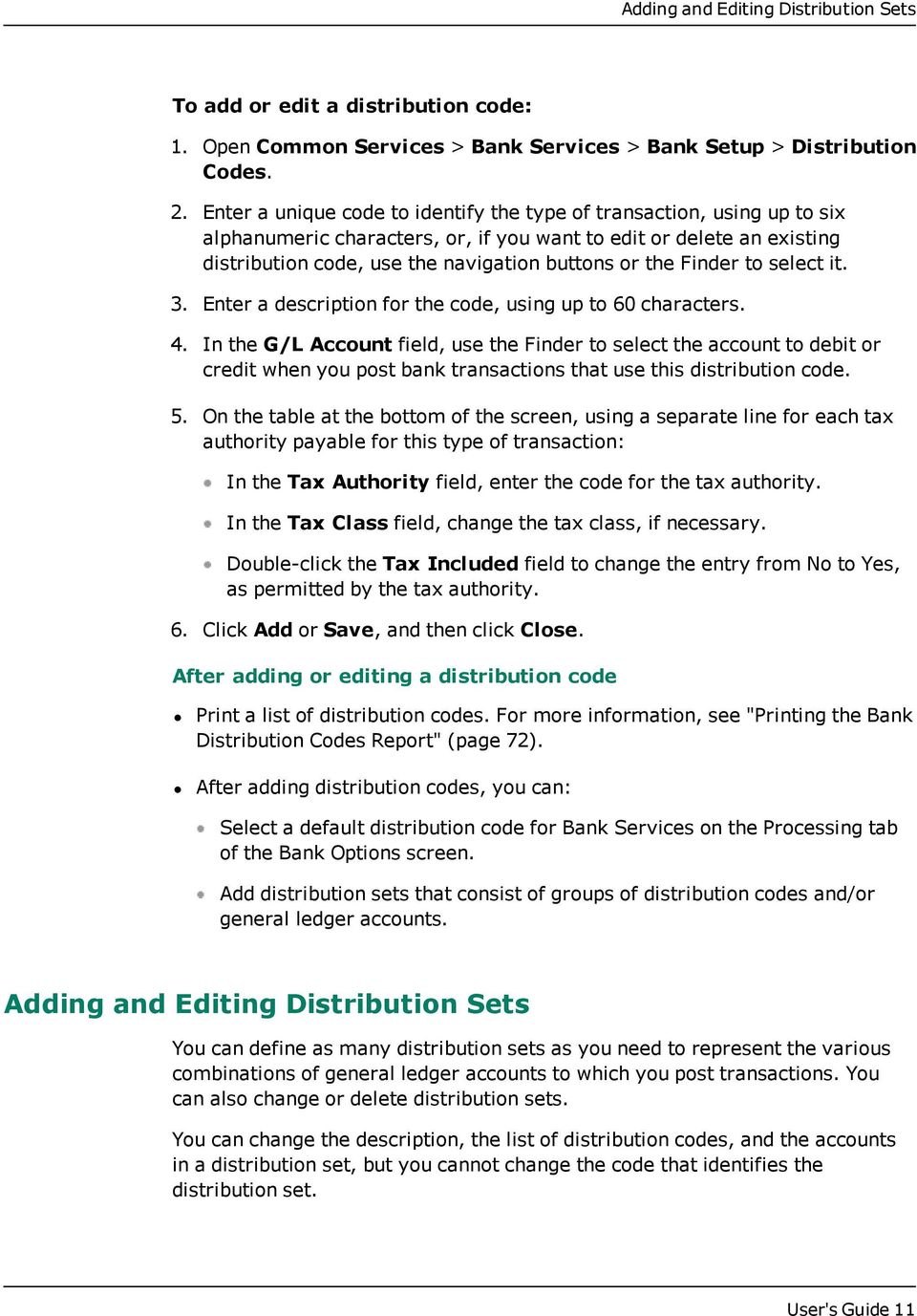
19 Adding and Editing Distribution Sets To add or edit a distribution code: 1. Open Common Services > Bank Services > Bank Setup > Distribution Codes. 2. Enter a unique code to identify the type of transaction, using up to six alphanumeric characters, or, if you want to edit or delete an existing distribution code, use the navigation buttons or the Finder to select it. 3. Enter a description for the code, using up to 60 characters. 4. In the G/L Account field, use the Finder to select the account to debit or credit when you post bank transactions that use this distribution code. 5. On the table at the bottom of the screen, using a separate line for each tax authority payable for this type of transaction: In the Tax Authority field, enter the code for the tax authority. In the Tax Class field, change the tax class, if necessary. Double-click the Tax Included field to change the entry from No to Yes, as permitted by the tax authority. 6. Click Add or Save, and then click Close. After adding or editing a distribution code Print a list of distribution codes. For more information, see "Printing the Bank Distribution Codes Report" (page 72). After adding distribution codes, you can: Select a default distribution code for Bank Services on the Processing tab of the Bank Options screen. Add distribution sets that consist of groups of distribution codes and/or general ledger accounts. Adding and Editing Distribution Sets You can define as many distribution sets as you need to represent the various combinations of general ledger accounts to which you post transactions. You can also change or delete distribution sets. You can change the description, the list of distribution codes, and the accounts in a distribution set, but you cannot change the code that identifies the distribution set. User's Guide 11
20 Chapter 1: Setting Up Bank Services If you want to reuse the description from an existing distribution code, add the distribution code to the distribution set, clear the Distribution Code field, and then enter the general ledger account to use. (You cannot change the account for a line to which a distribution code is assigned.) If you make a distribution set inactive you cannot use it when you add a new transaction. However, you can print and post transactions that include the distribution set if you made it inactive after you entered the transaction. If you change the accounts for a distribution code, distribution sets that use the code are immediately updated when you save the changes. Deleting a distribution set does not remove any information from Bank Services, except the set definition. Deleting a distribution set after adding a transaction has no effect on posting. However, you will have to change the distribution set to a valid one if you edit the transaction. To add or edit a distribution set: 1. Open Common Services > Bank Services > Bank Setup > Distribution Sets. 2. Enter a unique code to identify the distribution set, using up to six alphanumeric characters, or select a code to edit an existing set. 3. Enter a description for the distribution set, using up to 60 characters, or edit the description, as needed. 4. If your system is multicurrency, specify the currency for this distribution set. 5. Use the table to specify the accounts and amounts for the details of transactions that use this distribution set, using a separate line for each detail: a. In the Distribution Code field, enter the distribution code. Notes: When you specify a distribution code, the program automatically inserts the description of the distribution code, the G/L account, and the account description. 12 Sage 300 ERP Bank Services

21 About Bank Services Integration with Other Accounting Modules You do not have to enter a distribution code, if one does not exist for the type of detail you are entering. b. Enter the G/L account, if you did not specify a distribution code, or change the account, if necessary. c. Enter the amount of the detail. 6. Click Add or Save, and then click Close. After adding distribution sets Print a list of distribution sets. For more information, see "Printing the Bank Distribution Sets Report" (page 73). About Bank Services Integration with Other Accounting Modules Information flows to and from Bank Services as it interacts with Sage 300 ERP programs and other accounting systems. Bank Services: Receives check information from Sage 300 ERP Accounts Payable and Payroll. For more information, see "About Bank Services Integration with Accounts Payable and Payroll" (page 14). Receives deposit information from Sage 300 ERP Accounts Receivable. For more information, see "About Bank Services Integration with Accounts Receivable" (page 14). Sends information about General Ledger transactions that arise in Bank Services to Sage 300 ERP General Ledger. For more information, see "About Bank Services Integration with General Ledger" (page 15). If you use other programs that produce check or deposit information, you can import this information into Bank Services. For more information on importing, see the System Manager help. User's Guide 13
22 Chapter 1: Setting Up Bank Services About Bank Services Integration with Accounts Receivable Sage 300 ERP Accounts Receivable sends deposit batch totals to Bank Services when you post the receipt batches; the total for a given batch should correspond with the total on your deposit slip (we recommend that you create a separate batch for each deposit slip). The Bank Services program then assigns a deposit slip number to the batch total. When the deposit clears the bank, it appears as the same total figure on your bank statement, making reconciliation a simple matter. Note: Accounts Receivable does not send adjustment information to Bank Services. This means that if you make any adjustments that affect the bank account, you must make a second adjustment in Bank Services. Use a clearing account to prevent duplication of the entry in General Ledger, as described in "Clearing a Deposit Error" (page 43). If a check in a deposit batch is returned NSF, Bank Services can immediately reverse the part of the deposit batch that pertains to the NSF check, and send information about the NSF check back to Accounts Receivable. Accounts Receivable then uses the information to reverse the check and restore the invoices that the check was supposed to pay. Accounts Receivable keeps deposit information for 45 days after the reconciliation in which deposits clear the bank, in case a customer check is subsequently returned NSF. If you do not use Sage 300 ERP Accounts Receivable, you can import deposit batches from another accounts receivable program. About Bank Services Integration with Accounts Payable and Payroll Sage 300 ERP Accounts Payable and Payroll send check information to Bank Services when you print and post check batches. You can use Bank Services to instantly view the status of any check (for example, to confirm that a check has been posted). When the checks clear the bank, as shown on your bank statement, you use Bank Services to perform a bank reconciliation to ensure that your records match the bank's. Note: Accounts Payable and Payroll do not send adjustment information to Bank Services. Therefore, if you make any adjustments that affect a Bank account, you must make a second adjustment in Bank Services. Use a clearing account to prevent duplication of the entry in General Ledger. If you want to reverse a payment (for example, if you want to put a stoppayment on a check or if you discover a data entry error after posting a check batch), you can change the check's status to "Reversed" in Bank Services. The 14 Sage 300 ERP Bank Services
23 About Bank Services Integration with Other Accounting Modules Bank Services program then sends information about the reversed item back to Accounts Payable or to Payroll, which uses the information to reverse the item and restore the invoices or payroll information that the check was written to pay. If you want to use this feature, do not clear your Accounts Payable vendor or Payroll employee transaction history for a given period until all items for that period have cleared the bank. If you do not use Sage 300 ERP Accounts Payable or Payroll, you can import check batches from another accounts payable or payroll program. About Bank Services Integration with General Ledger If you use Sage 300 ERP General Ledger, Bank Services acts as a subledger, just like Accounts Payable and other subledgers. The General Ledger bank account is a control account, just like your Accounts Payable or Accounts Receivable control account. You make all entries that affect the bank control account in Bank Services, not in General Ledger. For example, you enter transactions such as transfers between accounts and monthly service charges directly in Bank Services. The Bank Services program creates journal entry batches for the general ledger, to account for transactions that originate in Bank Services. If you use Sage 300 ERP General Ledger, these batches of bank transactions are created in General Ledger, where you can edit and post them. You have several options to determine how General Ledger retrieves the batches, as described in "Bank G/L Integration Screen" (page 99). If you do not use Sage 300 ERP General Ledger, or your Sage 300 ERP General Ledger system is at another location, the Bank Services program creates batches you can print or import into another program, then enter manually into your general ledger. Note: If you do not use Sage 300 ERP General Ledger, the Bank Services program does not verify general ledger account numbers. User's Guide 15
24 Chapter 1: Setting Up Bank Services Bank Services Source Codes Sage 300 ERP uses the following source codes for transactions processed in Bank Services: Source Codes Source Code BK-CO BK-EN BK-ER BK-TF Description Bank Consolidated Entry Bank Entries Bank Reconciliation Discrepancies Bank Transfers Assigning Information to G/L Transactions To assign information to G/L transaction fields: 1. Open Common Services > Bank Services > Bank Setup > G/L Integration. 2. On the Transactions tab, either double-click the line for the transaction type, or select the line, and then click Open. 3. On the G/L Integration Detail screen that appears, specify information for the transaction as follows: a. In the G/L Transaction Field field, specify the G/L field to which you are assigning information. b. In the Segment Separator field, select a character to separate segments of information. (The separator is used only if you assign more than one segment. The default separator is a hyphen.) c. From the Choose Segments from List, select a segment, and then click Include to assign individual segments to the selected G/L field. Note: You can assign a maximum of five segments to a G/L field, providing that the combination does not exceed 60 characters. If the assigned information exceeds this number of characters (including separators), it will be truncated when the transaction is posted. 4. Assign information to the remaining transaction fields for the transaction type, and for other transaction types. 16 Sage 300 ERP Bank Services
25 About Bank Services Integration with Other Accounting Modules 5. When you have finished assigning information to G/L transaction fields, click Save, and then click Close to return to the G/L Integration screen. The table displays your choices. 6. Click Save, and then click Close to leave the screen. Specifying When and How to Create Batches for General Ledger To specify when and how to create batches for General Ledger: 1. Open Common Services > Bank Services > Bank Setup > G/L Integration. 2. On the Integration tab, select the following options: Create G/L Batches Create G/L Transactions By Consolidate G/L Batches 3. Click Save. User's Guide 17
26
27 Chapter 2: Processing Bank Transactions You use Bank Services Transactions screens to: Enter, post, review, clear, and reverse transactions. Reconcile bank accounts. Print checks. Look up transactions. About Transactions Screens You use Bank Services Transactions screens to enter, post, review, and reverse transactions: Reconcile Statements. Use this screen to reconcile bank accounts at the end of each fiscal period. You can also perform a setup reconciliation. Import OFX Statements. Use this screen to import downloaded bank and credit card statements. Reconcile OFX Statements. Use this screen to reconcile imported bank statements. Bank Transfers. Use this screen to add and post transactions to transfer funds between banks, or between different bank accounts of the same bank. Post Entries. Use this screen to post multiple bank entries in ranges that you define by entry number, bank code, and transaction date range. Bank Entry. Use this screen to record bank transactions (such as service charges; interest earned; preauthorized payments for rent, mortgage, and payroll; and preauthorized deposits), edit an existing entry, or view a posted entry. Post Reconciliation. Use this screen to post reconciliations after balancing bank statements. Transaction History Inquiry. Use this screen to look up payments, deposits, and transactions entered in Bank Services, as well as transactions User's Guide 19
28 Chapter 2: Processing Bank Transactions that Accounts Payable, Accounts Receivable, and Canadian and US Payroll send to Bank Services. You can also print the results of your inquiry. Reverse Transactions. Use this screen to reverse payments and bank transactions, and to record NSF checks. Entering Transactions Adding Bank Entries You can enter transactions, including deposits, withdrawals, transfers, and bank-related transactions such as bank service charges or mortgage and loan payments. You use the Bank Entry screen to enter and post bank-related transactions, such as bank service charges or mortgage and loan payments. To add a bank entry: 1. Do one of the following: Open Common Services > Bank Services > Bank Transactions > Bank Entry. On the Reconcile Statements screen, click Bank Entry. 2. Enter header information for the bank entry. a. In the Entry Number field, accept the *** NEW *** entry. b. In the next field, enter a description for the entry. c. In the Bank Code field, use the Finder to select the code for the bank for which you are processing the entry. Note: This field is not available if the detail-entry grid includes a distribution. You must delete the distribution, first.) d. In the Bank Entry Type field, select Withdrawals (to record a payment or another type of withdrawal from the account) or Deposits. e. In the Payment Type field, specify the method of payment. 20 Sage 300 ERP Bank Services
29 Entering Transactions f. If you selected Credit Card as the payment type, click the Zoom button beside the Payment Type field, and then use the Credit Card screen to enter details for the credit card. g. Select the bank entry date. h. If the Currency field is available and you need to change the currency for this entry, use the Finder to select the right code. For more information, see "Bank Entry Screen" (page 117). 3. On the table, enter distribution details for the bank entry: Note: If the Bank Options screen specifies a default distribution code, the table automatically displays the first distribution detail. You can accept or edit the detail, or you can delete it by selecting the line, and then clicking Delete. To create distribution details using a distribution set: In the Distribution Set field, enter the distribution set code or use the Finder to select it. Click the Create Dist. button to add details to the table. Edit the details, or add new details directly on the table. Click Add (or Save). To add details directly on the table, click the table, and then do one of the following: If you selected a blank line, enter the distribution code or select it using the Finder, and then enter the remaining information for the detail. To start a new line, press Insert or tab through the end of the last line on the grid. To insert a new line in a particular location, highlight the line above the location, and then press Insert. To enter tax information for a selected detail, double-click the Taxable column in the distribution line, and then click the Taxable column heading to open the Taxes form. (Click Close to return to the Bank Entry screen.) 4. Click Add (or Save). User's Guide 21
30 Chapter 2: Processing Bank Transactions 5. If this is a multicurrency entry and you want to view or override exchange rate information, click the Rates button. (Click Close to return to the Bank Entry screen.) 6. Click Post. Entering Tax Information for Transaction Details For details of taxable withdrawals and bank transfers, you can enter taxes manually, or let the program calculate taxes automatically. To enter taxes for a transaction detail: 1. Do one of the following: On the Bank Entry screen or the Bank Transfers screen, enter all information for a taxable detail, set the Taxable status to Yes in the detail table, and then click the Taxable column heading. On the Bank Entry screen opened from the Bank Reconcile OFX Statements screen, select the Taxable option, and then click the Zoom button to the right of that option. 2. Specify the tax group for the current detail. Note: If a tax group is specified in the bank record, it appears as the default. The tax authorities, vendor tax classes, and item tax classes associated with the tax group appear in the detail table. You can change the vendor tax class, item tax class, and (if the authority permits) the Tax Included status for each tax authority. However, you cannot change the tax authorities associated with a tax group. To change a tax class for a tax authority, double-click in the column, then use the Finder to select a different tax class. To change the Tax Included status, double-click in the Tax Included column. 3. In the remaining fields, specify how to calculate the taxes for the detail, or enter the tax information manually. 22 Sage 300 ERP Bank Services
31 Entering Transactions Select the following options, as you require: Calculate Tax Amount. Select this option to calculate taxes and display them in the Tax Amount column for each tax authority in the grid. Calculate Tax Base. Select this option to display in the Tax Base column the amount on which taxes are being calculated. Calc. Tax Reporting. Select this option to display (in the Tax Reporting column) the tax amount converted to the Tax Reporting currency (if different from the bank entry's currency) for each tax authority in the grid. Tip: You can also click the Calculate Taxes button to automatically calculate taxes and display amounts in the Tax Amount, Tax Base, and Tax Reporting columns. 4. Click Close. Transferring Funds Use the Bank Transfers screen to: Transfer funds between banks. Record an entry for fees charged by a bank involved in a transfer. Correct a deposit that you posted to the wrong bank. Before You Start Set up banks. If security is turned on for your system, you must be assigned to a user group that is authorized to transfer funds. To transfer funds: 1. Open Common Services > Bank Services > Bank Transactions > Bank Transfers. 2. In the Transfer Posting Date field, specify the date of the transfer. 3. Enter a description and a reference for the transfer. User's Guide 23
32 Chapter 2: Processing Bank Transactions 4. Specify the banks from and to which you are transferring funds. a. In the Transfer From Bank Code field, enter the code for the originating bank. b. In the Transfer To Bank Code field, enter the code for the bank to which you are transferring the funds. The program creates detail lines for these banks in the Service Charges section of the Bank Transfers screen. c. In the Transfer From Transfer Amount field, enter the amount to transfer, and then press the Tab key. The program displays the amount in the Transfer To Transfer Amount field. The transfer amount will be in the currencies of the chosen banks. Note: In a multicurrency system, the program initially displays amounts in the banks' statement currencies. If a bank is multicurrency, you can change the currency for the transaction. (The program uses the bank's default rate type to determine the exchange rate for converting the transfer amount to the functional currency.) The program displays the currency code for each bank in the Service Charges section of the screen. 5. If you need to use a different exchange rate, rate type, or rate date, click the Rates button, and then use the Bank Transfer Exchange Rates screen to change these fields as necessary. For more information, see "Bank Transfer Exchange Rates Screen" (page 129). 6. If there are any service charges for the transfer, use the Service Charges detail table to record the details of the charges. Using a separate line for each bank that charged a fee: a. Specify a distribution code, if one exists for the type of charge. The program displays the G/L account associated with distribution code in the next field. b. If you did not specify a distribution code, or if you need to change the account, use the Finder to select the correct G/L account. 24 Sage 300 ERP Bank Services
33 Reversing Transactions c. In the Amount field, enter the amount of the service charge levied by the bank. d. If the service charge is taxable: i. Double-click the Taxable field to change it to Yes, and then click the Zoom button to open the Bank Taxes screen. For more information about this screen, see "Bank Taxes Screen" (page 121). ii. Select a Tax Group. The program displays the tax authorities for the tax group. If you select the Calculate Tax Amount and Calculate Tax Base options, the program calculates all tax amounts for you. e. If you need to enter any tax amounts manually, clear the Calculate Tax Amount or Calculate Tax Base option, and then enter the amounts as required. f. Click Close to return to the Bank Transfers screen. Notes: Tax amounts appear in the Total Tax and Tax Included fields. (If a tax authority does not allow taxes to be included, the tax amount appears in the Tax Excluded field.) Do not select a G/L account in the Service Charges grid that has the Post To Account field set to Prohibited. 7. Click Post to post the transfer. Reversing Transactions Reverse posted payments, and process returned customer checks and credit card payments. Reversing a Transaction Before You Start Post all open batches in the subledger that pertain to the period in question. User's Guide 25
34 Chapter 2: Processing Bank Transactions If system security is turned on, you must be assigned to a user group authorized to reverse the type of transaction. Security authorizations include: Reverse Payments Reverse Bank Entries Reverse Customer Receipts To reverse a transaction: 1. Open Common Services > Bank Services > Bank Transactions > Reverse Transactions. 2. Enter information for the reversal in the following fields: Bank Code Source Application Reverse Document Reverse Multiple Transactions 3. If you are reversing a single transaction, identify it by filling in the following fields: a. Reason For Reversal. b. Reversal Date. c. Customer Number, Vendor Number, or Employee Number. (The field that appears depends on the source application.) Note: Filling in this field is optional, but it may help you select the transaction more quickly. d. Check/Receipt No., Check/Payment No., or Bank Entry Number. (The field that appears depends on the source application and the type of document you are reversing.) Once you specify a payment, receipt, or bank entry, the program displays the date and the amount of the transaction. Tip: To view the transaction in the original transaction entry screen, click the Drilldown button. 26 Sage 300 ERP Bank Services
35 Reversing Transactions e. Reverse Invoice. 4. If you are reversing a range of transactions: a. Specify selection criteria to identify the transactions to reverse. Use the From and To fields to specify ranges of document numbers, dates, amounts, currencies, and vendors, customers, or employees. (The criteria you can specify depend on the source application.) b. Click the Go button to list the transactions that meet the criteria. c. On the table, specify the transactions to reverse: i. Select a transaction on the table, and then double-click the Reverse column in that line to change the entry to Yes. ii. iii. If you are certain that you need to reverse all the transactions in the list, click Select All. If you want to change your selections all at once, click Go to refresh the list. 5. Click Post to update the bank account balance, and send the reversal information to the subledger. Reversing a Paycheck Before You Start If system security is turned on, ensure that you are assigned to a user group authorized to reverse payments. To reverse a paycheck: 1. Open Common Services > Bank Services > Bank Transactions > Reverse Transactions. 2. Enter header information about the reversal in the following fields: Bank Code Reverse Multiple Transactions For the Source Application, select Canadian Payroll or US Payroll. User's Guide 27
36 Chapter 2: Processing Bank Transactions 3. If you are reversing a single paycheck, identify it by filling in the following fields: a. Reason For Reversal. b. Reversal Date. (Use caution when accepting or changing the reversal date!) c. If you know the Employee Number, enter it. (The field that appears on your screen depends on the source application.) Note: Filling in this field is optional, but it may help you select the transaction more quickly. d. Use the Finder to select the Check/Payment No. Once you specify a payment, the program displays the date and the amount of the transaction. Tip: To view the transaction in the original transaction entry form, click the Drilldown button. e. Reverse Invoice. 4. If you are reversing a range of paychecks: a. Specify selection criteria to identify the payments to reverse. Use the From and To fields to specify ranges of document numbers, dates, amounts, currencies, and employees. b. Click the Go button to list the payments that meet the criteria. c. On the table, specify the payments to reverse: i. If you are certain that you need to reverse all the payments in the list, click Select All. Otherwise, double-click in the Reverse column for each transaction you want to reverse to change the entry to Yes. ii. If you want to change your selections all at once, click Go to refresh the list. 28 Sage 300 ERP Bank Services
37 Printing Checks d. For each reversed transaction, as necessary, enter a reversal date or additional information in the fields provided. (Use caution when accepting or changing the reversal date.) 5. Click Post to update the bank account balance, and send the reversal information to your Payroll program. After reversing a paycheck In US Payroll or Canadian Payroll: Print the Payroll Register report to verify reversal entries. Make any changes required to generate the check correctly, and then post the check with the correct information. Printing Checks This dialog box lets you: Print the checks that have been generated by your program. Checks that are ready to be printed have a status of Not Printed, and they do not have a check number. After checks have been printed, their status changes to Printed and their check numbers appear. Reprint checks that were not printed correctly. You can select an individual check or a range of checks to reprint. Before You Start Add a record for each check you need to print. Print the Pre-Check Register. Make sure the report specification you are using matches your printed check forms. You cannot proceed with printing and posting checks without a valid check report file. To print checks: 1. Verify that the check stock, next check number, and check form are correct to use for printing. This information is specified in the bank record (on the Check Stocks tab of the Banks screen). User's Guide 29
38 Chapter 2: Processing Bank Transactions 2. Enter the number of leading checks to print, if any. Leading checks are check forms you leave blank at the start of a check run. For example, if you always skip the first check form and start printing on the second, the first check form is called a leading check and you enter 1 as the number of leading checks. Bank Services increases the number of the next check to print by the number of leading forms you enter. Note: Nothing is printed on leading checks. However, to keep the audit trail correct, check numbers must be assigned to leading checks. For this reason, it is important to enter the number of leading checks you print. 3. If you want to first print an alignment check, click Align. An alignment check prints X s in place of numbers and letters on a check form, so you can see that the check forms are mounted properly in the printer. Alignment checks are always printed to your printer, no matter which print destination you have selected for your company. Make sure your printer is ready before you click Align. After an alignment check is printed, the Next Check Number is increased by one. 4. Click Print. If you are printing checks then advices (instead of checks only or combined check and advice forms), the program reminds you to insert the check stock in the printer before proceeding. 5. When printing is finished, indicate if the checks were printed correctly: If you choose Yes and you are not printing advices, the check information is immediately posted to Bank Services and the Print Checks dialog box closes. After posting, you cannot edit the payment entry or reprint the check. If necessary, you can delete it, which voids the check in Bank Services. If you choose Yes and you are printing advices after checks, you are reminded to insert the advice stock in the printer. After printing has finished, you are asked if the advices were printed correctly. If you choose yes, the check information is immediately posted to Bank Services and the Print Checks dialog box closes. (The payment information is not posted immediately to vendor accounts, as you must first post the payment batch, using the Print/Post button in the Payment Batch List form.) 30 Sage 300 ERP Bank Services
39 Looking Up Transactions for a Bank Account If you choose No and you want to reprint now, you need to change the status of the checks (or advices) back to Not Printed in one of two ways: Double-click in the Check Status column Click Select Reprint Range, and on the screen that appears, specify the starting and ending numbers of the range of checks (or advices) that need to be reprinted because they were not successfully printed the first time Note: The default numbers are the starting and ending check numbers of the checks you just printed. If you choose No and you cannot reprint now, click Close. You receive a message asking if you want to cancel the check run (thereby voiding all printed checks). Choose No to reprint the checks at a later time with the check numbers that have already been assigned. Choose Yes to cancel the print run and void the current check numbers. 6. When you've finished printing checks, click Close. 7. Print the reports that you require for your audit trail (for example, the Check Register). Looking Up Transactions for a Bank Account You use the Bank Transaction History Inquiry screen to find information about transactions that have been processed, and to print reports containing this information. To look up transactions for a bank: 1. Open Common Services > Bank Services > Bank Transactions > Transaction History Inquiry. 2. In the Bank Code field, specify the code for the bank that processed the transactions. 3. In the Source Application field, specify the subledger that sent the transactions to Bank Services (for example, Accounts Receivable). 4. If you selected Bank Services or Accounts Receivable as the source application, specify the type of document you want to view. User's Guide 31
40 Chapter 2: Processing Bank Transactions 5. To display only transactions that are reconciled or outstanding, specify the status in the Reconciliation Status field. Otherwise, accept All as the entry for this field. 6. To restrict your inquiry to transactions that meet additional criteria, use the From and To fields to specify ranges of document numbers, dates, amounts, currencies, vendors, customers, or employees. Note: The criteria you can specify depend on the source application you selected. 7. When you are satisfied with the search criteria, click the Go button to display the transactions. 8. To print the results of your inquiry to your usual print destination, click Print. 32 Sage 300 ERP Bank Services
41 Chapter 3: Reconciling Bank Accounts Learn about reconciling transactions, correcting errors, and working with OFX statements. About Reconciling Bank Accounts Normally, you reconcile your bank accounts at the end of each fiscal period when you receive the statements for the accounts. Ask your bank to use your fiscal period end as the cut-off date for your bank statements, if possible. Even if your bank does not send statements at the fiscal period end, perform the reconciliation as of the period end. You can reconcile accounts within a fiscal period as often as necessary (for example, if your bank sends you statements twice a month). You can reconcile bank accounts manually, or you can use the Reconcile OFX Statements screen to reconcile bank or credit card statements automatically. Note: You must first download the statement from the financial institution's website. For an overview on reconciling deposits, see "About Reconciling Deposits" (page 45). For an overview on reconciling withdrawals, see "About Reconciling Withdrawals" (page 49). Click the following links for step-by-step instructions on reconciliation tasks: "Reconciling a Bank Account" (page 34) "Clearing a Transaction" (page 37) "Clearing an Individual Receipt in a Deposit" (page 40) "Clearing a Range of Transactions" (page 39) "Importing OFX Statements" (page 52) "Reconciling OFX Statements" (page 54) User's Guide 33
42 Chapter 3: Reconciling Bank Accounts "Posting Bank Reconciliations" (page 62) "Clearing a Bank Error" (page 42) "Clearing a Deposit Error" (page 43) "Reversing a Transaction" (page 25) "Recording Bank Entries During Bank Reconciliation" (page 59) Reconciling a Bank Account You use the Reconcile Statements screen to reconcile bank accounts to bank statements. Note: When you change the reconciliation status, the processing date is used as the default reconciliation posting date. Before You Start 1. Post all transactions in the subledgers that affect the bank account for the fiscal period you are reconciling (for example, check batches in Accounts Payable or deposit batches in Accounts Receivable). 2. Gather your bank statements. 3. If you are reconciling a downloaded (OFX) bank statement: a. Import the statement into Sage 300 ERP. For more information, see "Importing OFX Statements" (page 52). b. Use the Reconcile OFX Statements screen to match transactions, enter bank transactions, and manually clear or write off any unmatched transactions. For more information, see "Reconciling OFX Statements" (page 54). c. Use the Reconcile Statements screen to ensure that the bank account is reconciled, as described in this topic. To reconcile a bank account: 1. Open Common Services > Bank Services > Bank Transactions > Reconcile Statements. 2. In the Bank Code field, specify the bank account to reconcile. 34 Sage 300 ERP Bank Services
43 Reconciling a Bank Account 3. In the Reconciliation Description field, enter a description for the reconciliation. 4. On the Summary tab: a. In the Statement Date field, enter the bank statement date. b. In the Statement Balance field, enter the ending balance from the bank statement. c. In the Reconciliation Date field, specify the date to which to post the reconciliation. You can reconcile outstanding transactions posted up to and including this date. d. Click Calculate to update the amounts displayed on the Summary tab. Note: The Calculate button is available if the Adjusted Bank Balance and the Adjusted Book Balance are not equal. e. Click Save. The Out of Balance by field may display a non-zero amount that you need to reconcile. There are several reasons your account may not balance: The statement ending balance is incorrect. A transaction that your bank assigned to the bank account is missing from the bank statement. A check or deposit cleared the bank with an amount different than that recorded in Bank Services, but you have not changed the Reconciliation Cleared Amount accordingly. A check, deposit, or return has the wrong status. Either the item has cleared the bank but still has the status Outstanding or In Transit, or the item has not cleared the bank yet but is marked Cleared. A bank entry was made for the wrong amount. A check or deposit that appears on the bank statement has not yet been posted. You use the Reconciliation tab to reconcile the balances and record adjustments. User's Guide 35
44 Chapter 3: Reconciling Bank Accounts 5. On the Reconciliation tab: a. Use the Display, Transaction Type, and Sort By fields to filter outstanding deposits or withdrawals, and sort them by date or transaction number. Tip: You can save your selections for these fields, so they appear automatically the next time you use the Reconcile Statements screen. To save your selections, click Save Settings As Defaults on the Settings menu. b. Reconcile balances and record adjustments: Clear individual deposits and withdrawals, and reverse withdrawals. For more information, see "Clearing a Transaction" (page 37). Clear entire ranges of withdrawals or deposits that your bank has processed. For more information, see "Clearing a Range of Transactions" (page 39). Record and post a bank transaction that does not exist in Sage 300 ERP. For more information, see "Adding Bank Entries" (page 20). Review the receipts for a selected deposit that has multiple receipts, and drill down to the original entries. You can also clear individual receipts within the selected deposit, if you set the deposit's status to Reconcile By Deposit Detail. For more information, see "Clearing an Individual Receipt in a Deposit" (page 40). c. Click Save. 6. On the Summary tab, check that the Out of Balance by field displays zero. If it does not: a. Print the Reconciliation Status report by clicking Print on the File menu. b. Compare the report to the bank statement, looking for the reasons for the Out Of Balance amount. c. Make any necessary corrections, and then click Calculate. When the Out of Balance by field displays zero, the adjusted bank balance and the adjusted book balance are equal. This means that the bank account is reconciled, and you can post the bank reconciliation. 36 Sage 300 ERP Bank Services
45 Clearing Transactions 7. Compare the bank balance to the G/L account balance, to ensure that they reconcile. (If you use Sage 300 ERP General Ledger, use the Book Balance screen to check the G/L account balance.) 8. Click Save, and then click Close. After reconciling a bank account 1. Print the Withdrawals Status and Deposits Status reports. For more information, see "Bank Withdrawals Status Report" (page 184) and "Bank Deposits Status Report" (page 176). Note: These reports are not available after you post the reconciliation. 2. Post the reconciliation. For more information, see "Posting Bank Reconciliations" (page 62). 3. Print the Reconciliation Posting Journal. For more information, see "Bank Reconciliation Posting Journal Screen" (page 179). 4. Check data integrity, and make a backup of your company records. For more information, see "Bank Integrity Checker Screen" (page 116). Clearing Transactions During reconciliation, you clear transactions and specify the reconciliation status for cleared transactions. Clearing a Transaction Before You Start These instructions assume you are in the process of reconciling a bank account, and you have entered all the required information on the Summary tab of the Reconcile Statements screen. For more information, see "Reconciling a Bank Account" (page 34). To clear a transaction during bank reconciliation: 1. On the Reconciliation tab, select a deposit or withdrawal. Note: You cannot reconcile transactions that have a status of Not Posted. User's Guide 37
46 Chapter 3: Reconciling Bank Accounts 2. Depending on whether the transaction amount shown on the bank statement matches the amount in the Deposits or Withdrawals field, do one of the following: If the amounts match, double-click the Reconciled field to mark the transaction (X) Cleared. If the amounts do not match, enter the transaction amount shown on the bank statement in the Cleared Amount field. Note: The Difference field displays the difference between the amount that cleared the bank and the amount in the Deposits or Withdrawals field. 3. In the Reconciliation Status field, specify one of the following statuses: Cleared With Write Off. You can specify this status if the difference is less than the error spread allowed in the bank record. Cleared With Bank Error. Specify this status if the difference is more than the error spread allowed in the bank record. When you post the reconciliation, the error is carried forward as an outstanding transaction for the next reconciliation. Cleared With Credit Card Charges. Specify this status for a deposit if it included a receipt with a credit card payment type, and the difference is the result of credit card charges that were applied to the deposit. Note: This status can be specified only for deposits. Cleared with Exchange Rate Difference. You can specify this status if the bank account is multicurrency, the bank's statement currency is the same as your functional currency, and the transaction uses a different currency. (For a deposit, you can select this status if a receipt in the deposit batch uses a different currency.) Reversed. Specify this status if the transaction is a withdrawal that is not part of a bank transfer, and you need to reverse it. If the withdrawal was a miscellaneous payment to an Accounts Payable vendor and you want to reverse the associated invoice when you post the reconciliation, double-click the Reverse Invoice field to change the entry to Yes. 38 Sage 300 ERP Bank Services
47 Clearing Transactions 4. Change the date in the Reconciliation Date field, if necessary. Note: If Error is specified in the Check for Reconciled in Future Periods field (on the Processing tab of the Bank Options screen), you cannot enter a date later than the reconciliation date. 5. Click Save. Clearing a Range of Transactions Before You Start These instructions assume you are in the process of reconciling a bank account, and you have entered all the required information on the Summary tab of the Reconcile Statements screen. For more information, see "Reconciling a Bank Account" (page 34). To clear a range of transactions, or reset their status, during bank reconciliation: 1. On the Reconciliation tab of the Reconcile Statements screen, click Quick Clearing. 2. On the Quick Clearing screen: a. In the Mark field, specify the type of transactions to mark (Withdrawals or Deposits). b. In the As field, specify the reconciliation status to assign (Cleared, Outstanding, or Reversed). Note: When assigning Cleared status, deposits with a status of Reconcile By Deposit Detail will not be changed. c. Specify the range of transactions to mark: In the From Transaction Number field, specify the first receipt or payment in the range. In the To Transaction Number field, specify the last receipt or payment in the range. d. Click Process to mark the transactions. e. Click Close to return to the Reconcile Statements screen. User's Guide 39
48 Chapter 3: Reconciling Bank Accounts Clearing an Individual Receipt in a Deposit If you set a deposit s status to Reconcile By Deposit Detail on the Reconcile Statements screen, you can reconcile individual receipts in the deposit. Before You Start These instructions assume you are in the process of reconciling a bank account, and you have entered all the required information on the Summary tab of the Reconcile Statements screen. For more information, see "Reconciling a Bank Account" (page 34). To clear an individual receipt (within a deposit) during bank reconciliation: 1. On the Reconciliation tab, select a deposit line. 2. In the Reconciliation Status field, specify Reconcile By Deposit Detail. 3. Click Details. The Deposit Details screen appears, and lists all the receipts in the selected deposit. For more information, see "Bank Deposit Details Screen" (page 144). Note: Initially, all receipts have a reconciliation status of Outstanding. 4. On the Deposit Details screen: a. Select a receipt to clear. b. In the Reconciliation Status field, specify Cleared. When you click outside of the Reconciliation Status field, other fields for the receipt are automatically updated, as follows: Cleared Amount matches Receipt Amount. Reconciliation Date matches the Date specified in the Default Reconciliation section (also, Reconciliation Year and Reconciliation Period are automatically calculated based on the reconciliation date). Reconciliation Description matches the Description specified in the Default Reconciliation section. 40 Sage 300 ERP Bank Services
49 Clearing Transactions Tip: If you click the Go button in the Default Reconciliation section, the information specified in the Default Reconciliation section is assigned as the Reconciliation Date, Reconciliation Description, and Reconciliation Status for all receipts in the deposit. c. In the Cleared Amount field in the Deposit section (at the top of the screen), enter the total amount of all cleared receipts. d. Click Save. Clearing a Deposit with Timing Differences A timing difference can arise if your bank delays processing one or more receipts in a deposit. For example, your bank might put a hold on a customer check, or your credit card company might delay the deposit of some credit card receipts. As a result, the deposit amount recorded in your books will be different than the amount recorded by your bank. You know that the bank or credit card company will deposit the difference in the next period. Meanwhile, you want to reconcile the rest of the deposit. This topic outlines the steps for reconciling a deposit that includes such timing differences, if you want to reconcile the whole deposit. Alternatively, you can partially reconcile a deposit by clearing individual receipts within the deposit. For more information, see "Clearing an Individual Receipt in a Deposit" (page 40). Before You Start These instructions assume you are in the process of reconciling a bank account, and you have entered all the required information on the Summary tab of the Reconcile Statements screen. For more information, see "Reconciling a Bank Account" (page 34). To clear a deposit that includes a timing difference: 1. On the Reconciliation tab, select the deposit line. 2. In the Cleared Amount field, enter the deposit amount shown on the bank statement, and then press Tab. If a message appears telling you that the amount is greater than the error spread allowed for the bank, click Close. User's Guide 41
50 Chapter 3: Reconciling Bank Accounts The Difference field displays the difference between the deposit amount recorded in Sage 300 ERP and the amount that cleared the bank. 3. In the Reconciliation Status field, select Cleared With Bank Error, and then press Tab. 4. Click Save. Note: When you post the reconciliation, the timing difference amount is carried forward as an outstanding deposit for the next reconciliation. Clearing a Bank Error When you clear a transaction with the status Cleared With Bank Error, and then update the Reconciliation Summary: The entire payment or deposit is removed from Withdrawals Outstanding or Deposits Outstanding. The amount of the error is added to Deposits Bank Errors or Withdrawal Bank Errors. When you post the bank reconciliation: Transactions cleared with a write-off are removed from the list of outstanding transactions. Transactions cleared with bank error status remain outstanding with an amount equal to the difference (or error) for later reconciliation. To clear a bank error: 1. Open Common Services > Bank Services > Bank Transactions > Reconcile Statements. 2. In the Bank Code field on the Summary tab, specify the bank account you are reconciling. 3. On the Reconciliation tab: a. On the table, select the payment or deposit that you want to clear. b. In the Cleared Amount field, enter the amount that cleared the bank, and then press Tab. The amount of the error is displayed in the Difference field. 42 Sage 300 ERP Bank Services
51 Clearing Transactions c. In the Reconciliation Status field, specify a reconciliation status: If the bank accepts responsibility for the error, specify Cleared With Bank Error as the status. If the bank does not accept responsibility for the error, change the reconciliation status to Cleared With Write-Off, Cleared With Exchange Rate Difference, or Cleared With Credit Card Charge (depending on which status applies). About Clearing Data Entry Errors If an error that originated in another Sage 300 ERP subledger is too large to post to the Clearing Errors account, you should reverse the transaction in Bank Services, and then enter the correct transaction in the subledger. For more information about reversing a transaction, see "Reversing a Transaction" (page 25). Clearing a Deposit Error This topic describes the procedures to follow if a deposit cleared with a different amount than the posted batch total, or if a data entry error occurred in the originating program. To clear deposit errors: 1. Open Common Services > Bank Services > Bank Transactions > Reconcile Statements. 2. On the Reconciliation tab, select a deposit that has an error. 3. Depending on the cause of the deposit error, do one of the following: If the deposit cleared the bank with a different amount than the amount displayed in the Deposits field, enter the amount from the bank statement in the Cleared Amount field. Based on the amount of the difference, one of the following statuses is assigned automatically in the Reconciliation Status field: Cleared With Write-Off. This status is assigned if the difference is less than the error spread specified in the bank record. User's Guide 43
52 Chapter 3: Reconciling Bank Accounts The difference is posted to the Clearing Errors account when you post the reconciliation. Cleared With Bank Error. This status is assigned if the difference is greater than the error spread specified in the bank record. The difference is carried forward to your next reconciliation. For instructions to clear the error amount, see "Clearing a Bank Error" (page 42). Tip: You can write off the difference, even if it is greater than the error spread, by changing the status to Cleared With Write-Off. If the bank statement shows a different deposit total than the deposit amount shown on the Reconciliation tab because of a data entry error or omission in the originating program, and the error is too large to post to the Clearing Errors account, you should correct the error by reversing the transaction, and then processing the correct transaction. For more information, see "Reversing a Transaction" (page 25). Correcting a Data Entry Error If you need to correct an error that originated in another Sage 300 ERP application and the difference is too large to post to the Clearing Errors account, you can correct the error by processing an adjustment. Note: You must enter adjustments both in Bank Services and in the originating ledger. You use a clearing account so that these adjustments do not create entries for the General Ledger bank account. Before You Start If you have not already done so, set up a distribution code for data entry error corrections. Assign a G/L clearing account to the distribution code. To correct a data entry error: 1. On the Bank Entry screen, enter an adjustment for the amount of the error. (Use a data entry correction distribution code and a clearing account for the adjustment.) 44 Sage 300 ERP Bank Services
53 About Reconciling Deposits For example, if you issued a manual check for $100, but recorded it in Accounts Payable as $10, the adjustment in Bank Services would be: DR Clearing Account $90 CR Bank Account $90 Note: You can open the Bank Entry screen in either of the following ways: On the Reconciliation tab of the Reconcile Statements screen, select the transaction you want to adjust, and then click Bank Entry. Open Common Services > Bank Services > Bank Transactions > Bank Entry. 2. Enter a corresponding adjustment in the originating subledger. For example, if you issued a manual check for $100, but recorded it in Accounts Payable as $10, the adjustment in Accounts Payable would be: DR Vendor Account $90 CR Clearing Account $90 If the check was recorded at more than its actual value, the debit and credit accounts are reversed. 3. On the Reconciliation tab of the Reconcile Statements screen, change the check s status to Cleared. The amount in the Withdrawals column appears in the Cleared Amount column. The error amount is offset by the bank entry, which you can reconcile, separately, once you post it. 4. Click Save. Tip: You can view the result on the Summary tab. (Click Calculate to update the summary if clicking Save does not change it.) About Reconciling Deposits You use the Reconciliation tab on the Reconcile Statements screen to indicate deposits that have cleared the bank when you reconcile your bank account. User's Guide 45
54 Chapter 3: Reconciling Bank Accounts The Reconciliation tab lists all deposits recorded as of the fiscal period end date, in ascending order by deposit number. The deposits also include transfers entered in Bank Services. The deposits on the bank statement are total deposits, and should match your Accounts Receivable receipt batch totals, providing you create a separate batch for each deposit slip. Two entries can have the same deposit number if you posted a deposit batch in Accounts Receivable and subsequently posted a corrected error batch for the deposit. The sum of the two entries should match the deposit amount on the bank statement. If a deposit contained a customer check that was returned due to insufficient funds (NSF), the bank statement normally shows two entries: An entry for the total deposit. An offsetting entry in the amount of the NSF check. Similarly, the Reconciliation tab shows two entries: The full deposit. The returned customer check, when you record the return. Notes: The program automatically clears deposits with a deposit status of Void. If a customer's check is returned NSF, you: Change the reconciliation status for the full deposit to Cleared. Reverse the receipt using the Reverse Transactions screen, and then clear the reversal. If a deposit cleared the bank with a different amount than the amount shown in the Deposits column, see "Clearing a Deposit Error" (page 43). If you want to record a comment with a deposit, as we recommend you do for any unusual transaction (such as a bank error that will be carried forward to the next reconciliation), type your comment in the Reconciliation Description column. When you post the reconciliation, this description is sent to General Ledger and to the subledger where the deposit originated. 46 Sage 300 ERP Bank Services
55 Deposit Reconciliation Statuses If a deposit consists of receipts from multiple Accounts Receivable batches and any of the batches are not posted, the deposit's reconciliation status is Not Posted. The status changes to Outstanding once all the constituent batches are posted. If an unreconciled receipt batch is deleted in Accounts Receivable, the deposit appears with a zero deposit amount and a status of Not Posted. To remove the deposit, change the reconciliation status to Deleted before posting the reconciliation. (You can print deleted deposits on the Reconciliation Status report and the Reconciliation Posting Journal.) If a deposit was cleared with a bank error in a previous version, but appears on the Reconciliation tab with Outstanding status, mark the deposit Deleted. Posting the bank reconciliation will remove the deposit. Deposit Reconciliation Statuses The following table lists reconciliation statuses for deposits. Deposit Reconciliation Statuses Status Cleared Description You assign this reconciliation status to a deposit that cleared the bank with the same amount as the deposit recorded in Sage 300 ERP. The total amount of cleared deposits appears on the Totals tab of the Reconciliation screen. Cleared with Bank Error You assign this status to a deposit that cleared the bank with an amount different from the deposit total posted in Sage 300 ERP, if the error is greater than the spread specified in the bank record. When you post the reconciliation, the error is carried forward as an outstanding transaction for the next reconciliation. The Totals tab of the Reconcile Statements screen shows the total amount of deposit bank errors for the current reconciliation. On the Reconciliation Status Report, a deposit bank error appears: In the deposits section, if it will increase the bank balance when it is corrected. Such errors include: Deposits that cleared the bank for an amount less than the actual amount. Payments and withdrawals that cleared the bank for an amount User's Guide 47
56 Chapter 3: Reconciling Bank Accounts Status Description greater than the actual amount. In the withdrawals section, if it will reduce the bank balance when it is corrected. Such errors include deposits that cleared the bank for more than the actual amount. Cleared with Credit Card Charges You can apply this reconciliation status only to deposits that include a receipt with a credit card payment type. Select this status if the difference between the deposit amount and the cleared amount is the result of credit card charges that were applied to the deposit. The Totals tab of the Reconcile Statements screen shows the total amount of deposits cleared with credit card charges for the current reconciliation. Cleared with Exchange Rate Difference This status is available only if: The bank account is multicurrency. The bank's statement currency is the same as the functional currency. You can assign this status to a payment made in a currency other than the statement currency. You can assign this status to a deposit if at least one of its receipts is in a currency other than the statement currency. The Totals tab of the Reconcile Statements screen shows separate totals for deposits and withdrawals cleared with an exchange rate difference. Cleared with Write-Off You assign this reconciliation status to deposits that clear the bank for amounts different from their posted amounts, where the difference is less than the error spread specified in the bank record. The Totals tab of the Reconcile statements screen shows the total amount of deposits cleared with a write-off. Deleted This status is used for deposits processed through Accounts Receivable. Deleted status is available only if all the receipt entries for the deposit were deleted. You change the Not Posted default status to Deleted in the Reconcile Statements screen. On the Reconciliation Status report, "Deleted" is an option in the Deposit Reconciliation Status area. You can select this status only if the Print Deposit Details option is not selected. The resulting report displays Deleted in the Status column of an empty deposit, with zeroes across the other columns. 48 Sage 300 ERP Bank Services
57 About Reconciling Withdrawals Status Description On the Reconciliation Posting Journal report, if the Print Deposit Details option is not selected, the report displays an empty deposit on the report with a status of Deleted and zeroes across the other columns. Not Posted Not Posted status is used for: Bank entries that you have saved, but not yet posted. Accounts Receivable deposits that include unposted receipt batches. (The batch total is zero in Bank Services.) Once you post a bank entry or a deposit batch, its status changes to Outstanding. Outstanding Reconcile by Deposit Detail A deposit (receipt batch) or transfer that has been posted but not cleared has Outstanding status. You assign this status to a deposit that includes multiple receipts, if you want to reconcile each receipt individually. After assigning this status, you can reconcile receipts on the Deposit Details screen. About Reconciling Withdrawals The Reconciliation tab lists outstanding withdrawals (checks, credit card payments, transfers, and posted bank entries) that have been entered for the bank in Bank Services or sent from Accounts Payable, Accounts Receivable (as refunds), or US or Canadian Payroll. During reconciliation, you can clear withdrawals with different reconciliation statuses, or you can leave the withdrawal outstanding. You can use the following statuses to clear withdrawals: Cleared Cleared with Bank Error Cleared with Write-Off Cleared with Exchange Rate Difference For more information about these statuses, see "Withdrawal Reconciliation Statuses" (page 50). You can also use the Reconciliation tab to reverse payments that were sent from Accounts Payable, Accounts Receivable, or US or Canadian Payroll. User's Guide 49
58 Chapter 3: Reconciling Bank Accounts Withdrawal Reconciliation Statuses The following table lists reconciliation statuses for withdrawals. Withdrawal Reconciliation Statuses Status Alignment Cleared Description A check that was printed to test the alignment of forms in the printer, or left blank because it was a leading check form (a check that is past your printer head when you start printing). This type of check is automatically cleared when the bank reconciliation is posted. You assign this status to a withdrawal or a transfer from the bank that appears on the bank statement exactly as issued. The total amount of cleared withdrawals appears on the Totals tab of the Reconciliation screen. Cleared with Bank Error You assign this status to a payment or withdrawal that cleared the bank with an amount different from its issued amount, if the error is greater than the spread specified in the bank record. When you post the reconciliation, the error is carried forward as an outstanding transaction for the next reconciliation. The Totals tab of the Reconcile Statements screen shows the total amount of withdrawal bank errors for the current reconciliation. On the Reconciliation Status report, a withdrawal bank error appears: In the withdrawals section, if it will reduce the bank balance when it is corrected. Such errors include: Payments and withdrawals that cleared the bank with an amount less than the actual amount. Deposits that cleared the bank with an amount greater than the actual amount. In the deposits section, if it will increase the bank balance when it is corrected. Such errors include withdrawals that cleared the bank with an amount greater than the actual amount. Cleared with Exchange Rate Difference This status is available only if: The bank account is multicurrency. The bank's statement currency is the same as the functional currency. You can assign this status to a payment made in a currency other than the statement currency. 50 Sage 300 ERP Bank Services
59 Withdrawal Reconciliation Statuses Status Description You can assign this status to a deposit if at least one of its receipts is in a currency other than the statement currency. The Totals tab of the Reconcile Statements screen shows separate totals for deposits and withdrawals cleared with an exchange rate difference. Cleared with Write-Off You assign this reconciliation status to withdrawals that clear the bank for amounts different from their issued amounts, where the difference is less than the error spread specified in the bank record. The Totals tab of the Reconcile statements screen shows the total amount of withdrawals cleared with a write-off. Continuation Nonnegotiable A check that was printed with an advice that carried over onto a new check form. This type of check is automatically cleared when the bank reconciliation is posted. A payroll check that has been paid by direct deposit through electronic transfer of funds. This type of check can be cleared in the same way as an outstanding check. Not Posted Outstanding This status applies to withdrawals that you entered using the Bank Entry screen, but which you have not yet posted. An outstanding check is one that has not yet been paid by the bank. All posted checks (other than alignment checks, continuation checks, or incorrect or damaged checks that the subledger voided during posting), as well as transfers and transfer charges, initially appear with a status of Outstanding. Printed Printed status is assigned to payments that have been entered in Accounts Payable, but are not yet posted to the bank. At setup, payments have Printed status until you post the setup reconciliation. When you post a payment, or the setup reconciliation, the status changes to Outstanding. Reversed A payment that has been reversed because it was returned by the bank or vendor, or for another reason such as a stop payment on a lost check. When you change a payment status to Reversed, then post the item, the subledger reinstates the associated original documents (for example, invoices and credit notes) to their amounts prior to the payment being issued. User's Guide 51
60 Chapter 3: Reconciling Bank Accounts Void Status Description A payment that was reprinted during a check run, or that was in a canceled check run, or that was printed for a payment entry, but then deleted from a batch. This type of check is cleared automatically when you post the bank reconciliation. Reconciling Downloaded (OFX) Statements You can automate much of the account reconciliation process by importing statements that you download from your financial institution. About OFX Statements Matching transactions from a printed bank statement to transactions in your accounting system can be a time-consuming and tedious process in a manual reconciliation. Automating the matching process can save you a lot of time, especially if you have many transactions to reconcile. Sage 300 ERP permits the automatic reconciliation of electronic bank and credit card statements in OFX (Open Financial Exchange) format. First, download your OFX bank or credit card statement from your financial institution's website to a folder on your computer s hard drive or a network location. Once you have downloaded the OFX file, import the statement into your Sage 300 ERP company using the Import OFX Statements screen. (To import statements, you need Import Bank Services Data and Reconcile Bank Statements security rights.) You can then reconcile transactions electronically using the Reconcile OFX Statements screen. Importing OFX Statements Before You Start Download your bank statement from your bank's website. For more information, see "About Downloading Bank Statements" (page 8). 52 Sage 300 ERP Bank Services
61 Reconciling Downloaded (OFX) Statements Make sure you have the following Bank Services security rights: Import Bank Services Data Reconcile Bank Statements To import OFX statements: 1. Do one of the following: Open Common Services > Bank Services > Bank Transactions > Import OFX Statements. On the File menu of the Reconcile Statements screen, click Import > Downloaded Bank Statements, and then click OK. 2. Enter the bank code in the From/To Bank Code fields. 3. Click the Browse button to select your downloaded file. (The filename and path appear in the Downloaded Bank Statement File field.) 4. Click Import. 5. Click Close twice to return to the company desktop. After importing OFX statements Reconcile the imported transactions using the Reconcile OFX Statements screen. For more information, see "Reconciling OFX Statements" (page 54). Matching OFX Transactions to ERP Transactions When you click Reconcile on the Reconcile OFX Statements screen, the program automatically matches transactions from the OFX statement to Sage 300 ERP transactions, as follows: For payments, it tries to match transaction amounts, as well as the following additional elements, in this order: a. The check number used in Sage 300 ERP and the reference number in the OFX file. b. The reference used in Sage 300 ERP and the reference number or comment in the OFX file. c. The payee name (or vendor name) in Sage 300 ERP and the payee name or payee ID in the OFX file. User's Guide 53
62 Chapter 3: Reconciling Bank Accounts d. The transaction comment in Sage 300 ERP to the payee name, payee ID, or comment used in the OFX file. For deposits, it tries to match transaction amounts, as well as the following additional elements, in this order: a. The transaction number used for the Sage 300 ERP deposit and the reference number used in the OFX file. b. The comment used for the Sage 300 ERP deposit and the payee name, payee ID, or comment used in the OFX file. c. The payee name or payee ID in Sage 300 ERP and the payee name or payee ID used in the OFX file. Note: If you are matching deposits by transaction, and the program matches at least one detail in a deposit, the deposit's status is set to Reconcile By Deposit Detail. This applies only to deposits that can contain multiple receipts (such as those entered through Accounts Receivable). Reconciling OFX Statements Generally, to reconcile a downloaded OFX statement you: 1. Download your bank or credit card statement from your financial institution's website in Open Financial Exchange (OFX) format. 2. Use the Import OFX Statements screen, in Bank Services, to import the downloaded statement into Sage 300 ERP. 3. Use the Reconcile OFX Statements screen to: Match transactions from the OFX file to transactions in Sage 300 ERP. For more information, see "Matching OFX Transactions to ERP Transactions" (page 53). Enter bank transactions. Manually clear or write off any unmatched transactions. 4. Check the Summary tab of the Reconcile Statements screen to ensure that the ending balance from the bank statement matches the ending bank balance in your Sage 300 ERP system. For more information, see "Bank Reconcile Statements Screen" (page 130). 54 Sage 300 ERP Bank Services
63 Reconciling Downloaded (OFX) Statements 5. Print the Withdrawal Status and Deposit Status reports, which are not available after you post the bank reconciliation. For more information, see "Bank Withdrawals Status Report" (page 184) and "Bank Deposits Status Report" (page 176). 6. Post the reconciliation using the Post Reconciliation screen. Before You Start Download your bank or credit card statement in OFX format from your financial institution's website. Import the downloaded statement. For more information, see "Importing OFX Statements" (page 52). To reconcile OFX statements: 1. Open Common Services > Bank Services > Bank Transactions > Reconcile OFX Statements. 2. Enter the code for the bank you are reconciling, or use the Finder to select it. 3. Press Tab. The Reconcile OFX Statements screen displays transactions from the imported OFX file that were processed by the bank before the reconciliation cutoff date. 4. Fill in the following fields on the Reconcile OFX Statements screen: Reconciliation Date. The reconciliation date determines the year and period to which the reconciliation is posted. (The year and period are displayed in the field to the right.) You must use a reconciliation date that is later than the one used when you last reconciled the bank account. Reconciliation Cutoff Date. Imported transactions must have cleared the bank by the cutoff date to be included in a reconciliation. You can reconcile only transactions posted in Sage 300 ERP to a date no later than the reconciliation cutoff date, including outstanding transactions posted to earlier fiscal periods. User's Guide 55
64 Chapter 3: Reconciling Bank Accounts When you leave the Reconciliation Cutoff Date field, the display changes to show transactions processed up to and including the specified cutoff date, for the specified year and period. Automatically Clear Reconciled Transactions. When you select this option, then click Reconcile, automatically matched transactions are immediately cleared from the table, leaving only transactions that you must reconcile manually. This option can save you time if you have many transactions to reconcile. However, if more than one transaction uses a given amount, it is best not to select the option, to ensure that you clear the correct entry. Match Deposits By. You should select the method that is consistent with the presentation of deposits on your bank statement: Transaction. Reconcile each receipt or receipt-related amount. If your bank statement does not include details of individual receipts, do not select Transaction because the Reconcile OFX Statements function will not be able to match receipt amounts automatically to amounts on the bank statement. Note: If you are matching deposits by transaction, and the program matches at least one detail in a deposit, the deposit's status is set to Reconcile By Deposit Detail. This applies only to deposits that can contain multiple receipts (such as those entered through Accounts Receivable). Deposit Slip. Reconcile one amount for each deposit slip. While reconciling by deposit amount is generally faster, if there was a keying error or some other problem that caused the bank to report a different deposit amount than you recorded in Sage 300 ERP, you must reconcile each receipt amount manually. 56 Sage 300 ERP Bank Services
65 Reconciling Downloaded (OFX) Statements Note: Depending on whether you match by deposit slip or transaction, comments included in the OFX file are handled as follows: When matching by deposit slip. If there is a comment in the OFX file, it is entered in Reconciliation Description for both the deposit and all receipts in the deposit. When matching by transaction. If there is a comment in the OFX file, it is entered in Reconciliation Description for the related receipt only. 5. Click Reconcile to match OFX statement transactions to Sage 300 ERP transactions, and then close the message box that appears when matching is finished. For more information, see "Matching OFX Transactions to ERP Transactions" (page 53). The Cleared status for matched transactions changes to Yes. However, if you selected the Automatically Clear Reconciled Transactions option, only unmatched transactions appear on the table. You must clear unmatched transactions manually. 6. Clear unmatched transactions you identify as bank entries (for example, bank service charges that you have not yet entered in your Sage 300 ERP system). a. Select the transaction on the grid, and then click the Bank Entry button. The Bank Entry screen appears. b. In the Distribution Code field, enter the distribution code (for example, Bank Error or Service Charge). c. In the G/L Account field, specify the G/L account to use. d. If the bank entry is taxable, select the Taxable option, click the Zoom button, and then enter tax information on the Taxes form that appears: i. Select the tax group to which your company is subject. ii. Change the entries in the table if required, and then click Close to return to the Bank Entry screen. e. Enter a description, reference, and comment, as needed. User's Guide 57
66 Chapter 3: Reconciling Bank Accounts f. Click Process, and then click Yes when prompted to add this transaction to bank entries. g. Click Close to return to the Reconcile OFX Statements screen. 7. Clear other unmatched transactions. a. Select the transaction on the table, and then click Clear. A Detail screen appears. b. Select the matching detail on the table, click Clear, and then click Yes to confirm the match. Be sure you select the correct line, as there may be more than one detail with the same amount or date. c. Click Close to return to the Reconcile OFX Statements screen. 8. You can click Refresh to remove all cleared items from the table. (Removing cleared items from the table is optional.) The only items remaining on the table will be unmatched items that you did not clear manually. (Their Cleared status is No.) 9. Close the Reconcile OFX Statements screen. If a message appears asking whether to process the entries now, click Yes. After reconciling OFX statements 1. Check the reconciliation using the Reconcile Statements screen: Check that the statement date, reconciliation date, and reconciliation posting date are correct. Check that the transactions you processed using the Reconcile OFX Statements screen appear on the Reconcile Statements screen (if you matched deposits by deposit slip) or the Deposit Details screen (if you matched deposits by transaction). 2. Continue at Step 4 of the instructions for reconciling a bank account. See "Reconciling a Bank Account" (page 34). 58 Sage 300 ERP Bank Services
67 Recording Bank Entries During Bank Reconciliation Designating an OFX Transaction as a Bank Entry Before You Start These steps assume that you are using the Reconcile OFX Statement form to reconcile a statement you previously downloaded from your financial institution's website. To designate an OFX transaction as a bank entry: 1. On the Bank Reconcile OFX Statements screen, highlight the transaction, and then click Bank Entry. 2. In the Transaction Type field, enter the code for the type of bank entry. Alternatively, you can enter the general ledger account in the G/L Account field. 3. Change the Description and the Reference fields, and add a Comment, if needed. 4. If the bank entry is taxable, select the Taxable option, click the Zoom button, and then edit the fields on the screen that appears. For more information, see "Bank Entry Screen (OFX)" (page 155). 5. Click Process, and then click Yes in the messages that appear, until you return to the Bank Reconcile OFX Statements screen. Recording Bank Entries During Bank Reconciliation When you are reconciling statements, you can click the Bank Entries button to open a modified Bank Entries screen that lets you enter service charges, bank interest income, or any other transactions from the bank statement that you have not already entered in your accounting system. You must post bank entries before you can post the bank reconciliation. When you post bank entries, Bank Services creates a General Ledger transaction batch for the entries. To add bank entries: 1. On the Reconciliation tab of the Reconcile Statements screen, click Bank Entry. 2. Beside the Entry Number field, enter a description for the bank entry. User's Guide 59
68 Chapter 3: Reconciling Bank Accounts 3. In the Bank Entry Type field, specify the type of bank entry (Withdrawal or Deposit). 4. In the Payment Type field, specify the payment type. 5. In the Bank Entry Date field, specify the session date. 6. If you have a multicurrency system, specify the currency code in the Currency field. 7. If you have set up a distribution set for this type of transaction: a. In the Distribution Set field, specify the distribution set. b. Click Create Dist. to insert distribution lines as prescribed for the code. c. Edit the distribution lines in the table, as necessary. 8. If you did not enter a distribution set, or if you want to enter additional distribution lines, for each line: a. Select the next blank line on the table. b. Do one of the following: Double-click the Distribution Code column, and then use the Finder to select a distribution code. Double-click the G/L Account column, and then use the Finder to select the general ledger account. c. Double-click the Amount column, and then enter the amount for the distribution line. d. If the bank entry is taxable: i. Double-click the Taxable column to change the Taxable status to Yes. ii. Click the Taxable column heading to display the Taxes screen. iii. iv. In the Tax Group field, use the Finder to select the tax group or type the tax group code. Edit the tax amounts, as necessary. 60 Sage 300 ERP Bank Services
69 About Unmatched Transactions v. When you have finished entering taxes for the distribution line, click Close. e. If you want to enter another distribution line, press Insert. f. If this is a multicurrency entry and you want to view or override exchange rate information, click Rate, change the rate type, rate date, or exchange rate, as required, and then click Close. g. When you have finished adding distribution lines, click Add (or Save). h. Click Post. i. Click Close to return to the Reconcile Statements screen. About Unmatched Transactions Transactions can be unmatched for any of the following reasons: They are bank entries (such as fees, interest, NSF checks, or service charges) that you have not yet entered in your Sage 300 ERP system. You have entered the transactions in your Sage 300 ERP system, but they have not yet cleared the bank. For example: A vendor has not yet cashed your check, so the payment is outstanding. Another example is the bank has not yet recorded a deposit to your account, so the deposit is considered outstanding. There is a discrepancy between Sage 300 ERP and your bank in the amount of the deposit or payment, or in the descriptive data used to identify the item. The discrepancy could be the result of a keying error (your error or the bank's error). A discrepancy can also arise if you and the bank use different rates to convert foreign currency. This can result in an exchange rate spread larger than the difference permitted for the bank in Sage 300 ERP. The bank used different descriptive information for a transaction than you used in your system. About Posting Reconciliations Once a bank account is reconciled, or balanced, you can post the bank reconciliation. User's Guide 61
70 Chapter 3: Reconciling Bank Accounts When you post, Bank Services does the following: Sends to the subledgers information about payments that are cleared or reversed, and deposits that are cleared. Note: Accounts Receivable keeps the deposit information for 45 days after the fiscal period end date, in case any customer checks are subsequently returned NSF. Sends the reconciliation descriptions to the subledgers and to General Ledger. If you use the Create G/L Transactions During Posting option, Bank Services creates a General Ledger transaction batch for amounts that are written off and exchange gains and losses. The transactions in the batch are dated with the fiscal period end date. Note: If you use the Create G/L Transactions On Request Using Create G/L Batch Icon option, you create General Ledger transactions batches yourself. For a transaction that has the status Cleared With Bank Error: Sends the Reconciliation Cleared Amount to the originating subledger, and sets the reconciliation status of the payment or the deposit to Cleared With Bank Error. Creates an entry for the error amount, and sets its status to Outstanding. The new entry uses the same check, transfer, or deposit number as the original transaction. Posting Bank Reconciliations Before You Start Ensure that General Ledger does not prohibit posting to any accounts used in the reconciliation transactions. (If you try to post to such an account, you will receive an error message.) 62 Sage 300 ERP Bank Services
71 Posting Bank Reconciliations Print reports that contain information that is not available after you post the reconciliation: Withdrawals Status report Deposits Status report To post bank reconciliations: 1. Open Common Services > Bank Services > Bank Transactions > Post Reconciliation. 2. Select All Banks to post all current reconciliations, or select Range. 3. If you selected Range, use the From and To fields to specify the range of banks for which to post current reconciliations. 4. Click Post. After posting the reconciliation 1. Print the reconciliation posting journal. 2. Process G/L transaction batches. How you do this depends on the Create G/L Transactions option on the Bank Options screen: If you selected Create G/L Transactions On Request: Print the G/L Transactions report, using the default settings, for a list of general ledger transactions created by Bank Services. Open the Create G/L Batch screen in the Bank Periodic Processing folder. Click Process to transfer the bank reconciliation entries to General Ledger. If you selected Create G/L Transactions During Posting: General Ledger batches are created automatically. Print these batches in General Ledger by choosing the Batch Listing report in the G/L Reports folder. (If you do not know the batch numbers to print, use the Finder). User's Guide 63
72 Chapter 3: Reconciling Bank Accounts Post the batches in the General Ledger using the Post Batches function. (See the General Ledger help for more information on displaying, printing, and posting batches in General Ledger.) 3. File the reconciliation records and reports together. 64 Sage 300 ERP Bank Services
73 Chapter 4: Periodic Processing in Bank Services At the end of each period, perform procedures such as creating batches and clearing history. Clearing Bank History You remove records from Bank Services by clearing history. Note: After you clear transactions, they are no longer available in the Reverse Transactions form. Before You Start On the Profile tab of the Banks form, enter a number in the Days Before Eligible for Clearing field. (The default is 45 days.) Make sure you have printed the posting journals that you intend to clear. To clear bank history: 1. Open Common Services > Bank Services > Bank Periodic Processing > Clear History. 2. Select types of records to clear: Bank Transactions Bank Entries Printed Bank Entries Posting Journals Printed Reconciliation Posting Journals Printed Transfer Posting Journals Note: You can select any or all types of records. 3. In the From and To fields for each type of record you are clearing, specify the range of records to clear. User's Guide 65
74 Chapter 4: Periodic Processing in Bank Services Also, if you are clearing bank transactions, specify a date in the Through field. Bank transactions are created when you post a bank reconciliation (for example, transactions created to write off bank errors). Use the calendar button to select a date that will be compared to the transaction dates of the records selected in the From and To fields. The Through date must be later than or the same date as the transaction date of the completed transactions that will be purged. Records with a transaction date earlier than, or on, this date will qualify for clearing, then the program compares the reconciliation date of those qualified transactions to the Days Before Eligible for Clearing field in the Banks screen. If the Through date is greater than or equal to the number of days in that field, the record is permanently removed. 4. Click Process, and then click Close. Creating G/L Batches in Bank Services You use this procedure to send Bank Services transactions to the General Ledger, if Bank Services is configured to create G/L batches using the Bank Create G/L Batch screen. Before You Start Post the bank reconciliation, bank entries, and bank transfers. Print the related posting journals. To create a General Ledger batch: 1. Open Common Services > Bank Services > Bank Periodic Processing > Create G/L Batch. 2. Select a posting sequence number. Bank Services assigns posting sequence numbers when you post bank transactions. The Finder displays batch numbers for batches that you have not yet created in General Ledger. 3. Click Process. 66 Sage 300 ERP Bank Services
75 Chapter 5: Printing Bank Services Reports Use Bank Services reports screens to print reports of setup information and bank transactions to maintain your audit trail. About Bank Services Reports The default report settings for paper size and orientation are set up for printing to a laser printer. You can print all bank reports on 8½" x 11" paper or A4-sized paper. Tip: Printed reports can serve as a source of backup information in the event that data is lost or damaged. Transaction Reports All reports display: Date and time the report was printed Report title Company name, as entered in the Company Profile Page number Selection criteria for the report, if any The number of records printed Reports can be printed collated and double-sided. For detailed information about Bank Services transaction reports, see: "Bank Entries Posting Journal Screen" (page 172) "Bank Reconciliation Report" (page 173) "Bank Check/Payment Register Report" (page 178) "Bank Deposits Status Report" (page 176) "Bank G/L Transactions Report" (page 177) User's Guide 67
76 Chapter 5: Printing Bank Services Reports "Bank Deposit Register Report" (page 174) "A/R Deposit Slips Report" (page 171) "Bank Reconciliation Posting Journal Screen" (page 179) "Bank Reconciliation Status Report" (page 180) "Bank Transaction History Inquiry Screen" (page 166) "Bank Transaction Listing Report" (page 182) "Bank Transfer Posting Journal Screen" (page 183) "Bank Withdrawals Status Report" (page 184) Note: You must print all transaction reports in landscape orientation, except the Reconciliation Status and Reconciliation Posting Journal report, which use portrait orientation. Setup Reports For detailed information about Bank Services setup reports, see: "Banks Report" (page 110) "Bank Credit Card Types Report" (page 111) "Bank Distribution Codes Report" (page 112) "Bank Distribution Sets Report" (page 113) "Bank G/L Integration Report" (page 113) "Bank Options Report" (page 111) Printing Tips Select report printing options and print destinations. Report Printing Options You can print Sage 300 ERP data in a variety of reports to view key information. Printed reports also serve as a source of backup information in case your data is damaged on your computer. 68 Sage 300 ERP Bank Services
77 Printing Tips Sage 300 ERP provides four destinations for printing reports. You can: Print to a physical printer, to create permanent copies of the information. Print to a preview on your screen, for quick review. Print to a file that you can save, print later, import into another program, or transfer to other electronic media. Print to , to send a report as an attachment. For instructions on specifying the print destination for Sage 300 ERP reports, see "Selecting a Print Destination" (page 69). If you print reports to a physical printer, you can also specify a particular printer to use for printing a report. For instructions, see "Selecting a Printer for Reports" (page 70). Selecting a Print Destination You can print reports to a printer, to the screen, to a file, or as an attachment to an message. Note: If you are not assigned to a security group that has authorization to change the print destination, the only destination available is a physical printer. To select a print destination: 1. On the Sage 300 ERP Desktop menu, click File > Print Destination. 2. Select a print destination: Printer. Print to a physical printer. Note: If you have multiple printers, you can specify the one to use when you print. For more information, see "Selecting a Printer for Reports" (page 70). Tip: If you want to confirm the destination printer, page size, and orientation each time you print a report, on the Desktop, click View > Preferences, and then select Confirm on print. User's Guide 69
78 Chapter 5: Printing Bank Services Reports Preview. Display reports in a preview screen. Note: From the preview screen, you can do things such as saving the report to a file, or printing the report to a physical printer. File. Print to a file. When you print, you specify details about the file to create, including: Format (for example, PDF, DOC, or XLS). Destination. Name. Location. . Print reports as attachments to messages. You specify the type of file to create: Adobe Acrobat (PDF). You can open PDF files with Adobe Acrobat Reader (available as a free download from the Adobe Software website). Rich Text Format (RTF). You can open RTF files with most Windows and Linux word processing programs. When you print a report, Sage 300 ERP creates a PDF or RTF version of the report and attaches the report file to a new message. 3. Click OK. Selecting a Printer for Reports When your print destination is Printer, Sage 300 ERP prints reports to the Windows default printer, unless you have assigned a specific printer to a report. The ability to assign different printers to different reports at print time means that you are not limited to printing to the default printer. For example, you can use a different printer to print item labels than you use to print inventory worksheets. 70 Sage 300 ERP Bank Services
79 Printing Setup Reports To assign a specific report to a specific printer: 1. Open the report screen that you want to assign to a printer. 2. On the report screen, click File > Print Setup. The program displays the Windows default printer, but you can change the printer for a specific report. 3. Select the Specific Printer option, and then select from the list the printer to use for this report. The printer list includes all printers that have been added to the Printers and Faxes list in Windows. 4. Select a paper source if you want to use a particular paper tray or paper stock for this report. 5. Click OK to close the Print Setup screen. To clear the assigned printer for a specific report: 1. On the Sage 300 ERP desktop, select (highlight) the icon for the report. 2. On the Desktop Object menu, click Restore Defaults, or right-click the report icon, and then click Restore Defaults on the list that appears. 3. In the Restore Defaults dialog box, select the Print Settings option, then click OK. The print setup for that report is reverted to the desktop default. To have the program prompt you to specify a printer and print options each time you print: On the Sage 300 ERP Desktop View menu, click Preferences > Confirm On Print. Printing Setup Reports Use the screens in the Bank Setup Reports folder to print reports of the options you selected, data you entered, and records you added to set up your Bank Services system. User's Guide 71
80 Chapter 5: Printing Bank Services Reports Printing the Banks Report To print the Banks report: 1. Open Common Services > Bank Services > Bank Setup Reports > Banks. 2. Select the range of banks to include on the report. 3. Click Print. Printing the Bank Options Report To print the Options report: 1. Open Common Services > Bank Services > Bank Setup Reports > Options. 2. Click Print. Printing the Bank Credit Card Types Report To print the Credit Card Types report: 1. Open Common Services > Bank Services > Bank Setup Reports > Credit Card Types. 2. Specify the range of credit card types to include on the report. 3. Click Print. Printing the Bank Distribution Codes Report To print the Distribution Codes report: 1. Open Common Services > Bank Services > Bank Setup Reports > Distribution Codes. 2. Specify the range of distribution codes to include on the report. 3. To include tax information on the report, select the Include Tax Information option. 4. Click Print. 72 Sage 300 ERP Bank Services
81 Printing Transaction Reports Printing the Bank Distribution Sets Report To print the Distribution Sets report: 1. Do one of the following: Open Common Services > Bank Services > Bank Setup Reports > Distribution Sets. On the File menu of the Distribution Sets screen, click Print. 2. Specify the range of distribution sets to include on the report. 3. Click Print. Printing Transaction Reports Use the screens in the Bank Transaction Reports folder to print a variety of transaction reports to maintain your audit trail and to analyze Bank Services data. Printing the Bank Entries Posting Journal Note: You must print this report to a printer or a file before you can clear the posting journal. To print the Bank Entries Posting Journal report: 1. Do one of the following: Open Common Services > Bank Services > Bank Transaction Reports > Bank Entries Posting Journal. On the Bank Entries screen, post the entries, and then click Print on the File menu. 2. Specify the range of posting sequence numbers to include on the report. 3. Select options for the report. 4. Click Print. User's Guide 73
82 Chapter 5: Printing Bank Services Reports Printing the Bank Reconciliation Report To print the Bank Reconciliation report: 1. Open Common Services > Bank Services > Bank Transaction Reports > Bank Reconciliation. 2. Use the From Bank Code and To Bank Code fields to specify the range of banks to include on the report. 3. Select the Print Deposit Details option to print details about each receipt that made up the deposit. Do not select this option if you want to see only totals for deposits that have Outstanding or Cleared With Bank Error status. 4. Click Print. Printing the Bank Check/Payment Register Report Note: If you have Print Payment Register security authorization, you can print the payment register even if you have no other authorization to use Bank Services. To print the Check/Payment Register report: 1. Open Common Services > Bank Services > Bank Transaction Reports > Check/Payment Register. 2. Specify the range of banks to include on the report. 3. Specify the range of payment dates for the transactions to include on the report. Note: By default, the To Payment Date field is set to the session date. 4. Use the From Application and To fields to specify a range of source ledgers for the payments (for example, AP for Accounts Payable, AR for Accounts Receivable, CP for Canadian Payroll, UP for US Payroll). 5. In the Print field, specify the level of detail for the report. 6. In the Sort By field, specify whether to sort payments by payment number, payment date, or vendor/payee code. 74 Sage 300 ERP Bank Services
83 Printing Transaction Reports 7. If the report includes checks and you want to include a note about any check numbers that are missing from a sequence, select the Print Missing Check Numbers option. Note: This option is available only if you sort by payment number and you are printing payment details (with or without a summary). 8. Specify payment types to include on the report. You can include any or all of the following payment types: Check EFT Cash Credit Card Transfer Service Charge Other 9. Specify reconciliation statuses for transactions to include on the report. You can include transactions with any or all of the following statuses: Cleared Reversed Outstanding Non-negotiable Continuation Not Posted Printed Void Cleared with Write-Off Cleared with Bank Error Cleared with Exchange Rate Difference User's Guide 75
84 Chapter 5: Printing Bank Services Reports You can also include information for alignment checks you may have printed. 10. Click Print. Printing the Bank Deposit Register Report Note: If you have Print Deposit Register security authorization, you can print the deposit register even if you have no other authorization to use Bank Services. To print the Deposit Register report: 1. Open Common Services > Bank Services > Bank Transaction Reports > Deposit Register. 2. Specify the range of banks to include on the report. 3. Specify the range of transaction dates for the deposits to include on the report. Note: By default, the To Transaction Date field is set to the session date. 4. Use the From Application and To fields to specify a range of source ledgers for the deposits (for example, AR for Accounts Receivable, BK for Bank Services). 5. In the Print field, specify the level of detail for the report. 6. In the Sort By field, specify whether to sort deposits by transaction number, transaction date, or description/customer name. 7. If you want to print the individual receipts that make up the deposits, select the Print Deposit Details option. Note: Printing deposit details limits the reconciliation statuses you can include. 8. Specify deposit types to include on the report. You can include any or all of the following deposit types: Check Cash 76 Sage 300 ERP Bank Services
85 Printing Transaction Reports Credit Card Transfer Other 9. Specify reconciliation statuses for transactions to include on the report. You can include deposits with any or all of the following statuses: Cleared Outstanding Not Posted If the Print Deposit Details option is not selected, you can also include deposits with the following statuses: Cleared with Bank Error Cleared with Write-Off Cleared with Credit Card Charges Cleared with Exch. Rate Diff. Reconcile by Deposit Detail 10. Click Print. Printing the Deposit Slips Report You print deposit slips after entering a batch of receipts for deposit, when you are ready to take the deposit to the bank. Note: You print deposit slips using Sage 300 ERP Accounts Receivable. Before You Start On the A/R Options screen, select the Allow Printing of Deposit Slips option. (After choosing this option, make sure you close, then reopen your company database, or the Deposit Slips icon will not appear in the A/R Transaction Reports folder.) If necessary, change the format for the deposit slip you want to print. For instructions, refer to the instructions in the online document Customizing Printed Forms. User's Guide 77
86 Chapter 5: Printing Bank Services Reports To print the Deposit Slips report: 1. In Sage 300 ERP Accounts Receivable, do one of the following: On the A/R Receipt Entry screen, click Deposit to print the deposit slip for the current batch. On the A/R Receipt Batch List screen, click Deposit to print a deposit slip for the selected batch. Open Accounts Receivable > A/R Transaction Reports > Deposit Slips to print a range of deposit slips or to print deposit slips after posting their batches. 2. In the Use Deposit Slip field, type the name of the format you use for printing deposit slips for the bank. You can also click the Browse button, search for the file you need, then double-click it, or highlight it, and then press the Enter key to select it. The default deposit slip form, BKDPST01.RPT, is formatted for laser printers and includes cash and check receipts only. The form BKDPST02.RPT includes checks, cash, and the other receipt types you use. It also includes a form that helps you fill in an official bank deposit slip. 3. Select additional options, as follows: Reprint Previously Printed Deposit Slips. Select this option if you want to print new copies of deposit slips you printed before. Bank Code. Enter the bank code that matches the bank code in the batches for which you want to print deposit slips. If other bank codes are used in the range of batches you specify, Accounts Receivable prints deposit slips only for the batches that use the bank code you enter in this field. From Deposit Number/To Deposit Number. Enter the numbers for the first and last deposits in the range for which you want to print deposit slips. You can also select all deposit numbers, or choose the first and last deposits using the Finder. The range of deposits you specify depends on your selection of the options for printing deposit slips. You can print only posted deposit slips or previously printed deposit slips or unlisted deposit slips in open batches at one time. 78 Sage 300 ERP Bank Services
87 Printing Transaction Reports 4. Click Print. If you are printing to a physical printer, the Print window appears. Confirm your printer selection and the number of copies to print, and then click OK. Otherwise, click Cancel or Setup. If you are printing to the screen (preview), the report appears in a new window. You can print the report or export it to a file. Note: For Web-based clients, the preview screen appears first when you click the Print button. If you are printing to a file, the Export window appears. Specify the file format (for example, PDF, DOC, or XLS). Also, specify a destination for the file: Application. View the report in an application that can open files of the specified format (for example, if you specify PDF as the file format, the report opens in Adobe Acrobat). You can then save the file. Disk file. Save the report to a location you specify. Microsoft Mail. Send the report as an attachment. You can enter the name of a non-existent file or directory to be created by the system when you print. When you print to a file, the report is assigned a unique name, for example, CS1000.TXT. If you are printing to , an message appears with the report attached. Printing the Bank Deposits Status Report Note: In a multicurrency system: For a foreign-currency bank, batch totals are listed and totaled in the statement currency. For a multicurrency bank, batch totals are listed in their source currencies, and cannot be totaled. For a multicurrency bank, the source currency of each deposit is shown. User's Guide 79
88 Chapter 5: Printing Bank Services Reports To print the Deposits Status report: 1. Open Common Services > Bank Services > Bank Transaction Reports > Deposits Status. 2. Specify ranges of deposit dates, banks, and applications (subledgers) to include on the report. 3. Select the Print Deposit Details option to include details of each individual receipt on the report. 4. Specify the statuses of the deposits you want to include on the report: Not Posted. Not Posted status is used for: Bank entries that you have saved, but not yet posted. Accounts Receivable deposits that include unposted receipt batches. (The batch total is zero in Bank Services.) Once you post a bank entry or a deposit batch, its status changes to Outstanding. Outstanding. A deposit (receipt batch) or transfer that has been posted but not cleared has Outstanding status. 5. Click Print. Printing the Bank G/L Integration Report To print the G/L Integration report: 1. Open Common Services > Bank Services > Bank Setup Reports > G/L Integration. 2. Click Print. Printing the Bank G/L Transactions Report Note: If you do not use Sage 300 ERP General Ledger, your program creates the general ledger batches in a CSV (Comma Separated Values) file, tailored to the Sage 300 ERP General Ledger format. 80 Sage 300 ERP Bank Services
89 Printing Transaction Reports You can send the file to a remote location that uses Sage 300 ERP General Ledger, or modify the information in the file to suit another general ledger program. To print the G/L Transactions report: 1. Open Common Services > Bank Services > Bank Transaction Reports > G/L Transactions. 2. Specify the latest posting sequence number for which to send transactions to the General Ledger. The report lists all transactions for posting sequences up to and including the number you specify. 3. Specify the level of detail for the report (detailed or summary). 4. If you are printing a detailed report, use the Sort By field to specify the order in which to list transactions. 5. If the account is multicurrency, specify whether to include transaction information in your company's functional currency or in the source currencies of the transactions. 6. Click Print. After printing the Bank G/L Transactions report Run Create G/L Batch (available in the Periodic Processing folder) to send the transactions to General Ledger. Printing the Bank Reconciliation Posting Journal Note: You must print the report to a printer or file before you can clear the printed posting journal. To print the Reconciliation Posting Journal report: 1. Open Common Services > Bank Services > Bank Transaction Reports > Reconciliation Posting Journal. 2. Specify the range of posting sequence numbers to include on the report. 3. Select any or all of the following options: Reprint Previously Printed Journal. Select this option to include information from posting journals that have been printed previously. User's Guide 81
90 Chapter 5: Printing Bank Services Reports Clear All Printed Journals. Select this option to clear the posting journals for all posting sequences after printing them. Print Deposit Details. Select this option to print details about each receipt that made up the deposit. Do not select this option if you want to see only deposit totals for deposits that have Outstanding or Cleared With Bank Error status. Print G/L Summary. Select this option to print a summary page that shows the G/L accounts and the amounts that were debited and credited when you posted the reconciliation. 4. Click Print. Printing the Bank Reconciliation Status Report To print the Reconciliation Status report: 1. Open Common Services > Bank Services > Bank Transaction Reports > Reconciliation Status. 2. Specify the bank or range of banks to include on the report. 3. Specify criteria for selecting transactions to include on the report, including: The range of dates to which transactions were posted. The source application (or range of applications) that sent the transactions to Bank Services. Reconciliation statuses for withdrawals. For more information, see "Withdrawal Reconciliation Statuses" (page 50). Reconciliation statuses for deposits. For more information, see "Deposit Reconciliation Statuses" (page 47). Note: The report includes only withdrawals and deposits with the reconciliation statuses you select. 4. Select the Print Deposit Details option to include details of individual receipts in a deposit. 5. Click Print. 82 Sage 300 ERP Bank Services
91 Printing Transaction Reports Looking Up Transactions for a Bank Account You use the Bank Transaction History Inquiry screen to find information about transactions that have been processed, and to print reports containing this information. To look up transactions for a bank: 1. Open Common Services > Bank Services > Bank Transactions > Transaction History Inquiry. 2. In the Bank Code field, specify the code for the bank that processed the transactions. 3. In the Source Application field, specify the subledger that sent the transactions to Bank Services (for example, Accounts Receivable). 4. If you selected Bank Services or Accounts Receivable as the source application, specify the type of document you want to view. 5. To display only transactions that are reconciled or outstanding, specify the status in the Reconciliation Status field. Otherwise, accept All as the entry for this field. 6. To restrict your inquiry to transactions that meet additional criteria, use the From and To fields to specify ranges of document numbers, dates, amounts, currencies, vendors, customers, or employees. Note: The criteria you can specify depend on the source application you selected. 7. When you are satisfied with the search criteria, click the Go button to display the transactions. 8. To print the results of your inquiry to your usual print destination, click Print. Printing the Bank Transaction Listing Report To print the Transaction Listing report: 1. Open Common Services > Bank Services > Bank Transaction Reports > Transaction Listing. 2. Specify the range of banks to include on the report. User's Guide 83
92 Chapter 5: Printing Bank Services Reports 3. In the Report Type field, specify the type of report to print: Report. Use this format to review bank activity for a specified period. Worksheet. Use this format to enter notes against each printed transaction, and then compare the report to the bank statement. 4. In the Cutoff by Year/Period field, specify the last date for transactions printed on the report. 5. Select any or all of the following options: Print Deposit Details. Select this option to include details of each individual receipt on the report. Clear this option to print a summary report that includes only deposit headers with their total amounts. Print Transactions Summary. Select this option to print a summary of transactions showing the total amounts of deposits and withdrawals for the period specified. Withdrawal. Select this option to include withdrawals on the report. Deposit. Select this option to include deposits on the report. 6. Click Print. Printing the Bank Transfer Posting Journal Note: You must print the report before you can clear the posting journal. To print the Transfer Posting Journal report: 1. Do one of the following: Open Common Services > Bank Services > Bank Transaction Reports > Transfer Posting Journal. On the Bank Transfers screen, post the transfer, and then click File > Print. 2. Specify the range of posting sequence numbers to include on the report. 3. Specify whether to include tax information on the report. 4. Specify whether to reprint previously printed journals and clear all journal information that has been printed once printing is complete. 5. Click Print. 84 Sage 300 ERP Bank Services
93 Printing Transaction Reports Printing the Bank Withdrawals Status Report Note: In a multicurrency system: For a foreign-currency bank, amounts are listed and totaled in the statement currency. For a multicurrency bank, amounts are listed in their source currencies, and cannot be totaled. For a multicurrency bank, the source currency of each check or payment is shown. To print the Withdrawals Status report: 1. Open Common Services > Bank Services > Bank Transaction Reports > Withdrawals Status. 2. Specify the range of withdrawal dates, banks, and applications (subledgers) for the transactions to include on the report. 3. Specify statuses for withdrawals to include on the report. You can select any or all of the following withdrawal statuses: Alignment. A check that was printed to test the alignment of forms in the printer, or left blank because it was a leading check form (a check that is past your printer head when you start printing). This type of check is automatically cleared when the bank reconciliation is posted. Continuation. A check that was printed with an advice that carried over onto a new check form. This type of check is automatically cleared when the bank reconciliation is posted. Non-negotiable. A payroll check that has been paid by direct deposit through electronic transfer of funds. This type of check can be cleared in the same way as an outstanding check. User's Guide 85
94 Chapter 5: Printing Bank Services Reports Not Posted. This status applies to withdrawals that you entered using the Bank Entry screen, but which you have not yet posted. Outstanding. An outstanding check is one that has not yet been paid by the bank. All posted checks (other than alignment checks, continuation checks, or incorrect or damaged checks that the subledger voided during posting), as well as transfers and transfer charges, initially appear with a status of Outstanding. Printed. Printed status is assigned to payments that have been entered in Accounts Payable, but are not yet posted to the bank. At setup, payments have Printed status until you post the setup reconciliation. When you post a payment, or the setup reconciliation, the status changes to Outstanding. Void. A payment that was reprinted during a check run, or that was in a canceled check run, or that was printed for a payment entry, but then deleted from a batch. This type of check is cleared automatically when you post the bank reconciliation. 4. Click Print. 86 Sage 300 ERP Bank Services
95 Appendix A: Bank Services Screen Guides Learn how to find and use Sage 300 ERP screens. Each screen guide includes navigation information, field help, and a list of tasks you can use the screen to perform. Banks Screen To Open this Screen Open Common Services > Bank Services > Banks. Related Tasks "Adding Banks" (page 6) "Deleting Bank Accounts" (page 9) Overview Use the Banks screen to: Add a new record for each physical bank account (that is, for each bank account on your chart of accounts). Edit information for existing bank accounts. (You can change any fields except the bank code, the Multicurrency option, and the statement currency.) View the approximate bank balance during the month (on the Balance tab). Delete the record for a bank you no longer use. Account Tab Use this tab to select the following: Bank Account Write-Off Account Credit Card Charges Account Do not select an account that has the Post To Account field set as prohibited. User's Guide 87
96 Appendix A: Bank Services Screen Guides Address Tab Enter the address (up to 60 characters), telephone and fax numbers (up to 30 characters each), and contact person (up to 60 characters) of the bank account. You can change the information after adding a bank record. Balance Tab This tab displays up-to-date information for a bank account, including: The last statement date, the last reconciliation date, and the year and period to which the reconciliation was posted. If there is no posted reconciliation for the bank, the program displays the year and period from the oldest year for which a fiscal calendar was created in Common Services. The closing balance of the last bank statement to which the account was reconciled. The total of all deposits outstanding as of the last reconciliation plus subsequent deposits, including post-dated deposits that have been entered in Sage 300 ERP. A total of all withdrawals outstanding as of the last reconciliation, plus any withdrawals issued since that date. This figure includes post-dated checks that have been entered in Sage 300 ERP. The current balance, which is the sum of the last statement closing balance, plus deposits, less withdrawals. Note: This figure may not match the account balance calculated by your bank because this amount includes items that have not yet cleared the bank, and because your bank may have cleared items that you have not recorded in Sage 300 ERP. Check Stocks Tab Use this tab to enter printing information for checks drawn on the bank account. For each physical check stock you use with this account, you must: Enter a code and the next number to assign to checks drawn on this account. 88 Sage 300 ERP Bank Services
97 Banks Screen Select the type of stock (combined, sequential, or separate checks and advices). Select the report specifications for the check and advice forms you use. Note: You normally keep your reports specifications in the Customization Directory or in the folder for the language associated with the check forms you have specified (for example, in the \ENG folder, if your checks use the English language). When a check is ready to be printed, the Bank Services program searches for the file you name in these folders. If it cannot find the file, you can use Browse to specify the file location. Select the language that you want to appear on the body of the check. The language you select here is a default; the language set up in individual employee and vendor records takes precedence when you print checks in Accounts Payable and Payroll. You can also change the default at the time of printing, for other types of checks you issue from this bank account. You can change the information on this tab after saving the bank record. Currency Tab This tab appears only if the Multicurrency option has been selected on the Profile tab. Use this tab to enter currency information for multicurrency and foreign currency banks. Note: If you are using a Sage 300 ERP product that does not support multicurrency and you use multicurrency databases, you must install the Sage 300 ERP Multicurrency product. For each currency you use with this bank account, you must enter: The default check and deposit rate types. The General Ledger accounts to which realized gains or losses in currency exchange are posted. You can change the information on this tab after saving the bank record. User's Guide 89
98 Appendix A: Bank Services Screen Guides Profile Tab Use this tab to enter identifying information for the bank account. The following information is required: The number of the next deposit batch for this account. The maximum error amount that the bank accepts without investigating the cause of the error. General ledger accounts for the bank and for clearing errors posted during bank reconciliation. If you do not use Sage 300 ERP General Ledger, you can enter the account number from another system. You can also enter the bank's transit number and the bank account number. Tip: You find these numbers encoded on the bottom of your cheques, sometimes referred to as MICR #s, or Magnetic Ink Character Recognition numbers. If the bank can accept deposits and issue checks in currencies other than your company's functional currency, you must also: Select the Multicurrency option. Enter the statement currency. If you enter a functional currency, you have a multicurrency bank. You need to specify allowable source currencies on the Currency tab. If you do not enter a functional currency, you have a foreign-currency bank. The program uses the Company Profile default rate type for checks and deposits. After adding a bank record, you can change any information except the Multicurrency option and statement currency. Note: If you are using a Sage 300 ERP product that does not support multicurrency and you use multicurrency databases, you must install the Sage 300 ERP Multicurrency product. Taxes Tab Use this tab to select a tax group and a vendor tax class for each tax authority in the tax group. 90 Sage 300 ERP Bank Services
99 Banks Screen Fields and Controls Bank Enter the name of the bank account, up to 60 characters. Description Enter a description for the bank. Tip: If you have more than one account with the same bank, entering descriptions for the accounts can help you distinguish between the accounts (for example, Current Account, Savings Account, Japanese Yen Account). Account Tab Bank Account Specify the operating account for this bank. Credit Card Charges Account Specify the account that is used for writing off credit card charges applied to a deposit. The charges will be written off during bank reconciliation in the same way that bank errors are written off. Write-Off Account Specify the account to which are posted small discrepancies between the bank statement and the general ledger. In a multicurrency bank, if the transaction currency is not the same as the statement currency, errors are posted to the Exchange Gain/Loss accounts as chosen on the Currency tab, rather than to the Write-Off account. Address Tab Address Type the bank's address, using up to 60 characters in each address line. City Type the name of the city where the bank is located, using up to 30 characters. User's Guide 91
100 Appendix A: Bank Services Screen Guides Contact Type the name of a general contact person or position in the bank using up to 60 characters. Country Type the name of the country where the bank is located, using up to 30 characters. Fax Number Type the company's fax number, up to 30 characters. (The same formatting conditions apply as for Telephone.) Phone Number Type the company's telephone number. If you selected Format Phone Number in the Company Profile in Common Services, type 10 numbers and the program will automatically insert parentheses and hyphens. Otherwise, type up to 30 characters. State/Province Type the name of the state or the province where the bank is located, using up to 30 characters. Zip/Postal Code Type the bank's zip or postal code, using up to 20 alphanumeric characters. Balance Tab Current Balance The total of the previous three fields. Note: This field provides a rough idea of your current bank balance, but it may not match your actual balance as calculated by the bank, because it includes post-dated items, and because Bank Services does not know which items have cleared the bank yet. Deposits A lump sum of all deposits outstanding at the time of the most recent reconciliation, plus deposits recorded since that date. This figure includes post-dated deposits that you have entered in Sage 300 ERP. 92 Sage 300 ERP Bank Services
101 Banks Screen Last Closing Statement Balance The closing statement balance from the last bank statement to which the account was reconciled. Last Reconciliation Date The date to which the most recent reconciliation was posted. Last Reconciliation Year/Period The fiscal year and period of the most recent posted reconciliation. Last Statement Date The date of the most recent statement. Withdrawals A lump sum of all payments and withdrawals outstanding at the time of the most recent reconciliation, plus payments and withdrawals issued since that date. This figure includes post-dated checks that you have entered in Sage 300 ERP, if any. Check Stocks Tab Advice Form If you print advices only, or advices following checks, enter the file name of the report specification for the advice form. Tip: Click Browse to locate the file if you are not sure of the file name of the report. Advice Lines Per Page Enter a number for the printed detail lines that will fit on the advice form or in the advice section of the check form (for combined checks and advices). Lines that exceed this amount will be printed on subsequent advice pages or combined check/advice forms. Check Form If you print checks only, or checks combined with advices, enter the file name of the SAP Crystal Reports specification for the check form. If you are not sure of the file name, click Browse to display a list of files by drive and folder. User's Guide 93
102 Appendix A: Bank Services Screen Guides Check Stock Code If you are setting up check printing information for a bank, type a unique code, up to six alphanumeric characters, to identify your check stock. The check stock is composed of the physical check forms, combined with report specifications and the check language. When you print checks for your program, select one of the check stock codes defined for the bank. The description for the code and its type are displayed in the Print Checks screen. Description Enter a description (name) for the check code, using up to 60 characters. Language Specify one of the installed languages to use to print the body of the check (that is, the date, written amount, and numerical amount). Next Check Number If you are setting up check printing information for a bank, type the number that you want to assign to the next check drawn on this account. When you print checks for your program, Bank Services assigns numbers sequentially to the checks in the batch, beginning with this number. When you post the checks, Bank Services updates the next check number in the bank record. You can edit the number at any time, if necessary. Stock Type Select one of the four following physical stock types: Combined Check and Advice. Select this type if your printed check forms contain the advice portion on the same page as the check. Checks Then Advices. Select this type if you use different forms for checks and advice slips. The program prints all the checks first, prompts you to load the advice forms, then prints the advices. Checks Only. Select this type if you want to print checks only. 94 Sage 300 ERP Bank Services
103 Banks Screen Advices Only. Select this type if you want to print advices only. This would most likely be the case if you write manual checks and want an individual printout for each check, to keep track of payments. Currency Tab This tab appears only for multicurrency companies. Check Rate Type Select the default currency rate type to use when issuing checks in this currency. Currency Code Select a currency that you use when you make deposits to, or issue checks from, this bank account. Deposit Rate Type Select the default currency rate type to use when recording deposits in this currency. Exchange Gain Account The account to which Bank Services posts realized gains in currency exchange. Exchange Loss Account The account to which Bank Services posts realized losses in currency exchange. Rounding Account The account used for rounding differences from Accounts Receivable multicurrency transactions. Profile Tab Bank Account Number Type the number of the bank account (assigned to the account by your bank). This is an optional field unless you will be importing downloaded statements. The number can be up to 22 characters, including punctuation; however, do not use punctuation (including dashes, periods, spaces) if you will be importing statements downloaded from your bank's website. User's Guide 95
104 Appendix A: Bank Services Screen Guides Days Before Eligible for Clearing This option allows you to set a minimum time to keep transactions after they are reconciled. The program removes only transactions for which a reconciliation was posted at least this number of days before you run Bank Clear History. Errors/Write-Off Spread The maximum amount that you will accept without investigating the cause of the error. If the bank clears a check or deposit with an amount that differs from your records, and the difference is less than or equal to the spread, the Bank Services program posts the discrepancy to the General Ledger Clearing Errors account. If the discrepancy is greater than the spread, you still have the choice of clearing the difference to the Clearing Errors account, but you can also mark it "Cleared with Bank Error," which flags the discrepancy as pending further action (such as phoning the bank to request that they correct the error, or making an adjustment entry if the discrepancy is due to a data entry error). Inactive Select this option to set the bank record inactive. The date you set the record inactive appears beside the option. You can select the Inactive option at any time. For example, you might set the bank Inactive after you close the bank account or if you decide not to use it any more. You could temporarily mark the bank inactive if the account is low on funds, to prevent additional withdrawals. You cannot set a bank record inactive if there is an unposted reconciliation or any printed and unposted payment checks for the bank. Once you set a bank record inactive, you can finish processing existing transaction batches that involve the bank. However, you cannot use the bank code in new transactions in Bank Services or in other programs or specify the bank as the default for Bank Services. Also, you cannot reconcile or import OFX statements for an inactive bank. Last Maintained When you save a new record or make changes to an existing record, this field is automatically updated with the Windows system date. 96 Sage 300 ERP Bank Services
105 Banks Screen Multicurrency Select this option if your bank accepts deposits and issues checks in currencies other than your company's functional currency. Note: After you add the bank, you cannot change the multicurrency setting. When you select the Multicurrency option, the Statement Currency field appears, displaying the functional currency by default. Next Deposit Slip Number Type the number that you want Bank Services to assign to the next deposit batch for this account. When you create a deposit batch in Accounts Receivable or in another subledger, Bank Services assigns this number to the batch, as a means of differentiating between deposit batches. If you use pre-numbered deposit slips, type the number of the next deposit slip that you will use for this bank account. Statement Currency Select the currency in which transactions are reported on the bank statement. This is the currency of the bank account and the currency in which transactions are reconciled. You cannot change the statement currency after you save the bank. If you make a mistake and have already saved the bank, delete the bank and start over again by choosing the New Record button. Transit Number Type the banking industry code that identifies this bank. This is an optional field unless you will be importing downloaded statements. Taxes Tab Tax Group In this field, use the Finder to select a default tax group to use for this bank when you enter taxable bank entries during bank reconciliation. Tax groups specify the authorities that tax the services for which the bank charges, and they assign your tax class for each authority. (Tax classes determine the specific classification for a tax, such as the tax rate to apply or whether you are tax-exempt.) User's Guide 97
106 Appendix A: Bank Services Screen Guides Detail Table Tax Authority The Taxes tab on the Banks screen displays the tax authorities associated with the tax group specified for the selected bank. You cannot add or delete a tax authority on this tab. However, you can change the tax class for a tax authority, or you can change the tax group used for the bank. Tax Class This is the tax class associated with the tax authority for the tax group you chose for this bank. Click the Finder in the field to select the vendor tax class, or leave the default. Setup Screens Use Bank Services Setup screens to set up records and options that determine how Bank Services: Processes transactions. Interacts with General Ledger and other Sage 300 ERP modules. Bank Credit Card Types Screen To Open this Screen Open Common Services > Bank Services > Bank Setup > Credit Card Types. Related Tasks "Adding Credit Card Types" (page 10) "Printing the Bank Credit Card Types Report" (page 72) "Setting Up Bank Services" (page 3) Overview Use the Bank Credit Card Types screen to add a code to identify each type of credit card you use to make or accept payments. 98 Sage 300 ERP Bank Services
107 Setup Screens Bank G/L Integration Screen To Open this Screen Open Common Services > Bank Services > Bank Setup > G/L Integration. Related Tasks "Assigning Information to G/L Transactions" (page 16) "Specifying When and How to Create Batches for General Ledger" (page 17) "Printing the Bank G/L Integration Report" (page 80) "Setting Up Bank Services" (page 3) Overview Use the Bank G/L Integration screen to: Determine how Bank Services produces transactions for General Ledger from posted Bank transactions. Specify the data to include as the G/L Entry Description, G/L Detail Reference, G/L Detail Description, and G/L Detail Comment fields for general ledger transactions. Integration Tab Use the Integration tab on the Bank G/L Integration screen to: Specify whether to add general ledger transactions to the G/L batch each time you post, or to create the transactions at a later date. Choose whether to add new transactions to the existing G/L batch or create, a separate G/L batch each time you create G/L transactions. You can also choose to post new batches automatically. Choose whether to consolidate the G/L batch when you post, or always enter full transaction details in the batch. Before changing the Create G/L Transaction option to create transactions during posting (if it was set to create transactions using the Bank Create G/L Batch screen), print an up-to-date copy of the Bank G/L Transactions report, then create any outstanding transactions. Any change to your selections for the Consolidate G/L Batches option or the data to include in the G/L Entry Description, G/L Detail Reference, User's Guide 99
108 Appendix A: Bank Services Screen Guides G/L Detail Description, and G/L Detail Comment fields applies only to transactions posted after the change. It has no effect on transactions already in a general ledger batch. Transactions Tab Use the Transactions tab on the Bank G/L Integration screen to specify the type of information to use in the transaction description, detail reference, detail description, and detail comment fields for general ledger transactions. You can assign one or more pieces of information (segments) to each field, provided that the combined length of the segments and separators does not exceed 60 characters. Fields exceeding this limit will be truncated when you post general ledger transactions. The segments you can select depend on the type of transaction to which you are assigning information and whether the information is for the transaction header or the details. This ensures that the information passed to General Ledger is relevant for each type of transaction. When you create general ledger transactions, if no data exists in the source transaction field, the field will be blank in the general ledger transaction. For example, if you assigned the original transaction description to the G/L Entry Description field, but there is no description for a particular entry, the field will be blank in the G/L transaction. This information also appears on Bank Services posting journals and on the G/L Journal Entry screen and reports. Fields and Controls Integration Tab Consolidate G/L Batches Specify whether to combine transaction details for the same general ledger account into a single detail, or to send unconsolidated transaction details to General Ledger: Do Not Consolidate. If you select this option, separate details are kept for each bank transaction Tip: During bank setup, select this option so that you have a detailed record of the setup entries. 100 Sage 300 ERP Bank Services
109 Setup Screens Consolidate by Account and Fiscal Period. If you select this option, all transaction details with the same account number and fiscal period are combined into one detail. For example, all service charges, interest income, and other transactions entered in Bank Services within a given fiscal period are consolidated to show a total amount for each General Ledger account. Consolidate by Account, Fiscal Period, and Source. If you select this option, all transaction details with the same account number, fiscal period, and source code are combined into one detail. Note: The posting date for consolidated entries is the last date of the fiscal period. Create G/L Batches Specify when to create general ledger transactions in Bank Services: During Posting. If you select this option: General ledger transactions are created automatically when you post a bank reconciliation. You cannot print the Bank G/L Transactions report. However, you can print a record of the transactions by printing the Batch Listing report in General Ledger. On Request Using Create G/L Batch Icon. If you select this option: You create general ledger batches using the Create G/L Batch icon, after posting a bank reconciliation. You can print the Bank G/L Transactions report. Tip: When you are setting up your system, select this option so that you can set up all your banks before sending information to General Ledger. User's Guide 101
110 Appendix A: Bank Services Screen Guides Create G/L Transactions By Specify how new transactions are added to G/L batches: Creating a New Batch. If you select this option, a new G/L batch is created each time you post a reconciliation. Adding to an Existing Batch. If you select this option and there is an unposted G/L batch, G/L transactions are added to the existing G/L batch. Creating and Posting a New Batch. If you select this option, a new G/L batch is created and posted immediately. Transactions Tab Bank Options Screen Use this tab to assign information to G/L transactions. For more information, see "Assigning Information to G/L Transactions" (page 16). To Open this Screen Open Common Services > Bank Services > Bank Setup > Options. Related Tasks "Adding and Editing Distribution Codes" (page 10) "Setting Up Bank Services" (page 3) Overview Use the Bank Options screen to specify default codes and processing settings for Bank Services: Change the contact name, telephone number and fax number for Bank Services. Specify the bank code to display as the default for the Bank Reconcile Statements screen and in new bank transactions. Specify the type of message to display if you try to post a reconciliation that includes a transaction reconciled in a future period. Specify how transactions in the Bank Deposit Details screen are sorted. Specify the default distribution code or the general ledger account to use for bank entries and for service charges that you enter with bank transfers. 102 Sage 300 ERP Bank Services
111 Setup Screens For a multicurrency company, specify a general ledger transfer adjustment account to which to post rounding differences when you transfer funds between two bank accounts that use different currencies. (Do not select an account to which posting is prohibited). Specify the document numbers to assign to bank entries and bank transfers. The screen also displays the next posting sequence number. Use this screen when setting up Bank Services, or to change your selections. Note: If your system uses security, you need Setup Maintenance authorization to edit Bank Services options. You require Maintain Bank Information security authorization to view bank options. Fields and Controls Company Tab This tab displays information entered for the company in Common Services. You can change the name of a contact person or position, fax number, and telephone number that you use for Bank Services. Processing Tab Check For Reconciled in Future Periods Specify the type of message that will appear if you enter a future reconciliation date for a transaction on the Reconcile Statements screen: None. No message appears. Warning. A warning message appears when you clear a transaction using a future date. This is the default setting. Error. An error message appears when you enter a future date, and you must change the date to one that occurs in the current period before you can continue. Default Bank Code If you enter a bank code in this field, the specified bank is used as the default bank on the Reconcile Statements, Bank Entry, Reverse Transactions, and Reconcile OFX Statements screens. User's Guide 103
112 Appendix A: Bank Services Screen Guides Default Distribution Code Specify the default distribution code to use for bank entries and for service charges on bank transfers. If you do not want to specify a default distribution code, leave this field blank. Note: If you specify a default distribution code, the G/L account assigned to the specified distribution code appears in the Default G/L Account field. Default G/L Account Specify the default general ledger account to use for bank entries and for service charges on bank transfers. If you do not want to specify a default general ledger account, leave this field blank. Note: If you specify a default distribution code, this field displays the G/L account assigned to the specified distribution code. Sort Deposit Details By Specify whether transactions in the Deposit Details screen are sorted by transaction date or number. Transfer Adjustment G/L Account Specify the account used for rounding differences when funds are transferred between two accounts that use different currencies. Documents Tab Length Specify the length of the transaction number. The maximum length you can use for transaction numbers (including the prefix) is 22 characters. Next Posting Sequence This field displays the posting sequence number that will be assigned the next time you post each type of transaction. You cannot change the posting sequence number. 104 Sage 300 ERP Bank Services
113 Setup Screens Prefix and Next Number The Prefix and Next Number fields determine the document numbers that will be assigned to the next bank transfer and bank entry that you save. You can accept the default prefixes and numbers you see on the Documents tab, or you can specify unique prefixes and next numbers to use for bank transfers and bank entries. Note: Deposit slip numbers and check numbers are assigned for each bank. To find out the next deposit slip number or check number for a particular bank, check the bank record. For more information, see "Banks Screen" (page 87). Bank Distribution Codes Screen To Open this Screen Open Common Services > Bank Services > Bank Setup > Distribution Codes. Related Tasks "Adding and Editing Distribution Codes" (page 10) "Printing the Bank Distribution Codes Report" (page 72) "Setting Up Bank Services" (page 3) Overview Use the Bank Distribution Codes screen to add, edit, or delete distribution codes you use to distribute bank transaction details to your general ledger accounts. Note: If security is turned on for your system, you need Setup Maintenance authorization to update distribution codes, and you need Maintain Bank Information authorization to view distribution codes. Distribution codes represent the different types of transactions that you enter in Bank Services, such as interest earned on deposits, interest charges on loans and overdrafts, monthly or annual service charges, charges for NSF checks, and transfers of funds from one bank account to another. Distribution codes identify the offsetting general ledger accounts to debit or credit when you post bank entries, but they are usually easier to remember than an account number. For example, a distribution code for interest income, INT, would debit a bank account and credit the Interest Income account. User's Guide 105
114 Appendix A: Bank Services Screen Guides On the Bank Options screen, you can specify a distribution code to use as the default for new entries on the Bank Entry screen. Once you create distribution codes, you can combine them into distribution sets using the Distribution Sets setup screen. Distribution codes and distribution sets represent the default account or group of accounts for the different types of transactions you record, but they are usually easier to remember and quicker to enter than the account numbers themselves. Tip: If you are setting up Bank Services, we recommend that you add a distribution code called SETUP, and use it to establish your bank account balances. You can delete this code once you have finished setting up your bank accounts. Fields and Controls Description Enter a description for the distribution code, using up to 60 characters. Distribution Code Enter a unique code that identifies a type of bank transaction, using up to 6 alphanumeric characters. If you are setting up Bank Services, add a code called SETUP. G/L Account Enter the number of the General Ledger account to which offsetting entries for this distribution are made. For example, if the distribution is interest income earned on deposits, the General Ledger account would be Interest Income. If you are adding a distribution code called SETUP, select the general ledger account number for the bank account. Do not select accounts with the Post To Account field set as prohibited. Inactive Select this option to set the distribution code inactive. The date that the record became inactive appears in the date field beside the Inactive option. 106 Sage 300 ERP Bank Services
115 Setup Screens Last Maintained When you save a new record or make changes to an existing record, this field is automatically updated with the Windows system date. Detail Table Tax Authority Specify a tax authority that taxes transactions that use the distribution code. Tax Class Specify the item tax class for a tax authority. Note: After doing this, specify in the Tax Included field whether tax is included in the amount of a transaction. Tax Included Specify whether taxes are included in transactions that use the distribution code. Note: This field applies only to tax authorities that allow included taxes. Bank Distribution Sets Screen To Open this Screen Open Common Services > Bank Services > Bank Setup > Distribution Sets. Related Tasks "Adding and Editing Distribution Sets" (page 11) "Printing the Bank Distribution Sets Report" (page 73) "Setting Up Bank Services" (page 3) Overview Use the Bank Distribution Sets screen to combine distribution codes into a single code that you can use when you enter bank transactions. Distribution sets represent standard groups of general ledger accounts that you debit and credit during transaction entry. You can also enter General Ledger accounts directly in distribution sets. User's Guide 107
116 Appendix A: Bank Services Screen Guides You do not have to create distribution sets. If you prefer, you can assign the general ledger account numbers or the distribution codes you need when entering transaction details. Note: You must define distribution codes before you can use them in distribution sets. Fields and Controls Currency Specify a currency for bank entries that use this distribution set. Notes: This field appears only for multicurrency companies. Once you specify a currency for a bank entry (which you cannot change in entries for single-currency banks), you can select only distribution sets that use the same currency. Therefore, if you deal with several banks in different currencies, you may need to create separate distribution sets in those currencies for typical distributions. Description Enter a description of the distribution set. Distribution Set Enter a code to identify the distribution set, using up to six characters. Inactive Select this option if you do not want to use the distribution set in any bank entries. Note: If you make a distribution set inactive, you can no longer assign it to vendor records or invoice distributions. Also, you cannot save changes to unposted bank entries that use the inactive distribution set, unless you first assign an active distribution set to the entries. Use this option when you decide to delete a distribution set and want to ensure that it is not used in future transactions. You can change this status any time. Last Maintained This field displays the date that the distribution set was last changed. 108 Sage 300 ERP Bank Services
117 Setup Reports Screens Detail Table Amount Enter the amount for the distribution. Description This field displays the description of the distribution code. Distribution Code Enter a distribution code to add to the distribution set. Note: Once you enter a distribution code, the code description and general ledger account number are displayed so you can verify them. G/L Account This field displays the number of the general ledger account that is assigned to the distribution code selected for the detail line. To change the general ledger account number assigned to a distribution detail, you must select another general ledger account number in the record for the distribution code, using the Distribution Codes screen. If you change the general ledger account assigned to a distribution code, the new account number is automatically entered in the distribution set records that use the distribution code. For more information, see "Bank Distribution Codes Screen" (page 105). Tip: You can also enter General ledger accounts directly in the distribution set if you do not use a distribution code. If you want to reuse the description from an existing distribution code, insert the distribution code in the distribution set, as usual. Then clear the code, and enter the General Ledger account you want to use. Setup Reports Screens Use the screens in the Bank Setup Reports folder to print reports of the options you selected, data you entered, and records you added to set up your Bank Services system. User's Guide 109
118 Appendix A: Bank Services Screen Guides Banks Report To Open this Screen Open Common Services > Bank Services > Bank Setup Reports > Banks. Related Tasks "Adding Banks" (page 6) "Deleting Bank Accounts" (page 9) "Printing the Banks Report" (page 72) Overview The Banks report lists the bank records defined for your company. It includes G/L account and other information about each bank. When to Print Print this report after you add, change, or delete bank records. Information Printed on This Report The report includes the following information for each bank record: Name, address, phone number, fax number, transit number, bank account number, contact name, status (active or inactive) Bank G/L account Write-off account Credit card charges G/L account Next deposit number The last reconciliation date for the bank account Last maintained date Errors/write-off spread Rounding account Check information, such as the stock code and type, and the language 110 Sage 300 ERP Bank Services
119 Setup Reports Screens If the bank is foreign-currency or multicurrency: The bank's statement currency The currency codes (with descriptions) used by the bank The default check rate type and deposit rate type The General Ledger accounts for exchange gains and losses Bank Options Report To Open this Screen Open Common Services > Bank Services > Bank Setup Reports > Options. Related Tasks "Printing the Bank Options Report" (page 72) "Setting Up Bank Services" (page 3) Overview The Bank Options report lists the options selected on the Bank Options screen. When to Print Print this report after bank setup and when you change bank options. Information Printed on This Report The report includes the following information: Transfer adjustment account number Next posting sequence number Next transfer number Bank Credit Card Types Report To Open this Screen Open Common Services > Bank Services > Bank Setup Reports > Credit Card Types. User's Guide 111
120 Appendix A: Bank Services Screen Guides Related Tasks "Printing the Bank Credit Card Types Report" (page 72) "Adding Credit Card Types" (page 10) "Setting Up Bank Services" (page 3) Overview The Bank Credit Card Types report displays information about the credit cards that are set up in the Credit Card Types screen. Information Printed on This Report The report includes the following information for each credit card: Code Description Status (Active or Inactive) Date when it was last maintained Bank Distribution Codes Report To Open this Screen Open Common Services > Bank Services > Bank Setup Reports > Distribution Codes. Related Tasks "Printing the Bank Distribution Codes Report" (page 72) "Adding and Editing Distribution Codes" (page 10) "Setting Up Bank Services" (page 3) Overview The Bank Distribution Codes report lists the account distribution codes defined for Bank Services transactions. When to Print Print this report after you add, change, or delete distribution codes. 112 Sage 300 ERP Bank Services
121 Setup Reports Screens Information Printed on This Report The report includes the following information: The distribution code and description The General Ledger account to debit or credit to offset the amount posted to the bank control account The date the record was last edited Tax information if you selected that option Bank Distribution Sets Report To Open this Screen Do one of the following: Open Common Services > Bank Services > Bank Setup Reports > Distribution Sets. On the File menu of the Distribution Sets screen, click Print. Related Tasks "Printing the Bank Distribution Sets Report" (page 73) "Adding and Editing Distribution Sets" (page 11) "Setting Up Bank Services" (page 3) Overview The Bank Distribution Sets report lists the distribution codes and accounts specified for the distribution sets you use to allocate bank entry details. When to Print Print this report when you add, change, or delete distribution sets. Bank G/L Integration Report To Open this Screen Open Common Services > Bank Services > Bank Setup Reports > G/L Integration. User's Guide 113
122 Appendix A: Bank Services Screen Guides Related Tasks "Printing the Bank G/L Integration Report" (page 80) "Assigning Information to G/L Transactions" (page 16) "Specifying When and How to Create Batches for General Ledger" (page 17) "Setting Up Bank Services" (page 3) Overview The Bank G/L Integration report displays the options you selected in the Bank G/L Integration screen, including when to create G/L batches (for example, during posting), how to create G/L transactions (for example, by creating a new batch), and whether to consolidate G/L batches. Information Printed on This Report The report includes the details you chose in the G/L Integration Detail dialog box (for example, the segment separator and the segments) for entries, payments, deposits, transfers, and service charges. Periodic Processing Screens Use Bank Services Periodic Processing screens to perform tasks that are part of your regular period end procedures, such as clearing history, creating general ledger batches, and checking data integrity. Bank Clear History Screen To Open this Screen Open Common Services > Bank Services > Bank Periodic Processing > Clear History. Related Tasks "Clearing Bank History" (page 65) 114 Sage 300 ERP Bank Services
123 Periodic Processing Screens Overview Use the Bank Clear History screen to remove the following records from Bank Services: Bank transactions. These are transactions created for your general ledger when you post bank reconciliations. You specify the posting date through which to clear transactions. The program does not clear bank transactions posted after that date. Bank entries. These are transactions recorded on the Bank Entry screen. Printed posting journals. You clear reconciliation, transfer, and bank entry posting journals separately. You can specify a range of bank transactions, bank entries, or posting journals to clear, or you can clear all records of a selected type. The program clears bank entries taking into account the minimum time you must keep them for each bank, which is specified for the bank record in the Days Before Eligible for Clearing field (on the Profile tab of the Banks screen). Once you clear bank transactions and bank entries, you can no longer drill down to them from the General Ledger. However, if you do not clear these records periodically, the tables that accumulate them can become very large, potentially slowing your system to a noticeable degree. Note: If you use security with your system, you must have security authorization to clear bank history. Bank Create G/L Batch Screen To Open this Screen Open Common Services > Bank Services > Bank Periodic Processing > Create G/L Batch. Related Tasks "Specifying When and How to Create Batches for General Ledger" (page 17) "Creating G/L Batches in Bank Services" (page 66) User's Guide 115
124 Appendix A: Bank Services Screen Guides Overview Use the Bank Create G/L Batch screen to send Bank Services transactions to the General Ledger, if Bank Services is configured to create G/L batches using the Bank Create G/L Batch screen. For information about specifying how Bank Services creates G/L batches, see "Bank G/L Integration Screen" (page 99). Note: If a fiscal period is locked for the General Ledger, but not for Bank Services, you may be able to generate transactions for the General Ledger, but not post them in the General Ledger. However, this situation is unlikely if you create and post General Ledger batches for outstanding Bank Services transactions before locking the General Ledger. Bank Integrity Checker Screen To Open this Screen 1. Open Administrative Services > Data Integrity. 2. Include Bank Services in the integrity check. 3. In the Check Applications list, select Bank Services, and then click Application Options. Overview For Bank Services, you can check or fix the following types of records: Orphan Records. Select this option to check the integrity of records in all database tables that have become dissociated from their "parent" record. Entry records that are nested under parent batch records, and detail records that are nested under parent entry records, are "children" of the parent. Child records that are no longer associated with a parent are called "orphans." Posting Journal Control. Banks and Transactions. You can also check Restart Recovery records. After selecting options, specify a range of banks, and then click Close to return to the Data Integrity screen. 116 Sage 300 ERP Bank Services
125 Transactions Screens Transactions Screens You use Bank Services Transactions screens to: Enter, post, review, clear, and reverse transactions. Reconcile bank accounts. Print checks. Look up transactions. Bank Entry Screen To Open this Screen Do one of the following: Open Common Services > Bank Services > Bank Transactions > Bank Entry. On the Reconcile Statements screen, click Bank Entry. Secondary Screens "Bank Taxes Screen" (page 121) "Bank Entry Screen (OFX)" (page 155) Related Tasks "Adding Bank Entries" (page 20) "Entering Tax Information for Transaction Details" (page 22) Overview Use the Bank Entry screen to enter and post bank-related transactions that you do not enter elsewhere in your Sage 300 ERP system, similar to the way you record G/L journal entries. This screen lets you record multiple deposit and withdrawal entries, and a number of distribution lines for each entry. The types of transactions you typically enter using this screen are: Bank service charges Bank interest charges and interest revenue Mortgage and loan payments User's Guide 117
126 Appendix A: Bank Services Screen Guides If you do not use Accounts Receivable or Accounts Payable, you use the Bank Entry screen to record all deposits to or withdrawals from your bank accounts. Posting the entries creates journal entries for General Ledger, ensuring that the corresponding G/L account remains up to date. The Bank Entry screen includes a detail table that lets you distribute amounts to general ledger accounts. If a default distribution code is specified in the Bank Options screen, a default distribution line appears for new entries. Fields and Controls Buttons Create Dist. If you specify a distribution set for the bank entry, you click this button to create the distribution details prescribed by the distribution set. You can then edit the detail, or add detail lines for general ledger accounts that are not included in the distribution set. Note: The Create Dist. button is available only if you specify a distribution set code for the bank entry. Post Click this button to post the current entry. Tip: To post a range of bank entries, use the Post Entries screen. For more information, see "Bank Post Entries Screen" (page 129). Rate Click this button to view or edit exchange rate information for the entry. Note: This button is available only if you specify a currency for the bank entry that is different from the bank's statement currency. Bank Account After you enter a bank code, this field displays the bank account number specified in the bank record. If you use multicurrency accounting, the statement currency specified for the bank is displayed in a field to the right. 118 Sage 300 ERP Bank Services
127 Transactions Screens Bank Code The bank code identifies the bank account and determines the general ledger accounts that Bank Services updates when you post a bank entry. In multicurrency systems, the bank code also determines the currency for the transaction. (The Currency field displays the bank statement currency.) For new bank entries, this field displays the default bank code specified on the Bank Options screen. The field to the right displays the description for the bank. You can change the code until you add a detail for the entry. You cannot leave the bank code blank. Bank Entry Date The bank entry date is used as the date to post the bank entry to General Ledger. This date also determines the default year and period to which the entry is posted (and this information is displayed in the field to the right). For new bank entries, this field displays the session date by default. However, you can change the bank entry date until you post the entry. Bank Entry Total This section displays the sum of the bank entry detail amounts. For multicurrency banks, the total amount is displayed in the bank's statement currency. For multicurrency companies, the total amount is also displayed in the functional currency. Bank Entry Type Specify whether the bank entry you are adding is a deposit or a withdrawal. Currency Specify the currency for the bank entry. Notes: The Currency field appears only in multicurrency systems, and only if the bank is multicurrency. If the currency you specify is different from the bank's statement currency, the Rate button becomes available. If the bank statement currency and your functional currency are the same, you can change the currency for the entry, until you add a distribution detail. User's Guide 119
128 Appendix A: Bank Services Screen Guides Distribution Set Distribution sets represent standard groups of general ledger accounts that you debit and credit during transaction entry. You can select any distribution set that is defined in Bank Services. For more information, see "Bank Distribution Sets Screen" (page 107). If there is no distribution set for the type of entry you are recording, leave the Distribution Set field blank, and specify distribution codes or G/L account numbers for individual details on the detail entry grid. Entry Number An entry number is automatically assigned to each new entry you add, and the number forms part of the audit trail for the bank entry. To add a new entry, click the New field. button beside the Entry Number You also use the Entry Number field to select an existing entry if you want to view, edit, or delete it. Note: If you delete an entry, you cannot reuse its number. Payment Type Select the method of payment (for example, Cash, Check or Credit Card). Statement Currency This field displays the statement currency specified for the bank in the Bank Services record. You cannot change it. Note: This field appears only if you selected the Multicurrency option for your company in the Company Profile. Detail Table Amount Enter the amount to debit or credit the account. Comments Enter a comment for the entry, up to 250 alphanumeric characters. 120 Sage 300 ERP Bank Services
129 Transactions Screens Description Enter a description for the bank entry detail. Dist. Code Specify the distribution code that includes the general ledger account you want to update when you post the entry or transfer. Dist. Code Description This field displays the description for the specified distribution code. G/L Account If a distribution code is specified, this field displays the general ledger account associated with the distribution code. You can change the account, if necessary. G/L Account Description This field displays the description for the general ledger account specified in the G/L Account field. Reference Enter a reference for the bank entry detail (for example, a note that refers to the bank statement that you are reconciling). Taxable Specify whether or not an entry is taxable. You specify Yes or No by double-clicking the field. Note: This field is available only for withdrawals. For more information, see "Entering Tax Information for Transaction Details" (page 22). Bank Taxes Screen To Open this Screen Do one of the following: On the Bank Entry screen or the Bank Transfers screen, enter all information for a taxable detail, set the Taxable status to Yes in the detail table, and then click the Taxable column heading. User's Guide 121
130 Appendix A: Bank Services Screen Guides On the Bank Entry screen opened from the Bank Reconcile OFX Statements screen, select the Taxable option, and then click the Zoom button to the right of that option. Related Tasks "Entering Tax Information for Transaction Details" (page 22) Overview Use the Bank Taxes screen to specify tax information for details of taxable withdrawals and bank transfers, including whether to enter taxes manually or let the program calculate taxes automatically. Fields and Controls Buttons Calculate Taxes Click this button to calculate the tax base, tax amount, and tax reporting amount for each tax authority in the detail table. Clicking this button overwrites any amounts you entered manually. The tax rates entered in Tax Services are used to calculate taxes for each authority. Note: This button is available only if you clear one or more of the options to calculate taxes automatically: Calculate Tax Amount. If you select this option, clicking Calculate Taxes does not change tax amounts. Calculate Tax Base. If you select this option, clicking Calculate Taxes does not change tax bases. Calculate Tax Reporting. If you select this option, clicking Calculate Taxes does not change tax reporting amounts. Derive Rate Click this button to determine the implicit exchange rate between the amounts in the statement currency and the tax reporting currency. Note: If you select the Calculate Tax Reporting option, this button is not available. 122 Sage 300 ERP Bank Services
131 Transactions Screens Calculate Tax Amount Select this option if you want the system to calculate the tax charged by each tax authority for the selected entry. Calculate Tax Base Select this option if you want the system to calculate the tax base for each tax authority. Calculate Tax Reporting Select this option if you want the system to convert the tax amount for each tax authority to the tax reporting currency. Exchange Rate The rate specified in this field is used to calculate the tax reporting amount in the currency you use to report taxes for your company. By default, this field displays the exchange rate specified for the tax reporting currency, rate type, and rate date in Common Services, but you can change the rate. Notes: You can change the exchange rate only if you specify a tax group that uses a different currency than the statement currency. If you do not select the Calculate Tax Reporting option, you can click the Derive Rate button to calculate the exchange rate automatically. Rate Date Specify the rate date to use to convert the tax amount to the tax reporting currency, if necessary. Note: You can change the rate date only if you specify a tax group that uses a different currency than the statement currency. Rate Type Specify the type of exchange rate to use when converting the tax amount to the tax reporting currency (for example, "spot rate" or "average rate"). Notes: You can change the rate type only if you specify a tax group that uses a different currency than the statement currency. User's Guide 123
132 Appendix A: Bank Services Screen Guides You must use a rate type that is defined in the Currency Rate Types screen in Common Services. Tax Group The tax group from the bank record (for the bank you are reconciling) appears as the default for a bank entry, but you can change it for a particular entry, if necessary. If you change the tax group to one that uses a different currency from the bank's statement currency, additional tax reporting fields appear. You can edit the tax reporting fields if you do not select the Calculate Tax Reporting option. Detail Table Item Tax Class For each tax authority in the tax group you specified for the entry, the program displays the item tax class. The program uses the vendor tax class and the item tax class to find the correct tax rate to apply to the transaction. Tax Amount This field displays the amount of tax being charged on the transaction. You can overwrite the amount by clicking the Calculate Taxes button or by selecting the Calculate Tax Amount option. Tax Base This field displays the base amount on which taxes are calculated. Tax Included Double-click in the Tax Included field to display Yes if taxes for the selected authority are included in the bank entry amount. Tax Reporting Amount This column appears only if the currency for the specified tax group is different from the bank's statement currency. The column shows the tax amount for each tax authority converted to the tax reporting currency. (The tax reporting currency is specified in the tax authority record.) 124 Sage 300 ERP Bank Services
133 Transactions Screens You can change the tax reporting amount if you do not select the Calculate Tax Reporting option. If you enter a tax reporting amount manually, click the Derive Rate button to calculate and display the implicit exchange rate between the tax reporting currency and the statement currency. Vendor Tax Class Bank Transfers Screen For each tax authority in the tax group you specified for the entry, the program displays the vendor tax class. The program uses the vendor tax class and the item tax class to find the correct tax rate to apply to the entry. To Open this Screen Open Common Services > Bank Services > Bank Transactions > Bank Transfers. Secondary Screens "Bank Taxes Screen" (page 121) Related Tasks "Transferring Funds" (page 23) "Entering Tax Information for Transaction Details" (page 22) Overview Use the Bank Transfers screen to: Transfer funds between banks. Record an entry for fees charged by a bank involved in a transfer. Correct a deposit that you posted to the wrong bank. In a multicurrency system, if a bank involved in a transfer is multicurrency, the program displays the bank's statement currency as the default, but you can change the currency. The program uses the rate type specified for the currency in the bank record to determine the exchange rate to use to convert the amount to your functional currency. However, you can change the rate type, rate date, or the exchange rate, if you need to do so. User's Guide 125
134 Appendix A: Bank Services Screen Guides Fields and Controls Bank Account After you enter a bank code, this field displays the bank account number specified in the Bank record. Bank Code (Transfer From) Specify the bank from which you are transferring funds. Bank Code (Transfer To) Specify the bank to which you are transferring funds. Deposit Amount Enter the amount transferred to the destination bank from the originating bank. For a multicurrency bank, you can display the amount in the statement currency of the destination bank, or you can select any of the currencies used by the destination bank. Use the field to the right of the Deposit Amount field to specify the code for the statement currency or another currency used by the destination bank. If you change the code, the program adjusts the amount in the Deposit Amount field accordingly. Description Enter an optional description (up to 60 characters) of the transfer. After the transfer is posted, the description appears in the Reconciliation report. Functional Deposit Amount For multicurrency banks, Bank Services displays the transfer amount and the deposit amount in your functional currency. Functional Transfer Amount For multicurrency banks, Bank Services displays the transfer amount and the deposit amount in your functional currency. Reference Enter an optional reference of up to 60 characters for the transfer. 126 Sage 300 ERP Bank Services
135 Transactions Screens Transfer Amount Specify the amount of the transfer. For a multicurrency bank, you can specify the transfer amount in the statement currency of the originating bank, or you can select any of the currencies used by the originating bank. Transfer Number Enter a number for the bank transfer. Tip: To automatically generate transfer numbers, enter the first transfer number in the Next Number field for bank transfers on the Documents tab of the Bank Options screen before using the Bank Transfers feature. Transfer Posting Date Select the date the transfer will be posted to General Ledger. This date automatically determines the value in the Year/Period field (that is, the fiscal year and period to which the transfer will be posted to General Ledger). Service Charges table Account Description The description (up to 60 characters) of the General Ledger account where the transfer Service Charge is to be processed. Amount The amount you are charged for transfers by the originating bank or the destination bank, displayed in the same currency specified for the transfer amount or the deposit amount. You use a separate line to record the service charge for each bank. Bank The bank codes that appear here are those of the banks you chose in the From Bank and To Bank fields. Currency Service charge amounts are displayed in the currencies used for the transfer amount and the deposit amount. User's Guide 127
136 Appendix A: Bank Services Screen Guides Distribution Code Specify the distribution code that includes the general ledger account you want to update when you post the entry or transfer. Displays the description for the specified distribution code. G/L Account You use this field to specify a general ledger expense account to debit for the service charge. If you specified a distribution code, the program displays the account associated with that code, but you can change the account. Note: Do not select an account if posting to it is prohibited in the General Ledger account record. Taxable If the service charge added to the bank transfer is taxable, double-click in this field to change the entry to Yes. Tax Excluded If the tax authority associated with the tax group for this bank does not allow taxes to be included, then the tax amount appears in the Tax Excluded field. Tax Gross Distribution Amount When you enter Yes in the Taxable field, the amount in the Amount field appears in the Tax Gross Distribution Amount field. This amount can change if you click thezoom button in the Taxable field to select a Tax Group. Tax Included If the tax authority associated with the tax group for this bank allows taxes to be included, the tax amount appears in the Tax Included field. Total Tax This is the total of all the amounts from the Tax Amount fields for all the tax authorities in the grid. 128 Sage 300 ERP Bank Services
137 Transactions Screens Bank Transfer Exchange Rates Screen To Open this Screen 1. Open Common Services > Bank Services > Bank Transactions > Bank Transfers. 2. Click Rates. Related Tasks "Transferring Funds" (page 23) Overview Use the Bank Transfer Exchange Rates screen to change the exchange rate, the rate type, and the exchange rate date for multicurrency transfers. Fields and Controls Transfer - Deposit Conversion by Bank Post Entries Screen These fields show the arithmetical relationship between the transfer amount from the originating bank and the deposit amount at the destination bank. If the transfer is between two source currencies (not the functional currency), you can change the operator (in the Transfer - Deposit Conversion field) and the operand (in the by field) to compute the exchange between the currencies, directly. To Open this Screen Open Common Services > Bank Services > Bank Transactions > Post Entries. Related Tasks "Adding Bank Entries" (page 20) Overview You use the Bank Post Entries screen to post a range of bank entries all at once, rather than posting them one at a time using the Bank Entry screen. User's Guide 129
138 Appendix A: Bank Services Screen Guides You can post only entries that fall within specified ranges of entry numbers, bank codes, and entry dates, or you can post all unposted bank entries regardless of entry number, bank code, or entry date. Posted bank entries appear on the Reconciliation tab of the Bank Reconcile Statements screen with Outstanding reconciliation status. Their amounts are included in the Deposits Outstanding or Withdrawals Outstanding totals shown on the Summary tab. Bank Post Reconciliation Screen To Open this Screen Open Common Services > Bank Services > Bank Transactions > Post Reconciliation. Related Tasks "Posting Bank Reconciliations" (page 62) Overview Use the Bank Post Reconciliation screen to post a reconciliation once you have balanced the bank account and the bank statement. To post reconciliations for several banks at the same time, complete the reconciliations for the all the bank accounts before you begin posting. For an overview of posting, see "About Posting Reconciliations" (page 61). Bank Reconcile Statements Screen To Open this Screen Open Common Services > Bank Services > Bank Transactions > Reconcile Statements. Secondary Screens "Bank Book Balance Screen" (page 144) "Bank Deposit Details Screen" (page 144) "Bank Quick Clearing Screen" (page 149) 130 Sage 300 ERP Bank Services
139 Transactions Screens Related Tasks "Reconciling a Bank Account" (page 34) "Reconciling OFX Statements" (page 54) Overview Use the Bank Reconcile Statements screen to: Establish bank balances prior to beginning regular monthly processing. For each General Ledger bank account, you need to perform a setup reconciliation to enter information from your last reconciliation. Reconcile bank accounts to bank statements. Only one person at a time can perform a reconciliation for a particular bank, but multiple workstations can reconcile different banks at the same time. Complete the reconciliation of OFX statements. If security is turned on for your system, you must have authorization to reconcile bank statements. Bank Errors You record bank errors to clear deposits or withdrawals that your bank processed for different amounts than your company processed in Sage 300 ERP, once you have determined that the difference is due to a bank error. Reconciliation Tab This tab lists all outstanding deposits and withdrawals that were posted on or before the reconciliation date. It lets you: Filter and display the transactions by reconciliation status and transaction type. Sort the transactions by document date or by transaction number. Clear transactions that your bank has processed. Reverse a withdrawal by setting its reconciliation status to Reversed. Display a list of receipts that make up deposits with multiple receipts, and clear individual receipts. Drill down to source applications to view transactions in the original transaction entry screens. User's Guide 131
140 Appendix A: Bank Services Screen Guides Change the reconciliation date for a selected transaction. Open the Bank Quick Clearing screen to clear a range of payments, or reset their status to Outstanding. For more information, see "Bank Quick Clearing Screen" (page 149). Open the Bank Entry screen to record a bank transaction, such as bank service charges or a mortgage payment, that you have not yet processed in Sage 300 ERP. For more information, see "Bank Entry Screen" (page 117). Note: You cannot reconcile bank entry until you post it. Summary Tab Use this tab to: Enter general information from the bank statement before reconciling your bank account. Occasionally, check the progress of your reconciliation. If the Adjusted Bank Balance does not equal the Adjusted Book Balance, the program displays the difference in the Out Of Balance By field. You must reconcile the balances by recording bank entries that account for the difference. For more information, see "Reconciling a Bank Account" (page 34). After recording bank entries, or after changing the Reconciliation Posting Date, click the Calculate button to update the amounts on the Summary tab. Once the Adjusted Bank Balance equals the Adjusted Book Balance, you have successfully reconciled the bank account. (The Out Of Balance By amount will be zero.) Totals Tab This tab provides a detailed breakdown of cleared withdrawals and deposits by reconciliation status (for example, Cleared With Bank Error). Fields and Controls Buttons Bank Entry Click this button on the Reconciliation tab to enter a bank transaction that you have not yet processed in Sage 300 ERP. For more information, see "Bank Entry Screen" (page 117). 132 Sage 300 ERP Bank Services
141 Transactions Screens Calculate Click this button on the Summary tab to update amounts, particularly after you record bank entries or if you change the Reconciliation Date. If the calculation shows that the Adjusted Bank Balance equals the Adjusted Book Balance, you can post the reconciliation. (You have reconciled the bank account.) Details After selecting a deposit on the Reconciliation tab, you can click this button to open the Deposit Details screen to see the receipts included in a deposit that has multiple receipts and to drill down to a selected receipt in the source application. For more information, see "Bank Deposit Details Screen" (page 144). Quick Clearing Click this button on the Reconciliation tab to open the Quick Clearing screen, where you can clear a range of deposits or payments, or reset their status to Outstanding. For more information, see "Bank Quick Clearing Screen" (page 149). Bank Account Number After you enter a bank code, this field displays the bank account number specified in the bank record. If you use multicurrency accounting, the statement currency specified for the bank is displayed in a field to the right. Bank Code Enter the code for the bank account you are reconciling. Once you enter the bank code, the program displays the description, bank account number, and statement currency for the bank. If you reconciled the bank account before, the program also displays the previous statement date, reconciliation date, closing statement balance, and reconciliation description. Reconciliation Description Enter a description for the current reconciliation. Reconciliation Tab Deposits This field displays the total amount of deposits you have cleared. User's Guide 133
142 Appendix A: Bank Services Screen Guides The program recalculates the amount after you leave a line on the detail table. Display Use this field to restrict the list of transactions to those that are outstanding or cleared. The default status, All, displays transactions regardless of their reconciliation status. Out of Balance by The program calculates the difference between the adjusted statement balance and the adjusted book balance and displays the result on the Summary tab and on the Reconciliation tab of the Reconcile Statements screen. When you have reconciled the bank account, the amount is zero. You cannot post a reconciliation until the Out of Balance by amount is zero. Sort By Use this field to sort the listed transactions by transaction date or number. Transaction Type Filter the transactions that are displayed on the Reconciliation tab. The program lists all transactions by default. However, you can select Deposits to restrict the list to deposits, or you can select Withdrawals to display only payments and other types of withdrawals. Withdrawals This field displays the total amount of withdrawals you have cleared. The program recalculates the amount after you leave a line on the grid. Detail Table Cleared Amount When you change the status of a selected withdrawal or a deposit from Outstanding to Cleared or to another status, the program enters the transaction amount from your Sage 300 ERP records as the cleared amount. 134 Sage 300 ERP Bank Services
143 Transactions Screens The cleared amount should always be the same as the amount shown on the bank statement. For multicurrency banks, the cleared amount is stated in the bank's statement currency. Otherwise, the amount is in your company's functional currency. The currency code for the bank statement currency appears next to the bank account number on the Reconcile Statements screen. If the transaction cleared the bank with a different amount: 1. In the Cleared Amount field, enter the amount shown on the bank statement for the transaction The program displays the difference between the amount processed in Sage 300 ERP and the cleared amount. 2. In the Reconciliation Status field, select Cleared With Bank Error or Cleared With Write-Off as the reconciliation status. Note: When you post the reconciliation, Bank Services creates a new transaction for the difference. Transactions created for differences due to a bank error appear on the next period's reconciliation with Outstanding status. Date The program displays the payment date, deposit date, transfer posting date, bank entry date, or reversal posting date, depending on the transaction. Deposits This column displays the amount of each deposit in the source currency. If a deposit contains receipt batches that are not yet posted in Accounts Receivable, the amount is zero. To drill down to the receipt batch in the source application, where you can view the individual receipts that make up the deposit, select the detail line on the grid, and then click the Drilldown button in the Deposits column heading. User's Guide 135
144 Appendix A: Bank Services Screen Guides Description The description displayed in this field depends on the type of transaction. Bank Services displays: The Payee Name (or Remit To Name) for a payment The Deposit Description for a receipt The Bank Code for the other bank (not the bank you're reconciling) involved in a transfer, and for or a transferred service charge The Entry Description for a bank entry The Customer Name for an NSF check Difference Bank Services displays the difference between the withdrawal or deposit amount and the cleared amount for reconciled transactions. Number Depending on the transaction, the check number, deposit number, transfer number, or bank number appears in this field. For returned (NSF) checks, the program displays the receipt number in this field. Reconciled To clear an outstanding transaction, double-click the Reconciled field for an outstanding transaction, changing the field entry to an X. The program copies the withdrawal amount or the deposit amount to the Cleared Amount field, and it changes the Reconciliation Status field to Cleared. Note: You cannot reconcile unposted bank entries. You must post them first. Reconciliation Date This date is a record of the date you reconciled the transaction. The date you entered on the Summary tab appears as the default when you change the reconciliation status from Outstanding to another status. 136 Sage 300 ERP Bank Services
145 Transactions Screens If you forgot to reconcile a bank and the transaction was supposed to be reconciled on a date that has already passed, the program lets you enter the date the that the transaction was supposed to be reconciled. If you enter a future date in this field and the Bank Services option Check For Cleared In Future Periods is set to Error, you must enter a date that falls in the current period before you can continue. If the option is set to Warning, the system warns you, but it does not prevent you from entering a future date. Amounts that are cleared to a future date are added to the amount displayed in the Cleared In Future Period field on the Totals tab. Note: This date is for reporting purposes, and is not used in multicurrency calculations. Reconciliation Description The Reconciliation Description from the Summary tab appears as the default description for individual reconciled transactions. You can change the description for a particular reconciled transaction, if necessary. Reconciliation Period If, after reconciliation, there is an amount to be written off, this field displays the fiscal period to which the write-off entry will be posted. Reconciliation Status Use this field to set the reconciliation status for a deposit or a withdrawal listed on the Reconciliation tab of the Reconcile Statements screen. A transaction is reconciled when you change its status from Outstanding to another status. You cannot change Not Posted and Printed statuses. For more information, see "Deposit Reconciliation Statuses" (page 47) and "Withdrawal Reconciliation Statuses" (page 50). Reconciliation Year If, after reconciliation, there is an amount to be written off, this field displays the fiscal year to which the write-off entry will be posted. User's Guide 137
146 Appendix A: Bank Services Screen Guides Reverse Invoice If you are reversing a miscellaneous receipt for an Accounts Receivable customer or a miscellaneous payment for an Accounts Payable vendor, you can select this option to reverse the associated invoice automatically when you post the reversal. Note: If the miscellaneous receipt or payment was for a customer or vendor with no record in Sage 300 ERP, Bank Services automatically reverses the invoice when you post the reversal. (You cannot choose whether to reverse the invoice.) To reverse an Accounts Payable payment, enter Yes in the Reverse Invoice field for the selected withdrawal. (You cannot reverse deposits using the Reconcile Statements screen; you must use the Reverse Transactions screen to reverse individual receipts.) Withdrawals This column displays the amount of each payment or other withdrawal in the payment currency. To drill down to the original payment, select the detail line on the grid, and then click the Drilldown button in the Withdrawals column heading. The payment appears in the entry screen in the source application. Summary Tab Adjusted Book Balance The adjusted book balance is the book balance, minus bank entries, minus write-offs, minus credit card charges, plus exchange gain, minus exchange loss. The adjusted book balance should equal the adjusted bank balance. If it does not, you need to reconcile the difference displayed in the Out Of Balance By field. Adjusted Statement Balance The adjusted statement balance is the statement balance plus deposits outstanding, less withdrawals outstanding, plus deposit bank errors, minus withdrawal bank errors. 138 Sage 300 ERP Bank Services
147 Transactions Screens When you are finished reconciling, the adjusted statement balance should equal the adjusted book balance. Bank Entries Not Posted This amount is the total of all bank entries that are not yet posted. It includes both entries you record on the Reconciliation tab to reconcile outstanding transactions and transactions you add using the Bank Entries screen. Book Balance This field displays the balance in your Bank Services bank account as of the Reconciliation Posting Date. To see how the balance changed since you last reconciled the account, click the Zoom button beside the Book Balance field. Credit Card Charges The program subtracts the total credit card charges you record during reconciliation from the book balance displayed on the Summary tab. Deposit Bank Errors This field displays the total of the differences from deposits that are cleared with bank error, which can be positive or negative. Deposits Outstanding This amount is the total of all deposits that have been entered in your books, but not yet cleared by the bank, at the statement date. This amount is reduced as you clear deposits that appear on the bank statement. Exchange Rate Gain The total of all exchange gains calculated when you enter information about clearing check and deposit amounts. If the net currency exchange calculations result in a loss, the loss amount appears in the Exchange Rate Loss field, and a zero appears in the Exchange Rate Gain field. Note: The Exchange Rate Gain field appears only if you use multicurrency accounting. User's Guide 139
148 Appendix A: Bank Services Screen Guides Exchange Rate Loss The total of all exchange losses calculated when you enter information about clearing check and deposit amounts. If the net currency exchange calculations result in a gain, the gain appears in the Exchange Rate Gain field, and a zero appears in the Exchange Rate Loss field. Note: The Exchange Rate Loss field appears only if you use multicurrency accounting. Out of Balance by The program calculates the difference between the adjusted statement balance and the adjusted book balance and displays the result on the Summary tab and on the Reconciliation tab of the Reconcile Statements form. When you have reconciled the bank account, the amount is zero. You cannot post a reconciliation until the Out Of Balance By amount is zero. Reconciliation Date The reconciliation date determines the year and period to which the reconciliation is posted. (The year and period are displayed in the field to the right.) You must use a reconciliation date that is later than the one used when you last reconciled the bank account. Statement Balance Type the ending balance from the bank statement. During bank setup, use the most recent bank statement. Statement Date If you are reconciling the bank account, type the date that ends the period covered by the bank statement (the statement cut-off date). The statement cut-off date is usually printed near the top of your bank statement. If you are setting up Bank Services, use the most recent bank statement date. If you are reversing a payment, enter the date of the reversal. 140 Sage 300 ERP Bank Services
149 Transactions Screens Withdrawal Bank Errors This field displays the total of the differences from withdrawals that are cleared with bank error. Withdrawals Outstanding This amount appears on the Summary tab of the Bank Reconcile Statements screen. It is the total of all payments and other withdrawals that are outstanding as of the reconciliation date. The Withdrawals Outstanding amount is reduced as you mark these items Cleared. Write-Offs This field on the Summary tab of the Reconcile Statements screen displays the total of all discrepancies between your books and the amounts at which the bank cleared transactions. If a discrepancy is greater than the error spread you specified on the Account tab of the Banks screen, the discrepancy is marked Cleared with Bank Error and does not appear here. However, if the discrepancy is less than or equal to the error spread, the transaction is marked Cleared with Write-Off, and the discrepancy appears here. Totals Tab Cleared This status is used for withdrawals and deposits cleared in the current reconciliation. Cleared in Future Period This status is used for withdrawals and deposits that you clear or reverse using a reconciliation date later than the period you are reconciling. Note: If the Check For Reconciled In Future Period option is set to Error, you cannot use future reconciliation dates to clear or reverse transactions. User's Guide 141
150 Appendix A: Bank Services Screen Guides Cleared with Bank Error (Deposits) You assign this status to a deposit that cleared the bank with an amount different from the deposit total posted in Sage 300 ERP, if the error is greater than the spread specified in the bank record. When you post the reconciliation, the error is carried forward as an outstanding transaction for the next reconciliation. The Totals tab of the Reconcile Statements screen shows the total amount of deposit bank errors for the current reconciliation. On the Reconciliation Status Report, a deposit bank error appears: In the deposits section, if it will increase the bank balance when it is corrected. Such errors include: Deposits that cleared the bank for an amount less than the actual amount. Payments and withdrawals that cleared the bank for an amount greater than the actual amount. In the withdrawals section, if it will reduce the bank balance when it is corrected. Such errors include deposits that cleared the bank for more than the actual amount. Cleared with Bank Error (Withdrawals) You assign this status to a payment or withdrawal that cleared the bank with an amount different from its issued amount, if the error is greater than the spread specified in the bank record. When you post the reconciliation, the error is carried forward as an outstanding transaction for the next reconciliation. The Totals tab of the Reconcile Statements screen shows the total amount of withdrawal bank errors for the current reconciliation. On the Reconciliation Status report, a withdrawal bank error appears: In the withdrawals section, if it will reduce the bank balance when it is corrected. Such errors include: Payments and withdrawals that cleared the bank with an amount less than the actual amount. 142 Sage 300 ERP Bank Services
151 Transactions Screens Deposits that cleared the bank with an amount greater than the actual amount. In the deposits section, if it will increase the bank balance when it is corrected. Such errors include withdrawals that cleared the bank with an amount greater than the actual amount. Cleared with Credit Card Charges You can apply this reconciliation status only to deposits that include a receipt with a credit card payment type. Select this status if the difference between the deposit amount and the cleared amount is the result of credit card charges that were applied to the deposit. The Totals tab of the Reconcile Statements screen shows the total amount of deposits cleared with credit card charges for the current reconciliation. Cleared with Exch. Rate Diff. This status is available only if: The bank account is multicurrency. The bank's statement currency is the same as the functional currency. You can assign this status to a payment made in a currency other than the statement currency. You can assign this status to a deposit if at least one of its receipts is in a currency other than the statement currency. The Totals tab of the Reconcile Statements screen shows separate totals for deposits and withdrawals cleared with an exchange rate difference. Cleared with Write-Off (Deposits) You assign this reconciliation status to deposits that clear the bank for amounts different from their posted amounts, where the difference is less than the error spread specified in the bank record. The Totals tab of the Reconcile statements screen shows the total amount of deposits cleared with a write-off. Cleared with Write-Off (Withdrawals) You assign this reconciliation status to withdrawals that clear the bank for amounts different from their issued amounts, where the difference is less User's Guide 143
152 Appendix A: Bank Services Screen Guides than the error spread specified in the bank record. The Totals tab of the Reconcile statements screen shows the total amount of withdrawals cleared with a write-off. Bank Book Balance Screen To Open this Screen 1. Open Common Services > Bank Services > Bank Transactions > Reconcile Statements. 2. Click the Zoom button to the right of the Book Balance field. Related Tasks "Reconciling a Bank Account" (page 34) Overview The Bank Book Balance screen displays: The change in the book balance since you last reconciled the bank account. The change is explained in terms of the total deposits and withdrawals processed for the bank. The balance of the associated G/L account as of the reconciliation date. (You need security authorization for General Ledger to view this information.) A difference between the book balance and the G/L balance may indicate that there are unposted G/L batches. To ensure that the book balance and the G/L account are reconciled, you need to create any G/L batches (unless you use the option to create them during posting), and then post the batches in General Ledger. Bank Deposit Details Screen To Open this Screen 1. Open Common Services > Bank Services > Bank Transactions > Reconcile Statements. 2. On the Reconcilitation tab, select a deposit that includes multiple receipts. 3. Click the Details button or press F Sage 300 ERP Bank Services
153 Transactions Screens Related Tasks "Clearing an Individual Receipt in a Deposit" (page 40) Overview You use the Bank Deposit Details screen as follows: If you set a deposit s status to anything other than Reconcile By Deposit Detail on the Bank Reconcile Statements screen, the Bank Deposit Details screen lets you: View a list of the individual receipts that make up a selected deposit. Drill down to view a selected receipt in the original transaction entry screen. To drill down to the original entry, select the detail line, and then click the Drilldown button in the Receipt No. column heading. View the total amount of the deposit, as well as totals for the receipts you have cleared and the receipts that remain outstanding. If you set a deposit s status to Reconcile By Deposit Detail on the Bank Reconcile Statements screen, the Bank Deposit Details screen lets you do everything listed above, and it also lets you: Reconcile individual receipts. Define default reconciliation settings (status, date, and description) to be assigned to receipts. The Bank Deposit Details screen displays totals for cleared amounts. These total amounts are the same as those displayed on the Totals tab of the Bank Reconcile Statements screen, except that they relate to a single deposit, rather than the whole bank account. Note: Depending on the status of the deposit, some totals fields may not be displayed. Fields and Controls Cleared Amount This field appears only if the deposit has a status of Reconcile By Deposit Detail. User's Guide 145
154 Appendix A: Bank Services Screen Guides Initially, this field displays the total value of the deposit. After you clear some details, make sure the value in this field matches the sum of the details you set to Cleared. Date (Default Reconciliation) Note: This field appears only for deposits with a status of Reconcile By Deposit Detail. By default, this field is set to the Reconcilition Date entered for the deposit on the Reconciliation tab of the Bank Reconcile Statements screen. When you set a receipt's status to Cleared, this date will automatically be assigned as the Reconciliation Date for the receipt. Also, if the Default Reconciliation Status is set to Cleared, and you click the Go button, the date specified in this field will be assigned as the Reconciliation Date for all receipts in the deposit. As long as the status of a receipt is Cleared, you can manually change its reconciliation date. Date (Deposit) The deposit date is the date you deposited the receipts at the bank. (Accounts Receivable prints the date on the deposit slip for the deposit number.) The deposit date may be different from the batch date and the receipt dates. Deposit Total Displays the total amount of a deposit in the bank's statement currency. For multicurrency banks, the statement currency is specified in the bank record. For bank transfers, the amount deposited via the bank transfer is converted to the bank's statement currency. For banks that are not multicurrency, the statement currency is the functional currency. Description (Default Reconciliation) Note: This field appears only for deposits with a status of Reconcile By Deposit Detail. 146 Sage 300 ERP Bank Services
155 Transactions Screens By default, this field is set to the Reconcilition Description entered for the deposit on the Reconciliation tab of the Reconcile Statements screen. When you set a receipt's status to Cleared, this description is automatically assigned as the Reconciliation Description for the receipt. Also, if the Default Reconciliation Status is set to Cleared, and you click the Go button, the description specified in this field is assigned as the Reconciliation Description for all receipts in the deposit. As long as the status of a receipt is Cleared, you can manually change its Reconciliation Description. Description (Deposit) This field displays the description used for the posted deposit (or bank transfer). Number This field displays the number assigned when the deposit was saved in Sage 300 ERP. Outstanding Amount Displays the total amount that is outstanding for a deposit. Reconciliation Status The reconciliation status for the posted deposit (or bank transfer) appears in this field. You cannot change the field. Sorted By Indicates whether the listed transactions are sorted by transaction date or number. Note: This setting is specified in the Sort Deposit Details by field on the Processing tab of the Bank Options screen. Status Note: This field appears only for deposits with a status of Reconcile By Deposit Detail. By default, this field is set to Cleared. User's Guide 147
156 Appendix A: Bank Services Screen Guides If this field is set to Cleared, and you click the Go button, the values specified in the Default Reconciliation section are assigned as the Reconciliation Date, Reconciliation Description, and Reconciliation Status for all receipts in the deposit. Detail Table Batch Number This field displays the batch number for a receipt. Cleared Amount This field displays the cleared amount for a receipt. Date This field displays the date for a receipt. Difference This field displays the difference between the deposit amount and the cleared amount for a receipt. Entry Number This field displays, for each receipt on the list, the entry number within the receipt batch. Payer Code This field displays the customer number for a receipt. Payer Name This field displays the name of the customer for a receipt. Receipt Amount This field displays the amount of a receipt in the bank's statement currency. Receipt No. This field displays the receipt number for a receipt. It also lets you drill down to view a selected receipt in the original transaction entry screen. (To drill down to the original entry, select the detail line, and then click the Drilldown button in the Receipt No. column heading.) 148 Sage 300 ERP Bank Services
157 Transactions Screens Reconciliation Date This field displays the reconciliation date for a receipt. Reconciliation Description This field displays the reconciliation description for a receipt. Reconciliation Period This field displays the reconciliation period for a receipt. Reconciliation Status This field displays the reconciliation status for a receipt. Reconciliation Year Bank Quick Clearing Screen This field displays the reconciliation year for a receipt. To Open this Screen 1. Open Common Services > Bank Services > Bank Transactions > Reconcile Statements. 2. On the Reconciliation tab, click the Quick Clearing button. Related Tasks "Clearing a Range of Transactions" (page 39) Overview Use the Bank Quick Clearing screen to: Clear a range of payments by setting their reconciliation status to Cleared. Easily reset the status of a range of transactions to Outstanding, if you cleared them accidentally. Reverse a range of payments. You would use this screen to reverse a range of payroll checks, for example, if you posted a payroll run in error. Note: You cannot use this screen to clear bank entries that have not yet been posted. User's Guide 149
158 Appendix A: Bank Services Screen Guides Bank Reconcile OFX Statements Screen To Open this Screen Open Common Services > Bank Services > Bank Transactions > Reconcile OFX Statements. Secondary Screens "Bank Entry Screen (OFX)" (page 155) Related Tasks "Reconciling OFX Statements" (page 54) "Matching OFX Transactions to ERP Transactions" (page 53) "Designating an OFX Transaction as a Bank Entry" (page 59) Overview Use the Bank Reconcile OFX Statements screen to: Automatically match transactions from an imported OFX statement to transactions in Sage 300 ERP. Match deposit amounts that are consistent with the presentation of deposits on your bank statement. You can reconcile individual receipts amounts included on a deposit slip, or you can reconcile the entire deposit as a lump sum. Mark transactions as bank entries. For instructions, see Designating an OFX Transaction as a Bank Entry. Write off or clear unmatched transactions. For more information, see "About Unmatched Transactions" (page 61). Saving the OFX reconciliation adds bank entries, written-off amounts, and other reconciling amounts to the Reconciliation tab on the Reconcile Statements screen. Reconciling Amounts by Transaction or Deposit Slip You can specify whether to reconcile amounts for the individual receipts that make up deposits, or reconcile deposit totals. The method you choose applies to all the deposits in the current reconciliation. 150 Sage 300 ERP Bank Services
159 Transactions Screens Select the method that is consistent with the presentation of deposits on your bank statement: Transaction. Reconcile each receipt or receipt-related amount. If your bank statement does not include details of individual receipts, do not select Transaction because the Reconcile OFX Statements function will not be able to match receipt amounts automatically to amounts on the bank statement. Note: If you are matching deposits by transaction, and the program matches at least one detail in a deposit, the deposit's status is set to Reconcile By Deposit Detail. This applies only to deposits that can contain multiple receipts (such as those entered through Accounts Receivable). Deposit Slip. Reconcile one amount for each deposit slip. While reconciling by deposit amount is generally faster, if there was a keying error or some other problem that caused the bank to report a different deposit amount than you recorded in Sage 300 ERP, you will have to reconcile each receipt amount manually. Note: Depending on whether you match by deposit slip or transaction, comments included in the OFX file are handled differently: When matching by deposit slip, if there is a comment in the OFX file, it is entered in Reconciliation Description for both the deposit and all receipts in the deposit. When matching by transaction, if there is a comment in the OFX file, it is entered in Reconciliation Description for the related receipt only. Fields and Controls Buttons Bank Entry Click this button to enter a bank transaction that you have not yet processed in Sage 300 ERP. For more information, see "Bank Entry Screen (OFX)" (page 155). Clear Click this button to clear transactions manually. User's Guide 151
160 Appendix A: Bank Services Screen Guides For example, you would click Clear to clear a transaction that was unmatched because the bank used a different exchange rate than you used to convert the transaction from a source currency. Reconcile Click this button to match Sage 300 ERP transactions automatically to the statement transactions listed on the grid. The program reconciles only statement transactions that cleared the bank on or before the reconciliation cutoff date. Refresh Click this button to remove from the detail table the bank statement transactions that have Yes as the value in the Cleared field. Save Click this button to save the reconciliation of OFX transactions that have a Cleared status of Yes. When you click Save: The program adds transactions designated as bank entries to Bank Services. On the Bank Reconcile OFX Statements screen, the Reconciliation Status changes to Cleared. Note: You should designate bank entries (by clicking the Bank Entry button with the item highlighted) before clicking the Save button, as the Bank Entry button is not available after you click Save. Automatically Clear Reconciled Transactions When you select this option and then click Reconcile, automatically matched transactions are immediately cleared from the grid, leaving only transactions that you must reconcile manually. This option can save you time if you have many transactions to reconcile. However, if more than one transaction uses a given amount, it is best not to select the option, to ensure that you clear the correct entry. Bank Code Select the code for the bank whose statements you downloaded. The program initially displays the default bank code specified on the Bank Options screen. 152 Sage 300 ERP Bank Services
161 Transactions Screens Match Deposits By You can specify whether to reconcile amounts for the individual receipts that make up deposits, or reconcile deposit totals. The method you choose applies to all the deposits in the current reconciliation. Select the method that is consistent with the presentation of deposits on your bank statement: Transaction. Reconcile each receipt or receipt-related amount. If your bank statement does not include details of individual receipts, do not select Transaction because the Reconcile OFX Statements function will not be able to match receipt amounts automatically to amounts on the bank statement. Note: If you are matching deposits by transaction, and the program matches at least one detail in a deposit, the deposit's status is set to Reconcile By Deposit Detail. This applies only to deposits that can contain multiple receipts (such as those entered through Accounts Receivable). Deposit Slip. Reconcile one amount for each deposit slip. While reconciling by deposit amount is generally faster, if there was a keying error or some other problem that caused the bank to report a different deposit amount than you recorded in Sage 300 ERP, you will have to reconcile each receipt amount manually. Note: Depending on whether you match by deposit slip or transaction, comments included in the OFX file are handled differently: When matching by deposit slip, if there is a comment in the OFX file, it is entered in Reconciliation Description for both the deposit and all receipts in the deposit. When matching by transaction, if there is a comment in the OFX file, it is entered in Reconciliation Description for the related receipt only. Reconciliation Cutoff Date Imported transactions must have cleared the bank by the cutoff date to be included in a reconciliation. User's Guide 153
162 Appendix A: Bank Services Screen Guides You can reconcile only transactions posted in Sage 300 ERP to a date no later than the reconciliation cutoff date, including outstanding transactions posted to earlier fiscal periods. When you leave the Reconciliation Cutoff Date field, the display changes to show transactions processed up to and including the specified cutoff date, for the specified year and period. Reconciliation Date The reconciliation date determines the year and period to which the reconciliation is posted. You must use a reconciliation date that is later than the one used when you last reconciled the bank account. Year/Period This field is not editable, and is determined by the date in the Reconciliation Posting Date field. Detail Table Bank Cleared Date This is the date on which the transaction cleared the bank. Cleared This field displays Yes for OFX transactions that matched your records, or No for OFX transactions that did not match your records. (After you reconcile the unmatched transactions, this field changes from No to Yes for transactions that you manually matched to your records.) Comment This field displays the comment entered on the Bank Entry screen. Exchange Rate This field appears for multicurrency transactions and reflects the rate in effect at the bank on the day the check cleared the bank. This field does not appear for a single-currency bank or company. Reference This field displays the additional information about the transaction that was entered in the Reference field of the Bank Entry screen. 154 Sage 300 ERP Bank Services
163 Transactions Screens Source Amount In a multicurrency transaction, this field displays the original transaction amount, in the currency of the original transaction. This amount will differ from the transaction amount, due to exchange differences. Source Currency In a multicurrency transaction, this field displays the currency code for the source amount. Transaction Amount This field displays the amount of the transaction that cleared the bank, in the bank's statement currency (which might be different than the source currency). Transaction Currency This field displays the functional currency of the transaction for a multicurrency bank or company. If the bank selected is a single-currency bank or the company is a singlecurrency company, the field does not appear. Bank Entry Screen (OFX) Transaction Number This field displays the number associated with the transaction (a deposit number or a check number for example). Transaction Type This field displays the type of transaction recorded on the bank statement (that is, a withdrawal or a deposit). To Open this Screen 1. Open Common Services > Bank Services > Bank Transactions > Reconcile OFX Statements. 2. Click Bank Entry. Secondary Screens "Bank Taxes Screen" (page 121) User's Guide 155
164 Appendix A: Bank Services Screen Guides Related Tasks "Designating an OFX Transaction as a Bank Entry" (page 59) Overview Use the Bank Entry screen opened from the Reconcile OFX Statements screen to record and post an entry in Sage 300 ERP, match the bank transaction to the posted entry, and clear the entry all at once. Note: This screen includes only the fields you need for a single bank entry with one detail. This screen lets you record certain types of bank entries as you reconcile OFX entries without having to leave the Bank Reconcile OFX Statements screen. You can: Designate unmatched OFX statement transactions as bank service charges, interest income, or another type of bank transaction that you have defined for your system. Calculate and enter tax information for taxable bank entries. When you open the Bank Entry screen, the program displays the default distribution on the first line of the grid, if you specified a default distribution code in the Bank Options screen. If you need to add a different type of entry, or one that uses a different currency, delete the default distribution line, and then enter the distribution you need. When you post the reconciliation, Bank Services creates a General Ledger transaction batch for bank entries. Fields and Controls Bank Amount Bank Services displays the amount of the OFX transaction in the bank's statement currency for your information. Bank Code The bank code identifies the bank account and determines the general ledger accounts that Bank Services updates when you post a bank entry. 156 Sage 300 ERP Bank Services
165 Transactions Screens In multicurrency systems, the bank code determines the currency for the transaction. (The program displays the bank statement currency in the Currency field on the Bank Entry screen.) For new bank entries, the program displays the default bank code specified on the Bank Services Options screen, and it displays the description for the bank in the next field. You can change the code until you add a detail for the entry. You cannot leave the bank code blank. Bank Entry Type Specify whether the bank entry you are adding is a deposit or a withdrawal. Comments Enter a descriptive comment for the entry, up to 250 characters. Description The program displays the reference from the OFX transaction as the default description for the bank entry, but you can change the description to suit your company's requirements. Distribution Code Specify the distribution code that includes the general ledger account you want to update when you post the entry or transfer. Displays the description for the specified distribution code. Entry Number Bank Services automatically assigns an entry number to each new entry you add using the Bank Entry screen, and the number forms part of the audit trail for the bank entry. To add a new entry, click the New button beside the Entry Number field. You also use the Entry Number field to select an existing entry if you want to view, edit, or delete it. If you delete an entry, you cannot reuse its number. G/L Account If a distribution code is specified, this field displays the general ledger account associated with the distribution code. The field to the right displays the description for the general ledger account. You can change the account, if necessary. User's Guide 157
166 Appendix A: Bank Services Screen Guides Reference The program displays the reference from the OFX transaction as the default description for the bank entry, but you can change the description to suit your company's requirements. Transaction Amount Bank Services displays the amount of the OFX transaction in the source currency, for your information. Taxable Specify whether or not an entry is taxable. You specify Yes or No by double-clicking the field. Note: This field is available only for withdrawals. Buttons Process This button appears on the Bank Entry screen that you use to designate an unmatched OFX transaction as a bank entry (such as a bank service charge or an interest charge). Once you have entered the required information for the bank entry, including the distribution code and the G/L account, click the Process button to mark the transaction Cleared. The program adds the bank entry to the Reconciliation tab on the Bank Reconcile Statements screen, and clears the transaction on the Bank Reconcile OFX Statements screen. When you next click Refresh on the Reconcile OFX Statements screen and process the reconciliation entries, the program removes the bank entry from the list of OFX transactions. Bank Reverse Transactions Screen To Open this Screen Open Common Services > Bank Services > Bank Transactions > Reverse Transactions. Related Tasks "Reversing a Transaction" (page 25) 158 Sage 300 ERP Bank Services
167 Transactions Screens Overview Use the Bank Reverse Transactions screen to: Reverse a posted payment and the original transaction associated with the payment. (You can also reverse payments using the Reconcile Statements screen.) Process returned customer checks and credit card payments, and update Accounts Receivable. (You can return both outstanding and cleared customer payments that originate in Accounts Receivable.) Reverse Bank Services-entered transactions. These are entries that Bank Services creates (for example, to record the difference when you clear a transaction with an error or exchange difference). Reverse a single transaction or a range of transactions. Note: You can reverse a transaction at any time, even during bank reconciliation. Reversing Receipts and Deposits When you reverse a receipt, Bank Services creates a withdrawal entry on the Reconciliation tab. If you reverse a Bank Services-entered deposit, the entire deposit is removed from the tab, unless the deposit was created using a version of Bank Services earlier than version 5.6. (For deposits created in Bank Services 5.5, or earlier, the program creates an entry with Outstanding status for the particular reversed receipt, and displays it on the Reconciliation tab.) Note: You cannot reverse a Bank Services-entered deposit that has been cleared. To correct the bank balance, process a withdrawal for the same amount as the cleared deposit. Reversing Payments When you reverse a payment that was entered in Accounts Receivable or Accounts Payable, Bank Services automatically updates the customer account in Accounts Receivable or the vendor account in Accounts Payable, releasing any paid invoices and changing the status of the payment to Reversed or Returned. User's Guide 159
168 Appendix A: Bank Services Screen Guides When you reverse a payment that was entered in Payroll, Bank Services updates the employee record in Payroll. Fields and Controls Buttons Post Click this button to update the bank account balance, and send the reversal information to the subledger. Select All Click this button to reverse all the transactions displayed on the detail table. Note: This button appears only if you select the Reverse Multiple Transactions option. Bank Account Number After you enter a bank code, this field displays the bank account number specified in the bank record. If you use multicurrency accounting, the statement currency specified for the bank is displayed in a field to the right. Bank Code Use the Finder or the navigation buttons to select the code for the bank that processed transaction you are now reversing. The default bank code specified on the Bank Options screen appears when you open the screen, but you can change the code if you are reversing a transaction that was processed to a different bank. Once you specify the bank code, the program displays the bank account number from the bank record. Bank Entry Amount This field appears if you are reversing a bank entry processed in Bank Services. The program displays the amount of the transaction. You cannot change it. 160 Sage 300 ERP Bank Services
169 Transactions Screens Bank Entry Date This field appears if you are reversing a bank entry, and displays the date that the entry was posted. You cannot change this date. Bank Entry Number This field appears if you selected Reverse Bank Entry as the reversal type. If you are reversing a single bank entry, enter the number for the bank entry you are reversing. Tip: If Accounts Receivable, Accounts Payable, or Payroll sent a selected transaction to Bank Services, you can click the Drilldown button to view the document in the source application. Check/Payment No. This field appears if you are reversing a vendor payment, a customer refund, or a payroll check. If you are reversing a single payment, use the Finder to select the check or payment number. Tip: If Accounts Receivable, Accounts Payable, or Payroll sent a selected transaction to Bank Services, you can click the Drilldown button to view the document in the source application. Check/Receipt No. This field appears if you selected Accounts Receivable as the source application. If you are reversing a single check, use the Finder to select the customer's check number or cleared receipt number. Tip: If Accounts Receivable, Accounts Payable, or Payroll sent a selected transaction to Bank Services, you can click the Drilldown button to view the document in the source application. Customer Number This field appears if you selected Accounts Receivable as the source application. If you are reversing a single check, enter the code for the Accounts Receivable customer whose check was returned NSF. User's Guide 161
170 Appendix A: Bank Services Screen Guides Employee Number This field appears if you selected Payroll as the source application. If you are reversing a single transaction, enter the code for the US or Canadian Payroll employee whose check you are reversing. Payment Amount This field appears if you are reversing an Accounts Payable or a Payroll payment, or an Accounts Receivable refund. The program displays the amount of the transaction. You cannot change it. Payment Date The program displays the date that the payment or refund was issued in the source application. Reason for Reversal Enter the reason you are reversing the transaction. Receipt Amount This field appears if you are reversing an Accounts Receivable receipt. The program displays the amount of the transaction. You cannot change it. Receipt Date The program displays the date of the receipt you are reversing. Reversal Date The session date appears as the default date for this field. The reversal date determines the year and period to which the reversal is posted. (The year and period are displayed in the field to the right.) Note: If you are reversing a paycheck generated in Canadian Payroll or US Payroll: The Reversal date may be used to reverse the paycheck and update the associated employee record in Payroll, depending on certain options set in that program. 162 Sage 300 ERP Bank Services
171 Transactions Screens There can be significant tax consequences associated with the reversal date. Before accepting or changing the reversal date, consider the following points carefully: If Payroll is not configured to use original dates when reversing checks, the journal entries for the reversed check and the employee's payroll data will use the reversal date you enter. For a Canadian Payroll check, we recommend that you enter the original check's Pay Period End Date as the reversal date. If Payroll is configured to use original dates when reversing checks, the journal entries for the reversed check and the employee's payroll data will use the original check dates, regardless of the date you enter in this field. Reverse Document This field is available if you selected Accounts Receivable or Bank Services as the source application. Specify the type of transaction you want to reverse: payments, deposits, or receipts. The entry in this field determines the type of document you can select for reversal. Reverse Invoice If you are reversing a miscellaneous receipt for an Accounts Receivable customer or a miscellaneous payment for an Accounts Payable vendor, you can select this option to reverse the associated invoice automatically when you post the reversal. Note: If the miscellaneous receipt or payment was for a customer or vendor with no record in Sage 300 ERP, Bank Services automatically reverses the invoice when you post the reversal. (You cannot choose whether to reverse the invoice.) Double-click in the Reverse Invoice column for a selected transaction. Reverse Multiple Transactions Select this option to reverse a range of transactions. When you select this option, additional fields appear on the screen, allowing you to reverse more than one transaction. User's Guide 163
172 Appendix A: Bank Services Screen Guides Use the From and To fields to specify ranges of document numbers, dates, amounts, currencies, and vendors, customers, or employees. The criteria you can specify depend on the source application. Click the Go ( ) button to list transactions that meet your criteria, and then use the grid to specify the transactions to reverse. Source Application Specify the program where the transaction originated: Accounts Receivable, Accounts Payable, Payroll, Bank Services, or Other Application. Vendor Number This field appears if you specified Accounts Payable as the source application. If you are reversing a single payment, enter the code for the Accounts Payable vendor. Detail Table Bank Entry Number This field displays the bank entry numbers for the selected withdrawals and deposits. Tip: To drill down to an original entry, select a transaction on the detail table, and then click the Bank Entry Number column heading. Check/Payment No. This field displays the check numbers for the selected payments. Tip: To drill down to an original entry, select a transaction on the detail table, and then click the Check/Payment No. column heading. Check/Receipt No. This field displays the check and receipt numbers for the selected payments and receipts. Tip: To drill down to an original entry, select a transaction on the detail table, and then click the Check/Receipt No. column heading. 164 Sage 300 ERP Bank Services
173 Transactions Screens Reason for Reversal Enter the reason you are reversing the transaction. Reversal Date The session date appears as the default date for this field. The reversal date determines the year and period to which the reversal is posted. (The year and period are displayed in the field to the right.) Note: If you are reversing a paycheck generated in Canadian Payroll or US Payroll: The Reversal date may be used to reverse the paycheck and update the associated employee record in Payroll, depending on certain options set in that program. There can be significant tax consequences associated with the reversal date. Before accepting or changing the reversal date, consider the following points carefully: If Payroll is not configured to use original dates when reversing checks, the journal entries for the reversed check and the employee's payroll data will use the reversal date you enter. For a Canadian Payroll check, we recommend that you enter the original check's Pay Period End Date as the reversal date. If Payroll is configured to use original dates when reversing checks, the journal entries for the reversed check and the employee's payroll data will use the original check dates, regardless of the date you enter in this field. Reverse For transactions you want to reverse, enter Yes by double-clicking the field. When you post the reversal, the bank is updated and the reversal information is sent to the subledger where the transaction originated. Reverse Invoice If you are reversing a miscellaneous receipt for an Accounts Receivable customer or a miscellaneous payment for an Accounts Payable vendor, you can select this option to reverse the associated invoice automatically when you post the reversal. User's Guide 165
174 Appendix A: Bank Services Screen Guides Note: If the miscellaneous receipt or payment was for a customer or vendor with no record in Sage 300 ERP, Bank Services automatically reverses the invoice when you post the reversal. (You cannot choose whether to reverse the invoice.) Bank Transaction History Inquiry Screen To Open this Screen Open Common Services > Bank Services > Bank Transactions > Transaction History Inquiry. Related Tasks "Looking Up Transactions for a Bank Account" (page 83) Overview Use the Bank Transaction History Inquiry screen to: Look up payment or receipt transactions originating in Accounts Payable, Accounts Receivable, Canadian or US Payroll, or other programs send transactions to Sage 300 ERP Bank Services. Look up transactions that you enter in Bank Services. Print the results of your inquiry to a report. The source application and other criteria you specify for the inquiry determine the information that is printed on the report. For example, Payroll transactions are sorted by check or payment number, and they include the employee name and code. The Transaction History screen lists transactions by number, and includes the date, description, amount, reconciliation status, reconciliation date, and reconciliation description stored with each transaction. You can also apply additional criteria to restrict the inquiry to transactions of particular interest to you. For example, you can search for: Transactions that have a specified reconciliation status, or you can display transactions regardless of their status. Payments or receipts within a range of dates, amounts, or source currencies. Receipts for a particular customer or deposit number. 166 Sage 300 ERP Bank Services
175 Transactions Screens Fields and Controls Buttons Print Click this button to print the results of an inquiry. Bank Account Number After you enter a bank code, this field displays the bank account number specified in the bank record. If you use multicurrency accounting, the statement currency specified for the bank is displayed in a field to the right. Bank Code The program displays the default bank code specified on the Bank Options screen, but you can specify another code if you want to view information for a different bank. [Check/Payment/Receipt/Bank Entry] Amount The names of these fields depend on the source application. For example, if you are selecting Bank Services transactions, these fields are called From Bank Entry Amount and To Bank Entry Amount. You use these fields to specify a range of amounts to display on the Transaction History Inquiry screen. The displayed list will include only transactions whose amounts fall within the specified range If you accept the default entries for these fields (a blank in the From field and a very large amount in the To field), all checks, payments, or bank entries that meet the other specified selection criteria are displayed. Note: You specify these amounts in the bank's statement currency. [Check/Payment/Receipt/Bank Entry] Date The names of these fields depend on the source application. For example, if you are selecting Bank Services transactions, these fields are called From Bank Entry Date and To Bank Entry Date. You use these fields to enter the range of dates for the transactions you want to display on the Transaction History Inquiry grid. Only transactions posted during the specified range of dates are displayed on the screen. User's Guide 167
176 Appendix A: Bank Services Screen Guides If you accept the default entries for these fields (a blank in the From field and an end date in the To field), all transactions that meet the other specified selection criteria are included. [Check/Payment/Receipt/Bank Entry] No. The names of these fields depend on the source application you specify. For example, if you are selecting Bank Services transactions, these fields are called From Bank Entry Number and To Bank Entry Number. You use these fields to restrict the list of transactions displayed on the Transaction History Inquiry screen to those that fall within the range of check, receipt, or transaction numbers you specify. If you accept the default entries for these fields (a blank in the From field and a row of Zs in the To field), all checks, receipts, or bank entries that meet the other specified selection criteria are displayed. Document Type If you are viewing transactions for Accounts Receivable, Bank Services, or third-party programs (Others), you use this field to specify the type of document to display. If you selected Accounts Payable or Payroll, you cannot change this field. The Transaction History screen displays only payments for Accounts Payable and Canadian Payroll or US Payroll. Reconciliation Status Specify the transactions to display, based on reconciliation status: reconciled, outstanding, or all. Source Amount These fields appear only in multicurrency systems. Only transactions whose source amounts fall within the specified range are displayed. Source Application Select the application from which the transactions originate: Accounts Payable, Accounts Receivable, Payroll, Bank Services, or Other (if you are using a third-party product that sends transactions to Bank Services). Source Currency These fields appear only in multicurrency systems. Only transactions whose source currency falls within the specified range are displayed. 168 Sage 300 ERP Bank Services
177 Transactions Screens [Vendor/Customer/Employee] Number The names of these fields depend on whether you selected Accounts Payable, Accounts Receivable, or Payroll as the source application. (These fields do not appear if you selected Bank Services as the source application.) You use these fields to enter the starting and ending numbers of the range of vendors, customers, or employees for whom to display transactions. If you accept the default entries for these fields (a blank in the From field and a row of Zs in the To field), the display will include transactions for all vendors, customers, or employees. Detail Table Amount This field displays the amount of the listed transaction in the bank's statement currency. Date This field displays the transaction date for the listed payment, receipt, or bank transaction. Transactions are listed by date in the display grid. Description This field displays the description that was entered for a transaction when it was processed. Number This field displays the payment, receipt, or transaction number for a listed transaction. Tip: You can drill down to the document in the source program by selecting a transaction, then clicking the Drilldown button in the Number column heading. Reconciliation Date This field displays the date that a listed transaction was reconciled. The field is blank if a transaction is outstanding. User's Guide 169
178 Appendix A: Bank Services Screen Guides Reconciliation Description This field displays the description entered when a transaction listed on the display grid was reconciled. The field is blank if a transaction is outstanding. Reconciliation Status This column shows the current reconciliation status for each transaction in the list. Source Amount This field displays the amount of each displayed transaction in the source currency. Note: This field appears only in multicurrency systems. Source Application This field displays the source application for the listed transactions. Note: This field appears only if you specify Other in the Source Application field. Source Currency This field displays the source currency for each displayed transaction. Note: This field appears only in multicurrency systems. Transaction Reports Screens Use the screens in the Bank Transaction Reports folder to print a variety of transaction reports to maintain your audit trail and to analyze Bank Services data. 170 Sage 300 ERP Bank Services
179 Transaction Reports Screens A/R Deposit Slips Report To Open this Screen In Sage 300 ERP Accounts Receivable, do one of the following: On the A/R Receipt Entry screen, click Deposit to print the deposit slip for the current batch. On the A/R Receipt Batch List screen, click Deposit to print a deposit slip for the selected batch. Open Accounts Receivable > A/R Transaction Reports > Deposit Slips to print a range of deposit slips or to print deposit slips after posting their batches. Related Tasks "Printing the Deposit Slips Report" (page 77) "Clearing a Deposit Error" (page 43) "Clearing a Deposit with Timing Differences" (page 41) Overview The A/R Deposit Slips report screen lists the deposit entries in a single receipt batch, grouped by receipt type (checks, cash, and the other receipt types you use). It also includes a screen that helps you fill in an official bank deposit slip. Note: You can print this report only if you first select the Allow Printing of Deposit Slips option on the Transactions tab of the A/R Setup Options screen. Sample deposit slip forms are included in Sage 300 ERP. You can adapt the form to suit your requirements, following the instructions in the online document Customizing Printed Forms. BKDPST01.RPT includes cash and check receipts only. BKDPST02.RPT includes checks, cash, and the other receipt types you use. When to Print Print this report after entering a batch of receipts for deposit, when you are ready take the deposit to the bank. Note: You print deposit slips using Sage 300 ERP Accounts Receivable. User's Guide 171
180 Appendix A: Bank Services Screen Guides Information Printed on This Report The report includes the following information: A summary sheet that lists the following information: The bank code, account number, date, and deposit slip number. In multicurrency ledgers, the currency is also listed. For each receipt type, the customer number, payer name, check or other receipt number, and amount of each deposit. Totals by receipt type. A deposit slip form that totals deposits by coins, bills, and checks. Bank Entries Posting Journal Screen To Open this Screen Do one of the following: Open Common Services > Bank Services > Bank Transaction Reports > Bank Entries Posting Journal. On the Bank Entries screen, post the entries, and then click Print on the File menu. Related Tasks "Printing the Bank Entries Posting Journal" (page 73) "Adding Bank Entries" (page 20) "Correcting a Data Entry Error" (page 44) Overview The Bank Entries Posting Journal is a printed record of bank entries that were posted together. It provides an audit trail of transactions posted in Bank Services by posting sequence. When to Print Print this report after posting transactions you add using the Bank Entry screen. 172 Sage 300 ERP Bank Services
181 Transaction Reports Screens Information Printed on This Report The report includes the following information: A list of bank entries listed by posting sequence number. Information printed for bank entries include header, detail, and tax information, as well as currency information for multicurrency companies. If you select the Include Tax Information option, tax amounts from any taxable entries are printed on the report. Withdrawal and deposit totals for each currency used in the report, with their equivalents shown in the functional currency. Total amounts of G/L transactions that were created for each source currency and distribution code for the general ledger accounts. Bank Reconciliation Report To Open this Screen Open Common Services > Bank Services > Bank Transaction Reports > Bank Reconciliation. Related Tasks "Printing the Bank Reconciliation Report" (page 74) "Reconciling a Bank Account" (page 34) Overview The Bank Reconciliation report displays the result of the last posted bank reconciliation for each bank included in the report. It explains the difference between the bank statement and company records. Information Printed on This Report The report includes the following information: The bank statement balance and the company s cash account balance (the book balance). The total of adjustments to the bank statement balance and to the book balance required to reconcile the difference. User's Guide 173
182 Appendix A: Bank Services Screen Guides The adjusted bank statement and book balances. (The adjusted balances should be equal.) Adjustments to the bank statement balance and to your company's book balance. Adjustments to the bank balance can include: Outstanding deposits. Outstanding withdrawals. Deposits that cleared with bank errors (the error amounts remain outstanding). Withdrawals that cleared with bank errors (the error amounts remain outstanding). Adjustments to the book balance can include: Manually entered bank entries. Bank charges, such as credit card charges or bank service charges. Bank errors that have been written off, such as exchange gain or loss amounts. Bank Deposit Register Report To Open this Screen Open Common Services > Bank Services > Bank Transaction Reports > Deposit Register. Related Tasks "Printing the Bank Deposit Register Report" (page 76) "Printing the Bank Check/Payment Register Report" (page 74) Overview The Bank Deposit Register report lists all deposits to a bank account, or a range of bank accounts, for a specified period. 174 Sage 300 ERP Bank Services
183 Transaction Reports Screens You can specify how the report is organized and what information it includes: Restrict the report to deposits processed using one source application or a range of applications. Specify additional selection criteria, such as deposit types and reconciliation statuses. Sort the list by transaction number, transaction date, or customer name. Choose to print a summary report or a detail report, or you can print details and a summary. If you print a detail report, you can print information about the individual receipts that make up the deposits. Note: If you have Print Deposit Register security authorization, you can print the deposit register even if you have no rights to perform other tasks in Bank Services. When to Print Print this report when you want to view deposit activity for a bank account. Information Printed on This Report If you are printing deposit details, the report includes the following information: Receipt Number Deposit/Reversal Date Source Application Reconciliation Status Reconciliation Posted Customer Name Currency Deposit Amount Bank Deposit Amount The report lists transactions by deposit type for each bank code, and it provides totals for each deposit type. User's Guide 175
184 Appendix A: Bank Services Screen Guides Bank Deposits Status Report To Open this Screen Open Common Services > Bank Services > Bank Transaction Reports > Deposits Status. Related Tasks "Printing the Bank Deposits Status Report" (page 79) "Printing the Bank Deposit Register Report" (page 76) Overview The Bank Deposits Status report lists all deposits (including transfers) that are currently in transit for the bank account being reconciled. When to Print Print this report before posting a bank reconciliation, to maintain an audit record of all deposits that have been printed by the subledgers. Notes: If the report shows any deposits that need to be posted, you should post them before proceeding with bank reconciliation. The report contains deposit information for the current reconciliation that is not available after you post the reconciliation. Therefore, be sure to print the report before posting a bank reconciliation. You can use the Bank Deposit Register report or the Bank Transaction History Inquiry screen to look up deposit information for posted reconciliations. Information Printed on This Report The report includes the following information for each bank: Deposits are grouped and totaled by status in the functional currency of the bank. Totals are given for posted batches and batches. If a deposit is not yet posted, zeroes appear in the field. 176 Sage 300 ERP Bank Services
185 Transaction Reports Screens A summary by bank at the end of the report gives both functional and source totals for each deposit currency. If you selected the Print Deposit Details option, the report includes details for all deposits that have deposit dates in the specified range. If you did not select the Print Deposit Details option, only summary information (for example, deposit totals) appear on the report. Bank G/L Transactions Report To Open this Screen Open Common Services > Bank Services > Bank Transaction Reports > G/L Transactions. Related Tasks "Printing the Bank G/L Transactions Report" (page 80) Overview The Bank G/L Transactions report is a list of the general ledger transactions created from all posted transactions and revaluations (in multicurrency ledgers). Use the report as your audit trail for generated general ledger transactions. When to Print Print this report before using the Bank Create G/L Batch screen to send transactions to the general ledger. Notes: If you use the Create G/L Transactions During Posting option, transactions are sent immediately to General Ledger, and you cannot print the Bank G/L Transactions report. However, you can print a report of the transactions in General Ledger using the G/L Batch Listing report. Once you clear printed posting journals or transaction history, you can no longer print the report. User's Guide 177
186 Appendix A: Bank Services Screen Guides Information Printed on This Report The Bank G/L Transactions report includes the following information: Information about transactions. Note: The level of detail for transactions on the detailed report depends on your choice for the Consolidate G/L Batches option. For example, if you selected Consolidate by Account and Fiscal Period, the report shows a total for each general ledger account and fiscal period. If you selected Do Not Consolidate, the report shows full details for each transaction. You can print detailed or summary versions of the report. A summary report lists one total for each account number. If you have a multicurrency system and you print a detailed report in source currency, the report shows the exchange rate used to calculate the functional-currency equivalent of each transaction amount. Bank Check/Payment Register Report To Open this Screen Open Common Services > Bank Services > Bank Transaction Reports > Check/Payment Register. Related Tasks "Printing the Bank Check/Payment Register Report" (page 74) "Printing the Bank Deposit Register Report" (page 76) Overview The Bank Check/Payment Register report lists all payments made from a bank account. You can view or print payments made from a particular bank for a specified period and from a specified source application. You can specify criteria such as payment types and reconciliation statuses, sorted by Payment Number, Payment Date, or Vendor/Payee Code. You can print the payment details or a payment summary, as well as show missing check numbers. If you have Print Payment Register security authorization, you can print the Check/Payment Register, even if you have no other rights to perform tasks in Bank Services. (For example, if you are an Accounts Payable clerk, you could 178 Sage 300 ERP Bank Services
187 Transaction Reports Screens print the Check/Payment Register to trace missing checks. If you are an Accounts Receivable Clerk, you could print the Payment Register to follow up on customer refunds.) When to Print Print this report when you want to view payment activity for a bank account that originated in other applications. Information Printed on This Report If you are printing payment details, the report includes the following information: Payment Number (for example, a check number, or a transfer number) Payment/Reversal Date Source Application Reconciliation Status Reconciliation Posted Vendor/Payee Code Vendor/Payee Name Currency Payment Amount Bank Payment Amount The report lists payments by payment type for each bank code, and it includes totals for each payment type. Bank Reconciliation Posting Journal Screen To Open this Screen Open Common Services > Bank Services > Bank Transaction Reports > Reconciliation Posting Journal. Related Tasks "Printing the Bank Reconciliation Posting Journal" (page 81) User's Guide 179
188 Appendix A: Bank Services Screen Guides "Printing the Bank Reconciliation Status Report" (page 82) Overview The Bank Reconciliation Posting Journal is an audit trail of all transactions posted during bank reconciliation. It includes checks and deposits that cleared the bank, as well as entries that Bank Services created to account for clearing differences, exchange gains and losses, and bank errors. All transactions are shown in the bank's statement currency. When to Print Print this report after posting a reconciliation, and keep it as part of your audit trail. Information Printed on This Report The Bank Reconciliation Posting Journal includes the following information: A list of deposits, withdrawals, bank entries, and transaction for which the reconciliation status changed during posting. Deposit amounts that remain outstanding. Withdrawal amounts that remain outstanding. Deposit and withdrawal amounts written off during bank reconciliation posting. Deleted deposits appear as empty deposits with a Deleted status, and with zeroes across the other columns (if you cleared the Print Deposit Details option). If you selected the Print G/L Summary option, you see a summary, by posting sequence, of general ledger entries that were posted during reconciliation. Bank Reconciliation Status Report To Open this Screen Open Common Services > Bank Services > Bank Transaction Reports > Reconciliation Status. 180 Sage 300 ERP Bank Services
189 Transaction Reports Screens Related Tasks "Printing the Bank Reconciliation Status Report" (page 82) "Printing the Bank Reconciliation Posting Journal" (page 81) Overview The Bank Reconciliation Status report lists the status of all transactions for a bank account, with amounts stated in the bank's statement currency. When to Print Print this report: When reconciling a bank account, to help you determine why your reconciliation does not balance. During Bank Services setup, before posting opening balance entries. Information Printed on This Report The report includes the following information: For each bank: Lists of transactions and subtotals for all transactions that appear on the Bank Reconcile Statements screen. The bank total (the sum of all transactions that increase the bank balance, less the transactions that decrease it). For each transaction: The reconciliation status (for deposits, checks, or returned customer checks), or the transaction type description (for bank statement entries). The document amount (that is, the item amount recorded in Sage 300 ERP), the cleared amount (entered when you reconciled the bank account), and the amount of the clearing difference. If the item has not been reconciled, the cleared amount is zero. If you did not select the Print Deposit Details option, any deleted deposits appear as empty deposits on the report, showing Deleted in the status column and zeroes in the other columns. (If you selected the Print Deposit Details option, deleted deposits do not appear on the report.) A summary by bank for all selected banks appears at the end of the report. User's Guide 181
190 Appendix A: Bank Services Screen Guides Bank Transaction Listing Report To Open this Screen Open Common Services > Bank Services > Bank Transaction Reports > Transaction Listing. Related Tasks "Printing the Bank Transaction Listing Report" (page 83) "Printing the Bank Transfer Posting Journal" (page 84) Overview The Bank Transaction Listing report lists all transactions recorded for one bank or a range of banks. You can print the report in the following report formats: Report. Use this format to review bank activity for a specified period. Worksheet. Use this format to enter notes against each printed transaction, and then compare the report to the bank statement. When to Print Print this report before reconciling a bank account, so that you can easily compare the transactions to your bank statement during reconciliation. Information Printed on This Report The report includes the following information: Transaction date Transaction number Source application (AP, AR, UP, CP, BK) Payer/Payee number/name Debit/credit amount Current and last closing statement balances Transaction summary for each bank, if you selected the option to print it 182 Sage 300 ERP Bank Services
191 Transaction Reports Screens Bank Transfer Posting Journal Screen To Open this Screen Do one of the following: Open Common Services > Bank Services > Bank Transaction Reports > Transfer Posting Journal. On the Bank Transfers screen, post the transfer, and then click File > Print. Related Tasks "Printing the Bank Transfer Posting Journal" (page 84) "Printing the Bank Transaction Listing Report" (page 83) Overview The Bank Transfer Posting Journal is an audit trail of all transactions posted during bank transfers. It includes payments and deposits transferred between banks, transfer charges and transfer charge adjustments, as well as tax information (optional). All transactions are shown in the bank's statement currency. When to Print Print this report after you post a transfer. Information Printed on This Report The Transfer Posting Journal includes the following information: A Posting Journal page displaying: Banks. Accounts. Currency. Details of transfers and charges (if any). If you chose to include tax information, the tax amount and details about the tax group. User's Guide 183
192 Appendix A: Bank Services Screen Guides A Summary page displaying: Total amount transferred and deposited. Total transfer charges. Total transfer charges adjustment, if any. A General Ledger Summary page displaying the G/L accounts that were debited and credited, including the total credits and debits for each account. Bank Withdrawals Status Report To Open this Screen Open Common Services > Bank Services > Bank Transaction Reports > Withdrawals Status. Related Tasks "Printing the Bank Withdrawals Status Report" (page 85) Overview The Bank Withdrawals Status report lists all outstanding checks and transfers from a bank or a range of banks that you specify. When to Print Print this report: When you want to see the status of withdrawals (for example, to see whether any withdrawals cleared the bank with errors). Before posting a bank reconciliation, to maintain an audit record of all payments and other withdrawals. Notes: The report contains information for the current reconciliation that is not available after you post the reconciliation. Therefore, be sure to print the report before posting a bank reconciliation. You can use the Bank Check/Payment Register report or the Bank Transaction History Inquiry screen to look up information for posted reconciliations. 184 Sage 300 ERP Bank Services
193 Transaction Reports Screens Information Printed on This Report The report includes the following information for each bank: Withdrawals, grouped and totaled by status in the functional currency of each bank A summary by bank at the end of the report, listing both functional and source totals for each currency User's Guide 185
194
195 Appendix B: Bank Services Security Authorizations If security is turned on for your Sage 300 ERP system, the system administrator must assign users security authorization for Bank Services. For information on turning on security, setting up security groups, and assigning authorizations, refer to the System Manager help. Note: To change the print destination for forms and reports, you must have Change Print Destination security authorization for Administrative Services. To view records and to print reports in Bank Services, you must belong to a security group with Common Inquiry authorization. Common Inquiry permission by itself does not let you edit any Bank Services records. To edit records or perform processing tasks, the system administrator must grant the group access to additional tasks from the following list: Bank Services Security Authorizations Security Authorization Description Common Inquiry Bank Entries Clear History Create GL Batch Display Bank Information Export Bank Services Data Import Bank Services Data Maintain Bank Information View setup screens. Print setup reports. Add, post, and delete bank entries. Clear bank transactions, bank entries, and printed posting journals using the Clear History screen. Create batches for general ledger using the Create G/L Batch icon. View bank accounts. Export data that the user has rights to maintain. Import data that the user has rights to maintain. Add, edit, and delete bank accounts. User's Guide 187
196 Appendix B: Bank Services Security Authorizations Security Authorization Post Bank Entries Post Bank Reconciliations Print Check/Payment Register Print Deposit Register Reconcile Bank Statements Description Post bank entries, and print the Bank Entries Posting Journal. Post bank reconciliations. Print the Payment Register report, even without rights to perform other tasks within Bank Services. Print the Deposit Register report, even without rights to perform other tasks within Bank Services. Reconcile bank accounts using the Reconcile Statements screen, and enter and post bank entries. Print the Bank Entries Posting Journal. Reverse Bank Entries Reverse Customer Receipts Reverse Payments Setup Maintenance Transaction History Inquiry Transfer Funds Security Authorization Common Inquiry Bank Entries Clear History Reverse bank entries using the Reverse Transactions screen. Record NSF customer receipts and other receipts, and return them to the originating programs using the Reverse Transactions screen. Reverse customer refunds, vendor payments, payroll checks, and other payments using the Reverse Transactions screen. Update and print from the Bank Options screen. Update and print Bank Setup records. View and print from the Transaction History Inquiry screen. Transfer funds between banks. Description View setup screens. Print setup reports. Add, post, and delete bank entries. Clear bank transactions, bank entries, and printed posting journals using the Clear History screen. 188 Sage 300 ERP Bank Services
197 Security Authorization Create GL Batch Display Bank Information Description Create batches for general ledger using the Create G/L Batch icon. View bank accounts. User's Guide 189
198
199 Appendix C: Data Entry Tools, Tips, and Shortcuts Use these tools and tips to speed up data entry in Sage 300 ERP. Menu Commands The following commands appear on the File, Settings (when available), and Help menus onsage 300 ERP screens. Note: Menu names and commands may differ by screen. File Menu File Menu Commands Command Description Notes Close Closes the current form. You can also press Alt+F4 to close a screen. Customize Export Import Lets you hide or display fields for users by UI Profile ID. Exports data records to other Sage 300 ERP databases and non- Sage 300 ERP programs. Imports data records from other databases and from non-sage 300 ERP programs. Click File > Customize to hide fields on an open screen for users assigned to a UI Profile ID for that screen. When these fields are hidden, data that would normally appear in these fields cannot be printed. For more information, see the help for the UI Profile Maintenance screen in the System Manager help. Click File > Export to export data. For example, you could export purchase statistics for use in spreadsheet or database software. Note: You cannot export serial or lot numbers for kit components. Click File > Import to import data. For example, you could use a spreadsheet to enter current requisitions or purchase orders User's Guide 191
200 Appendix C: Data Entry Tools, Tips, and Shortcuts Command Description Notes when setting up your system, and then import the transactions later. Note: You cannot import serial or lot numbers for kit components. Print Print Setup Save Prints the current report, list, or screen. Selects a printer and sets printing options. Saves the entries or changes you have made to the current screen. On screens with a corresponding report, click File > Print to open the report screen, which you use to select report options (if applicable) before printing the report. Click File > Print Setup to set up your printer. You can select the default printer or select another from the list of installed printers. For more information about print options, refer to your operating system documentation. If you have just entered a new record, Add appears instead of Save. Settings Menu Settings Menu Commands Command Description Notes Auto Clear Clear Saved Settings Save Settings as Defaults Creates a new entry automatically when you post a transaction. Restores default settings for a report. Saves the current report settings as personal defaults. Use the Auto Clear option to streamline data entry in transaction entry screens. If Auto Clear is turned on, all fields are cleared each time you post a transaction, allowing you to immediately begin entering another transaction. If Auto Clear is turned off, transaction information remains on the screen after you post it. Click the New button to begin entering another transaction. This command is available for forms and for some reports. This command is available for forms and for some reports. 192 Sage 300 ERP Bank Services
201 Data Entry Tools and Shortcuts Help Menu Help Menu Commands Command About Contents Using Help Description Displays version and copyright information for the current screen and program. Opens Help. Opens Help to an introductory topic on how to use Help. Data Entry Tools and Shortcuts Use these tools and shortcuts to speed up data entry in Sage 300 ERP. Data Entry Tools and Shortcuts Tool Button Shortcut Key Description Drilldown n/a The Drilldown button appears beside some data entry fields and in some column headings in transaction detail entry tables. Click it to view details of the record or transaction in the corresponding field. You can "drill down" both within Sage 300 ERP programs and between separate programs. For example, you can drill down: From General Ledger transactions to original transaction entries. From Accounts Receivable to Order Entry. From Accounts Payable to Purchase Orders. From one transaction to an originating transaction (such as from a credit note to the invoice) within a program. Finder F5 The Finder appears in some data entry fields, and in some table headings in transaction entry screens. Click it when User's Guide 193
202 Appendix C: Data Entry Tools, Tips, and Shortcuts Tool Button Shortcut Key Description you want to look up records you can select for a field. Use the Finder to search lists of codes maintained in or used by Sage 300 ERP programs (such as document numbers, terms codes, and account set codes). You can use menu commands in the Finder to help you search, as follows: On the Settings menu, select Color options to highlight a field using color for the text or for the background. On the Settings menu, select Field Name as Column Heading to use field descriptions or internal field names as column headings. On the Settings menu, use Columns options to specify columns that appear in the table. On the Global Settings menu, select the Go to Filter First option if you want the Finder to display the same filter settings you specified on the Find By list the next time you search this type of record. You can also use the Auto Search option to locate a record quickly in a long list. To do this, select Auto Search and the criteria by which you want to search, and then begin typing the characters that start or are contained in the field you are searching on. 194 Sage 300 ERP Bank Services
203 Data Entry Tools and Shortcuts Tool Button Shortcut Key Description Note: Records that appear in the Finder are restricted by any selection criteria you apply to this field. If you cannot find the record you are looking for with the Finder or the navigation buttons, check the Finder to see whether any criteria are being used to limit the selection. If necessary, remove the selection criteria. (For more information, see "Setting Finder Criteria" (page 199)) Tip: For additional instructions on using the Finder to select records, press F1 when the Finder screen appears. Go F7 The Go button appears on screens where you must enter information (such as filter criteria) before viewing records that match the information you enter. For example, on some Statistics and Inquiries screens, you must select a range of years and periods and specify an item number or vendor number before you can view statistics. (If you use multicurrency accounting, you must also specify a currency.) After specifying this information, you click the Go button or press F7 to view statistics. Inquiry n/a The Inquiry button appears beside some data entry fields. Click it to view comprehensive information for the record selected in the field. Example: In Accounts Receivable transaction screens, an Inquiry button appears beside the Customer Number field. You can click it to view all available information about the selected customer in the A/R Customer Inquiry screen. Navigation n/a Click the Previous and Next buttons to navigate through a list of existing records, or click the First and Last User's Guide 195
204 Appendix C: Data Entry Tools, Tips, and Shortcuts Tool Button Shortcut Key Description buttons to navigate to the first and last records. Note: If you clicked the Set Criteriabutton on the Finder screen and specified criteria, only records that match the criteria you specified will appear when you use the navigation buttons. If a record does not appear, click thefinder and check to see whether you have specified criteria that prevent the record from appearing. New n/a Click the New button or selectnew from a menu to begin creating a new record. Zoom F9 Click the Zoom button or press the F9 key to view or enter supplementary information for a transaction detail or for a field. In any detail entry table, you can select a detail line and press F9 to open a screen that displays all the fields for a single detail, including additional tax-related fields that do not appear on the detail table. You can edit existing details, and even add new details for the document. Beside any field that displays a Zoom button, you can click the button ( or select the field and then press F9) to open a separate screen where you can view and enter supplementary information specific to that field. Note: If another Zoom button appears on the detail screen, you can click it or press Shift+F9 to open the new detail screen. (If you simply press F9 again, the first detail screen closes.) This function is referred to as "Detail Zoom." To close the second detail screen, press Shift+F9 again. After viewing or editing the information in the detail screen, you can press F9 to close the screen. 196 Sage 300 ERP Bank Services
205 Working with Detail Entry Tables Working with Detail Entry Tables The first tab of each transaction entry screen in Sage 300 ERP contains a detail entry table that shows the document details in tabular format. In most cases, you can enter all the necessary details for a document right on the table. Tip: If there are more columns than can be displayed at one time, you can use the horizontal scroll bar at the bottom of a list to view the additional columns. You can also rearrange the order of columns, or change column widths, consistent with how you enter data. You can also view and edit all the fields for a single detail on a separate Detail Items/Taxes screen. To view this screen, select a detail line and click the Item/Tax button below the table, or press F9. Note: You use the Detail Items/Taxes screen to view or change tax information for a detail. Detail tax fields do not appear in the detail table. To add details using the detail table, do one of the following: If a blank line is highlighted, tab to the Item Number field, then either type the item number or select it from the Finder. Enter the remaining information for the detail. To start a new line, press Insert or tab through the end of the last line on the table. If you want to insert a new line in a specific location, highlight the line above the location, and then press Insert. Note: A detail line is saved as you enter it on the detail entry table. To edit details using the detail table: Select the line you want to edit, and then enter your changes on that line. Note: For information about using your keyboard to move within a detail table, see "Keyboard Shortcuts for Detail Tables" (page 198) User's Guide 197
206 Appendix C: Data Entry Tools, Tips, and Shortcuts To delete details using the detail table: 1. Select the line you want to delete. 2. Press the Delete key on your keyboard. 3. If you see a message asking you to confirm the deletion, click Yes. To edit item information or detail tax information using the Detail Items/Taxes screen: 1. Select the detail on the table, and then either click the Item/Tax button, or press F9. 2. Edit the item information and/or change the Tax Class or Tax Included options for the detail. Keyboard Shortcuts for Detail Tables Use the following keyboard shortcuts to navigate in detail tables. Key Menu Command Action Ins/Insert New Insert a blank row to add a new record. Del/Delete Delete Remove the selected row. Up or Down Arrow Left or Right Arrow Pg Up Pg Dn Go up or down one row. Go left or right one column. Go to the top row in view. Go to the bottom row in view. Home First Go to the first row in a list. End Last Go to the last row in a list. Tab or Enter; Shift+Tab or Shift+Enter Go to the next or previous column in a list. 198 Sage 300 ERP Bank Services
207 Setting Finder Criteria Setting Finder Criteria To help you search quickly through a long list of records, you can use criteria to restrict the records that are displayed in the Finder and when you use the navigation buttons. However, at other times, if the Finder uses criteria, it might not display all the records you expect to see. To check or remove the criteria: 1. Click the Finder. 2. Click the Set Criteria button. 3. On the screen that appears, click the Clear button. For instructions on setting criteria, click the Help button when the Set Criteria screen appears. User's Guide 199
208
209 Appendix D: Support and Resources Find support and resources to help get Sage 300 ERP up and running quickly. Finding Help and Documentation You can find information about setting up and using Sage 300 ERP in the Sage 300 ERP Learning Center and in the product documentation included with this release. Note: For technical support, visit our customer support website at or contact your Sage business partner. The Sage 300 ERP Learning Center The Learning Center is where you'll find documentation for new product features and modules in the Sage 300 ERP Portal. It features articles and information about the portal, shortcuts, snapshots, and Inquiry. You view the Learning Center in one of the following ways: Open the Sage 300 ERP Portal, and on the welcome bar at the top of the screen, click Help > Learning Center. On the tab menu for any portal tab, click Help. Context-Sensitive Help Sage 300 ERP features context-sensitive help that you can use to quickly open and view articles and information directly from Sage 300 ERP screens. In the Sage 300 ERP Portal, click Help on the tab menu to view help for the current screen. On the Sage 300 ERP Desktop, press F1 to view help for the current screen. Product Documentation Sage 300 ERP includes guides in printable PDF format, including the Installation and Administration Guide, Upgrade Guide, and other User's Guide 201
210 Appendix D: Support and Resources documentation related to installation and setup. These guides are available in the Docs folder on the Sage 300 ERP server, and online in the Sage Customer Portal at: Accpac ERP/Ungated Customers/Browsable/Product Documentation/Accpac_UA_Resources.htm. To view the guides in the Docs folder: On the Windows taskbar, click Start > Programs > Sage 300 ERP > Documentation. Support and Resources Use the links below to find instructions, software training, one-on-one support, technical specifications, or other resources to get Sage 300 ERP working smoothly for your business. Your Sage Business Partner is also an excellent resource to consult when you have questions about Sage 300 ERP. How can we help you? I'm setting up Sage 300 ERP and need information or assistance Sage 300 ERP Resources online Accpac ERP/Ungated Customers/Browsable/Product Documentation/Accpac_UA_Resources.htm Find and download user guides, technical specifications, and more. Sage 300 ERP Web Portal Find a business partner, get priority support, and more. I'm looking for instructions to complete a task in Sage 300 ERP While using Sage 300 ERP, you can get instructions directly from the software in the following ways: 202 Sage 300 ERP Bank Services
211 Support and Resources Contextual Help To see topics related to your current task: In the Sage 300 ERP Desktop, press F1 In the Sage 300 ERP Portal, press Alt+F1 Help Topics To explore topics and information: In the Sage 300 ERP Desktop, click Help > Help Topics In the Sage 300 ERP Portal, click Help > Learning Center I think something is broken, or I'm getting error messages Search our knowledge base for solutions to common issues, or contact us for one-on-one assistance. Knowledge Base Find answers and solutions to FAQs and known software issues. Support and Services Find links to support services or contact our support team. Customer Center Exclusive support for Sage customers. Partner Center Exclusive support for Sage partners. Priority Software Support Learn how to get unlimited support by phone, , and live chat. I m looking for downloads, updates, or technical specifications Find product updates, download resources, or review technical specifications for Sage 300 ERP. Sage 300 ERP Resources online Accpac ERP/Ungated Customers/Browsable/Product Documentation/Accpac_ UA_Resources.htm Find and download user guides, technical specifications, and more. User's Guide 203
212 Appendix D: Support and Resources Support and Services Find links to support services, contact our support team, and learn how to guarantee your Sage software is always up to date. I want to become a more skilled user of Sage 300 ERP Find links to Sage software training, online communities, and more. Sage University Convenient, professional training options to help you achieve your business goals. Sage Summit Connect with peers and experts at our annual conference. Priority Software Support Learn how to get unlimited support by phone, , and live chat. I want to share knowledge with other Sage 300 ERP users Find and share tips, tricks, and solutions online in the Sage 300 ERP Community. Sage 300 ERP Community Explore Sage 300 ERP blogs, discussions, FAQs, resources, and more. Sage Summit Connect with peers and experts at our annual conference. I want to contact a Sage 300 ERP representative Support and Services Find links to support services, contact our support team, and learn how to guarantee your Sage software is always up to date. Live Chat Chat with a Sage representative at the Sage 300 ERP Community Web site 204 Sage 300 ERP Bank Services
213 Index A A/R Deposit Slips report 171 printing 77 A/R receipt entries deleted 47 B bank charges 117 bank entries OFX statements 54 posting 117, 129 posting journals 172, 183 Bank Entries Posting Journal report 172 printing 73 Bank Entry screen 117 fields and controls 118 Bank Entry screen (OFX) 155 fields and controls 156 bank errors 82, 130, 179 clearing 42 deposits 43, 47 withdrawals 50 Bank Reconciliation report 173 printing 74 Bank Services setup 3 bank statements Bank Reconciliation report 173 importing 52 Reconciliation Status report 180 reconciling bank transactions 34, 117 Bank Transfer Exchange Rates screen 129 fields and controls 129 bank transfers 23 correcting 125 deposited to wrong bank 125 taxable 121 Bank Transfers screen 125 fields and controls 126 banks adding 6 deleting 9 Banks report 110 printing 72 Banks screen 87 fields and controls 91 Book Balance screen 144 buttons Drilldown 193 Finder 193 Go 195 Inquiry 195 Navigation 195 New 196 Zoom 196 User's Guide 205
214 Index C Calculate Tax Reporting option 121 Check/Payment Register report 178 printing 74 checks language, selecting 88 printing 29 reversing 25, 158 Clear button 54 Clear History screen 114 commands 193 Create G/L Batch screen 115 credit card statements, importing 52 Credit Card Types report 111 printing 72 Credit Card Types screen 98 credit cards, inactive 98 D data entry errors 43 data entry screens 198 data integrity 116 Deposit Details screen 144 fields and controls 145 Deposit Register report 174 printing 76 deposits bank errors 43, 47, 130 deleted reconciliation statuses 47 totals 144 Deposits Status report 176 printing 79 detail entry tables 197 details adding 197 deleting 198 editing 197 Distribution Codes report 112 printing 72 Distribution Codes screen 105 fields and controls 106 distribution codes, default 155 Distribution Sets report 113 printing 73 Distribution Sets screen 107 fields and controls 108 documentation and help 201 Drilldown button 193 E printing reports as attachments to 69 F File menu commands 191 Close 191 Customize 191 Export 191 Import 191 Print 192 Print Setup 192 Save Sage 300 ERP Bank Services
215 Index Finder button 193 setting criteria 199 function keys 193 functional currency 47, 50, 130 G G/L batches, creating 66, 99, 115 G/L Integration report 113 printing 80 G/L Integration screen 99 fields and controls 100 G/L integration, setting up 3 G/L transactions consolidating 99 creating 99 G/L Transactions report 177 printing 80 Go button 195 guides and documentation 201 H Help menu 193 history, clearing 65 I icons 193 inactive credit cards 98 Inquiry button 195 Installation and Administration Guide 201 installing Sage 300 ERP, documentation on 201 Integrity Checker screen 116 invoices, reinstating 158 K keyboard shortcuts for detail tables 198 keys 193 M menus and commands 191, 193 File 191 Help 193 Settings 192 mortgage payments 117 multicurrency databases 90 setting up 3 N Navigation buttons 195 New button 196 O OFX Statements importing 52 matching to Sage 300 ERP records 53 reconciling 54, 150 options for printing reports 68 Options report 111 printing 72 Options screen 102 fields and controls 103 User's Guide 207
216 Index P partial reconciliation 150 payment register 178 payments, reversing 158 periodic processing 65 Periodic Processing screens Clear History 114 Create G/L Batch 115 Post Entries screen 129 Post Reconciliation screen 130 posting journals 179 pre-check register 29 print destinations 69 attachment 69 file 69 physical printer 69 preview (on screen) 69 printer assigning to a specific report 70 printer, physical setting as print destination 69 printing reports 70 options 68 Q Quick Clearing screen 149 R Reconcile button 150 Reconcile OFX Statements screen 150 fields and controls 151 Reconcile Statements screen 130 fields and controls 132 reconciled transactions, automatically clearing 150 Reconciliation Posting Journal report 179 printing 81 Reconciliation Status report 180 printing 82 reconciliation statuses deposits 47 withdrawals 50 reports 67 print destinations printing options 68 Reports screens A/R Deposit Slips report 171 Bank Entries Posting Journal report 172 Bank Reconciliation report 173 Banks report 110 Check/Payment Register report 178 Credit Card Types report 111 Deposit Register report 174 Deposits Status report 176 Distribution Codes report 112 Distribution Sets report 113 G/L Integration report 113 G/L Transactions report 177 Options report 111 Reconciliation Posting Journal report 179 Reconciliation Status report 180 Transaction Listing report 182 Transfer Posting Journal report 183 Withdrawals Status report Sage 300 ERP Bank Services
217 Index reverse payments 14 Reverse Transactions screen 158 fields and controls 160 S screen guides 87 security authorizations 187 setting up Bank Services 3 Settings menu commands 192 Auto Clear 192 Clear Saved Settings 192 Save Settings as Defaults 192 Setup screens Credit Card Types 98 Distribution Codes 105 Distribution Sets 107 G/L Integration 99 Options 102 shortcuts 193 source codes 16 T Taxes screen 121 fields and controls 122 technical support tools 193 Transaction History Inquiry screen 166 fields and controls 167 Transaction Listing report 182 printing 83 Transactions screens Bank Entry 117 Bank Entry (OFX) 155 Bank Transfer Exchange Rates 129 Bank Transfers 125 Book Balance 144 Deposit Details 144 Post Entries 129 Post Reconciliation 130 Quick Clearing 149 Reconcile OFX Statements 150 Reconcile Statements 130 Reverse Transactions 158 Taxes 121 Transaction History Inquiry 166 Transfer Posting Journal report 183 printing 84 transfers, taxable 121 U Upgrade Guide 201 W withdrawals bank errors 50, 82, 130, 179 reconciliation statuses 50 taxable 121 Withdrawals Status report 184 printing 85 Z Zoom button 196 User's Guide 209
218
How To Use A Bank Service On A Bank System
 Sage 300 ERP 2014 Bank Services User's Guide This is a publication of Sage Software, Inc. Copyright 2014. Sage Software, Inc. All rights reserved. Sage, the Sage logos, and the Sage product and service
Sage 300 ERP 2014. Tax Services User's Guide
 Sage 300 ERP 2014 Tax Services User's Guide This is a publication of Sage Software, Inc. Copyright 2014. Sage Software, Inc. All rights reserved. Sage, the Sage logos, and the Sage product and service
Install the System Manager, following instructions in Chapter 3 of the System Manager Administrator Guide.
 Before You Begin Install the System Manager, following instructions in Chapter 3 of the System Manager Administrator Guide. During installation, select Bank Services as a component to install. Activate
Sage 300 ERP 2014. General Ledger User's Guide
 Sage 300 ERP 2014 General Ledger User's Guide This is a publication of Sage Software, Inc. Copyright 2013. Sage Software, Inc. All rights reserved. Sage, the Sage logos, and the Sage product and service
Click the Entries tab to enter transactions that originated at the bank.
 Reconciling Bank Statements If this is the first time you have reconciled a bank statement for this company, you must prepare your bank accounts. See Chapter 4, Setting Up Bank Services, in the Tax and
Step 3. Clear Withdrawals, Data Entry Errors, and Bank Errors
 Reconciling Bank Statements If this is the first time you have reconciled a bank statement for this company, you must prepare your bank accounts. See Chapter 4, Setting Up Bank Services, for the procedure.
Sage HRMS 2014 Sage HRMS Payroll Getting Started Guide. October 2013
 Sage HRMS 2014 Sage HRMS Payroll Getting Started Guide October 2013 This is a publication of Sage Software, Inc. Document version: October 18, 2013 Copyright 2013. Sage Software, Inc. All rights reserved.
Sage Payroll Services
 SAGE ACCPAC Sage Accpac ERP Sage Payroll Services Integration Guide 2006 Sage Accpac International, Inc. All rights reserved. Sage Software, Sage Software logos, and all Sage Accpac product and service
Sage 300 ERP 2012. What's New
 Sage 300 ERP 2012 What's New This is a publication of Sage Software, Inc. Version 2012 Copyright 2012. Sage Software, Inc. All rights reserved. Sage, the Sage logos, and the Sage product and service names
Microsoft Dynamics GP. Bank Reconciliation
 Microsoft Dynamics GP Bank Reconciliation Copyright Copyright 2007 Microsoft Corporation. All rights reserved. Complying with all applicable copyright laws is the responsibility of the user. Without limiting
Sage 300 ERP 2014. What's New
 Sage 300 ERP 2014 What's New This is a publication of Sage Software, Inc. Copyright 2013. Sage Software, Inc. All rights reserved. Sage, the Sage logos, and the Sage product and service names mentioned
Sage 300 ERP 2014. Payment Processing User's Guide
 Sage 300 ERP 2014 Payment Processing User's Guide This is a publication of Sage Software, Inc. Copyright 2013. Sage Software, Inc. All rights reserved. Sage, the Sage logos, and the Sage product and service
Microsoft Dynamics GP. Cashbook Bank Management
 Microsoft Dynamics GP Cashbook Bank Management Copyright Copyright 2007 Microsoft Corporation. All rights reserved. Complying with all applicable copyright laws is the responsibility of the user. Without
Microsoft Dynamics GP. Cashbook Bank Management
 Microsoft Dynamics GP Cashbook Bank Management Copyright Copyright 2010 Microsoft. All rights reserved. Limitation of liability This document is provided as-is. Information and views expressed in this
TIPS AND TRICKS for the CORE ACCOUNTING MODULES REMINDER:
 REMINDER: Please remember that this document is meant to be a guideline with some ideas of ways you can use MAS 90 / 200 core accounting modules more fully. However, your settings or process may not work
Sage Cloud Connector Getting Started Guide. January 2014
 Sage Cloud Connector Getting Started Guide January 2014 This is a publication of Sage Software, Inc. Copyright 2014 Sage Software, Inc. All rights reserved. Sage, the Sage logos, and the Sage product and
for Sage 100 ERP Bank Reconciliation Overview Document
 for Sage 100 ERP Bank Reconciliation Document 2012 Sage Software, Inc. All rights reserved. Sage Software, Sage Software logos, and the Sage Software product and service names mentioned herein are registered
Accounting. EFT Direct User Guide
 Accounting EFT Direct User Guide Sage 50 EFT Direct User Guide Before You Start 1 Hardware and Software Requirements 1 Make Arrangements with Your Bank 1 Getting Help 2 The Manuals 2 Online Help 2 Installing
SAGE ACCPAC. Sage Accpac ERP. U.S. Payroll 5.5A. Update Notice
 SAGE ACCPAC Sage Accpac ERP U.S. Payroll 5.5A Update Notice 2008 Sage Software, Inc. All rights reserved. Sage Software, Sage Software logos, and all Sage Accpac product and service names are registered
How To Use Microsoft Gpa On Microsoft Powerbook 2.5.2.2 (Windows) On A Microsoft P2.1 (Windows 2.2) On An Uniden Computer (Windows 1.5) On Micro
 Microsoft Dynamics GP Analytical Accounting Copyright Copyright 2011 Microsoft. All rights reserved. Limitation of liability This document is provided as-is. Information and views expressed in this document,
Microsoft Dynamics GP. Receivables Management
 Microsoft Dynamics GP Receivables Management Copyright Copyright 2010 Microsoft. All rights reserved. Limitation of liability This document is provided as-is. Information and views expressed in this document,
Microsoft Dynamics GP. Professional Services Tools Library Release 10.0 Feature Pack 1
 Microsoft Dynamics GP Professional Services Tools Library Release 10.0 Feature Pack 1 Copyright Copyright 2008 Microsoft Corporation. All rights reserved. Complying with all applicable copyright laws is
Microsoft Dynamics GP. Payables Management
 Microsoft Dynamics GP Payables Management Copyright Copyright 2010 Microsoft. All rights reserved. Limitation of liability This document is provided as-is. Information and views expressed in this document,
Sage HRMS Sage 100 ERP Payroll Link User Guide. February 2015
 Sage HRMS Sage 100 ERP Payroll Link User Guide February 2015 This is a publication of Sage Software, Inc. Document version: January 30, 2015 Copyright 2015. Sage Software, Inc. All rights reserved. Sage,
Amicus Small Firm Accounting: Frequently Asked Questions
 Amicus Small Firm Accounting: Frequently Asked Questions Questions Administration... 3 1 How do I add another user account? 3 2 How are passwords set up and how are they used? 3 3 What does "Reset User
Sage 300 ERP 2012. S a g e CRM 7.1 Integration Upgrade Guide
 Sage 300 ERP 2012 S a g e CRM 7.1 Integration Upgrade Guide This is a publication of Sage Software, Inc. Version 2012 Copyright 2012. Sage Software, Inc. All rights reserved. Sage, the Sage logos, and
Generate Electronic Payments in Accounts Payable
 Generate Electronic Payments in Accounts Payable IMPORTANT NOTICE This document and the Sage 300 Construction and Real Estate software may be used only in accordance with the Sage 300 Construction and
PARITY SOFTWARE S SAGE ERP X3 CASHBOOK USER MANUAL
 PARITY SOFTWARE S SAGE ERP X3 CASHBOOK USER MANUAL Introduction Parity s Cashbook allows for the efficient reconciliation of Bank Statements to Bank Entry transactions within Sage ERP X3. Parity s Cashbook
Accounts Receivable WalkThrough
 PRACTICE CS Accounts Receivable WalkThrough Version 2014.x.x TL 27675a 1/16/15 Copyright Information Text copyright 2004-2015 by Thomson Reuters. All rights reserved. Video display images copyright 2004-2015
Sage 300 ERP 2012. Sage CRM 7.1 Integration Guide
 Sage 300 ERP 2012 Sage CRM 7.1 Integration Guide This is a publication of Sage Software, Inc. Version 2012 Copyright 2012. Sage Software, Inc. All rights reserved. Sage, the Sage logos, and the Sage product
Sage 300 ERP 2014. Sage CRM 7.2 Integration Upgrade Guide
 Sage 300 ERP 2014 Sage CRM 7.2 Integration Upgrade Guide This is a publication of Sage Software, Inc. Version 2014 Copyright 2013. Sage Software, Inc. All rights reserved. Sage, the Sage logos, and the
Microsoft Dynamics GP. Purchase Order Enhancements
 Microsoft Dynamics GP Purchase Order Enhancements Copyright Copyright 2007 Microsoft Corporation. All rights reserved. Complying with all applicable copyright laws is the responsibility of the user. Without
User Guide. Microsoft Dynamics GP 10 Upgrade. Understanding and using new features and functionality within Dynamics GP 10
 User Guide Microsoft Dynamics GP 10 Upgrade Understanding and using new features and functionality within Dynamics GP 10 Version 3.7 (Spring 2009) Microsoft Dynamics GP 10 Upgrade Copyright Copyright 1997-2009
SAMPLE ACCOUNTS PAYABLE. Policies & Procedures FOR. Version Edited By Edited Dates Comments 1.0 Irene Bushnell November 2015 Baseline
 ACCOUNTS PAYABLE Policies & Procedures FOR Version Edited By Edited Dates Comments 1.0 Irene Bushnell November 2015 Baseline Intacct AP Policies & Procedures October 2015 2015 Synergy Business Solutions.
Microsoft Dynamics GP. Inventory Control
 Microsoft Dynamics GP Inventory Control Copyright Copyright 2010 Microsoft. All rights reserved. Limitation of liability This document is provided as-is. Information and views expressed in this document,
Adagio Inventory 8.1E First Edition
 Adagio Inventory 8.1E First Edition Trademark Adagio is a registered trademark of Softrak Systems Inc. All product names mentioned are trademarks or service marks of their respective owners. Copyright
How To Upgrade To Version 5.6 Of Sage Acpac
 Sage Accpac ERP 5.6A Update Notice 2009 Sage Software, Inc. All rights reserved. Sage, the Sage logos, and all Sage Accpac product and service names mentioned herein are registered trademarks or trademarks
Sage 50 Accounting. Premium 2014 Level 2. Courseware 1616-1. For Evauluation Only. MasterTrak Accounting Series
 Sage 50 Accounting Premium 2014 Level 2 Courseware 1616-1 MasterTrak Accounting Series Sage 50 Premium Accounting 2014 Level 2 Lesson 2: Banking and Credit Cards Lesson Objectives In this lesson, you will
Microsoft Dynamics GP. Intercompany Processing
 Microsoft Dynamics GP Intercompany Processing Copyright Copyright 2010 Microsoft. All rights reserved. Limitation of liability This document is provided as-is. Information and views expressed in this document,
Sage 100 ERP. Installation and System Administrator s Guide
 Sage 100 ERP Installation and System Administrator s Guide This is a publication of Sage Software, Inc. Version 2014 Copyright 2013 Sage Software, Inc. All rights reserved. Sage, the Sage logos, and the
The Validator GP. User Guide. Reporting-Central
 The Validator GP User Guide Reporting-Central This document contains proprietary information which is protected by copyright. All rights are reserved. 1 T h e V a l i d a t o r G P TABLE OF CONTENTS 1.
for Sage 100 ERP Purchase Order Overview Document
 for Sage 100 ERP Purchase Order Document 2012 Sage Software, Inc. All rights reserved. Sage Software, Sage Software logos, and the Sage Software product and service names mentioned herein are registered
Microsoft Dynamics GP. Project Accounting Accounting Control Guide
 Microsoft Dynamics GP Project Accounting Accounting Control Guide Copyright Copyright 2007 Microsoft Corporation. All rights reserved. Complying with all applicable copyright laws is the responsibility
Sage 300 ERP 2014. Customizing Printed Forms
 Sage 300 ERP 2014 Customizing Printed Forms This is a publication of Sage Software, Inc. Version 2014 Copyright 2013. Sage Software, Inc. All rights reserved. Sage, the Sage logos, and the Sage product
AgencyPro. Cash Accounting Workflow
 AgencyPro Cash Accounting Workflow This document is a supplemental accounting guide to reiterate the general processes outlined during the first accounting training. Some of the outlined processes differ
Multicurrency Bank Reconciliation 9.0
 Multicurrency Bank Reconciliation 9.0 An application for Microsoft Dynamics ΤΜ GP 9.0 Furthering your success through innovative business solutions Copyright Manual copyright 2006 Encore Business Solutions,
Accounts Payable Expense Distribution Tables
 Accounts Payable Expense Distribution Tables Use Expense Distribution Table Maintenance to set up tables with general ledger accounts and distribution percentages. The tables can then be selected in Invoice
for Sage 100 ERP General Ledger Overview Document
 for Sage 100 ERP General Ledger Document 2012 Sage Software, Inc. All rights reserved. Sage Software, Sage Software logos, and the Sage Software product and service names mentioned herein are registered
Recurring Contract Billing 10.0 SP6
 Recurring Contract Billing 10.0 SP6 An application for Microsoft Dynamics ΤΜ GP 10.0 Furthering your success through innovative business solutions Copyright Manual copyright 2011 Encore Business Solutions,
Epicor 9 Accounts Receivable Course 9.05.600
 Epicor 9 Accounts Receivable Course 9.05.600 Disclaimer Copyright 2010 by Epicor Software Corporation. All rights reserved. Printed in the United States of America. No part of this publication may be reproduced
Microsoft Dynamics GP. Cash Flow Management
 Microsoft Dynamics GP Cash Flow Management Copyright Copyright 2010 Microsoft. All rights reserved. Limitation of liability This document is provided as-is. Information and views expressed in this document,
Bank Reconciliation WalkThrough
 Bank Reconciliation WalkThrough Write-Up CS version 2008.x.x TL 18915 (04/25/08) Copyright Information Text copyright 1998-2008 by Thomson Tax & Accounting. All rights reserved. Video display images copyright
for Sage 100 ERP Accounts Payable Overview Document
 for Sage 100 ERP Accounts Payable Document 2012 Sage Software, Inc. All rights reserved. Sage Software, Sage Software logos, and the Sage Software product and service names mentioned herein are registered
Sage 100 ERP 2015 Customer Upgrade Guide
 Sage 100 ERP 2015 Customer Upgrade Guide This is a publication of Sage Software, Inc. Copyright 2015 Sage Software, Inc. All rights reserved. Sage, the Sage logos, and the Sage product and service names
Microsoft Dynamics GP. Audit Trails
 Microsoft Dynamics GP Audit Trails Copyright Copyright 2007 Microsoft Corporation. All rights reserved. Complying with all applicable copyright laws is the responsibility of the user. Without limiting
Sage Accpac ERP Order Entry 5.3A Service Pack 5 (070309)
 Sage Accpac ERP Order Entry 5.3A Service Pack 5 (070309) This Service Pack, contains a modified version of one or more Order Entry program modules. The modification is not a full upgrade or a product replacement;
ACCRUAL ACCOUNTING WORKFLOW
 ACCRUAL ACCOUNTING WORKFLOW TABLE OF CONTENTS COMPANY ACCOUNT NUMBERS... 2 POLICY ENTRY... 2 Agency Bill... 2 Direct Bill... 3 Transaction Detail... 3 CLIENT PAYMENTS... 4 Agency Billed Payment... 4 Direct
Year End Closing Procedures for Sage 100 ERP. Martin & Associates
 Year End Closing Procedures for Sage 100 ERP 2014 Martin & Associates Period End/Year End FAQs Page 1 of 2 Period End/Year End FAQs Home FAQs & Troubleshooting Show/Hide All Click a question below to
for Sage 100 ERP Job Cost Overview Document
 for Sage 100 ERP Job Cost Document 2012 Sage Software, Inc. All rights reserved. Sage Software, Sage Software logos, and the Sage Software product and service names mentioned herein are registered trademarks
Accounts Payable Back Office Reference Guide
 Accounts Payable Back Office Reference Guide Version 4 Copyright Orion Law Management Systems, Inc. All rights reserved Printed in the United States of America www.orionlaw.com All Rights Reserved. No
Bank Reconciliation: Improvements for the Shelby v5 Spring 2006 Release
 Bank Reconciliation: Improvements for the Shelby v5 Spring 2006 Release After loading the spring 2006 release, you will notice a few major improvements to the Bank Reconciliation module that will assist
NEXTGEN BUDGETARY ACCOUNTING TRAINING
 NEXTGEN BUDGETARY ACCOUNTING TRAINING TRANSACTIONS I. Vendor Maintenance II. III. IV. Requisition Entry - Routing Purchase Order Entry Accounts Payable - Invoice Entry V. Accounts Payable - Cash Disbursements
Please distribute to all Spectra users in your company.
 Release 7.1.1 2013 General Release January 2014 Please distribute to all Spectra users in your company. Support Email: [email protected] Visit us online at: www.spectra.ca Support Telephone: (866) 718-2345
Computer Helper Publishing, Inc. 800-533-5227 www.churchwindows.com
 Training 2010 Financial to Accounting Transition Book 3: Transactions & Corrections Computer Helper Publishing, Inc. 800-533-5227 www.churchwindows.com Book 3 Transactions & Corrections Basic Transactions...
NEWSTAR Training Guide. Banking, Consolidations and Tax Systems
 NEWSTAR Training Guide Banking, Consolidations and Tax Systems Document A11 / A12 / A19-0.1 November 2005 NEWSTAR Training Guide: Banking, Consolidations and Tax Systems 2005 Constellation HomeBuilder
New Features in Sage BusinessVision 2013 (version 7.6)
 New Features in Sage BusinessVision 2013 (version 7.6) 2012 Sage Software, Inc. All rights reserved. Sage Software, Sage Software logos, and the Sage Software product and service names mentioned herein
GST PST Distribution 10.0
 GST PST Distribution 10.0 An application for Microsoft Dynamics ΤΜ GP 10.0 Furthering your success through innovative business solutions Copyright Manual copyright 2007 Encore Business Solutions, Inc.
Sage DacEasy. Payroll User s Guide
 Sage DacEasy 2012 Payroll User s Guide Sage DacEasy Payroll Copyright Information in this document is subject to change without notice. Company names and data used in examples herein are fictitious unless
www.dfcconsultants.com 800-277-5561 Microsoft Dynamics GP Audit Trails
 www.dfcconsultants.com 800-277-5561 Microsoft Dynamics GP Audit Trails Copyright Copyright 2010 Microsoft. All rights reserved. Limitation of liability This document is provided as-is. Information and
SAMPLE ACCOUNTS RECEIVABLE. Policies & Procedures FOR. Version Edited By Edited Dates Comments 1.0 Irene Bushnell November 2015 Baseline
 ACCOUNTS RECEIVABLE Policies & Procedures FOR Version Edited By Edited Dates Comments 1.0 Irene Bushnell November 2015 Baseline Intacct AR Policies & Procedures October 2015 2015 Synergy Business Solutions.
Sage 300 ERP 2014. Sage CRM 7.2 Integration Guide
 Sage 300 ERP 2014 Sage CRM 7.2 Integration Guide This is a publication of Sage Software, Inc. Version 2014 Copyright 2013. Sage Software, Inc. All rights reserved. Sage, the Sage logos, and the Sage product
MODULE 2: SMARTLIST, REPORTS AND INQUIRIES
 MODULE 2: SMARTLIST, REPORTS AND INQUIRIES Module Overview SmartLists are used to access accounting data. Information, such as customer and vendor records can be accessed from key tables. The SmartList
NEXTGEN TRAINING TRANSACTIONS. I. Vendor Maintenance. Purchase Order Entry. Invoice Entry. Cash Disbursements. V. Journal Entry Cash Receipts
 TRANSACTIONS I. Vendor Maintenance II. Purchase Order Entry III. Invoice Entry NEXTGEN TRAINING IV. Cash Disbursements V. Journal Entry Cash Receipts Janet Cowart VI. VII. Queries/Reports Bank Statement
Microsoft Dynamics GP. Invoicing
 Microsoft Dynamics GP Invoicing Copyright Copyright 2007 Microsoft Corporation. All rights reserved. Complying with all applicable copyright laws is the responsibility of the user. Without limiting the
6 Managing Bank Accounts
 6 Managing Bank Accounts The Bank Account Screen allows you to add and maintain information for WinCruise bank accounts, including bank contact and account information, General Ledger accounts, checks,
BackOffice 7.3 Bet a Release Notes BackOffice 7.3 Release Notes Accounts Receivable New Features Open Issues
 ebackoffice 7.3 Beta Release Release Notes Notes Accounts Receivable New Features 2 Credit Memo 2 AR Netting 2 Customer 3 Dunning Letters 3 Non-AR Cash Receipts 4 Settlement 4 Terms 5 Write-off Receivable
Blackbaud FundWare Accounts Receivable Guide VOLUME 1 SETTING UP ACCOUNTS RECEIVABLE
 Blackbaud FundWare Accounts Receivable Guide VOLUME 1 SETTING UP ACCOUNTS RECEIVABLE VERSION 7.50, JULY 2008 Blackbaud FundWare Accounts Receivable Guide Volume 1 USER GUIDE HISTORY Date Changes June 2000
Juris Year-End Checklist 2009
 Juris Year-End Checklist 2009 Table of Contents Checklist for 2009... 1 Make a Backup!... 1 Performing the Year-end... 1 Before you begin... 1 Closing the Accounting Year... 3 Juris Disbursements... 8
for Sage 100 ERP Accounts Receivable Overview Document
 for Sage 100 ERP Accounts Receivable Document 2012 Sage Software, Inc. All rights reserved. Sage Software, Sage Software logos, and the Sage Software product and service names mentioned herein are registered
for Sage 100 ERP Paperless Office Overview Document
 for Sage 100 ERP Paperless Office Document 2012 Sage Software, Inc. All rights reserved. Sage Software, Sage Software logos, and the Sage Software product and service names mentioned herein are registered
Microsoft Dynamics GP 2015. What s New
 Microsoft Dynamics GP 2015 What s New Copyright Copyright 2015 Microsoft. All rights reserved. Limitation of liability This document is provided as-is. Information and views expressed in this document,
Sage 300 ERP 2014. Installation and Administration Guide
 Sage 300 ERP 2014 Installation and Administration Guide This is a publication of Sage Software, Inc. Copyright 2013. Sage Software, Inc. All rights reserved. Sage, the Sage logos, and the Sage product
Subcontractor Compliance Management
 Subcontractor Compliance Management Training Supplement for Version 12.1 CERTIFIED COURSE CURRICULUM SAGE UNIVERSITY IMPORTANT NOTICE This document and the Sage 300 Construction and Real Estate software
CLIENT BOOKKEEPING SOLUTION ACCOUNTS RECEIVABLE. Getting Started. version 2007.x.x
 CLIENT BOOKKEEPING SOLUTION ACCOUNTS RECEIVABLE Getting Started version 2007.x.x TL 20746 (06/09/09) Copyright Information Text copyright 1997 2009 by Thomson Reuters/Tax & Accounting. All rights reserved.
Accounts Payable User Manual
 Accounts Payable User Manual Confidential Information This document contains proprietary and valuable, confidential trade secret information of APPX Software, Inc., Richmond, Virginia Notice of Authorship
Sage 50. Sage 50 Accounting U.S. Edition. Resource guide for Sage Business Care customers. Sage Learning Services
 Sage 50 Accounting U.S. Edition Sage 50 Resource guide for Sage Business Care customers Learn how to set up and use basic accounting functions, including sales, purchases, inventory, and payroll. Sage
Sage 300 ERP 2012. Installation and Administration Guide
 Sage 300 ERP 2012 Installation and Administration Guide This is a publication of Sage Software, Inc. Version 2012 Copyright 2012. Sage Software, Inc. All rights reserved. Sage, the Sage logos, and the
TheFinancialEdge. Administration Guide
 TheFinancialEdge Administration Guide 102011 2011 Blackbaud, Inc. This publication, or any part thereof, may not be reproduced or transmitted in any form or by any means, electronic, or mechanical, including
Accounts Receivable: Importing Remittance Data
 Updated December 2015 Contents...3 Getting Started...3 Configuring the Excel Spreadsheet...3 Importing the Data...5 2015 ECi Software Solutions, Inc. This feature lets you import check remittance information
Accounts Receivable User Manual
 Accounts Receivable User Manual Confidential Information This document contains proprietary and valuable, confidential trade secret information of APPX Software, Inc., Richmond, Virginia Notice of Authorship
The End of Month Closing process cuts off all sub-journal postings for the month and should be performed at the conclusion of each month.
 End of Month Closing The End of Month Closing process cuts off all sub-journal postings for the month and should be performed at the conclusion of each month. Closing the month involves up to five steps:
Electronic Bank Reconciliation 8.0
 Electronic Bank Reconciliation 8.0 An application for Microsoft Business Solutions Great Plains Furthering your success through innovative business solutions Copyright Manual copyright 2004 Encore Business
TheFinancialEdge. Administration Guide
 TheFinancialEdge Administration Guide 110309 2009 Blackbaud, Inc. This publication, or any part thereof, may not be reproduced or transmitted in any form or by any means, electronic, or mechanical, including
Batch & Document Management. User Guide
 Batch & Document Management User Guide Version 9.18 Last Updated: November 2009 Table of Contents Overview 4 Introduction 4 Summary of Features 4 Key Benefits 5 Installation / Upgrade / Security 6 System
Microsoft Dynamics GP. Intercompany Processing
 Microsoft Dynamics GP Intercompany Processing Copyright Copyright 2007 Microsoft Corporation. All rights reserved. Complying with all applicable copyright laws is the responsibility of the user. Without
MAS 90 MAS 200 Tips, Tricks and Frequently Asked Questions (FAQ s) Prepared by: The Fitzgerald Group August 11, 2004
 MAS 90 MAS 200 Tips, Tricks and Frequently Asked Questions (FAQ s) Prepared by: The Fitzgerald Group August 11, 2004 This is a compilation of ideas from The Fitzgerald Group staff, from clients and from
Product. Prologue Accounts Payable Automate Your Accounts Payable Processing
 Product Prologue Accounts Payable Automate Your Accounts Payable Processing Product The foundation of effective enterprise performance management is sound business intelligence intelligence that requires
Purchase Orders for Adagio. Users' Guide
 Purchase Orders for Adagio Users' Guide Purchase Orders for Adagio Version 8.1A Trademark Copyright Warranty Adagio is a registered trademark of Softrak Systems Inc. All product names mentioned are trademarks