
NEWSTAR Training Guide. Banking, Consolidations and Tax Systems
|
|
|
- Eileen Nicholson
- 10 years ago
- Views:
Transcription
1 NEWSTAR Training Guide Banking, Consolidations and Tax Systems Document A11 / A12 / A November 2005

2 NEWSTAR Training Guide: Banking, Consolidations and Tax Systems 2005 Constellation HomeBuilder Systems Inc. All rights reserved. This manual is copyrighted and all rights are reserved. This document may not, in whole or in part, be copied, photocopied, translated, or reduced to any electronic medium or machine-readable form without prior consent, in writing, from Constellation HomeBuilder Systems. The information in this manual is subject to change without notice and should not be construed as a commitment by Constellation HomeBuilder Systems. Constellation HomeBuilder Systems assumes no responsibility for any errors that may appear in this document. Product names are trademarks or registered trademarks of their respective manufacturers.

3 Doc A11 / A12 / A / November 2005 NEWSTAR Training Guide: Banking, Consolidations and Tax Systems Table of Contents TABLE OF CONTENTS...I INTRODUCTION WHO SHOULD USE THIS GUIDE OVERVIEW OF THE NEWSTAR BANKING, CONSOLIDATIONS AND TAX SYSTEMS PROGRAMS ACCESSING THE NEWSTAR BANKING, CONSOLIDATIONS AND TAX SYSTEMS PROGRAMS CONVENTIONS USED IN THIS GUIDE GETTING HELP MODULE 1: BANKING MASTERS AND PROCESSING WHAT YOU LL LEARN IN THIS MODULE ABOUT THE BANKING PROGRAMS SETTING UP BANKING RULES PRINTING BLANK CHECKS GENERATING A REMITTANCE ADVICE RUNNING THE BANK RECONCILIATION RUNNING THE CHECK LOOKUP RUNNING THE POSITIVE PAY PROGRAMS RUNNING THE BANK TRANSACTIONS REPORT RUNNING THE BANK BALANCE REPORT EXERCISES / REVIEW QUESTIONS MODULE 2: TAX SYSTEMS PROCESSING WHAT YOU LL LEARN IN THIS MODULE ABOUT THE TAX SYSTEMS PROGRAMS RUNNING THE TAX REMITTANCE REPORT EDITING TAX REMITTANCE ITEMS RUNNING THE INVOICES PAID REPORT FIXING UP INVOICES RUNNING THE SUPPLIER UPDATE RUNNING THE INVOICE UPDATE RUNNING 1099/T5018 ADJUSTMENTS PRINTING 1099 FORMS PRINTING T5018 FORMS EXERCISES / REVIEW QUESTIONS MODULE 3: CONSOLIDATIONS MASTERS AND PROCESSING WHAT YOU LL LEARN IN THIS MODULE ABOUT THE CONSOLIDATIONS PROGRAMS SETTING UP MINORITY INTEREST ACCOUNTS DEFINING CONSOLIDATION COMPANY RULES DEFINING ACCOUNT MAPPING RUNNING DETAILED CONSOLIDATION MAPPING RUNNING THE ROLL-UP PROCESS PROCESSING JOURNAL ENTRIES ROLLING UP BUDGETS RUNNING THE ACCOUNT INQUIRY RUNNING THE TRIAL BALANCE RUNNING THE TRIAL BALANCE SPREADSHEET RUNNING THE CONSOLIDATION SUMMARY EXPORTING G/L DATA IMPORTING G/L DATA ROLLING UP OPENING BALANCES EXERCISES / REVIEW QUESTIONS Table of Contents Page i
4 NEWSTAR Training Guide: Banking, Consolidations and Tax Systems Doc A11 / A12 / A / November 2005 Page ii Table of Contents

5 Doc A11 / A12 / A / November 2005 NEWSTAR Training Guide: Banking, Consolidations and Tax Systems Introduction Welcome to NEWSTAR Training Guide: Banking, Consolidations and Tax Systems Who Should Use This Guide This training guide is written for the people in your organization who will be responsible for setting up and running NEWSTAR Accounting processes. These individuals should have appropriate system authorizations for the functions described in the guide. They should be comfortable working with NEWSTAR, and should be knowledgeable about your business particularly its financial aspects. Overview of the NEWSTAR Banking, Consolidations and Tax Systems Programs This guide is made up of several modules which explain how to work with a number of NEWSTAR Accounting functions, including: Banking Consolidations Tax Systems The modules are task-oriented, leading you through detailed procedures for each task. Module 1 covers a wide range of Banking programs: the Banking Rules master, printing blank checks, generating a remittance advice, running bank reconciliations, doing a check lookup, running a Positive Pay export, and reporting on bank transactions and the bank balance. Module 2 explains the Tax Systems programs, including calculations and reports to document the amount of tax remitted to the government, and functions to calculate and report to the tax authorities in the US and Canada on amounts paid to subcontractors. Module 3 covers the Consolidations programs, including master file setup, consolidation roll-ups and other processing, reporting, and utilities. Introduction Page 1-1
6 NEWSTAR Training Guide: Banking, Consolidations and Tax Systems Doc A11 / A12 / A / November 2005 Accessing the NEWSTAR Banking, Consolidations and Tax Systems Programs To access the Accounting programs covered in this guide: 1. Log on to NEWSTAR using the appropriate password. 2. From the Group drop-down list, select Accounting. 3. Click the applicable icon: Banking Tax Systems Consolidations 4. On the menu that is displayed, select the program you wish to use. Page 1-2 Introduction

7 Doc A11 / A12 / A / November 2005 NEWSTAR Training Guide: Banking, Consolidations and Tax Systems Conventions Used in This Guide Notes We have designed this series of NEWSTAR training guides to be as easy to use and understand as possible. To make the information easy to access, we use the following conventions: Notes provide additional useful information about the topic being discussed. Tips Tips provide suggestions on how to take advantage of the many features in NEWSTAR that can help you work more efficiently. Warnings Warnings are timely reminders to help you avoid problems before they occur. System messages System messages are indicated by italics. For example: The message Would you like to clear the User Log? is displayed. Values that you enter or select A value that you enter or select is indicated by italics. For example: Keys that you press Enter all phone numbers that apply. You do not need to enter brackets or dashes the system automatically formats the numbers correctly. For example, if you type , the number is formatted (123) A key that you must press to confirm a choice or perform an action is indicated in <bold>. For example: Buttons/Icons that you click Field names Press <F2> to save changes and exit Buttons or icons that you click to confirm a choice or perform an action are indicated in bold. For example: Click OK to save changes. Click the Close icon to exit. The names of fields on the NEWSTAR screens are indicated in bold. For example: Choose a program group from the Group drop-down list. Introduction Page 1-3

8 NEWSTAR Training Guide: Banking, Consolidations and Tax Systems Doc A11 / A12 / A / November 2005 Field description tables Field description tables are provided for each screen that you use to enter information. The tables include a description of every field, an explanation of the values that you can enter, and helpful comments. For example: Field Individual Title Address I.D. Last Name / Surname First Name / Given Name Name Description / Comments If selected, indicates that this record is for an individual. If cleared, the record is for a company. For an individual person s record, select the appropriate title from the drop down list. The field is grayed-out for company records. A unique number identifying each Address Book contact. Automatically assigned by NEWSTAR when the record is added. If the Individual checkbox is selected, enter the person s last name and first name. These fields are grayed-out for company records. For a company, enter the company name. You can enter up to 40 characters in each line. Both lines can print on invoices and checks. These fields are grayed-out for individuals. Page 1-4 Introduction

9 Doc A11 / A12 / A / November 2005 NEWSTAR Training Guide: Banking, Consolidations and Tax Systems Getting Help If you experience difficulty while working with NEWSTAR, your first stop should normally be the NEWSTAR Online Help. Access the Online Help by pressing <F1>. If you are not able to find the solution to your problem, you can contact the NEWSTAR Help Desk for assistance: by telephone: or local by [email protected] by fax: Help Desk hours are Monday to Thursday 8:00 a.m. to 8:00 p.m., and Friday 9:00 a.m. to 5:00 p.m. (excluding Holidays). Faxes and s may be sent 24 hours a day. Introduction Page 1-5

10 NEWSTAR Training Guide: Banking, Consolidations and Tax Systems Doc A11 / A12 / A / November 2005 Page 1-6 Introduction

11 Doc A11 / A12 / A / November 2005 NEWSTAR Training Guide: Banking, Consolidations and Tax Systems Module 1: Banking Masters and Processing What You ll Learn in this Module This module contains: Explanations of the Accounting Banking programs Detailed instructions on running each of the Banking programs This should be part of the Banking module not separate Banking Masters and Processing Page 1-1

12 NEWSTAR Training Guide: Banking, Consolidations and Tax Systems Doc A11 / A12 / A / November 2005 About the Banking Programs The Banking programs provide a range of functions relating to your banking processes. They include: The Banking Rules master file, defining the bank account and setting the rules for dealing with overdraft balances Printing blank checks, for systems that include the MICR check feature Generating a remittance advice for a manual check Running bank reconciliations Doing a check lookup to view details of a selected check Where applicable, running a Positive Pay export this is an add on and should be removed or have a separate manual for this. Reporting on bank transactions and the bank balance Page 1-2 Banking Masters and Processing

13 Doc A11 / A12 / A / November 2005 NEWSTAR Training Guide: Banking, Consolidations and Tax Systems Setting Up Banking Rules The Banking Rules program is used to set the rules for dealing with an overdraft balance. When the company runs a Cash Requirements report for the specified operating company, a summary at the end of the report will indicate if the payment requirements will put the operating company below the minimum balance. Also, when the company runs the A/P Check Print program, if cutting the checks will result in reaching the minimum for the operating company, the system will follow the banking rules set up here. To set up the banking rules: 1. From the Banking menu, select Banking Rules. The Banking Rules browse screen is displayed: 2. To add a new record, press <F3> or click the New icon. Or To modify an existing record, select the record and press <F4> or click the Open icon. The Add/Edit Banking Rule screen is displayed: Banking Masters and Processing Page 1-3

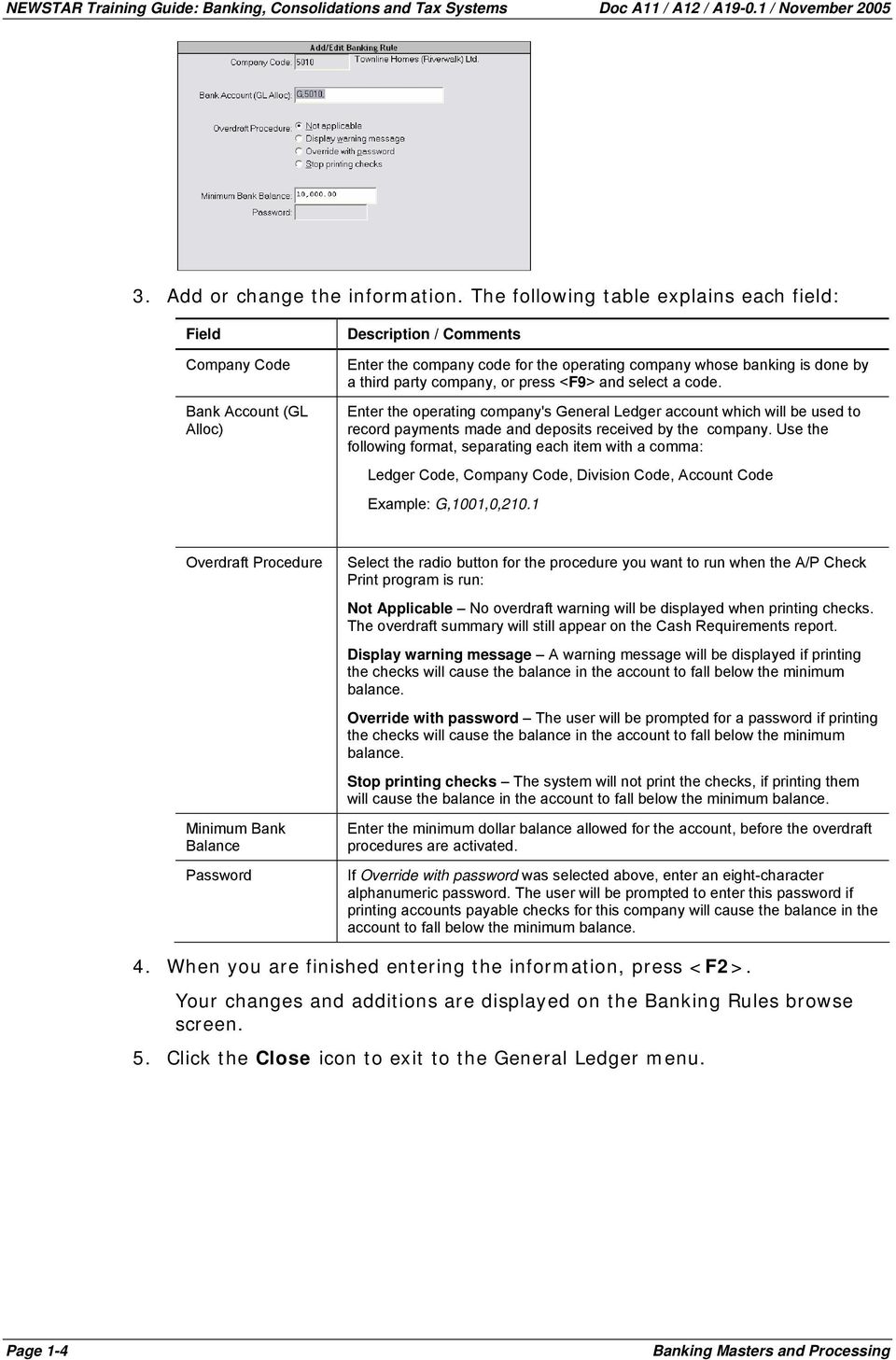
14 NEWSTAR Training Guide: Banking, Consolidations and Tax Systems Doc A11 / A12 / A / November Add or change the information. The following table explains each field: Field Company Code Bank Account (GL Alloc) Description / Comments Enter the company code for the operating company whose banking is done by a third party company, or press <F9> and select a code. Enter the operating company's General Ledger account which will be used to record payments made and deposits received by the company. Use the following format, separating each item with a comma: Ledger Code, Company Code, Division Code, Account Code Example: G,1001,0,210.1 Overdraft Procedure Minimum Bank Balance Password Select the radio button for the procedure you want to run when the A/P Check Print program is run: Not Applicable No overdraft warning will be displayed when printing checks. The overdraft summary will still appear on the Cash Requirements report. Display warning message A warning message will be displayed if printing the checks will cause the balance in the account to fall below the minimum balance. Override with password The user will be prompted for a password if printing the checks will cause the balance in the account to fall below the minimum balance. Stop printing checks The system will not print the checks, if printing them will cause the balance in the account to fall below the minimum balance. Enter the minimum dollar balance allowed for the account, before the overdraft procedures are activated. If Override with password was selected above, enter an eight-character alphanumeric password. The user will be prompted to enter this password if printing accounts payable checks for this company will cause the balance in the account to fall below the minimum balance. 4. When you are finished entering the information, press <F2>. Your changes and additions are displayed on the Banking Rules browse screen. 5. Click the Close icon to exit to the General Ledger menu. Page 1-4 Banking Masters and Processing
15 Doc A11 / A12 / A / November 2005 NEWSTAR Training Guide: Banking, Consolidations and Tax Systems Printing Blank Checks For NEWSTAR systems that include the MICR check feature, the Print Blank Check program provides the facility to print a blank check. In order to print blank checks, the laser printer must be the default Check Form in the Bank Account file. To print blank checks: 1. From the Banking menu, select Print Blank Checks. The Print Blank Checks screen is displayed: 2. Specify the run parameters. The following table explains each field: Field Description / Comments Bank Code Enter the bank code for the account for which you require blank checks, or press <F9> and select a code. The default allocation is displayed. Number of Copies Enter the number of blank checks required, to a maximum of Press <F2> to generate the checks. 4. If the selected bank code has the Pre-numbered flag in the Bank Account program set to Yes, you are prompted for a starting check number. Enter the first check number that the system should use to start printing the blank checks, then press <Enter>. The Print, & Fax screen is displayed. 5. Click the Print button to send the print file to the destination printer. After the checks have been printed, the Banking menu is displayed. Banking Masters and Processing Page 1-5

16 NEWSTAR Training Guide: Banking, Consolidations and Tax Systems Doc A11 / A12 / A / November 2005 Generating a Remittance Advice Once you have processed a manual check in the system, you can generate a remittance advice that includes the name and address of the supplier, the bank, the check number and date, the invoice date and number, and the payment amount. To generate a remittance advice: 1. From the Banking menu, select Remittance Advice. The Remittance Advice screen is displayed: 2. Specify the run parameters. The following table explains each field: Field Company Code Group Code Unit from/to Description / Comments Enter a company code or press <F9> to select from the list of codes. Enter the group codes for the manual checks for which you wish to print a remittance advice, or press <F9> to select the group codes. Enter the starting and ending check unit numbers to be included in the remittance advice. If the Unit To field is left blank, all check unit numbers will be printed. If more than one group is selected, these fields are not active. 3. Click Print to generate the advice. The Print, & Fax screen is displayed. 4. To preview the advice, on the Print tab click either the text icon to view the text report, or the PDF icon to view the report in Acrobat. The advice is displayed on-screen: 5. Close the viewer window when you have finished previewing the advice. Page 1-6 Banking Masters and Processing

17 Doc A11 / A12 / A / November 2005 NEWSTAR Training Guide: Banking, Consolidations and Tax Systems 6. Select one of the Print, , or Fax tabs, and specify the destination printer, address, or fax number for the advice. 7. Click the Print, Send, or Fax button to generate the advice and send it to the specified destination. After the advice has been sent, the Banking menu is displayed. Banking Masters and Processing Page 1-7
18 NEWSTAR Training Guide: Banking, Consolidations and Tax Systems Doc A11 / A12 / A / November 2005 Running the Bank Reconciliation The NEWSTAR system provides a fully integrated bank reconciliation program. All checks, deposits, and journal entries can be matched and reconciled to the bank statement. After the reconciliation is complete, you can select from several reports: Reconciled Checks, Outstanding Checks, or Reconciled Bank Entries. To run the bank reconciliation: 1. From the Banking menu, select Reconciliations. The Bank Reconciliation screen is displayed: 2. Enter a bank code or press <F9> and select from available codes. 3. Click OK. The Reconciliations browse screen displays a list of any previous bank reconciliations for the selected bank code: The Finalized column indicates whether a previous reconciliation has been finalized. The system will not stop you from editing a finalized bank reconciliation, so be very careful if you need to do this. Changes to one bank reconciliation will affect all subsequent bank reconciliations. 4. To add a new record, press <F3> or click the New icon. Or To modify an existing record, select the record and press <F4> or click the Open icon. The Add/Edit Bank Reconciliation screen is displayed: Page 1-8 Banking Masters and Processing

19 Doc A11 / A12 / A / November 2005 NEWSTAR Training Guide: Banking, Consolidations and Tax Systems 5. Add or change the information. The following table explains each field: Field Period Ending Closing Bank Balance Finalized Prepared by Operator Description / Comments Enter the date of the bank statement that you are reconciling, in MMDDYYYY format. Enter the closing balance from the bank statement. Indicates whether the bank reconciliation has been finalized. Displays the login ID of the user who added the bank reconciliation. 6. Click OK. The Banking Details screen is displayed: The top section of the screen displays the following bank balance details for this reconciliation: Field Book Balance O/S Checks O/S Deposits Other Bank Should Be Bank Balance Is Difference Description / Comments The General Ledger balance for this bank account. The balance of checks in this account that have not been reconciled to a bank statement. The balance of deposits in this account that have not been reconciled to a bank statement. The balance of journal entries in this account that have not been reconciled to a bank statement. The balance from the bank statement for the last bank reconciliation on this account. The balance from the current bank statement that was entered to the Closing Bank Balance field of the Add/Edit Bank Reconciliation screen. The difference between the last bank statement balance for this account and the current statement balance. When all items on the current statement are reconciled, this balance will be zero. The bottom section of the screen displays the outstanding deposit and journal entry transactions for this bank account. Type D transactions are deposits, and type U are Journal Entries. Select a Sort By radio button to view the details by check date or check number. 7. To display a list of outstanding checks and reconcile selected checks: Banking Masters and Processing Page 1-9

20 NEWSTAR Training Guide: Banking, Consolidations and Tax Systems Doc A11 / A12 / A / November 2005 a. On the Banking Details browse screen, press <F7>. A list of outstanding checks is displayed: b. To view details of the audit unit containing this check, click the Drilldown icon: c. Click the Continue button to view detailed transactions included in the audit unit: d. e. f. a. b. After viewing the information, click the Close icon to return to the Banking Details screen. To reconcile a check, select the check and press <F11>. To un-reconcile a check, select the check and press <F12>. 8. You can also reconcile checks using the Check Reconciliation screen: On the Banking Details screen, press <F9>. The Check Reconciliation screen is displayed. Enter a check number and press <Enter>. The check date, amount, and description are displayed, and a blank record is added: Page 1-10 Banking Masters and Processing

21 Doc A11 / A12 / A / November 2005 NEWSTAR Training Guide: Banking, Consolidations and Tax Systems 9. To reconcile a line item to this bank statement, select the item and press <F11>. The date that was entered as the Period Ending date on the Add/Edit Bank Reconciliation screen is displayed in the Reconcile Date column. The Difference amount increases or decreases by the amount selected. 10. To un-reconcile a line item, select the item and press <F12>. The Reconcile Date is cleared and the Difference balance changes by the selected amount. c. d. a. b. c. a. Repeat step b for all checks to be reconciled. When you are finished, press <Esc> to return to the Banking Details screen. The reconciliation date is now displayed. 11. Press <F7> to return to the list of deposits and journal entries in the Banking Details screen. 12. After all of the deposits and checks on the bank statement have been reconciled, the only amount remaining in the Difference field should be bank charges. Before the bank charges can be reconciled, they must first be entered to NEWSTAR by Journal Entry: Click the Journal Entry button. Follow normal journal entry procedures. After updating the Journal Entry Audit Group, complete the reconciliation. The Difference field on the Banking Details screen should now be zero. 13. To view or print a list of checks for this bank account: On the Banking Details browse screen, press <F5>. The Check Listing options are displayed: b. Select one of the available options and press <Enter>. The Sorting Options are displayed: c. d. Select a sort option and press Enter. The Print, & Fax screen is displayed. To preview the report, on the Print tab click either the text icon to view the text report, or the PDF icon to view the report in Acrobat. Banking Masters and Processing Page 1-11
22 NEWSTAR Training Guide: Banking, Consolidations and Tax Systems Doc A11 / A12 / A / November 2005 The report is displayed on-screen: e. f. If you want to print the report, from the File menu, select Print. Close the viewer window when you have finished previewing or printing the report. The Banking Details browse screen is displayed. 14. On the Banking Details screen, click the Close icon. The following prompt is displayed: 15. If you are finished the bank reconciliation and the Balance field is zero, enter Yes. 16. Press <Enter>. The Reconciliations browse screen is displayed. 17. Click the Close icon to exit to the Banking menu. Page 1-12 Banking Masters and Processing
23 Doc A11 / A12 / A / November 2005 NEWSTAR Training Guide: Banking, Consolidations and Tax Systems Running the Check Lookup Use this function to view details of a selected check. To run the check lookup: 1. From the Banking menu, select Check Look-up. The Check Look-up screen is displayed: 2. Enter the check number you want information on and press <Enter>. The Documents on File screen displays the check details: 3. Press <Esc> until you return to the Banking menu. Banking Masters and Processing Page 1-13
24 NEWSTAR Training Guide: Banking, Consolidations and Tax Systems Doc A11 / A12 / A / November 2005 Running the Positive Pay Programs Positive Pay is a purchased add-on and is not part of the core code. The set up for the Positive Pay is in the Bank Account file using the Positive Pay button. Running of the Positive Pay file to export to the Bank is as follows: The Positive Pay program provides the ability to specify an account or group of accounts which will export transactions during a specified period. This program creates an ASCII file with all of the check transactions for the specified bank account during a specified period. Positive Pay programs have been set up for a number of banks. The setup is similar for all of the banks. If a field that does not display on the screen you are using is described below, disregard the description. Page 1-14 Banking Masters and Processing
25 Doc A11 / A12 / A / November 2005 NEWSTAR Training Guide: Banking, Consolidations and Tax Systems To run the Positive Pay programs: 1. From the Banking menu, select the Positive Pay program for the applicable financial institution. The bank Transmission File screen is displayed: 2. Enter the required information to the screen. The following table describes each field: Field Bank Code Audit Group From Date / To Date Export Directory Export Format Export Audit Description / Comments Leave the default * to include all bank codes, or enter a specific code, or press <F9> to select from a list of valid codes. Leave the default * to include all audit groups, or press <F9> to select a specific audit group. The start and end dates of the posting date period for the issued checks. If required, enter different dates in MMDDYYYY format. These fields default to the current system date. Indicates the path and folder where the files created by the export will reside. The default folder is C:\Temp. If a bank code has been specified, the system checks whether a different folder has been specified in the Positive Pay information in the Bank Account s master file. Select the radio button for the applicable option: One single file The default selection. If the Bank Code field is *, selecting this option will create only one file containing all the checks for all the bank accounts. The filename of the output file will be the current date (for example, if the date is June 21, One file per CRS account If the Bank Code field is *, selecting this option will create one file per bank account. The output filename for each account will be [current date]_[bank account code] (for example, _5010). Select the radio button to either print or view the check audit report after running the export transfer. Banking Masters and Processing Page 1-15
26 NEWSTAR Training Guide: Banking, Consolidations and Tax Systems Doc A11 / A12 / A / November Click the Export button. Transfer progress is displayed. The system checks whether there are any existing files with the same generated names. If there are, the following message is displayed: Some of the files from the previous export are about to be overwritten. Do you want to continue? If you select Yes, the existing files are overwritten. If you select No, the existing files are renamed with the suffix.nnn, where nnn is the next available version number for that file. When the data has been completely transferred: If Display Audit Report was selected in the Export Audit field, the Checks Audit Details browse screen is displayed. You can use the Export icon to export this information to another format for further analysis. If Print Audit Report was selected in the Export Audit field, the Print, & Fax screen is displayed. You can specify to print, , or fax the file information. Page 1-16 Banking Masters and Processing
27 Doc A11 / A12 / A / November 2005 NEWSTAR Training Guide: Banking, Consolidations and Tax Systems Running the Bank Transactions Report The Bank Transactions report provides a detailed listing of transactions posted to a bank account for a specified date range. The listing is broken down by checks, deposits, and journal entries. The checks and deposits can be sorted by batch number or check number. To generate the bank transactions report: 1. From the Banking menu, select Bank Transactions. The Bank Transactions screen is displayed: 2. Specify the report parameters. The following table explains each field: Field Bank Code From Date / To Date Show Checks by (B)atch or by (C)heck Show Deposits by (B)atch or by (C)heck Description / Comments Enter one or more bank codes, or press <F9> and select a code. Enter the start and end dates of the period of the bank transactions, in MMDDYYYY format. Enter B to list the checks by batch (audit group) number, or C to list the checks by check number. Enter B to list the deposits by batch (audit group) number, or C to list the deposits by check number. 3. Click OK to generate the report. The Print, & Fax screen is displayed. 4. To preview the report, on the Print tab click either the text icon to view the text report, or the PDF icon to view the report in Acrobat. The report is displayed on-screen: 5. Close the viewer window when you have finished previewing the report. Banking Masters and Processing Page 1-17
28 NEWSTAR Training Guide: Banking, Consolidations and Tax Systems Doc A11 / A12 / A / November Select one of the Print, , or Fax tabs, and specify the destination printer, address, or fax number for the report. 7. Click the Print, Send, or Fax button to generate the report and send it to the specified destination. After the report has been sent, the menu is displayed. Page 1-18 Banking Masters and Processing
29 Doc A11 / A12 / A / November 2005 NEWSTAR Training Guide: Banking, Consolidations and Tax Systems Running the Bank Balance Report The Bank Balance report provides a summary of each bank account selected, with the closing balance as of a specified date. You can select to see each account balance with all entries, including future dated transactions. To generate the bank balance report: 1. From the Banking menu, select Bank Balance. The Bank Balance screen is displayed: 2. Specify the report parameters. The following table explains each field: Field Bank Code Include Inactive Bank Codes As of Date Show G/L Account Description / Comments Leave the default * to include all bank accounts on file. You can enter the bank codes required, or press <F9> and select a code. Select the checkbox to include inactive bank accounts in the report. Enter a report cutoff date in MMDDYYYY format. Leave this field blank to include all future entries. Indicates whether the General Ledger account for each bank code should be included. The default is yes. 3. Click OK to generate the report. The Print, & Fax screen is displayed. 4. To preview the report, on the Print tab click either the text icon to view the text report, or the PDF icon to view the report in Acrobat. The report is displayed on-screen: 5. Close the viewer window when you have finished previewing the report. 6. Select one of the Print, , or Fax tabs, and specify the destination printer, address, or fax number for the report. 7. Click the Print, Send, or Fax button to generate the report and send it to the specified destination. After the report has been sent, the menu is displayed. Banking Masters and Processing Page 1-19
30 NEWSTAR Training Guide: Banking, Consolidations and Tax Systems Doc A11 / A12 / A / November 2005 Exercises / Review Questions Exercises 1. Perform a bank reconciliation, using a recent bank statement for which you have not previously run and finalized a reconciliation. 2. Run a Bank Balance report that includes all future transactions. Review Questions 1. What is the purpose of the Banking Rules master file? 2. What system feature do you need in order to print blank checks? 3. When all the items on your bank statement have been reconciled, what number should appear in the Difference field on the Banking Details screen? Page 1-20 Banking Masters and Processing
31 Doc A11 / A12 / A / November 2005 NEWSTAR Training Guide: Banking, Consolidations and Tax Systems Banking Masters and Processing Page 1-21
32
33 Doc A11 / A12 / A / November 2005 NEWSTAR Training Guide: Banking, Consolidations and Tax Systems Module 2: Tax Systems Processing What You ll Learn in this Module This module will provide you with: Explanations of the Accounting Tax Systems programs Detailed instructions on running each of the Tax Systems programs Tax Systems Processing Page 2-1
34 NEWSTAR Training Guide: Banking, Consolidations and Tax Systems Doc A11 / A12 / A / November 2005 About the Tax Systems Programs The NEWSTAR Tax Systems programs covered in this module are used to track and report on tax amounts included in transactions that occur throughout the year. These programs include: Calculations and reports to document the amount of tax remitted to the government Functions to calculate and report to the tax authorities in the Canada on amounts paid and collected Page 2-2 Tax Systems Processing
35 Doc A11 / A12 / A / November 2005 NEWSTAR Training Guide: Banking, Consolidations and Tax Systems Running the Tax Remittance Report Complete report: Page 1 displays all the transactions that are GST Payable (processed through AR) Page 2 displays all the transactions that have GST ITC (processed through AP) Page 3 displays all transactions that have been processed via journal entry or the distribution button in Cash Receipts, Check Group. As payables and receivables are processed by the system, transactions that include taxes are tracked by the Remittance Calculate program. To meet government remittance requirements, users can run this program as of a specified reporting date. The program produces a report of taxes collected on sales and input tax credits paid on purchases. The report includes detailed audit trail information that traces the tax back to the original invoices or entries. When tax is applied to an Accounts Receivable or Accounts Payable invoice, the system posts the tax amount to the accounts specified in the Tax Allocation file of the Tax System. The Tax Remittance report is a listing of the transactions that were posted to these accounts. Tax Systems Processing Page 2-3
36 NEWSTAR Training Guide: Banking, Consolidations and Tax Systems Doc A11 / A12 / A / November 2005 After running and viewing the Remittance report, the Edit Tax Remittance program can be used to make any required adjustments to the data. Then the Remittance report can be run again, as a final version to support the tax submission to the government. The history of all final Tax Remittance reports is stored in this file for reference. To run the Tax Remittance report: 1. From the Tax Systems menu, select Remittance Calculate. The Remittance Calculate screen is displayed: 2. Specify the report parameters. The following table explains each field: Field Company Code Authority Code Description / Comments Enter the company code for which you are running the tax remittance report, or press <F9> and select a code. Enter the tax authority code for which you are running the tax remittance report, or press <F9> and select a code. 3. Press <F2>. The Remittance Reports browse screen will display with a list of Tax Remittance reports that were previously generated for the selected company and tax authority code: 4. To add a new record, press <F3> or click the New icon. Or To modify an existing record, select the record and press <F4> or click the Open icon. The Add/Edit Remittance screen is displayed: 5. Enter the Reporting Date. 6. Click OK to generate the report. The Print, & Fax screen is displayed. 7. To preview the report, on the Print tab click either the text icon to view the text report, or the PDF icon to view the report in Acrobat. The report is displayed on-screen: Page 2-4 Tax Systems Processing
37 Doc A11 / A12 / A / November 2005 NEWSTAR Training Guide: Banking, Consolidations and Tax Systems 8. Close the viewer window when you have finished previewing the report. 9. Select one of the Print, , or Fax tabs, and specify the destination printer, address, or fax number for the report. 10. Click the Print, Send, or Fax button to generate the report and send it to the specified destination. After the report has been sent, the Tax Systems menu is displayed. Tax Systems Processing Page 2-5
38 NEWSTAR Training Guide: Banking, Consolidations and Tax Systems Doc A11 / A12 / A / November 2005 Editing Tax Remittance Items This is the Tax Remittance Report, page 3. After running the Tax Remittance report, the Edit Tax Remittance program can be used to edit line items on the report. Items that should have been included on the report can be added. Unclassified taxes can be assigned to the correct transaction type. Then the Remittance report can be run again, as a final version to support the tax submission to the government. To edit the Tax Remittance report items: 1. From the Tax Systems menu, select Edit Tax Remittance. The Edit Tax Remittance screen is displayed: 2. Enter the required information. The following table explains each field: Field Company Code Authority Code Reporting Date Description / Comments Enter the company code for which you are editing the tax remittance items, or press <F9> and select the code. Enter the tax authority code for which you are editing the tax remittance items, or press <F9> and select the code. Enter the date of the tax remittance report that you are editing, in MMDDYYYY format. 3. Press <F2>. The Tax Remittance browse screen for the selected company, tax authority, and reporting date displays the tax calculations from the report. The first screen lists the taxes that were posted on sales. 4. Press <F7> to display a list of the taxes that were posted on purchases. 5. Press <F7> again to display a list of taxes that were unclassified. You will most likely want to re-classify the unclassified taxes to sales or purchases prior to running the final Tax Remittance report. 6. To edit a tax item, select the line item and press <F4>. The Add/Edit Tax Remittance screen is displayed: 7. Enter the information to the screen. The information displayed here reflects the values on file for the specified audit group. However, changes made to this screen do not change the actual audit group. They only affect what is displayed on the Tax Page 2-6 Tax Systems Processing
39 Doc A11 / A12 / A / November 2005 NEWSTAR Training Guide: Banking, Consolidations and Tax Systems Remittance report. Generally, changes will only be required to the Transaction Type, Tax Category Code or Amount. Tax Systems Processing Page 2-7
40 NEWSTAR Training Guide: Banking, Consolidations and Tax Systems Doc A11 / A12 / A / November 2005 The following table explains each field: Field Posting Date Transaction Type Tax Category Code Amount Group Number Unit Number Transaction Number Description / Comments The date that this transaction was posted to the General Ledger, in MMDDYYYY format. Identifies the sub-ledger system that the tax entry came from: S Sale (Accounts Receivable system) display only, cannot be changed P Purchase (Accounts Payable system) display only, cannot be changed U Unclassified (the posting to the tax account was done outside of the Accounts Receivable or Accounts Payable systems; perhaps by Journal Entry) Unclassified entries need to be reclassified as either Sale or Purchase for reporting purposes. If applicable to the selected tax authority, this field displays the tax category code that applies to this transaction. If required, enter a code or press <F9> and select one. The amount that was distributed to the tax account for this transaction. When tax is applied to an Accounts Receivable or Accounts Payable invoice, the system posts the tax amount to the accounts specified in the Tax Allocation file of the Tax System. The Tax Remittance report is a listing of the transactions that were posted to these accounts. The audit group number of this tax transaction. The unit number of this tax transaction. The distribution transaction number where this tax amount was recorded. 8. Press <F2> to save your changes and return to the Tax Remittance browse screen. 9. Press <Esc> until you return to the Tax Systems menu. Page 2-8 Tax Systems Processing
41 Doc A11 / A12 / A / November 2005 NEWSTAR Training Guide: Banking, Consolidations and Tax Systems Running the Invoices Paid Report The Invoices Paid report provides a listing of all invoices that were paid to US suppliers who were flagged in the Supplier master file for 1099 reporting. The report can be reviewed for accuracy, and if necessary, corrections can be made either in the Supplier master file or using the 1099 Fix Up Invoices program, prior to printing the 1099 forms. To run the Invoices Paid report: 1. From the Tax Systems menu, select Invoices Paid Report. The 1099 Invoices Paid Report screen is displayed: 2. Specify the report parameters. The following table explains each field: Field Description / Comments Company Code Tax Year Enter the company code for which you are running the Invoices Paid report, or press <F9> and select a code. This field defaults to the current tax year for the selected company. Override by entering a different tax year in YYYY format Code List Leave the default * to include all 1099 codes, or press <F9> and select a specific code. Supplier From Date / To Date 3. Press <F2> to generate the report. Leave the default * to include all suppliers, or press <F9> and select a specific supplier code. The Invoices Paid report displays all invoices that were paid to 1099 suppliers with invoice dates within the specified date range. From Date defaults to the first day of the first period for the selected tax year. To Date defaults to the last day of the last period for the selected tax year. If necessary, override either date in MMDDYYYY format. The Print, & Fax screen is displayed. 4. To preview the report, on the Print tab click either the text icon to view the text report, or the PDF icon to view the report in Acrobat. The report is displayed on-screen: Tax Systems Processing Page 2-9
42 NEWSTAR Training Guide: Banking, Consolidations and Tax Systems Doc A11 / A12 / A / November Close the viewer window when you have finished previewing the report. 6. Select one of the Print, , or Fax tabs, and specify the destination printer, address, or fax number for the report. 7. Click the Print, Send, or Fax button to generate the report and send it to the specified destination. After the report has been sent, the Tax Systems menu is displayed. Page 2-10 Tax Systems Processing
43 Doc A11 / A12 / A / November 2005 NEWSTAR Training Guide: Banking, Consolidations and Tax Systems Fixing Up Invoices The Fix Up Invoices program enables you to correct the 1099 code that was assigned to a supplier s invoices. You may need to use this option if invoices for a particular supplier were processed and paid prior to flagging the supplier for 1099 reporting. Or a particular supplier s invoices were not coded correctly. To run the Fix Up Invoices program: 1. From the Tax Systems menu, select Fix Up Invoices. The Fix-up 1099 Codes on Existing Invoices screen is displayed. 2. Enter the information to the screen. The following table explains each field: Field Description / Comments Company Code Start at Date / End at Date Supplier Code Enter the company code for which you are fixing 1099 invoices, or press <F9> and select a code. The 1099 Invoices Paid report displays all invoices that were paid to 1099 suppliers with invoice dates within a specified date range. Enter the start and end dates of the date range in MMDDYYYY format. Enter the supplier code to report on, or press <F9> and select a code. The system displays the 1099 I.D., 1099 Type and Default 1099 Code on file in the Supplier master for the selected supplier Code Defaults to the 1099 code on file in the Supplier master for the selected supplier. To update the 1099 code for all invoices for the selected Supplier within the specified date range, enter a different 1099 code, or press <F9> and select a code. 3. Press <F2> to process the changes. 4. When prompted to confirm proceeding, type Y and press <Enter>. The Message Bar at the bottom of the screen indicates the invoices that have been updated. 5. Press the <Spacebar> when the processing is complete. The Fix-up 1099 Codes on Existing Invoices screen is displayed. 6. If you are finished, press <Esc> to return to the Tax Systems menu. Tax Systems Processing Page 2-11
44 NEWSTAR Training Guide: Banking, Consolidations and Tax Systems Doc A11 / A12 / A / November 2005 Running the Supplier Update The Supplier Update program can be used to update any of the following information for a supplier: 1099 code T5018 code Business Number / Social Insurance Number 1099 ort5018 code in a supplier s invoices To run the Supplier Update: 1. From the Tax Systems menu, select Supplier Update. The Update 1099/T5018 Code for Supplier screen is displayed: 2. Enter the selection criteria at the top of the screen. The following table explains each field: Field Description / Comments Country City 1099ID/BN/SIN Leave the default * to include suppliers from all countries, or enter specific country codes, or press <F9> and select a country code. Leave the default * to include suppliers from all cities, or enter specific city codes, or press <F9> and select a city code. Leave the default * to include suppliers with any number, or enter a number for a specific supplier. 1099/T5018 Code Leave the default * to include suppliers with all codes, or enter a specific code. 3. Press <Enter> to select suppliers who meet the criteria. The suppliers are displayed in the browse window: 4. For any supplier, you can modify the data in the 1099 ID/BN/SIN or 1099/T5018 Code fields. Page 2-12 Tax Systems Processing
45 Doc A11 / A12 / A / November 2005 NEWSTAR Training Guide: Banking, Consolidations and Tax Systems 5. When you are finished changing the number or code fields, click the Update Inv. button to select all the invoices to update with the new 1099/T5018 code. The Update 1099/T5018 Code for Invoices screen is displayed: The Country, City, 1099ID/BN/SIN and 1099/T5018 Code filters entered on the previous screen are displayed at the top of the screen. 6. Enter the information to the screen. The following table explains each field: Field Supplier List Company List From Date /To Date Description / Comments The suppliers whose invoices are being changed. If you selected any suppliers on the previous screen, they are listed here. You can process this list, or change or override it. Enter * to select all suppliers listed on the previous screen. Or enter one or more specific suppliers, or press <F9> to select a supplier. The companies to whom the invoices are addressed. Enter * to select all companies, or enter one or more specific companies, or press <F9> to select a company. The starting and ending invoice dates, in MMDDYYYY format. Only invoices between these dates will be included. 7. Click OK. All of the selected invoices are updated with the 1099/T5018 code, provided they belong to an A/P Category where the Ask 1099/T5018 Code? field is set to Yes. 8. Click the Close icon to return to the Tax Systems menu. Tax Systems Processing Page 2-13
46 NEWSTAR Training Guide: Banking, Consolidations and Tax Systems Doc A11 / A12 / A / November 2005 Running the Invoice Update The Invoice Update program can be used to fine-tune the information to be included in the T5018 returns. You can exclude a specific invoice or invoice item that was updated with the T5018 code, or include a specific invoice or invoice item that has not been updated with the T5018 code. To run the Invoice Update program: 1. From the Tax Systems menu, select Invoice Update. The Update 1099/T5018 Code for Invoice screen is displayed: 2. Enter the selection criteria at the top of the screen. The following table explains each field: Field Supplier Company A/P Cat. From Description / Comments Leave the default * to include all suppliers, or enter one or more supplier codes, or press <F9> and select a code. Leave the default * to include all companies, or enter one or more company codes, or press <F9> and select a code. Leave the default * to include all A/P categories, or enter one or more category codes, or press <F9> and select a code. Include all invoices with an invoice date on or after this date. 3. Press <Enter> to select invoices that meet the criteria. The invoices are displayed in the browse window: 4. Highlight the Invoice you wish to edit, and select the Drill-down icon to see the Invoice Item(s). The Update 1099/T5018 Code for Invoice Items screen is displayed: Page 2-14 Tax Systems Processing
47 Doc A11 / A12 / A / November 2005 NEWSTAR Training Guide: Banking, Consolidations and Tax Systems 5. For any invoice, you can modify the data in the 1099/T5018 Code field, to exclude a specific invoice item from the T5018 Information Return. Edit the following field: Field Description / Comments 1099/T5018 Code A 1099/T5018 code must match the supplier s 1099/T5018 code if the invoice item is to be reported using the 1099 or T5018 forms. If you do not want to include the selected invoice item, clear this field or enter a code that is different from the supplier s 1099/T5018 code. If this field is currently blank or different from the supplier s code, but you want to include this invoice item on the 1099 or T5018 forms, enter the supplier s 1099 or T5018 code here. 6. When you have finished editing, click the Close icon to return to the Update 1099/T5018 Code for Invoice screen. 7. Click the Close icon to return to the Tax Systems menu. Tax Systems Processing Page 2-15
48 NEWSTAR Training Guide: Banking, Consolidations and Tax Systems Doc A11 / A12 / A / November 2005 Running 1099/T5018 Adjustments The 1099/T5018 Adjustments program is used to adjust the total payment amount for a supplier. You enter adjustment amounts by company, supplier, 1099/T5018 code, and year. When the Print 1099 Forms or Print T5018 Forms program is run, the total payment amount for the supplier will be adjusted by the adjustment entered in this program. To run 1099/T5018 Adjustments: 1. From the Tax Systems menu, select 1099/T5018 Adjust. The 1099/T5018 Adjustment Amounts browse screen is displayed: 2. To add a new record, press <F3> or click the New icon. Or To modify an existing record, select the record and press <F4> or click the Open icon. The Add/Edit 1099/T5018 Adjustment Amounts screen is displayed: 3. Add or change the information. The following table explains each field: Field Description / Comments Company Code Supplier Code Enter a company code, or press <F9> and select a code. Enter a supplier code, or press <F9> and select a code. 1099/T5018 Code Enter the 1099 or T5018 code. Adjustment Year Adjustment Amount Enter the adjustment year in YYYY format. The default is the current tax year. If you are going to include this adjustment in the Print 1099 Forms or Print T5018 Forms program, you must enter the same adjustment year here and in that program. Enter the applicable adjustment amount. 4. After completing the fields, press <F2>. The 1099/T5018 Adjustment Amounts browse screen displays your changes or additions. 5. If you are finished, click the Close icon to return to the Tax Systems menu. Page 2-16 Tax Systems Processing
49 Doc A11 / A12 / A / November 2005 NEWSTAR Training Guide: Banking, Consolidations and Tax Systems Printing 1099 Forms Once you are satisfied with the 1099 Invoices Paid report, you are ready to print the actual 1099 forms. The Print 1099 Forms option has been configured to print Form 1099 Misc (Statement for Recipients of Miscellaneous Income). All invoices that meet your selection criteria and are $ or greater will be included in the form. The 1099 Form will print the supplier name and the dba name (if one has been specified in the Supplier record). To print the 1099 forms: 1. From the Tax Systems menu, select Print 1099 Forms. The 1099 Forms screen is displayed: 2. Specify the parameters. The following table explains each field: Field Description / Comments Company Code Tax Year You can leave the default * to print the 1099 forms for all companies, provided all the companies share the same Federal ID Number. Otherwise, enter a company code or press <F9> and select a code. This field defaults to the current tax year for the selected company. You can override it by entering another tax year in YYYY format Code List Leave the default * to include all 1099 codes, or enter a specific 1099 code or press <F9> to select a code. Supplier From Date /To Date Federal ID Number Printer Type 3. Press <F2> to continue. Leave the default * to include all suppliers, or enter a specific supplier code or press <F9> to select a code. The system will print the 1099 forms for all invoices paid to 1099 suppliers that are $600 or greater, with invoice dates within this date range. These fields default to the first day of the first period and the last day of the last period, for the Tax Year selected above. Override by entering different dates in MMDDYYYY format. Enter the Federal ID Number for the selected companies. Select the type of printer that will be used to print the forms: either Dot Matrix or Laser. The message Do you want a test pattern? is displayed. 4. Click Yes if you want to print a test pattern or No to skip the test pattern. The Print, & Fax screen is displayed. 5. Select the Print tab, and specify the destination printer. 6. Click the Print button to generate the file and send it to the specified destination. After the report has been sent, the Tax Systems menu is displayed. Tax Systems Processing Page 2-17
50 NEWSTAR Training Guide: Banking, Consolidations and Tax Systems Doc A11 / A12 / A / November 2005 Printing T5018 Forms Once all the suppliers and their invoices to be reported are marked for inclusion in the T5018 Information Returns, the T5018 forms can be printed. One sheet of three Statement of Contract Payments forms will be printed for each supplier (subcontractor) paid by the selected company. One Summary of Contract Payments form will be printed for the company. You must do a separate run for each of the reports produced by this program, since they are printed on different forms. To print the T5018 forms: 1. From the Tax Systems menu, select Print T5018 Forms. The Print T5018 Forms screen is displayed: 2. Specify the parameters. The following table explains each field: Field Description / Comments Registration Number Company Code(s) From Date / To Date This is an optional field. If you wish to report on several companies with the same registration number, enter the registration number here. If you have entered a registration number, any companies with that registration number will be displayed in this field. You can accept the default, or edit the field. If the Registration Number field is blank, enter the company codes for which one Summary of Contract Payments is to be printed. If more than one company code is entered in this field, all the companies must belong to one legal entity, and the last company listed must be the legal company for the following reasons: Each Statement of Contract Payments form will show one amount that will include subcontractor payments from all the companies entered here. The name and Business Number of the last company entered here will be printed on the form. One Summary of Contract Payments form will be printed. The Business Number, legal name, and address of the last company listed in this field will be printed on the form. Enter the start and end dates of the invoice date period to include, in MMDDYYYY format. 1099/T5018 Code Enter the code indicating which suppliers and invoices are to be included. Adjustment Year Enter the adjustment year for which adjustment amounts are to be included, in YYYY format. This must match the adjustment year entered in the 1099/T5018 Adjustments program. If you do not want to include adjustments, enter zero in this field. The system will not include any adjustment amounts that may exist in the 1099/T5018 Adjustments file. Page 2-18 Tax Systems Processing
51 Doc A11 / A12 / A / November 2005 NEWSTAR Training Guide: Banking, Consolidations and Tax Systems Field Payments to GL Minimum for T5018 Description / Comments Select one of the following values from the drop-down list: Include All payments both payments allocated to an invoice and payments allocated directly to the General Ledger will be included in the T5018 Information Returns. Exclude Only payments allocated to an invoice will be included in the T5018 Information Returns. Payments allocated directly to the General Ledger will be excluded. Only Only payments allocated directly to the General Ledger will be included in the T5018 Information Returns. Payments allocated to an invoice will be excluded. Tax authorities give you the option of excluding from the T5018 Information Returns any supplier whose total payment is less than $ By pressing <Enter> to accept the default, you will exclude any supplier with a total payment less than $ If you wish, you can enter a different minimum amount, and any supplier with a total payment less than this minimum will be excluded. 3. Click OK to continue. The Print T5018 browse screen displays a list of the suppliers and amounts to be reported: 4. To print a form or report, select the form or report, then click the Printer icon. The Print T5018 Forms/Report screen is displayed. 5. Select the form or report to print: T5018 Statement of Contract Payments T5018 Summary of Contract Payments T5018 Report of Contract Payments This report shows one total payment amount per supplier. The report does not include suppliers where the total payment amount is less than the amount entered in the Minimum for T5018 field. T5018 Detail Report of Contract Payments This report shows payment details for each supplier. It includes suppliers where the total payment amount is less than the amount entered in the Minimum for T5018 field. 6. Try the F2 or F5 or the print icon should be highlighted The Print, & Fax screen is displayed. Tax Systems Processing Page 2-19
52 NEWSTAR Training Guide: Banking, Consolidations and Tax Systems Doc A11 / A12 / A / November Select the Print tab, and specify the destination printer. 8. Click the Print button to generate the file and send it to the specified destination. After the report has been sent, the Print T5018 browse screen is displayed, where you can print another form or report. 9. When you are finished, press <Esc> until you return to the Tax Systems menu. Page 2-20 Tax Systems Processing
53 Doc A11 / A12 / A / November 2005 NEWSTAR Training Guide: Banking, Consolidations and Tax Systems Exercises / Review Questions Exercises 1. Generate a Tax Remittance report. 2. Edit any of the items in the Tax Remittance report that are unclassified. Review Questions 1. What is the purpose of the Tax Remittance report? 2. What is the difference between the Fix Up Invoices program and the Invoices Update program? Tax Systems Processing Page 2-21
54 NEWSTAR Training Guide: Banking, Consolidations and Tax Systems Doc A11 / A12 / A / November 2005 Page 2-22 Tax Systems Processing
55 Doc A11 / A12 / A / November 2005 NEWSTAR Training Guide: Banking, Consolidations and Tax Systems Module 3: Consolidations Masters and Processing What You ll Learn in this Module This module contains: Explanations of the Accounting system Consolidations programs Detailed instructions on running each of the Consolidations programs Consolidations Masters and Processing Page 3-1
56 NEWSTAR Training Guide: Banking, Consolidations and Tax Systems Doc A11 / A12 / A / November 2005 About the Consolidations Programs The NEWSTAR Consolidations programs provide you with all the tools needed to generate consolidated financial statements. Multiple roll-up options are available, which enable you to generate consolidated reports by property, city, territory, region, country, ownership, or manager. The users determine the roll-ups desired, based on their company's requirements. As a first step in preparing the system to process consolidations, you should create a flowchart of the consolidations required for your organization. This will help confirm how many consolidated companies are required and the calculation levels. A sample flowchart is shown below: Once the flowchart is complete, you are ready to set up the master files within the Consolidations module. The Consolidations master files include: Setting up the minority interest accounts, if applicable Defining the consolidation company rules General account mapping for the companies being rolled up Detailed consolidation mapping of specific accounts After setting up the master files, you can perform consolidation processing. These functions include: Running the roll-up process, to roll up the account balances Doing journal entries as required, to modify or update any unapproved audit groups created during the roll-up process Rolling up budgets for purposes of comparing actual amounts to budgets There are a number of consolidation reporting functions that you can run: Account Inquiry Trial Balance Trial Balance Spreadsheet Consolidation Summary Several utilities are provided to assist you in working with consolidation data: Exporting and importing consolidated data, for transfer between different locations Rolling up the opening balances for a new consolidation company Page 3-2 Consolidations Masters and Processing
57 Doc A11 / A12 / A / November 2005 NEWSTAR Training Guide: Banking, Consolidations and Tax Systems Setting Up Minority Interest Accounts If the consolidation method for any of the roll-up companies will be Minority Interest, the minority interest accounts must be identified. To post minority interest, the system requires two minority interest accounts: one in the P&L and one in the Balance Sheet. For example, if the company s ownership is 80%, the system will display 100% of the rolled up amounts in each of the consolidated accounts, and then calculate the 20% residual. The residual amount will be posted as a summarized number: one side of the entry to the P&L and the other side to the Balance Sheet. To set up minority interest accounts: 1. From the Consolidations menu, select Minority Interest. The Minority Interest Accounts screen is displayed: 2. Enter the Master Chart code for which you are defining minority interest accounts, or press <F9> and select the code. 3. Press <F2> to proceed. The Minority Interest Accounts browse screen displays a list of the minority interest accounts that are set up for this Master Chart of accounts: 4. To add a new record, press <F3> or click the New icon. Or To modify an existing record, select the record and press <F4> or click the Open icon. The Add/Edit Minority Interest Account screen is displayed: Consolidations Masters and Processing Page 3-3
58 NEWSTAR Training Guide: Banking, Consolidations and Tax Systems Doc A11 / A12 / A / November Add or change the information. The following table explains each field: Field Minority Interest Acct. Source Accounts Description / Comments Enter the account code where the minority interest calculated value should be posted, or press <F9> and select a code. You must set up two minority interest accounts in order to post minority interest: one in the P&L and one in the Balance Sheet. Enter the list of accounts whose values should be calculated into the minority interest account. Enter each account desired, separated by commas with no spaces. You can use wild cards (for example, enter *3 to include all accounts that start with 3). To use all of the accounts from the source Master Chart, enter *. 6. After completing the fields, press <F2>. The Minority Interest Accounts browse screen displays your changes or additions. 7. If you are finished, click the Close icon to return to the Consolidations menu. Page 3-4 Consolidations Masters and Processing
59 Doc A11 / A12 / A / November 2005 NEWSTAR Training Guide: Banking, Consolidations and Tax Systems Defining Consolidation Company Rules The Company Rules file stores the information about the group of companies that will be rolled into a consolidation company. The rules are defined in two steps: 1. Define the company name and calculation level of the roll up Calculation level is 0 when consolidating accounting companies Calculation level is 1 when consolidating previously consolidated companies 2. Identify the companies to be included in the group. For each company define: The effective date The percent ownership The method of calculating ownership: proportionate or minority interest To define the consolidation company rules: 1. From the Consolidations menu, select Company Rules. The Consolidation Companies browse screen is displayed: 2. To add a new record, press <F3> or click the New icon. Or To modify an existing record, select the record and press <F4> or click the Open icon. The Add/Edit Company to Consolidate To screen is displayed: 3. Add or change the information. The following table explains each field: Field Company Code Description / Comments Enter the company code of the consolidated company, or press <F9> and select a code. Consolidations Masters and Processing Page 3-5
60 NEWSTAR Training Guide: Banking, Consolidations and Tax Systems Doc A11 / A12 / A / November 2005 Field Calculation Level Notes Description / Comments Enter the calculation level for this consolidation group. The consolidations system uses a roll-up approach to generate consolidated company balances. A consolidated company may include a group of accounting companies, or it may include a consolidated company and an accounting company. The calculation level defines the maximum number of times any one of the companies in the consolidation group has been rolled up. For example: If the group of companies being consolidated are all accounting companies, the calculation level for this consolidated company is 0. If the group of companies being consolidated includes a consolidation company level 0, the calculation level for this consolidated company is 1. If the group of companies being consolidated includes a consolidation company level 1, the calculation level for this consolidated company is 2. Enter a description of the consolidation group, for example, a list of the companies and percentage of each company included in the consolidation. This information is displayed on the Consolidation Companies browse screen. 4. Click OK. The Consolidation Roll-up Rules browse screen is displayed: Here you will set up the rules for each of the companies included in this consolidation group. 5. To add a new record, press <F3> or click the New icon. Or To modify an existing record, select the record and press <F4> or click the Open icon. The Add/Edit Company to Consolidate From screen is displayed: 6. Add or change the information. The following table explains each field: Field Company Code Effective Date Description / Comments Rules must be set up for each company to be included in this consolidation group, including other consolidation companies. Enter the company code of a company to be included in the group, or press <F9> and select a code. Enter the effective date to include this company in the consolidation company, in MMDDYYYY format. Page 3-6 Consolidations Masters and Processing
61 Doc A11 / A12 / A / November 2005 NEWSTAR Training Guide: Banking, Consolidations and Tax Systems Field Percent Ownership Method Description / Comments The Consolidations programs provide the flexibility of including only a portion of a company in the consolidation group. This can be used for companies with multiple owners. Enter the percentage of this company's account balances that you want included in this consolidation group. Select the radio button for the method for calculating ownership: Proportionate The system calculates and displays the proportion of the amounts in each of the consolidated accounts attributable to this company. For example, if the Percent Ownership is 80%, the system will calculate and display 80% of the amounts in each of the consolidated accounts. Minority Interest The system displays 100% of the amounts in each of the consolidated accounts, and then calculate the 20% residual. The residual is posted as a summarized number: one side of the entry in the P&L and the other side in the Balance Sheet. If you select Minority Interest as the Method, the Minority Interest master file must be set up prior to processing. 7. After completing the fields, press <F2>. The Consolidation Roll-up Rules browse screen displays your changes or additions. 8. If you are finished, click the Close icon to return to the Consolidations menu. Consolidations Masters and Processing Page 3-7
62 NEWSTAR Training Guide: Banking, Consolidations and Tax Systems Doc A11 / A12 / A / November 2005 Defining Account Mapping The Consolidation module includes a utility to map account balances from the roll up company to designated accounts in the consolidated company. This allows the consolidated company to have a unique Master Chart of Accounts and report on a summarized basis. Alternatively, if all companies that are part of the roll up, including the consolidated company, use the same Master Chart of Accounts, account mapping will not be necessary. To define account mapping for a roll up company: 1. From the Consolidations menu, select Account Mapping. For specific procedures on how to use the Account Mapping program, see Account Mapping. Page 3-8 Consolidations Masters and Processing
63 Doc A11 / A12 / A / November 2005 NEWSTAR Training Guide: Banking, Consolidations and Tax Systems Running Detailed Consolidation Mapping After the general account mapping has been done for each company in the roll up, the Detail Consolidation Mapping program enables you to do "one off" mapping of specific accounts. This feature is optional. It can be used, for example, where one company in the roll up has a unique account that doesn't fit with the standard mapping. To run detailed consolidation mapping: 1. From the Consolidations menu, select Detail Consol Mapping. The Detailed Consolidations Allocation Company screen is displayed: 2. Enter the Company Code for the target consolidation company and press <F2>. The Detailed Consolidations Account Mapping browse screen displays a list of all the re-mapped accounts that are currently on file: 3. To add a new account mapping, press <F3> or click the New icon. Or To modify an existing account mapping, select the record and press <F4> or click the Open icon. The Detailed Consolidations Account Allocation screen is displayed: 4. Add or change the information. The following table explains each field: Field Company Code Allocation Target Account Description / Comments The system displays the Company Code of the target consolidation company. Identifies the source account. When you are adding a new mapping, the allocation boxes for System, Company, Division, Account, and Sub-ledger (if required) are displayed at the bottom of the screen. Type the source allocation account information into these boxes, pressing <Enter> after each one. After the last box, the complete source account is displayed in the Allocation field. Enter the consolidation company's target account, or press <F9> and select the account. Consolidations Masters and Processing Page 3-9
64 NEWSTAR Training Guide: Banking, Consolidations and Tax Systems Doc A11 / A12 / A / November After completing the fields, press <F2>. The Detailed Consolidations Account Mapping browse screen displays your changes or additions. 6. If you are finished, click the Close icon to return to the Consolidations menu. Page 3-10 Consolidations Masters and Processing
65 Doc A11 / A12 / A / November 2005 NEWSTAR Training Guide: Banking, Consolidations and Tax Systems Running the Roll-Up Process After all of the consolidation master files have been set up, the company rollups can be processed. The roll-up process rolls up the actual account balances. In one step, the system: Calculates minority/percentage interest Factors in foreign exchange Combines the data from all companies Creates, validates, and updates an audit group Make sure the period is closed for all companies included in the roll-up. Use the G/L Activate Periods to close the month. This will ensure that no postings can be done while the roll-up is being performed. The roll-up process starts with the monthly detailed transactions for each company that belongs to the consolidation group. It first calculates a sum of the transactions for the month to generate a consolidated monthly total by account. Then, it factors in the exchange rates, if applicable. Finally it produces and updates a General Ledger Journal Entry audit group. If the system cannot validate an entry, it will leave the unapproved audit unit in the Journal Entry program, where it can be edited and then updated. Roll-ups are done on a month-by-month basis. This makes it possible to roll up companies with different year-ends. To run the roll-up process: 1. From the Consolidations menu, select Roll-up Process. The Roll-up Process screen is displayed: 2. Enter the information to the screen. The following table explains each field: Field Start at Calculation Level End at Calculation Level Company Match List Ledger Description / Comments Enter the lowest calculation level where roll-ups should start. Enter the highest calculation level where roll-ups should stop. Enter the list of consolidated companies to be included in the roll-up. Leave the default * to include all companies that have been defined under the Company Rules. Select either the Accrual or the Cash ledger to roll up. To run a Cash ledger roll-up, all companies in the group, including the consolidated company, must have the Cash Ledger flag set to Yes in the Company file. Consolidations Masters and Processing Page 3-11
66 NEWSTAR Training Guide: Banking, Consolidations and Tax Systems Doc A11 / A12 / A / November 2005 Field From Date / To Date Operating Unit Code Do you want to update entries? Description / Comments Enter the first and last days of the month, in MMDDYYYY format, for which you are processing the consolidation. You must do a separate roll-up for each month. You must specify an Operating Unit code in order to run the roll-up process. Enter a code that applies to one of the companies included in the roll-up. If you select the Yes radio button, the consolidation process will create a Journal Entry audit group for each consolidated company, and will automatically update the groups. If you select No, the system will create an unapproved audit group that you will need to manually update from the Journal Entry program. If you select No and have higher than Level 0 in your roll-up, the audit units for the higher level consolidated company will not be created until the lower level consolidated audit groups are updated. In addition, the consolidation reports with the results of this roll-up will be unavailable until the audit groups have been updated. 3. After completing the fields, press <F2>. The following message is displayed: 4. Click Yes to start the process. The Rolling-up screen shows the target and source companies and the audit group numbers that are created by the process: If a source company had no account balances for the period, the Notes column will indicate NO ENTRIES Unit Undone. This occurs if the audit group for a lower level consolidated company has not been updated yet. If the roll-up has been performed previously for a company, the system will prompt you to confirm rerunning the roll-up for that company. Click Yes to confirm. Page 3-12 Consolidations Masters and Processing
67 Doc A11 / A12 / A / November 2005 NEWSTAR Training Guide: Banking, Consolidations and Tax Systems 5. When the update process is complete, press the <Spacebar> to return to the Consolidations menu. If you selected to update entries, the results of the roll-up can now be viewed through the various accounting and financial reports. However, if you selected not to update entries, you must select the Journal Entry option to view and update the unapproved audit groups created by the roll-up. Consolidations Masters and Processing Page 3-13
68 NEWSTAR Training Guide: Banking, Consolidations and Tax Systems Doc A11 / A12 / A / November 2005 Processing Journal Entries The roll-up procedure generates and updates a General Ledger Journal Entry audit group. If, during the roll-up process, you selected not to update entries, you must use the Journal Entry program to modify or update the unapproved audit groups. Before you start a session of processing journal entries, you should set your default values for Date, Operating Unit, and Company to cut down on the volume of repetitive data entry required. To do so, use the Set Login Defaults option on the General Ledger menu. To process journal entries: 1. On the Consolidations menu, select Journal Entry. The Un-approved Audit Groups in GL browse screen displays a list of all unapproved audit groups previously created but not updated: 2. To add a new record, press <F3> or click the New icon. Or To modify an existing record, select the record and press <F4> or click the Open icon. The Add/Edit General Ledger screen is displayed: The Group Number, Operator, Creation Date, and Creation Time are automatically filled in by the system. If you set a default Operating Unit, it is also filled in. 3. If you did not set up a default Operating Unit, type an Operating Unit Code and press <Enter>. Page 3-14 Consolidations Masters and Processing
69 Doc A11 / A12 / A / November 2005 NEWSTAR Training Guide: Banking, Consolidations and Tax Systems 4. Enter or change the information as required. The following table explains each field: Field Control Total No of Units Description Description / Comments Enter the grand total amount of all debits being entered to this journal entry group. This total will be compared to the actual total debits that are entered to the group. Enter the total number of journal entry units being entered to this group. This total will be compared to the actual total number of units that are entered to the group. Enter a description, up to 30 characters in length, of the journal entry group. This should be a general description of what the group contains. 5. Click OK. The Journal Entry Units browse screen is displayed: This screen provides a summary of each journal entry unit entered to the group. 6. To print a detailed listing of the un-approved journal entry units: a. b. c. d. e. Select the Print icon. When prompted for a Unit #, accept the default * to print all units, or enter a specific unit number. Press <Enter>. Select the print destination. Click the Print button. 7. To add a new journal entry unit record, press <F3> or click the New icon. Or To modify an existing journal entry unit record, select the record and press <F4> or click the Open icon. Consolidations Masters and Processing Page 3-15
70 NEWSTAR Training Guide: Banking, Consolidations and Tax Systems Doc A11 / A12 / A / November 2005 The Add/Edit Journal Entry screen is displayed: A default Group Number and Unit Number are automatically assigned by the system. The Group Number applies to all journal entries you are making in this session. A Unit Number is assigned to each journal entry as you set it up. 8. Enter or change the information as required. The following table explains each field: Field Primary Memo Additional Memo Company Code Source Currency Journal Code Posting Date Reversal Date FYr / Period Description / Comments Enter a general description for this entry. When posting opening balances, this might be something like Balance Forward Entries. This field will print on most reports. Optionally, use this field to enter a more detailed description or reason for the journal entry. This memo field only prints on the audit trail report. The default company code is displayed in this field. If applicable, enter a different company code to post to, or press <F9> and select a code. Press <Enter> to continue. This field defaults to the currency of the Company Master file, but can be overridden. Enter the currency code for this journal entry unit, or press <F9> and select a code. The journal code displays automatically. When posting entries to the Journal Entry program, this is the General Journal (GJ). Enter the posting date for the entry in MMDDYYYY format. This field is for accruals only, where you know in advance that a cost is going to be incurred. You create a journal entry for the cost now, but you want this entry to be reversed automatically when the cost is actually incurred. If this is an accrual, enter the date you want the reversal to be posted, in MMDDYYYY format. Otherwise, leave this field blank. The fiscal year and period for both the posting and reversal dates are displayed automatically. 9. Press <F2> to save changes. The following warning message is displayed: 10. Click OK to continue. The Journal Entry Distribution browse screen is displayed: Page 3-16 Consolidations Masters and Processing
71 Doc A11 / A12 / A / November 2005 NEWSTAR Training Guide: Banking, Consolidations and Tax Systems If you are editing a journal entry already on the system, a list of allocations for this journal entry is shown. Currencies and amounts are indicated for Source, G/L Account and Home. If any foreign accounts were used, the exchange gain or loss is displayed in the Exchange field. 11. To print a listing of the distribution lines: a. b. a. b. Click the Print icon. Select the destination to which you would like the report printed. 12. To delete a distribution line: Highlight the item you want to delete. Click the Delete icon. 13. To add a new distribution line, press <F3> or click the New icon. Or To modify an existing distribution line, select the record and press <F4> or click the Open icon. The Add/Edit Journal Entry Distribution screen is displayed: Consolidations Masters and Processing Page 3-17
72 NEWSTAR Training Guide: Banking, Consolidations and Tax Systems Doc A11 / A12 / A / November Enter or change the information as required. The following table explains each field: Field Allocation Quantity Hours Src Amount GL Amount Comp Amount Exchange Rate Memo Report Cd Balance Description / Comments When prompted, enter the distribution information. Or press <F9> at each prompt to select your choice, and press <Enter> after selecting each item. Journal code options include: G General Ledger J General Costing H Home Costing W Work Order E Equipment The allocation prompts vary depending on the first journal code that is entered. For example, journal code G will prompt for: Company Code, Division Code, Account Code, and Sub-ledger Code (if applicable). If a Sub-ledger code has been set up for the company/division/account number that is entered, the system will not advance to the Amount field until a valid Sub-ledger code is entered. If you entered a journal code that tracks quantity, enter the quantity for the transaction line. This field is used when posting to the costing systems. The option to track quantities is defined when the minor codes are set up. If you entered a journal code that tracks hours, enter the hours to two decimal places for the transaction line. This field is used when posting to the costing systems. The option to track hours is defined when the minor codes are set up. Enter the amount for this transaction line in the currency of the journal entry. The currency of the journal entry will display beside this field. For credits, be sure to enter the value as a negative amount. After pressing <Enter> on the source amount field, this field automatically displays the source amount converted to the currency of the selected allocation General Ledger account. The currency of the allocation account will display beside this field. This field automatically displays the source amount converted to the home currency of the journal entry unit's company. The currency of the journal entry unit's company will display beside this field. The system automatically displays the exchange rates used for currency conversions. The system uses the exchange rate in effect at the posting date. This field is optional. You can enter a brief note about this allocation, to be displayed on the audit trail. Report Code. Enter a user-defined reconciliation control (RC) code, if you wish. This code provides you with functionality similar to that found in a sub-ledger system. If you want to group certain entries together for analysis, assign them an RC code when posting the entry. Then you can use the RC Analysis program in the General Ledger module to analyze by individual RC code the entries made to a General Ledger account. The RC code can be edited at any time, which provides you with the added flexibility of being able to analyze the same entries in an account under multiple groupings. Displays the remaining journal entry balance to be distributed. 15. After entering the last field, press <Enter>. A blank Add/Edit Journal Entry Distribution screen for the next line number is displayed. 16. Complete the Add/Edit Journal Entry Distribution screen for each additional allocation. Page 3-18 Consolidations Masters and Processing
73 Doc A11 / A12 / A / November 2005 NEWSTAR Training Guide: Banking, Consolidations and Tax Systems 17. When the total journal entry amount has been allocated and the Balance field on the blank Add/Edit Journal Entry Distribution screen is zero, click OK. The Journal Entry Distribution browse screen is displayed. 18. Press <F2>. If you have activated the Cash Ledger in Company Maintenance, the following system prompt is displayed: Click Yes. The Add/Edit Journal Entry Unit screen for the next unit number is displayed. With a Journal Entry this is the only time that the system does not know how to automatically deal with the cash set of books so it asks the user if the Journal Entry that is being posted should also be applied to the Cash Books. Any company with the Cash flag set to yes (both the cash and accrual books turned on) will get this warning message. This is how the system is designed to work. The reason is that any entry through the journal entry program the system does not automatically know the affect on the Cash ledger and therefore the question. Entries that have been processed through either AR or AP the system has the default information by way of the category code to determine the affect on the Cash ledger 19. Enter another journal entry to this audit group, or press <Esc> if you are finished. If there were errors in any of the items, the Distribution Error screen displays the errors and options for correcting them: Click Fix the Errors now to correct errors immediately. This returns you to the Journal Entry Distribution. If you are not sure how to fix the error without looking up some information, click Hold, I will fix it later. The entry will remain on file as is until you either fix it and update it, or delete it. Click Revert to previous to revert back to the last edited copy of the entry. If you are initially posting the entry, this option would cancel the entry. 20. Select the option of your choice. If there were no errors or you selected Hold, I will fix it later, the Journal Entry Units screen is displayed. 21. If you have finished entering journal entries to this audit group, press <F2>. The Accept Group Entry prompt is displayed: Consolidations Masters and Processing Page 3-19
74 NEWSTAR Training Guide: Banking, Consolidations and Tax Systems Doc A11 / A12 / A / November Select the option of your choice and press <Enter>: Hold for Later Approval The Un-Approved Audit Groups screen is displayed with the held audit group number showing on the list Update the Entry Starts the update process (go to step 22) Add More/Edit Units Returns you to the Journal Entry Units browse screen, where you can change an existing unit or add more units 23. When you select Update the Entry, the status bar displays the message Beginning Update. When processing is finished, one of the following messages is displayed: Your Group {Number} Was Updated Successfully Indicates that there were no errors in this audit group and it has been posted to the General Ledger Your Group {Number} Was NOT Updated Successfully Indicates that there were errors in this group and it has not posted to the General Ledger 24. If there are errors to correct, the Un-Approved Audit Groups screen is displayed with the group number containing errors listed. To correct the errors: a. b. c. d. e. Select the group number containing errors and press <F6> to display the errors. Make note of the errors. Press <Esc> to return to the previous screen. To edit errors, select the group number with errors again, then press <Enter>. Proceed through each screen as described previously and correct the data where required. When there are no further errors to correct, the Un-approved Audit Groups in GL browse screen is displayed. 25. Click the Close icon to exit to the Consolidations menu. Page 3-20 Consolidations Masters and Processing
75 Doc A11 / A12 / A / November 2005 NEWSTAR Training Guide: Banking, Consolidations and Tax Systems Rolling Up Budgets In order to run financial reports for consolidated companies, where actual amounts are compared to a budget, the budgets must be rolled up too. The Roll-Up Budget program performs this function. After rolling up the budgets, the system automatically creates a budget for the consolidated companies in the Maintain Budget program of the Financial Reporting module. To roll up the budgets: 1. From the Consolidations menu, select Roll-up Budgets. The Roll-up Budgets screen is displayed: 2. Enter the information to the screen. The following table explains each field: Field Start at Calculation Level End at Calculation Level List of Companies Fiscal Year Ledger Budget Type Budget Code Description / Comments Enter the lowest calculation level where roll-ups should start. Enter the highest calculation level where roll-ups should stop. Enter the list of consolidated companies to be included in the roll-up. Leave the default * to include all companies that have been defined under the Company Rules. Defaults to the current fiscal year. You can enter a different fiscal year that applies to the budgets to be rolled up, or press <F9> and select one. Select either the Accrual or the Cash ledger to roll up. To run a Cash ledger roll-up, all companies in the group, including the consolidated company, must have the Cash Ledger flag set to Yes in the Company file. In addition, the budgets for each company to be rolled up must be defined as Cash Ledger budgets. Select either the Original or the Revised budgets to roll up. For example, if you select Original, the system will roll up the designated Original budgets for the selected fiscal year, for all companies defined under the Company Rules. Then the system will automatically create an Original budget for the consolidated companies for the same fiscal year. Enter an alphanumeric code, up to eight characters in length, to be used for the consolidated company's budget. 3. After completing the fields, click OK. The Rolling-up screen shows the target and source companies and the periods that are being rolled up: Consolidations Masters and Processing Page 3-21
76 NEWSTAR Training Guide: Banking, Consolidations and Tax Systems Doc A11 / A12 / A / November Press the <Spacebar> each time you are prompted. When the roll-up is complete, the Consolidations menu is displayed. Page 3-22 Consolidations Masters and Processing
77 Doc A11 / A12 / A / November 2005 NEWSTAR Training Guide: Banking, Consolidations and Tax Systems Running the Account Inquiry You can use the Account Inquiry program to view information about a selected General Ledger account. It enables you to drill down to detailed transaction information. To run the Account Inquiry: 1. From the Consolidations menu, select Account Inquiry. The Account Inquiry screen is displayed: 2. Specify the report parameters. The following table explains each field: Field Company Code Date Fiscal Year Cash Ledger Account Code Sub-Ledger Division Code Description / Comments The default company code is displayed. To override, enter another company code or press <F9> to select from available codes. Press <Enter> to continue. The date at which you want to view transaction information. Defaults to the current date. You can enter another date in MMDDYYYY format. Press <Enter> to continue. Display-only field. The system displays the fiscal year of the Date entered above. Select the checkbox to view the Cash Ledger entries. Press <Enter> to continue. Enter the account code to inquire on or press <F9> to select from available codes. Enter the sub-ledgers to include in the report, or press <F9> and select a subledger. The default * includes all sub-ledgers. Enter the divisions to include in the report, or press <F9> and select a division. The default * includes all divisions. 3. Press <F2> to generate the report. The Account Balances screen displays a list of accounting periods for the fiscal year of the Date you entered, as well as the opening balance, change, and closing balance for each period: Consolidations Masters and Processing Page 3-23
78 NEWSTAR Training Guide: Banking, Consolidations and Tax Systems Doc A11 / A12 / A / November To view transactions for a specific accounting period, click the appropriate Period/Month button. Or To view transactions for the whole fiscal year, click the Fiscal Year button. The Detail Transactions screen displays a list of all transactions for the period or fiscal year: 5. Scroll across from left to right to view the transaction information: Field Posting Date Division Code Sub-Ledger RC Amount Primary Memo Detail Memo Ancillary Memo Reference Job Alloc Equipment Allocation Work Order Allocation Description / Comments The date the transaction was posted to the General Ledger. The division code the transaction was posted to. If applicable, the sub-ledger code the transaction was posted to. If applicable, the reporting code that applies to the transaction. The amount of the transaction. The text of the main memo explaining the transaction. If applicable, the text of the transaction s detail memo field. If applicable, the text of the transaction s ancillary memo field. This field is divided into three sections separated by commas: the audit group number the audit unit number the sequence number A negative sign in front of the sequence number indicates the transaction was system-generated. If applicable, identifies all the allocations that were made to the sub-system ledger for a job costing entry. The field contains the following information, separated by commas: sub-system code, operating unit, project, phase/lot, major code, minor code. If applicable, identifies all the allocations that were made to the sub-system ledger for an equipment entry. The field contains the following information, separated by commas: E (for Equipment system), equipment set, equipment number, minor code. If applicable, identifies all the allocations that were made to the sub-system ledger for a work order entry. The field contains the following information, separated by commas: W (for Work Order system), work order set, work order number, minor code. Page 3-24 Consolidations Masters and Processing
79 Doc A11 / A12 / A / November 2005 NEWSTAR Training Guide: Banking, Consolidations and Tax Systems 6. To print the inquiry report: a. b. On the Detail Transactions screen, click the Print icon. The Print, & Fax screen is displayed. To preview the report, on the Print tab click either the text icon to view the text report, or the PDF icon to view the report in Acrobat. The report is displayed on-screen: c. d. e. a. When you have finished previewing the report, close the viewer window. Select one of the Print, , or Fax tabs, and specify the destination printer, address, or fax number for the report. Click the Print, Send, or Fax button to generate the report and send it to the specified destination. After the report has been sent, the Detail Transactions screen is displayed. 7. You can use the Detail Transactions screen to quickly assign or change reporting codes: Select the transaction record and press <Enter>. The Update Reporting Code screen is displayed: b. Type the new reporting code. c. Press <Enter>. The Detail Transactions screen is displayed. 8. To see more details of a transaction: a. Select the transaction and click the Drill-down icon. The Audit Unit screen displays information about the audit group: Consolidations Masters and Processing Page 3-25
80 NEWSTAR Training Guide: Banking, Consolidations and Tax Systems Doc A11 / A12 / A / November 2005 b. After reviewing the information, click Continue. The Detail Transactions for Unit screen displays detailed information about the allocations in the selected audit unit: 9. Press <Esc> until you have returned to the Consolidations menu. Page 3-26 Consolidations Masters and Processing
81 Doc A11 / A12 / A / November 2005 NEWSTAR Training Guide: Banking, Consolidations and Tax Systems Running the Trial Balance The Trial Balance report provides a very flexible way of viewing a consolidated group of companies. You can: Print a single company or a user-defined list of companies Print the trial balance showing either one month or year-to-date figures Subtotal by division and sub-ledger Include any combination of sub-ledger codes and divisions To run the trial balance: 1. From the Consolidations menu, select Trial Balance. The Trial Balance screen is displayed: 2. Specify the report parameters. The following table explains each field: Field List of Companies As At Date Ledger Consolidate to Sub-Total? Scope Sub-Ledger Code List Description / Comments Leave the default * to include all companies in your report. Or enter a specific company, or press <F9> to select a company. Selected companies are displayed in the pane below. Enter the date at which you want to see fiscal year balances in the General Ledger, in MMDDYYYY format. Since the consolidation process applies to accrual ledgers only, select the Accrual radio button. There are three choices to consolidate the account balances on the trial balance report:: Account The default, consolidate at the account level for each company selected Acct/Division Consolidate the account balances at the division level within each company Acct/Div/Subledger Consolidate the account balances at the sub-ledger level, within each division, within each company Select the checkbox to print a sub-total whenever the division or sub-ledger changes. Defaults to Year-to-Date for year-to-date balances. Change to Month for monthly balances. Leave the default * if you only want to see the trial balance at the account code level. If you want to look at the trial balance for a particular sub-ledger, replace the asterisk with the sub-ledger code, or press <F9> and select the code. If you leave the default * and select Acct/Div/Subledger in the Consolidate to field, each account that has a sub-ledger code will display the sub-ledger code and its balance. Consolidations Masters and Processing Page 3-27
82 NEWSTAR Training Guide: Banking, Consolidations and Tax Systems Doc A11 / A12 / A / November 2005 Field Division List Use Alternate Master Code Show Zero Balances Description / Comments Leave the default * to include all divisions in the report. Or enter one or more division codes, or press <F9> to select a code. Select the checkbox to print the General Ledger report using the alternate Master Chart of Accounts (as identified in the Company file). To use an alternate Master Chart, the mapping from the main master chart to the alternate master chart must have been previously defined under the Account Mapping option. Select the checkbox to display accounts with zero balances in the report. 3. Click OK to generate the report. The Print, & Fax screen is displayed. 4. To preview the report, on the Print tab click either the text icon to view the text report, or the PDF icon to view the report in Acrobat. The report is displayed on-screen: 5. Close the viewer window when you have finished previewing the report. 6. Select one of the Print, , or Fax tabs, and specify the destination printer, address, or fax number for the report. 7. Click the Print, Send, or Fax button to generate the report and send it to the specified destination. After the report has been sent, the Consolidations menu is displayed. Page 3-28 Consolidations Masters and Processing
83 Doc A11 / A12 / A / November 2005 NEWSTAR Training Guide: Banking, Consolidations and Tax Systems Running the Trial Balance Spreadsheet The Trial Balance Spreadsheet enables you to view the breakdown of each account in the consolidation company. Each column of the spreadsheet represents one of the companies included in the roll up. To run the trial balance spreadsheet: 1. From the Consolidations menu, select T/B Spread Sheet. The Trial Balance Spread Sheet screen is displayed: 2. Specify the report parameters. The following table explains each field: Field Start at Calc. Level End at Calc. Level Company Match List Ledger Reporting Date Description / Comments Enter the starting calculation level to appear on the report. Enter the ending calculation level to appear on the report. Leave the default * to include all companies. Or enter one or more specific company codes, or press <F9> to select a code. Select either the Accrual or the Cash ledger version of the roll-up. Enter the last day of the month, in MMDDYYYY format, for the period that you want to report on. 3. Press <F2> to generate the report. The Print, & Fax screen is displayed. 4. To preview the report, on the Print tab click either the text icon to view the text report, or the PDF icon to view the report in Acrobat. The report is displayed on-screen: 5. Close the viewer window when you have finished previewing the report. Consolidations Masters and Processing Page 3-29
84 NEWSTAR Training Guide: Banking, Consolidations and Tax Systems Doc A11 / A12 / A / November Select one of the Print, , or Fax tabs, and specify the destination printer, address, or fax number for the report. 7. Click the Print, Send, or Fax button to generate the report and send it to the specified destination. After the report has been sent, the Consolidations menu is displayed. Page 3-30 Consolidations Masters and Processing
85 Doc A11 / A12 / A / November 2005 NEWSTAR Training Guide: Banking, Consolidations and Tax Systems Running the Consolidation Summary The Consolidation Summary builds a report that provides an audit trail of the consolidation roll-up. The resulting report identifies the source, target, and consolidated debits and credits. Any discrepancies are shown, together with the associated error messages. To run the consolidation summary: 1. From the Consolidations menu, select Consolidat n Summary. The Consolidation Summary screen is displayed: 2. Specify the report parameters. The following table explains each field: Field Company Code Start at Calculation Level End at Calculation Level Ledger From Date / To Date Description / Comments Leave the default * to report on all consolidated companies. Or enter a specific company code, or press <F9> to select a code. Enter the starting calculation level to appear on the report. Enter the ending calculation level to appear on the report. Select either the Accrual or the Cash ledger version of the roll-up. Enter the first and last days of the month, in MMDDYYYY format, for the period that you want to report on. 3. Click OK to generate the report. The Print, & Fax screen is displayed. 4. To preview the report, on the Print tab click either the text icon to view the text report, or the PDF icon to view the report in Acrobat. The report is displayed on-screen: 5. Close the viewer window when you have finished previewing the report. Consolidations Masters and Processing Page 3-31
86 NEWSTAR Training Guide: Banking, Consolidations and Tax Systems Doc A11 / A12 / A / November Select one of the Print, , or Fax tabs, and specify the destination printer, address, or fax number for the report. 7. Click the Print, Send, or Fax button to generate the report and send it to the specified destination. After the report has been sent, the Consolidations menu is displayed. Page 3-32 Consolidations Masters and Processing
87 Doc A11 / A12 / A / November 2005 NEWSTAR Training Guide: Banking, Consolidations and Tax Systems Exporting G/L Data NEWSTAR accommodates consolidations from remote sites, and the movement of data to and from offices. To use this feature, both sites must be using the same version of NEWSTAR. The Export GL Data program is used to export a copy of the consolidated data into an ASCII file. Once exported, remote access software is used to transfer the file between offices. The remote site then uses the Import G/L Data program to import the file into their NEWSTAR system. To run the Export G/L Data program: 1. From the Consolidations menu, select Export GL Data. The Export GL Data screen is displayed: 2. Enter the information to the screen. The following table explains each field: Field Company Code As of Date Scope Export To File Name OK to proceed? Description / Comments Enter the company code for the consolidated company that you want to export, or press <F9> and select a code. Enter the last day of the month, in MMDDYYYY format, for the period that you want to export. Select the type of values you want to export: Month, Year-To-Date, or Total- To-Date. If this is the first time you are exporting the data for a consolidated company to a specific remote site, it is recommended that you select Total-To-Date. This will set up the opening balances at the remote site. Going forward you can then send the monthly values. This field defaults with a filename made up of the year, month and company code entered above. Enter the path and folder for the exported ASCII file (for example, C:\temp\ ). After checking that you have entered the correct values to the fields, select the Yes radio button. 3. Press <F2> to run the export process. When the file export is complete, the Consolidations menu is displayed. 4. The ASCII data file can now be transferred to the remote site. You can find the file in the path and folder you specified: 5. To view the file contents, open the file in Notepad: Consolidations Masters and Processing Page 3-33
88 NEWSTAR Training Guide: Banking, Consolidations and Tax Systems Doc A11 / A12 / A / November 2005 Page 3-34 Consolidations Masters and Processing
89 Doc A11 / A12 / A / November 2005 NEWSTAR Training Guide: Banking, Consolidations and Tax Systems Importing G/L Data NEWSTAR accommodates consolidations from remote sites and the movement of data to and from offices. To use this feature, both sites must be using the same version of NEWSTAR. To implement remote consolidations, you must first set up the following master files on your local NEWSTAR system: A Master Chart of Accounts for the remote companies A Company Master file for the remote companies The Year-ends for the remote companies A Division Code for each remote company that forms part of the roll-up. Make the Division Code the same as the remote Company Code. Once the ASCII data file created by the Export G/L Data function is on the local site, the Import G/L Data program can be used to create an unapproved audit group containing the data. This audit group can be reviewed and updated using the Journal Entry program. To run the Import G/L Data program: 1. From the Consolidations menu, select Import GL Data. The Import GL Data screen is displayed: 2. Enter the information to the screen. The following table explains each field: Field Import File Name Operating Unit Code Start Time / End Time Description / Comments Enter the path and filename of the ASCII file to be imported (for example, C:\temp\ ). Enter a valid Operating Unit code for your organization, or press <F9> and select a code. When the import process is activated these fields will display the starting and ending time of the file transfer. 3. Press <F2>. The Verify Import Data screen displays the first few fields of the ASCII file. This will help to verify that the correct file was selected for import: Consolidations Masters and Processing Page 3-35
90 NEWSTAR Training Guide: Banking, Consolidations and Tax Systems Doc A11 / A12 / A / November When prompted, press <Spacebar> to scroll down through the data. Review the data as you go. At the end of the file, you are prompted to confirm the import: 5. If the data is correct, click Yes to proceed. When processing is complete, the Consolidations menu is displayed. The Import GL Data program has converted the ASCII file to an unapproved audit group. This can be reviewed and updated with the Journal Entry program. Page 3-36 Consolidations Masters and Processing
91 Doc A11 / A12 / A / November 2005 NEWSTAR Training Guide: Banking, Consolidations and Tax Systems Rolling Up Opening Balances The Roll Up Opening Balances program works exactly like the regular Consolidation Roll-up Process. It is only used to set up the opening balances for a new consolidation company. After the Roll Up Opening Balances function is complete, ongoing roll-ups must be done on a period-by-period basis. To run the Roll Up Opening Balances program: 1. From the Consolidations menu, select Roll-up Opening Bal. The Roll-up Process (Opening Balance) screen is displayed: 2. Enter the information to the screen. The following table explains each field: Field Start at Calculation Level End at Calculation Level Company Match List Ledger From Date / To Date Operating Unit Code Do you want to update entries? Description / Comments Enter the lowest calculation level where roll-ups should start. Enter the highest calculation level where roll-ups should stop. Enter the list of consolidated companies to be included in the roll-up. Leave the default * to include all companies that have been defined under the Company Rules. Select either the Accrual or the Cash ledger to roll up. To run a Cash ledger roll-up, all companies in the group, including the consolidated company, must have the Cash Ledger flag set to Yes in the Company file. Enter the first and last days of the month, in MMDDYYYY format, for which you are processing the consolidation. You must do a separate roll-up for each month. You must specify an Operating Unit code in order to run the roll-up process. Enter a code that applies to one of the companies included in the roll-up. If you select the Yes radio button, the consolidation process will create a Journal Entry audit group for each consolidated company, and will automatically update the groups. If you select No, the system will create an unapproved audit group that you will need to manually update from the Journal Entry program. If you select No and have higher than Level 0 in your roll-up, the audit units for the higher level consolidated company will not be created until the lower level consolidated audit groups are updated. In addition, the consolidation reports with the results of this roll-up will be unavailable until the audit groups have been updated. 3. After completing the above fields, press <F2>. The following message is displayed: Consolidations Masters and Processing Page 3-37
92 NEWSTAR Training Guide: Banking, Consolidations and Tax Systems Doc A11 / A12 / A / November Click Yes to start the process. The Rolling-up screen shows the target and source companies and the audit group numbers that are created with this process: 5. When the update process is complete, press the <Spacebar> to return to the Consolidations menu. If you selected to update entries, the results of the roll-up can now be viewed through the various accounting and financial reports. However, if you selected not to update entries, you must select the Journal Entry option to view and update the unapproved audit groups created by the roll-up. Page 3-38 Consolidations Masters and Processing
93 Doc A11 / A12 / A / November 2005 NEWSTAR Training Guide: Banking, Consolidations and Tax Systems Exercises / Review Questions Exercises 1. Design a simple consolidation flowchart of two accounting companies consolidated into one level zero consolidation company. 2. Create the three companies, and then implement the consolidation using the Company Rules program. Review Questions 1. What is the benefit of setting up an alternate Master Chart of Accounts for a consolidated company? 2. Why would you need to roll up budgets? Consolidations Masters and Processing Page 3-39
94 NEWSTAR Training Guide: Banking, Consolidations and Tax Systems Doc A11 / A12 / A / November 2005 Banking, Consolidations and Tax Systems A11/12/19 Page 3-40 Consolidations Masters and Processing
InQFlow. Administrator Guide. Copyright @ March 2009 Constellation HomeBuilder Systems, Inc. All right reserved
 Administrator Guide Copyright @ March 2009 Constellation HomeBuilder Systems, Inc. All right reserved Product and Company Information Product and Company Information The information in this document is
Sage 300 ERP 2014. Tax Services User's Guide
 Sage 300 ERP 2014 Tax Services User's Guide This is a publication of Sage Software, Inc. Copyright 2014. Sage Software, Inc. All rights reserved. Sage, the Sage logos, and the Sage product and service
The End of Month Closing process cuts off all sub-journal postings for the month and should be performed at the conclusion of each month.
 End of Month Closing The End of Month Closing process cuts off all sub-journal postings for the month and should be performed at the conclusion of each month. Closing the month involves up to five steps:
Amicus Small Firm Accounting: Frequently Asked Questions
 Amicus Small Firm Accounting: Frequently Asked Questions Questions Administration... 3 1 How do I add another user account? 3 2 How are passwords set up and how are they used? 3 3 What does "Reset User
Studio Designer 80 Guide
 Table Of Contents Introduction... 1 Installation... 3 Installation... 3 Getting started... 5 Enter your company information... 5 Enter employees... 6 Enter clients... 7 Enter vendors... 8 Customize the
2002 Blackbaud, Inc. This publication, or any part thereof, may not be reproduced or transmitted in any form or by any means, electronic, or
 041902 2002 Blackbaud, Inc. This publication, or any part thereof, may not be reproduced or transmitted in any form or by any means, electronic, or mechanical, including photocopying, recording, storage
Job Streaming User Guide
 Job Streaming User Guide By TOPS Software, LLC Clearwater, Florida Document History Version Edition Date Document Software Trademark Copyright First Edition 08 2006 TOPS JS AA 3.2.1 The names of actual
Microsoft Dynamics GP. Cashbook Bank Management
 Microsoft Dynamics GP Cashbook Bank Management Copyright Copyright 2010 Microsoft. All rights reserved. Limitation of liability This document is provided as-is. Information and views expressed in this
MODULE 2: SMARTLIST, REPORTS AND INQUIRIES
 MODULE 2: SMARTLIST, REPORTS AND INQUIRIES Module Overview SmartLists are used to access accounting data. Information, such as customer and vendor records can be accessed from key tables. The SmartList
CLIENT BOOKKEEPING SOLUTION ACCOUNTS RECEIVABLE. Getting Started. version 2007.x.x
 CLIENT BOOKKEEPING SOLUTION ACCOUNTS RECEIVABLE Getting Started version 2007.x.x TL 20746 (06/09/09) Copyright Information Text copyright 1997 2009 by Thomson Reuters/Tax & Accounting. All rights reserved.
Blackbaud FundWare Accounts Receivable Guide VOLUME 1 SETTING UP ACCOUNTS RECEIVABLE
 Blackbaud FundWare Accounts Receivable Guide VOLUME 1 SETTING UP ACCOUNTS RECEIVABLE VERSION 7.50, JULY 2008 Blackbaud FundWare Accounts Receivable Guide Volume 1 USER GUIDE HISTORY Date Changes June 2000
AFN-AccountsPayableGuide-111506
 111506 2006 Blackbaud, Inc. This publication, or any part thereof, may not be reproduced or transmitted in any form or by any means, electronic, or mechanical, including photocopying, recording, storage
Microsoft Dynamics GP. Cashbook Bank Management
 Microsoft Dynamics GP Cashbook Bank Management Copyright Copyright 2007 Microsoft Corporation. All rights reserved. Complying with all applicable copyright laws is the responsibility of the user. Without
Training Guide. Accounts Payable Training. Mover s Suite users training on the Accounts Payable functionality within Microsoft Dynamics GP
 Training Guide Accounts Payable Training Mover s Suite users training on the Accounts Payable functionality within Microsoft Dynamics GP Version 3.7 (Fall 2008) Accounts Payable Training Copyright Copyright
How To Use A Bank Service On A Bank System
 Sage 300 ERP 2014 Bank Services User's Guide This is a publication of Sage Software, Inc. Copyright 2014. Sage Software, Inc. All rights reserved. Sage, the Sage logos, and the Sage product and service
How To Use Microsoft Gpa On Microsoft Powerbook 2.5.2.2 (Windows) On A Microsoft P2.1 (Windows 2.2) On An Uniden Computer (Windows 1.5) On Micro
 Microsoft Dynamics GP Analytical Accounting Copyright Copyright 2011 Microsoft. All rights reserved. Limitation of liability This document is provided as-is. Information and views expressed in this document,
Sage 300 ERP 2012. Bank Services User's Guide
 Sage 300 ERP 2012 Bank Services User's Guide This is a publication of Sage Software, Inc. Copyright 2014. Sage Software, Inc. All rights reserved. Sage, the Sage logos, and the Sage product and service
6 Managing Bank Accounts
 6 Managing Bank Accounts The Bank Account Screen allows you to add and maintain information for WinCruise bank accounts, including bank contact and account information, General Ledger accounts, checks,
CBHI Export/File Import to MS Excel Reference Guide
 Executive Office of Health and Human Services Virtual Gateway CBHI Export/File Import to MS Excel Reference Guide February 2015 R3.0 v1 CBHI Export/File Import to MS Excel Reference Guide Table of Contents
Step 3. Clear Withdrawals, Data Entry Errors, and Bank Errors
 Reconciling Bank Statements If this is the first time you have reconciled a bank statement for this company, you must prepare your bank accounts. See Chapter 4, Setting Up Bank Services, for the procedure.
OptionsLink Utility Guide Version 5.1
 OptionsLink Utility Guide Version 5.1 OptionsLink Utility Guide Trademarks The software described in this manual is furnished under the license agreement included in the software package. The software
Bank Reconciliation User s Guide
 Bank Reconciliation User s Guide Version 7.5 2210.BR75 2008 Open Systems Holdings Corp. All rights reserved. Document Number 2210.BR75 No part of this manual may be reproduced by any means without the
Juris User Guide. Version 2.7. 2015 LexisNexis. All rights reserved.
 Juris User Guide Version 2.7 2015 LexisNexis. All rights reserved. Copyright and Trademark LexisNexis, Lexis, and the Knowledge Burst logo are registered trademarks of Reed Elsevier Properties Inc., used
Microsoft Dynamics GP. Electronic Banking
 Microsoft Dynamics GP Electronic Banking Copyright Copyright 2007 Microsoft Corporation. All rights reserved. Complying with all applicable copyright laws is the responsibility of the user. Without limiting
GP REPORTS VIEWER USER GUIDE
 GP Reports Viewer Dynamics GP Reporting Made Easy GP REPORTS VIEWER USER GUIDE For Dynamics GP Version 2015 (Build 5) Dynamics GP Version 2013 (Build 14) Dynamics GP Version 2010 (Build 65) Last updated
NEXTGEN BUDGETARY ACCOUNTING TRAINING
 NEXTGEN BUDGETARY ACCOUNTING TRAINING TRANSACTIONS I. Vendor Maintenance II. III. IV. Requisition Entry - Routing Purchase Order Entry Accounts Payable - Invoice Entry V. Accounts Payable - Cash Disbursements
TOPS v3.2.1 Calendar/Scheduler User Guide. By TOPS Software, LLC Clearwater, Florida
 TOPS v3.2.1 Calendar/Scheduler User Guide By TOPS Software, LLC Clearwater, Florida Document History Version Edition Date Document Software Trademark Copyright First Edition Second Edition 02 2007 09-2007
AFN-SchoolStoreManagerGuide-032703
 032703 2003 Blackbaud, Inc. This publication, or any part thereof, may not be reproduced or transmitted in any form or by any means, electronic, or mechanical, including photocopying, recording, storage
Vadim Computer Managment Group LTD. Next Generation Software Bank Reconcilliation
 Next Generation Software Bank Reconciliation Vadim Computer Managment Group LTD. Next Generation Software Bank Reconcilliation Contents i Contents Chapter 1: Bank Reconciliation Transactions 1 Bank Reconciliation
Multicurrency Bank Reconciliation 9.0
 Multicurrency Bank Reconciliation 9.0 An application for Microsoft Dynamics ΤΜ GP 9.0 Furthering your success through innovative business solutions Copyright Manual copyright 2006 Encore Business Solutions,
Accounts Receivable WalkThrough
 PRACTICE CS Accounts Receivable WalkThrough Version 2014.x.x TL 27675a 1/16/15 Copyright Information Text copyright 2004-2015 by Thomson Reuters. All rights reserved. Video display images copyright 2004-2015
TASKE Call Center Management Tools
 TASKE Call Center Management Tools Version 7 Integrating and Configuring Blue Pumpkin PrimeTime and PrimeTime Skills TASKE Technology Inc. Copyright 2000, TASKE Technology Inc. All rights reserved. Printed
IPM-Software. CornerStone 3.0 Update Summary
 IPM-Software CornerStone 3.0 Update Summary This document provides installation instructions and a summary of program changes and enhancements. This document printed on: Thursday, July 28, 2005 UPDATE
How To Create A Report On A Pc Or Macbook
 TheFinancialEdge Reports Guide for Accounts Payable 041813 2013 Blackbaud, Inc. This publication, or any part thereof, may not be reproduced or transmitted in any form or by any means, electronic, or mechanical,
Supply Chain Finance WinFinance
 Supply Chain Finance WinFinance Customer User Guide Westpac Banking Corporation 2009 This document is copyright protected. Apart from any fair dealing for the purpose of private study, research criticism
Solar Eclipse Accounts Payable. Release 8.7.2
 Solar Eclipse Accounts Payable Release 8.7.2 Legal Notices 2011 Epicor Software Corporation. All rights reserved. Unauthorized reproduction is a violation of applicable laws. Epicor and the Epicor logo
Click the Entries tab to enter transactions that originated at the bank.
 Reconciling Bank Statements If this is the first time you have reconciled a bank statement for this company, you must prepare your bank accounts. See Chapter 4, Setting Up Bank Services, in the Tax and
Microsoft Dynamics GP. Receivables Management
 Microsoft Dynamics GP Receivables Management Copyright Copyright 2010 Microsoft. All rights reserved. Limitation of liability This document is provided as-is. Information and views expressed in this document,
TheFinancialEdge. Reports Guide for Accounts Receivable
 TheFinancialEdge Reports Guide for Accounts Receivable 041813 2013 Blackbaud, Inc. This publication, or any part thereof, may not be reproduced or transmitted in any form or by any means, electronic, or
Please distribute to all Spectra users in your company.
 Release 7.2 General Release January 2015 Please distribute to all Spectra users in your company. Support Email: [email protected] Visit us online at: www.spectra.ca Support Telephone: (866) 718-2345 Support
How To Use A Bankbook On A Pc Or Macbook With A Credit Card (For A Credit Union)
 EPES School Accounting BASIC ACCOUNTING and Purchase Orders for Windows Copyrighted by Educational Programs and Software, Inc. 2000 This documentation may not be copied without written consent from EPES
ACCOUNTS PAYABLE VOUCHER ADJUSTMENT
 ACCOUNTS PAYABLE VOUCHER ADJUSTMENT TRANSACTION ENTRY OVERVIEW Use Vision Transaction Center to enter and maintain data on various types of transactions, such as disbursements, expenses, invoices, and
Batch & Document Management. User Guide
 Batch & Document Management User Guide Version 9.18 Last Updated: November 2009 Table of Contents Overview 4 Introduction 4 Summary of Features 4 Key Benefits 5 Installation / Upgrade / Security 6 System
INSTALL/UPGRADE GUIDE: Amicus Small Firm Accounting
 INSTALL/UPGRADE GUIDE: Amicus Small Firm Accounting Contents Basics...2 Single-User Install...4 Multi-User Network Install...5 Getting Started (first time install)...7 Updating Templates (if upgrading)...9
NEXTGEN TRAINING TRANSACTIONS. I. Vendor Maintenance. Purchase Order Entry. Invoice Entry. Cash Disbursements. V. Journal Entry Cash Receipts
 TRANSACTIONS I. Vendor Maintenance II. Purchase Order Entry III. Invoice Entry NEXTGEN TRAINING IV. Cash Disbursements V. Journal Entry Cash Receipts Janet Cowart VI. VII. Queries/Reports Bank Statement
Accounts Receivable: Importing Remittance Data
 Updated December 2015 Contents...3 Getting Started...3 Configuring the Excel Spreadsheet...3 Importing the Data...5 2015 ECi Software Solutions, Inc. This feature lets you import check remittance information
Chapter A5: Creating client files and attaching bank accounts
 Chapter A5: Creating client files and attaching bank accounts This chapter is aimed at BankLink Administrators It covers the set up of your BankLink Practice clients. A BankLink Practice user needs BankLink
Microsoft Dynamics GP. Payables Management
 Microsoft Dynamics GP Payables Management Copyright Copyright 2010 Microsoft. All rights reserved. Limitation of liability This document is provided as-is. Information and views expressed in this document,
PCLaw Administration Guide. Version 13.0
 PCLaw Administration Guide Version 13.0. Copyright and Trademark LexisNexis, Lexis, and the Knowledge Burst logo are registered trademarks of Reed Elsevier Properties Inc., used under license. PCLaw is
CLIENT BOOKKEEPING SOLUTION. Tutorial. version 2007.x.x
 CLIENT BOOKKEEPING SOLUTION Tutorial version 2007.x.x TL 22537 (06/09/09) Copyright Information Text copyright 1997-2009 by Thomson Reuters/Tax & Accounting. All rights reserved. Video display images copyright
TIPS AND TRICKS for the CORE ACCOUNTING MODULES REMINDER:
 REMINDER: Please remember that this document is meant to be a guideline with some ideas of ways you can use MAS 90 / 200 core accounting modules more fully. However, your settings or process may not work
Setting Up Monthly Reporter
 Setting Up Monthly Reporter April 11, 2014 I. HOW IT WORKS A QUICK OVERVIEW A. AuditWare Development Company maintains a powerful, sophisticated server on which a portion of memory is assigned to each
WHAT S NEW IN SAGE 100 2015. Colleen A. Gutirrez, Senior Consultant II, BKD Technologies
 WHAT S NEW IN SAGE 100 2015 Colleen A. Gutirrez, Senior Consultant II, BKD Technologies WELCOME/INTRODUCTIONS Colleen Gutirrez 19 years of experience in technology consulting Primarily distribution & manufacturing
User Guide. Microsoft Dynamics GP 10 Upgrade. Understanding and using new features and functionality within Dynamics GP 10
 User Guide Microsoft Dynamics GP 10 Upgrade Understanding and using new features and functionality within Dynamics GP 10 Version 3.7 (Spring 2009) Microsoft Dynamics GP 10 Upgrade Copyright Copyright 1997-2009
020112 2008 Blackbaud, Inc. This publication, or any part thereof, may not be reproduced or transmitted in any form or by any means, electronic, or
 Point of Sale Guide 020112 2008 Blackbaud, Inc. This publication, or any part thereof, may not be reproduced or transmitted in any form or by any means, electronic, or mechanical, including photocopying,
A QUICK AND EASY GUIDE TO CITY NATIONAL BUSINESS ONLINE
 A QUICK AND EASY GUIDE TO CITY NATIONAL BUSINESS ONLINE WELCOME Welcome to City National Business Online, available to you 24 hours a day, seven days a week. This guide will help you navigate the Business
Chapter 13 Bank Reconciliations
 Chapter 13 Bank Reconciliations The Bank Reconciliation module of school cash allows Treasurers to quickly perform bank reconciliations and print month-end reports for the Principal s review and approval.
Cash Basis Reporting
 Cash Basis Reporting For Microsoft Dynamics Microsoft Dynamics GP Microsoft Small Business Financials Installation, Setup and User Manual Version 10.0 Cash Basis Reporting 10.0 1 2007 AIM Technologies
Tabs3, PracticeMaster, and the pinwheel symbol ( trademarks of Software Technology, Inc. Portions copyright Microsoft Corporation
 Tabs3 Trust Accounting Software Reseller/User Tutorial Version 16 for November 2011 Sample Data Copyright 1983-2013 Software Technology, Inc. 1621 Cushman Drive Lincoln, NE 68512 (402) 423-1440 http://www.tabs3.com
Rochester Institute of Technology. Oracle Training: Advanced Financial Application Training
 Rochester Institute of Technology Oracle Training: Advanced Financial Application Training Table of Contents Introduction Lesson 1: Lesson 2: Lesson 3: Lesson 4: Creating Journal Entries using Excel Account
MAS 90 MAS 200 Tips, Tricks and Frequently Asked Questions (FAQ s) Prepared by: The Fitzgerald Group August 11, 2004
 MAS 90 MAS 200 Tips, Tricks and Frequently Asked Questions (FAQ s) Prepared by: The Fitzgerald Group August 11, 2004 This is a compilation of ideas from The Fitzgerald Group staff, from clients and from
SKYLINE FACILITIES MAINTENANCE. Quick Start Training
 SKYLINE FACILITIES MAINTENANCE Quick Start Training Copyright 2008 SS&C Technologies, Inc. All Rights Reserved. SKYLINE Facilities Maintenance Quick Start Training This document contains confidential and
Sales Person Commission
 Sales Person Commission Table of Contents INTRODUCTION...1 Technical Support...1 Overview...2 GETTING STARTED...3 Adding New Salespersons...3 Commission Rates...7 Viewing a Salesperson's Invoices or Proposals...11
Generate Electronic Payments in Accounts Payable
 Generate Electronic Payments in Accounts Payable IMPORTANT NOTICE This document and the Sage 300 Construction and Real Estate software may be used only in accordance with the Sage 300 Construction and
AR Part 1: An Introduction to Accounts Receivable
 AR Part 1: An Introduction to Accounts Receivable Table of Contents 1. Overview... 3 2. Searching for a Customer... 4 3. Transactions... 6 4. Raising a sales invoice... 7 5. Completing a Transaction...
Postage Accounting Module User Guide
 Postage Accounting Module User Guide Table Of Contents INTRODUCTION...1 ACCOUNTING PRINCIPLES...1 Access Postage Accounting...2 LOGGING IN AND SECURITY...2 SETTING THE INTERACTION BETWEEN POSTAGE ACCOUNTING
Microsoft Dynamics GP. Bank Reconciliation
 Microsoft Dynamics GP Bank Reconciliation Copyright Copyright 2007 Microsoft Corporation. All rights reserved. Complying with all applicable copyright laws is the responsibility of the user. Without limiting
OSP User Guide. 1 P a g e
 Online School Payments (OSP) User Guide February, 2014 OSP User Guide Table of Contents Overview...3 Site Information...3 Login to Portal...4 Activity Setup...6 OSP Activity Setup Form...6 Add Activity...7
for Sage 100 ERP General Ledger Overview Document
 for Sage 100 ERP General Ledger Document 2012 Sage Software, Inc. All rights reserved. Sage Software, Sage Software logos, and the Sage Software product and service names mentioned herein are registered
PCLaw 11.0. Administration Guide
 PCLaw 11.0 Administration Guide About this guide This guide provides a list of tasks for installing PCLaw Practice Management Software. If you need additional information, refer to the PCLaw Support Center.
Contact Treasury Management Support: 866-563-1010 (toll free) Monday through Friday, 7:30 am 5:30 pm (Pacific Time) TreasuryManagement@umpquabank.
 Contact Treasury Management Support: 866-563-1010 (toll free) Monday through Friday, 7:30 am 5:30 pm (Pacific Time) [email protected] Updated November 2013 - TreasuryPro 3.8 Contents Welcome...
MSI Accounts Receivable Version 4.0
 MSI Accounts Receivable Version 4.0 User s Guide Municipal Software, Inc. 1850 W. Winchester Road, Ste 209 Libertyville, IL 60048 Phone: (847) 362-2803 Fax: (847) 362-3347 Contents are the exclusive property
Resource Online User Guide JUNE 2013
 Resource Online User Guide JUNE 2013 CHASE PAYMENTECH SOLUTIONS MAKES NO WARRANTY OF ANY KIND, EITHER EXPRESSED OR IMPLIED, WITH REGARD TO THIS MATERIAL, INCLUDING, BUT NOT LIMITED TO, THE IMPLIED WARRANTIES
Go to Tools General Ledger Setup Ledger Codes and Tab 5: Ledger Codes
 Debit Card Functionality in FMS6 The SIMS Spring 2015 release introduced functionality to assist schools to record the use of debit cards to pay for goods and services. Prior to this release, payments
PARITY SOFTWARE S SAGE ERP X3 CASHBOOK USER MANUAL
 PARITY SOFTWARE S SAGE ERP X3 CASHBOOK USER MANUAL Introduction Parity s Cashbook allows for the efficient reconciliation of Bank Statements to Bank Entry transactions within Sage ERP X3. Parity s Cashbook
Accounts Payable Expense Distribution Tables
 Accounts Payable Expense Distribution Tables Use Expense Distribution Table Maintenance to set up tables with general ledger accounts and distribution percentages. The tables can then be selected in Invoice
AccuPOS to MAS90/200 Integration Guide
 AccuPOS to MAS90/200 Integration Guide Part I - MAS90 Company Setup In order to use AccuPOS Point of Sale and have it integrate with MAS90/200 for inventory and accounting purposes, we ask that you setup
HOW INTEGRATION WORKS...
 Contents INTRODUCTION... 1 How to Use This Guide... 1 Software Editions Supported... 2 HOW INTEGRATION WORKS... 3 INTEGRATION RULES... 4 SYNCHRONIZATION SETTINGS... 6 General Settings... 6 Send Settings...
Google Docs A Tutorial
 Google Docs A Tutorial What is it? Google Docs is a free online program that allows users to create documents, spreadsheets and presentations online and share them with others for collaboration. This allows
TrustOnline. ... powerful Trust accounting software that s so easy to use. User Guide. Simple. Versatile. Powerful. Email: [email protected].
 TrustOnline... powerful Trust accounting software that s so easy to use User Guide Simple. Versatile. Powerful. Email: [email protected] TABLE OF CONTENTS INTRODUCTION 4 GETTING STARTED INITIAL
End User Training Guide
 End User Training Guide October 2013 2005-2013 ExpenseWire LLC. All rights reserved. 1 expensewire.com Use of this user documentation is subject to the terms and conditions of the applicable End- User
TOPS PROFESSIONAL ACCOUNTS PAYABLE MANUAL. By TOPS Software, LLC Clearwater, FL
 TOPS PROFESSIONAL ACCOUNTS PAYABLE MANUAL By TOPS Software, LLC Clearwater, FL Document History Version Edition Date Document Software Version 1 10-2011 TOPS-AP 10-10-11 Professional Version 4 Trademark
efunds User Guide For School Office Employees
 efunds User Guide For School Office Employees Table of Contents Introduction & Login Procedure... 1 Welcome to efunds: Main Screen... 3 General Ledger... 3 Receive Money... 3 Pay Bills... 3 Bank Reconciliation...
Access Online Cardholder Transaction Approval Training
 Access Online Cardholder Transaction Approval Training The Website is https://access.usbank.com 1 Contents Introduction.3 Cardholder Transaction Approval.5 View Transactions... 6 Reallocate a Transaction.....11
HOW INTEGRATION WORKS...
 Contents INTRODUCTION... 1 How to Use This Guide... 1 Software Editions Supported... 2 HOW INTEGRATION WORKS... 3 INTEGRATION RULES... 4 SYNCHRONIZATION SETTINGS... 6 General Settings... 6 Send Settings...
ProjectWise Explorer V8i User Manual for Subconsultants & Team Members
 ProjectWise Explorer V8i User Manual for Subconsultants & Team Members submitted to Michael Baker International Subconsultants & Team Members submitted by Michael Baker International ProjectWise Support
TheFinancialEdge. Consolidation Management Guide
 TheFinancialEdge Consolidation Management Guide 102011 2011 Blackbaud, Inc. This publication, or any part thereof, may not be reproduced or transmitted in any form or by any means, electronic, or mechanical,
Microsoft SQL Server Guide. Best Practices and Backup Procedures
 Microsoft SQL Server Guide Best Practices and Backup Procedures Constellation HomeBuilder Systems Inc. This document is copyrighted and all rights are reserved. This document may not, in whole or in part,
TheFinancialEdge. Administration Guide
 TheFinancialEdge Administration Guide 102011 2011 Blackbaud, Inc. This publication, or any part thereof, may not be reproduced or transmitted in any form or by any means, electronic, or mechanical, including
Council of Ontario Universities. COFO Online Reporting System. User Manual
 Council of Ontario Universities COFO Online Reporting System User Manual Updated September 2014 Page 1 Updated September 2014 Page 2 Table of Contents 1. Security... 5 Security Roles Defined in the Application...
Sage Payroll Services
 SAGE ACCPAC Sage Accpac ERP Sage Payroll Services Integration Guide 2006 Sage Accpac International, Inc. All rights reserved. Sage Software, Sage Software logos, and all Sage Accpac product and service
Accounts Payable User s Guide. Version 7.6 2210.AP76
 Accounts Payable User s Guide Version 7.6 2210.AP76 1995, 1997, 2000, 2003 2010 by Open Systems Holdings Corp. All rights reserved. No part of this manual may be reproduced by any means without the written
Accounts Receivable Reference Guide
 Last Updated: March 7, 2009 About this Guide This Guide is for use by SedonaOffice customers only. This guide is not meant to serve as an operating or training manual, its purpose is to provide an overview
Personal Training. Chapter 27. FrontDesk v4.1.25. PT Specific Program Options. Contract Templates. Set Member s Secure Check In Password
 Chapter 27 Personal Training FrontDesk v4.1.25 PT Specific Program Options Empl oyees Contract Templates Personal Training Window in Contract Wizard Contract Manager / Personal Training Information Clear
 Page 1 of 8 GST GST Below is the GST tab contents in QnE Optimum's ribbon menu. Created with the Personal Edition of HelpNDoc: Free CHM Help documentation generator Tax Code Tax Code Listing This page
Please distribute to all Spectra users in your company.
 Release 7.1.1 2013 General Release January 2014 Please distribute to all Spectra users in your company. Support Email: [email protected] Visit us online at: www.spectra.ca Support Telephone: (866) 718-2345
Bank Account 1 September 2015
 Chapter 8 Training Notes Bank Account 1 September 2015 BANK ACCOUNTS Bank Accounts, or Bank Records, are typically setup in PrintBoss after the application is installed and provide options to work with
Billing Matters Accounting Sunset
 WHITE PAPER Billing Matters Accounting Sunset May 2013 Introduction... 2 Key Differences in Process... 2 How to Transition... 3 QuickBooks Setup... 4 What Do I Need... 4 QuickBooks Installation and Creation
MobileAsset Users Manual Web Module
 MobileAsset Users Manual Web Module Copyright Wasp Barcode Technologies 2010 No part of this publication may be reproduced or transmitted in any form or by any means without the written permission of Wasp