
USER S MANUAL. CHORUS NTL TV The possibilities
|
|
|
- Frank Bishop
- 9 years ago
- Views:
Transcription
1 USER S MANUAL CHORUS NTL TV The possibilities
2

3 Contents 1. Introduction 5 What are the benefits of Digital TV and the MediaBox? 5 About the instructions 5 Smart Card 6 2. The Remote Control 7 Overview of the buttons on the Remote Control 7 Setting up the Remote Control 8 Replacing batteries 9 3. Basic Functions 10 Put the MediaBox on standby and switching on 10 Changing channels 10 The Mini TV Guide 10 Channel surfing using the Mini TV Guide 1 1 Extra programme information 1 1 Favourite channels 12 Pausing live TV Using Menus 14 Calling up the main menu 14 Using menus TV Guide 16 TV Guide menu 16 All channels 16 Blocking channels 17 Setting reminders 18 Setting favourites Digital Video Recorder 20 Recording programmes 20 Instant recording 20 Recording using the TV Guide 20 Recording at a set time 2 1 Settings 22 Summary of scheduled recordings 22 Resolving overlaps 23 Programme playback 23 Slow motion Digital Radio 25 Calling up the radio menu 25 All radio channels 25 Favourites 26 Screensaver Settings 27 Calling up Settings menu 27 PIN settings 27 Incorrect PIN code entered 30 Preference settings 30 TV settings 3 1 3

4 Appendices Appendix 1. Frequently Asked Questions 32 Appendix 2. Remote Control Setting Codes 35 Appendix 3. Addresses and telephone numbers 39 4
5 1 Introduction Digital TV brings the future into your home. You can enjoy improved picture and sound quality, a TV Guide and much more. Digital TV is received via the MediaBox. This manual helps you to get the most out of your MediaBox and answers the questions you might have. What are the benefits of Digital TV and the MediaBox? Razor-sharp picture and perfect sound quality. More TV channels. In addition to the existing channels offered, you can select from additional Digital TV channels. More radio stations. In addition to the existing radio stations offered via cable, you also receive dozens of digital radio stations. Always a TV guide to hand. TV Guide is an easy-to-use programme guide that you can view on the screen, so that you always have all programme information to hand. Special settings such as blocking channels with a PIN code. You are prepared for the future. We regularly update the MediaBox with new features. We keep you up-to-date about new features and new interactive services through Extra benefits of the MediaBox - DVR Pause live TV and continue to watch it later on (buffer of around 2.5 hours). Record over 65 hours of programs and watch them at your convenience. Schedule recordings easily using the TV Guide. Easily set recording of your regular programs each week. About the instructions These instructions are intended as information and reference for use for the MediaBox Digital Video Recorder. Use the installation manual available on the website or the Quick Guide for installation. Important instructions for using the MediaBox Always read the safety regulations carefully prior to using Digital TV. They can be found inside the MediaBox packaging. Never change connections to the MediaBox while it is connected to the plug socket. Put the MediaBox on standby when you are not using it. Use the button on the Remote Control or on the front of the MediaBox. That way, the MediaBox is always connected to the network so that digital television services can be kept up-to-date. The light (LED) on the front of the MediaBox is red when it is on standby. Look after the instructions and installation manual carefully, so that you can look up important information about the Digital TV quickly. If you do lose the manual, it can be downloaded from or you can contact Chorus/NTL Customer Service, freephone number 1908 (available 9 a.m. to 10 p.m. Monday to Saturday, 10 a.m. to 10 p.m. Sunday). Chapter 1. Introduction 5

6 Smart Card You need a Smart Card to use Digital TV. The Smart Card contains the information about the Digital TV services to which you have subscribed. You can find the slot for the Smart Card in the front panel of the MediaBox. To be able to use Digital TV, your Smart Card must be in the MediaBox, with the gold plate down and pointed towards the rear. You can only access Digital TV using the Smart Card provided with the MediaBox. Tip Always leave the Smart Card in the MediaBox. 6 Chapter 1. Introduction

7 The Remote Control The Remote Control supplied with the MediaBox has been specially designed to make optimum use of the features Digital TV offers. You can set up the Remote Control so that you can use it to operate your TV as well as your video recorder or DVD player/recorder. Overview of the buttons on the Remote Control 1. Standby Chorus/NTL MediaBox off. 2. TV, DVD-R Set Remote Control for use with your TV, video recorder or DVD player/recorder. 3. MediaBox on, or lets you go back from the menu to full screen TV of the last channel you viewed. 4. Buttons 0-9 Select a channel on the MediaBox, enter a PIN code or select an option. 5. Menu Display main menu (Chapter 4). 6. Guide Display TV Guide menu (Chapter 5). 7. On Demand. Display Chorus/NTL On Demand menu*. 8. Interactive Display Interactive menu*. 9. Page down/page up Scroll up or down a page. 10. Vol +/- Adjust volume level. Please note, you must set your Chorus/NTL Remote Control up for use with your TV for this function to work. 11. Arrow buttons Navigate through the menu. 12. OK Select menu option. 13. Ch +/- Channel up/down. 14. Mute Audio off/on. 15. Info Display/hide programme information. 16. TXT Display/hide Teletext. 17. Back p<p Back to previous channel or previous screen. Chapter 2. The Remote Control 7
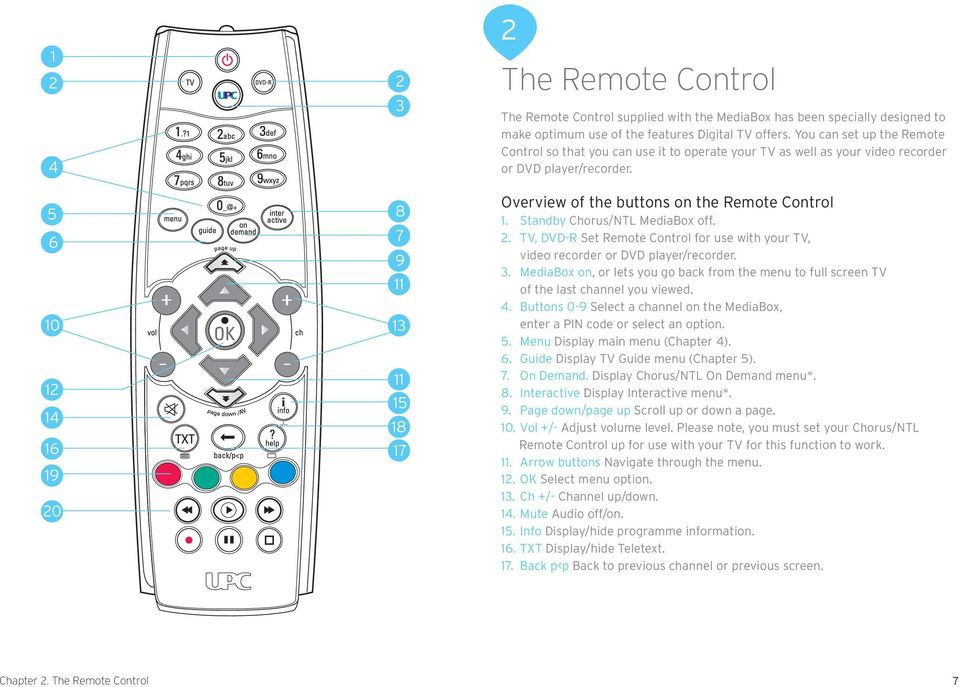
8 18.? help. Displays information on the screen about the most frequently used buttons on your Remote Control. 19. Coloured buttons Select the coloured button on your screen. 20. Buttons for operating the recording and live TV functions of your Mediabox, as well as your video recorder or DVD player. *This feature is not currently available. Please check the website for updates on the availability of this feature. Please note! you must set your Remote Control up beforehand for use with your video recorder or DVD player. Setting up the Remote Control You can set up the Remote Control so that you only need to use one Remote Control for all of your equipment. The Remote Control will need to be set up once so that it can be used with your TV and your video recorder or DVD player/ recorder. You can find a list of the most common makes in the back of this manual. Tip A full list of setting codes can be found at 1. Look for the setting code for your device on pages There is a list with 4-digit setting codes for each kind of device (TV, video recorder or DVD player/ recorder. Most makes are listed with several setting codes. You may need to try several of the setting codes for your make of device. Start by setting up the Remote Control for your TV. Please note! It is possible that more than one setting code is listed for your kind of TV, video recorder or DVD player/recorder. If that is the case, try the various setting codes one after the other until one of them works. If the particular TV, video recorder or DVD player/recorder make that you own is not listed, use the information under Search for setting code automatically opposite on this page. 2. Press to put the Remote Control in TV mode (to set up the video recorder or DVD player/recorder you use. 3. Press and simultaneously. Wait until the light on your Remote Control lights up twice and then release the buttons. 4. Enter the 4-digit setting code using number buttons to on the Remote Control. You have 20 seconds to enter the number. on the Remote Control will light up twice once the fourth number has been entered to indicate that the code has been accepted. If the does not light up you need to try another setting code for your make of device by following the same step 1-4 again. 5. Press to see whether the device that you are setting switches off. If it does not switch off, repeat the above step If the device you have set switches off when you press, check that other functions such as Channel +/- work. If they do, your remote is now set up to work with this device. Search for setting code automatically If the particular TV, video recorder or DVD player/recorder make you have is not given in the setting codes lists, or the setting codes given do not work, use the following information. Switch on the piece of equipment which you want to set up the Remote Control. To set up the remote for your TV, press and then release it again (use to search for the setting code for your video recorder or DVD player/recorder). Press and simultaneously. Wait until lights up twice on the Remote Control and then release the buttons. Then press, and consecutively. on the Remote Control lights up twice. Point the Remote Control towards your TV and press. Point the Remote Control towards your TV. Press [ch ] on the Remote Control repeatedly until your TV switches off (each time you press [ch ], the Remote Control sends an off signal to your TV corresponding to a particular setting code). Once the setting code that belongs to your TV has been found, your TV switches off. If you are trying to set up your video recorder or DVD player/recorder, your video recorder or DVD player/recorder will switch off when the correct code has been found. 8 Chapter 2. The Remote Control
9 Press code. as soon as your TV (or other device) has switched off to save the setting Please note! You might have to press [ch ] several times before you find the correct setting code and your TV switches off. It may take around 15 minutes before you find your code using the Searching setting code function. Continue to point the Remote Control towards your TV while you search for the setting code. Replacing batteries The Remote Control is supplied with two new AA/LR6 alkaline batteries. If the Remote Control is no longer working or not working properly, that probably means that you need to replace the batteries: Open the flap on the back of the Remote Control. Insert two new batteries as per the graphics on the battery slot and close the battery slot with the flap. Please note! Never use a mixture of old and new batteries, or a mixture of different kinds of batteries (e.g. standard and alkaline). Tip You can switch the MediaBox on standby. The MediaBox can be switched on using [ch ] on the front of the MediaBox. When the MediaBox is switched on, you can change channels using [ch ] and [ch ] on the front of the MediaBox. You use to put the MediaBox on standby. Chapter 2. The Remote Control 9

10 3 Basic Functions After you have connected the MediaBox, you can use the Remote Control to operate the basic functions of your TV. These relate to frequently used functions such as put on standby and switching on, changing channels and adjusting the volume. You will also get to know the useful Mini TV Guide. You can use it to retrieve information about the programme you are watching, to look up a new programme and to change channels. Put the MediaBox on standby and switching on Press on the Remote Control to switch on the MediaBox. Press to put on standby the MediaBox. You can also switch on the MediaBox using buttons [ch ] and [ch ] and put it on standby using on the front of the MediaBox. Changing channels There are various methods to change channels quickly using the Remote Control. Surfing You can switch quickly between consecutive channels using [ch ] and [ch ]. Press [ch ] once to go from channel 1 to channel 2. Press [ch ] once to go from channel 2 to channel 1. You can also switch quickly between consecutive channels using and on the front of the MediaBox. Selecting channel number You can also use the number buttons if you want to go straight to a particular channel. Press to switch to channel 105. The Mini TV Guide Each time you change channels, a Mini TV Guide appears on your television screen. The Mini TV Guide provides you with the following information: 1. The number and name of the channel you are watching, along with today s date & time. 2. The programme you are currently watching on this channel. 3. The next programme that will be on this channel after the programme you are currently watching. 4. The age for which the highlighted programme is suitable (G, PG, 12, 15, 18). Please note this information may not be available for all programmes. 5. A line representing the percentage of the current programme that has already passed. 6. Indicates that the highlighted programme is available in several languages 7. Indicates that subtitles are available for the highlighted programme in several languages. After 2, 4 or 8 seconds, this programme information will disappear from your screen, depending on how long this is set up for in your settings. You can change how long the programme information is displayed yourself. To do so, go to Setting Mini TV Guide in Chapter 9. When you first get the Mediabox, the default setting will be 4 seconds. After a while, the Mini TV Guide disappears from your screen Chapter 3. Basic Functions
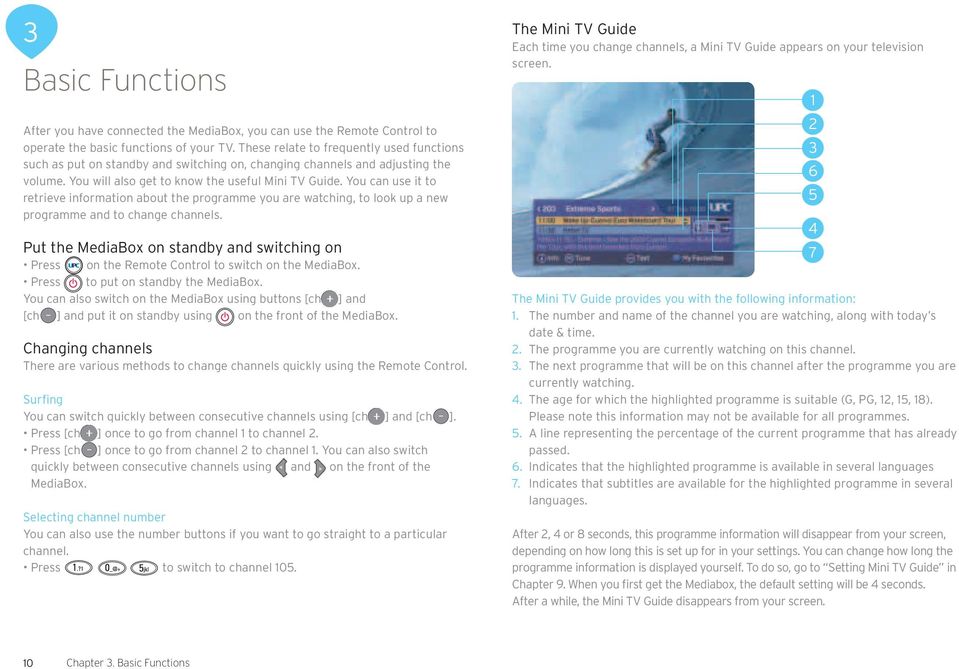
11 You can set how long the programme information is displayed yourself. To do so, go to Setting Mini TV Guide on page 30. Please note! The Mini TV Guide you see when changing channels using [ch ] and [ch ] disappears automatically after 2,4 or 8 seconds, depending on your settings. When you call up the programme information bar using, it does not disappear automatically. Press to tune to the channel highlighted in the programme information bar. Alternatively, you can press on or to remove the programme information bar without changing channels. Channel surfing using the Mini TV Guide You can also use the program information bar to preview what is being broadcast on other channels while watching your current channel. If you decide you want to watch a different programme based on the programme information, you can tune to it immediately. Press to call up the Mini TV Guide. The channel and programme you are currently watching will be highlighted in yellow, and the next programme to be broadcast on this channel will be displayed underneath Press to tune to the channel displayed at the top of the Mini TV Guide. (Line 1 in the diagram above) 3. Use and to switch between the two programmes displayed. Your active choice is highlighted in yellow. A short description of the highlighted programme can be seen at the bottom of the Mini TV Guide. (Line 5 in the diagram opposite) 4. Press for a detailed programme description of the highlighted programme (see also further on in this chapter). 5. Displays a brief description of the highlighted programme. Press to remove the Mini TV Guide without changing channels. Extra programme information When the Mini TV Guide is visible, you can retrieve additional programme information about the highlighted programme. You can also retrieve extra programme information about the programme you are currently watching directly (so you do not have to bring up the Mini TV Guide first). In both cases, you proceed as follows: Press to bring up the extra Mini TV Guide. You will see a detailed summary of the programme. Below that you will see the audio language settings for multi-language broadcasts and subtitles. This is where you can select from the available languages. The progress bar indicates how long the programme has been running for. 3 You now have the following options: 1. Use and to view programme information about a different channel. The information in the bar changes, but the programme in the background does not Chapter 3. Basic Functions 11

12 You now have the following options: 1. This is the Soundtrack option. You can use and to change the Soundtrack language. If you wish to move down to the Subtitles option (see number 2 on the diagram on the previous page), you can use and. The only language currently available is English, but please check the Chorus/NTL website for updates. 2. This is the Subtitles option. You can use button and button to switch the subtitles on or off. This option is only available if the programme is being broadcast with subtitles see page Press to exit the screen. You return to the Mini TV Guide or to the programme you were watching. 4. Press to tune to the channel displayed in the extra programme information. Tip You can also access a number of the functions directly via the MediaBox without using the Remote Control. Favourite channels You can use favourites to indicate that you prefer certain channels. Favourite channels are identified by a smiley in the Mini TV guide. Add favourite channels To add the favourite status to a channel, go to the TV Guide by pressing. Press to enter the settings screen. In this screen, you can the select the channel you want to add to My Favourites. By pressing, the favourite status will be added to this channel. Remove favourite status To remove the favourite status from a channel go to the TV Guide by pressing. Press to enter settings screen. In this screen you can select the favourite channel that you want to remove from my favourites. By pressing the favourite status will be removed from the channel. Surfing with favourites When channel surfing, you can choose only to view the channels that are included in the favourites summary. The picture shows a channel set as a favourite. This is indicated by a. By using the [ch ] and [ch ] buttons on the Remote Control, you can surf between your favourites and skip all other channels at the same time. smiley This function can be recognized by All channels in the information bar. By pressing, you can switch between surfing with favourites only and surfing with all channels. 12 Chapter 3. Basic Functions

13 Tip You can also set reminders on the MediaBox. See Chapter 5: TV Guide for more information about reminders. Please note! The automatic recording setting lasts for 150 minutes and does not take up any of the 65 hours of recording capacity. Pausing live TV With the MediaBox - DVR, it is possible to press during a live broadcast. To unpause press the button. You are now following behind the live broadcast. Press button to rewind and button to fast forward. An information bar appears at the bottom of your screen and displays how far behind the live broadcast you are. The MediaBox - DVR has been set so that recording starts automatically three seconds after you have started watching a channel. This means that you can use to rewind to any scene from the point at which you started watching. Please note! As soon as you change channels, the MediaBox-DVR automatically resets, and starts recording the channel you ve switched to. Chapter 3. Basic Functions 13

14 4 Using menus Menus are used for the additional features the MediaBox offers. These menus are screens with a number of options you can select using the Remote Control. Before exploring the additional features, it is useful to know how to call up the main menu and to familiarize yourself with a number of basic operations that recur in a large number of menus. You can always do the following in any menu: Using, and, you can select from the various options. The active choice is always highlighted. By pressing, you go to the screen of your highlighted choice. You now arrive in a new menu. By pressing, you exit the menu display. You return to the television screen. Using menus We shall use an example screen to demonstrate a number of basic operations. Calling up the main menu Press to call up the main menu. TV Guide: The user-friendly television guide. Here you will see an overview of all the services and settings available for Digital TV. Digital Radio: A wide selection of digital music stations. On Demand: For ordering various programs including movies.* Interactive Services: For playing games.* Settings: For setting your preferences. Digital Video Recorder: For setting up the DVR. Selecting an option in a list: Most menus contain a number of bars with text, of which one is always highlighted. The highlighted bar is the active option. You can select a different bar using and ; in menu overviews you can also use and. Sometimes the bar itself contains several options (such as the top bar of the example screen). When you select a different option, the yellow highlighting will move. Press to confirm a highlighted selection in a list or a menu overview. You will now reach a new menu screen or tune to the channel you have selected. * This feature is currently not available. Please check the website for updates on the availability of this feature. 14 Chapter 4. Using menus

15 Selecting an option using a colored key: If you see text in the bottom of the menu with a colored dot in front of it (,, or ), then you can perform the action described in the text by pressing the button with the corresponding color on the Remote Control. You may well already be familiar with this from Teletext, where there is colored text at the bottom of the screen enabling you to go quickly to the corresponding page. Back one screen: Press to go to the previous screen. Retrieve more information: Press to retrieve more information about a selected programme. Returning to the TV programme. Press to exit the menu and return to the television screen. Tip Brief information is often given at the top of the menu screens. Lists often use arrows to indicate which buttons (,, and ) you must use to select a different option. Chapter 4. Using menus 15

16 5 TV Guide TV Guide provides you with fast access to a listing of the programs you can watch on the channels offered on Digital TV. You can call up a channel list containing all the programs that can be watched at this time. You can also obtain a listing per channel of the programs that may be watched later or on one of the following days. You can use programme information to retrieve more information about the programs in the listings. TV Guide menu Press to view the TV Guide channel categories or press, then select Guide in the main menu and press. You will now see a menu with channel categories. The settings option will allow you set favourites, lock channels or view a summary of your favourites. The category you selected is now highlighted. Press to confirm your choice. You will now see a list of channels and programs that can be watched now Press to return to the TV Guide menu. Press to return to the TV programme. All channels TV Guide gives you a full listing of programs that can now be watched on Digital TV channels via the All channels screen. In the All channels screen, you can tune to the programme of your choice, lock access to certain channels or choose to view the schedule available now and in the future on a particular channel. Calling up All channels screen Select the All channels category in the TV Guide menu for a full listing of all channels and programs that can be watched at that time. If you select another category in the Chorus/NTL Guide menu (e.g. Sports), it will only bring up the listings for channels in that category. (see also Calling up TV Guide menu ). You now have the following options: Select what you want to do using,, and or using,. View the Chorus/NTL Guide of all channels, or channels based on the cate gories in the navigation options. You can also view the summary of all planned recordings and reminders in My TV Agenda. 16 Chapter 5. TV Guide

17 On this channel The All channels screen gives you the following options: 1. You can select a channel using and (see also the information on the screen). The selected channel is highlighted. A short description of the programme being broadcast on that channel appears at the bottom of the screen. You can view the programs on the highlighted channel using and. More information about the selected programme will then appear at the bottom of the screen. 2. Press to view which programs can be watched during the rest of the day and over the next few days on the highlighted channel (see page 17 for more details). 3. Press to zoom in. The text will become larger. By pressing again, you will zoom out again. 4. Press to scroll forward a day. 5. Press to tune to a channel you have selected. 6. Press to return to the TV Guide menu. 7. Press for a detailed description of the selected programme. 8. Press to exit the menu and return to the television screen. A is used to indicate that the channel has been blocked. This channel may only be watched once a PIN code has been entered. The default PIN code is Select a programme using and. You can view other channels using and. 2. Press to return to the TV Guide with all channels and programme listing. 3. Press to scroll back a day. 4. Press to scroll forward a day. Press to return to the previous screen. Press for detailed programme information. Blocking channels If you wish to do so, you can block certain channels, for example because you do not want your children to watch them. To block channels, go to the TV Guide first of all by pressing. Then press to go to the Settings screen. In this screen, you select the channel you want to block and then you press. You will be prompted to enter your PIN code, and click OK. A will appear beside the channel to indicate that the channel has been blocked. The default PIN code is How to unblock a channel: To unlock a channel, follow the instructions above to get to the Settings menu. Then select the channel you want to unlock, press, enter the PIN code when prompted and press. The will now disappear from beside the channel to indicate that the channel has been unblocked. 2 3 Chapter 5. TV Guide 17

18 Setting reminders You can set reminders in 3 ways: via the TV Guide, via the channel guide or via the Mini TV Guide. Setting reminders via the TV Guide Go to the TV Guide by pressing on the Remote Control. Then press to go to the listing of all channels. To set the reminder of a programme, select the programme and press. Reminders via the Mini TV Guide You can also set reminders via the Mini TV Guide. If you are surfing using [ch ] and [ch ] on the Remote Control, you can set a reminder for a programme by selecting the next programme using. The reminder will be set when you press. Setting reminders via the channel Select a programme using and. You can view other channels using and. 2. Press to return to the channel and programme listing. 3. Press to scroll forward a day. 4. Press to scroll back a day. 5. Press to return to the previous screen. 6. Press for detailed programme information. 7. You can also set reminders here by selecting a programme and pressing Chapter 5. TV Guide

19 Reminder summary To see the reminders you have set, you can look in My TV Agenda. Go to the TV Guide by pressing on the Remote Control. Then select My TV Agenda and press. Setting favourites To set favourite channels, go to the TV Guide Menu first of all by pressing. Then press to go to the Settings screen. To add favourites to your personal list, select the desired channel using and on the Remote Control. You can see at a glance which reminders you have set in this summary. You can also delete reminders in this screen. Reminders can be deleted by selecting the relevant reminder using and. The reminder will be deleted when you press. By pressing, you can add the selected channel as a favourite (if it has not already been set as such). Deleting favourites To delete favourites from your personal list, select the desired channel using and on your Remote Control. By pressing, you can delete the selected channel from the favourites list (if the channel was set as a favourite). Accessing favourites You can access your favourites by going to the TV Guide. You can do this by pressing on the Remote Control. Then press to access your favourites summary. Chapter 5. TV Guide 19

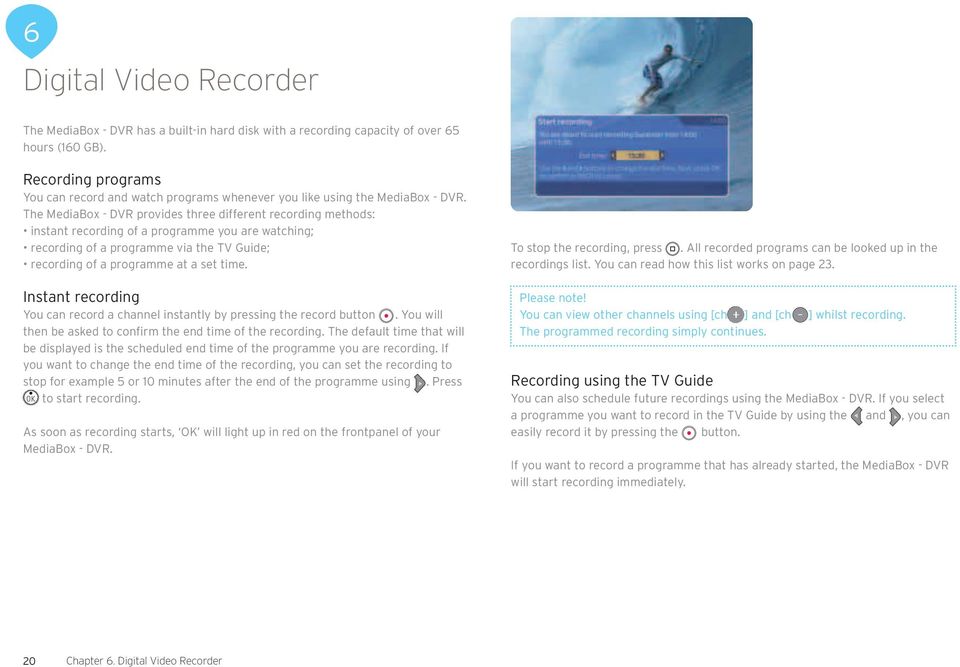
20 6 Digital Video Recorder The MediaBox - DVR has a built-in hard disk with a recording capacity of over 65 hours (160 GB). Recording programs You can record and watch programs whenever you like using the MediaBox - DVR. The MediaBox - DVR provides three different recording methods: instant recording of a programme you are watching; recording of a programme via the TV Guide; recording of a programme at a set time. Instant recording You can record a channel instantly by pressing the record button. You will then be asked to confirm the end time of the recording. The default time that will be displayed is the scheduled end time of the programme you are recording. If you want to change the end time of the recording, you can set the recording to stop for example 5 or 10 minutes after the end of the programme using. Press to start recording. As soon as recording starts, OK will light up in red on the frontpanel of your MediaBox - DVR. To stop the recording, press. All recorded programs can be looked up in the recordings list. You can read how this list works on page 23. Please note! You can view other channels using [ch ] and [ch ] whilst recording. The programmed recording simply continues. Recording using the TV Guide You can also schedule future recordings using the MediaBox - DVR. If you select a programme you want to record in the TV Guide by using the and, you can easily record it by pressing the button. If you want to record a programme that has already started, the MediaBox - DVR will start recording immediately. 20 Chapter 6. Digital Video Recorder
21 If you want to record a future programme, the MediaBox - DVR will automatically record the programme once it starts being broadcast. Tip See page 16 for instructions on how to use the TV Guide. Recording at a set time To programme the MediaBox - DVR manually to record a programme, you use Set Advanced Memo. Press on the Remote Control and select Digital Video Recorder. You can set a future recording under Set Advanced Memo. Use and to select the menu item. 1. Memo type The default value is Record Memo. You can use and to change the value to My Memo. 2. Channel number Enter the 3-digit channel number on which the programme you want to record is being broadcast using the number buttons on the Remote Control. For example: 101 for RTE One. 3. Day Enter the day on which the programme is to be recorded. For example: Saturday. You can use and to change the value of this menu item. 4. Start time Enter the desired start time of the recording using the number buttons on the Remote Control. You must enter the time in a 24-hour format e.g End time Enter the desired end time of the recording using the number buttons on the Remote Control. You must enter the time in a 24-hour format e.g Recurrence Enter how often you want to repeat the recording. You can select from values Once, Daily, Weekly or Mon to Fri. You can use and to change the value of this menu item. Chapter 6. Digital Video Recorder 21
22 Settings Programs may start earlier or finish later than indicated in the TV Guide. To avoid missing the end of a programme that is to be recorded, you can specify under followed by Digital Video Recorder and then Settings whether you want a recording from the TV Guide to start 1, 5 or 10 minutes earlier by default and to stop 1, 5 or 10 minutes later by default. To change the time, use and. Press to confirm. Summary of scheduled recordings All of the programs you have identified as needing recording can easily be found in the menu My TV Agenda. Press and go to the Digital Video Recorder section. You will find a summary of all future scheduled recordings under My TV Agenda. This setting only works for future recordings of programmes based on the TV Guide. Manually-set recordings will not automatically start earlier or later as per these settings. In addition, immediate recordings selected from the TV Guide will not start earlier as per these settings. Please note! If the MediaBox - DVR is on standby and a scheduled recording starts, the MediaBox - DVR will record the programme anyway. Tip Programs you record may run on for longer than scheduled in the TV Guide. Choose to start and stop recording up to a maximum of 10 minutes earlier and later respectively. 1. The red bar indicates the recording-capacity percentage still available on the MediaBox - DVR. 2. The indicates that you are currently recording a programme. 3. A indicates that scheduled recordings overlap Chapter 6. Digital Video Recorder
23 Resolving overlaps As the MediaBox - DVR only permits you to record one programme at a time, scheduled recordings must not overlap. If your recordings overlap, this will be indicated with a. The MediaBox - DVR will finish the first recording before starting a new one by default. Therefore, where overlaps exist, the beginning of the later programme might not be recorded. Use and to select the overlapping programme you want to cancel. To resolve the overlap, you can simply press the and this will prompt you to delete the programme you have selected. Programme playback MediaBox - DVR enables you to record programs and watch them simultaneously. You can also playback the recording straight away without stopping recording. So you can watch the first part of a programme while the second part is being recorded. You can find a summary of all of your recorded programs in the Digital Video Recorder menu under My programs. Press on the Remote Control. Then select the Digital Video Recorder menu item using and and press. You will then see the screen below. Use the arrow buttons to select the My programmes menu item and then press. The scheduled recording will be deleted when you press. Chapter 6. Digital Video Recorder 23
24 Tip You return to the summary of your recorded programs by pressing twice. You can also rewind while watching a recording to watch a scene again. You can rewind by pressing. You can rewind quicker by pressing again. Slow motion By pressing when watching a recorded programme, you can pause the programme; by then pressing, you can continue the recording forwards in slow motion. If you press after the pause button, the recording will play backwards in slow motion. Use and to select recording. Press for more programme information and or to watch the programme. If you have already watched some of the programme and you want to continue where you left off, select Resume. If you want to watch the recording from the beginning, select Beginning using and the recording will start. You can fast forward while watching a recording by pressing. If you press again, the recording will fast forward quicker. You can also pause the recording by pressing or. Tip The MediaBox - DVR also gives you the option of pausing or rewinding a programme if you are simply watching television. 24 Chapter 6. Digital Video Recorder
25 7 Digital Radio Digital Radio gives you access to a large number of digital radio channels that you can listen to on your TV or sound system (only if you have connected your sound system to the MediaBox). The menu gives you fast access to a listing of the radio channels you can listen to. You can put your favourite radio channels in a special list. 2. Press to block a selected channel. Now you must enter your Customer PIN code. The default PIN code is A appears indicating that the channel has been blocked. The channel can only be listened to after the PIN code has been entered. Chapter 10 (Settings) provides an explanation of how you can change the PIN code. All radio channels In the All radio channels screen, you can tune to a radio station of your choice, block access to radio channels or compile a list of favourite radio channels. Calling up the radio menu Press Menu to call up the main menu. Select Radio using,, and. The bar with Radio is now highlighted. Press. The Radio menu is now displayed on your screen. Viewing all radio channels 1. You can use the All radio channels option to tune to your selected radio channel. Press. You will now see a list of all radio channels that can be received with the MediaBox. 1 2 The All radio channels screen now gives you the following options: 1. Select a channel using and. Press to listen to the highlighted channel. Information about the channel selected is displayed to the right of the list of channels. 2. Press to block a highlighted channel. You will be prompted to enter your Customer PIN code. The default PIN code is A will appear to indicate that the channel has been blocked. The channel can only be listened to after the PIN code has been entered. Chapter 10 (Settings) provides an explanation of how you can change the PIN code Chapter 7. Digital Radio 25
26 3. Press to add a selected channel to Favourites. Channels you add to Favourites are put in a separate list that you can retrieve in the Radio menu. 4. To go straight to Favourites from the current screen, you press (see also calling up favourites below). Press to return to the Radio menu. Press to watch TV. You return to the channel your TV was tuned to when you went to the Radio menu. Favourites By compiling a favourites list, you will always have the radio channels you enjoy listening to close at hand. You compile a favourites list in the All radio channels screen (see also All radio channels ). Compiling favourites list Select the station you want to add to your favourites list in the All radio channels screen using and. Press to add the highlighted station to your favourites list. Calling up favourites You call up your list of favourite radio channels via the Radio menu (see also Calling up Radio menu ). You can block radio channels in My Favourites screen as well as delete favourites from the list if required. Select My Favourites in the Radio menu. You will see the list of favourite channels you have selected. The All radio channels screen now gives you the following options: 1. Select a channel using and. Press to listen to the highlighted channel. Information about the channel selected is displayed to the right of the list of channels. 2. Press to block a highlighted channel. You will be prompted to enter your Customer PIN code. The default PIN code is A appears indicating that the channel has been blocked. The channel can only be listened to after the PIN code has been entered. Chapter 10 (Settings) provides an explanation of how you can change the PIN code. 3. Press to delete a favourite channel from the list. 4. Press to go to the All radio channels screen and to add a favourite channel if desired. Press to return to the Radio menu. Press to watch TV. You return to the channel your TV was tuned to when you went to the Radio menu Screensaver To protect your TV from the static tuner display, a screensaver (protection from screen burn) appears on your screen after a little while (5 minutes). The screensaver disappears when you press a button on the Remote Control. 26 Chapter 7. Digital Radio
27 8 Settings You can set all kinds of preferences for using Digital TV in the Settings menu. You can, for example, set PIN codes for blocking certain channels and services and specify the kind of TV you have ( normal or widescreen ). Calling up Settings menu Press on the Remote Control. The main menu is now displayed on your screen. Select Settings using,, and. The Settings bar is highlighted. Press. The Settings menu is now displayed on your screen. PIN settings You can set a four-figure PIN code to block access to certain channels and services by anyone who does not know the PIN (for example, your children). You can set PIN code protection for: Access to certain channels, whereby blocked channels are identified by a Programmes with an age-classification rating (G, PG, 12, 15, 18). That way, you can prevent your children from watching programs they are too young for. Calling up PIN settings menu PIN settings are changed under the PIN settings option in the Settings menu. Bring up the Settings menu on your screen (see Calling up Settings menu ) Select PIN settings using,, and. The PIN settings bar is highlighted. Press. Now you must enter the Customer PIN. The default Customer PIN is Select OK and press. The PIN settings menu is now displayed on your screen. The parental control option has already been selected (highlighted). Chapter 8. Settings 27
28 Please note, these PIN Settings will not override the PIN Requests you normally receive when watching Sky Movies between and Select parental control in the PIN settings menu. The programme age lock option is selected (highlighted). Select an appropriate age-classification rating (G, PG, 12, 15, 18) using and. Press to confirm the selection and to continue. 2. Setting up PIN for purchases (On Demand/Interactive Services these services will be coming soon). You can protect games in Interactive using your Customer PIN. Select Parental Control in the PIN Settings menu. Make a selection on the Prompt for PIN to purchase ON/OFF option. Select the value ON using and. Press to confirm the selection and to continue. Your children cannot make any purchases (unless you have given them the PIN number). You now have the following options: 1. Set up a parental control for programmes with an age-classification rating. You can protect your children from viewing programmes you feel are unsuitable by setting an appropriate age-classification rating (G, PG, 12, 15, 18). When you switch to a programme with an age rating higher than the value you have set, you will be asked to enter your customer PIN. For example, if you set an age rating of 12, you will be asked for a PIN for 15 and 18 rated programmes. If you do no want to use this feature and want to be able to view programmes without asking for a PIN then set the Programme Age Lock to Please note! A programme is only protected by a PIN code if an age-classification rating is available for this programme. If you give a PIN to your children, they will also be able to play games at a charge. Customer PIN and additional PIN You can set two PIN codes. The most important PIN code is the Customer PIN. This one is valid in all situations in which a PIN code is requested. The default Customer PIN is You can also give an additional PIN to your children. Your children can use this additional PIN to order On Demand movies that fall within an age limit you have set. Your children can also use the additional PIN to order games via the TV. The default additional PIN is If you want to set PIN code protection, it is important to change the default code 0000 of the Customer PIN and additional PIN to four numbers of your choice. 28 Chapter 8. Settings
29 Please note! Select a different number combination for the Customer PIN and the extra PIN! List of PIN settings The table below lists the most important PIN settings. Changing PIN code The default PIN code is The default PIN code is changed in the PIN settings menu. Select Customer PIN in the PIN settings menu using,, and to change the Customer PIN and Additional PIN to change the additional PIN. Press. You will now see the screen for changing the PIN code. 1 2 You want: No protection. To prevent your children from watching programmes that are not age-appropriate. Required settings: - Set age limit to PIN code for purchases OFF. - PIN code for purchases ON. - Edit Customer PIN and additional PIN. - Do not give the additional PIN to your children. - Set age limit (G, PG, 12, 15, 18). - Edit Customer PIN and additional PIN. You proceed as follows: 1. Enter a new PIN code. 2. Confirm your new PIN code by entering it again. Press to save the new Customer PIN. Press to cancel the change. 3. Press again when prompted if you are saving your new Customer PIN. PIN requests for Sky Movies. Sky Movies require you to enter a PIN to watch movies at certain times as part of their commitment to prevent your children from watching a movie that they are too young to view. You will be asked for your PIN to watch any movie on a Sky Movie channel between 0530hrs and 2000hrs if the movie rating is for age 12 or above. You will not be required to enter a PIN outside of these hours. You will be asked for the PIN every time you switch to a new Movies channel, and you will be asked for the PIN every time you return to a Movies channel you have watched previously. You will never be asked to enter your PIN when watching Sky Family, as all movies on this channel are certified for general viewing. Please note, you can not over-ride this feature by changing the settings on the Parental Control in the Settings menu. However, if you wish to add additional PIN protection outside of the hours above, you can use the Parental Control settings to give your children extra protection. Chapter 8. Settings 29
30 Incorrect PIN code entered You can enter a wrong PIN code three consecutive times. On the fourth time, the PIN code will be blocked. You can try again after 15 minutes have elapsed. Preference settings You can set how long the programme information banner is displayed when you change channels, as well as setting the time for your programme reminders to pop-up. The language options for movies and programmes are not currently functional. However, this may change in the future. Please check the website regularly for updates. Calling up Preference settings menu Bring up the Settings menu on your screen (see Calling up Settings menu ). Select Preference settings using,, and. The Preference settings bar is highlighted. Press. The Preference settings menu is now displayed on your screen You can now choose from the following options: Set language choice: The options for language choice (numbers 1, 2 and 3) are not currently functional. 1. Menu language is the active option. This setting is used to change the language in which the menus are displayed on the screen. Use and to select a different setting. You can select from a large number of languages. 2. Select the Soundtrack Language option using to set your language preference for programs broadcast with audio in several languages. Use and to select a different setting. You can choose from Original (the programme will be played in the language in which it was recorded) or from a large number of languages (the programme is broadcast in a dubbed version if the audio is available in the language you specified). 3. Select the Subtitle Language option using to set your language preference for the subtitles of programs broadcast with the option of displaying subtitles in various languages. Use and to select a different setting. You can choose Off (the programme will be broadcast without subtitles) or from a large number of languages (the programme will be broadcast with subtitles in your preferred language if those subtitles are available). Your choice of language does not affect (for example) programmes from the Irish public and commercial broadcasters, as they do not have a language-selection option. You can determine yourself whether you want the Mini TV Guide to be displayed for a longer or shorter period of time. 4. Select the option Mini TV Guide display (sec.) using to set how long the Mini TV Guide will remain visible on your screen when changing channel. Use and to select a different setting. You can select 2, 4 or 8 seconds. 5. Select the Memo countdown period (min.) option using to indicate how far in advance the reminder will appear. Use and to select a different setting. You can select 1, 2 or 5 minutes. 30 Chapter 8. Settings
31 TV settings Digital TV is suitable for normal and widescreen TVs. The type of television only needs entering once. That way, you can make optimum use of the possibilities of your TV, whether it is a normal TV or a widescreen TV. Changing settings Bring up the TV settings screen (see Changing TV settings ). Select Volume using and. Use and to turn the basic volume up or down. Only use this setting if, after switching on the MediaBox, you feel that the default volume is too loud or too quiet Changing TV settings Bring up the Settings menu on your screen (see Calling up Settings menu ). Select TV settings using,, and. The TV settings bar is highlighted. Press. You will now see the TV settings screen. 1. Select TV format using and. The bar after TV format is now highlighted. Use and to select your kind of TV: Full-screen, Letterbox, Widescreen. 2. Select Picture quality using and. Use and to select between High and Standard. See which setting works best on your TV. 3. Select RGB picture alignment using,, and. Use this option to adjust the picture alignment if necessary. By default, this value is set correctly. 4. Once the MediaBox is installed, you operate the sound level of your TV via the MediaBox. If you need to turn the volume on the TV up or down after you have switched it on, this is where you can adjust the default volume. Chapter 8. Settings 31
32 Appendix 11 Frequently asked questions 1. Can I start using Digital TV straight after installing the MediaBox? Once the MediaBox has been installed and activated, you can start watching TV immediately and familiarizing yourself with the benefits of Digital TV. You will experience high (digital) picture and sound quality. You also have more TV channels and additional radio stations at your disposal. The TV Guide, the electronic programme guide, means that you always have a TV guide to hand. With the arrival of the MediaBox, you can use special TV settings, such as setting up a child lock for programs your children are not allowed to watch. 2. How does the Remote Control work? The Remote Control supplied with the MediaBox has been specially designed to make optimum use of the features Digital TV offers. In addition, you can use it to operate your television, video recorder or DVD player/recorder. You will find more information about using the Remote Control and a detailed explanation of the buttons in the Quick Guide you received with your Chorus/NTL Mediabox. 3. Can I also use the Remote Control for my TV or other equipment? The Remote Control can be used to operate your TV and DVD player/recorder or video recorder. The Remote Control is set for use with your MediaBox by default. To use the Remote Control with your TV and DVD player/recorder or video recorder, you must set the Remote Control for use with these pieces of equipment. Once you have set the Remote Control for use with your TV, you can turn the volume of digital TV and radio programs up or down using the Remote Control. If you do not set the Remote Control, you can only turn the volume up or down using your TV s Remote Control. You can read how to set the Remote Control for use with other equipment in the user manual. 4. My Remote Control no longer works. If the Remote Control no longer works properly, that probably means that the batteries need replacing. The Remote Control and the MediaBox need to see each other for the Remote Control to work properly; therefore, there should not be anything preventing a clear line of sight between them. 5. The volume of Digital TV is quieter than the volume of the analog channels from the standard Radio/TV package. How can I turn up the volume? You can set up the Chorus/NTL Digital TV volume to be louder or quieter through the Settings menu under the TV Settings option. 6. The volume buttons on the Remote Control do not work. I am unable to turn programs up or down. What should I do now? To be able to use the Remote Control to turn Digital TV programs up or down, it needs to be set for use with your TV. If you do not set the Remote Control, you can only turn the volume up or down using your TV s Remote Control. You can read how to set the Remote Control for use with other equipment in the user manual. 7. The TV picture is highly pixelated or you see the Signal loss screen. If the cable network suffers from noise or signal loss (which may have different causes), this might be visible as blocks (pixels) on the your TV screen. The signal the MediaBox is receiving at that time is too weak. If you continue to see the blocks or if a screen appears stating Signal loss: There appears to be no signal, it is important, first of all, that you check the coax cabling between the wall socket and the MediaBox. It is important for the quality of the digital TV signal that you use the cabling we have supplied or other cabling that meets the C12 standard (C12 stands for Coax 12; this cable meets the attenuation (loss) and external radiation requirement). If you use your own distributors/amplifiers, remove them and connect the MediaBox directly to the wall socket (WS). If you want to enable several TVs in your home to receive the analog TV signal, use the RF Out output on the Media Box. If the TV picture remains highly pixelated after you have checked your cabling, or if the screen stating: Signal loss: There appears to be no signal does not disappear, please contact NTL/ Chorus Customer Service, freephone number 1908 (available 9 a.m. to 10 p.m. Monday to Saturday, 10 a.m. to 10 p.m. Sunday). 8. The MediaBox is hanging. I can t do anything anymore. One reason your MediaBox might be hanging is that the device is busy downloading new information. In that event, the text Software Download in Progress appears on your screen. The message disappears from your screen as soon as the MediaBox has downloaded the information and you can use your Digital TV services once again. If the MediaBox continues to hang and/or the Software Download in Progress screen does not appear, it may help to unplug the MediaBox temporarily. If, after that, the MediaBox still does not work, please contact our Customer Service, on freephone number 1908 (available 9 a.m. to 10 p.m. Monday to Saturday, 10 a.m. to 10 p.m. Sunday). 32 Appendix 1. Frequently asked questions
33 9. I have the Mediabox and a screen comes up requesting the city code. What should I do now? In this screen, you need to enter the city code that corresponds to the city/county in which you live. You can find the city code in the installation manual, or on the sticker attached to your Quick Guide by the installer. 10. I have run through the installation and 150 channels have been found, but I am not able to watch all of them. What should I do now? The number of channels you are able to watch depends on the subscription you have taken out. For some channels, an extra subscription is required. If you are interested, please contact our Customer Service on freephone number 1908 (available 9 a.m. to 10 p.m. Monday to Saturday, 10 a.m. to 10 p.m. Sunday). 11. The message: Installation is now being completed. This may take 15 minutes... is displayed. What should I do now? This screen indicates that installation is being completed; you should always wait for 15 minutes. If the MediaBox still gives the same message after 15 minutes, please contact our Customer Service on freephone number 1908 (available 9 a.m. to 10 p.m. Monday to Saturday, 10 a.m. to 10 p.m. Sunday). 12. I see the message: Signal loss: There appears to be no signal... What should I do now? This message indicates that the signal your MediaBox is receiving is too weak or that it is not receiving one at all. Check whether your MediaBox is in fact connected straight to your wall socket, without any equipment, distributors or amplifiers in between that are not from Chorus/NTL. If nothing resolves the problem, please contact our Customer Service on freephone number 1908 (available 9 a.m. to 10 p.m. Monday to Saturday, 10 a.m. to 10 p.m. Sunday). 13. I have completed the installation but the picture is very poor. What should I do now? A poor picture can be caused by many things. Would you describe the interference as: Lines, noise, black and white, specks, faint or faded picture: This is a fault stemming from the cabling from your MediaBox to your TV or other external equipment. Check this cabling for defects or loose plugs and replace these cables. It is also possible that the picture format is not set correctly in the Settings/TV settings menu. Black, static, pixelated image: This is a fault caused by a problem in the signal being sent to the MediaBox. This could be due to poor or loose cabling but also due to a fault in our network. Check whether the cable from your wall socket is connected directly to your MediaBox, without any equipment, distributors or amplifiers in between that are not from Chorus/NTL. If nothing resolves the problem, please contact our Customer Service on freephone number 1908 (available 9 a.m. to 10 p.m. Monday to Saturday, 10 a.m. to 10 p.m. Sunday). 14. I want to tune to a channel from the TV Guide channel listing and get the message Channel not accessible. All channels available from Digital TV can be viewed in the TV Guide channel listing, including the ones to which you do not subscribe. You can only tune to the channels to which you have subscribed. You must subscribe to some channels in order to be able to view them. If you want to subscribe to additional channels, you can phone Chorus/NTL on lo-call number (calls should be charged at the local rate of your telephone provider). 15. I want to tune to a channel I subscribe to and the TV screen is black. Unfortunately, channel interference sometimes occurs, interfering with the ability to receive a channel. Please contact our Customer Service on freephone number 1908 (available 9 a.m. to 10 p.m. Monday to Saturday, 10 a.m. to 10 p.m. Sunday). 16. Channel surfing is not very quick. Changing channels takes about half a second longer on digital television than on analog television. 17. Lost or forgotten PIN code? The default PIN code is 0000 but you have the option of changing it. It may happen that you change your PIN code and then lose it or forget it. To reset your PIN code, please contact our Customer Service on freephone number 1908 (available 9 a.m. to 10 p.m. Monday to Saturday, 10 a.m. to 10 p.m. Sunday). 18. Must I leave the MediaBox on standby if I am not watching TV? New software is regularly downloaded to the MediaBox via the cable network. You also receive new services via these software downloads. To receive the new software (and new services), it is important that you put the MediaBox on standby when you are not using it and do not unplug it. Appendix 1. Frequently asked questions 33
34 19. What do I need to pay attention to when connecting the MediaBox? It is important that you connect your MediaBox directly to the wall socket without any equipment, distributors or amplifiers in between that are not from Chorus/NTL. The MediaBox must also have sufficient space around it to allow proper ventilation. 20. I have several TVs at home. Can I enable them to receive Digital TV as well? Unfortunately this is not possible; you can only enable one TV to receive the digital signal. By using a distributor that you install on the aerial (RF) output, you can distribute your normal analog TV signal to other TVs in your home. 21. I have just connected the MediaBox but I can t see a picture. What should I do now? Check whether the MediaBox is connected to the 230 V mains voltage. Check whether you have connected the MediaBox to your TV correctly and whether you have selected the correct channel. 22. How do I connect the MediaBox? An installer will do the first time installation and activation for you. You can find out how to do future resetting or installation in the installation manual on or with the Quick Guide provided with the MediaBox. 24. I recorded a programme a few months ago, but when I went to watch it today, I got a message saying This programme was recorded from a channel to which you are no longer subscribed. Please remove this programme from your library or renew your channel subscription to view it.? One of the implications of this is that you must maintain your subscription to a package in order to watch a recording of a programme that was recorded from a channel in that same package. For example, if you ve recorded a movie from Sky Family when you had a subscription to the Sky Movies package, and want to watch it 6 months later, you must still have a subscription to the Sky Movies package. If you don t maintain this subscription, you will not be able to watch the recording. It is important to note that this applies for all NTL/Chorus packages i.e. Select, Max, Choice, Sky Movies, Sky Sports, Setanta Sports and all other premium channels. You must also maintain a subscription to the exact same package in order to continue viewing recordings from channels on that package i.e. if you recorded a movie while subscribed to just Sky Movies, and you are now subscribed to Sky Movies & Sky Sports, you will not be able to view the recording. 23. My kids were trying to watch a movie this afternoon, but couldn t because I was out doing the shopping. Why did this happen? If they were trying to watch a movie on between and which has an age rating of 12 or above, Sky Movies will always ask for a PIN. You will know what the age rating of a film on any of the Sky Movie channels is by looking at the right hand side of the programme information banner. The best solution is to get an adult to enter the PIN for them. Alternatively, you can tell them the PIN, but please be conscious that this means they can access all movies, irrespective of their age rating. We also suggest that you check the Parental Settings on the PIN Settings menu in order to ensure that you have not set an age classification rating for viewing TV. If you have, this will request the user to enter a PIN in order to watch programmes which have an equal or higher age classification (provided this classification is given by the channel provider). You can disable this by setting the Programme Age rating to 18, but please be conscious that this means they can access all programmes on all channels, irrespective of their age rating. 34 Appendix 1. Frequently asked questions
35 Appendix 22 List of Setting Codes: Remote Control This chapter contains a list of setting codes for setting up your Remote Control for use with your TV and video recorder or DVD player/recorder. The most common makes are included in this list. Chapter 2 (The Remote Control) contains a description of how you can set up the Remote Control for use with your TV and video recorder or DVD player/recorder. TV setting codes Aiko 0039, 0067, 0586, 0246, 0401, 0065, 0463, 0102, 0391, 0221, 0294, 0247 Aiwa 0735, 0731, 1946, 1938 Akai 0391, 0238, 0401, 1567, 0067, 0463, 0775, 0221, 0065, 0039, 0102, 0248, 0744, 0193, 0546, 0745, 0632, 0586, 0611, 0510, 0247, 0661, 0246, 0294, 0478, 0208, 0407, 0636, 1067, 1938, 0503, 0678, 0842 Alba 0039, 0448, 0400, 0265, 0401, 0698, 0067, 0586, 1067, 0385, 0248, 0246, 0277, 0193, 0517, 0611, 0066, 1698, 0609, 1938, 0744, 0473 Amstrad 0207, 0039, 0546, 0294, 0401, 0248, 0067, 0586, 0463, 0442, 0392, 1067, 0678, 0611 Anasonic 0400, 0067, 0586, 0039, 0698, 0404, 0193, 0322, 0132, 0441, 0289, 0277, 1467, 0042, 0458, 0134, 1698 Aristona 0586, 0067, 0042 Audiosonic 0039, 0067, 0404, 0586, 0139, 0744, 0745, 0247, 0400, 0367, 0294, 0248, 0516, 0458 Bang & Olufsen 0595, 0117, 0305 Beko 0516, 0065, 0458, 0744, 0400, 0448, 0067, 1067, 0586, 0636, 0745 Bestar Daewoo 0404 Blaupunkt 0221, 0565, 0225, 0478, 0485, 0200, 0066 Bush 0698, 0248, 0193, 0039, 0066, 0067, 0401, 0265, 0312, 0385, 0393, 0404, 0294, 0391, 1067, 0517, 0238, 0247, 0644, 0647, 0728, 0611, 0586, 0744, 1930, 1938, 1698 Clatronic 0067, 0400, 0401, 0744, 0248, 0294, 0586, 0247, 0277, 0039, 0132, 0350, 0609, 0678, 0636 Condor 0350, 0067, 0586, 0400, 0246, 0039, 0312, 0132, 0277, 0448, 0441, 0193 Crown 0039, 0400, 0516, 0067, 0586, 0517, 0744, 0636, 0745, 0451, 0448, 0609, 0238, 0369 Daewoo 0664, 0404, 1939, 0529, 0691, 0067, 0586, 0039, 0246, 0248, 0247, 0481, 1167, 1932, 1938, 0910 Dansai 0067, 0586, 0294, 0062, 0065, 0246, 0039, 0066, 0247, 0238 Decca 0102, 0546, 0067, 0586, 0247, 1167, 0651, 1938 Dual 0574, 0247, 0067, 0586, 0289, 0382, 0424, 0193, 0561, 1167, 0661 Elbe 0465, 0268, 0289, 0392, 0322, 0400, 0193, 0067, 0586, 0248, 0221, 0441, 0640, 0247, 0546, 0391, 0660 Emerson 0207, 0744, 0208, 0117, 0277, 0067, 0586, 0401, 0100, 0312, 0350, 0391, 1939, 0516, 0400, 0193, 0351 Ferguson 0655, 0317, 0365, 0268, 0139, 0590, 0067, 0586, 0065, 0134, 0138, 0391, 0578 Fidelity 0193, 0542, 0393, 0067, 0586, 0401, 0442, 0561, 0246, 0294, 0574, 1938, 0391 Finlux 0135, 0134, 0067, 0586, 0744, 0376, 0247, 0102, 0193, 0546, 0745, 0100, 0117, 0132, 0441, 0661, 0522, 0510, 0659, 0503, 0448, 0636, 0651 Firstline 0067, 0586, 0404, 0698, 0744, 0193, 0039, 0351, 0246, 0277, 1939, 0132, 0247, 0441, 0574, 0561, 0268, 0102, 0265, 0238, 0391, 1067, 1698, 0838 Fisher 0134, 0247, 0066, 0238, 0400, 0585, 0075, 0117, 0187, 0391, 0193, 0574, 0102 Fujitsu 0236, 0102, 0132, 0247, 0193, 0039, 0382, 0713, 0067, 0586, 0391, 0289, 0883 Fujitsu General 0039, 0247, 0236, 0193 Goldstar 0067, 0039, 0400, 0320, 0062, 0407, 0247, 0208, 0277, 0246, 0586, 0193, 0391, 0139, 0393, 0636, 0074, 0744, 0745 Goodmans 0664, 0404, 0067, 0529, 0586, 1067, 0698, 1939, 0066, 0294, 0102, 0546, 0039, 0320, 0517, 0401, 0265, 0065, 0510, 0590, 0062, 0247, 0365, 0248, 0481, 1938, 0609, 0660, 0691, 1930, 1698 Granada 0067, 0586, 0256, 0386, 0042, 0075, 0102, 0138, 0238, 0247, 0066, 0369, 0546, 0503, 0365, 0590, 0193, 0393, 0578 Grandin 0067, 0586, 0039, 0193, 0640, 0744, 0745, 0698, 0404, 0350, 0312, 0248, 0485, 0609, 1067, 1698, 0895 Grundig 0538, 0565, 0225, 0221, 0517, 0100, 0736, 0067, 0586, 0617, 0039, 0066, 0473, 0400, 1938, 0660 Hanseatic 0067, 0586, 0529, 0193, 0391, 0322, 0574, 0312, 0424, 0350, 0664, 0458, 0400, 0691, 0039, 0247, 0117, 0407, 0744, 0838 Hauppauge 0067, 0586 Hitachi 1255, 0066, 0386, 0074, 0138, 0503, 0193, 0608, 0226, 0247, 0062, 0224, 0546, 0102, 0511, 0529, 0067, 0586, 0139, 0393, 0578, 0749, 0664, 0774, 0208, 1167, 0135, 0522, 1511, 0391, 0542, 0510, 0827, 1075, 0659, 1067, 0914, 1606, 1179 Hitachi Fujian 0138 Hypson 0067, 0586, 0744, 0745, 0294, 0247, 0312, 0485, 0268, 1938, 0698, 1698 Appendix 2. List of setting codes: Remote Control 35
36 Hyundai 0067, 0895, 0586, 0736, 1182 Interfunk 0067, 0586, 0042, 0117, 0542, 0305, 0193, 0391, 0400, 0139, 0277 Intervision 0312, 0247, 0485, 0067, 0401, 0407, 0478, 0516, 0400, 0424, 0517, 0248, 0132, 0193, 0294, 0277, 0039, 0586 ITT Nokia 0391, 0578, 0193, 0503, 0510, 0376, 0238, 0369, 0636, 0640, 0661, 0393 JVC 0683, 0066, 0713, 0401, 0248, 0636, 0448, 0761, 0123 Karcher 0067, 0586, 0451, 0400, 0640, 0193, 0312, 0132, 0294, 0744, 0636 Kendo 0640, 0067, 0586, 0193, 0542, 0400, 0407, 0393, 0458, 0441, 0132, 0265, 0277, 0392 Kenwood 0135 Kneissel 0067, 0400, 0640, 0441, 0404, 0529, 0586, 0465, 0289, 0322, 0268, 0392, 1938 Lenco 0067, 0039, 0193, 0404, 0586, 0134 LG 0067, 0400, 0039, 0407, 0062, 0247, 0586, 0744, 0246, 0320, 0193, 0208, 0636, 0139, 0728, 0745, 0859, 1667, 1176, 1178 Lifetec 0067, 0039, 0404, 0698, 0542, 0685, 1067, 1167, 0586, 0248, 0294, 1698, 0713 Loewe 0542, 0663, 0067, 0586, 0685, 0400, 0117, 0322, 0392, 0820, 0546 Luxor 0224, 1193, 0320, 0393, 0510, 0522, 0391, 0238, 0386, 0578, 0193, 0376, 0503, 1067, 0247, 0661 Matsui 0067, 0586, 0517, 0039, 0265, 0207, 0041, 0385, 0102, 0066, 0247, 0401, 0463, 0473, 0393, 0609, 0485, 0193, 0546, 0065, 0238, 0075, 0225, 0221, 0365, 0744, 0574, 1938, 1067, 0659 Medion 0067, 0698, 0542, 0586, 1167, 0728, 0838, 1938, 1067, 1467, 1930, 1698, 0275 Melectronic 0376, 0067, 0542, 0139, 0277, 0135, 0134, 0404, 0039, 0247, 0510, 0522, 0246, 0441, 0193, 0317, 0586, 0664, 0391, 0221, 0225, 0691 Metz 0225, 0565, 0477, 0221, 0397, 0418, 0776, 0067, 0117, 0586, 0305, 0617, 0698, 1067, 1698 Mitsubishi 0138, 0123, 0542, 0067, 0208, 0117, 0066, 0565, 0586, 0721, 0238, 1067 Multitech 0039, 0393, 0516, 0067, 0400, 0586, 0247, 0246, 0277, 0132, 0294 NEC 0200, 0617, 1200, 1300, 0066, 0350, 0485, 0039, 0404, 0247, 0067, 0586, 0041, 0734, 0275, 0529, 1734, 0801, 0691 Neckerman 0067, 0221, 0400, 1535, 0586, 0193, 0448, 0117, 0277, 0247, 0441, 0350, 0393, 0542 Neufunk 0067, 0039, 0586, 0640, 0248, 0312, 0744 Nikkai 0102, 0248, 0067, 0586, 0247, 0294, 0062, 0065, 0367, 0246, 0039, 0066 Nokia 0391, 0193, 0510, 0578, 0522, 0503, 0369, 0238, 0404, 0661, 0636, 0376, 0350, 0640, 0139 Orion 0067, 0385, 0586, 0685, 0744, 0265, 0473, 0207, 0350, 0041, 0039, 0351, 0132, 0294, 0442, 0546, 0561, 0574, 1946, 1938, 0910 Otto Versand 1535, 0066, 0123, 0542, 0067, 0586, 0565, 0225, 0574, 0221, 0391, 0265, 0139, 0256, 0277, 0350, 0247, 0039, 0312, 0458, 0546 Palladium 0400, 0067, 0221, 1535, 0448, 0586, 0277, 0117, 0193, 0247, 0441, 0685, 0393, 0660, 0744, 1167 Panasonic 0680, 1680, 0138, 0256, 0391, 0397, 0546, 0067, 0586, 0193, 0578, 1340, 0883 Philips 0586, 0067, 0268, 0042, 0221, 0117, 0453, 0404, 0802, 0039, 1786 Pioneer 0196, 0041, 0067, 0200, 0586, 0453, 0458, 0400, 0391, 0139, 0193, 0317, 0516, 0542, 0790 Pionier 0400, 0516 Proline 0067, 0586, 0655, 0664, 0660, 0441, 0042, 0351, 0102, 0651 Protech 0067, 0586, 0247, 0039, 0277, 0132, 0294, 0448, 0367, 0698, 0312, 0193, 0516, 1067, 1698 Quelle 0067, 1535, 0041, 0139, 0542, 0565, 0574, 0221, 0391, 0062, 0066, 0247, 0277, 0100, 0134, 0135, 0698, 0586, 0187, 0225, 0294, 0320, 0376, 0451, 0039, 1698 Radiotone 0039, 0067, 0586, 0458, 0400, 0609, 0448, 0442, 0678, 0698, 0294, 1067, 1698 Samsung 0648, 0617, 0067, 0208, 0586, 0039, 0123, 0247, 0478, 0512, 0400, 0294, 0246, 0320, 0674, 0090, 0062, 0102, 0238, 0712, 0193, 0655, 0842 Sanyo 0238, 0187, 0322, 0066, 0041, 0400, 0369, 0102, 0246, 0247, 0134, 0075, 0585, 0039, 0574, 0193, 0067, 0138, 0586, 0516 Schneider 1167, 0067, 0586, 0042, 0574, 0424, 0382, 0289, 0247, 0277, 0401, 0391, 0248, 0698, 1067, 0193, 0678, 0744, 1939, 1938, 1698 SEG 0067, 0586, 1067, 1467, 0698, 0247, 0517, 0039, 0193, 0294, 0664, 0066, 0132, 0277, 0392, 0246, 0248, 1939, 1698, 1193 Seleco 0236, 0393, 0289, 0392, 0193, 0441, 0703, 0401, 0066, 0294, 0376, 0465 Sharp 0123, 1223, 0187, 0066, 0521, 0683, 0286, 0546, 0790, 0848 Siemens 0221, 0565, 0225, 0187, 0062, 0067, 0586, 0391 Sony 1535, 1681, 0041, 0066, 0132, 0383, 0067, 0586, 0187, 0864 Tandberg 0397, 0441, 0139, 0367, 0226, 0392, 0391, 0193 Teac 0728, 0542, 0067, 1467, 1067, 0586, 0698, 0485, 0247, 0736, 0294, 0574, 1939, 0208, 0039, 0442, 0312, 0448, 0785, 0200, 0744, 1698, 1754, 1179, 1785 Telefunken 0655, 0590, 0139, 0617, 0728, 0528, 0317, 0365, 0226, 0067, 0586, 0516, 0744 Teletech 0067, 0586, 0698, 0039, 0277, 0367, 1067, 1698 Thomson 0655, 0590, 0317, 0139, 0365, 0226, 0067, 0586 Toshiba 0065, 0090, 0538, 0066, 0100, 0132, 1538, 0247, 0139, 0748, 0225, 0221, 0648, 1946, 1938, 0039, 0728, 0067 Triumph 0207, 0546, 0376, 0586, 0067 Universum 0376, 0135, 0565, 0225, 0503, 0391, 0277, 0522, 0510, 0400, 0448, 0041, 0542, 0066, 0187, 0062, 0100, 0193, 0294, 0134, 0067, 0586, 0451, 0441, 0320, 1535, 0698, 0574, 0247, 0139, 0392, 0367, 0207, 0661, 0039, 1067, 1467, 0200, 1698 Vestel 0067, 0193, 0247, 0586, 0698, 1067, 1698, 1193 Waltham 0247, 0386, 0448, 0317, 0067, 0586, 0698, 0139, 1067, 1698 Yamaha 0680, Appendix 2. List of setting codes: Remote Control
37 Video setting codes Aiwa 0337, 0030, 0378, 0382, 0067, 0772, 0764, 0071, 1167, 0062 Akai 0067, 0136, 0345, 0672, 0071, 0050, 0382, 0270, 0378 Alba 0308, 0102, 0382, 0050, 0030, 0345, 0378, 0111 Amstrad 0030, 0308, 0102 Anasonic 0030 Aristona 0111, 0176 Audiosonic 0308 Bang & Olufsen 0529 Beko 0134 Bestar 0308, 0050 Blaupunkt 1592, 0256, 0111, 0064 Bush 0102, 0308, 0345, 0382, 0030, 0378, 0111, 0672, 0772 Clatronic 0050, 0102, 0030 Condor 0050, 0308 Crown 0067, 0308, 0102, 0510, 0050 Daewoo 0308, 0672, 0667, 0874, 0378, 0382, 0075, 0050 Dansai 0102, 0308 Decca 0030, 0071, 0111, 0097, 0378, 0382 Dual 0071, 0111, 0308, 0030, 0378 Elbe 0308, 0068 Emerson 0102, 0075, 0030 Ferguson 0071, 0350, 0351, 0030, 0308 Fidelity 0030, 0102, 0270, 0462, 0382 Finlux 0030, 0111, 0134, 0072 Firstline 0102, 0378, 0073, 0067, 0075, 0072, 0308, 1167 Fisher 0077, 0134, 0068, 0050 Fujitsu 0030 Fujitsu General 0067 Goldstar 0067, 0510, 0030 Goodmans 0030, 0102, 0270, 0308, 0067, 0050, 0111, 0378, 0667, 0382, 0672 Granada 0134, 0078, 0111, 0270, 0067, 0256, 0072, 0030 Grandin 0102, 0067, 0050, 0030, 0308 Grundig 0111, 0377, 0379, 0256, 0350, 0378, 0102, 0382, 0772, 0064 Hanseatic 0067, 0308, 0111, 0068 Hitachi 0072, 0196, 0071, 0030, 0270, 0111, 0134, 0414, 0623 Hypson 0102, 0308, 0382, 0030, 0067, 0510 Interfunk 0111, 0134 Intervision 0030, 0308, 0067, 0378 ITT Nokia 0078, 0582 JVC , 0414, 0516 Karcher 0308 Kendo 0136, 0345, 0378, 0102, 0067, 0308 Kenwood 0071, 0068 Kneissel 0382, 0378, 0067, 0308 Lenco 0308 LG 0067, 0510, 0030, 0308, 1167 Lifetec 0378 Loewe 0111, 1592, 0256, 0067 Luxor 0136, 0073, 0102, 0134, 0077, 0078, 0345 Matsui 0378, 0067, 0270, 0382, 0030, 0772 Medion 0378, 0382 Melectronic 0030, 0067, 0068 Metz 1592, 0256, 0377, 0111, 0067, 0866, 0867 Mitsubishi 0073, 0097, 0111, 0510, 0030, 0672 Multitech 0067 NEC 0071, 0068, 0097, 0134, 0067, 0308, 1167 Neckerman 0071, 0111 Neufunk 0067 Nikkai 0050, 0102, 0308 Nokia 0134, 0136, 0345, 0071, 0308, 0270, 0078, 0072, 0111, 0582 Orion 0382, 0378, 0379, 0772 Otto Versand 0111 Palladium 0102, 0345, 0067, 0071, 0270, 0378, 0462 Panasonic 1592, 0256, 0866, 0867 Philips 0111, 0176, 1311, 0414, 0623, 1299 Pioneer 0097, 0111, 0072, 1833 Proline 0030, 0308, 0350, 0672, 0351 Protech 0111, 0308 Quelle 0111 Samsung 0270, 0462, 0650 Sanyo 0134, 0077, 0078, 0097 Schneider 0102, 0030, 0067, 0111, 0308, 0270, 0176, 0072, 0382, 0672 SEG 0102, 0270, 0308, 0672, 0111, 0667 Seleco 0071, 0414, 0050, 0067 Sharp 0078, 0067, 0599 Appendix 2. List of setting codes: Remote Control 37
38 Siemens 0067, 0134, 0111, 0176, 0350, 0377 Sony 0064, 0062, 0136, 1062 Tandberg 0308 Teac 0102, 0071, 0030, 0308, 0672, 0067, 0111, 0337, 0623, 0667, 0874 Telefunken 0672, 0071, 0350, 0351, 0414, 0524, 0308 Teletech 0102, 0308, 0030 Thomson 0350, 0752, 0351, 0071, 0097, 0414, 0524, 0308 Toshiba 0075, 0071, 0414, 0073, 0111, 0772, 0382, 1038 Universum 0030, 0111, 0270, 0067, 0136, 0378, 0134 Yamaha 0071 DVD player/recorder setting codes Aiwa 0671, 0725, 1942, 0899, 1166, 0563 Akai 0820, 0809, 0818, 0796, 0720, 0746, 0914, 0743, 0882, 0735, 1113, 1145, 1229, 1725, 1166 Alba 0747, 0729, 0743, 0753, 0763, 0725, 0760, 0813, 0569, 0702, 1170, 1081 Amstrad 0743 Anasonic 0861 Audiosonic 0720, 1953 Bang & Olufsen 1055 Blaupunkt 0747 Bush 0743, 0725, 0863, 1725, 0760, 0861, 0729, 0720, 0719, 0747, 0546, 0848, 0909, 0914, 0753 Clatronic 0818, 0809, 0848, 0702 Crown 0800, 0681, 0720 Daewoo 0735, 0862, 0863, 0800, 0744, 1948, 0900, 0902, 1171, 1199 Dansai 0800, 0777, 0813, 1145 Decca 0800 Dual 0695, 0681, 0743, 0760, 0861, 0813, 0809, 0820 Emerson 0621, 0735 Ferguson 0681 Finlux 0771, 0800, 0813, 0621, 0702, 0781, 1177 Firstline 0829, 0899, 0681 Fisher 1949 Goldstar 0621, 0771 Goodmans 0681, 1034, 0820, 0720, 0813, 0753, 0848, 0909, 0863, 2037, 0743, 0760, 1251 Grandin 0746, 1284, 0702 Grundig 0725, 0805, 0569, 0681, 0735, 0820, 0743, 0700, 0753, 1725, 2076, 1034, 1760, 1950 Hanseatic 0771, 0813, 1183 Hitachi 0694, 0695, 0603, 0809, 1950, 0887, 2024, 0743 Hyundai 0813, 1048, 0880, 0796, 1258, 2076 JVC 0653, 0588, 1931, 1970, 1194, 0569, 0533, 0897 Karcher 0813 Kendo 0729, 0743, 0861 Kenwood 0564, 0520, 0767 Lenco 0729, 0681, 0800, 0848, 0743, 1059, 0861 LG 0621, 0771, 1936, 0899, 2013, 2032 Lifetec 0681, 0861 Loewe 0569, 0771 Luxor 1034, 0743, 1760, 0760, 1275 Matsui 0681, 0743, 0702, 0725, 0914, 1760 Medion 0861, 0813, 0681, 0746, 0909, 0660, 2042, 2037 Metz 0601, 0555, 0743 Mitsubishi 0743 NEC 0899, 0722, 0621, 1948 Neufunk 0695 Nikkai 1953 Palladium 0725, 0809 Panasonic 0520, 1938, 1935, 1040, 1041 Philips 0569, 0676, 0915, 0533, 1941, 0705, 1842, 1188 Pioneer 0601, 1995, 0661, 0555, 1841 Proline 0681, 0702, 0820, 1034, 0863, 1945 Samsung 0603, 0774, 1962, 1958, 0850, 1105, 0520 Sanyo 0700, 0725, 0820, 1949, 0903 Schneider 0813, 0861, 0809, 0735, 0818, 0743, 0681, 0820, 1183, 1131 SEG 0695, 0743, 0798, 0914, 0902, 0793 Sharp 0660, 0782, 0725 Sony 0563, 1663, 1563, 2011, 1100, 1933, 0802, 1964, 1163, 1063, 0603, 1099 Tandberg 0743 Teac 0747, 0771, 0546, 0601, 0722, 0798, 0621, 0820, 1227, 1960, 1965, 0863 Telefunken 0820, 1113, 0819, 0818 Teletech 0743 Thomson 0581, 0552 Toshiba 0533, 1075, 2018, 2036 Universum 0771, 0743, 0621, 0809, 1948, 1943, 1257, 0820 Vestel 0743, 2024 Yamaha 0569, 0676, Appendix 2. List of setting codes: Remote Control
39 Appendix 33 Addresses and telephone numbers For Chorus By for Sales information for Customer Services and account queries for Careers information By telephone: SALES: LoCall Monday - Friday 9am to 8pm Saturday 9am to 5pm CUSTOMER SERVICES: LoCall or Freephone 1908 (if calling from abroad please dial ) Billing Enquiries: Monday - Friday 9am to 6pm Service Enquiries: Monday - Saturday 9am to 10pm and Sunday 10am to 10pm Bank Holiday Opening Hours: 10am to 10pm For NTL By [email protected] for Sales information [email protected] for Customer Services and account queries [email protected] for Careers information By telephone: SALES: LoCall Monday - Friday 9am to 8pm Saturday 9am to 5pm CUSTOMER SERVICES: Freephone or Freephone 1908 Account & Billing Queries: Monday - Friday 9am to 6pm Faults & General Queries: Monday - Saturday 9am to 10pm and Sunday 10am to 10pm Bank Holiday Opening Hours: 10am to 10pm Chorus/NTL Customer Service If you still have any questions after reading this manual or if you encounter any unforeseen circumstances during or after installation, you may also contact Chorus/NTL Customer Service for technical support on freephone number 1908 (available 9 a.m. to 10 p.m. Monday to Saturday, 10 a.m. to 10 p.m. Sunday). Website You may visit our website for additional information about the possibilities offered by Digital TV, plus information about Chorus/NTL Broadband Internet and Chorus/NTL Telephony. For more information and questions concerning Digital TV, please visit: NTL Communications (Ireland) Limited is a registered company (Registration Number 32156) with a registered office at Building P2, East Point Business Park, Dublin 3, Ireland. Chorus Communication Limited is a registered company (Registration Number ) with a registered office at Limerick Enterprise Development Park, Roxboro Road, Limerick, Ireland. Appendix 3. Addresses and telephone numbers 39
40 40 This product incorporates copyright protection technology that is protected by U.S. patents and other intellectual property rights. Use of this copyright protection technology must be authorized by Macrovision, and is intended for home and other limited viewing uses only unless otherwise authorized by Macrovision. Reverse engineering or disassembly is prohibited.
Getting Started With the Multi-Room DVR System
 CH+ CH + GUIDE POWER VOL Ñ VOL + INFO CH Ñ EXIT LIST L AUDIO R VIDEO SELECT Getting Started With the Multi-Room DVR System Multi-Room Digital Video Recording (MR-DVR) System Record all of your favorite
Set Top Box User Guide. Global Reach with a Local Touch
 Set Top Box User Guide Global Reach with a Local Touch Table of Contents REMOTE SET UP 3 SET TOP BOX DIAGRAM 4 SET TOP BOX SETTINGS 5 TURN ON/OFF 5 TV INPUT SETTINGS 5 ADJUSTING THE VOLUME 5 RESETTING
DVR GUIDE. Using your DVR/Multi-Room DVR. 1-866-WAVE-123 wavebroadband.com
 DVR GUIDE Using your DVR/Multi-Room DVR 1-866-WAVE-123 wavebroadband.com Table of Contents Control Live TV... 4 Playback Controls... 5 Remote Control Arrow Buttons... 5 Status Bar... 5 Pause... 6 Rewind...
Contents of the Guide
 BeoCenter 1 Guide Contents of the Guide 3 The following is an index to the contents of the separate Reference book with page references: How to set up BeoCenter 1, 4 Connect your TV cables, 5 Connect
Welcome to the world of Sky±HD
 Using Sky±HD Welcome to the world of Sky±HD This is your essential guide to using your Sky±HD box What do you want to do? Learn about HD page 6 Get started page 10 See what s on page 16 Use your Planner
Digital Cable TV. User Guide
 Digital Cable TV User Guide T a b l e o f C o n T e n T s DVR and Set-Top Box Basics............... 2 Remote Playback Controls................ 4 What s on TV.......................... 6 Using the OK Button..................
Introducing the hard disc recorder and Beo4, Daily use, Advanced operation, Preference settings, Set up the hard disc recorder, On-screen menus,
 HDR 2 Guide Contents 3 Introducing the hard disc recorder and Beo4, 4 Find out how to operate the hard disc recorder with the Beo4 remote control and bring up the menus on your television screen. Daily
DVB-T2 DIGITAL TV BOX
 DVB-T2 DIGITAL TV BOX QUALITY OF DIGITAL TELEVISION MT4159 User Manual EN 2 Index Index...2 Introduction...3 Front panel...3 Rear panel...3 Remote control...4 Hardware configuration...5 Connecting tuner
Moxi Whole Home HD DVR QUICK REFERENCE GUIDE
 Moxi Whole Home HD DVR QUICK REFERENCE GUIDE Let s get started with learning more about what your Moxi System can do. This is a quick reference guide to get you up and running. Contents: Menu Quick Look
CABLE ONE ALL DIGITAL
 CABLE ONE ALL DIGITAL The world is going All Digital and so is Cable ONE. With the switch from analog to digital technology, Cable ONE will be able to add new channels, especially more HD channels, and
User Guide. Plaza HDR S freesat digital HD TV recorder
 User Guide Plaza HDR S freesat digital HD TV recorder CONGRATULATIONS on buying a Manhattan Plaza HDR S freesat receiver. This high performance unit lets you record and watch the best of digital TV and
Big Sandy Broadband DVR Guide
 Big Sandy Broadband DVR Guide Contents Big Sandy Broadband DVR Don t Miss a Thing 3 Control Live TV 3 Playback Controls Using the Video Control Buttons 4 Playback Controls Using the Remote Control Arrow
Welcome to your new Sky±HD box
 Sky±HD User Guide Welcome to our handy guide designed to help you get the most from your Sky+HD box. Whether you need to make sure you re set up correctly, or simply want to learn more about all the great
Getting to Know Xsight... 3. Home Screen and Everyday Use... 9. Settings... 11. PC Setup... 17. 2 www.oneforall.com
 User Manual English English Getting to Know Xsight........................................ 3 Unpacking and Setting Up Xsight............................................................. 3 Using Xsight
Welcome to your new Sky±HD box
 Sky±HD User Guide Welcome to our handy guide designed to help you get the most from your Sky±HD box. Whether you need to make sure you re set up correctly, or simply want to learn more about all the great
1. The FOXTEL iq remote control
 Quickstart Guide 1. The FOXTEL iq remote control FOXTEL Takes you from the TV Guide (or any FOXTEL screen) to the last channel you were watching. Takes you back to FOXTEL after you have been using AV mode
DIGITAL / HD GUIDE. Using Your Interactive Digital / HD Guide. 1-866-WAVE-123 wavebroadband.com
 DIGITAL / HD GUIDE Using Your Interactive Digital / HD Guide 1-866-WAVE-123 wavebroadband.com Using Your Interactive Digital/HD Guide Wave s Digital/HD Guide unlocks a world of greater choice, convenience
ABOUT YOUR SATELLITE RECEIVER
 2 Satellite Receiver ABOUT YOUR SATELLITE RECEIVER This chapter gives you an overview and a description of your satellite receiver. SATELLITE RECEIVER OVERVIEW SINGLE AND DUAL MODES REMOTE CONTROL SATELLITE
Welcome to FOXTEL Digital!... 1 Your FOXTEL Digital set-top unit... 1 Updates to your digital set-top unit... 1 Getting in touch with FOXTEL...
 Welcome to FOXTEL Digital!......... 1 Your FOXTEL Digital set-top unit...... 1 Updates to your digital set-top unit..... 1 Getting in touch with FOXTEL........ 1 For your safety.................... 2 Getting
DVR Guide. Dual Tuner HD-Capable DVR. You go get the popcorn. Your show waits for you.
 DVR Guide Dual Tuner HD-Capable DVR You go get the popcorn. Your show waits for you. USING YOUR REMOTE CONTROL TV: When programmed, enables control of your TV. Cable: Enables control of your digital cable
VAST TV. Enjoy watching the channels you love.
 VAST TV Vast is committed to providing you with quality advanced broadband services at a great value. Choose from a variety of TV packages and enjoy more entertainment with Vast OnDemand, digital music
Using the System ORDER YOUR BELL EXPRESSVU PROGRAMMING. Page 3-1
 Using the System ORDER YOUR BELL EXPRESSVU PROGRAMMING This procedure notifies the Bell ExpressVu Customer Service Call Centre that your system is on-line and installed. You need to have your services
UNIVERSAL REMOTE CONTROL GUIDE
 UNIVERSAL REMOTE CONTROL GUIDE Service provided by We Keep You Connected Your new AT6400 AllTouch Infrared (IR) Universal Remote Control (remote) is a true universal remote, functioning as four remotes
A25/CND. User s Reference Manual
 A25/CND. User s Reference Manual Welcome to i-guide. Introducing the new interactive program guide from Prevue and your cable system. i-guide TM is intuitive, intelligent and inspiring. It unlocks a world
Hargray s. Digital Television. powered by Ericsson Mediaroom
 Hargray s Digital Television powered by Ericsson Mediaroom Hargray Digital Television powered by Ericsson Mediaroom Watch What Hargray Digital Television Service Can Do For Your Home Entertainment. Welcome
HOW TO USE YOUR. Important STUFF. Keep these details safe. Calling us. 4-digit PIN. Your Customer Account Number. Smart Card Serial Number
 Important STUFF Keep these details safe. 4-digit PIN Your Customer Account Number Smart Card Serial Number Calling us If you have any questions, just give us a call free from a Virgin Media phone on 150.
TechniSat HDFV Freesat HD Digital Receiver. Owner s Manual
 TechniSat HDFV Freesat HD Digital Receiver Owner s Manual Dear Customer, Welcome and thank you for choosing TechniSat Digital s HDFV Digital Freeview HD Receiver for your TV entertainment. This product
DIGITAL CABLE & DVR QUICK GUIDE. cable television made simple
 DIGITAL CABLE & DVR QUICK GUIDE Grande Communications cable television made simple Table of Contents TABLE OF CONTENTS Using Your Remote remote Control 1 programming the Remote 2 Interactive Program Guide
inside i-guidetm user reference manual
 inside i-guidetm user reference manual Copyright 2010 Rovi Corporation. All rights reserved. Rovi and the Rovi logo are trademarks of Rovi Corporation and/or its subsidiaries. This document contains confidential
VAST TV. Enjoy watching the channels you love.
 VAST TV Vast is committed to providing you with quality advanced broadband services at a great value. Choose from a variety of TV packages and enjoy more entertainment with Vast OnDemand, digital music
SET-TOP USER GUIDE SET-TOP USER GUIDE
 SET-TOP USER GUIDE SET-TOP USER GUIDE If you have more questions about your service, go to ArmstrongOneWire.com or call Customer Support at 1.877.277.5711. Table of contents WELCOME TO ARMSTRONG TELEVISION
DVB-T VERTO. User Manual HD TERRESTRIAL DIGITAL TV STB & PLAYER MT4162
 DVB-T VERTO HD TERRESTRIAL DIGITAL TV STB & PLAYER MT4162 User Manual EN 2 Index Index...2 Overview...2 Remote Control...3 Battery installation in remote control...4 Using remote control...4 Connections...4
The Future of Television Entertainment has Arrived PRTC Digital TV
 The Future of Television Entertainment has Arrived PRTC Digital TV Your Guide to PRTC s Digital TV & Whole Home DVR Service P O W E R E D B Y M I C R O S O F T M E D I A R O O M TM P A L M E T T O R U
Digital Cable Your guide to home entertainment with a personal touch
 Your guide to home entertainment with a personal touch 1.888.345.1111 Sudbury 560.1565 eastlink.ca Exciting New Services Welcome to Home Entertainment Questions? We Have the Answers As one of EastLink
User s Reference Manual
 User s Reference Manual Welcome to i-guide. Introducing the all-new interactive program guide from TV Guide and your cable system. i-guide TM is intuitive, intelligent and inspiring. It unlocks a world
High-Definition Personal Digital Recorder. user guide
 High-Definition Personal Digital Recorder user guide Contents Welcome to MY SKY HDi................... 1 MY SKY HDi................................... 1 Updates to MY SKY HDi......................... 1
The Parts of the System
 2 The Parts of the System THE RECEIVER THE RECEIVER FRONT PANEL Power Light This green light on the receiver front panel lights up when the receiver is turned ON. This light flashes when the receiver memory
RCN DIGITAL CABLE USERS GUIDE
 RCN DIGITAL CABLE USERS GUIDE WELCOME Congratulations! Thanks to your new Digital Cable Service, you now have access to the most cutting-edge cable television services available, only from RCN. At RCN,
DVB-T 730. User s Manual
 EPG Program Reservation There are 10 program timers to bring up reminder for a reserved program. 20 seconds before the start of the reserved program, a pop-up window will remind viewer. If no further instruction,
mini box User s Manual
 mini box User s Manual Version. Updated: 0/0/4 04 Cox Communications, Inc. Table of Contents Chapter : Introduction... About This Manual... Chapter : Installing & Activating Your mini box... 4 Connecting
HubStation HD DCI82SHB. User Guide
 HubStation HD DCI82SHB User Guide Contents 1 Getting Started HubStation HD / 1 StarHub Universal Remote Control / 2 Smart Card / 3 2 Guide To High Definition TV Applications HDTV / 4 Resolution / 5 Surround
An explanation of symbols in the Guide and Reference book TV LIST. Buttons on the Beo4 remote control. Display on the Beo4 remote control
 BeoVision 6 Guide The Guide and the Reference book This Guide contains information about the daily use of your Bang & Olufsen product. The Reference book contains information about more advanced operation
Digital Television User Guide
 Digital Television User Guide Table of Contents THE HURONTEL HOME BUNDLE >> Finally you can receive Home Phone (with Calling Features), High Speed Fibre Optic Internet and 100% Digital TV including 1 Digital
Welcome to your new Sky±HD box
 Sky±HD User Guide Welcome to our handy guide designed to help you get the most from your Sky±HD box. Whether you need to make sure you re set up correctly, or simply want to learn more about all the great
Your Sky+ remote control Sky set your remote to control your Sky+ box
 USING YOUR SKY + Your Sky+ remote control Sky set your remote to control your Sky+ box tv set your remote to control your TV box office show Box Office programmes tv guide check out TV listings mute turn
User s Reference Manual
 A25 User s Reference Manual Welcome to i-guide. Introducing the new interactive program guide from TV Guide and your cable system. i-guide TM is intuitive, intelligent and inspiring. It unlocks a world
STB- 2. Installation and Operation Manual
 STB- 2 Installation and Operation Manual Index 1 Unpacking your STB- 2 2 Installation 3 WIFI connectivity 4 Remote Control 5 Selecting Video Mode 6 Start Page 7 Watching TV / TV Guide 8 Recording & Playing
This product may be protected by one or more of the following U.S. Patents: 6,418,556; 7,100,185; 5,809,204; 6,396,546; 5,940,073; and 6,239,794.
 DVR user manual Copyright 2010 Rovi Corporation. All rights reserved. Rovi and the Rovi logo are trademarks of Rovi Corporation. Passport is a registered trademark of Rovi Corporation and/or its subsidiaries.
/&' 79 7; /% ) &RORU 7HOHYLVLRQ (QJOLVK
 245U Using the On Screen Displays Many features available on this TV can be accessed via the On Screen Display menu system. Use the remote control as shown below to access and adjust features as desired.
Fi TV Gold Quick Start Guide
 Quick Start Guide Fi TV Gold Quick Start Guide Welcome to Fi TV! We re happy that you chose EPB Fiber Optics to bring the best movies, sports, news and television programming into your business and we
Hi! Let s get started.
 Hi! Let s get started. What s in the Box Roku player Remote control 2 x AAA batteries for remote A/V cable RCA Power adapter Get to know your roku A Front view B C F Back view D E A B C D E F Status light
DSTV DECODER SETUP MANUAL July 2013
 DSTV DECODER SETUP MANUAL July 2013 DSTV SINGLE VIEW AND SD PVR DECODER SETUP How to program your Single View and SD PVR DSTV Decoders STEP 1 Ensure that the DSTV decoder is connected correctly to the
Receiver and Remote Controls
 9242_4_Ch2_eng 6/11/07 9:29 AM Page 1 2 Receiver and Remote Controls ABOUT YOUR SATELLITE RECEIVER This chapter helps you get to know your remote control, which lets you use all the functions of your receiver.
let us guide you Your Interactive Program Guide (IPG) will help you get the most out of all CentraCom Digital Cable has to offer.
 let us guide you Your Interactive Program Guide (IPG) will help you get the most out of all CentraCom Digital Cable has to offer. Using Your Remote Using Your Cable Set-Top Box Accessing Your IPG Menus
TechniSat HDFS Satellite HD Digital Receiver. USB Recorder Instructions
 TechniSat HDFS Satellite HD Digital Receiver USB Recorder Instructions 1 Contents 1 Contents...2 2 Introduction...3 3 Getting Started...4 3.1 Formatting...4 4 Scheduled Recording...6 4.1 Manual Timer...6
WELCOME TO XFINITY TV
 WELCOME TO XFINITY TV MORE WAYS TO GET MORE ENTERTAINMENT XFINITY TV offers more ways to get more entertainment so you can enjoy shows and movies instantly on any screen. Catch up on the latest episodes
User s Reference Manual
 A23 User s Reference Manual The Power of i. 1 5 6 6 6 7 9 11 11 12 12 12 12 12 14 14 15 15 15 15 16 17 18 18 18 19 19 19 20 21 21 Table of Contents Welcome Motorola DCT6412 (Set-Top Box) Recording Capacity
Contents For your safety........................2 Welcome to digital satellite TV!...........3
 Contents For your safety........................2 Welcome to digital satellite TV!...........3 Updates to your box........................ 3 Inserting the batteries in your remote control... 3 Your remote
MVS - Mini Video Speaker
 MVS - Mini Video Speaker Mini Clock Radio Night Vision Hidden Camera User Manual Spy Tec www.spytecinc.com GETTING STARTED Components Features Powering Up the Device Micro SD Memory Card for Data Storage
REV3-16.11.19.03 TV Guide Interactive. We Make TV Better SM i
 REV3-16.11.19.03 TV Guide Interactive. We Make TV Better SM i TV Guide Interactive Reference Manual Revision Date: November 19, 2003 TV Guide Interactive, Inc. 7140 South Lewis Tulsa, Oklahoma 74136 CONFIDENTIAL
(2012 10 24) manual_tocomsat duo LITE.indd 20-1 2012-10-24 7:44:57
 (2012 10 24) manual_tocomsat duo LITE.indd 20-1 2012-10-24 7:44:57 TABLE OF CONTENTS Table of Contents Table of Contents Safety Warning General Information Package Contents & Features Front Panel Rear
Receiver Customization
 11 Receiver Customization PERSONALIZING YOUR SATELLITE RECEIVER Use the information in this chapter to customize your receiver. USING SHARED VIEW USING CALLER ID CHANGING LANGUAGES USING CLOSED CAPTIONING
User Guide. Fiber TV V3-0216
 User Guide Fiber TV V3-0216 Table of contents Say Hello to Fiber TV 2 Your Fiber TV Digital Receiver 3 Your Remote Control 4 Programming Your Remote 5 Using Your Fiber TV Service 6 High Definition TV 6
Hello! Let s get started.
 Hello! Let s get started. What s in the Box Roku player Enhanced remote control 2 x AA batteries for remote A/V Cable Power adapter Get to know your roku B A Front view C D G Back view E F H A B C D E
INSTRUCTIONS Please read all instructions carefully before using
 Car Multimedia System XM-2DTSB79 AUX IR MIC RESET USB INSTRUCTIONS Please read all instructions carefully before using Touch calibration If touch calibration error occurs, you can adjust the touch coordinate
Receiver Customization
 9242_13_Ch11_eng 6/11/07 9:36 AM Page 1 Receiver Customization PERSONALIZING YOUR SATELLITE RECEIVER Take a look through this chapter and you ll find out how to change settings on the receiver to make
Recorder. Controlling Live TV. Control a Live Program You Are Watching
 PVR Personal Video Recorder Green Area of Bar Indicates Stored or Recorded Programming Triangle Indicates Your Current Position in Program Red Area of Bar Indicates Missed Programming T11170 "Paused" Status
CABLE TV USER GUIDE. This is way more. than just TV.
 CABLE TV USER GUIDE This is way more than just TV. Your New Home for Entertainment Thank you for choosing Midcontinent Communications as your cable TV service provider. We ve worked hard to create an interactive
DTA INSTALLATION PROCESS & USER GUIDE FOR CHARTER BUSINESS CUSTOMERS
 DTA INSTALLATION PROCESS & USER GUIDE FOR CHARTER BUSINESS CUSTOMERS This guide is intended for owners or managers and front desk personnel. This guide is not intended for guests. Customer Care 1-800-314-7195
LINE IN, LINE OUT TO TV, VIDEO IN, VIDEO OUT
 1 Based on the information you provided we are unable to match you with a specific hookup recommendation. For your convenience this document provides the four most common hookup configurations for the
Transparent Video System. User s s Manual TVS-3000 TCC-6000 HD DVR
 Transparent Video System User s s Manual TVS-3000 TCC-6000 HD DVR CONTENTS Safety Instructions 1 Appearance 2 Remote Control Unit 4 How to Format the Hard Disk Drive 6 Inserting Smartcard 6 Receiver Connections
Quick Start Guide English
 Quick Start Guide 1. Checking Accessories Quick Start Guide User s Manual Remote Control & Batteries Manual & Quick Start Guide HUMAX Wi-Fi USB Adapter (Supplied with HDR-2000T/1TB/WD) HDMI Cable Ethernet
You have made a great decision in selecting Hotwire as your IPTV provider.
 IPTV USER S GUIDE WELCOME TO HOTWIRE COMMUNICATIONS You have made a great decision in selecting Hotwire as your IPTV provider. When it comes to Fiber Optic Technology, Hotwire is on the forefront. Hotwire
Digital TV. Connected. ADB Set Top Box Instructional Manual. 328 W Main St New Auburn, WI 54757 Phone (715)237-2605 Web: www.citizens-tel.
 Digital ADB Set Top Box Instructional Manual Digital powered by Celect Communications Connected Your pathway to the world 328 W Main St New Auburn, WI 54757 Phone (715)237-2605 Web: www.citizens-tel.net
AT&T U-verse App for iphone FAQ s
 About AT&T U-verse What is AT&T U-verse for iphone? The AT&T U-verse for iphone is a service that provides all U-verse subscribers with the ability to view their U-verse TV Guide, manage their home DVR,
Connections and Setup
 12 Connections and Setup HOW TO CONNECT YOUR SATELLITE RECEIVER Use the information in this chapter to connect your receiver to other equipment. CONNECTING TO THE NEARBY HDTV (TV1) CONNECTING TO THE REMOTE
Evolution Digital HD Set-Top Box Important Safety Instructions
 Evolution Digital HD Set-Top Box Important Safety Instructions 1. Read these instructions. 2. Keep these instructions. 3. Heed all warnings. 4. Follow all instructions. 5. Do not use this apparatus near
CAUTION RISK OF ELECTRIC SHOCK NO NOT OPEN
 Evolution Digital HD Set-Top Box Important Safety Instructions 1. Read these instructions. 2. Keep these instructions. 3. Heed all warnings. 4. Follow all instructions. 5. Do not use this apparatus near
Working with Windows Movie Maker
 518 442-3608 Working with Windows Movie Maker Windows Movie Maker allows you to make movies and slide shows that can be saved to your computer, put on a CD, uploaded to a Web service (such as YouTube)
The only warranties for Hewlett-Packard products and services are set forth in the express statements accompanying such products and services.
 The only warranties for Hewlett-Packard products and services are set forth in the express statements accompanying such products and services. Nothing herein should be construed as constituting an additional
Please click on the Table of Contents item you are interested in to go directly to the information. Connections and Devices...5
 Please click on the Table of Contents item you are interested in to go directly to the information. Connections and Devices...5 MTS HDTV Set-Top Box General Information and Maintenance... 5 Connecting
Samba W - Table of Contents
 Samba W - Table of Contents 1.Getting Started... 3 1.1 Installing the SIM Card, SD Card and Battery... 3 2. Input Type... 4 3. Menu Guide... 6 1.2 Messaging... 6 1.3 Call History... 6 1.4 Calculator...
Connections and Setup
 9242_14_Ch12_eng 6/11/07 9:36 AM Page 1 Connections and Setup HOW TO CONNECT YOUR SATELLITE RECEIVER Do you have a handful of cables and a head full of questions? This chapter is the perfect place to find
WHAT ELSE CAN YOUR HOME PHONE DO?
 visit a Telstra store 13 2200 telstra.com/home-phone WHAT ELSE CAN YOUR HOME PHONE DO? Everything you need to know about the features that make your home phone more helpful, flexible and useful C020 FEB16
HD Digital Recorder. User s Manual HDR-FOX T2. The default password is 0000.
 HD Digital Recorder User s Manual HDR-FOX T2 The default password is 0000. Notice Thank you for purchasing a Humax HDR-FOX T2 Freeview+ HD product. Freeview+ HD explained: Accurate recording The start
QUICK START GUIDE. Aleratec 1:3 Blu-ray/DVD/CD LightScribe Duplicator SA. Part No. 260201
 QUICK START GUIDE Aleratec 1:3 Blu-ray/DVD/CD LightScribe Duplicator SA Part No. 260201 Welcome! Congratulations on your purchase of an Aleratec 1:3 Blu-ray/DVD/CD LightScribe Duplicator SA, considered
VideoMate V200/V200F Analog Standalone TV Box Start Up Guide
 VideoMate V200/V200F Analog Standalone TV Box Start Up Guide Compro Technology, Inc. www.comprousa.com 1 Table of Contents About This Guide... 3 VideoMate V200/V200F TV Box Contents... 4 Install V200/V200F
19 HD Ready Digital LCD TV. Instruction Manual L19DIGB10
 19 HD Ready Digital LCD TV Instruction Manual L19DIGB10 Contents Preparation... 4 Unpacking the TV...4 Installing / Removing the Base Stand...5 Front / Top / Side View and Controls...6 Rear View and Sockets...7
How To Use Your Tv On A Tv On Tv On An Iphone Or Ipad (For Aiphone)
 Hargray s Voyager HD/DVR user guide Hargray s Voyager HD/DVR Hargray s Voyager HD/DVR Welcome Hargray s Voyager HD/DVR is the on-screen interface of your Set Top Box (STB) that you use to navigate, control
Point of View SmartTV HDMI 210 dongle - Android 4.2. General notices for use... 2 Disclaimer... 2 Box Contents... 2
 Table of Contents General notices for use... 2 Disclaimer... 2 Box Contents... 2 1.0 Product basics... 3 1.1 Connecting your device for the first time... 3 1.2 Connections... 4 1.3 Using the remote control
 Contents GENERAL INFORMATION Main Features For your Safety Unpacking General Operation RCU P1 P2 P3 P3 P4 P1 INSTALLATION P5 WELCOME PAGE P7 MAIN MENU 1. Edit Channel 2. Installation 3. System Setup 4.
IPTV STB QUICK GUIDE. Detailed user manual download from www.my-home-television.com
 IPTV STB QUICK GUIDE Detailed user manual download from www.my-home-television.com Dolby Digital: Manufactured under license from Dolby Laboratories. Dolby and the double-d symbol are trademarks of Dolby
7 Mini Tablet User Guide
 7 Mini Tablet User Guide MODEL NUMBER: Powered by SYTABBL7 Wireless Mobile Internet Tablet Getting to Know Your New Tablet: Front View: Back View: Side Angle View: MENU MENU Power Key ON/OFF, Back Button
TDSTV USER GUIDE. 1-866-44-TDSTV www.tdstv.com. Broadband. Digital TV. Phone.
 TDSTV USER GUIDE Broadband. Digital TV. Phone. 1-866-44-TDSTV www.tdstv.com WELCOME TO TDS TV! We re happy to have you as a customer. Now you can enjoy hundreds of the best television and audio channels,
Fiber-TV. Connected. Instructional Manual. 328 W Main St New Auburn, WI 54757 Phone (715)237-2605 Web: www.citizens-connected.com
 Fiber- Instructional Manual Fiber- powered by Celect Communications Connected Your pathway to the world 328 W Main St New Auburn, WI 54757 Phone (715)237-2605 Web: www.citizens-connected.com Table of Contents
Swisscom TV Setup. Swisscom TV box and cables
 Swisscom TV Setup Swisscom TV box and cables BACK OK MENU Pack contents Swisscom TV box and power cable One 15 m Ethernet cable (white) SCART cable HDMI cable Swisscom TV remote control and batteries Swisscom
Hi! Let s get started.
 Hi! Let s get started. 1 What s in the box Roku Streaming Stick TM Enhanced remote control 2 x AA Alkaline batteries What you need High speed Internet Wireless Router Roku Ready TM TV (or other device)
VHS2DVD Wizard User's Manual
 VHS2DVD Wizard User's Manual Table of Contents 1. Installation Instructions a. Installation Package Contents b. Installation Instructions c. Setting Up the Computer for Video Capturing i. Adjust the Screen
Table of Contents Function Keys of Your RF Remote Control Quick Setup Guide Advanced Features Setup Troubleshooting
 Congratulations on your purchase of the AT&T U-verse TV Point Anywhere RF Remote Control. This product has been designed to provide many unique and convenient features to enhance your AT&T U-verse experience.