
GoToMyPC Corporate Administrator Guide
|
|
|
- Abel Goodman
- 9 years ago
- Views:
Transcription
1 GoToMyPC Corporate Administrator Guide 7414 Hollister Avenue Goleta CA Citrix Online, LLC. All rights reserved.
2 Contents Getting Started... 1 Administration Center Overview... 1 Log in to the Administration Center... 2 Notes on Installation and Feature Access... 3 Mac Features... 3 System Requirements... 4 What are the system requirements for running GoToMyPC?... 4 What equipment do I need to use GoToMyPC?... 5 RADIUS Integration Overview... 5 Useful GoToMyPC Terms... 6 Tips for Success... 8 Grouping Overview... 9 Add Groups and Subgroups Rename Groups and Subgroups Change Group or Subgroup Status Configure Group and Subgroup Settings Managers PC Limit Features Account Password Host Access Code Extended Authentication Hours of Access Host and Client Authorization Manage Managers The Manage Managers Page Sign Up Managers View a Manager's Account Change a Manager's Account Status Group Manager Settings Manage Users Citrix Online, LLC. All rights reserved. i

3 Manage Users Page Sign Up Users Administrator Announcements Using the Host Installer Creating Your GoToMyPC Corporate User Account View a User's Account Unlock a User's Account Change a User's Account Status Move a User to a New Group or Subgroup Configure a User's Settings Features Extended Authentication Shared Access Host and Client PC Authorization Manage PCs View a User's PC Details Shared Access Unlock or Delete a User's PC Client Authorization Active Connections View an Active Connection End an Active Connection Generate Reports For Corporate Accounts Report Generation For Pro Accounts Report Generation Generate Reports with Windows 7 or Vista and Internet Explorer Monthly Reports Activity Detail Report Report field definitions Activity Snapshot Report Authentication Events History Report Connections Report Enabled Host PCs Report Citrix Online, LLC. All rights reserved. ii
4 Feature Configuration Report Host History Report Hours of Access Report Last Logins Report Manager Activity Report Shared Access Report User Activity Report User Changes Report User Inventory Report Manage Account Access the Manage Account Page Edit Your Account Information Add More Computers to Your Account Add PCs to Your Account FAQs Access Activity Log Shared Access of a Single Host PC Share a Single Host PC with Multiple Users Share Multiple Host PCs with a Single User Revoke users from a shared PC Change owners of a Shared PC Access Codes for Shared Users Shared Access FAQs Configuring GoToMyPC Corporate with RADIUS Systems Requirements How It works Configuring GoToMyPC Corporate with RADIUS Configuring Signature Protocol Activate Signature Protocol Authorization Management Service (AMS) Exceptions Create an AMS Exception Modify or Delete an AMS Exception Application Programming Interface Administrator API Citrix Online, LLC. All rights reserved. iii

5 Reporting API The Send Ctrl-Alt-Del feature on Windows 7 and Vista Enable GoToMyPC to send Ctrl-Alt-Del on Windows Vista Configure the Domain Group Policy or the Local Group Policy Change the Vista Group Policy for Software SAS Citrix Online, LLC. All rights reserved. iv

6 Getting Started Congratulations on choosing GoToMyPC Corporate, the market-leading remote-access service that delivers the easiest, most reliable and most cost-effective secure access to a desktop computer. As your company s GoToMyPC Corporate administrator, you are responsible for setting up and managing your GoToMyPC Corporate users. The Administration Center is efficient and easy to use and it will help you set up users, manage user accounts, report user activity and maintain your company s GoToMyPC Corporate account. Administration Center Overview This help contains information for both GoToMyPC Pro and GoToMyPC Corporate, and as a result, some content may not apply to your plan. If you see features you would like, please contact your Account Executive or [email protected] to inquire about upgrading. The Administration Center is divided into several sections. Each section relates to performing a specific account management function. The sections are: The GoToMyPC Corporate Administration Center is made up of the following eight sections: Manage Groups: Use this section to create user groups and subgroups and set GoToMyPC Corporate feature access and security levels by group and subgroup. Manage Managers: This section enables top-level administrators to search for and manage Group Managers, control feature access, and sign up new group managers. Manage Users: This section enables you to search for and manage individual users; control user access to certain features and settings at the individual level; sign up new users; and create an administrator announcement. Sign Up Users: Sign up or search for users and control access. Manage PCs: Enables you to search for computers and view Mac and PC details; add or remove computers; and control authorization of access to specific host or Client computers. Active Connections: This feature lets you see users who are currently online and to end any suspicious sessions. Generate Reports: Enables you to generate and view various usage reports to manage activity. Manage Account: Provides the ability to view and edit your company account information. Note: The Administration Center is designed to help you manage your company s GoToMyPC Corporate account. You will not be able to view or control users computers Citrix Online, LLC. All rights reserved. 1
7 Log in to the Administration Center To access the Administration Center, you first need to log in to the site. To log in to the GoToMyPC Administration Center 1. Open an Internet browser and go to: 2. Enter your address, password and click Log In. 3. On the Account Selection page, in the Company Manager Accounts section, select your administrator account and click Go. Note: The availability, number and naming of accounts will vary depending on your specific related accounts. Note: To access the Administration Center, you must have received an activation from your GoToMyPC Corporate Account Manager containing your personalized Administration Center activation link, and you must have already created your Administration Center password. If you have not done so, use the activation sent to you by your Account Manager to create your Administration Center password Citrix Online, LLC. All rights reserved. 2

8 Notes on Installation and Feature Access Please consider the following when deploying and managing GoToMyPC Corporate. Due to operating system restrictions, GoToMyPC Corporate requires the service to be installed on the host PC with administrator rights. Corporate users are asked to see their administrator for assistance. Due to various operating system restrictions and hardware requirements, certain GoToMyPC Corporate features may not function on some computers. Please see feature notes in the user guide to determine the features that may or may not work on your users host PCs. As a GoToMyPC Corporate top-level administrator, you have the ability to restrict access to features and/or require the use of some features. Users and group managers are asked to contact you if they have questions about feature access and use. GoToMyPC group managers have the ability to restrict access to features and/or require the use of features only to the extent that a top-level administrator has granted. As a result, some of the features outlined in this guide will only be available to a top-level administrator. Access to some features varies by the type of plan your organization has purchased. Mac Features Your GoToMyPC users can now access their Mac and PC hosts. Significant differences in how GoToMyPC works on the Mac platform are highlighted with this icon. For more information on Mac feature functionality and known issues please see the GoToMyPC User Help Citrix Online, LLC. All rights reserved. 3

9 System Requirements Review a list of requirements to access your , files, programs and network resources remotely. Please check to see that you meet the minimum system requirements and that you have the equipment you need before downloading the latest version of GoToMyPC. What are the system requirements for running GoToMyPC? Windows Operating system Windows XP Windows Vista Windows 7 Windows 8 Server Windows 2003 Windows 2008 Processor 2.4GHz or more RAM 2GB or more Internet DSL or better Bandwidth Browser Additional software 700Kbps or more Internet Explorer 7.0 or newer Mozilla Firefox 3.0 or newer Google Chrome 5.0 or newer JavaScript Java 1.6 or higher recommended Mac Operating system Processor RAM Internet Bandwidth Browser Additional software Mac OS X 10.5 (Leopard ) Mac OS X 10.6 (Snow Leopard ) Mac OS X 10.7 (Lion ) Mac OS X 10.8 (Mountain Lion ) 2.4GHz Intel processor (Core 2 Duo) 1GB DSL or better 700Kbps or more Safari 3.0 or newer Mozilla Firefox 3.0 or newer Google Chrome 5.0 or newer JavaScript Java enabled browser 2013 Citrix Online, LLC. All rights reserved. 4

10 ios Device Operating system Internet Additional software ipad 1 or newer iphone 3GS or newer ipod Touch (3rd generation) or newer ios 4.2 or newer "Always on" Internet connection. WiFi recommended Free GoToMyPC App from the App Store Android Device Operating system Processor Internet Additional software Android Phone or Tablets Android or higher 1Ghz CPU or higher recommended WiFi or cellular 4G/3G connection Host computer must be running the GoToMyPC Host software 7.0 or higher Free GoToMyPC App for Android v1.0 or higher What equipment do I need to use GoToMyPC? All you need to start using GoToMyPC are the following: Windows or Mac computer Internet connection (broadband is best) Note: GoToMyPC no longer supports PocketView. RADIUS Integration Overview Understand about RADIUS integration here. RADIUS Integration is an additional add-on item and only available with the purchase of GoToMyPC Corporate. As the GoToMyPC Corporate administrator, you set the authentication policy to require RADIUS in the authentication settings section of the Administration Center. With RADIUS, each participating user s host PC can be configured from the host PC itself or remotely from the Administration Center. The RADIUS server(s) name or IP address, user name and host RADIUS encryption key are required at setup. When attempting to connect to the host PC with GoToMyPC, the user is challenged for the SecurID PASSCODE (or other RADIUS credential) which is securely transmitted to the GoToMyPC Corporate host PC. The host PC communicates with the RADIUS Server, which verifies the PASSCODE and authenticates the user for the session. GoToMyPC Corporate officially supports RSA SecurID as a third-party provider of an industryrecognized two-factor authentication method. Other third-party providers may integrate but have not been tested. For more information on RADIUS integration see Configuring GoToMyPC Corporate with RADIUS Citrix Online, LLC. All rights reserved. 5
11 Useful GoToMyPC Terms Review a helpful list of GoToMyPC terms. Access Code - Your access code is the unique password that you set up for each host Mac or PC. You will use the access code every time you log in to a host computer remotely. Account Password - Your account password is what you use to log in to the GoToMyPC Web site. Client Computer - The client computer is the computer that you will use to access the host Mac or PC. It can be any Internet-connected computer with a Windows or Java-enabled browser, located anywhere in the world (airport kiosk, Internet cafe, hotel, library, etc.). Computer Nickname - The computer nickname is the name assigned to a host Mac or PC during installation of the GoToMyPC Corporate software. Nicknames help identify different computers set up for remote access. Group Manager - A group manager is a second-tier manager appointed by a top-level manager to administer assigned group(s) and/or subgroup(s) using GoToMyPC in your organization. There is no limit to the number of group managers that can be created. Host - The host is the Mac or PC you will want to access from a remote location. You will install the GoToMyPC software on the host Mac or PC. The host computer is a unique and specific computer. Host Image - The host image is the picture of the host Mac or PC desktop that appears in the Viewer window. One-Time Passwords One-Time Passwords offer an additional level of security for users. This feature will help defeat keyboard-sniffer or keystroke logger software. Requiring this feature will force users to generate a list of One-Time Passwords that they must enter after entering their access codes each time they connect to a host. RADIUS - RADIUS is a two-factor authentication method based on something you know (a password or PIN) and something you have (an authenticator), providing a more robust level of user authentication. Session A session refers to the time you are remotely connected to your host computer. Signature Protocol - Enables the monitoring and termination of unapproved GoToMyPC connections at the network perimeter. Enabling this feature will include a company identifier in GoToMyPC outbound poll requests, making it easier to identify and, if desired, stop the use of any unauthorized GoToMyPC accounts not containing the company identifier Citrix Online, LLC. All rights reserved. 6

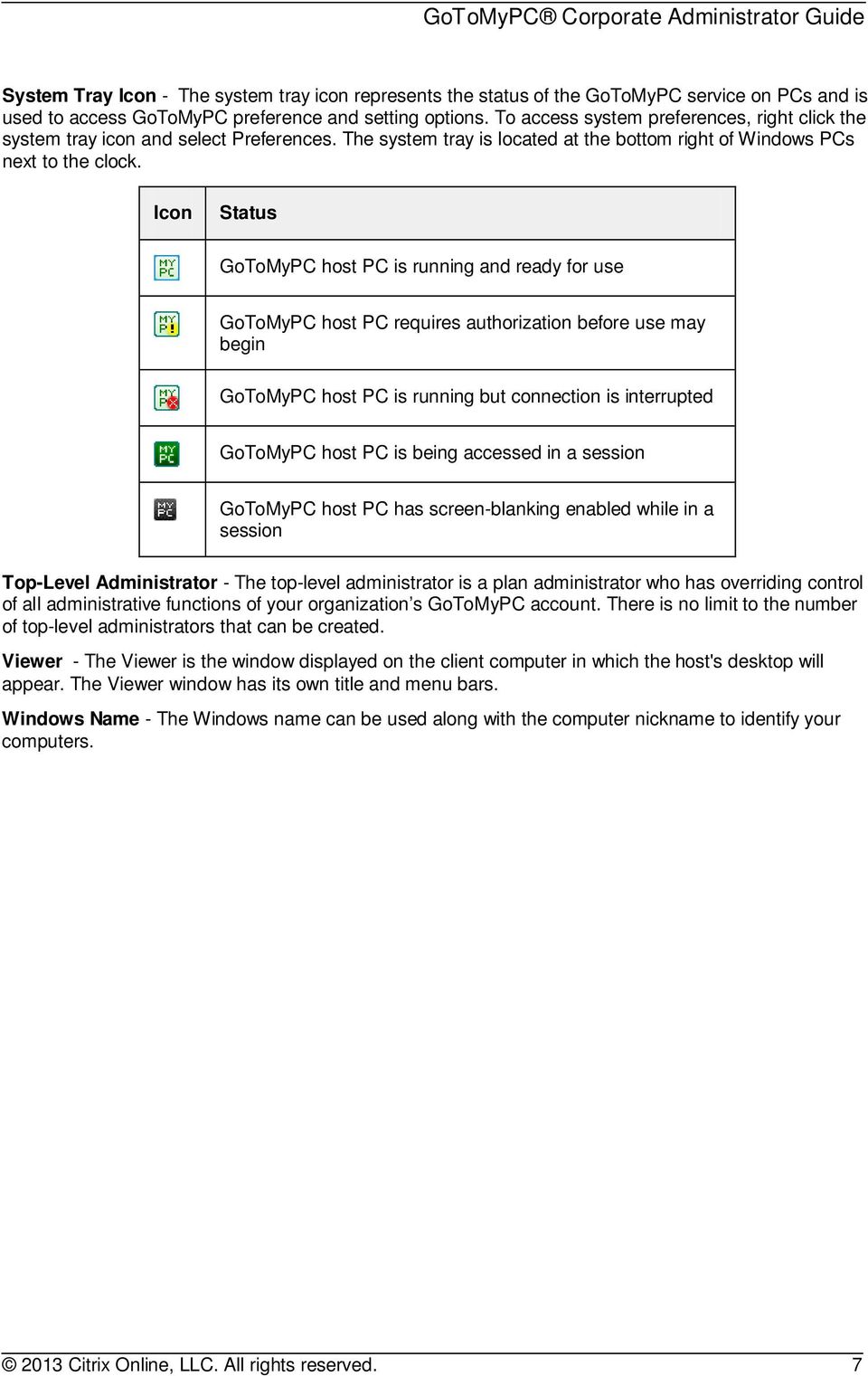
12 System Tray Icon - The system tray icon represents the status of the GoToMyPC service on PCs and is used to access GoToMyPC preference and setting options. To access system preferences, right click the system tray icon and select Preferences. The system tray is located at the bottom right of Windows PCs next to the clock. Icon Status GoToMyPC host PC is running and ready for use GoToMyPC host PC requires authorization before use may begin GoToMyPC host PC is running but connection is interrupted GoToMyPC host PC is being accessed in a session GoToMyPC host PC has screen-blanking enabled while in a session Top-Level Administrator - The top-level administrator is a plan administrator who has overriding control of all administrative functions of your organization s GoToMyPC account. There is no limit to the number of top-level administrators that can be created. Viewer - The Viewer is the window displayed on the client computer in which the host's desktop will appear. The Viewer window has its own title and menu bars. Windows Name - The Windows name can be used along with the computer nickname to identify your computers Citrix Online, LLC. All rights reserved. 7
13 Tips for Success Review helpful suggestions on how to use your GoToMyPC Administration center effectively. Be sure to keep your Administration Center user name and password secure. Encourage users to create account passwords that differ from their computer access codes. Encourage users to maintain password security by regularly changing their passwords and by not sharing their account with others. If a user wants to grant others access to a computer, the Guest Invite feature should be used. This feature is accessible from the system tray icon and provides one-time access per invitation to a user s computer. When granting access, a user can determine whether to grant full privileges or view-only privileges. If you are using GoToMyPC Corporate to help administer several computers, make sure you register each computer with a different password and computer access code. Do not share these passwords and computer access codes with others. For internal security, users running Windows XP Professional and Vista can log off their computers and GoToMyPC Corporate will continue running. These users can remotely unlock their workstations by using the Send Ctrl-Alt-Del menu command from the GoToMyPC Corporate Tools menu. Users running Windows XP Home can use a screensaver password to secure their computers while maintaining their connections to the GoToMyPC Corporate servers. Your users can add additional computers (up to the limit specified by your plan) to their accounts without your assistance. If you want to restrict the number of computers that users register, you will need to discuss this with them. We suggest outlining your internal policies in your initial invitation . If your company account has reached its plan limit, however, users will be sent an automated informing them to contact you about adding additional computers to their accounts. Users can update their version of GoToMyPC Corporate by right-clicking the icon in the system tray and clicking Check for Upgrade. If you forget your Administration Center password, you can create a new one by clicking Forgot your password? link on the log-in page. You will be sent an with a link directing you to a Web page for changing your password. Please note that for your security, a new password cannot be sent to you by Citrix Online, LLC. All rights reserved. 8

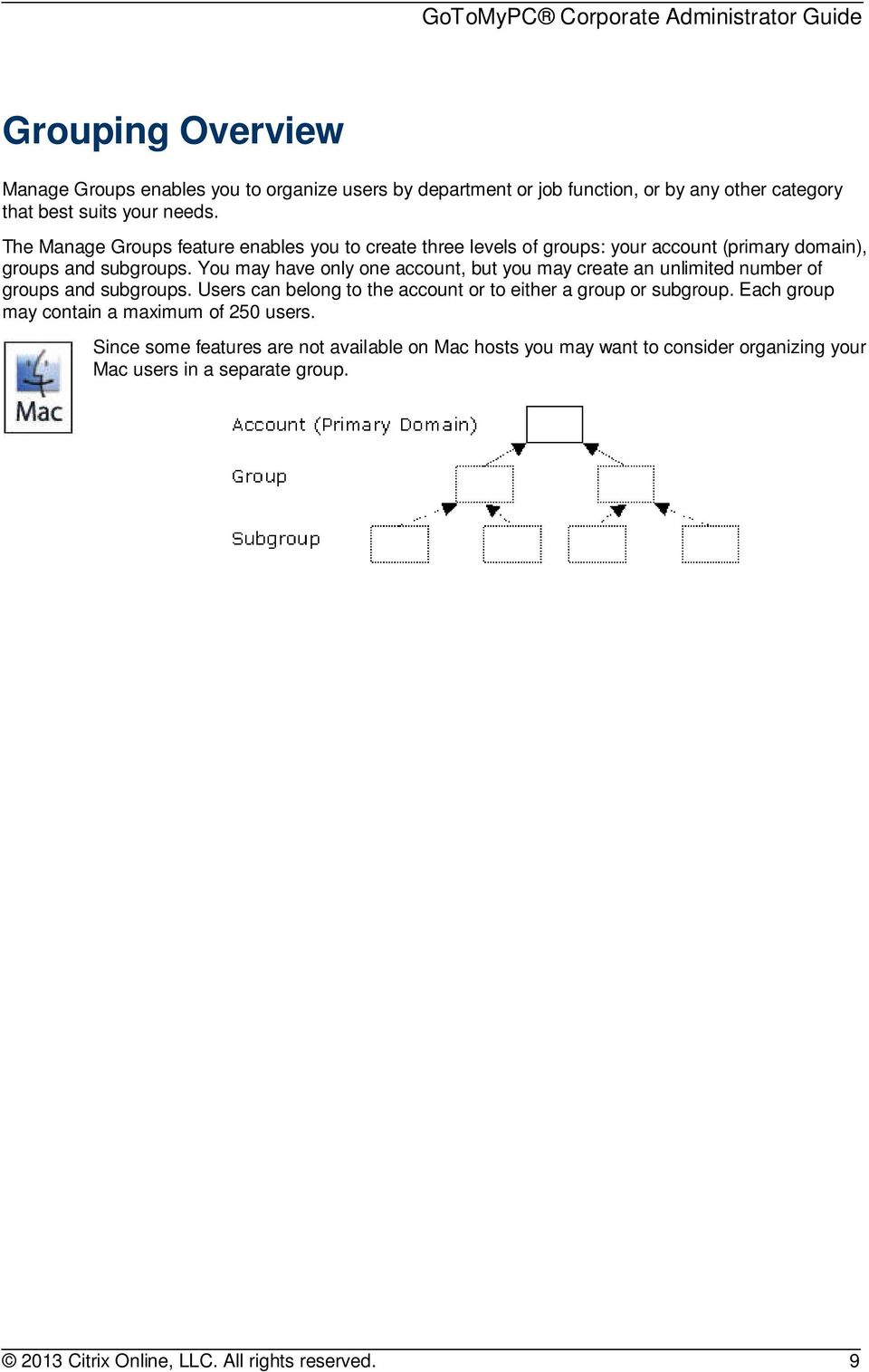
14 Grouping Overview Manage Groups enables you to organize users by department or job function, or by any other category that best suits your needs. The Manage Groups feature enables you to create three levels of groups: your account (primary domain), groups and subgroups. You may have only one account, but you may create an unlimited number of groups and subgroups. Users can belong to the account or to either a group or subgroup. Each group may contain a maximum of 250 users. Since some features are not available on Mac hosts you may want to consider organizing your Mac users in a separate group Citrix Online, LLC. All rights reserved. 9
15 Add Groups and Subgroups Learn to add groups and subgroups to your Corporate account. To add a group 1. Click the Manage Groups link in the left navigation bar. In the Groups and Subgroups section you will see your company name and a summary of the number of users and PCs enabled in your plan. Below this section is the top-level domain (name of your company) and any groups you may have created. At the bottom of the list of groups you will see the Add Group link. If you have not created any groups, you will only see the Add Group link. 2. Click the Add Group Link. 3. In the Add Group field, enter the name for the group you wish to add and click Add Group or press Enter. The group will be created and it can be seen on Group Administration page Citrix Online, LLC. All rights reserved. 10

16 To add a subgroup 1. Click the Manage Groups link in the left navigation bar. In the Groups and Subgroups section, you will see the top-level domain (name of your company) and, below that, any groups you may have created. 2. Click on the arrow to the left of the group to which you want to add the subgroup and then click the Add Subgroup link. 3. In the Add Subgroup field, enter the name for the subgroup you wish to add and click Add Subgroup or press Enter. The subgroup will be created and it can be seen on the Group Administration page Citrix Online, LLC. All rights reserved. 11

17 Rename Groups and Subgroups Learn to rename groups and subgroups here. To rename a group or subgroup 1. Click the Manage Groups link in the left navigation bar. 2. For groups: Click the name of the group. For subgroups: Click on the arrow to the left of the group to view its subgroups, than click the name of the subgroup. 3. On the Group Administration page in the Name field, type in the new group name and click Rename. Change Group or Subgroup Status Learn to change your group or subgroup's status. To change a group or subgroup status 1. Click the Manage Groups link in the left navigation menu. 2. For groups: Click the name of the group. For subgroups: Click on the arrow to the left of the group to view its subgroups, than click the name of the subgroup. 3. On the Group Administration page, in the Change Status drop-down combo box, select the desired new status and click Change Status. Note: If you choose Suspend Users, all users in the group or subgroup will be suspended, but the group and subgroup users will remain in your company account. Choosing Unsuspend Users will return the selected users to active status. If you choose Delete, the group, subgroup and all users in the group and subgroup will be removed from your company account and you will have to re-create the group and/or reinvite the users if you wish to add them again in the future. If you delete the group, you will receive a confirmation; click Cancel to cancel the status change or Continue to complete the status change Citrix Online, LLC. All rights reserved. 12

18 Configure Group and Subgroup Settings Group settings enables you to set group and subgroup parameters for use of GoToMyPC Corporate by members of the group or subgroup. Group and subgroup settings that can be configured include: Managers: Assign a group manager to manage the users in this group PC Limit: Set the limit of computers a group or subgroup may enable. Features: Enable specific GoToMyPC Corporate features for users. Account Password: Set requirements for Web site passwords. Host Access Code: Establish requirements for host access code. Extended Authentication: Establish secondary authentication requirements. Hours of Access: Determine hours when GoToMyPC Corporate may be used. Host and Client Authorization: Set requirements for host and client computer pre-authorization. Note: Settings for Features, host and client Authorization and Authentication Method can also be set at the user level. User-level settings override group and subgroup settings. Managers This section enables you to assign an existing Group Manager to a group or subgroup of users. To assign an existing Group Manager to a group or subgroup: 1. Click the Manage Groups link in the left navigation bar. 2. For groups: Click the name of the group. For subgroups: Click on the arrow to the left of the group to view its subgroups, then click the name of the subgroup. 3. On the Group Administration page in the Group Settings section, click the link for Managers. 4. On the Managers page, select the Group Manager s name. 5. Click Save Settings. PC Limit This section enables top-level administrators to set the limit of hosts a group or subgroup may enable. Setting a group PC Limit prohibits users within that group from adding more Mac or PCs than the maximum set for the group. To set the limit of host computers a group or subgroup may enable: 1. Click the Manage Groups link in the left navigation menu. 2. For groups: Click the name of the group. For subgroups: Click the arrow to the left of the group to view its subgroups, then click the name of the subgroup. 3. On the Group Administration page in the Group Settings section, click the link for PC Limit. 4. On the PC Limit page, set the limit of host computers the group or subgroup may enable. 5. Click Save Settings Citrix Online, LLC. All rights reserved. 13

19 Note: Only top-level administrators can set the PC Limit for groups and subgroups. Group managers will be able to view the PC Limit but will not be able to modify it. Leaving the PC Limit field blank allows users within the group to add unlimited PCs up to the plan maximum. Features This section enables you to set group and subgroup access rights to various GoToMyPC Corporate features. Feature-access options include: Maximum PCs per User, Remember Me, Signature Protocol (if enabled by your Account Representative. See configuration notes section on Signature Protocol), Viewer Security Time-Out (max is 9,999 minutes; default is 15 minutes), Allow User to Reduce Maximum, Default Color Quality, Sound, Remote Printing, Desktop Shortcut, File Transfer, Whiteboard, Guest Invite, Chat, Shared Clipboard, Lock upon Disconnect, Screen Blanking, Keyboard/Mouse Locking and Access Activity Log, and In Session Reboot (available only on Shared Access accounts). Since some features are not available on Mac hosts you may want to consider organizing your Mac users in a separate group. To configure feature-access rights for a group or subgroup: 1. Click the Manage Groups link in the left navigation bar. 2. For groups: Click the name of the group. For subgroups: Click on the arrow to the left of the group to view its subgroups, then click the name of the subgroup. 3. On the Group Administration page in the Group Settings section, click the link for Features. 4. On the Features page, select or deselect the features you want to configure. 5. Click Save Settings. Note: When creating new groups, the new groups will inherit the rights from the company (top-level domain). Changing rights for a group will reset the rights for all group users. When creating new subgroups, the new subgroups will inherit rights from the group. Changing rights for a subgroup will reset the rights for all subgroup users. Moving the users of a subgroup to another group will reset the rights to those of the new group. Account Password The account password section enables you to set parameters for Account Password Expiration, Password Reuse and action to take upon Failed Account Password Authentication. Password management is not available for Mac users. To set account password requirements for a group or subgroup: 1. Click the Manage Groups link in the left navigation bar. 2. For groups: Click the name of the group. For subgroups: Click on the arrow to the left of the group to view its subgroups, then click the name of the subgroup Citrix Online, LLC. All rights reserved. 14

20 3. On the Group Administration page in the Group Settings section, click the link for Account Password. 4. On the Account Password page, select or deselect the settings you want to establish. 5. Click Save Settings. Note: When creating new groups, the new groups will inherit the rights from the company (top-level domain). Changing rights for a group will reset the rights for all group users. When creating new subgroups, the new subgroups will inherit rights from the group. Changing rights for a subgroup will reset the rights for all subgroup users. Moving the users of a subgroup to another group will reset the rights to those of the new group. Host Access Code This section enables you to set parameters for Access Code Expiration, Access Code Reuse and action to take upon Failed Access Code Authentication. Host access code management is not available for Mac users. To set host access requirements for a group or subgroup 1. Click the Manage Groups link in the left navigation bar. 2. For groups: Click the name of the group. For subgroups: Click on the arrow to the left of the group to view its subgroups, then click the name of the subgroup. 3. On the Group Administration page in the Group Settings section, click the link for Host Access. 4. On the Host Access page, select or deselect the settings you want to configure. 5. Click Save Settings. Note: When creating new groups, the new groups will inherit the rights from the company (top-level domain). Changing rights for a group will reset the rights for all group users. When creating new subgroups, the new subgroups will inherit rights from the group. Changing rights for a subgroup will reset the rights for all subgroup users. Moving the users of a subgroup to another group will reset the rights to those of the new group Citrix Online, LLC. All rights reserved. 15
21 Extended Authentication The authentication method section enables you to set requirements for use of One-Time Passwords or RADIUS Integration. Requiring use of One-Time Passwords will force users to generate a list of One-Time Passwords and enter a One-Time Password after their access code each time they connect to a host computer. Use of RADIUS will require that your organization already have RADIUS security system with RADIUS server support installed and operational. Requiring use of RADIUS will also require configuration on users host PCs to ensure authentication between host PC and RADIUS systems. Use of One-Time Passwords will force users to enter their RADIUS PASSCODE (PIN and tokencode) after the host PC access code each time the connect to a host PC. Note: RADIUS and One-Time Passwords is not available for PCs with the Shared Access feature. Note: RADIUS Integration is only available with the purchase of GoToMyPC Corporate Plus. GoToMyPC Corporate officially supports RSA SecurID as a third-party provider of an industry-recognized two-factor authentication method. Other third-party providers may integrate but have not been tested. RADIUS and One-Time Passwords are not available on Mac hosts. We recommend Mac computers remain separate from groups enabled with RADIUS and One-Time Passwords. To set authentication method requirements for a group or subgroup 1. Click the Manage Groups link in the left navigation bar. 2. For groups: Click the name of the group. For subgroups: Click on the arrow to the left of the group to view its subgroups, then click the name of the subgroup. 3. On the Group Administration page in the Group Settings section, click the link for Authentication Method. 4. On the Authentication Method page, select or deselect the method you want to require. Note: To enable RADIUS from the host PC, select the check box to Show RADIUS configuration in GoToMyPC preferences. Once the host PC has been configured, you can return to the Administration Center and deselect this feature so users cannot change settings. Disabling RADIUS in the Administration Center does not disable the feature at a user s host PC. Users will still need to manually disable RADIUS from their Preferences Menu Authentication tab. 3. Click Save Settings. For more information on RADIUS integration see Configuring GoToMyPC Corporate with RADIUS 2013 Citrix Online, LLC. All rights reserved. 16
22 Hours of Access With the hours of access settings, you can determine when your users are able to use GoToMyPC Corporate to access their host PCs. To set hours of access for a group or subgroup 1. Click the Manage Groups link in the left navigation bar. 2. For groups: Click the name of the group. For subgroups: Click on the arrow to the left of the group to view its subgroups, then click the name of the subgroup. 3. On the Group Administration page in the Group Settings section, click the link for Hours of Access. 4. On the Hours of Access page, configure the hours of access for users. 5. Click Save Settings. Note: When creating new groups, the new groups will inherit the rights from the company (top-level domain). Changing rights for a group will reset the rights for all group users. When creating new subgroups, the new subgroups will inherit rights from the group. Changing rights for a subgroup will reset the rights for all subgroup users. Moving the users of a subgroup to another group will reset the rights to those of the new group. Host and Client Authorization Requiring host and client authorization will mean that your users will have to provide you with computerspecific information for host computers and/or client computers before they will be able to use GoToMyPC Corporate with those computers. Host and client authorization is not available for PCs with the Shared Access feature. To set host and client authorization requirements for a group or subgroup 1. Click the Manage Groups link in the left navigation bar. 2. For groups: Click the name of the group. For subgroups: Click on the arrow to the left of the group to view its subgroups, then click the name of the subgroup. 3. On the Group Administration page in the Group Settings section, click the link for Host and Client PC Authorization. 4. On the Host and Client PC Authorization page, use the check-box options to select the PC (host and/or client) you want to require authorization. 5. Click Save Settings. To authorize a client computer and ios or Android device Please see the Client Authorization section. Note: If you are a GoToMyPC Corporate user, your administrator may require you to request authorization for your client computer before you can use it to access your host PC. Authorization requires you to send your client computer's MAC address and C: Drive serial number (or 11-digit alphanumeric serial number for ios and Android devices) to your administrator Citrix Online, LLC. All rights reserved. 17
23 Manage Managers The Manage Managers area of the Administration Center allows top-level administrators to sign up new managers; view a managers groups and subgroups; assign a manager groups and subgroups; suspend or delete a manager; and configure a manager s feature access rights. The Manage Managers Page The Manage Managers page gives you the ability to view user information for all your manager accounts, change manager status, move managers between groups and access a manager s account. To view the Manage Managers page Click the Manage Managers link in the left navigation bar Manage Users page field definitions Name: Name of the manager The registered address for the manager s account Groups: A list of groups and subgroups assigned to the manager Status: Shows the manager s status Manage Users page status field definitions Active: The manager has completed the manager registration process Inactive: You have invited the manager but the manager has not yet completed the registration process to activate the account. You can re-invite or suspend the manager at any time Suspended: You have temporarily suspended a manager 2013 Citrix Online, LLC. All rights reserved. 18
24 Sign Up Managers Learn to sign up new managers to a group here. To sign up new managers 1. Click the Manage Managers link in the left navigation bar. 2. Click the Sign Up Managers link in the left navigation bar. 3. Enter the addresses of the new managers you wish to invite. If an invited manager is already signed up, you will be notified. The manager cannot be signed up a second time. 4. In the Assignment section, select which groups to assign the manager to and click Continue. If no groups have been created, select Group Manager. A manager can be assigned or reassigned a group at anytime by clicking the Manage Manager link in the left navigation menu. 5. Click Continue to confirm the addresses. 6. In the Subject: field, you can modify the default Set Up GoToMyPC Corporate Manager Account subject. 7. Add an optional personalized message to the invitation . You may want to include the following useful information: If the manager can invite users and, if so, how many. Which groups he/she has been assigned or if he/she should create more groups. 8. Select Most recently sent message link to use the last personalized message sent Citrix Online, LLC. All rights reserved. 19
25 9. Click Preview to view the invitation before sending. 10. After personalizing your message, click Notify Managers. 11. You will see a message confirming that you have successfully invited managers to sign up. Note: It is not possible to change the status of an end-user to that of a manager, or to change the status of a top-level administrator to that of a manager. Managers must be invited through the Sign Up Managers page. There is no limit to the number of managers that can be invited. Once a manager is signed up, he/she can create groups and subgroups and invite users, provided that this feature has not been disabled by a top-level administrator. Top-level administrators can also create other top-level administrators by selecting the top-level administrative access option at the bottom of the Sign Up Managers page. Undeliverable s will be directed to the top-level administrator who sent the invitation Citrix Online, LLC. All rights reserved. 20
26 View a Manager's Account Viewing an individual manager s account record will enable you to view and change the manager s status, assign/reassign the manager s groups and subgroups and view and change the manager s administrative settings. To view a Manager s account record 1. Click the Manage Managers link in the left navigation bar. 2. Select the Manager to view or search for a user by using the search feature: a. Type the information to search for in the Find field. b. Select where to search in the In field. c. Select which status state to search in the Status field. d. Select the group to search in the Group field. e. Click Search Managers. 3. Click the manager s name. The Manager Administration page will be displayed Citrix Online, LLC. All rights reserved. 21
27 Change a Manager's Account Status Learn to change the account status of a manager here. To change the status of a manager s account: 1. Click the Manage Managers link in the left navigation bar. 2. Using the search or pagination options, search for and find the manager whose status you wish to modify. 3. To the left of the manager s name field, select the check box for each manager you wish to modify. 4. In the Change Status: drop-down menu, select the desired status and click Change Status. Manage Managers page field definitions Name: Name of the manager The registered address for the manager s account Groups: The manager s assigned groups Status: Shows the status of the manager s account Manage Mangers page status field definitions Active: The manager has activated the account Inactive: You have invited the manager but the manager has not activated the account. You can re-invite or suspend the manager at any time Suspended: You have temporarily suspended a manager s account Note: Suspending an account is convenient because you do not need to re-invite the manager to reactivate their account and the manager does not need to register again. Choosing Unsuspend Managers will return the selected Manager to active status. If you choose Delete, the selected manager will be removed from your company account and you will need to re-invite the manager if you wish to add the manager again in the future. All active managers will receive an when you suspend, unsuspend or delete their accounts. To assign or reassign a manager s group(s): 1. Click the Manage Managers link in the left navigation bar. 2. Select a manager to view or search for a manager by using the Search Managers feature: 2013 Citrix Online, LLC. All rights reserved. 22
28 a. Enter the information you wish to search for in the Find field. b. Select where to search in the In field. c. Select which status state to search in the Status field. d. Select the Group to search in the Group field. e. Click Search Managers. 3. Click the manager s name. 4. On the Group Assignment page select the group or subgroup that you want to assign. 5. Click Save Settings. Note: Assigning a group is not the same as assigning all the subgroups in a group. A group assignment will assign that manager to any subgroups subsequently created under that parent group. It is not possible to limit group assignments for a top-level administrator unless you delete the top-level administrator and invite him/her as a group manager Citrix Online, LLC. All rights reserved. 23
29 Group Manager Settings Manager settings enable top-level administrators to establish parameters for the management of GoToMyPC by group managers. Manager settings that can be configured include: User Status: The ability to sign up users and change user status. Features: The ability to enable specific GoToMyPC Corporate features for assigned groups and users. Account Password: The ability to set requirements for Web site passwords. Host Access: The ability to set requirements for host PC Access Code. Hours of Access: The ability to set hours when GoToMyPC Corporate may be used. Shared Access: The ability to define access rights for users who share host PC management rights. Host and Client PC Authorization: The ability to set requirements for host PC and client PC preauthorization. Authentication Method: The ability to establish secondary authentication requirements. To configure feature-access rights for a manager 1. Click the Manage Managers link in the left navigation bar. 2. Select a manager to view or search for a manager by using the search feature: a. Enter the information you wish to search for in the Find field. b. Select where to search in the In field. c. Select which status state to search in the Status field. d. Select the Group to search in the Group field. e. Click Search Managers. 3. Click the manager s name. 4. On the Manager Administration page in the Administrative Control section, click Features. 5. On the Features page, select or deselect the features you want to configure. A checked box indicates that a manager has the ability to configure feature-access rights for his/her group(s) and/or subgroup(s). 6. Click Save Settings. User Status, Account Password, Host Access, Hours of Access, Shared Access, Host and Client PC Authorization and Authentication Method can all be configured under the Administrative Control section. Note: Group manager access features that have been disabled by a top-level administrator will appear grayed out to the group manager. It is not possible to limit group assignments for a top-level administrator unless you delete the top-level administrator and invite him/her as a group manager Citrix Online, LLC. All rights reserved. 24
30 Manage Users The Manage Users area of the Administration Center allows you to sign up new users; view a user s account status and the number of enabled computers; suspend or delete a user s account; and access a user s account record. Manage Users Page The Manage Users page gives you the ability to view user information for all your user accounts, change user status, move users between groups and access a user s account. To view the Manage Users page Click the Manage Users link in the left navigation bar. Manage Users page field definitions Name: Name of the user The registered address for the user s account PCs: Number of PCs that user has enabled Status: Shows the status of the user s account 2013 Citrix Online, LLC. All rights reserved. 25
31 Manage Users page status field definitions Active: The user has activated the account and is enabled to use GoToMyPC. An active status does not necessarily indicate that the software is installed on the user s computer Invited: You have invited the user to use GoToMyPC Corporate but the user has not activated the account. You can re-invite or suspend the user at any time Suspended: You have temporarily suspended a user s account Locked: The user needs to have a computer authorized or their account unlocked 2013 Citrix Online, LLC. All rights reserved. 26
32 Sign Up Users Learn to sign up users here. To sign up new users 1. Click the Manage Users link in the left navigation bar. 2. Click the Sign Up Users link in the left navigation bar. 3. Enter the addresses of the new users to invite (include your address if you want a user account). Enter up to 250 addresses, subject to the maximum number of computers included in your company s plan. If an invited user is already signed up, you will be notified. The user will not be signed up a second time. 4. In the Add Users To drop-down menu, select the group to which you want to add the users and click Continue. 5. Click Continue to confirm the addresses. 6. In the Subject: field, you can modify the default subject line: Set Up GoToMyPC Corporate. 7. Add a personalized message to the invitation . You may want to include the following useful user information: Any organizational policies for users to observe, maximum number and type of PCs to register (e.g., 2 company PCs), etc. 8. Select the Most recently sent message checkbox to use the last personalized message sent. 9. Check Send confirmation to: checkbox if you would like to receive a copy of the invitation . If you would like the copy to go to a different address, enter that address instead. 10. Click Preview to preview the invitation before sending. 11. After personalizing your message, click Notify Users. 12. You will see a message confirming that you have successfully invited users to sign up. Note: The number of computers you can assign to users is based on your company s plan. If you exceed the number of computers in the plan, you will be notified when attempting to sign up additional new users. If users try to add a computer but your company has already reached the plan s limit, users will see a message directing them to contact you about adding additional computers. Undeliverable s will be directed to the top-level administrator or group manager who sent the invitation Citrix Online, LLC. All rights reserved. 27
33 Administrator Announcements Top-level administrators can broadcast a customized announcement that users will see when they log in to their accounts. Administrators may also select the frequency with which the announcement is broadcasted. To create or edit a broadcast announcement 1. Log in to the Administration Center. 2. Click the Manage Users link in the left navigation menu. 3. Click the Announcement link. 4. On the Announcement page, create or edit your message in the Announcement Text box. 5. Select the frequency that the announcement will appear. 6. Click Save Changes. To turn off a broadcast announcement 1. On the Announcement page, click the drop-down menu under Appears and select Never. 2. Click Save Changes Citrix Online, LLC. All rights reserved. 28
34 Using the Host Installer The Host Installer is a tool that can be used by your IT Administrator to save time managing GoToMyPC Corporate installations on networked PCs. When used in conjunction with a simple login script or a software management product such as Microsoft System Management Server (SMS), this tool can be used to silently install, upgrade, downgrade or remove GoToMyPC Corporate. After new installations, your users must register their PCs before they can log in to their accounts and begin using GoToMyPC Corporate. No further registration is required when upgrading to the latest version of GoToMyPC Corporate. The Host Installer feature is not available for Mac computers. Install: Using the Host Installer along with a software management product, you can quickly and silently install the application on your networked users PCs. After installation, your users must register their PCs before they can log in to their accounts and begin using GoToMyPC Corporate. Recommended order of operations for a new installation 1. Invite Users through the GoToMyPC Administration Center interface. Be sure to paste the following Host Installer user instructions in the invitation a. Click the link in this to create a GoToMyPC Corporate account password. b. Once you have created your account password, do NOT click the Install GoToMyPC button. GoToMyPC Corporate will be installed for you by the IT department. c. Once the installation is complete, you will be prompted to enter your address and account password as well as create a computer nickname and access code. d. Once you have completed these steps, your PC will be available for remote access. 2. Run the Host Installer using the instructions below. Once the installation is complete, users will be prompted to enter their addresses and account passwords before being prompted to create a computer nickname and access code. Upgrade: You can also use the Host Installer to quickly upgrade the application on your users PCs without requiring them to stop working. If a user is remotely connected when you perform the upgrade, the user will be disconnected from the current GoToMyPC Corporate session and will see a system message with a prompt to log in again. Note: Please contact your Citrix Online Account Manager to have the upgrade notices disabled for your end users. If you prefer that your users not attempt an upgrade, set the PC Limit for that group or user to 0. This will cause the Install GoToMyPC button to become disabled. Downgrade: Networked users on version 7.0 can be downgraded to the 6.1 version of GoToMyPC Corporate the same way as an Install/Upgrade. Simply substitute the 6.1 version of gosetup.exe. Note: Downgrades below 6.1 will require re-registration of the host. Due to compatibility issues we recommend you do not downgrade Vista PCs to 6.0 or lower. Remove: Using the Host Installer, you can quickly remove the application from your users PCs without requiring them to stop working. If a user is remotely connected when you perform the removal, the user will see a system message Citrix Online, LLC. All rights reserved. 29
35 To execute the Host Installer on a single host PC 1. Click to download the Host Installer for your version of GoToMyPC Corporate. Contact your Account Manager to change the GoToMyPC version. Note: If you are not already logged in to your GoToMyPC Corporate Administration Center, you will need to log in after clicking the Host Installer link above. 2. Open a Command Prompt window. 3. Execute the Host Installer by entering its name followed by the parameters on the command line. Silent Install/Upgrade: gosetup.exe -s -a s Silent Downgrade to version 7.2: gosetup.exe s a s Silent Remove: gosetup.exe -s -a -s silentremove For example, N:\ gosetup.exe -s -a -s where N: refers to a network mapped drive. Note: The install script knows whether it is performing a new install versus an upgrade. Therefore, if GoToMyPC Corporate is already installed on the PC, then running it again with the silent parameters will perform an upgrade. The silent modes are additional functionality built into the installer. Note: If the Host Installer is executed without the command line parameters, then the user will see the InstallShield dialog windows and be prompted for some information Citrix Online, LLC. All rights reserved. 30
36 Creating Your GoToMyPC Corporate User Account Although you do not need to have a GoToMyPC Corporate user account to function as your company s GoToMyPC Corporate top-level administrator or group manager, you can get your own user account by selecting Sign Up Users and adding yourself. View a User's Account Viewing an individual user s account record will enable you to change the user s status, move the user between groups, view detailed information about the user s PCs and delete the user s PCs. To view a user s account record 1. Click the Manage Users link in the left navigation bar. 2. Select the user to view or search for a user by using the search feature: a. Type the information to search by in the Find field. b. Select where to search with the In field. c. Select which status state to search in the Status field. d. Select the group to search in the Group field. e. Click Search Users. 3. Click the user s name. The User Administration page will appear Citrix Online, LLC. All rights reserved. 31
37 Unlock a User's Account Your user s account will lock if you have set requirements for account password failure lock out. To unlock a user s account 1. Click the Manage Users link in the left navigation bar. 2. Select the user to view or search for a user by using the search feature. 3. To the left of the user s name for the user you want to unlock, select the check box for the user s name. 4. In the Change Status drop-down menu, select unlock and click the Change Status button Citrix Online, LLC. All rights reserved. 32
38 Change a User's Account Status Learn to change a user's account status here. To change the status of a user s account 1. Click the Manage Users link in the left navigation bar. 2. Using the search or pagination options, search for and find the users whose status you wish to modify. 3. To the left of the user s name field, select the check box for each user you wish to modify. 4. In the Change Status: drop-down menu, select the desired status and click Change Status. 5. Check Send notification to suspended user if you would like to notify the user of the status change. 6. Click Continue. Note: If you choose Suspend Users, the selected users will be suspended, but the users will remain in your company account. Suspending a user s account temporarily denies access to GoToMyPC Corporate (e.g., if an employee takes a leave of absence). Suspending an account does not open another available computer within your plan. Suspending an account is convenient because you do not need to re-establish the user s account to reactivate it and the user does not need to reinstall the software or register again. Choosing Unsuspend Users will return the selected users to active status. If you choose Delete, all selected users will be removed from your company account and you will need to re-invite the user if you wish to add the user again in the future. All active users will receive an when you suspend, unsuspend or delete their accounts Citrix Online, LLC. All rights reserved. 33
39 Move a User to a New Group or Subgroup Learn to move a user to a new group or subgroup. To move a user to a new group or subgroup 1. Click the Manage Users link in the left navigation bar. 2. Using the search or pagination options, search for and find the users you wish to move. 3. To the left of the user s name field, select the check box for each user you wish to move. 4. In the Move User To drop-down menu, select the group or subgroup to which you want to move the user and click Move Users Citrix Online, LLC. All rights reserved. 34
40 Configure a User's Settings User settings enable you to establish parameters for use of GoToMyPC Corporate by an individual user. Group and subgroup settings that can be configured include: Features: Enable specific GoToMyPC Corporate features for the user. Extended Authentication: Establish secondary authentication requirements. Shared Access: Define access rights for users who share host PC management rights by requiring specific access codes for each user. Host and Client PC Authorization: Set requirements for host PC and client PC pre-authorization. Note: Changes to an individual user s feature-access rights will override group and subgroup settings. Moving a user to a new group or subgroup will reset the user s feature-access rights to those of the new group or subgroup. Inviting a new user to a group or subgroup will cause that user to inherit the featureaccess rights of the group or subgroup. Features that have been disabled will no longer be visible to the user. Changes that occur while a user is in a GoToMyPC Corporate session will take affect after completion of the active session. Changes will be communicated to the user via a message on the My Computers page upon next log in. Features The Features settings enable you to set user-access rights to various GoToMyPC Corporate features. Feature-access options include: Maximum PCs per User, Remember Me, Signature Protocol, Viewer Security Time-Out (max is 9,999 minutes; default is 15 minutes), Allow User to Reduce Maximum, Default Color, Sound, Remote Printing, Desktop Shortcuts, File Transfer, Whiteboard, Guests, Chat, Shared Clipboard, Lock upon Disconnect, Screen Blanking, Keyboard/Mouse Locking, Access Activity Log and In-Session Reboot (available only with Shared Access accounts). Since some features are not available on Mac hosts you may want to consider organizing your Mac users in a separate group. To configure feature-access rights for a user 1. Click the Manage Users link in the left navigation bar. 2. Select the user to view or search for a user by using the search feature: a. Enter the information to search in the Find field. b. Select where to search in the In field. c. Select which status state to search in the Status field. d. Select the Group to search in the Group field. e. Click Search Users. 3. Click the user s name. 4. On the User Administration page in the User Settings section, click the Features link. 5. On the Features page, select or deselect the features you want to configure. 6. Click Save Settings Citrix Online, LLC. All rights reserved. 35
41 Extended Authentication The authentication method section enables you to set requirements for use of One-Time Passwords or RADIUS Integration. Requiring use of One-Time Passwords will force users to generate a list of One-Time Passwords and enter a One-Time Password after their access codes each time they connect to a host PC. Use of RADIUS will also force users to enter their RADIUS PASSCODE (PIN and tokencode) after the host PC access codes each time they connect to a host PC. Since RADIUS and One-Time Passwords are not available on Mac hosts you may want to consider organizing your Mac users in a separate group. To set authentication method requirements for a user 1. Click the Manage Users link in the left navigation bar. 2. Select the user to view or search for a user by using the search feature. 3. Click the user s name. 4. On the User Administration page in the Group Settings section, click the link for Extended Authentication. 5. On the Extended Authentication page, select or deselect the method you want to require. Note: RADIUS Configuration is a group setting. Go to Group Administration for setup. 6. Click Save Settings. Note: For more information on RADIUS and how to configure a host PC for RADIUS, please see the Authentication Method subsection of the Manage Groups section. Shared Access The Shared Access feature enables administrators to give multiple end users access to a single host PC. Each end user accesses the host PC with a unique username, password and access code for greater security and reporting. If enabled on your account, this feature can be managed from the Manage Users and Manage PCs sections of the Administration Center. For more information please see Shared Access on a Single Host PC. The Shared Access feature is not available on Mac hosts. Host and Client PC Authorization Requiring host and client authorization means that your users will have to provide you with computerspecific information for host PCs and/or client computers before they will be able to use GoToMyPC Corporate with those computers Citrix Online, LLC. All rights reserved. 36
42 The Host and Client PC Authorization feature is not available for Mac computers. We recommend Mac computers remain separate from groups enabled with Host and Client PC Authorization. To set Host and Client authorization requirements for a user 1. Click the Manage Users link in the left navigation bar. 2. Select the user to view or search for a user by using the search feature. 3. Click the user s name. 4. On the User Administration page in the User Settings section, click the link for Host and Client PC Authorization. 5. On the Host and Client PC Authorization page, use the check-box options to select the PC (host and/or client) you want to require authorization. 6. Click Save Settings. Note: If you are a GoToMyPC Corporate user, your administrator may require you to request authorization for your client computer before you can use it to access your host PC. Authorization requires you to send your client computer's MAC address and C: Drive serial number (or 11-digit alphanumeric serial number for ios and Android devices) to your administrator. To authorize a client computer and ios or Android device Please see the Client Authorization section Citrix Online, LLC. All rights reserved. 37
43 Manage PCs The Manage PCs function of the Administration Center enables you to view individual PCs, change a PC s status, add PCs and enter the host PC and client computer-authorization information to authorize use of a specific PC. If your account is enabled with shared access, you may modify host PC shared access and owner settings (see Managing Shared Access). To add more PCs to your account please see the Manage Account section. Note: The Manage PCs page includes the name of the PC s Windows Name to help identify individual PCs. Please contact your Account Manager if you would like to remove the Windows Name identifier. View a User's PC Details To view a user s PC details 1. Click the Manage PCs link in the left navigation bar. 2. Using the search or pagination options, search for and find the PC to view. 3. On the Manage PCs page, click the name of the PC you wish to view. The PC Administration page loads with the PC s information. Note: Host PC and Client PC Authorization is disabled on PCs with Shared Access and will not be visible on the PC Administration page Citrix Online, LLC. All rights reserved. 38
44 Shared Access The Shared Access feature enables administrators to give multiple end users access to a single host PC. Each end user accesses the host PC with a unique username, password and access code for greater security and reporting. If enabled on your account, this feature can be managed from the Manage Users and Manage PCs sections of the Administration Center. For more information please see Shared Access on a Single Host PC. Unlock or Delete a User's PC Use the Change Status feature to unlock or delete a user s computer. To change the status of a user s PC 1. Click the Manage PCs link in the left navigation bar. 2. Using the search or pagination options, search for and find the PC to modify. 3. To the left of the PC Nickname(s) for the PCs you want to unlock or delete, select the check box for each PC you wish to modify. 4. In the Change Status drop-down menu, select the desired status and click the Change Status button Citrix Online, LLC. All rights reserved. 39
45 Client Authorization As an administrator you can authorize your user's client computer before they use it to access their host PC. Authorize a Host PC or Client Computer If you have required a user to authorize his/her host PC and/or client computer, you will have to authorize the PC prior to your user being able to use that computer with GoToMyPC. Before you can authorize a computer, your user will have to convey to you (by or phone) his/her computer s MAC address or C: Drive serial number. To authorize a host or client Computer 1. Click the Manage PCs link in the left navigation bar. 2. Using the search or pagination options, search for and find the PC to authorize Citrix Online, LLC. All rights reserved. 40
46 3. On the Manage PCs page, click the name of the host computer you wish to authorize for use with GoToMyPC Corporate or that you want to authorize Client PCs to access. 4. On the PC Administration page, click Host and Client PC Authorization ID. 5. On the Host and Client PC Authorization ID page, enter the user-provided MAC Address or Serial Number for the host and/or the client computer. 6. Click Save Settings. Note: MAC addresses cannot be used for authorization when the computer (Host or Client) connects to the Internet using a dial-up modem. Unlike Ethernet and wireless network adaptors, dial-up modems don't have MAC addresses. In these cases, use the C: Drive serial number for authorization. Client Authorization for a GoToMyPC Corporate User If you are a GoToMyPC Corporate user, your administrator may require you to request authorization for your client computer before you can use it to access your host PC. Authorization requires you to send your client computer's MAC address and C: Drive serial number (or 11-digit alphanumeric serial number for ios and Android devices) to your administrator. To authorize a client computer 1. While at the client computer you want to authorize, access your GoToMyPC Corporate account and begin a connection to your host PC. 2. Once the download process is completed and the Viewer window appears, you will be notified that the client PC requires authorization. The notification dialog box will contain the client PC 's MAC address and C: Drive serial number. 3. Copy the MAC address and C: Drive serial number and it to your administrator. Your administrator will authorize your client PC and should notify you when authorization is complete. To authorize an ios or Android device 1. From the ios or Android device that you want to authorize, access the GoToMyPC app and begin a connection to your host PC. 2. You will receive an "Access Denied" message indicating that the device requires authorization. The message will contain the 11-digit alphanumeric serial number Citrix Online, LLC. All rights reserved. 41
47 3. Send the serial number to your Corporate administrator. Your administrator will authorize your device and should notify you when authorization is complete Citrix Online, LLC. All rights reserved. 42
48 Active Connections The Active Connections feature enables you to monitor all active user connections. View an Active Connection To view active connections 1. Click the Active Connections link in the left navigation bar. 2. In the Connection Activity For: drop-down menu box, select the group you wish to view and click View Connections. 3. The Active Connections report will run and you will see a listing of all users for the selected group who are presently using GoToMyPC Corporate to remotely connect to their host PCs. Active connections field definitions Name: User s name User s as you entered it to sign up the user for the service PC: Nickname of the PC as assigned by the user Start: Time the present connection began Duration: Duration of the present connection Note: Active Connections displays only those users who are connected to their host computers and who are actively using GoToMyPC Corporate Citrix Online, LLC. All rights reserved. 43
49 End an Active Connection You can end a user s active connection at any time. Ending an active connection will immediately cancel the connection. To end an active connection 1. Click Active Connections. 2. Locate the connection you want to cancel and click End. The connection will be canceled and the user will receive a notice that the user s host has terminated the session Citrix Online, LLC. All rights reserved. 44
50 Generate Reports You can get summary and detailed information for your company and users by using the Generate Reports feature. This reporting feature allows you to view various statistics for your account for any date range in either HTML or Excel format. Note: Data is available online for 90 days from date of occurrence and is then moved to offline storage. If data is needed for more than 90 days, create a Monthly Report to automatically save data on a monthly basis. Note: Please remember that when reports are created the system starts compiling data from that point in time. You cannot create reports and pull down historical data for a period prior to that. For Corporate Accounts Report Generation To generate a report 1. Click Generate Reports link in the left navigation bar. 2. In the Report: drop-down menu, select the report you want to generate (for report descriptions, please see the corresponding topics of the Help files). 3. In the Group: drop-down, select your desired group for the report. 4. Select the Date Range. 5. Select the Report Format (HTML or Excel). 6. Click Generate Report to view your report. Your report will load in a new window. Note: When a user is changed from one group/subgroup to another with the Group Creation feature, any connections the user makes while in one group will always be reported in relation to that group. For example: If Joe is a member of group A on Monday and is moved to Group B on Tuesday, any connections he made prior to Tuesday will always be found in the Group A reports Citrix Online, LLC. All rights reserved. 45
51 For Pro Accounts Report Generation You can generate a Detail Report that will provide a detail of a user s GoToMyPC Pro use during the chosen date range. This reporting feature allows you to view various statistics for your account for any date range in either HTML or Excel format. To generate a report 1. Click Generate Reports link in the left navigation menu. 2. Select the date range. 3. Select the report format (HTML or Excel) 4. Click Generate Report to view your report. Your report will load in a new window. Generate Reports with Windows 7 or Vista and Internet Explorer 7 If you wish to generate a report as an Excel or Comma-Delimited Text file from a PC with Windows 7 or Vista and Internet Explorer 7 you may need to modify your browser s security settings. To safely modify your security settings on Internet Explorer 7 1. From the Internet Explorer 7 browser page, select Tools and then, Internet Options. 2. From the Security tab on the Internet Security window, click on the Trusted sites zone and then the Sites button Citrix Online, LLC. All rights reserved. 46
52 3. Type in the Trusted Sites window and click the Add button. Close the Trusted Sites screen. 4. After has been added as a trusted site, you can customize the security level. Click the Custom Level button on the Internet Security window Citrix Online, LLC. All rights reserved. 47
53 5. Scroll down to the Downloads section on the Security Settings - Internet Zone window and enable the options Automatic Prompting for file downloads and File download Citrix Online, LLC. All rights reserved. 48
54 6. Click OK twice to close the Security Settings and Internet Security windows Citrix Online, LLC. All rights reserved. 49
55 Monthly Reports The Monthly Reports option allows you to set up customized reports that run on a monthly basis and are archived for one year. To create a monthly report 1. Click the Generate Reports link in the left navigation bar. 2. Click the Monthly Reports link in the left navigation bar. 3. Click the Create New Monthly Report link. 4. Name the report that you are creating. 5. Select the type of report you desire from the drop-down menu. 6. Select the group using the drop-down menu or use the search function to find a user s address. 7. Click the Create Monthly Report button Citrix Online, LLC. All rights reserved. 50
56 To run a monthly report 1. Search for the monthly report you would like to run using the search fields provided. Reports can be filtered by user, group, time period and type of report. 2. Select your desired report from among the list of results that appear in the results pane. Using the Activity drop down, you can select View Details, Download, Delete or New Report. Note that the Download option is only available for past months. 3. Click Select. Note: Reports are only available upon completion of the month and are archived for 12 months. Hours of Access, Enabled Host Computers, Inventory, Feature Configuration, User Logins and Group Logins reports are all as-of-reporting-time reports and will archive a snapshot of the corresponding report at the end of each month Citrix Online, LLC. All rights reserved. 51
57 Activity Detail Report The Activity Detail Report provides a detail by user for every connection and guest invitation during the selected date range. Use this report to gather detailed information for every connection and guest invitation for the selected time range for the entire company. Report field definitions Summary Section: Connections: Total number of GoToMyPC Corporate connections Total Time: Total time of connection Average Duration: Average duration of GoToMyPC Corporate connections Guest Invitations Sent: Total number of guest invitations sent Guest Connections: Total number of guest connections Guest Total Time: Total time of connection with guest Guest Average Connection Duration: Average duration of guest connections Connection Details Section: Name: User s full first and last name User ID: User s address Connection Start: Connection start time Duration: Connection duration Host: Nickname of host computer to which the user remotely connects Host IP: IP address of host computer Host ID: The MAC address and C: Drive serial number used for authorization. This will only display if you required authorization of the host computer and authorized it Host MAC: The MAC address used for authorization. This is displayed if you required authorization of the host computer and authorized it Windows Name: The name of the Windows PC Client IP: IP of client computer used for connection Client ID: The C: Drive serial number used for authorization. This is displayed if you required authorization of client PCs and authorized them Client MAC: The MAC address used for authorization. This is displayed if you required authorization of the clients and authorized them Guest Invitation Details Section: Name: User s full first and last name User ID: User s address Send: Time guest invitation was sent Start: Time guest connection occurred Duration: Guest connection duration Host: Nickname of host PC used for guest connection Windows Name: The name of the Windows PC Guest IP: IP of guest computer Guest ID: address of invited guest 2013 Citrix Online, LLC. All rights reserved. 52
58 Activity Snapshot Report You can get a summary of connections by user for the selected date range by generating a Activity Snapshot Report. This report is ideal for providing a general overview that can be used to identify additional areas to research with the detail reports. Report field definitions Summary Section: Connections: Total number of GoToMyPC Corporate connections Total Time: Total time of connection Average Duration: Average duration of GoToMyPC Corporate connections Guest Invitations Sent: Total number of guest invitations sent Guest Connections: Total number of guest connections Guest Total Time: Total time of connection with guest Guest Average Connection Duration: Average duration of guest connections User Summary Section: Name: User s full first and last name User ID: User s address Connections: Total number of GoToMyPC Corporate connections per user Total Time: Total time spent connected via GoToMyPC Corporate Average Duration: Average duration of a GoToMyPC Corporate connection Invitations Sent: Number of guest invitations sent Guest Connections: Number of guest connections Average Guest Duration: Average duration of a guest connection User Status: Active, suspended or deleted Effective Date: Date of activation, suspension or deletion 2013 Citrix Online, LLC. All rights reserved. 53
59 Authentication Events History Report This report will display all failed attempts to log in to the GoToMyPC Web site or to connect to a host computer by your users. Use this report to look for attempted unauthorized access. Report field definitions Description: Lists the type of activity associated with the authentication activity Time: Date and time the activity occurred User: The user name in format that is associated with the activity Host: The name of the host computer if the activity involved attempting to connect to a specific host computer Windows Name: The name of the Windows PC Client IP: The client PC's IP address that was used when attempting the activity 2013 Citrix Online, LLC. All rights reserved. 54
60 Connections Report The Connections Report provides connection details by host computer during a selected date range for a company or group. Use this report to monitor usage for business continuity purposes. Report field definitions Summary Section: Connections: Total number of GoToMyPC Corporate connections Total Time: Total time of connection Guest Connections: Total number of guest connections Guest Total Time: Total time of connection with guest Guest Average Connection Duration: Average duration of guest connections Available Host PCs: Total number of available host computers Total Enabled Hosts: Total number of enabled hosts Connection Details Section: Name: User s full first and last name User ID: User s address Connection Start: Connection start time Duration: Connection duration Host: Nickname of host computer to which the user remotely connects Host IP: IP address of host computer Windows Name: The name of the Windows PC Host ID: The C: Drive serial number used for authorization. This is displayed if you required authorization of the host PC and authorized it Host MAC: The MAC address used for authorization. This is displayed if you required authorization of the host computer and authorized it Client IP: IP of client computer used for connection Client ID: The C: Drive serial number used for authorization. This is displayed if you required authorization of client computers and authorized them Client MAC: The MAC address used for authorization. This is displayed if you required authorization of the client computers and authorized them Guest Invitation Details Section: Name: User s full first and last name User ID: User s address Send: Time guest invitation was sent Start: Time guest connection occurred Duration: Guest connection duration Host: Nickname of host computer used for guest connection Windows Name: The name of the Windows PC Guest IP: IP of guest computer Guest ID: address of invited guest 2013 Citrix Online, LLC. All rights reserved. 55
61 Enabled Host PCs Report This report provides details for every enabled host PC for the selected group and date range. Use this report to monitor enabled host PCs by user. Report field definitions Summary Section: Total Hosts: Total number of hosts Available Hosts: Total number of available host computers Connection Details Section: Group: The group to which the user belongs User: The name of the user in format User Status: Active, suspended or deleted Host: The name of the host computer associated with the user Active Date: The date and time the host computer was registered Internal IPs: The internal IP address of the host computer External IPs: The external IP address of the host computer Host IDs: The MAC address and C: Drive serial number used for authorization. This will only display if you required authorization of the host computer and authorized the computer Windows Name: The name of the Windows PC Client IDs: The MAC address and C: Drive serial number used for authorization. This will only display if you required authorization of client PCs and authorized Clients Version: The GoToMyPC Corporate version that resides on the host PC 2013 Citrix Online, LLC. All rights reserved. 56
62 Feature Configuration Report The Feature Configuration Report provides a detail of feature configuration by account (that is, by group and subgroup) and user. Use this report to quickly view those features are turned on or off for any of your groups, subgroups and users. Report field definitions Account Features Section: Host Access Code Expiration Period: Shows number of days between access code expiration Host Access Code Hard Lockout Attempts: Shows number of failed attempts before host computer lockout Host Access Code Reusability: Shows number of times an access code can be reused Host Access Code Expiration Notification Period: Shows number of days the user has before the access code expires Host Access Code Soft Lockout Minutes: Shows the number of minutes of denied access after failed attempts Authentication Policy: Shows the authentication requirements Chat: Shows Chat on or off Desktop Shortcut: Shows Desktop Shortcuts on or off Shared Clipboard: Shows Shared Clipboard on or off File Transfer: Shows File Transfer on or off Screen Blanking: Shows Screen Blanking on or off Lock Host Upon Disconnection: Shows Lock Host Upon Disconnect on or off Lock Host Keyboard & Mouse: Shows Keyboard/Mouse Locking on or off Max Inactivity Timeout Minutes: Shows the max value in minutes for Inactivity Time-Out Show Inactivity Timeout: Visible only if user can set his/her own Inactivity Time-Out Invite Guest: Shows Guest Invite on or off NT Log Captures Events: Shows NT Log Captures on or off Max PCs: Shows max number of PCs that users in that group can activate Account Password Expiration Period: Shows number of days between account password expiration Account Password Hard Lockout Attempts: Shows number of failed attempts before a hard lockout Account Password Reusability: Shows number of new passwords required before a password can be reused Account Password Expiration Notification Period: Shows number of days the user has before the password expires Account Password Soft Lockout Minutes Shows the number of minutes of denied access after failed attempts Remote Printing: Shows Remote Printing on or off Sound: Shows Sound on or off User Features Section: User: The name of the user in format Remaining Fields: Remaining fields are the same as the Account Features fields listed above Citrix Online, LLC. All rights reserved. 57
63 Host History Report This report provides details on the host PCs for a selected group, including the host PC active date and the GoToMyPC Corporate version and build number. Report field definitions Group: The group to which the host computer is assigned User: User s name in format associated with the host computer Host: Name of the host computer Internal IP: Internal IP address of the host computer External IP: External IP address of the host computer Host Active Date: The date the host computer became active Host Removed Date: The date the host computer was removed from the account Host IDs: The MAC address and C: Drive serial number used for authorization. This will only display if you required authorization of the host computer and authorized the computer Windows Name: The name of the Windows PC Client IDs: The MAC address and C: Drive serial number used for authorization. This will only display if you required authorization of client computer and authorized clients Version: The GoToMyPC Corporate version that resides on the host computer Hours of Access Report This report displays the configured hours or access by group. Use this report to review hours of access policies. Report field definitions Group: The group name Access Times: The hours of available access configured for the group Last Logins Report This report displays the last log in to the GoToMyPC Corporate account and duration of use for all users. Use this report to track how quickly the service is being adopted and how often it is being used. Report Field Definitions User: The user s address Last Login: The date and time that the user last logged in to his/her GoToMyPC Corporate account IP of Last Login: IP address of the host PC the user last logged into Last Connection: The date and time of the last connection to a host Duration: The time in hours and minutes of the last connection to a host # of Attempted Connections: Number of times a user attempted to connect to a host Host: Name of host Windows Name: The name of the Windows PC 2013 Citrix Online, LLC. All rights reserved. 58
64 Manager Activity Report This report provides details on users deleted, suspended, added, moved to another group or unsuspended. Use this report to keep track of users as they are moved in and out of groups, added and deleted. Report field definitions Manager: The manager s address Event: Add, delete, unsuspend, suspend, moved out User: The user s name User ID: The user s address Event Time: Date and time that the event occurred 2013 Citrix Online, LLC. All rights reserved. 59
65 Shared Access Report The Shared Access Report provides top-level administrators with information on host PCs with shared access, including connection times and which users have shared access. Report field definitions Connection Details Group: The group name Host: The nickname of the host PC that has shared access Windows Name: The name of the Windows PC Owner: The owner s address Shared Users: The addresses of the shared users Last Connection Time: Last connection time of each user Duration: Time in hours and minutes of the last connection to the shared host PC. Access Activity Detail Group: Name of the group the user belongs to Name: User s full first and last name Host: The nickname of the host PC that has shared access Windows Name: The name of the Windows PC Grant Date: The date the Shared Access feature was enabled Revoke Date: The date the Shared Access feature was disabled Access Code Change Required: If required, shows number of days before the access code expires 2013 Citrix Online, LLC. All rights reserved. 60
66 User Activity Report The User Activity Report provides a detail of a specific user's connections and guest invitations during the selected date range. Use this report to gather detailed information for every connection and guest invitation for the selected time range for a specified user. Report field definitions Summary Section: Connections: Total number of GoToMyPC Corporate connections Total Time: Total time of connection Average Duration: Average duration of GoToMyPC Corporate connections Guest Invitations Sent: Total number of guest invitations sent Guest Connections: Total number of guest connections Guest Total Time: Total time of guest connections Guest Average Connection Duration: Average duration of guest connections Invited Date: Date and time user was invited to use service Activation Date: Date and time user activated their account Connection Details Section: Connection Start: Connection start time Duration: Connection duration Host: Nickname of host PC to which the user remotely connects Host IP: IP of host PC use for connection Windows Name: The name of the Windows PC Client IP: IP of client computer used for connection Guest Invitation Details Section: Send: Time guest invitation was sent Start: Time guest connection occurred Duration: Guest connection duration Host: Nickname of host PC used for guest connection Windows Name: The name of the guest Windows PC Guest IP: IP of guest computer Guest ID: address of invited guest 2013 Citrix Online, LLC. All rights reserved. 61
67 User Changes Report This report displays such account changes as changes in user names, account passwords and access codes. In addition to your being able to do so, your group managers can also view status changes such as invited, deleted and suspended users. Report field definitions Change: Type of change event, such as a change in user name or account password Date: Date and time of the change User Inventory Report The User Inventory Report provides an instant inventory of all user accounts and PCs set up for the entire account and organized by group. Use this report to get an overview of all your participating users and their host PCs. Report field definitions Summary Section Total PC Limit: Total number of available PCs Total Activated PCs Total number of activated PCs Account Features Section Group: Group to which the user is assigned Name: User s name User s address Status: User s present status Inactive, Active, Suspended, Locked PC Limit: The limit to the number of host PCs the user can set up PCs Active: The number of PCs that are currently active PCs Granted Access To: The number of PCs that are available to the user Invited Date: The date and time the user was invited Activation Date: The date and time the user activated their account Last Connection Date: The time and date of the user s last connection 2013 Citrix Online, LLC. All rights reserved. 62
68 Manage Account You can view and change information for your company s GoToMyPC Corporate account by using the Manage Account feature. Access the Manage Account Page To access your account page Click the Manage Account link in the left navigation menu. Your Company Account page will load Citrix Online, LLC. All rights reserved. 63
69 Edit Your Account Information You may edit your company and administrator information at anytime. To edit your account information 1. Click the Manage Account link in the left navigation menu. 2. Enter your Administration Center Web site (current) password. 3. Make your desired changes. 4. Click Save Changes Citrix Online, LLC. All rights reserved. 64
70 Add More Computers to Your Account You can now add additional Macs or Windows computers to your account by submitting an online request from the Administration Center. The additional computers are available for distribution once the request is submitted. To add host Macs or PCs to your account 1. Log in to the Administration Center. 2. Click either the Manage PCs link or Manage Account link in the left navigation menu. 3. Click the Add more PCs link at the top of the page. 4. Select the number of computers you wish to add from the drop down menu. If you require more than 50 PCs, please contact our sales department at If your company requires a purchase order, select Yes and enter the PO in the provided field. 6. Verify your contact information and add your telephone number in the Administrator Contact section. 7. If you would like your billing department to receive a copy of all confirmation and billing related s, then select Yes and enter the billing contact information. Click Continue. 8. Please read the terms and conditions of the Add-On Order Form, click the check box to accept and then click Continue. 9. Review the Order Summary and then click the Place Order button. 10. Your new computers are now available for distribution. We recommend you print this page for your records. You will receive a confirmation within a few minutes and a second with specific pricing information within 48 hours. Note: The subscription fee for new PCs is based on your account s existing subscription agreement. The administrator and billing (if requested) contacts will receive all and invoice communications. The first day of billing begins on the day of your order Citrix Online, LLC. All rights reserved. 65
71 Add PCs to Your Account FAQs When do the added seats renew? The seats are synchronized with your existing plan. How is the price for the new seats determined and what happens if they push my account into a new price tier? You are charged the same rate as your previously purchased seats. If the addition of the new seats pushes your account into a lower price tier then the pricing is adjusted accordingly. When will I receive a confirmation of my order? Your add-on order will generate two s. The first confirmation is sent within minutes and contains the number of new PCs, total PCs and the effective date. The second is delivered within 48 hours and contains specific billing details including the price of the new PCs. When will I receive an invoice for the new PCs? You will receive a pro-rated invoice based on your effective date within 30 days of your order. After that, your new seats are invoiced along with your existing seats. How do I cancel an order? If you wish to cancel or modify an order you submitted online then please contact your account executive. Can I also reduce the number of seats online? No, please contact your account manager for all reduction orders. Does this impact my Master Subscription Agreement (MSA)? No, the addition of the new PCs through the online add-on process does not impact your existing MSA. Your new PCs simply adopt the current agreement. What are the terms that I am accepting via the Web site? How is it different than the offline order form? There is no difference between online and offline orders. You are agreeing to the same billing terms and conditions outlined in your existing MSA Citrix Online, LLC. All rights reserved. 66
72 Can I disable the online add-on functionality? Yes, you can have this feature disabled by contacting your account manager. Who has the ability to use the online add-on feature? All top-level administrators on your account can add seats through the Administration Center. There is no way to specify only one or more top-level administrators. Why don't I have the link to add more seats? This feature is not the default setting on all corporate accounts. Please contact your account manager to see if this feature can be enabled on your account. Is there still a 5-seat minimum? No, you are welcome to add anywhere from 1 to 50 seats online. Offline or phone orders still have the 5- seats minimum. Please contact corporate sales if you wish to add more than 50 seats. Will activation fees apply? Activation fees for seats added online are the same as those added offline. Is there an activation fee for new PCs with the RADIUS feature? Yes, the standard activation charge of $5 per PC does apply to PCs added online with RADIUS capability Citrix Online, LLC. All rights reserved. 67
73 Access Activity Log The Access Activity Log feature can be used to store a record of session events on the host PC s Windows NT-Event Log. This feature can be used as an audit control to assist with compliance with the Health Insurance Portability and Accountability Act (HIPAA). Since the session information is stored locally it cannot be accessed by Citrix Online. A manager can enable this feature at the group or user level in the administration center. Examples of stored information include session events, guest session events, access code changes, file transfers, printing and account lockouts. To enable the Access Activity Log 1. Click the Manage Groups link in the left navigation menu. 2. For groups: Click the name of the group. 3. For subgroups: Click on the arrow to the left of the group to view its subgroups and then click the name of the subgroup. 4. On the Group Administration page in the Group Settings section, click the link for Features On the Features page, under the Host Features section, select or deselect the Access Activity Log. 6. Click Save Settings. To view the session event record from Windows 1. Click Start, Settings and then Control Panel on your Windows computer. 2. Double-click Administrative Tools and then double-click Event Viewer. 3. Select Application in the left window and click the Source column. 4. Scroll to GoToMyPC and double-click an entry for details Citrix Online, LLC. All rights reserved. 68
74 Shared Access of a Single Host PC The Shared Access feature enables GoToMyPC Corporate administrators to give multiple end users access to a single host PC. Only one user can be connected at any one time. Each end user accesses the host PC with a unique username, password and access code for greater security and reporting. The Shared Access Report allows administrators to audit information on users who have shared access to PCs. Contact your Citrix Online Account Manager to have the Shared Access feature enabled for your company. Top-level administrators and group managers can define access rights for users and the host PCs they manage, including the requirement of new shared users to change their access codes upon logging in for the first time. To grant shared access to a user s host PC, the user must be in the active or invited status. Note: RADIUS, One-Time Passwords and Host and Viewer Authorization are available on the same account, though not on a host PC with Shared Access. Note: By default, shared PCs do not lock upon disconnect unless the feature has been enabled at either the group, subgroup, or user level (please see the Configure a User s Settings and Configure Group and Subgroup Settings sections of this guide). It is recommended that Lock upon Disconnect be enabled if shared access users have unique PC privileges or will be accessing personal information. For example, if a shared access user interrupts a session in progress and Lock upon Disconnect is disabled, that user can access the PC under the previous user s PC privileges. The Shared Access feature is not available for Mac computers. Share a Single Host PC with Multiple Users Enabling a host PC with Shared Access can be done from the Manage User section or the Manage PC section of the Administration Center. Please contact your Citrix Online Account Manager to have the Shared Access feature enabled for your company. To share a single host PC with multiple users 1. Log in to the Administration Center. 2. Click the Manage PCs link in the left navigation menu. 3. Select a PC Nickname; doing so will take you to the PC Administration page. 4. On the PC Administration page under Host PC Settings, select Shared Access. 5. Highlight the user name for whom you will grant shared access. 6. Click Grant. The shared-access user is displayed in the bottom pane. 7. New shared-access users will initially inherit the shared host PC s access code and must be notified of the access code. If you prefer to require users to have their own access codes, select the checkbox Require users to change their access code upon first log in. (This will only affect new shared-access users.) 8. Click Save Settings. An will be sent to the original user stating that the host PC is now shared Citrix Online, LLC. All rights reserved. 69
75 Share Multiple Host PCs with a Single User To share multiple host PC with a single user 1. Log in to the Administration Center. 2. Click the Manage Users link in the left navigation menu. 3. Select a user name; doing so will take you to the User Administration page. 4. On the User Administration page under User Settings, select Shared Access. 5. Highlight the host PC name for which you will grant shared access. 6. Click Grant. The shared host PC is displayed in the bottom pane. 7. New shared access users will initially inherit the shared host PC s access code. If you would like to require users to have their own access codes, check Require users to change their access code upon first log in. (This will only affect new shared access users.) 8. Click Save Settings. An will be sent to the original user stating that the host PC is now shared Citrix Online, LLC. All rights reserved. 70
76 Revoke users from a shared PC To revoke a user from a shared host PC 1. Log in to the Administration Center. 2. Click the Manage PCs link in the left navigation menu. 3. Select a PC Nickname; doing so will take you to the PC Administration page. 4. On the PC Administration page under Host PC Settings, select Shared Access. 5. Highlight the user name in the bottom pane for whom you want to revoke shared access. 6. Click Revoke. The shared-access user is displayed in the top pane. 7. Click Save Settings. Change owners of a Shared PC To change the owner of a shared PC 1. On the PC Administration page under Information for Host PC", select the name of the new owner in the Change Host PC Owner drop-down menu. 2. Click Change Owner Citrix Online, LLC. All rights reserved. 71
77 Access Codes for Shared Users When a secondary user is granted access to a host PC, he or she inherits the owner s access code from the time the invitation was granted. The secondary user will use this access code even if the owner changes his access code after sending the invitation. If the original access code is forgotten by both the secondary user and the owner, then the administrator will need to revoke the original invitation and grant a new one so that the secondary user can inherit the new access code. If the secondary user has physical access to the host PC, he can change the access code by following the steps described in the Forgot Host PC Access Code section of the GoToMyPC User help file. Note: If a shared access user fails to log in after 3 attempts, all users who have access to that PC will be locked out Citrix Online, LLC. All rights reserved. 72
78 Shared Access FAQs Review frequently asked questions about Shared Access here. Q. How do I enable Shared Access and is there a cost? A. Please contact your GoToMyPC Account Manager to enable Shared Access on your account. There is no cost for this add-on service. Q. How many users can access a shared PC? A. An unlimited number of users can be granted access to a host PC, but only one person at a time may access that computer. Q. How many licenses are required for five users to access a single shared PC? A. Since the price of GoToMyPC is based on the host PC, only one license of GoToMyPC is needed for the five users. Q. Are there any GoToMyPC features that are not compatible with Shared Access? A: Yes, there are three features that are not compatible to users or PCs with Shared Access: RADIUS authentication, Host & Client Authorization and One-Time Passwords. Q. Are there features available only to Shared Access Users? A. Yes, In Session Reboot is an exclusive feature with Shared Access. It allows a user to reboot a host PC without losing their GoToMyPC session. Q. What happens if a user changes the Access Code on a shared PC? A: Since access codes are unique to each user, there is no impact to other users when access codes are changed. Q. What is the difference between a Shared User and an Owner? A. The Owner is typically the user that first enabled the computer with GoToMyPC. Subsequent people given access to that PC are called Shared Users. The Owner may edit the GoToMyPC settings of the host PC. An Administrator may transfer ownership to another Shared User Citrix Online, LLC. All rights reserved. 73
79 Configuring GoToMyPC Corporate with RADIUS Enabling your GoToMyPC Corporate account with RADIUS protects your organization with true two-factor authentication and provides it with the greatest possible level of user authentication. Note: The RADIUS feature has additional fees and requires that your organization already have a RADIUS system with RADIUS server support installed and operational. Administrators have the option of configuring a host PC directly from the Administration Center or from the host PC. When selecting a configuration method that best fits your company s requirements, you may want to consider the respective benefits of each option. The traditional method of configuring each host PC individually is more time consuming but offers the highest level of security. Host PC configuration through the Administration Center is significantly more convenient, but, while secure, the fact that some user information is stored on the Citrix Online server could be a concern for some customers. Note: With GoToMyPC Corporate 6.0, the RADIUS feature can be configured for a group or individual host PC. Shared Access is available on the same account, though not in conjunction with the same host PC. RADIUS integration not available for Mac computers at this time. We recommend Mac computers remain separate from groups enabled with RADIUS. Systems Requirements To implement GoToMyPC Corporate with RADIUS requires a combination of system components. SecurID system An existing installed SecurID system running ACE/Server version or later with RADIUS server support. GoToMyPC Corporate officially supports RSA SecurID as a third-party provider of an industry-recognized two-factor authentication method. Other third-party providers may integrate but have not been tested. GoToMyPC Corporate Purchase of GoToMyPC Corporate plan with RADIUS upgrade option GoToMyPC Corporate host PC requires Microsoft Windows XP or later running GoToMyPC Corporate version 4.1 or later on a minimum of a Pentium-class 300MHz PC with 64 MB of memory and 10 MB of free hard drive space GoToMyPC Corporate client PC requires Microsoft Windows 95, 98, Me, NT or XP or any operating system with a Java-enabled browser running Java 1.1 or greater 2013 Citrix Online, LLC. All rights reserved. 74
80 How It works Following is an overview of how the GoToMyPC Corporate RADIUS integration works. Specific instructions on how to configure your account are provided below. Setup and Configuration The GoToMyPC Corporate administrator sets the authentication policy to require RADIUS. The authentication policy is set via the GoToMyPC Corporate Administration Center (SSL) Web site. The GoToMyPC Corporate administrator configures each host PC to communicate with the RADIUS server. Configuration is achieved by entering the RADIUS server(s), user name and RADIUS encryption key into the GoToMyPC Corporate software on the host PC. Access and Use When the end user attempts to connect to his/her host PC using GoToMyPC Corporate, the end user is challenged for the PASSCODE, which is securely transmitted to the GoToMyPC Corporate host PC. The shared secret (encryption key) used to transmit the PASSCODE is securely stored in the host PC registry as sidsecret. Do not remove this entry. The host PC communicates with the RADIUS Server using RADIUS, which verifies the PASSCODE and authenticates the end user for the session Citrix Online, LLC. All rights reserved. 75
81 Configuring GoToMyPC Corporate with RADIUS The RADIUS feature requires configuration of your GoToMyPC Corporate Administration Center and the users host PCs to ensure authentication between the host PCs and RADIUS systems. There are two steps to configuring your GoToMyPC Corporate account to integrate with your RADIUS system. Step one is to set the RADIUS requirement in the Administration Center, and step two is to configure each user s PC with the appropriate user identification and RADIUS server information. RADIUS integration not available for Mac computers at this time. We recommend Mac computers remain separate from groups enabled with RADIUS. Step One: Configure GoToMyPC Administration Center You can set the authentication policy for your entire account, any group within the account and any individual user. To set RADIUS requirement for a group or subgroup 1. Log in to your GoToMyPC Corporate Administrator s Web site at 2. Click the Manage Groups link in the left navigation menu. 3. For groups: Click the name of the group. For subgroups: Click on the arrow to the left of the group to view its subgroups, then click the name of the subgroup. Note: RADIUS may also be configured on a per-user basis by using the Manage Users feature to search for and select a specific user and then continuing as below. 4. On the Administration page in the Group Settings section, click the link for Extended Authentication. 5. From the Authentication Method page, select RADIUS is required. 6. Next, specify how you plan to configure RADIUS on each host PC. If you intend to configure RADIUS from the host PC, select Show RADIUS configuration in GoToMyPC Corporate preferences. Note: This option allows you to configure individual GoToMyPC hosts for use with RADIUS. Once the host PC has been configured, you can return to the Administration Center and deselect this feature so users cannot change settings. 7. Click Save Settings to complete step one of the RADIUS configuration Citrix Online, LLC. All rights reserved. 76
82 Step Two: Configure Host PCs After configuring your GoToMyPC Corporate Administration Center to require RADIUS, you must configure the individual host PCs. Each host requires a list of RADIUS servers, the RADIUS username of the user and a RADIUS encryption key (shared secret). This can be done from either the Administration Center or, for maximum security, the individual host PCs. To configure a RADIUS host PC from the Administration Center 1. On the Radius Domain page, enter the RADIUS server names to the list by entering its hostname or IP address, and then click Add. 2. Click Save Server Settings when complete. Note: GoToMyPC Corporate will default to port If during the Configuration of GoToMyPC Corporate for use with RADIUS a port other than 1812 is needed, then the user should add the 2013 Citrix Online, LLC. All rights reserved. 77
83 RADIUS server with a port specification by adding a colon and the port (e.g. :1645 ) to the server name to explicitly set the port. Example: If the RADIUS server name is called "securid.example.com" and resolves to IP address " " but requires port 1645, then it should be added as either "securid.example.com:1645" or " :1645" 3. On User Names and Shared Secrets page, specify whether you will enter a unique user name for each user. If you prefer, GoToMyPC can use the prefix of each user s Next, specify whether you will enter a unique shared secret for each user. If you prefer, GoToMyPC can use a common shared secret for all listed users. Note: The shared secret, also known as the encryption key, is used to encrypt the password contained in the RADIUS message between the host PC and the RADIUS server. The shared secret is securely stored in the host PC registry as sidsecret. 5. If specified, enter user names next to the addresses (name of the user in the RADIUS database). Click the arrow next to an address to modify the shared secrets on a user s host PCs. 6. Select Save Authentication Settings to complete step two Citrix Online, LLC. All rights reserved. 78
84 To configure the RADIUS host PC from the host PC 1. Go to the host PC you want to enable for RADIUS, right-click the system tray icon and choose Preferences. 2. Click the Authentication tab. 3. Click the Configure RADIUS button. Note: The Configure RADIUS button will only appear if you have selected the check box to Show RADIUS configuration in GoToMyPC preferences in your Administration Center. The RADIUS option may not show immediately and the user may need to wait a few minutes, or quit and restart GoToMyPC Corporate, to access the RADIUS configuration. 4. On the Configure RADIUS dialog window, enter the RADIUS server name to the list by entering its hostname or IP address, then click Add. 5. On the Configure RADIUS dialog window, enter your RADIUS user name (name of the user in the RADIUS database). 6. On the Configure RADIUS dialog window, enter the RADIUS encryption key (the encryption key you entered when you created an Agent Host entry for this PC in the RADIUS database) Citrix Online, LLC. All rights reserved. 79
85 Note: GoToMyPC Corporate will default to port If during the Configuration of GoToMyPC Corporate for use with RADIUS a port other than 1812 is needed, then the user should add the RADIUS server with a port specification by adding a colon and the port (e.g. :1645 ) to the server name to explicitly set the port. Example: If the RADIUS server name is called "securid.example.com" and resolves to IP address " " but requires port 1645, then it should be added as either "securid.example.com:1645" or " :1645" 7. Click the Test Configuration button (make sure the user s RADIUS token is available). 8. When configuration and testing is complete, click OK to save changes. Note: Once the host PC has been configured, you should return to the Administration Center and deselect the option to show this configuration option in Preference so users cannot change settings. Alternative Method An alternative method of entering the RADIUS information into the registry is to enter the information via a registry patch. To configure RADIUS using a registry patch Enter the following information into the host PC registry [HKEY_LOCAL_MACHINE\SOFTWARE\Citrix Online\GoToMyPC] "siduser"="radius user name" "sidshared"="radius encryption key" "sidservers"="radius servers, multiple servers need to be separated with " "" Example: [HKEY_LOCAL_MACHINE\SOFTWARE\Citrix Online\GoToMyPC] "siduser"="johnco" "sidshared"="abcd" "sidservers"="qa202:1212 qa201:1280" 2013 Citrix Online, LLC. All rights reserved. 80
86 Configuring Signature Protocol Signature protocol enables you to restrict GoToMyPC access to only those computers on your corporate network that are registered to use your company s GoToMyPC Corporate account. It makes it easy to detect and selectively block the use of unauthorized GoToMyPC accounts using a suitable perimeter security device (e.g., Checkpoint Firewall). An alternative to signature protocol is the Authorization Management Service (AMS). AMS enforces your GoToMyPC selective access policy based on host IP addresses. If AMS is used, policy configuration and enforcement is done by Citrix Online servers. For more information about AMS, please contact your Account Manager. Prerequisites: All GoToMyPC installations on your company s network must be GoToMyPC version 4.1 or later. You must request Citrix Online to enable the signature protocol feature for your GoToMyPC Corporate account. Contact your Account Manager to request that signature protocol be turned on. A top-level administrator must turn on the signature protocol feature from the Administration Center Web site. You must have perimeter security devices that monitor outgoing HTTP requests made from within your company network. These devices must be capable of application-level (HTTP) inspection and filtering. The Signature Protocol feature is not available for Mac computers at this time. We recommend Mac computers remain separate from groups enabled with Signature Protocol. Activate Signature Protocol To activate signature protocol 1. Click the Manage Groups link in the left navigation bar. 2. Click the name of the top-level group. 3. On the Group Administration page in the Group Settings section, click the Features link. 4. On the Features page, select or deselect the Signature Protocol checkbox. 5. Click Save Settings Citrix Online, LLC. All rights reserved. 81
87 6. Click the Manage Account link in the left navigation bar to view the company ID that has been assigned. Contact your Account Manager for more information on Signature Protocol and how to configure it for your organization Citrix Online, LLC. All rights reserved. 82
88 Authorization Management Service (AMS) Exceptions The Citrix Online Authorization Management Service (AMS) is a free service that prevents access to GoToMyPC on designated IP addresses. With GoToMyPC 6.0 Corporate, an administrator can create Viewer feature exceptions to a range of blocked IPs for a specific duration. The administrator can configure Viewer access to the File Transfer, Remote Printing and Clipboard Sharing features. Create an AMS Exception To enroll in AMS and block IP addresses, you must first complete an enrollment form provided by your Citrix Account Manager. To create an AMS exception to a blocked IP address 1. From the Administration Center, click the Manage Account link in the left navigation menu and then click Blocked IP Ranges. 2. From the Blocked IP Ranges page, click the Add Exempt User link at the bottom of the page Citrix Online, LLC. All rights reserved. 83
89 3. On the New Exempt User page, enter the user s address. 4. Set the expiration date for the exception and configure the allowed features. Note: Allowable features must be accessible from the user s own account. 5. Click the Save Settings button to continue. Modify or Delete an AMS Exception Learn to modify or delete an AMS expception. To modify or delete an AMS exception 1. From the Administration Center, click the Manage Account link in the left navigation menu and then click Blocked IP Ranges. 2. Click the address of the exempt user in the Exempt Users table. 3. From the Exempt User page, modify the feature or expiration settings and click Save Changes. 4. To cancel an AMS exception, click the Delete button Citrix Online, LLC. All rights reserved. 84
90 Application Programming Interface The GoToMyPC Corporate Application Programming Interface (API) offerings provide the ability to integrate the management functions and reporting data of your GoToMyPC Corporate accounts with your account administration and reporting applications. These Web Services APIs enable you to programmatically access your GoToMyPC Corporate accounts using standard Web services technologies, including HTTPS, XML, SOAP and WSDL. There are two separate GoToMyPC Corporate API offerings available: GoToMyPC Administrator API: These API calls provide the ability to programmatically create, modify and delete users and groups in your GoToMyPC Corporate account. GoToMyPC Reporting API: These API calls enable you to programmatically access report data from your GoToMyPC Corporate account. Examples of report data include user and guest activities, host and connection information and feature settings. Contact your Citrix Online Account Manager to have an API enabled for your company. Administrator API The Administrator API provides seamless integration of GoToMyPC Corporate user provisioning into your existing IT infrastructure. The ability to create or change the user or manager settings of your GoToMyPC Corporate account from within your primary management systems simplifies and streamlines the entire process of account management. Integrating these management functions also provides you with the opportunity to synchronize users from your GoToMyPC Corporate account with user accounts from your other applications. Reporting API The Reporting API provides seamless integration of GoToMyPC Corporate reports and session data with your support environment. Accessing your GoToMyPC Corporate session information through the GoToMyPC Reporting API enables you to save and maintain this information long term within your own local applications and provides you with the ability to create your own integrated reports. The data you are able to access programmatically is the same data you find in your current GoToMyPC Corporate online reports Citrix Online, LLC. All rights reserved. 85
91 The Send Ctrl-Alt-Del feature on Windows 7 and Vista If the Send Ctrl-Alt-Del feature is not functioning on a host PC with Windows 7 or Vista then the Secure Attention Sequence (SAS) may be disabled. The GoToMyPC user or user s IT Manager will need to complete one of the following procedures to enable the Send Ctrl-Alt-Del feature. Before you complete this procedure, please verify that the host PC has GoToMyPC 6.1 or later installed. Enable GoToMyPC to send Ctrl-Alt-Del on Windows Vista Configure the Domain Group Policy or the Local Group Policy In most cases, the IT administrator configures the Group Policy for the domain or sub-domain. If the Group Policy for the domain is Not Configured or the computer is not on a domain, then the local Group Policy may be configured. Note: Only a domain administrator can modify the domain Group Policy. Note: The domain Group Policy overrides the local Group Policy. To configure the Domain Group Policy to allow GoToMyPC to send Ctrl-Alt-Del 1. Log in to a PC with Windows 7, Vista, Windows 2008 R2 or 2008 Server as a domain administrator. 2. If using Windows 7 or Vista with Service Pack 1 or later, the Group Policy Management Console may need to be installed and enabled: a. From Windows 7, please download and install the Windows 7 Remote Server Administration Tools. From Vista, download and install the Vista Remote Server Administration Tools (RSAT) from Microsoft. b. In the Control Panel, under Programs and Features, select Turn Windows features on or off. c. Navigate to Remote Server Administration Tools > Feature Administration Tools and then check the box next to Group Policy Management Tools. 3. If using Windows 2008 R2 or 2008 Server, the Group Policy Management Console may need to be installed or enabled: a. Start the Server Manager. b. In the Features section, select Add Features. c. Check the box next to Group Policy Management. 4. Click the Windows button. 5. Select the search field and type gpmc.msc to open the Group Policy Management Console. 6. In the left pane of the Group Policy Management window, click the arrow to expand the forest until you have reached your company s domain. 7. Locate the Group Policy Object (GPO) in the domain or sub-domain that contains the policy that is preventing GoToMyPC from sending Ctrl-Alt-Del. 8. Right-click the GPO and select Edit. 9. Continue with the instructions for changing the Group Policy for Software SAS Citrix Online, LLC. All rights reserved. 86
92 Note: The domain Group Policy change may not take effect until the workstations are restarted. Use the "gpupdate /force" command on each workstation to immediately enable the policy. Note: We cannot determine of which domain you are a part. Please consult your IT administrator, as he or she will have to change the domain-controlled group policy to enable sending Ctrl-Alt-Del commands. To configure the Local Group Policy to allow GoToMyPC to send Ctrl-Alt-Del 1. Log in to the specific Windows 7 or Vista PC as a local or domain administrator 2. Click the Windows button. 3. Select search and type gpedit.msc to open the Group Policy Editor. 4. Continue with the instructions for changing the Group Policy for Software SAS Citrix Online, LLC. All rights reserved. 87
93 Change the Vista Group Policy for Software SAS To change the Group Policy for Software SAS 1. In the left pane of the Group Policy Object Editor, navigate to Computer Configuration > Administrative Templates > Windows Components > Windows Logon Options. 2. Right-click the policy for Disable or enable software Secure Attention Sequence and select Properties. 3. Select the appropriate setting and click OK to apply the setting. Not Configured uses each computer s local Group Policy if setting a domain Group Policy. It is equivalent to Disabled if setting a local Group Policy. Enabled enforces the Group Policy. GoToMyPC can send Ctrl-Alt-Del unless the policy s value is set to None. Disabled turns off the Group Policy. GoToMyPC can send Ctrl-Alt-Del Citrix Online, LLC. All rights reserved. 88
User Guide. Citrix Online. GoToMyPC. GoToMyPC Pro GoToMyPC Corporate
 GoToMyPC User Guide GoToMyPC GoToMyPC Pro GoToMyPC Corporate Citrix Online 6500 Hollister Avenue Goleta CA 93117 +1-805-690-6400 Fax: +1-805-690-6471 2009 Citrix Online, LLC. All rights reserved. Contents
Getting Started... 1. Notes on Feature Access... 1. System Requirements... 2. Administrator Role Overview... 3. Terms... 3. GoToMeeting Terms...
 GoToMeeting Corporate Administrator Guide GoToMeeting Corporate with GoToWebinar and GoToTraining Version 4.5 7414 Hollister Avenue Goleta CA 93117 +1-805-690-6400 Fax: +1-805-690-6471 2011 Citrix Online,
GoToMyPC reviewer s guide
 GoToMyPC reviewer s guide Citrix GoToMyPC reviewer s guide Thank you for evaluating Citrix GoToMyPC. This guide will introduce you to the current GoToMyPC functionality and help you effectively evaluate
ORGANIZER QUICK REFERENCE GUIDE. Install GoToMeeting. Schedule a Meeting. Start a Scheduled Meeting. Start an Instant Meeting.
 GoToMeeting organizers on both personal and corporate plans can hold meetings with up to 25 attendees. Organizers must first create a GoToMeeting account and then download the GoToMeeting desktop application
Join & Leave Meetings
 Join & Leave Meetings There are several ways to join a meeting depending on how you receive the meeting invitation. Joining a meeting doesn t require registration, software installation in advance or configuration.
Instructions for Configuring Your Browser Settings and Online Security FAQ s. ios8 Settings for iphone and ipad app
 Instructions for Configuring Your Browser Settings and Online Security FAQ s ios8 Settings for iphone and ipad app General Settings The following browser settings and plug-ins are required to properly
GoToMeeting. User Guide. 7414 Hollister Avenue Goleta CA 93117. http://support.citrixonline.com. 2013 Citrix Online, LLC. All rights reserved.
 GoToMeeting User Guide 7414 Hollister Avenue Goleta CA 93117 http://support.citrixonline.com 2013 Citrix Online, LLC. All rights reserved. Contents Get Started with Your Account... 1 Log In... 1 Download
Expertcity, Inc. GoToMyPC User s Guide. GoToMyPC User s Guide. Version 3.0
 GoToMyPC User s Guide Version 3.0 Expertcity, Inc 2002 Expertcity, Inc. All Rights Reserved. 5385 Hollister Avenue Santa Barbara, CA 93111 Voice: 805.690.6400 Fax: 805.690.6471 Contents Getting Started...
GoToWebinar. User Guide. 7414 Hollister Avenue Goleta CA 93117. http://support.citrixonline.com. 2013 Citrix Online, LLC. All rights reserved.
 GoToWebinar User Guide 7414 Hollister Avenue Goleta CA 93117 http://support.citrixonline.com 2013 Citrix Online, LLC. All rights reserved. Contents Get Started with Your Account... 1 Log In... 1 Download
GoToMeeting. Citrix Online. User Guide. Organizing, Conducting, Presenting and Attending Web Meetings. GoToMeeting User Guide. Version 4.
 GoToMeeting User Guide Organizing, Conducting, Presenting and Attending Web Meetings Version 4.0 Citrix Online 6500 Hollister Avenue Goleta, CA 93117 +1-805-690-6400 Fax: +1-805-690-6471 2008 Citrix Online,
GoToWebinar User Guide. Version 3.0. 7414 Hollister Avenue Goleta CA 93117. http://support.citrixonline.com
 GoToWebinar User Guide Version 3.0 7414 Hollister Avenue Goleta CA 93117 http://support.citrixonline.com 2012 Citrix Online, LLC. All rights reserved. Contents Getting Started... 1 Welcome... 1 Using This
Free Conferencing Corporation Presents: User Guide for Windows & Mac Operating Systems
 Free Conferencing Corporation Presents: User Guide for Windows & Mac Operating Systems Updated February 7, 2014 1 Table of Contents Getting Started... 4 Recommended System Requirements 4 Register with
VIRTUAL SOFTWARE LIBRARY REFERENCE GUIDE
 VIRTUAL SOFTWARE LIBRARY REFERENCE GUIDE INTRODUCTION The Virtual Software Library (VSL) provides remote and on-campus access to lab/course software. This approach is intended to simplify access for all
Spontania User Setup Guide
 Spontania User Setup Guide ClearOne 5225 Wiley Post Way Suite 500 Salt Lake City, UT 84116 Telephone 1.800.945.7730 1.801.975.7200 Spontania Support 1.801.974.3612 TechSales 1.800.705.2103 FAX 1.801.977.0087
Virtual Office Account Manager Phone System Setup Guide. 8x8 Virtual Office Phone System Setup Guide
 8x8 Virtual Office Version 1.1, October 2011 Contents Introduction...3 System Requirements...4 Supported Operating Systems....4 Required Plug-ins....4 Supported Browsers....4 Required Firewall Ports...4
Last modified on 03-01-2010 for application version 4.4.4
 Last modified on 03-01-2010 for application version 4.4.4 RemotePC User Manual Table of Contents Introduction... 3 Features... 3 Install the Remote Access Host application... 4 Install the Remote Access
VPN: Virtual Private Network Setup Instructions
 VPN: Virtual Private Network Setup Instructions Virtual Private Network (VPN): For e-journals and web-based databases, plus applications like EndNote's Online Search (formerly "Connect") and business systems.
New Online Banking Guide for FIRST time Login
 New Online Banking Guide for FIRST time Login Step 1: Login Enter your existing Online Banking User ID and Password. Click Log-In. Step 2: Accepting terms and Conditions to Proceed Click on See the terms
GoToMeeting Reviewer s Guide
 About This Guide Thank you for evaluating Citrix GoToMeeting. This guide will introduce you to the current GoToMeeting functionality and help you effectively evaluate the online meeting, collaboration
ISL AlwaysOn 1.0 Manual
 Contents 2 Table of Contents Foreword 0 Part I Introduction 3 Part II Security Statement 4 Part III System requirements 6 Part IV Setting up ISL AlwaysOn on a computer 7... 1 Register ISL Online account
ReadyNAS Remote. User Manual. June 2013 202-11078-03. 350 East Plumeria Drive San Jose, CA 95134 USA
 User Manual June 2013 202-11078-03 350 East Plumeria Drive San Jose, CA 95134 USA Support Thank you for selecting this NETGEAR product. After installing your device, locate the serial number on the label
Windows and MAC User Handbook Remote and Secure Connection Version 1.01 09/19/2013. User Handbook
 Windows and MAC User Handbook How to Connect Your PC or MAC Remotely and Securely to Your U.S. Department of Commerce Account Developed for You by the Office of IT Services (OITS)/IT Service Desk *** For
Kaspersky Password Manager
 Kaspersky Password Manager User Guide Dear User, Thank you for choosing our product. We hope that you will find this documentation useful and that it will provide answers to most questions that may arise.
SHC Client Remote Access User Guide for Citrix & F5 VPN Edge Client
 SHC Client Remote Access User Guide for Citrix & F5 VPN Edge Client Version 1.1 1/15/2013 This remote access end user reference guide provides an overview of how to install Citrix receiver (a required
Akin Gump Strauss Hauer & Feld LLP Remote Access Resources
 Akin Gump Strauss Hauer & Feld LLP Remote Access Resources Firm Laptop Windows Home PC Mac Computer Apple ipad Android Devices Exit akingump.com 2013 Akin Gump Strauss Hauer & Feld LLP Checkpoint VPN (Firm
8x8 Virtual Office Phone System Setup Guide
 8x8 Virtual Office May 2013 Effective May 10, 2013, the Privileges tab in the top navigation bar of the Account Manager was renamed My Account. Privileges and User Profiles can now be found in the My Account
Technology Services Group Procedures. IH Anywhere guide. 0 P a g e
 VDI Pilot Technology Services Group Procedures IH Anywhere guide 0 P a g e Installation Disable Apple Security Table of Contents IH Anywhere for Apple OSX (MAC)... 2 1. Installation... 2 Disable Apple
Seagate Dashboard User Guide
 Seagate Dashboard User Guide Seagate Dashboard User Guide 2013 Seagate Technology LLC. All rights reserved. Seagate, Seagate Technology, the Wave logo, and FreeAgent are trademarks or registered trademarks
Akin Gump Strauss Hauer & Feld LLP Remote Access Resources (DUO)
 Akin Gump Strauss Hauer & Feld LLP Remote Access Resources (DUO) Firm Laptop Windows Home PC Mac Computer Apple ipad Android Devices Exit akingump.com 2015 Akin Gump Strauss Hauer & Feld LLP Check Point
Citrix Online. GoToMeeting User Guide. Organizing, Conducting, Presenting and Attending Web Meetings. Version 4.0
 GoToMeeting User Guide Organizing, Conducting, Presenting and Attending Web Meetings Version 4.0 Citrix Online 6500 Hollister Avenue Goleta CA 93117 +1-805-690-6400 Fax: +1-805-690-6471 2009 Citrix Online,
VPN Web Portal Usage Guide
 VPN Web Portal Usage Guide Table of Contents WHAT IS VPN WEB CLIENT 4 SUPPORTED WEB BROWSERS 4 LOGGING INTO VPN WEB CLIENT 5 ESTABLISHING A VPN CONNECTION 6 KNOWN ISSUES WITH MAC COMPUTERS 6 ACCESS INTRANET
http://docs.trendmicro.com
 Trend Micro Incorporated reserves the right to make changes to this document and to the products described herein without notice. Before installing and using the product, please review the readme files,
ONLINE ACCOUNTABILITY FOR EVERY DEVICE. Quick Reference Guide V1.0
 ONLINE ACCOUNTABILITY FOR EVERY DEVICE Quick Reference Guide V1.0 TABLE OF CONTENTS ACCOUNT SET UP Creating an X3watch account DOWNLOADING AND INSTALLING X3WATCH System Requirements How to install on a
Available on VitalSource
 User Guide Available on VitalSource Welcome to Pageburst on VitalSource all of your Elsevier ebooks at your fingertips! This user guide contains the information you will need to redeem your access code
Charter Business Desktop Security Administrator's Guide
 Charter Business Desktop Security Administrator's Guide Table of Contents Chapter 1: Introduction... 4 Chapter 2: Getting Started... 5 Creating a new user... 6 Recovering and changing your password...
Remote Application Server Version 14. Last updated: 25-02-15
 Remote Application Server Version 14 Last updated: 25-02-15 Information in this document is subject to change without notice. Companies, names, and data used in examples herein are fictitious unless otherwise
GoToWebinar User Guide. Citrix Online. Version 2.5. 6500 Hollister Avenue Goleta CA 93117. +1-805-690-6400 Fax: +1-805-690-6471
 GoToWebinar User Guide Version 2.5 Citrix Online 6500 Hollister Avenue Goleta CA 93117 +1-805-690-6400 Fax: +1-805-690-6471 2010 Citrix Online, LLC. All rights reserved. Contents Getting Started... 1 Welcome...
Mobile Iron User Guide
 2015 Mobile Iron User Guide Information technology Sparrow Health System 9/1/2015 Contents...0 Introduction...2 Changes to your Mobile Device...2 Self Service Portal...3 Registering your new device...4
Citrix Online. GoToMeeting User Guide. Organizing, Conducting, Presenting and Attending Web Meetings. Version 4.5
 GoToMeeting User Guide Organizing, Conducting, Presenting and Attending Web Meetings Version 4.5 Citrix Online 6500 Hollister Avenue Goleta CA 93117 +1-805-690-6400 Fax: +1-805-690-6471 2010 Citrix Online,
GoToWebinar User Guide. Version 3.0. 7414 Hollister Avenue Goleta CA 93117. http://support.citrixonline.com
 GoToWebinar User Guide Version 3.0 7414 Hollister Avenue Goleta CA 93117 http://support.citrixonline.com 2012 Citrix Online, LLC. All rights reserved. Contents Getting Started... 1 Welcome... 1 Using This
GoToMeeting User Guide. Organizing, Conducting, Presenting and Attending Web Meetings. Version 6.0. 7414 Hollister Avenue Goleta CA 93117
 GoToMeeting User Guide Organizing, Conducting, Presenting and Attending Web Meetings Version 6.0 7414 Hollister Avenue Goleta CA 93117 http://support.citrixonline.com 2013 Citrix Online, LLC. All rights
Office of Information Technology Connecting to Microsoft Exchange User Guide
 OVERVIEW The Office of Information Technology is migrating its messaging infrastructure from Microsoft Exchange 2003 to Microsoft Exchange 2010. Moving to the latest technology will provide many enhancements
Virtual Workplace Personal Device Client Installation Instructions
 Virtual Workplace Personal Device Client Installation Instructions 1 Table of Contents About this Installation Guide... 2 Client Overview... 2 VMware Horizon View Clients... 2 UniPrint Clients... 3 Client
Student Getting Started Guide
 with with Student Getting Started Guide TABLE OF CONTENTS Table of Contents FIRST STEPS TO ENSURE SUCCESS... 3 Ensure System Requirements are met on Your Computer... 3 Find Out Which Operating System Is
Portal Instructions for Mac
 Portal Instructions for Mac Table of Contents Introduction... 1 Preparing Safari... 2 Advanced Access Instructions... 3 Installing Java... 3 Setting the Default Browser... 3 Installing the Browser Plug-in...
8x8 Virtual Room User Guide
 8x8 Version 1.0, July 2011 The Champion For Business Communications Table of Contents Introduction...3 System Requirements...4 8x8 Virtual Room...5 Virtual Office Online Login Procedure...5 Create a Virtual
WebEx Meeting Center Tutorial
 VIRGINIA TECH WebEx Meeting Center Tutorial Getting Started Guide Instructional Technology Team, College of Engineering Last Updated: Fall 2014 Contents Introduction 2 Minimum System Requirements 2 How
RSA Authentication Manager 7.1 Basic Exercises
 RSA Authentication Manager 7.1 Basic Exercises Contact Information Go to the RSA corporate web site for regional Customer Support telephone and fax numbers: www.rsa.com Trademarks RSA and the RSA logo
User Guide. Laplink Software, Inc. User Guide MN-LLE-EN-05 (REV. 2/2010) h t t p : / / w w w. l a p l i n k. c o m / h e l p
 1 Laplink Software, Inc. Customer Service/Technical Support: Web: http://www.laplink.com/help E-mail: [email protected] User Guide Laplink Software, Inc. 14335 NE 24th Street, Suite 201 Bellevue,
WHAT IS VIRTUAL DESKTOP? WHAT YOU NEED LOG IN TO VIRTUAL DESKTOP SET UP CITRIX RECEIVER REMOTE ACCESS GUIDE
 WHAT IS VIRTUAL DESKTOP? Virtual Desktop is an online environment that allows you to access NSF applications and a virtual desktop that mimics a Windows 7 environment. You can use Virtual Desktop to use
PC-Duo Web Console Installation Guide
 PC-Duo Web Console Installation Guide Release 12.1 August 2012 Vector Networks, Inc. 541 Tenth Street, Unit 123 Atlanta, GA 30318 (800) 330-5035 http://www.vector-networks.com Copyright 2012 Vector Networks
Spontania User Setup Guide
 Spontania User Setup Guide ClearOne 5225 Wiley Post Way Suite 500 Salt Lake City, UT 84116 Telephone 1.800.945.7730 1.801.975.7200 Spontania Support 1.801.974.3612 TechSales 1.800.705.2103 FAX 1.801.977.0087
Remote Application Server Version 14. Last updated: 06-02-15
 Remote Application Server Version 14 Last updated: 06-02-15 Information in this document is subject to change without notice. Companies, names, and data used in examples herein are fictitious unless otherwise
Instructions for use the VPN at the Warsaw School of Economics
 Instructions for use the VPN at the Warsaw School of Economics Dariusz Jaruga. ver. 1.1 (19-01-2011) Introduction VPN is the abbreviation for Virtual Personal Network which allows you to connect your computer
This guide provides all of the information necessary to connect to MoFo resources from outside of the office
 REMOTE ACCESS GUIDE INTRODUCTION This guide provides all of the information necessary to connect to MoFo resources from outside of the office Links to topics in this document Connect remotely from your
How To Use Senior Systems Cloud Services
 Senior Systems Cloud Services In this guide... Senior Systems Cloud Services 1 Cloud Services User Guide 2 Working In Your Cloud Environment 3 Cloud Profile Management Tool 6 How To Save Files 8 How To
Egnyte for Power and Standard Users. User Guide
 Egnyte for Power and Standard Users User Guide Egnyte Inc. 1350 West Middlefield Road. Mountain View, CA 94043, USA Phone: 877-7EGNYTE (877-734-6983) Revised June 2015 Table of Contents Chapter 1: Getting
VPN User Guide. For Mac
 VPN User Guide For Mac System Requirements Operating System: Mac OSX. Internet Browser: Safari (Firefox and Google Chrome are NOT currently supported). Disclaimer Your computer must have the system requirements
Flexible Identity Federation
 Flexible Identity Federation User guide version 1.0.1 Publication History Date Description Revision 2015.09.25 initial release 1.0.0 2015.12.10 minor corrections 1.0.1 Copyright Orange Business Services
Getting Started. Getting Started with Time Warner Cable Business Class. Voice Manager. A Guide for Administrators and Users
 Getting Started Getting Started with Time Warner Cable Business Class Voice Manager A Guide for Administrators and Users Table of Contents Table of Contents... 2 How to Use This Guide... 3 Administrators...
CTERA Agent for Mac OS-X
 User Guide CTERA Agent for Mac OS-X June 2014 Version 4.1 Copyright 2009-2014 CTERA Networks Ltd. All rights reserved. No part of this document may be reproduced in any form or by any means without written
Unified Meeting 5 User guide for Windows
 Unified Meeting 5 User guide for Windows Unified Meeting 5, a meeting and collaboration application enhances the way you communicate by making meetings convenient and easy to manage. It improves your meeting
User Guide for Consumers & Business Clients
 Online Banking from Capital City Bank User Guide for Consumers & Business Clients Revised February 2015 www.ccbg.com/upgrade Contents Overview... 4 Exploring the Home Page... 5 Menu... 6 Accounts... 7
UNIFIED MEETING 5 HELP
 UNIFIED MEETING 5 HELP Table of Contents Conference Manager... 1 About Conference Manager... 1 From Conference Manager, you can... 1 Signing in to Conference Manager... 2 To sign in to the Conference
Novell Filr. Mobile Client
 Novell Filr Mobile Client 0 Table of Contents Quick Start 3 Supported Mobile Devices 3 Supported Languages 4 File Viewing Support 4 FILES THAT CANNOT BE VIEWED IN THE FILR APP 4 FILES THAT GIVE A WARNING
Managing policies. Chapter 7
 Chapter 7 Managing policies You use the Policies tab in Admin Portal to create policy sets for roles. A policy set lets you configure the following categories of policies: Mobile Device Policies Use to
Carroll Hospital Center
 Carroll Hospital Center Citrix Remote Access What is Citrix? Citrix is a technology that allows you to securely access a published application remotely from any device. Carroll Hospital Center uses this
This manual will help you connect your Microsoft Windows XP, Vista, or 7, or Apple OS X computer to the University of Maryland campus data network.
 This manual will help you connect your Microsoft Windows XP, Vista, or 7, or Apple OS X computer to the University of Maryland campus data network. Prerequisites for Network Registration: 1. In order to
How to Remotely Access the C&CDHB Network from a Personal Device
 How to Remotely Access the C&CDHB Network from a Personal Device 13/09/2012 Contents Installing the Citrix Receiver for Windows PCs... 2 Installing the Citrix Receiver for Mac OS X... 6 Installing the
GoToWebinar User Guide. Citrix Online. Version 2.5. 6500 Hollister Avenue Goleta CA 93117. +1-805-690-6400 Fax: +1-805-690-6471
 GoToWebinar User Guide Version 2.5 Citrix Online 6500 Hollister Avenue Goleta CA 93117 +1-805-690-6400 Fax: +1-805-690-6471 2010 Citrix Online, LLC. All rights reserved. Contents Getting Started... 1 Welcome...
Getting Started With Halo for Windows For CloudPassage Halo
 Getting Started With Halo for Windows For CloudPassage Halo Protecting your Windows servers in a public or private cloud has become much easier and more secure, now that CloudPassage Halo is available
Getting Started with Vision 6
 Getting Started with Vision 6 Version 6.9 Notice Copyright 1981-2009 Netop Business Solutions A/S. All Rights Reserved. Portions used under license from third parties. Please send any comments to: Netop
Installation and Setup Guide
 Installation and Setup Guide Contents 1. Introduction... 1 2. Before You Install... 3 3. Server Installation... 6 4. Configuring Print Audit Secure... 11 5. Licensing... 16 6. Printer Manager... 17 7.
Before You Begin, Your Computer Must Meet the System Requirements
 Before You Begin, Your Computer Must Meet the System Requirements Windows: Minimum: Windows Vista SP2 or Windows 7 & 8 Remote Desktop Protocol (connection) 7.1 or higher 150 MB hard drive space 2 GB RAM
AT&T Global Network Client User s Guide
 Version 9.0.2 AT&T Global Network Client User s Guide 2012 AT&T Intellectual Property. All rights reserved. AT&T, the AT&T logo and all other AT&T marks contained herein are trademarks of AT&T Intellectual
Commack UFSD Remote Access for Microsoft Windows Vista, 7 and 8 Apple Macs, ipads, iphones And Android devices
 Commack UFSD Remote Access for Microsoft Windows Vista, 7 and 8 Apple Macs, ipads, iphones And Android devices This allows district staff and students to access the Commack UFSD network from home or anywhere
VMware Horizon FLEX User Guide
 Horizon FLEX 1.1 This document supports the version of each product listed and supports all subsequent versions until the document is replaced by a new edition. To check for more recent editions of this
Copyright Pro Softnet Corporation. All rights reserved. 2 of 24
 Copyright Pro Softnet Corporation. All rights reserved. 2 of 24 Remote Access Helpdesk User Manual TABLE OF CONTENTS Introduction...4 Features...4 Administrator: Manage Technicians...5 Technician: Initiate
Table 1 summarizes the requirements for desktop computers running the Participant Application and the myat&t utility.
 SYSTEM REQUIREMENTS Participant Application and myat&t Table 1 summarizes the requirements for desktop computers running the Participant Application and the myat&t utility. End-user Computer for Participant
Remote Access End User Reference Guide for SHC Portal Access
 Remote Access End User Reference Guide for SHC Portal Access Version 2.0 6/7/2012 This remote access end user reference guide provides an overview of how to install Citrix receiver, which is a required
Install and End User Reference Guide for Direct Access to Citrix Applications
 Install and End User Reference Guide for Direct Access to Citrix Applications Version 1.0 7/26/2013 This remote access end user reference guide provides an overview of how to install Citrix receiver (a
QBalance.com. We make QuickBooks work for you. Call Toll-Free: (800) 216-0763. Congratulations! You are using the best accounting software available!
 QBalance.com We make QuickBooks work for you CPA Call Toll-Free: (800) 216-0763 Congratulations! You are using the best accounting software available! But: you may be one of the 75% of all QuickBooks installations
Table of Contents. Introduction...9. Installation...17. Program Tour...31. The Program Components...10 Main Program Features...11
 2011 AdRem Software, Inc. This document is written by AdRem Software and represents the views and opinions of AdRem Software regarding its content, as of the date the document was issued. The information
http://docs.trendmicro.com
 Trend Micro Incorporated reserves the right to make changes to this document and to the products described herein without notice. Before installing and using the product, please review the readme files,
OpenScape Web Collaboration
 OpenScape Web Collaboration Give your teams a better way to meet Enabling the Bring-Your-Device-to-Work era OpenScape Web Collaboration is a scalable, reliable, and highly secure web conferencing solution
NETGEAR genie Apps. User Manual. 350 East Plumeria Drive San Jose, CA 95134 USA. August 2012 202-10933-04 v1.0
 User Manual 350 East Plumeria Drive San Jose, CA 95134 USA August 2012 202-10933-04 v1.0 Support Thank you for choosing NETGEAR. To register your product, get the latest product updates, get support online,
Imaging License Server User Guide
 IMAGING LICENSE SERVER USER GUIDE Imaging License Server User Guide PerkinElmer Viscount Centre II, University of Warwick Science Park, Millburn Hill Road, Coventry, CV4 7HS T +44 (0) 24 7669 2229 F +44
EM L18 Managing ios and Android Mobile Devices with Symantec Mobile Management Hands-On Lab
 EM L18 Managing ios and Android Mobile Devices with Symantec Mobile Management Hands-On Lab Description The Symantec Mobile Management platform continues to expand it s offering with new support for native
Medstar Health Dell Services
 Medstar Health Dell Services Non Medstar Device Citrix Connectivity Guide October 2012 Sean Kaminski Dell Services System Admin Consultant 1 Table of Contents Overview...3 What is Citrix and why do I need
How to use Mints@Home
 How to use Mints@Home Citrix Remote Access gives Mints users the ability to access University Of Cambridge and MINTS resources from any computer, anywhere in the world,. The service requires a high-speed
Quick Start Guide: Iridium GO! Advanced Portal
 Quick Start Guide: Iridium GO! Advanced Portal Contents Set-Up... 3 Overview... 4 Main Tab 1: General... 5 Status.... 5 Settings... 8 Audio.... 8 GPS.... 9 Tab 2: Communication... 9 Wi-Fi... 9 Satellite...
This guide provides all of the information necessary to connect to MoFo resources from outside of the office.
 REMOTE ACCESS GUIDE INTRODUCTION This guide provides all of the information necessary to connect to MoFo resources from outside of the office. Connect remotely from your firm notebook using VPN Connect
WebEx Remote Access User s Guide
 About This Guide This guide introduces you to WebEx Remote Access and its features. This guide assumes that you have a user account for your Remote Access service. Note To obtain a user account, contact
HP MediaSmart Server Software Upgrade from v.1 to v.3
 HP MediaSmart Server Software Upgrade from v.1 to v.3 Table of Contents Upgrade Your Server Software to HP MediaSmart Server v.3 2 Before You Begin 3 What's New... 3 Features That Will Change... 4 Prepare
OneDrive for Business User Guide
 OneDrive for Business User Guide Contents OneDrive for Business and Office 365... 2 Storing University Information in the Cloud... 2 Signing in... 2 The Office 365 Interface... 3 The OneDrive App... 3
026-1010 Rev 7 06-OCT-2011. Site Manager Installation Guide
 026-1010 Rev 7 06-OCT-2011 Site Manager Installation Guide Retail Solutions 3240 Town Point Drive NW, Suite 100 Kennesaw, GA 30144, USA Phone: 770-425-2724 Fax: 770-425-9319 Table of Contents 1 SERVER
Getting Started with WebEx Access Anywhere
 Getting Started with WebEx Access Anywhere This guide provides basic instructions to help you start using WebEx Access Anywhere quickly. This guide assumes that you have a user account on your meeting