
Expat kiss_fft gsoap smartgwt Linux Qt md5 zlig log 4cpp sqlite gcc/g++/libc/libc++ gwt
|
|
|
- Eleanor Estella Casey
- 9 years ago
- Views:
Transcription
1 1

2 FAG Industrial Services GmbH Kaiserstraße Herzogenrath Germany +49 (0) (0) Web All rights reserved. Microsoft Windows Corporation Internet Explorer Microsoft Firefox Mozilla Foundation Expat kiss_fft gsoap smartgwt Linux Qt md5 zlig log 4cpp sqlite gccg++libclibc++ gwt FAG Industrial Services GmbH 2

3 Status Measurement... data 13 6 Live... view 16 7 Configuration Input configurations Measurement... jobs Measurement jobs Output... configurations External devices GX Works GX IEC Developer Device Device... settings System... time settings 73 Bearings External... devices Measurement... conditions Measurement... trigger Bearing... manufacturer 77 User... management Index 3

4 1 FAG SmartWeb FAG SmartWeb FAG FAG 2 3 LED FAG SmartUtility Light Web PC SmartUtility Viewer FAG 4 FAG SmartWeb FAG SmartUtility FAG FAG SmartWeb

5 1.1 FAG SmartWeb 83 FAG SmartUtility Light FAG SmartUtility Light FAG SmartUtility FAG FAG FAG SmartUtility FAG SmartWeb 5 PDF 5

6 2 SmartWeb FAG FAG FAG FAG FAG FAG SmartWeb 2 IP RETURN IP IP SmartWeb FAG SmartUtility SmartUtility SmartUtility SmartWeb IP FAG FAG IP FAG SmartUtility Light IP IP FAG SmartUtility Internet Explorer SmartWeb 73 6 >

7 3 SmartWeb OK 1 FAG SmartWeb Connected to Logged in as 1 1 File Print page SmartWeb 7

8 Mozilla Firefox Windows Internet Explorer > Log out Edit Edit Change password SmartWeb 79 User management SmartWeb 79 Device settings SmartWeb 71 Create new measurement job 30 Edit program settings Unit SmartWeb ISO US All mms mils mms mils Language SmartWeb Go to Configuration Areas Help 18 Status 10 Measurement data User Management 79 SmartWeb ID Live view 16 SmartWeb Status Measurement data Live view Configuration 18 User management 79 Log out Show Measurement Jobs SmartWeb Measurement Data Measurement Jobs Configuration Measurement Jobs Measurement Conditions 8 SmartWeb

9 SmartWeb SmartWeb SmartWeb Columns as sort criteria Move columns 9

10 4 Status Status Reset alarm Reset all alarms 10

11 Status Set alarms 32 Reset Alarms Manual Start learning mode 32 Start learning mode for all 32 Live view Live view Measurement data Measurement data Actions Create new measurement job 30 Show measurement jobs 28 2 Configuration Characteristic value status System information RMS rpm 2000rpm 3000rpm 3000rpm Edge Rising 1500rpm 1500rpm 3000rpm 3000rpm Lower threshold 1500rpm Upper threshold 1500rpm 2000rpm 1500rpm 2000rpm Logbook Information Warnings 12 Edit Message OK 11

12 Add message 2. Category 3. Message 4. OK Category Message 3. OK 12 Edit

13 Measurement data 5 Measurement data Measurement data Trend Trend Name Type Area 13

14 Date 32 Saved time signals 14 Value

15 Measurement data Actions Actions Show measurement jobs Measurement jobs Measurement data SmartUtility Viewer 28 Measurement jobs FAG SmartUtility 15

16 6 Live view Live view Live view 22 Expert settings 31 Vibration sensor Live view settings Signal type Filter settings Number of measurement values Number of measurement values Signal unit displacement X acceleration ms2 speed mm 50 Back 16 1 mms

17 Live view Forward 1 Zoom back Actions Actions Open input configurations Input configurations 19 17

18 7 Configuration Configuration Configuration FAG Configuration SmartWeb Standard measurement job 37 Configuration overview Input configurations 18 19

19 Configuration Measurement jobs 28 Output configurations Measurement trigger 41 Measurement conditions External devices Device 71 Bearings 74 Bearing manufacturer 77 Actions Create new measurement job Input configurations FAG FAG SmartWeb 27 Input configurations 19

20 7.1.1 FAG Input channel Input configurations Name

21 Configuration 1. Edit input configuration Name Input configurations Unit 2. OK Analogue 1 Unit group: voltage Signal unit:v Input type:0 10 V Analogue 2 Unit group: load Signalsensor unit: % Input type:0-20 ma Scaling factor:5 Input configurations Input channel Name
22 Edit Edit input configuration Name SmartWeb Unit group Frequencyspeed Signalsensor unit Input type 0 10 V 0-24 V 4-20 ma 0-20 ma Max Scaling Min Min Max Scaling 3. OK
23 Configuration 1. Add scaling factor Name Scaling factor Unit 2. OK 3. 23
24 7.1.3 Unit group: frequencyspeed Signal unit:rpm Pulse per revolution:1 Signal threshold:7 V Hysteresis:2 V Input configurations Input channel Name Edit Edit input configuration
25 Configuration Name SmartWeb Unit group No unit Signalsensor unit Unit group Frequencyspeed Frequencyspeed No unit Machine on Machine off Inverted Pulses per revolution Unit group Frequencyspeed Signal threshold.0 Hysteresis.5 Signal threshold.0.5 5V 2V 4 6V 0 12V V 0 6V 2V 25
26 3. OK Add scaling factor Name Scaling factor Unit 2. OK
27 Configuration SmartWeb 1 Name: constant speed Value: 3000 Unit: RPM Input configurations Edit Delete Add Add fixed value 27
28 Name Value Unit group Torque Pressure Speed Force Unit 2. OK Measurement jobs FAG SmartWeb Gear SmartWeb Measurement jobs 29 Description
29 Configuration Measurement jobs Measurement jobs Measurement jobs Standard measuring job Measurement job Edit Delete Create Characteristic value configuration 30 Measurement configuration 30 Characteristic value configuration Delete OK 18 29
30 SmartWeb measurement job Actions Create new Expert settings 30
31 Configuration Select component 32 Specify details about the component Default configuration % Apply expert settingsapply expert settings for the Wellhausen counter Expert settings settings for the Wellhausen counter Apply expert Apply learning mode settings Expert settings Standard deviation Highest values Memory settingsmeasurement triggers and conditions Additional signals 32 31
32 Set alarms Change alarm limits in line with other signals Default template Gear 2 Journal bearing Coupling Fan Pump Belt drive Shaft Roller bearing Condition guard ISO Set alarms Default configuration 32 Set alarms
33 Configuration OK FAG 100 trigger and conditions Save settingsmeasurement 100 Apply learning mode settings 100 Expert settings Learning mode settings Measurement data 13 Signal always larger than in the Set alarms rpm Set alarms 33
34 Change alarm limits in line with other signals Min [RPM] 2000 Max [RPM] 3000 OK LED LED 2 34 Set alarms 2
35 Configuration OK 100 ISO
36 ISO ISO ISO 83 Additional signals LED SmartWeb 83 Set alarms FAG SmartWeb Set alarms FAG SmartWeb Status FAG SmartWeb FAG TEACH 36 Create new measurement job Edit measurement job
37 Configuration FAG 1. FAG 2. SmartWeb Configuration Default configuration LED 7.3 Output configurations FAG alarm status 2 38 Output configurations Overall Delete OK 37
38 Output configurations Add 2. Add output configurations 38 FAG
39 Configuration Name Output channel Analogue output Characteristic value configuration 1 Output type Characteristic value output Currentvoltage output 0 10V 0 20mA 4 20mA Scaling factor Min Max Max Min Scaling Max 3. OK 1. Actions Add 2. Add output configurations 39
40 Name Output channel Analogue output Characteristic value configuration Output type Alarm limit Currentvoltage output 0 10V 0 20mA 4 20mA Alarm limit 3. OK 1. Actions Add 2. Add output configurations 40
41 Configuration Name Output channel Digital output Characteristic value configuration Output type Alarm limit Alarm limit 3. OK 1. Output configuration 2. Output configurations Edit Edit output configuration 3. OK 7.4 Measurement trigger Measurement trigger 41
42 30 Input channel Measurement job Delete OK Measurement trigger Add 2. Add measurement trigger
43 Configuration Name Input channel 19 Unit Threshold Edge Measurement values RMS 1280 Measurement values 1280 RMS RMS 1 Edge Falling Rising 3. OK Edit measurement trigger Edit 3. OK 7.5 Measurement conditions FAG 43
44 Measurement conditions 30 Input channel Measurement job Delete OK Measurement conditions Add 2. Add measurement condition
45 Configuration Name Input channel 19 Unit Measurement values RMS 1280 Lower threshold RMS Measurement values 1280 RMS 1 2 Upper threshold 3. OK Edit measurement condition Edit 3. OK 7.6 External devices External devices FAG FAG FAG 45
46 FAG SmartWeb FAG FAG IP conditions 43 SmartWeb Measurement trigger Input configurations 19 Measurement jobs SLMP 3E-Frame FAG Q L SLMP Q L External devices Configuration 46 Measurement 41
47 Configuration External devices IP Network number Station number Register with version number Configuration version Edit 50 Add 48 Delete OK Delete 47
48 External inputs for external device Name Min. signal Start register Min. reg. value Max. reg. value Max. signal Edit 52 Add 50 Delete OK Delete 28 Alarm status configuration for external device Alarm status configuration for external device Update interval Edit 52 Create 52 Delete OK SmartWeb 55 FAG SmartUtility External devices Add 2. Add external device 48 FAG
49 Configuration Name SmartWeb Device type IP address IP Port Station forwarding IP Network number Network number PLC 3 - PLC 1 IP - PLC 3 FAG Protocol PLC 1 PLC 3 FAG Transfer mode 49
50 Connection test 3. OK FAG 2 4 IP IP 3 FAG IP FAG IP 1. FAG SmartUtility 2. Configure sensor(s) FAG 2 FAG 5. Send FAG SmartUtility FAG SmartUtility IP External devices Edit Edit external devices 3. OK FAG External inputs for an external device: [ 3. Add external input 50 ] Add
51 Configuration Name SmartWeb Start register Register type Register type Start register 2 2 Start register INT 16 bit 32,768 32,767 WORD 16 bit 0 DINT 32 bit -2,147,483,648 DWORD 32 bit 0 REAL 32 bit ± ± ,535 2,147,483,647 4,294,967,295 Unit group Unit Polling interval 51
52 Connection refused FAG Register value Register type register value Max. register value Signal value Min. Min Scaling Max 4. OK R rpm WORD Start register R100 Register type WORD Unit group Frequencyspeed Unit RPM 0 65, ,000 Min. register value0 Max. register value ,535 Max. signal value 3000 (RPM) Min. signal value 0 (RPM) External inputs for an external device: [ 3. Edit external input ] Edit 4. OK FAG 55 FAG 52 1 no_alarm -FAG SmartWeb 2 pre_alarm -FAG SmartWeb 3 main_alarm -FAG SmartWeb 0
53 Configuration 4 charval_error Alarm status configuration for an external device: [ 2 ] Create 3. Start register 2 Update interval Characteristic value configuration 4. OK
54 Register name IEC-Developer ASCII A Z a z _ OK 6. FAG reserved GX Works2
55 Configuration Register with version number FAG 55 Communication status FAG 0 communication_ok: 1 error_configuration_inconsistent: FAG FAG 55 2 error_reading_values: FAG 3 error_alarm_state_not_updated: Alarm status configuration for an external device: [ 3. ] Edit OK FAG -GX Works2 FAG 56 -IEC Developer 64 FAG FAG SmartWeb FAG SmartWeb 3. FAG SmartWeb 4. FAG SmartWeb 5. FAG SmartWeb 6. GX Works2GX IEC Developer
56 IP TCP MC FAG D1000 WORD 10, rpm FAG ISO D GX Works2 1 FAG 1. GX Works2 2. Project > Open Parameter > PLC Parameter 5. Built-in Ethernet Port Setting 56 Open Setting 0
57 Configuration 6. Protocol TCP Open System MC Protocol Host Station Port No End 57
58 8. Communication Data Code Binary Code 9. Enable online change (FTP, MC Protocol) 10.End FAG
59 Configuration 12. Compile > Rebuild All 13. FAG SmartWeb 2 FAG SmartWeb External devices Add Add external device 59
60 Name PLC_018 IP address Port 10 Protocol TCP Transfer mode Binary Connection test 3 FAG SmartWeb External inputs for an external device: demo PLC Add 60 Add external input
61 Configuration Name Revolutions from PLC_018 Start register D1000 Register type WORD Unit group Frequencyspeed Unit RPM Register value Max. register value Signal value Min 0 Max , FAG SmartWeb 16 FAG 4 FAG SmartWeb Alarm status configuration for external device: Demo PLC Create 61
62 Start register D1200 Available characteristic values Standard measurement job ISO FAG SmartWeb 1. External devices 62 52
63 Configuration 2. CTL A CTL 3. C CTL.ASC V FAG_01.asc Mozilla Firefox ASCII GX Works2 6.ASC GX Works2 1. Project > Open Other Data > Read ASC Format File 2. ASCII 3. FAG.ASC OK Global_Vars Global Label 63
64 Device Detail Setting 7 1. Compile > Rebuild All GX IEC Developer 1 FAG 1. GX IEC Developer 2. Project > Open 64
65 Configuration 3. FAG 4. Parameter > PLC Parameter 5. Built-in Ethernet port Open settings 6. Protocol TCP Open System MC Protocol Host Station Port No End 65
66 8. Communication Data Code Binary Code 9. Enable online change (FTP, MC Protocol) 10.End Compile > Rebuild All FAG
67 Configuration FAG SmartWeb 2 FAG SmartWeb External devices Add Add external device Name PLC_018 IP address Port 10 Protocol TCP Transfer mode Binary Connection test 3 FAG SmartWeb External inputs for an external device: demo PLC Add Add external input 67
68 Name Revolutions from PLC_018 Start register D1000 Register type WORD Unit group Frequencyspeed Unit RPM Register value Max. register value Signal value Min 0 Max , FAG SmartWeb 4 FAG SmartWeb Alarm status configuration for external device: Demo PLC Create FAG
69 Configuration Start register D1200 Available characteristic values Standard measurement job ISO FAG SmartWeb 1. External devices 69
70 2. CTL A CTL 3. C CTL.ASC V FAG_01.asc Mozilla Firefox ASCII GX Works2 6.ASC GX Works2 1. Project > Open Other Data > Read ASC Format File 2. ASCII 3. FAG 70.ASC OK Global_Vars Global Label
71 Configuration Device Detail Setting 7 1. Compile > Rebuild All Device Device Device settings 72 System time settings 73 71
72 7.7.1 Device settings Device Settings FAG Device settings MAC Edit Key settings FAG 2 Key settings Reset alarm(s) Restart learning mode 10 Restart device Restore factory default setting FAG 1. Edit 2. Change key settings 72
73 Configuration Reset alarm(s) 3. Apply Network settings IP address Netmask Gateway DHCP SmartWeb SmartUtility FAG SmartUtility Light IP System time settings FAG Set device time manually FAG System time settings System time NTP activated NTP Yes 73
74 NTP server NTP Edit NTP 1. Edit 2. Edit system time Method NTP NTP Date Set system time manually NTP server Use NTP server to synchronise system time NTP IP 3. OK 7.8 Bearings FAG Bearings PC NTP NTP
75 Configuration Bearing manufacturer 77 Search criteria *? 1 Bearing information Delete OK FAG
76 1. Bearing information Add 2. Add bearing Name Manufacturer Bearing manufacturer Normalised kinematic frequencies Calculate normalised kinematic frequencies BPFI BPFO BSF FTF
77 Configuration Calculate Verify bearing 3. OK FAG Bearing information Copy 3. Copy bearing FAG Copy of [ ] 4. OK 7.9 Bearing manufacturer Bearing 74 Bearing manufacturer 77
78 Manage manufacturers Add OK Manage manufacturers Edit OK Manage manufacturers Delete OK 18 78
79 User management 8 User management User management SmartWeb Logged in as Administrator Remote Guest admin remote guest User groups 80 Edit Administrator Remote 80 Delete OK Administrator Remote User 79
80 ID 80 admin remote 81 Delete OK admin remote Rights Edit system settings Device settings 72 System time settings 73 Create configurations Edit configurations Delete configurations Configure inputs Configure outputs Create usersuser groups Edit usersuser groups Delete usersuser groups Download data SmartUtility Reset Alarm(s) SmartWeb View trendreal-time data etc. 16 Live view Measurement data 13 ActivateDeactivate user management SmartWeb 2 Activate FAG SmartWeb Deactivate Change password Change password 2 User ID admin admin123 User ID remote remote123 User ID guest 8.1 Change guest FAG 80
81 User management 1. User groups 2. Add 3. Add user group User group Right Right 4. OK Edit user group Edit 3. OK 8.2 FAG 1. User 2. Add Add user 81
82 User ID Password User group Last name First name Telephone Comment 4. OK Edit user 3. OK 82 Edit ID
83 9 FAG Industrial Services GmbH Kaiserstraße Herzogenrath Germany +49 (0) (0) (0) Web FAG Industrial Services GmbH Schaeffler Technologies AG & Co. KG Postfach Schweinfurt Germany Georg-Schäfer-Straße Schweinfurt Germany +49 (0) E [email protected] FAG 83
84
Accounting Manager. User Guide A31003-P1030-U114-2-7619
 Accounting Manager User Guide A31003-P1030-U114-2-7619 Our Quality and Environmental Management Systems are implemented according to the requirements of the ISO9001 and ISO14001 standards and are certified
Gigabyte Content Management System Console User s Guide. Version: 0.1
 Gigabyte Content Management System Console User s Guide Version: 0.1 Table of Contents Using Your Gigabyte Content Management System Console... 2 Gigabyte Content Management System Key Features and Functions...
Manual. IP Sensor and Watchdog IPSW2210. I P S W 2 2 1 0 M a n u a l P a g e 1. Relay Output. Power input. 12VDC adapter LED Indicators. 2 Dry.
 IP Sensor and Watchdog IPSW2210 Manual Relay Output Power input 12VDC adapter LED Indicators 1 wire 2 Dry Output Green : Power Yellow: Link temperature & humidity contact inputs LED indicator sensor input
2CSG445012D0201 M2M ETHERNET. ETHERNET interface user manual M2M ABB
 2CSG445012D0201 ETHERNET interface user manual M2M 1 GERAL INFORMATION 4 1.1 ETHERNET NETORK CONNECTION...4 1.2 SELF-DIAGNOSIS...4 2 CONFIGURATION 5 2.1 PAGES ACCESS...5 2.2 INSTRUMT SETUP...6 2.3 DEFAULT
Gigabyte Management Console User s Guide (For ASPEED AST 2400 Chipset)
 Gigabyte Management Console User s Guide (For ASPEED AST 2400 Chipset) Version: 1.4 Table of Contents Using Your Gigabyte Management Console... 3 Gigabyte Management Console Key Features and Functions...
NMS300 Network Management System
 NMS300 Network Management System User Manual June 2013 202-11289-01 350 East Plumeria Drive San Jose, CA 95134 USA Support Thank you for purchasing this NETGEAR product. After installing your device, locate
Savvius Insight Initial Configuration
 The configuration utility on Savvius Insight lets you configure device, network, and time settings. Additionally, if you are forwarding your data from Savvius Insight to a Splunk server, You can configure
TSM Studio Server User Guide 2.9.0.0
 TSM Studio Server User Guide 2.9.0.0 1 Table of Contents Disclaimer... 4 What is TSM Studio Server?... 5 System Requirements... 6 Database Requirements... 6 Installing TSM Studio Server... 7 TSM Studio
Chapter 4 Management. Viewing the Activity Log
 Chapter 4 Management This chapter describes how to use the management features of your NETGEAR WG102 ProSafe 802.11g Wireless Access Point. To get to these features, connect to the WG102 as described in
Chapter 3 Management. Remote Management
 Chapter 3 Management This chapter describes how to use the management features of your ProSafe 802.11a/g Dual Band Wireless Access Point WAG102. To access these features, connect to the WAG102 as described
Custom Solutions Center. Users Guide. Low Cost OEM PackML Templates L02 Release. Version LC-1.0
 Users Guide Low Cost OEM PackML Templates L02 Release Version LC-1.0 Users Guide Low Cost OEM PackML Templates L02 Release: Part 1 - Overview Version LC-1.0 Content 1 Introduction...1 2 Low Cost PackML
Poseidon2 3268 MANUAL
 Poseidon2 3268 MANUAL Safety information The device complies with regulations and industrial standards in force in the Czech Republic and the European Union. The device has been tested and is supplied
Chapter 6 Using Network Monitoring Tools
 Chapter 6 Using Network Monitoring Tools This chapter describes how to use the maintenance features of your Wireless-G Router Model WGR614v9. You can access these features by selecting the items under
User s Manual Network Management Card
 User s Manual Network Management Card RMCARD202 Intelligent Network Management Card allows a UPS system to be managed, monitored, and configured Version 1.0 E-K01-SNMP005-0 TABLE OF CONTENTS Introduction
Chapter 4 Managing Your Network
 Chapter 4 Managing Your Network This chapter describes how to perform network management tasks with your ADSL2+ Modem Wireless Router. Backing Up, Restoring, or Erasing Your Settings The configuration
IP EQUIPMENT WEB. User manual
 IP EQUIPMENT WEB User manual V1.0 Thank you for purchasing our products,please contact with us anytime if you have any question or requirement. It is possible that there might be inaccurate places, inconsistencies
DPS Telecom Your Partners in Network Alarm Management
 DPS Telecom Your Partners in Network Alarm Management Techno Knowledge Paper Problem: Unable to Setup FTP Server on T/Mon IAM Platform: T/Mon IAM, v4.2b and above Failure to backup your data can cost you
Network Video Recorder. Operation Manual
 Network Video Recorder Operation Manual Content 1 Product Description... 1 1.1 Product Overview... 1 1.2 Specification... 1 2 Product Structure Introduction... 2 2.1 Back Interface... 2 2.2 Front Panel...
Remote Connection to a WAGO 750-841 using a High-Speed Internet connection Application note
 Remote Connection to a WAGO 750-841 using a High-Speed Internet connection A103208, English Version 1.0.0 2 General Copyright 2005 by WAGO Kontakttechnik GmbH & Co. KG All rights reserved. WAGO Kontakttechnik
SNMP Web Management. User s Manual For SNMP Web Card/Box
 SNMP Web Management User s Manual For SNMP Web Card/Box Management Software for Off-Grid Inverter Version: 1.2 Table of Contents 1. Overview... 1 1.1 Introduction... 1 1.2 Features... 1 1.3 Overlook...
VisorALARM-Manager Application Quick Guide. (Ver. 1.3) Dm 380-I. V:3.0
 VisorALARM-Manager Application Quick Guide. (Ver. 1.3) Dm 380-I. V:3.0 1. Installation Requirements 1.1. PC Pentium III processor or higher. Minimum RAM memory: 128 Mbytes Operating system: Windows XP
Fronius Datalogger Web
 / Battery Charging Systems / Welding Technology / Solar Electronics Fronius Datalogger Web EN-US Operating Instructions System monitoring 42,0426,0064,EA 005-04042013 0 Dear reader, EN-US Introduction
Condition Based Monitoring Dashboard User Manual. User Manual
 Condition Based Monitoring Dashboard User Manual User Manual USA Advantech B+B SmartWorx 707 Dayton Road Ottawa, IL 61350 USA Phone (815) 433-5100 -- General Fax (815) 433-5105 Website: www.advantech-bb.com
How To Check If Your Router Is Working Properly On A Nr854T Router (Wnr854) On A Pc Or Mac) On Your Computer Or Ipad (Netbook) On An Ipad Or Ipa (Networking
 Chapter 7 Using Network Monitoring Tools This chapter describes how to use the maintenance features of your RangeMax NEXT Wireless Router WNR854T. These features can be found by clicking on the Maintenance
Chapter 6 Using Network Monitoring Tools
 Chapter 6 Using Network Monitoring Tools This chapter describes how to use the maintenance features of your RangeMax Wireless-N Gigabit Router WNR3500. You can access these features by selecting the items
How To Use A Detector 2
 Technical Information TI No. WL 80-62 E January 2003 Detector II the mobile phone among the data collectors Maintenance Products Application Condition-based maintenance Principle of operation Application
DATA PROCESSING SOFTWARE
 DATA PROCESSING SOFTWARE UPGRADE OF PROTECTION SYSTEM MMS6000 DIAGNOSTIC DATAMONITOR CONDITION MONITORING EARLY FAULT DETECTION PREDICTIVE MAINTENANCE MMS 6850 1/7 R 2/2011 MMS 6850 DM DATA MANAGER Data
Ethernet Port Quick Start Manual
 Ethernet Port Quick Start Manual THIS MANUAL CONTAINS TECHNICAL INFORMATION FOR THE ETHERNET PORT OF EDI SIGNAL MONITORS with Ethernet Version 1.5 firmware. DETAILS OF THE ECCOM OPERATION ARE DESCRIBED
How To Check If Your Router Is Working Properly
 Chapter 6 Using Network Monitoring Tools This chapter describes how to use the maintenance features of your RangeMax Dual Band Wireless-N Router WNDR3300. You can access these features by selecting the
Technical Manual. (TLT-2H GPS/GSM Vehicle Tracker) V1.5
 Technical Manual (TLT-2H GPS/GSM Vehicle Tracker) V1.5 Product main features Real-time SMS query coordinates time position, Phone Position active help feature speed alarm function historical data uploading
Serenity s Web & Mobile Remote Access Concept
 Serenity s Web & Mobile Remote Access Concept Communication Concept INSTALLATION Panel first connection Panel first connection The Serenity is supplied with unique serial number and Mac Address (factory
Setting up an MS SQL Server for IGSS
 Setting up an MS SQL Server for IGSS Table of Contents Table of Contents...1 Introduction... 2 The Microsoft SQL Server database...2 Setting up an MS SQL Server...3 Installing the MS SQL Server software...3
Kramer Electronics, Ltd. Site-CTRL and Web Access Online User Guide (Documentation Revision 2)
 Kramer Electronics, Ltd. Site-CTRL and Web Access Online User Guide (Documentation Revision 2) Software Version 1.9. 2902 To check that you have the latest version, go to the DOWNLOADS section of our Web
User s Manual UPS SERIES. Network Interface Card UPS-IPCARD. I-00453 Rev B
 User s Manual UPS SERIES Network Interface Card UPS-IPCARD I-00453 Rev B TABLE OF CONTENTS INTRODUCTION............................................................. 3-4 INSTALLATION GUIDE.......................................................
SSL... 2 2.1. 3 2.2. 2.2.1. 2.2.2. SSL VPN
 1. Introduction... 2 2. Remote Access via SSL... 2 2.1. Configuration of the Astaro Security Gateway... 3 2.2. Configuration of the Remote Client...10 2.2.1. Astaro User Portal: Getting Software and Certificates...10
HWg-STE HWg-STE PoE MANUAL
 HWg-STE HWg-STE PoE MANUAL www.hw-group.com Page 2 HWg-STE connectors LED indicators Green: Power & Mode Yellow: Link & Activity SENSORS S1 and S2 ports for connecting temperature or humidity sensors.
WAGO-I/O-SYSTEM. Using library WagoLibMSSQL_03.lib in CoDeSys 2.3 for interface to Microsoft SQL Server 200x. Application Note
 Application Note Using library WagoLibMSSQL_03.lib in CoDeSys 2.3 for interface to Microsoft SQL Server 200x WAGO-I/O-SYSTEM a302510, English Version: 1.0.0 2 Impressum 2012 by WAGO Kontakttechnik GmbH
MPC 4. Machinery Protection Card Type MPC 4 FEATURES. Continuous on-line Machinery Protection Card
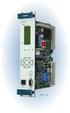 Machinery Protection Card Type FEATURES Continuous on-line Machinery Protection Card Real-time measurement and monitoring using state-of-the-art DSP techniques Fully VME-compatible slave interface Fully
ebus Player Quick Start Guide
 ebus Player Quick Start Guide This guide provides you with the information you need to efficiently set up and start using the ebus Player software application to control your GigE Vision or USB3 Vision
Remote Monitoring Unit SC8100. Monitoring Unit SC8100
 Monitoring Unit SC8100 Remote Monitoring Unit SC8100 Environmental monitoring of any facilities, control of security breaches, temperatures, smoke, water leakages, voltages and more. Compatible with all
Protecting the Home Network (Firewall)
 Protecting the Home Network (Firewall) Basic Tab Setup Tab DHCP Tab Advanced Tab Options Tab Port Forwarding Tab Port Triggers Tab DMZ Host Tab Firewall Tab Event Log Tab Status Tab Software Tab Connection
Setting Up Scan to SMB on TaskALFA series MFP s.
 Setting Up Scan to SMB on TaskALFA series MFP s. There are three steps necessary to set up a new Scan to SMB function button on the TaskALFA series color MFP. 1. A folder must be created on the PC and
PREFACE http://www.okiprintingsolutions.com 07108001 iss.01 -
 Network Guide PREFACE Every effort has been made to ensure that the information in this document is complete, accurate, and up-to-date. The manufacturer assumes no responsibility for the results of errors
SNMP Web card. User s Manual. Management Software for Uninterruptible Power Supply Systems
 SNMP Web card User s Manual Management Software for Uninterruptible Power Supply Systems Table of Contents 1. Overview... 3 1.1 Introduction... 3 1.2 Features... 3 1.3 Overlook... 3 1.4 Installation and
The irnetbox Manager User Guide
 The irnetbox Manager User Guide Chris Dodge RedRat Ltd April 2014 For irnetbox Manager 3.05 1 Contents 1. Introduction...3 2. Initial Network Configuration...3 3. Finding irnetboxes...3 3.1 Device Information
Installing and Using the vnios Trial
 Installing and Using the vnios Trial The vnios Trial is a software package designed for efficient evaluation of the Infoblox vnios appliance platform. Providing the complete suite of DNS, DHCP and IPAM
ABB solar inverters. User s manual ABB Remote monitoring portal
 ABB solar inverters User s manual ABB Remote monitoring portal List of related manuals Title Code (English) ABB Remote monitoring portal user s manual 3AUA0000098904 NETA-01 Ethernet adapter module user
www.janitza.com Secure TCP/IP connection Description for UMG 604, UMG 605, UMG 508, UMG 509, UMG 511 and UMG 512
 Description Secure TCP/IP connection for UMG 604, UMG 605, UMG 508, UMG 509, UMG 511 and UMG 512 Doc. No. 2.047.014.0 / V 0.5-08.06.2015 www.janitza.com Janitza electronics GmbH Vor dem Polstück 1 D-35633
Type Message Description Probable Cause Suggested Action. Fan in the system is not functioning or room temperature
 Table of Content Error Messages List... 2 Troubleshooting the Storage System... 3 I can t access the Manager... 3 I forgot the password for logging in to the Manager... 3 The users can t access the shared
RPM Utility Software. User s Manual
 RPM Utility Software User s Manual Table of Contents 1. Introduction...1 2. Installation...2 3. RPM Utility Interface...4 1. Introduction General RPM Utility program is an RPM monitoring, and management
Central Management System (CMS) USER MANUAL
 Central Management System (CMS) USER MANUAL LEGAL INFORMATION Reproduction, transfer, distribution or storage of part or all of the contents in this document in any form without the prior written permission
Web Page Manual. GOLD RX, PX, CX, SD Program Version 5.00 or better GOLD LP/COMPACT Program Version 2.00 or better
 Web Page Manual GOLD RX, PX, CX, SD Program Version 5.00 or better GOLD LP/COMPACT Program Version 2.00 or better 1. GENERAL The air handling unit has a built-in web server that enables you to monitor,
Ekran System Help File
 Ekran System Help File Table of Contents About... 9 What s New... 10 System Requirements... 11 Updating Ekran to version 4.1... 13 Program Structure... 14 Getting Started... 15 Deployment Process... 15
Power Supply SNMP Interface User Manual for SRL versions
 Power Supply SNMP Interface User Manual for SRL versions SNMP-L User Manual 150722(firmware 02r_a12).doc Table of Contents 1. INTRODUCTION... 3 1.1 Default IP Address... 3 2. LOGIN... 4 3. MONITORING &
CS 326e F2002 Lab 1. Basic Network Setup & Ethereal Time: 2 hrs
 CS 326e F2002 Lab 1. Basic Network Setup & Ethereal Time: 2 hrs Tasks: 1 (10 min) Verify that TCP/IP is installed on each of the computers 2 (10 min) Connect the computers together via a switch 3 (10 min)
Expert Power Control NET 4x 8212 / 8213
 2010 Gude Analog- und Digitalsysteme GmbH 2010 Gude Analog- und Digitalsysteme GmbH 23.08.2010 Content 3 Table of content Kapitel 1 Security Advise 5 Kapitel 2 Description 5 Kapitel 3 Hardware 6 3.1 Content
Firmware version: 1.10 Issue: 7 AUTODIALER GD30.2. Instruction Manual
 Firmware version: 1.10 Issue: 7 AUTODIALER GD30.2 Instruction Manual Firmware version: 2.0.1 Issue: 0.6 Version of the GPRS transmitters configurator: 1.3.6.3 Date of issue: 07.03.2012 TABLE OF CONTENTS
TP-LINK TD-W8901G. Wireless Modem Router. Advanced Troubleshooting Guide
 TP-LINK TD-W8901G Wireless Modem Router Advanced Troubleshooting Guide Released on 2009.09.25 Version 1.0 Content Summary... 3 Troubleshooting Flow Chart and Resolutions... 3 Check 1... 3 Check 2... 4
DiskPulse DISK CHANGE MONITOR
 DiskPulse DISK CHANGE MONITOR User Manual Version 7.9 Oct 2015 www.diskpulse.com [email protected] 1 1 DiskPulse Overview...3 2 DiskPulse Product Versions...5 3 Using Desktop Product Version...6 3.1 Product
WA Manager Alarming System Management Software Windows 98, NT, XP, 2000 User Guide
 WA Manager Alarming System Management Software Windows 98, NT, XP, 2000 User Guide Version 2.1, 4/2010 Disclaimer While every effort has been made to ensure that the information in this guide is accurate
This document is intended to make you familiar with the ServersCheck Monitoring Appliance
 ServersCheck Monitoring Appliance Quick Overview This document is intended to make you familiar with the ServersCheck Monitoring Appliance Although it is possible, we highly recommend not to install other
Barcode Reader Connection Guide (COGNEX SLMP Connection)
 Barcode Reader Connection Guide (COGNEX SLMP Connection) CONTENTS SAFETY PRECAUTIONS... A- REVISIONS... A- INTRODUCTION About This Connection Guide... Required Modules and Devices... Input/output cables...
Arun Veeramani. Principal Marketing Manger. National Instruments. ni.com
 Arun Veeramani Principal Marketing Manger National Instruments New Enterprise Solution for Condition Monitoring Applications NI InsightCM Enterprise NI History of Condition Monitoring Order Analysis Toolkit
Administering Cisco ISE
 CHAPTER 8 This chapter describes the administrative activities for the Cisco Identity Services Engine (ISE) and how to perform them. The following topics are covered: Logging In, page 8-1 System Time and
This section will focus on basic operation of the interface including pan/tilt, video, audio, etc.
 Catalogue Basic Operation... 2 For Internet Explorer... 2 For Other Non-IE Web Browsers... 5 Camera Settings... 6 System... 6 About... 6 PT Setting... 7 Backup and Restore Setup... 8 NTP Setting... 8 System
TENVIS Technology Co., Ltd. User Manual. For H.264 Cameras. Version 2.0.0
 TENVIS Technology Co., Ltd User Manual For H.264 Cameras Version 2.0.0 Catalogue Basic Operation... 3 Hardware Installation... 3 Search Camera... 3 Get live video... 5 Camera Settings... 8 System... 8
ImagineWorldClient Client Management Software. User s Manual. (Revision-2)
 ImagineWorldClient Client Management Software User s Manual (Revision-2) (888) 379-2666 US Toll Free (905) 336-9665 Phone (905) 336-9662 Fax www.videotransmitters.com 1 Contents 1. CMS SOFTWARE FEATURES...4
WISE-4000 Series. WISE IoT Wireless I/O Modules
 WISE-4000 Series WISE IoT Wireless I/O Modules Bring Everything into World of the IoT WISE IoT Ethernet I/O Architecture Public Cloud App Big Data New WISE DNA Data Center Smart Configure File-based Cloud
Wireless Particle Monitoring of Pharmaceutical Cleanrooms
 Wireless Particle Monitoring of Pharmaceutical Cleanrooms Introduction Wireless technology has brought many innovative changes, enabling us to communicate in new ways. This article will explain how wireless
Network Probe User Guide
 Network Probe User Guide Network Probe User Guide Table of Contents 1. Introduction...1 2. Installation...2 Windows installation...2 Linux installation...3 Mac installation...4 License key...5 Deployment...5
LotWan Appliance User Guide USER GUIDE
 LotWan Appliance User Guide USER GUIDE Copyright Information Copyright 2014, Beijing AppEx Networks Corporation The description, illustrations, pictures, methods and other information contain in this document
bizhub C3850/C3350 USER S GUIDE Applied Functions
 bizhub C3850/C3350 USER S GUIDE Applied Functions Table of contents 1 Using Web Connection 1.1 Web Connection... 1-3 Web Connection... 1-3 Operating environment... 1-3 1.2 Operations required to use this
Software User Guide UG-461
 Software User Guide UG-461 One Technology Way P.O. Box 9106 Norwood, MA 02062-9106, U.S.A. Tel: 781.329.4700 Fax: 781.461.3113 www.analog.com ezlinx icoupler Isolated Interface Development Environment
Pharos Control User Guide
 Outdoor Wireless Solution Pharos Control User Guide REV1.0.0 1910011083 Contents Contents... I Chapter 1 Quick Start Guide... 1 1.1 Introduction... 1 1.2 Installation... 1 1.3 Before Login... 8 Chapter
Chapter 2 Connecting the FVX538 to the Internet
 Chapter 2 Connecting the FVX538 to the Internet Typically, six steps are required to complete the basic connection of your firewall. Setting up VPN tunnels are covered in Chapter 5, Virtual Private Networking.
STATIC IP SET UP GUIDE VERIZON 7500 WIRELESS ROUTER/MODEM
 STATIC IP SET UP GUIDE VERIZON 7500 WIRELESS ROUTER/MODEM Verizon High Speed Internet for Business Verizon High Speed Internet for Business SETTING UP YOUR NEW STATIC IP CONNECTION AND IP ADDRESS(ES) This
Medical Vacuum Systems-PXMI
 Medical Vacuum Systems-PXMI Please read and save these instructions. Read carefully before attempting to assemble, install, operate or maintain the product described. Protect yourself and others by observing
XMS Quick Start Guide
 812-0055-002D XMS Quick Start Guide Overview of Quick Start Steps This guide will quickly get you up and running with the Xirrus Management System (XMS). It includes instructions for setting up the XMS
Network Management Card. User Manual
 User Manual 1 Contents Contents 2 Chapter 1 Overview 3 1.1 NMC package contents 4 1.2 NMC CD Resources 4 1.3 Features 4 1.4 NMC Applications 5 Chapter 2 NMC parameters setting via serial COM port 6 2.1
PLA 44. Power quality analyzer. User and service manual. BMR trading
 PLA 44 Power quality analyzer User and service manual version 1.2 BMR Lipovka 17 516 01 Rychnov n. Kn. 1 Tel: +420 774 415 703 Fax: +420 494 533 602 Content 1. Front panel...3 5.6.1. List of events...8
User Manual. PePWave Surf / Surf AP Indoor Series: Surf 200, E200, AP 200, AP 400. PePWave Mesh Connector Indoor Series: MC 200, E200, 400
 User Manual PePWave Surf / Surf AP Indoor Series: Surf 200, E200, AP 200, AP 400 PePWave Mesh Connector Indoor Series: MC 200, E200, 400 PePWave Surf AP Series: Surf AP 200-X, E200-X, 400-X PePWave Surf
PMS. Energy management and monitoring software. Installation and operation instructions. BMR trading Horní lán 17 77900 Olomouc Czech Republic
 PMS Energy management and monitoring software Installation and operation instructions version 1.5 77900 Olomouc 1 Content 1. PMS introduction...3 1.1. PMS structure...3 1.2. System requirements...3 2.
DOMUSBOX. User guide. Index
 DOMUSBOX User guide Index Introduction... 2 1. Installing SEAV DOMUS... 4 1.1 Activating DomusBox... 4 1.2Drawing the environments in DomusWeb... 5 1.3Connecting DomusBox to the devices...9 1.4Configuration
PePWave Surf Series PePWave Surf Indoor Series: Surf 200, AP 200, AP 400
 PePWave Surf Series PePWave Surf Indoor Series: Surf 200, AP 200, AP 400 PePWave Surf Outdoor Series: Surf AP 200/400-X, PolePoint 400-X, Surf 400-DX User Manual Document Rev. 1.2 July 07 COPYRIGHT & TRADEMARKS
Installing, Uninstalling, and Upgrading Service Monitor
 CHAPTER 2 Installing, Uninstalling, and Upgrading Service Monitor This section contains the following topics: Preparing to Install Service Monitor, page 2-1 Installing Cisco Unified Service Monitor, page
NortechCommander Software Operating Manual MAN-00004 R6
 NortechCommander Software Operating Manual MAN-00004 R6 If the equipment described herein bears the symbol, the said equipment complies with the applicable European Union Directive and Standards mentioned
REMOTE ACCESS DDNS CONFIGURATION MANUAL
 REMOTE ACCESS DDNS CONFIGURATION MANUAL Analog DVR Series 1 www.mezory.com INTRODUCTION TO REMOTE ACCESS As the World sinks into one global village, reliable connectivity is one of the most demanding facilities
How To Set Up A Network Camera On A Network Cable Extender (Rj45) With A Network Cam (Cms) On A Pc Or Mac) With An Ipad Or Ipad (For Awn) With The Power Cable (
 OUTDOOR IR NETWORK CAMERA SERIES Installation Guide Please read instructions thoroughly before operation and retain it for future reference. TABLE OF CONTENTS 1. OVERVIEW... 1 1.1 Package Content... 1
Discovery Tool for COMbricks Quick Start Guide
 Discovery Tool for COMbricks Introduction The Discovery Tool for COMbricks makes it easy to: Find all available Head Stations in your entire network (also other IP ranges!) Identify the correct COMbricks
Step by Step Guide to implement SMS authentication to F5 Big-IP APM (Access Policy Manager)
 Installation guide for securing the authentication to your F5 Big-IP APM solution with Nordic Edge One Time Password Server, delivering strong authetication via SMS to your mobile phone. 1 Summary This
POPP Hub Gateway. Manual
 POPP Hub Gateway Manual 008900 POPP Hub Gateway Manual Quick Start... 2 Hardware... 2 Smart Home User Interface... 2 Applications (Apps) realize the intelligence of your Smart Home... 3 Functions of the
SNMP Manager User s Manual
 SNMP Manager User s Manual Table of Contents 1. Introduction...2 2. SNMP Manager Install, Quick Start and Uninstall...2 2.1. Software Installation...2 2.2. Software Quick Start...2 2.3. Software Uninstall...2
Installation and setup guide V 1.0
 V o I P G S M G A T E BlueGate SIP 1 Installation and setup guide V 1.0 1. General description 1.1 Technical parametres Dimensions 100 x 130 x 37 mm Weight 850 g Operating position various Operating condition
ABUS WIRELESS ALARM SYSTEM
 ABUS WIRELESS ALARM SYSTEM These installation instructions are published by Security-Center GmbH & Co. KG, Linker Kreuthweg 5, D-86444 Affing/Mühlhausen. All rights including translation reserved. Reproductions
About this Getting Started Guide. Enabling Log Management... 2 Applying a License... 4 Using Log Management... 5. How to forward logs...
 Connect With Confidence Astaro Log Management Getting Started Guide About this Getting Started Guide To use Astaro Log Management, logs need to be transferred from individual systems to the cloud. This
User Manual. Onsight Management Suite Version 5.1. Another Innovation by Librestream
 User Manual Onsight Management Suite Version 5.1 Another Innovation by Librestream Doc #: 400075-06 May 2012 Information in this document is subject to change without notice. Reproduction in any manner
DRO-210i LOAD BALANCING ROUTER. Review Package Contents
 DRO-210i LOAD BALANCING ROUTER Review Package Contents Make sure that the package contains the following items. DRO-210i Load Balancing Router 2 Straight Ethernet Cables 1 Cross Over Ethernet Cable 1 Power
Technical Information
 Technical Information TI No. WL 80-63 E April 2001 Rolling Bearing Diagnosis with the FAG Bearing Analyser Rolling Bearings State-Of-The-Art, Condition-Related Monitoring of Plants and Machines Unforeseen
User s Manual. Management Software for Inverter
 WatchPower User s Manual Management Software for Inverter Table of Contents 1. WatchPower Overview... 2 1.1. Introduction... 2 1.2. Features... 2 2. WatchPower Install and Uninstall... 2 2.1. System Requirement...
Step by step guide to implement SMS authentication to Cisco ASA 5500 - Clientless SSL VPN and Cisco VPN
 Installation guide for securing the authentication to your Cisco ASA 5500 Clientless SSL VPN and Cisco VPN Client Solutions with the Nordic Edge One Time Password Server, delivering strong authentication