
Contact Center Administrator Guide
|
|
|
- Hortense Holmes
- 9 years ago
- Views:
Transcription
1 ServicePattern Version 3.6 Revision SP36-CCADM Bright Pattern, Inc Bayhill Drive, Suite 275, San Bruno, CA Phone: +1 (650) Fax: +1 (415)
2 Bright Pattern, Inc. All rights reserved. This work may be reproduced and redistributed, in whole or in part, without alteration and without prior written permission, solely by Bright Pattern Customers and Channel Partners for Deployment, Activation and Personalization purposes provided all copies contain the following statement: " Bright Pattern, Inc. This work is reproduced and distributed with the permission of Bright Pattern, Inc. No other use is permitted without the express prior written permission of Bright Pattern, Inc. For permission, contact Bright Pattern at The content of this document is subject to change without notice, and may contain technical inaccuracies and typographical errors.

3 Table of Contents 1 Introduction Purpose Audience General Information Login Procedure User Interface Overview Application Settings Contact Center Configuration Process Initial General Configuration Inbound Service Configuration Outbound Campaign Configuration Users and Teams Overview Users Teams Roles Skill Levels Help Screens Scenario Entries Overview Dial-in Chat Mobile/Web Directory Overview Softphones Hardphones Access Numbers Dial-out Entries Static Entries Services and Campaigns Overview General Service Configuration Pre-defined Dispositions List-Campaign Association Outbound Campaign Settings Service-Number Association Activity Forms Lists... 62

4 10 Do Not Call Lists Tasks Overview Scheduled and In-progress Tasks Task Log Scenarios Overview Voice Chat Call Center Configuration General Settings Integration Accounts Calendars Hours of Operation State Calling Hours Auxiliary Skills Audio Treatments Shared Voice Segments Voic Chat Settings Settings Reporting Report Templates Scheduled Reports Reporting Settings Quality Management Security Security Policy Audit Log

5 Page 5 of Introduction 1.1 Purpose ServicePattern describes configuration of the contact center resources that the ServicePattern solution needs to know about in order to operate in a specific contact center environment. Such resources include agents and other users, agent teams, contact center services with associated skills, scenarios, and operation schedules, extensions and access points, and various other settings. The guide assumes that your ServicePattern solution has been installed and properly configured at the service provider level. For ServicePattern configuration at the service provider level, see ServicePattern Service Provider Guide. 1.2 Audience This guide is intended for personnel responsible for contact center operations including: Definition of contact center services and interaction processing scenarios Contact center workforce management Assessment of contact center efficiency and quality of customer service Outbound campaign definition and execution General contact center management Contact center reporting and quality monitoring

6 Page 6 of General Information 2.1 Login Procedure The web application that you use for configuration of all contact center resources, definition of interaction processing logic for inbound call distribution and outbound campaigns, and for all reporting and quality monitoring tasks, is called Contact Center Administrator. This application is supported on the current versions of the following browser applications: Internet Explorer, Chrome, Firefox, and Safari. To begin a working session with Contact Center Administrator, in the address field of your browser specify the URL provided by your system administrator. In the login dialog box that appears, enter your user name and password. Login screen Note: If the contact center functionality is provided to you as a service, you may also have to enter the tenant access domain name in the Tenant field when you log in for the first time. This name is assigned to your contact center at the service provider level. Upon a successful initial login, this name will be remembered by your browser application and used for all subsequent login attempts. For your initial login, use the password provided to you by the administrator who created your user account. Depending on the policies of your organization, you may have to change this password upon a successful initial login. For password change instructions, see section Application Settings. If you forgot your password, click Forgot Password? in the login dialog box. In the Password reset dialog box that appears, specify either your address or your user name and the tenant access domain name if applicable, and click Proceed. An with password reset instructions will be sent to your address. 2.2 User Interface Overview Upon successful login, you will be presented with the main application view consisting of an upper bar with general options, a contact center resources menu on the left, and an application pane, which is the main working area for viewing and editing the selected resources.

7 Page 7 of 104 Contact Center Administrator user interface To work with a specific resource, select the resource type from the resource menu. The left side of the application pane will provide a list view of previously configured resources of the given type. To configure a new resource of this type, click the + button at the bottom of the list. To view and edit an existing resource, select it from the list. To look for specific resource in long lists, use the search function - the field with the magnifying glass symbol above the list. To delete an existing resource, select it from the list, and click the x or - button at the bottom of the list. The right side of the application pane is used to define new resources of the given type and to edit configuration properties of a resource currently selected in the list view. Depending on the resource type, its configuration settings may all fit in one property screen or occupy several screens. You can switch between screens by clicking corresponding tabs. When you finish entering or updating configuration settings within a screen, click the Apply button to save the changes in the configuration database. If the data you have entered for a particular property violates one or more of the data integrity rules, such as uniqueness or value range, the corresponding property filed will be highlighted in the red color. The subsequent chapters of this guide discuss the process of configuration of each type of contact center resource in detail. Refer to the descriptions of resource properties to see what kind of integrity rules may apply to them. You can use the Reset button to abandon any changes you have made in the current screen. In addition to contact center configuration, the Contact Center Administrator application can be used for reporting tasks, such as generation of historical reports and for listening to call recordings. To switch between the configuration and reporting tasks, use the Configuration and Reports options in the upper bar. To log out of the Contact Center Administrator application, click Logout in the upper bar. If you have any unsaved work, you will be prompted to confirm your intention to exit the application. Otherwise, your working session will terminate immediately. The application will remember the last task you worked on before you logged out and will display the corresponding view upon your next login so that you can continue the work you were doing at the end of your previous working session. Note that for

8 Page 8 of 104 security reasons, you may also be logged out automatically if you have not shown any user activity for an extended period of time. 2.3 Application Settings To manage the settings of your instance of the Contact Center Administrator application, click Settings in the upper bar menu. Application settings The dialog box that appears provides the following options: Settings options Option Time zone Locale Change password Use this option to specify your default time zone. Note that this time zone setting will be applied only to your personal data requests such as time-based selection of audit log records. A different time zone setting is used for configuration of time-based parameters of contact center resources such as service hours. For more information, see section General Settings. Use this option to select one of the available languages. Note that this setting will only affect the text of the application itself and will have no effect on the language you use for the actual configuration data that you enter and edit. This option lets you change your password. You will need to enter your current password in the dialog box that appears, enter the new password and then confirm the new password by entering it again. Any changes in the first two of the above settings will take effect as soon as you click OK and refresh/reload the application web page. A new password will take effect the next time you log in.

9 Page 9 of Contact Center Configuration Process As the main reference guide for all types of contact center administration tasks, this document uses the same structure as the menus of the Contact Center Administrator application. This enables the reader to easily find information about specific configuration resources using the table of contents. This also means that the order in which the information is presented in this guide is not necessarily the order in which you configure the resources of your contact center during your solution setup. The recommended order of the contact center configuration is described in this section. Each configuration step is referenced to specific sections of this guide where the related information is provided. Note that every configuration step recommended below is optional and depends on your specific environment. Because every contact center is unique, it is impossible to suggest a process that would universally apply to all possible types of installations. Use the information below as general guidelines only. 3.1 Initial General Configuration The following table suggests the order of the initial general contact center configuration that can be recommended regardless of whether the contact center will be used for inbound services, or outbound campaigns, or both. Step Action Section of This Guide 1 Log in with the default user name and password. Login Procedure 2 Adjust the application settings such as the time zone and language. Application Settings 3 Change the password. Application Settings 4 Configure the voic system. Voic 5 Create accounts for the other users who will be performing the configuration tasks discussed below. Initially, these users can be members of the default Administrators team. Assign them roles that will enable them to perform their tasks. Users and Roles 6 Specify the settings. Settings 7 Prepare and upload custom audio treatments, shared voice segments, and default voic greeting. 8 Review and change the default values of the general settings that apply to the entire contact center. 9 Specify the desired percentage of recorded calls and, if necessary, change the default quality assessment categories. Audio Treatments, Shared Voice Segments, and Voic General Settings Quality Management 10 Define operational schedules of your contact center. Calendars and Hours of Operation 11 Create agent teams. Teams 12 Create or import agents and assign them to teams. Users 13 Create or import supervisors and assign supervisors to agent teams. Users

10 Page 10 of Inbound Service Configuration The following table outlines the recommended general order of configuring an inbound service. Step Action Section of this Guide 1 Create an inbound service and configure its general settings. 2 Assign agent teams to this service. Note that the service will be created with a default service skill that can be automatically assigned to all members of the associated agent teams. 3 Create additional skills required for this service. Auxiliary Skills 4 Assign the additional skills to agents. Skill Levels General Service Configuration General Service Configuration 5 Specify service level threshold for the service. General Service Configuration 6 Create the interaction processing scenario for this service. Use text-to-speech to generate the voice messages and prompts, and once they are finalized, record them with voice talent. Scenarios 7 Associate scenario with an access number. Scenarios 8 Specify dial-out information for outbound consultation calls. Dial-out Entries 9 Set up periodic export of call recordings. General Service Configuration 10 Configure a caller ID for SMS communications Service-Number Association 3.3 Outbound Campaign Configuration The following table outlines the recommended general order of configuring an outbound campaign. Note that for campaign configuration, the Contact Center Administrator application provides a diagnostics page that you can use to verify the completeness of your campaign configuration. For more information, see section Outbound Campaign Settings. Step Action Section of this Guide 1 Import and configure calling lists. Lists 2 Import and configure Do Not Call lists. Do Not Call Lists 3 Review and update state calling hours State Calling Hours 4 Create an outbound service (campaign) and configure its general settings. 5 Assign agent teams to the campaign. Note that the campaign will be created with a default skill that can be automatically assigned to all members of the associated agent team(s). 6 Create additional skills required for this campaign. Auxiliary Skills 7 Assign the additional skills to agents. Skill Levels General Service Configuration General Service Configuration 8 Assign campaign operators to this campaign. General Service Configuration

11 Page 11 of 104 Step Action Section of this Guide 9 Associate the calling lists with this campaign, configure them for use within the campaign, and enable them when they are configured. 10 Review and edit the default dispositions and define additional dispositions as may be necessary to analyze the results of your campaign. 11 Define interaction processing scenarios that may be needed for automatic processing of answered campaign calls and possible callbacks within this campaign. 12 Create activity forms that the agents will use to process campaign calls, and bind them to the calling list data. 13 Decide which access numbers will be used as caller IDs for this campaign and, if necessary, associate these numbers with scenarios for possible callbacks. List-Campaign Association General Service Configuration and Predefined Dispositions Scenarios Activity Forms and General Service Configuration Access Numbers 14 Configure campaign caller IDs. Service-Number Association 15 Configure all campaign-specific settings, including campaign type, general schedule, estimated success rate, calling hours, dial rules, and Do Not Call lists. 16 Verify the completeness of campaign configuration using the campaign s Diagnostics page. 17 Set up periodic export of campaign results and recordings. Outbound Campaign Settings Outbound Campaign Settings General Service Configuration 18 Enable the campaign Outbound Campaign Settings

12 Page 12 of Users and Teams 4.1 Overview All contact center personnel who may need access to any functionality of your ServicePattern solution must be registered in the solution configuration. Usually such personnel include all contact center agents and supervisors who need to have access to interaction handling and supervisor functions respectively, as well as all contact center managers and administrators who may need to use the Contact Center Administrator application for any types of administration tasks. The exact set of functionality available to a particular user is defined by the role assigned to this user in the solution configuration. For organizational and reporting purposes, users are assigned to teams. Note that in ServicePattern a user cannot be a member of more than one team. The way you define your roles and organize users into teams usually reflects the administrative structure of your contact center. Note that typically you should define both the roles and teams before you begin to register your users. 4.2 Users As suggested above, a user is anyone who may need access to any functionality of the ServicePattern solution. In order to access specific system functions, a user must not only be registered within the ServicePattern configuration but also have the corresponding roles assigned. For example, user s roles define whether the user is an agent, i.e., someone who can use the Agent Desktop application to handle customer interactions, or a supervisor, i.e., someone who can use the supervisor functionality of the same application to monitor and control agent activities in real time. To define and edit user information, select the Users option from the Users & Teams menu.

13 Page 13 of 104 Users & Teams > Users Note that you can import user information from an Excel spreadsheet instead of entering it manually. You can also export user information to an Excel spreadsheet. Import and export operations are activated by the arrow buttons at the bottom of the user list view. For information about the spreadsheet format, click the import button. An easy way to obtain a user import template is to add a few users manually first, apply the export operation, and use the produced spreadsheet as an import template. Note: If you do not wish to use certain records during a particular instance of import, but would like to keep those records in the spreadsheet for possible use in the future, you can add a column with name Delete to the spreadsheet and set its value to yes for the records that are not to be imported. The Users screen properties are described in the following table: Users screen properties Profile tab Username Password Confirm password Name that the user will enter when logging into any of the ServicePattern applications (except Service Provider). Mandatory and must be unique within the contact center. Password that the user will enter when logging into any of the ServicePattern applications. This field is displayed for new users only and its specification is mandatory. Note that some rules related to password complexity (length, special characters, etc.) may be defined and enforced at the service provider level. Password confirmation field. Mandatory.

14 Page 14 of 104 Users screen properties Profile tab Change password Disabled Lockout First name Last name Chat nickname Rank Team Phone extension Default hardphone number This option is displayed for existing users only, and is used to change the selected user s password. Agents and supervisors may not have access to the Contact Center Administrator application; however, they can change their passwords via their Agent Desktop applications. Indicates whether this is an active user. Select this checkbox for users who may no longer have access to any of the system functionality, but must remain in the configuration, e.g., for reporting purposes. Indicates whether this user can access the system or is currently locked out due to a security policy violation. For more information, see section Security Policy. You can click the link to view current lockout status. If the user account is locked out, you can unlock it by clicking the Unlock button. User s first name. Mandatory. User s last name. Mandatory. The name that will be displayed to the customers when they talk to this user via chat. This setting is essential for users who are agents only. User s rank. This setting can be used as an additional selection criterion in custom agent reports. This setting is essential for users who are agents only. The team that this user is assigned to. A ServicePattern user must be assigned to a team, and cannot be assigned to more than one team. Please see section Teams for considerations regarding assignment of users to teams. Note that teams may be associated with services. Upon assignment to such a team, the user may automatically get a corresponding service skill with a certain level. You can change the level or remove the skill from the user manually using the Skill Levels option. User s extension number. Must be specified, must contain numeric characters only, and must be unique within the contact center. This number will appear in the directory along with user s first and last name and can be used for making direct calls to this user when numeric input is preferred or when it is the only way to make a call (e.g., dialing the extension number from a hardphone or entering it through an IVR system). The extension can be used in combination with user s PIN code for phone login (see below) for authentication through interfaces that only accept numeric input, e.g., an IVR system. ServicePattern assigns extension numbers to new users automatically in ascending order starting from You can change the default number to any other value. In this case, the default extension number assigned to the next new user will be the newly defined value + 1. Note that extension numbers are recycled, i.e., when you delete a user, his extension number will be assigned by default to the next new user. Extension number of the hardphone assigned to this user. Optional and, if specified, must be one of the existing hardphone extension numbers (see section Hardphones). This parameter should be only defined for users who normally use permanently assigned hardphones installed at their personal desks. Note that if the user logs into another hardphone, the system will ignore his default hardphone number for the duration of login.

15 Page 15 of 104 Users screen properties Profile tab PIN code for phone login address Recorded calls Maximum concurrent chats Voic greeting Roles tab Roles list User s numeric password that can be used in combination with user s Phone extension for authentication through interfaces that only accept numeric input, e.g., an IVR system. User s address that the system will use for password reset instructions, chat transcripts, and for voic messages. Percentage of calls (both service and internal) handled by this user that will be recorded. If not specified, the parameter specified at the contact center level will be applied (see section Quality Management). If explicitly set to zero, no recordings will be made for conversations involving this user under any circumstances (e.g., even if the related contact-center-level property is set to 100% or if the other user on the call has this property set to 100%). Sets the maximum number of concurrent external chat sessions for this user. This setting is essential for users who are agents only. Select custom to specify the desired maximum number of chats for this user. Select system or team setting to use the number of chats defined at the contact center level or team level (if both are specified, the team-level setting supersedes the contact center level). User s personal voic greeting. Click upload to upload the desired voice file with the greeting. The greeting must be encoded in uncompressed PCM A-law or µ-law 16- bit format. Click the audio icon to listen to the previously uploaded greeting. If a personal greeting is not uploaded, the default voic greeting will be used (see section Voic for more information.) A user can be assigned any number of roles that define what kind of functionality the system he will be able to access. For more information, see section Roles. Select a role from the list in order to assign it to the user. By default, new users do not have any roles assigned to them. Since the majority of users registered in your configuration are likely to be agents, you can configure automatic assignment of the Agent role to every new user. See description of property Assign this role to newly created users in section Roles for more information. 4.3 Teams Teams usually reflect you contact center organization. Agent teams, for example, are organized for convenient real-time management so that when an assigned supervisor logs into his desktop application, he will only see the agents of the team that he is assigned to manage. Agent teams will also appear in historical reports for team-level performance evaluation. Note that team membership of agents may not have any direct effect on distribution of specific service calls to them. Teams for other contact center personnel are set up for organizational purposes only. For example, you can have teams that reflect main functions of contact center management (e.g., campaign operators, scenario designers, workforce managers). Upon initial solution setup, the default team Administrators is created automatically. You can use this team to register initially all non-agent personnel who need access to the system. Note that team membership of non-agents does not have any effect on their ability to access specific contact center resources and functions. Such ability is defined by roles assigned at the individual user level (see section Roles for more information).

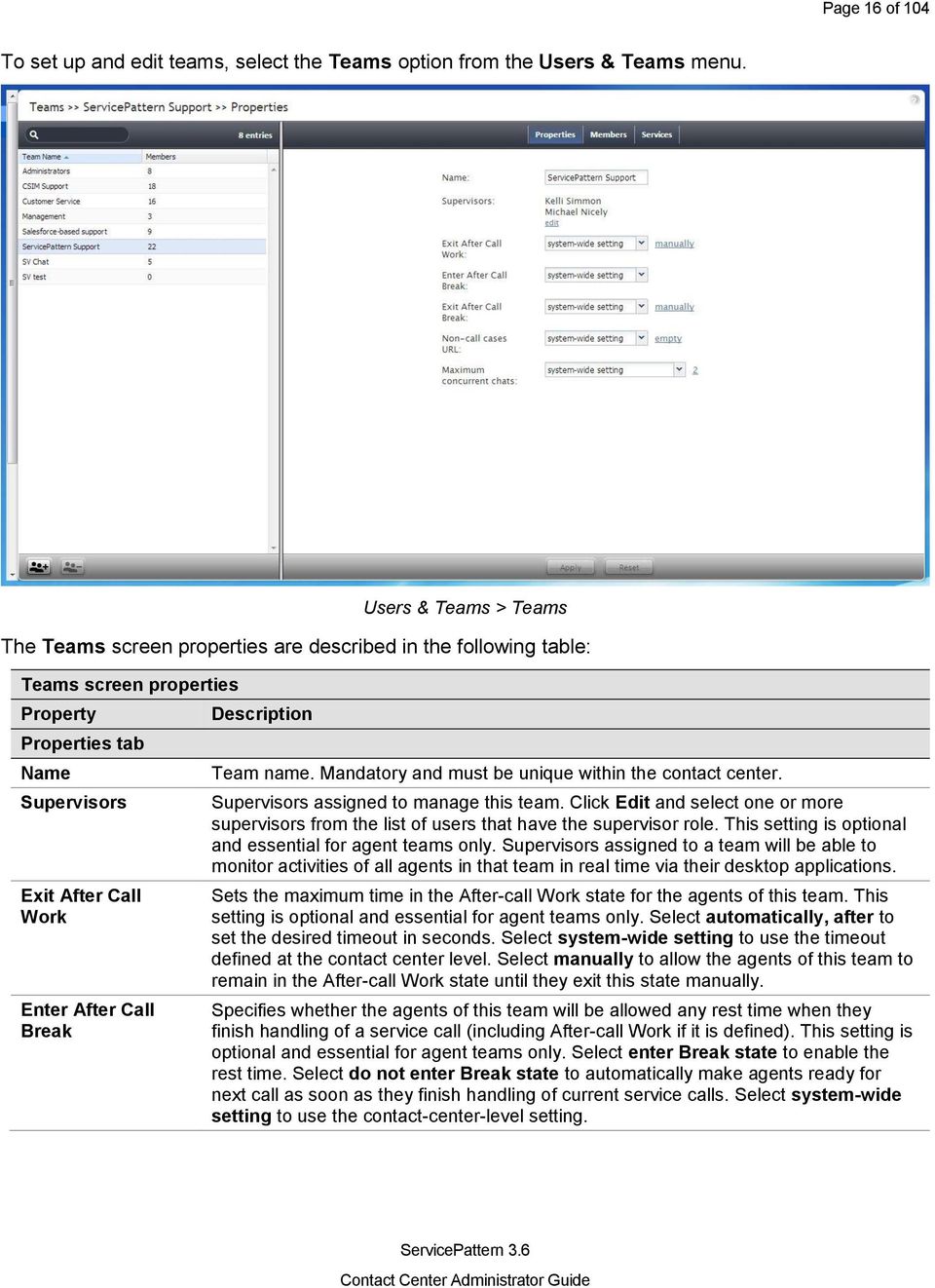
16 Page 16 of 104 To set up and edit teams, select the Teams option from the Users & Teams menu. Users & Teams > Teams The Teams screen properties are described in the following table: Teams screen properties Properties tab Name Supervisors Exit After Call Work Enter After Call Break Team name. Mandatory and must be unique within the contact center. Supervisors assigned to manage this team. Click Edit and select one or more supervisors from the list of users that have the supervisor role. This setting is optional and essential for agent teams only. Supervisors assigned to a team will be able to monitor activities of all agents in that team in real time via their desktop applications. Sets the maximum time in the After-call Work state for the agents of this team. This setting is optional and essential for agent teams only. Select automatically, after to set the desired timeout in seconds. Select system-wide setting to use the timeout defined at the contact center level. Select manually to allow the agents of this team to remain in the After-call Work state until they exit this state manually. Specifies whether the agents of this team will be allowed any rest time when they finish handling of a service call (including After-call Work if it is defined). This setting is optional and essential for agent teams only. Select enter Break state to enable the rest time. Select do not enter Break state to automatically make agents ready for next call as soon as they finish handling of current service calls. Select system-wide setting to use the contact-center-level setting.
17 Page 17 of 104 Teams screen properties Properties tab Exit After Call Break Non-call cases URL Maximum concurrent chats Members tab Members List Move to another team Change roles Services tab Services and campaigns provided by this team Sets the maximum time in the Break state after finishing a service call for the agents of this team. This setting is optional and is essential for agent teams only. Select automatically, after to set the desired timeout in seconds. Select system-wide setting to use the timeout defined at the contact center level. Select manually to allow the agents of this team to remain in the Break state until they exit this state manually. URL of the web page that will be displayed for agents of this team upon interaction delivery (unless another URL is specified in the corresponding campaign or scenario). Select system-wide setting to display the web page defined at the contact center level. Select custom for a web page specific to the agents of this team. If you do not wish to display any web pages, select none. Sets the maximum number of concurrent external chat sessions for an agent who is a member of this team. This setting is optional and essential for agent teams only. Select custom to specify the desired maximum number of chats. Select system-wide setting to use the number of chats defined at the contact center level. Note that you can override this setting at the individual agent level. Lists the users who are currently assigned to this team. For each team member, his first name, last name, extension number, and assigned Roles are displayed. Select one or more users from the list. Use this control to move the selected users to another team. Select one or more users from the list. Use this control to change the roles of the selected users. Lists the services that are provided by the agents of this team. This setting is essential for agent teams only. When you assign a service to an agent team, you have an option to assign the default service skill to all members this team with a specific level. If you select this option, all current and future members of the team will get this service skill automatically. Individual levels can be changed manually later. For more information, see sections Services and Campaigns and Skill Levels. Also, when you assign a service to a team, supervisors of that team will be able to monitor this service in real time via their desktop applications. Select edit to assign one or more of the available services to this team and/or to remove previously assigned services. Note that when you remove a service from a team, the associated default service skill will be removed from all members of this team. 4.4 Roles A role is a combination of privileges, i.e., permissions to access specific functionality within ServicePattern solution. Roles, therefore, define the type of work that users are allowed to do in the contact center. For example, in order to design call distribution scenarios, a user must have a role that has the Manage Scenarios privilege. A user may have any number of roles assigned simultaneously. ServicePattern provides a number of pre-configured roles that are available upon the initial solution installation. It is recommended that you review these roles first to see if they sufficiently reflect your
18 Page 18 of 104 contact center organization. If any changes are desired, you can modify the default privilege set of any pre-configured role, delete some of the pre-configured roles, and/or create some additional roles. To work with roles, select the Roles option from the Users & Teams menu. Users & Teams > Roles The Roles screen properties are described in the following table: Roles screen properties Properties tab Name Licenses Assign this role to newly created users Role name. Must be unique within the contact center. Not used. Indicates whether the given role will be automatically assigned to every new user registered in your configuration. For example, if you want all or most of your users to be able to handle service interactions, you can select this property for the default role Agent and all new users will automatically get the corresponding permission. Remember that you can always remove a role assigned by default manually.

19 Page 19 of 104 Roles screen properties Properties tab Privileges Users tab List of users Defines the privileges granted with this role. Note that there are two columns: Has and May grant or revoke. The first one defines whether users with this role can themselves access the corresponding functionality. The second one defines whether users with this role can assign roles containing such privileges to other users or to revoke them from other users. Most of the privileges have names that are self-explanatory. The following privileges deserve additional explanation: - Manage roles and security settings: provides access to the Users & Teams > Roles option - Grant all privileges: enables the user to grant any privilege, regardless of his May grant or revoke settings with respect to specific privileges (this is helpful during product upgrades where new privileges may be introduced) Lists the users who currently have the selected role assigned to them. For each user, his first name, last name, extension number, and team membership are displayed. Double click a specific user row to manage settings of this user. 4.5 Skill Levels In ServicePattern solution, skills assigned to an agent with certain proficiency levels define the types of customer interactions that this agent is able to handle. Before skills can be assigned to an agent, they must be defined in your contact center configuration. For information about skill definition, see sections Services and Campaigns and Auxiliary Skills. There are two different ways to define skills in ServicePattern and two corresponding methods to assign such skills to agents. With the first method, when you create your services, a default service skill representing qualification to provide the corresponding service is created automatically. When you assign a service to an agent team, you will have an option to assign this default service skill to all members of this team with a specific level. If you select this option, all current and future members of the team will get the service skill automatically. Note that the individual skill levels can be changed manually later. For more information, see section Services and Campaigns. With the second method, skills are created independently of services. Such auxiliary skills are organized in groups (e.g., language skills) and can be used in combination with the default service skills to identify the most qualified agents to handle a specific interaction. For example an auxiliary language skill can be used with the default service skill for technical support, to provide support in the language preferred by the customer. Auxiliary skills are assigned to agents manually. For more information, see section Auxiliary Skills To view and change assigned agent skills, select the Skill Levels option from the Users & Teams menu.

20 Page 20 of 104 Users & Teams > Skill Levels The list that appears will contain all users of your contact center. You can limit the view to members of one or several specific teams by selecting those teams from the drop-down menu above the list. For each user, information about his team membership and assigned roles will be displayed. The other columns of the list represent your contact center skills arranged according to their groups. The default service skills will be arranged under the group Services. Note that when you limit the list view to show the members of a specific team, only the default skills of the services associated with this team will be displayed. The numeric values in the skill columns define the relative levels of proficiency in the given skill for the agents in the corresponding rows. Absence of any skill level value in a specific skill column for a specific agent means that the agent does not possess the given skill at all. Note that for default service skills, the skill levels will usually contain a certain default value specified at the time when the corresponding service became associated with the agent team. For auxiliary skills, levels will be initially absent and must be specified manually. To focus on the particular skills whose assignments you wish to view and modify, click the Skill columns button and deselect the skills that you do not wish to work with right now. To assign a skill to an agent, click the corresponding skill level cell, specify the desired value, and press the Enter key. The value must be an integer within the 0 to 100 range. Use the same operation to change the levels of the existing agent skills. Deleting an existing value or setting it to 0 means that the user will no longer possess the corresponding skill. You can change any number of skill levels for any number of agents while in the Skill Levels screen. All cells with updated values will be highlighted with a red mark in the upper left corner. Click Apply to store the new values in the configuration.

21 4.6 Help Screens Page 21 of 104 ServicePattern allows you to define the content of the Help screen that users of the Contact Center Administrator and Agent Desktop applications will see when they click the help icon in the upper-right corner of the application screens. Help screens can contain multiple help items and can be customized for each role you have defined for your contact center (see section Roles for more information). A help item is usually a link to a web resource that provides information relevant to the person in the given role. For example, a link can point to a published user guide, a knowledge base article, or a documented customer service procedure. Phone numbers and addresses can also be defined as help items. Items related to the same knowledge domain are arranged in sections, and these sections can be displayed or hidden depending on the role and/or team assignment of the user who will view the help screen. To work with help screens, select the Help Screens option from the Users & Teams menu. Note that you must have privilege Publish help in order to see this option and edit help screens. Users & Roles > Help Screens When you open the Contact Center Administrator application for the first time, you will see some predefined content of the help screen provided to you as an example. Use the Application drop-down menu to work with the help screen content of the user-facing application of the desired type. By default, you will see sections and items for all roles and all teams. To see the content available to a specific user role, select the desired role from the View As drop-down menu. To see the content available to members of a particular team, select the desired team from the Teams drop-down menu. To add a new section, click add section, provide the section title and, if necessary, re-define the intended audience (roles and teams) for the content of this section. If the content applies to all roles/teams, select All.
22 Page 22 of 104 To add a help item to the section, click add item, provide the item title, select its type (URL, phone, or ), and specify the value. To edit or delete existing sections and help items, mouse-over the corresponding titles.
23 Page 23 of Scenario Entries 5.1 Overview The logic of automated interaction processing is defined in scenarios (see section Scenarios for more information). Execution of a scenario with respect to a specific interaction is triggered by interaction arrival at a specific access point, e.g., a phone number in case of inbound calls or a webpage in case of web chats. The logical entities that associate specific scenarios with access points are called scenario entries. 5.2 Dial-in The logic of processing of a phone call is initially determined by the phone number to which this call is delivered. Call arrival activates the scenario associated with that number. The scenario controls all further steps of call qualification and distribution until the moment when the call is answered by an agent (or sometimes self-serviced). The logical entity that describes association between a phone number and a call-processing scenario is called dial-in scenario entry. To set up and manage such associations, select the Dial-in option from the Scenario Entries menu. Directory > Dial-in Scenario Entries The Dial-in Scenario Entries screen properties are described in the following table:
24 Page 24 of 104 Dial-in Scenario Entries screen properties Name Scenario Service Internal numbers External numbers Requested skills Queuing priority Name of the dial-in scenario entry. Mandatory and must be unique within the contact center. Scenario according to which calls arriving at the phone numbers defined in this dial-in scenario entry will be processed. Service associated with this dial-in scenario entry. Such direct association between telephone number and a service can be used when your access numbers directly identify your services. For more information, see section Service-Number Association. Even if you use one access number for many different services (i.e., use an interactive voice script within the associated scenario for service selection), you may still assign a default service directly to the access number in order to account for the calls abandoned before service selection and for the calls that bypass the service selection stage (e.g., someone is unable to use keypad to enter service selection choice or confused about which option to choose). Internal numbers associated with this scenario. Although service calls normally arrive at external access numbers, you can also set up an internal number to enable agents to transfer calls to this scenario entry. Once assigned a number cannot be associated with any other scenarios. Specification of an internal number for a dial-in scenario entry is optional. Note, however, that if you specify an entry without an internal number, it will not be displayed in the Dial-in Scenario Entries list. You will be able to see such an entry point in the list of external access numbers only. For more information, see section Access Numbers. External access numbers associated with this scenario. Select the desired number from the drop-down list. If the number is already assigned to another scenario or to an extension number, the drop down list will provide this information. Once assigned a number cannot be associated with any other scenarios. Note that the system allows you to define more than one access number within the same scenario entry point. This may be useful, for example, if you intend to provide your customers with a choice of numbers depending on where they call from, while otherwise applying exactly the same processing logic to all such calls. Auxiliary skills (other than the default skill defined by the Service value) that the agents must possess in order to handle calls arriving through this scenario entry. For more information, see section Auxiliary Skills. By defining such skills externally, you can use the same scenario in multiple scenario entries that differ only in auxiliary skills. For example, for your technical support service, you can have separate numbers for product A support and product B support, where Product A and B are be defined as two different auxiliary skills defined for two different scenario entries associated with the same scenario. Priority of interactions arriving through this scenario entry. Queuing priority determines position of the given interaction in the queue relative to interactions arriving through any other scenario entries and requesting the same combination of skills (i.e., competing for the same agents). For example, you platinum-level customers may be given a different number to call the same service. In this case, you may define two different entries for the same scenario with a higher queuing priority for the platinum customers. The value range is from 1 (the lowest and the default value) to 100. The instantaneous priority of a call in the service queue is calculated as a function of such configured queuing priority and the time that the call has spent in the queue.
25 Page 25 of 104 Dial-in Scenario Entries screen properties Hours of Operation Visible to agents Directory folder Scenario Parameters Schedule for this scenario entry. A schedule defines hours of operation for each day of the year. Choose from service to use the schedule of the selected service. Choose select to select one of the available schedules. Choose specify to define a new schedule specific to this scenario entry. For more information, see sections Calendars and Hours of Operation. Note that, unless you create an entry point for a 24/7 operation, the scenario that you have specified in the Scenario property above must define processing of interaction arriving at this entry outside as well as within the specified hours of operation. I.e., the scenario should normally begin with an IF block that has the condition The current date and time is (or is not) in hours of operation. For more information about creating scenarios, see ServicePattern Scenario Builder Reference Guide. Indication of whether this scenario entry shall appear in the Agent Desktop directory. Select the checkbox if you want your agents to be able to transfer interactions to this scenario entry. The folder of the Agent Desktop directory where this scenario entry will appear if enabled by the previous option. You can select an existing folder or define a new one. ServicePattern scenario language has a number of variables that can be set to different values depending on the scenario entry where this scenario is used. If such variables are present in the scenario selected for this entry, they will appear under this option and can be set to the values specific to the given scenario entry. Use of such externally defined variables enables you to have fewer scenarios since they can be reused for various scenario entries. For more information, see description of variable $(app.custom.xxx) and voice segment type Voice, from parameter in ServicePattern Scenario Builder Reference Guide. 5.3 Chat The logic of processing of an inbound chat interaction is initially determined by the web site elements (pages) from which chat requests are made. Arrival of a chat request activates the scenario associated with the web page. This scenario controls all further steps of chat request qualification and distribution until the moment when the chat session is accepted by an agent. The logical entity that describes association between a web page and a scenario is called chat scenario entry. To set up and manage such associations, select the Chat option from the Scenario Entries menu. Note that many optional properties of chat scenario entries have the same names as optional properties of dial-in scenario entries. Refer to section Dial-in for complete descriptions and examples of use.
26 Page 26 of 104 Directory > Chat Scenario Entries The Chat Scenario Entries screen properties are described in the following table: Chat Scenario Entries screen properties Name Scenario Service Requested skills Queuing priority Hours of Operation Visible to agents Directory folder Chat nick for system messages Name of the chat scenario entry. Mandatory and must be unique within the contact center. Scenario according to which the chats arriving though the web page defined in this scenario entry will be processed. Mandatory Service associated with this scenario entry. Optional. See the corresponding description in Dial-in scenario entry for more information. Auxiliary skills that the agents must possess in order to handle chats arriving through this scenario entry. Optional. Priority of interactions arriving through this scenario entry. Optional. Schedule for this scenario entry point. Optional. Indication of whether this scenario entry shall appear in the Agent Desktop directory. Select the checkbox if you want your agents to be able to transfer interactions to this scenario entry. The folder of the Agent Desktop directory where this scenario entry will appear if enabled by the previous option. You can select an existing folder or define a new one. The name that will be displayed to the customers when they get automated chat responses through this scenario entry (for example, during an initial data collection stage). By default, this is the name of you contact center (tenant name) defined at the service provider level.
27 Page 27 of 104 Chat Scenario Entries screen properties Chat HTML snippet Scenario parameters Specifies the web elements are necessary in order to associated an incoming chat request with the given scenario entry. Click the HTML snippet button, copy the provided HTML snippet code, and embed it into your web page(s) according to the instructions in the code comments. When this is done, specify the required URLs and the hostname of the chat web service. Scenario parameters. Optional. 5.4 Mobile/Web Mobile/web scenario entries are used to associate scenarios with contacts requested via mobile applications. To set up and manage such associations, select the Mobile/Web option from the Scenario Entries menu. Directory > Mobile/Web Scenario Entries The Mobile/Web Scenario Entries screen properties are described in the following table: Mobile/Web Scenario Entries screen properties Name Name of this mobile/web scenario entry. Mandatory and must be unique within the contact center.
28 Page 28 of 104 Mobile/Web Scenario Entries screen properties Unique identifier Parameters expected Scenario Service Connect agent by phone automatically Connect after delay of A unique identifier generated by the system for this scenario entry. This identifier must be used as Application ID in the mobile applications that will connect to your contact center via this scenario entry. For more information, see ServicePattern Mobile/Web API Specification, section General Information. Parameters that may be expected by the scenario in session requests coming from the mobile applications (e.g., customer s name). These parameters are optional. They may be used, for example, to look for the most qualified agents to handle the requested chat sessions and/or to display user information for the agents. For more information, see ServicePattern Mobile/Web API Specification, section Expected parameters. To define a new parameter, click add, select the parameter type and specify its name. To edit/remove an existing parameter, use the mouse-over operation. Scenario according to which mobile application requests containing the specified Unique identifier will be processed. Service associated with this scenario entry. Optional. See the corresponding description in Dial-in Scenario Entry for more information. Any mobile application contact is initially presented to the agent as a chat request. However, if the mobile application transmits the customer s mobile phone number, this number will be displayed at the Agent Desktop, and the agent can call the number to establish a voice call with the customer. Select this checkbox if you wish for such voice calls to be initiated automatically whenever the phone number is available. If you selected the previous checkbox, you can define how quickly the automated call to the customer mobile number will be initiated. A slight delay may be desirable if, for example, the agent needs some time to review information that came with the original request.
29 Page 29 of Directory 6.1 Overview Options of the Directory menu deal primarily with configuration of the communication entities, such as access numbers, extensions, dial-out prefixes, and number-name associations. 6.2 Softphones A softphone is a software program for handling telephone calls using the networking and sound processing capabilities of a general purpose computer. In VoIP systems, a softphone application is associated with a user at the moment of login, and is identified by the user s name and extension number for the duration of the login session. The extension number can be used for making direct calls to this user when numeric input is preferred or when it is the only way to make a call (e.g., dialing the extension number from a simple hardphone or entering it through an IVR system). In ServicePattern, softphone software is an integral part of the Agent Desktop application. Softphone extensions are assigned to users automatically when you create a user. For more information, see section Users. To view the current extension number assignment, get the real-time softphone status, and set up call forwarding options, select the Softphones option from the Directory menu. Note that the softphone extensions are recycled, i.e., when you remove a user from the configuration, his extension number becomes available for assignment to another new user. All forwarding options of such a recycled softphone extension will be reset to their default values.
30 Page 30 of 104 Directory > Softphones The Softphones screen properties are described in the following table: Softphones screen properties Phone tab Number Phone registers dynamically as Current Registration Forwarding tab General information Unconditional Forward Softphone extension number. This is a read-only parameter that also shows the first and last name of the user that this extension number is currently assigned to. If you wish to assign a different extension number to the user, click the user name. Softphone unique registration name consisting of the extension number and tenant access domain name. This parameter is read-only and is essential in the multi-tenant mode only. Shows real-time registration information for this softphone including the IP address, port, registration expiration time, and SIP server host name. The no data value for these parameters normally means that the user with this extension number is not currently logged on. Options of this tab specify where calls intended for the given extension number will be re-directed under various conditions, such as No Answer or Busy. These settings affect non-service calls only, i.e., calls made directly to this extension. Unconditional Forward means that any non-service calls, i.e., calls made directly to this extension, will be immediately re-directed to the phone number specified in Forward destination. This type of forwarding is disabled by default.
31 Page 31 of 104 Softphones screen properties Forward on No Answer Forward on Busy Forward if Unreachable Forward on No Answer means that any non-service calls will be re-directed to the phone number specified in Forward destination if they are not answered from this extension within the specified No answer timeout. By default, such calls are redirected to the voic number, if one is defined, after the timeout specified in the contact-center-level voic settings (see section Voic ). Forward on Busy means that any non-service calls will be re-directed to the phone number specified in Forward destination if this extension is busy. By default, such calls are re-directed to the voic number if one is defined. Forward if Unreachable means that any non-service calls will be re-directed to the phone number specified in Forward destination if the user of this extension is not currently logged on. By default, such calls are re-directed to the voic number if one is defined. 6.3 Hardphones A hardphone is a telephony device designed specifically for handling telephone calls. Unlike softphones, whose extensions are defined by users who are currently logged on, hardphones have their own extension numbers. In ServicePattern, the association between a user and a hardphone number is established when, while logging into the Agent Desktop application, the user selects An internal phone option for the Phone device setting, and specifies the hardphone number. Such an association is maintained for the duration of the login session. After the user logs out, another user can log into the same hardphone device following the same login procedure. After hardphones have been created in the ServicePattern configuration, the hardphone devices themselves shall be configured with the corresponding extension numbers and registered with the system. You can check the current registration status of a hardphone from the Contact Center Administrator application (see description of parameter Currently below). For manual hardphone set up procedures, refer to the documentation provided with your hardphone devices. ServicePattern also supports automatic provisioning for Polycom IP phones (see option Phone MAC address below for more information). To configure hardphones, get their real-time status, and set up their call forwarding options, select the Hardphones option from the Directory menu.
32 Page 32 of 104 Directory > Hardphones The Hardphones screen properties are described in the following table: Hardphones screen properties Phone tab Number Caller ID MAC address Phone registers dynamically as Current Registration Authentication tab Authentication required Username Password Confirm password Hardphone extension number. Mandatory and must be unique within the contact center. Note that if you use both softphones and hardphones in your contact center, the uniqueness must be observed within the entire range of extension numbers including the softphone ones. The name that will be displayed to other users when they receive calls from this phone. The unique identifier of this hardphone device on the physical network. This parameter is optional and is used for possible automatic provisioning of supported hardphone models. Entering or changing MAC address will automatically enable authentication and will require a new password for the phone (see screen Authentication below.) Hardphone unique registration name consisting of the extension number and tenant access domain name. Shows real-time registration information for this hardphone including the IP address, port, registration expiration time, and SIP server host name. The no data value for these parameters normally means that this hardphone is not registered with the system. Indication of whether authentication for incoming requests from this hardphone will be required. Username for authentication of this hardphone. User password for authentication of this hardphone. Password confirmation field.
33 Page 33 of 104 Hardphones screen properties Forwarding tab Forwarding tab settings For description of all settings in this screen, see description of the corresponding settings in section Softphones. 6.4 Access Numbers Access numbers are the telephone numbers of your contact center that can be accessed from the public telephone network. These numbers are initially configured and assigned to your contact center at the service provider level. With the Contact Center Administrator application, you can view the available external access numbers and associate them with scenarios, which defines how calls arriving at these numbers will be processed by the system. Such associations are called dial-in scenario entries. For more information, see section Scenario Entries. You can also associate external access numbers with specific extension numbers of your contact center. In this case, all calls arriving at the external number will be delivered directly to the associated extension. This functionality is called Direct Inward Dialing (DID). Access numbers can, and in some cases must, be used as caller IDs for regular outbound calls, campaign calls, and outgoing SMS communications. For more information about configuring caller IDs for regular outbound calls, see section Dial-out Entries. For more information about configuring caller IDs for campaign calls and SMS messages, see section Service-Number Association. To view the available access numbers, select the Access Numbers option from the Directory menu. Directory > Access Numbers
34 Page 34 of 104 All access numbers assigned to you by the service provider will appear in the list view. Numbers dedicated to SMS communications will appear in the [number]/sms format. If an access number is already associated with a scenario, its type will be set to scenario, and the scenario name will appear in column Details. If an access number is associated with an extension, its type will be set to extension, the extension number will appear in column Internal, and the user of that extension will appear in column Details. If an SMS number is associated with a service for the caller ID purposes, its type will be set to text out. Access numbers that do not have any associations will have type unassigned. To associate a selected access number with a scenario, set the Destination property to scenario, and edit the dial-in scenario entry properties that will appear in the right pane. For information about scenario entry properties, see section Scenario Entries. To associate a selected access number with an extension (the DID function), set the Destination property to extension, and specify the extension number in the field Extension. If the specified extension is a softphone, the name of the associated user will appear next to the entered number. If the specified extension is a hardphone, the internal Caller ID of the hardphone will appear. By default, access numbers used as caller IDs will be transmitted exactly as they appear in the list view of the Access Numbers screen. If you wish to attach a prefix to an access number when it is used as a caller ID, select the Add prefix to all caller IDs checkbox and enter the desired digits in the Prefix field. Note also that use of access numbers as caller IDs for campaign calls must be enabled at the service provider level. Where such use is restricted, the property pages of the corresponding access numbers will display a read-only parameter Restrictions set to No automated outbound dialing on this number. For the DID purposes, a range of numbers may be assigned to your contact center at the service provider level. The range will appear in the list view as the starting number followed by the number of numbers in the range in parentheses. Note that such numbers cannot be used for dial-in scenario entries. To associate a range of access numbers with a range of extensions, set the Destination property to extension, and specify the first extension number of the desired range in the field Extension. Association of subsequent extensions in the range will happen automatically. 6.5 Dial-out Entries Dial-out entries define how outbound calls are made from the extensions of your contact center. The system recognizes a call as an outbound call by analyzing the first digit (or a set of digits) of the dialed number. To configure a dial-out entry, select the Dial-out Entries option from the Directory menu.
35 Page 35 of 104 Directory > Dial-out Entries The Dial-out Entries screen properties are described in the following table: Dial-out Entries screen properties Number Is a prefix Remove prefix Set service Caller ID A set of digits which, when dialed from an extension of your private telephone network will indicate that an outbound call is requested. This parameter is mandatory and must be unique within the contact center. Indicates whether the above number is a prefix used only within your private telephone network, as opposed to being part of the PSTN number. Indicates whether the digit(s) specified in parameter Number shall be removed before transmitting the dialed number outside of your private telephone network. Service associated with the specified Number. Association of outbound calls with services is optional and is useful when you want to be able to count separately calls made with respect to different services, e.g., for reporting and/or billing purposes. Note that an outbound call can also be associated with a service via selection of the desired service directly from the Agent Desktop. In case of a conflict, the service explicitly selected by the agent overrides the service defined by this setting. For more information, see ServicePattern Agent Guide, section How to Make an Outbound Call. The number that will be displayed to called parties when they receive a call made through this dial-out entry unless a service was selected manually for this call (see description of property Set service above). If a service was selected manually for an outbound call, one of the numbers specified as a caller ID for the selected service will be displayed. For more information, see section Service-Number Association.
36 Page 36 of 104 Dial-out Entries screen properties Caller ID exceptions Allows you to select the extensions for which their personal caller ID s will be displayed, instead of the one specified in parameter Caller ID above, when making outbound calls via this dial-out entry. Usually these are the DID extensions with direct external access numbers assigned to them (see section Access Numbers). 6.6 Static Entries Static entries associate names and phone numbers of people/organizations that you may call frequently. These entries appear in the directory of the Agent Desktop application. Usually these are the people/organizations that the agents of your contact center may need to call, e.g., for consultation purposes. Note that caller IDs of inbound calls can be checked against the telephone numbers of all configured static entries and the corresponding static entry names can be displayed to agents instead of the caller ID numbers. For more information, see ServicePattern Scenario Builder Reference Guide, section Search Directory. To configure a static entry, select the Static Entries option from the Directory menu. Directory > Static Entries The Static Entries screen properties are described in the following table:
37 Page 37 of 104 Static Entries screen properties Name Destination Destination type Category Name of this entry as it shall appear in the Agent Desktop Directory. Mandatory. The number of the public telephone network. Destination type. Currently should always be set to Voice. The folder of the Agent Desktop directory where this static entry will appear. You can select an existing folder or define a new one.
38 Page 38 of Services and Campaigns 7.1 Overview A service is a logical concept that reflects specific reason for customers to contact your business, or, in case of outbound campaigns, a specific reason for your business to contact customers. Services play the key role in design of interaction processing logic, evaluation of contact center efficiency, and workforce management. Note that when you define a new service, a default skill representing this service is created automatically by the system. When you associate the service with an agent team, this default skill can be automatically assigned to all current and future members of the team. 7.2 General Service Configuration To set up services or campaigns, select Services & Campaigns option from the root menu. Services & Campaigns The Services & Campaigns screen properties are described in the following table: Services & Campaigns screen properties Properties tab Name Service name. Mandatory and must be unique within the contact center.
39 Page 39 of 104 Services & Campaigns screen properties Type Hours of operation Override schedule on selected days Recorded calls Encrypt stored recordings Enable callback functionality Enable voice signature flag Service type. For inbound services, select Inbound. For outbound campaigns, select Outbound. If you expect to receive inbound calls that are logically part of your outbound campaign (e.g., customers who missed your campaign call are calling back using one of the campaign ANI numbers), select Blended. Note that definition of some of the subsequent service properties will depend on the selected service type. Service schedule. Choose select to use one of the schedules pre-defined in Hours of Operation, and select a schedule from the drop-down list. Note that you can edit the selected schedule by clicking customize. Choose specify to define a schedule specifically for this service. See section Hours of Operation for information about creating a schedule. Once you have finished definition of this new schedule, you can make it available for use in other services by clicking save this HOP as shared. You can override the above permanent service schedule temporarily by selecting this checkbox and defining a temporary schedule for a specified period of time. Specifies percentage of calls associated with this service that will be recorded. If specified, overrides the system-wide setting for this service. Note that this parameter can also be specified for every agent individually in the Users settings and for each individual call in scenario block Connect Call. Both these settings have higher priority than the service-level setting. For more information, see section Users of this guide and ServicePattern Scenario Builder Reference Guide, section Connect Call, respectively. Select this option to encrypt the recordings of calls associated with this service. Encryption takes place at the time of the recording. Encrypted recordings cannot be played back when accessed directly as audio files. Encrypted recordings will be played back normally when accessed via the Contact Center Administrator application. For more information, see ServicePattern Reporting Reference Guide, section Quality Management. Encrypted recordings will be decrypted when downloaded or exported via the Contact Center Administrator application. For more information about manual download of recordings, see ServicePattern Reporting Reference Guide, section Quality Management. For more information about automated periodic export of recordings, see description of tab Results in this section. Indicates whether a callback option can be offered to callers waiting for this service. The decision to offer and to accept the callback option can be made based on the current estimated wait time in queue. If a caller selects this option, his original inbound call will be disconnected while the position of this call in the service queue will be preserved. The callback is made when it is the caller s turn to be routed to an agent. Note that in order to function properly, this option must also be enabled in the Find Agent block and additionally configured in the Request Callback block of the scenario associated with this service. For more information, see the corresponding sections of ServicePattern Scenario Builder Reference Guide. This setting is available for inbound and blended services only. If this checkbox is selected, agents will be able to indicate whether a voice signature has been collected during a particular call associated with this service. The voice signature flag will be stored as part of the call record, and can be used to facilitate export of, and subsequent search for, the corresponding recordings. For more
40 Page 40 of 104 Services & Campaigns screen properties Use dispositions Require dispositions Enter After Call Work information, see ServicePattern Reporting Reference Guide, sections Interaction Records Search and Recordings Details Format. The voice signature flag can be displayed for agents via the activity form associated with the given service. For more information, see ServicePattern Form Builder Reference Guide, section Voice Signature System. If the form is not used, the flag will be displayed in the Contact Info Panel of the Agent Desktop. For more information, see ServicePattern Agent Guide, section How to Collect a Voice Signature. Note that voice signature collection makes sense only if calls are recorded. Therefore, when you select this checkbox, the Recorded calls parameter of this service will be automatically set to 100% and become read-only. To facilitate, and ensure compliance of, the voice signature collection process, one of the following additional capabilities shall be considered: - Agents can use pre-recorded voice prompts defined as part of the service and made available to them during the corresponding calls. For more information about the pre-recorded service prompts, see description of the Canned tab in this section. - Agents can connect an IVR application that will play the necessary prompts, pausing after each such prompt giving the customer a chance to respond. ServicePattern provides a scenario template, called Voice Signature, which can be used as an example of such an application. For more information about creating scenarios from templates, see section Scenarios of this guide. Indicates whether dispositions shall or shall not be used for this service or campaign. For more information about dispositions, see description of the Dispositions tab below. If the checkbox is selected, Agent Desktop will display the disposition selection menu for the interactions associated with this service. Otherwise, the disposition selection menu will be hidden even if any dispositions are configured in the Dispositions tab for this service. By default, dispositions are enabled for outbound and blended services, and disabled for inbound services. If the use of dispositions is enabled by the previous setting, you can additionally indicate whether disposition selection is mandatory. If the checkbox is selected, Agent Desktop will force agents to select a disposition for the current interaction before exiting after-call work. Otherwise, agents will be able to finish interaction handling without selecting any disposition. By default, use of dispositions is optional. Specifies whether agents should enter the After Call Work state after finishing interactions associated with this service. To apply the setting defined at the contact center level, select system-wide setting. Note that after-call work is mandatory for services with mandatory disposition selection (see the previous setting). For the teams providing services with mandatory disposition selection, it is also recommended not to enforce automatic exit from the After Call Work state or set the timeout for such an exit generously.
41 Page 41 of 104 Services & Campaigns screen properties Notify agents in ACW about calls in queue Notify after calls are waiting for Assignments tab Teams Administrators Operators Lists tab List of calling lists Dispositions tab General information Agents may be notified visually and audibly about new service calls waiting in queue while they are in the After Call Work state. This may be used to prompt the agents to finish their after-call work faster. This option is essential only for inbound and blended services, and only if the After Call Work state is used for handling of interactions associated with this service. If selected, notifications will be sent to all agents who have the default service skill with any level other than 0 and who are currently in the After Call Work state. Essential only if the previous option is selected. Specifies how long a new service call will wait in queue before notifying the agents. If not specified, the agents will be notified as soon as a new call enters the service queue. Lists the agent teams that may handle interactions associated with this service. To assign a team click add and select it from the drop-down menu. Note that in ServicePattern, every service is represented by its own unique skill, called service skill, which is created automatically when the service is defined. When you assign a team to a service, all agents of this team can have this skill automatically assigned to them. You will be prompted to confirm such automatic assignment and specify the desired level. Individual levels can be changed manually later. For more information, see sections Teams and User Skills. Also, when you assign a service to a team, supervisors of that team will be able to monitor this service in real time via their desktop applications. Use the mouse-over operation to remove previously assigned teams. Note that when you remove a team from a service, the default service skill will be removed from all members of this team. Note that for campaigns teams can also be assigned and removed via the Agent Desktop application by a user designated as an operator for this campaign. For more information see ServicePattern Supervisor Guide. Lists the users who can change the service configuration. To add a user, click add, and select the user from the drop down menu. Only the users who have a role with privilege Manage Services and Campaigns will be available for selection. (For more information, see sections Users and Roles.) Lists the users who can operate the service in real-time (e.g., start and stop the campaign, add and remove teams). Essential for services of outbound and blended types only. To add a user, click add, and select the user from the drop down menu. Only the users who have a role with privilege Control Campaign Operations will be available for selection. (For more information, see sections Users and Roles.) The upper part of this tab displays the calling lists associated with the given service. For more information about calling lists, see section Lists. To associate a new list with the given service, click the button with the + sign in the right pane and select the list from the dialog box that appears. The lower part of this tab contains the settings that define how the list will be used within this service. For description of these settings, see section List-Campaign Association. Dispositions are used to specify the result of an interaction attempt. For example, a disposition may indicate that the requested service was provided or suggest a specific
42 Page 42 of 104 Services & Campaigns screen properties Show dispositions for List of dispositions reason why it was not provided. Dispositions are stored in the interaction records and campaign results, and can be used in custom queries and reports for evaluation of service efficiency. In outbound campaigns, dispositions are also used to determine subsequent processing of calling records depending on the outcome of each call attempt. See description of Dial Rules in section Outbound Campaign Settings for more information. In outbound campaigns, some of the dispositions can be applied to entire calling records and some others to individual call attempts. For outbound campaigns of preview type, dispositions are also usually defined for preview records. In such campaigns, agents receive calling records from the system and preview them before making the corresponding outbound calls. During the preview, they may decide to discard some records without dialing. Dispositions in this case can indicate the reason (e.g., incomplete data). If the reason for a failed interaction attempt can be recognized automatically, the corresponding disposition can be provided by the system. Dispositions that are specified manually will be displayed by the Agent Desktop and can be selected by the agent at any time during interaction handling including the after call work. Dispositions can also be set by a scenario. This option is displayed only for the services/campaigns that comprise different types of interactions, i.e., inbound, outbound, and/or preview records. It lets you select the type of interactions within this service to which the dispositions displayed below will apply. Lists the dispositions for this service. For the services that comprise different types of interactions (inbound, outbound, preview records), the list will display only the dispositions corresponding to the interaction type selected via the Show dispositions for option. For each interaction type, the system provides a pre-defined set of dispositions. You can edit such pre-defined dispositions, remove some of them, define mew ones, and arrange them in your own folders. Even though the system provides a pre-defined set of dispositions for each new service, you can still control whether these dispositions will or will not be made available to agents for selection. Furthermore you can control whether the use of dispositions is mandatory or optional. For more information, see description of settings Use dispositions and Require dispositions in the Properties tab above. Click add folder to add a new folder for dispositions and specify the folder name. Click add disposition in any folder to create a disposition in this folder. Specify the disposition name (must be unique within the given interaction type within the service). Select the disposition type: - Success (completes record): for dispositions indicating successful interaction processing (e.g., the customer has accepted the offer) - Failure (completes record): for dispositions indicating unsuccessful interaction processing without subsequent attempts (e.g., the customer has rejected the offer) - Do not Call (completes record): for dispositions indicating that the customer has requested not to be contacted again for the given reason - Continue: for dispositions indicating unsuccessful interaction processing with possible subsequent attempts (e.g., the customer has asked to be called again at another time)
43 Page 43 of 104 Services & Campaigns screen properties Activity tab Enable screenpop activity form Pre-fill form fields from the following lists Numbers tab List of numbers Inbound tab Service level, Answered calls Service level, Within threshold For the services that comprise different types of interactions (inbound, outbound, preview records), you can also specify if the disposition you define for one interaction type shall be available for interactions of other types within the same service. Select such desired additional interaction types via the Scope option. If, in addition to the disposition name you would like to use a numeric code, specify it in Numeric code. Numeric codes are optional, and when defined, will appear in reports along with disposition names. Numeric codes can also be used instead of disposition names for setting dispositions in scenarios. Note that the system does not check uniqueness of numeric codes. By default, dispositions that you define will be available to agents handling the corresponding interactions. If you do not want a disposition to be available to agents (e.g., you intend to use this disposition in scenarios only), unselect the Show to agent checkbox. Note that dispositions unavailable to agents appear in the list in italic. Use the mouse-over operation to delete or modify an existing disposition or folder. Note that most of the dispositions in the Connection Problem and System folders can only be modified, but not deleted, because they are used in the built-in system actions (e.g., re-scheduling of unsuccessful campaign calls). If you have an activity form that you wish to appear at the agent desktop upon arrival of the interaction associated with this service, click the checkbox and select the desired form from the drop-down menu. For more information about activity forms, see section Activity Forms. Note that in the current version, activity forms are supported only for services of the outbound and blended types (i.e., campaigns). For an outbound campaign, it is often desirable to display some of the data from calling list records in the agents activity forms. To do this, you need to create the mapping between the fields of your form and the corresponding fields of the calling lists associated with the given campaign. Click the Edit button. In the list view of the dialog window that appears, select a form field that you wish to bind. For each list associated with the given campaign, select the calling record field that maps into the selected form field. Repeat this operation for other form fields that are supposed to display data from the calling records. Click Apply to save changes. Click Close to return to the main screen. The mapping you have created will be shown in a table. This tab provides a multi-screen view for association of the given service with phone numbers and other access points for various reasons. For description of all settings within the Numbers tab, see section Service-Number Association below. Specifies percent of calls associated with this service that are expected to be answered within the specified service level threshold (see below) relative to all calls that are answered at any time or abandoned after this threshold. Essential for inbound and blended services only. Sets the service level threshold for this service, A service level threshold is the amount of time in which calls associated with this service are expected to be answered. Note that calls abandoned within this time are considered short-abandoned. Essential for inbound and blended services only.
44 Page 44 of 104 Services & Campaigns screen properties Outbound tab Outbound Campaign Settings Results tab General information One-time Download Lists Dispositions Format Between Compress file Periodic Export Jobs This tab appears only for services of Outbound and Blended type. This tab provides a multi-screen view for outbound campaign settings. For description of all settings within the Outbound tab, see section Outbound Campaign Settings below. This tab provides access to settings related to export of campaign results as well as export of call recordings for any type of service. Campaign results can be downloaded manually in.csv format or exported periodically to designated network locations. For specification of the campaign results fields, see ServicePattern Reporting Reference Guide, section Campaign Results. Campaign results are stored in the Calling List Database and are deleted from it automatically when the campaign itself is deleted from configuration. Also, campaign results related to a particular calling list are deleted automatically when: - the list is deleted from configuration - the list is removed from the campaign - the list is updated with new content via periodic import with the update policy set to replace list data Storage of recordings is typically defined by the terms and conditions of a particular client contract. Before configuring export of recordings, consider the bandwidth and amount of space that may be required to transfer and accommodate all the exported voice files. As a general guideline, use 5.7MB per agent per working hour to calculate the necessary disk space. Note that some restrictions may be imposed at the service provider level on the hours during which export may take place (see property Window below) and bandwidth dedicated for the export tasks. Note that if your audio files were encrypted at the time of recording, they will be decrypted for export. Allows you to download campaign results locally in the csv format. To download, click the Download now button and specify the download settings below. Select the lists whose records the downloaded file shall contain. Select the dispositions that the downloaded file shall contain. To download results for all records regardless of their dispositions, select All. Indicate whether the downloaded file shall contain only the last result for each completed record (simple), or include results of all dialing attempts (detailed). For specification of campaign result formats, see ServicePattern Reporting Reference Guide, section Campaign Results. By default, the downloaded file will contain all records since the last download. Use this setting to limit the download to only contain information about the records that were closed within a specific time interval. Select the checkbox to download results in a zip file. Allows you to configure multiple export jobs for results of this campaign. Each export job can have its own schedule, destination, and a set of filters. Click add to specify a new periodic export job.
45 Page 45 of 104 Services & Campaigns screen properties Name Enabled Lists Dispositions Format Start date and time Export interval FTP URL with file name Protocol FTP username FTP password Test connection Periodic Recordings Export Jobs Name Enabled Voice signature only Dispositions Recording completed after Estimate Size Daily export time window Recordings files folder FTP URL Name of this export job. This name will appear in the list of periodic tasks. See section Tasks for more information. Select this checkbox to activate this export job. Select the lists whose records the exported results shall contain. Select the dispositions that the exported results shall contain. To export results for all records regardless of their dispositions, select All. Indicate whether the exported file shall contain only the last result for each completed record (simple), or include results of all dialing attempts (detailed). For specification of campaign result formats, see ServicePattern Reporting Reference Guide, section Campaign Results. Specify the start date and time of the periodic export. Specify how often the results will be exported. Specify the FTP site and the name of the file to which the results should be exported. The date and time of export will be automatically appended to the file name for each export instance. Choose the transfer protocol (FTP or SFTP). Specify the FTP username. Specify the FTP password. Use this button to test the FTP connection with the supplied credentials. Allows you to configure multiple export jobs for call recordings of this service or campaign. Each export job can have its own schedule, destination, file name format, and a set of filters. Click add to specify a new periodic export job. Name of this export job. This name will appear in the list of periodic tasks. See section Tasks for more information. Select this checkbox to activate this export job. Select this checkbox if the operation shall only export recordings that contain voice signatures. For more information about voice signatures, see description of the Properties tab. Select the dispositions for which recordings will be exported. To export recordings for all calls regardless of their dispositions, select All. Specify the moment of time in the past starting from which the recordings will be exported. Upon completion of the initial and each subsequent task export task, this parameter will be updated automatically to show the date and time of the last exported recording. The next export task will begin with the chronologically next recording satisfying the selection criteria (service, disposition). Click this button to obtain the estimated disk space that may be necessary to accommodate the recordings satisfying the selection criteria. The time window during which export of recordings will take place. This is a read-only parameter specified at the service provider level. Specify the FTP site folder where the recordings should be exported.
46 Page 46 of 104 Services & Campaigns screen properties Recording file name Recording CSV file name Protocol Username Password Test connection Canned tab Canned Prompts Specify the format of the recording file name and subfolder structure. By default, at the designated network location exported files are arranged in folders recordings/[date]/[hour] corresponding to the date and the hours when the calls started. The default recording file name consists of the call start date/time, phone number of the call party opposite to the agent, username of the last agent to handle this call, and a global unique identifier generated by the system for this recording. To modify the file name and/or folder structure, click on the current format. The current format will appear in an editable field. You can delete any of the current filename components or insert new ones. To add a new component to the current format, set the cursor to the desired place in the file name, click the Insert placeholder button and select the desired variable. A file name example corresponding to the currently specified format is provided under the editable field. Specify the format of the recording details file name. For each instance of periodic recordings export, the system also generates a data file. The file is exported to the same network location in the csv format and contains details of the corresponding calls, which may facilitate search for specific recordings once they have been exported out of the system. For more information about the format of this file, see ServicePattern Reporting Reference Guide, section Recordings Details. The default data file name is recordings_details with the date and time of export added to it. Choose the transfer protocol (FTP or SFTP). Specify the FTP username. Specify the FTP password. Use this button to test the FTP connection with the supplied credentials. Your agents have the capability to play back pre-recorded voice messages or prompts to their customers. For more information, see ServicePattern Agent Guide, section How to Use Pre-recorded Messages. You can define such prompts at the service level. Such prompts will be made available to agents when they handle calls associated with the given service. Since many prompts can be shared by multiple services and also used in various IVR applications, they are first configured as shared voice segments. For more information, see section Shared Voice Segments of this guide. To add shared voice segments to, or remove them from, the given service, click the add/remove link, and move the desired segments between the general and assigned lists. 7.3 Pre-defined Dispositions This section provides description of the pre-defined dispositions that are offered by default whenever you define a new service. Note that many dispositions defined below apply only to outbound campaigns only and some of those are used only for preview records.
47 Page 47 of 104 For general information about dispositions, their purpose and configuration, see description of the Dispositions tab in section General Service Configuration. The dispositions that are hidden from the agents are shown in italic, both in the application and in the list below. Note that all dispositions in the Connection Problem folder are by default visible to agents. This is essential for preview campaigns where call progress is monitored by agents. If you are running a predictive campaign where the call progress analysis is performed by the system, you may consider hiding some of these dispositions. If you do so, it is recommended that you leave dispositions Answering machine and Silence visible. Pre-defined Dispositions Disposition Final folder Product sold Offer rejected Add to DNC Record matches DNC Bad record Non-final folder Number matches DNC Wrong person Wrong number Dropped while talking Connection problem folder Busy Fast busy No answer Fax or modem Announcement Network Announcement Answering machine Silence The business purpose of the call was fulfilled. The business purpose of the call was not fulfilled but no follow up is required or expected by the customer. The remote party requested that no further calls be made to his numbers. The attempted record matches an entry in one the associated record-based DNC lists. The agent reviewed the calling record and marked it as unusable (e.g., due to insufficient or corrupted data). The attempted number matches a number in one of the associated number-based DNC lists. The person who answered the call was not the person for whom the call was intended (but the latter can be reached at the same number later). The person for whom the call was intended cannot be reached at this number. The call was dropped (accidentally disconnected) while the conversation was in progress. The called number was busy. The call attempt returned the fast busy signal (reorder tone) indicating that the call cannot be established due to network congestion. Note that sometimes network operators also use Fast Busy to indicate invalid and/or disconnected numbers. The called party did not answer within the No Answer timeout (see section Outbound Campaign Settings). The called line is connected to a fax or modem. The connected call attempt returned speech that was not live voice or an answering machine greeting. (For example, this can be an IVR announcement indicating that a company office was closed or an IVR menu asking to press a digit for the desired department.) The call attempt returned speech before connecting the call; typically, a network message indicating, for example, that the call could not be established at this time. The call was answered by an answering machine. The call was established but no sound from the remote party could be detected.
48 Page 48 of 104 Pre-defined Dispositions Disposition Invalid number Other connection issue System folder Abandoned Congestion No agent No disposition System failure Agent failure Phone Network Unavailable Finalized by dial rule Reached maximum attempts Disposition not found Skipped Record Expired Call failed The call attempt returned a tone indicating that the dialed number was invalid. The generic disposition reserved for any possible connection problems other than the ones specified above. The answered call was dropped before call progress analysis could be finished. Reserved for future use. The call was dropped after being answered by the called party because it could not be connected to an agent in a timely manner. The agent who handled this interaction did not select any disposition for it. The call ended because of a system failure. The call ended because of an Agent Desktop application failure. The call could not be made because the public telephone network was not available. Processing of this record was finalized by a dial rule. The maximum number of calling attempts has been reached for this calling record. For more information, see description of the Dial Rules tab in section Outbound Campaign Settings. Scenario attempted to set the interaction disposition to a value that could not be recognized. The agent accepted the preview record and then skipped it (i.e., discarded the record without dialing). Calling record has expired. See section Lists for more information about the uses of record expiration mechanism and the related settings. Call or call attempt terminated externally with an unknown error code. 7.4 List-Campaign Association By default, lists assigned to a campaign will appear in the campaign with the same priority and without any filters applied. I.e., if you decided to run a campaign after such initial assignment, all records from assigned lists would be dialed in a round-robin fashion in the order in which they appear in the originally imported list. ServicePattern allows you to configure list order, apply filters, and define sorting rules. These settings are configured in the List tab of the Services and Campaigns menu option. Assigned lists appear in the upper portion of this screen. Properties that define use of the currently selected list within the given campaign appear in the lower screen portion and are described in the following table: List-Campaign Association screen properties Properties tab List Name of the selected list. Read-only.
49 Page 49 of 104 List-Campaign Association screen properties Enabled Order Dialing ratio Instance name Filters tab Filter list field values dispositions from campaign Indicates whether the records from this list can currently be used within this campaign. Select the checkbox to use the records from this list. Note that lists can also be enabled and disabled via the Agent Desktop application by a user designated as an operator for this campaign. For more information see ServicePattern Supervisor Guide. Defines the order (form low to high) in which lists will be used within the service. If you want records from different lists to be dialed in a round-robin fashion, assign the same priority to all such lists. See property Dialing ratio for more information. For lists with the same order, defines the ratio at which records from these lists will be used. For example, if you have two lists with priority 1, the first list has dialing ratio set to 2 and the second list has dialing ratio set to 3, two records from the first list will be used, then three records from the second list, then again two records from the first list, and so on. The same list can be assigned to a campaign multiple times with different filters (see the Filters tab below). This property allows you to assign a different name for each instance of the same list within the same campaign. Note that the system does not verify uniqueness of such names. Specifies which records from this list will be used in the given campaign. Click add filter field to define a new filter and select the entity that will be used as a filter from the Filter records by drop-down menu. Note that you can define multiple filters for the same list instance. Allows you to select records with specific values of certain fields. - From the Field drop-down menu, select the desired list field. - Select specific values if the field values in this list must (or must not) match one or more specific values. Specify the values in the field below. Note that each value must be specified on a new line. Indicate whether the records with the matching field values must or must not be dialed. - Select value range if the field value must (or must not) fit within a specified range. This option is supported for numerical values only. Specify the numerical range in the fields below. Indicate whether the records with the field values within the range must or must not be dialed. Allows you to select records that were used in a previous campaign and whose processing ended with a specific disposition. For example, if you previously ran a sales campaign, and now would like to run a customer satisfaction survey campaign for the products sold during that campaign, you may use this filter to only reach the customers who actually purchased the product (as may be indicated by dispositions in the results of the original campaign). - From the Campaign drop-down menu, select the desired previous campaign. (Only the campaigns where this list was previously used and whose results are still stored in the system will be available for selection.) - From the Dispositions drop-down menu, select the dispositions indicating that the corresponding records must (or must not) be dialed during the given campaign. - Indicate whether the records with the selected disposition must or must not be dialed.
50 Page 50 of 104 List-Campaign Association screen properties only never attempted records all unfinished records Sorting tab Sorting order Allows you to select records whose dialing was never attempted during a previous campaign to which this list was assigned. For example, the campaign was terminated before all records on the list had been attempted. From the Campaign drop-down menu, select the desired previous campaign. (Only the campaigns where this list was previously used and whose results are still stored in the system will be available for selection.) Allows you to select all records whose processing was not finished during a previous campaign. This includes the never attempted records (see above) as well as the records that were attempted without a final result. For example, a dialing attempt was rescheduled due to no-answer event, but the campaign was terminated before the rescheduled time. From the Campaign drop-down menu, select the desired previous campaign. (Only the campaigns where this list was previously used and whose results are still stored in the system will be available for selection.) Allows you to choose the order in which the records of this list will be selected for dialing. - Select natural if the records are to be dialed in the same order they appear in the list. - Select random if the records are to be attempted randomly. - Select custom if the records are to be sorted by the values of a specific list filed. Click add to select the field to be used for sorting and specify the desired sorting direction (ascending or descending). Note that you can sort by multiple fields. 7.5 Outbound Campaign Settings The Outbound screen of the Services and Campaigns menu provides a multi-tab view for configuration of campaign-specific settings of outbound and blended services.
51 Page 51 of 104 Outbound campaign settings These properties are described in the following table: Outbound Campaign properties General tab Type Enabled Campaign type. - In campaigns of Preview type, the calling records are submitted to the agents participating in the campaign. The agents review record information, dial destination numbers, and monitor call progress. - In campaigns of Predictive type, the system automatically dials numbers from the list records, monitors call progress, and connects successful (answered) call attempts to available agents. - In campaigns of Automatic (IVR) type, the system automatically dials numbers from list records, monitors call progress, and connects successful (answered) call attempts to a pre-recorded IVR message. Agents are not involved in campaigns of this type. Note that definition of some of the subsequent campaign properties will depend on the selected campaign type. Indicated the current state of the campaign. By default, the campaign is disabled and normally it should remain in this state until it is completely configured. Completeness of campaign configuration can be verified via the Diagnostics tab. After the campaign has been completely configured, select this checkbox to indicate that it is ready to run. Campaigns can be disabled again when they are no longer active but have to remain in configuration to ensure availability of campaign results. Note that disabling of campaigns is always a manual operation.
52 Page 52 of 104 Outbound Campaign properties Start / Stop From using hours of operation Until Campaign link group Begin this campaign after Preview options After the campaign has been enabled, it can be started and stopped manually at any time using these buttons. Note that a campaign can also be started and stopped manually form the Agent Desktop application by a user designated as an operator for this campaign. For more information see ServicePattern Supervisor Guide. Note also that the campaign can be started and stopped automatically using the combination of the From/Until and using hours of operation settings as described below. Indicates the moment from which this campaign can be started automatically based on the service schedule specified in the service Properties tab. If specified, the campaign will start automatically at the specified time provided that this time is within the specified service hours. If the specified time is outside of the service hours, the campaign will start automatically at the nearest opening hour following the specified campaign start time. Note this parameter controls automatic campaign start only. Even if it is defined, the campaign can still be started earlier manually. By default the campaign will be run automatically according to the schedule specified in the Properties tab for the given outbound service. If you click this link, you will be taken to that tab where you can modify the schedule. For more information, see General Note that this schedule reflects the time when the agents of the associated teams will be expected to handle interactions of the given campaign. The actual calling schedules for various types of phones are defined in the Calling Hours tab (see below). Indicates the moment when this campaign will be terminated automatically even if processing of some of the calling records hasn t been finished or attempted. This setting will not affect the campaign-related calls that may be in progress at the specified time. Note this parameter controls automatic campaign termination only. Even if it is defined, the campaign can still be started or resumed manually later. Campaigns of the same type with the same schedules and the same assigned agent teams can be linked together so that, when processing of all records of one campaign is finished, the next campaign in the group is started automatically. To associate this campaign with an existing group select the group from the list. If there are other campaigns associated with the selected list, the system will ask you to confirm that the type of this campaign, its schedule, assigned teams, and skills will be redefined to match the corresponding settings of campaigns already in the group. The service parameters whose settings are controlled by the link group membership will be highlighted with orange dots. To remove the campaign from a link group, select None from the drop-down menu. By default, the order in which campaigns in the link group will be activated is determined by the order those campaign are added to the group. You can redefine this order for the given campaign by selecting the preceding campaign from the drop-down menu. If the given campaign shall be processed first, select none (1st).
53 Page 53 of 104 Outbound Campaign properties Screenpop URL Start dialing first number automatically Start dialing after Predictive options No Answer timeout Scenario to run when answered Target occupancy Estimated Success Rate, % Detect voice before connection URL of the web page containing list record data that will be displayed by the Agent Desktop application. A query string can be added to supply variables for the screenpop. See description of Outbound Target Work Item Parameters in section List of Variables of ServicePattern Scenario Builder Reference Guide. This parameter is optional. If it is not set, only the customer name and phone number to be dialed will be displayed in the softphone area of the Agent Desktop. By default, agents dial numbers from list records manually. Select this checkbox if the first number of the list record shall be dialed automatically after the amount of time allocated for record preview (see option Start dialing after below). The amount of time allocated for list record preview. This parameter is essential only if option Start dialing first number automatically is enabled. In case of receiving the ring back tone, specifies for how long the system shall wait for an answer before abandoning the call attempt with disposition No Answer. Indicates which scenario should be run upon answer. The Default scenario will provide a simple connect to the longest available agent. Calls that are not answered within the specified Unattended call timeout (see below) are terminated. Specifies the target occupancy for the agents participating in this campaign that will be used by the predictive algorithm to calculate the dialing frequency. Occupancy is defined as the time spent handling calls relative to the time total working time, i.e., (Busy Time + ACW Time) / (Busy Time + ACW Time + Ready Time) * 100. Changes in the target occupancy of a running campaign will take effect immediately. Such changes may be necessary in order to observe compliance with the telemarketing law for maximum percentage of unattended calls (aka Abandonment Rate). Percentage of unattended calls can be monitored in real time (see ServicePattern Supervisor Guide, section General Campaign Metrics View) and/or historically (see ServicePattern Reporting Reference Guide, section Telemarketing Compliance Report.) The expected percent of call attempts that will be answered relative to all call attempts that will be made for this campaign. This configured value will determine dialing frequency at the start of this campaign. For example, if you expect only every second attempt to be successful, you can set the estimated to success rate to 50%, and the system will initially make twice as many call attempts as there are agents in the Ready state. Once the system has accumulated enough statistics for dial frequency prediction, this configured value will be replaced with the actual success rate calculated and constantly updated in real time. You can reset statistics used in calculation of the actual success rate and re-apply the configured Estimated Success Rate value at any time during campaign operation by clicking the Reset statistics button. Indicates whether upon answer the system shall wait to detect voice before connecting this call to an agent. Deselect this checkbox if the calls should be connected to agents immediately upon answer.
54 Page 54 of 104 Outbound Campaign properties Detect answering machine Wait for beep when detecting answering machine Record failed call attempts Unattended call timeout Maximum dropped calls Automatic (IVR) options Max concurrent calls No Answer timeout Scenario to run when answered Detect voice before connection Detect answering machine Wait for beep when detecting answering machine Indicates whether upon voice detection the system shall try to distinguish live voice from an answering machine greeting or other pre-recorded announcement. Essential only if the Detect voice before connection setting is enabled (see above). Deselect this checkbox if the calls should be connected to agents immediately upon detection of a voice. Indicates whether the announcement vs. answering machine decision shall be based on detection of a beep sound after the speech segment. (If disabled, disposition Announcement will be used for all long speech messages.) Essential only if the Detect answering machine setting is enabled (see above). Indicates whether the Call Progress Analysis (CPA) phase of the campaign calls shall be recorded. Such recordings are stored in separate audio files and can be used to verify reaction of the system to various call attempt outcomes. CPA recordings can be checked using the Quality Management playback function and exported for off-line analysis. This option is visible and available to you only if specifically activated for your contact center at the service provider level. Specifies for how long, from the moment a call answered by the called party, the Find Agent block of the applied Scenario (see above) will wait for an available agent before processing it in the manner defined by the conditional exit Time Out. Note that the Default scenario will terminate such calls. In ServicePattern versions prior to 3.6, the same settings was called Call drop timeout. Reserved for future use. Specifies how many calls can be in progress simultaneously. In case of receiving the ring back tone, specifies for how long the system shall wait for an answer before abandoning the call attempt with disposition No Answer. Indicates which scenario should be run upon answer. Note that for the Automatic (IVR) mode, the scenario containing a recorded IVR message should be explicitly defined. Indicates whether upon answer the system shall wait to detect a voice before connecting this call to an agent. Deselect this checkbox if the calls should be connected to agents immediately upon answer. Indicates whether upon voice detection the system shall try to distinguish the voice from an answering machine greeting. Essential only if the Detect voice before connection setting is enabled (see above). Deselect this checkbox if the calls should be connected to agents immediately upon detection of a voice. Indicates whether the announcement vs. answering machine decision shall be based on detection of a beep sound after the speech segment. (If disabled, disposition Announcement will be used for all long speech messages.) Essential only if the Detect answering machine setting is enabled (see above).
55 Page 55 of 104 Outbound Campaign properties Record failed call attempts Calling Hours tab Calling Hours table Use safe calling hours Indicates whether the Call Progress Analysis (CPA) phase of the campaign calls shall be recorded. Such recordings are stored in separate audio files and can be used to verify reaction of the system to various call attempt outcomes. CPA recordings can be checked using the Quality Management playback function and exported for off-line analysis. This option is visible and available to you only if specifically activated for your contact center at the service provider level. This table defines calling schedules for phones of specific types and the order in which phones of different types will be called within each such schedule. For example, you can define that only mobile numbers will be called during the day, while during the evening hours, home phone numbers will be called first, and then mobile phones will be tried. Note that specification of calling schedules is mandatory. That is, you must define a schedule even if the associated calling lists contain only one type of phone. Note also that the system does not check whether these hours fit within the general campaign s hours of operation specified by Start/Stop Automation settings of the General tab. To define a schedule, click add schedule in the Hours column, select a calendar, and specify the calling hours. See section Calendars for more information. A schedule can have several calendars, each with its own hours of operation. To add another calendar, click add. To apply the schedule to a particular phone type, click add in the Phones to call, by preference column. The drop-down menu that appears will contain the phone types from the list(s) associated with this campaign. Select the phone type to which this calling schedule will apply. The same schedule can be used for multiple phone types. Click add again to add another phone type to the same schedule. Note that the order in which phones of the same record will be called within the given schedule is determined by the order in which they appear in this list. Repeat the above procedure to create additional schedules. During campaign execution, the calling hours of each calling record will be automatically adjusted for the appropriate time zones based on the area code(s) of the corresponding telephone numbers. In addition to the area-code-based time zone adjustment, the system can also optionally check the time zone associated with the postal codes contained in the list records. (E.g., a customer who lives in Central time zone may have a mobile phone with an area code of the Pacific time zone. Without the postal code check, the system will attempt this phone number base on the schedule adjusted to the Pacific time zone, i.e., in the worst-case scenario the customer may receive this call two hours after the end of the specified calling window. With the postal code check, the calling schedule for this phone will be adjusted to the Central time zone. ) Select this checkbox to enable time zone adjustment by postal codes. Note: This setting currently works only for the US ZIP codes.
56 Page 56 of 104 Outbound Campaign properties Comply with State calling hours Dial Rules tab Maximum attempts per record Maximum attempts per number Attempt all numbers in record first List of dial rules by disposition Edit Dial Rule dialog Disposition Retry Maximum retries Retry interval Action Many countries impose restrictions on the hours when consumers can be called by businesses. In some countries such restrictions may differ from one state/province to another. For information about configuring state- and nation-wide calling hour restrictions, see section State Calling Hours. Select this checkbox if you would like to observe the configured calling hour restrictions while making calls for this campaign. If this checkbox is selected, the country/state information of the calling list record will be checked against the configured hours, and the call attempt will only be made if the current day and time fit within the permitted calling window. To review and/or change the configured restrictions, click the State calling hours link. Specifies the maximum number of calling attempts for one list record within the campaign. A repeated attempt is made if the result of the previous attempt was unsuccessful. If the specified number of attempts for a particular record is reached, it will not be attempted again. If the result of the last attempt is unsuccessful, the record disposition will be set to Reached Maximum Attempts. Specifies the maximum number of calling attempts for the same phone number within a record. Use this setting to redefine the order in which multiple phones of the same record will be dialed relative to the other records of the same list. By default, the system will try to call phones of the first type (as determined in calling schedule) for each list record, and only then will start calling the phones of the next type. If you prefer that all phones of the same record be attempted before the system moves on to the next record, select the Attempt all numbers in record first checkbox. This list contains the dispositions that are defined for the given outbound campaign and indicate that the record processing within the campaign has not been finalized. For more information about dispositions, see description of the Dispositions tab in section General Service Configuration. Default actions are provided for all pre-defined dispositions. For any custom dispositions that may have been defined for this campaign and indicate incomplete record procession, the corresponding actions will be initially set to None. To define or modify an action for a particular disposition, click the corresponding table row. Specify the desired action in the Edit Dial Rule dialog that appears. Displays the selected disposition. Read-only. Indicates whether the called phone number shall be retried within a short period of time (e.g., if the phone is busy). Such retries are considered to be part of the same calling attempt. Select the checkbox to enable retries for the given disposition. Specifies the maximum number of retries per calling attempt. Must be specified if the Retry option is selected, Specifies the period of time in minutes between retries. Must be specified if the Retry option is selected, Action to be applied if a calling attempt produced the given disposition. - Run scenario: A specified scenario will be applied to this call attempt. This can be used, for example, to leave a pre-recorded message on the customer s
57 Page 57 of 104 Outbound Campaign properties Reschedule interval Scenario DNC Do Not Call lists Diagnostics tab General information answering machine. Note that this action will work only for predictive and automatic campaigns, and only for call attempts that do not result in connections to agents. In the above example, if an answering machine is recognized automatically, the call can be further processed by the specified scenario. If the call was connected to the agent, and the agent set the disposition to Answering Machine, the scenario will not be automatically applied. (However, the agent can transfer this call to the scenario manually.) - Stop calling number: No more attempts to call this number within this campaign will be made. - Stop calling number for all campaigns: This number will no longer be attempted as part of the calling list where it is defined. - Stop calling record: All attempts to call any number from this record within this campaign will be stopped. - None: No special action will be applied, processing of the corresponding record will continue according to the general campaign configuration. - Reschedule: Another calling attempt for this number within this campaign will be scheduled. Specifies the amount of time in hours in which another attempt to call this number will be made. Must be specified if Action is set to Reschedule, Indicates the scenario that will be applied to the call attempt. Must be specified if Action is set to Run scenario. The Do Not Call (DNC) lists against which the calling records to be dialed during this campaign will be checked. Records whose elements match corresponding elements of any of the specified DNC lists will not be dialed. For more information, see section Do Not Call Lists. To add a list, click add, select the desired DNC List from the drop-down menu, and specify the Disposition that will be attached to the call attempts whose phone numbers match numbers in this DNC list. If the campaign is part of a campaign link group, the selected DNC list can be automatically applied to all other campaigns in the link group. To indicate that the list shall apply to all campaigns in the link group, select the apply to all campaigns in link group checkbox. When selecting an internal DNC list, note that by default agents will be able to add new numbers to this list during the given campaign (e.g., upon request of the called party). If you wish to block this capability, deselect the append OK checkbox. This pages is used to verify completeness of campaign configuration. The system checks the elements of campaign that often become overlooked and indicates their current configuration status. (For the sequence of steps involved in configuration of an outbound campaign, see sections Initial General Configuration and Outbound Campaign Configuration.) You can refer to this Diagnostics page at any time during the campaign configuration process. For elements that are not configured yet, clicking edit will take you to the application screen where the corresponding configuration tasks can be accomplished.
58 Page 58 of 104 Outbound Campaign properties Note that this page can also be consulted in case of problems with campaigns that are already running as sometimes such problems can be caused by configuration changes. 7.6 Service-Number Association The Numbers screen of the Services and Campaigns menu provides a multi-tab view for configuration of associations between the given service or campaign and access numbers for various purposes. Service-number associations These properties are described in the following table: Service Numbers properties Scenario tab Compatibility note List of scenario entries Introduced in version 3.6, this tab replaces the Inbound Scenario Entries tab that existed in the general service settings in the earlier versions of the ServicePattern software. When you define your services, you can at the same time create related scenario entries, i.e., associate your services with scenarios where they will be used and assign those scenarios to access points. Note that scenario entries can also be created using the Scenarios option and/or the Scenario Entries option of the main configuration menu. Scenario entries associated with the selected service appear in the list of inbound scenario entries regardless of where they were originally created. For each scenario entry, the list will also display the scenario name and the access number. If you decide to create a scenario entry from within the given service, click the + sign below the list of inbound scenario entries and define the scenario entry parameters in the property sheet that appears.
59 Page 59 of 104 Service Numbers properties Scenario entry properties Caller ID tab Compatibility note Selection method Default Caller ID list Properties of the scenario entry selected in the list above. For description of these properties, see section Scenario Entries. You can edit these properties, or define a new entry for the selected scenario, in this view. Introduced in version 3.6, this tab replaces the Caller ID tab that existed in the outbound campaign settings in the earlier versions of the ServicePattern software. Indicates which number will be displayed to the parties when they receive calls associated with this service/campaign in case more than one number is specified in the Caller ID list below. Note that some of the options below make sense for outbound campaigns only. - Select Default to display a specified external access number for all calls made for this service/campaign (see property Default below). - Select Random within list to display one of the caller ID numbers randomly chosen from the list of numbers defined in the Caller ID list below. - Select Random within state, otherwise default to display a number randomly chosen from the Caller ID list below whose state/province setting matches the state/province property of the dialed record. If the state/province information is not present in the record, the specified default number will be displayed (see property Default below). - Select Random within state, otherwise random within list to display a number randomly chosen from the Caller ID list below whose state/province setting matches the state/province property of the dialed record. If the state/province information is not present in the record, a caller ID number will be randomly chosen from the entire list. - Select From list field of type Caller ID, otherwise default to display the caller ID defined in the calling record. If the number is not available from the calling record, or if the number specified in the calling record is not one of the access numbers assigned to your contact center, the specified default number will be displayed (see property Default below). - Select Closest to the dialed area code s location to display the number from the Caller ID list below whose area code happens to be the same as, or geographically closest to, the area code of the dialed number. (This may increase the probability that the called party will answer the call.) Specify the default service/campaign caller ID number. Note that the numbers available for selection must first be added to the Caller ID list (see below). This parameter must be specified if the Campaign caller ID property is set to either Default, Random within state, otherwise default, or From list field type Caller ID, otherwise default Lists caller ID numbers with the associated state information. Click the + sign button to add a number to the list. Note that a number used as a service/campaign caller ID must be one of the available access numbers. For campaigns, there is an additional condition that such access number must not be restricted for automated outbound dialing. See section Access Numbers for more information. Access numbers of any destination type (extension, scenario, or unassigned) can be used as caller IDs. Note however that sometimes customers who missed a call may want to call back using the caller ID number; thus, it may be expedient to use an access number associated with scenarios for handling of such callbacks. This is particularly important for blended services where callbacks are
60 Page 60 of 104 Service Numbers properties Text Out The number to send texts from expected and should normally be distributed to the same agents who handle the corresponding outbound calls. For each number, you can optionally define state/province information. See description of the Campaign caller ID property for explanation of how state/province information is used. Note that the spelling of state/province information must match the spelling used in the calling lists associated with this campaign. You can define multiple caller ID numbers with the same state/province, and you can add the same caller ID number multiple times with different states/provinces. You can also export caller ID lists for possible use in other campaigns. You can also import caller ID lists defined for other campaigns. At least one number must be defined for an outbound campaign. For inbound services, definition of caller IDs is optional. If no numbers are defined for an inbound service, the caller ID number from the dial-out entry associated with the dialed prefix will be used. See section Dial-out Entries for more information. The phone number that will be used as a caller ID when sending SMS messages to customers within this service. Must be one of the access numbers dedicated to SMS communications. If you assign an SMS caller ID to a service, members of the agent teams associated with this service will be able to send SMS messages to customers mobile phones. For more information, see ServicePattern Agent Guide, section Exchanging SMS Messages. Note that the agents must also have privilege Initiate SMS Conversations in order to be able to send SMS texts. For more information, see section Roles. The customers who receive SMS messages from agents may use the assigned caller ID to send text responses. The system will automatically associate such incoming texts with the original outgoing messages, and deliver them to the agents who sent those original outgoing messages. Such SMS message exchange will be presented to the agent as if it were a chat session.
61 Page 61 of Activity Forms ServicePattern enables the contact center to define data forms for handling of campaign calls. If a form is defined for a particular campaign, it will be displayed by the Agent Desktop application when a corresponding campaign call is distributed to the agent. Forms can be pre-filled with data from thirdparty databases (via scenarios) and from calling lists and can be used for new data entry during active interaction handling and/or after-call work. The data collected via forms is stored as part of the campaign results and is available for off-line processing. To create or edit an activity form, select Activity Forms option from the root menu. Activity Forms The list in left pane will list the existing forms. To create a form, click the + button at the bottom of the list. To edit a selected from, click the button with the pencil symbol at the bottom of the list. Either operation will open a new browser window with the Form Builder application. For more information about creating forms, see ServicePattern Form Builder Reference Guide. Use the Properties tab to assign a Name to the selected form. To associate a form with a campaign, use the Activity tab of the desired campaign (option Services and Campaigns of the root menu). For more information, see section General Service Settings. To see the services with which the selected form is currently associated, click the Used in tab.
62 Page 62 of Lists Lists contain destination data for automated outbound dialing. Each list record provides information about a single destination, and typically includes customer s name, at least one telephone number, and other information specific to the dialing purpose. For example, lists used in a satisfaction survey campaign may include information about products purchased by the customers. Lists are used in outbound and blended services (campaigns) as discussed in section List-Campaign Association. To work with lists, select Lists option from the root menu. To import and configure a new list, click the button with the + sign. A list import wizard will open. List import wizard The list import wizard screens and properties are described in the following table: List import wizard properties Name and Source screen List name List name. Mandatory and must be unique within the contact center.
63 Page 63 of 104 List import wizard properties List format Data source Format Type screen Delimited First line contains field names Fixed width Format Options screen Delimiter Fields screen Do not import field (skip) Type List format. If you wish the format of this list to be based on the format of one of the previously imported lists, select the desired format from the drop-down menu. Use of an existing list format can save you time while going through the subsequent import steps, especially the Fields wizard screen (see below). Thus, it is important that the layout of the selected format corresponds to the layout of the imported list. If you need to check the layout of the desired format before assigning it, close the wizard, locate the desired format in the Format column of the list view, select the corresponding list, and click the Contents tab. Note that if you select an existing list format, but decide to introduce some changes for the imported list (e.g., change some field names), then upon completion of the wizard you will be prompted to save these changes as a new format. If there are no formats corresponding to the layout of the imported list, or if you wish to create a new format using the layout of the imported list, select Create new format. Source of data for this list. To upload a file from a local source, select Upload, click Browse, and select the data file. To obtain data from an external source, select the transfer protocol (FTP or SFTP), and specify the address (URL), Username, and Password. Note that only plain text list files (CSV or fixed width) are supported as sources for list data. Select this option if a character, such as comma or tab, separates each field in the imported data Select this checkbox if the first line of the imported data appears to contain column headings. Select this option if fields of the imported data appear to be aligned in columns with spaces between each field. Select the character that is used to separate each field in the imported data. If the delimiting character is anything other than the comma, tab, or semicolon, use the Custom option to specify the character. When the correct delimiter is selected, the preview below should show the imported data arranged as a table. Indicates whether the selected field is to be imported. Select this checkbox if the data in the selected field is not essential for any contact center operations (i.e., will not be used for dialing, analyzed in a scenario, or displayed for agents) and does not need to appear in campaign results. Specify the type of data that the selected field contains. If the type of data is anything other than the data types pre-defined in the drop-down menu, select Other. Note that at least one field of the imported list must have type Phone. Usage of some field types is described below: - If the calling list is based on customers callback requests (opt-in callback list), your local telemarketing regulations may require that such callbacks are made within a specific number of days. In this case, the imported list will typically have information about when the callback request was made. Use the field type Date/Time for this information.
64 Page 64 of 104 List import wizard properties Name Required Field Remove prefix Has country code Time zone Date/Time format Order of prioritized records Priority expires after Key screen Fields - If calling records contain numbers that should be displayed as caller IDs when dialing corresponding records during campaigns, use the filed type Caller ID for this information. Note that such a caller ID will only be used if it matches one of the access numbers assigned to your contact center. Otherwise, a default caller ID specified for the given campaign will be used. For more information, see sections Service-Number Association and Access Numbers. - A field of the Priority type can be used to indicate that the record shall be attempted as soon as possible relative to other records within the same list. This can be useful, for example, in order to give calling priority to the most recent web leads that tend to be most effective when followed up on immediately. A record will be treated as a prioritized record when its priority field is set to any value other than empty string. Note that once a prioritized record is completed, its priority goes back to normal. Priority of records can also be set to expire after a specified time period (see below). If the first line of the imported data contains column headings, these headings will be used as the default field names. Otherwise, default names Field1, Field2,, FieldN will be assigned. Use this option to change the default field name if necessary. Indicates that the data in this field is required. If selected, the imported list will not contain records that have no data in this field. This setting is displayed for the fields of type Phone only. If phone numbers in this field contain a prefix that must be removed, select the checkbox and specify the prefix that shall be removed. This setting is displayed for the fields of type Phone only. By default, numbers in a field of type Phone are assumed to have country codes included. If this is not so, deselect the checkbox. You can either specify the country code that will be automatically added to each number in the given field (default value is 1). If you do not wish to add a country code to the numbers in this field, set the country code to an empty string. This setting is displayed for the fields of Date/Time type only. By default, the time in this field is assumed to be specified for the time zone indicated in the general settings of your contact center. See section General Settings for more information. You can use this setting to specify another the time zone for this field. This setting is displayed for the fields of Date/Time type only and allows you to select the format in which the date and time is specified in this field. This setting is displayed for the fields of type Priority only and defines the order in which prioritized records received during list updates will be attempted. This setting is displayed for the fields of type Priority only and specifies the time period during which records with a non-empty value of this field will be considered a prioritized record. Upon expiration, priority of these records will be lowered to normal. This screen allows you to select a field, or a combination of fields, whose values will be used as keys, i.e., will uniquely identify records within the list. Only the fields that were marked as Required in the previous wizard step will appear as possible keys. Records with the same key values are considered duplicates, and only one of such duplicate records will appear in the imported list. Keys are also used to reference the campaign results to the original list records.
65 Page 65 of 104 List import wizard properties Save config only Import Complete screen Import results Click this button, instead of clicking Next, if you wish to save only the list format, i.e., the configured field and key information, without the actual data. The result will appear as a new list with zero records in the list view. This screen provides statistics about the imported list, including the number of successfully imported records, as well as the numbers of records that have not been imported for various reasons. New lists imported via the list import wizard appear in the list view of Lists. You can update these lists manually or set up periodic automatic updates. To update a list manually, select it from the list view and click the Add records button at the bottom of the screen. A list update wizard appears. Its screens and properties are described in the following table: List update wizard properties Name and Source screen List name Data source Update Policy screen replace list data add list data Import Complete screen Import results Name of the selected list. Read-only. Source of data for this list. To upload a file from a local source, select Upload, click Browse, and select the data file. To obtain data from an external source, select the transport protocol (FTP or SFTP), and specify the address (URL), Username, and Password. Note that only plain text list files (CSV or fixed width) are supported as sources for list data. Note that the data structure of the selected data source shall correspond to the data structure of the data source used for the original import. Select this option if the data from the specified data source shall replace the existing list data. Note that in this case, any campaign results that may have been associated with the existing list records will be deleted. For more information about campaign results, see section Services and Campaigns. Select this option if the data from the specified data source shall be added to the existing list data. Note that data records whose keys match with keys of the existing records will not be imported. This screen provides statistics about the imported list, including the number of successfully imported records, as well as the numbers of records that have not been imported for various reasons. To view the current content of a list, set up periodic automatic updates, or view the list import/update history, select the desired list from the list view.
66 Page 66 of 104 Lists The Lists screen properties are described in the following table: List screen properties Properties tab Name Format Campaigns Expire records Name of the list. List name is originally defined during the initial list import, but can be changed at any time. The name must be unique within the contact center. Name of the format that this list is based on. Read-only. (The format is selected or defined during the initial list import as described above.) Click add to associate this list with one or more campaigns. You can set the list records to expire in a specified number of days. If a record expires before it is completed according to the regular campaign dial rules, its processing within campaign will be finished with the pre-defined disposition Record Expired. To set the records of the given list to expire, select the checkbox, specify the Expiration period (see below), and indicate the starting point from which this period will be counted: - To count from the date when records appear in the system (either via initial list import or subsequent list updates), select Count expiration period since record insertion. This expiration mechanism can be used to comply with your local telemarketing regulations that may require periodic scrubbing of calling records against national or state-wide do-not-call lists, after which any unmatched numbers are considered to be good for dialing over a certain grace period (e.g., 30 days in case of the US National Do-Not-Call Registry). - To count from the date specified in the calling record itself, select Count expiration period using date in record. This expiration mechanism can be used for calling lists that are based on customers callback requests (opt-in
67 Page 67 of 104 List screen properties Expiration period Expiration field Periodic Import Contents tab List pane Record pane Log tab Timestamp File Direction Number of records Errors Operator Comment callback lists) if your local telemarketing regulations require that such callbacks are made within a specific number of days. The number days in which the records of this list expire. See description of the Expire records setting above for more information. The field of the calling list that will be used to determine when the callback request was made, which is necessary in order to calculate when it expires. Only fields of type Date/Time are available for selection as expiration fields. This setting is essential if you have selected the Count expiration using date in record option. See description of the Expire records setting above for more information. To set up automatic periodic updates for this list, click edit. In the dialog that appears: - specify the protocol (FTP or SFTP), URL with file name, FTP Username, and FTP Password - select the Start date and time of the first update and specify the desired Import interval - select the desired Update Policy (see description of the List Update Wizard properties above for more information about the update policies) - click OK Once the above parameters are defined, select the Enabled checkbox to activate periodic import. You can also run import with the above settings at any time by clicking Run import now. Shows the entire content of the list. Read-only. Shows the content of the record selected from the List pane. Read-only. Time stamp of the operation. Name of the list data source file Type of the operation (IN for import/updates, EXP for export of campaign results). Total number of successfully imported/exported records during this operation. Total number of records that were not imported due to various errors (missing required fields, duplicate keys, incorrect format). Username of the user who performed this operation. Operation result. List data is deleted from the Calling List Database automatically when: - the corresponding list object is deleted from configuration - the list is updated with new content via periodic import with the update policy set to replace list data
68 Page 68 of Do Not Call Lists Do Not Call (DNC) lists contain data about destinations that may not be called during outbound calling campaigns. At the configuration stage, one or more DNC lists may be associated with a campaign. When the campaign is started, records from the campaign s calling lists are checked against the DNC data, and, if a match is found, the number or the entire record is skipped. For more information about associating DNC lists with campaigns, see description of the DNC tab in section Outbound Campaign Settings. To view and edit DNC lists, select the Do Not Call Lists option from the root menu. Do Not Call Lists When you click the button with the + sign to configure a new DNC list, you will first be prompted to select the list type. The set of properties that you will have to configure will depend in part on the DNC list type. The Do Not Call Lists screen properties are described in the following table: Voice screen properties Properties tab Name Type Name of this DNC list. Mandatory and must be unique within the contact center. Type of this DNC list. Mandatory and once specified cannot be changed. The following types of DNC lists are supported: - Internal: a list of phone numbers created and maintained within you contact center; new numbers are typically added to this list by the agents handling outbound calls for various campaigns; numbers in the calling records that
69 Page 69 of 104 Voice screen properties List field to match Country Campaigns States/Provinces: match numbers in this type of DNC list will not be dialed (but the record itself may continue to be used if it has other numbers in it) - Geographic (Postal): a list of postal codes; if a postal code of a calling record matches a postal code in this type of DNC list, processing of this calling record within the given campaign will stop - Geographic (State/Province): a list of states/provinces; if the state/province info of a calling record matches a state/province in this type of DNC list, processing of this calling record within the given campaign will stop - Area codes: a list of area codes; if the area code of a phone number in a calling record matches an area code in this type of DNC list, this number will not be dialed (but the record itself may continue to be used if it has other numbers in it) - Record Exclusion: a list of identifiers of customer records in calling lists (e.g., customers account number); if a match is found, processing of this calling record within the given campaign will stop; note that DNC lists of this type can be updated periodically via FTP (see property Periodic Import below); the results of such periodic updates are displayed in the Log tab Select the calling list field that will be used as identifier of customer records that must not be dialed. This property is displayed only for DNC lists of Record Exclusion type and contains list fields from all available calling list formats. The country whose postal codes or state/provinces this DNC list shall contain. This property is displayed for DNCs of types Geographic (Postal), Geographic (State/Province), and Area Codes. Campaigns associated with this DNC list. Such association is typically established as part of campaign configuration. See description of the DNC tab in section Outbound Campaign Settings. However, if you need to associate a new DNC list with an existing campaign, it may be more convenient to do it directly from this screen. To do so, click add, select the desired Campaign from the drop-down menu, and specify the Disposition that will be attached to the call attempts (in case of number match) or to completed records (in case of record match). If the campaign is part of a campaign link group, the selected DNC list can be automatically applied to all other campaigns in the link group. To indicate that the list shall apply to all campaigns in the link group, select the add all linked campaigns checkbox. When associating an internal DNC list, note that by default it will be possible to add new numbers to this list during the given campaign (e.g., upon request of the called party). If you wish to block this capability, deselect the append OK checkbox. To associate a DNC list with all campaigns, click add all and select the desired disposition. To remove all previously established associations, click remove all. The states/provinces whose phone records must be excluded from outbound campaigns associated with this DNC. This property is displayed for DNCs of type Geographic (State/Province) only. To add a state/province to this list, click add.
70 Page 70 of 104 Voice screen properties Periodic Import Periodic Reset Contents tab List view Parameters for periodic list import. These parameters apply to DNC lists of type Record Exclusion only. To set up automatic periodic updates for this list, click edit. In the dialog that appears: - specify the protocol (FTP or SFTP), URL with file name, FTP Username, and FTP Password - select the Start date and time of the first update and specify the desired Import interval - select the desired Update Policy (see description of the List Update Wizard properties above for more information about the update policies) - click OK Once the above parameters are defined, select the Enabled checkbox to activate periodic import. You can also run import with the above settings at any time by clicking Run import now. Parameters for daily list data reset. These parameters apply to DNC lists of type Record Exclusion only. To enable periodic reset, select the Reset list data daily checkbox, and specify the desired Reset time. Shows the entire content of the DNC list. Read-only. Note that the view will be different depending on the DNC list type. - An Internal list displays the numbers, identifiers of the agents who added them, time and date when they were added, and campaigns during which they were added. - A Geographical (Postal) list displays postal codes and possible free-text notes. To add a postal code to this list, click the + button at the bottom of tab view, specify the desired code in the Postal Code field, enter any additional information in the Notes field, and click Apply. - An Area Codes list displays area codes and possible free-text notes. To add an area code to this list, click the + button at the bottom of tab view, specify the desired code in the Area Code field, enter any additional information in the Notes field, and click Apply. - A Record Exclusion list displays values of the selected field that should lead to record exclusion when matched. Log tab (for DNC lists of type Record Exclusion only) Timestamp File Operation Number of records Operator Notes Time stamp of the operation. Name of the imported/reset file Type of the operation Total number of successfully imported/reset records during this operation. Username of the user who performed this operation. Operation result.
71 Page 71 of 104 DNC list data is deleted from the Calling List Database automatically when the corresponding DNC list object is deleted from configuration. Current data of the DNC lists of type Record Exclusion is also deleted when the list is reset or updated with new content via periodic import (where applicable) with the update policy set to replace list data.
72 Page 72 of Tasks 11.1 Overview The Tasks view provides a convenient way to see all automated contact center tasks that may have been scheduled for periodic execution, such as periodic report generation and automatic start and stop of outbound campaigns. The tasks whose execution has ended appear in the task log Scheduled and In-progress Tasks To view the tasks that have been scheduled for execution and the ones that are currently being executed, select Scheduled and In-progress Tasks option from the Tasks menu. Scheduled and In Progress Tasks The scheduled and progress tasks will appear in the list view in the upper portion of the screen. Depending on the type of the selected task, you may be able to see and edit task information and request an immediate execution of this task. The fields for the Scheduled and In Progress Tasks list view have the following meaning. Scheduled and In Progress Tasks list view fields Field Start time Resource Name Date and time when the next execution of the given task is scheduled to take place. The name of the resource that this task is executed for. For example, for a task of the Campaign trigger type, this field shows the name of the campaign.
73 Page 73 of 104 Scheduled and In Progress Tasks list view fields Field Number of Attempts State Progress Type Step Number of execution attempts. Current state of this task, scheduled or in progress. For the tasks that are in progress, displays the overall progress of the task execution. Type of task. Can be one of the following: - Report execution: periodic report generation and distribution. For more information, see section Scheduled Reports. - Campaign trigger: automatic start and stop of an outbound campaign. For more information, see section Outbound Campaign Settings. - Campaign results export: periodic export of results of an outbound campaign. For more information, see section Services and Campaigns. - Calling list import: periodic import of a calling list. For more information, see section Lists - Import exclusions by account: periodic import of a Do Not Call list of the Record Exclusion type. For more information, see section Do Not Call Lists. The task step that will be executed at the time specified in Start Time. This parameter may be helpful for the tasks of the Campaign trigger type, since it shows whether the campaign will be started or stopped at the specified time Task Log To view the task log, select the Task Log option from the Tasks menu.
74 Page 74 of 104 Task Log The results of scheduled task execution appear in the log in the chronological order. Note that you can reverse the order, by clicking on the Start Time column title, or use a different field for sorting. The fields for the Task Log table have the following meaning. Scheduled and In Progress Tasks list view fields Field Start time End time Result Type Step Resource Name Date and time when execution of the given task started. Date and time when execution of the given task ended. The task execution result; can be either completed or failed. Type of task. See section Scheduled and In Progress Tasks for more information about the task types. The task step that was executed at the time specified in Start Time. This parameter may be helpful for the tasks of the Campaign trigger type, since it shows whether the campaign was started or stopped at the specified time. The name of the resource that this task was executed for. For example, for a task of the Campaign trigger type, this field shows the name of the campaign.
75 Page 75 of Scenarios 12.1 Overview Scenarios define the logic of automated interaction processing in your contact center. Execution of a scenario with respect to a specific interaction is triggered by a particular event such as arrival of a call at a specific access number or initiation of a chat session from a specific web page. Scenarios can perform many different automated actions. For example, with respect to an inbound call, scenarios can collect additional information via interaction voice response, identify the requested service, and distribute the call to one of the qualified and available contact center agents. ServicePattern supports two types of scenarios corresponding to the supported interaction media types: voice and chat Voice To create or edit voice scenarios, select Voice option from the Scenarios menu. Scenarios > Voice The list in left pane will display the existing voice scenarios. To create a scenario, click the Add scenario button at the bottom of the list. To edit a selected scenario, click the Edit scenario button at the bottom of the list. Either operation will open a new browser window with the Scenario Builder application with all control elements that may be used in automated voice interaction processing. For more information about creating scenarios, see ServicePattern Scenario Builder Reference Guide. ServicePattern provides a number of scenario templates for some standard functions, such as voic and callback processing. It may be easier to use these templates as examples and customize them to the requirements of your contact center, as opposed to creating such scenarios from scratch.
76 Page 76 of 104 To create a scenario using a template, click the Add from template button, select the desired template, modify the content as needed, and save it as your new scenario. You can use the right pane of the Scenarios > Voice view to manage associations of voice scenarios with access numbers, i.e., to create and edit dial-in scenario entries. The Voice screen properties are described in the following table: Voice screen properties Scenario Entries tab List of dial-in scenario entries Dial-in scenario entry properties Associations tab List of associations Lists the dial-in scenario entries where the selected scenario is used. For more information, see section Scenario Entries. Note that if a scenario is associated with more than one number within the same entry, only one number will be displayed in the list. If both external and internal access numbers are associated with a scenario within the same entry, the internal number will be displayed. To see the full set of numbers associated with a selected scenario within the same entry, see the entry properties below the list. Properties of the dial-in scenario entry selected in the list above. For description of these properties, see section Scenario Entries. You can edit these properties, or define a new entry for the selected scenario in this view. Lists all contact resources that are referred to in this scenario, such as skills and services. This may be useful, for example, when you use the same scenarios in several separate environments (e.g., development, staging, and production) Chat To create or edit chat scenarios, select Chat option from the Scenarios menu. The list in left pane will display the existing scenarios. To create a scenario, click the + button at the bottom of the list. To edit a selected scenario, click the button with the pencil symbol at the bottom of the list. Either operation will open a new browser window with the Scenario Builder application with all control elements that may be used in automated chat interaction processing. For more information about creating scenarios, see ServicePattern Scenario Builder Reference Guide. You can use the right pane of the Scenarios > Chat view to manage associations of chat scenarios with web pages, i.e., to create and edit chat scenario entries. The Chat screen properties are described in the following table: Chat screen properties Launched from tab List of chat scenario entries Lists the chat scenario entries where the selected scenario is used. For more information, see section Scenario Entries.
77 Page 77 of 104 Chat screen properties Chat scenario entry properties Associations tab List of associations Properties of the chat scenario entry selected in the list above. For description of these properties, see section Scenario Entries. You can edit these properties, or define a new entry for the selected scenario in this view. Lists all contact resources that are referred to in this scenario, such as skills and services. This may be useful, for example, when you use the same scenarios in several separate environments (e.g., development, testing, and production).
78 Page 78 of Call Center Configuration 13.1 General Settings General settings define various aspects of your operations that apply to your entire contact center as opposed to any individual entity. When you specify a certain parameter at this level, the specified value will be applied to all corresponding resources of your contact center. Note that some of the same settings can also be defined at lower levels such as teams, services, and/or users. The values defined at such lower levels always supersede these general settings defied at the contact center level. To view and edit the general settings, select the General Settings option from the Call Center Configuration menu. Note that all of these settings are optional. Call Center Configuration > General Settings The General Settings screen properties are described in the following table: General Settings screen properties Default time zone Time zone that will be used by default when you define time-based parameters of your contact center resources such as service hours. Note that you will be able to change this default time zones setting when defining time-based parameters of individual contact center resources. Note also that changing this default time zone parameter will not affect any of the previously defined time-base parameters of your contact center.
79 Page 79 of 104 General Settings screen properties System Not Ready reason names for Agent no answer UI connection loss After call break Custom Not Ready reasons Agent state upon login Auto logout timeout upon connection loss Enter After Call Work Exit After Call Work Enter Break Allows you to define custom names for Not Ready agent state for various conditions when the system automatically applies this state to agents. The Not Ready state indicates that the agent is logged in but unavailable to handle customer interactions. If defined, such custom names will be displayed instead of the generic Not Ready in the corresponding situations for the agents themselves and for the supervisors monitoring agents activities. The agent is set to Not Ready because he has rejected an incoming service interaction or failed to answer it within a pre-defined amount of time. Default name No answer. The No Answer timeout is specified in the scenario Connect Call block. The default value is 10 seconds. For more information see ServicePattern Scenario Builder Reference Guide. The agent is set to Not Ready because the connection between his Agent Desktop application and the system has been lost. Default name Connection loss. The agent is set to Not Ready because he has finished handling of a service call and must have a mandatory break time. (See setting Enter Break below.) Default name Break. Allows you to define a custom name and select an icon for the Not Ready agent state depending on the reason the agent makes himself Not Ready manually. If such reasons are defined, agents will have to select one of these reasons, instead of the generic Not Ready, when making themselves unavailable to handle customer interactions. ServicePattern provides three default reasons: Away from Desk, Lunch and Not Ready. To delete any of these default reasons or edit their names, use the mouse-over operation. To define additional Not Ready reasons, click add. The state that will be applied to the agents of your contact center when they log into their Agent Desktops. You can select any of the custom Not Ready reasons defined above or make the agent Ready. Note that if you select Ready for this setting, the agents may start receiving service calls as soon as they log in. Otherwise, they will have to manually make themselves Ready before they begin receiving any service calls. Specifies how long the system will wait for the Agent Desktop application to reconnect, from the moment a connection loss is detected, before the agent is logged out automatically. Specifies whether After Call Work is used in your contact center. If selected, agents will enter the After Call Work state after finishing any type of service call. Note that you can override this setting at the service level. Sets the maximum time in the After Call Work state for the agents of your contact center. This setting is essential only if option Enter After Call Work is selected. If you wish to restrict the After Call Work time, select the checkbox and set the desired timeout in seconds. Deselect this option to allow the agents to remain in After Call Work until they exit this state manually. Note that you can override this setting at the team level. Specifies whether the agents of your contact center will be allowed any rest time when they finish handling of a service call including after-call work. Select this option to enable a mandatory break.
80 Page 80 of 104 General Settings screen properties Exit Break Non-call cases URL Display name format Maximum concurrent chats External number inactivity timeout Sets the maximum time in the Break state after finishing a service call for the agents of this team. This setting is essential only if option Enter Break is selected. If you wish to restrict the mandatory break time, select the checkbox and set the desired timeout in seconds. Deselect this option to allow the agents to remain in the Break state until they exit this state manually. Note that you can override this setting at the team level. URL of the web page that will be displayed for agents upon delivery of a service interaction (unless another URL is specified at the team level, or in the applied scenario, or for the corresponding campaign). The format for displaying users names in reports and in the Agent Desktop application. Sets the number of the maximum concurrent external chat sessions for the agents of your contact center. Note that you can override this setting at the team level and at the agent level. This settings is essential for agents who connect to the system using phone device option Dial-in and keep line open, also known as a nailed connection. The setting specifies in how many minutes agents nailed connections will be disconnected automatically in absence of any active calls on them. For more information about this phone device option, see section How to Select a Phone Device of ServicePattern Agent Guide Integration Accounts Integration accounts specify parameters required for interoperability of your contact center solution with third-party applications, such as customer relationship management and workforce management applications. To define, view, and edit integration accounts, select the Integration Accounts option from the Call Center Configuration menu.
81 Page 81 of 104 Call Center Configuration > Integration Accounts Current version of the ServicePattern solution supports out-of-the-box integration with the Aspect Workforce Management and Salesforce.com customer relationship management applications. Note that you can only have one integration account of each type in your contact center. For Salesforce.com, the integration scope includes single sign-on, access to CRM data from scenarios, screen-pop, activity history, and click-to-dial functions. For detailed integration instructions, including specification of the Salesforce.com integration account properties, see ServicePattern Salesforce.com Integration Guide. For Aspect Workforce Management, the integration scope includes a number of automatically generated reports for workforce scheduling and real-time monitoring of agents adherence to work schedules. The reports required for workforce scheduling are configured for automatic generation and delivery via the Scheduled Reports menu option of the Contact Center Administrator application. For more information, see section Scheduled Reports of this guide. Setup of the integration account is only necessary if you plan to use Aspect Workforce Management for real-time adherence monitoring. Typically in this case, the Universal interface of the Aspect Real-Time Adherence server (RTA) must be configured to be ready to receive a data feed. For more information, please refer to Aspect Workforce Management 7.5 Installation Guide, chapter Configuring ACD Instances, section Universal ACD. Note that the Unicode checkbox of the Universal interface must be selected (the ASCII option is not supported).
82 Page 82 of 104 The table below describes the parameters that must be configured on the ServicePattern side to enable the real-time adherence data feed: Aspect Workforce Management Integration Account screen properties Name Protocol Host name Port Periodic update interval Record field sizes Name of the integration account, must be unique. Communication protocol. Currently TCP is the only option. Read-only. Name or IP address of the host where Aspect Real-Time Adherence server (RTA) is run. TCP port assigned to the Aspect RTA server on the above host. Must correspond to the port configured on the RTA side. The period with which real-time metrics will be updated. Lengths of the data fields communicated to Aspect RTA. The default values correspond to the default settings of the same fields on the RTA side. If values of these fields are changed on the RTA side, they must be changed accordingly in this property Calendars Unless all services of your contact center operate on a 24/7 basis, you will have to define separately what happens to incoming interactions when your services are open for business and when they are closed. You can define service operation hours directly in the services or scenario entries (for more information, see sections Services, Dial-in Scenario Entries and Chat Scenario Entries). However, if your contact center has many different services, and some of them operate on the same schedules, it may be more convenient to define such schedules externally first, and then assign them to services and/or scenario entries. This way, if you need to change a service operation schedule, you do it once, and the change will automatically apply to all services associated with this schedule. Creating an external schedule involves two steps. First you create calendars, i.e., define the days that are supposed to have the same hours of operation (e.g., Monday through Friday or public holidays). Calendars are discussed in this section. After that, you create the schedule itself by combining the different calendars and specifying hours of operation for each assigned calendar. Schedules are discussed in section Hours of Operation. Note that the calendars are also used for definition of calling hours of outbound campaigns (see section Outbound Campaign Settings for more information). Note: The system provides a number of pre-defined calendars that include a typical work week, weekends, and US holidays. The latter can be used for definition of state calling hours (see section State Calling Hours for more information.) The default holiday information is current as of the release of version 3.6 of the ServicePattern system (June of 2014). It is recommended that you periodically check the federal and state legislation regarding holidays and update the calendars as may be necessary. To work with calendars, select the Calendars option from the Call Center Configuration menu.
83 Page 83 of 104 Call Center Configuration > Calendars The Calendars screen properties are described in the following table: Calendars screen properties Day types tab Name Days clone Associations tab Services Hours of operations Calendar name. Mandatory and must be unique within the contact center. The days that comprise this calendar. Note that all days within a calendar are supposed to have the same hours of operation. To add a day to the calendar click add. Select the recurrence pattern from the dropdown menu and provide the necessary data. For example, for the US Labor Day holiday, select day of Nth week and provide 1 st, Monday, and September. To remove or edit calendar days, use the mouse-over operation. This option allows you to define a new calendar based on the currently selected one. When you click clone, a copy of the currently selected calendar is created with default name Copy of [Calendar Name]. You can change the calendar name, as well as add days to, or remove them from, or edit them in, this new calendar. Lists the services that use the given calendar. Select a service from the list to see the service definition. Lists the hours of operation (HOPs) that use the given calendar. Select a schedule from the list to see the schedule definition.
84 13.4 Hours of Operation Page 84 of 104 Hours of Operation (HOPs) are the service schedules that you define externally and then assign to services or scenario entries. For more information, see introduction notes in section Calendars. To work with external service schedules, select the Hours of Operation option from the Call Center Configuration menu. Call Center Configuration > Hours of Operation The Hours of Operation screen properties are described in the following table: Hours of Operation screen properties Hours of Operation tab Name Hours HOP name. Mandatory and must be unique within the contact center. The calendars that comprise this HOP with the hours of operation defined for each. By default (no calendars assigned), this schedule will be treated as a 24/7 operation. To add a calendar, click add, select the calendar from the drop-down menu, and specify the operation hours for the days in that calendar. If your contact center does not operate during the days of the given calendar, select closed. You can define a new calendar directly within calendar assignment dialog by clicking add/edit. To remove previously assigned calendars or edit their hours, use the mouse-over operation. If you HOP contains any gaps, i.e., undefined days, ServicePattern will consider the associated services to be closed during such days. E.g., if you have a schedule that
85 Page 85 of 104 Hours of Operation screen properties clone Associations tab Services only have the following calendars defined: Mon-Fri 9 am 7 pm and Sat 10 am 5 pm, the associated service will be considered closed on Sundays. If you HOP contains two calendars with the same days, and with different hours of operation, the resulting hours of operation for such days will be the union of two time intervals. E.g., if you have an HOP with calendar Sat 9 am 3 pm, and with calendar Sat-Sun 10 am 5 pm, the resulting hours for Saturday in the associated services will be 9 am 5 pm. One exception is the closed check box that overrides any open hours. E.g., if you have an HOP with calendar Sat marked as closed, and with calendar Sat- Sun 10 am 5 pm, Saturday will be considered closed. This option allows you to define a new HOP based on the currently selected one. When you click clone, a copy of the currently selected HOP is created with default name Copy of [Schedule Name]. You can change the HOP name, as well as add calendars to, or remove them from, or edit their hours in, this new HOP. Lists the services that use the given schedule. Select a service from the list to see the service definition State Calling Hours Many countries regulate the hours during which businesses are allowed to contact consumers by phone. In some countries, such calling hours may also be regulated at the state level. To be compliant with such regulations during your outbound campaigns, you can define calling hours at the country level, and if necessary, for each state separately. Note that after you have configured the calling hours, you must explicitly enable the related check in the configuration of the campaigns that are supposed to be compliant. See section Outbound Campaign Settings for more information. Note: The system provides a number of pre-defined entries for the US federal calling hours and state calling hours where they are known to be different (more restrictive) than the federal hours. This information is current as of the release of version 3.6 of the ServicePattern system (June of 2014). It is recommended that you periodically check the federal and state legislation regarding calling hours and update these entries as may be necessary. To define calling hours, select the State Calling Hours option from the Call Center Configuration menu.
86 Page 86 of 104 Call Center Configuration > State Calling Hours The State Calling Hours screen properties are described in the following table: State Calling Hours screen properties Country code State name (as in calling records) State display name Calling hours The code of the country to which this restriction applies. To define a restriction that will apply country-wide, specify the country code and leave the State name fields for this entry blank. Name of the state/province to which the given restriction applies as defined in the records of your calling lists. At campaign run time, the calling hours will be checked against the calling record state information using this name. Name of the state/province to which the given restriction applies as displayed in the title and the list view of the State Calling Hours screen. Note that you can only enter this name if you defined the State name (as in calling record) property. Calling hours are configured in the same way as they are configured in HOPs. The same rules apply in case of possible duplicates. See section Hours of Operation for more information. If there is a gap in the definition of calling hours, the system will default to the country-wide setting for the corresponding days Auxiliary Skills In ServicePattern, distribution of service interactions to agents is based on matching the skills requested by the incoming interaction with the skills possessed by agents. Skills are typically associated with services that the customers are trying to get. Thus, when you configure a service, a default skill representing this service is automatically created by the system. For more information about such default service skills and their assignment to agents, see section Services and Campaigns.
87 Page 87 of 104 However, in many cases, a single skill may not sufficiently describe customer s expectation for the requested service. For example, a customer may request a service in a specific language. In this case, in addition to the default service skill, you need to define a language skill and assign it to the agents who can provide the requested service in this language. To define such auxiliary skills, select Auxiliary Skills from the Call Center Configuration menu. Call Center Configuration > Auxiliary Skills In ServicePattern, related skills are organized in groups. Following the above example, the languages in which your contact center provides services would be organized into a language skill group. To set up a new group of related skills, click add skill group and enter the group name, e.g., Language. To define a skill within this new group, click add skill and enter the skill name, e.g., English. Repeat the last step for every language used in your contact center. Note that skill names must be unique within the entire contact center configuration, and not just within the group. Use the mouse-over operation to edit or delete the previously defined skills and skill groups. When you delete a group, all skills within this group will be deleted as well. Unlike the default service skills, auxiliary skills must be assigned to agents explicitly. See section Skills Levels for more information Audio Treatments Audio treatments are pre-recorded music and/or notifications that the system plays to the listener in specific situations, for example, while a call is waiting in queue or on hold. ServicePattern provides default audio treatments for all such situations. You can replace these default treatments with your own custom treatments.
88 Page 88 of 104 To listen to the current treatments or to replace them with custom treatments, select the Audio Treatments option of the Call Center Configuration menu. Call Center Configuration > Audio Treatments Select the situation for which you wish to use your custom audio treatment. You can click the audio icon to listen to the currently used message. To replace the current treatment with your new custom treatment, click upload and select the desired voice file. The audio content must be encoded in uncompressed PCM A-law or µ-law 16-bit format. The Audio Treatments screen properties are described in the following table: Audio Treatments screen properties Hold and queue music Call in queue notification Internal chat notification External chat notification The default audio message (usually music) that is played to the party currently waiting on hold or in queue. The audio message indicating that there is a service call waiting in queue. This notification can be provided to agents with matching skills who are currently in the After Call Work state. Note that this message will be played only if enabled as part of configuration of the corresponding service. For more information, see section General Service Configuration. Use the repeat every setting to define how often this notification will be played. The audio message indicating an incoming internal chat message. The audio message indicating an incoming external chat message (i.e., customer chat request). Use the repeat every setting to define how often this notification will be played.
89 Page 89 of 104 Audio Treatments screen properties When logged on external phone You can re-define the three signal tones that the agents hear when using an external phone: incoming call, call waiting, and line idle. Note that you can either replace these tones altogether or adjust the volume of the existing tones. For the latter, download the corresponding audio files, use a third-party audio editing application to adjust the volume, and upload the modified file back into the system Shared Voice Segments The initial step or processing of incoming voice calls typically involve an interactive voice response script that is used to greet the callers, prompt them to select specific services and/or provide information, and to play various announcements, such as business hours. You can upload the related voice messages directly into the corresponding scenario blocks. However, if your contact center has many different scenarios that use similar voice prompts and announcements, it may be more convenient to define their common parts externally, and then use them in specific scenarios. Such externally defined voice messages are called shared voice segments. Note that if your contact center provides services in several languages, you may need to provide the same voice segment in all those languages. Voice messages in different languages with the same meaning are treated as one logical shared voice segment. To use a shared voice segment in a specific prompt of your scenario, set the voice segment type to Shared Voice, and select the desired segment (for more information, see ServicePattern Scenario Builder Reference Guide). Shared voice segments can also be used as pre-recorded (canned) messages that agents can play to the customers directly from their desktops. Such segments must first be assigned to the services/campaigns where they can be used. For more information see section General Service Configuration of this guide. When assigned, the segments will appear in the pre-recorded message menu of the agent desktop when the agent handles calls associated with the corresponding service/campaign. For more information, see ServicePattern Agent Guide, section How to Use Prerecorded Messages. To create and edit shared voice segments, select the Shared Voice Segments option from the Call Center Configuration menu.
90 Page 90 of 104 Call Center Configuration > Shared Voice Segments The Shared Voice Segments screen properties are described in the following table: Shared Voice Segments screen properties Properties tab Name add Associations tab List of associations Name of this shared voice segment. Mandatory and must be unique within the contact center. Click add to upload a voice message for this segment. Select the Language in which of the voice message is recorded. Provide a of the message, e.g., the text of the message itself. Click upload and select the voice file with the message. The message must be encoded in uncompressed PCM A-law or µ-law 16-bit format. You will see the voice message identified by its language and description in the list. Repeat the steps above for the same message in other languages. You can use the mouse-over operation to edit or delete specific voice messages within the segment. Lists the scenarios where the selected shared voice segment is currently used Voic ServicePattern supports a voic function. This function is enabled by default for non-service calls (calls made directly to user s extension numbers) for all softphone users when they are unreachable (logged out), busy, or do not answer an incoming call for a specified amount of time. Forwarding to voic can be disabled for any individual user and for any of the above conditions separately via
91 Page 91 of 104 changing the corresponding Forwarding options of user s extension (softphone or hardphone). For more information, see sections Softphones and Hardphones. Note that for hardphones forwarding of any type is by default disabled. Recorded voic messages are delivered to the user as attachments and can be played back using a general purpose media player. To configure voic options, select the Voic option from the Call Center Configuration menu. Call Center Configuration > Voic The Voic screen properties are described in the following table: Voic screen properties Voic forwarding phone number Voic forwarding timeout Default greeting Extension number of the voic recording channel. The default value is Unless you need to use this number for other purposes, you do not need to change it. Be especially careful about changing this number after some users have been defined in your configuration since changing of the voic number does not affect forwarding settings of the existing extensions. The default timeout for forwarding of unanswered calls to voic . The default value is 15 seconds. Note that changes in this setting will be applied by default to new users extensions only. This option allows you to upload a default voic greeting. This message will be used as a greeting for users who do not have their personal voic greetings set up (see section Users for more information). Click upload and select a voice file with the default greeting. The greeting must be encoded in uncompressed PCM A-law or µ-law 16-bit format.
92 13.10 Chat Settings Page 92 of 104 Chat settings specify system response to the situation when a customer involved in a chat session with an agent becomes inactive. To configure system response, select the Chat Settings option from the Call Center Configuration menu. Call Center Configuration > Chat Settings The Chat Settings screen properties are described in the following table: Chat Settings screen properties Customer Inactivity Timeout Inactivity warning message Inactivity timeout message Period of time that the system will wait for a chat response from the customer before closing his chat session. The default value is 10 minutes. Text of the inactivity warning message that the customer will receive before his chat session will be closed automatically unless he resumes chatting. This message is sent at half the time of the specified inactivity timeout. I.e., if the Customer Inactivity Timeout is set to 14 minutes, this warning message will be sent in 7 minutes. Text of the message that the customer will receive after automatic closure of his chat session upon expiration of the Customer Inactivity Timeout Settings ServicePattern uses to send transcripts of chat sessions, password reset instructions, and voic audio files as attachments.
93 Page 93 of 104 Note that configuring the system to send voic attachments is done via scenarios. The Voice Mail scenario template can be used to facilitate this process. For more information see section Scenarios of this guide and the description of the block in ServicePattern Scenario Builder Reference Guide. To configure settings, select Settings from the Call Center Configuration menu. Call Center Configuration > Settings The Settings screen properties are described in the following table: Settings screen properties Chat Transcript Template tab Sender display name Sender address Subject Message Password Recovery Template tab Sender display name Name that will appear in the From field of the s with chat transcripts. This setting is mandatory for sending s with chat transcripts. address that will appear in the From field of the s with chat transcripts. This setting is mandatory for sending s with chat transcripts. Text that will appear in the Subject field of the s with chat transcripts. Text that will appear in the body of the s with chat transcripts. You can use the following variables in this text: $(FIRST) for the first name of the recipient, $(LAST) for the last name of the recipient, $(LOGIN) for recipient s username, $(CHAT_TRANSCRIPT) for chat transcript, $(TENANT_NAME) for your business name. Name that will appear in the From field of the s with password reset instructions. This setting is mandatory for sending s with password reset instructions.
94 Page 94 of 104 Settings screen properties Sender address Subject Message SMTP configuration tab SMTP server hostname SMTP server port Security protocol Authentication required Username Password Check settings address that will appear in the From field of the s with password reset instructions. This setting is mandatory for sending s with password reset instructions. Text that will appear in the Subject field of the s with password reset instructions. Text that will appear in the body of the s with password reset instructions. You can use the following variables in this text: $(FIRST) for the first name of the recipient, $(LAST) for the last name of the recipient, $(LOGIN) for recipient s username, and $(LINK) for password recovery link. SMTP server host name. This setting is mandatory for sending s of any type. SMTP server port. This setting is mandatory for sending s of any type. Security protocol (none or SSL). Indication whether client authentication is required for the SMTP server. User name for SMTP client authentication. Must be specified if the Authentication required option is selected. Password for SMTP client authentication. Must be specified if the Authentication required option is selected. Allows you to send a test to validate the correctness of your SMTP configuration settings.
95 Page 95 of Reporting 14.1 Report Templates ServicePattern provides a number of reports for evaluation of performance of agents and agent teams as well as assessment of efficiency of contact center services and scenarios. These reports are developed using the JasperReports reporting tools. They can be generated and viewed directly in the Contact Center Administrator application. For detailed information about the metrics provided in these reports, see ServicePattern Reporting Reference Guide. If these pre-defined reports do not completely cover the reporting needs of your contact center, you can create custom reports. A detailed description of the historical data that is collected and stored in the of the ServicePattern Reporting Database, that you would need to create such reports, can be found in ServicePattern Reporting Database Specification. Any SQL-based reporting application can be used to create, generate, and view custom reports. However, using the JasperReports application to create your custom reports would enable you to: - re-use the pre-defined report templates making modifications where necessary, and - generate and view such reports directly in the Contact Center Administrator application in the same way that you generate and view the pre-defined reports. To work with the pre-defined and JasperReports-based custom report templates, select the Report Templates option from the Reporting menu. Reporting > Report Templates
96 Page 96 of 104 The pre-defined as well as previously uploaded custom report templates will appear in the list view. Click the button with the + sign to define and upload a new report template. The Report Templates screen properties are described in the following table: Report Templates screen properties Report tab Name Category Report template Don not show in Reports section Notes Parameters tab Report Parameters Assign a name to this report template. This parameter is mandatory. Select the report category. This parameter is mandatory. If your custom report does not logically fit in any of the available categories, you can define a new category by selecting the Manage categories option. When you define a new template, click upload to upload the report template file. This file must be generated by the JasperReports software and have the.jrxml extension. If you wish to create a new custom report via modification of an existing template, you can export the desired template by selecting it from the list and clicking download. Indication of whether this report shall appear in the menu of reports available for generation and viewing in the Contact Center Administrator application. Use this field to provide additional information about this report, e.g., its main purpose and intended audience. List of parameters that must be specified for generation of this report. Read-only Scheduled Reports ServicePattern supports automatic generation of reports and their delivery to specified destinations as attachments and/or via FTP. To define report generation schedules and specify the delivery methods and destinations, select the Scheduled Reports option from the Reporting menu.
97 Page 97 of 104 Reporting > Scheduled Reports The Scheduled Reports screen properties are described in the following table: Scheduled Reports screen properties Report tab Name Report template Enabled Notes Parameters tab Recurrence Assign a name to this report generation schedule. This parameter is mandatory. Select the type of report that will be generated. For more information see ServicePattern Reporting Reference Guide. ServicePattern provides two reports for use with the scheduling functions of the Aspect Workforce Management application. Names of these reports begin with WFM. For complete specifications of these reports, please refer to the Aspect Workforce Management documentation. These reports should be scheduled for selected agent teams with the Time frame parameter set to Today, and the Recurrence parameter set to Hourly. See the description of the Parameters tab below for more information. Select this checkbox to enable report generation and delivery according to the specified schedule. Use this field to provide additional information about this report generation schedule, e.g., intended audience. Select the recurrence pattern. Each pattern has a specific set of parameters that are explained below. Hourly recurrence is typically used for periodic automated data feed into systems that process statistical data, such as workforce management applications. Note that an hourly report runs when data aggregated for the full previous hour becomes available; thus hourly reports will always be generated with some delay.
98 Page 98 of 104 Scheduled Reports screen properties Run at Repeat every Repeat until Days of the week Run on Time frame Time interval Teams Services Delivery tab Deliver report via Sender display name Sender address This setting is available for all but the Hourly recurrence pattern. It specifies the time of day when the given report will be generated. This setting is available only for the Hourly and Daily recurrence patterns and should normally be used with the Time frame parameter set to Today. It specifies how often the given report will be generated. For the Hourly recurrence, it is set for continuous updates with the period of one hour, a half-hour, or 15 minutes. For the Daily recurrence, it is used to generate reports with the desired frequency between the times specified by settings Run at and Repeat until. To generate the given report once, select Run once. This setting is available only for the Daily recurrence pattern. It specifies until what time periodic updates for the given report shall be generated. It should normally be used with the Time frame parameter set to Today. These checkbox settings are available only for the Weekly recurrence pattern. Use them to specify the day(s) of the week when the given report will be generated. This setting is available only for the Monthly recurrence pattern. Use it to specify the day of the month when the given report will be generated. Select the desired reporting time frame. For example, if it is your practice to start your day with reviewing results of the previous day, select the Yesterday time frame, set recurrence to Daily, set Run at to 3:00 AM, and set Repeat every to Run once. To request a report for a specific time interval within a day, select a day time frame (Today and Yesterday) and use the From and To fields to specify the desired interval. This may be convenient if you need to get separate reports for different contact center shifts. To get a report for a shift that begins before, and ends after, midnight, select time frame Yesterday, and set the desired start time in the From field and the desired end time in the To field (you will see +1 day next to the hours as an indicator that is an overnight shift). To request a multi-day report of an arbitrary duration, set the time frame to Last N days and specify the desired number of days. Note that this option lets you obtain a weekly report on any 7-day cycle, as opposed to a calendar week. This setting is available only for a subset of the reports that compare metrics over time, i.e., over a number of subintervals within the specified Time frame. (E.g., a daily Disposition in Time report can be requested with an hourly or 30-minute breakdown.) Use this setting to select the desired subinterval length. For team-based report template, you can select the team(s) that will be included in the generated reports. For service-based report template, you can select the service(s) that will be included in the generated reports. Select this checkbox if the reports generated according to this schedule shall be delivered as attachments. Specify the name that will appear in the From field of the s with report attachments. Specify the address that will appear in the From field of the s with report attachments.
99 Page 99 of 104 Scheduled Reports screen properties Subject Message Format Recipients FTP Delivery tab Deliver report via FTP/SFTP Format Transport Protocol FTP URL with file name FTP username FTP password Specify the text that will appear in the Subject field of the s with report attachments. Specify the text that will appear in the body of the s with report attachments. Select the format of the report attachment. Click edit to select one or more recipients. Note that a report recipient must be registered as a user in the contact center configuration and must have an address specified in his profile. See section Users for more information. Select this checkbox if the reports generated according to this schedule shall be delivered via a file transfer protocol. Select the format of the report file. Select the type of the transfer protocol to be used for report file delivery. Specify the address of the FTP site and file name. Specify the FTP username. Specify the FTP password Reporting Settings The reporting settings control various general aspects of collection and retrieval of reporting data. For settings related to specific reports, see section Report Templates. To view and edit reporting settings, select Reporting Settings from the Reporting menu.
100 Page 100 of 104 Reporting > Reporting Settings The Reporting Settings screen properties are described in the following table: Reporting Settings screen properties Reset time for daily statistics Historical Reporting Database Sets the time when the statistical day in your contact center begins, i.e., the moment when all statistics accumulated for a day will be stored for historical reporting and reset to zero values. If possible, select the time when all services of your contact center are normally closed. For 24/7 operations, select the time when you expect the least amount of service interaction traffic. Provides information that you need in order to access your Reporting Database directly, e.g., if you intend to use a third-party reporting tool for custom reporting or adhoc queries. These settings are initially configured at the service provider level. The Database server hostname, the Database name, and the Username cannot be changed. You can change the Password, and then use the username with this new password for direct access to the database Quality Management In contact centers, quality management refers to the process of recording of agents conversations with customers and subsequent evaluation of such recordings. To view and edit quality management settings, select Quality Management from the Call Center Configuration menu.
101 Page 101 of 104 Reporting > Quality Management The Quality Management screen properties are described in the following table: Quality Management screen properties Record Grading categories Percentage of calls that will be recorded relative to all calls of your contact center (i.e., both internal and service calls). By default, none of the calls are recorded. To set a new value, select the check box and specify the desired percentage. The specified value will be applied to all existing users who do not have their individual parameter Recoded calls % explicitly defined (see section Users). This value will also be applied by default to all newly created users. Note that the individual user s setting of Recorded calls % will override the contact center level setting for the given user. Also note that you can set the percentage of recorded service calls individually for specific services (see section Services and Campaigns). You can define up to ten aspects of call recording evaluation, such as agent s politeness and knowledge demonstrated during the conversation with a customer. ServicePattern provides a set of default categories of evaluation. Use the mouse-over operation to change the default categories.
102 Page 102 of Security 15.1 Security Policy Your system can be configured to automatically lock out a user account after a number of unsuccessful login attempts. An account locked-out in this manner can be subsequently unlocked either manually or automatically after a configured timeout. To configure account lockout settings, select the Security Policy option from the Security menu. Security > Security Policy The Security Policy screen properties are described in the following table: Security Policy screen properties Enable lockouts Maximum login attempts Reset attempt count after Lockout duration Indicates whether the account lockout option is enabled. Number of consecutive unsuccessful login attempts after which the account will be locked out. The amount of time after which the counter of unsuccessful login attempts will be reset. The amount of time after which a locked-out account will be unlocked automatically. To disable auto-unlocking set this parameter to 0 in this case locked-out accounts can only be unlocked manually. See section Users for more information.
103 15.2 Audit Log Page 103 of 104 ServicePattern keeps track of all changes applied to the contact center configuration by all users. You can view information about these changes using the audit log function. Note, that in order to view the audit log you must be assigned a role that has the View Audit Log privilege. By default, only the Service Administrator and System Administrator roles have such a privilege. To view the log, select Audit Log option from the Security menu. The upper area of the application pane will display various filter options that you can use to define your search criteria. Security > Audit Log The Audit Log screen filtering section properties are described in the following table: Audit Log filters From/To Who What Operation Type Returns records about the operations that happened within the specified time interval. Leave the To field blank if you want to get all records till the present moment. Returns records about the operations performed by the specified user. Returns records about the operations applied to the resource with the specified name. This filter should normally be used in combination with filter Type. Returns records about the operations of a particular type (add, delete, update, etc.). Returns records about the operations with the resources of a particular type (service, user, etc.)
104 Page 104 of 104 Audit Log filters Screen Returns records about the operations with resource properties that are defined in a particular screen. When you select the resource type using filter Type above, this option will display only the screens that are used to edit properties of the resources of the selected type. Clicking Reset will set all the filter options to their default values. The default search returns log records about all operations applied to your contact center configuration in the last seven days. Once the filter options are specified, click the Filter button to obtain the log records that meet your search criteria. The log records will be listed in the reverse chronological order. You can collapse the filter options temporarily to provide more room for viewing the results of the search. The Audit Log screen properties are described in the following table: Audit Log fields When Who Screen Type Item Operation Summary Time stamp of the corresponding operation. Username of the person who performed the operation. Name of the screen containing the specific resource property that the operation was applied to. Type of resource that the operation was applied to. Name or other unique identifier of the resource that the operation was applied to. Type of the operation. Provides details of the operation, i.e., the specific properties that were affected and, where applicable, the new values that were applied. If all summary information does not fit in the visible area of the table cell, you can mouse-over or click on that cell and view the entire Summary content in a pop-up window. You can change the order in which log records are sorted using the drop-down menu that appears when you mouse-over the corresponding column header. The same menu also allows you to disable display of any column if you need to make more room to view content of other columns.
Contact Center Administrator Guide
 ServicePattern Version 3.7 Revision SP37-CCADM-42059 Bright Pattern, Inc. 1111 Bayhill Drive, Suite 275, San Bruno, CA 94066 Phone: +1 (650) 529.4099 Fax: +1 (415) 480.1782 www.brightpattern.com 2010-2015
Zendesk Integration Guide
 ServicePattern Version 3.9 Revision SP39-ZENDSK-42324 Bright Pattern, Inc. 1111 Bayhill Drive, Suite 275, San Bruno, CA 94066 Phone: +1 (855) 631.4553 or +1 (650) 529.4099 Fax: +1 (415) 480.1782 www.brightpattern.com
Getting Started. Getting Started with Time Warner Cable Business Class. Voice Manager. A Guide for Administrators and Users
 Getting Started Getting Started with Time Warner Cable Business Class Voice Manager A Guide for Administrators and Users Table of Contents Table of Contents... 2 How to Use This Guide... 3 Administrators...
Salesforce.com Integration Guide
 ServicePattern Version 3.6 Revision SP36-SFDC-41855 Bright Pattern, Inc. 1111 Bayhill Drive, Suite 275, San Bruno, CA 94066 Phone: +1 (855) 631.4553 or +1 (650) 529.4099 Fax: +1 (415) 480.1782 www.brightpattern.com
Virtual Contact Center
 Virtual Contact Center Zendesk CTI Integration Configuration Guide Version 8.0 Revision 1.0 Copyright 2013, 8x8, Inc. All rights reserved. This document is provided for information purposes only and the
User Guide for TASKE Desktop
 User Guide for TASKE Desktop For Avaya Aura Communication Manager with Aura Application Enablement Services Version: 8.9 Date: 2013-03 This document is provided to you for informational purposes only.
Desktop and Plugins from Vonage Business
 Desktop and Plugins from Vonage Business Installation and User Guide The Vonage Business Desktop reinvents the way you interact with your phone service, giving you extra control and convenience to manage
Configuration Manager
 After you have installed Unified Intelligent Contact Management (Unified ICM) and have it running, use the to view and update the configuration information in the Unified ICM database. The configuration
Virtual Office Account Manager Phone System Setup Guide. 8x8 Virtual Office Phone System Setup Guide
 8x8 Virtual Office Version 1.1, October 2011 Contents Introduction...3 System Requirements...4 Supported Operating Systems....4 Required Plug-ins....4 Supported Browsers....4 Required Firewall Ports...4
End User Configuration
 CHAPTER114 The window in Cisco Unified Communications Manager Administration allows the administrator to add, search, display, and maintain information about Cisco Unified Communications Manager end users.
Business Solutions. Page 1
 2012 C Page 1 Contents Getting Started emerge Dashboard Login... 3 Main Profile Screen... 5 Group Services... 5 Auto Attendant Overview... 7 Modifying Auto Attendant Settings... 7 Auto Attendant Modify
End User Training Guide
 End User Training Guide Everything You Need to Get Started on Vonage Business Solutions End User Portal This guide will give you a comprehensive look at the Vonage Business Solutions online user interface
Web Portal User Guide
 Web Portal User Guide Fusion Hosted Voice Web Portal User Guide, Revision 2, September 2013 NCTC North Central 872 Highway 52 Bypass E Lafayette, TN 37083 615-666-2151 www.nctc.com Fusion Hosted Voice
Virtual Contact Center
 Virtual Contact Center NetSuite Integration Configuration Guide Version 8.0 Revision 1.0 Copyright 2014, 8x8, Inc. All rights reserved. This document is provided for information purposes only and the contents
Table of Contents INTRODUCTION... 5 ADMINISTRATION... 6 MANAGING ACD GROUPS... 8
 WorldSmart ACD Help Table of Contents INTRODUCTION... 5 OVERVIEW... 5 WHO CAN CREATE AND MANAGE ACD... 5 ADMINISTRATION... 6 CREATING A NEW GROUP... 6 ASSIGN PHONE NUMBER... 7 MANAGING ACD GROUPS... 8
ewebextra OfficeMate Integration User s Guide
 ewebextra OfficeMate Integration User s Guide April 2014 2014 Eyefinity, Inc. All rights reserved. Eyefinity, OfficeMate, ewebextra, and ExamWRITER are registered trademarks of Eyefinity, Inc. All other
Unleash the Power of e-learning
 Unleash the Power of e-learning Version 1.5 November 2011 Edition 2002-2011 Page2 Table of Contents ADMINISTRATOR MENU... 3 USER ACCOUNTS... 4 CREATING USER ACCOUNTS... 4 MODIFYING USER ACCOUNTS... 7 DELETING
Enswitch Administrator Guide
 Enswitch Administrator Guide July 2012 Enswitch Administrator Guide 1 Contents 1 Introduction... 5 1.1 The Purpose of this Document...5 1.2 Features...5 1.3 Workflows...5 2 User Enrollment... 6 3 User
ewebextra OfficeMate Integration User s Guide
 ewebextra OfficeMate Integration User s Guide September 2013 2013 Eyefinity, Inc. All rights reserved. Eyefinity, OfficeMate, ewebextra, and ExamWRITER are registered trademarks of Eyefinity, Inc. All
8x8 Virtual Office Phone System Setup Guide
 8x8 Virtual Office May 2013 Effective May 10, 2013, the Privileges tab in the top navigation bar of the Account Manager was renamed My Account. Privileges and User Profiles can now be found in the My Account
ShoreTel 13 Conferencing User Guide. Part Number 850-1234-01
 ShoreTel 13 Part Number 850-1234-01 Document and Software Copyrights Copyright 1998-2012 by ShoreTel Inc., Sunnyvale, California, USA. All rights reserved. Printed in the United States of America. Contents
8x8 Click2Pop User Guide
 USER GUIDE 8x8 User Guide Getting Started with April 2014 Contents Introduction... 3 What s new.... 3 8x8.... 3 Here is how works...4 8x8 Click2Connect.... 4 Requirements.... 4 Installation on Microsoft
Getting Started with Exchange Unified Messaging
 Getting Started with Exchange Unified Messaging Welcome to Exchange Unified Messaging. This system will replace Clark s existing voice mail system and provide additional functionality. Microsoft Exchange
ShoreTel Enterprise Contact Center 8 Using Agent Toolbar
 ShoreTel Enterprise Contact Center 8 Using Agent Toolbar November 2012 Legal Notices Document and Software Copyrights Copyright 1998-2012 by ShoreTel Inc., Sunnyvale, California, USA. All rights reserved.
Buddy User Guide. www.connectnz.co.nz 1
 Buddy User Guide www.connectnz.co.nz 1 Contents Please click titles to navigate through the guide CHAPTER 1 What is Buddy TM and first steps Setting up Buddy TM on your browser and logging in 3 CHAPTER
CALL CENTER AGENT CCA APPLICATION GUIDE
 CALL CENTER AGENT CCA APPLICATION GUIDE TABLE OF CONTENTS BUTTONS DISPLAY... 3 1. OPEN THE CALL CENTER AGENT... 4 2. SWITCH YOUR AGENT STATUS TO AVAILABLE... 5 3. ACCEPT A CALL... 6 4. WRAPPING UP... 7
Hosted Voice Business Group Administrator Quick Start Guide
 Hosted Voice Business Group Administrator Quick Start Guide 2 Get Started with EarthLink! This easy-to-use guide consists of a series of brief instructions designed to help you configure your new service.
Welcome to Marist College s new Voicemail system. Recording your Greeting. Contents of this Booklet. First Time Users, What do I need to get started?
 1 VoiceRite Client version 3.7, before you start what you need to know Welcome to Marist College s new Voicemail system Unified Messaging is a powerful, yet easy-to-use messaging system. It integrates
WatchDox Administrator's Guide. Application Version 3.7.5
 Application Version 3.7.5 Confidentiality This document contains confidential material that is proprietary WatchDox. The information and ideas herein may not be disclosed to any unauthorized individuals
ShoreTel Enterprise Contact Center Using Agent Toolbar
 ShoreTel Enterprise Contact Center Using Agent Toolbar USER GUIDES RELEASE 7 Document and Software Copyrights Copyright 1998 2011 ShoreTel, Inc. All rights reserved. Printed in the United States of America.
EMC Documentum Webtop
 EMC Documentum Webtop Version 6.5 User Guide P/N 300 007 239 A01 EMC Corporation Corporate Headquarters: Hopkinton, MA 01748 9103 1 508 435 1000 www.emc.com Copyright 1994 2008 EMC Corporation. All rights
Contact Center Anywhere: Supervision Manager (SM) Overview
 Contact Center Anywhere: Supervision Manager (SM) Overview Supervision Manager Overview The majority of all Call Center expenses revolve around people. The ability to more effectively manage the people
Quick Reference Guide SoftPhone for Windows 7
 Introduction Quick Reference Guide SoftPhone for Windows 7 SoftPhone is software that allows you to use your NASA phone number from your NASA-issued computer to place or/and receive calls. You can also
AT&T Voice DNA User Guide
 AT&T Voice DNA User Guide Page 1 Table of Contents GET STARTED... 4 Log In... 5 About the User Dashboard... 9 Manage Personal Profile... 15 Manage Messages... 17 View and Use Call Logs... 22 Search the
Virtual Contact Center
 Virtual Contact Center MS Dynamics CRM Integration Configuration Guide Version 7.0 Revision 1.0 Copyright 2012, 8x8, Inc. All rights reserved. This document is provided for information purposes only and
ADMINISTRATOR GUIDE Call Queuing Administrator Guide V 2.0. 8x8 Call Queuing. Administrator Guide. Version 2.0 February 2011
 8x8 Call Queuing Administrator Guide Version 2.0 February 2011 Table of Contents Introduction...3 How an 8x8 Call Queue Works...4 Example: Primary and Secondary Queue Extension Group...4 Getting Started...5
Virtual Contact Center
 Virtual Contact Center Salesforce Multichannel Integration Configuration Guide Version 7.0 Revision 2.0 Copyright 2012, 8x8, Inc. All rights reserved. This document is provided for information purposes
LiveText Agent for Salesforce Installation Guide
 LiveText Agent for Salesforce Installation Guide (C) 2015 HEYWIRE ALL RIGHTS RESERVED LiveText Agent for Salesforce Installation Guide Table of Contents Who should be looking at this document... 3 Software
ShoreTel Contact Center Using ShoreWare Agent Toolbar
 ShoreTel Contact Center Using ShoreWare Agent Toolbar USER GUIDES RELEASE 6 Document and Software Copyrights Copyright 1998 2010 ShoreTel, Inc. All rights reserved. Printed in the United States of America.
Verizon Collaboration Plug-In for Microsoft Outlook User Guide
 Verizon Collaboration Plug-In for Microsoft Outlook User Guide Version 4.11 Last Updated: July 2011 2011 Verizon. All Rights Reserved. The Verizon and Verizon Business names and logos and all other names,
MiVoice Integration for Salesforce
 MiVoice Integration for Salesforce USER GUIDE MiVoice Integration for Salesforce User Guide, Version 1, April 2014. Part number 58014124 Mitel is a registered trademark of Mitel Networks Corporation. Salesforce
Outlook Web Access (OWA) User Guide
 Outlook Web Access (OWA) User Guide September 2010 TABLE OF CONTENTS TABLE OF CONTENTS... 2 1.0 INTRODUCTION... 4 1.1 OUTLOOK WEB ACCESS SECURITY CONSIDERATIONS... 4 2.0 GETTING STARTED... 5 2.1 LOGGING
User Guide for Phone System Portal
 User Guide for Phone System Portal Open up a web browser and go to: https://myportal.microtech-tel.net/commportal/ Type in your without the dashes and your default password will
Table of Contents. Welcome... 2. Login... 3. Password Assistance... 4. Self Registration... 5. Secure Mail... 7. Compose... 8. Drafts...
 Table of Contents Welcome... 2 Login... 3 Password Assistance... 4 Self Registration... 5 Secure Mail... 7 Compose... 8 Drafts... 10 Outbox... 11 Sent Items... 12 View Package Details... 12 File Manager...
Hosted Contact Centre Configuration Manager Guide Version 8.4.4 Revision 1.0
 ---------------------------------------------------------------------------- ------- ----- Hosted Contact Centre Configuration Manager Guide Version 8.4.4 Revision 1.0 Confidentiality and Proprietary Statement
eopf Release E Administrator Training Manual
 eopf Release E Administrator Training Manual i The United States Office Of Personnel Management eopf Administrator Training Manual for eopf v5 eopf Version 4.1, July 2007, March 2008, March 2009; eopf
Contents How do I gain access to the Horizon website... 2 Logging in as the Administrator... 2 How do I customise my Dashboard?...
 Contents How do I gain access to the Horizon website... 2 Logging in as the Administrator... 2 How do I customise my Dashboard?... 2 How do I setup the Horizon GUI?... 3 How do I setup the Company Administration?...
5 Setting up a Contact Center
 contact_center.fm 5 This example describes the setup and configuration of an OpenScape Office Contact Center based on a fictional customer scenario. It is intended to assist you in setting up a customized
OneSourceFax Customer Guide
 OneSourceFax Customer Guide General Information Billing: OneSourceFax Plan Features Monthly Charge OneSourceFax 150 Unlimited Faxes to Numbers in your Local Calling Area $12.95 150 Nationwide Long Distance
OCS Client Installation - Quick Start Guide. Web Conferencing & Secure Instant Messaging via Microsoft Office Communications Server 2007
 OCS Client Installation - Quick Start Guide Web Conferencing & Secure Instant Messaging via Microsoft Office Communications Server 2007 MailStreet Live Support: 866-461-0851 Document Revision: March, 2010
Auto Attendant User Guide
 This user guide is everything you need to be able to correctly setup your Auto Attendant. This involves setting your time schedules, configuring your Auto Attendant, recording and submitting your greetings,
UniCom Enterprise Phone (Polycom CX600) User Guide
 UniCom Enterprise Phone (Polycom CX600) User Guide 1 6 What is UniCom Enterprise?...1 Frequently Used Make a Call...6 What is Microsoft Lync?...1 Call Functions Use Call Controls...7 Who can use UniCom
IPOne Phone System User Interface Guide
 IPOne Phone System User Interface Guide DoubleHorn Communications, LLC 1802 W. 6 th Street Austin, TX 78703 Main Office: 512-637-5200 Toll Free: 877-637-HORN (4676) DHC Support: Dial 611 IPOne Phone System
iview (v2.0) Administrator Guide Version 1.0
 iview (v2.0) Administrator Guide Version 1.0 Updated 5/2/2008 Overview This administrator guide describes the processes and procedures for setting up, configuring, running and administering the iview Operator
Hosted IP-PBX Phone System
 Administrator Guide Hosted IP-PBX Phone System Business Voice Systems Metro Connection Services Commercial DirecTV Managed Services Data Center Business Voice Systems Metro Broadband Services Data Center
Lync 2013 Quick Reference Lync Meetings. Join a Lync Meeting. Schedule a Lync Meeting. Do I need a PIN, work number or extension? Set meeting options
 Join a Lync Meeting 1. In the meeting request, click Join Lync Meeting or click Join Online in the meeting reminder. 2. On the Join Meeting Audio window, select one of the options: Use Lync (full audio
8x8 Virtual Office Click2Pop for eagent Setup Guide
 8x8 Virtual Office April 2012 Table of Contents 8x8 Click2Pop for eagent... 3 8x8 Click2Pop provides eagent CRM with two functions:... 3 Requirements.... 3 Installation... 3 Start the Application and Integrate
Using Avaya Aura Messaging
 Using Avaya Aura Messaging Release 6.3.2 Issue 1 December 2014 Contents Chapter 1: Getting Started... 4 Messaging overview... 4 Prerequisites... 4 Accessing your mailbox from any phone... 4 Accessing the
AvePoint CallAssist 3.2.5 for Microsoft Dynamics CRM. Installation and Configuration Guide
 AvePoint CallAssist 3.2.5 for Microsoft Dynamics CRM Installation and Configuration Guide Revision K Issued November 2014 Table of Contents Overview... 4 Prerequisites... 5 Environment Requirements...
Five9 Virtual Contact Center
 Cloud Contact Center Software Five9 Virtual Contact Center Campaign Administrator s Guide November 2014 This guide describes how to create, configure, and manage outbound, inbound, and autodial campaigns.
Verizon Collaboration Plug-In for Microsoft Outlook User Guide
 Verizon Collaboration Plug-In for Microsoft Outlook User Guide Version 4.11 Last Updated: July 2011 2011 Verizon. All Rights Reserved. The Verizon and Verizon Business names and logos and all other names,
Allworx Queuing and Automated Call Distribution Guide (Release 7.1.0.x)
 Allworx Queuing and Automated Call Distribution Guide (Release 7.1.0.x) No part of this publication may be reproduced, stored in a retrieval system, or transmitted, in any form or by any means, electronic,
Manual. 3CX Phone System integration with Microsoft Outlook and Salesforce Version 1.0
 Manual 3CX Phone System integration with Microsoft Outlook and Salesforce Version 1.0 Copyright 2006-2009, 3CX ltd. http:// E-mail: [email protected] Information in this document is subject to change without
UniCom Enterprise Phone (Polycom CX600) User Guide
 UniCom Enterprise Phone (Polycom CX600) User Guide 1 6 What is UniCom Enterprise?...1 Frequently Used Make a Call...6 What is Microsoft Lync?...1 Call Functions Use Call Controls...7 Who can use UniCom
VoIP Phone Quick Start Guide
 VoIP Phone Quick Start Guide What is VoIP? VoIP stand for Voice over Internet Protocol. This means that instead of using traditional phone lines to transmit calls, VoIP phones use an Internet connection.
System Administrator Training Guide. Reliance Communications, Inc. 603 Mission Street Santa Cruz, CA 95060 888-527-5225 www.schoolmessenger.
 System Administrator Training Guide Reliance Communications, Inc. 603 Mission Street Santa Cruz, CA 95060 888-527-5225 www.schoolmessenger.com Contents Contents... 2 Before You Begin... 4 Overview... 4
Virtual Contact Center
 Virtual Contact Center MS Dynamics CRM Online Integration Configuration Guide Version 7.1 Revision 1.0 Copyright 2013, 8x8, Inc. All rights reserved. This document is provided for information purposes
Single-User VoIP Service User Manual. Version 20080501 Revised 20110202
 Single-User VoIP Service User Manual Version 20080501 Revised 20110202 Table of Contents Table of Contents... 2 Your VoIP Service... 2 Who Should Read this Manual... 2 Basic Features... 2 Optional Features...
Voicemail Plus User Guide
 Voicemail Plus User Guide Version: 2.0_US Revised: 25 September 2007 Notices Copyright 2007 Vonage. All rights reserved. No part of this documentation may be reproduced in any form or by any means or used
Email Signatures. Advanced User s Guide. Version 2.0
 Advanced User s Guide Version 2.0 Contents Email Signatures... 3 About the Documentation... 3 Ifbyphone on the Web... 3 Copying Click-to-XyZ Code... 4 Logging in to your ifbyphone Account... 4 Web-Based
BlackBerry Internet Service. Version: 4.5.1. Administration Guide
 BlackBerry Internet Service Version: 4.5.1 Administration Guide Published: 2014-01-22 SWD-20140122155744258 Contents 1 Getting started...6 Administrative feature availability... 6 Availability of features
How To Use Freedomvoice On A Cell Phone Or Landline Phone On A Pc Or Mac Or Ipad Or Ipa Or Ipo Or Ipod Or Ipode Or Ipro Or Ipor Or Ipore Or Ipoe Or Ipob Or
 Virtual Phone System User Guide v5.4 169 Saxony Road, Suite 212 Encinitas, CA 92024 Phone & Fax: (800) 477-1477 Welcome! Thank you for choosing FreedomVoice. This User Guide is designed to help you understand
AT&T Business Messaging Account Management
 AT&T Business Messaging Account Management Admin User Guide December 2015 1 Copyright 2015 AT&T Intellectual Property. All rights reserved. AT&T, the AT&T logo and all other AT&T marks contained herein
Wimba Pronto. Version 3.1. Administrator Guide
 Wimba Pronto Version 3.1 Administrator Guide Wimba Pronto 3.1 Administrator Guide Overview 1 Accessing the Wimba Pronto Administration Interface 2 Managing Multiple Institutions 3 General Features 4 Configuring
EmpCenter Employee Training for Harvey Mudd College. TR-01: Time and Attendance Employee Functions
 ` EmpCenter Employee Training for Harvey Mudd College TR-01: Time and Attendance Employee Functions LEGAL NOTICES Copyright 2012 WorkForce Software All Rights Reserved. WorkForce Software 38705 Seven Mile
Integrating LivePerson with Salesforce
 Integrating LivePerson with Salesforce V 9.2 March 2, 2010 Implementation Guide Description Who should use this guide? Duration This guide describes the process of integrating LivePerson and Salesforce
Hosted PBX. TelePacific Communicator User Guide. Desktop Edition
 Hosted PBX TelePacific Communicator User Guide Desktop Edition 11/19/2014 CONTENTS Login... 2 Home Window... 3 Status Flag... 4 My Room... 6 Contacts Screen... 6 History... 8 Directory... 9 Dialpad...
Site Administrator Guide
 Site Administrator Guide Trademark Notice Blackboard, the Blackboard logos, and the unique trade dress of Blackboard are the trademarks, service marks, trade dress and logos of Blackboard, Inc. All other
LiveText for Salesforce Quick Start Guide
 LiveText for Salesforce Quick Start Guide (C) 2014 HEYWIRE BUSINESS ALL RIGHTS RESERVED LiveText for Salesforce Quick Start Guide Table of Contents Who should be looking at this document... 3 Software
Charter Business Desktop Security Administrator's Guide
 Charter Business Desktop Security Administrator's Guide Table of Contents Chapter 1: Introduction... 4 Chapter 2: Getting Started... 5 Creating a new user... 6 Recovering and changing your password...
USER GUIDE. Unit 2: Synergy. Chapter 2: Using Schoolwires Synergy
 USER GUIDE Unit 2: Synergy Chapter 2: Using Schoolwires Synergy Schoolwires Synergy & Assist Version 2.0 TABLE OF CONTENTS Introductions... 1 Audience... 1 Objectives... 1 Before You Begin... 1 Getting
VoIP Quick Start Guide
 VoIP Quick Start Guide VoIP is made up of three elements: The Phone The Software (optional) The Web Version of the software (optional) Your new voice mail can be accessed by calling (971-722) 8988. Or,
Conferencing Moderator Guide
 Conferencing Moderator Guide Patent Information The accompanying product is protected by one or more U.S. and foreign patents and/or pending patent applications held by Vail Systems, Inc. 2009 UniVoIP,
Hosted VoIP Phone System. Admin Portal User Guide for. Call Center Administration
 Hosted VoIP Phone System Admin Portal User Guide for Call Center Administration Contents 1 About this Guide... 4 2 Accessing the Hosted VoIP Phone System Administration Portal... 5 3 Hosted VoIP Phone
PROPHIX Reporting What is PROPHIX?
 ALA Financial System PROPHIX Reporting What is PROPHIX? ALA s Financial System upgrade is comprised of three new software solutions: 1. Bill Payment Process (BPP), a Microsoft SharePoint web-based platform
BroadWorks Call Center Guide
 BroadWorks Call Center Guide Table of Contents Log into Call Center Configuration Settings Page 3 Change Your Password... Page 3 Dashboard... Page 4 Agent View and Status... Page 5 Change Agent ACD State...
Virtual Office Online and Virtual Office Desktop
 Virtual Office Online and Virtual Office Desktop Quick Start Guide Version 3.6 April 2014 The Champion For Business Communications Contents Virtual Office Overview...3 Getting Started...3 Login to Virtual
itelecenter Virtual PBX Extension User Guide
 itelecenter Virtual PBX Extension User Guide Version 13 October 2011 COANetwork 2011 itelecenter Virtual PBX Extension User s Manual A Virtual PBX Extension can be set up for you by your itelecenter Administrator.
User's Guide. Product Version: 2.5.0 Publication Date: 7/25/2011
 User's Guide Product Version: 2.5.0 Publication Date: 7/25/2011 Copyright 2009-2011, LINOMA SOFTWARE LINOMA SOFTWARE is a division of LINOMA GROUP, Inc. Contents GoAnywhere Services Welcome 6 Getting Started
XPRESSIONS WEB ASSISTANT QRG
 XPRESSIONS WEB ASSISTANT QRG The Xpressions Web Assistant is a user-friendly, web-based application for the individual configuration of your Xpressions mailbox. Clearly laid out Web pages allow each user
Allworx Queuing and Automated Call Distribution Guide (Release 7.2.3.x)
 Allworx Queuing and Automated Call Distribution Guide (Release 7.2.3.x) No part of this publication may be reproduced, stored in a retrieval system, or transmitted, in any form or by any means, electronic,
Wave IP 2.0 SP1. Wave ViewPoint User Guide
 Wave IP 2.0 SP1 Wave ViewPoint User Guide 2011 by Vertical Communications, Inc. All rights reserved. Vertical Communications and the Vertical Communications logo and combinations thereof and Vertical ViewPoint
Barracuda Phone System User Portal - Communication Command Center
 Barracuda Phone System User Portal - Communication Command Center This article applies to Barracuda Phone System firmware release 3.1.x and later. This feature was formerly called the Call Control Client.
Virtual Receptionist Manual
 Virtual Receptionist Manual This manual is meant to be a guide to help you set up your PhoneFusion One Virtual Receptionist phone number, and some tips and shortcuts for some of your favorite features.
Application Notes: MaxCS Connector For Salesforce.com
 Application Notes: MaxCS Connector For Salesforce.com September 2014 Contents Introduction... 3 Requirements... 3 Architecture... 4 Configuring the MaxCS Salesforce Connector... 5 Step 1: Import the Call
End User Guide. Version 2.8.0
 End User Guide Version 8.0 Table of Contents About this Guide... 5 Using this Manual... 5 Audience... 5 RedCarpet Overview... 6 What is RedCarpet?... 6 Who Uses RedCarpet?... 6 How Do I Get Started?...
Phone Routing Stepping Through the Basics
 Ng is Phone Routing Stepping Through the Basics Version 2.6 Contents What is Phone Routing?...3 Logging in to your Ifbyphone Account...3 Configuring Different Phone Routing Functions...4 How do I purchase
Phone.com. Communicate Better
 1 Communicate Better - 1 / 30 - 2 Extensions Destinations tell how to route incoming calls to specific Extensions. The Manage Extensions section displays every extension in your system. Extension Management