
Microsoft Access 2007
|
|
|
- Hugh Quinn
- 10 years ago
- Views:
Transcription
1 How to Use: Microsoft Access 2007 Microsoft Office Access is a powerful tool used to create and format databases. Databases allow information to be organized in rows and tables, where queries can be formed to pool data together. Access is a relatively unknown program of the Microsoft Office Suite, but can be one of the most powerful programs, because of its work with other Office programs, especially Word and Excel, as well as servers outside of Microsoft, such as SQL. If you have any questions, check Microsoft s website for Access help at In this tutorial, learn how to: Query a Database Manipulate Data in a Table and Database Merge Data from Access into Microsoft Word Updated by Trevor Mahoney (Spring 2009)

2 CONTENTS Difference Between Access and Excel.3 Getting Started...3 Definitions...3 Ribbon... Error! Bookmark not defined. Editing Data...4 Copy/Paste...4 Insert, Delete & Clear...4 Sort Data...4 Filter Data...4 Controlling Your View of Data...5 Import Data...5 Queries...5 Reports...6 Merge with Microsoft Word...6 Troubleshooting...8 Printing...8 Other Resources...9 COPYRIGHTS "Screen shot(s) reprinted by permission from Microsoft Corporation. Microsoft is a registered trademark and Windows is a trademark of Microsoft Corporation". The source of this text comes from Wikibooks; original documentation can be found here: This text is available under the GNU Free Documentation License, which can be read here: 2
3 DIFFERENCES BETWEEN ACCESS AND EXCEL GETTING STARTED DEFINITIONS RIBBON Quick Tips for Using Microsoft Access 2007 For the most part, Microsoft Access and Excel are very similar. They are both databases, and have similar functions in terms of inputting data. However, you would typically use Microsoft Access when compiling data that is either categorical in nature or involves more reading. A typical project that would be of use in Microsoft Access is a telephone book or a directory. Microsoft Excel typically uses more numerical data than Microsoft Access, and is used to show functions between cells. As you will see from this Quicktip, Access does use relationships, but can show relationships between databases, as well as cells. To open Microsoft Access, click on the Start button and select the application from the Programs menu. There should also be an icon on the desktop. Database This is your main file that encompasses the entire database and that is saved to your hard-drive or floppy disk. Table A collection of data about a specific topic. Typically, there are several tables within a database. Field Different categories within the table. Datatype Properties of each field. There is only one datatype per field. Query - A database object that stores criteria for selecting records from one or more tables based on conditions you specify Relational database A database that contains tables related through fields that contain identical data, also known as common fields. Access is a relational database, where as Excel is a flat database. Report - A database object that presents the information from one or more database tables or queries in a printed format Primary Key - A field or combination of fields that creates a unique value in each record in a table Foreign Key - The common field in the related table between two tables that share a relationship The Ribbon, a panel that houses the command buttons and icons, organizes commands as a set of Tabs, each grouping relevant commands (see Fig. 1 below). Each application has a different set of tabs which expose the functionality that application offers. For example, while Access has a tab for the Filtering capabilities, Word and Excel does not feature the same; instead it has tabs to control the formatting of a text document or has graphing capabilities. Within each tab, various related options may be grouped together. The Ribbon is designed to make the features of the application more discoverable and accessible with fewer mouse clicks as compared to the menu-based UI used until Office It is not possible to remove the Ribbon or replace it with menus with the normal Office 2007 functions. However, the Ribbon can be hidden. *Additionally, the file button has been replaced by the Microsoft office sign in the upper left corner. 3

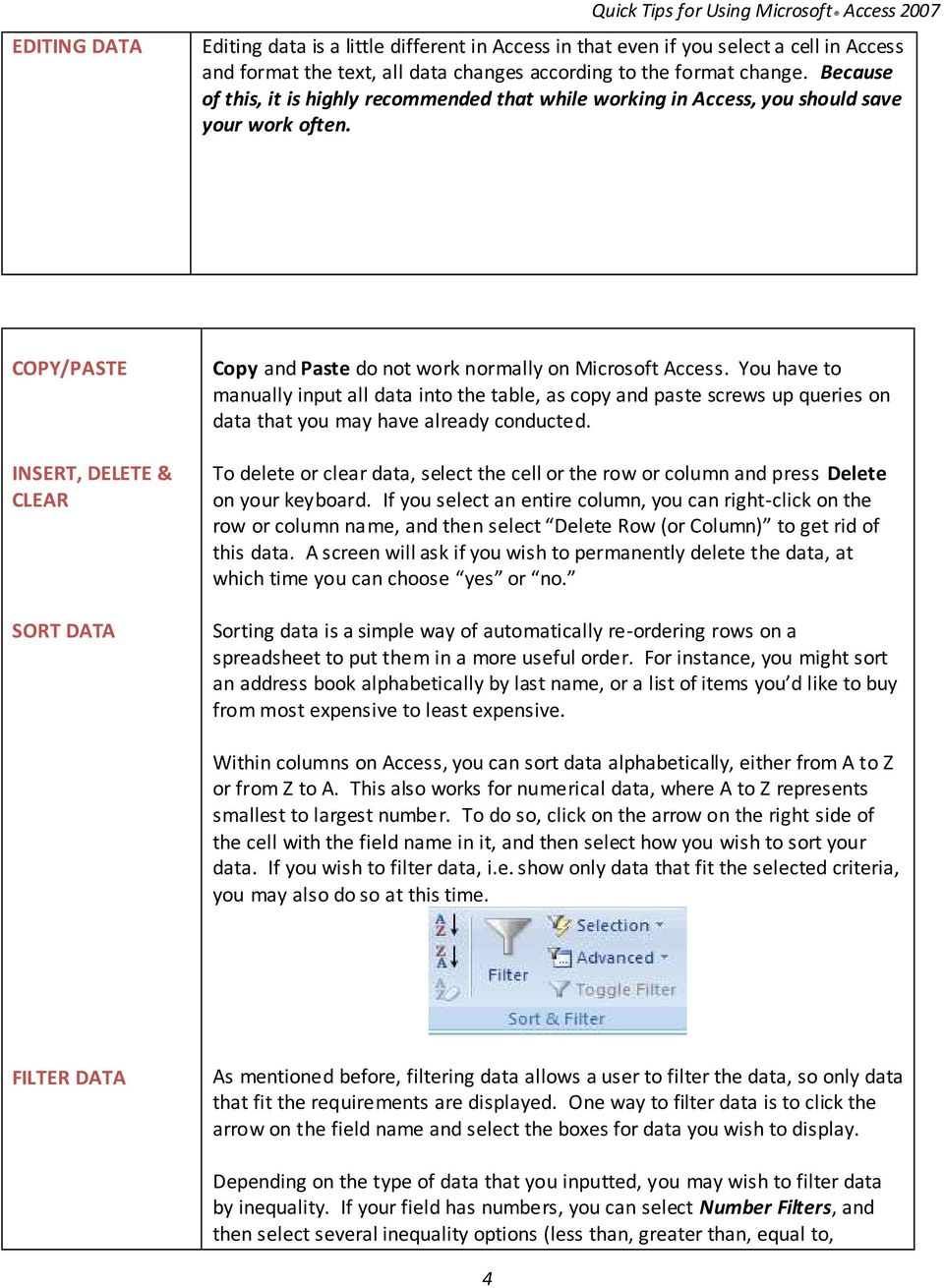
4 EDITING DATA Quick Tips for Using Microsoft Access 2007 Editing data is a little different in Access in that even if you select a cell in Access and format the text, all data changes according to the format change. Because of this, it is highly recommended that while working in Access, you should save your work often. COPY/PASTE INSERT, DELETE & CLEAR SORT DATA Copy and Paste do not work normally on Microsoft Access. You have to manually input all data into the table, as copy and paste screws up queries on data that you may have already conducted. To delete or clear data, select the cell or the row or column and press Delete on your keyboard. If you select an entire column, you can right-click on the row or column name, and then select Delete Row (or Column) to get rid of this data. A screen will ask if you wish to permanently delete the data, at which time you can choose yes or no. Sorting data is a simple way of automatically re-ordering rows on a spreadsheet to put them in a more useful order. For instance, you might sort an address book alphabetically by last name, or a list of items you d like to buy from most expensive to least expensive. Within columns on Access, you can sort data alphabetically, either from A to Z or from Z to A. This also works for numerical data, where A to Z represents smallest to largest number. To do so, click on the arrow on the right side of the cell with the field name in it, and then select how you wish to sort your data. If you wish to filter data, i.e. show only data that fit the selected criteria, you may also do so at this time. FILTER DATA As mentioned before, filtering data allows a user to filter the data, so only data that fit the requirements are displayed. One way to filter data is to click the arrow on the field name and select the boxes for data you wish to display. Depending on the type of data that you inputted, you may wish to filter data by inequality. If your field has numbers, you can select Number Filters, and then select several inequality options (less than, greater than, equal to, 4
5 between, does not equal.) In a similar manner, you can filter text data with words that begin before, after, or in between letters of the alphabet. CONTROLLING YOUR VIEW OF DATA Auto Size: Just like in Excel, you may sometimes have data that extends beyond the width of the column. In order to be able to see all of the data, you must widen the column. To do this, go to the header row and place your mouse in between the columns (e.g. on the line that separates the letters A and B). See the following page for a diagram of Auto Size. In this example, if you wanted to change the width of the cells, just place your cursor anywhere on the line that separates the columns First Name and Last Name. Your cursor will change to a black double arrow. If you double click on this arrow, the column will automatically size itself to fit the longest string of data in a cell. However, this does not adjust automatically so you may have to Auto Size again after adding more data. IMPORT DATA Access and Excel can work in tandem with each other. Sometimes, you will be required to pull data from Excel and put it into Access. To do this, go to External Data and click Excel. Import the source data into a new table in the current database by browsing for the Excel file you wish to import. From there, you will be prompted through several options, which include selecting your primary key, as well as selecting the data type. QUERIES A query is a request for data results, for action on data, or for both. You can use a query to answer a simple question, to perform calculations, to combine data from different tables, or even to add, change, or delete table data. Queries that you use to retrieve data from a table or to make calculations are called select queries. Queries that add, change, or delete data are called action 5

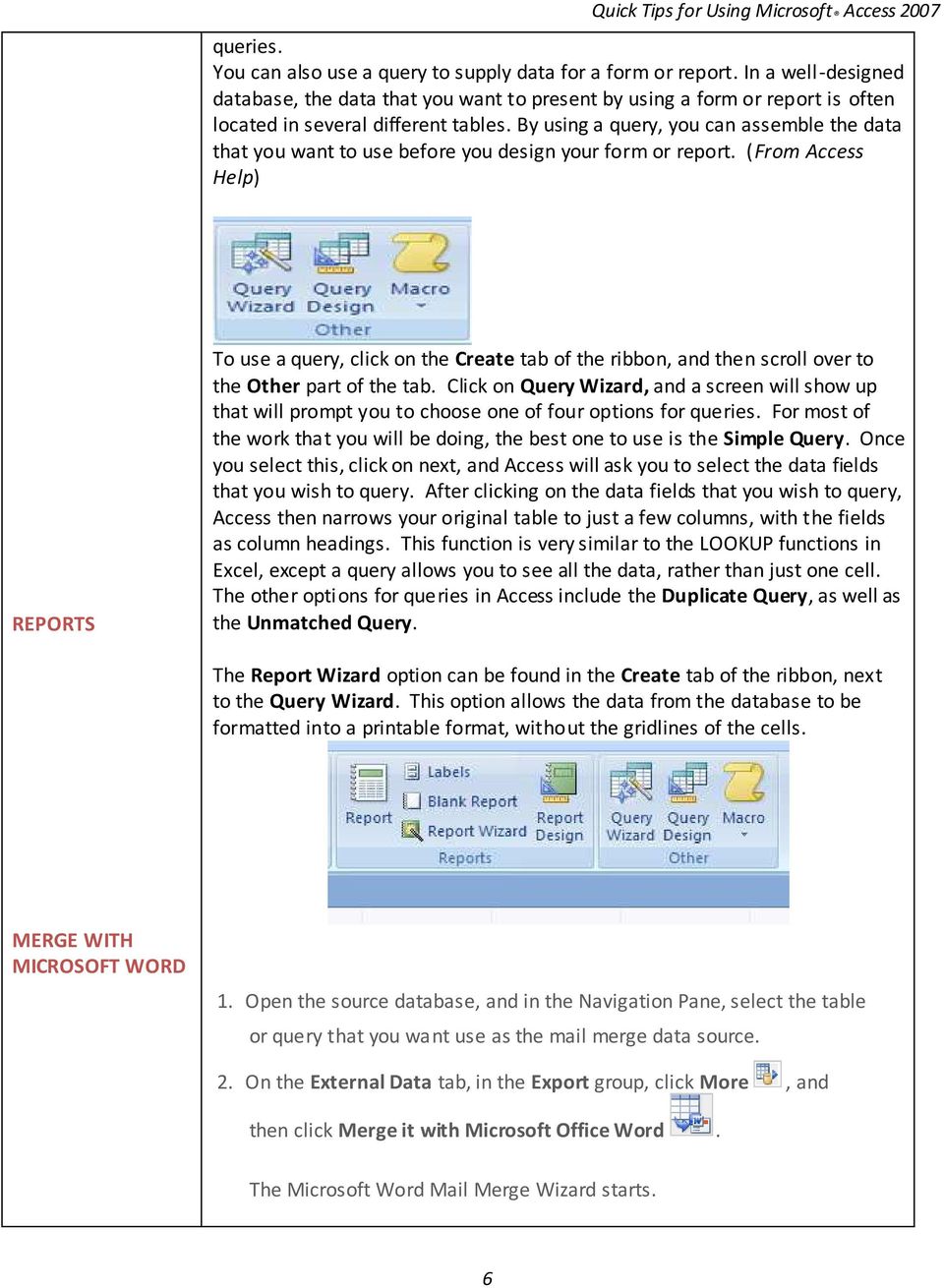
6 queries. You can also use a query to supply data for a form or report. In a well-designed database, the data that you want to present by using a form or report is often located in several different tables. By using a query, you can assemble the data that you want to use before you design your form or report. (From Access Help) REPORTS To use a query, click on the Create tab of the ribbon, and then scroll over to the Other part of the tab. Click on Query Wizard, and a screen will show up that will prompt you to choose one of four options for queries. For most of the work that you will be doing, the best one to use is the Simple Query. Once you select this, click on next, and Access will ask you to select the data fields that you wish to query. After clicking on the data fields that you wish to query, Access then narrows your original table to just a few columns, with the fields as column headings. This function is very similar to the LOOKUP functions in Excel, except a query allows you to see all the data, rather than just one cell. The other options for queries in Access include the Duplicate Query, as well as the Unmatched Query. The Report Wizard option can be found in the Create tab of the ribbon, next to the Query Wizard. This option allows the data from the database to be formatted into a printable format, without the gridlines of the cells. MERGE WITH MICROSOFT WORD 1. Open the source database, and in the Navigation Pane, select the table or query that you want use as the mail merge data source. 2. On the External Data tab, in the Export group, click More, and then click Merge it with Microsoft Office Word. The Microsoft Word Mail Merge Wizard starts. 6
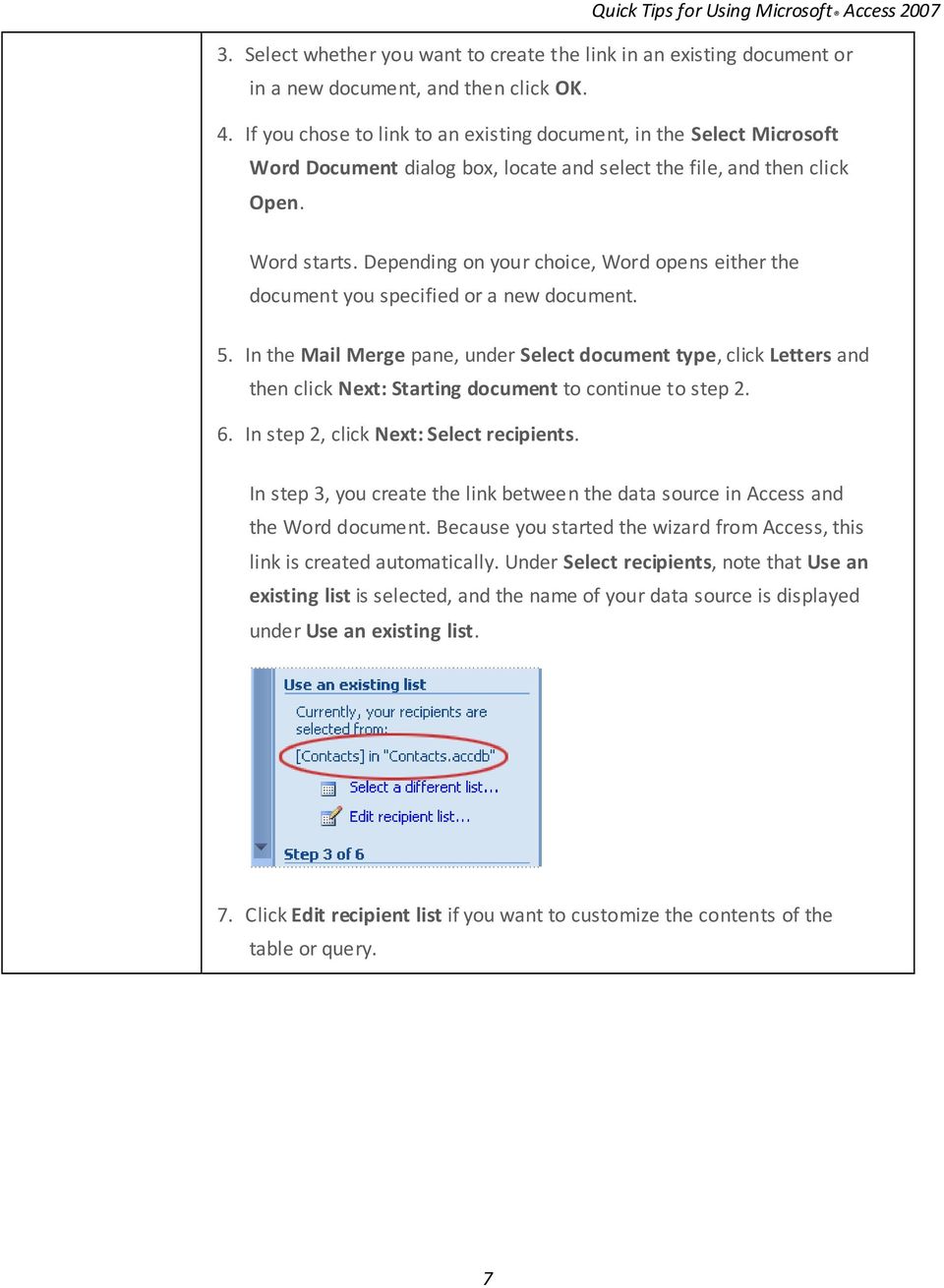
7 3. Select whether you want to create the link in an existing document or in a new document, and then click OK. 4. If you chose to link to an existing document, in the Select Microsoft Word Document dialog box, locate and select the file, and then click Open. Word starts. Depending on your choice, Word opens either the document you specified or a new document. 5. In the Mail Merge pane, under Select document type, click Letters and then click Next: Starting document to continue to step In step 2, click Next: Select recipients. In step 3, you create the link between the data source in Access and the Word document. Because you started the wizard from Access, this link is created automatically. Under Select recipients, note that Use an existing list is selected, and the name of your data source is displayed under Use an existing list. 7. Click Edit recipient list if you want to customize the contents of the table or query. 7
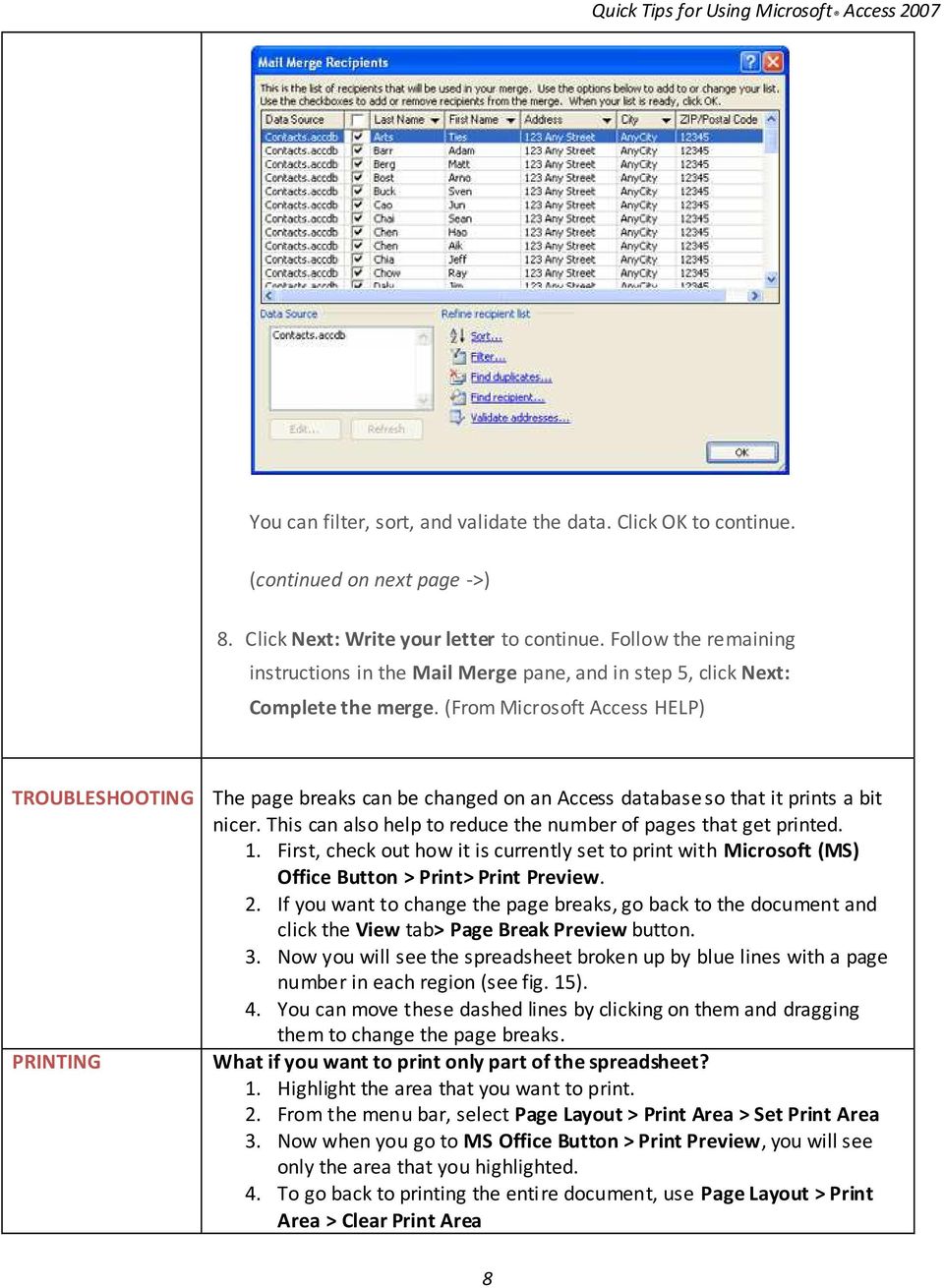
8 You can filter, sort, and validate the data. Click OK to continue. (continued on next page ->) 8. Click Next: Write your letter to continue. Follow the remaining instructions in the Mail Merge pane, and in step 5, click Next: Complete the merge. (From Microsoft Access HELP) TROUBLESHOOTING PRINTING The page breaks can be changed on an Access database so that it prints a bit nicer. This can also help to reduce the number of pages that get printed. 1. First, check out how it is currently set to print with Microsoft (MS) Office Button > Print> Print Preview. 2. If you want to change the page breaks, go back to the document and click the View tab> Page Break Preview button. 3. Now you will see the spreadsheet broken up by blue lines with a page number in each region (see fig. 15). 4. You can move these dashed lines by clicking on them and dragging them to change the page breaks. What if you want to print only part of the spreadsheet? 1. Highlight the area that you want to print. 2. From the menu bar, select Page Layout > Print Area > Set Print Area 3. Now when you go to MS Office Button > Print Preview, you will see only the area that you highlighted. 4. To go back to printing the entire document, use Page Layout > Print Area > Clear Print Area 8
9 OTHER RESOURCES Microsoft Access 2007 link: Performance Tips for Microsoft Access: FAQs for Microsoft Access: 9
Learning Services IT Guide. Access 2013
 Learning Services IT Guide Access 2013 Microsoft Access is a programme which allows you to store a lot of information easily in the form of a database. For example you could create a database which stored
Introduction to Microsoft Access 2013
 Introduction to Microsoft Access 2013 A database is a collection of information that is related. Access allows you to manage your information in one database file. Within Access there are four major objects:
Introduction to Microsoft Access 2010
 Introduction to Microsoft Access 2010 A database is a collection of information that is related. Access allows you to manage your information in one database file. Within Access there are four major objects:
EMAIL QUICK START GUIDE
 IT Services Microsoft Outlook 2010 EMAIL QUICK START GUIDE Contents What is Outlook?...2 Quick Guide to Email...2 Create a new e-mail message...2 Forward or reply to an e-mail message...2 Creating new
MICROSOFT OUTLOOK 2010 WORK WITH CONTACTS
 MICROSOFT OUTLOOK 2010 WORK WITH CONTACTS Last Edited: 2012-07-09 1 Access to Outlook contacts area... 4 Manage Outlook contacts view... 5 Change the view of Contacts area... 5 Business Cards view... 6
Mail Merge Creating Mailing Labels 3/23/2011
 Creating Mailing Labels in Microsoft Word Address data in a Microsoft Excel file can be turned into mailing labels in Microsoft Word through a mail merge process. First, obtain or create an Excel spreadsheet
Merging Labels, Letters, and Envelopes Word 2013
 Merging Labels, Letters, and Envelopes Word 2013 Merging... 1 Types of Merges... 1 The Merging Process... 2 Labels - A Page of the Same... 2 Labels - A Blank Page... 3 Creating Custom Labels... 3 Merged
ACCESS 2007. Importing and Exporting Data Files. Information Technology. MS Access 2007 Users Guide. IT Training & Development (818) 677-1700
 Information Technology MS Access 2007 Users Guide ACCESS 2007 Importing and Exporting Data Files IT Training & Development (818) 677-1700 [email protected] TABLE OF CONTENTS Introduction... 1 Import Excel
Microsoft Access 2010 handout
 Microsoft Access 2010 handout Access 2010 is a relational database program you can use to create and manage large quantities of data. You can use Access to manage anything from a home inventory to a giant
Create Mailing Labels Using Excel Data (Mail Merge)
 Create Mailing Labels Using Excel Data (Mail Merge) This quick guide will show you how to create mailing labels from an Excel spreadsheet. To print mailing labels, you ll import Excel spreadsheet data
Microsoft Access 2010 Part 1: Introduction to Access
 CALIFORNIA STATE UNIVERSITY, LOS ANGELES INFORMATION TECHNOLOGY SERVICES Microsoft Access 2010 Part 1: Introduction to Access Fall 2014, Version 1.2 Table of Contents Introduction...3 Starting Access...3
Introduction to Microsoft Access 2003
 Introduction to Microsoft Access 2003 Zhi Liu School of Information Fall/2006 Introduction and Objectives Microsoft Access 2003 is a powerful, yet easy to learn, relational database application for Microsoft
Microsoft Access 2000
 Microsoft Access 2000 Level 1 Region 4 Teaching, Learning and Technology Center Kaplan, LA Activity 1 Creating a Database 1. Open Microsoft Access 2000 a. Click on START, highlight Programs, point and
Database File. Table. Field. Datatype. Value. Department of Computer and Mathematical Sciences
 Unit 4 Introduction to Spreadsheet and Database, pages 1 of 12 Department of Computer and Mathematical Sciences CS 1305 Intro to Computer Technology 15 Module 15: Introduction to Microsoft Access Objectives:
DataPA OpenAnalytics End User Training
 DataPA OpenAnalytics End User Training DataPA End User Training Lesson 1 Course Overview DataPA Chapter 1 Course Overview Introduction This course covers the skills required to use DataPA OpenAnalytics
Using an Access Database
 A Few Terms Using an Access Database These words are used often in Access so you will want to become familiar with them before using the program and this tutorial. A database is a collection of related
Basic Microsoft Excel 2007
 Basic Microsoft Excel 2007 The biggest difference between Excel 2007 and its predecessors is the new layout. All of the old functions are still there (with some new additions), but they are now located
MICROSOFT ACCESS 2007 BOOK 2
 MICROSOFT ACCESS 2007 BOOK 2 4.1 INTRODUCTION TO ACCESS FIRST ENCOUNTER WITH ACCESS 2007 P 205 Access is activated by means of Start, Programs, Microsoft Access or clicking on the icon. The window opened
Mail Merge. Course Description. Objectives: Design a Main Document. Design a Data Source. Directories. Merge the Main Document with the Data
 Mail Merge Course Description The Mail Merge feature allows you to combine items from a data source into a document. This allows you to create form letters, mailing labels, envelopes, etc. You also have
Microsoft Office. Mail Merge in Microsoft Word
 Microsoft Office Mail Merge in Microsoft Word TABLE OF CONTENTS Microsoft Office... 1 Mail Merge in Microsoft Word... 1 CREATE THE SMS DATAFILE FOR EXPORT... 3 Add A Label Row To The Excel File... 3 Backup
Results CRM 2012 User Manual
 Results CRM 2012 User Manual A Guide to Using Results CRM Standard, Results CRM Plus, & Results CRM Business Suite Table of Contents Installation Instructions... 1 Single User & Evaluation Installation
Microsoft Access to Microsoft Word Performing a Mail Merge from an Access Query
 Microsoft Access to Microsoft Word Performing a Mail Merge from an Access Query Performing a Query in Access Before performing a mail merge, we need to set up a query with the necessary fields. Opening
Mastering Mail Merge. 2 Parts to a Mail Merge. Mail Merge Mailings Ribbon. Mailings Create Envelopes or Labels
 2 Parts to a Mail Merge 1. MS Word Document (Letter, Labels, Envelope, Name Badge, etc) 2. Data Source Excel Spreadsheet Access Database / query Other databases (SQL Server / Oracle) Type in New List Mail
MICROSOFT OFFICE ACCESS 2007 - NEW FEATURES
 MICROSOFT OFFICE 2007 MICROSOFT OFFICE ACCESS 2007 - NEW FEATURES Exploring Access Creating and Working with Tables Finding and Filtering Data Working with Queries and Recordsets Working with Forms Working
Microsoft Office Access 2007 Basics
 Access(ing) A Database Project PRESENTED BY THE TECHNOLOGY TRAINERS OF THE MONROE COUNTY LIBRARY SYSTEM EMAIL: [email protected] MONROE COUNTY LIBRARY SYSTEM 734-241-5770 1 840 SOUTH ROESSLER
Microsoft Access Basics
 Microsoft Access Basics 2006 ipic Development Group, LLC Authored by James D Ballotti Microsoft, Access, Excel, Word, and Office are registered trademarks of the Microsoft Corporation Version 1 - Revision
Introduction to Microsoft Access 2007
 Introduction to Microsoft Access 2007 Introduction A database is a collection of information that's related. Access allows you to manage your information in one database file. Within Access there are four
Tutorial 3. Maintaining and Querying a Database
 Tutorial 3 Maintaining and Querying a Database Microsoft Access 2010 Objectives Find, modify, and delete records in a table Learn how to use the Query window in Design view Create, run, and save queries
Microsoft Office 2010
 Access Tutorial 3 Maintaining and Querying a Database Microsoft Office 2010 Objectives Find, modify, and delete records in a table Learn how to use the Query window in Design view Create, run, and save
Task Force on Technology / EXCEL
 Task Force on Technology EXCEL Basic terminology Spreadsheet A spreadsheet is an electronic document that stores various types of data. There are vertical columns and horizontal rows. A cell is where the
Mail Merge: Create Mailing Labels Using Excel Data and Filtering the Contents in the Data
 Mail Merge: Create Mailing Labels Using Excel Data and Filtering the Contents in the Data Prior to starting this, please save the.csv file that you exported as an excel file (example: xxxx.csv will now
Access I 2010. Tables, Queries, Forms, Reports. Lourdes Day, Technology Specialist, FDLRS Sunrise
 Access I 2010 Tables, Queries, Forms, Reports Lourdes Day, Technology Specialist, FDLRS Sunrise Objectives Participants will 1. create and edit a table 2. create queries with criteria 3. create and edit
IST 195 Lab 11: MS Access
 Title of lab: Microsoft Access 2010 IST 195 Lab 11: MS Access Learning goal: Databases are collections of information, and database programs are designed to maintain data in structured tables. In this
Getting Started Guide. Trimble Accubid Enterprise Software
 Getting Started Guide Trimble Accubid Enterprise Software Revision A August 2013 F Toronto Office Trimble Canada Ltd. 7725 Jane Street Concord, Ontario L4K 1X4 Copyright and Trademarks 2005-2013 Trimble
Microsoft Excel 2013: Macro to apply Custom Margins, Titles, Gridlines, Autofit Width & Add Macro to Quick Access Toolbar & How to Delete a Macro.
 Microsoft Excel 2013: Macro to apply Custom Margins, Titles, Gridlines, Autofit Width & Add Macro to Quick Access Toolbar & How to Delete a Macro. Do you need to always add gridlines, bold the heading
The first thing to do is choose if you are creating a mail merge for printing or an e-mail merge for distribution over e-mail.
 Create a mail or e-mail merge Use mail or e-mail merge when you want to create a large number of documents that are mostly identical but include some unique information. For example, you can use mail merge
Microsoft Access Rollup Procedure for Microsoft Office 2007. 2. Click on Blank Database and name it something appropriate.
 Microsoft Access Rollup Procedure for Microsoft Office 2007 Note: You will need tax form information in an existing Excel spreadsheet prior to beginning this tutorial. 1. Start Microsoft access 2007. 2.
Creating tables in Microsoft Access 2007
 Platform: Windows PC Ref no: USER 164 Date: 25 th October 2007 Version: 1 Authors: D.R.Sheward, C.L.Napier Creating tables in Microsoft Access 2007 The aim of this guide is to provide information on using
Microsoft Office Access 2007 which I refer to as Access throughout this book
 Chapter 1 Getting Started with Access In This Chapter What is a database? Opening Access Checking out the Access interface Exploring Office Online Finding help on Access topics Microsoft Office Access
OUTLOOK 2010 TIPS TABLE OF CONTENTS 1. SEND A BLIND CARBON COPY MARQUETTE UNIVERSITY IT SERVICES
 OUTLOOK 2010 TIPS TABLE OF CONTENTS 1.Send a Blind Carbon Copy... 1 2. Change the view of the Outlook window... 2 3. Use Out of Office Assistant... 2 4. Create Rules... 4 5. Use Autocomplete... 5 6. Request
MICROSOFT ACCESS 2003 TUTORIAL
 MICROSOFT ACCESS 2003 TUTORIAL M I C R O S O F T A C C E S S 2 0 0 3 Microsoft Access is powerful software designed for PC. It allows you to create and manage databases. A database is an organized body
MicroStrategy Desktop
 MicroStrategy Desktop Quick Start Guide MicroStrategy Desktop is designed to enable business professionals like you to explore data, simply and without needing direct support from IT. 1 Import data from
Microsoft Using an Existing Database Amarillo College Revision Date: July 30, 2008
 Microsoft Amarillo College Revision Date: July 30, 2008 Table of Contents GENERAL INFORMATION... 1 TERMINOLOGY... 1 ADVANTAGES OF USING A DATABASE... 2 A DATABASE SHOULD CONTAIN:... 3 A DATABASE SHOULD
EXCEL PIVOT TABLE David Geffen School of Medicine, UCLA Dean s Office Oct 2002
 EXCEL PIVOT TABLE David Geffen School of Medicine, UCLA Dean s Office Oct 2002 Table of Contents Part I Creating a Pivot Table Excel Database......3 What is a Pivot Table...... 3 Creating Pivot Tables
Reduced Quality Sample
 Access 2007 Essentials PART ONE Mobile MOUSe Access 2007 Essentials Version # 1.1 Part One 08/08/2010 11:20 About this Course Microsoft Access is the database application included with Microsoft Office.
Chapter 5. Microsoft Access
 Chapter 5 Microsoft Access Topic Introduction to DBMS Microsoft Access Getting Started Creating Database File Database Window Table Queries Form Report Introduction A set of programs designed to organize,
Microsoft Excel 2010 Tutorial
 1 Microsoft Excel 2010 Tutorial Excel is a spreadsheet program in the Microsoft Office system. You can use Excel to create and format workbooks (a collection of spreadsheets) in order to analyze data and
Create a New Database in Access 2010
 Create a New Database in Access 2010 Table of Contents OVERVIEW... 1 CREATING A DATABASE... 1 ADDING TO A DATABASE... 2 CREATE A DATABASE BY USING A TEMPLATE... 2 CREATE A DATABASE WITHOUT USING A TEMPLATE...
MICROSOFT OUTLOOK 2011 READ, SEARCH AND PRINT E-MAILS
 MICROSOFT OUTLOOK 2011 READ, SEARCH AND PRINT E-MAILS Lasted Edited: 2012-07-10 1 Find the Inbox... 3 Check for New Mail... 4 Manually check for new messages... 4 Change new incoming e-mail schedule options...
Advanced Presentation Features and Animation
 There are three features that you should remember as you work within PowerPoint 2007: the Microsoft Office Button, the Quick Access Toolbar, and the Ribbon. The function of these features will be more
Crystal Reports Payroll Exercise
 Crystal Reports Payroll Exercise Objective This document provides step-by-step instructions on how to build a basic report on Crystal Reports XI on the MUNIS System supported by MAISD. The exercise will
Business Objects 4.1 Quick User Guide
 Business Objects 4.1 Quick User Guide Log into SCEIS Business Objects (BOBJ) 1. https://sceisreporting.sc.gov 2. Choose Windows AD for Authentication. 3. Enter your SCEIS User Name and Password: Home Screen
Microsoft Excel 2013: Using a Data Entry Form
 Microsoft Excel 2013: Using a Data Entry Form Using Excel's built in data entry form is a quick and easy way to enter data into an Excel database. Using the form allows you to: start a new database table
Outlook 2011 Window. [Day], [Work Week], [Full [Home]. Schedule and plan: Click the [New
![Outlook 2011 Window. [Day], [Work Week], [Full [Home]. Schedule and plan: Click the [New](/thumbs/27/11891778.jpg "Outlook 2011 Window. [Day], [Work Week], [Full [Home]. Schedule and plan: Click the [New") MS Outlook 2011 Quick Reference for Macintosh The Ribbon consists a series of tabs giving access to buttons, menus, and dialog boxes in various groups to facilitate locating the tools required for a particular
MS Outlook 2011 Quick Reference for Macintosh The Ribbon consists a series of tabs giving access to buttons, menus, and dialog boxes in various groups to facilitate locating the tools required for a particular
Microsoft Access 2007 Advanced Queries
 Microsoft Access 2007 Advanced Queries When you run a query in Microsoft Access 2007, it is not only able to display records, but also able to perform specific tasks and actions based on user defined criteria.
Microsoft Office 2010
 Access Tutorial 1 Creating a Database Microsoft Office 2010 Objectives Learn basic database concepts and terms Explore the Microsoft Access window and Backstage view Create a blank database Create and
Word 2007: Mail Merge Learning Guide
 Word 2007: Mail Merge Learning Guide Getting Started Mail merge techniques allow you to create a document which combines repetitive text elements with data drawn from an external data document. To perform
Creating Electronic Portfolios using Microsoft Word and Excel
 Step-by-Step Creating Electronic Portfolios using Microsoft Word and Excel The Reflective Portfolio document will include the following: A Cover Page for the portfolio - Include a Picture or graphic A
Microsoft Word 2010 Mail Merge (Level 3)
 IT Services Microsoft Word 2010 Mail Merge (Level 3) Contents Introduction...1 Creating a Data Set...2 Creating the Merge Document...2 The Mailings Tab...2 Modifying the List of Recipients...3 The Address
Business Objects Version 5 : Introduction
 Business Objects Version 5 : Introduction Page 1 TABLE OF CONTENTS Introduction About Business Objects Changing Your Password Retrieving Pre-Defined Reports Formatting Your Report Using the Slice and Dice
Using FileMaker Pro with Microsoft Office
 Hands-on Guide Using FileMaker Pro with Microsoft Office Making FileMaker Pro Your Office Companion page 1 Table of Contents Introduction... 3 Before You Get Started... 4 Sharing Data between FileMaker
Advanced Word for Windows
 Advanced Word for Windows Version: 2002 Academic Computing Support Information Technology Services Tennessee Technological University September 2003 1. Opening Word for Windows In the PC labs, click on
Software Application Tutorial
 Software Application Tutorial Copyright 2005, Software Application Training Unit, West Chester University. No Portion of this document may be reproduced without the written permission of the authors. For
Excel Reports and Macros
 Excel Reports and Macros Within Microsoft Excel it is possible to create a macro. This is a set of commands that Excel follows to automatically make certain changes to data in a spreadsheet. By adding
Managing Contacts in Outlook
 Managing Contacts in Outlook This document provides instructions for creating contacts and distribution lists in Microsoft Outlook 2007. In addition, instructions for using contacts in a Microsoft Word
Beginning Microsoft Access
 Beginning Microsoft Access A database is a collection of information. Common collections of information that can be entered into a database include the library card catalog, a recipe box, or your personal
Master Data Services. SQL Server 2012 Books Online
 Master Data Services SQL Server 2012 Books Online Summary: Master Data Services (MDS) is the SQL Server solution for master data management. Master data management (MDM) describes the efforts made by an
MS Word 2007. Microsoft Outlook 2010 Mailbox Maintenance
 MS Word 2007 Microsoft Outlook 2010 Mailbox Maintenance INTRODUCTION... 1 Understanding the MS Outlook Mailbox... 1 BASIC MAILBOX MAINTENANCE... 1 Mailbox Cleanup... 1 Check Your Mailbox Size... 1 AutoDelete
Importing Contacts to Outlook
 Importing Contacts to Outlook 1. The first step is to create a file of your contacts from the National Chapter Database. 2. You create this file under Reporting, Multiple. You will follow steps 1 and 2
Microsoft Access 2007 Introduction
 Microsoft Access 2007 Introduction Access is the database management system in Microsoft Office. A database is an organized collection of facts about a particular subject. Examples of databases are an
Microsoft Access 2010- Introduction
 Microsoft Access 2010- Introduction Access is the database management system in Microsoft Office. A database is an organized collection of facts about a particular subject. Examples of databases are an
Decision Support AITS University Administration. Web Intelligence Rich Client 4.1 User Guide
 Decision Support AITS University Administration Web Intelligence Rich Client 4.1 User Guide 2 P age Web Intelligence 4.1 User Guide Web Intelligence 4.1 User Guide Contents Getting Started in Web Intelligence
Legal Notes. Regarding Trademarks. 2012 KYOCERA Document Solutions Inc.
 Legal Notes Unauthorized reproduction of all or part of this guide is prohibited. The information in this guide is subject to change without notice. We cannot be held liable for any problems arising from
Basic Excel Handbook
 2 5 2 7 1 1 0 4 3 9 8 1 Basic Excel Handbook Version 3.6 May 6, 2008 Contents Contents... 1 Part I: Background Information...3 About This Handbook... 4 Excel Terminology... 5 Excel Terminology (cont.)...
Toad for Data Analysts, Tips n Tricks
 Toad for Data Analysts, Tips n Tricks or Things Everyone Should Know about TDA Just what is Toad for Data Analysts? Toad is a brand at Quest. We have several tools that have been built explicitly for developers
Create Mailing Labels from an Electronic File
 Create Mailing Labels from an Electronic File Microsoft Word 2002 (XP) Electronic data requests for mailing labels will be filled by providing the requester with a commadelimited text file. When you receive
Mail Merge Microsoft Word and Excel Queries Scott Kern Senior Consultant
 Mail Merge Microsoft Word and Excel Queries Scott Kern Senior Consultant What We ll Cover 1. Enabling database connections through Microsoft Excel 2. Accessing the data stored in the SQL Database via the
Understanding Files and Folders
 Windows Files and Folders Overview Before I get into Windows XP's method of file management, let's spend a little space on a files and folder refresher course. (Just in case you forgot, of course.) The
Utilities. 2003... ComCash
 Utilities ComCash Utilities All rights reserved. No parts of this work may be reproduced in any form or by any means - graphic, electronic, or mechanical, including photocopying, recording, taping, or
Access Database 2003 Basics
 Database Basics Create a new database Create tables Create records Create forms Create queries Create reports Hands On Practice Create a new database Open Microsoft Access. It should look like this: In
Creating an Access Database. To start an Access Database, you should first go into Access and then select file, new.
 To start an Access Database, you should first go into Access and then select file, new. Then on the right side of the screen, select Blank database. Give your database a name where it says db1 and save
IT Quick Reference Guides Performing Mail Merges in Word 2010
 IT Quick Reference Guides Performing Mail Merges in Word 2010 Word Guides Mail merges are useful when you want to create form letters or other documents sent to or drawing information from multiple customers.
Database Applications Microsoft Access
 Lesson 1 Tutorial 1 Database Applications Microsoft Access Lesson 1 Introduction For Lesson 1, you will work through Tutorial 1 in your textbook. The tutorial may expose you to more information than is
USER GUIDE. Unit 2: Synergy. Chapter 2: Using Schoolwires Synergy
 USER GUIDE Unit 2: Synergy Chapter 2: Using Schoolwires Synergy Schoolwires Synergy & Assist Version 2.0 TABLE OF CONTENTS Introductions... 1 Audience... 1 Objectives... 1 Before You Begin... 1 Getting
Query 4. Lesson Objectives 4. Review 5. Smart Query 5. Create a Smart Query 6. Create a Smart Query Definition from an Ad-hoc Query 9
 TABLE OF CONTENTS Query 4 Lesson Objectives 4 Review 5 Smart Query 5 Create a Smart Query 6 Create a Smart Query Definition from an Ad-hoc Query 9 Query Functions and Features 13 Summarize Output Fields
LEGISLATOR DATABASE. September, 2012
 LEGISLATOR DATABASE September, 2012 1. INTRODUCTION 2. LIST OF QUERIES 3. FIELDS 4. QUERY DESCRIPTIONS 5. USING THE LEGISLATOR DATABASE QUERIES 6. DOWNLOADING THE LEGISLATOR DATABASE FROM THE CGA HOME
A database is a collection of data organised in a manner that allows access, retrieval, and use of that data.
 Microsoft Access A database is a collection of data organised in a manner that allows access, retrieval, and use of that data. A Database Management System (DBMS) allows users to create a database; add,
Microsoft Dynamics CRM 4.0 User s Guide
 Microsoft Dynamics CRM 4.0 User s Guide i Microsoft Dynamics CRM 4.0 User s Guide Copyright Information in this document, including URL and other Internet Web site references, is subject to change without
6. If you want to enter specific formats, click the Format Tab to auto format the information that is entered into the field.
 Adobe Acrobat Professional X Part 3 - Creating Fillable Forms Preparing the Form Create the form in Word, including underlines, images and any other text you would like showing on the form. Convert the
In This Issue: Excel Sorting with Text and Numbers
 In This Issue: Sorting with Text and Numbers Microsoft allows you to manipulate the data you have in your spreadsheet by using the sort and filter feature. Sorting is performed on a list that contains
Word 2010: Mail Merge to Email with Attachments
 Word 2010: Mail Merge to Email with Attachments Table of Contents TO SEE THE SECTION FOR MACROS, YOU MUST TURN ON THE DEVELOPER TAB:... 2 SET REFERENCE IN VISUAL BASIC:... 2 CREATE THE MACRO TO USE WITHIN
Creating Custom Crystal Reports Tutorial
 Creating Custom Crystal Reports Tutorial 020812 2012 Blackbaud, Inc. This publication, or any part thereof, may not be reproduced or transmitted in any form or by any means, electronic, or mechanical,
Instructions: Using Mail Merge in Word to Send E mails via Outlook
 Instructions: Using Mail Merge in Word to Send E mails via Outlook The mail merge tool in Word can be used to quickly and easily send personalized e mails via your Outlook e mail application to individuals
What are we dealing with? Creating a New MS Access Database
 What are we dealing with? Databases are widely used in industry and in applications where large amounts of information need to be managed effectively. Databases help users search for key information in
Steps to Create a Database
 Steps to Create a Database Design the Database In order for a database to be effective some time should be spent on the layout of the table. Additionally, time should be spent on what the purpose of the
Outlook Email. User Guide IS TRAINING CENTER. 833 Chestnut St, Suite 600. Philadelphia, PA 19107 215-503-7500
 Outlook Email User Guide IS TRAINING CENTER 833 Chestnut St, Suite 600 Philadelphia, PA 19107 215-503-7500 This page intentionally left blank. TABLE OF CONTENTS Getting Started... 3 Opening Outlook...
Excel for Data Cleaning and Management
 Excel for Data Cleaning and Management Background Information This workshop is designed to teach skills in Excel that will help you manage data from large imports and save them for further use in SPSS
Consider the possible problems with storing the following data in a spreadsheet:
 Microsoft Access 2010 Part 1: Introduction to Database Design What is a database? Identifying entities and attributes Understanding relationships and keys Developing tables and other objects Planning a
Working with SQL Server Integration Services
 SQL Server Integration Services (SSIS) is a set of tools that let you transfer data to and from SQL Server 2005. In this lab, you ll work with the SQL Server Business Intelligence Development Studio to