
ATS Advanced Terminal Software Version 1.9 Reference Guide for Controller-A
|
|
|
- Sylvia Caldwell
- 10 years ago
- Views:
Transcription
1 ATS Advanced Terminal Software Version 1.9 Reference Guide for Controller-A Catalog # Rev. B

2

3 Copyright 1999 Eshed Robotec Catalog # Rev. B (November 1995) March 1999 Reprint/PDF version Every effort has been made to make this book as complete and accurate as possible. However, no warranty of suitability, purpose, or fitness is made or implied. Eshed Robotec is not liable or responsible to any person or entity for loss or damage in connection with or stemming from the use of the software, hardware and/or the information contained in this publication. Eshed Robotec bears no responsibility for errors which may appear in this publication and retains the right to make changes to the software and manual without prior notice.

4

5 Table of Contents CHAPTER 1 Introduction to ATS 1 CHAPTER 2 Activating ATS 2 Installation Activation CHAPTER 3 Operating Keys 4 Short-Cut Commands User-Defined Short-Cut Keys Editor Keys Special Key Combinations CHAPTER 4 Controller Configuration 7 ACL Controller Configuration Overriding the Configuration Default Settings CONFIG.ACL File SCORBASE Controller Configuration Peripheral Setup: Group B Axes Device Type and Homing Method Peripheral Configuration Files Peripheral ID SETUP.ROB File SETUP.HTP File SETUP.PAR File CHAPTER 5 Print Manager 21 CHAPTER 6 Backup Manager 23 CHAPTER 7 Command Line Activation 26 Controller Configuration Options Backup / Restore Options Peripheral Option Device Options Off-Line Options CHAPTER 8 The SEND Utility Program 29 Options Reference Guide - v - ATS for Controller-A 9511 Version 1.9

6

7 CHAPTER 1 Introduction to ATS ATS Advanced Terminal Software, version 1.9 and later is supplied on diskette with the Controller-A, and provides access to the controller s internal ACL programming language from any PC computer operating under DOS. ATS is a full ASCII terminal emulator operating on RS232 communication channels at 9600 baud, 8 data bits, 1 stop bit, no parity, and XON/XOFF protocol. ATS provides the following features: Controller configuration for ACL and SCORBASE software. Definition of connected peripheral axes for automatic loading of parameter settings. Predefined and user-definable short-cut keys to simplify programming and controller processes. A backup manager for saving and reloading programs, positions, variables and parameters. A print manager for printing programs and positions. Reference Guide ATS version for Controller-A

8 CHAPTER 2 Activating ATS Installation 1. Be sure you have made all the required hardware connections, as described in the User s Manual provided with your robot/controller. Turn on the controller power switch. The green POWER indicator LED lights up. 2. Turn on your computer (boot using your own DOS). 3. If your computer has a hard drive, make a directory for ATS, and copy the files from the ATS diskette to that directory. If your computer does not have a hard drive, make a backup copy of the ATS diskette. Keep the original diskette in a safe place, and use the copy for operation. Activation ATS may not function properly under the Windows environment, depending on your computer setup. If you experience difficulties, exit Windows and activate ATS directly from DOS (5.0 and later). 1. Make the ATS directory or disk drive the default. 2. At the DOS prompt, activate ATS: COM1: If the controller is connected to computer port COM1 (default), type: ATS [Enter] COM2: If the controller is connected to computer port COM2, type: ATS /c2 [Enter] To use additional switches at the command line, refer to the chapter, Command Line Activation, later in this manual. ATS version Reference Guide for Controller-A 9511

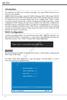
9 3. Once the software has loaded, the ATS main screen will appear on your screen: 4. Press [Enter] to receive the > prompt, if it is not already displayed. You can now communicate directly with the controller. Reference Guide ATS version for Controller-A
![Press [Enter] to receive the > prompt, if it is not already](/docs-images/40/10621491/images/page_9.jpg "displayed. You can now communicate directly with the controller.")
10 CHAPTER 3 Operating Keys Short-Cut Commands Note the ACL commands listed at the bottom line of the main ATS screen. Pressing the function key which appears next to each command issues the command. For example, F5 writes the command MOVE. Four sets of ten function keys permit the use of forty short-cut ACL commands. Three sets are system-defined sets, and one is user-defined. A display of the sets of commands can be called from the ATS main screen by pressing the hot-key combination: [Alt] + H The display of command sets will scroll up and off the screen as you continue entering commands at the > prompt. Only one set of function keys is active at a time. Set 1 is active by default. To activate a different set, simultaneously press [Alt] and the number of the set desired. For example, press [Alt]+3 to use the short-cut commands in Set 3. (Do not use the numeric keypad for this purpose.) ATS version Reference Guide for Controller-A 9511
![A display of the sets of commands can be called from the ATS main screen by pressing the hot-key combination: [Alt] + H The display of command sets will scroll up and off the screen as you continue](/docs-images/40/10621491/images/page_10.jpg "entering commands at the > prompt. Only one set of function keys is active at a time. Set 1 is active by default.")
11 When Set 3 is active, for example: F1 issues the command LIST and F2 issues the command REMOVE. The (down arrow) after a command indicates that [Enter] (a carriage return) automatically follows the command. For most short-cut commands, however, you must also press [Enter] in order to activate the commands. User-Defined Short-Cut Keys When ATS is loaded, it searches in the current directory for a file called TERM.MAC. The first 10 lines of that file define function keys F1 through F10 for Set 4. Use a text editor to create the TERM.MAC file. Since the function key can activate a string of up to 20 characters, the command lines you define should not exceed 20 characters. To include an [Enter] at the end of the command line, enter ASCII character 25; in some text editors, pressing [Ctrl]+Y will produce the character. If your editor is unable to produce the character, type either ^Y or ^y at the end of the command line. When ATS is loaded, ^Y or ^y will be translated to the character and interpreted as [Enter]. In the example shown here, the six ACL commands for RS232 communication were written to the TERM.MAC file, and thereby assigned to Set 4. Reference Guide ATS version for Controller-A
![For most short-cut commands, however, you must also press [Enter] in order to activate the commands.](/docs-images/40/10621491/images/page_11.jpg "User-Defined Short-Cut Keys When ATS is loaded, it searches in the current directory for a file called TERM.MAC. The first 10 lines of that file define function keys F1 through F10 for Set 4.")
12 Editor Keys The following keys are recognized by the ATS software. [Ins] [Del] [Esc] [Ctrl] + (or backspace) Removes characters. Restores characters. Inserts characters. Toggles for overwrite. Erases characters. Erases the currently typed command. Restores the currently erased command. Repeats the last command(s) entered. ATS can recall the last ten commands issued. Press (up arrow) and (down arrow) to scroll the display of previously typed commands. Additional editing functions are activated by ACL commands. Refer to the chapters describing the ACL commands in the ACL Reference Guide. Special Key Combinations Additional key combinations provide the following special functions: [Ctrl] + [Shift] + C Restarts ATS and displays a cleared ATS main screen. [Ctrl] + C Stops the controller from sending data to the screen, such as after a LIST or SHOW ENCO command. Also halts printing. During a controller backup or restore operation, pressing [Ctrl]+C will halt the procedure. [Alt] + M Toggles activation of keyboard manual mode. (Sends ACL command character ~ to the controller.) ATS version Reference Guide for Controller-A 9511

13 CHAPTER 4 Controller Configuration ACL Controller Configuration ATS provides a short- form controller configuration which loads default parameter settings. However, you will need to use the ACL command CONFIG when your specific installation or application requires parameter settings other than the defaults loaded by this procedure. Note that the command CONFIG will override all existing settings. L If you wish to configure the controller after it has been in operation, be sure to backup all data before initiating this configuration procedure. The configuration procedure is initiated from the ATS main screen by pressing the hot-key combination: [Ctrl] + [F1] You are prompted: Controller Configuration ARE YOU SURE (Y/N)? N Press Y to proceed with the configuration, or Press N or [Enter] to cancel the configuration. You are prompted by a short series of Controller Configuration options. Reference Guide ATS version for Controller-A

14 L Make sure you select the proper options for your installation. Incorrect selections may result in damage to your equipment. Robot type: ER V / ER-Vplus / ER-VII / OTHER This defines the robot which is connected to the controller. Use the left and right arrow keys to highlight the name of the robot which is connected to the controller. Then press [Enter] to accept. If you have selected one of the robot types (not OTHER), the controller reserves axis 6 (the first available axis after the robot axes) for an electric servo gripper. How many axes are installed (8)?.. This defines the number of axes which can be driven by the controller. Press [Enter] to accept the default (8), or Type any other valid number and press [Enter]. If you have defined the robot type as OTHER, you will also be prompted to define group A: How many axes in Group A (6)?.. Press [Enter] to accept the default (6), or Type any other valid number and press [Enter]. Is expanded memory installed (Y/N) Y Press Y or [Enter] if controller has 128KB RAM (default), or Press N if controller has 32KB RAM. Does the controller have an auxiliary RS232 board?(y/n)?n Type Y if the auxiliary multiport RS232 board is installed in your controller, or Press N or [Enter] if the board is not installed. Working directory is: c:\ats Is this correct (Y/N)?Y The first time this prompt appears, it shows the DOS directory from which the ATS software was activated. The Working directory must be the directory which contains the parameter files and the SCORBASE program file (.CBU files). If you change the directory definition, it is written to a file named SETUP.DIR. Thereafter, whenever ATS is loaded, the Working directory is set according to the definition in the SETUP.DIR file. Similarly, the SETUP.DIR file determines the definition of the Backup directory shown in the Backup Manager screen. SETUP.DIR is updated when either the Working directory or Backup directory definition is changed. Press N if you want to change the directory. The cursor moves to the directory line, prompting you to type and [Enter] a different directory. Press Y if the directory is correct. ATS version Reference Guide for Controller-A 9511
![Use the left and right arrow keys to highlight the name of the robot which is connected to the controller. Then press [Enter] to accept.](/docs-images/40/10621491/images/page_14.jpg "If you have selected one of the robot types (not OTHER), the controller reserves axis 6 (the first available axis after the robot axes) for an electric servo gripper. How many axes are installed (8)?")
15 Press [Esc] if you are not sure whether the displayed directory is correct. This will cancel the configuration procedure. Press F10 to access the ATS Backup Manager menu to verify the proper directory definition. Or exit to DOS to verify the location of the.cbu files. WARNING! USER RAM WILL BE ERASED!! ARE YOU SURE(Y/N)? N Press Y to proceed with the configuration. Press N or [Enter] to cancel the configuration. After you confirm, ATS compares your selections with the controller s current configuration. You are warned of any differences, and again prompted to confirm the configuration. After you again confirm, ATS performs the configuration and loads the proper parameter files in accordance with your selections. As soon as the configuration is completed, the Peripheral Setup screen appears; this screen is used for defining the devices which are connected to the controller and for loading the parameters for these devices. (The Peripheral Setup is fully described later in this chapter.) For definitions not included in the short-form controller configuration procedure such as axes in control group C, a robot of another make, and memory allocation you will need to use the ACL command CONFIG. (Refer to the ACL Reference Guide.) Overriding the Configuration Default Settings CONFIG.ACL File When the ATS short form is used to configure Controller-A, it searches the current directory for a user file named CONFIG.ACL. If this file does not exist (or, if it exists, but defines a robot type other than the one you have selected to configure), the controller is configured with factory-set defaults according to the selections you made during the configuration procedure. The CONFIG.ACL file allows you to redefine the default configuration of the controller in order to meet controller memory limitation, to change defaults, or to define a configuration for a customized application. This file is not included in the ATS distribution diskette. You can create the 16-line file CONFIG.ACL using any ASCII text editor. Each line of the program must contain a number which defines a specific configuration, in the order shown below. Any comments must be preceded by a space, and must not exceed the end of the line. An optional 17th line may be added, which gives the name of the file which contains paramters for a specific robot, as shown in the following example; par5plus refers to parameter file PAR5PLUS.CBU for the SCORBOT-ER Vplus robot. Reference Guide ATS version for Controller-A
![N Press Y to proceed with the configuration. Press N or [Enter] to cancel the configuration. After you confirm, ATS compares your selections with the controller s current configuration.](/docs-images/40/10621491/images/page_15.jpg "You are warned of any differences, and again prompted to confirm the configuration.")
16 If the 17th line exists in the CONFIG.ACL file, ATS will load the specified parameter file during short-form configuration. If the line does not exist, ATS will simply load the default parameters for the selected robot. File Lines Explanation par7 inputs outputs total number of axes (encoders) auxiliary ports robot type (0, 5, or 7) number of servo axes in Group A (must match robot type) servo gripper axis number of servo axes in Group B RAM size user programs user program lines variables user positions in Group A user positions in Group B user positions in Group C user comments name of parameter file for specific robot (SCORBOT-ER VII) Refer to the chapter, User Memory Configuration in the ACL Reference Guide for an explanation on how to calculate the available number of programs, lines and other data. ATS version Reference Guide for Controller-A 9511

17 SCORBASE Controller Configuration ATS provides a short- form procedure to configure Controller-A for use with the SCORBASE software. L If you wish to configure the controller after it has been in operation, be sure to backup all data before initiating this configuration procedure. To configure Controller-A for use with the SCORBASE software, initiate the configuration procedure from the ATS main screen by pressing the hot-key combination: [Ctrl] + [F2] L When you want to configure the controller for SCORBASE, this procedure is used instead of the configuration procedure initiated by [Ctrl]+[F1]. You are prompted: SCORBASE Controller Configuration ARE YOU SURE (Y/N)? N Press Y and [Enter], or Press N to cancel the configuration. You are then prompted by a short series of Controller Configuration options. L Make sure you select the proper options for your installation. Incorrect selections may result in damage to your equipment. Robot type: ER V / ER Vplus / ER VII This defines the robot which is connected to the controller. Use the left and right arrow keys to highlight the name of the robot which is connected to the controller. Then press [Enter] to accept. Reference Guide ATS version for Controller-A
![To configure Controller-A for use with the SCORBASE software, initiate the configuration procedure from the ATS main screen by pressing the hot-key combination: [Ctrl] + [F2] L When you want to](/docs-images/40/10621491/images/page_17.jpg "configure the controller for SCORBASE, this procedure is used instead of the configuration procedure initiated by [Ctrl]+[F1]. You are prompted: SCORBASE Controller Configuration ARE YOU SURE (Y/N)?")
18 How many axes are installed (8)?.. This defines the number of axes which can be driven by the controller. Press [Enter] to accept the default (8), or Type any other valid number and press [Enter]. If you have defined more than six axes for the SCORBASE configuration, you will be also be prompted to define the speed controlled conveyor: Speed Controlled Conveyor : not used / used A standard SCORBOT conveyor can be installed and controlled like any other peripheral axis, or as a speed controlled conveyor. If a conveyor is installed for use as a normal peripheral, enter NOT USED at this prompt. If a conveyor is installed for use as speed controlled conveyor, select USED. The speed controlled conveyor must be connected to the last defined axis. Use the left and right arrow keys to highlight your response. Then press [Enter] to accept. Is expanded memory installed (Y/N) Y Press Y or [Enter] if controller has 128KB RAM (default), or Press N if controller has 32KB RAM. Does the controller have an auxiliary RS232 board?(y/n)?n Type Y and [Enter] if the auxiliary multiport RS232 board is installed in your controller. Press [Enter] if the board is not installed. Working directory is: c:\ats Is this correct (Y/N)?Y The first time this prompt appears, it shows the DOS directory from which the ATS software was activated. The Working directory must be the directory which contains the parameter files and the SCORBASE program file (.CBU files). If you change the directory definition, it is written to a file named SETUP.DIR. Thereafter, whenever ATS is loaded, the Working directory is set according to the definition in the SETUP.DIR file. Similarly, the SETUP.DIR file determines the definition of the Backup directory shown in the Backup Manager screen. SETUP.DIR is updated when either the Working directory or Backup directory definition is changed. ATS version Reference Guide for Controller-A 9511

19 Press N if you want to change the directory. The cursor moves to the directory line, prompting you to type and [Enter] a different directory. Press Y if the directory is correct. Press [Esc] if you are not sure whether the displayed directory is correct. This will cancel the configuration procedure. Press F10 to access the ATS Backup Manager menu to verify the proper directory definition. Or exit to DOS to verify the location of the.cbu files. WARNING! USER RAM WILL BE ERASED!! ARE YOU SURE(Y/N)? N Press Y and [Enter] to accept, or Press N to cancel the configuration. ATS will now perform the configuration and load the parameter file and the ACL programs required for SCORBASE. You will see the following displayed on your screen: The programs MCONV and PICKO are included in the configuration only when a speed controlled conveyor is installed. Also, the speed controlled conveyor is automatically configured for use as the last existing axis. Be sure the conveyor is properly connected to the controller. As soon as the configuration is completed, the Peripheral Setup screen appears; this screen is used for defining the devices which are connected to the controller and for loading the parameters for these devices. (The Peripheral Setup is fully described in the following section.) Reference Guide ATS version for Controller-A

20 Peripheral Setup: Group B Axes The Peripheral Setup screen appears as soon as the system has downloaded the configuration files and completed a short-form controller configuration procedure. In addition, the peripheral definition screen can be accessed in either of two ways: From the ATS main screen, press the hot-key combination: [Ctrl] + [F3] From the Home Menu in SCORBASE, select the Peripheral option. The Peripheral Setup menu allows you to define the peripheral devices connected to axis control group B. If a robot is not configured, ACL for Controller-A can allow up to 11 axes in group B; however, only five axes can be defined in this screen. If a robot is configured, the first axis in group B is the first available axis after the axes reserved for the robot (group A) and the gripper. If a speed controlled conveyor has been defined in the SCORBASE controller configuration, it will automatically appear at the specified axis. All other devices, including a standard conveyor, are defined in this screen. L Be sure your selections are in accordance with the actual installation. Using the arrow keys and [Enter] to make your selections, define the specific devices installed at each axis. When a device is selected, additional option lines appear, for selecting the specific type of device and its homing method, as shown below. ATS version Reference Guide for Controller-A 9511

21 Device Type and Homing Method Once you have defined a device for a peripheral axis, a second line allows you to select the specific type of this device. A third line automatically displays the default homing method for the selected device, as follows: Slidebase: hard home Rotary Table: microswitch Conveyor: no homing Other device: no homing You may alter these settings to allow homing by different means; for example, you can define a microswitch home for the linear slidebase. The home type settings are required only for SCORBASE operation. When operating the axes from ACL, the user specifies the homing method: the command HOME n executes a microswitch search on the specified axis (n = axis 1 11); the command HHOME n executes a search for a hard stop. When you exit the Peripheral Setup menu, the proper parameters for the type of device and its homing method are loaded into the controller. Peripheral Configuration Files Three files contain peripheral configuration data used by ATS and SCORBASE: SETUP.ROB (device type) SETUP.HTP (device homing method) SETUP.PAR (device parameters) You may use a text editor to alter these files. It is recommended that you save a back-up copy of the original files before making any changes to them. Reference Guide ATS version for Controller-A
22 Peripheral ID The peripheral configuration files use figures which correspond to the specific type of peripheral device, as indicated below: ID# Peripheral Device Type (according to SETUP.PAR) 0: Not Connected 1: Slidebase first type 20" 2: Rotary Table first type Black 3: Conveyor first type Gray 4: Not Connected 5: Slidebase second type 48" 6: Rotary Table second type ASRS Carousel 7: Conveyor second type 8: Not Connected 9: Slidebase third type 72" 10: Rotary Table third type 11: Conveyor third type 12: Not Connected 13: Slidebase fourth type 1 meter 14: Rotary Table fourth type 15: Conveyor fourth type 16: Not Connected 17: Slidebase fifth type 1.5 meter 18: Rotary Table fifth type 19: Conveyor fifth type 20: Not Connected 21: Slidebase sixth type 22: Rotary Table sixth type 23: Conveyor sixth type 24: XY Table - X 25: XY Table - Y 26 31: Reserved Peripheral types 0, 4, 8, 12, 16 and 20 (not connected) and are all reserved for future factory definition; they are not user-definable. ATS version Reference Guide for Controller-A 9511
23 SETUP.ROB File The SETUP.ROB file identifies the types of peripheral devices which have been defined for each axis in group B. The SETUP.ROB file is created the first time you set the definitions in the Peripheral Setup menu, and updated whenever you change the definitions. The file contains five figures, which correspond to the five axes (shown in the shaded row) defined in the Peripheral Setup menu. These figures identify the devices connected at axis 7 through axis 11. For example: Axis 7 Axis 8 Axis 9 Axis 10 Axis Axis 7 is configured for the second type of slidebase (48"). Axis 8 is configured for the first type of rotary table (black). Axis 9 is configured for the first type of conveyor (gray). Axis 10 and Axis 11 are not connected. If you change the Home Type settings, the value of each figure in the SETUP.ROB file is increased as follows: Value Homing Procedure +256: No homing performed (1 256) +512: Hard home (2 256) +768: Microswitch home (3 256) For example: Axis 7 Axis 8 Axis 9 Axis 10 Axis Axis 7 is configured for a the second type of slidebase (48") and will be homed using a microswitch (5+768). Axis 8 is configured for the first type of rotary table (black) and will not be homed (2+256). Axis 9 is configured for the first type of conveyor (gray), and will not be homed (default). Reference Guide ATS version for Controller-A
24 SETUP.HTP File The SETUP.HTP file defines the default homing procedure for each peripheral device. This file is required only by SCORBASE. Each figure indicates the procedure used to home each peripheral device. The peripheral ID numbers (shaded rows) are not included in this file. # Homing Procedure 0: No homing performed 1: Hard home 2: Microswitch home For example: The default homing procedure for the first (black) rotary table (Peripheral ID 6) is by means of a microswitch (2). SETUP.PAR File The SETUP.PAR file defines the parameter values for each type of peripheral. A SETUP.PAR file is shown on the following pages. The peripheral ID type numbers and parameter numbers (shaded rows) are not included in this file. The numbers in each column refer to the value of the corresponding parameter. For example: The ID number of the 48" slidebase is 5. If in the Peripheral Setup menu the slidebase was defined as connected at axis 7, the values from column 5 will be assigned to the parameters for axis 7. In other words, parameters 27, 47, 67, 87, 107, 127, 147, 167, 187, 207, 227, 247, 267, 287, and 307 will, respectively, receive the values 700, 500, 1200, 0, 12000, -80, 16000, 4500, 10, 2200, 3000, 5, 10, 4000, and 0. The last lines is this file define the types of devices which are displayed in the Peripheral Setup menu. Refer to the ACL Reference Guide for a complete explanation of system parameters. ATS version Reference Guide for Controller-A 9511
25 Parameters par 20+axis par 40+axis par 60+axis par 80+axis par 100+axis par 120+axis par 140+axis par 160+axis par 180+axis par 200+axis par 220+axis par 240+axis par 260+axis par 280+axis par 300+axis reserved par 20+axis par 40+axis par 60+axis par 80+axis par 100+axis par 120+axis par 140+axis par 160+axis par 180+axis par 200+axis par 220+axis par 240+axis par 260+axis par 280+axis par 300+axis reserved Peripheral ID Type Reference Guide ATS version for Controller-A
26 Parameters par 20+axis par 40+axis par 60+axis par 80+axis par 100+axis par 120+axis par 140+axis par 160+axis par 180+axis par 200+axis par 220+axis par 240+axis par 260+axis par 280+axis par 300+axis reserved par 20+axis par 40+axis par 60+axis par 80+axis par 100+axis par 120+axis par 140+axis par 160+axis par 180+axis par 200+axis par 220+axis par 240+axis par 260+axis par 280+axis par 300+axis reserved Peripheral ID Type $DATE 19/02/95 $S Slidebase : 20" / 48" / 72" / 1m / 1.5m $R Rotary Table: Black / ASRS Carousel $C Conveyor : Gray $O Other type : XY Table-X / XY Table-Y ATS version Reference Guide for Controller-A 9511
27 CHAPTER 5 Print Manager The Print Manager allows you to print copies of the user programs and/or positions currently in the controller s RAM. The print menu is activated from the ATS main screen by pressing the hot-key combination: [Shift] + [F8] Make sure a printer is properly connected and ready for operation. If your printer is not fully IBM compatible, you may see the message: POSSIBLE PRINTER ERROR, PRINT ANYWAY?(Y/N)? N The print menu contains the following elements. To activate an option, press the corresponding function key. PRINT ALL PROGRAMS <F1> Prints all user programs. ATS prompts you to confirm before printing will begin: ARE YOU SURE (Y/N)? PRINT POSITION/VECTOR <F2> Prints the coordinates of a specified position or all the positions in a specified vector. Reference Guide ATS version for Controller-A
28 For absolute robot positions, coordinates are printed in both joint (encoder) and Cartesian values. For relative robot positions, offset values are printed in either joint (encoder) or Cartesian values, according to how the position was recorded. For peripheral device positions, all coordinates are in joint (encoder) values. ATS prompts you for the name of a position or vector. Type the name and press [Enter]. PRINT PROGRAM <F3> Prints the program specified. ATS prompts you for a program name. Type the program name and press [Enter]. PRINT PART OF VECTOR <F4> Prints part of a position vector. ATS prompts you for a vector name. Type the name and press [Enter]. You are then prompted to specify the indices: FROM TO Type the indices and press [Enter] after each entry. EXIT <Esc> Returns to the main ATS screen. <Ctrl>+C Use this hot-key combination to halt printing. ATS version Reference Guide for Controller-A 9511
29 CHAPTER 6 Backup Manager The Backup Manager allows you to perform a complete or partial backup of the controller RAM. Similarly, it can restore to the controller the contents of a previously created controller backup (.CBU) file. Note that in ATS version 1.9 (and later), parameter files for peripheral devices are loaded through the Peripheral Setup screen, and not the Backup Manager. The backup utility is activated from the ATS main screen by pressing the hot-key combination: [Shift] + [F10] The backup menu contains the following elements. Use the arrow and [Enter] keys to move the cursor and enter your selections. To activate an option, press the corresponding function key. Backup Directory The first time this prompt appears, it shows the DOS directory from which the ATS software was activated. For Restore operations, the Backup directory must be the directory which contains the parameter (.CBU) files. Reference Guide ATS version for Controller-A
30 If you change the directory definition, it is written to a file named SETUP.DIR. Thereafter, whenever ATS is loaded, the Backup directory is set according to the definition in the SETUP.DIR file. Similarly, the SETUP.DIR file determines the definition of the Working directory displayed during the controller configuration procedure. SETUP.DIR is updated when either the Backup directory or Working directory definition is changed. You may change the directory definition by typing any valid DOS directory; for example: B: A:\PROGBU C:\ROBOT Backup/Restore: ALL / POSITIONS / PARAMETERS / PROGRAMS Select the items you want to backup or restore. The options are: ALL: Includes all data elements: programs, positions, variables, parameters. PROGRAMS: Includes all data except parameters. POSITIONS: Includes only the positions. PARAMETERS: lncludes only the parameters. During restore: ADD TO/ERASE CONTROLLER CONTENT Select the manner in which data will be restored. The options are: ADD TO: Adds the restored data to the existing data in the controller RAM. Only new data is restored. If an element already exists in the controller, it will not be changed. The only exception is in restoring positions. If a position is defined but has not been assigned coordinate values, it will receive the coordinates from the backup file. ERASE: Replaces all existing data in the controller with the new data. The ERASE option erases all data elements except parameters, regardless of the elements being restored. File Name : Type the name of the file containing the backup data. Do not use an extension. ATS adds the extension.cbu to all backup files. BACKUP to disk <F3> The backup procedure reads the selected data from the controller and writes it to the specified backup file. Press F3 to activate. ATS version Reference Guide for Controller-A 9511
31 If a file of the same name already exists on the disk, a warning message will be displayed, prompting you to confirm the overwrite. RESTORE from disk <F5> The restore procedure reads the selected data from the backup file and loads it into the controller RAM. Press F5 to activate. If you select the option Restore/ALL, a message is displayed, warning you that the controller RAM will be erased, and prompting you to confirm. If, in addition, you select the option During Restore/ERASE, an additional message is displayed, prompting you to confirm the overwrite of controller parameters. If you respond N, the restore operation will proceed as if the option Restore/PROGRAMS was selected, and the parameters will not be restored from disk. During partial Restore/ADD TO operations, the controller may display warning messages, indicating that data already exists, and is therefore not being restored from the disk. DELETE <F7> Deletes the specified file from the backup directory. Press F7 to activate. CATALOG <F9> Displays the list of backup files in the backup directory. Press F9 to activate. EXIT <Esc> Returns to the main ATS screen. Reference Guide ATS version for Controller-A
32 CHAPTER 7 Command Line Activation Three controller functions can be performed from the DOS command line without activating ATS: controller configuration, controller backup, and restore to controller. In addition, switches for a number of options can be included in the command line when ATS is activated from either the batch file or the executable file TERM_ACL. To see a list of the options and format, type ATS /? from the ATS directory. The following is displayed: Controller Configuration Options To perform a controller configuration, use the following format: ats /config You must specify the type of robot, or assume the default robot type SCORBOT-ER Vplus (shown in parentheses). /robot_type=5 or /v Loads parameters for SCORBOT-ER V. (/robot_type=5+ or /v+ ) Loads parameters for SCORBOT-ER Vplus. /robot_type=7 or /vii Loads parameters for SCORBOT-ER VII. /robot_type=0 Separate axes; kinematics unknown. ATS version Reference Guide for Controller-A 9511
33 You may add the following options: /xn If specified, n=number of axes. Default is 8. /scor /conv /rs232 /center Configures controller for SCORBASE. (SCORBASE configuration.) Speed controlled conveyor is installed. Auxilliary multiport RS232 board is installed. Configures Central CIM Controller. Example: ATS /CONFIG /ROBOT_TYPE=5 /X8 /SCOR /CONV /GRAY Loads ATS, configures the controller for SCORBASE, eight axes of control, a gray speed controlled conveyor, and loads the parameters for SCORBOT-ER V. Backup / Restore Options These options are the same as those in the Backup Manager screen. For a complete explanation, refer to the chapter which describes the backup and restore procedures. To backup the controller or restore data upon loading ATS, use the following format: ats filename /b Backup operation. ats filename /r Restore operation. You must include a file name: filename Name of file to be saved or restored. You may specify the following options, or assume the defaults (shown in parentheses). (/add) /erase /all (/program) /pos /par Example: ATS POSLIST /B /POS Adds data to existing data during restore. Erases existing data during restore. Programs, positions and parameters. Programs, positions, variables. Positions only. Parameters only. Performs backup of the positions currently in the controller to a file named POSLIST. Peripheral Option /prf When ATS is loaded, the parameters for the peripheral equipment are automatically loaded according to the peripheral setup last defined. Reference Guide ATS version for Controller-A
34 Device Options Example: ATS /C2 /C Defines the computer s RS232 port to be used for communication with the controller. (/C1) COM1 port. /C2 COM2 port. /O Defines the computer s parallel port to be used for printing. (/O1) PRN1. /O2 PRN2. /O3 PRN3. Loads ATS with communication on COM2. Off-Line Options When loaded, the ATS software automatically recognizes the type of controller with which it is operating. Accordingly, ATS knows which robots are compatible with the controller, and displays the proper screens and menus. If you are working off-line (not communicating with controller), and want ATS to display the proper screens, load the software with the following options: ats (/ta) Simulates communication with Controller-A. ats /tb Simulates communication with Controller-B When running off-line, ATS continually attempts to establish communication with the controller. As soon as the controller responds to ATS, the actual controller type is recognized, and the switch is cancelled; the switch will subseqently be ignored, even if communication fails. ATS version Reference Guide for Controller-A 9511
35 CHAPTER 8 The SEND Utility Program The SEND.EXE utility program contained on the ATS diskette can be used to send ACL commands to the controller from the DOS command line. This is useful if you do not want to activate ATS. In addition to this utility, ACL commands can be sent to the controller from programs written in high-level languages, such as C or Pascal, by directing them to the serial port by means of a communication driver. The controller s responses to the commands are automatically displayed on your computer screen. To send an ACL command to the controller, use the following command line format: SEND message [/Ccom] [/N] [/R] [/Ttime] [/F filename] The switches are optional, as indicated by the square brackets. Options message The ACL command you want to transmit to the controller. /C Defines the RS232 port used for communication with the controller. Default is COM1 (/C1). /N Controller responses will not be displayed on the computer screen. /R Controller responses will be displayed on the computer screen until a key is pressed. /T The maximum pause between controller responses. Value is in tenths of a second. If the pause exceeds the defined value, it is assumed that the controller has completed its response. Default value is 1 second (/T10). /F filename The controller response is sent to a file (and not displayed on screen). /F PRN The controller response is sent to the printer (and not displayed on screen). /? Displays the Help lines. Reference Guide ATS version for Controller-A
36 Examples: SEND SET OUT[1]=1 Turns on output #1. SEND OPEN Opens the gripper. SEND RUN PAINT Activates execution of a program named PAINT. SEND LISTVAR Displays a list of all variables currently in the controller s memory. SEND LISTP /F POSITS Creates a file named POSITS, which contains a list of all the defined positions in the controller s memory. This list will not be displayed on the computer screen. ATS version Reference Guide for Controller-A 9511
#65 4GHGTGPEG")WKFG #FXCPEGF"6GTOKPCN"5QHVYCTG 8GTUKQP"502 HQT"%QPVTQNNGT/#% Catalog # 100123 Rev.02
 #65 #FXCPEGF"6GTOKPCN"5QHVYCTG 8GTUKQP"502 HQT"%QPVTQNNGT/#% 4GHGTGPEG")WKFG Catalog # 100123 Rev.02 &RS\ULJKWý ý ýìääçñýìääåýe\ý(vkhgý5rerwhfýõìäåëôý/lplwhgï 2FWREHUýìääåýõ3')ýYHUVLRQô &DWDORJýúìííìëêý5HYïíë
ATS. Reference Guide. Advanced Terminal Software. Version 2.0. for Controller-B. Catalog # 100086 Rev.B
 ATS Advanced Terminal Software Version 2.0 for Controller-B Reference Guide Catalog # 100086 Rev.B Copyright 1999 Eshed Robotec Catalog #100086 Rev.B (November 1995) May 1999 Reprinted/PDF version Every
The Department of Engineering, has two Scorbot-ER VII robotic manipulators and one Controller- A. There are 4 components in the system:
 Introduction to the Scorbot ER VII and the Eshed Robotec Pty. Ltd. Advanced Control Language (ACL) Robert MAHONY, Dep. Engineering, ANU, ACT, 0200, Australia. The Department of Engineering, has two Scorbot-ER
Getting Started with IntelleView POS Administrator Software
 Getting Started with IntelleView POS Administrator Software Administrator s Guide for Software Version 1.2 About this Guide This administrator s guide explains how to start using your IntelleView POS (IntelleView)
About this Chapter. File Manager. Chapter 7. SYSTEM MANAGEMENT
 Chapter 7. SYSTEM MANAGEMENT Chapter 7. SYSTEM MANAGEMENT About this Chapter This chapter provides comprehensive instructions on the major features associated with System Management. Included are sections
Software Development to Control the Scorbot ER VII Robot With a PC
 Software Development to Control the Scorbot ER VII Robot With a PC ANTÓNIO FERROLHO Electrical Engineering Department Superior School of Technology of the Polytechnic Institute of Viseu Campus Politécnico
History of Revisions. Ordering Information
 No part of this document may be reproduced in any form or by any means without the express written consent of II Morrow Inc. II Morrow, Apollo, and Precedus are trademarks of II Morrow Inc. Windows is
Data Analysis Software
 TRAKPRO Data Analysis Software User s Manual November 1996 P/N 1980200 Rev. D TSI Incorporated TRAKPRO Data Analysis Software User s Manual November 1996 P/N 1980200 Rev. D SHIP TO: TSI Incorporated 500
Manual. Danfoss Central Station Communications Software Version 3
 Manual Danfoss Central Station Communications Software Version 3 RS.8A.Q1.02 1-2001 Contents Introduction 4 System Overview 4 Minimum and Recommended Hardware Requirements 4 Using the Keyboard to Select
Chapter 6 The BIOS Setup Program
 6 Chapter 6 The BIOS Setup Program 6.1 Introduction The BIOS (Basic Input and Output System) Setup program is a menu driven utility that enables you to make changes to the system configuration and tailor
 Control Technology Corporation CTC Monitor User Guide Doc. No. MAN-1030A Copyright 2001 Control Technology Corporation All Rights Reserved Printed in USA The information in this document is subject to
Unique Micro Design Advanced Thinking Products. Model S151 UMD Transfer Utility for the Nippondenso BHT Series User Manual
 S151 User Manual Advanced Thinking Products Unique Micro Design Advanced Thinking Products Model S151 UMD Transfer Utility for the Nippondenso BHT Series User Manual Document Reference : DOC-S151-UM UMD
OpenCIM. OpenCIM Offline and OpenFMS. Computer Integrated Manufacturing for Industrial Training Applications. Software Version 4.5.1.
 OpenCIM OpenCIM Offline and OpenFMS Computer Integrated Manufacturing for Industrial Training Applications Software Version 4.5.1 User Manual Catalog No. 100094 Rev. G This page is intentionally left blank
PTPhoneManager II. User guide
 COMMUNICATION AT ITS BEST PTPhoneManager II User guide Communications A member of PEIKER group DOCUMENT PEI TEL Communications GmbH - PTPhoneManager II - 2 - T ABLE OF CONTENTS Table of contents Table
Exeba -ATS. User Guide. Escan Technologies Corporation
 Escan Technologies Corporation Exeba -ATS User Guide Escan Technologies Corp. 12140 Severn Way Riverside, CA 92503 Phone (909) 270-0043 Fax (909) 270-0920 1 ESCAN TECHNOLOGIES CORPORATION Exeba -ATS User
OFFICE KEYBOARD (MT1210 & MT1405) OFFICE FEATURES
 OFFICE KEYBOARD (MT1210 & MT1405) OFFICE FEATURES Thank you for purchasing OFFICE KEYBOARD. This User s manual contains all information that helps you to operate your keyboard. Please keep the software
User Manual UM 1187. Group: Controls PN: 300040523 Date: September 2000. MicroTech Monitor 2.01 For Windows 95/98. User Manual. 2013 Daikin Applied
 User Manual UM 1187 Group: Controls PN: 300040523 Date: September 2000 MicroTech Monitor 2.01 For Windows 95/98 User Manual 2013 Daikin Applied Daikin Page ii CONTENTS INTRODUCTION...V What You Need to
NUM INFORMATION US N 111 1/9
 US N 111 1/9 Procedure: 10xx Series CNC Backup/Restore Procedures using NUMCOM Scope: The NUM 10xx Series CNC system has essential application specific files stored in various locations within the system.
www.devicemanuals.eu
 AMD RAID Introduction The integrate one SATA host controller separately, and support RAID function for performance and reliability. SB950 SATA RAID provides support for RAID 0 (Striping), RAID 1 (Mirroring),
Event Record Monitoring and Analysis Software. Software Rev. 3.0 and Up. User s Guide
 Event Record Monitoring and Analysis Software Software Rev. 3.0 and Up User s Guide 2 Contents Contents Chapter 1: About ERMAWin 4 Chapter 2: Overview 5 About this Manual 5 System Requirements 5 Installing
NETWORK PRINT MONITOR User Guide
 NETWORK PRINT MONITOR User Guide Legal Notes Unauthorized reproduction of all or part of this guide is prohibited. The information in this guide is subject to change without notice. We cannot be held liable
Promise FastTrak 100-Lite RAID Controller
 Promise FastTrak 100-Lite RAID Controller User s Manual Version 1.3, November 9, 2001 Copyright Copyright by Promise Technology, Inc. ( Promise ), XP. No part of this manual may be reproduced or transmitted
RASC Operational Directions RASC
 businessphone RASC Operational Directions RASC Remote Access Supervision and Configuration The information in this document is subject to change without notice. No part of this document may be reproduced
AMD RAID Installation Guide
 AMD RAID Installation Guide 1. AMD BIOS RAID Installation Guide.. 2 1.1 Introduction to RAID.. 2 1.2 RAID Configurations Precautions 3 1.3 Installing Windows 7 / 7 64-bit / Vista / Vista 64-bit / XP /
A Computer Glossary. For the New York Farm Viability Institute Computer Training Courses
 A Computer Glossary For the New York Farm Viability Institute Computer Training Courses 2006 GLOSSARY This Glossary is primarily applicable to DOS- and Windows-based machines and applications. Address:
When upgrading your TAPIT software make sure that all call accounting data has been exported before you begin the installation process.
 When upgrading your TAPIT software make sure that all call accounting data has been exported before you begin the installation process. Registration Settings: SERIAL NUMBER: COMPUTER ID: REGISTRATION NUMBER:
LTM-1338B. Plus Communications Manual
 LTM-1338B Plus Communications Manual 2000. Best Power, Necedah, Wisconsin All rights reserved. Best Power The System Setup option from the Main Menu on the front panel is passwordprotected. The default
PRN_LOAD 17.04.2002 16:22
 PRN_LOAD.EXE is a user-friendly program for loading the HPR4915 with new firmware or fonts. It is based on the DOS operating system and also runs under WIN 95/89/NT WIN2000 WIN ME WIN XP and OS/2. However,
V Series. Intelligent Programmer Software (DOS Version) User Manual
 V Series Intelligent Programmer Software (DOS Version) User Manual Copyright 1996, 1997, 1999, 2002 Best Lock Corporation dba Best Access Systems. All rights reserved. Printed in the United States of America.
AMD RAID Installation Guide
 AMD RAID Installation Guide 1. AMD BIOS RAID Installation Guide.. 2 1.1 Introduction to RAID.. 2 1.2 RAID Configurations Precautions 3 1.3 Installing Windows 8 / 8 64-bit / 7 / 7 64-bit / Vista TM / Vista
HP Point of Sale (POS) Peripherals Configuration Guide ap5000 VFD Windows (non-opos)
 HP Point of Sale (POS) Peripherals Configuration Guide ap5000 VFD Windows (non-opos) Document Version 3.23 November 2010 1 Copyright 2007-2010 Hewlett-Packard Development Company, L.P. The information
RASC Start of Operation RASC
 businessphone RASC Start of Operation RASC Remote Access Supervision and Configuration The information in this document is subject to change without notice. No part of this document may be reproduced or
OPERATOR INTERFACE PRODUCTS APPLICATION NOTE. Xycom 4800/2000 OIL (Operator Interface Language)- Series Terminals: Backup and Restore with ProComm
 Page 1 of 9 Xycom 4800/2000 OIL (Operator Interface Language)- Series Terminals: Backup and Restore with ProComm Introduction The Xycom 4800/2000 OIL-series terminals offer you the ability to backup and
Monitor software for system A2 and W3
 Monitor software for system A2 and W3 S-E-G "System A2 Monitor" is a small utility for remote monitoring of S-E-G controllers from a PC. The software program requires connection to one or several A2 systems
Tutorial: Configuring GOOSE in MiCOM S1 Studio 1. Requirements
 Tutorial: Configuring GOOSE in MiCOM S1 Studio 1. Requirements - Two (2) MiCOM Px4x IEDs with Version 2 implementation of IEC 61850 - Two (2) Cat 5E Ethernet cable - An Ethernet switch 10/100 Mbps - MiCOM
PORTABLE DATA COLLECTION TERMINAL
 PORTABLE DATA COLLECTION TERMINAL WINDOWS TRANSFER UTILITY HELP FILES BETA EDITION Compsee, Inc. A Subsidiary of McRae Industries, Inc. 2 Welcome Thank you for using the Apex III Windows Transfer Utility
CNC Transfer. Operating Manual
 Rank Brothers Ltd CNC Transfer Operating Manual Manufactured by: Rank Brothers Ltd 56 High Street, Bottisham, Cambridge CB25 9DA, England Tel: +44 (0)1223 811369 Fax: +44 (0)1223 811441 Website: http://www.rankbrothers.co.uk/
Maintaining the Content Server
 CHAPTER 7 This chapter includes the following Content Server maintenance procedures: Backing Up the Content Server, page 7-1 Restoring Files, page 7-3 Upgrading the Content Server, page 7-5 Shutting Down
User Manual. Thermo Scientific Orion
 User Manual Thermo Scientific Orion Orion Star Com Software Program 68X637901 Revision A April 2013 Contents Chapter 1... 4 Introduction... 4 Star Com Functions... 5 Chapter 2... 6 Software Installation
Legal Notes. Regarding Trademarks. 2012 KYOCERA Document Solutions Inc.
 Legal Notes Unauthorized reproduction of all or part of this guide is prohibited. The information in this guide is subject to change without notice. We cannot be held liable for any problems arising from
Contents. Hardware Configuration... 27 Uninstalling Shortcuts Black...29
 Contents Getting Started...1 Check your Computer meets the Minimum Requirements... 1 Ensure your Computer is Running in Normal Sized Fonts... 7 Ensure your Regional Settings are Correct... 9 Reboot your
AMD RAID Installation Guide
 AMD RAID Installation Guide 1. AMD BIOS RAID Installation Guide.. 2 1.1 Introduction to RAID.. 2 1.2 RAID Configurations Precautions 3 1.3 Installing Windows XP / XP 64-bit / Vista / Vista 64-bit With
PPM Users Manual Signature Software 01-12-00
 PPM Users Manual Signature Software 0-2-00 PPM User Manual /8/02 Software Versions: 0.0.27 Contents. Introduction 2 2. Parameters 3 2. Overload Limit...4 2.2 Relative Upper Limit...4 2.3 Relative Lower
PC Program User s Guide (01.01.05) 1. Connecting the PC. 2. Installation and Start-up. 3. Programming
 Work Off-Line Set up a new database or modify a previously saved database (without being connected to the telephone system). This helps minimize on-site programming time. Work On-Line (connected directly
User's Guide. Using RFDBManager. For 433 MHz / 2.4 GHz RF. Version 1.23.01
 User's Guide Using RFDBManager For 433 MHz / 2.4 GHz RF Version 1.23.01 Copyright Notice Copyright 2005 Syntech Information Company Limited. All rights reserved The software contains proprietary information
Guide to SATA Hard Disks Installation and RAID Configuration
 Guide to SATA Hard Disks Installation and RAID Configuration 1. Guide to SATA Hard Disks Installation... 2 1.1 Serial ATA (SATA) Hard Disks Installation... 2 2. Guide to RAID Configurations... 3 2.1 Introduction
Chapter 3 Software Installation
 Software Installation Chapter 3 Software Installation This chapter provides information on how to install the CyberSerial PCI s drivers and utilities for the following operating systems: Windows 95/98
Remote Access Server - Dial-Out User s Guide
 Remote Access Server - Dial-Out User s Guide 95-2345-05 Copyrights IBM is the registered trademark of International Business Machines Corporation. Microsoft, MS-DOS and Windows are registered trademarks
Trace600 OTDR Test Management Software User s guide
 Trace600 OTDR Test Management Software User s guide T e s t & I n s p e c t i o n A Trace600 OTDR Test Management Software User s guide T e s t & I n s p e c t i o n 2002, AFL Telecommunications, all rights
Virtual Integrated Design Getting started with RS232 Hex Com Tool v6.0
 Virtual Integrated Design Getting started with RS232 Hex Com Tool v6.0 Copyright, 1999-2007 Virtual Integrated Design, All rights reserved. 1 Contents: 1. The Main Window. 2. The Port Setup Window. 3.
Trace.Net OTDR Test Management Software User s guide
 Trace.Net OTDR Test Management Software User s guide 2007-2009, AFL Telecommunications, all rights reserved. TRAC-01-1000 Revision B, 2009-06-10 Specifications are subject to change without notice. I Contents
The Helios Microsoft Windows Server
 The Helios Microsoft Windows Server COPYRIGHT This document Copyright 1992 Distributed Software Limited. All rights reserved. This document may not, in whole or in part, be copied, photocopied, reproduced,
Real Time Monitor. A Real-Time Windows Operator Interface. DDE Compliant. (for remote data display)
 Real Time Monitor A Real-Time Windows Operator Interface DDE Compliant (for remote data display) TABLE OF CONTENTS 1. INTRODUCTION...1 1.1 INSTALLATION...2 1.2 FIRST START UP - DDE CONFIGURE...2 1.3 AUTO-STARTUP...2
Backing Up and Restoring Software
 Backing Up and Restoring Software This chapter introduces the procedures you ll use to back up and restore the MCS software operating system, database, and applications software with the BackMaster utility.
TICO-EN. TiXML-Console TICO. User Manual V1.4.0.8
 TICO-EN TiXML-Console TICO User Manual V1.4.0.8 2008 Tixi.Com GmbH, Berlin Publication close: September 2008, v.1.4.0.8 This manual is protected by copyright. Any further sale is prohibited without the
POS-X Stock Manager User s Guide
 POS-X Stock Manager User s Guide Version 1.3 Copyright 2005 POS-X Inc. All rights reserved. POS-X.com 1-800-790-8657 1 POS-X Stock Manager User s Guide Stock Manager Version 1.1.67 POS-X Inc. Telephone:
Instruction manual. testo easyheat Configuration and Analysis software
 Instruction manual testo easyheat Configuration and Analysis software en 2 General Information General Information This documentation includes important information about the features and application of
PM1122 INT DIGITAL INTERFACE REMOTE
 PM1122 INT DIGITAL INTERFACE REMOTE PM1122 INT front panel description: 1. Clear wireless remotes knob: push this button for more than 2 seconds to clear the list of all assigned wireless remote settings
SUDT AccessPort TM Advanced Terminal / Monitor / Debugger Version 1.37 User Manual
 SUDT AccessPort TM Advanced Terminal / Monitor / Debugger Version 1.37 User Manual Version 1.0 - January 20, 2015 CHANGE HISTORY Version Date Description of Changes 1.0 January 20, 2015 Initial Publication
VERITAS Backup Exec TM 10.0 for Windows Servers
 VERITAS Backup Exec TM 10.0 for Windows Servers Quick Installation Guide N134418 July 2004 Disclaimer The information contained in this publication is subject to change without notice. VERITAS Software
RGK60 RGK50 RGAM10 RGAM20 RGAM4 Generator set control units
 I123 GB 1207 RGK60 RGK50 RGAM10 RGAM20 RGAM4 Generator set control units CUSTOMIZATION SOFTWARE MANUAL List of contents Introduction... 2 Main window... 3 Device model selection... 3 Transmission of data
LSI Software RAID Configuration Utility
 LSI Software RAID Configuration Utility E8581 First Edition August 2013 Copyright 2013 ASUSTeK COMPUTER INC. All Rights Reserved. No part of this manual, including the products and software described in
Release Notes. R&S ZVH4/ZVH8 Cable and Antenna Analyzer
 Release Notes Revision: 01 R&S ZVH4/ZVH8 Cable and Antenna Analyzer Firmware Release V1.50 These Release Notes describe the following models and options of the R&S Cable and Antenna Analyzer: R&S Cable
Symantec Backup Exec TM 11d for Windows Servers. Quick Installation Guide
 Symantec Backup Exec TM 11d for Windows Servers Quick Installation Guide September 2006 Symantec Legal Notice Copyright 2006 Symantec Corporation. All rights reserved. Symantec, Backup Exec, and the Symantec
Intel ESB2 SATA RAID Setup Guidelines
 Intel ESB2 SATA RAID Setup Guidelines Intel ESB2 SATA RAID Setup Guidelines After all the hardware has been installed, you must first configure Intel ESB2 SATA RAID Settings before you install the Windows
LOVELINK III- Process Monitoring, Logging, Graphing, & Configuration
 LOVELINK III- Process Monitoring, Logging, Graphing, & Configuration VERSION 1.00.00 USER MANUAL Updated 09/13/2002 Table of Contents Hardware/Software Requirements...2 Computer Requirements...2 Instrument
Master-Touch and ValuMass. Modbus Communications. INSTRUCTION MANUAL 80202201 (Rev. 2.1)
 Master-Touch and ValuMass Modbus Communications INSTRUCTION MANUAL 80202201 (Rev. 2.1) Eldridge Products, Inc. 2700 Garden Road, Building A Monterey, CA 93940 Tel: 800/321-3569 or 831/648-7777 Fax: 831/648-7780
Allworx OfficeSafe Operations Guide Release 6.0
 Allworx OfficeSafe Operations Guide Release 6.0 No part of this publication may be reproduced, stored in a retrieval system, or transmitted, in any form or by any means, electronic, mechanical, photocopy,
MFC6490CW Windows Network Connection Repair Instructions
 Difficulty printing from your PC can occur for various reasons. The most common reason a networked Brother machine may stop printing, is because the connection between the computer and the Brother machine
How To Use A Water Quality Monitor (Wqmsw)
 Water Quality Monitor WQM Host Software User s Guide The user s guide is an evolving document. If you find sections that are unclear, or missing information, please let us know. Please check our website
64-Bit Compatibility with Micromeritics Applications
 Tech Tip 7 64-Bit Compatibility with Micromeritics Applications Micromeritics products are designed to operate in most Microsoft Windows environments. However, more current versions of Microsoft Windows,
TR-3 Channel Editor. Software Manual
 TR-3 Channel Editor Software Manual Trilithic Company Profile Trilithic is a privately held manufacturer founded in 1986 as an engineering and assembly company that built and designed customer-directed
Programmer/Controller
 Systems Plus START 7 8 9 envirotronics ALARM STOP 4 5 6 ALARM ACK Instrument Manual Systems Plus Programmer/Controller OFF HELP 1 2 0 3. ENTER ALARM RESET DEL Revision 6 9/12/97 Table of Contents 2 Menu
Installing S500 Power Monitor Software and LabVIEW Run-time Engine
 EigenLight S500 Power Monitor Software Manual Software Installation... 1 Installing S500 Power Monitor Software and LabVIEW Run-time Engine... 1 Install Drivers for Windows XP... 4 Install VISA run-time...
English. TI.GRAPH LINKé. FOR WINDOWSë FOR THE TI.92 Plus CONDENSED GUIDEBOOK. Texas Instruments Instructional Communications. Guidebook developed by:
 English TI.GRAPH LINKé FOR WINDOWSë FOR THE TI.92 Plus CONDENSED GUIDEBOOK Guidebook developed by: Texas Instruments Instructional Communications TI-GRAPH LINK is a trademark of Texas Instruments Incorporated.
3.1 Connecting to a Router and Basic Configuration
 3.1 Connecting to a Router and Basic Configuration Objective This lab will focus on the ability to connect a PC to a router in order to establish a console session and observe the user interface. A console
ERSSTOCK INVENTORY SOFTWARE FOR PC. USER GUIDE - v 1.00
 ERSSTOCK INVENTORY SOFTWARE FOR PC USER GUIDE - v 1.00 Electronic Reading Systems Ltd 14 Wolseley Business Park Kempston Beds MK42 7PW Tel: 01234 855300 Fax: 01234 855446 1.0 INTRODUCTION CONTENTS 2.0
Adapting the PowerPC 403 ROM Monitor Software for a 512Kb Flash Device
 Adapting the PowerPC 403 ROM Monitor Software for a 512Kb Flash Device IBM Microelectronics Dept D95/Bldg 060 3039 Cornwallis Road Research Triangle Park, NC 27709 Version: 1 December 15, 1997 Abstract
SatTerm-G SOFTWARE MANUAL FOR A3LA-IG
 TN2004-70-V3.2 SatTerm-G SOFTWARE MANUAL FOR A3LA-IG Version 3.2 December 6, 2004 Copyright 2004 by NAL Research Corporation The specifications in this document are subject to change at NAL Research s
STIM202 Evaluation Kit
 Table of contents: 1 FEATURES... 2 2 GENERAL DESCRIPTIONS AND SYSTEM CONTENTS... 2 3 SYSTEM REQUIREMENTS... 2 4 GETTING STARTED... 3 4.1 INSTALLATION OF NI-SERIAL CABLE ASSEMBLY DRIVER... 3 4.2 INSTALLATION
I. DigitalCAT Captioning Software Overview... 1. A. Welcome... 1. B. Acquiring the Captioning Add-On... 1. C. Purpose of this Guide...
 I. DigitalCAT Captioning Software Overview... 1 A. Welcome... 1 B. Acquiring the Captioning Add-On... 1 C. Purpose of this Guide... 1 II. Direct or Dial-Up Connections... 1 A. Direct Connections... 1 B.
Personal Computer Travel System (PC- TRVL)
 Procedures National Finance Center Office of the Chief Financial Officer U.S. Department of Agriculture Updated May 2003 Personal Computer Travel System (PC- TRVL) TITLE VI Systems Access Manual CHAPTER
Configuration Manual. Version 11.00 - November 2011. Production & Playout Server
 Configuration Manual Version 11.00 - November 2011 Production & Playout Server XT3 Server - Version 11.00 - Configuration Manual Copyright EVS Broadcast Equipment S.A. Copyright 2011. All rights reserved.
Features Reference. About Unified Communication System. Before Using This Machine. Starting a Meeting. What You Can Do During the Meeting
 Features Reference About Unified Communication System Before Using This Machine Starting a Meeting What You Can Do During the Meeting Leaving a Meeting Managing Address Book Changing Network Configuration
MAP ENGINE MAINTENANCE
 MAP ENGINE MAINTENANCE In order to ensure that PressureMAP will continue to provide years of uninterrupted service, it is important to perform simple, routine maintenance periodically on the MAP Engine
Honeywell Internet Connection Module
 Honeywell Internet Connection Module Setup Guide Version 1.0 - Page 1 of 18 - ICM Setup Guide Technical Support Setup - Guide Table of Contents Introduction... 3 Network Setup and Configuration... 4 Setting
JobExchanger32. Manual
 Manual MOTOMAN robotec GmbH End User License Agreement. NOTICE TO USER: THIS IS A CONTRACT BETWEEN YOU AND MOTOMAN robotec GmbH, Allershausen, Germany. BY IN- DICATING YOUR ACCEPTANCE BELOW, YOU ACCEPT
Intel ICH7R/ICH9R/ICH10R HostRAID Setup Guidelines
 Intel ICH7R/ICH9R/ICH10R HostRAID Setup Guidelines Intel ICH7R/ICH9R/ICH10R HostRAID Setup Guidelines After all hardware has been installed, you must fi rst confi gure the Intel SATA HostRAID settings
VIA / JMicron RAID Installation Guide
 VIA / JMicron RAID Installation Guide 1. Introduction to VIA / JMicron RAID Installation Guide. 3 2. VIA RAID Installation Guide. 3 2.1 VIA BIOS RAID Installation Guide.. 3 2.1.1 Introduction of RAID.
RAID OPTION ROM USER MANUAL. Version 1.6
 RAID OPTION ROM USER MANUAL Version 1.6 RAID Option ROM User Manual Copyright 2008 Advanced Micro Devices, Inc. All Rights Reserved. Copyright by Advanced Micro Devices, Inc. (AMD). No part of this manual
Global Water Instrumentation, Inc.
 Global Water Instrumentation, Inc. 151 Graham Road P.O. Box 9010 College Station, TX 77842-9010 Telephone : 800-876-1172 International : (979) 690-5560, Fax : (979) 690-0440 e-mail : [email protected]
Global Monitoring + Support
 Use HyperTerminal to access your Global Monitoring Units View and edit configuration settings View live data Download recorded data for use in Excel and other applications HyperTerminal is one of many
Time Clock - User's Manual. InTagral, the clock for easy-to-use Attendance monitoring.
 Time Clock - User's Manual InTagral, the clock for easy-to-use Attendance monitoring. InTagral User s Manual Version 1.70 Contents Page iii Contents 1. Introduction...1 1.1. System Overview...1 1.2. This
Recording Supervisor Manual Presence Software
 Presence Software Version 9.2 Date: 09/2014 2 Contents... 3 1. Introduction... 4 2. Installation and configuration... 5 3. Presence Recording architectures Operating modes... 5 Integrated... with Presence
FrontDesk Installation And Configuration
 Chapter 2 FrontDesk Installation And Configuration FrontDesk v4.1.25 FrontDesk Software Install Online Software Activation Installing State Related Databases Setting up a Workstation Internet Transfer
Version 5.0. MIMIX ha1 and MIMIX ha Lite for IBM i5/os. Using MIMIX. Published: May 2008 level 5.0.13.00. Copyrights, Trademarks, and Notices
 Version 5.0 MIMIX ha1 and MIMIX ha Lite for IBM i5/os Using MIMIX Published: May 2008 level 5.0.13.00 Copyrights, Trademarks, and Notices Product conventions... 10 Menus and commands... 10 Accessing online
TimeValue Software Due Date Tracking and Task Management Software
 User s Guide TM TimeValue Software Due Date Tracking and Task Management Software File In Time Software User s Guide Copyright TimeValue Software, Inc. (a California Corporation) 1992-2010. All rights
Downloading Images and Movies from a Digital Camera to OLYMPUS Master 2
 Overview Downloading Images and Movies from a Digital Camera to OLYMPUS Master 2 This article describes how to download image and movie files from an Olympus digital camera 1 to the OLYMPUS Master 2 application.
Quick Installation. A Series of Intelligent Bar Code Reader with NeuroFuzzy Decoding. Quick Installation
 Quick Installation A Series of Intelligent Bar Code Reader with NeuroFuzzy Decoding This chapter intends to get your new FuzzyScan scanner working with your existing system within minutes. General instructions